What Is Amazon EC2 and How Does It Work
Let's start. In the last chapter we launched our first EC2 server in seven steps. Now we open the box. What does AWS actually put together when you click Launch? Where does your public IP live? What happens to your data and your bill when you stop or terminate a server? Then we log in to the server from our own laptop with SSH, step by step, and fix the errors you will surely hit. At the end we meet Linux, the operating system on that server. Watch first, then do every step at home.
In this class
- A quick recap of the 7 launch steps, and one key pair per project
- What happens in Pending: EC2 compute, the EBS disk and the ENI
- The ENI: where your private and public IPs live
- Stop under the hood: AWS takes the compute back
- Start again: what stays and what changes (public IP, private IP, Elastic IP)
- The EBS bill with real gp3 prices, and the public IPv4 charge
- Terminate under the hood
- The instance state diagram (an interview favourite)
- Backups before you stop or terminate, and how to automate them
- Launching again, and the status checks (2/2 or 3/3)
- The instance summary page
- Opening PowerShell in the right folder
- Building the ssh command piece by piece
- Logging in, the first commands, and logging out
- Mac and Linux: chmod 400
- Common SSH errors and their fixes
- Other ways in: the Connect page and EC2 Instance Connect
- What Linux is: files and folders, and Windows actions as Linux commands
- Distributions, and how Linux was really born
- The kernel, and why computers use binary
- Homework
1. Quick recap: the 7 launch steps
Everything here builds on the server we launched in the last chapter. Here is the short version. The full step-by-step is in the previous chapter, AWS IAM User, Root User and MFA: Launch Your First EC2 Instance.
The seven parts of the launch page, with extra notes:
- Name and tags. Optional, but name every server. It is discipline.
- AMI (operating system). Amazon Linux, Ubuntu, Debian, Fedora, SUSE, Red Hat and more. The commands are mostly the same on all of them. Package names can differ (section 20).
- Instance type. For practice, 1 or 2 vCPU and 1 GiB RAM is enough. Pick the type marked Free tier eligible for your account:
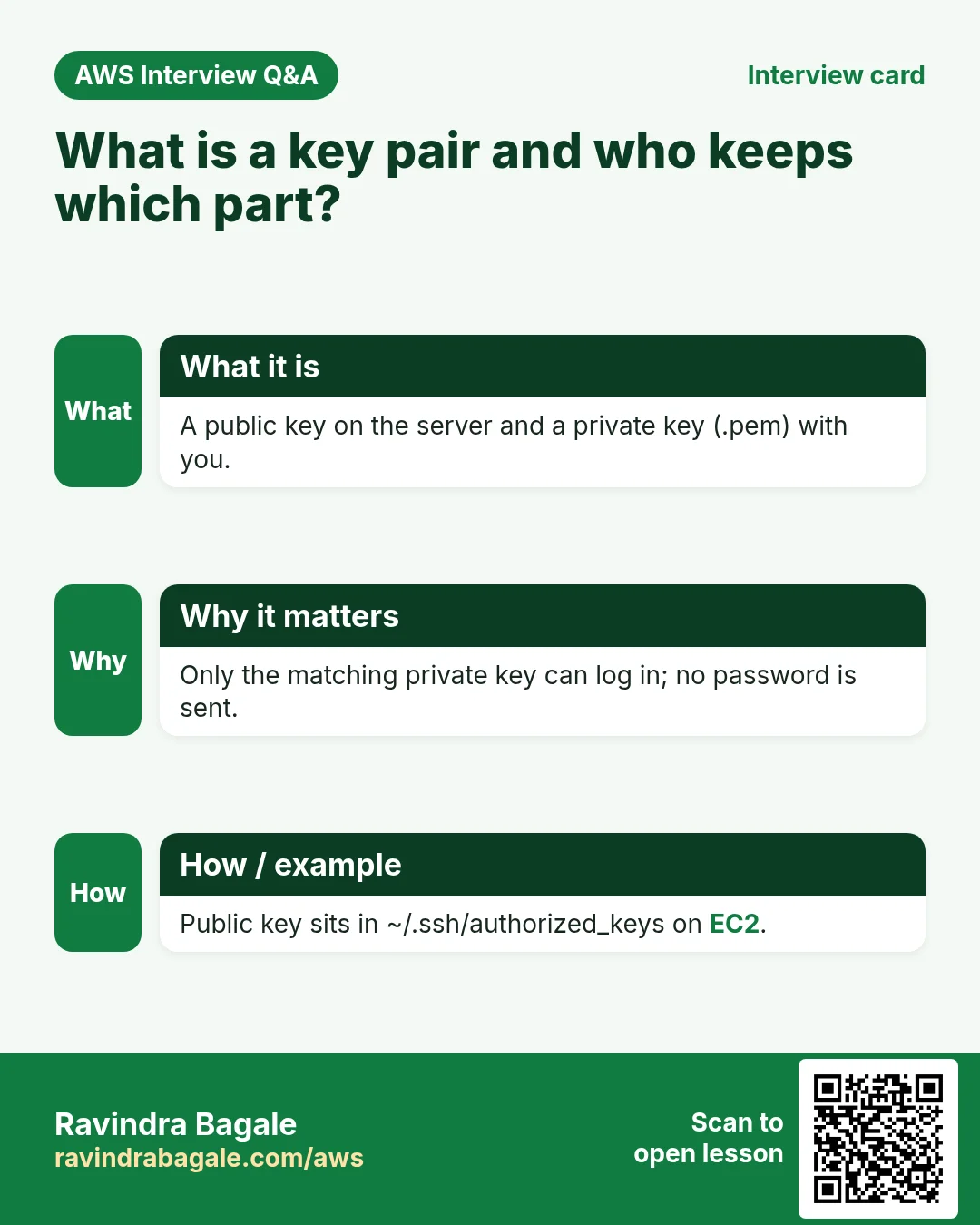
t3.microfor accounts made on or after 15 July 2025;t2.microort3.microfor older accounts. - Key pair. Login without a password. It is a 2048-bit RSA key that proves who you are.
- Security group. Inbound ports are closed until you open them. For SSH we open port 22.
- Storage. The Amazon Linux root volume starts at 8 GiB. Extra EBS volumes are like extra USB drives; a gp3 volume can be as small as 1 GiB.
- Number of instances. Every instance is a clone of steps 1 to 6.
One key pair per project. You can reuse one security group or one key pair for many servers. Should you? Look at the story.
Worked example: 100 servers, one key.
- Suppose your company runs 100 servers: 50 for project A and 50 for project B.
- All 100 were launched with the same key pair,
company.pem. - One developer of project A loses his laptop. The
.pemfile is on it. - Whoever has that file can try to log in to all 100 servers.
- Now suppose project A used
project-a.pemand project B usedproject-b.pem. - The same lost laptop exposes only the 50 servers of project A. Project B stays safe.
- 100 exposed → 50 exposed: half the damage, from one simple habit.
Figure 1. Suppose 100 servers share one key pair: one leaked key exposes all 100. With one key pair per project, a leak of key A exposes only project A's 50 servers.
CentOS Linux has ended (version 7 reached end of life on 30 June 2024). For a CentOS-like server, use Rocky Linux, AlmaLinux or CentOS Stream.
2. What happens in Pending: three parts come together
After you click Launch instance, the state shows Pending for a short time. Its duration can vary with the instance and what starts during launch. Knowing what AWS does in that time explains everything about stop, start and billing later.
Give every part a job
Read compute as the CPU and working memory that run programs. The EBS volume is the durable disk that holds Linux and the files you save. The ENI is the network connection that lets the instance send and receive packets. During launch AWS brings the parts together, the operating system starts from its boot volume, and services can start inside Linux.
Put a text file on the EBS volume, open an SSH session, and write down the current public address. Ask which part holds each thing. The file belongs to the disk. The live shell process and what it has only in memory belong to compute. The connection uses the network interface and assigned addresses. This little table lets you predict which things can survive a stop.
AWS puts together three separate parts:
- EC2 compute. Only the RAM and CPU of your instance type, on a physical host in the Availability Zone. EC2 = Elastic Compute Cloud.
- EBS volume. The disk (EBS = Elastic Block Store). For our server: 8 GiB gp3. It is a separate AWS service, connected to the compute over AWS's network.
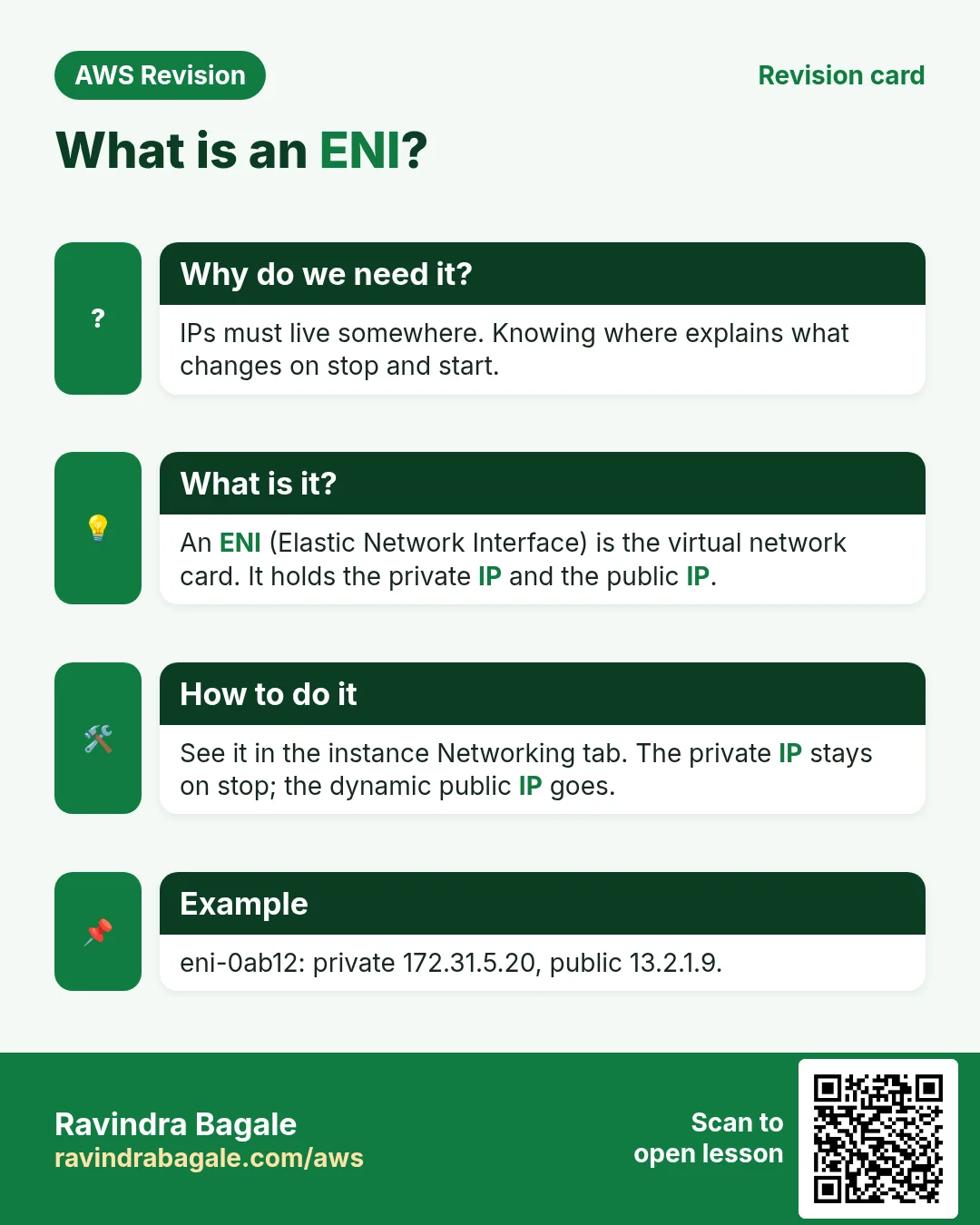
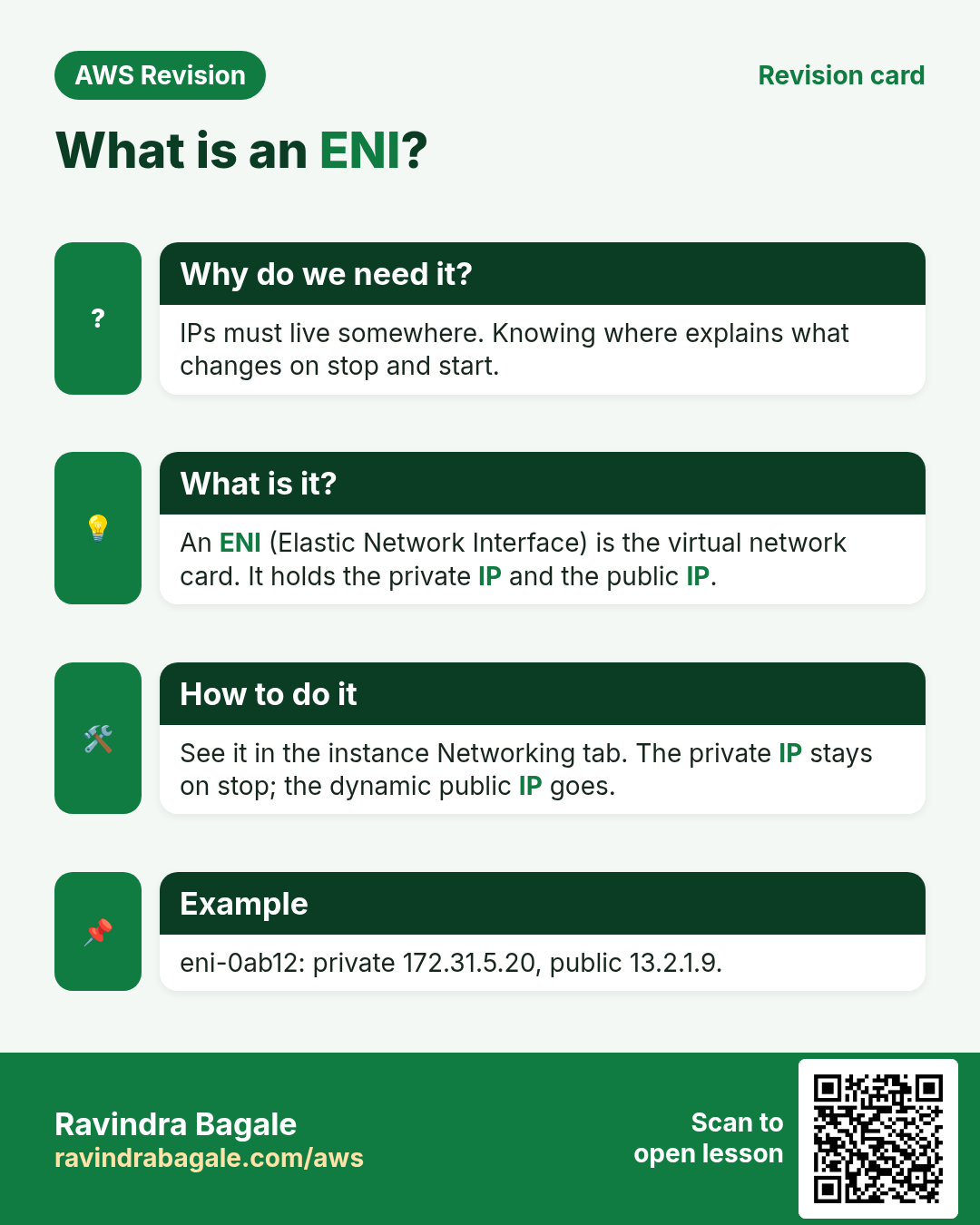
- ENI. The Elastic Network Interface: the server's network card. Your private and public IP addresses belong to the ENI.
When all three are joined, the state becomes Running.
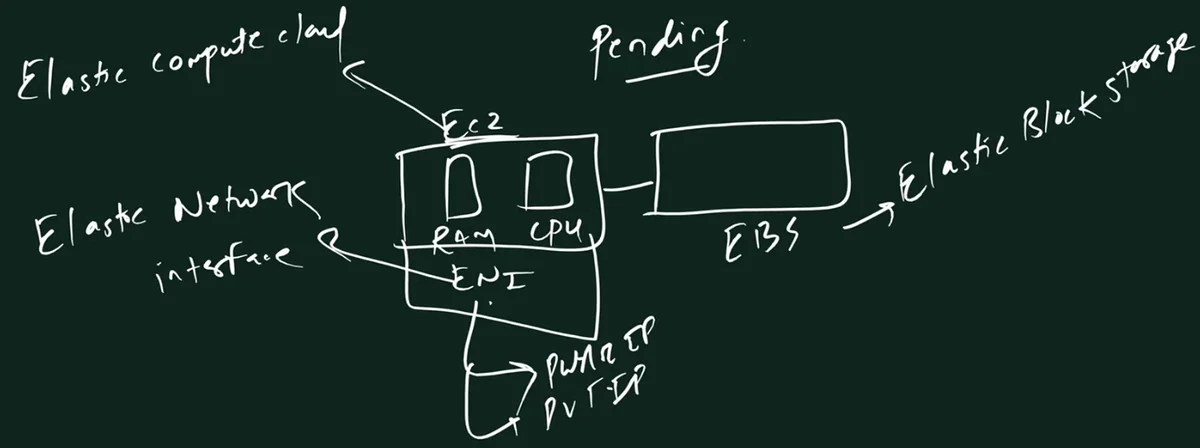
Whiteboard: EC2 (Elastic Compute Cloud) is only the RAM and CPU. EBS (Elastic Block Store; the board says "storage") is the disk, joined to it. The ENI (Elastic Network Interface) sits with the compute and carries the public and private IP.
Figure 2. Animation: during Pending, EC2 compute (RAM and CPU), the EBS volume and the ENI come together, then the state shows Running. Pending is not billed.
Worked example: when does the bill start?
- You click Launch at 10:00:00.
- Pending lasts 15 seconds. AWS does not bill the instance in Pending.
- At 10:00:15 the state is Running. Billing starts now, per second, with a 1-minute minimum.
- You terminate at 10:30:15. Billed time: 30 minutes.
- With
t3.microin N. Virginia at $0.0104 per hour: 0.5 × $0.0104 = $0.0052.
3. The ENI: where your IP addresses live
People say "my server's IP". Strictly, the IP is on the server's network interface, the ENI. This matters when you stop and start a server.
The laptop analogy.
- Your laptop has an Ethernet port. You plug in a cable, and the network gives an IP address to that connection.
- Your EC2 instance has an ENI. Its main one is called the primary network interface (
eth0inside Linux). - The ENI holds the private IPv4 address (from the subnet; the default VPC uses
172.31.x.x) and, if the instance gets one, the public IPv4 address.
Figure 3. A laptop's Ethernet port carries its IP. An EC2 instance's ENI (eth0) holds its private IPv4 and its public IPv4. The addresses shown are examples.
Worked example: two addresses, two jobs.
- Suppose your server's ENI has private IP
172.31.5.10and public IP3.3.3.3(example values). - Another server in the same VPC talks to it on
172.31.5.10. That traffic never leaves AWS's network. - You, at home, connect to
3.3.3.3. That is the address the internet can reach. - Inside the server, Linux shows the private one: the prompt says
ip-172-31-5-10(section 15).
4. Stop under the hood: AWS takes the compute back
"Why is a stopped server free, but my bill is not zero?" The answer is in the three parts.
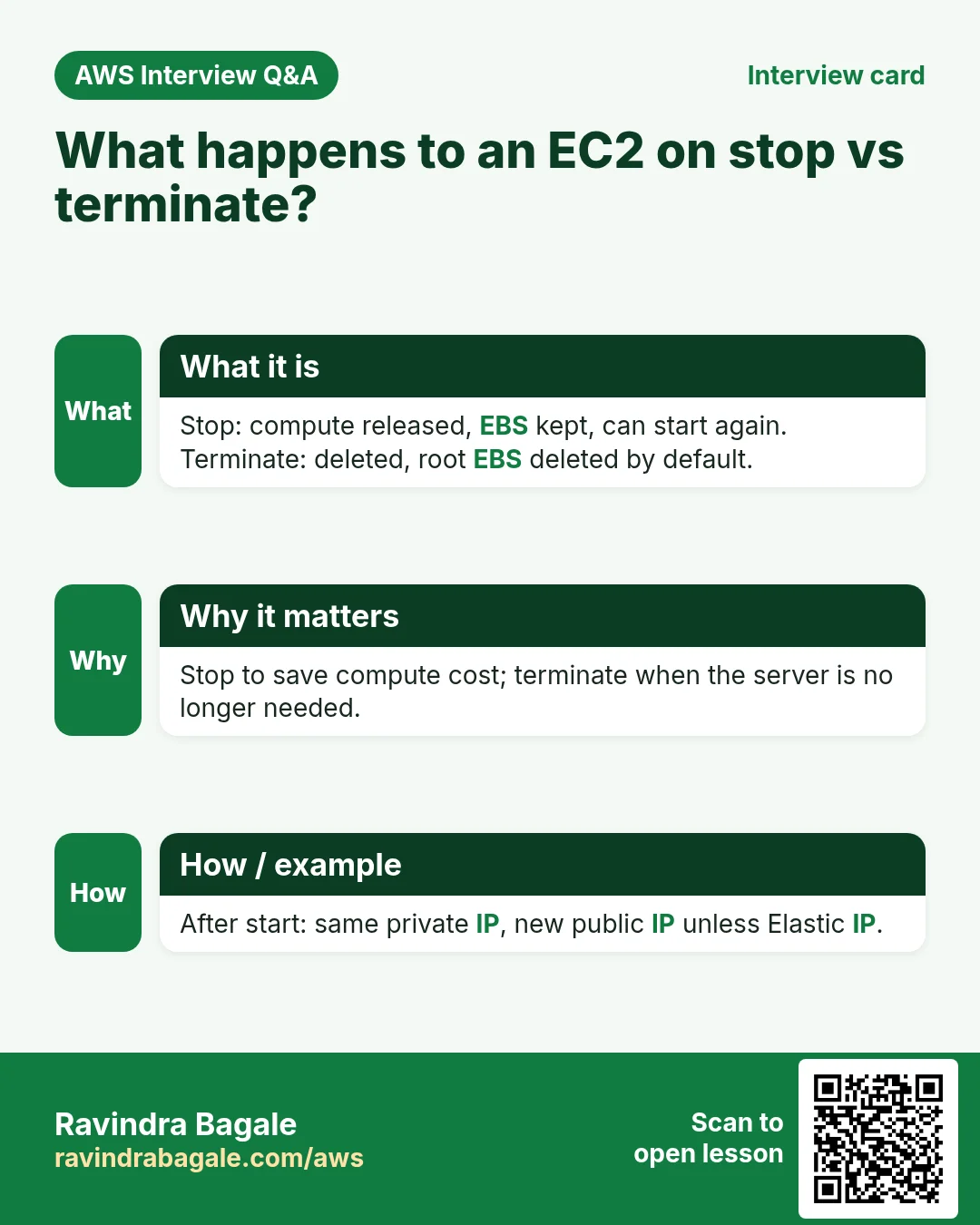
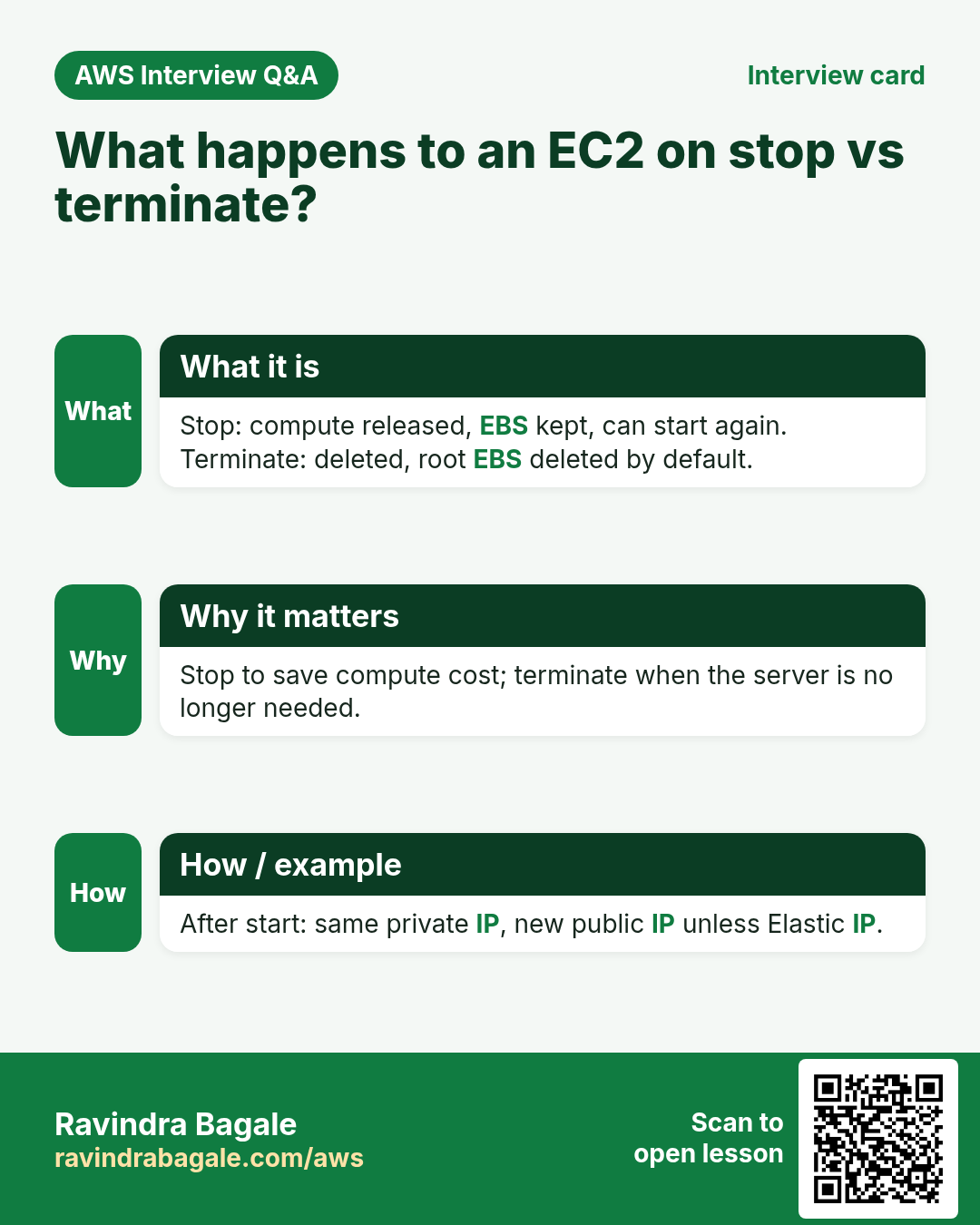
What happens when you stop.
- The state goes Stopping, then Stopped.
- The operating system shuts down. Anything in RAM is lost.
- AWS takes back the compute (RAM and CPU) and can give that hardware to another customer. So you pay no instance charge.
- Your EBS volume stays, with all your data. You keep paying for its storage.
- Your ENI stays, with its private IP.
- The public IPv4 that AWS auto-assigned is released.
Classroom line
Why would AWS waste its EC2 for free?
Class मधलं वाक्य
AWS आपलं EC2 फुकट का वाया घालवेल?
Classroom line – हिंदी
"Kya fukat me apna EC2 waste karega AWS?"
Classroom line
The hard disk stays with us; our data is in it.
Class मधलं वाक्य
Hard disk आपल्याकडेच आहे, त्यात आपला data आहे.
Classroom line – हिंदी
"Hard disk apne paas hi hai, isme data hai apna."
Classroom line
When we stop the server, there are no EC2 charges.
Class मधलं वाक्य
"Jya veli aapan server band karto tya velala charges lagat nahit EC2 che."
ज्या वेळी आपण server बंद करतो, त्या वेळी EC2 चे charges लागत नाहीत.
Classroom line
When we stop the server, there are no EC2 charges.
Figure 4. Animation: on Stop the compute goes back to the AWS pool and can serve another customer, while the EBS volume and the ENI stay. On Start new compute of the same size is attached; the private IP stays and the auto-assigned public IP changes. The IPs are examples.
5. Start again: what stays and what changes
Students are surprised when the SSH command that worked yesterday fails today. Usually the public IP changed.
Record what happened across stop and start
On a disposable EBS-backed lab instance, note the instance ID, private IPv4 and auto-assigned public IPv4 in the console. Over SSH run printf 'saved on disk
' > ~/stop-start-note.txt, then exit. Stop the instance and wait for Stopped. Start it, wait for the status checks, and copy its current public address before you reconnect.
After login, run cat ~/stop-start-note.txt. Your saved line should still be there. Compare the three console values with your notes. The instance ID and primary private address stay associated with the instance. The auto-assigned public IPv4 can change. A plain reboot behaves differently because it keeps the instance running through an operating-system restart. Remove the little practice file after the check.
What happens when you start.
- The state goes Pending again. Why Pending? Because the compute was given back. AWS must put the three parts together again, usually on a new host.
- New compute of the same instance type is attached to your same EBS volume and same ENI.
- The private IPv4 stays the same.
- The public IPv4 is new, if the instance gets an auto-assigned one.
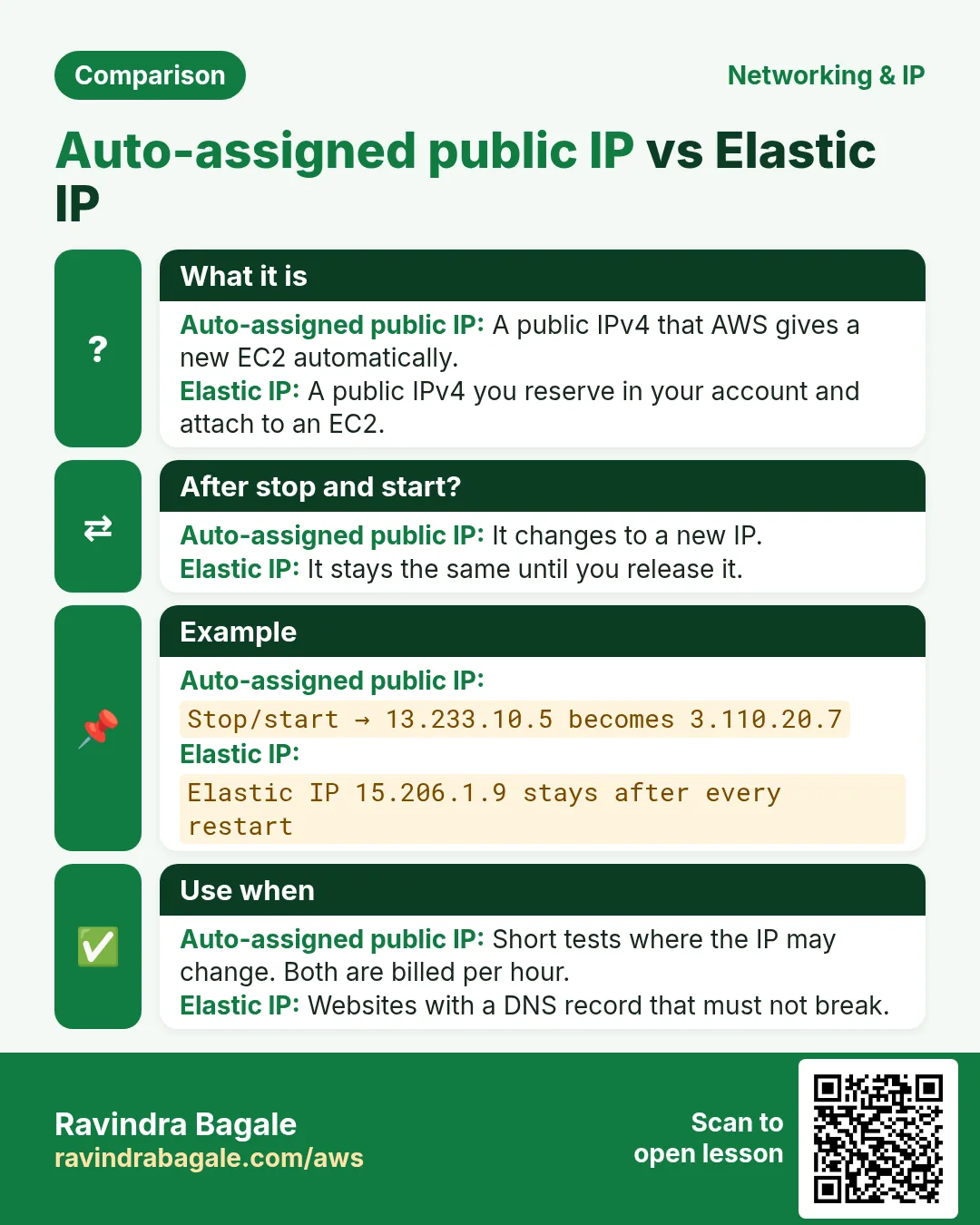
- An Elastic IP (a static public IP you allocate) stays with the instance across stop and start.
- Each start begins a new billing period with a 1-minute minimum.
Classroom line
When you stop the server and start it again, the dynamic IP changes.
Class मधलं वाक्य
"Server band karun chalu kela ki dynamic IP change hoto."
Server बंद करून चालू केला की dynamic IP change होतो.
Classroom line
When you stop the server and start it again, the dynamic IP changes.
Worked example: yesterday's command fails.
- Yesterday: public IP
3.3.3.3. You logged in withssh -i Downloads\firstlast.pem ec2-user@3.3.3.3. - Last night you stopped the server to save money.
- Today you start it. The console shows public IP
5.5.5.5(example). - Yesterday's command now waits and fails with a timeout.
- Fix: copy the new public IP from the console and use
ec2-user@5.5.5.5. - If you need an address that never changes (for a website or a domain), attach an Elastic IP. We do that later in the course.
| Stop → Start | Reboot | |
|---|---|---|
| Host | usually a new host | same host |
| Private IPv4 | stays | stays |
| Auto-assigned public IPv4 | changes | stays |
| Elastic IP | stays | stays |
| EBS data | stays | stays |
| RAM | erased | erased |
Public IPv4 costs money. Since February 2024 AWS charges $0.005 per hour for every public IPv4 address, in use or idle.
- One running server with one public IPv4 for a month: 720 hours × $0.005 = $3.60.
- Accounts made before 15 July 2025 got 750 hours a month of public IPv4 free during their first 12 months. Newer accounts pay it from their credits.
- A stopped server releases its auto-assigned public IP, so that charge stops too.
- An Elastic IP is charged even when its server is stopped. Release Elastic IPs you no longer need.
6. The EBS bill: real numbers
A stopped server still costs a little, because the disk stays. Let's calculate it.
gp3 storage is charged per GB-month for the size you provision, even if the disk is empty. It is billed per second, so a part of a month costs a part of the price. AWS's price list (October 2026): $0.08 per GB-month in N. Virginia and $0.0912 in Mumbai.
Worked example 1: one server.
- One server with an 8 GB root volume, in N. Virginia.
- 8 × $0.08 = $0.64 a month, whether the server is running or stopped.
- Terminate it (and the root volume is deleted by default): $0.
Worked example 2: four servers. Here is the calculation with the real gp3 price.
- 3 servers × 8 GB = 24 GB.
- Accounts made before 15 July 2025 get 30 GB of EBS free per month during their first 12 months (the legacy Free Tier). 24 GB is under 30 GB: $0.
- Launch a 4th server: 4 × 8 = 32 GB.
- 32 − 30 = 2 GB over the free amount.
- 2 × $0.08 = $0.16 for a full month.
- Keep the 4th server for only 15 days of a 30-day month: $0.16 × 15 ÷ 30 = $0.08.
Worked example 3: the same disks on a newer account.
- Accounts made on or after 15 July 2025 have no 30 GB allowance. Usage is paid from the $100 to $200 credits.
- All 32 GB count: 32 × $0.08 = $2.56 a month, taken from your credits.
- The same 32 GB in Mumbai: 32 × $0.0912 = $2.92 a month.
Figure 5. A worked example with real gp3 prices: four 8 GB disks make 32 GB, which is 2 GB over the legacy 30 GB allowance. Newer accounts pay for all 32 GB from their credits.
Ravindra Bagale's Tip
Don't rely on remembering to stop things. Set a monthly budget alert in AWS Budgets (the previous chapter shows how), and terminate practice servers when you finish. A stopped server still pays for its disk and any Elastic IP.
Keep AutoPay on: unpaid bills lead to account suspension. Use a budget alert, and stop or terminate what you don't use. The real gp3 price is shown above.
7. Terminate under the hood
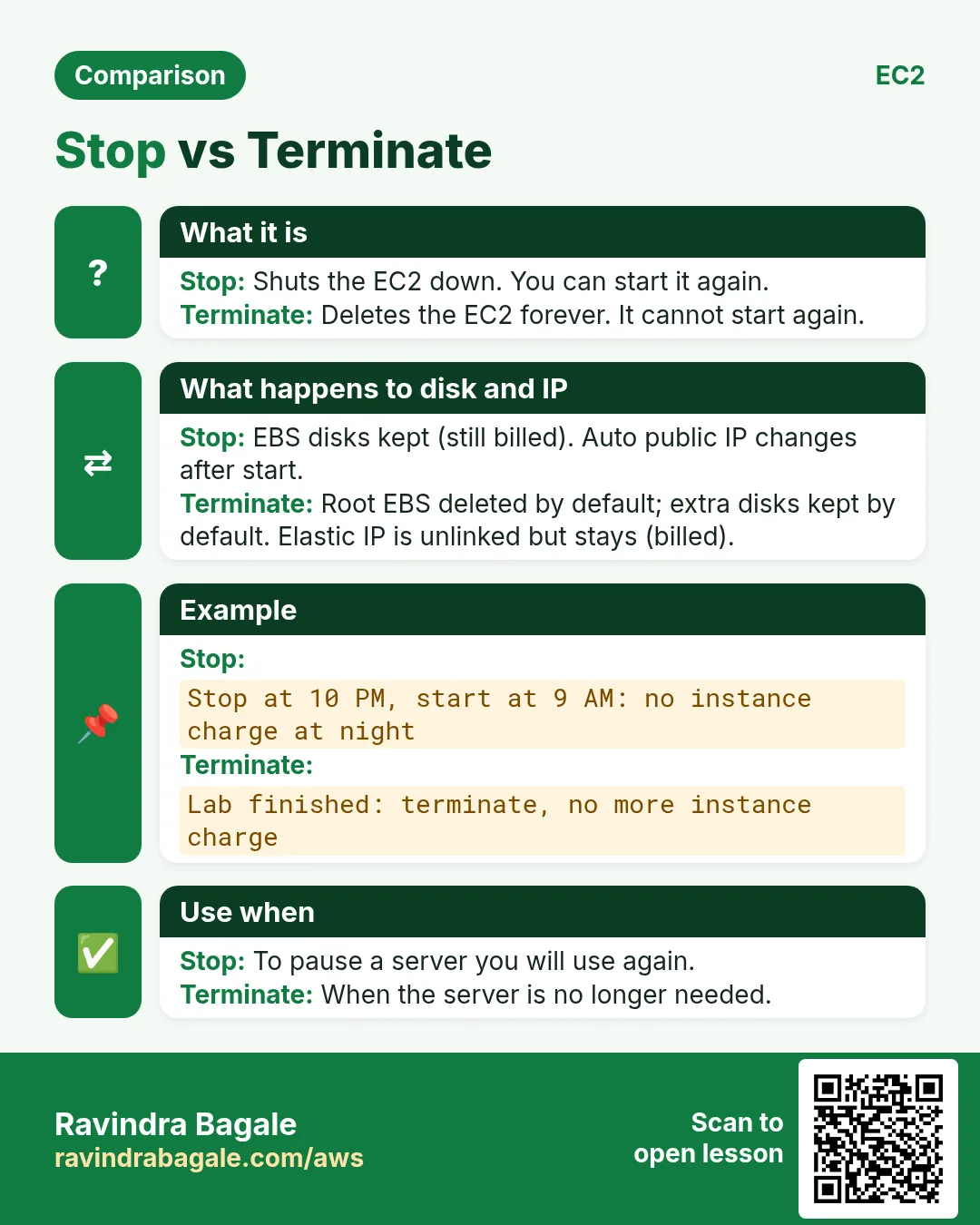
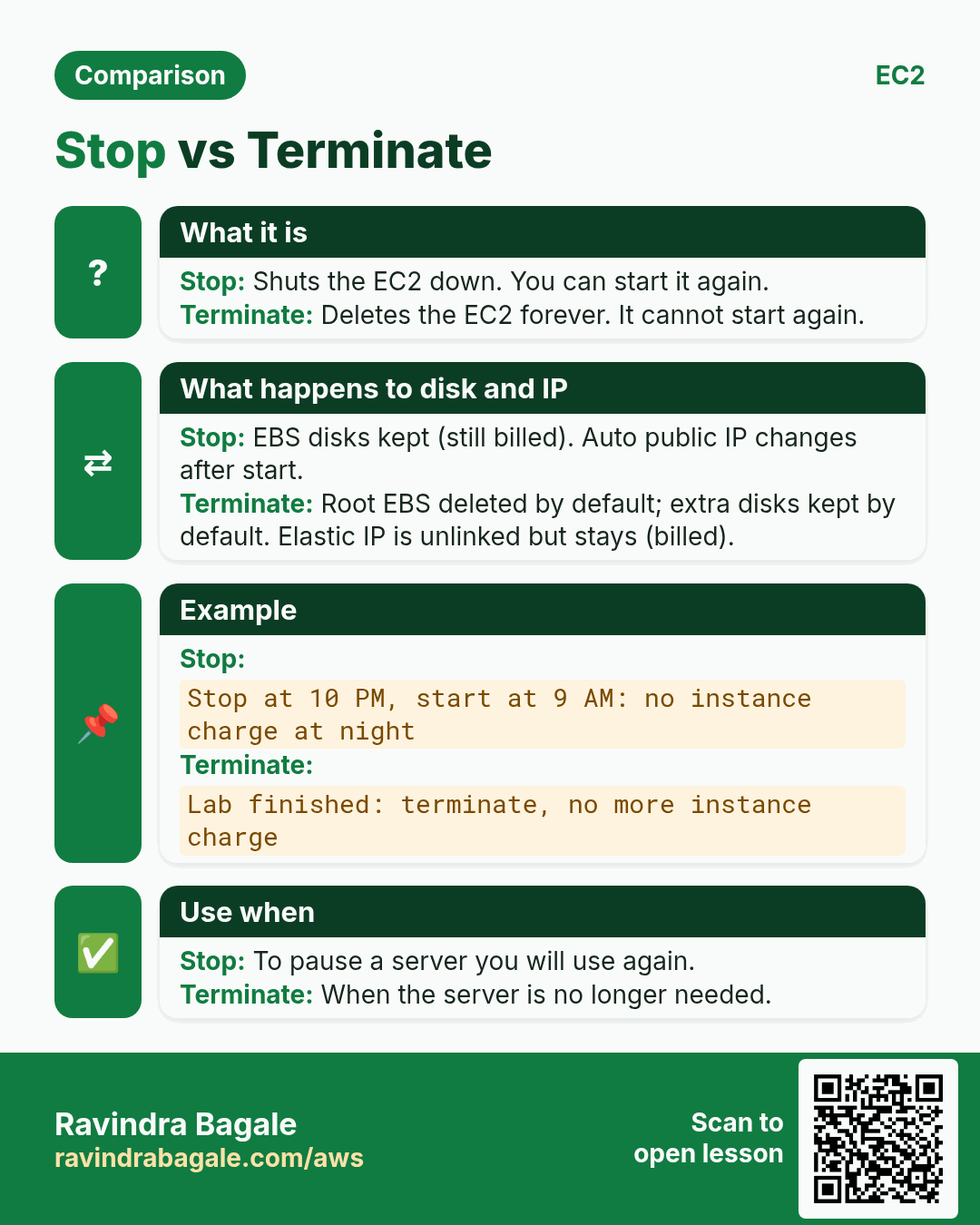
Stop is a pause. Terminate is delete. You must know exactly what is lost.
What happens when you terminate.
- The state goes Shutting-down, then Terminated.
- Billing for the instance stops as soon as it is Shutting-down.
- The root EBS volume is deleted by default (its
DeleteOnTerminationsetting is on). Extra EBS volumes you attached later are kept by default. - An Elastic IP is disassociated (and keeps costing money until you release it).
- You cannot start a terminated instance again. It stays visible in the console for a short while, then disappears.
Worked example: what is left after terminate?
- Server with an 8 GB root volume and an extra 10 GB data volume you attached later.
- You terminate it.
- The 8 GB root volume is deleted.
- The 10 GB data volume becomes "available" (not attached) and is still billed: 10 × $0.08 = $0.80 a month.
- Delete it from EC2 → Volumes if you don't need it.
No backup is taken for you while a server shuts down, and the root volume is deleted by default on terminate. Take a snapshot first (section 9).
8. The instance state diagram
This diagram explains billing, IP changes and data safety in one picture, and interviewers love to ask it.
Classroom line
What are we looking at? The EC2 states. They can ask this in interviews.
Class मधलं वाक्य
"Aapan kay baghtoy, EC2 che states. Interview madhe vicharu shaktat."
आपण काय बघतोय? EC2 चे states. Interview मध्ये विचारू शकतात.
Classroom line
What are we looking at? The EC2 states. They can ask this in interviews.
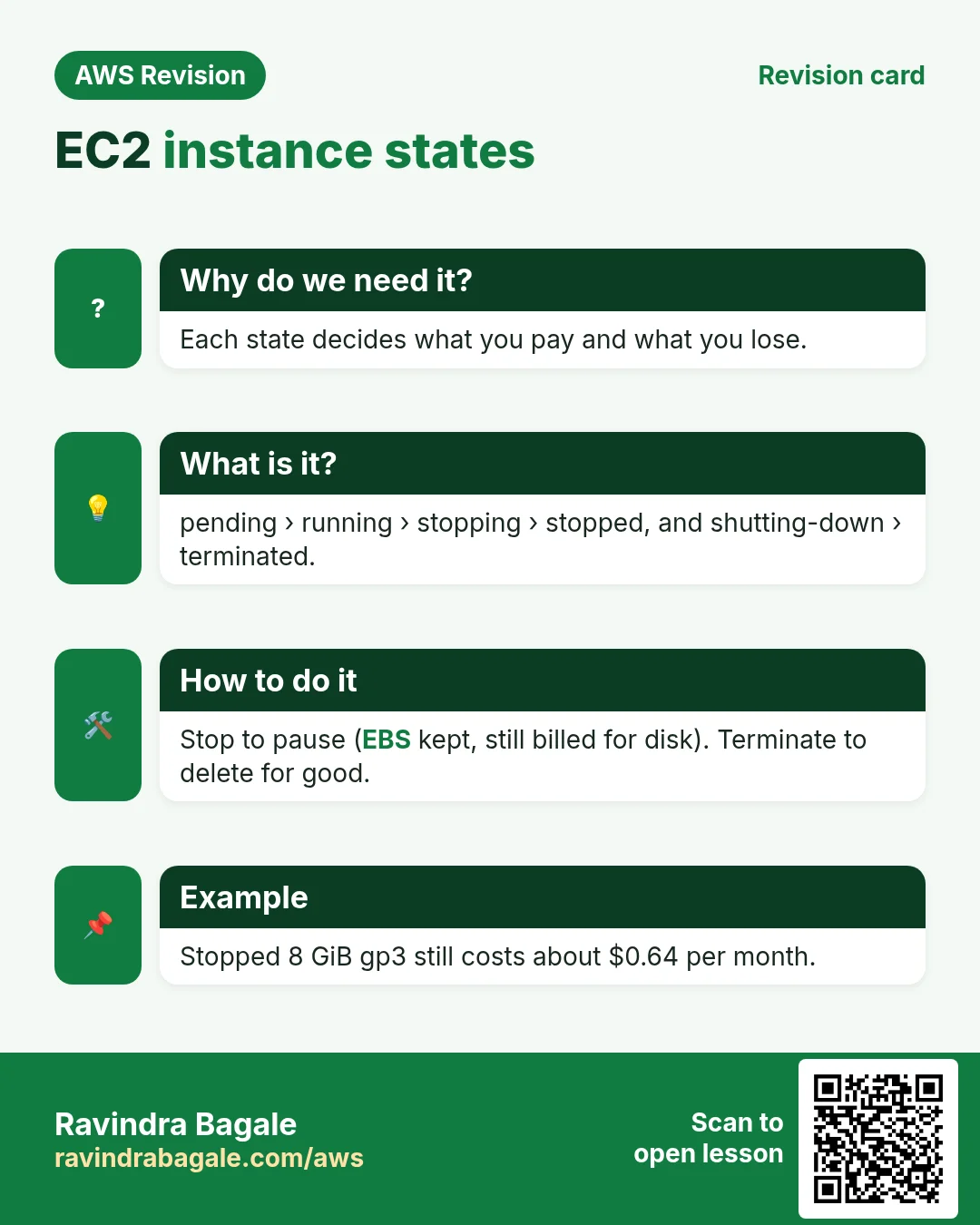
The six states:
| State | Meaning | Instance billed? |
|---|---|---|
pending |
AWS is putting the parts together (launch or start) | no |
running |
ready to use | yes |
stopping |
shutting down to stop | no |
stopped |
off; can be started again | no (EBS is billed) |
shutting-down |
shutting down to terminate | no |
terminated |
deleted; cannot be started | no |
How the arrows go:
- Launch →
pending→running. running→ Stop →stopping→stopped.stopped→ Start →pending→running.running(orstopped) → Terminate →shutting-down→terminated.
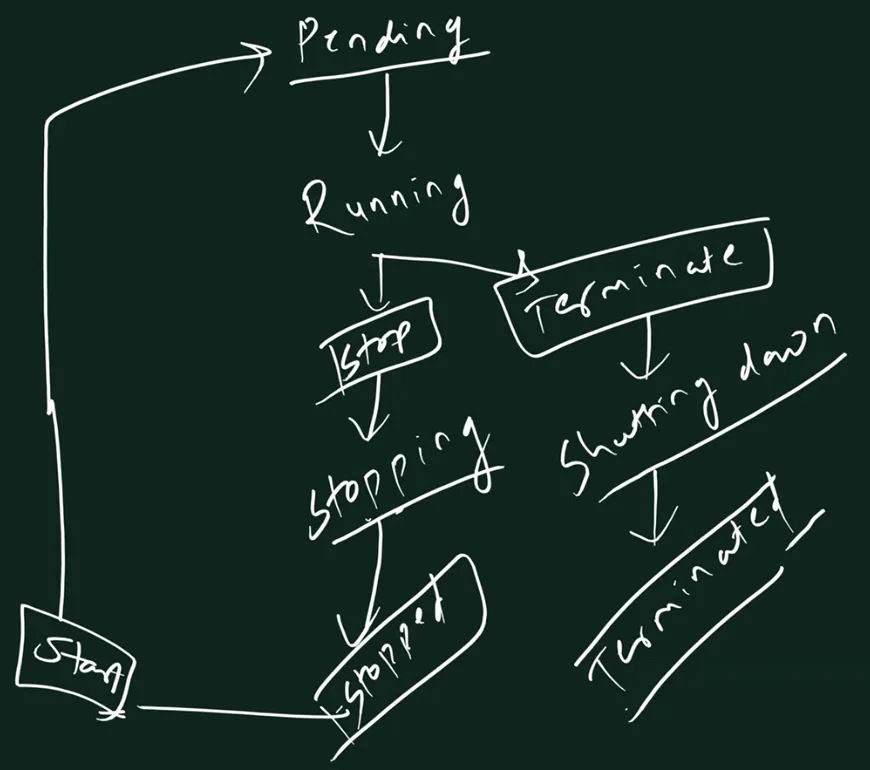
Whiteboard: The instance states: Pending, Running; Stop goes to Stopping and Stopped; Start goes back to Pending; Terminate goes to Shutting down and Terminated.
Figure 6. Animation: the highlight walks through pending, running, stopping, stopped, shutting-down and terminated. Only running is billed for the instance; EBS volumes and public IPv4 addresses have their own charges.
Worked example: three interview questions.
- "You stop a server. Which charges stop, and which continue?" The instance charge stops; EBS storage and any Elastic IP continue.
- "Why does a started server go to Pending?" Because the compute was released on stop, so AWS puts compute, EBS and ENI together again, usually on a new host.
- "Can you start a terminated instance?" No. Launch a new one, from an AMI or snapshot if you saved one.
9. Backups before you stop or terminate
Stop keeps the disk, but terminate deletes the root volume by default. And mistakes happen. A backup must exist before you press the button.
Three good ways:
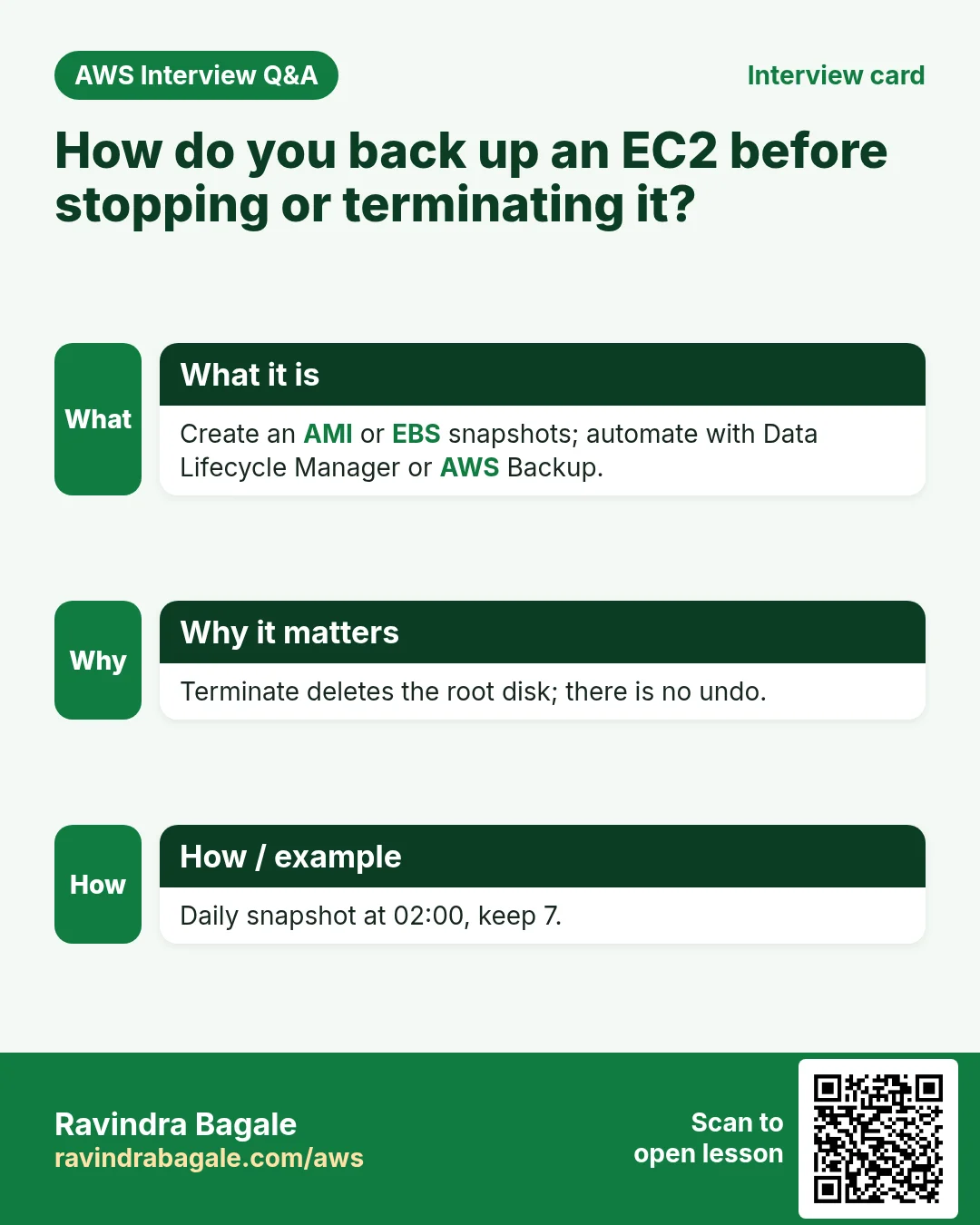
- By hand, before: create an EBS snapshot of the volume, or create an AMI of the instance (an AMI includes snapshots of its volumes).
- On a schedule: an AWS Backup plan, or an Amazon Data Lifecycle Manager policy that snapshots volumes every day.
- On an event: an Amazon EventBridge rule that matches the "EC2 Instance State-change Notification" event (for example state
stopping) and runs a Lambda function that creates a snapshot.
Figure 7. Back up by hand before you stop or terminate, on a schedule with AWS Backup or Data Lifecycle Manager, or from an EventBridge rule. Not with a script inside the OS during Stopping.
Worked example: snapshot before terminate.
- EC2 → Instances → select the server → Storage tab → click the volume ID.
- Actions → Create snapshot → add a description, for example
before-terminate→ Create snapshot. - Wait until the snapshot status is Completed.
- Now terminate the server.
- Later you can create a new volume, or an AMI, from that snapshot.
- The snapshot itself is billed by the GB-month while you keep it.
Don't plan a backup during the Stopping step: the OS gets only a short, graceful shutdown, and if it does not finish within a few minutes AWS forces it off. There is no setting to make the OS wait for a long backup. Take snapshots or an AMI before, or automate with AWS Backup, Data Lifecycle Manager or EventBridge.
10. Launching again in the console
To practise SSH, launch a fresh server. Two small habits make the next sections easier.
How (same 7 steps, with these choices).
- Name:
firstlast. - AMI: Amazon Linux 2023, marked Free tier eligible.
- Instance type: the one marked Free tier eligible for your account (section 1).
- Key pair: Create new key pair → name
firstlast→ RSA →.pem→ Create key pair. The filefirstlast.pemdownloads, usually to Downloads. - Network settings: Create security group, Allow SSH traffic from (port 22).
- Storage: 1 × 8 GiB gp3.
- Launch instance → View all instances.
Classroom line
When you name the key pair file, try to use a single word.
Class मधलं वाक्य
"Key pair file cha nav litana sahasa single word vaparnya cha prayatna kara."
Key pair file चं नाव लिहिताना शक्यतो single word वापरण्याचा प्रयत्न करा.
Classroom line
When you name the key pair file, try to use a single word.
Why a single word? In the ssh command a space ends one argument. my key pair.pem needs quotes; firstlast.pem does not (section 17).
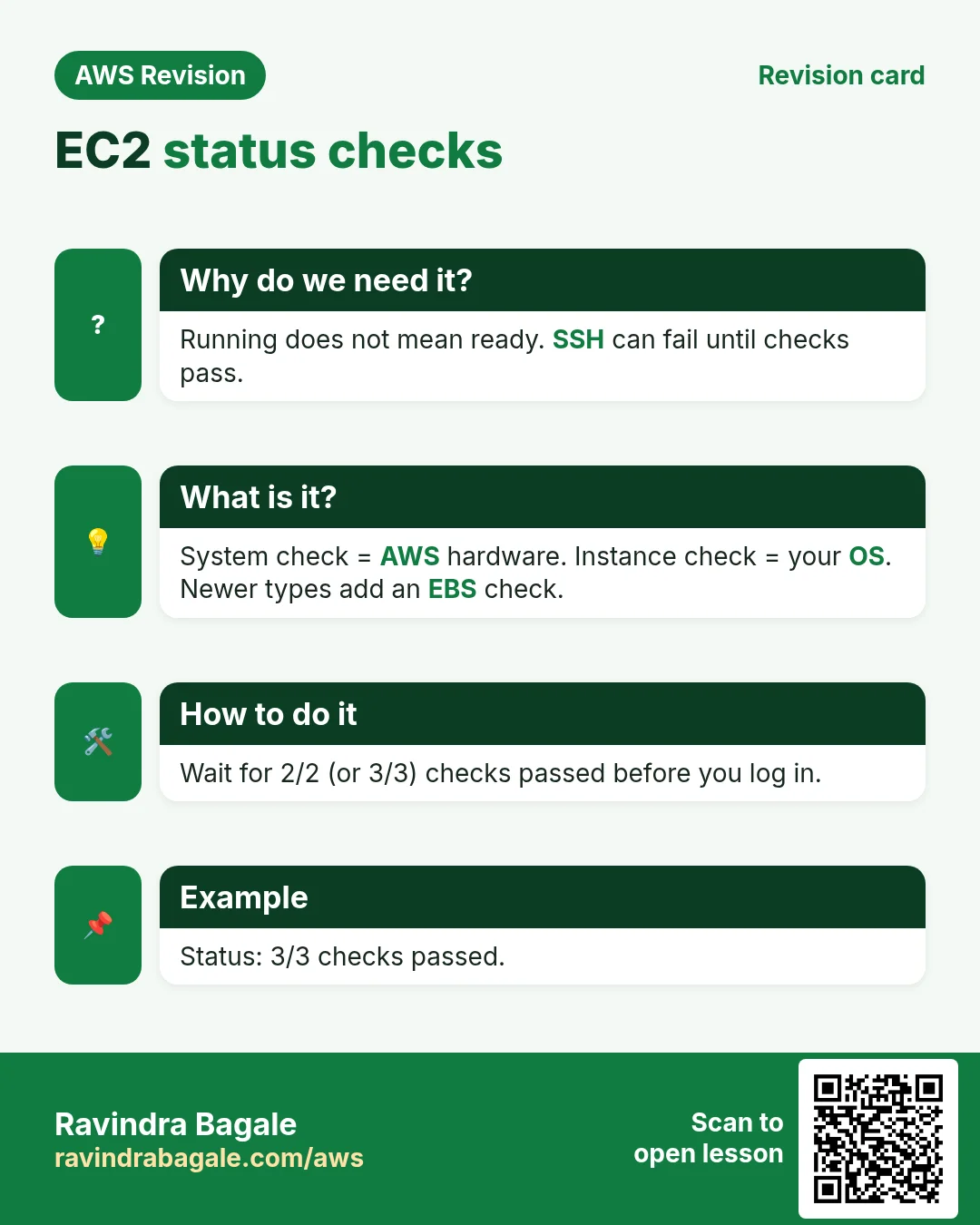
11. Status checks: 2/2 or 3/3?
Right after launch, the Status check column says Initializing. Wait for the checks to pass before you try SSH.
EC2 runs status checks every minute. Attached EBS status checks are available on supported instances:
- System status check: the AWS side. The physical host, its power and its network. If it fails, AWS fixes it, or you stop and start the instance to move it to a healthy host.
- Instance status check: your side. Your OS boots, its network is configured, it is not out of memory. If it fails, you fix it (reboot, or correct the configuration).
- Attached EBS status check: your EBS volumes are reachable and can complete reads and writes. This one is available only on Nitro-based instances.
So a t3.micro (Nitro) shows 3/3 checks passed. An older Xen-based type such as t2.micro shows 2/2.
Figure 8. System, instance and attached EBS status checks. All three passing shows 3/3 on Nitro instances such as t3.micro; older Xen types such as t2.micro show 2/2.
Worked example: reading the column.
- 10:00 Launch. Status check: Initializing.
- 10:02 Status check: 3/3 checks passed. Now try SSH.
- Suppose one day it shows 2/3 and the system check failed: AWS's hardware has a problem. Stop and start the instance; it moves to a new host.
- Suppose the instance check failed: look inside. Reboot, or check what you changed last.
The three status checks are the system status check, the instance status check and the attached EBS status check. (AWS also offers optional application status checks that you set up yourself.)
12. The instance summary page
Everything you need for SSH is on this page.
EC2 → Instances → click the Instance ID. Important fields:
- Instance ID:
i-followed by letters and numbers. AWS's name for this server. Don't post it in public screenshots. - Public IPv4 address: what you use in the ssh command. It has a copy icon.
- Private IPv4 address: for example
172.31.5.10. The default VPC uses172.31.0.0/16. - Availability Zone: for example
ap-south-1b. We did not pick it; AWS chose one for us. We choose it ourselves when we learn VPC and subnets. - Elastic IP addresses: blank for now. That is the static IP for later.
- Instance state and Status checks.
The left menu of EC2 (Instances, Images, Elastic Block Store, Network & Security, Load Balancing, Auto Scaling) is a big part of this course. We will cover it over the coming months.
13. Opening PowerShell in the right folder
The key file is in your Downloads folder. If PowerShell opens somewhere else, the ssh command can't find it.
How (Windows).
- Press the Start button and type
PowerShell. - Open Windows PowerShell (normal, not "Run as administrator").
- Look at the prompt. Suppose your Windows user name is
ravi. You should seePS C:\Users\ravi>. Your Downloads folder is right inside it:C:\Users\ravi\Downloads. - If you see
PS C:\Windows\System32>, that window was opened as Administrator. Open a new normal tab with the + button, or close it and open PowerShell normally.
Classroom line
If it shows System32, it means it was opened for the admin user.
Class मधलं वाक्य
System32 दिसत असेल, तर त्याचा अर्थ ते admin user साठी उघडलं आहे.
Classroom line – हिंदी
"Agar System32 aa raha hai, iska matlab hai wo admin user ke liye open hua hai."
Figure 9. A normal PowerShell opens in your own folder, C:\Users\ravi, where Downloads is. An administrator PowerShell opens in C:\Windows\System32.
Classroom line
While I'm explaining, watch me... then do it at home.
Class मधलं वाक्य
"Me sangtana mazhya kade laksha dya... ghari jaun kara."
मी सांगताना माझ्याकडे लक्ष द्या... घरी जाऊन करा.
Classroom line
While I'm explaining, watch me... then do it at home.
14. Building the ssh command piece by piece
If you understand each part, you can fix any SSH error yourself.
Read an SSH error from left to right
In ssh -i ~/Downloads/class.pem ec2-user@203.0.113.10, your laptop first finds the private key file. It contacts the address and asks to sign in as ec2-user. The remote SSH service checks that the client can prove it holds the matching key. The private key stays on the laptop. Here the address is for reading the command, so use your own lab instance’s current address in the actual exercise.
Read the first failure carefully. A missing key path is a local file problem. A timeout points to reachability checks, such as the instance’s address and permitted port. Permission denied (publickey) means the connection reached SSH and the identity was rejected. Check the AMI’s username and the launch key pair. Test one change at a time so you learn which check resolved it.
Ask four questions, and write one part for each:
- Which program?
ssh(Secure Shell). - How do I prove who I am? Not with a password; with the key file.
-imeans identity file: the private key. - Where is the key file? Its path, for example
Downloads\firstlast.pem. - Who logs in, and to which server? The user name,
@, and the server's public IP:ec2-user@3.3.3.3.
Put together:
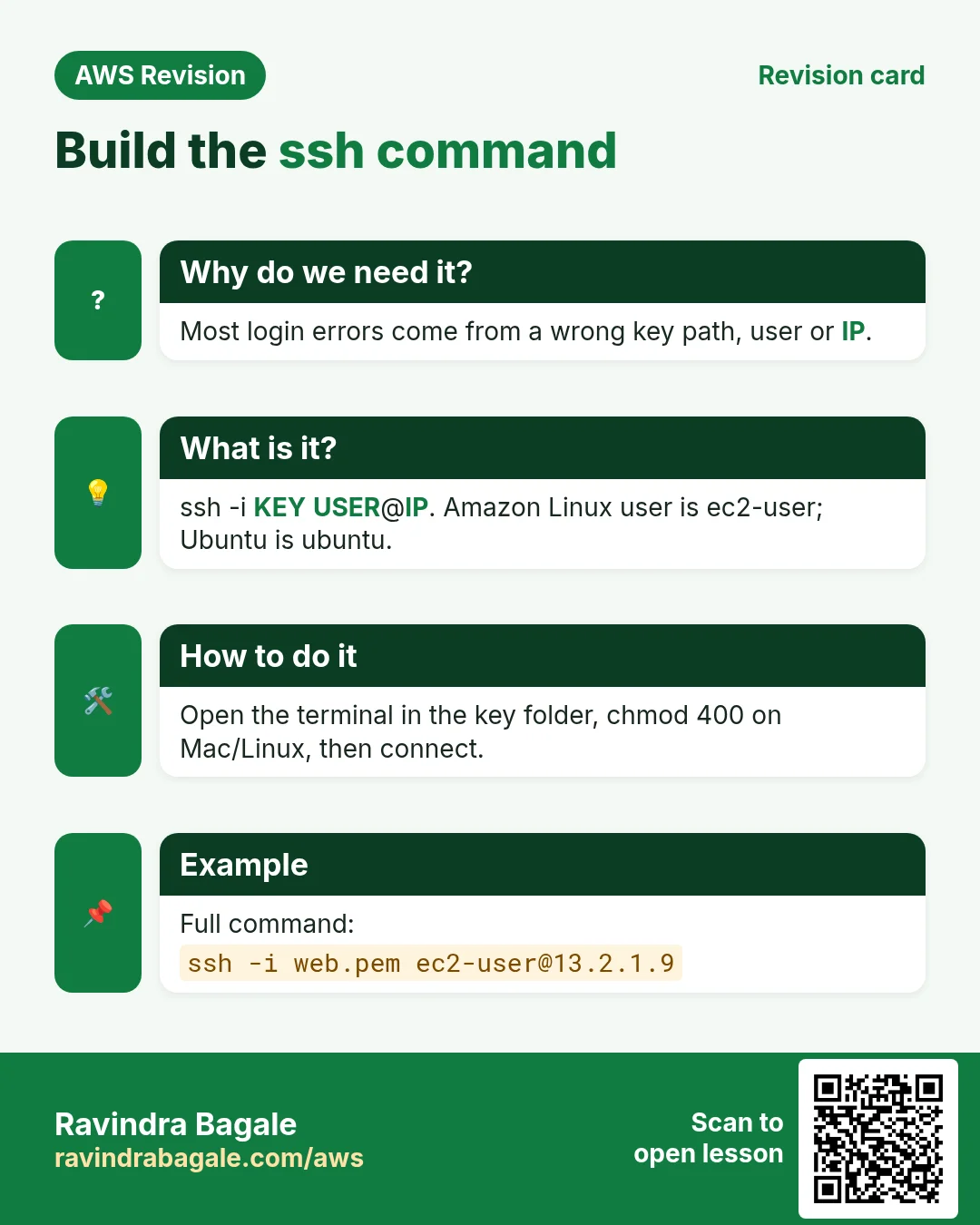
ssh -i Downloads\firstlast.pem ec2-user@3.3.3.3
3.3.3.3 is a placeholder. Use your own public IPv4 from the summary page.
The default user name depends on the AMI:
| AMI | User name |
|---|---|
| Amazon Linux | ec2-user |
| Ubuntu | ubuntu |
| Debian | admin |
| RHEL | ec2-user |
| Rocky Linux | rocky |
Type the path with Tab, not by hand.
- Type
ssh -i Dand press Tab. PowerShell cycles throughDesktop,Documents,Downloads. - Better: type
Dowand press Tab. It completes.\Downloads\. - Type
fand press Tab. It completesfirstlast.pem(press Tab again to cycle if several files start with f). - Type a space, then
ec2-user@, then paste the IP.
Classroom line
Never type the path by hand.
Class मधलं वाक्य
Path कधीच हाताने लिहायचा नाही.
Classroom line – हिंदी
"Kabhi path haath se nahi likhna hai."
Spaces matter.
- One space after
ssh. - One space after
-i. - One space after the key path.
- No spaces inside
ec2-user@3.3.3.3. It is one word.
Classroom line
Don't forget the spaces.
Class मधलं वाक्य
Space विसरायचा नाही.
Classroom line – हिंदी
"Space bhulna nahi hai."
Figure 10. Animation: ssh, -i, the key path, the user name, @ and the public IP appear one by one, each with its job. 3.3.3.3 is a placeholder.
-i stands for the identity file: the private key that proves who you are.
15. Logging in, first commands, and logging out
- In the console, open the instance summary and click the copy icon next to Public IPv4 address.
- In PowerShell type
ssh -i Dow, press Tab, typef, press Tab. - Type a space and
ec2-user@, then paste the IP (right-click pastes in PowerShell). - Press Enter.
- The first time only, SSH asks:
Are you sure you want to continue connecting (yes/no/[fingerprint])?Typeyesand press Enter. SSH saves the server's fingerprint so it can warn you if a different machine ever answers on that address. - You see the Amazon Linux 2023 banner, and a prompt like
[ec2-user@ip-172-31-5-10 ~]$. - Look at the prompt:
ip-172-31-5-10is the server's private IP with dashes. Compare it with the console. You are inside the server.
First commands:
lslists the files in your home folder. A new server shows nothing.mkdir ravimakes a folder namedravi.lsagain showsravi.exitlogs you out. You are back atPS C:\Users\ravi>.
Classroom line
Try it, SSH into the server.
Class मधलं वाक्य
"Kara try, server la SSH kara."
करा try, server ला SSH करा.
Classroom line
Try it, SSH into the server.
Worked example: which IP is which?
- The console shows public
3.3.3.3and private172.31.5.10(examples). - You connect to
3.3.3.3, because your laptop is on the internet, not inside the VPC. - The prompt shows
ip-172-31-5-10, because the server names itself after its private IP. - Two different IPs, one server.
16. Mac and Linux: chmod 400
On Mac and Linux, SSH refuses a private key that other users of the computer can read.
- Open Terminal.
cd Downloadschmod 400 firstlast.pem(400 = only you, the owner, can read it; nobody can write it).ssh -i firstlast.pem ec2-user@3.3.3.3- Type
yesthe first time.
Notice step 4: after cd Downloads you are already in Downloads, so the path is just firstlast.pem. If you did not cd, use Downloads/firstlast.pem (Mac and Linux use /, Windows uses \; PowerShell accepts both).
Classroom line
400 permission means only he (the owner) can read it; others cannot read it.
Class मधलं वाक्य
400 permission म्हणजे फक्त owner च ती वाचू शकतो, बाकी लोक वाचू शकत नाहीत.
Classroom line – हिंदी
"400 ka permission matlab hota hai... wahi read kar sakta hai, baaki log read nahi kar sakte."
17. Common SSH errors and their fixes
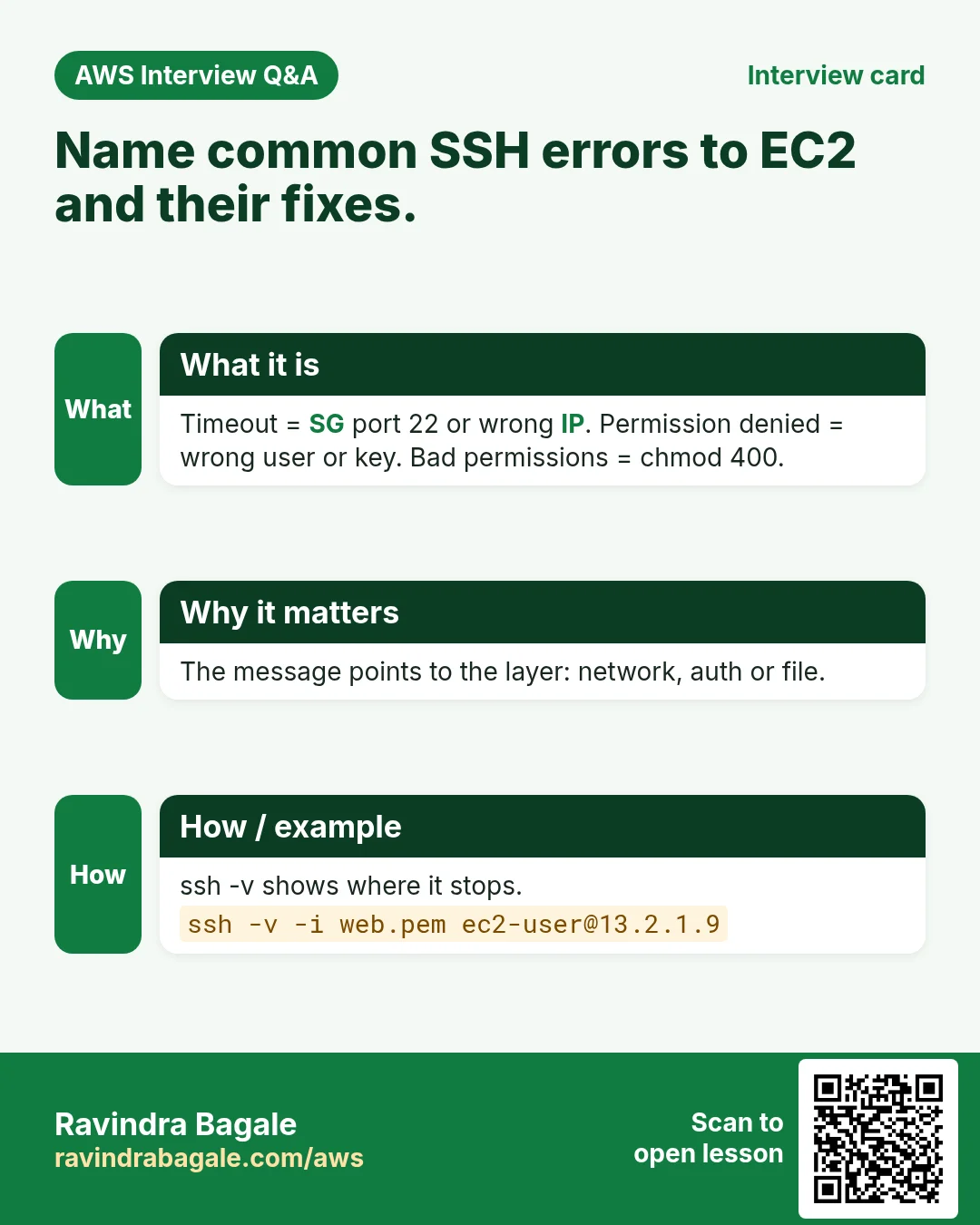
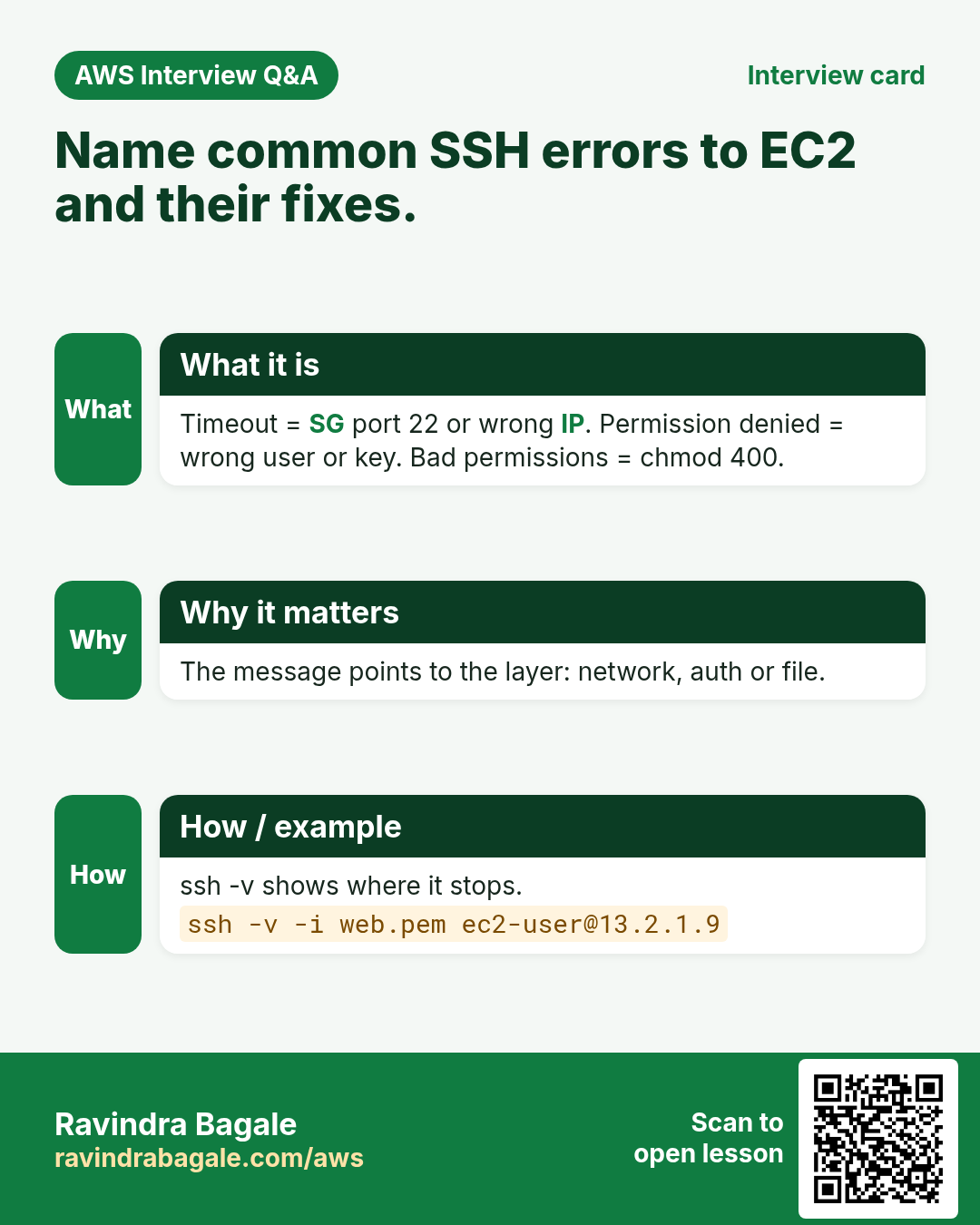
Almost every beginner hits one of these. Read the error message; it usually tells you which part is wrong.
| What you see | Usual cause | Fix |
|---|---|---|
Connection timed out |
port 22 not open in the security group, wrong IP, or the server is stopped | add an inbound rule SSH, port 22, from My IP; copy the current public IP; check the state is Running |
Identity file ... not accessible: No such file or directory |
wrong path or spelling of the key file | use Tab completion; or cd Downloads first |
Permission denied (publickey) |
wrong key file, or wrong user name | use the key chosen at launch; ec2-user for Amazon Linux, ubuntu for Ubuntu |
ssh : The term 'ssh' is not recognized |
the OpenSSH Client is not installed | Settings → Optional features → add OpenSSH Client, then open a new PowerShell |
WARNING: UNPROTECTED PRIVATE KEY FILE! / bad permissions |
other users can read the key file | Windows: file Properties → Security → Advanced → Disable inheritance → keep only your user. Mac/Linux: chmod 400 |
| path breaks at a space | the key file name has spaces | put the path in quotes, or use Tab |
Classroom line
You will have to add port number 22 in the security group.
Class मधलं वाक्य
"Security group madhe port number 22 add karava lagel."
Security group मध्ये port number 22 add करावा लागेल.
Classroom line
You will have to add port number 22 in the security group.
Worked example 1: a file name with spaces.
- Suppose the key downloaded as
my key pair.pem. ssh -i Downloads\my key pair.pem ec2-user@3.3.3.3fails: ssh seesDownloads\myas the key andkeyas something else.- Put the path in quotes:
ssh -i 'Downloads\my key pair.pem' ec2-user@3.3.3.3. - Easier: type
Dow, Tab,my, Tab. PowerShell adds the quotes for you.
Classroom line
If your key pair file name has a space, write the path inside single quotes.
Class मधलं वाक्य
तुमच्या key pair file च्या नावात space असेल, तर path single quotes मध्ये लिहायचा.
Classroom line – हिंदी
"Agar aapke key pair file ke naam mein space hai, toh aapko path single quote ke andar likhna hai."
Worked example 2: the key is on the D: drive.
- Suppose you moved the key to
D:\aws keys\firstlast.pem. - A path relative to
C:\Users\raviwill not find it. - Give the full path:
ssh -i 'D:\aws keys\firstlast.pem' ec2-user@3.3.3.3(quotes because of the space). - Or
cd D:\first, then use Tab.
Classroom line
Suppose your key pair file is in the D drive... you'll have to give that drive's path.
Class मधलं वाक्य
"Samja tumcha key pair file D drive madhe ahe... te drive cha path dyava lagel."
समजा तुमची key pair file D drive मध्ये आहे... त्या drive चा path द्यावा लागेल.
Classroom line
Suppose your key pair file is in the D drive... you'll have to give that drive's path.
Worked example 3: the Windows key-permission error, by command.
- In PowerShell, in the folder with the key:
icacls .\firstlast.pem /inheritance:r(remove inherited permissions). icacls .\firstlast.pem /grant:r "$($env:USERNAME):(R)"(give only you read access).- Try the ssh command again.
Two more checks.
- No VPN is needed. SSH goes straight over the internet to port 22.
- Is it your IP? Copy the public IP of your own server from your own console, not an IP from an example or someone else's screen.
Red text means PowerShell did not understand the command; if it says ssh is not recognized, add the OpenSSH Client (Windows 10 version 1809 and later, and Windows 11, include it as an optional feature). A key-permission error comes from the key file's Windows (NTFS) permissions; fix them as above. A Windows path to the key looks like D:\folder\key.pem. A relative path works when you are in the right folder; otherwise give the full path.
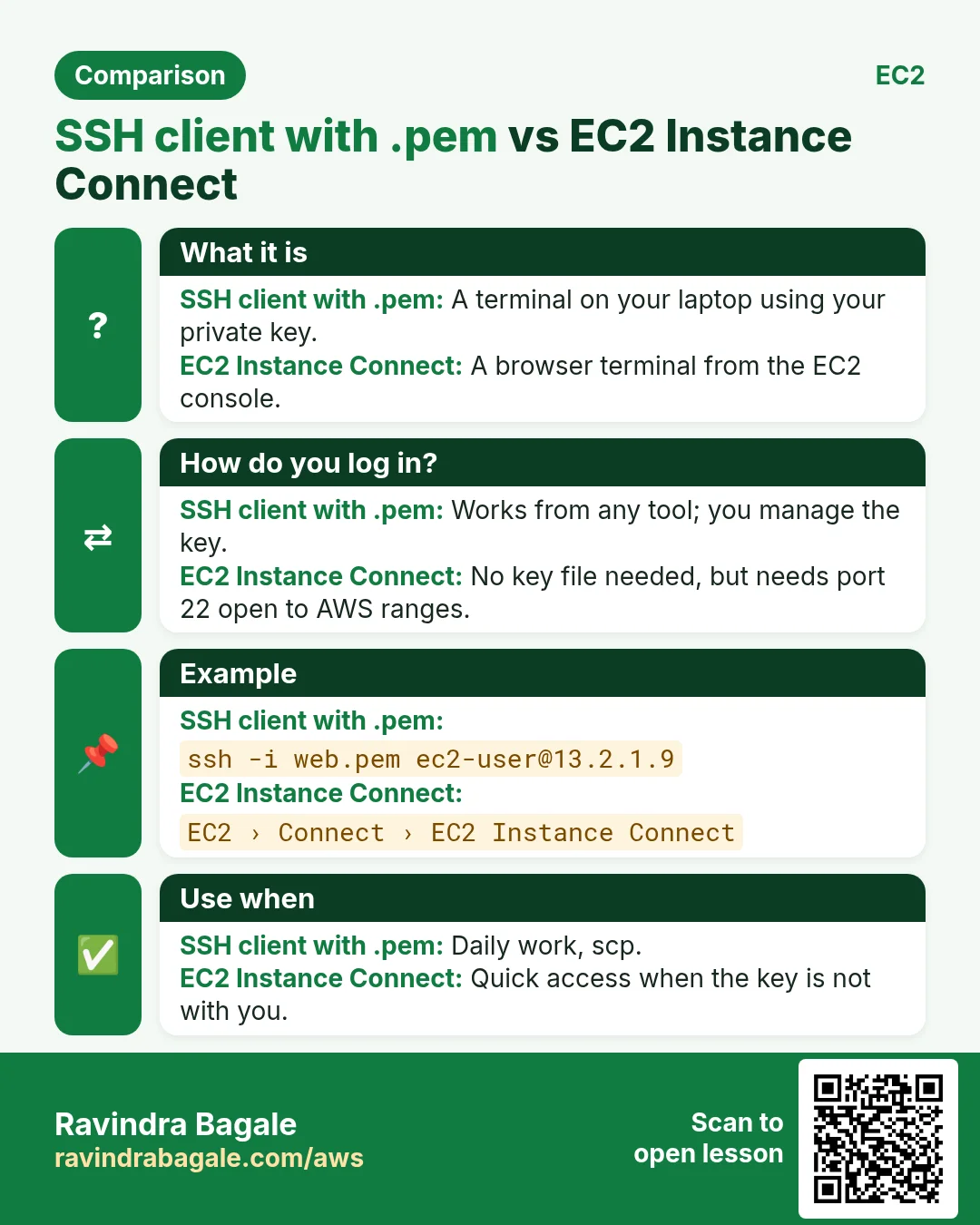
18. Other ways in: the Connect page and EC2 Instance Connect
The Connect page.
- Select the instance → Connect → SSH client tab.
- AWS shows the steps and an example command with your key name and the instance's public DNS name.
- The
chmod 400step is for Mac and Linux. On Windows, use the file Security tab instead. - Mac users can copy the example command into Terminal (from the folder that has the key).
EC2 Instance Connect (in the browser).
- Select the instance → Connect → EC2 Instance Connect tab.
- User name:
ec2-user. - Connect. A terminal opens in a new browser tab. No key file needed.
- It works when EC2 Instance Connect is installed (it comes pre-installed on Amazon Linux 2023 and Ubuntu 20.04 and later), the instance has a public IP, and the security group allows SSH (port 22) from the EC2 Instance Connect service's IP range. For console-based EC2 Instance Connect over a public IP, use the EC2 Instance Connect managed prefix list for your Region as the SSH source. Keep a My IP rule for direct SSH from your laptop. A My IP rule alone does not let the console connection through.
Classroom line
Suppose SSH just won't work whatever you do; there is one more way.
Class मधलं वाक्य
समजा काहीही करून SSH होत नसेल, तर अजून एक रस्ता आहे.
Classroom line – हिंदी
"Suppose kuch bhi karke SSH nahi ho raha hai, toh aur ek rasta hai."
Worked example: when to use which.
- Your laptop has the key and OpenSSH: use the ssh command. This is what you will use at work.
- You are on someone else's computer without your key: EC2 Instance Connect in the browser.
- Your security group allows SSH only from My IP: EC2 Instance Connect needs an extra rule for its prefix list
com.amazonaws.<region>.ec2-instance-connect.
19. What Linux is: files and folders
You are now inside a Linux server with only a black screen. What do you do there? Exactly what you do on Windows, but with commands.
An operating system lets you use the hardware. Think of what you do every day on Windows: create, write, modify, delete, rename, move, copy, paste, download, install apps. Almost all of it is working with files and folders.
Classroom line
An OS means files and folders. There's nothing else in it.
Class मधलं वाक्य
OS म्हणजे files आणि folders. त्याशिवाय त्यात काहीच नसतं.
Classroom line – हिंदी
"Ek OS matlab files aur folder hai. Iske alawa kuch bhi nahi rehta hai."
Windows action → Linux command:
| On Windows | On Linux |
|---|---|
| New folder | mkdir |
| New file | touch (empty file), or write it with nano, vi or cat |
| Copy + paste (Ctrl+C, Ctrl+V) | cp |
| Cut + paste (Ctrl+X, Ctrl+V), or rename | mv |
| Delete | rm |
Classroom line
The work we do on Windows is the same work we have to do on Linux.
Class मधलं वाक्य
जे काम आपण Windows वर करतो, तेच काम आपल्याला Linux मध्ये करायचं आहे.
Classroom line – हिंदी
"Jo kaam hum Windows pe kar rahe hain, wahi kaam humein Linux mein karna hai."
Worked example: the same task, two ways.
- Windows: right-click → New folder → type
reports→ Enter. - Linux:
mkdir reports - Windows: copy
jan.txtintoreports. - Linux:
cp jan.txt reports/ - Windows: rename
jan.txttojanuary.txt. - Linux:
mv jan.txt january.txt - Careful: in a Linux terminal, Ctrl+C stops a running command. It does not copy.
20. Distributions, and how Linux was really born
Windows has versions (10, 11). Linux has many names: Amazon Linux, Ubuntu, Debian, Fedora, Kali Linux, SUSE, Red Hat. Why so many?
The real history, in order:
- 1969: Unix. Ken Thompson and Dennis Ritchie created Unix at AT&T's Bell Labs. It was AT&T's licensed operating system, not free for everyone.
- 1983: GNU. Richard Stallman started the GNU project to build a free Unix-like system. It produced free tools (shell, compiler, libraries) and the GNU GPL licence.
- 1991: the Linux kernel. Linus Torvalds, a student in Helsinki, wrote a new Unix-like kernel from scratch. It did not contain Unix code. He announced it on 25 August 1991.
- The name. Torvalds wanted to call it "Freax". Ari Lemmke, who ran the FTP server where it was uploaded, named the folder "linux", and the name stuck.
- 1992: GPL. Torvalds moved the kernel to the GNU GPL. Anyone may use, study, change and share it, as long as changes are shared under the same licence.
- Distributions. Because it is open source, teams packaged the kernel with GNU tools, an installer and thousands of programs. Each package is a distribution (distro).
Figure 11. Unix (1969) gave the idea, GNU (1983) gave free tools, and Linus Torvalds wrote the Linux kernel (1991). A distribution is the kernel plus tools, an installer and packages.
Who makes which distro:
- Ubuntu: Canonical, founded by Mark Shuttleworth. "Ubuntu" is an African word often explained as "humanity to others". Based on Debian.
- Debian: a large community project.
- Red Hat Enterprise Linux (RHEL): Red Hat. The code is open source; companies pay a subscription for support and updates.
- Fedora: a community distro sponsored by Red Hat.
- CentOS Linux: was a free rebuild of RHEL. It has ended. Replacements: Rocky Linux, AlmaLinux, and CentOS Stream.
- SUSE: SUSE Linux Enterprise and the community openSUSE.
- Kali Linux: a Debian-based distro for security testing.
- Amazon Linux: AWS's own distro, tuned for EC2 and shipped with AWS tools. We use Amazon Linux 2023.
Same commands, different package names. Most commands (ls, mkdir, cp) are the same everywhere. Package managers and package names can differ. Example, the Apache web server:
- Amazon Linux, RHEL, Rocky:
sudo yum install httpd -y, thensudo service httpd start. - Ubuntu, Debian:
sudo apt install apache2 -y, thensudo service apache2 start. - Same software, two package names:
httpdandapache2.
The short history: Unix came from Bell Labs in 1969. Linus Torvalds wrote a separate Unix-like kernel from scratch in 1991, and Ari Lemmke named the FTP folder "linux". CentOS Linux has ended.
21. The kernel
Every distro shares the same heart: the Linux kernel.
Trace a command to the part that does the work
When you type ls, the shell reads the line and runs the listing program. That program needs Linux to read directory information from the filesystem. The kernel is the part that lets programs ask for storage, memory and network work while enforcing permissions. It returns information to the program, and the shell’s terminal displays the result.
Amazon Linux and Ubuntu both use a Linux kernel. Their default tool versions, software installers and file locations can differ. Run uname -r to see the kernel release and cat /etc/os-release to identify your distribution. Write kernel beside the first result and distribution beside the second. That difference will matter when we install packages.
The kernel is the core program of the operating system. It sits between programs and hardware:
- Memory: gives RAM to programs and takes it back.
- Processes: decides which program runs on the CPU, and when.
- Files: reads and writes the disk for programs.
- Drivers: talks to devices such as disks and network cards.
- Network: sends and receives packets.
Figure 12. Apps on top, then the shell and commands, then the kernel, then hardware. Requests go down to the kernel; results come back up.
Worked example: what happens when you type mkdir ravi.
- You type
mkdir raviin the shell (bash) and press Enter. - The shell runs the
mkdirprogram. mkdirasks the kernel: "make a directory named ravi here".- The kernel writes the new directory entry to the disk (your EBS volume).
lsasks the kernel for the list, andraviappears.
22. Why computers use binary
In the end the kernel and the CPU work with electrical signals. A circuit is either on or off.
- 1 = voltage present (on). 0 = low or no voltage (off).
- One 0 or 1 is a bit. 8 bits make a byte.
- Each place in binary is worth double the place to its right: 1, 2, 4, 8, 16, 32, 64, 128.
Figure 13. Animation: eight bulbs with place values 128 to 1. The bulbs for 4 and 1 light up: 4 + 1 = 5, so decimal 5 is 00000101 in one byte.
Worked example 1: 5 in binary.
- Which place values add up to 5? 4 + 1.
- Turn on the 4 and the 1; leave the 2 off:
101. - In 8 bits (one byte):
00000101.
Worked example 2: 10 in binary.
- 10 = 8 + 2.
- On: 8 and 2. Off: 4 and 1. →
1010. - In one byte:
00001010.
Worked example 3: the biggest number in one byte.
- All 8 bulbs on: 128 + 64 + 32 + 16 + 8 + 4 + 2 + 1.
- = 255. That is why each part of an IPv4 address goes from 0 to 255 (the IP chapter).
One fact worth keeping from digital logic: NAND is a "universal" gate, meaning any logic circuit can be built from NAND gates alone.
Hands-on lab: stop/start, public IP change, and first SSH login
Class built the SSH command piece by piece and watched Stop → Start change the public IP. Do every step once on your own instance. Exact console paths and commands below match what worked in class (Amazon Linux 2023, user ec2-user).
- Confirm the instance is Running
- Do: EC2 → Instances → select your server. Note Public IPv4, Private IPv4, and Instance state.
- You should see: State
Running, status checks passed, a public IP like3.x.x.x(example) and private172.31.x.x. - Check: Region at the top right is the Region where this instance lives.
- Why: SSH needs the current public IP. After Stop/Start the public IP usually changes; the private IP on the ENI stays.
- Stop the instance and watch the states
- Do: Instance state → Stop instance → Confirm. Refresh until state is Stopped.
- You should see:
StoppingthenStopped. Public IPv4 becomes empty. Private IPv4 remains. Root EBS volume still listed under Storage. - Check: You are not charged for EC2 compute while Stopped; you still pay for the EBS GB.
- Why: Stop returns the CPU/RAM to AWS. Disk (EBS) and network card (ENI + private IP) stay. Auto-assigned public IPv4 is released.
- Start again and copy the new public IP
- Do: Instance state → Start instance. Wait for Running + checks. Click the copy icon on Public IPv4.
- You should see: A new public IPv4 (different from step 1). Private IPv4 same as before.
- Check: Write the new IP in a notepad. Old SSH commands with the old IP will time out.
- Why: Auto public IPs come from a pool. Elastic IP (later lesson) stays across Stop/Start.
- Open the Connect → SSH client help
- Do: Select instance → Connect → tab SSH client.
- You should see: Example commands including
chmod 400(Mac/Linux) andssh -iwithec2-user@+ public IP. - Check: User name is
ec2-userfor Amazon Linux (Ubuntu AMIs useubuntu). - Why: The Connect page always has the current IP and the right default user — copy from here when unsure.
- Windows PowerShell: build and run SSH
- Do: Open PowerShell.
cdto the folder with your.pem(often Downloads). Run:
ssh -i .\my-first-server.pem ec2-user@PASTE_PUBLIC_IP
Use Tab completion after.\for the file name. First time, typeyeswhen asked to continue connecting. - You should see: Amazon Linux 2023 banner, then prompt like
[ec2-user@ip-172-31-x-x ~]$(private IP in the prompt). - Check: Spaces after
sshand after-i. No spaces insideec2-user@IP. - Why:
-imeans identity file (your private key), not “inventory”. Wrong path → “No such file or directory”.
- Do: Open PowerShell.
- Mac / Linux: chmod 400 then SSH
- Do:
cd ~/Downloads(or your key folder). Then:
chmod 400 my-first-server.pem
ssh -i my-first-server.pem ec2-user@PASTE_PUBLIC_IP
Typeyeson first connect. - You should see: Same Amazon Linux banner and
ec2-user@ip-…prompt. - Check: If you skip
chmod 400, SSH refuses the key (“UNPROTECTED PRIVATE KEY FILE” / permissions are too open). - Why:
400= only you can read the key. SSH rejects keys other users on the machine could read.
- Do:
- Prove you are on the server
- Command:
pwdthenmkdir ravithenls - You should see:
/home/ec2-user, thenraviin the list. - Check: Prompt still shows
ec2-user@ip-…. - Why: Files you create land in your home folder until you
cdelsewhere (next Linux chapters).
- Command:
- Leave SSH cleanly
- Command:
exit - You should see: Back to your laptop prompt (
PS …>or Mac/Linux shell). - Check: Closing the window also works;
exitis cleaner. - Why: Leaves a clean session; idle sessions may drop later based on your Wi-Fi/router, not a fixed AWS timer.
- Command:
- Backup path: EC2 Instance Connect (browser)
- Do: Connect → EC2 Instance Connect → user
ec2-user→ Connect. - You should see: A browser terminal on the instance.
- Check: The security group must allow SSH (22) from the connection source. For direct SSH, use My IP from the launch lab. For browser EC2 Instance Connect, use the Region’s EC2 Instance Connect prefix list and verify your IAM permission.
- Why: Useful when the
.pempath on the laptop is broken. Still learn real SSH — companies use keys daily.
- Do: Connect → EC2 Instance Connect → user
- Common SSH failures (fix now, while the server is up)
- Do: Try one wrong IP on purpose, then the correct IP.
- You should see: Wrong IP or missing SG rule 22 → hang / timeout. Wrong key → “Permission denied (publickey)”. Wrong user (e.g.
ubuntuon Amazon Linux) → also permission denied. - Check: Fix = correct public IP + port 22 inbound + matching
.pem+ec2-user. - Why: Reading the error text is faster than recreating the instance.
- Stop the instance when class practice ends
- Do: Console → Stop instance.
- You should see: Stopped; public IP cleared again.
- Check: Next class, Start, copy the new public IP before SSH.
- Why: Cost habit. Disk data (your
ravifolder) survives Stop/Start on the same EBS root volume.
23. Homework
Classroom line
When we stop the server, after stopping we don't have to pay the server's charges.
Class मधलं वाक्य
आपण server stop करतो ना, तेव्हा stop केल्यानंतर server चे charges द्यावे लागत नाहीत.
Classroom line – हिंदी
"Jab hum server stop karte hai na, to server stop karne ke baad hume charges nahi dena padte server ka."
Try at home
Task 1: launch and log in
- Launch an Amazon Linux 2023 server with a new single-word key pair (for example
practice1), SSH open on port 22, 8 GiB gp3. - Wait for the status checks to pass. Note: 2/2 or 3/3? Why?
- Log in with
ssh -ifrom PowerShell (or Terminal afterchmod 400). - Check that the prompt shows the private IP from the console.
- Run
ls,mkdir test1,ls, thenexit.
Task 2: stop, start, and watch the IPs
- Write down the public and private IPv4.
- Stop the server. Watch the states: stopping → stopped.
- Start it. Watch: pending → running.
- Compare the IPs. Which one changed?
- Log in again with the new public IP. Is
test1still there? (It is on the EBS volume.)
Task 3: calculate
- Your account is newer (credits). You keep 2 stopped servers with 8 GB each for a full month in N. Virginia. What is the EBS cost? (2 × 8 × $0.08 = $1.28.)
- One running server keeps one public IPv4 for 10 days. Cost? (10 × 24 × $0.005 = $1.20.)
- Write 12 in binary in one byte. (8 + 4 →
00001100.)
Task 4: break it, then fix it
- Remove the SSH rule from the security group and try to connect. Which error do you see?
- Add it back and connect.
- Try EC2 Instance Connect from the browser.
- Take a snapshot of the root volume, then terminate the server. Check that the volume is gone and the snapshot is there. (Delete the snapshot afterwards if you don't need it.)
Ravindra Bagale's Tip
In interviews, draw the state diagram and say what is billed at each step: "Only running is billed for the instance; EBS and Elastic IPs are billed regardless; stop releases the auto-assigned public IP; terminate deletes the root volume by default." That one answer shows you know EC2 from the inside.
Common errors and fixes
| Error / symptom | Fix |
|---|---|
| SSH hangs, then times out | Security group missing inbound TCP 22, or wrong/old public IP after Stop/Start, or instance Stopped. |
| Permission denied (publickey) | Wrong .pem, wrong user (ec2-user vs ubuntu), or key not the one selected at launch. |
| UNPROTECTED PRIVATE KEY FILE / bad permissions | Mac/Linux: chmod 400 key.pem. Windows: tighten NTFS ACL on the file (your user only) or use a controlled folder. |
| ssh is not recognized in PowerShell | Install/enable OpenSSH Client (Windows Optional features) or use a current Windows 10/11 PowerShell. |
| No such file or directory for the key | Wrong path/spelling. cd to the folder or pass the full path. Watch spaces in file names (quote them). |
| Are you sure you want to continue connecting? | Normal on first connect. Type yes (not only y on some clients). |
| Old IP works yesterday, fails today | You Stopped/Started. Copy the new Public IPv4 from the console. |
| Cannot start instance from Stopping | Wait until state is fully Stopped, then Start. |
FAQ
Q. Does Stop delete my files?
No. Files on the EBS root volume stay. RAM contents are lost. Auto public IP changes on the next Start.
Q. Why does the prompt show 172.31.x.x?
That is the private IP. SSH still used the public IP to reach the server from the internet.
Q. Do I need chmod 400 on Windows?
The Connect page shows chmod for Mac/Linux. Windows OpenSSH cares about NTFS permissions instead; keep the .pem private to your user.
Q. EC2 Instance Connect vs SSH key?
Instance Connect is a handy browser backup. Learn key-based SSH — that is what you use with scripts, CI, and most jobs.
Q. When do I use Elastic IP?
When a public address must stay the same across Stop/Start (DNS, apps that hardcode an IP). It has its own cost rules — covered in a later chapter.
Recap
In short
- Use one key pair per project; a leaked key exposes only that project.
- Pending: AWS joins EC2 compute (RAM + CPU), the EBS volume (disk) and the ENI (network card). Not billed.
- IPs live on the ENI: private IPv4 (default VPC 172.31.x.x) and the public IPv4.
- Stop: AWS takes the compute back; EBS and the ENI stay; RAM is lost; the auto-assigned public IP is released.
- Start: Pending again, usually on a new host; private IP stays, public IP changes, an Elastic IP stays.
- gp3: $0.08 per GB-month in N. Virginia, $0.0912 in Mumbai, prorated. Legacy accounts: 30 GB free for 12 months; newer accounts pay from credits.
- Public IPv4: $0.005 per hour, in use or idle (720 hours = $3.60).
- Terminate: shutting-down → terminated; the root volume is deleted by default; cannot be started again.
- States: pending, running, stopping, stopped, shutting-down, terminated. Only running is billed for the instance.
- Back up before: snapshot or AMI, or automate with AWS Backup, Data Lifecycle Manager or EventBridge.
- Status checks: system, instance and attached EBS. 3/3 on Nitro (t3), 2/2 on older Xen types (t2).
- PowerShell should open in
C:\Users\<you>; System32 means administrator. ssh -i <key path> ec2-user@<public IP>;-i= identity file; Ubuntu's user isubuntu; typeyesthe first time.- Mac/Linux:
chmod 400 key.pem. Windows key error: Security tab oricacls. - Errors: timeout (port 22, IP, state), no such file (path), permission denied (key or user), not recognized (OpenSSH Client).
- EC2 Instance Connect opens a terminal in the browser.
- Linux is files and folders: mkdir, touch/nano/vi/cat, cp, mv, rm.
- Unix 1969 (Bell Labs) → GNU 1983 → Linux kernel 1991 (Linus Torvalds, GPL 1992) → distributions. CentOS Linux ended: use Rocky, Alma or Stream.
- The kernel manages memory, processes, files, drivers and network.
- Binary: 5 = 00000101; one byte goes up to 255.
Samjla ka? Aaj ghari server launch kara, SSH kara, stop-start karun IP bagha. Pudhchya chapter pasun Linux commands.
Ravindra Bagale, trainer: linkedin.com/in/ravindra-bagale. The 100-server company, the user name ravi, the 3.3.3.3, 5.5.5.5 and 172.31.5.10 addresses and the "₹5 per GB" figure are examples for learning. AWS facts and prices are from AWS's own pages and price list as of October 2026 and change often, so check the live AWS pages before you rely on them.
Worked example: diagnose a timeout before changing the key
Give two students the same instance ID. One gets a timeout and the other gets Permission denied (publickey). They are at different points in the connection.
- For a timeout, check where the SSH client is connecting. Confirm the instance is running, the status checks pass, the public IPv4 is current and the security group allows TCP 22 from your current public address. If you are using a public connection, also verify the subnet's internet gateway route.
- For public-key denial, the connection already reached an SSH server. Check the username for the AMI, your selected private key and whether its matching public key was installed on that instance. Keep the private key on your own machine.
- For a host-key warning, confirm the identity of the host with the expected fingerprint. A rebuilt instance can have a different host key even when it reuses an address. Verify that explanation before changing the stored key.
Interview question: which data survives stop and start?
Data on attached EBS volumes normally remains. Data on instance-store volumes is lost when the instance stops. An automatically assigned public IPv4 usually changes on start, while an associated Elastic IP stays attached. Stopped compute and retained storage have separate billing.
Practise this chapter
Interview questions and answers
Why can the file survive a stop/start even when your original SSH command no longer works?
The EBS volume still stores saved bytes. The direct SSH command may point to a public IPv4 address that changed after the restart. Recheck the instance ID, status and current address, then use the original Linux key and username to reconnect.
What should you do first if SSH reports Permission denied (publickey), instead of timing out?
The SSH service replied, so changing a firewall rule is not the first step. Check which AMI username you used and whether your private key matches the instance’s authorized key. Review its file permissions and use the path to the intended key.
Check your understanding
Choose an answer, then compare your reasoning with the explanation.
Apply the concepts
Run hostname in your laptop terminal, then run it while connected to your approved lab EC2 instance. Exit SSH and run it once more.
Check your result
You record the local, remote and local results and can say which machine executes each command.
In a disposable EBS-backed lab, record the instance ID, private IP and public IP before and after stop/start. Read a saved test file after reconnecting.
Check your result
You can identify which values stayed, see the current address and show that the saved file survived.
Match sample SSH messages No such file, Connection timed out, and Permission denied (publickey) to the first thing you would check.
Check your result
You check the local key path, reachable path and allowed port, or login username and authorized key respectively.
Practice Tasks
Practice checks run in your browser. They check the answer for this exercise; they do not create resources or connect to your AWS account.
About this scenarioAhmednagar Sugar Co-op is a sugar co-operative business in Ahilyanagar. Balasaheb Pawar looks after its IT and cloud work. They count money in INR and run their AWS resources in the ap-south-1 Region. In the tasks below you do real jobs for them using what this lesson teaches. All names, account IDs, IP addresses and numbers are made up for practice.
0 / 12
Easy Port for SSH
Security group rules need the right port.
Which TCP port must the security group open for SSH?
- Write down the numbers the task gives you.
- Work it out step by step on paper.
- Type only the final answer in the box.
- Click Check answer.
Easy List your EC2 instances
Before changing anything, see what is running and in which state.
Show details of all EC2 instances of Ahmednagar Sugar Co-op in ap-south-1.
- Read the task and decide which AWS service it is about.
- Write aws, then the service name, then the operation (the action word).
- Add each needed flag (--name) followed by its value from the task.
- Flags can be in any order. Click Check answer.
Easy Start an instance
Start it again in the morning when the team needs it.
Start the instance i-05c252ad5d1311a2b.
- Read the task and decide which AWS service it is about.
- Write aws, then the service name, then the operation (the action word).
- Add each needed flag (--name) followed by its value from the task.
- Flags can be in any order. Click Check answer.
Easy Stop an instance
A stopped instance does not charge for compute, only for its disks.
Stop the instance i-05c252ad5d1311a2b.
- Read the task and decide which AWS service it is about.
- Write aws, then the service name, then the operation (the action word).
- Add each needed flag (--name) followed by its value from the task.
- Flags can be in any order. Click Check answer.
Easy Connect to an EC2 server
SSH with a key file is the standard way to log in to a Linux EC2 instance.
Log in to the server 13.16.20.5 as ec2-user using the key nagarsugar-key.pem.
- Find the Linux command that does this job.
- Add the options (like -r or -h) the task needs.
- Add the file names, folders or users in the right order.
- Use sudo if the job changes system files or users. Click Check answer.
Medium Create a security group
A security group is the firewall around your instance.
Create a security group named nagarsugar-web-sg with description "Web servers" in vpc-0e5ec252f5deadbee.
- Read the task and decide which AWS service it is about.
- Write aws, then the service name, then the operation (the action word).
- Add each needed flag (--name) followed by its value from the task.
- Flags can be in any order. Click Check answer.
Medium Open port 80 to the world
Visitors can reach your website only if the security group allows HTTP.
Allow inbound TCP port 80 from 0.0.0.0/0 on security group sg-031c5c6252b54c3b2.
- Read the task and decide which AWS service it is about.
- Write aws, then the service name, then the operation (the action word).
- Add each needed flag (--name) followed by its value from the task.
- Flags can be in any order. Click Check answer.
Medium Create a key pair
You need a key pair to SSH into new Linux instances.
Create a key pair named nagarsugar-key.
- Read the task and decide which AWS service it is about.
- Write aws, then the service name, then the operation (the action word).
- Add each needed flag (--name) followed by its value from the task.
- Flags can be in any order. Click Check answer.
Medium Launch one EC2 instance
Launching from the CLI is repeatable and fast, and the same command works in scripts.
Launch 1 instance from AMI ami-01b12d2eada1dabcd, type t3.micro, key pair nagarsugar-key, security group sg-031c5c6252b54c3b2.
- Read the task and decide which AWS service it is about.
- Write aws, then the service name, then the operation (the action word).
- Add each needed flag (--name) followed by its value from the task.
- Flags can be in any order. Click Check answer.
Medium Monthly server cost
Estimate before you launch.
An instance costs USD 0.0416 per hour and runs 24×7 for 30 days. What is the bill in USD? (two decimals)
- Write down the numbers the task gives you.
- Work it out step by step on paper.
- Type only the final answer in the box.
- Click Check answer.
Hard Resize an instance (vertical scaling)
When the server is too small, change its type while it is stopped.
The stopped instance i-05c252ad5d1311a2b needs more power. Change its instance type to t3.large.
- Read the task and decide which AWS service it is about.
- Write aws, then the service name, then the operation (the action word).
- Add each needed flag (--name) followed by its value from the task.
- Flags can be in any order. Click Check answer.
Hard Allow SSH only from the office
Opening SSH to everyone invites attacks. Allow only your office IP (/32).
On sg-031c5c6252b54c3b2, allow inbound TCP port 22 only from the office IP 49.36.5.10.
- Read the task and decide which AWS service it is about.
- Write aws, then the service name, then the operation (the action word).
- Add each needed flag (--name) followed by its value from the task.
- Flags can be in any order. Click Check answer.
Quick revision cards
Revise this lesson in two minutes. Save the cards on your phone or download them as PNG files. The QR code on each card opens its lesson.
More cards: Ravi Sir's Cards.