Shell Scripting Complete 11: trap, Signals, flock Locks and Background Jobs
Scripts get stopped: someone presses Ctrl+C, a server shuts down, or a timeout kills them. Two copies of the same cron job may also start at once and fight over the same files. In this chapter you learn signals (INT, TERM, HUP, KILL), trap to clean up on EXIT and ERR, kill and timeout, background jobs with &, wait, jobs, fg, bg, nohup and disown, running many jobs in parallel safely, and flock to make sure only one copy runs. Every topic starts with an everyday example and then shows examples from many industries.
What you'll learn in this chapter
- Know common signals and their numbers
- Clean up with trap on EXIT, INT, TERM and ERR
- Run and wait for background jobs
- Keep jobs alive after logout
- Limit parallel jobs
- Allow only one copy with flock
1. An everyday example: a shop closing at night
Why do we need this?
At a Laxmi Road saree shop, closing time has a routine: count cash, switch off lights, lock the shutter. Even if the owner must leave suddenly, he still locks the shutter. Only one person holds the key, so two people never open the shop at the same time. trap is that closing routine, signals are the reasons to close, and flock is the single key.
What is it?
Closing routine = trap cleanup EXIT. Sudden leave = INT (Ctrl+C) or TERM. Power cut = KILL, which no routine can catch. Helpers working in parallel = background jobs with &. Waiting till all helpers finish = wait. One key = flock.
How to do it (step by step)
2. Signals and kill
Why do we need this?
Stopping a stuck process, asking nginx to reload, or seeing why a job died all need signals.
What is it?
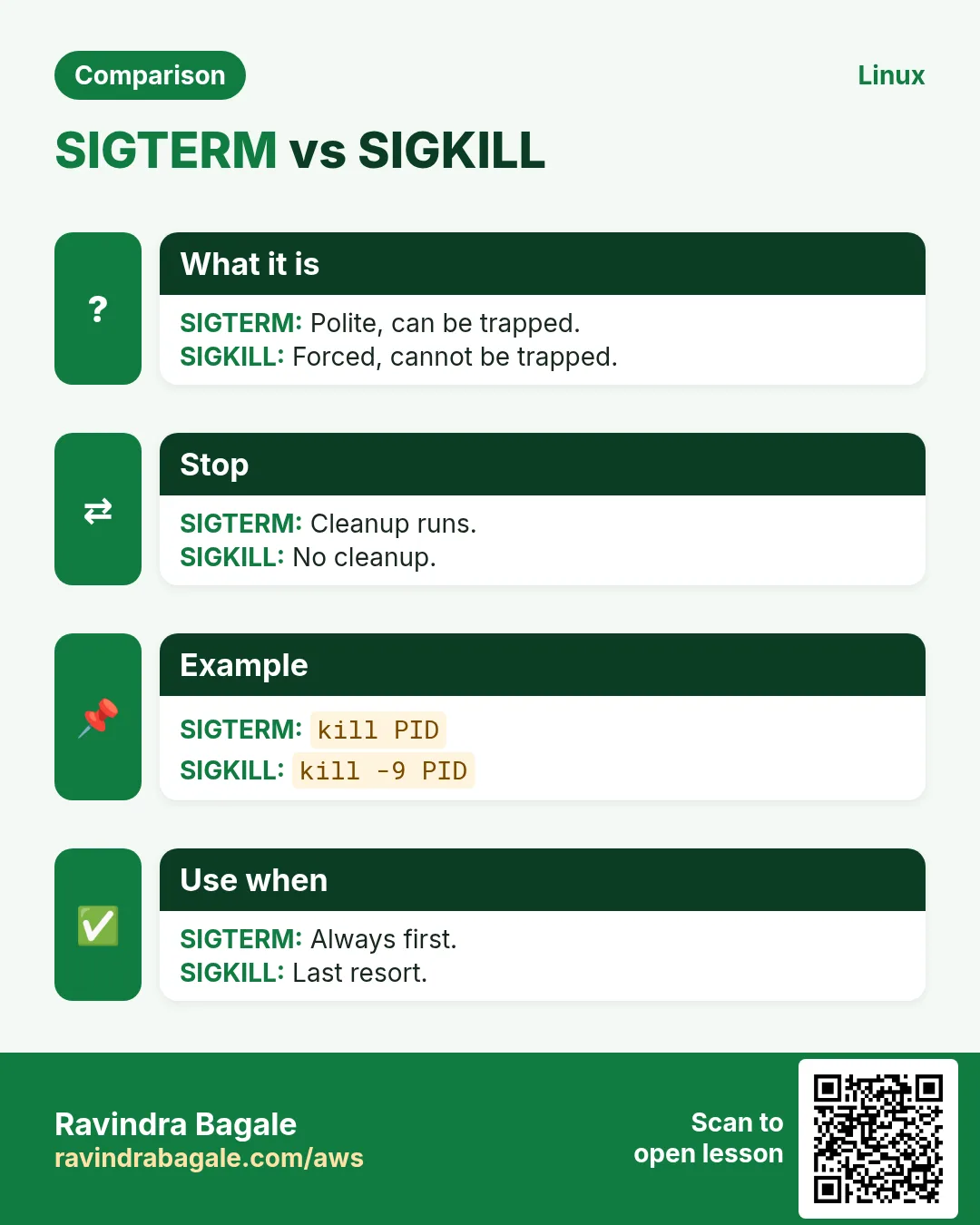
A signal is a small message to a process. INT (2) is Ctrl+C. TERM (15) is a polite stop and the default of kill. HUP (1) often means reload config. KILL (9) stops at once and cannot be caught. STOP and CONT pause and resume. kill -l lists them. A process killed by signal N exits with 128+N, so 130 is INT and 143 is TERM.
| Signal | Number and use |
|---|---|
| HUP | 1, reload config |
| INT | 2, Ctrl+C |
| KILL | 9, force, cannot trap |
| TERM | 15, polite stop |
| STOP/CONT | pause/resume |
How to do it (step by step)
- List signals.
kill -l | head -2Output:
 1) SIGHUP  2) SIGINT  3) SIGQUIT  4) SIGILL
 9) SIGKILL 15) SIGTERM
What it means: Names and numbers.
- Polite stop.
kill 4321; sleep 2; ps -p 4321 || echo goneOutput:
goneWhat it means: TERM first.
- Reload nginx.
sudo kill -HUP $(cat /run/nginx.pid)What it means: Config reloaded, no downtime.
- By name.
pkill -f 'python report.py'What it means: Matches full command line.
- Exit code from a signal.
sleep 100 & kill $!; wait $!; echo $?Output:
143What it means: 128+15.
3. trap: clean up on EXIT, INT, TERM
Why do we need this?
Temp files, half-written downloads and lock files should not be left behind when a script stops.
What is it?
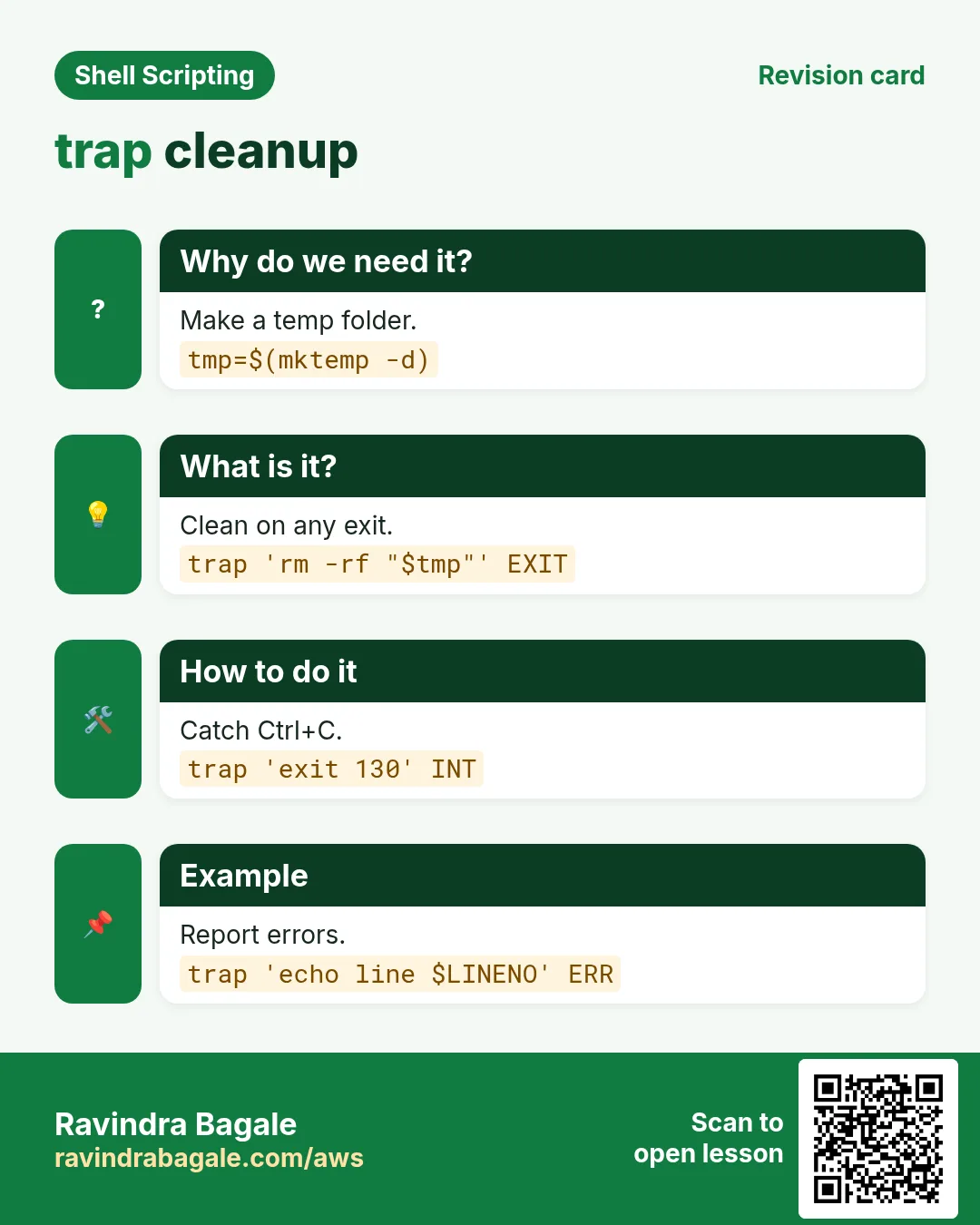
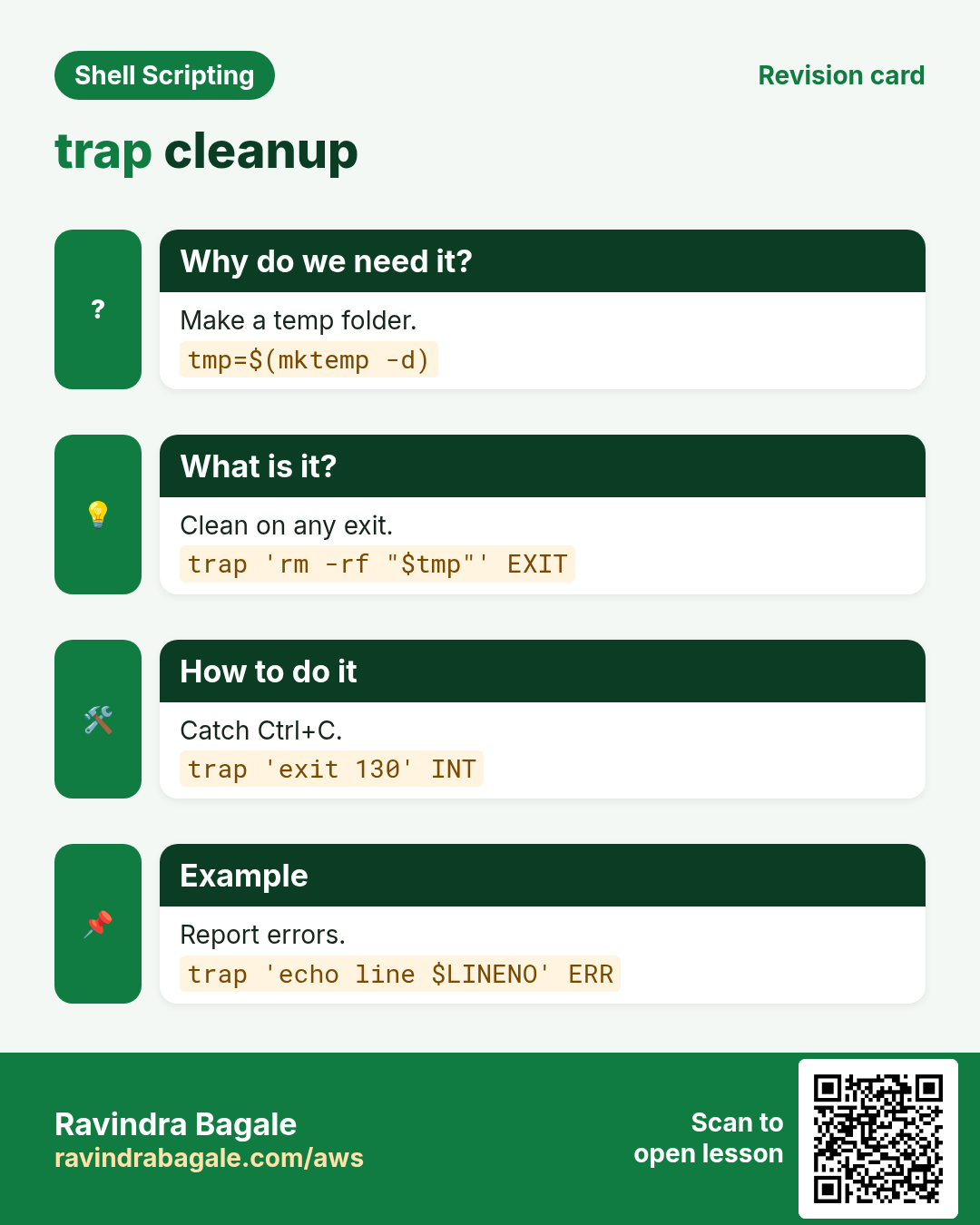
trap 'commands' SIGNALS runs commands when those signals arrive. trap cleanup EXIT runs when the script ends for any reason except KILL, so it is the best single place for cleanup. Trap INT and TERM to print a message and exit with 130 or 143. Use single quotes so variables are read when the trap runs. trap - EXIT removes it; trap -p shows current traps.
How to do it (step by step)
- Cleanup on exit.
tmp=$(mktemp -d); trap 'rm -rf "$tmp"' EXIT; echo work > "$tmp/a"; ls "$tmp"Output:
aWhat it means: Folder removed when script ends.
- Ctrl+C message.
trap 'echo "stopped by user" >&2; exit 130' INT; sleep 60Output:
^Cstopped by userWhat it means: Clean stop.
- Function style.
cleanup(){ rm -f /tmp/report.$$; echo 'cleaned'; }; trap cleanup EXIT INT TERMOutput:
cleanedWhat it means: One place for all exits.
- Show traps.
trap -pOutput:
trap -- 'cleanup' EXITWhat it means: Check what is set.
4. trap ERR and the failing line
Why do we need this?
When a 300-line script fails at 2 a.m., the log should say which line and which command.
What is it?
trap '...' ERR runs whenever a command fails (same rules as set -e). Inside it $LINENO is the line, $BASH_COMMAND is the command and $? is the code. Add set -E so functions and subshells inherit the ERR trap.
How to do it (step by step)
- Report failure.
set -Eeuo pipefail
trap 'echo "ERR line $LINENO: $BASH_COMMAND (rc=$?)" >&2' ERR
cp /nope /tmp/
Output:
cp: cannot stat '/nope': No such file or directory
ERR line 3: cp /nope /tmp/ (rc=1)
What it means: Exact place.
- Send alert on error.
trap 'curl -fsS -d "backup failed line $LINENO" "$HOOK"' ERRWhat it means: Chat alert with line.
5. Background jobs: &, jobs, fg, bg, wait
Why do we need this?
Copying to five servers one by one takes five times longer than doing it together.
What is it?
cmd & starts cmd in the background and returns at once. $! is its PID. jobs lists jobs of this shell, fg %1 brings one to the front, Ctrl+Z pauses the front job and bg resumes it in the background. wait waits for all; wait $pid waits for one and returns its exit code, so collect codes to know if any failed. wait -n waits for the next one to finish.
How to do it (step by step)
- Start and see.
sleep 30 & jobsOutput:
[1]+ Running sleep 30 &What it means: Job 1.
- PID.
sleep 30 & echo "pid $!"Output:
pid 5120What it means: Use it with kill or wait.
- Parallel copy.
for h in web1 web2 web3; do scp -q app.tgz "$h:/tmp/" & done; wait; echo 'all copied'Output:
all copiedWhat it means: Three at once.
- Check each result.
pids=(); for h in web1 web2; do ssh "$h" uptime & pids+=($!); done; fail=0; for p in "${pids[@]}"; do wait "$p" || fail=1; done; echo fail=$failOutput:
10:01 up 9 days
10:01 up 3 days
fail=0
What it means: Know if any failed.
- Pause and resume.
tar czf big.tgz /data   # press Ctrl+Z
bg; jobs
Output:
[1]+ Running tar czf big.tgz /data &What it means: Moved to background.
6. Survive logout: nohup, disown, setsid
Why do we need this?
A long data migration started over SSH dies when your Wi-Fi drops, unless you protect it.
What is it?
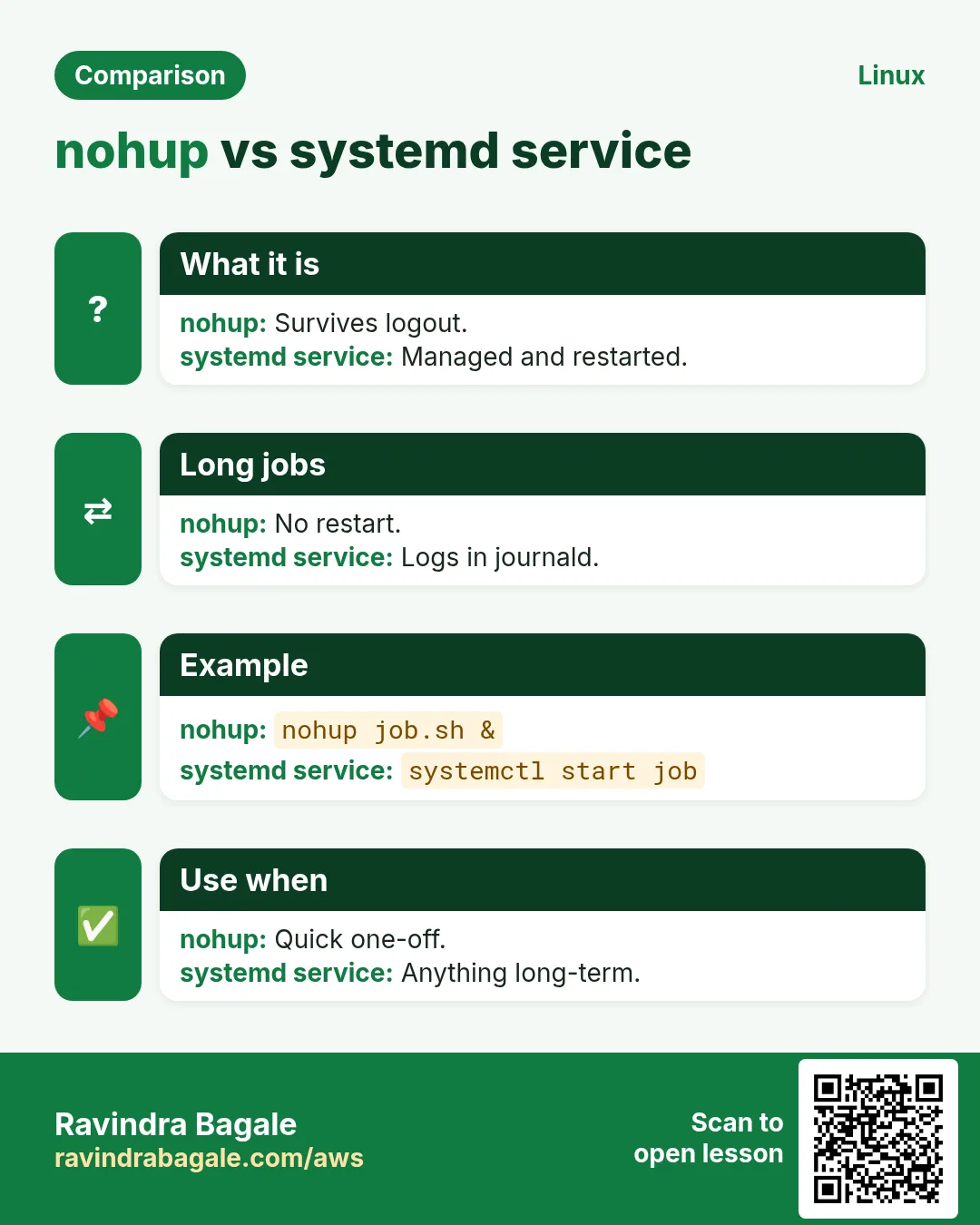
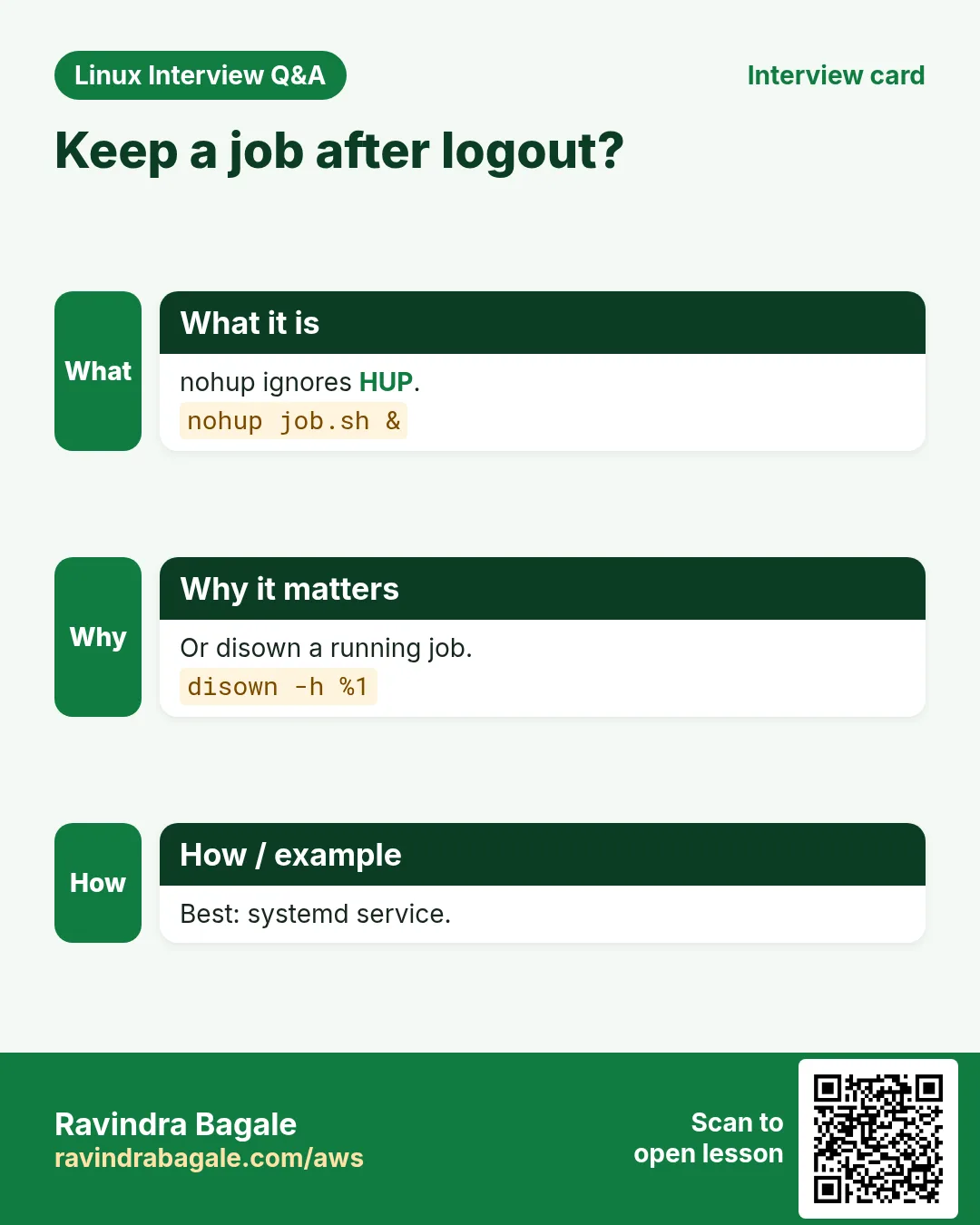
When the terminal closes, jobs get HUP and usually stop. nohup cmd & ignores HUP and writes output to nohup.out. disown removes a running job from the shell so HUP is not sent. setsid starts it in a new session. For real long-running work, prefer tmux or screen to reattach, or a systemd unit for services.
How to do it (step by step)
- nohup.
nohup ./migrate.sh > migrate.log 2>&1 &Output:
[1] 6012What it means: Safe from logout.
- Forgot nohup.
./long.sh & disown; exitWhat it means: Keeps running after exit.
- tmux way.
tmux new -s mig './migrate.sh'What it means: Detach Ctrl+B D, attach with tmux a -t mig.
7. Limit parallel jobs
Why do we need this?
Starting 500 downloads at once can crash your machine or get you blocked by the server.
What is it?
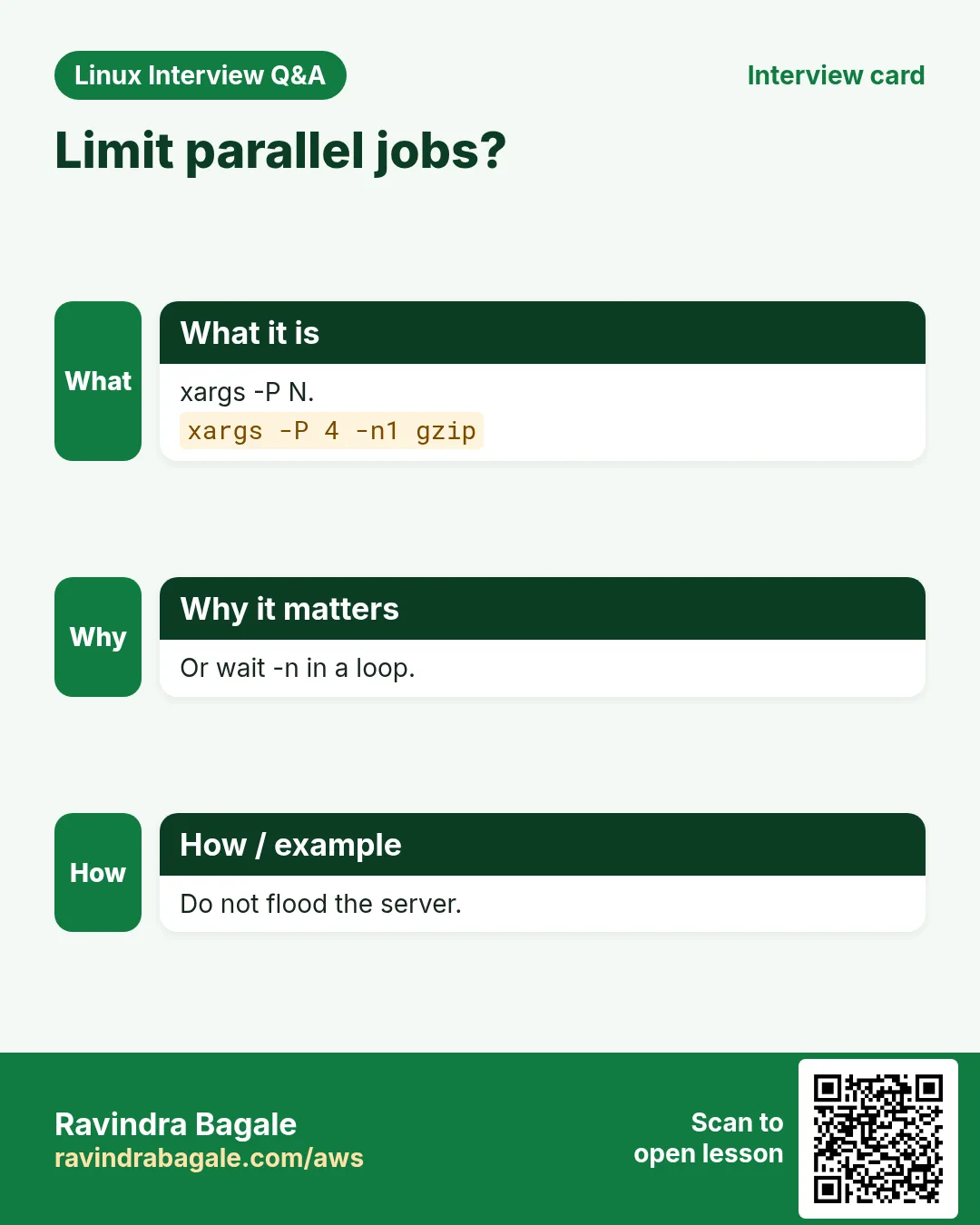
Keep at most N jobs running: before starting a new one, if jobs -rp shows N or more, wait -n for one to finish. xargs -P N is another simple way: it runs N at a time from a list. GNU parallel is more powerful if installed.
How to do it (step by step)
- Max 4 with wait -n.
while read -r u; do (( $(jobs -rp | wc -l) >= 4 )) && wait -n; curl -fsSO "$u" & done < urls.txt; waitWhat it means: Never more than 4.
- xargs -P.
xargs -P 4 -n 1 curl -fsSO < urls.txtWhat it means: 4 at a time.
- Compress logs in parallel.
find /var/log/app -name '*.log' -mtime +1 -print0 | xargs -0 -P 3 -n 1 gzipWhat it means: 3 gzip at once.
8. Only one copy: flock
Why do we need this?
If a cron job runs every 5 minutes but sometimes takes 7, two copies overlap and corrupt data.
What is it?
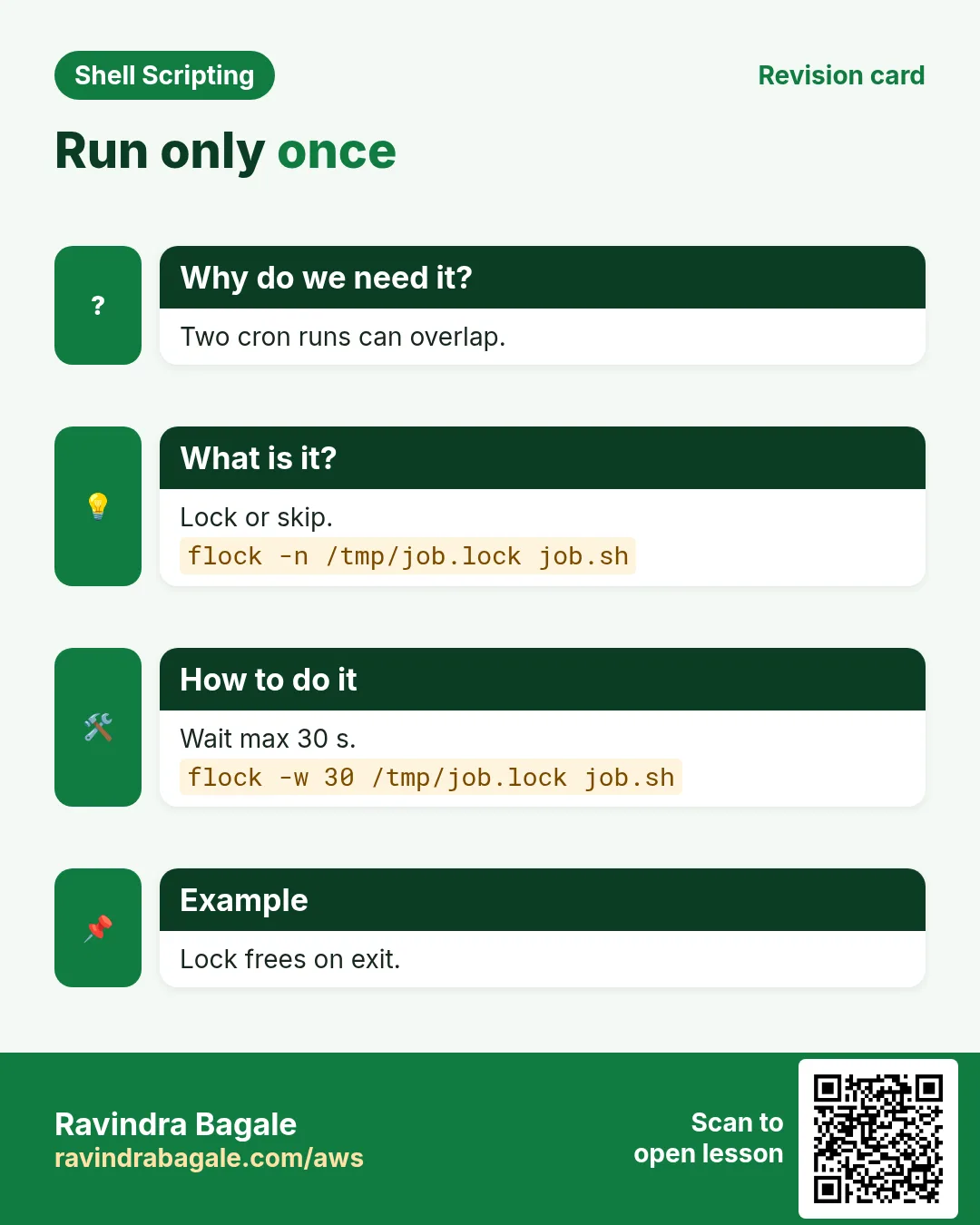
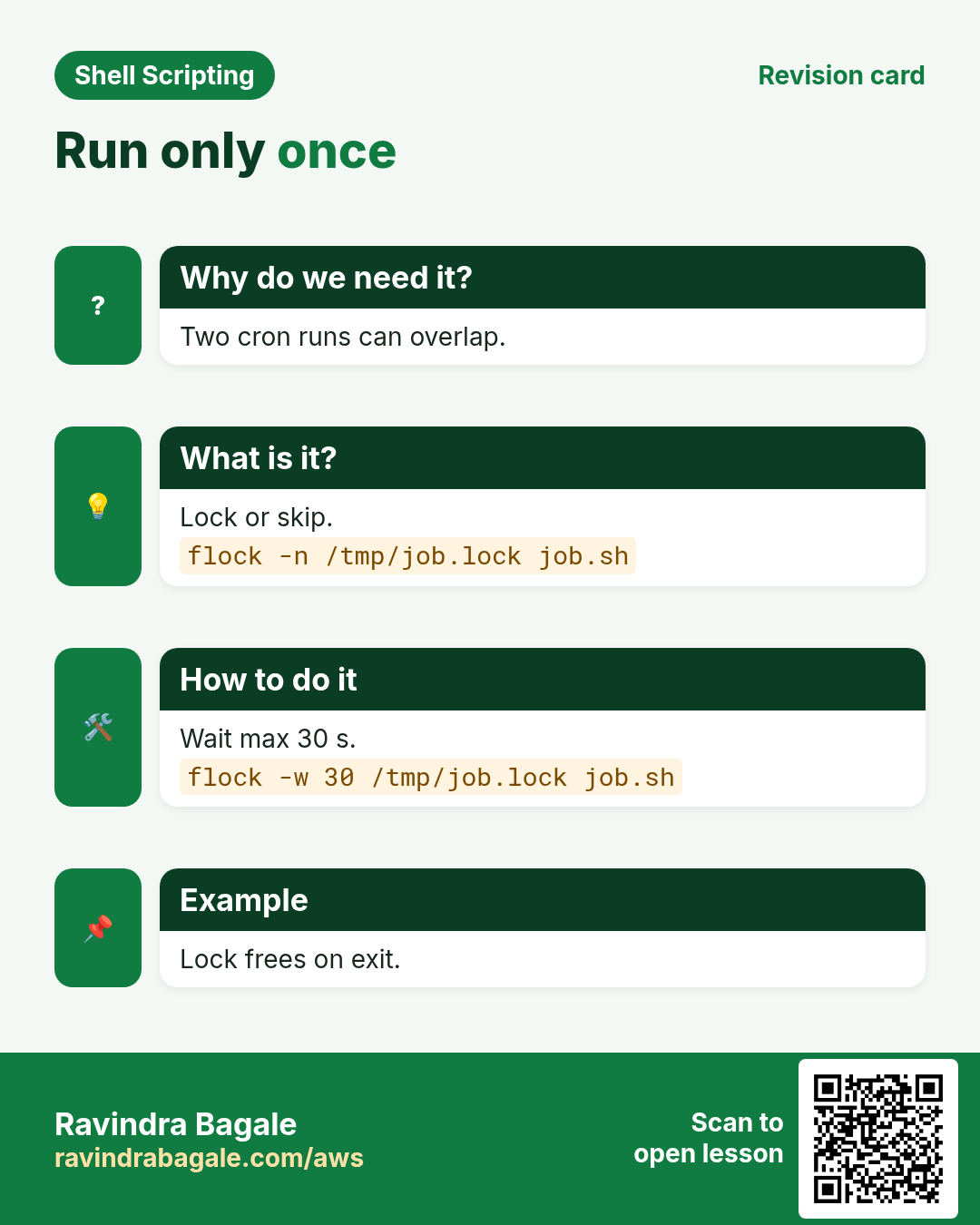
flock takes a lock on a file. flock -n /tmp/x.lock cmd runs cmd only if no one else holds the lock, else exits 1 at once. Without -n it waits; -w 30 waits up to 30 seconds. Inside a script use exec 9>/tmp/x.lock; flock -n 9 || exit 1, and the lock is released when the script ends, even on crash. This is much safer than checking if a pid file exists.
| Form | Behaviour |
|---|---|
| flock -n f cmd | skip if locked |
| flock f cmd | wait for lock |
| flock -w 30 f cmd | wait max 30 s |
| exec 9>f; flock -n 9 | lock whole script |
How to do it (step by step)
- In cron.
*/5 * * * * flock -n /tmp/sync.lock /opt/bin/sync.shWhat it means: Overlaps skipped.
- Second copy.
flock -n /tmp/sync.lock sleep 60 & sleep 1; flock -n /tmp/sync.lock echo hi; echo rc=$?Output:
rc=1What it means: Lock held by the first.
- Script header.
exec 9>/var/lock/backup.lock
flock -n 9 || { echo 'backup already running' >&2; exit 1; }
Output:
backup already runningWhat it means: Auto-released at exit.
- Wait with limit.
flock -w 30 /tmp/deploy.lock ./deploy.sh || echo 'gave up after 30s'Output:
gave up after 30sWhat it means: Queue for a short time.
9. Real examples from many industries
Why do we need this?
The same Linux skill shows up in every kind of company. Seeing it in many places helps you remember it.
What is it?
Each row is a made-up team. It shows who uses this and how.
How to do it (step by step)
| Team and city | How they use it | Command |
|---|---|---|
| Kiran, stock broking, Mumbai | Single-copy price import every minute | flock -n /tmp/px.lock ./import.sh |
| Sarah, research lab, Boston | Clean scratch dirs on Ctrl+C | trap 'rm -rf "$tmp"' EXIT |
| Arjun, travel, Goa | Ping 50 hotels' APIs in parallel | xargs -P 10 -n 1 curl -fs |
| Chen, gaming, Shenzhen | Reload game server config | kill -HUP "$pid" |
| Maria, logistics, Madrid | Migration that survives logout | nohup ./migrate.sh & |
| Tejas, dairy co-op, Kolhapur | Line number on failure | trap 'echo line $LINENO' ERR |
10. Common errors and how to fix them
Why do we need this?
Everyone hits these errors. Knowing the cause saves hours.
What is it?
Read the exact message first. Then match it to a row below.
How to do it (step by step)
| Error you see | Why it happens | How to fix |
|---|---|---|
Temp files left after Ctrl+C | No trap | Add trap cleanup EXIT.trap 'rm -rf "$tmp"' EXIT |
Process ignores kill | Catches TERM or stuck in D state | Wait, then -9 as last resort.kill -9 PID |
Job died after SSH dropped | HUP on logout | Use nohup or tmux.nohup ./job.sh & |
Two cron runs corrupt data | Overlap | Use flock -n.flock -n /tmp/j.lock ./j.sh |
wait: pid is not a child of this shell | Job started in another shell | wait only on your own jobs.wait $! |
Script reports success though a background job failed | Plain wait returns 0 | wait each pid and check.wait "$p" || fail=1 |
flock: command not found | util-linux missing | Install util-linux.sudo dnf install -y util-linux |
Trap shows old value | Double quotes expanded early | Use single quotes.trap 'echo $x' EXIT |
Machine slow after loop | Too many parallel jobs | Limit with wait -n or xargs -P.xargs -P 4 |
11. Troubleshooting step by step
Why do we need this?
When jobs vanish, hang or overlap, look at processes, signals and locks.
What is it?
Go top to bottom. Stop at the first step that shows the problem.
How to do it (step by step)
- List jobs.
jobs -l- Find process.
pgrep -af sync.sh- Process tree.
ps -ef --forest | grep -A3 sync- Who holds the lock?
sudo lsof /tmp/sync.lock- Show traps.
trap -p- Exit code.
wait $!; echo $?12. Lab 1: trap cleanup and Ctrl+C handling
Why do we need this?
Write a script that makes a temp folder, does slow work and always removes the folder, whether it ends normally or you press Ctrl+C.
What is it?
A full hands-on lab. Run every step on a test Linux machine (an EC2 instance, a VM, or WSL).
How to do it (step by step)
- Script.
cat > ~/slow.sh <<'X'
#!/usr/bin/env bash
set -euo pipefail
tmp=$(mktemp -d)
cleanup(){ rm -rf "$tmp"; echo "cleaned $tmp"; }
trap cleanup EXIT
trap 'echo "stopped by user" >&2; exit 130' INT TERM
for i in 1 2 3 4 5; do echo "step $i" > "$tmp/s$i"; sleep 2; done
echo done
X
chmod +x ~/slow.sh- Normal run.
~/slow.shOutput:
done
cleaned /tmp/tmp.Ab12Cd- Press Ctrl+C.
~/slow.sh # Ctrl+C after 3 s; echo rc=$?Output:
^Cstopped by user
cleaned /tmp/tmp.Xy34Zq
rc=130- From another terminal.
~/slow.sh & sleep 3; kill $!; wait $!; echo rc=$?Output:
stopped by user
cleaned /tmp/tmp.Pq56Rs
rc=130- No temp left.
ls -d /tmp/tmp.* 2>/dev/null | wc -lOutput:
013. Lab 2: Parallel jobs with a flock guard
Why do we need this?
Run 6 fake jobs, at most 3 at a time, protect the whole script with flock, and prove a second copy is refused.
What is it?
A full hands-on lab. Run every step on a test Linux machine (an EC2 instance, a VM, or WSL).
How to do it (step by step)
- Script.
cat > ~/par.sh <<'X'
#!/usr/bin/env bash
exec 9>/tmp/par.lock
flock -n 9 || { echo 'already running' >&2; exit 1; }
for i in 1 2 3 4 5 6; do
  (( $(jobs -rp | wc -l) >= 3 )) && wait -n
  ( sleep 2; echo "job $i done" ) &
done
wait; echo all done
X
chmod +x ~/par.sh- Time it.
time ~/par.shOutput:
job 1 done
job 2 done
job 3 done
job 4 done
job 5 done
job 6 done
all done
real 0m4.0s- Two copies.
~/par.sh & sleep 0.5; ~/par.sh; echo rc=$?; waitOutput:
already running
rc=1- Clean.
rm ~/par.sh /tmp/par.lockRavindra Bagale's Tip
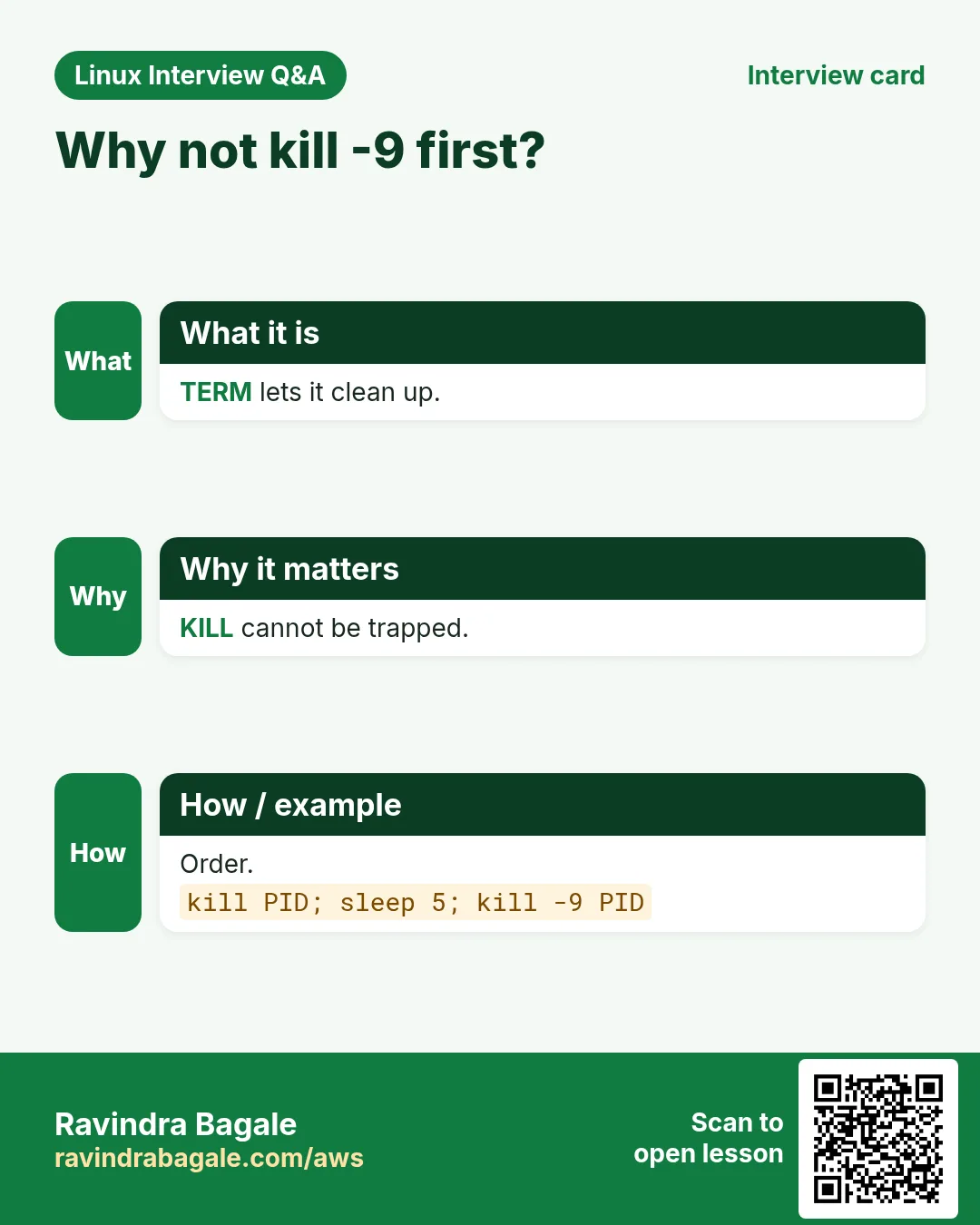
Put three lines at the top of every long or scheduled script: a flock guard, a mktemp temp folder, and trap cleanup EXIT. Then use kill (TERM) before kill -9, and wait on each background PID so a hidden failure never looks like success.
Ravindra Bagale's Tip – मराठी
प्रत्येक long किंवा scheduled script च्या वर तीन lines ठेवा: flock guard, mktemp temp folder आणि trap cleanup EXIT. मग kill -9 आधी kill (TERM) वापरा, आणि प्रत्येक background PID वर wait करा म्हणजे लपलेलं failure कधी success सारखं दिसणार नाही.
Ravindra Bagale's Tip – हिंदी
हर long या scheduled script के ऊपर तीन lines रखिए: flock guard, mktemp temp folder और trap cleanup EXIT. फिर kill -9 से पहले kill (TERM) इस्तेमाल कीजिए, और हर background PID पर wait कीजिए ताकि छिपा failure कभी success जैसा न दिखे.
14. Frequently asked questions
Q. Can I trap KILL?
No, nor STOP.
Q. EXIT vs INT trap?
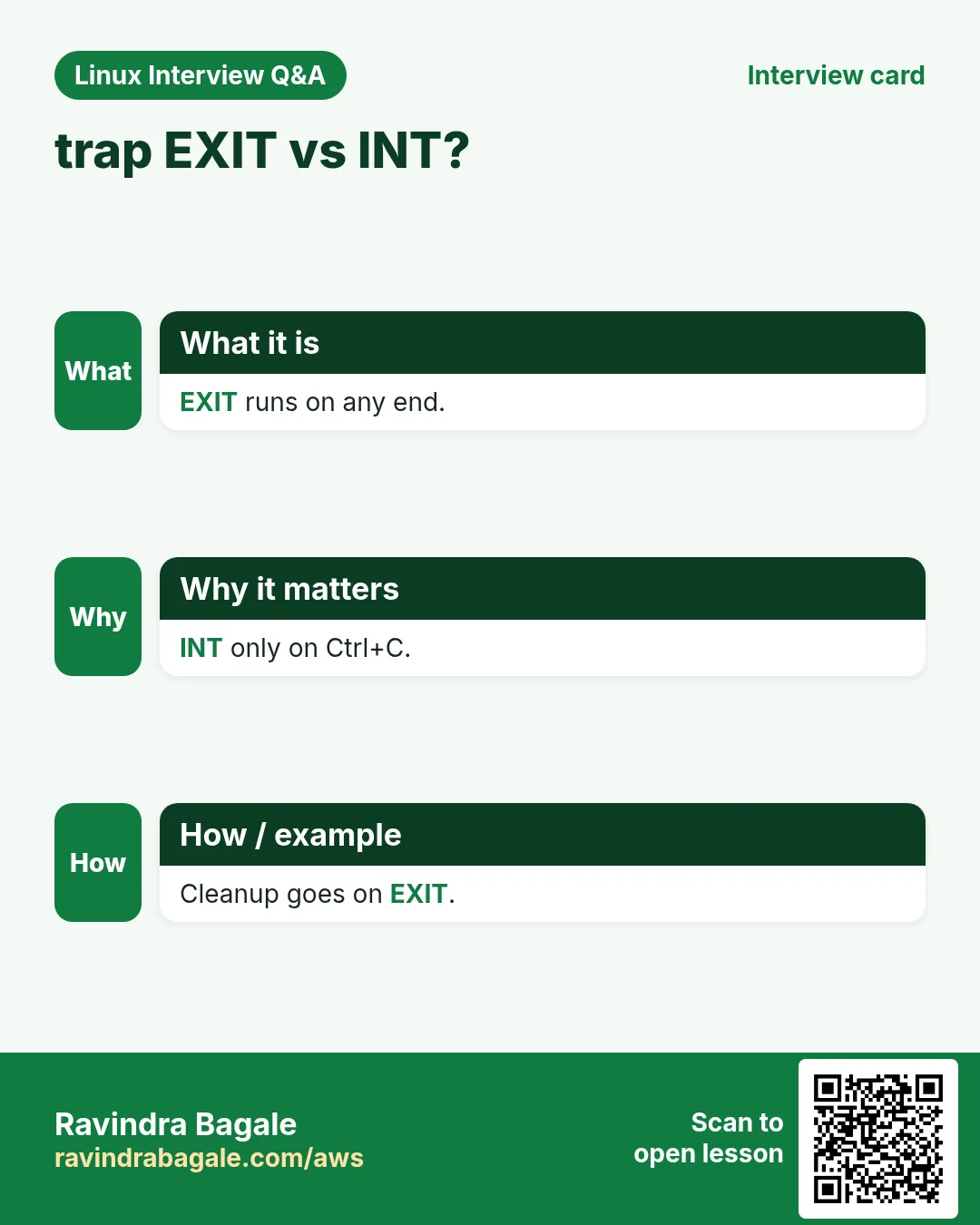
EXIT runs on every end.
Q. What is $!?
PID of the last background job.
Q. Is flock lock removed on crash?
Yes, released by the kernel.
Q. nohup vs tmux?
tmux lets you reattach.
Q. Why exit 130?
128+2 for INT.
Q. wait -n needs?
bash 4.3+.
Q. flock on NFS?
Avoid; use local disk.
15. Interview questions and answers
Beginner level
Q. Ctrl+C sends?
INT.
Q. Run in background?
Add &.
Q. Default kill signal?
TERM 15.
Q. List jobs?
jobs.
Mid level level
Q. Cleanup on any exit?
trap cleanup EXIT.
Q. Survive logout?
nohup or tmux.
Q. Stop cron overlap?
flock -n.
Q. Wait for all jobs?
wait.
Senior level
Q. Why flock over pid files?
Atomic and auto-released.
Q. Detect a failed background job?
wait each PID and check codes.
Q. Find failing line?
trap ERR with $LINENO and set -E.
Q. Graceful shutdown order?
TERM, wait, then KILL.
Try at home
- Write a script that downloads 10 images with at most 3 at a time and prints how many failed.
- Add a trap to one of your old scripts so its temp files are always removed.
Practice Tasks
Amravati Agro Market is a agriculture business in Amravati. Anjali Thakre looks after its IT and cloud work. They count money in INR and run their AWS resources in the ap-south-1 Region. In the tasks below you do real jobs for them using what this lesson teaches. All names, account IDs, IP addresses and numbers are made up for practice.
0 / 21
Easy Cleanup trap
Why: BIZ jobs must clean up and never run twice at once.
What to do: Anjali Thakre at Amravati Agro Market created a temp folder in variable work. Remove it automatically when the script ends.
- Find the Linux command that does this job.
- Add the options (like -r or -h) the task needs.
- Add the file names, folders or users in the right order.
- Use sudo if the job changes system files or users. Click Check answer.
Easy Temp folder
Why: BIZ jobs must clean up and never run twice at once.
What to do: Create a safe temp folder and store its path in work.
- Find the Linux command that does this job.
- Add the options (like -r or -h) the task needs.
- Add the file names, folders or users in the right order.
- Use sudo if the job changes system files or users. Click Check answer.
Easy List signals
Why: BIZ jobs must clean up and never run twice at once.
What to do: Print the name of signal number 15.
- Find the Linux command that does this job.
- Add the options (like -r or -h) the task needs.
- Add the file names, folders or users in the right order.
- Use sudo if the job changes system files or users. Click Check answer.
Easy Polite stop
Why: BIZ jobs must clean up and never run twice at once.
What to do: Ask process 5150 to stop politely with SIGTERM.
- Find the Linux command that does this job.
- Add the options (like -r or -h) the task needs.
- Add the file names, folders or users in the right order.
- Use sudo if the job changes system files or users. Click Check answer.
Easy List jobs
Why: BIZ jobs must clean up and never run twice at once.
What to do: Print only the PIDs of the background jobs of this shell.
- Find the Linux command that does this job.
- Add the options (like -r or -h) the task needs.
- Add the file names, folders or users in the right order.
- Use sudo if the job changes system files or users. Click Check answer.
Easy Wait for all
Why: BIZ jobs must clean up and never run twice at once.
What to do: Wait only for the background job with PID 5150.
- Find the Linux command that does this job.
- Add the options (like -r or -h) the task needs.
- Add the file names, folders or users in the right order.
- Use sudo if the job changes system files or users. Click Check answer.
Easy Own PID
Why: BIZ jobs must clean up and never run twice at once.
What to do: Print the PID of the current shell.
- Find the Linux command that does this job.
- Add the options (like -r or -h) the task needs.
- Add the file names, folders or users in the right order.
- Use sudo if the job changes system files or users. Click Check answer.
Easy Find PID by name
Why: BIZ jobs must clean up and never run twice at once.
What to do: Find the PIDs of processes named nginx.
- Find the Linux command that does this job.
- Add the options (like -r or -h) the task needs.
- Add the file names, folders or users in the right order.
- Use sudo if the job changes system files or users. Click Check answer.
Easy Foreground
Why: BIZ jobs must clean up and never run twice at once.
What to do: Bring job number 2 to the foreground.
- Find the Linux command that does this job.
- Add the options (like -r or -h) the task needs.
- Add the file names, folders or users in the right order.
- Use sudo if the job changes system files or users. Click Check answer.
Easy Pause
Why: BIZ jobs must clean up and never run twice at once.
What to do: Pause the script for 5 seconds.
- Find the Linux command that does this job.
- Add the options (like -r or -h) the task needs.
- Add the file names, folders or users in the right order.
- Use sudo if the job changes system files or users. Click Check answer.
Medium Catch Ctrl+C
Why: BIZ jobs must clean up and never run twice at once.
What to do: Make the script print stopped by user and exit 130 on Ctrl+C.
- Find the Linux command that does this job.
- Add the options (like -r or -h) the task needs.
- Add the file names, folders or users in the right order.
- Use sudo if the job changes system files or users. Click Check answer.
Medium Ignore hangup
Why: BIZ jobs must clean up and never run twice at once.
What to do: Make the current script ignore SIGHUP.
- Find the Linux command that does this job.
- Add the options (like -r or -h) the task needs.
- Add the file names, folders or users in the right order.
- Use sudo if the job changes system files or users. Click Check answer.
Medium Force kill
Why: BIZ jobs must clean up and never run twice at once.
What to do: Force-kill process 4321 which ignores TERM.
- Find the Linux command that does this job.
- Add the options (like -r or -h) the task needs.
- Add the file names, folders or users in the right order.
- Use sudo if the job changes system files or users. Click Check answer.
Medium Last background PID
Why: BIZ jobs must clean up and never run twice at once.
What to do: Print the PID of the last background job.
- Find the Linux command that does this job.
- Add the options (like -r or -h) the task needs.
- Add the file names, folders or users in the right order.
- Use sudo if the job changes system files or users. Click Check answer.
Medium Lock or skip
Why: BIZ jobs must clean up and never run twice at once.
What to do: Run backup.sh under lock file /tmp/backup.lock, skipping immediately if it is already locked.
- Find the Linux command that does this job.
- Add the options (like -r or -h) the task needs.
- Add the file names, folders or users in the right order.
- Use sudo if the job changes system files or users. Click Check answer.
Medium Time limit
Why: BIZ jobs must clean up and never run twice at once.
What to do: Run report.sh but kill it if it runs longer than 60 seconds.
- Find the Linux command that does this job.
- Add the options (like -r or -h) the task needs.
- Add the file names, folders or users in the right order.
- Use sudo if the job changes system files or users. Click Check answer.
Medium Reload by name
Why: BIZ jobs must clean up and never run twice at once.
What to do: Send SIGHUP to processes named nginx by name.
- Find the Linux command that does this job.
- Add the options (like -r or -h) the task needs.
- Add the file names, folders or users in the right order.
- Use sudo if the job changes system files or users. Click Check answer.
Medium Remove trap
Why: BIZ jobs must clean up and never run twice at once.
What to do: Remove any trap set on INT so Ctrl+C works normally again.
- Find the Linux command that does this job.
- Add the options (like -r or -h) the task needs.
- Add the file names, folders or users in the right order.
- Use sudo if the job changes system files or users. Click Check answer.
Hard Wait up to 30s
Why: BIZ jobs must clean up and never run twice at once.
What to do: Run sync.sh under lock /tmp/sync.lock, waiting at most 30 seconds for the lock.
- Find the Linux command that does this job.
- Add the options (like -r or -h) the task needs.
- Add the file names, folders or users in the right order.
- Use sudo if the job changes system files or users. Click Check answer.
Hard Disown
Why: BIZ jobs must clean up and never run twice at once.
What to do: Keep job 2 in the list but stop the shell sending it SIGHUP on logout.
- Find the Linux command that does this job.
- Add the options (like -r or -h) the task needs.
- Add the file names, folders or users in the right order.
- Use sudo if the job changes system files or users. Click Check answer.
Hard Parallel 4
Why: BIZ jobs must clean up and never run twice at once.
What to do: Gzip all .log files in this folder 4 at a time using xargs.
- Find the Linux command that does this job.
- Add the options (like -r or -h) the task needs.
- Add the file names, folders or users in the right order.
- Use sudo if the job changes system files or users. Click Check answer.
16. Related chapters
- Linux Ops Refresh for DevOps
- Bash Scripting for Automation
- Linux grep and find Commands with Examples
- How to Set Up Passwordless SSH Between Linux Servers
In short
- TERM polite, KILL force, INT is Ctrl+C.
- trap cleanup EXIT always.
- trap ERR with $LINENO.
- & and wait; check each PID.
- nohup, disown, tmux for long work.
- flock -n for one copy.
Revision, comparison and interview cards
Revise this lesson in a few minutes. Save the cards on your phone or download them as PNG files. The QR code on each card opens this lesson.
More cards: Ravi Sir's Cards.