Linux find Command with xargs: Search Files by Name, Size, Time and Run Actions
find walks through folders and lists files that match tests like name, type, size, age, owner or permission, and can run a command on each one. xargs takes a list of items and turns them into arguments for another command, fast and in parallel. Together they clean disks, fix permissions, audit security and batch-process thousands of files.
What you'll learn in this chapter
- Find by name and type
- Find by size and time
- Find by owner and permission
- Control depth, prune folders and combine tests
- Run actions with -exec and -delete
- Use xargs safely with -0, -n, -P and -I; know locate
1. An everyday example: cleaning a messy cupboard
Why do we need this?
Shalini cleans her big cupboard before Diwali. She looks for: everything named 'bill', only boxes (not papers), things heavier than 5 kg, things not touched for a year, and things that belong to her brother. Then for each old bill she does the same action: put it in the recycle bag. Her son helps by taking a whole pile at once instead of one by one.
What is it?
Named bill = -name. Only boxes = -type d. Heavier than 5 kg = -size +5G. Not touched for a year = -mtime +365. Brother's = -user. Same action on each = -exec. Son taking a pile = xargs (many items per command).
How to do it (step by step)
2. find by name: -name, -iname, -path
Why do we need this?
You know part of a file name but not where it is.
What is it?
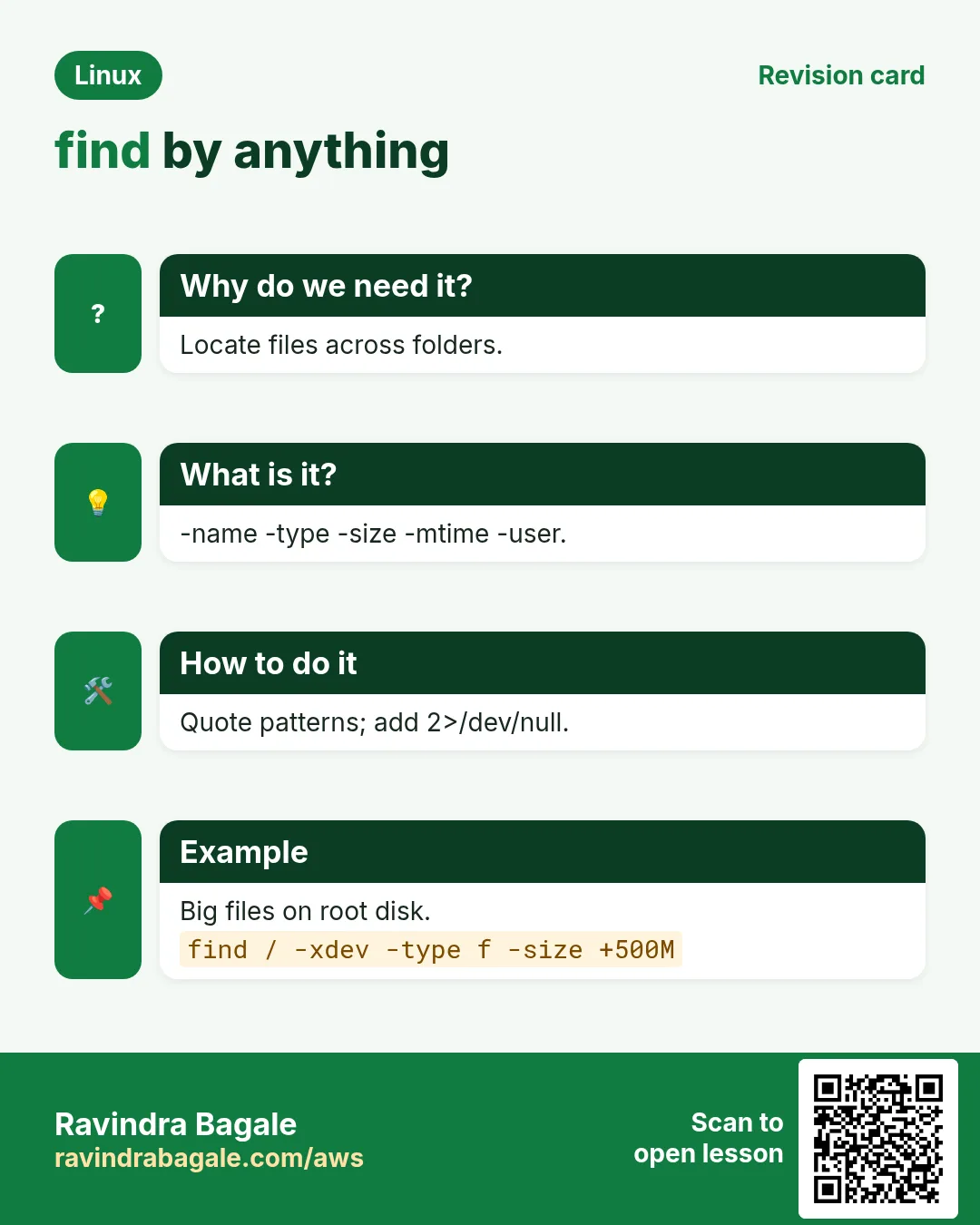
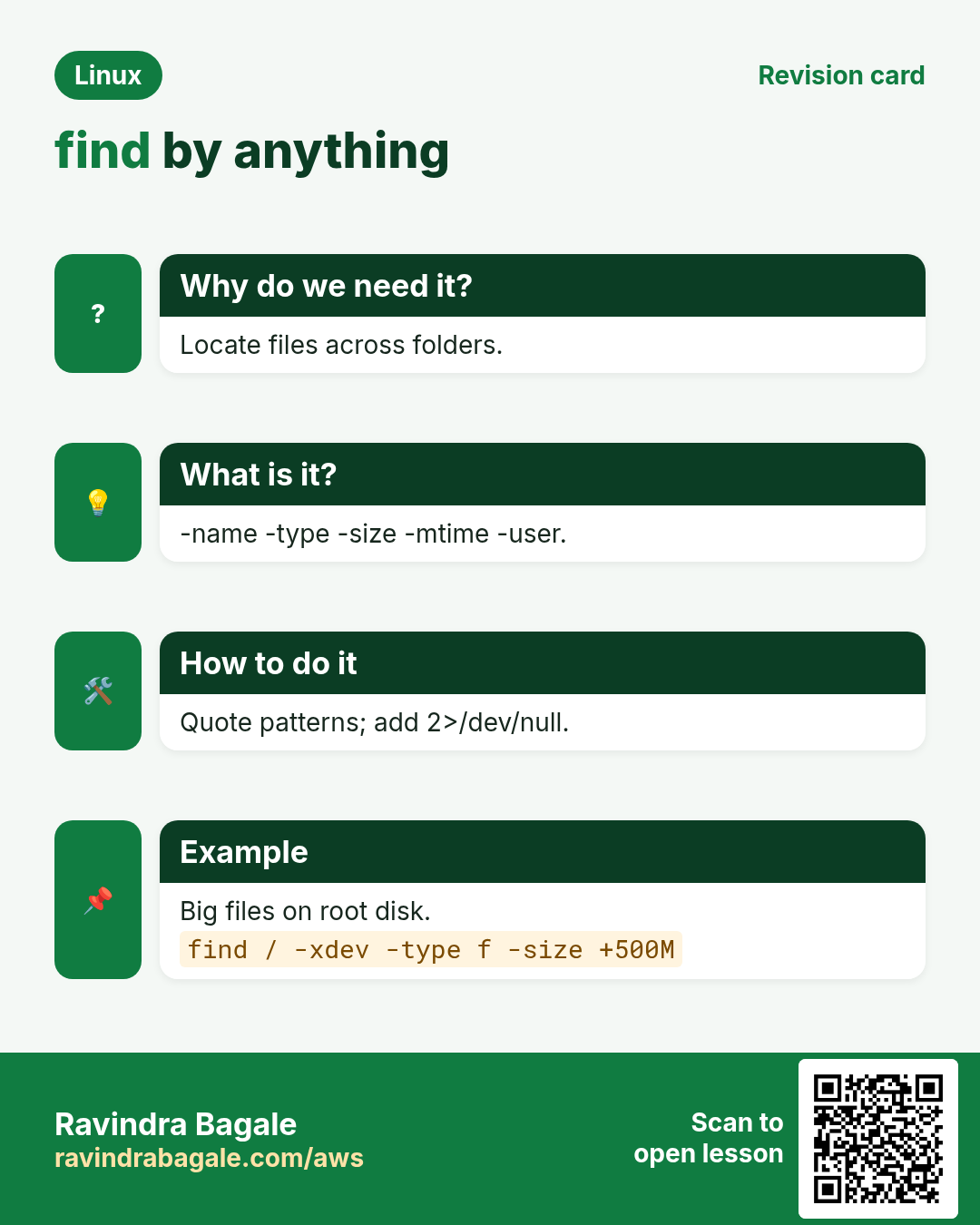
find START -name 'pattern' matches the file name with shell wildcards (* ? [ ]). Always quote the pattern so the shell does not expand it first. -iname ignores case. -path '*/conf.d/*' matches the full path. -regex uses a regex on the whole path. Send errors away with 2>/dev/null.
How to do it (step by step)
- Find a file by exact name.
find /etc -name 'nginx.conf' 2>/dev/nullOutput:
/etc/nginx/nginx.confWhat it means: 2>/dev/null hides Permission denied noise.
- All .log files under /var/log.
find /var/log -name '*.log' | head -3Output:
/var/log/dnf.log
/var/log/nginx/access.log
/var/log/nginx/error.log
What it means: Quotes keep *.log for find.
- Ignore case.
find ~/Downloads -iname '*invoice*'Output:
/home/ravi/Downloads/Invoice-Oct.pdf
/home/ravi/Downloads/invoice_amazon.pdf
What it means: Matches Invoice and invoice.
- Match on the path.
find /etc -path '*/conf.d/*.conf'Output:
/etc/nginx/conf.d/shop.conf
/etc/httpd/conf.d/ssl.conf
What it means: Only .conf files inside any conf.d folder.
- Several names with OR.
find . \( -name '*.jpg' -o -name '*.png' \) | wc -lOutput:
342What it means: \( \) groups, -o is OR.
3. find by type: -type f, d, l
Why do we need this?
You want only folders, or only regular files, or only symlinks.
What is it?
-type f regular file, d directory, l symlink, s socket, p named pipe, b/c device files. -xtype l with broken links. -empty finds empty files or folders.
How to do it (step by step)
- Only folders.
find /srv/app -maxdepth 1 -type dOutput:
/srv/app
/srv/app/releases
/srv/app/shared
What it means: -type d means directory.
- Only files, counted.
find /etc -type f 2>/dev/null | wc -lOutput:
1874What it means: Folders and links are skipped.
- Broken symlinks.
find /srv/app -xtype lOutput:
/srv/app/currentWhat it means: current points to a deleted release.
- Empty files and folders.
find /tmp/build -emptyOutput:
/tmp/build/out.log
/tmp/build/cache
What it means: Safe to clean.
4. find by size: -size
Why do we need this?
The disk is full. You need the biggest files fast.
What is it?
-size +100M bigger than 100 MiB, -size -1k smaller than 1 KiB, -size 0 empty. Units: c bytes, k KiB, M MiB, G GiB. Stay on one disk with -xdev. Combine with -exec du -h or ls -lh to see sizes.
How to do it (step by step)
- Files over 500 MB on the root disk.
sudo find / -xdev -type f -size +500M -exec ls -lh {} + 2>/dev/nullOutput:
-rw-r----- 1 root root 2.1G /var/log/journal/x/system.journal
-rw-r--r-- 1 app app 900M /srv/app/shared/dump.sql
What it means: -xdev skips /proc and other disks.
- Top 5 biggest files.
find /var -type f -printf '%s %p\n' 2>/dev/null | sort -nr | head -5Output:
2254857830 /var/log/journal/x/system.journal
943718400 /var/lib/mysql/ibdata1
What it means: -printf %s is size in bytes, %p the path.
- Small files under 1 KB.
find ~/notes -type f -size -1k | wc -lOutput:
48What it means: - means smaller than.
5. find by time: -mtime, -mmin, -newer
Why do we need this?
Delete logs older than 7 days, or see which files changed in the last 10 minutes during an incident.
What is it?
-mtime +7 modified more than 7 days ago, -mtime -1 within the last day, -mmin -10 within 10 minutes. -atime/-amin access time, -ctime/-cmin change of inode (permissions, owner). -newer ref finds files newer than a reference file. -newermt '2026-10-25 10:00' uses a date (GNU).
| Test | Means |
|---|---|
| -mtime +7 | Older than 7 days |
| -mtime -1 | Changed in the last 24 h |
| -mmin -30 | Changed in the last 30 min |
| -newer f | Newer than file f |
| -newermt DATE | Newer than a date |
How to do it (step by step)
- Logs older than 7 days.
find /var/log/app -name '*.log' -mtime +7Output:
/var/log/app/app-2026-10-10.log
/var/log/app/app-2026-10-12.log
What it means: Always list before you delete.
- Changed in the last 10 minutes.
sudo find /etc -mmin -10 -type fOutput:
/etc/nginx/conf.d/shop.confWhat it means: Who changed this right before the outage?
- Newer than a deploy marker.
find /srv/app -newer /srv/app/.deployed -type f | head -3Output:
/srv/app/shared/uploads/a.pngWhat it means: Files written after the deploy.
- Between two dates.
find /data -newermt '2026-10-01' ! -newermt '2026-10-08' -type f | wc -lOutput:
1204What it means: ! negates the second test.
6. find by owner and permission: -user, -group, -perm
Why do we need this?
Security audits ask: which files are world-writable, which have SUID, which belong to a deleted user.
What is it?
-user name, -group name, -nouser, -nogroup (orphaned files). -perm 644 exact mode, -perm -o+w at least these bits (world-writable), -perm /u+s any of these bits, -perm -4000 SUID. -readable, -writable, -executable test for the current user.
How to do it (step by step)
- Files owned by a user.
sudo find /home -user rahul -type f | wc -lOutput:
2310What it means: Before deleting rahul's account.
- World-writable files (risky).
sudo find / -xdev -type f -perm -o+w 2>/dev/nullOutput:
/srv/app/shared/config.phpWhat it means: Anyone can change this file. Fix it.
- SUID programs.
sudo find / -xdev -perm -4000 -type f 2>/dev/null | head -3Output:
/usr/bin/passwd
/usr/bin/sudo
/usr/bin/mount
What it means: Compare against a known list in audits.
- Orphaned files.
sudo find / -xdev -nouser 2>/dev/nullOutput:
/opt/old/app.jarWhat it means: Owner UID no longer exists.
7. Depth, prune and combining tests
Why do we need this?
Searching / or a big repo is slow, and you want to skip .git, node_modules or /proc.
What is it?
-maxdepth N stops going deeper than N levels, -mindepth N skips the top levels (put both first). -prune stops find from entering a folder: find . -path ./node_modules -prune -o -name '*.js' -print. -xdev stays on one file system. Tests join with AND; -o is OR; ! or -not negates; \( \) groups.
How to do it (step by step)
- Only the top level.
find /var/log -maxdepth 1 -type f -name '*.log'Output:
/var/log/dnf.log
/var/log/boot.log
What it means: Does not go into sub-folders.
- Skip node_modules.
find . -path ./node_modules -prune -o -name '*.js' -print | head -3Output:
./src/app.js
./src/cart.js
What it means: -prune cuts that branch; -print is needed at the end.
- NOT a pattern.
find . -type f ! -name '*.md' | head -2Output:
./src/app.js
./Dockerfile
What it means: ! negates -name.
- Combine: big AND old.
find /backup -type f -size +1G -mtime +30Output:
/backup/db-2026-09-01.sql.gzWhat it means: Both tests must be true.
8. Actions: -exec, -ok, -delete, -printf
Why do we need this?
Finding is half the job. You need to delete, compress, chmod or copy what you found.
What is it?
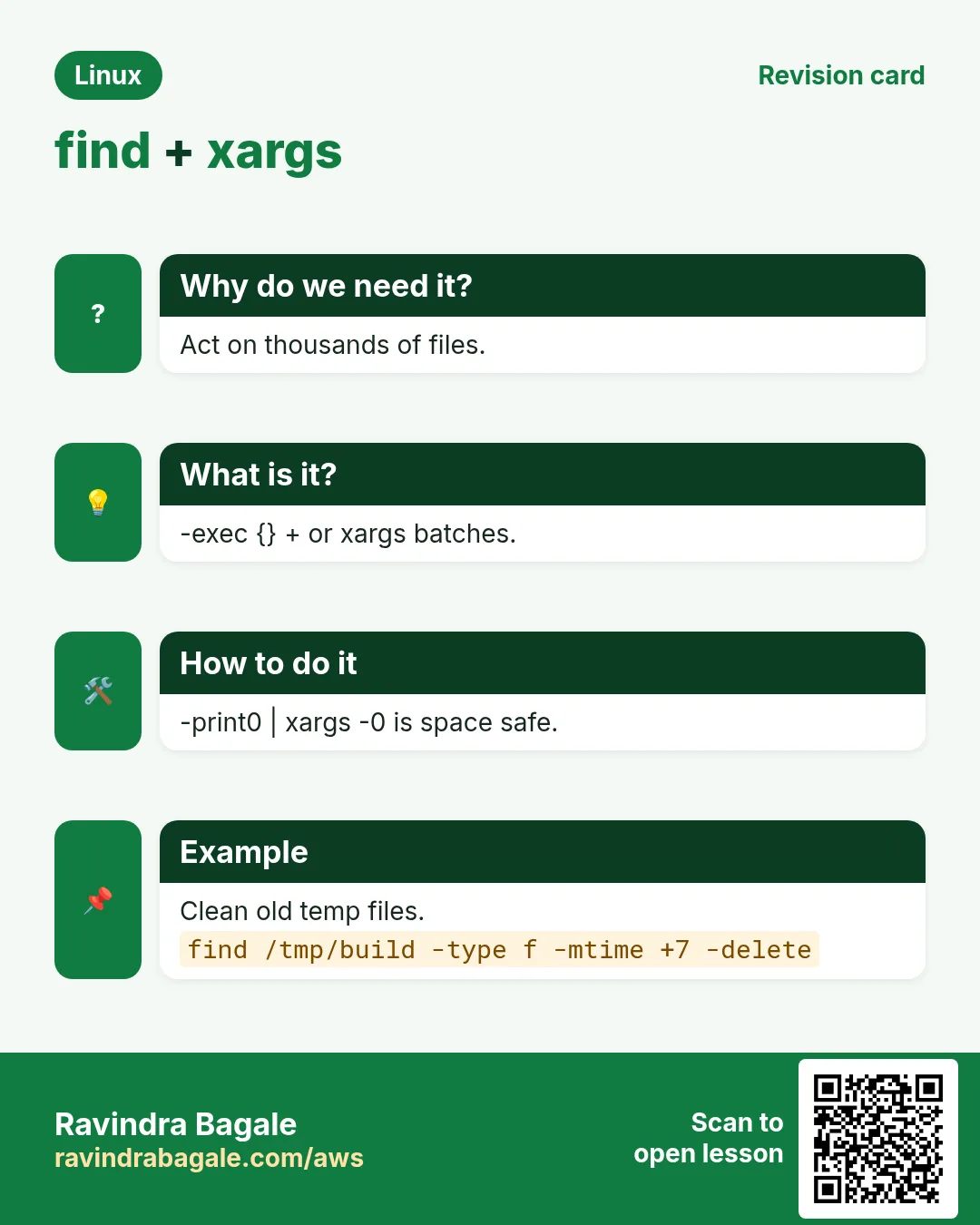
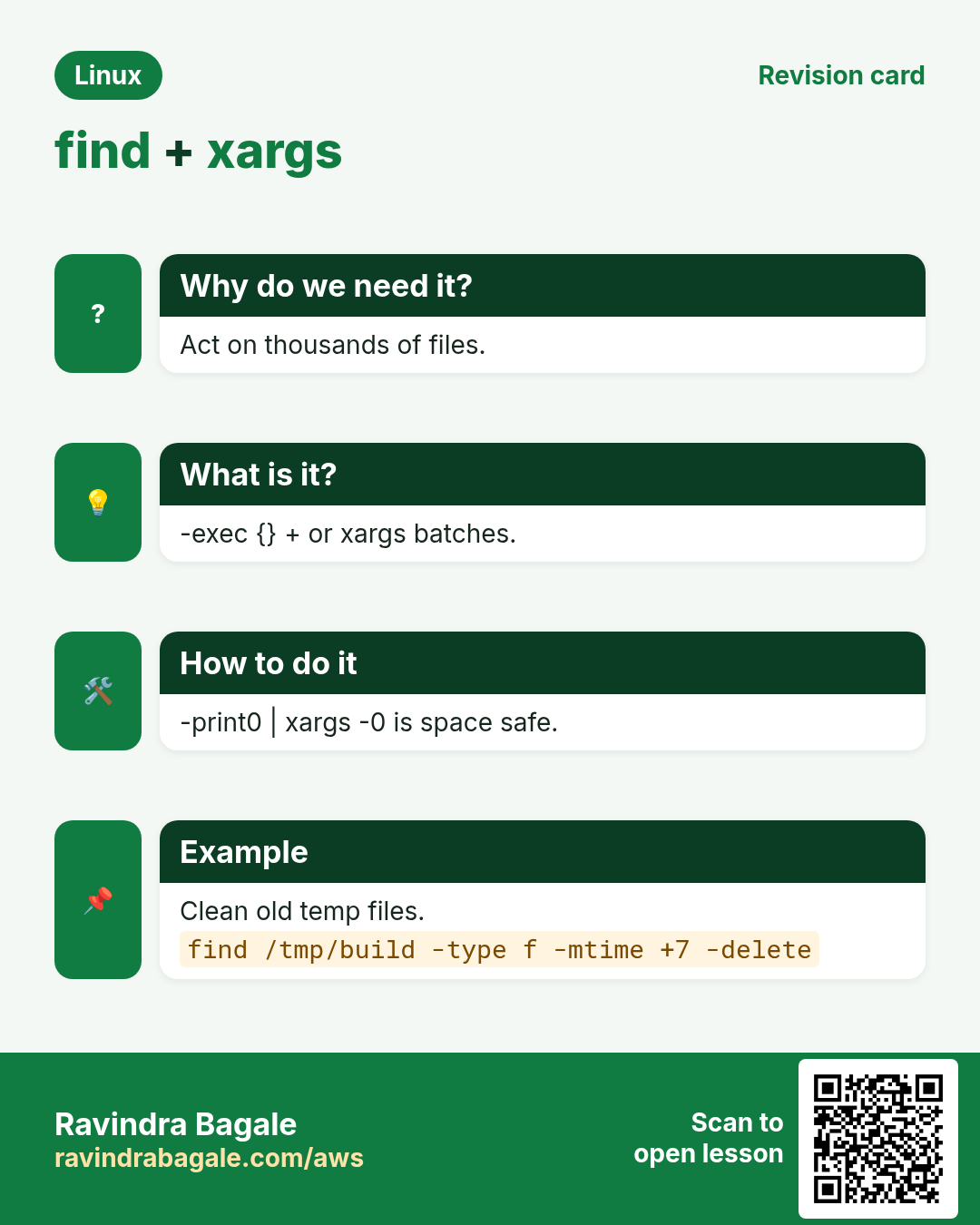
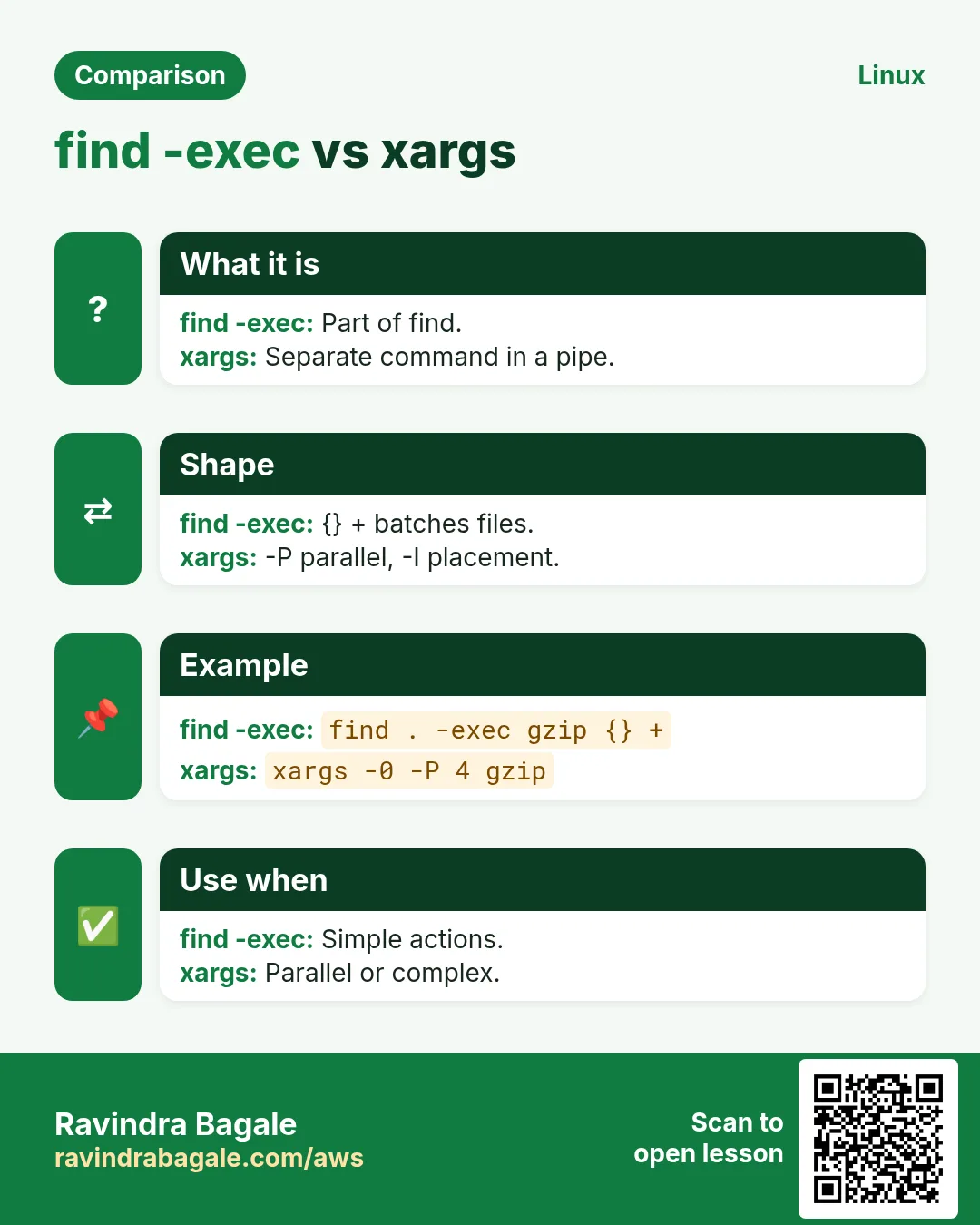
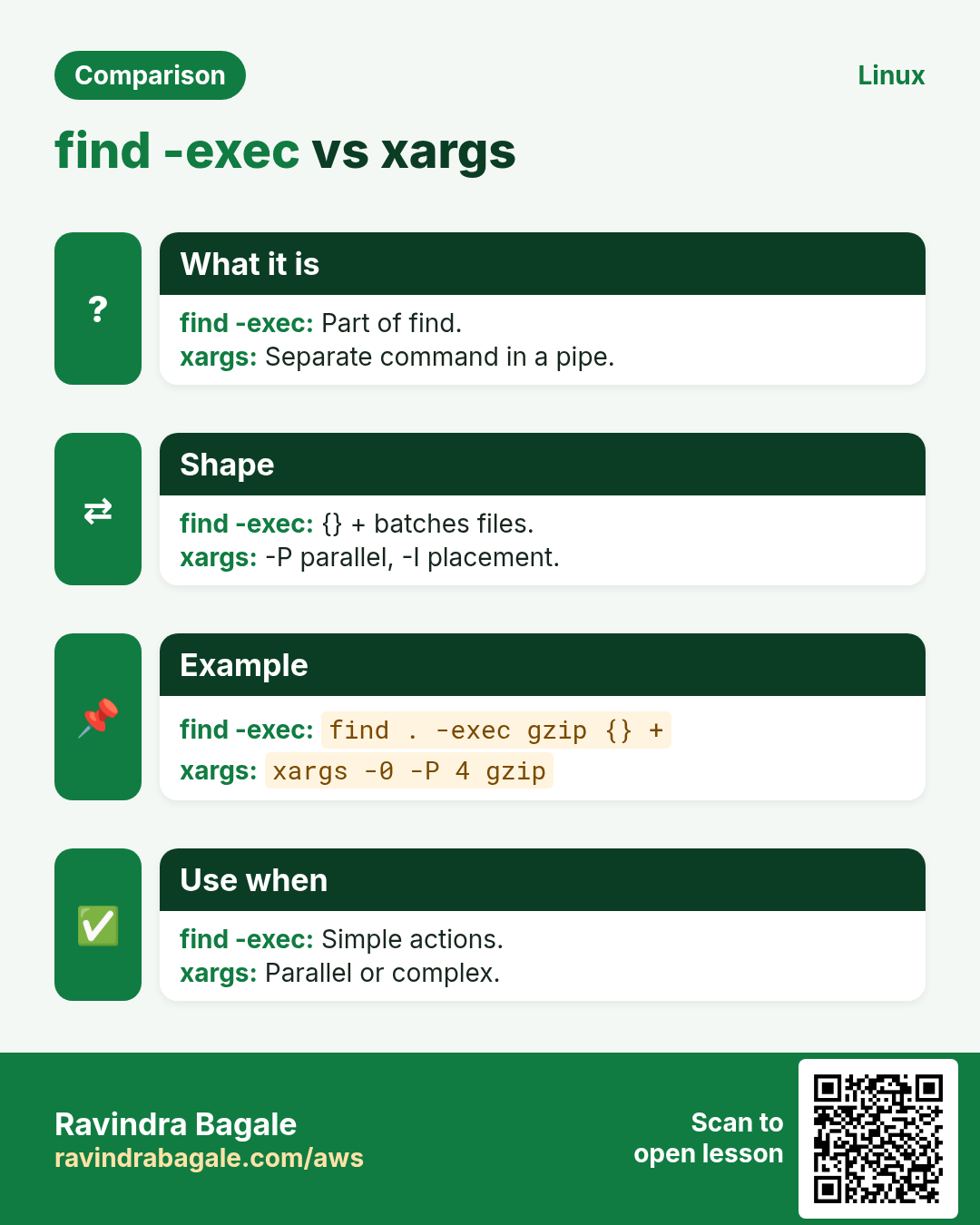
-exec cmd {} \; runs cmd once per file ({} is the file). -exec cmd {} + passes many files at once (much faster). -ok asks before each run. -delete removes matches (put it last; it implies -depth). -printf formats output: %p path, %s size, %TY-%Tm-%Td date, %u owner. -ls prints like ls -l.
How to do it (step by step)
- Compress old logs.
find /var/log/app -name '*.log' -mtime +3 -exec gzip {} +Output:
(no output)What it means: {} + gives gzip many files per run.
- Fix folder permissions.
find /srv/www -type d -exec chmod 755 {} + && find /srv/www -type f -exec chmod 644 {} +Output:
(no output)What it means: Folders 755, files 644: the classic web fix.
- Ask before each delete.
find ~/tmp -name '*.bak' -ok rm {} \;Output:
< rm ... /home/ravi/tmp/a.bak > ? yWhat it means: Type y to confirm each one.
- Delete old temp files (list first!).
find /tmp/build -type f -mtime +7 -print; find /tmp/build -type f -mtime +7 -deleteOutput:
/tmp/build/x.o
/tmp/build/y.o
What it means: Same tests, -print first, then -delete.
- Custom output.
find /srv/app -maxdepth 1 -printf '%TY-%Tm-%Td %u %p\n'Output:
2026-10-25 deploy /srv/app/releases
2026-10-20 deploy /srv/app/shared
What it means: Like a report.
- Copy found files.
find ~/Photos -name '*.jpg' -newermt '2026-10-01' -exec cp -t /backup/oct/ {} +Output:
(no output)What it means: cp -t puts the target first so {} + works.
9. xargs: turn a list into arguments
Why do we need this?
Many commands (rm, gzip, grep) take file names as arguments, not from stdin. With huge lists you also hit 'Argument list too long'.
What is it?
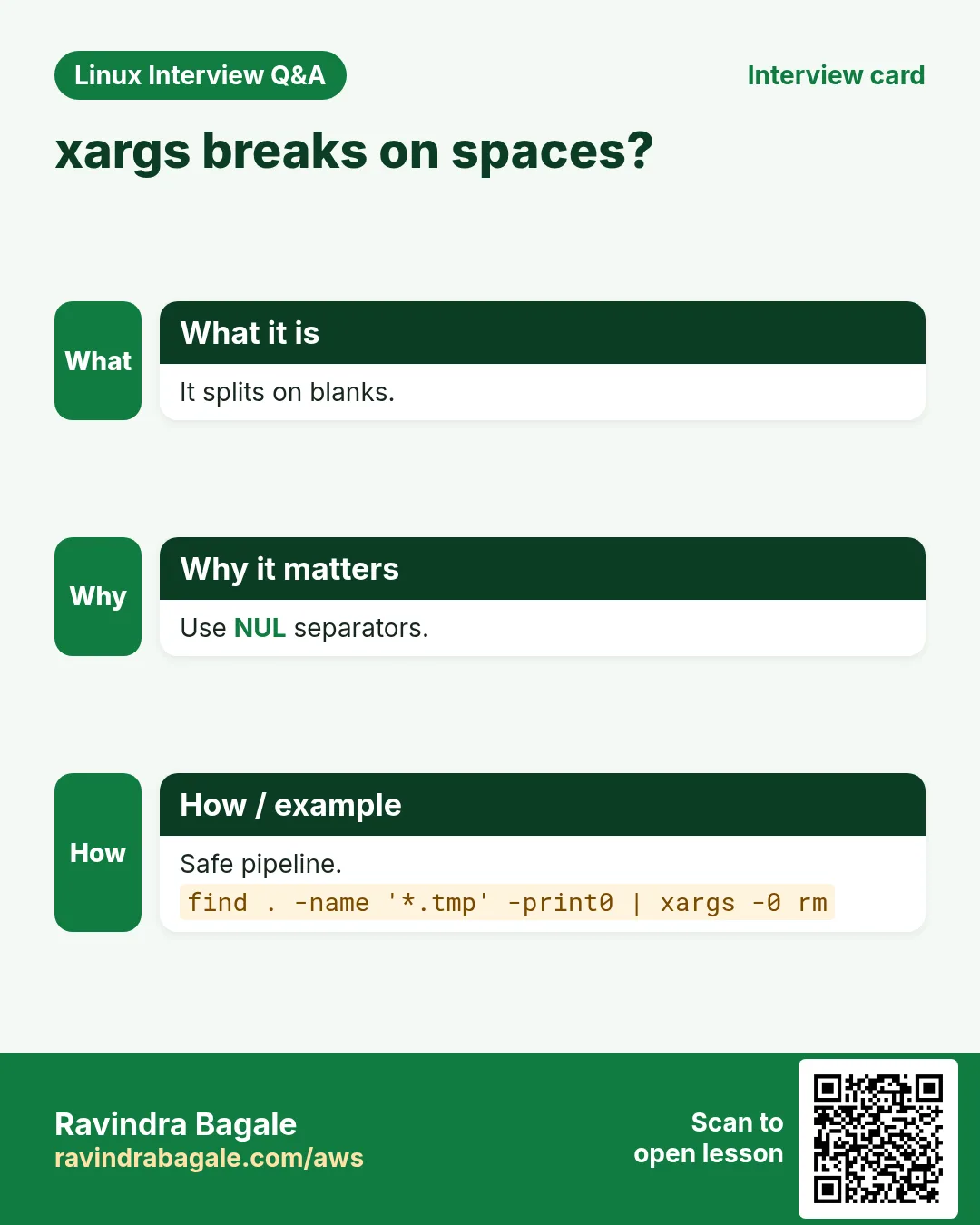
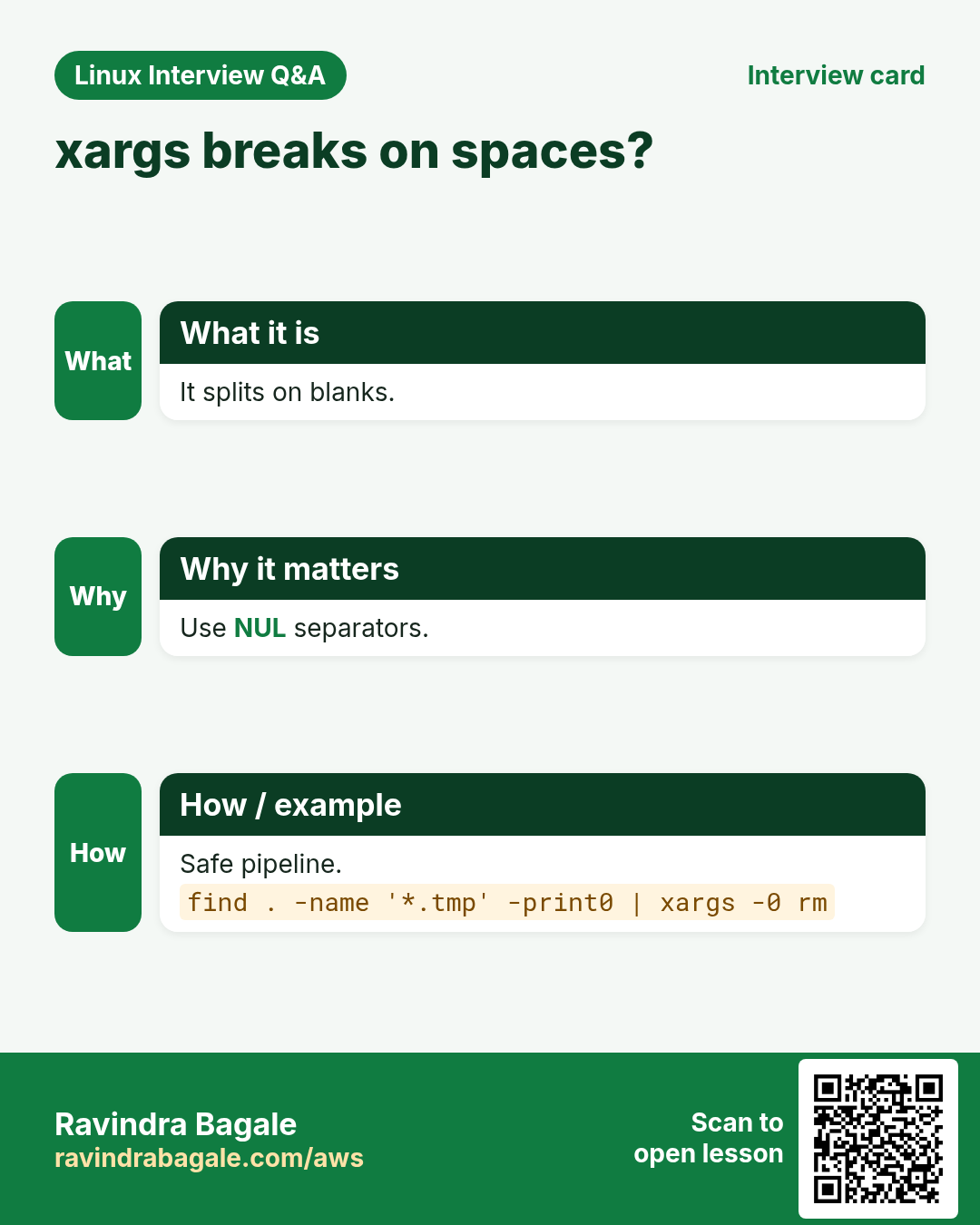
cmd1 | xargs cmd2 reads items from stdin and runs cmd2 with them, packing as many as fit. -0 reads NUL-separated items (pair with find -print0, safe for spaces and new lines in names). -n N items per run, -P N run N in parallel, -I{} puts each item where {} is (one item per run), -r (GNU) does not run if input is empty, -t prints each command first, -p asks.
| Option | Use |
|---|---|
| -0 | NUL separated input (with -print0) |
| -n N | N items per command |
| -P N | N commands in parallel |
| -I{} | Place item anywhere |
| -r | Skip if no input |
| -t | Show commands |
How to do it (step by step)
- Delete found files safely.
find /tmp/cache -name '*.tmp' -print0 | xargs -0 -r rm -fOutput:
(no output)What it means: Works even with spaces in names; -r skips when nothing found.
- Why -0 matters.
touch 'my file.txt'; find . -name '*.txt' | xargs lsOutput:
ls: cannot access './my': No such file or directory
ls: cannot access 'file.txt': No such file or directory
What it means: Without -print0/-0 the space split the name.
- Grep inside found files.
find . -name '*.py' -print0 | xargs -0 grep -l 'boto3'Output:
./sync/main.pyWhat it means: xargs gives grep many files at once.
- Parallel compression.
find /data/logs -name '*.log' -print0 | xargs -0 -n 1 -P 4 gzipOutput:
(no output)What it means: 4 gzip jobs at the same time on 4 CPUs.
- Place each item with -I.
cat servers.txt | xargs -I{} ssh {} 'uptime'Output:
web1  10:40 up 12 days
web2  10:40 up 3 days
What it means: {} becomes each server name.
- Show and batch.
seq 1 5 | xargs -t -n 2 echoOutput:
echo 1 2
1 2
echo 3 4
3 4
echo 5
5
What it means: -t prints the command, -n 2 groups by two.
- Fix 'Argument list too long'.
find /var/spool/mail/old -type f -print0 | xargs -0 rm -fOutput:
(no output)What it means: rm /var/spool/mail/old/* would fail with 200,000 files.
10. locate and updatedb: instant name search
Why do we need this?
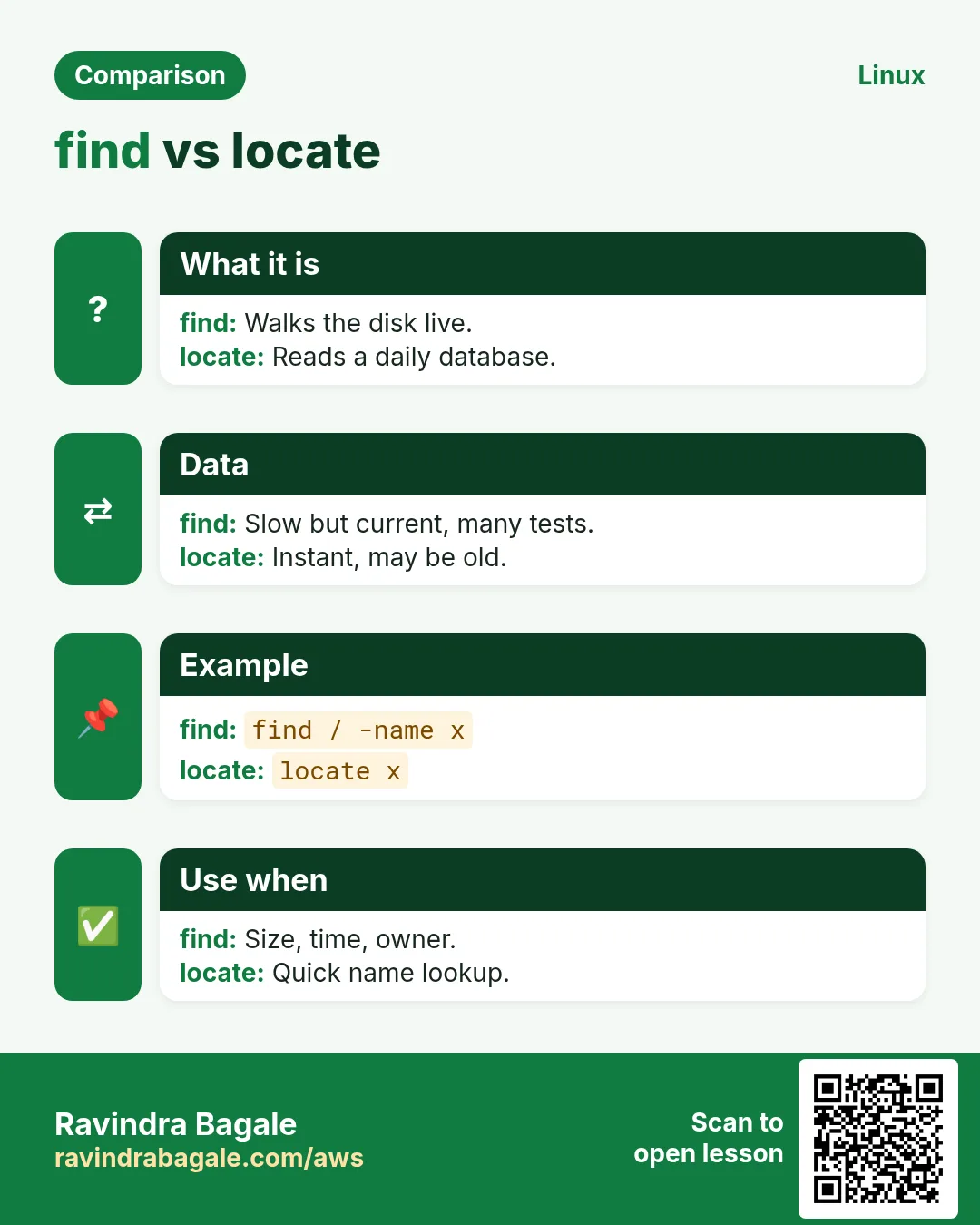
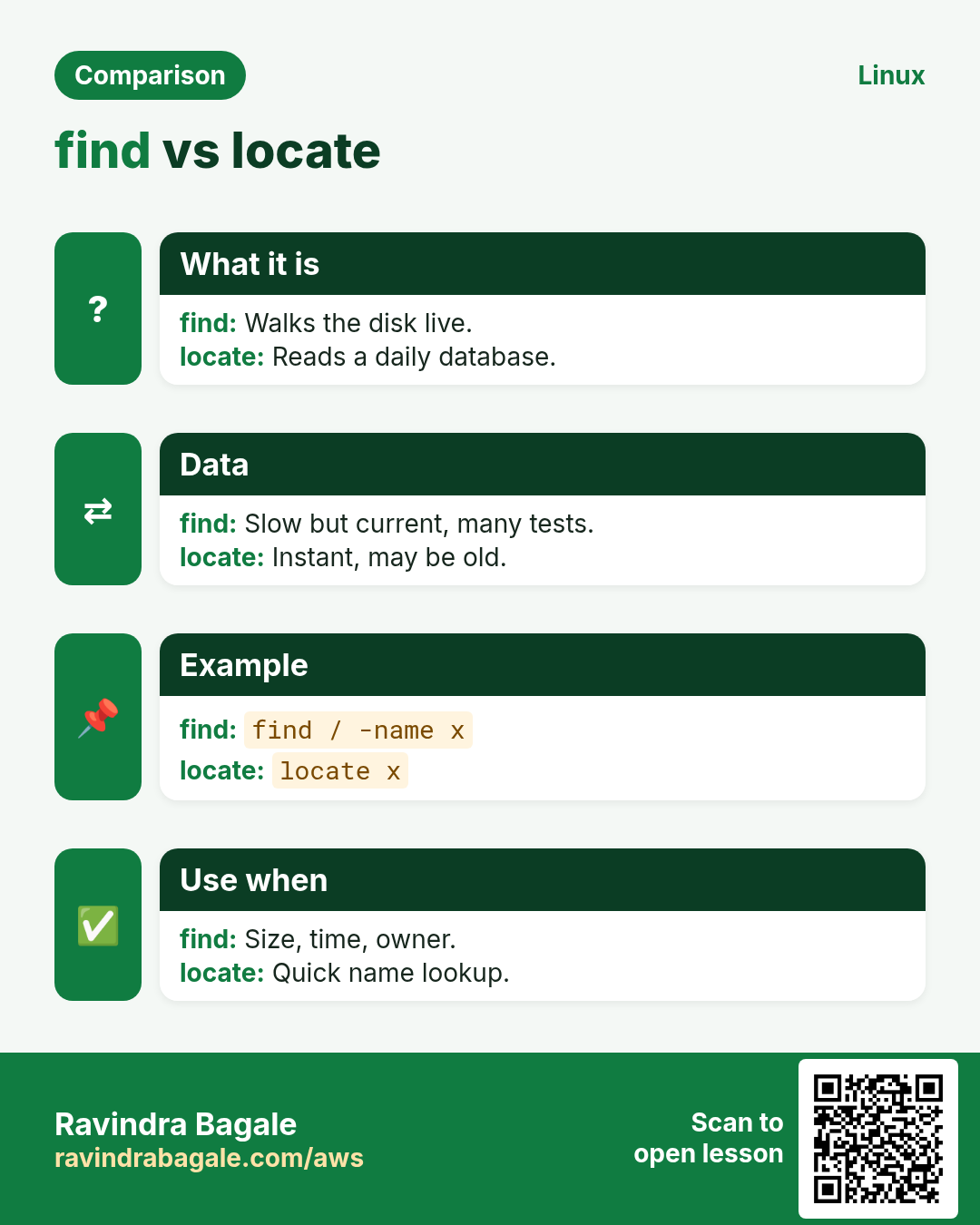
find walks the disk every time. For a quick 'where is that file?' a database is faster.
What is it?
locate (plocate/mlocate package) searches a database built by updatedb, usually daily. -i ignore case, -c count, -n 5 limit, -e only existing files. New files appear only after updatedb.
How to do it (step by step)
- Instant name search.
locate -i nginx.confOutput:
/etc/nginx/nginx.conf
/usr/share/doc/nginx/nginx.conf.default
What it means: Very fast, from the database.
- Refresh the database.
sudo updatedb && locate -c '*.log'Output:
213What it means: New files appear only after updatedb (runs daily by timer).
11. which: which program will run
Why do we need this?
Two versions of python or java are installed. Which one runs when you type the name?
What is it?
which cmd searches your PATH and prints the first match. -a prints all matches.
How to do it (step by step)
- Which python runs?
which python3Output:
/usr/bin/python3What it means: First match in PATH.
- All matches.
which -a python3Output:
/usr/local/bin/python3
/usr/bin/python3
What it means: The first one wins.
12. whereis: binary, source and manual
Why do we need this?
You want to see where a command and its manual page live.
What is it?
whereis cmd lists binary, source and man page paths from standard places. -b binary only, -m man only.
How to do it (step by step)
- All places of a command.
whereis tarOutput:
tar: /usr/bin/tar /usr/share/man/man1/tar.1.gzWhat it means: Binary and manual page.
- Binary only.
whereis -b nginxOutput:
nginx: /usr/sbin/nginxWhat it means: -b hides man pages.
13. type: alias, builtin, function or file
Why do we need this?
A command behaves oddly. Maybe it is an alias or a shell function, not the real program.
What is it?
type is a shell builtin. It says if a name is an alias, keyword, function, builtin or a file on disk. type -a shows all, type -t prints just the kind.
How to do it (step by step)
- Alias or file?
type llOutput:
ll is aliased to `ls -l --color=auto'What it means: type knows shell aliases; which may not.
- Builtin vs file.
type -a echoOutput:
echo is a shell builtin
echo is /usr/bin/echo
What it means: The builtin runs first.
14. Real examples from many industries
Why do we need this?
The same Linux skill shows up in every kind of company. Seeing it in many places helps you remember it.
What is it?
Each row is a made-up team. It shows who uses this and how.
How to do it (step by step)
| Team and city | How they use it | Command |
|---|---|---|
| Manoj, hosting support, Indore | Frees a full disk by finding files over 1 GB | find / -xdev -type f -size +1G -exec ls -lh {} + |
| Laura, security audit, Madrid | Lists world-writable and SUID files | find / -xdev \( -perm -4000 -o -perm -o+w \) -type f |
| Kwame, media pipeline, Accra | Converts thousands of images in parallel | find in/ -name '*.png' -print0 | xargs -0 -P 8 -I{} convert {} {}.webp |
| Tanvi, data team, Pune | Deletes temp exports older than 14 days via cron | find /data/tmp -type f -mtime +14 -delete |
| Ben, DevOps, Sydney | Finds configs changed just before an outage | find /etc -type f -mmin -30 |
| Riya, web agency, Jaipur | Resets web file permissions | find /var/www -type f -exec chmod 644 {} + |
15. Common errors and how to fix them
Why do we need this?
Everyone hits these errors. Knowing the cause saves hours.
What is it?
Read the exact message first. Then match it to a row below.
How to do it (step by step)
| Error you see | Why it happens | How to fix |
|---|---|---|
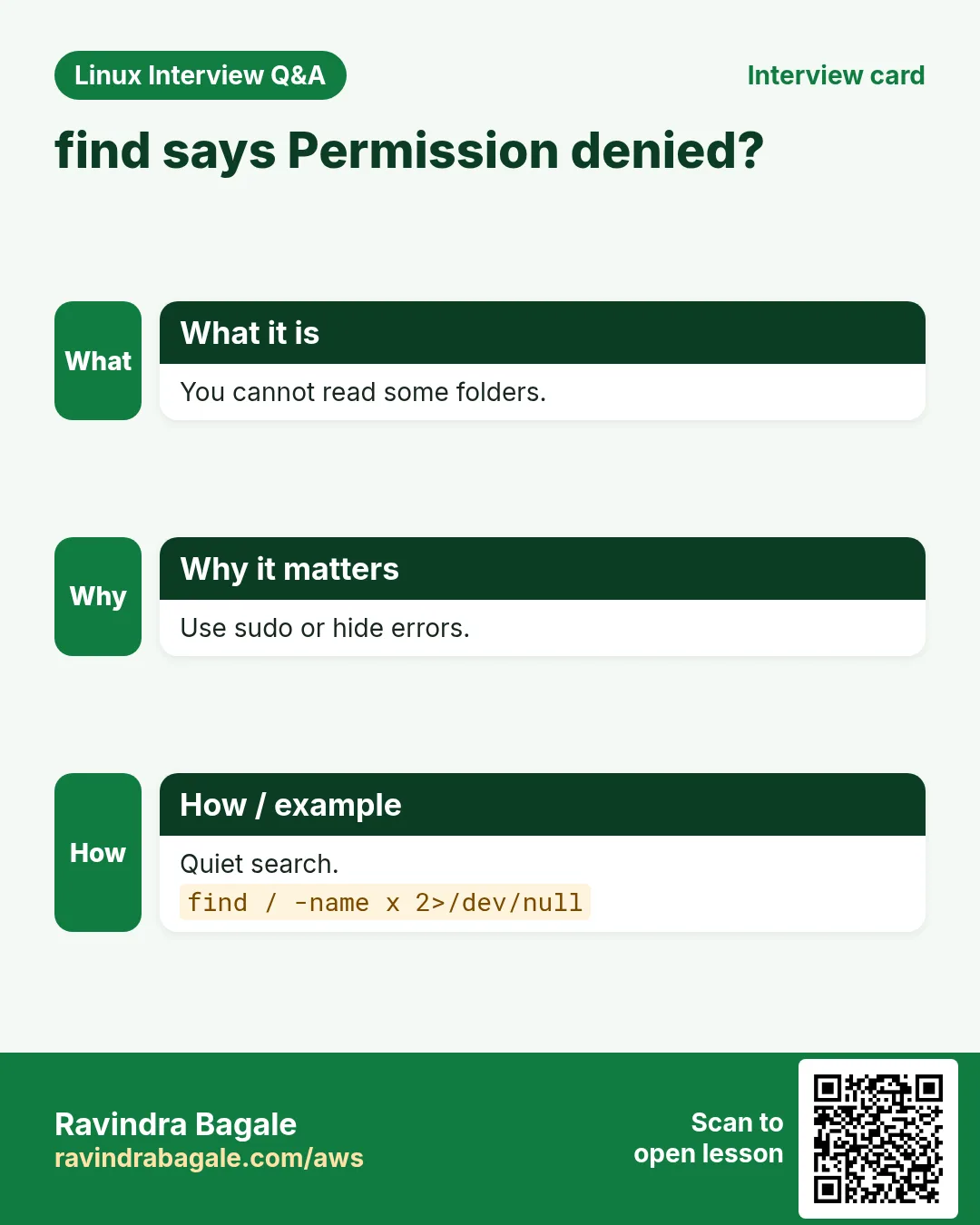
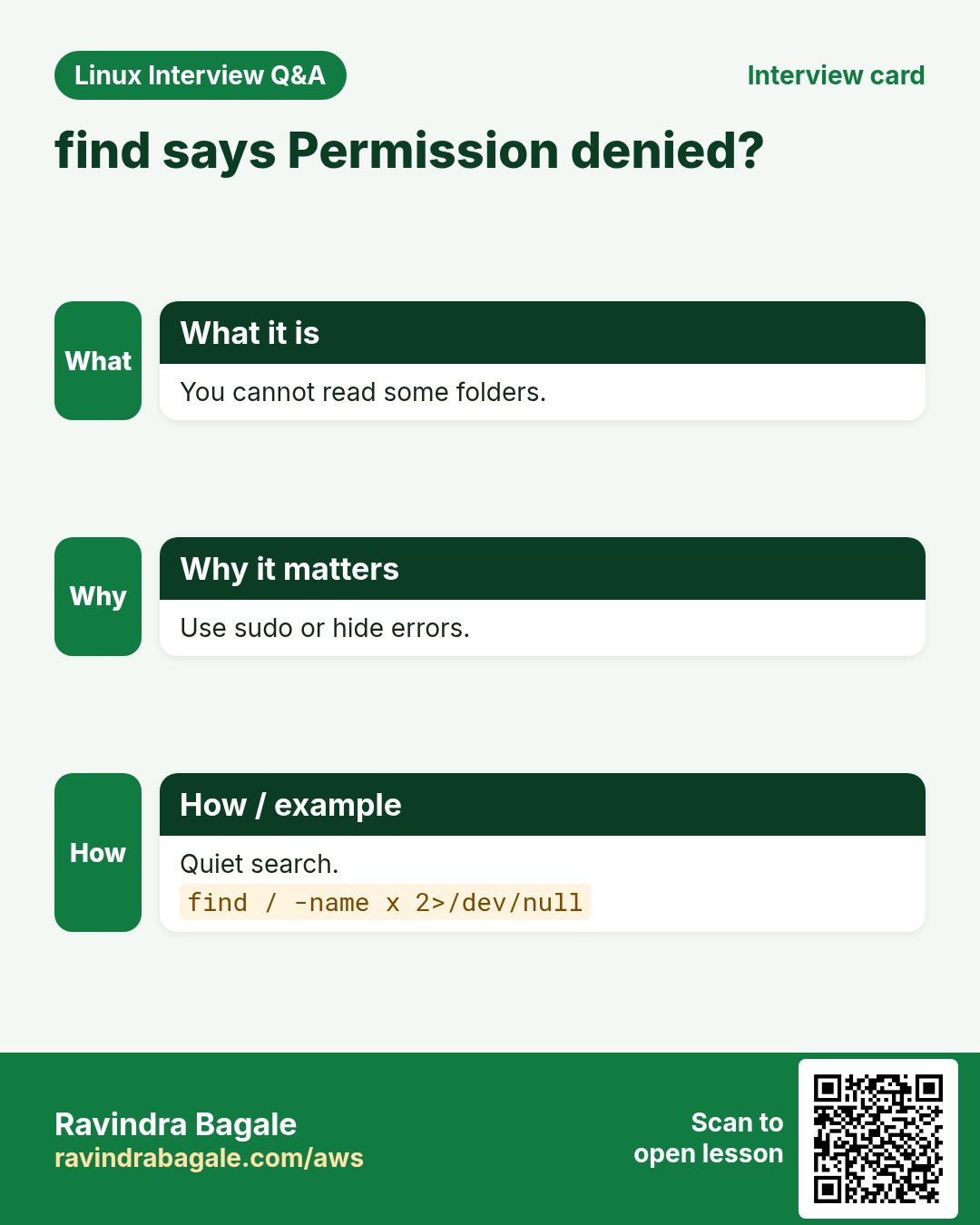
find: '/proc/1234': Permission denied | Normal user cannot read some folders | Use sudo, -xdev, or hide with 2>/dev/null.sudo find / -xdev -name x 2>/dev/null |
find: paths must precede expression: 'b.txt' | Unquoted *.txt was expanded by the shell | Quote the pattern.find . -name '*.txt' |
find: missing argument to `-exec' | Forgot \; or + at the end | End -exec with \; or +.find . -name '*.log' -exec gzip {} + |
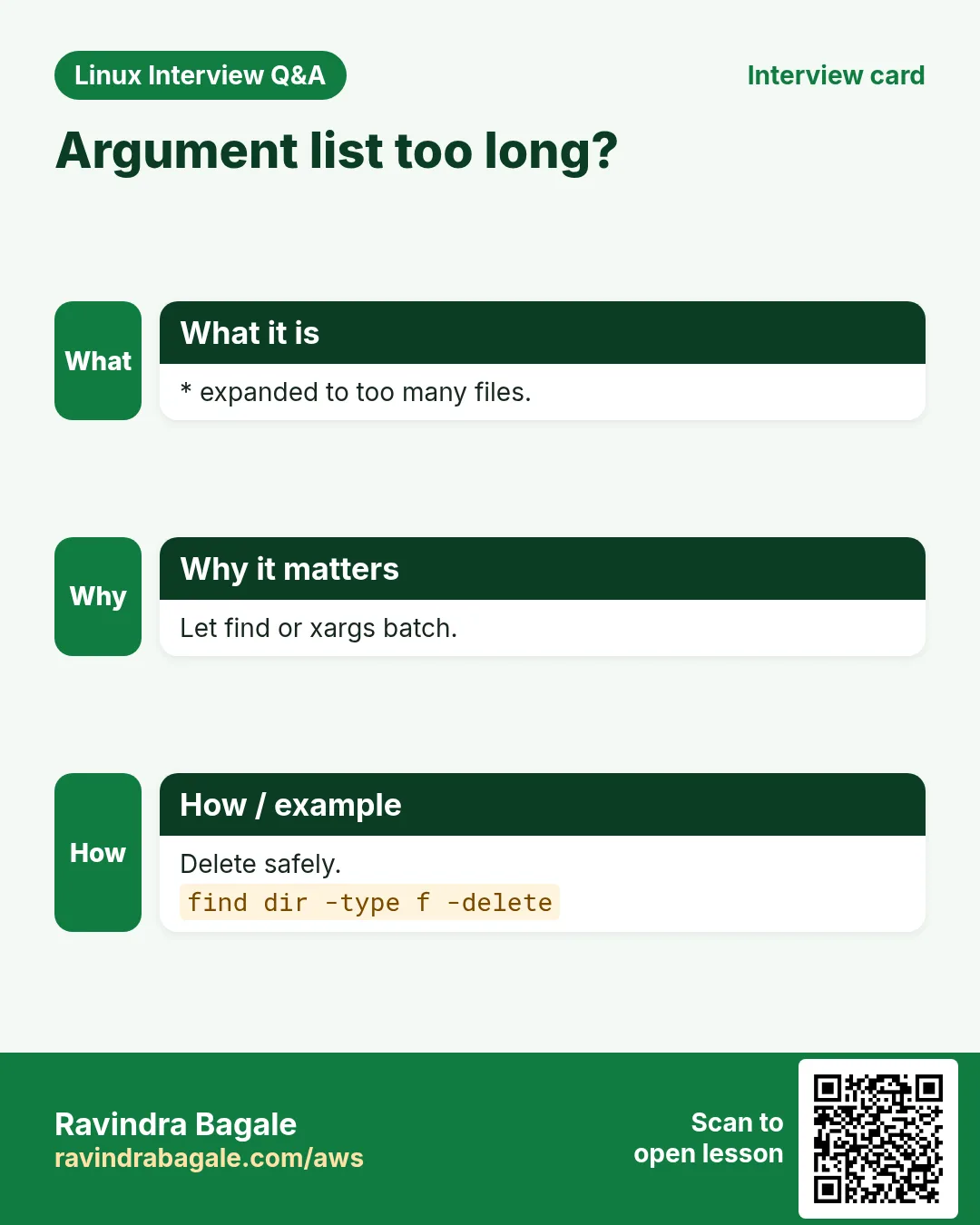
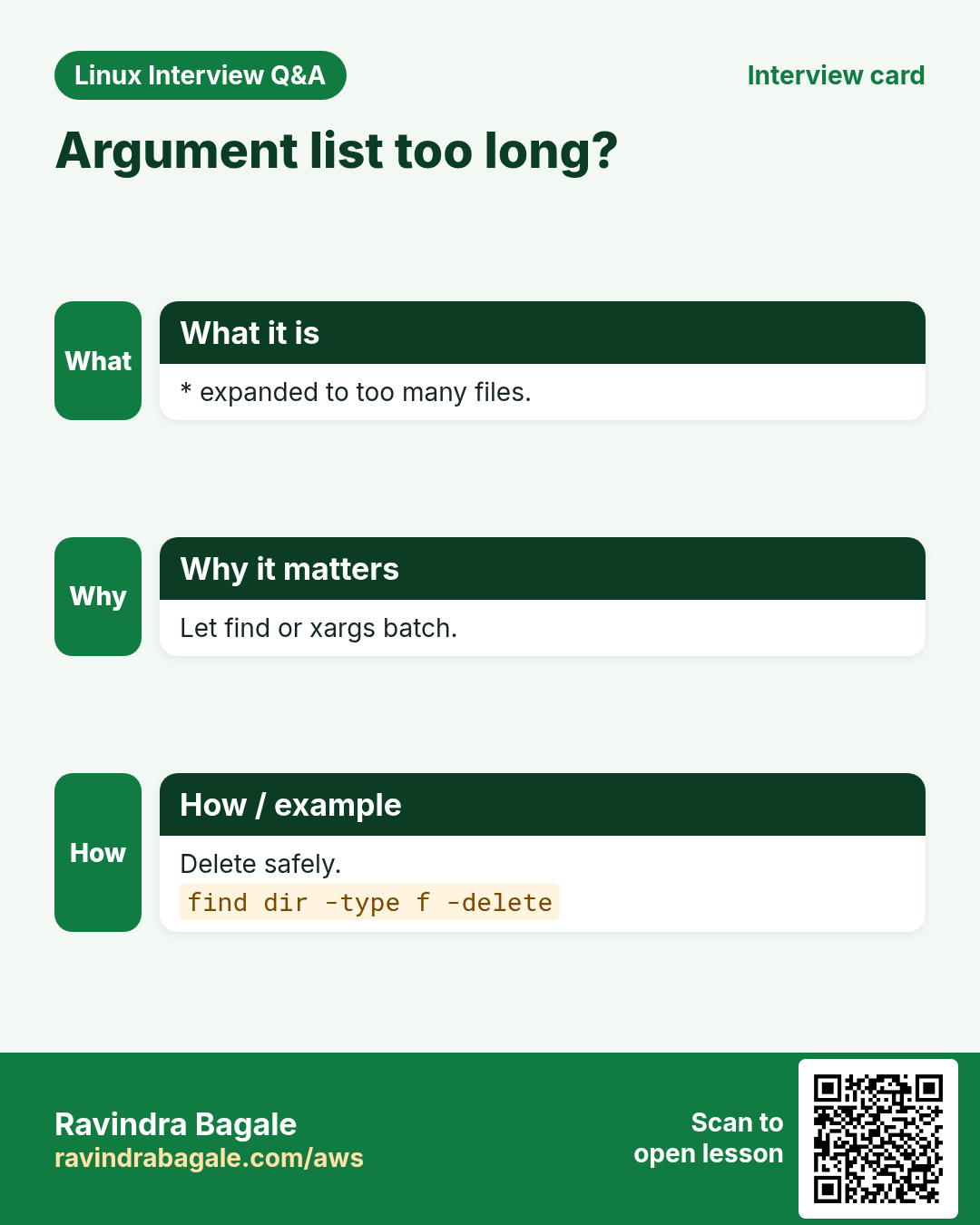
-bash: /usr/bin/rm: Argument list too long | Too many files from a glob like * | Use find -delete or xargs.find dir -type f -delete |
xargs: unmatched single quote | A file name has a quote and you did not use -0 | Use find -print0 | xargs -0.find . -print0 | xargs -0 ls -l |
rm runs with no files and errors (xargs) | Empty input still ran the command | Add -r (GNU xargs).find . -name '*.tmp' -print0 | xargs -0 -r rm |
-delete removed more than expected | -delete was placed before the tests | Put -delete last, and dry-run with -print.find /tmp -name '*.tmp' -print |
find -mtime 7 finds nothing | Exactly 7 means 'between 7 and 8 days' | Use +7 for older than or -7 for newer.find . -mtime +7 |
locate: can not stat () `/var/lib/plocate/plocate.db' | The database is not built yet | Run updatedb.sudo updatedb |
-prune does not skip the folder | Missing -o ... -print, or the path does not match exactly | Use the -path X -prune -o ... -print form.find . -path ./node_modules -prune -o -type f -print |
16. Troubleshooting step by step
Why do we need this?
When find returns nothing or too much, build the command one test at a time and always -print before any action.
What is it?
Go top to bottom. Stop at the first step that shows the problem.
How to do it (step by step)
- Start broad and check results exist.
find /var/log -type f | head- Add one test at a time.
find /var/log -type f -name '*.log' | head- Check the time maths.
find /var/log -type f -name '*.log' -mtime +7 -printf '%TY-%Tm-%Td %p\n' | head- Check the count before acting.
find /var/log -type f -name '*.log' -mtime +7 | wc -l- Dry-run xargs with echo or -t.
find . -name '*.tmp' -print0 | xargs -0 -r echo rm- Then run the real action.
find . -name '*.tmp' -print0 | xargs -0 -r rm -f17. Lab 1: Free a full disk safely
Why do we need this?
Create test files, find big and old ones, compress and delete safely.
What is it?
A full hands-on lab. Run every step on a test Linux machine (an EC2 instance, a VM, or WSL).
How to do it (step by step)
- Create files of different sizes and ages.
mkdir -p ~/lab12/logs && cd ~/lab12/logs && for i in 1 2 3 4 5; do truncate -s ${i}0M app$i.log; touch -d "$((i*3)) days ago" app$i.log; done; ls -lhOutput:
-rw-r--r-- 1 ravi ravi 10M app1.log ... 50M app5.log- Files bigger than 25 MB.
find . -type f -size +25M -printf '%s %p\n' | sort -nrOutput:
52428800 ./app5.log
41943040 ./app4.log
31457280 ./app3.log- Files older than 7 days.
find . -name '*.log' -mtime +7Output:
./app3.log
./app4.log
./app5.log- Compress them.
find . -name '*.log' -mtime +7 -exec gzip {} + && lsOutput:
app1.log app2.log app3.log.gz app4.log.gz app5.log.gz- Delete gz files older than 12 days (print first).
find . -name '*.gz' -mtime +12 -print -deleteOutput:
./app5.log.gz18. Lab 2: Names with spaces and xargs
Why do we need this?
See how spaces break pipelines and fix them with -print0 and -0; run jobs in parallel.
What is it?
A full hands-on lab. Run every step on a test Linux machine (an EC2 instance, a VM, or WSL).
How to do it (step by step)
- Make tricky file names.
mkdir -p ~/lab12/docs && cd ~/lab12/docs && touch 'Oct bill.txt' 'Nov bill.txt' plain.txtOutput:
(no output)- Unsafe way.
find . -name '*.txt' | xargs ls 2>&1 | head -2Output:
ls: cannot access './Oct': No such file or directory
ls: cannot access 'bill.txt': No such file or directory- Safe way.
find . -name '*.txt' -print0 | xargs -0 lsOutput:
./Nov bill.txt ./Oct bill.txt ./plain.txt- Parallel jobs with -P and -I.
find . -name '*.txt' -print0 | xargs -0 -P 3 -I{} sh -c 'echo "done: $1"' _ {}Output:
done: ./plain.txt
done: ./Oct bill.txt
done: ./Nov bill.txt- Fix permissions in one go.
find ~/lab12 -type f -exec chmod 644 {} + && find ~/lab12 -type f ! -perm 644 | wc -lOutput:
0Ravindra Bagale's Tip
Before any find -delete or xargs rm, run the exact same find with -print (or xargs echo) and check the count with wc -l. Deleting the wrong 10,000 files takes one second; getting them back may be impossible.
Ravindra Bagale's Tip – मराठी
कोणत्याही find -delete किंवा xargs rm आधी तोच find -print सह (किंवा xargs echo) चालवा आणि wc -l ने count बघा. चुकीच्या 10,000 files delete व्हायला एक second लागतो; परत मिळवणं अशक्य असू शकतं.
Ravindra Bagale's Tip – हिंदी
किसी भी find -delete या xargs rm से पहले वही find -print के साथ (या xargs echo) चलाएं और wc -l से count देखें. गलत 10,000 files delete होने में एक second लगता है; वापस पाना नामुमकिन हो सकता है.
19. Frequently asked questions
Q. find or locate?
locate is instant but uses a daily database. find is always current and can test size, time and owner.
Q. Why quote '*.txt'?
Without quotes the shell expands it to file names in the current folder before find sees it.
Q. -exec {} \; or {} +?
\; runs once per file (slow). + passes many files per run (fast). Use + when the command accepts many files.
Q. Why -print0 and xargs -0?
File names can contain spaces, quotes or new lines. NUL can never be in a name, so it is a safe separator.
Q. What does -mtime +7 mean exactly?
Modified more than 7 full days (×24 h) ago. -mtime 7 means between 7 and 8 days.
Q. Why use -xdev?
It stops find from crossing into other disks, network mounts, /proc and /sys.
Q. xargs or a while read loop?
xargs is faster and can run in parallel. A while loop is easier for complex logic per file.
Q. Is find -delete safe?
Yes, if you test the same command with -print first and keep -delete as the last option.
20. Interview questions and answers
Beginner level
Q. How do you find a file named app.conf under /etc?
find /etc -name app.conf.
Q. How do you find only folders?
find PATH -type d.
Q. How do you find files bigger than 100 MB?
find / -xdev -type f -size +100M.
Q. What does xargs do?
It turns lines from stdin into arguments for a command.
Mid level level
Q. Delete .log files older than 30 days.
find /var/log/app -name '*.log' -mtime +30 -delete (print first).
Q. Difference between -exec {} \; and {} +?
\; one process per file; + batches many files into one process, like xargs.
Q. How do you handle spaces in file names with xargs?
find ... -print0 | xargs -0 cmd.
Q. Find files changed in the last 15 minutes.
find /path -mmin -15 -type f.
Senior level
Q. Disk is 100% but find shows no big files. Why?
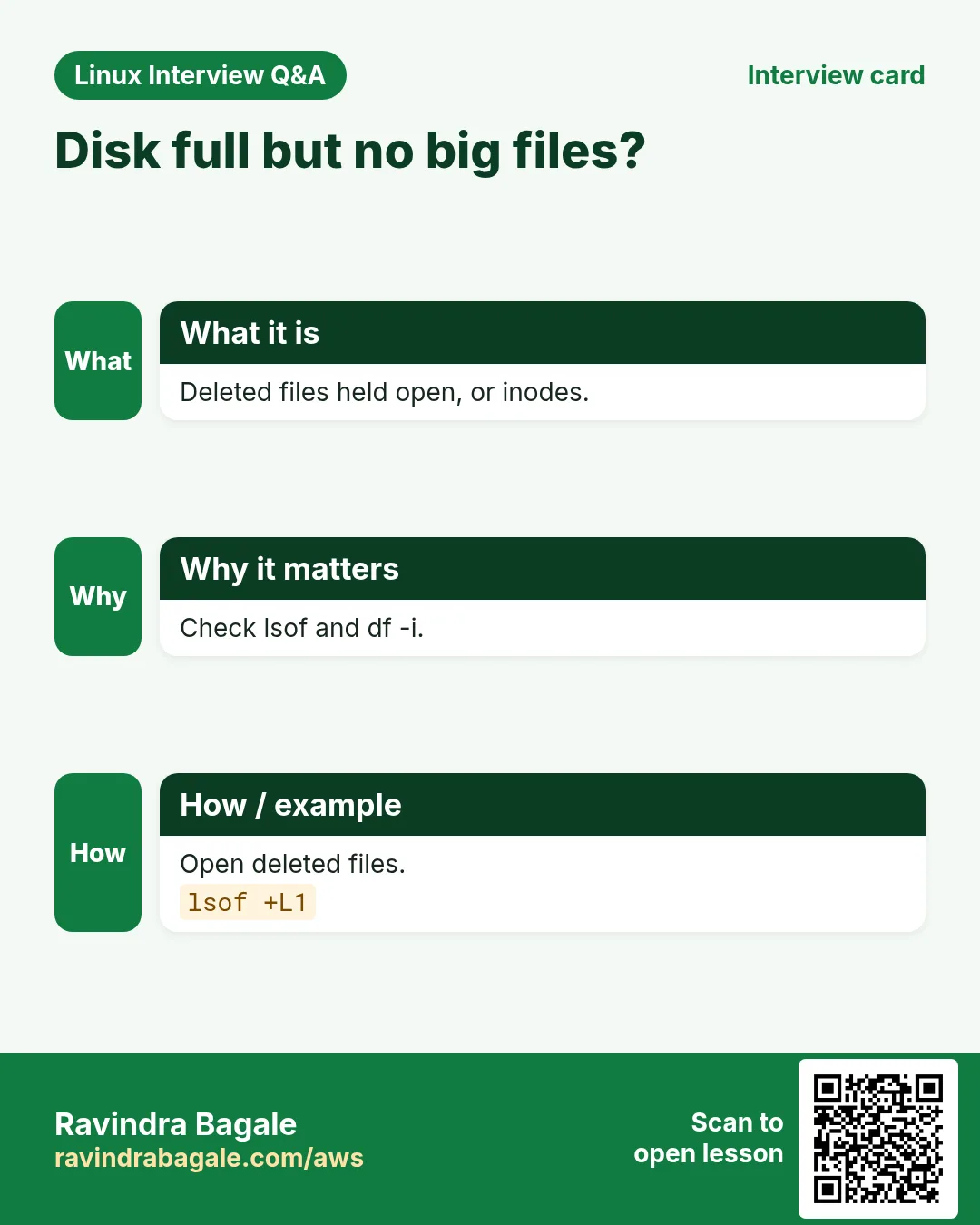
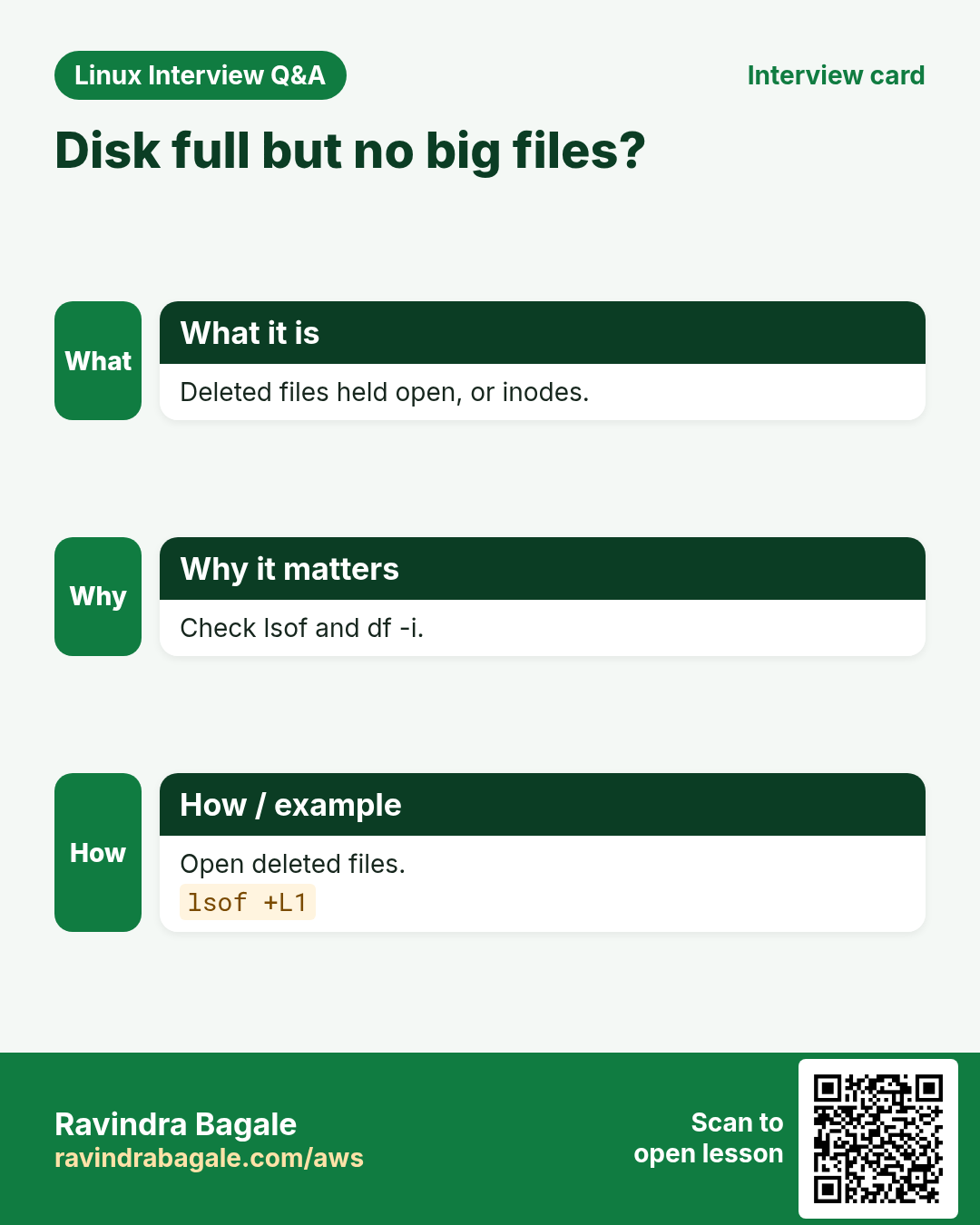
Deleted files still held open (lsof +L1), files hidden under a mount point, inode exhaustion (df -i), or reserved blocks. Check each.
Q. Process 2 million files with a command, fast and safely.
find -print0 | xargs -0 -n 500 -P $(nproc) cmd; or find -exec cmd {} +; tune -n for memory, avoid one-process-per-file.
Q. How do you audit SUID/SGID and world-writable files across a fleet?
find / -xdev -type f \( -perm -4000 -o -perm -2000 \) and -perm -o+w, ship results via Ansible/SSM, diff against a baseline and alert on new entries.
Q. Why is find . -name '*.tmp' -delete -o -name '*.bak' dangerous if written wrongly?
Operator precedence: AND binds tighter than OR, and -delete placed before tests deletes everything it reaches. Group with \( \) and put -delete last.
Try at home
- In your Downloads folder, find all PDF files bigger than 1 MB and older than 30 days, and print them with their size.
- Make 3 files with spaces in the names and list them safely with find -print0 | xargs -0 ls -l.
Practice Tasks
Ahmednagar Sugar Co-op is a sugar co-operative business in Ahilyanagar. Balasaheb Pawar looks after its IT and cloud work. They count money in INR and run their AWS resources in the ap-south-1 Region. In the tasks below you do real jobs for them using what this lesson teaches. All names, account IDs, IP addresses and numbers are made up for practice.
0 / 18
Easy Find by name
Why: Lost config file.
What to do: Find files named app.conf under /etc.
- Find the Linux command that does this job.
- Add the options (like -r or -h) the task needs.
- Add the file names, folders or users in the right order.
- Use sudo if the job changes system files or users. Click Check answer.
Easy Find by extension
Why: All logs in one list.
What to do: Find all files ending in .log under /opt/app/logs. Quote the pattern.
- Find the Linux command that does this job.
- Add the options (like -r or -h) the task needs.
- Add the file names, folders or users in the right order.
- Use sudo if the job changes system files or users. Click Check answer.
Easy Ignore case
Why: Invoice or receipt.
What to do: Find files under ~/Documents whose name contains receipt in any case. Pattern '*receipt*'.
- Find the Linux command that does this job.
- Add the options (like -r or -h) the task needs.
- Add the file names, folders or users in the right order.
- Use sudo if the job changes system files or users. Click Check answer.
Easy Only folders
Why: Count project folders.
What to do: Find only directories under /srv/app.
- Find the Linux command that does this job.
- Add the options (like -r or -h) the task needs.
- Add the file names, folders or users in the right order.
- Use sudo if the job changes system files or users. Click Check answer.
Easy Instant name lookup
Why: find is slow on big disks.
What to do: Search the file name database for php.ini, ignoring case.
- Find the Linux command that does this job.
- Add the options (like -r or -h) the task needs.
- Add the file names, folders or users in the right order.
- Use sudo if the job changes system files or users. Click Check answer.
Easy Which program runs
Why: Two pythons installed.
What to do: Show the path of the pip3 that runs from your PATH.
- Find the Linux command that does this job.
- Add the options (like -r or -h) the task needs.
- Add the file names, folders or users in the right order.
- Use sudo if the job changes system files or users. Click Check answer.
Medium Big files
Why: Disk is full.
What to do: Find regular files bigger than 500 MB under /var.
- Find the Linux command that does this job.
- Add the options (like -r or -h) the task needs.
- Add the file names, folders or users in the right order.
- Use sudo if the job changes system files or users. Click Check answer.
Medium Old files
Why: Logs older than a week.
What to do: Find files under /var/log/app modified more than 7 days ago.
- Find the Linux command that does this job.
- Add the options (like -r or -h) the task needs.
- Add the file names, folders or users in the right order.
- Use sudo if the job changes system files or users. Click Check answer.
Medium Recently changed
Why: What changed before the outage?
What to do: Find files under /etc/systemd changed in the last 15 minutes.
- Find the Linux command that does this job.
- Add the options (like -r or -h) the task needs.
- Add the file names, folders or users in the right order.
- Use sudo if the job changes system files or users. Click Check answer.
Medium Files of a user
Why: Before removing an account.
What to do: Find files under /home owned by the user sneha.
- Find the Linux command that does this job.
- Add the options (like -r or -h) the task needs.
- Add the file names, folders or users in the right order.
- Use sudo if the job changes system files or users. Click Check answer.
Medium Top level only
Why: Do not walk deep folders.
What to do: Find .log files directly inside /srv/logs only (depth 1). Put -maxdepth first.
- Find the Linux command that does this job.
- Add the options (like -r or -h) the task needs.
- Add the file names, folders or users in the right order.
- Use sudo if the job changes system files or users. Click Check answer.
Medium Compress found files
Why: Save disk space.
What to do: Gzip .log files under /srv/api/logs older than 5 days, batching many files per gzip run with {} +.
- Find the Linux command that does this job.
- Add the options (like -r or -h) the task needs.
- Add the file names, folders or users in the right order.
- Use sudo if the job changes system files or users. Click Check answer.
Medium Delete old temp files
Why: Cron cleanup.
What to do: Delete regular files under /var/tmp/cache older than 10 days using find's own delete action.
- Find the Linux command that does this job.
- Add the options (like -r or -h) the task needs.
- Add the file names, folders or users in the right order.
- Use sudo if the job changes system files or users. Click Check answer.
Medium Safe delete with xargs
Why: Names may contain spaces.
What to do: Find *.bak files in the current folder and remove them with xargs, safely handling spaces (-print0 and -0).
- Find the Linux command that does this job.
- Add the options (like -r or -h) the task needs.
- Add the file names, folders or users in the right order.
- Use sudo if the job changes system files or users. Click Check answer.
Hard World-writable files
Why: Security audit.
What to do: Find regular files under /srv that are writable by others. Use -perm -o+w.
- Find the Linux command that does this job.
- Add the options (like -r or -h) the task needs.
- Add the file names, folders or users in the right order.
- Use sudo if the job changes system files or users. Click Check answer.
Hard Skip a folder
Why: vendor is huge.
What to do: From the current folder, list *.php files but skip ./vendor using -path ... -prune -o ... -print.
- Find the Linux command that does this job.
- Add the options (like -r or -h) the task needs.
- Add the file names, folders or users in the right order.
- Use sudo if the job changes system files or users. Click Check answer.
Hard Parallel gzip
Why: Use all CPUs.
What to do: Gzip all *.log files under /data, one file per gzip, 4 at a time. Use -print0, xargs -0 -n 1 -P 4.
- Find the Linux command that does this job.
- Add the options (like -r or -h) the task needs.
- Add the file names, folders or users in the right order.
- Use sudo if the job changes system files or users. Click Check answer.
Hard Run a command per server
Why: Check uptime everywhere.
What to do: Read servers.txt with cat and, for each line, run ssh SERVER uptime using xargs -I{}.
- Find the Linux command that does this job.
- Add the options (like -r or -h) the task needs.
- Add the file names, folders or users in the right order.
- Use sudo if the job changes system files or users. Click Check answer.
21. Related chapters
- Linux Ops Refresh for DevOps
- Bash Scripting for Automation
- Linux grep and find Commands with Examples
- How to Set Up Passwordless SSH Between Linux Servers
In short
- find START tests actions; quote patterns.
- -name -iname -type -size -mtime -mmin -user -perm.
- -maxdepth, -prune, -xdev, ! and -o.
- -exec {} + is fast; -delete goes last; always -print first.
- find -print0 | xargs -0 -r -n -P -I.
- locate for instant name lookups; which/whereis/type for commands.
Revision, comparison and interview cards
Revise this lesson in a few minutes. Save the cards on your phone or download them as PNG files. The QR code on each card opens this lesson.
More cards: Ravi Sir's Cards.