Shell Scripting Complete 13: Scheduling Scripts with cron and systemd Timers
A script is most useful when it runs by itself: a backup at 2 a.m., a report every Monday, a health check every 5 minutes. Linux has two main schedulers. cron is old, simple and everywhere. systemd timers are newer, log to journald, can catch up on missed runs and give resource limits. In this chapter you learn crontab syntax, the cron environment, logging and locking cron jobs, then .service and .timer units, OnCalendar, Persistent, RandomizedDelaySec, systemctl list-timers and journalctl, and how to choose between them. Every topic starts with an everyday example and then shows examples from many industries.
What you'll learn in this chapter
- Read and write crontab lines
- Fix the cron environment: PATH, shell, mail
- Log and lock cron jobs
- Write a systemd service and timer
- Use OnCalendar, Persistent and delays
- Choose cron or timers
1. An everyday example: the milkman and the alarm clock
Why do we need this?
In Pune the milkman comes at 6 every morning without being called. Your alarm rings at 6:30 on weekdays only. If you were travelling, a smart alarm could tell you what you missed. cron is the milkman: fixed time, no questions. A systemd timer is the smart alarm: it keeps a record, can run a missed job when the machine wakes, and writes everything in a diary.
What is it?
Milkman's fixed time = a crontab line. Weekdays only = day-of-week field 1-5. Smart alarm = .timer unit. The task it starts = .service unit. Running a missed job later = Persistent=true. Diary = journalctl.
How to do it (step by step)
2. crontab syntax
Why do we need this?
You must read and write schedules like 'every 15 minutes' or 'last working day at 7 p.m.' without mistakes.
What is it?
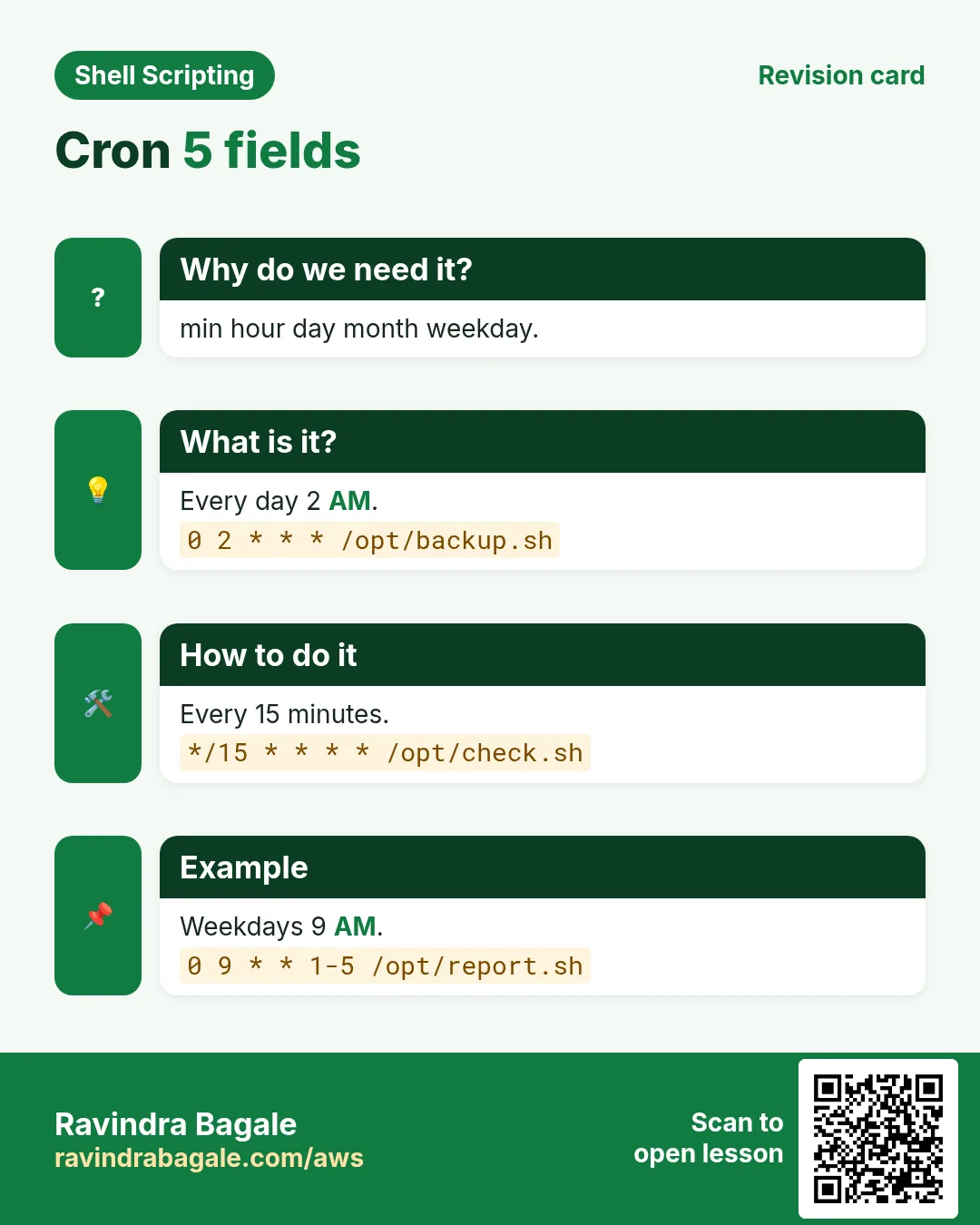
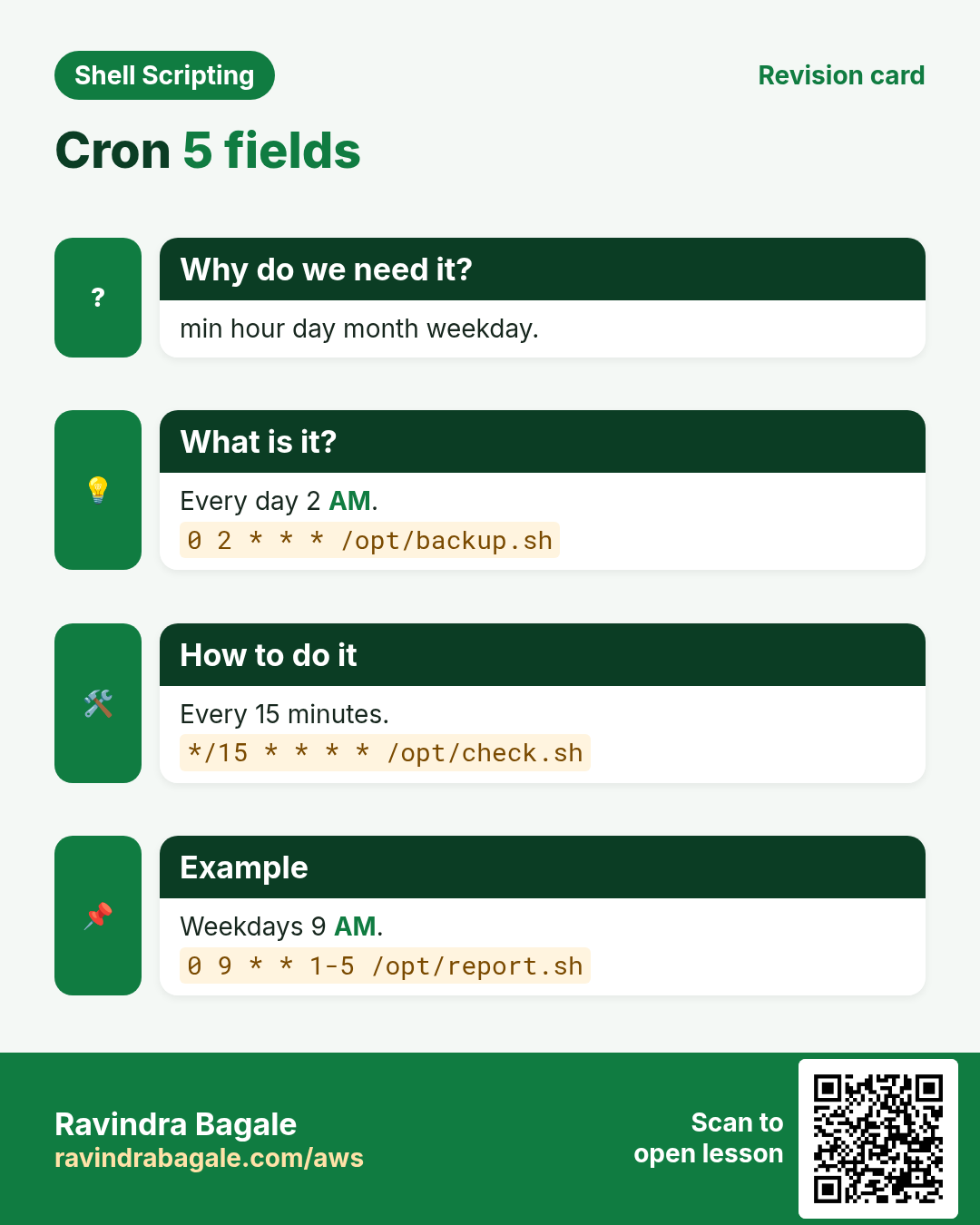
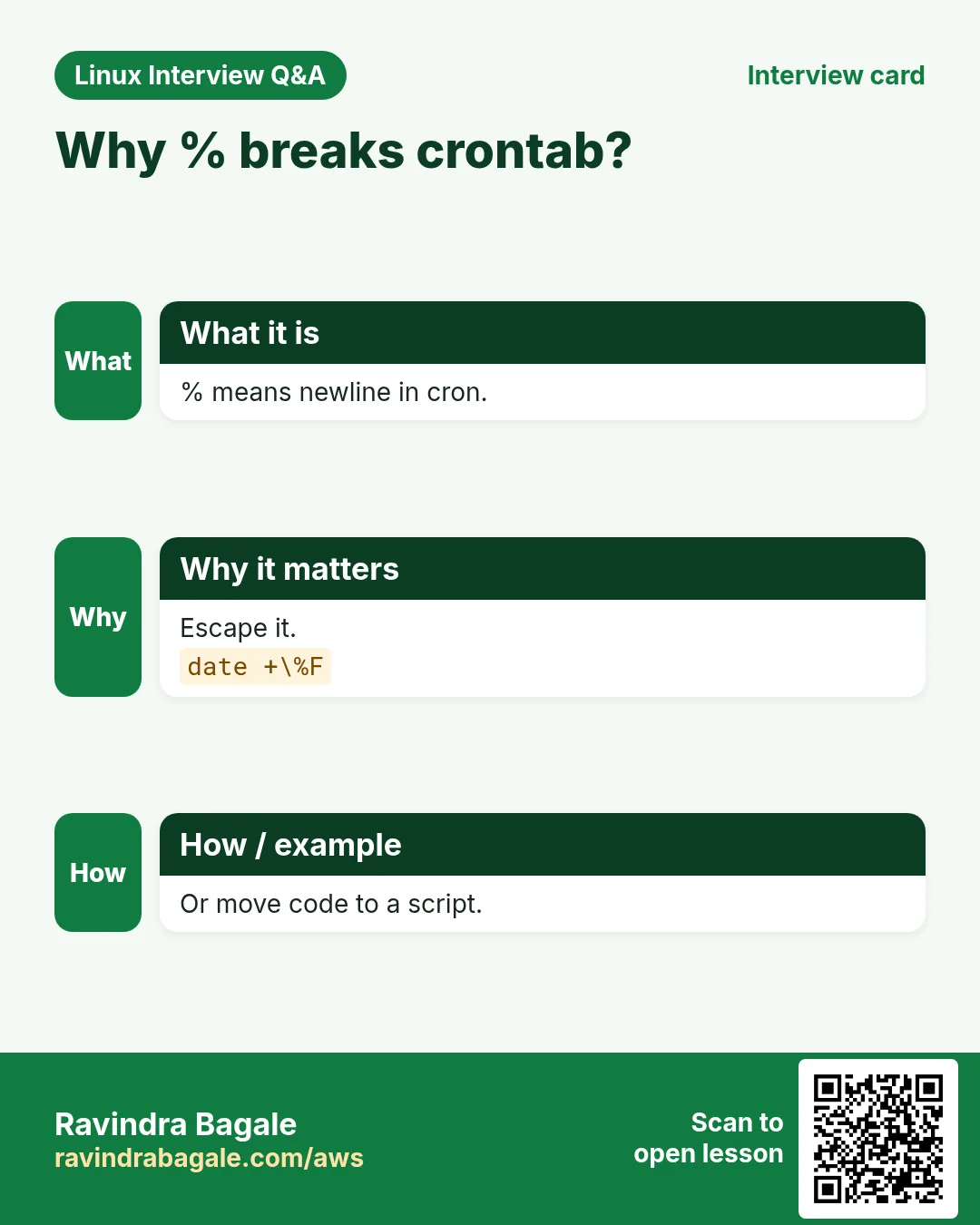
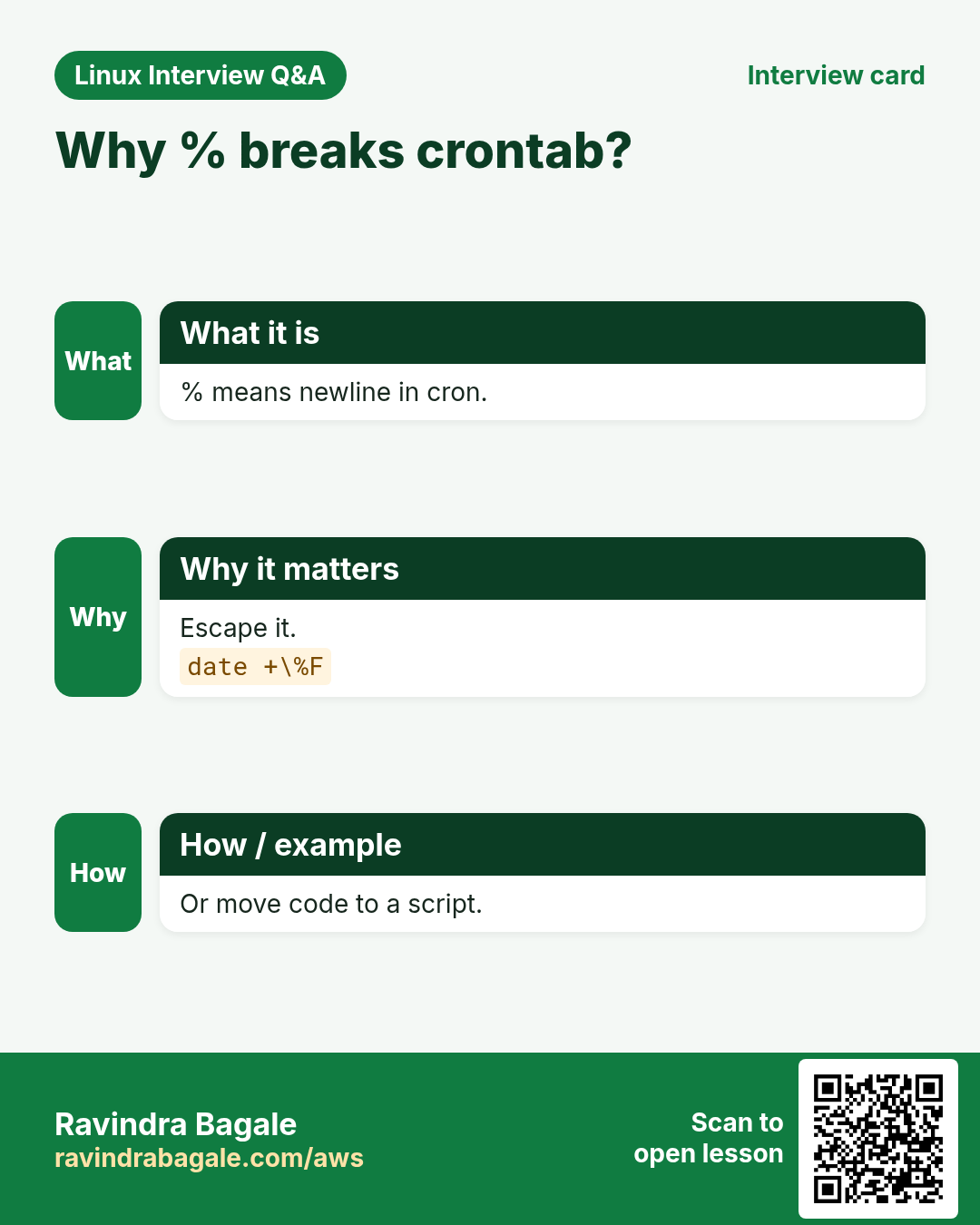
Five time fields then the command: minute (0-59), hour (0-23), day of month (1-31), month (1-12), day of week (0-7, 0 and 7 are Sunday). * means every, */15 means every 15, 1-5 a range, 1,15 a list. Shortcuts: @reboot, @daily, @hourly, @weekly. If both day fields are set, cron runs when either matches. In crontab lines, % means newline, so escape it as \% (for example in date +\%F).
| Line | Runs |
|---|---|
| */5 * * * * | every 5 minutes |
| 0 2 * * * | 2:00 every day |
| 30 18 * * 1-5 | 6:30 p.m. weekdays |
| 0 9 1 * * | 9 a.m. on the 1st |
| @reboot | once at boot |
How to do it (step by step)
- Edit.
crontab -eWhat it means: Opens your crontab in an editor.
- List.
crontab -lOutput:
0 2 * * * /opt/bin/backup.shWhat it means: Your jobs.
- Every 15 min.
*/15 * * * * /opt/bin/health.shWhat it means: Minutes 0, 15, 30, 45.
- Monday report.
0 8 * * 1 /opt/bin/weekly-report.shWhat it means: 8 a.m. Monday.
- Escape percent.
0 1 * * * tar czf /backup/etc-$(date +\%F).tgz /etcWhat it means: Without \ the line breaks.
3. The cron environment
Why do we need this?
'It works when I run it but not in cron' is the most common cron problem.
What is it?
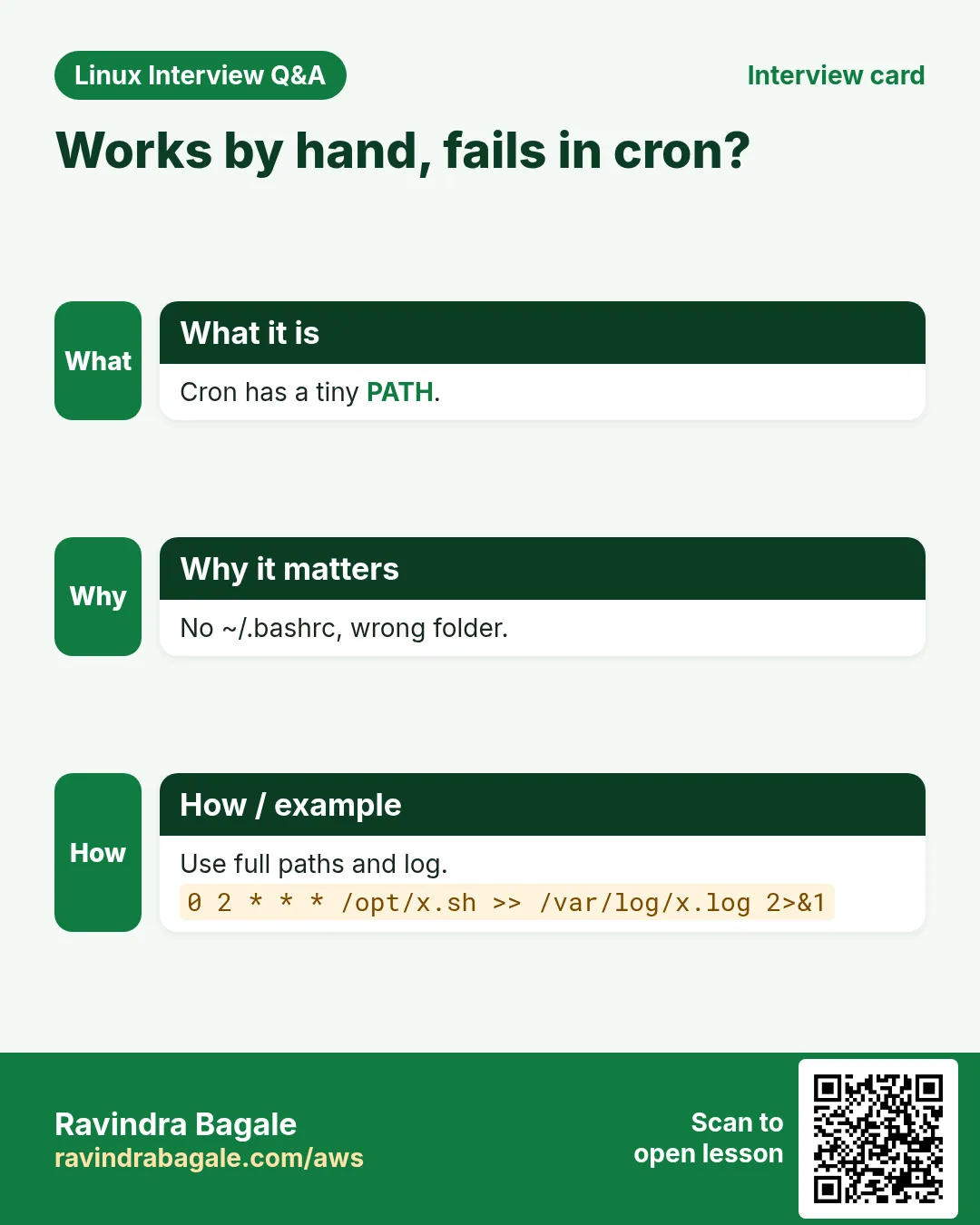
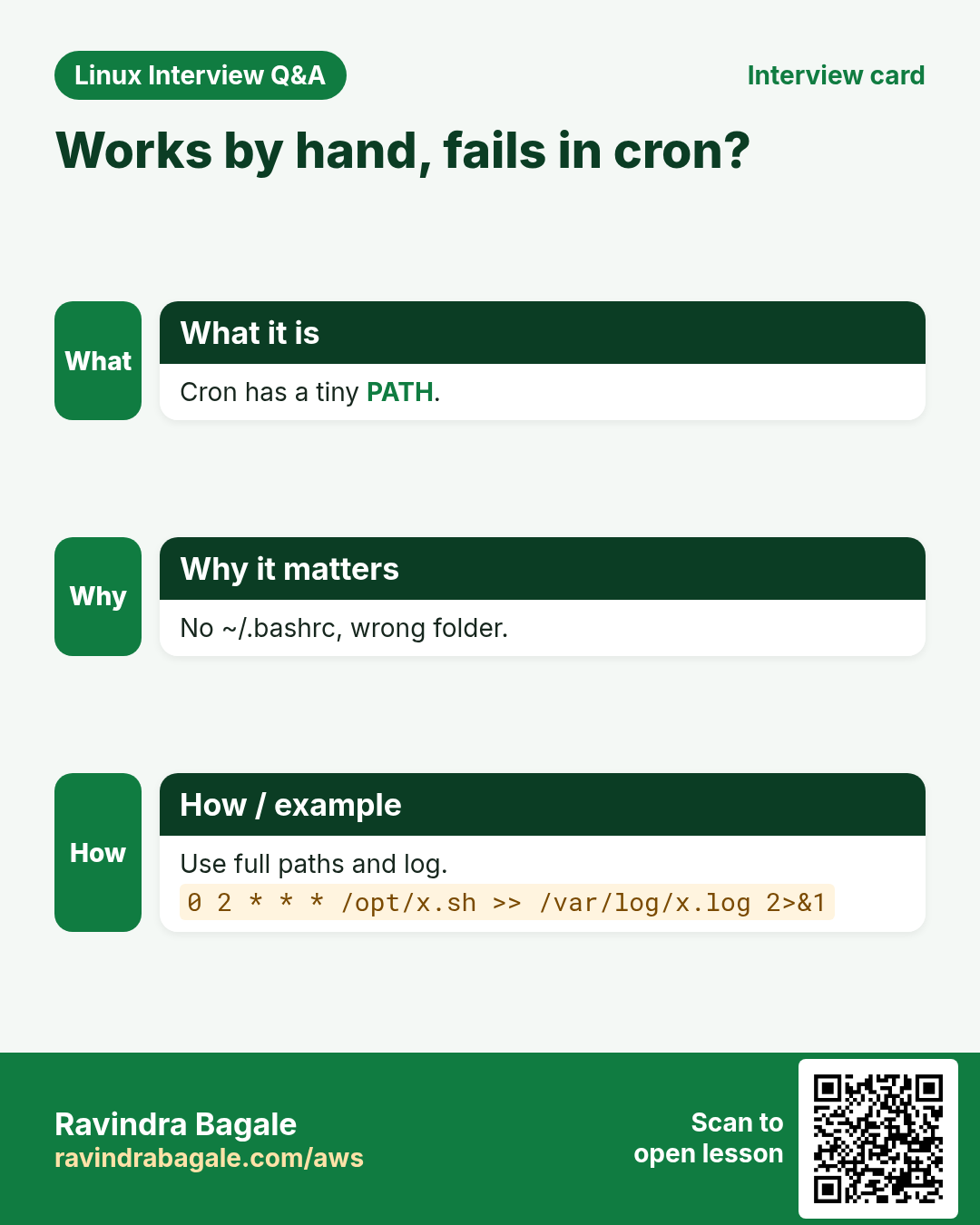
cron runs with a tiny PATH (often /usr/bin:/bin), sh as the shell, your home as working dir, and no .bashrc. So: use full paths or set PATH at the top of the crontab, set SHELL=/bin/bash if needed, cd inside the script, and load env files yourself. MAILTO=you@x sends output by mail if mail is set up; MAILTO="" turns it off. System jobs go in /etc/cron.d files with an extra user field.
How to do it (step by step)
- Crontab header.
SHELL=/bin/bash
PATH=/usr/local/bin:/usr/bin:/bin
MAILTO=""
What it means: Top of crontab -e.
- See cron env.
* * * * * env > /tmp/cron-env.txtOutput:
PATH=/usr/bin:/bin
SHELL=/bin/sh
HOME=/home/ec2-user
What it means: Compare with yours.
- System job.
echo '0 3 * * * root /opt/bin/rotate.sh' | sudo tee /etc/cron.d/rotateOutput:
0 3 * * * root /opt/bin/rotate.shWhat it means: User field after time.
- Is cron running?
systemctl status crond # Ubuntu: cronOutput:
Active: active (running)What it means: Service must be up.
4. Log and lock cron jobs
Why do we need this?
Cron output goes nowhere by default, and slow jobs can overlap.
What is it?
Append both streams to a log: >> /var/log/job.log 2>&1. Or send to journald with | logger -t job. Wrap with flock -n so a second copy skips. Add timeout so a hung job does not run forever. Check that cron itself fired with journalctl -u crond or grep CRON /var/log/syslog.
How to do it (step by step)
- Full safe line.
*/10 * * * * flock -n /tmp/sync.lock timeout 9m /opt/bin/sync.sh >> /var/log/sync.log 2>&1What it means: Lock, timeout, log.
- To journald.
0 2 * * * /opt/bin/backup.sh 2>&1 | logger -t backupWhat it means: Read with journalctl -t backup.
- Did cron fire?
journalctl -u crond --since '1 hour ago' | grep syncOutput:
Oct 25 10:10:01 host CROND[4410]: (ec2-user) CMD (flock -n /tmp/sync.lock ...)What it means: Yes at 10:10.
- Ubuntu syslog.
grep CRON /var/log/syslog | tail -2Output:
Oct 25 10:10:01 host CRON[4410]: (ubuntu) CMD (/opt/bin/sync.sh)What it means: Same check.
5. systemd service + timer
Why do we need this?
Timers give you logs in journald, exit status, retries and limits, all with systemctl commands you already know.
What is it?
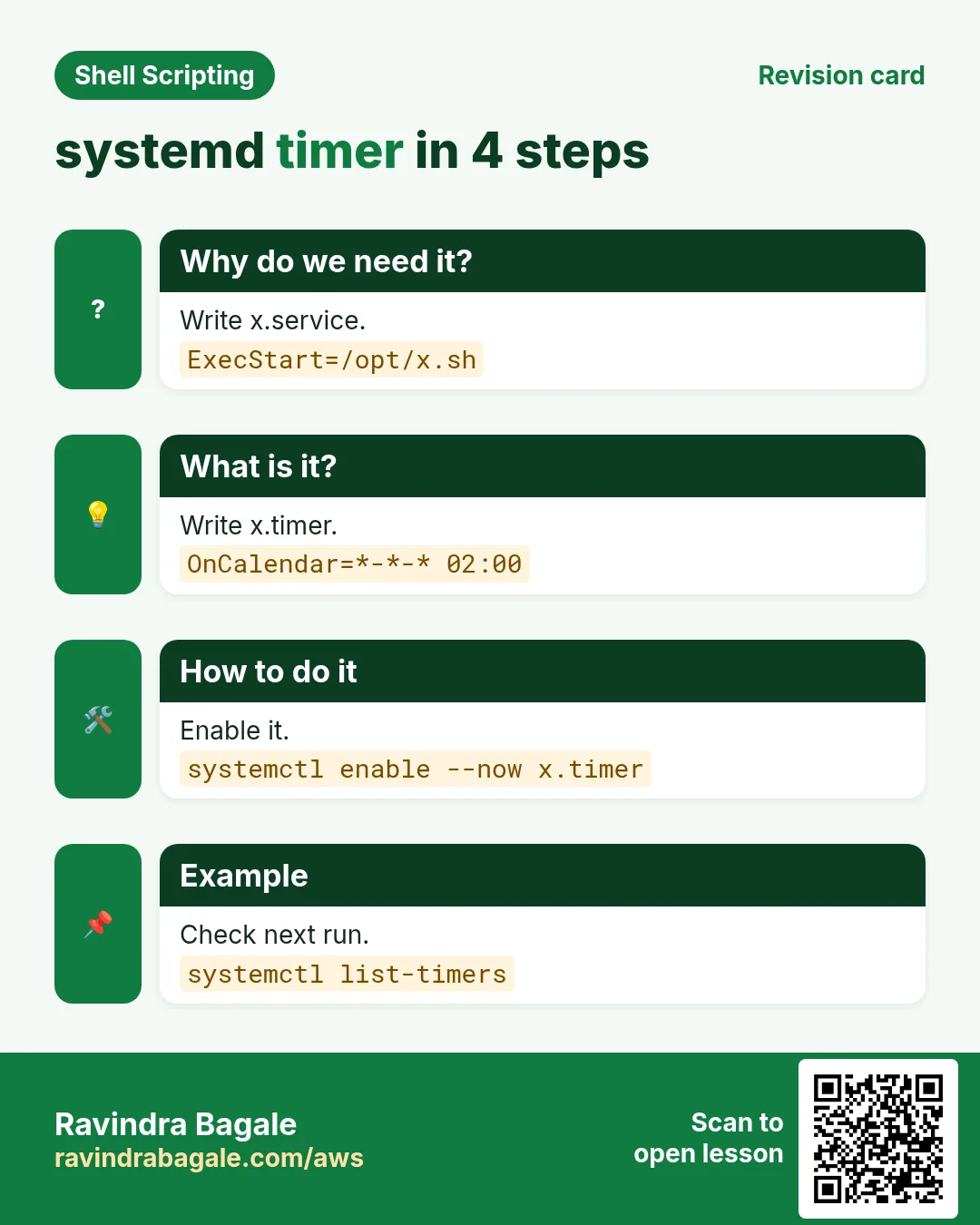
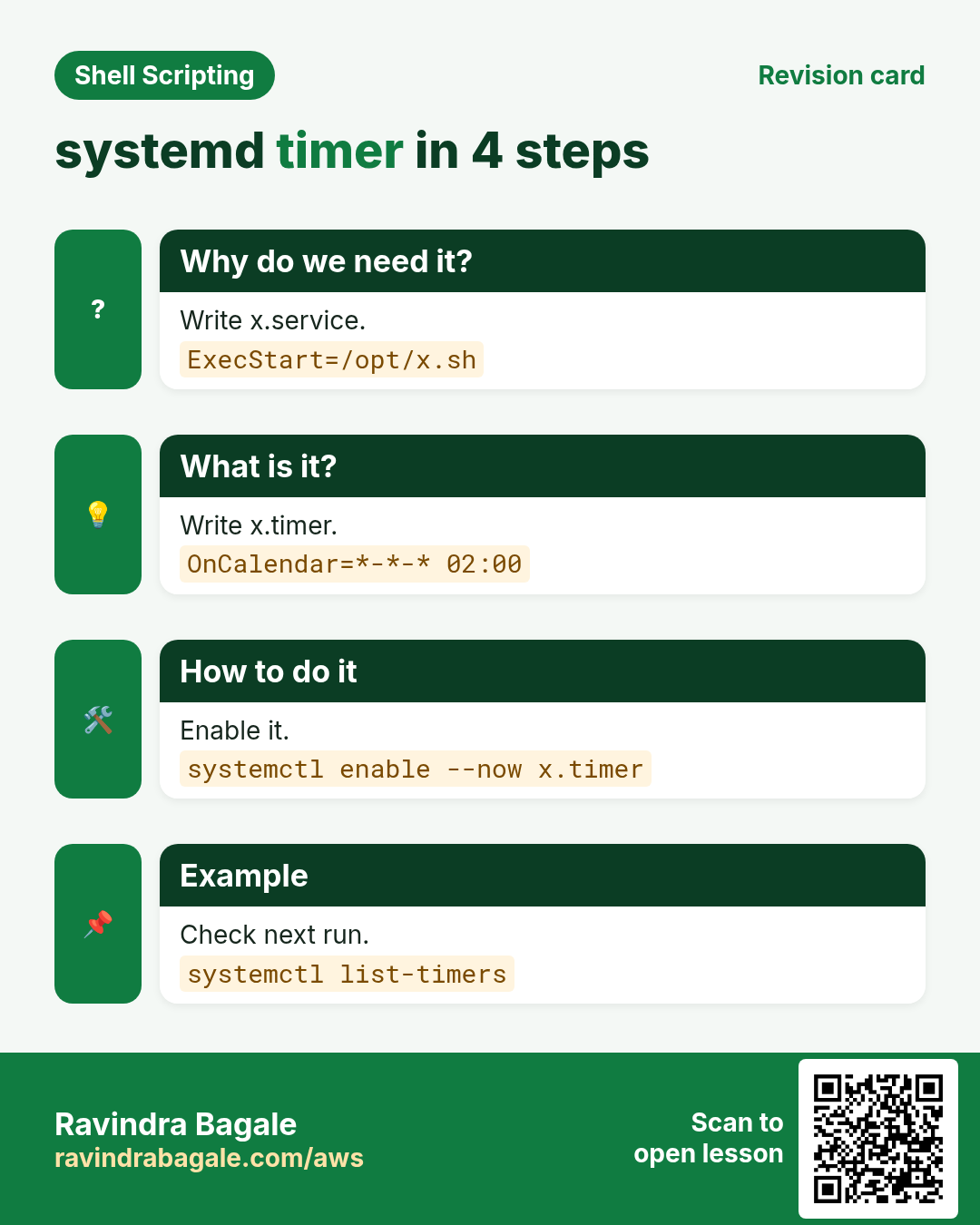
You write two files in /etc/systemd/system. name.service says what to run (Type=oneshot, ExecStart=/opt/bin/script.sh, User=). name.timer says when (OnCalendar=) and has WantedBy=timers.target. Then systemctl daemon-reload and systemctl enable --now name.timer. Run the job by hand with systemctl start name.service. User timers go in ~/.config/systemd/user with systemctl --user.
How to do it (step by step)
- Service file.
sudo tee /etc/systemd/system/backup.service > /dev/null <<'EOF'
[Unit]
Description=Nightly backup
[Service]
Type=oneshot
User=backup
ExecStart=/opt/bin/backup.sh
EOF
What it means: What to run.
- Timer file.
sudo tee /etc/systemd/system/backup.timer > /dev/null <<'EOF'
[Unit]
Description=Run backup daily at 02:00
[Timer]
OnCalendar=*-*-* 02:00:00
Persistent=true
[Install]
WantedBy=timers.target
EOF
What it means: When to run.
- Enable.
sudo systemctl daemon-reload && sudo systemctl enable --now backup.timerOutput:
Created symlink /etc/systemd/system/timers.target.wants/backup.timerWhat it means: Scheduled.
- Run now.
sudo systemctl start backup.service; systemctl status backup.service --no-pager | head -3Output:
backup.service - Nightly backup
   Active: inactive (dead) since Sun 2026-10-25 11:20:04 IST
What it means: oneshot ended.
6. OnCalendar, Persistent and delays
Why do we need this?
Laptops sleep, servers reboot, and 500 servers hitting one API at 02:00:00 is a storm.
What is it?
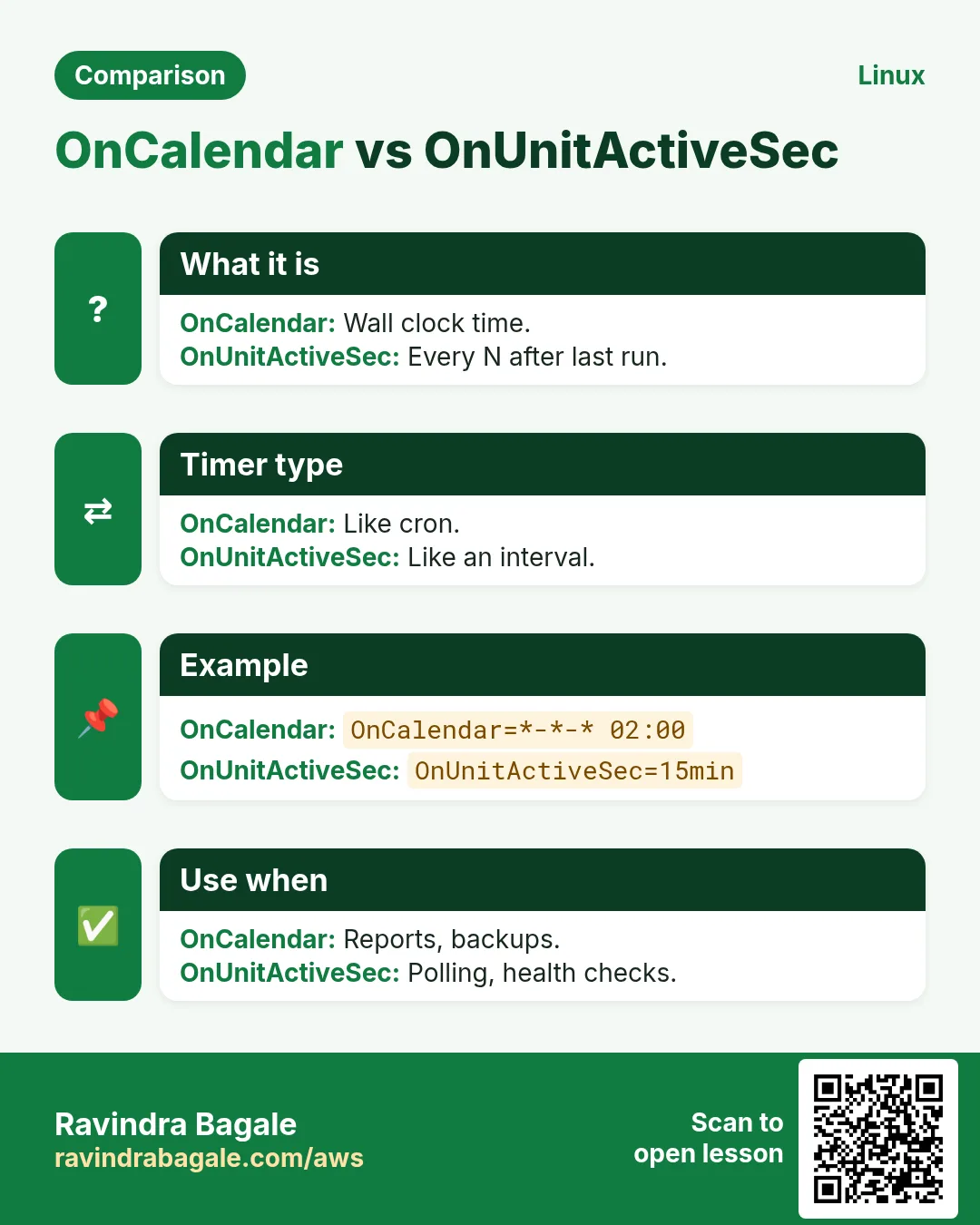
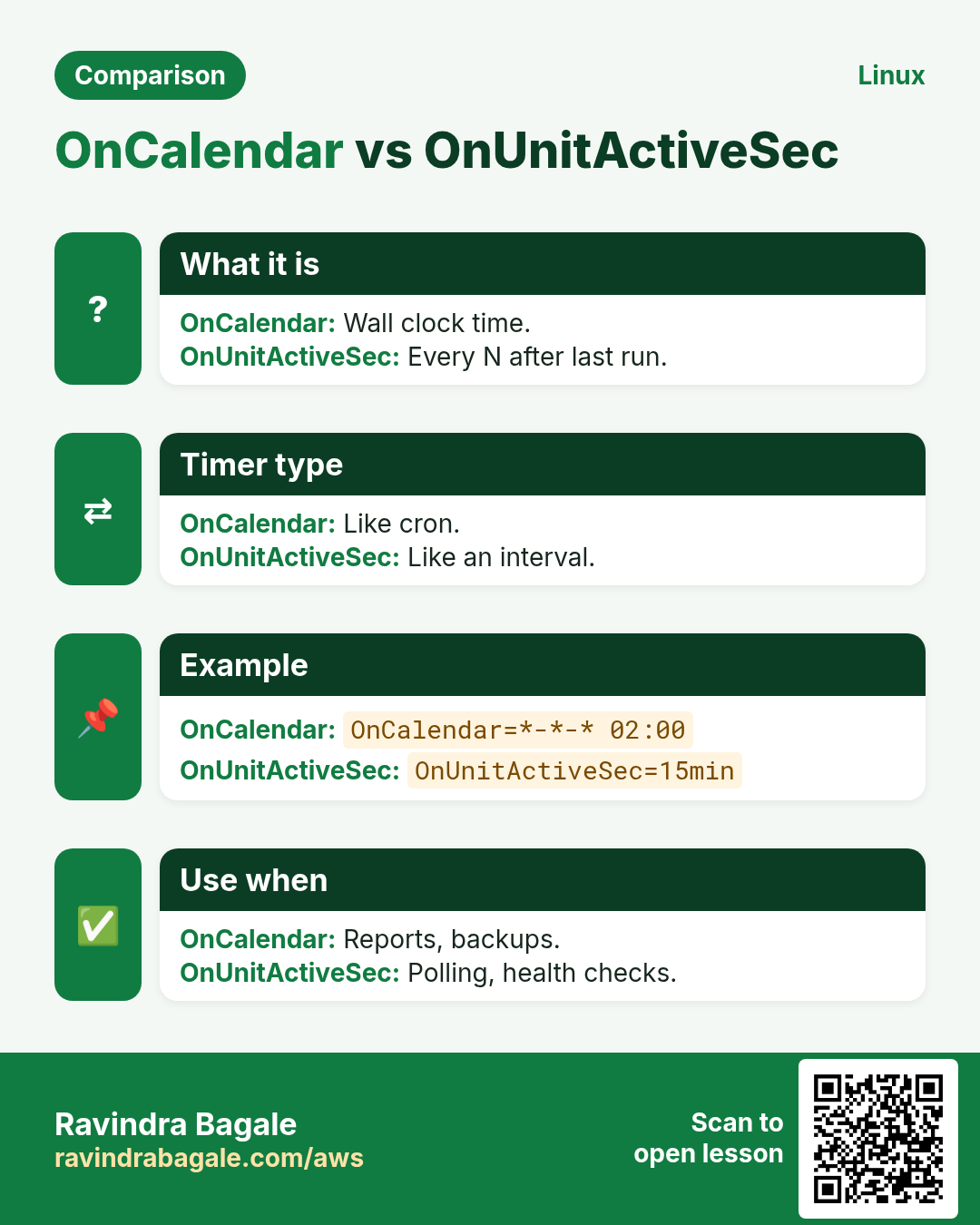
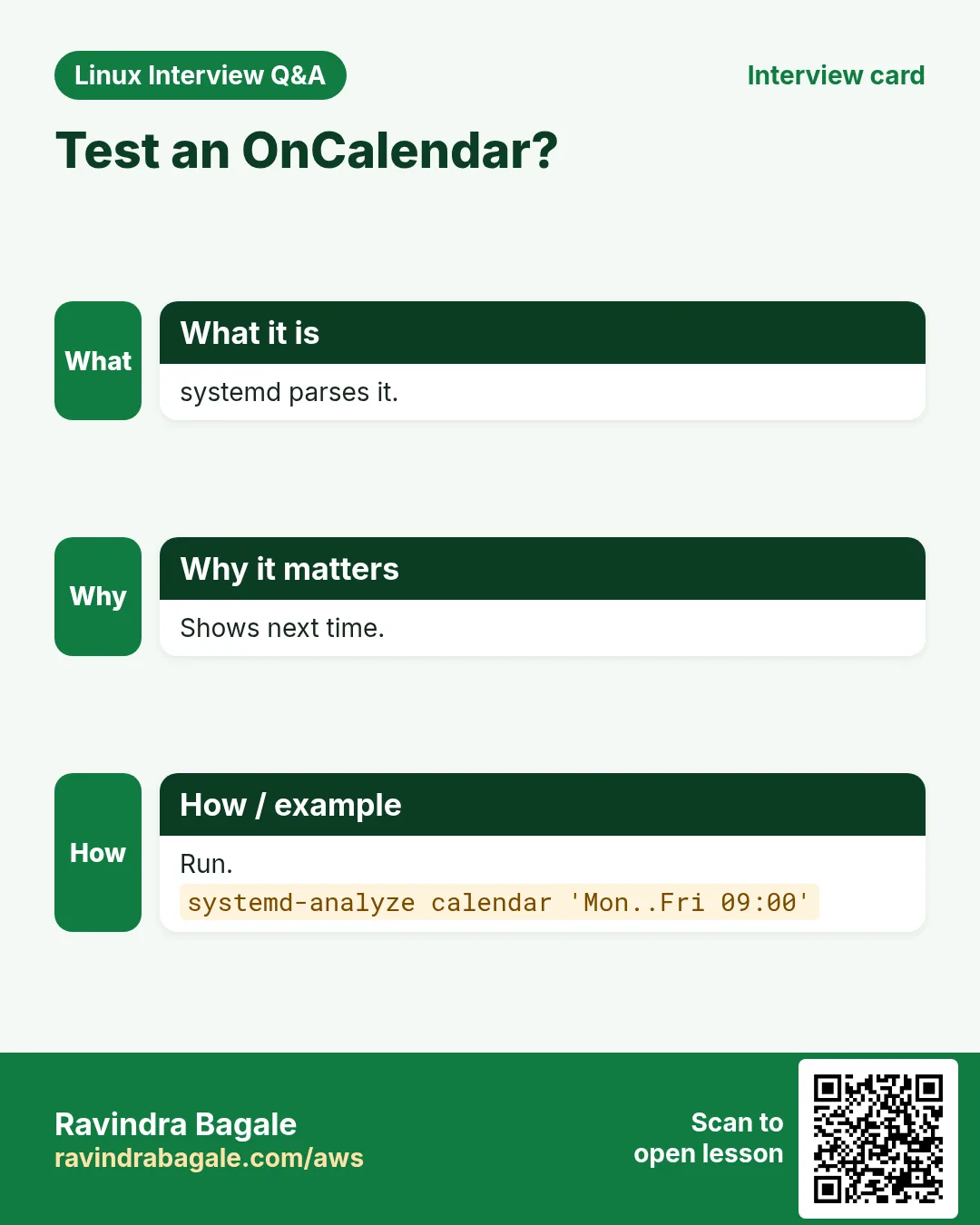
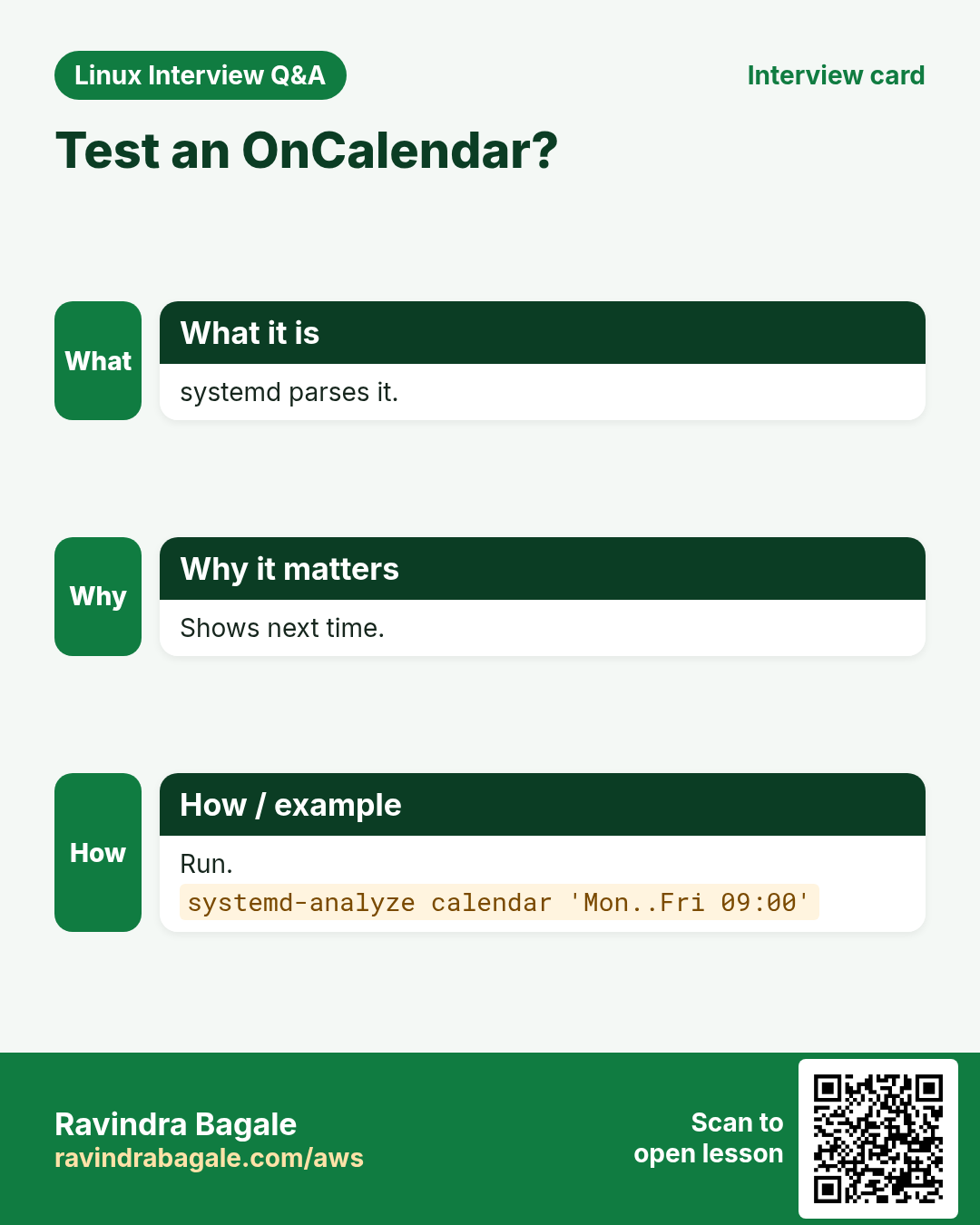
OnCalendar uses DayOfWeek Year-Month-Day Hour:Minute:Second, like Mon..Fri *-*-* 18:30 or *-*-01 09:00 or shortcuts daily, weekly, hourly. Check it with systemd-analyze calendar. OnBootSec=5min and OnUnitActiveSec=15min run relative to boot or last run. Persistent=true runs a missed job at next boot. RandomizedDelaySec=10m spreads servers out. AccuracySec sets how exact it must be.
| Setting | Meaning |
|---|---|
| OnCalendar=daily | midnight every day |
| OnCalendar=Mon..Fri 18:30 | weekdays 6:30 p.m. |
| OnUnitActiveSec=15min | 15 min after last run |
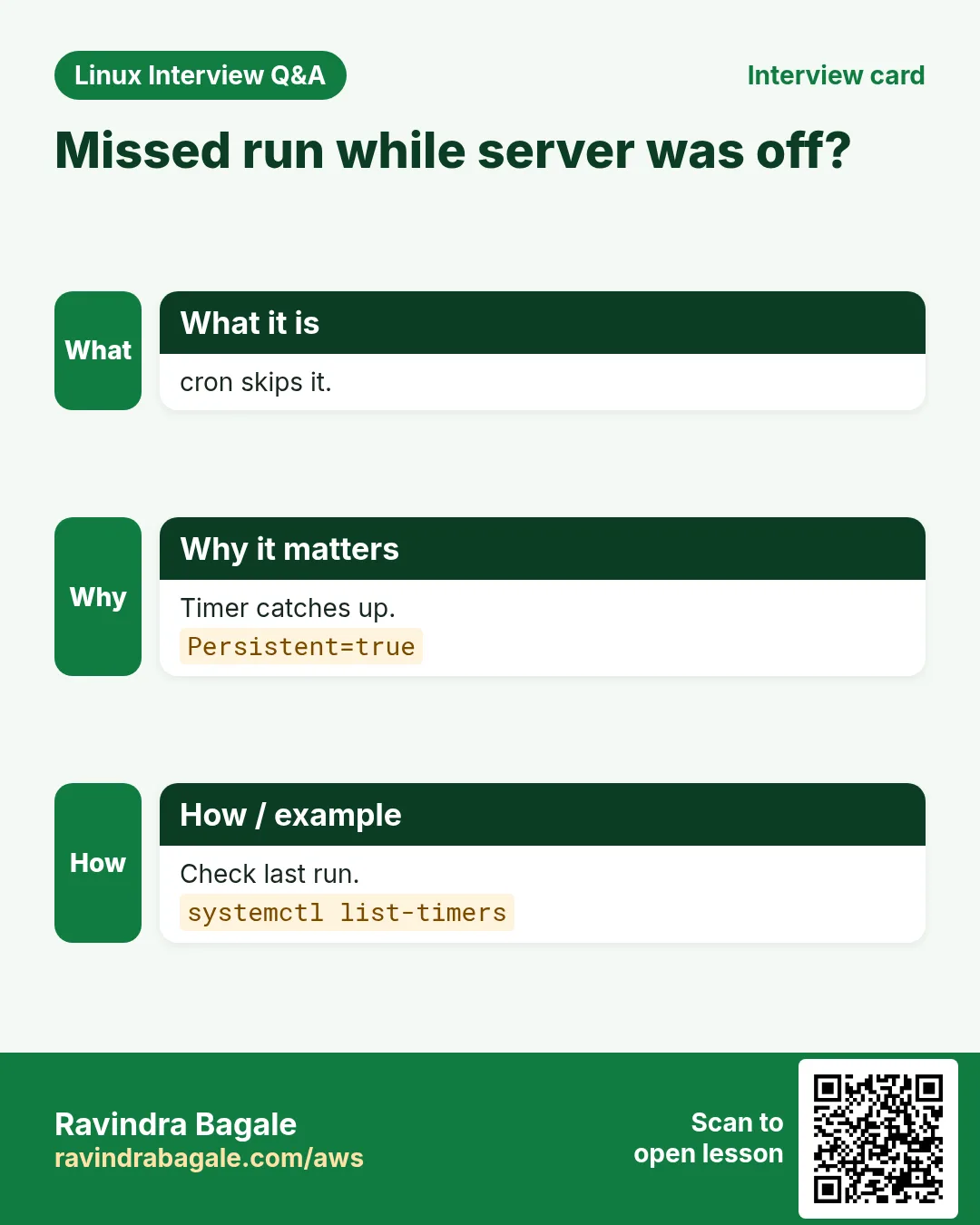
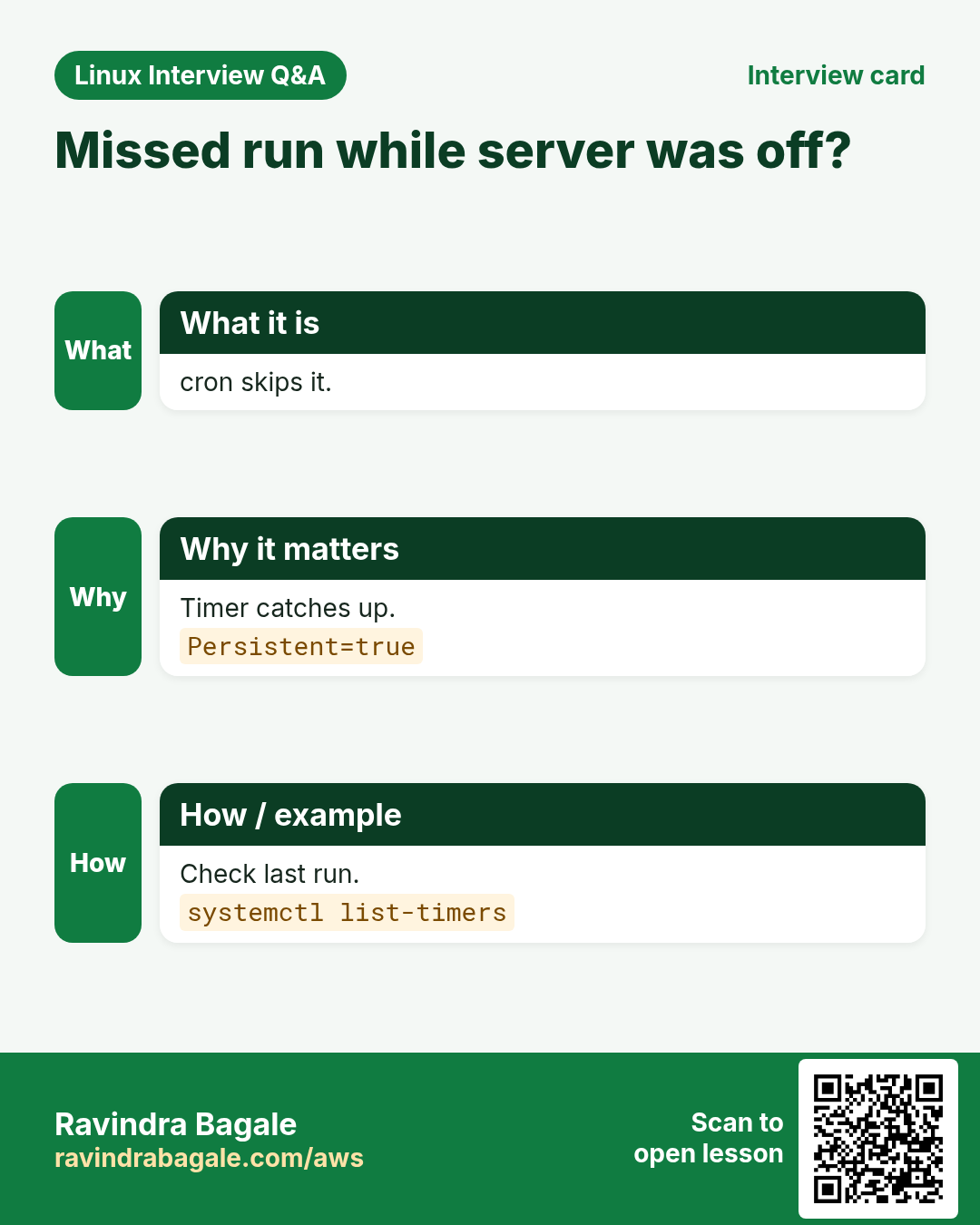
| Persistent=true | catch up missed run |
| RandomizedDelaySec=10m | random 0-10 min delay |
How to do it (step by step)
- Check a calendar.
systemd-analyze calendar 'Mon..Fri 18:30'Output:
  Original form: Mon..Fri 18:30
Normalized form: Mon..Fri *-*-* 18:30:00
    Next elapse: Mon 2026-10-26 18:30:00 IST
What it means: Next run shown.
- Every 15 minutes.
OnCalendar=*:0/15What it means: Like */15 in cron.
- First of month.
OnCalendar=*-*-01 09:00:00What it means: Monthly invoice run.
- Spread a fleet.
[Timer]
OnCalendar=daily
RandomizedDelaySec=30m
What it means: No thundering herd.
7. Watch timers: list-timers and journalctl
Why do we need this?
You must know when the job ran last, when it runs next and whether it worked.
What is it?
systemctl list-timers shows NEXT, LEFT, LAST and PASSED for every timer. journalctl -u name.service shows the script output for each run. systemctl status name.service shows the last exit code. Add OnFailure=alert@%n.service in [Unit] to run an alert unit when the job fails.
How to do it (step by step)
- Next runs.
systemctl list-timers backup.timer --no-pagerOutput:
NEXT                        LEFT     LAST                        PASSED  UNIT
Mon 2026-10-26 02:00:00 IST 14h left Sun 2026-10-25 02:00:03 IST 9h ago  backup.timer
What it means: Last and next.
- Output of runs.
journalctl -u backup.service --since yesterday --no-pager | tail -2Output:
Oct 25 02:00:41 host backup.sh[1201]: backup ok 2.1G
Oct 25 02:00:41 host systemd[1]: backup.service: Deactivated successfully.
What it means: Script output in journal.
- Failed?
systemctl is-failed backup.serviceOutput:
inactiveWhat it means: Not failed.
- Alert on failure.
[Unit]
OnFailure=notify-fail@%n.service
What it means: Runs another unit on failure.
8. cron or systemd timer?
Why do we need this?
Both work; the right choice saves you trouble later.
What is it?
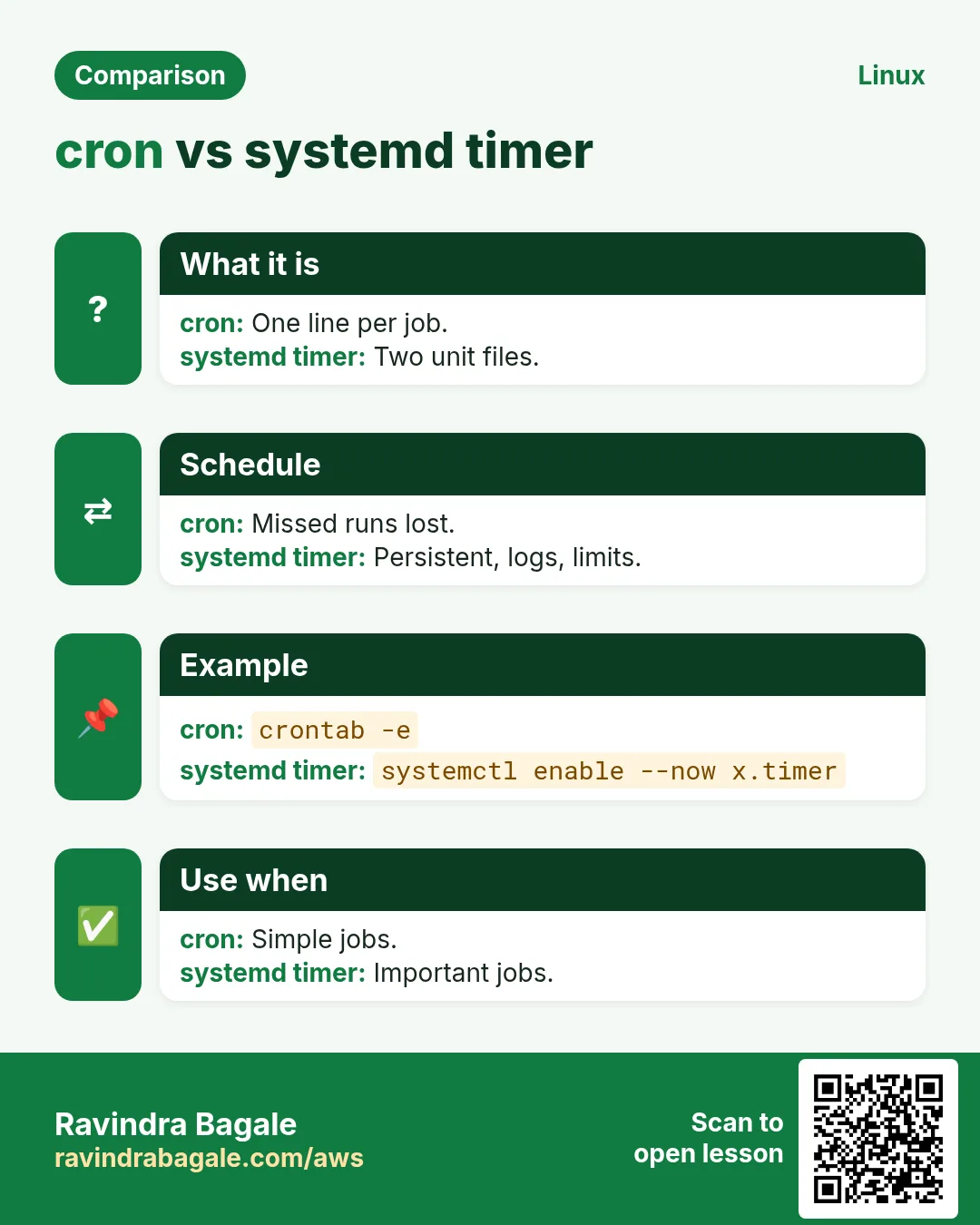
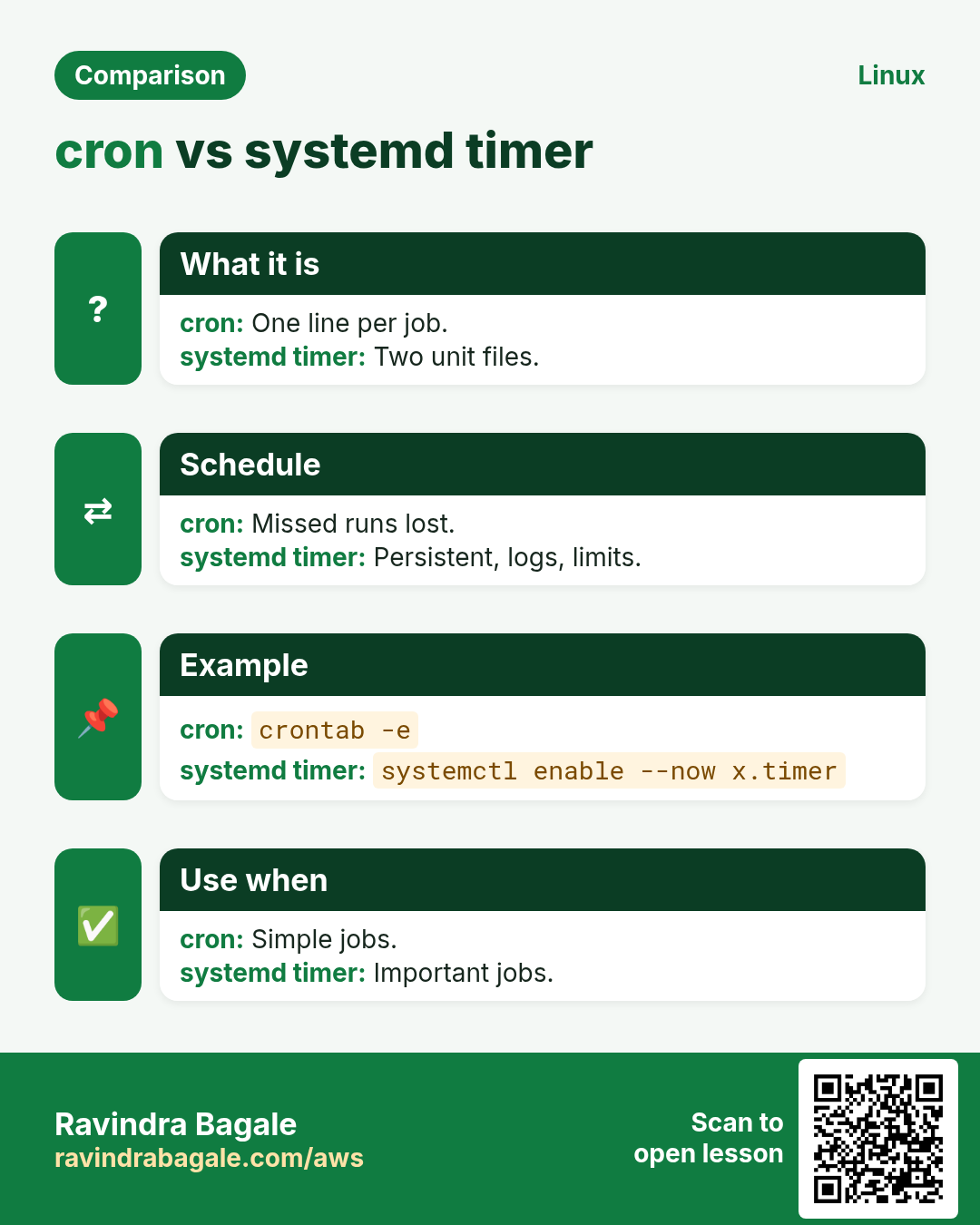
Use cron for simple per-user jobs, on old or minimal systems, or when the team already knows it. Use timers when you want journald logs, catch-up after downtime, random delay across a fleet, dependencies (After=network-online.target), resource limits (MemoryMax=, CPUQuota=) and status in systemctl. Many teams move important server jobs to timers and keep cron for quick personal tasks.
| Need | cron / timer |
|---|---|
| Simple and everywhere | yes / mostly |
| Logs in journald | manual / built in |
| Catch up missed run | no (anacron) / Persistent |
| Random delay | manual sleep / RandomizedDelaySec |
| Resource limits | no / MemoryMax, CPUQuota |
How to do it (step by step)
- Limit memory.
[Service]
MemoryMax=512M
CPUQuota=50%
What it means: Job cannot eat the server.
- Wait for network.
[Unit]
After=network-online.target
Wants=network-online.target
What it means: No early failures at boot.
- One-off later.
sudo systemd-run --on-calendar='2026-10-26 01:00' /opt/bin/migrate.shOutput:
Running timer as unit: run-u91.timerWhat it means: Like at, with logs.
9. Real examples from many industries
Why do we need this?
The same Linux skill shows up in every kind of company. Seeing it in many places helps you remember it.
What is it?
Each row is a made-up team. It shows who uses this and how.
How to do it (step by step)
| Team and city | How they use it | Command |
|---|---|---|
| Shruti, bank, Pune | Nightly EOD backup at 2 a.m. | 0 2 * * * /opt/bin/eod-backup.sh |
| Tom, newspaper, Manchester | Publish e-paper weekdays 5 a.m. | OnCalendar=Mon..Fri 05:00 |
| Wei, IoT, Shanghai | Sensor upload every 15 min with lock | */15 * * * * flock -n /tmp/u.lock /opt/bin/up.sh |
| Noura, retail, Doha | Fleet-wide cache warm with spread | RandomizedDelaySec=20m |
| Pedro, hospital, Lisbon | Catch up missed audit export | Persistent=true |
| Mangesh, APMC market, Nashik | Daily price list at 6 a.m. | 0 6 * * * /opt/bin/prices.sh >> /var/log/prices.log 2>&1 |
10. Common errors and how to fix them
Why do we need this?
Everyone hits these errors. Knowing the cause saves hours.
What is it?
Read the exact message first. Then match it to a row below.
How to do it (step by step)
| Error you see | Why it happens | How to fix |
|---|---|---|
Job never runs | cron service down or bad line | Check service and syntax.systemctl status crond |
command not found in cron only | Small PATH | Full paths or PATH line.PATH=/usr/local/bin:/usr/bin:/bin |
Command cut at % sign | % means newline in crontab | Escape as \%.date +\%F |
No output anywhere | No redirect, no mail | Redirect to a log.>> /var/log/job.log 2>&1 |
bad minute / errors in crontab file | Wrong field count | Five fields then command.crontab -e |
Timer not in list-timers | Not enabled or no daemon-reload | Reload and enable.sudo systemctl daemon-reload && sudo systemctl enable --now x.timer |
Failed to parse calendar specification | Bad OnCalendar | Test the expression.systemd-analyze calendar 'Mon *-*-* 08:00' |
Service runs as root unexpectedly | No User= line | Add User=.User=backup |
Overlapping runs | Slow job, short interval | flock or OnUnitActiveSec.flock -n /tmp/j.lock ./j.sh |
11. Troubleshooting step by step
Why do we need this?
Find out if the scheduler fired, then if the script failed, then why.
What is it?
Go top to bottom. Stop at the first step that shows the problem.
How to do it (step by step)
- Cron fired?
journalctl -u crond --since today | tail- Timer status.
systemctl list-timers --all- Last run output.
journalctl -u backup.service -n 30- Exit status.
systemctl status backup.service- Same env test.
env -i PATH=/usr/bin:/bin /bin/sh -c /opt/bin/backup.sh- Calendar check.
systemd-analyze calendar daily12. Lab 1: A safe cron job with log and lock
Why do we need this?
Schedule a small disk report every minute with flock, timeout and a log, confirm it runs, then remove it.
What is it?
A full hands-on lab. Run every step on a test Linux machine (an EC2 instance, a VM, or WSL).
How to do it (step by step)
- Script.
mkdir -p ~/bin && cat > ~/bin/diskrep.sh <<'X'
#!/usr/bin/env bash
set -euo pipefail
printf '%(%F %T)T ' -1; df -h / | tail -1
X
chmod +x ~/bin/diskrep.sh && ~/bin/diskrep.sh
Output:
2026-10-25 11:40:02 /dev/xvda1 20G 8.1G 12G 41% /- Add to crontab.
( crontab -l 2>/dev/null; echo "* * * * * flock -n /tmp/diskrep.lock timeout 50 $HOME/bin/diskrep.sh >> $HOME/diskrep.log 2>&1" ) | crontab -- Check line.
crontab -l | tail -1Output:
* * * * * flock -n /tmp/diskrep.lock timeout 50 /home/ec2-user/bin/diskrep.sh >> /home/ec2-user/diskrep.log 2>&1- Wait 2 min and read.
sleep 125; cat ~/diskrep.logOutput:
2026-10-25 11:41:01 /dev/xvda1 20G 8.1G 12G 41% /
2026-10-25 11:42:01 /dev/xvda1 20G 8.1G 12G 41% /- Remove.
crontab -l | grep -v diskrep.sh | crontab -; rm ~/diskrep.log13. Lab 2: The same job as a systemd timer
Why do we need this?
Turn the disk report into a service and timer that runs every 2 minutes, see it in list-timers and journalctl, then remove it.
What is it?
A full hands-on lab. Run every step on a test Linux machine (an EC2 instance, a VM, or WSL).
How to do it (step by step)
- Copy script.
sudo install -m 755 ~/bin/diskrep.sh /usr/local/bin/diskrep.sh- Service.
sudo tee /etc/systemd/system/diskrep.service > /dev/null <<'EOF'
[Unit]
Description=Disk report
[Service]
Type=oneshot
ExecStart=/usr/local/bin/diskrep.sh
EOF- Timer.
sudo tee /etc/systemd/system/diskrep.timer > /dev/null <<'EOF'
[Unit]
Description=Disk report every 2 minutes
[Timer]
OnCalendar=*:0/2
Persistent=true
[Install]
WantedBy=timers.target
EOF- Enable and list.
sudo systemctl daemon-reload && sudo systemctl enable --now diskrep.timer && systemctl list-timers diskrep.timer --no-pagerOutput:
NEXT                        LEFT       UNIT
Sun 2026-10-25 11:52:00 IST 1min left diskrep.timer- Logs after a run.
sleep 130; journalctl -u diskrep.service -n 2 --no-pagerOutput:
Oct 25 11:52:00 host diskrep.sh[3101]: 2026-10-25 11:52:00 /dev/xvda1 20G 8.1G 12G 41% /
Oct 25 11:52:00 host systemd[1]: diskrep.service: Deactivated successfully.- Remove.
sudo systemctl disable --now diskrep.timer && sudo rm /etc/systemd/system/diskrep.{service,timer} && sudo systemctl daemon-reloadOutput:
Removed /etc/systemd/system/timers.target.wants/diskrep.timer.Ravindra Bagale's Tip
Before you schedule anything, make the script work with full paths, set -euo pipefail, a log and a flock guard. Then test the schedule: crontab -l for cron, systemd-analyze calendar and list-timers for timers. Always check the first real run in the log instead of assuming it worked.
Ravindra Bagale's Tip – मराठी
काहीही schedule करण्याआधी script full paths, set -euo pipefail, log आणि flock guard सह चालेल असं करा. मग schedule test करा: cron साठी crontab -l, timers साठी systemd-analyze calendar आणि list-timers. चाललं असेल असं समजू नका, पहिला खरा run log मधे नेहमी तपासा.
Ravindra Bagale's Tip – हिंदी
कुछ भी schedule करने से पहले script को full paths, set -euo pipefail, log और flock guard के साथ चलने लायक बनाइए. फिर schedule test कीजिए: cron के लिए crontab -l, timers के लिए systemd-analyze calendar और list-timers. चल गया होगा, ऐसा मत मानिए; पहला असली run log में हमेशा देखिए.
14. Frequently asked questions
Q. Cron time zone?
The server's zone unless CRON_TZ is set.
Q. Run every 30 seconds?
Timer with OnUnitActiveSec=30s.
Q. Where are user crontabs?
/var/spool/cron.
Q. What is anacron?
Runs daily jobs missed while off.
Q. Timer for a user?
systemctl --user and loginctl enable-linger.
Q. Test a timer now?
systemctl start x.service.
Q. Day 0 or 7?
Both Sunday.
Q. Remove all my cron jobs?
crontab -r, careful.
15. Interview questions and answers
Beginner level
Q. Edit crontab?
crontab -e.
Q. Fields in cron?
Five, then command.
Q. Every 5 minutes?
*/5 * * * *.
Q. List timers?
systemctl list-timers.
Mid level level
Q. Why fails only in cron?
PATH and env differ.
Q. Timer needs which files?
.service and .timer.
Q. Catch up missed run?
Persistent=true.
Q. Percent in crontab?
Escape as \%.
Senior level
Q. Choose timers when?
Need logs, catch-up, limits, dependencies.
Q. Avoid fleet storms?
RandomizedDelaySec or sleep $((RANDOM%600)).
Q. Alert on failure?
OnFailure= unit or exit code monitor.
Q. Stop overlap in timers?
A oneshot service is not started twice while running.
Try at home
- Write a crontab line that runs a script at 7:30 p.m. on every weekday, Monday to Friday, and check the line carefully.
- Use systemd-analyze calendar to test three schedules: every Sunday 10 a.m., 1st of every month, every 10 minutes.
Practice Tasks
Ahmednagar Sugar Co-op is a sugar co-operative business in Ahilyanagar. Balasaheb Pawar looks after its IT and cloud work. They count money in INR and run their AWS resources in the ap-south-1 Region. In the tasks below you do real jobs for them using what this lesson teaches. All names, account IDs, IP addresses and numbers are made up for practice.
0 / 21
Easy List crontab
Why: BIZ runs reports and backups on a schedule.
What to do: Balasaheb Pawar at Ahmednagar Sugar Co-op wants to see only their cron lines that mention backup.
- Find the Linux command that does this job.
- Add the options (like -r or -h) the task needs.
- Add the file names, folders or users in the right order.
- Use sudo if the job changes system files or users. Click Check answer.
Easy Edit crontab
Why: BIZ runs reports and backups on a schedule.
What to do: Open your crontab for editing in the nano editor.
- Find the Linux command that does this job.
- Add the options (like -r or -h) the task needs.
- Add the file names, folders or users in the right order.
- Use sudo if the job changes system files or users. Click Check answer.
Easy List timers
Why: BIZ runs reports and backups on a schedule.
What to do: List all systemd timers including inactive ones, without a pager.
- Find the Linux command that does this job.
- Add the options (like -r or -h) the task needs.
- Add the file names, folders or users in the right order.
- Use sudo if the job changes system files or users. Click Check answer.
Easy Enable timer
Why: BIZ runs reports and backups on a schedule.
What to do: Enable and start report.timer now.
- Find the Linux command that does this job.
- Add the options (like -r or -h) the task needs.
- Add the file names, folders or users in the right order.
- Use sudo if the job changes system files or users. Click Check answer.
Easy Reload units
Why: BIZ runs reports and backups on a schedule.
What to do: Reload your per-user systemd manager after editing user unit files.
- Find the Linux command that does this job.
- Add the options (like -r or -h) the task needs.
- Add the file names, folders or users in the right order.
- Use sudo if the job changes system files or users. Click Check answer.
Easy Job logs
Why: BIZ runs reports and backups on a schedule.
What to do: Show the last 50 log lines of backup.service.
- Find the Linux command that does this job.
- Add the options (like -r or -h) the task needs.
- Add the file names, folders or users in the right order.
- Use sudo if the job changes system files or users. Click Check answer.
Easy Cron service
Why: BIZ runs reports and backups on a schedule.
What to do: Print only whether the cron daemon crond is active.
- Find the Linux command that does this job.
- Add the options (like -r or -h) the task needs.
- Add the file names, folders or users in the right order.
- Use sudo if the job changes system files or users. Click Check answer.
Easy Timer status
Why: BIZ runs reports and backups on a schedule.
What to do: Show the status of backup.timer.
- Find the Linux command that does this job.
- Add the options (like -r or -h) the task needs.
- Add the file names, folders or users in the right order.
- Use sudo if the job changes system files or users. Click Check answer.
Easy Current time
Why: BIZ runs reports and backups on a schedule.
What to do: Print current date and time zone settings with timedatectl.
- Find the Linux command that does this job.
- Add the options (like -r or -h) the task needs.
- Add the file names, folders or users in the right order.
- Use sudo if the job changes system files or users. Click Check answer.
Medium Other user
Why: BIZ runs reports and backups on a schedule.
What to do: As root, list the crontab of user asha.
- Find the Linux command that does this job.
- Add the options (like -r or -h) the task needs.
- Add the file names, folders or users in the right order.
- Use sudo if the job changes system files or users. Click Check answer.
Medium Check calendar
Why: BIZ runs reports and backups on a schedule.
What to do: Check when the OnCalendar expression Mon..Fri 09:00 next fires.
- Find the Linux command that does this job.
- Add the options (like -r or -h) the task needs.
- Add the file names, folders or users in the right order.
- Use sudo if the job changes system files or users. Click Check answer.
Medium Verify unit
Why: BIZ runs reports and backups on a schedule.
What to do: Check backup.service for mistakes.
- Find the Linux command that does this job.
- Add the options (like -r or -h) the task needs.
- Add the file names, folders or users in the right order.
- Use sudo if the job changes system files or users. Click Check answer.
Medium Run now
Why: BIZ runs reports and backups on a schedule.
What to do: Run the job behind report.timer once now by starting its service.
- Find the Linux command that does this job.
- Add the options (like -r or -h) the task needs.
- Add the file names, folders or users in the right order.
- Use sudo if the job changes system files or users. Click Check answer.
Medium Stop schedule
Why: BIZ runs reports and backups on a schedule.
What to do: Disable and stop backup.timer.
- Find the Linux command that does this job.
- Add the options (like -r or -h) the task needs.
- Add the file names, folders or users in the right order.
- Use sudo if the job changes system files or users. Click Check answer.
Medium Cron logs
Why: BIZ runs reports and backups on a schedule.
What to do: Show the last 30 journal entries of crond.
- Find the Linux command that does this job.
- Add the options (like -r or -h) the task needs.
- Add the file names, folders or users in the right order.
- Use sudo if the job changes system files or users. Click Check answer.
Medium Show unit
Why: BIZ runs reports and backups on a schedule.
What to do: Print the contents of backup.timer as systemd sees it.
- Find the Linux command that does this job.
- Add the options (like -r or -h) the task needs.
- Add the file names, folders or users in the right order.
- Use sudo if the job changes system files or users. Click Check answer.
Medium Failed units
Why: BIZ runs reports and backups on a schedule.
What to do: List units that have failed.
- Find the Linux command that does this job.
- Add the options (like -r or -h) the task needs.
- Add the file names, folders or users in the right order.
- Use sudo if the job changes system files or users. Click Check answer.
Medium Set zone
Why: BIZ runs reports and backups on a schedule.
What to do: Set the server time zone to Asia/Kolkata.
- Find the Linux command that does this job.
- Add the options (like -r or -h) the task needs.
- Add the file names, folders or users in the right order.
- Use sudo if the job changes system files or users. Click Check answer.
Hard Cron-like env
Why: BIZ runs reports and backups on a schedule.
What to do: Run report.sh with an empty environment except PATH=/usr/bin:/bin, like cron does.
- Find the Linux command that does this job.
- Add the options (like -r or -h) the task needs.
- Add the file names, folders or users in the right order.
- Use sudo if the job changes system files or users. Click Check answer.
Hard Transient timer
Why: BIZ runs reports and backups on a schedule.
What to do: Run df -h once 10 minutes from now using systemd-run.
- Find the Linux command that does this job.
- Add the options (like -r or -h) the task needs.
- Add the file names, folders or users in the right order.
- Use sudo if the job changes system files or users. Click Check answer.
Hard Reset failed
Why: BIZ runs reports and backups on a schedule.
What to do: Clear the failed state of backup.service.
- Find the Linux command that does this job.
- Add the options (like -r or -h) the task needs.
- Add the file names, folders or users in the right order.
- Use sudo if the job changes system files or users. Click Check answer.
16. Related chapters
- Linux Ops Refresh for DevOps
- Bash Scripting for Automation
- Linux grep and find Commands with Examples
- How to Set Up Passwordless SSH Between Linux Servers
In short
- min hour dom mon dow command.
- Cron has a tiny PATH; use full paths.
- Log, flock and timeout every job.
- .service + .timer, enable --now.
- OnCalendar, Persistent, RandomizedDelaySec.
- list-timers and journalctl -u.
Revision, comparison and interview cards
Revise this lesson in a few minutes. Save the cards on your phone or download them as PNG files. The QR code on each card opens this lesson.
More cards: Ravi Sir's Cards.