Linux cut, sort, uniq, tr, paste and diff Commands Explained with Examples
Raw text is messy. You need to pick one column, sort it, remove duplicates, count them, change characters, put files side by side and see what changed. cut, sort, uniq, tr, paste and diff do these jobs. Together they answer questions like 'top 10 IPs hitting my server' in one line.
What you'll learn in this chapter
- Pick columns and characters with cut
- Sort text, numbers, sizes and by column
- Remove and count duplicates with uniq
- Change or delete characters with tr
- Join files side by side with paste, join and comm
- Compare files with diff and make patches
1. An everyday example: a class result sheet
Why do we need this?
Mr. Kulkarni has a result list: roll number, name, city and marks. He wants only the names (pick a column), toppers first (sort by marks), how many students from each city (count duplicates), all names in capitals for the certificate (change characters), the old list next to the new list, and what changed after re-checking (compare).
What is it?
Pick a column = cut. Toppers first = sort -k4 -nr. Count per city = sort | uniq -c. Capitals = tr a-z A-Z. Side by side = paste. What changed = diff.
How to do it (step by step)
2. cut: pick columns or characters
Why do we need this?
CSV files, /etc/passwd and many logs have fields split by a character. Often you need just one field.
What is it?
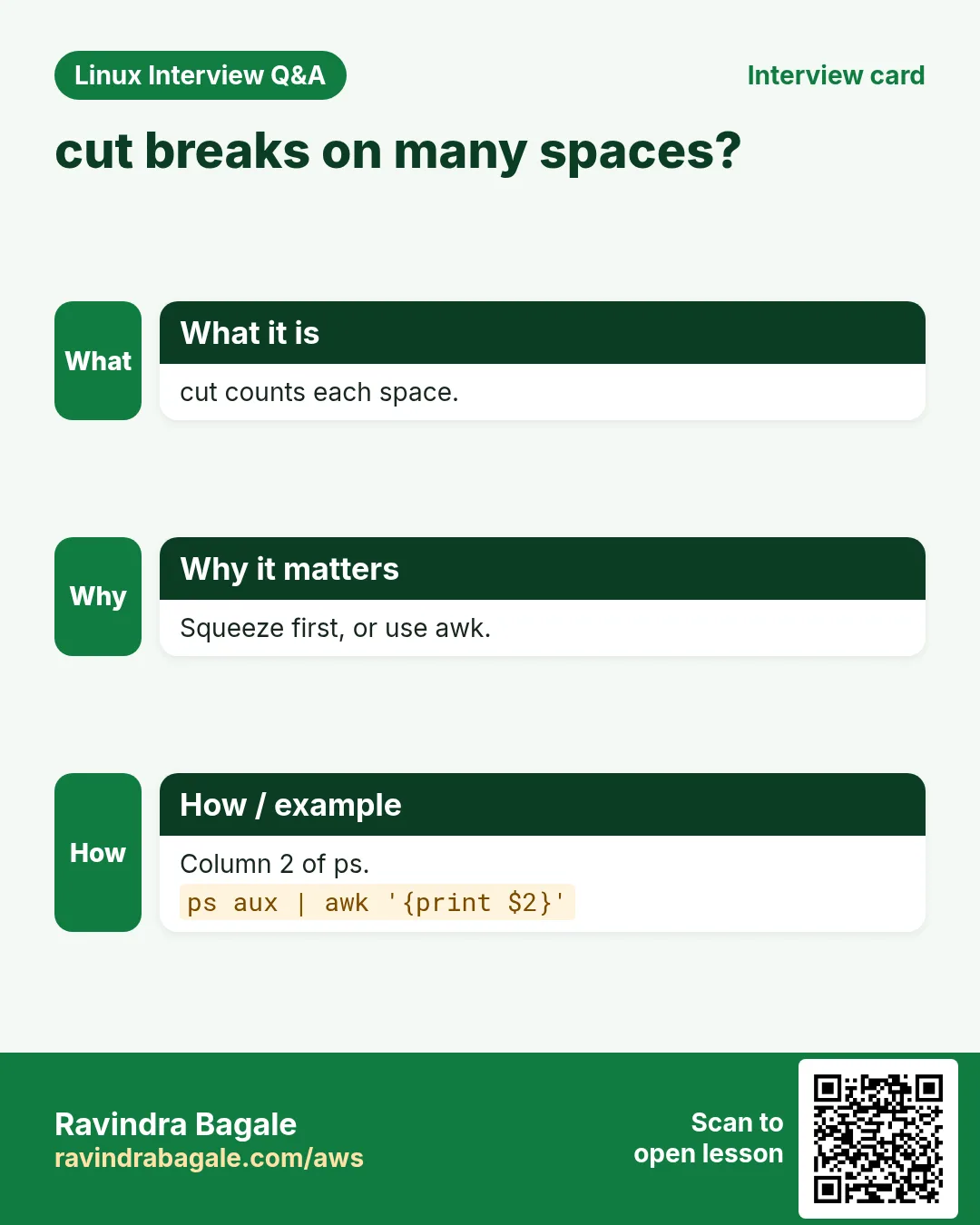
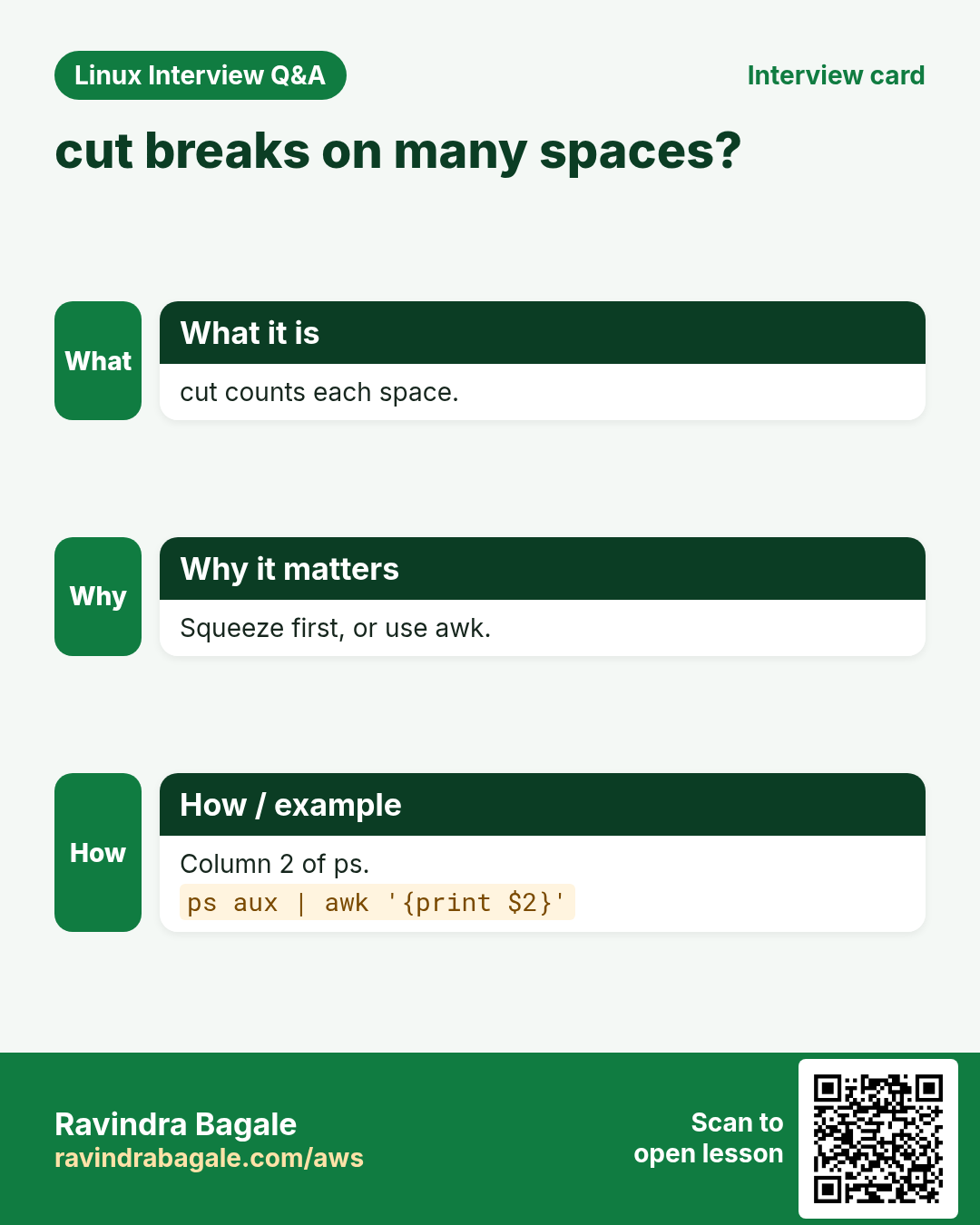
cut -d',' -f2 picks field 2 split by commas. -f1,3 picks fields 1 and 3, -f2- from 2 to the end. -c1-5 picks characters 1 to 5. --complement gives everything except the chosen fields. The default delimiter is TAB. cut cannot treat many spaces as one; for space-aligned output use awk or tr -s ' ' first.
How to do it (step by step)
- Usernames from /etc/passwd.
cut -d: -f1 /etc/passwd | head -3Output:
root
bin
daemon
What it means: Fields are split by colons.
- User and shell.
cut -d: -f1,7 /etc/passwd | tail -2Output:
ravi:/bin/bash
nginx:/sbin/nologin
What it means: Output keeps the same delimiter.
- City column from a CSV.
cut -d, -f2 sales.csv | tail -n +2 | head -3Output:
Pune
Nashik
Pune
What it means: tail -n +2 drops the header.
- First 10 characters (the date) of each log line.
cut -c1-10 app.log | head -2Output:
2026-10-25
2026-10-25
What it means: -c works by character position.
- Everything except the password column.
cut -d, -f3 --complement users.csv | head -2Output:
id,name,city
1,Aditi,Pune
What it means: --complement inverts the pick (GNU cut).
- Space-aligned output: squeeze first.
ps aux | tr -s ' ' | cut -d' ' -f2,11 | head -2Output:
PID COMMAND
1 /sbin/init
What it means: tr -s turns many spaces into one so cut can split.
3. sort: put lines in order
Why do we need this?
Sorted data is easy to read, and tools like uniq, comm and join need sorted input.
What is it?
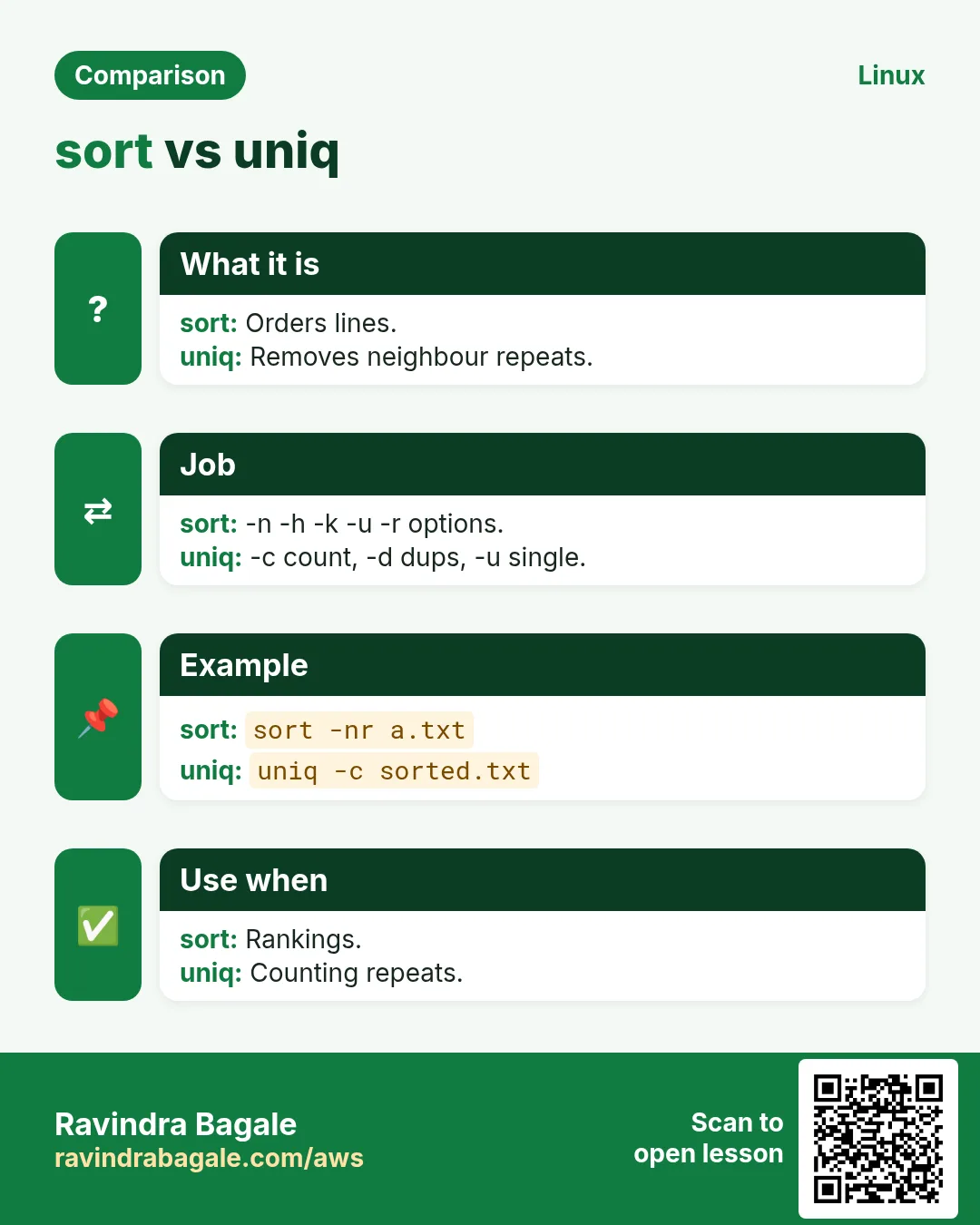
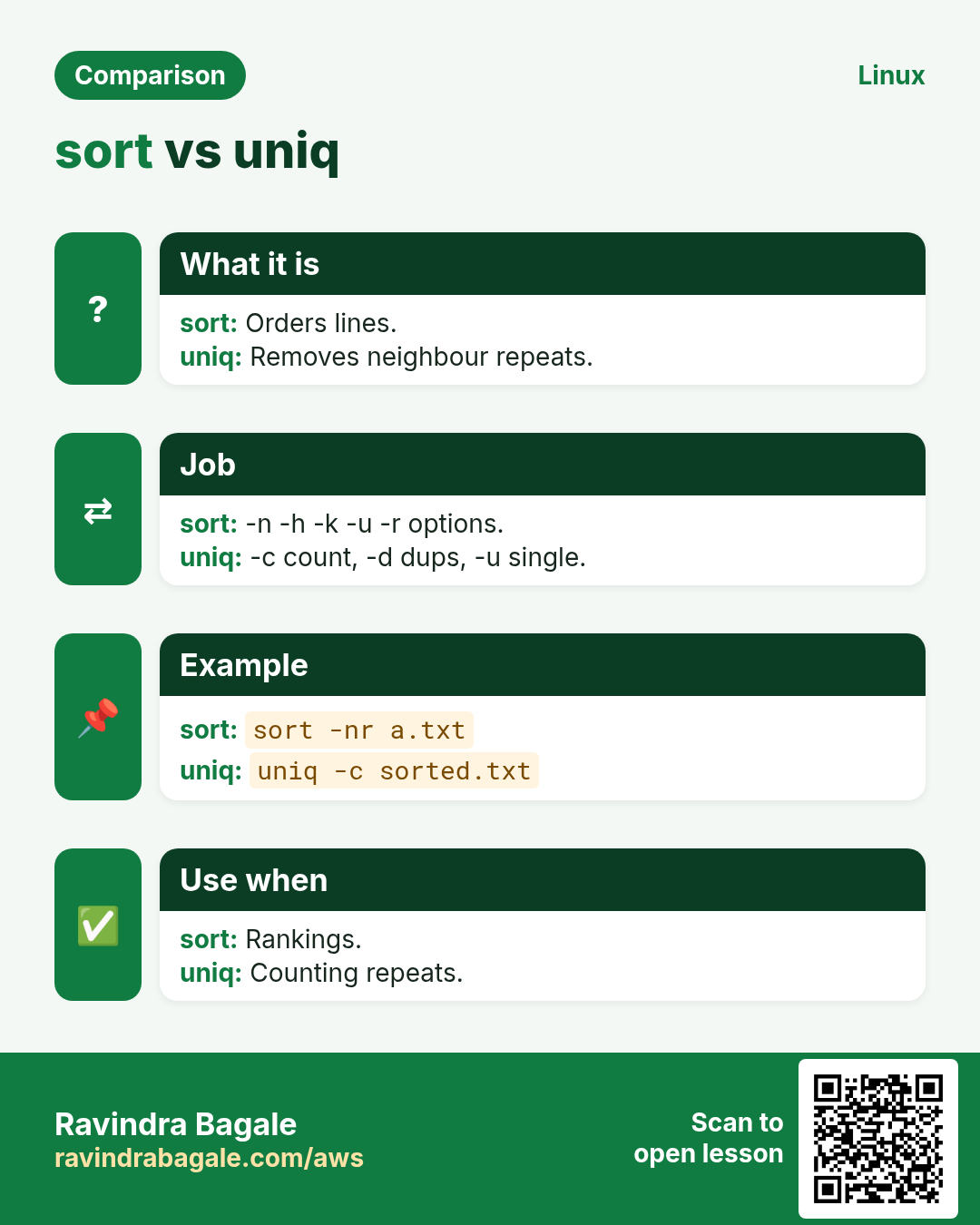
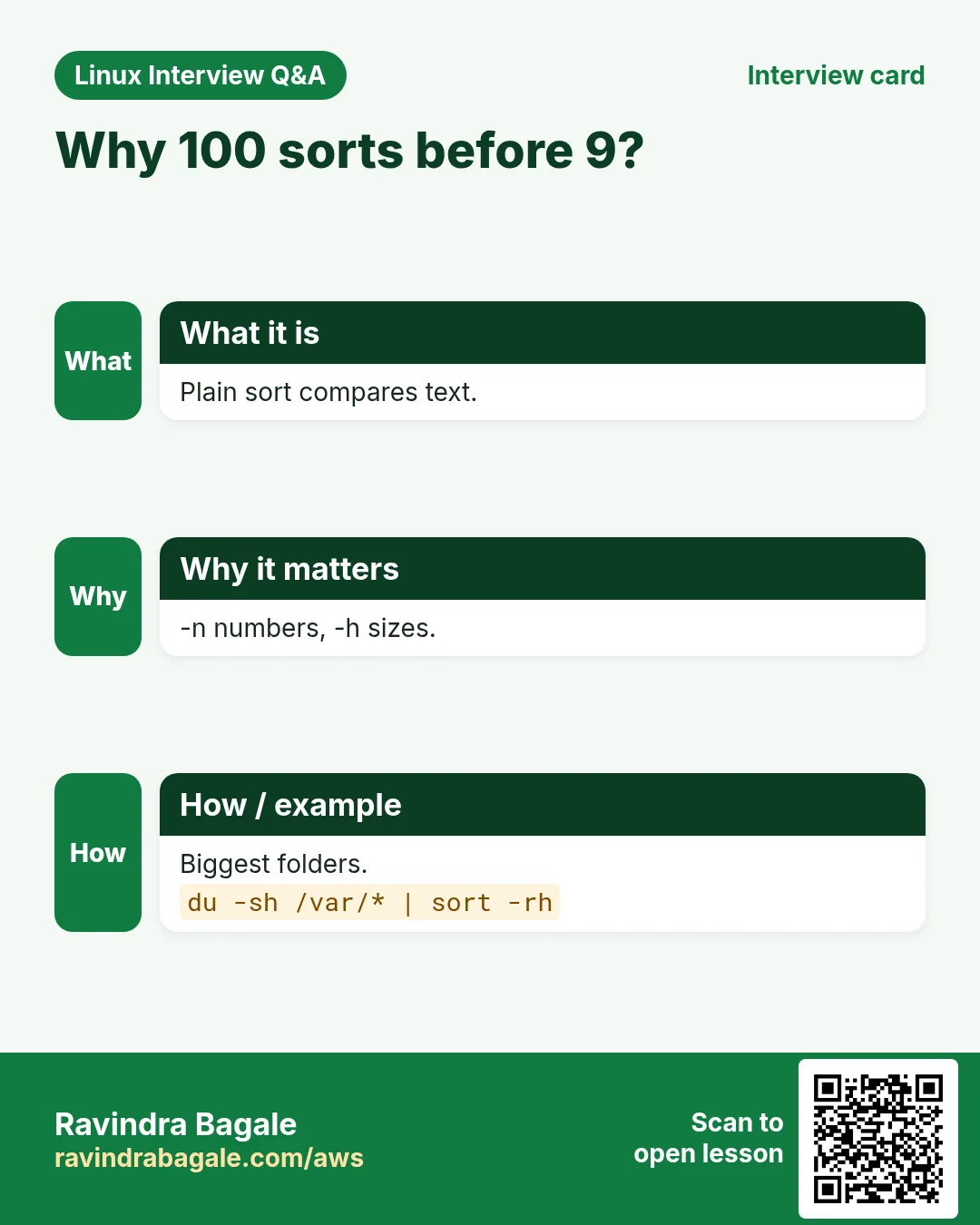
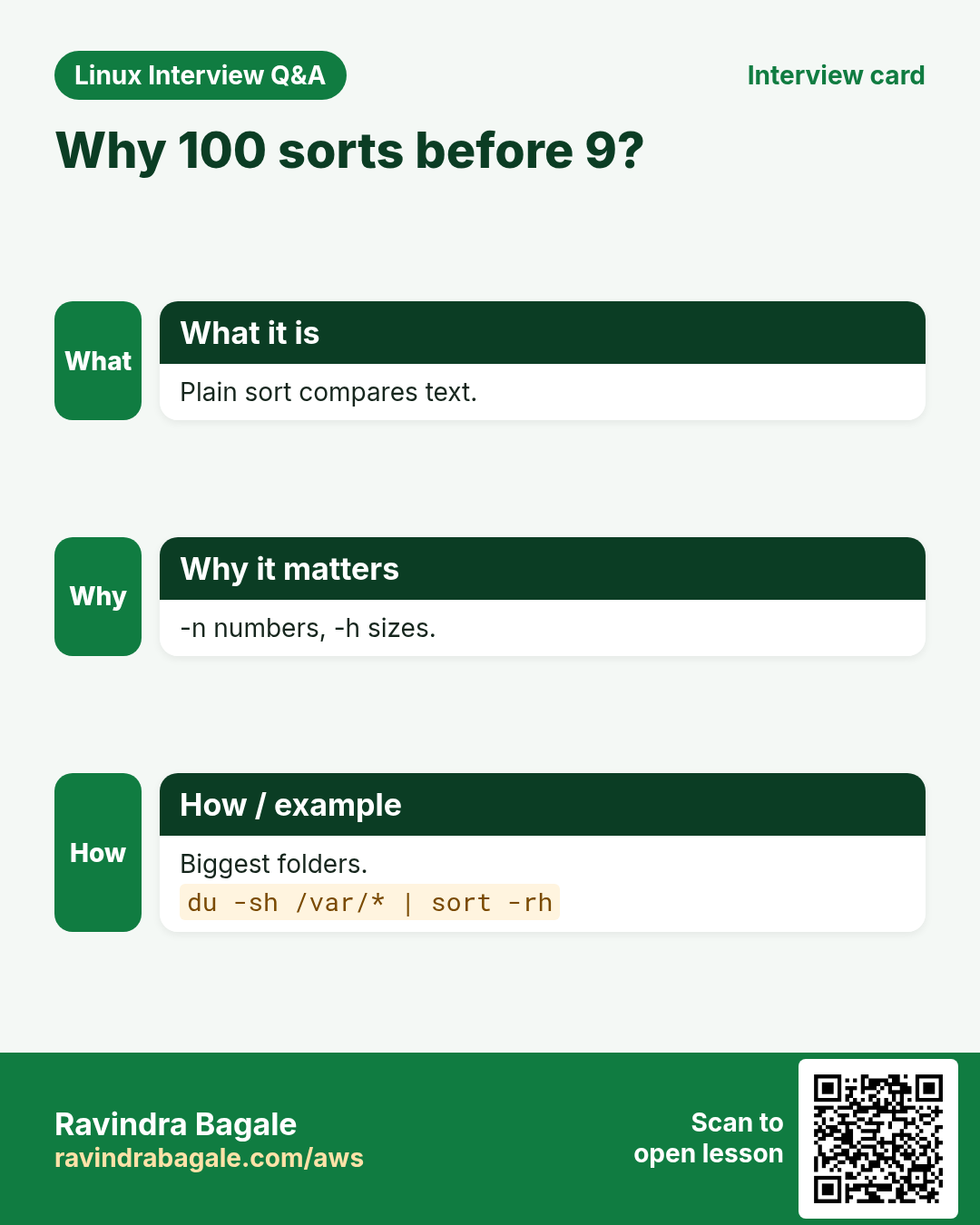
sort orders lines as text by default. -n numeric, -r reverse, -h human sizes (2K, 5M, 1G), -k2 by field 2, -t, sets the field separator, -u unique, -f ignore case, -V version order (v1.2 < v1.10), -o file writes output (safe even onto the same file), -c checks if sorted. -k2,2 means only field 2; -k2 means from field 2 to the end of the line.
| Option | Use |
|---|---|
| -n | Numbers: 9 before 10 |
| -h | Sizes like 512K 2G |
| -r | Reverse |
| -t, -k3,3 | Sort by field 3 of a CSV |
| -u | Remove duplicates |
| -V | Versions |
| -o f | Write to file f |
How to do it (step by step)
- Text sort vs number sort.
printf '10\n9\n100\n' | sort; printf '10\n9\n100\n' | sort -nOutput:
10
100
9
9
10
100
What it means: Without -n, 100 comes before 9 because '1' < '9'.
- Students by marks, highest first.
sort -t, -k4,4nr marks.csv | head -3Output:
7,Sneha,Pune,98
3,Imran,Mumbai,95
9,Anna,Goa,91
What it means: Field 4, numeric, reverse.
- Biggest folders.
du -sh /var/log/* | sort -rh | head -3Output:
1.2G /var/log/journal
300M /var/log/nginx
12M /var/log/dnf.log
What it means: -h understands K, M and G.
- Version order.
printf 'v1.10\nv1.2\nv1.9\n' | sort -VOutput:
v1.2
v1.9
v1.10
What it means: -V sorts like humans read versions.
- Unique sorted cities.
cut -d, -f3 marks.csv | tail -n +2 | sort -uOutput:
Goa
Mumbai
Pune
What it means: Same as sort | uniq.
- Sort a file in place safely.
sort -o names.txt names.txtOutput:
(no output)What it means: sort names.txt > names.txt would empty the file; -o is safe.
4. uniq: remove and count duplicates
Why do we need this?
Who logged in most? Which error repeats? Counting repeats is the heart of log analysis.
What is it?
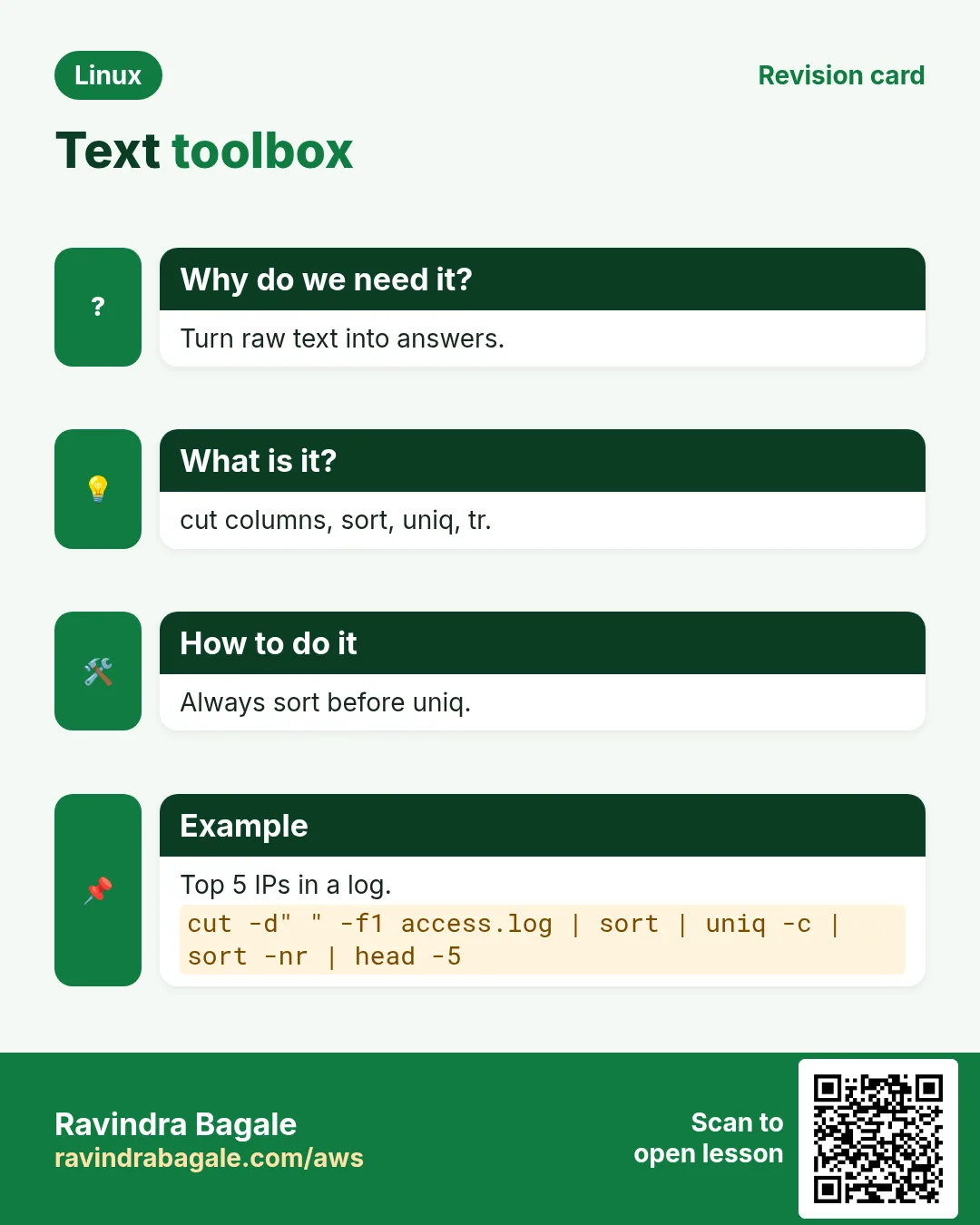
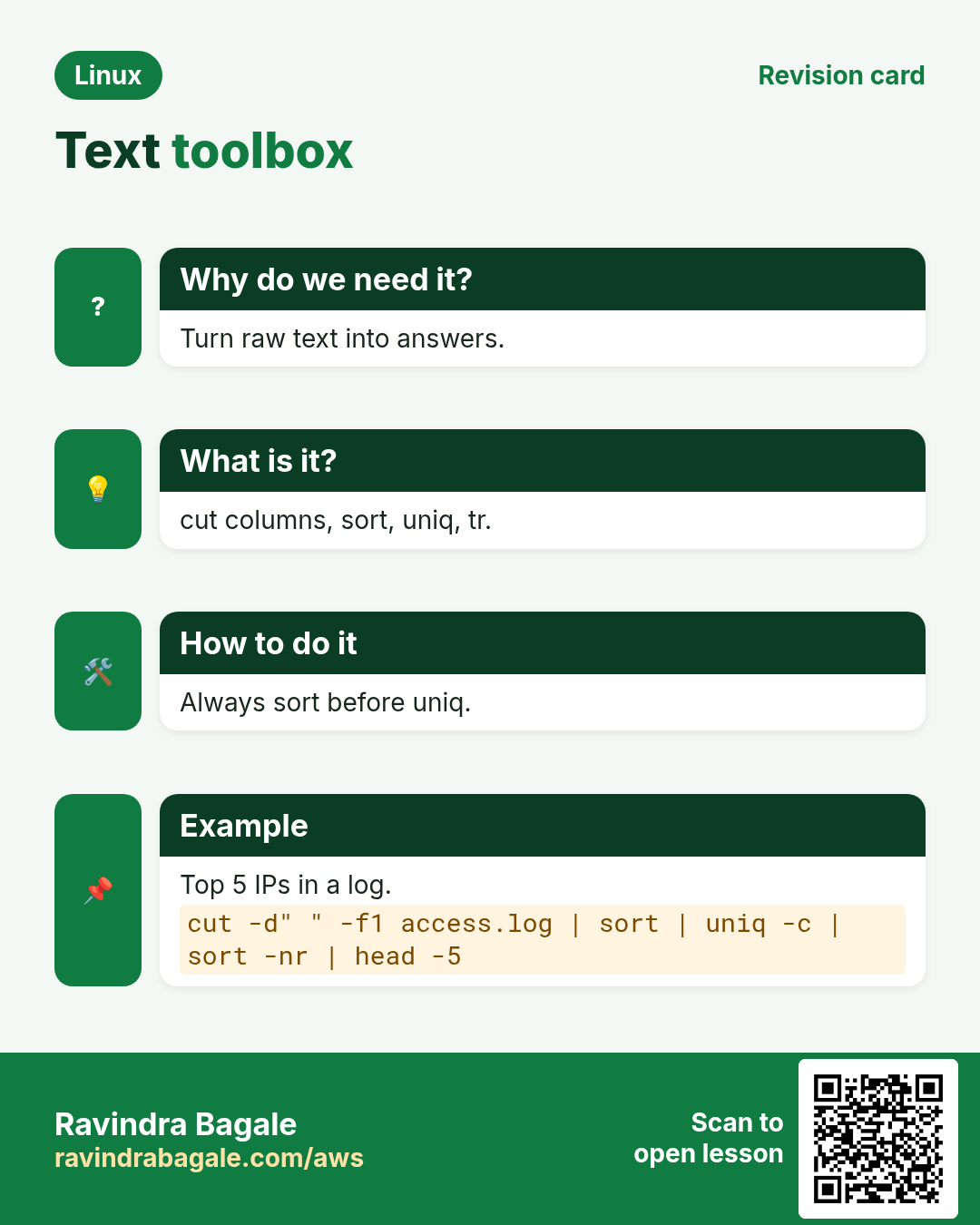
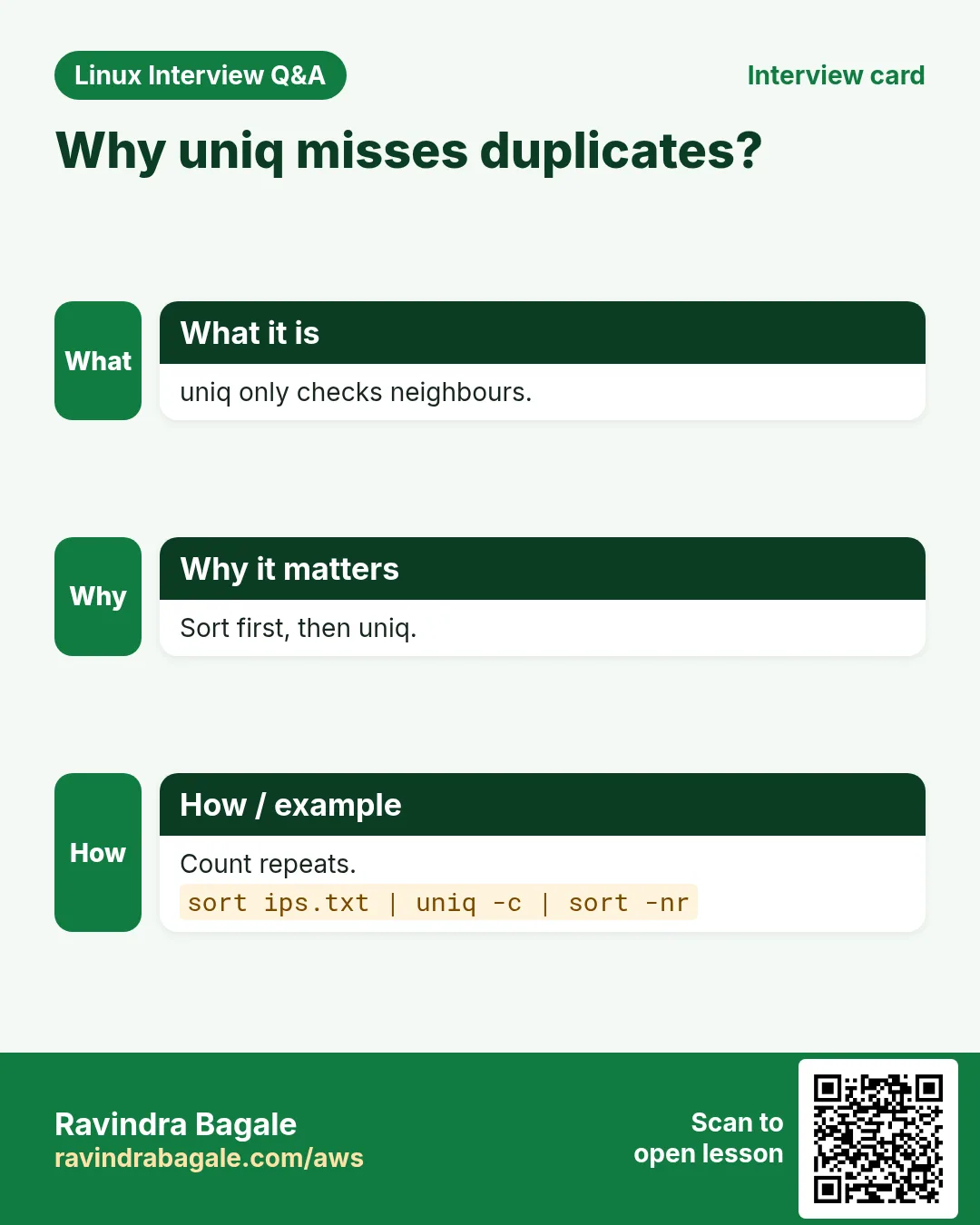
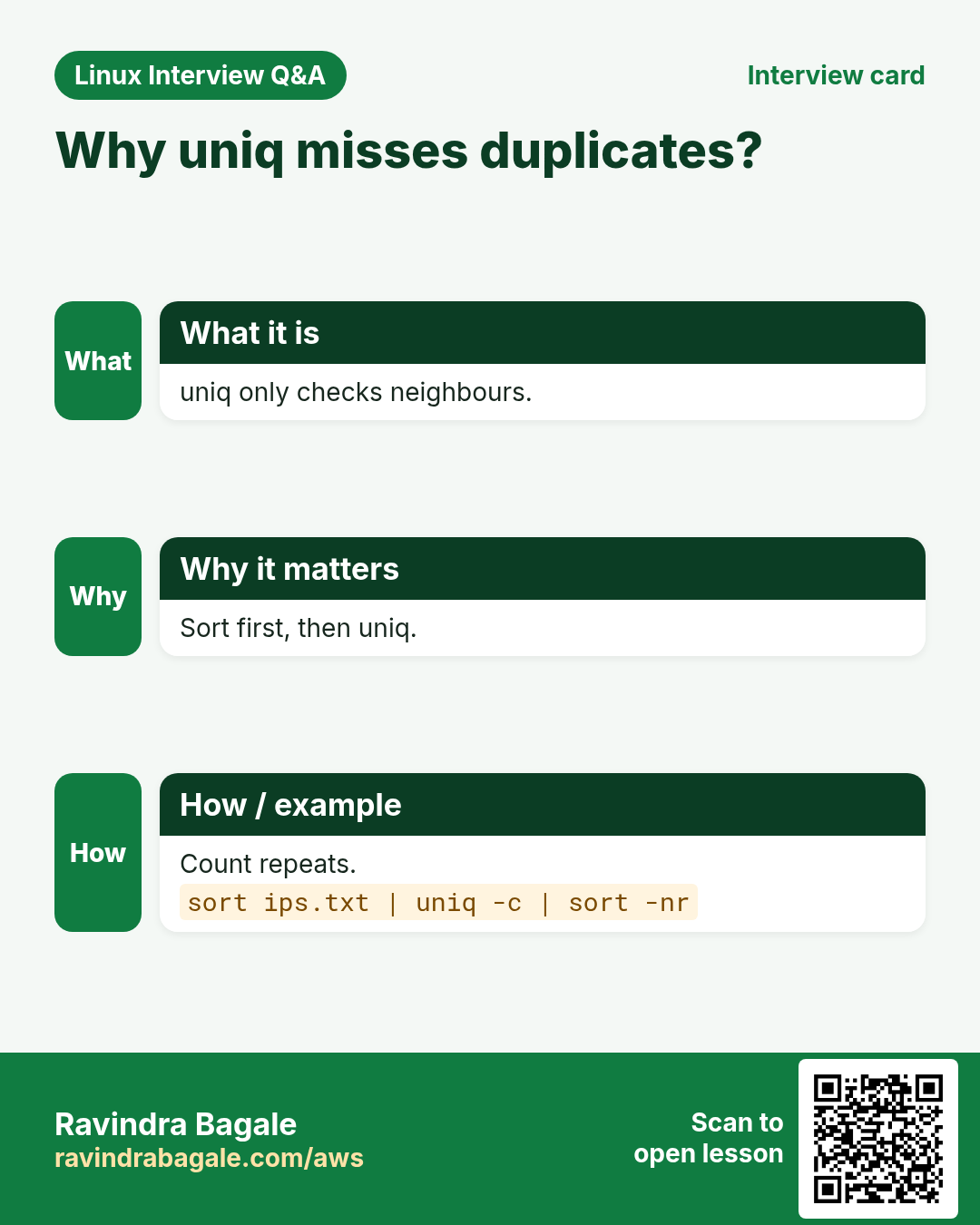
uniq joins neighbouring equal lines. So you almost always sort first. -c adds a count, -d shows only repeated lines, -u only lines that appear once, -i ignores case, -f1 skips the first field. The famous pipeline is sort | uniq -c | sort -nr | head.
How to do it (step by step)
- Why sort first.
printf 'a\nb\na\n' | uniq; printf 'a\nb\na\n' | sort | uniqOutput:
a
b
a
a
b
What it means: Without sort, the two a's are not neighbours.
- Count students per city.
cut -d, -f3 marks.csv | tail -n +2 | sort | uniq -cOutput:
      2 Goa
      4 Mumbai
      6 Pune
What it means: The number is the count.
- Top 3 IPs in an access log.
cut -d' ' -f1 access.log | sort | uniq -c | sort -nr | head -3Output:
    812 10.0.0.7
    430 10.0.0.2
     95 49.36.12.4
What it means: 10.0.0.7 sent 812 requests.
- Only duplicate emails.
sort emails.txt | uniq -dOutput:
aditi@example.comWhat it means: These appear more than once.
- Only unique lines.
sort emails.txt | uniq -u | wc -lOutput:
148What it means: 148 emails appear only once.
- Count error types.
grep -o 'ERROR [A-Za-z]*' app.log | sort | uniq -c | sort -nrOutput:
     41 ERROR timeout
      9 ERROR auth
What it means: grep -o prints only the match (next chapter).
5. tr: translate, squeeze and delete characters
Why do we need this?
You need uppercase names, to remove Windows line ends, turn commas into new lines or squeeze many spaces.
What is it?
tr reads only stdin (no file name argument) and works on single characters. tr 'a-z' 'A-Z' changes case, tr -d '\r' deletes characters, tr -s ' ' squeezes repeats into one, tr ',' '\n' changes commas to new lines, tr -cd '[:digit:]' keeps only digits (-c = complement). Classes: [:upper:] [:lower:] [:digit:] [:space:] [:alnum:] [:punct:].
How to do it (step by step)
- Uppercase.
echo 'pune city' | tr 'a-z' 'A-Z'Output:
PUNE CITYWhat it means: Each letter maps to its capital.
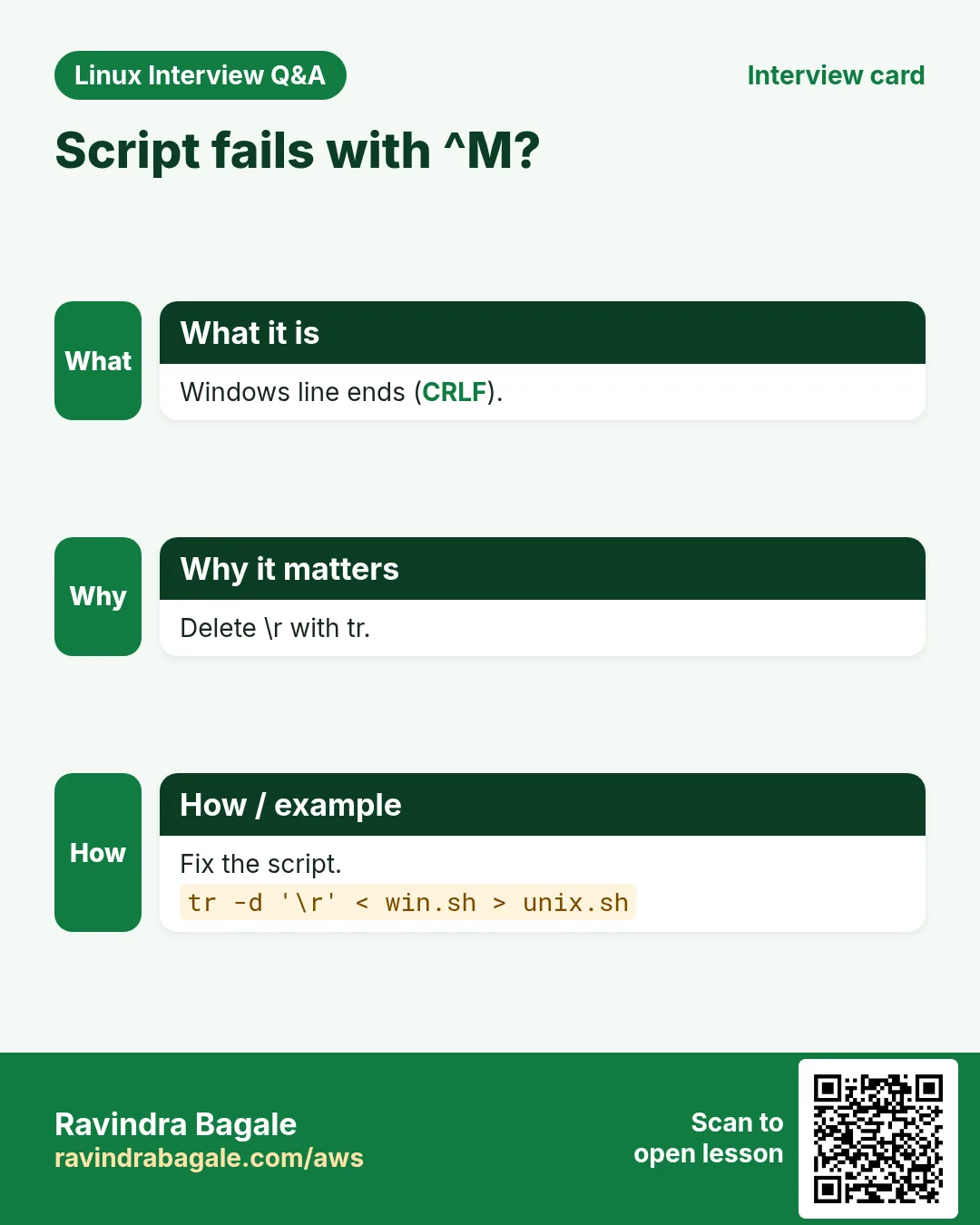
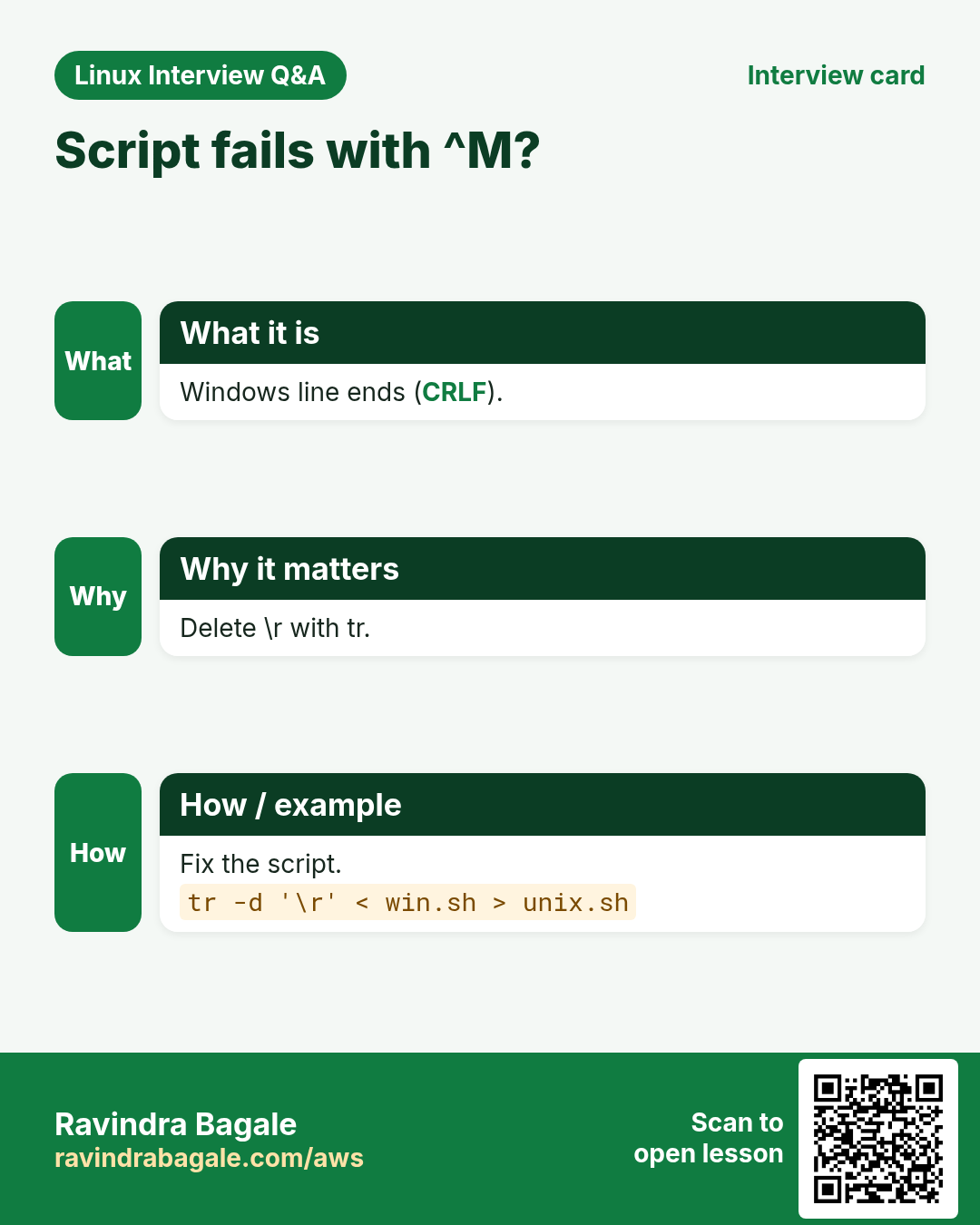
- Remove Windows line ends.
tr -d '\r' < win.sh > unix.sh && cat -A unix.sh | head -1Output:
#!/bin/bash$What it means: No more ^M. Same job as dos2unix.
- Squeeze spaces.
echo 'a b c' | tr -s ' 'Output:
a b cWhat it means: Many spaces become one.
- Split a comma list into lines.
echo 'web1,web2,db1' | tr ',' '\n'Output:
web1
web2
db1
What it means: Now you can sort or loop over it.
- Keep only digits from a phone number.
echo '+91 (98220) 12-345' | tr -cd '[:digit:]'Output:
919822012345What it means: -c means 'not these', -d deletes them.
- Show PATH one per line.
echo "$PATH" | tr ':' '\n'Output:
/usr/local/bin
/usr/bin
/bin
What it means: Easy to read and check.
6. paste: join files side by side
Why do we need this?
Names in one file and emails in another must become one list.
What is it?
paste joins line 1 with line 1, line 2 with line 2, using a TAB. -d, uses a comma. -s joins all lines of one file into one line. paste -sd+ builds a sum for bc.
How to do it (step by step)
- Names and emails side by side.
paste -d, names.txt emails.txtOutput:
Aditi,aditi@ex.com
John,john@ex.com
What it means: Line 1 with line 1, line 2 with line 2.
- All lines into one comma list.
paste -sd, servers.txtOutput:
web1,web2,db1What it means: Handy for building arguments.
- Add numbers with paste and bc.
paste -sd+ amounts.txt | bcOutput:
12750What it means: Makes 4500+3200+5050 and bc adds it.
7. join: merge two files on a key
Why do we need this?
ids with names in one file and ids with cities in another need one combined table, like a database join.
What is it?
join FILE1 FILE2 joins on field 1 by default. -t, sets the separator, -1 2 -2 3 picks key fields, -a1 keeps unmatched lines from file 1 (left join). Both files must be sorted on the key.
How to do it (step by step)
- Join two files on id.
join -t, <(sort ids_names.csv) <(sort ids_city.csv)Output:
1,Aditi,Pune
2,John,London
What it means: Both files must be sorted on the key.
- Left join: keep unmatched.
join -t, -a1 <(sort ids_names.csv) <(sort ids_city.csv)Output:
1,Aditi,Pune
2,John,London
3,Mei
What it means: Mei has no city but is kept.
8. comm: compare two sorted lists
Why do we need this?
Old server list vs new list: what was added, removed, or kept?
What is it?
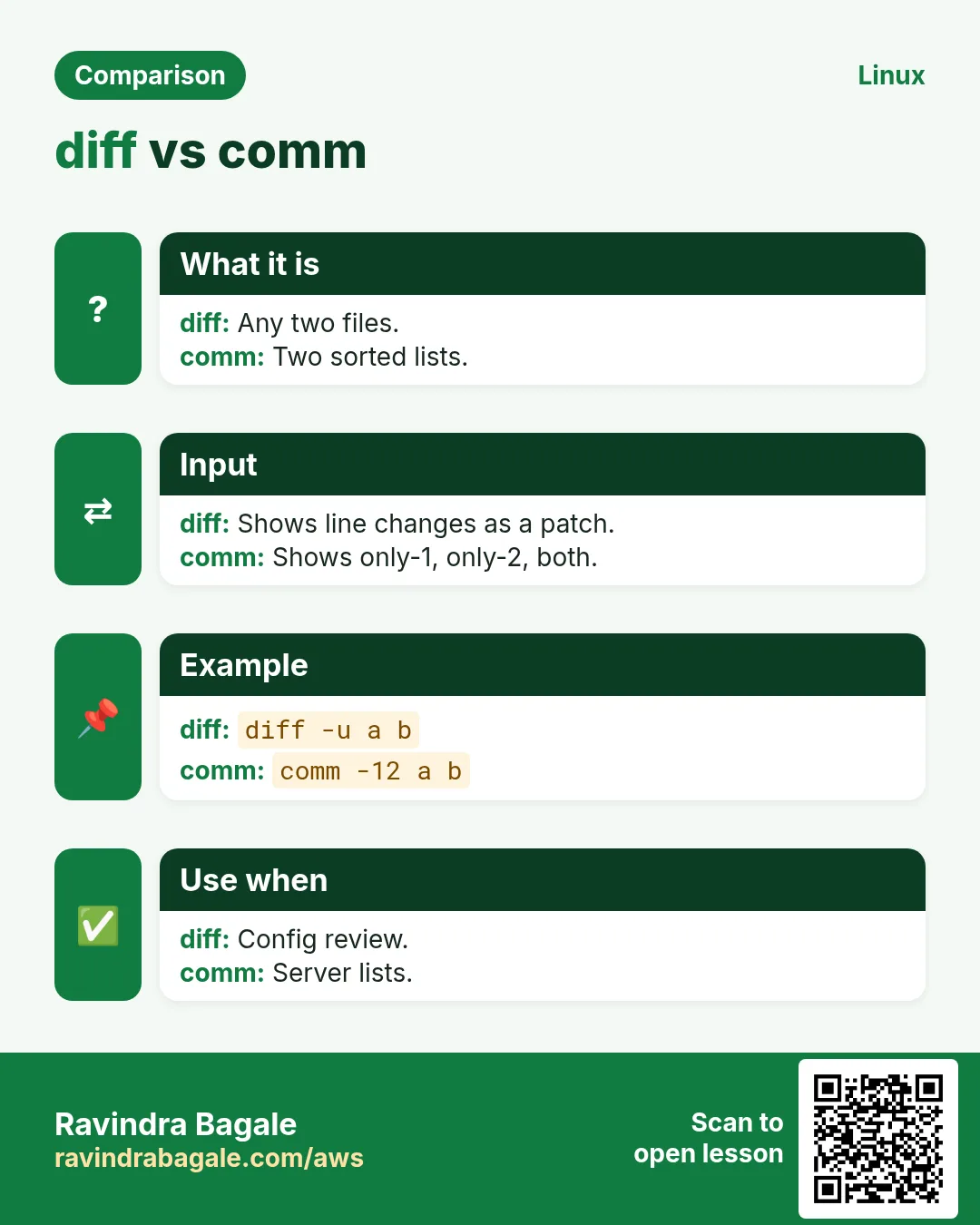
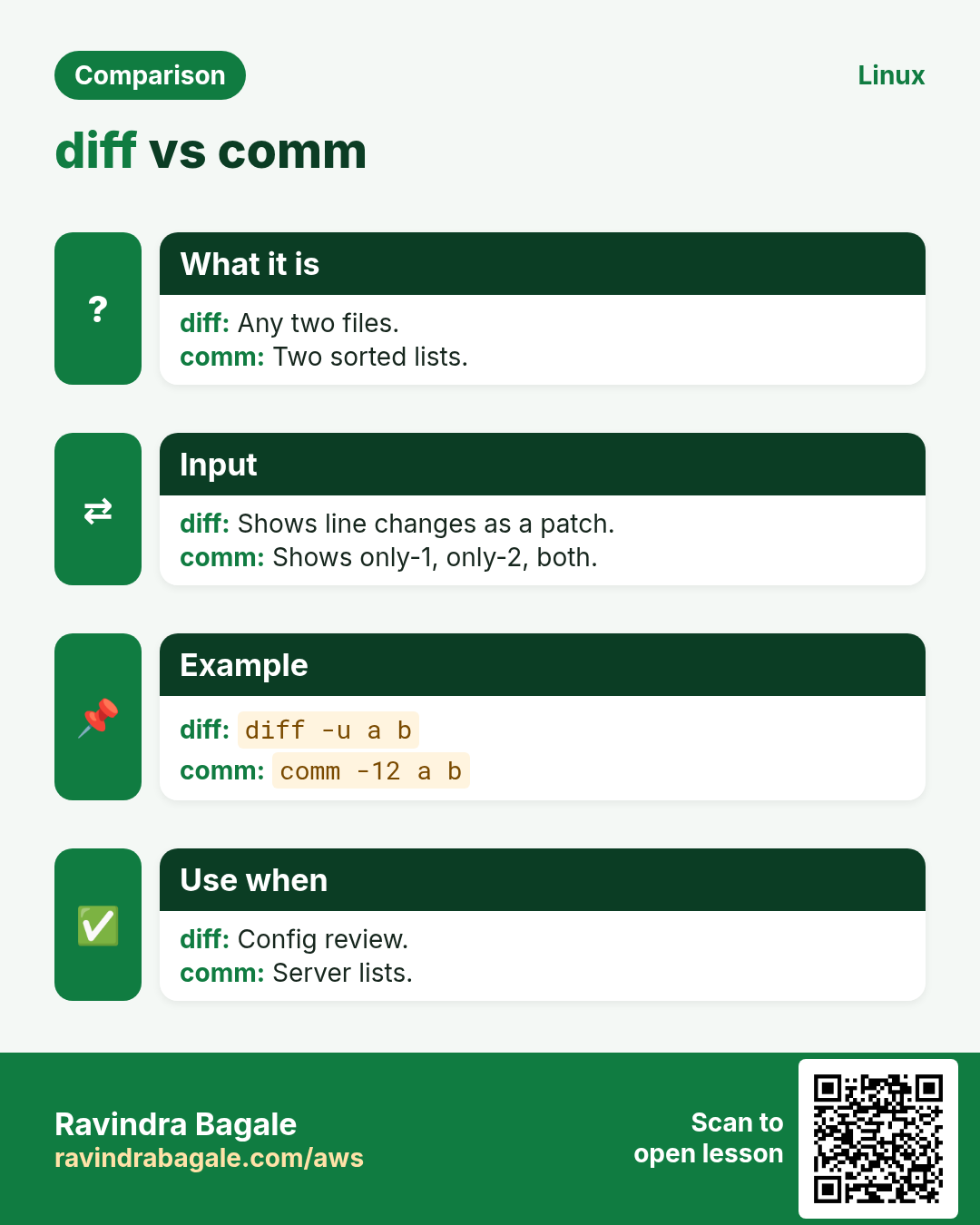
comm prints three columns: only in file 1, only in file 2, in both. -1 -2 -3 hide columns: -12 common, -23 only in file 1, -13 only in file 2. Inputs must be sorted.
How to do it (step by step)
- Servers in both lists.
comm -12 <(sort old.txt) <(sort new.txt)Output:
web1
web2
What it means: Common to both.
- Servers removed.
comm -23 <(sort old.txt) <(sort new.txt)Output:
db-oldWhat it means: Only in the old list.
- Servers added.
comm -13 <(sort old.txt) <(sort new.txt)Output:
web3What it means: Only in the new list.
9. diff: see exactly what changed
Why do we need this?
A config change broke the site. You must find which line changed between the backup and the live file.
What is it?
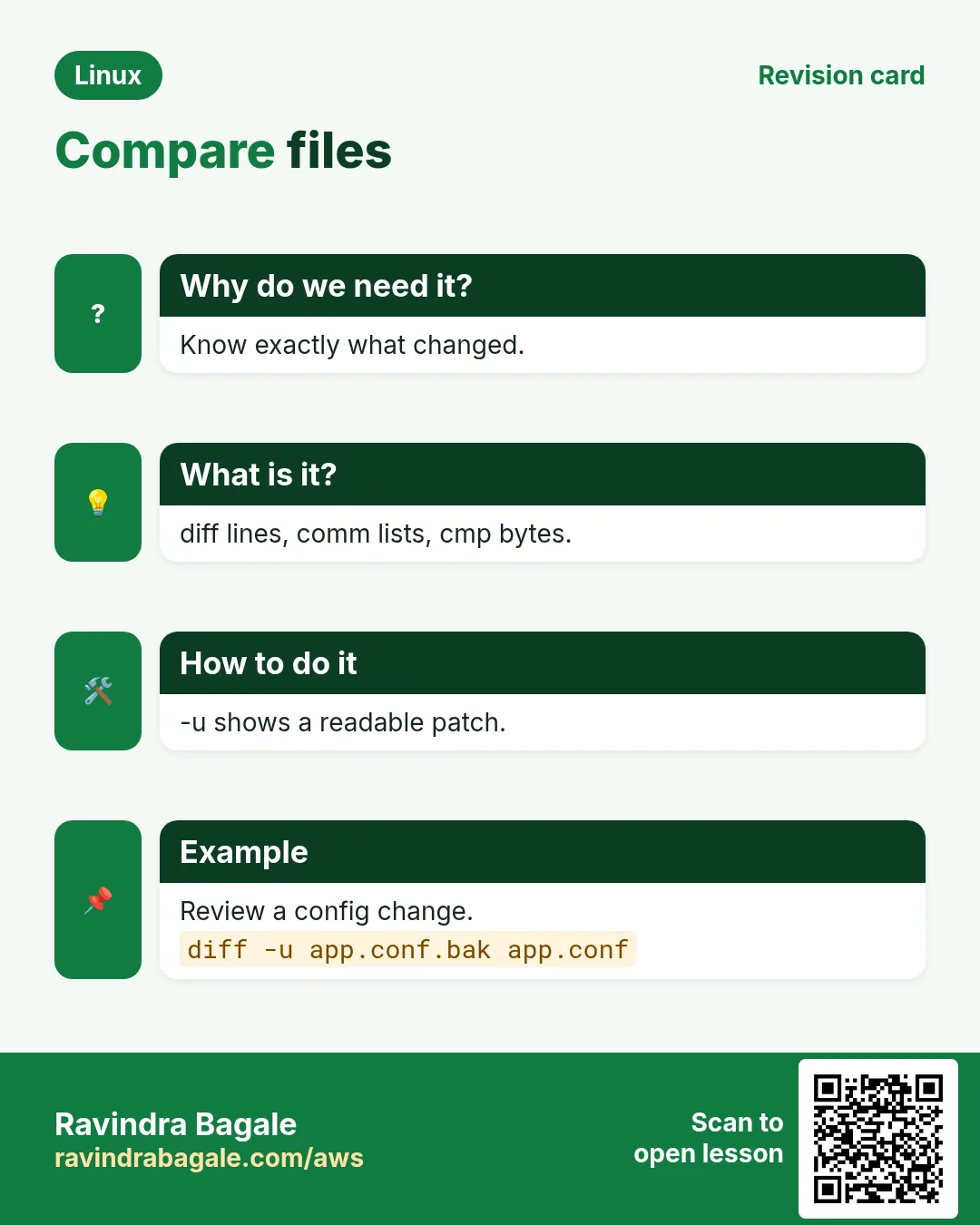
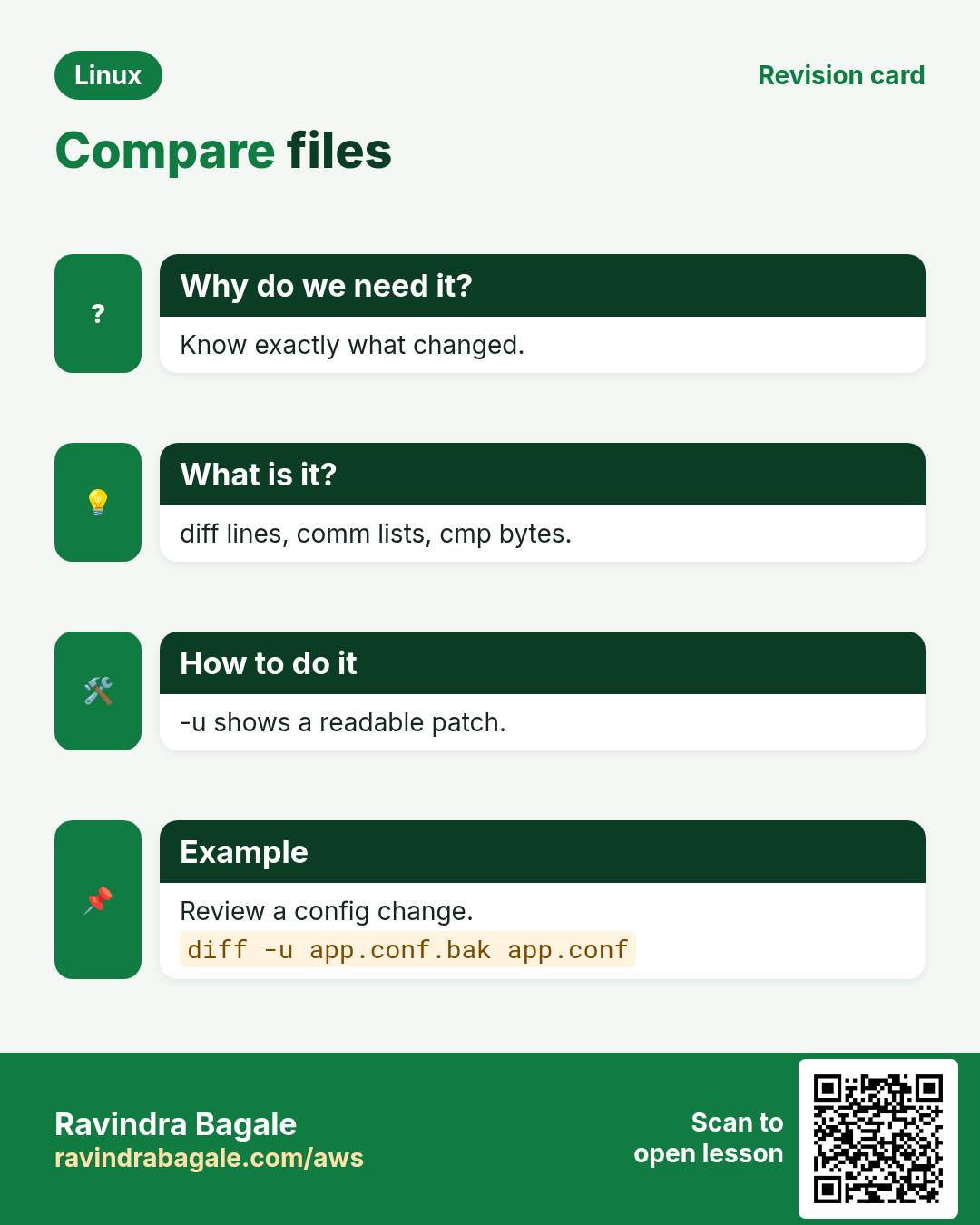
diff a b shows the lines to change to turn a into b. -u gives unified format (the one Git uses): lines with - are removed, + are added, @@ shows line numbers. -y side by side, -q only says if they differ, -r compares folders, -i ignores case, -w ignores spaces. Exit code: 0 same, 1 different, 2 trouble. patch applies a diff -u file. cmp compares binary files byte by byte; vimdiff shows colours.
How to do it (step by step)
- Unified diff of two configs.
diff -u nginx.conf.bak nginx.confOutput:
--- nginx.conf.bak
+++ nginx.conf
@@ -12,3 +12,3 @@
     listen 80;
-    root /var/www/shop;
+    root /var/www/shopp;
     index index.html;
What it means: Someone typed shopp. That broke the site.
- Just ask: are they different?
diff -q a.txt b.txt; echo $?Output:
Files a.txt and b.txt differ
1
What it means: Exit code 1 means different. Good in scripts.
- Side by side.
diff -y --width=50 old.txt new.txtOutput:
web1          web1
web2        | web3
db1           db1
What it means: | marks a changed line.
- Compare two folders.
diff -rq /etc/nginx /backup/nginxOutput:
Files /etc/nginx/nginx.conf and /backup/nginx/nginx.conf differ
Only in /etc/nginx/conf.d: new.conf
What it means: Shows changed and extra files.
- Make and apply a patch.
diff -u app.conf.orig app.conf > fix.patch && patch app.conf.orig < fix.patchOutput:
patching file app.conf.origWhat it means: Now the orig file has the same change.
- Compare output of two servers.
diff <(ssh web1 rpm -qa | sort) <(ssh web2 rpm -qa | sort)Output:
< openssl-3.0.7-1
> openssl-3.0.8-1
What it means: Process substitution <( ) lets diff compare commands.
10. cmp: compare files byte by byte
Why do we need this?
For binaries, images or archives, line diffs make no sense. You just need to know if they are identical and where they differ.
What is it?
cmp a b prints the first differing byte and line. -s is silent (exit code only: 0 same, 1 different). -l lists every differing byte. For checking downloads, sha256sum is often better.
How to do it (step by step)
- Compare two binaries.
cmp app-v1.bin app-v2.binOutput:
app-v1.bin app-v2.bin differ: byte 1025, line 3What it means: First difference at byte 1025.
- Silent check in a script.
cmp -s backup.tar live.tar && echo identical || echo changedOutput:
identicalWhat it means: Uses only the exit code.
11. Real examples from many industries
Why do we need this?
The same Linux skill shows up in every kind of company. Seeing it in many places helps you remember it.
What is it?
Each row is a made-up team. It shows who uses this and how.
How to do it (step by step)
| Team and city | How they use it | Command |
|---|---|---|
| Rohit, security, Hyderabad | Finds top attacking IPs from access logs | cut -d' ' -f1 access.log | sort | uniq -c | sort -nr | head |
| Emma, retail BI, Paris | Totals daily sales from a CSV column | cut -d, -f4 sales.csv | tail -n +2 | paste -sd+ | bc |
| Kenji, infra, Tokyo | Compares package lists between two servers | diff <(rpm -qa|sort) <(ssh b rpm -qa|sort) |
| Pooja, HR tech, Chennai | Finds duplicate employee emails | sort emails.txt | uniq -d |
| Diego, logistics, Madrid | Cleans Windows CSV exports before import | tr -d '\r' < export.csv > clean.csv |
| Zainab, cloud FinOps, Lagos | Finds instances in billing but not in inventory | comm -23 billing.txt inventory.txt |
12. Common errors and how to fix them
Why do we need this?
Everyone hits these errors. Knowing the cause saves hours.
What is it?
Read the exact message first. Then match it to a row below.
How to do it (step by step)
| Error you see | Why it happens | How to fix |
|---|---|---|
uniq shows duplicates still there | Input was not sorted | Sort before uniq.sort file | uniq -c |
sort puts 100 before 9 | Text sort, not numeric | Add -n (or -h for sizes).sort -n nums.txt |
File became empty after sort file > file | > empties the file before sort reads it | Use sort -o.sort -o file file |
cut: the delimiter must be a single character | You gave -d with two characters | Use one character or use awk -F.awk -F'::' '{print $2}' f |
cut prints the whole line | The delimiter is not in that line (default is TAB) | Set -d correctly; use -s to skip such lines.cut -d, -f2 -s data.csv |
tr: extra operand 'file.txt' | tr does not take file names | Redirect the file into tr.tr a-z A-Z < file.txt |
join: file 1 is not in sorted order | join needs both inputs sorted on the key | Sort both on the same field.join <(sort a) <(sort b) |
comm shows wrong results | Inputs not sorted, or sorted with different locale | Sort both with the same LC_ALL.LC_ALL=C sort a > a.s |
diff shows every line changed | One file has Windows line ends (\r) | Use --strip-trailing-cr or tr -d '\r'.diff --strip-trailing-cr a b |
sort -k2 sorts wrongly | -k2 means field 2 to end of line; separator not set | Use -t and -k2,2.sort -t, -k2,2 f.csv |
13. Troubleshooting step by step
Why do we need this?
When a text pipeline gives a wrong answer, run it one step at a time and look at each output.
What is it?
Go top to bottom. Stop at the first step that shows the problem.
How to do it (step by step)
- Look at the raw input and its hidden characters.
head -3 data.csv | cat -A- Check the delimiter and field you cut.
head -3 data.csv | cut -d, -f2- Check sorting is numeric where needed.
cut -d, -f4 data.csv | sort -n | tail -3- Check uniq got sorted input.
cut -d, -f3 data.csv | sort | uniq -c- Fix locale surprises.
LC_ALL=C sort file | head- Check that diff is not just line ends.
diff --strip-trailing-cr -q a b14. Lab 1: Top visitors report from a web log
Why do we need this?
Build the classic count pipeline step by step.
What is it?
A full hands-on lab. Run every step on a test Linux machine (an EC2 instance, a VM, or WSL).
How to do it (step by step)
- Make a sample log.
mkdir -p ~/lab8 && cd ~/lab8 && for i in $(seq 1 300); do echo "10.0.0.$((i%4)) - GET /p$((i%5)) $((i%7==0?500:200))"; done > access.log; head -2 access.logOutput:
10.0.0.1 - GET /p1 200
10.0.0.2 - GET /p2 200- Pick the IP field.
cut -d' ' -f1 access.log | head -2Output:
10.0.0.1
10.0.0.2- Count each IP.
cut -d' ' -f1 access.log | sort | uniq -cOutput:
     75 10.0.0.0
     75 10.0.0.1
     75 10.0.0.2
75 10.0.0.3- Top pages with 500 errors.
grep ' 500$' access.log | cut -d' ' -f4 | sort | uniq -c | sort -nr | head -3Output:
     9 /p0
     9 /p1
8 /p4- Save the report.
cut -d' ' -f1 access.log | sort | uniq -c | sort -nr > top-ips.txt && wc -l top-ips.txtOutput:
4 top-ips.txt15. Lab 2: Find a broken config change with diff
Why do we need this?
Make a backup, change a line, find it and undo it with a patch.
What is it?
A full hands-on lab. Run every step on a test Linux machine (an EC2 instance, a VM, or WSL).
How to do it (step by step)
- Create a config and a backup.
cd ~/lab8 && printf 'port=8080\nroot=/srv/shop\nmode=prod\n' > app.conf && cp app.conf app.conf.bakOutput:
(no output)- Make a mistake.
sed -i 's#/srv/shop#/srv/shopp#' app.confOutput:
(no output)- Find it.
diff -u app.conf.bak app.confOutput:
-root=/srv/shop
+root=/srv/shopp- Make a reverse patch and apply it.
diff -u app.conf app.conf.bak > undo.patch; patch app.conf < undo.patchOutput:
patching file app.conf- Confirm they match.
diff -q app.conf app.conf.bak && echo sameOutput:
sameRavindra Bagale's Tip
Remember the golden pipeline: cut | sort | uniq -c | sort -nr | head. It answers 'what is the most common X?' for IPs, URLs, users, errors and status codes in seconds.
Ravindra Bagale's Tip – मराठी
Golden pipeline लक्षात ठेवा: cut | sort | uniq -c | sort -nr | head. IPs, URLs, users, errors आणि status codes साठी 'सगळ्यात जास्त कोणतं X?' याचं उत्तर काही seconds मधे.
Ravindra Bagale's Tip – हिंदी
Golden pipeline याद रखें: cut | sort | uniq -c | sort -nr | head. IPs, URLs, users, errors और status codes के लिए 'सबसे ज़्यादा कौन सा X?' का जवाब कुछ seconds में.
16. Frequently asked questions
Q. Why must I sort before uniq?
uniq only compares a line with the line just before it. Sort brings equal lines together.
Q. cut or awk?
cut is simple and fast for one fixed delimiter. awk handles many spaces, conditions and maths.
Q. What does -k2,2 mean in sort?
Start and end the key at field 2. Without ,2 the key runs to the end of the line.
Q. Why does sort order differ on two servers?
Locale. en_US.UTF-8 and C sort differently. Use LC_ALL=C for byte order.
Q. Can tr replace words?
No, only single characters. Use sed for words.
Q. What is the exit code of diff?
0 same, 1 different, 2 error. Scripts use it to decide.
Q. comm vs diff?
comm needs sorted input and shows set style columns (only A, only B, both). diff shows edits in order.
Q. How do I count unique values?
sort -u file | wc -l.
17. Interview questions and answers
Beginner level
Q. How do you print the first field of /etc/passwd?
cut -d: -f1 /etc/passwd.
Q. How do you sort numbers correctly?
sort -n (add -r for highest first).
Q. How do you change lowercase to uppercase?
tr 'a-z' 'A-Z' or tr '[:lower:]' '[:upper:]'.
Q. How do you see differences between two files?
diff -u old new.
Mid level level
Q. Find the top 5 IPs in an access log.
cut -d' ' -f1 access.log | sort | uniq -c | sort -nr | head -5 (or awk '{print $1}').
Q. Sort a CSV by the 3rd column numerically.
sort -t, -k3,3n file.csv.
Q. Find lines present in file A but not B.
comm -23 <(sort A) <(sort B), or grep -Fxv -f B A.
Q. Remove Windows CRLF from a script.
tr -d '\r' < in > out, sed -i 's/\r$//' or dos2unix.
Senior level
Q. Sorting a 50 GB file fails with No space left. Fix?
sort uses temp files in /tmp. Use -T /bigdisk, --buffer-size, --parallel, and LC_ALL=C for speed; or split and sort -m to merge.
Q. Why can uniq -c counts be wrong after sort on a server with a UTF-8 locale?
Locale collation can treat some characters as equal or order them oddly. Use LC_ALL=C on both sort and uniq for exact byte comparison.
Q. How would you detect config drift across 50 servers?
Collect a checksum or the file from each (ssh/ansible), then diff against a golden copy or compare md5sum lists with sort | uniq -c.
Q. A diff in CI shows every line changed but the content looks the same. Cause?
Line endings (CRLF vs LF), trailing spaces or encoding/BOM. Check with cat -A or file; use --strip-trailing-cr, -w, or a .gitattributes rule.
Try at home
- Write 10 friends with their city in a file like 'name,city'. Find how many friends live in each city with cut, sort and uniq -c.
- Copy a config file, change one line, and use diff -u to see the change.
Practice Tasks
Vidarbha Cotton Mills is a textiles business in Nagpur. Ganesh Wankhede looks after its IT and cloud work. They count money in INR and run their AWS resources in the ap-south-1 Region. In the tasks below you do real jobs for them using what this lesson teaches. All names, account IDs, IP addresses and numbers are made up for practice.
0 / 16
Easy Usernames from passwd
Why: Audits need a user list.
What to do: Print only the seventh field (the login shell) of /etc/passwd (fields split by colon).
- Find the Linux command that does this job.
- Add the options (like -r or -h) the task needs.
- Add the file names, folders or users in the right order.
- Use sudo if the job changes system files or users. Click Check answer.
Easy Sort numbers
Why: Plain sort puts 100 before 9.
What to do: Sort amounts.txt numerically.
- Find the Linux command that does this job.
- Add the options (like -r or -h) the task needs.
- Add the file names, folders or users in the right order.
- Use sudo if the job changes system files or users. Click Check answer.
Easy Sort and remove duplicates
Why: Clean an email list.
What to do: Sort emails.txt and keep each line only once, in one command.
- Find the Linux command that does this job.
- Add the options (like -r or -h) the task needs.
- Add the file names, folders or users in the right order.
- Use sudo if the job changes system files or users. Click Check answer.
Easy Uppercase text
Why: Codes must be uppercase.
What to do: Convert codes.txt to uppercase and print it, reading the file with input redirection.
- Find the Linux command that does this job.
- Add the options (like -r or -h) the task needs.
- Add the file names, folders or users in the right order.
- Use sudo if the job changes system files or users. Click Check answer.
Easy Squeeze spaces
Why: Many spaces break cut.
What to do: Squeeze repeated spaces in report.txt into one, reading with <.
- Find the Linux command that does this job.
- Add the options (like -r or -h) the task needs.
- Add the file names, folders or users in the right order.
- Use sudo if the job changes system files or users. Click Check answer.
Easy Unified diff
Why: Review config changes.
What to do: Show the differences between nginx.conf.orig and nginx.conf in unified format.
- Find the Linux command that does this job.
- Add the options (like -r or -h) the task needs.
- Add the file names, folders or users in the right order.
- Use sudo if the job changes system files or users. Click Check answer.
Medium Two CSV columns
Why: Send only names and cities.
What to do: Print columns 2 and 3 of customers.csv (comma separated).
- Find the Linux command that does this job.
- Add the options (like -r or -h) the task needs.
- Add the file names, folders or users in the right order.
- Use sudo if the job changes system files or users. Click Check answer.
Medium Sort CSV by a column
Why: Top scorers first.
What to do: Sort scores.csv (comma separated) by column 3, numbers, highest first.
- Find the Linux command that does this job.
- Add the options (like -r or -h) the task needs.
- Add the file names, folders or users in the right order.
- Use sudo if the job changes system files or users. Click Check answer.
Medium Sort human sizes
Why: Find the biggest folders.
What to do: Sort the output of du -sh /var/* with biggest first using human-number sort.
- Find the Linux command that does this job.
- Add the options (like -r or -h) the task needs.
- Add the file names, folders or users in the right order.
- Use sudo if the job changes system files or users. Click Check answer.
Medium Count repeats
Why: Which IP hits most?
What to do: Count how many times each line appears in ips.txt (sort first, then uniq).
- Find the Linux command that does this job.
- Add the options (like -r or -h) the task needs.
- Add the file names, folders or users in the right order.
- Use sudo if the job changes system files or users. Click Check answer.
Medium Only duplicates
Why: Find double registrations.
What to do: Show only lines that appear more than once in sorted.txt (already sorted).
- Find the Linux command that does this job.
- Add the options (like -r or -h) the task needs.
- Add the file names, folders or users in the right order.
- Use sudo if the job changes system files or users. Click Check answer.
Medium Remove Windows CR
Why: ^M breaks bash scripts.
What to do: Delete all \r characters from setup-crlf.sh and save the result as setup-lf.sh.
- Find the Linux command that does this job.
- Add the options (like -r or -h) the task needs.
- Add the file names, folders or users in the right order.
- Use sudo if the job changes system files or users. Click Check answer.
Medium Join files side by side
Why: Names and emails in two files.
What to do: Join ids.txt and phones.txt side by side with a comma.
- Find the Linux command that does this job.
- Add the options (like -r or -h) the task needs.
- Add the file names, folders or users in the right order.
- Use sudo if the job changes system files or users. Click Check answer.
Medium Compare two folders
Why: Did the backup match?
What to do: Briefly list which files differ between folders /etc/haproxy and /backup/haproxy, recursively.
- Find the Linux command that does this job.
- Add the options (like -r or -h) the task needs.
- Add the file names, folders or users in the right order.
- Use sudo if the job changes system files or users. Click Check answer.
Hard Common lines of two lists
Why: Servers in both old and new.
What to do: old.txt and new.txt are sorted. Print only lines in both.
- Find the Linux command that does this job.
- Add the options (like -r or -h) the task needs.
- Add the file names, folders or users in the right order.
- Use sudo if the job changes system files or users. Click Check answer.
Hard Silent binary compare
Why: Scripts need only yes or no.
What to do: Compare a.bin and b.bin byte by byte silently (exit code only).
- Find the Linux command that does this job.
- Add the options (like -r or -h) the task needs.
- Add the file names, folders or users in the right order.
- Use sudo if the job changes system files or users. Click Check answer.
18. Related chapters
- Linux Ops Refresh for DevOps
- Bash Scripting for Automation
- Linux grep and find Commands with Examples
- How to Set Up Passwordless SSH Between Linux Servers
In short
- cut -d -f picks fields; -c picks characters.
- sort -n -h -r -k -t -u -V -o.
- Always sort before uniq; uniq -c counts.
- tr changes, squeezes (-s) or deletes (-d) characters from stdin.
- paste joins side by side; join on a key; comm compares sorted sets.
- diff -u shows changes; exit 0 same, 1 different.
Revision, comparison and interview cards
Revise this lesson in a few minutes. Save the cards on your phone or download them as PNG files. The QR code on each card opens this lesson.
More cards: Ravi Sir's Cards.