Linux tar, gzip, zip and xz: Archive and Compress Files with Examples
Backups, log shipping, code releases and file transfers all need two things: put many files into one file (archive) and make it smaller (compress). tar does the first. gzip, bzip2, xz and zstd do the second. zip does both and opens on Windows. We learn each command and each key option, one by one, with a safe habit for every step.
What you'll learn in this chapter
- Create, list and extract tar archives
- Compress with -z, -j, -J and zstd
- Use -C, --exclude and --strip-components
- Use gzip, gunzip, zcat and -k
- Use xz, bzip2 and zstd and pick the right one
- Use zip and unzip, and verify archives
1. An everyday example: packing for a move
Why do we need this?
When a family moves from Pune to Bengaluru, they put many small things into one carton and tape it. Then they squeeze clothes in vacuum bags so the carton holds more. A list is stuck on top so they know what is inside without opening it.
What is it?
Carton = tar archive. Vacuum bag = compression (gzip, xz). The list on top = tar -t. Unpacking at the new house in the right room = tar -x -C /target.
How to do it (step by step)
2. tar -c: create an archive
Why do we need this?
You need one file to copy, upload or keep as a backup instead of thousands.
What is it?
tar -c creates. -f NAME gives the archive file name (must come right before the name). -v lists files as it goes. Give the folders or files to add. Use relative paths so it extracts cleanly.
How to do it (step by step)
- Pack a folder.
tar -cvf site.tar www/Output:
www/
www/index.html
www/css/app.css
What it means: One file, not compressed yet.
- From the parent folder.
cd /var && sudo tar -cf /tmp/www.tar www && ls -lh /tmp/www.tarOutput:
-rw-r--r--. 1 root root 51M Oct 25 13:30 /tmp/www.tarWhat it means: Paths start at www/.
3. tar -t: list without extracting
Why do we need this?
You want to check what is inside, and make sure it will not write to strange paths, before you unpack.
What is it?
tar -tf FILE lists entries. Add -v for sizes, owners and dates. Works with compressed files too (tar detects the compression when reading).
How to do it (step by step)
- List.
tar -tf site.tar | head -3Output:
www/
www/index.html
www/css/app.css
What it means: Safe, relative paths.
- Long list.
tar -tvf site.tar | head -2Output:
drwxr-xr-x ravi/ravi    0 2026-10-25 13:20 www/
-rw-r--r-- ravi/ravi 2140 2026-10-25 13:20 www/index.html
What it means: Like ls -l.
4. tar -x and -C: extract, and choose where
Why do we need this?
Extracting in the wrong folder can mix files into your home or overwrite things.
What is it?
tar -xf FILE extracts into the current folder. -C DIR extracts into DIR (it must exist). Name a path after the archive to extract only that file or folder. -k (--keep-old-files) refuses to overwrite.
How to do it (step by step)
- Extract into a new folder.
mkdir -p /tmp/restore && tar -xf site.tar -C /tmp/restore && ls /tmp/restoreOutput:
wwwWhat it means: Contained and tidy.
- Only one file.
tar -xf site.tar -C /tmp/restore www/index.htmlOutput:
(no output)What it means: Quick restore of one page.
- Do not overwrite.
tar -xkf site.tar -C /tmp/restoreOutput:
tar: www/index.html: Cannot open: File existsWhat it means: Keeps your newer copy.
5. tar -z: gzip compression (.tar.gz, .tgz)
Why do we need this?
Logs and text compress 5 to 10 times. gzip is fast and opens everywhere.
What is it?
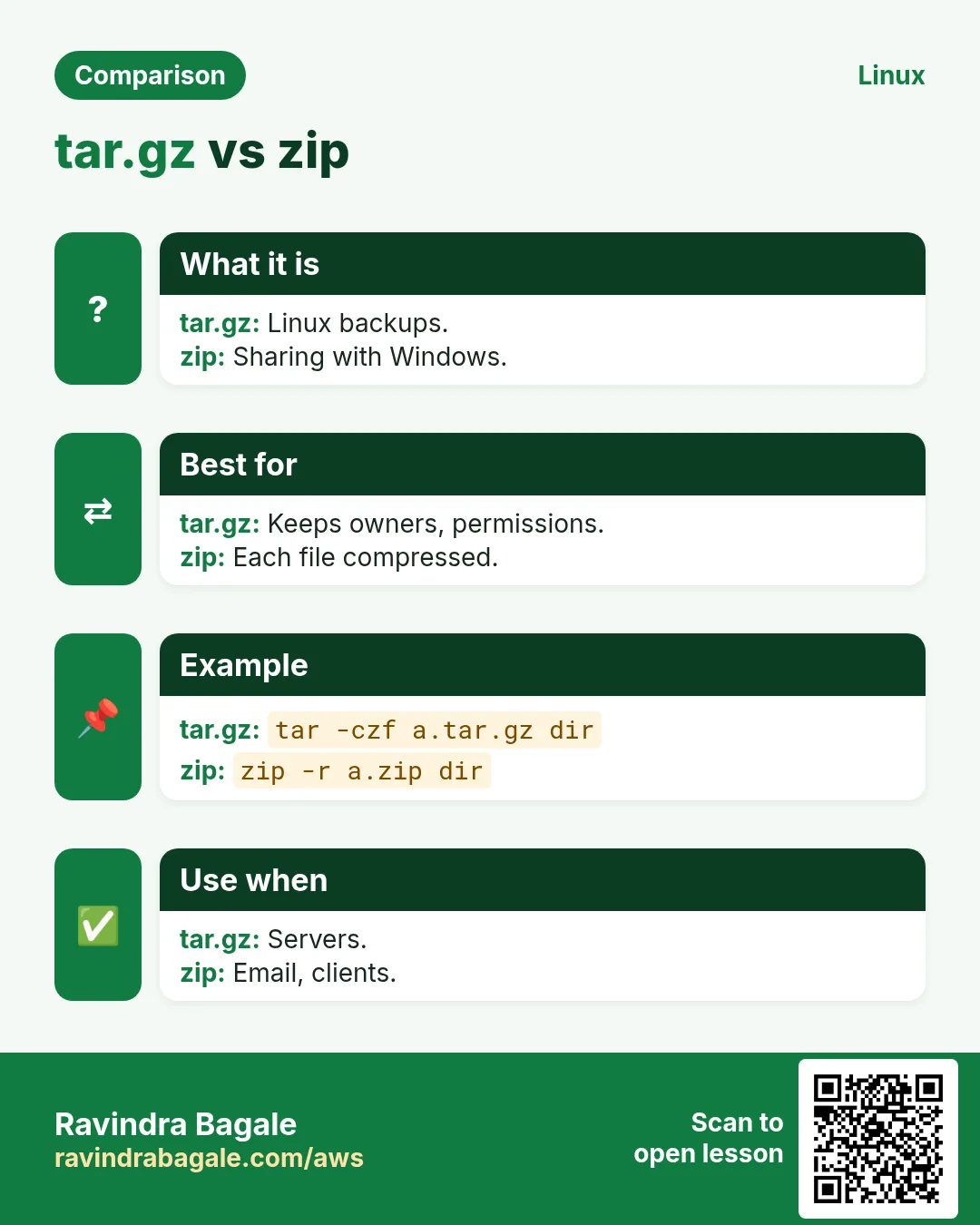
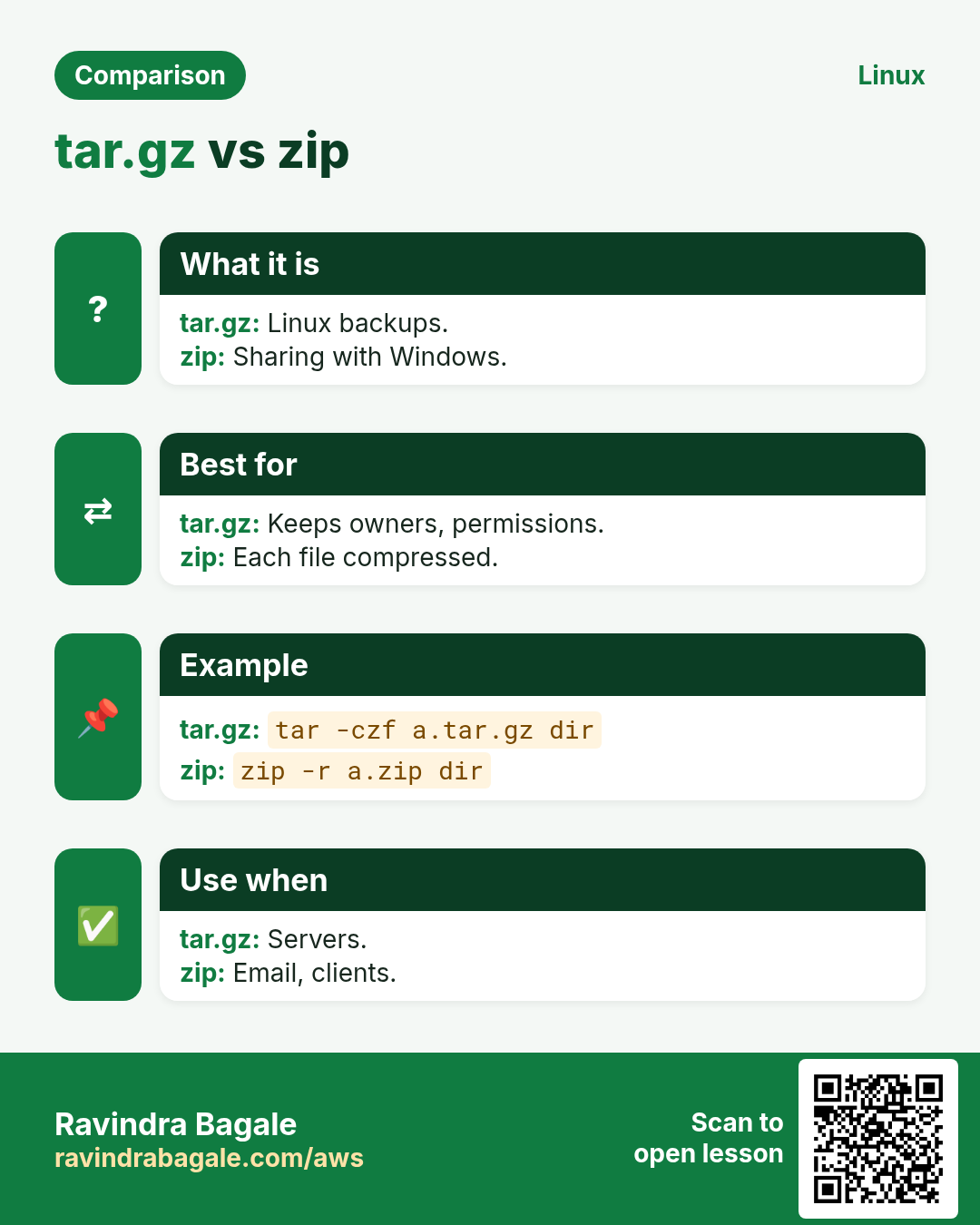
Add -z to create or extract .tar.gz. The well-known short forms: tar -czf (create), tar -tzf (list), tar -xzf (extract). Modern tar detects compression when extracting, so -xf works too.
How to do it (step by step)
- Create .tar.gz.
tar -czf logs-2026-10-25.tar.gz /var/log/shop/ 2>/dev/null; ls -lh logs-2026-10-25.tar.gzOutput:
-rw-r--r--. 1 ravi ravi 6.2M Oct 25 13:35 logs-2026-10-25.tar.gzWhat it means: From 48 MB to 6.2 MB.
- Extract it.
tar -xzf logs-2026-10-25.tar.gz -C /tmp/restoreOutput:
(no output)What it means: Leading / was removed when created.
6. tar -J and -j: xz and bzip2
Why do we need this?
For files kept a long time or downloaded many times, smaller matters more than speed.
What is it?
-J uses xz (.tar.xz): smallest, slowest. -j uses bzip2 (.tar.bz2): older, in between. Set the level with XZ_OPT=-9 or use -I 'xz -T0' for all CPU cores.
How to do it (step by step)
- xz archive.
tar -cJf release.tar.xz build/ && ls -lh release.tar.xzOutput:
-rw-r--r--. 1 ravi ravi 3.9M Oct 25 13:40 release.tar.xzWhat it means: Smaller than gzip's 6.2M.
- Use every core.
tar -I 'xz -T0' -cf release.tar.xz build/Output:
(no output)What it means: Much faster on big servers.
- bzip2.
tar -cjf old.tar.bz2 build/Output:
(no output)What it means: Only if someone asks for .bz2.
7. zstd with tar: fast and small
Why do we need this?
For backups and CI caches you want speed close to gzip and size close to xz. zstd gives both.
What is it?
tar --zstd -cf FILE.tar.zst (GNU tar 1.31+). Or -I 'zstd -T0 -19' for level and threads. zstd -d FILE.zst to decompress a single file.
How to do it (step by step)
- Make a .tar.zst.
tar --zstd -cf cache.tar.zst node_modules/ && ls -lh cache.tar.zstOutput:
-rw-r--r--. 1 ravi ravi 41M Oct 25 13:45 cache.tar.zstWhat it means: Quick to make and open.
- Extract.
tar --zstd -xf cache.tar.zstOutput:
(no output)What it means: Same -x as always.
8. --exclude and --exclude-from
Why do we need this?
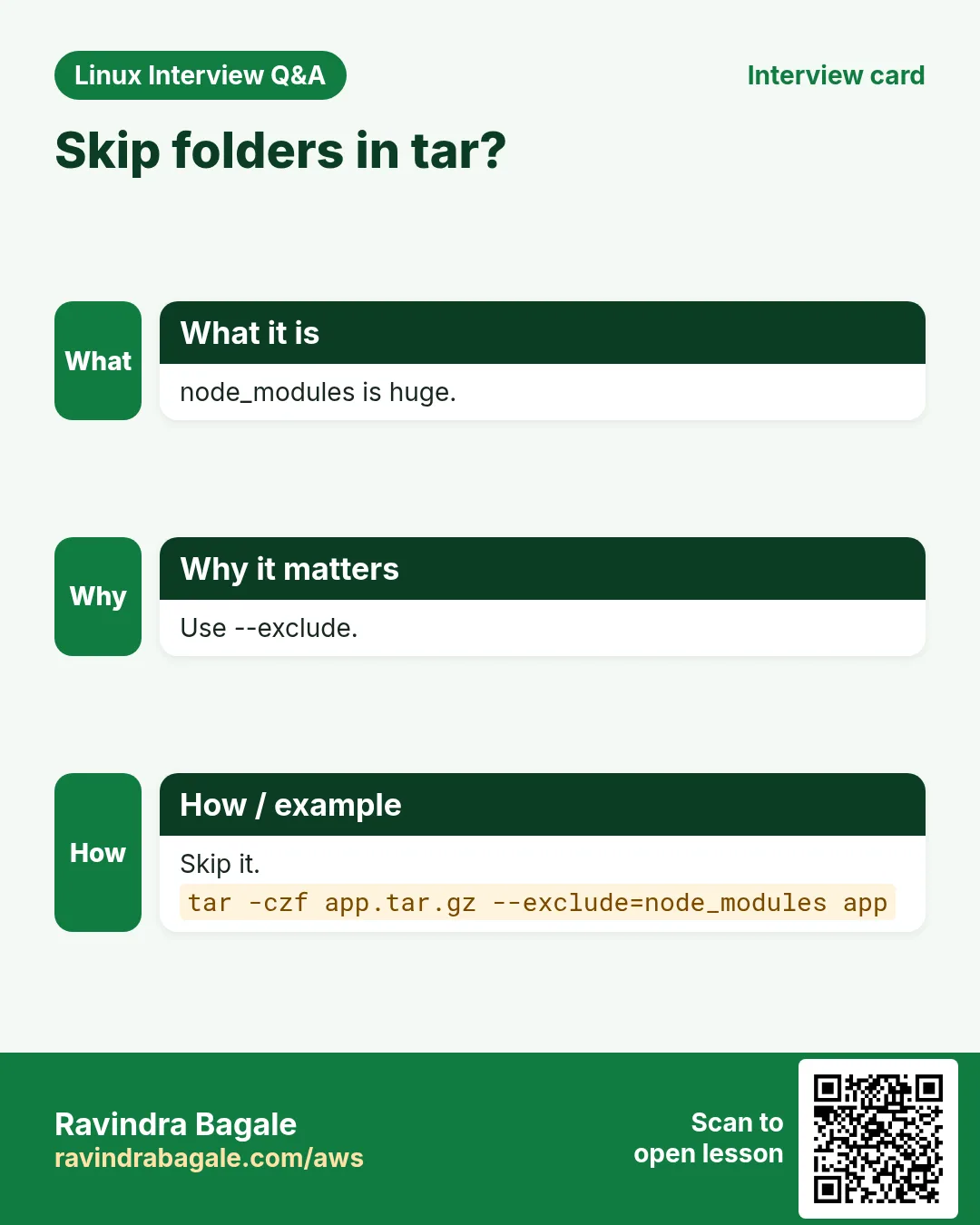
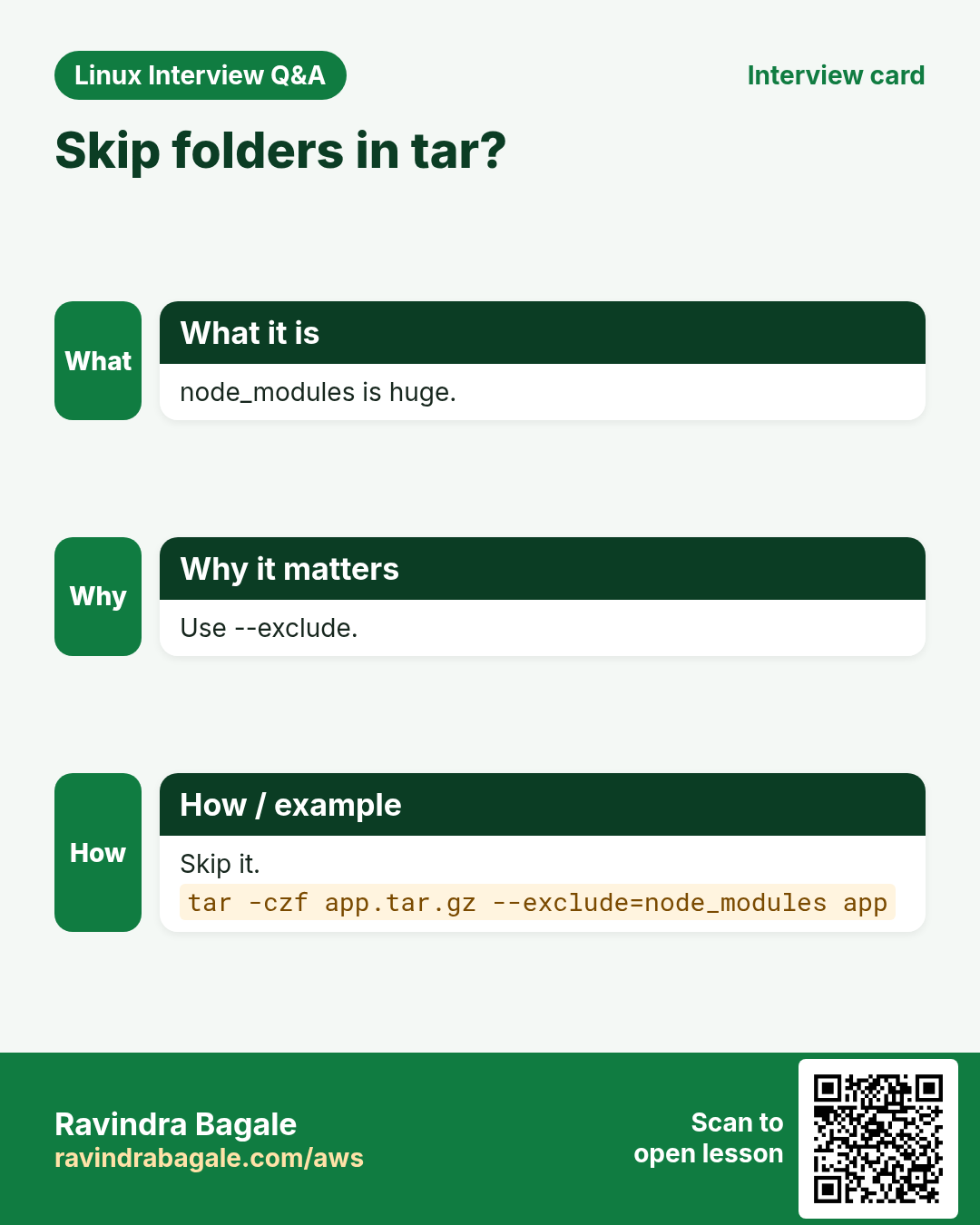
You do not want node_modules, .git, caches or secrets in a backup or release.
What is it?
--exclude=PATTERN skips matches (put it before the folder names). Repeat it, or list patterns in a file with -X FILE (--exclude-from). --exclude-vcs skips .git and similar.
How to do it (step by step)
- Release without junk.
tar --exclude=node_modules --exclude='*.log' --exclude-vcs -czf app.tgz app/Output:
(no output)What it means: Small and clean.
- From a file.
printf '.env\n*.pem\ntmp/\n' > .tarignore && tar -X .tarignore -czf app.tgz app/Output:
(no output)What it means: Secrets never leave.
- Check nothing leaked.
tar -tzf app.tgz | grep -E '\.env|\.pem' || echo noneOutput:
noneWhat it means: Always check.
9. --strip-components, -p and --same-owner
Why do we need this?
Downloaded releases often have a top folder like app-1.2.3/ that you do not want. Backups need permissions kept.
What is it?
--strip-components=1 removes the first path part on extract. -p keeps permissions (default as root). --same-owner restores owners (default as root). --numeric-owner stores IDs, not names, for moving between systems.
How to do it (step by step)
- Drop the version folder.
tar -xzf node-v22.10.0-linux-x64.tar.gz -C /opt/node --strip-components=1 && ls /opt/nodeOutput:
bin include lib shareWhat it means: bin is directly in /opt/node.
- Backup with owners.
sudo tar -cpzf etc-backup.tgz --numeric-owner /etcOutput:
tar: Removing leading `/' from member namesWhat it means: The warning is normal.
10. gzip and gunzip: one file
Why do we need this?
Old logs and SQL dumps are single files; you just want them smaller.
What is it?
gzip FILE replaces FILE with FILE.gz. -k keeps the original. -d or gunzip decompresses. -1 fastest, -9 smallest (default 6). -l shows the ratio. -r does every file in a folder. gzip works on files, not folders (use tar for folders).
How to do it (step by step)
- Compress and keep the original.
gzip -k -9 dump.sql && ls -lh dump.sql*Output:
-rw-r--r--. 1 ravi ravi 210M Oct 25 13:50 dump.sql
-rw-r--r--. 1 ravi ravi  31M Oct 25 13:50 dump.sql.gz
What it means: Both kept.
- Ratio.
gzip -l dump.sql.gzOutput:
  compressed        uncompressed  ratio uncompressed_name
    32505111           220200960  85.2% dump.sql
What it means: 85% saved.
- Decompress.
gunzip -k dump.sql.gzOutput:
gzip: dump.sql already exists; do you wish to overwrite (y or n)?What it means: -k and an existing file: it asks.
11. zcat, zless and zgrep: read without unpacking
Why do we need this?
Rotated logs are .gz. Unpacking them all wastes disk and time.
What is it?
zcat FILE.gz prints the text. zless pages it. zgrep PATTERN FILE.gz searches. xzcat, bzcat, zstdcat do the same for other formats.
How to do it (step by step)
- Search old logs.
sudo zgrep -c ' 500 ' /var/log/nginx/access.log.2.gzOutput:
37What it means: 37 server errors that day.
- First lines.
zcat dump.sql.gz | head -n 2Output:
-- PostgreSQL database dump
-- Dumped from database version 16.4
What it means: No file written.
12. xz, bzip2 and zstd on single files
Why do we need this?
Each tool has the same pattern, so once you know gzip you know them all.
What is it?
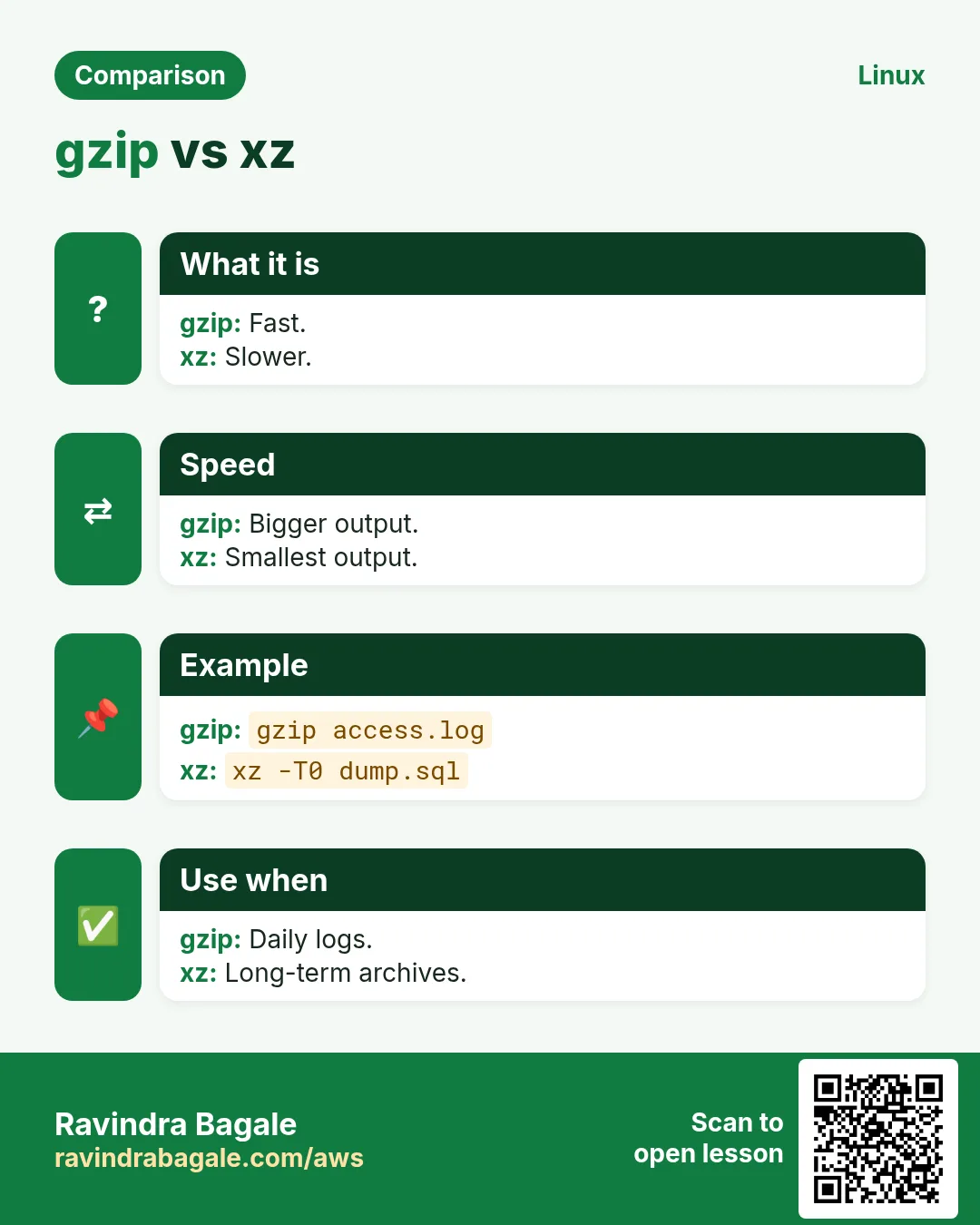
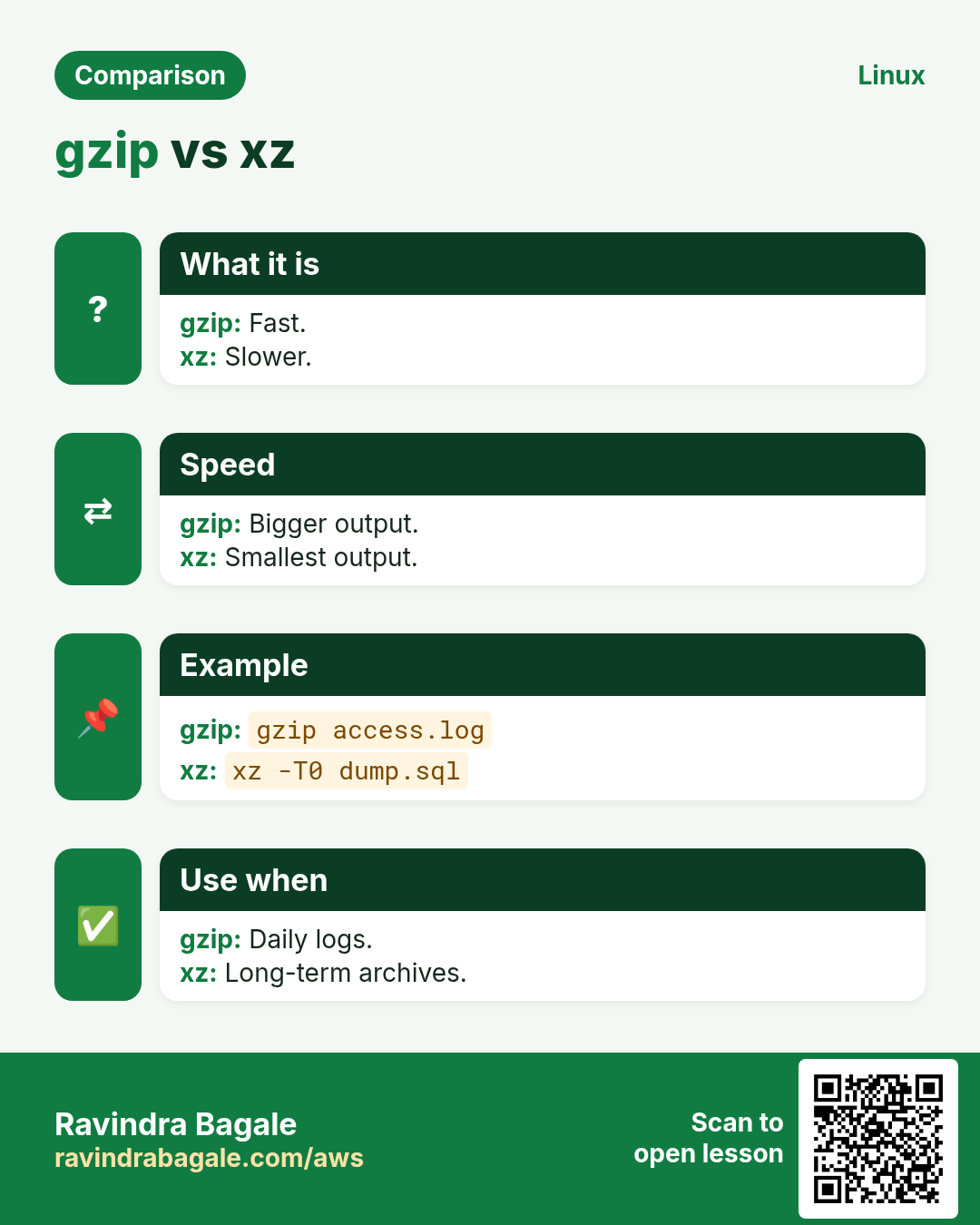
xz FILE / unxz FILE.xz / xz -k -T0 -9. bzip2 FILE / bunzip2. zstd FILE (keeps original by default) / zstd -d / unzstd. All support -k and -d. -c writes to stdout.
| Tool | Speed | Size | Use for |
|---|---|---|---|
| gzip | Fast | Medium | Logs, web, everywhere |
| bzip2 | Slow | Smaller | Old systems |
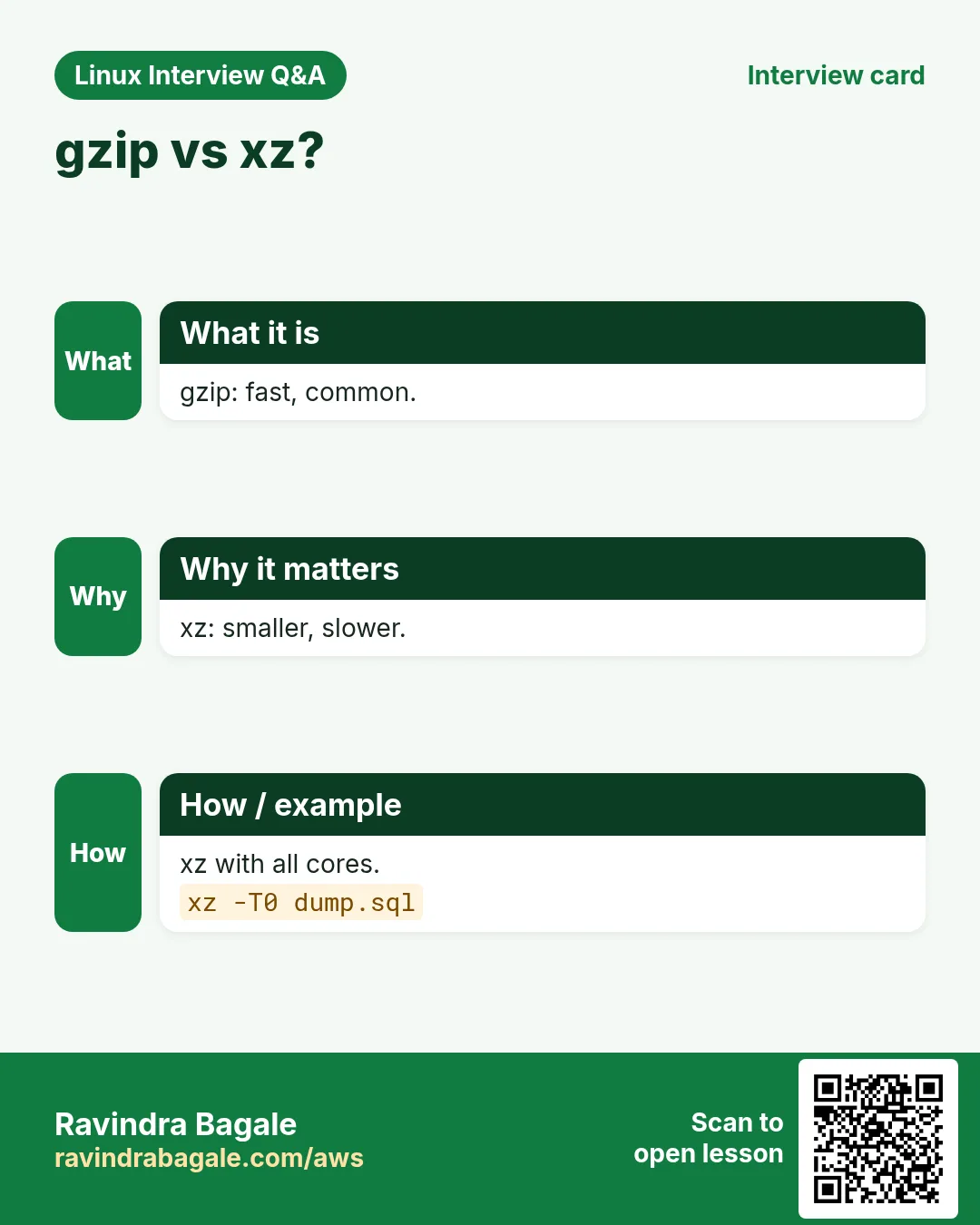
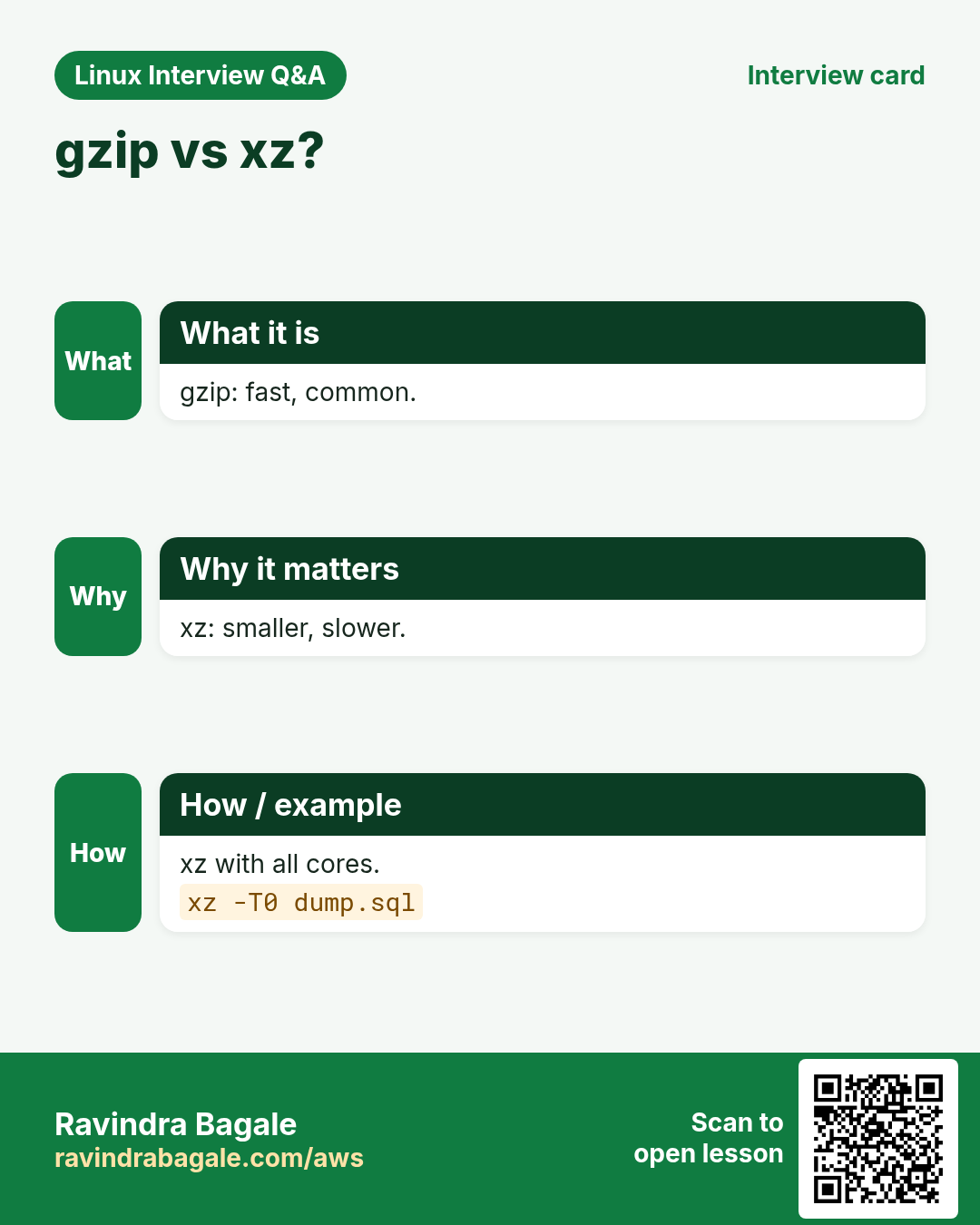
| xz | Slowest | Smallest | Releases, archives |
| zstd | Very fast | Small | Backups, CI, streaming |
How to do it (step by step)
- xz with all cores.
xz -k -T0 dump.sql && ls -lh dump.sql.xzOutput:
-rw-r--r--. 1 ravi ravi 22M Oct 25 13:55 dump.sql.xzWhat it means: 22M vs gzip 31M.
- zstd.
zstd -T0 dump.sqlOutput:
dump.sql : 13.10% (210 MiB => 27.5 MiB, dump.sql.zst)What it means: Fast, original kept.
- Stream a dump straight to a compressed file.
pg_dump shopdb | zstd -T0 > shopdb.sql.zstOutput:
(no output)What it means: No big temp file.
13. zip and unzip
Why do we need this?
Windows and Mac users, emails and many web uploads expect .zip.
What is it?
zip -r OUT.zip FOLDER adds a folder. -q quiet. -x 'pattern' excludes. -e asks for a password (weak, do not rely on it). unzip FILE.zip extracts; -d DIR into a folder; -l lists; -o overwrites without asking; -q quiet.
How to do it (step by step)
- Zip a report folder.
zip -rq reports-oct.zip reports/ -x '*.tmp' && ls -lh reports-oct.zipOutput:
-rw-r--r--. 1 ravi ravi 2.4M Oct 25 14:00 reports-oct.zipWhat it means: Ready for email.
- List.
unzip -l reports-oct.zip | tail -n 3Output:
     8120  2026-10-25 13:58   reports/gst.csv
---------                     -------
  9921040                     14 files
What it means: 14 files inside.
- Extract into a folder.
unzip -q reports-oct.zip -d /tmp/rep && ls /tmp/repOutput:
reportsWhat it means: Contained.
zip in depth: -r, -e, -u and -9
Why do we need this?
Windows and Mac users open .zip files with a double click. When you send files to a client, an accountant or a teacher, zip is the safest format to share.
What is it?
zip packs many files into one .zip file and compresses them at the same time. First write the zip name, then the files or folders to add.
Common options
| Option | What it does |
|---|---|
-r | Recursive: add a folder and everything inside it. |
-e | Encrypt: ask for a password and lock the zip. |
-u | Update: add only new or changed files to an existing zip. |
-9 | Best (slowest) compression. -1 is fastest. Default is 6. |
-q | Quiet: do not print each file name. |
-x | Exclude files that match a pattern. |
How to do it (step by step)
- Zip a whole folder with -r.
zip -r gst-2026.zip gst-2026Output:
  adding: gst-2026/ (stored 0%)
  adding: gst-2026/april.csv (deflated 71%)
What it means: Without -r you would get only the empty folder entry.
- Lock it with a password using -e.
zip -er salary-slips.zip slipsOutput:
Enter password:
Verify password:
  adding: slips/ (stored 0%)
What it means: The zip cannot be opened without the password. The password is not shown while you type.
- Add a changed file with -u.
zip -u gst-2026.zip gst-2026/may.csvOutput:
updating: gst-2026/may.csv (deflated 70%)What it means: Only the new or newer file goes in. The rest stay as they were.
- Squeeze harder with -9.
zip -9 -r photos-best.zip photos && ls -lh photos-best.zipOutput:
-rw-r--r-- 1 asha asha 41M Oct 25 10:12 photos-best.zipWhat it means: -9 is a little smaller but slower. Photos are already compressed, so the gain is small.
Practise this in the tasks below: Practice tasks
unzip in depth: -l, -d, -o, -t and one file
Why do we need this?
People send you zips by email and download links. You must look inside before opening, open in the right folder and check the file is not broken.
What is it?
unzip opens a .zip file. With no option it extracts everything into the current folder. You can also give file names after the zip to extract only those.
Common options
| Option | What it does |
|---|---|
-l | List the files inside, do not extract. |
-d DIR | Extract into folder DIR (it is created if needed). |
-o | Overwrite existing files without asking. |
-n | Never overwrite existing files. |
-t | Test the zip for damage, do not extract. |
-q | Quiet output. |
zip file1 | Extract only file1 from the zip. |
How to do it (step by step)
- Look inside first with -l.
unzip -l vendor-kyc.zipOutput:
  Length      Date    Time    Name
---------  ---------- -----   ----
   182044  2026-10-20 09:14   pan.pdf
    90211  2026-10-20 09:15   aadhaar.pdf
---------                     -------
   272255                     2 files
What it means: Two PDFs are inside. Nothing was written to disk.
- Extract into a chosen folder with -d.
unzip vendor-kyc.zip -d /srv/kyc/v102Output:
Archive:  vendor-kyc.zip
  inflating: /srv/kyc/v102/pan.pdf
  inflating: /srv/kyc/v102/aadhaar.pdf
What it means: Files go to /srv/kyc/v102, not the current folder.
- Replace old copies with -o.
unzip -o plugin-v2.zip -d wp-content/pluginsOutput:
inflating: wp-content/plugins/seo/seo.phpWhat it means: No "replace? [y]es, [n]o" question. Good for scripts.
- Test for damage with -t.
unzip -t backup-sept.zipOutput:
testing: db.sql   OK
No errors detected in compressed data of backup-sept.zip.
What it means: The zip is safe to use. A broken zip shows "bad CRC" or "End-of-central-directory signature not found".
- Take out one file only.
unzip vendor-kyc.zip pan.pdfOutput:
inflating: pan.pdfWhat it means: Only pan.pdf is extracted. Use quotes for patterns, like "*.pdf".
Practise this in the tasks below: Practice tasks
14. Verify archives: -t, -d, --test and checksums
Why do we need this?
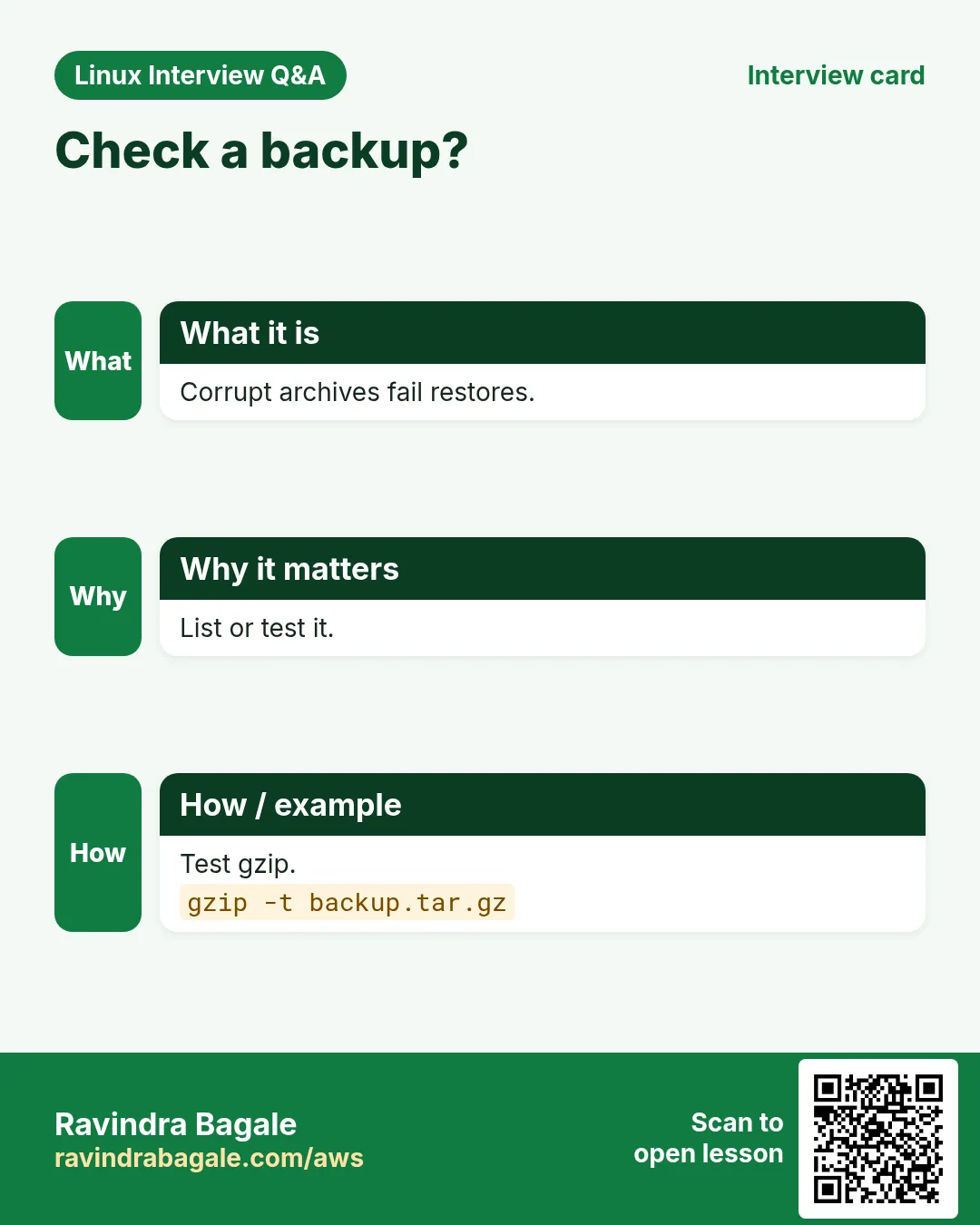
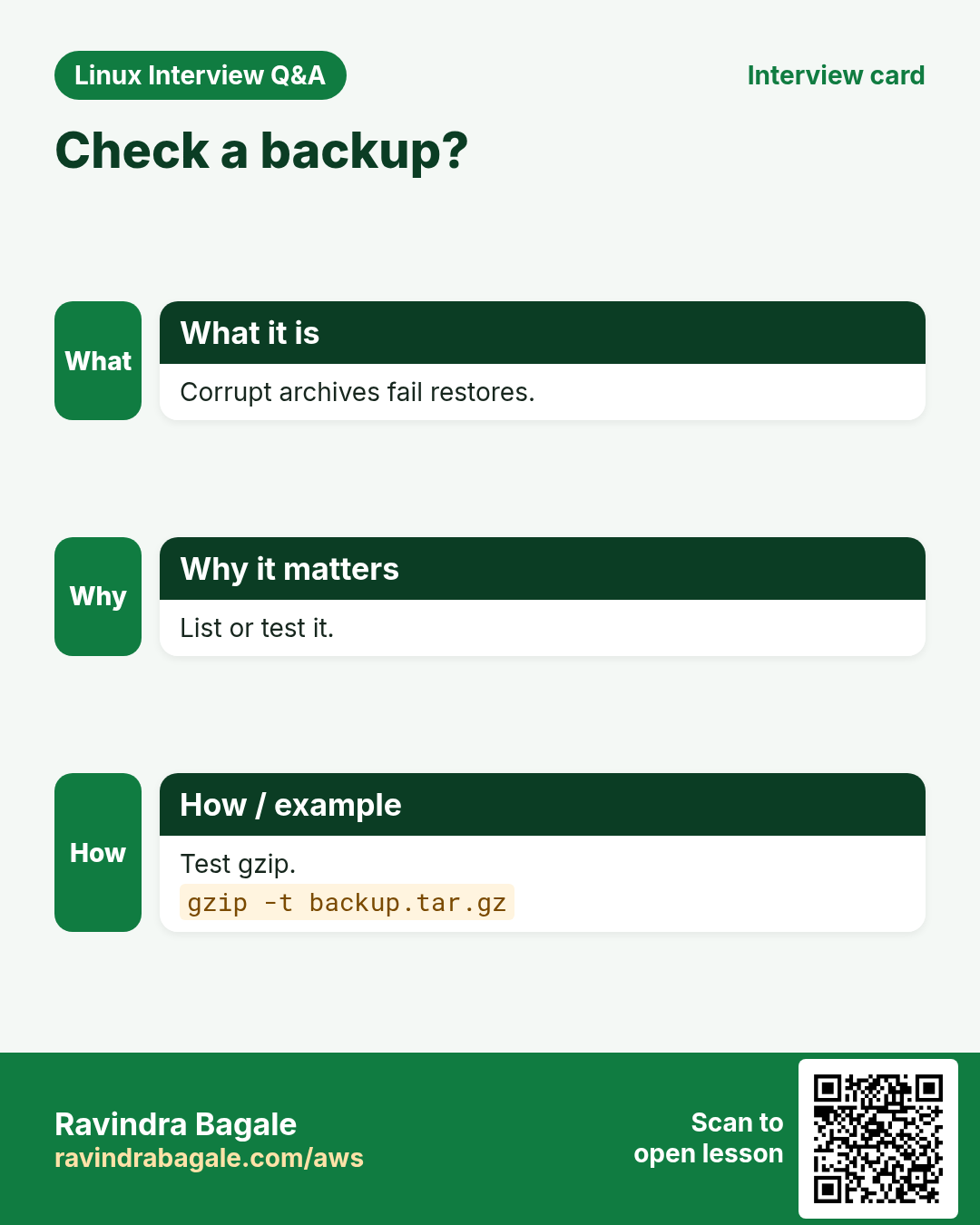
A backup you cannot restore is not a backup. Corrupt archives are found only when you need them, unless you test.
What is it?
gzip -t FILE.gz tests. xz -t, zstd -t, unzip -t do the same. tar -tzf FILE > /dev/null reads it all. tar -d (--compare) compares with the disk. sha256sum FILE > FILE.sha256, then sha256sum -c to check after copy.
How to do it (step by step)
- Test gzip.
gzip -t logs-2026-10-25.tar.gz && echo OKOutput:
OKWhat it means: No output from gzip = good.
- Zip test.
unzip -tq reports-oct.zipOutput:
No errors detected in compressed data of reports-oct.zip.What it means: Safe to send.
- Checksum after upload.
sha256sum app.tgz > app.tgz.sha256 && sha256sum -c app.tgz.sha256Output:
app.tgz: OKWhat it means: Same bytes on both ends.
15. Real examples from many industries
Why do we need this?
The same Linux skill shows up in every kind of company. Seeing it in many places helps you remember it.
What is it?
Each row is a made-up team. It shows who uses this and how.
How to do it (step by step)
| Team and city | How they use it | Command |
|---|---|---|
| Amit, CA office, Pune | Zips monthly GST reports for clients | zip -r gst-oct.zip gst/ |
| Hannah, SaaS, Berlin | Ships releases as .tar.xz | tar -cJf app.tar.xz build/ |
| Omar, bank, Riyadh | Nightly DB dump streamed to zstd | pg_dump db | zstd > db.zst |
| Yuki, gaming, Tokyo | Searches old rotated logs with zgrep | zgrep 'match_id=91' access.log.3.gz |
| Diego, media, Lima | Backs up /etc with owners kept | tar -cpzf etc.tgz /etc |
| Kavya, hospital, Nashik | Verifies every backup archive | gzip -t backup.tgz |
16. Common errors and how to fix them
Why do we need this?
Everyone hits these errors. Knowing the cause saves hours.
What is it?
Read the exact message first. Then match it to a row below.
How to do it (step by step)
| Error you see | Why it happens | How to fix |
|---|---|---|
tar: Cowardly refusing to create an empty archive | No files named after -f NAME | Give the folder to pack.tar -czf out.tgz folder/ |
tar: Removing leading `/' from member names | You gave an absolute path; tar makes it safe | Normal; or use -C / with relative path.tar -czf etc.tgz -C / etc |
gzip: stdin: not in gzip format | File is not gzip (maybe plain tar or xz) | Check with file, use the right flag.file archive.tgz |
tar: Error is not recoverable: exiting now | Archive truncated or corrupt | Re-download; verify checksum.sha256sum -c app.tgz.sha256 |
tar: f: Cannot open: No such file or directory | Option order: -fcz puts c as the file name | Keep f last before the name.tar -czf out.tgz dir/ |
tar: /target: Cannot open: No such file or directory (with -C) | Target folder does not exist | Create it first.mkdir -p /target |
gzip: dump.sql.gz already exists; do you wish to overwrite (y or n)? | Output exists | Remove it or use -f.gzip -f dump.sql |
zip warning: name not matched: reports | Path wrong or not in this folder | Check the path.ls -d reports |
unzip: cannot find zipfile directory | Not a zip, or incomplete download | Check with file and size.file reports.zip |
No space left on device during tar | Writing the archive on the same full disk | Write to another disk or stream it away.tar -czf - dir | ssh backup 'cat > dir.tgz' |
17. Troubleshooting step by step
Why do we need this?
When an archive will not open, find its real type, test it, then extract into an empty folder.
What is it?
Go top to bottom. Stop at the first step that shows the problem.
How to do it (step by step)
- What is it really?
file backup.tgz- Is the size sane?
ls -lh backup.tgz- Test the compression layer.
gzip -t backup.tgz- List the tar layer.
tar -tzf backup.tgz | head- Compare checksum with the source.
sha256sum backup.tgz- Extract into an empty folder.
mkdir -p /tmp/x && tar -xzf backup.tgz -C /tmp/x18. Lab 1: Backup and restore a project
Why do we need this?
Create a project, back it up without junk, verify it, delete and restore it.
What is it?
A full hands-on lab. Run every step on a test Linux machine (an EC2 instance, a VM, or WSL).
How to do it (step by step)
- Make files.
mkdir -p proj/src proj/node_modules && echo app > proj/src/app.js && echo secret > proj/.env && echo dep > proj/node_modules/x.jsOutput:
(no output)- Backup with excludes.
tar --exclude=node_modules --exclude=.env -czf proj.tgz proj/Output:
(no output)- Check contents.
tar -tzf proj.tgzOutput:
proj/
proj/src/
proj/src/app.js- Verify and checksum.
gzip -t proj.tgz && sha256sum proj.tgz > proj.tgz.sha256 && sha256sum -c proj.tgz.sha256Output:
proj.tgz: OK- Delete and restore.
rm -rf proj && tar -xzf proj.tgz && cat proj/src/app.jsOutput:
app19. Lab 2: Compare gzip, xz, zstd and zip
Why do we need this?
Compress the same file with each tool, compare size and time, and read one without unpacking.
What is it?
A full hands-on lab. Run every step on a test Linux machine (an EC2 instance, a VM, or WSL).
How to do it (step by step)
- A big text file.
seq 1 3000000 > nums.txt && ls -lh nums.txtOutput:
-rw-r--r--. 1 ravi ravi 21M Oct 25 14:10 nums.txt- gzip and xz.
time gzip -k nums.txt; time xz -k -T0 nums.txtOutput:
real 0m0.9s
real 0m2.8s- zstd and zip.
zstd -q nums.txt; zip -q nums.zip nums.txtOutput:
(no output)- Compare.
ls -lh nums.txt.* nums.zip | awk '{print $5, $9}'Output:
6.3M nums.txt.gz
1.5M nums.txt.xz
2.9M nums.txt.zst
6.3M nums.zip- Read without unpacking.
zcat nums.txt.gz | tail -n1Output:
3000000Ravindra Bagale's Tip
Remember tar as c-x-t: Create, eXtract, lisT, and keep f last because the name follows it. Before trusting any backup, test it (gzip -t) and restore it once into an empty folder.
Ravindra Bagale's Tip – मराठी
tar c-x-t म्हणून लक्षात ठेवा: Create, eXtract, lisT, आणि f शेवटी कारण नाव त्याच्या नंतर येतं. कोणत्याही backup वर विश्वास ठेवण्याआधी test करा (gzip -t) आणि एकदा रिकाम्या folder मधे restore करा.
Ravindra Bagale's Tip – हिंदी
tar को c-x-t याद रखें: Create, eXtract, lisT, और f आखिर में क्योंकि नाम उसके बाद आता है. किसी भी backup पर भरोसा करने से पहले test करें (gzip -t) और एक बार खाली folder में restore करें.
20. Frequently asked questions
Q. Archive vs compress?
Archive = many files into one (tar). Compress = make smaller (gzip). .tar.gz does both.
Q. .tgz vs .tar.gz?
Same thing.
Q. Which format should I use?
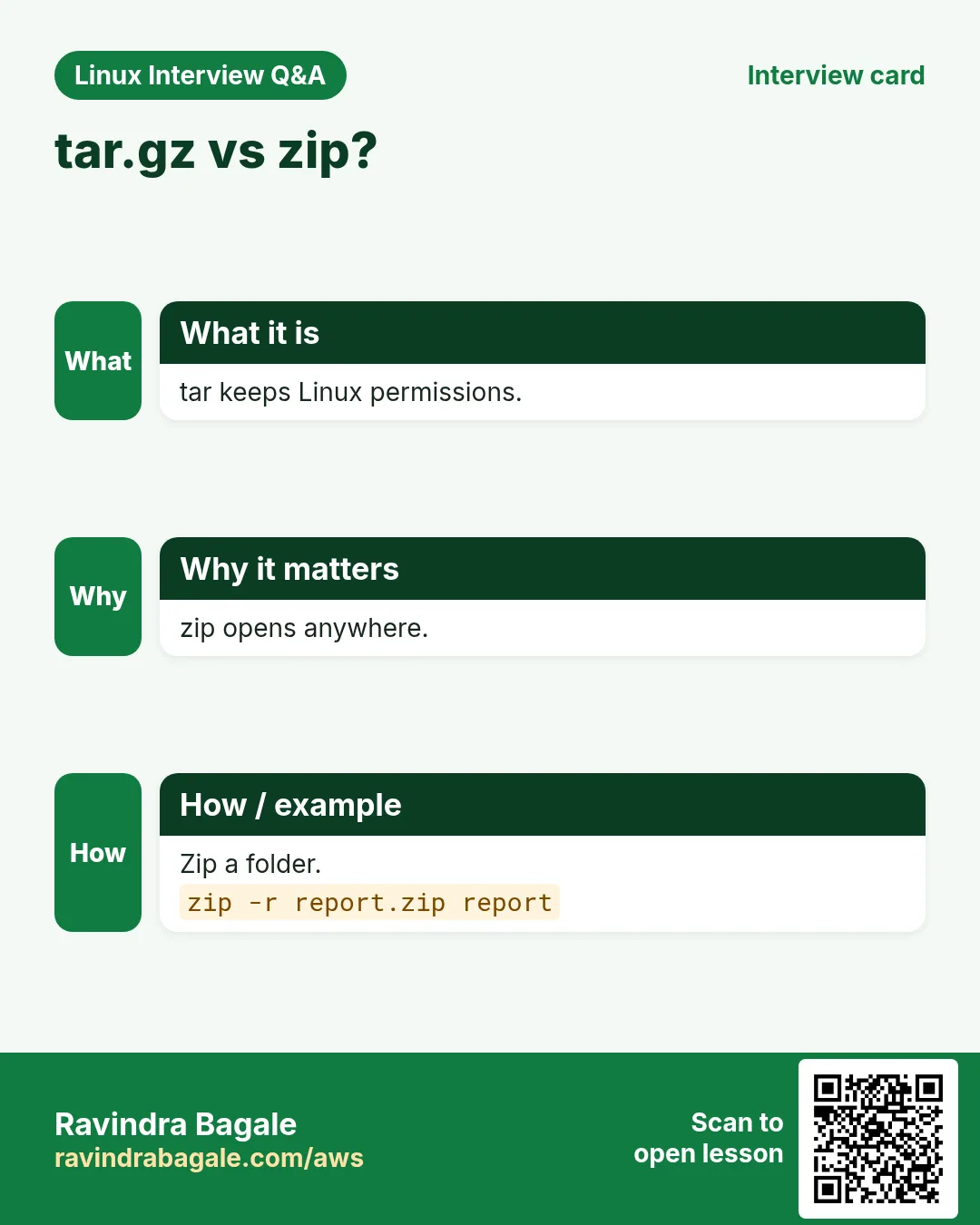
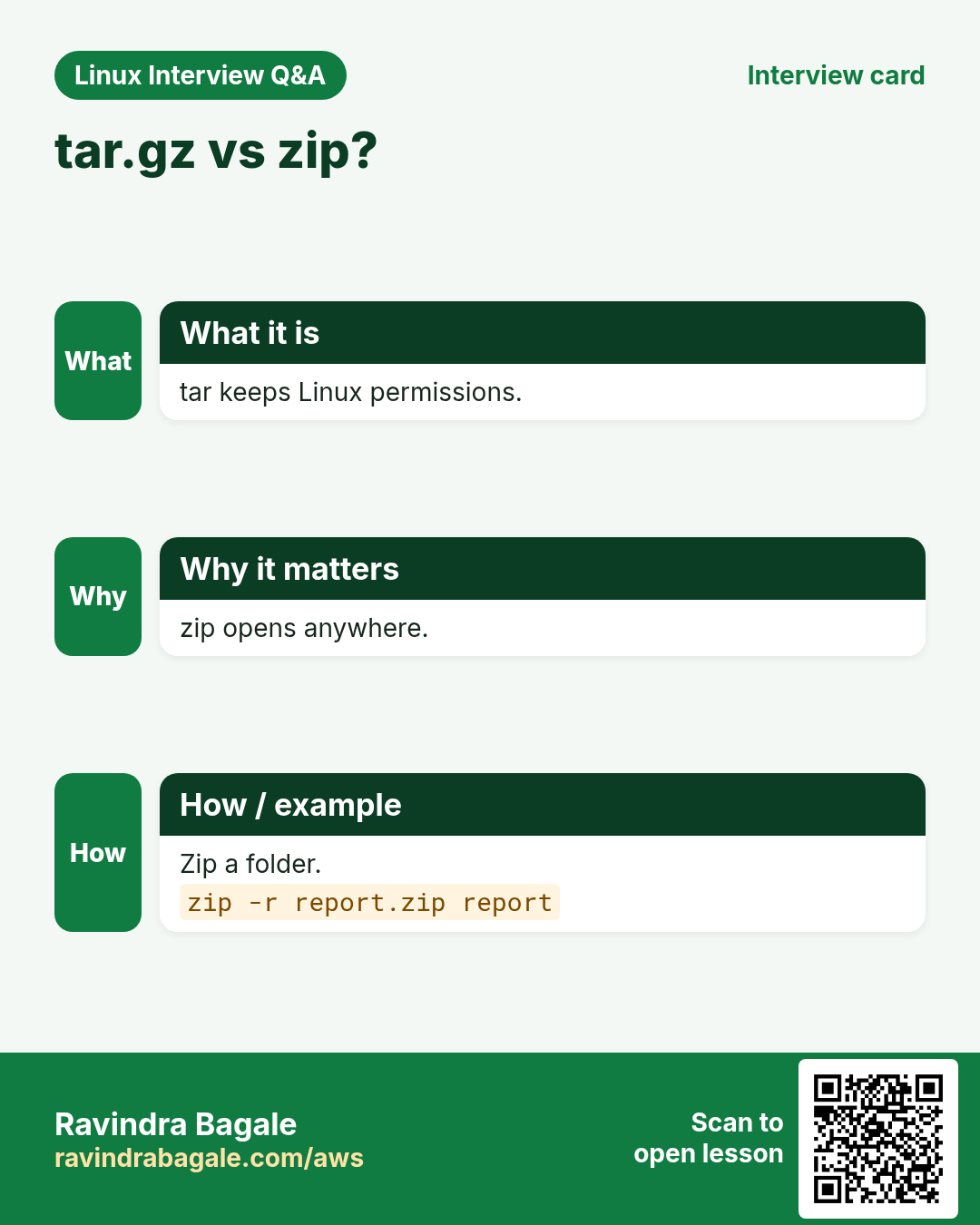
gzip for compatibility, zstd for speed, xz for smallest, zip for Windows users.
Q. Does tar keep permissions?
Yes, it stores them; restoring owners needs root.
Q. Can gzip compress a folder?
No, tar it first, or gzip -r compresses each file separately.
Q. Why is my .gz not smaller?
Already compressed data (jpg, mp4, zip) does not shrink.
Q. Is zip -e safe?
Old zip encryption is weak. Use gpg or 7z AES for secrets.
Q. How to copy a folder to another server as an archive without temp files?
tar -czf - dir | ssh host 'tar -xzf - -C /dest'.
21. Interview questions and answers
Beginner level
Q. Create a .tar.gz of folder app?
tar -czf app.tgz app/.
Q. List a tar.gz without extracting?
tar -tzf app.tgz.
Q. Extract into /opt?
tar -xzf app.tgz -C /opt.
Q. Keep the original with gzip?
gzip -k FILE.
Mid level level
Q. Exclude node_modules from a tar?
--exclude=node_modules before the folder.
Q. Remove the top folder on extract?
--strip-components=1.
Q. Search inside a .gz log?
zgrep PATTERN FILE.gz.
Q. gzip vs xz vs zstd?
Speed vs size trade-off: gzip balanced, xz smallest, zstd fastest at good size.
Senior level
Q. Design a backup that you trust.
Consistent snapshot or dump, compress with zstd, checksum, copy offsite, test restore regularly, monitor.
Q. What is a tar bomb and how do you avoid it?
An archive without a top folder or with ../ paths; list first and extract into an empty folder.
Q. Move 2 TB between servers fast?
tar | zstd -T0 | ssh or mbuffer, or rsync for resumable copies.
Q. Why --numeric-owner for system backups?
User names may map to different IDs on the restore host.
Try at home
- Back up your home folder's Documents with tar and zstd, excluding *.iso. Test it and restore into /tmp/check.
- Take a log file, compress it with gzip, xz and zstd, and write a table of size and time.
Practice Tasks
Milan Furniture is a furniture business in Milan. Giulia Rossi looks after its IT and cloud work. They count money in EUR and run their AWS resources in the eu-south-1 Region. In the tasks below you do real jobs for them using what this lesson teaches. All names, account IDs, IP addresses and numbers are made up for practice.
0 / 22
Easy Create a tar.gz
Why: Backups and transfers need archives.
What to do: Create site.tar.gz from the folder site.
- Find the Linux command that does this job.
- Add the options (like -r or -h) the task needs.
- Add the file names, folders or users in the right order.
- Use sudo if the job changes system files or users. Click Check answer.
Easy List an archive
Why: Backups and transfers need archives.
What to do: List contents of site.tar.gz.
- Find the Linux command that does this job.
- Add the options (like -r or -h) the task needs.
- Add the file names, folders or users in the right order.
- Use sudo if the job changes system files or users. Click Check answer.
Easy Extract
Why: Backups and transfers need archives.
What to do: Extract site.tar.gz here.
- Find the Linux command that does this job.
- Add the options (like -r or -h) the task needs.
- Add the file names, folders or users in the right order.
- Use sudo if the job changes system files or users. Click Check answer.
Easy Best gzip compression
Why: Backups and transfers need archives.
What to do: Compress error.log with gzip at maximum level 9.
- Find the Linux command that does this job.
- Add the options (like -r or -h) the task needs.
- Add the file names, folders or users in the right order.
- Use sudo if the job changes system files or users. Click Check answer.
Easy Uncompress
Why: Backups and transfers need archives.
What to do: Uncompress access.log.gz.
- Find the Linux command that does this job.
- Add the options (like -r or -h) the task needs.
- Add the file names, folders or users in the right order.
- Use sudo if the job changes system files or users. Click Check answer.
Easy Make a zip
Why: Backups and transfers need archives.
What to do: Zip the folder report into report.zip.
- Find the Linux command that does this job.
- Add the options (like -r or -h) the task needs.
- Add the file names, folders or users in the right order.
- Use sudo if the job changes system files or users. Click Check answer.
Easy List zip
Why: Backups and transfers need archives.
What to do: List contents of report.zip without extracting.
- Find the Linux command that does this job.
- Add the options (like -r or -h) the task needs.
- Add the file names, folders or users in the right order.
- Use sudo if the job changes system files or users. Click Check answer.
Easy Uncompress xz
Why: Backups and transfers need archives.
What to do: Uncompress dump.sql.xz.
- Find the Linux command that does this job.
- Add the options (like -r or -h) the task needs.
- Add the file names, folders or users in the right order.
- Use sudo if the job changes system files or users. Click Check answer.
Easy Max zip compression
Why: Backups and transfers need archives.
What to do: Zip the folder logs into logs.zip with the best compression level.
- Find the Linux command that does this job.
- Add the options (like -r or -h) the task needs.
- Add the file names, folders or users in the right order.
- Use sudo if the job changes system files or users. Click Check answer.
Easy Check a zip
Why: Backups and transfers need archives.
What to do: Check invoices.zip for damage without extracting it.
- Find the Linux command that does this job.
- Add the options (like -r or -h) the task needs.
- Add the file names, folders or users in the right order.
- Use sudo if the job changes system files or users. Click Check answer.
Medium Extract elsewhere
Why: Backups and transfers need archives.
What to do: Extract site.tar.gz into /srv/www.
- Find the Linux command that does this job.
- Add the options (like -r or -h) the task needs.
- Add the file names, folders or users in the right order.
- Use sudo if the job changes system files or users. Click Check answer.
Medium xz archive
Why: Backups and transfers need archives.
What to do: Create logs.tar.xz from folder logs.
- Find the Linux command that does this job.
- Add the options (like -r or -h) the task needs.
- Add the file names, folders or users in the right order.
- Use sudo if the job changes system files or users. Click Check answer.
Medium Keep original
Why: Backups and transfers need archives.
What to do: gzip access.log but keep the original.
- Find the Linux command that does this job.
- Add the options (like -r or -h) the task needs.
- Add the file names, folders or users in the right order.
- Use sudo if the job changes system files or users. Click Check answer.
Medium Read without extracting
Why: Backups and transfers need archives.
What to do: Search ERROR in app.log.gz without extracting.
- Find the Linux command that does this job.
- Add the options (like -r or -h) the task needs.
- Add the file names, folders or users in the right order.
- Use sudo if the job changes system files or users. Click Check answer.
Medium Unzip elsewhere
Why: Backups and transfers need archives.
What to do: Unzip report.zip into /tmp/r.
- Find the Linux command that does this job.
- Add the options (like -r or -h) the task needs.
- Add the file names, folders or users in the right order.
- Use sudo if the job changes system files or users. Click Check answer.
Medium xz a file
Why: Backups and transfers need archives.
What to do: Compress dump.sql with xz using all CPU cores.
- Find the Linux command that does this job.
- Add the options (like -r or -h) the task needs.
- Add the file names, folders or users in the right order.
- Use sudo if the job changes system files or users. Click Check answer.
Medium Password zip
Why: Backups and transfers need archives.
What to do: Zip the folder payroll into payroll.zip with a password lock.
- Find the Linux command that does this job.
- Add the options (like -r or -h) the task needs.
- Add the file names, folders or users in the right order.
- Use sudo if the job changes system files or users. Click Check answer.
Medium Update a zip
Why: Backups and transfers need archives.
What to do: Put only the changed file index.html into the existing site.zip.
- Find the Linux command that does this job.
- Add the options (like -r or -h) the task needs.
- Add the file names, folders or users in the right order.
- Use sudo if the job changes system files or users. Click Check answer.
Medium Unzip without asking
Why: Backups and transfers need archives.
What to do: Extract theme.zip here and replace existing files without any question.
- Find the Linux command that does this job.
- Add the options (like -r or -h) the task needs.
- Add the file names, folders or users in the right order.
- Use sudo if the job changes system files or users. Click Check answer.
Medium One file from a zip
Why: Backups and transfers need archives.
What to do: Extract only cover.jpg from photos.zip.
- Find the Linux command that does this job.
- Add the options (like -r or -h) the task needs.
- Add the file names, folders or users in the right order.
- Use sudo if the job changes system files or users. Click Check answer.
Hard Exclude files
Why: Backups and transfers need archives.
What to do: Archive app as app.tar.gz but skip node_modules.
- Find the Linux command that does this job.
- Add the options (like -r or -h) the task needs.
- Add the file names, folders or users in the right order.
- Use sudo if the job changes system files or users. Click Check answer.
Hard Test integrity
Why: Backups and transfers need archives.
What to do: Test backup.tar.gz for damage.
- Find the Linux command that does this job.
- Add the options (like -r or -h) the task needs.
- Add the file names, folders or users in the right order.
- Use sudo if the job changes system files or users. Click Check answer.
22. Related chapters
- Linux Ops Refresh for DevOps
- Bash Scripting for Automation
- Linux grep and find Commands with Examples
- How to Set Up Passwordless SSH Between Linux Servers
In short
- tar -c create, -t list, -x extract, f before the name.
- -z gzip, -J xz, -j bzip2, --zstd zstd.
- -C, --exclude, --strip-components shape the result.
- gzip/gunzip -k, zcat and zgrep for single files.
- zip -r and unzip -d for Windows-friendly archives.
- Test with -t and checksums; restore once to be sure.
Revision, comparison and interview cards
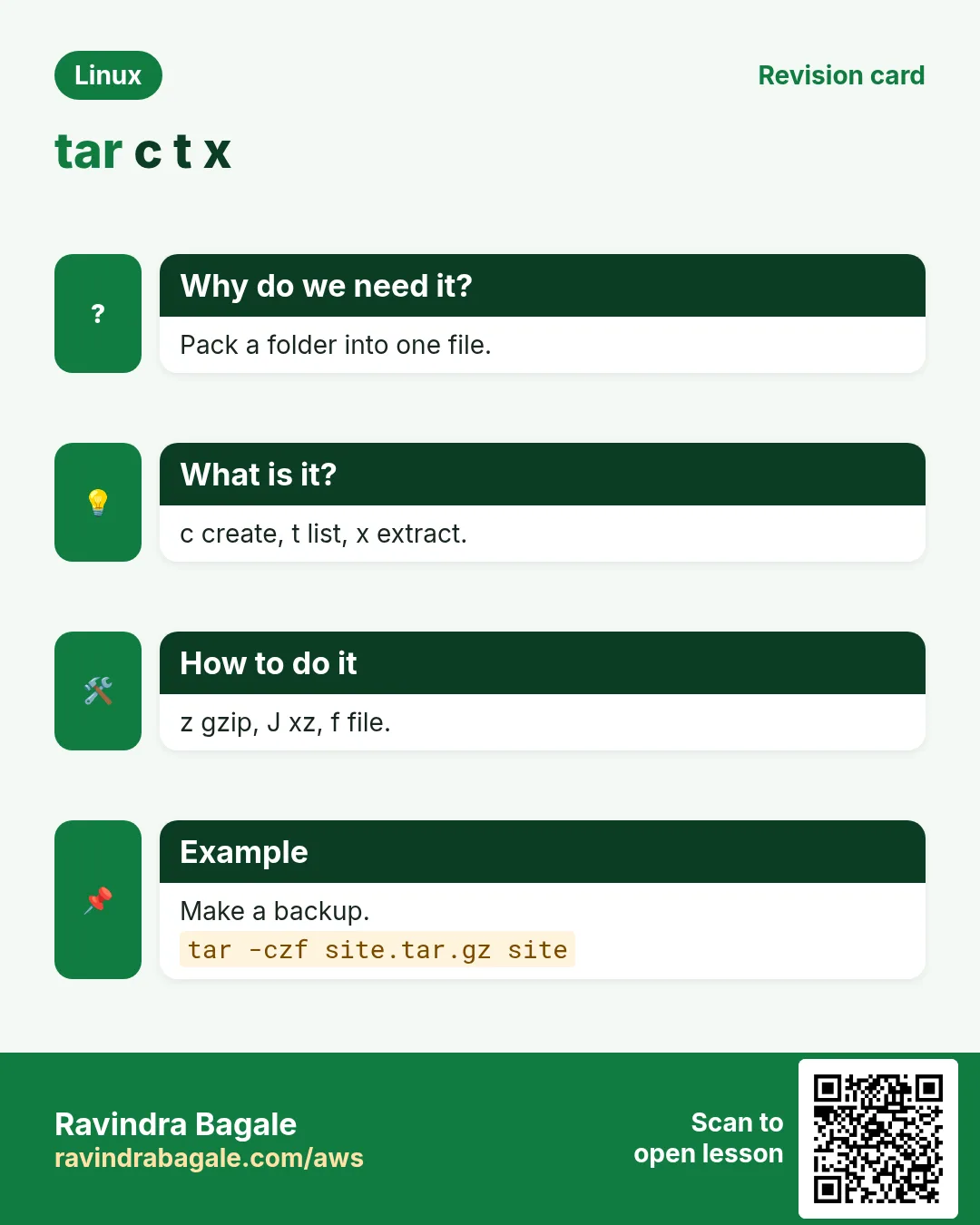
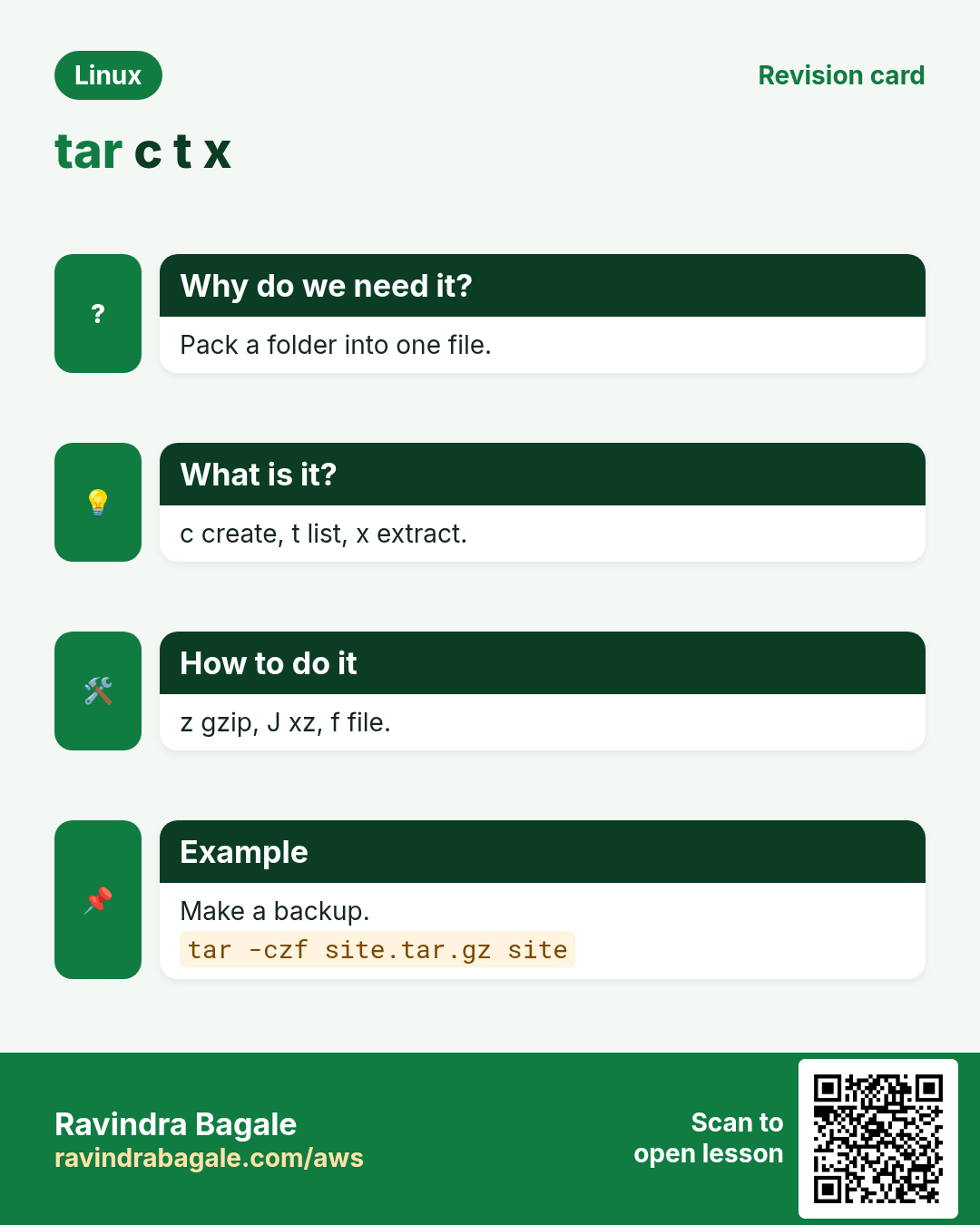
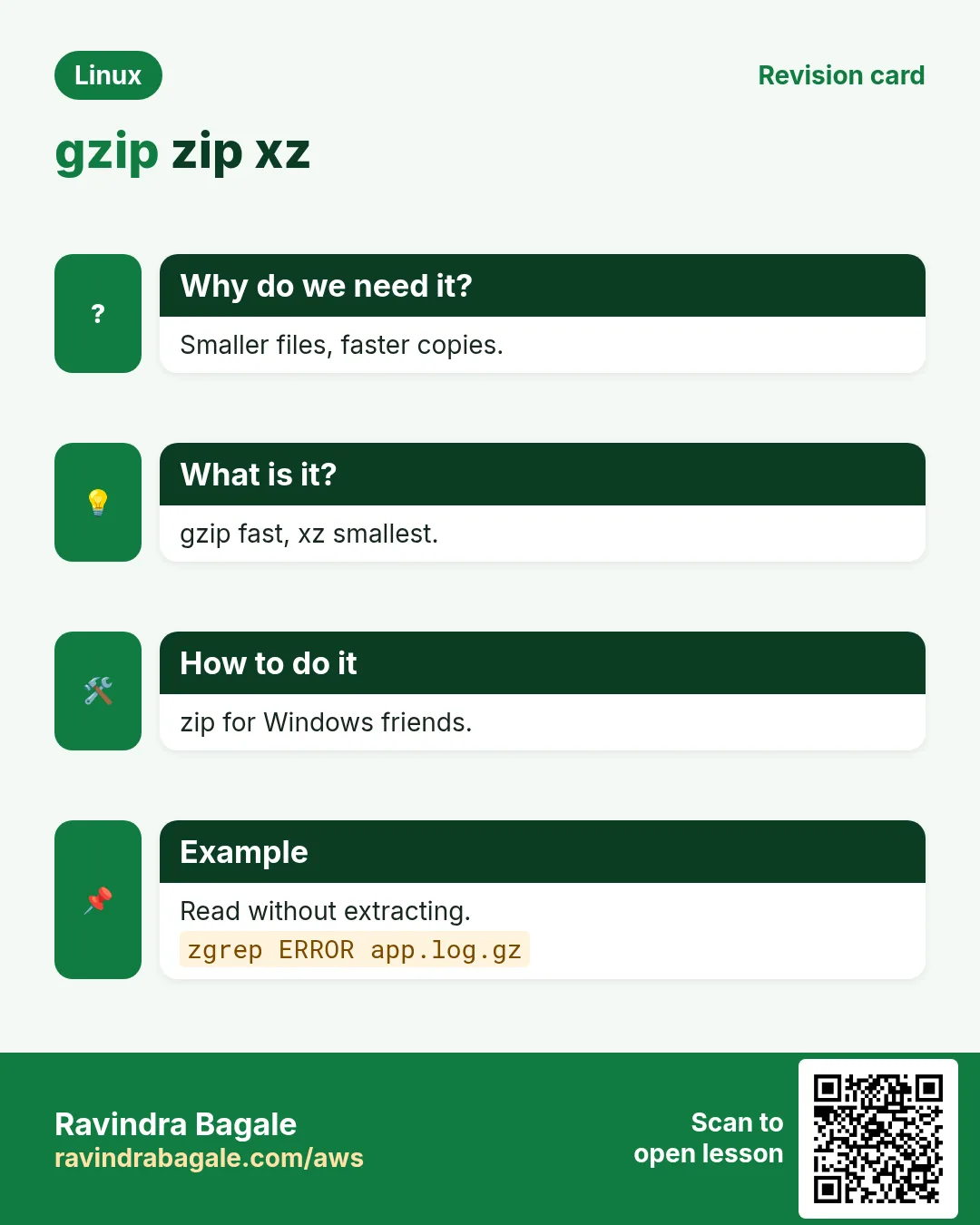
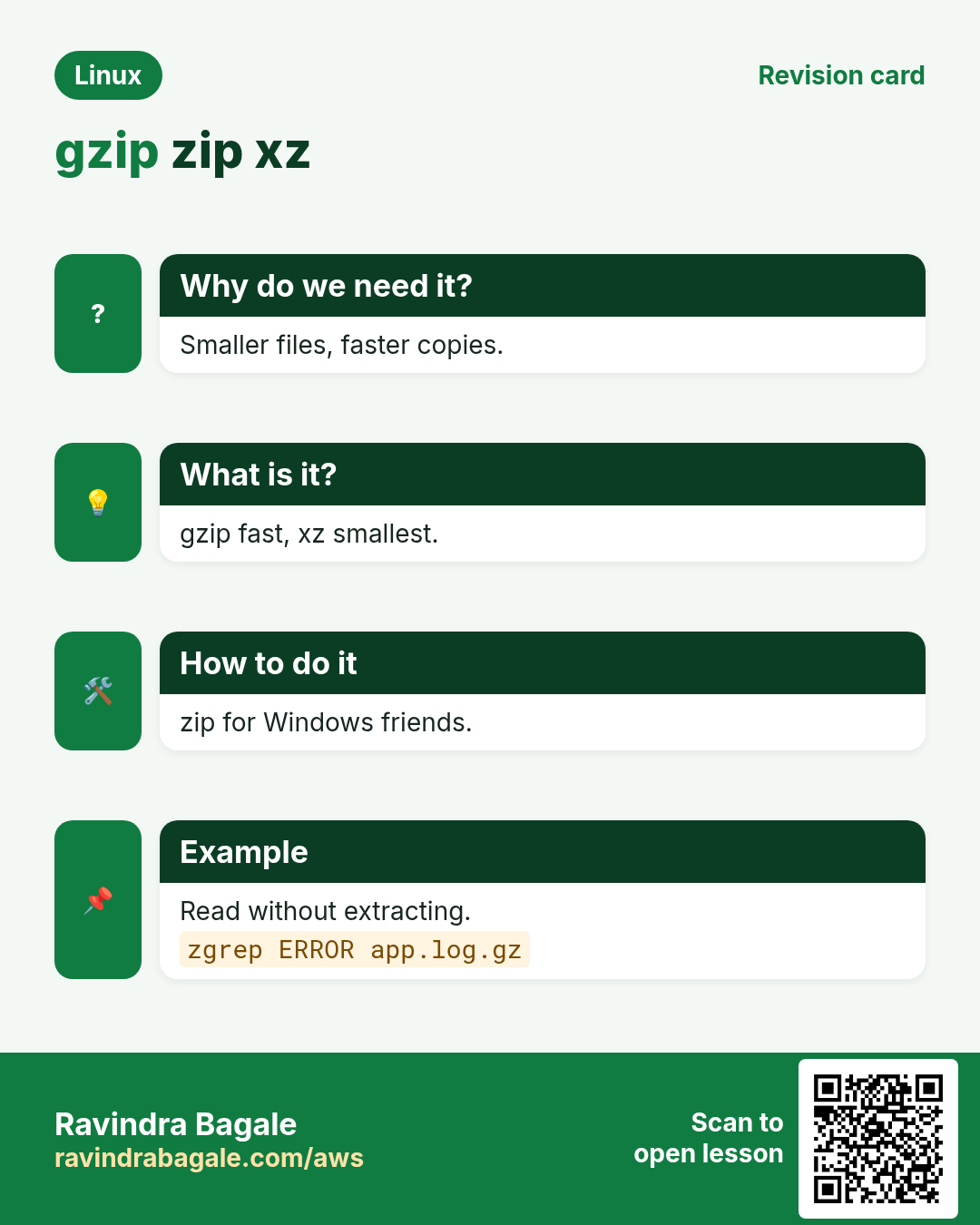
Revise this lesson in a few minutes. Save the cards on your phone or download them as PNG files. The QR code on each card opens this lesson.
More cards: Ravi Sir's Cards.