Linux Process Management: ps, top, htop, pgrep, jobs, bg, fg, nohup, nice and renice
Every running program is a process with a number (PID), an owner, a parent, and a state. In this chapter you learn to list processes (ps, pstree, pgrep), watch them live (top, htop), run them in the background and bring them back (&, jobs, bg, fg, nohup, disown), change their priority (nice, renice), and look inside them (/proc, lsof).
What you'll learn in this chapter
- List and filter processes with ps, pgrep and pstree
- Read top and htop: load, CPU, memory, states
- Use jobs, &, Ctrl+Z, bg, fg
- Keep jobs alive after logout with nohup and disown
- Change priority with nice and renice
- Inspect a process with /proc and lsof
1. An everyday example: a busy wada kitchen
Why do we need this?
In a Sadashiv Peth wada during Ganpati, the kitchen runs many tasks at once: rice on one stove, modak steaming, a pressure cooker, and someone chopping. Aaji keeps a token on each pot with a number and the cook's name. Some tasks wait for the cooker whistle. The modak can keep steaming while the cook steps out. When guests arrive, Aaji says 'rice first, sweets can wait'.
What is it?
Each pot = a process. Token number = PID. Cook's name = user. Who started it = parent (PPID). Waiting for the whistle = sleeping state. Steaming while the cook is out = a background job with nohup. 'Rice first' = nice/renice priority. Aaji watching everything = top.
How to do it (step by step)
2. ps aux: every process, BSD style
Why do we need this?
When a server is slow or an app is 'stuck', the first question is: what is running, as whom, and using how much?
What is it?
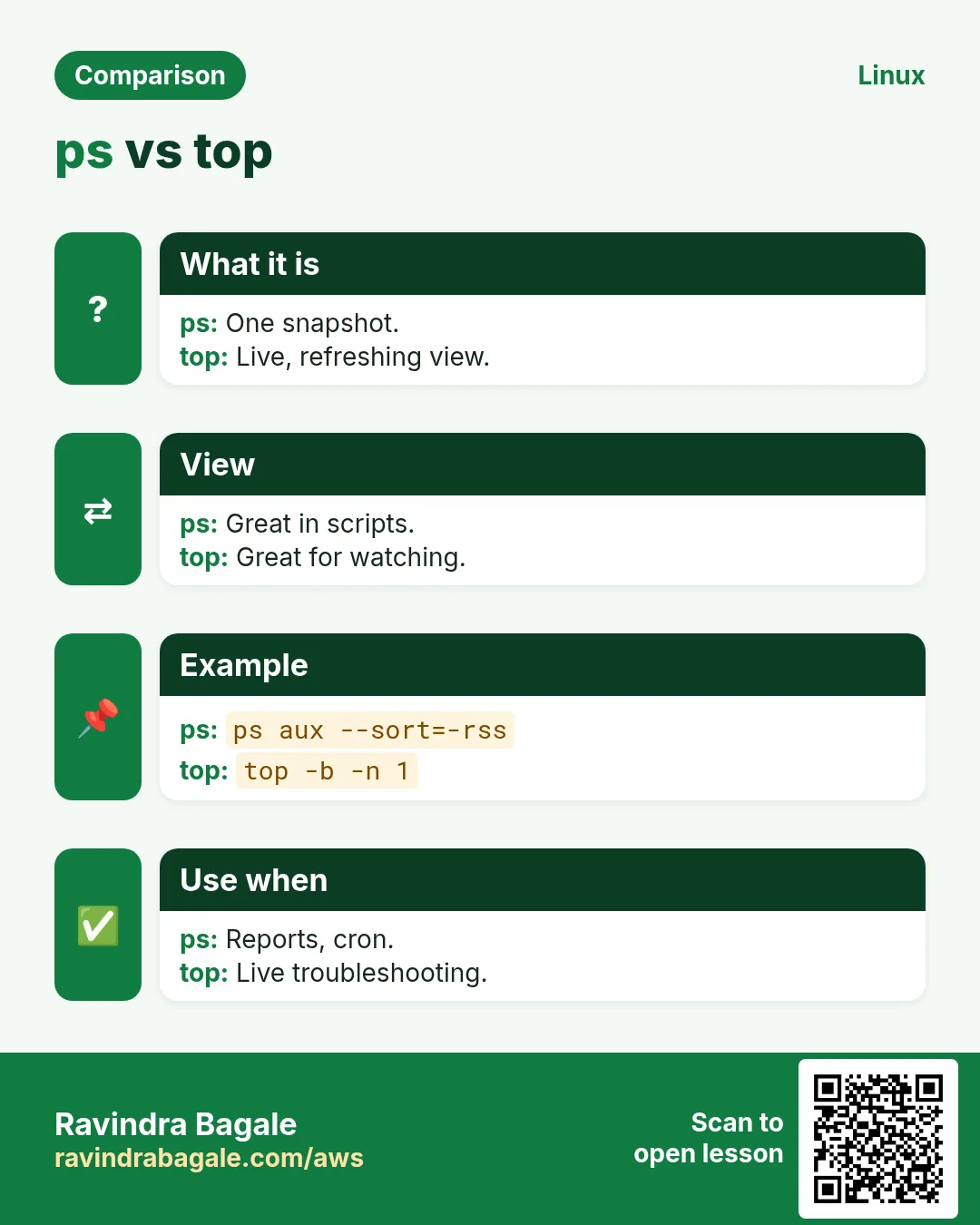
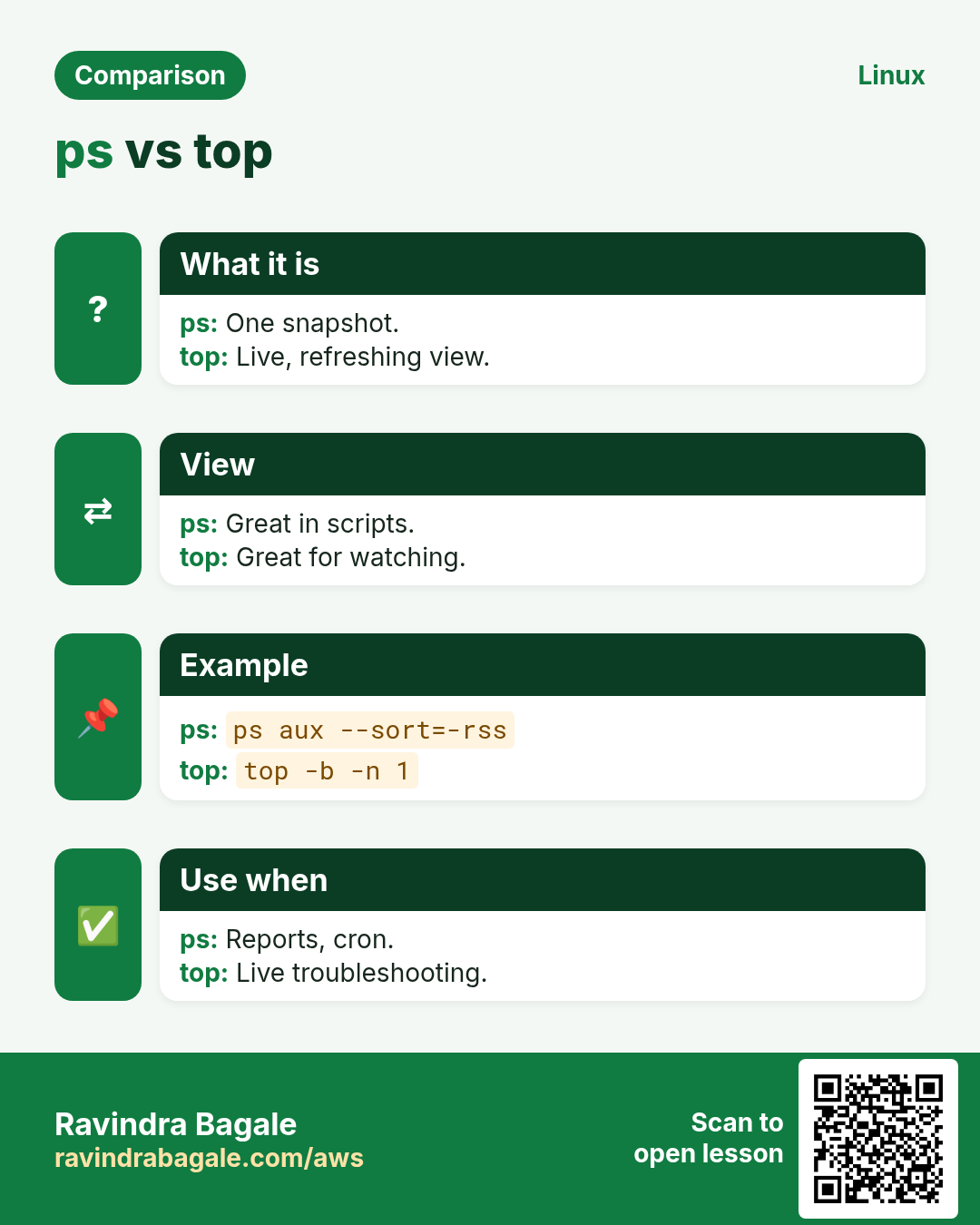
ps aux shows all processes with USER, PID, %CPU, %MEM, VSZ, RSS (real memory, KB), TTY, STAT, START, TIME and COMMAND. STAT letters: R running, S sleeping, D uninterruptible (disk), T stopped, Z zombie; + foreground, s session leader, < high priority, N low priority.
| STAT | Meaning |
|---|---|
| R | Running or ready |
| S | Sleeping, waiting for an event |
| D | Waiting on disk/IO, cannot be killed |
| T | Stopped |
| Z | Zombie, finished but not reaped |
How to do it (step by step)
- All processes, first lines.
ps aux | head -3Output:
USER  PID %CPU %MEM    VSZ   RSS TTY STAT START TIME COMMAND
root    1  0.0  0.1 171820 13200 ?   Ss   09:01 0:02 /usr/lib/systemd/systemd
root    2  0.0  0.0      0     0 ?   S    09:01 0:00 [kthreadd]
What it means: PID 1 is systemd; [brackets] are kernel threads.
- Top memory users.
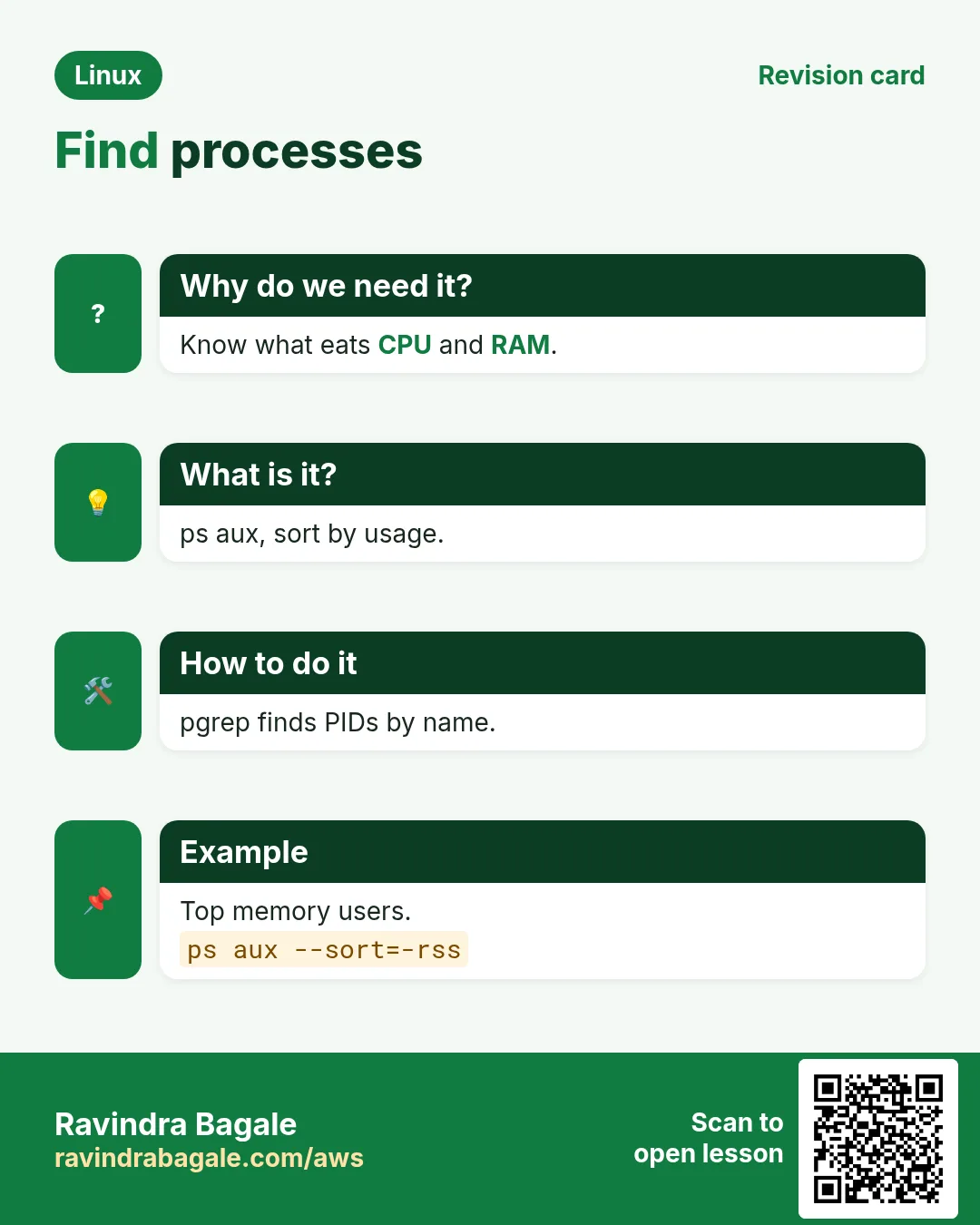
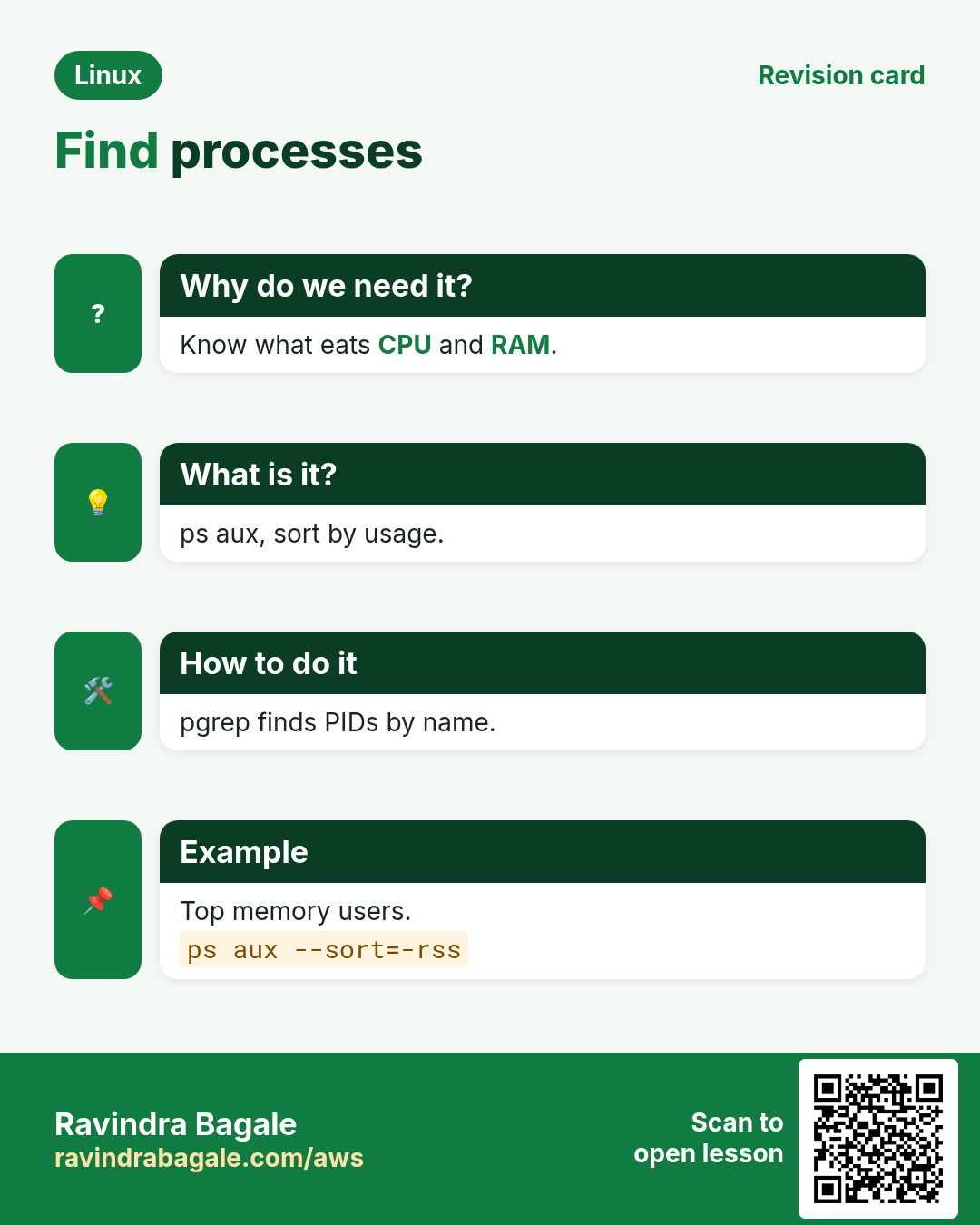
ps aux --sort=-rss | head -4Output:
USER   PID %CPU %MEM ... RSS ... COMMAND
mysql 1420  3.1 24.0 ... 1960000 ... /usr/sbin/mysqld
ravi  8812 40.2 12.5 ... 1020000 ... python train.py
What it means: mysqld uses about 1.9 GB.
- Find one program.
ps aux | grep [n]ginxOutput:
root   980 0.0 0.0 ... nginx: master process
nginx  981 0.0 0.1 ... nginx: worker process
What it means: [n] stops grep matching itself.
3. ps -ef and ps -o: parents and custom columns
Why do we need this?
To know who started a process, or to print only the columns a script needs.
What is it?
ps -ef shows UID, PID, PPID, C, STIME, TTY, TIME, CMD. ps -o pid,ppid,user,stat,%cpu,%mem,etime,cmd picks columns. -p PID for one process, -u USER for a user, -C NAME by command name, --forest for a tree, --no-headers for scripts.
How to do it (step by step)
- See the parent.
ps -ef | grep [g]unicornOutput:
app  2201     1  0 09:05 ?  00:00:03 gunicorn master
app  2210  2201  1 09:05 ?  00:00:40 gunicorn worker
What it means: Workers' PPID is the master.
- Custom columns for one PID.
ps -o pid,ppid,user,stat,etime,cmd -p 2201Output:
  PID  PPID USER STAT     ELAPSED CMD
 2201     1 app  Ss    3-02:11:09 gunicorn master
What it means: Running for 3 days 2 hours.
- Processes of one user.
ps -u postgres -o pid,%cpu,cmd --sort=-%cpu | head -3Output:
  PID %CPU CMD
 3310 22.0 postgres: app shop 10.0.1.5 SELECT
 1500  0.3 postgres: checkpointer
What it means: One query is busy.
- By name for scripts.
ps -C sshd -o pid= | wc -lOutput:
3What it means: No header, easy to count.
4. pstree: the family tree
Why do we need this?
A tree shows which service owns which workers and helps find what spawned a strange process.
What is it?
pstree shows processes as a tree from systemd. -p adds PIDs, -u shows user changes, -a shows arguments. pstree -p PID shows one branch. pstree -s PID shows the parents up to PID 1.
How to do it (step by step)
- One service branch.
pstree -p 980Output:
nginx(980)─┬─nginx(981)
           └─nginx(982)
What it means: Master with two workers.
- Who started this?
pstree -s -p 8812Output:
systemd(1)───sshd(800)───sshd(8700)───bash(8701)───python(8812)What it means: Started from an SSH session.
- Show users too.
pstree -u | head -3Output:
systemd─┬─NetworkManager───2*[{NetworkManager}]
        ├─chronyd(chrony)
        ├─mysqld(mysql)───38*[{mysqld}]
What it means: (name) shows a user change; {} are threads.
5. pgrep and pidof: find PIDs by name
Why do we need this?
Scripts need the PID to send signals or check if something runs, without parsing ps output.
What is it?
pgrep NAME prints matching PIDs. -l adds names, -a full command, -u USER filters, -f matches the full command line, -x exact name, -c counts, -n newest, -o oldest. pidof PROGRAM prints PIDs of an exact program name. Exit code 1 means none found.
How to do it (step by step)
- PIDs with names.
pgrep -l nginxOutput:
980 nginx
981 nginx
What it means: Quick and clean.
- Match the full command line.
pgrep -af 'python.*train'Output:
8812 python train.py --epochs 50What it means: -f looks at arguments too.
- Count a user's processes.
pgrep -c -u deployOutput:
27What it means: Simple monitoring.
- pidof for an exact binary.
pidof sshdOutput:
8700 800What it means: Used in many init scripts.
- Use the exit code.
pgrep -x redis-server >/dev/null || echo 'redis is down'Output:
redis is downWhat it means: Good for health checks.
6. top: live view
Why do we need this?
To see what is using CPU and memory right now, and how loaded the system is.
What is it?
The header shows uptime, users, load average (1, 5, 15 min), task states, CPU (us user, sy system, wa IO wait, st steal), and memory. Keys: P sort by CPU, M by memory, 1 per-CPU, c full command, u user filter, k kill, r renice, q quit. top -b -n 1 prints once for scripts.
| Field | Look for |
|---|---|
| load average | Higher than CPU count for long = overloaded |
| wa | High = waiting on disk |
| st | High = noisy neighbour on cloud |
| avail Mem | Low = memory pressure |
How to do it (step by step)
- The header.
top -b -n 1 | head -5Output:
top - 11:20:01 up 3 days,  2 users,  load average: 3.92, 2.10, 1.05
Tasks: 212 total,   3 running, 209 sleeping,   0 stopped,   0 zombie
%Cpu(s): 88.0 us,  6.0 sy,  0.0 ni,  5.0 id,  0.5 wa,  0.0 hi,  0.5 si,  0.0 st
MiB Mem :   7820.0 total,    410.2 free,   5200.1 used,   2209.7 buff/cache
MiB Swap:   2048.0 total,   2048.0 free,      0.0 used.   2310.5 avail Mem
What it means: 4 CPUs at load 3.9: nearly full, CPU bound.
- Top 3 by CPU in batch mode.
top -b -n 1 -o %CPU | sed -n '8,10p'Output:
8812 ravi  20 0 2.1g 1.0g  9m R 380.0 12.5 python
1420 mysql 20 0 3.0g 1.9g 20m S  12.0 24.0 mysqld
 980 root  20 0  12m  4m  3m S   0.3  0.1 nginx
What it means: 380% = nearly 4 cores.
- Watch one user.
top -u postgresOutput:
(interactive view)What it means: Press q to quit.
7. htop: friendlier top
Why do we need this?
Colours, bars per CPU, mouse, tree view and easy kill make quick triage faster.
What is it?
Install with dnf/apt install htop. F2 setup, F3 search, F4 filter, F5 tree, F6 sort, F7/F8 nice down/up, F9 kill, F10 quit, Space tags. htop -u USER, htop -p PID1,PID2.
How to do it (step by step)
- Install and run.
sudo dnf install -y htop && htopOutput:
(full-screen view with CPU bars)What it means: Green = user, red = kernel time.
- Only some PIDs.
htop -p 980,981,982Output:
(only nginx processes)What it means: Focus on one service.
- Tree view.
htop # then press F5Output:
(processes shown as a tree)What it means: Like pstree, but live.
8. & and jobs: run in the background
Why do we need this?
Long tasks (a backup, a download) should not block your terminal.
What is it?
CMD & starts it in the background and prints [job] PID. jobs lists jobs of this shell (-l adds PIDs). $! is the PID of the last background job. wait waits for background jobs. Jobs belong to the shell: they get SIGHUP when you log out.
How to do it (step by step)
- Start a backup in the background.
tar czf /tmp/etc.tgz /etc 2>/dev/null &Output:
[1] 9120What it means: Job 1, PID 9120. The prompt is free.
- List jobs.
jobs -lOutput:
[1]+ 9120 Running tar czf /tmp/etc.tgz /etc 2> /dev/null &What it means: + is the current job.
- Run two and wait.
sleep 3 & sleep 5 & wait; echo all doneOutput:
[1] 9201
[2] 9202
all done
What it means: wait blocks until both finish.
- Save the PID.
./server.sh & echo $! > server.pid; cat server.pidOutput:
9310What it means: Use it later to stop it.
9. Ctrl+Z, bg and fg: pause and move jobs
Why do we need this?
You started a long command in the foreground and need the prompt back without killing it.
What is it?
Ctrl+Z stops (pauses) the foreground job (SIGTSTP). bg resumes it in the background. fg brings it to the foreground. Use %N for job N: fg %2, bg %1. A stopped job does not run until bg or fg.
How to do it (step by step)
- Pause a running copy.
rsync -a /data/ /backup/ # press Ctrl+ZOutput:
^Z
[1]+  Stopped    rsync -a /data/ /backup/
What it means: It is paused, not dead.
- Continue in the background.
bg %1Output:
[1]+ rsync -a /data/ /backup/ &What it means: Now running behind the prompt.
- Bring it back.
fg %1Output:
rsync -a /data/ /backup/What it means: Now you can press Ctrl+C if needed.
10. nohup and disown: survive logout
Why do we need this?
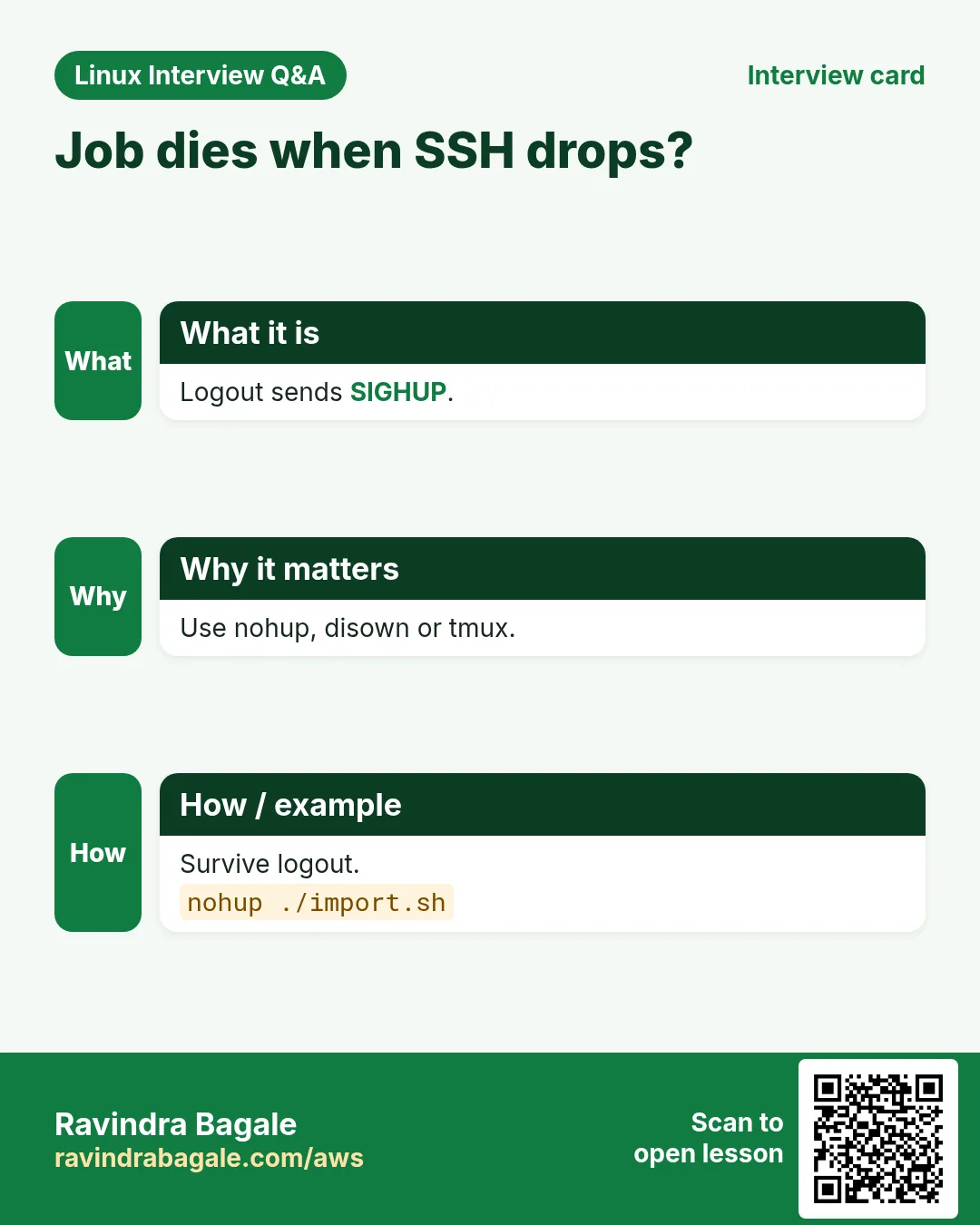
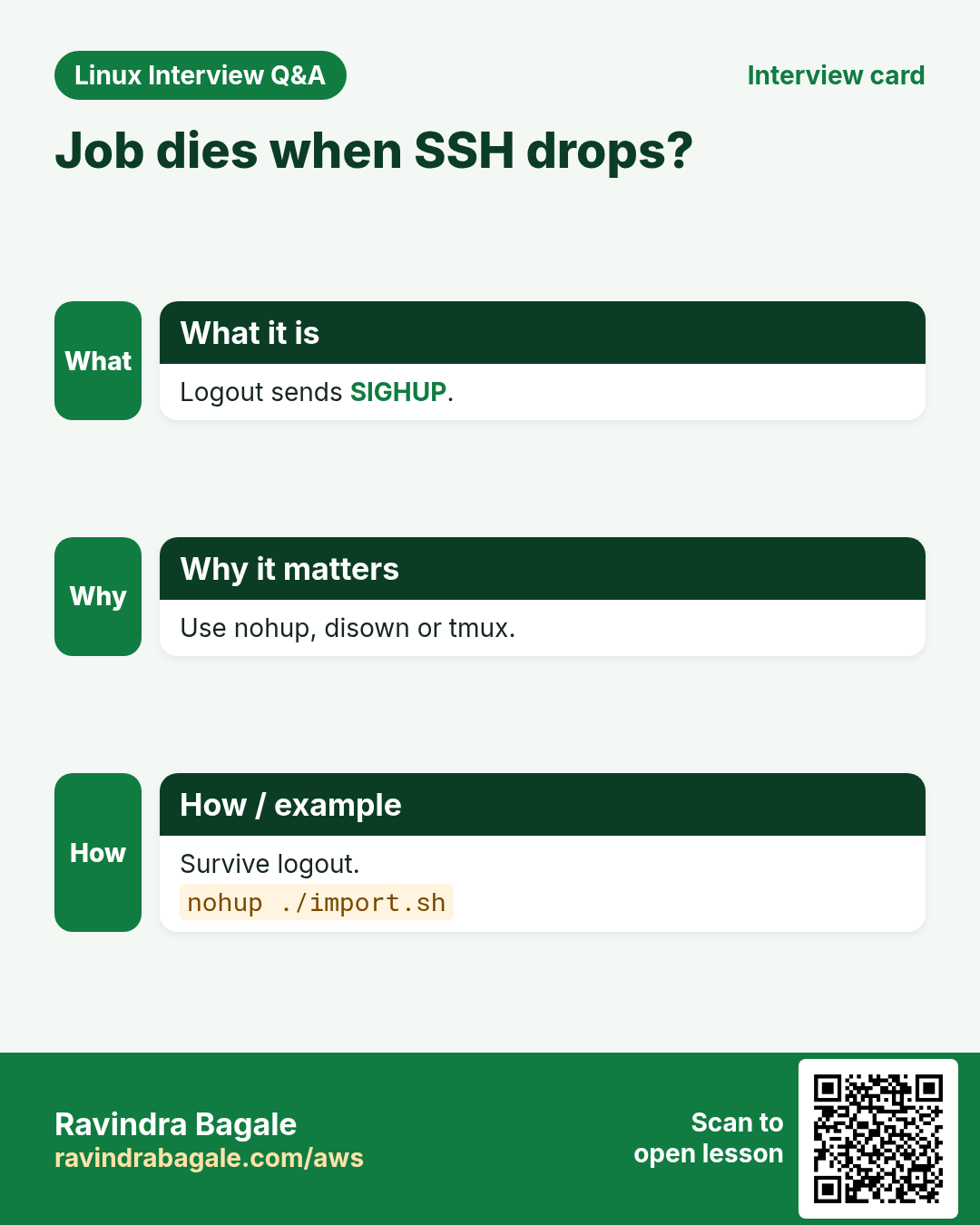
If SSH drops, background jobs get SIGHUP and die. A 3-hour import must survive.
What is it?
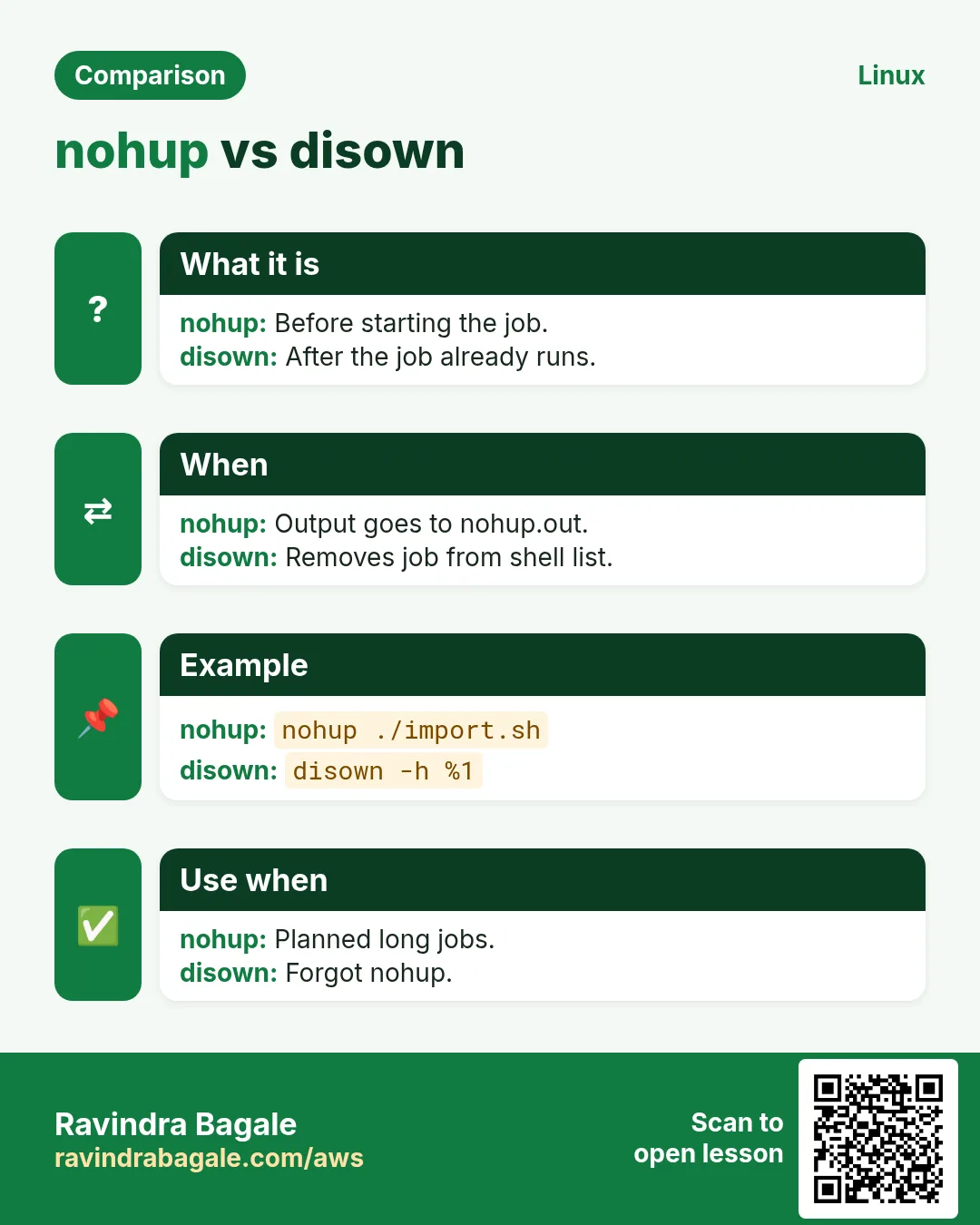
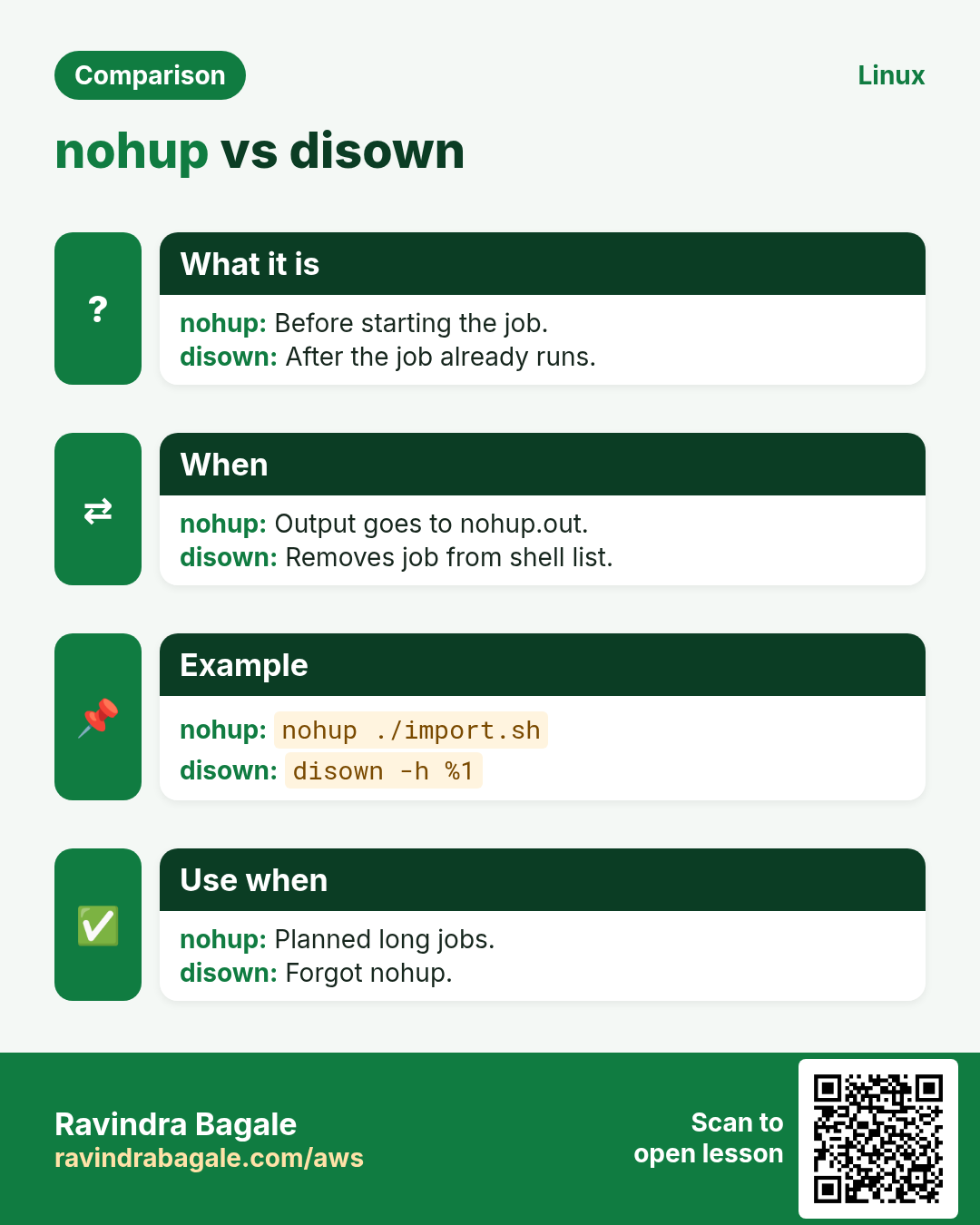
nohup CMD & ignores SIGHUP and writes output to nohup.out (redirect it yourself). disown -h %1 tells the shell not to send SIGHUP to an already-running job. For long or important work prefer tmux/screen or a systemd service (systemd-run).
How to do it (step by step)
- Start an import that survives logout.
nohup ./import.sh > import.log 2>&1 &Output:
[1] 9400What it means: Safe to close the terminal.
- Save a job you forgot to nohup.
jobs; disown -h %1Output:
[1]+ Running ./reindex.sh &What it means: It will not get SIGHUP now.
- Better: a transient systemd unit.
sudo systemd-run --unit=reindex /usr/local/bin/reindex.sh && systemctl status reindex --no-pager | head -3Output:
Running as unit: reindex.service
● reindex.service - /usr/local/bin/reindex.sh
     Active: active (running)
What it means: Logs go to journalctl -u reindex.
11. nice: start with a lower or higher priority
Why do we need this?
A backup or a compile should not slow down the web app on the same server.
What is it?
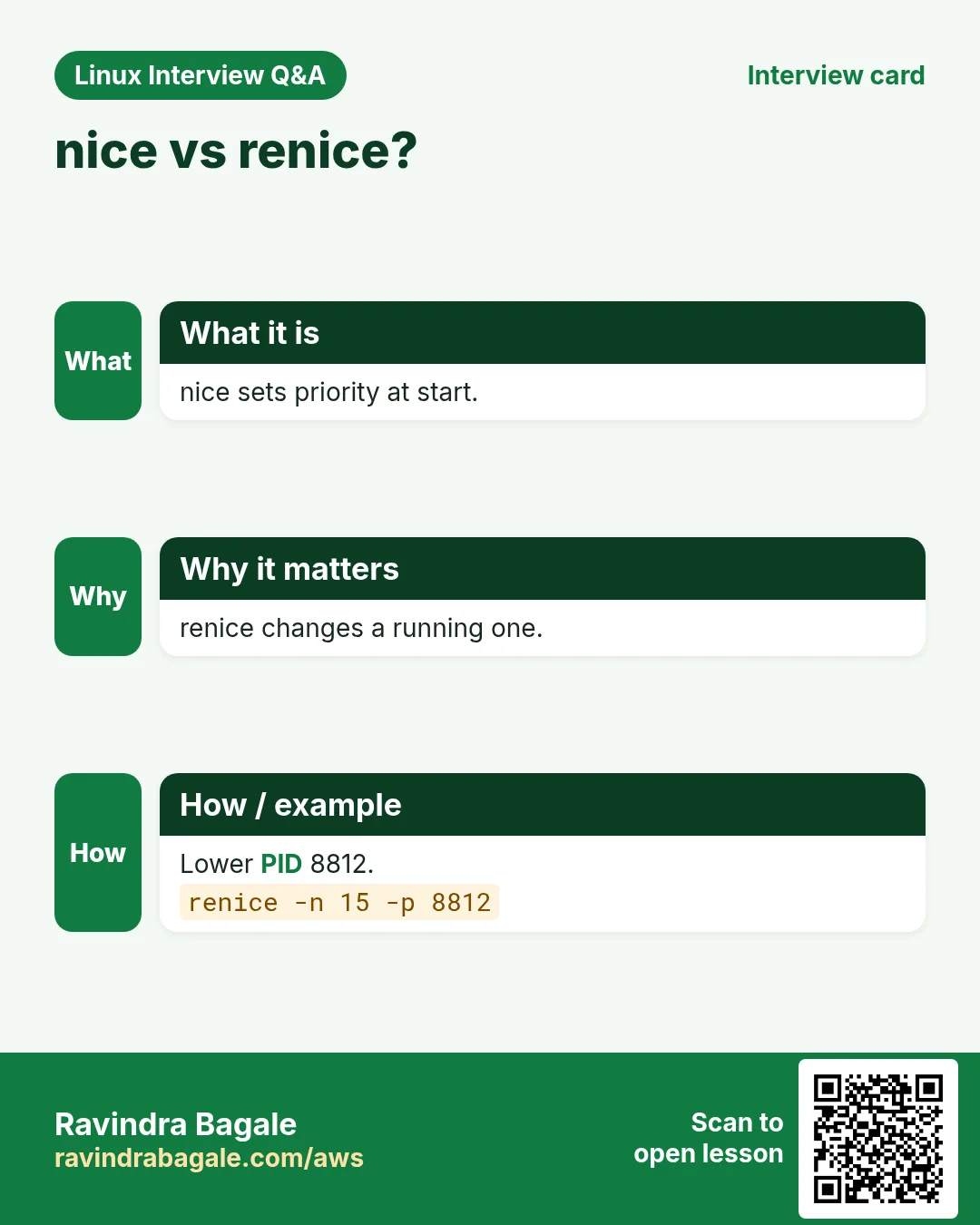
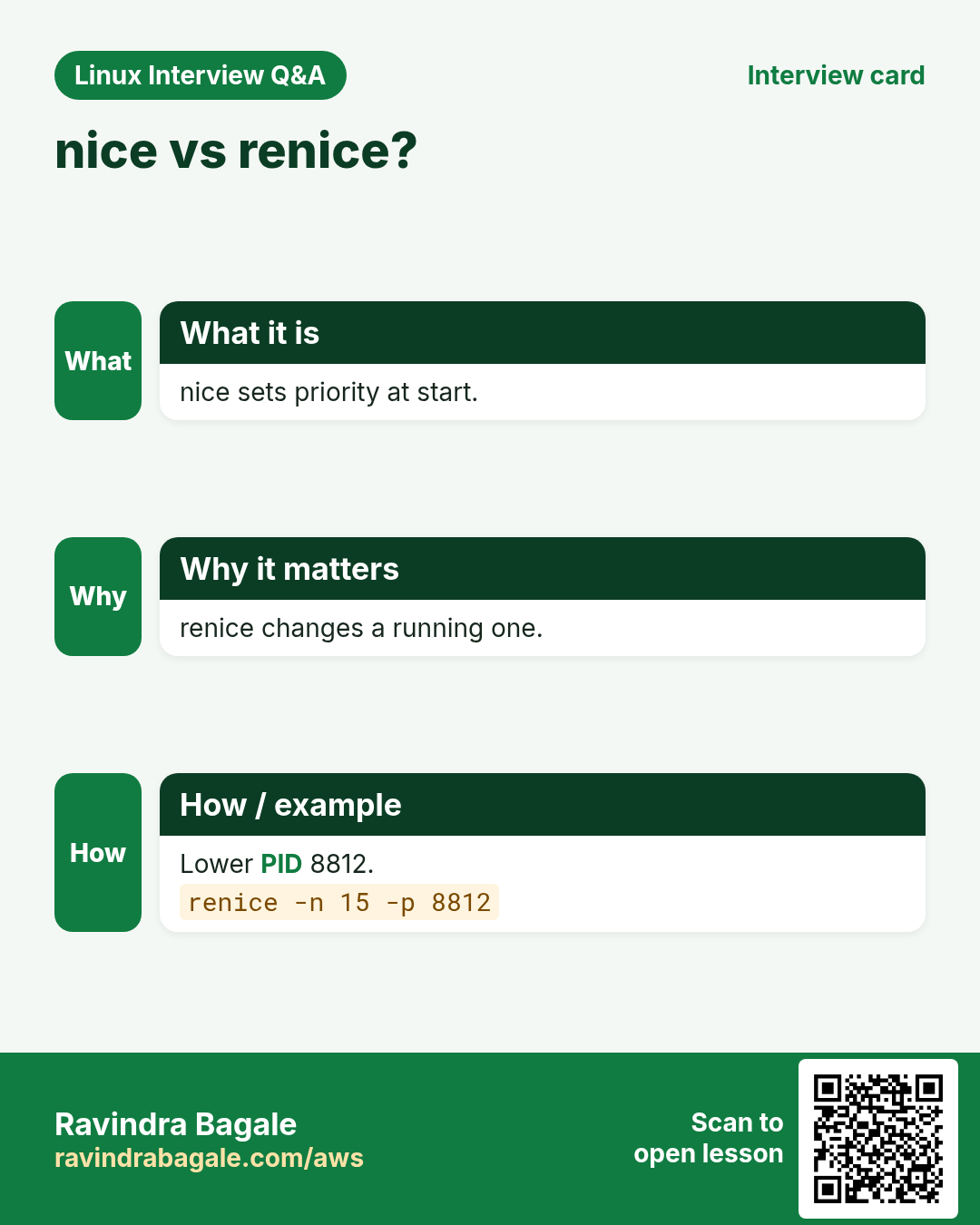
Nice values go from -20 (most CPU priority) to 19 (least). Default is 0. nice -n 10 CMD starts lower. Only root can set negative values. Shows as NI in top and ps -o ni. For disk priority use ionice -c3.
How to do it (step by step)
- Run a backup gently.
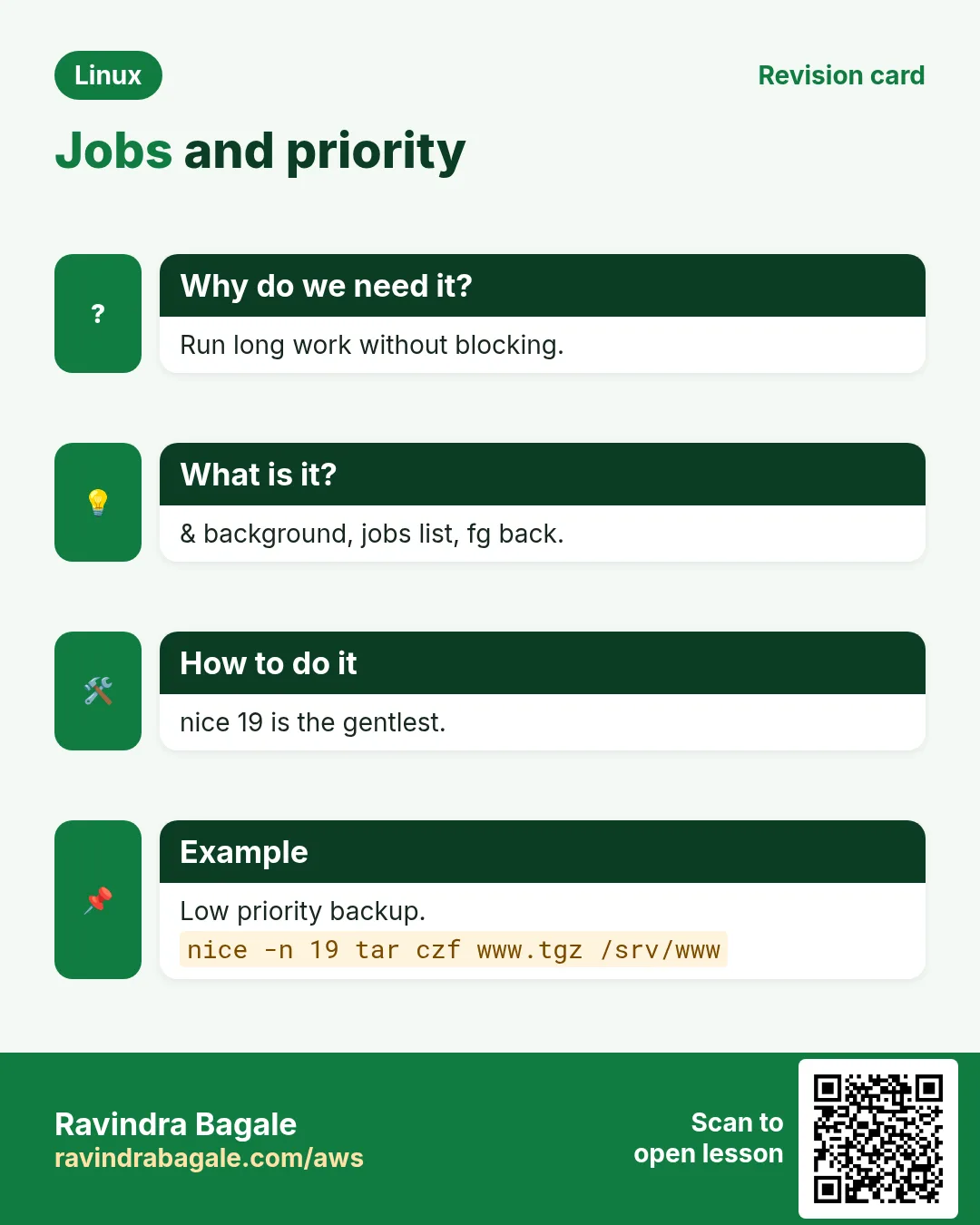
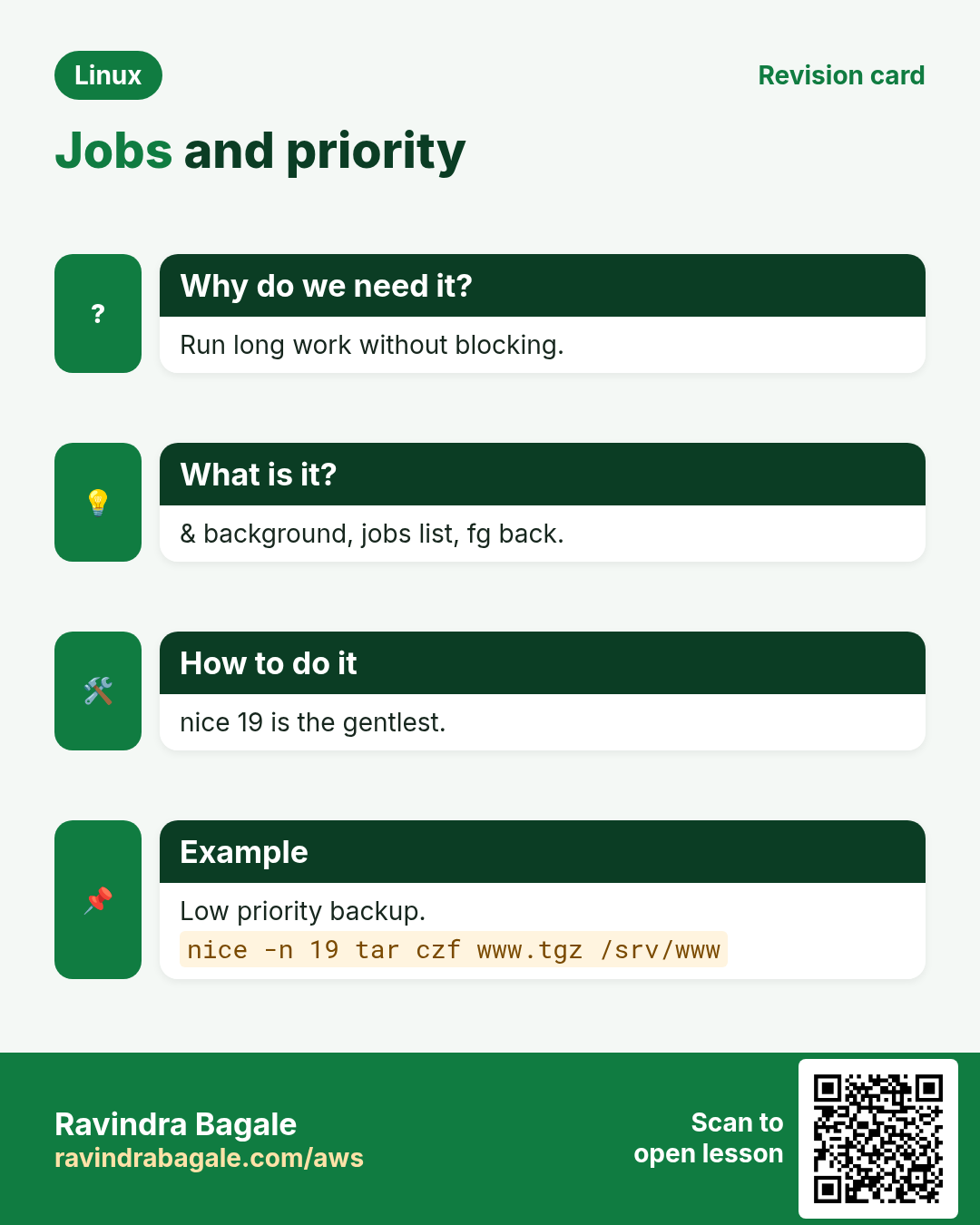
nice -n 19 tar czf /backup/www.tgz /srv/www &Output:
[1] 9500What it means: It uses CPU only when others do not need it.
- Check the value.
ps -o pid,ni,cmd -p 9500Output:
  PID  NI CMD
 9500  19 tar czf /backup/www.tgz /srv/www
What it means: NI is 19.
- Normal user cannot go negative.
nice -n -5 ./job.shOutput:
nice: cannot set niceness: Permission deniedWhat it means: Needs sudo.
- CPU and disk both gentle.
nice -n 15 ionice -c3 rsync -a /data/ /backup/Output:
(no output)What it means: ionice class 3 = idle IO.
12. renice: change priority of a running process
Why do we need this?
A report job is already eating CPU and users complain. Lower it without stopping it.
What is it?
renice -n 10 -p PID changes one process. -u USER changes all of a user's processes. -g PGID a process group. Normal users can only increase (make nicer) their own processes; root can do anything.
How to do it (step by step)
- Lower a busy job.
renice -n 15 -p 8812Output:
8812 (process ID) old priority 0, new priority 15What it means: The web app gets CPU first now.
- Raise a critical one.
sudo renice -n -5 -p 1420Output:
1420 (process ID) old priority 0, new priority -5What it means: Only root can do this.
- All jobs of a user.
sudo renice -n 10 -u batchOutput:
1003 (user ID) old priority 0, new priority 10What it means: Every process of batch.
13. /proc/PID: look inside a process
Why do we need this?
When tools are missing (containers) or you need exact details: command line, environment, limits, open files, memory.
What is it?
Each process has a folder /proc/PID: cmdline (arguments, NUL-separated), status (state, memory, threads), environ, cwd and exe (links), fd/ (open files), limits, io. /proc/loadavg, /proc/meminfo and /proc/cpuinfo show system-wide numbers.
How to do it (step by step)
- Full command line.
tr '\0' ' ' < /proc/2201/cmdline; echoOutput:
/usr/bin/python3 /srv/app/venv/bin/gunicorn -w 4 app:serverWhat it means: Exact arguments used.
- State and memory.
grep -E 'State|VmRSS|Threads' /proc/2201/statusOutput:
State:	S (sleeping)
VmRSS:	  182340 kB
Threads:	5
What it means: About 178 MB of real memory.
- Where is it running from?
sudo ls -l /proc/2201/cwd /proc/2201/exeOutput:
/proc/2201/cwd -> /srv/app
/proc/2201/exe -> /usr/bin/python3.11
What it means: Folder and binary.
- How many open files?
sudo ls /proc/2201/fd | wc -l; grep 'open files' /proc/2201/limitsOutput:
812
Max open files            1024                 1024                 files
What it means: Close to the limit: risk of 'Too many open files'.
14. lsof: open files, ports and deleted files
Why do we need this?
'Port already in use', 'disk full but du shows less', 'cannot unmount: busy': lsof finds the process behind it.
What is it?
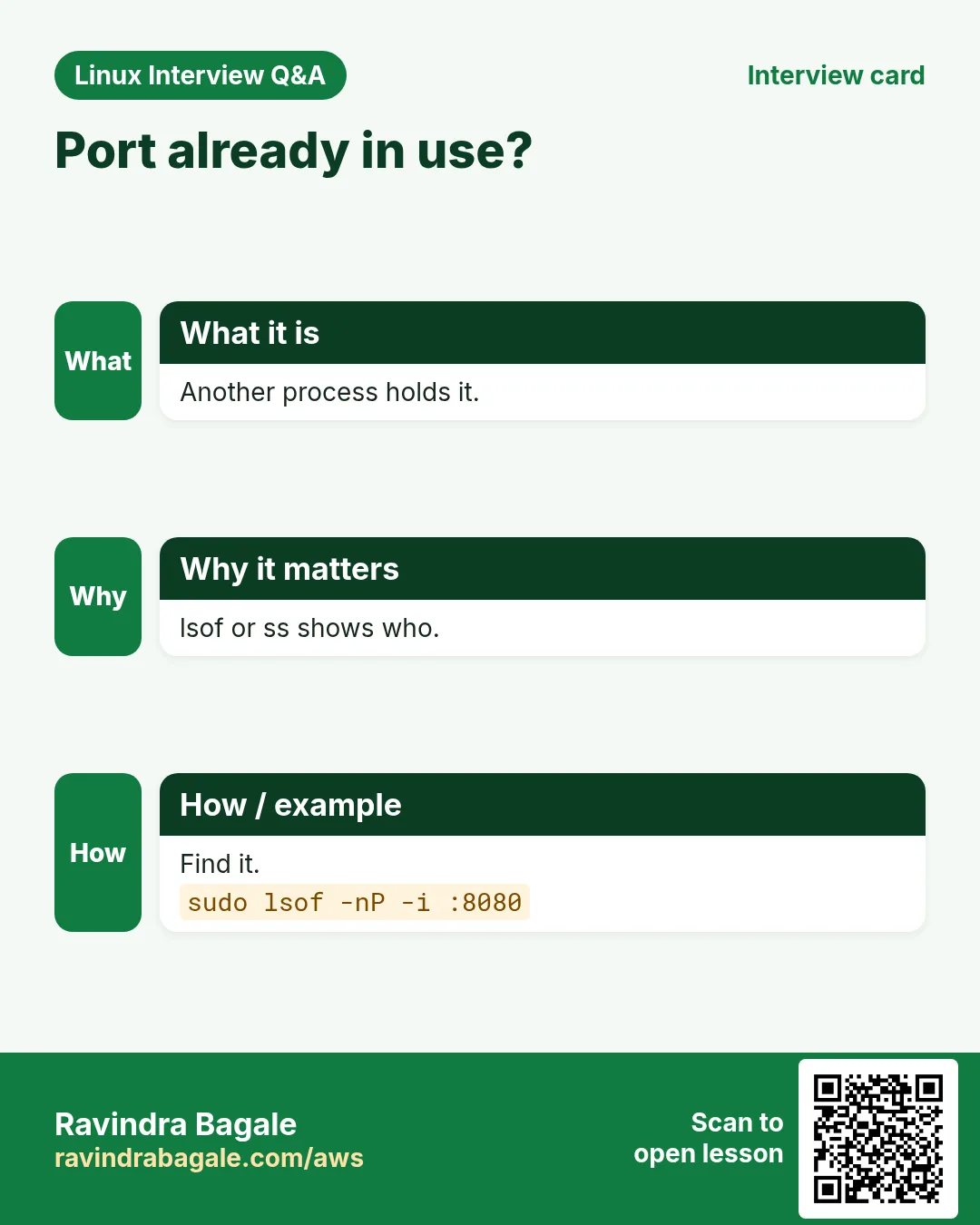
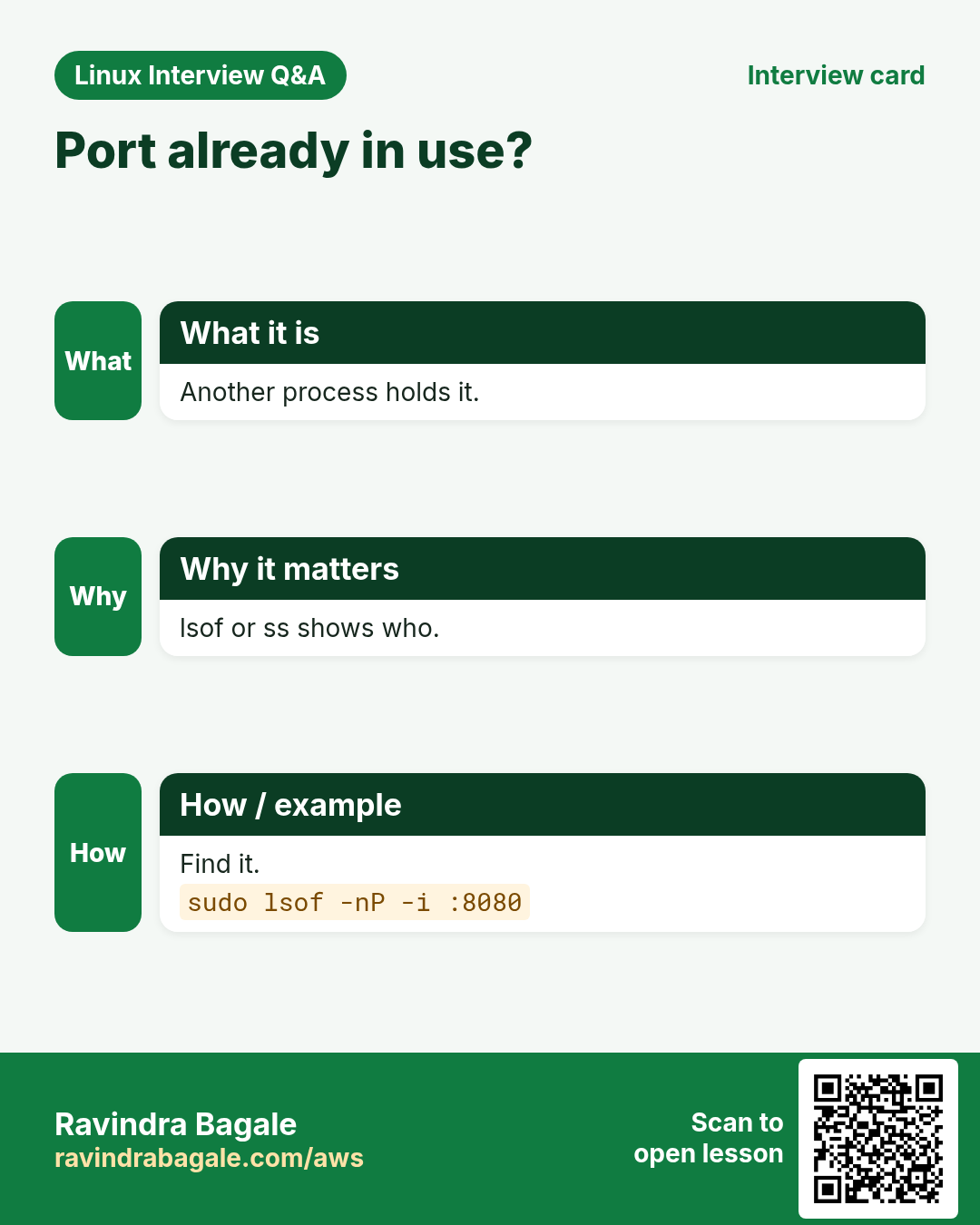
lsof -p PID lists one process's files. lsof -i :PORT shows who uses a port. lsof -u USER by user. lsof +D DIR files open under a folder. lsof +L1 finds deleted but still open files (space not freed). -n -P skip DNS and port names (faster). ss -ltnp and fuser are alternatives.
How to do it (step by step)
- Who holds port 8080?
sudo lsof -nP -i :8080Output:
COMMAND  PID USER FD TYPE DEVICE NODE NAME
java    7710 app  45u IPv6  9921  TCP *:8080 (LISTEN)
What it means: An old java is still running.
- Deleted files still using disk.
sudo lsof -nP +L1 | head -3Output:
COMMAND  PID USER FD TYPE SIZE/OFF NLINK NAME
java    7710 app   3w REG  9.8G       0 /var/log/app.log (deleted)
What it means: 9.8 GB is freed only when java restarts or the fd is truncated.
- Why cannot I unmount?
sudo lsof +D /mnt/usb | head -2Output:
COMMAND PID USER FD TYPE NAME
bash   9020 ravi cwd DIR  /mnt/usb
What it means: A shell is inside the folder.
- Same with fuser.
sudo fuser -vm /mnt/usbOutput:
USER PID ACCESS COMMAND
/mnt/usb: ravi 9020 ..c.. bash
What it means: c = current directory.
15. Real examples from many industries
Why do we need this?
The same Linux skill shows up in every kind of company. Seeing it in many places helps you remember it.
What is it?
Each row is a made-up team. It shows who uses this and how.
How to do it (step by step)
| Team and city | How they use it | Command |
|---|---|---|
| Sameer, e-commerce SRE, Pune | Finds the PHP worker eating CPU during a sale | ps aux --sort=-%cpu | head |
| Ingrid, research lab, Oslo | Runs a 10-hour simulation that survives logout | nohup ./sim > sim.log 2>&1 & |
| Kwame, telecom, Accra | Lowers priority of nightly reports | renice -n 15 -u reports |
| Yuki, game backend, Osaka | Finds who holds port 7777 | lsof -nP -i :7777 |
| Priyanka, bank ops, Mumbai | Frees disk held by a deleted log | lsof +L1 |
| Mateo, startup, Buenos Aires | Watches memory with htop during load tests | htop -u app |
16. Common errors and how to fix them
Why do we need this?
Everyone hits these errors. Knowing the cause saves hours.
What is it?
Read the exact message first. Then match it to a row below.
How to do it (step by step)
| Error you see | Why it happens | How to fix |
|---|---|---|
bash: fg: current: no such job | No job in this shell (started elsewhere or with nohup) | Find it with ps/pgrep.pgrep -af import |
nohup: ignoring input and appending output to 'nohup.out' | Normal message, output went to nohup.out | Redirect output yourself.nohup ./job.sh > job.log 2>&1 & |
Background job died after SSH disconnect | It got SIGHUP | Use nohup, disown, tmux or systemd-run.tmux new -s work |
nice: cannot set niceness: Permission denied | Negative value needs root | Use sudo or a positive value.sudo nice -n -5 ./job.sh |
renice: failed to set priority for 1420: Permission denied | Not your process or lowering the value | Use sudo.sudo renice -n 5 -p 1420 |
Error: listen EADDRINUSE: address already in use :::3000 | Another process holds the port | Find and stop it.sudo lsof -nP -i :3000 |
Too many open files | Process hit its fd limit | Check /proc/PID/limits and raise LimitNOFILE.grep 'open files' /proc/PID/limits |
umount: /mnt/usb: target is busy | A process uses the folder | Find it with lsof/fuser.sudo fuser -vm /mnt/usb |
df shows full disk but du shows much less | Deleted files still open | Find and restart the holder.sudo lsof +L1 |
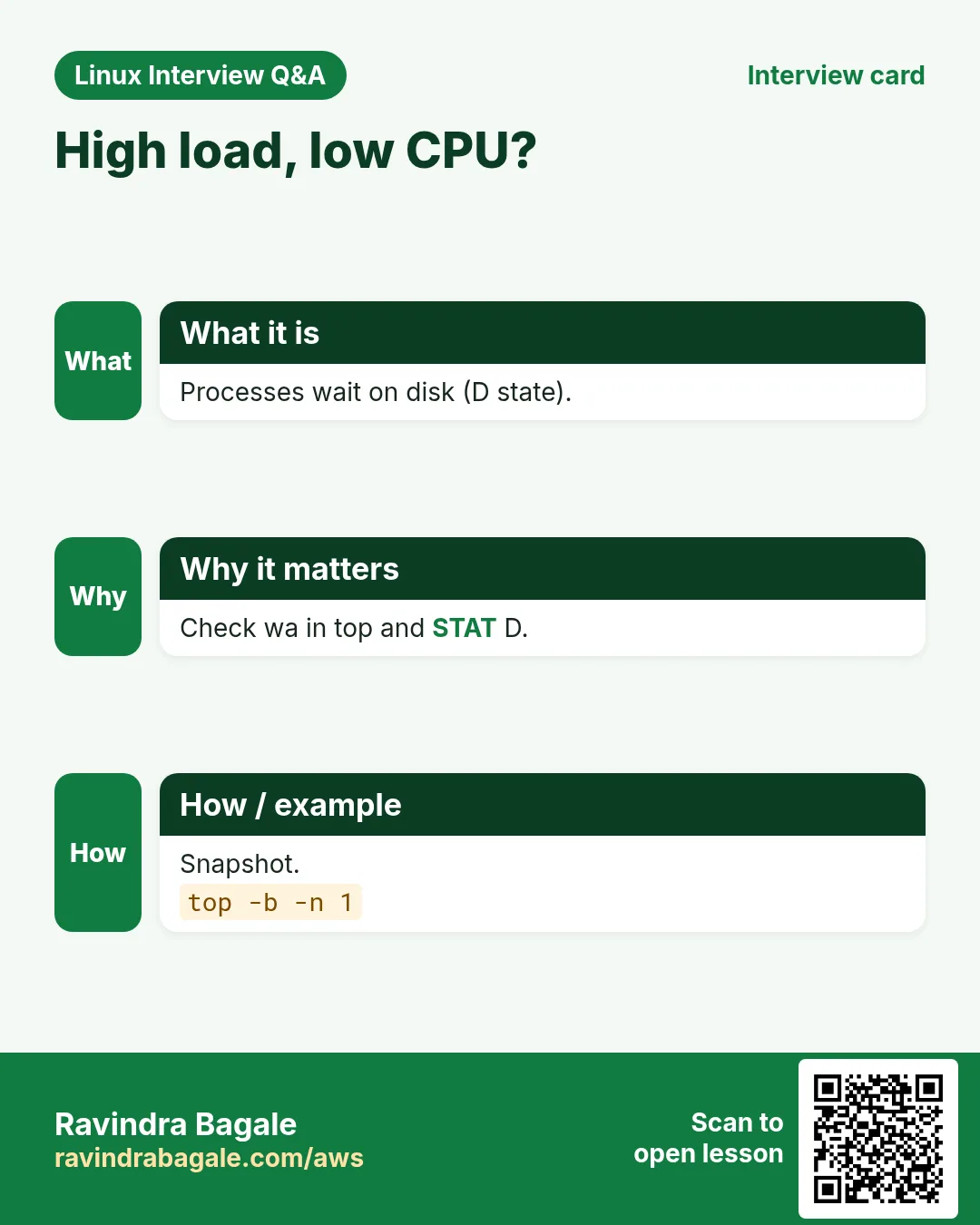
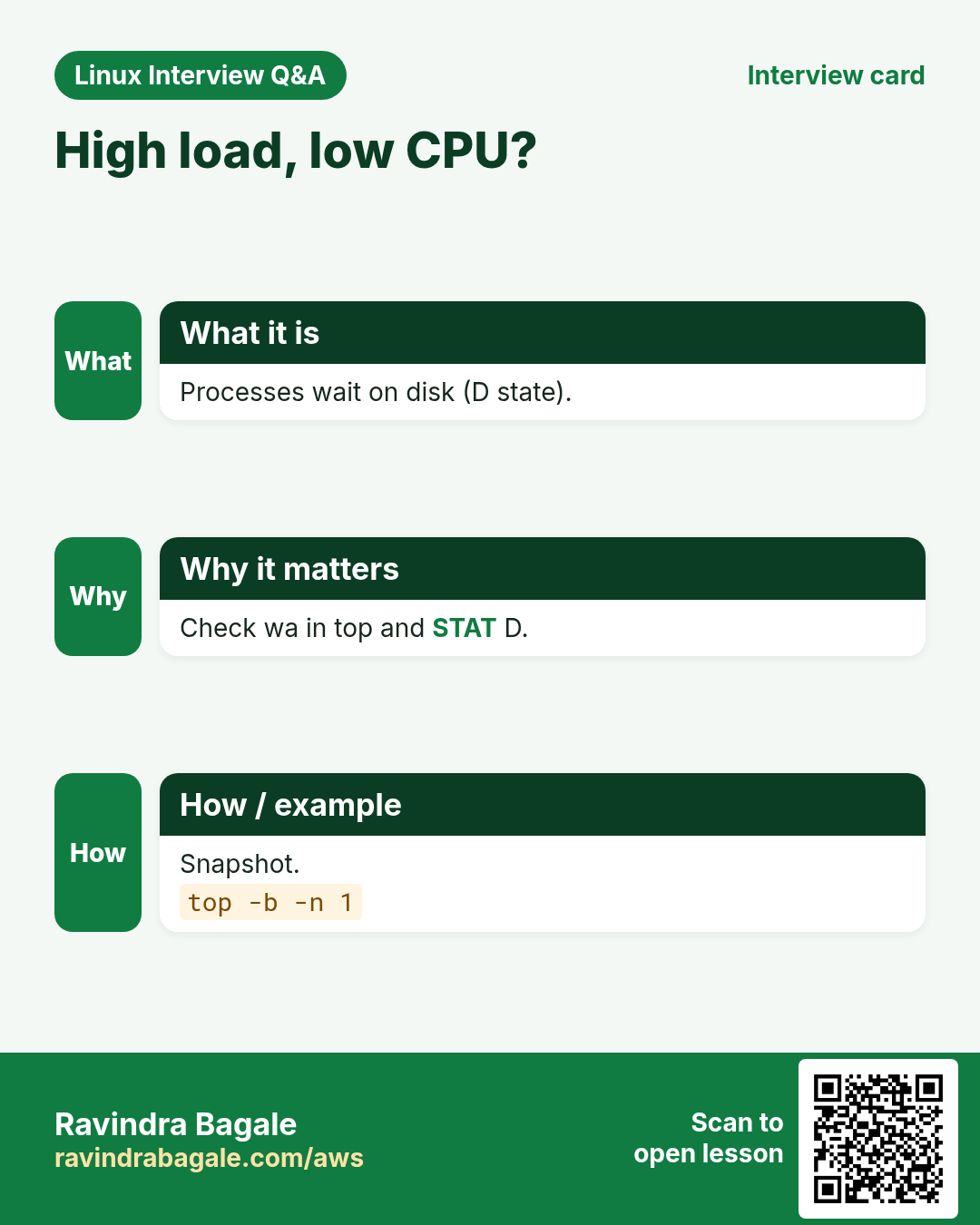
High load but low CPU in top | Processes stuck in D state waiting on disk/NFS | Look at wa and D processes.ps -eo pid,stat,cmd | awk '$2 ~ /D/' |
17. Troubleshooting step by step
Why do we need this?
For a slow server: measure load, find the top process, see what it waits for, then act (renice, restart, or fix).
What is it?
Go top to bottom. Stop at the first step that shows the problem.
How to do it (step by step)
- How loaded is it, and how many CPUs?
uptime; nproc- Top CPU and memory users.
ps aux --sort=-%cpu | head -5- Any D-state or zombies?
ps -eo pid,stat,cmd | awk '$2 ~ /^(D|Z)/'- Is it IO wait?
top -b -n 1 | sed -n 3p- What files and ports does it hold?
sudo lsof -p PID | head- Lower its priority or restart its service.
sudo renice -n 15 -p PID18. Lab 1: Find and tame a CPU hog
Why do we need this?
Start a CPU-heavy job, find it three ways, lower its priority, then stop it.
What is it?
A full hands-on lab. Run every step on a test Linux machine (an EC2 instance, a VM, or WSL).
How to do it (step by step)
- Start a fake hog.
yes > /dev/null & echo $!Output:
[1] 9601
9601- Find it with ps.
ps -o pid,ni,%cpu,cmd -p 9601Output:
  PID  NI %CPU CMD
9601 0 99.5 yes- Find it with pgrep and top.
pgrep -l yes; top -b -n 1 -o %CPU | sed -n 8pOutput:
9601 yes
9601 ravi 20 0 8m 1m 1m R 99.7 0.0 yes- Lower its priority.
renice -n 19 -p 9601 && ps -o ni= -p 9601Output:
9601 (process ID) old priority 0, new priority 19
19- Stop it.
kill %1; jobsOutput:
[1]+ Terminated yes > /dev/null19. Lab 2: Jobs, logout survival and lsof
Why do we need this?
Move a job between foreground and background, keep one alive after logout, and find a deleted file holding space.
What is it?
A full hands-on lab. Run every step on a test Linux machine (an EC2 instance, a VM, or WSL).
How to do it (step by step)
- Start in foreground and pause.
sleep 300 # press Ctrl+ZOutput:
^Z
[1]+ Stopped sleep 300- Background, then foreground.
bg %1; jobs; fg %1 # then Ctrl+COutput:
[1]+ sleep 300 &
[1]+ Running sleep 300 &- Survive logout.
nohup sleep 600 > /dev/null 2>&1 & echo $!Output:
9705- Hold a deleted file open.
python3 -c 'import time;f=open("/tmp/big","w");f.write("x"*50000000);f.flush();time.sleep(600)' & sleep 1; rm /tmp/bigOutput:
[2] 9710- Find it and clean up.
sudo lsof -nP +L1 | grep /tmp/big; kill 9710 9705Output:
python3 9710 ravi 3w REG 50000000 0 /tmp/big (deleted)Ravindra Bagale's Tip
When you are about to start anything that takes more than a few minutes on a remote server, run it inside tmux (or with systemd-run). An SSH drop will then never kill your work.
Ravindra Bagale's Tip – मराठी
Remote server वर काही मिनिटांपेक्षा जास्त चालणारं काहीही सुरू करण्याआधी ते tmux मधे (किंवा systemd-run ने) चालवा. मग SSH तुटलं तरी तुमचं काम मरणार नाही.
Ravindra Bagale's Tip – हिंदी
Remote server पर कुछ मिनटों से ज़्यादा चलने वाला कुछ भी शुरू करने से पहले उसे tmux में (या systemd-run से) चलाएँ. फिर SSH टूटने पर भी आपका काम नहीं मरेगा.
20. Frequently asked questions
Q. What is a PID?
A unique number for a running process.
Q. ps aux or ps -ef?
Both list everything. aux shows %CPU/%MEM; -ef shows PPID. Use -o for exactly what you need.
Q. What is load average?
The average number of processes running or waiting (R and D) over 1, 5 and 15 minutes. Compare it with the CPU count.
Q. Why is %CPU over 100?
Multi-threaded processes can use several cores; 400% = 4 cores.
Q. What is a zombie?
A finished process whose parent has not read its exit code. It uses no CPU or memory, only a PID slot.
Q. nohup or tmux?
nohup for a single fire-and-forget command; tmux when you want to reattach and see it live.
Q. Does nice affect disk speed?
No, nice is CPU. Use ionice for disk.
Q. Why does grep show up in ps | grep?
grep itself is a process with the word in its command. Use pgrep or grep [n]ame.
21. Interview questions and answers
Beginner level
Q. How do you list all processes?
ps aux or ps -ef.
Q. How do you run a command in the background?
Add & at the end.
Q. What does Ctrl+Z do?
Pauses (stops) the foreground job.
Q. How do you find the PID of nginx?
pgrep nginx or pidof nginx.
Mid level level
Q. Load average 8 on a 4-core box, CPU idle 70%. What is going on?
Many processes in D state waiting on disk or NFS; check wa and ps for D.
Q. How do you keep a job running after logout?
nohup CMD &, disown -h, tmux/screen, or systemd-run.
Q. Lower the priority of a running PID 4000.
renice -n 10 -p 4000.
Q. Which process uses port 5432?
sudo lsof -nP -i :5432 or ss -ltnp | grep 5432.
Senior level
Q. df says 100% but du finds only 40%. Explain and fix.
A process holds deleted files open. lsof +L1 to find, then restart it, or truncate via /proc/PID/fd/N; fix log rotation (copytruncate or reopen signal).
Q. Explain fork and exec.
fork copies the parent into a new process; exec replaces that copy's program. The shell does both for every command.
Q. Many zombies keep growing. What do you do?
Zombies are reaped by the parent; find the PPID (ps -o ppid=), fix or restart the parent; killing zombies does nothing.
Q. How do you investigate a process in a minimal container without ps?
Use /proc: ls /proc/[0-9]*, read /proc/PID/cmdline, status, fd, environ; or nsenter from the host.
Try at home
- Start three sleep commands in the background, list them with jobs, bring the second to the foreground, stop it with Ctrl+Z, then resume it with bg.
- Pick any running service and write its PID, PPID, user, memory (VmRSS), open file count and listening port using only ps, /proc and lsof.
Practice Tasks
Milan Furniture is a furniture business in Milan. Giulia Rossi looks after its IT and cloud work. They count money in EUR and run their AWS resources in the eu-south-1 Region. In the tasks below you do real jobs for them using what this lesson teaches. All names, account IDs, IP addresses and numbers are made up for practice.
0 / 17
Easy All processes
Why: Server is slow at BIZ.
What to do: List every process with user, CPU and memory (BSD style), most total CPU time first.
- Find the Linux command that does this job.
- Add the options (like -r or -h) the task needs.
- Add the file names, folders or users in the right order.
- Use sudo if the job changes system files or users. Click Check answer.
Easy Processes with parents
Why: Who started it?
What to do: List the processes of user kavya in full format showing PPID.
- Find the Linux command that does this job.
- Add the options (like -r or -h) the task needs.
- Add the file names, folders or users in the right order.
- Use sudo if the job changes system files or users. Click Check answer.
Easy PIDs by name
Why: Need redis PIDs.
What to do: Print PIDs and names of processes matching redis.
- Find the Linux command that does this job.
- Add the options (like -r or -h) the task needs.
- Add the file names, folders or users in the right order.
- Use sudo if the job changes system files or users. Click Check answer.
Easy Resume job in background
Why: You paused it with Ctrl+Z.
What to do: Continue job number 3 in the background.
- Find the Linux command that does this job.
- Add the options (like -r or -h) the task needs.
- Add the file names, folders or users in the right order.
- Use sudo if the job changes system files or users. Click Check answer.
Easy Only job PIDs
Why: Which jobs are running?
What to do: Print only the PIDs of this shell's jobs.
- Find the Linux command that does this job.
- Add the options (like -r or -h) the task needs.
- Add the file names, folders or users in the right order.
- Use sudo if the job changes system files or users. Click Check answer.
Easy Bring job 2 forward
Why: You need to press Ctrl+C on it.
What to do: Bring job number 4 to the foreground.
- Find the Linux command that does this job.
- Add the options (like -r or -h) the task needs.
- Add the file names, folders or users in the right order.
- Use sudo if the job changes system files or users. Click Check answer.
Medium Top memory users
Why: Memory alert fired.
What to do: List all processes BSD style sorted by VSZ, highest first.
- Find the Linux command that does this job.
- Add the options (like -r or -h) the task needs.
- Add the file names, folders or users in the right order.
- Use sudo if the job changes system files or users. Click Check answer.
Medium Custom columns
Why: Scripts need exact fields.
What to do: Show pid, ppid, user and cmd for PID 2201.
- Find the Linux command that does this job.
- Add the options (like -r or -h) the task needs.
- Add the file names, folders or users in the right order.
- Use sudo if the job changes system files or users. Click Check answer.
Medium Tree with PIDs
Why: See workers under a master.
What to do: Show the process tree of user kavya with PIDs.
- Find the Linux command that does this job.
- Add the options (like -r or -h) the task needs.
- Add the file names, folders or users in the right order.
- Use sudo if the job changes system files or users. Click Check answer.
Medium Match full command line
Why: Many python processes.
What to do: Show PID and full command for processes whose command line matches train.py.
- Find the Linux command that does this job.
- Add the options (like -r or -h) the task needs.
- Add the file names, folders or users in the right order.
- Use sudo if the job changes system files or users. Click Check answer.
Medium top once for a script
Why: Capture a snapshot in cron.
What to do: Run top in batch mode for three iterations.
- Find the Linux command that does this job.
- Add the options (like -r or -h) the task needs.
- Add the file names, folders or users in the right order.
- Use sudo if the job changes system files or users. Click Check answer.
Medium Survive logout
Why: SSH may drop.
What to do: Run ./reindex.sh so it ignores the hangup signal, (output goes to nohup.out).
- Find the Linux command that does this job.
- Add the options (like -r or -h) the task needs.
- Add the file names, folders or users in the right order.
- Use sudo if the job changes system files or users. Click Check answer.
Medium Start with low priority
Why: Backup must not slow the site.
What to do: Start tar czf www.tgz /srv/www with nice value 19.
- Find the Linux command that does this job.
- Add the options (like -r or -h) the task needs.
- Add the file names, folders or users in the right order.
- Use sudo if the job changes system files or users. Click Check answer.
Medium Lower a running process
Why: A report eats CPU.
What to do: Change the nice value of PID 6634 to 15.
- Find the Linux command that does this job.
- Add the options (like -r or -h) the task needs.
- Add the file names, folders or users in the right order.
- Use sudo if the job changes system files or users. Click Check answer.
Medium Who holds a port
Why: EADDRINUSE on 9090.
What to do: Show the process using TCP port 9090 with lsof, no name lookups.
- Find the Linux command that does this job.
- Add the options (like -r or -h) the task needs.
- Add the file names, folders or users in the right order.
- Use sudo if the job changes system files or users. Click Check answer.
Hard Memory from /proc
Why: ps is missing in the container.
What to do: Show the VmRSS line from /proc/2201/status.
- Find the Linux command that does this job.
- Add the options (like -r or -h) the task needs.
- Add the file names, folders or users in the right order.
- Use sudo if the job changes system files or users. Click Check answer.
Hard Deleted files using disk
Why: df full, du not.
What to do: List open files that were deleted (link count below 1) on the /var file system with lsof.
- Find the Linux command that does this job.
- Add the options (like -r or -h) the task needs.
- Add the file names, folders or users in the right order.
- Use sudo if the job changes system files or users. Click Check answer.
22. Related chapters
- Linux Ops Refresh for DevOps
- Bash Scripting for Automation
- Linux grep and find Commands with Examples
- How to Set Up Passwordless SSH Between Linux Servers
In short
- ps aux / ps -ef / ps -o; STAT R S D T Z.
- pstree for families; pgrep/pidof for PIDs.
- top/htop: load vs CPUs, wa, memory.
- &, jobs, Ctrl+Z, bg, fg; nohup, disown, tmux.
- nice -n 19 to start low; renice to change.
- /proc/PID and lsof show files, ports and deleted files.
Revision, comparison and interview cards
Revise this lesson in a few minutes. Save the cards on your phone or download them as PNG files. The QR code on each card opens this lesson.
More cards: Ravi Sir's Cards.