Install WordPress on Amazon Linux 2023 with Nginx
You can now run PHP code and keep its data in MariaDB. In this chapter you install a complete PHP application that millions of websites use: WordPress. You will set it up on one Amazon Linux 2023 EC2 server with nginx, php-fpm and MariaDB, give it its own database user and the right folder owner, go through the installer, publish a post with an image, change the theme, and learn why a WordPress site breaks when the server's IP changes.
What you'll learn in this class
- What a CMS is, how it differs from a framework, and what you can build with WordPress
- The LEMP stack for WordPress, with
php-mysqlnd, and a quick HTML and PHP test - Downloading the stable
latest.zipand unzipping it into/usr/share/nginx/html/wordpress - The nginx server block:
root,index index.php;,try_filesandserver_name _; - The same steps on Ubuntu: what changes
- A
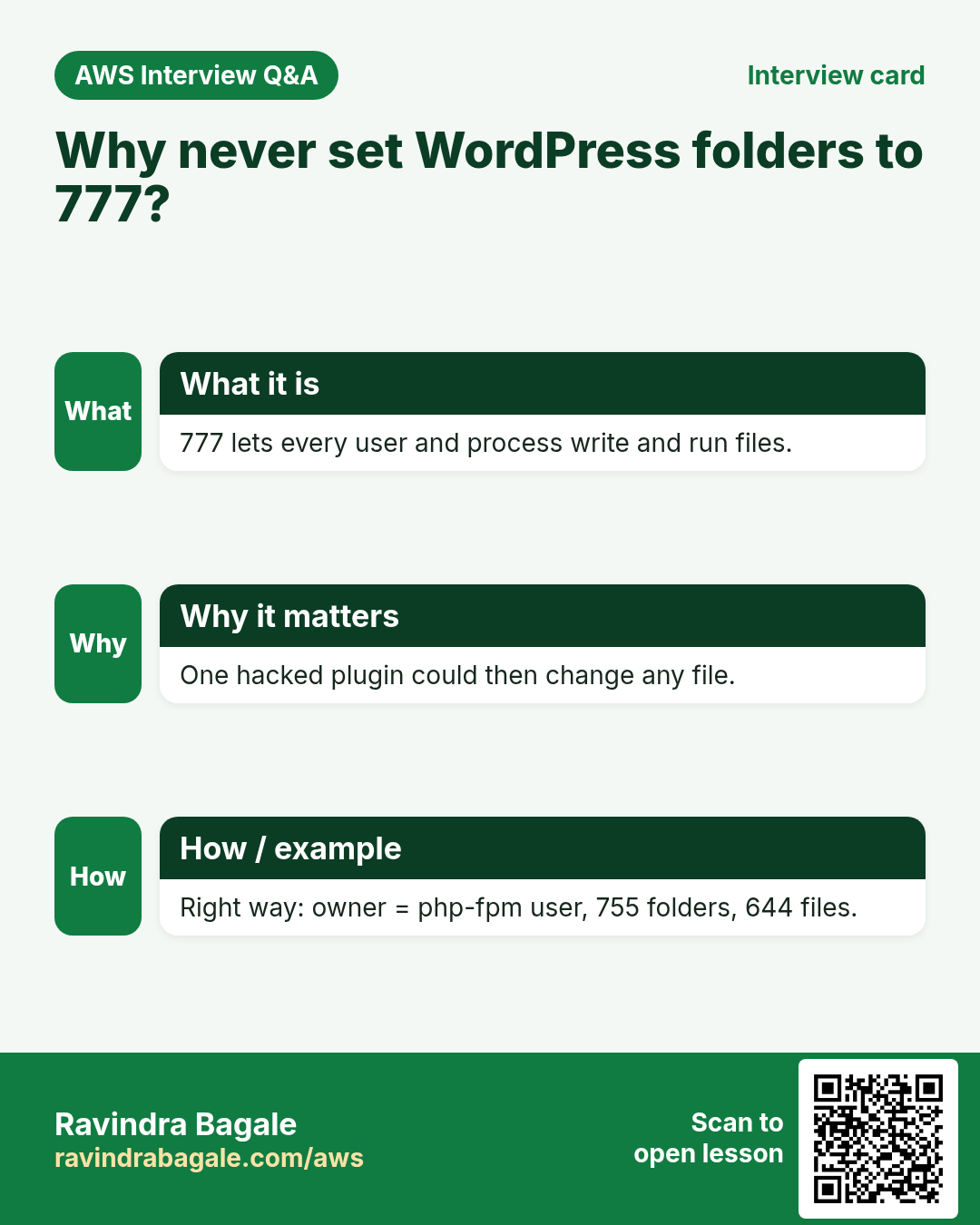
wordpressdbdatabase and a dedicatedwpuser - Folder ownership for the php-fpm user, 755 and 644, and why never 777
- The two installer screens: database details, then the website login
- The wp-admin dashboard: posts, the block editor, the Media Library and themes
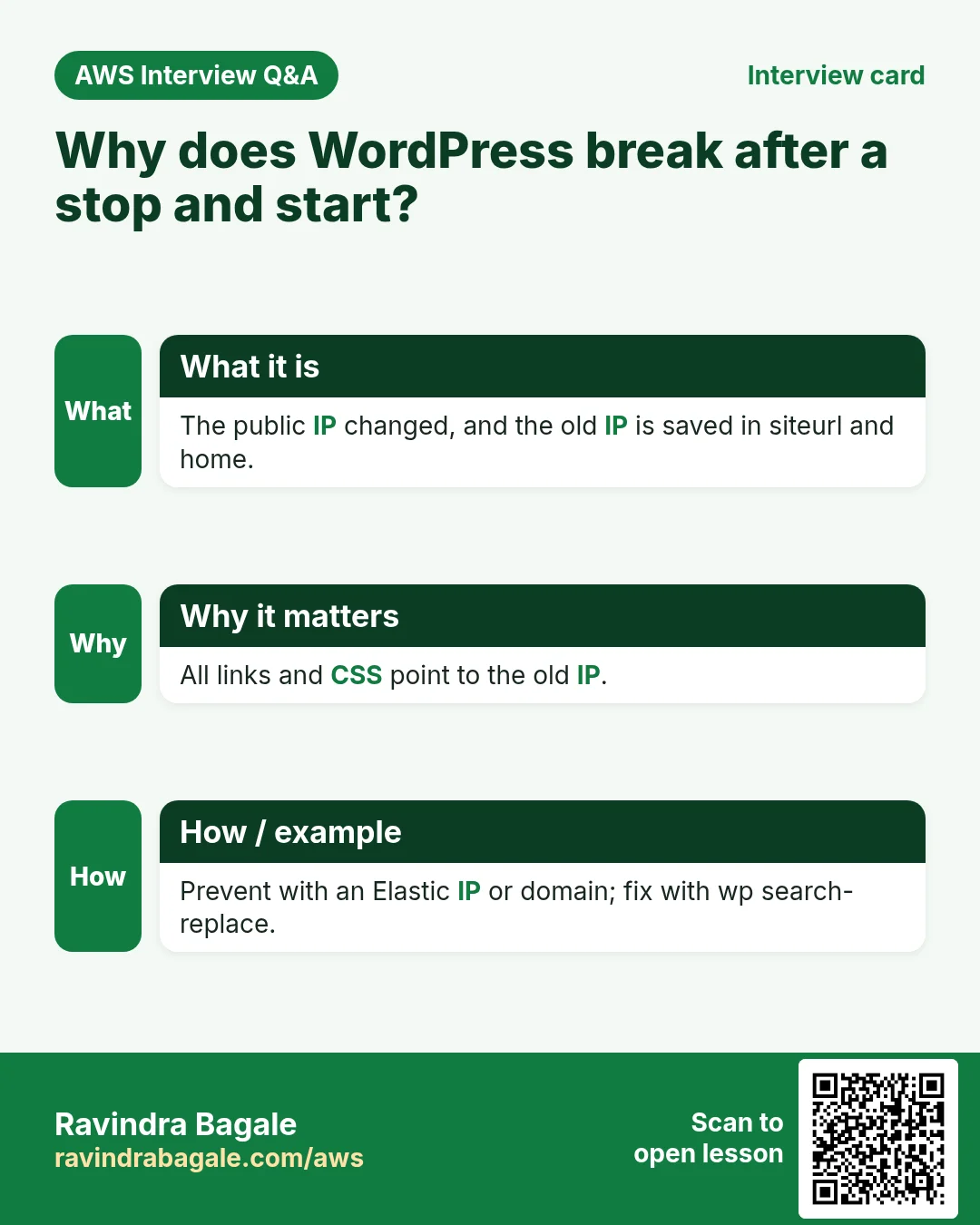
- Why the site breaks when the EC2 public IP changes, and how to avoid it
1. What WordPress is: a CMS, not a framework
Why: before you install something, know what kind of software it is. It decides who does the work after the install: a developer writing code, or a site owner typing content.
What:
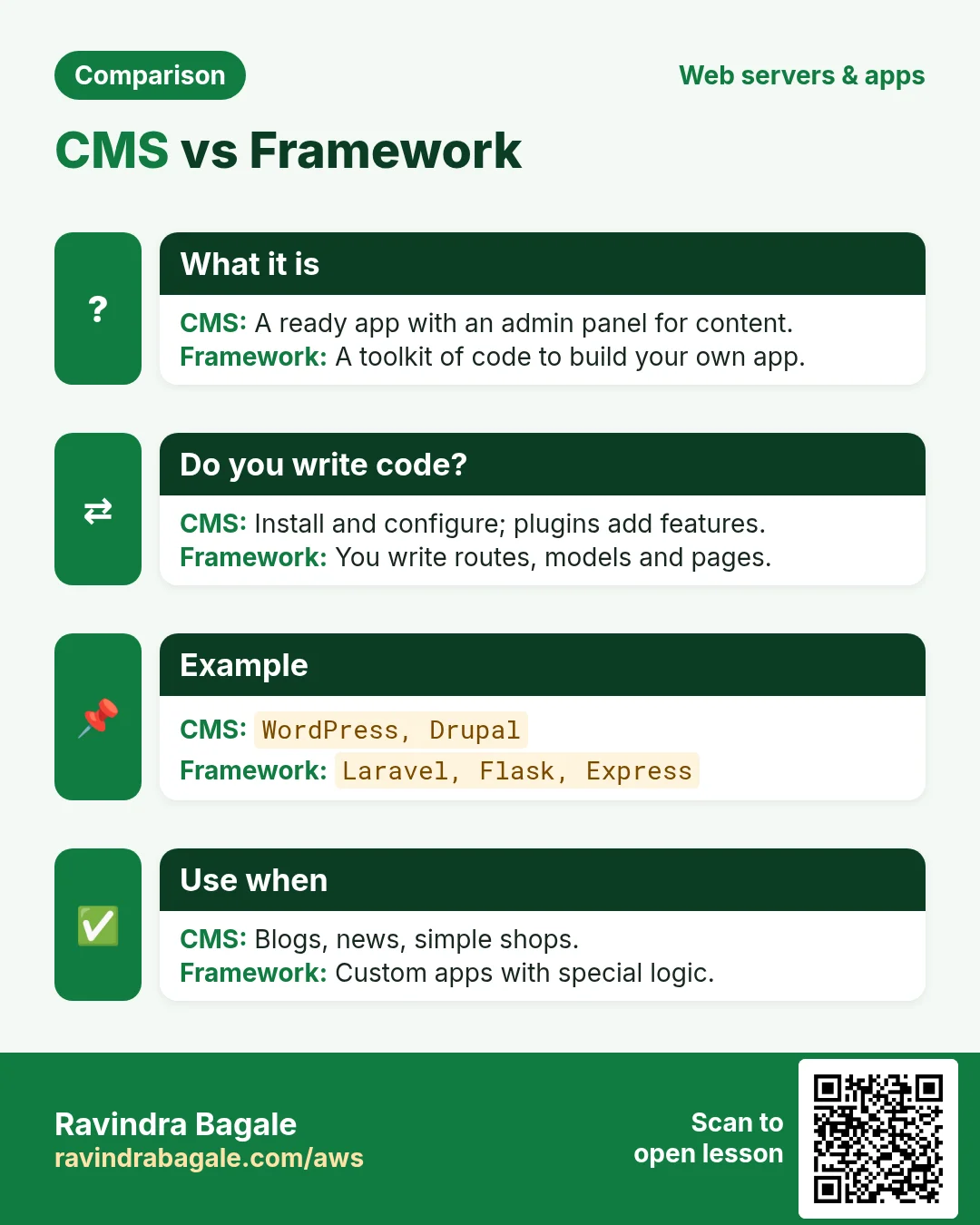
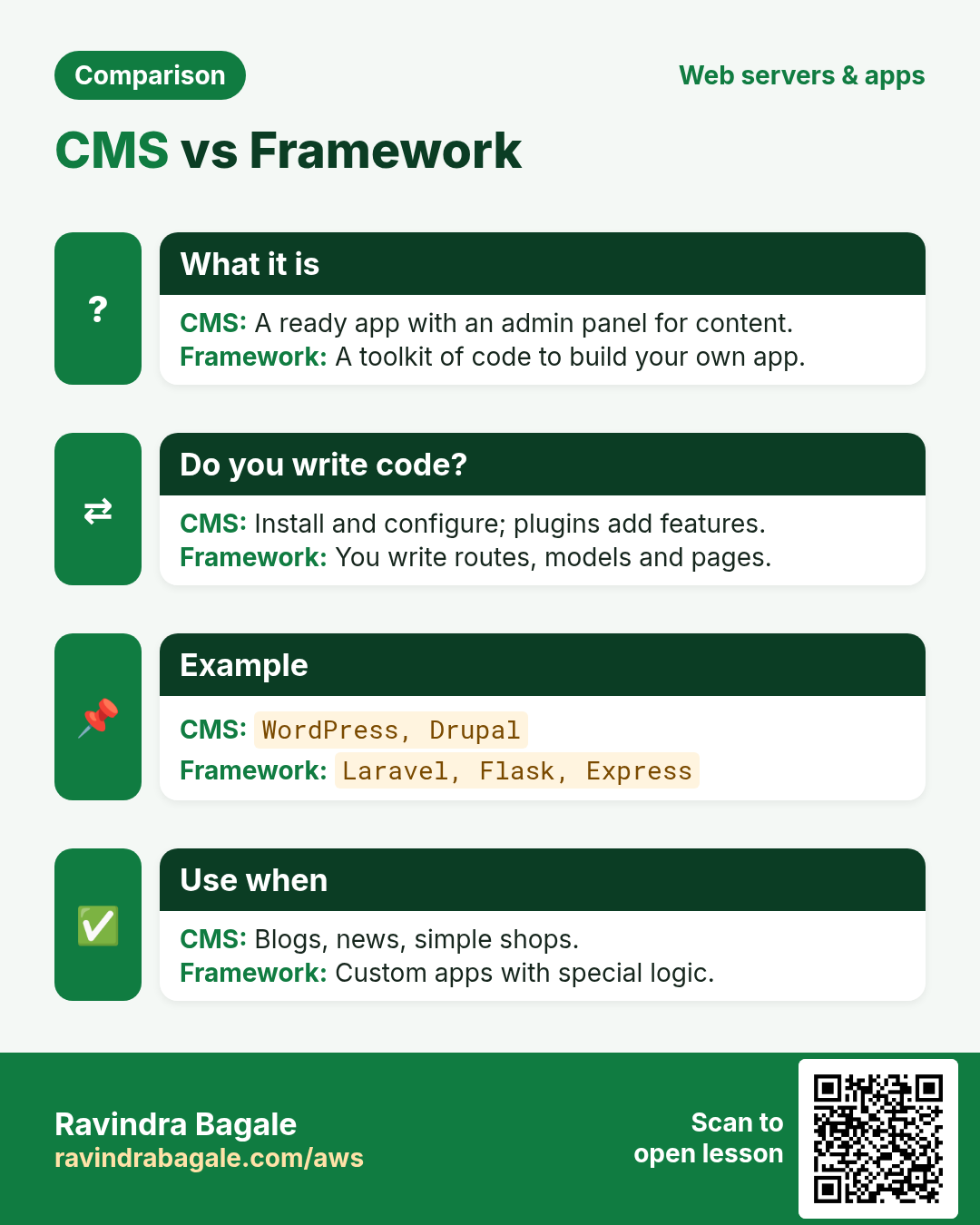
- A framework is ready-made code that helps developers build an app faster: Laravel for PHP, Django and Flask for Python, Express for Node.js. You still write the pages, the forms and the login yourself.
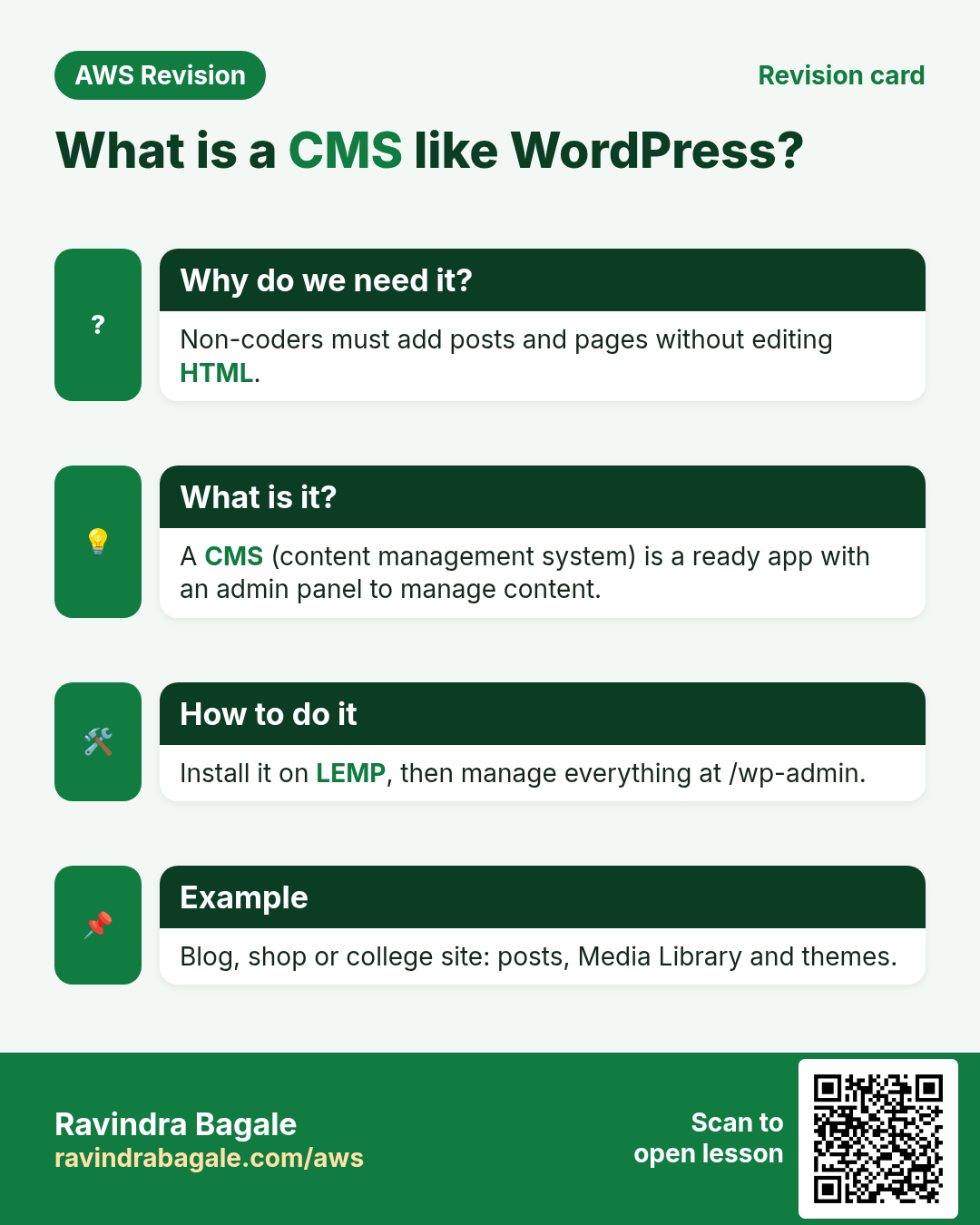
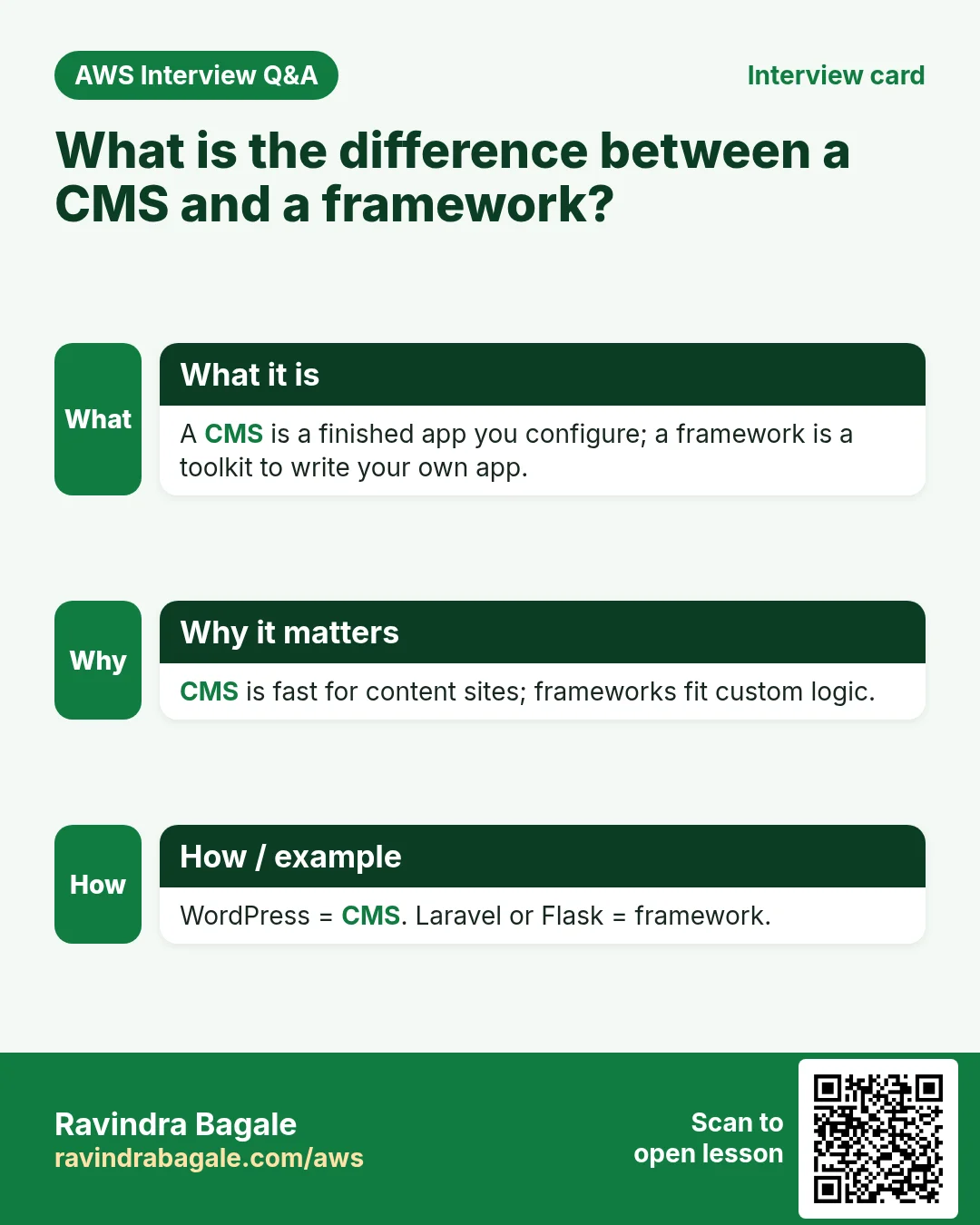
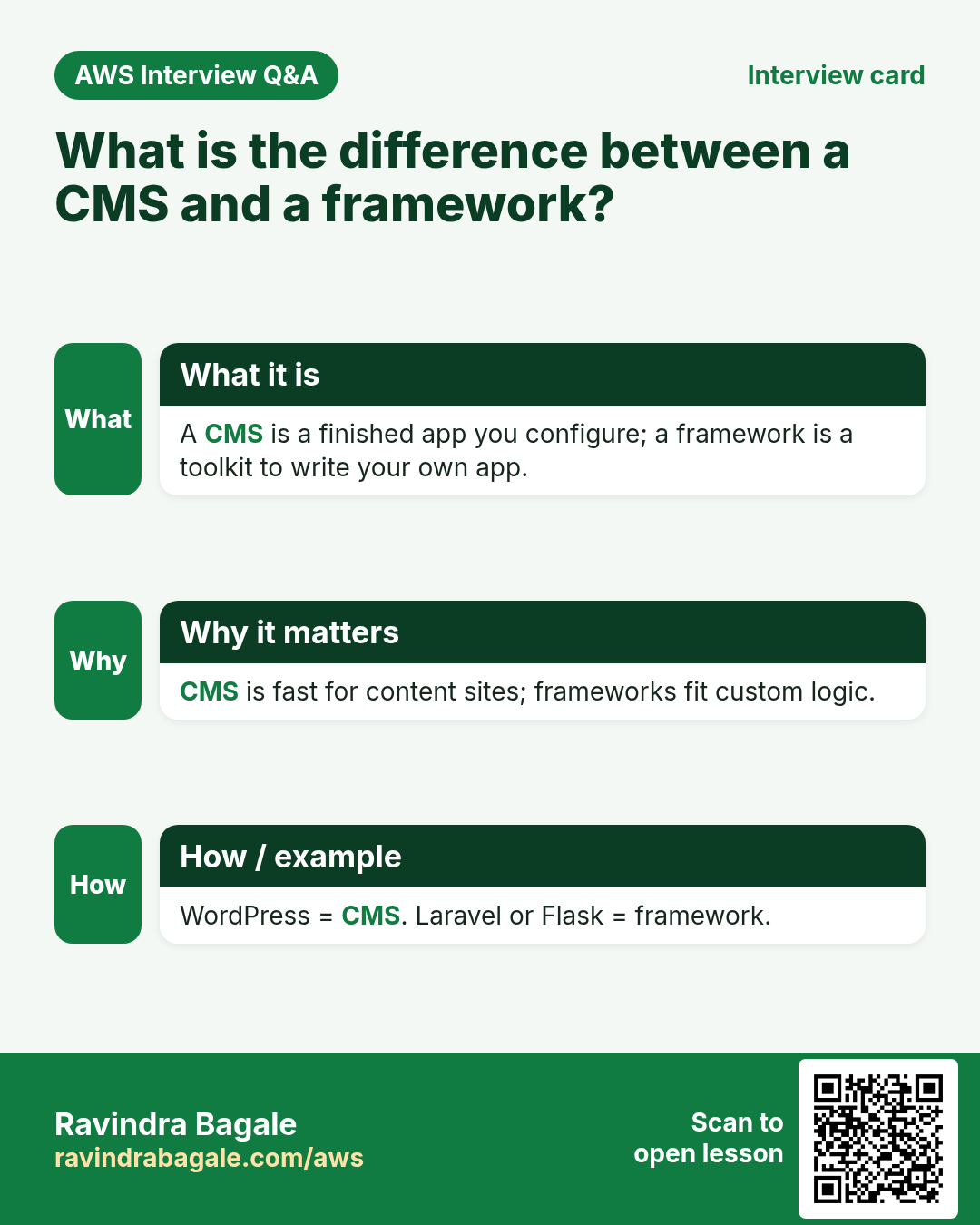
- A CMS (content management system) is a finished website that you install and then fill with content. WordPress is a CMS written in PHP. The site owner writes, styles and publishes from an admin dashboard, without code.
- In WordPress, pages and posts are rows in a database, not separate HTML files. When a visitor opens a post, PHP reads the row and builds the page on the spot, the way an app loads each reel from its database.
What you can build: a blog, a news site, a company website, a portfolio, a video site, or an online shop with a plugin such as WooCommerce. A shop like Flipkart could be built with WordPress too, although very large shops usually write their own code.
Figure 1. A framework (Laravel, Django, Flask, Express) gives developers ready-made parts; a CMS such as WordPress is a finished website that the owner fills from a dashboard. Blogs, news, company sites, portfolios, video sites and shops.
2. The server: LEMP
Why: WordPress is PHP code that keeps everything in a MySQL-compatible database. It needs a web server, PHP, an empty database and a folder it can write to.
What: LEMP = Linux + nginx (pronounced Engine-X) + MariaDB + PHP. With Apache instead of nginx the same stack is called LAMP. Here we use nginx.
How:
- Launch an EC2 instance with Amazon Linux 2023 and a small type such as
t3.micro. In its security group allow SSH (22) from your IP and HTTP (80). - Connect:
ssh -i key.pem ec2-user@SERVER-IP. -
Install the stack, including PHP's MySQL driver:
sudo yum install nginx mariadb105-server php php-fpm php-mysqlnd -y -
If an install fails, update the package list first with
sudo yum update -y, then try again.
Classroom line
If some software won't install, update the package manager first.
Class मधलं वाक्य
"Ekhada software install hot nasel tar aadhi package manager update karaycha."
एखादं software install होत नसेल तर आधी package manager update करायचा.
Classroom line
If some software won't install, update the package manager first.
-
Start the three services:
sudo service nginx start sudo service mariadb start sudo service php-fpm start -
Test HTML and PHP before WordPress:
echo '<h1>HTML works</h1>' | sudo tee /usr/share/nginx/html/index.html echo '<?php phpinfo();' | sudo tee /usr/share/nginx/html/info.php -
Open
http://SERVER-IP/andhttp://SERVER-IP/info.php. You see HTML works and the long PHP information page. Then delete the test page, because it shows server details:sudo rm /usr/share/nginx/html/info.php.
Figure 2. LEMP for WordPress: nginx on port 80 with its root in the wordpress folder, php-fpm running the WordPress code as apache (with php-mysqlnd), and MariaDB holding wordpressdb. Install, start and test.
3. PHP's MySQL driver
Why: WordPress's index.php starts by connecting to the database. Without the driver, PHP has no mysqli functions and the installer stops with an error that your PHP installation is missing the MySQL extension.
Classroom line
WordPress's index.php has database code in it; if you don't install the MySQL connector, the code will fail.
Class मधलं वाक्य
"WordPress chya index.php madhe database cha code aahe; MySQL connector install nahi kela tar code fail hoil."
WordPress च्या index.php मध्ये database चा code आहे; MySQL connector install नाही केला तर code fail होईल.
Classroom line
WordPress's index.php has database code in it; if you don't install the MySQL connector, the code will fail.
How:
- The package is
php-mysqlnd. It was in the install line above; if you skipped it, install it now:sudo yum install php-mysqlnd -y. - Restart only php-fpm, the program that loads PHP extensions:
sudo service php-fpm restart. - Check:
php -m | grep -i mysqllistsmysqli,mysqlndandpdo_mysql.
4. Download WordPress
Why: WordPress is free, open-source code. You download it once onto the server, and nginx serves it from there.
Classroom line
We have to get that code from somewhere.
Class मधलं वाक्य
तो code कुठून ना कुठून तरी घ्यायचाच आहे.
Classroom line – हिंदी
"Kahi na kahi se wo code lena hai."
What: always take the stable release from https://wordpress.org/latest.zip. A copy of the development branch from GitHub is unfinished code meant for WordPress developers, not for a website.
How:
-
Go to the web root and download:
cd /usr/share/nginx/html sudo wget https://wordpress.org/latest.zip -
Unzip it:
sudo unzip latest.zip. You needsudobecause the web root belongs to root. Ifwgetorunzipis missing, install them withsudo yum install wget unzip -y. - The zip makes one folder,
wordpress, withindex.php,wp-admin,wp-content,wp-includesandwp-config-sample.phpinside. Check withls wordpress. - Keep the folder name
wordpress: one word, all lowercase. Linux paths are case-sensitive, soWordPressandwordpressare two different folders, and the nginx config must match exactly.
Classroom line
Use a single word; then there's no hassle later.
Class मधलं वाक्य
"Single word vapraycha, kit-kit rahat nahi."
एकच शब्द वापरायचा, किटकिट राहत नाही.
Classroom line
Use a single word; then there's no hassle later.
- Remove the zip:
sudo rm latest.zip.
5. Point nginx at WordPress
Why: nginx still serves /usr/share/nginx/html, so the IP shows the old test page. It must serve the wordpress folder, open index.php by default, and send WordPress's post links to index.php.
What: open the main config with sudo nano /etc/nginx/nginx.conf and find the server { ... } block. These are directives, settings that nginx reads:
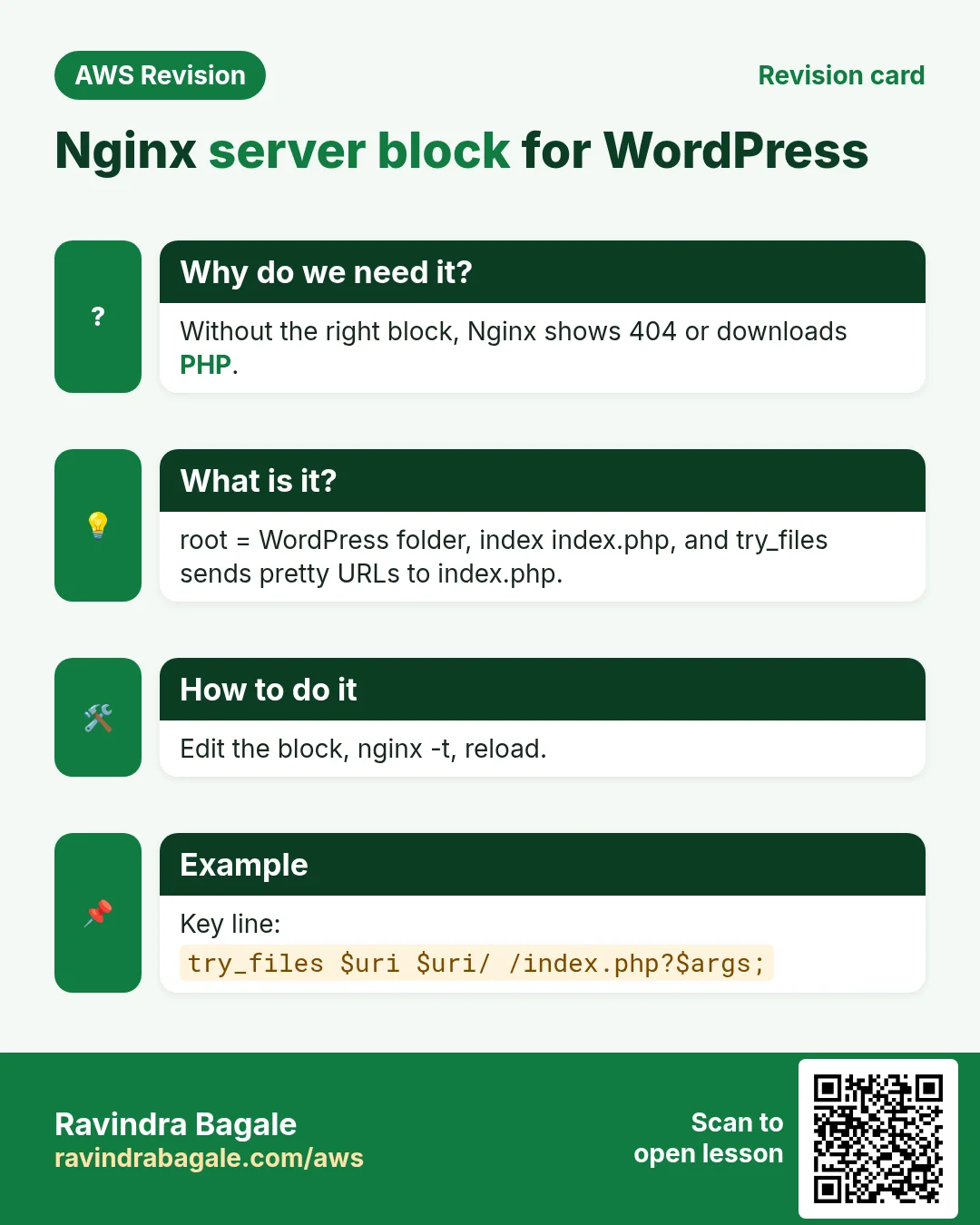
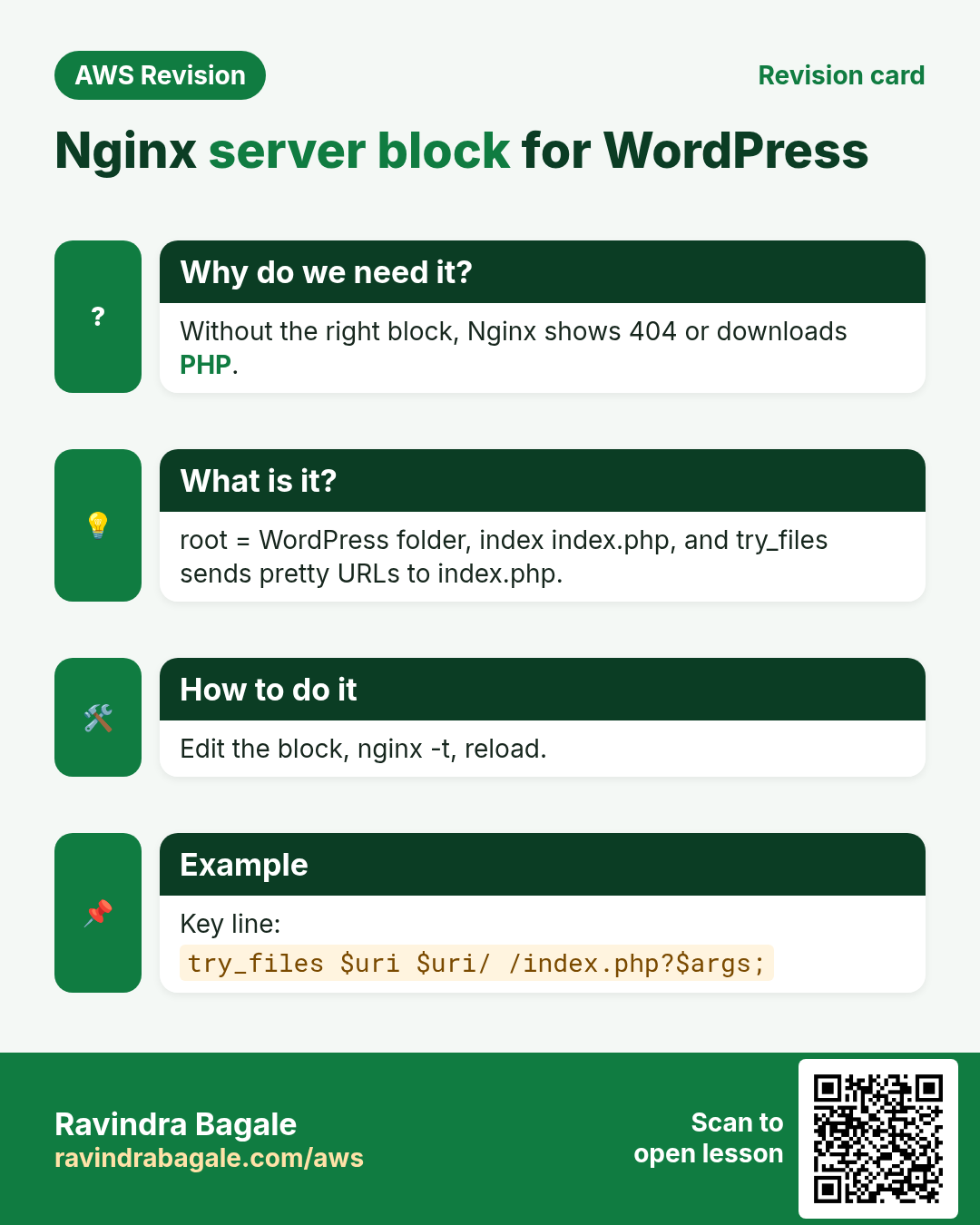
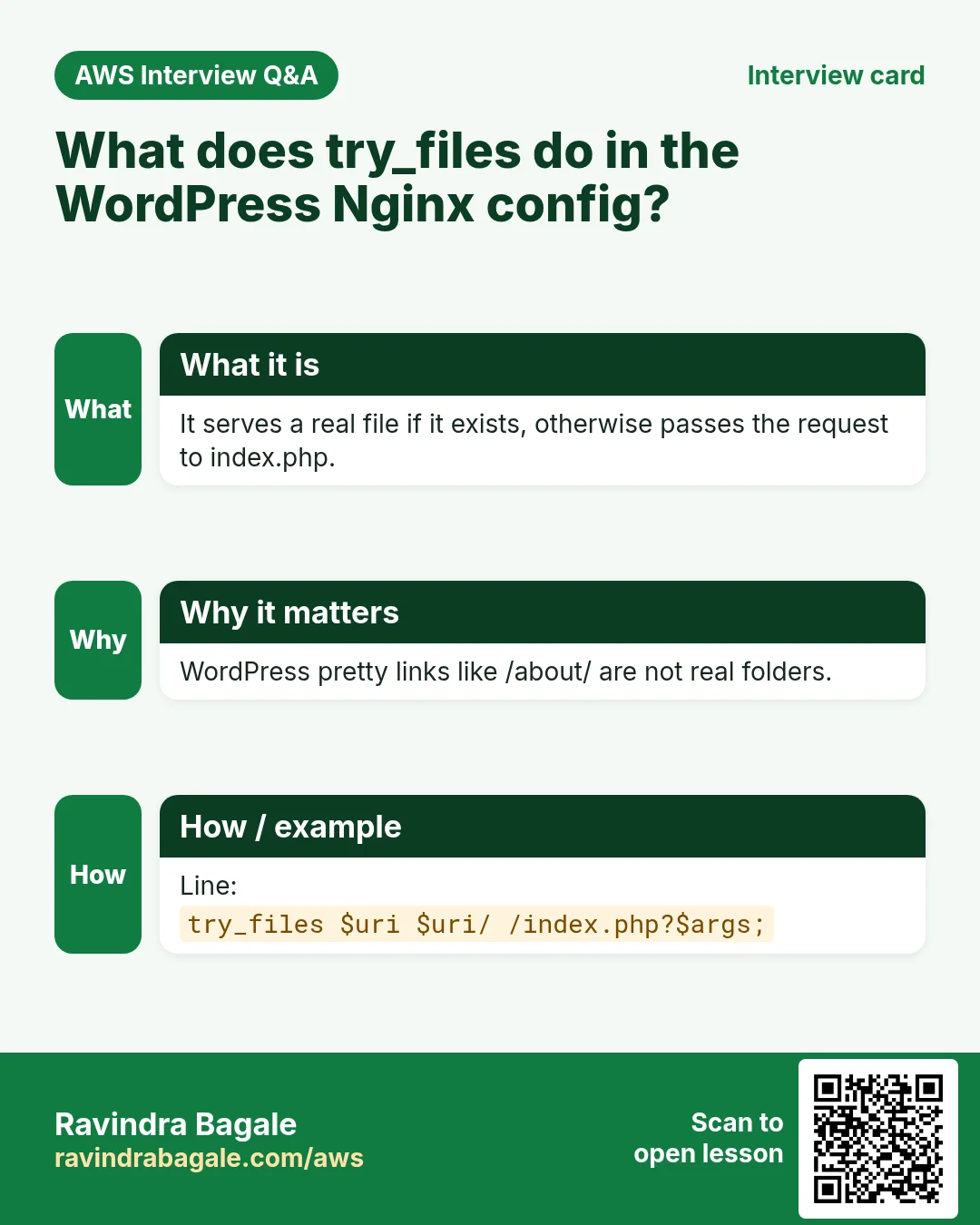
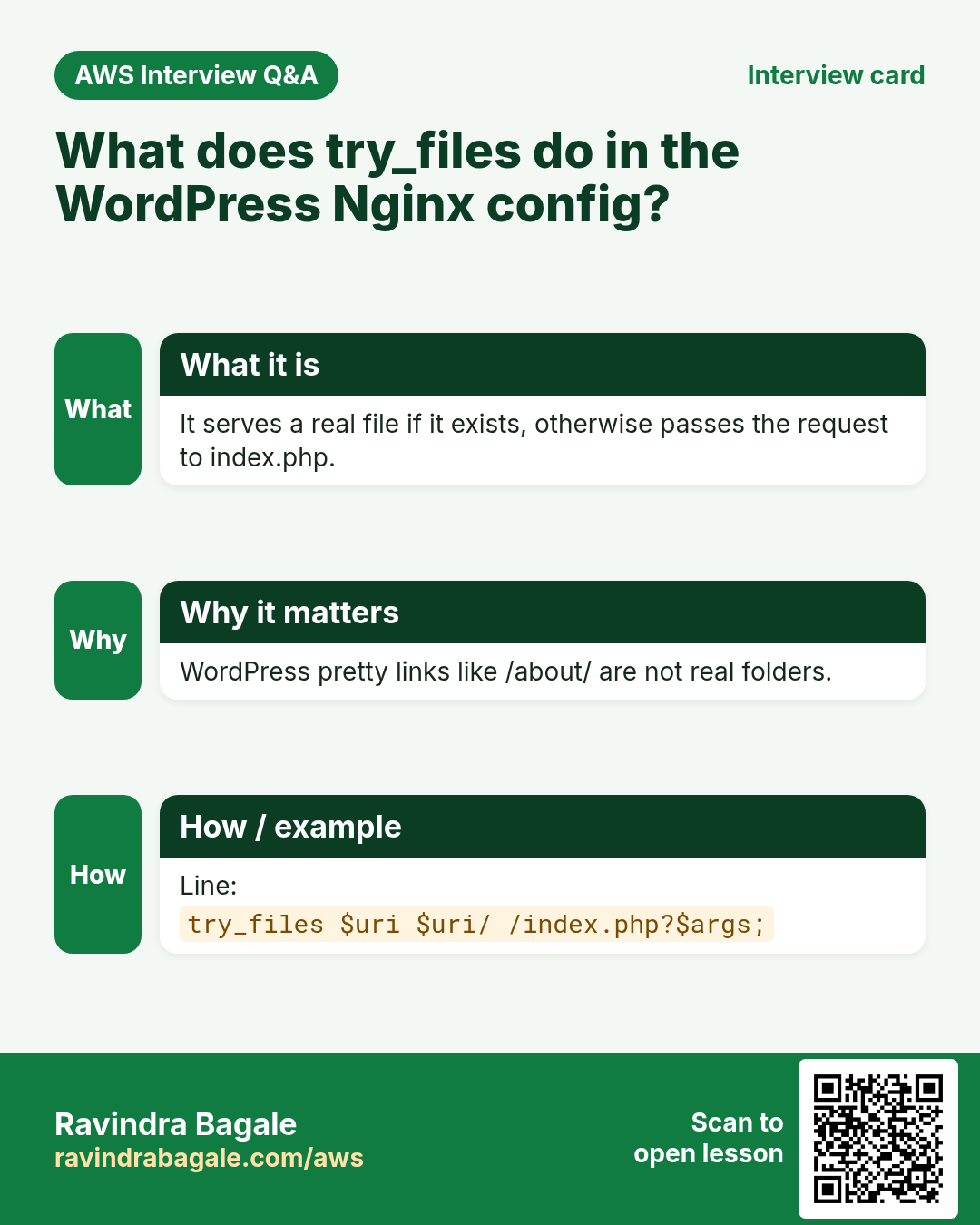
server_name _;The underscore matches any name or IP. Keep it while you have no domain; do not invent a domain name here.root /usr/share/nginx/html/wordpress;The folder nginx serves.index index.php;When someone asks for a folder, such as/, nginx opens itsindex.php.location / { try_files $uri $uri/ /index.php?$args; }If the request is not a real file ($uri) or a real folder ($uri/), hand it to WordPress'sindex.php. WordPress post links such as/hello-world/do not exist on disk, so without this line they give404 Not Found.- Leave the line
include /etc/nginx/default.d/*.conf;in place: on Amazon Linux 2023 the php-fpm package puts its PHP settings there, so nginx can hand.phpfiles to php-fpm.
Classroom line
If there's no domain name, you have to put an underscore there.
Class मधलं वाक्य
"Domain name nasel tar tithe underscore dyava lagel."
Domain name नसेल तर तिथे underscore द्यावा लागेल.
Classroom line
If there's no domain name, you have to put an underscore there.
How: the block looks like this after the change:
server {
    listen       80;
    listen       [::]:80;
    server_name  _;
    root         /usr/share/nginx/html/wordpress;
    index        index.php;

    location / {
        try_files $uri $uri/ /index.php?$args;
    }

    # Load configuration files for the default server block.
    include /etc/nginx/default.d/*.conf;
    ...
}
- Save, then test the syntax:
sudo nginx -t. It must saysyntax is okandtest is successful. - Apply it:
sudo service nginx reload. - Open
http://SERVER-IP/. WordPress redirects you to/wp-admin/setup-config.php, the installer.
Figure 3. The server block: server_name _, root in the wordpress folder, index index.php, try_files to /index.php, and the include that brings in php-fpm. Then sudo nginx -t and sudo service nginx reload.
Figure 4. Animation: /hello-world/ is not a file, so try_files hands it to index.php; WordPress finds the post in wp_posts and sends the page. Without try_files, nginx answers 404.
6. The same steps on Ubuntu
Why: WordPress runs on any Linux. Once you know what each piece does, only the names and paths change.
Classroom line
We've matured enough now that we can choose any OS.
Class मधलं वाक्य
आता आपली तेवढी maturity वाढली आहे.
Classroom line – हिंदी
"Ab apni itni maturity badh gayi hai."
What changes on Ubuntu:
aptinstead ofyum:sudo apt install nginx mariadb-server php-fpm php-mysql -y.- The web root is
/var/www/html, so WordPress goes to/var/www/html/wordpress. - The server block lives in
/etc/nginx/sites-available/default, and PHP needs its ownlocation ~ \.php$block there that points to the php-fpm socket. - php-fpm runs as
www-data, and its service has the version in its name, such asphp8.3-fpm. - Apache is called
apache2on Ubuntu andhttpdon Amazon Linux; nginx isnginxon both.
Figure 5. Amazon Linux 2023 and Ubuntu side by side: yum and apt, /usr/share/nginx/html and /var/www/html, nginx.conf and sites-available/default, package names, and the php-fpm user apache or www-data.
7. The database and a dedicated WordPress user
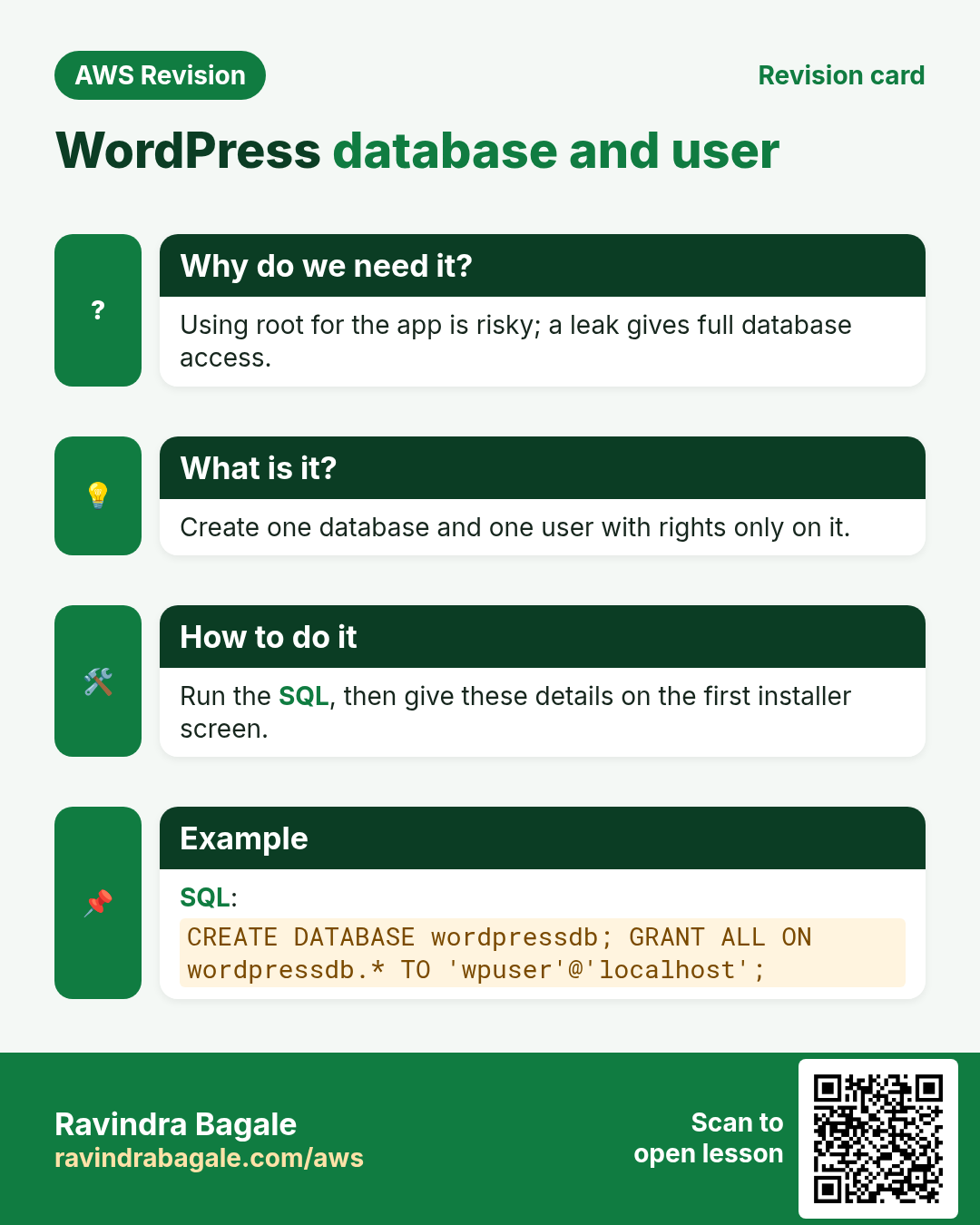
Why: WordPress needs an empty database and a login for it. That login should not be root: give WordPress its own user that can touch only its own database. If the site is ever hacked, the damage stays inside that database.
How:
- Open MariaDB as the administrator:
sudo mysql(ormysql -u root -pif you set a root password). -
Create the database and the user, with your own strong password in place of the placeholder:
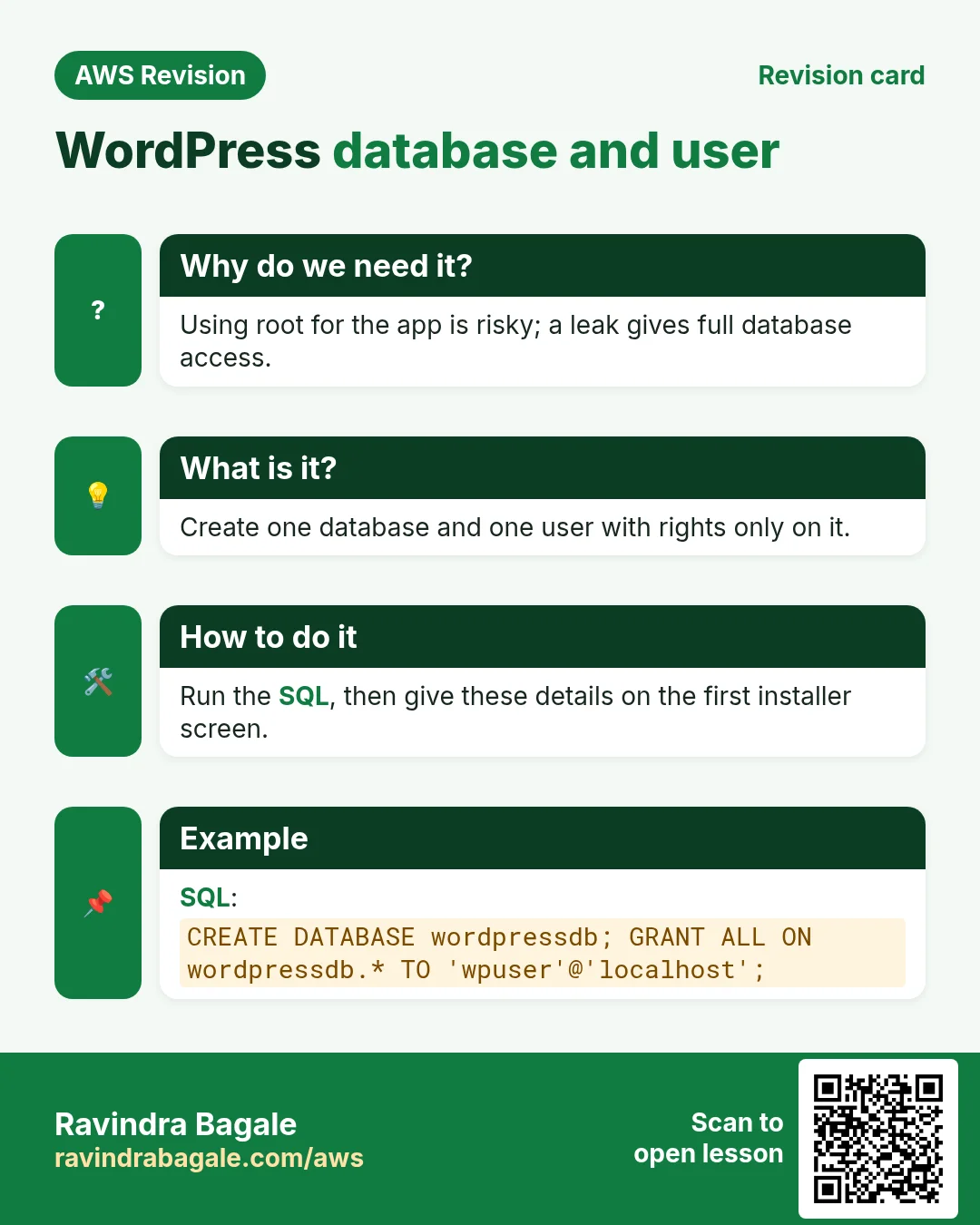
CREATE DATABASE wordpressdb; CREATE USER 'wpuser'@'localhost' IDENTIFIED BY 'YOUR_STRONG_DB_PASSWORD'; GRANT ALL ON wordpressdb.* TO 'wpuser'@'localhost'; FLUSH PRIVILEGES; exit; -
GRANT ALL ON wordpressdb.*giveswpuserevery right on every table insidewordpressdb, and nothing anywhere else. WordPress needs those rights to create its tables and, later, to update them. - Use lowercase names. On Linux, MariaDB database names are case-sensitive:
WordPressDBandwordpressdbare two different databases, and a mismatch with the installer gives a database connection error.
Classroom line
Always use small letters, everywhere.
Class मधलं वाक्य
"Nehmi small letters vapraycha saglikade."
नेहमी small letters वापरायचे सगळीकडे.
Classroom line
Always use small letters, everywhere.
- The installer will ask for four things from this step: the database name, the user name, its password, and the host,
localhost, because MariaDB runs on the same server.
Classroom line
We'll have to give these four things there.
Class मधलं वाक्य
या चारही गोष्टी तिथे द्याव्या लागतील.
Classroom line – हिंदी
"Ye chaaron cheezein wahan pe dena padega."
8. Let WordPress write to its folder
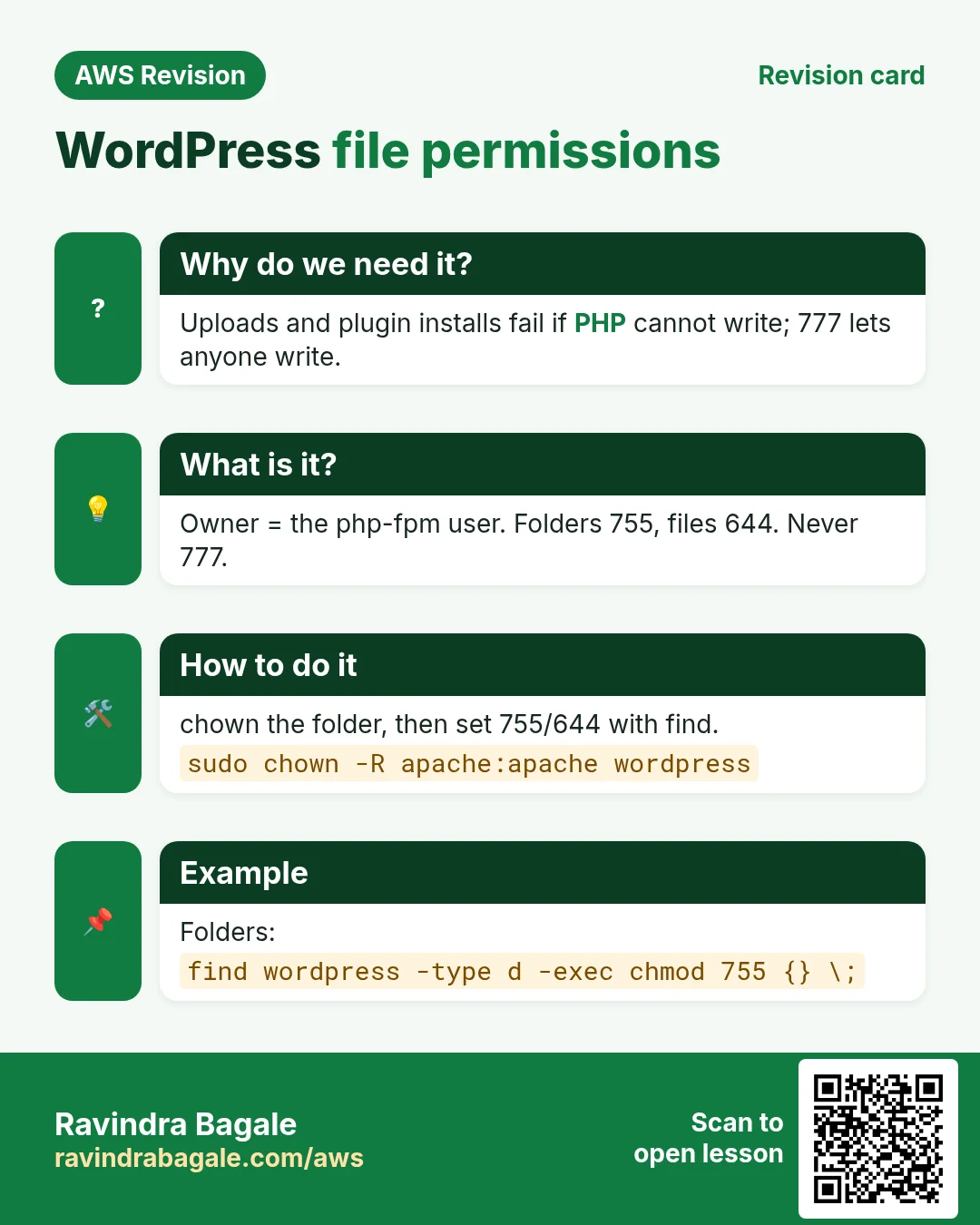
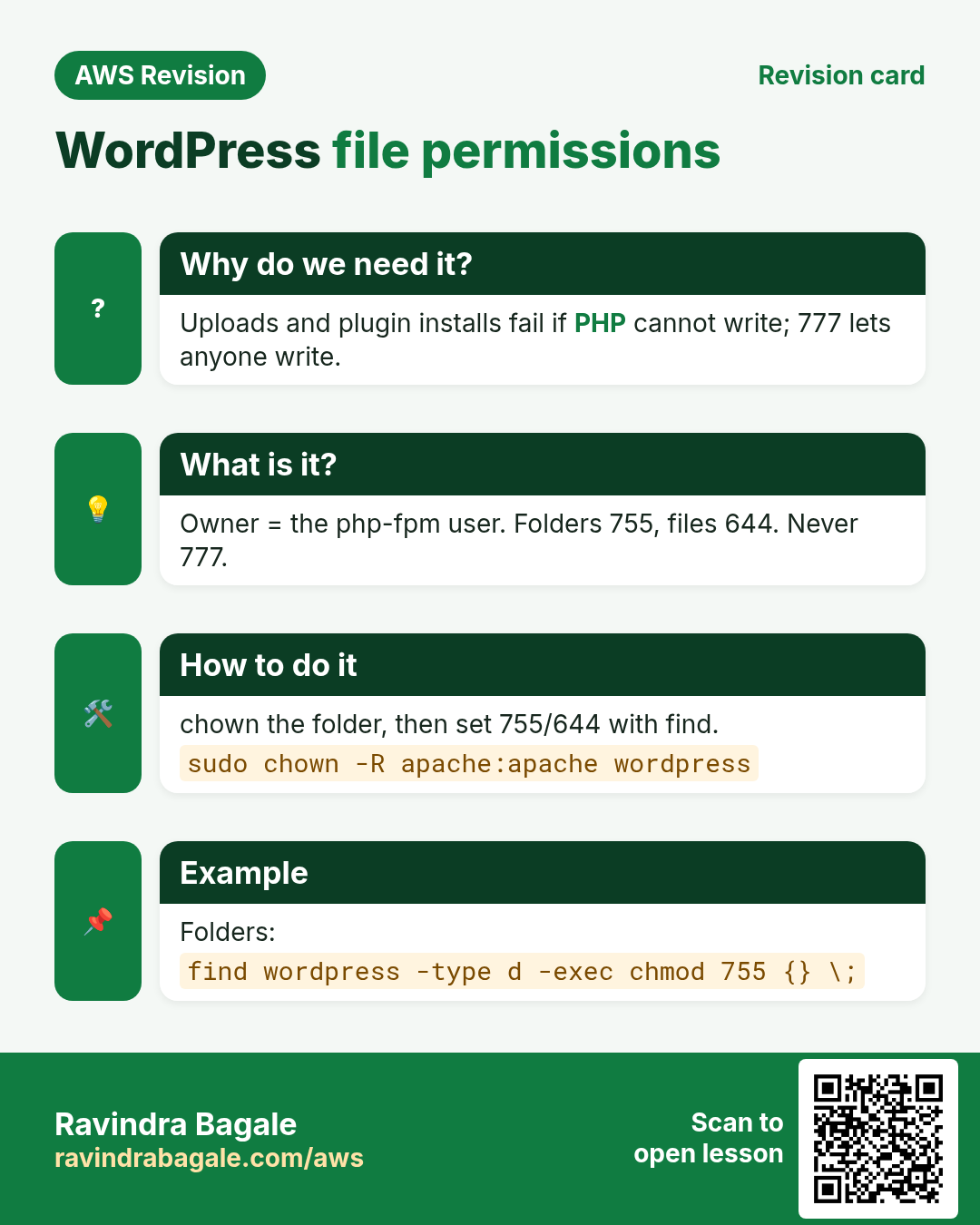
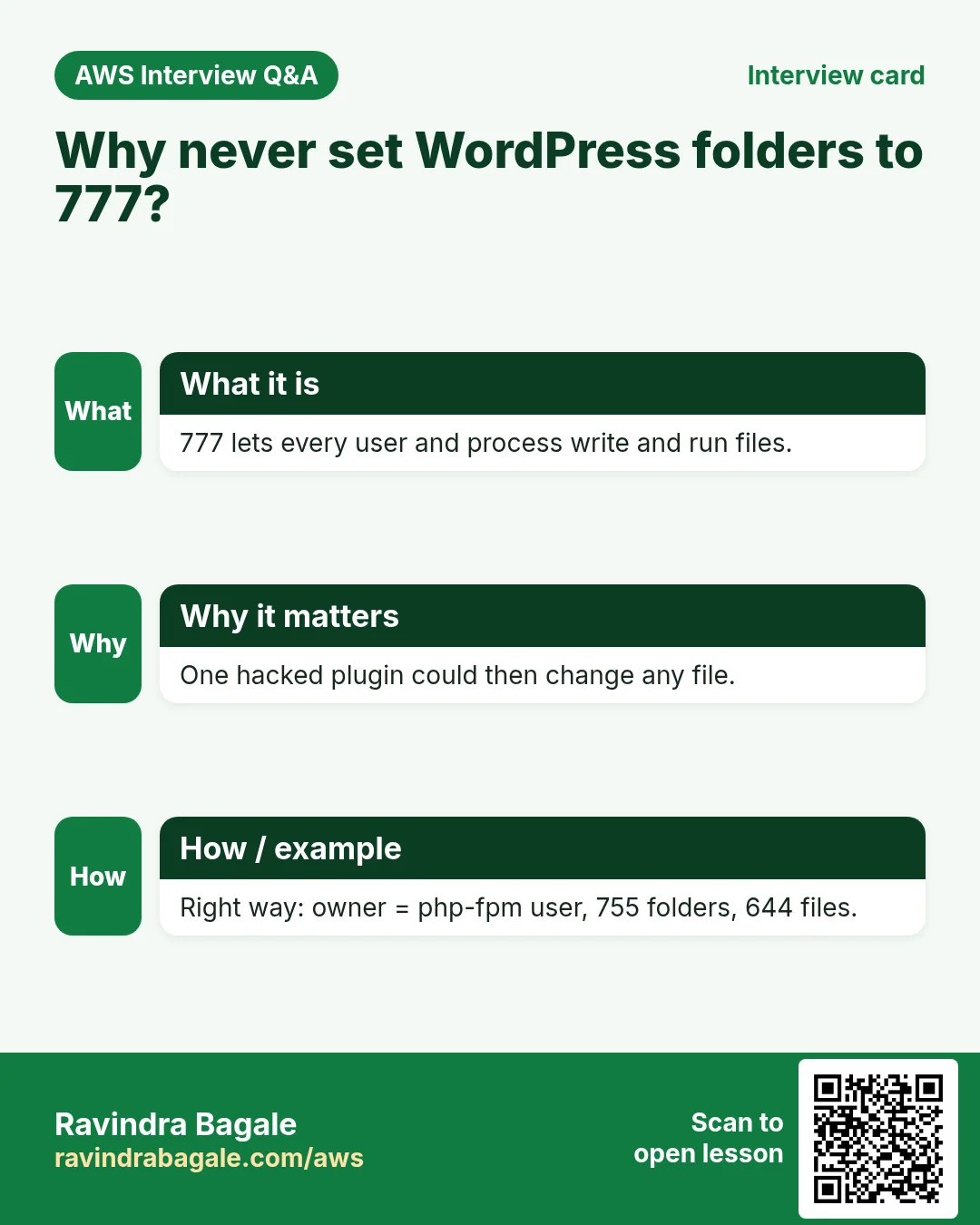
Why: the installer writes wp-config.php, and later WordPress saves uploaded images, themes and updates into its folder. The folder belongs to root after sudo unzip, so PHP cannot write there. Never "fix" this with chmod 777: that lets every user and every program on the server change every file.
What: make the user that runs PHP the owner of the folder. On Amazon Linux 2023, php-fpm runs as apache (the user = apache line in /etc/php-fpm.d/www.conf). On Ubuntu it is www-data.
How:
-
Give the folder to
apache:sudo chown -R apache:apache /usr/share/nginx/html/wordpress -
Set folders to 755 and files to 644:
sudo find /usr/share/nginx/html/wordpress -type d -exec chmod 755 {} + sudo find /usr/share/nginx/html/wordpress -type f -exec chmod 644 {} + -
755 and 644 mean: the owner (
apache) can write; everyone else, including nginx, can only read. That is all nginx needs to send images and CSS. - Another way: copy
wp-config-sample.phptowp-config.phpyourself and type the four database values into it. The installer then skips the first screen. WordPress still needs to ownwp-contentfor uploads and themes.
Figure 6. Never chmod 777. Make apache (the php-fpm user) the owner, with 755 for folders and 644 for files, so only the owner can write; tighten wp-config.php to 640 after the install.
9. The installer
Why: the installer connects WordPress to the database, creates its tables and makes your admin account. It runs once, in the browser.
How:
- Open
http://SERVER-IP/. The first screen asks for the language. Then comes the welcome screen that lists what you need.
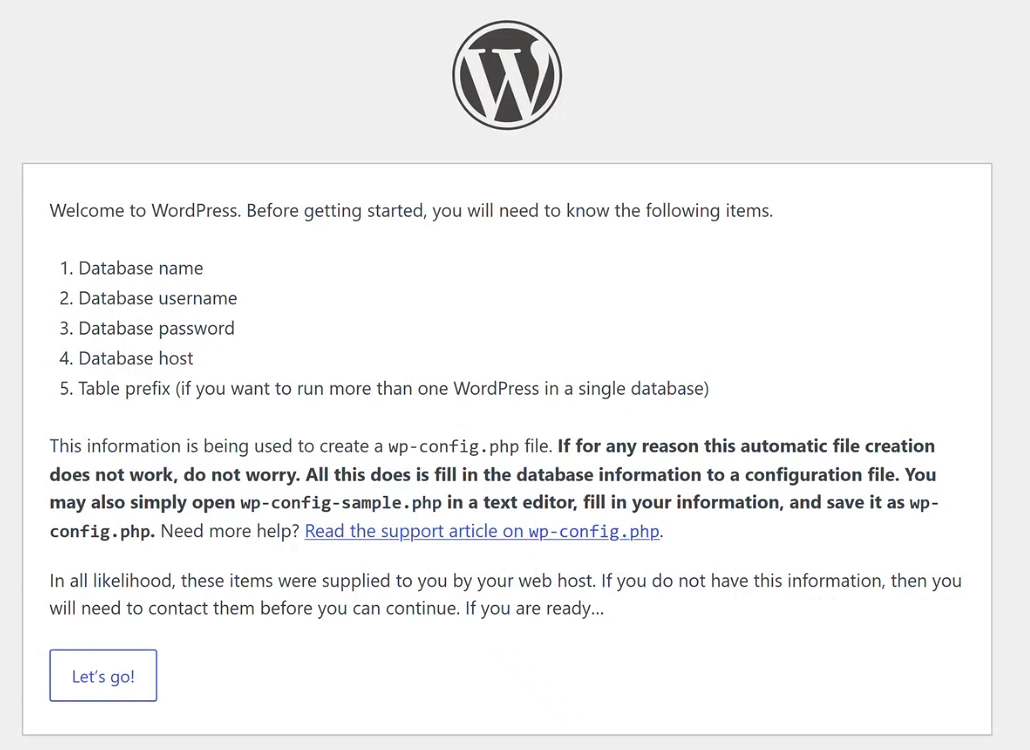
Whiteboard: The installer's welcome screen: database name, username, password, host and table prefix, which it writes into wp-config.php.
- Click Let's go! and fill screen 1, the database details:
- Database Name:
wordpressdb - Username:
wpuser - Password: the one you set in
CREATE USER - Database Host:
localhost - Table Prefix:
wp_. Every WordPress table starts with this prefix, so two sites with different prefixes could even share one database. Keepwp_for one site.
- Database Name:
- Click Submit, then Run the installation. WordPress writes
wp-config.phpand creates its own tables in the empty database:wp_posts,wp_users,wp_optionsand nine more.
Classroom line
WordPress creates its own tables.
Class मधलं वाक्य
"WordPress swatahche tables tayar kartay."
WordPress स्वतःचे tables तयार करतंय.
Classroom line
WordPress creates its own tables.
- Fill screen 2, the details of your website. This is a different login from the database one:
- Site Title: the name of the site, for example
My Practice Blog. You can change it later. - Username: the admin login. Pick a unique name, never
adminorroot: attackers try those first. - Password: long and strong. WordPress suggests one; keep it safe.
- Your Email: where WordPress sends password resets and notices.
- Search engine visibility: ticking Discourage search engines from indexing this site asks Google and others not to list the site. It is a request, not a lock: anyone with the address can still open the site. Tick it while you practise; untick it when the site goes live.
- Site Title: the name of the site, for example
- Click Install WordPress. You see Success!. Click Log In and sign in at
http://SERVER-IP/wp-adminwith the username and password from screen 2. - The installer wrote
wp-config.phpwith the database password inside and left it readable by every user on the server. Tighten it:sudo chmod 640 /usr/share/nginx/html/wordpress/wp-config.php.
Figure 7. Animation: screen 1 takes the database details and writes wp-config.php; the installation creates the 12 wp_ tables; screen 2 creates your website login: a unique username, a strong password and the search engine choice.
10. The dashboard and your first post
Why: wp-admin is the control room of the site. The site owner works here, much like managing a social media page: write, add pictures, publish.
Classroom line
What does an admin do? Supplies the content.
Class मधलं वाक्य
"Admin kay karto? Content deto."
Admin काय करतो? Content देतो.
Classroom line
What does an admin do? Supplies the content.
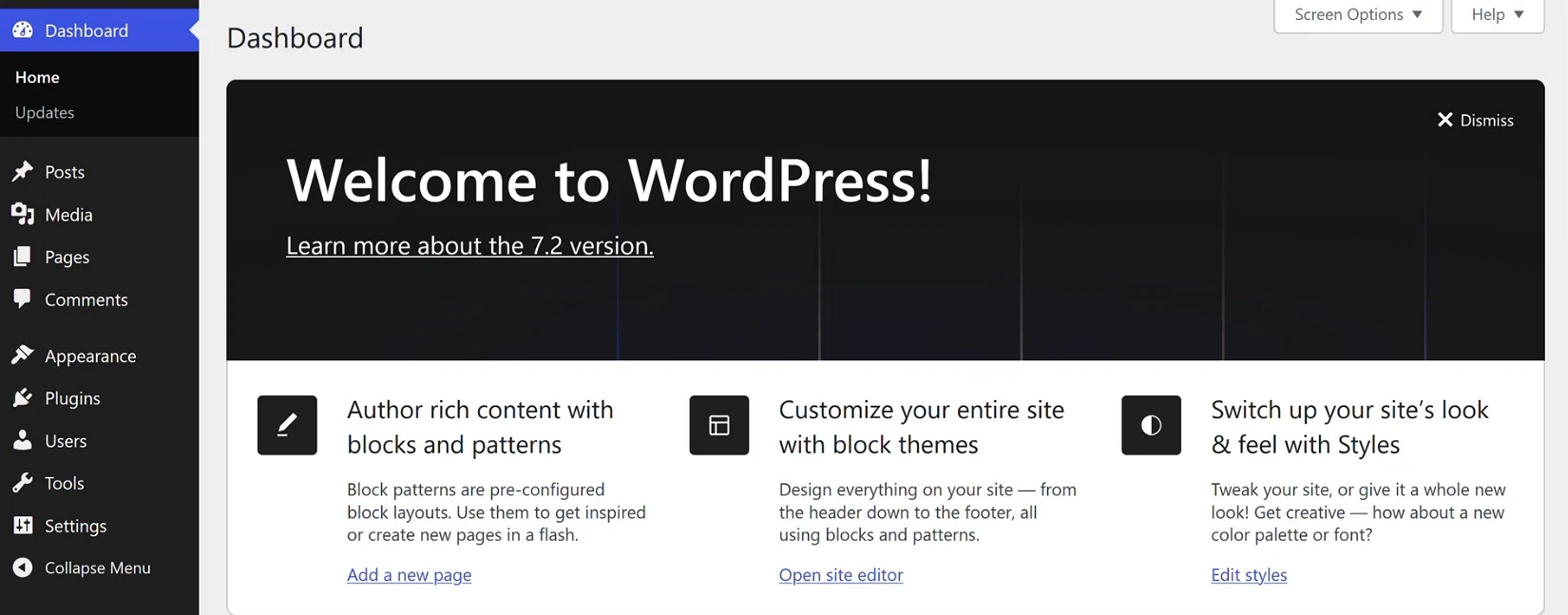
Whiteboard: The wp-admin dashboard: the left menu (Posts, Media, Pages, Appearance, Plugins, Users, Settings) and the Welcome to WordPress panel.
How to write a post: suppose you want a small poetry blog.
Classroom line
Suppose I now want to build a shayari (poetry) website.
Class मधलं वाक्य
"Samja mala aata shero-shayari cha website banvaycha aahe."
समजा मला आता शेरो-शायरीची website बनवायची आहे.
Classroom line
Suppose I now want to build a shayari (poetry) website.
- Posts > Add Post. Type a title, then the text below it. Each paragraph is a block.
- To style a block, select it. The toolbar above it has bold, italic and links; the panel on the right has text colour, background and font size (S, M, L, XL).
- To add a picture, use your own image or one you have the right to use. Upload it first: Media > Add Media File, or the Image block's Upload button. It lands in the Media Library, and the image file is stored on your server in
wp-content/uploads. Avoid inserting an image by its URL from another website: it can vanish at any time, and it is usually someone else's work. - Click Publish, then View Post. Open the site's address in a new tab: the post is on the home page.
- Posts > All Posts lists your posts. The sample post Hello world! can be edited or moved to the trash.
Figure 8. The dashboard menu: Posts for writing and publishing, Media for uploading images, Appearance > Themes for the look, and Settings > General for the saved site address.
11. Themes
Why: a theme decides how the whole site looks: layout, fonts, colours, header and footer. The content stays the same; one click changes the look.
How:
- Appearance > Themes lists the installed themes. The active one is marked Active.
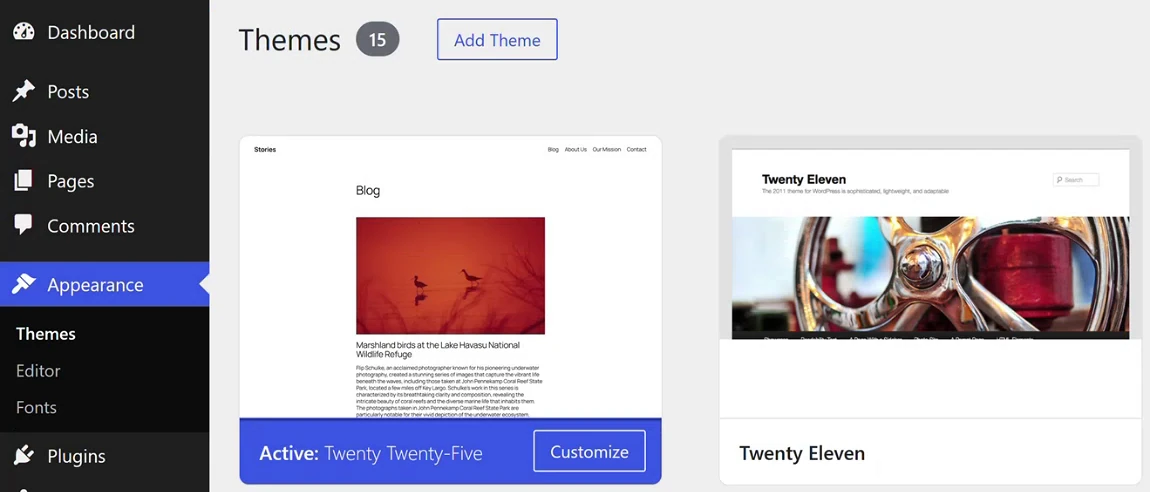
Whiteboard: Appearance > Themes: the active theme, Twenty Twenty-Five, and another installed theme, Twenty Eleven.
- Hover over another theme, such as Twenty Eleven, and click Activate. Refresh the site in the other tab: same posts, new look.
Classroom line
Now it feels like you've built a website, right? That's the feeling.
Class मधलं वाक्य
"Aata vatta na website kelyasarkha? Hech feel aahe."
आता वाटतंय ना website केल्यासारखं? हेच feel आहे.
Classroom line
Now it feels like you've built a website, right? That's the feeling.
- Add Theme lets you browse thousands of free themes for blogs, news, business and shops.
- If WordPress asks for FTP connection details when you install a theme or plugin, it cannot write to its own folder. Check that
apacheowns/usr/share/nginx/html/wordpress(section 8). Installing themes with FTP is covered in the next chapter.
12. Why the site breaks when the IP changes
Why: this is the most common surprise with WordPress on EC2. During the install, WordPress saves the address you used, http://SERVER-IP, in the wp_options table as siteurl and home, and builds every link, image and CSS address from it.
What happens:
- An EC2 instance without an Elastic IP gets a new public IP every time it is stopped and started.
- You open the new IP. The page arrives, but its styles, images and links still point to the old IP, where nobody answers.
/wp-adminredirects to the old IP, so you cannot even log in.
How to avoid it:
- Before the site goes live, give the server an address that does not change: allocate an Elastic IP and associate it with the instance, or point a domain name at that Elastic IP. Install WordPress at that address.
- While you practise, do not stop the instance in the middle of the work, or expect the site to break when the IP changes.
- You can see the saved address under Settings > General (WordPress Address and Site Address). Repairing a site whose IP has already changed is covered in the next chapter.
Classroom line
When you use WordPress, always use a static IP before going live.
Class मधलं वाक्य
"WordPress vapartana live karnyachya aadhi nehmi static IP vapra."
WordPress वापरताना live करण्याच्या आधी नेहमी static IP वापरा.
Classroom line
When you use WordPress, always use a static IP before going live.
Figure 9. Animation: WordPress saves siteurl and home with the install address; after a stop and start the new IP serves a page whose links, CSS and wp-admin still point to the old IP. Use an Elastic IP or a domain before going live.
13. When something goes wrong
Why: a WordPress install has many small steps, and each error message points to one of them.
Classroom line
There are reasons behind errors; you have to look for those reasons.
Class मधलं वाक्य
"Errors yenyamage karana astat, ti karana baghavi lagtat."
Errors येण्यामागे कारणं असतात, ती कारणं बघावी लागतात.
Classroom line
There are reasons behind errors; you have to look for those reasons.
- The IP still shows "Welcome to nginx" or your test page:
rootstill points to/usr/share/nginx/html, or you did not reload. Fix the path, runsudo nginx -t, thensudo service nginx reload. 403 Forbiddenon the home page: nginx found the folder but no index file it may open. Addindex index.php;and check thatrootends in/wordpress.404 Not Foundfor every page: therootpath does not match the folder name./usr/share/nginx/html/WordPressis not/usr/share/nginx/html/wordpress.- The installer says PHP is missing the MySQL extension: install
php-mysqlndand restart php-fpm. - Error establishing a database connection: the database name, user, password or host does not match what you created. Check the case of the names, and log in with
mysql -u wpuser -p wordpressdbto test the same values. - The installer cannot write
wp-config.php: the folder is not owned byapache. Usechown, never 777. - Post links give
404, but the home page works: thetry_filesline is missing. -
You made a mistake on screen 1 or 2 and want to start again: delete and recreate the database, then open the site again; the installer runs again with the same
wp-config.php. This erases everything in the site.sudo mysql -e "DROP DATABASE wordpressdb; CREATE DATABASE wordpressdb;"If the mistake was in the database details themselves, also delete
wp-config.phpso that screen 1 appears again.
Ravindra Bagale's Tip
Build the stack one layer at a time and test each layer before the next: index.html opens (nginx), info.php opens (php-fpm), mysql -u wpuser -p wordpressdb logs in (database and user), sudo nginx -t passes (config). Then open the installer. When a step fails, sudo tail -n 20 /var/log/nginx/error.log and /var/log/php-fpm/www-error.log usually name the cause in one line. And give the server an Elastic IP before you show the site to anyone.
When you're done practising, stop the EC2 instance, and remember that its public IP will change unless it has an Elastic IP.
14. Hands-on lab: WordPress from an empty server to a first post
Why this lab. WordPress runs a large share of the web, and installing it touches every skill so far: packages, services, nginx, a database user and file permissions. Each step below has a check, so you never reach the installer with a hidden problem.
- Install the LEMP pieces
- Command:
sudo yum install nginx mariadb105-server php php-fpm php-mysqlnd -y - You should see:
Complete! - Check:
php -m | grep -i mysqli→mysqli. - Why: WordPress is PHP code that keeps everything in a MySQL-compatible database. Without
php-mysqlnd, it stops at "Your PHP installation appears to be missing the MySQL extension".
- Command:
- Start the services
- Command:
sudo service nginx start; sudo service mariadb start; sudo service php-fpm start - You should see: Three redirect lines.
- Check:
http://PUBLIC_IP/shows the nginx test page. - Why: Seeing the test page proves nginx and port 80 work before WordPress is involved.
- Command:
- Download and unpack WordPress
- Command:
cd /usr/share/nginx/html && sudo wget https://wordpress.org/latest.zip && sudo unzip -q latest.zip - You should see:
latest.zip...saved, then the prompt. - Check:
ls wordpressshowswp-admin,wp-content,wp-includesandindex.php. - Why:
wgeton the server downloads straight from wordpress.org.-qkeeps unzip from printing thousands of file names.
- Command:
- Create the database and its user
- Do: In
sudo mysql -u root -p, runCREATE DATABASE wordpressdb;,CREATE USER 'wpuser'@'localhost' IDENTIFIED BY 'YOUR_STRONG_DB_PASSWORD';andGRANT ALL ON wordpressdb.* TO 'wpuser'@'localhost';. - Check:
mysql -u wpuser -p wordpressdb -e "SELECT 1;"prints1. - Why: WordPress gets its own user with rights on its own database only. A hacked plugin then can't touch your other databases.
- Do: In
- Point nginx at WordPress
- Do: In
/etc/nginx/nginx.conf, setroot /usr/share/nginx/html/wordpress;and addindex index.php index.html;(section 5). - Check:
sudo nginx -t→syntax is ok, thensudo service nginx reload. - Why: Without
index.phpin the index list, nginx looks only forindex.htmland returns 403.
- Do: In
- Let WordPress write to its folder
- Command:
sudo chown -R apache:apache /usr/share/nginx/html/wordpress - You should see: Nothing.
- Check:
ls -ld /usr/share/nginx/html/wordpressshowsapache apache. - Why: On Amazon Linux, php-fpm runs as the user
apache. It must own the folder to writewp-config.phpand save uploads.
- Command:
- Run the installer
- Do: Open
http://PUBLIC_IP/, pick a language, enterwordpressdb,wpuser, its password andlocalhost, then set the site title and your admin login. - You should see: Success!, then the login page.
- Check:
sudo mysql -u root -p -e "SHOW TABLES FROM wordpressdb;"lists tables starting withwp_. - Why: The installer writes
wp-config.phpand creates thewp_tables. If it can't write the file, step 6 was missed.
- Do: Open
- Publish a first post
- Do: Log in at
http://PUBLIC_IP/wp-admin, go to Posts → Add New, write a title and a line, and click Publish. - Check: The home page lists your post.
- Why: The post is saved in the database, not as a file. That is why the database is what you back up for WordPress.
- Do: Log in at
- Note the IP, then stop
- Do: Write down the public IP you installed with, then stop the instance.
- Check: State Stopped.
- Why: WordPress saved that IP as the site address. After a start the IP changes, and the next chapter shows how to fix the address safely.
15. The whole class on one page
- A framework gives developers parts to write an app; a CMS such as WordPress is a finished website you fill from a dashboard.
- LEMP:
sudo yum install nginx mariadb105-server php php-fpm php-mysqlnd -y, start the three services, testindex.htmland a PHP page. php-mysqlndlets PHP reach MariaDB; after installing it, restart only php-fpm.- Download the stable
https://wordpress.org/latest.zipand unzip it into/usr/share/nginx/html/wordpress, all lowercase. - Server block:
server_name _;,root .../wordpress;,index index.php;,try_files $uri $uri/ /index.php?$args;; thensudo nginx -tand reload. - Ubuntu:
apt,/var/www/html,sites-available/default,php-mysql, userwww-data. CREATE DATABASE wordpressdb;andwpuserwithGRANT ALL ON wordpressdb.*, never root; lowercase names.chown -R apache:apachethe folder, folders 755, files 644, never 777;wp-config.php640 after the install.- Screen 1: database name, user, password,
localhost, prefixwp_. Screen 2: site title, a unique admin username, a strong password, email, and the search engine request. - Dashboard: Posts to write and style, Media Library for images, Appearance > Themes for the look.
- WordPress saves its address; a new EC2 IP breaks the site, so use an Elastic IP or a domain before going live.
- To rerun the installer, drop and recreate the database.
16. Try at home
Try at home
Task 1: the stack
- Launch an Amazon Linux 2023 instance, install nginx, MariaDB, PHP, php-fpm and php-mysqlnd, and start all three services.
- Open a test
index.htmlandinfo.php, then deleteinfo.php.
Task 2: WordPress
- Download
latest.zip, unzip it into/usr/share/nginx/html/wordpress, and setroot,indexandtry_files. - Create
wordpressdbandwpuser, give the folder toapachewith 755 and 644, and run the installer with a unique admin username. - Run
SHOW TABLES;inwordpressdband count thewp_tables.
Task 3: content
- Publish two posts, one with bold coloured text and one with an image uploaded to the Media Library.
- Activate a different theme and compare the site before and after.
Task 4: break it on purpose
- Comment out the
try_filesline, reload nginx, and open a post. Note the error, then put the line back. - Check Settings > General and write down the saved address. Which address would break after a stop and start?
Recap
In short
- WordPress is a CMS written in PHP: a finished website the owner fills from a dashboard, unlike a framework, which helps developers write code.
- It runs on LEMP: nginx, php-fpm with
php-mysqlnd, and MariaDB, all on one Amazon Linux 2023 server. - Download the stable
latest.zipinto/usr/share/nginx/html/wordpressand point nginx'srootthere, withindex index.php;andtry_files ... /index.php?$args;. - Give WordPress its own database,
wordpressdb, and its own user,wpuser, withGRANT ALL ON wordpressdb.*. - Make
apache, the php-fpm user, the owner of the folder, with 755 and 644; never 777. - Screen 1 of the installer takes the database details; screen 2 creates your website login with a unique username and a strong password.
- Write posts with the block editor, upload images to the Media Library, and change the look under Appearance > Themes.
- WordPress remembers its address, so use an Elastic IP or a domain before the site goes live.
Practice Tasks
Texas Solar Co is a solar energy business in Austin. Carlos Ramirez looks after its IT and cloud work. They count money in USD and run their AWS resources in the us-east-2 Region. In the tasks below you do real jobs for them using what this lesson teaches. All names, account IDs, IP addresses and numbers are made up for practice.
0 / 12
Easy Restart a service after a change
Why: Config changes only apply after the service restarts or reloads.
What to do: Restart the nginx service.
- Find the Linux command that does this job.
- Add the options (like -r or -h) the task needs.
- Add the file names, folders or users in the right order.
- Use sudo if the job changes system files or users. Click Check answer.
Easy Check if a service is running
Why: When a site is down, first check whether the web server process is running.
What to do: Show the status of the httpd service.
- Find the Linux command that does this job.
- Add the options (like -r or -h) the task needs.
- Add the file names, folders or users in the right order.
- Use sudo if the job changes system files or users. Click Check answer.
Easy Install a package on Ubuntu
Why: Ubuntu uses apt. Package names differ: on Ubuntu Apache is apache2.
What to do: Install the apache2 package on Ubuntu without being asked to confirm.
- Find the Linux command that does this job.
- Add the options (like -r or -h) the task needs.
- Add the file names, folders or users in the right order.
- Use sudo if the job changes system files or users. Click Check answer.
Easy Install a package on Amazon Linux
Why: dnf is the package manager on Amazon Linux 2023. -y answers yes for you.
What to do: Install the httpd package on Amazon Linux 2023 without being asked to confirm.
- Find the Linux command that does this job.
- Add the options (like -r or -h) the task needs.
- Add the file names, folders or users in the right order.
- Use sudo if the job changes system files or users. Click Check answer.
Easy Test a website from the server
Why: curl shows whether the web server answers, even before DNS is ready.
What to do: Request http://localhost and show only the response headers.
- Find the Linux command that does this job.
- Add the options (like -r or -h) the task needs.
- Add the file names, folders or users in the right order.
- Use sudo if the job changes system files or users. Click Check answer.
Easy Download code from GitHub
Why: git clone copies the whole repository to the server, ready to deploy.
What to do: Clone https://github.com/texassolar/website.git into the current folder.
- Find the Linux command that does this job.
- Add the options (like -r or -h) the task needs.
- Add the file names, folders or users in the right order.
- Use sudo if the job changes system files or users. Click Check answer.
Medium Test the nginx config
Why: A test catches typos before a restart takes your site down.
What to do: Check the nginx configuration files for errors.
- Find the Linux command that does this job.
- Add the options (like -r or -h) the task needs.
- Add the file names, folders or users in the right order.
- Use sudo if the job changes system files or users. Click Check answer.
Medium Start a service now and at boot
Why: enable makes it start after reboot; --now also starts it right away.
What to do: Enable the nginx service and start it immediately, in one command.
- Find the Linux command that does this job.
- Add the options (like -r or -h) the task needs.
- Add the file names, folders or users in the right order.
- Use sudo if the job changes system files or users. Click Check answer.
Medium Open port 80 to the world
Why: Visitors can reach your website only if the security group allows HTTP.
What to do: Allow inbound TCP port 80 from 0.0.0.0/0 on security group sg-011225c015104c3b2.
- Read the task and decide which AWS service it is about.
- Write aws, then the service name, then the operation (the action word).
- Add each needed flag (--name) followed by its value from the task.
- Flags can be in any order. Click Check answer.
Medium Remove small orders
Why: Querying the database is daily work after you set up RDS.
What to do: Delete orders with amount below 200.
Tables: customers(id, name, city) and orders(id, customer_id, amount, odate).
- Find the table the task is about (see the table list above the box).
- Write the SQL statement step by step: what, from where, which rows.
- End the statement with ;
- Click Check answer. Your query runs on a practice copy of the table.
Hard Enable an nginx site on Ubuntu
Why: On Ubuntu, a site is enabled by a symbolic link from sites-available to sites-enabled.
What to do: Create a symbolic link to /etc/nginx/sites-available/texassolar inside /etc/nginx/sites-enabled/.
- Find the Linux command that does this job.
- Add the options (like -r or -h) the task needs.
- Add the file names, folders or users in the right order.
- Use sudo if the job changes system files or users. Click Check answer.
Hard Sales per customer
Why: Querying the database is daily work after you set up RDS.
What to do: Show customer_id and total amount per customer, only where total is above 1000.
Tables: customers(id, name, city) and orders(id, customer_id, amount, odate).
- Find the table the task is about (see the table list above the box).
- Write the SQL statement step by step: what, from where, which rows.
- End the statement with ;
- Click Check answer. Your query runs on a practice copy of the table.
Revision, comparison and interview cards
Revise this lesson in a few minutes. Save the cards on your phone or download them as PNG files. The QR code on each card opens this lesson.
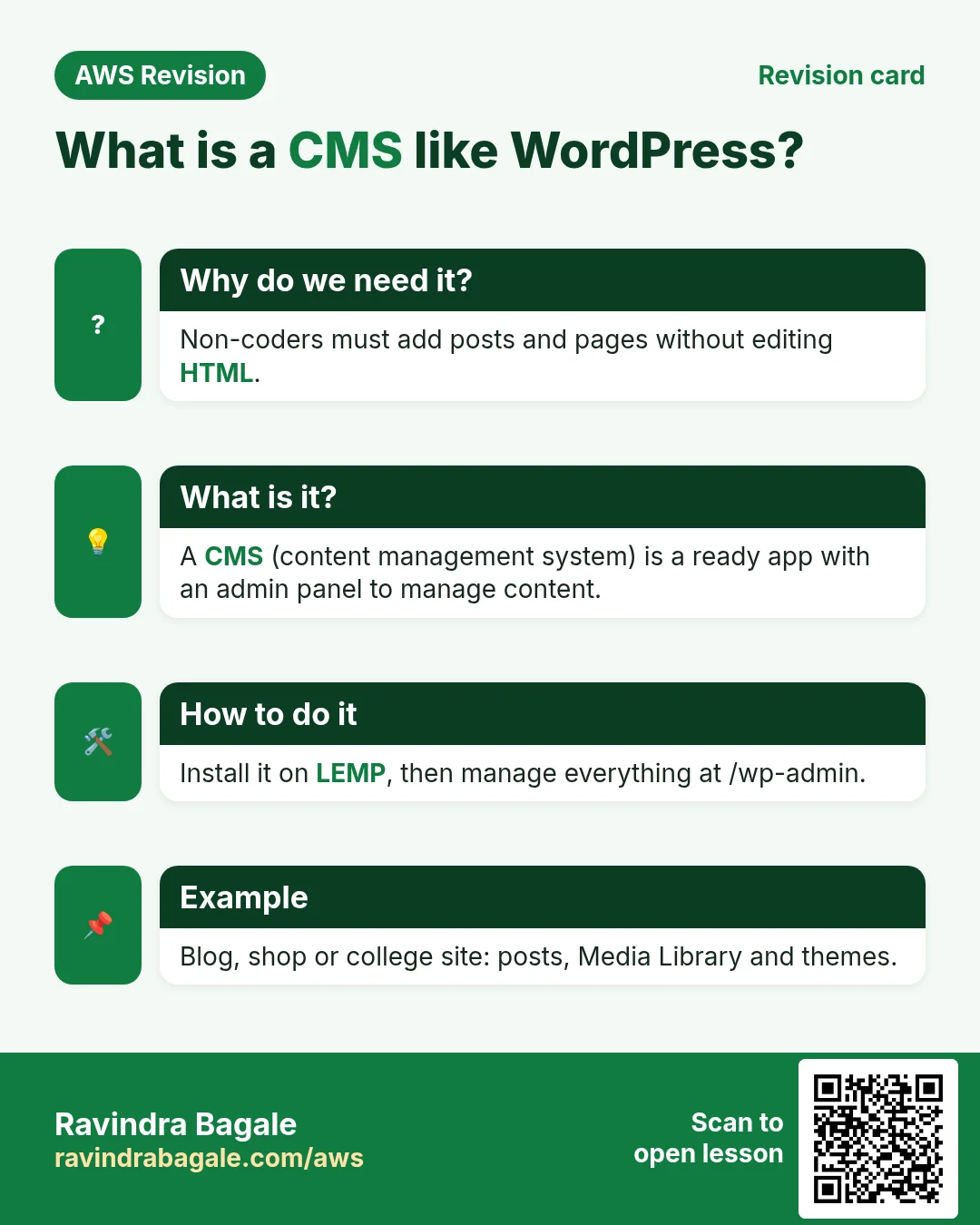
More cards: Ravi Sir's Cards.