How to Host a GitHub Website on AWS EC2 with Nginx
Real projects aren't typed into nano: developers keep their code on GitHub, and our job as cloud engineers is to host it. In this chapter we find a free static website on GitHub, bring it onto an EC2 server with wget, unzip it, and point Nginx's root at the right folder. On the way we fix the key-permission error that stops ssh, learn to find the folder that really holds index.html, and see why several sites on one server need domain names. We finish with a warning about phishing pages, because the same hosting skill is what attackers misuse.
What you'll learn in this class
- What GitHub, a repository, public and private repos, and organisation accounts are
- How to tell a static project from one that needs a backend, using the language bar
- Fixing
UNPROTECTED PRIVATE KEY FILEon Linux, Mac and Windows - Two ways to get a repository onto the server: Download ZIP +
scp, orwgeton the server - Example 1: a repo with ten sites, hosted from
/usr/share/nginx/tensites - Example 2: a repo with dozens of mini-projects: find
index.html, runpwd, setroot - Opening several projects by folder name, and why domains are the proper way
- Safe habits:
pwdbeforerm -rf *, quotes around odd URLs,file.zip.1, checking the LICENSE - How phishing login pages steal passwords, and how to protect yourself
1. Why: real projects live on GitHub
Why. In the last chapters we wrote pages by hand or let an agent write them. In real companies, code lives in one place where the whole team works on it, and very often that place is GitHub. Developers write the code; we host it.
Classroom line
We keep our code stored on github.com.
Class मधलं वाक्य
"GitHub dot com varthi aapla code store karun thevto."
GitHub dot com वरती आपला code store करून ठेवतो.
Classroom line
We keep our code stored on github.com.
2. What: GitHub and repositories
Why. Before you host a company's code you must know where it lives and whether you are allowed to download it. Public and private repositories answer that question.
GitHub (github.com, owned by Microsoft) is a website where companies and developers store source code. One project's code store is a repository, or repo.
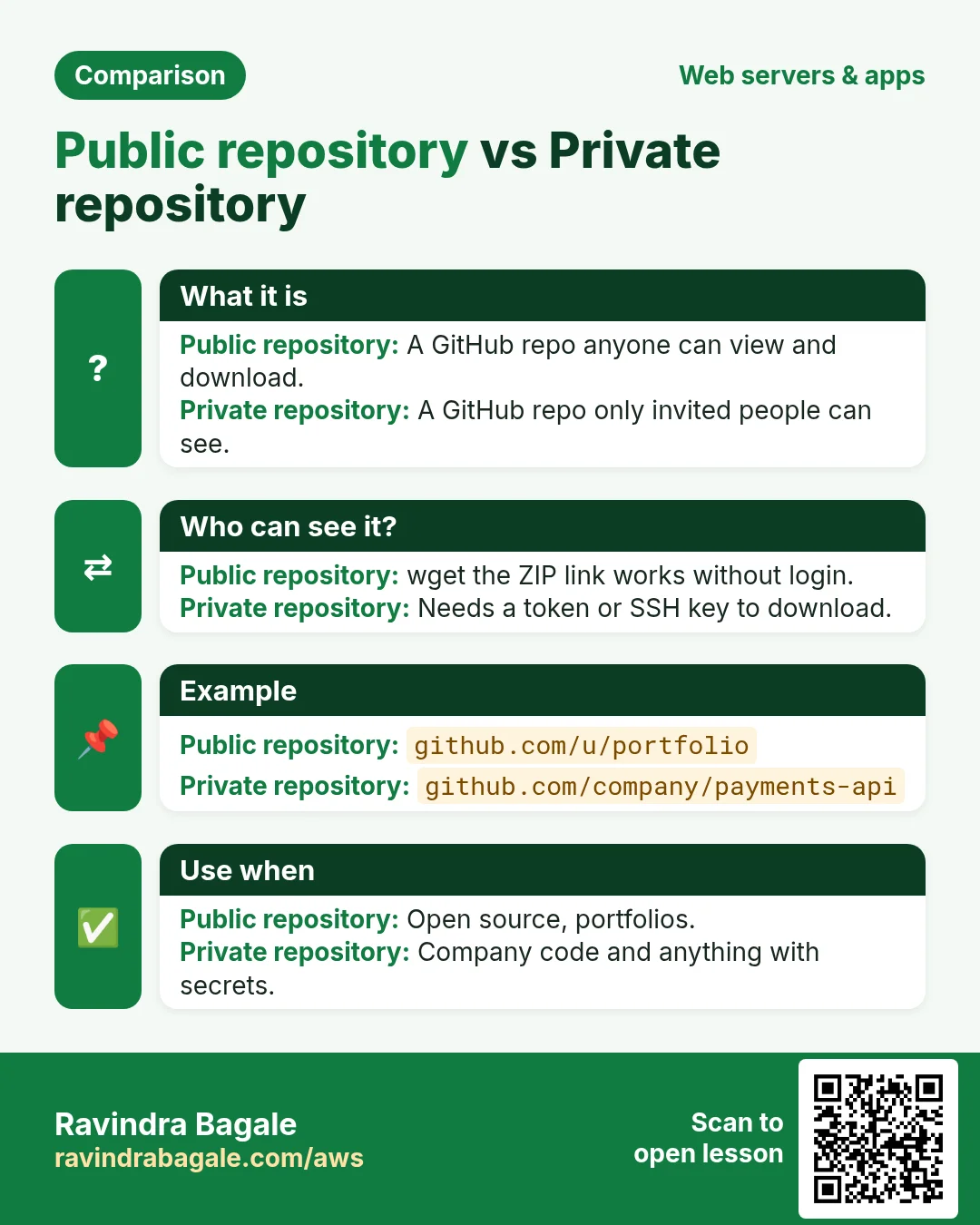
- A public repository can be seen and downloaded by anyone on the internet. You don't need to sign in to search or download public repos.
- A private repository is visible only to the people you allow. They sign in, or use a token.
- Free accounts can have unlimited public and private repositories.
- Companies keep their repositories in organisation accounts that the whole team shares.
Classroom line
A public repository means anyone in the world can download that code from the internet.
Class मधलं वाक्य
Public repository म्हणजे जगातलं कोणीही internet वरून तो code download करू शकतं.
Classroom line – हिंदी
"Public repository cha matlab hai, duniya me koi bhi internet se wo code download kar sakta hai."
Figure 1. One project is one repository. Public: anyone can download. Private: only people you allow.
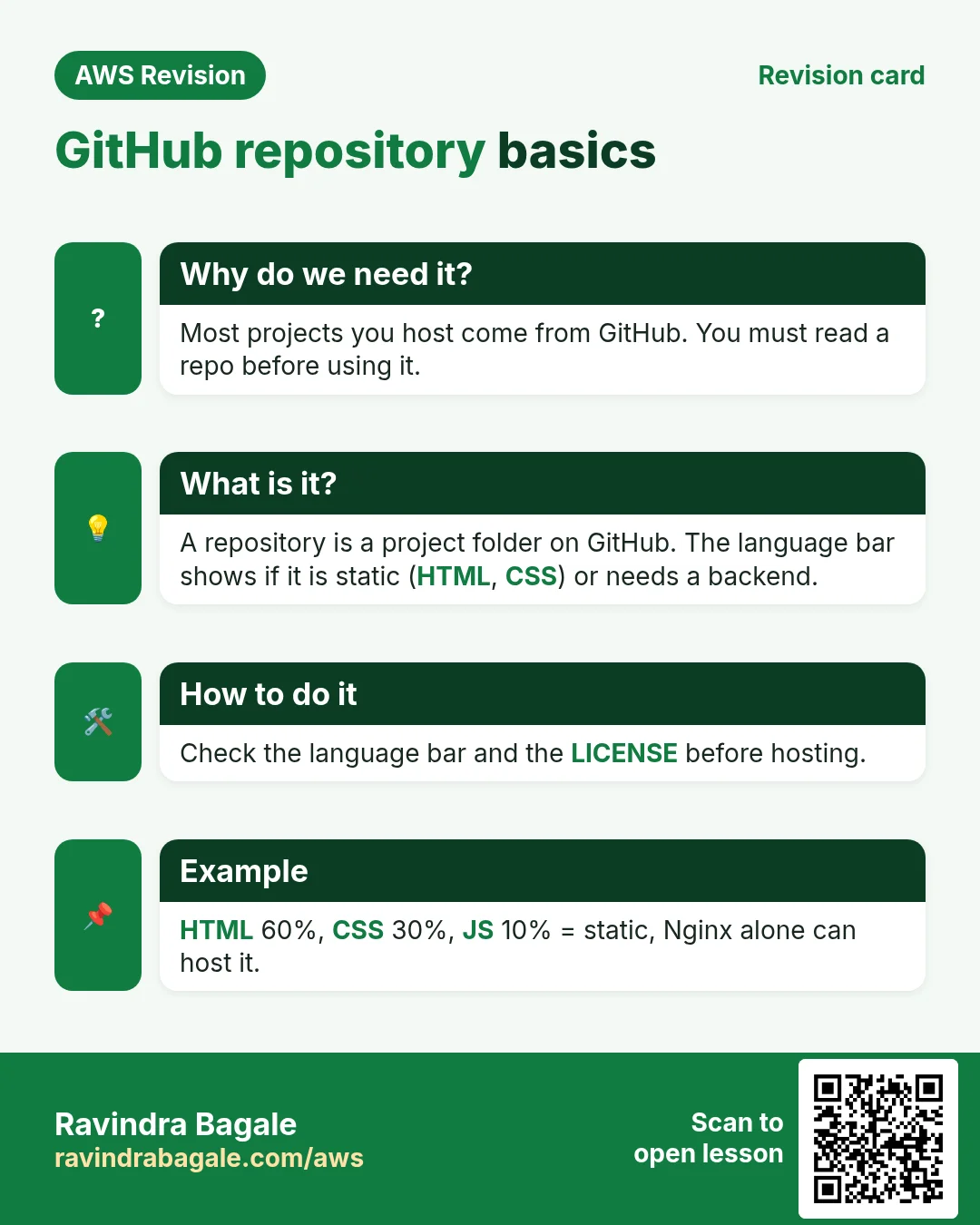
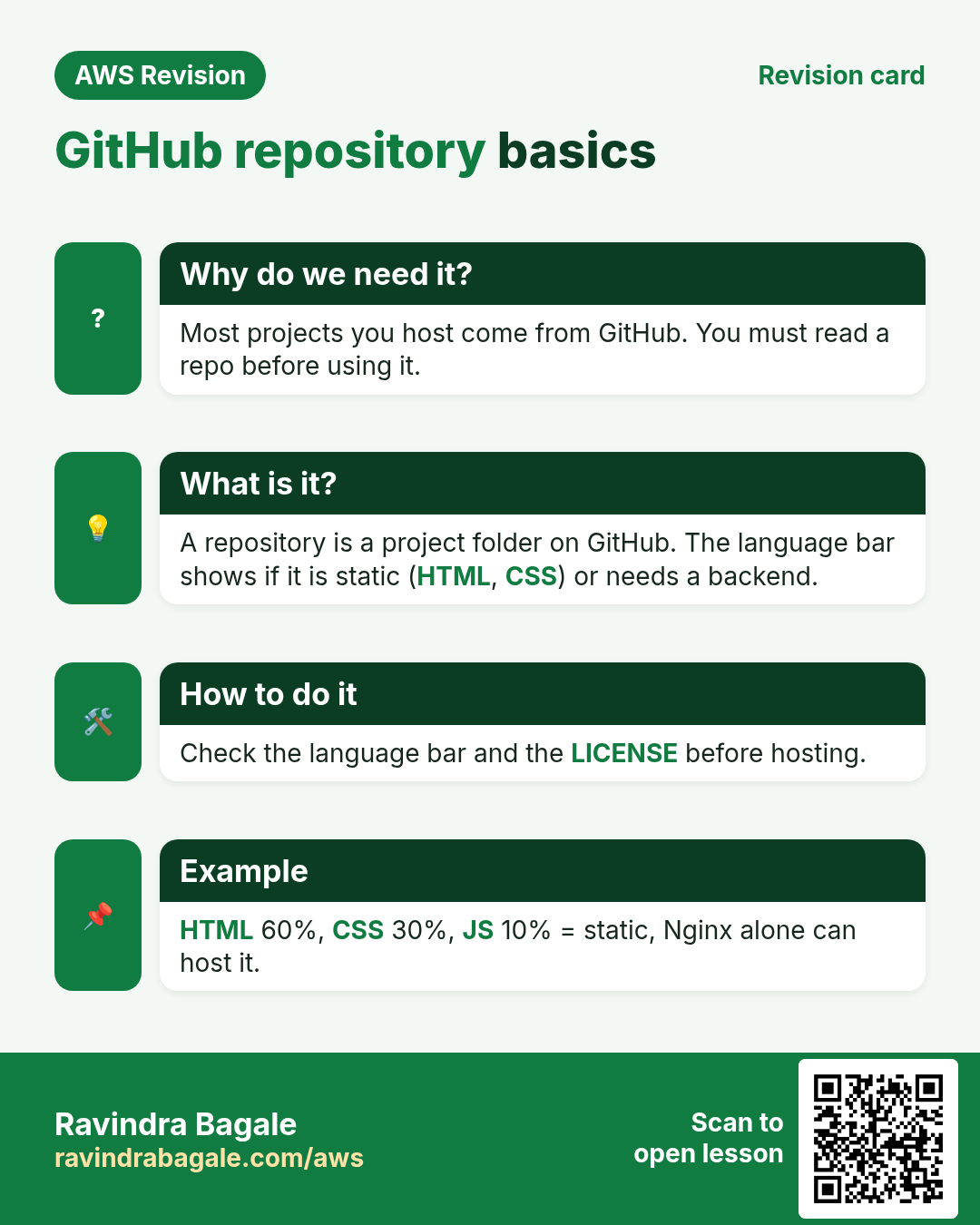
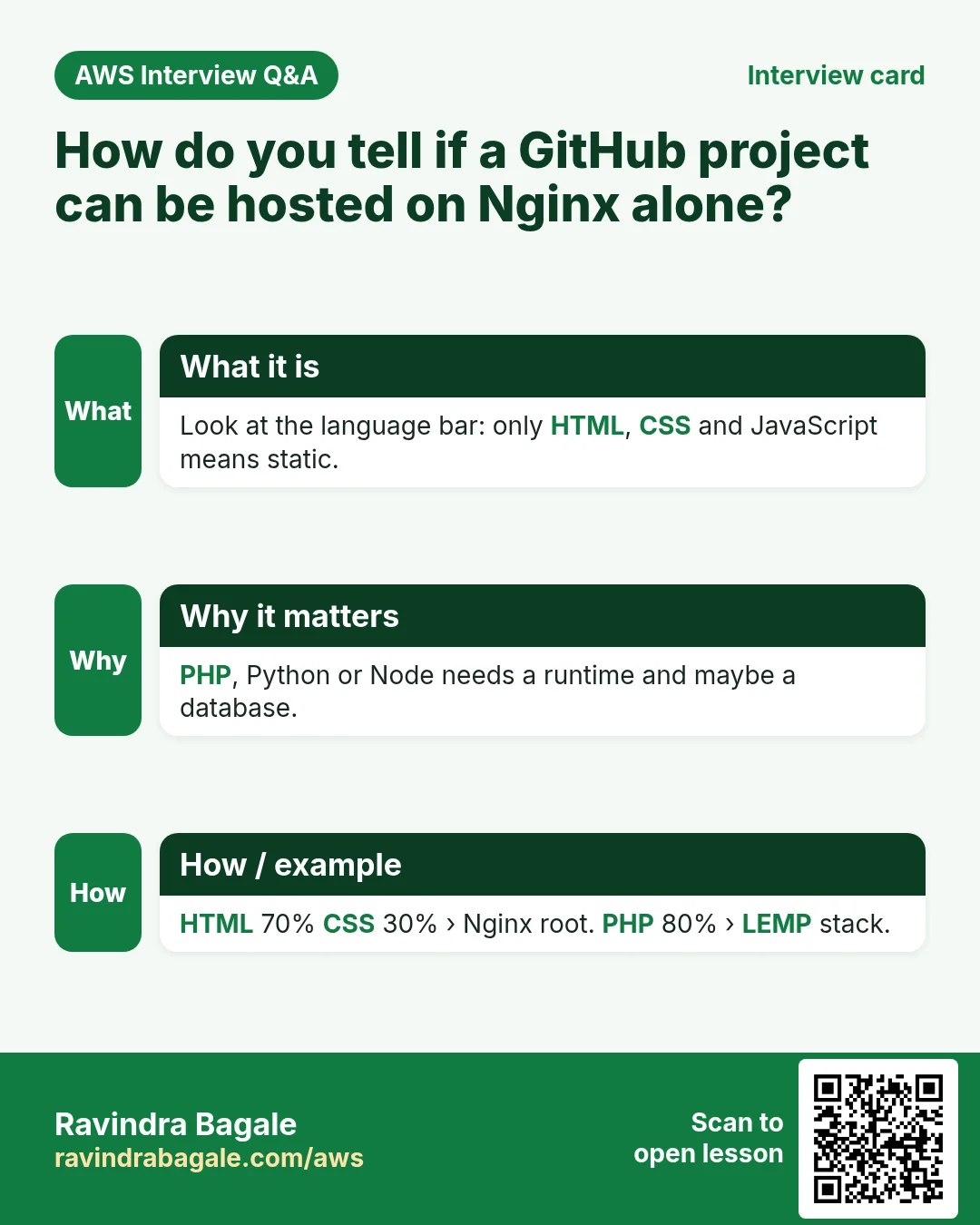
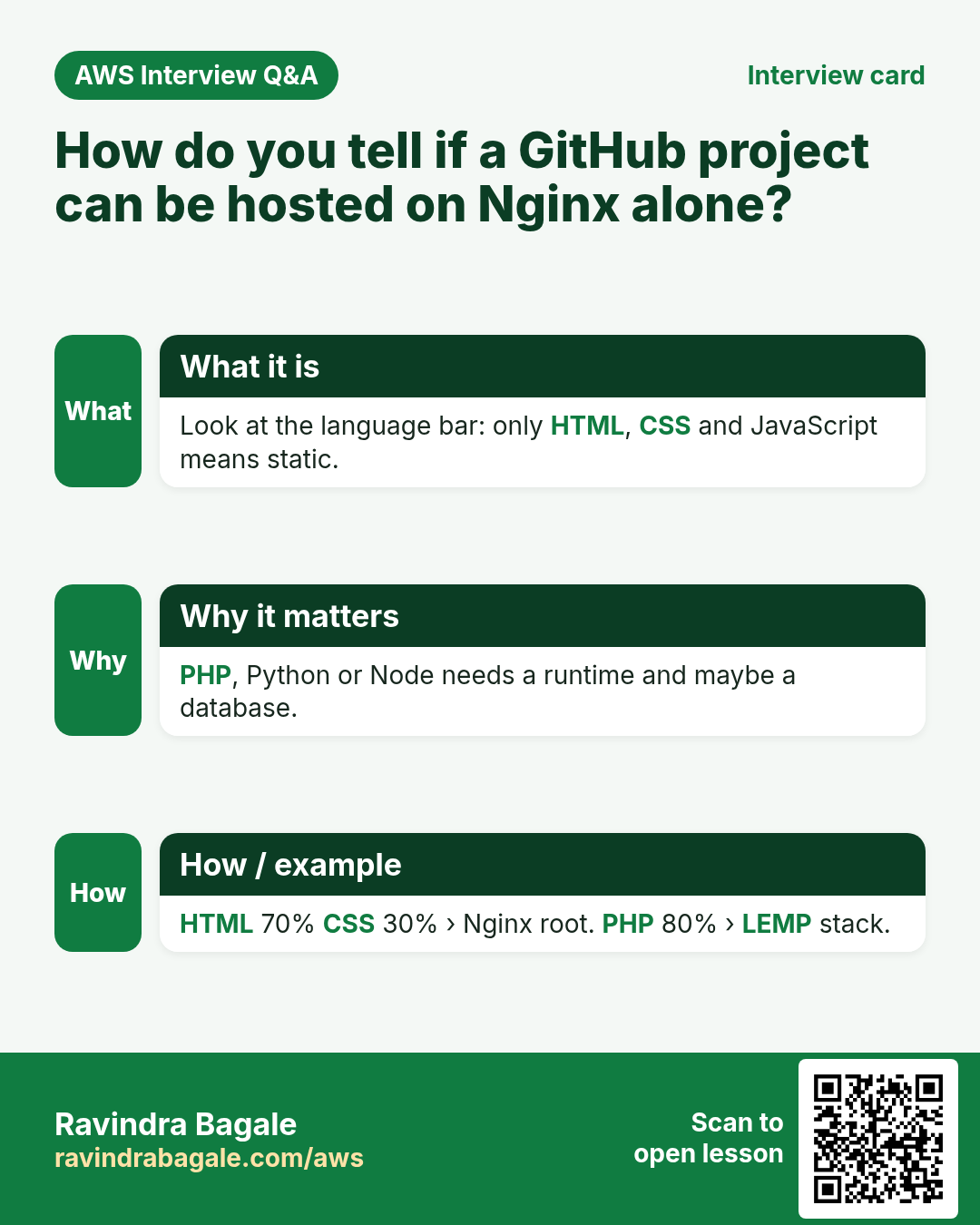
Static or backend? Read the language bar. Every repository page shows a coloured bar with the languages it uses.
- Only HTML, CSS and JavaScript: a static site. Nginx serves the files as they are. That's what we host in this chapter.
- Java, Python, PHP or other languages: the project needs a backend that runs code. Copying the files isn't enough; we host those later in the course.
Figure 2. HTML, CSS and JavaScript only: static, Nginx serves it. Java, Python or PHP: needs a backend.
Example 1: searching. On github.com, search for html websites. You'll find repositories that hold one site, and some that hold dozens of small beginner projects. If you click through search pages very fast while signed out, GitHub shows a Too many requests page. Wait a minute, or sign in.
3. How: connect to the server
Why. Nothing in this chapter works until you are on the server. The key permission fix here is the one Mac, Linux and newer Windows users hit first.
Step 1. Launch an Amazon Linux server (or reuse one) with SSH and HTTP allowed. Use free-tier eligible instance types, and check AWS's current free-tier terms.
Step 2. Check the AMI to pick the username: ec2-user for Amazon Linux, ubuntu for Ubuntu.
Step 3. Connect:
ssh -i mykey.pem ec2-user@PUBLIC_IP
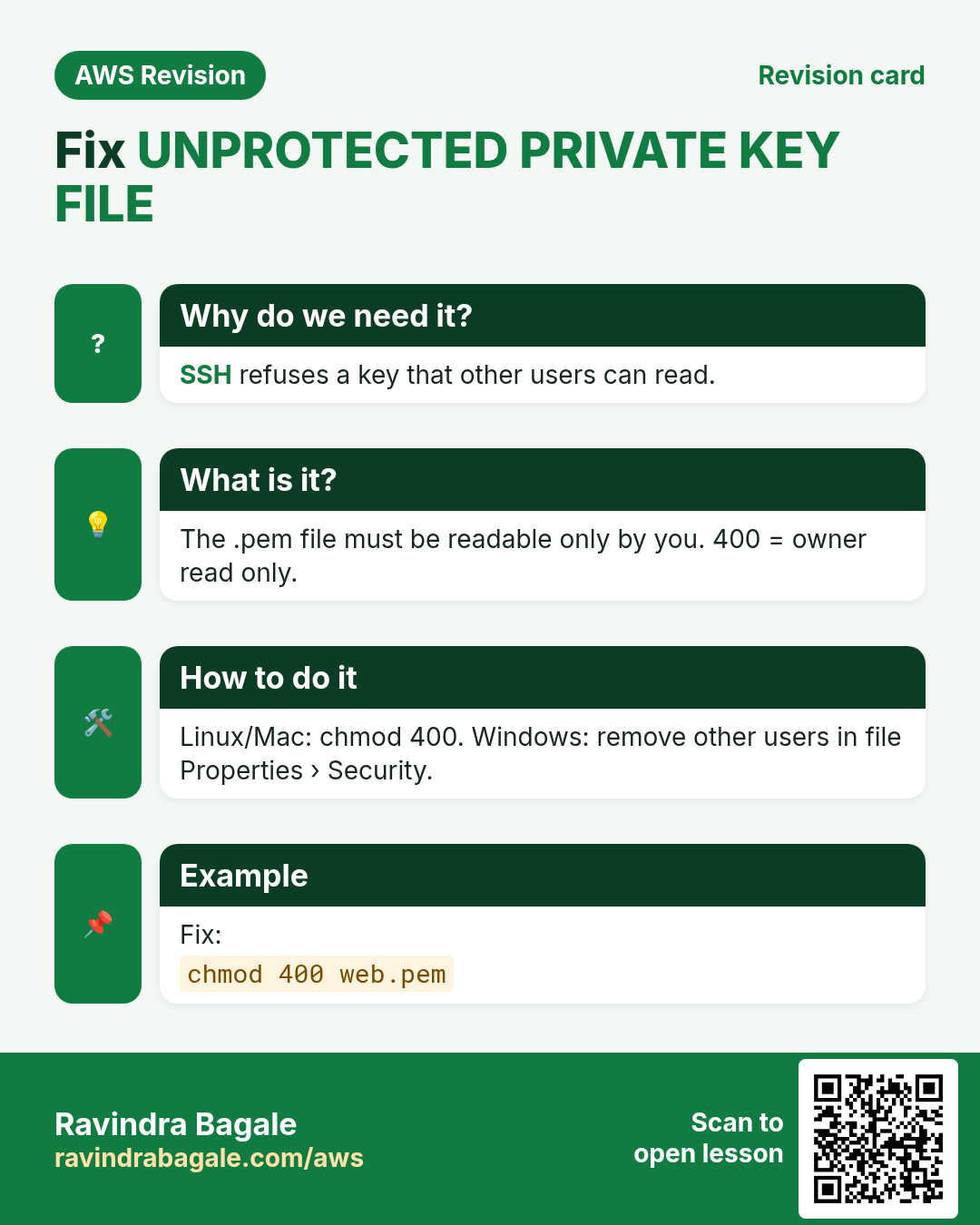
If ssh refuses the key. You may see:
@@@@@@@@@@@@@@@@@@@@@@@@@@@@@@@@@@@@@@@@@@@@@@@@@@@@@@@@@@@
@         WARNING: UNPROTECTED PRIVATE KEY FILE!          @
@@@@@@@@@@@@@@@@@@@@@@@@@@@@@@@@@@@@@@@@@@@@@@@@@@@@@@@@@@@
Permissions for 'mykey.pem' are too open.
...
ec2-user@PUBLIC_IP: Permission denied (publickey).
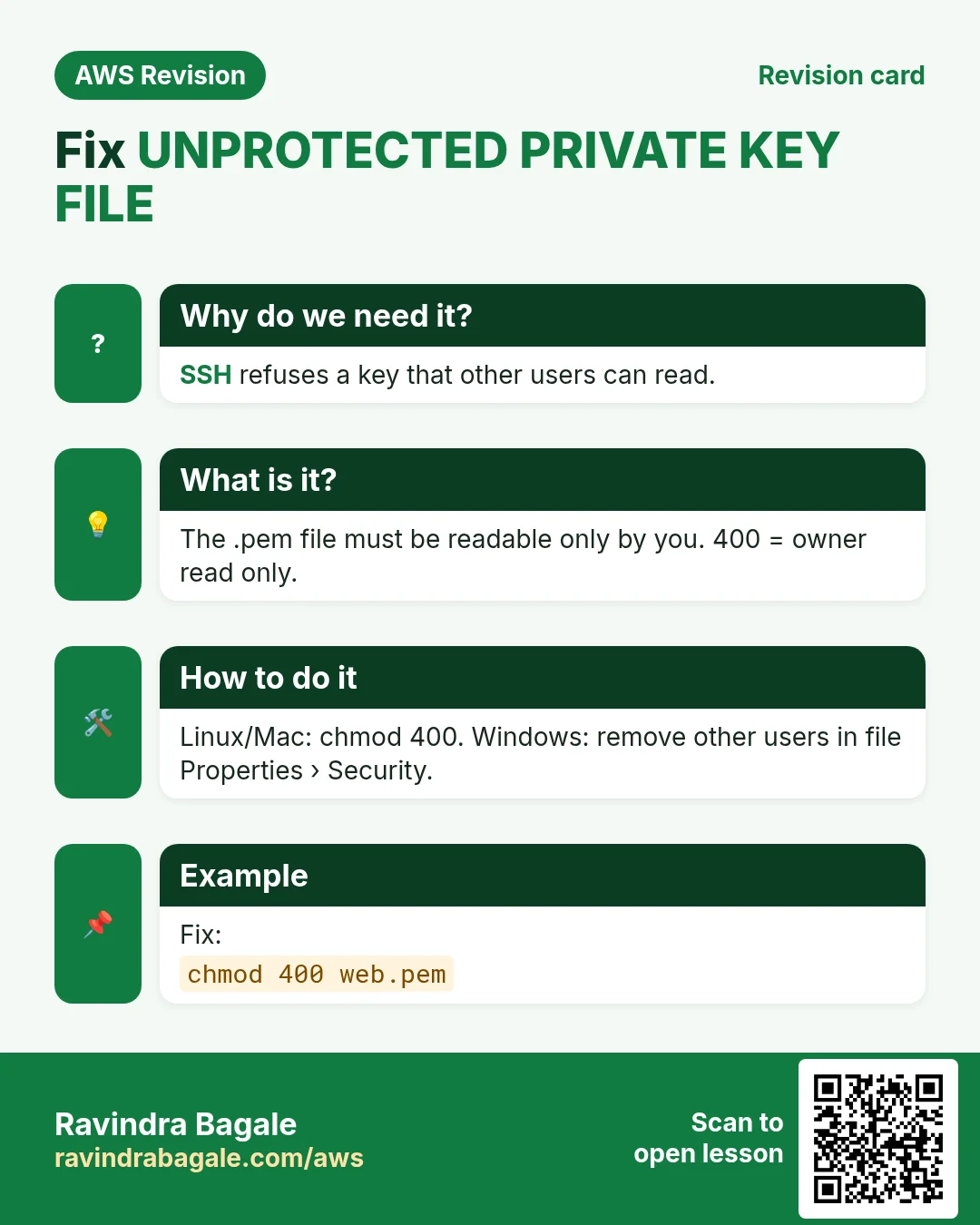
Why. A private key is like a house key. If other users on your computer can read the file, ssh refuses to use it. The file must be readable only by you.
Classroom line
The PEM file needs only 400 permission.
Class मधलं वाक्य
"PEM file la fakta 400 permission pahije."
PEM file ला फक्त 400 permission पाहिजे.
Classroom line
The PEM file needs only 400 permission.
Fix on Linux and Mac.
Step 1. Run:
chmod 400 mykey.pem
400 means: 4 = read for you (the owner), 0 = nothing for the group, 0 = nothing for everyone else.
Fix on Windows. In PowerShell, cd and ls work because PowerShell has its own commands with those names, and ssh and scp work because Windows includes the OpenSSH client. chmod isn't there, so use the file's Properties. Earlier Windows versions let the key through; newer updates are strict too.
Classroom line
In Windows we could ssh directly. Now Windows too is slowly making this compulsory in the new updates.
Class मधलं वाक्य
"Windows madhe aapan directly ssh karu shakat hoto. Mag aatha Windows valyani bi halu halu compulsory karayla laglet navin updates madhe."
Windows मध्ये आपण directly ssh करू शकत होतो. मग आता Windows वाल्यांनी पण हळूहळू compulsory करायला लागलेत नवीन updates मध्ये.
Classroom line
In Windows we could ssh directly. Now Windows too is slowly making this compulsory in the new updates.
Step 1. Right-click mykey.pem and choose Properties, then the Security tab, then Advanced.
Step 2. Click Disable inheritance and choose Remove all inherited permissions. Inheritance means the file got its permissions from its parent folder.
Classroom line
What is inheritance? We call it 'varasa' (what's handed down).
Class मधलं वाक्य
"Inheritance mhanje kay, varasa mhanato aapan."
Inheritance म्हणजे काय, वारसा म्हणतो आपण.
Classroom line
What is inheritance? We call it 'varasa' (what's handed down).
Step 3. Click Add, then Select a principal, type your Windows user name, click Check Names and OK.
Step 4. Tick only Read, then OK and Apply. Now only you can read the key, and ssh accepts it.
Figure 3. ssh refuses a key others can read. Linux and Mac: chmod 400. Windows: Properties, Security, Advanced, only your user with Read.
4. How: two ways to get the code onto the server
Why. There is more than one road from GitHub to your server. Knowing both lets you pick the faster one, and fall back to the other when a link doesn't work.
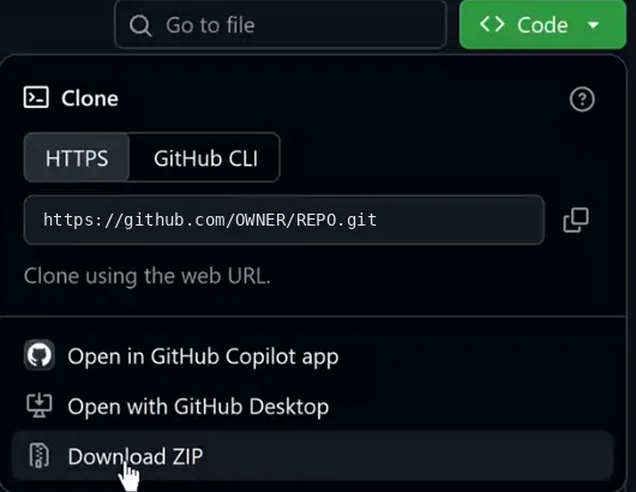
Whiteboard: The green Code button on a repository: the clone URL, and Download ZIP at the bottom. Right-click Download ZIP to copy its link.
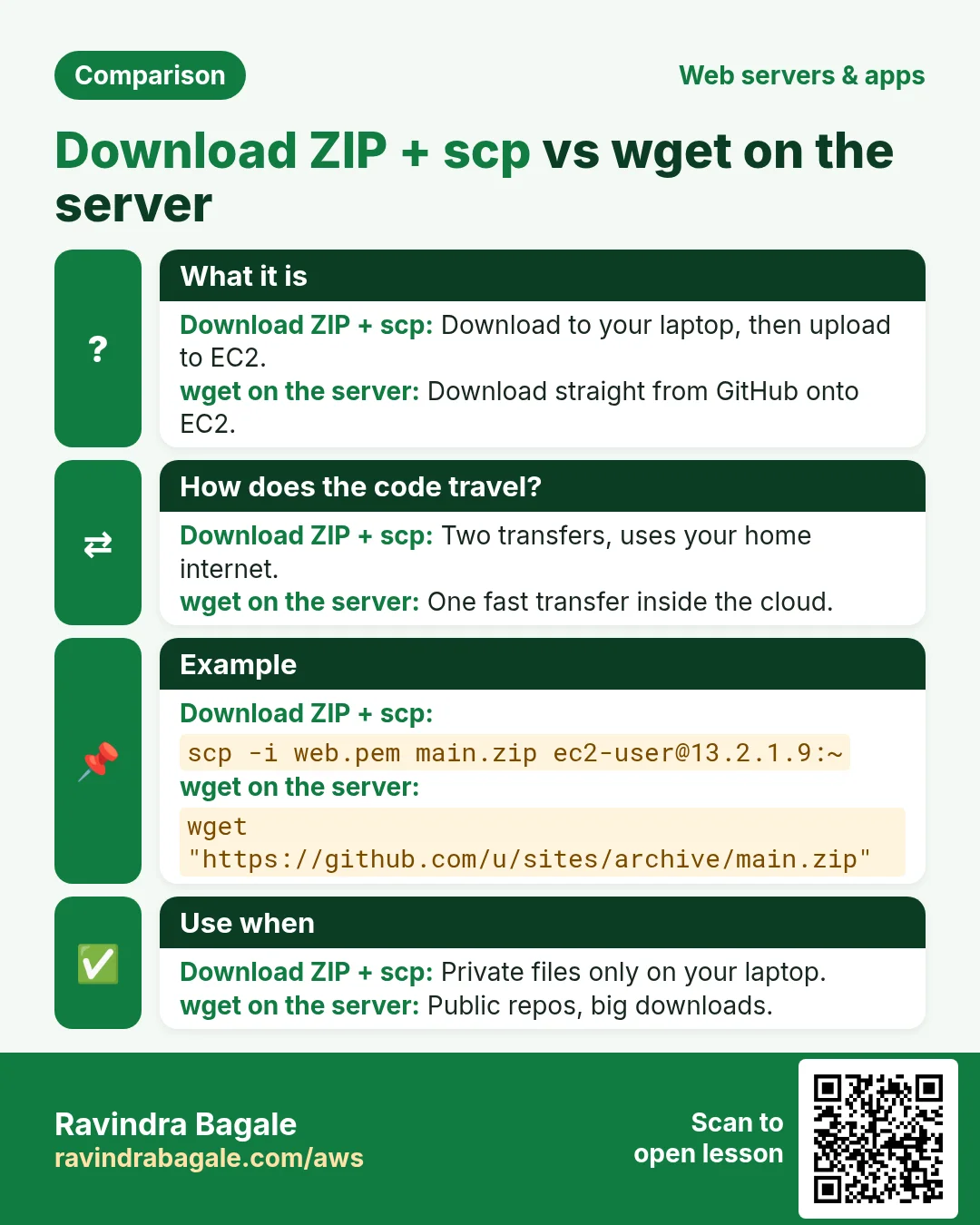
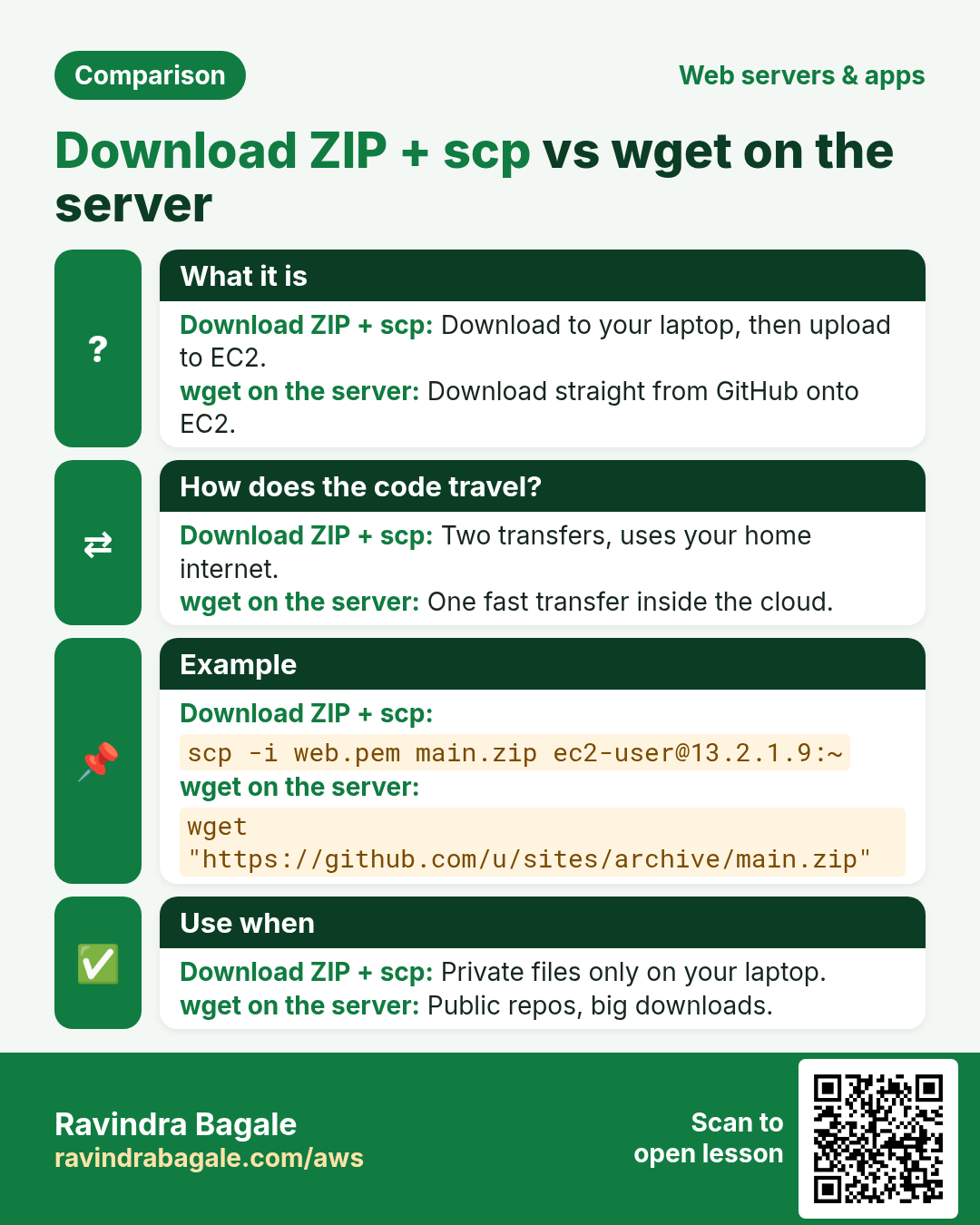
Way A: Download ZIP, then scp. Click Code > Download ZIP on your computer, then copy it up:
scp -i mykey.pem main.zip ec2-user@PUBLIC_IP:/home/ec2-user/
The file travels twice: GitHub to your computer, your computer to the server.
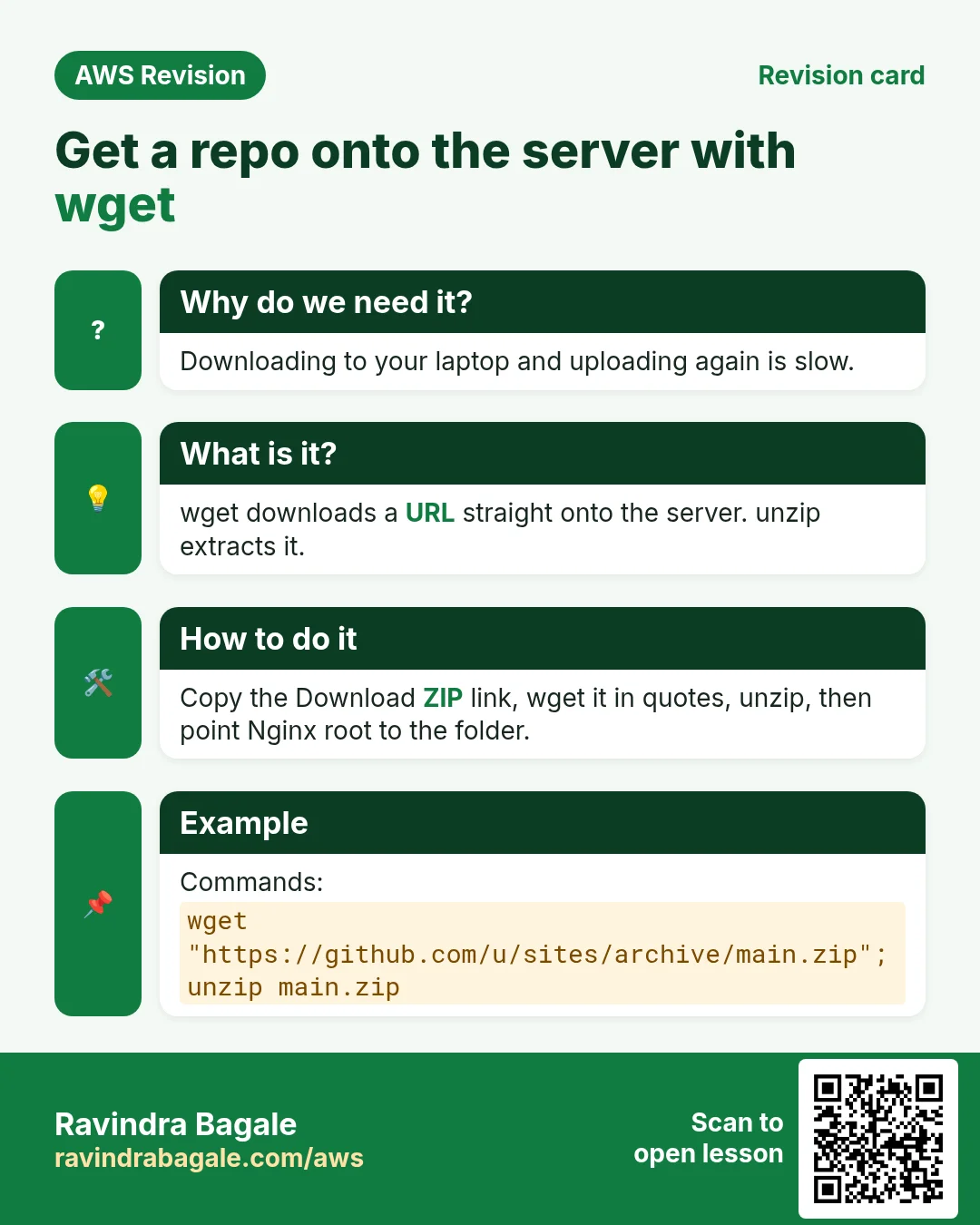
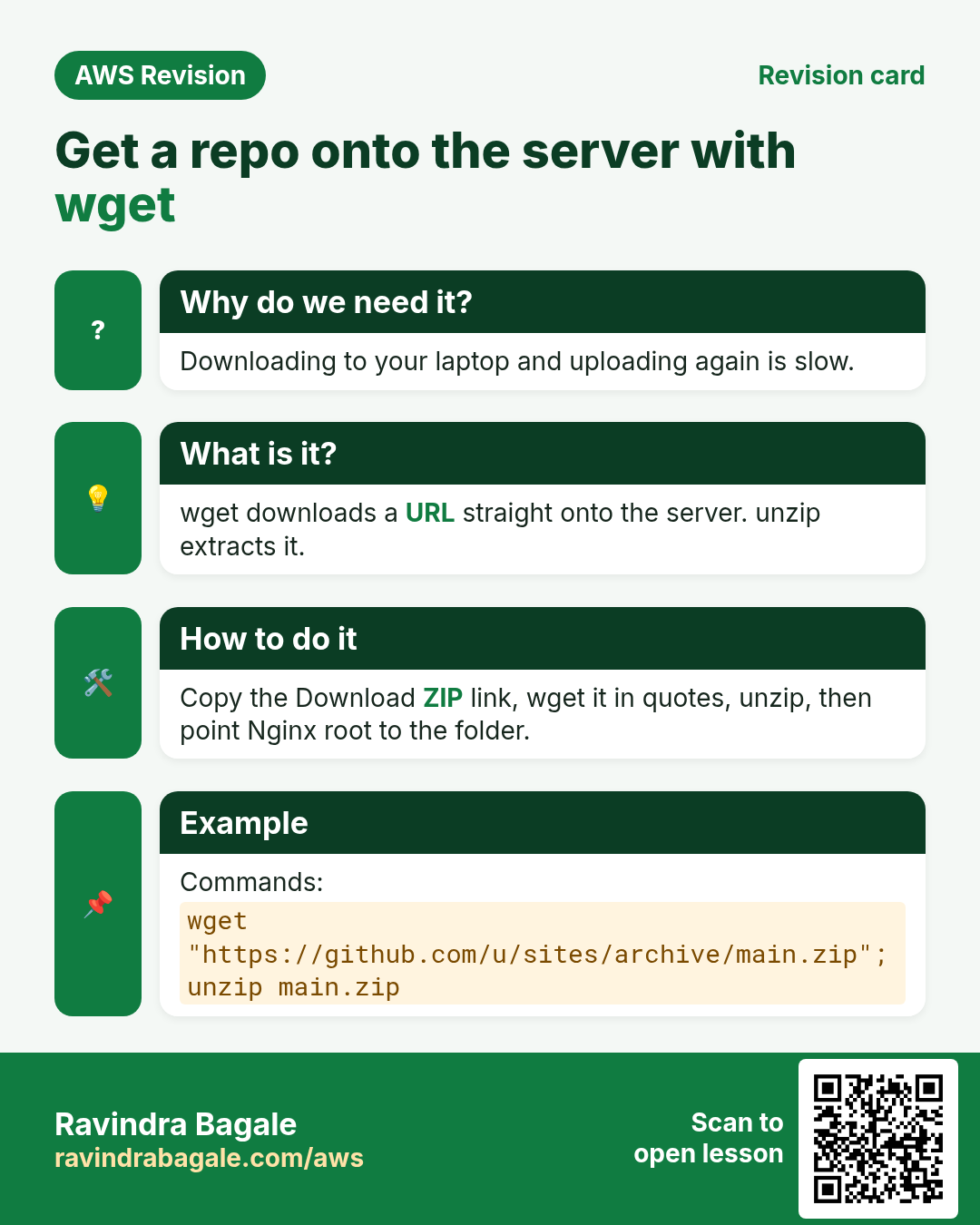
Way B: copy the link, wget on the server. Right-click Download ZIP, choose Copy link, and paste it after wget in the server terminal. The server downloads straight from GitHub: faster, and one step less.
Classroom line
Right-click Download ZIP, copy the link... and go to the terminal and paste it after wget.
Class मधलं वाक्य
"Download zip la right click kara, copy link kara... aani terminal madhe jaoun wget chya pudhe paste kara."
Download zip ला right click करा, copy link करा... आणि terminal मध्ये जाऊन wget च्या पुढे paste करा.
Classroom line
Right-click Download ZIP, copy the link... and go to the terminal and paste it after wget.
Figure 4. Way A: Download ZIP and scp. Way B: copy the ZIP link and sudo wget on the server.
5. Example 1: one repository with ten sites
Why. A repository with an index.html at its top is the simplest real case: download, unzip, point Nginx at it, done.
What we'll build. A repository holds ten sample sites and an index.html that links to all of them. We put it in /usr/share/nginx/tensites and point Nginx at it.
Step 1. Start Nginx (install it first with sudo yum install nginx -y if needed) and see where it serves from now:
sudo service nginx start
cd /usr/share/nginx/html
ls
Step 2. Go one folder up:
cd /usr/share/nginx
Step 3. Download the ZIP. sudo is needed because this folder belongs to root:
sudo wget https://github.com/OWNER/REPO/archive/refs/heads/master.zip
Some repos use main instead of master; copy the link exactly as GitHub gives it.
Step 4. Unzip it:
sudo unzip master.zip
This creates a folder named REPO-master.
Step 5. Give it a short name:
sudo mv REPO-master tensites
Step 6. Check that index.html is right inside:
[ec2-user@ip-172-31-xx-xx nginx]$ cd tensites
[ec2-user@ip-172-31-xx-xx tensites]$ ls
README.md  index.html  style.css  ...  (one folder per site)
[ec2-user@ip-172-31-xx-xx tensites]$ pwd
/usr/share/nginx/tensites
Step 7. Open the settings file:
sudo nano /etc/nginx/nginx.conf
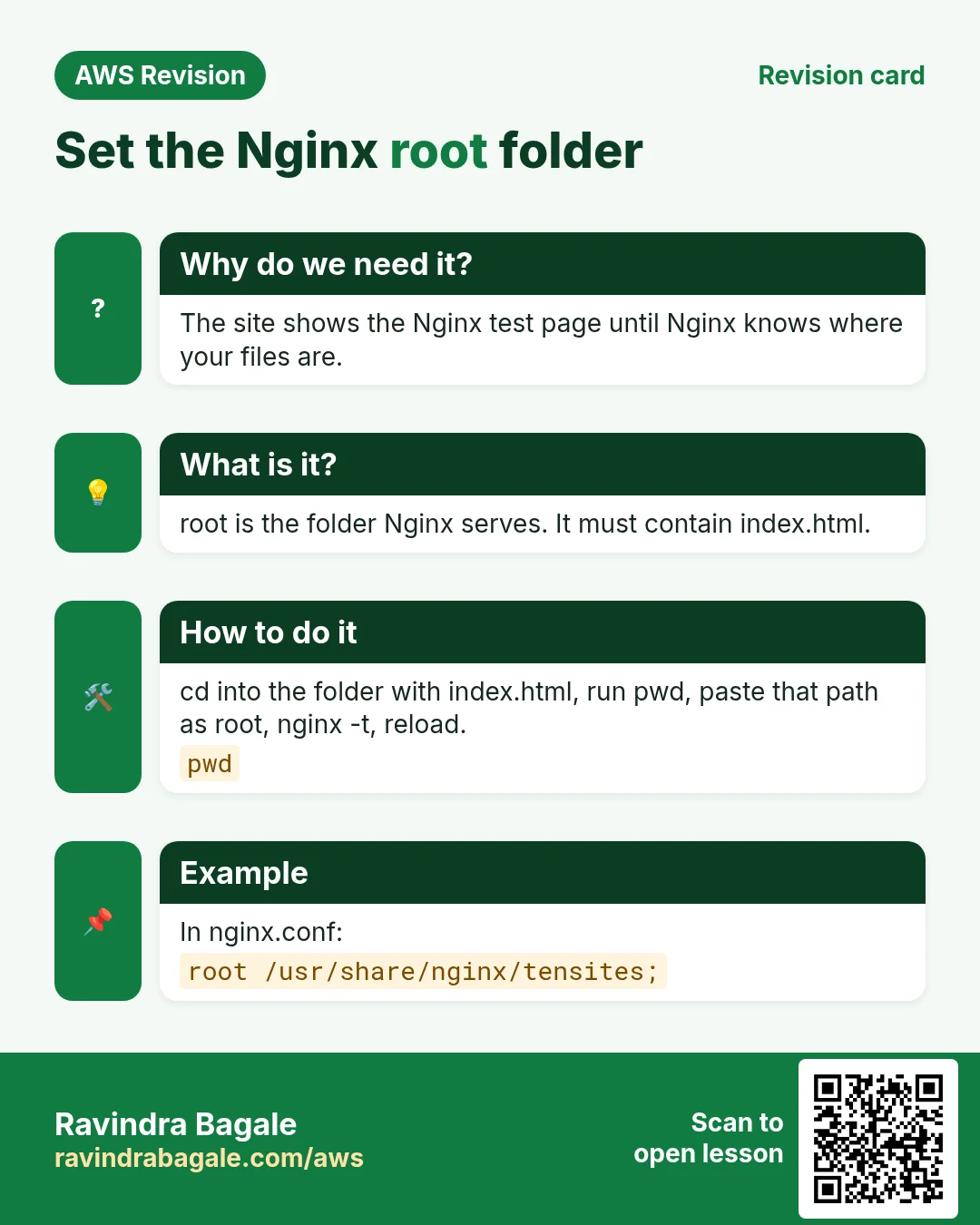
Step 8. Change the root directive in the server block:
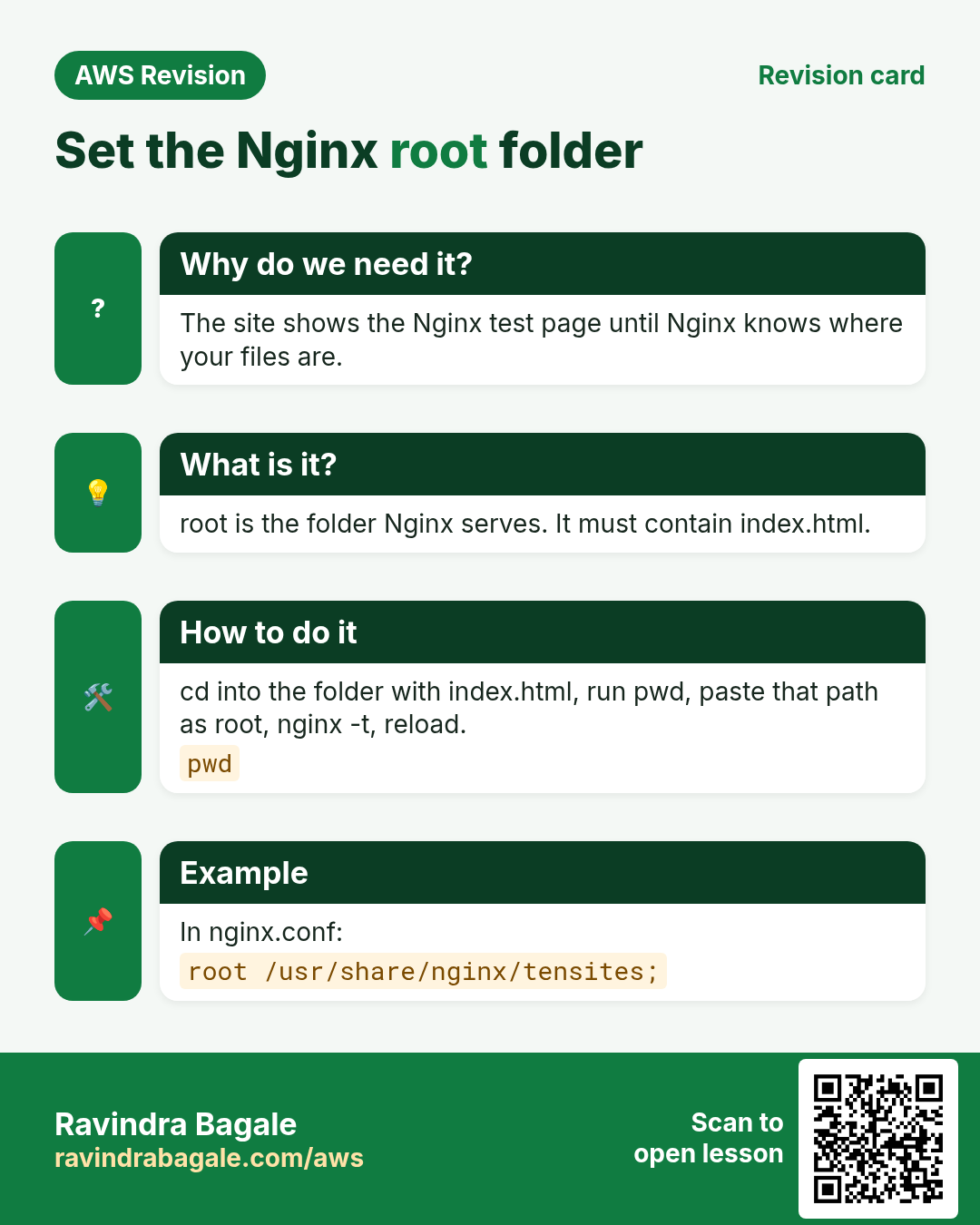
root /usr/share/nginx/tensites;
Save with Ctrl+O, Enter, then Ctrl+X.
Step 9. Apply it:
[ec2-user@ip-172-31-xx-xx tensites]$ sudo service nginx reload
Redirecting to /bin/systemctl reload nginx.service
Step 10. Open http://PUBLIC_IP/. You see the repo's index page; click through to each of the ten sites.
Figure 5. Animation: cd, sudo wget, sudo unzip, sudo mv to a short name, root in nginx.conf, reload.
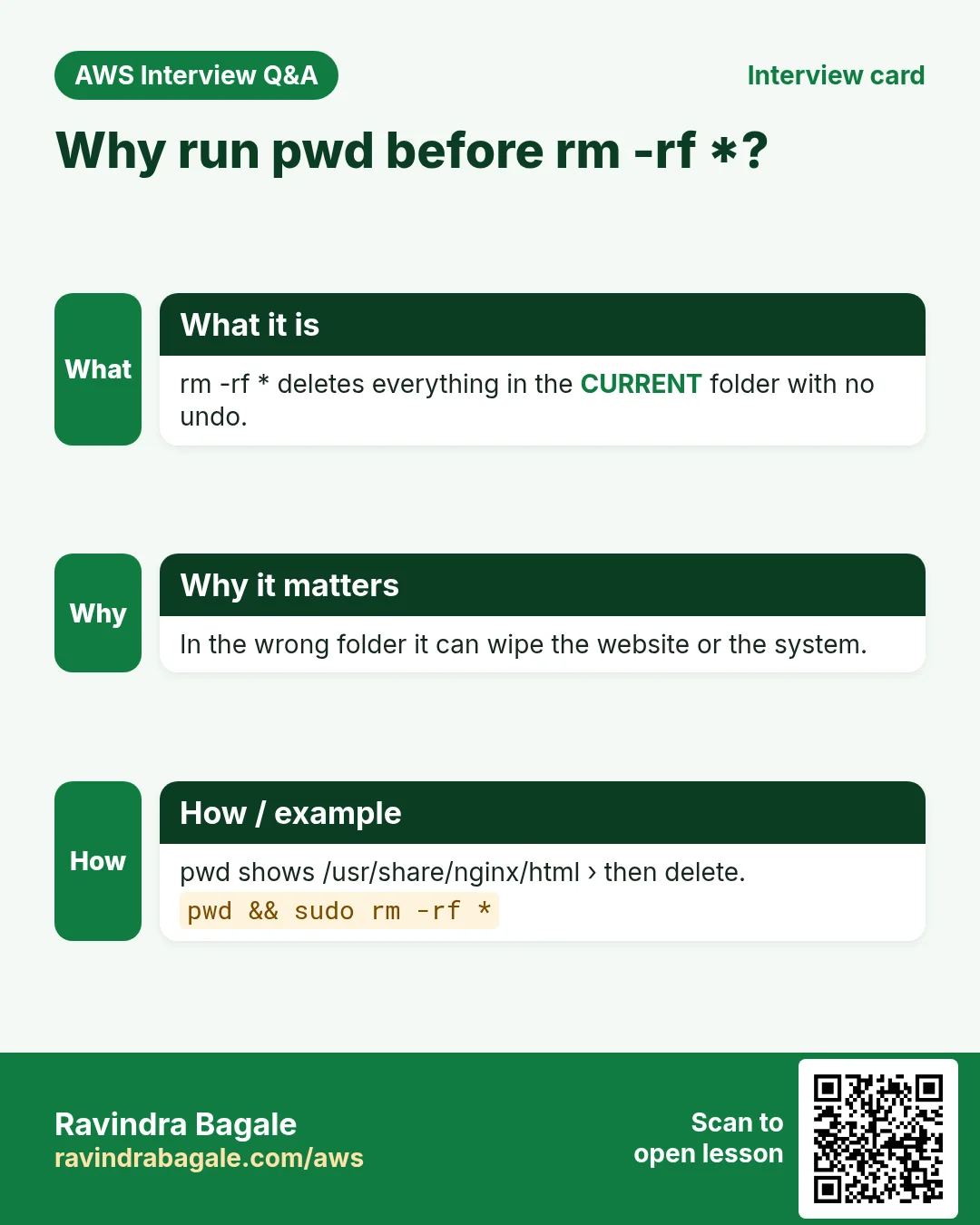
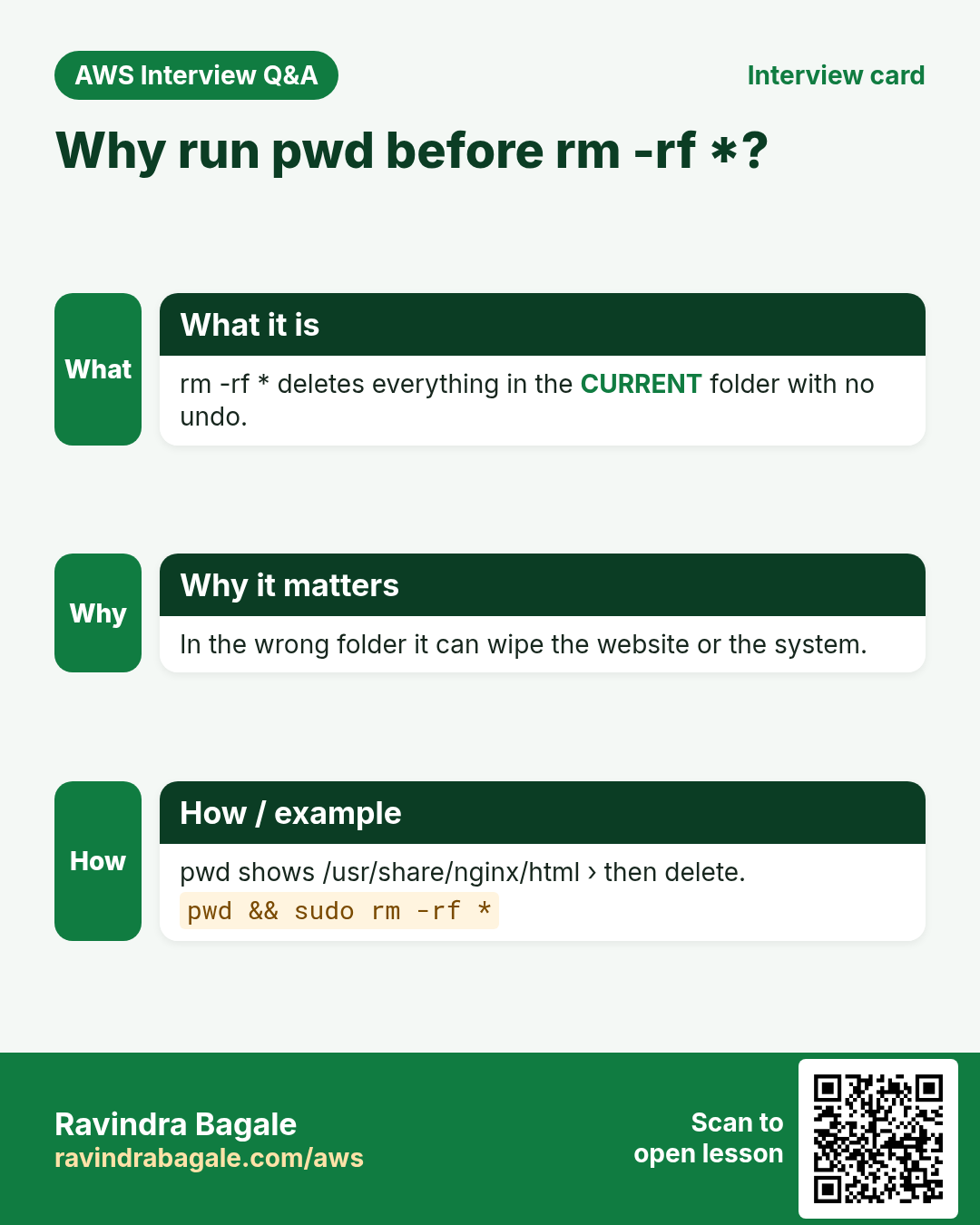
Replacing an old site in the html folder instead. If you'd rather unzip inside /usr/share/nginx/html, you may first want to clear the old files with sudo rm -rf *. That deletes everything in the current folder, with no undo. Run pwd first and make sure it prints /usr/share/nginx/html.
6. Example 2: a repository with dozens of mini-projects
Why this is different. Some repositories hold dozens of small projects, each in its own folder. If root points at the top folder of the ZIP, there's no index.html there and the site doesn't show. You have to find the folder that holds index.html.
Classroom line
You must understand folders.
Class मधलं वाक्य
"Tumhala folders kalayla pahije."
तुम्हाला folders कळायला पाहिजे.
Classroom line
You must understand folders.
Step 1. Download and unzip it in the html folder:
cd /usr/share/nginx/html
sudo wget https://github.com/OWNER/REPO/archive/refs/heads/main.zip
sudo unzip main.zip
sudo mv REPO-main projects
Step 2. Walk in with cd and ls:
[ec2-user@ip-172-31-xx-xx html]$ cd projects
[ec2-user@ip-172-31-xx-xx projects]$ ls
LICENSE  README.md  projects
[ec2-user@ip-172-31-xx-xx projects]$ cd projects
[ec2-user@ip-172-31-xx-xx projects]$ ls
age-calculator  dad-jokes-generator  music-player  rock-paper-scissors-game  ...
Step 3. Go into one project and check for index.html:
[ec2-user@ip-172-31-xx-xx projects]$ cd music-player
[ec2-user@ip-172-31-xx-xx music-player]$ ls
index.html  script.js  style.css  ...
Step 4. In the folder that shows index.html, run pwd and copy the path:
[ec2-user@ip-172-31-xx-xx music-player]$ pwd
/usr/share/nginx/html/projects/projects/music-player
Classroom line
In the folder that has index.html, simply fire pwd.
Class मधलं वाक्य
"Jya folder madhye index.html aahe, tya folder madhye simply pwd fire karaycha."
ज्या folder मध्ये index.html आहे, त्या folder मध्ये simply pwd fire करायचा.
Classroom line
In the folder that has index.html, simply fire pwd.
Step 5. Paste it as the root setting in /etc/nginx/nginx.conf. Change only this line:
root /usr/share/nginx/html/projects/projects/music-player;
Step 6. Reload and open http://PUBLIC_IP/. The music player shows.
sudo service nginx reload
Figure 6. Animation: cd and ls until you see index.html, pwd, paste the path as root, reload.
Example 3: switch to another project. Same steps, another folder:
cd ../dad-jokes-generator
pwd
sudo nano /etc/nginx/nginx.conf
sudo service nginx reload
with root /usr/share/nginx/html/projects/projects/dad-jokes-generator;. Changing root switches which one site the server shows.
7. Many projects at once: folder URLs, ports, domains
Why. When one repository holds many projects, you must decide how visitors reach each one. Folder URLs, ports and domains are the three options, each with a cost.
Root at the parent folder. Set root to /usr/share/nginx/html/projects/projects;. Now every project opens at its folder name:
http://PUBLIC_IP/music-player/http://PUBLIC_IP/dad-jokes-generator/http://PUBLIC_IP/rock-paper-scissors-game/
It works, but visitors would have to know your folder names.
Classroom line
The user doesn't know our folder's name, right?
Class मधलं वाक्य
"User la mahiti nasto na aplya folder cha nav."
User ला माहिती नसतं ना आपल्या folder चं नाव.
Classroom line
The user doesn't know our folder's name, right?
Figure 7. Root at the parent folder: each project at http://PUBLIC_IP/folder-name/. The proper way is a domain and a server block per site.
The proper way. Each site gets its own domain name and its own server block. You've also seen the other option: separate ports. Domains and server blocks come in the next chapter.
Classroom line
If you want to host more than one website, you actually need a domain name.
Class मधलं वाक्य
"Eka peksha jast websites host karaychya asel, actually aplyala domain name lagto."
एकापेक्षा जास्त websites host करायच्या असतील, actually आपल्याला domain name लागतो.
Classroom line
If you want to host more than one website, you actually need a domain name.
Classroom line
Hosting fifty-five websites means writing fifty-five server blocks.
Class मधलं वाक्य
"Panchavanna website host karne mhanje, panchavanna server block lihayche."
पंचावन्न website host करणं म्हणजे, पंचावन्न server block लिहायचे.
Classroom line
Hosting fifty-five websites means writing fifty-five server blocks.
8. Small things that trip people up
Why. Each of these small mistakes produces a confusing error. Knowing them ahead saves you an hour of debugging.
-
URLs with spaces or brackets. Put the whole URL in double quotes, or the shell splits it:
sudo wget "https://example.com/files/my song (live).mp3" -
main.zip.1. Ifmain.zipalready exists,wgetsaves the next download asmain.zip.1. Delete the old file first (sudo rm main.zip), or name the download yourself:sudo wget -O site2.zip https://github.com/OWNER/REPO/archive/refs/heads/main.zip -
sudofor unzip./usr/share/nginxand itshtmlfolder belong to root, sounzipandmvthere needsudo. - Quality varies. Anyone can publish a repo. Some look polished, some look rough. Preview before you promise anything.
- Check the LICENSE. Before you reuse a template, or sell a site built from one, open the repo's
LICENSEfile and follow it; give credit where it asks.
A real skill. Suppose a local bakery or tuition class wants a simple website. You can pick a template whose licence allows it, change the text and images, and host it on EC2.
Classroom line
You can earn money from the people around you.
Class मधलं वाक्य
"Tumhi paise kamau shakta tumhi aaju baju chya lokankadna."
तुम्ही पैसे कमवू शकता तुमच्या आजूबाजूच्या लोकांकडून.
Classroom line
You can earn money from the people around you.
9. Warning: phishing login pages
Phishing: look-alike login pages
The same hosting skill is misused by attackers. Know how it works so you don't fall for it.
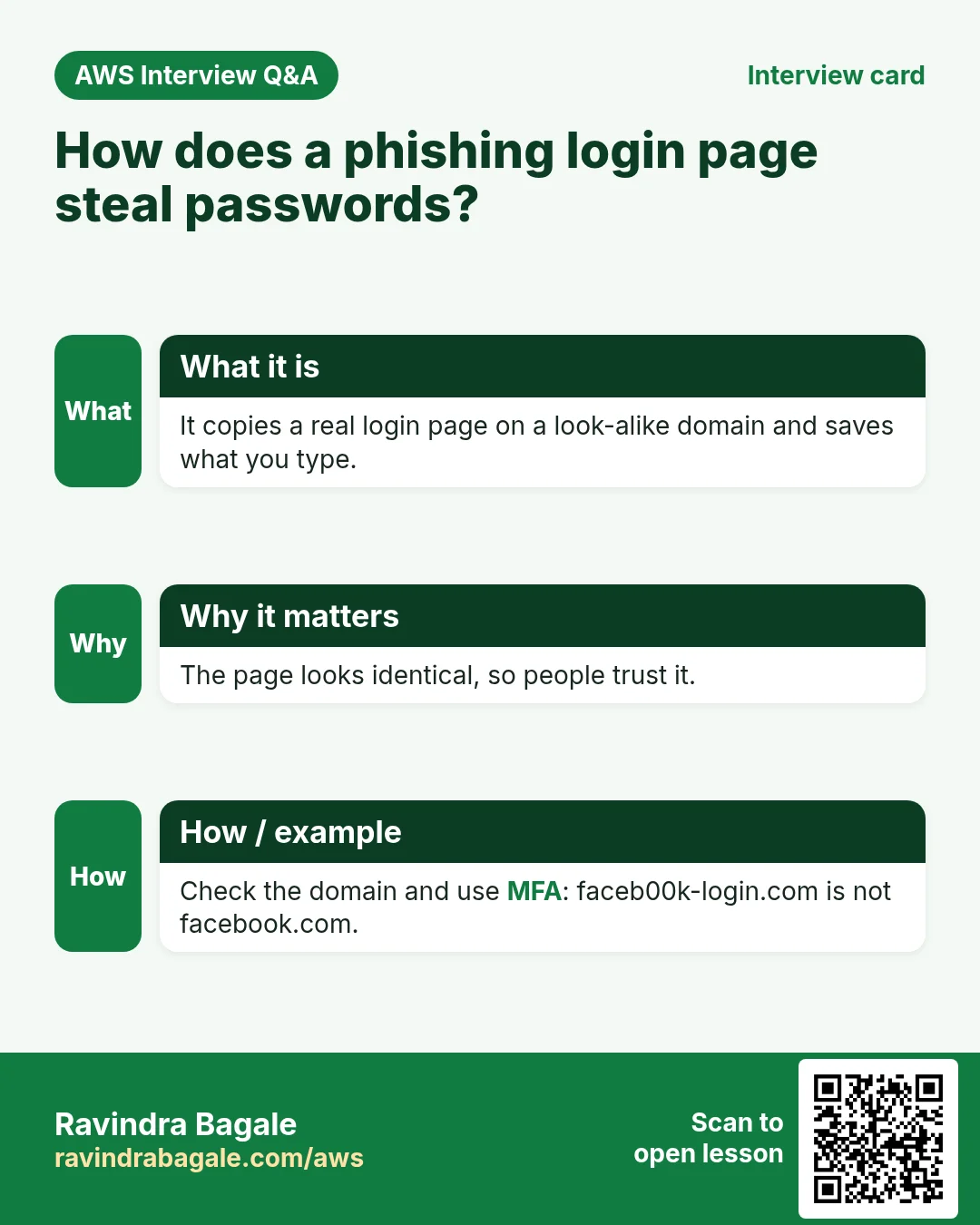
- An attacker copies the look of a real login page, suppose we mean Instagram's, and hosts it on their own server.
- They send the link in a message: "Your account will be blocked, log in now."
- The page looks real, so the victim types the username and password.
- The form sends them to the attacker's server, not to the real company.
Protect yourself:
- Check the domain in the address bar before you type a password.
- Don't log in from links in messages. Open the app, or type the address yourself.
- Turn on two-factor sign-in or passkeys.
- Report fake pages to the real company.
Classroom line
They'll think it's Instagram, so they'll type their username and password.
Class मधलं वाक्य
"Tyanna vatnar Instagram ahe, mag te tyanche username password taktil."
त्यांना वाटणार Instagram आहे, मग ते त्यांचे username password टाकतील.
Classroom line
They'll think it's Instagram, so they'll type their username and password.
Classroom line
This is exactly what's called a phishing attack.
Class मधलं वाक्य
"Yalach phishing attacks mhantat."
यालाच phishing attacks म्हणतात.
Classroom line
This is exactly what's called a phishing attack.
Figure 8. How a phishing page steals passwords, and four ways to protect yourself.
10. Clean up and what's next
Why. A practice server you forget keeps costing money. Terminating it when you are done is part of the job.
Step 1. When practice is over, terminate the instance in the EC2 console so it stops costing money.
Next. Hosting several websites on one server with domain names and server blocks.
11. The whole flow on one page
- Find a public repo whose language bar shows only HTML, CSS and JavaScript.
ssh -i mykey.pem ec2-user@PUBLIC_IP(key readable only by you:chmod 400, or Windows Properties).- Right-click Download ZIP, copy the link.
cd /usr/share/nginx,sudo wget <link>,sudo unzip master.zip,sudo mv REPO-master tensites.cdandlsuntil you seeindex.html;pwd.sudo nano /etc/nginx/nginx.conf:root <that path>;.sudo service nginx reload, openhttp://PUBLIC_IP/.- Check the LICENSE; terminate the instance when done.
12. Hands-on lab: from a GitHub repository to a live site
Why this lab. In real work the code comes from GitHub, not from your keyboard. This lab takes a public HTML/CSS/JavaScript repository and puts it live with Nginx, with a check at every step.
- Pick a static repository
- Do: On GitHub, open a public repository whose language bar shows only HTML, CSS and JavaScript, with
index.htmlat the top level. - Check: You can see
index.htmlin the file list. - Why: Nginx alone can only serve plain files. A repo with Java, Python or PHP needs a backend, which comes later in the course.
- Do: On GitHub, open a public repository whose language bar shows only HTML, CSS and JavaScript, with
- Fix the key and log in
- Command:
chmod 400 mykey.pem && ssh -i mykey.pem ec2-user@PUBLIC_IP - You should see: The ec2-user prompt.
- Check: No
UNPROTECTED PRIVATE KEY FILEwarning. - Why:
sshrefuses a key others can read. On Windows, use the file's Properties → Security instead ofchmod.
- Command:
- Start Nginx
- Command:
sudo yum install nginx -y && sudo service nginx start - You should see:
Complete!(orNothing to do.), then the systemctl redirect line. - Check:
http://PUBLIC_IP/shows the Nginx welcome page. - Why: Seeing the welcome page first proves Nginx and port 80 work, so any later problem is in your files or settings.
- Command:
- Download the ZIP on the server
- Command:
cd /usr/share/nginx && sudo wget https://github.com/OWNER/REPO/archive/refs/heads/master.zip - You should see:
master.zip...saved. - Check:
lsshowsmaster.zip. - Why: Copy the link from Code → Download ZIP exactly; some repos use
main.wgeton the server is faster than downloading to your laptop and uploading withscp.
- Command:
- Unzip and rename
- Command:
sudo unzip master.zip && sudo mv REPO-master mysite - You should see: One
inflating:line per file. - Check:
ls mysiteshowsindex.html. - Why: A short folder name keeps the
rootline simple.index.htmlmust sit directly inside, or Nginx shows 403 or 404.
- Command:
- Point Nginx at the folder
- Command:
sudo nano /etc/nginx/nginx.conf - You should see: In the
serverblock setroot /usr/share/nginx/mysite;. Save and exit. - Check:
sudo nginx -t→syntax is okandtest is successful. - Why:
roottells Nginx which folder is the website. Test before reload so a typo never takes the site down.
- Command:
- Reload and open the site
- Command:
sudo service nginx reload - You should see:
Redirecting to /bin/systemctl reload nginx.service - Check:
http://PUBLIC_IP/shows the repository's site, with its styles and images. - Why: If the page shows but without styles, a CSS path is wrong or a file name differs in case; open DevTools → Network and look for 404s.
- Command:
- Terminate when practice is over
- Do: EC2 console → select the instance → Instance state → Terminate instance.
- Check: State Terminated; it disappears from the list after a while.
- Why: The code still lives on GitHub, so nothing is lost. A forgotten server keeps costing money.
13. Try at home
Try at home
Task 1: one site
- Fix your key's permissions if ssh complains.
- Find a static repo,
sudo wgetits ZIP into/usr/share/nginx, unzip it and rename it. - Set
root, reload and openhttp://PUBLIC_IP/.
Task 2: many projects
- Download a repo with many mini-projects into
/usr/share/nginx/html. - Find one project's
index.html, runpwd, setroot, reload. - Switch to a second project the same way.
- Set
rootto the parent folder and open two projects by folder name.
When you're done, terminate the instance.
Recap
In short
- GitHub stores code; one project is one repository. Public repos can be downloaded by anyone, private ones only by people you allow.
- Only HTML, CSS and JavaScript in the language bar = static, Nginx can serve it.
UNPROTECTED PRIVATE KEY FILE:chmod 400on Linux and Mac; on Windows give only your user Read.- Get code onto the server with Download ZIP +
scp, or the ZIP link +sudo wget. sudo unzip,sudo mvto a short name, then pointrootat the folder holdingindex.html.- Lost in folders?
cdandlsuntil you seeindex.html, thenpwdand paste. - Root at a parent folder opens projects by folder name; for many sites use domains and server blocks.
pwdbeforerm -rf *, quote odd URLs, watch forfile.zip.1, check the LICENSE, and never trust login links in messages.
Ravindra Bagale, trainer: linkedin.com/in/ravindra-bagale. OWNER/REPO stand for any public repository; tensites, projects, the project folder names and mykey.pem are examples for learning; PUBLIC_IP stands for your instance's public IPv4 address. Outputs are shortened with "..."; the hostname in the prompt is illustrative.
Practice Tasks
Goa Beach Stays is a hospitality business in Panaji. Rosario Fernandes looks after its IT and cloud work. They count money in INR and run their AWS resources in the ap-south-1 Region. In the tasks below you do real jobs for them using what this lesson teaches. All names, account IDs, IP addresses and numbers are made up for practice.
0 / 12
Easy Restart a service after a change
Why: Config changes only apply after the service restarts or reloads.
What to do: Restart the nginx service.
- Find the Linux command that does this job.
- Add the options (like -r or -h) the task needs.
- Add the file names, folders or users in the right order.
- Use sudo if the job changes system files or users. Click Check answer.
Easy Check if a service is running
Why: When a site is down, first check whether the web server process is running.
What to do: Show the status of the httpd service.
- Find the Linux command that does this job.
- Add the options (like -r or -h) the task needs.
- Add the file names, folders or users in the right order.
- Use sudo if the job changes system files or users. Click Check answer.
Easy Install a package on Ubuntu
Why: Ubuntu uses apt. Package names differ: on Ubuntu Apache is apache2.
What to do: Install the apache2 package on Ubuntu without being asked to confirm.
- Find the Linux command that does this job.
- Add the options (like -r or -h) the task needs.
- Add the file names, folders or users in the right order.
- Use sudo if the job changes system files or users. Click Check answer.
Easy Install a package on Amazon Linux
Why: dnf is the package manager on Amazon Linux 2023. -y answers yes for you.
What to do: Install the httpd package on Amazon Linux 2023 without being asked to confirm.
- Find the Linux command that does this job.
- Add the options (like -r or -h) the task needs.
- Add the file names, folders or users in the right order.
- Use sudo if the job changes system files or users. Click Check answer.
Easy Download code from GitHub
Why: git clone copies the whole repository to the server, ready to deploy.
What to do: Clone https://github.com/goabeachstays/website.git into the current folder.
- Find the Linux command that does this job.
- Add the options (like -r or -h) the task needs.
- Add the file names, folders or users in the right order.
- Use sudo if the job changes system files or users. Click Check answer.
Easy Test a website from the server
Why: curl shows whether the web server answers, even before DNS is ready.
What to do: Request http://localhost and show only the response headers.
- Find the Linux command that does this job.
- Add the options (like -r or -h) the task needs.
- Add the file names, folders or users in the right order.
- Use sudo if the job changes system files or users. Click Check answer.
Easy Port for SSH
Why: Security group rules need the right port.
What to do: Which TCP port must the security group open for SSH?
- Write down the numbers the task gives you.
- Work it out step by step on paper.
- Type only the final answer in the box.
- Click Check answer.
Medium Test the nginx config
Why: A test catches typos before a restart takes your site down.
What to do: Check the nginx configuration files for errors.
- Find the Linux command that does this job.
- Add the options (like -r or -h) the task needs.
- Add the file names, folders or users in the right order.
- Use sudo if the job changes system files or users. Click Check answer.
Medium Start a service now and at boot
Why: enable makes it start after reboot; --now also starts it right away.
What to do: Enable the nginx service and start it immediately, in one command.
- Find the Linux command that does this job.
- Add the options (like -r or -h) the task needs.
- Add the file names, folders or users in the right order.
- Use sudo if the job changes system files or users. Click Check answer.
Medium Open port 80 to the world
Why: Visitors can reach your website only if the security group allows HTTP.
What to do: Allow inbound TCP port 80 from 0.0.0.0/0 on security group sg-013a13c4b3634c3b2.
- Read the task and decide which AWS service it is about.
- Write aws, then the service name, then the operation (the action word).
- Add each needed flag (--name) followed by its value from the task.
- Flags can be in any order. Click Check answer.
Medium CloudFormation: web security group
Why: Opening only 443 keeps the server safer.
What to do: Template with an AWS::EC2::SecurityGroup that allows TCP 443 from 0.0.0.0/0. Add a GroupDescription.
- Start from the top-level keys the task names.
- Indent child keys with 2 spaces (no tabs).
- Fill in each property with the value from the task.
- Click Check answer. Key order does not matter.
Hard Enable an nginx site on Ubuntu
Why: On Ubuntu, a site is enabled by a symbolic link from sites-available to sites-enabled.
What to do: Create a symbolic link to /etc/nginx/sites-available/goabeachstays inside /etc/nginx/sites-enabled/.
- Find the Linux command that does this job.
- Add the options (like -r or -h) the task needs.
- Add the file names, folders or users in the right order.
- Use sudo if the job changes system files or users. Click Check answer.
Revision, comparison and interview cards
Revise this lesson in a few minutes. Save the cards on your phone or download them as PNG files. The QR code on each card opens this lesson.
More cards: Ravi Sir's Cards.