How to Set Up Passwordless SSH Between Linux Servers
Real projects never have just one server. A controller server logs in to the others to deploy code, run checks or collect logs, and it does that with SSH keys, not passwords. This chapter builds exactly that on three EC2 servers: you make a key pair on one server, put its public key on the others, open port 22 between them, and log in with no password. On the way you pick up the everyday commands you use on every server: reading ls -l, sorting with ls -ltr, seeing hidden files, building folders with mkdir -p, checking sizes with du and free space with df, and surviving vi. It starts with an interview favourite: moving a server to another Region.
What you'll learn in this class
- Setting up a three-server lab, and the checks before you log in
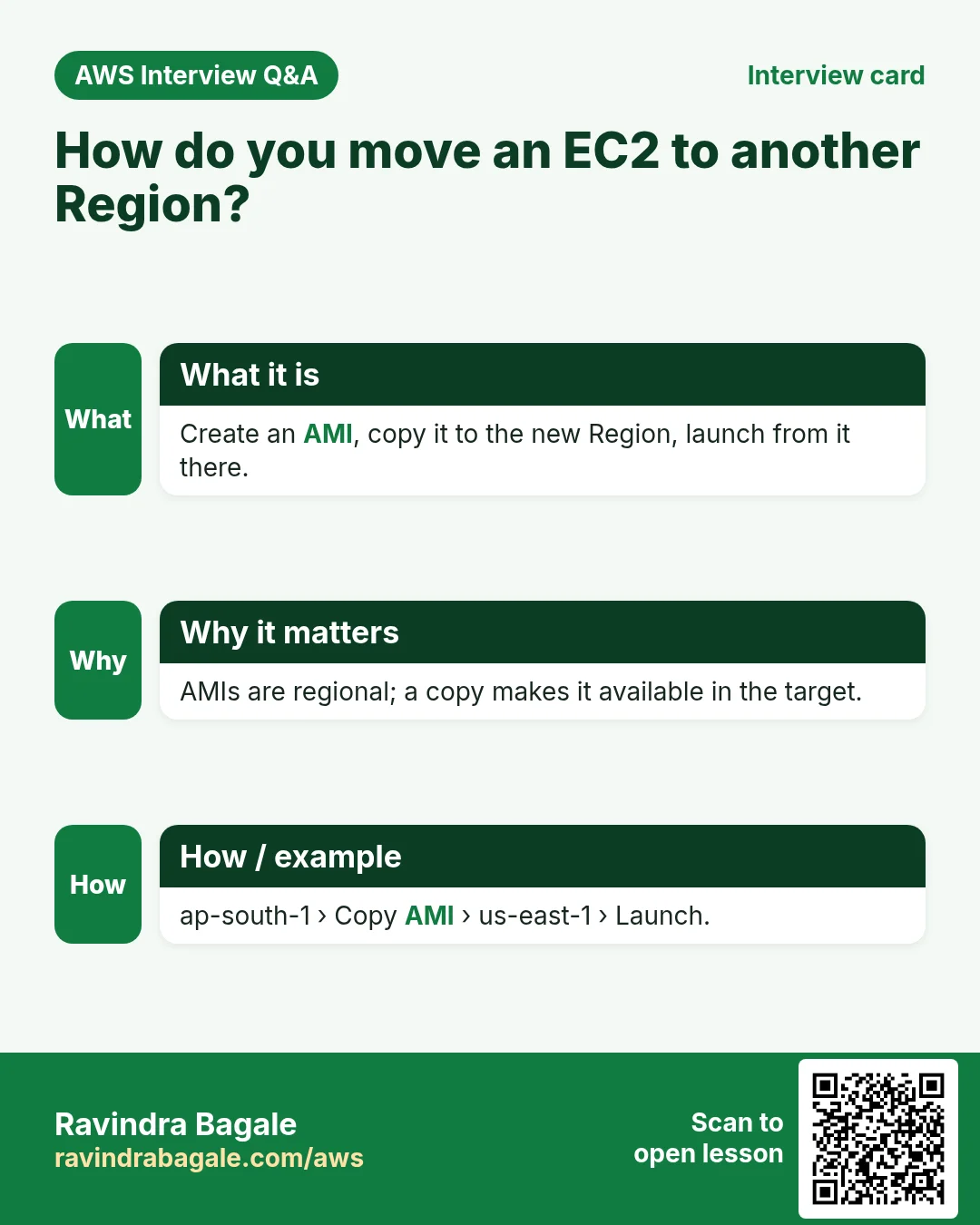
- Moving an EC2 server to another Region with an AMI copy
- A quick recap of
cat >,>>, merging files,tac,statandtouch - The
viandnanosurvival kit - Reading
ls -l, sorting withls -ltandls -ltr, hidden files withls -aandls -la, andll mkdir -p,cd,cd ../..andpwddu -shfor a file or folder, anddf -hfor the whole diskmvto move and to rename- Passwordless SSH between EC2 servers as
ec2-user:ssh-keygen,authorized_keys,chmod 700/600and port 22 - Why the trust is one way, and why four servers both ways need 12 paths
- The ports you should know by number
1. The lab: three servers, and the checks before you log in
Why: Passwordless SSH only makes sense between several servers. Building three identical ones, and checking they can reach each other first, means any later failure is in the keys, not in the network.
What: three t3.micro servers with Amazon Linux 2023, in the same Region and VPC, launched with the same key pair and security group. Name them linux1, linux2 and linux3 in the Name tag.
How:
- Launch one instance with Number of instances: 3, or launch one and then two more. The 7 launch steps are in Your first EC2 instance.
- Rename each one in the console (click the pencil in the Name column).
- Wait until Status check shows all checks passed. There is a system check (the AWS host and its network) and an instance check (your OS). Newer, Nitro-based types such as
t3.microalso run an attached EBS check, so they show 3/3; older types show 2/2. Details: Status checks: 2/2 or 3/3?. - Log in with SSH and your key, or with EC2 Instance Connect in the browser.
Classroom line
Small mistakes become big ones.
Class मधलं वाक्य
छोट्या छोट्या चुकाच मोठ्या चुका होतात.
Classroom line – हिंदी
"Chhota chhota mistake hi bada mistake ho jayega."
Two things that help in a multi-server lab:
.pemor.ppk:.pemis the OpenSSH format, used by thesshcommand on Windows, Mac and Linux..ppkis PuTTY's format; PuTTYgen converts one into the other. More in Step 4: Key pair.- Which server am I on? The prompt shows the host name, which is
ip-plus the private IP by default, not the Name tag. To see the Name in the prompt, run this once on each server, then log out and back in:sudo hostnamectl set-hostname linux1
2. Interview question: move an EC2 server to another Region
Why: you can't drag an instance from Mumbai to Singapore. An instance, its volumes, its key pair and its security group all belong to one Region. You copy the image instead.
Classroom line
They really ask this in interviews.
Class मधलं वाक्य
Interview मध्ये खरंच विचारतात हे.
Classroom line – हिंदी
"Interview mein poochhte hain yaar, serious."
Figure 1. Create an AMI in Mumbai, copy it to Singapore (the copy gets a new AMI ID), launch from the copy, check it, then stop or terminate the old server. The key pair, security group and IP addresses are set up again in the new Region.
How:
- In Mumbai, select the instance, then Actions > Image and templates > Create image. Wait until the AMI is Available. (AMIs are explained in AWS Elastic IP, AMI and EBS Snapshots.)
- In AMIs, select it, then Actions > Copy AMI, and choose Asia Pacific (Singapore) as the destination Region.
- Switch the console to Singapore. The copy has a new AMI ID; wait until it is Available.
- Launch instance from AMI. Pick a key pair that exists in Singapore (create one, or import your existing public key) and a security group with the ports you need.
- Test the new server. Then stop or terminate the old one, and deregister AMIs and delete snapshots you no longer need, because each Region bills its own copy.
Anything written on the old server after step 1 is not in the copy, so plan a short cut-over. If an interviewer then asks you to rate yourself out of 10, be honest: a 6 you can defend is better than a 9 you can't.
3. Quick recap: cat, tac, stat and touch
Why: These commands come back in this chapter: cat to read the public key, stat and touch while checking files. A short refresher keeps the setup steps fast.
These come from earlier chapters, so here is only the short version:
cat > file1
cat >> file1
cat file1 file2 > file3
tac file3
stat file3
touch f1 f2 f3
cat > file1writes what you type; press Ctrl+D on an empty line to save. Ctrl+C cancels the command and can leave you with an empty or half-written file.>>appends at the end; a single>replaces the content.cat file1 file2 > file3joins two files into a third;tacprints the lines in reverse.statshows Access, Modify, Change and Birth. On EC2 the clock is in UTC, so add 5:30 to read it in India time.touchon an existing file sets Access and Modify to now (Change follows); on a new name it creates an empty file. It never touches the content.
Classroom line
Never press Ctrl+C here, it's Ctrl+D.
Class मधलं वाक्य
चुकीचं आहे, इथे कधीच Control C नाही दाबायचं, Control D आहे.
Classroom line – हिंदी
"Galat hai, Control C nahi dalna kabhi bhi, Control D hai."
The full explanations: cat and the > trap, the three timestamps and cat and tac.
4. The vi and nano survival kit
Why: you will edit authorized_keys in section 14, and on many servers vi is the only editor installed.
Figure 2. vi opens in normal mode. i or o switch to insert mode for typing, Esc goes back, and : opens the command line for :wq, :q! and :wq!. nano needs no modes: Ctrl+O saves, Ctrl+X exits.
How, in vi:
vi notes.txtopens the file in normal mode: keys are commands, not text.- Press
ito type at the cursor, oroto open a new line below. The bottom shows-- INSERT --. - Type your text, then press Esc to go back to normal mode.
- Type
:wqand Enter to save and quit,:q!to quit without saving, or:wq!to force the save (for example on a read-only file you own). - Useful in normal mode:
Gjumps to the last line,dddeletes the current line.
In nano: type straight away; Ctrl+O saves, Ctrl+X exits (answer Y and Enter if it asks to save).
Classroom line
Work calmly, with presence of mind.
Class मधलं वाक्य
शांतपणे, presence of mind ठेवून काम करायचं.
Classroom line – हिंदी
"Samadhan se, presence of mind rakh ke kaam karne ka."
The browser terminal and zoom: in EC2 Instance Connect, zooming the browser while vi is open can scramble the screen, because the browser terminal doesn't pass the new size to vi cleanly. vi itself is fine. Set the zoom before you open vi, press Ctrl+L to redraw, or use a normal SSH terminal. More on both editors: nano and vi.
5. Reading ls -l
Why: SSH refuses keys and folders with loose permissions. Reading ls -l correctly is how you spot that before SSH silently ignores your key.
What: ls -l prints one item per line with its type, permissions, owner, size and time. The first character alone tells file from folder (more on it).
Figure 3. One line of ls -l: type, permissions, the SELinux dot on Amazon Linux, links, owner, group, size in bytes, last modified time and name.
- Type:
-file,ddirectory,llink. - Permissions: three groups of
rwxfor owner, group and others. The.after them on Amazon Linux means the file has an SELinux label. - Links, owner, group.
- Size in bytes. Add
-h(ls -lh) to see K, M and G. - Last modified time, then the name.
6. Sorting by time: ls -lt and ls -ltr
Why: "which file changed last?" is the first question when something breaks.
How:
touch file7
touch file8
ls -lt
ls -ltr
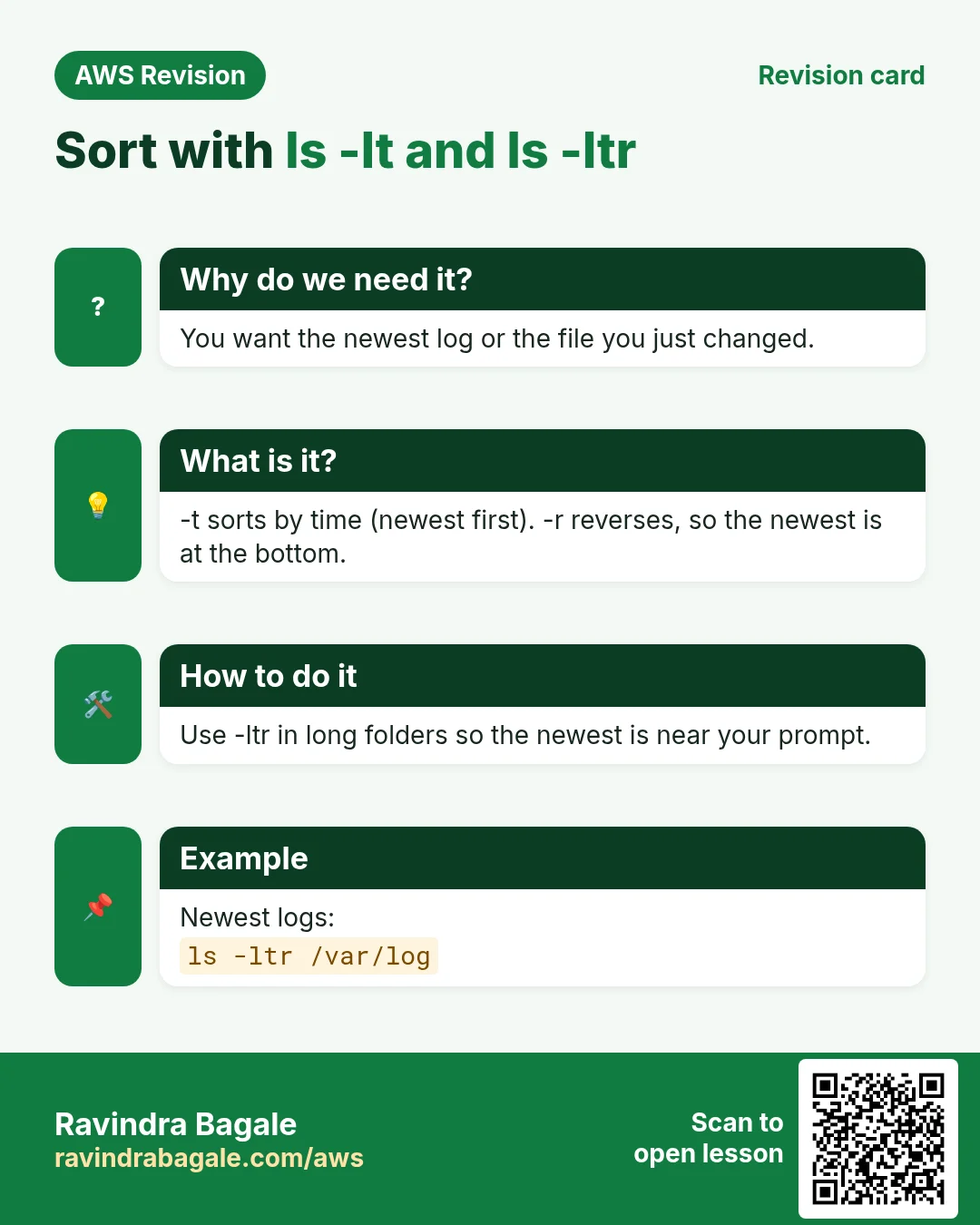
ls -ltsorts by Modify time, newest first:file8is at the top.ls -ltrreverses it, newest last:file8is at the bottom, right above your prompt, where your eyes already are.ls -lrtis the same command; the letters can go in any order.- On a server,
ls -ltr /var/logshows the log that was written most recently at the bottom.
7. Hidden files: ls -a, ls -la and ll
Why: The SSH files live in the hidden folder ~/.ssh. A plain ls never shows it, so you need -a to see what you are about to change.
What: a name that starts with a dot is hidden. ls skips it; ls -a shows it.
ls -a
ls -la
ll
ls -alists everything, including.(this folder),..(the folder above),.bashrc,.bash_profileand.ssh.ls -lagives the same list in long format: use it to check permissions on.ssh.llis a shortcut (an alias). On Amazon Linux it meansls -lwith colours; on Ubuntu it meansls -alF. Typealias llto see what it means on your server.- A typo such as
la -lagivescommand not found: read the first word of the error.
Classroom line
Hidden files and directories start with a dot.
Class मधलं वाक्य
Hidden files आणि directories dot ने सुरू होतात.
Classroom line – हिंदी
"Hidden files and directories dot se start hota hai."
Figure 4. ls, ls -l, ls -lt, ls -ltr, ls -a, ls -la, ls -lh and ll, with what each shows. The letters combine in any order.
More on hidden files: Hidden files: a dot at the start of the name.
8. Folders: mkdir -p, cd and pwd
Why: You will create and move between folders constantly while setting up servers. -p and relative cd paths save many commands.
How:
mkdir dir1
mkdir -p dir2/dir3/dir4/dir5
cd dir2/dir3/dir4/dir5
pwd
cd ../..
cd
mkdir -pmakes the whole chain at once. Without-p,mkdir dir9/dir8fails withNo such file or directorybecausedir9doesn't exist. With-p, running it again is not an error.cd dir2/dir3/dir4/dir5goes down four levels in one step;pwdprints the full path.cd ../..goes up two levels.cdalone always takes you home (/home/ec2-user).cd dir1/dir2fails withNo such file or directorywhen that path doesn't exist. Read the error, then check the path withlsandpwd.
Classroom line
How do we know which directory we're in?
Class मधलं वाक्य
आपण कुठल्या directory मध्ये आहोत हे कसं कळणार?
Classroom line – हिंदी
"Kaise pata chalega ki hum kaunse directory mein hain?"
Figure 5. Animation: mkdir -p makes dir2 to dir5 in one step, cd dir2/dir3/dir4/dir5 goes down four levels, cd ../.. comes back up to dir3, and cd alone returns home. pwd shows the path each time.
Classroom line
In DevOps, the more errors you hit, the more you learn.
Class मधलं वाक्य
DevOps मध्ये लक्षात ठेवा, जितके errors येतील तितकं आपण शिकतो.
Classroom line – हिंदी
"DevOps mein yaad rakhlo, jitna error aayega utna hum log seekhte hain."
The details of paths and cd are in Linux directory commands.
9. du: how big is this file or folder?
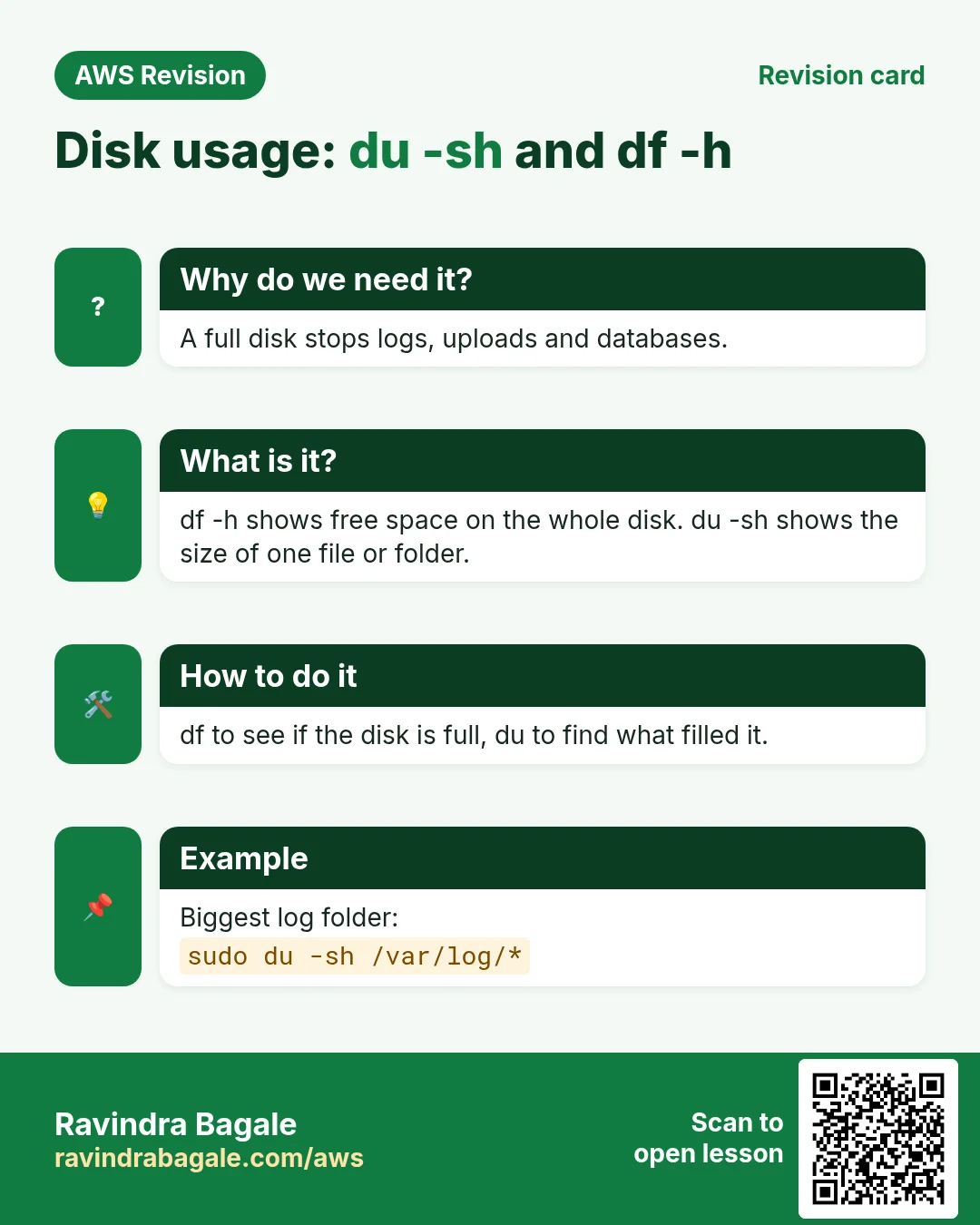
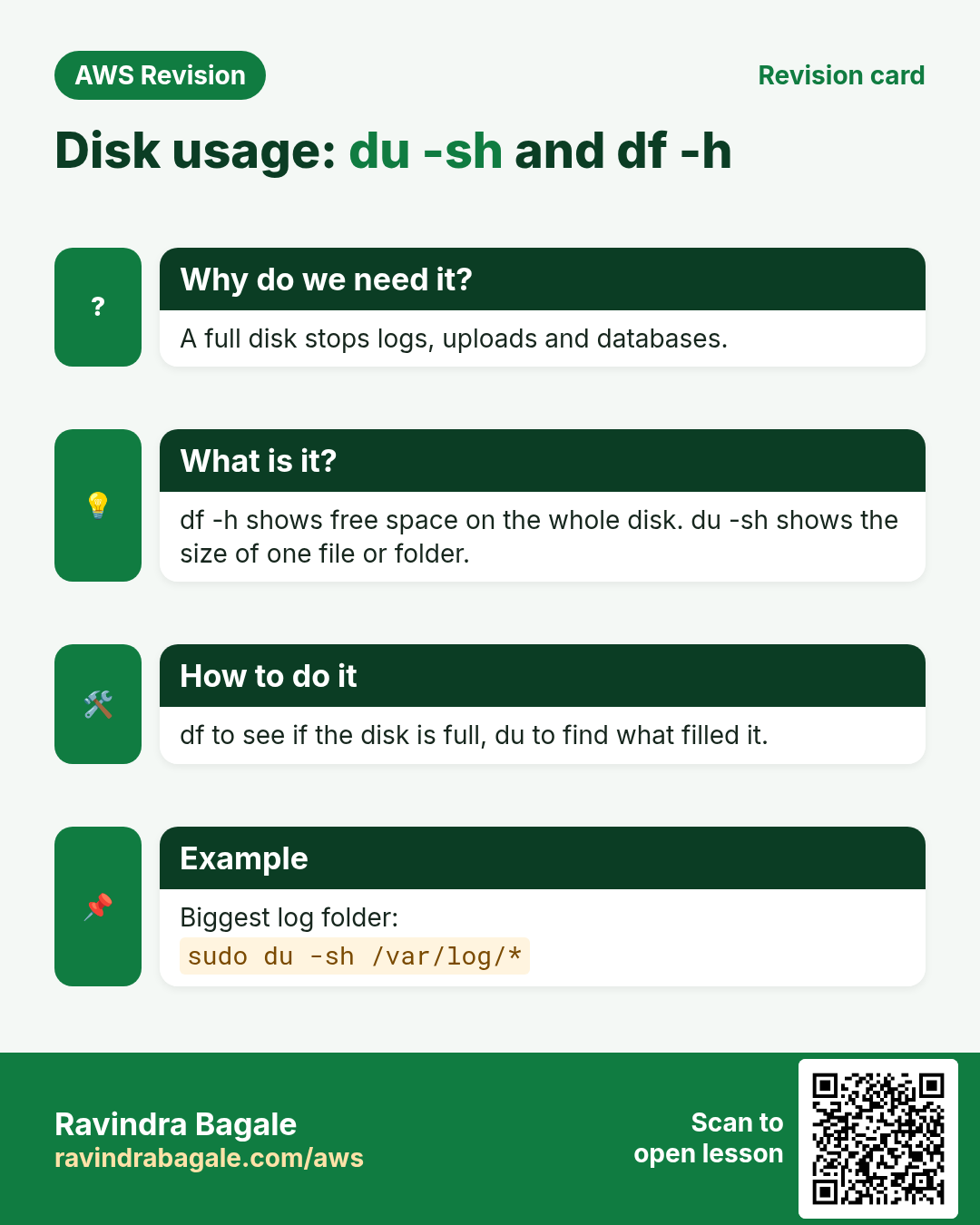
Why: When a disk fills up you need to know which folder is eating it. du answers that.
What: du (disk usage) shows the space that the things you name take on disk.
du -sh file7
du -sh dir2
du -sh *
-smeans summarize: one total per item, instead of a line for every folder inside.-hmeans human-readable: K, M and G instead of blocks.du -sh *gives one line for each item in the current folder (hidden items are skipped by*).- An empty file shows
0. A small file shows4.0K, because disk space is used in 4 KB blocks;ls -lshows the exact bytes. - For folders you can't read, such as
/var/log, usesudo du -sh /var/log.
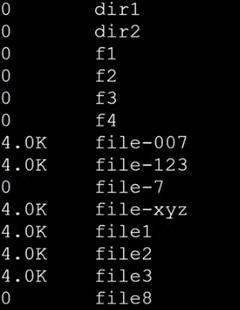
Console: du -sh * on the lab server: empty files and folders show 0, and each small file takes one 4.0K block.
10. df: how full is the disk?
Why: A full disk stops databases and websites. df is the first check, and with passwordless SSH you can run it on every server from one place.
What: df (disk free) shows each mounted filesystem: its size, how much is used, how much is free, and where it is mounted.
df -h
df -h /
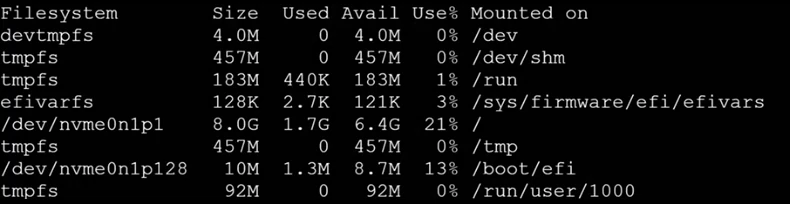
Console: df -h on a t3.micro: the root volume /dev/nvme0n1p1 is 8.0G with 21% used. The tmpfs lines are in RAM.
- The line mounted on
/is your root EBS volume: 8 GiB by default on Amazon Linux. Use%is the number to watch. Near 100%, programs start failing withNo space left on device.- The
tmpfsanddevtmpfslines live in RAM, not on the disk.
Figure 6. du answers "how big is this?" for the files and folders you name; df answers "how full is the disk?" for each filesystem. Check df -h first, then use du -sh * to find what is big.
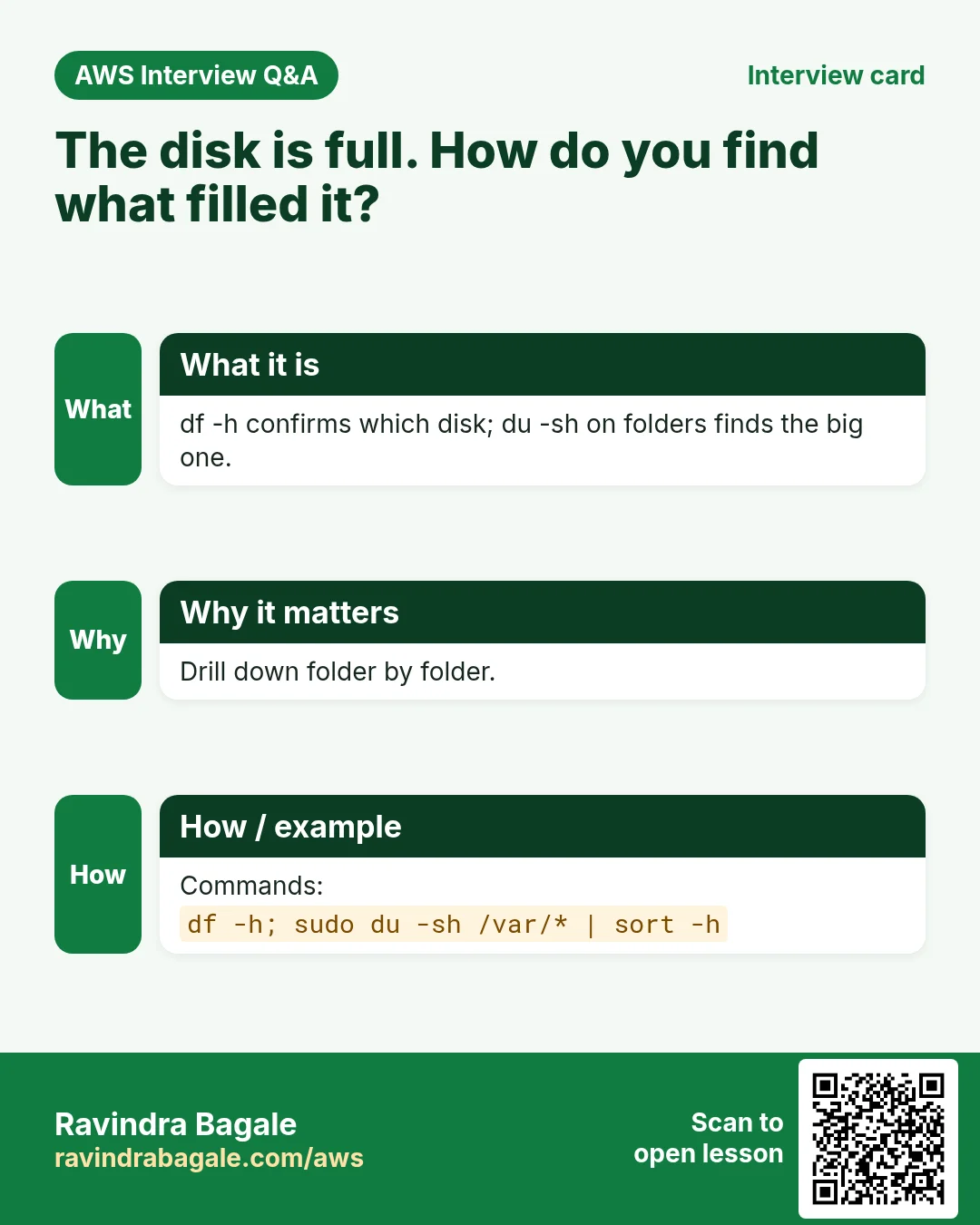
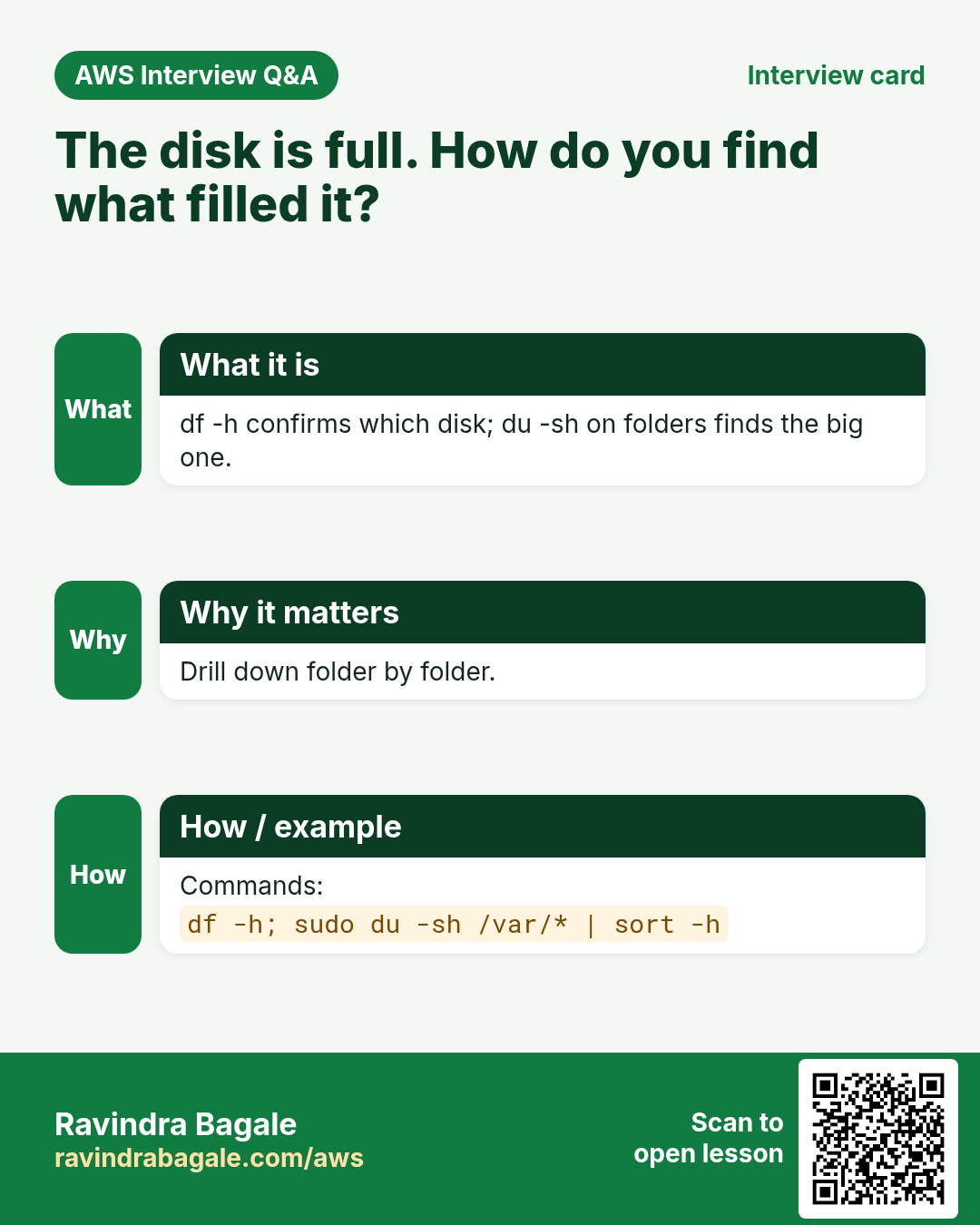
Worked example: the disk is full.
- An app fails with
No space left on device. df -h /showsUse%at 100%.sudo du -sh /var/*shows that/var/logis the biggest.sudo du -sh /var/log/*points to one huge log file. Clean or rotate it, or grow the EBS volume.
11. mv: move and rename
Why: Moving and renaming files is part of every setup, including moving a copied key into place.
mv file3 dir1
mv file2 notes.txt
mv dir2 dir1
mv file3 dir1movesfile3intodir1.mv file2 notes.txtrenames it, becausenotes.txtis not an existing folder.mvmoves folders without-r.- A wrong name gives
mv: cannot stat 'file99': No such file or directory. mvoverwrites an existing file without asking;mv -iasks first.
The full chapter: Linux mv and rm.
12. Passwordless SSH: why servers need it
Why: in a real setup, one server sends work to the others. Ansible connects from a controller to every managed server over SSH. A Jenkins controller starts builds on agent servers over SSH. (Older documents call them master and slave.) If a person had to type a password for every login, nothing could be automated.
Classroom line
I'm tired; how much can I do alone?
Class मधलं वाक्य
मी थकलो, मी एकटा किती काम करू?
Classroom line – हिंदी
"Thak gaya main, main akela kitna kaam karu?"
Think of a team of four where three are on leave and one does all the work. A controller that can log in to every server spreads the work out, without a person in between.
The goal: linux1 logs in to linux2 and linux3 as ec2-user with no password, using a key pair that linux1 owns.
13. What goes where: keys, authorized_keys and port 22
Why: Most failed setups put a key on the wrong server or in the wrong file. Knowing exactly which file sits where avoids that.
Figure 7. linux1 makes a key pair; the private key id_ed25519 stays on linux1, and the one-line public key id_ed25519.pub is appended to ~/.ssh/authorized_keys on linux2 and linux3. Their security groups allow TCP 22 from linux1.
- The key pair is made on
linux1:id_ed25519(private) andid_ed25519.pub(public), in~/.ssh. - The private key never leaves
linux1. Anyone who has it can log in wherever its public key is trusted. - The public key is one line. It goes at the end of
~/.ssh/authorized_keysof the user you will log in as onlinux2andlinux3:/home/ec2-user/.ssh/authorized_keys. - Permissions:
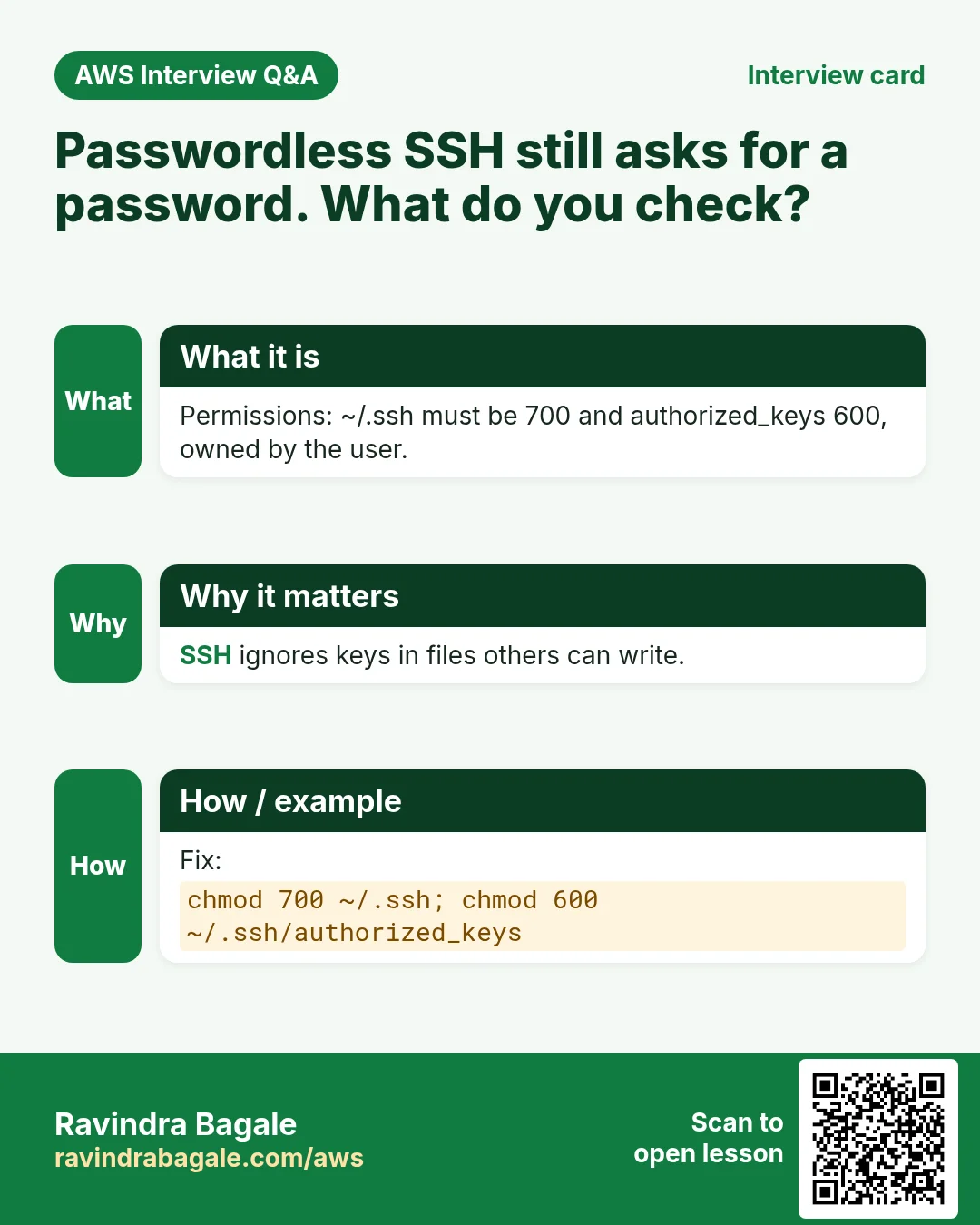
~/.sshmust be700andauthorized_keys600, owned by that user. SSH ignores the file when they are more open. - Port 22: the security groups of
linux2andlinux3must allow inbound SSH, TCP 22 fromlinux1: its private IP with/32, or better,linux1's security group as the source. The launch wizard's default rule allows 22 from anywhere, so the lab works with it, but in real setups you narrow it. - Log in as
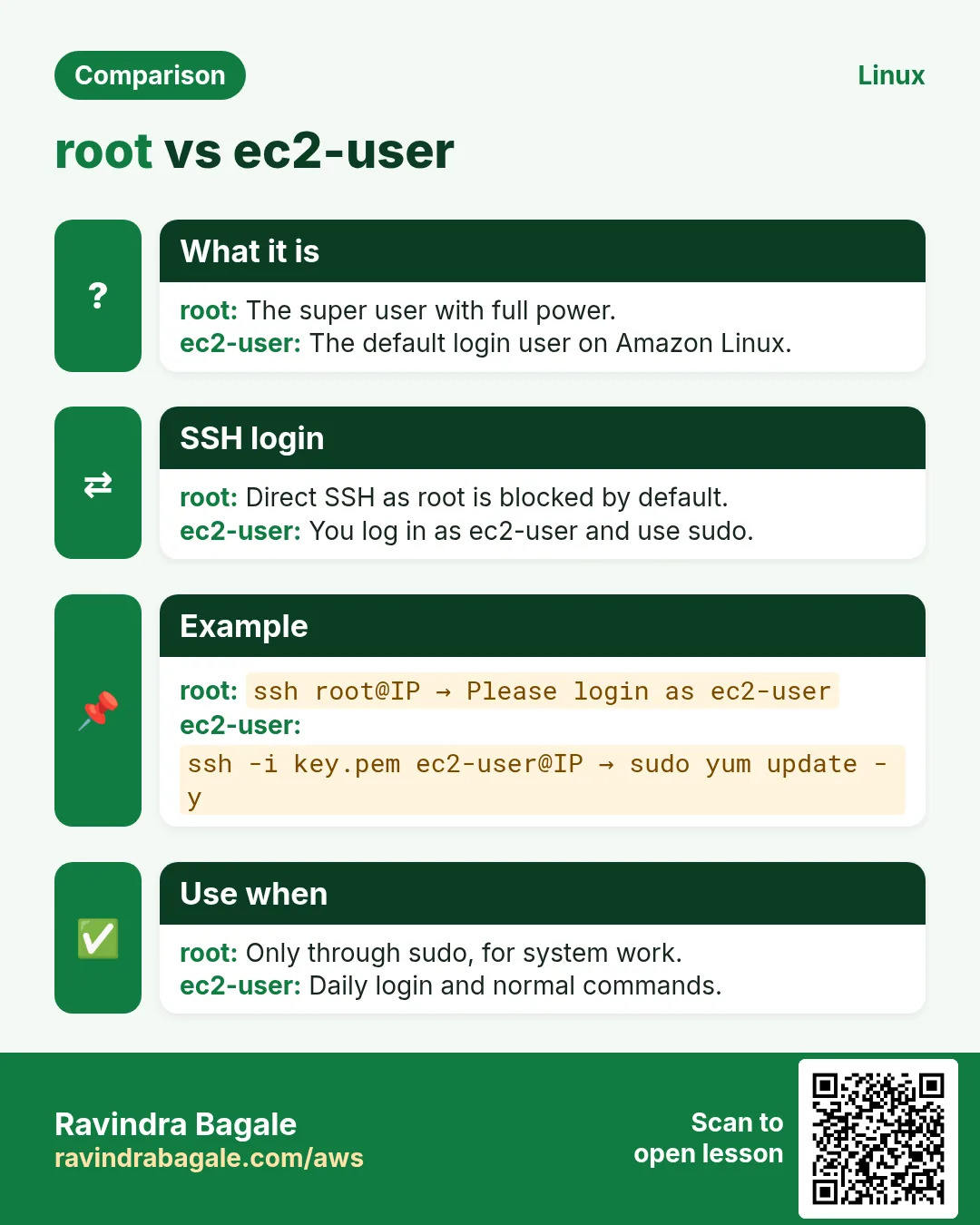
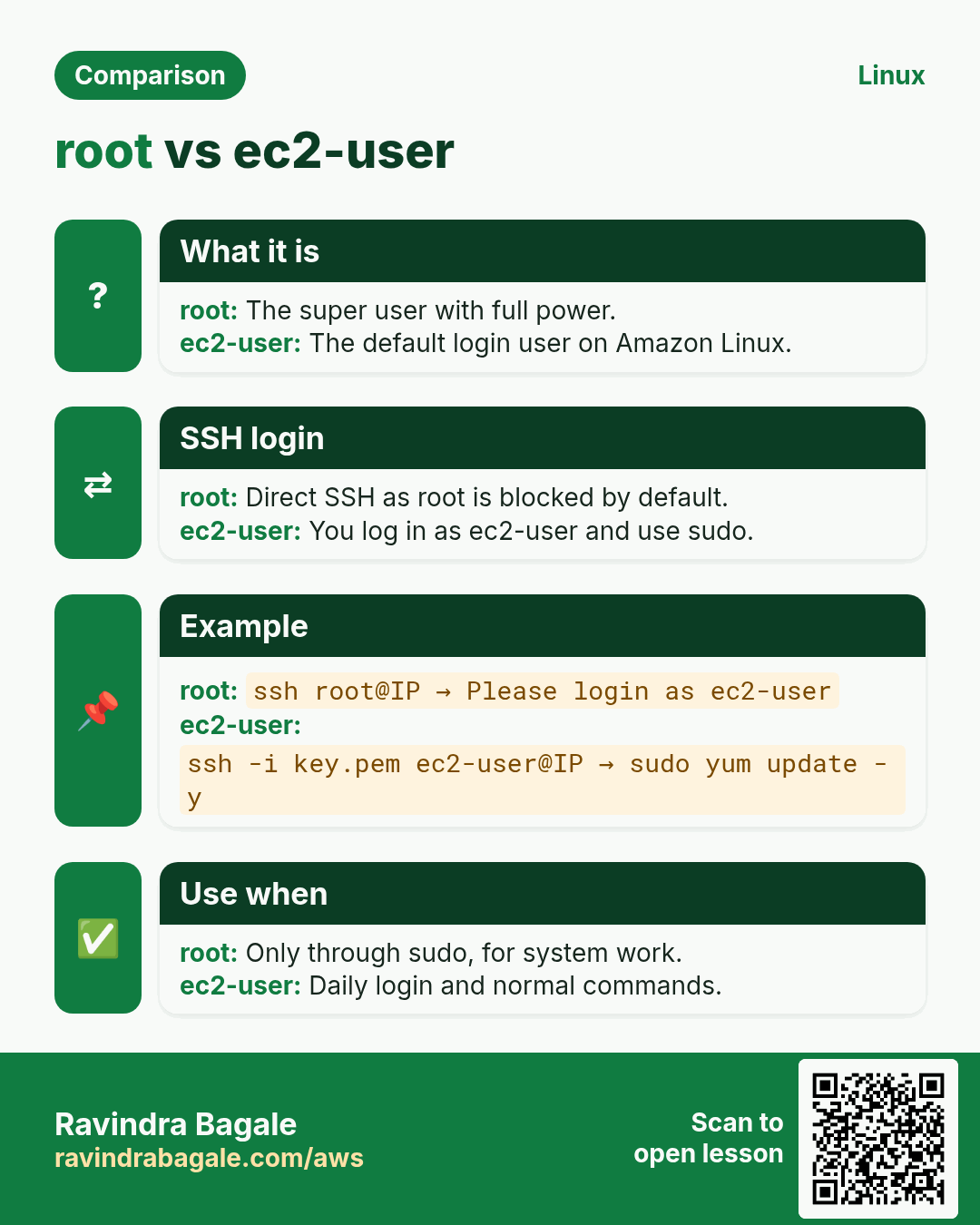
ec2-user, not root. On Amazon Linux 2023, root'sauthorized_keysalready contains your launch key, wrapped in a command that only printsPlease login as the user "ec2-user" rather than the user "root".and closes the connection, and password logins are off. Useec2-userandsudofor admin work.
14. How: set it up step by step as ec2-user
Why: Tools like Ansible and Jenkins log in to servers with no one there to type a password. These steps are exactly what they need.
On linux1, make the key pair:
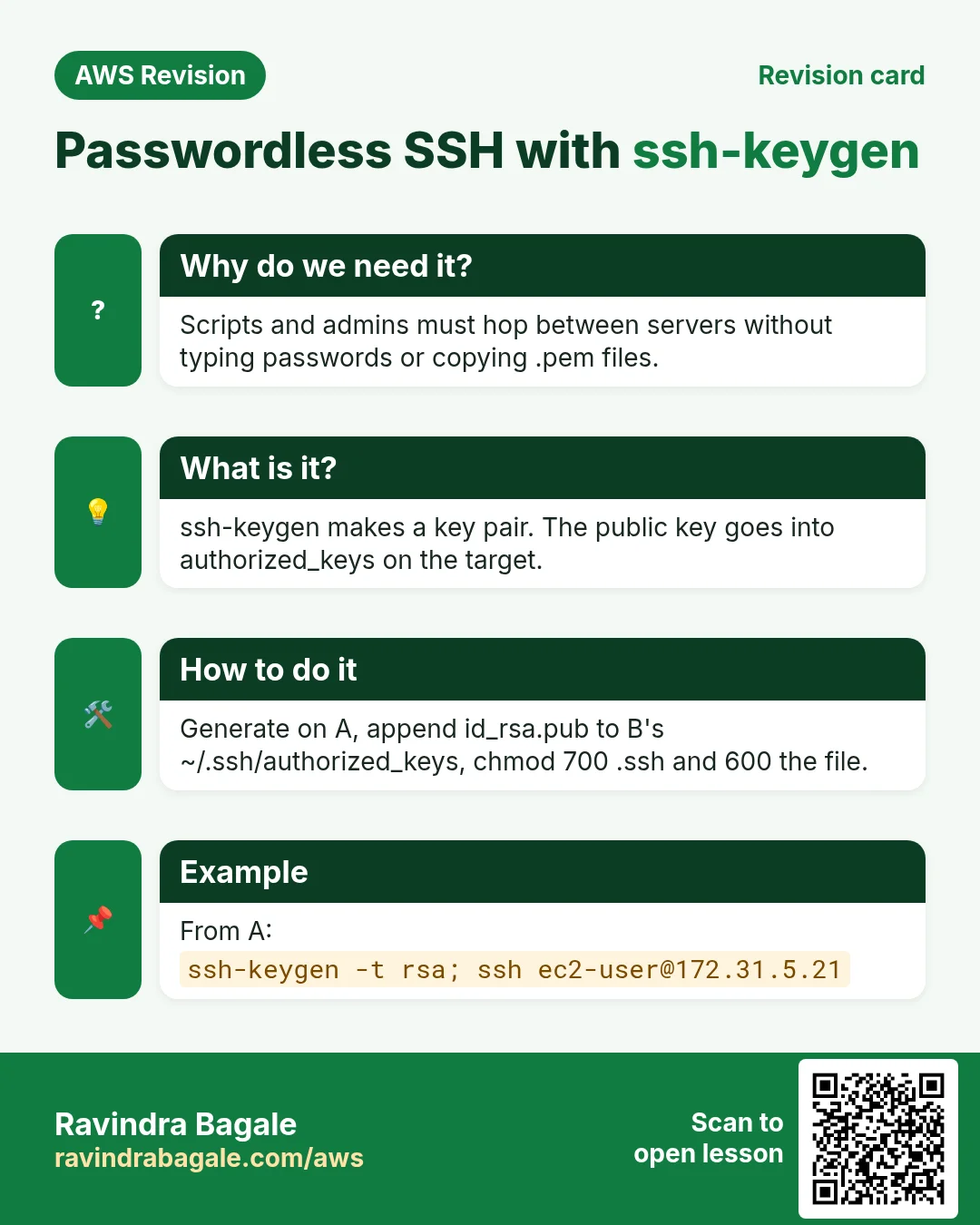
ssh-keygen -t ed25519
ls -la ~/.ssh
cat ~/.ssh/id_ed25519.pub
- Press Enter three times: the default file name, then an empty passphrase twice. (An empty passphrase lets scripts use the key. On a laptop, set a passphrase.)
ls -la ~/.sshnow showsid_ed25519with-rw-------andid_ed25519.pubwith-rw-r--r--.catprints the public key: one line startingssh-ed25519 AAAA...and ending with a comment such asec2-user@linux1. Select the whole line and copy it. (ssh-keygenwith no-ton Amazon Linux 2023 makes an RSA key,id_rsa.pub, which works the same way.)
Classroom line
When copying, the first letter often gets missed; don't make that mistake.
Class मधलं वाक्य
Copy करताना पहिलं अक्षर अनेकदा सुटतं, ती गडबड नाही करायची.
Classroom line – हिंदी
"Copy karte time ye 'L' miss ho jata hai, ye gadbad nahi karne ka."
On linux2, add it (log in there as usual with your .pem):
vi ~/.ssh/authorized_keys
chmod 700 ~/.ssh
chmod 600 ~/.ssh/authorized_keys
- In
vi, pressGto go to the last line,oto open a new line below it, paste, press Esc, and type:wq. - Don't delete the line that is already there. It is the public half of your
.pemkey; without it you lock yourself out oflinux2. - The
chmodlines make sure the permissions are right. On EC2 they already are, but run them anyway; they are harmless. - Repeat on
linux3.
Classroom line
Don't fiddle with configuration files unnecessarily.
Class मधलं वाक्य
Configuration files मध्ये जास्त छेडछाड नाही करायची.
Classroom line – हिंदी
"Configuration files mein ched-chad zyada nahi karne ka."
Check the security groups of linux2 and linux3: an inbound rule for SSH (22) from linux1's private IP or security group.
Back on linux1, test it:
ssh ec2-user@LINUX2_PRIVATE_IP
hostname
exit
ssh ec2-user@LINUX3_PRIVATE_IP 'df -h /'
- Use the private IP shown in the console (or
hostname -Ionlinux2): the servers are in the same VPC, so the traffic stays inside AWS. - The first time, SSH asks
Are you sure you want to continue connecting (yes/no/[fingerprint])?. Typeyes; the server's key is saved in~/.ssh/known_hostsand you won't be asked again. - No password prompt appears, and the prompt changes to
linux2.exitbrings you back tolinux1. - The last line runs one command on
linux3and prints the result onlinux1: this is how tools like Ansible work.
Figure 8. Animation: linux1 connects to port 22, linux2 finds linux1's public key and sends a random challenge, linux1 signs it with the private key, and linux2 checks the signature with the public key and opens a shell. Only the signature travels.
ssh-copy-id can install a key for you, but only when you can already log in to the target. Between fresh EC2 servers you can't yet, so the copy and paste above is the way in.
15. The trust is one way
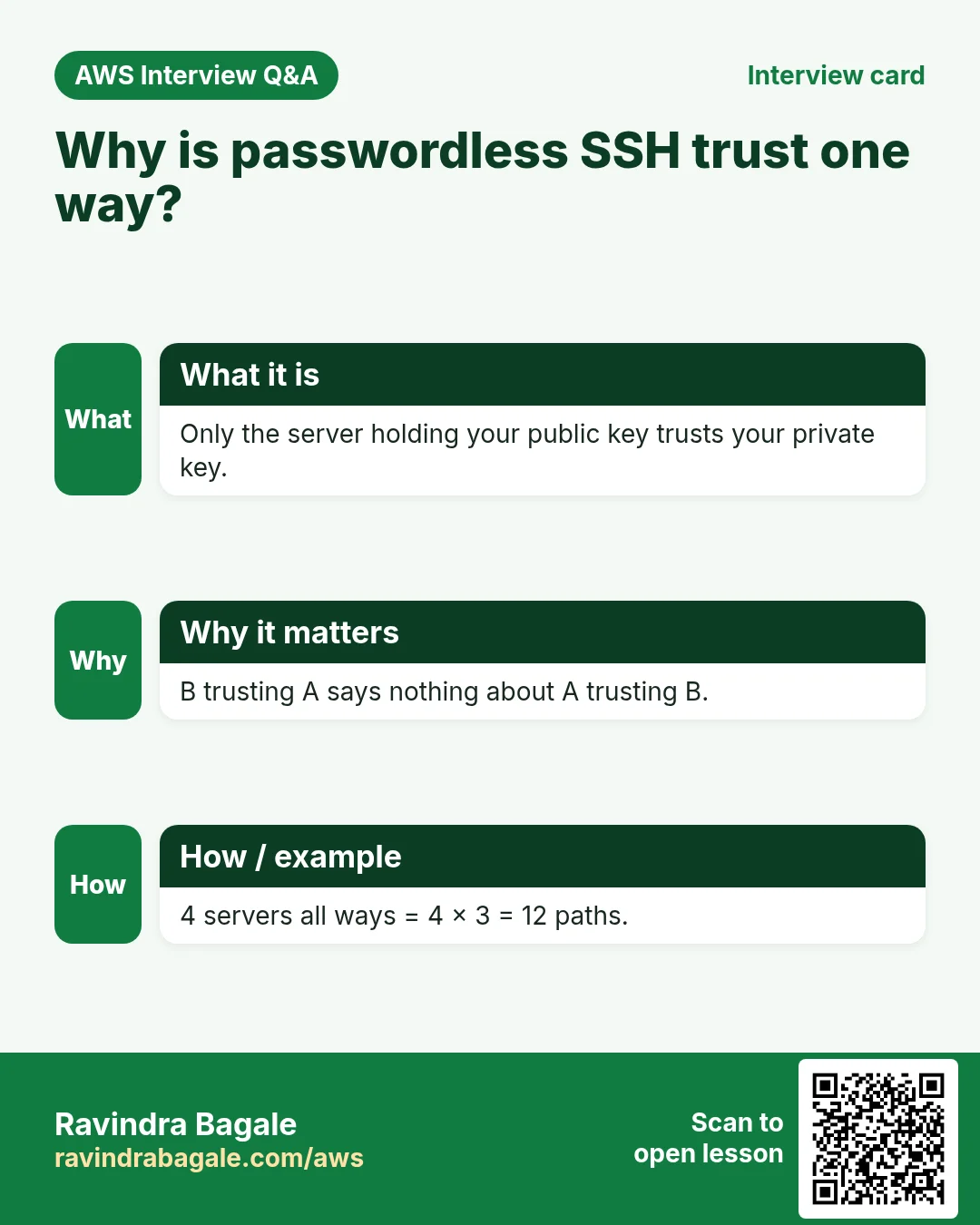
What: linux1 can log in to linux2 because linux1's public key is in linux2's authorized_keys. Nothing allows the opposite: ssh from linux2 to linux1 ends with Permission denied (publickey).
Figure 9. linux1 logs in to linux2 and linux3; linux2 to linux1 is denied. Only the login permission is one way; a session carries data both ways.
- The one-way part is the permission to log in. Once you are in, the session carries data both ways: you type, the output comes back.
- For
linux2to log in tolinux1too, runssh-keygenonlinux2and put its public key intolinux1'sauthorized_keys.
16. Task: four servers, both ways
The task: four servers, linux-1 to linux-4. Every server must log in to every other one without a password.
Figure 10. Four servers, every pair in both directions: 4 × 3 = 12 one-way paths. Each server has its own key pair, an authorized_keys file with the other three public keys, and port 22 open to the others.
Worked example: count the paths.
- Each server logs in to the other three, not to itself: 3 paths per server.
- 4 servers × 3 = 12 one-way paths, not 4 × 4 = 16.
- On each server: run
ssh-keygenonce, and put the other three public keys in itsauthorized_keys(3 lines added per server, 12 in total). - Test from each server, for example from
linux-1:ssh ec2-user@IP_OF_LINUX_2 hostname, thenlinux-3andlinux-4. - The count grows fast: 10 servers both ways need 10 × 9 = 90 paths. That is why real setups use one controller (9 paths for 10 servers) and tools to hand out keys.
Classroom line
Do it once and you'll never forget it.
Class मधलं वाक्य
एकदा हे करून बघा, मग आयुष्यभर विसरणार नाही.
Classroom line – हिंदी
"Ek bar ye karke dekho, uske baad lifetime me nahi bhuloge."
Classroom line
It's hard until you learn it; after that it's child's play.
Class मधलं वाक्य
शिकेपर्यंत ती ब्रह्मविद्या आहे, शिकल्यानंतर तो मुलांचा खेळ आहे.
Classroom line – हिंदी
"Seekhne tak wo Brahma Vidya hai, seekhne ke baad wo bacchon ka khel hai."
17. Ports you should know
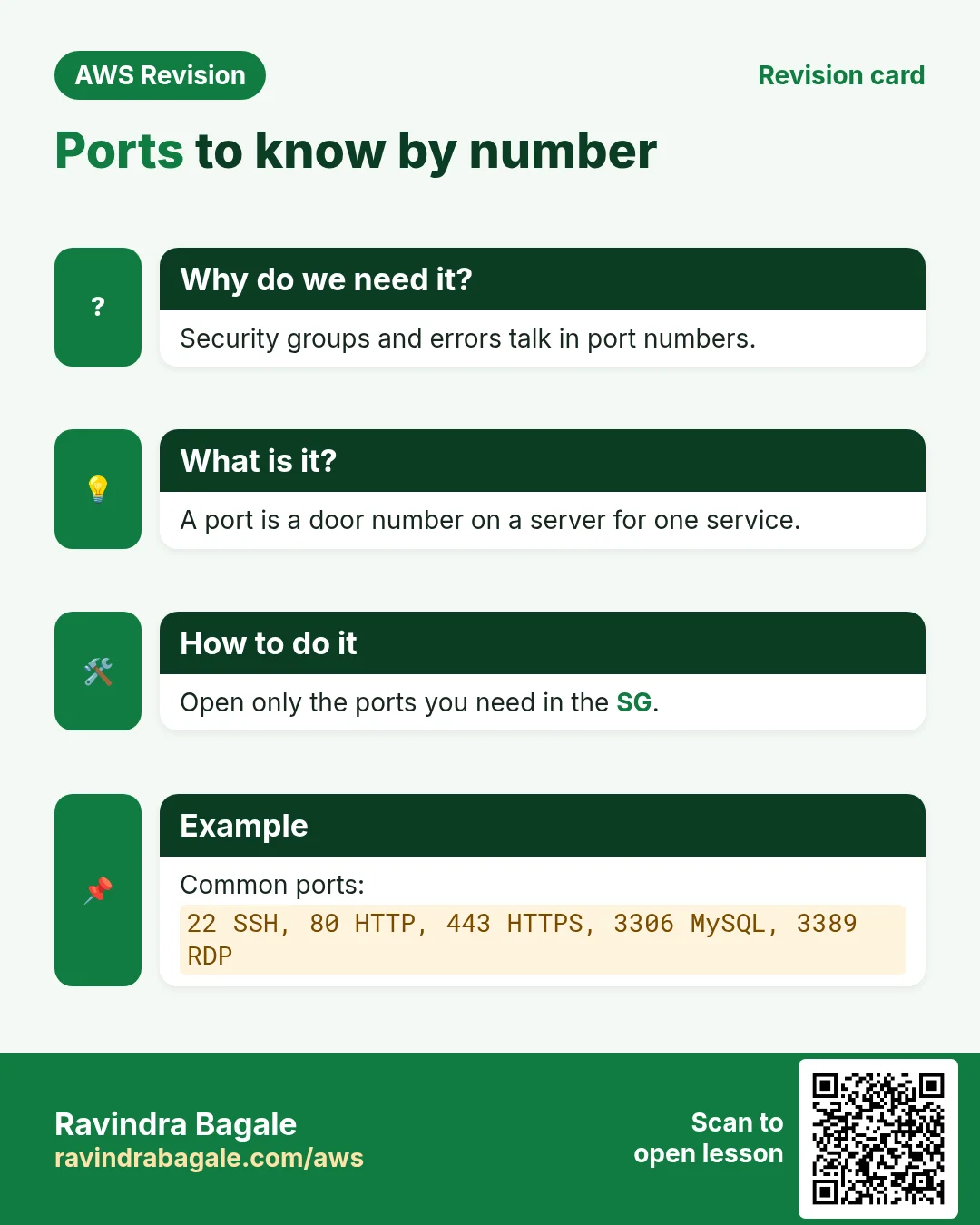
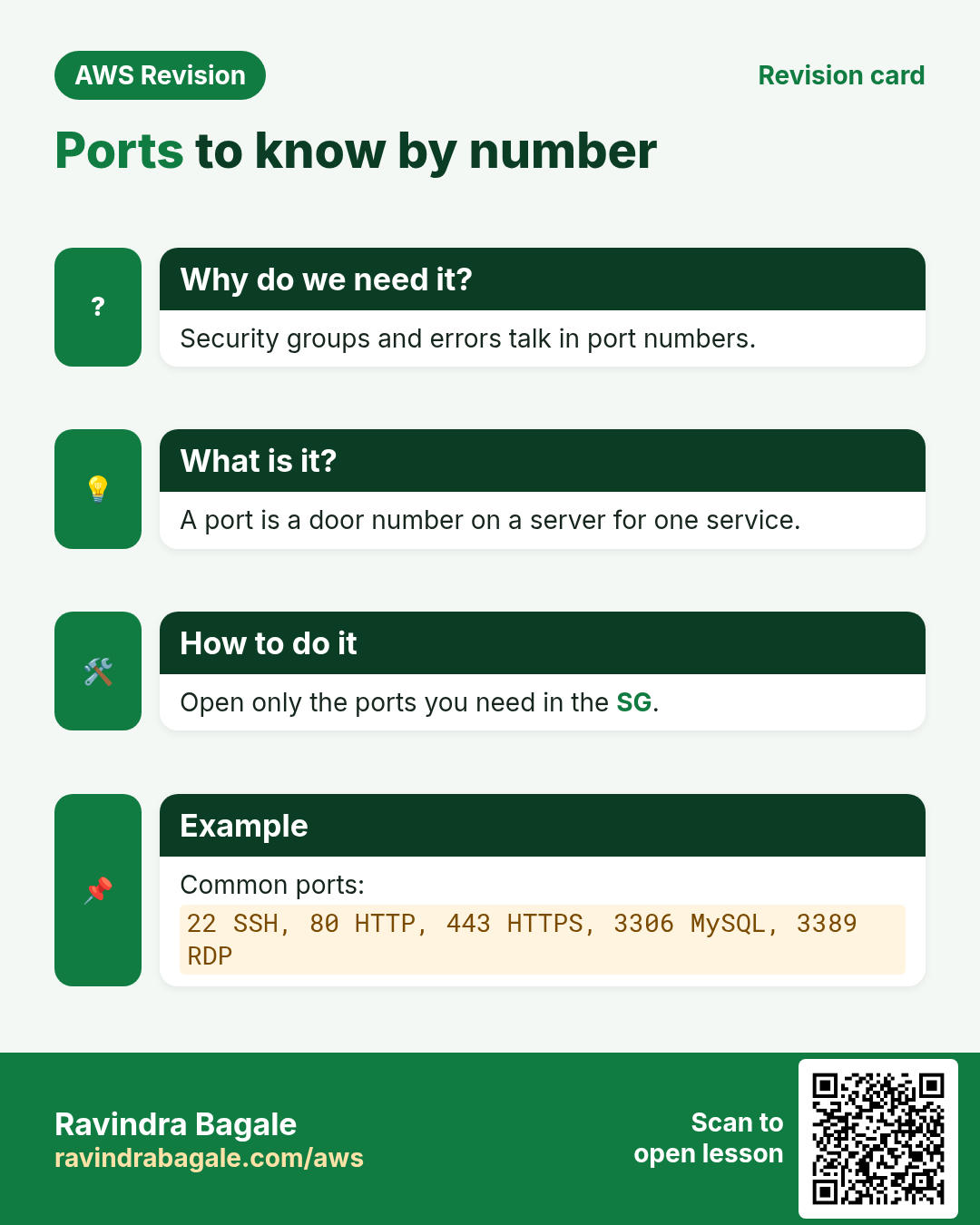
Why: Every security group rule and every connection error names a port. Knowing the common ones tells you at once which service is involved.
A port number runs from 0 to 65,535 (65,536 ports). Ports 0 to 1023 are the well-known ports for standard services (0 itself is reserved). How ports work is in Ports: the IP reaches the server, the port reaches the app.
| Port | Service | Where you meet it |
|---|---|---|
| 21 | FTP | Old file transfer, sends passwords in plain text |
| 22 | SSH | Logging in to Linux servers; this chapter |
| 25 | SMTP | Servers sending email |
| 53 | DNS | Name lookups; Route 53 is named after this port |
| 80 | HTTP | Websites without encryption |
| 443 | HTTPS | Websites with encryption |
| 3306 | MySQL / MariaDB | Databases |
Classroom line
Your neighbour won't come to your interview; you'll have to answer yourself.
Class मधलं वाक्य
बाजूचा interview ला येत नाही, तेव्हा उत्तर तुम्हालाच द्यावं लागेल.
Classroom line – हिंदी
"Baaju wala interview me nahi aata, tab aapko hi answer dena padega."
18. When something looks wrong
Why: Each error points to one link in the chain: network, user, key or permissions. Reading it correctly saves you from redoing the whole setup.
Figure 11. A timeout on port 22 is the security group. Permission denied (publickey) is the wrong user, a broken key line, or permissions that are too open or a file owned by root. The fingerprint question is normal the first time. A changed host key after an IP is reused is fixed with ssh-keygen -R.
Connection timed outon port 22: the target's security group doesn't allow 22 from this server. Add the rule.Permission denied (publickey):- You used the wrong user:
ec2-useron Amazon Linux,ubuntuon Ubuntu, notroot. - The key line lost its first characters, or was pasted across two lines. It must be one complete line.
~/.sshis more open than700, orauthorized_keysis writable by others (such as666): SSH refuses it.- You created
authorized_keyswithsudo, so root owns it. Fix it withsudo chown ec2-user:ec2-user ~/.ssh/authorized_keys.
- You used the wrong user:
REMOTE HOST IDENTIFICATION HAS CHANGED: a new server got an IP you used before. Runssh-keygen -R THAT_IPonlinux1, then connect again.- Still stuck:
ssh -v ec2-user@IPprints every step, including which key was offered. vilooks scrambled after zooming: press Ctrl+L, or quit with:q!and reopen.dushows0for a file: the file is empty.ls -lshows the size in bytes.
Ravindra Bagale's Tip
Treat a private key like the key to your house: it stays on the machine that made it, it is never pasted into chat or email, and it never goes into a Git repository. Move the public key around freely. If a private key ever leaks, delete its public line from every authorized_keys it was added to, and make a new pair.
19. The whole class on one page
- Launch three
t3.microservers with the same key pair and security group; wait for 3/3 status checks (system, instance, attached EBS). - To move a server to another Region: create an AMI, copy it, launch from the copy, and set up the key pair and security group again there.
cat >with Ctrl+D,>>to append,cat a b > cto join,tacto reverse,statfor the times (UTC on EC2),touchto create or update.vi:ioroto type, Esc, then:wqor:q!.nano: Ctrl+O, Ctrl+X.ls -lshows type, permissions, owner, size and time;ls -ltrputs the newest at the bottom;ls -lashows hidden files;llisls -lon Amazon Linux.mkdir -pmakes a whole chain;cd ../..goes up two levels;cdalone goes home;pwdtells you where you are.du -shsizes what you name (-ssummarize,-hhuman-readable);df -hshows how full each disk is.mvmoves and renames, folders included.- Passwordless SSH:
ssh-keygenonlinux1, its.publine appended toec2-user'sauthorized_keyson the others,700/600, and port 22 open fromlinux1. - The private key never leaves its server. Log in as
ec2-user, not root. - Trust is one way. Four servers both ways need 4 × 3 = 12 paths.
- Ports run from 0 to 65,535: 22 SSH, 53 DNS, 80 HTTP, 443 HTTPS.
20. Hands-on lab: passwordless SSH from linux1 to linux2
Why this lab. This lab sets up one-way trust from linux1 to linux2, checks every file and permission on the way, and proves it by running a command on linux2 without typing anything.
- Name the servers
- Command:
sudo hostnamectl set-hostname linux1 - You should see: Nothing.
- Check: After you log out and in again, the prompt shows
ec2-user@linux1. Do the same on the second server withlinux2. - Why: With identical servers, the prompt is the only way to know where you are. Running a key command on the wrong server is the most common mistake here.
- Command:
- Check that linux1 reaches port 22 on linux2
- Command:
ssh ec2-user@LINUX2_PRIVATE_IP - You should see:
Permission denied (publickey...), quickly, not a timeout. - Check: A fast "denied" means the network is fine;
Connection timed outmeans the security group blocks port 22. - Why: Use the private IP: the servers talk inside the VPC. Testing the network first separates network problems from key problems.
- Command:
- Make a key pair on linux1
- Command:
ssh-keygen -t ed25519 - You should see: Three questions; press Enter for each. Then
Your identification has been saved in /home/ec2-user/.ssh/id_ed25519. - Check:
ls -la ~/.sshshowsid_ed25519(-rw-------) andid_ed25519.pub. - Why: An empty passphrase is what makes it passwordless. The private key never leaves
linux1; only the.pubfile is shared.
- Command:
- Copy the public key
- Command:
cat ~/.ssh/id_ed25519.pub - You should see: One line starting with
ssh-ed25519 AAAAand ending withec2-user@linux1. - Check: Select and copy the whole line.
- Why: The whole line, in one piece, is the public key. A line broken in two doesn't work.
- Command:
- Add it on linux2
- Command:
vi ~/.ssh/authorized_keys - You should see: The file opens with the key you launched with. Press
o, paste the line, Esc,:wq. - Check:
wc -l ~/.ssh/authorized_keys→2 - Why: Do this on
linux2, using your laptop login to it. Keep the existing line, or your own laptop key stops working.
- Command:
- Check the permissions on linux2
- Command:
chmod 700 ~/.ssh && chmod 600 ~/.ssh/authorized_keys - You should see: Nothing.
- Check:
ls -ld ~/.sshstarts withdrwx------;ls -l ~/.ssh/authorized_keyswith-rw-------. - Why: SSH ignores
authorized_keysif others can write to it or its folder. These are usually already right; setting them rules it out.
- Command:
- Log in from linux1
- Command:
ssh ec2-user@LINUX2_PRIVATE_IP - You should see: The first time:
Are you sure you want to continue connecting (yes/no/[fingerprint])?Typeyes. Then the promptec2-user@linux2. - Check: No password asked. Type
exitto return tolinux1. - Why: The yes saves
linux2's identity in~/.ssh/known_hosts, so later logins can detect a server that has been swapped.
- Command:
- Run a command remotely
- Command:
ssh ec2-user@LINUX2_PRIVATE_IP 'df -h /' - You should see:
linux2's disk usage, and you stay onlinux1. - Check: The prompt still says
linux1. - Why: This is what automation tools do: run commands on many servers from one, with no one typing.
- Command:
- Prove the trust is one way
- Do: On
linux2, runssh ec2-user@LINUX1_PRIVATE_IP. - You should see:
Permission denied (publickey...) - Check:
linux2has no key of its own inlinux1'sauthorized_keys. - Why: Each direction needs its own key pair and its own
authorized_keysline. Terminate the servers when you finish.
- Do: On
21. Try at home
Try at home
Task 1: passwordless SSH
- Launch
linux1,linux2andlinux3, and set each host name withhostnamectl. - Set up passwordless SSH from
linux1to the other two asec2-user, then runssh ec2-user@LINUX2_PRIVATE_IP 'df -h /'fromlinux1. - Try
sshfromlinux2tolinux1and read the error. Then make it work too.
Task 2: break it on purpose
- On
linux2, runchmod 666 ~/.ssh/authorized_keysand try again fromlinux1. Put it back to600. - Remove the security group rule for 22 and see the timeout. Add it back.
Task 3: commands
- Make
dir2/dir3/dir4/dir5in one command, go intodir5, then come back todir3with onecd. - Run
du -sh *in your home folder anddf -h /. How much of the root volume is used? - Create
file7andfile8a minute apart, and check their order withls -ltandls -ltr.
Recap
In short
- A server moves to another Region as an AMI copy; the key pair and security group are set up again there.
ls -l,ls -ltrandls -laanswer "what is here, what changed last, and what is hidden".mkdir -pbuilds folder chains;cd ../..,cdandpwdmove you around and tell you where you are.du -shsizes files and folders;df -hshows how full the disk is.- Passwordless SSH needs a key pair on the source server, its public key in
ec2-user'sauthorized_keyson the target with700/600, and port 22 open between them. - The trust is one way, the private key stays put, and four servers both ways mean 12 paths.
Practice Tasks
Lisboa Tiles is a ceramic tiles business in Lisbon. João Silva looks after its IT and cloud work. They count money in EUR and run their AWS resources in the eu-west-1 Region. In the tasks below you do real jobs for them using what this lesson teaches. All names, account IDs, IP addresses and numbers are made up for practice.
0 / 11
Easy Protect an SSH key file
Why: SSH refuses to use a key file that other users can read.
What to do: Make lisboatiles-key.pem readable only by its owner and nobody else (no write).
- Find the Linux command that does this job.
- Add the options (like -r or -h) the task needs.
- Add the file names, folders or users in the right order.
- Use sudo if the job changes system files or users. Click Check answer.
Easy Connect to an EC2 server
Why: SSH with a key file is the standard way to log in to a Linux EC2 instance.
What to do: Log in to the server 13.47.20.5 as ec2-user using the key lisboatiles-key.pem.
- Find the Linux command that does this job.
- Add the options (like -r or -h) the task needs.
- Add the file names, folders or users in the right order.
- Use sudo if the job changes system files or users. Click Check answer.
Easy Port for SSH
Why: Security group rules need the right port.
What to do: Which TCP port must the security group open for SSH?
- Write down the numbers the task gives you.
- Work it out step by step on paper.
- Type only the final answer in the box.
- Click Check answer.
Easy Check free disk space
Why: If a disk is 100% full, apps and databases stop working.
What to do: Show free and used space of all mounted disks in human-readable units.
- Find the Linux command that does this job.
- Add the options (like -r or -h) the task needs.
- Add the file names, folders or users in the right order.
- Use sudo if the job changes system files or users. Click Check answer.
Easy Check a folder's size
Why: du tells you how much space a folder uses, in easy units with -h.
What to do: Show the total size of /var/www/lisboatiles as one line in human-readable units.
- Find the Linux command that does this job.
- Add the options (like -r or -h) the task needs.
- Add the file names, folders or users in the right order.
- Use sudo if the job changes system files or users. Click Check answer.
Easy Check memory
Why: If RAM is full the server slows down or kills apps.
What to do: Show used and free memory in human-readable units.
- Find the Linux command that does this job.
- Add the options (like -r or -h) the task needs.
- Add the file names, folders or users in the right order.
- Use sudo if the job changes system files or users. Click Check answer.
Medium Upload a file to the server
Why: scp copies files over SSH, so it uses the same key and user.
What to do: Upload index.html from your laptop to /home/ec2-user/ on 13.47.20.5 using lisboatiles-key.pem.
- Find the Linux command that does this job.
- Add the options (like -r or -h) the task needs.
- Add the file names, folders or users in the right order.
- Use sudo if the job changes system files or users. Click Check answer.
Medium Copy your public key to another server
Why: After this, you can SSH to that server without a password.
What to do: Copy your public key to user ec2-user on 10.0.3.25.
- Find the Linux command that does this job.
- Add the options (like -r or -h) the task needs.
- Add the file names, folders or users in the right order.
- Use sudo if the job changes system files or users. Click Check answer.
Medium Create an SSH key pair
Why: Passwordless SSH between servers needs a key pair on the first server.
What to do: Create a new SSH key pair of type ed25519.
- Find the Linux command that does this job.
- Add the options (like -r or -h) the task needs.
- Add the file names, folders or users in the right order.
- Use sudo if the job changes system files or users. Click Check answer.
Hard Find big files
Why: When the disk is full, find large files first.
What to do: Find files bigger than 100 MB anywhere under /var.
- Find the Linux command that does this job.
- Add the options (like -r or -h) the task needs.
- Add the file names, folders or users in the right order.
- Use sudo if the job changes system files or users. Click Check answer.
Hard Block other Regions (SCP style)
Why: Data rules (like keeping data in one country) are enforced with aws:RequestedRegion.
What to do: Deny ec2:* on * when aws:RequestedRegion is not eu-west-1.
- Start with { "Version": "2012-10-17", "Statement": [ ... ] }.
- In each statement write Effect, Action and Resource.
- Give only what the task needs (least privilege).
- Use double quotes and commas correctly. Click Check answer.
Quick revision cards
Revise this lesson in two minutes. Save the cards on your phone or download them as PNG files. The QR code on each card opens its lesson.
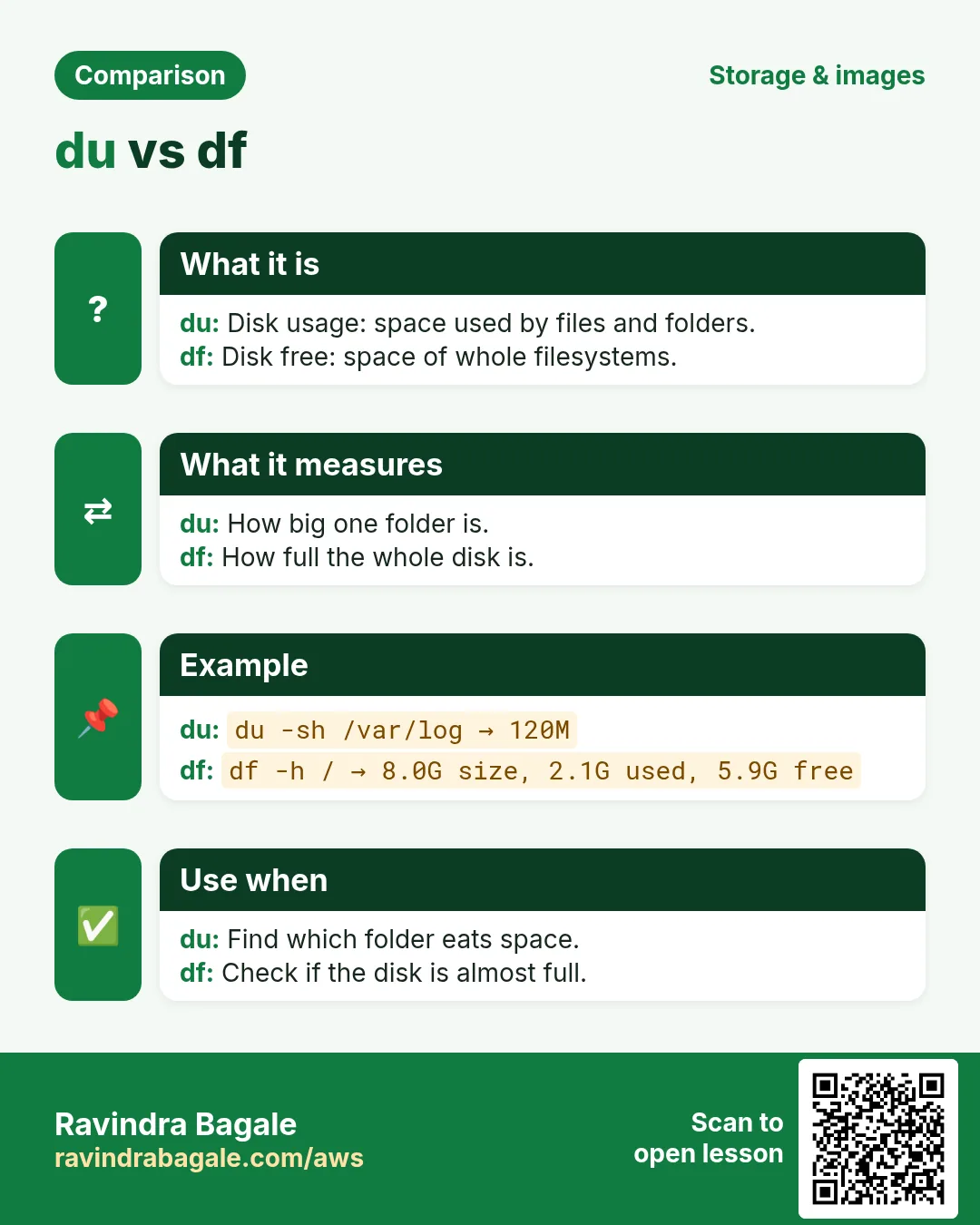
More cards: Ravi Sir's Cards.