How to Add, Format and Mount an EBS Volume on EC2 (fstab)
Sooner or later a server's disk fills up: uploads, logs, a growing database. On AWS the disk is an EBS volume, and you have two answers: make the volume bigger, or add a second volume just for data. This chapter does the second one from start to finish on Amazon Linux 2023: it explains what an EC2 server is made of and which EBS volume type to pick, then creates a volume in the right Availability Zone, attaches it, checks it with lsblk, df -h and file -s, makes an XFS file system, mounts it on /data, proves the files really live on the volume, makes the mount permanent in /etc/fstab, moves the volume with its data to another server, and cleans up.
What you'll learn in this class
- What an EC2 server is made of: CPU and RAM, an EBS disk and an ENI
- Growing a volume vs adding a new one, and why data gets its own volume
- EBS volume types (gp3, gp2, io2, io1, st1, sc1) and what IOPS means
- Creating a volume in the same Availability Zone and attaching it as
/dev/sdf lsblkvsdf -h, andfile -sshowingdatafor an empty volume- Why deleted data can be recovered, and why a new EBS volume is always empty
mkfs -t xfson a new volume only, and mounting it on/data- Proving with
umountthat the files live on the volume - A permanent mount in
/etc/fstabwith the UUID,defaults,nofail 0 2, tested withsudo mount -a - Moving a data volume to another server without losing data, and the clean-up
1. What an EC2 server is made of
Why: When something runs out (CPU, memory, disk or IP), knowing which part of the server holds it tells you what to change.
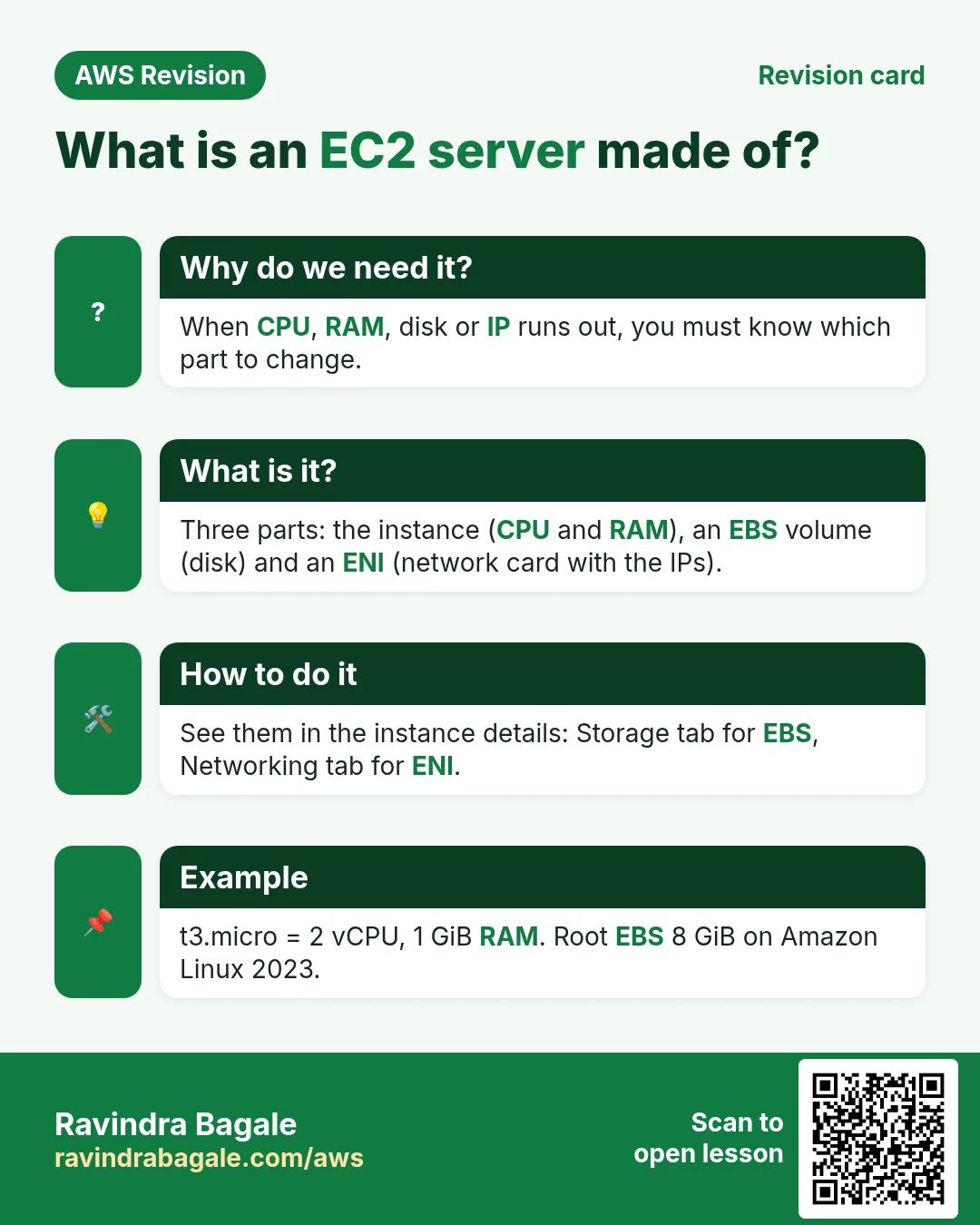
What: when you launch an instance, AWS puts together three separate parts:
- The instance itself: CPU and RAM. This is the computer that runs your programs.
- An EBS volume: the disk. The first one is the root volume; the operating system boots from it. Amazon Linux 2023 gets an 8 GiB root volume by default.
- An ENI (Elastic Network Interface): the network card. It holds the private IP address, and the public IP if there is one.
Classroom line
What is EC2 by itself? RAM and CPU.
Class मधलं वाक्य
नुसतं EC2 कशाला म्हणतात? RAM आणि CPU.
Classroom line – हिंदी
"Sirf EC2 kisko kehte hai? RAM aur CPU."
Classroom line
The first EBS volume is called the root volume.
Class मधलं वाक्य
जो पहिला EBS असतो त्याला आपण root volume म्हणतो.
Classroom line – हिंदी
"Jo pehla EBS hota hai usko hum root volume kehte hai."
Figure 1. One EC2 server is three parts: the instance with CPU and RAM, the EBS root volume that holds the OS (8 GiB on Amazon Linux 2023), and the ENI that holds the private and public IP. A data volume can be added next to the root volume.
Because the disk is separate from the CPU and RAM, it can be resized, detached and attached to another server. What happens to each part on stop and terminate is in The ENI: where your IP addresses live and The EBS bill: real numbers.
2. The disk is full: grow the volume or add one?
Why: A full disk stops uploads, logs and databases. Choosing between growing and adding decides how much work and risk the fix needs.
The situation: a website stores uploaded images, or MySQL keeps growing, and after some months the 8 GiB root volume is full. There are two ways out.
Classroom line
If I can grow my disk, why take a new one?
Class मधलं वाक्य
जर मी माझ्या hard disk ची size वाढवू शकतो, तर नवीन का घ्यायची?
Classroom line – हिंदी
"Jab main apne hard disk ka size badha sakta hu, to new kyu lu?"
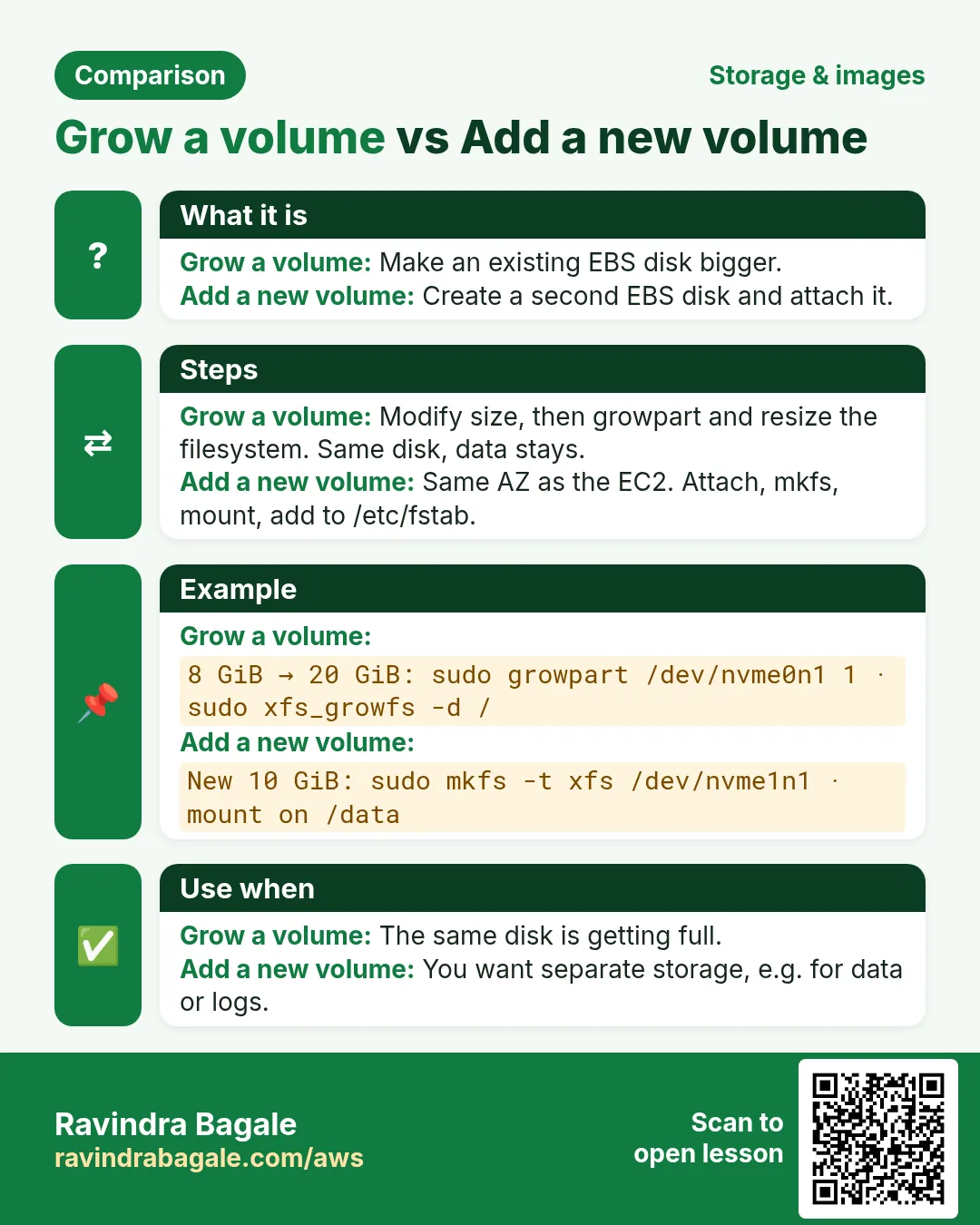
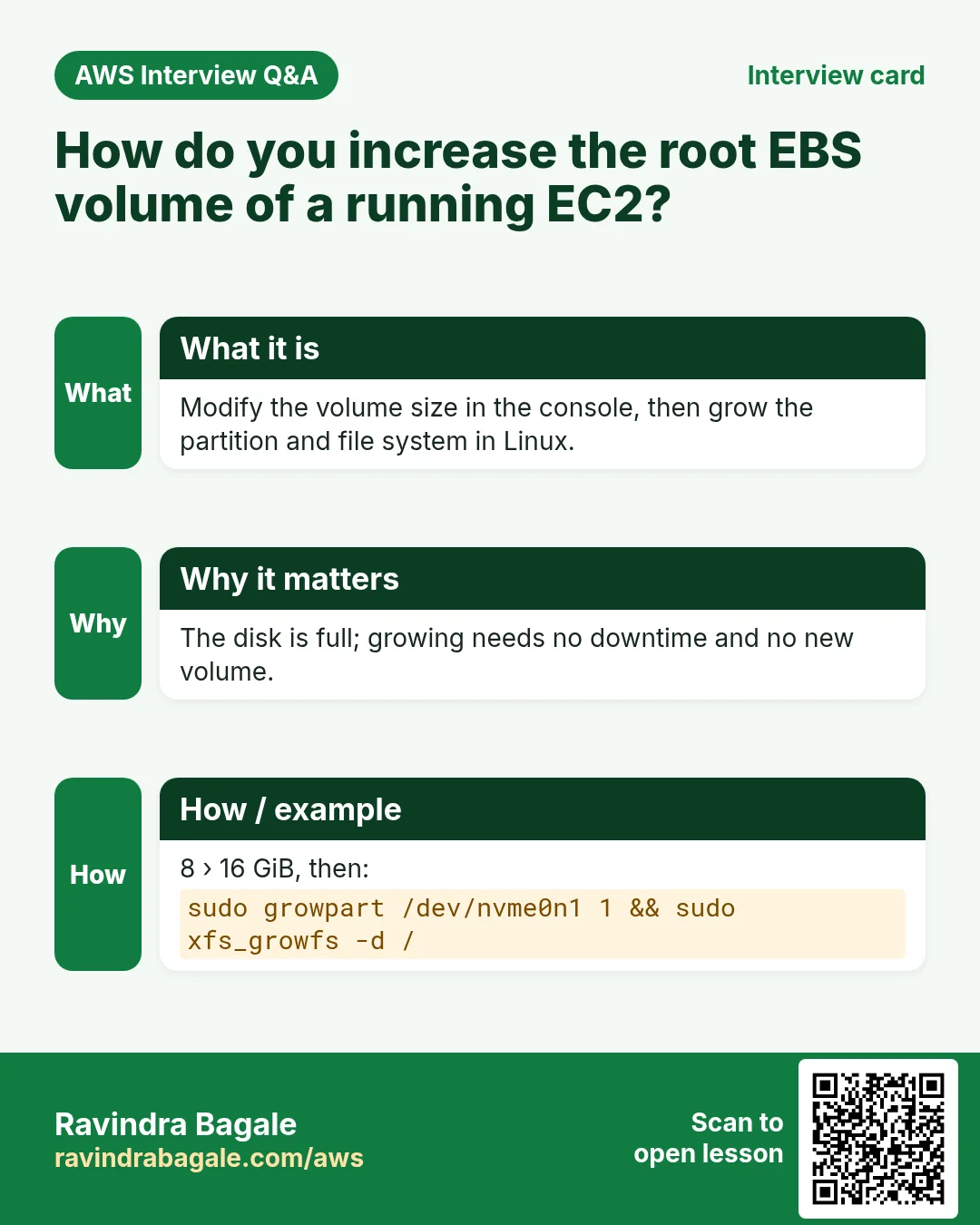
Option A: grow the volume. Select the volume, Actions > Modify volume, and enter a bigger size, for example 8 to 16 GiB.
- A size can only go up, never down.
-
The server keeps running. Then grow the partition and the file system inside Linux:
sudo growpart /dev/nvme0n1 1 sudo xfs_growfs -d / df -h / -
After a change, the same volume can be modified again only after six hours.
Option B: add a data volume. Keep the operating system on the root volume, and put the data on a second volume mounted on a folder such as /data. This is what the rest of the chapter does. It has real advantages:
- The data is kept apart from the operating system. If the OS breaks, the data volume can simply be attached to a new server.
- Each volume can have its own type and size: a cheap
gp3root and a faster volume for a database. - You can back up only the data, with a snapshot of that one volume.
Figure 2. Option A: Modify volume makes the root volume bigger, then growpart and xfs_growfs grow the partition and the file system. Option B: a second EBS volume is attached and mounted on /data, so the data is kept apart from the OS and can move to another server.
3. EBS volume types and IOPS
Why: The type sets speed and price. The wrong type either makes a database slow or costs you money for speed you never use.
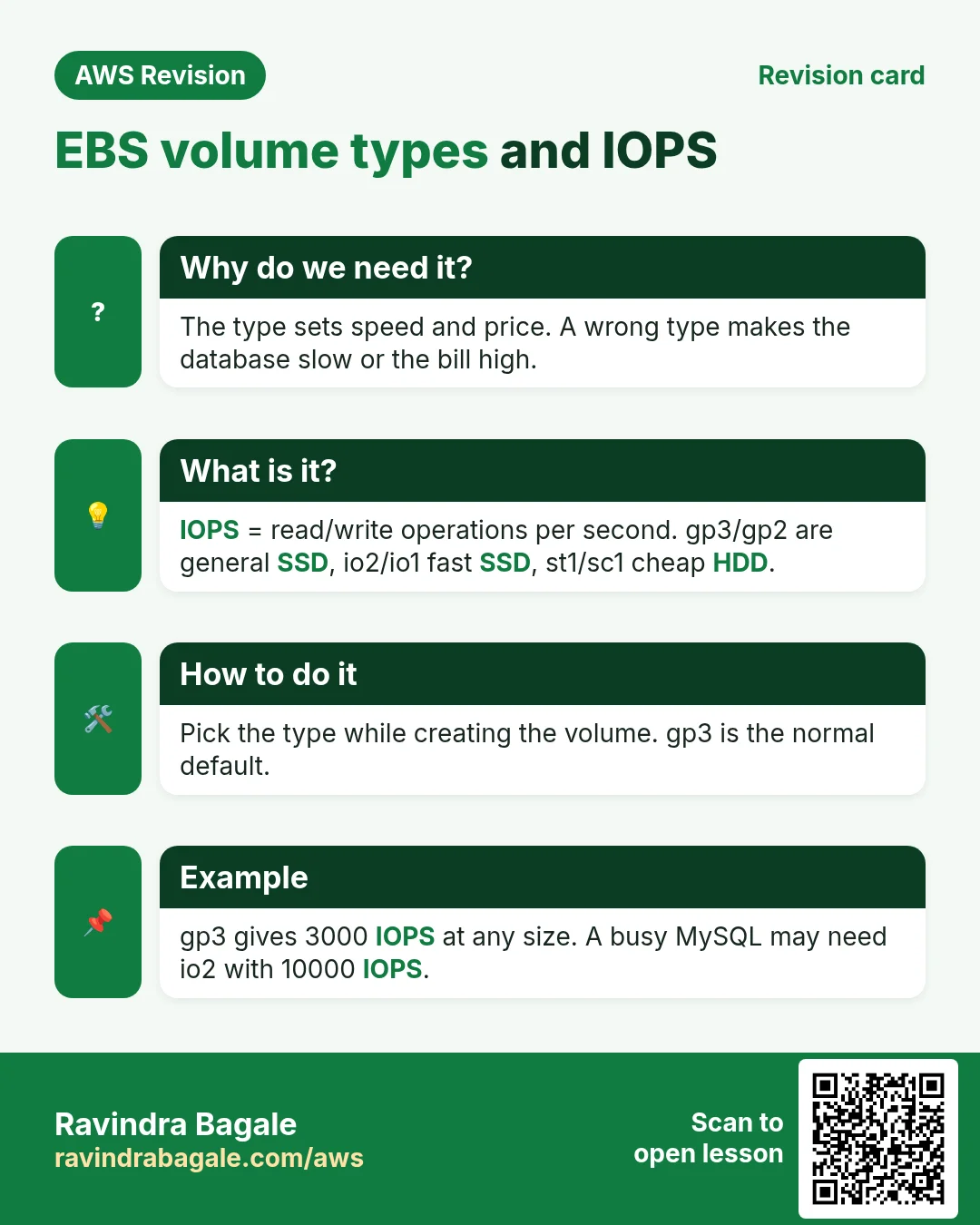
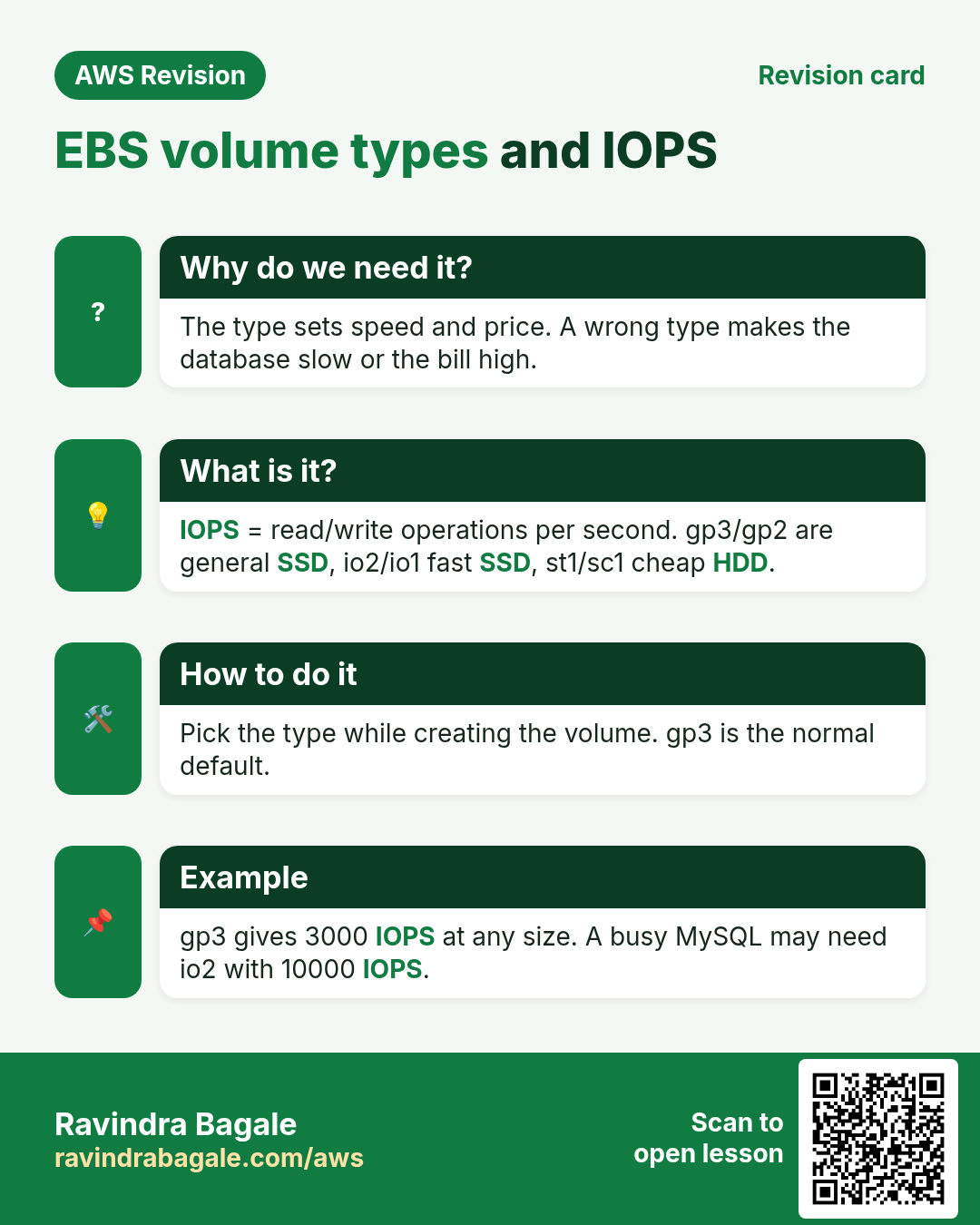
IOPS (input/output operations per second) is how many reads and writes a disk can do each second. Programs and their data are loaded from the disk into RAM, so a slow disk makes a slow server, especially for databases.
The types you see in Create volume > Volume type:
- General Purpose SSD
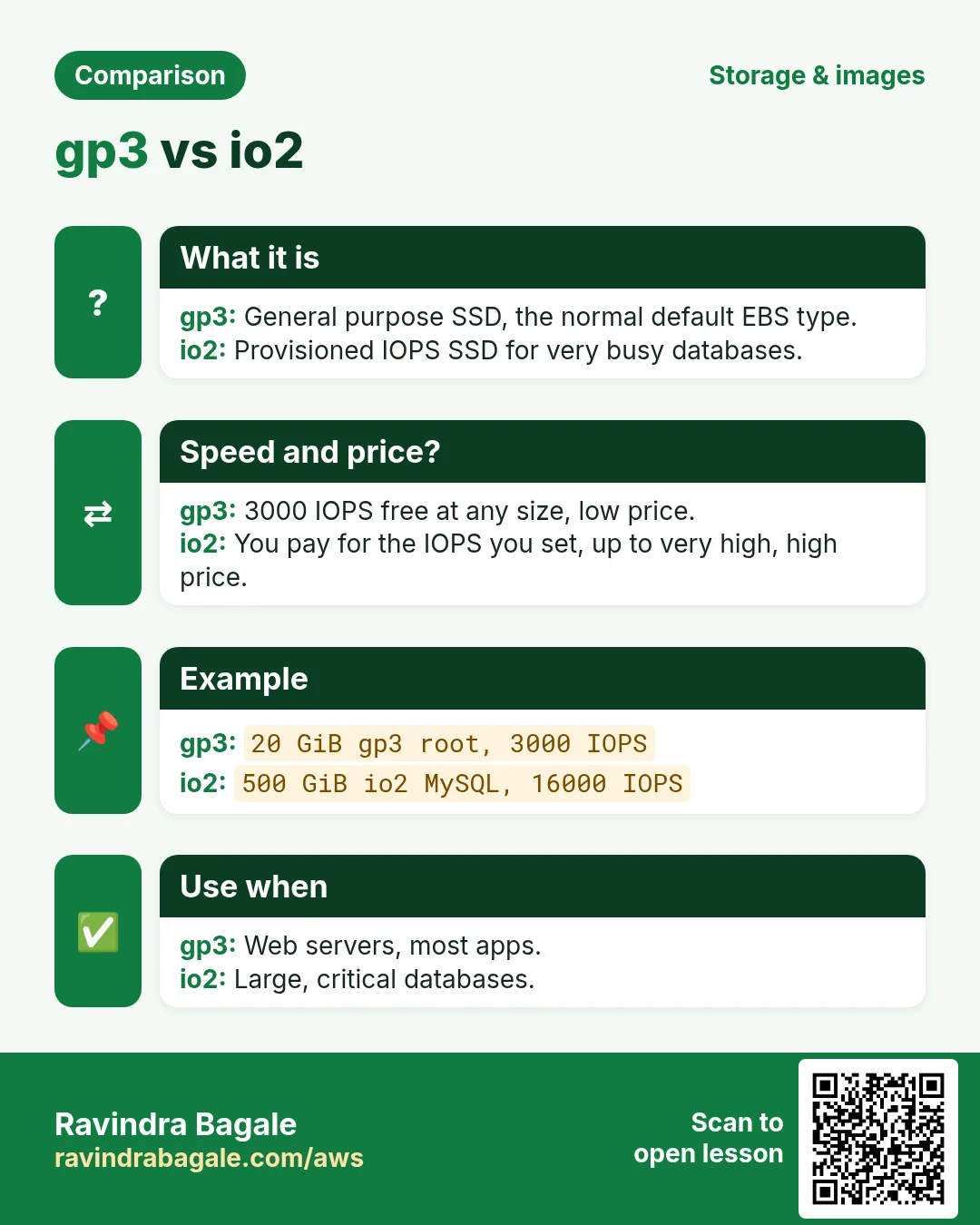
gp3: the default and the cheapest SSD. Everygp3volume gets 3,000 IOPS and 125 MiB/s whatever its size, and you can pay for more: up to 80,000 IOPS and 2,000 MiB/s. Size 1 GiB to 64 TiB. - General Purpose SSD
gp2: the older type. Its IOPS grow with its size: 3 IOPS per GiB, at least 100 and at most 16,000; volumes smaller than 1 TiB can burst to 3,000 IOPS for a while. Usegp3for new volumes. - Provisioned IOPS SSD
io2(Block Express): for big, busy databases. You choose the IOPS yourself: up to 256,000 IOPS (at most 1,000 per GiB) and 4,000 MiB/s, size up to 64 TiB. - Provisioned IOPS SSD
io1: the older provisioned type, up to 64,000 IOPS. - Throughput Optimized HDD
st1and Cold HDDsc1: hard disks for large files read in long runs, such as logs or archives, at a low price per GiB. They start at 125 GiB and can't be a root volume. - Magnetic (
standard): a previous-generation type; don't use it for new volumes.
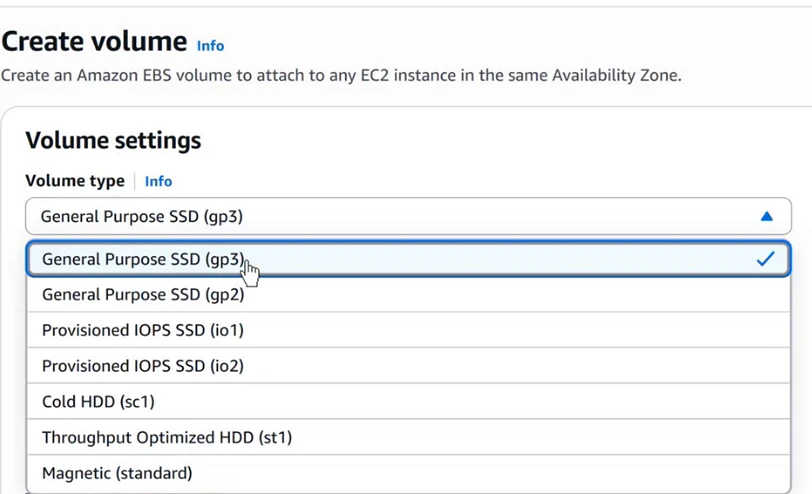
Console: The Volume type list in Create volume: gp3, gp2, io1, io2, sc1, st1 and Magnetic (standard).
Figure 3. EBS volume types: gp3 with 3,000 IOPS included and up to 80,000; gp2 with 3 IOPS per GiB, 100 to 16,000; io2 Block Express up to 256,000 IOPS; io1 up to 64,000; st1 and sc1 hard disks from 125 GiB that can't boot; Magnetic is previous generation.
Sizes: a root volume can't be smaller than its AMI needs: 8 GiB for Amazon Linux, 30 GiB for Windows Server. A gp3 or gp2 data volume can be as small as 1 GiB, which is plenty for practice.
4. The plan: four steps
- Create a volume in the same Availability Zone as the server.
- Attach it to the server.
- Make a file system on it (only because it is new).
- Mount it on a folder,
/data. Everything written to/datathen lands on the new volume.
Classroom line
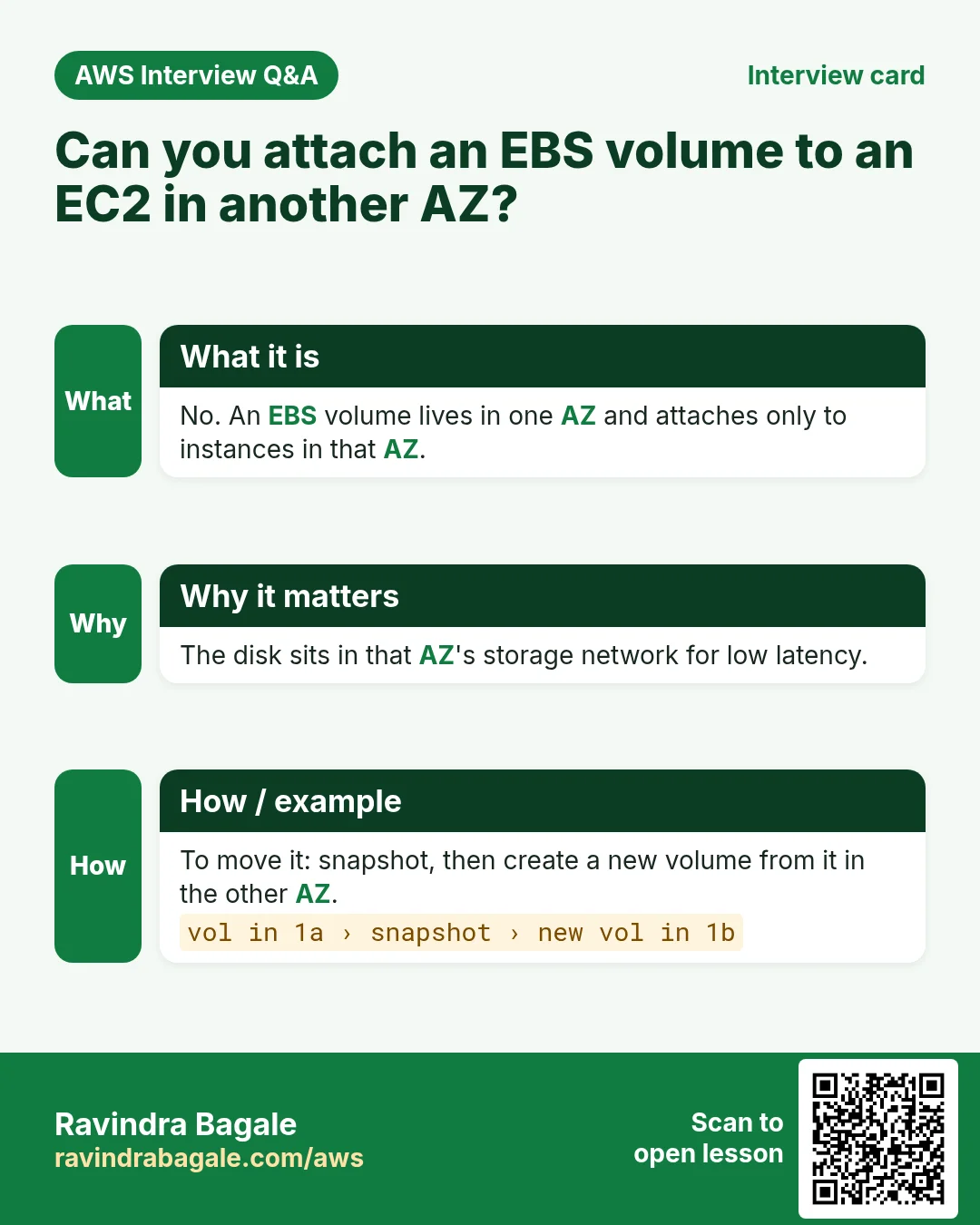
If your EC2 is in zone A and you create the volume in zone B, it won't attach.
Class मधलं वाक्य
तुमचा EC2 A zone मध्ये असेल आणि volume B zone मध्ये बनवला, तर attach होणार नाही.
Classroom line – हिंदी
"Agar aapka EC2 A zone me hai aur volume B zone me create kiya, to attach nahi hoga."
Figure 4. Animation: create a 1 GiB gp3 volume in the server's Availability Zone; attach it as /dev/sdf, which Linux shows as nvme1n1; make an XFS file system with mkfs; mount it on /data, where new files land on the volume.
5. Look at the disks first: lsblk, df -h and du
Why: Looking first shows what is already there, so you never format the wrong disk.
How: connect to the server and run:
lsblk
df -h
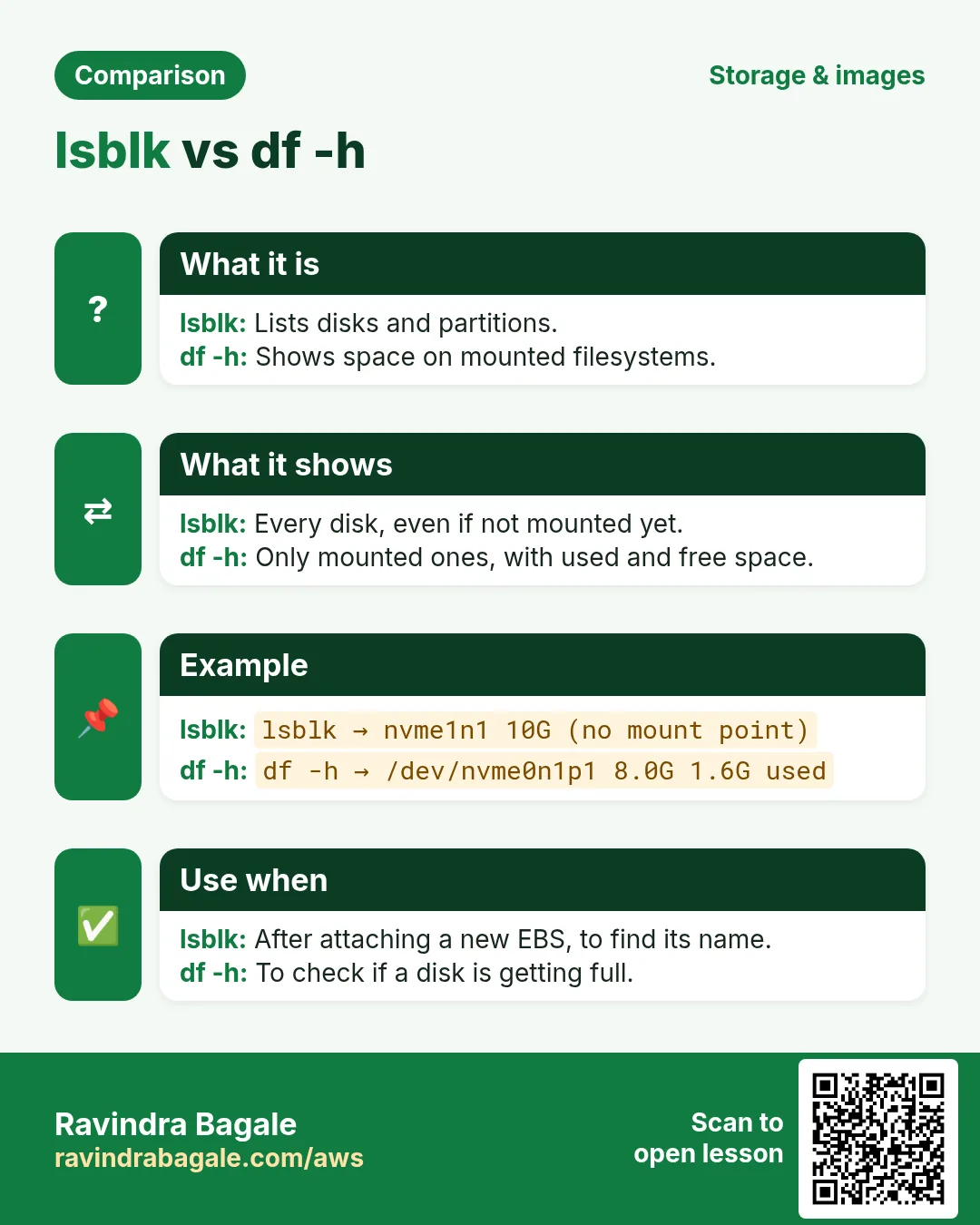
lsblk lists every disk and partition attached to the server, mounted or not:
NAME          MAJ:MIN RM SIZE RO TYPE MOUNTPOINTS
nvme0n1       259:0    0   8G  0 disk
├─nvme0n1p1   259:1    0   8G  0 part /
├─nvme0n1p127 259:2    0   1M  0 part
└─nvme0n1p128 259:3    0  10M  0 part /boot/efi
nvme0n1is the root volume, the whole disk.nvme0n1p1is its main partition, mounted on/. The two small partitions are used for booting.- A partition is a part of a disk, so it can't be bigger than the disk.
df -h lists only the mounted file systems, with their size, used and free space (-h means human-readable sizes such as 8.0G):
Filesystem      Size  Used Avail Use% Mounted on
devtmpfs        4.0M     0  4.0M   0% /dev
tmpfs           457M     0  457M   0% /dev/shm
/dev/nvme0n1p1  8.0G  1.7G  6.4G  21% /
/dev/nvme0n1p128 10M  1.3M  8.7M  13% /boot/efi
tmpfsanddevtmpfslive in RAM, not on a disk.- To see how much space a folder uses, use
du:sudo du -sh /var/log. Withoutsudoyou getPermission deniedfor folders that belong to root.
Figure 5. lsblk shows every attached disk and partition, mounted or not, so a new empty volume appears as nvme1n1 with no mount point. df -h shows only mounted file systems with their used and free space, so the new volume appears there only after it is mounted.
6. Create the volume in the same Availability Zone
Why: A volume can attach only to a server in its own AZ. A volume made in another AZ is useless to this server.
How:
- Find the server's AZ: select the instance, Networking tab, Availability Zone, for example
us-east-1d. - Elastic Block Store > Volumes > Create volume.
- Volume type: General Purpose SSD (
gp3). Size: 1 GiB. Leave IOPS at 3000 and throughput at 125. - Availability Zone: the server's AZ,
us-east-1d. Check this twice; it is the most common mistake. - Add a tag Name =
data-vol, so you can find it later, and Create volume. Its state goes from Creating to Available.
Classroom line
Select the Availability Zone carefully: pick your EC2's AZ.
Class मधलं वाक्य
"Availability zone carefully select kara, tumchya EC2 cha jo AZ asel to select kara."
Availability zone काळजीपूर्वक select करा, तुमच्या EC2 चा जो AZ असेल तो select करा.
Classroom line
Select the Availability Zone carefully: pick your EC2's AZ.
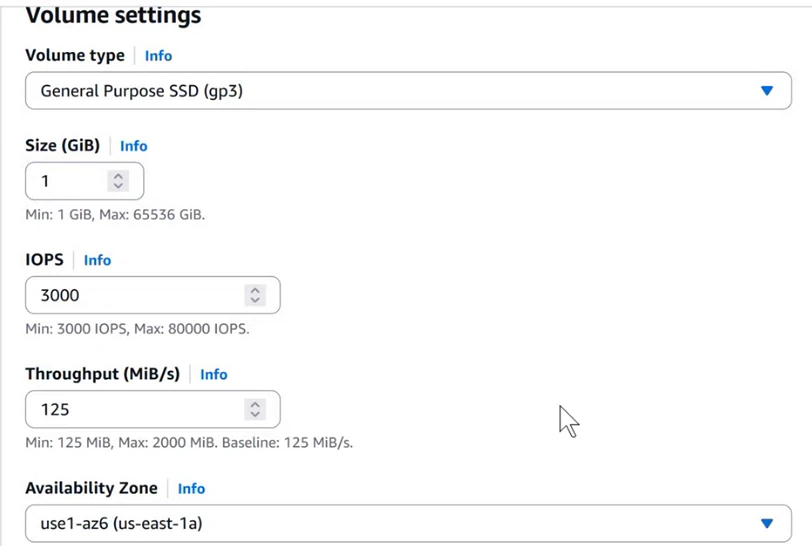
Console: Create volume: gp3, 1 GiB, 3000 IOPS and 125 MiB/s, which gp3 includes. The Availability Zone must be the server's AZ.
7. Attach the volume
Why: Until it is attached, the volume is just storage in AWS. Attaching is what makes Linux see it as a new disk.
How:
- Select
data-vol, Actions > Attach volume. - Instance: choose your server. Only instances in the volume's AZ are listed.
- Device name:
/dev/sdf. The console recommends/dev/xvdafor a root volume and/dev/sdfto/dev/sdpfor data volumes. - Attach volume. The state changes to In-use, and the instance's Storage tab shows two block devices.
![EC2 console, Attach volume, Basic details: Volume ID (hidden), Availability Zone use1-az4 (us-east-1d), Instance (hidden, running) with the note "Only instances in the same Availability Zone as the selected volume are displayed.", Device name "Select a device name" with the note "Recommended device names for Linux: /dev/xvda for root volume. /dev/sd[f-p] for data volumes."](../../assets/img/aws/add-format-and-mount-ebs-volume-on-ec2-with-fstab-03-console-attach-volume-device-name.webp)
Console: Attach volume: the Instance list shows only instances in the volume's Availability Zone, and the device name for a data volume comes from /dev/sdf to /dev/sdp.
The name inside Linux is different. On current instance types (Nitro, such as t3) every EBS volume is an NVMe device, so /dev/sdf shows up as /dev/nvme1n1; on older types it can be /dev/xvdf. Always check with lsblk:
NAME          MAJ:MIN RM SIZE RO TYPE MOUNTPOINTS
nvme0n1       259:0    0   8G  0 disk
├─nvme0n1p1   259:1    0   8G  0 part /
├─nvme0n1p127 259:2    0   1M  0 part
└─nvme0n1p128 259:3    0  10M  0 part /boot/efi
nvme1n1       259:4    0   1G  0 disk
nvme1n1 is attached, but it has no partition and no mount point, and df -h doesn't show it yet.
Classroom line
Pay attention here.
Class मधलं वाक्य
"Ikde lakshya dya bar ka."
इकडे लक्ष द्या बरं का.
Classroom line
Pay attention here.
8. Is there a file system? sudo file -s
Why: mkfs erases everything. Checking first that the volume is empty (data) is what keeps you from wiping a disk that already holds files.
How:
sudo file -s /dev/nvme0n1p1
sudo file -s /dev/nvme1n1
- The root partition answers
SGI XFS filesystem data (blksz 4096, inosz 512, v2 dirs): it has an XFS file system. - The new volume answers just
/dev/nvme1n1: data. That means: no file system, only raw blocks. sudo lsblk -fshows the same thing as a table: theFSTYPEcolumn is empty for the new volume.
What a file system is: a disk is only a long row of blocks of 0s and 1s. A file system keeps a table on the disk: each file's name, its folder, and which blocks hold its content. Without that table, Linux can't store a file by name, so a volume must have a file system before it can be mounted.
Figure 6. A file system keeps a table of names and block locations. A normal delete removes only the table entry; the content stays in the blocks until something overwrites it, which is how recovery tools work. AWS wipes the storage of a deleted EBS volume before it is reused, so a new volume reads as zeros: file -s says data.
Why deleted files can come back:
- A normal delete (
rm, or emptying the Recycle Bin) removes the file's entry from the table and marks its blocks as free. The content stays in those blocks until new data overwrites them. - That is why recovery tools can often find deleted content, though usually without the file names. On a test disk, a line written to a file, then deleted with
rm, could still be found on the raw device afterwards. - To really erase a disk, overwrite it, for example with
shredor a fullddfrom/dev/zero, or use the drive's secure-erase command. - AWS wipes the storage of a deleted EBS volume before anyone else gets it. That is why a brand-new volume is all zeros and
file -ssaysdata.
9. Make a file system: mkfs -t xfs
Why: A raw volume has no table of file names, so Linux cannot store files on it. mkfs creates that table.
What: making a file system, also called formatting, writes that empty table onto the volume. It is not installing a driver; it only prepares the disk to store files.
How:
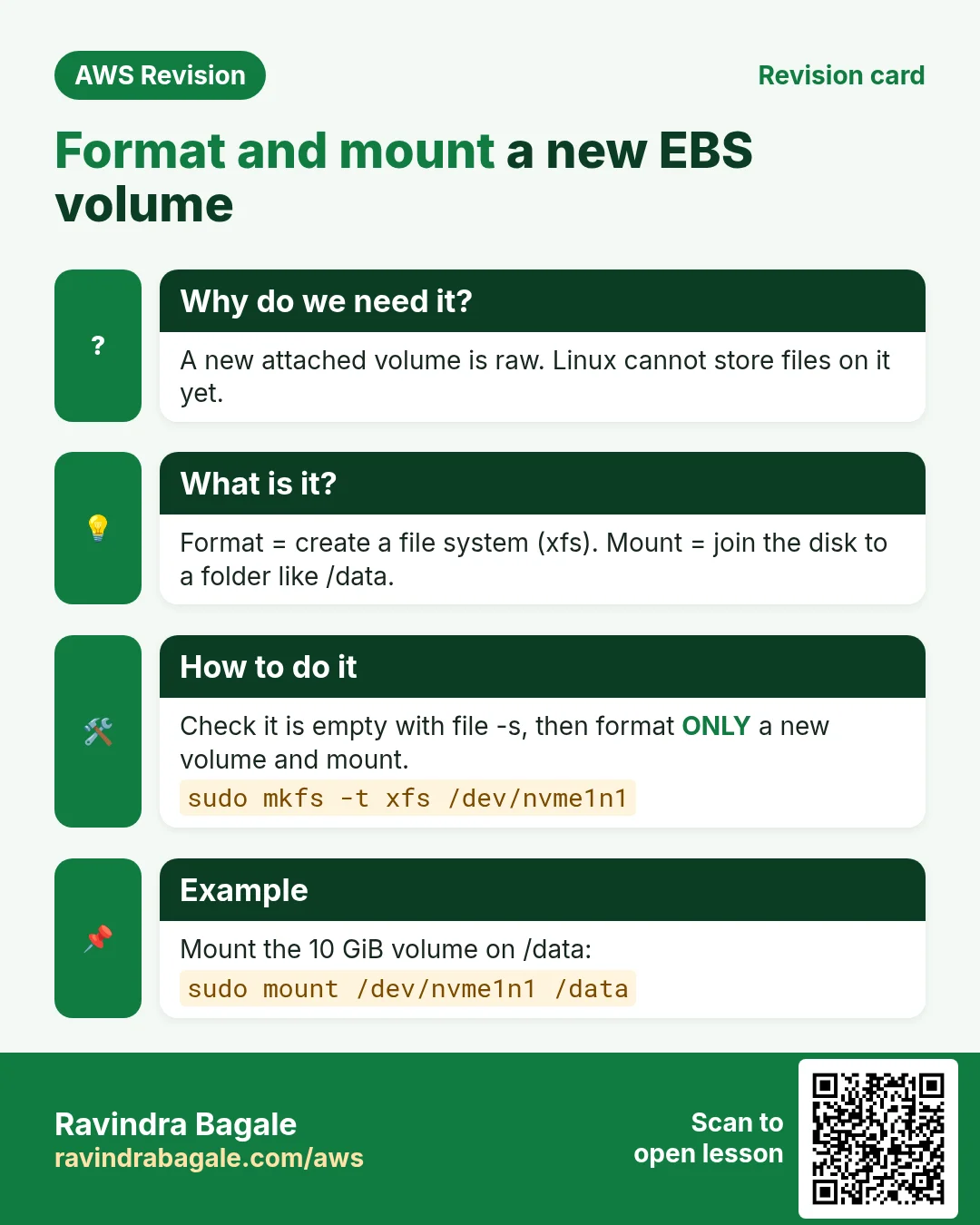
sudo mkfs -t xfs /dev/nvme1n1
mkfsprints a summary that starts withmeta-data=/dev/nvme1n1and lists the block size and sections.sudo file -s /dev/nvme1n1now saysSGI XFS filesystem data.- XFS is the default file system on Amazon Linux 2023. Ubuntu usually uses ext4 (
sudo mkfs -t ext4 /dev/nvme1n1). Windows uses NTFS. - NFS is not a disk format: it is a protocol for sharing folders over the network. On AWS that is Amazon EFS.
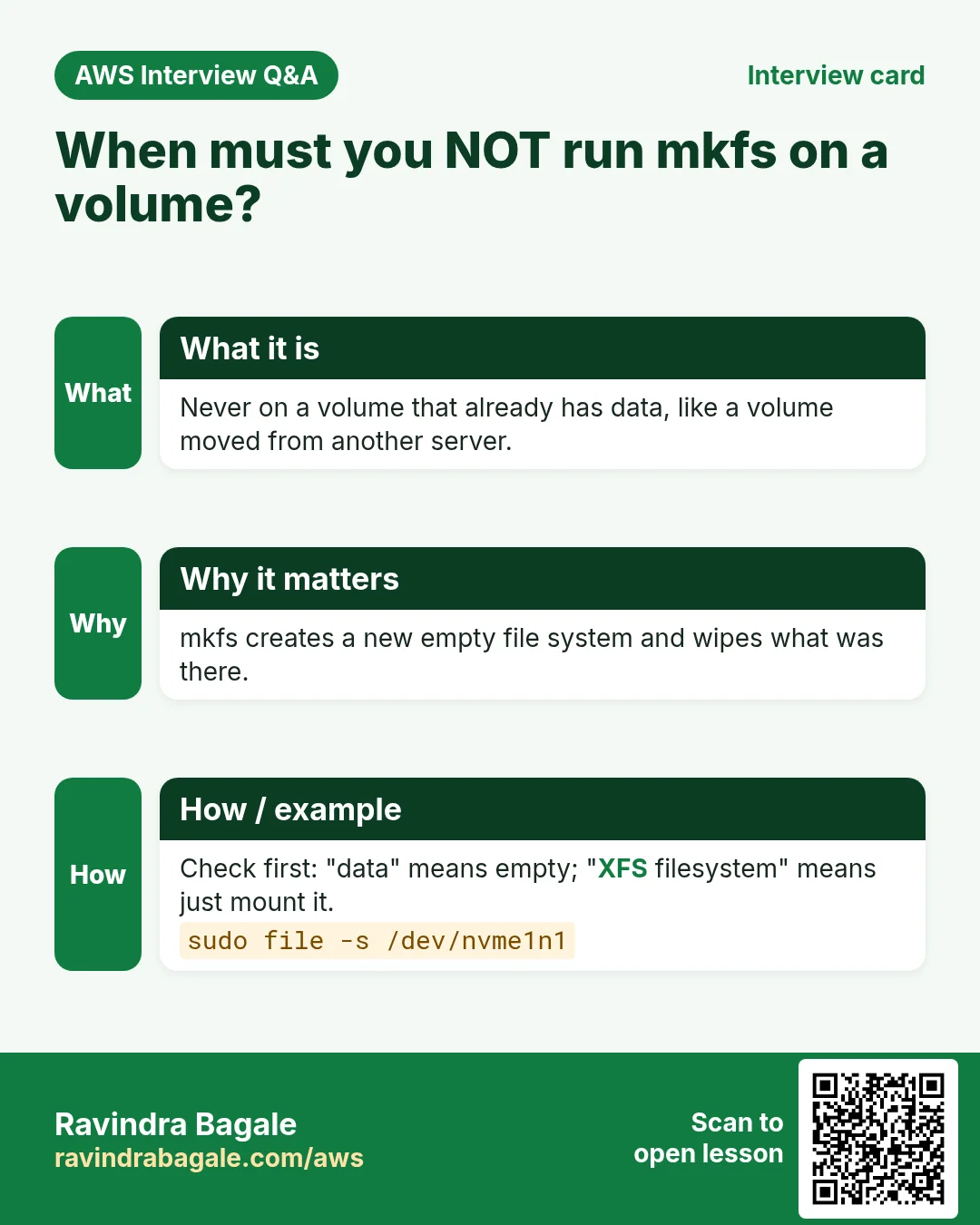
Only on a new, empty volume. mkfs writes a new, empty table: every file on the volume is lost. If the volume already has a file system, mkfs.xfs refuses with appears to contain an existing filesystem (xfs) and asks for -f. That message means the volume has data: stop, and mount it instead.
Classroom line
We make a file system only when the volume is new.
Class मधलं वाक्य
Volume नवीन असतो, तेव्हाच आपण त्यात file system बनवतो.
Classroom line – हिंदी
"Jab naya volume hota hai, tabhi hum uske andar file system banate hai."
10. Mount the volume on /data
Why: Linux reaches a disk only through a folder. Mounting connects the volume to /data, so files written there land on it.
What: mounting connects a folder to a file system. After the mount, whatever you write into the folder is stored on that volume.
Classroom line
Connecting this directory to this volume is called mounting.
Class मधलं वाक्य
ही directory या volume सोबत जोडायची, त्याला mounting म्हणतात.
Classroom line – हिंदी
"Is directory ko is volume ke saath mount karna hai, usko kehte hain mounting."
How:
sudo mkdir /data
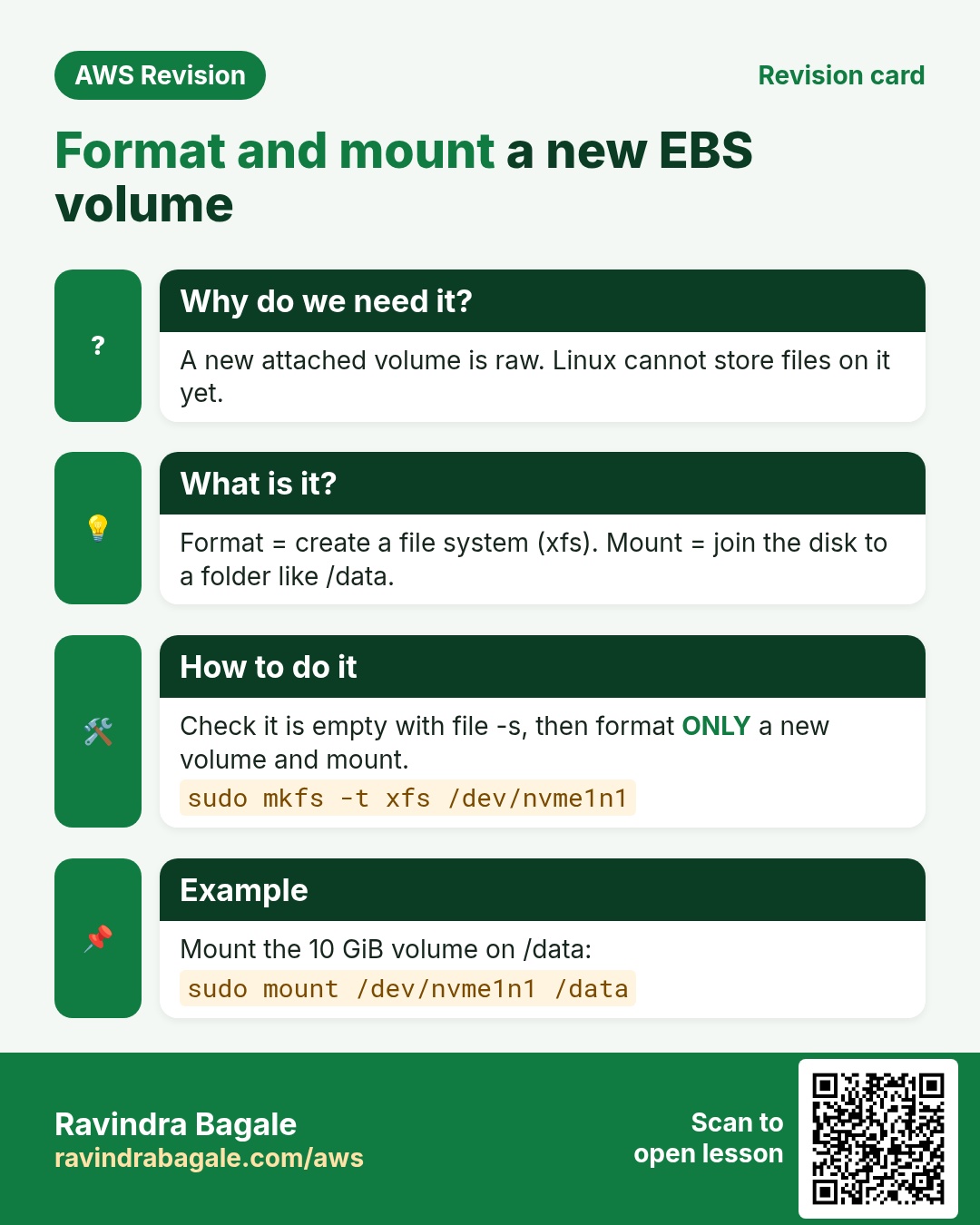
sudo mount /dev/nvme1n1 /data
df -h
df -hnow has a new line:/dev/nvme1n1 960M 40M 921M 5% /data. The 1 GiB volume shows a little less, because the file system itself takes some space.-
Create a few files and folders:
cd /data sudo touch a b c sudo mkdir x y z ls -
/databelongs to root, so plaintouchgivesPermission denied. To letec2-userwrite there withoutsudo, runsudo chown ec2-user:ec2-user /dataonce.
11. Prove that the files live on the volume
Why: Seeing the files disappear on unmount and come back on mount proves they are on the volume, not on the root disk.
The test: unmount the volume and look into the folder.
- Leave the folder first:
cd ~. You can't unmount a folder you are standing in;umountanswerstarget is busy. -
Unmount and look:
sudo umount /data ls /data -
/datais empty. The files were never in the folder; they are on the volume. - Mount it again, and they are back:
sudo mount /dev/nvme1n1 /data
ls /data
Classroom line
I can't cut the branch I'm standing on.
Class मधलं वाक्य
"Jya phandivar mi ubha ahe, tyach phandila mi kapu shakat nahi."
ज्या फांदीवर मी उभा आहे, त्याच फांदीला मी कापू शकत नाही.
Classroom line
I can't cut the branch I'm standing on.
Classroom line
How will we verify these were really created on that volume?
Class मधलं वाक्य
"He kharach tya volume madhe jhale aahet, kasa verify karnar?"
हे खरंच त्या volume मध्ये झाले आहेत, कसं verify करणार?
Classroom line
How will we verify these were really created on that volume?
12. Make the mount permanent: /etc/fstab
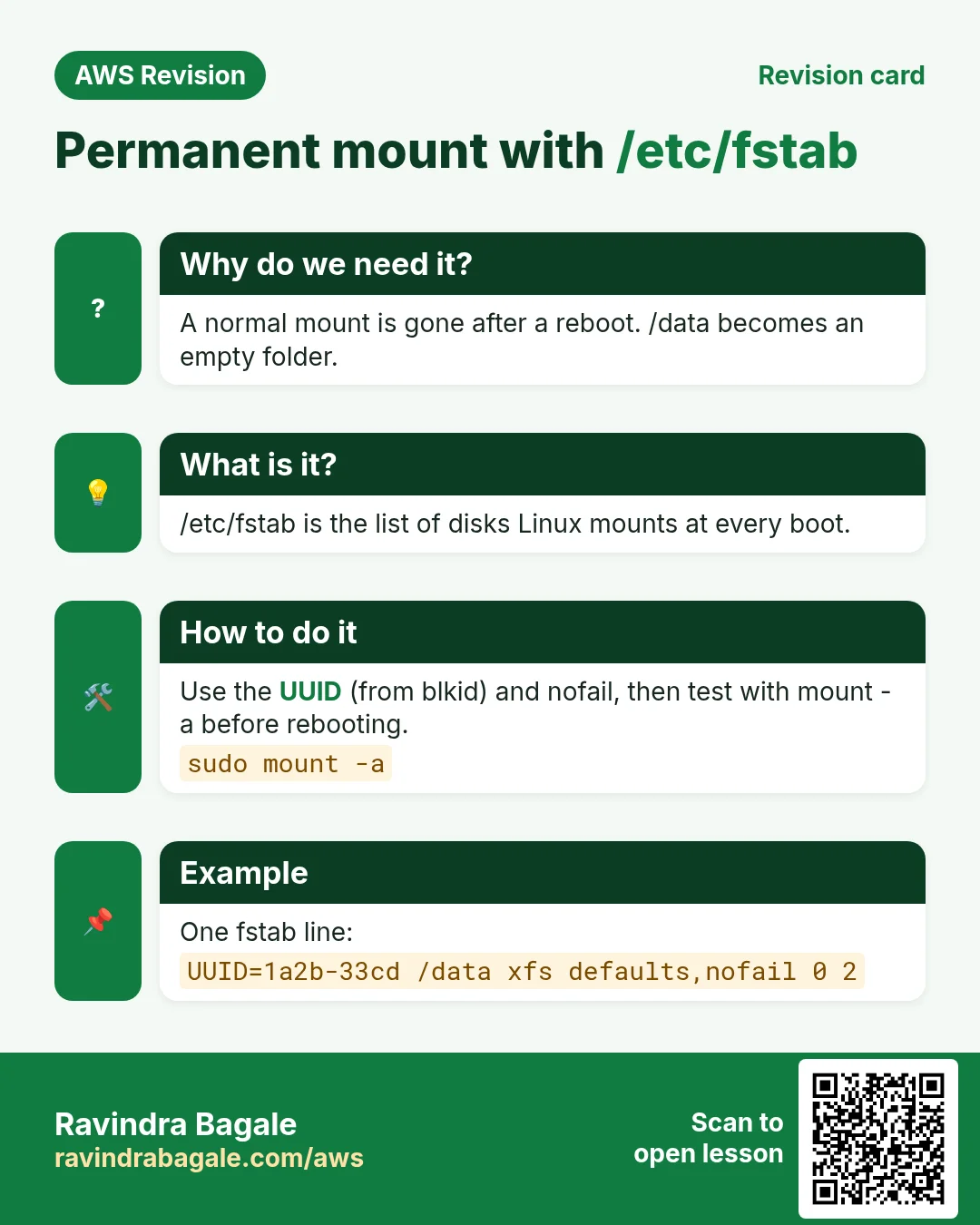
Why: mount is temporary. After a reboot, or a stop and start, /data is an empty folder again until someone mounts the volume.
Classroom line
What we mounted just now is a temporary mount.
Class मधलं वाक्य
आत्ता आपण जो mount केला, तो temporary mount झाला.
Classroom line – हिंदी
"Abhi humne jo mount kiya hai, ye temporary mount ho gaya."
What: /etc/fstab (file system table) is a configuration file that Linux reads at boot. Each line names a file system and the folder it is mounted on.
How:
-
Get the volume's UUID, a unique ID stored in the file system:
sudo blkid /dev/nvme1n1 -
It prints
/dev/nvme1n1: UUID="af9001ed-20fb-42b7-b0b7-f2d8de17df67" BLOCK_SIZE="512" TYPE="xfs". Copy the UUID without the quotes. -
Back up the file, then open it:
sudo cp /etc/fstab /etc/fstab.bak sudo nano /etc/fstab -
Leave the existing lines alone, and add one line at the end with your own UUID:
UUID=af9001ed-20fb-42b7-b0b7-f2d8de17df67 /data xfs defaults,nofail 0 2 -
Test it before any reboot:
sudo umount /data sudo mount -a df -h -
mount -amounts everything in/etc/fstabthat isn't mounted yet. If/datais back indf -hwith no error, the line is right. Ifmountprints a hint to runsystemctl daemon-reload, runsudo systemctl daemon-reload. - Then
sudo reboot, connect again, and checkdf -h:/datais mounted without you doing anything.
Classroom line
It should mount by itself when the server starts. That's called a permanent mount.
Class मधलं वाक्य
Server start होतो, त्याच वेळी आपोआप mount व्हायला हवं. त्याला permanent mount म्हणतात.
Classroom line – हिंदी
"Jab server start hota hai, usi waqt apne aap mount hona chahiye. Usko bolte hai permanent mount."
Figure 7. The six fields of the fstab line: UUID of the file system, mount point /data, type xfs, options defaults,nofail, dump 0 (no backup by the dump tool) and fsck order 2 (check after the root, which is 1; 0 means never check).
Each field of the line:
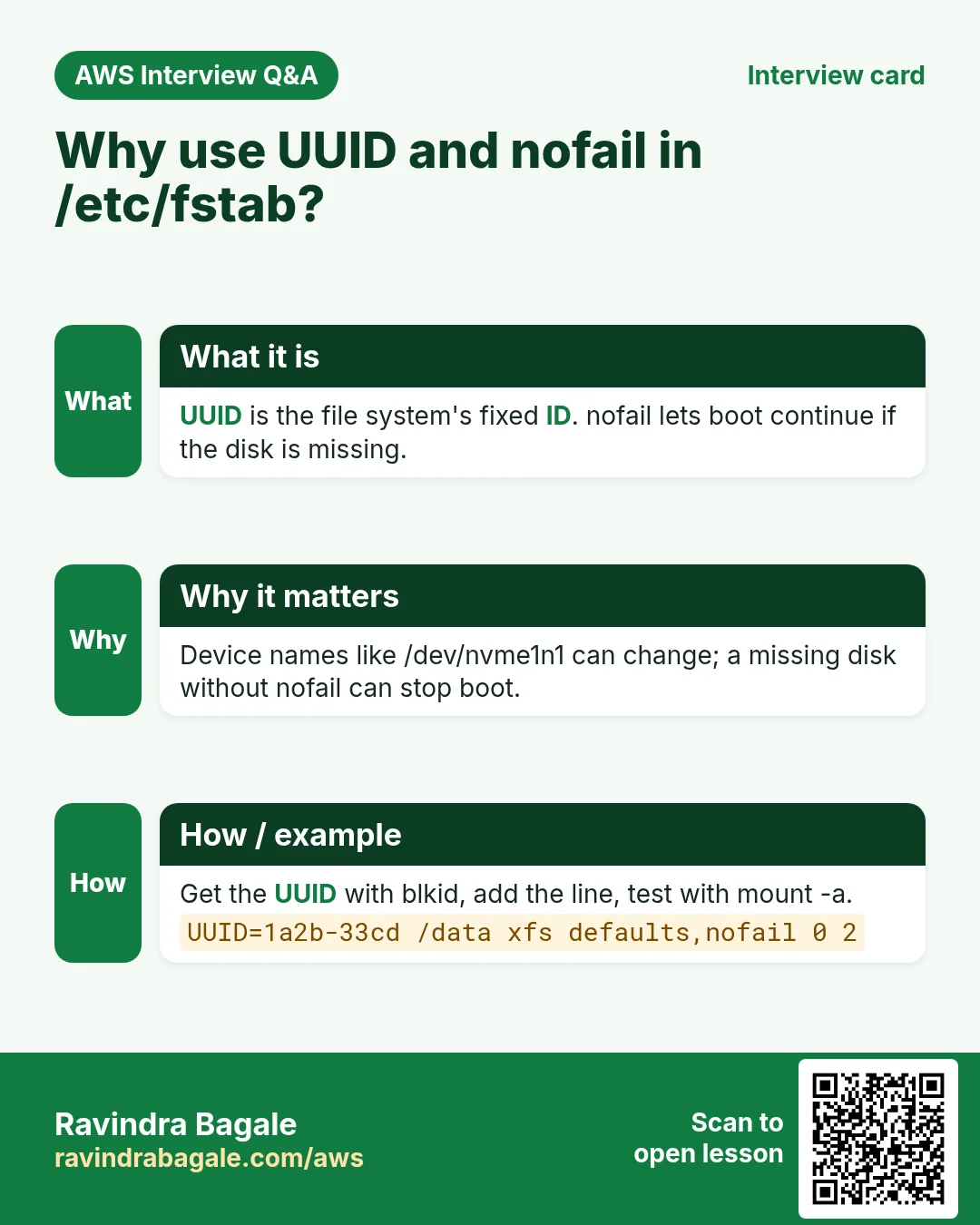
UUID=...: which file system. Device names such as/dev/nvme1n1can change between boots or instance types; the UUID never does./data: the mount point, an existing folder.xfs: the file system type.defaults,nofail: normal options, plusnofail: if the volume is missing, for example detached, the server still boots. Withoutnofailthe boot can stop and wait, and you can't connect with SSH.0: the dump field, for the olddumpbackup tool; always 0.2: the order for the file system check at boot: 1 for the root, 2 for other disks, 0 for never.
A typing mistake shows up in the test: a misspelt option such as nofial makes mount -a fail with Unknown parameter 'nofial'. Fix it before you reboot.
Classroom line
Take a new volume and show me a permanent mount.
Class मधलं वाक्य
एक नवीन volume घ्या आणि तो permanently mount करून दाखवा.
Classroom line – हिंदी
"Ek naya volume le lo aur usko permanently mount karke dikhao."
That is a common interview task, and it is exactly sections 6 to 12.
13. Move a data volume to another server
Why: the data lives on the volume, not in the server. If a server breaks or is replaced, the data volume moves to a new server with all its files.
How:
- On the old server:
cd ~, thensudo umount /data, and delete or comment out (#) the/dataline in/etc/fstab. - In the console: select
data-vol, Actions > Detach volume. Its state becomes Available. - The new server must be in the same AZ. When you launch it, use Network settings > Edit > Subnet and pick the subnet in that AZ.
- Actions > Attach volume to the new server, device
/dev/sdf. - On the new server:
lsblkshowsnvme1n1, andsudo file -s /dev/nvme1n1saysSGI XFS filesystem data: the file system is already there. Don't runmkfs. -
Mount it and look:
sudo mkdir /data sudo mount /dev/nvme1n1 /data ls /data -
a b c x y zare all there. Add thefstabline on this server too (section 12), with the same UUID.
Classroom line
Launch it in the same zone as your earlier EC2.
Class मधलं वाक्य
"Tuza aadhicha EC2 jya zone madhe aahe, tyach zone madhe ghyaycha."
तुझा आधीचा EC2 ज्या zone मध्ये आहे, त्याच zone मध्ये घ्यायचा.
Classroom line
Launch it in the same zone as your earlier EC2.
Figure 8. Animation: unmount /data on the old server; detach the volume, which becomes Available; attach it to a new server in the same Availability Zone; mount it on /data without mkfs, and the files a b c x y z are there.
Unmount first, then detach. Detaching a mounted volume can lose data that was still being written. Force detach exists for a volume that is stuck in Detaching, but it can corrupt the file system, so use it only as the last resort.
The root volume can be moved too, by swapping it on a stopped server: see Recover data by swapping the root volume.
14. Clean up
Why: Volumes and snapshots keep costing money until you delete them, even with no server attached.
sudo umount /dataand remove the/dataline from/etc/fstab.- Volumes: select
data-vol, Actions > Detach volume, wait for Available, then Actions > Delete volume. An Available volume is still billed. - Instances: terminate the practice servers.
Classroom line
Don't keep it for nothing; delete it if you don't need it.
Class मधलं वाक्य
"Ugach thevu naka, lagat nasel tar delete marun taka."
उगाच ठेवू नका, लागत नसेल तर delete मारून टाका.
Classroom line
Don't keep it for nothing; delete it if you don't need it.
15. When something goes wrong
Why: Each error names one step: AZ, attach, file system, mount or fstab. Matching the error to the step saves you from starting over.
- The server isn't in the Attach volume list: the volume is in another AZ. Create the volume in the server's AZ.
mount: /data: wrong fs type, bad option, bad superblock: the volume has no file system yet (file -ssaysdata), or you named the wrong device. Check withlsblkandsudo file -s; runmkfsonly if the volume is new.mount point /data does not exist: create the folder first withsudo mkdir /data.mkdirmakes a folder;mkfsmakes a file system. Don't mix them up./dev/sdf: No such file or directory: inside Linux the volume is/dev/nvme1n1(or/dev/xvdf). Use the name fromlsblk.umount: /data: target is busy: you, or a program, are inside/data. Runcd ~and try again.mkfs.xfs: ... appears to contain an existing filesystem: the volume has data. Don't add-f; mount it.touch: cannot touch ... Permission deniedin/data: usesudo, orsudo chown ec2-user:ec2-user /data./datais empty after a reboot: there is nofstabline, or it has a mistake. Runsudo mount -aand read the error.- The server doesn't come back after an
fstabchange: a wrong line withoutnofail. Stop the server, attach its root volume to another server as a second disk, fix the line, and attach it back; see the root volume chapter linked above.
Ravindra Bagale's Tip
Before every mkfs, run sudo file -s on the device and read the answer. Only data means "new and empty". And after every /etc/fstab change, run sudo mount -a before you reboot. One missed letter in that file can lock you out of the server; nofail and the test together make it safe.
16. The whole class on one page
- An EC2 server is the instance (CPU and RAM), an EBS root volume (the disk) and an ENI (the network card with the IPs).
- A full disk: grow the volume (Modify volume, then
growpartandxfs_growfs), or add a data volume and mount it on/data. - IOPS = reads and writes per second.
gp3includes 3,000 IOPS at any size (up to 80,000);gp2gives 3 IOPS per GiB;io2up to 256,000;st1andsc1are hard disks that can't boot. - Four steps: create in the same AZ, attach as
/dev/sdf(Linux showsnvme1n1),mkfs -t xfs(new volumes only),mount. lsblkshows attached disks;df -hshows mounted file systems;sudo file -ssaysdatawhen there is no file system.- A delete removes the table entry, not the content; AWS wipes deleted volumes, so a new volume is empty.
sudo mkdir /data,sudo mount /dev/nvme1n1 /data; aftersudo umount /datathe folder is empty: the files live on the volume./etc/fstab:UUID=... /data xfs defaults,nofail 0 2, fromsudo blkid; test withsudo umount /dataandsudo mount -abefore a reboot.- Move a data volume:
umount, detach, attach in the same AZ, mount; nevermkfs. Force detach only as the last resort. - Clean up: unmount, detach, delete the volume, terminate the servers.
17. Hands-on lab: add a 1 GiB data volume and mount it at boot
Why this lab. This lab adds a second disk to a running server, stores files on it, and makes it mount by itself after a reboot, checking each step before the next.
- Look at the disks
- Command:
lsblk - You should see: One disk,
nvme0n1, with its partitions. - Check:
df -h /shows the 8 GiB root file system. - Why: You need the "before" picture to spot the new disk later.
- Command:
- Create the volume
- Do: Volumes → Create volume:
gp3, 1 GiB, and the same AZ as the server (see the server's Networking tab). - Check: The new volume is Available.
- Why: 1 GiB
gp3is enough to practise and costs very little. Another AZ would make the attach impossible.
- Do: Volumes → Create volume:
- Attach it
- Do: Actions → Attach volume → your server → device
/dev/sdf. - Check:
lsblknow also showsnvme1n1, 1G, with no partitions. - Why: Linux names the disk
nvme1n1, notsdf. Use the namelsblkshows.
- Do: Actions → Attach volume → your server → device
- Check that it is empty
- Command:
sudo file -s /dev/nvme1n1 - You should see:
/dev/nvme1n1: data - Check: If it says
XFS filesystem datainstead, stop: the disk already holds a file system. - Why:
datameans no file system, so formatting it loses nothing.
- Command:
- Make the file system
- Command:
sudo mkfs -t xfs /dev/nvme1n1 - You should see: A summary with
meta-data=/dev/nvme1n1. - Check:
sudo file -s /dev/nvme1n1now saysSGI XFS filesystem data. - Why: XFS is the default on Amazon Linux. Run
mkfsonly on a new volume: it erases everything.
- Command:
- Mount it on /data
- Command:
sudo mkdir /data && sudo mount /dev/nvme1n1 /data - You should see: Nothing.
- Check:
df -h /datashows/dev/nvme1n1, about 1.0G. - Why: Linux reaches a disk only through a folder, so the volume needs one to be mounted on.
- Command:
- Prove the files live on the volume
- Command:
cd /data && sudo touch a b c && cd ~ && sudo umount /data - You should see: Nothing.
- Check:
ls /datais now empty;sudo mount /dev/nvme1n1 /dataandls /datashowsa b cagain. - Why: Leave
/databefore unmounting, or you gettarget is busy.
- Command:
- Get the UUID
- Command:
sudo blkid /dev/nvme1n1 - You should see:
/dev/nvme1n1: UUID="..." BLOCK_SIZE="512" TYPE="xfs" - Check: Copy the UUID without the quotes.
- Why: The UUID belongs to the file system and never changes, while the device name can change after a reboot.
- Command:
- Add the fstab line
- Command:
sudo cp /etc/fstab /etc/fstab.bak && sudo nano /etc/fstab - You should see: The existing root line. Add at the end:
UUID=YOUR_UUID /data xfs defaults,nofail 0 2. - Check:
tail -1 /etc/fstabshows your new line. - Why: The backup lets you undo a bad edit.
nofaillets the server boot even if the volume is missing.
- Command:
- Test before rebooting
- Command:
sudo umount /data && sudo mount -a - You should see: No output. If it suggests
systemctl daemon-reload, runsudo systemctl daemon-reload. - Check:
df -hshows/dataagain. Thensudo reboot, reconnect, anddf -hstill shows it. - Why:
mount -areads fstab exactly as boot does, so a typo shows up now, while you can still fix it.
- Command:
- Clean up
- Do:
sudo umount /data, delete the line from/etc/fstab, then detach and delete the volume in Volumes. - Check: Volumes shows no
availablevolume left. - Why: Remove the fstab line before detaching, so the next boot doesn't look for a missing disk. A detached volume keeps costing money.
- Do:
18. Try at home
Try at home
Task 1: add and mount
- Launch an Amazon Linux 2023 instance and note its AZ. Create a 1 GiB
gp3volume in another AZ and try to attach it: the server isn't listed. - Create one in the right AZ, attach it as
/dev/sdf, and comparelsblkanddf -h. - Run
sudo file -son the new volume,mkfs -t xfs, thenfile -sagain.
Task 2: prove and make it permanent
- Mount it on
/data, create files, unmount, and look into/data. Mount it again. - Add the
fstabline with the UUID andnofail, test withsudo mount -a, and reboot. - Misspell
nofailon purpose, runsudo mount -a, read the error, and fix it.
Task 3: move it
- Launch a second server in the same AZ, move the volume to it without
mkfs, and list the files. - Clean up: unmount, detach, delete the volume and terminate both servers.
Recap
In short
- The disk of an EC2 server is a separate EBS volume; extra volumes keep data apart from the OS.
gp3is the default choice: 3,000 IOPS included at any size;io2is for the busiest databases.- Create the volume in the server's AZ, attach it, and find its real name with
lsblk. file -ssayingdatais the only time to runmkfs; then mount it on/data.- A mount is temporary; a UUID line with
nofailin/etc/fstab, tested withsudo mount -a, makes it permanent. - To move data: unmount, detach, attach in the same AZ, mount, and never format again.
Practice Tasks
Kolhapuri Chappal Co is a footwear business in Kolhapur. Sachin Mane looks after its IT and cloud work. They count money in INR and run their AWS resources in the ap-south-1 Region. In the tasks below you do real jobs for them using what this lesson teaches. All names, account IDs, IP addresses and numbers are made up for practice.
0 / 12
Easy Check free disk space
Why: If a disk is 100% full, apps and databases stop working.
What to do: Show free and used space of all mounted disks in human-readable units.
- Find the Linux command that does this job.
- Add the options (like -r or -h) the task needs.
- Add the file names, folders or users in the right order.
- Use sudo if the job changes system files or users. Click Check answer.
Easy List the disks
Why: After you attach an EBS volume, lsblk shows its device name.
What to do: List all block devices (disks and partitions) on the server.
- Find the Linux command that does this job.
- Add the options (like -r or -h) the task needs.
- Add the file names, folders or users in the right order.
- Use sudo if the job changes system files or users. Click Check answer.
Easy Check a folder's size
Why: du tells you how much space a folder uses, in easy units with -h.
What to do: Show the total size of /var/www/kolhapurichappal as one line in human-readable units.
- Find the Linux command that does this job.
- Add the options (like -r or -h) the task needs.
- Add the file names, folders or users in the right order.
- Use sudo if the job changes system files or users. Click Check answer.
Easy Check memory
Why: If RAM is full the server slows down or kills apps.
What to do: Show used and free memory in human-readable units.
- Find the Linux command that does this job.
- Add the options (like -r or -h) the task needs.
- Add the file names, folders or users in the right order.
- Use sudo if the job changes system files or users. Click Check answer.
Easy Snapshot an EBS volume
Why: A snapshot is a point-in-time backup of one disk, kept in S3 by AWS.
What to do: Create a snapshot of volume vol-0dfc00420fccfdeed with description "nightly kolhapurichappal".
- Read the task and decide which AWS service it is about.
- Write aws, then the service name, then the operation (the action word).
- Add each needed flag (--name) followed by its value from the task.
- Flags can be in any order. Click Check answer.
Medium Attach a volume to an instance
Why: A volume must be attached (same AZ) before the server can see it.
What to do: Attach volume vol-0dfc00420fccfdeed to instance i-0da02400dac111a2b as device /dev/sdf.
- Read the task and decide which AWS service it is about.
- Write aws, then the service name, then the operation (the action word).
- Add each needed flag (--name) followed by its value from the task.
- Flags can be in any order. Click Check answer.
Medium Create a new EBS volume
Why: Extra data disks keep app data apart from the root disk.
What to do: Create a 20 GiB gp3 volume in Availability Zone ap-south-1a.
- Read the task and decide which AWS service it is about.
- Write aws, then the service name, then the operation (the action word).
- Add each needed flag (--name) followed by its value from the task.
- Flags can be in any order. Click Check answer.
Medium Find a disk's UUID
Why: /etc/fstab should use the UUID, because device names can change after a reboot.
What to do: Show the UUID of /dev/xvdf.
- Find the Linux command that does this job.
- Add the options (like -r or -h) the task needs.
- Add the file names, folders or users in the right order.
- Use sudo if the job changes system files or users. Click Check answer.
Medium Format a new disk
Why: A new EBS volume is empty. It needs a file system before you can store files.
What to do: Format /dev/xvdf with the xfs file system.
- Find the Linux command that does this job.
- Add the options (like -r or -h) the task needs.
- Add the file names, folders or users in the right order.
- Use sudo if the job changes system files or users. Click Check answer.
Hard Grow a volume without downtime
Why: EBS volumes can grow while in use. Afterwards you grow the file system too.
What to do: Increase volume vol-0dfc00420fccfdeed to 50 GiB.
- Read the task and decide which AWS service it is about.
- Write aws, then the service name, then the operation (the action word).
- Add each needed flag (--name) followed by its value from the task.
- Flags can be in any order. Click Check answer.
Hard Find big files
Why: When the disk is full, find large files first.
What to do: Find files bigger than 100 MB anywhere under /var.
- Find the Linux command that does this job.
- Add the options (like -r or -h) the task needs.
- Add the file names, folders or users in the right order.
- Use sudo if the job changes system files or users. Click Check answer.
Hard Resize an instance (vertical scaling)
Why: When the server is too small, change its type while it is stopped.
What to do: The stopped instance i-0da02400dac111a2b needs more power. Change its instance type to t3.large.
- Read the task and decide which AWS service it is about.
- Write aws, then the service name, then the operation (the action word).
- Add each needed flag (--name) followed by its value from the task.
- Flags can be in any order. Click Check answer.
Quick revision cards
Revise this lesson in two minutes. Save the cards on your phone or download them as PNG files. The QR code on each card opens its lesson.
More cards: Ravi Sir's Cards.