chmod in depth: symbolic and numeric permissions, folder permissions and who can delete a file
Let's start. In the last class you met chmod u-w and chmod g+w. Today we go deeper. First, the full symbolic way: who, plus or minus, which permission, and how to change many things in one command. Then the numbers everyone uses on real servers, like 755, 644 and 600, and how to read and build them in your head. Then we look at folders, where r, w and x mean something different. We end with a puzzle: can ec2-user delete a file that root owns? Keep your server running and try every command with me.
What you'll learn in this class
- Reading the ten characters of
ls -lin one go - Symbolic
chmod:u,g,o,awith+,-and= - Many changes in one command: commas, and several letters together
- What
chmod +wandchmod +xdo when you don't say who - Numeric
chmod: r = 4, w = 2, x = 1 - Decoding numbers like
645, and building numbers like714from a need 555,000,777and444, and why777is a bad habit- Root-owned files:
sudo chmod, and why root still needs anxbit to run a file - The 766 vs 776 question, worked out properly
- Which numbers to use for files, scripts, folders and keys
- What
r,wandxmean on a folder, withchmod 700,600,300,555and200 - The puzzle: deleting depends on the parent folder
- The sticky bit on
/tmp - Why
ec2-usercan usesudoand a new user can't - A real-life tip for when EC2 Instance Connect keeps failing
- Tasks to try at home
1. Quick recap: the ten characters
Why. Every chmod you type changes some of these ten characters, so you need to read them in one glance.
What. On Amazon Linux, a new file and a new folder made by ec2-user look like this:
[ec2-user@ip-172-31-xx-xx ~]$ ls -l
total 4
-rw-rw-r--. 1 ec2-user ec2-user 6 Jan  5 10:15 my.txt
drwxrwxr-x. 2 ec2-user ec2-user 6 Jan  5 10:15 ravi
Reading -rw-rw-r-- from the left:
-: the type.-is a file,dis a directory.rw-: the user (owner), the first name,ec2-user.rw-: the group, the second name. A group can have many members, for exampleraviandramesh.r--: others, every other user on the server.
The trailing . is Amazon Linux's SELinux marker; ignore it. Owners, groups, adduser and the first chmod u-w demo are in Linux users, groups, sudo and file permissions. This chapter goes deeper.
2. Symbolic chmod: who, + or -, and which permission
Why. Sometimes you want to change exactly one thing, like "let the group write", and leave everything else as it is. Letters do that.
What. A symbolic mode has three parts, written together with no spaces:
- who:
uuser (owner),ggroup,oothers,aall three. - what to do:
+give,-take away,=set exactly (anything not listed is removed). - which permission:
r,w,x.
Classroom line
The permissions we're giving now use letters.
Class मधलं वाक्य
आत्ता आपण ज्या permissions देतोय, त्यात आपण अक्षरं वापरतोय.
Classroom line – हिंदी
"So abhi hum jo permissions de rahe hain, isme hum character use kar rahe hain."
Figure 1. Symbolic chmod: pick who (u, g, o or a), what to do (+, - or =) and which permission (r, w, x), then the file name.
Worked examples. Each one starts again from -rw-r--r--:
chmod u+x my.txt     →  -rwxr--r--
chmod g+w my.txt     →  -rw-rw-r--
chmod o-r my.txt     →  -rw-r-----
chmod a+x my.txt     →  -rwxr-xr-x
chmod u-w my.txt     →  -r--r--r--
chmod u=rw,go=r my.txt  →  -rw-r--r--
u+x: the owner may now run it.g+w: group members may now change it.o-r: others can't even read it any more.a+x: everyone may run it.u-w: even the owner can't save changes (the owner can stillchmodit back).=: sets those bits exactly. Handy to "reset" a file torw-r--r--.
3. Many changes in one command
Why. Typing chmod three times for three small changes is slow. You can do them in one go.
How. Two ways:
- Commas between separate changes, with no space after the comma.
- Several letters in one place:
gofor group and others,wxfor write and execute.
Again starting from -rw-r--r-- each time (checked on the box):
chmod u+x,g+w my.txt   →  -rwxrw-r--
chmod g+wx my.txt      →  -rw-rwxr--
chmod go+x my.txt      →  -rw-r-xr-x
chmod ug+x my.txt      →  -rwxr-xr--
chmod ugo+x my.txt     →  -rwxr-xr-x
chmod a+x my.txt       →  -rwxr-xr-x
ugo and a mean the same thing. And chmod 664 my.txt followed by chmod o-r,g-w my.txt gives -rw-r-----.
Classroom line
We can give permissions to many in one command.
Class मधलं वाक्य
"Ekach command madhe multiple la permission deu shakto."
एकाच command मध्ये अनेकांना permission देऊ शकतो.
Classroom line
We can give permissions to many in one command.
A space after the comma breaks the command:
chmod u+x, g+w my.txt
chmod: invalid mode: ‘u+x,’
Try 'chmod --help' for more information.
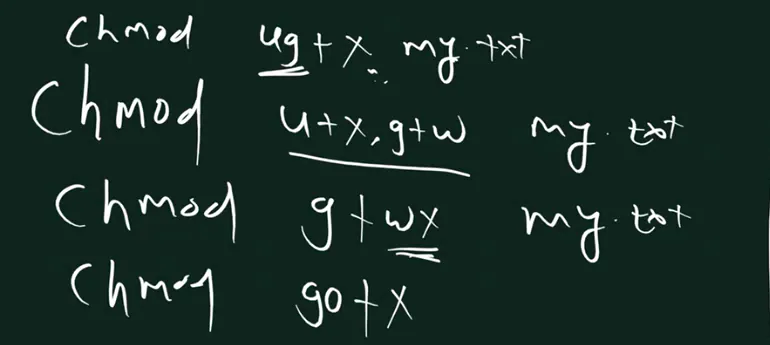
From the class board: Class board: chmod ug+x my.txt, chmod u+x,g+w my.txt (comma, no space), chmod g+wx my.txt and chmod go+x.
4. chmod +w and +x with no u, g or o
Why. You'll often see chmod +x script.sh with no letter before the +. Who gets the permission then?
What. With no u, g, o or a, chmod gives the permission to everyone except where your umask blocks it. The umask is the same setting that decides the permissions of new files (more in section 12).
See it. As ec2-user (umask 0002) on a read-only file:
umask
0002
chmod 444 my.txt
chmod +w my.txt
ls -l my.txt
-rw-rw-r--. 1 ec2-user ec2-user 6 Jan  5 10:15 my.txt
The umask 0002 blocks w only for others, so the owner and group got w. As root (umask 0022) the same chmod +w gives only -rw-r--r--, because 0022 blocks the group too.
To give w to everyone, say so with a:
chmod 444 my.txt
chmod a+w my.txt
ls -l my.txt
-rw-rw-rw-. 1 ec2-user ec2-user 6 Jan  5 10:15 my.txt
chmod +x follows the same rule, but these umasks only block w, so chmod +x my.txt on -rw-r--r-- gives -rwxr-xr-x, x for everyone.
Taking away works the same way, and chmod warns you when the umask kept some bits:
chmod 666 my.txt
chmod -w my.txt
chmod: my.txt: new permissions are r--r--rw-, not r--r--r--
Figure 2. Animation: on a read-only file, chmod +w as ec2-user (umask 0002) gives rw-rw-r--, as root (umask 0022) gives rw-r--r--, and chmod a+w gives rw-rw-rw-.
Correction
The class said a bare chmod +w "won't work" and that you must write a+w, as a safety lock. That's not right. chmod +w works: with no u/g/o it follows your umask, so as ec2-user (umask 0002) it gives w to the owner and group, and as root (umask 0022) only to the owner. chmod a+w forces w for everyone, others included, which you rarely want.
5. Numeric chmod: r = 4, w = 2, x = 1
Why. Letters change one thing at a time. A number sets all nine bits at once, exactly. That's why you'll see chmod 755, chmod 644 and chmod 600 in almost every guide.
What. Three digits: the first for the user, the second for the group, the third for others. Each digit is a sum:
r= 4w= 2x= 1
So 7 = 4 + 2 + 1 = rwx, 6 = 4 + 2 = rw-, 5 = 4 + 1 = r-x, and 3 = 2 + 1 = -wx.
Figure 3. Animation: chmod 755 my.txt. 7 = 4 + 2 + 1 = rwx for the user, and each 5 = 4 + 1 = r-x for the group and others.
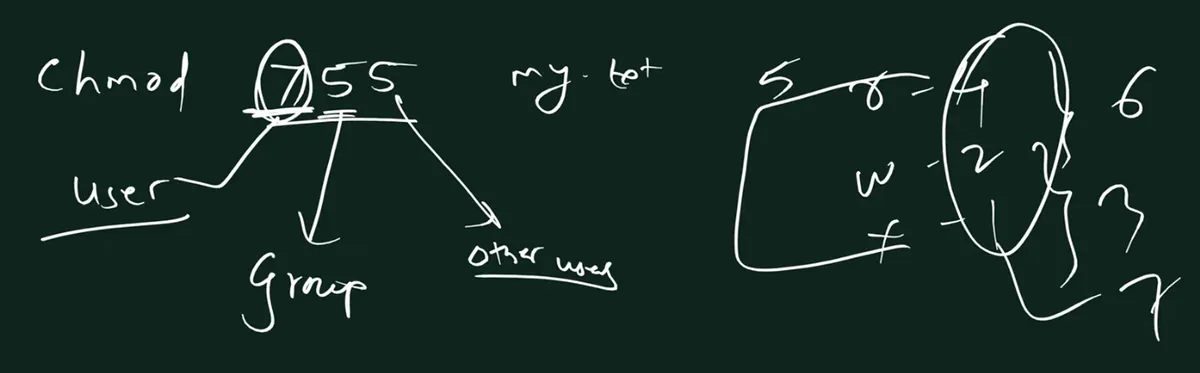
From the class board: Class board: in chmod 755 my.txt, the first digit is for the user, the second for the group, the third for other users. On the right: r = 4, w = 2, x = 1, so r + w = 6, w + x = 3, r + x = 5 and all three = 7.
Figure 4. All eight digits: 0 ---, 1 --x, 2 -w-, 3 -wx, 4 r--, 5 r-x, 6 rw-, 7 rwx.
6. Decoding a number
How. Take one digit at a time, and split it into 4, 2 and 1:
- Is 4 in it? Then
r, else-. - Is 2 in what's left? Then
w, else-. - Is 1 left? Then
x, else-.
Worked example: 645.
6= 4 + 2 →rw-for the user.4= 4 →r--for the group.5= 4 + 1 →r-xfor others.
So chmod 645 my.txt gives -rw-r--r-x. Here are more, each checked with chmod and ls -l on the box:
755 -> -rwxr-xr-x
645 -> -rw-r--r-x
714 -> -rwx--xr--
514 -> -r-x--xr--
555 -> -r-xr-xr-x
000 -> ----------
777 -> -rwxrwxrwx
444 -> -r--r--r--
644 -> -rw-r--r--
600 -> -rw-------
400 -> -r--------
7. Building a number from a need
Why. At work nobody says "chmod 714". They say "the owner needs everything, the group should only run it, others may only read it". You turn that into a number.
Worked example 1. The need: user rwx, group --x, others r--.
- User: 4 + 2 + 1 = 7.
- Group: 1.
- Others: 4.
- Answer:
chmod 714 my.txt.
Worked example 2. Same as above, but take away the user's write.
- User: 4 + 1 = 5.
- Group and others don't change: 1 and 4.
- Answer:
chmod 514 my.txt.
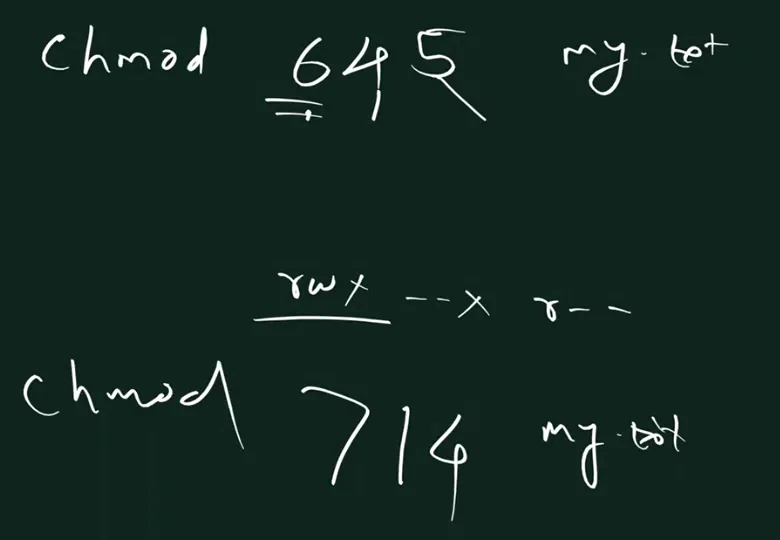
From the class board: Class board: chmod 645 my.txt to decode, and below, the need rwx --x r-- written as chmod 714 my.txt.
Three quick ones to try in your head:
- "Only the owner may read and write" → 6, 0, 0 →
600. - "Owner everything, group read and run, others nothing" → 7, 5, 0 →
750. - "Everyone may read, nobody may change it" → 4, 4, 4 →
444.
8. Special numbers: 555, 000, 777 and 444
What.
555=r-xfor all: everyone may read and run, nobody may change it.000= nothing for anybody.777= everything for everybody.444= read-only for everybody.
000 is not a trap for the owner. The owner can't read the file, but can always chmod it back, and root still reads it:
chmod 000 my.txt
cat my.txt
cat: my.txt: Permission denied
sudo cat my.txt
hello
chmod 644 my.txt
cat my.txt
hello
777 is a bad habit on a server. Any user, or any program that gets broken into, can change a 777 file, for example a script that root runs later. If a file "doesn't work", find the bit that's missing instead of opening everything. A good repair after a 777 is chmod 644 (or chmod 444 if nobody should change it).
9. Numbers or letters?
When to use which:
- Numbers when you know the final result you want:
chmod 644 index.html. All nine bits are set, whatever they were before. - Letters when you want one change and want the rest left alone:
chmod u+x my.sh.
For example, on a file that is -rw-rw-r--, chmod u+x gives -rwxrw-r--, but chmod 744 gives -rwxr--r--: the number also removed the group's w.
10. Root-owned files: sudo chmod
Why. A file made with sudo belongs to root, and that changes who may chmod it.
See it. Root writes a small script:
sudo nano a.txt
ls -l a.txt
-rw-r--r--. 1 root root 36 Jan  5 10:15 a.txt
The file holds two lines, #!/bin/bash and echo "Hello from a.txt". Now try it as ec2-user:
chmod 777 a.txt
chmod: changing permissions of 'a.txt': Operation not permitted
./a.txt
-bash: ./a.txt: Permission denied
chmodis refused because only the owner (root) or root viasudomay change the mode../a.txtis refused because nobody hasxyet.
Fix it the right way, with 755, not 777:
sudo chmod 755 a.txt
ls -l a.txt
-rwxr-xr-x. 1 root root 36 Jan  5 10:15 a.txt
./a.txt
Hello from a.txt
Root skips the r and w checks, but not this one: to run a file, at least one x bit must be set. On a 666 file even root gets Permission denied.
11. The 766 vs 776 question
Why. The board said that for this root-owned a.txt, 766 doesn't let ec2-user run it but 776 does. Let's work it out instead of believing it.
Who is ec2-user here? The file is root root. ec2-user isn't the owner, and isn't in the group root, so it gets the others bits, the last digit.
766: others = 6 =rw-. Nox.776: others = 6 =rw-. Still nox.
So both are denied. Tested on the box with a real root root file:
sudo chmod 766 a.txt
./a.txt
-bash: ./a.txt: Permission denied
sudo chmod 776 a.txt
./a.txt
-bash: ./a.txt: Permission denied
776 only works when the file's group is one that ec2-user belongs to, because then ec2-user gets the middle digit, 7:
sudo chown root:ec2-user a.txt
sudo chmod 776 a.txt
./a.txt
Hello from a.txt
sudo chmod 766 a.txt
./a.txt
-bash: ./a.txt: Permission denied
The same idea explains 700 and 770: 700 lets only root run it (sudo ./a.txt), and 770 works for ec2-user only if the group is ec2-user. One more detail: bash must also read a script. With 711 (x but no r for others) you get /bin/bash: ./a.txt: Permission denied.
Figure 5. For a root:root script, ec2-user gets the others bits: 766 and 776 are both denied. 776 and 770 work only when the group is ec2-user. 755 works for everyone.
Correction
The board marked 766 ✗ and 776 ✓ for ec2-user running a file made with sudo nano. That file is root:root, so ec2-user falls under others, and both 766 and 776 give others rw-, with no x. Both fail. 776 works only if the file's group is ec2-user (for example after sudo chown root:ec2-user a.txt). The simple answer is sudo chmod 755 a.txt.
12. Which numbers to use
A short list to remember:
| What | Number | Bits |
|---|---|---|
| Normal files (web pages, configs) | 644 |
rw-r--r-- |
| Scripts and programs | 755 |
rwxr-xr-x |
| Folders | 755 |
rwxr-xr-x |
| Private files and SSH private keys | 600 |
rw------- |
A .pem key that never changes |
400 |
r-------- |
| Anything | not 777 |
You met chmod 400 already in Inside an EC2 server, when you locked your .pem key on a Mac: SSH refuses a private key that others can read.
And your defaults on Amazon Linux? New files and folders made by ec2-user come out a bit more open for the group:
umask
0002
touch new.txt
mkdir newdir
ls -ld new.txt newdir
-rw-rw-r--. 1 ec2-user ec2-user 0 Jan  5 10:15 new.txt
drwxrwxr-x. 2 ec2-user ec2-user 6 Jan  5 10:15 newdir
- Files start from 666 and folders from 777.
- The umask
0002removeswfor others →664files and775folders. - Root's umask
0022also removes the group'sw→644and755.
This is safe on Amazon Linux because each user has a private group of their own.
Correction
The board showed new files as rw-r--r-- (644) and new folders as rwxr-xr-x (755). Those are root's defaults (umask 0022). For ec2-user on Amazon Linux 2023 the umask is 0002, so new files are rw-rw-r-- (664) and new folders rwxrwxr-x (775), as mkdir ravi showed in class.
13. Folder permissions: r, w and x mean something else
Why. A folder is a list of names. Its permissions protect that list, not the contents of the files in it. That's why the same letters mean different things.
What.
- r on a folder: list the names inside (
ls). - w on a folder: create, delete and rename entries inside (
touch,mkdir,cpinto it,mv,rm), and only together with x. - x on a folder: enter it (
cd) and use paths through it, likecat ravi/a.txt.
Figure 6. On a folder, r = list the names, w = create, delete and rename entries (needs x too), x = enter and use paths. Reading or editing an existing file needs the file's own r or w plus x on the folder.
Reading or editing a file that already exists is about the file: cat needs the file's r, saving changes needs the file's w, and both need x on the folder to reach it. The folder's w isn't needed.
Correction
The board put cat, nano and vi under the folder's w. cat only reads, so it needs the file's r (plus x on the folder). Editing an existing file needs the file's w, not the folder's. The folder's w matters only when you create, delete or rename entries, like a new file from touch or nano, and it works only together with x.
14. One folder, five modes
How. Make a folder with two files, then change its mode and watch what breaks. All outputs below are from the box:
mkdir ravi
echo hello > ravi/a.txt
touch ravi/aa.txt
Example 1: 700 (rwx------). You can list it, enter it and create in it. Everything works.
Example 2: 600 (rw-------), no x.
chmod 600 ravi
cd ravi
-bash: cd: ravi: Permission denied
ls -l ravi
ls: cannot access 'ravi/a.txt': Permission denied
ls: cannot access 'ravi/aa.txt': Permission denied
total 0
-????????? ? ? ? ?            ? a.txt
-????????? ? ? ? ?            ? aa.txt
r lets ls read the names, but without x it can't look at the files, so you get question marks. cat ravi/a.txt fails too.
Example 3: 700 again.
chmod 700 ravi
cd ravi
pwd
/home/ec2-user/ravi
Classroom line
I could get in because execute permission is there.
Class मधलं वाक्य
"Execute cha permission ahe mhanun yeu shaklo."
Execute ची permission आहे म्हणून आत येऊ शकलो.
Classroom line
I could get in because execute permission is there.
Example 4: 300 (-wx------), no r.
chmod 300 ravi
cd ravi
ls
ls: cannot open directory '.': Permission denied
touch new.txt
cat a.txt
hello
cd works (x), ls fails (no r), but touch works (w + x) and a name you already know still opens.
Example 5: 200 (-w-------), w without x.
chmod 200 ravi
touch ravi/n2.txt
touch: cannot touch 'ravi/n2.txt': Permission denied
rm ravi/aa.txt
rm: cannot remove 'ravi/aa.txt': Permission denied
w alone does nothing. Creating and deleting need w and x. (With 100, x only, cat ravi/a.txt works but ls ravi and touch fail.)
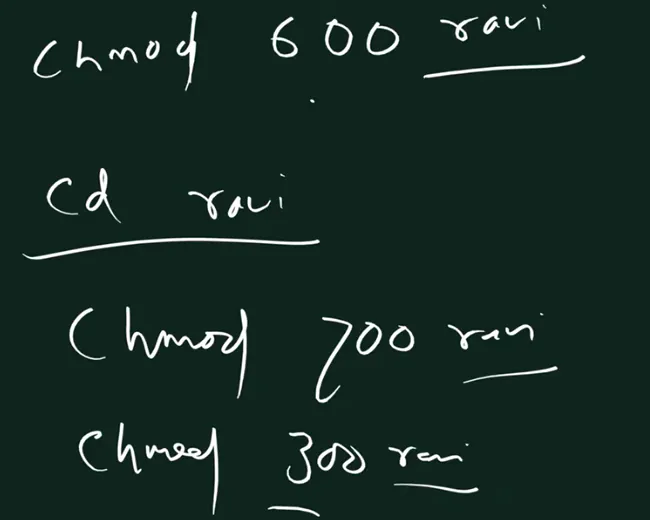
From the class board: Class board: chmod 600 ravi, then cd ravi, then chmod 700 ravi and chmod 300 ravi. 600 blocks cd, 700 allows it, and 300 allows cd but not ls.
Figure 7. Animation: one folder in five modes. 700 everything works; 600 no cd; 300 no ls; 555 no create or delete; 200 nothing, because w needs x.
15. A folder without w: chmod 555
What. 555 (r-x for all) lets you enter and list, but nothing can be added, removed or renamed:
chmod 555 ravi
cd ravi
touch rr.txt
touch: cannot touch 'rr.txt': Permission denied
mkdir tata
mkdir: cannot create directory ‘tata’: Permission denied
rm aa.txt
rm: cannot remove 'aa.txt': Permission denied
cp a.txt b.txt
cp: cannot create regular file 'b.txt': Permission denied
mv a.txt c.txt
mv: cannot move 'a.txt' to 'c.txt': Permission denied
Classroom line
I removed the write permission.
Class मधलं वाक्य
"Write cha permission kadhun ghetla."
Write ची permission काढून घेतली.
Classroom line
I removed the write permission.
But the files inside can still change. a.txt is rw-rw-r--, so its owner can edit it:
echo more >> a.txt
cat a.txt
hello
more
nano a.txt saves fine too ([ Wrote 2 lines ]). Only a new file fails: nano new.txt shows [ Error writing new.txt: Permission denied ] when you save.
16. The puzzle: can ec2-user delete root's file?
The question. Root makes a file inside /home/ec2-user. The file is root root, rw-r--r--. Can ec2-user delete it without sudo? Most of the class said no.
Classroom line
Will it come into my own house and beat me?
Class मधलं वाक्य
माझ्याच घरात घुसून मलाच मारणार?
Classroom line – हिंदी
"Mere hi ghar me ghuske mujhe marega?"
The answer: yes. Deleting doesn't touch the file's contents. It removes a name from the folder's list, so it's decided by the parent folder, and ec2-user owns its home with rwx.
Proof 1. In your home:
ls -ld /home/ec2-user
drwx------. 3 ec2-user ec2-user 74 Jan  5 10:15 /home/ec2-user
sudo nano rootwala.txt
ls -l rootwala.txt
-rw-r--r--. 1 root root 10 Jan  5 10:15 rootwala.txt
Changing what's inside is refused, because that's the file's w, and only root has it:
echo more >> rootwala.txt
-bash: rootwala.txt: Permission denied
But deleting works. rm asks first, because you can't write the file; answer y:
rm rootwala.txt
rm: remove write-protected regular file 'rootwala.txt'? y
ls rootwala.txt
ls: cannot access 'rootwala.txt': No such file or directory
(For an empty file the question says regular empty file. rm -f skips the question.)
Proof 2. Same thing in a folder you made:
mkdir myfolder
cd myfolder
sudo nano folderwala.txt
rm folderwala.txt
rm: remove write-protected regular file 'folderwala.txt'? y
Classroom line
It depends on the parent folder's write permission.
Class मधलं वाक्य
"Parent folder chya write permission varthi depend asto."
Parent folder च्या write permission वर depend असतं.
Classroom line
It depends on the parent folder's write permission.
And a folder made by root? sudo mkdir rootwala makes a root root folder in your home. You can't create anything inside it (touch rootwala/x.txt → Permission denied), but while it's empty you can remove it with rmdir rootwala, because its name lives in your folder. If root has put a file inside, rm -r fails on that file.
Figure 8. Animation: root's rootwala.txt inside /home/ec2-user. Editing it is denied (the file's w is root's), but rm works after the write-protected question, because deleting depends on the parent folder.
Correction
The class said deleting depends on the parent folder's write permission. It needs w and x on the parent folder: w alone (chmod 200) still gives Permission denied, as section 14 showed. Also, ec2-user can delete root's file here, but still can't change its content; that's the file's own w.
17. The exception: the sticky bit on /tmp
Why. /tmp is a folder where every user may create files, so everyone has w and x on it. By the rule above, anyone could delete anyone's files there. The sticky bit stops that.
What. It shows as a t in place of the last x:
ls -ld /tmp
drwxrwxrwt. 25 root root 2220 Jan  5 10:15 /tmp
With the sticky bit, only the file's owner, the folder's owner or root may delete or rename a file, even if the file itself is rw-rw-rw-. Tested on the box with two users:
[ec2-user@ip-172-31-xx-xx ~]$ echo hi > /tmp/ec2.txt
[ec2-user@ip-172-31-xx-xx ~]$ chmod 666 /tmp/ec2.txt

[ravi@ip-172-31-xx-xx ~]$ rm /tmp/ec2.txt
rm: cannot remove '/tmp/ec2.txt': Operation not permitted
In a drwxrwxrwx folder without the t, the same rm by ravi works. You set the sticky bit with chmod +t folder or chmod 1777 folder.
Figure 9. /tmp is drwxrwxrwt: ravi can't delete ec2-user's file there (Operation not permitted). Without the t, anyone with w and x on the folder could delete it.
Correction
The rule "deleting depends on the parent folder" has an exception that wasn't mentioned: folders with the sticky bit (t), like /tmp and /var/tmp. There, only the file's owner, the folder's owner or root can delete a file.
18. "I can use sudo anywhere": only if you're allowed
What. ec2-user can run sudo because Amazon Linux sets it up that way. It's in the wheel group, and cloud-init adds a rule with no password:
sudo cat /etc/sudoers.d/90-cloud-init-users
...
ec2-user ALL=(ALL) NOPASSWD:ALL
A new user gets nothing like that:
sudo -l -U ravi
User ravi is not allowed to run sudo on ip-172-31-xx-xx.
So ravi can't use sudo unless an admin allows it, for example with sudo usermod -aG wheel ravi. The wheel rule (%wheel ALL=(ALL) ALL) also asks for ravi's own password, which a new user doesn't have until someone sets one with sudo passwd ravi.
Correction
The class said "I can use sudo anywhere in Linux". That's true for ec2-user on EC2 only because it's in /etc/sudoers.d/90-cloud-init-users (and in wheel). A normal user like ravi gets User ravi is not allowed to run sudo until an admin gives that right.
Ravindra Bagale's Tip
Give sudo only to people who manage the server. Developers who only deploy code usually need write access to one project folder (a group, as in the last chapter), not root.
19. Real-life tip: when EC2 Instance Connect keeps failing
Ravindra Bagale's Tip
In class, EC2 Instance Connect kept showing "Error establishing SSH connection" even though the server was fine. The cause was the laptop's clock: it was wrong, and syncing it (on Windows: Settings → Time & language → Date & time → Sync now) fixed it at once. If a console connection fails for no clear reason, check these:
- The instance is running and both status checks have passed.
- The security group allows port 22 from the right source. For the browser-based Instance Connect, that's the EC2 Instance Connect IP range of your Region, not only your own IP.
- The AMI supports Instance Connect (Amazon Linux and Ubuntu do).
- Your computer's date, time and time zone are set automatically.
20. Try at home
Try at home
Task 1: symbolic
echo hello > my.txt, thenchmod 644 my.txt.- Run
chmod u+x,g+w my.txtand predict the result beforels -l. - Run
chmod go-r my.txt, then reset withchmod u=rw,go=r my.txt. - Run
chmod 444 my.txt, thenchmod +w my.txt, and explain the result usingumask.
Task 2: numbers
- Decode
640,711and754on paper, then check each withchmodandls -l. - Build the number for "owner read and write, group read, others nothing".
- Try
chmod 000 my.txt,cat my.txt, then get it back withchmod 644 my.txt.
Task 3: folders
- Make
raviwith two files. Trycd,ls -landtouchafterchmod 700,600,300,555and200. - In the
555folder, edit an existing file withnano, then try to save a new one.
Task 4: the puzzle
sudo nano rootwala.txtin your home, thenecho more >> rootwala.txtandrm rootwala.txt. Explain both results.- Run
ls -ld /tmpand find thet.
When you're done, put the folder back with chmod 755 ravi before deleting it with rm -r ravi, and stop the instance.
Recap
In short
- Ten characters: type, then
r w xfor user, group and others. - Symbolic: who (
u g o a),+ - =, which (r w x). Combine with commas and no spaces:chmod u+x,g+w. ugo=a.chmod +wwith no letter follows the umask;a+wforces it for everyone.- Numbers: r = 4, w = 2, x = 1, one digit each for user, group and others.
645=rw-r--r-x. - Build from a need:
rwx --x r--=714; take away the user's w →514. 000doesn't lock the owner out ofchmod; root still reads. Avoid777.- Numbers set all nine bits; letters change only what you name.
- A
sudo-made file isroot root:ec2-userneedssudo chmod. Root needs at least onexbit to run a file. - For a
root:rootfile,ec2-useris "others":766and776both fail;755works. - Use
644files,755scripts and folders,600/400keys. Amazon Linux givesec2-user664files and775folders (umask0002). - Folder:
r= list,w= create/delete/rename (needsx),x= enter. - Reading or editing an existing file = the file's own bits + folder
x. - Deleting depends on the parent folder (
w+x), soec2-usercan delete root's file in its home, but can't edit it. - Sticky bit (
t, like/tmp): only the owner, folder owner or root may delete. ec2-userhassudobecause of/etc/sudoers.d/90-cloud-init-users;ravidoesn't, until an admin allows it.
Samjla ka? Ghari ek folder banva, tyala 700, 600, 300 ani 555 deun bagha, ani root chi file delete karun bagha.
Ravindra Bagale, trainer: linkedin.com/in/ravindra-bagale. The user, folder and file names (ravi, ramesh, my.txt, a.txt, rootwala.txt and the rest) are examples for learning. Commands and messages were checked on the box with GNU coreutils, bash and nano using an ec2-user test account with umask 0002, and against the settings of an Amazon Linux 2023 server (umask 0002, home folder 700, /tmp drwxrwxrwt, the cloud-init sudoers rule, coreutils 8.32); the hostname in the prompt, the dates and the /tmp size in ls -l are illustrative.