Inside an EC2 server: EBS, ENI, instance states, connecting with SSH, and what Linux is
Let's start. In the last class we launched our first EC2 server in seven steps. Today we open the box. What does AWS actually put together when you click Launch? Where does your public IP live? What happens to your data and your bill when you stop or terminate a server? Then we log in to the server from our own laptop with SSH, step by step, and fix the errors you will surely hit. At the end we meet Linux, the operating system on that server. Watch first, then do every step at home.
What you will learn in this class
- A quick recap of the 7 launch steps, and one key pair per project
- What happens in Pending: EC2 compute, the EBS disk and the ENI
- The ENI: where your private and public IPs live
- Stop under the hood: AWS takes the compute back
- Start again: what stays and what changes (public IP, private IP, Elastic IP)
- The EBS bill with real gp3 prices, and the public IPv4 charge
- Terminate under the hood
- The instance state diagram (an interview favourite)
- Backups before you stop or terminate, and how to automate them
- Launching again, and the status checks (2/2 or 3/3)
- The instance summary page
- Opening PowerShell in the right folder
- Building the ssh command piece by piece
- Logging in, the first commands, and logging out
- Mac and Linux: chmod 400
- Common SSH errors and their fixes
- Other ways in: the Connect page and EC2 Instance Connect
- What Linux is: files and folders, and Windows actions as Linux commands
- Distributions, and how Linux was really born
- The kernel, and why computers use binary
- Homework
1. Quick recap: the 7 launch steps
Why. Everything today builds on the server we launched last class. Here is the short version. The full step-by-step is in the previous chapter, Root user, IAM users, MFA and launching your first EC2 server.
What. The seven parts of the launch page, with today's extra notes:
- Name and tags. Optional, but name every server. It is discipline.
- AMI (operating system). Amazon Linux, Ubuntu, Debian, Fedora, SUSE, Red Hat and more. The commands are mostly the same on all of them. Package names can differ (section 20).
- Instance type. For practice, 1 or 2 vCPU and 1 GiB RAM is enough. Pick the type marked Free tier eligible for your account:
t3.microfor accounts made on or after 15 July 2025;t2.microort3.microfor older accounts. - Key pair. Login without a password. It is a 2048-bit RSA key that proves who you are.
- Security group. Inbound ports are closed until you open them. For SSH we open port 22.
- Storage. The Amazon Linux root volume starts at 8 GiB. Extra EBS volumes are like extra USB drives; a gp3 volume can be as small as 1 GiB.
- Number of instances. Every instance is a clone of steps 1 to 6.
One key pair per project. You can reuse one security group or one key pair for many servers. Should you? Look at the story.
Worked example: 100 servers, one key.
- Suppose your company runs 100 servers: 50 for project A and 50 for project B.
- All 100 were launched with the same key pair,
company.pem. - One developer of project A loses his laptop. The
.pemfile is on it. - Whoever has that file can try to log in to all 100 servers.
- Now suppose project A used
project-a.pemand project B usedproject-b.pem. - The same lost laptop exposes only the 50 servers of project A. Project B stays safe.
- 100 exposed → 50 exposed: half the damage, from one simple habit.
Figure 1. Suppose 100 servers share one key pair: one leaked key exposes all 100. With one key pair per project, a leak of key A exposes only project A's 50 servers.
Correction
In class CentOS was listed as a normal choice. CentOS Linux has ended (version 7 reached end of life on 30 June 2024). Use Rocky Linux, AlmaLinux or CentOS Stream instead. A class remark that half of all servers run Amazon Linux and half run Ubuntu is dropped; there is no reliable source for that split.
2. What happens in Pending: three parts come together
Why. After you click Launch instance, the state shows Pending for a short time. In class it took about 10 to 15 seconds. Knowing what AWS does in that time explains everything about stop, start and billing later.
What. AWS puts together three separate parts:
- EC2 compute. Only the RAM and CPU of your instance type, on a physical host in the Availability Zone. EC2 = Elastic Compute Cloud.
- EBS volume. The disk (EBS = Elastic Block Store). For our server: 8 GiB gp3. It is a separate AWS service, connected to the compute over AWS's network.
- ENI. The Elastic Network Interface: the server's network card. Your private and public IP addresses belong to the ENI.
When all three are joined, the state becomes Running.
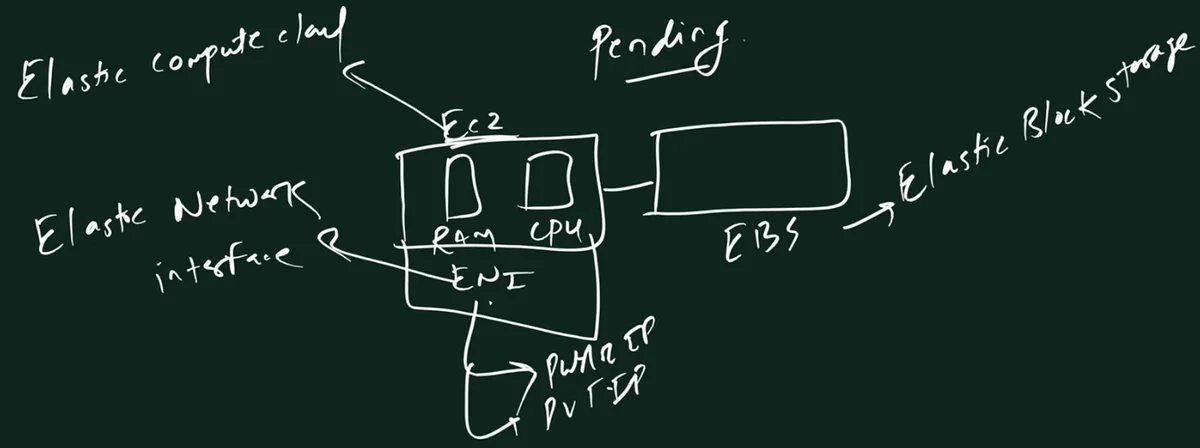
From the class board: EC2 (Elastic Compute Cloud) is only the RAM and CPU. EBS (Elastic Block Store; the board says "storage") is the disk, joined to it. The ENI (Elastic Network Interface) sits with the compute and carries the public and private IP.
Figure 2. Animation: during Pending, EC2 compute (RAM and CPU), the EBS volume and the ENI come together, then the state shows Running. Pending is not billed.
Worked example: when does the bill start?
- You click Launch at 10:00:00.
- Pending lasts 15 seconds. AWS does not bill the instance in Pending.
- At 10:00:15 the state is Running. Billing starts now, per second, with a 1-minute minimum.
- You terminate at 10:30:15. Billed time: 30 minutes.
- With
t3.microin N. Virginia at $0.0104 per hour: 0.5 × $0.0104 = $0.0052.
3. The ENI: where your IP addresses live
Why. People say "my server's IP". Strictly, the IP is on the server's network interface, the ENI. This matters when you stop and start a server.
What. The laptop analogy.
- Your laptop has an Ethernet port. You plug in a cable, and the network gives an IP address to that connection.
- Your EC2 instance has an ENI. Its main one is called the primary network interface (
eth0inside Linux). - The ENI holds the private IPv4 address (from the subnet; the default VPC uses
172.31.x.x) and, if the instance gets one, the public IPv4 address.
Figure 3. A laptop's Ethernet port carries its IP. An EC2 instance's ENI (eth0) holds its private IPv4 and its public IPv4. The addresses shown are examples.
Worked example: two addresses, two jobs.
- Suppose your server's ENI has private IP
172.31.5.10and public IP3.3.3.3(example values). - Another server in the same VPC talks to it on
172.31.5.10. That traffic never leaves AWS's network. - You, at home, connect to
3.3.3.3. That is the address the internet can reach. - Inside the server, Linux shows the private one: the prompt says
ip-172-31-5-10(section 15).
4. Stop under the hood: AWS takes the compute back
Why. "Why is a stopped server free, but my bill is not zero?" The answer is in the three parts.
What happens when you stop.
- The state goes Stopping, then Stopped.
- The operating system shuts down. Anything in RAM is lost.
- AWS takes back the compute (RAM and CPU) and can give that hardware to another customer. So you pay no instance charge.
- Your EBS volume stays, with all your data. You keep paying for its storage.
- Your ENI stays, with its private IP.
- The public IPv4 that AWS auto-assigned is released.
Classroom line
Why would AWS waste its EC2 for free?
Class मधलं वाक्य
AWS आपलं EC2 फुकट का वाया घालवेल?
Classroom line – हिंदी
"Kya fukat me apna EC2 waste karega AWS?"
Classroom line
The hard disk stays with us; our data is in it.
Class मधलं वाक्य
Hard disk आपल्याकडेच आहे, त्यात आपला data आहे.
Classroom line – हिंदी
"Hard disk apne paas hi hai, isme data hai apna."
Classroom line
When we stop the server, there are no EC2 charges.
Class मधलं वाक्य
"Jya veli aapan server band karto tya velala charges lagat nahit EC2 che."
ज्या वेळी आपण server बंद करतो, त्या वेळी EC2 चे charges लागत नाहीत.
Classroom line
When we stop the server, there are no EC2 charges.
Figure 4. Animation: on Stop the compute goes back to the AWS pool and can serve another customer, while the EBS volume and the ENI stay. On Start new compute of the same size is attached; the private IP stays and the auto-assigned public IP changes. The IPs are examples.
5. Start again: what stays and what changes
Why. Students are surprised when the SSH command that worked yesterday fails today. Usually the public IP changed.
What happens when you start.
- The state goes Pending again. Why Pending? Because the compute was given back. AWS must put the three parts together again, usually on a new host.
- New compute of the same instance type is attached to your same EBS volume and same ENI.
- The private IPv4 stays the same.
- The public IPv4 is new, if the instance gets an auto-assigned one.
- An Elastic IP (a static public IP you allocate) stays with the instance across stop and start.
- Each start begins a new billing period with a 1-minute minimum.
Classroom line
When you stop the server and start it again, the dynamic IP changes.
Class मधलं वाक्य
"Server band karun chalu kela ki dynamic IP change hoto."
Server बंद करून चालू केला की dynamic IP change होतो.
Classroom line
When you stop the server and start it again, the dynamic IP changes.
Worked example: yesterday's command fails.
- Yesterday: public IP
3.3.3.3. You logged in withssh -i Downloads\firstlast.pem ec2-user@3.3.3.3. - Last night you stopped the server to save money.
- Today you start it. The console shows public IP
5.5.5.5(example). - Yesterday's command now waits and fails with a timeout.
- Fix: copy the new public IP from the console and use
ec2-user@5.5.5.5. - If you need an address that never changes (for a website or a domain), attach an Elastic IP. We do that later in the course.
| Stop → Start | Reboot | |
|---|---|---|
| Host | usually a new host | same host |
| Private IPv4 | stays | stays |
| Auto-assigned public IPv4 | changes | stays |
| Elastic IP | stays | stays |
| EBS data | stays | stays |
| RAM | erased | erased |
Public IPv4 costs money. Since February 2024 AWS charges $0.005 per hour for every public IPv4 address, in use or idle.
- One running server with one public IPv4 for a month: 720 hours × $0.005 = $3.60.
- Accounts made before 15 July 2025 got 750 hours a month of public IPv4 free during their first 12 months. Newer accounts pay it from their credits.
- A stopped server releases its auto-assigned public IP, so that charge stops too.
- An Elastic IP is charged even when its server is stopped. Release Elastic IPs you no longer need.
6. The EBS bill: real numbers
Why. A stopped server still costs a little, because the disk stays. Let's calculate it, the way we did on the board.
What. gp3 storage is charged per GB-month for the size you provision, even if the disk is empty. It is billed per second, so a part of a month costs a part of the price. AWS's price list (October 2026): $0.08 per GB-month in N. Virginia and $0.0912 in Mumbai.
Worked example 1: one server.
- One server with an 8 GB root volume, in N. Virginia.
- 8 × $0.08 = $0.64 a month, whether the server is running or stopped.
- Terminate it (and the root volume is deleted by default): $0.
Worked example 2: the class example, four servers. In class we used a round "₹5 per GB" to see the idea. Here is the same calculation with the real gp3 price.
- 3 servers × 8 GB = 24 GB.
- Accounts made before 15 July 2025 get 30 GB of EBS free per month during their first 12 months (the legacy Free Tier). 24 GB is under 30 GB: $0.
- Launch a 4th server: 4 × 8 = 32 GB.
- 32 − 30 = 2 GB over the free amount.
- 2 × $0.08 = $0.16 for a full month.
- Keep the 4th server for only 15 days of a 30-day month: $0.16 × 15 ÷ 30 = $0.08.
Worked example 3: the same disks on a newer account.
- Accounts made on or after 15 July 2025 have no 30 GB allowance. Usage is paid from the $100 to $200 credits.
- All 32 GB count: 32 × $0.08 = $2.56 a month, taken from your credits.
- The same 32 GB in Mumbai: 32 × $0.0912 = $2.92 a month.
Figure 5. The class example with real gp3 prices: four 8 GB disks make 32 GB, which is 2 GB over the legacy 30 GB allowance. Newer accounts pay for all 32 GB from their credits.
Ravindra Bagale's Tip
Don't rely on remembering to stop things. Set a monthly budget alert in AWS Budgets (the previous chapter shows how), and terminate practice servers when you finish. A stopped server still pays for its disk and any Elastic IP.
Correction
In class, the help with payment details included advice to turn off AutoPay after a few days. Don't do that: unpaid bills lead to account suspension. Use a budget alert, and stop or terminate what you don't use. The class's "₹5 per GB" was a round number for the idea; the real gp3 price is above.
7. Terminate under the hood
Why. Stop is a pause. Terminate is delete. You must know exactly what is lost.
What happens when you terminate.
- The state goes Shutting-down, then Terminated.
- Billing for the instance stops as soon as it is Shutting-down.
- The root EBS volume is deleted by default (its
DeleteOnTerminationsetting is on). Extra EBS volumes you attached later are kept by default. - An Elastic IP is disassociated (and keeps costing money until you release it).
- You cannot start a terminated instance again. It stays visible in the console for a short while, then disappears.
Worked example: what is left after terminate?
- Server with an 8 GB root volume and an extra 10 GB data volume you attached later.
- You terminate it.
- The 8 GB root volume is deleted.
- The 10 GB data volume becomes "available" (not attached) and is still billed: 10 × $0.08 = $0.80 a month.
- Delete it from EC2 → Volumes if you don't need it.
Correction
A student asked whether a backup is taken automatically while a server is shutting down. No. Nothing is backed up for you, and the root volume is deleted by default. Take a snapshot first (section 9).
8. The instance state diagram
Why. This diagram explains billing, IP changes and data safety in one picture, and interviewers love to ask it.
Classroom line
What are we looking at? The EC2 states. They can ask this in interviews.
Class मधलं वाक्य
"Aapan kay baghtoy, EC2 che states. Interview madhe vicharu shaktat."
आपण काय बघतोय? EC2 चे states. Interview मध्ये विचारू शकतात.
Classroom line
What are we looking at? The EC2 states. They can ask this in interviews.
What. The six states:
| State | Meaning | Instance billed? |
|---|---|---|
pending |
AWS is putting the parts together (launch or start) | no |
running |
ready to use | yes |
stopping |
shutting down to stop | no |
stopped |
off; can be started again | no (EBS is billed) |
shutting-down |
shutting down to terminate | no |
terminated |
deleted; cannot be started | no |
How the arrows go:
- Launch →
pending→running. running→ Stop →stopping→stopped.stopped→ Start →pending→running.running(orstopped) → Terminate →shutting-down→terminated.
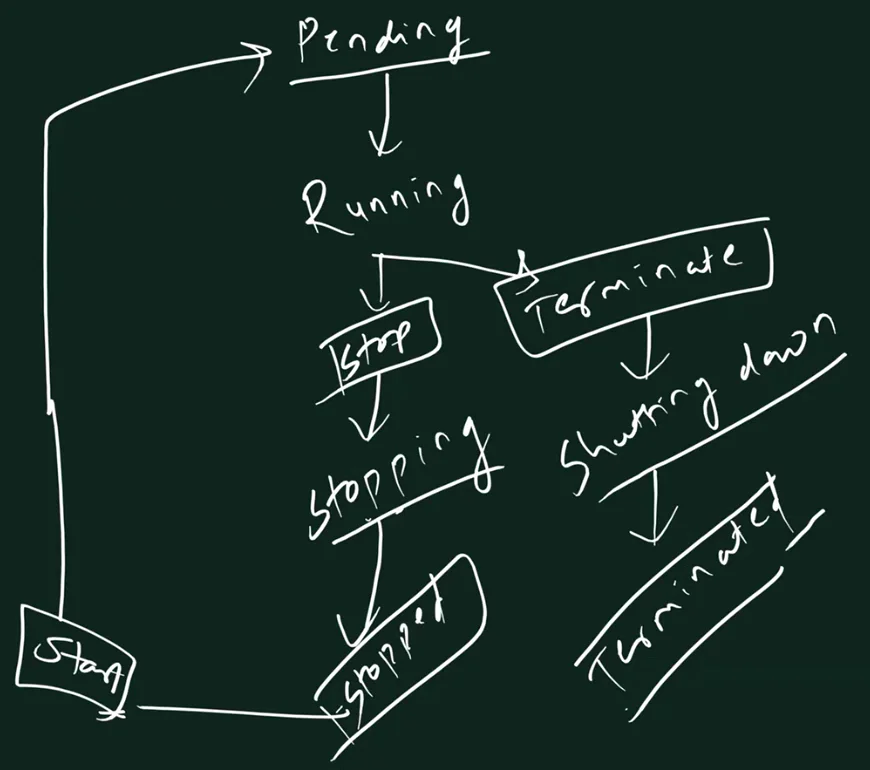
From the class board: The instance states: Pending, Running; Stop goes to Stopping and Stopped; Start goes back to Pending; Terminate goes to Shutting down and Terminated.
Figure 6. Animation: the highlight walks through pending, running, stopping, stopped, shutting-down and terminated. Only running is billed for the instance; EBS volumes and public IPv4 addresses have their own charges.
Worked example: three interview questions.
- "You stop a server. Which charges stop, and which continue?" The instance charge stops; EBS storage and any Elastic IP continue.
- "Why does a started server go to Pending?" Because the compute was released on stop, so AWS puts compute, EBS and ENI together again, usually on a new host.
- "Can you start a terminated instance?" No. Launch a new one, from an AMI or snapshot if you saved one.
9. Backups before you stop or terminate
Why. Stop keeps the disk, but terminate deletes the root volume by default. And mistakes happen. A backup must exist before you press the button.
What. Three good ways:
- By hand, before: create an EBS snapshot of the volume, or create an AMI of the instance (an AMI includes snapshots of its volumes).
- On a schedule: an AWS Backup plan, or an Amazon Data Lifecycle Manager policy that snapshots volumes every day.
- On an event: an Amazon EventBridge rule that matches the "EC2 Instance State-change Notification" event (for example state
stopping) and runs a Lambda function that creates a snapshot.
Figure 7. Back up by hand before you stop or terminate, on a schedule with AWS Backup or Data Lifecycle Manager, or from an EventBridge rule. Not with a script inside the OS during Stopping.
Worked example: snapshot before terminate.
- EC2 → Instances → select the server → Storage tab → click the volume ID.
- Actions → Create snapshot → add a description, for example
before-terminate→ Create snapshot. - Wait until the snapshot status is Completed.
- Now terminate the server.
- Later you can create a new volume, or an AMI, from that snapshot.
- The snapshot itself is billed by the GB-month while you keep it.
Correction
In class, a backup was drawn on the Stopping step, run by a Python or shell script inside the server. That is not reliable: the OS gets only a short, graceful shutdown, and if it does not finish within a few minutes AWS forces it off. There is no setting to make the OS wait for a long backup. Take snapshots or an AMI before, or automate with AWS Backup, Data Lifecycle Manager or EventBridge.
10. Launching again in the console
Why. In class we launched a fresh server to practise SSH. Two small habits make the next sections easier.
How (same 7 steps, with today's choices).
- Name:
firstlast. - AMI: Amazon Linux 2023, marked Free tier eligible.
- Instance type: the one marked Free tier eligible for your account (section 1).
- Key pair: Create new key pair → name
firstlast→ RSA →.pem→ Create key pair. The filefirstlast.pemdownloads, usually to Downloads. - Network settings: Create security group, Allow SSH traffic from (port 22).
- Storage: 1 × 8 GiB gp3.
- Launch instance → View all instances.
Classroom line
When you name the key pair file, try to use a single word.
Class मधलं वाक्य
"Key pair file cha nav litana sahasa single word vaparnya cha prayatna kara."
Key pair file चं नाव लिहिताना शक्यतो single word वापरण्याचा प्रयत्न करा.
Classroom line
When you name the key pair file, try to use a single word.
Why a single word? In the ssh command a space ends one argument. my key pair.pem needs quotes; firstlast.pem does not (section 17).
11. Status checks: 2/2 or 3/3?
Why. Right after launch, the Status check column says Initializing. Wait for the checks to pass before you try SSH.
What. Three checks run automatically, every minute:
- System status check: the AWS side. The physical host, its power and its network. If it fails, AWS fixes it, or you stop and start the instance to move it to a healthy host.
- Instance status check: your side. Your OS boots, its network is configured, it is not out of memory. If it fails, you fix it (reboot, or correct the configuration).
- Attached EBS status check: your EBS volumes are reachable and can complete reads and writes. This one is available only on Nitro-based instances.
So a t3.micro (Nitro) shows 3/3 checks passed. An older Xen-based type such as t2.micro shows 2/2.
Figure 8. System, instance and attached EBS status checks. All three passing shows 3/3 on Nitro instances such as t3.micro; older Xen types such as t2.micro show 2/2.
Worked example: reading the column.
- 10:00 Launch. Status check: Initializing.
- 10:02 Status check: 3/3 checks passed. Now try SSH.
- Suppose one day it shows 2/3 and the system check failed: AWS's hardware has a problem. Stop and start the instance; it moves to a new host.
- Suppose the instance check failed: look inside. Reboot, or check what you changed last.
Correction
In class the three checks were described as "hard disk attached, data center power and network, and IP reachable". The correct three are the system status check, the instance status check and the attached EBS status check. (AWS also offers optional application status checks that you set up yourself.)
12. The instance summary page
Why. Everything you need for SSH is on this page.
How. EC2 → Instances → click the Instance ID. Important fields:
- Instance ID:
i-followed by letters and numbers. AWS's name for this server. Don't post it in public screenshots. - Public IPv4 address: what you use in the ssh command. It has a copy icon.
- Private IPv4 address: for example
172.31.5.10. The default VPC uses172.31.0.0/16. - Availability Zone: for example
ap-south-1b. We did not pick it; AWS chose one for us. We choose it ourselves when we learn VPC and subnets. - Elastic IP addresses: blank for now. That is the static IP for later.
- Instance state and Status checks.
The left menu of EC2 (Instances, Images, Elastic Block Store, Network & Security, Load Balancing, Auto Scaling) is a big part of this course. We will cover it over the coming months.
13. Opening PowerShell in the right folder
Why. The key file is in your Downloads folder. If PowerShell opens somewhere else, the ssh command can't find it.
How (Windows).
- Press the Start button and type
PowerShell. - Open Windows PowerShell (normal, not "Run as administrator").
- Look at the prompt. Suppose your Windows user name is
ravi. You should seePS C:\Users\ravi>. Your Downloads folder is right inside it:C:\Users\ravi\Downloads. - If you see
PS C:\Windows\System32>, that window was opened as Administrator. Open a new normal tab with the + button, or close it and open PowerShell normally.
Classroom line
If it shows System32, it means it was opened for the admin user.
Class मधलं वाक्य
System32 दिसत असेल, तर त्याचा अर्थ ते admin user साठी उघडलं आहे.
Classroom line – हिंदी
"Agar System32 aa raha hai, iska matlab hai wo admin user ke liye open hua hai."
Figure 9. A normal PowerShell opens in your own folder, C:\Users\ravi, where Downloads is. An administrator PowerShell opens in C:\Windows\System32.
Classroom line
While I'm explaining, watch me... then do it at home.
Class मधलं वाक्य
"Me sangtana mazhya kade laksha dya... ghari jaun kara."
मी सांगताना माझ्याकडे लक्ष द्या... घरी जाऊन करा.
Classroom line
While I'm explaining, watch me... then do it at home.
14. Building the ssh command piece by piece
Why. If you understand each part, you can fix any SSH error yourself.
What. Ask four questions, and write one part for each:
- Which program?
ssh(Secure Shell). - How do I prove who I am? Not with a password; with the key file.
-imeans identity file: the private key. - Where is the key file? Its path, for example
Downloads\firstlast.pem. - Who logs in, and to which server? The user name,
@, and the server's public IP:ec2-user@3.3.3.3.
Put together:
ssh -i Downloads\firstlast.pem ec2-user@3.3.3.3
3.3.3.3 is a placeholder. Use your own public IPv4 from the summary page.
The default user name depends on the AMI:
| AMI | User name |
|---|---|
| Amazon Linux | ec2-user |
| Ubuntu | ubuntu |
| Debian | admin |
| RHEL | ec2-user |
| Rocky Linux | rocky |
Type the path with Tab, not by hand.
- Type
ssh -i Dand press Tab. PowerShell cycles throughDesktop,Documents,Downloads. - Better: type
Dowand press Tab. It completes.\Downloads\. - Type
fand press Tab. It completesfirstlast.pem(press Tab again to cycle if several files start with f). - Type a space, then
ec2-user@, then paste the IP.
Classroom line
Never type the path by hand.
Class मधलं वाक्य
Path कधीच हाताने लिहायचा नाही.
Classroom line – हिंदी
"Kabhi path haath se nahi likhna hai."
Spaces matter.
- One space after
ssh. - One space after
-i. - One space after the key path.
- No spaces inside
ec2-user@3.3.3.3. It is one word.
Classroom line
Don't forget the spaces.
Class मधलं वाक्य
Space विसरायचा नाही.
Classroom line – हिंदी
"Space bhulna nahi hai."
Figure 10. Animation: ssh, -i, the key path, the user name, @ and the public IP appear one by one, each with its job. 3.3.3.3 is a placeholder.
Correction
In class -i was called the "inventory file". It is the identity file: the private key that proves who you are. "Inventory" is a term from Ansible, a different tool.
15. Logging in, first commands, and logging out
How.
- In the console, open the instance summary and click the copy icon next to Public IPv4 address.
- In PowerShell type
ssh -i Dow, press Tab, typef, press Tab. - Type a space and
ec2-user@, then paste the IP (right-click pastes in PowerShell). - Press Enter.
- The first time only, SSH asks:
Are you sure you want to continue connecting (yes/no/[fingerprint])?Typeyesand press Enter. SSH saves the server's fingerprint so it can warn you if a different machine ever answers on that address. - You see the Amazon Linux 2023 banner, and a prompt like
[ec2-user@ip-172-31-5-10 ~]$. - Look at the prompt:
ip-172-31-5-10is the server's private IP with dashes. Compare it with the console. You are inside the server.
First commands:
lslists the files in your home folder. A new server shows nothing.mkdir ravimakes a folder namedravi.lsagain showsravi.exitlogs you out. You are back atPS C:\Users\ravi>.
Classroom line
Try it, SSH into the server.
Class मधलं वाक्य
"Kara try, server la SSH kara."
करा try, server ला SSH करा.
Classroom line
Try it, SSH into the server.
Worked example: which IP is which?
- The console shows public
3.3.3.3and private172.31.5.10(examples). - You connect to
3.3.3.3, because your laptop is on the internet, not inside the VPC. - The prompt shows
ip-172-31-5-10, because the server names itself after its private IP. - Two different IPs, one server.
16. Mac and Linux: chmod 400
Why. On Mac and Linux, SSH refuses a private key that other users of the computer can read.
How.
- Open Terminal.
cd Downloadschmod 400 firstlast.pem(400 = only you, the owner, can read it; nobody can write it).ssh -i firstlast.pem ec2-user@3.3.3.3- Type
yesthe first time.
Notice step 4: after cd Downloads you are already in Downloads, so the path is just firstlast.pem. If you did not cd, use Downloads/firstlast.pem (Mac and Linux use /, Windows uses \; PowerShell accepts both).
Classroom line
400 permission means only he (the owner) can read it; others cannot read it.
Class मधलं वाक्य
400 permission म्हणजे फक्त owner च ती वाचू शकतो, बाकी लोक वाचू शकत नाहीत.
Classroom line – हिंदी
"400 ka permission matlab hota hai... wahi read kar sakta hai, baaki log read nahi kar sakte."
17. Common SSH errors and their fixes
Why. In class almost everyone hit one of these. Read the error message; it usually tells you which part is wrong.
| What you see | Usual cause | Fix |
|---|---|---|
Connection timed out |
port 22 not open in the security group, wrong IP, or the server is stopped | add an inbound rule SSH, port 22, from My IP; copy the current public IP; check the state is Running |
Identity file ... not accessible: No such file or directory |
wrong path or spelling of the key file | use Tab completion; or cd Downloads first |
Permission denied (publickey) |
wrong key file, or wrong user name | use the key chosen at launch; ec2-user for Amazon Linux, ubuntu for Ubuntu |
ssh : The term 'ssh' is not recognized |
the OpenSSH Client is not installed | Settings → Optional features → add OpenSSH Client, then open a new PowerShell |
WARNING: UNPROTECTED PRIVATE KEY FILE! / bad permissions |
other users can read the key file | Windows: file Properties → Security → Advanced → Disable inheritance → keep only your user. Mac/Linux: chmod 400 |
| path breaks at a space | the key file name has spaces | put the path in quotes, or use Tab |
Classroom line
You will have to add port number 22 in the security group.
Class मधलं वाक्य
"Security group madhe port number 22 add karava lagel."
Security group मध्ये port number 22 add करावा लागेल.
Classroom line
You will have to add port number 22 in the security group.
Worked example 1: a file name with spaces.
- Suppose the key downloaded as
my key pair.pem. ssh -i Downloads\my key pair.pem ec2-user@3.3.3.3fails: ssh seesDownloads\myas the key andkeyas something else.- Put the path in quotes:
ssh -i 'Downloads\my key pair.pem' ec2-user@3.3.3.3. - Easier: type
Dow, Tab,my, Tab. PowerShell adds the quotes for you.
Classroom line
If your key pair file name has a space, write the path inside single quotes.
Class मधलं वाक्य
तुमच्या key pair file च्या नावात space असेल, तर path single quotes मध्ये लिहायचा.
Classroom line – हिंदी
"Agar aapke key pair file ke naam mein space hai, toh aapko path single quote ke andar likhna hai."
Worked example 2: the key is on the D: drive.
- Suppose you moved the key to
D:\aws keys\firstlast.pem. - A path relative to
C:\Users\raviwill not find it. - Give the full path:
ssh -i 'D:\aws keys\firstlast.pem' ec2-user@3.3.3.3(quotes because of the space). - Or
cd D:\first, then use Tab.
Classroom line
Suppose your key pair file is in the D drive... you'll have to give that drive's path.
Class मधलं वाक्य
"Samja tumcha key pair file D drive madhe ahe... te drive cha path dyava lagel."
समजा तुमची key pair file D drive मध्ये आहे... त्या drive चा path द्यावा लागेल.
Classroom line
Suppose your key pair file is in the D drive... you'll have to give that drive's path.
Worked example 3: the Windows key-permission error, by command.
- In PowerShell, in the folder with the key:
icacls .\firstlast.pem /inheritance:r(remove inherited permissions). icacls .\firstlast.pem /grant:r "$($env:USERNAME):(R)"(give only you read access).- Try the ssh command again.
Two more checks.
- No VPN is needed. SSH goes straight over the internet to port 22.
- Is it your IP? In class some students had copied the trainer's IP from the board instead of their own server's.
Correction
In class, a red error in PowerShell and a key-permission error were blamed on an "old PowerShell". Red text means PowerShell did not understand the command; if it says ssh is not recognized, add the OpenSSH Client (Windows 10 version 1809 and later, and Windows 11, include it as an optional feature). The permission error comes from the key file's Windows (NTFS) permissions; fix them as above. Also, D://us was written for a D: drive path; the correct form is D:\folder\key.pem. And "a direct path can't be read" is not true: a relative path works when you are in the right folder; otherwise give the full path.
18. Other ways in: the Connect page and EC2 Instance Connect
The Connect page.
- Select the instance → Connect → SSH client tab.
- AWS shows the steps and an example command with your key name and the instance's public DNS name.
- The
chmod 400step is for Mac and Linux. On Windows, use the file Security tab instead. - Mac users can copy the example command into Terminal (from the folder that has the key).
EC2 Instance Connect (in the browser).
- Select the instance → Connect → EC2 Instance Connect tab.
- User name:
ec2-user. - Connect. A terminal opens in a new browser tab. No key file needed.
- It works when EC2 Instance Connect is installed (it comes pre-installed on Amazon Linux 2023 and Ubuntu 20.04 and later), the instance has a public IP, and the security group allows SSH (port 22) from the EC2 Instance Connect service's IP range. The launch wizard's "Anywhere 0.0.0.0/0" rule allows it; a "My IP" rule alone does not.
Classroom line
Suppose SSH just won't work whatever you do; there is one more way.
Class मधलं वाक्य
समजा काहीही करून SSH होत नसेल, तर अजून एक रस्ता आहे.
Classroom line – हिंदी
"Suppose kuch bhi karke SSH nahi ho raha hai, toh aur ek rasta hai."
Worked example: when to use which.
- Your laptop has the key and OpenSSH: use the ssh command. This is what you will use at work.
- You are on someone else's computer without your key: EC2 Instance Connect in the browser.
- Your security group allows SSH only from My IP: EC2 Instance Connect needs an extra rule for its prefix list
com.amazonaws.<region>.ec2-instance-connect.
19. What Linux is: files and folders
Why. You are now inside a Linux server with only a black screen. What do you do there? Exactly what you do on Windows, but with commands.
What. An operating system lets you use the hardware. Think of what you do every day on Windows: create, write, modify, delete, rename, move, copy, paste, download, install apps. Almost all of it is working with files and folders.
Classroom line
An OS means files and folders. There's nothing else in it.
Class मधलं वाक्य
OS म्हणजे files आणि folders. त्याशिवाय त्यात काहीच नसतं.
Classroom line – हिंदी
"Ek OS matlab files aur folder hai. Iske alawa kuch bhi nahi rehta hai."
How. Windows action → Linux command:
| On Windows | On Linux |
|---|---|
| New folder | mkdir |
| New file | touch (empty file), or write it with nano, vi or cat |
| Copy + paste (Ctrl+C, Ctrl+V) | cp |
| Cut + paste (Ctrl+X, Ctrl+V), or rename | mv |
| Delete | rm |
Classroom line
The work we do on Windows is the same work we have to do on Linux.
Class मधलं वाक्य
जे काम आपण Windows वर करतो, तेच काम आपल्याला Linux मध्ये करायचं आहे.
Classroom line – हिंदी
"Jo kaam hum Windows pe kar rahe hain, wahi kaam humein Linux mein karna hai."
Worked example: the same task, two ways.
- Windows: right-click → New folder → type
reports→ Enter. - Linux:
mkdir reports - Windows: copy
jan.txtintoreports. - Linux:
cp jan.txt reports/ - Windows: rename
jan.txttojanuary.txt. - Linux:
mv jan.txt january.txt - Careful: in a Linux terminal, Ctrl+C stops a running command. It does not copy.
20. Distributions, and how Linux was really born
Why. Windows has versions (10, 11). Linux has many names: Amazon Linux, Ubuntu, Debian, Fedora, Kali Linux, SUSE, Red Hat. Why so many?
What. The real history, in order:
- 1969: Unix. Ken Thompson and Dennis Ritchie created Unix at AT&T's Bell Labs. It was AT&T's licensed operating system, not free for everyone.
- 1983: GNU. Richard Stallman started the GNU project to build a free Unix-like system. It produced free tools (shell, compiler, libraries) and the GNU GPL licence.
- 1991: the Linux kernel. Linus Torvalds, a student in Helsinki, wrote a new Unix-like kernel from scratch. It did not contain Unix code. He announced it on 25 August 1991.
- The name. Torvalds wanted to call it "Freax". Ari Lemmke, who ran the FTP server where it was uploaded, named the folder "linux", and the name stuck.
- 1992: GPL. Torvalds moved the kernel to the GNU GPL. Anyone may use, study, change and share it, as long as changes are shared under the same licence.
- Distributions. Because it is open source, teams packaged the kernel with GNU tools, an installer and thousands of programs. Each package is a distribution (distro).
Figure 11. Unix (1969) gave the idea, GNU (1983) gave free tools, and Linus Torvalds wrote the Linux kernel (1991). A distribution is the kernel plus tools, an installer and packages.
Who makes which distro:
- Ubuntu: Canonical, founded by Mark Shuttleworth. "Ubuntu" is an African word often explained as "humanity to others". Based on Debian.
- Debian: a large community project.
- Red Hat Enterprise Linux (RHEL): Red Hat. The code is open source; companies pay a subscription for support and updates.
- Fedora: a community distro sponsored by Red Hat.
- CentOS Linux: was a free rebuild of RHEL. It has ended. Replacements: Rocky Linux, AlmaLinux, and CentOS Stream.
- SUSE: SUSE Linux Enterprise and the community openSUSE.
- Kali Linux: a Debian-based distro for security testing.
- Amazon Linux: AWS's own distro, tuned for EC2 and shipped with AWS tools. We use Amazon Linux 2023.
Same commands, different package names. Most commands (ls, mkdir, cp) are the same everywhere. Package managers and package names can differ. Example, the Apache web server:
- Amazon Linux, RHEL, Rocky:
sudo yum install httpd -y, thensudo service httpd start. - Ubuntu, Debian:
sudo apt install apache2 -y, thensudo service apache2 start. - Same software, two package names:
httpdandapache2.
Correction
The class board drew Linux as a kernel inside Unix, with Unix as the first OS, and said a colleague named Linux after "Linus tornado". The correct story: Unix came from Bell Labs in 1969 (it was not the first OS); Linus Torvalds wrote a separate Unix-like kernel from scratch in 1991; Ari Lemmke named the FTP folder "linux". CentOS was described as current; CentOS Linux has ended.
21. The kernel
Why. Every distro shares the same heart: the Linux kernel.
What. The kernel is the core program of the operating system. It sits between programs and hardware:
- Memory: gives RAM to programs and takes it back.
- Processes: decides which program runs on the CPU, and when.
- Files: reads and writes the disk for programs.
- Drivers: talks to devices such as disks and network cards.
- Network: sends and receives packets.
Figure 12. Apps on top, then the shell and commands, then the kernel, then hardware. Requests go down to the kernel; results come back up.
Worked example: what happens when you type mkdir ravi.
- You type
mkdir raviin the shell (bash) and press Enter. - The shell runs the
mkdirprogram. mkdirasks the kernel: "make a directory named ravi here".- The kernel writes the new directory entry to the disk (your EBS volume).
lsasks the kernel for the list, andraviappears.
22. Why computers use binary
Why. In the end the kernel and the CPU work with electrical signals. A circuit is either on or off.
What.
- 1 = voltage present (on). 0 = low or no voltage (off).
- One 0 or 1 is a bit. 8 bits make a byte.
- Each place in binary is worth double the place to its right: 1, 2, 4, 8, 16, 32, 64, 128.
Figure 13. Animation: eight bulbs with place values 128 to 1. The bulbs for 4 and 1 light up: 4 + 1 = 5, so decimal 5 is 00000101 in one byte.
Worked example 1: 5 in binary.
- Which place values add up to 5? 4 + 1.
- Turn on the 4 and the 1; leave the 2 off:
101. - In 8 bits (one byte):
00000101.
Worked example 2: 10 in binary.
- 10 = 8 + 2.
- On: 8 and 2. Off: 4 and 1. →
1010. - In one byte:
00001010.
Worked example 3: the biggest number in one byte.
- All 8 bulbs on: 128 + 64 + 32 + 16 + 8 + 4 + 2 + 1.
- = 255. That is why each part of an IPv4 address goes from 0 to 255 (the IP chapter).
Correction
The class went into logic-gate details (a triangle drawn as the NAND symbol, "8-bit = 8 NAND gates", "NAND + OR = NOR", and 2.5 V as the line for 0). Those details were not correct and are dropped. One correct fact worth keeping: NAND is a "universal" gate, meaning any logic circuit can be built from NAND gates alone.
23. Homework
Classroom line
When we stop the server, after stopping we don't have to pay the server's charges.
Class मधलं वाक्य
आपण server stop करतो ना, तेव्हा stop केल्यानंतर server चे charges द्यावे लागत नाहीत.
Classroom line – हिंदी
"Jab hum server stop karte hai na, to server stop karne ke baad hume charges nahi dena padte server ka."
Try at home
Task 1: launch and log in
- Launch an Amazon Linux 2023 server with a new single-word key pair (for example
practice1), SSH open on port 22, 8 GiB gp3. - Wait for the status checks to pass. Note: 2/2 or 3/3? Why?
- Log in with
ssh -ifrom PowerShell (or Terminal afterchmod 400). - Check that the prompt shows the private IP from the console.
- Run
ls,mkdir test1,ls, thenexit.
Task 2: stop, start, and watch the IPs
- Write down the public and private IPv4.
- Stop the server. Watch the states: stopping → stopped.
- Start it. Watch: pending → running.
- Compare the IPs. Which one changed?
- Log in again with the new public IP. Is
test1still there? (It is on the EBS volume.)
Task 3: calculate
- Your account is newer (credits). You keep 2 stopped servers with 8 GB each for a full month in N. Virginia. What is the EBS cost? (2 × 8 × $0.08 = $1.28.)
- One running server keeps one public IPv4 for 10 days. Cost? (10 × 24 × $0.005 = $1.20.)
- Write 12 in binary in one byte. (8 + 4 →
00001100.)
Task 4: break it, then fix it
- Remove the SSH rule from the security group and try to connect. Which error do you see?
- Add it back and connect.
- Try EC2 Instance Connect from the browser.
- Take a snapshot of the root volume, then terminate the server. Check that the volume is gone and the snapshot is there. (Delete the snapshot afterwards if you don't need it.)
Ravindra Bagale's Tip
In interviews, draw the state diagram and say what is billed at each step: "Only running is billed for the instance; EBS and Elastic IPs are billed regardless; stop releases the auto-assigned public IP; terminate deletes the root volume by default." That one answer shows you know EC2 from the inside.
Recap
In short
- Use one key pair per project; a leaked key exposes only that project.
- Pending: AWS joins EC2 compute (RAM + CPU), the EBS volume (disk) and the ENI (network card). Not billed.
- IPs live on the ENI: private IPv4 (default VPC 172.31.x.x) and the public IPv4.
- Stop: AWS takes the compute back; EBS and the ENI stay; RAM is lost; the auto-assigned public IP is released.
- Start: Pending again, usually on a new host; private IP stays, public IP changes, an Elastic IP stays.
- gp3: $0.08 per GB-month in N. Virginia, $0.0912 in Mumbai, prorated. Legacy accounts: 30 GB free for 12 months; newer accounts pay from credits.
- Public IPv4: $0.005 per hour, in use or idle (720 hours = $3.60).
- Terminate: shutting-down → terminated; the root volume is deleted by default; cannot be started again.
- States: pending, running, stopping, stopped, shutting-down, terminated. Only running is billed for the instance.
- Back up before: snapshot or AMI, or automate with AWS Backup, Data Lifecycle Manager or EventBridge.
- Status checks: system, instance and attached EBS. 3/3 on Nitro (t3), 2/2 on older Xen types (t2).
- PowerShell should open in
C:\Users\<you>; System32 means administrator. ssh -i <key path> ec2-user@<public IP>;-i= identity file; Ubuntu's user isubuntu; typeyesthe first time.- Mac/Linux:
chmod 400 key.pem. Windows key error: Security tab oricacls. - Errors: timeout (port 22, IP, state), no such file (path), permission denied (key or user), not recognized (OpenSSH Client).
- EC2 Instance Connect opens a terminal in the browser.
- Linux is files and folders: mkdir, touch/nano/vi/cat, cp, mv, rm.
- Unix 1969 (Bell Labs) → GNU 1983 → Linux kernel 1991 (Linus Torvalds, GPL 1992) → distributions. CentOS Linux ended: use Rocky, Alma or Stream.
- The kernel manages memory, processes, files, drivers and network.
- Binary: 5 = 00000101; one byte goes up to 255.
Samjla ka? Aaj ghari server launch kara, SSH kara, stop-start karun IP bagha. Pudhchya class pasun Linux commands.
Ravindra Bagale, trainer: linkedin.com/in/ravindra-bagale. The 100-server company, the user name ravi, the 3.3.3.3, 5.5.5.5 and 172.31.5.10 addresses and the "₹5 per GB" figure are examples for learning. AWS facts and prices are from AWS's own pages and price list as of October 2026 and change often, so check the live AWS pages before you rely on them.