Copying in Linux: cp, cp -r, wildcards (* ?) and brace ranges
Let's start. We can already make folders and files four ways: touch, cat, nano and vi. On a laptop, the next thing you do with files is copy, cut-paste, rename and delete. Today is copy. On a server there is no mouse and no right-click, so one command does it: cp. We copy down a tree, up a tree and into the current folder. We copy whole folders, many files at once, and with wildcards, every file whose name fits a pattern. Keep your server running and type every command with me.
What you will learn in this class
- Setting up the practice tree
ravi/one/two cp SOURCE DESTINATION: what to copy, and where to put it- Copying down a tree, up a tree (three ways), and into the current folder with
. - Backup copies, renaming while copying, and the silent overwrite (
cp -i) - Names with spaces
- Copying folders with
cp -r, and the real error without it - What happens when the destination folder already exists
- Copying sideways, into a sibling folder
- Why a folder can't be copied into itself
- Copying many files at once: the last name is the destination
- The
*wildcard:*.txtandmy* - Making test files fast:
file{1..50}.txtandfile{a..z}.txt - The
?wildcard:?and?? - The file11 to file19 problem, and two right answers
- Why wildcards need a naming pattern
- Practice tasks
1. Recap and today's practice tree
Why. Copying needs something to copy. We use the same small tree all class, so build it first.
What you should already know. Making folders and files: Linux files: touch, cat, nano, vi, brace shortcuts, ls -R and tree. Moving around with paths: Linux directories and paths.
How (from your home folder). Run these three lines:
cd
mkdir -p ravi/one/two
touch my.txt
Check it with tree ravi (or ls -R ravi):
ravi
└── one
    └── two

2 directories, 0 files
So /home/ec2-user holds the folder ravi and the file my.txt; ravi holds one; one holds two.
Correction
In class it was said that mkdir and touch take only one name. They take one or many: mkdir ravi raja rani makes three folders and touch 1.txt 2.txt 3.txt makes three files. What's new with cp is different: it always needs two kinds of names, a source and a destination.
2. cp: source and destination
Why. On a laptop you right-click → Copy, open another folder, right-click → Paste. On a server you say both things in one line.
What. cp = copy. It needs two parts:
- Source: what to copy.
- Destination: where to put the copy.
- The order is fixed: first the source, then the destination.
For example, this copies the file my.txt into the folder ravi:
cp my.txt ravi
Figure 1. cp my.txt ravi: my.txt is the source, ravi is the destination. A folder as destination receives the copy inside it; a new name makes a second file; with many sources the last name is the destination folder.
How cp reads the destination:
- If it is an existing folder, the copy goes inside it with the same name:
cp my.txt ravi→ravi/my.txt. - If it is not an existing folder, cp makes a file with that name:
cp my.txt backup.txt→ a second filebackup.txt. - The original always stays where it was. Copy never removes anything from the source.
3. Copy down the tree
Why. The most common copy: a file from where you are into a folder below you.
How (you are in /home/ec2-user):
pwd→/home/ec2-usercp my.txt ravi/one/two- Check:
ls ravi/one/two→my.txt
The destination ravi/one/two is a relative path going down: into ravi, then one, then two.
4. Copy up the tree: three ways
Why. Now you are deep inside the tree and want a file to go back up. This is where the paths from the earlier class pay off.
The task. You are in two, and you want my.txt copied up to /home/ec2-user.
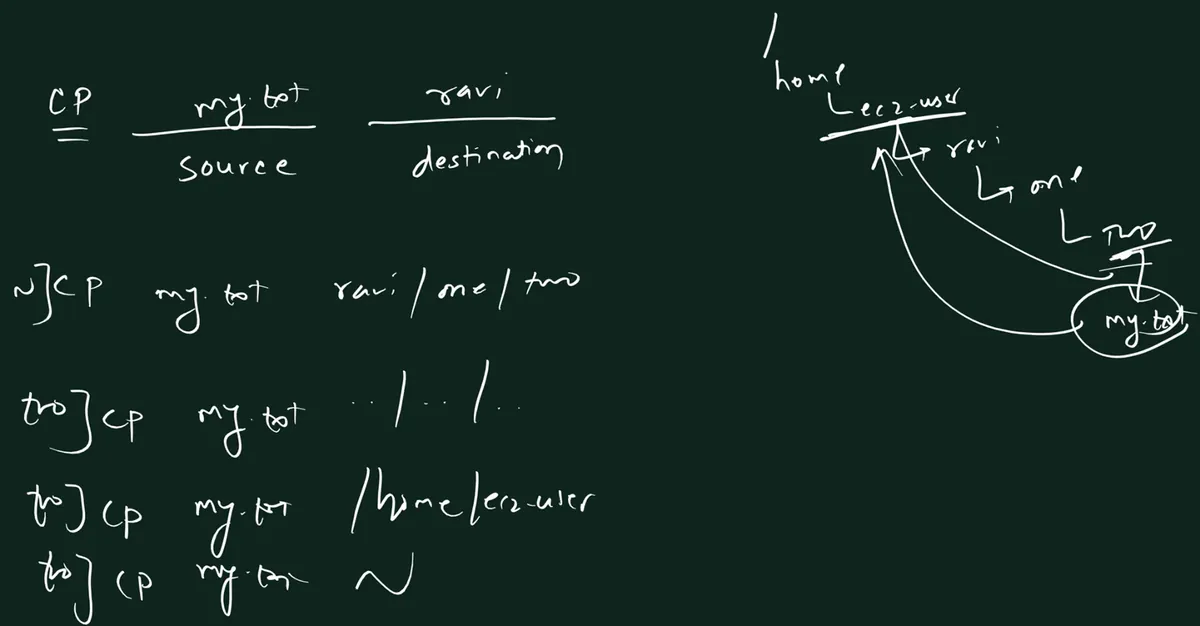
From the class board: cp my.txt ravi: source and destination. Then, on the tree home, ec2-user, ravi, one, two: from ec2-user, cp my.txt ravi/one/two copies down; from two, cp my.txt ../../.., cp my.txt /home/ec2-user and cp my.txt ~ all copy up to ec2-user.
How (all three do the same thing):
cd ~/ravi/one/two- Way 1, relative:
cp my.txt ../../..(up toone, up toravi, up toec2-user) - Way 2, absolute:
cp my.txt /home/ec2-user - Way 3, tilde:
cp my.txt ~ - Check:
ls -l ~/my.txt→ the time shows it was just written.
ec2-user already had a my.txt, so each of these replaced it (both are the same empty file here). More on that in section 6.
Count the dots carefully. .. is one level up. From two, one .. is one, two are ravi, three are ec2-user.
Figure 2. Animation: from ec2-user, cp my.txt ravi/one/two copies down; from two, cp my.txt ../../.., /home/ec2-user or ~ copies up; then cp ravi/one/two/my.txt . brings the file into the current folder. The green dashed box is the new copy.
Ravindra Bagale's Tip
Not sure the copy worked? Look. ls the destination after every cp. A copy you didn't check is a copy you only hope you made.
5. Bring it here: . means this folder
Why. Sometimes the file is far away and you want it where you are standing.
What. A single dot . means the current directory. It's a destination like any other.
How (you are in /home/ec2-user):
cp ravi/one/two/my.txt .- The source is a path going down; the destination is
.(here).
Classroom line
To say "current directory", we write a dot.
Class मधलं वाक्य
Current directory म्हणायला dot लिहायचा.
Classroom line – हिंदी
"Current directory bolne ke liye dot likhenge."
If my.txt is already here, this replaces it without asking (see the next section). Here it's the same empty file, so nothing is lost.
Keep the dots apart: . = here, .. = one level up, ~ = home.
6. Backup copies, renaming while copying, and the silent overwrite
Why. Before you edit an important file, keep a copy. If the edit goes wrong, you still have the old version.
A backup in the same folder. Give the copy a new name:
cp 1.txt 2.txt2.txtdid not exist, so it's created as a copy of1.txt.
Rename while copying. These four lines all copy my.txt into ravi:
cp my.txt ravi→ravi/my.txtcp my.txt ravi/→ the same. Tab completion adds the slash for you; it's fine either way.cp my.txt ravi/my.txt→ the same, with the name written out.cp my.txt ravi/my-backup.txt→ the copy gets a new name insideravi.
Figure 3. cp 1.txt 2.txt makes a backup copy. If 2.txt already exists, cp replaces it without asking, while cp -i asks first. cp my.txt my.txt fails because source and destination are the same file.
Careful: cp overwrites without asking. If 2.txt already exists, cp 1.txt 2.txt replaces it. No question, no message; the old content of 2.txt is gone.
The safe way: cp -i (interactive) asks first:
cp -i 1.txt 2.txt
cp: overwrite '2.txt'?
Type y to replace or n to keep the old file.
Same name, same place. That's not a copy at all:
cp my.txt my.txt
cp: 'my.txt' and 'my.txt' are the same file
A typo trap. If the destination folder doesn't exist, cp doesn't complain. It makes a file with that name. cp my.txt rav (you meant ravi) quietly creates a file called rav.
Correction
Two things from class. First, cp 1.txt 2.txt was described as if a second copy were always safe. When 2.txt already exists, cp overwrites it silently. Use cp -i when the destination might exist. Second, the backup example on the board used a date as the new name. A neutral name such as ravi/my-backup.txt shows the idea just as well.
Ravindra Bagale's Tip
Want a dated backup without typing the date? cp my.txt my-$(date +%F).txt makes a file like my-YYYY-MM-DD.txt with today's date in it. $(date +%F) is replaced by the date before cp runs.
7. Names with spaces
Why. A space separates words on the command line. cp my.txt my folder means three names: my.txt, my and folder.
How. Put a name with a space in single quotes:
mkdir 'my folder'cp my.txt 'my folder'- Check:
ls 'my folder'→my.txt
Classroom line
If there's a space, put it in single quotes.
Class मधलं वाक्य
"Space asel tar ... single quote madhe."
Space असेल तर ... single quote मध्ये.
Classroom line
If there's a space, put it in single quotes.
Better still: don't use spaces in names. Use my-folder or my_folder.
8. Copying folders: cp -r
Why. A file is one item. A folder is a box with more boxes inside: ravi has one, one has two, two may have files. To copy a folder, cp has to go inside every box at every level.
What. -r = recursive: again and again, into every folder inside, copying everything. -R (capital) does exactly the same.
Try it without -r first:
cp ravi ravi1
cp: -r not specified; omitting directory 'ravi'
cp refuses, and tells you why. Nothing is copied.
Now with -r:
cp -r ravi ravi1- Check:
tree ravi1→ the sameone/twoinside, with any files.
Figure 4. Left: cp my.txt ravi copies one file. Right: cp -r ravi ravi1 copies the folder ravi with everything inside it. Without -r, cp says -r not specified; omitting directory 'ravi'.
More examples:
mkdir -p one/two/three, thencp -r ravi one/two/three→ a copy ofravi, with everything in it, insidethree.cp -r ravi ~/ravi-backup→ a backup of the whole folder.
Classroom line
But there's also a trick...
Class मधलं वाक्य
पण एक जुगाड असा पण आहे...
Classroom line – हिंदी
"Lekin ek jugaad aisa bhi hai..."
The trick: cp -r my.txt ravi also works on a single file. It adds nothing, though. A file has nothing inside to go into. Keep the habit clean: plain cp for files, cp -r for folders.
Classroom line
Go on, try it yourself.
Class मधलं वाक्य
"Bagha, karun bagha."
बघा, करून बघा.
Classroom line
Go on, try it yourself.
Correction
On the board, "without -r it won't work" was left at that. Here is what you really see: cp: -r not specified; omitting directory 'ravi'. cp skips the folder, but still copies any files you named in the same command.
9. When the destination folder already exists
Why. cp -r ravi ravi1 behaves differently the second time you run it. Know this, or you'll end up with folders inside folders.
How it behaves:
- First run,
ravi1doesn't exist:cp -r ravi ravi1createsravi1as a full copy ofravi. - Second run,
ravi1now exists:cp -r ravi ravi1puts a new copy inside it, asravi1/ravi. - Check:
ls ravi1→one ravi
It's the same rule as for files: when the destination is an existing folder, the copy goes inside.
Figure 5. The first cp -r ravi ravi1 creates ravi1 as a copy of ravi. The second run, with ravi1 already there, puts a new copy inside it: ravi1/ravi.
Correction
The class showed only the first run. If ravi1 already exists, cp -r ravi ravi1 nests the copy as ravi1/ravi. Check with ls ravi1 before and after.
10. Copying sideways: into a sibling folder
Why. Folders next to each other (siblings) are common: dev and prod, old and new.
The setup. /home/ec2-user has two folders, ram and sham. You are in ram, and ram has a file m.txt.
cd
mkdir ram sham
touch ram/m.txt
cd ram
How (two ways):
cp m.txt ../sham→..goes up toec2-user, then intosham.cp m.txt ~/sham→ straight from home intosham.- Check:
ls ~/sham→m.txt
11. A folder can't be copied into itself
Why. This looks like a normal copy, but it can't work. Understanding why teaches you how cp walks through folders.
The setup. one contains two (mkdir -p one/two). Now copy one into two.
Without -r, the usual message:
cp one one/two
cp: -r not specified; omitting directory 'one'
With -r, think it through:
- cp copies
oneintotwo. - But
twois insideone, so the copy ofonemust also containtwo... - ...which must contain the copy of
oneagain, which containstwoagain, and so on. - It would never end: an endless loop.
Linux blocks it straight away and copies nothing:
cp -r one one/two
cp: cannot copy a directory, 'one', into itself, 'one/two/one'
Figure 6. cp -r one one/two would put one inside its own child two, so the copy would contain itself again and again. cp blocks it with cannot copy a directory into itself. Copying one to a folder outside it, such as ~/backup, works.
Rule: the destination must not be inside the source. cp -r one ~/backup is fine.
Correction
In class this was called a "deadlock" that "won't stop anywhere". Deadlock is the wrong word (it means two things waiting for each other). The reasoning is right: it would be an endless loop, which Linux blocks. GNU cp spots it before it starts and stops at once with cannot copy a directory, 'one', into itself, 'one/two/one'.
12. Copying many files at once
Why. Copying ten files with ten commands is slow. One cp can take many sources.
What.
- You can name as many sources as you like.
- The last name is always the destination.
- With more than one source, the destination must be an existing folder.
How (you are in /home/ec2-user). Make the files, then copy all three in one go:
touch you.txt my.mp3
cp my.txt you.txt my.mp3 ravi
Check: ls ravi → my.mp3, my.txt and you.txt are now there, next to one and anything you copied earlier.
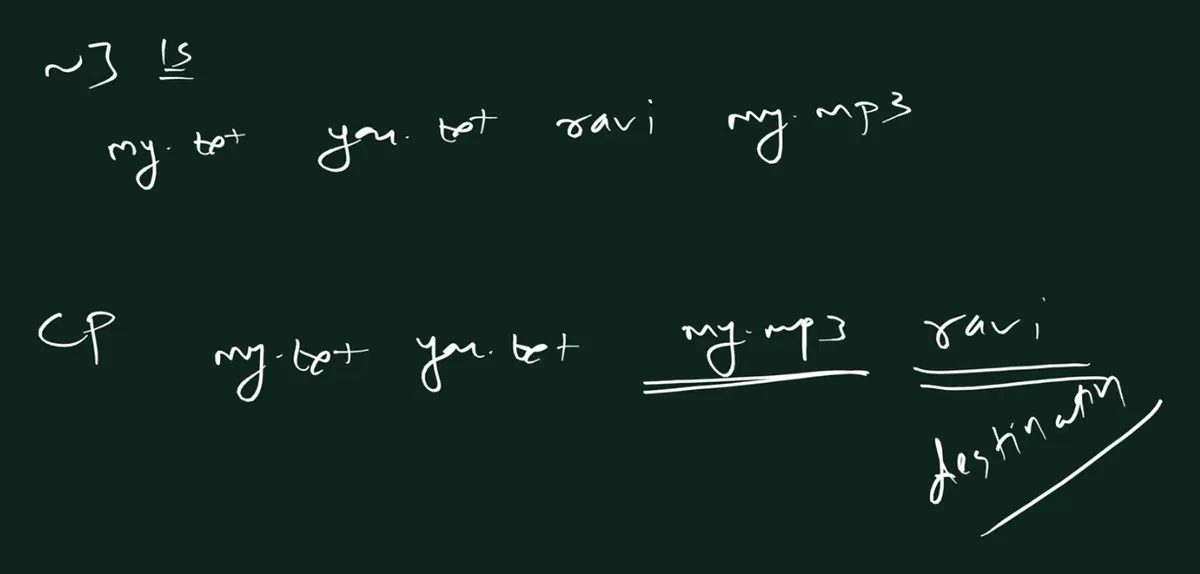
From the class board: ls shows my.txt, you.txt, ravi and my.mp3. cp my.txt you.txt my.mp3 ravi copies all three files, and the last name, ravi, is marked as the destination.
If the last name isn't a folder, cp stops:
cp my.txt you.txt my.mp3
cp: target 'my.mp3' is not a directory
Newer coreutils versions word it cp: target 'my.mp3': Not a directory; the meaning is the same.
Classroom line
You only got the feeling it worked; in reality it didn't happen.
Class मधलं वाक्य
"Te feel dila tumhi, reality madhe nahi zalay te."
ते feel दिलं तुम्ही, reality मध्ये नाही झालंय ते.
Classroom line
You only got the feeling it worked; in reality it didn't happen.
That's why you always check with ls.
13. The * wildcard
Why. Typing every file name doesn't scale. Usually the names share something: all end in .txt, all start with my. Wildcards let you describe the pattern instead of listing names.
What. * matches any characters, any number of them, even none.
How:
cp *.txt ravi→ every name that ends in.txt.cp my* ravi→ every name that starts withmy(my.txt,my.mp3,my.mp4...).
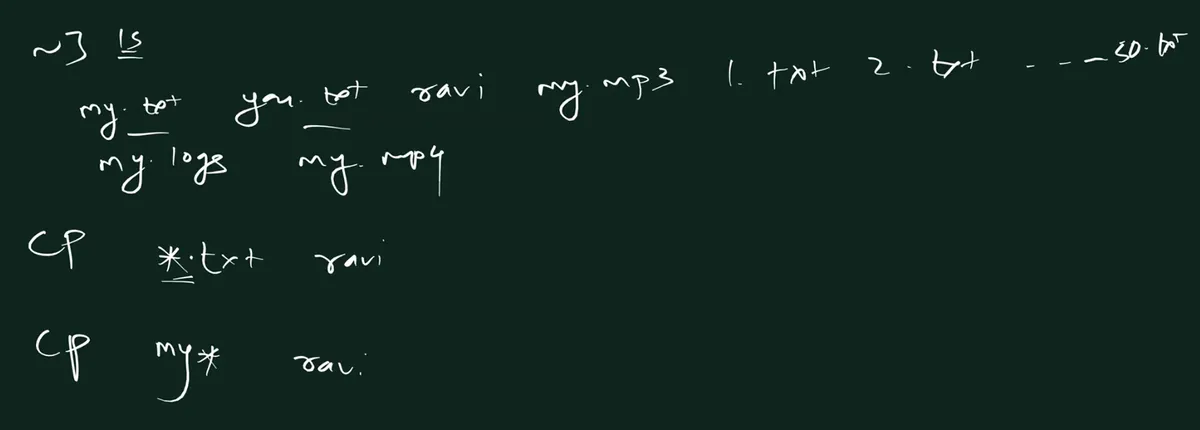
From the class board: ls shows my.txt, you.txt, ravi, my.mp3, 1.txt, 2.txt up to 50.txt, my.logs and my.mp4. Then cp *.txt ravi copies every name ending in .txt, and cp my* ravi every name starting with my.
Figure 7. Animation over twelve names: *.txt picks every name ending in .txt, my* picks names starting with my, file?.txt picks file1.txt and filea.txt, file??.txt picks file11.txt and fileaa.txt, and Ram* picks Ram and Ramayan.
Who does the matching? The shell, not cp. Before cp starts, bash swaps *.txt for the matching names. Preview it with echo, which creates and copies nothing:
echo *.txt→ for example1.txt 2.txt my.txt you.txtecho my*→ for examplemy.mp3 my.txt
When nothing matches, bash passes the pattern as it is, and cp looks for a file literally called *.pdf:
cp *.pdf ravi
cp: cannot stat '*.pdf': No such file or directory
When a folder matches, for example a folder my.logs, plain cp my* ravi copies the files and skips the folder with cp: -r not specified; omitting directory 'my.logs'.
Extensions like .txt are for people and programs; to Linux they're just part of the name. That's exactly why *.txt works: it's matching letters, nothing more.
14. Making test files fast: brace ranges
Why. To practise wildcards you need lots of files. Nobody types fifty touch commands.
What. Braces with two dots make a range:
touch file{1..50}.txt→file1.txttofile50.txt(50 files)touch file{a..z}.txt→filea.txttofilez.txt(26 files)touch file{10..20}.txt→file10.txttofile20.txt(11 files; any start and end work)touch file{01..12}.txt→file01.txttofile12.txt(a leading zero pads every number)
Preview first with echo: echo file{1..5}.txt → file1.txt file2.txt file3.txt file4.txt file5.txt
This is the same brace shortcut as {Ram,Laxman} from the files chapter, but with a range instead of a list.
15. The ? wildcard: exactly one character
Why. * is greedy: it matches anything of any length. Sometimes you need "exactly one character here".
What. ? matches exactly one character. ?? matches exactly two.
How. Take four files, file1.txt, filea.txt, file11.txt and fileaa.txt:
cp file?.txt ravi→file1.txtandfilea.txt(one character afterfile)cp file??.txt ravi→file11.txtandfileaa.txt(two characters)
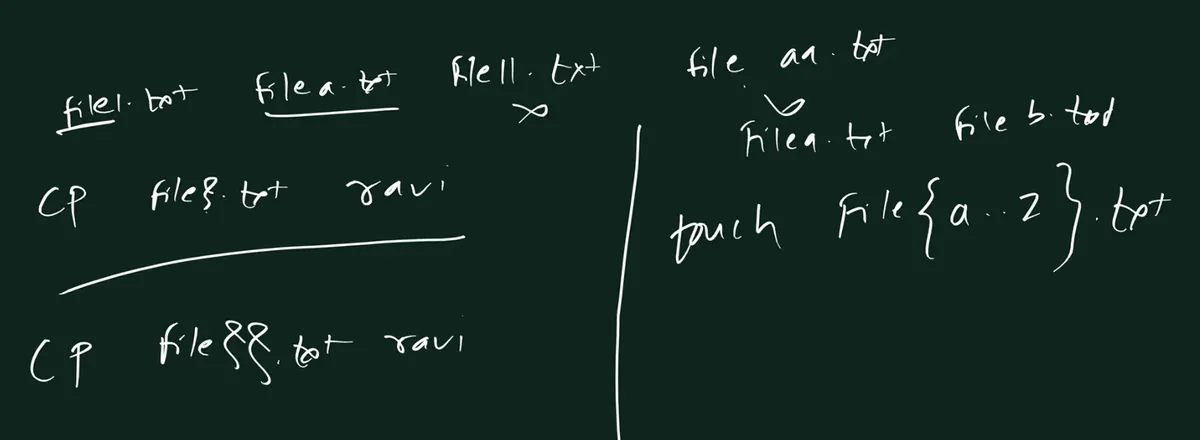
From the class board: Four files: file1.txt, filea.txt, file11.txt and fileaa.txt. cp file?.txt ravi copies the ones with one character after file, cp file??.txt ravi the ones with two. On the right, touch file{a..z}.txt makes filea.txt, fileb.txt and so on.
Count check. In a folder with file{1..50}.txt, file{a..z}.txt and fileaa.txt:
file?.txt→ 35 names (file1 to file9, plus filea to filez)file??.txt→ 42 names (file10 to file50, plus fileaa)
16. The file11 to file19 problem
The task. The folder has file1.txt to file50.txt. Copy only file11.txt to file19.txt into ravi.
The tempting answer is wrong: cp file1* ravi. * can be empty, so file1* matches:
file1.txtitself (nothing after the 1)file10.txt(one more digit, but it's 10, not 11 to 19)file11.txttofile19.txt- and
file100.txt, if it existed
The same trap with words: Ram* matches Ram, Rama and Ramayan.
Right answer 1: a brace range. It works for existing files too, because the shell writes out the names before cp starts:
cp file{11..19}.txt ravi
Right answer 2: brackets. [1-9] means one character from 1 to 9:
cp file1[1-9].txt ravi
Figure 8. Twenty boxes, file1 to file20. cp file1* ravi wrongly also takes file1 and file10. cp file{11..19}.txt ravi and cp file1[1-9].txt ravi take exactly file11 to file19.
The difference between the two:
- Braces make names, whether the files exist or not. If one is missing, cp prints
cp: cannot stat 'file19.txt': No such file or directoryfor it and copies the rest. - Wildcards and brackets only pick names that exist. A missing file is simply not picked.
Correction
In class, braces were treated as "only for creating files", and the copy of file11 to file19 was left unsolved; the board also showed file1*, which is wrong. Both right answers are above: cp file{11..19}.txt ravi and cp file1[1-9].txt ravi. Remember that file1* also matches file1.txt itself, because * can match nothing.
17. Wildcards need a naming pattern
Why. A wildcard can only describe what the names have in common. If the names have nothing in common, there's no pattern to write.
Classroom line
Wildcards work only where the names follow a pattern.
Class मधलं वाक्य
"Wildcard tithech apply hota jithe ek pattern tayar hota."
Wildcard तिथेच apply होतं जिथे एक pattern तयार होतो.
Classroom line
Wildcards work only where the names follow a pattern.
In practice:
report-jan.txt,report-feb.txt,report-mar.txt→report-*.txtpicks them all.a.txt,notes,final_v2.doc→ no useful pattern; name them one by one.log01tolog30(zero-padded) →log0?picks 01 to 09,log1?picks 10 to 19. Without the zero,log1*also catcheslog1.
Ravindra Bagale's Tip
Name things for the wildcard you'll need later: same prefix, same extension, numbers padded with zeros. On a real server this is what lets you copy or clean up "all of last month's logs" in one line. More copy, move and remove commands: 3.3 Working with files and directories.
18. Practice
Try at home
Task 1: up, down, here
- Build
ravi/one/twoandmy.txtin~(section 1). - Copy
my.txtintotwofrom~. cdintotwoand copy it back up three ways:../../..,/home/ec2-user,~.- Go home and bring
ravi/one/two/my.txthere with..
Task 2: backups
echo old > 2.txt,echo new > 1.txt, thencp 1.txt 2.txt. Read2.txt. What happened toold?- Repeat with
cp -iand answern. - Make
ravi/my-backup.txtfrommy.txtin one command.
Task 3: folders
cp ravi ravi1. Read the error.cp -r ravi ravi1, then run it again. Explain whatls ravi1shows.- Try
cp -r one one/twoand read the message.
Task 4: wildcards
- In a new folder
w:touch file{1..50}.txt file{a..z}.txt fileaa.txt - Predict, then check with
echo:file?.txt,file??.txt,file1*,file*a.txt. - Copy only
file11.txttofile19.txtinto a folderr, both ways. cp file?.txt rcopies more thanfile1.txttofile9.txtin this folder. Why? Copy only those nine with brackets.
If you get an error, read it slowly: cp nearly always says exactly what's wrong. When you finish, stop the instance from the console.
Classroom line
If you get an error, ask me.
Class मधलं वाक्य
"Error asel tar mala vichara."
Error असेल तर मला विचारा.
Classroom line
If you get an error, ask me.
Recap
In short
cp SOURCE DESTINATION: what, then where. The source is never removed.- A folder as destination → the copy goes inside. Any other name → a file with that name.
- Down:
cp my.txt ravi/one/two. Up fromtwo:../../..,/home/ec2-useror~. Here:. cp 1.txt 2.txtmakes a backup, and overwrites2.txtsilently if it exists.cp -iasks first.cp my.txt my.txt→are the same file. A typo in a folder name makes a file instead.- Quote names with spaces:
'my folder'. Better, avoid spaces. - Folders need
cp -r(or-R). Without it:-r not specified; omitting directory. cp -r ravi ravi1again, whenravi1exists →ravi1/ravi.- A folder can't go into its own child:
cannot copy a directory ... into itself. An endless loop, which Linux blocks. - Many sources: the last name is the destination, and it must be a folder.
*= any characters (even none);?= exactly one. The shell expands them; preview withecho.touch file{1..50}.txt,file{a..z}.txt: brace ranges make names fast.- Only file11 to file19:
cp file{11..19}.txt raviorcp file1[1-9].txt ravi. Notfile1*. - Wildcards need a naming pattern: plan your names.
Samjla ka? Ghari sagle tasks karun bagha ani pratyek cp nantar ls ne check kara.
Ravindra Bagale, trainer: linkedin.com/in/ravindra-bagale. The folder and file names (ravi, one, two, ram, sham, my.txt, file1.txt and the rest) are examples for learning. Command outputs and error messages were checked with GNU bash and coreutils, the same tools Amazon Linux 2023 uses.