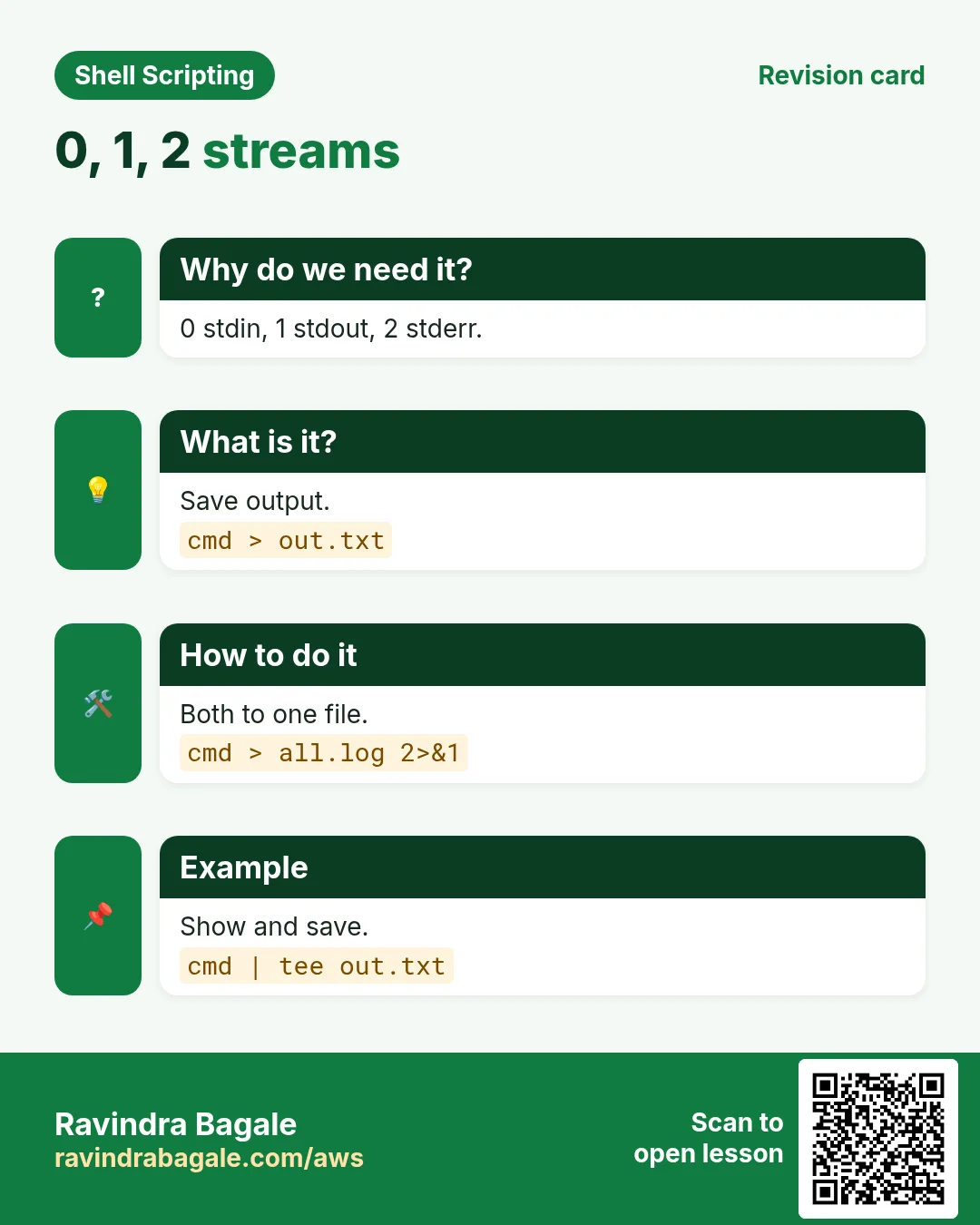
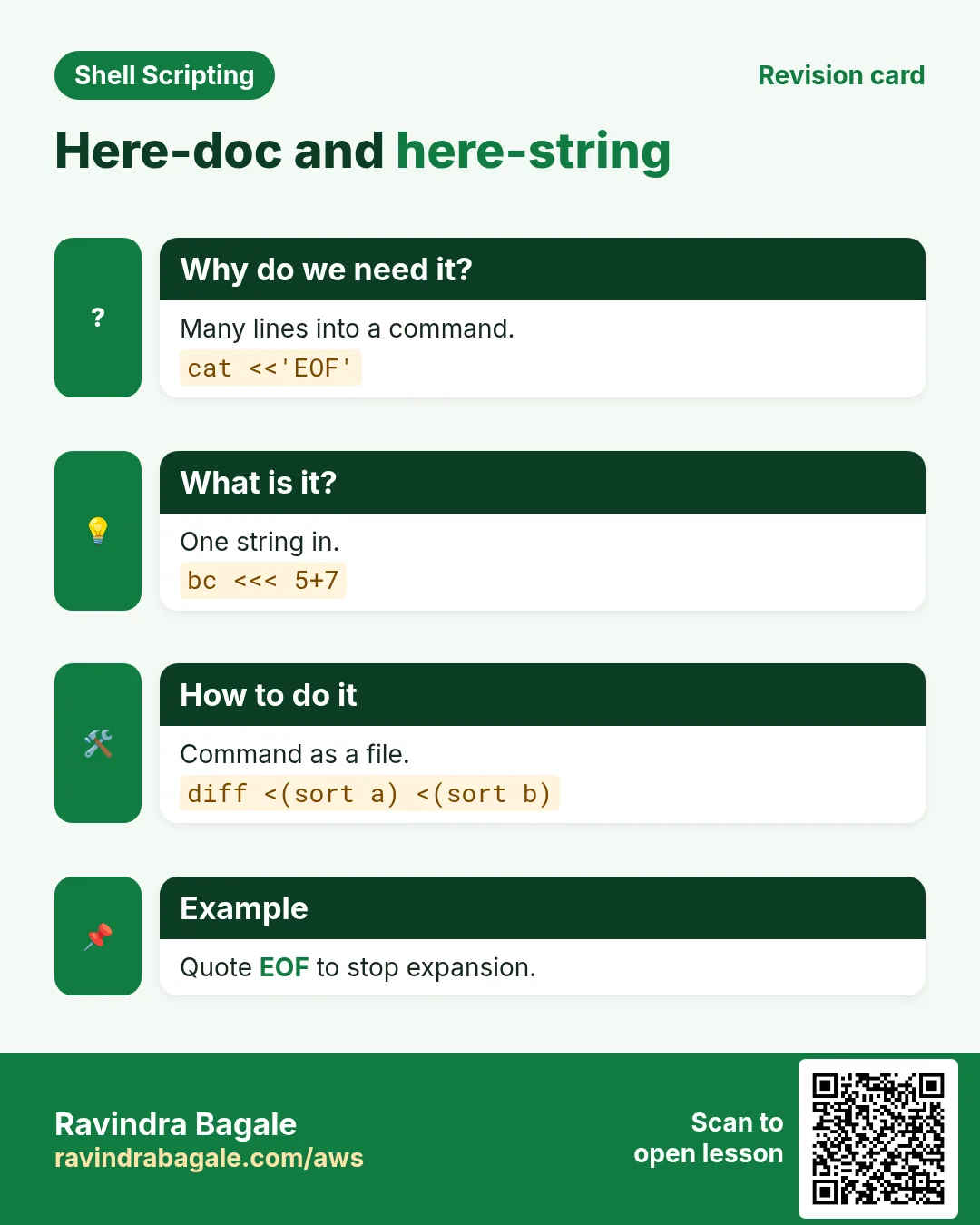
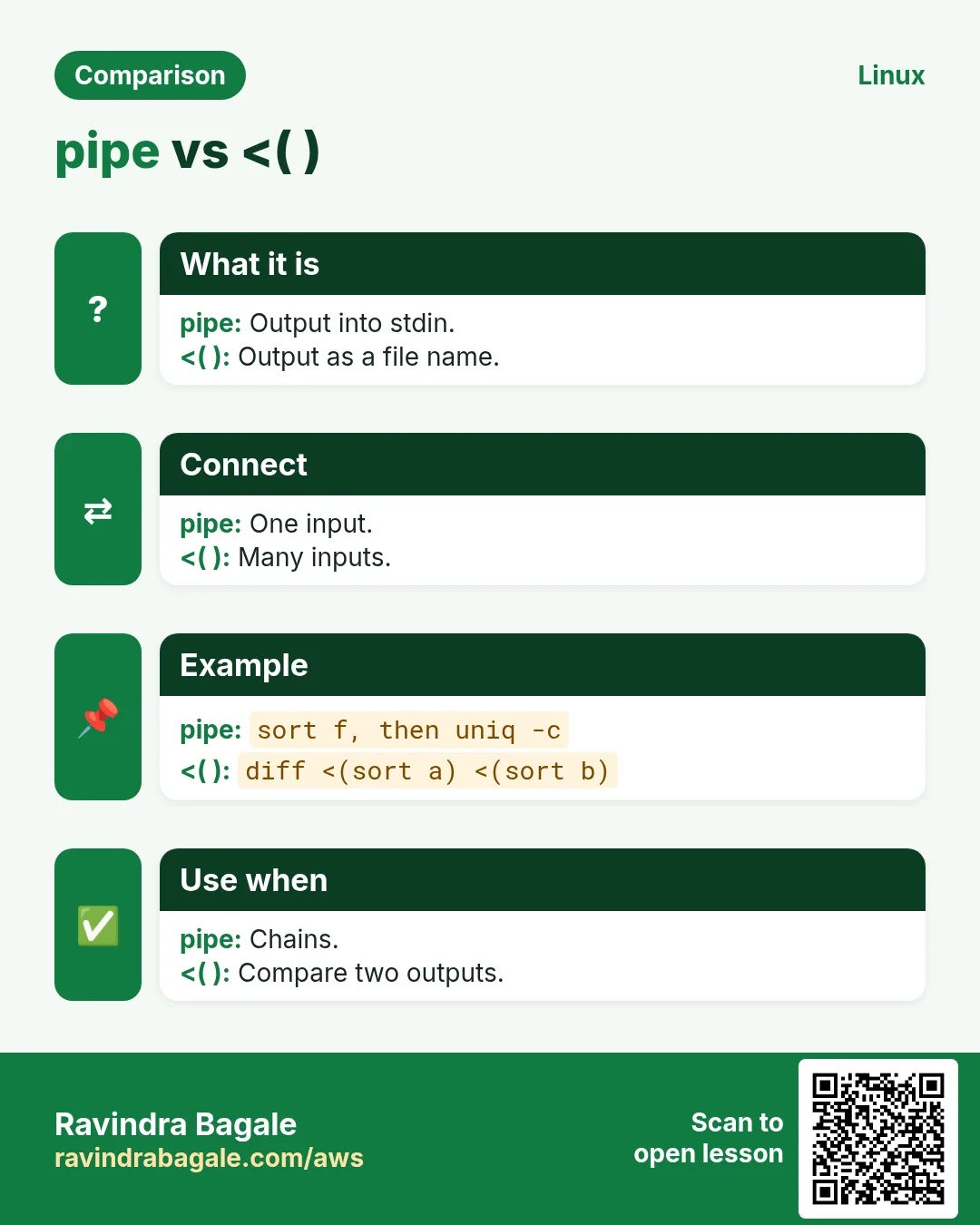
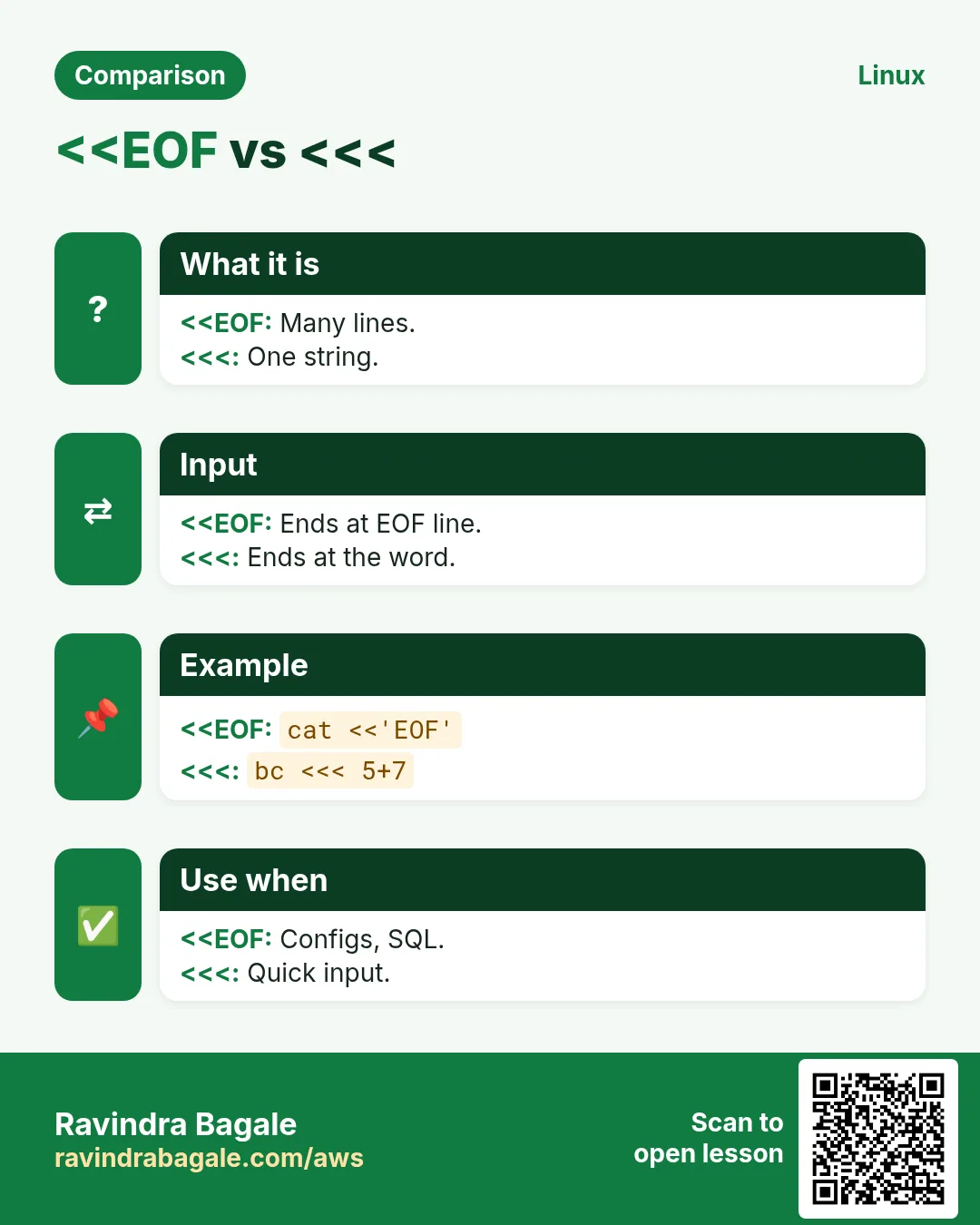
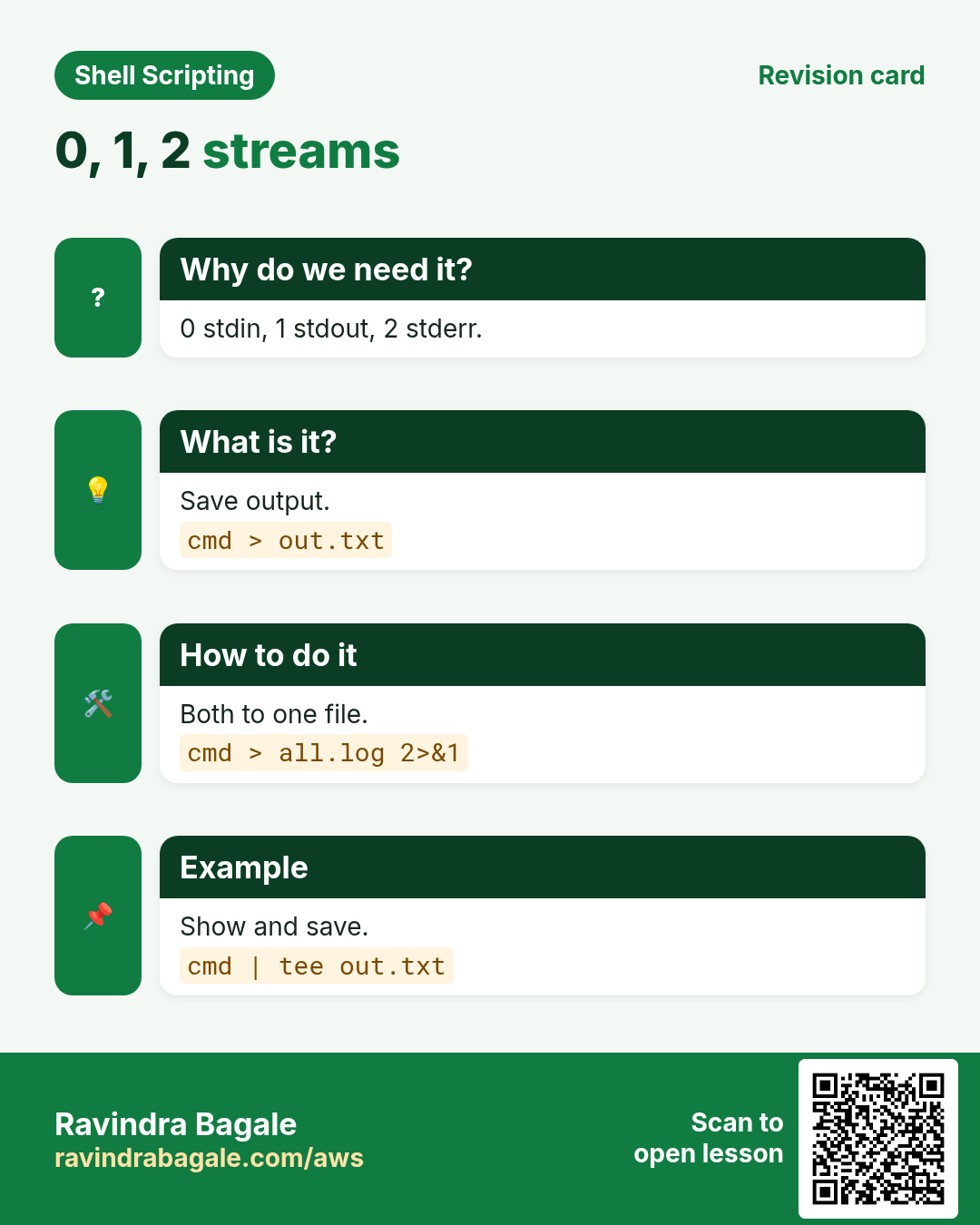
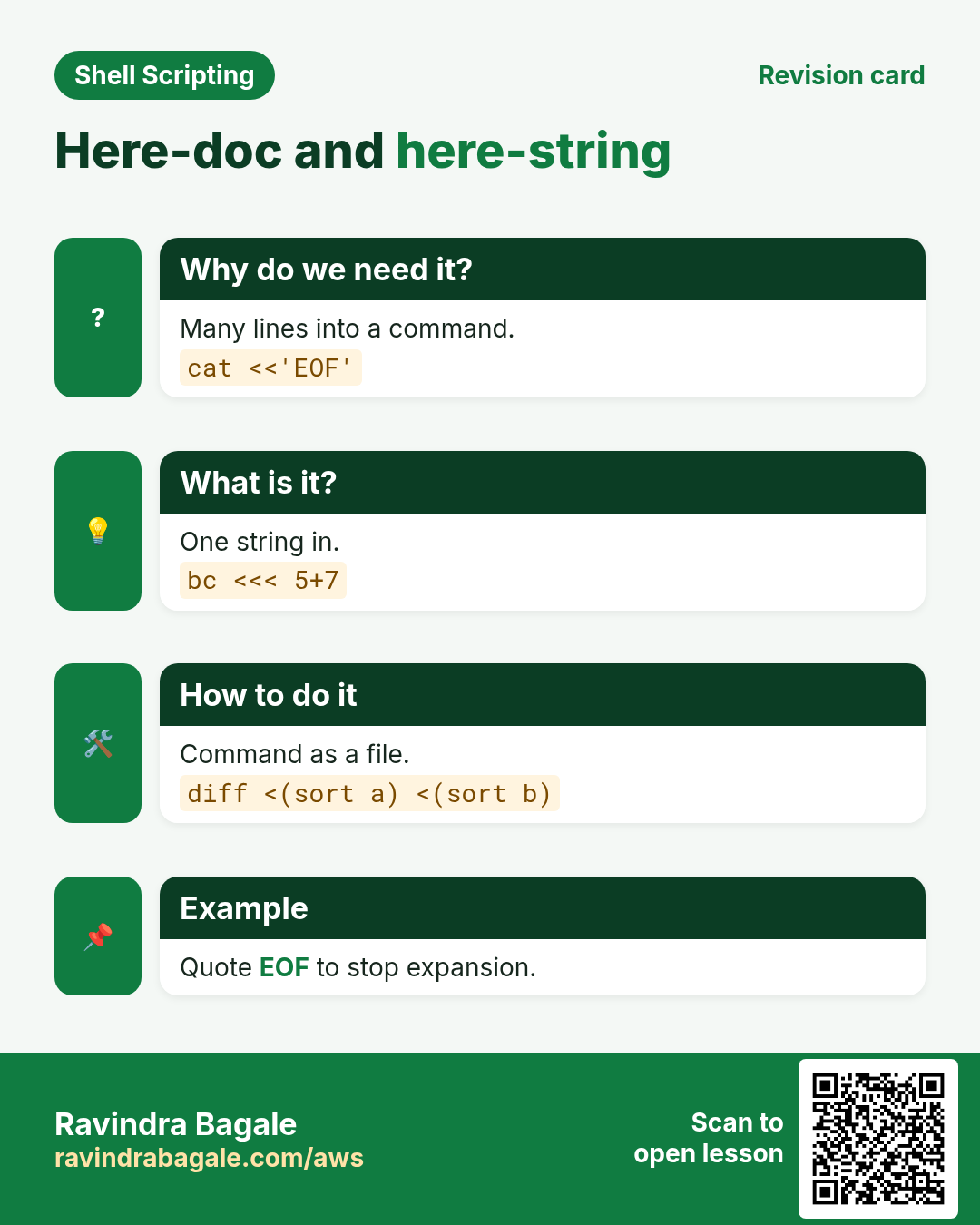
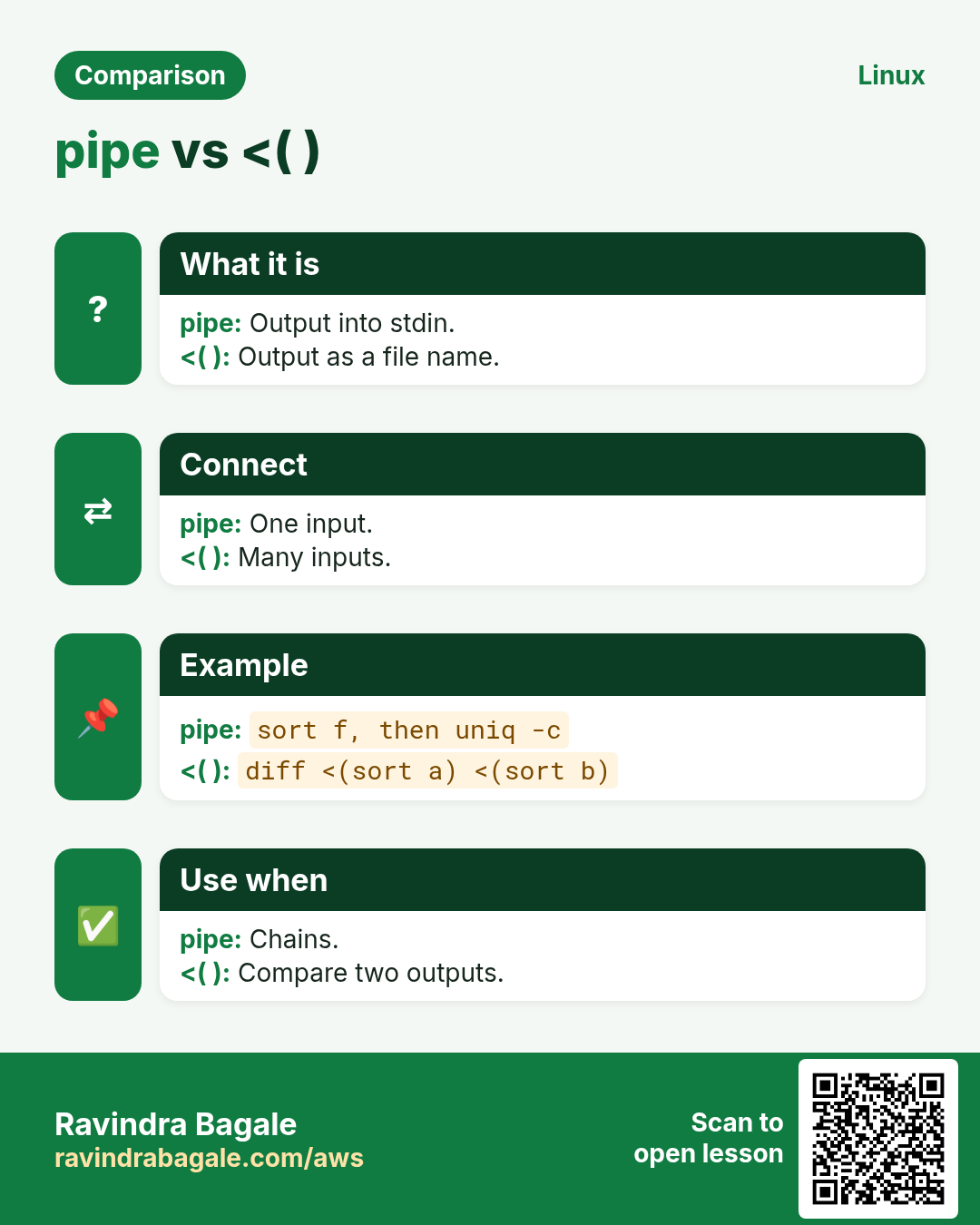
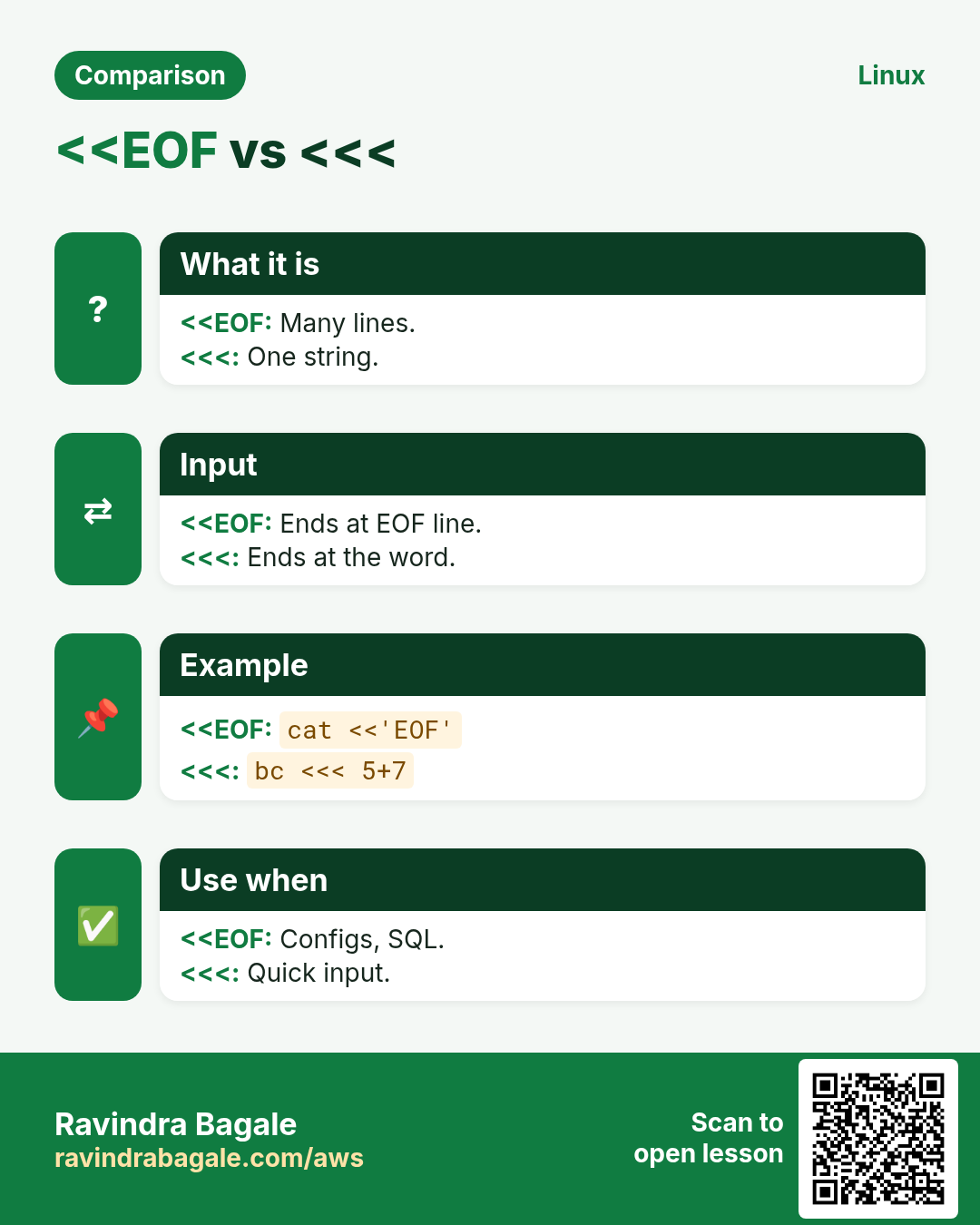
Every Linux command has three doors: input (stdin), normal output (stdout) and error output (stderr). Redirection decides where each door points. In this chapter you learn > and >> to write files, 2> and &> for errors, < to read, pipes | to join commands, tee to save and show, here-docs <
What you'll learn in this chapter
Know stdin, stdout and stderr (0, 1, 2)
Write and append with > and >>
Split or join errors with 2> and 2>&1
Build pipes and use tee
Write files with here-docs
Compare outputs with <( )
1. An everyday example: water pipes in a building
Why do we need this?
In a Kothrud society, water comes from the tank (input), goes to the kitchen tap (normal output), and waste water goes to a separate drain (errors). A plumber can send the tap water into a bucket instead, join two pipes, or add a T-joint so water goes two ways at once. Redirection and pipes are plumbing for data.
What is it?
Tank = stdin (0). Tap = stdout (1). Drain = stderr (2). Bucket = a file with >. Joining pipes = |. T-joint = tee. A tanker delivering many litres at once = a here-doc.
How to do it (step by step)
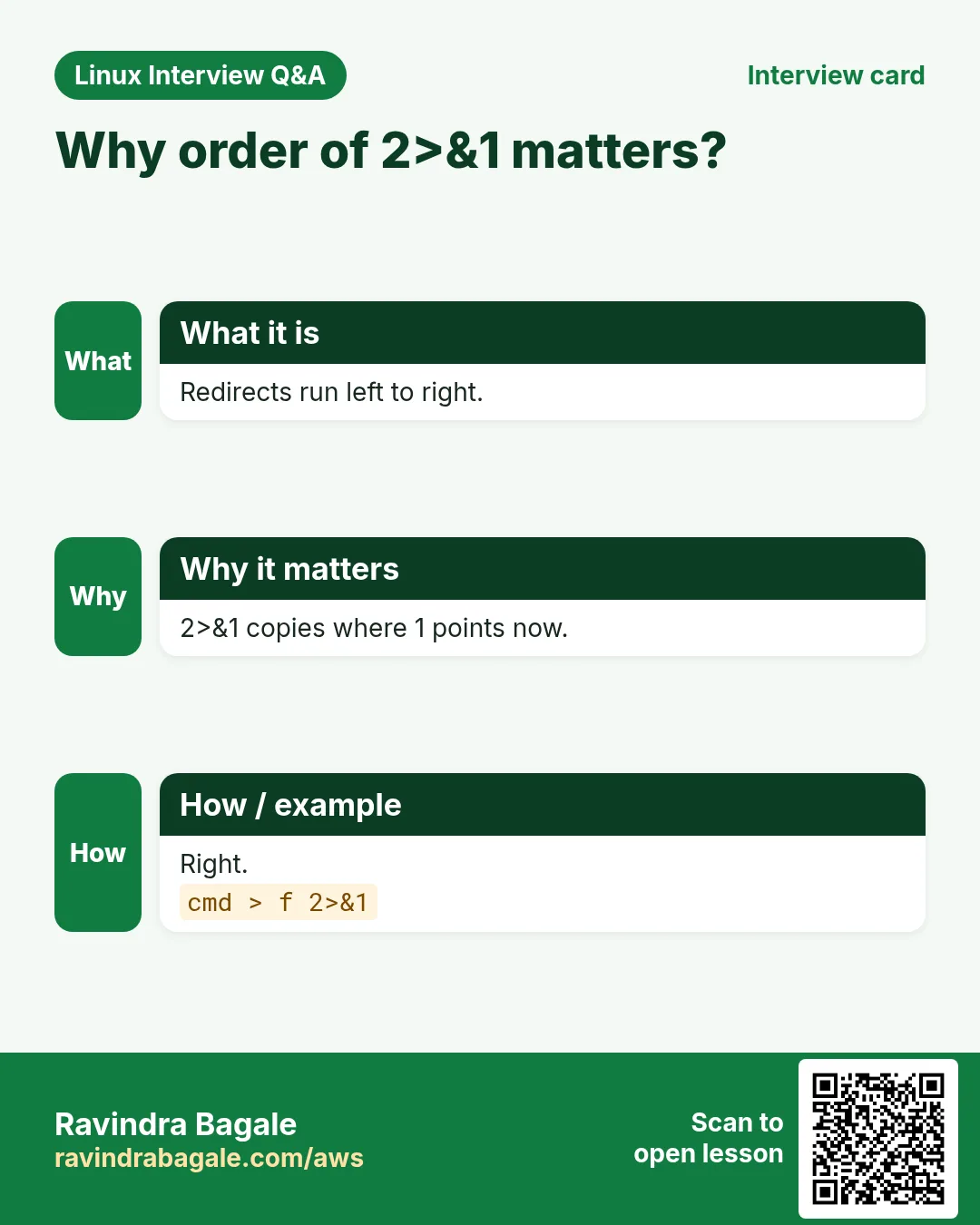
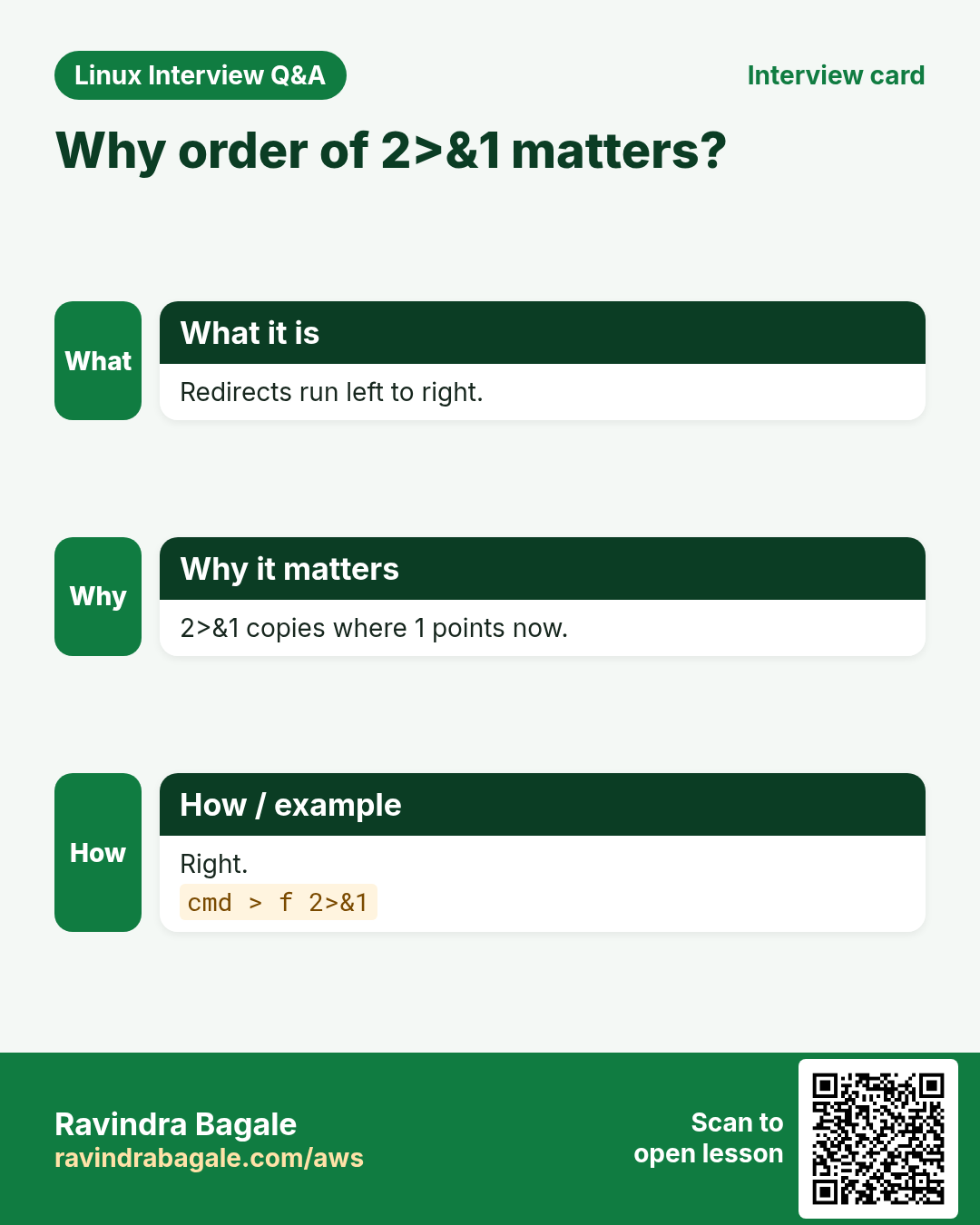
Order matters: > file 2>&1, not 2>&1 > file.
2. Write and append: > and >>
Why do we need this?
Reports, logs and generated configs must land in files, not just on the screen.
What is it?
cmd > file writes stdout to file and replaces old content. cmd >> file adds to the end. > file alone (or : > file) empties a file without deleting it, good for log files a program has open. set -o noclobber stops > from overwriting by mistake; >| forces it.
Form
Does
> f
overwrite
>> f
append
: > f
empty the file
< f
read input from f
>| f
overwrite even with noclobber
How to do it (step by step)
Save a list.
ls /etc > etc-list.txt; wc -l etc-list.txt
Output:
212 etc-list.txt
What it means: Screen shows nothing.
Append a line.
date >> run.log; date >> run.log; wc -l run.log
Output:
2 run.log
What it means: Two lines.
Empty a log.
: > /var/log/app/app.log; ls -l /var/log/app/app.log
Output:
-rw-r--r-- 1 app app 0 Oct 25 10:12 /var/log/app/app.log
In cron jobs you want errors in a log, and noisy warnings away from your report.
What is it?
2> file sends only errors to file. 2>/dev/null throws errors away. cmd > out.log 2>&1 sends both to the same file: first move 1, then point 2 at 1. &> file is the bash short form for both. |& pipes both to the next command. Do not hide errors you need; hide only known noise.
How to do it (step by step)
Errors only.
find / -name '*.pem' 2> find-errors.txt | head -2
Output:
/etc/pki/tls/cert.pem
/workspace/key.pem
What it means: Permission errors went to the file.
Small tools joined together answer big questions: which IP hit us most, which product sold most.
What is it?
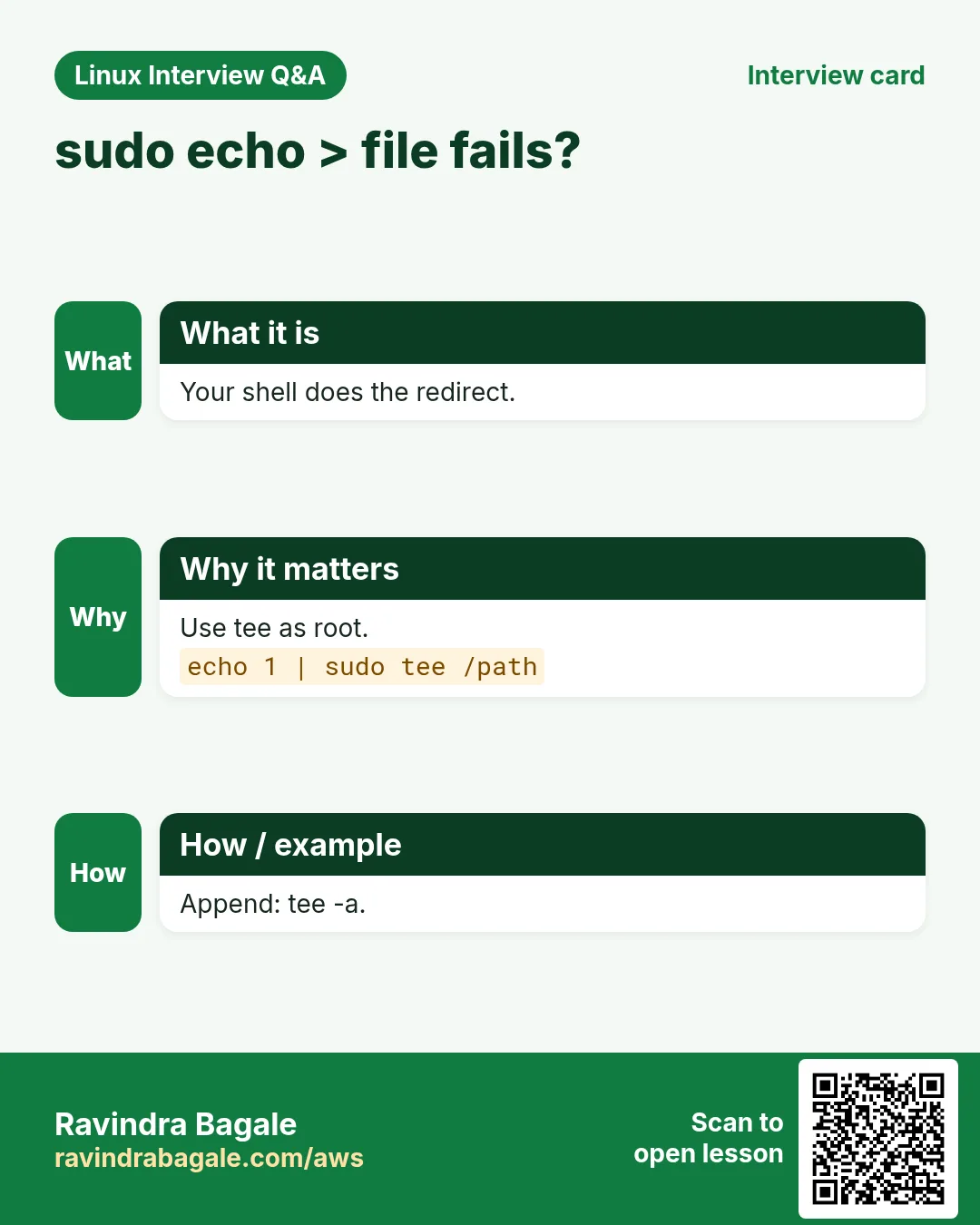
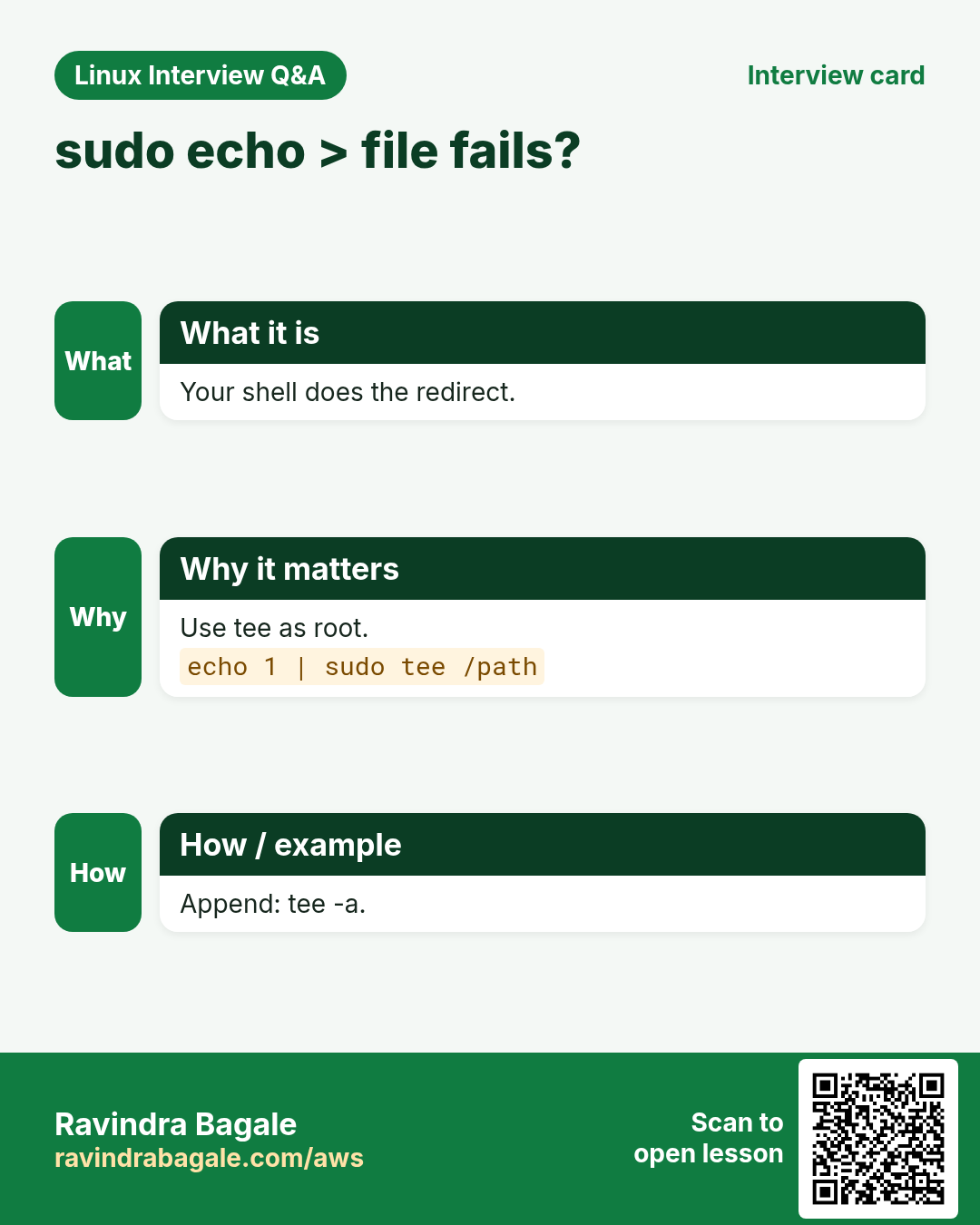
a | b sends a's stdout into b's stdin. Chain as many as you need. tee file writes to file and passes data on, so you can save a middle step and still see it. tee -a appends. sudo tee is the way to write a root-owned file, because sudo echo x > file does not give the > root rights.
psql -h db1 -U app shop <<'SQL'
SELECT city, count(*) FROM orders GROUP BY city;
SQL
Output:
  city  | count
 Pune   |  1200
What it means: Many lines to psql.
Root file with here-doc.
sudo tee /etc/motd > /dev/null <<'EOF'
Authorized users only. Managed by ops team.
EOF
What it means: tee writes as root.
6. Here-strings <<<
Why do we need this?
Sometimes you have one value in a variable and a command wants it on stdin.
What is it?
cmd <<< "$v" feeds the string plus a newline to cmd. It avoids echo "$v" | cmd and, unlike a pipe, read runs in the current shell, so variables it sets stay after.
How to do it (step by step)
Split a CSV line.
IFS=, read -r id city amt <<< '101,Pune,499'; echo "$city $amt"
Output:
Pune 499
What it means: Variables stay set.
Count words.
wc -w <<< 'build test deploy'
Output:
3
What it means: No echo needed.
bc input.
bc <<< 'scale=2; 22/7'
Output:
3.14
What it means: Short maths.
7. Process substitution <( ) and >( )
Why do we need this?
diff and comm want two files, but you have two command outputs, for example packages on two servers.
What is it?
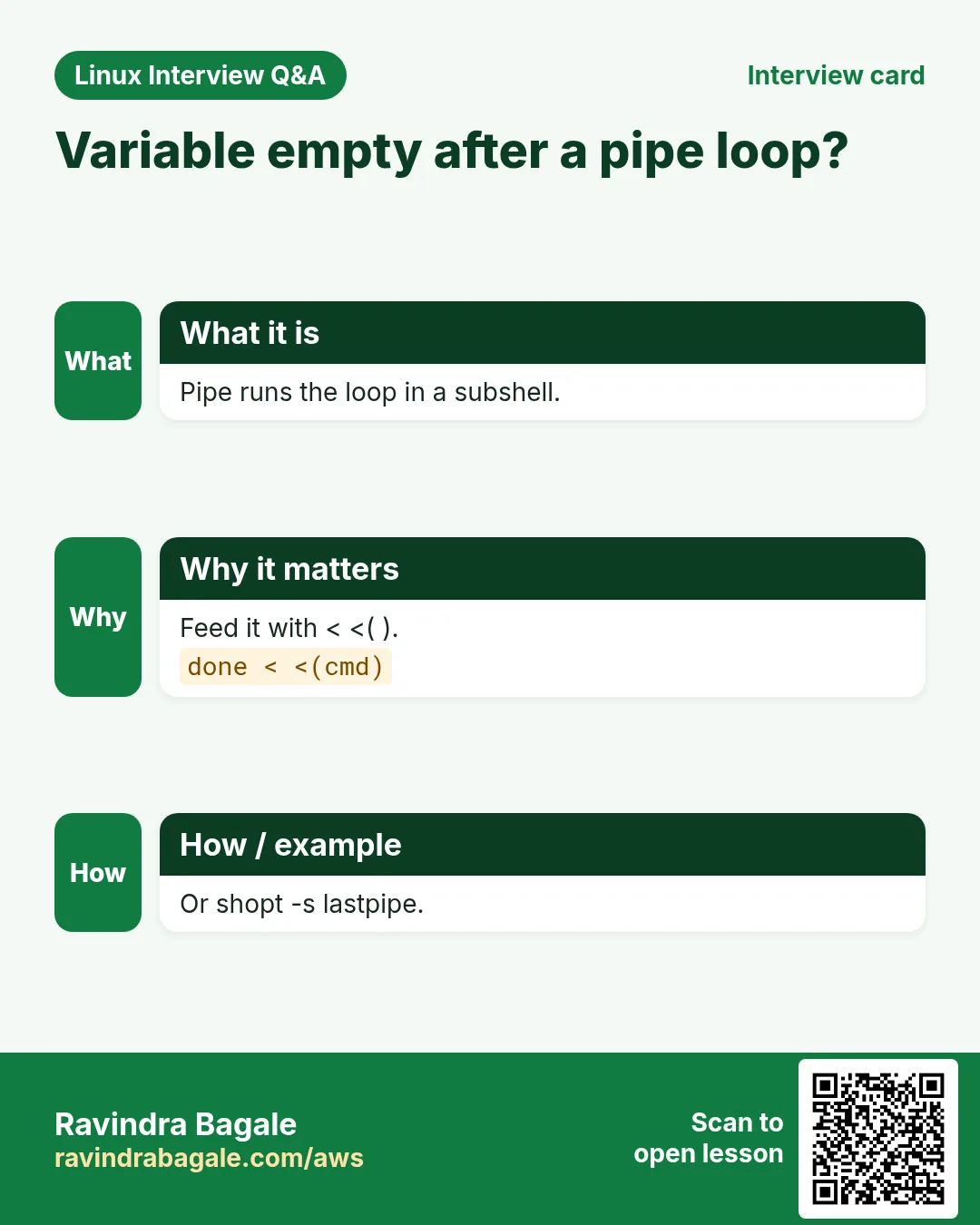
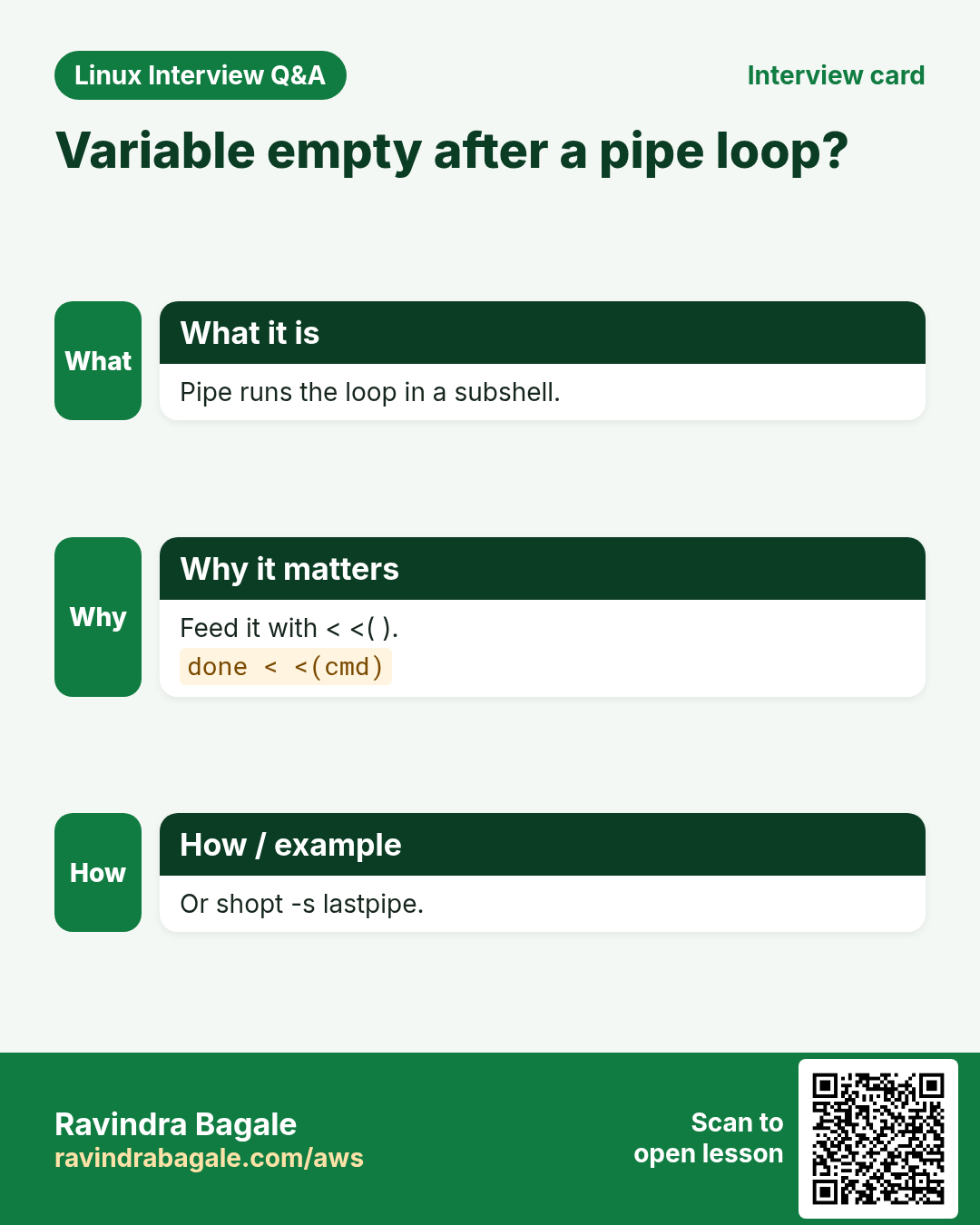
<(cmd) runs cmd and gives a file name like /dev/fd/63 that reads its output. You can pass it to any command that wants a file. >(cmd) is the reverse: what you write goes into cmd. while read ... done < <(cmd) loops over output without the subshell problem of a pipe, so counters survive.
n=0; while read -r u; do ((n++)); done < <(cut -d: -f1 /etc/passwd); echo $n
Output:
34
What it means: With a pipe n would be 0.
Write to two places.
./export.sh | tee >(gzip > export.gz) | wc -l
Output:
5000
What it means: Count and compress at once.
8. File descriptors and exec
Why do we need this?
Long scripts want all output logged without adding > log to every line.
What is it?
exec > file redirects the rest of the script's stdout. exec > >(tee -a run.log) 2>&1 logs everything while still showing it. exec 3> file opens a new descriptor 3; write with >&3 and close with exec 3>&-. /dev/null is the black hole; /dev/stderr is a name for fd 2.
How to do it (step by step)
Log the whole script.
exec > >(tee -a /var/log/nightly.log) 2>&1
echo 'nightly start'
Remember the three doors 0, 1 and 2. Write > file 2>&1 in that order, use tee when you need to save and see, use <<'EOF' when writing scripts or configs into files, and use < <(cmd) when a loop must keep its variables.
Ravindra Bagale's Tip – मराठी
तीन दारं 0, 1 आणि 2 लक्षात ठेवा. > file 2>&1 याच क्रमाने लिहा, save आणि बघायचं असेल तर tee, files मधे scripts किंवा configs लिहिताना <<'EOF', आणि loop ला variables टिकवायचे असतील तर < <(cmd).
Ravindra Bagale's Tip – हिंदी
तीन दरवाज़े 0, 1 और 2 याद रखिए. > file 2>&1 इसी क्रम में लिखिए, save और देखना हो तो tee, files में scripts या configs लिखते समय <<'EOF', और loop को variables रखने हों तो < <(cmd).
14. Frequently asked questions
Q. What is /dev/null?
A file that throws data away.
Q. > vs >>?
Replace vs add.
Q. &> in sh?
No, use > f 2>&1.
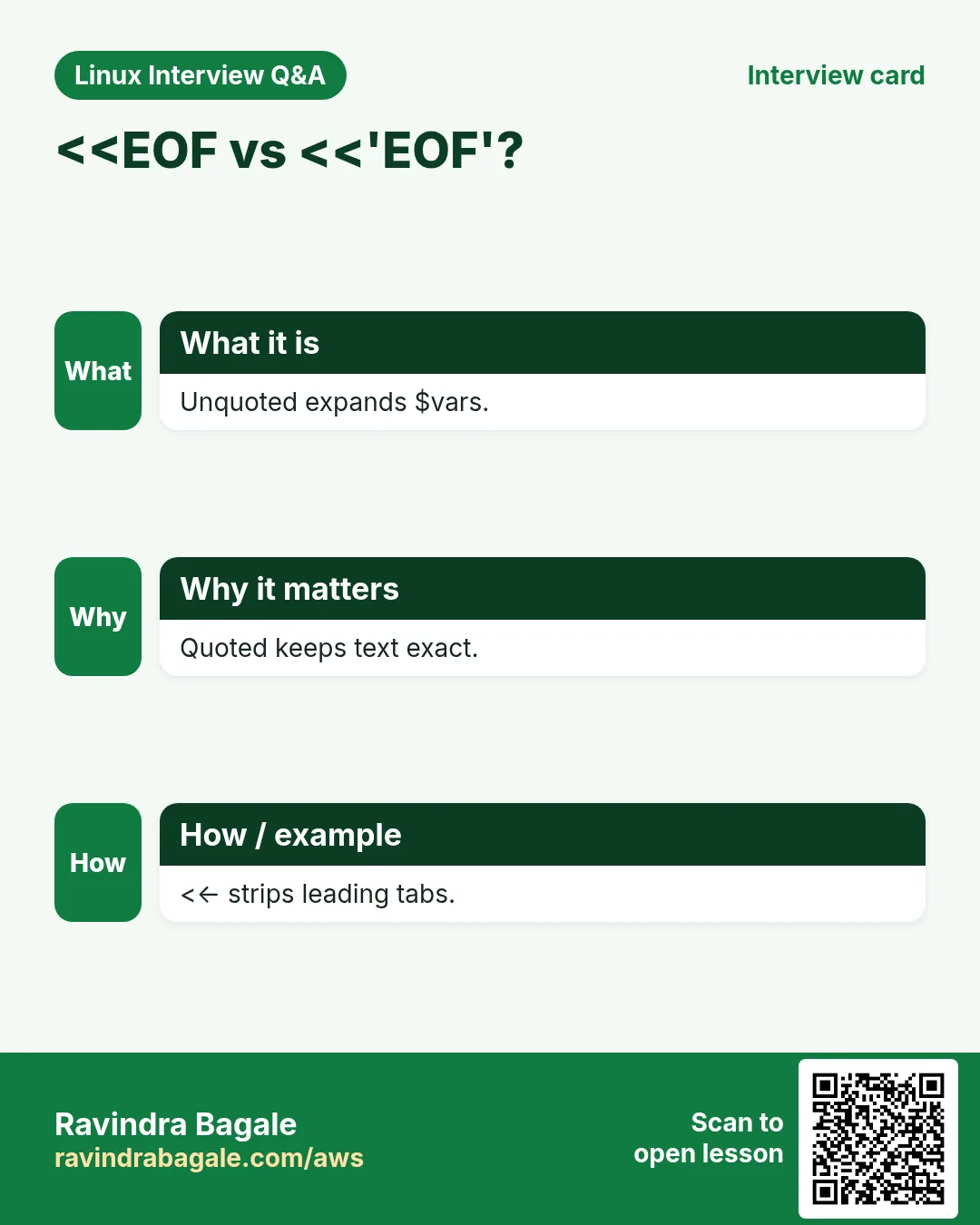
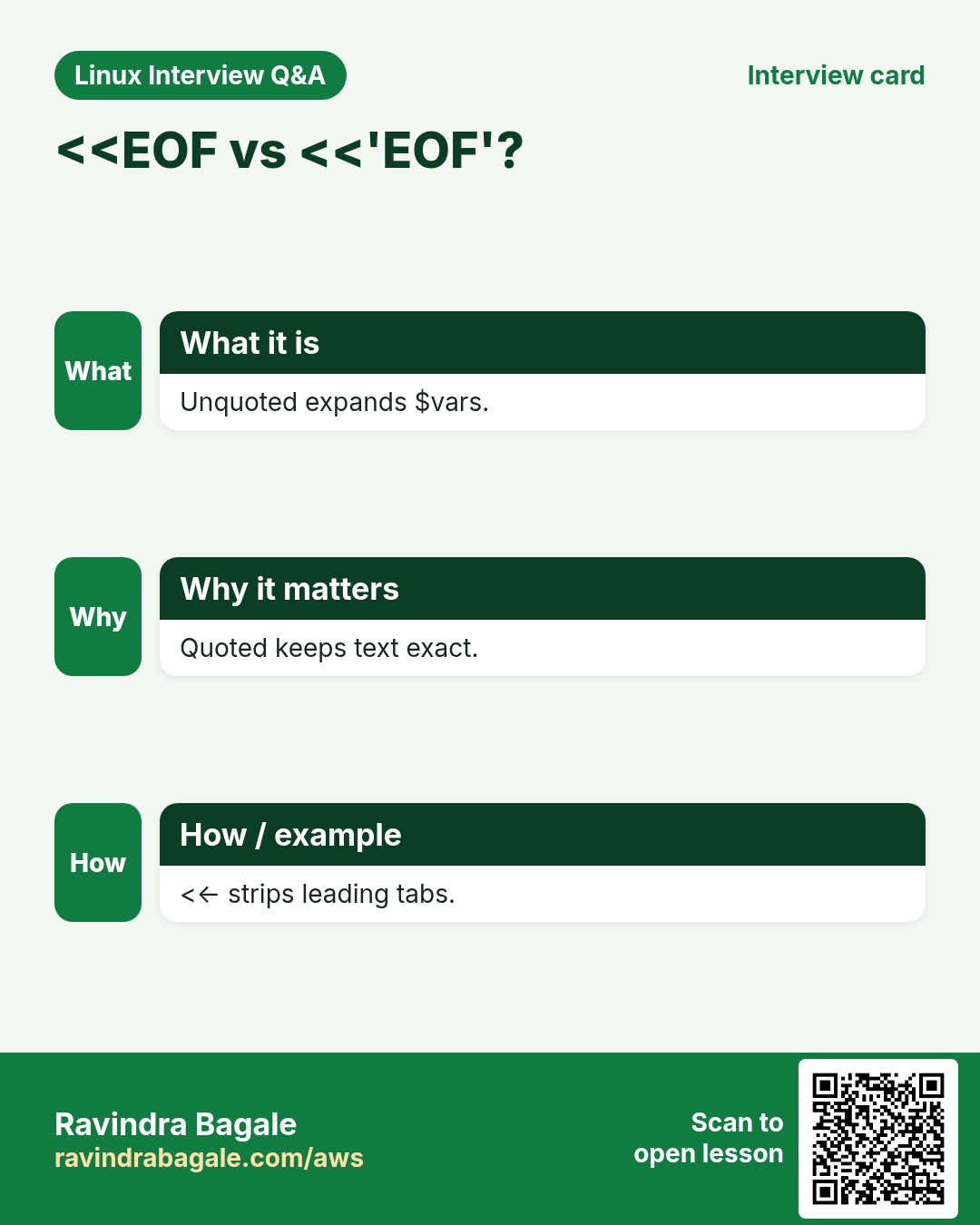
Q. Here-doc indent?
Use <<- with tabs.
Q. Why tee with sudo?
Redirect runs as you.
Q. Is <( ) a real file?
A pipe shown as /dev/fd/N.
Q. Pipe both streams?
Use |&.
Q. Edit a file in place with >?
No; temp file then mv.
15. Interview questions and answers
Beginner level
Q. What is fd 2?
stderr.
Q. Append to a file?
>>.
Q. Hide errors?
2>/dev/null.
Q. Join commands?
Pipe |.
Mid level level
Q. Both streams to one file?
> f 2>&1.
Q. Save and show?
tee.
Q. Stop $ expanding in here-doc?
Quote the word.
Q. Diff two command outputs?
diff <(a) <(b).
Senior level
Q. Why does 2>&1 > f fail?
2 copies the old target of 1.
Q. Pipe and subshell?
Each part may run in a subshell; vars are lost.
Q. Log a whole script?
exec > >(tee -a log) 2>&1.
Q. Safe in-place edit?
Temp file and atomic mv.
Try at home
Use a here-doc to create a shopping list file, then pipe it through sort and tee into a sorted copy.
Compare the list of files in two folders with diff <( ) <( ).
Practice Tasks
About this scenario
London Legal LLP is a law business in London. Oliver Hughes looks after its IT and cloud work. They count money in GBP and run their AWS resources in the eu-west-2 Region. In the tasks below you do real jobs for them using what this lesson teaches. All names, account IDs, IP addresses and numbers are made up for practice.
0 / 21
Easy Save and show
Why: BIZ pipelines move output between many commands.
What to do: Oliver Hughes at London Legal LLP runs df -h. Show the output and also save it to disk.txt.
How:
Find the Linux command that does this job.
Add the options (like -r or -h) the task needs.
Add the file names, folders or users in the right order.
Use sudo if the job changes system files or users. Click Check answer.
Easy Append with tee
Why: BIZ pipelines move output between many commands.
What to do: Show uptime output and append it to health.log.
How:
Find the Linux command that does this job.
Add the options (like -r or -h) the task needs.
Add the file names, folders or users in the right order.
Use sudo if the job changes system files or users. Click Check answer.
Easy Discard errors
Why: BIZ pipelines move output between many commands.
What to do: Find files named hosts under /etc without crossing into other filesystems.
How:
Find the Linux command that does this job.
Add the options (like -r or -h) the task needs.
Add the file names, folders or users in the right order.
Use sudo if the job changes system files or users. Click Check answer.
Easy Count lines
Why: BIZ pipelines move output between many commands.
What to do: Count how many lines in app.log contain ERROR.
How:
Find the Linux command that does this job.
Add the options (like -r or -h) the task needs.
Add the file names, folders or users in the right order.
Use sudo if the job changes system files or users. Click Check answer.
Easy Sort numbers
Why: BIZ pipelines move output between many commands.
What to do: Sort sizes.txt numerically, biggest first.
How:
Find the Linux command that does this job.
Add the options (like -r or -h) the task needs.
Add the file names, folders or users in the right order.
Use sudo if the job changes system files or users. Click Check answer.
Easy Count users
Why: BIZ pipelines move output between many commands.
What to do: Count the lines of /etc/passwd.
How:
Find the Linux command that does this job.
Add the options (like -r or -h) the task needs.
Add the file names, folders or users in the right order.
Use sudo if the job changes system files or users. Click Check answer.
Easy Translate case
Why: BIZ pipelines move output between many commands.
What to do: Convert the contents of names.txt to upper case with tr and print.
How:
Find the Linux command that does this job.
Add the options (like -r or -h) the task needs.
Add the file names, folders or users in the right order.
Use sudo if the job changes system files or users. Click Check answer.
Easy Unique lines
Why: BIZ pipelines move output between many commands.
What to do: Print the unique lines of list.txt in sorted order with one sort option.
How:
Find the Linux command that does this job.
Add the options (like -r or -h) the task needs.
Add the file names, folders or users in the right order.
Use sudo if the job changes system files or users. Click Check answer.
Easy First 10
Why: BIZ pipelines move output between many commands.
What to do: Show the first 10 lines of access.log.
How:
Find the Linux command that does this job.
Add the options (like -r or -h) the task needs.
Add the file names, folders or users in the right order.
Use sudo if the job changes system files or users. Click Check answer.
Medium Top values
Why: BIZ pipelines move output between many commands.
What to do: From ips.txt print the 3 most repeated lines with counts.
How:
Find the Linux command that does this job.
Add the options (like -r or -h) the task needs.
Add the file names, folders or users in the right order.
Use sudo if the job changes system files or users. Click Check answer.
Medium Here-string
Why: BIZ pipelines move output between many commands.
What to do: Send the text 5+7 into bc using a here-string.
How:
Find the Linux command that does this job.
Add the options (like -r or -h) the task needs.
Add the file names, folders or users in the right order.
Use sudo if the job changes system files or users. Click Check answer.
Medium Read lines
Why: BIZ pipelines move output between many commands.
What to do: Read servers.txt line by line into variable h and echo each.
How:
Find the Linux command that does this job.
Add the options (like -r or -h) the task needs.
Add the file names, folders or users in the right order.
Use sudo if the job changes system files or users. Click Check answer.
Medium xargs
Why: BIZ pipelines move output between many commands.
What to do: Delete the files listed in old.txt using xargs, doing nothing if the list is empty.
How:
Find the Linux command that does this job.
Add the options (like -r or -h) the task needs.
Add the file names, folders or users in the right order.
Use sudo if the job changes system files or users. Click Check answer.
Medium Column total
Why: BIZ pipelines move output between many commands.
What to do: Print the total of the second column of bills.txt with awk.
How:
Find the Linux command that does this job.
Add the options (like -r or -h) the task needs.
Add the file names, folders or users in the right order.
Use sudo if the job changes system files or users. Click Check answer.
Medium First lines of ps
Why: BIZ pipelines move output between many commands.
What to do: Show the 5 processes using most memory with ps sorted.
How:
Find the Linux command that does this job.
Add the options (like -r or -h) the task needs.
Add the file names, folders or users in the right order.
Use sudo if the job changes system files or users. Click Check answer.
Medium Read compressed
Why: BIZ pipelines move output between many commands.
What to do: Count ERROR lines in app.log.gz without unzipping to disk.
How:
Find the Linux command that does this job.
Add the options (like -r or -h) the task needs.
Add the file names, folders or users in the right order.
Use sudo if the job changes system files or users. Click Check answer.
Medium Second field
Why: BIZ pipelines move output between many commands.
What to do: Print the second whitespace column of every line of data.txt with awk.
How:
Find the Linux command that does this job.
Add the options (like -r or -h) the task needs.
Add the file names, folders or users in the right order.
Use sudo if the job changes system files or users. Click Check answer.
Hard Process substitution
Why: BIZ pipelines move output between many commands.
What to do: Compare the sorted contents of a.txt and b.txt with diff without temp files.
How:
Find the Linux command that does this job.
Add the options (like -r or -h) the task needs.
Add the file names, folders or users in the right order.
Use sudo if the job changes system files or users. Click Check answer.
Hard Only in first
Why: BIZ pipelines move output between many commands.
What to do: Print lines only in old.txt and not in new.txt with comm and sorted inputs.
How:
Find the Linux command that does this job.
Add the options (like -r or -h) the task needs.
Add the file names, folders or users in the right order.
Use sudo if the job changes system files or users. Click Check answer.
Hard Write as root
Why: BIZ pipelines move output between many commands.
What to do: Write the text 1 into /proc/sys/net/ipv4/ip_forward as root via tee.
How:
Find the Linux command that does this job.
Add the options (like -r or -h) the task needs.
Add the file names, folders or users in the right order.
Use sudo if the job changes system files or users. Click Check answer.
Hard Loop over command
Why: BIZ pipelines move output between many commands.
What to do: Loop over the lines of the output of ls into variable f without a pipe subshell and echo each.
How:
Find the Linux command that does this job.
Add the options (like -r or -h) the task needs.
Add the file names, folders or users in the right order.
Use sudo if the job changes system files or users. Click Check answer.