Host a Node.js Express App on AWS EC2 with PM2 and Nginx
Node.js runs JavaScript on the server, and Express is the small framework most Node.js APIs are built with. If you have hosted a Python app, the road is almost the same; only the tools change names. In this chapter you compare the two side by side, install Node.js and npm on an Amazon Linux 2023 EC2 instance, write package.json and an Express index.js with a JSON route, install the libraries into node_modules, test the app on port 3000, keep it running with PM2 (also after a reboot), and put nginx in front so visitors use plain port 80.
What you'll learn in this class
- Hosting a Python app vs a Node.js app, step by step side by side
- Installing Node.js and npm on Amazon Linux 2023 and on Ubuntu
package.json: name, version,dependenciesanddevDependencies- An Express
index.jswith a/route and a/getusersJSON route npm install, thenode_modulesfolder andpackage-lock.json- Testing with
node index.jsand a temporary port 3000 rule - PM2:
start,list,logs,restart,stop, andpm2 startuppluspm2 savefor reboots - nginx
proxy_passto port 3000,sudo nginx -t, and closing port 3000 - Fixing the usual errors:
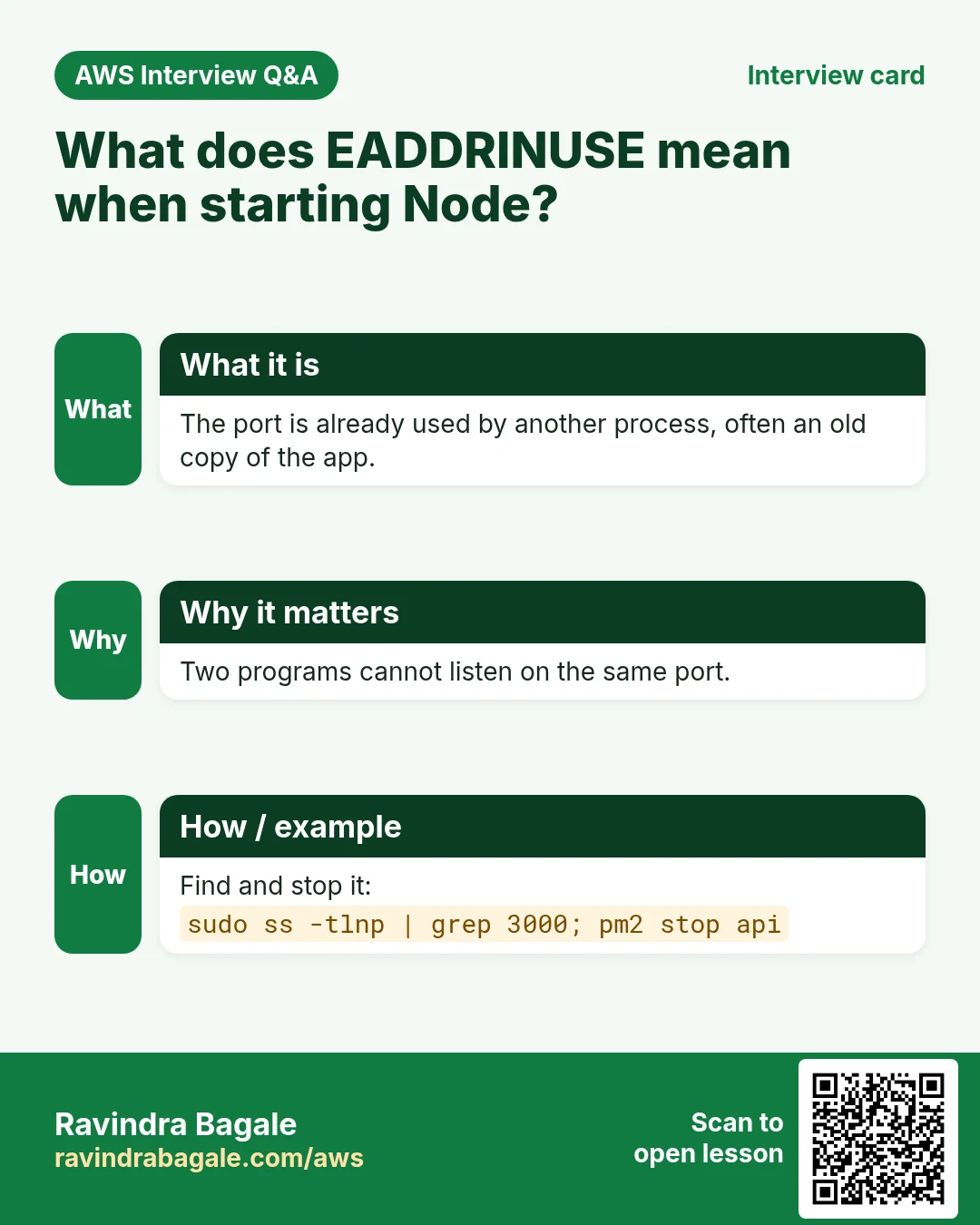
Cannot find module,EADDRINUSE,502 Bad Gateway
1. Python app vs Node.js app, side by side
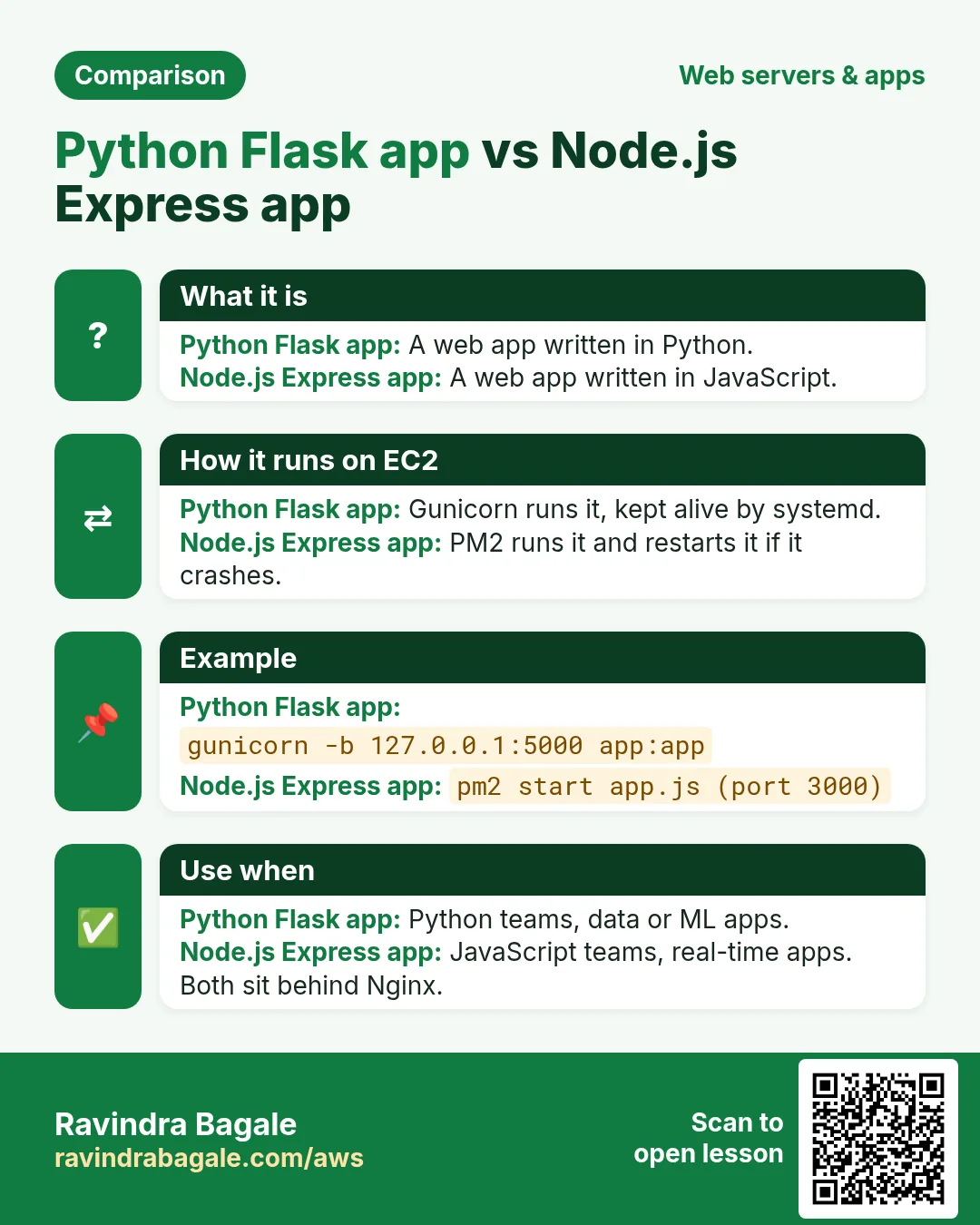
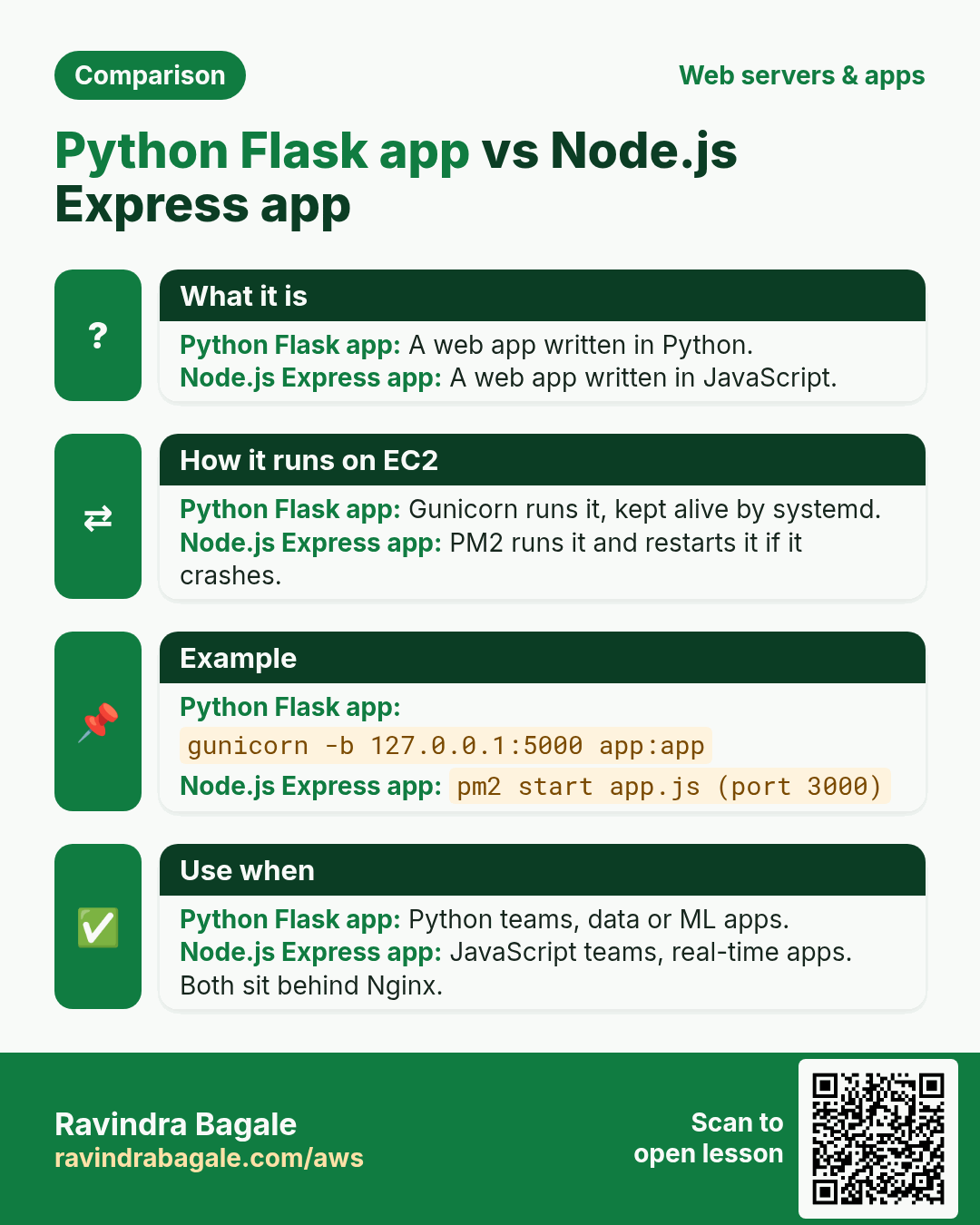
Why: a dynamic app, PHP, Python or Node.js, is hosted the same way: install the language, install the app's libraries, run the app on an internal port, keep it running in the background, and put nginx in front on port 80. Once you see the steps side by side, a new language is only new command names.
Figure 1. The same nine steps for a Python app and a Node.js app: install, folder, library list, framework, code, install libraries, test run, background run and nginx in front. The big difference: Python needs a virtual environment, Node.js keeps each app's libraries in its own node_modules folder.
Classroom line
Python needs a virtual environment; Node.js doesn't.
Class मधलं वाक्य
Python मध्ये virtual environment बनवावं लागायचं, पण Node.js मध्ये नाही.
Classroom line – हिंदी
"Python me virtual environment create karne ki zaroorat padti thi, lekin Node.js me nahi."
The Python side is explained step by step in Host a Python Flask app on EC2 with gunicorn and nginx.
2. Install Node.js and npm
Why: Without Node.js the server cannot run JavaScript at all, and npm is how you fetch Express. Picking a current version means you keep getting security fixes.
What: Node.js runs JavaScript outside the browser. npm (Node Package Manager) downloads libraries such as Express; it comes with Node.js.
How, on Amazon Linux 2023:
- Launch an Amazon Linux 2023 instance (
t2.microort3.micro) with a security group that allows SSH (22) from My IP and HTTP (80) from anywhere, and connect withssh -i mykey.pem ec2-user@PUBLIC_IP. -
Install Node.js and check the versions:
sudo yum install nodejs24 -y node -v npm -v -
node -vprintsv24.xandnpm -vprints the npm version. Thenodejs24package installs npm with it. - Amazon Linux 2023 has one package per Node.js version:
nodejs22andnodejs24are current. The plainnodejspackage is Node.js 18, which no longer gets security fixes, so don't use it for a new app.
How, on Ubuntu: the package is also called nodejs, and npm is a separate package:
sudo apt update
sudo apt install nodejs npm -y
node -v
3. Create the project and package.json
Why: package.json is what lets any server rebuild the app with one npm install. Without it you would have to remember every library by hand.
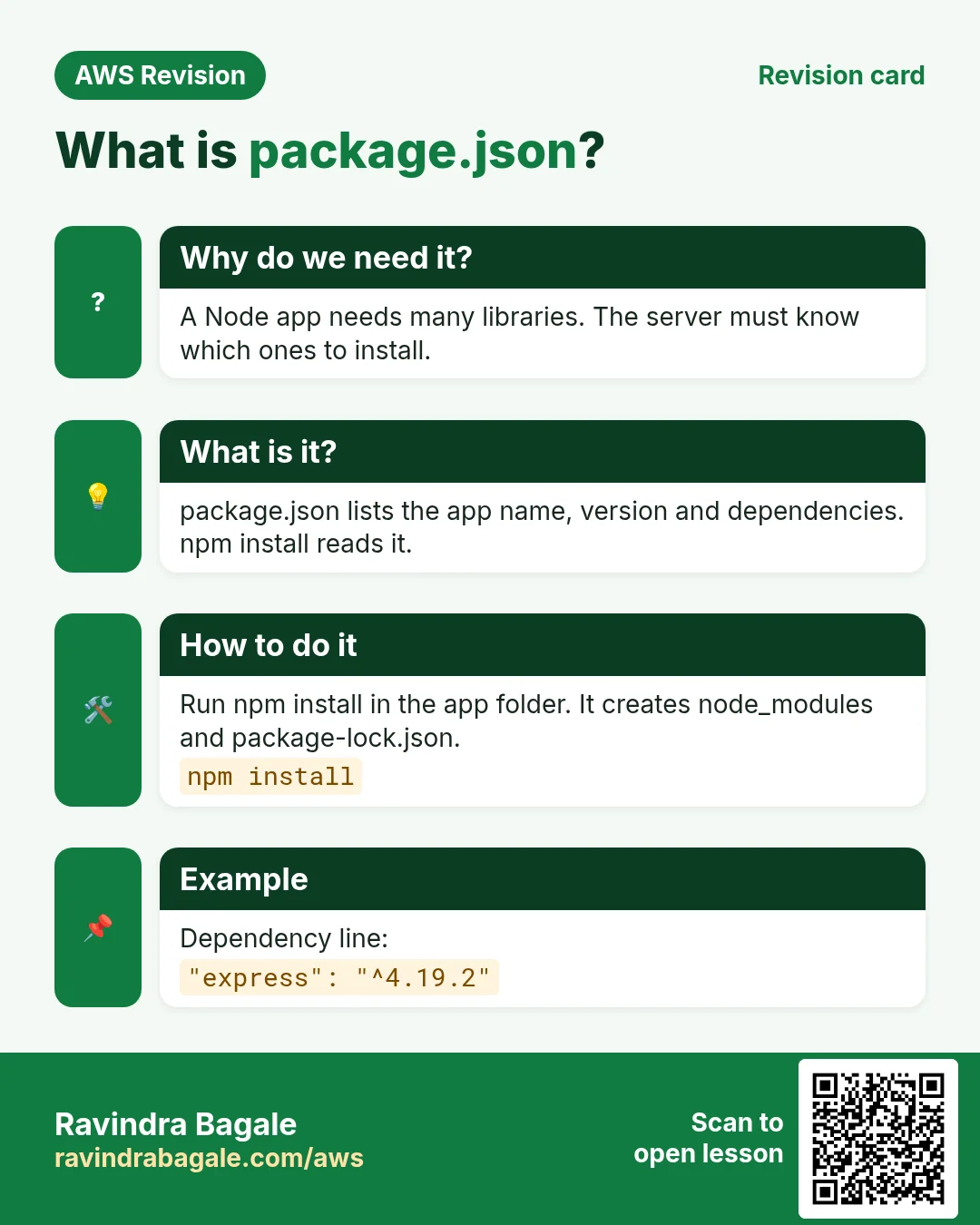
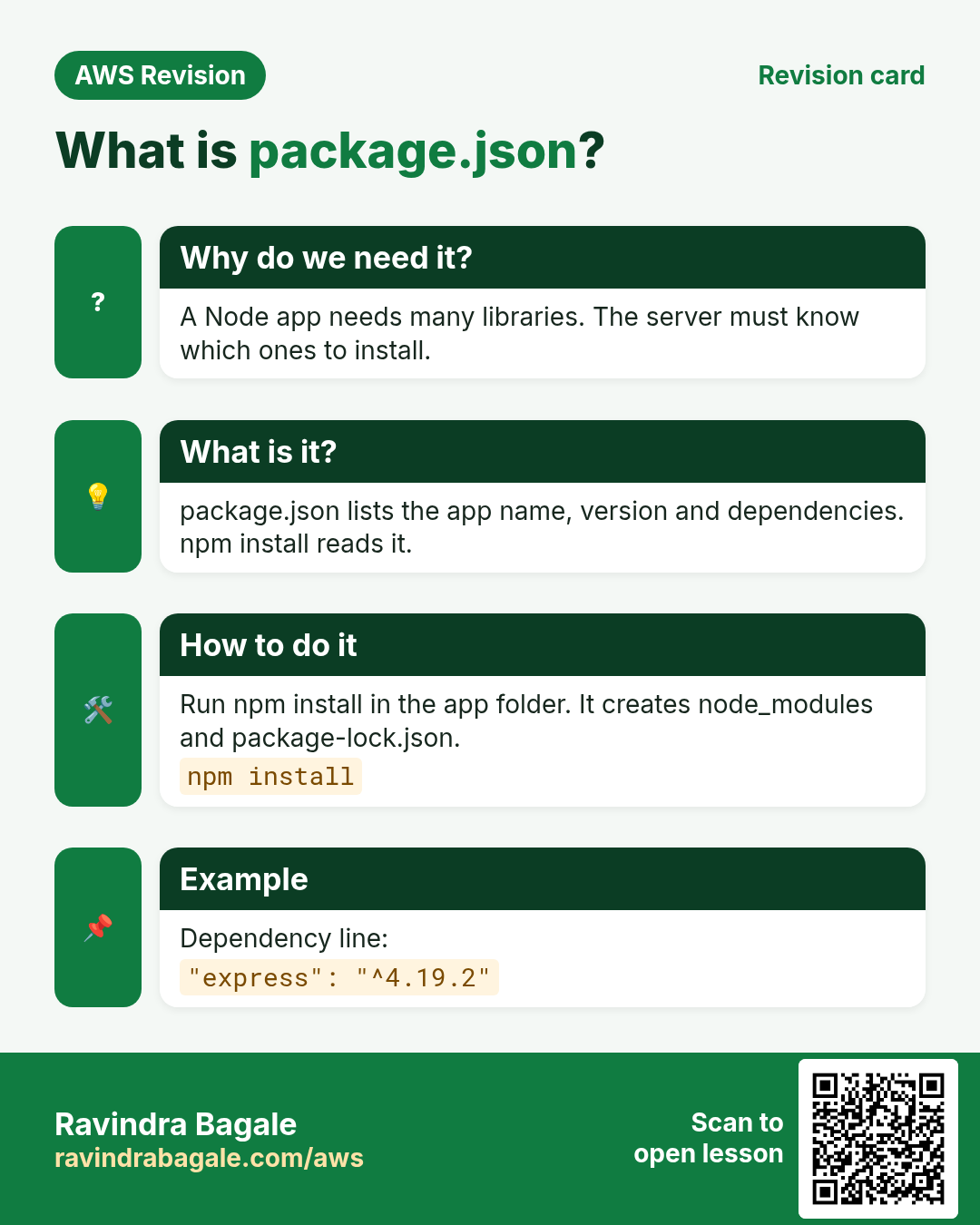
What: package.json describes the app: its name, its version, and the libraries it needs. It plays the role of requirements.txt, written as JSON: "key": "value" pairs inside { }, separated by commas.
How:
-
Create the folder and open the file:
mkdir nodeapp cd nodeapp nano package.json -
Write:
{ "name": "node-app", "description": "sample Express API", "version": "0.0.1", "private": true, "dependencies": { "express": "^5.3.0" }, "devDependencies": { "mocha": "^12.0.3", "supertest": "^7.3.1" } } -
Save with
Ctrl+O,Enter, and leave withCtrl+X.
What each part means:
nameandversionidentify the app."private": truestops it from being published to the npm registry by mistake.dependenciesare the libraries the app needs to run: here only Express.devDependenciesare only needed while you write and test the code:mocharuns tests andsupertestsends test requests to the app. The live app never uses them.^5.3.0means "version 5.3.0 or any newer 5.x". npm never jumps to 6.0 by itself, because a new major version can break the code.
Classroom line
Libraries needed only for coding and testing are called development dependencies.
Class मधलं वाक्य
"Fakt coding kartana testing sathi je framework lagtat, tyala development dependencies mhanto."
फक्त coding करताना testing साठी जे framework लागतात, त्याला development dependencies म्हणतो.
Classroom line
Libraries needed only for coding and testing are called development dependencies.
Figure 2. package.json lists two kinds of libraries. dependencies, such as express, are needed to run the app on the server. devDependencies, such as mocha and supertest, are needed only while writing and testing the code; npm install --omit=dev leaves them out.
A ready-made sample app is in the GitHub repository ravibagale/nodeapp; git clone https://github.com/ravibagale/nodeapp.git downloads it.
4. Write the Express app: index.js
Why: This small file is the whole app. Knowing what each line does lets you add routes and fix errors on your own.
How: nano index.js, and write:
var express = require('express');
var app = express();

app.get('/', function (req, res) {
  res.send('Hello from Node.js on EC2');
});

app.get('/getusers', function (req, res) {
  res.json({ username: 'ravi' });
});

app.listen(process.env.PORT || 3000);
module.exports = app;
What each line does:
require('express')loads Express fromnode_modules;express()creates the app object, calledapp.app.get('/', ...)answers a GET request for/. It is the Express version of Flask's@app.route('/').- The function gets the request
reqand the responseres.res.send()sends text or HTML. /getusersis an API route:res.json()sends the object as JSON,{"username":"ravi"}, with the content typeapplication/json.app.listen(process.env.PORT || 3000)listens on the port in thePORTenvironment variable, or on 3000 if it is not set.module.exports = applets test files, such as asupertesttest, load the app.
Classroom line
Python had app.route; here it's app.get.
Class मधलं वाक्य
Python मध्ये तिथे app dot route होतं, इथे app dot get आहे.
Classroom line – हिंदी
"Udhar app dot route tha Python me, yaha app dot get hai."
5. npm install and the node_modules folder
Why: require('express') fails until the library is in node_modules. npm install puts it there, at the versions package.json asks for.
How: inside ~/nodeapp:
npm install
ls
What happens:
- npm reads
package.json, downloads Express and every library Express itself needs, and puts them all in a new folder,node_modules, inside the project. - It also writes
package-lock.jsonwith the exact version of every package it installed, so the nextnpm install, on any server, gets the same versions. node_modulesbelongs to this app only. That is why Node.js needs no virtual environment: two apps in two folders each have their ownnode_modules.- On a live server you can skip the test libraries with
npm install --omit=dev. - Never copy
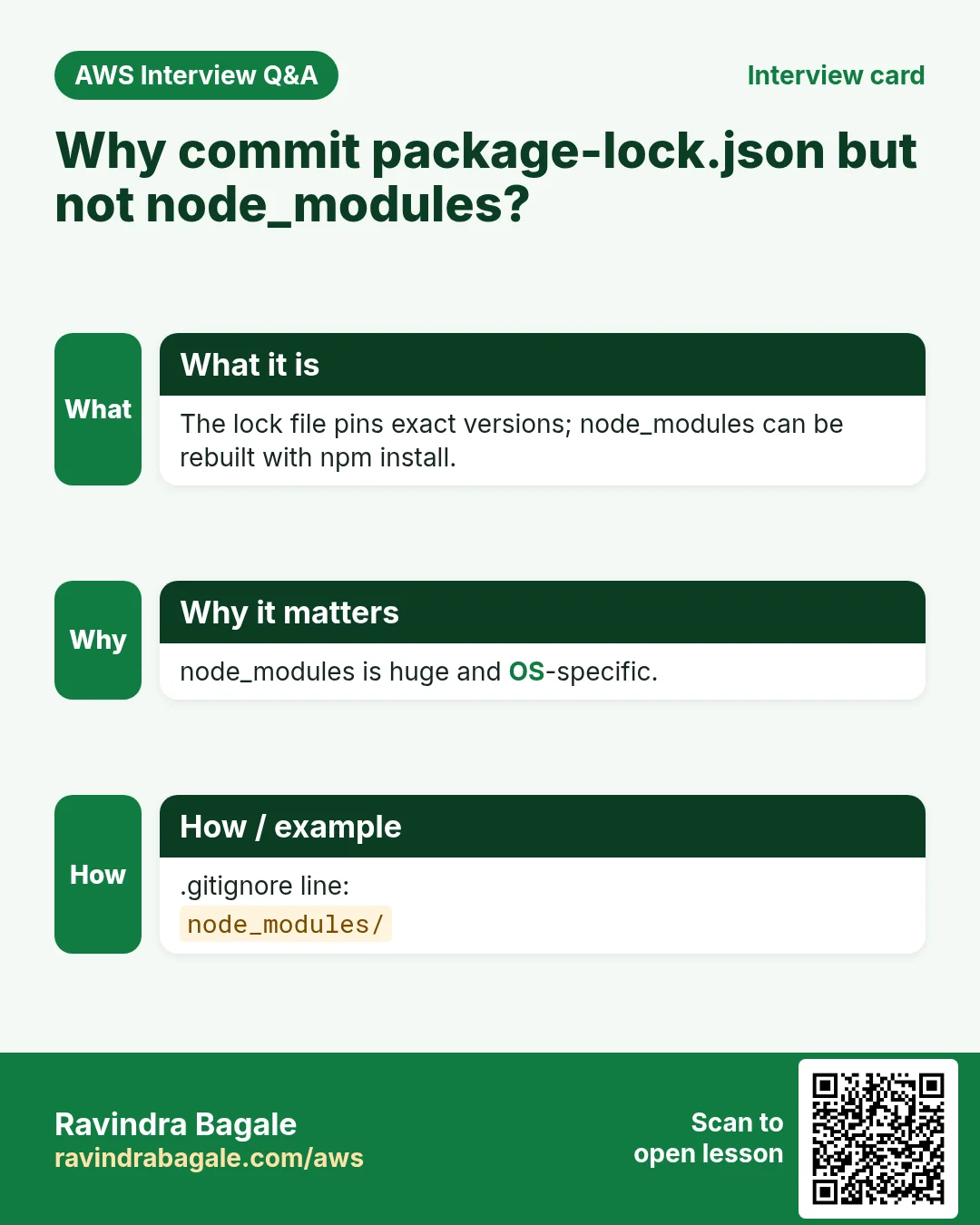
node_modulesto GitHub or between servers. Putnode_modulesin.gitignore, keeppackage.jsonandpackage-lock.json, and runnpm installon each server. - If
npm installlists vulnerabilities,npm auditshows which package; updating that package's version inpackage.jsonusually fixes it.
Classroom line
When npm install runs, it creates a folder named node_modules.
Class मधलं वाक्य
"Npm install run hota tevha node_modules navacha folder tayar hoto."
Npm install run होतं तेव्हा node_modules नावाचा folder तयार होतो.
Classroom line
When npm install runs, it creates a folder named node_modules.
Figure 3. npm install reads package.json, downloads express and all the packages it depends on into the project's own node_modules folder, and records the exact versions in package-lock.json. A second app in another folder gets its own node_modules.
6. Test the app with node index.js
Why: Testing on the server first, with curl, proves the app works before nginx or the security group can get in the way.
How:
-
Start the app in the foreground:
node index.js -
The prompt does not come back: the app is running in this terminal. In a second SSH window, test it on the server itself:
curl http://127.0.0.1:3000/ curl http://127.0.0.1:3000/getusers -
To test from your browser, add a temporary inbound rule to the security group: Custom TCP, port 3000, source My IP. Open
http://PUBLIC_IP:3000/andhttp://PUBLIC_IP:3000/getusers. - Press
Ctrl+C: the app stops. Closing the SSH window stops it too. That is fine for a test, not for a live app.
7. Keep the app running with PM2
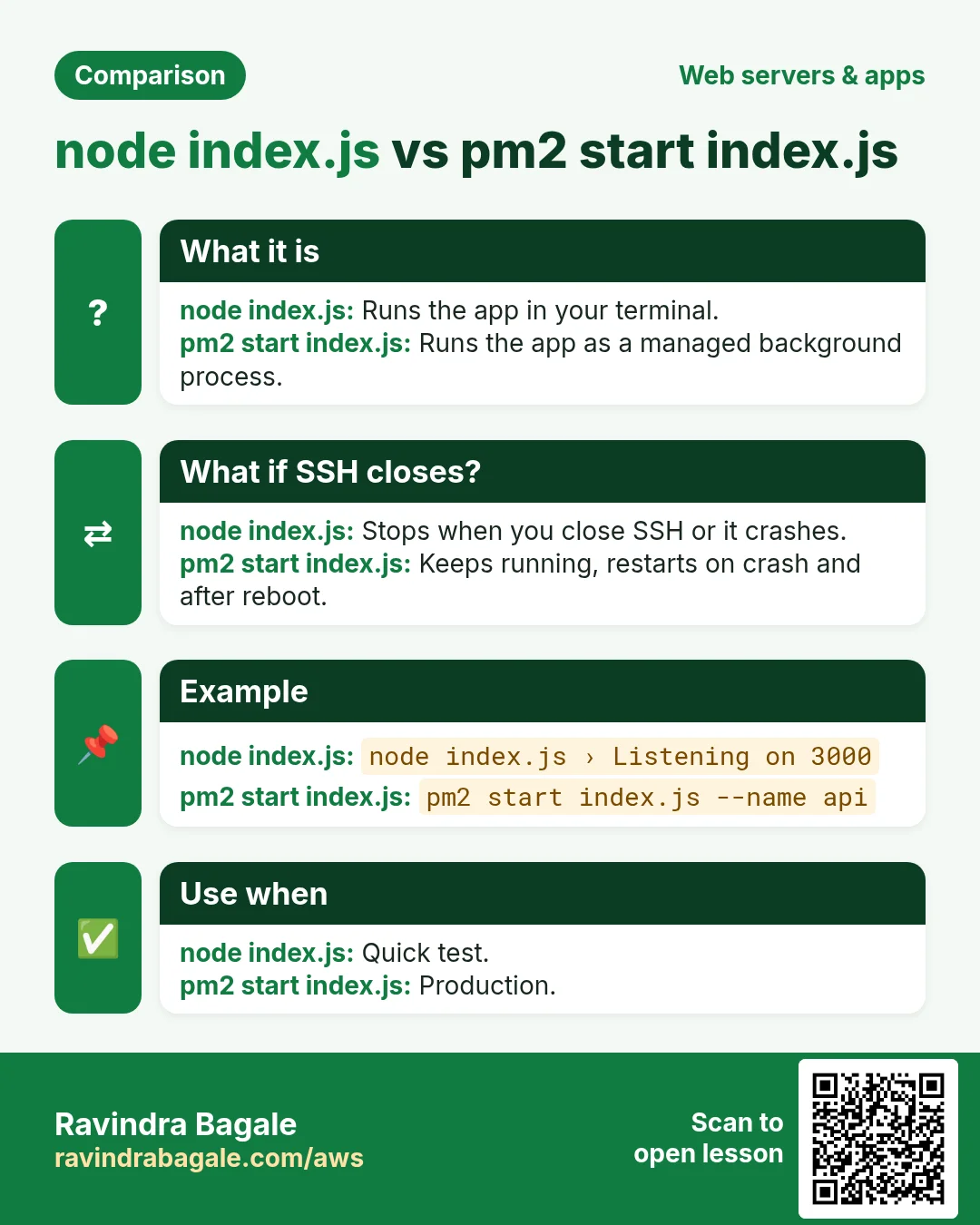
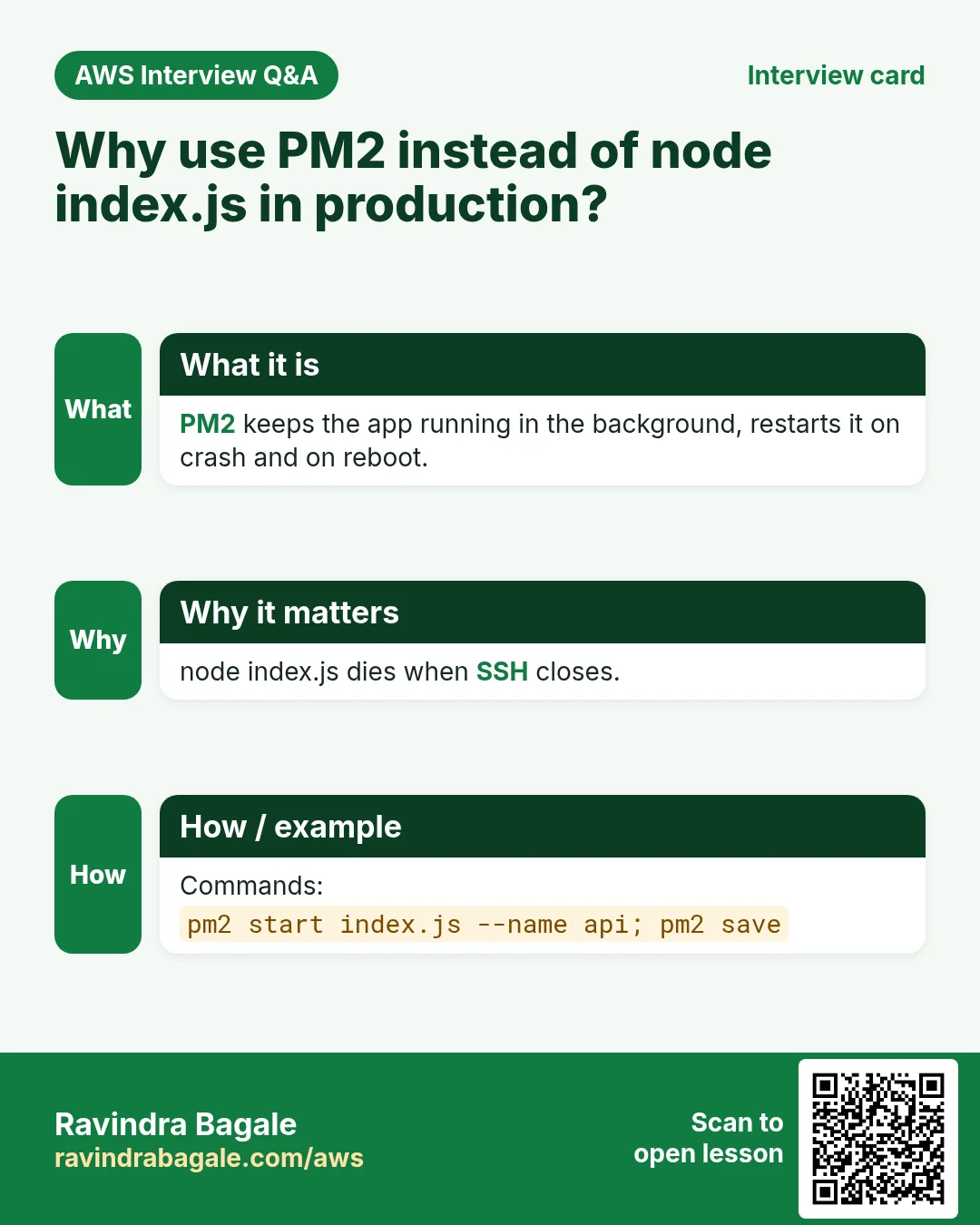
Why: An app started with node dies when the SSH window closes. A live API must keep running and come back after a crash, which is PM2's job.
What: PM2 is a process manager for Node.js. It runs the app in the background, restarts it if it crashes, keeps its logs, and can start it again after a reboot. For Node.js it does the job gunicorn and systemd do for Python.
How:
-
Install it once, globally (
-g), so thepm2command works in every folder:sudo npm install -g pm2 -
Start the app from
~/nodeapp:pm2 start index.js -
PM2 prints a table:
id 0, nameindex(the file name without.js), modefork, statusonline. The prompt comes back, and the app keeps running after you log out. -
The everyday commands:
pm2 list pm2 logs index pm2 restart index pm2 stop index pm2 delete index -
pm2 listshows the table again; the↺column counts restarts.pm2 logs indexshows the app's output and errors live (Ctrl+Cleaves the log view; the app keeps running).stopstops the app but keeps it in the list;deleteremoves it from PM2. - To give the app a clearer name, start it with
pm2 start index.js --name nodeappand usenodeappin the other commands.
Classroom line
To run it in the background, you need PM2.
Class मधलं वाक्य
"Background madhe run karaycha asel tar pm2 vaparava lagel."
Background मध्ये run करायचं असेल तर pm2 वापरावा लागेल.
Classroom line
To run it in the background, you need PM2.
![A black terminal: [PM2] Spawning PM2 daemon with pm2_home=/home/ec2-user/.pm2, PM2 Successfully daemonized, Starting /home/ec2-user/nodeapp/index.js in fork_mode (1 instance), Done. Below, a table with the columns id, name, namespace, version, mode, pid, uptime, restarts, status, cpu, mem, user, watching and one row: 0, index, default, 0.0.1, fork, online, 0%, 33.9mb, ec2-user, disabled.](../../assets/img/aws/host-nodejs-express-app-on-ec2-with-pm2-and-nginx-01-pm2-start-status-table.webp)
Whiteboard: pm2 start index.js: PM2 starts its daemon, starts index.js in fork mode and shows the process table with the app online.
8. Start the app again after a reboot: pm2 startup and pm2 save
Why: PM2 itself is a normal program. After a reboot, or a stop and start of the instance, nothing starts it, so the app is down until you log in.
How:
-
Ask PM2 to create a startup service:
pm2 startup -
It prints one command that starts with
sudo env PATH=$PATH:/usr/bin ... pm2 startup systemd -u ec2-user --hp /home/ec2-user. Copy that exact line and run it. It creates a systemd service,pm2-ec2-user, that starts PM2 at boot. -
Save the list of running apps:
pm2 save -
pm2 savewrites the current list to~/.pm2/dump.pm2. At boot, PM2 starts every app in that list. - Test it:
sudo reboot, connect again after a minute, and runpm2 list:indexisonlinewithout you starting it. - Run
pm2 saveagain whenever you add or delete an app.
Figure 4. Animation: node index.js in the foreground stops when SSH closes; pm2 start keeps the app online after logout; when the app crashes, PM2 restarts it; after a reboot, pm2 startup and pm2 save bring it back online.
9. Put nginx in front: proxy_pass to port 3000
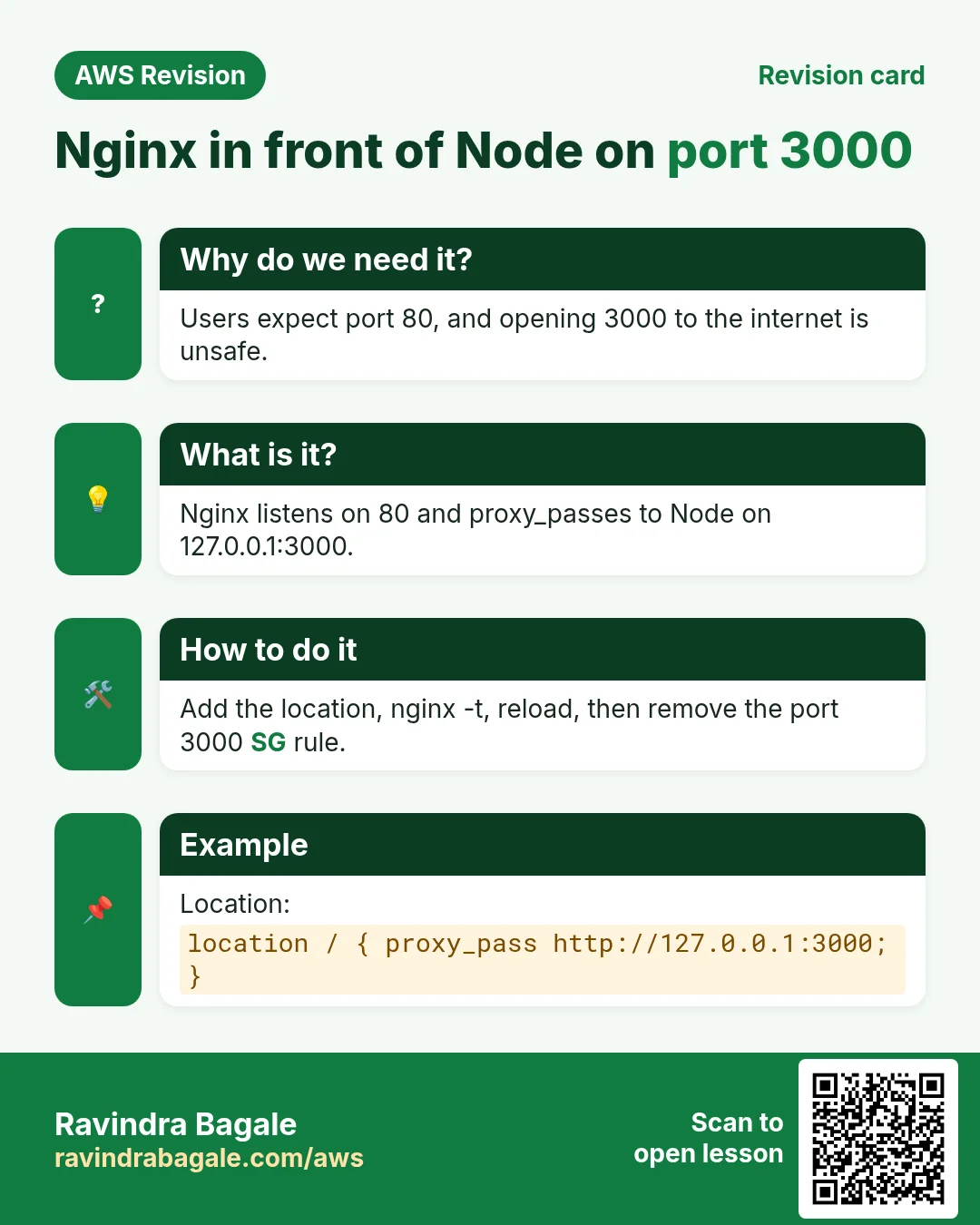
Why: visitors should use plain http://ADDRESS on port 80 (and 443 for HTTPS), not port 3000. nginx receives every request and passes it on to the app. This works exactly as for a Python app; the full explanation of the reverse proxy is in Put nginx in front as the reverse proxy.
How:
-
Install and start nginx:
sudo yum install nginx -y sudo service nginx start -
Open the config with
sudo nano /etc/nginx/nginx.conf. Inside the existingserver { ... }block, after therootline, add:location / { proxy_pass http://127.0.0.1:3000; } -
Check the file, then reload:
sudo nginx -t sudo service nginx reload -
nginx -tmust saysyntax is okandtest is successful. If not, fix the line it names and test again; the running nginx keeps the old config meanwhile. - Open
http://PUBLIC_IP/andhttp://PUBLIC_IP/getuserswithout a port: the Express app answers through nginx.
Classroom line
Now install nginx and start it.
Class मधलं वाक्य
"Aata nginx install kara, start kara."
आता nginx install करा, start करा.
Classroom line
Now install nginx and start it.
Classroom line
Every service command needs sudo.
Class मधलं वाक्य
"Jevdhe services aahet, saglyana sudo lagtach."
जेवढे services आहेत, सगळ्यांना sudo लागतोच.
Classroom line
Every service command needs sudo.
Close port 3000: nobody outside needs it now.
- Delete the port 3000 rule from the security group. Keep 22 from My IP, 80, and 443 if you add HTTPS.
- For extra safety, let the app listen only on the server itself. Change the last line but one of
index.jstoapp.listen(process.env.PORT || 3000, '127.0.0.1');and runpm2 restart index. http://PUBLIC_IP/still works;http://PUBLIC_IP:3000/no longer answers.
Figure 5. The browser reaches nginx on port 80; the location / block passes the request to the Express app on 127.0.0.1:3000, kept running by PM2. The security group allows 22 and 80; the temporary port 3000 rule is deleted.
10. Change the code: pm2 restart
Why: PM2 keeps the old code in memory. Until you restart, your edit changes nothing, which looks like a bug when it isn't.
What: PM2 loaded index.js when the app started. A change to the file does nothing until the app restarts.
Worked example: add a second API route.
-
Add a route to
index.js, above theapp.listenline:app.get('/health', function (req, res) { res.json({ status: 'ok' }); }); -
Open
http://PUBLIC_IP/health: it saysCannot GET /health, a 404 from Express. The running app still has the old code. -
Restart it, and look at the log for errors:
pm2 restart index pm2 logs index --lines 20 -
Open
/healthagain: it returns{"status":"ok"}. - If you changed
package.json, runnpm installfirst, thenpm2 restart index.pm2 restart allrestarts every app.
Classroom line
Suppose you changed the code...
Class मधलं वाक्य
समजा तुम्ही code मध्ये बदल केले...
Classroom line – हिंदी
"Suppose aapne code ke andar changes kiya..."
11. When something goes wrong
Why: Each symptom points to one layer: the app, PM2, nginx or the security group. Checking them in order finds the problem fast.
node: command not found: Node.js is not installed. Runsudo yum install nodejs24 -y.Error: Cannot find module 'express':npm installwas not run, or was run in another folder.cd ~/nodeappand runnpm install.npm installfails withcode EJSONPARSE:package.jsonis not valid JSON. Look for a missing comma, a missing"or a comma after the last item.Error: listen EADDRINUSE: address already in use :::3000: another copy of the app already uses port 3000, often one started by PM2.pm2 listshows it; don't also runnode index.js.http://PUBLIC_IP:3000does not open while testing: the app is not running, or the security group has no port 3000 rule.pm2: command not found: install it withsudo npm install -g pm2.- The app is gone after a reboot: run
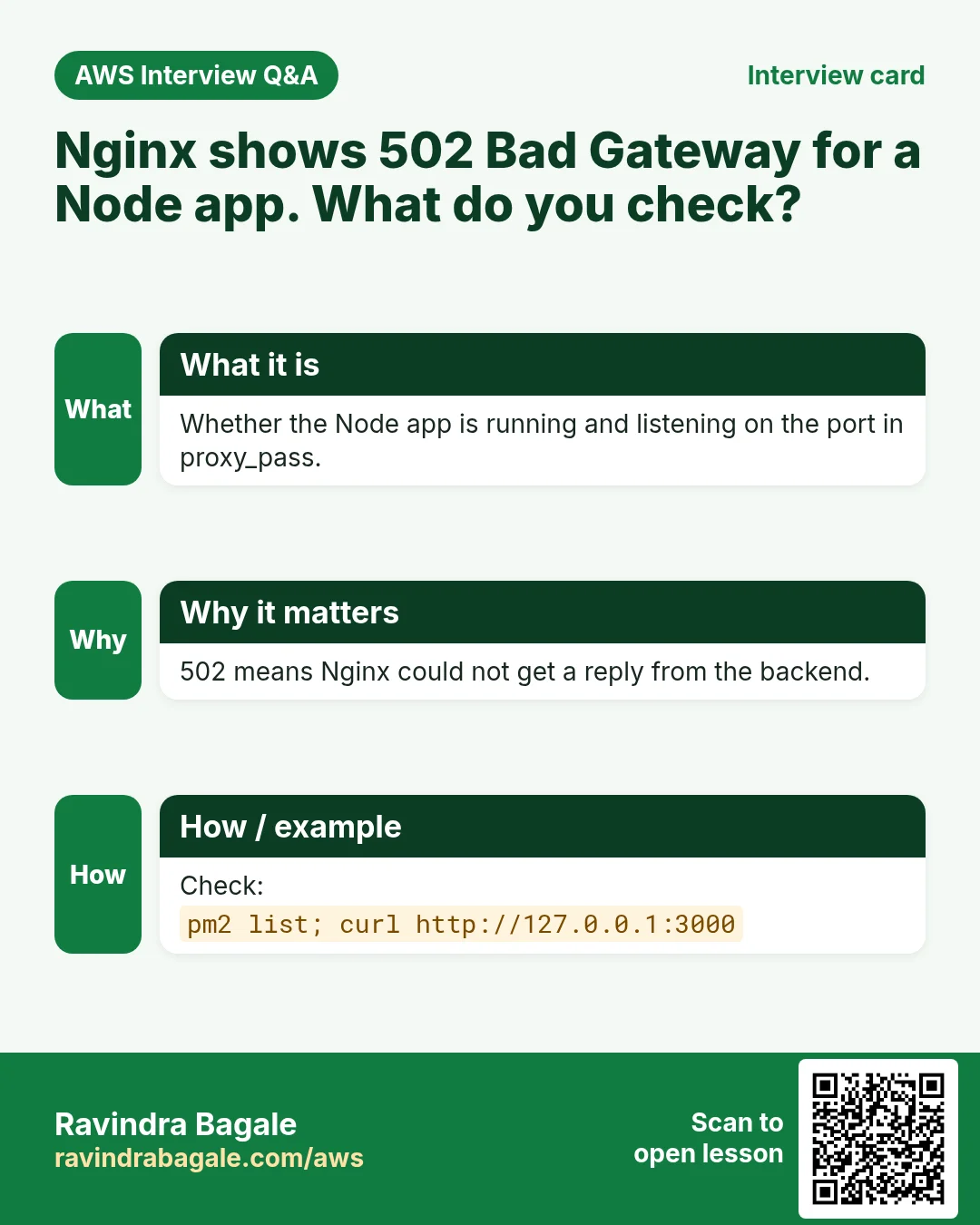
pm2 startup, run the line it prints, thenpm2 save. 502 Bad Gateway: nginx works but the app does not answer.pm2 listandpm2 logs indexshow why; check the port inproxy_pass.- The nginx welcome page instead of your app: the
location /block is missing or outside theserverblock, or nginx was not reloaded. nginx -tsaysduplicate location "/": oneserverblock can have only onelocation /. Delete the extra block.- A new route gives
Cannot GET: runpm2 restart index.
Classroom line
Only one works, not both.
Class मधलं वाक्य
"Ekach chaltay, doni nahi chalat."
एकच चालतंय, दोन्ही नाही चालत.
Classroom line
Only one works, not both.
Ravindra Bagale's Tip
Treat three commands as one habit: after every code change pm2 restart and a look at pm2 logs; after every nginx change sudo nginx -t before the reload; and after every new or deleted app pm2 save. And once nginx works, delete the port 3000 rule. The app only needs to be reachable through nginx.
When you're done practising, stop the EC2 instance. Everything you installed lives on the instance's EBS root volume; the next chapter adds a second EBS volume for data.
12. The whole class on one page
- Python and Node.js apps are hosted the same way: language, libraries, app on an internal port, a process manager, nginx in front.
- Amazon Linux 2023:
sudo yum install nodejs24 -y(npm comes with it); Ubuntu:sudo apt install nodejs npm -y. Check withnode -vandnpm -v. package.jsondescribes the app;dependenciesare needed to run it,devDependenciesonly to write and test it.- Express:
app.get('/path', function (req, res) { ... });res.send()for text,res.json()for JSON;app.listen(process.env.PORT || 3000). npm installfills the project's ownnode_modulesand writespackage-lock.json; no venv is needed. Keepnode_modulesout of git.node index.jsruns in the foreground: good for a test with a temporary port 3000 rule.sudo npm install -g pm2,pm2 start index.js; thenpm2 list,logs,restart,stop,delete.pm2 startup(run the printed line) andpm2 savebring the app back after a reboot.- nginx:
location / { proxy_pass http://127.0.0.1:3000; }in theserverblock, onelocation /only;sudo nginx -t, thensudo service nginx reload. - Behind nginx, delete the port 3000 rule; new code needs
pm2 restart index.
13. Hands-on lab: an Express API behind nginx, kept alive by PM2
Why this lab. This lab takes a fresh Amazon Linux 2023 server to a Node.js API that answers on port 80 and survives logouts and reboots, checking every layer on the way.
- Install Node.js
- Command:
sudo yum install nodejs24 -y - You should see:
Complete! - Check:
node -vprintsv24.x;npm -vprints a version. - Why:
nodejs24is a current version that gets security fixes and brings npm with it. The plainnodejspackage is Node.js 18, which no longer gets fixes.
- Command:
- Make the project folder
- Command:
mkdir ~/nodeapp && cd ~/nodeapp - You should see: Nothing.
- Check:
pwd→/home/ec2-user/nodeapp - Why: Each app gets its own folder, so its
node_modulesnever mixes with another app's.
- Command:
- Write package.json
- Do:
nano package.jsonand enter the file from section 3, with"express"underdependencies. - Check:
cat package.jsonshows the braces and commas exactly as in section 3. - Why: A missing comma or quote makes npm stop with a JSON parse error.
- Do:
- Write index.js
- Do:
nano index.jsand enter the code from section 4. - Check:
cat index.jsends withapp.listen(process.env.PORT || 3000);. - Why: Port 3000 is the app's own port; nginx will forward to it later.
- Do:
- Install the libraries
- Command:
npm install - You should see:
added ... packagesand a newnode_modulesfolder. - Check:
ls node_modules/expresslists Express's files. - Why: Without this,
node index.jsfails withCannot find module 'express'.
- Command:
- Start it with PM2
- Command:
sudo npm install -g pm2 && pm2 start index.js - You should see: A table with
indexand statusonline. - Check:
curl http://127.0.0.1:3000/getusers→{"username":"ravi"} - Why:
-gmakespm2work in every folder. PM2 keeps the app running after you log out.
- Command:
- Survive reboots
- Command:
pm2 startup - You should see: One line starting with
sudo env PATH=$PATH:/usr/bin. Copy it and run it, then runpm2 save. - Check:
sudo reboot, reconnect,pm2 list:indexisonline. - Why:
startupstarts PM2 at boot;savetells it which apps to start. You need both.
- Command:
- Put nginx in front
- Command:
sudo yum install nginx -y && sudo service nginx start - You should see:
Complete! - Check: Add the
location / { proxy_pass http://127.0.0.1:3000; }block from section 9, thensudo nginx -t→syntax is okandtest is successful. - Why: Visitors use port 80; nginx passes each request to the app.
nginx -tcatches typos before they break the running server.
- Command:
- Reload and test from the browser
- Command:
sudo service nginx reload - You should see: Nothing.
- Check:
http://PUBLIC_IP/getusersshows{"username":"ravi"}with no port in the address. - Why: If it fails, check that the security group allows port 80. Port 3000 never needs to be open to the internet.
- Command:
- Change code and restart
- Do: Add the
/healthroute from section 10, then runpm2 restart index. - Check:
http://PUBLIC_IP/health→{"status":"ok"} - Why: Before the restart the same address says
Cannot GET /health, because PM2 still runs the old code.
- Do: Add the
14. Try at home
Try at home
Task 1: the app
- Launch an Amazon Linux 2023 instance, install
nodejs24, and checknode -vandnpm -v. - Create
~/nodeappwithpackage.jsonandindex.js. Runnode index.jsbeforenpm installand read the error. Then runnpm installand look insidenode_modules. - Open port 3000 for My IP and test
/and/getusersin the browser.
Task 2: PM2
- Start the app with PM2, close SSH, and check that the app still answers.
- Run
pm2 startupandpm2 save, reboot the instance, and checkpm2 list. - Add a
/healthroute, seeCannot GET, thenpm2 restart indexand see the JSON.
Task 3: nginx
- Install nginx, add the
location /block, runsudo nginx -t, reload, and open the app on port 80. - Add a second
location /block, runsudo nginx -t, and read the message. Delete it again. - Stop the app with
pm2 stop index, see502 Bad Gateway, and start it again. Delete the port 3000 rule.
Recap
In short
- A Node.js app is hosted like a Python app;
package.json,npm install,node index.jsand PM2 replacerequirements.txt,pip,python3 app.pyand gunicorn. dependenciesrun the app;devDependenciesonly help write and test it.- Each project has its own
node_modules, so Node.js needs no virtual environment. - PM2 keeps the app running in the background;
pm2 startupandpm2 savebring it back after a reboot. - nginx on port 80 passes requests to 127.0.0.1:3000; test with
sudo nginx -t, then close port 3000. - New code needs
pm2 restart.
Practice Tasks
Dubai Gold Souk is a jewellery business in Dubai. Fatima Al Mansoori looks after its IT and cloud work. They count money in AED and run their AWS resources in the me-central-1 Region. In the tasks below you do real jobs for them using what this lesson teaches. All names, account IDs, IP addresses and numbers are made up for practice.
0 / 12
Easy Restart a service after a change
Why: Config changes only apply after the service restarts or reloads.
What to do: Restart the nginx service.
- Find the Linux command that does this job.
- Add the options (like -r or -h) the task needs.
- Add the file names, folders or users in the right order.
- Use sudo if the job changes system files or users. Click Check answer.
Easy Check if a service is running
Why: When a site is down, first check whether the web server process is running.
What to do: Show the status of the httpd service.
- Find the Linux command that does this job.
- Add the options (like -r or -h) the task needs.
- Add the file names, folders or users in the right order.
- Use sudo if the job changes system files or users. Click Check answer.
Easy Install a package on Ubuntu
Why: Ubuntu uses apt. Package names differ: on Ubuntu Apache is apache2.
What to do: Install the apache2 package on Ubuntu without being asked to confirm.
- Find the Linux command that does this job.
- Add the options (like -r or -h) the task needs.
- Add the file names, folders or users in the right order.
- Use sudo if the job changes system files or users. Click Check answer.
Easy Install a package on Amazon Linux
Why: dnf is the package manager on Amazon Linux 2023. -y answers yes for you.
What to do: Install the httpd package on Amazon Linux 2023 without being asked to confirm.
- Find the Linux command that does this job.
- Add the options (like -r or -h) the task needs.
- Add the file names, folders or users in the right order.
- Use sudo if the job changes system files or users. Click Check answer.
Easy Test a website from the server
Why: curl shows whether the web server answers, even before DNS is ready.
What to do: Request http://localhost and show only the response headers.
- Find the Linux command that does this job.
- Add the options (like -r or -h) the task needs.
- Add the file names, folders or users in the right order.
- Use sudo if the job changes system files or users. Click Check answer.
Easy Download code from GitHub
Why: git clone copies the whole repository to the server, ready to deploy.
What to do: Clone https://github.com/dubaigold/website.git into the current folder.
- Find the Linux command that does this job.
- Add the options (like -r or -h) the task needs.
- Add the file names, folders or users in the right order.
- Use sudo if the job changes system files or users. Click Check answer.
Medium Test the nginx config
Why: A test catches typos before a restart takes your site down.
What to do: Check the nginx configuration files for errors.
- Find the Linux command that does this job.
- Add the options (like -r or -h) the task needs.
- Add the file names, folders or users in the right order.
- Use sudo if the job changes system files or users. Click Check answer.
Medium Start a service now and at boot
Why: enable makes it start after reboot; --now also starts it right away.
What to do: Enable the nginx service and start it immediately, in one command.
- Find the Linux command that does this job.
- Add the options (like -r or -h) the task needs.
- Add the file names, folders or users in the right order.
- Use sudo if the job changes system files or users. Click Check answer.
Medium Open port 80 to the world
Why: Visitors can reach your website only if the security group allows HTTP.
What to do: Allow inbound TCP port 80 from 0.0.0.0/0 on security group sg-012bb45cc4124c3b2.
- Read the task and decide which AWS service it is about.
- Write aws, then the service name, then the operation (the action word).
- Add each needed flag (--name) followed by its value from the task.
- Flags can be in any order. Click Check answer.
Medium CloudFormation: web security group
Why: Opening only 443 keeps the server safer.
What to do: Template with an AWS::EC2::SecurityGroup that allows TCP 443 from 0.0.0.0/0. Add a GroupDescription.
- Start from the top-level keys the task names.
- Indent child keys with 2 spaces (no tabs).
- Fill in each property with the value from the task.
- Click Check answer. Key order does not matter.
Medium Create a security group
Why: A security group is the firewall around your instance.
What to do: Create a security group named dubaigold-web-sg with description "Web servers" in vpc-0ff45ee412deadbee.
- Read the task and decide which AWS service it is about.
- Write aws, then the service name, then the operation (the action word).
- Add each needed flag (--name) followed by its value from the task.
- Flags can be in any order. Click Check answer.
Hard Enable an nginx site on Ubuntu
Why: On Ubuntu, a site is enabled by a symbolic link from sites-available to sites-enabled.
What to do: Create a symbolic link to /etc/nginx/sites-available/dubaigold inside /etc/nginx/sites-enabled/.
- Find the Linux command that does this job.
- Add the options (like -r or -h) the task needs.
- Add the file names, folders or users in the right order.
- Use sudo if the job changes system files or users. Click Check answer.
Quick revision cards
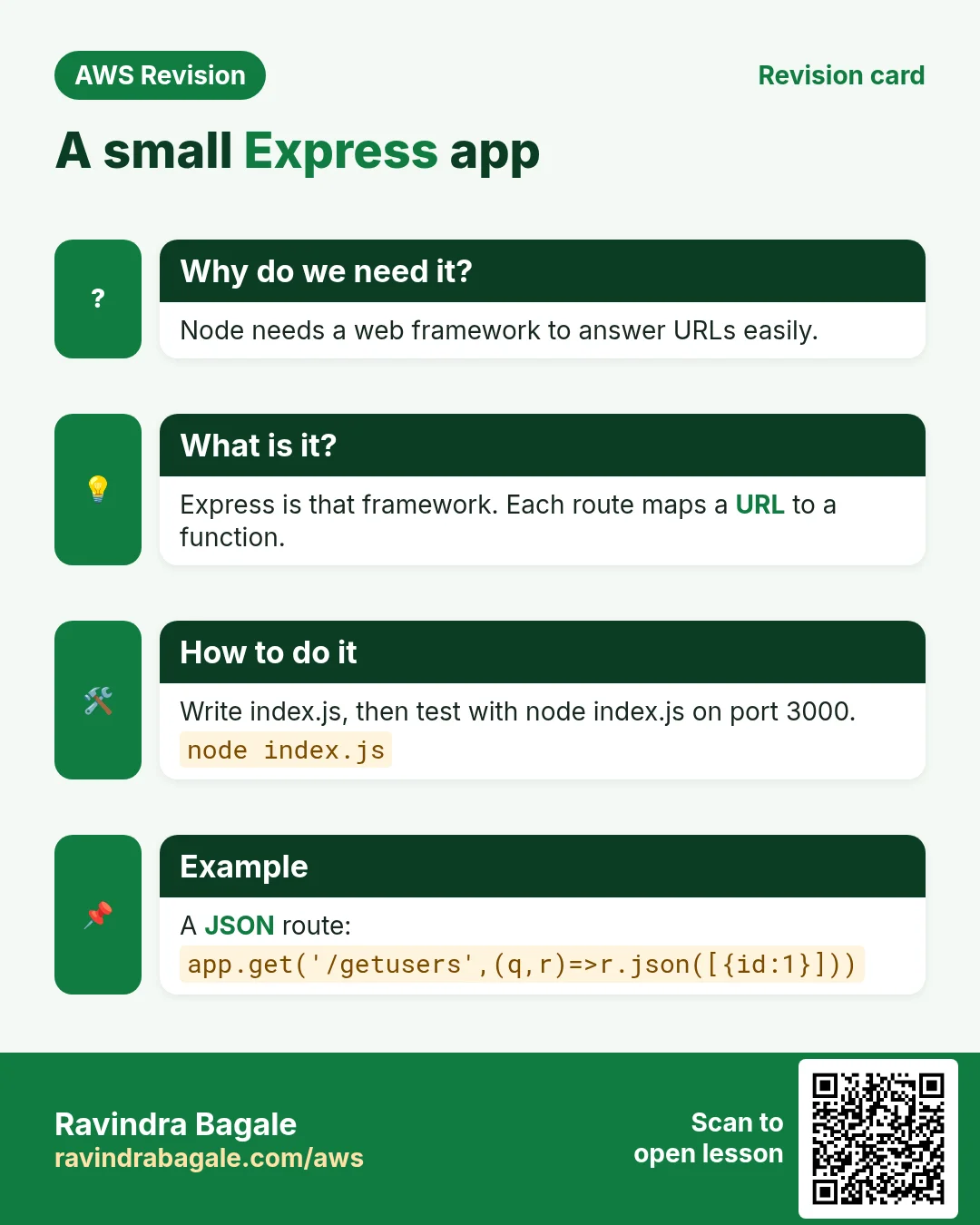
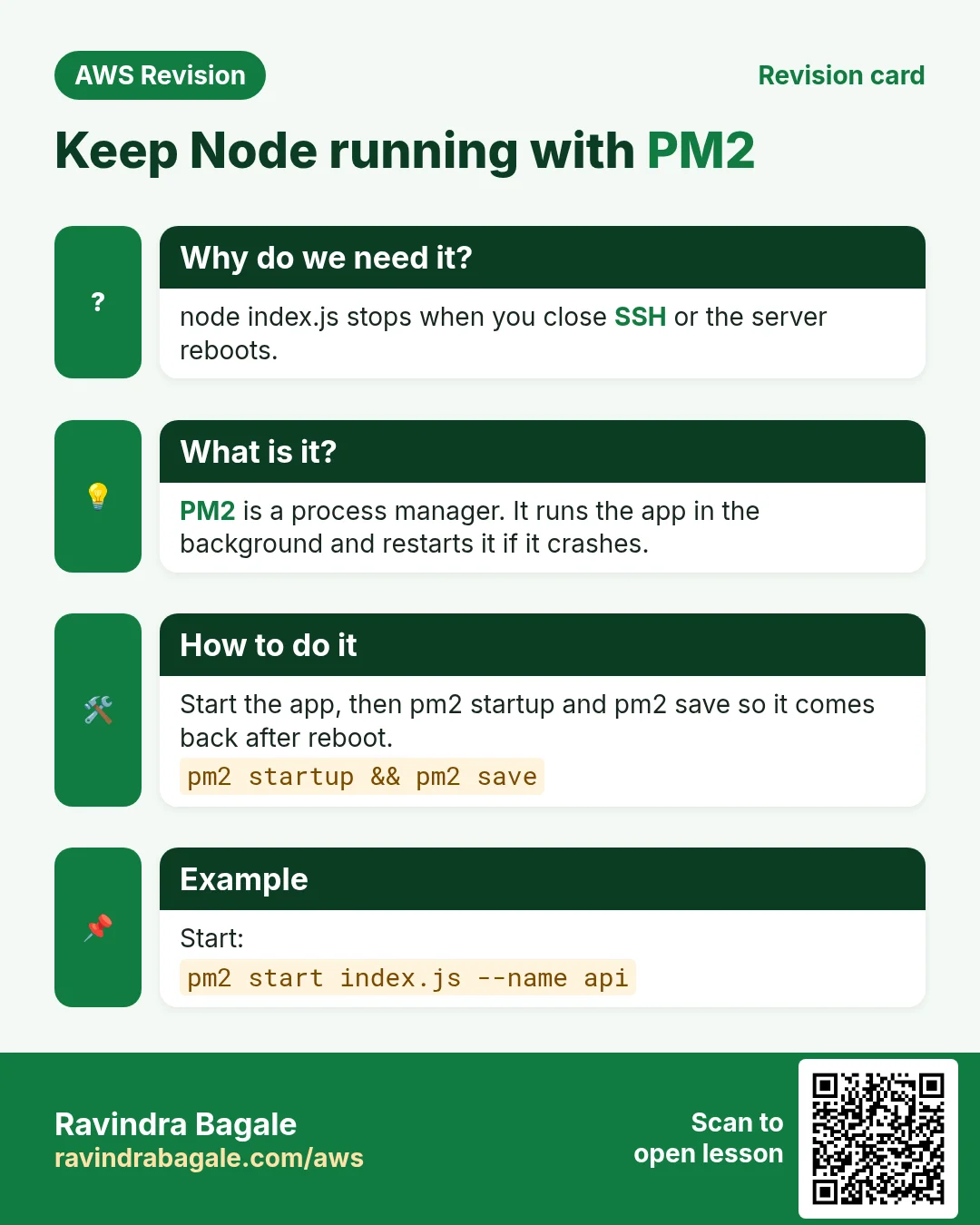
Revise this lesson in two minutes. Save the cards on your phone or download them as PNG files. The QR code on each card opens its lesson.
More cards: Ravi Sir's Cards.