Linux files: touch, cat, nano, vi, brace shortcuts, ls -R and tree
Let's start. Last class we learned to walk around the server: pwd, ls, mkdir, cd, and absolute, relative and ~ paths. Folders are only boxes, though. The real work on a server happens inside files: settings, web pages, scripts, logs. Today we make files four different ways, write in them, read them, add to them and edit them. We also learn a shortcut that builds a whole family tree of folders in one line. Keep your server running and type every command with me.
What you will learn in this class
- A one-minute recap of directories and paths
- Building a folder tree (the Ramayan example), step by step and in one line
- The brace shortcut
{a,b,c}, and why-pmatters - Four ways to make a file: touch, cat, nano, vi
- touch: empty files, and its real job (the timestamp)
- Dots and extensions: why
photo.jpgis just a name - Why anyone would want an empty file
- One name, one item; capital letters count
- cat: write with
>, read, append with>>, and finish with Ctrl+D - nano: the easiest editor, and how to save and exit
- File names with spaces, and opening several files
- Practice task: the calendar, in the fewest commands
- ls -R and tree
- Every command is a small program
- vi: modes, i a o, Esc, :wq and :q!
- Try-at-home tasks
1. One-minute recap: directories and paths
Why. Everything today builds on last class. If any line below feels new, read Linux directories and paths: pwd, ls, mkdir, cd, absolute vs relative paths and ~ first.
What you should already know:
| Command | What it does |
|---|---|
ls |
list what is here |
ls -r |
the same list in reverse order (small r) |
mkdir ravi raja rani |
three folders at once |
mkdir 'ravicha folder' |
one folder whose name has a space |
mkdir -p one/two/three |
nested folders, parents made for you |
cd one/two/three |
go down several levels |
cd .., cd ../.., cd ../../.. |
up one, two, three levels |
cd - |
back to the previous folder |
cd |
home (/home/ec2-user) |
cd /home/ec2-user/ravi |
jump anywhere with an absolute path |
Keep ls -r (small r, reverse) apart from ls -R (capital R, recursive). We meet ls -R in section 14.
2. Assignment: build the Ramayan tree
Why. Real projects are trees: a website folder with css, images and js inside; an app with logs and config. You must be able to turn a drawing into folders.
The task. In your home folder, make this tree: Ramayan, inside it Dasarath, and inside Dasarath four folders: Ram, Laxman, Bharat, Shatrughna.
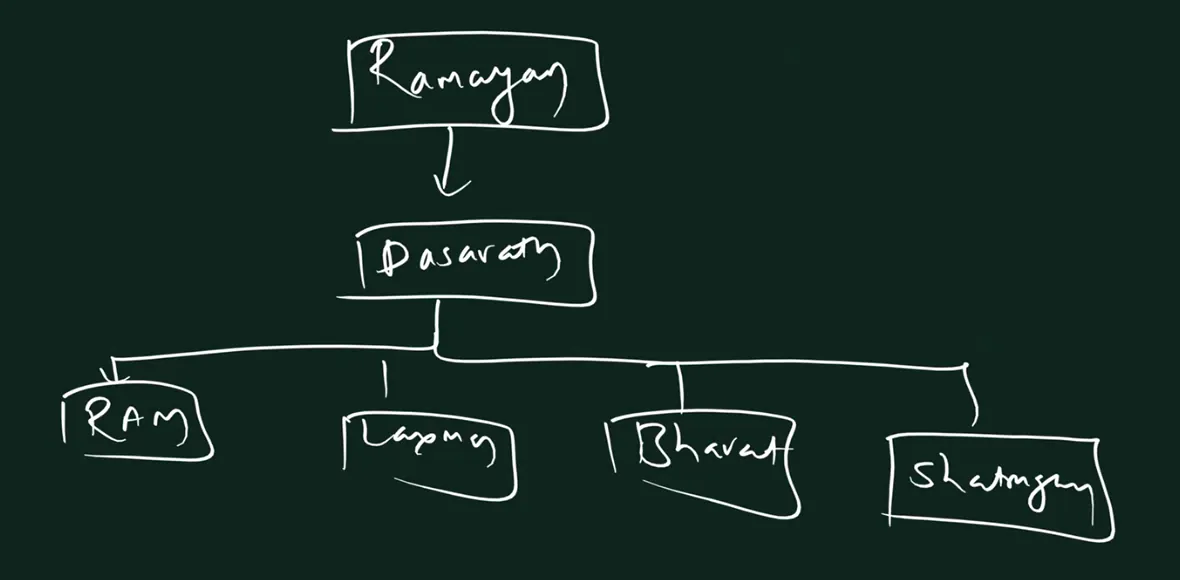
From the class board: The assignment: Ramayan at the top, Dasarath inside it, and four folders inside Dasarath: Ram, Laxman, Bharat and Shatrughna.
How, step by step (from ~):
cd(make sure you are home).mkdir Ramayanmkdir Ramayan/Dasarathmkdir Ramayan/Dasarath/Rammkdir Ramayan/Dasarath/Laxmanmkdir Ramayan/Dasarath/Bharatmkdir Ramayan/Dasarath/Shatrughna- Check:
ls Ramayan/Dasarath→Bharat Laxman Ram Shatrughna
Each step only works because the step before it made the parent. That is the whole idea of a path: you can't put a folder inside a folder that doesn't exist yet.
The same thing in one line (long version):
mkdir -p Ramayan/Dasarath/Ram Ramayan/Dasarath/Laxman Ramayan/Dasarath/Bharat Ramayan/Dasarath/Shatrughna
- Four paths, separated by spaces, so four folders.
-pmakesRamayanandRamayan/Dasarathon the way, if they are missing.
Correction
In class the one-line version was typed without -p. That only works if Ramayan/Dasarath already exists from the earlier steps. On a fresh start, plain mkdir stops with mkdir: cannot create directory ‘Ramayan/Dasarath/Ram’: No such file or directory. Add -p and it works from nothing.
3. The brace shortcut: {a,b,c}
Why. The long line above repeats Ramayan/Dasarath/ four times. More typing means more typos.
What. Write the common part once, and put the different names in curly braces, separated by commas:
mkdir -p Ramayan/Dasarath/{Ram,Laxman,Bharat,Shatrughna}
Ramayan/Dasarath/is the common path.{Ram,Laxman,Bharat,Shatrughna}is the list of names.- Commas between names, and no spaces anywhere inside the braces.
- Before
mkdireven starts, the shell (bash) expands the line into the four full paths.mkdirreceives the long version.
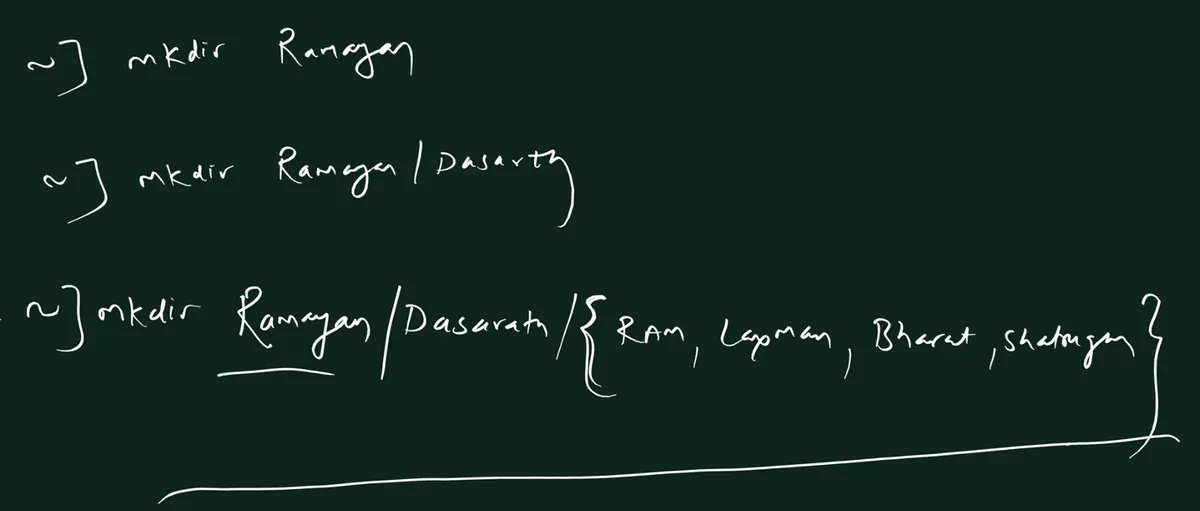
From the class board: mkdir Ramayan, then mkdir Ramayan/Dasarath, then the four children in one line with braces. Because the first two lines already made the parents, the third line works without -p.
Figure 1. Animation: bash expands Ramayan/Dasarath/{Ram,Laxman,Bharat,Shatrughna} into four paths before mkdir runs, and the four folders appear. A space after a comma breaks the expansion.
See the expansion yourself. echo prints what the shell will hand to the command, without creating anything:
echo Ramayan/Dasarath/{Ram,Laxman}→Ramayan/Dasarath/Ram Ramayan/Dasarath/Laxmanecho file{1,2,3}.txt→file1.txt file2.txt file3.txt
Worked example: a website skeleton.
mkdir -p mysite/{css,images,js}ls mysite→css images js
Correction
Two details from the board. First, -p: without it the brace line fails if Ramayan/Dasarath doesn't exist yet (on the board it worked because the two lines above had already made them). Second, spaces: {Ram, Laxman} with a space is not expanded. The shell sees two separate words, Ramayan/Dasarath/{Ram, and Laxman}, and you end up with strangely named folders. Keep braces tight: {Ram,Laxman}.
4. Files: four ways to make one
Why. Up to now we only made folders. A folder is an empty box until you put files in it.
What. There are four common ways to create a file:
touch: makes an empty file.cat: makes a file and lets you type lines into it.nano: a simple editor, like Notepad inside the terminal.vi: a powerful editor found on every Linux server.
They differ in what else they can do after creating:
Figure 2. touch can only create an empty file. cat can create, write, read and append, but not change a line in the middle. nano and vi can do everything.
| Tool | Create | Write | Read | Modify | Append |
|---|---|---|---|---|---|
touch |
yes (empty) | no | no | no | no |
cat |
yes (cat > f) |
yes (cat > f) |
yes (cat f) |
no | yes (cat >> f) |
nano |
yes | yes | yes | yes | yes |
vi |
yes | yes | yes | yes | yes |
"Modify" means changing something in the middle, for example turning hi on line 2 into bye. Only an editor can do that.
5. touch: empty files
What. touch followed by one or more names makes empty files.
How.
cd(go home), thenmkdir -p practiceandcd practice.touch my.txttouch 1.txt 2.txt 3.txt(three files in one command)ls→1.txt 2.txt 3.txt my.txtls -l my.txt→-rw-r--r--. 1 ec2-user ec2-user 0 Jan 5 10:15 my.txt
The 0 before the date is the size in bytes: the file is empty. You can't write in it, read anything from it or edit it with touch. It only creates.
Its real job: the timestamp.
- Run
ls -l my.txtand note the time, for example10:15. - Wait a minute, then
touch my.txtagain. ls -l my.txt→ the time is now the current time, for example10:20.- The content (still empty here) is unchanged.
Figure 3. If the file does not exist, touch creates an empty one. If it exists, touch leaves the content alone and only updates the modified time that ls -l shows.
Correction
In class touch was taught only as "the command that makes empty files". Its main job is to update a file's timestamp, as if you had just touched it. Creating the file when it's missing is a side effect, and it's the one everyone uses. Scripts and tools such as make use the timestamp to decide what is new.
6. Dots and extensions: just part of the name
Why. On Windows, .jpg means picture and .mp4 means video. In Linux, things work differently, and knowing how prevents confusion later.
What.
- A dot is just a character in a name.
touch report.ppt photo.jpg song.mp4makes three empty files. - None of them is a real presentation, picture or song. They are empty, whatever the name says.
- Linux doesn't need an extension to know what's inside a file. The
filecommand looks at the content:file photo.jpg→photo.jpg: emptyecho hello > notes.jpg, thenfile notes.jpg→notes.jpg: ASCII text
- A name without any dot is fine too:
touch ravimakes a file namedravi.
So why use extensions at all? They help people and programs:
- You see
backup.shand know it's a script. - Nginx loads the settings files in its
conf.dfolder only if they end in.conf. - A browser treats
index.htmlas a web page.
Correction
In class this was described as "Linux has no extensions". Better: Linux doesn't need extensions, because it looks at the content. Extensions are still used everywhere as a convention, and some programs rely on them (like Nginx and .conf). Renaming a file to .jpg never turns it into a picture.
7. Why would anyone want an empty file?
Why ask. An empty file sounds useless. In real server work, it isn't.
Real uses:
- A log file a script will fill. You
touch backup.log, then a scheduled script writes a line into it every night: "backup done at 12:00". - A placeholder. You plan a website:
touch index.html about.html contact.html. The structure is ready; you write the content later. - A marker (flag) file. A script creates
maintenance.onwhile it works; other scripts check whether that file exists and wait. - Quick test files. Before you learn copying and deleting, you need something harmless to practise on:
touch file1 file2 file3.
The idea from class still holds: servers are full of automation (start at 9 AM, stop in the evening, back up at noon, upload every 4 hours). Automation needs files to write into, and those often start empty.
Correction
In class the answer was "for automation", without a concrete link. To be precise: the empty file is a starting point that a script or a person fills in later, or a marker that other scripts check for. touch itself doesn't automate anything.
8. One name, one item; capital letters count
What.
- Inside one folder, a name can be used once: by a file or by a folder, not both.
- Linux names are case-sensitive:
ravi,Ravi,rAviandRAVIare four different names.
How it behaves (try it):
mkdir ravi(a folder)touch ravi→ no error, and no file appears.touchjust updates the folder's time.raviis still a folder.touch raju(a file), thenmkdir raju→mkdir: cannot create directory ‘raju’: File existstouch Ravi RAVI→ two new files.lsshows the folderraviand the filesRaviandRAVIside by side.
Figure 4. touch on an existing folder only updates its time; mkdir with the name of an existing file fails with File exists; ravi, Ravi and RAVI are three different names.
Classroom line
Inside one folder, a name can be used only once.
Class मधलं वाक्य
"Eka folder madhe ek naav ekdach vaprla jaanar."
एका folder मध्ये एक नाव एकदाच वापरलं जाणार.
Classroom line
Inside one folder, a name can be used only once.
Correction
In class it was said that touch ravi fails when a folder ravi exists. It doesn't fail: it quietly updates the folder's timestamp and creates nothing. The opposite direction is the one that errors: mkdir ravi when a file ravi exists gives File exists. Either way the rule is the same: one name, one item.
Ravindra Bagale's Tip
Stick to small letters for file and folder names at work. Then you never have to remember whether it was Report, report or REPORT.
9. cat: writing a file with cat >
Why. touch can't put text in a file. cat can, without opening any editor.
What. cat > my.txt means "take what I type and write it into my.txt". The > sends the output into the file instead of the screen.
How.
cat > my.txt- The cursor waits on an empty line. There is no prompt: cat is listening.
- Type
first lineand press Enter. - Type
second lineand press Enter. - On the new empty line, press Ctrl+D. You are back at the prompt.
- Check:
cat my.txt.
Ctrl+D means "end of input". Press it at the start of an empty line. In the middle of a line it only sends that line, so you would have to press Ctrl+D a second time.
Correction
In class cat > was finished with Ctrl+C. Ctrl+C interrupts (kills) the command. Lines you already ended with Enter usually survive, but anything typed on the last line, before Enter, is lost. The correct way is: press Enter on the last line, then Ctrl+D.
10. cat: reading, appending, and the > trap
Read. cat my.txt prints the whole file:
first line
second line
Append (add at the end).
cat >> my.txt(two>)- Type
third line, press Enter, then Ctrl+D. cat my.txt→ three lines. The old text stayed; the new line went below it.
The trap: a single > replaces everything.
cat > my.txt- Type
new, Enter, Ctrl+D. cat my.txt→ onlynew. The three old lines are gone.
Figure 5. Animation: cat > writes two lines, cat reads them, cat >> adds a third, and cat > again empties the file and leaves only the new line.
What cat can't do. In a five-line file, cat can't change line 2 from hi to bye. It can only replace the whole file (>) or add lines at the bottom (>>). To change a line in the middle, use an editor (sections 11 and 16).
Correction
In class cat > on an existing file was explained as "the old file is deleted and a new one is created". It isn't deleted: the same file is emptied (truncated) and then written again. Its permissions and owner stay the same. The effect you see is the same: the old content is gone.
Ravindra Bagale's Tip
Before you press Enter on a cat > command, look at the arrows once more. > replaces, >> adds. On a real server, one missing > can wipe a settings file. For reading big files without cat flooding your screen, see 3.4 Viewing files.
11. nano: the easiest editor
Why. cat can't edit a line in the middle. You need an editor, and nano is the friendliest one: it feels like Notepad.
What. nano my.txt opens the file in the editor. If it doesn't exist, nano starts a new, empty file and shows [ New File ] at the bottom.
How to edit.
nano my.txt- Move with the arrow keys. The mouse doesn't move the cursor by default.
- Type, delete with Backspace, change anything, anywhere.
- The bottom two lines list the shortcuts.
^means Ctrl, so^Xis Ctrl+X.
Classroom line
nano is the easiest one.
Class मधलं वाक्य
nano सगळ्यात सोपा आहे.
Classroom line – हिंदी
"Sabse aasan command hai nano."
How to save and exit.
- Press Ctrl+X.
- nano asks
Save modified buffer? - Press Y to save (N discards your changes, Ctrl+C cancels and takes you back to editing).
- nano shows
File Name to Write: my.txt. Press Enter to keep the name. - You are back at the prompt. Check with
cat my.txt.
If you changed nothing, Ctrl+X exits straight away and asks nothing.
Figure 6. Ctrl+X: if nothing changed, nano exits. If something changed, it asks Save modified buffer?: Y then Enter saves, N exits without saving, Ctrl+C goes back to editing.
Classroom line
If you didn't change anything, it exits directly; it asks only when you changed something.
Class मधलं वाक्य
"Tu changes nahi kele ki te baher padta directly; jya veli apan change karto tyach veli te vicharta."
तुम्ही changes नाही केले की ते directly बाहेर पडतं; ज्या वेळी आपण change करतो, त्याच वेळी ते विचारतं.
Classroom line
If you didn't change anything, it exits directly; it asks only when you changed something.
Classroom line
From here on, our life is inside nano.
Class मधलं वाक्य
इथून पुढे आपलं आयुष्य nano च्या आतच आहे.
Classroom line – हिंदी
"Yahan se apni zindagi nano ke andar hai."
Ravindra Bagale's Tip
Ctrl+O then Enter saves without leaving nano. Use it while working on a long file, so a dropped SSH connection doesn't cost you your work. More nano and vim shortcuts are in 3.10 Text editors: nano and vim.
12. File names with spaces, and several files at once
What. A space separates arguments, for files exactly as for folders.
nano my fileopens two files,myandfile, one after the other.nano 'my file'opens one file namedmy file."my file"andmy\ filework too.- Turned into a feature:
nano file1 file2 file3opens three files. Ctrl+X closes the current one and moves to the next. Newer nano versions show which one you are on, for example[1/3].
Classroom line
When you use a space in a name, use single quotes... but better, simply use one single word.
Class मधलं वाक्य
"Naavamadhe space vaparto tevha single quote... tari simply ek single word vapra."
नावामध्ये space वापरतो तेव्हा single quote... तरी simply एक single word वापरा.
Classroom line
When you use a space in a name, use single quotes... but better, simply use one single word.
Ravindra Bagale's Tip
Name files like my-file.txt or my_file.txt. No quotes, no backslashes, no surprises.
13. Practice task: the calendar, in the fewest commands
The task.
- In
~, create a foldercalendar. - Inside it, three folders:
months,weeks,days. - In
months: filesjan,feb,mar. - Write
Januaryinsidejan. - In
weeks: filesweek1,week2,week3. - In
days: files1,2,3.
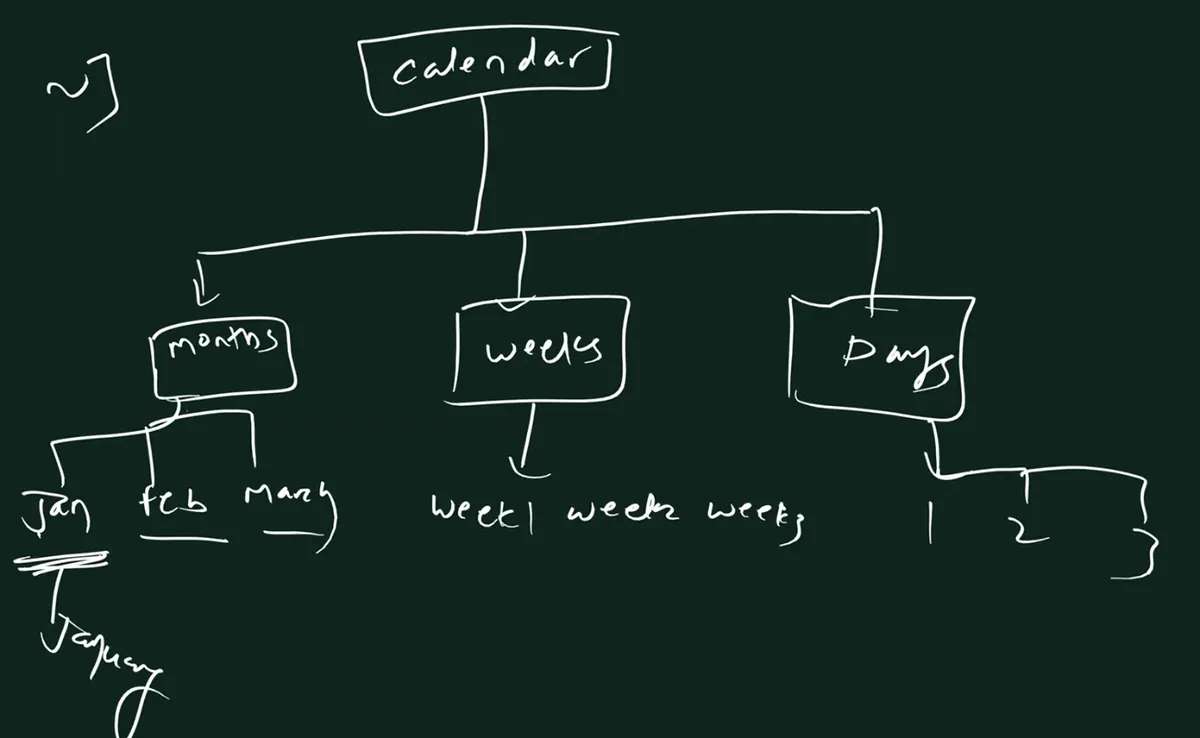
From the class board: The calendar task: calendar contains months, weeks and days; months holds jan, feb and march, weeks holds week1 to week3, days holds 1 to 3, and jan contains the text January.
Try it yourself before reading on.
Solution (five commands):
mkdir -p calendar/{months,weeks,days}touch calendar/months/{jan,feb,mar}touch calendar/weeks/{week1,week2,week3}touch calendar/days/{1,2,3}nano calendar/months/jan→ typeJanuary→ Ctrl+X, Y, Enter.
Check:
cat calendar/months/jan→Januaryls calendar/weeks→week1 week2 week3
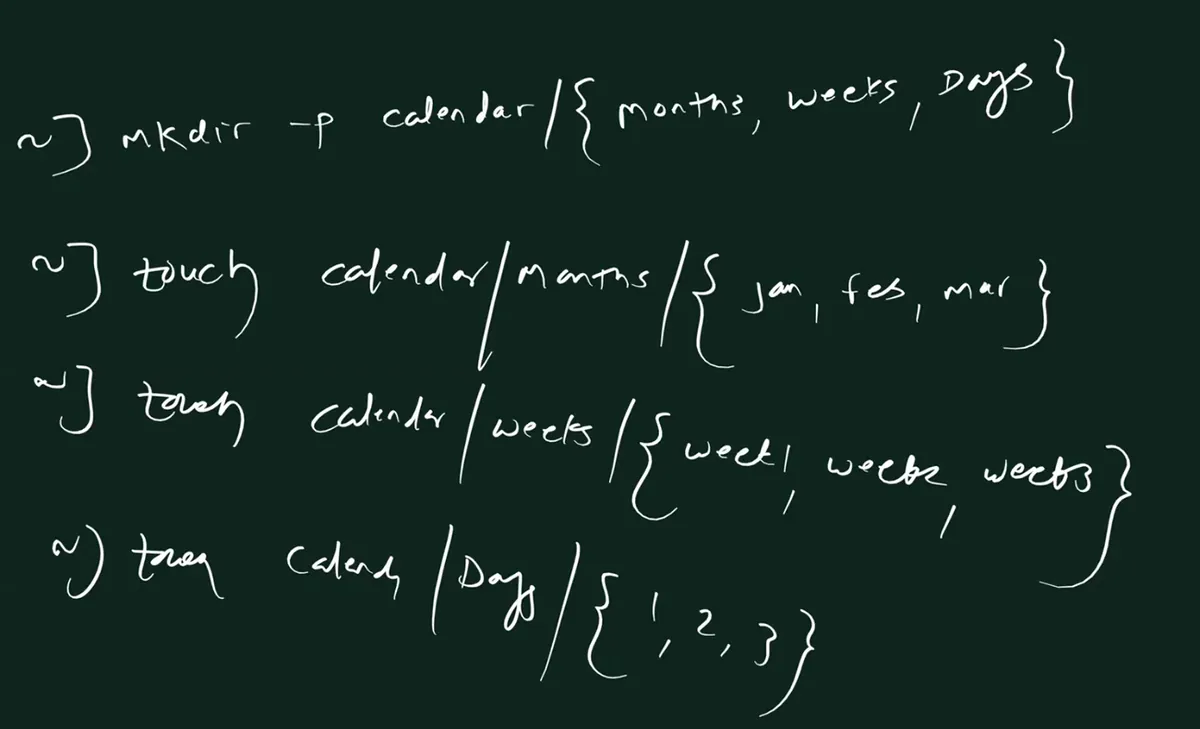
From the class board: The solution: mkdir -p calendar/{months,weeks,Days}, then one touch line each for months, weeks and Days, all with braces. The board writes Days with a capital D; with the lower-case days used on this page, keep the same spelling in every command.
Common mistakes:
- Slashes inside the braces:
{months/weeks/days}is one name with slashes, not three folders. Use commas. - Spaces after the commas:
{jan, feb, mar}isn't expanded (see section 3). - Mixed case: the folder
Daysand a command withdaysare two different names.
Shorter still
touch accepts several brace groups in one command: touch calendar/months/{jan,feb,mar} calendar/weeks/{week1,week2,week3} calendar/days/{1,2,3}. And echo January > calendar/months/jan writes the word without opening nano. That makes it three commands in total.
14. ls -R: list everything inside
What. ls -R (capital R, recursive) lists a folder, then every folder inside it, then every folder inside those, and so on.
How.
cd(home)ls -R calendar
Output:
calendar:
days  months  weeks

calendar/days:
1  2  3

calendar/months:
feb  jan  mar

calendar/weeks:
week1  week2  week3
Each block starts with a folder's path and a colon, followed by what's inside. It works for small trees; for big ones the output scrolls off the screen.
Don't confuse it with ls -r (small r), which only reverses the order of one listing.
15. tree: the picture view, and installing software
What. tree draws the same information as a picture. It isn't installed on Amazon Linux by default.
How to install it:
sudo yum install tree -y
sudo: run this one command as the administrator (root). Installing software changes the system, so it needs admin rights.yum: the package manager. It downloads software from Amazon's repositories and installs it.install: the action.tree: the package name.-y: answer "yes" automatically to the "Is this ok?" question.
Then:
tree calendar- The output ends with
4 directories, 9 files.
Figure 7. ls -R lists each folder in its own block; tree draws the same calendar as a tree and ends with 4 directories, 9 files.
Every command is a small program.
ls,mkdir,touchandcatare programs stored in/usr/bin. They come with Linux.treeis one more program; we installed it ourselves.- Before installing,
command -v treeprints nothing. After installing, it prints/usr/bin/tree.
Correction
In class it was said that "these are not commands, they are software". Both words are right: every command you type runs a small program. Some, like ls and mkdir, come pre-installed; others, like tree, we install with the package manager. On Amazon Linux 2023 the package manager is called dnf; yum still works as another name for it, so sudo yum install tree -y and sudo dnf install tree -y do the same thing. Package managers in detail: 3.7 Package managers.
16. vi: the editor on every server
Why. nano is friendly, but it isn't always installed. vi is on practically every Linux server, so you must at least know how to type, save and get out.
What. vi has modes:
- Command mode. vi opens here. Keys are commands, so stray key presses don't type into your file.
- Insert mode. Now keys type text. The bottom line shows
-- INSERT --.
How.
vi notes.txt- Press i. The bottom shows
-- INSERT --. - Type your text. Use the arrow keys to move.
- Press Esc. You are back in command mode.
- Type
:wqand press Enter: write (save) and quit. - Check:
cat notes.txt.
Three ways into insert mode:
| Key | Starts typing |
|---|---|
i |
before the cursor (insert) |
a |
after the cursor (append) |
o |
on a new line below |
To leave without saving: Esc, then :q! and Enter.
Figure 8. Animation: vi opens in command mode; i, a or o switch to insert mode; Esc goes back; :wq saves and quits, :q! quits without saving.
Correction
In class s was listed with i and a as a key to start typing. s is not an insert key: it first deletes the character under the cursor and then lets you type in its place. To start typing without changing anything, use i, a or o.
Ravindra Bagale's Tip
Stuck in vi and nothing works? Press Esc twice, type :q!, press Enter. You are out, and nothing was saved. Then try again calmly.
17. Try at home
Try at home
Task 1: braces
- Make this tree in one command:
school→class1,class2,class3, and inside each classdivAanddivB. (Hint:mkdir -p school/{class1,class2,class3}/{divA,divB}; preview it withechofirst.) - Check it with
ls -R school.
Task 2: touch
touch a.txt, thenls -l a.txt. Note the time.- Wait a minute,
touch a.txtagain,ls -l a.txt. What changed? - Make a folder
testand trytouch test. What happens? - Make a file
demoand trymkdir demo. Read the error.
Task 3: cat
- Write three lines into
fruits.txtwithcat >. Finish with Ctrl+D. - Add two more with
cat >>. - Read it with
cat. - Run
cat > fruits.txtonce more, type one line, Ctrl+D. Read it again and explain what happened.
Task 4: editors
- Open
fruits.txtin nano, change line 1, save with Ctrl+X, Y, Enter. - Open it in vi, add a line at the bottom with
o, save with:wq. - Open it in vi again, change something, and leave with
:q!. Check that the change was not saved.
Task 5: tree
sudo yum install tree -ytree calendarandtree school.- When you finish, stop the instance from the console.
Recap
In short
- Turn a drawing into folders step by step, or in one line with full paths and
-p. - Braces:
mkdir -p Ramayan/Dasarath/{Ram,Laxman,Bharat,Shatrughna}. Commas, no spaces. The shell expands it; preview withecho. - Four ways to make a file:
touch,cat,nano,vi. touchmakes empty files (size 0); on an existing file or folder it only updates the time.- Extensions are just part of the name. Linux checks the content (
file), but people and programs still use extensions. - Empty files are useful: logs to be filled, placeholders, markers, practice files.
- One name = one item per folder.
mkdiron an existing file's name →File exists. Capital letters count. cat > fwrites (empties first),cat freads,cat >> fappends. Finish typing with Enter, then Ctrl+D.- cat can't change a line in the middle; editors can.
- nano: arrows to move; Ctrl+X, Y, Enter to save and exit; Ctrl+O to save and stay.
- Spaces split names:
nano my fileopens two files. Quote names, or better, avoid spaces. ls -Rlists recursively;ls -ronly reverses.sudo yum install tree -yinstalls tree;tree folderdraws it.- Every command is a small program; some come with Linux, others you install.
- vi: opens in command mode;
i/a/oto type; Esc to stop;:wqsave and quit;:q!quit without saving.
Samjla ka? Ghari tree install kara, vi madhe ek file lihun bagha. Pudhchya class madhe copy karayla shikuya.
Ravindra Bagale, trainer: linkedin.com/in/ravindra-bagale. The folder and file names (Ramayan, calendar, ravi, my.txt, photo.jpg, fruits.txt and the rest) are examples for learning. Command outputs were checked with GNU bash, coreutils, nano and tree, the same tools Amazon Linux 2023 uses; the time in ls -l examples is illustrative.