Moving, renaming and deleting in Linux: mv, rm, rmdir, ls -l and hidden files
Let's start. We can make files and folders, and we can copy them. On a laptop the other everyday jobs are cut-paste, rename and delete. On a server, two commands do all three: mv moves and renames, rm deletes. Today we also learn to tell a file from a folder without guessing, how to hide a file with a dot, and what the mysterious . and .. are. Keep your server running and type every command with me.
What you will learn in this class
- Today's practice folders, and the real prompt after
cd - An interview question: copy only what is inside a folder
mv= cut-paste: four ways to move a file into a folder- Renaming with
mv, in the same folder and inside a subfolder - Moving folders, and why
mvneeds no-r(same disk vs across disks) - Wildcards with
mv, and the silent overwrite (mv -i) - Deleting:
rm,rm -r,rmdirandrm -i - Practice task: mv, cp and rm on one tree
- Working smart: relative paths, braces and Tab
- File or folder? Why names and colours don't decide
ls -l: the first character- The command summary
- Hidden files,
ls -a, and the entries.and.. - Before you leave: terminate or stop
- Try-at-home tasks
1. Today's practice folders
Why. Moving and deleting need something to move and delete. Build these first. Copying is in Copying in Linux: cp, cp -r, wildcards (* ?) and brace ranges; paths are in Linux directories and paths.
How (start in your home folder). Run these lines one by one:
cd
mkdir ravi raj
cd ravi
touch 1.txt 2.logs 3.mp3
mkdir one two three
cd
Classroom line
Say we're in ec2-user's home, and I've made two folders there: one called ravi, one called raj.
Class मधलं वाक्य
"Samja aapla ec2-user madhe ahe, tithe mi don folder banavle ahe. Suppose ek ravi mhanun folder ahe, ek raj mhanun folder ahe."
समजा आपण ec2-user मध्ये आहोत, तिथे मी दोन folders बनवले आहेत. समजा एक ravi नावाचा folder आहे, एक raj नावाचा folder आहे.
Classroom line
Say we're in ec2-user's home, and I've made two folders there: one called ravi, one called raj.
Watch the prompt. It always tells you where you are. On Amazon Linux 2023 it looks like this (the ip-... part is your server's private hostname):
[ec2-user@ip-172-31-xx-xx ~]$ cd ravi
[ec2-user@ip-172-31-xx-xx ravi]$ cd
[ec2-user@ip-172-31-xx-xx ~]$
~means you are in your home,/home/ec2-user.- After
cd ravithe prompt showsravi, the name of the current folder. - After
cdalone, you are home again and~comes back.
Correction
On the board, every line after cd ravi was still written with ~]. The real prompt changes with you: it shows the name of the folder you are in, here ravi. Check it after every cd, or run pwd.
2. Interview question: copy only what is inside a folder
Why. "Copy the contents of ravi into raj, not the folder itself" is a favourite interview question. It tests whether you really understand cp -r.
Classroom line
And they ask this question in interviews.
Class मधलं वाक्य
"ani he question interview madhe vichartat"
आणि हा question interview मध्ये विचारतात.
Classroom line
And they ask this question in interviews.
Three tries (from your home folder):
cp ravi raj→cp: -r not specified; omitting directory 'ravi'. A folder needs-r.cp -r ravi raj→ works, but you getraj/ravi/...: the folder itself went insideraj.cp -r ravi/* raj→raj/1.txt,raj/2.logs,raj/3.mp3,raj/one... Only the contents. This is the answer they expect.
ravi/* means "every name inside ravi". The shell expands it before cp runs, so cp sees ravi/1.txt ravi/2.logs ravi/3.mp3 ravi/one ravi/three ravi/two raj.
The catch: hidden files. * doesn't match names that start with a dot (section 18). Make one and try again:
touch ravi/.notes
rm -r raj/*
cp -r ravi/* raj
ls -A raj
.notes is missing. To copy everything, hidden files included, copy the folder's own .:
cp -r ravi/. raj
Figure 1. cp -r ravi raj puts the folder itself inside raj. cp -r ravi/* raj copies only the contents but skips the hidden file .notes. cp -r ravi/. raj copies all the contents, hidden files too.
Correction
The class answer cp -r ravi/* raj is right for normal files, but ravi/* skips hidden files (names that start with a dot). cp -r ravi/. raj copies everything inside ravi, hidden files included.
3. mv: cut-paste for Linux
Why. On Windows you cut a file and paste it somewhere else; the original is gone from the old place. Linux does the same with one command.
Classroom line
mv means cut-paste. The cut-paste we use in Windows is what we now do in Linux.
Class मधलं वाक्य
"mv mhanje cut paste. Windows madhe apan je cut paste functionality kartoy, ti functionality ata aplyala Linux madhe karaychi ahe."
mv म्हणजे cut paste. Windows मध्ये आपण जी cut paste functionality वापरतो, ती functionality आता आपल्याला Linux मध्ये करायची आहे.
Classroom line
mv means cut-paste. The cut-paste we use in Windows is what we now do in Linux.
What. mv SOURCE DESTINATION, the same shape as cp. The difference: after mv, the source is gone from where it was.
How: four ways to move my.txt into ravi. Make the file first with touch my.txt in your home. Each line moves it away, so run touch my.txt again before trying the next one:
mv my.txt ravi→ravi/my.txtmv my.txt ravi/→ the same; Tab adds the slash for you.mv my.txt ravi/my.txt→ the same, with the name written out.mv my.txt ravi/you.txt→ moved and renamed:ravi/you.txt.
Check each time: ls (my.txt is gone from home) and ls ravi (it's there).
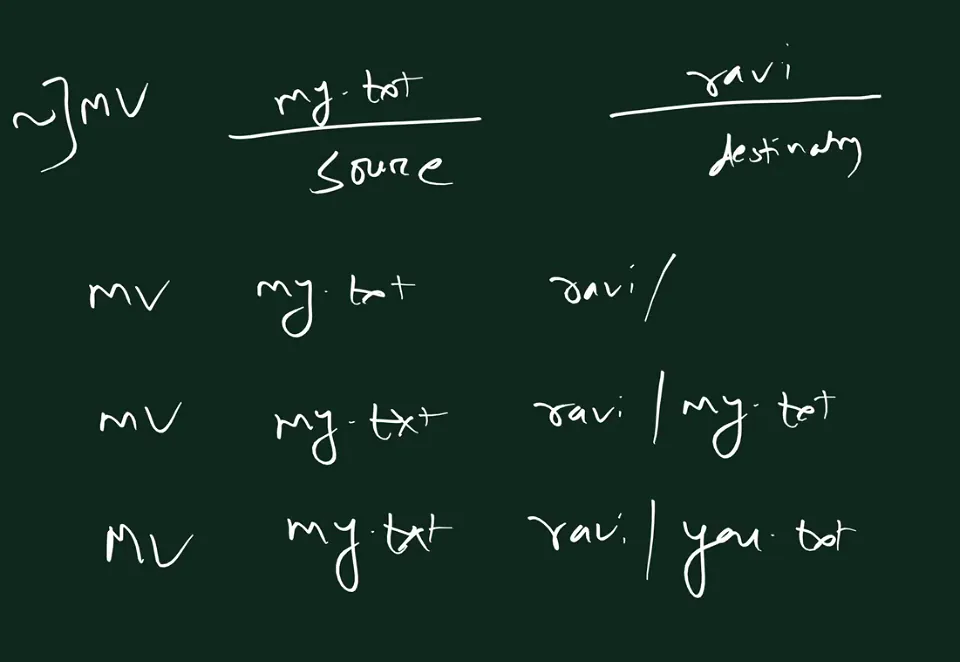
From the class board: mv my.txt ravi: my.txt is the source, ravi the destination. Then the three other ways: mv my.txt ravi/, mv my.txt ravi/my.txt, and mv my.txt ravi/you.txt, which also renames the file.
4. Renaming with mv
Why. Linux has no separate rename command for everyday use. Renaming is just moving a file to a new name in the same place.
Classroom line
mv is also the command for renaming.
Class मधलं वाक्य
"rename karnya sathi sudha mv command ahe."
rename करण्यासाठी सुद्धा mv command आहे.
Classroom line
mv is also the command for renaming.
How:
touch my.txtmv my.txt our.txtls→our.txt(and nomy.txt)
How mv decides:
- Destination is an existing folder → the item moves inside it.
- Destination doesn't exist → the item gets that name (rename).
- Destination is the same as the source → nothing to do.
Try it:
mv my.txt my.txt
mv: 'my.txt' and 'my.txt' are the same file
Figure 2. Animation: mv my.txt ravi moves the file into ravi; mv my.txt our.txt renames it; mv my.txt ravi/you.txt moves and renames; mv ravi one moves a whole folder, without -r.
5. Renaming inside a subfolder, without going there
Why. You don't have to cd into a folder to rename something in it. Give both names as paths.
How (you stay in /home/ec2-user):
mv ravi/1.txt ravi/2.txtls ravi→2.txtis there,1.txtis gone.
Both paths point into the same folder, so it's a rename. If the second path pointed into another folder, it would be a move and rename.
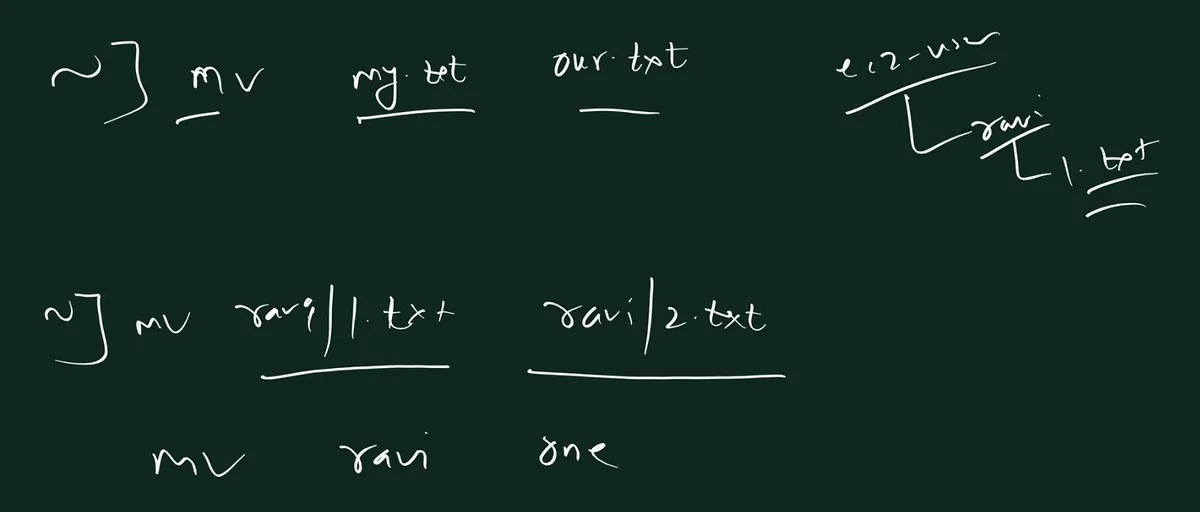
From the class board: mv my.txt our.txt renames in the same folder. With the tree ec2-user, ravi, 1.txt on the right: mv ravi/1.txt ravi/2.txt renames a file inside ravi without leaving home, and mv ravi one moves the folder ravi into one.
6. Moving folders: no -r
Why. With cp, a folder needs -r. With mv, it doesn't. Good to know before an interviewer asks "why?".
How:
mkdir one(in your home;ravialready exists)mv ravi onels one→ravi, with everything that was inside it.
To bring it back: mv one/ravi . (. = here).
Correction
In class the option was read out as "slash r". It's dash r: a hyphen, -r. The board had it right. A slash is the path separator, as in ravi/1.txt.
7. Why mv needs no -r
Why. Understanding this explains why mv of a huge folder takes no time at all, while cp of the same folder can take minutes.
Classroom line
When we move, what really happens? Only the path changes. But when we copy, the file is actually stored again.
Class मधलं वाक्य
"apan move karto mhanje kay karto, fakta path change hotay. pan jyaveli apan copy karto na, tya vela te file kharokhar parat memory madhe store kelya jatyat."
आपण move करतो म्हणजे काय करतो, फक्त path change होतो. पण ज्या वेळी आपण copy करतो ना, त्या वेळी file खरोखर परत memory मध्ये store केल्या जातात.
Classroom line
When we move, what really happens? Only the path changes. But when we copy, the file is actually stored again.
What happens on the same disk:
- A file's data sits in blocks on the disk.
- The folder only keeps an entry: the name, and where the data is.
cpwrites the data again into new blocks, file by file. For a folder it has to go inside every folder: that's what-rasks for.mvleaves the data alone and only changes the entry: the old name goes, the new path appears. A folder moves as a whole, in one step, so there is nothing to recurse into.
Across disks (for example from the root volume to a second EBS volume), an entry can't point to another disk. So mv copies the data to the other disk, then deletes the original. It takes as long as a copy, and it still needs no -r.
Figure 3. Animation: cp my.txt ravi writes the data again into new blocks and adds a second entry. mv my.txt ravi on the same disk leaves the blocks alone and only changes the entry to ravi/my.txt. Across disks, mv copies, then deletes.
One move mv refuses, for the same reason as cp in the last chapter. Make one/two with mkdir -p one/two, then try:
mv one one/two
mv: cannot move 'one' to a subdirectory of itself, 'one/two/one'
Correction
The board drew this with "memory" boxes. To be precise, it's the disk: on the same disk (filesystem), mv only renames the directory entry, so no data is copied. Across disks it copies and then deletes. Either way, no -r is needed.
8. Wildcards with mv
Why. Same as with cp: describe a pattern instead of typing every name.
Classroom line
We can use wildcards while moving files or folders too.
Class मधलं वाक्य
File किंवा folder move करताना आपण wildcard पण वापरू शकतो.
Classroom line – हिंदी
"file ya folder move karte waqt hum log wildcard bhi use kar sakte hai"
How:
mv *.txt ravi→ every name ending in.txtgoes intoravi.mv 2.* ravi→2.logsand anything else starting with2..- Preview first:
echo *.txtshows what the pattern picks, without moving anything.
The * and ? rules are in the copy chapter.
9. mv overwrites without asking: mv -i
Why. If the destination file already exists, mv replaces it. No question, no message, and the old file is gone.
See it happen:
echo old > b.txt
echo new > a.txt
mv a.txt b.txt
cat b.txt
Output: new. The old b.txt is lost, and a.txt no longer exists.
The safe way: mv -i asks first:
mv -i a.txt b.txt
mv: overwrite 'b.txt'?
Type y to replace, n to keep b.txt.
Ravindra Bagale's Tip
When you move files into a folder that already has files, use mv -i. One n can save a file you can't get back.
10. rm: deleting files
Why. Old logs, test files, mistakes. Servers fill up, and a full disk stops everything.
How:
rm my.txt→ one file.rm 1.txt my.mp3 3.logs→ several files at once.rm *.txt→ every.txtfile here.rm file*→ every name that starts withfile.
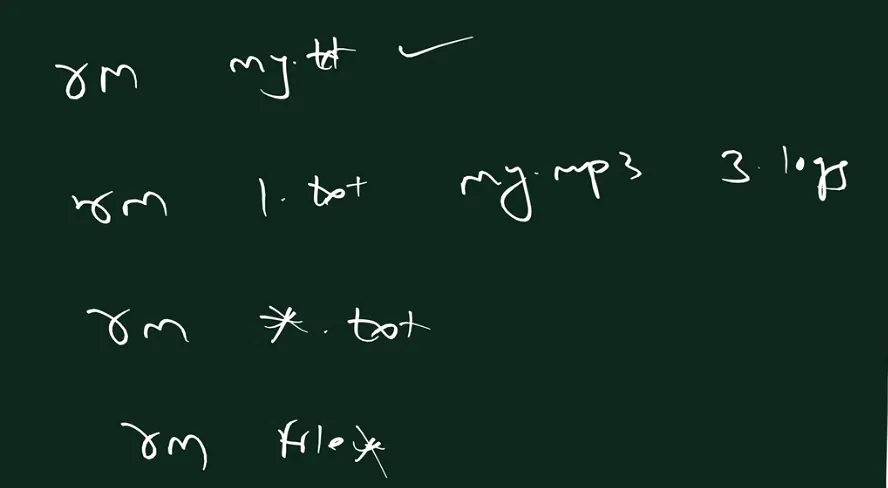
From the class board: rm my.txt deletes one file, rm 1.txt my.mp3 3.logs deletes three, rm *.txt every name ending in .txt, and rm file* every name starting with file.
Things to know:
- There is no recycle bin. Deleted means gone.
- For
ec2-user,rmdoesn't ask before deleting. - A name that doesn't exist:
rm: cannot remove 'nothere': No such file or directory. - A folder isn't deleted by plain
rm.
Try it on a folder:
rm ravi
rm: cannot remove 'ravi': Is a directory
11. rm -r: deleting a folder and everything in it
What. rm -r ravi deletes the folder ravi, every file in it, every folder in it, all the way down. -r = recursive, the same idea as cp -r.
How:
rm -r ravils→raviis gone.
Ask before each delete:
rm -i my.txt
rm: remove regular empty file 'my.txt'?
For a folder, combine it with -r:
rm -ri ravi
rm: descend into directory 'ravi'?
rm -ri asks for every file and folder inside, one by one. Answer n at any point to keep that item.
Correction
In class it was said that rm -r on a single file wastes CPU and RAM. It doesn't; the difference is too small to notice. The real reason not to type -r out of habit is safety: with -r, one wrong name deletes a whole folder instead of failing with Is a directory. Use plain rm for files, rm -r only when you mean a folder, and rm -i when in doubt.
Ravindra Bagale's Tip
Before rm with a wildcard, run ls with the same pattern: ls *.txt, then rm *.txt. You see exactly what will go. And read any rm -r line twice before pressing Enter. More on this in 3.3 Working with files and directories.
12. rmdir: deleting only empty folders
Why. rmdir is a safety net. It refuses to delete a folder that still has something inside.
How:
mkdir emptyrmdir empty→ gone, no message.rmdir my.txt→rmdir: failed to remove 'my.txt': Not a directory
Now a folder with files inside:
rmdir ravi
rmdir: failed to remove 'ravi': Directory not empty
Figure 4. rm deletes files but says Is a directory for folders. rmdir deletes only empty folders and says Not a directory or Directory not empty otherwise. rm -r deletes anything, including a folder with everything inside.
Which one to use:
- A file →
rm - An empty folder →
rmdir - A folder with things inside →
rm -r(and think twice)
13. Practice task: mv, cp and rm on one tree
The task. Do everything from /home/ec2-user; don't cd anywhere.
- Make a folder
projects, inside itweb, and insidewebfour folders:frontend,backend,database,testing. - Make two files,
notes.txtandreport.txt, insideweb, next to the four folders. - Move
notes.txtintobackend. - Move
report.txtintodatabase. - Copy
report.txtfromdatabaseintotesting. - Delete
report.txtfromdatabase. - End state:
notes.txtonly inbackend,report.txtonly intesting.
Classroom line
Do all the work while staying in ec2-user's home.
Class मधलं वाक्य
"Sagle kaam ec2-user madhye thambunach karaycha ahe."
सगळं काम ec2-user मध्येच थांबून करायचं आहे.
Classroom line
Do all the work while staying in ec2-user's home.
Classroom line
We have to use all the commands: cp, mv, rm.
Class मधलं वाक्य
"Sagle commands vaprache ahet aplayla. cp, mv, rm."
सगळे commands वापरायचे आहेत आपल्याला. cp, mv, rm.
Classroom line
We have to use all the commands: cp, mv, rm.
Try it yourself before reading on.
Solution:
cd
mkdir -p projects/web/{frontend,backend,database,testing}
touch projects/web/{notes.txt,report.txt}
mv projects/web/notes.txt projects/web/backend
mv projects/web/report.txt projects/web/database
cp projects/web/database/report.txt projects/web/testing
rm projects/web/database/report.txt
Check with tree projects:
projects
└── web
    ├── backend
    │   └── notes.txt
    ├── database
    ├── frontend
    └── testing
        └── report.txt

6 directories, 2 files
Figure 5. Animation: notes.txt is moved into backend, report.txt into database, report.txt is copied to testing, and the copy in database is removed. End state: notes.txt in backend, report.txt in testing.
Why stay in your home? ec2-user may only write inside its own home (and a few places like /tmp). Outside it you get:
mkdir /projects
mkdir: cannot create directory ‘/projects’: Permission denied
14. Working smart: relative paths, braces and Tab
Why. In an interview task, the person who finishes first, correctly, wins. Typing less also means fewer typos.
- Relative paths. You're already in
/home/ec2-user. Writeprojects/web/backend, not/home/ec2-user/projects/web/backend. - Braces. One line makes many names:
mkdir -p projects/web/{frontend,backend,database,testing}. - Tab. Type
projects/wand press Tab; the shell completesweb/. Fewer keys, no spelling mistakes.
Classroom line
You're already in ec2-user, so why are you typing the path from the very start?
Class मधलं वाक्य
"Tumhi already ec2-user madhe ahe na, mag ka bara pehlya pasun path det basla?"
तुम्ही already ec2-user मध्ये आहात ना, मग का बरं पहिल्यापासून path देत बसला?
Classroom line
You're already in ec2-user, so why are you typing the path from the very start?
Classroom line
When you need many files in one place: curly braces.
Class मधलं वाक्य
"Ekach thikani apla multiple files tayar karayche ahet, curly brace."
एकाच ठिकाणी आपल्याला multiple files तयार करायच्या आहेत, curly brace.
Classroom line
When you need many files in one place: curly braces.
15. File or folder? Names and colours don't decide
Why. Before you rm or rmdir, you must know which one you have. Guessing from the name doesn't work.
Names don't decide:
touch report→ a file calledreport, no extension needed.mkdir photos.txt→ a folder, even though its name ends in.txt.
Colours don't decide either. In ls, folders often show in blue and files in white, but that's only a display setting. The colours come from the LS_COLORS variable, which a startup script fills in (with the dircolors command) when you log in. Change the setting, use another terminal, or pipe the output, and the colours change or disappear.
What does decide: ask Linux.
ls -F→ folders get a/at the end:photos.txt/ reportls -l→ the first character (next section).
Correction
In class the colour settings were said to come from a ".dash profile" file. The colour rules come from LS_COLORS (set up by dircolors), usually loaded through startup files such as ~/.bashrc or ~/.bash_profile. Either way, colour is a display choice, not the file type.
16. ls -l: the first character
Why. ls -l (long listing) is the reliable way to see what something is, who owns it and when it changed.
How. In a folder with one empty file my.txt and one empty folder ravi:
[ec2-user@ip-172-31-xx-xx ~]$ ls -l
total 0
-rw-r--r--. 1 ec2-user ec2-user 0 Jan  5 10:15 my.txt
drwxr-xr-x. 2 ec2-user ec2-user 6 Jan  5 10:15 ravi
Read it column by column:
- First character:
-= a regular file,d= a directory. rw-r--r--: permissions (read, write, execute). That's the next topic..: an SELinux label is attached (Amazon Linux uses SELinux).1/2: the number of links. A folder has at least 2: its name, and its own..ec2-user ec2-user: the owner and the group.0/6: the size in bytes. A folder's size is the size of its own list of names, not of what's inside. On Amazon Linux (XFS) a small folder shows a small number like6; on other systems you'll often see4096.Jan 5 10:15: last modified.- The name.
Classroom line
The very first character tells us whether it's a file or a directory.
Class मधलं वाक्य
सगळ्यात पहिला जो character असतो ना, त्यावरून आपल्याला कळतं की ती file आहे की directory.
Classroom line – हिंदी
"Jo sabse first bit hota hai na, isse hume pata chalta hai wo file hai ya directory hai."
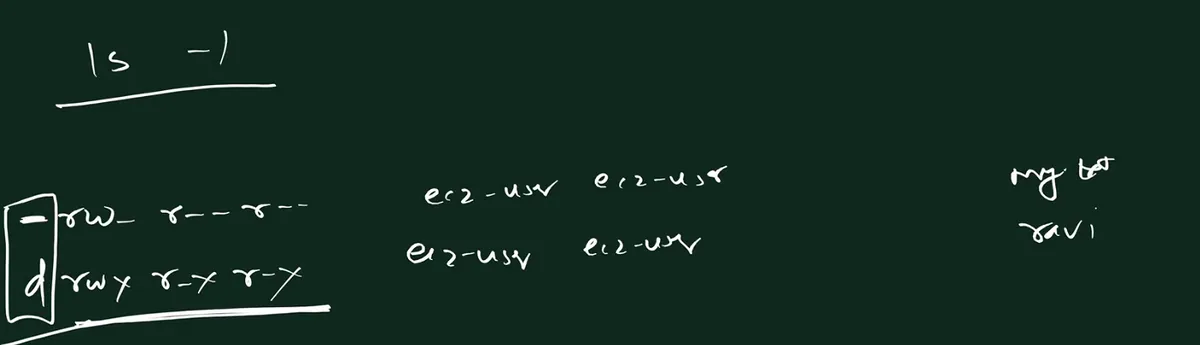
From the class board: The board's simplified ls -l: the first character, boxed, is a dash for the file my.txt and d for the folder ravi, followed by the permissions and the owner and group ec2-user. The real output also shows links, size and time.
Figure 6. ls -l for a file and a folder, every column labelled: type, permissions, SELinux dot, links, owner, group, size, modified time and name. A dash means a file, d means a directory.
To see a folder's own line instead of its contents: ls -ld ravi.
Correction
The board showed a shortened ls -l line with only the type, permissions, owner, group and name. Above is the real output, with the link count, size and date too. The dates are examples.
17. The command summary
| Job | A file | A folder |
|---|---|---|
| Copy | cp |
cp -r |
| Move or rename | mv |
mv (no -r) |
| Delete | rm |
rmdir (empty only), rm -r (with everything inside) |
Add -i to cp, mv or rm to be asked before anything is overwritten or deleted.
18. Hidden files: a dot at the start of the name
Why. Your home already has files you can't see with ls. Linux keeps its settings in them.
What. A name that starts with a dot is hidden from a normal ls. That's the whole rule.
How (from your home folder):
touch notes.txt- Hide it:
mv notes.txt .notes.txt ls→ it's not listed.ls -a→ there it is, next to files that were hidden all along.
Your list will look something like this:
ls -a
.  ..  .bash_logout  .bash_profile  .bashrc  .notes.txt  .ssh  projects  raj  ravi
To unhide it, rename it back: mv .notes.txt notes.txt. Folders work the same way: mv ravi .ravi hides, mv .ravi ravi unhides.
ls -A is the same without . and ...
Real examples of hidden files:
.bashrc,.bash_profile: your shell's settings..ssh/: holdsauthorized_keys, the list of public keys allowed to log in as you.- Remember section 2:
ravi/*skips these.ravi/.doesn't.
Correction
In class, the dot was suggested as a way to hide files from people who don't know Linux. A dot only hides a name from a plain ls; anyone who types ls -a sees it. It is not security. To protect a file, use permissions (next topic).
19. The entries . and ..
What. ls -a shows two names in every folder, even a brand-new empty one:
.= this folder itself...= the parent folder, one level up.
They are real entries in the folder's list, pointing to the folder and to its parent. That's why they work everywhere:
cd ..→ up one level.cd .→ stay where you are.cp one/a.txt .→ copy here.mv ravi/2.txt ..→ move one level up.
Figure 8. You are in ravi: . points to ravi itself, .. points to its parent ec2-user. ls -a shows . and .. in every folder, even an empty one.
Think of a chain: every folder knows where it is (.) and where its parent is (..), so you can always walk back up to /.
20. Before you leave: terminate or stop
At the end of class the instance was stopped and then terminated.
- Stop = switch off. The disk (EBS) stays; you can start it again later.
- Terminate = delete the server. By default the root EBS volume is deleted too. It can't be undone.
- You don't need to stop before terminating. Terminate shuts it down by itself.
Stop vs terminate, and what each costs, is in Inside an EC2 server: EBS, ENI, instance states, connecting with SSH, and what Linux is.
Correction
In class the instance was stopped first and then terminated. The stop isn't needed: terminate shuts the instance down by itself and deletes the root volume by default. Terminate only a server you no longer need; for practice servers you'll use again, stop is enough.
21. Try at home
Try at home
Task 1: contents only
- Make
srcwitha.txt,b.txtand a hidden.env. Make an emptydst. - Copy only the contents of
srcintodstwithsrc/*. Check withls -A dst. Is.envthere? - Empty
dst(rm -r dst/*) and do it again withsrc/..
Task 2: mv
touch my.txt, then rename it toour.txt.- Move
our.txtintosrcand rename it tofinal.txtin one command. - Rename
src/final.txttosrc/done.txtwithout leaving home. mkdir boxand move the wholesrcfolder intobox. Did you need-r?
Task 3: delete
- Try
rmdir box. Read the error. - Try
rm box. Read the error. - Delete it with
rm -ri box; answeryto everything.
Task 4: look closely
touch reportandmkdir photos.txt. Runls -landls -F. Which is the folder?- Hide
reportwith a dot, find it withls -a, then unhide it. - Redo the practice task (section 13) with your own folder names, from home, in as few commands as you can.
When you finish, stop the instance from the console, or terminate it if you won't use it again.
Recap
In short
- The prompt shows your current folder:
[ec2-user@ip-... ravi]$.~means home. - Contents only:
cp -r ravi/* raj. With hidden files:cp -r ravi/. raj. mv SOURCE DESTINATION= cut-paste. Existing folder → moves inside; new name → rename.mv my.txt ravi/you.txtmoves and renames in one step;mv ravi/1.txt ravi/2.txtrenames without leaving home.mvneeds no-r: on the same disk it only changes the name entry; across disks it copies, then deletes.mvoverwrites silently;mv -iasks. Wildcards work:mv *.txt ravi.rmfiles,rmdirempty folders,rm -rfolders with everything. No recycle bin.rm -ron a file is a safety risk, not a speed problem. Userm -i/rm -riwhen unsure.- Work from home with relative paths, braces and Tab.
- Names and colours don't tell file from folder;
ls -l(first character-ord) andls -Fdo. - Hidden = name starts with a dot.
ls -ashows them. Hidden is not secret. - Every folder has
.(itself) and..(its parent). - Terminate needs no stop first, and it deletes the root volume by default.
Samjla ka? Ghari practice task parat kara, ani rm vaparnyaadhi don vela vichar kara.
Ravindra Bagale, trainer: linkedin.com/in/ravindra-bagale. The folder and file names (ravi, raj, projects, notes.txt, report.txt and the rest) are examples for learning. Command outputs and error messages were checked with GNU bash and coreutils, the same tools Amazon Linux 2023 uses; the hostname in the prompt and the dates in ls -l are illustrative.