How to Recover Data from a Broken EC2 Instance
A server breaks: it won't boot, someone changed the wrong file, or it has to go. The data is still on its disk, an EBS volume, and a volume can be moved to another server. This chapter does exactly that: you stop a server, detach its root volume, launch a new server in the same Availability Zone, swap the new server's root volume for the old one, and start it with all the old files and the website back. Then it covers the backups that make this easy: AMIs, launch templates and EBS snapshots, what each one is for, why you can't launch a server straight from a snapshot, and how to clean up so nothing keeps costing money.
What you'll learn in this class
- Root volume vs data volumes, and the Delete on termination setting
- Volume states: In-use and Available, and why the Availability Zone matters
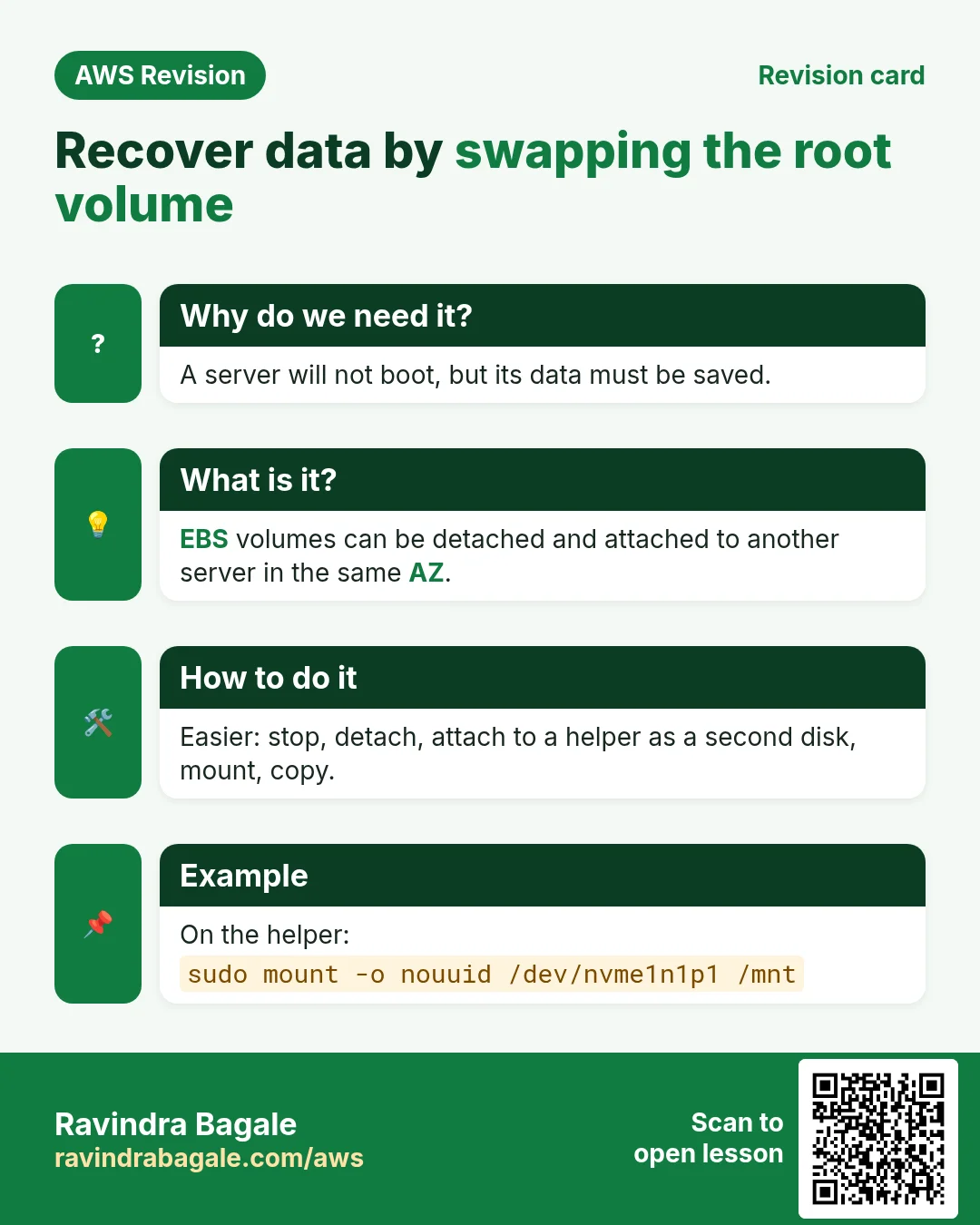
- Recovering data by swapping the root volume at
/dev/xvda, step by step - The easier way to read an old disk: attach it as a second disk and mount it
- What an AMI is, creating one, and launching from My AMIs
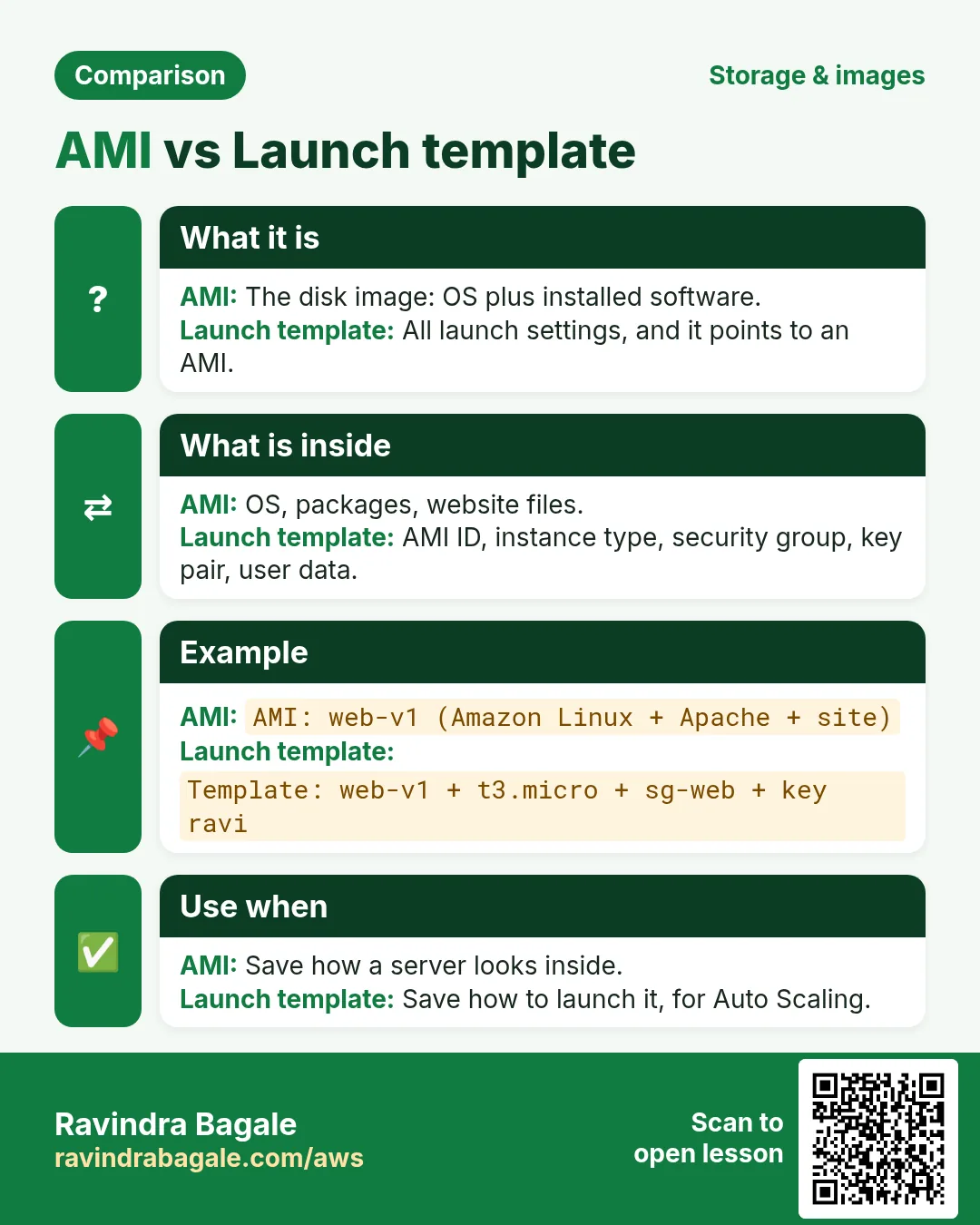
- AMI vs launch template
- Snapshot vs AMI, and creating a snapshot of a volume or of a whole instance
- Why you can't launch from a snapshot, and the two roads: snapshot to AMI, or snapshot to volume
- Deregister vs Disable for an AMI, and the clean-up that stops the charges
1. Root volume and data volumes
Why: Recovery is only possible because the data lives on a volume, separate from the server. Knowing which volume holds what tells you what you can save.
What: an EBS volume is a disk for an EC2 server. The root volume holds the operating system; Linux boots from it. Any extra disks are data volumes.
Classroom line
The volume that holds our OS is called the root volume.
Class मधलं वाक्य
ज्या volume मध्ये आपली OS असते, त्या volume ला आपण root volume म्हणतो.
Classroom line – हिंदी
"Jis volume mein hamara OS rehta hai, us volume ko hum root volume bolte hain."
- Size: Amazon Linux starts with an 8 GiB
gp3root volume by default; Windows Server starts with 30 GiB. - Device name: the root volume of Amazon Linux is
/dev/xvda. Data volumes get names such as/dev/sdf. - Data volumes are added in Configure storage > Add new volume at launch, or attached later.
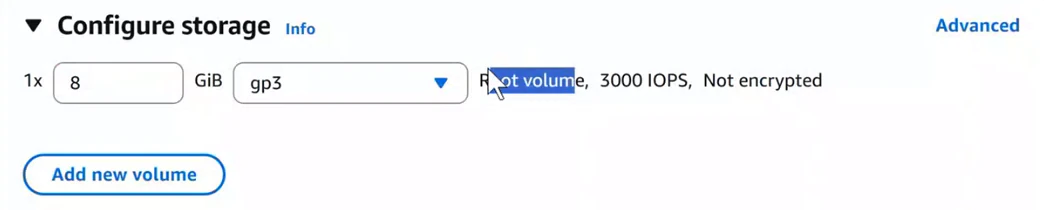
Console: Configure storage in the launch wizard: one 8 GiB gp3 root volume with 3000 IOPS, not encrypted, and the Add new volume button for data volumes.
Classroom line
The default is 8 GB; if you need a data volume, you can attach one.
Class मधलं वाक्य
Default 8 GB येतंय, data volume हवा असेल तर attach करू शकतो.
Classroom line – हिंदी
"Default 8 GB aa raha hai, data volume chahiye toh attach kar sakte hain."
Figure 1. One EC2 server with a root volume at /dev/xvda (the OS, 8 GiB by default, Delete on termination Yes) and a data volume at /dev/sdf (your data, Delete on termination No when attached later). Both live in the same Availability Zone as the server.
What EBS costs, and what happens to it on stop and terminate, is in The EBS bill: real numbers and Step 6: Storage.
2. Interview question: can you get the data back from a terminated server?
Why: Interviewers ask it to see whether you know that terminate deletes the root volume by default. The answer decides how you protect data from day one.
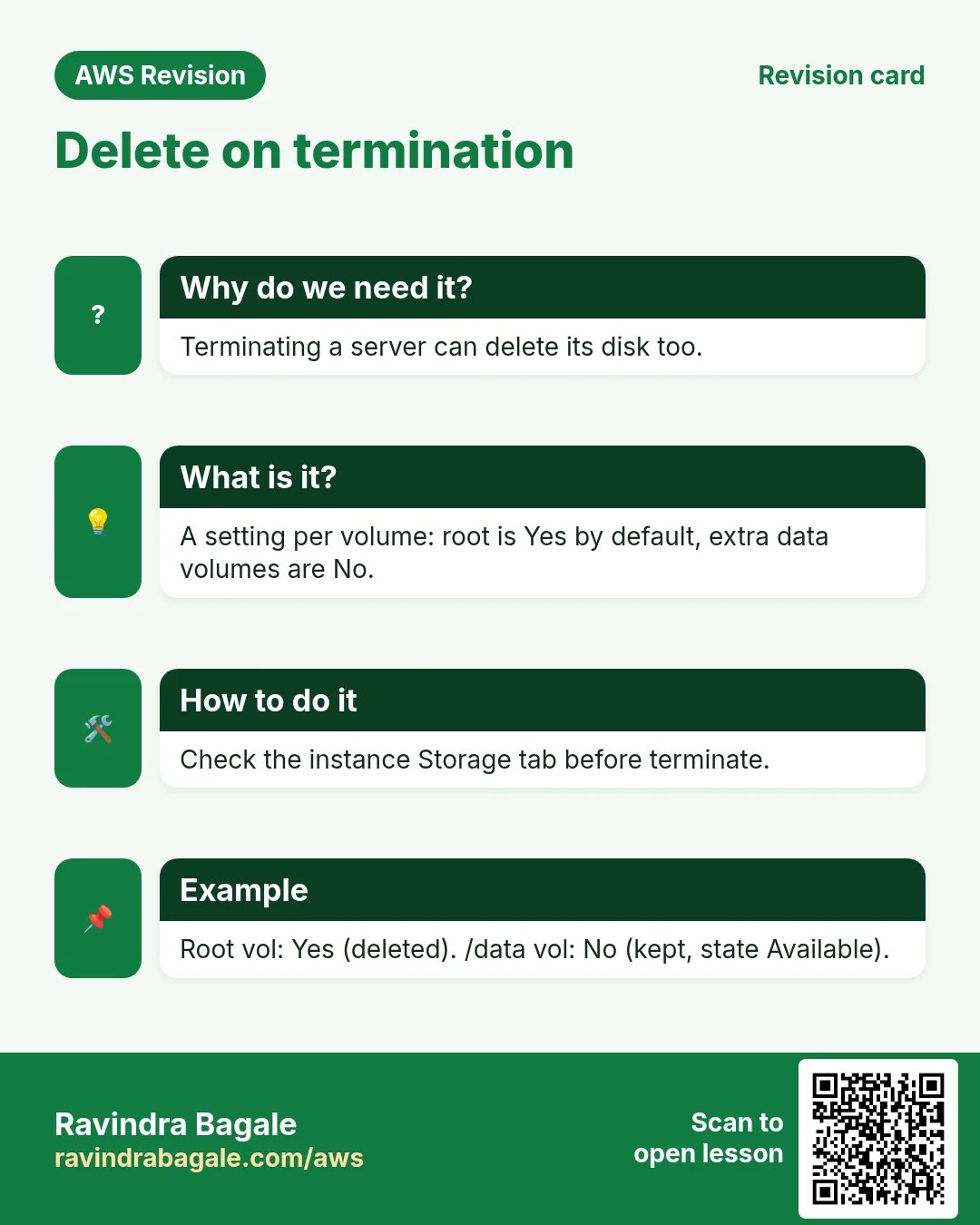
The honest answer: only if the disk still exists. By default the root volume has Delete on termination: Yes, so when the server is terminated, its root volume is deleted with it, and the data is gone.
Figure 2. Terminate a server: a volume with Delete on termination Yes is deleted with it; a volume with No stays as Available. A volume you detached before terminating, and any snapshot or AMI, always survive.
The data survives a terminate in four cases:
- You detached the root volume before terminating (this chapter's lab).
-
Delete on termination was set to No for that volume. At launch it is in Configure storage > Advanced. For a running server, use the AWS CLI:
aws ec2 modify-instance-attribute --instance-id INSTANCE_ID --block-device-mappings '[{"DeviceName":"/dev/xvda","Ebs":{"DeleteOnTermination":false}}]' -
You have a snapshot of the volume.
- You have an AMI of the server.
Data volumes that you attach after launch default to No, so they stay behind as Available (and keep costing money) after a terminate.
3. The lab: a server with a website and some files
What: one Amazon Linux 2023 t3.micro with the default 8 GiB root volume, a web page and three files, so you can see that they come back.
How:
sudo yum install httpd -y
echo "<h1>Hello from the old disk</h1>" | sudo tee /var/www/html/index.html
sudo service httpd start
sudo systemctl enable httpd
touch f1 f2 f3
ls
sudo service httpd startprintsRedirecting to /bin/systemctl start httpd.service. That is not an error: on Amazon Linux 2023 the oldservicecommand hands the job tosystemctl, and Apache starts.sudo systemctl enable httpdmakes Apache start at every boot, also when this disk boots on another server later.- The files are in
/home/ec2-user. If you switched to root withsudo su -, files you create land in/rootinstead. - In the security group, add an inbound rule HTTP, port 80 from Anywhere-IPv4, then open
http://PUBLIC_IP/in the browser.
The full Apache set-up is in Host a website on EC2 with Apache, and the port 80 rule in Step 6: open port 80.
4. Volume states, and the Availability Zone rule
Why: A volume can attach only to a server in its own AZ. Forgetting this is why the server you want is missing from the attach list.
What: Elastic Block Store > Volumes lists every volume with its Volume state.
- In-use: attached to an instance.
- Available: not attached to anything; free to attach. It still costs money.
- You also see Creating and Deleting for a short time.
Classroom line
Available means it isn't attached to any EC2 instance.
Class मधलं वाक्य
Available म्हणजे तो कुठल्याही EC2 instance ला attach नाही.
Classroom line – हिंदी
"Available ka matlab, wo EC2 instance ke saath attach nahi hai."
The Availability Zone rule: a volume lives in one Availability Zone (AZ), such as ap-southeast-1c, and can only be attached to an instance in the same AZ. A volume in 1c doesn't even show up when you try to attach it to an instance in 1a.
Figure 3. Volume states: Creating, Available, In-use (attach and detach move between them) and Deleting. A volume in ap-southeast-1c attaches to an instance in 1c, never to one in 1a.
Classroom line
The new EC2 you launch must be in the same Availability Zone as the old one.
Class मधलं वाक्य
जो नवीन EC2 launch करताय, तो जुन्या EC2 च्याच availability zone मध्ये असला पाहिजे.
Classroom line – हिंदी
"Naya EC2 jo launch kar rahe hai, purane EC2 ka availability zone same rehna chahiye."
5. How: recover data by swapping the root volume
Why: When a server won't boot, its disk is usually fine. Moving the disk to a healthy server brings the whole system back, not just a few files.
The idea: a server has exactly one root volume. Take the old server's root volume, and make it the root volume of a new server.
Figure 4. Animation: stop the old server and detach its root volume (Available); launch a new server in the same AZ and stop it; detach its own root volume; attach the old volume at /dev/xvda and start: the old files and website are back.
Part A: free the old disk.
- Select the old server, Instance state > Stop, and wait for Stopped. A root volume can only be detached from a stopped instance.
- Open its Networking tab and note the Availability Zone, for example
ap-southeast-1c. - Open its Storage tab and click the root volume. In Volumes, give it a Name such as
old-root(pencil in the Name column), so you can tell the volumes apart. - Select
old-root, Actions > Detach volume, and confirm. The state changes from In-use to Available. - The old server can now be terminated; the detached volume stays.
Part B: a new server in the same AZ.
- Launch instances, Amazon Linux 2023, the same key pair as the old server, so your
.pemworks on the old disk too. -
Network settings > Edit > Subnet: pick the subnet in the old server's AZ. (Or set Availability Zone under the subnet list; "No preference" can land anywhere.)
-
Launch it, wait for Running, then Instance state > Stop, and wait for Stopped.
- In its Storage tab, click its root volume, name it
spare-root, and Actions > Detach volume.
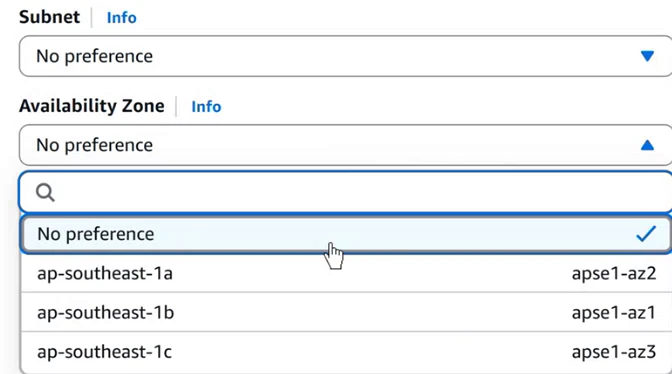
Console: In Network settings, choose the subnet or Availability Zone of the old volume instead of No preference.
Classroom line
Only one root volume can be attached to one EC2 instance.
Class मधलं वाक्य
एका EC2 instance ला एकच root volume attach होऊ शकतो.
Classroom line – हिंदी
"Ek EC2 instance ke saath ek hi root volume attach ho sakta hai."
Part C: attach the old disk as the root volume.
- Select
old-root, Actions > Attach volume. - Instance: pick the new, stopped server. It is only listed when it is in the same AZ.
- Device name:
/dev/xvda, listed under Reserved for root volume. Then Attach volume. The state becomes In-use.
![EC2 console, Attach volume page, Basic details: the device name list is open with Specify a custom device name, then Reserved for root volume: /dev/xvda Linux, then Recommended for data volumes: /dev/sdb, /dev/sdc, /dev/sdd Linux. The note says: recommended device names for Linux: /dev/xvda for root volume, /dev/sd[f-p] for data volumes.](../../assets/img/aws/recover-ec2-data-ebs-root-volume-swap-ami-vs-snapshot-03-console-attach-volume-dev-xvda.webp)
Console: Attach volume: /dev/xvda is reserved for the root volume; /dev/sdb to /dev/sdp are for data volumes.
Classroom line
What is the reserved device name for the root volume?
Class मधलं वाक्य
Root volume चं reserved नाव काय आहे?
Classroom line – हिंदी
"Root volume ka reserved name kya hai?"
Part D: start and check.
- Instance state > Start. The new server gets a new public IP.
-
Connect, then:
ls sudo service httpd status -
f1 f2 f3are there.httpdshowsactive (running)because it was enabled; if it showsinactive (dead), runsudo service httpd start. - Open
http://NEW_PUBLIC_IP/: the old page is back. - Delete
spare-root(Actions > Delete volume), or it keeps costing money.
Classroom line
Say it loudly and confidently: done!
Class मधलं वाक्य
मोठ्याने, confidence ने सांगायचं: झालं!
Classroom line – हिंदी
"Zor se confidence se bolne ka, ho gaya bolke."
6. The easier way: attach the old disk as a second disk
Why: to copy a few files off a broken disk, you don't need to boot from it. Attach it to any running server in the same AZ as a data volume and read it.
How:
- Select
old-root, Actions > Attach volume, pick a running server in the same AZ, device name/dev/sdf. No stop is needed. -
On that server:
lsblk sudo mkdir /mnt/old sudo mount -o nouuid /dev/nvme1n1p1 /mnt/old ls /mnt/old/home/ec2-user /mnt/old/var/www/html -
On
t3servers the disk shows up asnvme1n1, notsdf; its first partitionnvme1n1p1holds the files. - Why
-o nouuid: Amazon Linux 2023 uses the XFS filesystem. A disk made from the same AMI carries the same filesystem UUID as the server's own root disk, and XFS refuses to mount a second filesystem with the same UUID:mountfails withwrong fs type, bad option, bad superblock, andsudo dmesgshowsFilesystem has duplicate UUID ... can't mount.nouuidtells XFS to skip that check. - Copy what you need, then
sudo umount /mnt/oldand Actions > Detach volume. - Detach it before you reboot that server. Both disks have the same UUID, and the server boots its root by UUID, so it could start from the wrong disk.
Figure 5. The old root volume attached as /dev/sdf appears as nvme1n1. A plain mount of nvme1n1p1 fails with a duplicate UUID; mount -o nouuid works, and the old files are under /mnt/old. Unmount and detach before rebooting.
7. What an AMI is, and why you make one
Why: Setting up a server takes time. An AMI saves that setup once, so the next server starts ready, in seconds.
What: an AMI (Amazon Machine Image) is the template of a server: the OS, the installed software (Apache, Jenkins), the files and the settings, plus a snapshot and the size of each volume. AWS gives you AMIs (Amazon Linux, Ubuntu); you can also make your own.
Figure 6. One AMI holds the OS, software, files, settings and volume snapshots. From it you launch many identical servers, copy it to another Region, or relaunch a server that died. It does not hold the key pair, instance type or security group.
What it is for:
- Many identical servers: set up one, launch ten from its AMI.
- Another Region: copy the AMI, launch it there.
- Recovery: if a server dies or is deleted, launch it again from its AMI.
More examples are in What an AMI is and why we make one.
8. How: create an AMI and launch from My AMIs
- Put something on the server to recognise:
touch file1 file2 file3 file4andmkdir dir1 dir2 dir3. - Select the instance, Actions > Image and templates > Create image, name it
image-1, and Create image. - Reboot instance is ticked by default: EC2 reboots the server so the files are complete on disk when the snapshot is taken. Untick it only if you can't afford the reboot; the copy may then miss files that were still being written. The form is shown in Create an image (AMI) of your server.
- Images > AMIs: wait until
image-1changes from Pending to Available. - Launch instances > Application and OS Images > My AMIs, choose
image-1, and launch. - Connect and run
ls: the files are there.
Two interview points:
- Any instance type works. An AMI made from a
t3.microlaunches fine as at3.small; the type is chosen at launch. - The AMI holds no key pair. You pick one at launch, and that key logs in. (The old public key is still inside
authorized_keyson the disk, so the old key works too.)
9. AMI vs launch template
Why: The two are easy to confuse, and they solve different problems: an AMI is the disk contents; a launch template is the launch settings.
What: both help you launch servers, but they hold different things.
Figure 7. AMI: what is on the disk (OS, packages, files, configuration, volume snapshots). Launch template: how to launch (AMI ID, instance type, key pair, subnet, security groups, storage, user data, tags). A launch template points to an AMI.
| AMI | Launch template | |
|---|---|---|
| Answers | What is on the disk? | How do I launch it? |
| Holds | OS, packages, files, configuration, volume snapshots | AMI ID, instance type, key pair, subnet, security groups, storage, user data, tags |
| Made with | Create image from a server | Launch templates > Create launch template |
| Used by | Every launch | Auto Scaling groups, repeatable one-click launches |
Classroom line
If they were the same thing, AWS wouldn't have given "Create image" and "Create template" separate names.
Class मधलं वाक्य
दोन्ही एकच असते, तर AWS ने "Create image" आणि "Create template" अशी वेगळी नावं दिली नसती.
Classroom line – हिंदी
"AWS bewakoof nahi hai ki usko create image and template bolke nahi de sakta tha."
10. Copy an AMI to another Region
Why: To move a server to another Region, or keep a copy safe from a Region-wide problem, you need the AMI in that Region.
An AMI belongs to one Region. AMIs, select it, Actions > Copy AMI, choose the destination Region, then launch from the copy there. The full steps, and what has to be set up again, are in Move an EC2 server to another Region.
11. Snapshot vs AMI
Why: Both are backups, at different sizes: one disk versus a whole launchable server. Picking the right one saves cost and restore time.
What: a snapshot is a point-in-time backup of one EBS volume. An AMI is a launchable template of a whole server; behind it are snapshots, one per volume.
Classroom line
Whenever you create an AMI, what happens behind the scenes?
Class मधलं वाक्य
जेव्हा तुम्ही AMI बनवता, तेव्हा backend मध्ये काय होतं?
Classroom line – हिंदी
"Kabhi bhi aap ek AMI create kar rahe ho, toh backend mein kya hota hai?"
- Creating an AMI creates a snapshot of each of the server's volumes automatically. Look in Elastic Block Store > Snapshots: the description says
Created by CreateImage. - Snapshots are incremental: the first one stores all used blocks, the next ones only the blocks that changed. Each one still restores a complete disk. Worked numbers: Snapshots are incremental.
Figure 8. A snapshot backs up one volume; you can create a volume or an image from it, or copy it. An AMI is a whole-server template; you can launch from it, copy it, disable or deregister it. An AMI points to one snapshot per volume.
12. How: create a snapshot of a volume or of an instance
Why: A snapshot is cheap insurance before a risky change. Taking one is a single click, so there is no reason to skip it.
- Elastic Block Store > Snapshots > Create snapshot.
- Resource type:
- Volume: one snapshot of one volume. Pick the Volume ID: open the server's Storage tab first to see which volume is its root.
- Instance: one snapshot of every volume of an instance, all taken at the same moment, so they match. You can exclude the root volume or chosen data volumes.
- Add a description and a Name tag such as
ec2-snapshot, then Create snapshot. The status goes from Pending to Completed.
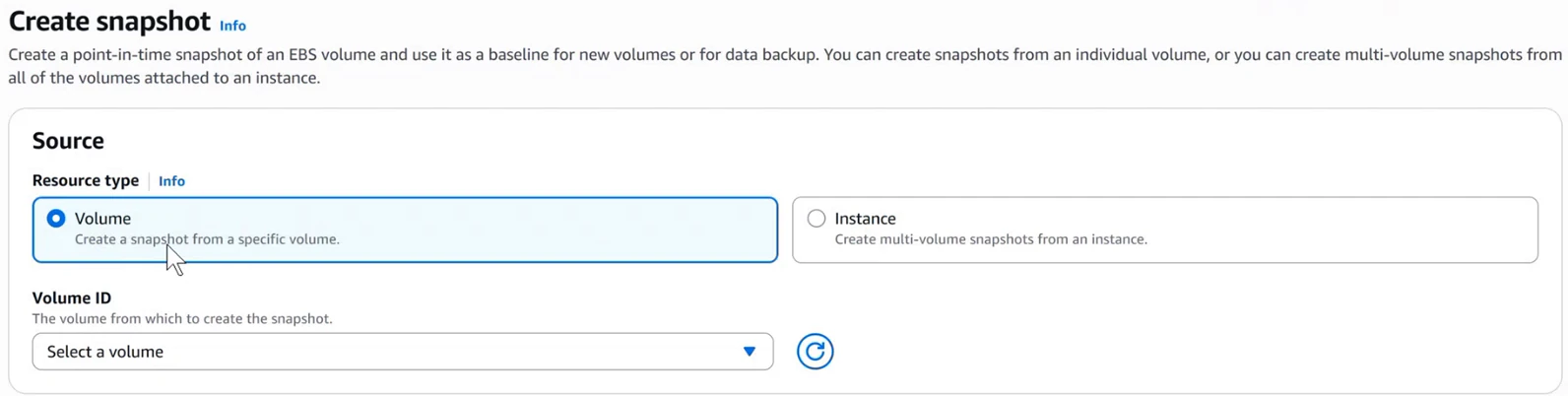
Console: Create snapshot: Resource type Volume makes a snapshot of one volume; Instance makes multi-volume snapshots of all volumes attached to an instance.
Figure 9. Resource type Volume: one volume gives one snapshot. Resource type Instance: a server with a root and a data volume gives two snapshots, taken at the same moment; you can exclude the root.
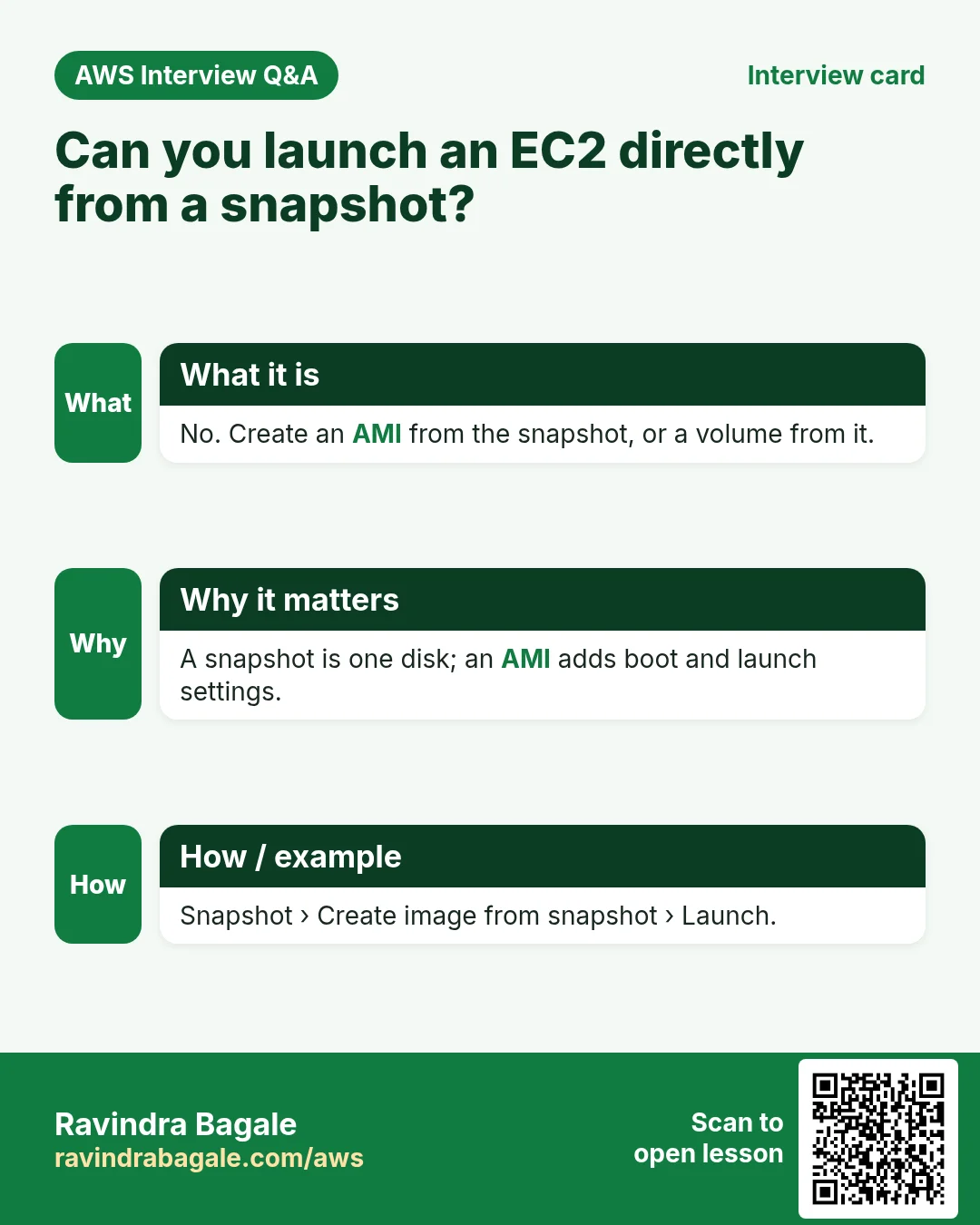
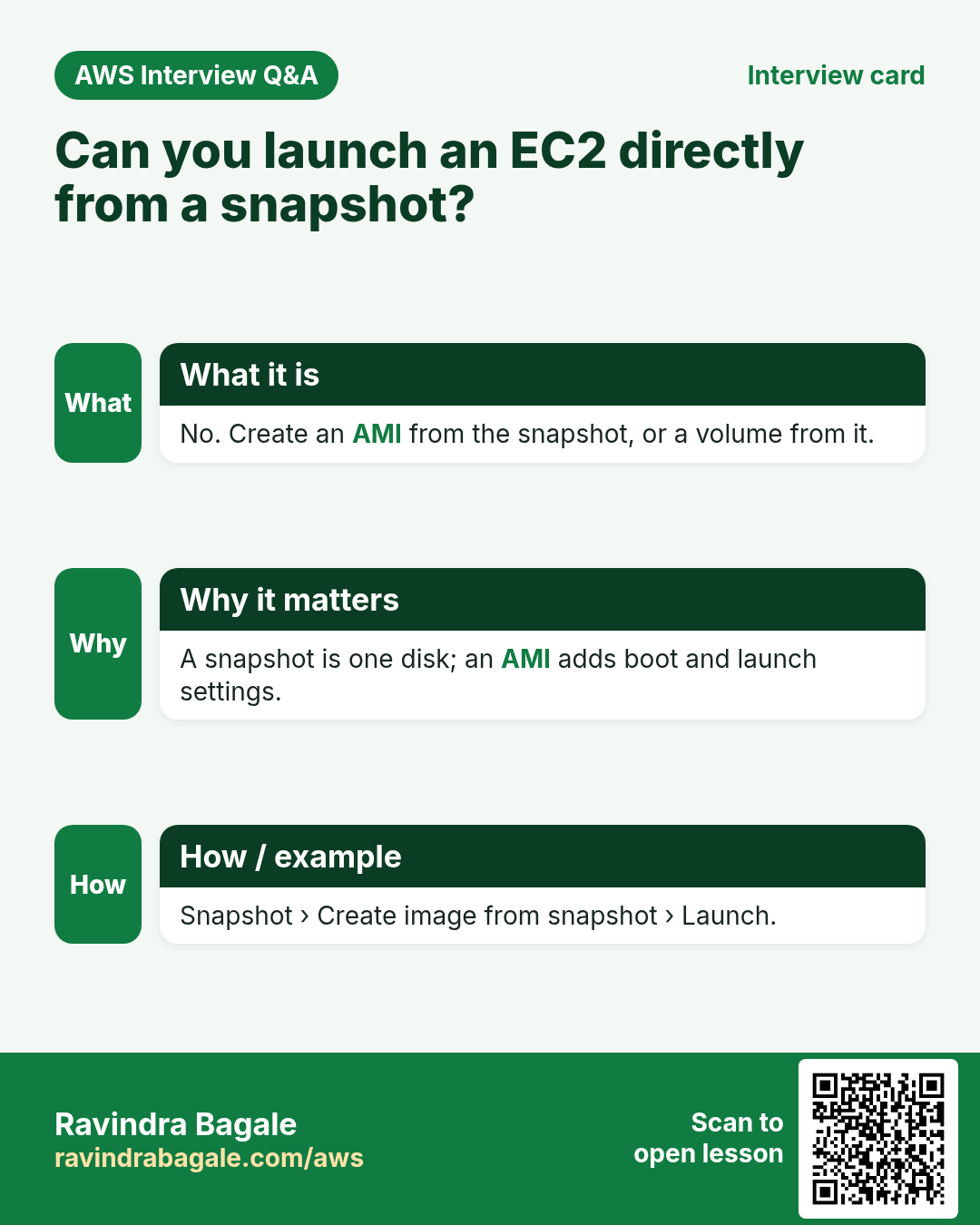
13. Interview question: can you launch an EC2 straight from a snapshot?
Why: It tests whether you know the chain: snapshot to volume or AMI, and only then a server.
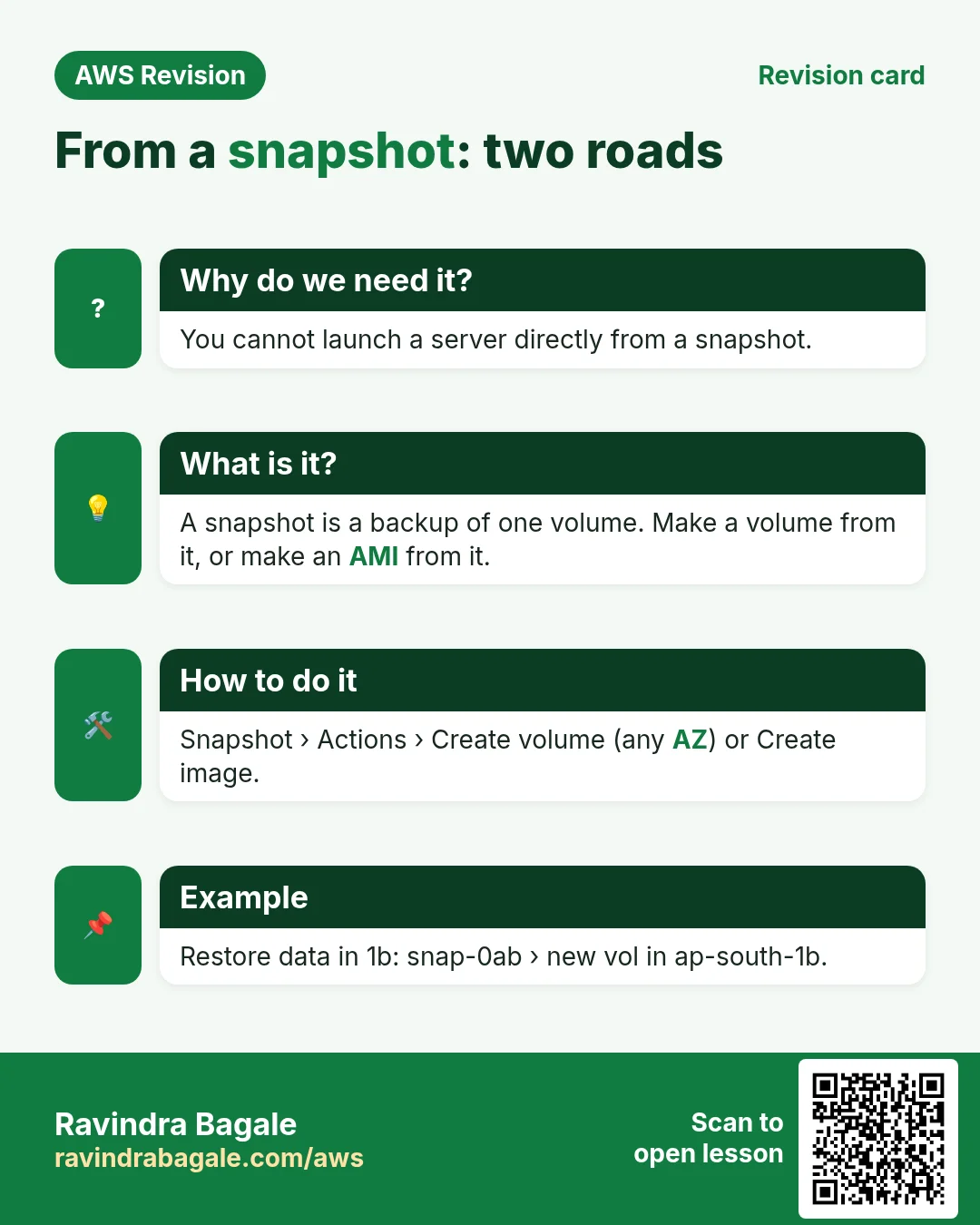
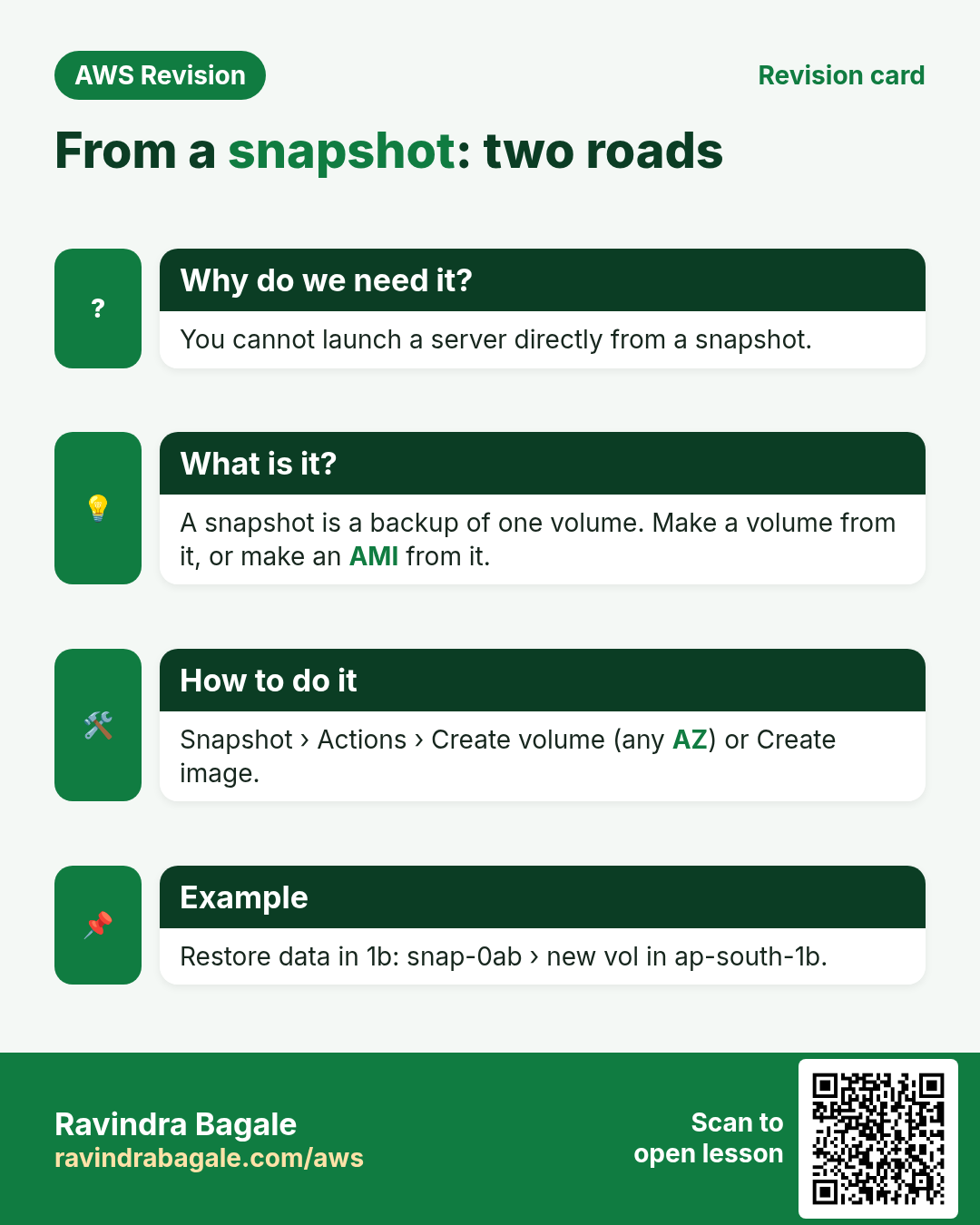
No. A snapshot is a backup of one disk; it has no boot settings. There are two roads.
Classroom line
When they ask a question like this, don't be scared.
Class मधलं वाक्य
असा प्रश्न विचारला तर घाबरायचं नाही.
Classroom line – हिंदी
"Aisa question puchte hai bolte to darne ka nahi."
Figure 10. No direct launch from a snapshot. Road 1: Create image from snapshot, then launch from the AMI. Road 2: Create volume from snapshot in the server's AZ, then attach it, as the root at /dev/xvda (server stopped) or as a second disk at /dev/sdf.
Road 1: snapshot to AMI to EC2.
- Snapshots, select the snapshot of a root volume, Actions > Create image from snapshot.
- Name it, for example
image-snapshot. Keep Architecture the same as the original server (x86_64fort3.micro) and the Root device name/dev/xvda; leave the rest as it is. Create image. - AMIs: wait for Available, then Launch instance from AMI.
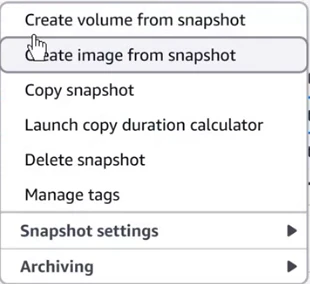
Console: The Actions menu of a snapshot: Create volume from snapshot and Create image from snapshot are the two roads to a working server.
Road 2: snapshot to volume, then attach.
- Actions > Create volume from snapshot. Set the Availability Zone to the AZ of the server you will attach it to; the size can stay or grow.
- Attach the new volume: as the root at
/dev/xvdato a stopped server (section 5, Part C), or as a second disk at/dev/sdf(section 6).
A server from an AMI has exactly what was on the disk. If you made the snapshot before creating any files, the new server's ls is empty.
Classroom line
It was empty; nothing had been created in it.
Class मधलं वाक्य
तो रिकामा होता ना, त्यात काहीच बनवलं नव्हतं.
Classroom line – हिंदी
"Empty tha na wo, kuch bhi nahi create kiya tha."
14. Task: snapshot, new volume, root swap
Why: This is the recovery path when the original volume is gone or must stay untouched: work from a snapshot instead.
The task: recover a server's files through a snapshot instead of the original disk.
- Launch
server-a, runtouch f1 f2 f3. - Create a snapshot of its root volume (Resource type: Volume).
- Create volume from snapshot in the AZ where the new server will run, for example
ap-southeast-1c. - Launch
server-bin that AZ with the same key pair, wait for Running, then Stop it. -
Detach
server-b's own root volume. -
Attach the volume made from the snapshot to
server-bat/dev/xvda. - Start
server-b, connect,ls:f1 f2 f3are there. - Clean up (section 16).
Classroom line
What do we do with this one? Detach it.
Class मधलं वाक्य
याचं काय करायचं? Detach करायचं.
Classroom line – हिंदी
"Isko kya karna hai? Detach karna hai."
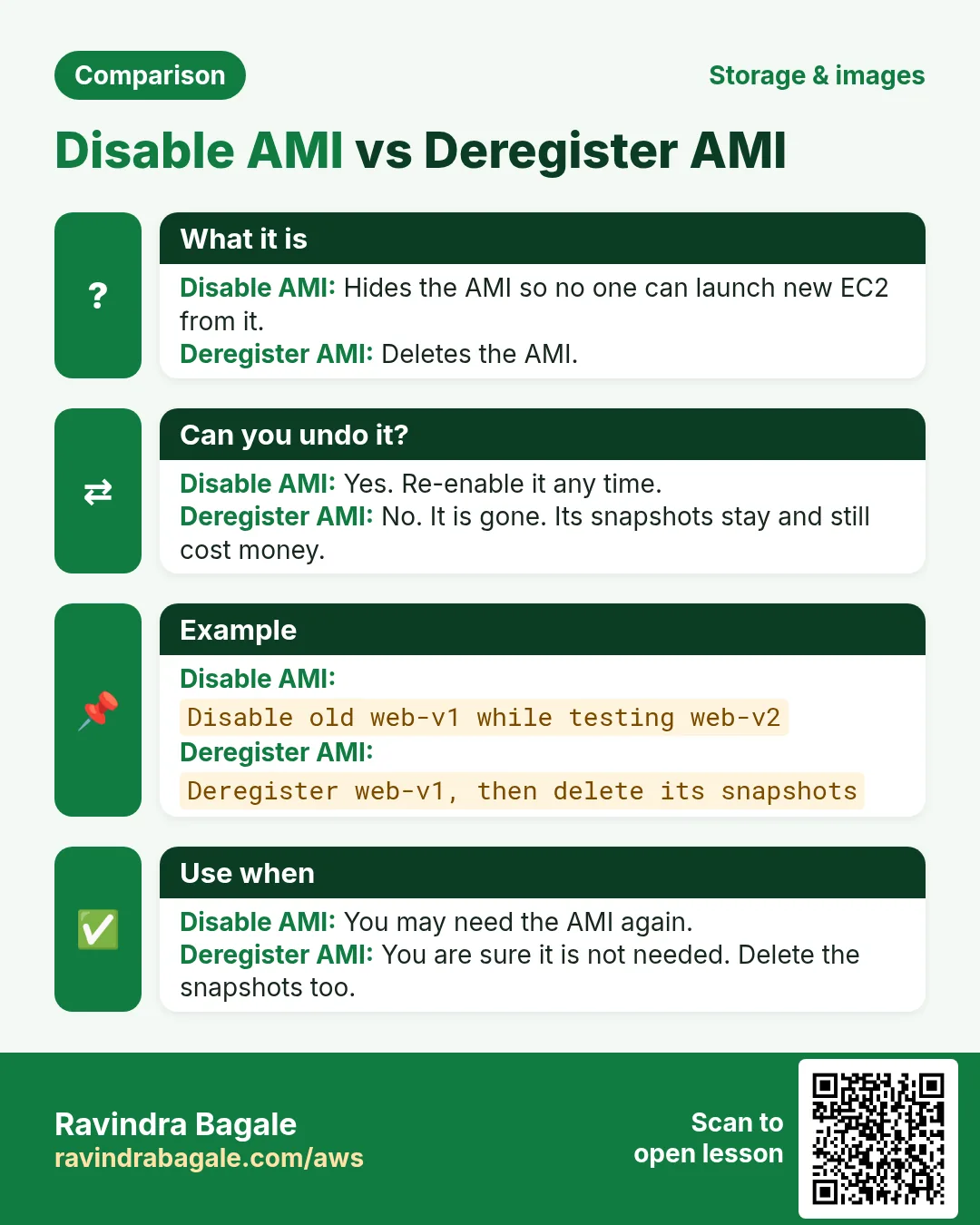
15. Deregister vs Disable an AMI
Figure 11. Disable AMI: no new launches, hidden from the normal list, can be re-enabled; snapshots stay. Deregister AMI: removed for good; snapshots stay unless you tick Delete associated snapshots. Running servers are not affected by either.
- Disable AMI (Actions > Disable AMI): the AMI can't launch new servers and moves out of the normal list (filter Disabled images to see it). If it was public, it becomes private. Re-enable AMI brings it back. Its snapshots stay, and still cost money.
- Deregister AMI (Actions > Deregister AMI): the AMI is removed for good. Its snapshots are not deleted unless you tick Delete associated snapshots; otherwise delete them yourself in Snapshots.
- Servers already launched from the AMI keep running in both cases.
The deregister dialog is shown in Clean up: deregister the AMI and delete its snapshots.
16. Clean up: what keeps costing money
Why: Volumes, snapshots and AMIs keep costing money after the servers are gone. Checking each list is how you avoid a surprise bill.
After the lab, check each list in the console:
- Instances: terminate the test servers. A stopped server's volumes are still billed.
- Volumes: delete every Available volume you don't need (
spare-root, volumes made from snapshots). - AMIs: deregister the test AMIs, with Delete associated snapshots ticked.
- Snapshots: delete the ones you made by hand.
- Elastic IPs: release any you allocated.
17. When something looks wrong
- The new server isn't in the Attach volume list: it is in a different AZ than the volume. Launch it in the volume's AZ, or make a snapshot and create a volume in the right AZ.
- Detaching a root volume fails or hangs: the server is still running. Stop it first.
- Attaching at
/dev/xvdafails because the name is in use: the new server's own root volume is still attached. Detach it first. - SSH fails after the swap: use the key pair the old server was launched with, the new public IP, and check port 22 in the security group.
- The website doesn't open after the swap:
sudo service httpd status. If it is inactive, start it, andsudo systemctl enable httpdfor next time. Check port 80 in the security group. mountfails withwrong fs typeon the second disk: add-o nouuid(section 6);sudo dmesg | tailshows the duplicate UUID.- The launch from your AMI shows no files: the AMI or snapshot was made before the files were created, or the files are in
/rootbecause you worked as root.
Classroom line
Once you try it, you find out where you're going wrong.
Class मधलं वाक्य
Try केल्यावर कळतं की आपण कुठे चुकतोय.
Classroom line – हिंदी
"Try karne ke baad pata chal jata hai ki hum kahan galat kar rahe hain."
Ravindra Bagale's Tip
Before you change anything big on a server, take a snapshot or an AMI first; it takes a minute and turns a disaster into a restore. And give every volume a Name tag the moment it is created. When three 8 GiB volumes all say Available, the name is the only thing that tells you which one holds your data.
18. The whole class on one page
- The root volume holds the OS (
/dev/xvda, 8 GiBgp3on Amazon Linux); data volumes hold extra data (/dev/sdf). - Root volumes default to Delete on termination: Yes. Data survives a terminate only if you detached first, set No, or have a snapshot or AMI.
- In-use means attached; Available means free (and still billed). A volume attaches only within its own AZ.
- Recovery by swap: stop the old server, detach its root; launch a new server in the same AZ, stop it, detach its root; attach the old volume at
/dev/xvda; start. - To just read the old files, attach as a second disk and
sudo mount -o nouuid /dev/nvme1n1p1 /mnt/old; detach before a reboot. - An AMI is a server template; Create image reboots by default; launch from My AMIs with any instance type and any key pair.
- AMI = what is on the disk; launch template = how to launch (type, key pair, subnet, security groups, user data).
- A snapshot backs up one volume (incremental); an AMI points to one snapshot per volume.
- Create snapshot: Volume for one disk, Instance for all disks at the same moment.
- No launch from a snapshot: snapshot to image to EC2, or snapshot to volume to attach.
- Disable hides an AMI and can be undone; Deregister removes it; neither deletes snapshots unless you ask.
- Clean up instances, Available volumes, AMIs, snapshots and Elastic IPs.
19. Hands-on lab: read files off a stopped server's disk
Why this lab. When a server breaks, the files are usually still on its disk. This lab simulates that: it puts files on server A, stops it, attaches its root disk to server B, and reads the files there.
- Put a file on server A
- Command:
echo "important data" > ~/keep.txt - You should see: Nothing.
- Check:
cat ~/keep.txt→important data - Why: A file you recognise proves later that you recovered the right disk.
- Command:
- Stop server A and detach its root volume
- Do: Stop server A. In its Storage tab, open the root volume, then Actions → Detach volume. Name it
old-root. - Check: Volumes shows
old-rootas Available. - Why: A root volume can be detached only from a stopped server. Stopping, unlike terminating, keeps the volume.
- Do: Stop server A. In its Storage tab, open the root volume, then Actions → Detach volume. Name it
- Attach it to server B
- Do: Select
old-root→ Actions → Attach volume → pick server B (running, same AZ) → device/dev/sdf→ Attach. - Check: The volume state becomes In-use.
- Why: A volume attaches only within its AZ. If server B isn't in the list, it is in another AZ.
- Do: Select
- Find the new disk on server B
- Command:
lsblk - You should see:
nvme0n1(server B's own disk) and a newnvme1n1with a partitionnvme1n1p1. - Check:
nvme1n1has no mount point yet. - Why: On
t3servers/dev/sdfshows up asnvme1n1. The files are in its first partition.
- Command:
- Mount it
- Command:
sudo mkdir /mnt/old && sudo mount -o nouuid /dev/nvme1n1p1 /mnt/old - You should see: Nothing.
- Check:
df -h /mnt/oldshows the old disk mounted there. - Why: Both disks come from the same AMI and share an XFS UUID. Without
-o nouuid, the mount fails withwrong fs type, bad option, bad superblock.
- Command:
- Read the file
- Command:
cat /mnt/old/home/ec2-user/keep.txt - You should see:
important data - Check: Copy it out:
cp /mnt/old/home/ec2-user/keep.txt ~/. - Why: The old server's whole filesystem sits under
/mnt/old, so its home is/mnt/old/home/ec2-user.
- Command:
- Unmount and detach
- Command:
cd ~ && sudo umount /mnt/old - You should see: Nothing.
- Check: Then Actions → Detach volume on
old-root; its state returns to Available. - Why: Detach before you reboot server B: with two disks sharing a UUID it could boot from the wrong one.
- Command:
- Clean up
- Do: Terminate both servers and delete
old-rootin Volumes. - Check: Volumes shows no
availablevolumes left. - Why: A detached volume keeps costing money every month, even with no server.
- Do: Terminate both servers and delete
20. Try at home
Try at home
Task 1: root volume swap
- Launch a server, install Apache, enable it, publish a page, and create
f1 f2 f3. - Stop it, detach its root volume, and terminate it.
- Launch a new server in the same AZ, swap its root for the old volume at
/dev/xvda, start it, and open the page.
Task 2: snapshot roads
- Snapshot a root volume. Create an image from it and launch a server.
- Create a volume from the same snapshot and attach it to a running server as
/dev/sdf. Trymountwithout-o nouuid, read the error, then mount it with-o nouuid.
Task 3: clean up
- Disable one AMI and find it under Disabled images; re-enable it.
- Deregister your AMIs with Delete associated snapshots, delete Available volumes, and check that the Snapshots and Volumes lists are empty.
Recap
In short
- The data lives on the EBS volume, and a stopped server's root volume can be moved to another server in the same AZ.
- Delete on termination is Yes for root volumes by default, so detach first or keep a snapshot or AMI.
- Swap: stop, detach, launch in the same AZ, stop, detach, attach at
/dev/xvda, start. - A second-disk mount needs
-o nouuidon Amazon Linux 2023, and a detach before reboot. - AMI = server template, launch template = launch settings, snapshot = one volume's incremental backup.
- From a snapshot: create an image or a volume; deregistering an AMI leaves its snapshots unless you tick the box.
Practice Tasks
Nashik Vineyards is a wine and farming business in Nashik. Meera Joshi looks after its IT and cloud work. They count money in INR and run their AWS resources in the ap-south-1 Region. In the tasks below you do real jobs for them using what this lesson teaches. All names, account IDs, IP addresses and numbers are made up for practice.
0 / 12
Easy Snapshot an EBS volume
Why: A snapshot is a point-in-time backup of one disk, kept in S3 by AWS.
What to do: Create a snapshot of volume vol-0e0ec15fe55cfdeed with description "nightly nashikvine".
- Read the task and decide which AWS service it is about.
- Write aws, then the service name, then the operation (the action word).
- Add each needed flag (--name) followed by its value from the task.
- Flags can be in any order. Click Check answer.
Easy Detach a volume
Why: To move a disk to a rescue server, detach it first.
What to do: Detach volume vol-0e0ec15fe55cfdeed.
- Read the task and decide which AWS service it is about.
- Write aws, then the service name, then the operation (the action word).
- Add each needed flag (--name) followed by its value from the task.
- Flags can be in any order. Click Check answer.
Easy Check free disk space
Why: If a disk is 100% full, apps and databases stop working.
What to do: Show free and used space of all mounted disks in human-readable units.
- Find the Linux command that does this job.
- Add the options (like -r or -h) the task needs.
- Add the file names, folders or users in the right order.
- Use sudo if the job changes system files or users. Click Check answer.
Easy List the disks
Why: After you attach an EBS volume, lsblk shows its device name.
What to do: List all block devices (disks and partitions) on the server.
- Find the Linux command that does this job.
- Add the options (like -r or -h) the task needs.
- Add the file names, folders or users in the right order.
- Use sudo if the job changes system files or users. Click Check answer.
Medium Attach a volume to an instance
Why: A volume must be attached (same AZ) before the server can see it.
What to do: Attach volume vol-0e0ec15fe55cfdeed to instance i-055ba51db0b011a2b as device /dev/sdf.
- Read the task and decide which AWS service it is about.
- Write aws, then the service name, then the operation (the action word).
- Add each needed flag (--name) followed by its value from the task.
- Flags can be in any order. Click Check answer.
Medium Create an AMI from a server
Why: An AMI is a full server image. Launch identical copies from it any time.
What to do: Create an AMI named nashikvine-web-v1 from instance i-055ba51db0b011a2b.
- Read the task and decide which AWS service it is about.
- Write aws, then the service name, then the operation (the action word).
- Add each needed flag (--name) followed by its value from the task.
- Flags can be in any order. Click Check answer.
Medium Create a new EBS volume
Why: Extra data disks keep app data apart from the root disk.
What to do: Create a 20 GiB gp3 volume in Availability Zone ap-south-1a.
- Read the task and decide which AWS service it is about.
- Write aws, then the service name, then the operation (the action word).
- Add each needed flag (--name) followed by its value from the task.
- Flags can be in any order. Click Check answer.
Medium Delete an old AMI
Why: Old AMIs and their snapshots cost money every month.
What to do: Deregister the image ami-010f0f21defddabcd.
- Read the task and decide which AWS service it is about.
- Write aws, then the service name, then the operation (the action word).
- Add each needed flag (--name) followed by its value from the task.
- Flags can be in any order. Click Check answer.
Medium List your own AMIs
Why: Only images you own matter when you clean up old AMIs.
What to do: List only the AMIs owned by your own account.
- Read the task and decide which AWS service it is about.
- Write aws, then the service name, then the operation (the action word).
- Add each needed flag (--name) followed by its value from the task.
- Flags can be in any order. Click Check answer.
Medium Find a disk's UUID
Why: /etc/fstab should use the UUID, because device names can change after a reboot.
What to do: Show the UUID of /dev/xvdf.
- Find the Linux command that does this job.
- Add the options (like -r or -h) the task needs.
- Add the file names, folders or users in the right order.
- Use sudo if the job changes system files or users. Click Check answer.
Hard Grow a volume without downtime
Why: EBS volumes can grow while in use. Afterwards you grow the file system too.
What to do: Increase volume vol-0e0ec15fe55cfdeed to 50 GiB.
- Read the task and decide which AWS service it is about.
- Write aws, then the service name, then the operation (the action word).
- Add each needed flag (--name) followed by its value from the task.
- Flags can be in any order. Click Check answer.
Hard Copy a snapshot to another Region
Why: A copy in another Region protects you if a whole Region has a problem.
What to do: Copy snapshot snap-0ef15be55beef5 from ap-south-1 into us-west-2 (run the command in us-west-2).
- Read the task and decide which AWS service it is about.
- Write aws, then the service name, then the operation (the action word).
- Add each needed flag (--name) followed by its value from the task.
- Flags can be in any order. Click Check answer.
Quick revision cards
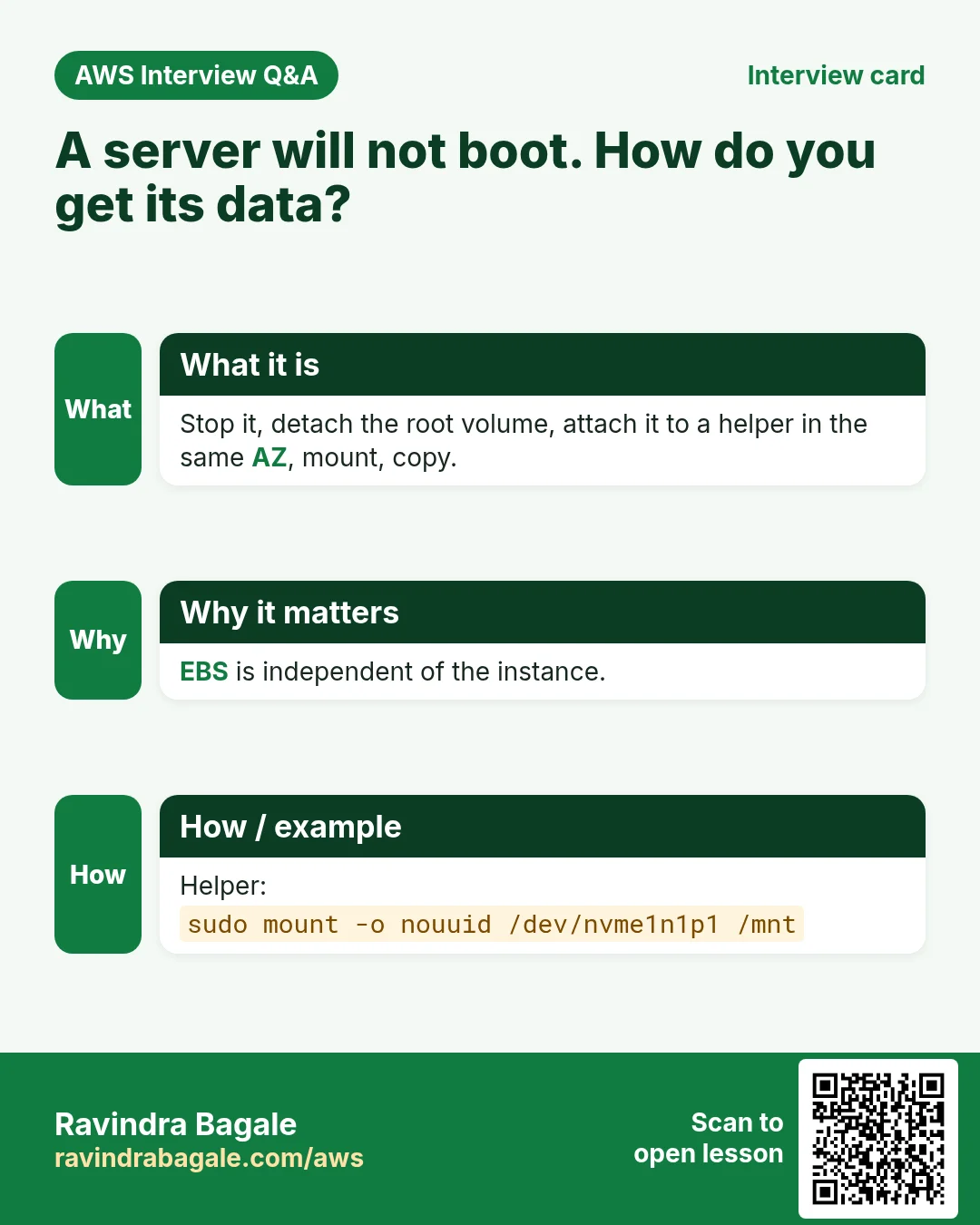
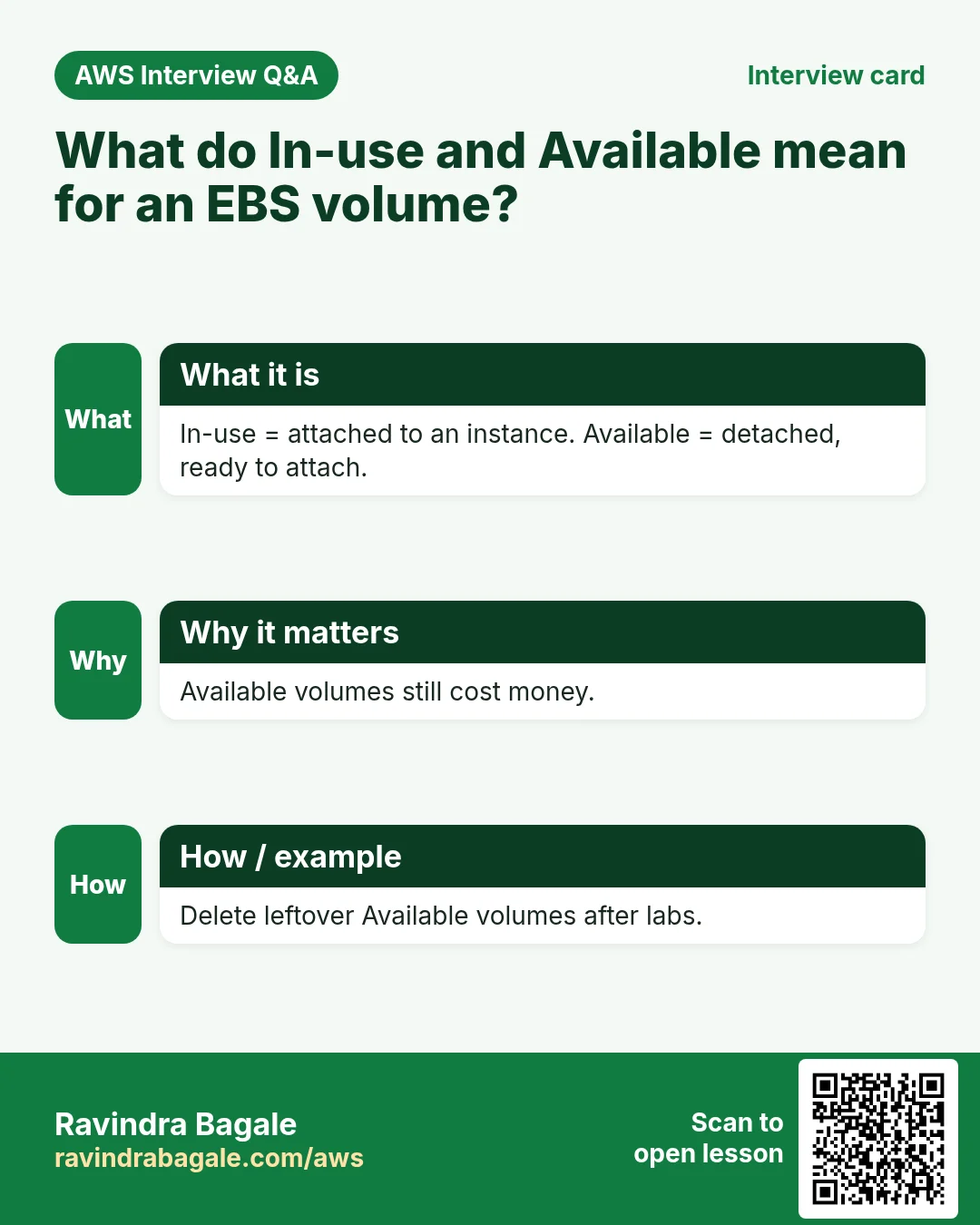
Revise this lesson in two minutes. Save the cards on your phone or download them as PNG files. The QR code on each card opens its lesson.
More cards: Ravi Sir's Cards.