How to Create a CloudWatch Dashboard for Multiple EC2 Instances
You now have metrics (Amazon CloudWatch Explained), health alarms (EC2 and EBS Health Check Alarms) and logs (How to Send Logs from Multiple EC2 Instances to CloudWatch Logs). A dashboard puts all of them on one screen, so anyone can see the health of the whole app in five seconds.
What you'll learn in this chapter
- What a dashboard and a widget are
- Line, number, gauge, alarm status, text and logs widgets
- CPU of many instances on one graph, and metric math
- Build the same dashboard with the CLI (JSON)
- Share a dashboard safely, and what it costs
1. A story: the war room on sale night
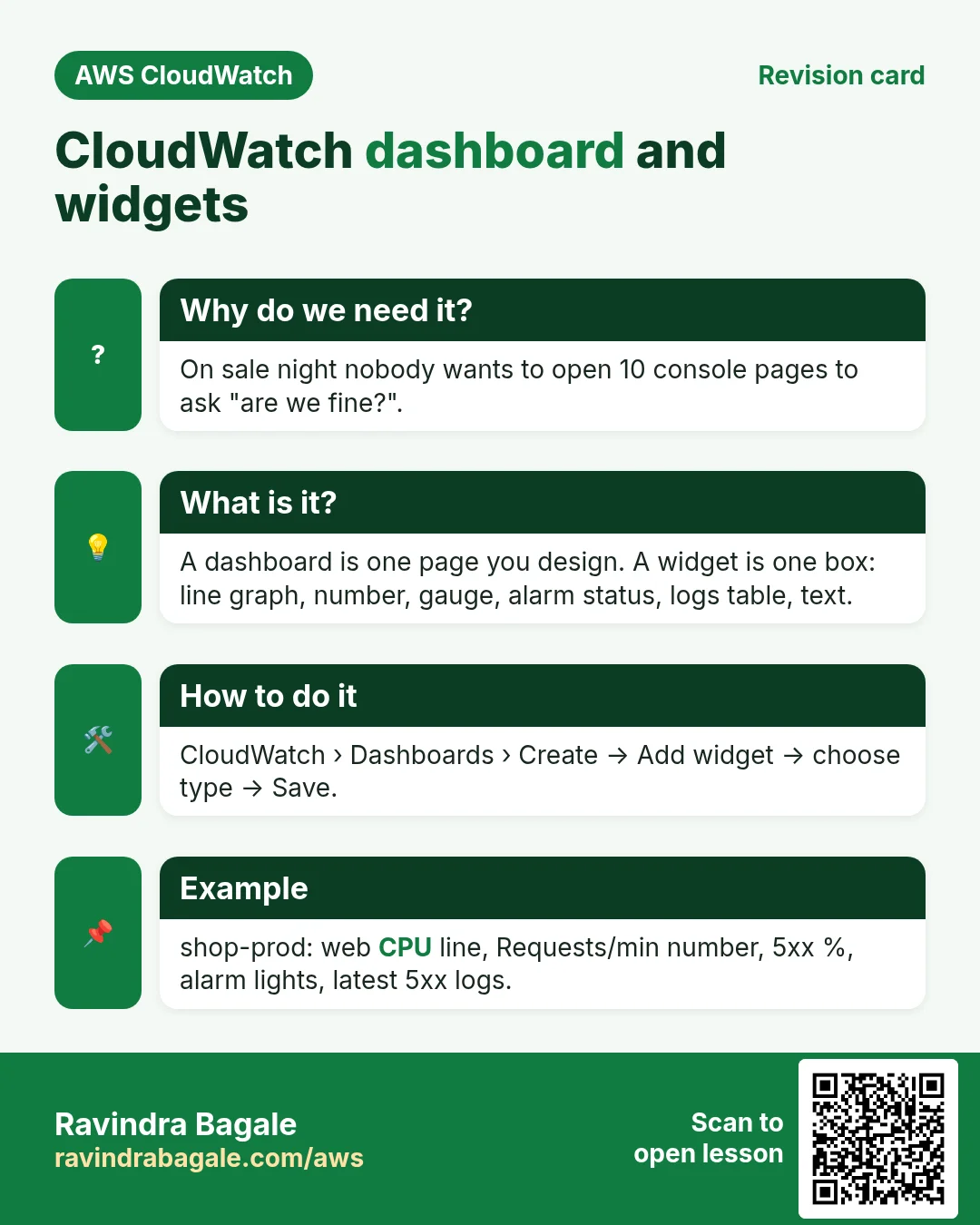
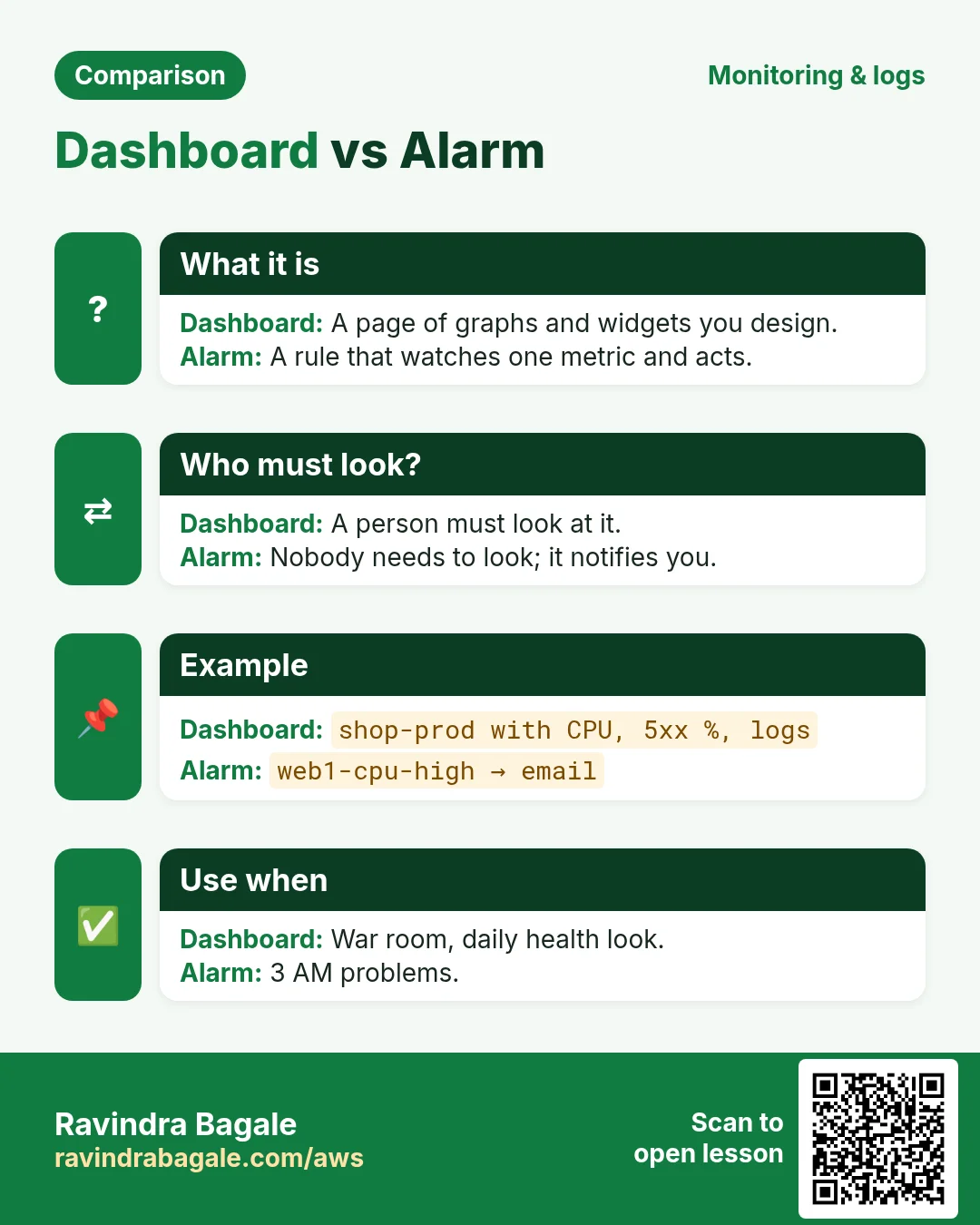
On sale night the team sits in one room with a big TV. The manager asks every few minutes: "Are we fine?" Nobody wants to open 10 console pages. The TV shows one dashboard: CPU of all web servers, requests per minute, 5xx errors, the alarm lights and the latest error logs. One look answers the question.
2. Dashboards and widgets
Why do we need this?
Graphs in different places are slow to compare. When CPU jumps, you want the request count and the error logs right next to it.
What is it?
A dashboard is a page you design. A widget is one box on it.
| Widget | Shows | Good for |
|---|---|---|
| Line | Values over time | CPU of 3 servers |
| Stacked area | Parts that add up | Requests per target |
| Number | Latest single value | Healthy hosts = 3 |
| Gauge | Value against a range | Disk used 0-100% |
| Alarm status | Green/red lights for chosen alarms | All health alarms |
| Logs table | A Logs Insights query result | Latest 5xx lines |
| Text | Markdown notes and links | "Who to call", runbook link |
3. Lab: build an app dashboard in the console
You need 2-3 running instances (tag Role=web), the alarms from the earlier chapters and the /app/nginx/access log group. With fewer pieces, build only the widgets you can.
Part A: create the dashboard
- Open CloudWatch → Dashboards → Create dashboard.
- Name:
shop-prod. Why a clear name: people open it under stress; the name must say which app and which environment. - Click Create dashboard. The "Add widget" window opens.
Part B: CPU of all web servers on one graph
- Choose Line → Metrics → Next.
- Click EC2 → Per-Instance Metrics. In the search box type
CPUUtilization. - Tick CPUUtilization for each web instance. Each becomes one coloured line.
- Open Graphed metrics. Set Statistic Average, Period 1 minute if detailed monitoring is on, else 5 minutes.
- Change each Label from the ID to
web1,web2,web3. Why: IDs mean nothing to people at 2 AM. - Options tab: add a horizontal annotation at
80labelledalarm line. Why: you see how close you are to the alarm. - Click Create widget. Title it
Web CPU %(click the title to edit).
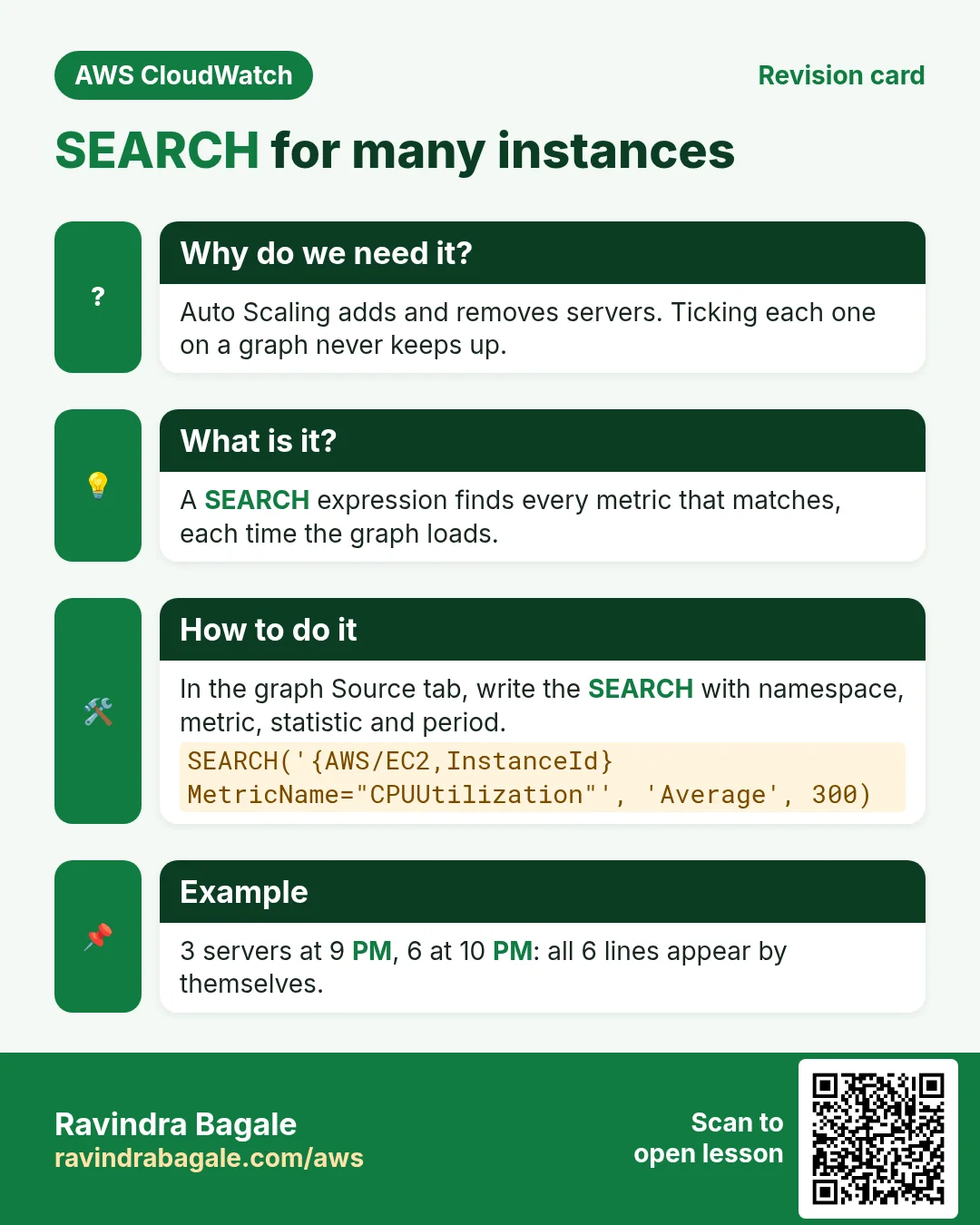
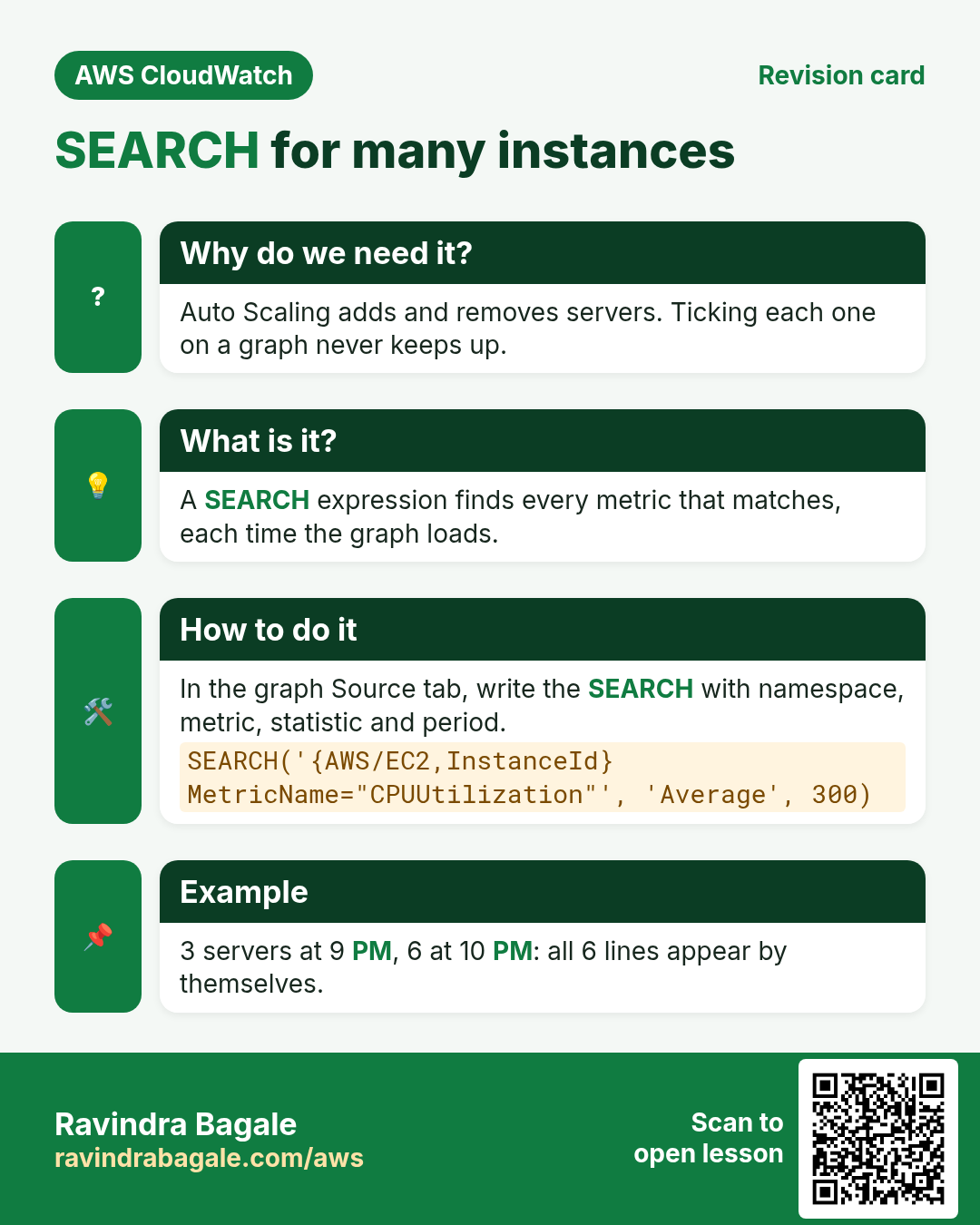
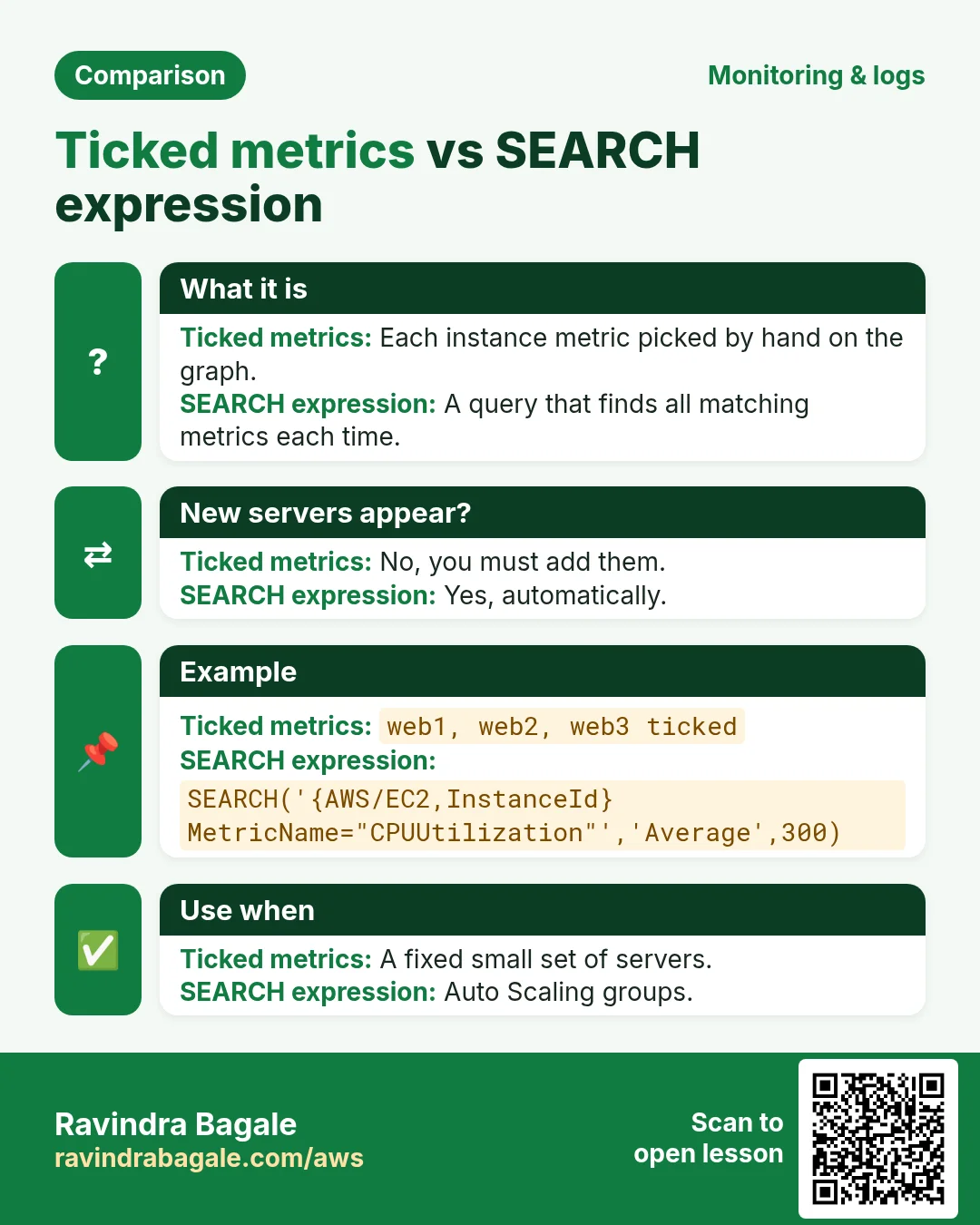
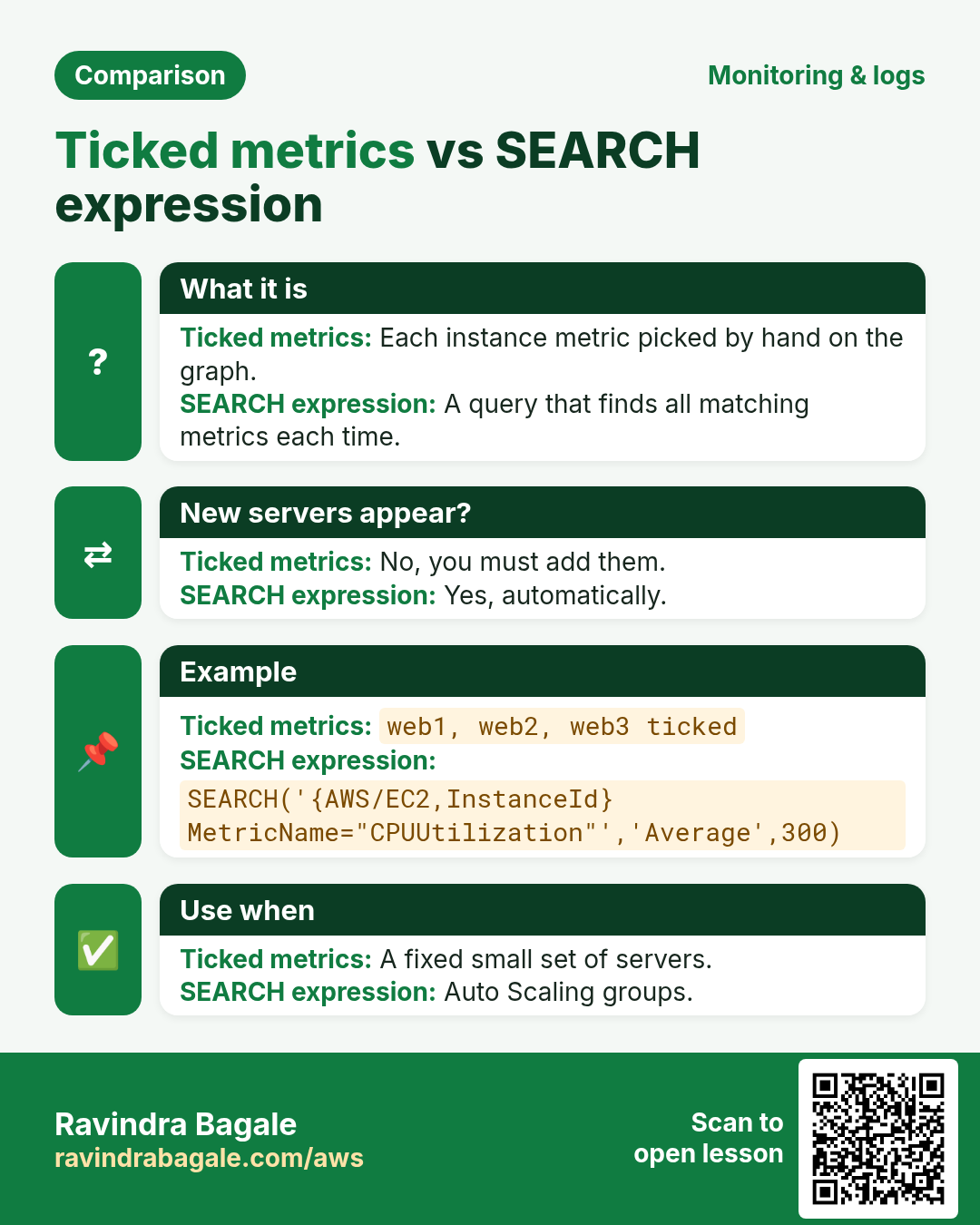
Faster for many servers: instead of ticking each one, use a search expression in the Source tab. New Auto Scaling servers appear by themselves:
SEARCH('{AWS/EC2,InstanceId} MetricName="CPUUtilization"', 'Average', 300)Part C: number, metric math and memory
- + Add widget → Number → Metrics. Pick the ALB metric RequestCount (ApplicationELB → Per AppELB Metrics), statistic Sum, 1 minute. Title
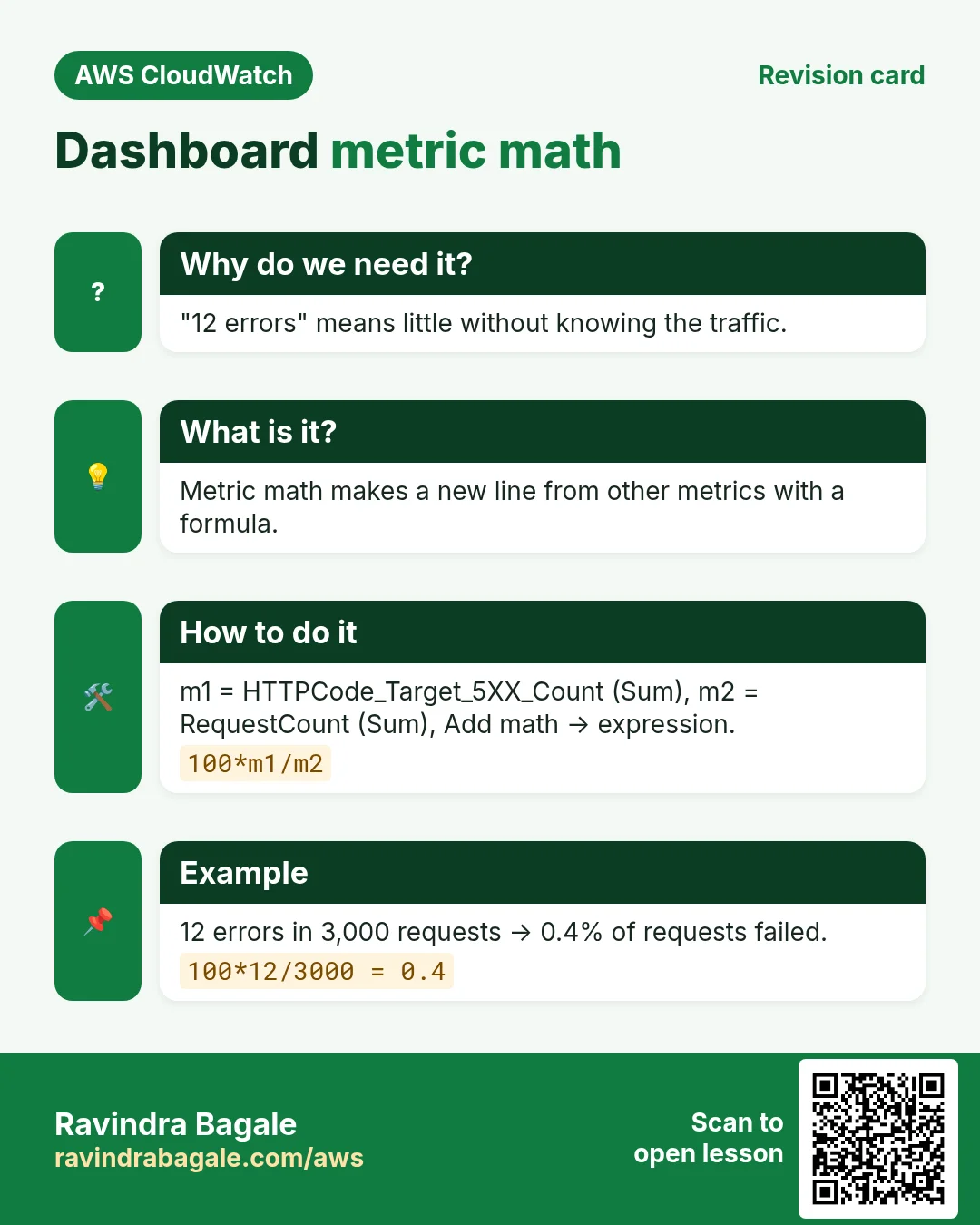
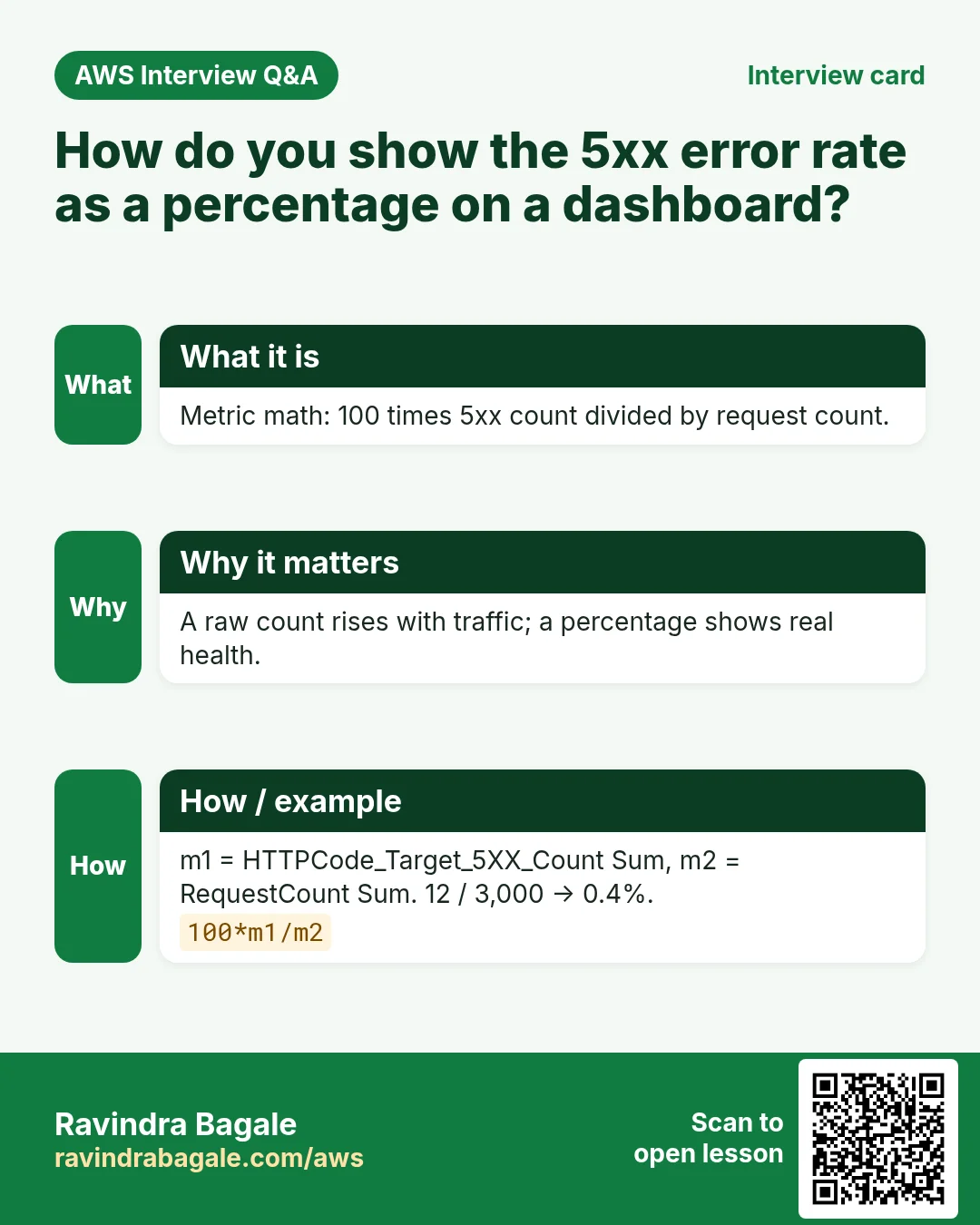
Requests / min. - Add a line widget with HTTPCode_Target_5XX_Count (m1, Sum) and RequestCount (m2, Sum). Click Add math → Start with empty expression:
100*m1/m2, label5xx %. Untick m1 and m2. Why: "12 errors" means little; "0.4% of requests failed" is clear. - Add a Gauge on CWAgent → InstanceId → mem_used_percent for web1, range 0-100. Title
web1 memory %.
Part D: alarms and logs on the same screen
- + Add widget → Alarm status. Tick
web1-cpu-high,web1-system-recover,web1-instance-reboot,web1-disk-queue. Create. - + Add widget → Logs table. Log group
/app/nginx/access. Query:
fields @timestamp, @logStream, @message
| filter @message like / 50[0-9] /
| sort @timestamp desc
| limit 20- Click Create widget. Title
Latest 5xx lines. - + Add widget → Text:
**On call:** Ops team · Runbook: link to your wiki. Why: the person who sees red knows what to do next. - Drag widgets so the most important ones (alarm status, 5xx %) are at the top. Click Save. Why save: unsaved changes are lost when you leave the page.
- Top right: time range 3h, refresh 1 minute, and turn on Auto refresh for the TV.
- Verify: run
stress-ng --cpu 0 --timeout 300son web1; its line climbs while the others stay flat.
4. The same dashboard with the CLI
Why do we need this?
A dashboard made by clicking exists in one account only. As JSON you can keep it in Git, review it and create it again in a new account or region in seconds.
How to do it (step by step)
- Open your dashboard → Actions → View/edit source to see its JSON. Save a shorter version as
dash.json:
{
  "widgets": [
    { "type": "metric", "x": 0, "y": 0, "width": 12, "height": 6,
      "properties": { "title": "Web CPU %", "region": "ap-south-1", "view": "timeSeries",
        "stat": "Average", "period": 300,
        "metrics": [
          ["AWS/EC2", "CPUUtilization", "InstanceId", "i-0aaa1111111111111", {"label": "web1"}],
          ["...", "i-0bbb2222222222222", {"label": "web2"}]
        ],
        "annotations": { "horizontal": [ { "value": 80, "label": "alarm line" } ] } } },
    { "type": "log", "x": 12, "y": 0, "width": 12, "height": 6,
      "properties": { "title": "Latest 5xx lines", "region": "ap-south-1", "view": "table",
        "query": "SOURCE '/app/nginx/access' | fields @timestamp, @logStream, @message | filter @message like / 50[0-9] / | sort @timestamp desc | limit 20" } },
    { "type": "text", "x": 0, "y": 6, "width": 24, "height": 2,
      "properties": { "markdown": "**On call:** Ops team" } }
  ]
}- Create or update it:
aws cloudwatch put-dashboard --dashboard-name shop-prod-cli --dashboard-body file://dash.json
# expected: {"DashboardValidationMessages": []}
aws cloudwatch list-dashboards --query 'DashboardEntries[].DashboardName'
# expected: ["shop-prod", "shop-prod-cli"]
"..." in the metrics array means "same as the line above", so you only write what changes (the instance ID).
5. Sharing a dashboard
Why do we need this?
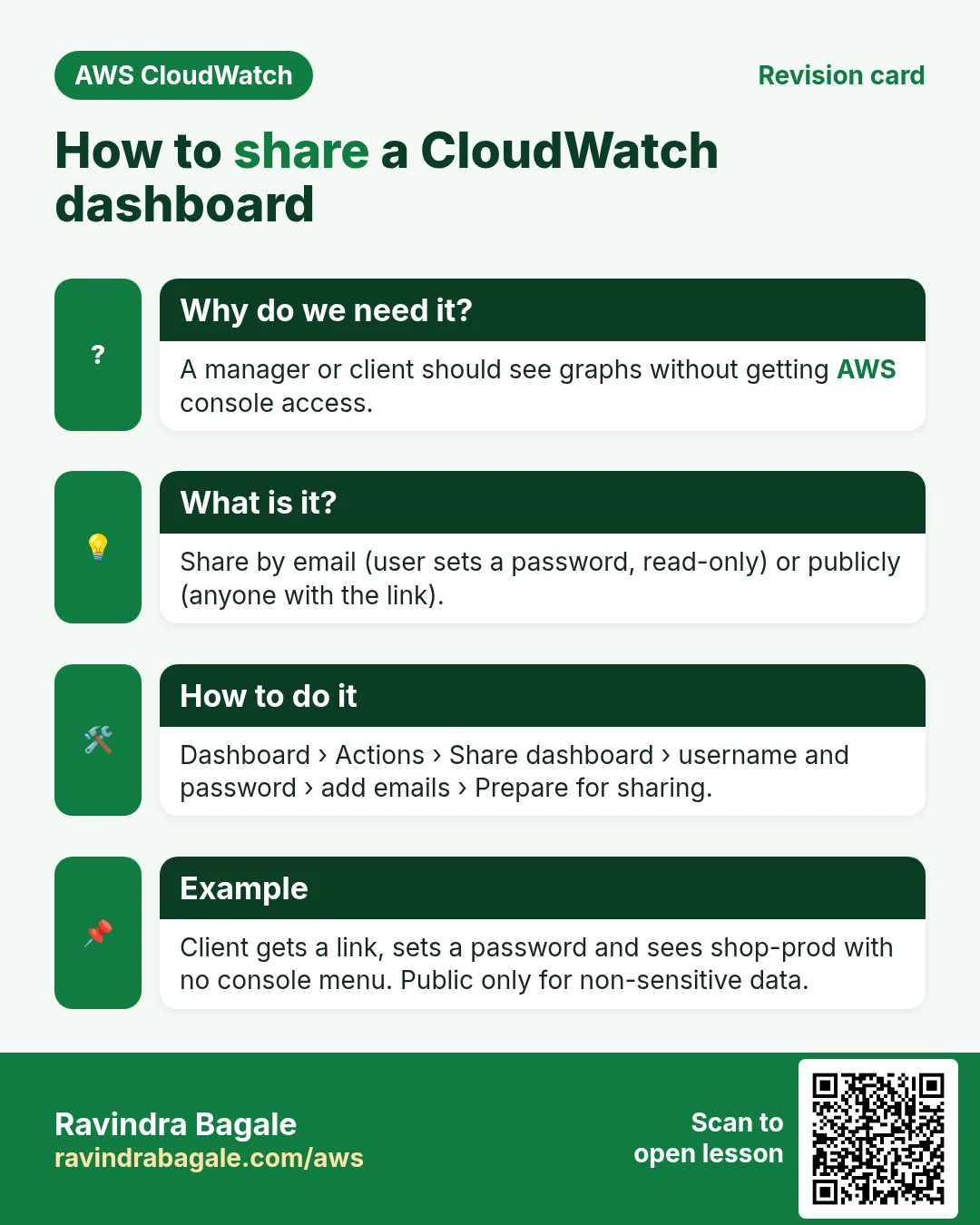
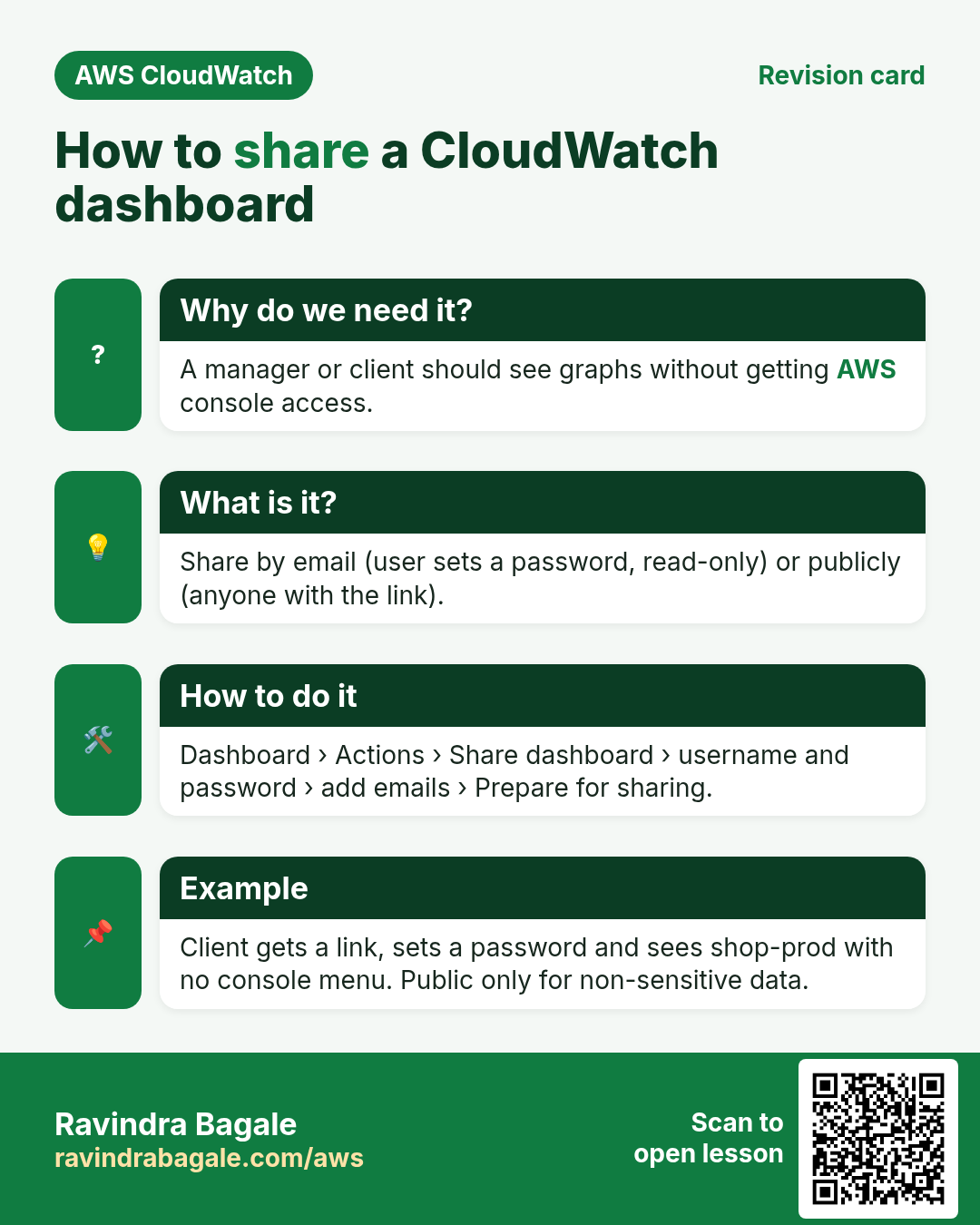
A manager or a client wants to see the dashboard but should not get AWS console access. Giving console access to see graphs is too much power.
What is it?
| Way | Who can open it | Use when |
|---|---|---|
| IAM users/roles in your account | People with CloudWatch read permission | Your own team |
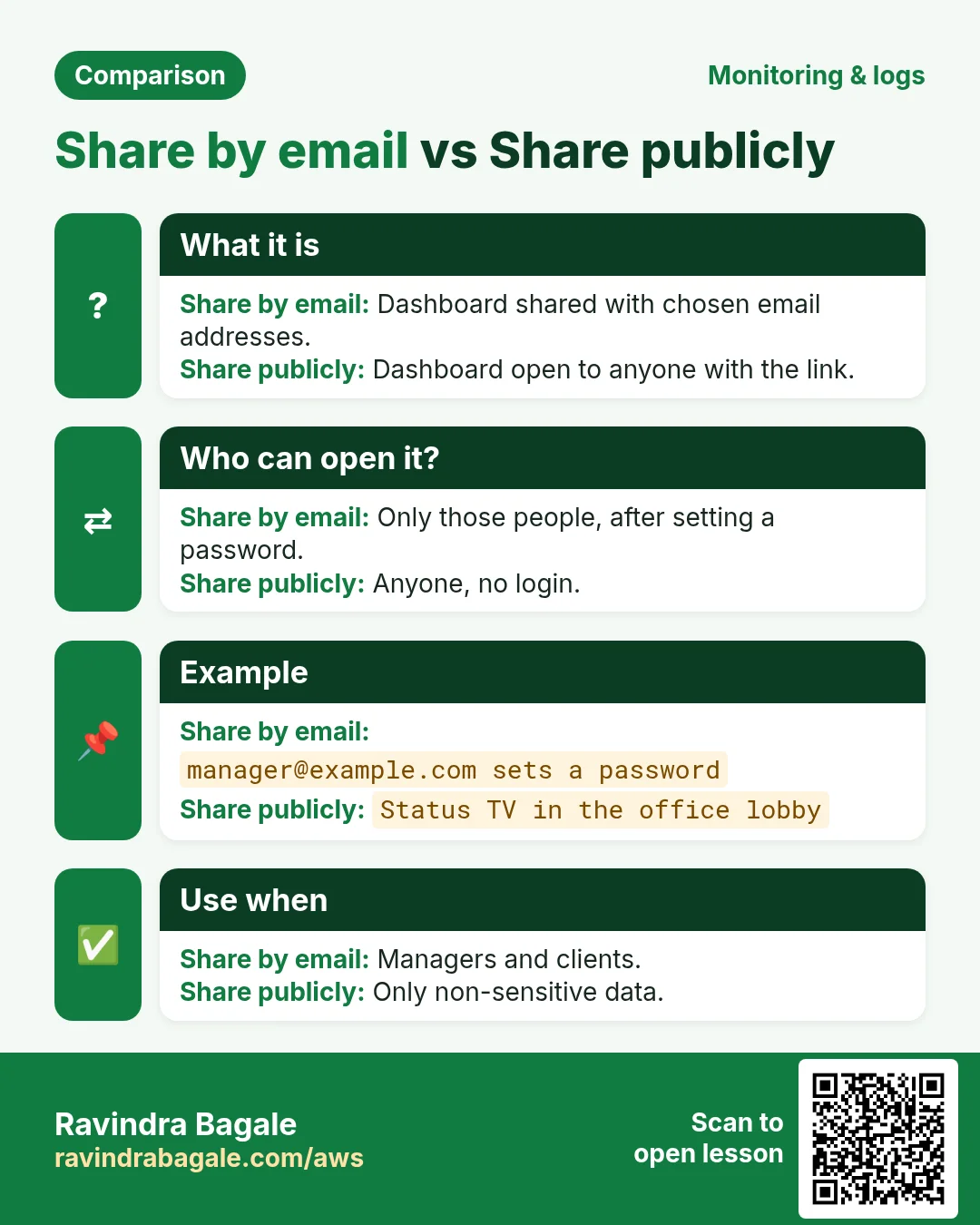
| Share with specific email addresses | Only those people, after they set a password | Managers, clients |
| Share publicly | Anyone with the link | Only non-sensitive data, for example a status TV |
| Cross-account observability | A central monitoring account | Many AWS accounts in one company |
How to do it (step by step)
- Open the dashboard → Actions → Share dashboard.
- Choose Share your dashboard and require a username and password. Enter the email addresses.
- Click Prepare for sharing and confirm. AWS creates the needed role and an Amazon Cognito user pool behind the scenes.
- Verify: each person gets an email with a link and sets a password; they see the dashboard read-only, with no console menu.
- To stop sharing: Actions → Share dashboard → Stop sharing.
Ravindra Bagale's Tip
A shared dashboard shows logs widgets too. Do not put log lines with customer emails, phone numbers or tokens on a dashboard you share outside the team.
Cost: the free tier covers 3 dashboards with up to 50 metrics each per month. After that each dashboard is billed per month (about USD 3 at the time of writing; check the CloudWatch pricing page). Logs widgets also bill for the data each query scans.
6. Dashboard ideas per stack
| Stack | Widgets to put on top |
|---|---|
| nginx / Apache + ALB | RequestCount, 5xx %, TargetResponseTime p90, HealthyHostCount |
| Java Spring / .NET | CPU, mem_used_percent per instance, GC or error log query |
| Node.js (PM2) / Python / Go | CPU per instance, 5xx log query, response time |
| MySQL / RDS | CPUUtilization, DatabaseConnections, FreeStorageSpace, ReadLatency |
| PHP / WordPress | CPU, php-fpm error log table, disk used gauge |
7. Cleanup
- Stop sharing if you shared it.
- CloudWatch → Dashboards → tick
shop-prodandshop-prod-cli→ Delete. - CLI:
aws cloudwatch delete-dashboards --dashboard-names shop-prod shop-prod-cli. - Delete the alarms, log groups and instances from the earlier labs if you no longer need them.
8. Interview questions
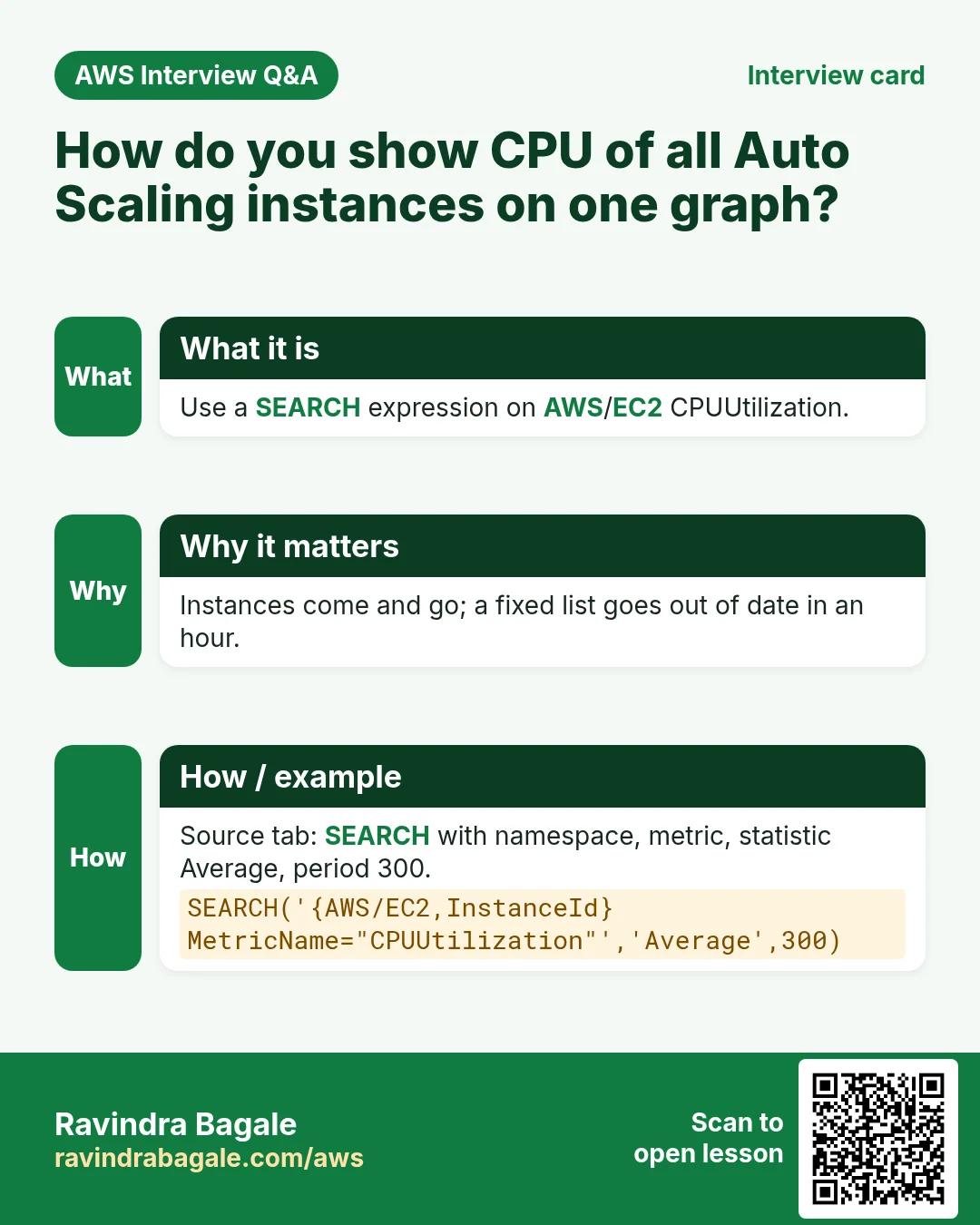
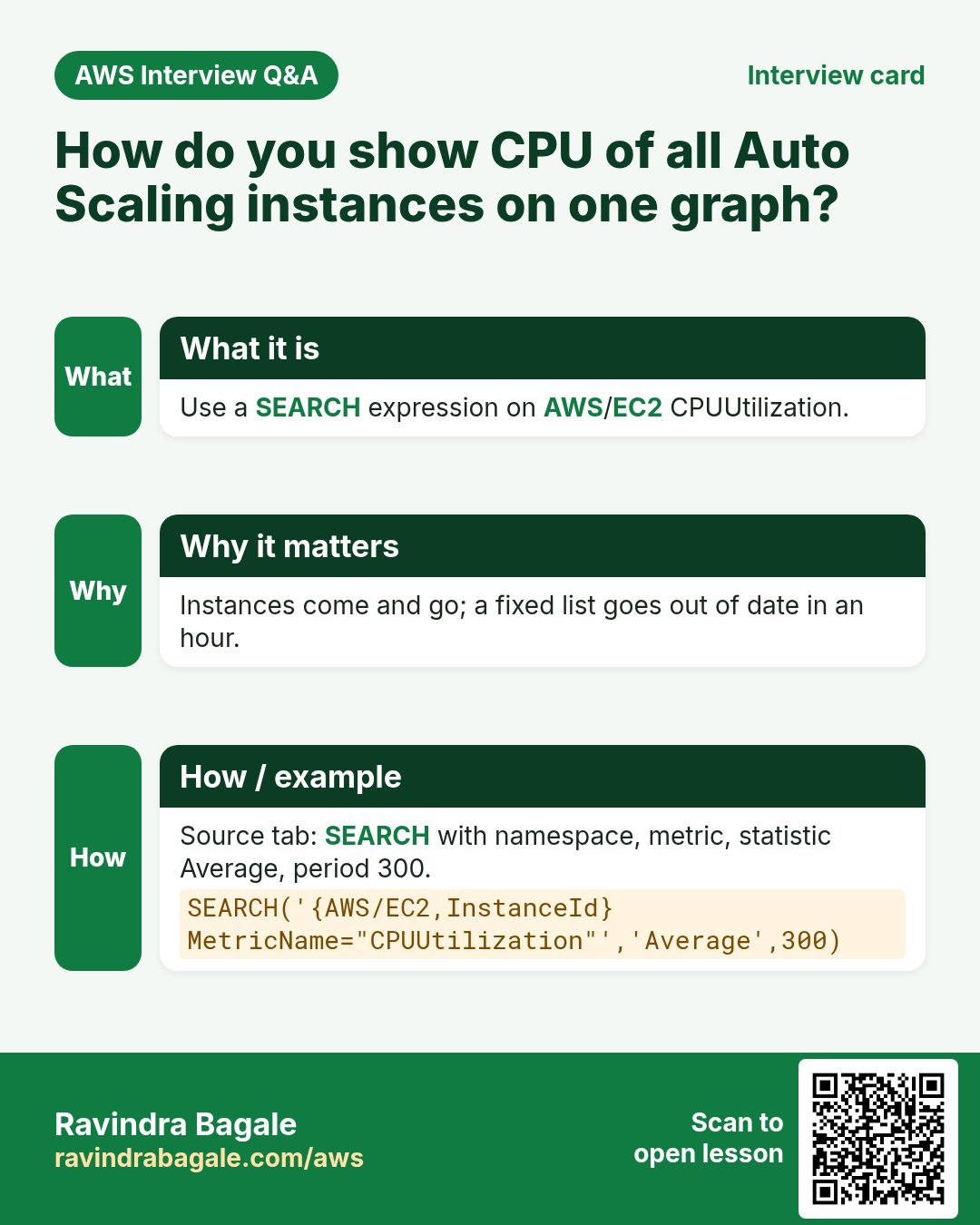
Q. How do you show the CPU of all Auto Scaling instances on one graph without editing it each time?
Use a SEARCH expression on AWS/EC2 CPUUtilization (or the AutoScalingGroupName dimension), so new instances appear automatically.
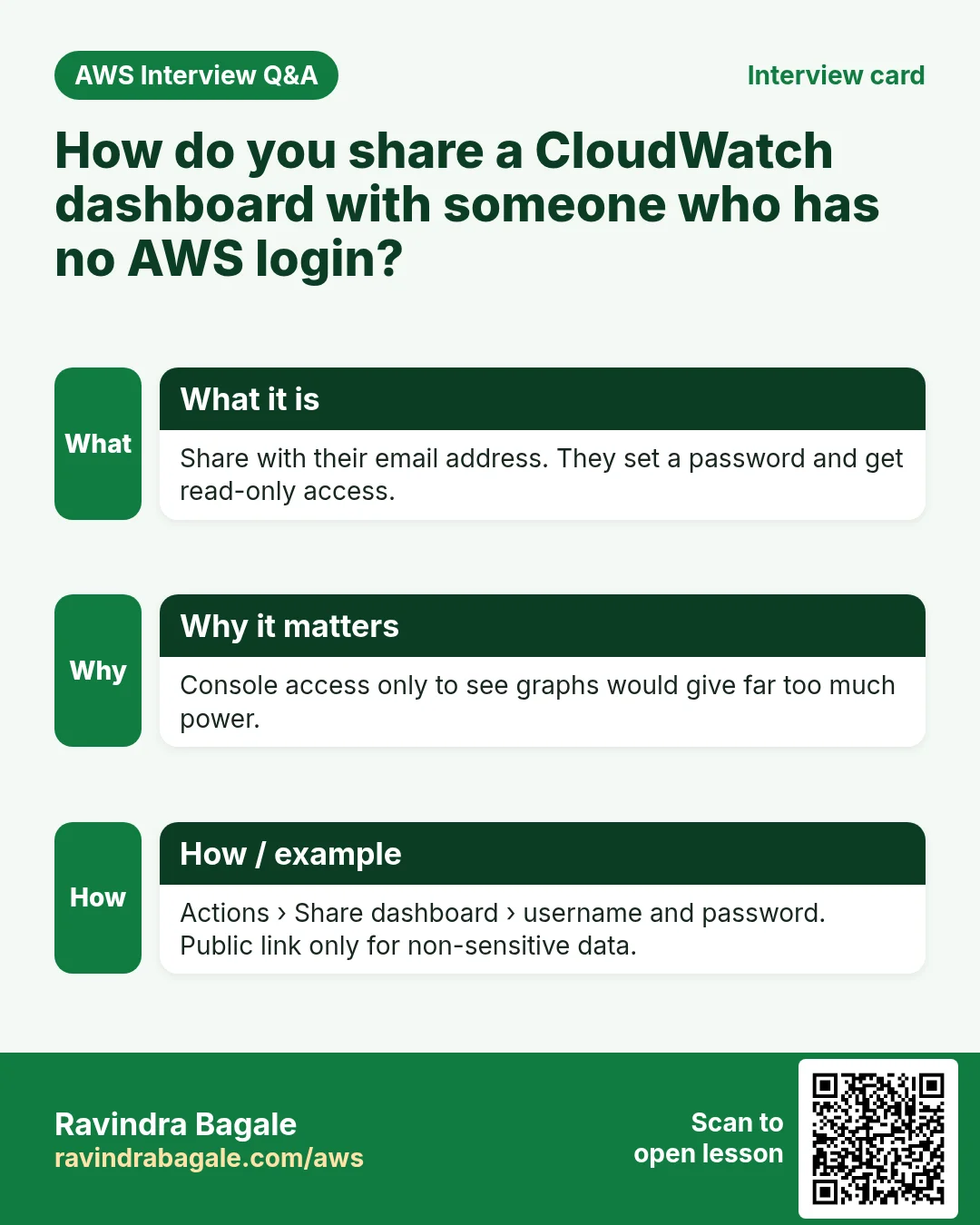
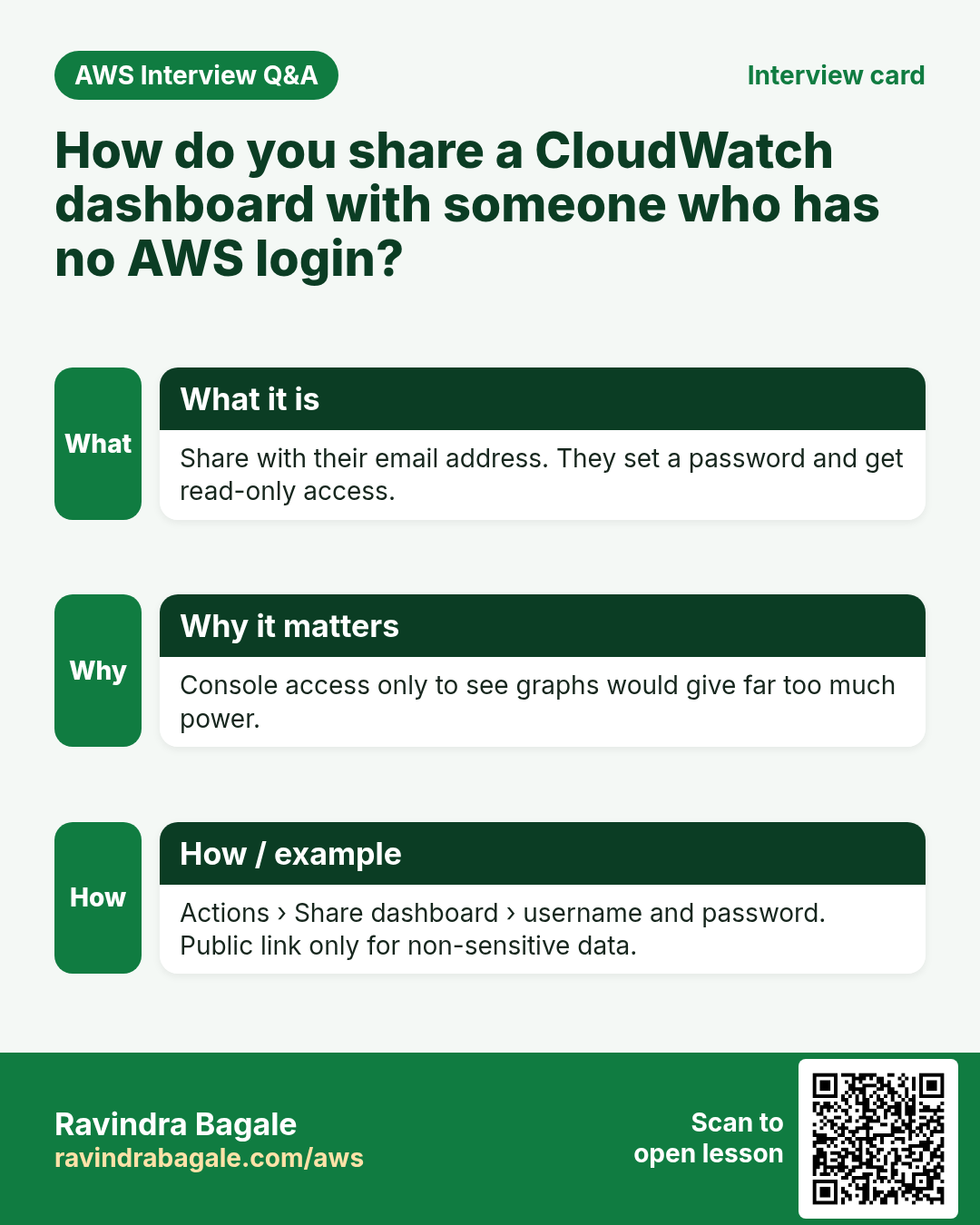
Q. How do you share a dashboard with someone who has no AWS login?
Share dashboard with specific email addresses (username and password via Cognito) or publicly for non-sensitive data.
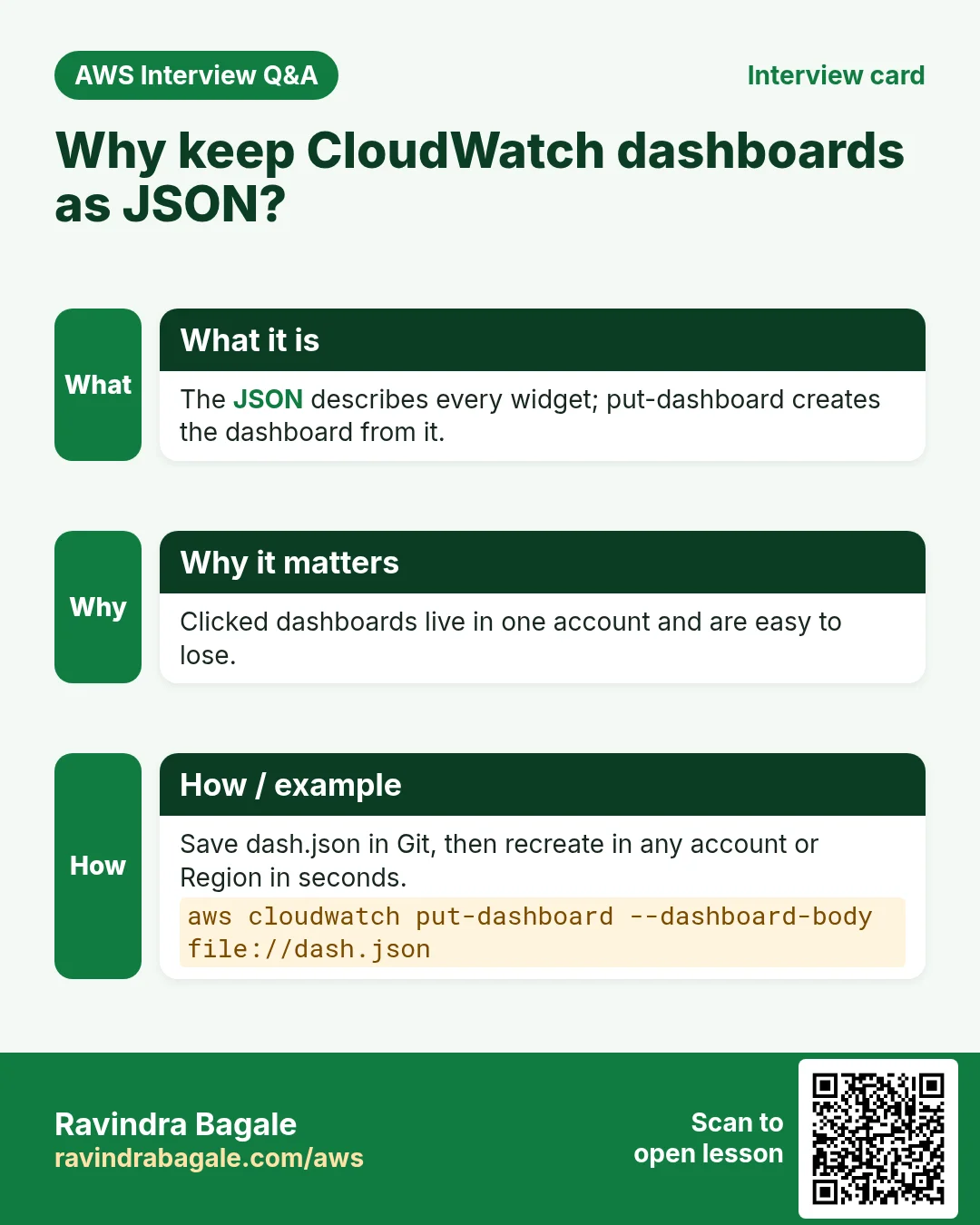
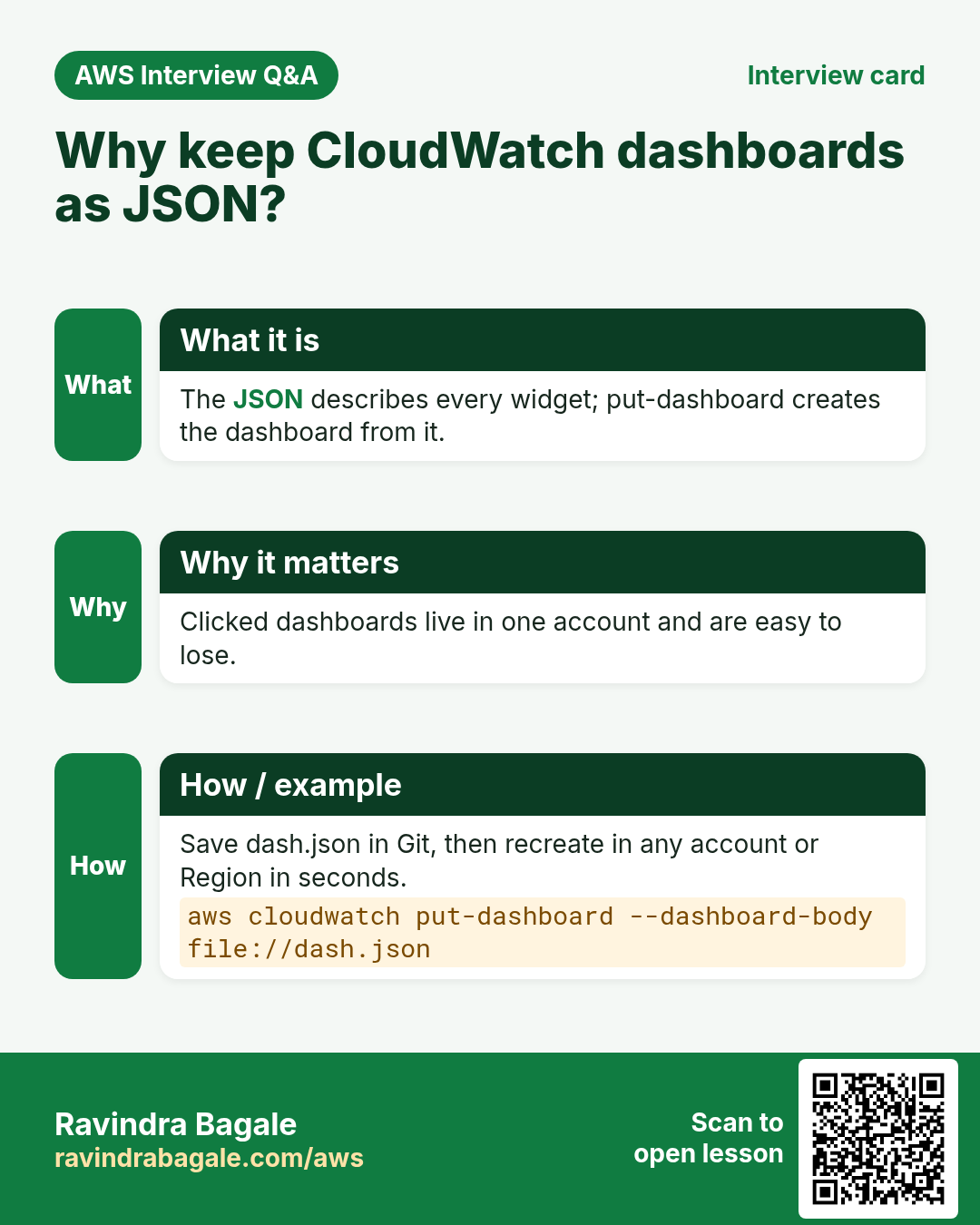
Q. Why keep dashboards as JSON?
To store them in Git, review changes and recreate them with put-dashboard in any account or region.
Try at home
- Build shop-prod with at least 5 widgets: CPU of all servers, requests, 5xx %, alarm status and latest 5xx log lines.
- Export it with View/edit source, delete it, and recreate it with put-dashboard.
In short
- A dashboard is one screen of widgets: metrics, alarms, logs and notes.
- Put many instances on one line graph; use SEARCH for Auto Scaling.
- Metric math turns raw counts into clear numbers like 5xx %.
- Keep the JSON in Git; create with put-dashboard.
- Share by email for managers and clients; public only for non-sensitive data.
Practice Tasks
Aurangabad Pharma is a pharmaceuticals business in Chhatrapati Sambhajinagar. Dr. Farhan Shaikh looks after its IT and cloud work. They count money in INR and run their AWS resources in the ap-south-1 Region. In the tasks below you do real jobs for them using what this lesson teaches. All names, account IDs, IP addresses and numbers are made up for practice.
0 / 10
Easy List metrics in a namespace
Why: See which metrics AWS already collects for a service.
What to do: List the metrics in the AWS/EC2 namespace.
- Read the task and decide which AWS service it is about.
- Write aws, then the service name, then the operation (the action word).
- Add each needed flag (--name) followed by its value from the task.
- Flags can be in any order. Click Check answer.
Easy Reboot an instance
Why: A reboot keeps the same disks and IPs, unlike stop/start which may change the public IP.
What to do: Reboot the instance i-01a40525502111a2b.
- Read the task and decide which AWS service it is about.
- Write aws, then the service name, then the operation (the action word).
- Add each needed flag (--name) followed by its value from the task.
- Flags can be in any order. Click Check answer.
Easy Stop an instance
Why: A stopped instance does not charge for compute, only for its disks.
What to do: Stop the instance i-01a40525502111a2b.
- Read the task and decide which AWS service it is about.
- Write aws, then the service name, then the operation (the action word).
- Add each needed flag (--name) followed by its value from the task.
- Flags can be in any order. Click Check answer.
Easy How many addresses in a /16?
Why: Picking a VPC size needs this count.
What to do: Aurangabad Pharma plans the VPC 10.138.0.0/16. How many IP addresses does it hold in total?
- Write down the numbers the task gives you.
- Work it out step by step on paper.
- Type only the final answer in the box.
- Click Check answer.
Easy Port for SSH
Why: Security group rules need the right port.
What to do: Which TCP port must the security group open for SSH?
- Write down the numbers the task gives you.
- Work it out step by step on paper.
- Type only the final answer in the box.
- Click Check answer.
Medium Publish a custom metric
Why: Custom metrics let you graph and alarm on business numbers, like orders per minute.
What to do: Publish metric OrdersPlaced with value 6 in namespace AurangabadPharma/Shop.
- Read the task and decide which AWS service it is about.
- Write aws, then the service name, then the operation (the action word).
- Add each needed flag (--name) followed by its value from the task.
- Flags can be in any order. Click Check answer.
Medium Check instance status checks
Why: System and instance status checks tell you if AWS hardware or your OS has a problem.
What to do: Show the status checks of instance i-01a40525502111a2b.
- Read the task and decide which AWS service it is about.
- Write aws, then the service name, then the operation (the action word).
- Add each needed flag (--name) followed by its value from the task.
- Flags can be in any order. Click Check answer.
Medium Check target health
Why: If targets are unhealthy the site shows 502/503 errors.
What to do: Show the health of the targets in arn:aws:elasticloadbalancing:ap-south-1:112055250461:targetgroup/abadpharma-tg/6d0ecf831eec9f09.
- Read the task and decide which AWS service it is about.
- Write aws, then the service name, then the operation (the action word).
- Add each needed flag (--name) followed by its value from the task.
- Flags can be in any order. Click Check answer.
Hard Create a dashboard from a file
Why: A dashboard JSON file can be kept in Git and re-created any time.
What to do: Create or update dashboard abadpharma-ops from dashboard.json.
- Read the task and decide which AWS service it is about.
- Write aws, then the service name, then the operation (the action word).
- Add each needed flag (--name) followed by its value from the task.
- Flags can be in any order. Click Check answer.
Hard Create a CPU alarm
Why: An alarm watches a metric and notifies you before users notice a problem.
What to do: Create alarm abadpharma-cpu-high: AWS/EC2 CPUUtilization, Average over 300 seconds, 1 evaluation period, GreaterThanThreshold 80, for InstanceId=i-01a40525502111a2b, notify arn:aws:sns:ap-south-1:112055250461:abadpharma-alerts.
- Read the task and decide which AWS service it is about.
- Write aws, then the service name, then the operation (the action word).
- Add each needed flag (--name) followed by its value from the task.
- Flags can be in any order. Click Check answer.
Revision, comparison and interview cards
Revise this lesson in a few minutes. Save the cards on your phone or download them as PNG files. The QR code on each card opens this lesson.
More cards: Ravi Sir's Cards.