Nginx Configuration Tutorial: Change Port, Root Folder and Index Page
In the last chapter we changed Apache's folder, port and first page on Amazon Linux. Now we do the same three changes for Nginx on Amazon Linux, then for Apache on Ubuntu, and then for Nginx on Ubuntu. On the way we learn to take a backup before touching a settings file, to show Marathi text correctly with UTF-8, and to find the broken line when a service refuses to reload.
What you'll learn in this class
- Where Nginx keeps its settings:
/etc/nginx/nginx.confand theserver { }block - How braces and semicolons work in Nginx files
- Backing up a settings file before you edit it, and restoring it
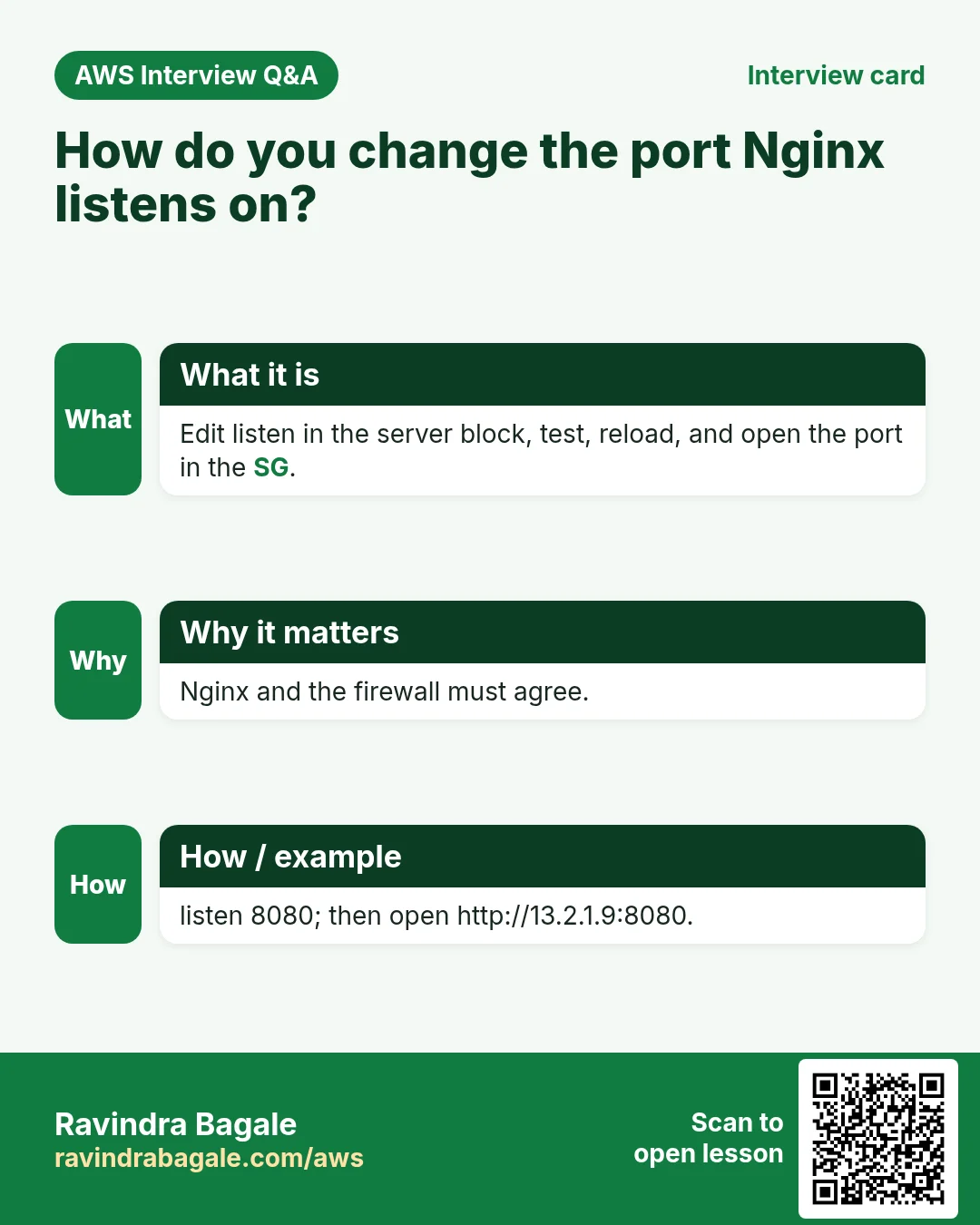
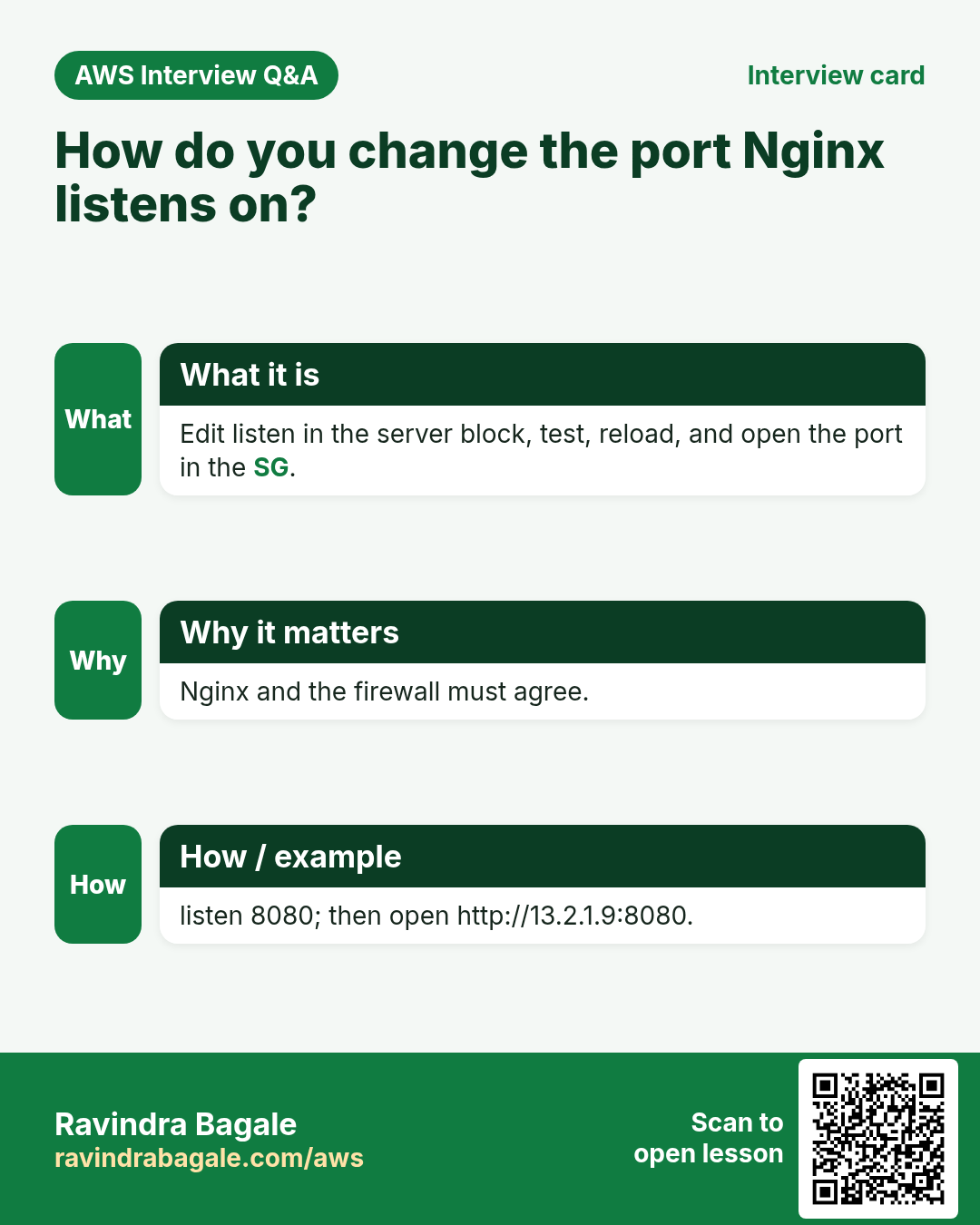
- Changing Nginx's port (
listen), folder (root) and first page (index) - Testing with
sudo nginx -tand applying withreload - Which ports browsers refuse to open
- Fixing Marathi text that shows as strange letters:
charset utf-8; - Apache on Ubuntu:
apache2.conf,ports.confand000-default.conf - Finding the broken line with
status - Nginx on Ubuntu:
sites-available/default - Running Apache and Nginx together on different ports
1. The same three settings, different names
Why. Every web server needs to know three things: which port to wait on, which folder holds the website, and which first page to show. You already changed them for Apache. Nginx has the same settings with different names.
Figure 1. Apache and Nginx: Listen and listen, DocumentRoot and root, DirectoryIndex and index. Every Nginx line ends with a semicolon.
What.
- Port: Apache
Listen, Nginxlisten. - Folder: Apache
DocumentRoot, Nginxroot. - First page: Apache
DirectoryIndex, Nginxindex.
Nginx names are written in small letters, and every Nginx setting ends with a semicolon ;.
2. Where Nginx keeps its settings
Why. You can't change a setting if you don't know which file holds it. Every Nginx change in this chapter starts by opening the right file.
What. Settings files live in /etc. Nginx has its own folder, /etc/nginx, and the main file is /etc/nginx/nginx.conf. You'll meet settings files with other endings too, such as .conf, .cnf and .ini, or with names like default and 000-default.conf. They're all plain text you edit with nano.
How Nginx files are built.
- Settings are grouped in blocks between braces
{ }. The website settings are in theserver { }block, which sits inside thehttp { }block. - A closing brace
}closes the block that was opened most recently, like brackets in maths. - Every setting ends with
;. - Lines that start with
#are comments. - The line
include /etc/nginx/conf.d/*.conf;makes Nginx load every file ending in.confin/etc/nginx/conf.d.
Figure 2. The server block in nginx.conf: blocks in braces, two listen lines, a semicolon after every setting.
3. Back up before you edit
Why. One wrong character and Nginx stops working. With a copy of the working file you can always go back in seconds.
Classroom line
Always keep in mind: before you modify a config file, take its backup.
Class मधलं वाक्य
नेहमी लक्षात ठेवा: config file modify करण्याआधी तिचा backup घ्यायचा.
Classroom line – हिंदी
"Kabhi bhi dhyan me rakho, config file modify karne se pehle uska backup lena hai."
Where to keep it. In your home folder, outside /etc/nginx. A copy left in /etc/nginx/conf.d with a name ending in .conf (for example old.conf) would be loaded as an extra settings file and can break Nginx. Your home folder is always safe.
How.
Step 1. Make the copy:
sudo cp /etc/nginx/nginx.conf ~/nginx.conf.bak
Step 2. If an edit breaks Nginx, put the copy back and reload:
sudo cp ~/nginx.conf.bak /etc/nginx/nginx.conf
sudo service nginx reload
Figure 3. Animation: back up to the home folder, edit, test with sudo nginx -t, restore the copy if it's broken.
4. Nginx on Amazon Linux: your own port, folder and first page
Why. Real servers often run a site on its own port and folder. Doing it on Nginx, after doing it on Apache, shows the job is the same and only the words change.
Example 1: what we'll build.
- Port:
90 - Folder:
/var/www/mywebsite - First page:
home.html - URL:
http://PUBLIC_IP:90/
How.
Step 1. Connect to your Amazon Linux server and start Nginx (install it first with sudo yum install nginx -y if it isn't there, and make sure Apache is stopped):
sudo service nginx start
Step 2. Make the folder and the page:
sudo mkdir /var/www/mywebsite
sudo nano /var/www/mywebsite/home.html
Type:
<h1>My website on Nginx</h1>
Step 3. Back up the settings file:
sudo cp /etc/nginx/nginx.conf ~/nginx.conf.bak
Step 4. Open it:
sudo nano /etc/nginx/nginx.conf
Scroll down to server {. By default it has:
listen       80;
listen       [::]:80;
server_name  _;
root         /usr/share/nginx/html;
Step 5. Change the port on both listen lines. The first is for IPv4 addresses, the second, with [::], for IPv6. Write [::] with no spaces inside:
listen       90;
listen       [::]:90;
Step 6. Change the folder:
root /var/www/mywebsite;
Step 7. There is no index line by default, so add one inside the server block:
index home.html;
Don't forget the ; at the end of each line.
Step 8. Save with Ctrl+X, Y, Enter. If your finger slips and you type x without Ctrl, a stray x lands in the file, and Nginx will complain about it.
Step 9. Let Nginx check the file:
[ec2-user@ip-172-31-xx-xx ~]$ sudo nginx -t
nginx: the configuration file /etc/nginx/nginx.conf syntax is ok
nginx: configuration file /etc/nginx/nginx.conf test is successful
If there's a problem, it names the line, for example unknown directive "x" in /etc/nginx/nginx.conf:....
Step 10. Apply the changes:
[ec2-user@ip-172-31-xx-xx ~]$ sudo service nginx reload
Redirecting to /bin/systemctl reload nginx.service
Step 11. In the Security Group, add an inbound rule Custom TCP, port 90, source 0.0.0.0/0, and leave the 22 and 80 rules as they are.
Step 12. Open http://PUBLIC_IP:90/. You see My website on Nginx.
![nano showing /etc/nginx/nginx.conf: include /etc/nginx/mime.types, the comment about loading modular files from /etc/nginx/conf.d with include /etc/nginx/conf.d/*.conf, and the server block with listen 90, listen [::]:90, server_name _, an index line, a root line and charset utf-8.](../../assets/img/aws/nginx-conf-and-ubuntu-apache2-port-folder-index-01-nginx-conf-server-block-listen-root-index-charset.webp)
Whiteboard: nginx.conf on Amazon Linux after the edits: listen 90 and listen [::]:90, a new index line, root pointing to the demo's own folder, and charset utf-8. Nginx doesn't mind that index and charset start at the left edge.
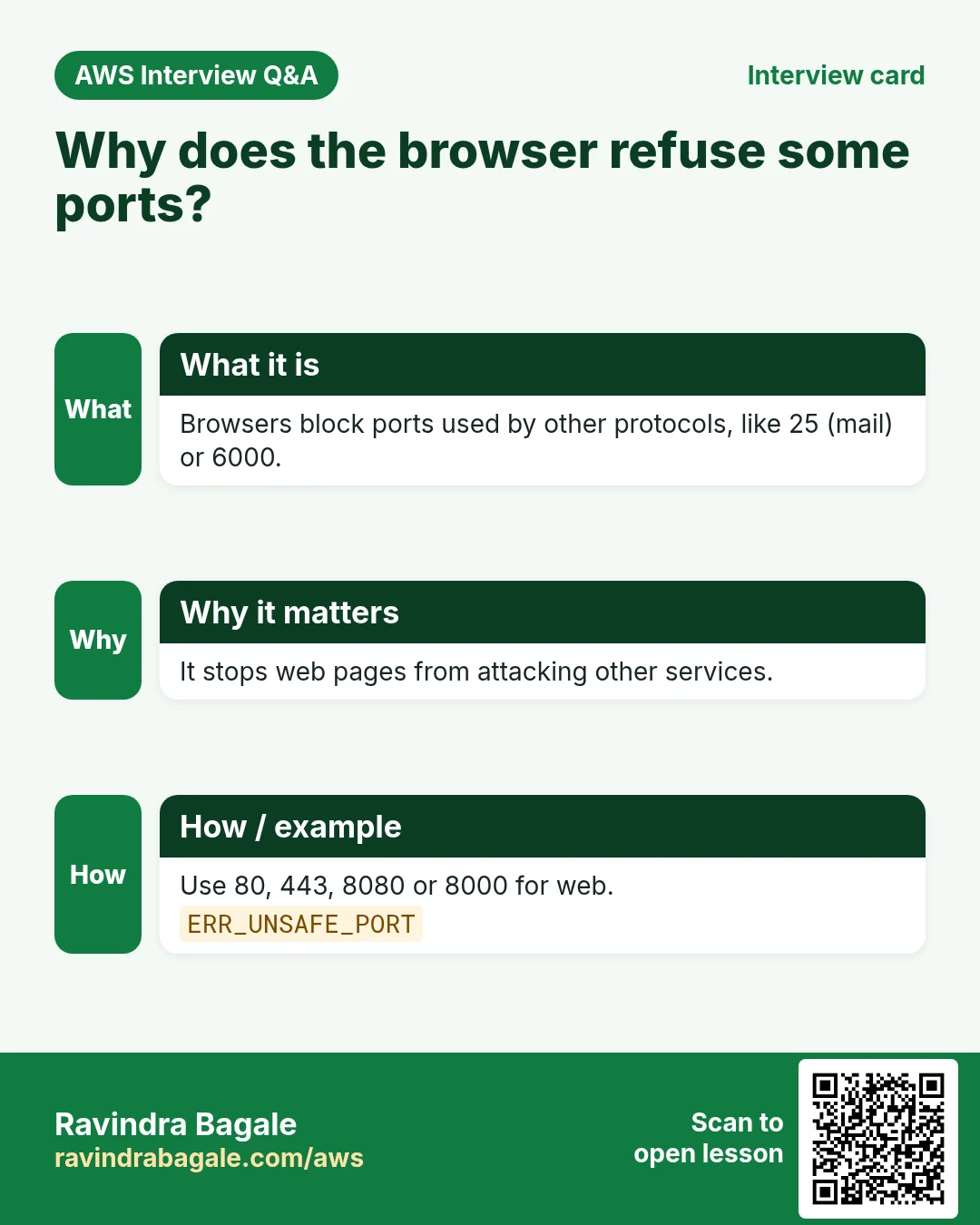
Example 2: browsers refuse some ports. Suppose you pick port 69. Nginx starts and the Security Group allows it, but the browser won't even send the request; it shows an error about a restricted or unsafe port. All major browsers block a fixed list of ports that belong to other services. Pick a normal port such as 90, 8080 or 9090.
Example 3: no first page gives 403. If the folder has no home.html (and no other name from the index line), http://PUBLIC_IP:90/ returns 403 Forbidden: Nginx won't list the folder. Other pages still open by name, for example http://PUBLIC_IP:90/about.html.
5. Marathi shows as strange letters: charset utf-8
Why. Indian sites often carry Marathi or Hindi text. If the server doesn't say the page is UTF-8, visitors see garbage instead of letters.
What you see. You put Marathi text in home.html:
<h1>आमचं कॉलेज</h1>
On Apache it showed fine, but through Nginx the browser shows something like आमचं कॉलेज.
Why. Your file is saved as UTF-8, the character set that covers Marathi, Hindi and every other script. Nginx doesn't tell the browser which character set the page uses, so the browser guesses an older Western one and turns each Marathi letter into several strange symbols. (Apache on Amazon Linux already sends UTF-8 by default, which is why it looked right there.)
Classroom line
We'll have to turn on some setting in nginx that allows the other scripts too.
Class मधलं वाक्य
"nginx madhye apla kahitari ek setting enable karava lagel jyane te bakiche font bi allow karel."
nginx मध्ये आपल्याला काहीतरी एक setting enable करावी लागेल, ज्याने बाकीच्या scripts पण allow होतील.
Classroom line
We'll have to turn on some setting in nginx that allows the other scripts too.
How.
Step 1. Add this line inside the server { } block of nginx.conf:
charset utf-8;
Step 2. Test and reload:
sudo nginx -t
sudo service nginx reload
Step 3. Refresh the page. The Marathi text shows correctly.
Also in the page itself. Put this line in the <head> of every HTML page, so the page works on any server:
<meta charset="utf-8">
Figure 4. Animation: without charset the browser guesses wrong and Marathi turns into strange letters; with charset utf-8 it shows correctly.
6. Apache on Ubuntu: where the settings are
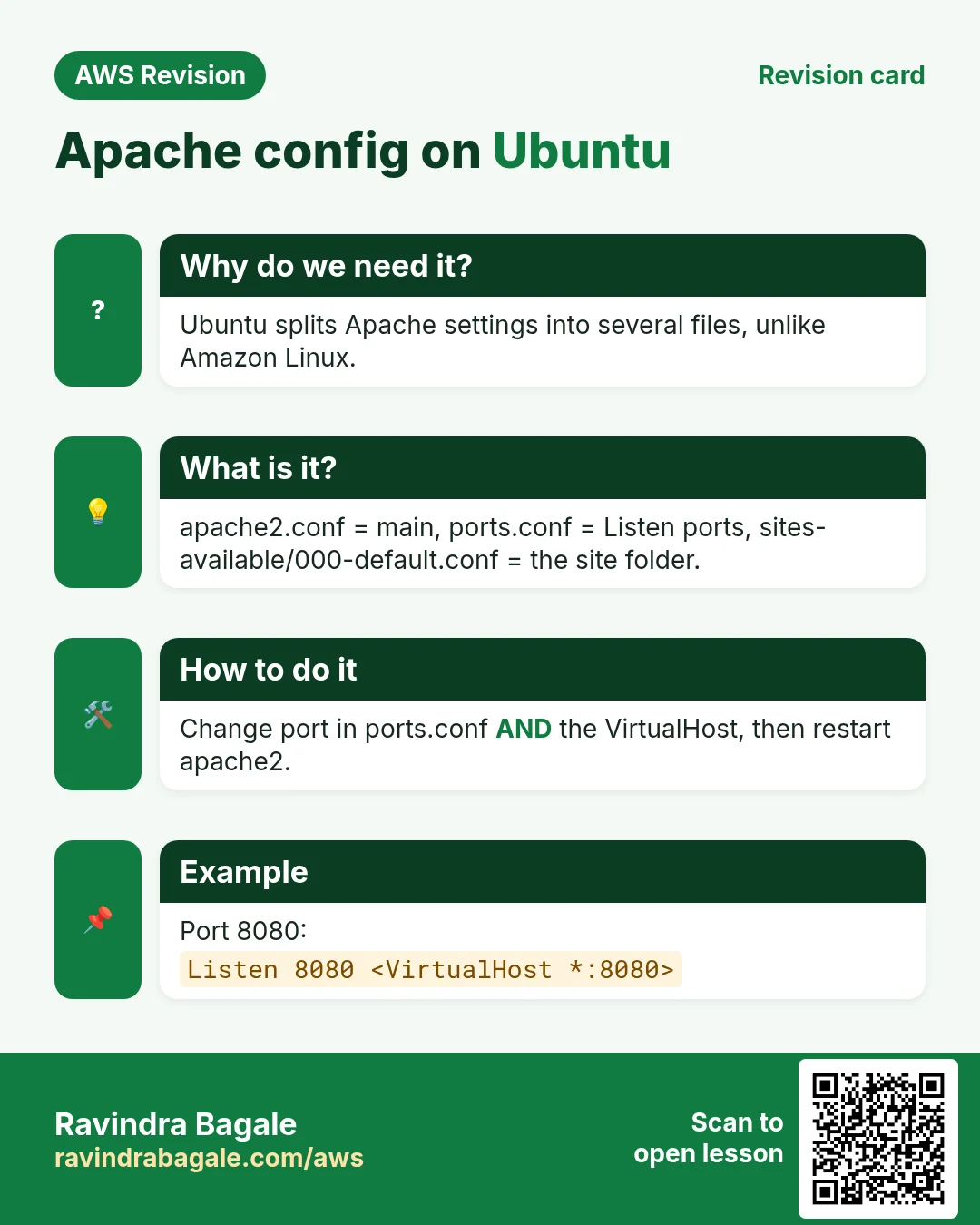
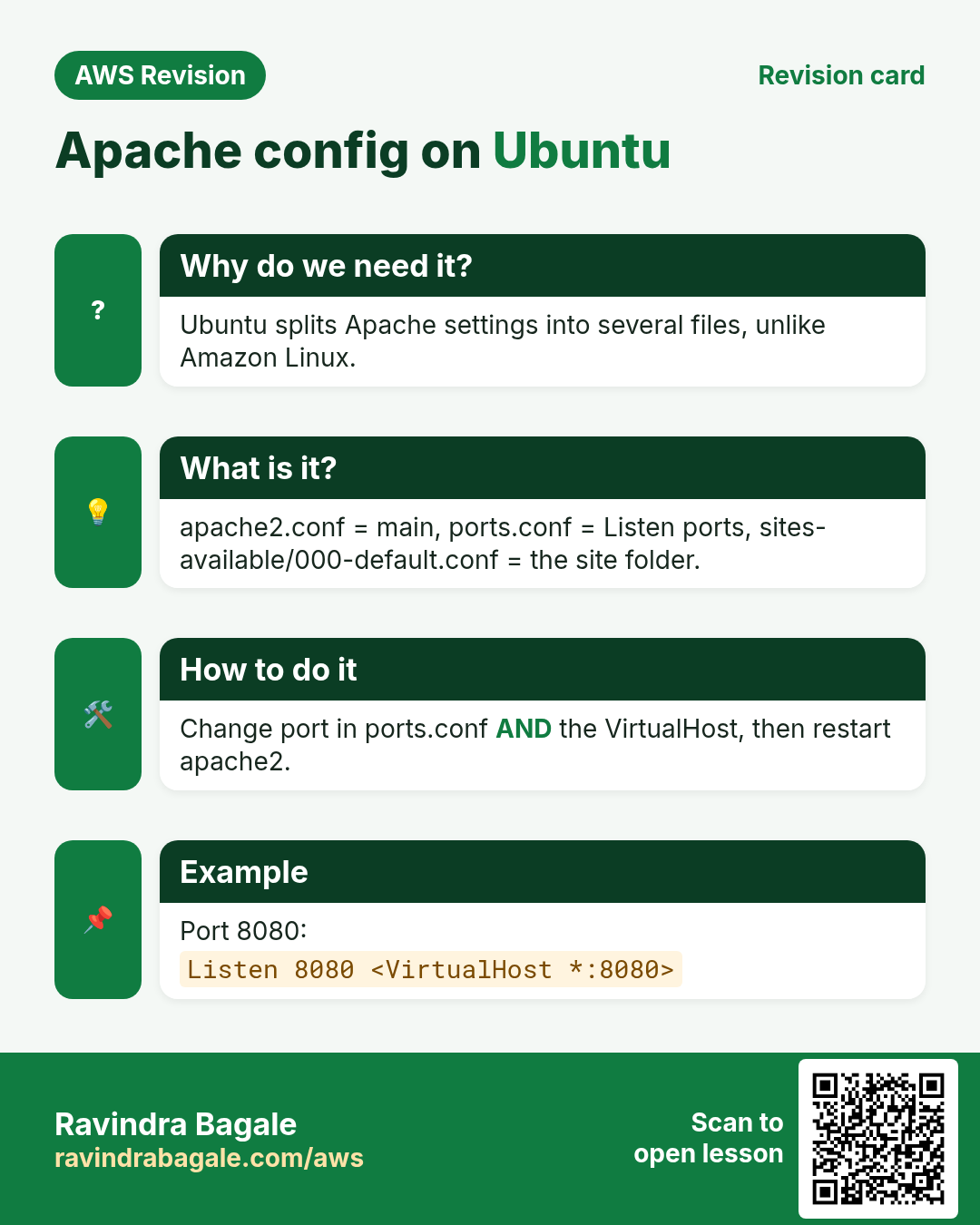
Why. On Ubuntu, Apache's files are arranged differently from Amazon Linux. If you look for DocumentRoot in the main file, you won't find it.
Classroom line
So where do all the configuration files live?
Class मधलं वाक्य
"So saglya configuration file kuthe astat?"
So सगळ्या configuration files कुठे असतात?
Classroom line
So where do all the configuration files live?
What.
- Folder:
/etc/apache2. - Main file:
/etc/apache2/apache2.conf. It doesn't hold everything; it includes smaller files, the way a program pulls in libraries. ports.confholds the port:Listen 80.sites-available/000-default.confholds the website:<VirtualHost *:80>,DocumentRoot /var/www/html.sites-enabled/000-default.confis a link to that file insites-available. Editing either name changes the same file; the real file is the one insites-available.
Figure 5. apache2.conf includes ports.conf (Listen) and the sites-enabled files; 000-default.conf holds VirtualHost, DocumentRoot and DirectoryIndex.
Example 4: what we'll build on Ubuntu.
- Port:
90 - Folder:
/var/www/mycollege - First page:
college.html
How.
Step 1. Launch an Ubuntu server, connect as ubuntu, and install Apache. Update the package list first:
sudo apt-get update
sudo apt-get install apache2 -y
sudo service apache2 start
If the install failed, sudo service apache2 start answers Unit apache2.service not found.: run sudo apt-get update and install again.
Step 2. Look around:
cd /etc/apache2
ls
You see apache2.conf, ports.conf, sites-available, sites-enabled and more.
Step 3. Back up the two files you'll change:
sudo cp /etc/apache2/ports.conf ~/ports.conf.bak
sudo cp /etc/apache2/sites-available/000-default.conf ~/000-default.conf.bak
Step 4. Change the port in ports.conf:
sudo nano /etc/apache2/ports.conf
Change Listen 80 to:
Listen 90
Step 5. Open the website file:
sudo nano /etc/apache2/sites-available/000-default.conf
Step 6. Change the first line to the new port, so the site answers on 90:
<VirtualHost *:90>
Step 7. Change the folder and add the first page under it:
DocumentRoot /var/www/mycollege
DirectoryIndex college.html
Step 8. Save. Make the folder and the page:
sudo mkdir /var/www/mycollege
sudo nano /var/www/mycollege/college.html
Type:
<meta charset="utf-8">
<h1>college</h1>
Step 9. Check and reload:
sudo apache2ctl configtest
sudo service apache2 reload
configtest prints Syntax OK when the files are fine.
Step 10. Add the Security Group rule for port 90 (Custom TCP, 90, 0.0.0.0/0), as before.
Step 11. Open http://PUBLIC_IP:90/. You see college.
Step 12. Run history to keep the list:
sudo apt-get update
sudo apt-get install apache2 -y
sudo service apache2 start
cd /etc/apache2
sudo nano /etc/apache2/ports.conf
sudo nano /etc/apache2/sites-available/000-default.conf
sudo mkdir /var/www/mycollege
sudo nano /var/www/mycollege/college.html
sudo service apache2 reload
7. When reload fails: read the status
Why. A typo in a settings file and the reload fails in red. The reason is always written down; you only have to read it.
Classroom line
Whenever any service stops with an error... what do we do then?
Class मधलं वाक्य
"Jevha kadhibi kutlahi service band padta, error yete... kay karaycha tya veles?"
जेव्हा कधीही कुठलीही service बंद पडते, error येते... काय करायचं त्या वेळेस?
Classroom line
Whenever any service stops with an error... what do we do then?
Classroom line
Check the status. It's written in the status.
Class मधलं वाक्य
"Status check kara. Status madhe lihilela aste."
Status check करा. Status मध्ये लिहिलेलं असतं.
Classroom line
Check the status. It's written in the status.
How.
Step 1. Run the status of the service that failed:
sudo service apache2 status
Step 2. Read the lines near the end. They name the file and the line.
Example 5: a stray character. A lone x typed on its own line gives:
AH00526: Syntax error on line 14 of /etc/apache2/sites-enabled/000-default.conf:
Invalid command 'x', perhaps misspelled or defined by a module not included in the server configuration
Example 6: a misspelled name. DocumentIndex college.html instead of DirectoryIndex college.html gives the same Invalid command 'DocumentIndex' message. Fix the spelling, then reload again.
Classroom line
When you see red, check the status.
Class मधलं वाक्य
"Red aala ki status check karaycha."
Red आलं की status check करायचा.
Classroom line
When you see red, check the status.
8. Nginx on Ubuntu
Why. Ubuntu splits Nginx settings into separate files. If you edit nginx.conf there and nothing changes, this is why.
What. On Ubuntu, Nginx keeps the website settings in a separate file: /etc/nginx/sites-available/default. /etc/nginx/sites-enabled/default is a link to it, so either name opens the same file.
Classroom line
Now Nginx... stop Apache, start Nginx, and change Nginx's configuration.
Class मधलं वाक्य
"Ata nginx... apache stop kara, nginx start kara, aani nginx cha configuration change kara."
आता nginx... apache stop करा, nginx start करा, आणि nginx चं configuration change करा.
Classroom line
Now Nginx... stop Apache, start Nginx, and change Nginx's configuration.
How.
Step 1. Stop Apache, then install Nginx if it isn't there yet, and start it:
sudo service apache2 stop
sudo apt-get install nginx -y
sudo service nginx start
Step 2. Back up and open the site file:
sudo cp /etc/nginx/sites-available/default ~/default.bak
sudo nano /etc/nginx/sites-available/default
Step 3. Change the same three settings:
listen 90 default_server;
listen [::]:90 default_server;
root /var/www/mycollege;
index college.html;
Step 4. Test, reload and open http://PUBLIC_IP:90/:
sudo nginx -t
sudo service nginx reload
You see college again, now served by Nginx.
Figure 6. Nginx on Ubuntu: listen, root and index in /etc/nginx/sites-available/default.
9. Apache and Nginx together
Why. Sometimes you must move a site from Apache to Nginx without downtime, or run an old and a new site side by side. Different ports make that possible.
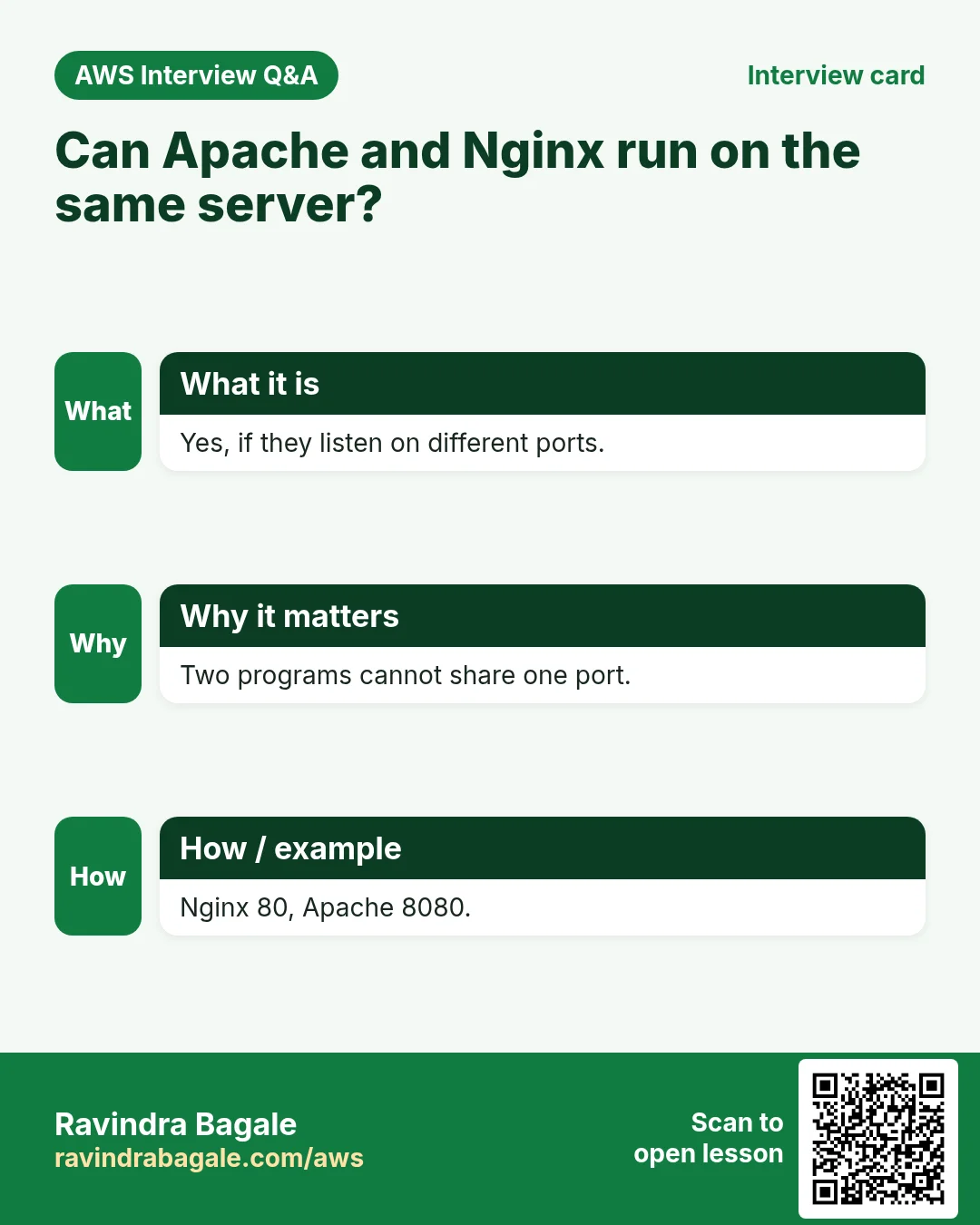
What. Two web servers can run on one server at the same time only on different ports. Both on port 80 is not possible: whichever starts second fails.
Example 7.
- Nginx keeps port 80:
http://PUBLIC_IP/. - Apache moves to 8080:
Listen 8080inports.confand<VirtualHost *:8080>in000-default.conf; thenhttp://PUBLIC_IP:8080/. - Open 8080 in the Security Group as well.
Classroom line
Apache and Nginx can both run at the same time, if the two run on different ports.
Class मधलं वाक्य
"Apache aani nginx donhi bi ekach veles chalu asu shaktat, jar dogha vegveglya port var run hotayt tar."
Apache आणि nginx दोन्ही बी एकाच वेळेस चालू असू शकतात, जर दोघं वेगवेगळ्या port वर run होतायत तर.
Classroom line
Apache and Nginx can both run at the same time, if the two run on different ports.
Figure 7. One server: Nginx on port 80 and Apache on port 8080; the port in the URL picks the web server.
10. What's next
So far we wrote small pages by hand. Next, we host real website code that a developer keeps on GitHub. Later we automate it: the developer changes the code in one place, and it reaches the server by itself.
Classroom line
I'll write in one place, and everything should reach the server automatically.
Class मधलं वाक्य
"Mi ekach thikani lihnar, sagla automatically server la jayla pahije."
मी एकाच ठिकाणी लिहिणार, सगळं automatically server ला जायला पाहिजे.
Classroom line
I'll write in one place, and everything should reach the server automatically.
11. The whole flow on one page
- Back up first:
sudo cp <file> ~/<file>.bak. - Nginx on Amazon Linux:
/etc/nginx/nginx.conf,server { }:listen 90;,listen [::]:90;,root /var/www/mywebsite;,index home.html;,charset utf-8;. - Check and apply:
sudo nginx -t,sudo service nginx reload. - Security Group: Custom TCP for the new port. Avoid ports browsers block.
- Apache on Ubuntu:
ports.conf(Listen 90) andsites-available/000-default.conf(<VirtualHost *:90>,DocumentRoot,DirectoryIndex);sudo apache2ctl configtest,sudo service apache2 reload. - Failed reload:
sudo service apache2 status, read the file and line, fix. - Nginx on Ubuntu:
/etc/nginx/sites-available/default. - Apache and Nginx together: different ports.
12. Hands-on lab: Nginx on its own port, folder and first page
Why this lab. The safe way to change any server setting is always the same: back up, edit, test, apply, check, and know how to undo. This lab runs that loop on Nginx, with Marathi text to prove the charset line.
- Install and start Nginx
- Command:
sudo yum install nginx -y && sudo service nginx start - You should see:
Complete!, thenRedirecting to /bin/systemctl start nginx.service. - Check:
curl -s http://localhost | grep -i titleshows the Nginx welcome title. - Why: If Apache is running on port 80, stop it first (
sudo service httpd stop): only one program can use a port.
- Command:
- Back up the settings file
- Command:
sudo cp /etc/nginx/nginx.conf ~/nginx.conf.bak - You should see: Nothing.
- Check:
ls ~showsnginx.conf.bak. - Why: Keep the copy outside
/etc/nginx/conf.d: every.conffile there is loaded, so a backup inside it would load too.
- Command:
- Make the folder and a Marathi page
- Command:
sudo mkdir -p /var/www/mywebsite && echo "<h1>नमस्कार</h1>" | sudo tee /var/www/mywebsite/home.html - You should see:
<h1>नमस्कार</h1> - Check:
ls /var/www/mywebsite→home.html - Why: Marathi letters are multi-byte UTF-8, so they show at once whether the charset is set right.
- Command:
- Edit the server block
- Command:
sudo nano /etc/nginx/nginx.conf - You should see: In the
server { }block setlisten 90;,listen [::]:90;,root /var/www/mywebsite;, and addindex home.html;andcharset utf-8;. Save and exit. - Check: Every line you touched ends with
;. - Why: Both
listenlines must change: one is IPv4, the other IPv6. A missing semicolon is the most common Nginx typo.
- Command:
- Test before applying
- Command:
sudo nginx -t - You should see:
nginx: the configuration file /etc/nginx/nginx.conf syntax is okandnginx: configuration file /etc/nginx/nginx.conf test is successful - Check: If it names a line instead, fix that line and run it again.
- Why:
-tchecks the file without touching the running server. A broken file never reaches your visitors.
- Command:
- Apply with reload
- Command:
sudo service nginx reload && curl http://localhost:90 - You should see:
<h1>नमस्कार</h1> - Check: Open port 90 in the security group, then
http://PUBLIC_IP:90/shows नमस्कार in proper letters. - Why:
reloadreads the new settings without dropping current visitors.index home.htmlis why no file name is needed in the URL.
- Command:
- Run Apache next to it
- Command:
sudo service httpd start && curl -s -o /dev/null -w "%{http_code}\n" http://localhost/ - You should see:
200 - Check: Port 80 answers from Apache and port 90 from Nginx, on the same server.
- Why: Two web servers can share a machine only on different ports. This is how you move a site from one to the other without downtime.
- Command:
- Restore and stop
- Command:
sudo cp ~/nginx.conf.bak /etc/nginx/nginx.conf && sudo nginx -t && sudo service nginx reload - You should see: The two
nginx -tsuccess lines. - Check:
curl http://localhost:90now fails. Stop the instance. - Why: Restoring the backup and testing again proves your undo works, which is the whole point of taking it.
- Command:
13. Try at home
Try at home
Task 1: Nginx on Amazon Linux
- Back up
nginx.confto your home folder. - Set port 90, folder
/var/www/mywebsite, first pagehome.html, and addcharset utf-8;. - Run
sudo nginx -t, reload, open port 90 and check the page. - Put a Marathi line in
home.htmland check that it shows correctly.
Task 2: break it and restore it
- Remove one
;, runsudo nginx -tand read the message. - Copy your backup back and reload.
Task 3: Apache on Ubuntu
- Set
Listen 90,<VirtualHost *:90>,DocumentRoot /var/www/mycollegeandDirectoryIndex college.html. - Reload and open
http://PUBLIC_IP:90/. - Misspell
DirectoryIndex, reload, and find the line withsudo service apache2 status. Fix it.
Task 4: Nginx on Ubuntu
- Stop Apache, start Nginx and set the same port, folder and first page in
sites-available/default.
When you're done, stop or terminate your instances.
Recap
In short
- Apache
Listen,DocumentRoot,DirectoryIndex= Nginxlisten,root,index. - Nginx settings sit in blocks in braces; every line ends with
;. Change bothlistenlines (IPv4 and IPv6). - Back up a settings file to your home folder before editing; restore it if the edit breaks.
sudo nginx -tchecks the file;sudo service nginx reloadapplies it.- Open the new port in the Security Group; browsers refuse some ports, so use normal ones.
- Strange letters instead of Marathi: add
charset utf-8;and<meta charset="utf-8">. - Ubuntu Apache:
ports.conffor the port,sites-available/000-default.conffor VirtualHost, folder and first page. Failed reload: readstatus. - Ubuntu Nginx:
sites-available/default. Apache and Nginx run together only on different ports.
Ravindra Bagale, trainer: linkedin.com/in/ravindra-bagale. The folders mywebsite and mycollege, the pages home.html, about.html and college.html, and the Marathi sample text are examples for learning; PUBLIC_IP stands for your instance's public IPv4 address. Parts of the outputs are shortened with "..."; line numbers in the error examples and the hostname in the prompt are illustrative.
Practice Tasks
Sahyadri Clinic is a healthcare business in Satara. Dr. Anil Deshmukh looks after its IT and cloud work. They count money in INR and run their AWS resources in the ap-south-1 Region. In the tasks below you do real jobs for them using what this lesson teaches. All names, account IDs, IP addresses and numbers are made up for practice.
0 / 12
Easy Restart a service after a change
Why: Config changes only apply after the service restarts or reloads.
What to do: Restart the nginx service.
- Find the Linux command that does this job.
- Add the options (like -r or -h) the task needs.
- Add the file names, folders or users in the right order.
- Use sudo if the job changes system files or users. Click Check answer.
Easy Check if a service is running
Why: When a site is down, first check whether the web server process is running.
What to do: Show the status of the httpd service.
- Find the Linux command that does this job.
- Add the options (like -r or -h) the task needs.
- Add the file names, folders or users in the right order.
- Use sudo if the job changes system files or users. Click Check answer.
Easy Install a package on Ubuntu
Why: Ubuntu uses apt. Package names differ: on Ubuntu Apache is apache2.
What to do: Install the apache2 package on Ubuntu without being asked to confirm.
- Find the Linux command that does this job.
- Add the options (like -r or -h) the task needs.
- Add the file names, folders or users in the right order.
- Use sudo if the job changes system files or users. Click Check answer.
Easy Install a package on Amazon Linux
Why: dnf is the package manager on Amazon Linux 2023. -y answers yes for you.
What to do: Install the httpd package on Amazon Linux 2023 without being asked to confirm.
- Find the Linux command that does this job.
- Add the options (like -r or -h) the task needs.
- Add the file names, folders or users in the right order.
- Use sudo if the job changes system files or users. Click Check answer.
Easy Test a website from the server
Why: curl shows whether the web server answers, even before DNS is ready.
What to do: Request http://localhost and show only the response headers.
- Find the Linux command that does this job.
- Add the options (like -r or -h) the task needs.
- Add the file names, folders or users in the right order.
- Use sudo if the job changes system files or users. Click Check answer.
Easy Download code from GitHub
Why: git clone copies the whole repository to the server, ready to deploy.
What to do: Clone https://github.com/sahyadriclinic/website.git into the current folder.
- Find the Linux command that does this job.
- Add the options (like -r or -h) the task needs.
- Add the file names, folders or users in the right order.
- Use sudo if the job changes system files or users. Click Check answer.
Medium Test the nginx config
Why: A test catches typos before a restart takes your site down.
What to do: Check the nginx configuration files for errors.
- Find the Linux command that does this job.
- Add the options (like -r or -h) the task needs.
- Add the file names, folders or users in the right order.
- Use sudo if the job changes system files or users. Click Check answer.
Medium Start a service now and at boot
Why: enable makes it start after reboot; --now also starts it right away.
What to do: Enable the nginx service and start it immediately, in one command.
- Find the Linux command that does this job.
- Add the options (like -r or -h) the task needs.
- Add the file names, folders or users in the right order.
- Use sudo if the job changes system files or users. Click Check answer.
Medium Open port 80 to the world
Why: Visitors can reach your website only if the security group allows HTTP.
What to do: Allow inbound TCP port 80 from 0.0.0.0/0 on security group sg-00210306304c4c3b2.
- Read the task and decide which AWS service it is about.
- Write aws, then the service name, then the operation (the action word).
- Add each needed flag (--name) followed by its value from the task.
- Flags can be in any order. Click Check answer.
Medium CloudFormation: web security group
Why: Opening only 443 keeps the server safer.
What to do: Template with an AWS::EC2::SecurityGroup that allows TCP 443 from 0.0.0.0/0. Add a GroupDescription.
- Start from the top-level keys the task names.
- Indent child keys with 2 spaces (no tabs).
- Fill in each property with the value from the task.
- Click Check answer. Key order does not matter.
Medium Create a security group
Why: A security group is the firewall around your instance.
What to do: Create a security group named sahyadriclinic-web-sg with description "Web servers" in vpc-01030c304edeadbee.
- Read the task and decide which AWS service it is about.
- Write aws, then the service name, then the operation (the action word).
- Add each needed flag (--name) followed by its value from the task.
- Flags can be in any order. Click Check answer.
Hard Enable an nginx site on Ubuntu
Why: On Ubuntu, a site is enabled by a symbolic link from sites-available to sites-enabled.
What to do: Create a symbolic link to /etc/nginx/sites-available/sahyadriclinic inside /etc/nginx/sites-enabled/.
- Find the Linux command that does this job.
- Add the options (like -r or -h) the task needs.
- Add the file names, folders or users in the right order.
- Use sudo if the job changes system files or users. Click Check answer.
Revision, comparison and interview cards
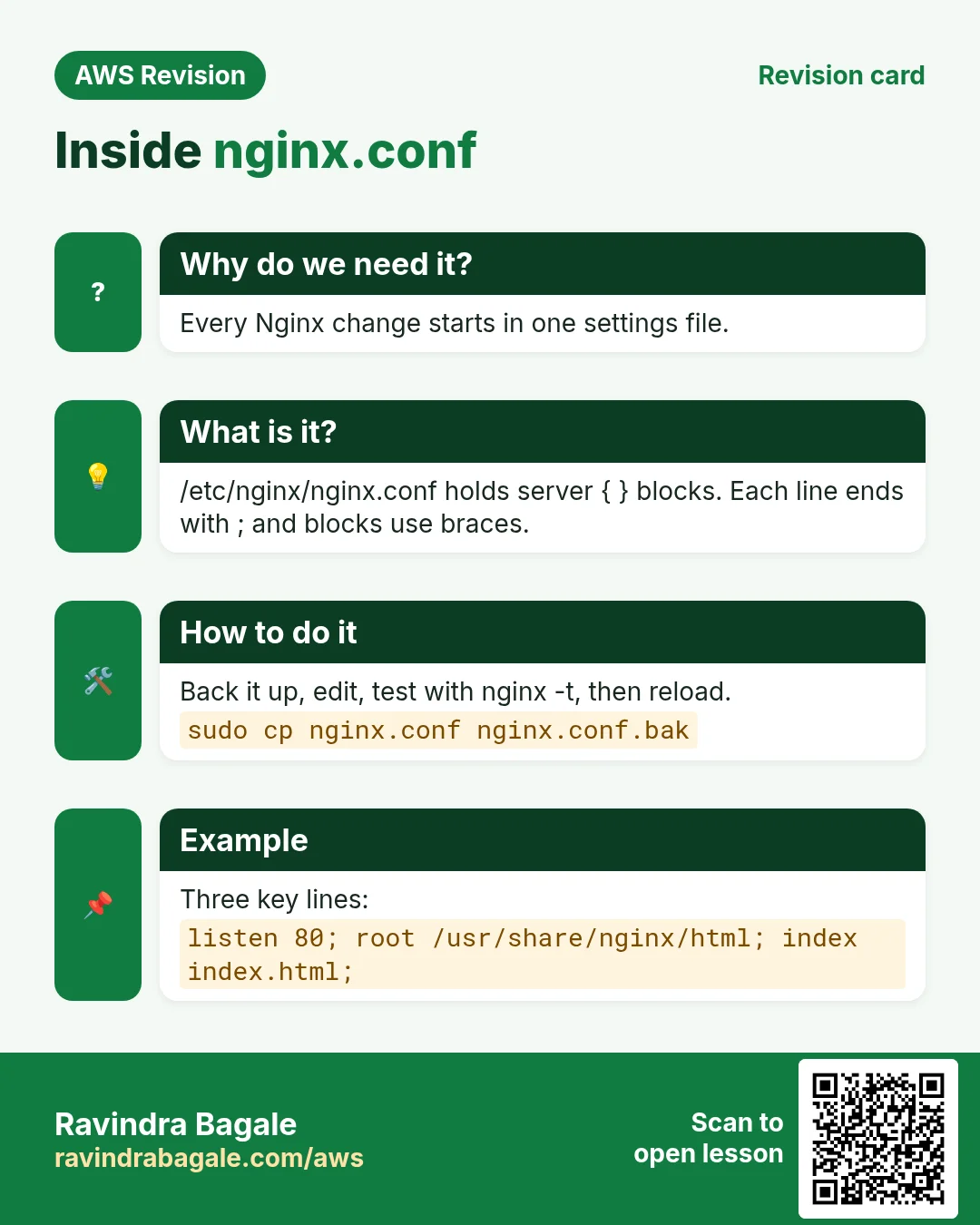
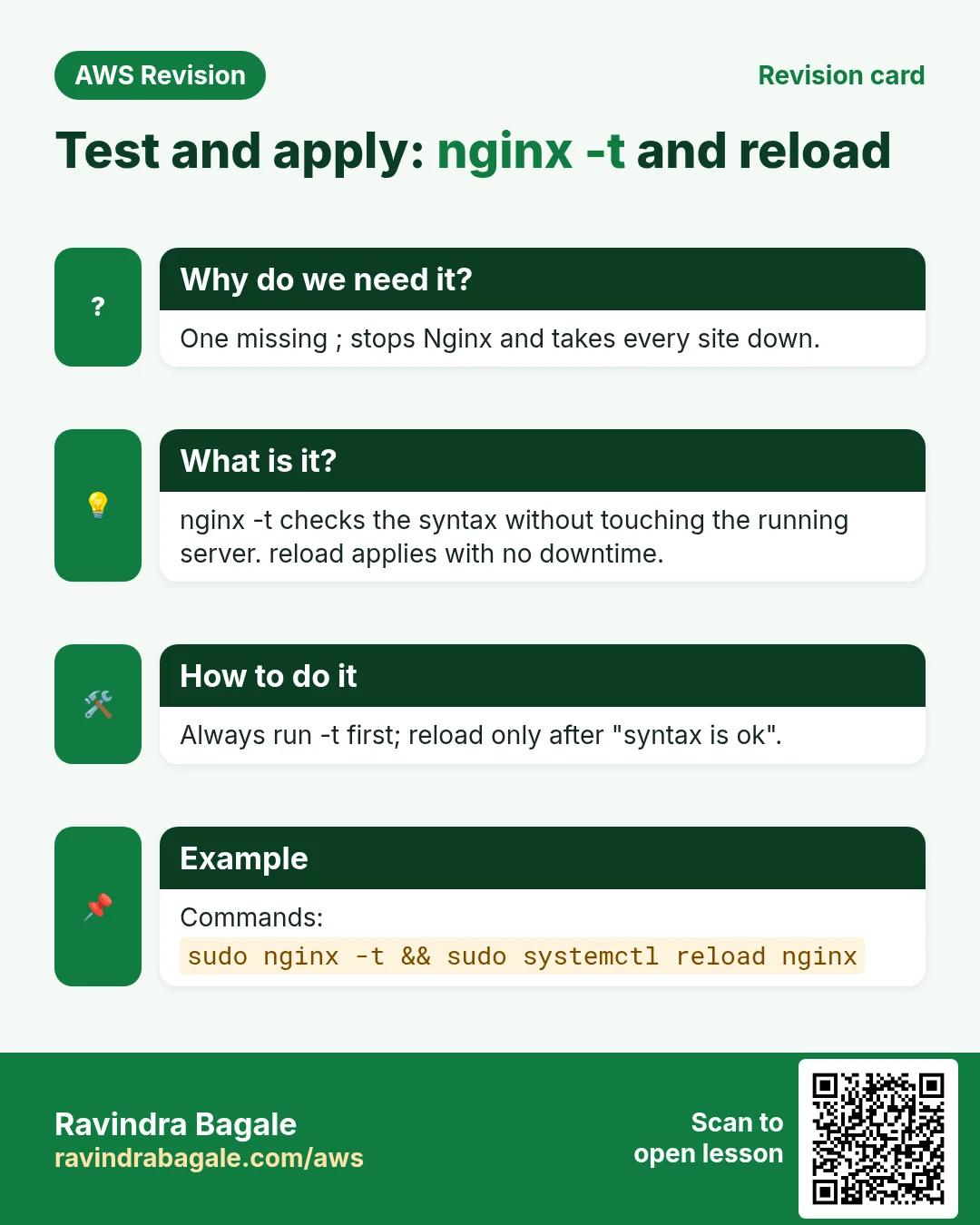
Revise this lesson in a few minutes. Save the cards on your phone or download them as PNG files. The QR code on each card opens this lesson.


More cards: Ravi Sir's Cards.