How to Send Logs from Multiple EC2 Instances to CloudWatch Logs (Agent, SSM, Logs Insights)
Metrics tell you that something is wrong. Logs tell you why. In this chapter you send the logs of many EC2 servers (nginx, Apache, Node.js, Java, Python) into one place, CloudWatch Logs, and search them all with one query. It builds on Amazon CloudWatch Explained.
What you'll learn in this chapter
- Log group, log stream, log event and retention
- IAM role with CloudWatchAgentServerPolicy
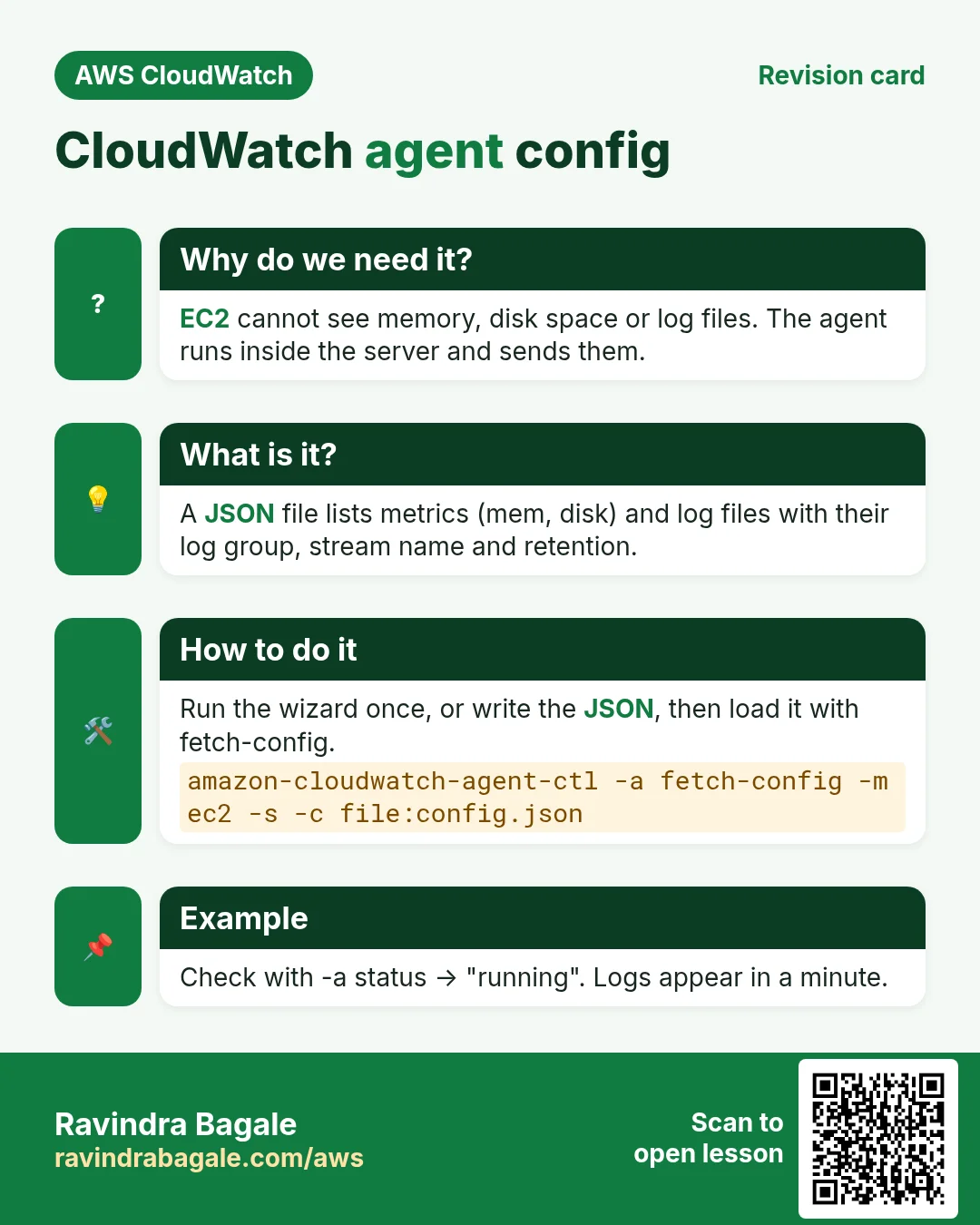
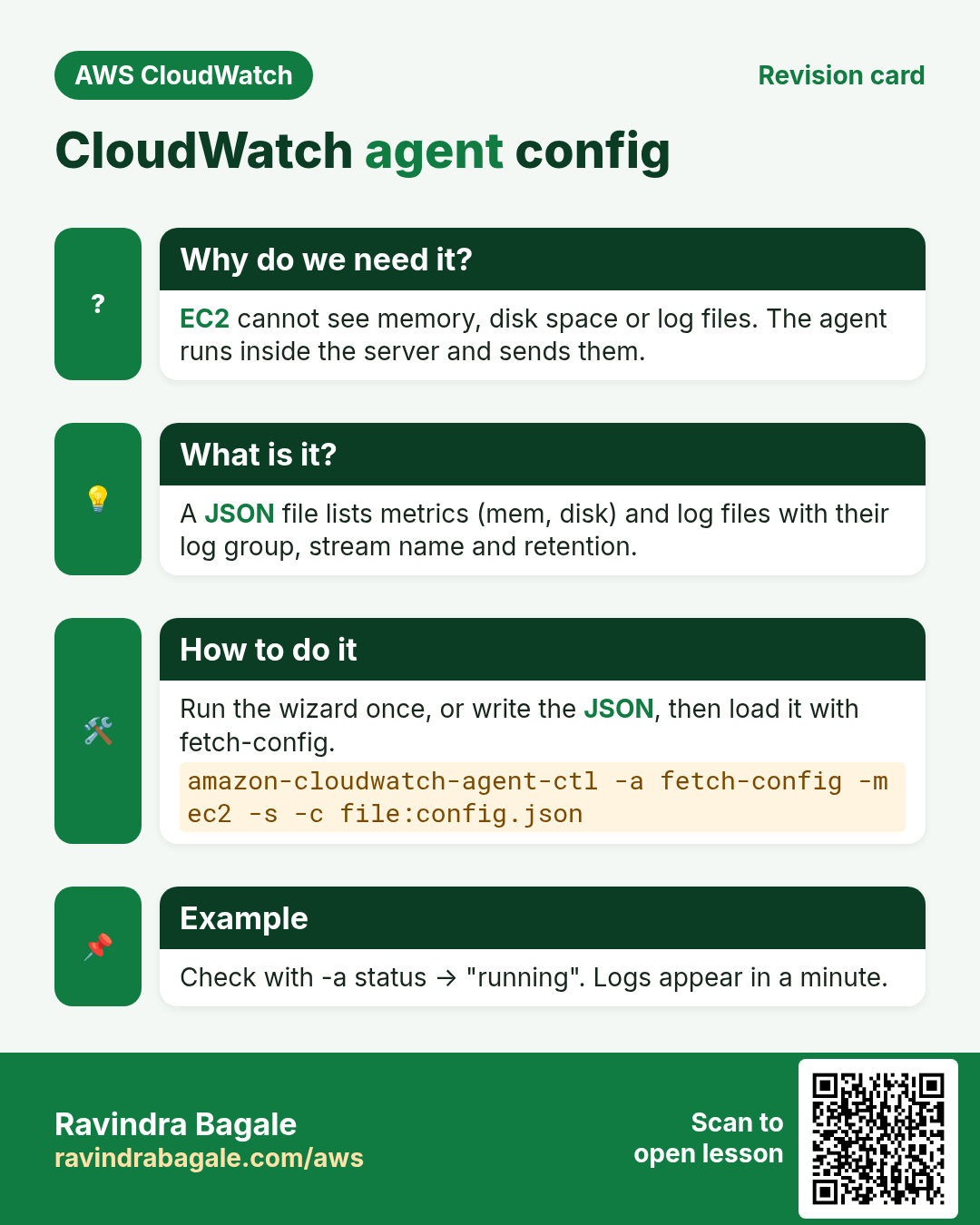
- Install the CloudWatch agent; config by wizard and by JSON
- One log stream per instance with {instance_id}
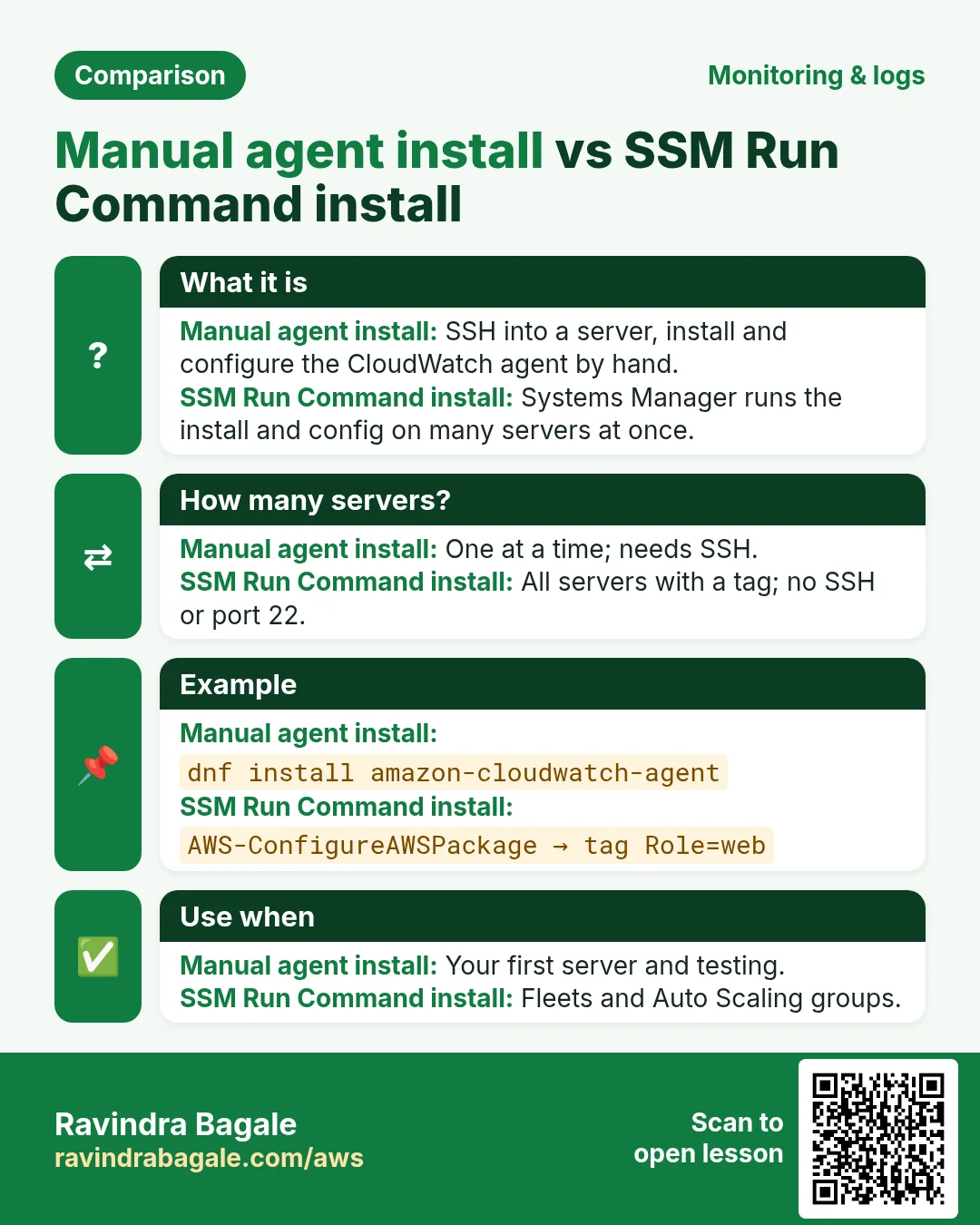
- Systems Manager: install and configure the agent on many servers at once
- Logs Insights queries and a metric filter alarm
1. A story: five servers, one error
A food-delivery app runs on 5 web servers behind a load balancer. A customer says "payment failed at 8:14 PM". Which server served him? Without central logs you SSH into 5 servers and run grep 5 times. If Auto Scaling already terminated that server, its logs are gone for ever.
With CloudWatch Logs, all 5 servers send their logs to one log group. One query finds the error in seconds, even from a server that no longer exists.
2. Log groups, streams and retention
Why do we need this?
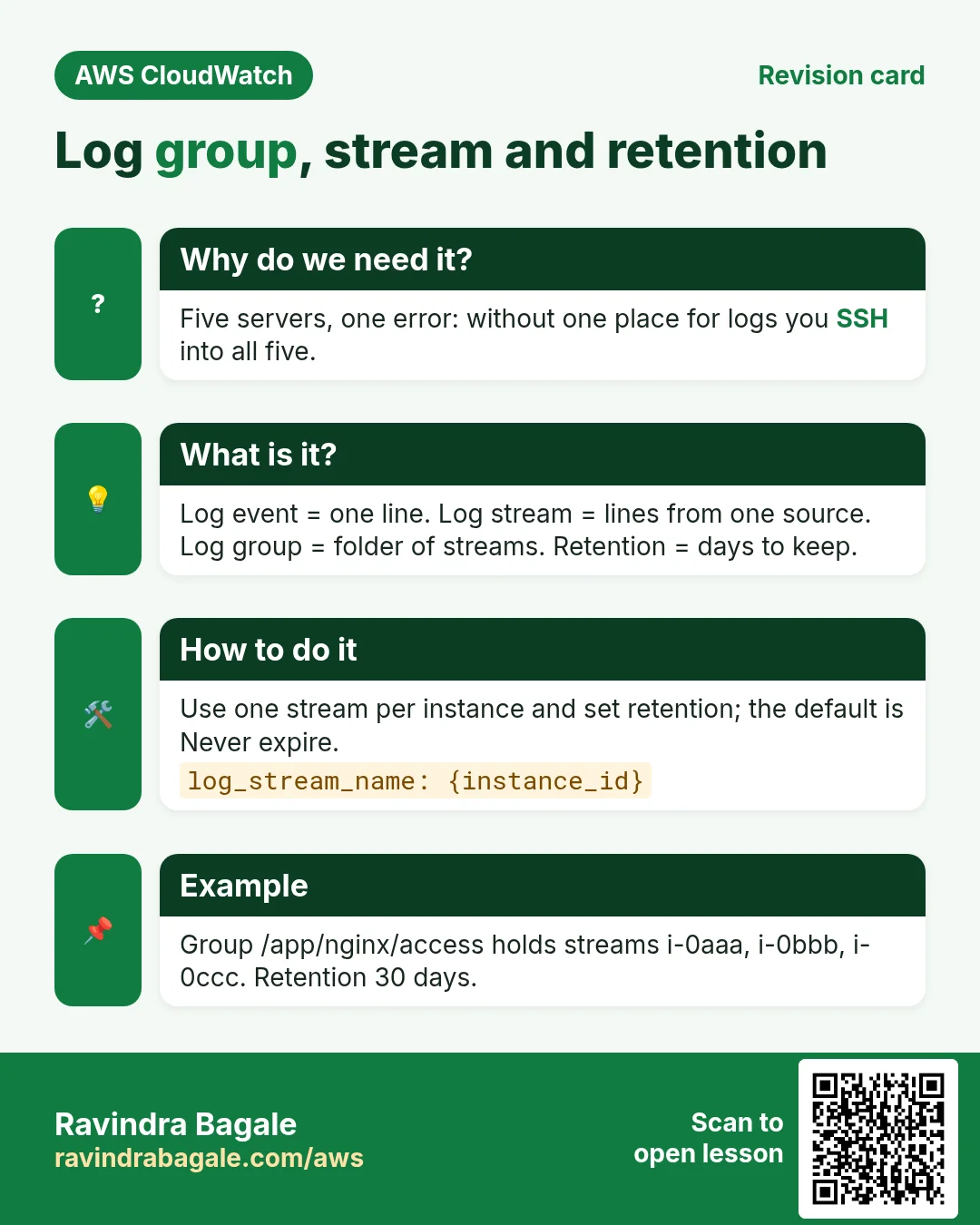
Millions of lines need folders, or you can never find anything. Old logs also cost money, so we must delete them on time.
What is it?
- Log event: one line with a time. Example: one nginx request.
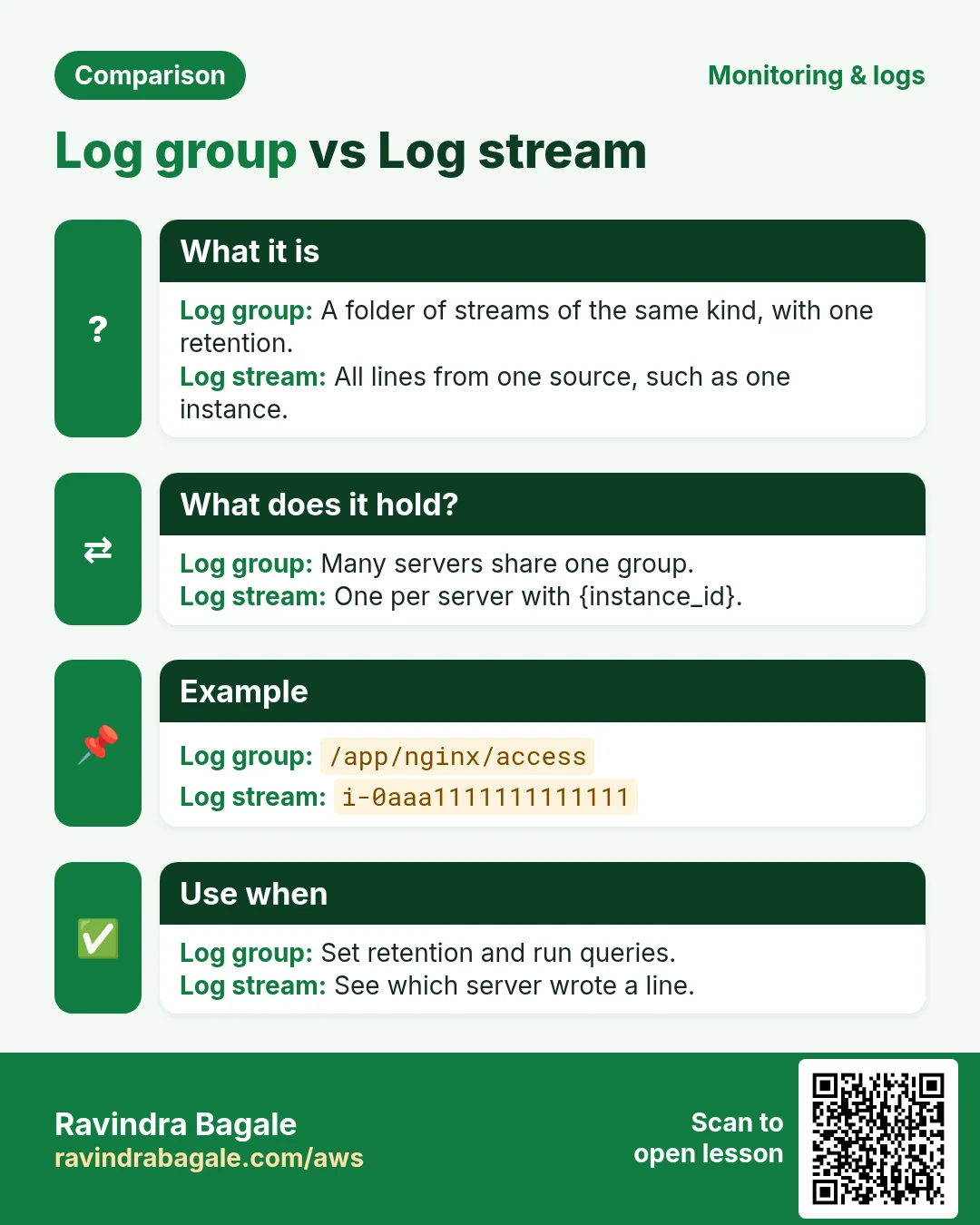
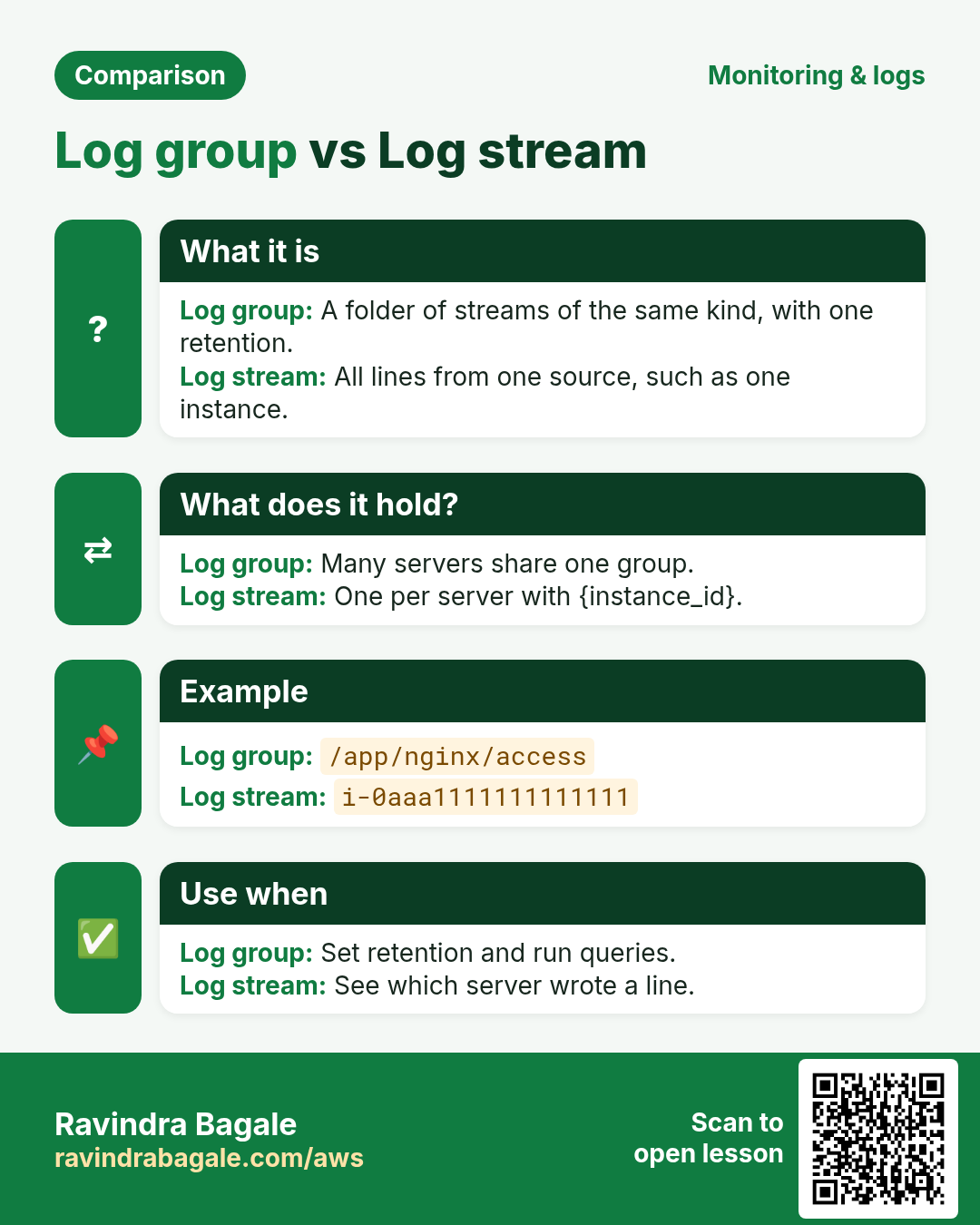
- Log stream: all lines from one source. We use one stream per instance, named by instance ID.
- Log group: a folder of streams of the same kind. Example:
/app/nginx/accessholds the access logs of every web server. - Retention: how many days a log group keeps data. Default is Never expire, which grows the bill for ever. Set it, for example 30 days for access logs, 90 or more for audit logs.
| Stack | Log file on the server | Suggested log group |
|---|---|---|
| nginx | /var/log/nginx/access.log, error.log | /app/nginx/access, /app/nginx/error |
| Apache (Amazon Linux) | /var/log/httpd/access_log, error_log | /app/httpd/access, /app/httpd/error |
| Apache (Ubuntu) | /var/log/apache2/access.log | /app/apache2/access |
| Node.js with PM2 | /home/ec2-user/.pm2/logs/app-out.log | /app/node |
| Java Spring Boot | /opt/app/logs/spring.log | /app/java |
| Python Flask + Gunicorn | /var/log/gunicorn/error.log | /app/python |
| PHP-FPM | /var/log/php-fpm/www-error.log | /app/php |
| MySQL | /var/log/mysqld.log (Amazon Linux) | /app/mysql |
| .NET on Windows | Windows Event Log: Application | /app/windows/application |
| Go service | /var/log/goapp/app.log | /app/go |
| System | /var/log/messages, /var/log/secure | /sys/messages, /sys/secure |
3. Step 1: the IAM role
Why do we need this?
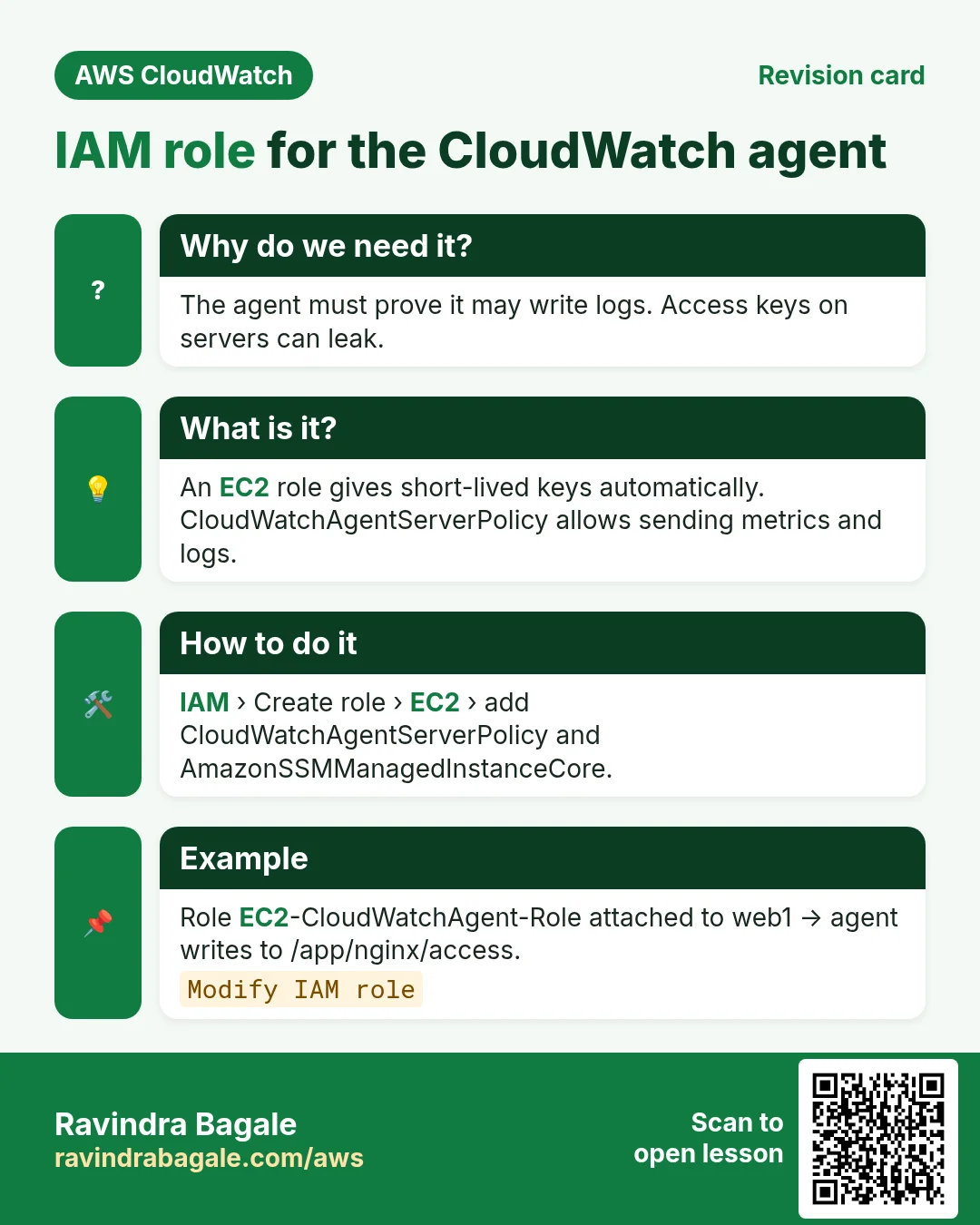
The agent on the server must prove to AWS that it is allowed to write logs. We never put access keys on servers: keys leak. A role gives short-lived keys automatically.
What is it?
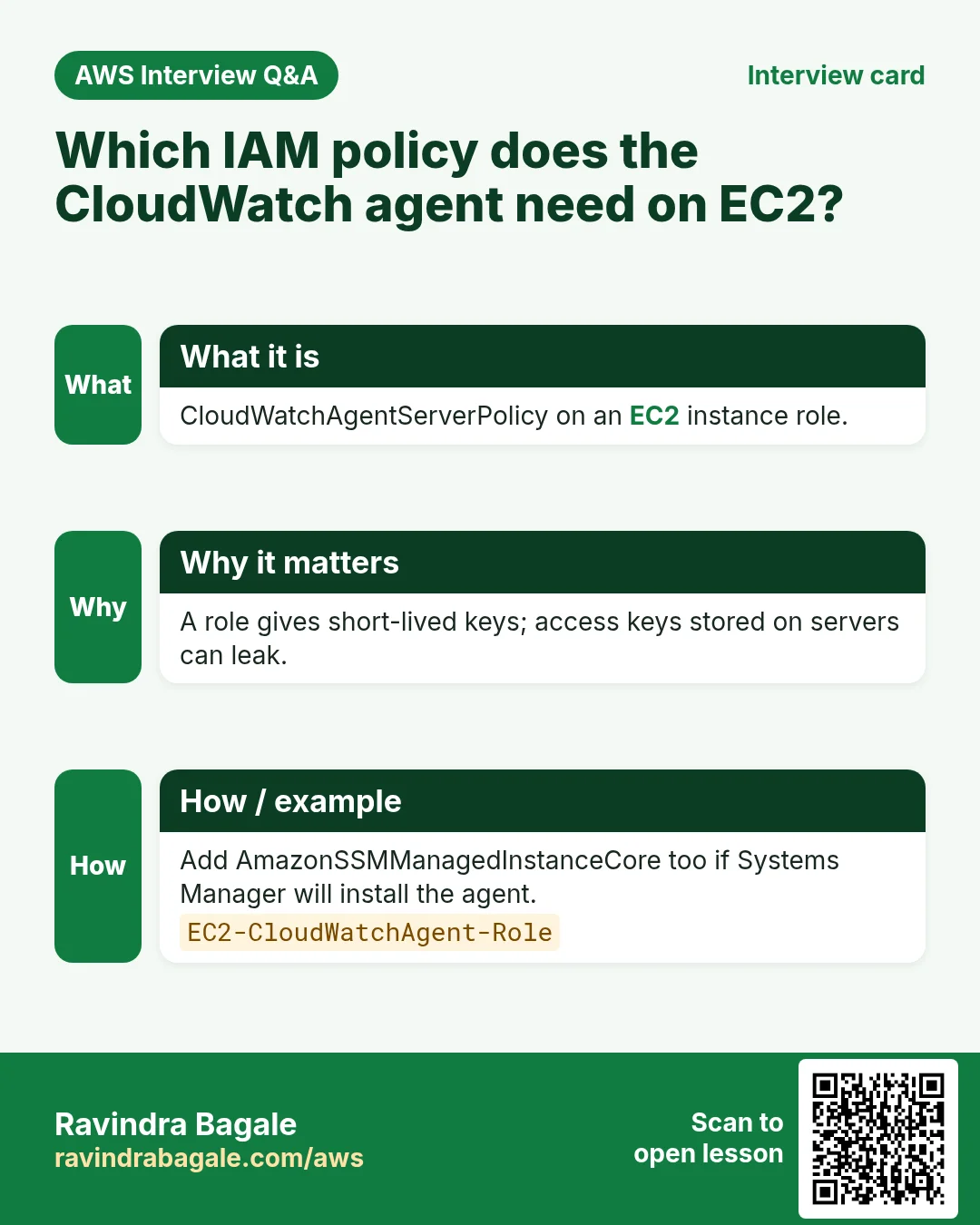
CloudWatchAgentServerPolicy is an AWS managed policy. It allows the agent to send metrics and logs (PutMetricData, CreateLogStream, PutLogEvents and so on) and to read its config from Parameter Store. AmazonSSMManagedInstanceCore lets Systems Manager manage the server (we use it in Step 5).
How to do it (step by step)
- Open IAM → Roles → Create role.
- Trusted entity type: AWS service. Use case: EC2. Next.
- Search and tick CloudWatchAgentServerPolicy.
- Search and tick AmazonSSMManagedInstanceCore. Next.
- Role name:
EC2-CloudWatchAgent-Role. Create role. - EC2 → select each server → Actions → Security → Modify IAM role → choose
EC2-CloudWatchAgent-Role→ Update IAM role. - Verify on the server:
TOKEN=$(curl -s -X PUT http://169.254.169.254/latest/api/token -H "X-aws-ec2-metadata-token-ttl-seconds: 60")
curl -s -H "X-aws-ec2-metadata-token: $TOKEN" http://169.254.169.254/latest/meta-data/iam/info
# expected: "InstanceProfileArn" : "arn:aws:iam::...:instance-profile/EC2-CloudWatchAgent-Role"
4. Step 2: install the agent (one server)
- SSH into web1 (Amazon Linux 2023) and install nginx so we have logs:
sudo dnf install -y nginx amazon-cloudwatch-agent
sudo systemctl enable --now nginx
curl -s -o /dev/null -w "%{http_code}\n" http://localhost/   # expected: 200
On Ubuntu: download https://amazoncloudwatch-agent.s3.amazonaws.com/ubuntu/amd64/latest/amazon-cloudwatch-agent.deb and run sudo dpkg -i -E ./amazon-cloudwatch-agent.deb. On Windows use the MSI from the same bucket.
5. Step 3: configure with the wizard
Why do we need this?
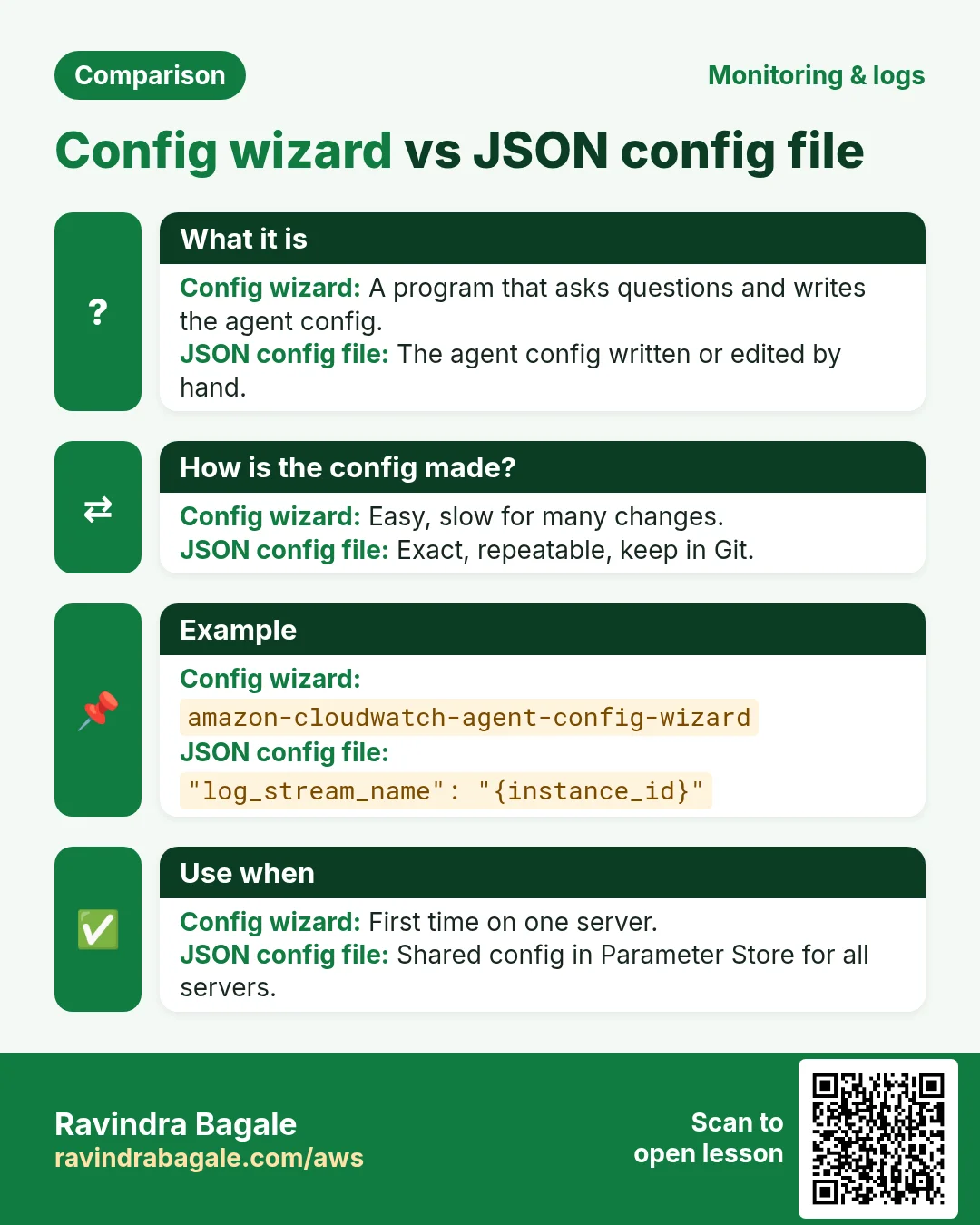
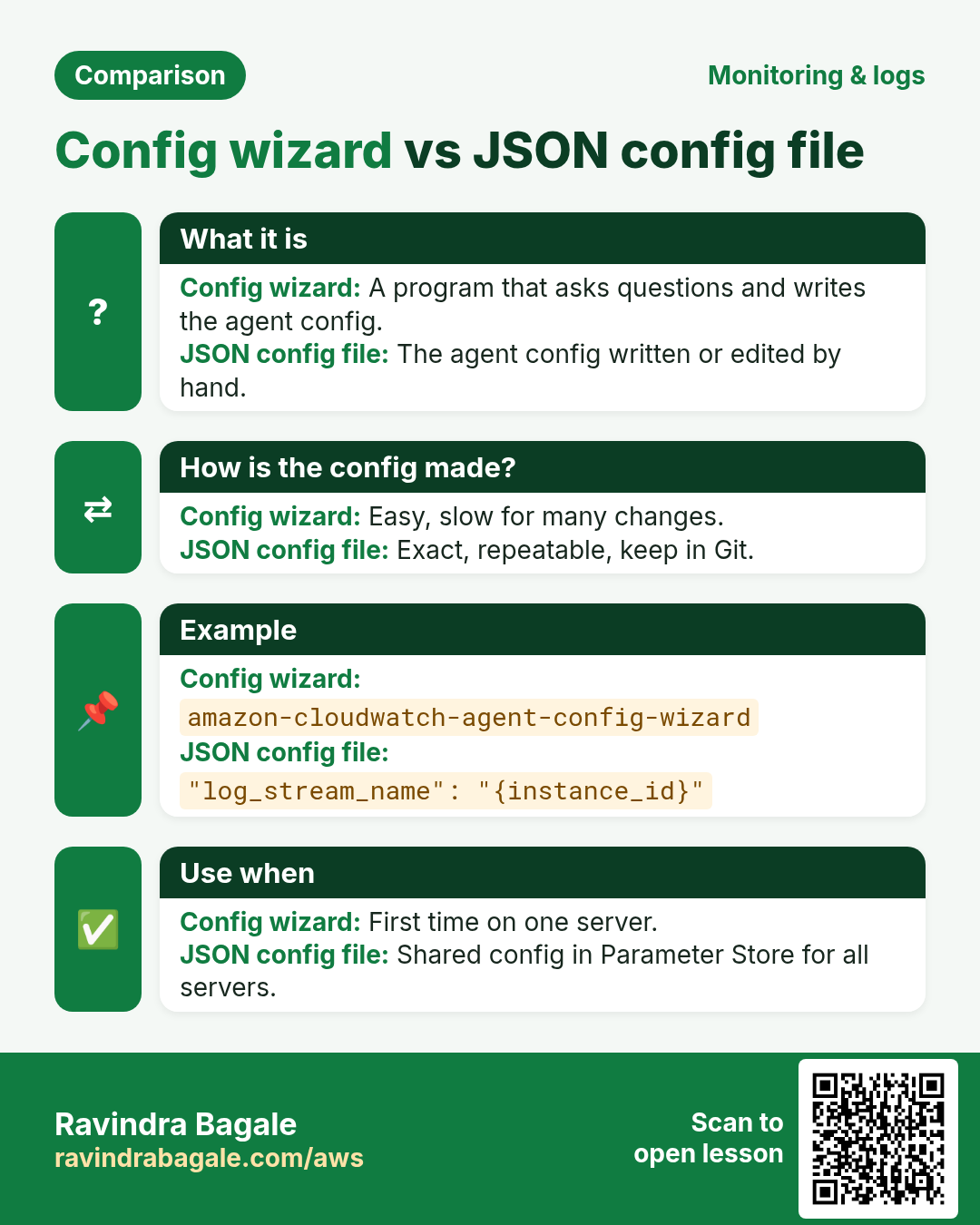
The config file has many options. The wizard asks simple questions and writes a correct file for you. Good for the first server.
How to do it (step by step)
- Run
sudo /opt/aws/amazon-cloudwatch-agent/bin/amazon-cloudwatch-agent-config-wizard. - OS: linux. EC2 or on-premises: EC2. User: cwagent. Why cwagent: the agent should not run as root.
- StatsD: no. CollectD: no. Why: we do not use them; collectd also needs a package, or the agent fails to start.
- Monitor host metrics: yes. CPU per core: no. EC2 dimensions: yes. Aggregate: yes. Resolution: 60s. Level: Basic (mem and disk).
- Existing config: no. Monitor log files: yes.
- Log file path:
/var/log/nginx/access.log. Log group:/app/nginx/access. Log group class: STANDARD. Stream name:{instance_id}. Retention: 30. - Add another:
/var/log/nginx/error.log→/app/nginx/error, same stream name and retention. Then no more files. - Store config in SSM Parameter Store: yes, name
AmazonCloudWatch-linux. Why: other servers can download the same config in Step 5. - The file is saved at
/opt/aws/amazon-cloudwatch-agent/bin/config.json.
Ravindra Bagale's Tip
nginx logs are readable only by root and the nginx group. If the agent runs as cwagent, give read access: sudo setfacl -m u:cwagent:rx /var/log/nginx; sudo setfacl -m u:cwagent:r /var/log/nginx/*.log, or choose user root in the wizard for the lab.
6. Step 4: the JSON file explained, and start the agent
This is the same config written by hand. Each part has a reason:
{
  "agent": { "metrics_collection_interval": 60, "run_as_user": "cwagent" },
  "metrics": {
    "namespace": "CWAgent",
    "append_dimensions": { "InstanceId": "${aws:InstanceId}" },
    "metrics_collected": {
      "mem":  { "measurement": ["mem_used_percent"] },
      "disk": { "measurement": ["used_percent"], "resources": ["/"] }
    }
  },
  "logs": {
    "logs_collected": {
      "files": {
        "collect_list": [
          { "file_path": "/var/log/nginx/access.log",
            "log_group_name": "/app/nginx/access",
            "log_stream_name": "{instance_id}",
            "retention_in_days": 30 },
          { "file_path": "/var/log/nginx/error.log",
            "log_group_name": "/app/nginx/error",
            "log_stream_name": "{instance_id}",
            "retention_in_days": 30 }
        ]
      }
    }
  }
}| Key | Why |
|---|---|
| metrics_collection_interval: 60 | One value per minute, matches alarms with 60 s period |
| append_dimensions InstanceId | So each server's memory is a separate line on graphs |
| log_stream_name {instance_id} | One stream per server; you see which server wrote a line |
| retention_in_days | Stops logs from piling up for ever |
| resources ["/"] | Only the root disk; add "/data" for an extra volume |
- Start the agent with this file:
sudo /opt/aws/amazon-cloudwatch-agent/bin/amazon-cloudwatch-agent-ctl \
  -a fetch-config -m ec2 -s \
  -c file:/opt/aws/amazon-cloudwatch-agent/bin/config.json
sudo /opt/aws/amazon-cloudwatch-agent/bin/amazon-cloudwatch-agent-ctl -a status
# expected: "status": "running"
# from Parameter Store instead of a file:  -c ssm:AmazonCloudWatch-linux
tail -n 20 /opt/aws/amazon-cloudwatch-agent/logs/amazon-cloudwatch-agent.log # look for errors- Make some traffic:
for i in $(seq 1 50); do curl -s -o /dev/null http://localhost/; curl -s -o /dev/null http://localhost/nope; done. - Verify: CloudWatch → Log groups →
/app/nginx/access→ a stream named likei-0abc…with your requests (200 and 404). - Verify metrics: CloudWatch → Metrics → CWAgent → InstanceId →
mem_used_percent.
Log entries for other stacks (add to collect_list):
{ "file_path": "/home/ec2-user/.pm2/logs/*-out.log", "log_group_name": "/app/node",   "log_stream_name": "{instance_id}", "retention_in_days": 14 },
{ "file_path": "/opt/app/logs/spring.log",           "log_group_name": "/app/java",   "log_stream_name": "{instance_id}", "retention_in_days": 30,
  "multi_line_start_pattern": "^\\d{4}-\\d{2}-\\d{2}" },
{ "file_path": "/var/log/gunicorn/error.log",        "log_group_name": "/app/python", "log_stream_name": "{instance_id}", "retention_in_days": 30 },
{ "file_path": "/var/log/httpd/access_log",          "log_group_name": "/app/httpd/access", "log_stream_name": "{instance_id}", "retention_in_days": 30 }
Why multi_line_start_pattern for Java: a Java stack trace is 30 lines. Without it, every line becomes a separate event and the error is hard to read. With it, a new event starts only at a line that begins with a date.
7. Step 5: many servers with Systems Manager
Why do we need this?
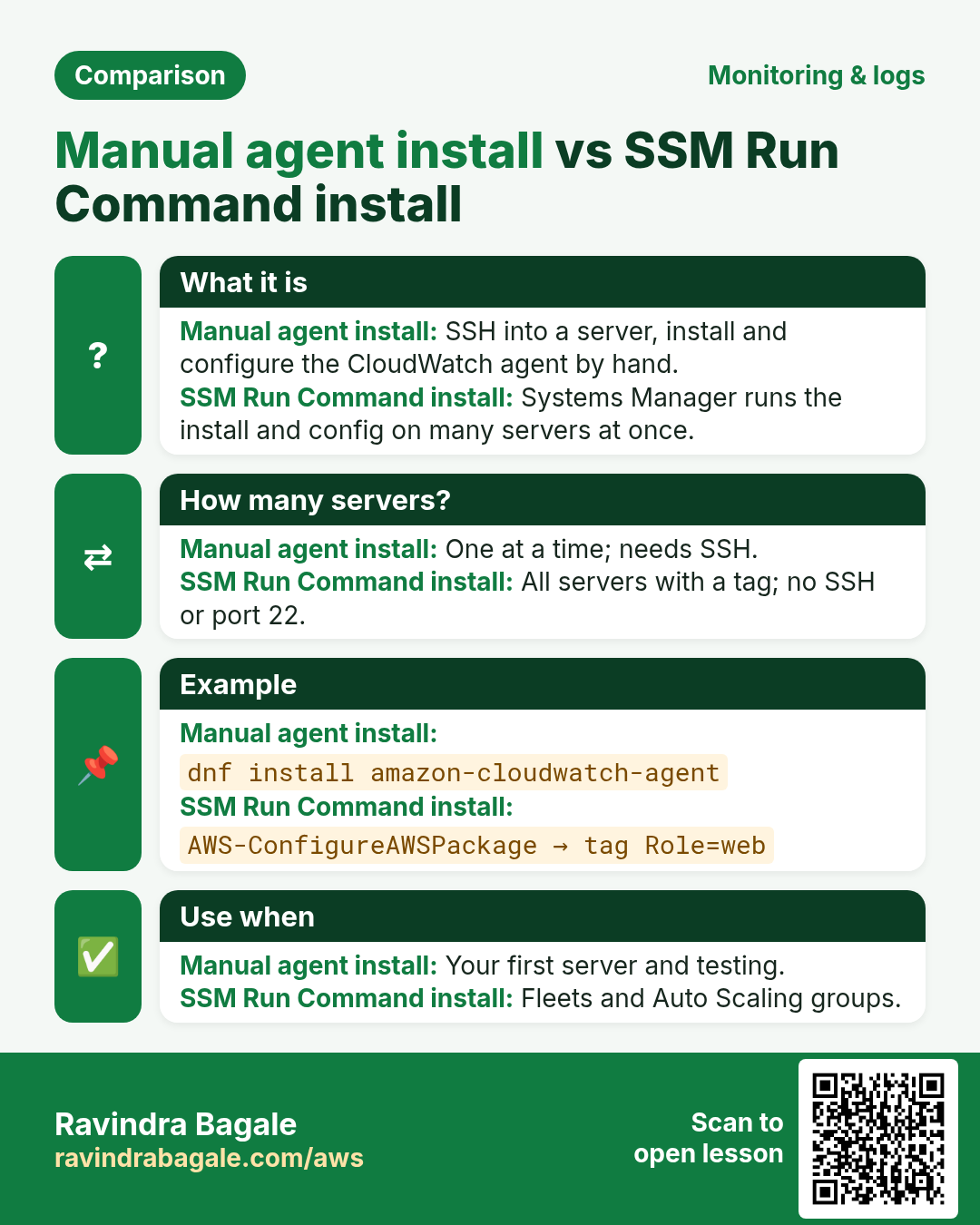
Doing Steps 2-4 by SSH on 20 servers is slow and each server may end up a little different. Systems Manager (SSM) runs the same command on all of them, with no SSH and no open port 22.
How to do it (step by step)
- Give every server the role
EC2-CloudWatchAgent-Role(Step 1) and a tagRole = web. - Open Systems Manager → Fleet Manager. Verify all servers appear as Online. (The SSM agent is pre-installed on Amazon Linux and Ubuntu AMIs; it needs outbound HTTPS.)
- Open Systems Manager → Run Command → Run command. Document: AWS-ConfigureAWSPackage.
- Action: Install. Name:
AmazonCloudWatchAgent. Version:latest. - Targets: Specify instance tags →
Role=web. Why tags: new web servers are included without editing the command. - Output options: untick S3 for the lab. Run. Verify: each target shows Success.
- Run command again. Document: AmazonCloudWatch-ManageAgent. Action configure, Mode ec2, Optional Configuration Source ssm, Optional Configuration Location
AmazonCloudWatch-linux, Optional Restart yes. Same tag target. Run. - Verify: the log group
/app/nginx/accessnow has one stream per server.
The same with the CLI:
aws ssm put-parameter --name AmazonCloudWatch-linux --type String --overwrite \
  --value file://config.json
aws ssm send-command --document-name AWS-ConfigureAWSPackage \
  --targets Key=tag:Role,Values=web \
  --parameters '{"action":["Install"],"name":["AmazonCloudWatchAgent"]}'
aws ssm send-command --document-name AmazonCloudWatch-ManageAgent \
  --targets Key=tag:Role,Values=web \
  --parameters '{"action":["configure"],"mode":["ec2"],"optionalConfigurationSource":["ssm"],"optionalConfigurationLocation":["AmazonCloudWatch-linux"],"optionalRestart":["yes"]}'
aws logs describe-log-streams --log-group-name /app/nginx/access --query 'logStreams[].logStreamName'
# expected: ["i-0aaa...", "i-0bbb...", "i-0ccc..."]
Ravindra Bagale's Tip
For an Auto Scaling group, put the install and fetch-config commands in the launch template user data, or bake the agent into the AMI. Every new server then sends logs from its first minute.
8. Step 6: retention
- CloudWatch → Log groups → tick
/app/nginx/access→ Actions → Edit retention setting(s) → 1 month (30 days) → Save. - CLI:
aws logs put-retention-policy --log-group-name /app/nginx/error --retention-in-days 30. - Verify: the Retention column shows 1 month instead of Never expire.
9. Step 7: search everything with Logs Insights
Why do we need this?
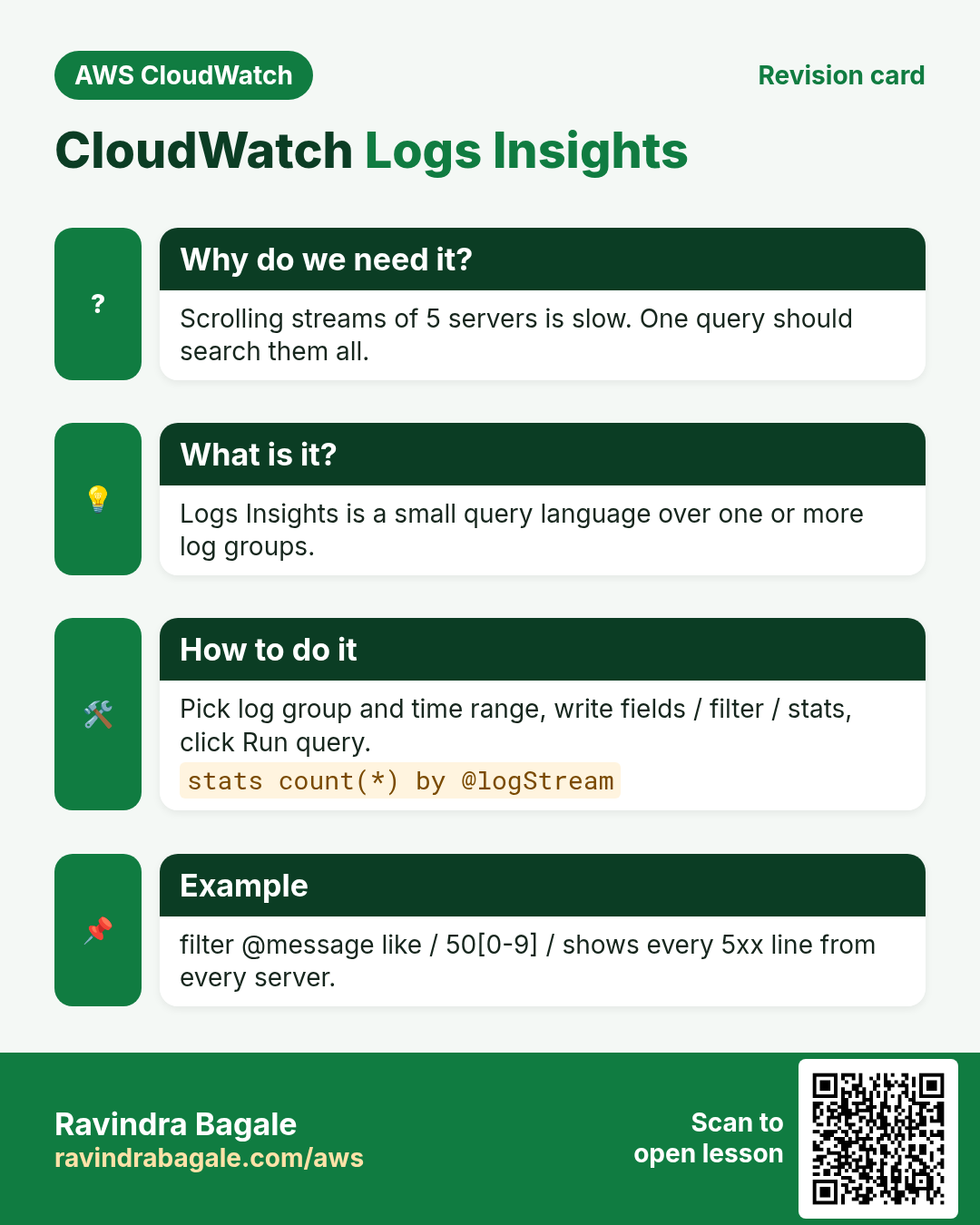
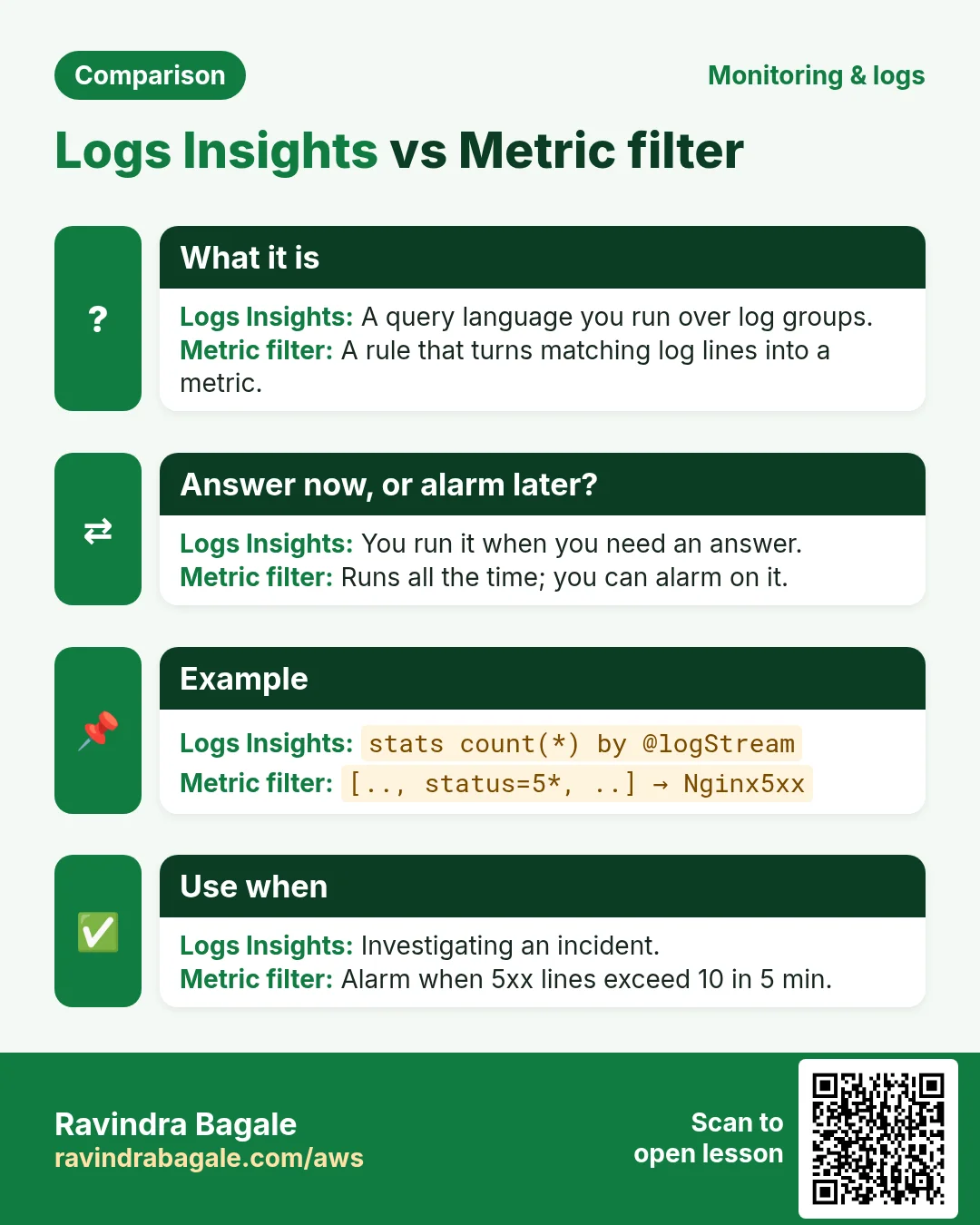
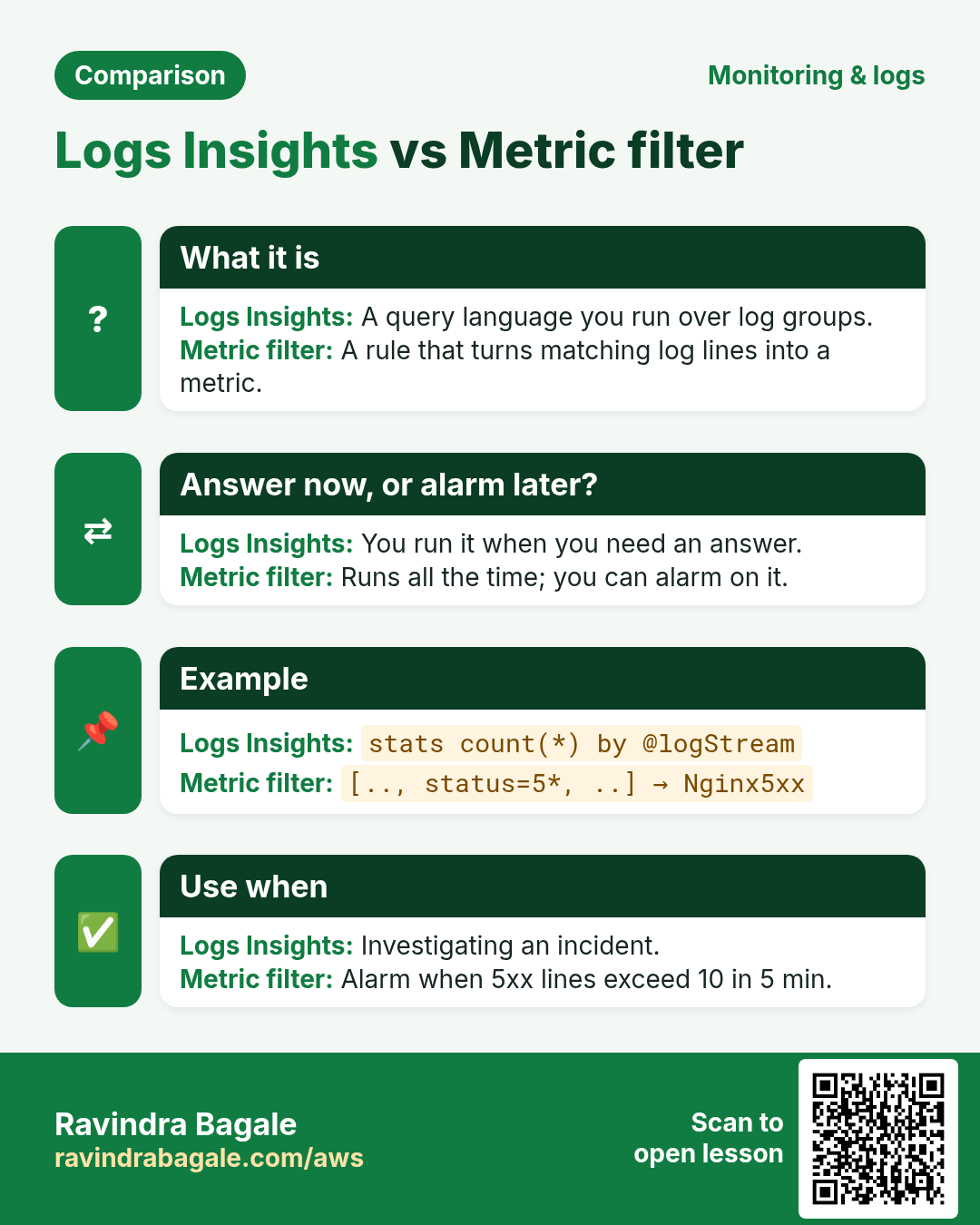
Scrolling through streams is slow. Logs Insights is a small query language that searches all streams of one or more log groups at once.
How to do it (step by step)
- CloudWatch → Logs Insights. Select log group
/app/nginx/access. Time range: 1h. - Paste a query below and click Run query. Start with the simplest.
# 1. latest 20 lines from all servers
fields @timestamp, @logStream, @message
| sort @timestamp desc
| limit 20

# 2. only 404 and 5xx lines
fields @timestamp, @logStream, @message
| filter @message like / 404 / or @message like / 50[0-9] /
| sort @timestamp desc

# 3. requests per server (which server gets the most?)
stats count(*) as requests by @logStream
| sort requests desc

# 4. errors per 5 minutes, ready for a graph
filter @message like / 50[0-9] /
| stats count(*) as errors by bin(5m)

# 5. top client IPs (nginx combined format: IP is the first word)
parse @message "* - * [*] \"* * *\" * *" as ip, user, time, method, path, proto, status, bytes
| stats count(*) as hits by ip
| sort hits desc
| limit 10
Verify: query 3 shows one row per instance ID, query 2 shows the /nope 404 lines you created.
Bonus: alarm on errors in logs (metric filter)
- Log group
/app/nginx/access→ Actions → Create metric filter. - Filter pattern:
[ip, id, user, ts, request, status=5*, size]. Test it, Next. - Filter name
nginx-5xx, namespaceApp/Web, metric nameNginx5xx, value1, default value0. Create. - Create an alarm on
App/Web Nginx5xx, statistic Sum, 5 minutes, >10, SNSops-alerts.
10. Cleanup
- Delete the log groups
/app/nginx/accessand/app/nginx/error(Actions → Delete log group(s)). - Delete the metric filter alarm and the parameter:
aws ssm delete-parameter --name AmazonCloudWatch-linux. - Stop the agent (
amazon-cloudwatch-agent-ctl -a stop) or terminate the servers. Why: the agent keeps sending custom metrics, which are billed.
11. Interview questions
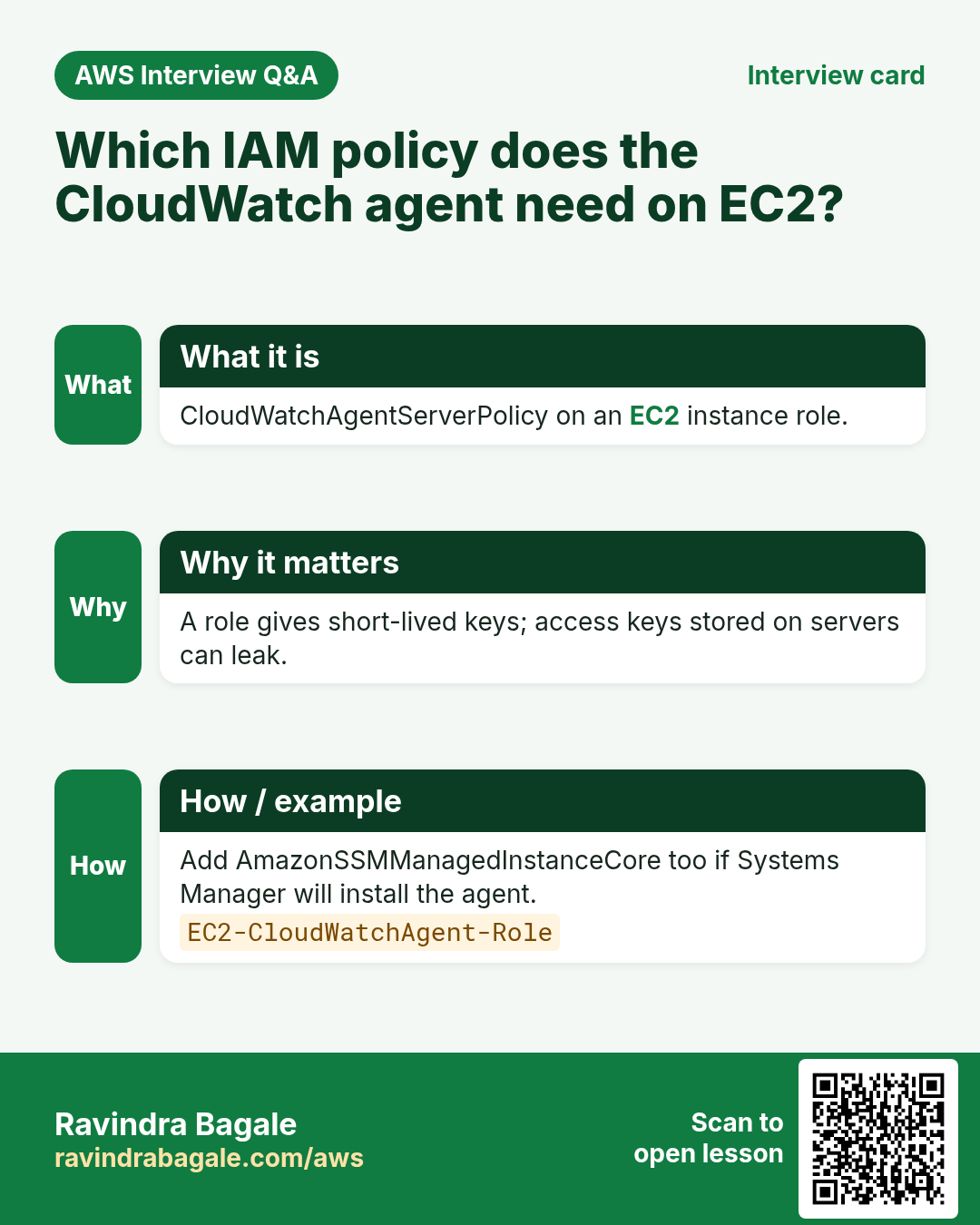
Q. Which policy does the CloudWatch agent need?
CloudWatchAgentServerPolicy on an EC2 instance role (plus AmazonSSMManagedInstanceCore if you manage it with SSM).
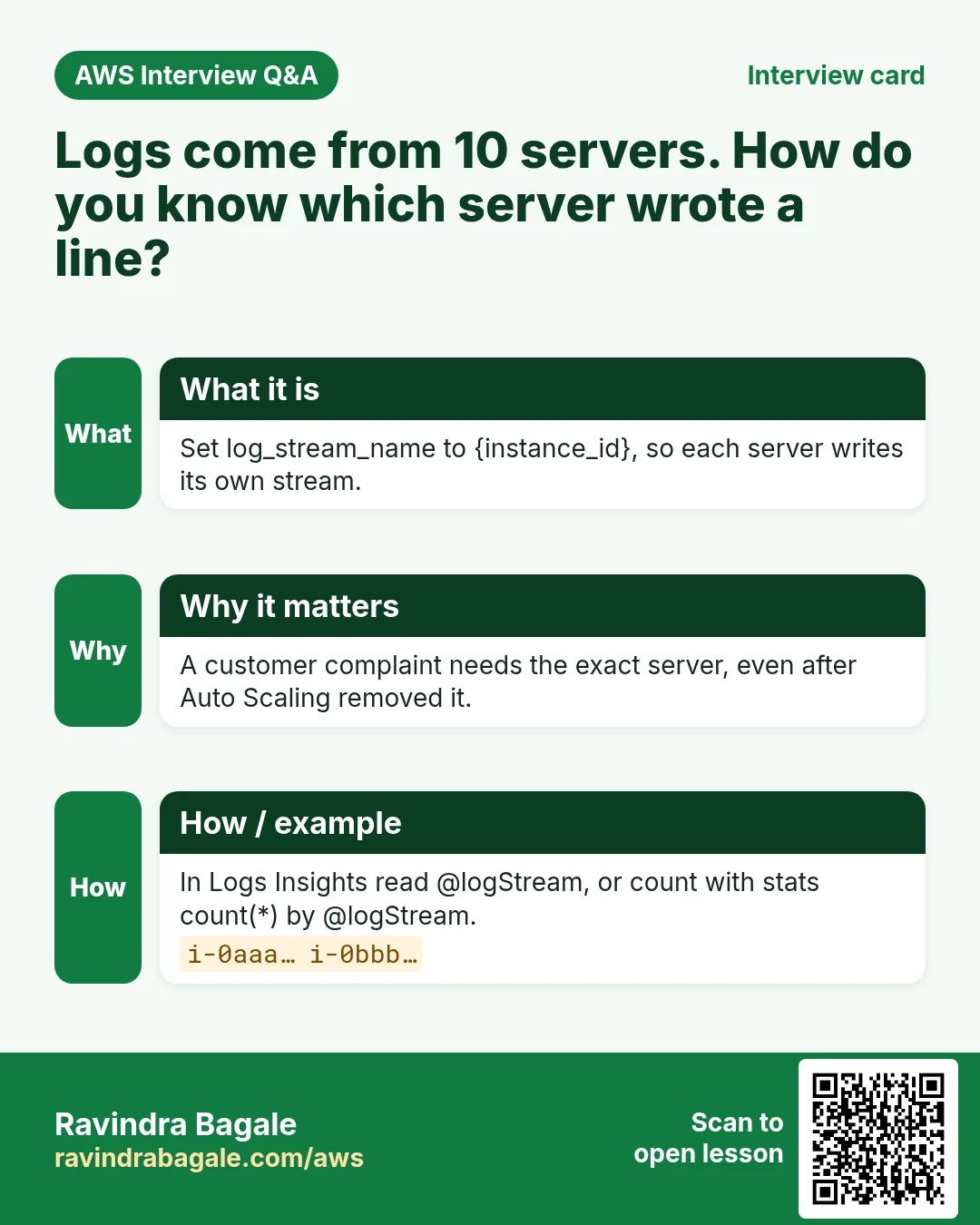
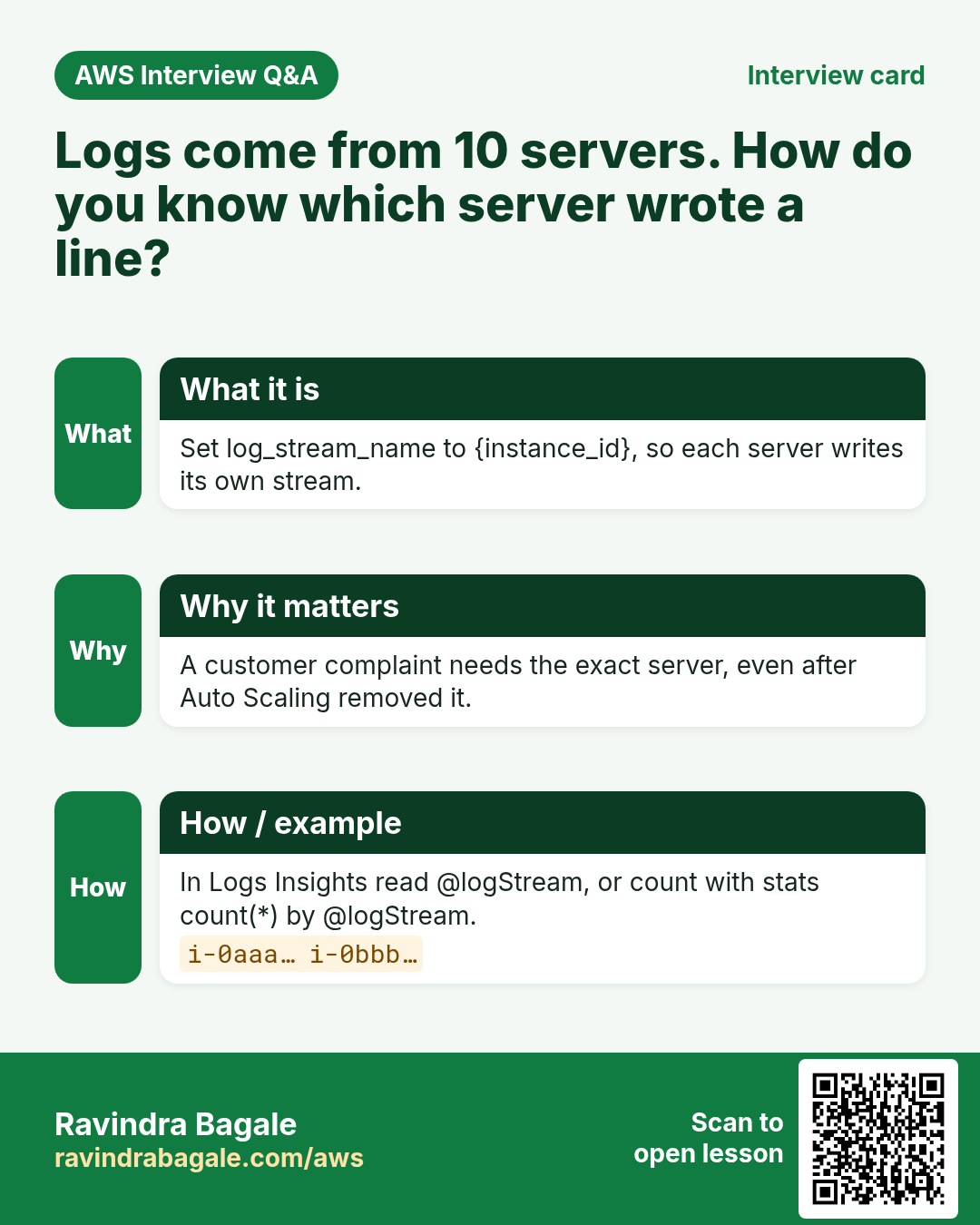
Q. How do you tell which server wrote a log line?
Use log_stream_name {instance_id}, so each instance writes to its own stream; in Logs Insights use @logStream.
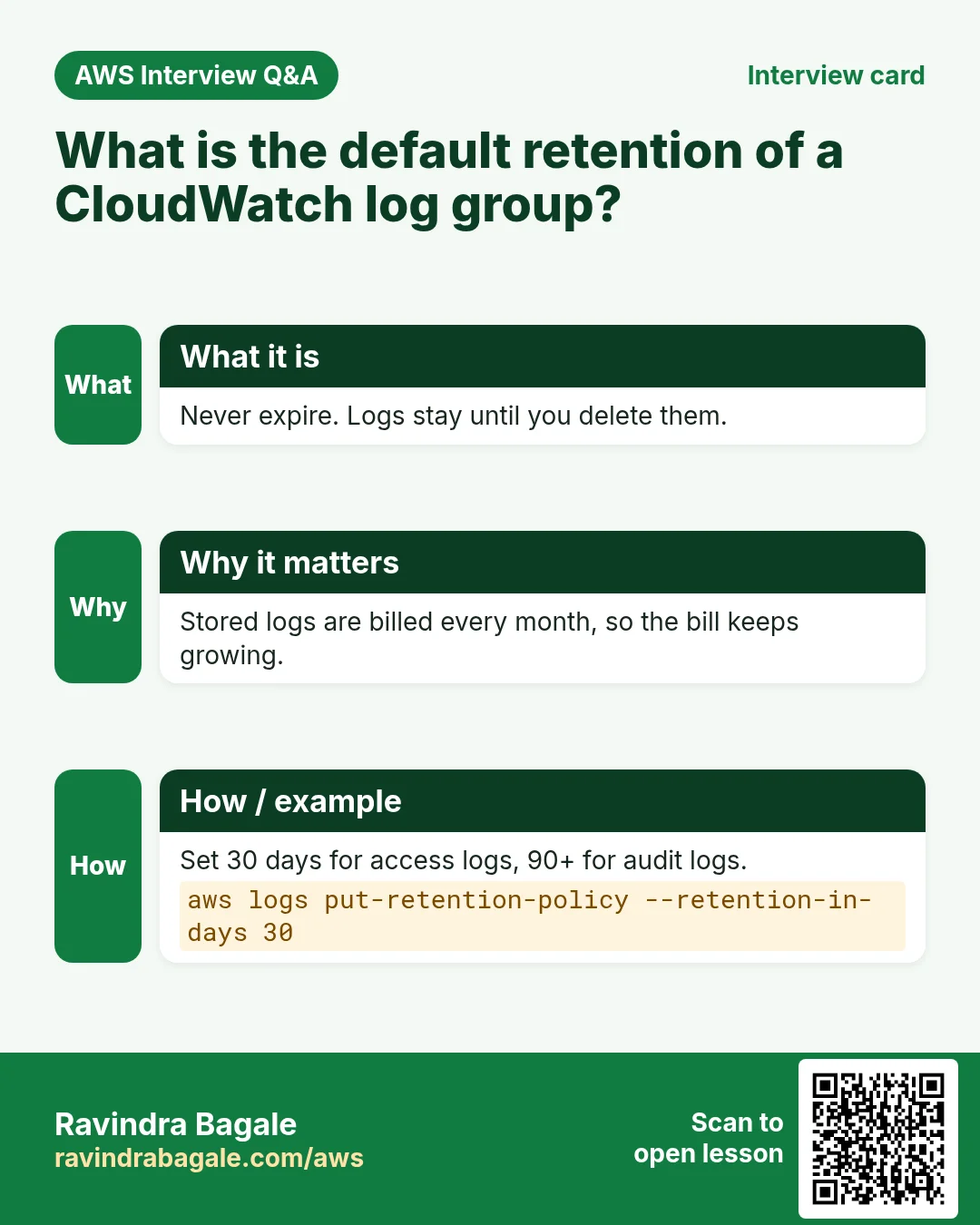
Q. What is the default retention of a log group?
Never expire. Always set a retention.
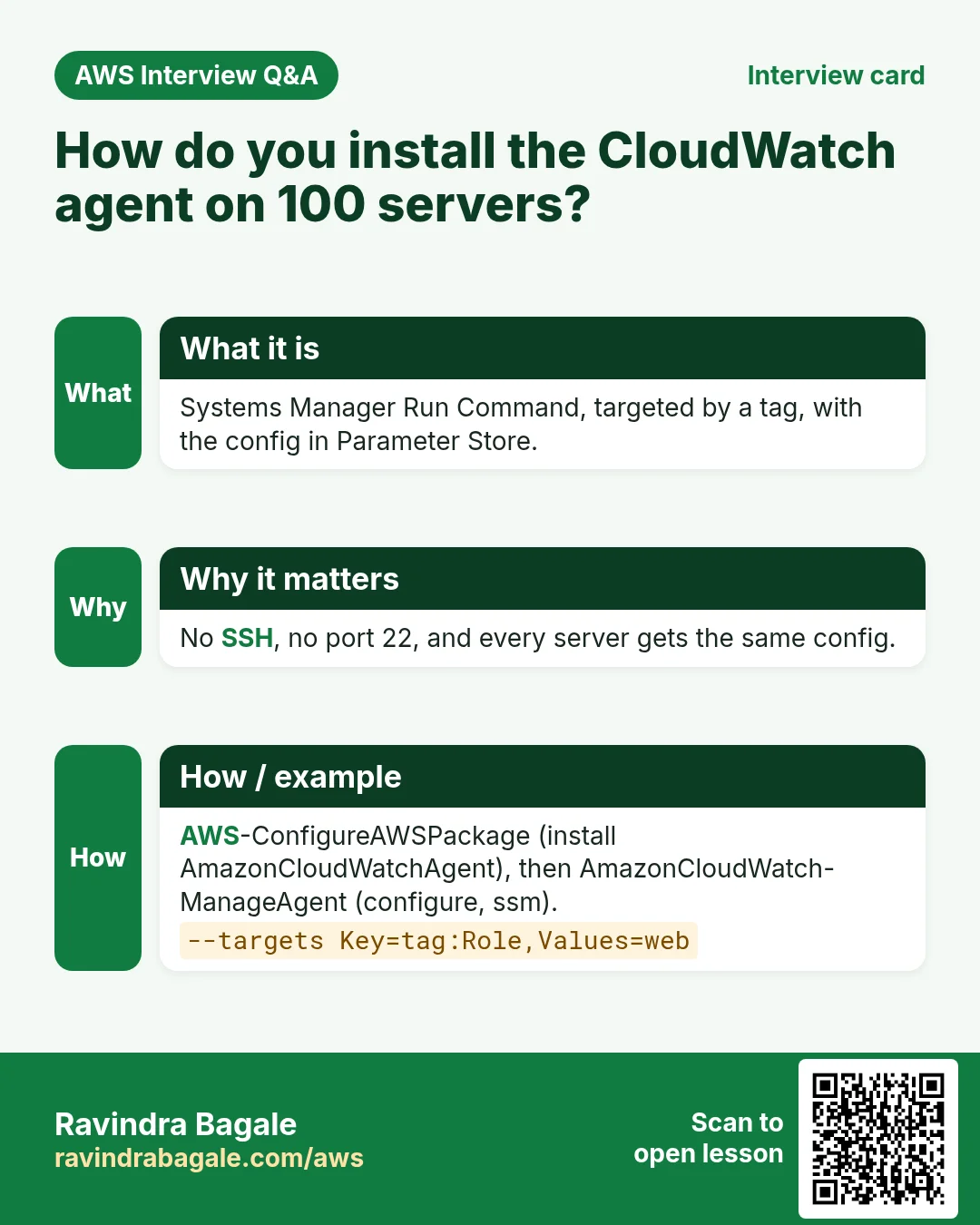
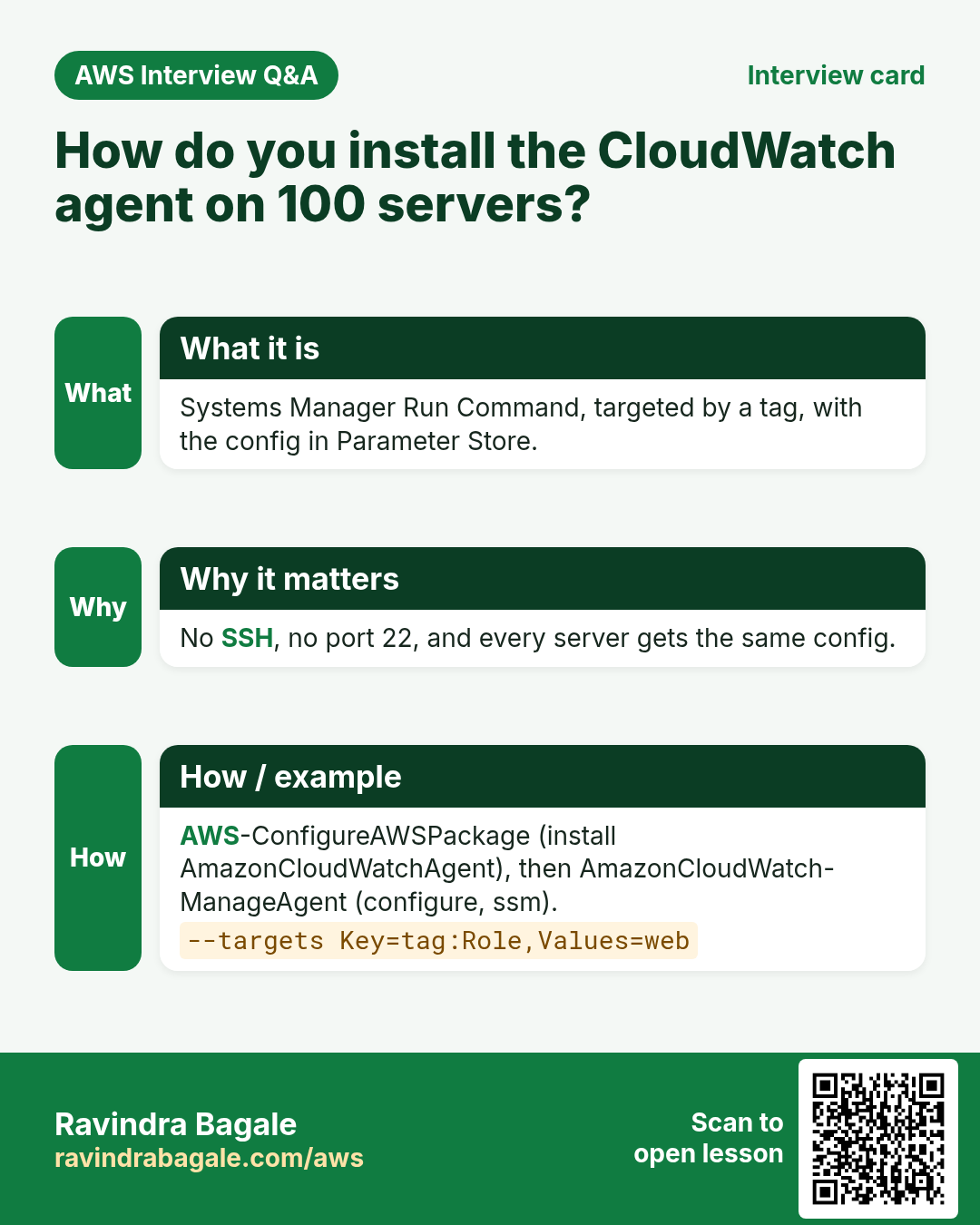
Q. How do you install the agent on 100 servers?
Systems Manager Run Command: AWS-ConfigureAWSPackage to install, AmazonCloudWatch-ManageAgent with the config in Parameter Store, targeted by tag.
Try at home
- Launch two servers with the role and tag Role=web. Use SSM to install and configure the agent on both.
- Run Logs Insights query 3 and confirm both instance IDs appear.
- Add /var/log/secure to the config and find failed SSH logins with
filter @message like /Failed password/.
In short
- Log group = folder; log stream = one source; use {instance_id} as the stream name.
- Role with CloudWatchAgentServerPolicy, never access keys.
- Wizard for the first server, JSON in Parameter Store for all.
- SSM Run Command installs and configures the agent on many servers by tag.
- Set retention; search with Logs Insights; alarm with metric filters.
Practice Tasks
Bavaria Motors is a automobile business in Munich. Lukas Becker looks after its IT and cloud work. They count money in EUR and run their AWS resources in the eu-central-1 Region. In the tasks below you do real jobs for them using what this lesson teaches. All names, account IDs, IP addresses and numbers are made up for practice.
0 / 12
Easy Create a log group
Why: A log group holds log streams from all your servers for one app.
What to do: Create log group /bavariamotors/web.
- Read the task and decide which AWS service it is about.
- Write aws, then the service name, then the operation (the action word).
- Add each needed flag (--name) followed by its value from the task.
- Flags can be in any order. Click Check answer.
Easy Find errors in a log
Why: grep shows only the lines that contain a word, so you find problems fast.
What to do: Show every line containing ERROR in /var/log/bavariamotors/app.log.
- Find the Linux command that does this job.
- Add the options (like -r or -h) the task needs.
- Add the file names, folders or users in the right order.
- Use sudo if the job changes system files or users. Click Check answer.
Easy List metrics in a namespace
Why: See which metrics AWS already collects for a service.
What to do: List the metrics in the AWS/EC2 namespace.
- Read the task and decide which AWS service it is about.
- Write aws, then the service name, then the operation (the action word).
- Add each needed flag (--name) followed by its value from the task.
- Flags can be in any order. Click Check answer.
Easy Reboot an instance
Why: A reboot keeps the same disks and IPs, unlike stop/start which may change the public IP.
What to do: Reboot the instance i-040cb0cd42a011a2b.
- Read the task and decide which AWS service it is about.
- Write aws, then the service name, then the operation (the action word).
- Add each needed flag (--name) followed by its value from the task.
- Flags can be in any order. Click Check answer.
Medium Set log retention
Why: Without retention, logs are kept forever and you keep paying.
What to do: Keep logs in /bavariamotors/web for 30 days.
- Read the task and decide which AWS service it is about.
- Write aws, then the service name, then the operation (the action word).
- Add each needed flag (--name) followed by its value from the task.
- Flags can be in any order. Click Check answer.
Medium Follow logs live
Why: aws logs tail --follow is like tail -f for CloudWatch Logs.
What to do: Follow the log group /aws/lambda/bavariamotors-orders-fn live.
- Read the task and decide which AWS service it is about.
- Write aws, then the service name, then the operation (the action word).
- Add each needed flag (--name) followed by its value from the task.
- Flags can be in any order. Click Check answer.
Medium Let a function write logs
Why: Without these actions, Lambda logs never appear in CloudWatch.
What to do: Allow logs:CreateLogGroup, logs:CreateLogStream, logs:PutLogEvents on arn:aws:logs:*:*:* only.
- Start with { "Version": "2012-10-17", "Statement": [ ... ] }.
- In each statement write Effect, Action and Resource.
- Give only what the task needs (least privilege).
- Use double quotes and commas correctly. Click Check answer.
Medium See the last lines of a log
Why: New errors are at the end of a log file. You rarely need the whole file.
What to do: Show only the last 20 lines of /var/log/bavariamotors/app.log.
- Find the Linux command that does this job.
- Add the options (like -r or -h) the task needs.
- Add the file names, folders or users in the right order.
- Use sudo if the job changes system files or users. Click Check answer.
Medium Publish a custom metric
Why: Custom metrics let you graph and alarm on business numbers, like orders per minute.
What to do: Publish metric OrdersPlaced with value 6 in namespace BavariaMotors/Shop.
- Read the task and decide which AWS service it is about.
- Write aws, then the service name, then the operation (the action word).
- Add each needed flag (--name) followed by its value from the task.
- Flags can be in any order. Click Check answer.
Medium Check instance status checks
Why: System and instance status checks tell you if AWS hardware or your OS has a problem.
What to do: Show the status checks of instance i-040cb0cd42a011a2b.
- Read the task and decide which AWS service it is about.
- Write aws, then the service name, then the operation (the action word).
- Add each needed flag (--name) followed by its value from the task.
- Flags can be in any order. Click Check answer.
Hard Search logs for errors
Why: filter-log-events searches all streams in a group at once.
What to do: Search /bavariamotors/web for events matching the pattern ERROR.
- Read the task and decide which AWS service it is about.
- Write aws, then the service name, then the operation (the action word).
- Add each needed flag (--name) followed by its value from the task.
- Flags can be in any order. Click Check answer.
Hard Create a CPU alarm
Why: An alarm watches a metric and notifies you before users notice a problem.
What to do: Create alarm bavariamotors-cpu-high: AWS/EC2 CPUUtilization, Average over 300 seconds, 1 evaluation period, GreaterThanThreshold 80, for InstanceId=i-040cb0cd42a011a2b, notify arn:aws:sns:eu-central-1:106249807804:bavariamotors-alerts.
- Read the task and decide which AWS service it is about.
- Write aws, then the service name, then the operation (the action word).
- Add each needed flag (--name) followed by its value from the task.
- Flags can be in any order. Click Check answer.
Revision, comparison and interview cards
Revise this lesson in a few minutes. Save the cards on your phone or download them as PNG files. The QR code on each card opens this lesson.
![Revision card: CloudWatch Logs Insights. Scrolling streams of 5 servers is slow. One query should search them all. Logs Insights is a small query language over one or more log groups. Pick log group and time range, write fields / filter / stats, click Run query. filter @message like / 50[0-9] / shows every 5xx line from every server.](../ravi-sirs-cards/cards/en/rev-cw-logs-insights.webp)
More cards: Ravi Sir's Cards.