How to Set Up a CloudWatch CPU Alarm with SNS in AWS
Your three-tier app now runs in a custom VPC, with a Multi-AZ database behind it (Amazon RDS Multi-AZ vs Read Replicas). The next problem is traffic. When more users arrive, one web server is not enough, and somebody has to notice that in time. This chapter shows how CloudWatch watches the CPU, how a CloudWatch alarm tells people through SNS, why a load balancer belongs in front of your servers from day one, and how target groups, health checks, listener rules and sticky sessions decide which server gets each request.
What you'll learn in this class
- Scale up vs scale out, in one minute
- Why two DNS A records are not a load balancer
- CloudWatch CPU metric: threshold and period
- CloudWatch alarm to SNS: topic, publisher, subscribers
- A new server from an AMI
- Why a load balancer from day one, and A vs CNAME vs Alias
- Target groups and average CPU
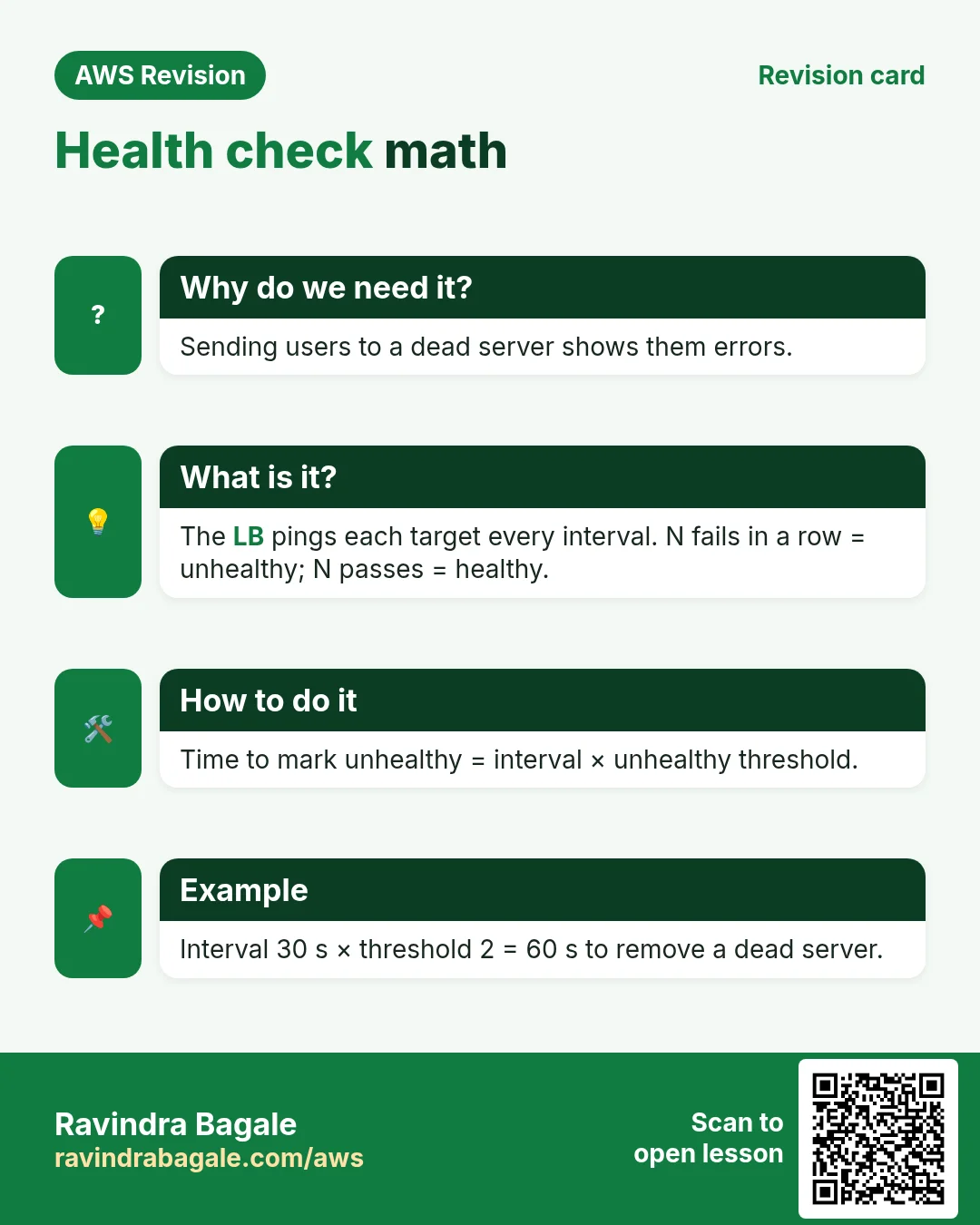
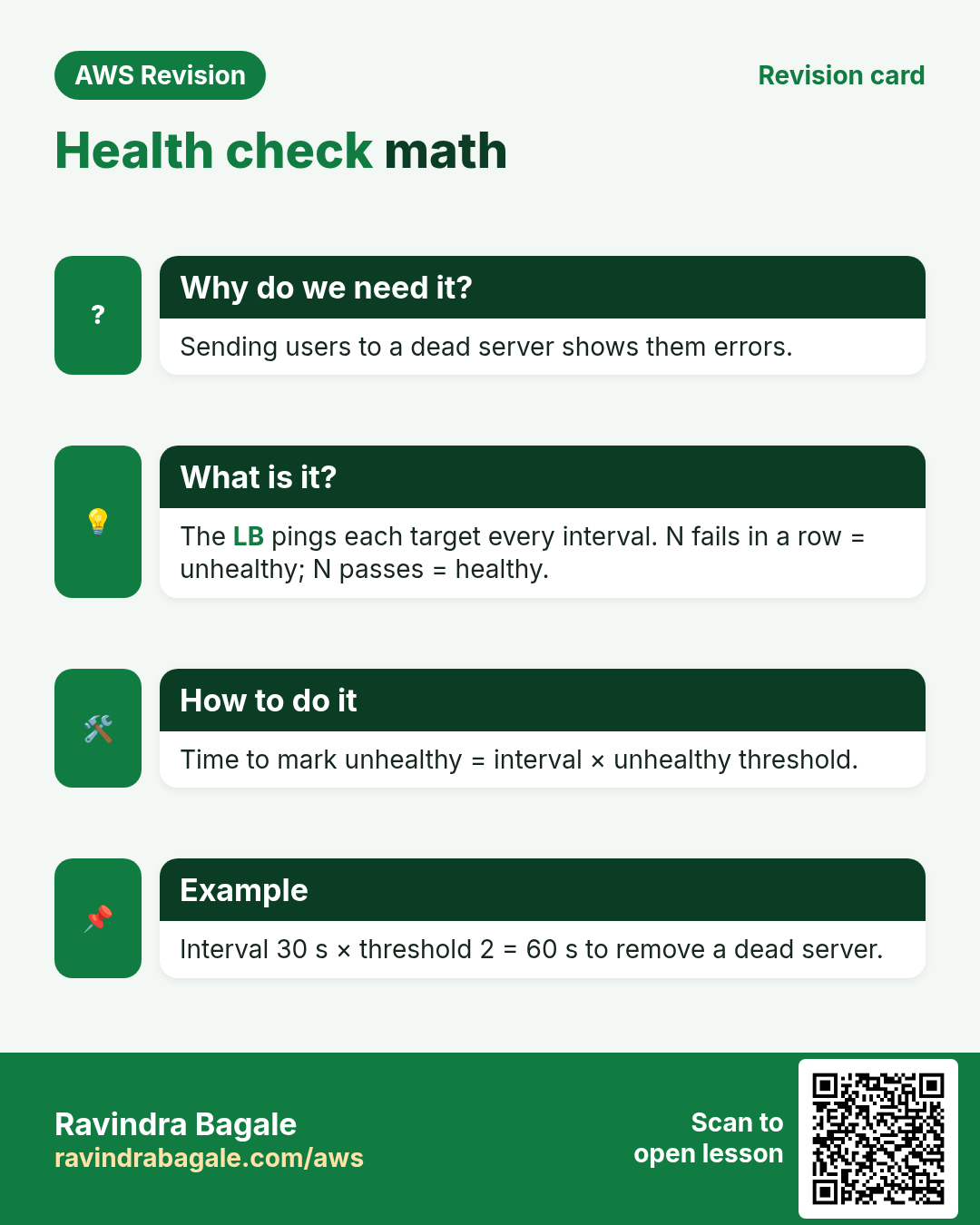
- Health checks: interval and threshold, with the math
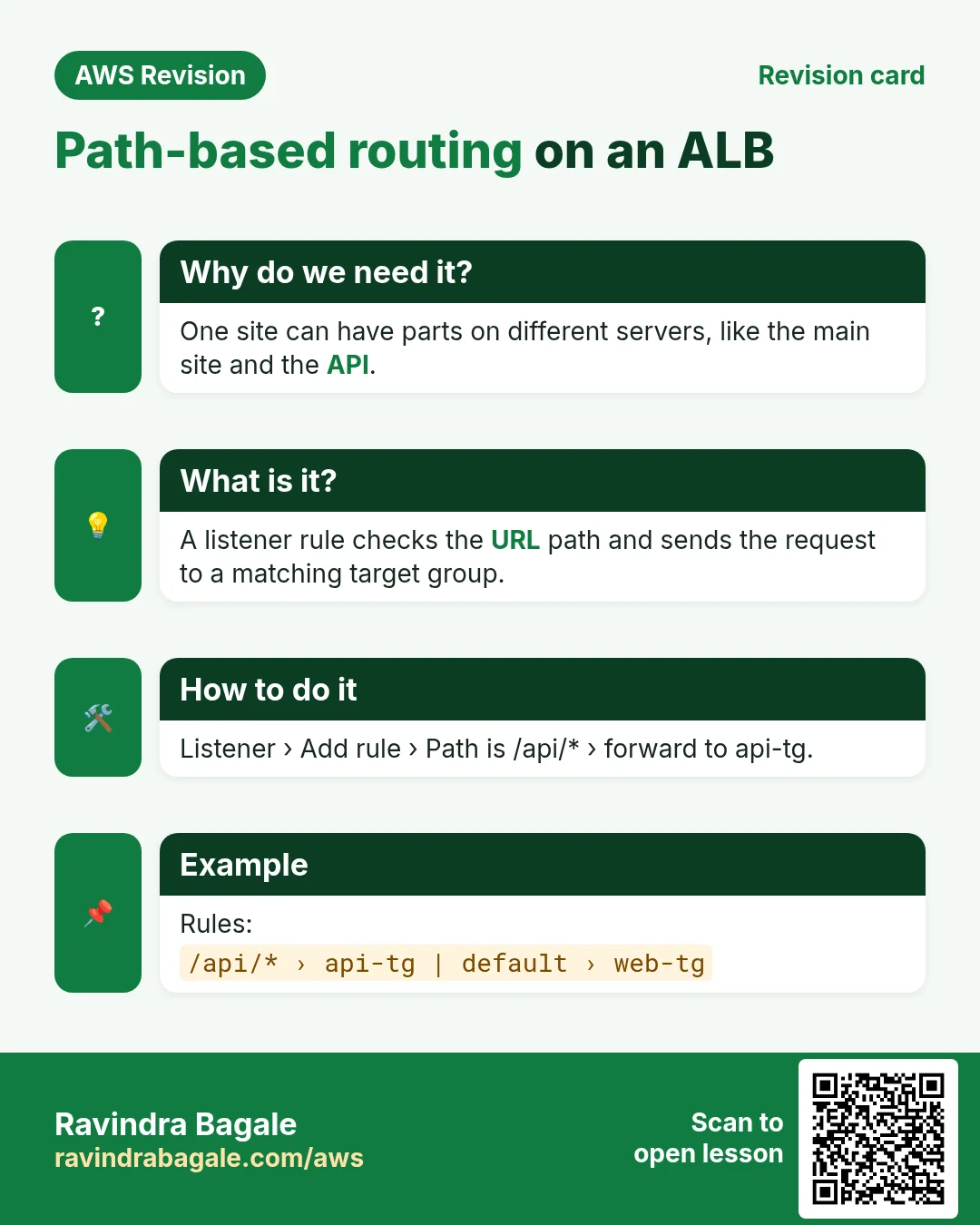
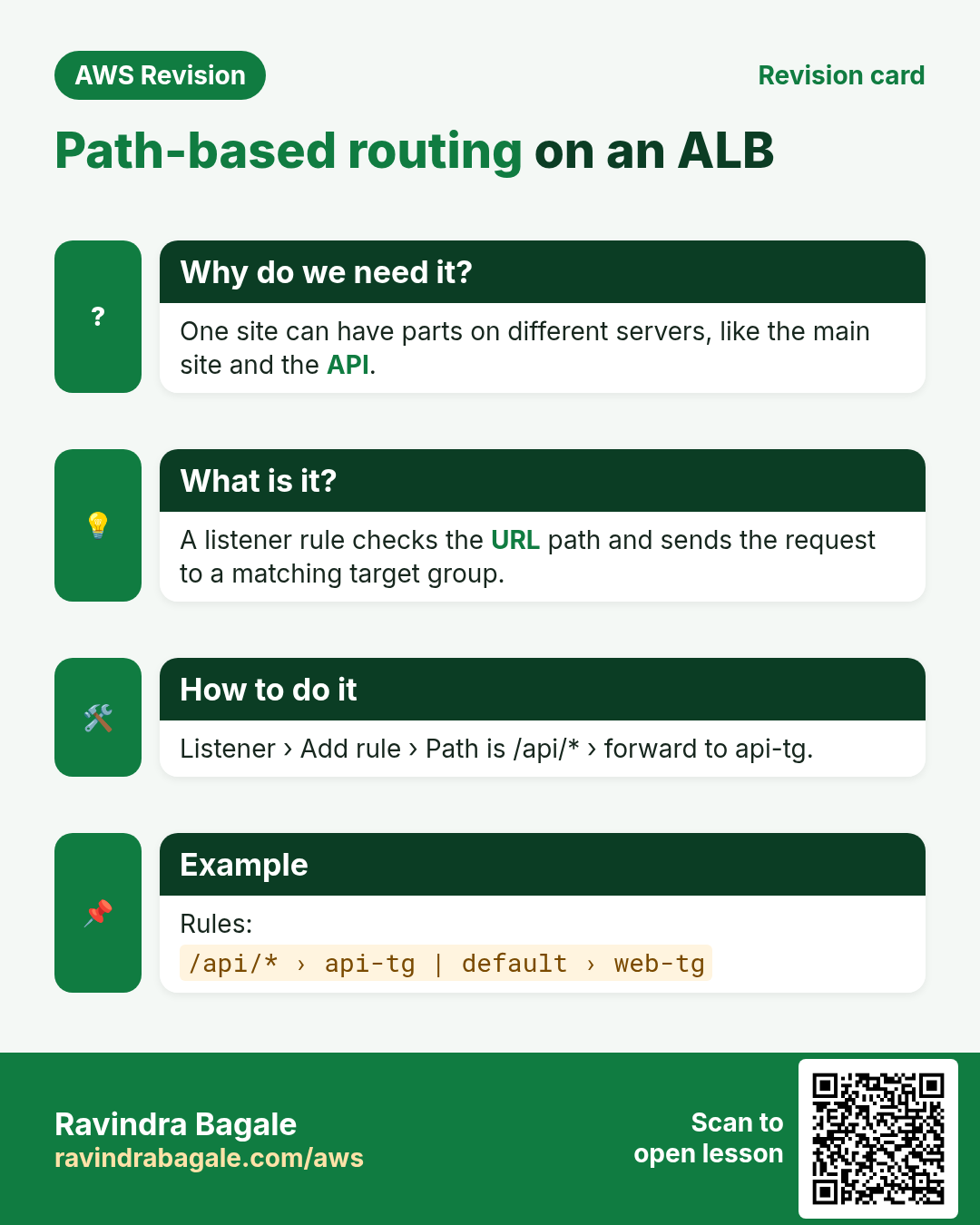
- Listener rules: path-based routing
- Round robin, the login problem and sticky sessions
- Building it in the console
- Three servers from one golden AMI, and round robin in the browser
- Basic vs detailed monitoring, the CloudWatch agent, custom metrics and logs
1. More users: scale up or scale out
Why: suppose our site gets popular and traffic climbs every week. One t3.micro web server starts to struggle.
Classroom line
In a few days our site gets famous and traffic starts climbing.
Class मधलं वाक्य
काही दिवसांनी आपली website famous होईल, मग traffic वाढायला लागेल.
Classroom line – हिंदी
"Kuch din baad apna website famous ho jayega, to traffic badhne lagega."
- Scale up (vertical): a bigger instance type. You must stop the instance to change its type, so the site is down for that time. Details: Vertical scaling.
- Scale out (horizontal): more servers of the same size, side by side. No downtime, and it is the normal way for live apps. Details: Horizontal scaling.
Scaling out raises two questions, and this chapter answers both: how do users reach several servers through one name, and when do we add a server?
2. Two servers, one domain: why DNS alone falls short
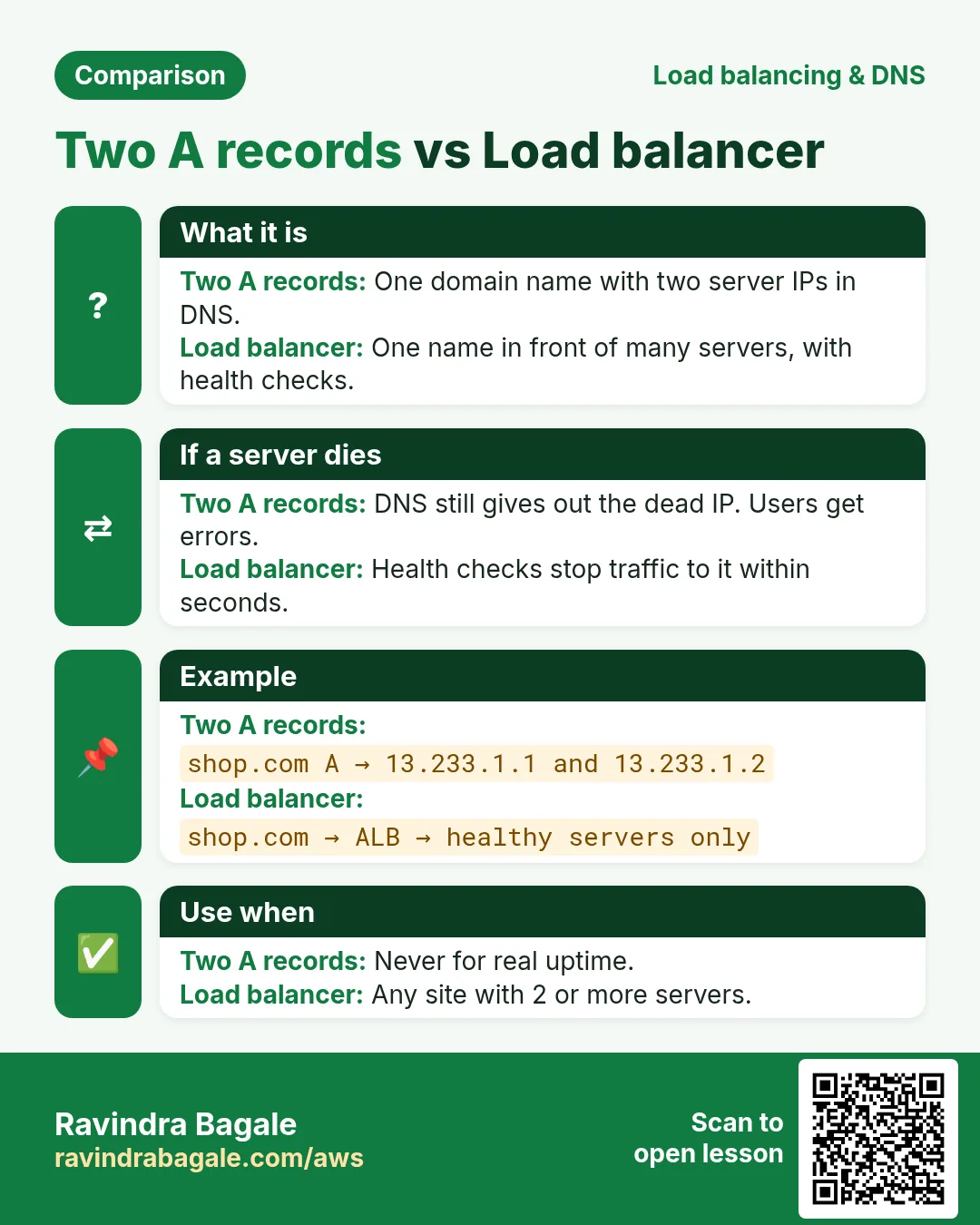
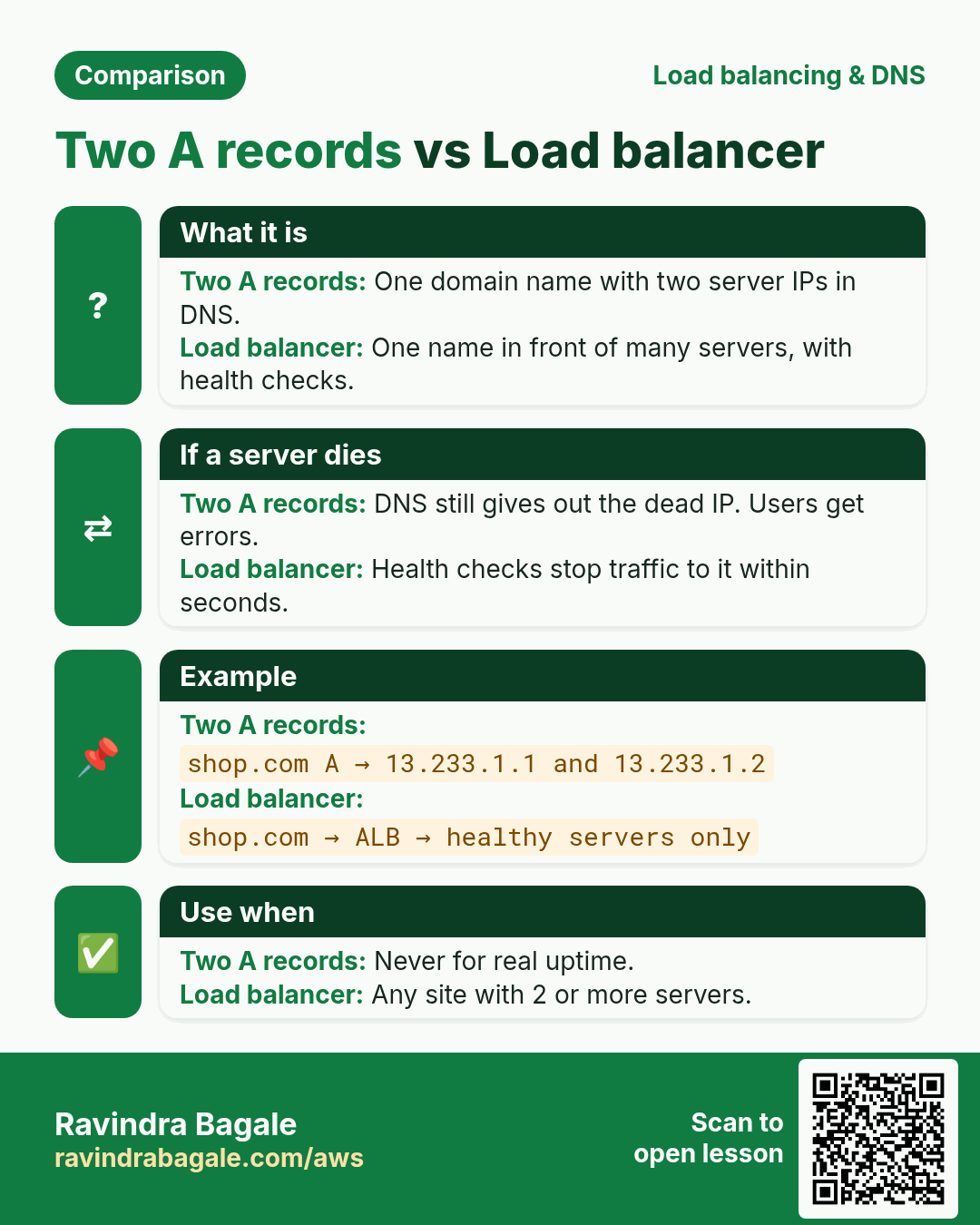
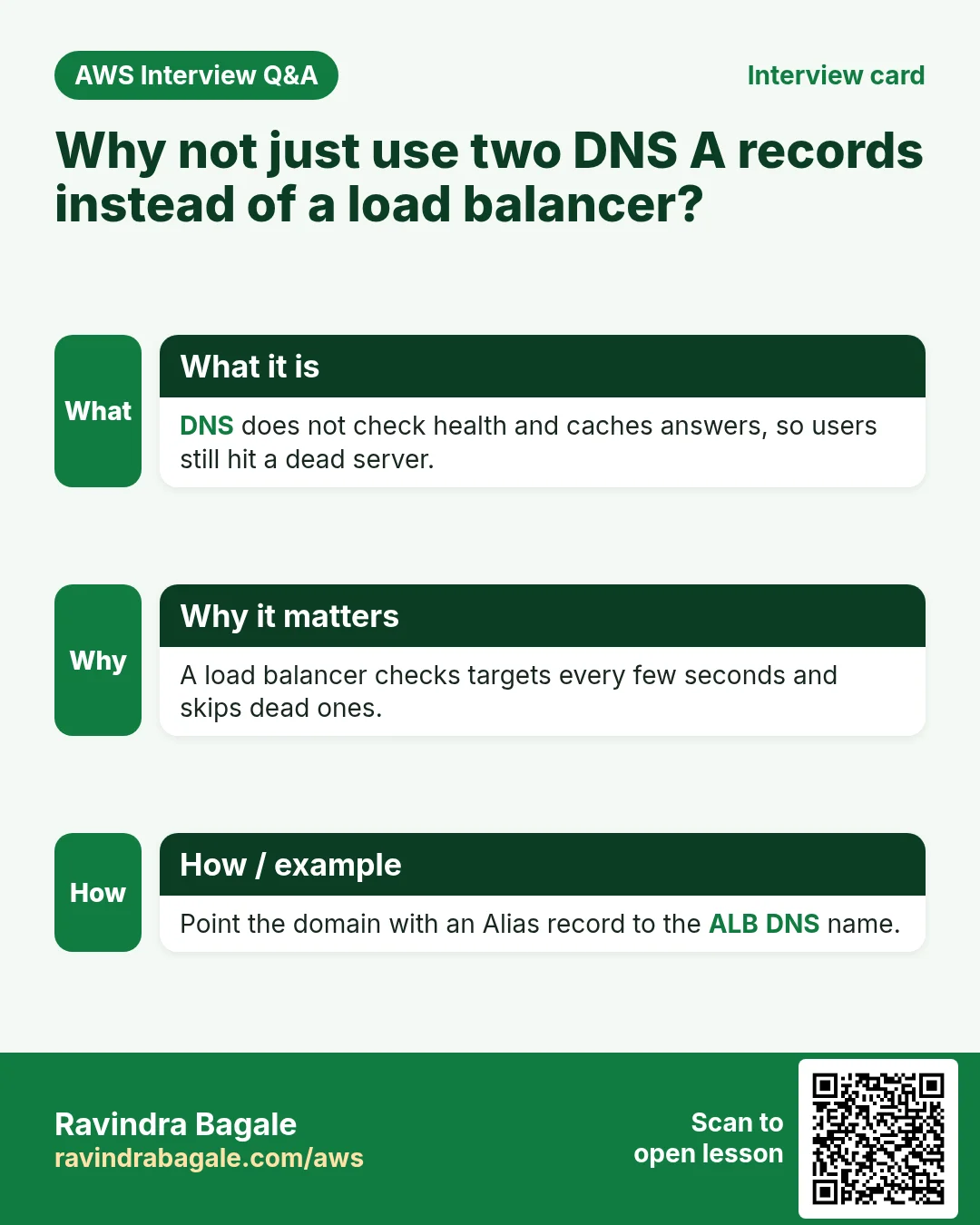
Suppose example.com has two web servers. The quick idea is two A records for the same name, one per server IP. DNS then hands out the two IPs in turn (DNS round robin).
It does spread some load, but:
- Uneven: browsers, phones and ISPs cache the answer. A whole office or a whole mobile network can stick to one IP.
- No health checks: if server 2 dies, DNS keeps giving out its IP, and those users get an error.
- Slow to change: removing the dead IP takes effect only as the cached answers expire (the record's TTL).
A load balancer fixes all three: users reach one name, and the load balancer picks a healthy server for each request. Doing it by hand first is in Manual load balancing.
Figure 1. Two A records spread load unevenly (answers are cached) and keep sending users to a dead server. A load balancer gives one name and sends each request only to a healthy server.
3. When to add a server: CloudWatch, threshold and period
Amazon CloudWatch collects numbers (metrics) from your resources. For EC2 the one we watch here is CPUUtilization, in percent.
Why not "CPU above 70%, add a server"? A single spike would trigger it.
- Suppose the CPU jumps to 90% for one minute and drops back to 40%.
- A new server takes a few minutes to boot and become ready. By then the spike is over, and you pay for a server you didn't need.
- So use a threshold and a period together: average CPU ≥ 70% over 5 minutes.
- Only a load that stays high for the whole period raises the alarm.
Spiky apps alarm earlier. Suppose we are Instagram during breaking news: users pour in within minutes. New servers take minutes to be ready, so the team sets a lower threshold, for example 50%, or a shorter period, to start adding servers earlier.
Figure 2. Suppose the CPU spikes to 90% for one minute: the 5-minute average stays under 70%, so no alarm. When the CPU stays high, the 5-minute average crosses 70% and the alarm goes off.
More on alarm states and settings: CloudWatch alarm.
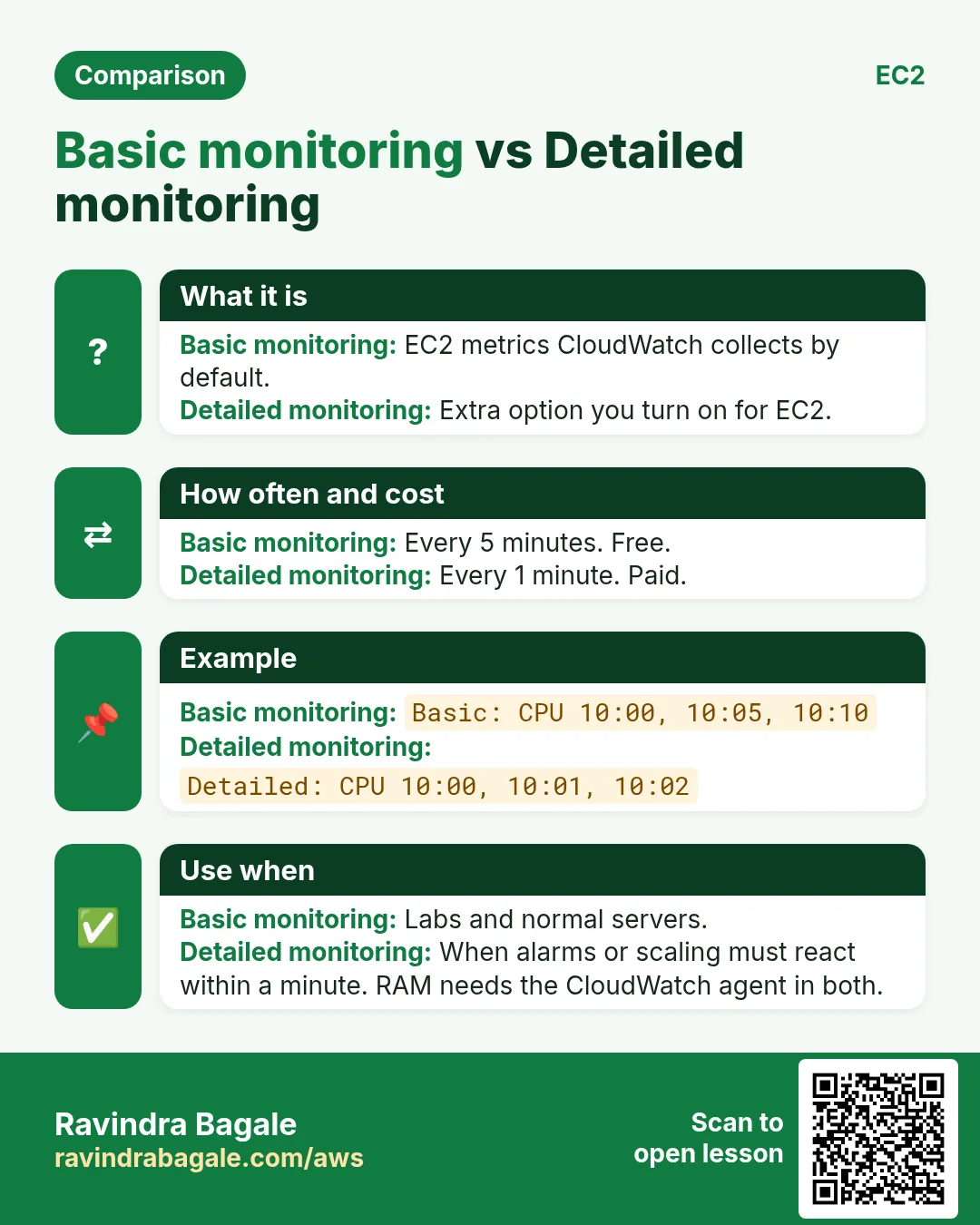
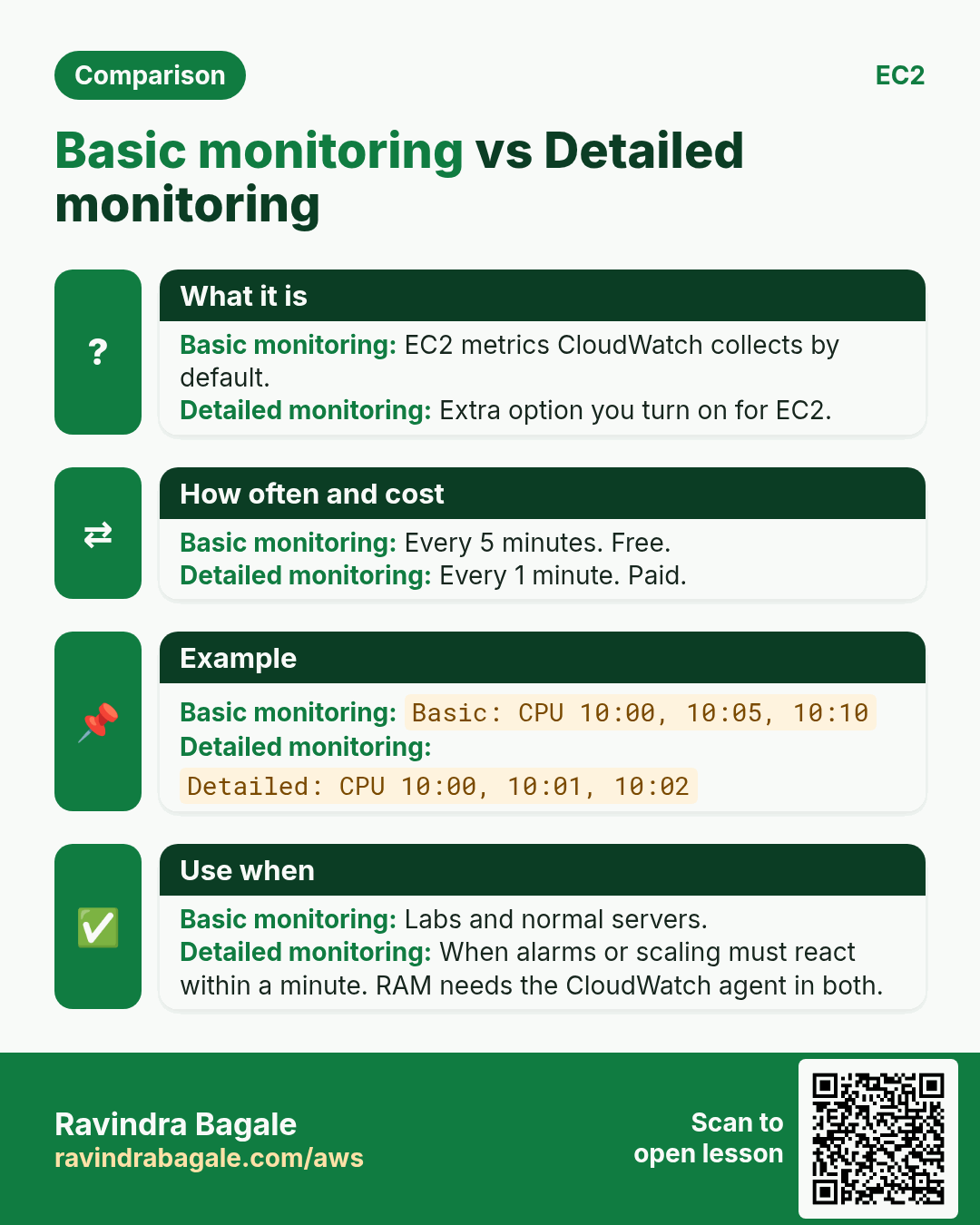
Basic vs detailed monitoring
- Basic monitoring (free, on by default): EC2 sends a data point every 5 minutes.
- Detailed monitoring (paid): a data point every 1 minute.
- Worked example: the CPU jumps at 10:05. With basic monitoring the next data point may come only at 10:10, so the alarm reacts up to 5 minutes late, and an overloaded server may fail before new servers arrive. With detailed monitoring the alarm sees it by about 10:06.
- That's why a new instance's Monitoring tab looks empty at first: the first 5-minute points haven't arrived yet.
- For live projects that scale on CPU, turn on detailed monitoring.
Classroom line
What's the problem with basic monitoring? You get an update only every 5 minutes.
Class मधलं वाक्य
"Basic monitoring madhe problem kay ahe? Har 5 minute nantar update milto."
Basic monitoring मध्ये problem काय आहे? दर 5 minute नंतर update मिळतो.
Classroom line
What's the problem with basic monitoring? You get an update only every 5 minutes.
What CloudWatch sees by default, and what it doesn't
- Default EC2 metrics come from outside the operating system:
CPUUtilization,NetworkIn,NetworkOut,NetworkPacketsIn,NetworkPacketsOut, disk and status checks. - Memory (RAM) and disk-space usage are not default metrics. AWS sees the virtual machine from the hypervisor, not inside the OS.
- To get them, install the CloudWatch agent on the server. It sends memory, disk and your own metrics.
- Custom metrics: suppose we are building a shopping app and want to count clicks on a "Share" button. The app sends each count to CloudWatch with the
PutMetricDataAPI, and you can graph it and alarm on it like CPU. - Logs: don't let access logs keep growing on an 8 GB root disk; a flood of requests can fill it and stop the server. The CloudWatch agent can ship them to a CloudWatch Logs log group instead.
- Teams that run on AWS, Azure and Google Cloud together often use Prometheus and Grafana for one dashboard across all clouds. CloudWatch remains the built-in choice on AWS.
Alarm states:
- Insufficient data: the alarm has just started, or there aren't enough data points yet.
- OK: the metric is within the threshold.
- In alarm: the metric crossed the threshold for the period; the actions (such as SNS) run.
4. Nobody watches graphs at 3 AM: alarm to SNS
Why: a person can't stare at the CPU graph all night.
Classroom line
What if the night-shift person falls asleep?
Class मधलं वाक्य
Night shift वाला झोपला तर?
Classroom line – हिंदी
"Night shift me ho sakta hai wo so gaya to?"
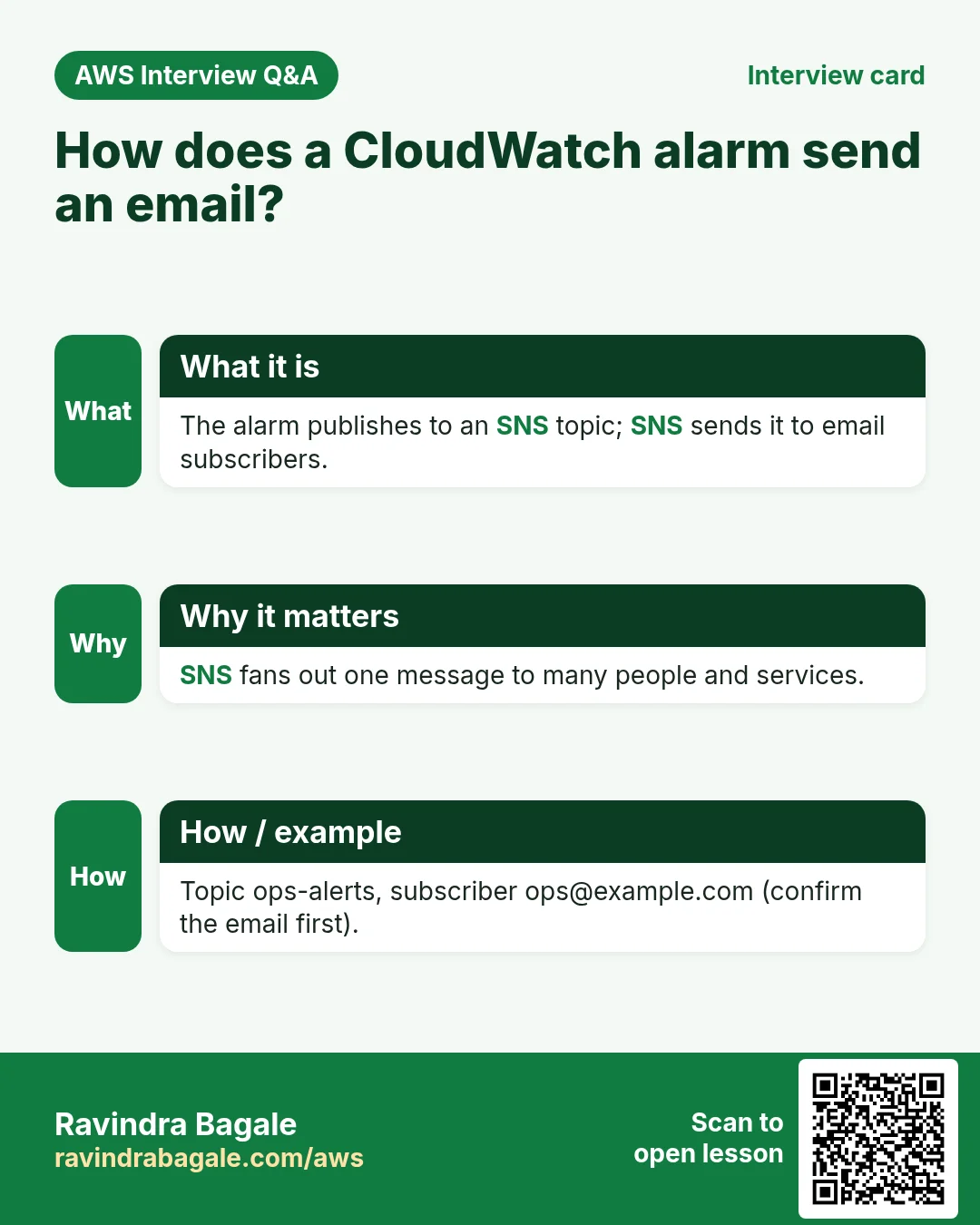
So the alarm tells people by itself, through Amazon SNS (Simple Notification Service):
- Topic: a named channel, for example
cpu-high-alerts. - Publisher: whoever sends a message to the topic. Here, the CloudWatch alarm.
- Subscribers: whoever receives every message on the topic: email, SMS, mobile push, a Lambda function and more.
- An email subscriber gets a mail from AWS first and must click Confirm subscription. Until then, nothing is delivered.
Figure 3. Animation: the average CPU crosses 70% for 5 minutes; the alarm goes to ALARM and publishes to the topic cpu-high-alerts; SNS delivers the message to every confirmed subscriber.
More on the email set-up: SNS: email when the alarm changes.
5. The new server comes from an AMI
The alert arrives. What does the admin launch?
Classroom line
We don't rebuild everything from scratch.
Class मधलं वाक्य
सगळं परत scratch पासून करत बसायचं नाही.
Classroom line – हिंदी
"Sab phir se scratch se karte nahi baithna hai."
- Make an AMI of the working web server once (Nginx, PHP, your code, all set up).
- When the alert comes, launch a new instance from that AMI. It is ready in minutes, with nothing to install.
- Add it behind the load balancer (section 7).
Doing this by hand still needs a person who is awake. Auto Scaling does exactly these steps for you; it is in Auto Scaling.
6. A load balancer from day one
Classroom line
Even with one server, use a load balancer.
Class मधलं वाक्य
एकच server वापरत असाल तरी load balancer वापरायचा.
Classroom line – हिंदी
"Bhale aap ek server use kar rahe ho, fir bhi load balancer use karna hai."
Why, with only one server? Because of DNS.
- Without a load balancer, your domain points straight to the server's IP (an A record).
- On the day you need a second server, you must move the domain to the load balancer.
- That DNS change spreads only as cached answers expire, which depends on the TTL. Some users keep hitting the old IP meanwhile, on your busiest day.
- With a load balancer from day one, the domain never changes. You only add servers behind it.
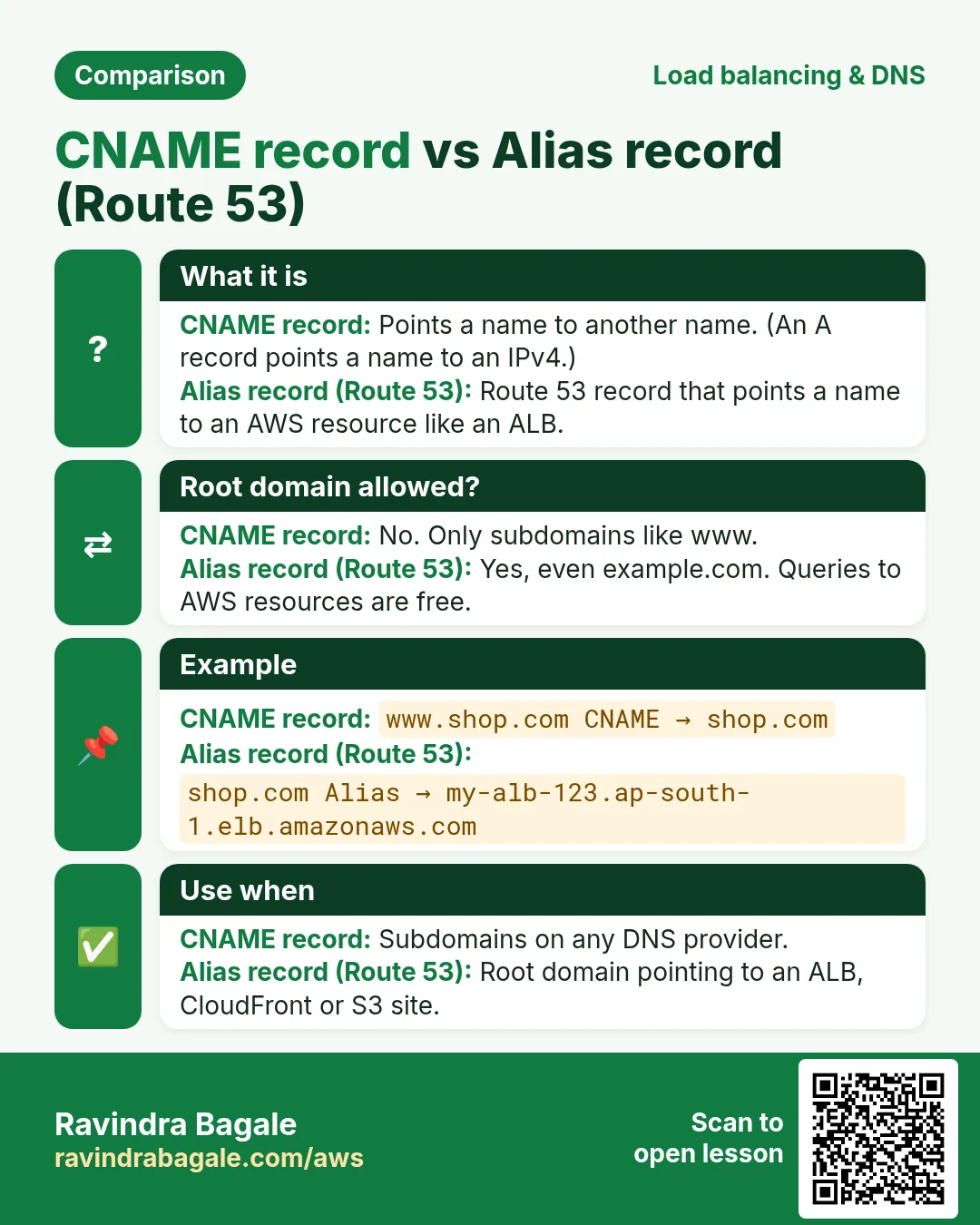
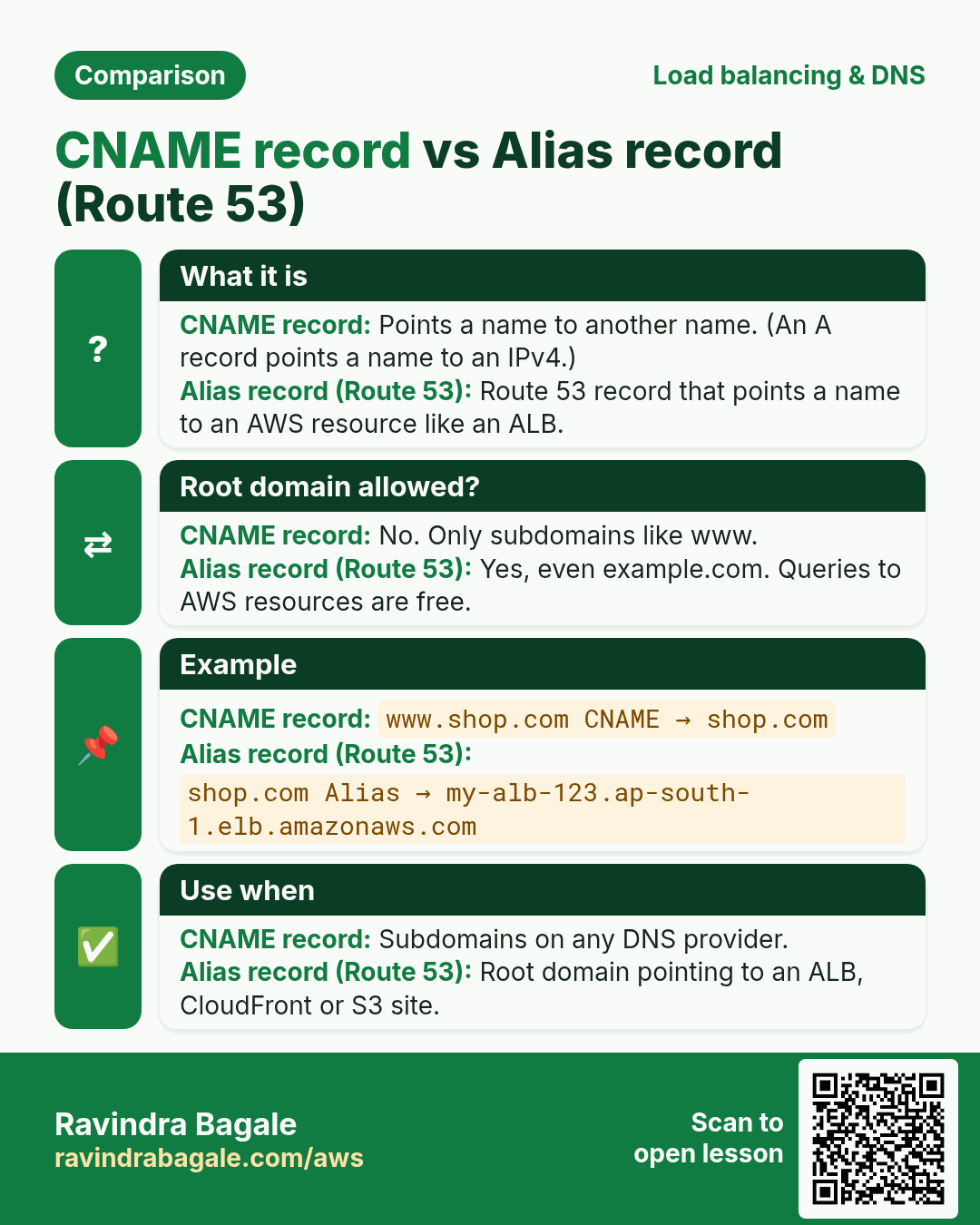
Which DNS record points to a load balancer?
- A record: name → IP address. A load balancer has no single fixed IP you should use.
- The load balancer gives you a DNS name, for example
my-alb-123456.ap-south-1.elb.amazonaws.com(nohttp://in front). - CNAME: name → another name. Use it for
www.example.comat another DNS provider. A CNAME can't be used on the root domainexample.com. - Alias A record (Route 53): points the name to the load balancer and works on the root domain too. This is the usual choice when your domain is in Route 53.
Figure 4. A record: name to IP. CNAME: name to another name, for www at another DNS provider. Alias A in Route 53: name to the load balancer, also on the root domain. The load balancer DNS name looks like my-alb-123456.ap-south-1.elb.amazonaws.com.
7. Target groups and the average CPU
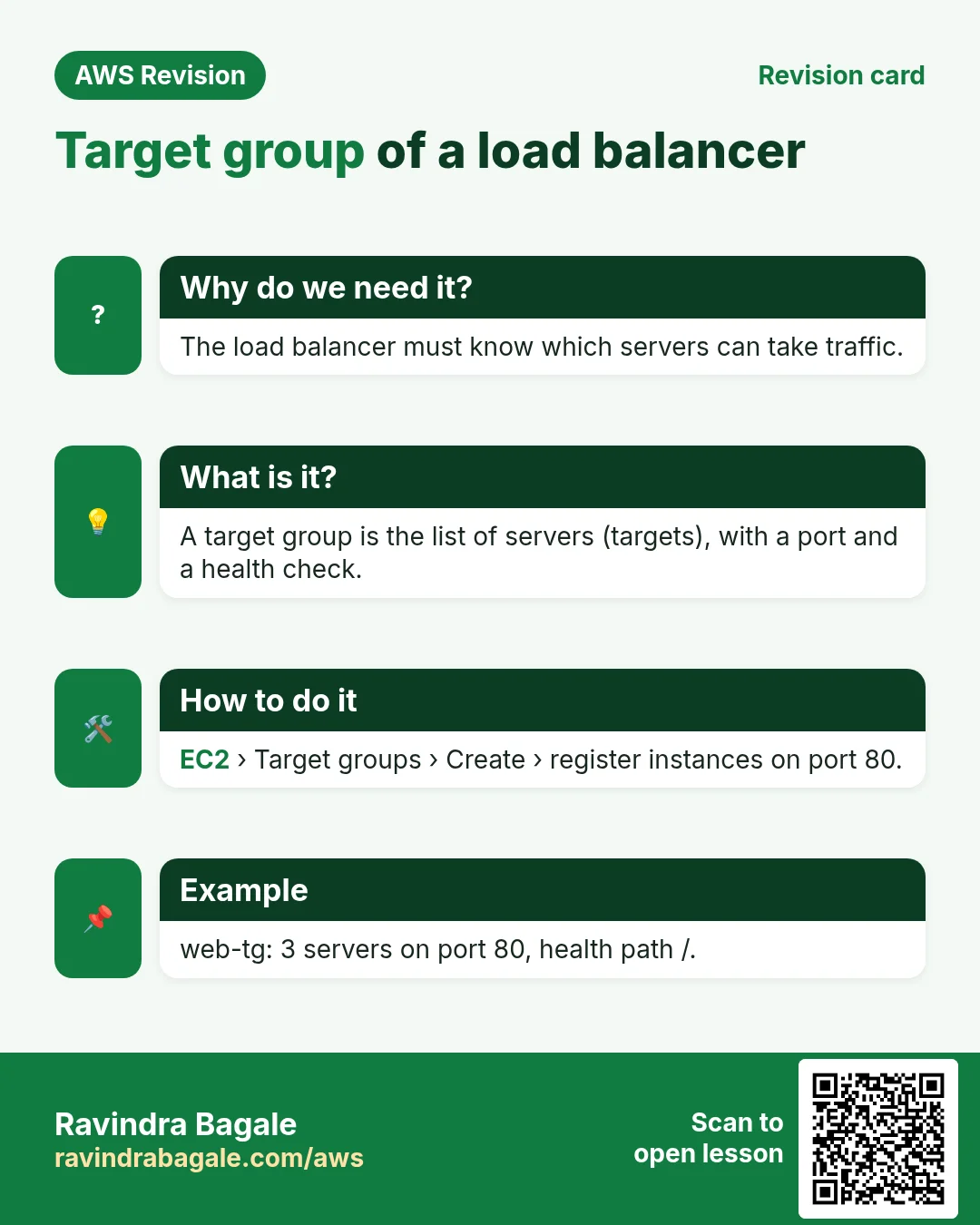
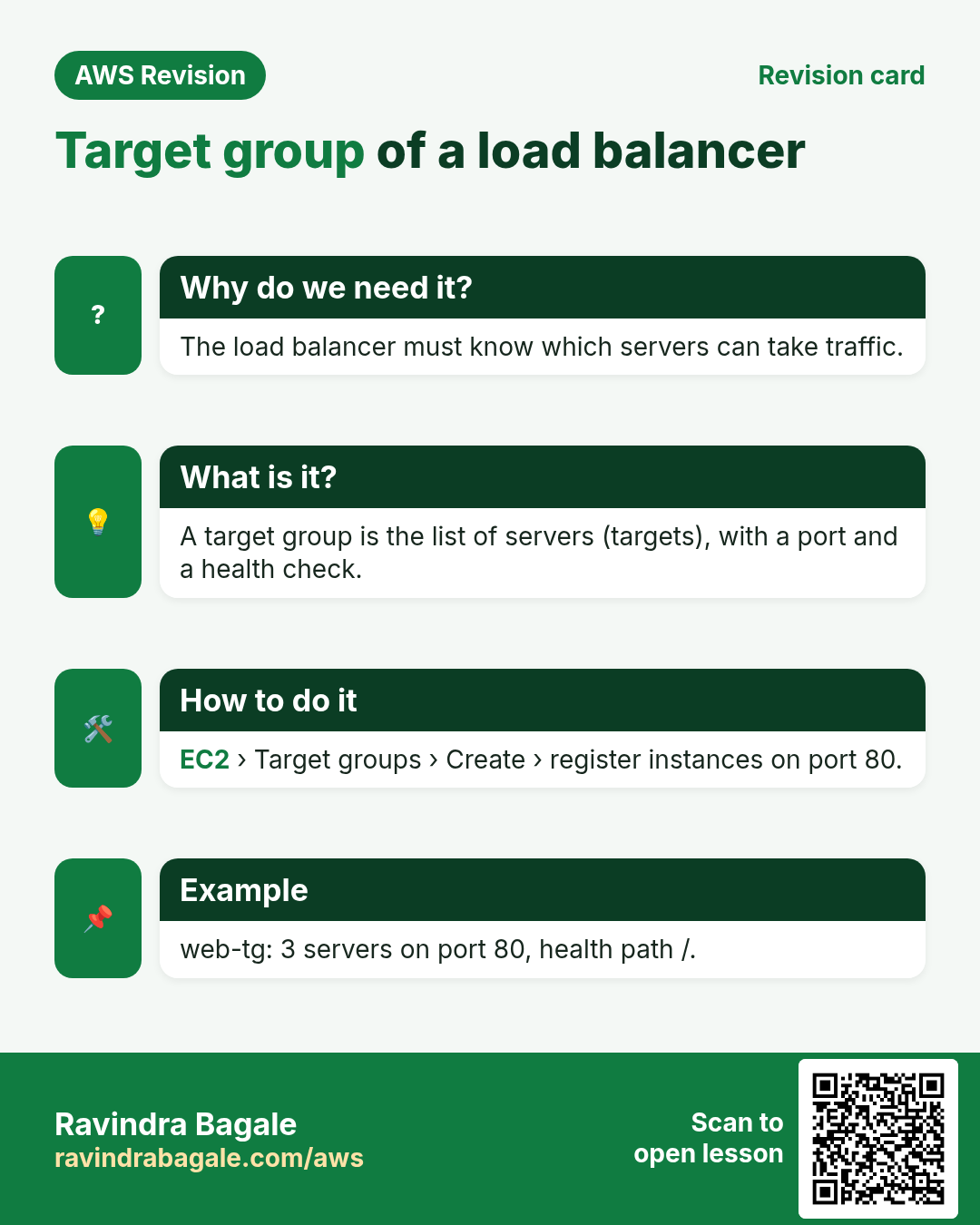
A target group is the list of servers that do one job, plus the port and the health check. The load balancer forwards requests to a target group, not to servers directly. Full details: Target groups.
- Suppose one account runs two apps: one target group for each app's servers.
- A new server gets traffic only after it is registered in the target group.
Scale on the average, not on one server. Suppose 3 servers are at 80%, 70% and 60% CPU.
- Average = (80 + 70 + 60) / 3 = 70%.
- If it stays there for 5 minutes, the alarm fires: add a 4th server.
- The load now spreads over 4 servers, and the average drops.
In practice the group's average comes from the Auto Scaling group's CPUUtilization metric, which CloudWatch averages across all its servers.
Classroom line
It's 2 AM, everyone's asleep, nobody's using it.
Class मधलं वाक्य
रात्रीचे दोन वाजले, लोक झोपले, कोणी वापरत नाहीये.
Classroom line – हिंदी
"Raat ke do baj gaye, log so gaye, koi use nahi kar raha."
Scale in, too. At 2 AM the average falls low, so remove a server and stop paying for it. A second, low alarm (for example average below 30%) does that.
Figure 5. Suppose three servers in a target group run at 80%, 70% and 60% CPU: the average is 70%, so a fourth server is added. At 2 AM the average drops and one server is removed.
8. Health checks: who gets no traffic
Why: a server can be running while Nginx on it is stopped. Without a check, the load balancer keeps sending users there.
How it works:
- Every interval (for example 30 seconds), the load balancer requests a path on each target, such as
/or/index.html. - HTTP 200 = a pass.
- Unhealthy threshold = how many checks in a row must fail before the target is marked unhealthy (at least 2).
- An unhealthy target gets no traffic; the others share it.
- The load balancer keeps checking it. After the healthy threshold of passes in a row, traffic resumes.
Classroom line
A check went out, the server didn't answer.
Class मधलं वाक्य
एक request पाठवली, server ने उत्तर दिलं नाही.
Classroom line – हिंदी
"Ek request bheja, server ne response nahi kiya."
Figure 6. Animation: the load balancer checks /index.html on three servers and all answer 200; Nginx on server 2 stops and two checks in a row fail; server 2 is marked unhealthy and its traffic goes to servers 1 and 3 while the checks continue.
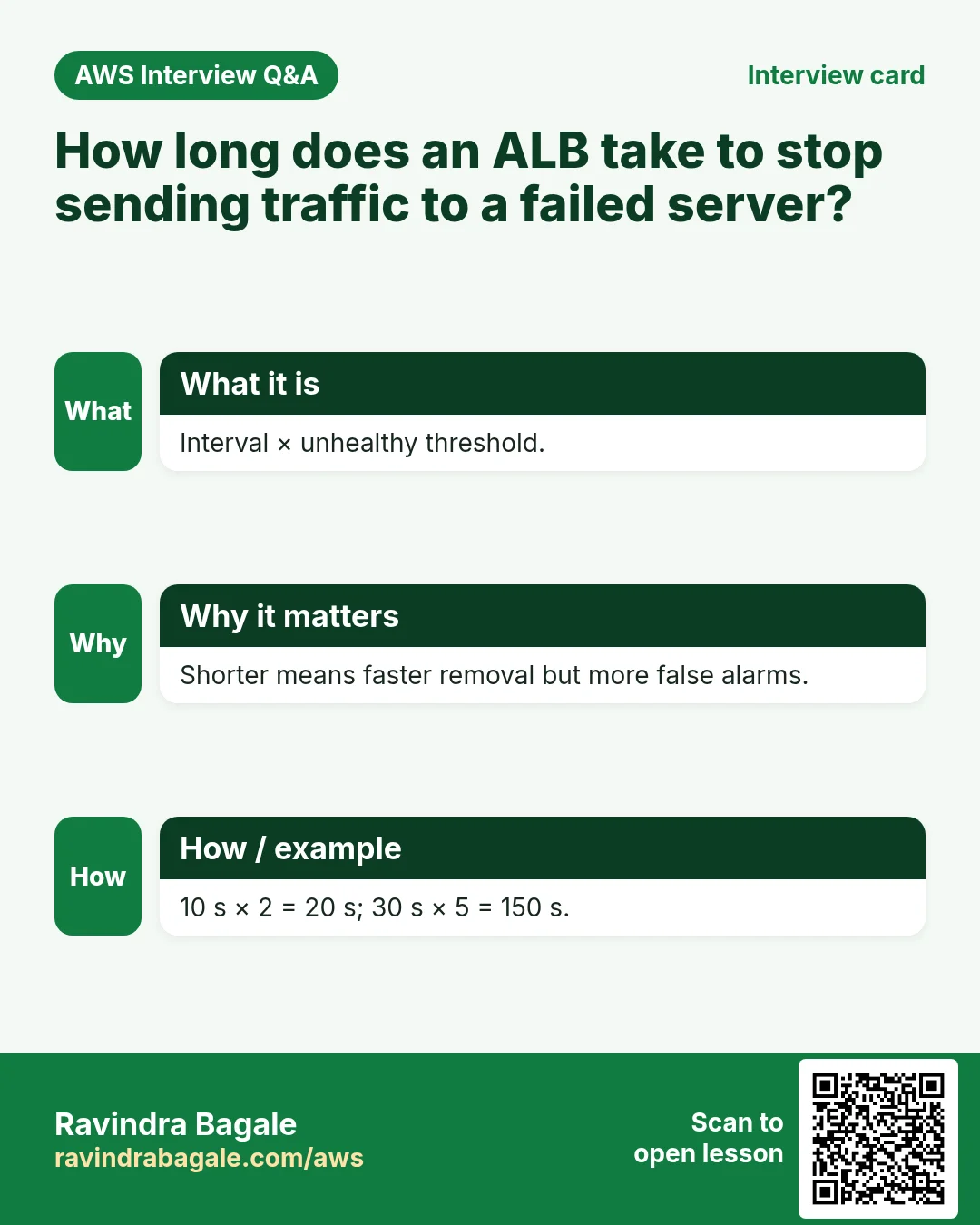
The math: how long do users hit a dead server? The interval can be 5 to 300 seconds.
- Interval 30 s × unhealthy threshold 2 = up to 1 minute of requests going to a dead server.
- Interval 5 s × threshold 2 = about 10 seconds.
- Shorter is faster to react, but a tiny hiccup can mark a server unhealthy too soon. Pick per app.
Health checks are not charged per request. An Application Load Balancer is billed per hour plus by usage (LCUs).
Figure 7. Interval 30 s with unhealthy threshold 2: two failed checks, up to about 1 minute before the server is out. Interval 5 s with threshold 2: about 10 seconds.
A load balancer only stops sending traffic; the broken server stays. Replacing it automatically is Auto Scaling's job. All the settings are in Health checks.
9. Listener rules: send each path to its own target group
Suppose we are Instagram. Watching reels is light work; uploading a video is heavy (it is received, processed and stored).
Classroom line
If you put everything on one server...
Class मधलं वाक्य
"Sagle eka server var takla tar..."
सगळं एकाच server वर टाकलं तर...
Classroom line
If you put everything on one server...
- If both share one pool of servers, a burst of uploads eats the CPU and reels slow down for everyone.
- So use two target groups:
tg-reelswith smaller servers (suppose 4 GB RAM) andtg-uploadwith bigger ones (suppose 32 GB RAM). Each scales on its own.
Who decides which group? The listener.
- A listener is the protocol and port the load balancer listens on:
HTTP:80orHTTPS:443. - Its rules are checked in priority order:
- Path
/reels*→tg-reels. - Path
/upload*→tg-upload. - Default (anything else) →
tg-web.
Figure 8. One listener on HTTPS:443 checks the path: /reels* goes to tg-reels (smaller servers), /upload* to tg-upload (bigger servers), and everything else to the default tg-web.
More rule types (host, header) and several groups: Multiple target groups and Different HTTP listeners.
10. Round robin, the login problem, and sticky sessions
Inside a target group, an Application Load Balancer uses round robin by default:
Classroom line
Simple: first request here, second here, third here.
Class मधलं वाक्य
Simple आहे: पहिली request इकडे, दुसरी इकडे, तिसरी इकडे.
Classroom line – हिंदी
"Simple hai: pehla request idhar, dusra idhar, teesra idhar."
- Request 1 → server 1.
- Request 2 → server 2.
- Request 3 → server 3.
- Request 4 → server 1 again.
The problem: suppose the app keeps the login session in the memory of the server that handled the login.
- The user logs in; request 1 went to server 1, which now remembers them.
- The next click goes to server 2, which has never seen them.
- Server 2 shows the login screen again.
Classroom line
I just logged in and the login screen came back!
Class मधलं वाक्य
आत्ताच तर login केलं, परत login screen आला!
Classroom line – हिंदी
"Abhi-abhi to maine login kiya hai, phirse login screen aaya!"
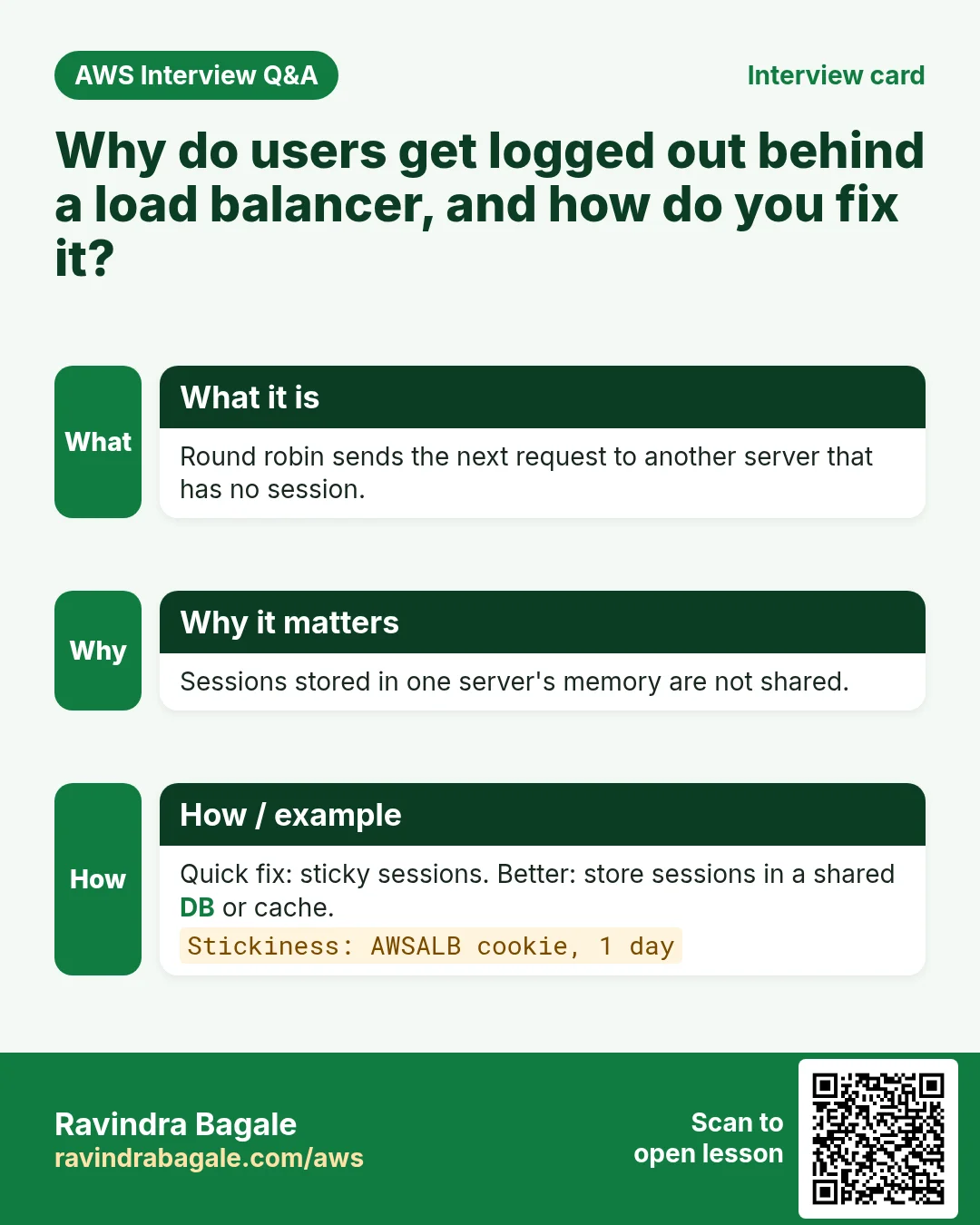
Fix 1: sticky sessions (a target group setting, no extra cost):
- On the first response, the load balancer sets a cookie (
AWSALB) in the browser that says which target served it. - The browser sends that cookie with every later request.
- The load balancer reads it and sends the user to the same server, for the duration you set (for example 1 day).
- The load balancer stores nothing about the login; the cookie lives in the browser.
Fix 2, better for the long run: a shared session store. Keep sessions in Redis or the database, so any server can serve any user. Then a server can be removed or replaced without logging anyone out.
Figure 9. Animation: with round robin, the login on server 1 is lost when the next request goes to server 2; with sticky sessions, the AWSALB cookie in the browser brings every request back to server 1; with a shared session store, any server works.
Other ways to pick a target (least outstanding requests, weighted): Routing policy. Which load balancer type to choose comes in the next chapter, and in Which load balancer to use.
11. Build it in the console
Part A: the SNS topic
- SNS > Topics > Create topic, type Standard, name
cpu-high-alerts, Create topic. - Create subscription, protocol Email, endpoint: your email address.
- Open the mail from AWS and click Confirm subscription. The status changes to Confirmed.
Part A2: three web servers from one golden AMI
Why: every server behind the load balancer must serve the same site. Build one server, save it as an image (a golden AMI), and launch the others from it.
- Launch an Amazon Linux 2023 t2.micro in a public subnet, security group with 22 and 80 open.
- Install and start Nginx:
sudo yum install nginx -y
sudo service nginx start
sudo systemctl enable nginx
- The last line makes Nginx start again after every reboot, so servers launched from the image serve pages at once.
- Put
<h1>FIRST</h1>in/usr/share/nginx/html/index.html. - Actions > Image and templates > Create image, name
firstami. Wait until the AMI is Available. - AMIs > firstami > Launch instance from AMI: launch 2 more with the same security group.
- On them, change the page to
<h1>SECOND</h1>and<h1>THIRD</h1>so you can see which server answered. - Some AZs don't offer every instance type (for example
us-east-1e). If a launch fails for capacity or type, pickus-east-1aorus-east-1b.
Classroom line
A load balancer never launches in a single zone.
Class मधलं वाक्य
"Load balancer kadhich single zone madhe launch hot nahi."
Load balancer कधीच single zone मध्ये launch होत नाही.
Classroom line
A load balancer never launches in a single zone.
Part B: the target group
- EC2 > Target groups > Create target group, type Instances, name
tg-web, protocol HTTP, port 80, your VPC. - Health checks: path
/index.html. Under Advanced health check settings, set the interval and the unhealthy threshold (section 8). - Register targets: tick the web servers, Include as pending below, Create target group.
Worked example: fast health-check settings for a lab
- Path
/index.html, success code200. - Healthy threshold 2, unhealthy threshold 2.
- Timeout 3 seconds, interval 5 seconds.
- A stopped server is out after 2 × 5 = about 10 seconds; a fixed one is back after another 2 × 5 = about 10 seconds.
- In Register targets, a server is added only after you click Include as pending below.
Classroom line
It gets added only if you click Include as pending below.
Class मधलं वाक्य
"Include as pending below kela asel tarach te pudhe add hoil."
Include as pending below केलं असेल तरच ते पुढे add होईल.
Classroom line
It gets added only if you click Include as pending below.
Part C: the load balancer and the listener rules
- EC2 > Load balancers > Create load balancer > Application Load Balancer, scheme Internet-facing.
- Pick your VPC and at least two public subnets in different AZs.
- Security group
alb-sg: allow 80 (and 443) from anywhere. The web servers' SG allows 80 fromalb-sgonly. - Listener HTTP:80, default action: forward to
tg-web. Create load balancer. - Open the listener, Manage rules > Add rule: condition Path
/reels*, action forward totg-reels. Repeat for/upload*→tg-upload. - Copy the load balancer's DNS name and open it in the browser. In Route 53, create an Alias A record for your domain pointing to it.
Part D: sticky sessions (only if your app keeps sessions in server memory)
- Open
tg-web> Attributes > Edit. - Tick Stickiness, type Load balancer generated cookie, duration 1 day. Save changes.
Part E: the CloudWatch alarm
- CloudWatch > Alarms > Create alarm > Select metric > EC2 > Per-Instance Metrics, pick
CPUUtilizationof a web server. - Statistic Average, period 5 minutes.
- Condition Greater/Equal than 70.
- Notification: In alarm → send to
cpu-high-alerts. - Name it
cpu-high-web, Create alarm.
Part F: test it
- Stop Nginx on one web server:
sudo service nginx stop. After the interval × threshold, the target shows unhealthy, and the site still opens from the other server. - Start it again:
sudo service nginx start. After the healthy threshold, it is healthy again. - To load the CPU, install the stress tool:
sudo yum install stress-ng -y, then runstress-ng --cpu 2 --timeout 600. In about 5 minutes the alarm goes to In alarm and the email arrives.
Part G: see round robin
- Register the three servers (FIRST, SECOND, THIRD) in the target group and open the load balancer's DNS name.
- Refresh a few times: the page changes, for example FIRST, THIRD, SECOND. An ALB spreads requests over the healthy targets by default with round robin.
- Try the servers' own public IPs: they still answer. Change the servers' port 80 rule to source = the load balancer's security group, and users can no longer go around the load balancer.
Part H: detailed monitoring and a 1-minute alarm
- EC2 > Instances, select the server, Actions > Monitor and troubleshoot > Manage detailed monitoring, tick Enable, Confirm.
- CloudWatch > Alarms > Create alarm > Select metric > EC2 > Per-Instance Metrics > CPUUtilization of that server.
- Statistic Average, period 1 minute, threshold type Static, Greater/Equal than 50.
- In alarm → send to your SNS topic. Name it
ec2alarm, Create alarm. It starts in Insufficient data, then shows OK. - Load the CPU:
sudo yum install stress-ng -y
stress-ng --cpu 6 --timeout 120
- Within a few minutes the alarm goes to In alarm and the email arrives. When the test ends, it returns to OK.
12. When something goes wrong
- No alert email: the subscription is still Pending confirmation. Click the link in the AWS mail (check spam).
- All targets unhealthy: the web SG doesn't allow 80 from
alb-sg, Nginx is stopped, or the health-check path returns 404. - The alarm never fires: wrong metric (another instance), or the threshold is never held for the full period.
- Users keep getting logged out: sessions are in server memory and stickiness is off. Turn it on, or move sessions to a shared store.
/uploadhits the wrong servers: the rule order is wrong, or the path pattern is missing the*.- SSH to a server times out: check, one by one: the server is in a public subnet; the internet gateway is attached; the subnet's route table has
0.0.0.0/0to the IGW; the security group allows port 22 from your IP. - SSH worked at the office but not at home: a My IP rule stores the public IP you had when you made it. At home your internet provider gives you a different public IP. Edit the rule and pick My IP again.
Classroom line
Once your IP changes, the connection here is cut.
Class मधलं वाक्य
"Tumchi IP change zali ki ithla wire cut zala."
तुमचा IP बदलला की इथली wire cut झाली.
Classroom line
Once your IP changes, the connection here is cut.
- One server never gets traffic: its Availability Zone is not enabled on the load balancer. Select every AZ where you have targets.
- The bill keeps a small charge after the lab: an AMI you no longer need still keeps its EBS snapshots. Deregister the AMI and delete its snapshots.
Classroom line
In a hurry, some people forget to click 'Include as pending below'.
Class मधलं वाक्य
"Kahi gadbadit 'include as pending below' visartat."
काही जण गडबडीत 'include as pending below' विसरतात.
Classroom line
In a hurry, some people forget to click 'Include as pending below'.
Ravindra Bagale's Tip
Put the load balancer in front on the first day, even for one server, and point the domain at it with an Alias record. Set the health-check path to a page that really needs the app to work. And alarm on the average over a period, never on a single spike.
13. The whole class on one page
- Scale up = bigger instance, needs a stop. Scale out = more servers, no downtime.
- Two A records spread load unevenly and keep sending users to a dead server. A load balancer fixes both.
- Alarm on threshold + period: average CPU ≥ 70% over 5 minutes. Spiky apps alarm earlier.
- SNS: topic, publisher (the alarm), subscribers (email, SMS, Lambda...). Email needs Confirm subscription.
- New servers come from a ready AMI. Auto Scaling automates it.
- Load balancer from day one. Its DNS name goes in an Alias A record (Route 53) or a CNAME for www.
- Target group = the servers of one job + health check. Scale on the group's average CPU; scale in at night.
- Health check: interval 5-300 s, unhealthy threshold at least 2. 30 s × 2 = up to 1 minute; 5 s × 2 ≈ 10 s.
- Listener rules route by path: /reels and /upload to their own groups, the rest to the default.
- Round robin can lose a login kept in server memory. Sticky sessions (AWSALB cookie, no extra cost) or, better, a shared session store.
14. Try at home
Try at home
Task 1: on paper
- Suppose 4 servers run at 90%, 60%, 50% and 40% CPU. What is the average? Does an alarm at "≥ 70% for 5 minutes" fire?
- Interval 10 s, unhealthy threshold 3: for about how long can users still reach a dead server?
Task 2: in the console
- Create the SNS topic and confirm your email subscription.
- Put two web servers in
tg-webbehind an ALB. Open the DNS name and refresh: the pages should come from both servers (show the hostname inindex.html). - Stop Nginx on one, watch it go unhealthy, then start it again.
- Run
stress-ngand wait for the alarm email.
Task 3: clean up
- Delete the load balancer, then the target groups, the alarm and the topic. Terminate the extra servers. A load balancer is billed every hour it exists.
Recap
In short
- Scale out with more servers, and put a load balancer in front from day one.
- CloudWatch alarms on the average over a period, and SNS tells the people who subscribed.
- Target groups hold the servers; health checks take a dead one out of rotation.
- Listener rules send each path to its own group.
- Round robin needs sticky sessions or a shared session store for logins.
Practice Tasks
Amravati Agro Market is a agriculture business in Amravati. Anjali Thakre looks after its IT and cloud work. They count money in INR and run their AWS resources in the ap-south-1 Region. In the tasks below you do real jobs for them using what this lesson teaches. All names, account IDs, IP addresses and numbers are made up for practice.
0 / 11
Easy Create an SNS topic
Why: A topic is a channel: publish once, every subscriber gets it.
What to do: Create topic amravatiagro-alerts.
- Read the task and decide which AWS service it is about.
- Write aws, then the service name, then the operation (the action word).
- Add each needed flag (--name) followed by its value from the task.
- Flags can be in any order. Click Check answer.
Easy List alarms that are firing
Why: In an incident, first see which alarms are in ALARM state.
What to do: Describe only the alarms whose state is ALARM.
- Read the task and decide which AWS service it is about.
- Write aws, then the service name, then the operation (the action word).
- Add each needed flag (--name) followed by its value from the task.
- Flags can be in any order. Click Check answer.
Easy List metrics in a namespace
Why: See which metrics AWS already collects for a service.
What to do: List the metrics in the AWS/EC2 namespace.
- Read the task and decide which AWS service it is about.
- Write aws, then the service name, then the operation (the action word).
- Add each needed flag (--name) followed by its value from the task.
- Flags can be in any order. Click Check answer.
Easy Publish to one topic
Why: An alerting app only needs to publish.
What to do: Allow sns:Publish on arn:aws:sns:ap-south-1:120348739971:amravatiagro-alerts only.
- Start with { "Version": "2012-10-17", "Statement": [ ... ] }.
- In each statement write Effect, Action and Resource.
- Give only what the task needs (least privilege).
- Use double quotes and commas correctly. Click Check answer.
Medium Check target health
Why: If targets are unhealthy the site shows 502/503 errors.
What to do: Show the health of the targets in arn:aws:elasticloadbalancing:ap-south-1:120348739971:targetgroup/amravatiagro-tg/6d0ecf831eec9f09.
- Read the task and decide which AWS service it is about.
- Write aws, then the service name, then the operation (the action word).
- Add each needed flag (--name) followed by its value from the task.
- Flags can be in any order. Click Check answer.
Medium Subscribe an email
Why: Email subscribers must click the confirm link before they receive messages.
What to do: Subscribe ops@amravatiagro.in by email to arn:aws:sns:ap-south-1:120348739971:amravatiagro-alerts.
- Read the task and decide which AWS service it is about.
- Write aws, then the service name, then the operation (the action word).
- Add each needed flag (--name) followed by its value from the task.
- Flags can be in any order. Click Check answer.
Medium Publish a custom metric
Why: Custom metrics let you graph and alarm on business numbers, like orders per minute.
What to do: Publish metric OrdersPlaced with value 15 in namespace AmravatiAgroMarket/Shop.
- Read the task and decide which AWS service it is about.
- Write aws, then the service name, then the operation (the action word).
- Add each needed flag (--name) followed by its value from the task.
- Flags can be in any order. Click Check answer.
Medium Kubernetes LoadBalancer Service
Why: A Service of type LoadBalancer gets an AWS load balancer.
What to do: Write a Service of type LoadBalancer selecting app: web, port 80 to targetPort 8080.
- Start from the top-level keys the task names.
- Indent child keys with 2 spaces (no tabs).
- Fill in each property with the value from the task.
- Click Check answer. Key order does not matter.
Hard Create a CPU alarm
Why: An alarm watches a metric and notifies you before users notice a problem.
What to do: Create alarm amravatiagro-cpu-high: AWS/EC2 CPUUtilization, Average over 300 seconds, 1 evaluation period, GreaterThanThreshold 80, for InstanceId=i-01bdd3bc430211a2b, notify arn:aws:sns:ap-south-1:120348739971:amravatiagro-alerts.
- Read the task and decide which AWS service it is about.
- Write aws, then the service name, then the operation (the action word).
- Add each needed flag (--name) followed by its value from the task.
- Flags can be in any order. Click Check answer.
Hard Create an Application Load Balancer
Why: An ALB needs at least two subnets in different AZs for high availability.
What to do: Create an ALB named amravatiagro-alb in subnets subnet-02034cb3ddb1bb1 and subnet-0034cb3ddb1bb2 with security group sg-02034ba3cca14c3b2.
- Read the task and decide which AWS service it is about.
- Write aws, then the service name, then the operation (the action word).
- Add each needed flag (--name) followed by its value from the task.
- Flags can be in any order. Click Check answer.
Hard Add an HTTP listener
Why: The listener is what accepts traffic on a port and forwards it to a target group.
What to do: On load balancer arn:aws:elasticloadbalancing:ap-south-1:120348739971:loadbalancer/app/amravatiagro-alb/50dc6c495c0c9188, create an HTTP listener on port 80 that forwards to arn:aws:elasticloadbalancing:ap-south-1:120348739971:targetgroup/amravatiagro-tg/6d0ecf831eec9f09.
- Read the task and decide which AWS service it is about.
- Write aws, then the service name, then the operation (the action word).
- Add each needed flag (--name) followed by its value from the task.
- Flags can be in any order. Click Check answer.
Quick revision cards
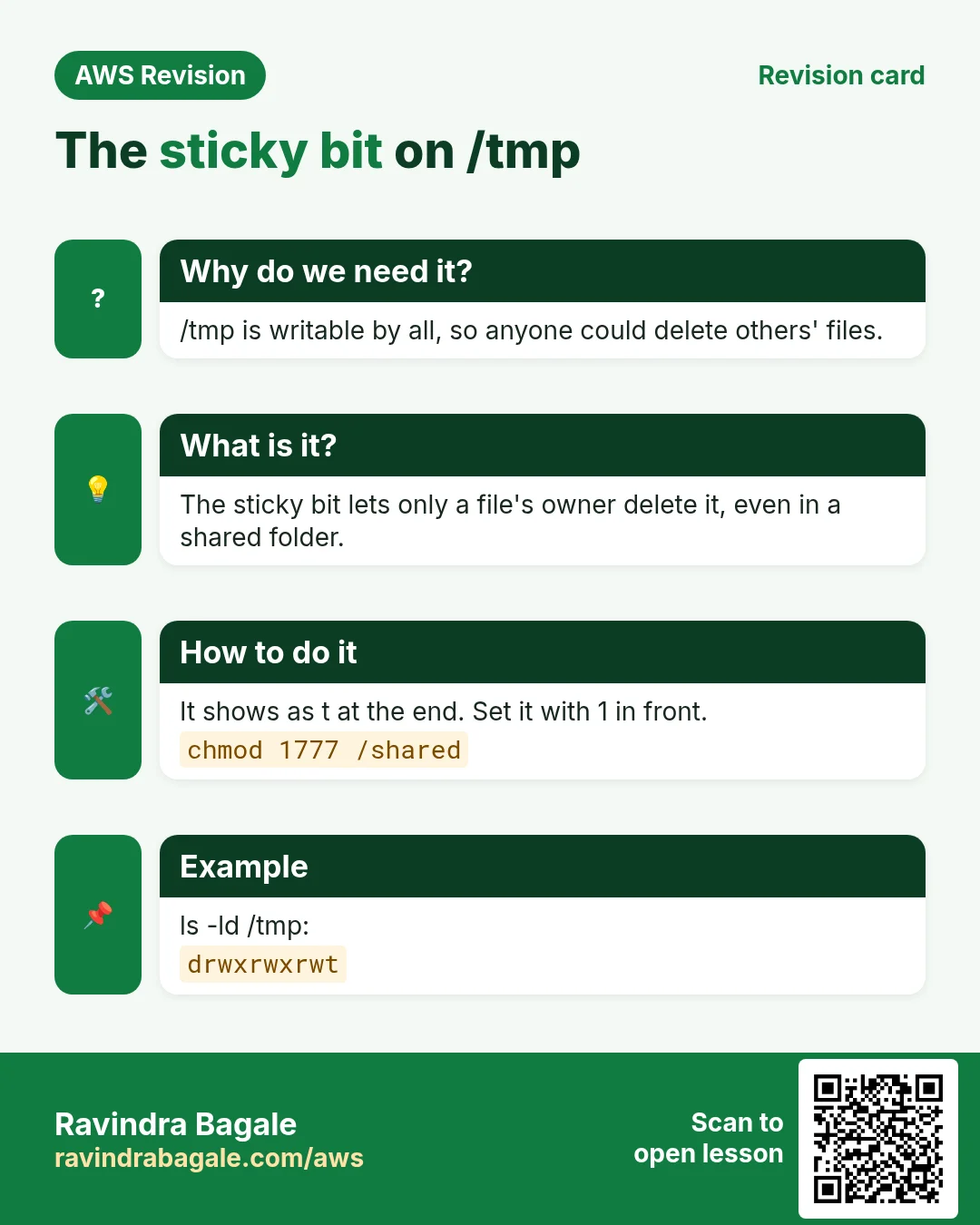
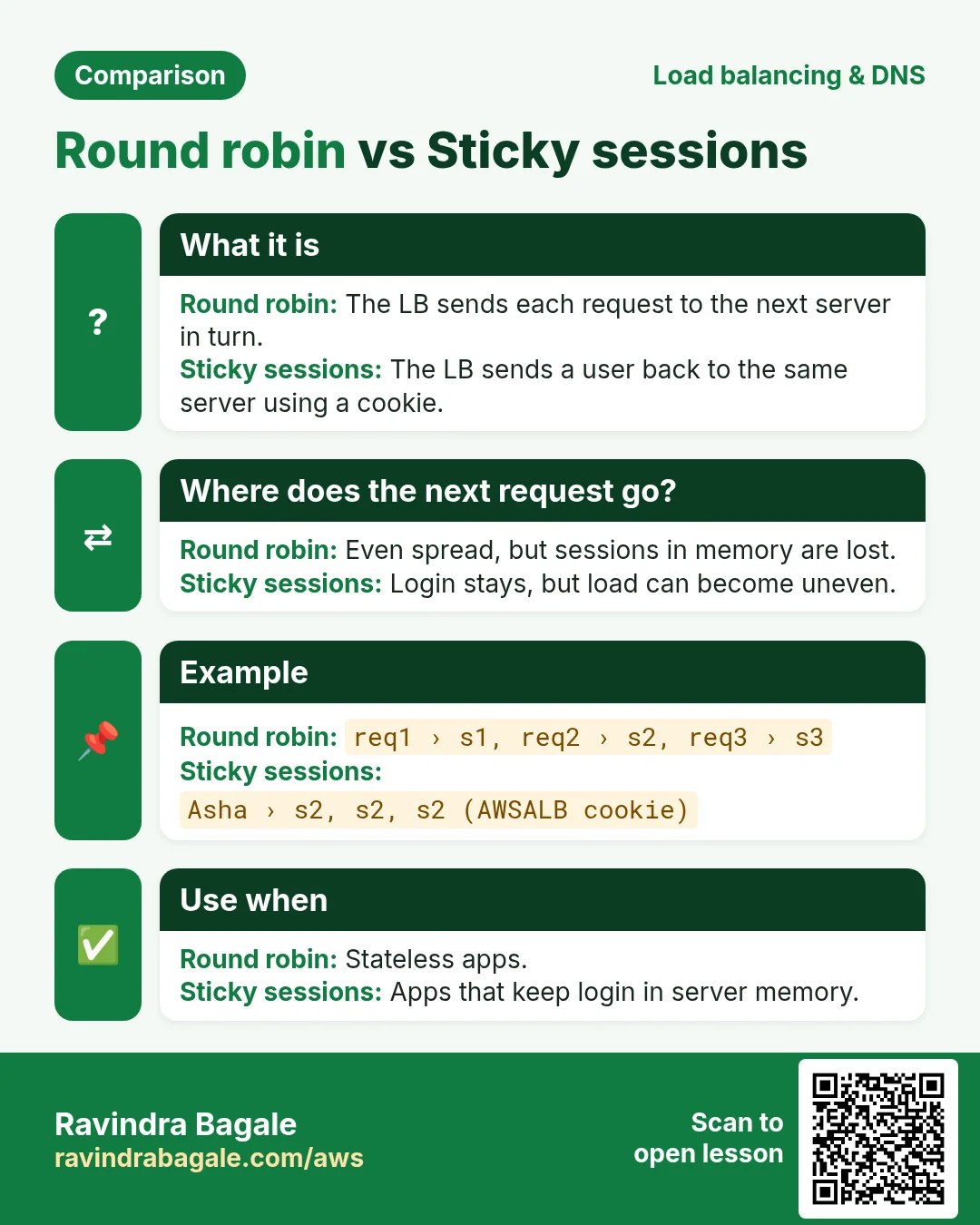
Revise this lesson in two minutes. Save the cards on your phone or download them as PNG files. The QR code on each card opens its lesson.
More cards: Ravi Sir's Cards.