Linux Troubleshooting Playbook: 20 Real Production Cases with Commands and Fixes
This chapter is a playbook: 20 real problems that happen on Linux servers, each with the symptom, the commands to find the cause, and the fix. They use everything from the earlier chapters: systemd, logs, disks, networking, performance, security and the kernel. Read the method first, then practise the cases until the first three commands come to you without thinking.
What you'll learn in this chapter
- Follow one calm method for every incident
- Solve disk, memory and CPU cases
- Solve service, boot and log cases
- Solve network, DNS and TLS cases
- Solve permission, SELinux and SSH cases
- Write a short incident note
1. An everyday example: a family doctor
Why do we need this?
When you visit a family doctor in Sadashiv Peth with fever, she does not guess. She asks when it started, checks temperature, pulse and BP, looks at old reports, then decides. If it is serious she first gives relief, then finds the root cause.
What is it?
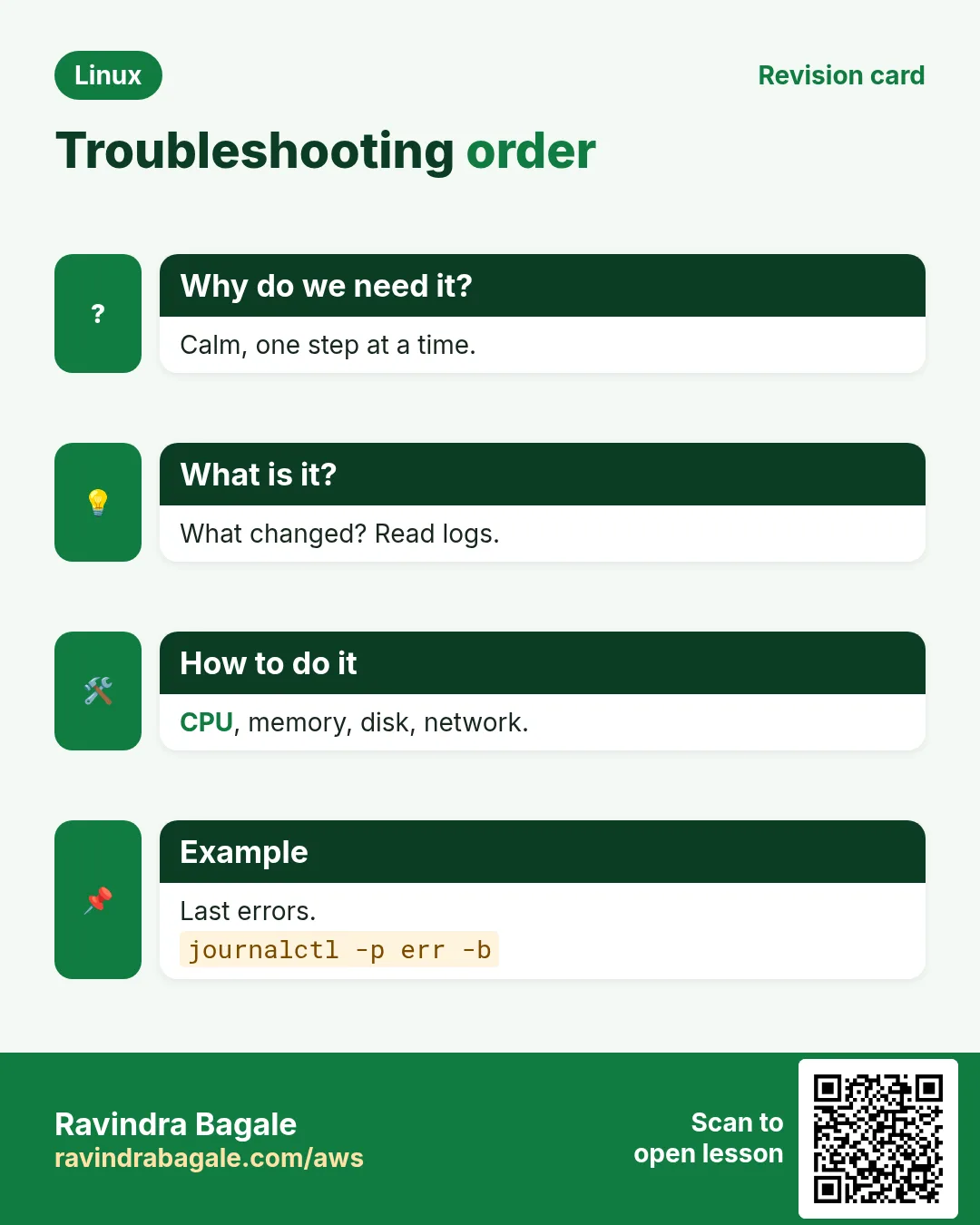
When did it start = what changed (deploys, updates). Temperature and pulse = uptime, df, free, systemctl --failed. Old reports = journalctl, sar. Relief first = restore service (restart, rollback). Root cause later = the incident note.
How to do it (step by step)
2. Case 1: Disk full, app cannot write
Why do we need this?
Symptom: 'No space left on device' in app logs.
What is it?
Cause and fix: Find the big folder with du; old logs or a runaway file. Clean, then set logrotate.
How to do it (step by step)
- Which filesystem?
df -hOutput:
/dev/nvme0n1p1 20G 20G 0 100% /What it means: Root full.
- Biggest folders.
sudo du -xh --max-depth=2 / | sort -h | tail -5Output:
14G /var/log/appWhat it means: Logs.
- Shrink journal too.
sudo journalctl --vacuum-size=200MOutput:
Vacuuming done, freed 1.1GWhat it means: Space back.
3. Case 2: df says full, du says small
Why do we need this?
Symptom: df shows 100% but du adds up to much less.
What is it?
Cause and fix: A deleted file is still held open by a process. Restart that process.
How to do it (step by step)
- Find deleted open files.
sudo lsof +L1Output:
java 3011 app 9w REG ... 9.8G /var/log/shop.log (deleted)What it means: 9.8 GB held.
- Free it.
sudo systemctl restart shop-apiOutput:
(no output)What it means: Released.
4. Case 3: No inodes left
Why do we need this?
Symptom: 'No space left' but df -h shows free space.
What is it?
Cause and fix: Millions of tiny files (sessions, cache). Count with df -i and delete old ones.
How to do it (step by step)
- Inodes.
df -i /varOutput:
/dev/nvme1n1 6.5M 6.5M 0 100% /varWhat it means: Out of inodes.
- Where?
sudo find /var -xdev -type f | cut -d/ -f2-4 | sort | uniq -c | sort -n | tail -3Output:
5900000 var/lib/phpWhat it means: PHP sessions.
- Delete old.
sudo find /var/lib/php/sessions -type f -mmin +1440 -deleteOutput:
(no output)What it means: Cleaned.
5. Case 4: Service fails to start
Why do we need this?
Symptom: systemctl start returns an error; the site is down.
What is it?
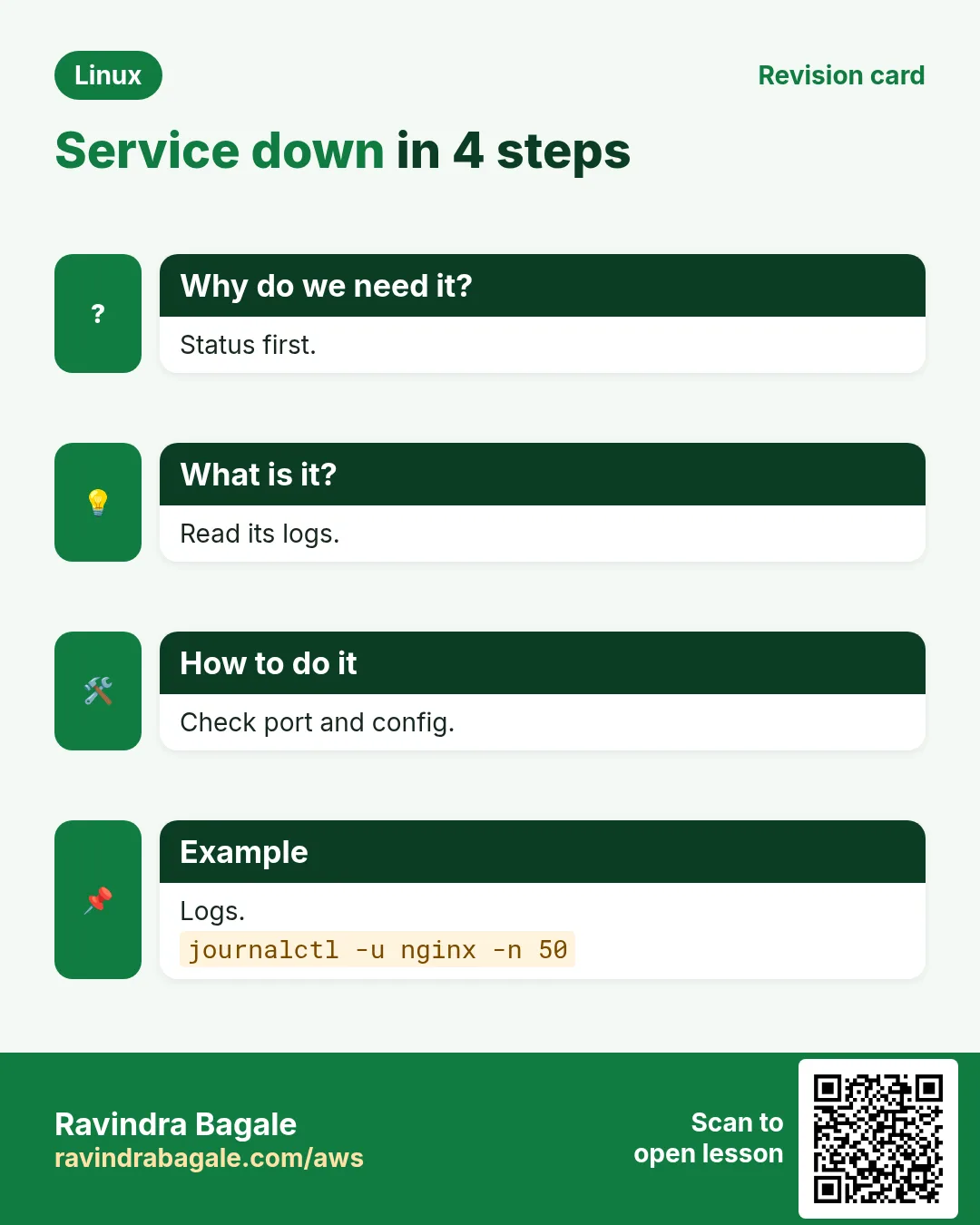
Cause and fix: Read status and the unit's journal; often a bad config, missing file or busy port.
How to do it (step by step)
- Status.
systemctl status nginx --no-pager | tail -3Output:
nginx: [emerg] unknown directive "servr_name" in /etc/nginx/conf.d/shop.conf:3What it means: Typo.
- Test config.
sudo nginx -tOutput:
nginx: configuration file /etc/nginx/nginx.conf test failedWhat it means: Fix line 3.
- Start.
sudo systemctl restart nginx && systemctl is-active nginxOutput:
activeWhat it means: Up.
6. Case 5: Port already in use
Why do we need this?
Symptom: 'bind() to 0.0.0.0:80 failed (98: Address already in use)'.
What is it?
Cause and fix: Another process (old copy, apache) holds the port. Find and stop it.
How to do it (step by step)
- Who has :80?
sudo ss -ltnp 'sport = :80'Output:
LISTEN 0 511 *:80 users:(("httpd",pid=901,fd=4))What it means: Apache.
- Stop and disable.
sudo systemctl disable --now httpdOutput:
Removed ... httpd.serviceWhat it means: Port free.
7. Case 6: Service keeps restarting
Why do we need this?
Symptom: Status shows 'activating (auto-restart)' and restarts every few seconds.
What is it?
Cause and fix: The app crashes on start (missing env, DB down). Read the last logs before the restart.
How to do it (step by step)
- Logs.
journalctl -u shop-api -n 20 --no-pagerOutput:
Error: DATABASE_URL is not set
shop-api.service: Main process exited, code=exited, status=1
What it means: Env missing.
- Add env.
sudo systemctl edit shop-apiOutput:
[Service]
EnvironmentFile=/etc/shop/api.env
What it means: Then restart.
8. Case 7: High CPU, site slow
Why do we need this?
Symptom: Load 12 on 4 cores; pages time out.
What is it?
Cause and fix: Find the process with top; check if it is traffic, a loop or a cron job. Restart or scale, then fix code.
How to do it (step by step)
- Who?
top -b -n 1 -o %CPU | head -9Output:
3011 app 395 12.0 javaWhat it means: Java.
- Which threads?
top -H -b -n 1 -p 3011 | head -10Output:
3044 app 99.0 java
3045 app 98.0 java
What it means: Hot threads.
- Thread dump for devs.
sudo -u app jstack 3011 | grep -A5 'nid=0xbe4'Output:
"report-worker" ... RUNNABLE at ...ReportService.loopWhat it means: Infinite loop.
9. Case 8: Out of memory kills
Why do we need this?
Symptom: The app dies randomly; dmesg says 'Killed process'.
What is it?
Cause and fix: Memory leak or too many workers. Confirm OOM, cap with MemoryMax, add swap or RAM, fix the leak.
How to do it (step by step)
- Confirm.
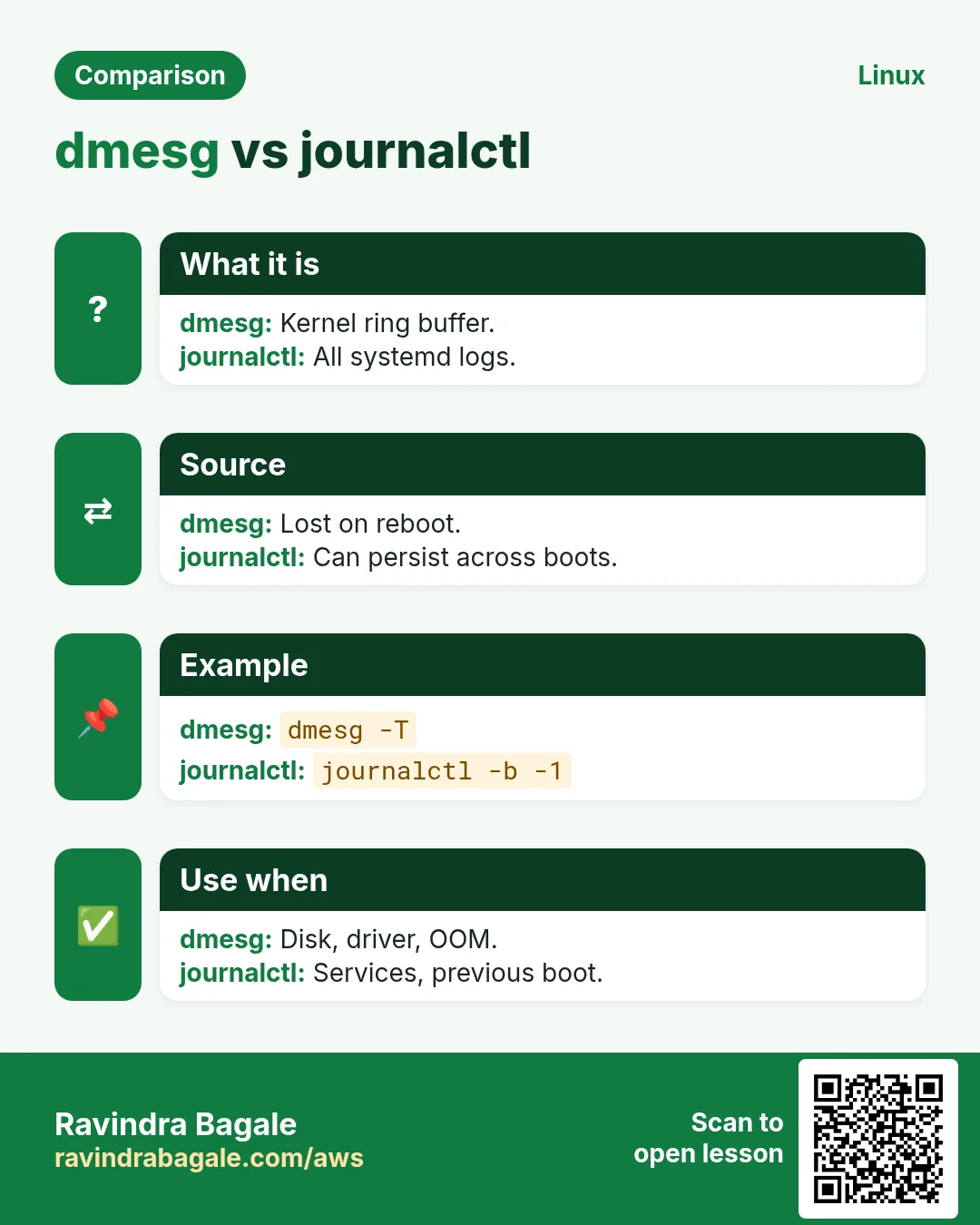
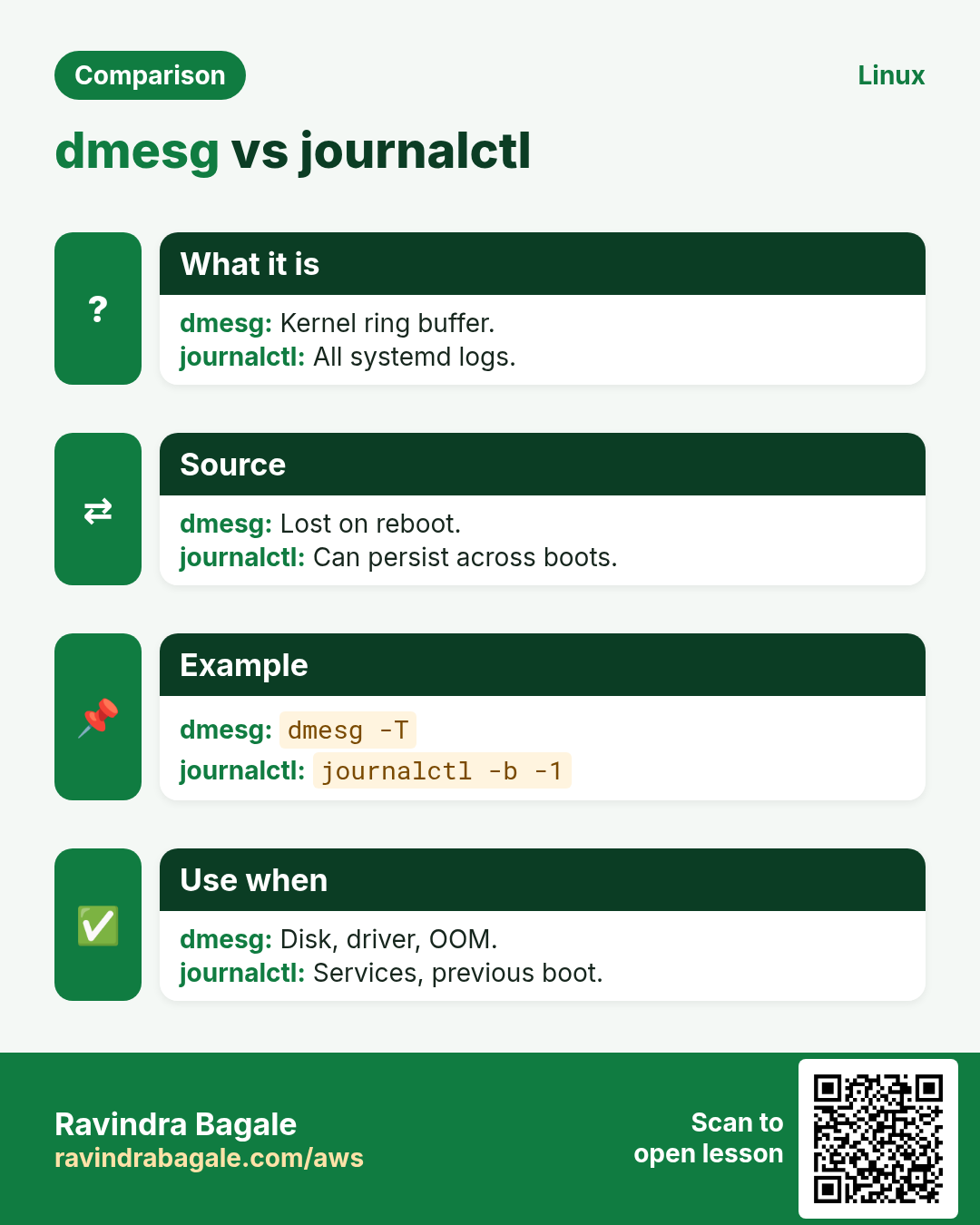
journalctl -k | grep -i 'killed process' | tail -2Output:
Out of memory: Killed process 4121 (node) total-vm:3.1GWhat it means: OOM.
- Watch growth.
ps -o pid,rss,cmd -C node --sort=-rss | head -3Output:
4500 2900120 node server.jsWhat it means: RSS grows.
- Cap.
sudo systemctl set-property web.service MemoryMax=1500MOutput:
(no output)What it means: Limits blast radius.
10. Case 9: Slow disk, high iowait
Why do we need this?
Symptom: vmstat wa above 40; DB queries slow.
What is it?
Cause and fix: Find the busy disk and process with iostat and iotop. Often a backup at peak time or EBS burst credits gone.
How to do it (step by step)
- Disk.
iostat -xz 1 3Output:
nvme1n1 ... w_await 85.0 %util 100What it means: Saturated.
- Process.
sudo iotop -oPa -n 3 -b | head -5Output:
2810 root 3.1 G tar czf /backupWhat it means: Backup at noon.
- Move backup to night.
sudo systemctl edit --full backup.timerOutput:
OnCalendar=*-*-* 02:30What it means: Fixed.
11. Case 10: Cannot SSH in
Why do we need this?
Symptom: 'Connection timed out' or 'Permission denied (publickey)'.
What is it?
Cause and fix: Timeout = network/firewall/security group. Permission denied = key, user or permissions on ~/.ssh.
How to do it (step by step)
- Verbose client.
ssh -v deploy@15.0.0.10 2>&1 | tail -3Output:
debug1: Offering public key: id_ed25519
Permission denied (publickey).
What it means: Key refused.
- Server log (via console).
sudo journalctl -u sshd -n 5Output:
Authentication refused: bad ownership or modes for directory /home/deploy/.sshWhat it means: Permissions.
- Fix.
sudo chmod 700 /home/deploy/.ssh && sudo chmod 600 /home/deploy/.ssh/authorized_keys && sudo chown -R deploy: /home/deploy/.sshOutput:
(no output)What it means: Login works.
12. Case 11: DNS not resolving
Why do we need this?
Symptom: curl: (6) Could not resolve host.
What is it?
Cause and fix: Check resolv.conf and the resolver; test with dig against a known server.
How to do it (step by step)
- Test.
dig +short api.payments.exampleOutput:
(empty)What it means: No answer.
- Which resolver?
resolvectl status | grep 'DNS Servers'Output:
DNS Servers: 10.0.0.250What it means: Corporate DNS.
- Ask public DNS.
dig +short api.payments.example @1.1.1.1Output:
52.1.2.3What it means: Internal DNS is broken; tell the network team.
13. Case 12: Website returns 502
Why do we need this?
Symptom: nginx shows 502 Bad Gateway.
What is it?
Cause and fix: The backend is down or nginx cannot reach it (wrong port, SELinux).
How to do it (step by step)
- nginx error log.
sudo tail -2 /var/log/nginx/error.logOutput:
connect() to 127.0.0.1:8080 failed (111: Connection refused)What it means: Backend down.
- Backend.
curl -sI http://127.0.0.1:8080/healthOutput:
curl: (7) Failed to connectWhat it means: Not listening.
- Start backend.
sudo systemctl restart shop-api && curl -s http://127.0.0.1:8080/healthOutput:
okWhat it means: Fixed.
14. Case 13: Permission denied for the app
Why do we need this?
Symptom: App log: 'EACCES: permission denied, open /data/uploads/x.png'.
What is it?
Cause and fix: Check owner, mode and parent folders with namei; then SELinux.
How to do it (step by step)
- Walk the path.
namei -l /data/uploads/x.pngOutput:
drwxr-x--- root root data
drwxr-xr-x app app uploads
What it means: /data blocks others.
- Fix.
sudo chmod 755 /dataOutput:
(no output)What it means: App can enter.
15. Case 14: SELinux blocks a new setup
Why do we need this?
Symptom: Correct Unix permissions but still 403 or 'Permission denied'.
What is it?
Cause and fix: Read AVC denials; fix with restorecon, semanage or setsebool. Never disable SELinux.
How to do it (step by step)
- Denials.
sudo ausearch -m avc -ts recent | audit2why | head -4Output:
scontext=httpd_t tcontext=default_t ... Missing type enforcementWhat it means: Label.
- Fix.
sudo semanage fcontext -a -t httpd_sys_content_t '/data/web(/.*)?' && sudo restorecon -Rv /data/webOutput:
Relabeled ...What it means: Works.
16. Case 15: Server will not boot after fstab edit
Why do we need this?
Symptom: Boot drops to emergency mode: 'Dependency failed for /data'.
What is it?
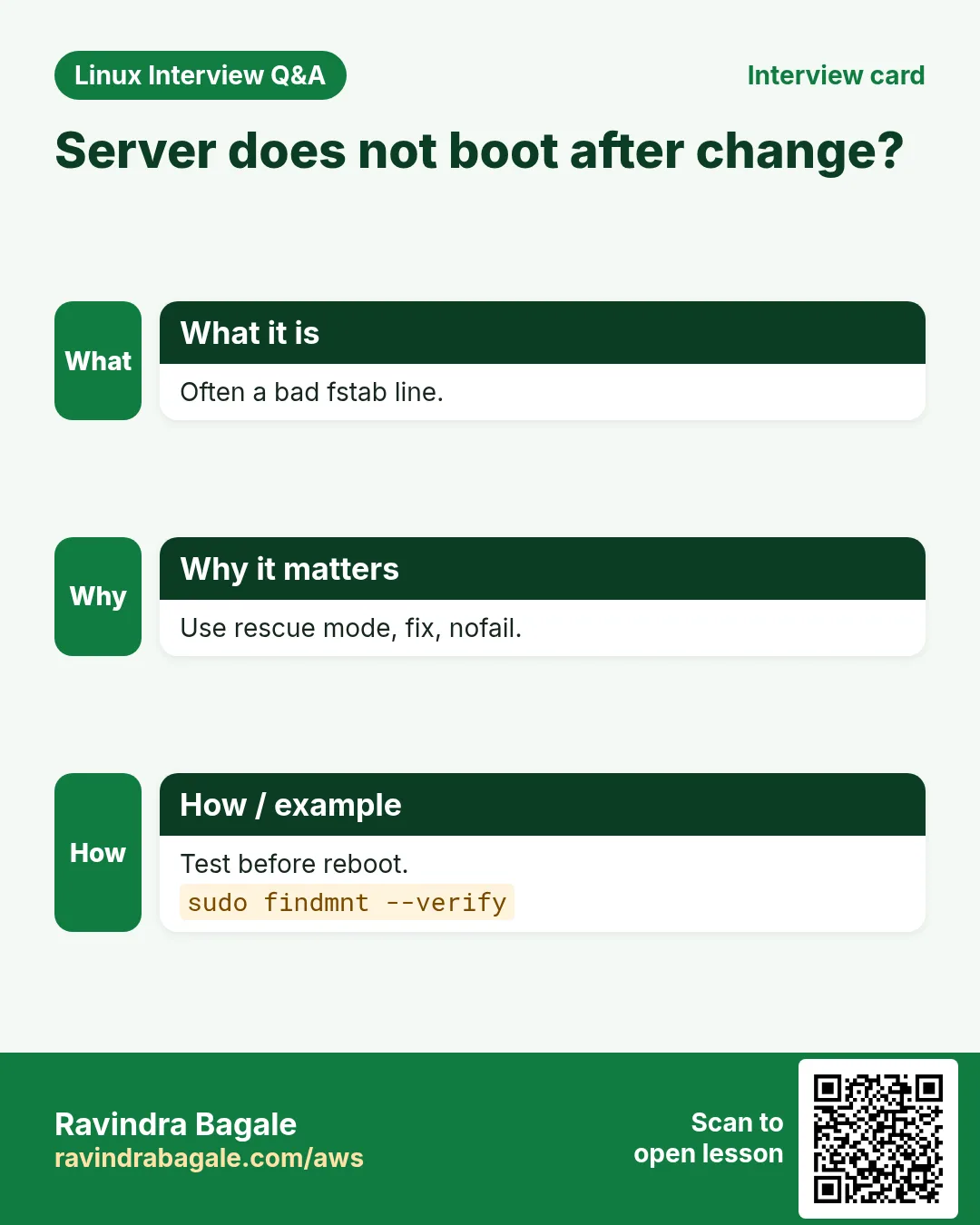
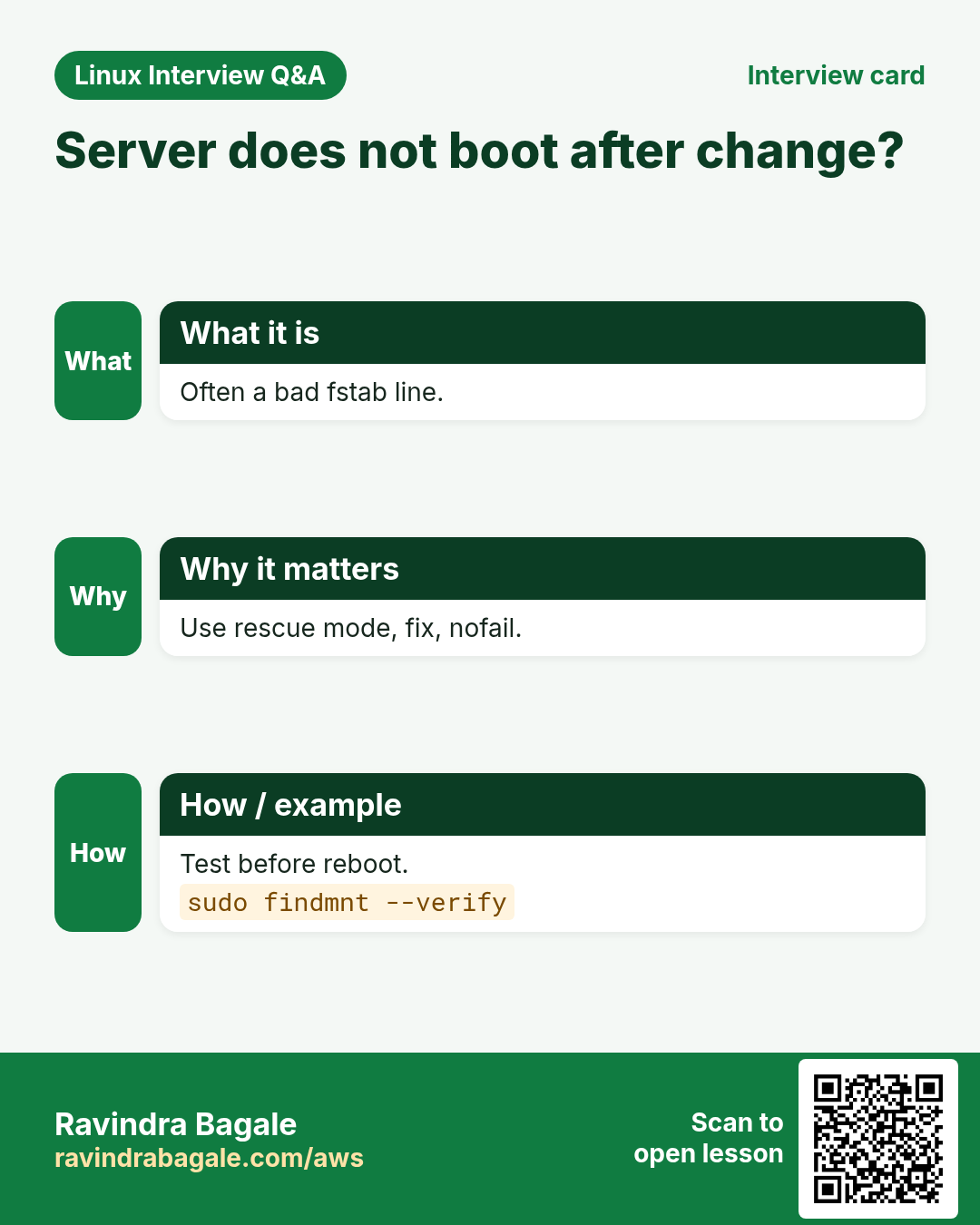
Cause and fix: A wrong UUID or missing disk in /etc/fstab. Fix in emergency shell or console; use nofail for extra disks.
How to do it (step by step)
- Real UUIDs.
blkidOutput:
/dev/nvme1n1: UUID="7c1e..." TYPE="xfs"What it means: Compare with fstab.
- Fix the line.
sudo vi /etc/fstabOutput:
UUID=7c1e... /data xfs defaults,nofail 0 2What it means: nofail protects boot.
- Test before reboot.
sudo mount -a && findmnt --verifyOutput:
Success, no errors or warningsWhat it means: Safe.
17. Case 16: Time is wrong, TLS and logs break
Why do we need this?
Symptom: 'certificate is not yet valid' and log times look odd.
What is it?
Cause and fix: NTP is off or blocked. Enable chrony and check sync.
How to do it (step by step)
- Status.
timedatectl | grep -E 'synchronized|NTP'Output:
System clock synchronized: no
NTP service: inactive
What it means: Not syncing.
- Enable.
sudo systemctl enable --now chronyd && chronyc tracking | grep 'System time'Output:
System time : 0.000012 seconds fastWhat it means: Synced.
18. Case 17: TLS certificate expired
Why do we need this?
Symptom: Browsers show 'Your connection is not private'.
What is it?
Cause and fix: Check the expiry date; renew with certbot and reload; fix the renewal timer.
How to do it (step by step)
- Expiry.
echo | openssl s_client -connect shop.example.com:443 -servername shop.example.com 2>/dev/null | openssl x509 -noout -enddateOutput:
notAfter=Oct 24 09:12:00 2026 GMTWhat it means: Expired yesterday.
- Renew.
sudo certbot renew --deploy-hook 'systemctl reload nginx'Output:
Congratulations, all renewals succeededWhat it means: Fixed.
- Timer.
systemctl list-timers | grep certbotOutput:
... certbot-renew.timerWhat it means: Auto from now.
19. Case 18: Cron job did not run
Why do we need this?
Symptom: The nightly report was not created.
What is it?
Cause and fix: Check cron logs; PATH is minimal in cron and % must be escaped. Use full paths.
How to do it (step by step)
- Did it start?
sudo journalctl -u crond -S today | grep reportOutput:
CROND[8812]: (app) CMD (report.sh > /tmp/r.log)What it means: Ran.
- Its error.
cat /tmp/r.logOutput:
report.sh: line 4: aws: command not foundWhat it means: PATH.
- Fix in crontab.
crontab -l | head -2Output:
PATH=/usr/local/bin:/usr/bin:/bin
30 1 * * * /opt/report.sh
What it means: Works next night.
20. Case 19: Network is slow or drops
Why do we need this?
Symptom: Uploads stall and connections reset under load.
What is it?
Cause and fix: Check drops, retransmits and conntrack table; raise limits or fix the NIC/MTU.
How to do it (step by step)
- Drops.
ip -s link show ens5 | grep -A1 RXOutput:
RX: ... dropped 15422What it means: Drops.
- Conntrack full?
sudo journalctl -k | grep -i conntrack | tail -1Output:
nf_conntrack: table full, dropping packetWhat it means: Table full.
- Raise.
sudo sysctl -w net.netfilter.nf_conntrack_max=524288Output:
net.netfilter.nf_conntrack_max = 524288What it means: Persist in sysctl.d.
21. Case 20: Server hacked? Unknown process
Why do we need this?
Symptom: A strange process uses 100% CPU (crypto miner) and connects out.
What is it?
Cause and fix: Isolate first (security group), collect evidence, find the entry point, then rebuild from a clean image and rotate keys.
How to do it (step by step)
- What is it?
ls -l /proc/6666/exe && sudo ss -tnp | grep 6666Output:
/proc/6666/exe -> /tmp/.x/kdevtmpfsi
ESTAB ... 45.9.x.x:3333 pid=6666
What it means: Miner.
- How did it persist?
sudo crontab -l -u www-dataOutput:
* * * * * /tmp/.x/k.shWhat it means: Cron.
- Who logged in?
sudo last -a | head -5Output:
www-data ... (exploit via app)What it means: Web app exploit.
22. Real examples from many industries
Why do we need this?
The same Linux skill shows up in every kind of company. Seeing it in many places helps you remember it.
What is it?
Each row is a made-up team. It shows who uses this and how.
How to do it (step by step)
| Team and city | How they use it | Command |
|---|---|---|
| Rahul, e-commerce SRE, Pune | Uses the playbook in Diwali sale | journalctl -p err -S -1h |
| Emma, bank, Edinburgh | Incident notes for regulators | last -a |
| Yusuf, logistics, Istanbul | Disk and inode alerts | df -i |
| Ana, health-tech, Lisbon | Certificate expiry checks | openssl x509 -noout -enddate |
| Wei, gaming, Singapore | conntrack tuning at launches | sysctl net.netfilter.nf_conntrack_max |
| Shruti, ed-tech, Pune | Cron PATH fixes | crontab -l |
23. Common errors and how to fix them
Why do we need this?
Everyone hits these errors. Knowing the cause saves hours.
What is it?
Read the exact message first. Then match it to a row below.
How to do it (step by step)
| Error you see | Why it happens | How to fix |
|---|---|---|
No space left on device | Disk or inodes full | df -h and df -i, then clean.df -i |
Address already in use | Port taken | Find with ss -ltnp.sudo ss -ltnp |
Main process exited, code=exited, status=1/FAILURE | App crashed at start | Read the unit journal.journalctl -u UNIT -n 30 |
Killed process (OOM) | Memory exhausted | Find the user; cap and fix.journalctl -k | grep -i killed |
Connection timed out (ssh) | Firewall or SG | Check rules and route.nc -zv HOST 22 |
Could not resolve host | DNS | dig against another server.dig @1.1.1.1 HOST |
502 Bad Gateway | Backend down/unreachable | Check nginx error log and backend.tail /var/log/nginx/error.log |
Dependency failed for /data | Bad fstab line | Fix UUID; add nofail.findmnt --verify |
certificate has expired | Renewal failed | certbot renew and check timer.sudo certbot renew --dry-run |
nf_conntrack: table full, dropping packet | Conntrack limit | Raise nf_conntrack_max.sysctl net.netfilter.nf_conntrack_count |
24. Troubleshooting step by step
Why do we need this?
The first five minutes of any incident.
What is it?
Go top to bottom. Stop at the first step that shows the problem.
How to do it (step by step)
- Load
uptime- Disk and inodes
df -h; df -i- Memory
free -h- Failed units
systemctl --failed- Recent errors
journalctl -p err -S -1h --no-pager | tail -30- Kernel
dmesg -T | tail- Listening ports
sudo ss -ltnp25. Lab 1: Break and fix a disk
Why do we need this?
Fill a small filesystem, hide a deleted open file, and recover space.
What is it?
A full hands-on lab. Run every step on a test Linux machine (an EC2 instance, a VM, or WSL).
How to do it (step by step)
- Small FS.
truncate -s 200M /tmp/d.img && mkfs.ext4 -q /tmp/d.img && sudo mkdir -p /mnt/d && sudo mount /tmp/d.img /mnt/dOutput:
(no output)- Hold a file open.
sudo bash -c 'exec 3>/mnt/d/big; dd if=/dev/zero bs=1M count=150 >&3; sleep 600' &Output:
150+0 records- Delete it.
sudo rm /mnt/d/big && df -h /mnt/dOutput:
Use% 80%- Find it.
sudo lsof +L1 | grep /mnt/dOutput:
bash ... /mnt/d/big (deleted)- Free it.
sudo pkill -f 'sleep 600' && df -h /mnt/dOutput:
Use% 1%26. Lab 2: Break and fix a service
Why do we need this?
Cause a port clash and a bad config, then fix both with the playbook.
What is it?
A full hands-on lab. Run every step on a test Linux machine (an EC2 instance, a VM, or WSL).
How to do it (step by step)
- Take port 80.
sudo python3 -m http.server 80 &Output:
Serving HTTP on 0.0.0.0 port 80- Restart nginx.
sudo systemctl restart nginxOutput:
Job for nginx.service failed- Find the cause.
sudo ss -ltnp 'sport = :80'Output:
python3 pid=...- Fix.
sudo pkill -f 'http.server 80' && sudo systemctl restart nginxOutput:
(no output)- Verify.
systemctl is-active nginx && curl -sI localhost | head -1Output:
active
HTTP/1.1 200 OKRavindra Bagale's Tip
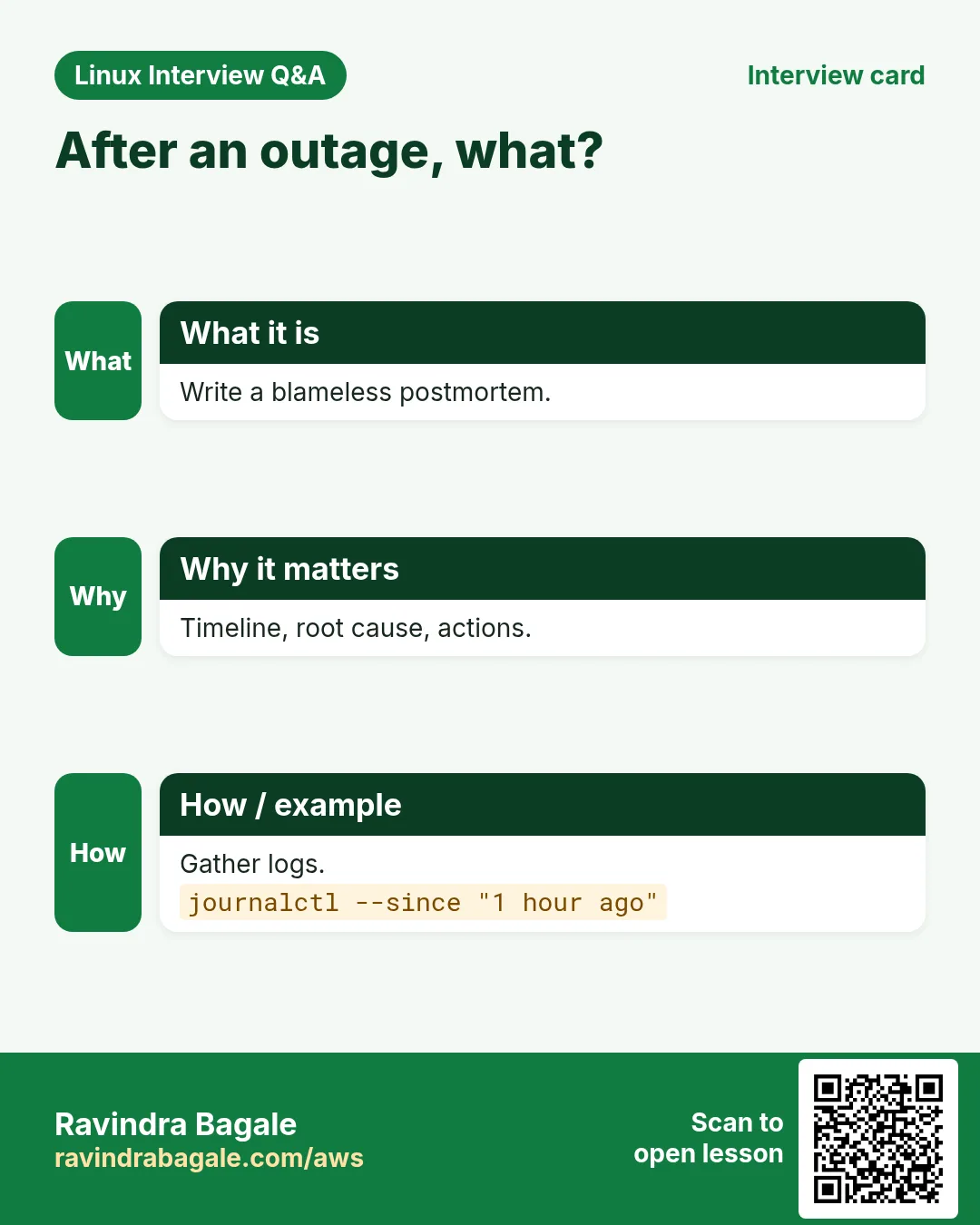
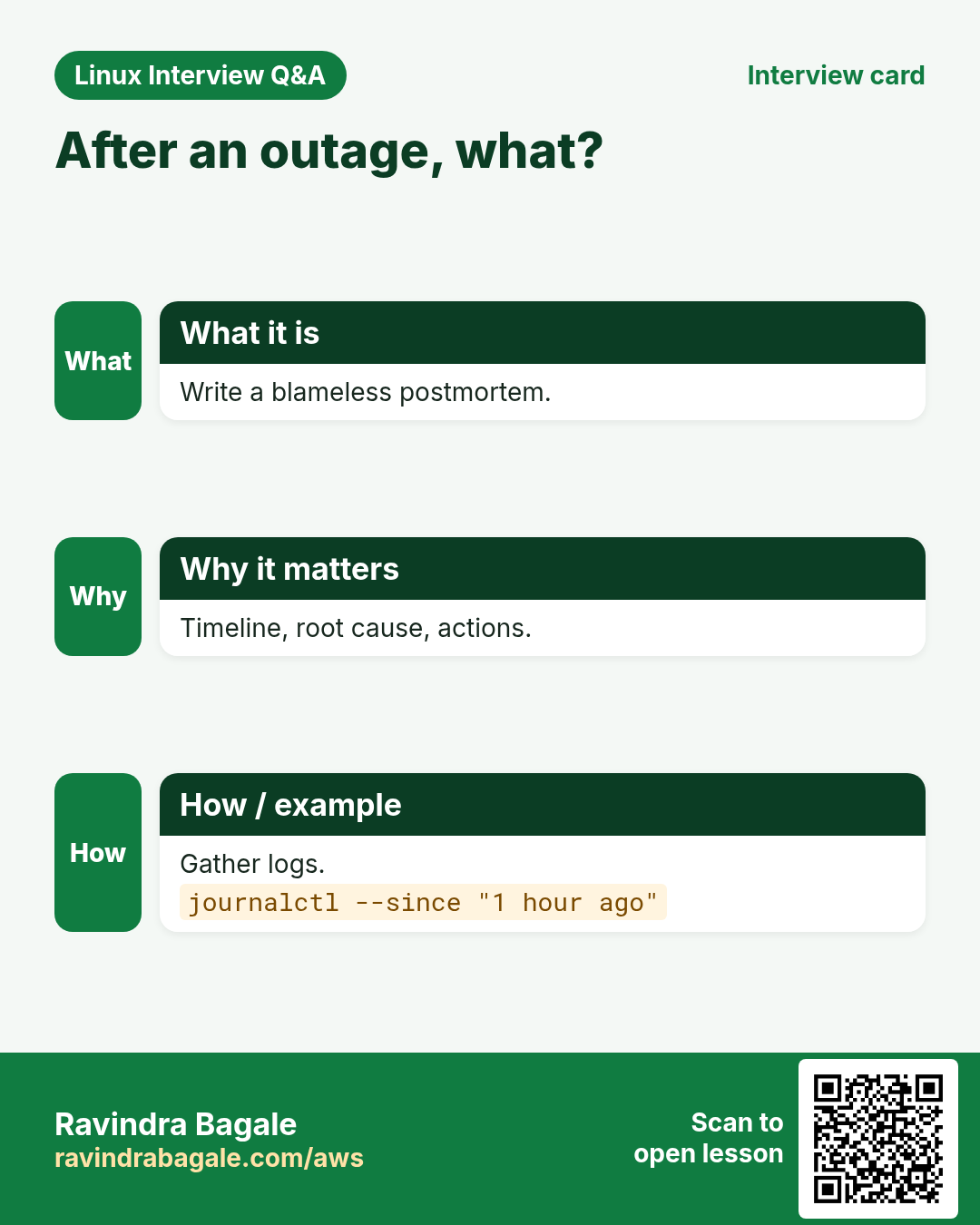
Keep a one-page incident note for every problem: time it started, what users saw, the commands you ran and what they showed, the fix, and how to stop it happening again. After ten notes you will have your own playbook, and interviews become easy.
Ravindra Bagale's Tip – मराठी
प्रत्येक problem साठी एक page incident note ठेवा: कधी सुरू, users ना काय दिसलं, चालवलेल्या commands आणि त्यांनी काय दाखवलं, fix, आणि परत होऊ नये म्हणून काय. दहा notes नंतर तुमचं स्वतःचं playbook तयार, आणि interviews सोपे.
Ravindra Bagale's Tip – हिंदी
हर problem के लिए एक page का incident note रखिए: कब शुरू हुआ, users को क्या दिखा, कौन सी commands चलाईं और उन्होंने क्या दिखाया, fix, और दोबारा न हो इसके लिए क्या. दस notes के बाद आपका अपना playbook तैयार, और interviews आसान.
27. Frequently asked questions
Q. Restart first or investigate first?
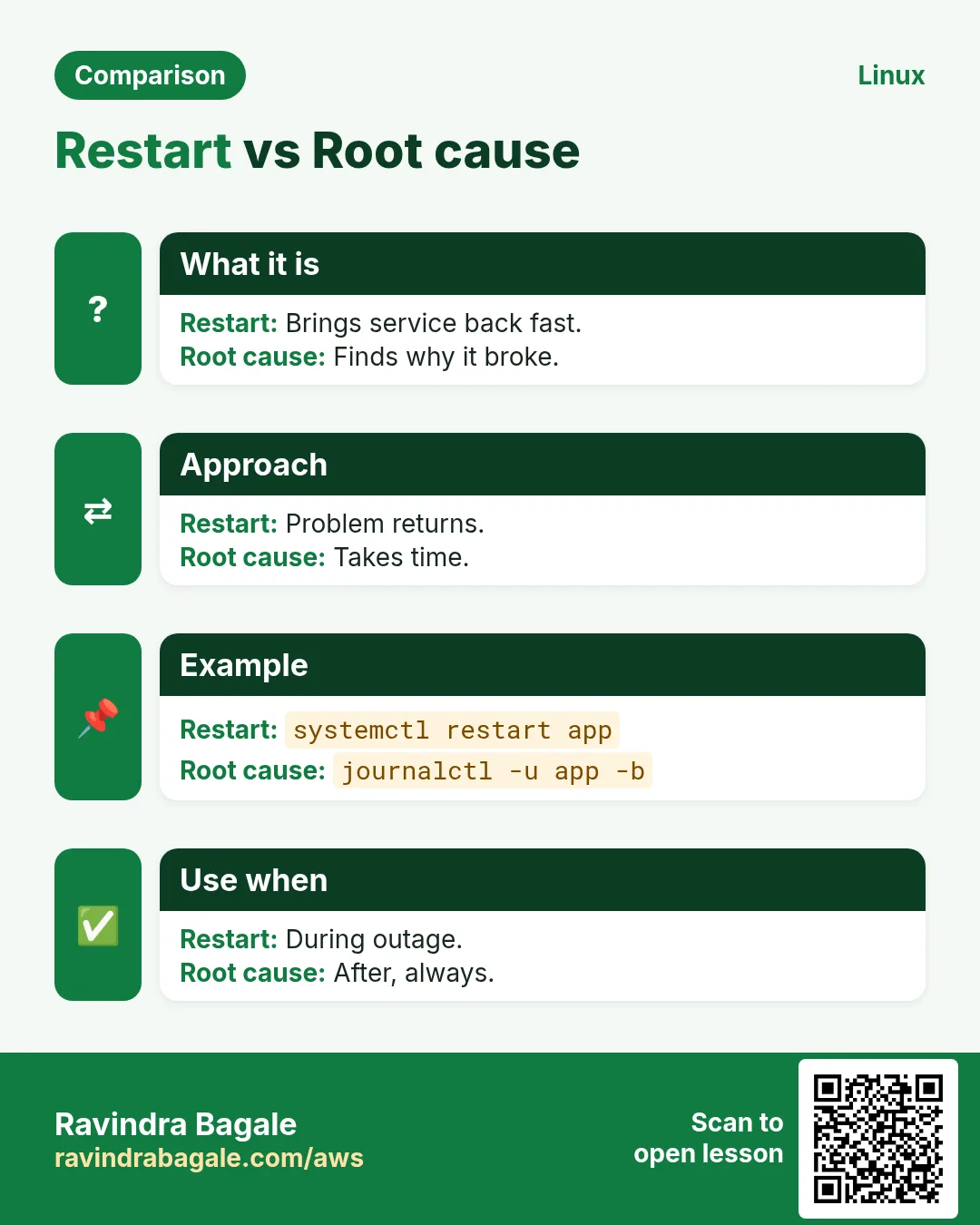
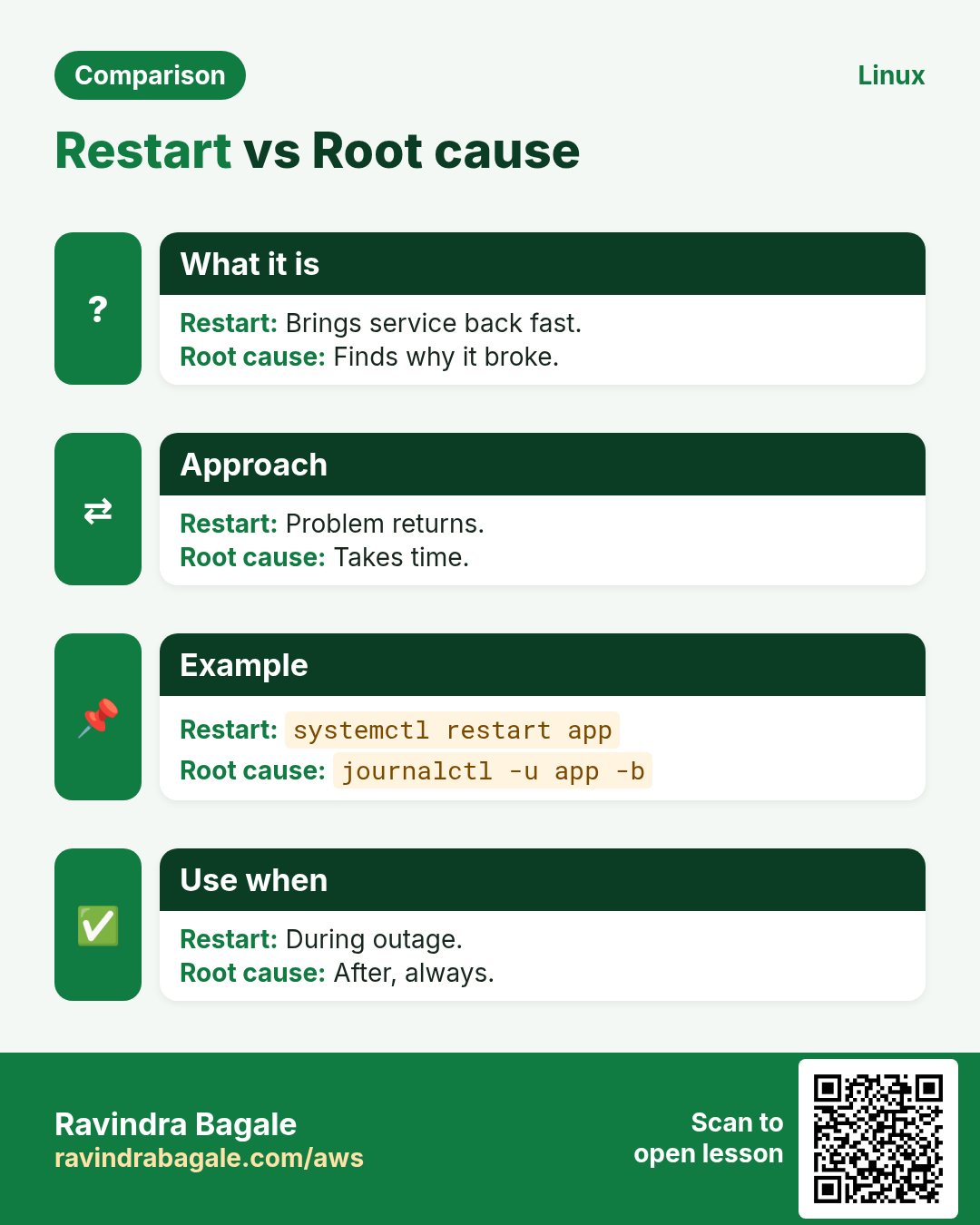
Collect quick evidence (2 min), then restore service.
Q. Where to start?
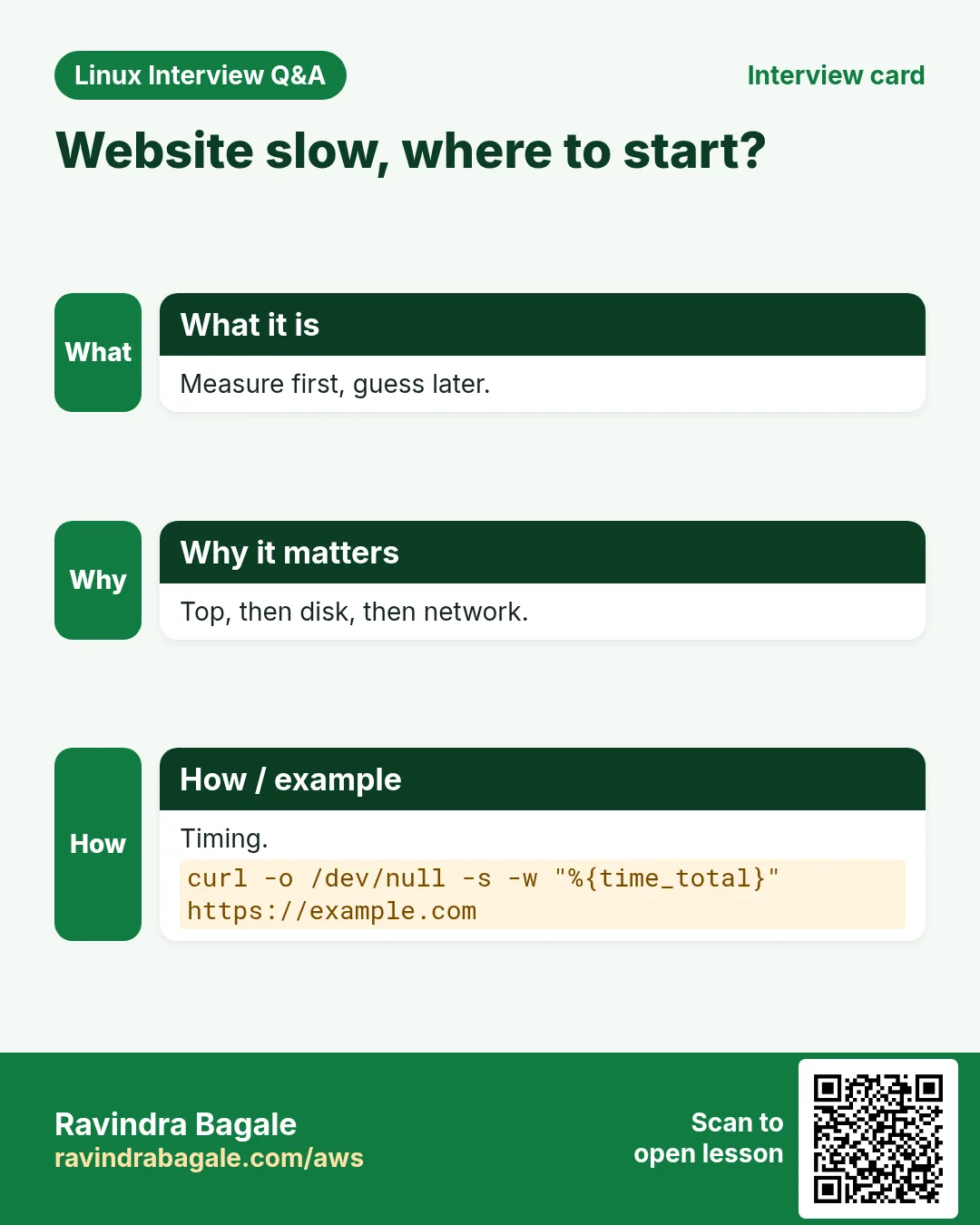
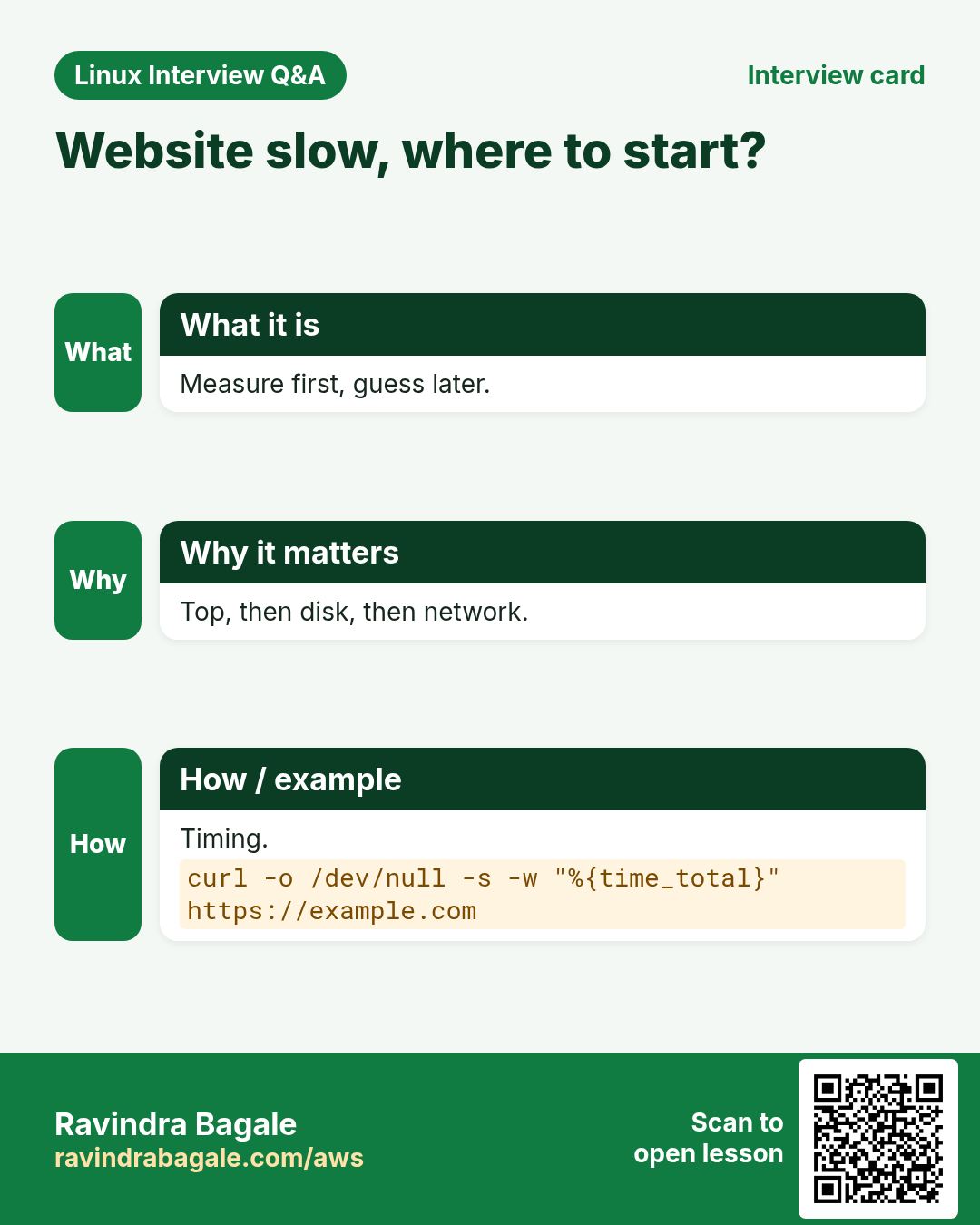
uptime, df, free, systemctl --failed, journalctl -p err.
Q. What is root cause?
The first thing that, if fixed, stops it happening again.
Q. Should I reboot?
Last resort; you lose evidence.
Q. How to avoid fstab lockouts?
nofail and mount -a before reboot.
Q. Hacked server: clean it?
No, rebuild and rotate secrets.
Q. What to put in the note?
Timeline, impact, cause, fix, prevention.
Q. How to practise?
Break things on purpose in a test VM.
28. Interview questions and answers
Beginner level
Q. First commands on a slow server?
uptime, free -h, df -h, top.
Q. See failed services?
systemctl --failed.
Q. Errors in last hour?
journalctl -p err -S -1h.
Q. Who uses port 80?
ss -ltnp.
Mid level level
Q. df full but du small?
Deleted open file; lsof +L1 and restart.
Q. No space but df shows free?
Inodes; df -i.
Q. 502 from nginx?
Check error.log and backend port.
Q. Cron works by hand, not in cron?
PATH/env; use full paths.
Senior level
Q. Walk through a production outage.
Impact, timeline, evidence, restore, root cause, prevention, note.
Q. Server compromised: steps?
Isolate, snapshot evidence, find entry, rebuild, rotate keys, patch.
Q. Boot fails after change?
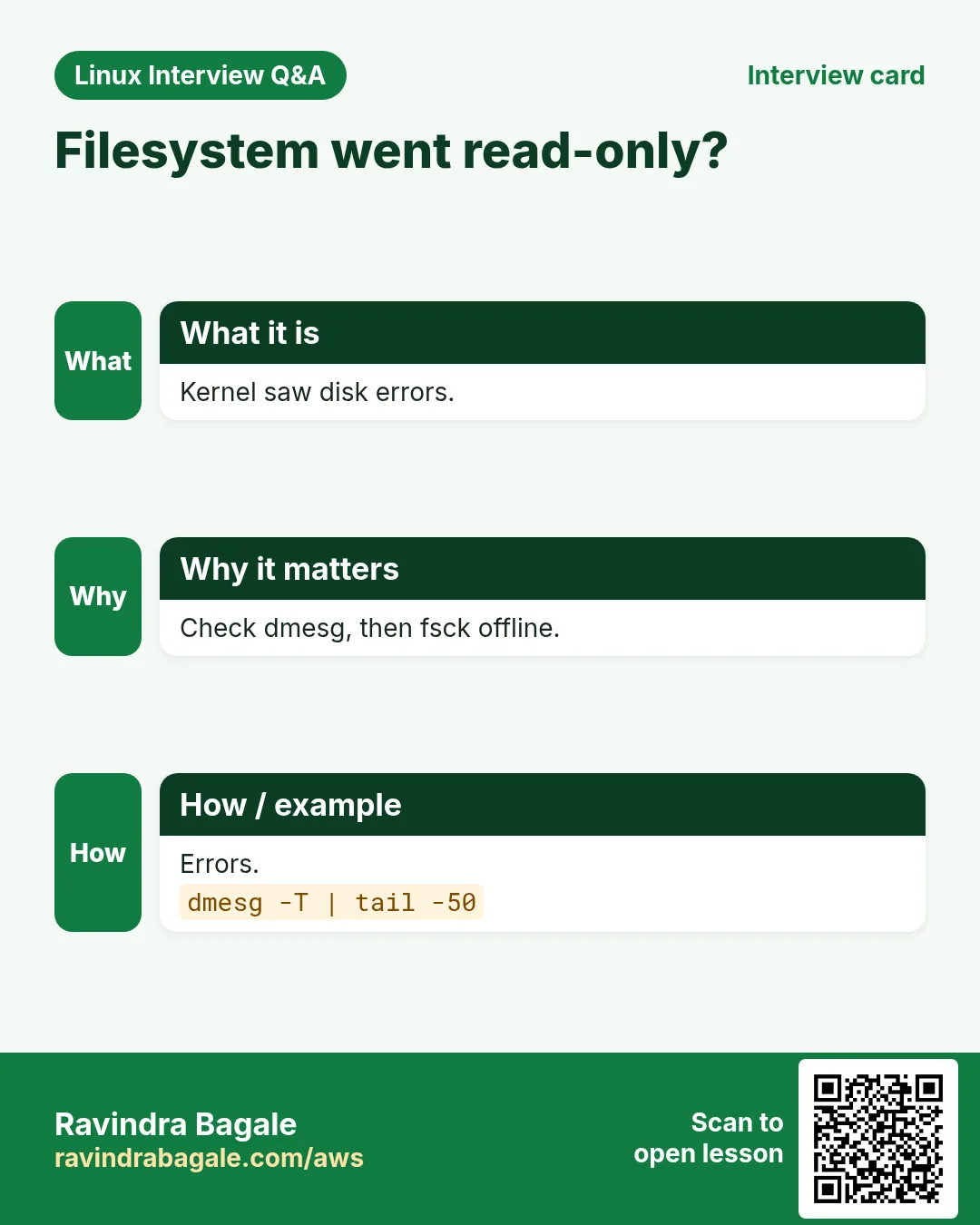
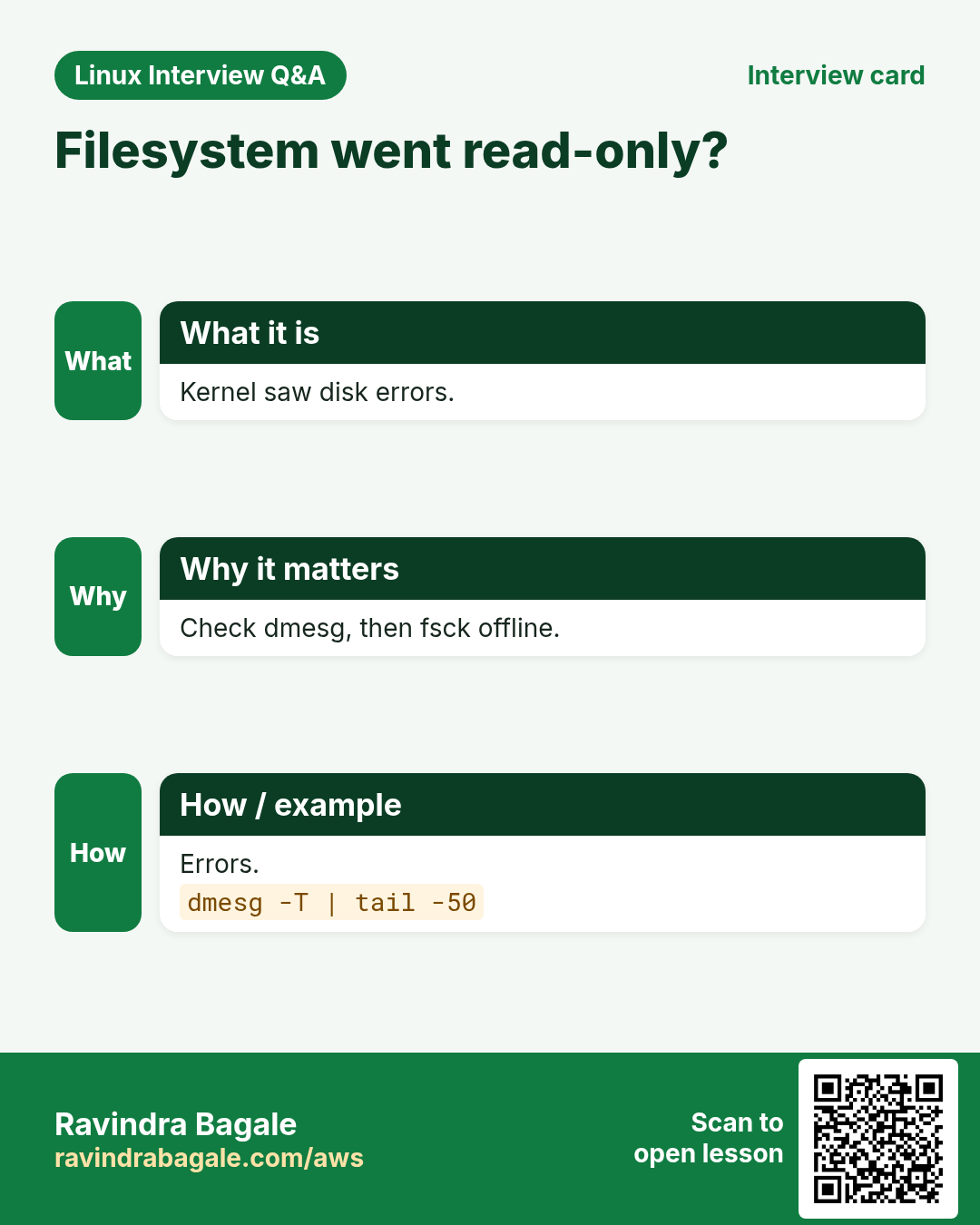
Console/rescue, read journal -b -1, fix fstab or grub, add nofail.
Q. Intermittent drops under load?
Check NIC drops, conntrack, somaxconn, retransmits via ss -s and nstat.
Try at home
- Pick any 5 cases and recreate them on a test VM, then write a one-page incident note for each.
- Write your own 'first five minutes' script with the trouble commands.
Practice Tasks
Amravati Agro Market is a agriculture business in Amravati. Anjali Thakre looks after its IT and cloud work. They count money in INR and run their AWS resources in the ap-south-1 Region. In the tasks below you do real jobs for them using what this lesson teaches. All names, account IDs, IP addresses and numbers are made up for practice.
0 / 18
Easy Inodes of /home
Why: Fast fixes keep BIZ online.
What to do: Show inode usage of /home.
- Find the Linux command that does this job.
- Add the options (like -r or -h) the task needs.
- Add the file names, folders or users in the right order.
- Use sudo if the job changes system files or users. Click Check answer.
Easy Disk with types
Why: Fast fixes keep BIZ online.
What to do: Show disk usage human-readable with filesystem types.
- Find the Linux command that does this job.
- Add the options (like -r or -h) the task needs.
- Add the file names, folders or users in the right order.
- Use sudo if the job changes system files or users. Click Check answer.
Easy Failed units
Why: Fast fixes keep BIZ online.
What to do: List failed systemd service units only.
- Find the Linux command that does this job.
- Add the options (like -r or -h) the task needs.
- Add the file names, folders or users in the right order.
- Use sudo if the job changes system files or users. Click Check answer.
Easy Test nginx
Why: Fast fixes keep BIZ online.
What to do: Test nginx config and dump the full merged config.
- Find the Linux command that does this job.
- Add the options (like -r or -h) the task needs.
- Add the file names, folders or users in the right order.
- Use sudo if the job changes system files or users. Click Check answer.
Easy Time sync
Why: Fast fixes keep BIZ online.
What to do: Show time and NTP sync status.
- Find the Linux command that does this job.
- Add the options (like -r or -h) the task needs.
- Add the file names, folders or users in the right order.
- Use sudo if the job changes system files or users. Click Check answer.
Easy User crontab
Why: Fast fixes keep BIZ online.
What to do: List the crontab of user backup.
- Find the Linux command that does this job.
- Add the options (like -r or -h) the task needs.
- Add the file names, folders or users in the right order.
- Use sudo if the job changes system files or users. Click Check answer.
Medium Top of /var
Why: Fast fixes keep BIZ online.
What to do: Show sizes one level deep under /var, human, one filesystem.
- Find the Linux command that does this job.
- Add the options (like -r or -h) the task needs.
- Add the file names, folders or users in the right order.
- Use sudo if the job changes system files or users. Click Check answer.
Medium Deleted open files
Why: Fast fixes keep BIZ online.
What to do: List deleted-but-open files only under /var.
- Find the Linux command that does this job.
- Add the options (like -r or -h) the task needs.
- Add the file names, folders or users in the right order.
- Use sudo if the job changes system files or users. Click Check answer.
Medium Errors 30 min
Why: Fast fixes keep BIZ online.
What to do: Show error-priority journal entries from the last 30 minutes.
- Find the Linux command that does this job.
- Add the options (like -r or -h) the task needs.
- Add the file names, folders or users in the right order.
- Use sudo if the job changes system files or users. Click Check answer.
Medium Unit last 50
Why: Fast fixes keep BIZ online.
What to do: Show the last 50 lines of the php-fpm unit journal.
- Find the Linux command that does this job.
- Add the options (like -r or -h) the task needs.
- Add the file names, folders or users in the right order.
- Use sudo if the job changes system files or users. Click Check answer.
Medium Who has 3306
Why: Fast fixes keep BIZ online.
What to do: Show the listener on TCP 3306 with process.
- Find the Linux command that does this job.
- Add the options (like -r or -h) the task needs.
- Add the file names, folders or users in the right order.
- Use sudo if the job changes system files or users. Click Check answer.
Medium Walk a path
Why: Fast fixes keep BIZ online.
What to do: Show permissions of every part of /srv/app/data/a.csv.
- Find the Linux command that does this job.
- Add the options (like -r or -h) the task needs.
- Add the file names, folders or users in the right order.
- Use sudo if the job changes system files or users. Click Check answer.
Medium Recent AVCs
Why: Fast fixes keep BIZ online.
What to do: Search SELinux AVC denials since today, interpreted.
- Find the Linux command that does this job.
- Add the options (like -r or -h) the task needs.
- Add the file names, folders or users in the right order.
- Use sudo if the job changes system files or users. Click Check answer.
Medium Chrony sources
Why: Fast fixes keep BIZ online.
What to do: Show chrony time sources verbose.
- Find the Linux command that does this job.
- Add the options (like -r or -h) the task needs.
- Add the file names, folders or users in the right order.
- Use sudo if the job changes system files or users. Click Check answer.
Medium Test renewal
Why: Fast fixes keep BIZ online.
What to do: List certificates certbot manages with expiry dates.
- Find the Linux command that does this job.
- Add the options (like -r or -h) the task needs.
- Add the file names, folders or users in the right order.
- Use sudo if the job changes system files or users. Click Check answer.
Medium Recent logins
Why: Fast fixes keep BIZ online.
What to do: Show the last 10 logins with hostnames at the end.
- Find the Linux command that does this job.
- Add the options (like -r or -h) the task needs.
- Add the file names, folders or users in the right order.
- Use sudo if the job changes system files or users. Click Check answer.
Hard Verify fstab
Why: Fast fixes keep BIZ online.
What to do: Verify /etc/fstab before reboot with findmnt.
- Find the Linux command that does this job.
- Add the options (like -r or -h) the task needs.
- Add the file names, folders or users in the right order.
- Use sudo if the job changes system files or users. Click Check answer.
Hard Conntrack count
Why: Fast fixes keep BIZ online.
What to do: Read the conntrack count straight from /proc.
- Find the Linux command that does this job.
- Add the options (like -r or -h) the task needs.
- Add the file names, folders or users in the right order.
- Use sudo if the job changes system files or users. Click Check answer.
29. Related chapters
- Linux Ops Refresh for DevOps
- Bash Scripting for Automation
- Linux grep and find Commands with Examples
- How to Set Up Passwordless SSH Between Linux Servers
In short
- Read the exact error and ask what changed.
- Health check: uptime, df, free, failed units, recent errors.
- Disk: df -h, df -i, du, lsof +L1.
- Service: status, journal, ss -ltnp, config test.
- Network/security: dig, curl, ausearch, firewall, SG.
- Restore first, then fix the root cause and write it down.
Revision, comparison and interview cards
Revise this lesson in a few minutes. Save the cards on your phone or download them as PNG files. The QR code on each card opens this lesson.
More cards: Ravi Sir's Cards.