How to Fix WordPress After the Server IP Changes
Your WordPress site runs on EC2. Stop the instance, start it again, and the site opens without any styling, its links hang and you cannot log in. In this chapter you find out why, look inside the database where the old address is stored, back up and restore the whole database with mysqldump, and change the address the safe way with WP-CLI. Then you install new themes, understand why WordPress suddenly asks for FTP details, and fix the next three problems every new WordPress server meets: a 404 after a theme change, "cannot generate responsive image sizes", and the upload size limit.
What you'll learn in this class
- Why a WordPress site breaks after an EC2 stop and start, and where the old IP is stored
- Preventing it: an Elastic IP or a domain before the site goes live
- Backing up a database with
mysqldumpand>, and reading the.sqlfile - Copying the backup to your laptop and back with
scp - Restoring with
DROP,CREATEand<, and the commonERROR 1049 - The safe address change:
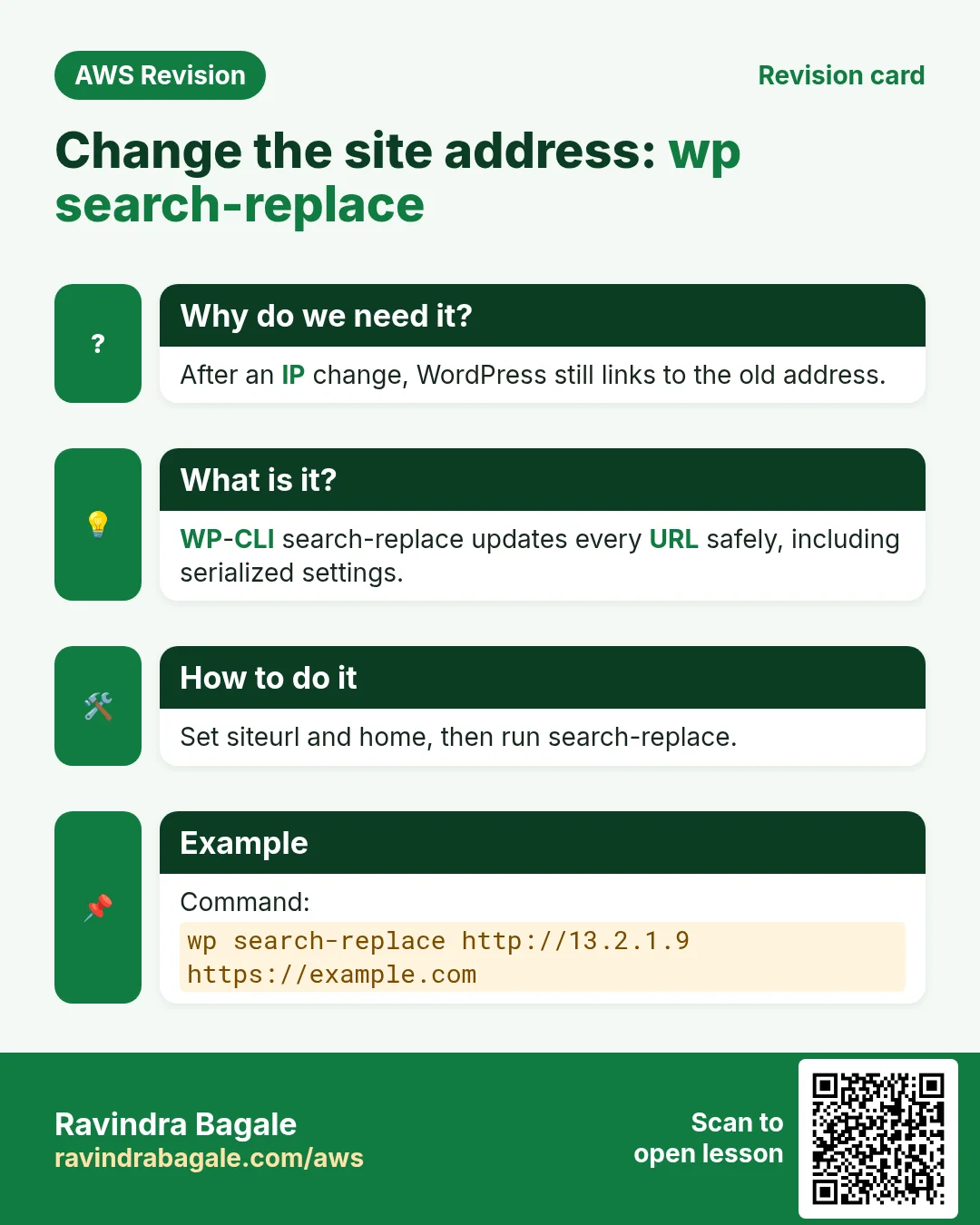
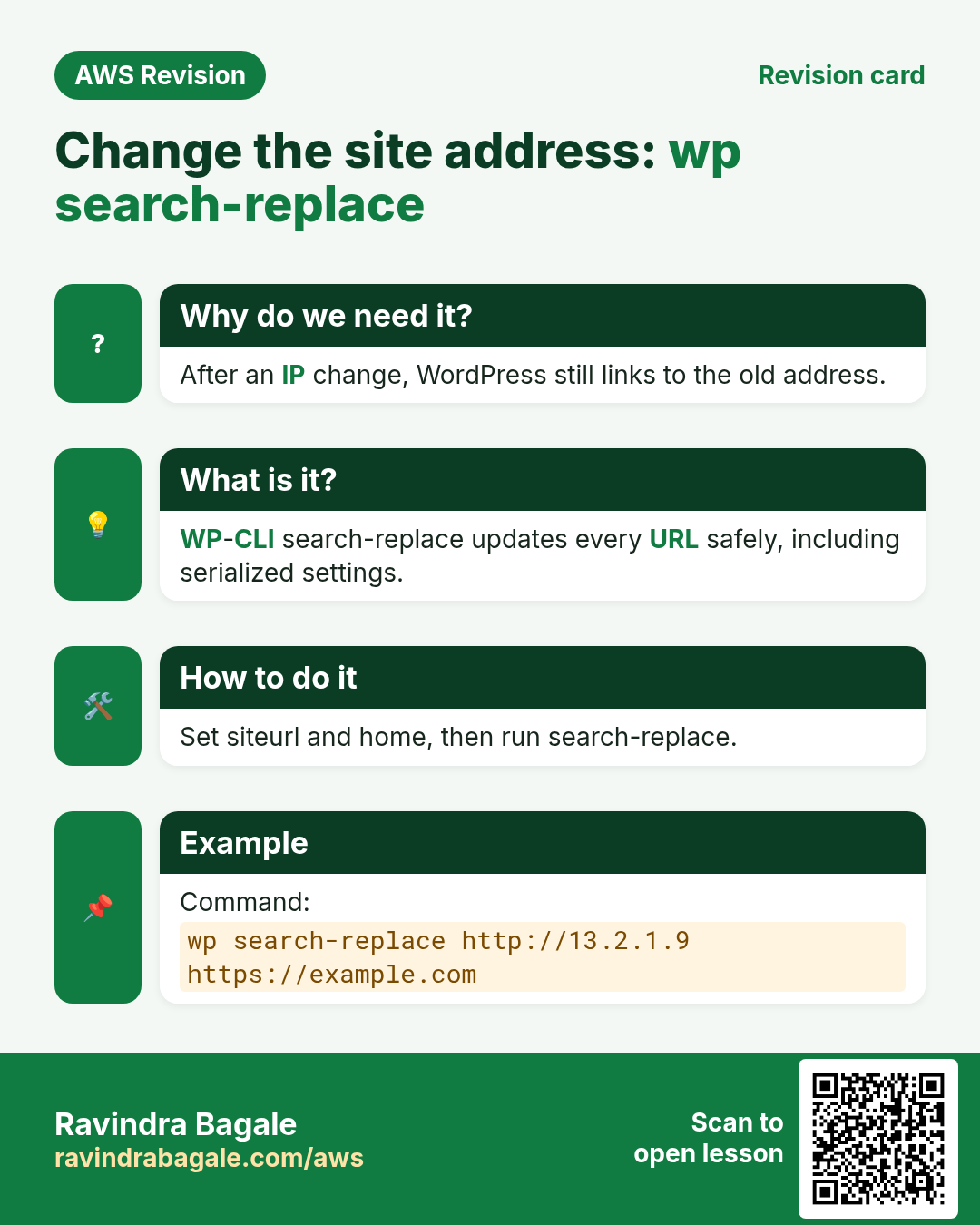
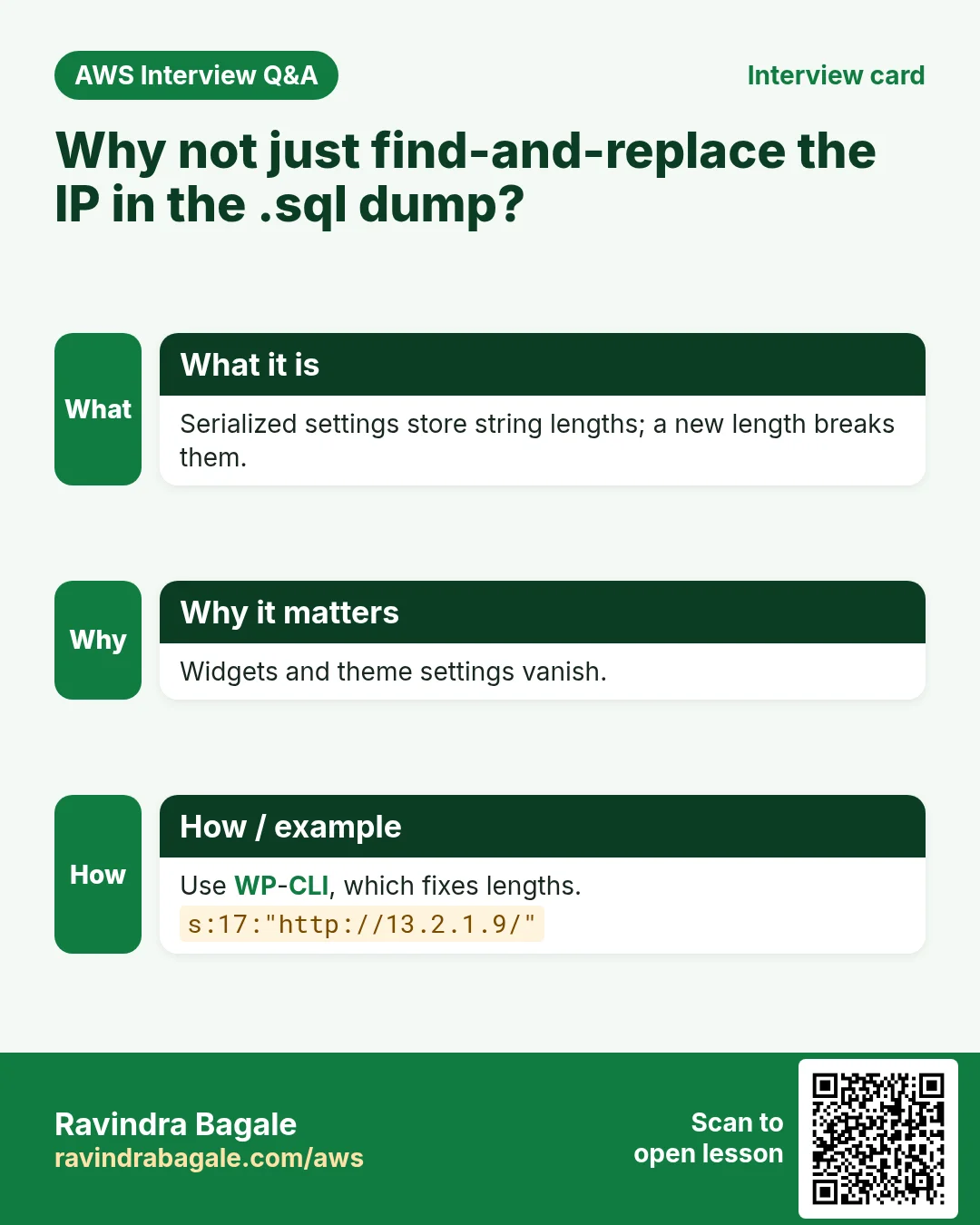
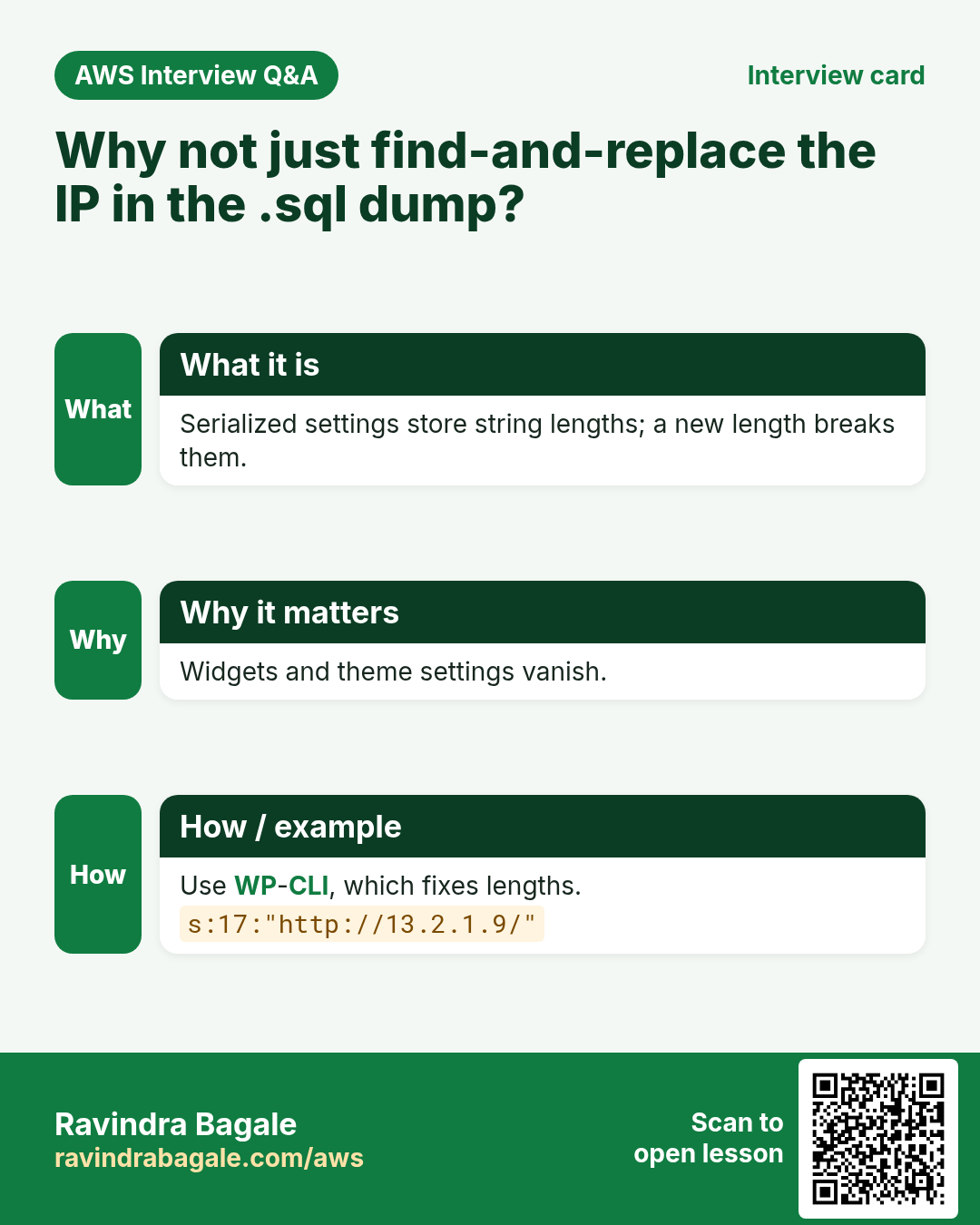
siteurlandhome, then WP-CLIwp search-replace - Why a plain text replace in a dump can break serialized settings
- Tab completion,
history, and why files must be inside/usr/share/nginx/html - Installing themes, the "Connection Information" prompt and its real cause
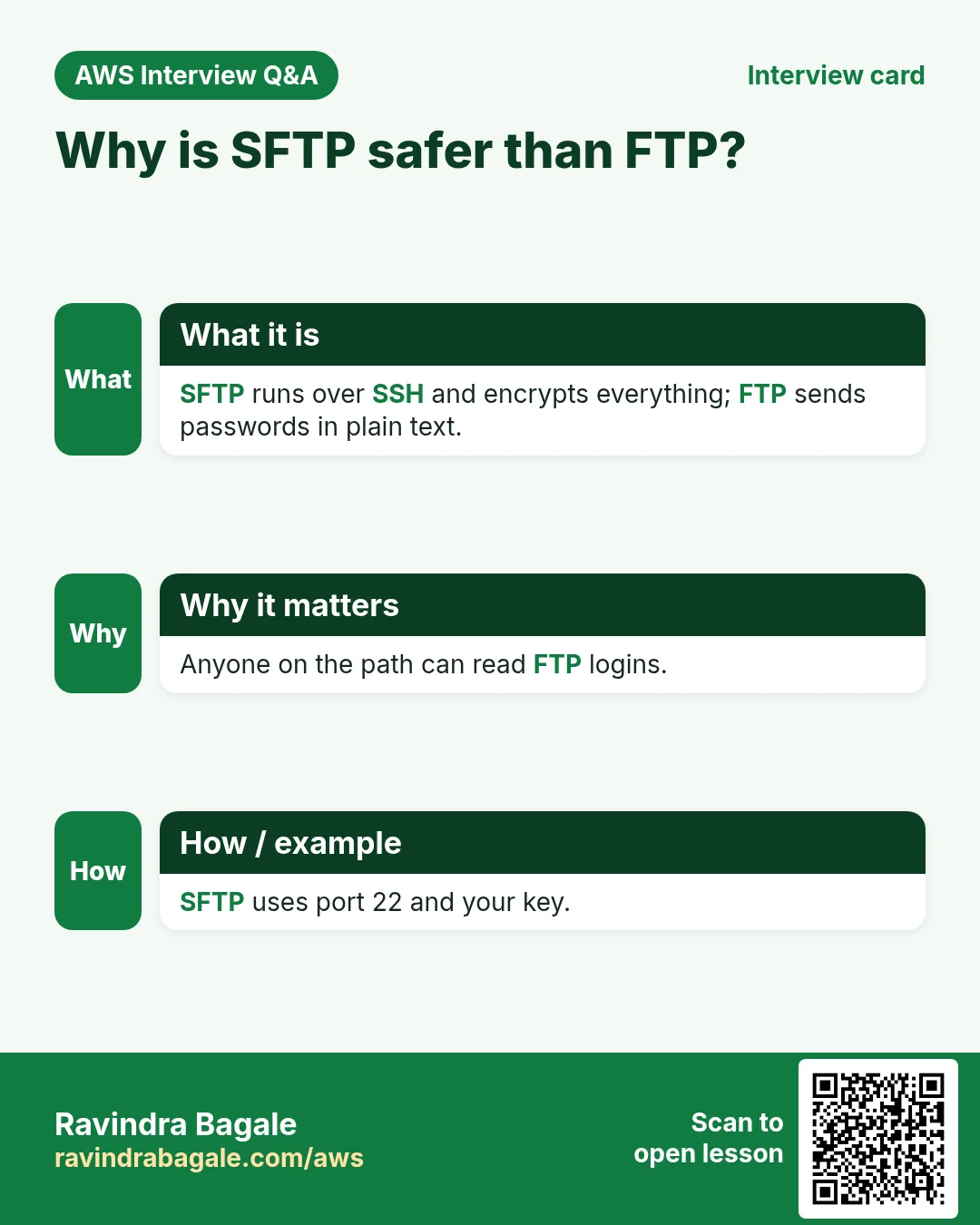
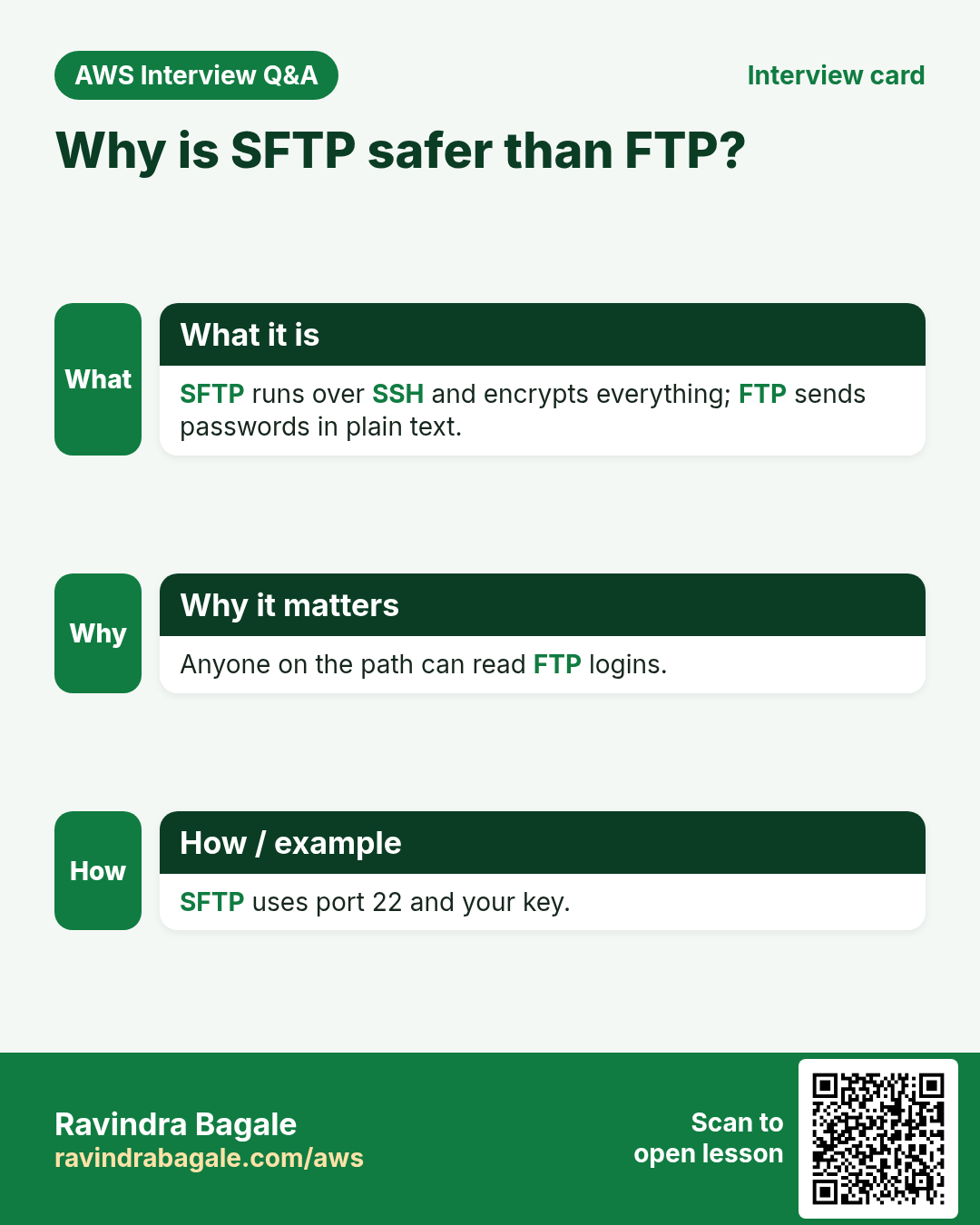
- vsftpd as an option, and why SFTP is safer than FTP
- Fixing a 404 after a theme change, missing image sizes, and the upload size limit
- Earning from a WordPress site, and building portfolio sites
1. Why the site breaks after a stop and start
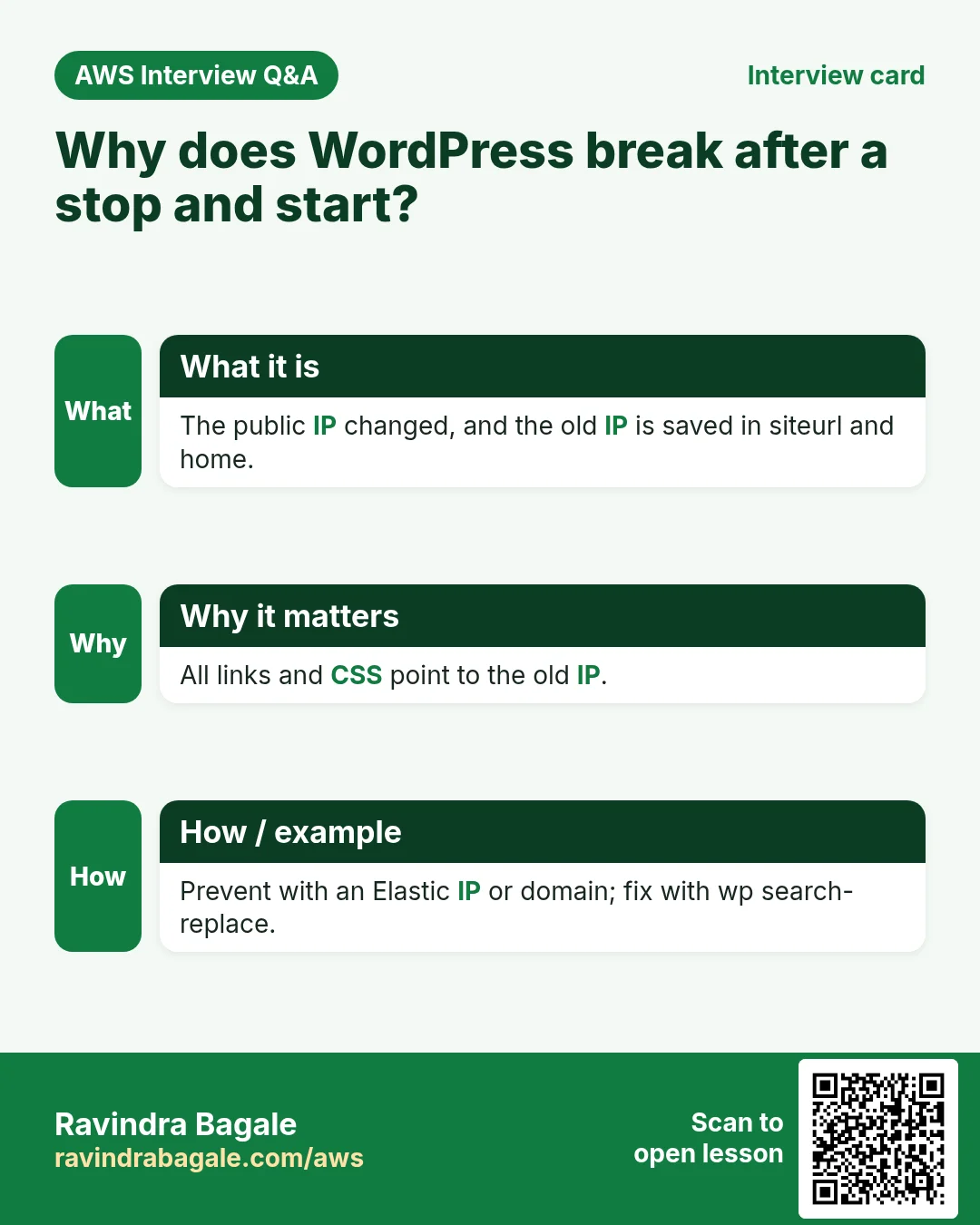
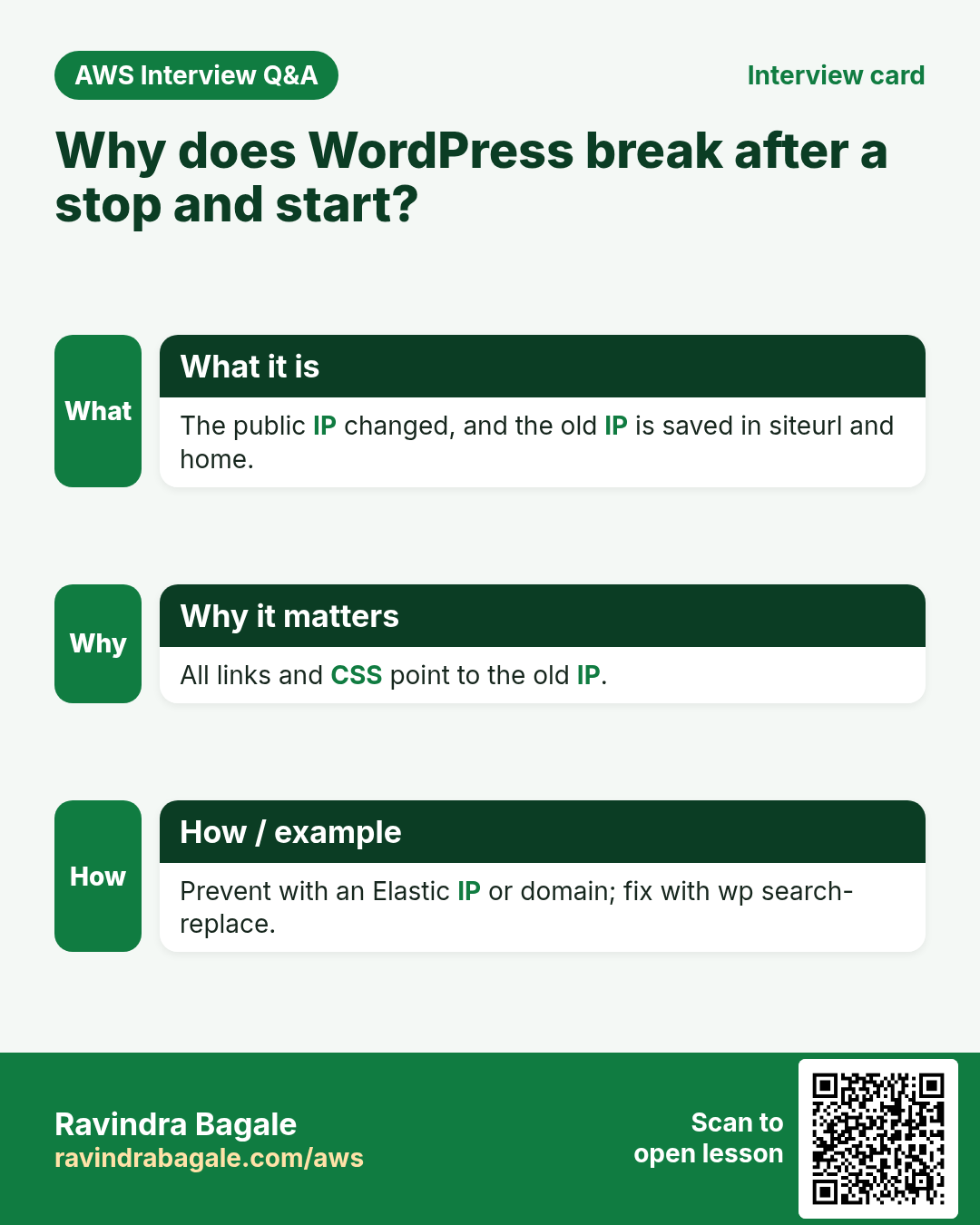
Why: an EC2 instance without an Elastic IP gets a new public IP every time it is stopped and started. The server works at the new IP, but WordPress does not know that.
What: WordPress stores full addresses, including the IP, in its database:
- In the
wp_optionstable, siteurl and home hold the address you installed WordPress at, for examplehttp://3.3.3.3. Every page builds its CSS, script and link addresses from it. - In the
wp_poststable, every post you wrote keeps its links and images as full URLs, such as<img src="http://3.3.3.3/wp-content/uploads/bread.jpg">.
Classroom line
Every post we publish is saved inside the database.
Class मधलं वाक्य
आपण जेवढ्या posts upload करतोय, त्या सगळ्या database मध्ये save होतायत.
Classroom line – हिंदी
"Hum jitne bhi post upload kar rahe hain, wo sab database ke andar save ho rahe hain."
What you see at the new IP, for example http://13.13.13.13:
- The page text arrives, but without styling: the stylesheet link still points to the old IP, where nobody answers.
- Clicking a post or an image goes to the old IP and hangs. The browser's status bar shows it waiting for the old address.
/wp-admin/redirects to the old IP'swp-login.php, so you cannot log in to fix it from the dashboard.
How to see it in the database:
    sudo mysql -u root -p
    USE wordpressdb;
    SHOW TABLES;
    SELECT option_name, option_value FROM wp_options WHERE option_name IN ('siteurl','home');
    SELECT post_content FROM wp_posts;
![A black terminal. MariaDB prints Database changed, then the prompt MariaDB [wordpressdb]> show tables; and a table headed Tables_in_wordpressdb listing wp_commentmeta, wp_comments, wp_links, wp_options, wp_postmeta, wp_posts, wp_term_relationships, wp_term_taxonomy, wp_termmeta, wp_terms, wp_usermeta and wp_users.](../../assets/img/aws/wordpress-ip-change-mysqldump-backup-and-themes-01-show-tables-wordpress-tables.webp)
Whiteboard: SHOW TABLES in wordpressdb: the 12 wp_ tables that the WordPress installer created, including wp_options and wp_posts.
Classroom line
We didn't create these tables; WordPress did.
Class मधलं वाक्य
हे आपण create नाही केलं, हे WordPress ने create केलंय.
Classroom line – हिंदी
"Ye humne create nahi kiya, ye WordPress ne create kiya hai."
Figure 1. After a stop and start the browser is at the new IP, but wp_options (siteurl, home) and the HTML inside wp_posts still hold the old IP, so styling, links and wp-admin point to an address that no longer answers.
2. Prevent it: a fixed address before going live
Why: repairing the address is work and carries risk. Not needing it is better.
How:
- Elastic IP: in the EC2 console, allocate an Elastic IP and associate it with the instance. The public IP then stays the same across stops and starts.
- Domain name: point a domain, such as
www.example.com, at the Elastic IP with an A record, and install WordPress at the domain. WordPress then saves the name, not the IP. - Do this before you install WordPress or show the site to anyone. A company website gets its Elastic IP or domain from day one.
- Release an Elastic IP you no longer use.
Classroom line
To avoid this, companies always use a static IP.
Class मधलं वाक्य
असा problem येऊ नये, म्हणून company मध्ये नेहमी static IP वापरायचा.
Classroom line – हिंदी
"Aisa problem na aaye, isliye company mein hamesha static IP use karna hai."
Figure 2. An auto-assigned public IP changes after a stop and start; an Elastic IP stays the same; a domain pointing at the Elastic IP lets WordPress save a name instead of an IP.
For a site that has already moved, the rest of this chapter shows how to take a backup and then change the stored address safely.
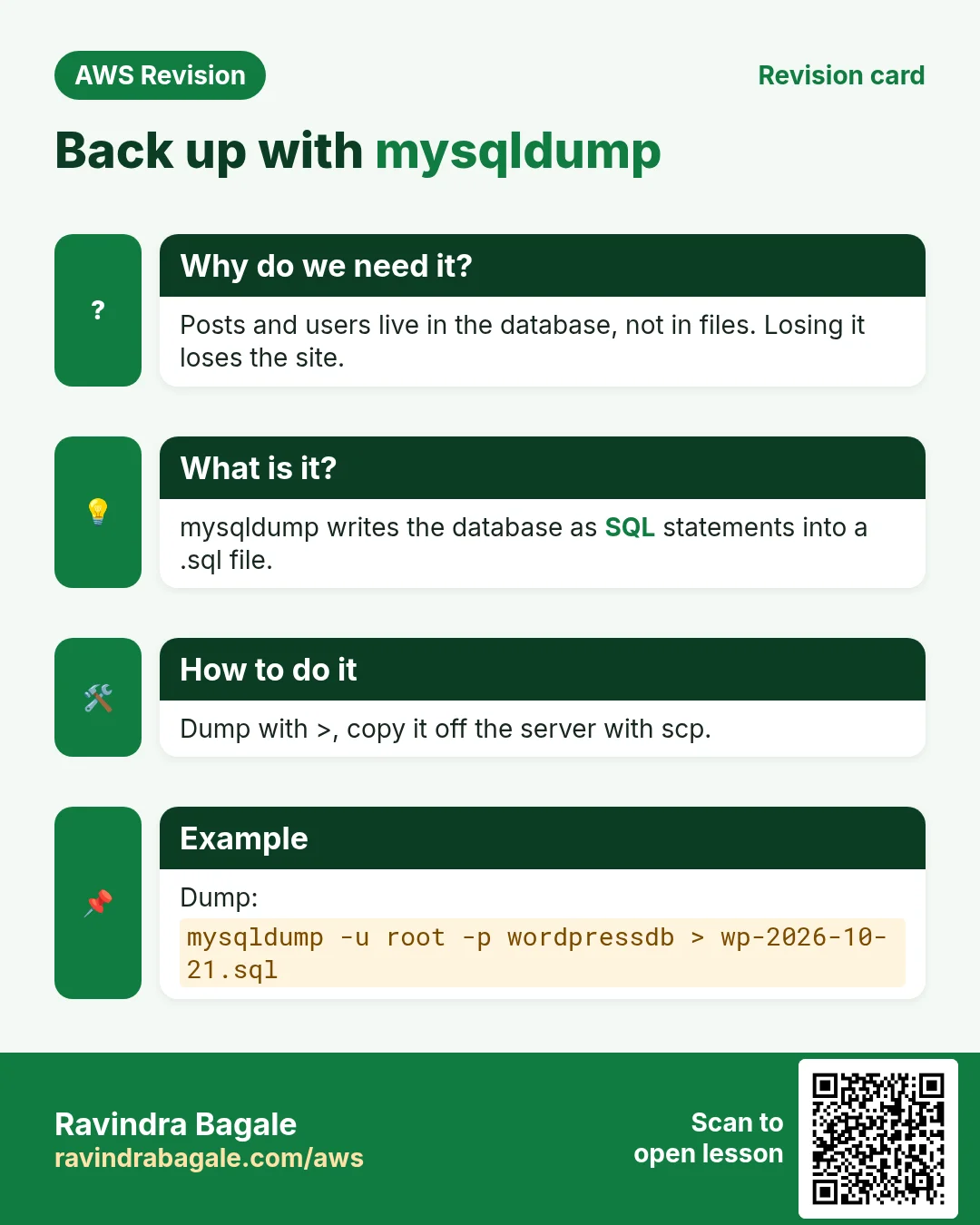
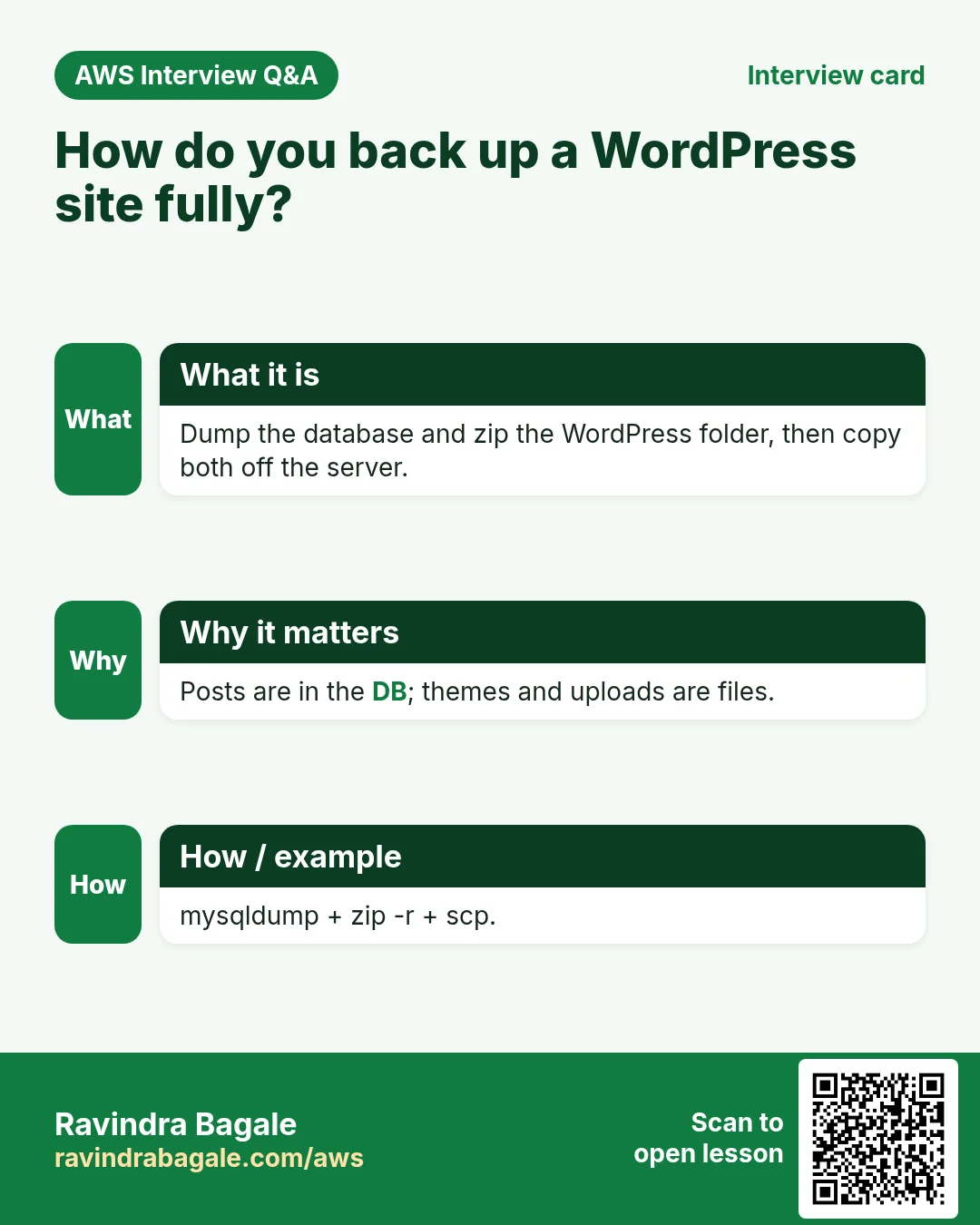
3. Back up the database with mysqldump
Why: before you change anything inside a database, keep a copy you can go back to. A backup is also how you move a site to another server.
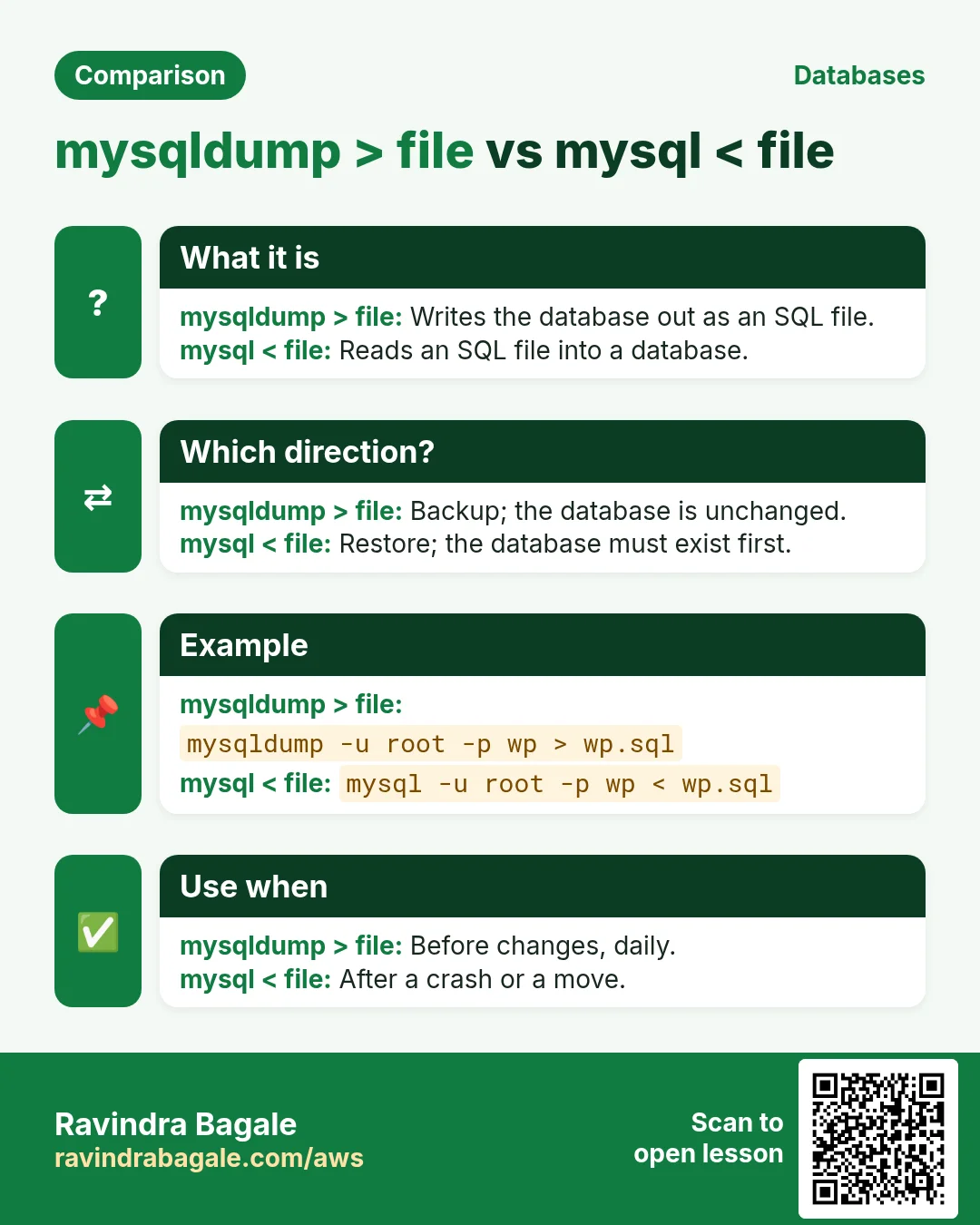
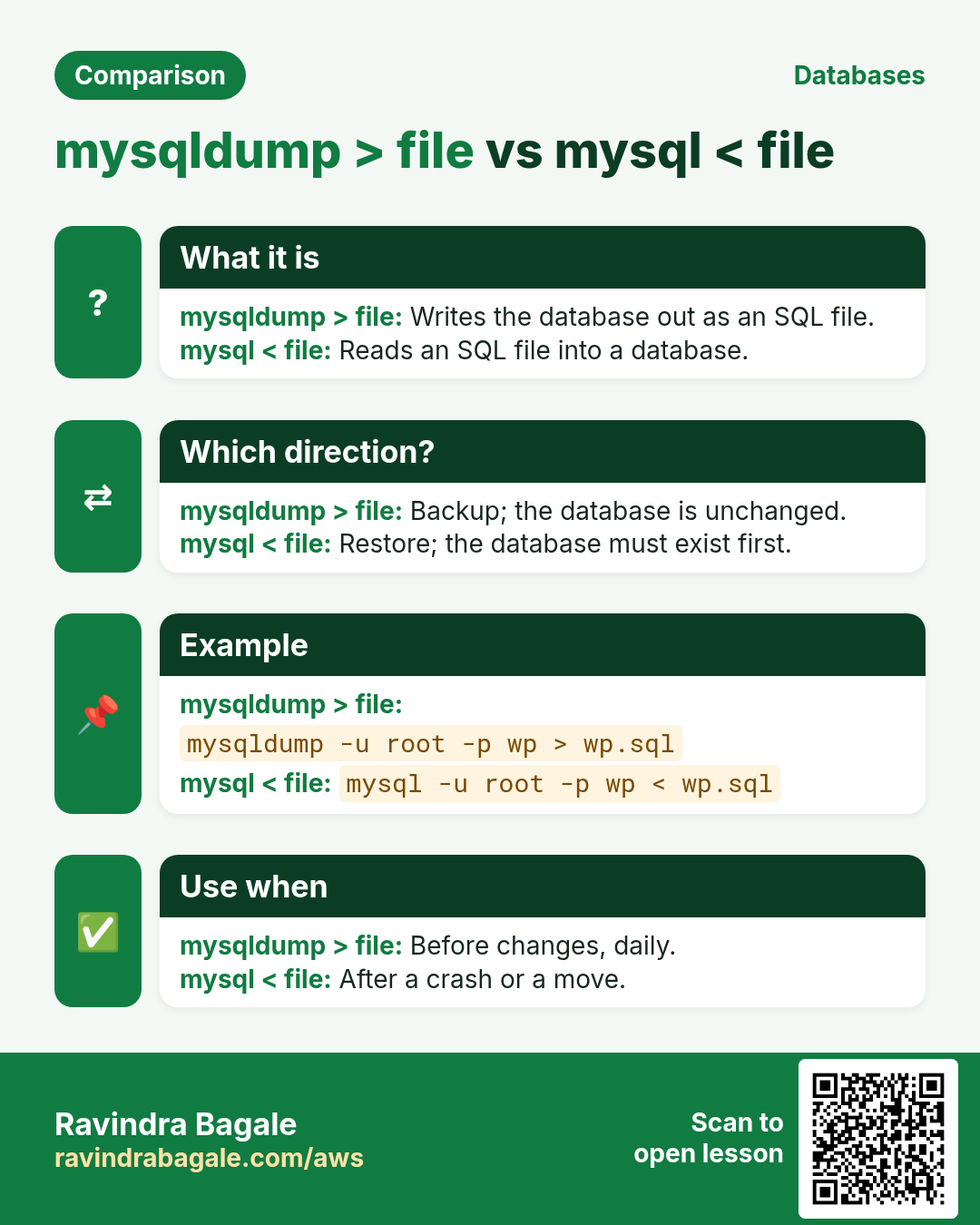
What: mysqldump writes a whole database as one plain-text file of SQL commands. The > sign sends a command's output into a file instead of the screen.
How:
    sudo mysqldump -u root -p wordpressdb > wp.sql
    ls -l wp.sql
- Type the MariaDB root password when asked. The file
wp.sqlappears in your current folder. >creates the file, or overwrites it if it already exists. Use a new name, such aswp-before-change.sql, to keep an older backup.- Open it with
nano wp.sqlorless wp.sql, and close it without saving.
What is inside wp.sql:
- For each of the 12 tables:
DROP TABLE IF EXISTS, thenCREATE TABLEwith its columns, thenINSERT INTOwith all its rows. - Your posts, settings and the old IP are all there as readable text.
- There is no
CREATE DATABASEline, so a restore needs a database that already exists.
Figure 3. wp.sql is plain SQL: for every table DROP TABLE IF EXISTS, CREATE TABLE and INSERT INTO. There is no CREATE DATABASE, and the old IP is inside as text.
4. Copy the backup off the server with scp
Why: a backup that lives only on the server is lost together with the server. Keep a copy on your laptop.
How: run these on your laptop, in the folder that holds your key:
-
Download, server to laptop (the
.at the end means "this folder"):scp -i mykey.pem ec2-user@PUBLIC_IP:/home/ec2-user/wp.sql . -
Upload, laptop to server:
scp -i mykey.pem wp.sql ec2-user@PUBLIC_IP:/home/ec2-user/ -
scpuses the same key and user asssh. ReplacePUBLIC_IPwith the server's current IP. - Before you upload a changed file with the same name, rename the old one on the server, for example
mv wp.sql old-wp.sql, so that you still have it.
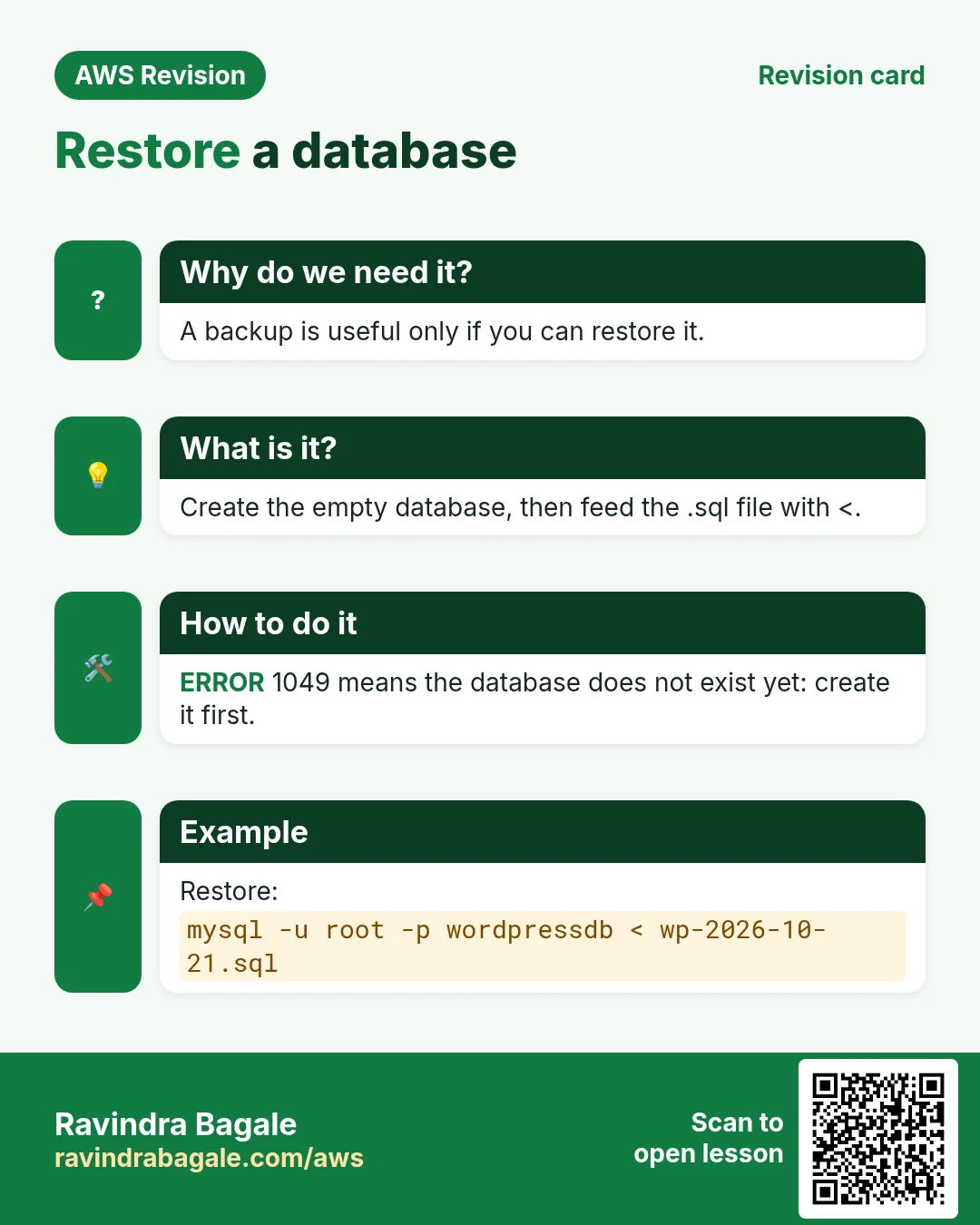
5. Restore the database
Why: a restore puts the backup back, after a mistake or on a new server.
How:
-
Log in with
sudo mysql -u root -pand empty the database by dropping it and creating it again:DROP DATABASE wordpressdb; CREATE DATABASE wordpressdb; EXIT; -
Feed the file back in.
<sends a file into a command:sudo mysql -u root -p wordpressdb < wp.sql -
Check:
USE wordpressdb;andSHOW TABLES;list the 12 tables again. - Drop the database only after you have checked that
wp.sqlis complete; it is your only copy of the site's content. - The same database name is used everywhere: in
mysqldump, inCREATE DATABASE, in the restore command and inwp-config.php.
Classroom line
Drop the old database, create an empty one, and restore into it.
Class मधलं वाक्य
जुना database एकदा delete करायचा, परत रिकामा create करून त्यात restore करायचा.
Classroom line – हिंदी
"Purana database ek baar delete karte hain, phir se empty create karke usme restore karte hain."
A common error:
ERROR 1049 (42000): Unknown database 'wordpresdb'
This means there is no database with that name: here wordpresdb is a typo for wordpressdb. Run SHOW DATABASES;, compare the spelling letter by letter, and run the command again.
Figure 4. Animation: back up with mysqldump and >, copy the file with scp, drop and create an empty database, restore with mysql and <. ERROR 1049 means the database name is misspelled.
6. The safe way to change the address
Why: after a stop and start, the old IP sits in many places in the database. You need to replace all of them without damaging the settings.
What goes wrong with a plain text replace: you could download wp.sql, open it in an editor, replace http://3.3.3.3 with http://13.13.13.13 everywhere, upload it and restore it. Posts and links then work, but some settings may be silently lost:
- Themes, plugins and widgets save their settings in a serialized format, where every piece of text carries its length, for example
s:42:"http://3.3.3.3/wp-content/uploads/logo.png". - A text editor or
sedchanges the text but not the number. With a new IP of a different length the number is now wrong, WordPress cannot read the value, and that setting is lost without any error. - A plain replace is only harmless when the old and new addresses have exactly the same length. Even then, the method below is better.
Classroom line
For many changes inside the database, you have to find and replace.
Class मधलं वाक्य
Database मध्ये भरपूर changes करायचे असतील तर find and replace करावं लागेल.
Classroom line – हिंदी
"Database ke andar bahut saare changes karne hain to find and replace karna padega."
Figure 5. Animation: a serialized setting stores the length of each text (s:42). A plain replace changes the text to 46 characters but leaves s:42, so WordPress cannot read it; wp search-replace updates the length to s:46.
How, step by step:
- Back up first:
sudo mysqldump -u root -p wordpressdb > before-ip-change.sql. -
Fix the two saved addresses so that wp-admin works again. In
sudo mysql -u root -p:USE wordpressdb; UPDATE wp_options SET option_value='http://13.13.13.13' WHERE option_name IN ('siteurl','home'); -
Install WP-CLI, the WordPress command line:
curl -O https://raw.githubusercontent.com/wp-cli/builds/gh-pages/phar/wp-cli.phar php wp-cli.phar --info chmod +x wp-cli.phar sudo mv wp-cli.phar /usr/local/bin/wp -
Preview the replace. Run it as
apache, the php-fpm user, from the WordPress folder.--dry-runonly counts:cd /usr/share/nginx/html/wordpress sudo -u apache /usr/local/bin/wp search-replace 'http://3.3.3.3' 'http://13.13.13.13' --skip-columns=guid --dry-run -
Run it for real by repeating the command without
--dry-run. It changes posts, links and serialized settings, and fixes each length. - Check:
curl -I http://13.13.13.13/, then open a post and/wp-admin/. Styling, links and login are all on the new IP.
Notes:
- Include
http://in both addresses, so that only URLs change and not some other number that happens to look like the IP. --skip-columns=guidleaves theguidcolumn alone; it is a permanent ID of each post, not a link.- Keep
before-ip-change.sqluntil you are sure everything works. If something goes wrong, restore it as in section 5.
Classroom line
Now click any post; it works.
Class मधलं वाक्य
आता कुठल्याही post वर click करा, चालेल.
Classroom line – हिंदी
"Ab kisi bhi post pe click karo, kaam karega."
Figure 6. The safe address change in five steps: back up, fix siteurl and home in wp_options, preview wp search-replace with --dry-run, run it for real, then check and keep the backup.
7. Two terminal habits: Tab and history
Why: WordPress paths are long (/usr/share/nginx/html/wordpress/wp-content/...). Tab saves typing and typos, and history lets you repeat a long command you ran earlier.
Tab completion: type the start of a file or folder name and press Tab; the shell completes it.
- If two names start the same way, such as
DocumentsandDownloads, thencd Do+ Tab cannot choose. Press Tab twice to see both. - Type one more letter,
cd Dow+ Tab, and it completes toDownloads. - Tab also prevents typos such as
wordpresdbin file names and paths.
Classroom line
Two folders start with DO, Documents and Downloads; so which should it open?
Class मधलं वाक्य
"DO var don folder aahet, Documents ani Downloads; mag to kutla open karu?"
DO वर दोन folder आहेत, Documents आणि Downloads; मग तो कुठला open करू?
Classroom line
Two folders start with DO, Documents and Downloads; so which should it open?
Classroom line
Type DOW and it understands.
Class मधलं वाक्य
"Aapan DOW lihila tar to samjun gheil."
आपण DOW लिहिलं तर तो समजून घेईल.
Classroom line
Type DOW and it understands.
history: history prints the commands you ran in this shell, numbered, in order. history | grep vsftpd shows only the lines with vsftpd. Use it to review the steps you followed or to write your own notes.
8. Your files must be inside /usr/share/nginx/html
Why: nginx on Amazon Linux serves only what is inside its web root, /usr/share/nginx/html (or the root you set in the server block). A page saved in your home folder, /home/ec2-user, is never shown.
How:
-
Move or copy the file into the web root:
sudo mv ~/index.php /usr/share/nginx/html/ -
WordPress itself lives in
/usr/share/nginx/html/wordpress, and nginx'srootpoints there. - A
404 Not Foundfor a file you are sure you created usually means it is in the wrong folder. Check withls -l /usr/share/nginx/html.
Classroom line
The page shows only if it's exactly inside that folder.
Class मधलं वाक्य
"Page barobar tyachya aat asel tarch disto."
Page बरोबर त्याच्या आत असेल तरच दिसतो.
Classroom line
The page shows only if it's exactly inside that folder.
9. Install a theme
Why: a theme changes the whole look of the site without touching the content. The directory at wordpress.org has thousands of free themes.
How:
- Log in to
/wp-admin/and go to Appearance > Themes > Add New. - Search or browse, click Install, then Activate.
- Open the site and compare. Many themes look like their demo only after you customise them under Appearance > Customize or the site editor.
- Some themes have a free version with a paid upgrade for extra features; the free version is enough for practice.
Classroom line
Theme makers say they need to earn money too.
Class मधलं वाक्य
"Te mhananar, aamhala paise kamvayla pahijet."
ते म्हणणार, आम्हाला पैसे कमवायला पाहिजेत.
Classroom line
Theme makers say they need to earn money too.
10. "Connection Information": why WordPress asks for FTP
Why: when you click Install, WordPress may show a Connection Information form asking for a Hostname, FTP Username and FTP Password, instead of installing the theme.
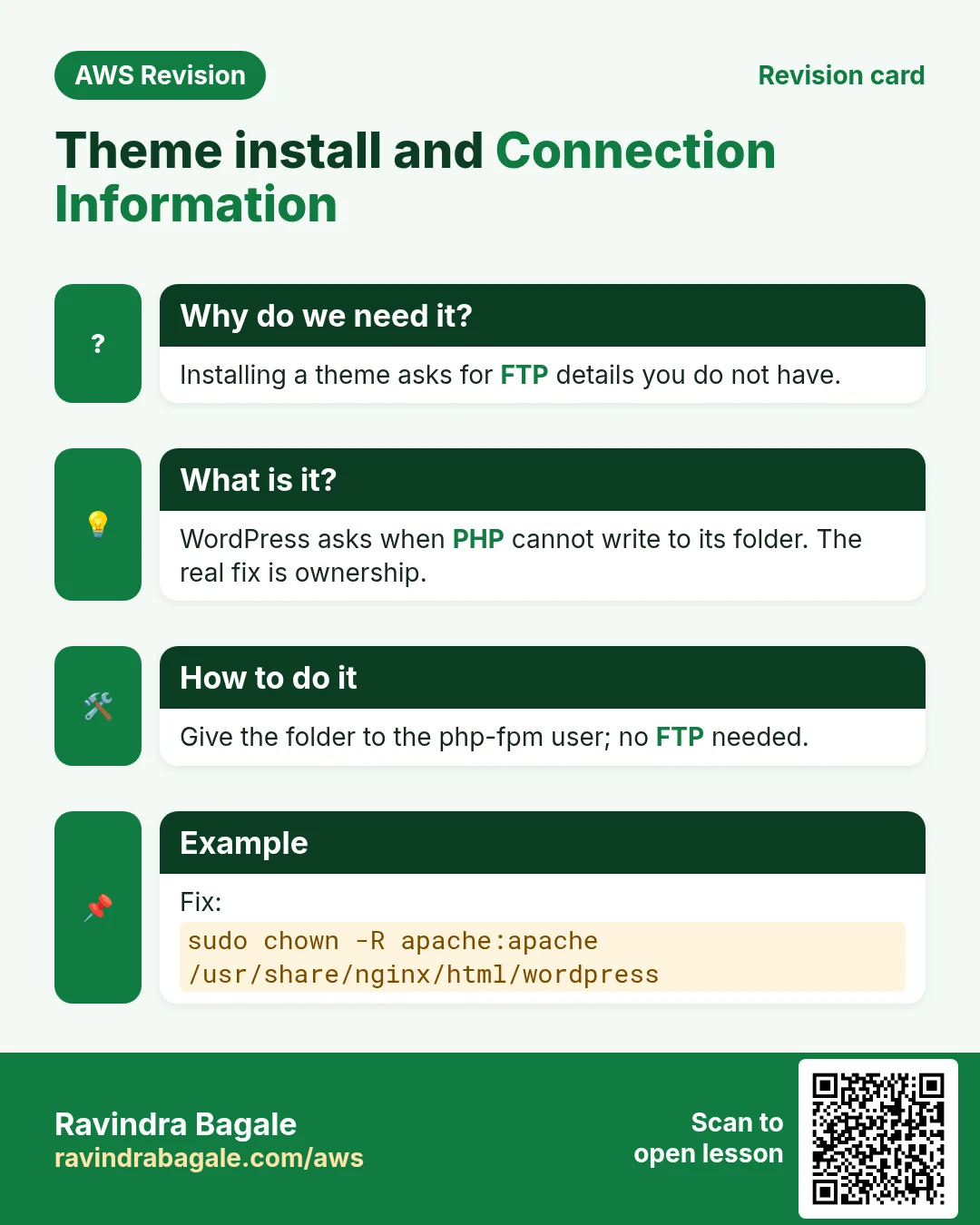
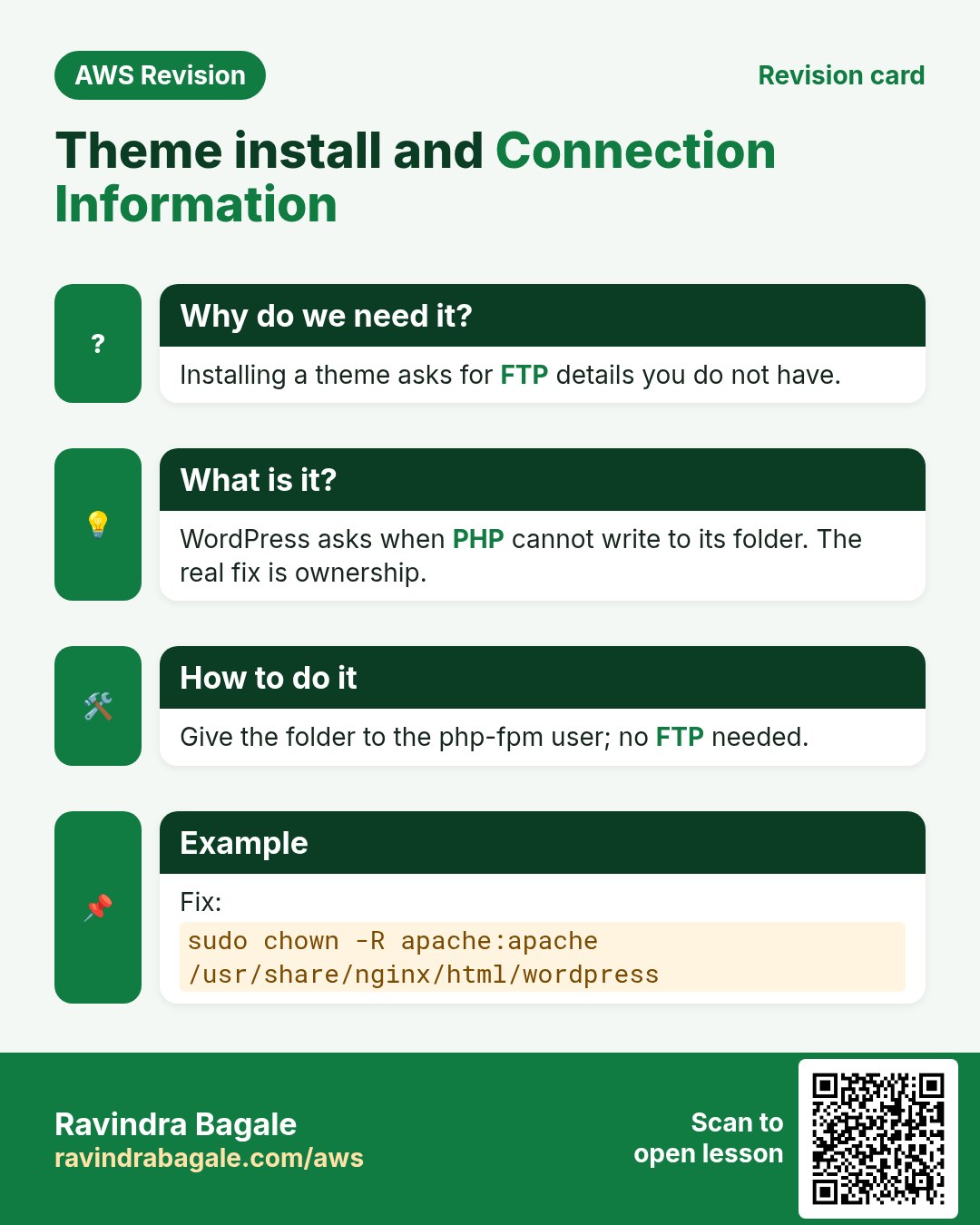
What: WordPress must write the theme's files into wp-content/themes. It runs as the php-fpm user, apache. If that user cannot write to the folder, for example because it belongs to root after sudo unzip, WordPress asks for an FTP login so it can write the files another way. On a test server, the form appeared when root owned the folder and disappeared when apache owned it.
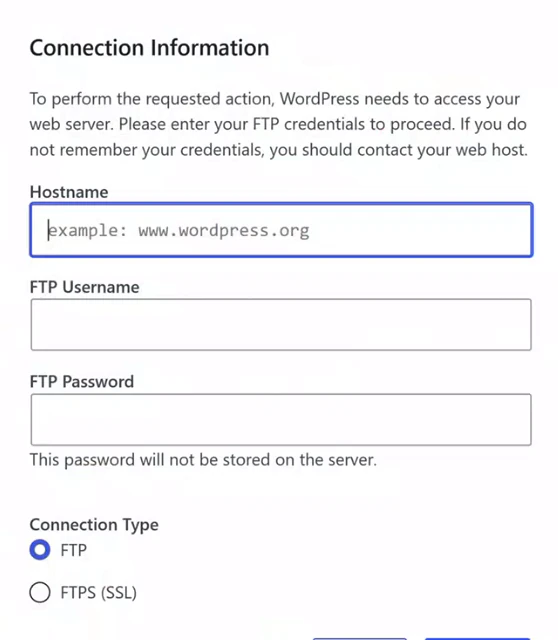
Whiteboard: The Connection Information form: WordPress cannot write to its own folder, so it asks for FTP details.
Classroom line
We must let the website transfer files onto our server.
Class मधलं वाक्य
Website ला आपल्या server वर files transfer करायला permission द्यायची आहे.
Classroom line – हिंदी
"Website ko apne server pe files transfer karne ke liye permission dena hai."
Fix A, the best: give the folder to the php-fpm user, as in the previous chapter:
    sudo chown -R apache:apache /usr/share/nginx/html/wordpress
    sudo find /usr/share/nginx/html/wordpress -type d -exec chmod 755 {} \;
    sudo find /usr/share/nginx/html/wordpress -type f -exec chmod 644 {} \;
Reload the theme page. The form does not come back, and themes, plugins and updates install directly.
Fix B, only together with A: add this line to wp-config.php, above the line /* That's all, stop editing! */:
define('FS_METHOD', 'direct');
It tells WordPress to skip the form and write directly. It does not give any permission: if apache still cannot write to the folder, the install fails with "Could not create directory".
Figure 7. Connection Information appears because php-fpm (user apache) cannot write to wp-content. Fix A: chown the folder to apache. B: FS_METHOD direct only skips the form. C: an FTP server, unencrypted, so prefer A or SFTP.
11. Option: an FTP server with vsftpd
Why: some hosting setups use FTP for WordPress updates, and you will meet the form again. On your own EC2 server you can give WordPress an FTP login with vsftpd. Fix A is simpler; learn this as an option.
How:
-
Install and start the FTP server:
sudo yum install vsftpd -y sudo service vsftpd start -
In
/etc/vsftpd/vsftpd.conf, check thatlocal_enable=YESandwrite_enable=YESare set; after any change runsudo service vsftpd restart. -
Create an FTP user with a strong password, and add it to the
nginxgroup:sudo useradd ftpuser sudo passwd ftpuser sudo usermod -aG nginx ftpuser -
Let that group write to
wp-content:sudo chgrp -R nginx /usr/share/nginx/html/wordpress/wp-content sudo chmod -R g+w /usr/share/nginx/html/wordpress/wp-content -
In the Connection Information form enter Hostname
localhost(the FTP server runs on the same EC2 machine), the FTP usernameftpuserand its password, Connection Type FTP. The theme installs; click Activate. - Port 21 does not need to be opened in the security group, because WordPress connects to
localhost.
Know the risk: FTP sends the username and password unencrypted. Use a long, unique password, never something like 12345678. To move files from your laptop, prefer SFTP, which uses your existing SSH key, or FTPS with TLS. Files written over FTP belong to ftpuser, which is one more reason Fix A is the cleaner choice.
Classroom line
With FTP we can transfer files.
Class मधलं वाक्य
FTP वापरून आपण file transfer करू शकतो.
Classroom line – हिंदी
"FTP use karke hum file transfer kar sakte hain."
12. A 404 after activating a theme
Why: after you activate a theme, the site's pages and post links may show 404 Not Found from nginx, because many themes use pretty links such as /hello-world/.
What: such addresses are not real files. nginx needs the try_files line to hand them to index.php.
How: in the server block, inside location /:
    location / {
        try_files $uri $uri/ /index.php?$args;
    }
Then sudo nginx -t and sudo service nginx reload.
13. "Cannot generate responsive image sizes"
Why: when you upload an image, WordPress also makes smaller copies of it for phones and thumbnails. It needs a PHP image library for that.
What: without one, every image upload shows "The web server cannot generate responsive image sizes for this image. Convert it to JPEG or PNG before uploading." Converting does not help; the server is missing the library.
How:
    sudo yum install php-gd -y
    sudo service php-fpm restart
The restart matters: php-fpm loads its extensions only when it starts. Upload the image again; the message is gone.
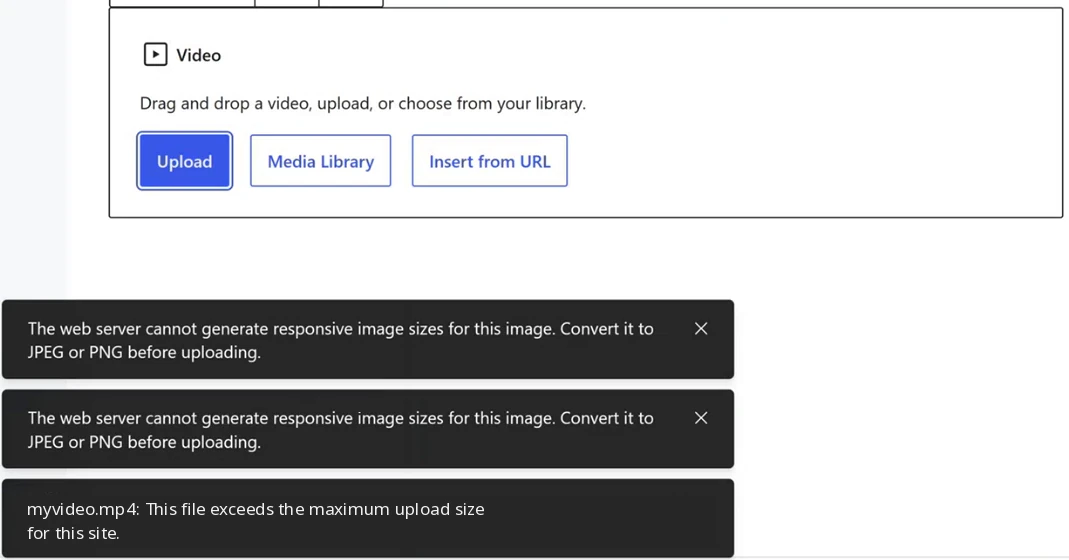
Whiteboard: A video block in the editor with two image-size notices and an upload size error. The video file name in the last notice was replaced with myvideo.mp4.
14. Raise the upload size limit
Why: a video or a large image fails with "This file exceeds the maximum upload size for this site." Media > Add New shows the current limit as "Maximum upload file size".
What: an upload passes three limits, and the smallest wins:
- nginx
client_max_body_size, default 1 MB. A bigger upload gets413 Request Entity Too Large, and PHP never sees it. - PHP
post_max_size, default 8M, for the whole request. A bigger upload arrives empty. - PHP
upload_max_filesize, default 2M, for one file. WordPress shows the "exceeds the maximum upload size" message.
How:
-
In
/etc/php.iniset both lines, then restart php-fpm:upload_max_filesize = 64M post_max_size = 64M sudo service php-fpm restart -
In the nginx server block add
client_max_body_size 64M;, then:sudo nginx -t sudo service nginx reload -
Reload Media > Add New: it now shows "Maximum upload file size: 64 MB." On a test server, a 1.5 MB file failed with 413 at nginx's default, and after all three changes a 9 MB file uploaded.
- Upload your own videos and images, or ones whose licence allows reuse, not files downloaded from random sites.
Figure 8. An upload passes nginx client_max_body_size (default 1 MB), PHP post_max_size (8M) and upload_max_filesize (2M); raise all three, then reload nginx and restart php-fpm.
15. Earning from a site, and building a portfolio
Why: Hosting a site is a skill people pay for. A site on its own domain, and a portfolio of sites you built, is how you show that skill.
Earning from a site:
- Put the site on its own domain, with an Elastic IP behind it.
- Write original, useful content. Google AdSense shows ads on approved sites and pays for them; the site must meet its policies to be approved.
- SEO (search engine optimisation): clear titles, good content and fast pages help the site appear in Google search. More visitors means more ad income.
Classroom line
You can build a proper website and just add Google ads to it.
Class मधलं वाक्य
"Ek proper website tumhi tayar karu shakta, fakt tyachyat Google ads taka."
एक proper website तुम्ही तयार करू शकता, फक्त त्याच्यात Google ads टाका.
Classroom line
You can build a proper website and just add Google ads to it.
Classroom line
Do SEO and it shows up in Google search.
Class मधलं वाक्य
"SEO kela ki Google search madhe yeil."
SEO केला की Google search मध्ये येईल.
Classroom line
Do SEO and it shows up in Google search.
Building a portfolio:
- Build a different practice site often: a shop, a hospital, a restaurant, a school. Switch themes and fill each with sample content.
- Share screenshots of them, for example on WhatsApp status or Instagram. People who see them ask you to build theirs.
- Use your own images or freely licensed ones, and mark sample shops as demos.
Classroom line
Make a WordPress site every day and put it on your WhatsApp status.
Class मधलं वाक्य
"Roj ek WordPress website banvaycha, WhatsApp status la thevaycha."
रोज एक WordPress website बनवायची, WhatsApp status ला ठेवायची.
Classroom line
Make a WordPress site every day and put it on your WhatsApp status.
16. When something goes wrong
Why: Most WordPress problems repeat. A short checklist in the right order fixes them faster than guessing.
- The site does not open at all: start the services:
sudo service nginx start,sudo service mariadb start,sudo service php-fpm start. - No styling, old IP in the links: the address changed. Use an Elastic IP, or the safe address change in section 6.
- Your page does not show: it is not inside
/usr/share/nginx/html. Check withls -l. - The installer appears again, or "Error establishing a database connection":
wp-config.phpis missing, or the database name, user or password in it does not match. ERROR 1049 Unknown database: a typo in the database name. Compare withSHOW DATABASES;.- You cannot find the admin page: it is
http://YOUR-ADDRESS/wp-admin/. - Post links or the page after a theme change give 404: add the
try_filesline and reload nginx. - Installing a theme asks for FTP: give the folder to
apachewithchown. - "Cannot generate responsive image sizes": install
php-gdand restart php-fpm. - "Exceeds the maximum upload size" or 413: raise the PHP limits and nginx's
client_max_body_size.
Figure 9. WordPress on EC2: what you see and what to check, from services and the web root to the address, try_files, folder ownership, php-gd and the upload limits. The logs are in /var/log/nginx/error.log and /var/log/php-fpm/www-error.log.
Ravindra Bagale's Tip
Before you change anything in a WordPress database, run mysqldump and copy the file to your laptop with scp. With a backup, any mistake is one restore away. And never use a plain find-and-replace for a new address: wp search-replace with --dry-run first shows you what will change, and keeps the serialized settings intact.
When you're done practising, stop the EC2 instance. Without an Elastic IP its public IP will change, and now you know how to repair that.
17. The whole class on one page
- WordPress stores full addresses:
siteurlandhomeinwp_options, and full URLs insidewp_posts. A new EC2 IP leaves the site unstyled and wp-admin unreachable. - Prevent it with an Elastic IP or a domain before the site goes live.
- Back up:
sudo mysqldump -u root -p wordpressdb > wp.sql; the file is plain SQL withDROP TABLE,CREATE TABLEandINSERT INTO, but noCREATE DATABASE. scp -i mykey.pem ec2-user@PUBLIC_IP:/home/ec2-user/wp.sql .downloads;scp -i mykey.pem wp.sql ec2-user@PUBLIC_IP:/home/ec2-user/uploads.- Restore:
DROP DATABASE,CREATE DATABASE, thensudo mysql -u root -p wordpressdb < wp.sql.ERROR 1049is a misspelled database name. - Change the address safely: back up, update
siteurlandhome, thenwp search-replace 'http://OLD' 'http://NEW' --skip-columns=guid, first with--dry-run. - A plain text replace can break serialized settings when the lengths differ.
- Tab completes names;
historylists your commands; web files must be inside/usr/share/nginx/html. - Themes: Appearance > Themes > Add New. "Connection Information" means
apachecannot write to the folder:chown -R apache:apache.FS_METHODdirect only skips the form. - vsftpd is an option:
useradd ftpuser,passwd,usermod -aG nginx, Hostnamelocalhost. FTP is unencrypted; prefer SFTP and a strong password. - A 404 after a theme change needs
try_files; missing image sizes needphp-gdand a php-fpm restart. - Uploads:
upload_max_filesizeandpost_max_sizein/etc/php.ini,client_max_body_sizein nginx, then restart and reload. - Earn with your own domain, original content, AdSense and SEO; build practice sites as your portfolio.
18. Hands-on lab: back up, then fix the address after an IP change
Why this lab. After a stop and start, a WordPress site on a plain public IP loads without styles or redirects to the old address. This lab backs up first, tries the change as a dry run, and only then makes it.
- See the old address in the database
- Command:
sudo mysql -u root -p wordpressdb -e "SELECT option_name, option_value FROM wp_options WHERE option_name IN ('siteurl','home');" - You should see: Two rows, both with the old
http://address. - Check: The value differs from your new public IP.
- Why: WordPress stores full addresses in the database, so it keeps sending browsers to the old IP.
- Command:
- Back up the database
- Command:
sudo mysqldump -u root -p wordpressdb > wp.sql - You should see: Nothing.
- Check:
ls -l wp.sqlshows a size above 0, andhead -3 wp.sqlstarts with a-- MariaDB dumpcomment. - Why: Every later step changes the database. With
wp.sqlyou can undo any mistake.
- Command:
- Copy the backup to your laptop
- Command:
scp -i mykey.pem ec2-user@PUBLIC_IP:/home/ec2-user/wp.sql . - You should see: A progress line ending in
100%. - Check:
wp.sqlis in your laptop folder. - Why: Run this on the laptop. A backup only on the server is lost together with the server.
- Command:
- Install WP-CLI
- Command:
curl -O https://raw.githubusercontent.com/wp-cli/builds/gh-pages/phar/wp-cli.phar && chmod +x wp-cli.phar && sudo mv wp-cli.phar /usr/local/bin/wp - You should see: curl's download progress, then the prompt.
- Check:
wp --infoprints the WP-CLI and PHP versions. - Why: WP-CLI replaces addresses everywhere, including inside serialized data that a plain SQL
UPDATEwould corrupt.
- Command:
- Dry run the replacement
- Command:
cd /usr/share/nginx/html/wordpress && sudo -u apache wp search-replace 'http://OLD_IP' 'http://NEW_IP' --skip-columns=guid --dry-run - You should see: A table of tables and how many replacements each would get, then
Success: ... replacements to be made. - Check: Nothing has changed yet: the
siteurlquery from step 1 still shows the old address. - Why:
--dry-runshows what would change without changing it.--skip-columns=guidleaves post IDs alone, as WordPress recommends.
- Command:
- Run it for real
- Command:
sudo -u apache wp search-replace 'http://OLD_IP' 'http://NEW_IP' --skip-columns=guid - You should see: The same table, then
Success: Made ... replacements. - Check: Step 1's query now shows the new address, and
http://NEW_IP/loads with styles. - Why: Running as
apachekeeps file ownership correct. Only now, after a backup and a dry run, is the change safe.
- Command:
- Know how to restore
- Command:
sudo mysql -u root -p wordpressdb < wp.sql - You should see: Nothing.
- Check: Step 1's query shows the old address again. Repeat step 6 to return to the new one.
- Why: A backup you have never restored is a guess. Restoring once proves it works.
- Command:
- Stop, and plan a fixed address
- Do: Stop the instance. Before going live, attach an Elastic IP or use a domain name (section 2).
- Check: State Stopped.
- Why: With a fixed address you never need this repair again.
19. Try at home
Try at home
Task 1: see the problem
- On your WordPress server, run
SELECT option_name, option_value FROM wp_options WHERE option_name IN ('siteurl','home');and write down the address. - Stop and start the instance, open the new IP, and note what is broken.
Task 2: backup and restore
- Take a backup with
mysqldump, look inside it withless, and download it withscp. - Drop and create
wordpressdb, restore the backup, and checkSHOW TABLES;. - Run the restore once with a misspelled database name and read the error.
Task 3: change the address
- Install WP-CLI, update
siteurlandhome, and runwp search-replacewith--dry-run. How many replacements does it report? - Run it for real and check that styling, posts and wp-admin work at the new IP.
Task 4: themes and uploads
- Make
rootthe owner ofwp-content/themes, try to install a theme, and see the form. Then fix it withchown -R apache:apache. - Install
php-gd, restart php-fpm, and upload an image of your own. - Raise the upload limit to 64M and check Media > Add New.
Recap
In short
- WordPress saves its address and full URLs in the database, so a new EC2 IP breaks the styling, the links and the login.
- An Elastic IP or a domain before going live avoids the problem.
mysqldump ... > wp.sqlbacks up a database as plain SQL;scpcopies it off the server;mysql ... < wp.sqlrestores it into an empty database.- Change an address with a backup,
siteurlandhome, andwp search-replace, because a plain replace can break serialized settings. - "Connection Information" means WordPress cannot write to its folder; make
apachethe owner. FTP works but is unencrypted. try_filesfixes 404s,php-gdwith a php-fpm restart fixes image sizes, and three settings control the upload limit.- A site earns with a domain, good content, AdSense and SEO, and practice sites make a portfolio.
Practice Tasks
Mumbai Dabba Express is a food delivery business in Mumbai. Tukaram Gaikwad looks after its IT and cloud work. They count money in INR and run their AWS resources in the ap-south-1 Region. In the tasks below you do real jobs for them using what this lesson teaches. All names, account IDs, IP addresses and numbers are made up for practice.
0 / 12
Easy Biggest orders first
Why: Querying the database is daily work after you set up RDS.
What to do: Show order id and amount, biggest amount first.
Tables: customers(id, name, city) and orders(id, customer_id, amount, odate).
- Find the table the task is about (see the table list above the box).
- Write the SQL statement step by step: what, from where, which rows.
- End the statement with ;
- Click Check answer. Your query runs on a practice copy of the table.
Easy Filter customers by city
Why: Querying the database is daily work after you set up RDS.
What to do: List the names of customers in Pune.
Tables: customers(id, name, city) and orders(id, customer_id, amount, odate).
- Find the table the task is about (see the table list above the box).
- Write the SQL statement step by step: what, from where, which rows.
- End the statement with ;
- Click Check answer. Your query runs on a practice copy of the table.
Easy Install a package on Ubuntu
Why: Ubuntu uses apt. Package names differ: on Ubuntu Apache is apache2.
What to do: Install the apache2 package on Ubuntu without being asked to confirm.
- Find the Linux command that does this job.
- Add the options (like -r or -h) the task needs.
- Add the file names, folders or users in the right order.
- Use sudo if the job changes system files or users. Click Check answer.
Easy Test a website from the server
Why: curl shows whether the web server answers, even before DNS is ready.
What to do: Request http://localhost and show only the response headers.
- Find the Linux command that does this job.
- Add the options (like -r or -h) the task needs.
- Add the file names, folders or users in the right order.
- Use sudo if the job changes system files or users. Click Check answer.
Medium Remove small orders
Why: Querying the database is daily work after you set up RDS.
What to do: Delete orders with amount below 200.
Tables: customers(id, name, city) and orders(id, customer_id, amount, odate).
- Find the table the task is about (see the table list above the box).
- Write the SQL statement step by step: what, from where, which rows.
- End the statement with ;
- Click Check answer. Your query runs on a practice copy of the table.
Medium Orders with customer names
Why: Querying the database is daily work after you set up RDS.
What to do: Show each customer name with each order amount.
Tables: customers(id, name, city) and orders(id, customer_id, amount, odate).
- Find the table the task is about (see the table list above the box).
- Write the SQL statement step by step: what, from where, which rows.
- End the statement with ;
- Click Check answer. Your query runs on a practice copy of the table.
Medium Total sales
Why: Querying the database is daily work after you set up RDS.
What to do: Show the total of all order amounts as one number.
Tables: customers(id, name, city) and orders(id, customer_id, amount, odate).
- Find the table the task is about (see the table list above the box).
- Write the SQL statement step by step: what, from where, which rows.
- End the statement with ;
- Click Check answer. Your query runs on a practice copy of the table.
Medium Fix a city
Why: Querying the database is daily work after you set up RDS.
What to do: Customer 5 moved to Rome. Update the record.
Tables: customers(id, name, city) and orders(id, customer_id, amount, odate).
- Find the table the task is about (see the table list above the box).
- Write the SQL statement step by step: what, from where, which rows.
- End the statement with ;
- Click Check answer. Your query runs on a practice copy of the table.
Medium Open port 80 to the world
Why: Visitors can reach your website only if the security group allows HTTP.
What to do: Allow inbound TCP port 80 from 0.0.0.0/0 on security group sg-01a03134416a4c3b2.
- Read the task and decide which AWS service it is about.
- Write aws, then the service name, then the operation (the action word).
- Add each needed flag (--name) followed by its value from the task.
- Flags can be in any order. Click Check answer.
Hard Sales per customer
Why: Querying the database is daily work after you set up RDS.
What to do: Show customer_id and total amount per customer, only where total is above 1000.
Tables: customers(id, name, city) and orders(id, customer_id, amount, odate).
- Find the table the task is about (see the table list above the box).
- Write the SQL statement step by step: what, from where, which rows.
- End the statement with ;
- Click Check answer. Your query runs on a practice copy of the table.
Hard Customers with no orders
Why: Querying the database is daily work after you set up RDS.
What to do: List names of customers who have never ordered.
Tables: customers(id, name, city) and orders(id, customer_id, amount, odate).
- Find the table the task is about (see the table list above the box).
- Write the SQL statement step by step: what, from where, which rows.
- End the statement with ;
- Click Check answer. Your query runs on a practice copy of the table.
Hard Back up a database to a file
Why: mysqldump writes the whole database as SQL. Save it before big changes.
What to do: Dump the database mumbaidabba_wp as user root (ask for password) into mumbaidabba_wp.sql.
- Find the Linux command that does this job.
- Add the options (like -r or -h) the task needs.
- Add the file names, folders or users in the right order.
- Use sudo if the job changes system files or users. Click Check answer.
Quick revision cards
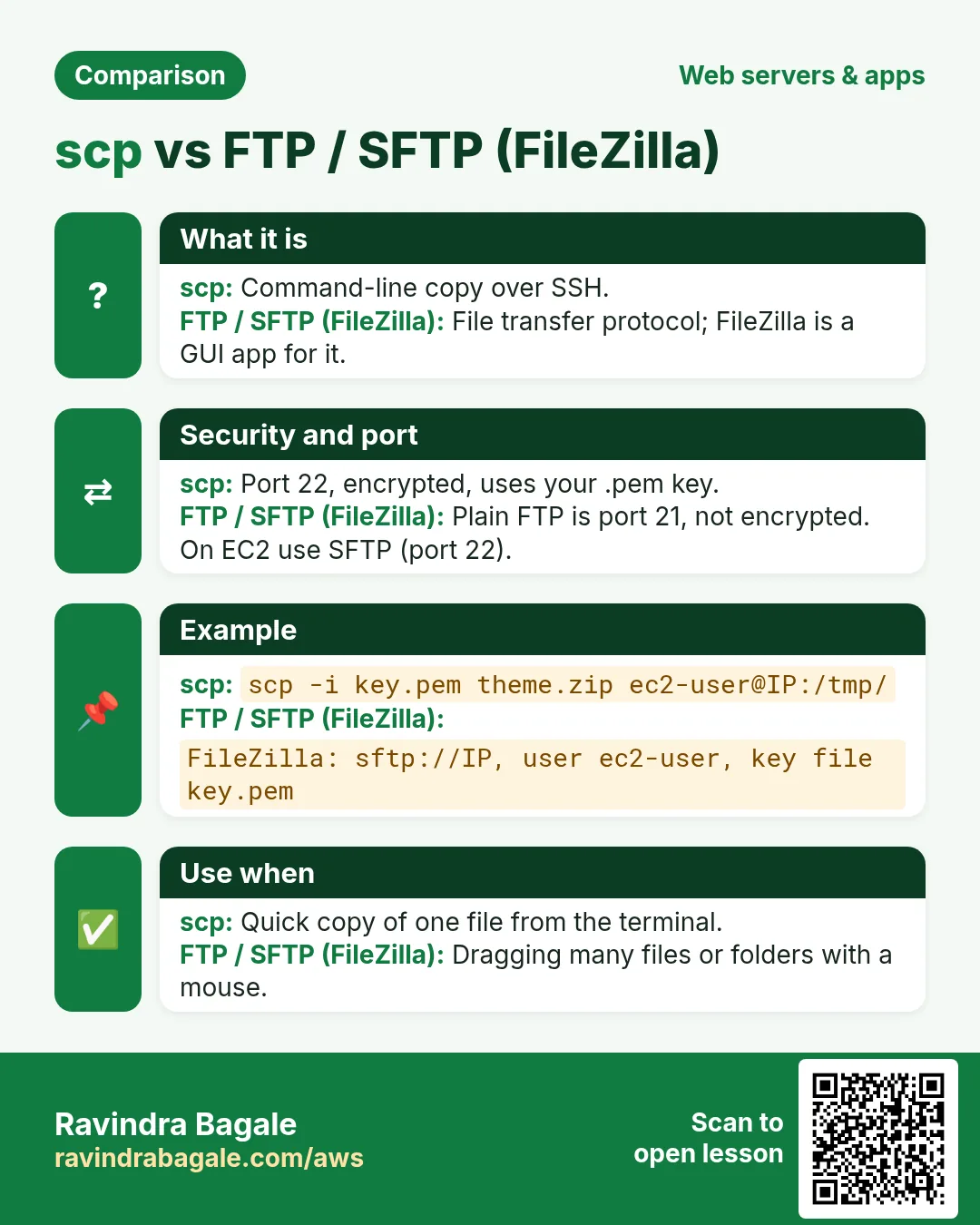
Revise this lesson in two minutes. Save the cards on your phone or download them as PNG files. The QR code on each card opens its lesson.
More cards: Ravi Sir's Cards.