Amazon CloudWatch Explained: Metrics, Namespaces, Alarms and SNS Email Alerts
How to Set Up a CloudWatch CPU Alarm with SNS in AWS showed one CPU alarm that sends an email. This chapter goes deeper. We start with a real story. Then we learn what a metric is, where metrics live (namespaces), how often AWS collects them (basic vs detailed monitoring), and every setting of an alarm: state, period, threshold, evaluation periods and missing data. At the end you build an alarm with an SNS email, first in the console and then with the AWS CLI.
What you'll learn in this chapter
- What CloudWatch is, with a sale-day story
- Metric, namespace, dimension and statistic in plain words
- Basic (5 min) vs detailed (1 min) monitoring, and which RAM and disk need the agent
- Alarm states OK, ALARM, INSUFFICIENT_DATA
- Period, threshold, evaluation periods, datapoints to alarm, missing data
- A full lab: SNS topic, email, alarm, test, cleanup
1. A sale-day story
It is 12 midnight. A big online sale starts, like a Flipkart Big Billion Days sale. Lakhs of people open the app at the same minute.
The web servers get busy. CPU goes from 20% to 95%. Pages become slow. Some users see errors.
The team needs three answers fast: What is happening? (numbers), Who should know? (alerts) and Why did it happen? (logs). CloudWatch gives all three in one place.
2. What is Amazon CloudWatch?
Why do we need this?
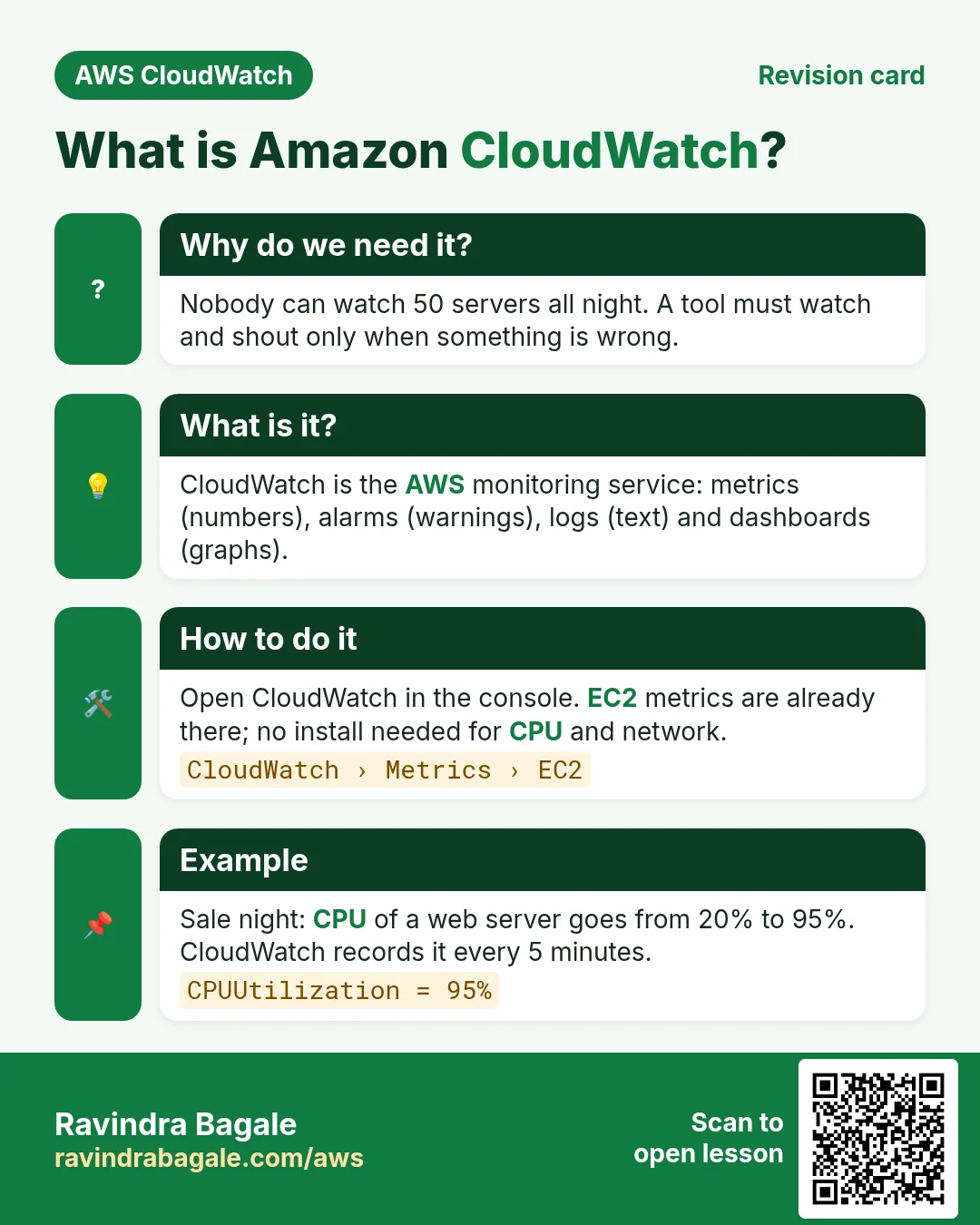
Nobody can sit and watch 50 servers all night. We need a tool that watches for us and shouts only when something is wrong.
What is it?
Amazon CloudWatch is the AWS monitoring service. Think of it as the dashboard of a car. It shows speed (metrics), turns on a warning light (alarms) and keeps a trip record (logs).
| Part | What it does | Example |
|---|---|---|
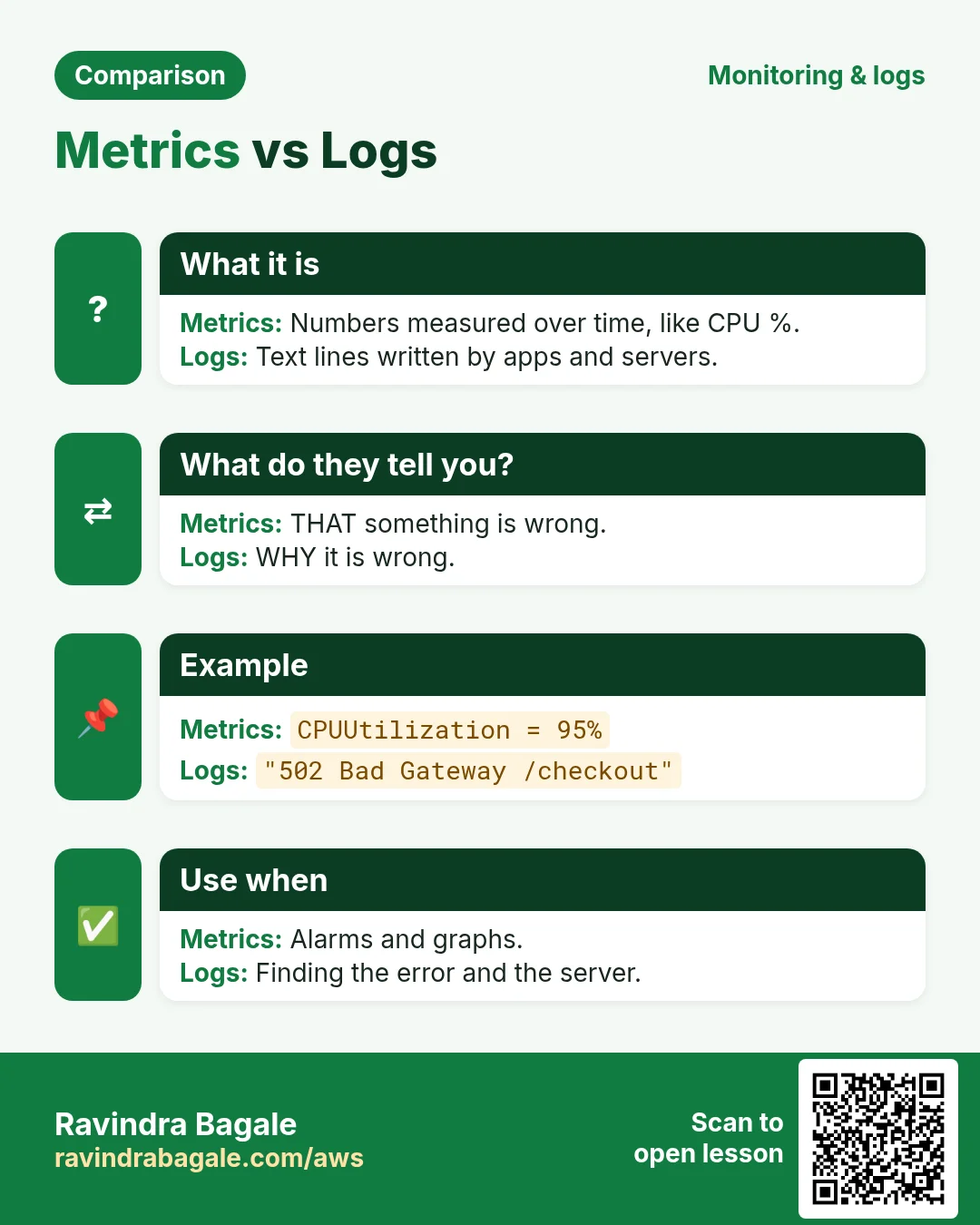
| Metrics | Numbers over time | CPUUtilization = 72% |
| Alarms | Watch one metric and act | CPU > 80% for 10 min → email |
| Logs | Text lines from apps and servers | nginx access.log |
| Dashboards | Graphs on one screen | CPU of 3 servers side by side |
| Events (EventBridge) | React to changes or a clock | Start EC2 at 9 AM |
3. Metrics, namespaces, dimensions and statistics
Why do we need this?
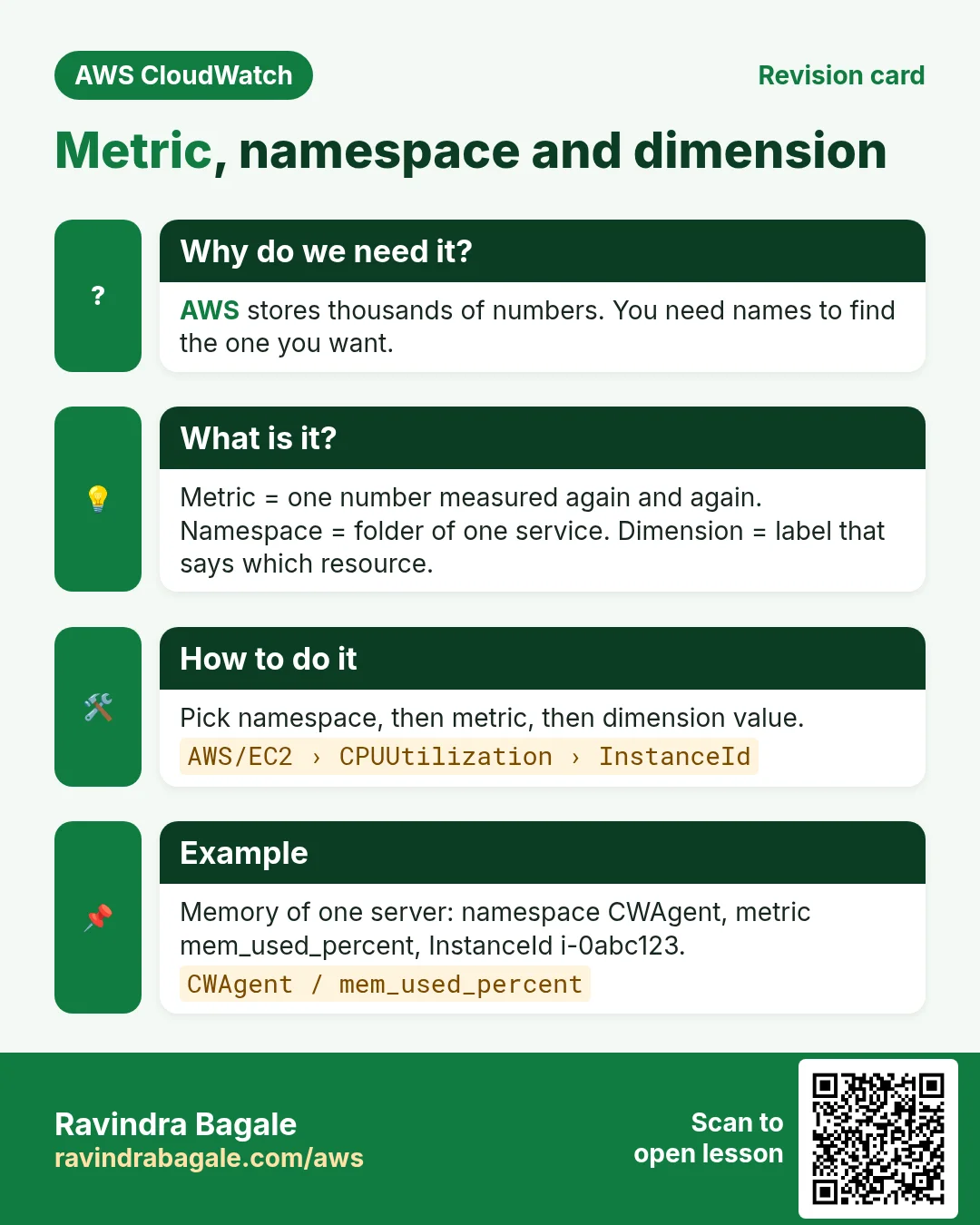
AWS collects thousands of numbers. Without names and folders you could never find the one you want.
What is it?
- Metric: one number measured again and again. Example:
CPUUtilization. - Datapoint: one value with a time. Example: 72% at 10:05.
- Namespace: a folder for metrics of one service. Example:
AWS/EC2,AWS/EBS,CWAgent. - Dimension: a label that says which thing. Example:
InstanceId=i-0abc123. - Statistic: how many datapoints are joined into one. Average, Maximum, Minimum, Sum, SampleCount, or a percentile like p99.
Example: "Average of CPUUtilization in AWS/EC2 for InstanceId=i-0abc123 over 5 minutes." That one sentence names one line on a graph.
| Namespace | Useful metrics | Comes from |
|---|---|---|
| AWS/EC2 | CPUUtilization, NetworkIn, NetworkOut, StatusCheckFailed | EC2, free |
| AWS/EBS | VolumeReadOps, VolumeQueueLength, BurstBalance | EBS |
| AWS/ApplicationELB | RequestCount, TargetResponseTime, HTTPCode_Target_5XX_Count | ALB |
| AWS/RDS | CPUUtilization, FreeStorageSpace, DatabaseConnections | RDS |
| CWAgent | mem_used_percent, disk_used_percent | CloudWatch agent on the server |
Ravindra Bagale's Tip
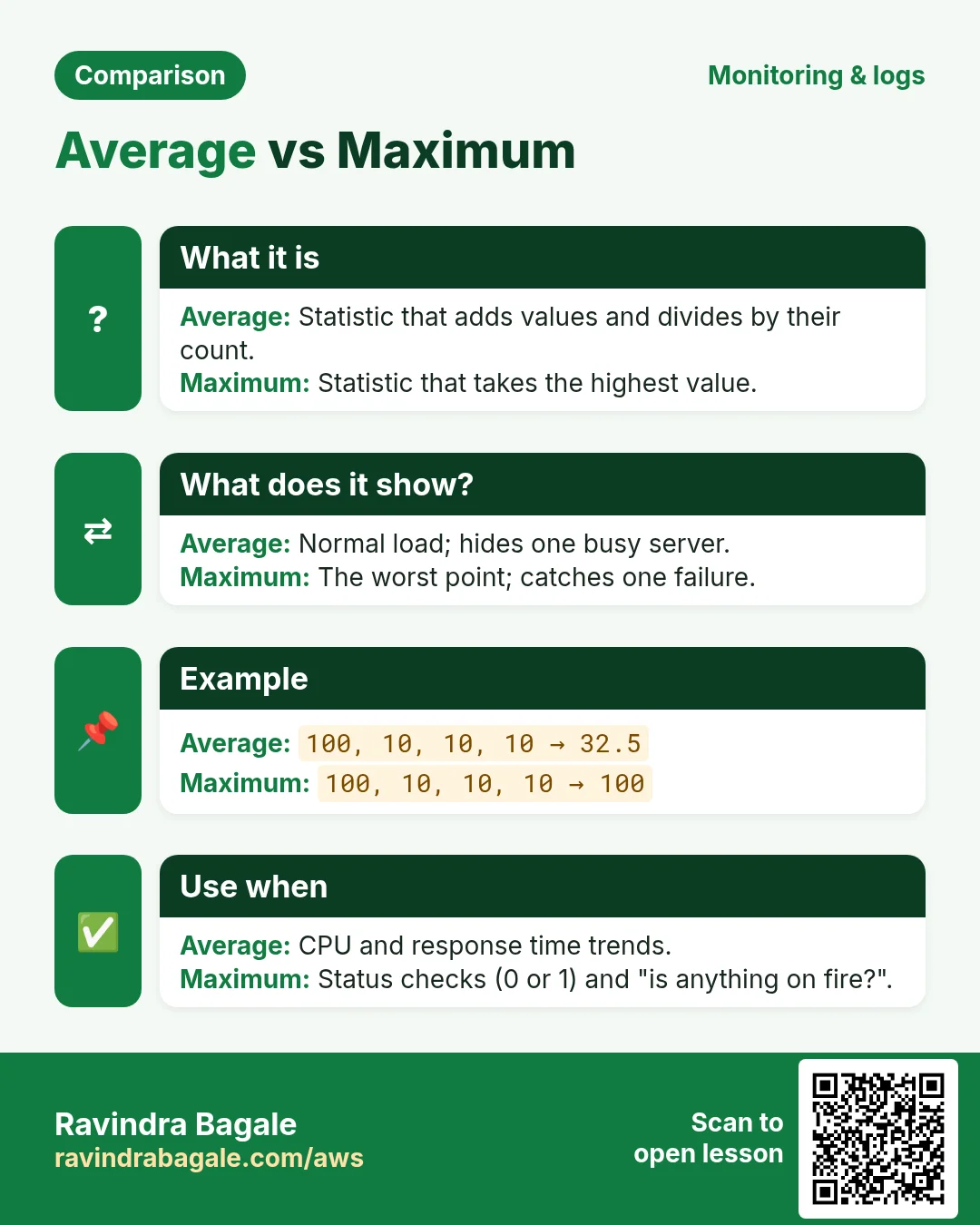
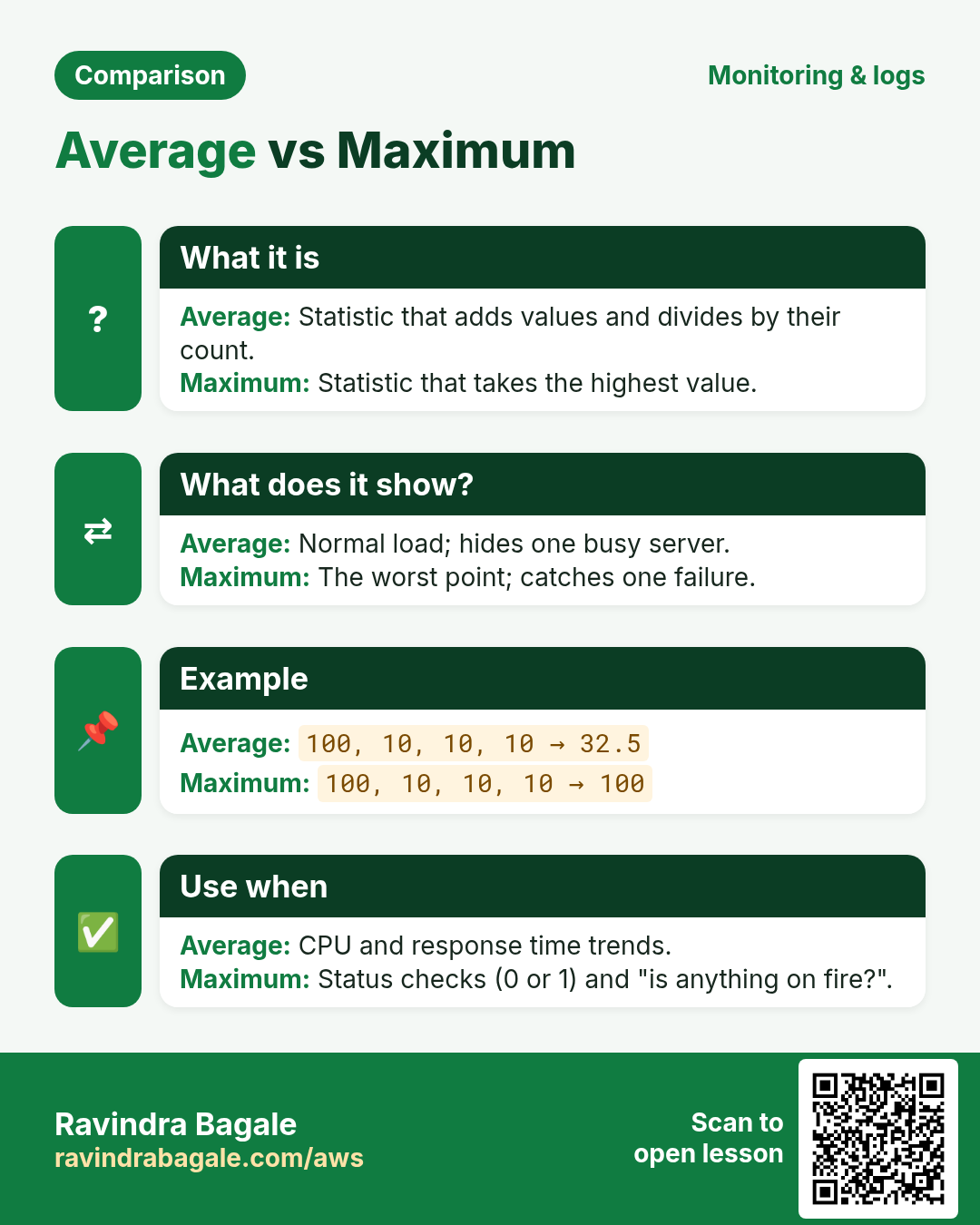
Average hides spikes. If one server is at 100% and three are at 10%, the average is 32%. For "is anything on fire?" alarms, look at Maximum too.
4. Basic vs detailed monitoring
Why do we need this?
In a sale, CPU can jump in 2 minutes. If you get a number only every 5 minutes, you see the problem late.
What is it?
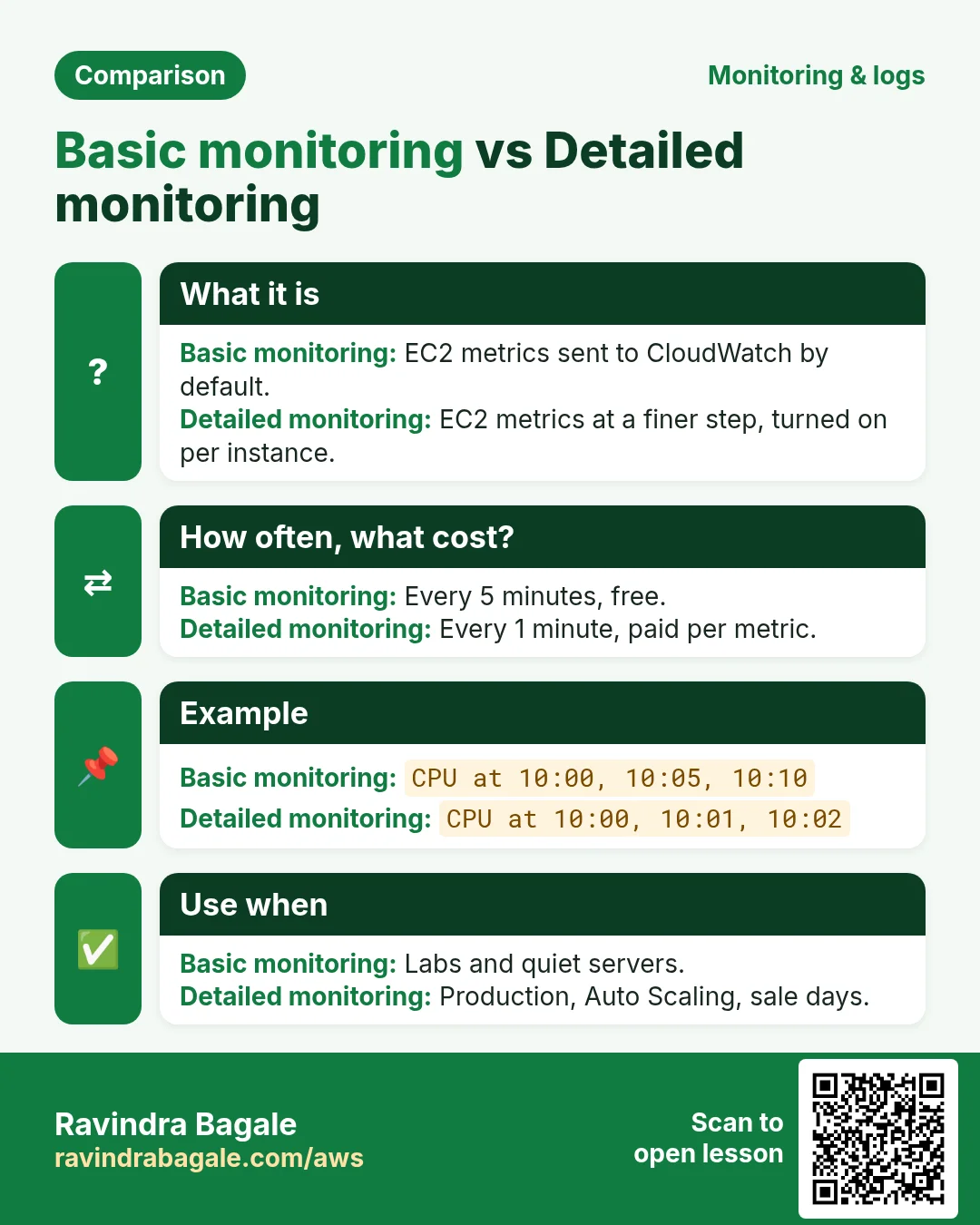
| Basic monitoring | Detailed monitoring | |
|---|---|---|
| How often | Every 5 minutes | Every 1 minute |
| Cost | Free | Paid per metric |
| Turned on | By default | You enable it per instance |
| Good for | Labs, quiet servers | Production, Auto Scaling, sales |
What EC2 cannot see: RAM and disk-space usage. AWS sees your server from outside (like a doctor checking your pulse). It cannot look inside the operating system. For mem_used_percent and disk_used_percent you install the CloudWatch agent. That is taught in How to Send Logs from Multiple EC2 Instances to CloudWatch Logs.
How to do it (step by step)
- Open EC2 → Instances and select your instance.
- Click Actions → Monitor and troubleshoot → Manage detailed monitoring.
- Tick Enable and click Confirm.
- Or with the CLI:
aws ec2 monitor-instances --instance-ids i-0abc1234567890def
# expected: "Monitoring": {"State": "pending"} then "enabled"
5. Alarm states, period, threshold and evaluation
Why do we need this?
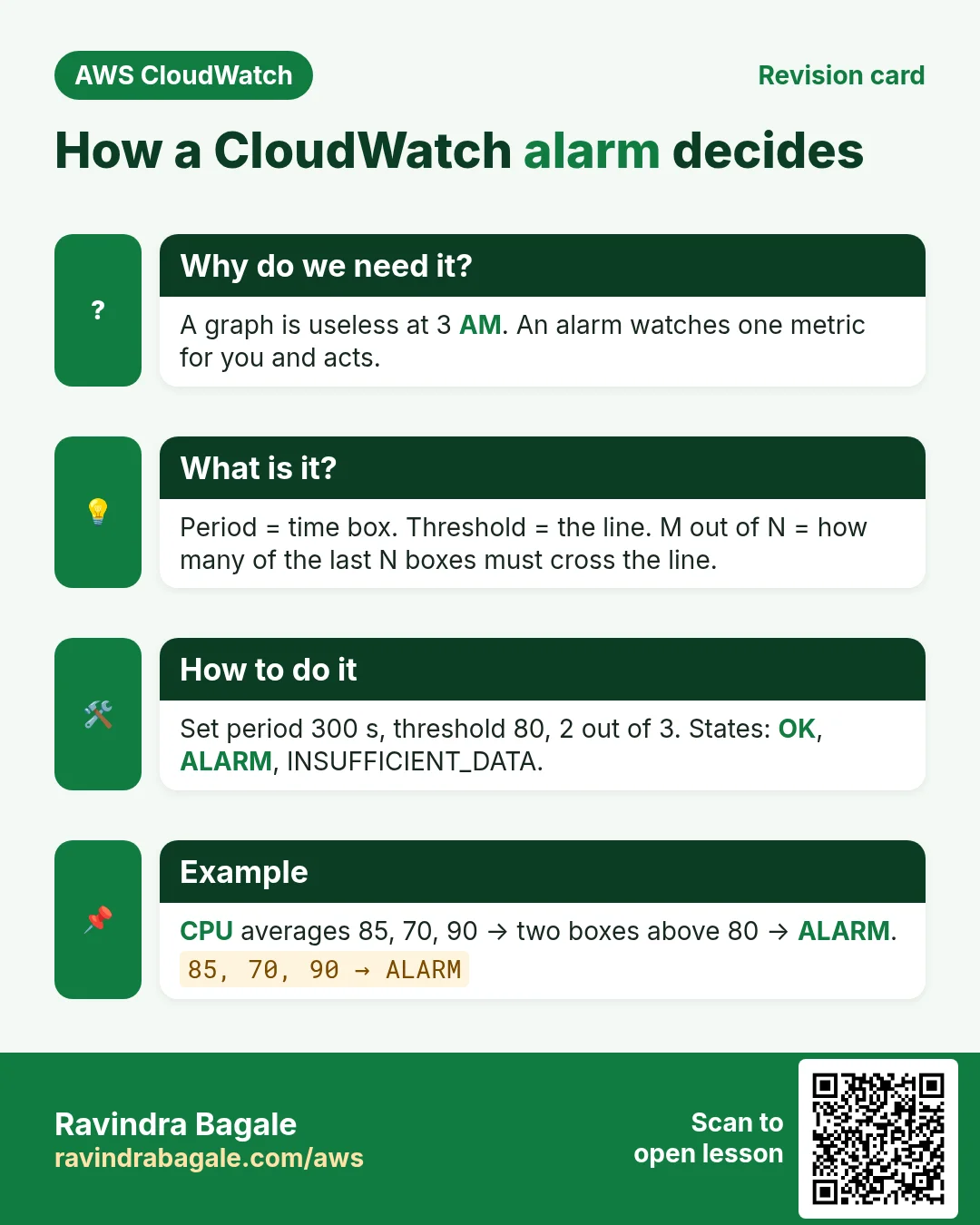
A graph is useless at 3 AM because nobody is looking. An alarm looks for you. But a bad alarm either rings for every tiny spike (people start ignoring it) or rings too late. Each setting below controls this.
What is it?
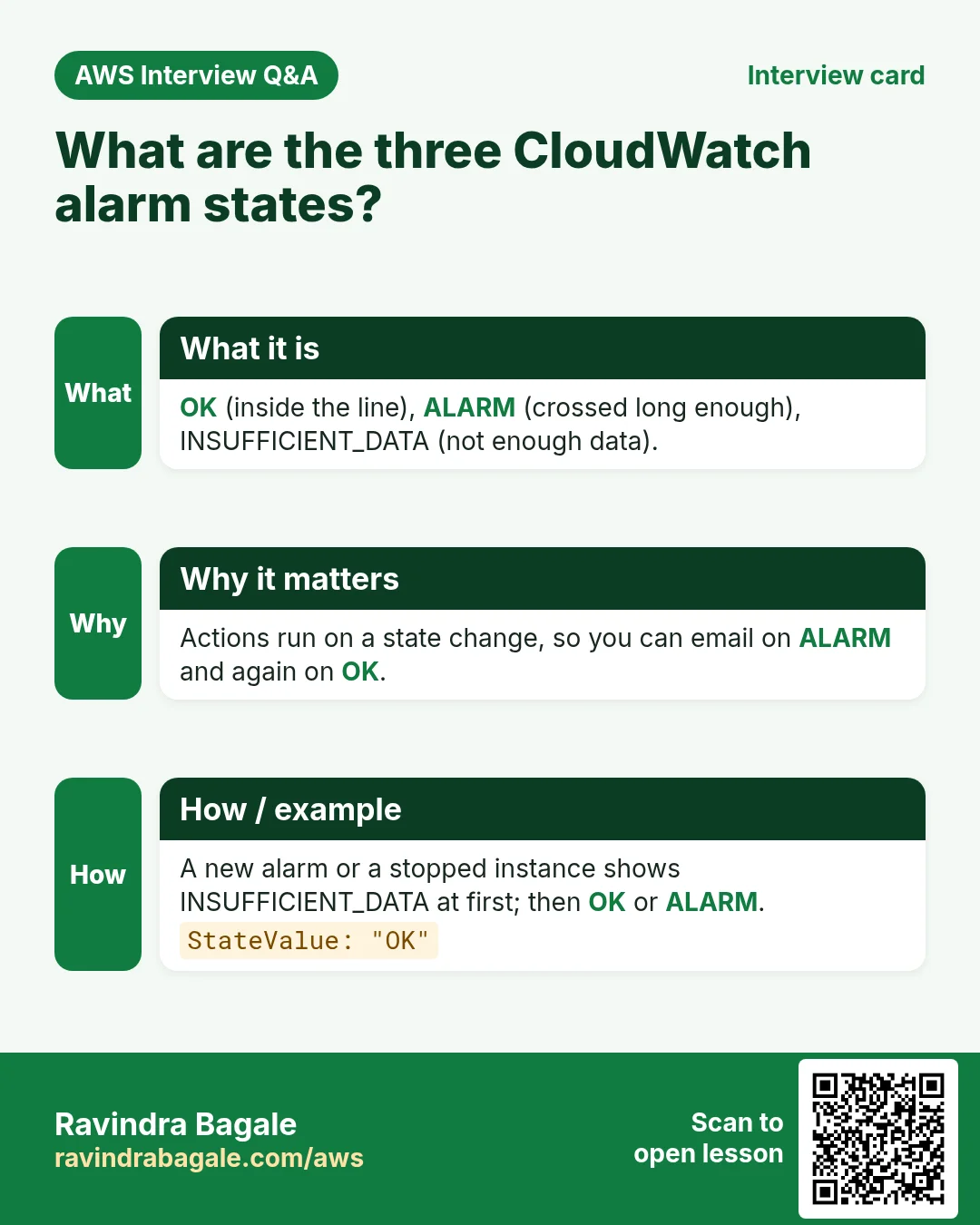
| State | Meaning | Example |
|---|---|---|
| OK | The metric is inside the safe line | CPU 40% |
| ALARM | The metric crossed the line long enough | CPU 90% for 10 min |
| INSUFFICIENT_DATA | Not enough data to decide | Instance just started or is stopped |
| Setting | Plain meaning | Why this value |
|---|---|---|
| Period | Length of one time box | 300 s with basic monitoring; 60 s only if detailed is on, else boxes stay empty |
| Statistic | How a box becomes one number | Average for load, Maximum for status checks |
| Threshold | The line | 80% leaves room before 100% |
| Evaluation periods (N) | How many recent boxes to look at | 3 boxes of 5 min = 15 min window |
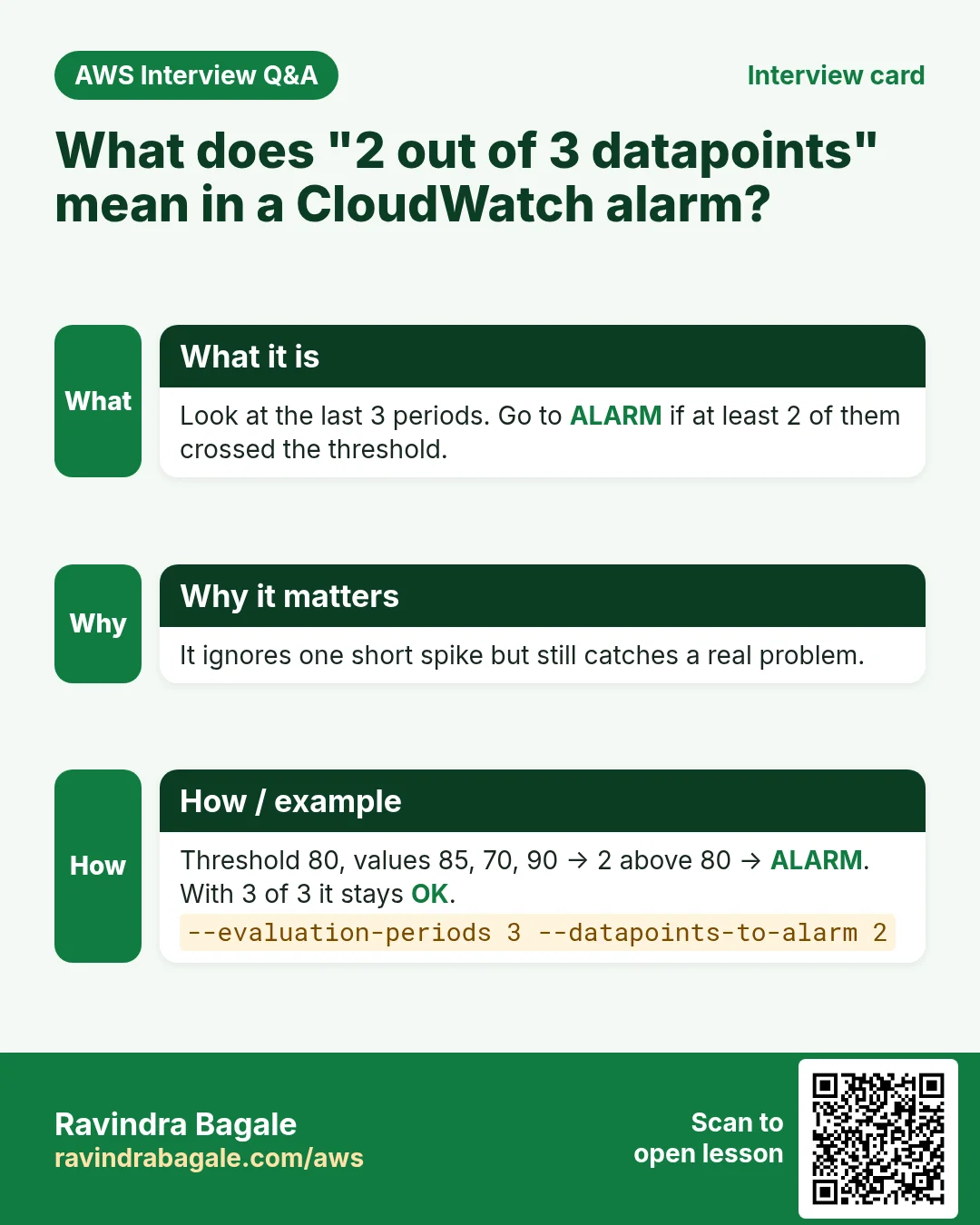
| Datapoints to alarm (M) | How many of those N must be bad | 2 of 3 ignores one short spike |
| Missing data | What an empty box means | missing (default), notBreaching, breaching or ignore |
Worked example 1 (simple): period 300, threshold 80, 1 of 1. Values 85. → ALARM after 5 minutes.
Worked example 2: period 300, 3 of 3. Values 85, 70, 90. → stays OK, because the middle box is fine.
Worked example 3: period 300, 2 of 3. Values 85, 70, 90. → ALARM, because 2 boxes are above 80.
Worked example 4 (missing data): a stopped server sends no CPU. With "missing" the alarm goes to INSUFFICIENT_DATA. With "notBreaching" it stays OK. For a heartbeat-style alarm ("tell me if the server goes silent") choose "breaching".
6. SNS: how the alarm reaches people
Why do we need this?
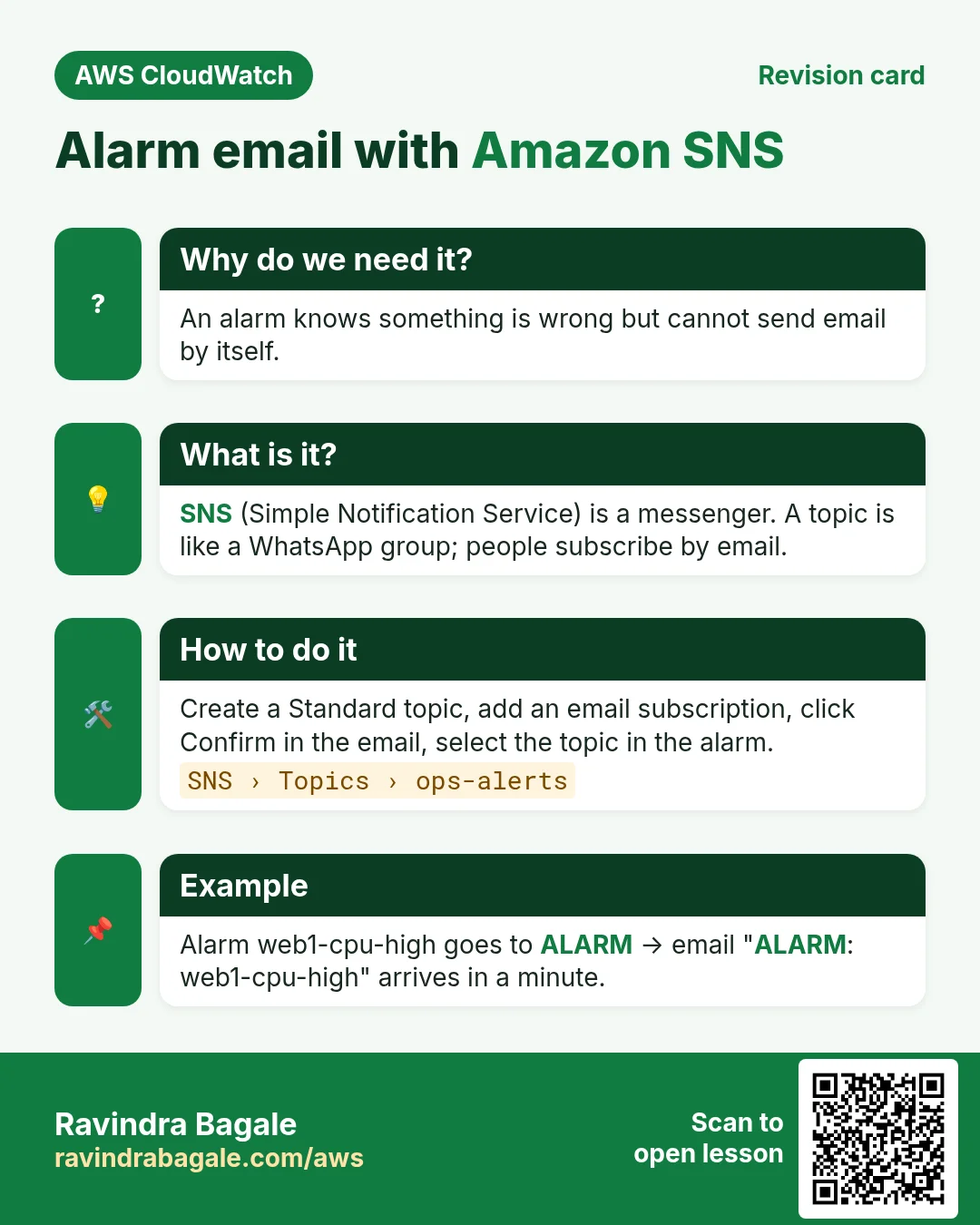
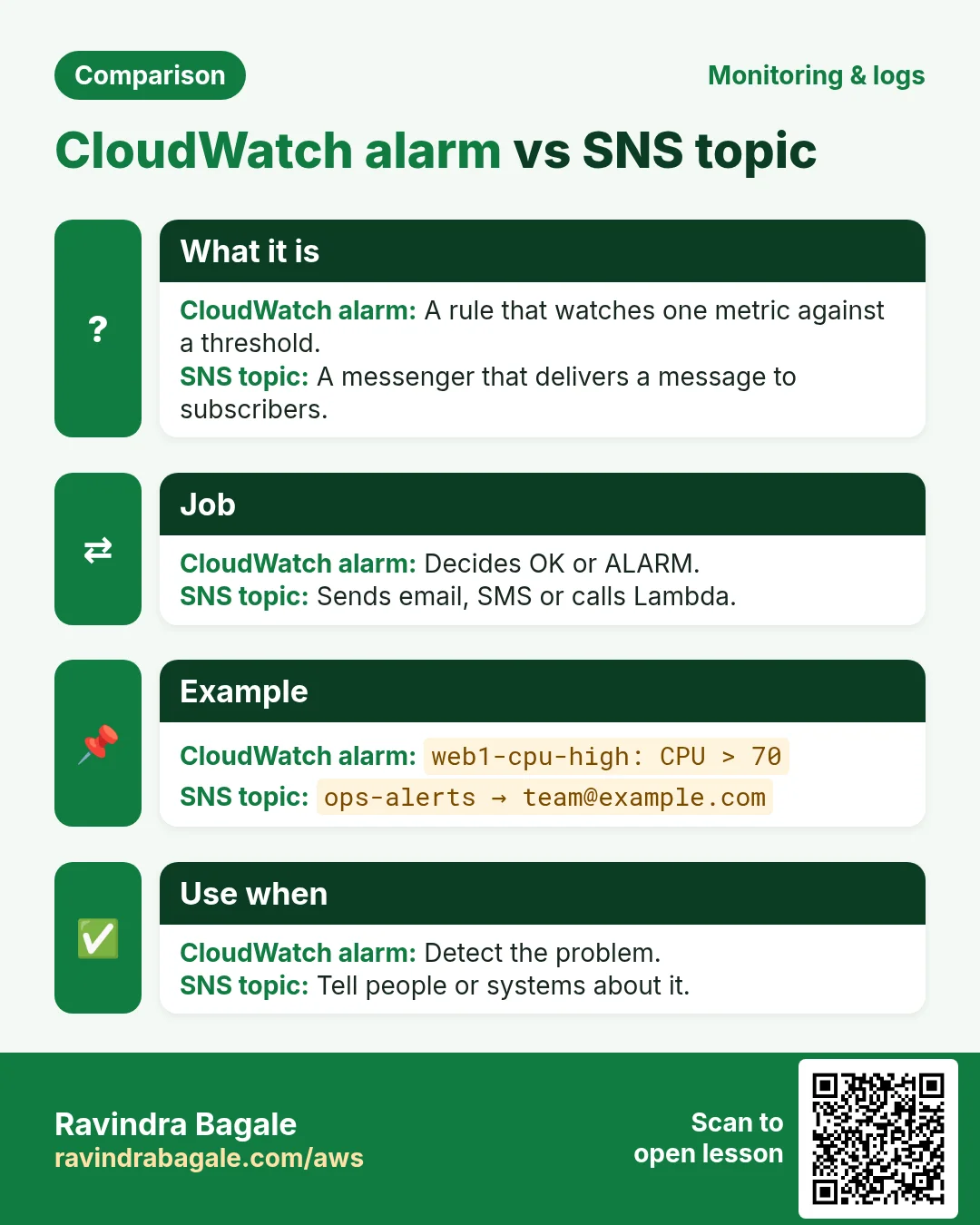
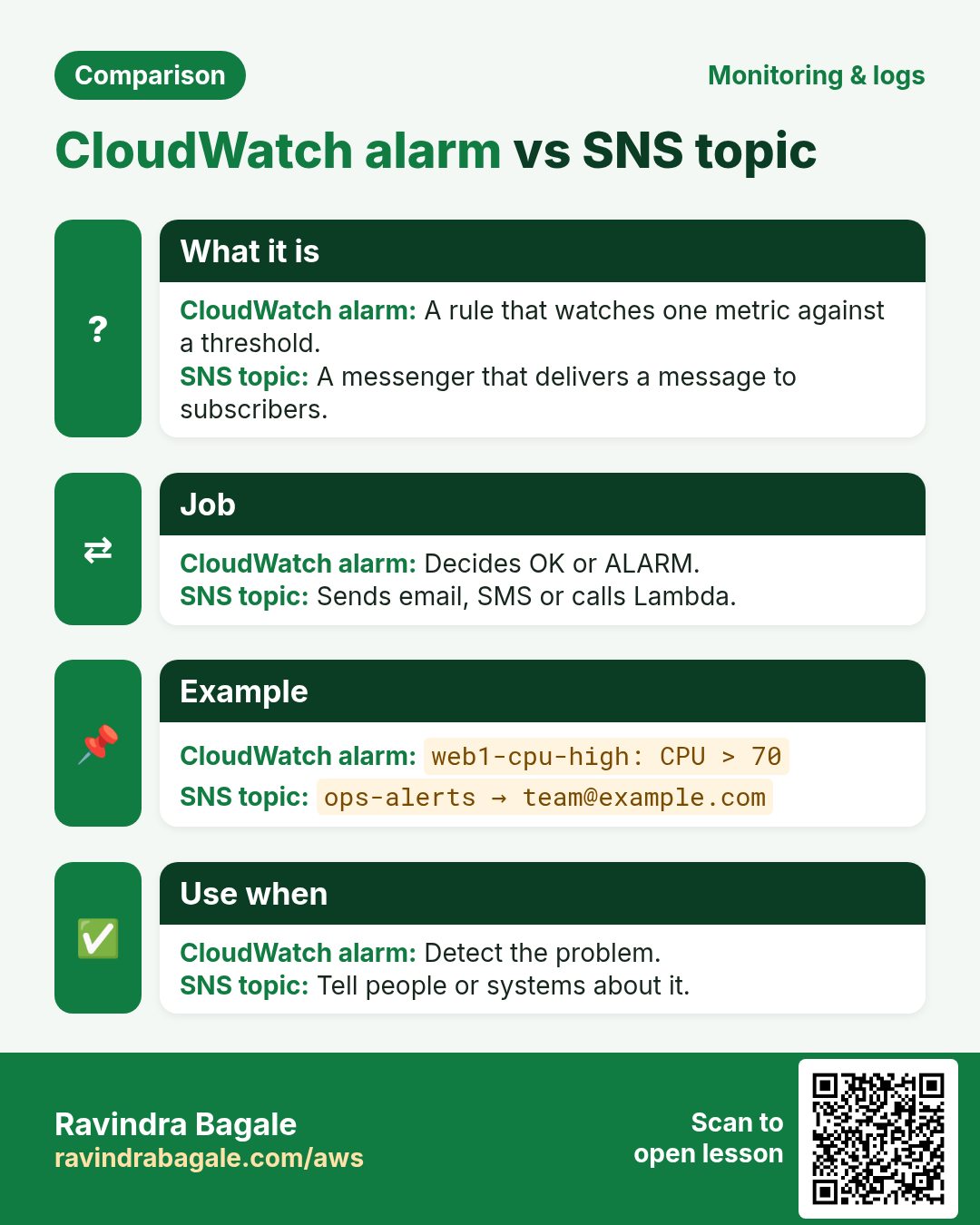
The alarm knows something is wrong, but it cannot send email by itself. It needs a messenger.
What is it?
Amazon SNS (Simple Notification Service) is that messenger. You create a topic (like a WhatsApp group). People subscribe with email or SMS. The alarm posts once; SNS delivers to everyone.
Ravindra Bagale's Tip
An email subscription stays "Pending confirmation" until the person clicks the link in the AWS email. Until then, no alarm mail arrives. Check spam too.
7. Lab: CPU alarm with an SNS email (console and CLI)
You need one running EC2 instance (Amazon Linux 2023, t2.micro or t3.micro) and your email. Region: Asia Pacific (Mumbai) ap-south-1.
Part A: SNS topic and email
- Open the SNS console → Topics → Create topic.
- Type: Standard. Why: email needs Standard; FIFO topics do not send email.
- Name:
ops-alerts. Click Create topic. - Click Create subscription. Protocol: Email. Endpoint: your email. Click Create subscription.
- Open your mailbox, find "AWS Notification - Subscription Confirmation", click Confirm subscription.
- Verify: the subscription status shows Confirmed.
Part B: the alarm
- Open CloudWatch → Alarms → All alarms → Create alarm.
- Click Select metric → EC2 → Per-Instance Metrics. Search your instance ID, tick CPUUtilization, click Select metric.
- Statistic: Average. Period: 5 minutes. Why: basic monitoring sends one value per 5 minutes.
- Threshold type: Static. Whenever CPUUtilization is Greater than
70. Why 70 in the lab: easy to reach with a stress test. - Open Additional configuration. Datapoints to alarm:
1out of1. Missing data: Treat missing data as missing. - Click Next. Alarm state trigger: In alarm. Select an existing SNS topic:
ops-alerts. - Click Add notification again, choose OK and the same topic. Why: you also want to know when it is fixed.
- Click Next. Name:
web1-cpu-high. Description:CPU above 70% on web1. Click Next → Create alarm. - Verify: the alarm shows Insufficient data first, then OK in about 5-10 minutes.
Part C: make it ring
- SSH into the instance.
- Install the stress tool:
sudo dnf install -y stress-ng
stress-ng --cpu 0 --timeout 900s &
top # expected: stress-ng near 100% CPU; press q to quit- Wait 5-10 minutes. Verify: the alarm turns red In alarm and an email "ALARM: web1-cpu-high" arrives.
- Stop the test with
pkill stress-ng. Verify: after 5-10 minutes an "OK" email arrives.
Part D: the same with the AWS CLI
TOPIC=$(aws sns create-topic --name ops-alerts --query TopicArn --output text)
aws sns subscribe --topic-arn $TOPIC --protocol email --notification-endpoint you@example.com
# confirm the email, then:
aws cloudwatch put-metric-alarm --alarm-name web1-cpu-high \
  --namespace AWS/EC2 --metric-name CPUUtilization \
  --dimensions Name=InstanceId,Value=i-0abc1234567890def \
  --statistic Average --period 300 --threshold 70 \
  --comparison-operator GreaterThanThreshold \
  --evaluation-periods 1 --datapoints-to-alarm 1 \
  --treat-missing-data missing \
  --alarm-actions $TOPIC --ok-actions $TOPIC
aws cloudwatch describe-alarms --alarm-names web1-cpu-high --query 'MetricAlarms[0].StateValue'
# expected: "INSUFFICIENT_DATA" at first, later "OK"
aws cloudwatch set-alarm-state --alarm-name web1-cpu-high --state-value ALARM --state-reason "test"
# expected: an ALARM email within a minute (the next real check sets the state back)
Part E: cleanup
- CloudWatch → Alarms → select
web1-cpu-high→ Actions → Delete. - SNS → Topics →
ops-alerts→ Delete (typedelete me). - Stop or terminate the test instance. Why: a running instance keeps billing.
aws cloudwatch delete-alarms --alarm-names web1-cpu-high
aws sns delete-topic --topic-arn $TOPIC
8. Alarms for different stacks
The same idea works for any app. Only the metric changes.
| Stack | Metric to alarm on | Typical threshold |
|---|---|---|
| nginx / Apache behind ALB | AWS/ApplicationELB HTTPCode_Target_5XX_Count | Sum > 10 in 5 min |
| Node.js / Python Flask | AWS/ApplicationELB TargetResponseTime | p90 > 1 s |
| Java Spring Boot (JVM heap) | CWAgent mem_used_percent | > 85% for 15 min |
| .NET on Windows | CWAgent Memory % Committed Bytes In Use | > 85% |
| PHP / WordPress | AWS/EC2 CPUUtilization | > 80% for 10 min |
| MySQL on RDS | AWS/RDS FreeStorageSpace | < 2 GB |
| Go API | AWS/ApplicationELB HealthyHostCount | < 2 |
9. Interview questions
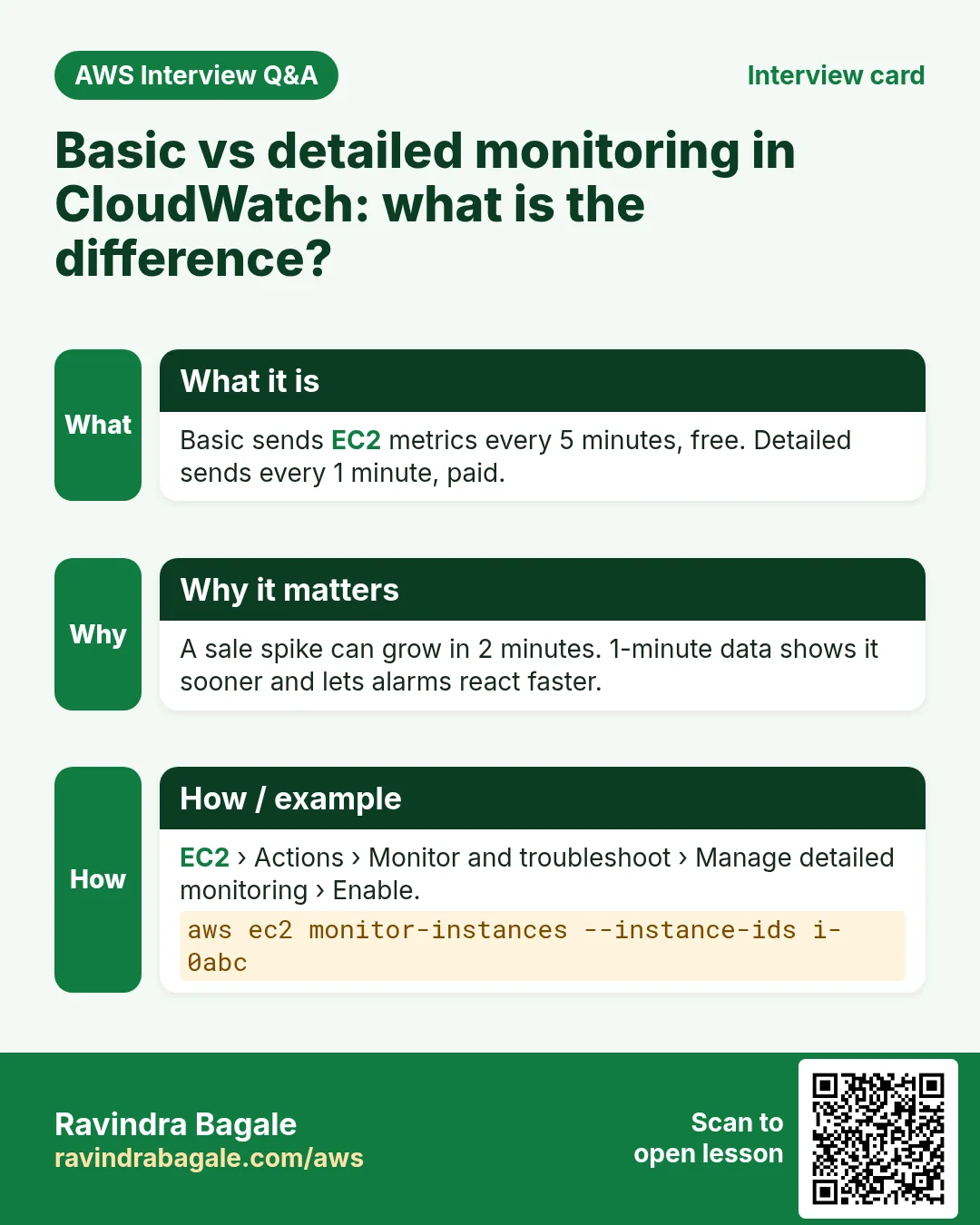
Q. What is the difference between basic and detailed monitoring?
Basic sends EC2 metrics every 5 minutes for free. Detailed sends them every 1 minute and is paid.
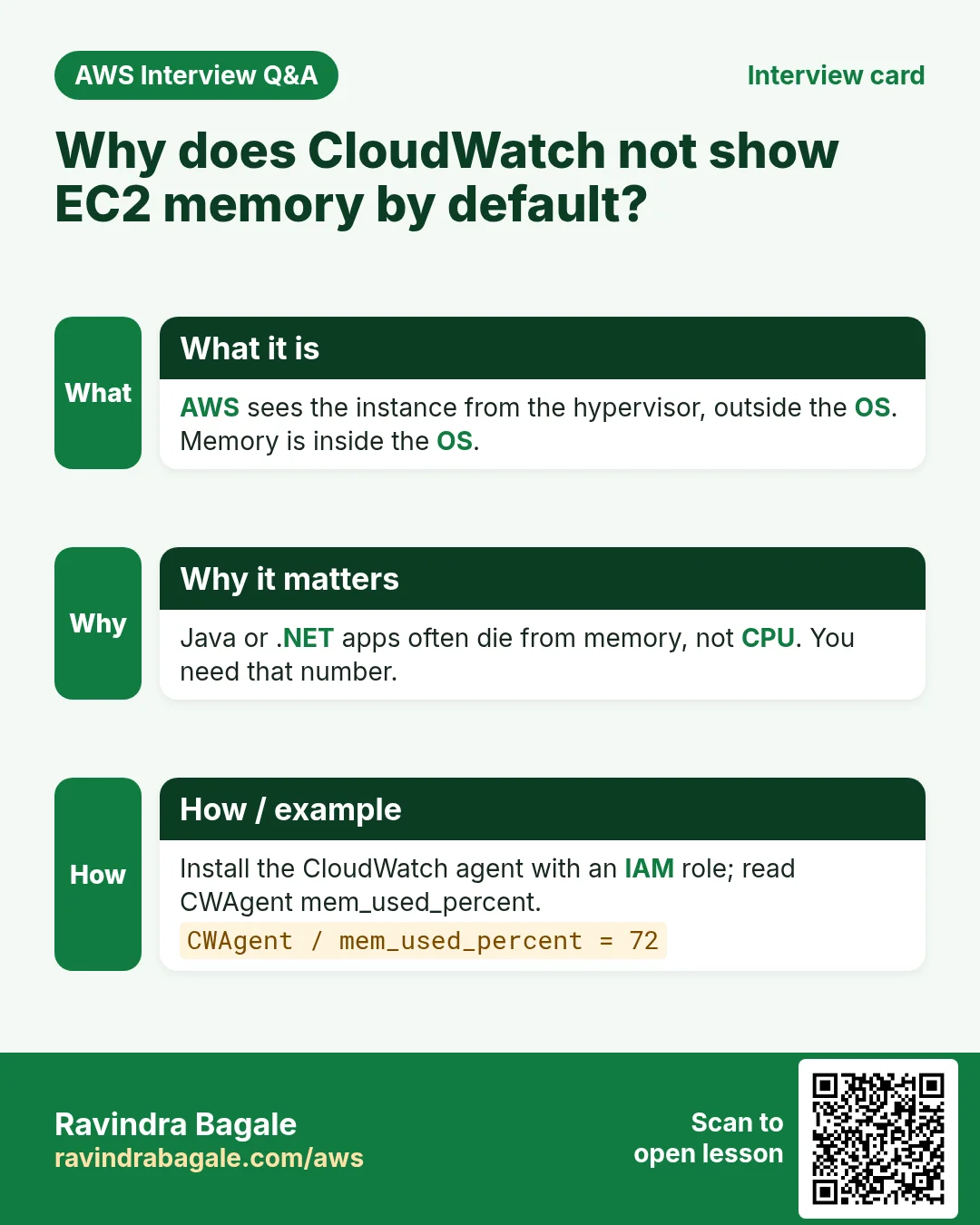
Q. Why can't you see memory usage of EC2 in CloudWatch by default?
AWS sees the instance only from the hypervisor side. Memory is inside the OS, so you need the CloudWatch agent.
Q. What does "2 out of 3 datapoints" mean?
Look at the last 3 periods; go to ALARM if at least 2 of them crossed the threshold.
Q. Name the three alarm states.
OK, ALARM and INSUFFICIENT_DATA.
Try at home
- Create a NetworkOut alarm on your instance with threshold 50,000,000 bytes per 5 minutes, then download a large file to trigger it.
- Change the CPU alarm to 2 out of 3 datapoints and write down how long it now takes to ring.
- Delete everything when done.
In short
- CloudWatch = metrics + alarms + logs + dashboards.
- A metric lives in a namespace and is picked with dimensions.
- Basic = 5 min free, detailed = 1 min paid; RAM and disk need the agent.
- An alarm goes to ALARM when M of the last N periods cross the threshold.
- SNS delivers the alarm to email; the subscription must be confirmed.
Practice Tasks
Thane Housing Society is a real estate business in Thane. Mahesh Patwardhan looks after its IT and cloud work. They count money in INR and run their AWS resources in the ap-south-1 Region. In the tasks below you do real jobs for them using what this lesson teaches. All names, account IDs, IP addresses and numbers are made up for practice.
0 / 11
Easy List metrics in a namespace
Why: See which metrics AWS already collects for a service.
What to do: List the metrics in the AWS/EC2 namespace.
- Read the task and decide which AWS service it is about.
- Write aws, then the service name, then the operation (the action word).
- Add each needed flag (--name) followed by its value from the task.
- Flags can be in any order. Click Check answer.
Easy Create an SNS topic
Why: A topic is a channel: publish once, every subscriber gets it.
What to do: Create topic thanehousing-alerts.
- Read the task and decide which AWS service it is about.
- Write aws, then the service name, then the operation (the action word).
- Add each needed flag (--name) followed by its value from the task.
- Flags can be in any order. Click Check answer.
Easy List alarms that are firing
Why: In an incident, first see which alarms are in ALARM state.
What to do: Describe only the alarms whose state is ALARM.
- Read the task and decide which AWS service it is about.
- Write aws, then the service name, then the operation (the action word).
- Add each needed flag (--name) followed by its value from the task.
- Flags can be in any order. Click Check answer.
Easy Reboot an instance
Why: A reboot keeps the same disks and IPs, unlike stop/start which may change the public IP.
What to do: Reboot the instance i-03bcb34b002211a2b.
- Read the task and decide which AWS service it is about.
- Write aws, then the service name, then the operation (the action word).
- Add each needed flag (--name) followed by its value from the task.
- Flags can be in any order. Click Check answer.
Easy Publish to one topic
Why: An alerting app only needs to publish.
What to do: Allow sns:Publish on arn:aws:sns:ap-south-1:122007437873:thanehousing-alerts only.
- Start with { "Version": "2012-10-17", "Statement": [ ... ] }.
- In each statement write Effect, Action and Resource.
- Give only what the task needs (least privilege).
- Use double quotes and commas correctly. Click Check answer.
Medium Publish a custom metric
Why: Custom metrics let you graph and alarm on business numbers, like orders per minute.
What to do: Publish metric OrdersPlaced with value 21 in namespace ThaneHousingSociety/Shop.
- Read the task and decide which AWS service it is about.
- Write aws, then the service name, then the operation (the action word).
- Add each needed flag (--name) followed by its value from the task.
- Flags can be in any order. Click Check answer.
Medium Subscribe an email
Why: Email subscribers must click the confirm link before they receive messages.
What to do: Subscribe ops@thanehousing.in by email to arn:aws:sns:ap-south-1:122007437873:thanehousing-alerts.
- Read the task and decide which AWS service it is about.
- Write aws, then the service name, then the operation (the action word).
- Add each needed flag (--name) followed by its value from the task.
- Flags can be in any order. Click Check answer.
Medium Check target health
Why: If targets are unhealthy the site shows 502/503 errors.
What to do: Show the health of the targets in arn:aws:elasticloadbalancing:ap-south-1:122007437873:targetgroup/thanehousing-tg/6d0ecf831eec9f09.
- Read the task and decide which AWS service it is about.
- Write aws, then the service name, then the operation (the action word).
- Add each needed flag (--name) followed by its value from the task.
- Flags can be in any order. Click Check answer.
Medium Kubernetes LoadBalancer Service
Why: A Service of type LoadBalancer gets an AWS load balancer.
What to do: Write a Service of type LoadBalancer selecting app: web, port 80 to targetPort 8080.
- Start from the top-level keys the task names.
- Indent child keys with 2 spaces (no tabs).
- Fill in each property with the value from the task.
- Click Check answer. Key order does not matter.
Hard Create a CPU alarm
Why: An alarm watches a metric and notifies you before users notice a problem.
What to do: Create alarm thanehousing-cpu-high: AWS/EC2 CPUUtilization, Average over 300 seconds, 1 evaluation period, GreaterThanThreshold 80, for InstanceId=i-03bcb34b002211a2b, notify arn:aws:sns:ap-south-1:122007437873:thanehousing-alerts.
- Read the task and decide which AWS service it is about.
- Write aws, then the service name, then the operation (the action word).
- Add each needed flag (--name) followed by its value from the task.
- Flags can be in any order. Click Check answer.
Hard Auto-recover an instance with an alarm
Why: A recover action moves the instance to healthy hardware when the system check fails.
What to do: Create alarm thanehousing-recover on AWS/EC2 StatusCheckFailed_System, Maximum over 60 s, 2 periods, GreaterThanOrEqualToThreshold 1, InstanceId=i-03bcb34b002211a2b, action arn:aws:automate:ap-south-1:ec2:recover.
- Read the task and decide which AWS service it is about.
- Write aws, then the service name, then the operation (the action word).
- Add each needed flag (--name) followed by its value from the task.
- Flags can be in any order. Click Check answer.
Revision, comparison and interview cards
Revise this lesson in a few minutes. Save the cards on your phone or download them as PNG files. The QR code on each card opens this lesson.
More cards: Ravi Sir's Cards.