SQL SELECT Query Examples for Beginners
In the first SQL chapter we stored rows. Real apps spend most of their time asking questions of those rows: which users live in Pune, who are the three oldest, whose name starts with "r", what is the total salary of each department. In this chapter we answer all of these with one command, SELECT, and its clauses. At the end we change data with UPDATE and see how that differs from ALTER TABLE.
What you'll learn in this class
DISTINCTto remove repeats, andASto rename a column in the outputORDER BYwithASC(the default),DESCand more than one columnWHEREwith=,!=,<>,<,>,<=,>=, andAND/ORIN,BETWEEN(both ends included, also on text),IS NULL/IS NOT NULL, andLIKEwith%and_LIMITandOFFSET- An
emptable withDECIMAL(10,2)for money, andMAX,MIN,SUM,AVG,COUNT(*)versusCOUNT(column) - Subqueries: the highest, lowest and second-highest salary
GROUP BYandHAVING, and howHAVINGdiffers fromWHEREUPDATE ... SET ... WHEREto change data, and how it differs fromALTER TABLE
1. Practice data
Why: every query below shows its result. If you load the same ten rows, you get exactly the same answers and can check yourself.
How:
- Log in with
mysql -u root -p. -
Create a fresh database for practice and switch to it:
CREATE DATABASE practice; USE practice; -
Create the
userstable you know from the first SQL chapter:CREATE TABLE users (id INT, name VARCHAR(100), city VARCHAR(50), age INT); -
Load ten rows in one
INSERT:INSERT INTO users VALUES (1, 'ravi', 'solapur', 30), (2, 'zoya', 'pune', NULL), (3, 'siya', 'pune', 27), (4, 'maya', 'mumbai', 25), (5, 'amit', 'nashik', 20), (6, 'neha', 'mumbai', 25), (7, 'kiran', 'delhi', 37), (8, 'priya', 'solapur', 22), (9, 'arjun', 'dubai', 37), (10, 'ravi', 'nashik', 28); -
SELECT * FROM users;shows all ten rows.
Notice two things we will use later: there are two users named ravi (one in Solapur, one in Nashik), and zoya's age is NULL.
2. DISTINCT: each value once
Why: SELECT city FROM users; returns one city per row, so pune, mumbai, solapur and nashik each appear twice. To answer "which cities do our users live in?", you want each city once.
What: DISTINCT removes repeated rows from the result. The table itself is not changed.
Classroom line
Unique means it appears only once; it must not repeat again and again.
Class मधलं वाक्य
Unique म्हणजे फक्त एकदाच यायला पाहिजे, परत परत repeat व्हायला नको.
Classroom line – हिंदी
"Unique matlab sirf ek bar aana chahiye, bar bar repeat nahi hona chahiye."
How:
SELECT city FROM users;returns 10 rows.SELECT DISTINCT city FROM users;returns 6 rows:solapur,pune,mumbai,nashik,delhi,dubai.SELECT DISTINCT name FROM users;returns 9 names:raviappears once.SELECT DISTINCT age FROM users;returns 8 values, andNULLcounts as one of them.DISTINCTgoes right afterSELECTand works on the whole row you select.SELECT DISTINCT city, age FROM users;returns 9 rows: only the pairmumbai | 25appeared twice (maya and neha), so only that pair is shown once.
3. AS: a nickname for a column
Why: column headings like city or SUM(salary) are fine for you, but a report or an app may need clearer names.
What: AS gives a column a new name in the output of this one query. The table keeps its real column names.
Classroom line
An alias is like an "also known as", a nickname.
Class मधलं वाक्य
Alias म्हणजे "उर्फ", nickname सारखं.
Classroom line – हिंदी
"Alias matlab urf, ya nickname jaisa."
How:
SELECT city AS gaav, name AS naav FROM users;shows the headingsgaavandnaav.DESC users;still showscityandname. Nothing in the table changed.- An alias with a space needs quotes:
SELECT name AS 'full name' FROM users; - Aliases are most useful with calculations, for example
SELECT MAX(salary) AS highest FROM emp;later in this chapter.
Figure 1. SELECT city returns 10 rows with repeats; SELECT DISTINCT city returns each city once; AS renames the heading in the output only.
4. ORDER BY: sort the result
Why: without ORDER BY, MariaDB returns rows in whatever order is convenient for it. To show users A to Z, or the oldest first, you must ask.
What: ORDER BY is a clause of SELECT. It comes after FROM (and after WHERE, when you have one).
ASCmeans ascending: A to Z, smallest number first. It is the default, so you rarely type it.DESCmeans descending: Z to A, biggest number first.NULLcounts as the smallest value: it comes first withASCand last withDESC.
Classroom line
When we don't say anything, it is ascending by default.
Class मधलं वाक्य
आपण काही सांगितलं नाही, तर default ने ascending होतं.
Classroom line – हिंदी
"Jab hum kuch nahi bolte toh by default ascending hota hai."
How:
SELECT name, age FROM users ORDER BY age;gives zoya (NULL) first, then 20, 22, 25 ... up to 37.SELECT name, age FROM users ORDER BY age DESC;gives the 37-year-olds first and zoya last.SELECT * FROM users ORDER BY name;sorts the names A to Z.SELECT * FROM users ORDER BY id DESC;shows the newest ids first.-
Two users are named ravi. To decide which ravi comes first, add a second column:
SELECT name, city FROM users ORDER BY name, city; -
Now
ravi | nashikcomes beforeravi | solapur. The second column is used only when the first one is equal. - Each column can have its own direction:
ORDER BY name, city DESCsorts names A to Z and, for the two ravis, cities Z to A. - Rows with exactly the same sort value (the two 37-year-olds) have no fixed order between them. Add another column if the order matters.
Classroom line
When names repeat, those rows should be ordered by the city column.
Class मधलं वाक्य
"Jevha nava duplicate astil, tevha city chya column ne ordering vhayla pahije."
जेव्हा नावं duplicate असतील, तेव्हा city च्या column ने ordering व्हायला पाहिजे.
Classroom line
When names repeat, those rows should be ordered by the city column.
Figure 2. Animation: ORDER BY age (ascending, NULL first), ORDER BY age DESC (NULL last), and ORDER BY name, city where city breaks the tie between the two ravis.
5. WHERE: keep only the rows you want
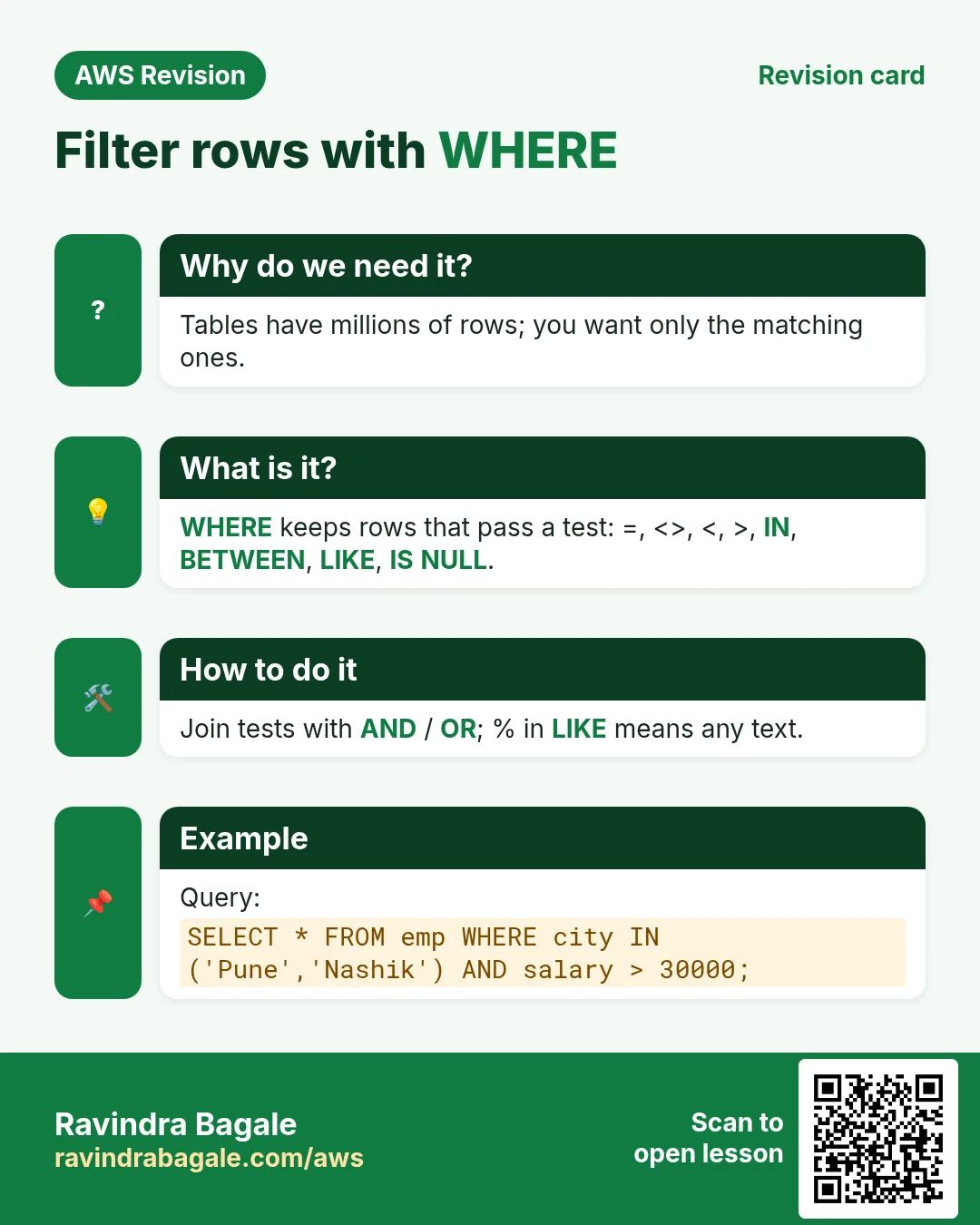
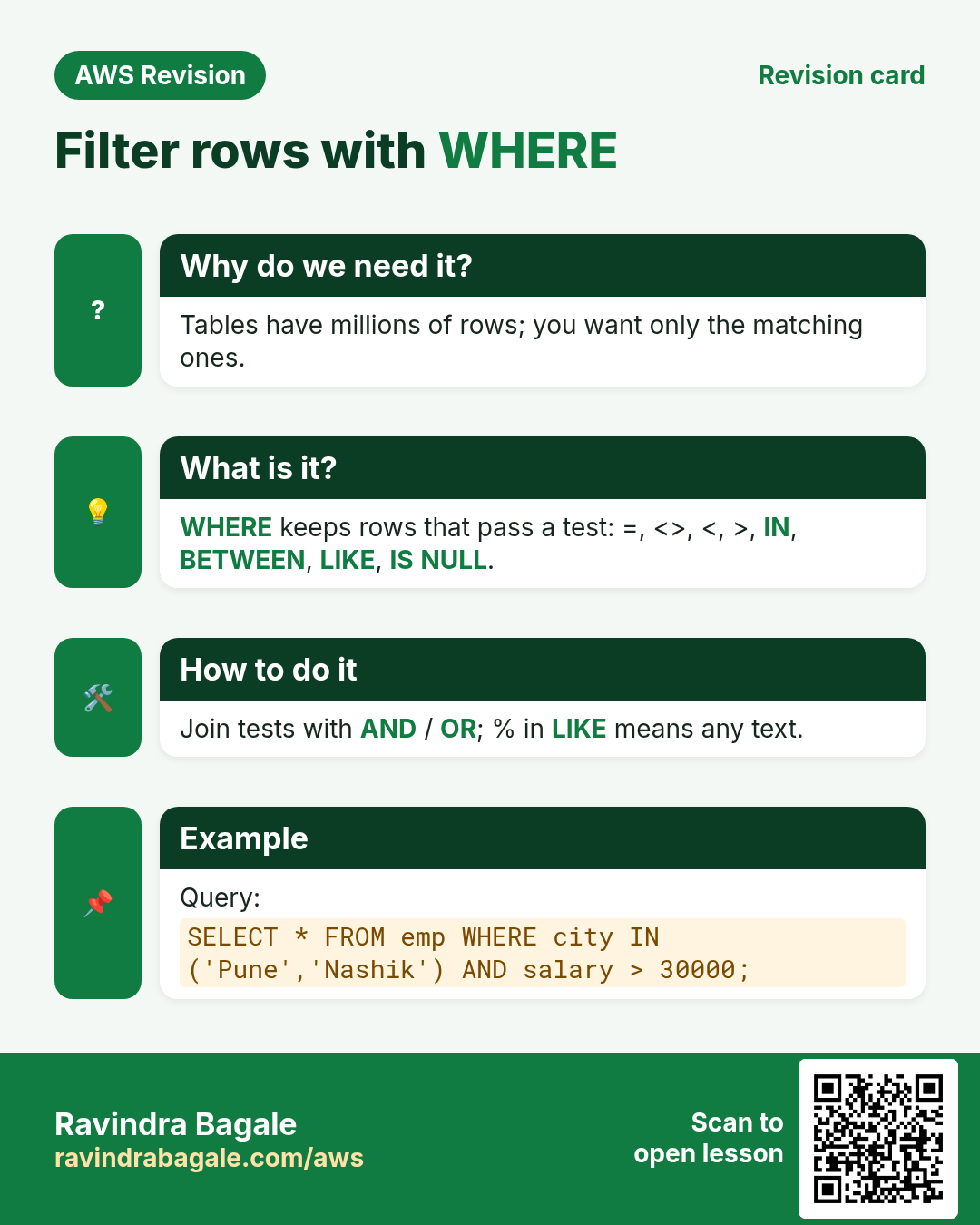
Why: an app almost never needs every row. "Show users from Mumbai" or "users aged 27 or less" means filtering.
What: WHERE comes after FROM and keeps only the rows for which the condition is true.
- Text values go in quotes:
city = 'mumbai'. - Numbers go without quotes:
age = 37.
Classroom line
If the value is text, we write it inside single or double quotes.
Class मधलं वाक्य
Value text मध्ये असेल, तर single quote किंवा double quote च्या आत लिहायची.
Classroom line – हिंदी
"Value agar text me hai, to single quote ya double quote ke andar likhenge."
How: the comparison operators, each with an example on our data:
=equal:SELECT * FROM users WHERE city = 'mumbai';gives maya and neha.!=not equal:SELECT * FROM users WHERE city != 'mumbai';gives the other 8 rows.<>is another way to write not equal:WHERE city <> 'mumbai'gives the same 8 rows.NOTin front of a condition also works:WHERE NOT city = 'mumbai'.<less than:WHERE age < 25gives amit (20) and priya (22).>greater than:WHERE age > 30gives kiran and arjun (37).<=less than or equal:WHERE age <= 27gives siya, maya, amit, neha and priya.>=greater than or equal:WHERE age >= 30gives ravi (30), kiran and arjun.- Write the two-character operators in this order:
<=and>=, never=<or=>.
Figure 3. WHERE with =, != or <>, <, >, <= and >=, each with an example on the users table and the rows it returns.
6. AND and OR: more than one condition
Why: Real filters rarely have one condition: "users from Pune older than 25". AND narrows the result, OR widens it, and mixing them up returns the wrong rows.
What:
AND: both conditions must be true.OR: at least one condition must be true.
Classroom line
If both conditions must be true, use AND.
Class मधलं वाक्य
दोन्ही conditions खऱ्या पाहिजेत, तर AND लावायचं.
Classroom line – हिंदी
"Agar dono condition sahi honi chahiye, to AND lagane ka."
How:
SELECT * FROM users WHERE city = 'pune' AND age <= 27;gives only siya. zoya is from Pune too, but her age isNULL, soage <= 27is not true for her.SELECT * FROM users WHERE city = 'nashik' OR age > 30;gives amit and ravi (Nashik) plus kiran and arjun (over 30).-
Users from Mumbai or Pune:
SELECT * FROM users WHERE city = 'mumbai' OR city = 'pune'; -
Repeat the column name after
OR.WHERE city = 'mumbai' OR 'pune'is accepted, but'pune'alone is not a condition: MariaDB returns only the Mumbai rows (with warnings). WHERE city = 'mumbai' AND city = 'pune'returns an empty set. One row has only one city, so it can never be both.
Classroom line
Many people go wrong here and write city='mumbai' or 'pune'.
Class मधलं वाक्य
"Bharpur lok ithe chuktat, city='mumbai' or 'pune' lihitat."
भरपूर लोक इथे चुकतात, city='mumbai' or 'pune' लिहितात.
Classroom line
Many people go wrong here and write city='mumbai' or 'pune'.
7. IN: one column, a list of values
Why: three cities with OR means typing city = three times. IN says the same thing in one short list.
How:
SELECT * FROM users WHERE city IN ('mumbai', 'pune', 'solapur');gives the users from those three cities.- Numbers work the same way, without quotes:
WHERE age IN (20, 25, 27)gives siya, maya, amit and neha. NOT INis the opposite:WHERE city NOT IN ('mumbai', 'pune')gives everyone else.
Classroom line
When it's one column with a condition on several values, we use IN.
Class मधलं वाक्य
Column एकच आहे आणि वेगवेगळ्या values वर condition आहे, तर IN वापरायचं.
Classroom line – हिंदी
"Column ek hi hai aur alag alag values pe condition hai, to IN use karenge."
8. BETWEEN: a range
Why: Ranges are everywhere: ages 18 to 25, prices from 500 to 1000, orders this month. BETWEEN says it in one short condition.
What: BETWEEN a AND b keeps values from a to b, including both ends.
Classroom line
If it's a range, use BETWEEN.
Class मधलं वाक्य
Range असेल तर BETWEEN वापरायचं.
Classroom line – हिंदी
"Agar range hai to BETWEEN use karna hai."
How:
SELECT * FROM users WHERE age BETWEEN 20 AND 27;gives siya (27), maya (25), amit (20), neha (25) and priya (22). Both 20 and 27 are included.- It is the same as
WHERE age >= 20 AND age <= 27, just shorter. - Always write the smaller value first.
BETWEEN 27 AND 20returns nothing. BETWEENalso works on text, in alphabetical order:WHERE name BETWEEN 'neha' AND 'siya'gives neha, priya, both ravis and siya.
Figure 4. AND (both true), OR (at least one), IN (a list for one column) and BETWEEN (a range with both ends included), each with the rows it returns, plus the OR mistake to avoid.
9. NULL: IS NULL and IS NOT NULL
What: NULL means "no value at all". It is not 0 and not the text 'NULL'. Because it is no value, comparing it with = is never true.
How:
SELECT * FROM users WHERE age = NULL;returnsEmpty set, even though zoya has no age.SELECT * FROM users WHERE age = 'NULL';also returnsEmpty set; it compares with the textNULL.-
The correct way is
IS NULL:SELECT * FROM users WHERE age IS NULL; -
That returns zoya.
SELECT * FROM users WHERE age IS NOT NULL;returns the other 9 users.
10. LIKE: search inside text
Why: a search box ("names starting with r", "products containing phone") needs patterns, not exact values.
What: LIKE compares text with a pattern that can contain two wildcards:
%means any number of characters, even none._means exactly one character.
Classroom line
If you want to build a search feature, you'll need LIKE.
Class मधलं वाक्य
"Searching functionality karaychi asel tar LIKE vaprava lagel."
Searching functionality करायची असेल तर LIKE वापरावा लागेल.
Classroom line
If you want to build a search feature, you'll need LIKE.
How:
SELECT name FROM users WHERE name LIKE 'r%';gives names that start with r: ravi, ravi.WHERE name LIKE '%ya'gives names that end with ya: zoya, siya, maya, priya.WHERE name LIKE '%ir%'gives names that contain ir: kiran.WHERE name LIKE '____'(four underscores) gives names of exactly 4 characters: ravi, zoya, siya, maya, amit, neha, ravi.WHERE name LIKE '_____'(five underscores) gives kiran, priya, arjun.'s%a'means starts with s and ends with a: siya.- Without
%or_,LIKE 'ravi'behaves like= 'ravi'. - With MariaDB's default settings,
LIKE 'R%'also finds ravi: the comparison ignores upper and lower case.
Classroom line
As many characters as you need, that many underscores.
Class मधलं वाक्य
जितके characters पाहिजेत, तितके underscores.
Classroom line – हिंदी
"Jitne character chahiye, utne underscore."
Figure 5. = NULL never matches, IS NULL does; LIKE patterns with % (any number of characters) and _ (exactly one character), and the names each pattern matches.
11. LIMIT and OFFSET
Why: a table can have millions of rows. You may want to peek at a few, show "top 3", or show results page by page.
What:
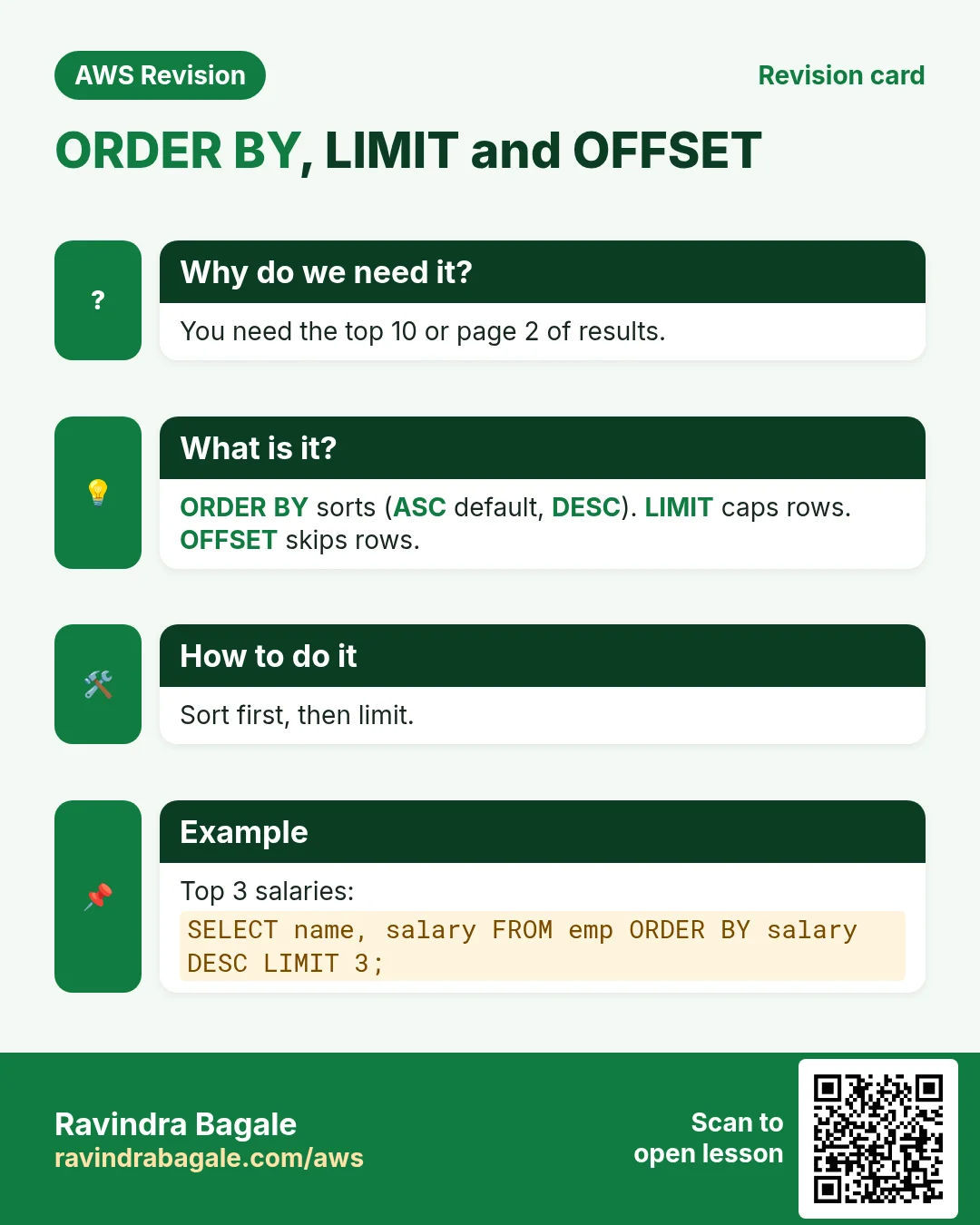
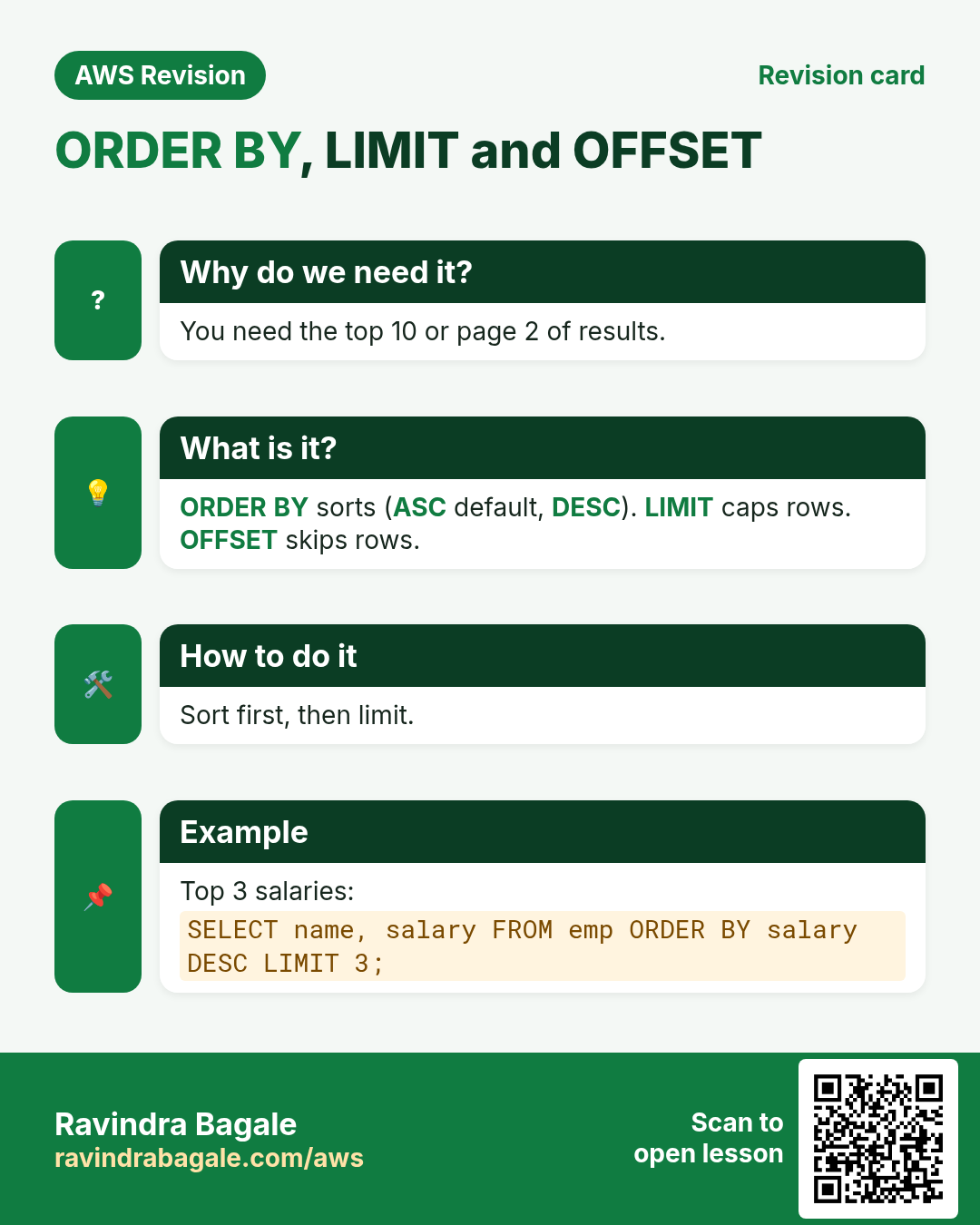
LIMIT nreturns at mostnrows.OFFSET mfirst skipsmrows. Without it, the offset is 0.
Classroom line
OFFSET means skip that many and show the rest.
Class मधलं वाक्य
"Offset mhanje tevde sodun, bakiche dakhav."
Offset म्हणजे तेवढे सोडून, बाकीचे दाखव.
Classroom line
OFFSET means skip that many and show the rest.
How:
SELECT * FROM users LIMIT 2;gives the first 2 rows.SELECT * FROM users LIMIT 3 OFFSET 2;skips 2 rows and gives the next 3 (ids 3, 4 and 5).- Page 1 of a list with 3 per page is
LIMIT 3 OFFSET 0, page 2 isLIMIT 3 OFFSET 3, page 3 isLIMIT 3 OFFSET 6. -
For a "top N", sort first. The three oldest users:
SELECT name, age FROM users ORDER BY age DESC LIMIT 3; -
Without
ORDER BY, "the first 3 rows" has no guaranteed meaning; always sort when the order matters.
Figure 6. Animation: LIMIT 2 shows the first two rows; LIMIT 3 OFFSET 2 skips two and shows the next three; ORDER BY age DESC LIMIT 3 gives the three oldest users.
12. A table for salaries: emp, and DECIMAL for money
Why: to practise calculations we need numbers worth adding up. An employee table with departments and salaries is the classic example.
What: for money, use DECIMAL(10,2): up to 10 digits in total, 2 of them after the decimal point. DECIMAL stores the exact value. FLOAT stores an approximation, which can round amounts such as 0.10 slightly; that is fine for a weight, not for money.
How:
-
Create the table:
CREATE TABLE emp (id INT, name VARCHAR(20), dept VARCHAR(20), salary DECIMAL(10,2)); -
Add five employees:
INSERT INTO emp VALUES (1, 'ravi', 'IT', 100000), (2, 'neha', 'Account', 250000), (3, 'govinda', 'IT', 270000), (4, 'pooja', 'HR', 10000), (6, 'ram', 'HR', 25000); -
SELECT * FROM emp;shows the salaries with two decimals, for example100000.00.
13. Aggregate functions: MAX, MIN, SUM, AVG and COUNT
Why: "What's the highest salary?", "What do we pay in total?" These questions need one answer calculated from many rows.
Classroom line
Which is the highest salary of all?
Class मधलं वाक्य
"Saglyat highest salary konti ahe?"
सगळ्यात highest salary कोणती आहे?
Classroom line
Which is the highest salary of all?
How:
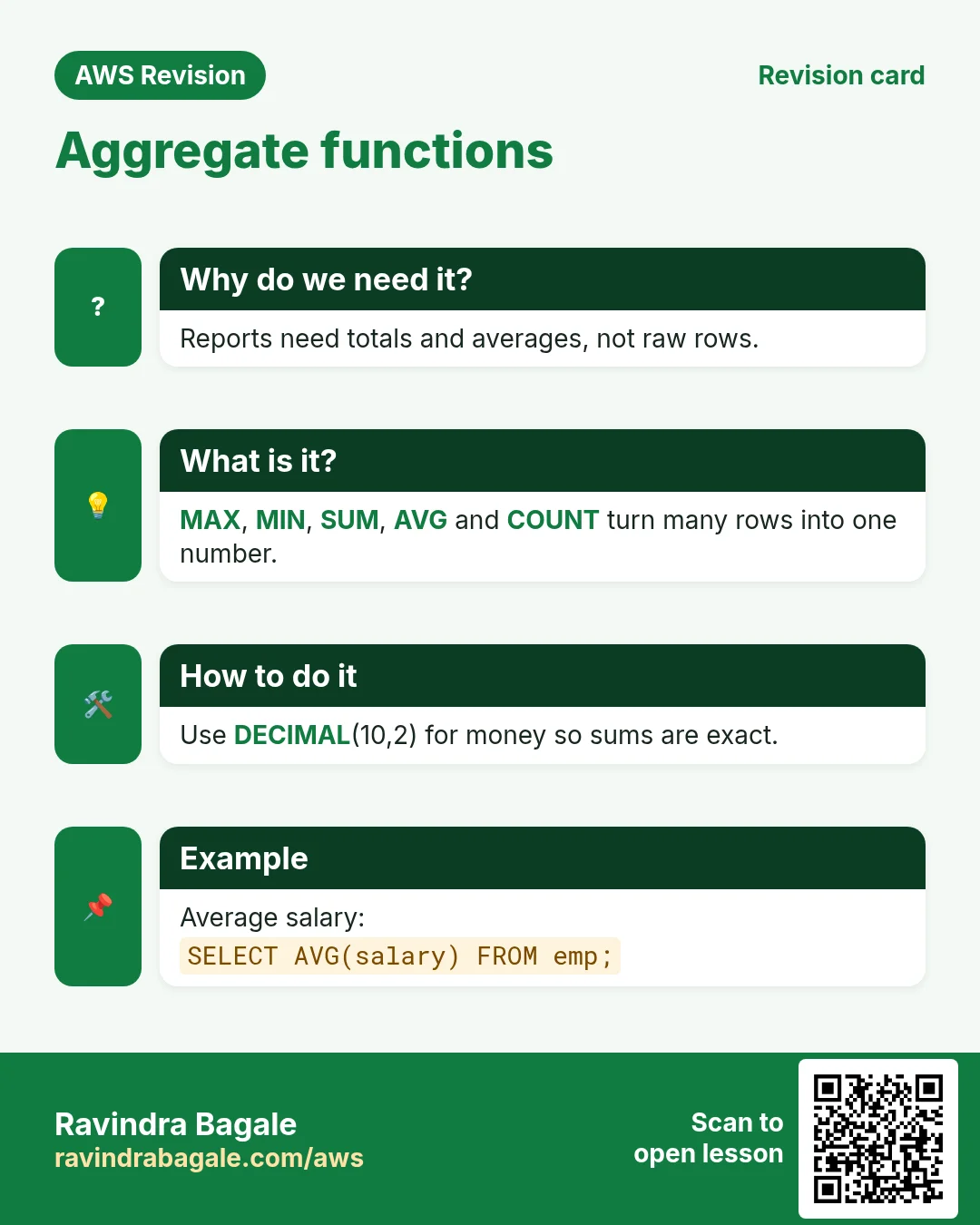
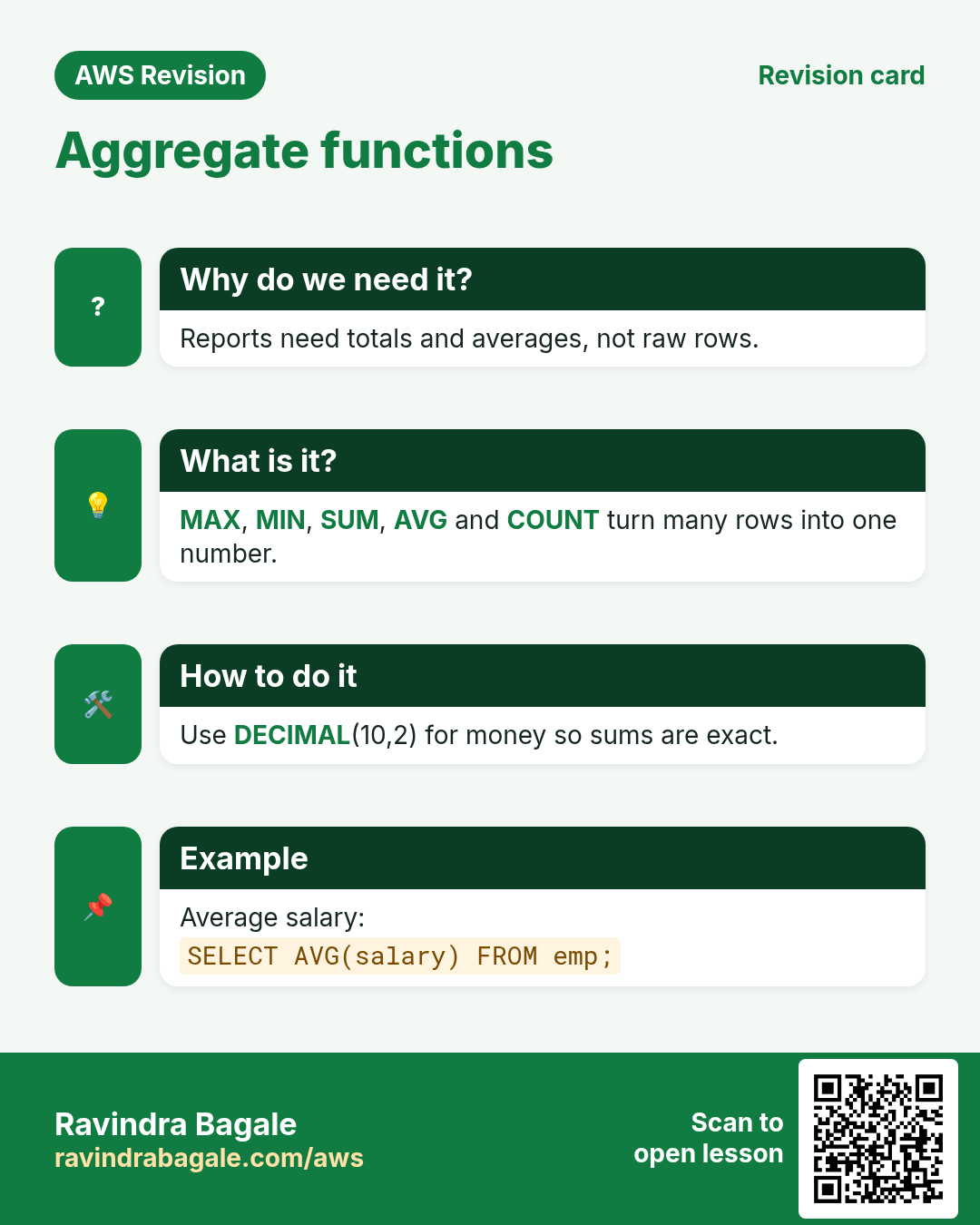
SELECT MAX(salary) FROM emp;gives the highest: 270000.00.SELECT MIN(salary) FROM emp;gives the lowest: 10000.00.SELECT SUM(salary) FROM emp;gives the total: 655000.00.SELECT AVG(salary) FROM emp;gives the average: 131000 (printed with six decimals).SELECT ROUND(AVG(salary), 2) FROM emp;rounds it to 131000.00.SELECT COUNT(salary) FROM emp;counts the salaries: 5.- Several at once, with aliases:
SELECT MAX(salary) AS highest, MIN(salary) AS lowest FROM emp;
The numbers in the screenshots below are the same; only the number of decimals shown depends on the column type.
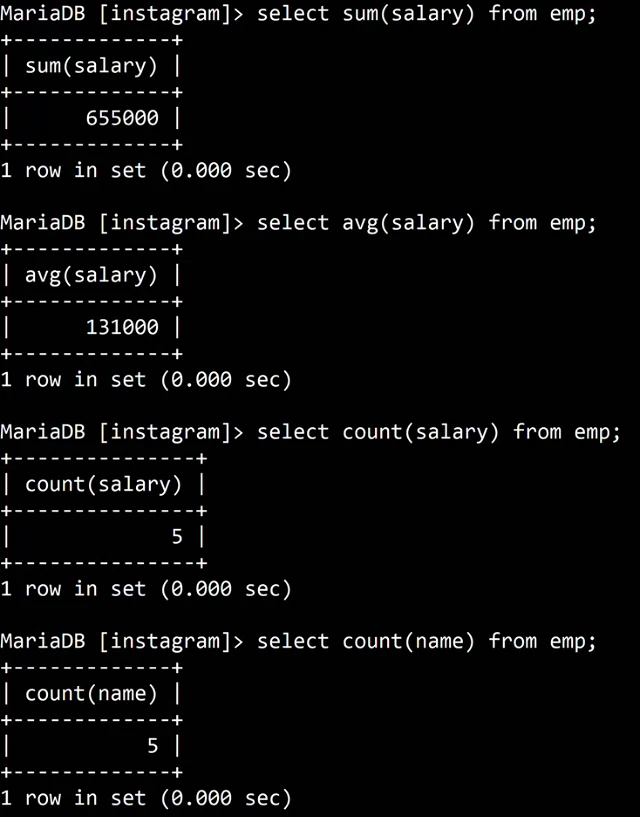
Whiteboard: SUM, AVG, COUNT(salary) and COUNT(name) on the emp table: 655000, 131000, 5 and 5.
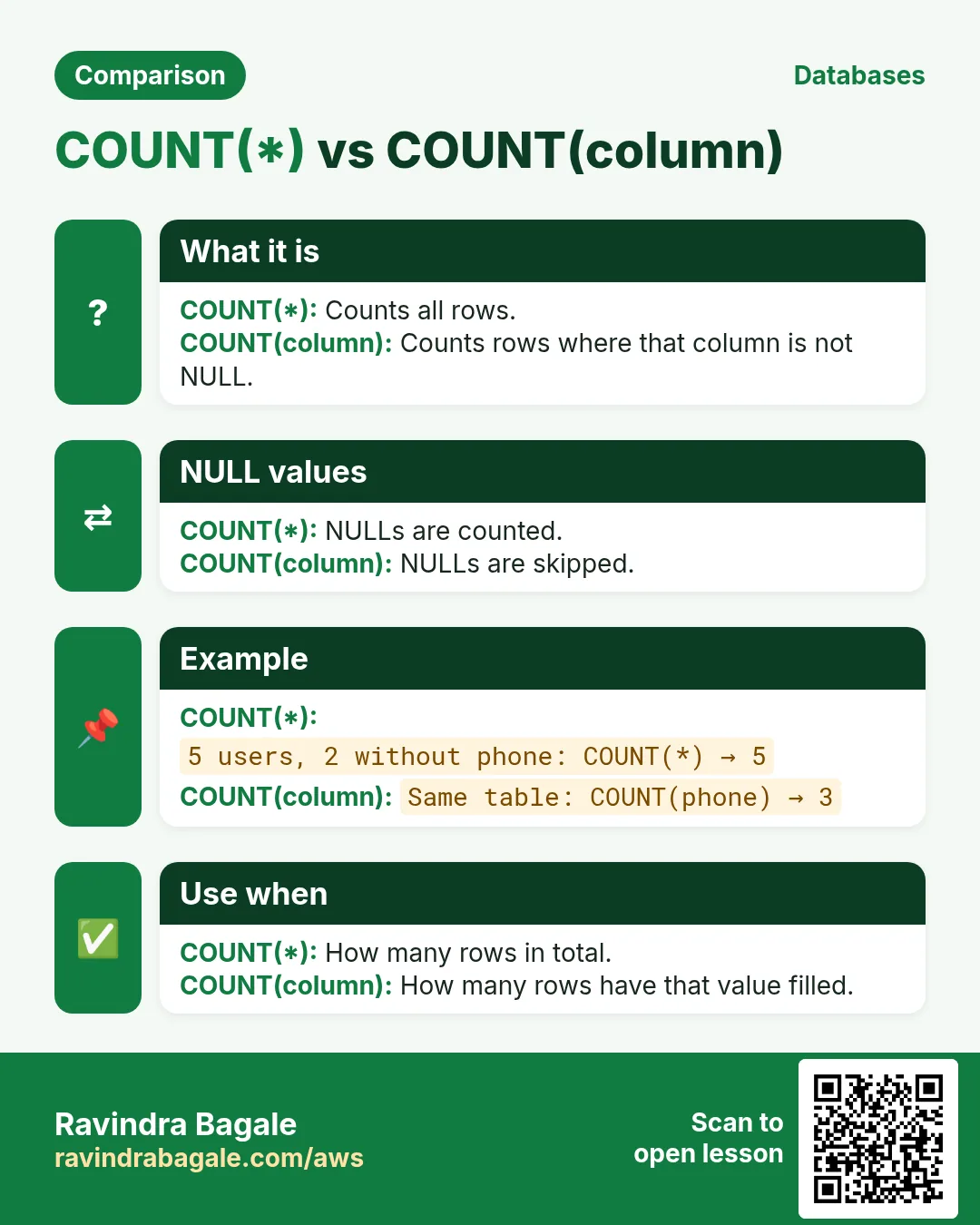
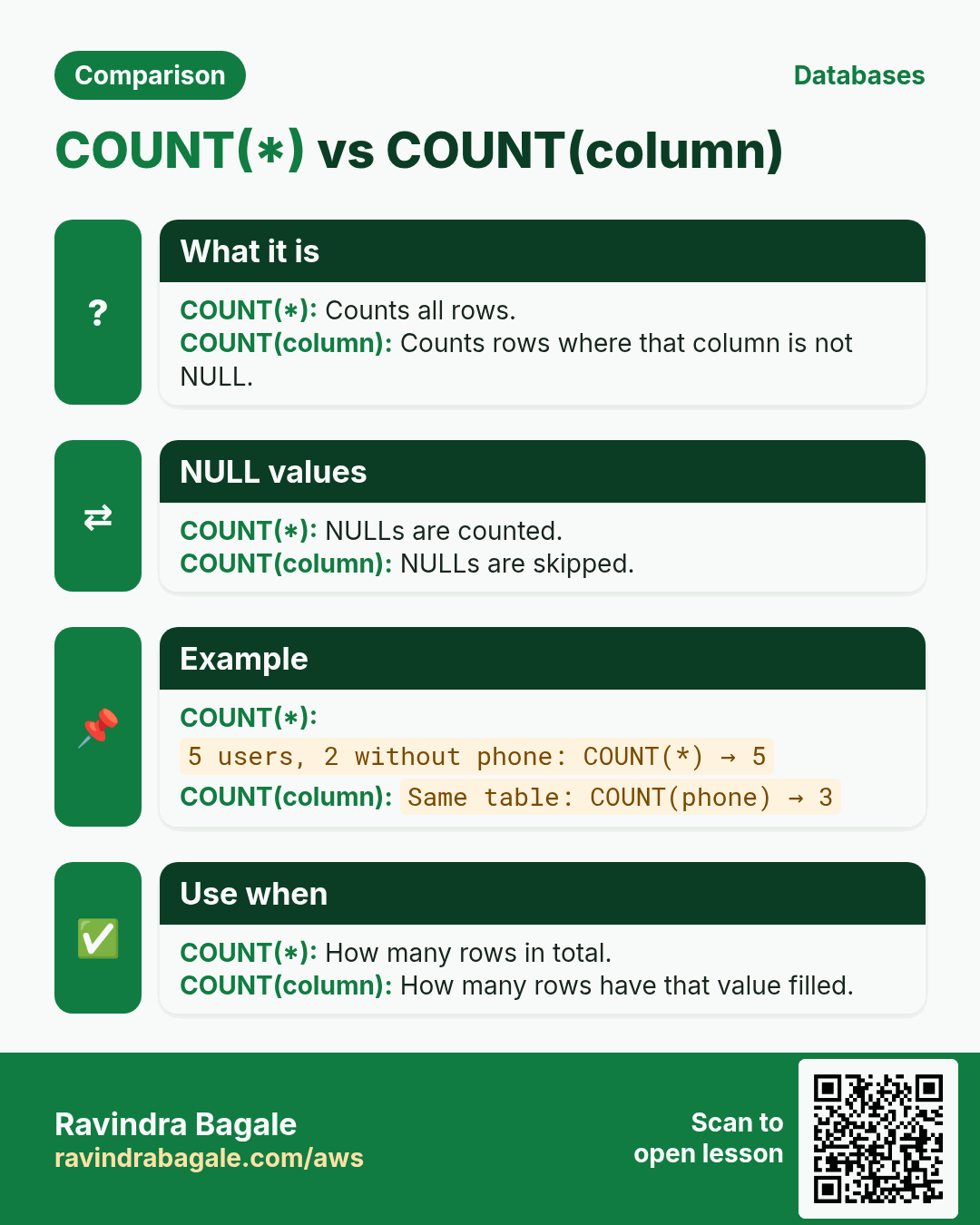
13.1 COUNT(*) versus COUNT(column)
-
Add an employee with only an id and a salary:
INSERT INTO emp (id, salary) VALUES (7, 10000); -
nameanddeptareNULLfor this row. SELECT COUNT(*) FROM emp;gives 6:COUNT(*)counts rows.SELECT COUNT(name) FROM emp;gives 5:COUNT(column)counts only the values that are notNULL.SELECT COUNT(id) FROM emp;gives 6, because every row has an id.- So "how many employees do we have?" is
COUNT(*). This is a very common interview question.
Classroom line
The COUNT function doesn't count NULL.
Class मधलं वाक्य
Count function NULL ला count करत नाही.
Classroom line – हिंदी
"Count function NULL ko count nahi karta."
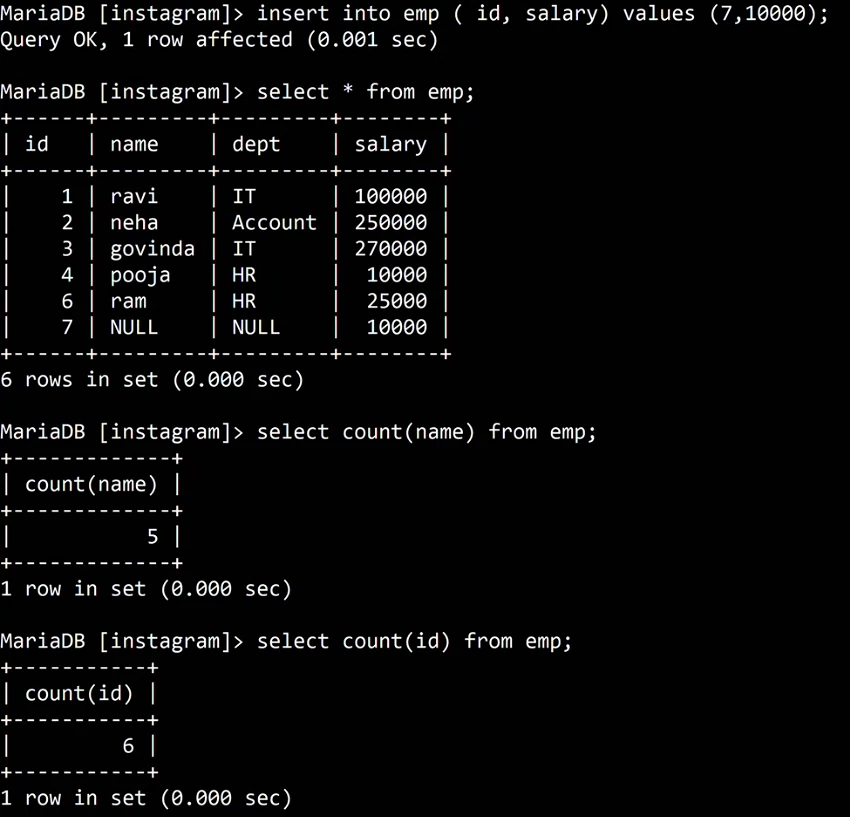
Whiteboard: After inserting row 7 with only id and salary: name and dept are NULL, COUNT(name) is 5 and COUNT(id) is 6.
Figure 7. MAX, MIN, SUM, AVG and COUNT on the emp table, and after row 7 is added: COUNT(*) counts every row (6), COUNT(name) skips the NULL name (5).
14. Subquery: a query inside a query
Why: MAX(salary) tells you the highest salary, but not who earns it. You need a second query that uses the first one's answer.
What: a subquery is a SELECT inside brackets, inside another query. The inner query runs first, and the outer query uses its result.
Classroom line
We call this a query in a query.
Class मधलं वाक्य
"Hyala aapan query in query mhanto."
ह्याला आपण query in query म्हणतो.
Classroom line
We call this a query in a query.
How:
-
Who earns the most?
SELECT name, salary FROM emp WHERE salary = (SELECT MAX(salary) FROM emp); -
The inner query returns 270000.00, so the outer query becomes
WHERE salary = 270000.00and returns govinda. - Use the same table name inside and outside: the salaries are in
emp, so both parts sayFROM emp. - Who earns the least? Replace
MAXwithMIN: you get two rows, pooja and the row with theNULLname, because both earn 10000.00. A subquery returns every row that matches. -
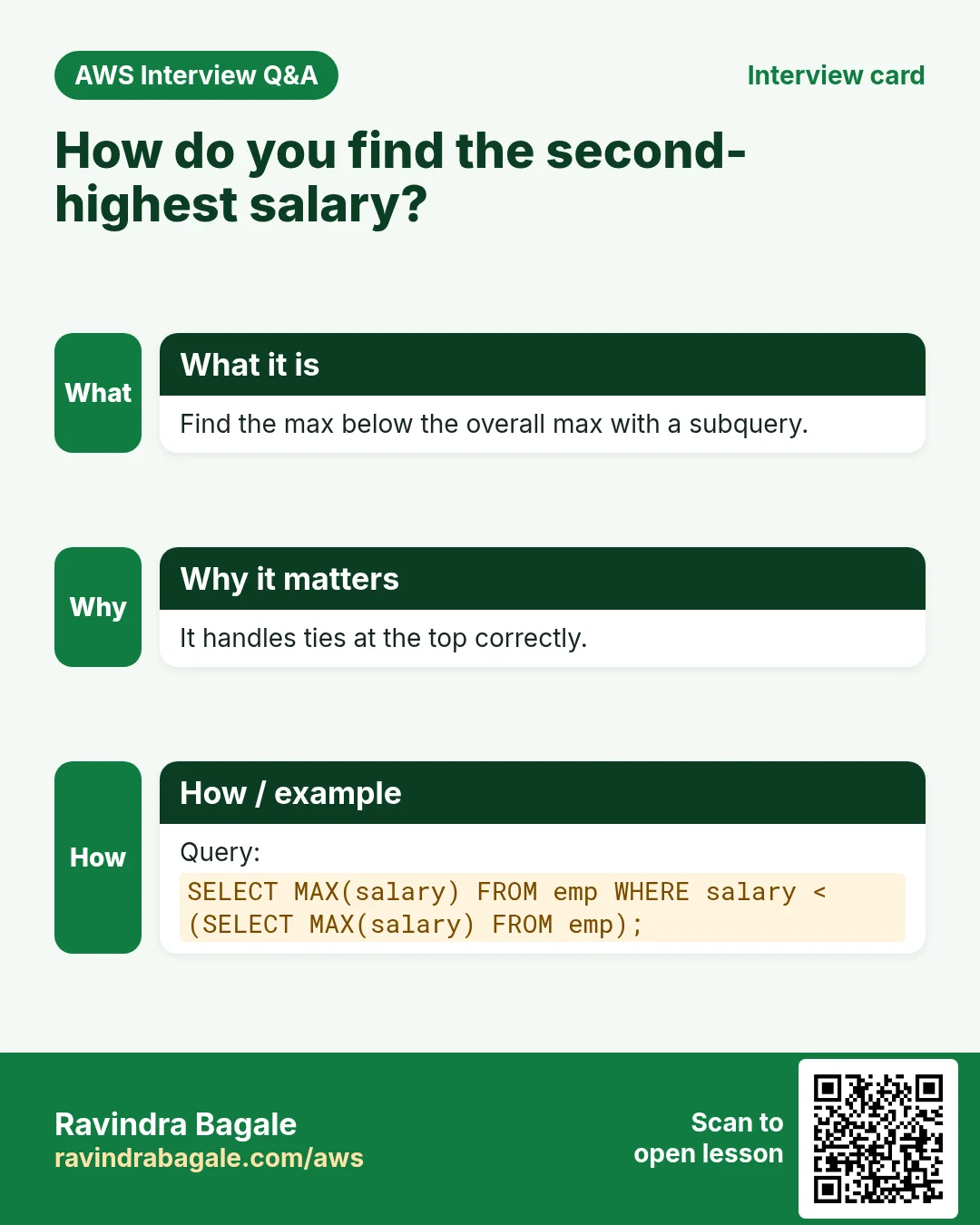
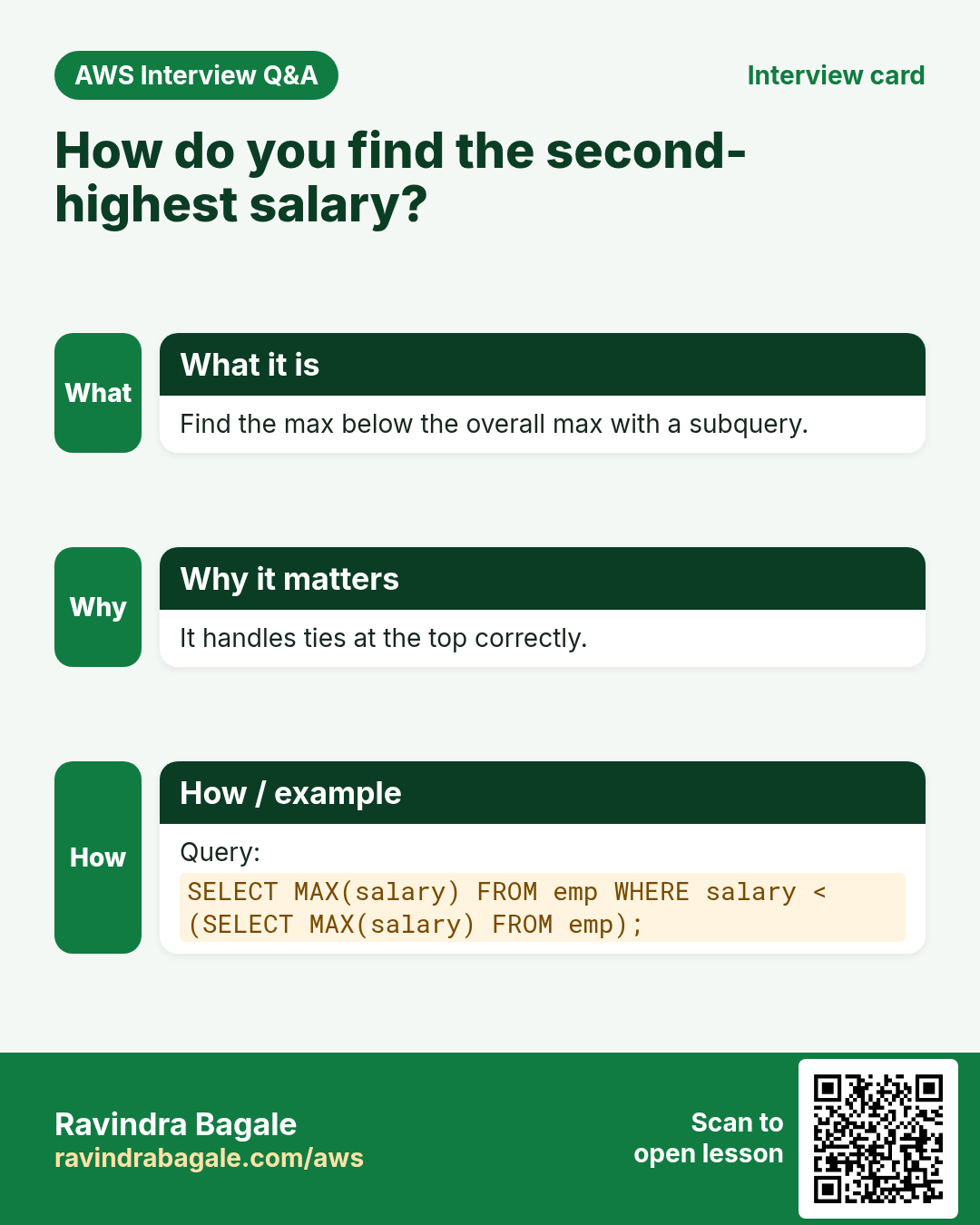
The second-highest salary, a favourite interview question:
SELECT MAX(salary) FROM emp WHERE salary < (SELECT MAX(salary) FROM emp); -
The inner query finds 270000.00; the outer one finds the highest salary below that: 250000.00 (neha).
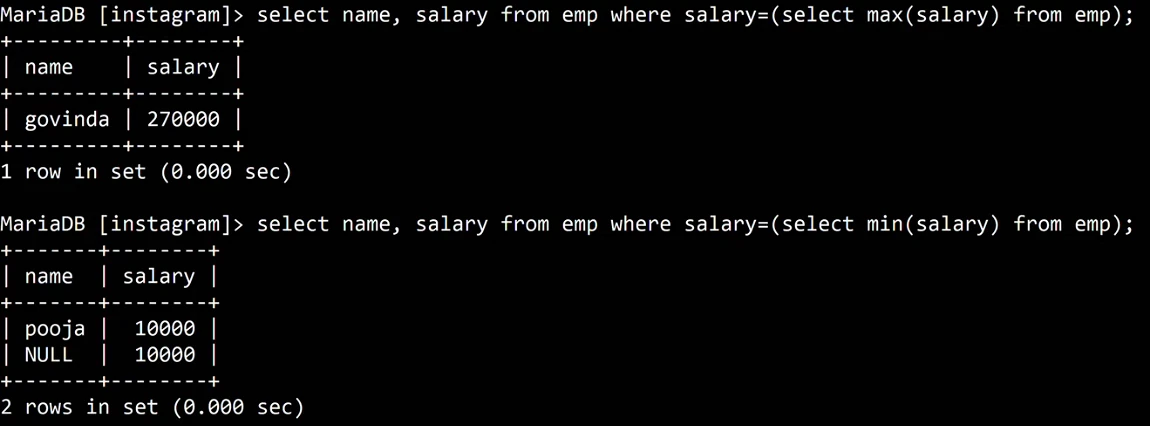
Whiteboard: Subqueries on emp: the highest salary is govinda's 270000; the lowest, 10000, matches two rows, pooja and the row with a NULL name.
Figure 8. The inner query runs first and returns 270000.00; the outer query uses it and returns govinda. MIN returns two tied rows. The second-highest salary is the MAX below the MAX: 250000.00.
15. GROUP BY: one answer per group
Why: SUM(salary) gives one total for the whole company. "Total salary per department" needs one total for each department.
What: GROUP BY dept puts the rows with the same dept together, and the aggregate function runs once per group.
Classroom line
Whenever you need a group-wise answer, use GROUP BY.
Class मधलं वाक्य
"Jya veli group-wise answer pahije, tevha group by vaprayacha."
ज्या वेळी group-wise answer पाहिजे, तेव्हा group by वापरायचा.
Classroom line
Whenever you need a group-wise answer, use GROUP BY.
How:
SELECT SUM(salary) FROM emp GROUP BY dept;gives four totals, but you can't tell which is which.-
Add the group column to the
SELECT:SELECT dept, SUM(salary) FROM emp GROUP BY dept; -
The result:
NULL10000.00,Account250000.00,HR35000.00,IT370000.00. - Rows with no department form their own
NULLgroup. - Other functions work per group too:
SELECT dept, COUNT(*) AS people, AVG(salary) FROM emp GROUP BY dept; - Put in
SELECTonly the grouped column and aggregate functions. A column likenamehas many values per group, so it has no single answer.
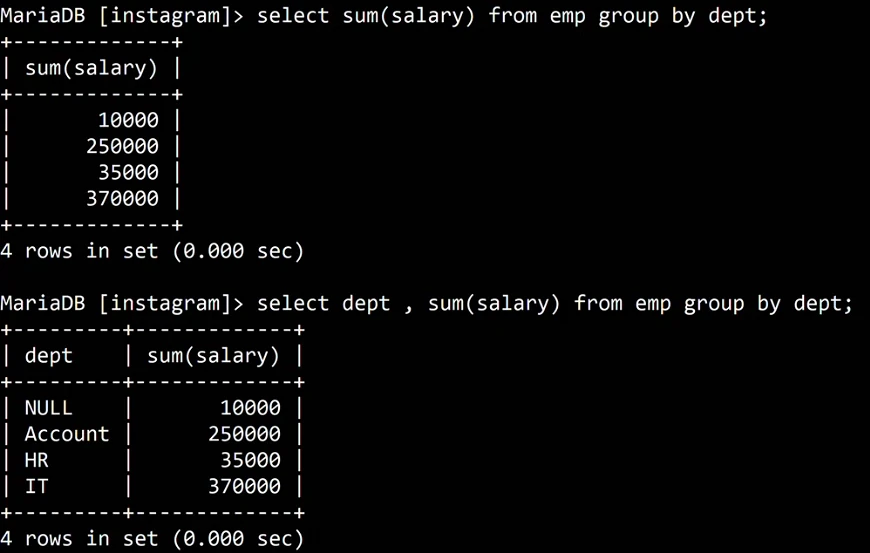
Whiteboard: SUM(salary) grouped by dept, first without and then with the dept column.
16. HAVING: filter the groups
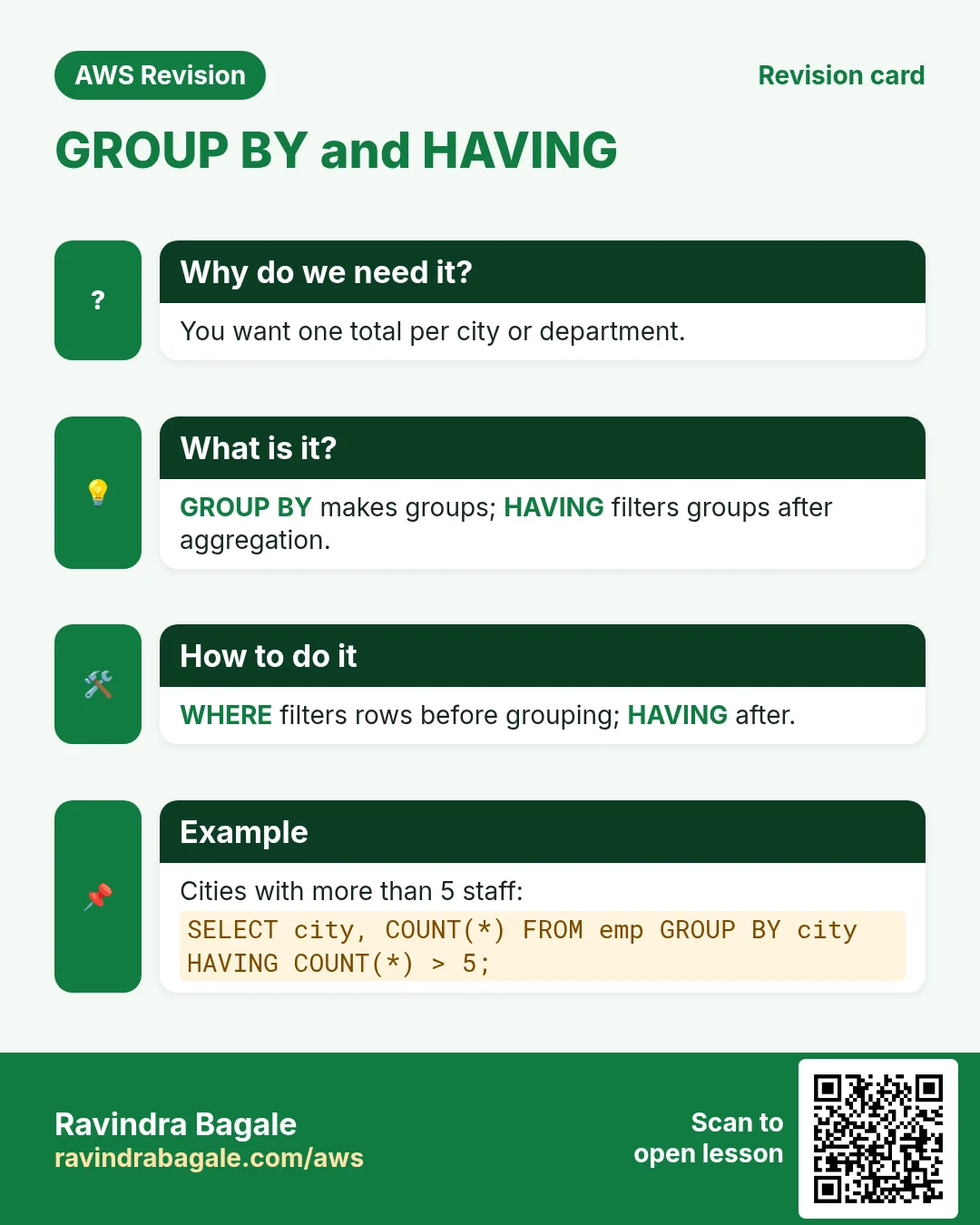
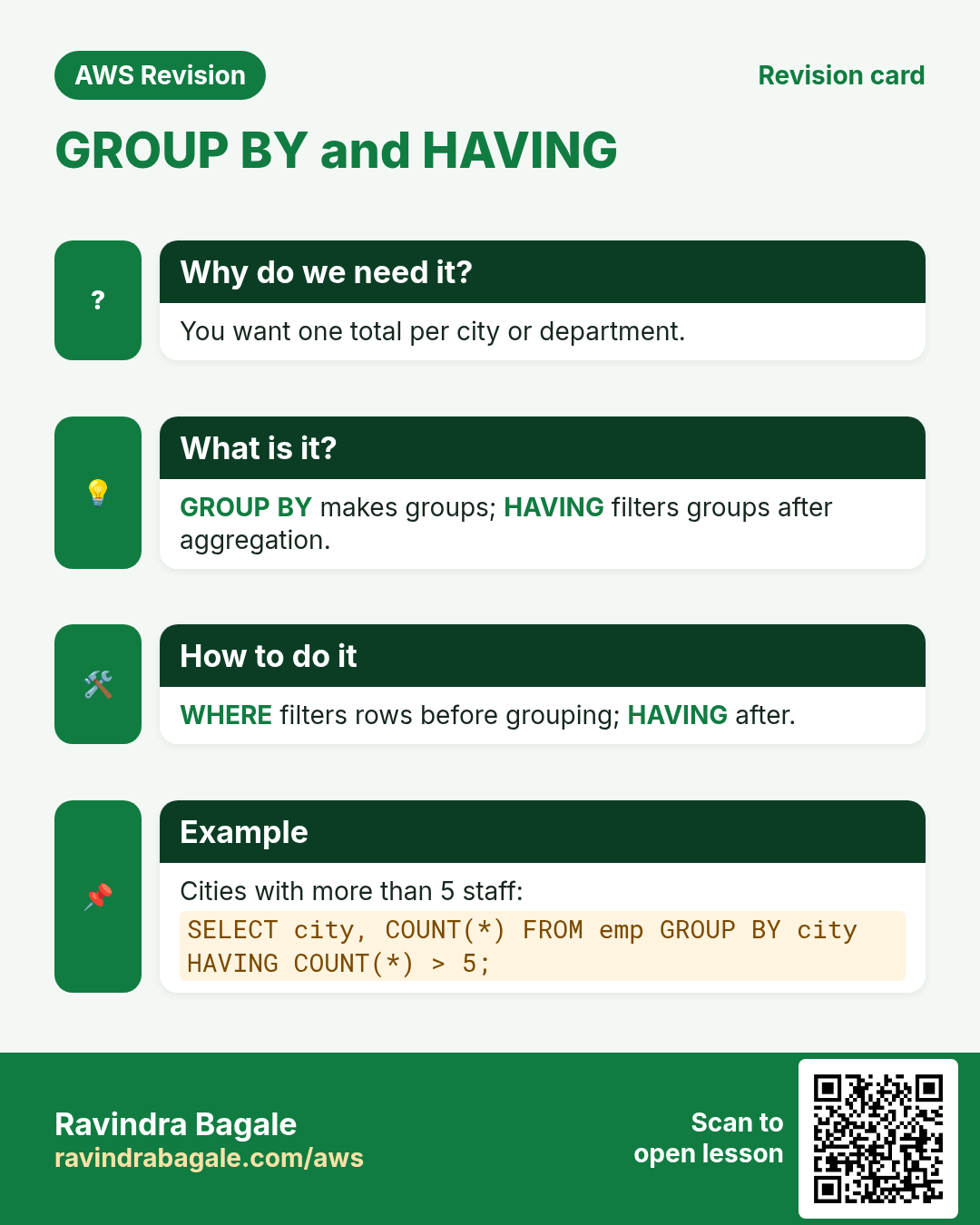
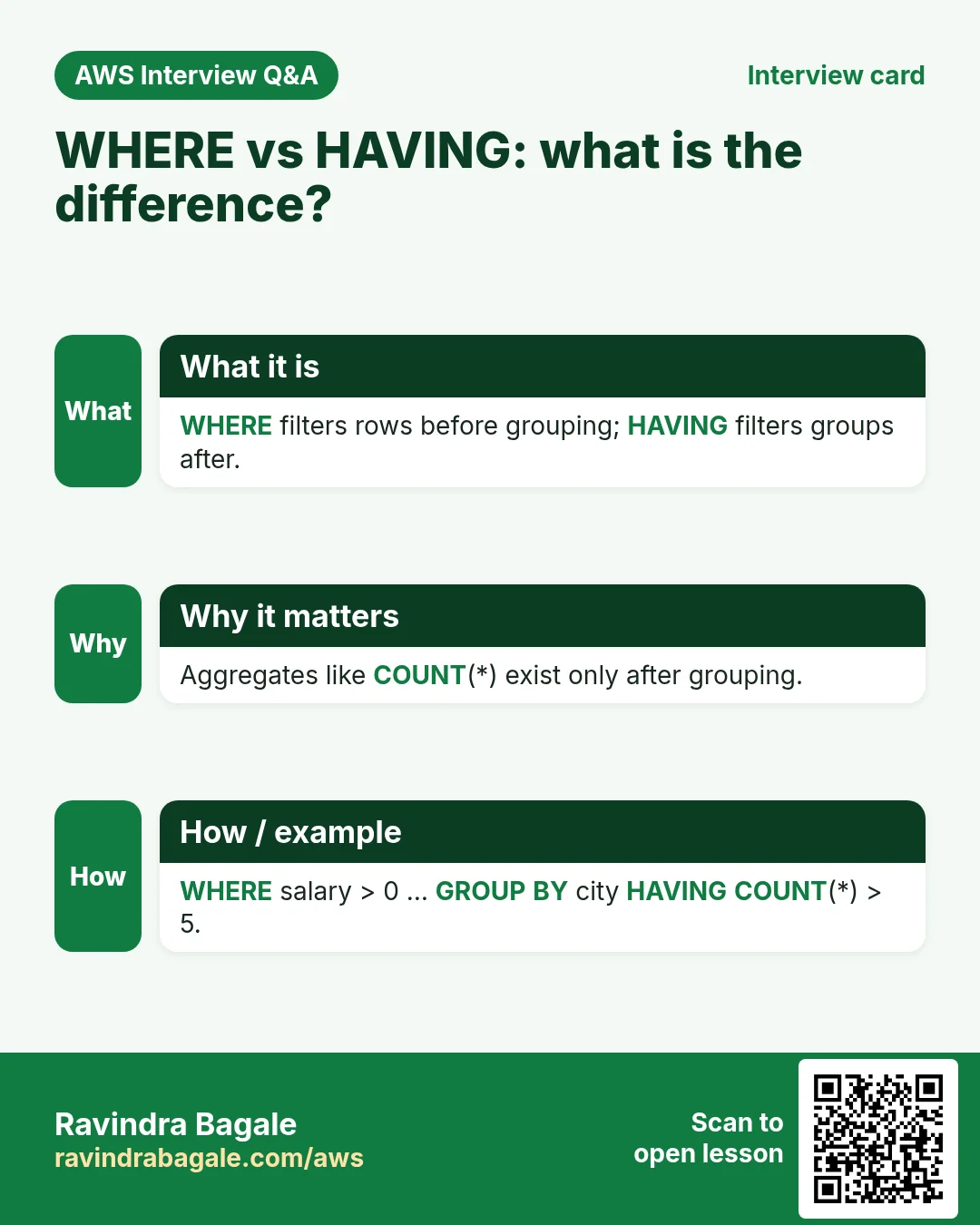
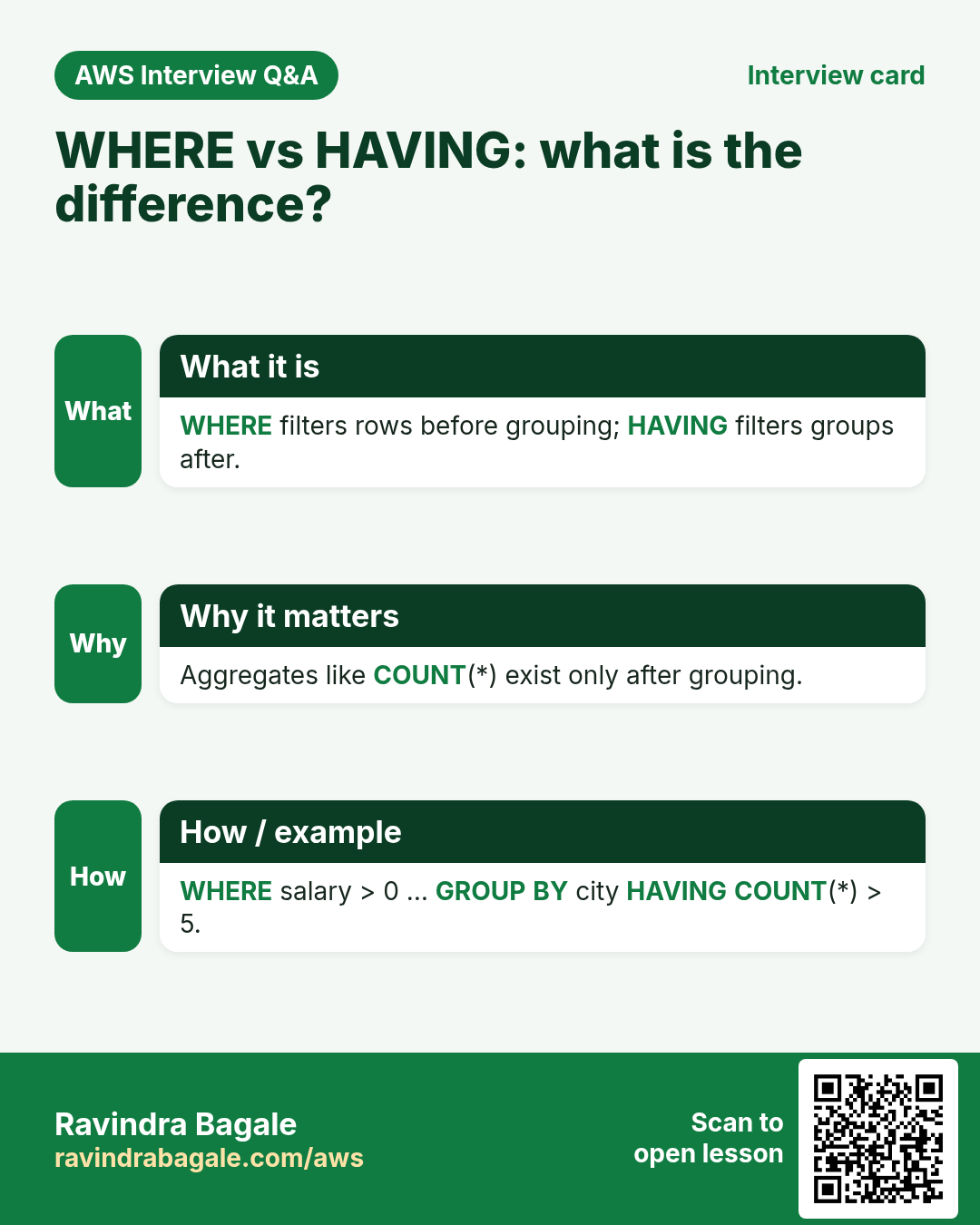
Why: "Cities with more than one user" is a condition on groups, not on rows. WHERE runs before grouping, so it can't do this; HAVING can.
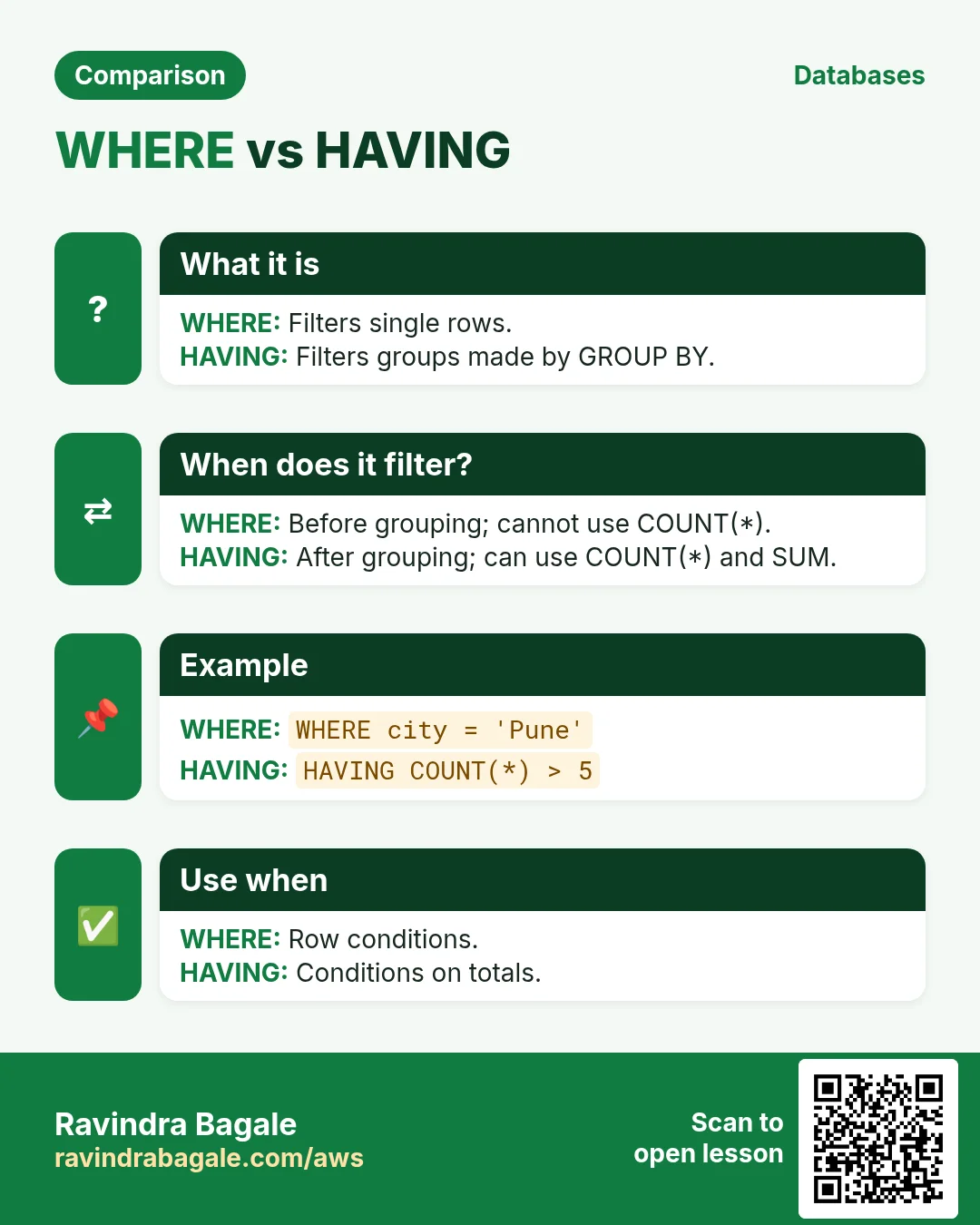
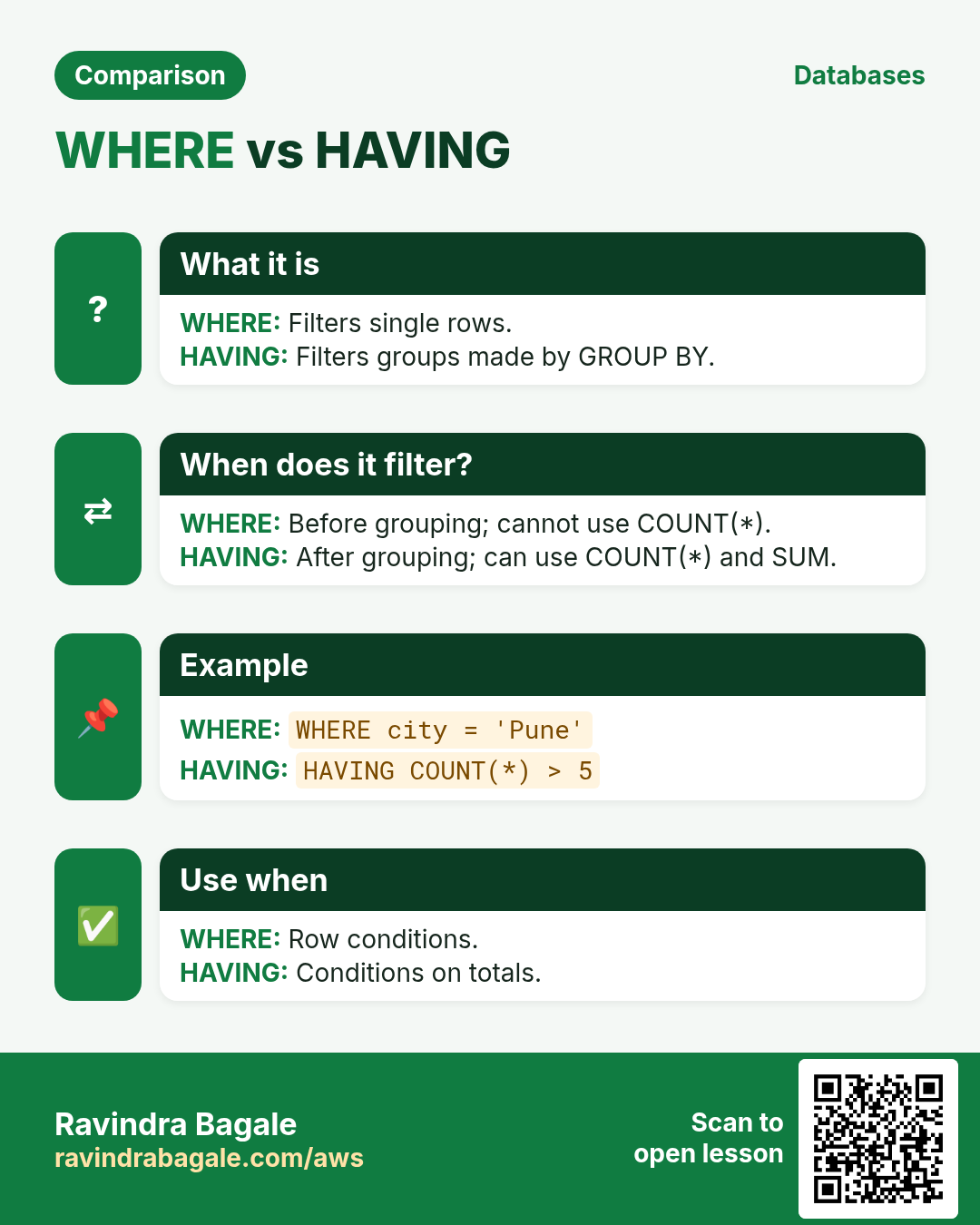
What: HAVING is a condition on the groups, after GROUP BY. WHERE is a condition on the rows, before grouping.
Classroom line
If the condition is on groups, we don't use WHERE; we use HAVING.
Class मधलं वाक्य
Groups वर condition असेल तर where नाही, having वापरायचं.
Classroom line – हिंदी
"Groups pe condition ho toh where nahi, having use karenge."
How:
-
Departments whose total salary is more than 100000:
SELECT dept, SUM(salary) FROM emp GROUP BY dept HAVING SUM(salary) > 100000; -
The result: Account 250000.00 and IT 370000.00.
SELECT * FROM emp WHERE SUM(salary) > 100000;fails withERROR 1111 ... Invalid use of group function:WHERElooks at one row at a time, before any totals exist.-
You can use both:
WHEREfirst removes rows, thenHAVINGremoves groups:SELECT dept, SUM(salary) AS total FROM emp WHERE dept IS NOT NULL GROUP BY dept HAVING total > 100000 ORDER BY total DESC; -
That returns IT (370000.00) then Account (250000.00).

Whiteboard: GROUP BY dept with HAVING SUM(salary) > 100000 keeps only Account and IT.
Figure 9. Animation: the six emp rows coloured by department, GROUP BY dept making one total per department (including a NULL group), and HAVING keeping only the groups over 100000.
Ravindra Bagale's Tip
Read a long SELECT in the order MariaDB runs it: FROM (which table), WHERE (which rows), GROUP BY (which groups), HAVING (which groups survive), SELECT (which columns), ORDER BY (in what order), LIMIT (how many). When a query gives a surprising answer, run it again one clause at a time, adding the next clause only when the previous result looks right.
17. UPDATE: change data that exists
Why: a user changes city, or a name was typed wrong. You change the rows that exist; you don't delete and re-insert them.
What:
UPDATEchanges the data in rows. It is the U in CRUD.ALTER TABLEchanges the structure of a table: it adds, changes or removes columns. The rows stay as they are. For example,ALTER TABLE users ADD phone VARCHAR(15);adds an emptyphonecolumn. The next SQL chapter coversALTER TABLEproperly.
The form of UPDATE:
UPDATE table SET column = value WHERE condition;
How: the second ravi (id 10, from Nashik) should be called ravindra. The ravi from Solapur must not change.
Classroom line
I don't want to change the ravi from Solapur; only the ravi from Nashik should become ravindra.
Class मधलं वाक्य
"Mala Solapur walya ravila nahi badlaycha, fakt Nashik walya ravilach ravindra karaycha."
मला Solapur वाल्या रवीला नाही बदलायचं, फक्त Nashik वाल्या रवीलाच ravindra करायचं.
Classroom line
I don't want to change the ravi from Solapur; only the ravi from Nashik should become ravindra.
- First run a
SELECTwith the condition you plan to use:SELECT * FROM users WHERE name = 'ravi'; - It returns two rows.
UPDATE users SET name = 'ravindra' WHERE name = 'ravi';would change both. -
Use a column that picks exactly one row. Here that is
id:UPDATE users SET name = 'ravindra' WHERE id = 10; -
MariaDB answers
Query OK, 1 row affectedandRows matched: 1 Changed: 1. - Check:
SELECT * FROM users WHERE name LIKE 'ravi%';shows ravi (Solapur) and ravindra (Nashik). - Change several columns at once with commas:
UPDATE users SET age = 26, city = 'pune' WHERE id = 5; - Without
WHERE,UPDATEchanges every row in the table. Always write theWHEREfirst. - Read the "rows affected" number every time. If it is bigger than you expected, your condition matched more rows than you meant.
Figure 10. The order of clauses in a SELECT, and UPDATE (changes the data in rows) versus ALTER TABLE (changes the structure of the table).
When you're done practising, type exit; and stop the EC2 instance.
18. The whole class on one page
SELECT DISTINCT city FROM users;each value once.SELECT city AS gaav ...renames the heading.ORDER BY colascending (default),ORDER BY col DESC,ORDER BY name, cityfor ties.WHEREwith=,!=/<>,<,>,<=,>=; text in quotes, numbers without.ANDboth true,ORat least one; repeat the column afterOR.IN (...)a list;BETWEEN a AND ba range including both ends, also on text.IS NULL/IS NOT NULL;= NULLnever matches.LIKEwith%(any characters) and_(exactly one).LIMIT n OFFSET m; sort withORDER BYfirst for a top N.- Money in
DECIMAL(10,2).MAX,MIN,SUM,AVG,COUNT(*)(rows) andCOUNT(col)(non-NULL values). - Subquery:
WHERE salary = (SELECT MAX(salary) FROM emp); second highest:MAXbelow theMAX. GROUP BY deptone answer per group;HAVINGfilters groups,WHEREfilters rows.UPDATE t SET col = val WHERE ...;changes data;ALTER TABLEchanges structure.
19. Hands-on lab: ten queries on the practice table
Why this lab. Each query below answers a question an app really asks. Use the ten rows from section 1, so your results match exactly.
- Each city once
- Command:
SELECT DISTINCT city FROM users; - You should see: 6 rows:
solapur,pune,mumbai,nashik,delhi,dubai. - Check:
6 rows in set, not 10. - Why: A city dropdown needs each value once.
DISTINCTremoves repeats from the result only; the table is unchanged.
- Command:
- Users from Pune
- Command:
SELECT name, age FROM users WHERE city = 'pune'; - You should see:
zoya | NULLandsiya | 27. - Check:
2 rows in set. - Why:
WHEREkeeps only matching rows. Text values need quotes.
- Command:
- Two cities at once
- Command:
SELECT name FROM users WHERE city IN ('pune', 'mumbai'); - You should see:
zoya,siya,maya,neha. - Check:
4 rows in set. - Why:
INis a short way to writecity = 'pune' OR city = 'mumbai'.
- Command:
- An age range
- Command:
SELECT name, age FROM users WHERE age BETWEEN 25 AND 30; - You should see:
ravi 30,siya 27,maya 25,neha 25,ravi 28. - Check:
5 rows in set; 25 and 30 are included. - Why:
BETWEENincludes both ends. Zoya'sNULLage is in no range.
- Command:
- Missing values
- Command:
SELECT name FROM users WHERE age IS NULL; - You should see:
zoya - Check:
WHERE age = NULLreturnsEmpty set. - Why:
NULLmeans no value, so=can never match it. Always useIS NULL.
- Command:
- Names starting with r
- Command:
SELECT id, name FROM users WHERE name LIKE 'r%'; - You should see:
1 raviand10 ravi. - Check:
2 rows in set. - Why:
%means any number of characters. This is how a search box finds names as you type.
- Command:
- The three oldest
- Command:
SELECT name, age FROM users ORDER BY age DESC LIMIT 3; - You should see:
kiranandarjun(37), thenravi(30). - Check:
3 rows in set. - Why:
DESCsorts from largest;LIMIT 3keeps the first three. WithoutORDER BY, "the first three" means nothing.
- Command:
- Count rows and values
- Command:
SELECT COUNT(*), COUNT(age), MAX(age), MIN(age) FROM users; - You should see:
10 | 9 | 37 | 20 - Check:
COUNT(age)is one less because of Zoya'sNULL. - Why:
COUNT(*)counts rows;COUNT(column)skipsNULLs. UseCOUNT(*)for "how many users".
- Command:
- Who is the oldest?
- Command:
SELECT name FROM users WHERE age = (SELECT MAX(age) FROM users); - You should see:
kiranandarjun. - Check:
2 rows in set. - Why:
MAXgives the value, not the person. The inner query finds 37; the outer one finds who has it.
- Command:
- Cities with more than one user
- Command:
SELECT city, COUNT(*) AS total FROM users GROUP BY city HAVING COUNT(*) > 1; - You should see:
mumbai 2,nashik 2,pune 2,solapur 2. - Check:
delhianddubai(1 each) are filtered out. - Why:
GROUP BYmakes one row per city;HAVINGfilters those groups.WHEREcan't, because it runs before the grouping.
- Command:
- Change one row
- Command:
UPDATE users SET city = 'pune' WHERE id = 8; - You should see:
Query OK, 1 row affectedandRows matched: 1 Changed: 1 Warnings: 0. - Check:
SELECT name, city FROM users WHERE id = 8;→priya | pune. - Why: Run the matching
SELECTfirst and check the count. WithoutWHERE, every row would change.
- Command:
20. Try at home
Try at home
Task 1: filters
- Load the
userspractice data from section 1. - List each age once, sorted from oldest to youngest.
- Show users from Pune or Solapur, first with
OR, then withIN. - Show users aged 22 to 28 with
BETWEEN, then with>=and<=. Compare the results. - Find the users whose age is unknown.
- Find the names that contain the letter
i, and the names of exactly 5 letters.
Task 2: sorting and pages
- Show the two youngest users who have an age.
- Show the users 3 per page: write the queries for pages 1, 2 and 3.
Task 3: emp
- Create
empwithsalary DECIMAL(10,2)and load the five employees. - Find the highest, lowest, total and average salary, each with an alias.
- Add an employee with only an id and a salary, then compare
COUNT(*)andCOUNT(name). - Find who earns the highest salary, and the second-highest salary.
- Show the number of employees and the total salary per department, only for departments with more than one employee.
Task 4: UPDATE
- Run a
SELECTforid = 10, then change that user's city topunewithUPDATE. - Read the "rows affected" line. Then check with
SELECT.
Recap
In short
DISTINCTremoves repeated rows from the result;ASrenames a column in the output only.ORDER BYis a clause afterFROMandWHERE;ASCis the default,DESCreverses; a second column breaks ties.WHEREfilters rows with=,!=or<>,<,>,<=,>=; combine withANDandOR.INfor a list,BETWEENfor a range (both ends included),IS NULLfor missing values,LIKEwith%and_for patterns.LIMITandOFFSETreturn a slice; sort first for a top N.- Use
DECIMAL(10,2)for money;MAX,MIN,SUM,AVGandCOUNTturn many rows into one answer;COUNT(*)counts rows,COUNT(col)skipsNULL. - A subquery runs first and feeds the outer query, for example to find who earns the most or the second-highest salary.
GROUP BYgives one answer per group;HAVINGfilters groups,WHEREfilters rows.UPDATE ... SET ... WHEREchanges data (check withSELECTfirst; noWHEREchanges every row);ALTER TABLEchanges structure.
Practice Tasks
Paris Fashion Hub is a fashion business in Paris. Camille Laurent looks after its IT and cloud work. They count money in EUR and run their AWS resources in the eu-west-3 Region. In the tasks below you do real jobs for them using what this lesson teaches. All names, account IDs, IP addresses and numbers are made up for practice.
0 / 10
Easy Biggest orders first
Why: Querying the database is daily work after you set up RDS.
What to do: Show order id and amount, biggest amount first.
Tables: customers(id, name, city) and orders(id, customer_id, amount, odate).
- Find the table the task is about (see the table list above the box).
- Write the SQL statement step by step: what, from where, which rows.
- End the statement with ;
- Click Check answer. Your query runs on a practice copy of the table.
Easy Filter customers by city
Why: Querying the database is daily work after you set up RDS.
What to do: List the names of customers in Pune.
Tables: customers(id, name, city) and orders(id, customer_id, amount, odate).
- Find the table the task is about (see the table list above the box).
- Write the SQL statement step by step: what, from where, which rows.
- End the statement with ;
- Click Check answer. Your query runs on a practice copy of the table.
Easy Log in to MariaDB
Why: The mysql client lets you run SQL on the database server.
What to do: Open the MariaDB client as user root and ask for the password.
- Find the Linux command that does this job.
- Add the options (like -r or -h) the task needs.
- Add the file names, folders or users in the right order.
- Use sudo if the job changes system files or users. Click Check answer.
Medium Total sales
Why: Querying the database is daily work after you set up RDS.
What to do: Show the total of all order amounts as one number.
Tables: customers(id, name, city) and orders(id, customer_id, amount, odate).
- Find the table the task is about (see the table list above the box).
- Write the SQL statement step by step: what, from where, which rows.
- End the statement with ;
- Click Check answer. Your query runs on a practice copy of the table.
Medium Orders with customer names
Why: Querying the database is daily work after you set up RDS.
What to do: Show each customer name with each order amount.
Tables: customers(id, name, city) and orders(id, customer_id, amount, odate).
- Find the table the task is about (see the table list above the box).
- Write the SQL statement step by step: what, from where, which rows.
- End the statement with ;
- Click Check answer. Your query runs on a practice copy of the table.
Medium Remove small orders
Why: Querying the database is daily work after you set up RDS.
What to do: Delete orders with amount below 200.
Tables: customers(id, name, city) and orders(id, customer_id, amount, odate).
- Find the table the task is about (see the table list above the box).
- Write the SQL statement step by step: what, from where, which rows.
- End the statement with ;
- Click Check answer. Your query runs on a practice copy of the table.
Medium Fix a city
Why: Querying the database is daily work after you set up RDS.
What to do: Customer 5 moved to Rome. Update the record.
Tables: customers(id, name, city) and orders(id, customer_id, amount, odate).
- Find the table the task is about (see the table list above the box).
- Write the SQL statement step by step: what, from where, which rows.
- End the statement with ;
- Click Check answer. Your query runs on a practice copy of the table.
Hard Sales per customer
Why: Querying the database is daily work after you set up RDS.
What to do: Show customer_id and total amount per customer, only where total is above 1000.
Tables: customers(id, name, city) and orders(id, customer_id, amount, odate).
- Find the table the task is about (see the table list above the box).
- Write the SQL statement step by step: what, from where, which rows.
- End the statement with ;
- Click Check answer. Your query runs on a practice copy of the table.
Hard Customers with no orders
Why: Querying the database is daily work after you set up RDS.
What to do: List names of customers who have never ordered.
Tables: customers(id, name, city) and orders(id, customer_id, amount, odate).
- Find the table the task is about (see the table list above the box).
- Write the SQL statement step by step: what, from where, which rows.
- End the statement with ;
- Click Check answer. Your query runs on a practice copy of the table.
Hard Back up a database to a file
Why: mysqldump writes the whole database as SQL. Save it before big changes.
What to do: Dump the database parisfashion_wp as user root (ask for password) into parisfashion_wp.sql.
- Find the Linux command that does this job.
- Add the options (like -r or -h) the task needs.
- Add the file names, folders or users in the right order.
- Use sudo if the job changes system files or users. Click Check answer.
Quick revision cards
Revise this lesson in two minutes. Save the cards on your phone or download them as PNG files. The QR code on each card opens its lesson.
More cards: Ravi Sir's Cards.