What Is Auto Scaling in AWS? Min, Max and Desired Explained
A CloudWatch alarm can already tell people when the average CPU stays high (When to add a server: CloudWatch, threshold and period). But a person still has to wake up and launch the server. This chapter removes the person. An Auto Scaling group launches servers from a launch template, puts them behind the load balancer, adds and removes them when the alarm says so, and replaces any server that fails its health check. You will learn what min, desired and max really mean, with worked examples, why max protects your bill, and how to build it all in the console.
What you'll learn in this class
- Why manual scaling fails
- How an alarm drives an Auto Scaling group
- What goes into a launch template
- Min, desired and max, with worked examples
- How many servers start, and why max protects your bill
- One load balancer and one Auto Scaling group per tier
- Self-healing with ELB health checks
- Building it in the console
- Golden AMI and launch template versions
- Target tracking, step, predictive and scheduled scaling
- Warmup, grace period and the three health check types
- Instance refresh, maintenance policy and scale-in protection
1. Why manual scaling fails
With only an alarm and SNS, scaling looks like this:
- Average CPU stays above 70% for 5 minutes; the alarm fires.
- SNS emails the admin.
- The admin reads it, launches a server from the AMI and registers it in the target group.
- If the admin is asleep, travelling or busy, step 3 doesn't happen, and the servers that are running slow down and can crash.
Classroom line
Or you were busy on WhatsApp, on a call...
Class मधलं वाक्य
किंवा तुम्ही WhatsApp वर busy होता, call वर होता...
Classroom line – हिंदी
"Ya aap WhatsApp pe busy the, call pe the..."
Suppose we are Hotstar during a big cricket match. Viewers jump within minutes when the match gets exciting. New servers take minutes to be ready, so the launching must start on its own, at once.
2. How Auto Scaling works
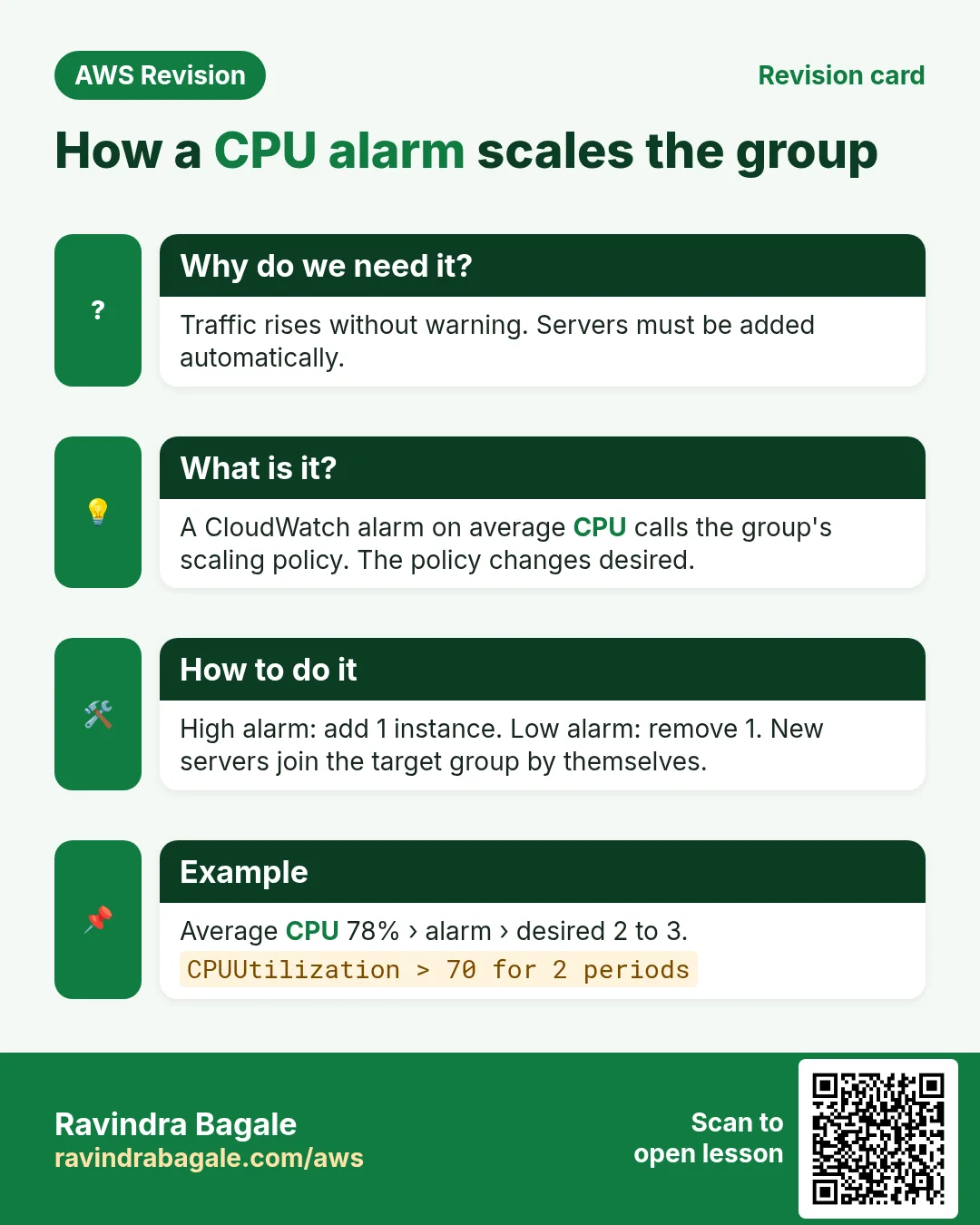
- A CloudWatch alarm watches the group's average CPU.
- When it fires, it calls the Auto Scaling group's scaling policy directly, for example "add 1 instance". (SNS is only for telling people; it is not needed for the scaling.)
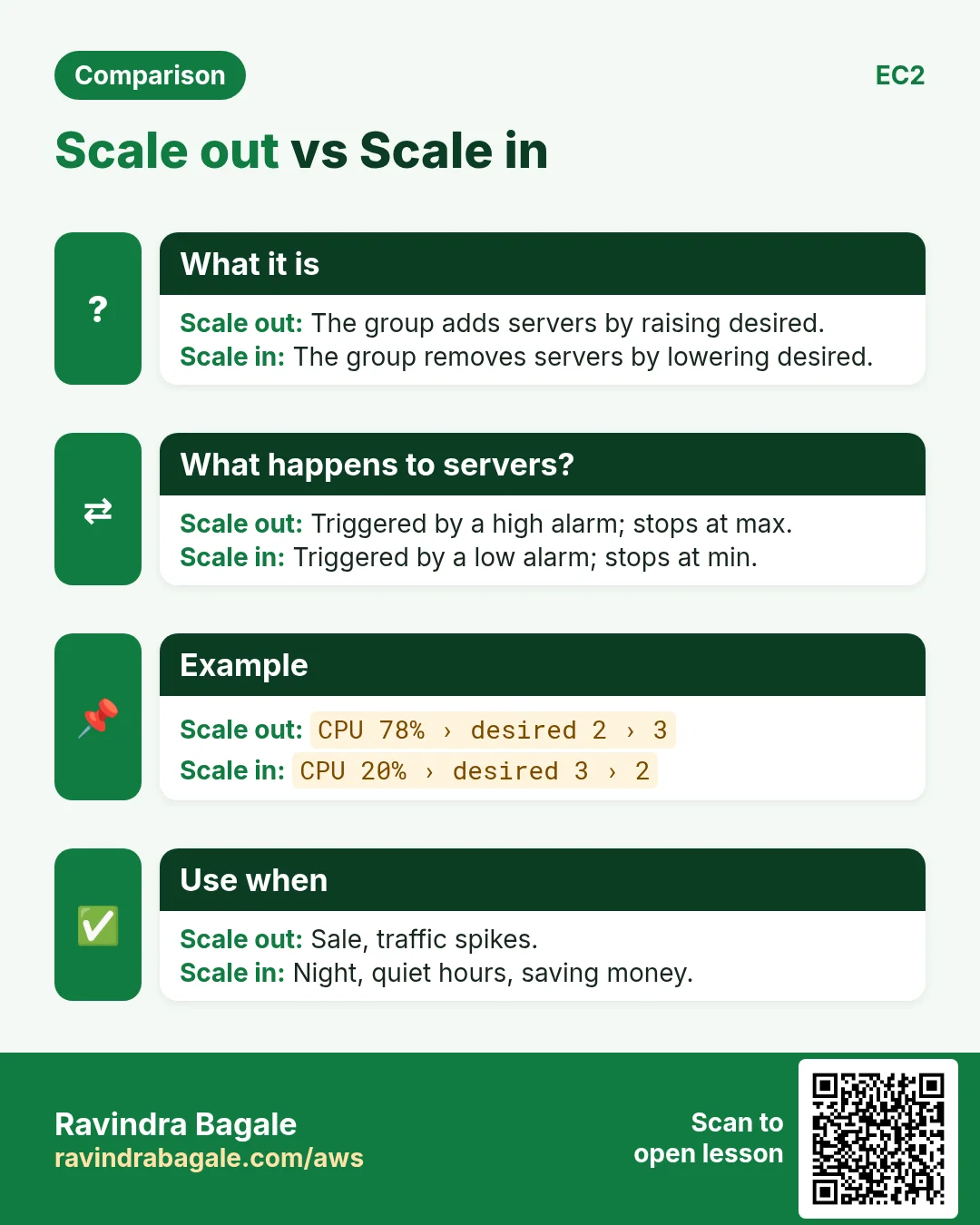
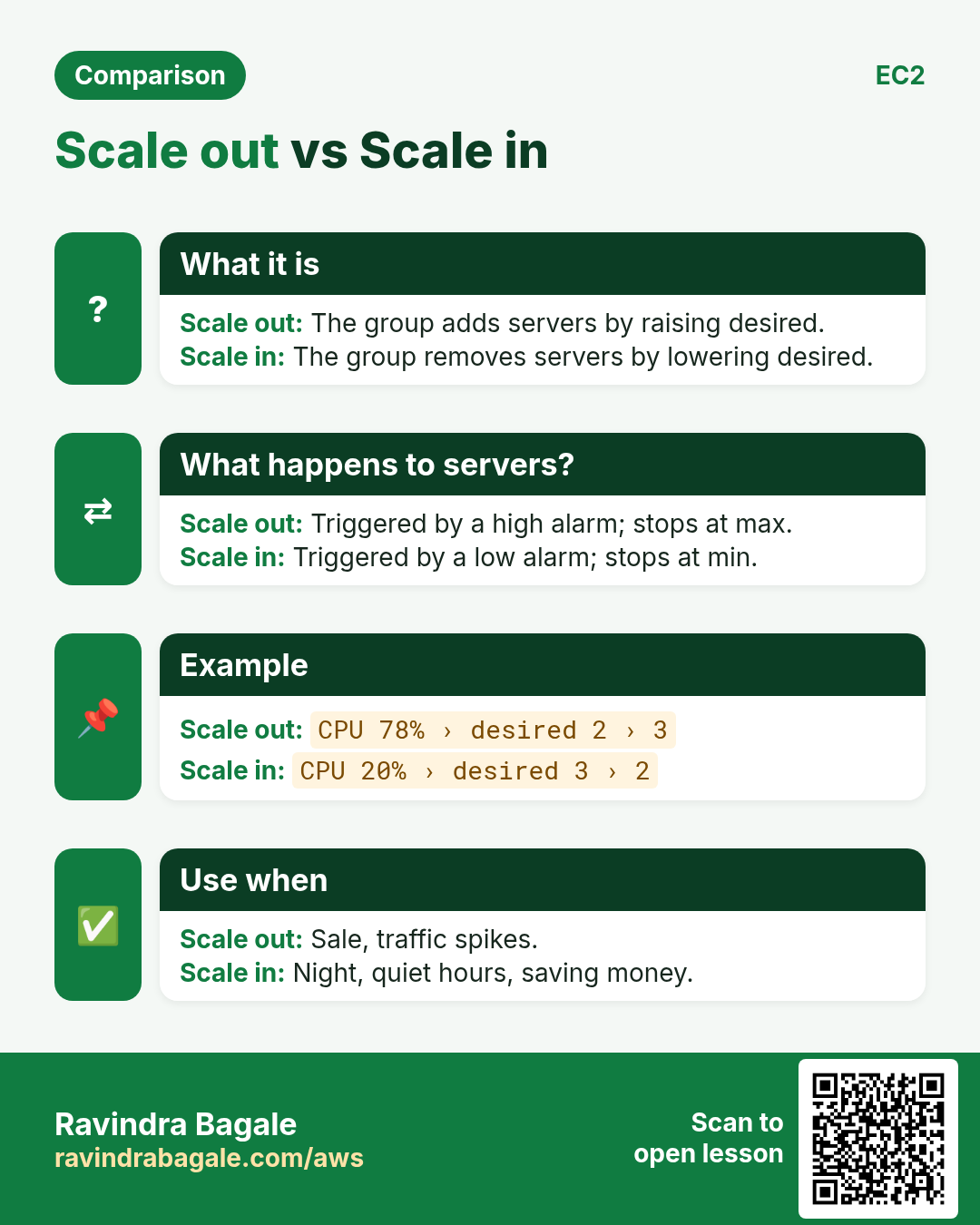
- The policy raises desired by one.
- The group launches a server from its launch template, into the subnets you chose.
- The group registers it in the load balancer's target group automatically. Once its health check passes, it gets traffic.
- When a low alarm fires (for example average below 30%), the policy lowers desired and the group terminates a server.
Figure 1. Animation: the average CPU crosses 70% and the alarm calls the Auto Scaling group's policy; desired goes from 2 to 3; a new server is launched from the launch template; it is registered in the target group and gets traffic once healthy.
Every policy type (simple, step, target tracking, scheduled) is listed in Every Auto Scaling policy.
3. The launch template: the recipe for every new server
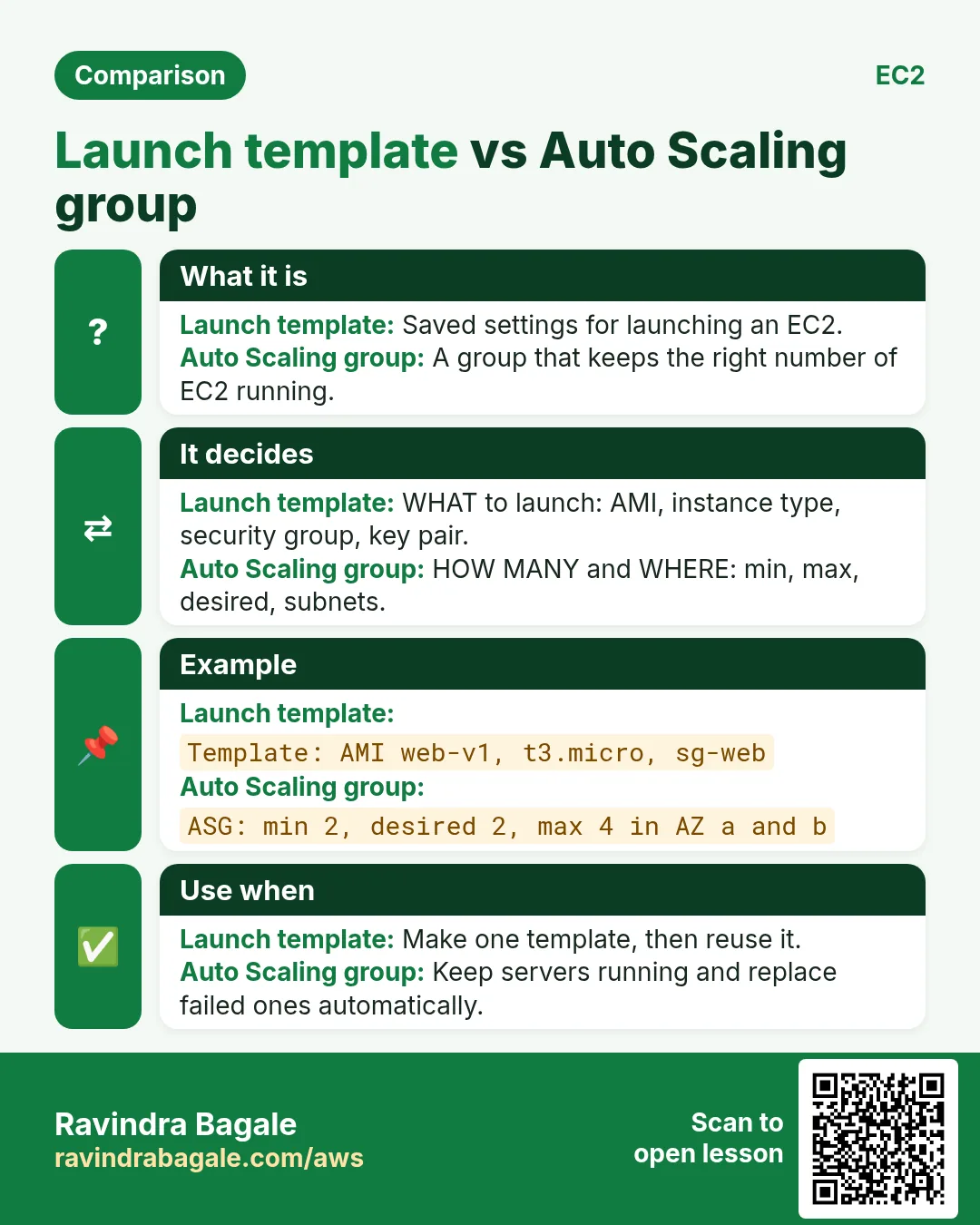
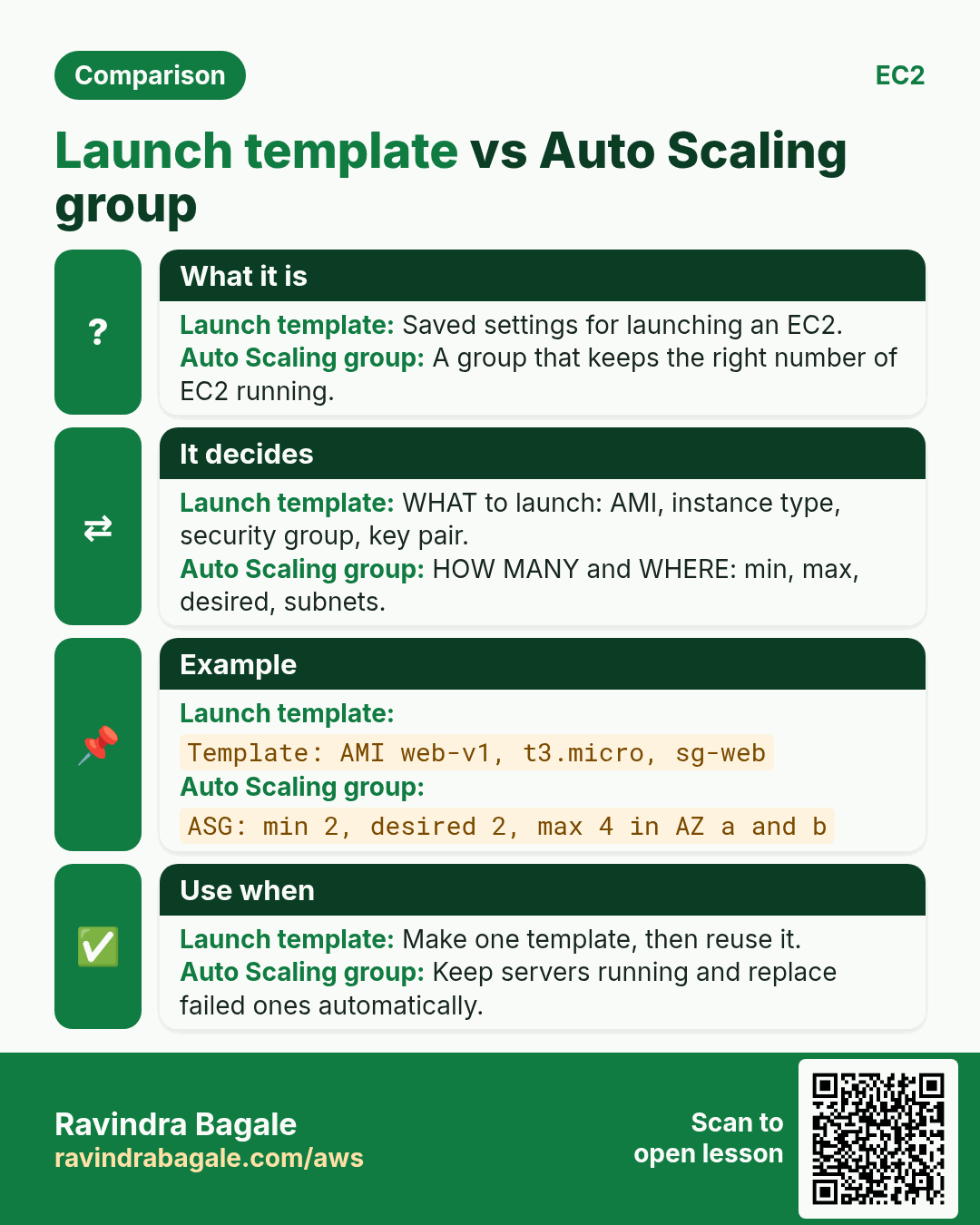
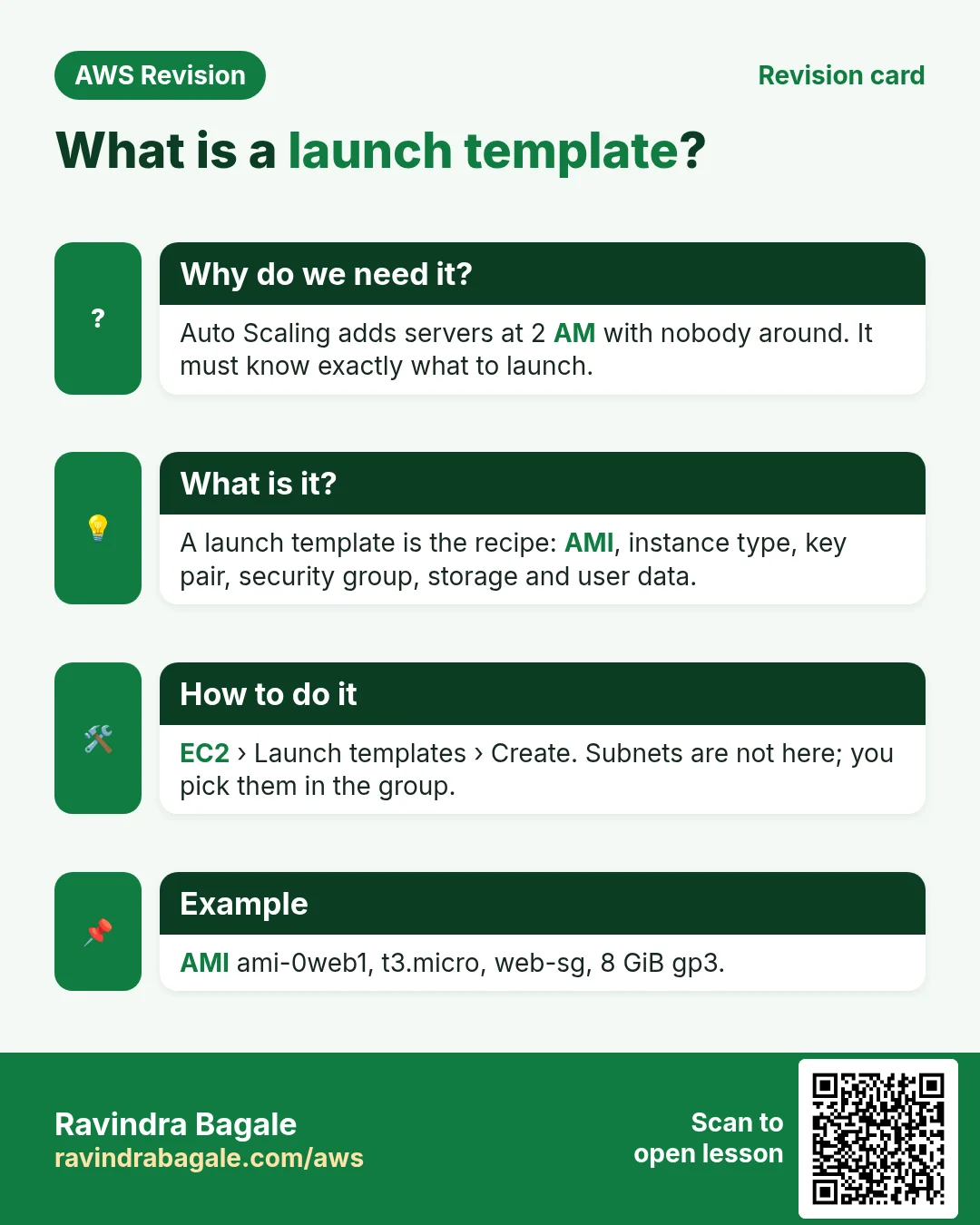
The group needs to know exactly what to launch. A launch template holds it once:
- AMI: the image of your ready web server (Nginx, PHP, your code).
- Instance type: for example
t3.micro. - Key pair: for SSH, if you need it.
- Security group: for example
web-sg, which allows 80 from the load balancer's SG only. - Storage (EBS): size and type of the root volume.
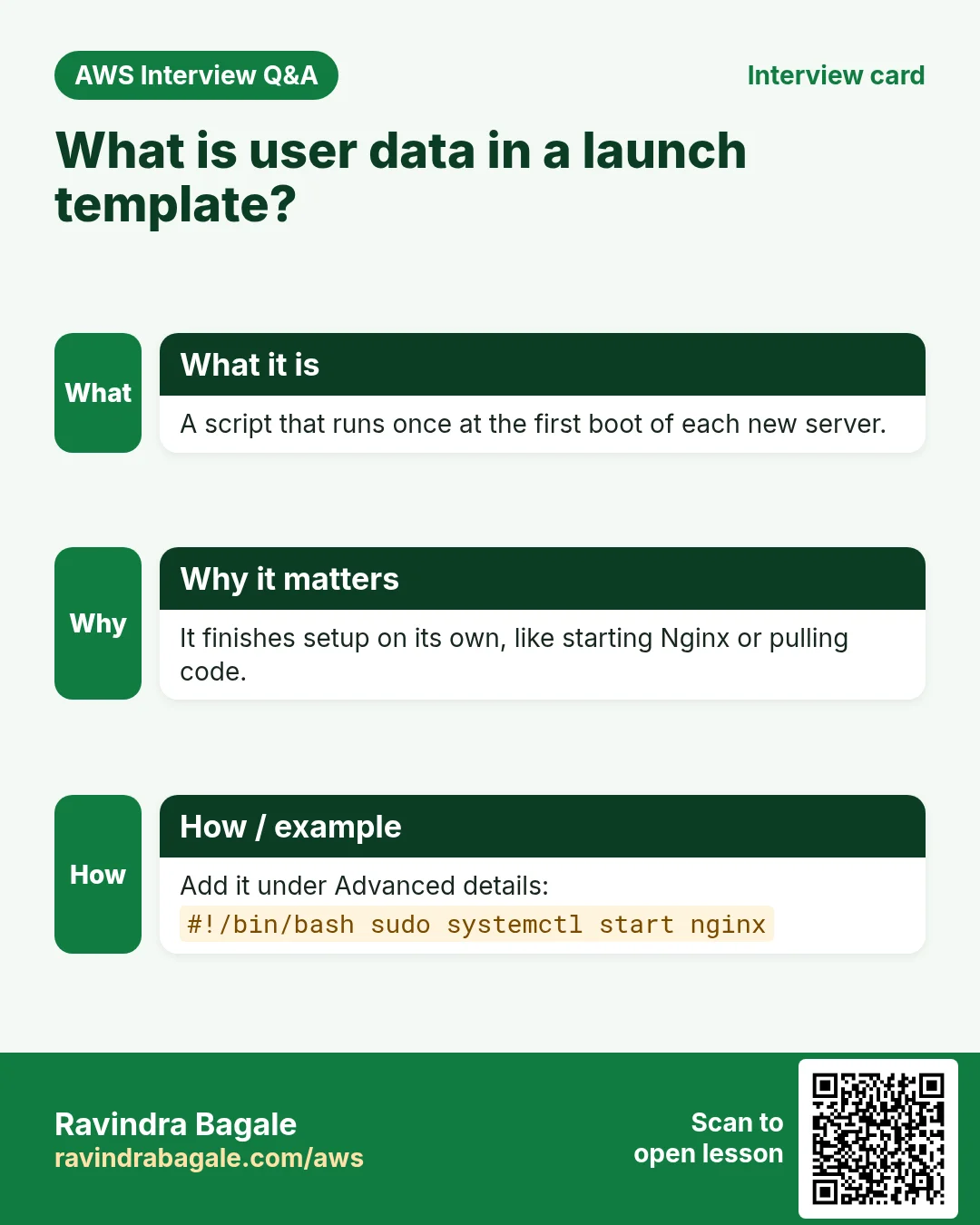
- User data: a script that runs at first boot, for example to start the web server or pull the latest code.
A small user data example:
```bash
!/bin/bash
sudo yum install nginx -y sudo service nginx start ```
The subnets are not in the template; you pick them in the group.
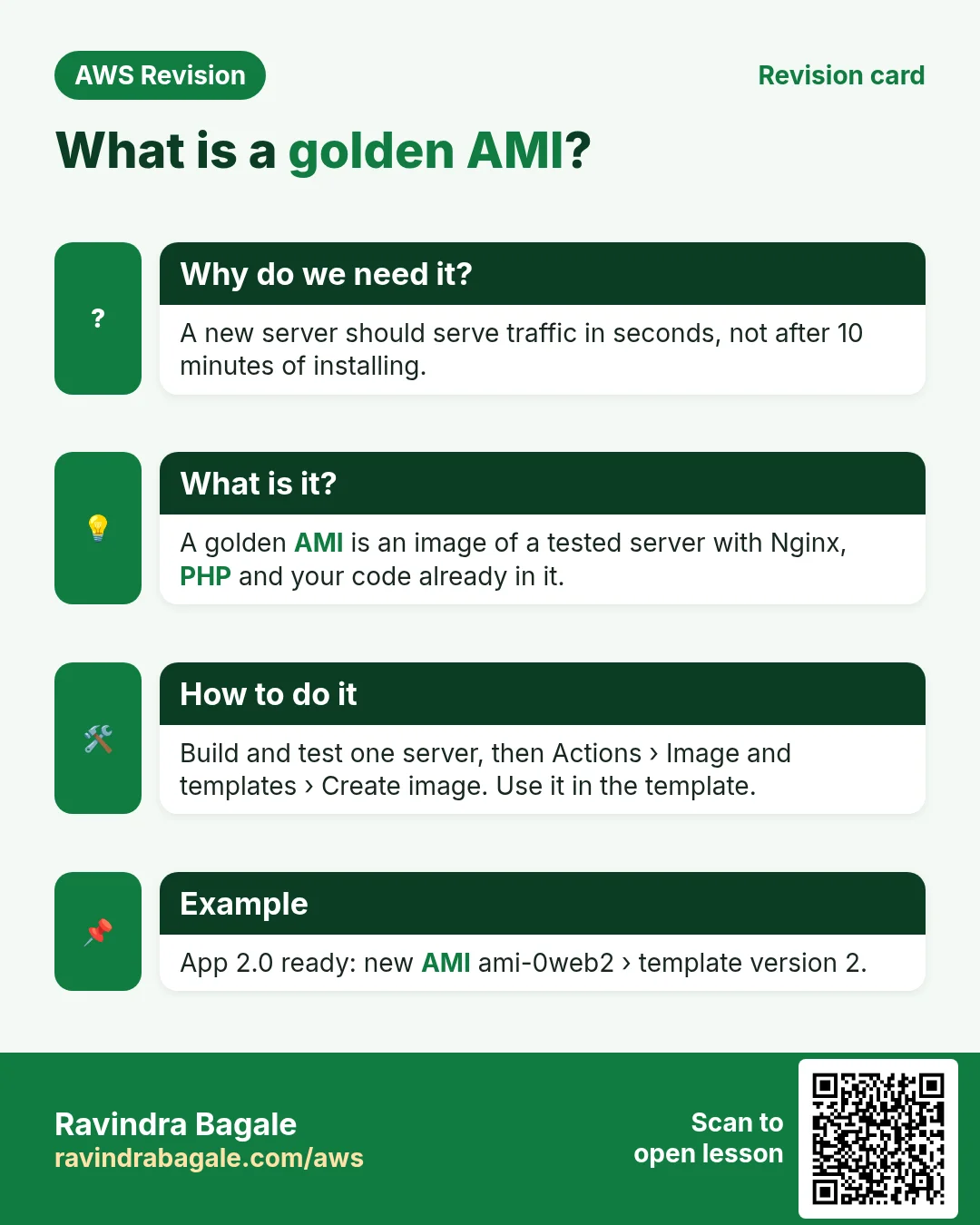
The golden AMI: build one development server, install Nginx and your code, test it, then Actions > Image and templates > Create image. That AMI is what the template launches, so every new server is ready in a minute or two instead of installing everything at boot.
Template versions: a launch template keeps numbered versions, like app updates. Version 1 uses the AMI of your app 1.0; when app 2.0 is ready you create a new AMI and save it as version 2 of the same template. The group can then move its servers to the new version (section 11).
Figure 2. A launch template holds the AMI, instance type, key pair, security group, EBS storage and user data. The Auto Scaling group adds the subnets, the target group and min, desired and max.
4. Min, desired and max
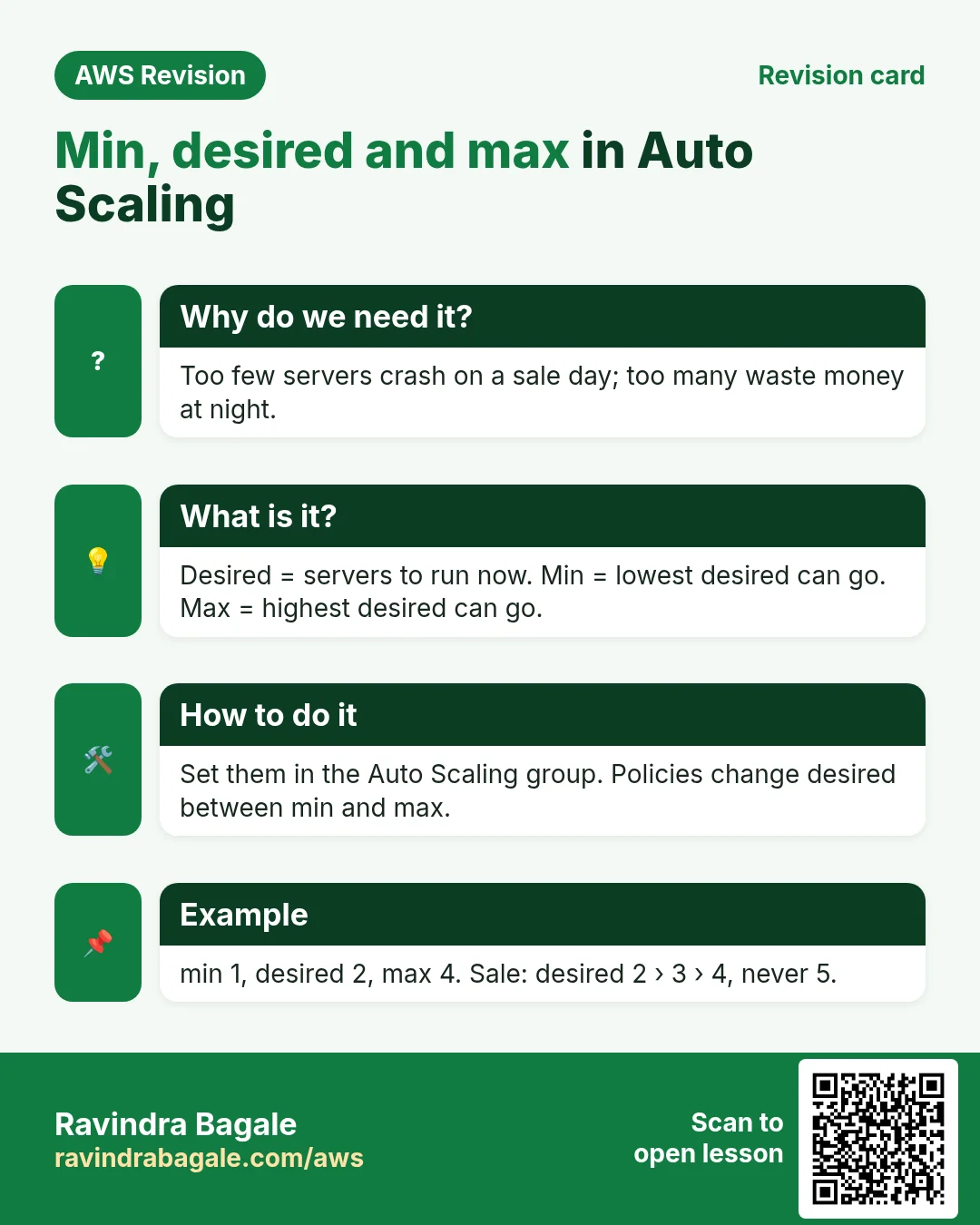
- Desired: how many servers should run now. The group always works to make the running count equal desired.
- Min: desired never goes below this, even at 2 AM.
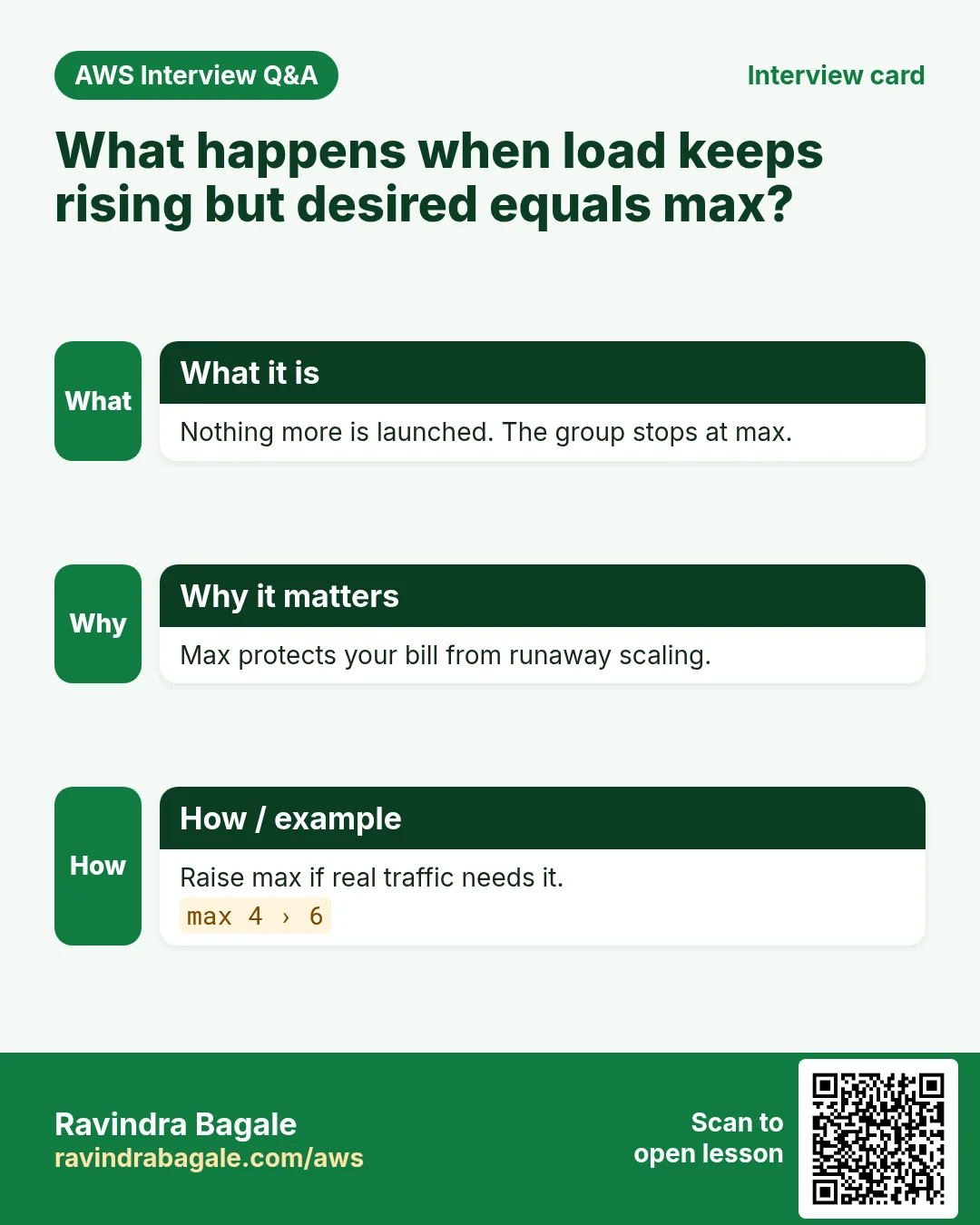
- Max: desired never goes above this, even when every server is busy.
Worked example 1: scaling out. Suppose min 1, desired 2, max 4.
- Average CPU stays above 70%: desired 2 → 3. A third server starts.
- Still above 70%: desired 3 → 4.
- Still above 70%: desired stays 4. No 5th server, because max is 4.
Worked example 2: scaling in. Same group at 2 AM.
- Average CPU below 30%: desired 4 → 3, then 3 → 2, then 2 → 1.
- Still low: desired stays 1. It can't go to 0 while min is 1.
Figure 3. Animation: suppose min 1, desired 2, max 4. High CPU raises desired to 3 and then 4, and it stops at max 4; at night low CPU lowers it to 1, and it stops at min 1.
5. How many servers start?
Classroom line
Many say it starts with the minimum. No!
Class मधलं वाक्य
खूप लोक म्हणतात सुरुवातीला minimum असेल. नाही!
Classroom line – हिंदी
"Bahut saare log bolte hain starting mein minimum hoga. Nahi!"
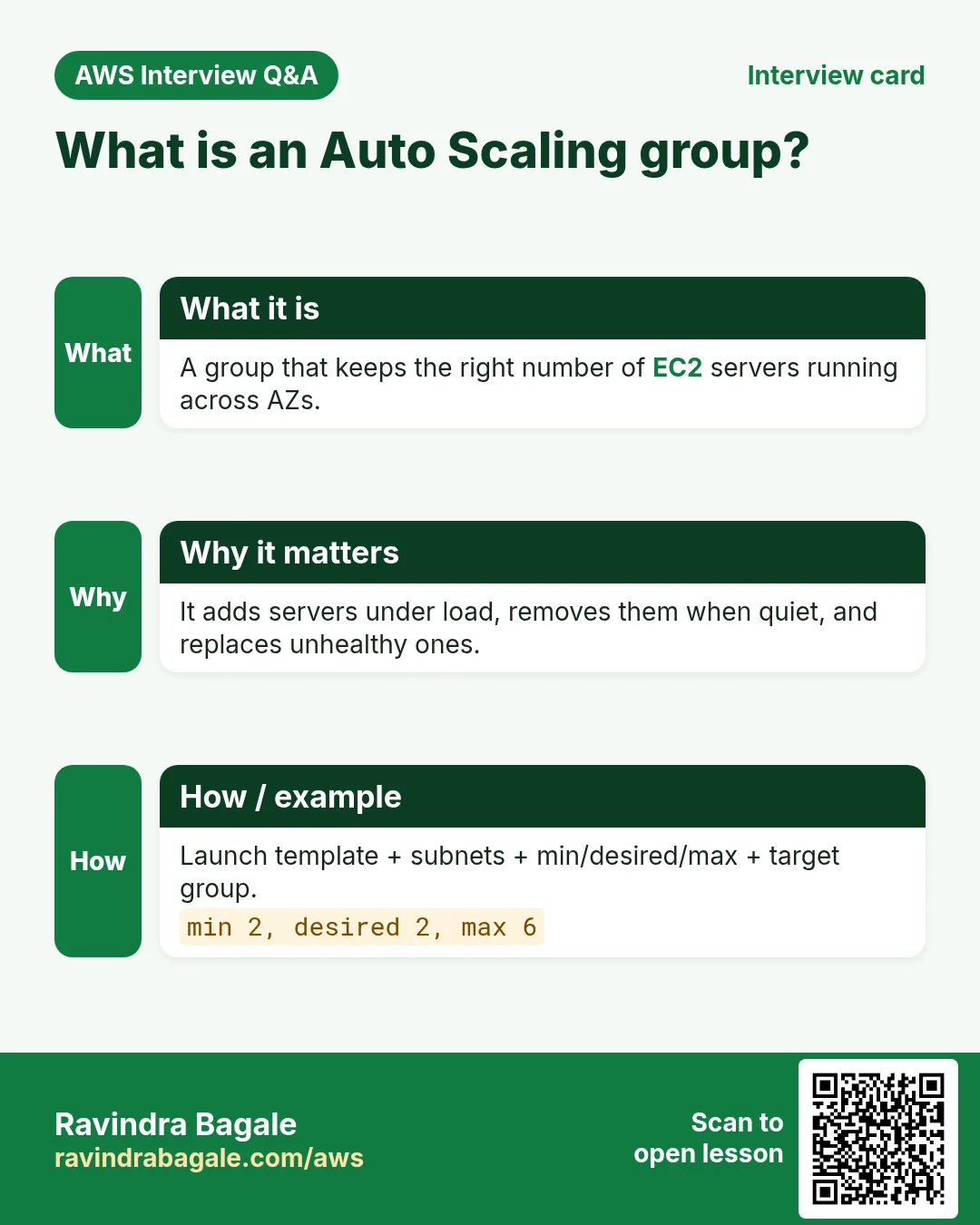
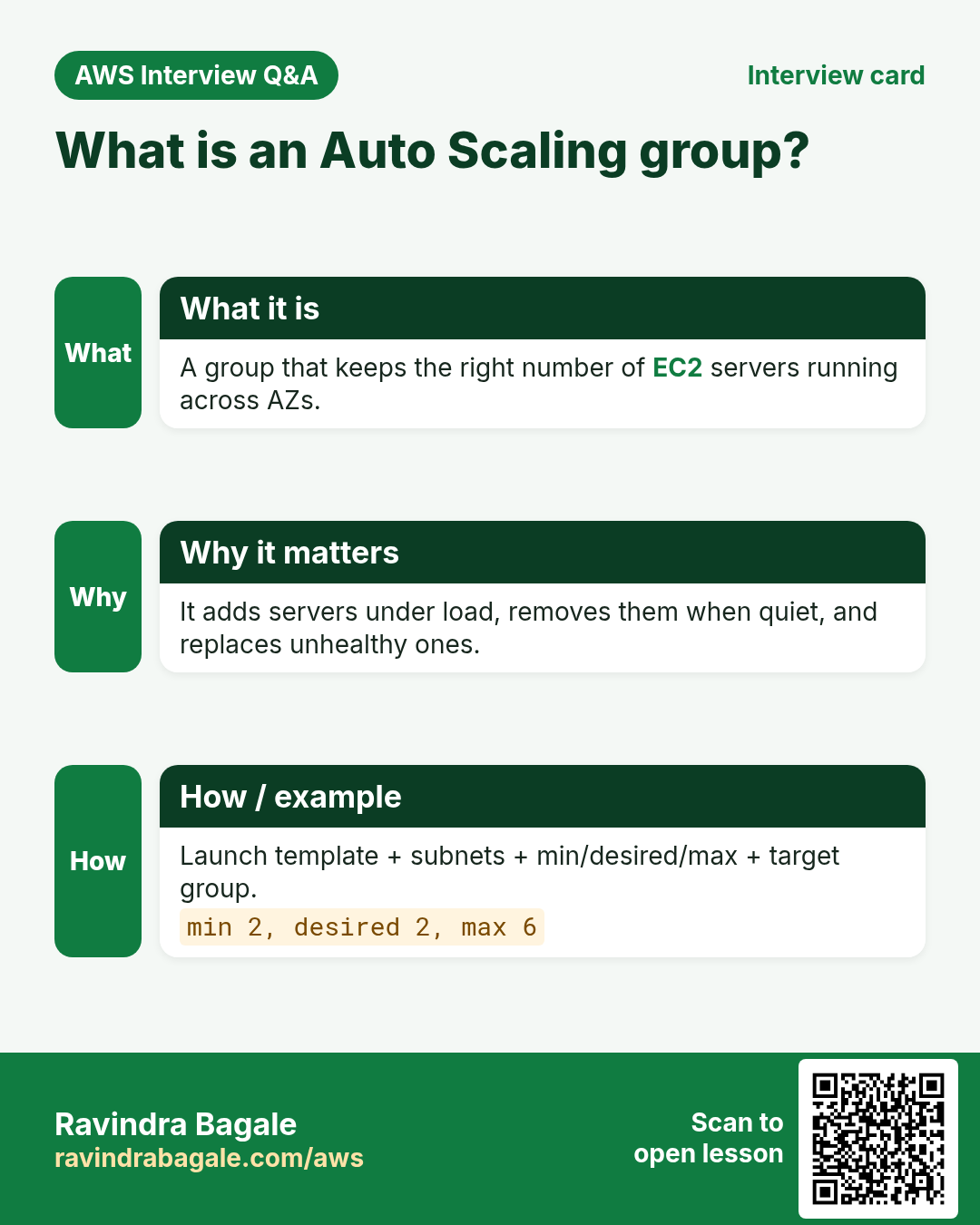
A new group launches desired, not min.
- Suppose min 2, desired 3, max 6.
- On creation, 3 servers launch.
- Later the policies move desired anywhere from 2 to 6.
Figure 4. Suppose min 2, desired 3, max 6: the group starts 3 servers (desired), and later moves between 2 and 6.
6. Max protects your bill
- AWS bills after you use it, for every server that ran.
- Without a sensible max, a sudden spike, a bug that burns CPU, or a flood of junk traffic could launch far more servers than you planned.
- So set max to what you can afford. If real growth needs more, raise it yourself, on purpose.
Classroom line
Don't launch more servers than you can pay for.
Class मधलं वाक्य
आपल्या ऐपतीपेक्षा जास्त servers launch होता कामा नयेत.
Classroom line – हिंदी
"Aisa nahi hona chahiye ki aap apni aukaat se zyada server launch karo."
Worked example: what does max cost? Suppose one server costs ₹1 per hour (a made-up round number to keep the math easy) and max is 4. The most this group can cost is 4 × ₹1 × 24 = ₹96 a day. With max 40, the ceiling is ₹960 a day. Use the real price of your instance type for your own numbers.
7. Subnets, AZs, and one group per tier
- The group launches into the subnets you pick in your VPC, and spreads the servers over their AZs. If one AZ has trouble, the others keep serving.
- The web tier and the app tier have different work and different load, so each gets its own load balancer and its own Auto Scaling group:
- Internet → internet-facing load balancer → web Auto Scaling group.
- Web tier → internal load balancer → app Auto Scaling group.
- The database is RDS, which scales in its own way (bigger instance, read replicas).
Classroom line
Each tier needs its own load balancer and its own Auto Scaling group; there's no other way.
Class मधलं वाक्य
"Doghanna vegvegle load balancer aani vegvegle auto scaling group lagnar, option ch nahi."
दोघांना वेगवेगळे load balancer आणि वेगवेगळे auto scaling group लागणार, optionच नाही.
Classroom line
Each tier needs its own load balancer and its own Auto Scaling group; there's no other way.
Figure 5. Internet to an internet-facing load balancer and the web Auto Scaling group in two AZs; the web tier to an internal load balancer and the app Auto Scaling group; the app tier to RDS.
Putting it together, highly available: 2 AZs, each with 4 subnets: a public one (load balancer, NAT gateway, bastion), and private ones for web, app and the database. That is 2 × 4 = 8 subnets.
8. Self-healing: a load balancer alone vs with Auto Scaling
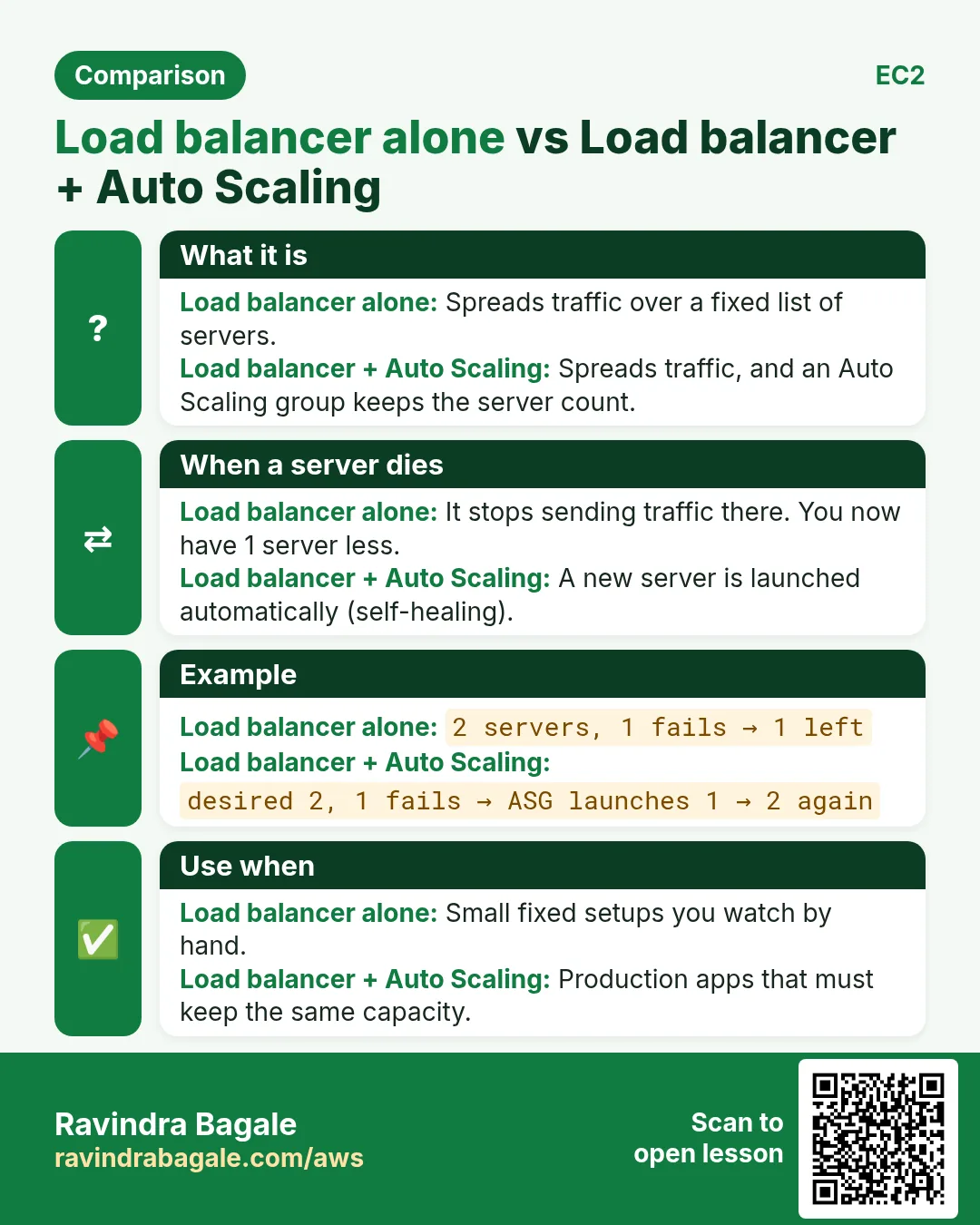
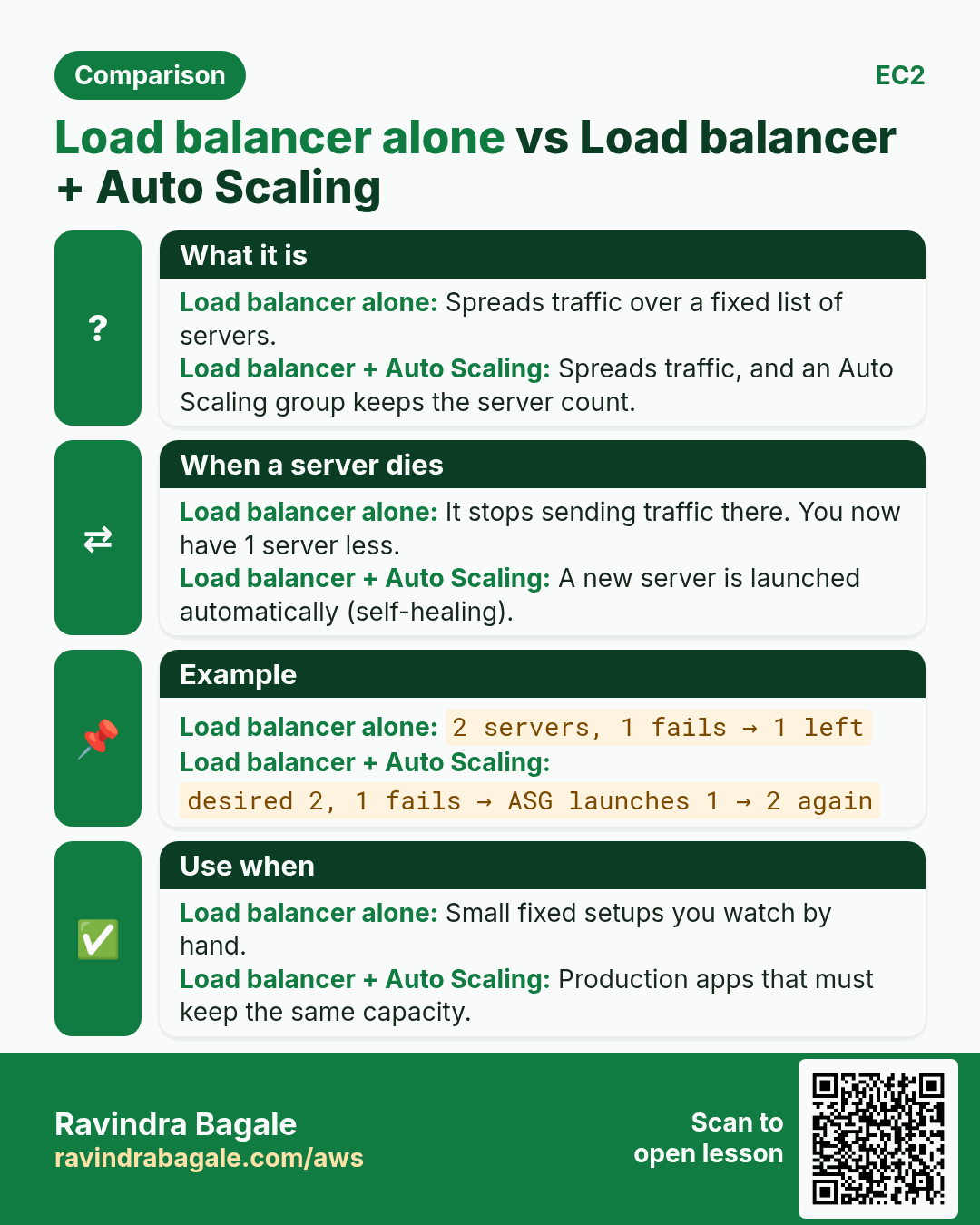
Load balancer alone:
- A server fails its health check and is marked unhealthy.
- It gets no traffic, but it stays there, broken, until someone fixes it. You now have one server fewer.
Load balancer + Auto Scaling group with ELB health checks:
- The group asks the load balancer which of its servers are healthy.
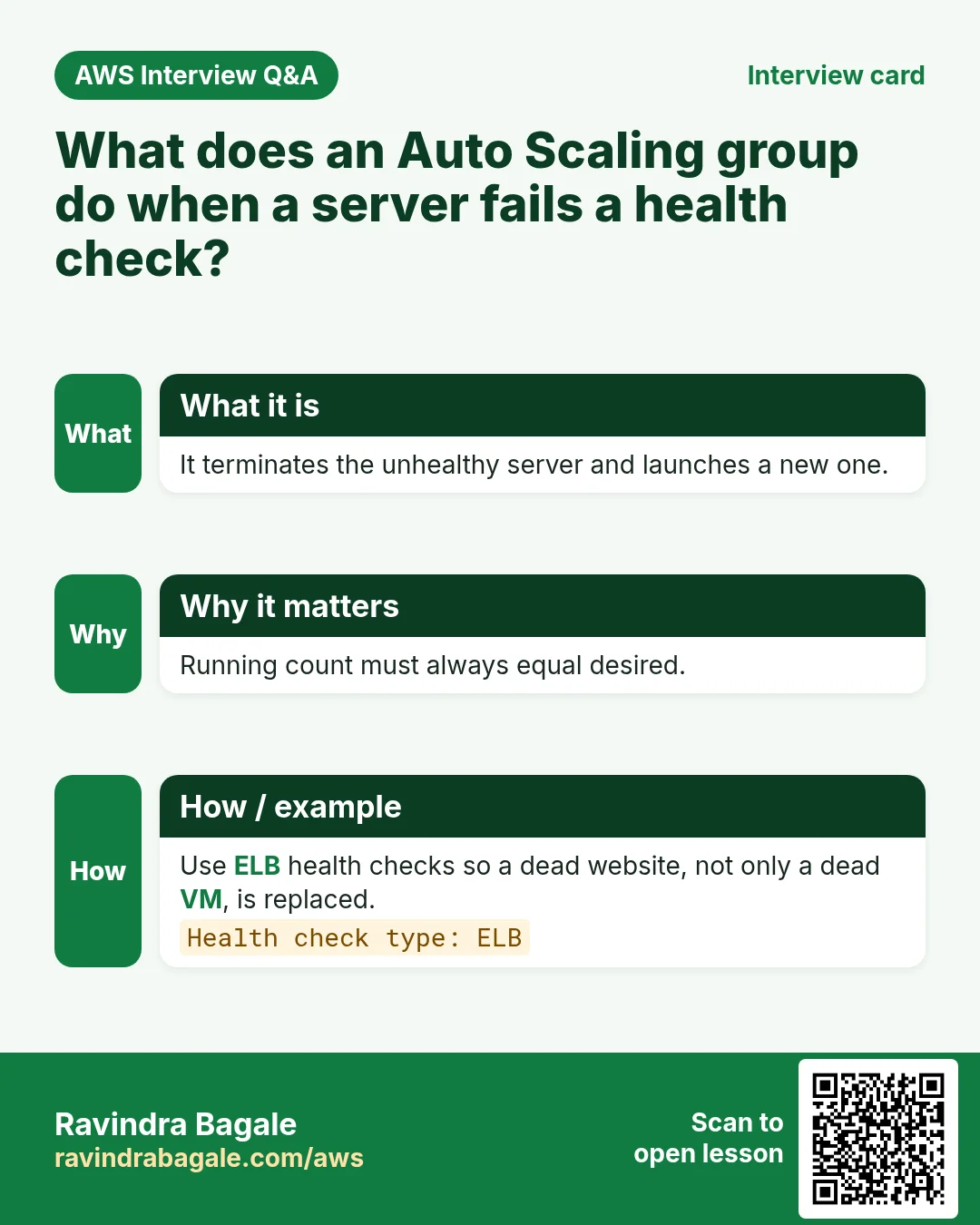
- An unhealthy server is terminated.
- A new one is launched from the launch template and registered. The count is back to desired, with no one awake.
The setting that makes this work: the group's health check type is EC2 by default, which only checks that the instance itself is running. Turn on Elastic Load Balancing health checks so a server whose Nginx has stopped is replaced too. Give new servers a grace period (for example 300 seconds) to boot before they are judged.
One more thing: if you terminate a server of the group by hand, the group simply launches a new one to get back to desired. To stop the servers for good, set desired and min to 0, or delete the group.
Figure 6. Animation: with a load balancer alone, an unhealthy server gets no traffic but stays broken; with an Auto Scaling group using ELB health checks, the unhealthy server is terminated and a new one is launched and registered.
More on the lab version of all this: Auto Scaling and How this connects to scaling.
9. Scaling policy types
Why: "add a server when CPU is high" is only one way. AWS gives four, for different traffic shapes.
- Target tracking (dynamic): you give one target, for example "keep average CPU at 50%". The group adds servers when the average goes above it and removes them when it falls well below. It creates and manages the CloudWatch alarms for you. This is the usual choice.
- Step or simple scaling (dynamic): you create the alarms yourself and say what to do, for example "CPU ≥ 70% for 5 minutes: add 1 server" (section 13, Part C).
- Predictive scaling: AWS learns from your past traffic and launches servers before a repeating peak. Suppose we are Netflix and traffic jumps every Friday at 6 PM: predictive scaling can have servers running by about 5:55 PM.
- Scheduled scaling: you set the capacity for a known date and time. Suppose we are Flipkart and a sale starts at 6 AM, or a phone launch at 10 AM, or a cricket match at 6 PM: schedule desired to rise just before.
- Dynamic policies react after the load arrives; predictive and scheduled get ready before it.
Classroom line
Suddenly people come and traffic starts rising.
Class मधलं वाक्य
"Achanakach loka yetat ani mag traffic vadhayla lagto."
अचानकच लोकं येतात आणि मग traffic वाढायला लागतो.
Classroom line
Suddenly people come and traffic starts rising.
Worked example: why one busy server may not scale out
- The group has 2 servers and a target tracking policy at 50% average CPU.
- Stress only one server to 100%; the other stays near 0%.
- Average = (100 + 0) ÷ 2 = 50%. That's at the target, not above it, so the group may not add a server.
- Stress both to 100%: average = (100 + 100) ÷ 2 = 100%, well above 50%, so the group launches more servers, up to max 4.
10. Warmup, grace period and the health checks
Instance warmup (for example 60 seconds): a new server needs time to boot and start Nginx, and during that time its CPU numbers are not normal. Until the warmup ends, its metrics are left out of the group's average, so one booting server doesn't trigger more scaling.
Health check grace period (for example 60 to 300 seconds): how long the group waits after launch before it judges the server's health. Too short, and servers that are still booting get terminated in a loop.
Health check types:
- EC2 (always on): checks that the instance itself is running.
- Elastic Load Balancing: the server must also pass the target group's health check, for example Nginx answering
/. - Amazon EBS: marks the instance unhealthy when an attached EBS volume is impaired (an I/O or hardware problem). It does not check how full the disk is; disk usage needs the CloudWatch agent.
11. Updating servers without downtime
Why: suppose 10 servers run your app version 1.0 behind the load balancer, and version 2.0 is ready. Stopping all 10 and starting new ones would take the site down.
- Build a new AMI with version 2.0 and save it as version 2 of the launch template.
- Point the group at the new version.
- Start an Instance refresh on the group. It replaces servers in batches, keeping a minimum healthy percentage, for example 90%, so only 1 of the 10 is replaced at a time.
Instance maintenance policy: what the group does when it replaces a server.
- Launch before terminating: start the new server, wait until it is healthy, then terminate the old one. Capacity never drops; for a short time you pay for one extra server.
- Terminate and launch: terminate the old one first, then start the new one. Cheaper, but capacity dips during the swap.
Classroom line
Some people worry that launching 10 new servers first will raise their bill.
Class मधलं वाक्य
काही लोकांना वाटतं, आधी 10 servers launch केले तर bill येईल.
Classroom line – हिंदी
"Kuch logo ka kya hai, pehle 10 server launch karu toh mera bill aayega."
12. Scale-in protection
- Instance scale-in protection stops the group from terminating that instance when it scales in. Use it for a server that is doing a long job that must not be cut off.
- Short dips need no protection. Suppose we are streaming a cricket match: during an ad break viewers drop for a few minutes and come back. Target tracking scales in slowly and conservatively, and you can also turn off scale-in for the policy, so the group doesn't remove servers it will need again a minute later.
13. Build it in the console
Part A: the launch template
- EC2 > Launch templates > Create launch template, name
web-lt. - Tick Provide guidance to help me set up a template that I can use with EC2 Auto Scaling.
- AMI: your web server AMI (My AMIs). Instance type:
t3.micro. Key pair: yours. - Network settings: don't pick a subnet; pick security group
web-sg. - Advanced details > User data: paste the script from section 3. Create launch template.
Part B: the Auto Scaling group
- EC2 > Auto Scaling groups > Create Auto Scaling group, name
web-asg, launch templateweb-lt. Next. - Network: your VPC, and the web subnets in two AZs. Next.
- Load balancing: Attach to an existing load balancer, choose target group
tg-web(how it was made). - Health checks: tick Turn on Elastic Load Balancing health checks, grace period 300 seconds. Next.
- Group size: desired 2, min 1, max 4.
- Scaling: choose No scaling policies for now (Part C adds one). Optionally add an SNS notification so people are told about launches. Create Auto Scaling group.
- Two servers launch and appear as healthy targets in
tg-web.
Part C: a scaling policy driven by a CloudWatch alarm
- CloudWatch > Alarms > Create alarm > Select metric > EC2 > By Auto Scaling Group,
web-asg,CPUUtilization. Statistic Average, period 5 minutes, ≥ 70. Remove the notification if you don't need email. Name itweb-cpu-high, Create alarm. - Make
web-cpu-lowthe same way, with < 30. - Open
web-asg> Automatic scaling > Create dynamic scaling policy, type Simple scaling, alarmweb-cpu-high, action Add 1 capacity units, then wait 300 seconds. Create. - Create a second policy with alarm
web-cpu-low, action Remove 1 capacity units. - (A target tracking policy, "keep average CPU at 50%", creates both alarms for you; it is the usual choice in production.)
Part D: test it
- SSH to both servers and run
sudo yum install stress-ng -yandstress-ng --cpu 2 --timeout 900. - In about 5 minutes
web-cpu-highgoes to In alarm; Activity shows a launch; desired becomes 3, later 4, never 5. - When stress ends,
web-cpu-lowbrings it back down, never below 1. - Stop Nginx on one server:
sudo service nginx stop. It turns unhealthy intg-web, and the group replaces it.
Part E: let the group create its own load balancer
- In Create Auto Scaling group, step Load balancing, choose Attach to a new load balancer: Application Load Balancer, Internet-facing, a new target group on port 80.
- Health checks: turn on Elastic Load Balancing health checks, grace period 60 seconds. Group size: desired 2, min 1, max 4. Policy: Target tracking, Average CPU utilization, target 50, instance warmup 60 seconds. Maintenance policy: Launch before terminating.
- Activity shows the launches, for example "changing the desired capacity from 0 to 2". Instance management shows both as InService; in the target group they go from initial to healthy.
- Open the load balancer's DNS name. If it times out, the load balancer's security group doesn't allow HTTP 80 from the internet: add HTTP, 80, 0.0.0.0/0 to it, and the page loads.
- Allow 80 on the servers' security group from the load balancer's security group only. The servers don't need public IPs: the load balancer reaches them on their private IPs.
Part F: SSH to a server of the group
- EC2 Instance Connect or SSH needs port 22 open in the servers' security group; prefer My IP to
0.0.0.0/0. - For servers in private subnets, go through a jump server:
ssh -J ec2-user@<jump-public-ip> ec2-user@<private-ip>(How to Access a Private EC2 with a Bastion Host and NAT Gateway). - On Windows,
chmod 400doesn't work in PowerShell. Open the key file's Properties > Security > Advanced, disable inheritance and leave only your own user with Read; or run SSH from Git Bash or WSL. - A key with loose permissions gives the warning UNPROTECTED PRIVATE KEY FILE. Connection closed or a timeout before login usually means a network, security group or firewall problem, not the key.
Classroom line
To create fake traffic we go inside the EC2 and run the stress command.
Class मधलं वाक्य
Fake traffic बनवायचा असेल तर EC2 च्या आत जाऊन stress command चालवावी लागते.
Classroom line – हिंदी
"Fake traffic create karna hai toh EC2 ke andar jake humein stress command fire karna padega."
14. When something goes wrong
- New servers launch but stay unhealthy: the user data failed, the AMI isn't the ready web server, or
web-sgdoesn't allow 80 from the load balancer SG. - Servers keep being terminated and launched in a loop: the grace period is too short for boot time, or the health-check path returns an error.
- An unhealthy target is never replaced: the group's health check type is still EC2 only. Turn on ELB health checks.
- The alarm fires but nothing launches: desired is already at max, or the alarm isn't attached to a scaling policy (only to SNS).
- You terminated the servers but they came back: that is the group doing its job. Set desired and min to 0, or delete the group.
Ravindra Bagale's Tip
Bake everything slow into the AMI and keep user data short, so a new server is ready in a minute or two. Always turn on ELB health checks with a sensible grace period. And set max as a budget decision, not a technical one: write down what one more server costs before you raise it.
15. The whole class on one page
- Alarm → SNS → a person is manual scaling; it fails when the person is busy or asleep.
- Auto Scaling: the alarm calls the group's scaling policy directly; SNS is only for people.
- Launch template: AMI, instance type, key pair, SG, EBS, user data. Subnets are chosen in the group.
- Desired = running now; min = floor; max = ceiling. Min 1, desired 2, max 4: up to 4, down to 1.
- A new group starts with desired, not min (min 2, desired 3, max 6 → 3).
- Max is your cost ceiling; raise it on purpose.
- Each tier: its own load balancer (internet-facing / internal) and its own group, across AZs.
- With ELB health checks on, the group replaces unhealthy servers; a load balancer alone only stops sending them traffic.
- Terminated by hand → replaced. To stop for good: desired and min 0, or delete the group.
- Policy types: target tracking (keep a target), step/simple (your alarms), predictive (before repeating peaks), scheduled (known dates).
- Warmup keeps booting servers out of the average; the grace period delays health judgement; EBS health checks catch impaired volumes, not full disks.
- New version: new AMI → template version 2 → instance refresh; launch before terminating keeps capacity.
- Scale-in protection keeps a server with a long job from being terminated.
16. Try at home
Try at home
Task 1: on paper
- Min 2, desired 2, max 5. CPU stays high for a long time. What is desired at the end? Then traffic drops to nothing. What is desired now?
- Min 1, desired 4, max 8: how many servers launch when the group is created?
- Suppose one server costs ₹2 an hour. What is the most a group with max 6 can cost in a day?
Task 2: in the console
- Build
web-ltandweb-asg(min 1, desired 2, max 4) behind your ALB, with ELB health checks on. - Add the high and low simple scaling policies, run
stress-ng, and watch desired move. - Terminate one instance by hand and watch the group replace it.
Task 3: clean up
- Delete the Auto Scaling group (it terminates its servers), then the alarms, the launch template and the load balancer.
Recap
In short
- An Auto Scaling group replaces the person who launches servers.
- The launch template says what to launch; the group says where and how many.
- Desired moves between min and max; a new group starts at desired.
- Max protects the bill.
- ELB health checks turn a load balancer's "skip it" into the group's "replace it".
Practice Tasks
Nairobi Ride is a transport business in Nairobi. Wanjiru Kamau looks after its IT and cloud work. They count money in KES and run their AWS resources in the af-south-1 Region. In the tasks below you do real jobs for them using what this lesson teaches. All names, account IDs, IP addresses and numbers are made up for practice.
0 / 10
Easy Describe an Auto Scaling group
Why: See current instances and sizes of the group.
What to do: Describe the Auto Scaling group nairobiride-asg.
- Read the task and decide which AWS service it is about.
- Write aws, then the service name, then the operation (the action word).
- Add each needed flag (--name) followed by its value from the task.
- Flags can be in any order. Click Check answer.
Medium Change desired capacity
Why: Before a big sale, raise desired capacity so servers are ready in time.
What to do: Set the desired capacity of nairobiride-asg to 4.
- Read the task and decide which AWS service it is about.
- Write aws, then the service name, then the operation (the action word).
- Add each needed flag (--name) followed by its value from the task.
- Flags can be in any order. Click Check answer.
Medium Change min and max size
Why: Max protects your bill; min keeps the site up.
What to do: Update nairobiride-asg to min 1 and max 10.
- Read the task and decide which AWS service it is about.
- Write aws, then the service name, then the operation (the action word).
- Add each needed flag (--name) followed by its value from the task.
- Flags can be in any order. Click Check answer.
Medium Check target health
Why: If targets are unhealthy the site shows 502/503 errors.
What to do: Show the health of the targets in arn:aws:elasticloadbalancing:af-south-1:104591109902:targetgroup/nairobiride-tg/6d0ecf831eec9f09.
- Read the task and decide which AWS service it is about.
- Write aws, then the service name, then the operation (the action word).
- Add each needed flag (--name) followed by its value from the task.
- Flags can be in any order. Click Check answer.
Medium Kubernetes LoadBalancer Service
Why: A Service of type LoadBalancer gets an AWS load balancer.
What to do: Write a Service of type LoadBalancer selecting app: web, port 80 to targetPort 8080.
- Start from the top-level keys the task names.
- Indent child keys with 2 spaces (no tabs).
- Fill in each property with the value from the task.
- Click Check answer. Key order does not matter.
Hard Create an Auto Scaling group
Why: Min, max and desired decide how many servers run; the group replaces unhealthy ones.
What to do: Create ASG nairobiride-asg from launch template nairobiride-lt with min 2, max 6, desired 2, in subnets subnet-0045d110dd02bb1,subnet-045d110dd02bb2.
- Read the task and decide which AWS service it is about.
- Write aws, then the service name, then the operation (the action word).
- Add each needed flag (--name) followed by its value from the task.
- Flags can be in any order. Click Check answer.
Hard Create a launch template
Why: The launch template is the recipe Auto Scaling uses to build each new server.
What to do: Create launch template nairobiride-lt using the settings in lt.json.
- Read the task and decide which AWS service it is about.
- Write aws, then the service name, then the operation (the action word).
- Add each needed flag (--name) followed by its value from the task.
- Flags can be in any order. Click Check answer.
Hard Roll out a new AMI with instance refresh
Why: Instance refresh replaces servers a few at a time, so the site stays up.
What to do: Start an instance refresh on nairobiride-asg.
- Read the task and decide which AWS service it is about.
- Write aws, then the service name, then the operation (the action word).
- Add each needed flag (--name) followed by its value from the task.
- Flags can be in any order. Click Check answer.
Hard Create an Application Load Balancer
Why: An ALB needs at least two subnets in different AZs for high availability.
What to do: Create an ALB named nairobiride-alb in subnets subnet-0045d110dd02bb1 and subnet-045d110dd02bb2 with security group sg-0045c110cc024c3b2.
- Read the task and decide which AWS service it is about.
- Write aws, then the service name, then the operation (the action word).
- Add each needed flag (--name) followed by its value from the task.
- Flags can be in any order. Click Check answer.
Hard Add an HTTP listener
Why: The listener is what accepts traffic on a port and forwards it to a target group.
What to do: On load balancer arn:aws:elasticloadbalancing:af-south-1:104591109902:loadbalancer/app/nairobiride-alb/50dc6c495c0c9188, create an HTTP listener on port 80 that forwards to arn:aws:elasticloadbalancing:af-south-1:104591109902:targetgroup/nairobiride-tg/6d0ecf831eec9f09.
- Read the task and decide which AWS service it is about.
- Write aws, then the service name, then the operation (the action word).
- Add each needed flag (--name) followed by its value from the task.
- Flags can be in any order. Click Check answer.
Quick revision cards
Revise this lesson in two minutes. Save the cards on your phone or download them as PNG files. The QR code on each card opens its lesson.
More cards: Ravi Sir's Cards.