17.6 Auto Scaling
You can launch instance B by hand once. You cannot sit up for every spike. An Auto Scaling group keeps a count of instances in that range you set, and a scaling policy changes the count when an alarm fires.
Minimum, desired, maximum, with this lab's numbers
| Number | This lab | What it stops you from doing |
|---|---|---|
| Minimum | 1 | The group will not scale in below 1. example.com keeps one server. Desired 0 is something you set at cleanup, not something the low-CPU alarm does |
| Desired | 1, then 2, then back to 1 | How many instances should be running now |
| Maximum | 3 | A policy that adds 1 can go 1 to 2, and later 2 to 3. It cannot go to 4. If desired is already 3, "add 1" changes nothing |
Maximum 3 is not "three instances will appear when the alarm fires". The policy in this lab adds one. The alarm moves desired from 1 to 2. Maximum only caps a later add. Read the activity history if you want to see the sentence AWS wrote: it launched because desired changed, not because the maximum is a wish.
The launch template
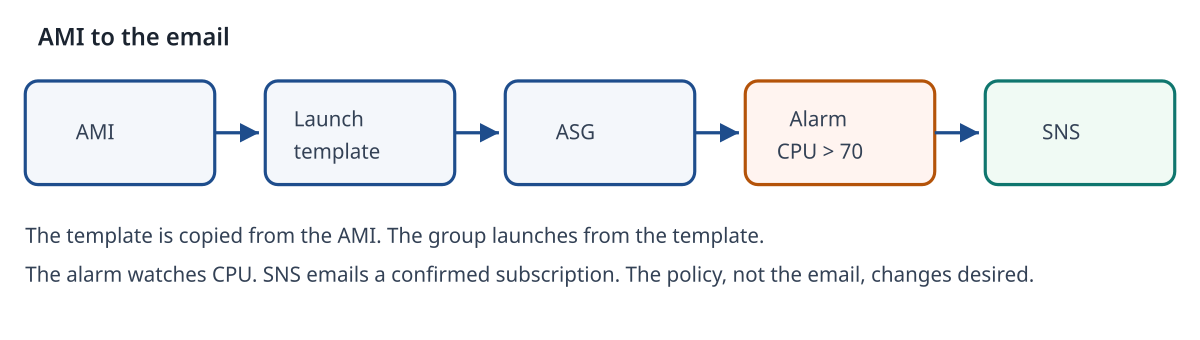
A launch template is the recipe for every instance the group creates. It replaces you walking through the launch wizard, which is what section 17.3 did by hand. Create it under EC2, Launch templates.
| Setting | Value |
|---|---|
| Name | example-web-lt |
| AMI | The AMI of example.com from section 14.2, the same one as instance B. Not a Graviton AMI |
| Instance type | t3.micro |
| Key pair | The key you already use |
| Security group | Port 80 from the balancer's security group, port 22 from your IP |
| Subnet | Chosen on the group, in the VPC the balancer uses |
The template does not run an instance by itself. The group does, when desired is higher than the number of healthy instances.
The group, the target group, and health
Create scale-lab-asg from example-web-lt. Desired 1, minimum 1, maximum 3. The group launches the first instance. Wait until it is InService. You did not press Launch instance. That is the point.
Attach the target group example-web-tg from section 17.3 (or create it now, with the balancer in front, the same way as that section). Instances the group launches are registered. Instances it terminates are removed. example.com, pointed at the balancer, reaches a new instance only because of that registration. Without the target group, desired still changes from 1 to 2. Visitors have no path to the new box.
Health checks. The default is EC2: the instance is running and passing status checks. That does not prove Nginx answers. With a target group attached, set the health check type to ELB so a machine that is "up" but not serving HTTP is replaced. Health check grace period of 300 seconds stops the group from killing an instance that is still booting. A new instance is not healthy in the first second.
Simple scaling, with the numbers, and a word on target tracking
This chapter uses a simple scaling policy so the alarm you built stays the alarm you can point at.
Scale out. Policy name add-one-on-cpu. Type Simple scaling. When cpu-high-lab is in ALARM, add 1 capacity unit. Cooldown 300 seconds. Desired 1 becomes 2. The group launches one t3.micro. Cooldown means a second simple policy will not run again immediately, so one busy stretch does not try to add a third instance in the same minute.
Scale in. A simple policy does not remove capacity when the alarm returns to OK. The OK action is the SNS email from section 17.5. Scale-in is a second alarm and a second policy:
| Scale out | Scale in | |
|---|---|---|
| Alarm | cpu-high-lab |
cpu-low-lab |
| Rule | Average CPU greater than 70, 2 of 2 periods of 5 minutes | Average CPU less than or equal to 30, 2 of 2 periods of 5 minutes |
| Policy | Add 1 | Remove 1 |
| Desired in the worked story | 1 → 2 | 2 → 1 |
| Wall | Maximum 3 | Minimum 1 |
Create cpu-low-lab on the group's CPU if the console offers a group metric, or on the instance the group is running, the same way as section 17.4. Notify scale-lab-alerts on ALARM if you want a mail for scale-in too. The policy remove-one-on-cpu watches cpu-low-lab, not cpu-high-lab. One alarm must not be asked to both add and remove.
Target tracking is the other kind of policy, and you should be able to describe it. You would say "keep average CPU near 50". CloudWatch then creates and manages the alarms for you. At 90 on one t3.micro, a 50 target also adds capacity. At about 45 on two instances, it is near that target and can scale in. This lab does not use it, because the alarms would be hidden behind the policy. You already built cpu-high-lab with 82 and 91 on paper. Keep that alarm visible.
If the create-policy form hides "use existing alarm", do not end up with two high-CPU alarms. Move the SNS actions onto the alarm the policy actually uses, and delete the spare.
What happens when the alarm fires, then scale-in
Raise CPU on purpose on the InService instance. SSH in and run:
nproc
yes > /dev/null &
If nproc is more than 1, one yes is not the whole machine:
for i in $(seq $(nproc)); do yes > /dev/null & done
yes writes forever and burns CPU. It is only for this test.
Worked timeline (your clock will differ; the counts will not):
- CPU stays high. First 5-minute average, for example 82. Second, for example 91. Both greater than 70.
cpu-high-labbecomes ALARM.- student@example.com gets the ALARM mail, because the subscription is Confirmed.
add-one-on-cpusets desired from 1 to 2. Activity history onscale-lab-asgshows a launch. A secondt3.microbecomes InService and, if the target group is attached, healthy behind the balancer. Maximum is 3, so this step does not launch two extras.- Stop the burn:
pkill yes
- CPU falls. After two periods at or under 30,
cpu-low-labbecomes ALARM (the low alarm is "in alarm" when CPU is quiet, which sounds backwards and is correct).remove-one-on-cpusets desired from 2 to 1. The group terminates one instance. Minimum 1 means it stops there. The OK email fromcpu-high-labmay arrive as well. That email is not what terminated the instance. The remove policy is.
While you wait, use the Activity tab, not only the inbox. About ten minutes for the high alarm, then about ten minutes of quiet CPU for the low alarm. Cooldown can add a few more minutes between the two policies. That wait is the lab, not a stuck console.
Stop the lab
This is the step that gets skipped.
pkill yesif it is still running. Confirm withtopfor a moment, or runpkill yesagain. It is fine if the process is already gone.- Set minimum to 0 and desired to 0. Wait until the instances are gone. Or delete
scale-lab-asgand choose to terminate the instances. If you delete the group and do not terminate, the instances keep running with nobody watching them. - Delete the policies if they were not deleted with the group. Delete
cpu-high-labandcpu-low-lab. Delete the SNS subscription andscale-lab-alertswhen you do not want more mail. - Delete the load balancer and
example-web-tgif you created them for this lab. A balancer left up is still a front door to instances you think are gone. - If section 17.1 left the original instance on
t3.small, change it back tot3.micro.
Do not leave the group running
Maximum 3 means "not more than three", not "it will turn itself off". Minimum 1 keeps one instance even after scale-in to 1. Scale to zero yourself, or delete the group and terminate, before you close the laptop.
Lab
Chala, build the group, fire the alarm, then put it back. One action per line.
- Create launch template
example-web-ltfrom the AMI of example.com. - Set the template instance type to
t3.micro. - Create Auto Scaling group
scale-lab-asgfrom that template. - Set minimum 1, desired 1, maximum 3.
- Attach target group
example-web-tg. - Wait until one instance is InService.
- Create simple policy
add-one-on-cputhat adds 1 whencpu-high-labis in ALARM. - Create alarm
cpu-low-lab: average CPU less than or equal to 30, period 5 minutes, 2 of 2. - Create simple policy
remove-one-on-cputhat removes 1 whencpu-low-labis in ALARM. - SSH to the InService instance.
- Run
nproc. - Run one
yes > /dev/null &per CPU, as in the commands above. - Wait about ten minutes.
- You should see alarm state ALARM.
- You should see the SNS email.
- You should see desired change from 1 to 2.
- You should see a second instance InService.
- Run
pkill yes. - Wait until CPU has been quiet for two periods.
- You should see desired change from 2 to 1.
- Set minimum to 0.
- Set desired to 0.
- You should see the instances terminate. Or delete the group and choose terminate.