17.8 CPU, RAM, or storage
Why "make it bigger" is three different jobs
CPU calculates. RAM holds data while the process runs. Storage is the disk, which on EC2 is the EBS volume, not the instance type. t3.micro to t3.small adds memory (about 1 GiB to about 2 GiB). nproc stays 2. The disk does not grow.
What you measure, and what you change
| You see | Resource | Change this | Do not change this |
|---|---|---|---|
CPU about 90%, free -h still has memory free, pages slow |
CPU | Another instance, or a type that adds vCPUs | A bigger disk. t3.small, which still has 2 vCPUs |
free -h nearly empty, swap in use, many PHP or Node workers, a large MySQL buffer, or the kernel kills a process (OOM) |
RAM | More memory (t3.small), or fewer workers |
A larger EBS volume |
df -h says 100%. Logs, uploads, or database files cannot be written. CPU can be low |
Storage | A larger EBS volume, then grow the filesystem (Chapter 13) | The instance type |
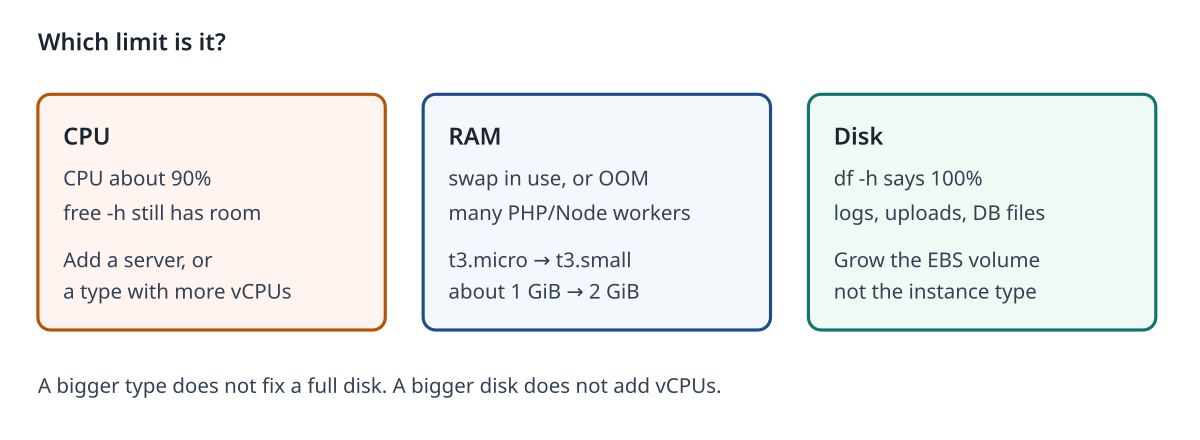
How much to add. One step, not a jump. CPU: add 1 instance (desired 1 to 2), or pick the next type that actually increases nproc. Do not jump from t3.micro to a huge type. RAM: go from about 1 GiB (t3.micro) to about 2 GiB (t3.small). Disk: if the volume is 8 GiB and df -h says full, grow it by a few GiB (Chapter 13 uses 8 to 12), not to a giant disk.
CPU, step by step.
- Run
nproc. Write the number. - Run
free -h. You should still see free memory. - Open CloudWatch. You should see CPUUtilization near 90.
- Do not change the instance type to
t3.smallfor this row. That does not add a vCPU. - Add one more instance behind the load balancer, as in section 17.3.
- You should see two servers, each nearer 45% than 90%.
RAM, step by step.
- Run
free -h. - You should see almost no available memory, or swap in use.
- Stop the instance.
- Change
t3.microtot3.smallonly. That is the one-step increase, about 1 GiB to about 2 GiB. - Start the instance.
- Run
free -hagain. You should see about 2 GiB. - This does not fix a disk that
df -hsays is full.
Disk, step by step.
- Run
df -h. - You should see
/at 100% and 0 available. - Do not change the instance type. The same full volume would come back.
- In EC2, select the volume.
- Choose Actions, then Modify volume.
- Increase the size by a few GiB, the way Chapter 13 does (for example 8 GiB to 12 GiB).
- On the instance, run
sudo growparton the right device, as in that chapter. - For XFS run
sudo xfs_growfs -d /. For ext4 runsudo resize2fson the partition. - Run
df -hagain. You should see free space.
Lab
Chala.
- Run
nproc. - Run
free -h. - Run
df -h. - If CPU is 90 and memory is free, write "add one instance."
- If swap is full and CPU is low, write "change to t3.small, about 2 GiB."
- If the filesystem is 100%, write "grow the EBS volume a few GiB. Do not change the type."