Linux user management: useradd, passwd, su, giving and taking sudo with wheel, and userdel
Let's start. You already know how to make a user and log in with a key. Today we follow one user, ravi, through his whole life on the server. We create him, give him a password, switch to him, give him sudo, take it away again, and finally delete him. On the way you'll see why sudo sometimes keeps working after you take it away, what each part of /etc/passwd means, and why deleting a user can leave files behind. Keep your server running and type every command with me.
What you'll learn in this class
- Why a normal user can't simply use
sudo, and what that protects - What a normal user can and can't see without
sudo - Creating a user with
useraddand checking what it made - Setting and resetting passwords with
passwd, and theBAD PASSWORDwarnings - Switching users with
suandsu -, and getting back withexit - The
sudolecture and "ravi is not in the sudoers file" - Where
ec2-user'ssudocomes from on Amazon Linux 2023 - Giving
sudowith thewheelgroup, and taking it away withgpasswd -d - Why group changes only count from the next login
- Reading
/etc/passwd: the seven fields and the UIDs - Deleting users:
userdelvsuserdel -r, and cleaning up leftovers - Tasks to try at home
1. Where we are
Why this chapter. In Linux users, groups, sudo and file permissions you made ravi with sudo adduser, saw that he gets a group with the same name, and logged in as him with an SSH key. In chmod in depth you saw that ec2-user can use sudo and ravi can't. This chapter goes through the full life of a user, step by step, as an admin does it on a real server.
The story. ec2-user is the server owner. The team lead keeps that login. Developers get normal users like ravi and ramesh, with no sudo at first.
Classroom line
He's the owner of the server; he can do anything.
Class मधलं वाक्य
"Toch malak ahe server cha, to kahi bi karnar."
तोच मालक आहे server चा, तो काहीही करणार.
Classroom line
He's the owner of the server; he can do anything.
Figure 1. Animation: the six steps in a user's life. Create, set a password, switch, give sudo, take sudo away, delete.
All commands in this chapter were run on a test copy of Amazon Linux 2023 with the same sudo, login.defs and PAM settings as an EC2 server. Your hostname, dates and process numbers will differ.
2. Why a normal user can't just use sudo
Why. In class a student asked the obvious question:
Classroom line
Sir, if a normal user can just use sudo, what's the point of having users?
Class मधलं वाक्य
सर, normal user असाच sudo वापरून काम करायला लागला, तर users चा अर्थच काय उरला?
Classroom line – हिंदी
"Sir agar aise hi normal user sudo use karke kaam karne laga toh user ka meaning kya reh gaya?"
What. Exactly. sudo means "do this as root", and root can do anything. If every user could use it, separate users would protect nothing. So on Amazon Linux:
ec2-usercan usesudofrom the start.- A new user like
ravican't, until an admin allows it. - Each user works in their own home, and the others can't look inside.
How it looks. As ravi, try to make a file with sudo. The first time, sudo shows a short lecture, asks for ravi's own password, and then refuses:
[ravi@ip-172-31-xx-xx ~]$ sudo touch sudotest.txt

We trust you have received the usual lecture from the local System
Administrator. It usually boils down to these three things:

    #1) Respect the privacy of others.
    #2) Think before you type.
    #3) With great power comes great responsibility.

For security reasons, the password you type will not be visible.

[sudo] password for ravi:
ravi is not in the sudoers file.
Notice the message: it is not "Permission denied". It says ravi has no sudo rule at all. The lecture appears only the first time each user runs sudo.
Classroom line
We should respect other people's privacy.
Class मधलं वाक्य
"Dusryancha aadar karayla pahije privacy cha."
दुसऱ्यांच्या privacy चा आदर करायला पाहिजे.
Classroom line
We should respect other people's privacy.
Correction
Some notes and older servers show a second line, "This incident will be reported." The sudo on Amazon Linux 2023 (version 1.9.15) prints only ravi is not in the sudoers file. Either way the meaning is the same: no sudo rule matches ravi.
3. What a normal user can and can't do
Why. You need to know where the walls are before you start giving rights away.
What. / and /home are open for everyone to enter and list (r-x). Homes are 700, so only the owner gets in. /etc/passwd is readable by all; /etc/shadow is not.
Figure 2. Without sudo, ravi can look around / and /home and read /etc/passwd, but he can't enter another home, read /etc/shadow, write outside his home or create users.
Example 1: looking around works. Run these as ravi:
[ravi@ip-172-31-xx-xx ~]$ cd /
[ravi@ip-172-31-xx-xx /]$ ls
bin  boot  dev  etc  home  lib  lib64  local  media  mnt  opt  proc  root  run  sbin  srv  sys  tmp  usr  var
[ravi@ip-172-31-xx-xx /]$ ls -ld /home /home/ec2-user /home/ravi
drwxr-xr-x. 4 root     root      35 Jan  5 10:15 /home
drwx------. 2 ec2-user ec2-user  62 Jan  5 10:15 /home/ec2-user
drwx------. 2 ravi     ravi      62 Jan  5 10:15 /home/ravi
Example 2: the walls. Still as ravi:
[ravi@ip-172-31-xx-xx ~]$ ls /home/ec2-user
ls: cannot open directory '/home/ec2-user': Permission denied
[ravi@ip-172-31-xx-xx ~]$ cat /etc/shadow
cat: /etc/shadow: Permission denied
[ravi@ip-172-31-xx-xx ~]$ useradd test1
useradd: Permission denied.
useradd: cannot lock /etc/passwd; try again later.
Classroom line
While you're ravi, you can't create a new user.
Class मधलं वाक्य
"Tumi ravi madhe astana, tumi navin user create karu shakat nahi."
तुम्ही ravi मध्ये असताना, तुम्ही नवीन user create करू शकत नाही.
Classroom line
While you're ravi, you can't create a new user.
![Handwritten board: lines starting with ~] for sudo useradd ravi and sudo passwd ravi, then ~]su ravi, then ec2-user] cd, then ravi] sudo useradd ravi with a cross after it; on the right /home/ravi with arrows to one, a.txt and two inside a large loop.](../../assets/img/aws/linux-user-management-useradd-passwd-su-wheel-userdel-02-su-ravi-cd-and-sudo-useradd-fails.webp)
From the class board: Class board: sudo useradd ravi and sudo passwd ravi as ec2-user, then su ravi; the prompt still shows ec2-user's folder until cd. As ravi, sudo useradd is crossed out. On the right, /home/ravi with the folder one, a.txt and two inside.
Correction
The class said a normal user can't even cd into / or /home. That's not right. Everyone can enter and list / and /home, because they are r-x for others. What a normal user can't do is write there, or enter another user's 700 home.
4. Step 1: create the user with useradd
Why. A user is more than a folder. Linux needs an entry in /etc/passwd, a group, a home and a password entry. useradd makes all of them in one go. Never "create a user" by making a folder in /home.
What. On Amazon Linux 2023, useradd and adduser are the same program. One command creates:
- The user
ravi, with the next free number (UID), here1001. - A group
raviwith the same number. - The home
/home/ravi, with mode700. - A mailbox file
/var/spool/mail/ravi. - A locked password entry (
!!), so nobody can log in with a password yet.
Example 3: create and check. As ec2-user:
[ec2-user@ip-172-31-xx-xx ~]$ sudo useradd ravi
[ec2-user@ip-172-31-xx-xx ~]$ id ravi
uid=1001(ravi) gid=1001(ravi) groups=1001(ravi)
[ec2-user@ip-172-31-xx-xx ~]$ grep ravi /etc/passwd
ravi:x:1001:1001::/home/ravi:/bin/bash
[ec2-user@ip-172-31-xx-xx ~]$ sudo grep ravi /etc/shadow | cut -d: -f1,2
ravi:!!
useradd prints nothing when it works. Silence means success.
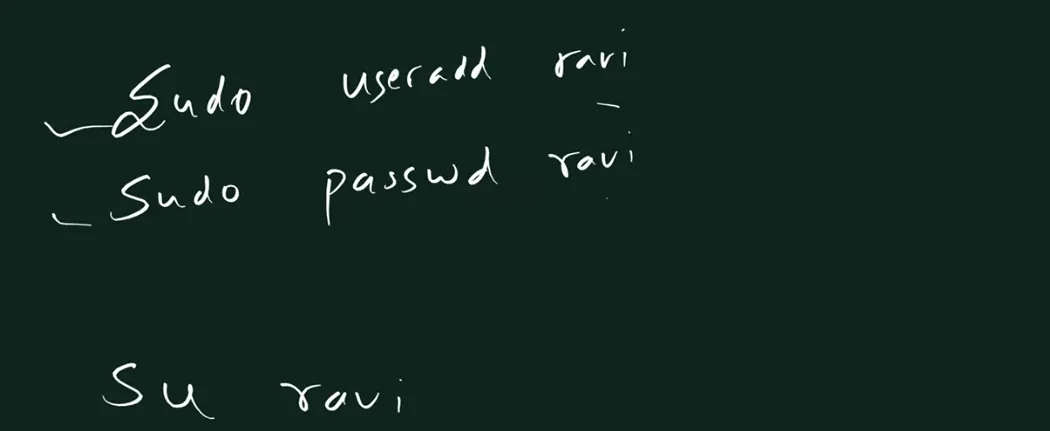
From the class board: Class board: the three commands, sudo useradd ravi, sudo passwd ravi, then su ravi.
5. Step 2: set the password with passwd
Why. A new user's password is locked. Until you set one, su ravi can't work:
[ec2-user@ip-172-31-xx-xx ~]$ su ravi
Password:
su: Authentication failure
Classroom line
Did we set a password? No.
Class मधलं वाक्य
"Password set kela ka apan? Nahi na."
Password set केला का आपण? नाही ना.
Classroom line
Did we set a password? No.
How. Set it as the admin, with sudo:
[ec2-user@ip-172-31-xx-xx ~]$ sudo passwd ravi
Changing password for user ravi.
New password:
Retype new password:
passwd: all authentication tokens updated successfully.
While you type, nothing appears: no stars, and the cursor doesn't move. That's on purpose, so nobody looking at your screen can count the letters.
Classroom line
The cursor won't move; that's why you see no stars and the cursor doesn't move.
Class मधलं वाक्य
Cursor हलणार नाही... म्हणून ना star दिसतो ना cursor हलतो.
Classroom line – हिंदी
"Cursor move nahi hoga... iske liye na star dikhta hai na cursor move hota hai."
Example 4: weak passwords. Linux checks the new password and warns you. Here are the real messages:
BAD PASSWORD: The password is shorter than 8 characters
BAD PASSWORD: The password contains the user name in some form
BAD PASSWORD: The password fails the dictionary check - it is based on a dictionary word
When root (you, with sudo) sets the password, this is only a warning: retype it and it is saved. When ravi changes his own password with plain passwd, the same checks are enforced. After three weak tries he gets:
passwd: Have exhausted maximum number of retries for service
If the two entries don't match, you see Sorry, passwords do not match. and get asked again.
Example 5: someone forgot their password. The admin resets it. The old password isn't needed:
sudo passwd ravi
Classroom line
Now, some people forgot their password.
Class मधलं वाक्य
"Ata kahi jananni password visarle."
आता काही जणांनी password विसरले.
Classroom line
Now, some people forgot their password.
Example 6: what ravi may do with passwd. ravi can change only his own password, and must type the current one first. He can't touch anyone else's:
[ravi@ip-172-31-xx-xx ~]$ passwd ramesh
passwd: Only root can specify a user name.
Correction
On the class terminal the command was typed as su passwd ravi. That runs su and asks it to switch to a user called passwd:
su passwd ravi
su: user passwd does not exist or the user entry does not contain all the required fields
The right command is sudo passwd ravi.
6. Step 3: switch users with su and su -
Why. In class we play several people on one server, so we switch users inside it. On a real team, everyone logs in directly with their own key (ssh -i key.pem ravi@SERVER_PUBLIC_IP, after their public key is in /home/ravi/.ssh/authorized_keys, as shown in the users chapter). su is the classroom shortcut.
What. su = "switch user". It asks for the password of the user you switch to.
su ravi: you becomeravi, but you stay in the folder you were in.su - ravi: a full login asravi. You land in/home/raviwith a fresh environment.
Example 7: su ravi keeps you in the old folder.
[ec2-user@ip-172-31-xx-xx ~]$ su ravi
Password:
[ravi@ip-172-31-xx-xx ec2-user]$ pwd
/home/ec2-user
[ravi@ip-172-31-xx-xx ec2-user]$ ls
ls: cannot open directory '.': Permission denied
[ravi@ip-172-31-xx-xx ec2-user]$ cd
[ravi@ip-172-31-xx-xx ~]$ pwd
/home/ravi
[ravi@ip-172-31-xx-xx ~]$ touch a.txt
[ravi@ip-172-31-xx-xx ~]$ mkdir myfolder
Read the prompt: ravi is the user, ip-172-31-xx-xx the server, ec2-user the folder you're in, and $ means a normal user (# would mean root). ls failed because /home/ec2-user is 700 and belongs to ec2-user. A plain cd takes ravi home, where he can work.
Classroom line
But ravi has no permission in that folder.
Class मधलं वाक्य
"Pan actually tya folder madhe tyala permission nasto ravila."
पण actually त्या folder मध्ये ravi ला permission नसते.
Classroom line
But ravi has no permission in that folder.
Example 8: su - ravi gives a full login.
[ec2-user@ip-172-31-xx-xx ~]$ su - ravi
Password:
Last login: Mon Jan  5 10:15:37 UTC 2026 on pts/1
[ravi@ip-172-31-xx-xx ~]$ pwd
/home/ravi
Figure 3. su ravi switches the user but leaves you in /home/ec2-user. su - ravi is a full login that starts in /home/ravi.
Example 9: going back. Type exit, or press Ctrl+D. Both end ravi's shell and you are ec2-user again:
[ravi@ip-172-31-xx-xx ~]$ exit
logout
[ec2-user@ip-172-31-xx-xx ~]$ whoami
ec2-user
After su ravi (without the dash) the word printed is exit instead of logout. Same result.
Correction
In class, Ctrl+C was used to "come out" of the user. Ctrl+C does not log you out. It only stops a command that is running, and you stay ravi:
[ravi@ip-172-31-xx-xx ~]$ sleep 30
^C
[ravi@ip-172-31-xx-xx ~]$ whoami
ravi
Use exit or Ctrl+D to leave a user's shell.
Ravindra Bagale's Tip
Prefer su - ravi when you test things as another user. You then see exactly what that user sees when they log in, including their home folder and their settings.
7. Users are isolated: add ramesh
Why. Each person's files are private by default. Let's prove it with a second user.
Example 10: second user, next UID.
[ec2-user@ip-172-31-xx-xx ~]$ sudo useradd ramesh
[ec2-user@ip-172-31-xx-xx ~]$ sudo passwd ramesh
[ec2-user@ip-172-31-xx-xx ~]$ tail -3 /etc/passwd
ec2-user:x:1000:1000:EC2 Default User:/home/ec2-user:/bin/bash
ravi:x:1001:1001::/home/ravi:/bin/bash
ramesh:x:1002:1002::/home/ramesh:/bin/bash
Example 11: ramesh can't look into ravi's home.
[ec2-user@ip-172-31-xx-xx ~]$ su - ramesh
Password:
[ramesh@ip-172-31-xx-xx ~]$ cd /home/ravi
-bash: cd: /home/ravi: Permission denied
[ramesh@ip-172-31-xx-xx ~]$ ls /home/ravi
ls: cannot open directory '/home/ravi': Permission denied
[ramesh@ip-172-31-xx-xx ~]$ exit
Classroom line
Can't go in, permission denied. Every user's files are separate and isolated.
Class मधलं वाक्य
"Nahi jau shakat, permission denied. So saglya user che files he separated and isolated astat."
नाही जाऊ शकत, permission denied. म्हणजे सगळ्या users च्या files separate आणि isolated असतात.
Classroom line
Can't go in, permission denied. Every user's files are separate and isolated.
8. Reading /etc/passwd
Why. Every user you made is one line in /etc/passwd. Reading it tells you the user's number, main group, home and shell.
What. The line has seven fields separated by :
ravi:x:1001:1001::/home/ravi:/bin/bash
ravi: the user name.x: the password is not here; it is kept, as a hash, in/etc/shadow.1001: the UID, the user's number. Linux really works with this number.1001: the GID, the number of the main group (ravi).- (empty): a comment, like a full name.
ec2-user's saysEC2 Default User. /home/ravi: the home folder./bin/bash: the shell started at login.
Figure 4. The seven fields of one /etc/passwd line, and the UIDs on Amazon Linux 2023: root 0, system accounts below 1000, ec2-user 1000, then 1001, 1002 and so on.
UIDs on Amazon Linux 2023. root is 0. Accounts for system services are below 1000. ec2-user is 1000, and each new user gets the next number: ravi 1001, ramesh 1002.
Example 12: just read it, no sudo needed.
[ec2-user@ip-172-31-xx-xx ~]$ ls -l /etc/passwd /etc/shadow
-rw-r--r--. 1 root root 1836 Jan  5 10:15 /etc/passwd
----------. 1 root root  998 Jan  5 10:15 /etc/shadow
[ec2-user@ip-172-31-xx-xx ~]$ grep ramesh /etc/passwd
ramesh:x:1002:1002::/home/ramesh:/bin/bash
/etc/passwd is readable by everyone. /etc/shadow has no permission bits at all, so only root can read it.
Correction
In class the file was opened with sudo nano passwd from the home folder. That is a different file: a path without / means "in the current folder", so nano opened an empty [ New File ]. If you save it, you get a root-owned file ~/passwd that has nothing to do with users. The real file is /etc/passwd. Read it with cat /etc/passwd (no sudo needed) and don't edit it by hand: use useradd, usermod and userdel, which also keep /etc/shadow and /etc/group in step.
9. Where ec2-user's sudo comes from
Why. Before giving sudo to ravi, look at how ec2-user got it.
What. Two rules on an Amazon Linux 2023 server can give sudo:
- In
/etc/sudoers:%wheel ALL=(ALL) ALL. Every member of the groupwheelmay run anything as root, after typing their own password. - In
/etc/sudoers.d/90-cloud-init-users, written by cloud-init at first boot:ec2-user ALL=(ALL) NOPASSWD:ALL.ec2-usermay run anything with no password.
Example 13: see both rules. As ec2-user:
[ec2-user@ip-172-31-xx-xx ~]$ id
uid=1000(ec2-user) gid=1000(ec2-user) groups=1000(ec2-user),4(adm),10(wheel),190(systemd-journal)
[ec2-user@ip-172-31-xx-xx ~]$ sudo -l
...
User ec2-user may run the following commands on ip-172-31-xx-xx:
    (ALL) ALL
    (ALL) NOPASSWD: ALL
[ec2-user@ip-172-31-xx-xx ~]$ sudo passwd -S ec2-user
ec2-user LK 2026-01-05 0 99999 7 -1 (Password locked.)
ec2-user is in wheel, but its password is locked (you log in with a key). So the wheel rule alone would ask for a password it doesn't have. The NOPASSWD rule from cloud-init is what lets ec2-user run sudo without being asked. We tested both on the box:
ec2-usertaken out ofwheel, cloud-init rule kept:sudo whoamistill printsroot.ec2-userinwheel, cloud-init rule removed:sudoasks for a password, and after three tries sayssudo: 3 incorrect password attempts.
Figure 5. The two sudo rules on Amazon Linux 2023, and what happens for ec2-user, for ravi in wheel, and for ravi outside wheel.
Classroom line
Only ec2-user can use sudo; others can if you add them to wheel.
Class मधलं वाक्य
"Fakt ec2-user sudo vaparu shakto. Dusre vaparu shaktat jar tyana wheel madhe add kela tar."
फक्त ec2-user sudo वापरू शकतो. दुसरे वापरू शकतात जर त्यांना wheel मध्ये add केलं तर.
Classroom line
Only ec2-user can use sudo; others can if you add them to wheel.
Check any user without becoming them:
[ec2-user@ip-172-31-xx-xx ~]$ sudo -l -U ravi
User ravi is not allowed to run sudo on ip-172-31-xx-xx.
10. Step 4: give sudo by adding to wheel
Why. Sometimes a developer really needs root work, like installing a package with sudo yum install -y tree or restarting a service with sudo service nginx restart. Instead of sharing ec2-user, add that person to wheel.
How. Any user who already has sudo can do it. As ec2-user:
[ec2-user@ip-172-31-xx-xx ~]$ sudo usermod -aG wheel ravi
[ec2-user@ip-172-31-xx-xx ~]$ groups ravi
ravi : ravi wheel
[ec2-user@ip-172-31-xx-xx ~]$ sudo -l -U ravi
...
User ravi may run the following commands on ip-172-31-xx-xx:
    (ALL) ALL
usermod: change an existing user.-G wheel: the extra group to set.-a: append, keep the groups ravi already has. Without-a,-Greplaces his extra groups with only the ones you list.
Classroom line
Let's add ravi to the wheel group and see if he can use sudo.
Class मधलं वाक्य
"Wheel group madhe ravi ya user la add karun baghuya to sudo use karu shakto ka."
Wheel group मध्ये ravi या user ला add करून बघूया तो sudo वापरू शकतो का.
Classroom line
Let's add ravi to the wheel group and see if he can use sudo.
Example 14: ravi uses sudo in a new login. He types his own password, not root's and not ec2-user's:
[ec2-user@ip-172-31-xx-xx ~]$ su - ravi
Password:
[ravi@ip-172-31-xx-xx ~]$ id
uid=1001(ravi) gid=1001(ravi) groups=1001(ravi),10(wheel)
[ravi@ip-172-31-xx-xx ~]$ sudo touch /home/suudowala.txt
[sudo] password for ravi:
[ravi@ip-172-31-xx-xx ~]$ ls -l /home/suudowala.txt
-rw-r--r--. 1 root root 0 Jan  5 10:15 /home/suudowala.txt
The file belongs to root, because sudo ran touch as root. For about five minutes after a correct password, sudo doesn't ask again in that terminal.
Example 15: a shell opened before the change doesn't get it. If ravi was already logged in when you ran usermod, that old shell still fails:
[ravi@ip-172-31-xx-xx ~]$ id
uid=1001(ravi) gid=1001(ravi) groups=1001(ravi)
[ravi@ip-172-31-xx-xx ~]$ sudo whoami
[sudo] password for ravi:
ravi is not in the sudoers file.
He has to exit and log in again. Section 12 explains why.
Correction
The class said only root can add someone to wheel. Any user who already has sudo can, for example ec2-user with sudo usermod -aG wheel ravi. And a wheel member types their own password at the [sudo] password for ravi: prompt.
11. Step 5: take sudo away with gpasswd -d
How. As ec2-user, remove ravi from wheel:
[ec2-user@ip-172-31-xx-xx ~]$ sudo gpasswd -d ravi wheel
Removing user ravi from group wheel
[ec2-user@ip-172-31-xx-xx ~]$ groups ravi
ravi : ravi
gpasswd -d = delete this user from this group. His other groups stay as they are.
Example 16: the surprise. In the shell ravi opened while he was still in wheel, sudo keeps working:
[ravi@ip-172-31-xx-xx ~]$ id
uid=1001(ravi) gid=1001(ravi) groups=1001(ravi),10(wheel)
[ravi@ip-172-31-xx-xx ~]$ sudo whoami
root
Example 17: a fresh login loses it.
[ravi@ip-172-31-xx-xx ~]$ exit
logout
[ec2-user@ip-172-31-xx-xx ~]$ su - ravi
Password:
[ravi@ip-172-31-xx-xx ~]$ sudo whoami
[sudo] password for ravi:
ravi is not in the sudoers file.
12. Why sudo kept working: groups are fixed at login
Why. It looks like a bug, but it's how Linux works, and you need to know it when you take rights away from someone.
What. When you log in, your shell gets a list of groups from /etc/group, and keeps that list until it ends. id with no name shows the list of your current shell. groups ravi and id ravi read the files on disk. sudo checks the groups of the shell that runs it.
Two explanations were possible, so we tested both on the box:
- The sudo password cache. After a correct password,
sudodoesn't ask again for about five minutes. In the old shell we cleared it withsudo -kand ransudo whoamiagain. It asked for ravi's password and still printedroot. So the cache is not the reason; it only skips the password question. - The shell's own group list. The old shell's
idstill showed10(wheel)aftergpasswd -d. A freshsu - ravishowed only1001(ravi), andsudofailed there. This is the real reason.
It works the same way when you add a group: the shell from Example 15 didn't get wheel until a new login.
Figure 6. Animation: group changes count from the next login. An old shell keeps the groups it started with, so sudo keeps working after gpasswd -d until ravi logs in again.
Correction
In class, sudo touch hh.txt still working after gpasswd -d was put down to the user not being able to remove himself. The real reason: group changes apply to new login sessions, and ravi's running shell still had wheel in its group list. Clearing the sudo cache with sudo -k didn't stop it; only a fresh login did.
Ravindra Bagale's Tip
When you take sudo away from someone, also end their open sessions, for example with sudo pkill -KILL -u ravi, or they can keep using it until they log out. Check with who (from the users chapter) that they're gone.
13. Step 6: delete the user with userdel
Why. When someone leaves the team, remove their login. The question is what happens to their files.
Classroom line
When we delete a user, its files should be deleted too, right?
Class मधलं वाक्य
"Apan user delete kelyavar pan te content delete vhayla pahije na."
आपण user delete केल्यावर पण ते content delete व्हायला पाहिजे ना?
Classroom line
When we delete a user, its files should be deleted too, right?
What. Two ways:
sudo userdel ravi: removes the user, but keeps/home/raviand his mailbox/var/spool/mail/ravi.sudo userdel -r ravi: removes the user and his home and mailbox.
Classroom line
User ravi gets deleted, but the ravi folder doesn't.
Class मधलं वाक्य
"Ravi ha user delete hoil pan ravi ha folder delete nahi honar."
ravi हा user delete होईल पण ravi हा folder delete नाही होणार.
Classroom line
User ravi gets deleted, but the ravi folder doesn't.
Classroom line
Because data is always important.
Class मधलं वाक्य
"Karan nehmi data mahatvacha asto."
कारण नेहमी data महत्त्वाचा असतो.
Classroom line
Because data is always important.
Example 18: ravi is still logged in. userdel refuses while the user has running processes:
[ec2-user@ip-172-31-xx-xx ~]$ sudo userdel ravi
userdel: user ravi is currently used by process 2412
Ask him to log out (or end his sessions, as in the tip above), then try again.
Example 19: plain userdel keeps the home.
[ec2-user@ip-172-31-xx-xx ~]$ sudo userdel ravi
[ec2-user@ip-172-31-xx-xx ~]$ su ravi
su: user ravi does not exist or the user entry does not contain all the required fields
[ec2-user@ip-172-31-xx-xx ~]$ ls -l /home
total 0
drwx------. 2 ec2-user ec2-user 62 Jan  5 10:15 ec2-user
drwx------. 2 ramesh   ramesh   62 Jan  5 10:15 ramesh
drwx------. 3     1001     1001 78 Jan  5 10:15 ravi
-rw-r--r--. 1 root     root      0 Jan  5 10:15 suudowala.txt
The folder is still there, and the owner now shows as the bare number 1001, because no user has that number any more.
Example 20: -r must be used instead of userdel, not after it. Once the user is gone, -r has nothing to work with:
[ec2-user@ip-172-31-xx-xx ~]$ sudo userdel -r ravi
userdel: user 'ravi' does not exist
Example 21: the right way, in one step.
[ec2-user@ip-172-31-xx-xx ~]$ sudo userdel -r ramesh
[ec2-user@ip-172-31-xx-xx ~]$ ls /home
ec2-user  ravi  suudowala.txt
[ec2-user@ip-172-31-xx-xx ~]$ grep ramesh /etc/passwd
[ec2-user@ip-172-31-xx-xx ~]$
ramesh's line, home and mailbox are gone. (ravi is still the leftover from Example 19.)
Figure 7. userdel keeps /home/ravi and the mailbox, now owned by the number 1001. userdel -r removes the user, the home and the mailbox.
Why leftovers matter. Look at what can happen next. ramesh is gone and the leftover /home/ravi still belongs to 1001. Now create ramesh again. He gets UID 1001, the number ravi had, so the old folder is now his:
[ec2-user@ip-172-31-xx-xx ~]$ sudo useradd ramesh
[ec2-user@ip-172-31-xx-xx ~]$ id ramesh
uid=1001(ramesh) gid=1001(ramesh) groups=1001(ramesh)
[ec2-user@ip-172-31-xx-xx ~]$ ls -ld /home/ravi
drwx------. 2 ramesh ramesh 62 Jan  5 10:15 /home/ravi
Files belong to numbers, not names. useradd gives the next number after the highest one in use, so a number can come back when the newest users are deleted.
Example 22: cleaning up leftovers. If you already used plain userdel, remove the leftover folder and mailbox by hand (here, first sudo userdel -r ramesh again, so nobody owns it). Read the path twice before you press Enter; rm -rf asks nothing:
sudo rm -rf /home/ravi
sudo rm -f /var/spool/mail/ravi
Correction
The class said deleting a user never deletes the folder. That's true only for plain userdel. userdel -r deletes the home folder and mailbox too. Use it instead of userdel, not after it: the second command fails with userdel: user 'ravi' does not exist.
Ravindra Bagale's Tip
In a company, first copy what you need from the person's home (code, notes, logs), then delete with userdel -r. Keeping a leftover home "just in case" means it will one day belong to someone else's UID.
14. The whole lifecycle on one page
What. Every command from this chapter, in order. All of them run as ec2-user (or another sudo user):
| Step | Command | What it does |
|---|---|---|
| Create | sudo useradd ravi |
user, group ravi, /home/ravi (700), mailbox |
| Password | sudo passwd ravi |
set or reset; no old password needed |
| Switch | su - ravi |
full login as ravi; back with exit or Ctrl+D |
| Check | id ravi, groups ravi, sudo -l -U ravi |
groups and sudo rights on disk |
| Give sudo | sudo usermod -aG wheel ravi |
counts from ravi's next login |
| Take sudo | sudo gpasswd -d ravi wheel |
old shells keep it until they exit |
| Delete | sudo userdel -r ravi |
user, home and mailbox |
15. Try at home
Try at home
Task 1: create and switch
sudo useradd ravi, thenid raviandls -ld /home/ravi.- Try
su ravibefore setting a password, then set one withsudo passwd ravi. - Compare
su ravi+pwdwithsu - ravi+pwd. Leave each withexit.
Task 2: walls
- As
ravi:ls /,ls /home,cat /etc/passwd, thenls /home/ec2-userandcat /etc/shadow. - Make
rameshand check his line in/etc/passwd. What is his UID?
Task 3: give and take sudo
- Open a
su - ravishell and keep it open. In another terminal, runsudo usermod -aG wheel ravi. - In ravi's old shell, run
idandsudo whoami. Then open a newsu - raviand try again. - Run
sudo gpasswd -d ravi wheel. Test the open shell (also aftersudo -k) and a fresh login. Explain the results.
Task 4: delete
sudo userdel ravi, thenls -l /home. Who owns/home/ravinow?- Clean it up with
sudo rm -rf /home/raviandsudo rm -f /var/spool/mail/ravi. - Delete
rameshthe right way withsudo userdel -r ramesh.
When you're done, check ls /home shows only ec2-user, and stop the instance.
Recap
In short
- Users keep people apart: own home (
700), own files, nosudoby default. - Everyone may enter and list
/and/home; writing there, or entering another home, needs rights. sudo useradd ravimakes the user, a same-name group,/home/raviand a mailbox, with a locked password.sudo passwd ravisets or resets a password. Typing is invisible. Root getsBAD PASSWORDwarnings; a user changing their own password is held to them.su ravikeeps your folder;su - raviis a full login in/home/ravi. Leave withexitor Ctrl+D, not Ctrl+C.- A user without a rule gets
ravi is not in the sudoers file. ec2-user'ssudoworks because of the cloud-initNOPASSWDrule;wheelmembers usesudowith their own password.- Any
sudouser can givesudo:sudo usermod -aG wheel ravi. Take it away withsudo gpasswd -d ravi wheel. - Group changes count from the next login. Old shells keep their groups, even after
sudo -k. /etc/passwd: name,x(hash in/etc/shadow), UID, GID, comment, home, shell.ec2-useris1000, then1001,1002.- Read
/etc/passwd, don't edit it;sudo nano passwdin your home is a different, new file. userdelkeeps the home and mailbox;userdel -rremoves them. Use-rinstead of plainuserdel, and clean up leftovers, because UIDs can come back.
Classroom line
Our Linux doesn't end here; it ends only when the whole course ends.
Class मधलं वाक्य
"Linux sampat nahiye apla. Jevha purna course sampat tevha ch linux sampat."
आपलं Linux संपत नाहीये. जेव्हा पूर्ण course संपतो तेव्हाच Linux संपतं.
Classroom line
Our Linux doesn't end here; it ends only when the whole course ends.
Ravindra Bagale, trainer: linkedin.com/in/ravindra-bagale. The user names (ravi, ramesh) and file names are examples for learning. The commands and messages were checked on a test copy of Amazon Linux 2023 (sudo 1.9.15, shadow-utils 4.9, passwd 0.80, libpwquality 1.4.4) with the same sudoers, PAM and login.defs files as an EC2 server, and against an EC2 server's settings read-only. The hostname in the prompt, the dates, sizes and process numbers are illustrative.