Linux File System Hierarchy (FHS) Explained: /etc, /var, /usr, /proc and More
On Windows you have C:\ and D:\. On Linux there is only one tree. It starts at / (root). Every file, disk, USB drive and even running process sits somewhere under /. Once you know which folder holds what, you will never feel lost on a server.
What you'll learn in this chapter
- Why Linux has a single tree starting at /
- What lives in /etc, /var, /home, /usr, /opt, /tmp, /boot, /dev
- The virtual folders /proc and /sys
- Where logs, configs and binaries go
- Absolute vs relative paths
- How disks are mounted into the tree
1. An everyday example: a big housing society
Why do we need this?
In a housing society in Kothrud there is one main gate. Inside, the office keeps rules and records. The parking holds vehicles. Each flat belongs to one family. The store room holds shared tools. Nobody keeps cars in the office.
What is it?
Main gate = /. Office with rules = /etc. Records that keep growing = /var. Flats = /home/
How to do it (step by step)
2. The root / and the FHS standard
Why do we need this?
If every distro put files in random places, no script or person could work across servers. A shared map is needed.
What is it?
The Filesystem Hierarchy Standard (FHS) says which top folder holds what. Everything starts at /. Note: / is the root of the tree. /root is the home folder of the root user. They are different.
| Folder | Holds | Example |
|---|---|---|
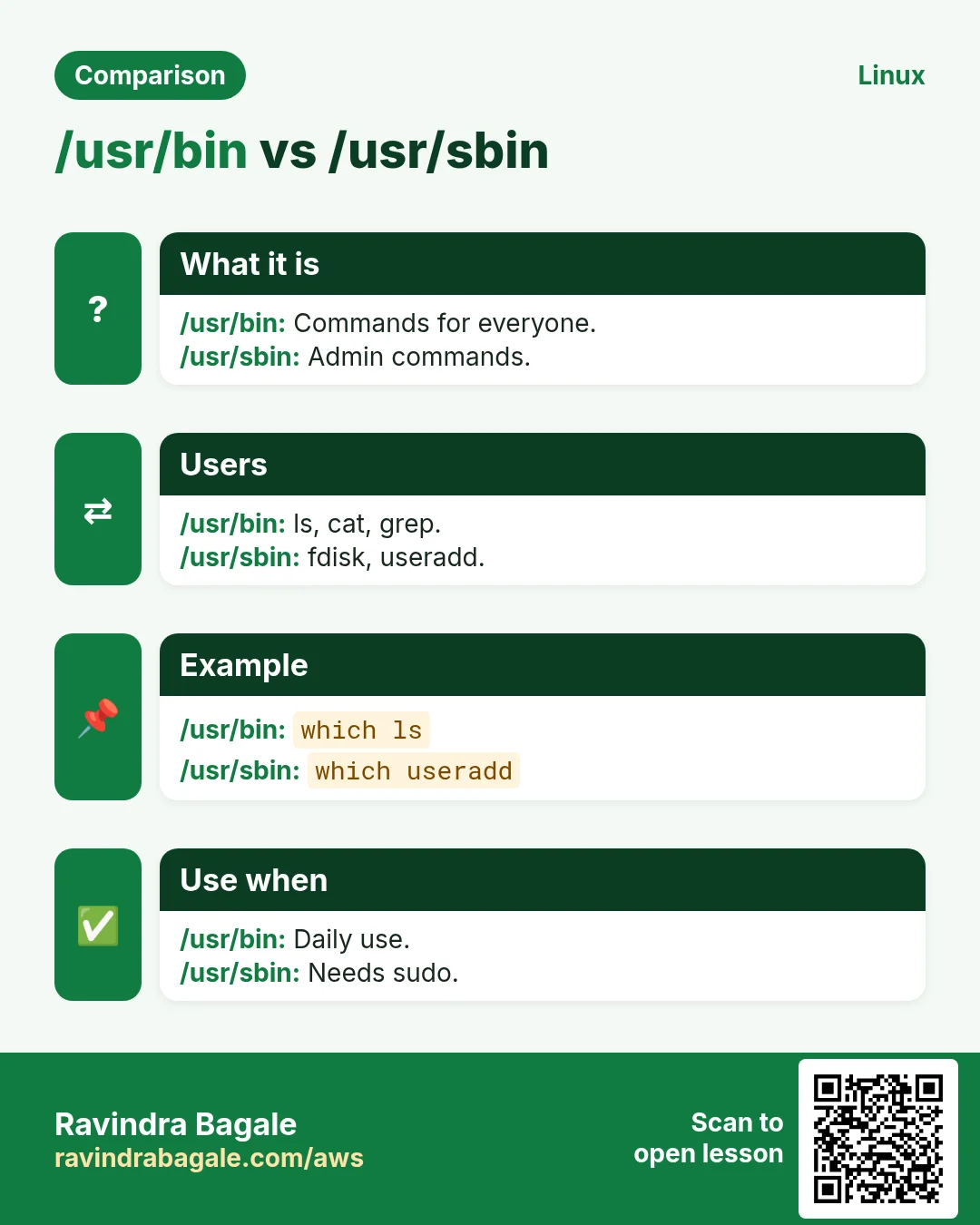
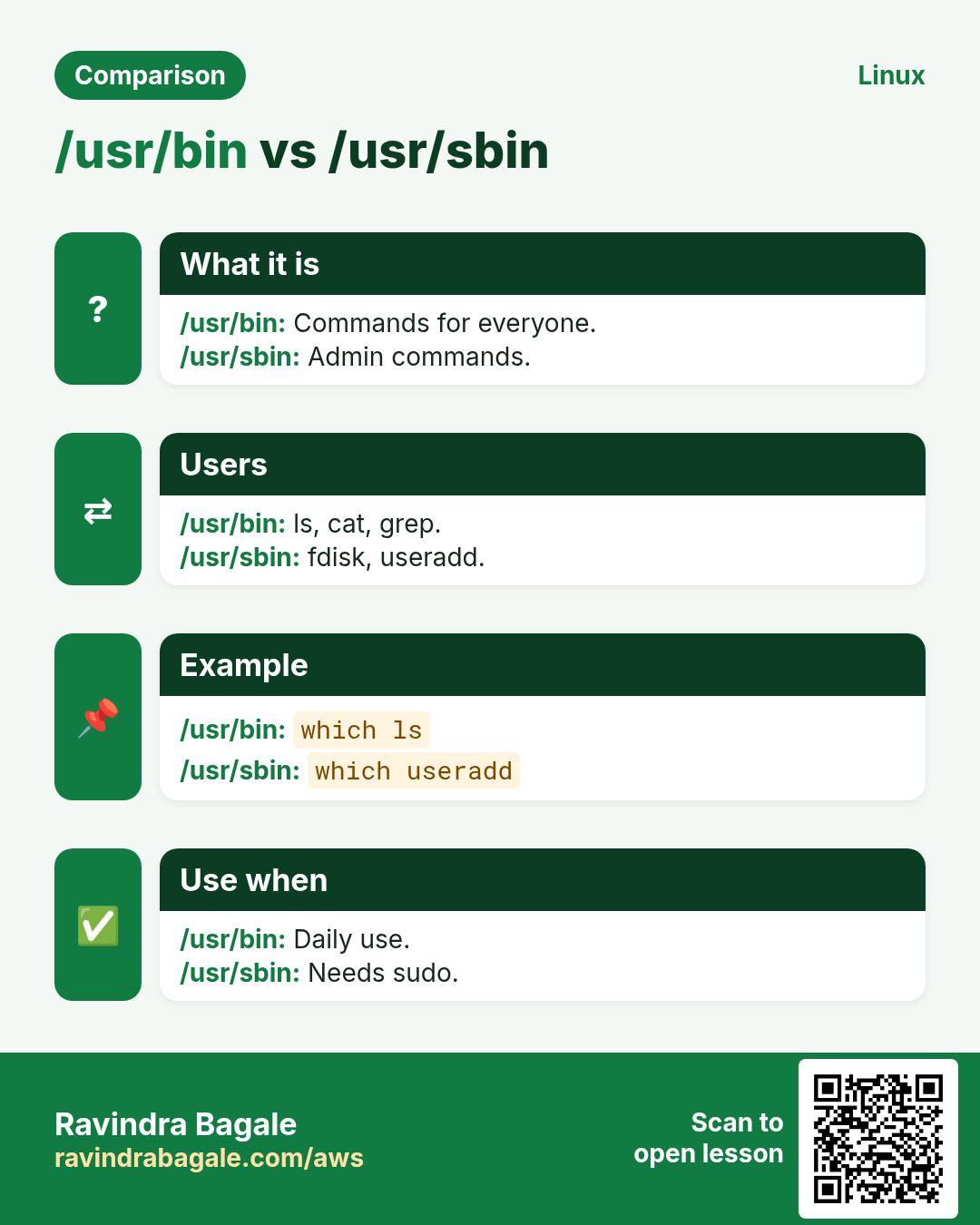
| /bin, /sbin | Basic commands (now links to /usr) | ls, ip |
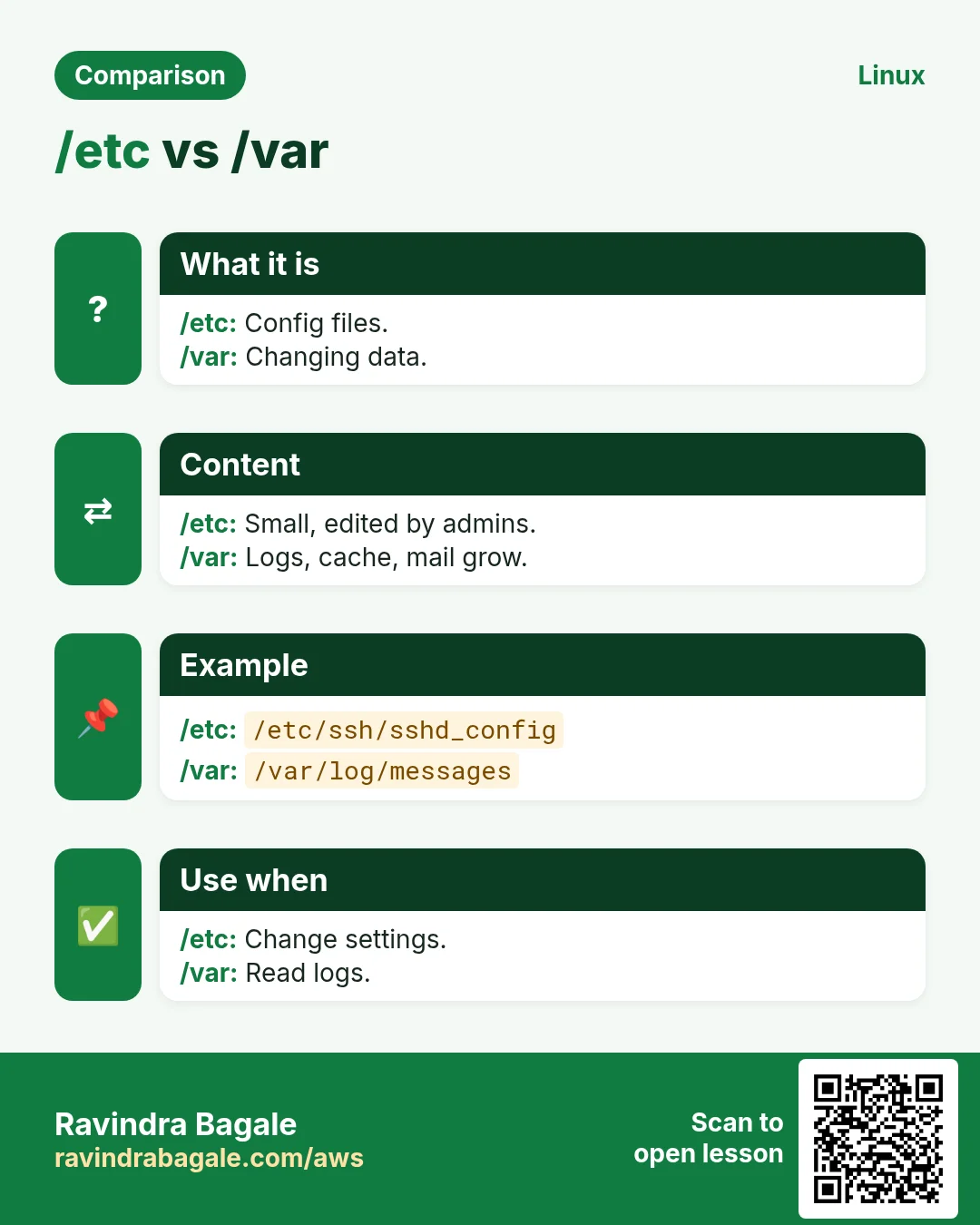
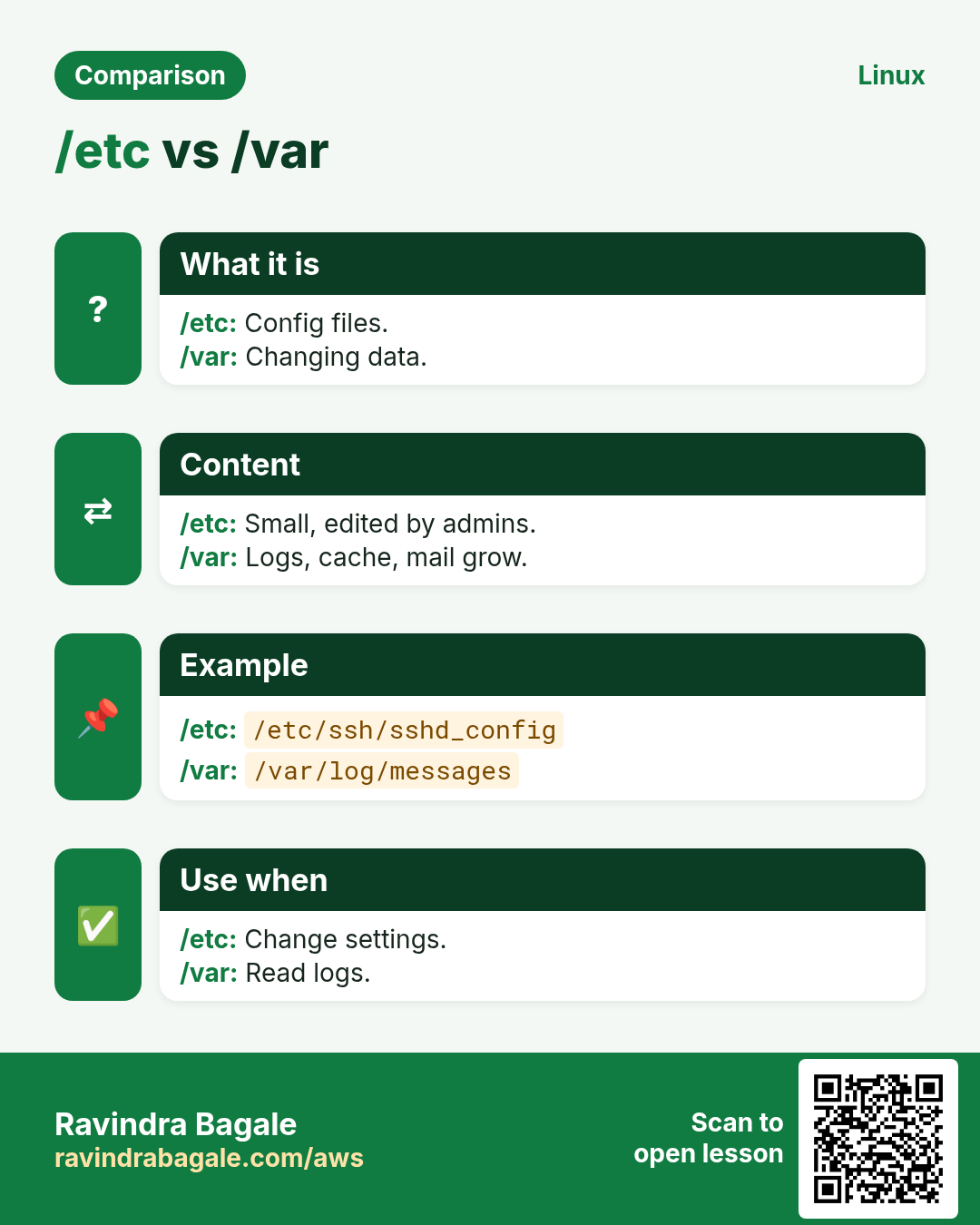
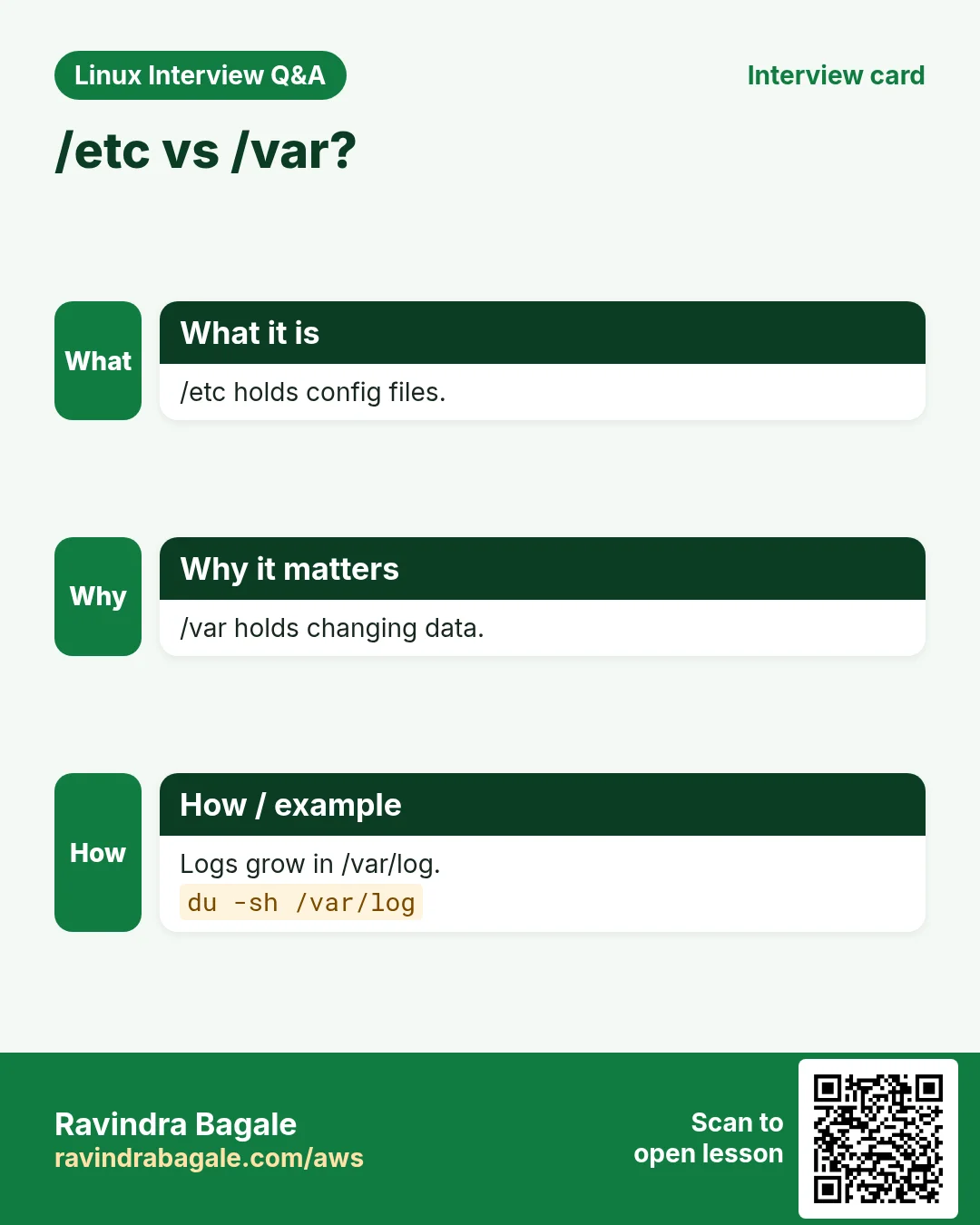
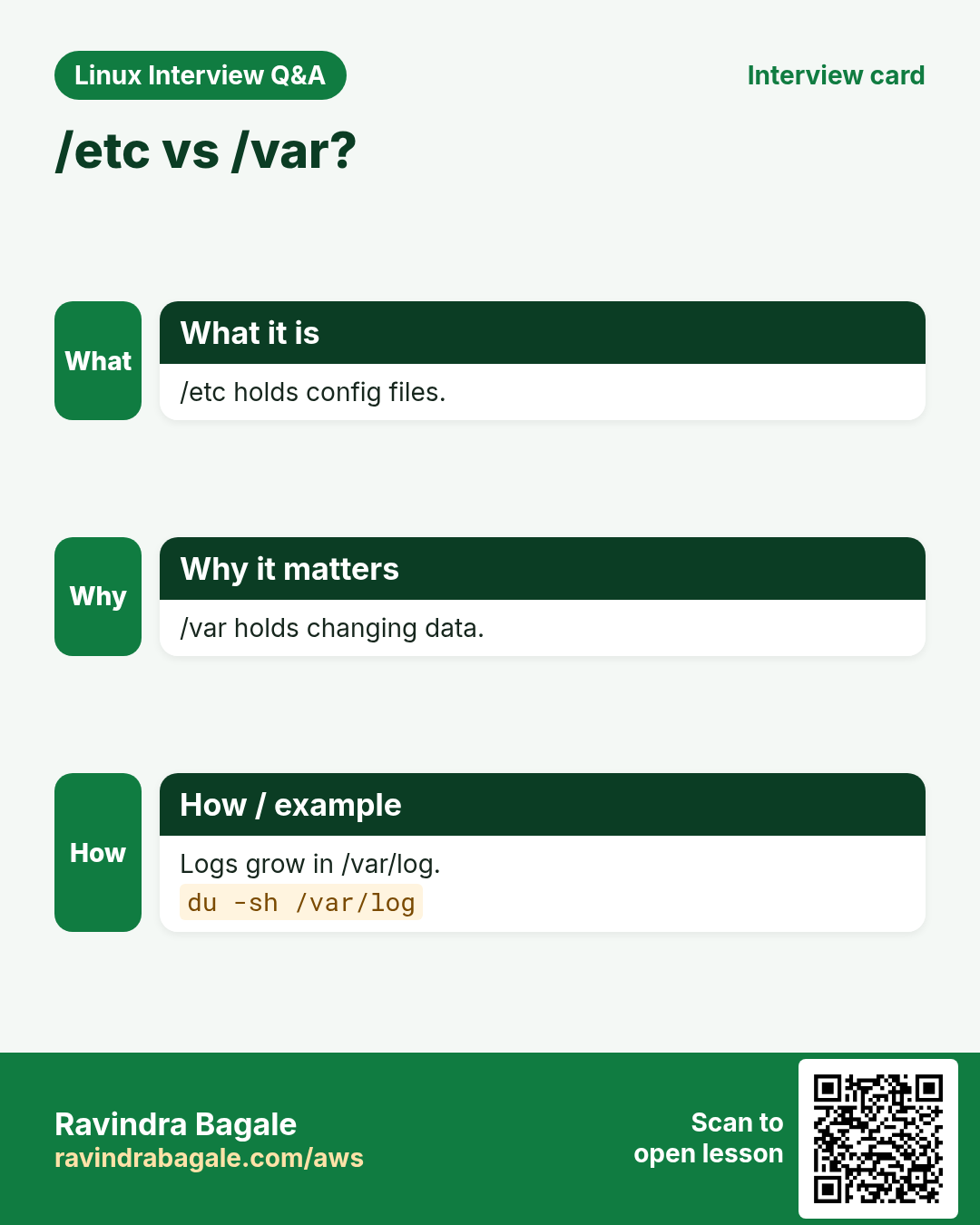
| /etc | System config files | /etc/ssh/sshd_config |
| /home | Users' personal folders | /home/meera |
| /root | root user's home | /root/.bashrc |
| /var | Changing data: logs, caches, mail, databases | /var/log/syslog |
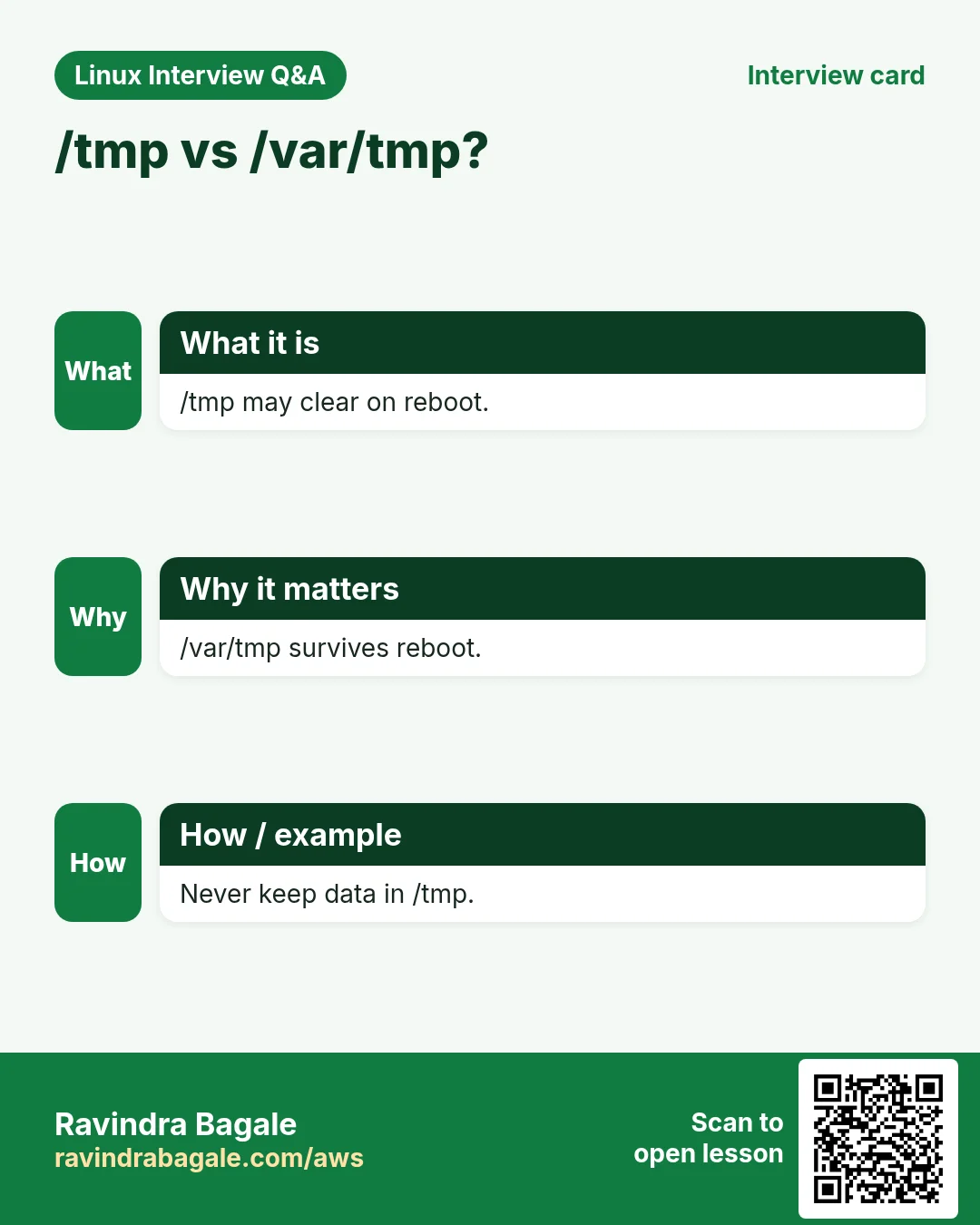
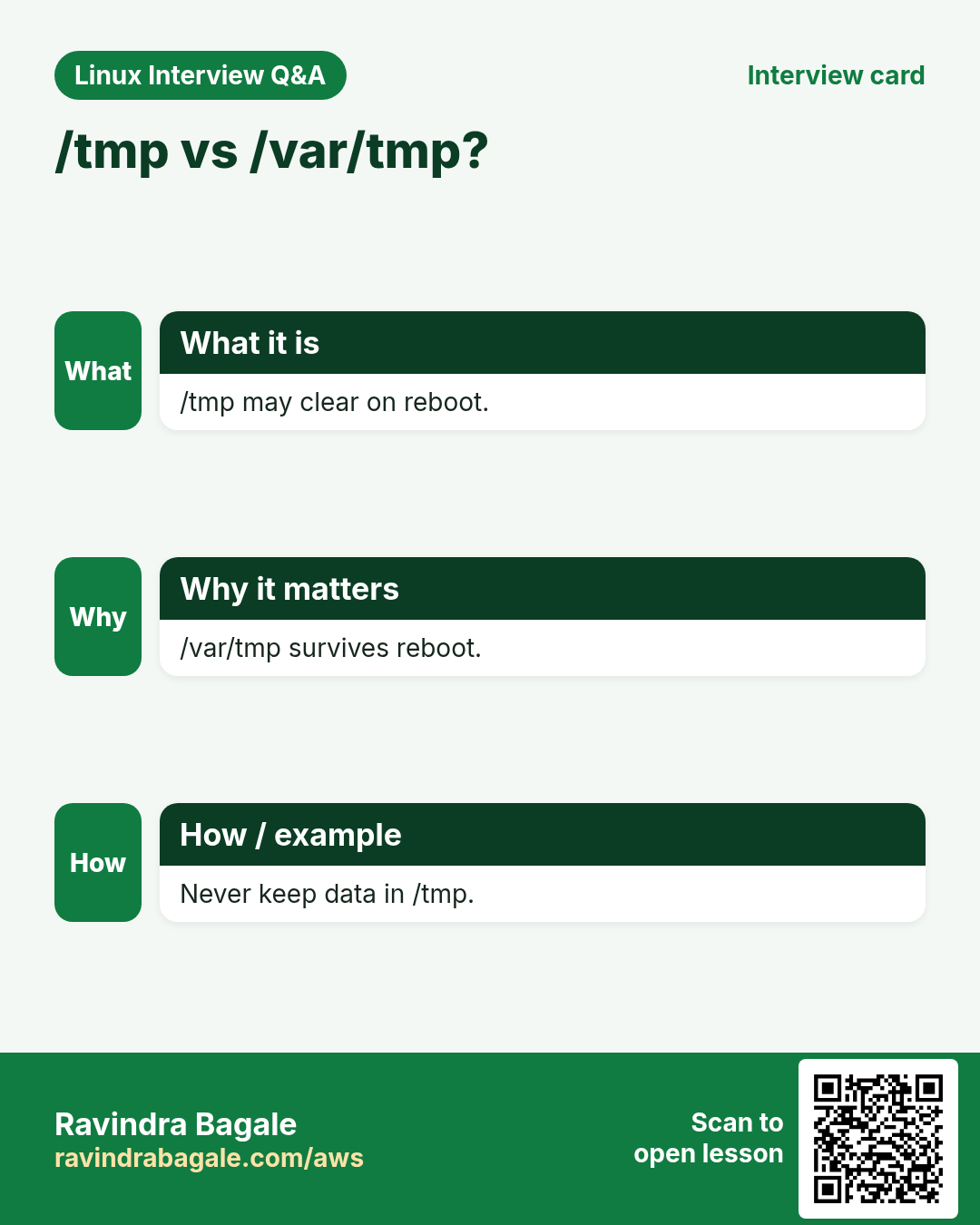
| /tmp | Temporary files, cleaned often | /tmp/upload123 |
| /usr | Installed programs and libraries | /usr/bin/python3 |
| /opt | Add-on vendor software | /opt/splunk |
| /boot | Kernel, initramfs, GRUB | /boot/vmlinuz-* |
| /dev | Device files | /dev/sda, /dev/null |
| /proc, /sys | Live kernel info (virtual) | /proc/cpuinfo |
| /mnt, /media | Mount points for disks and USB | /mnt/backup |
| /srv | Data served by this host | /srv/www |
| /run | Runtime data since boot (PID files, sockets) | /run/sshd.pid |
How to do it (step by step)
- List the top of the tree.
ls /Output:
bin boot dev etc home lib media mnt opt proc root run sbin srv sys tmp usr varWhat it means: These are the standard FHS folders.
- See it as a tree one level deep.
tree -L 1 /Output:
/
├── bin -> usr/bin
├── boot
├── etc
...
What it means: bin is a link to usr/bin on new distros.
- Read the built-in manual on the layout.
man hierOutput:
HIER(7)  Linux Programmer's Manual
NAME  hier - description of the filesystem hierarchy
What it means: man hier explains each folder.
3. /etc: the configuration office
Why do we need this?
You change how a service behaves by editing its config. You must know where configs live.
What is it?
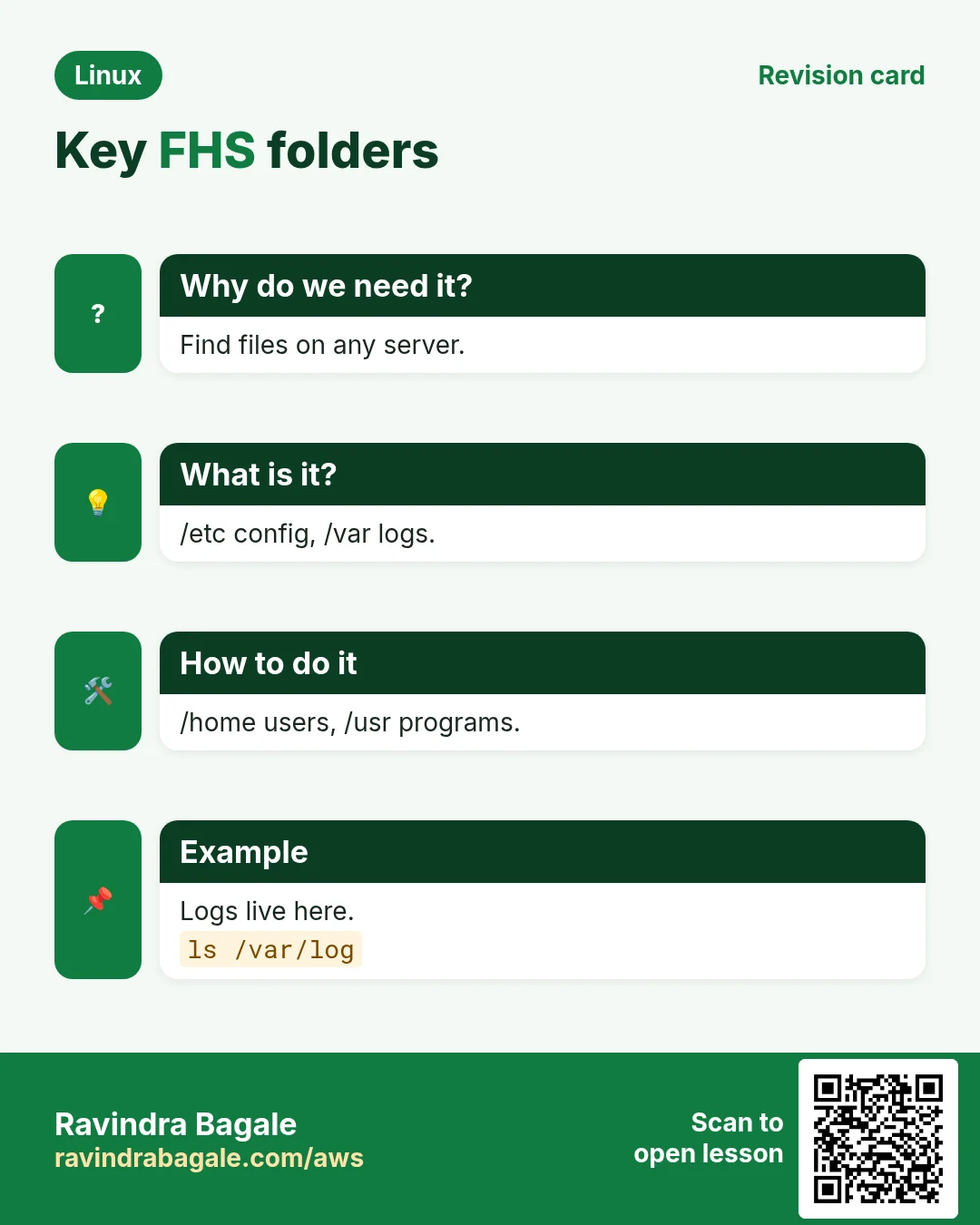
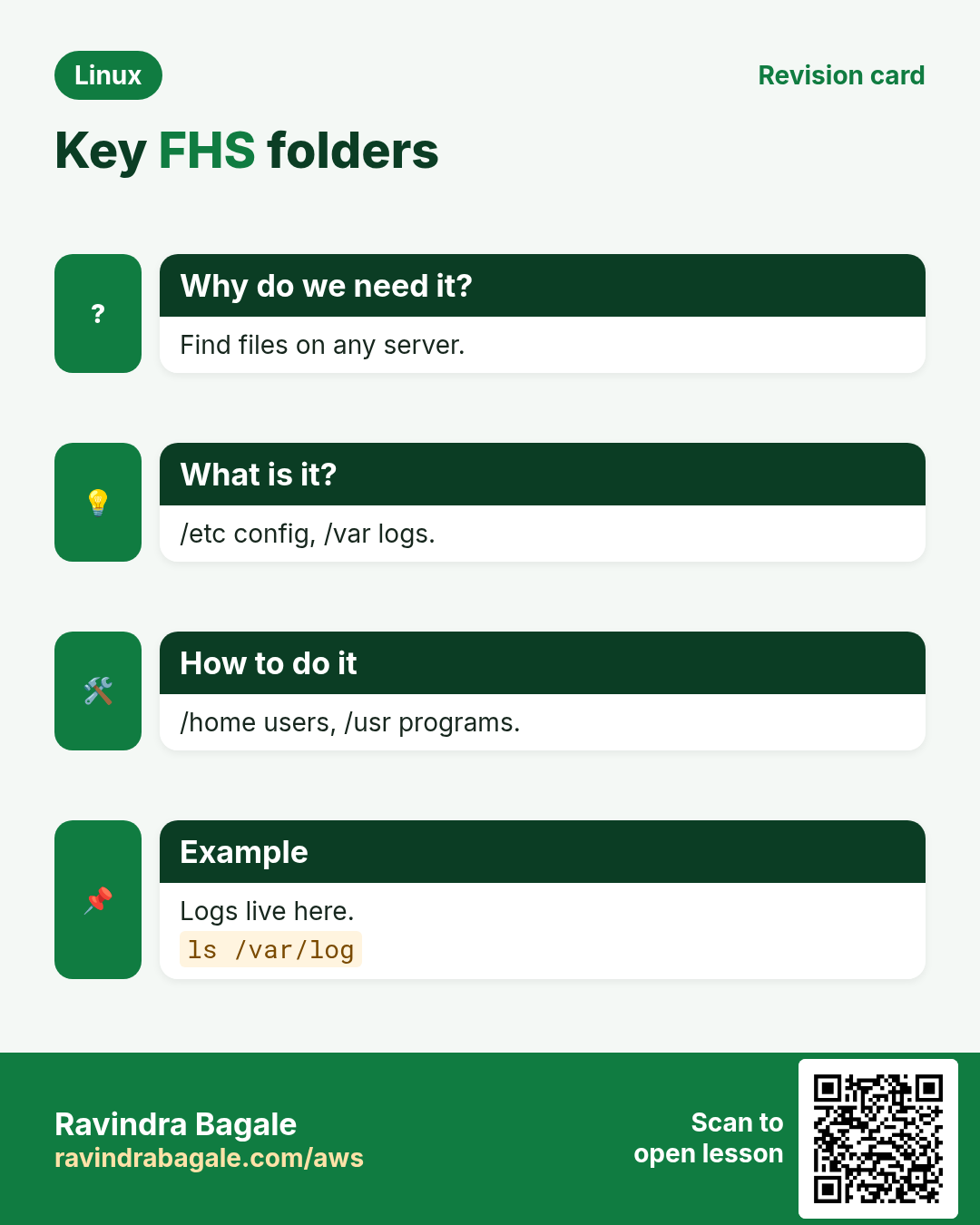
/etc holds text config files for the system and services: users (/etc/passwd), groups, hosts, DNS (/etc/resolv.conf), mounts (/etc/fstab), SSH, cron, nginx and more. No binaries go here.
How to do it (step by step)
- See the user list file.
head -3 /etc/passwdOutput:
root:x:0:0:root:/root:/bin/bash
daemon:x:1:1:daemon:/usr/sbin:/usr/sbin/nologin
bin:x:2:2:bin:/bin:/usr/sbin/nologin
What it means: Each line: user, UID, GID, home, shell.
- See the local name lookup file.
cat /etc/hostsOutput:
127.0.0.1 localhost
10.0.1.20 db01.internal db01
What it means: db01 resolves to 10.0.1.20 without DNS.
- See DNS servers.
cat /etc/resolv.confOutput:
nameserver 127.0.0.53
search ap-south-1.compute.internal
What it means: DNS goes to the local resolver first.
- Back up a config before editing.
sudo cp -a /etc/ssh/sshd_config /etc/ssh/sshd_config.bak.$(date +%F)What it means: A dated copy lets you roll back.
4. /var: data that keeps changing
Why do we need this?
Logs and caches grow every minute. If they fill the disk, services crash. You must know where to look.
What is it?
/var (variable) holds /var/log (logs), /var/cache (package caches), /var/lib (state of apps and databases, like /var/lib/mysql and /var/lib/docker), /var/spool (print and mail queues) and /var/www (web files on many distros).
How to do it (step by step)
- See the log folder.
ls /var/logOutput:
auth.log cloud-init.log dpkg.log journal nginx syslogWhat it means: auth.log = logins. syslog = general. nginx = web logs.
- Find which /var folder is biggest.
sudo du -sh /var/* 2>/dev/null | sort -h | tail -3Output:
120M /var/cache
1.1G /var/log
6.4G /var/lib
What it means: /var/lib is biggest (Docker or a database).
- Follow a log live.
sudo tail -f /var/log/nginx/access.logOutput:
10.0.0.5 - - [25/Oct/2026:10:40:01 +0530] "GET / HTTP/1.1" 200 612What it means: Each new request appears. Ctrl+C to stop.
5. /home, /root, /usr, /opt, /tmp
Why do we need this?
You need to know where your own files go, where programs are installed and where it is safe to put scratch files.
What is it?
/home/
How to do it (step by step)
- Go home and print where you are.
cd ~ && pwdOutput:
/home/meeraWhat it means: ~ means /home/meera for user meera.
- Find where a program is installed.
command -v nginxOutput:
/usr/sbin/nginxWhat it means: Package-installed admin tools go to /usr/sbin.
- Check /tmp permissions (sticky bit).
ls -ld /tmpOutput:
drwxrwxrwt 18 root root 4096 Oct 25 10:00 /tmpWhat it means: t at the end = sticky bit. Everyone can write, but only owners can delete their own files.
- Make a safe temp file.
mktempOutput:
/tmp/tmp.k3J9aQ2xZbWhat it means: A unique name avoids clashes with other users.
6. /dev: devices as files
Why do we need this?
Linux treats almost everything as a file. Disks, terminals and even 'nothing' have a file name. Tools can read and write them like normal files.
What is it?
/dev holds device files: /dev/sda or /dev/nvme0n1 (disks), /dev/sda1 (partition), /dev/tty (terminal), /dev/null (a black hole), /dev/zero (endless zeros), /dev/random and /dev/urandom (random bytes).
How to do it (step by step)
- List block devices.
lsblkOutput:
NAME        MAJ:MIN RM  SIZE RO TYPE MOUNTPOINTS
nvme0n1     259:0    0   20G  0 disk
└─nvme0n1p1 259:1    0   20G  0 part /
nvme1n1     259:2    0  100G  0 disk /data
What it means: Two disks. The second is mounted at /data.
- Throw away output with /dev/null.
ls /nope 2>/dev/null; echo doneOutput:
doneWhat it means: The error went into the black hole.
- Create a 100 MB test file from /dev/zero.
dd if=/dev/zero of=/tmp/test.img bs=1M count=100Output:
100+0 records in
100+0 records out
104857600 bytes (105 MB) copied, 0.1 s
What it means: Useful for disk speed tests.
7. /proc and /sys: live windows into the kernel
Why do we need this?
You want CPU info, memory, process details and kernel settings without special tools.
What is it?
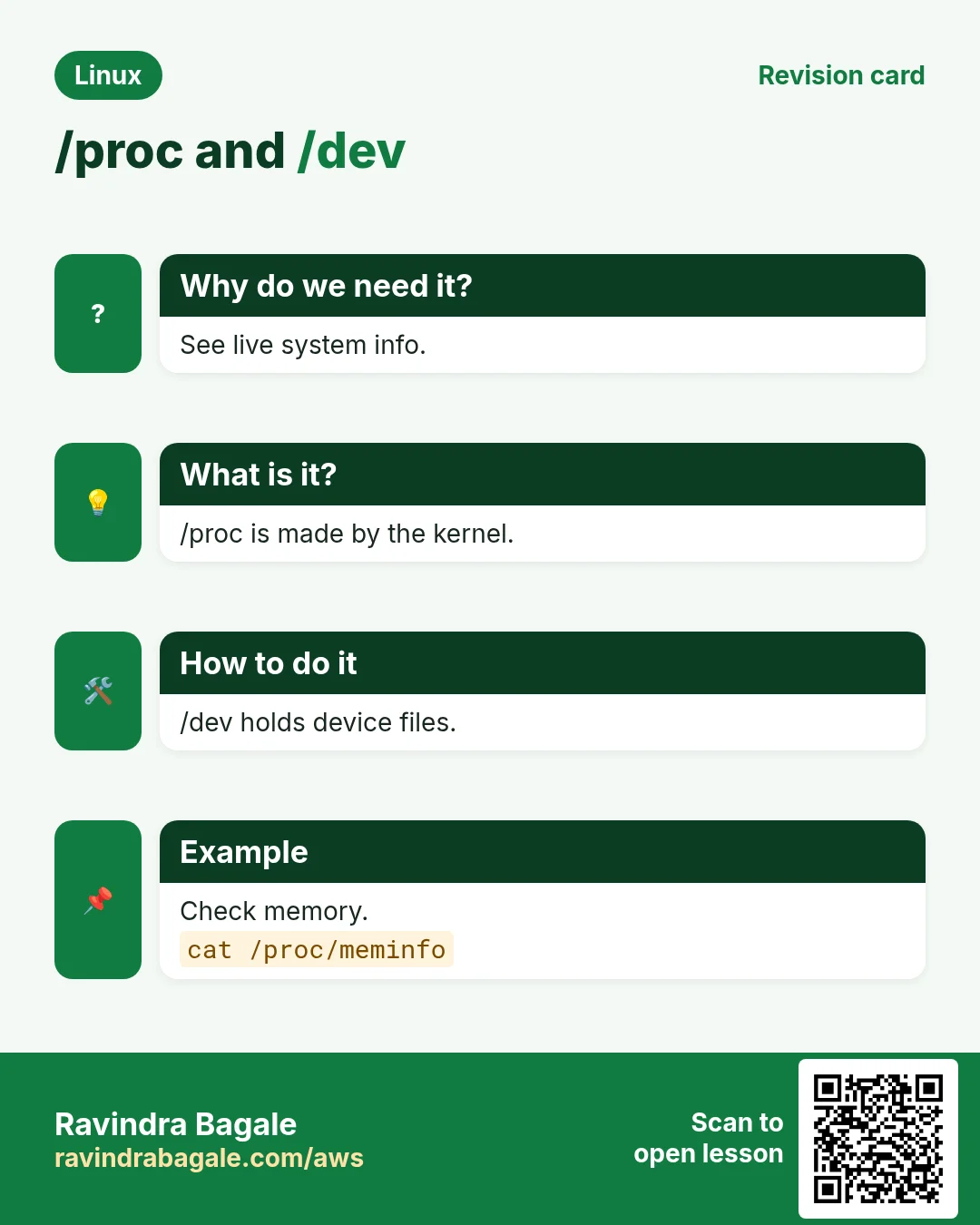
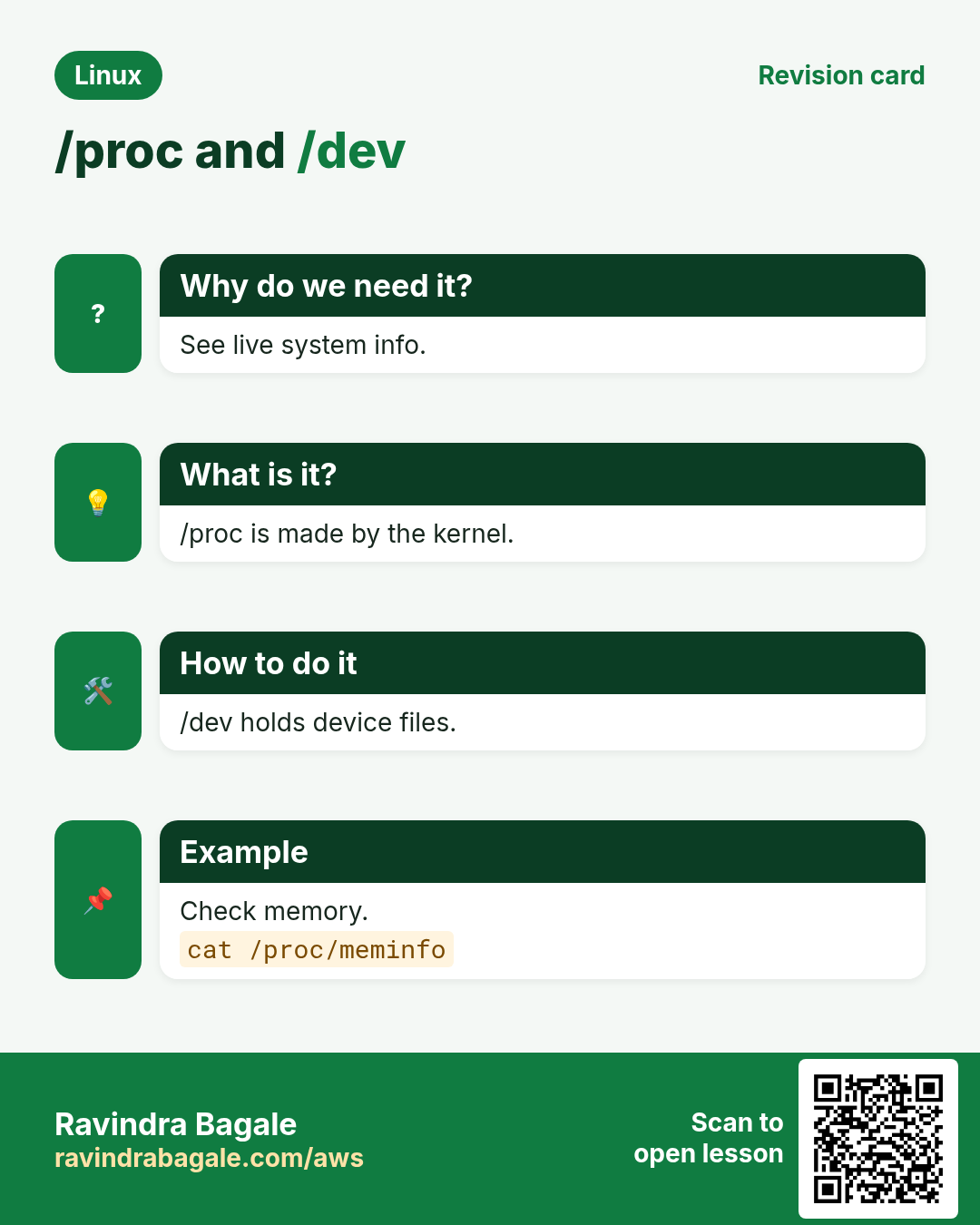
/proc and /sys are virtual. Nothing is on disk; the kernel makes the content when you read it. /proc has one folder per process (/proc/
How to do it (step by step)
- CPU model.
grep -m1 'model name' /proc/cpuinfoOutput:
model name : Intel(R) Xeon(R) Platinum 8259CL CPU @ 2.50GHzWhat it means: Read straight from the kernel.
- Free memory.
grep -E 'MemTotal|MemAvailable' /proc/meminfoOutput:
MemTotal:        3969436 kB
MemAvailable:    3101220 kB
What it means: About 3 GB of 4 GB is available.
- Look inside a process folder.
cat /proc/1/comm; ls -l /proc/self/cwdOutput:
systemd
lrwxrwxrwx 1 meera meera 0 Oct 25 10:45 /proc/self/cwd -> /home/meera
What it means: Process 1 is systemd. self = the current process.
- Read and change a kernel setting.
cat /proc/sys/net/ipv4/ip_forward; sudo sysctl -w net.ipv4.ip_forward=1Output:
0
net.ipv4.ip_forward = 1
What it means: IP forwarding is now on (until reboot; save it in /etc/sysctl.d/ to keep it).
- Check a disk's scheduler in /sys.
cat /sys/block/nvme0n1/queue/schedulerOutput:
[none] mq-deadlineWhat it means: The active value is in brackets.
8. Paths and mounts: how disks join the tree
Why do we need this?
A new 100 GB disk is useless until it appears somewhere in the tree.
What is it?
An absolute path starts with / (like /var/log/syslog). A relative path starts from where you are (like logs/app.log). . is here, .. is one up. Mounting attaches a disk's file system to a folder (a mount point). /etc/fstab makes mounts permanent.
How to do it (step by step)
- Relative path walk.
cd /var/log && cd ../lib && pwdOutput:
/var/libWhat it means: From /var/log, .. goes to /var, then into lib.
- See what is mounted where.
findmnt -t ext4,xfsOutput:
TARGET SOURCE         FSTYPE OPTIONS
/      /dev/nvme0n1p1 xfs    rw,noatime
/data  /dev/nvme1n1   ext4   rw,relatime
What it means: Root is xfs. /data is a separate ext4 disk.
- Mount a new disk.
sudo mkfs.ext4 /dev/nvme2n1 && sudo mkdir -p /backup && sudo mount /dev/nvme2n1 /backup && df -h /backupOutput:
Filesystem      Size  Used Avail Use% Mounted on
/dev/nvme2n1     50G   24K   47G   1% /backup
What it means: The disk now lives at /backup.
- Make it permanent with UUID.
echo "UUID=$(sudo blkid -s UUID -o value /dev/nvme2n1) /backup ext4 defaults,nofail 0 2" | sudo tee -a /etc/fstab && sudo mount -aOutput:
UUID=9b2e... /backup ext4 defaults,nofail 0 2What it means: UUIDs do not change when disk names change.
9. Real examples from many industries
Why do we need this?
The same Linux skill shows up in every kind of company. Seeing it in many places helps you remember it.
What is it?
Each row is a made-up team. It shows who uses this and how.
How to do it (step by step)
| Team and city | How they use it | Command |
|---|---|---|
| Rohan, DevOps, Pune | Cleans /var/log when disk hits 90% | du -sh /var/log/* |
| Sophie, web agency, Paris | Keeps sites in /var/www and configs in /etc/nginx | ls /etc/nginx/sites-enabled |
| Imran, database team, Karachi | Mounts a fast disk on /var/lib/postgresql | findmnt /var/lib/postgresql |
| Hana, SRE, Seoul | Tunes TCP through /proc/sys | sysctl net.core.somaxconn |
| Diego, analytics, Mexico City | Installs a vendor tool in /opt | ls /opt |
| Neha, security, Gurugram | Watches /var/log/auth.log for failed logins | grep 'Failed password' /var/log/auth.log |
| Oliver, ML, London | Reads GPU info from /sys and /proc | ls /sys/class/drm |
10. Common errors and how to fix them
Why do we need this?
Everyone hits these errors. Knowing the cause saves hours.
What is it?
Read the exact message first. Then match it to a row below.
How to do it (step by step)
| Error you see | Why it happens | How to fix |
|---|---|---|
No space left on device | A partition (often / or /var) is full | Find big folders and clean logs or caches.sudo du -xh / --max-depth=2 | sort -h | tail |
No space left on device (but df shows free space) | Inodes are used up by millions of tiny files | Check inodes and delete the small files.df -i |
cd: /Var/log: No such file or directory | Linux paths are case sensitive | Use the exact case.cd /var/log |
mount: /backup: mount point does not exist. | The folder is not created | Create it first.sudo mkdir -p /backup |
mount: /data: wrong fs type, bad option, bad superblock | Disk has no file system yet or wrong type | Check with lsblk -f, format only if new.lsblk -f |
umount: /data: target is busy. | A process is using files on it, or you are inside it | cd out and find the process.sudo lsof +f -- /data |
Permission denied (writing in /etc) | Only root can change system configs | Use sudo, or sudo tee for redirects.echo x | sudo tee -a /etc/hosts |
sysctl: permission denied on key 'net.ipv4.ip_forward' | sysctl -w needs root | Add sudo.sudo sysctl -w net.ipv4.ip_forward=1 |
rm: cannot remove '/proc/1/status': Operation not permitted | /proc is virtual and read-only | Do not try to delete in /proc or /sys. |
11. Troubleshooting step by step
Why do we need this?
Most file-system issues are 'disk full', 'file not found' or 'mount failed'. Check them in this order.
What is it?
Go top to bottom. Stop at the first step that shows the problem.
How to do it (step by step)
- Check free space per mount.
df -h- Check free inodes.
df -i- Find the biggest folders on that mount only.
sudo du -xh /var --max-depth=1 | sort -h- Find deleted files still held open.
sudo lsof +L1- Check the mount table.
findmnt- Compare fstab with real UUIDs.
blkid; cat /etc/fstab12. Lab 1: Disk-full fire drill
Why do we need this?
At Leela Travels in Goa, the website stops. df shows / at 100%. Find and fix it.
What is it?
A full hands-on lab. Run every step on a test Linux machine (an EC2 instance, a VM, or WSL).
How to do it (step by step)
- Confirm.
df -h /Output:
/dev/nvme0n1p1 20G 20G 0 100% /- Find the big folder.
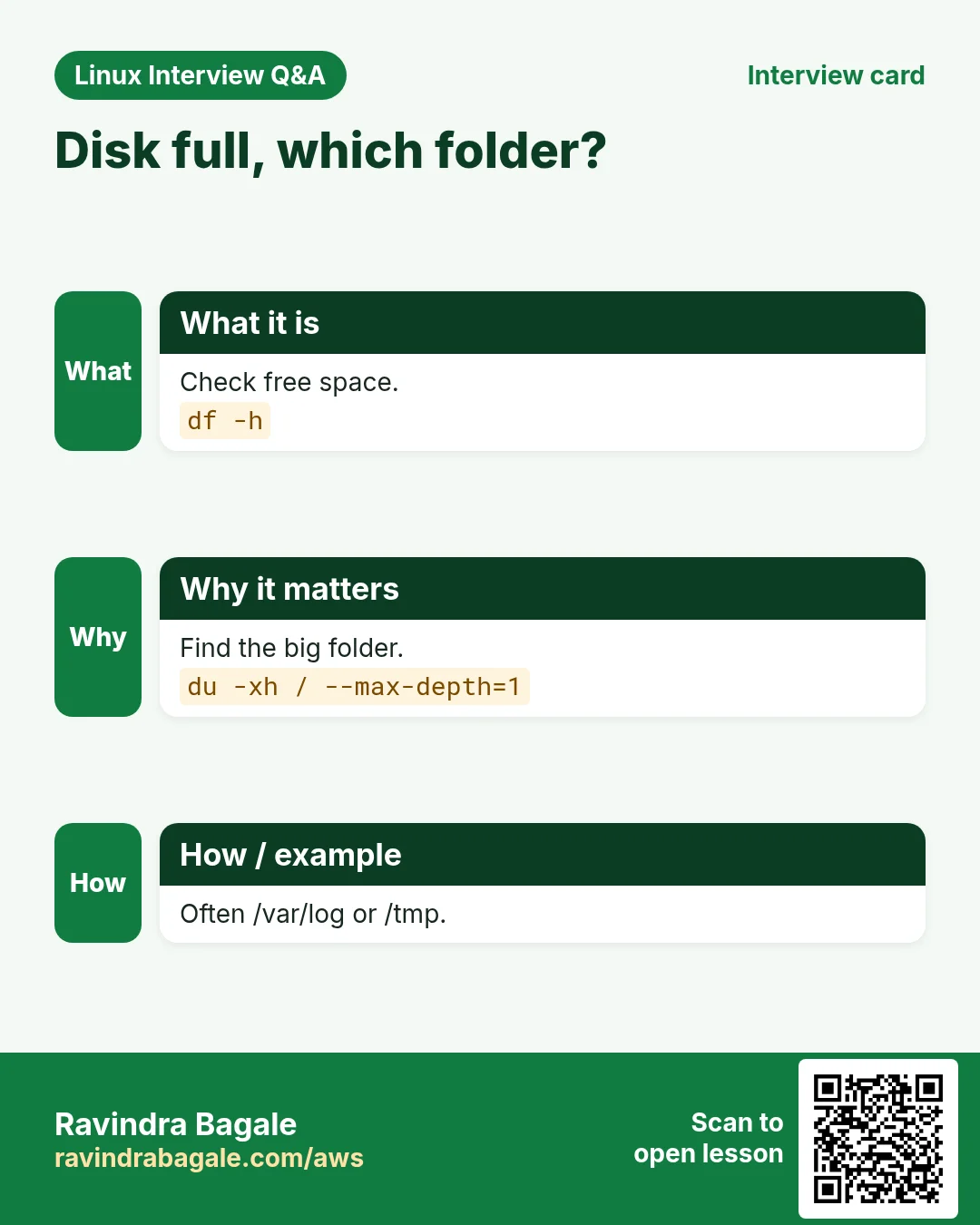
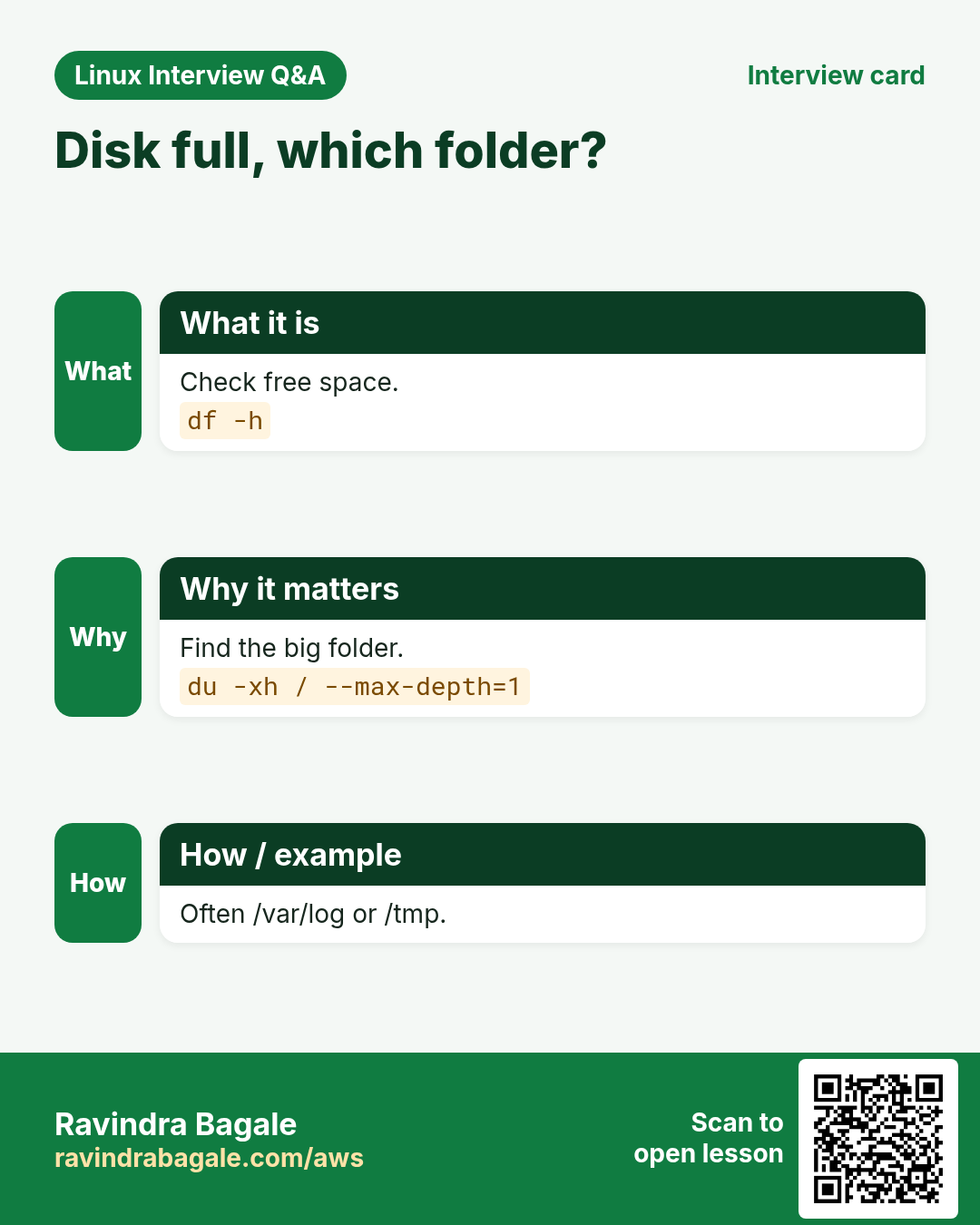
sudo du -xh / --max-depth=1 2>/dev/null | sort -h | tail -3Output:
1.9G /usr
2.4G /home
14G /var- Go deeper.
sudo du -xh /var --max-depth=2 | sort -h | tail -2Output:
13G /var/log
13G /var/log/app- See the files.
ls -lhS /var/log/app | head -3Output:
-rw-r--r-- 1 app app 12G Oct 25 10:50 debug.log- Empty it safely (the app keeps the file open).
sudo truncate -s 0 /var/log/app/debug.log- Verify.
df -h /Output:
/dev/nvme0n1p1 20G 7.1G 13G 36% /- Prevent it: add logrotate.
printf '/var/log/app/*.log {\n daily\n rotate 7\n compress\n missingok\n copytruncate\n}\n' | sudo tee /etc/logrotate.d/app13. Lab 2: Tour the tree like an auditor
Why do we need this?
Answer five audit questions using only FHS knowledge.
What is it?
A full hands-on lab. Run every step on a test Linux machine (an EC2 instance, a VM, or WSL).
How to do it (step by step)
- Which users can log in with a shell?
grep -v nologin /etc/passwd | cut -d: -f1Output:
root
meera
ec2-user- Which DNS server is used?
grep nameserver /etc/resolv.confOutput:
nameserver 10.0.0.2- Which vendor apps are installed?
ls /optOutput:
aws splunkforwarder- How many CPUs?
grep -c ^processor /proc/cpuinfoOutput:
2- Who logged in recently?
sudo grep 'Accepted' /var/log/auth.log | tail -2Output:
Accepted publickey for meera from 49.36.10.4 port 51022 ssh2Ravindra Bagale's Tip
Remember three folders: config in /etc, logs in /var/log, your work in /home. That covers 80% of what you will touch on a server.
Ravindra Bagale's Tip – मराठी
तीन folders लक्षात ठेवा: config /etc मधे, logs /var/log मधे, तुमचं काम /home मधे. Server वर लागणारं 80% यात येतं.
Ravindra Bagale's Tip – हिंदी
तीन folders याद रखिए: config /etc में, logs /var/log में, आपका काम /home में। Server पर 80% काम इन्हीं में होता है।
14. Frequently asked questions
Q. What is the difference between / and /root?
/ is the top of the tree. /root is the home folder of the root user.
Q. Why is /bin a link to /usr/bin?
The 'usrmerge' change. Modern distros keep all programs in /usr and keep /bin as a link for old scripts.
Q. Is it safe to delete files in /tmp?
Old files, yes. Files in use by running programs, no. Let systemd-tmpfiles clean it.
Q. Does /proc use disk space?
No. It is created by the kernel in memory.
Q. Where should I install my own app?
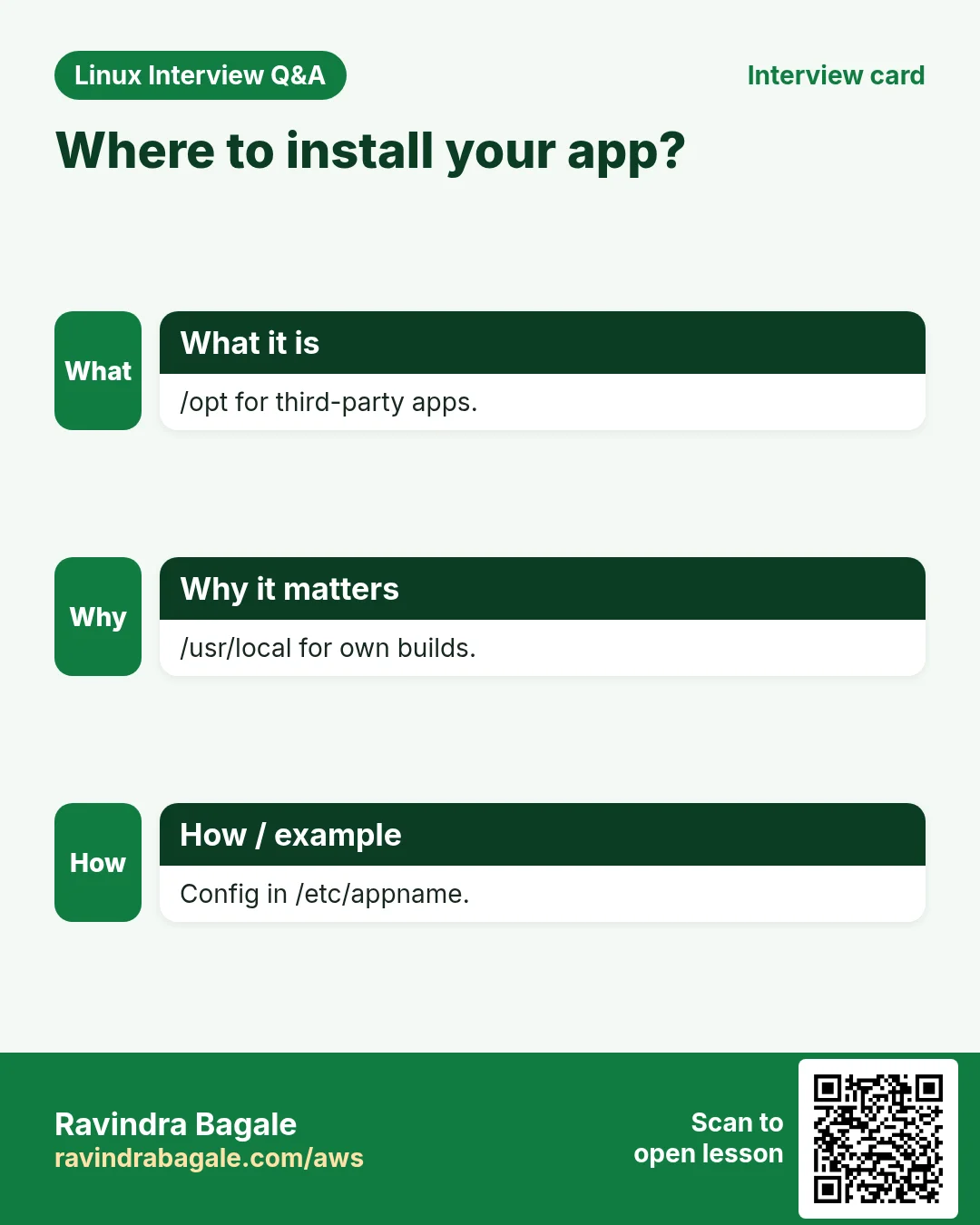
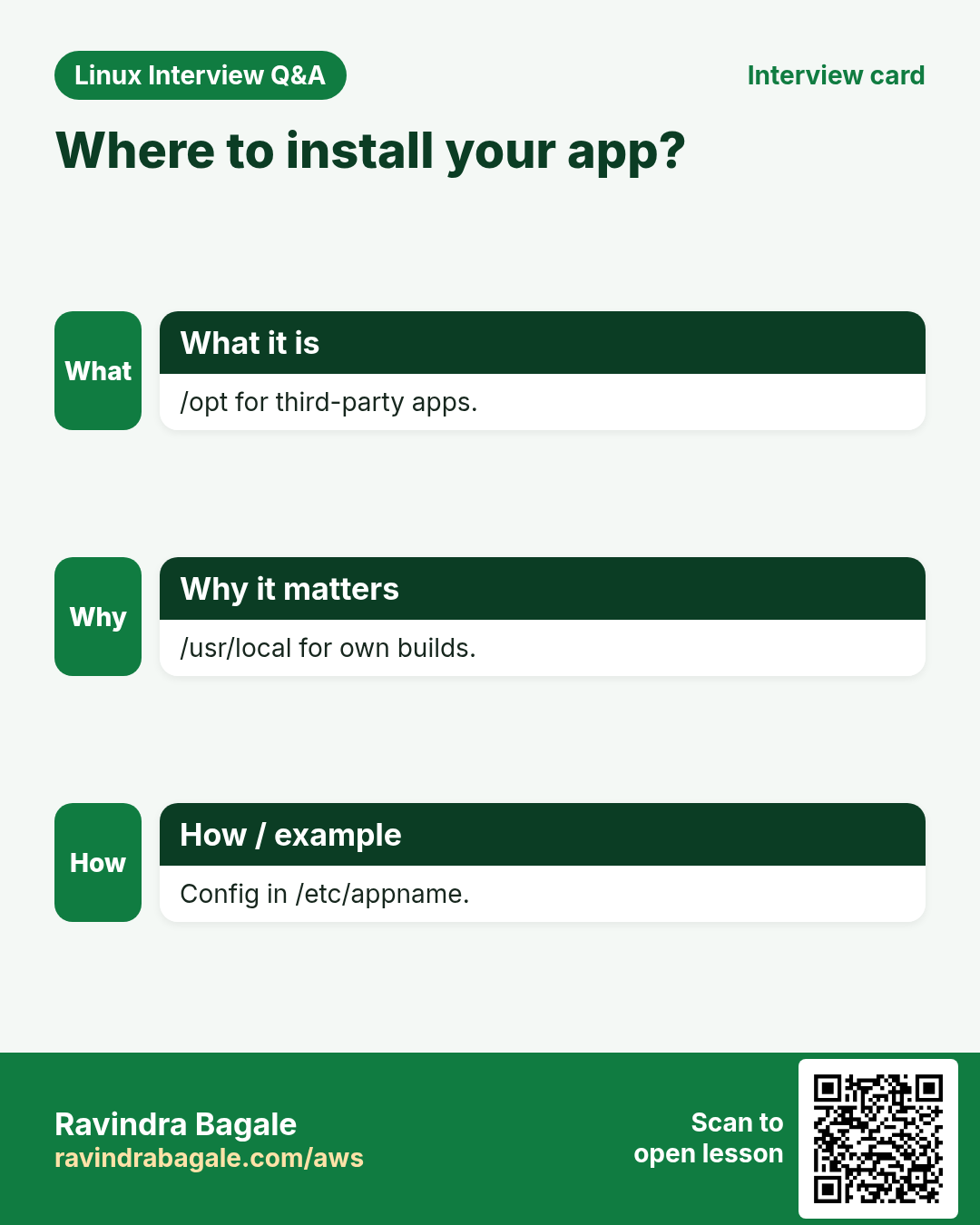
Packaged: /usr. Self-built: /usr/local. Big vendor bundle: /opt. Data: /srv or /var/lib/
15. Interview questions and answers
Beginner level
Q. What is stored in /etc?
Configuration files.
Q. Where are logs?
/var/log.
Q. What is ~?
Your home folder, like /home/meera.
Q. Absolute vs relative path?
Absolute starts with /. Relative starts from the current folder.
Mid level level
Q. What is /proc?
A virtual file system made by the kernel showing processes and kernel data.
Q. /usr/local vs /opt?
/usr/local for locally built software split into bin/lib. /opt for self-contained vendor packages.
Q. df shows full but du shows less. Why?
A deleted file is still open by a process. Find it with lsof +L1 and restart the process.
Q. What is the sticky bit on /tmp?
Everyone can write, but only the owner can delete their files.
Senior level
Q. Why put /var on a separate partition?
Logs or a database can fill it without filling / and crashing the OS.
Q. How do you make a sysctl change permanent and safe?
Put it in /etc/sysctl.d/99-name.conf, apply with sysctl --system, test on canary, manage it with config management.
Q. Inodes are full. What do you do long-term?
Find the app that writes many small files, add cleanup, or recreate the file system with more inodes (mkfs.ext4 -N) or use xfs.
Q. Why are fstab UUIDs better than /dev/sdb?
Device names can change between boots or instance types. UUIDs stay with the file system.
Try at home
- Run ls / and write one line about each folder.
- Find your CPU model from /proc/cpuinfo.
- Run df -h and df -i and compare.
Practice Tasks
London Legal LLP is a law business in London. Oliver Hughes looks after its IT and cloud work. They count money in GBP and run their AWS resources in the eu-west-2 Region. In the tasks below you do real jobs for them using what this lesson teaches. All names, account IDs, IP addresses and numbers are made up for practice.
0 / 16
Easy List the top of the tree
Why: Know the top folders.
What to do: List the very top of the file system with type markers (a slash after each folder).
- Find the Linux command that does this job.
- Add the options (like -r or -h) the task needs.
- Add the file names, folders or users in the right order.
- Use sudo if the job changes system files or users. Click Check answer.
Easy Read the hosts file
Why: Local name overrides live here.
What to do: Show only the line for host db01 in the local hostname-to-IP file on the London Legal LLP server.
- Find the Linux command that does this job.
- Add the options (like -r or -h) the task needs.
- Add the file names, folders or users in the right order.
- Use sudo if the job changes system files or users. Click Check answer.
Easy Check DNS servers
Why: Package installs fail without DNS.
What to do: Count how many nameserver lines the London Legal LLP server's resolver config has.
- Find the Linux command that does this job.
- Add the options (like -r or -h) the task needs.
- Add the file names, folders or users in the right order.
- Use sudo if the job changes system files or users. Click Check answer.
Easy Free space per mount
Why: First step in any disk-full alert.
What to do: Show disk usage of the file system that holds /var, in human-readable sizes.
- Find the Linux command that does this job.
- Add the options (like -r or -h) the task needs.
- Add the file names, folders or users in the right order.
- Use sudo if the job changes system files or users. Click Check answer.
Easy Read CPU info
Why: /proc is the kernel window.
What to do: Print the full CPU information file from the kernel.
- Find the Linux command that does this job.
- Add the options (like -r or -h) the task needs.
- Add the file names, folders or users in the right order.
- Use sudo if the job changes system files or users. Click Check answer.
Easy Read memory info
Why: See RAM without extra tools.
What to do: Print the kernel memory information file.
- Find the Linux command that does this job.
- Add the options (like -r or -h) the task needs.
- Add the file names, folders or users in the right order.
- Use sudo if the job changes system files or users. Click Check answer.
Easy List block devices
Why: See disks and partitions.
What to do: List only the disk /dev/xvdf and its partitions.
- Find the Linux command that does this job.
- Add the options (like -r or -h) the task needs.
- Add the file names, folders or users in the right order.
- Use sudo if the job changes system files or users. Click Check answer.
Easy See the mount table
Why: Shows what is mounted where.
What to do: Show only the mount entry for /data.
- Find the Linux command that does this job.
- Add the options (like -r or -h) the task needs.
- Add the file names, folders or users in the right order.
- Use sudo if the job changes system files or users. Click Check answer.
Easy Follow a log
Why: Watch requests live.
What to do: Follow /var/log/nginx/error.log live as new lines arrive.
- Find the Linux command that does this job.
- Add the options (like -r or -h) the task needs.
- Add the file names, folders or users in the right order.
- Use sudo if the job changes system files or users. Click Check answer.
Easy Where are configs?
Why: Know where to look.
What to do: In which top-level folder does Oliver Hughes find SSH and nginx config files? Type the path.
- Write down the numbers the task gives you.
- Work it out step by step on paper.
- Type only the final answer in the box.
- Click Check answer.
Easy Where are logs?
Why: First stop in troubleshooting.
What to do: Type the standard folder path where system and app logs are kept.
- Write down the numbers the task gives you.
- Work it out step by step on paper.
- Type only the final answer in the box.
- Click Check answer.
Medium Check inode usage
Why: Disk can be full of tiny files.
What to do: London Legal LLP's server says no space left but df -h shows free GB. Show inode usage of /var/lib/docker.
- Find the Linux command that does this job.
- Add the options (like -r or -h) the task needs.
- Add the file names, folders or users in the right order.
- Use sudo if the job changes system files or users. Click Check answer.
Medium Size of /var/log
Why: Logs are the usual suspect.
What to do: Show the total size of /var/log in human-readable form.
- Find the Linux command that does this job.
- Add the options (like -r or -h) the task needs.
- Add the file names, folders or users in the right order.
- Use sudo if the job changes system files or users. Click Check answer.
Medium Create a mount point
Why: A disk needs an empty folder to mount on.
What to do: Create the folder /mnt/londonlegal-backup to mount a new disk. Use admin rights.
- Find the Linux command that does this job.
- Add the options (like -r or -h) the task needs.
- Add the file names, folders or users in the right order.
- Use sudo if the job changes system files or users. Click Check answer.
Medium Mount a disk
Why: Attach storage to the tree.
What to do: Mount /dev/nvme1n1 on /data for London Legal LLP.
- Find the Linux command that does this job.
- Add the options (like -r or -h) the task needs.
- Add the file names, folders or users in the right order.
- Use sudo if the job changes system files or users. Click Check answer.
Hard Turn on IP forwarding
Why: NAT and VPN servers need it.
What to do: Enable IPv6 forwarding on London Legal LLP's NAT server right now.
- Find the Linux command that does this job.
- Add the options (like -r or -h) the task needs.
- Add the file names, folders or users in the right order.
- Use sudo if the job changes system files or users. Click Check answer.
16. Related chapters
- Linux Ops Refresh for DevOps
- Bash Scripting for Automation
- Linux grep and find Commands with Examples
- How to Set Up Passwordless SSH Between Linux Servers
In short
- One tree from /.
- /etc config, /var/log logs, /home users, /usr programs, /opt vendors, /tmp scratch.
- /proc and /sys are live kernel views.
- Mount disks with UUID and nofail in /etc/fstab.
Revision, comparison and interview cards
Revise this lesson in a few minutes. Save the cards on your phone or download them as PNG files. The QR code on each card opens this lesson.
More cards: Ravi Sir's Cards.