Linux Job Scheduling: cron, crontab, at and systemd Timers Explained
Some work must happen on its own: a backup every night, a report every Monday, a cleanup every hour. Linux gives you three tools for this. cron runs jobs on a repeating schedule. at runs a job once at a later time. systemd timers are the modern option with logs and catch-up built in. We learn each command and every time field, one by one.
What you'll learn in this chapter
- Read and write the five cron time fields
- Use crontab -e, -l, -r and -u
- Use special strings and /etc/cron.d
- Fix cron PATH, output and overlap problems
- Run one-time jobs with at, atq and atrm
- Write systemd timers with OnCalendar and Persistent
1. An everyday example: the milkman and the alarm
Why do we need this?
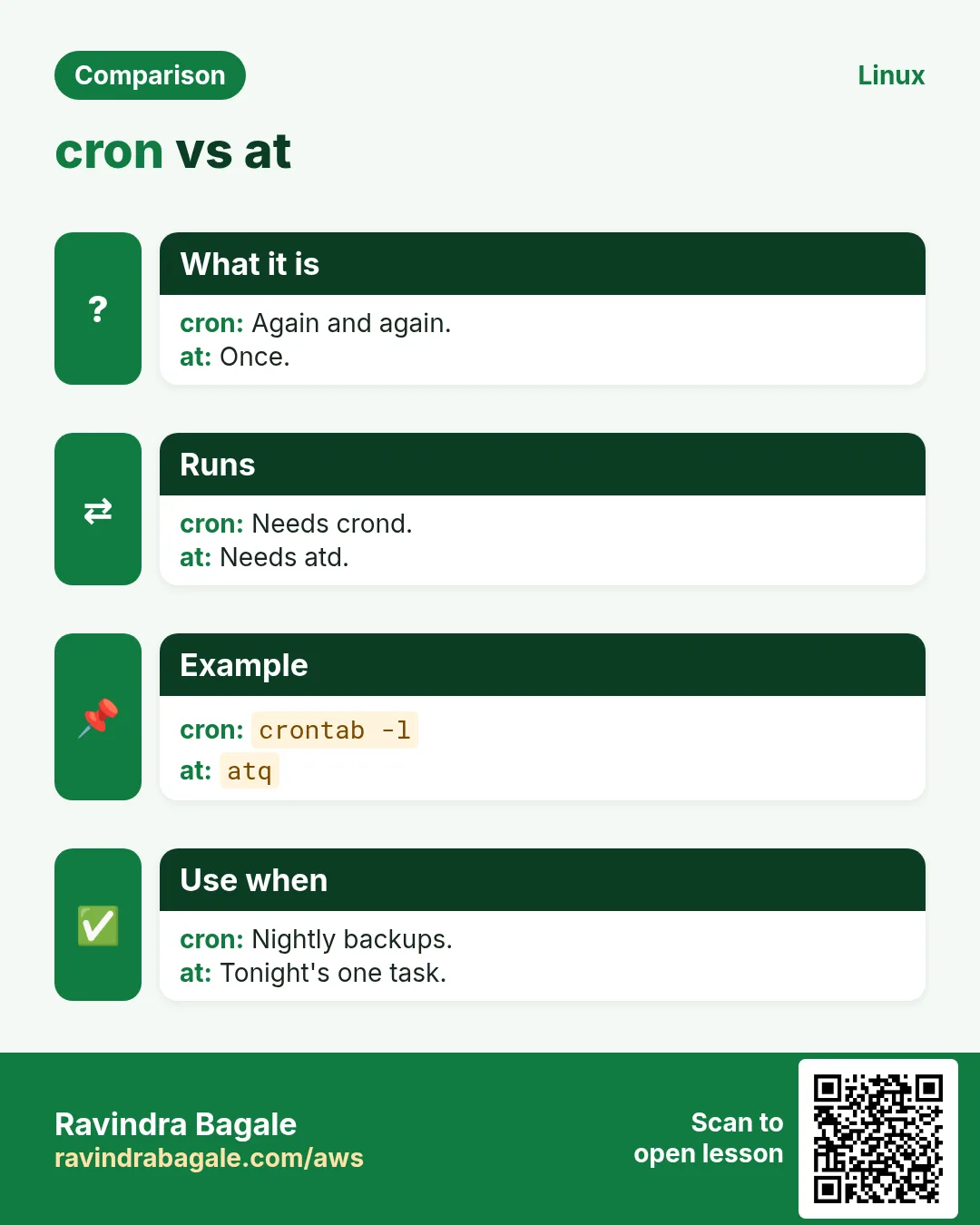
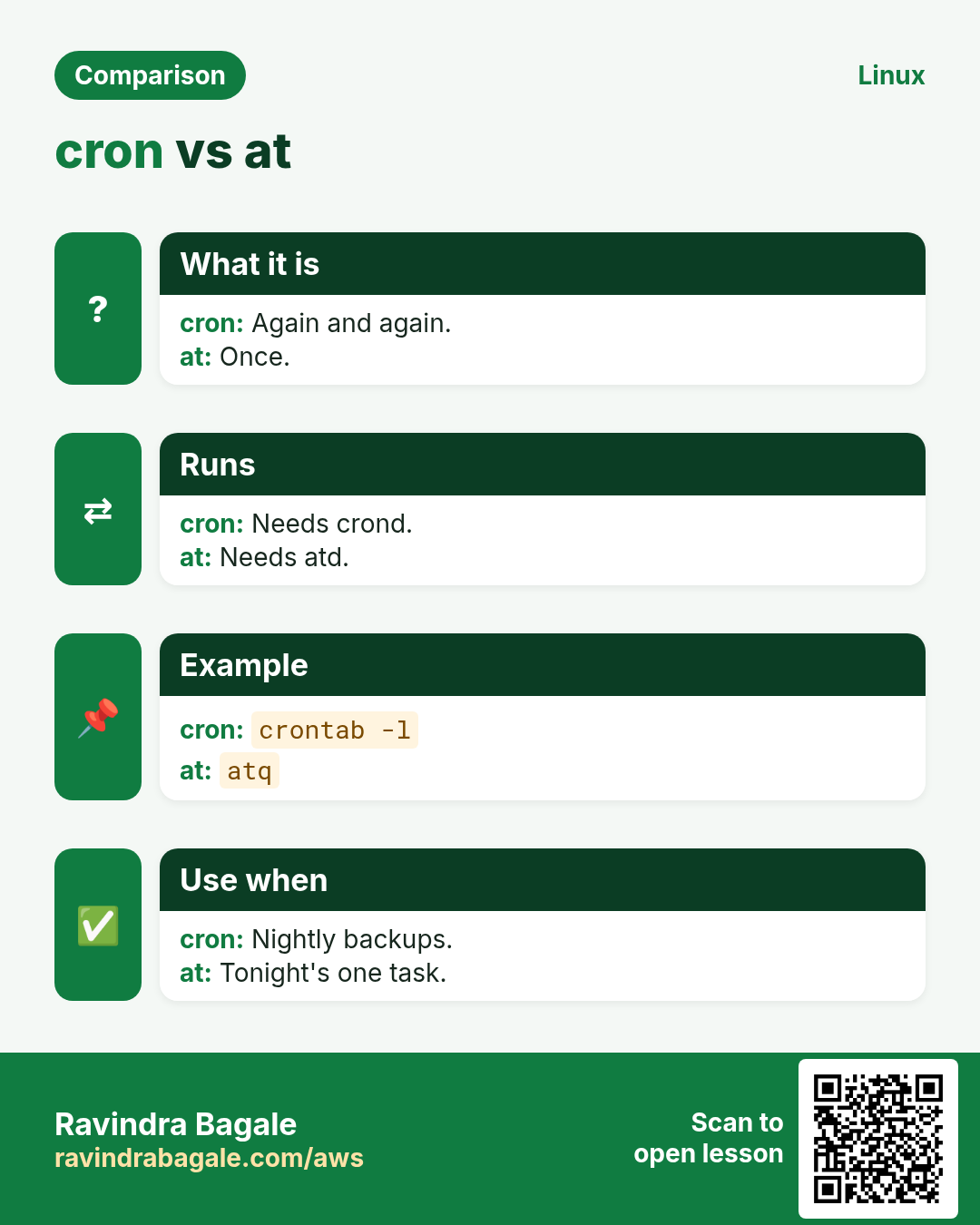
The milkman comes every day at 6 a.m. without being asked. That is a repeating schedule. Your phone alarm for the 4:30 p.m. dentist visit rings only once. And a good alarm app shows a 'missed alarm' if the phone was off, so you still know.
What is it?
Milkman = cron. One-time alarm = at. Alarm app with missed-alarm = systemd timer with Persistent=true.
How to do it (step by step)
2. The five time fields
Why do we need this?
Every cron mistake starts with a wrong field. Learn them once and you can read any schedule.
What is it?
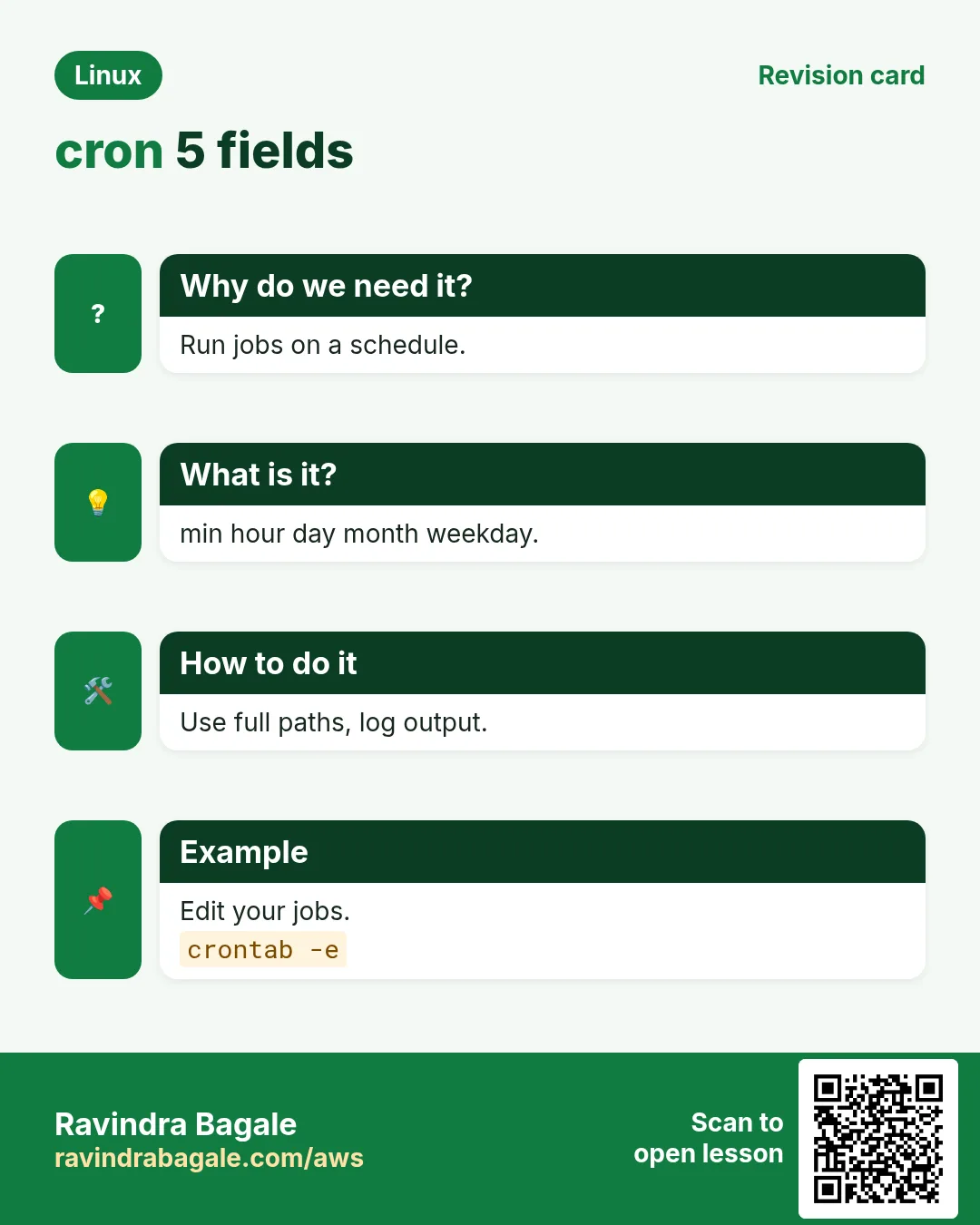
minute (0-59), hour (0-23), day of month (1-31), month (1-12), day of week (0-7, 0 and 7 are Sunday). * = every. , = list (1,15). - = range (1-5). / = step (*/10). Then the command.
| Schedule | Meaning |
|---|---|
| */5 * * * * | Every 5 minutes |
| 0 2 * * * | Every day at 02:00 |
| 30 9 * * 1-5 | 09:30 Monday to Friday |
| 0 0 1 * * | Midnight on the 1st of each month |
| 0 */6 * * * | Every 6 hours |
| 15 10 * * 0 | Sunday 10:15 |
How to do it (step by step)
- A nightly backup at 2 a.m.
0 2 * * * /usr/local/bin/backup.shOutput:
(a crontab line)What it means: Minute 0, hour 2, every day.
- Office hours report.
30 9 * * 1-5 /usr/local/bin/report.shOutput:
(a crontab line)What it means: Weekdays only.
- Check a schedule before you trust it.
systemd-analyze calendar 'Mon..Fri 09:30'Output:
  Original form: Mon..Fri 09:30
Normalized form: Mon..Fri *-*-* 09:30:00
    Next elapse: Mon 2026-10-26 09:30:00 IST
What it means: Shows the next run time.
3. crontab -e and -l: edit and list your jobs
Why do we need this?
Each user has a personal crontab. Editing it through crontab checks syntax and tells crond.
What is it?
crontab -e opens your crontab in $EDITOR. Save to install. crontab -l prints it. Never edit /var/spool/cron files by hand. Lines starting with # are comments.
How to do it (step by step)
- Open the editor.
EDITOR=nano crontab -eOutput:
crontab: installing new crontabWhat it means: Printed after you save.
- List your jobs.
crontab -lOutput:
# nightly backup
0 2 * * * /usr/local/bin/backup.sh
What it means: What cron will run for you.
- No crontab yet.
crontab -lOutput:
no crontab for ec2-userWhat it means: Normal for a new user.
4. crontab FILE, -r and -u
Why do we need this?
Automation tools install crontabs from files. Admins sometimes manage another user's jobs.
What is it?
crontab FILE replaces your whole crontab with the file. crontab -r deletes all your jobs with no question (-i asks first). sudo crontab -u USER -l or -e works on another user. Back up first: crontab -l > ~/cron.bak.
How to do it (step by step)
- Back up your jobs.
crontab -l > ~/cron.bak && wc -l ~/cron.bakOutput:
2 /home/ec2-user/cron.bakWhat it means: Do this before any change.
- Install from a file.
crontab ~/cron.bakOutput:
(no output)What it means: Replaces everything.
- See the app user's jobs.
sudo crontab -u shop -lOutput:
*/10 * * * * /opt/shop/bin/syncWhat it means: Read-only look.
- Delete with a question.
crontab -riOutput:
crontab: really delete ec2-user's crontab? (y/n)What it means: -r alone does not ask. Careful.
5. Special strings: @reboot, @daily and more
Why do we need this?
Some schedules are easier to read as words. @reboot is the only way in cron to run once at boot.
What is it?
@reboot (at crond start), @hourly (0 * * * *), @daily or @midnight (0 0 * * *), @weekly (0 0 * * 0), @monthly (0 0 1 * *), @yearly (0 0 1 1 *).
How to do it (step by step)
- Warm a cache after boot.
@reboot sleep 30 && /opt/shop/bin/warm-cacheOutput:
(a crontab line)What it means: sleep gives the network time.
- Weekly cleanup.
@weekly find /tmp/shop -mtime +7 -deleteOutput:
(a crontab line)What it means: Sunday midnight.
6. /etc/crontab, /etc/cron.d and cron.daily
Why do we need this?
System and package jobs live in files, not in a user's crontab, so they can be shipped and reviewed in Git.
What is it?
Files in /etc/cron.d and /etc/crontab have a sixth field: the user. Scripts in /etc/cron.hourly, daily, weekly, monthly run by run-parts (or anacron); they must be executable and have no dot in the name on Debian.
How to do it (step by step)
- A system job with a user field.
echo '*/15 * * * * shop /opt/shop/bin/sync >> /var/log/shop/sync.log 2>&1' | sudo tee /etc/cron.d/shop-syncOutput:
*/15 * * * * shop /opt/shop/bin/sync >> /var/log/shop/sync.log 2>&1What it means: Runs as user shop.
- A daily script.
sudo install -m 755 cleanup.sh /etc/cron.daily/cleanupOutput:
(no output)What it means: No .sh extension, mode 755.
- Which daily scripts will run?
run-parts --test /etc/cron.dailyOutput:
/etc/cron.daily/cleanup
/etc/cron.daily/logrotate
What it means: Lists what would run.
7. The cron environment: PATH, SHELL and MAILTO
Why do we need this?
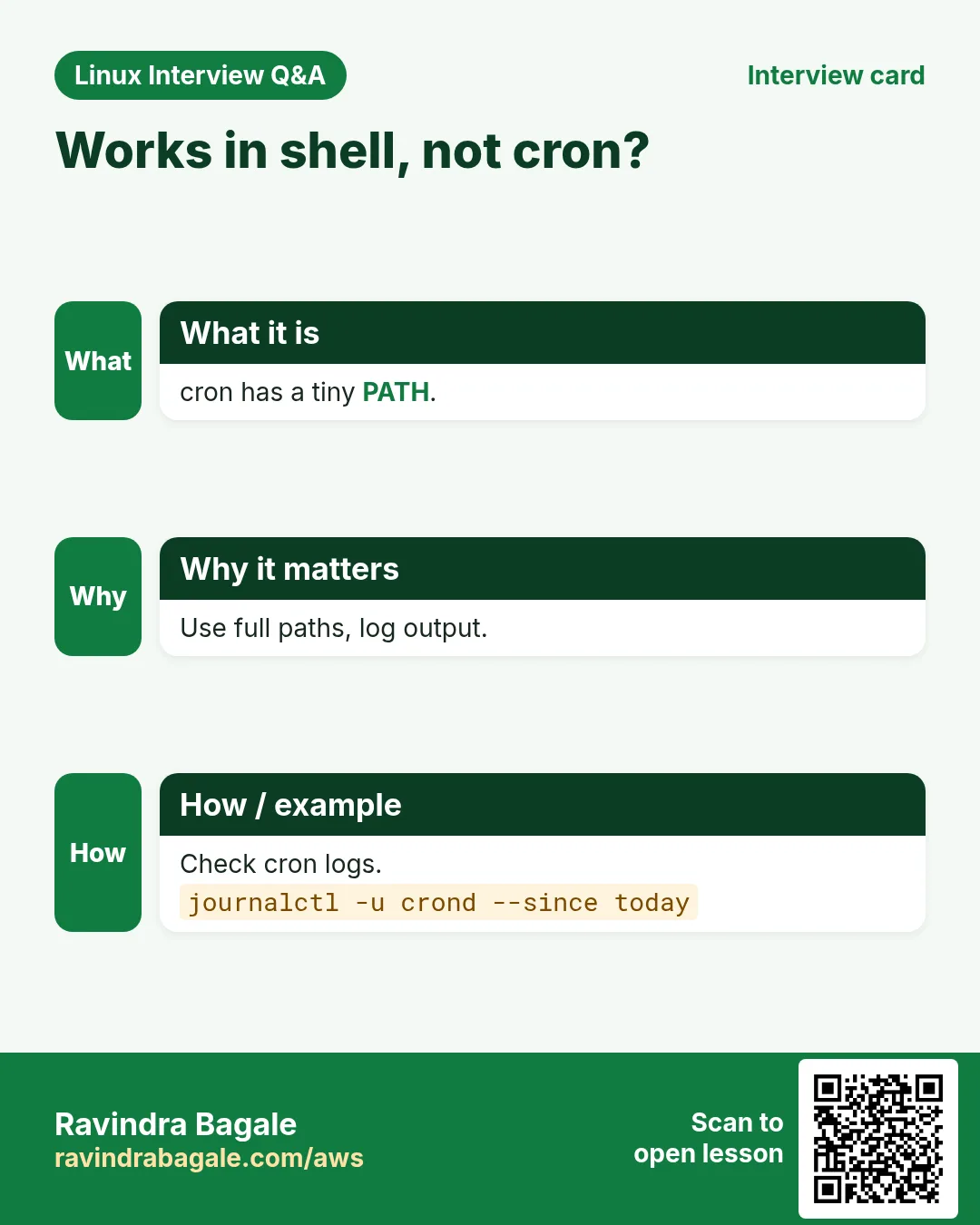
'It works in my terminal but not in cron' is the most common cron problem. cron gives you a tiny environment.
What is it?
cron uses /bin/sh, PATH=/usr/bin:/bin, HOME of the user, no .bashrc. Fix: use full paths, or set PATH= and SHELL= at the top of the crontab. MAILTO=you@x sends output by mail; MAILTO="" turns mail off. % is special in cron: escape as \%.
How to do it (step by step)
- See cron's environment.
* * * * * env > /tmp/cron-env.txtOutput:
(after one minute) PATH=/usr/bin:/bin
SHELL=/bin/sh
HOME=/home/ec2-user
What it means: Very small PATH.
- Set it at the top.
SHELL=/bin/bash
PATH=/usr/local/bin:/usr/bin:/bin
MAILTO=""
Output:
(crontab header lines)What it means: Now jobs find aws, node and others.
- Escape % in a date.
0 1 * * * tar czf /backup/site-$(date +\%F).tgz /var/wwwOutput:
(a crontab line)What it means: Without \ the line is cut at %.
8. Logging cron output and checking runs
Why do we need this?
A silent failing job is worse than no job. You need proof it ran and what it printed.
What is it?
Redirect: >> /var/log/job.log 2>&1 keeps output and errors. cron runs are logged in /var/log/cron (RHEL) or the journal (journalctl -u cron or -u crond). Or pipe to logger -t job.
How to do it (step by step)
- Keep output.
0 2 * * * /usr/local/bin/backup.sh >> /var/log/backup.log 2>&1Output:
(a crontab line)What it means: 2>&1 also catches errors.
- Did it run?
journalctl -u crond --since today --no-pager | grep backupOutput:
Oct 25 02:00:01 web1 CROND[3301]: (root) CMD (/usr/local/bin/backup.sh >> /var/log/backup.log 2>&1)What it means: It started at 02:00:01.
- Send output to the journal.
*/5 * * * * /opt/shop/bin/sync 2>&1 | logger -t shop-syncOutput:
(a crontab line)What it means: Read with journalctl -t shop-sync.
9. flock: stop jobs from overlapping
Why do we need this?
If a 5-minute job sometimes takes 7 minutes, two copies run together and can corrupt data.
What is it?
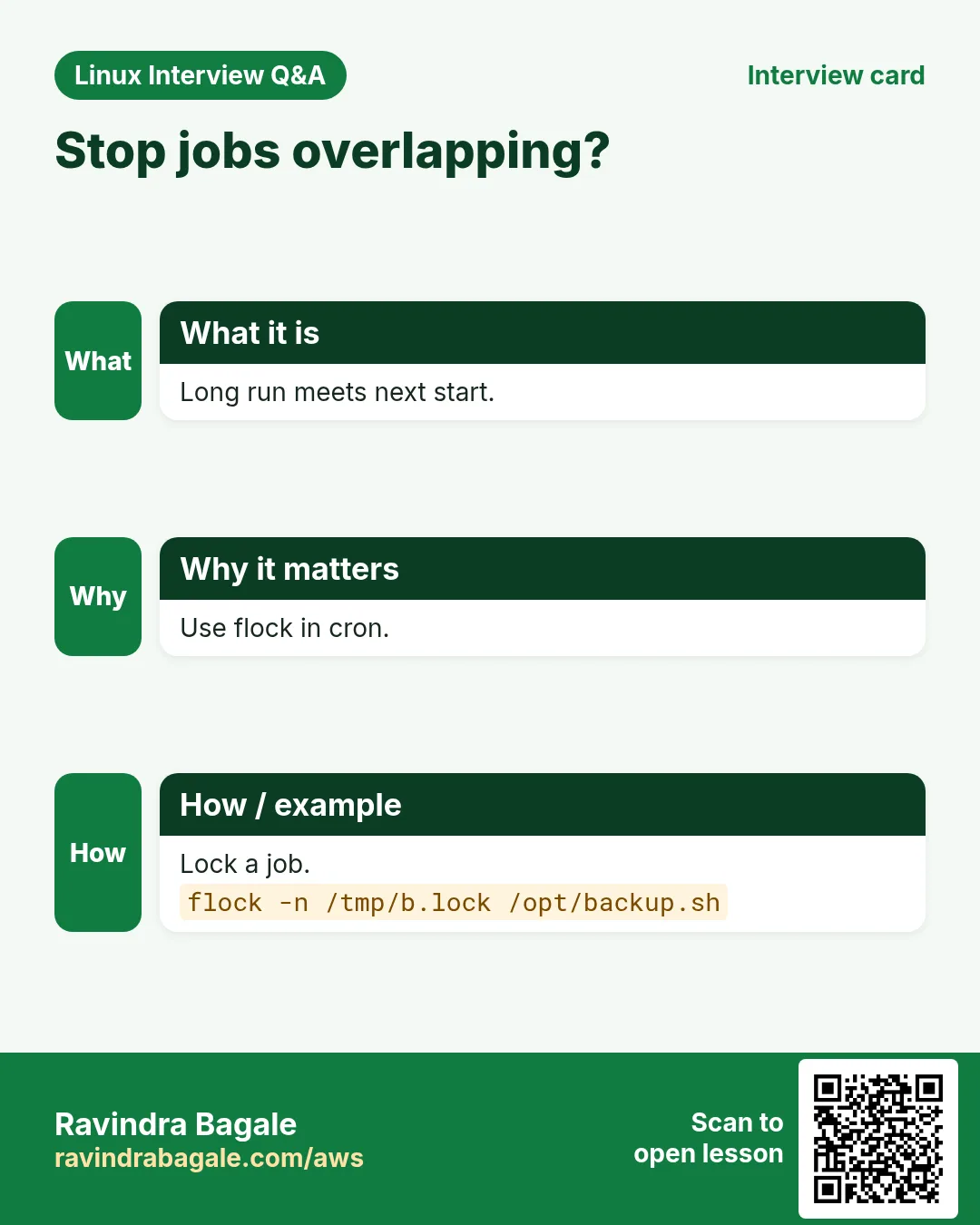
flock -n /tmp/NAME.lock COMMAND runs only if it gets the lock; -n means give up at once if busy. The lock is freed when the command ends.
How to do it (step by step)
- Safe 5-minute sync.
*/5 * * * * flock -n /tmp/sync.lock /opt/shop/bin/syncOutput:
(a crontab line)What it means: A second copy just exits.
- Test by hand.
flock -n /tmp/demo.lock sleep 60 & sleep 1; flock -n /tmp/demo.lock echo second; echo exit=$?Output:
exit=1What it means: Second run was refused.
10. at: run a job once later
Why do we need this?
Some tasks happen once: restart at 11 p.m. tonight, remove a temporary firewall rule in 2 hours.
What is it?
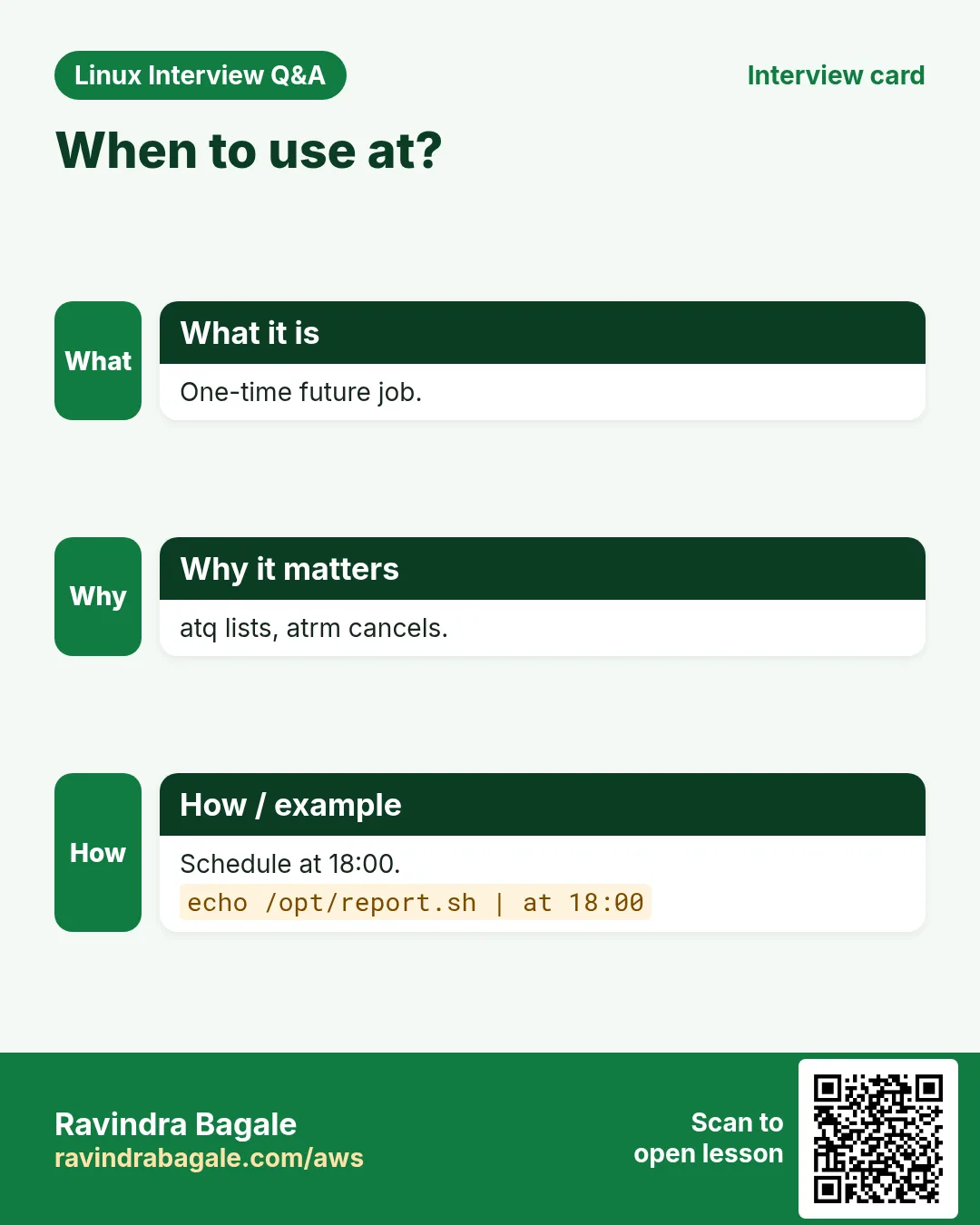
Install the at package and start atd. at TIME reads commands from stdin; finish with Ctrl+D. TIME like 23:00, now + 2 hours, 'tomorrow 09:00', noon. -f FILE reads from a file. batch runs when load is low.
How to do it (step by step)
- Start atd.
sudo systemctl enable --now atdOutput:
(no output)What it means: Without atd nothing runs.
- Restart tonight at 11.
echo 'systemctl restart shop-api' | sudo at 23:00Output:
job 4 at Sun Oct 25 23:00:00 2026What it means: Job number 4.
- Undo a rule in 2 hours.
echo 'firewall-cmd --remove-port=8080/tcp' | sudo at now + 2 hoursOutput:
job 5 at Sun Oct 25 14:45:00 2026What it means: A safety net.
11. atq, at -c and atrm
Why do we need this?
You must be able to see and cancel pending one-time jobs.
What is it?
atq lists pending jobs (sudo atq for all). at -c N prints what job N will run. atrm N deletes it.
How to do it (step by step)
- List.
sudo atqOutput:
4	Sun Oct 25 23:00:00 2026 a root
5	Sun Oct 25 14:45:00 2026 a root
What it means: Number, time, queue, user.
- Look inside.
sudo at -c 4 | tail -n 2Output:
systemctl restart shop-apiWhat it means: The last lines are your commands.
- Cancel.
sudo atrm 4 && sudo atqOutput:
5 Sun Oct 25 14:45:00 2026 a rootWhat it means: Job 4 gone.
12. systemd timers: OnCalendar and Persistent
Why do we need this?
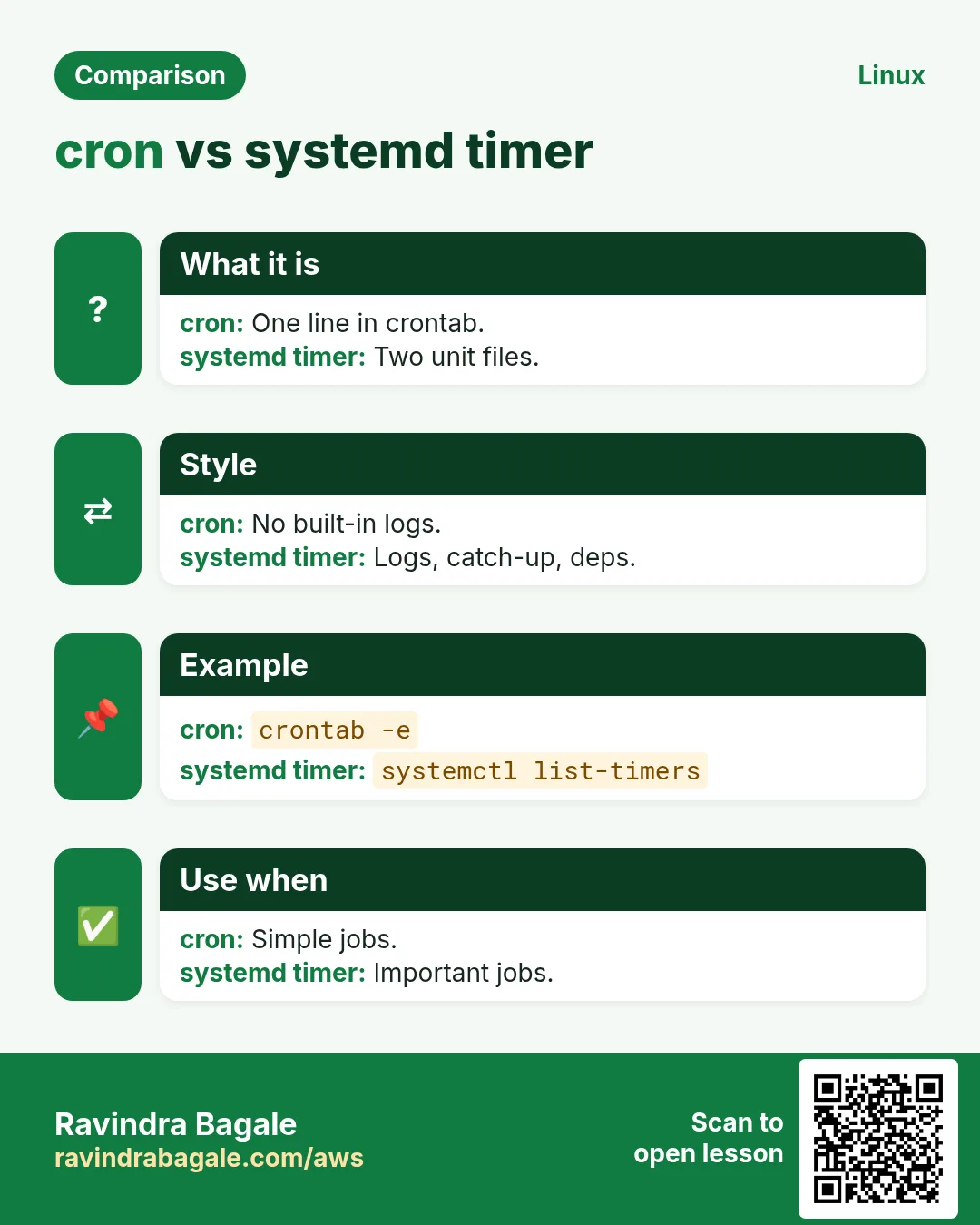
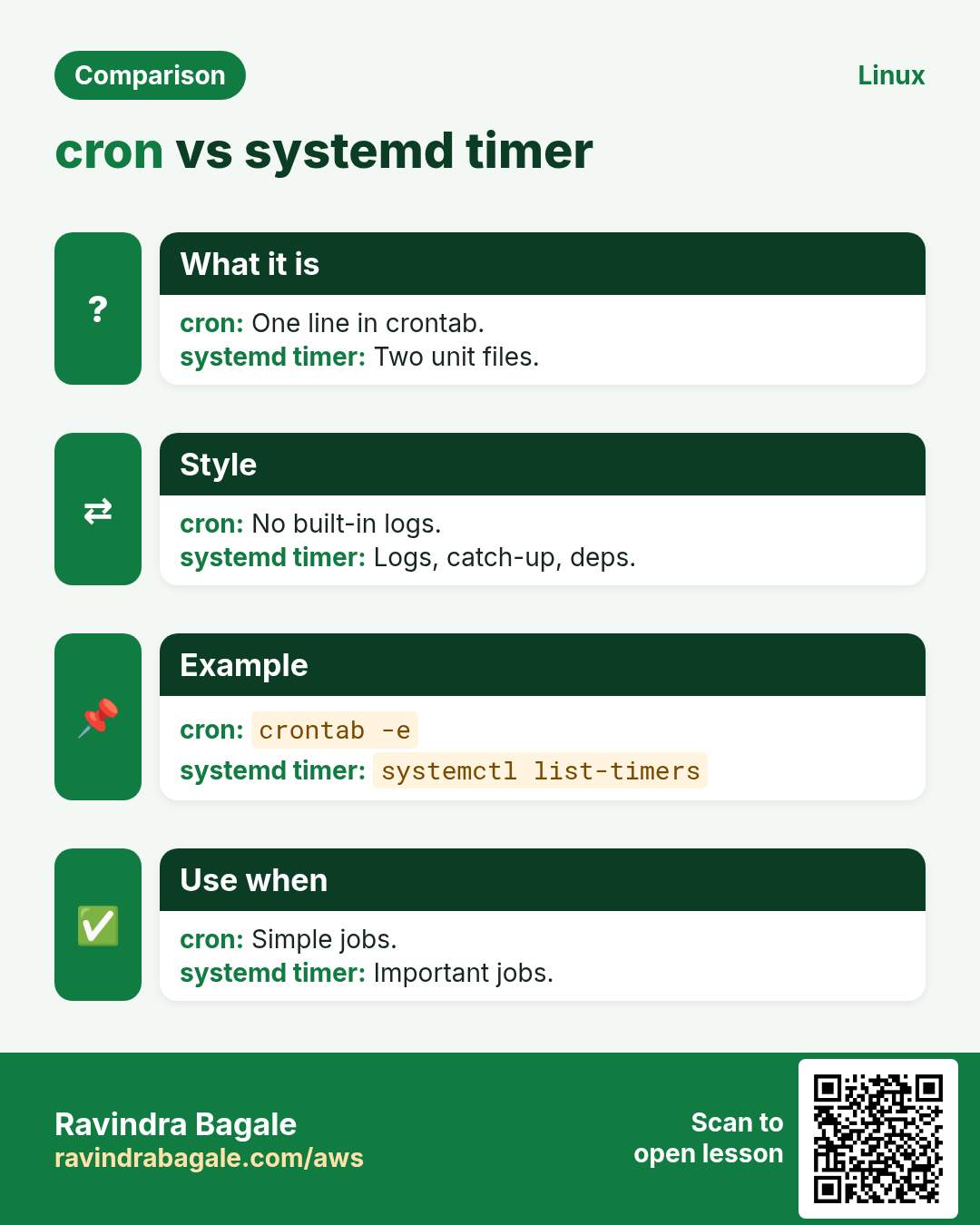
Timers give you journal logs, resource limits, no overlap and catch-up after downtime, for free.
What is it?
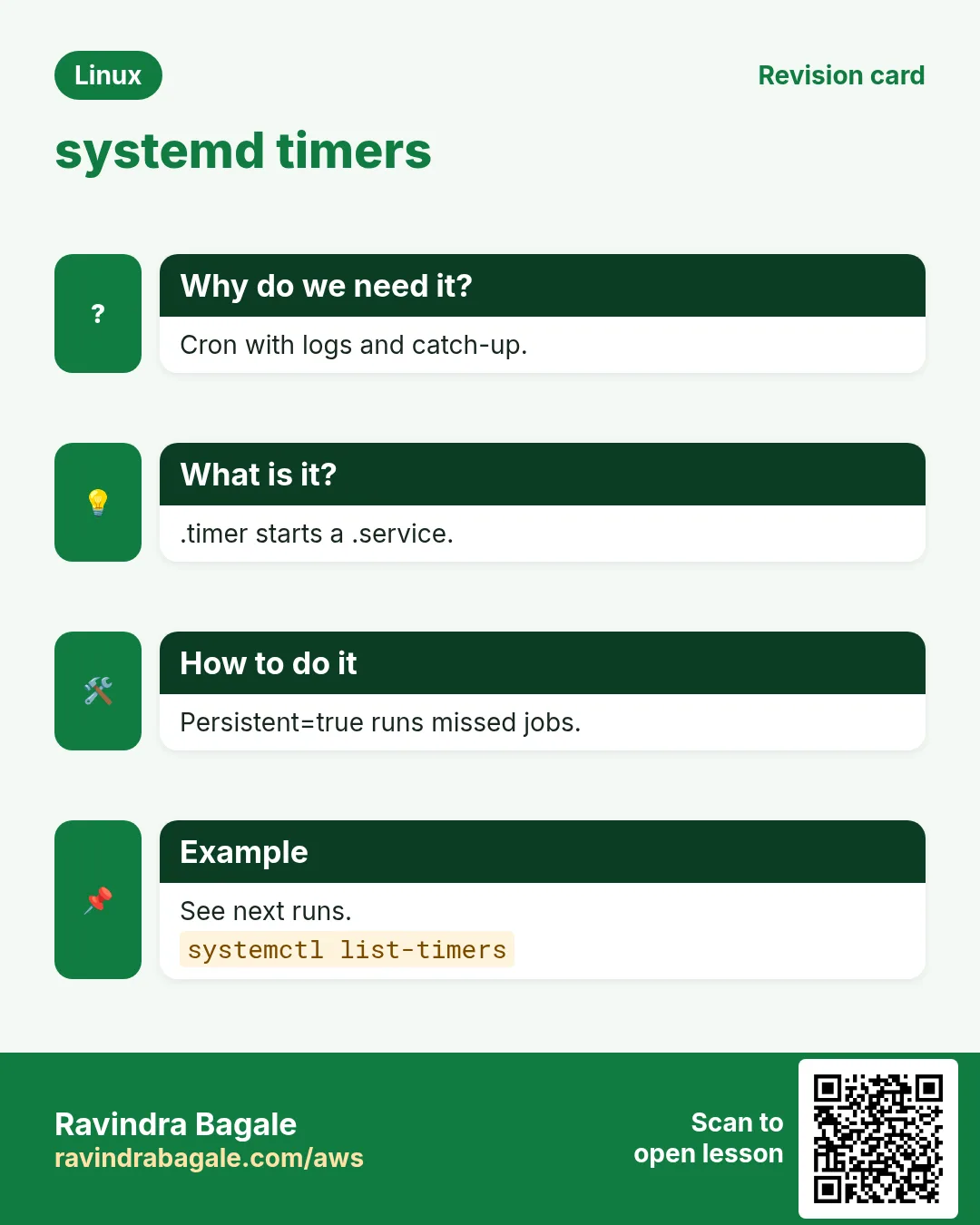
You need two files: NAME.service (what to run, Type=oneshot) and NAME.timer (when). OnCalendar=*-*-* 02:00:00 or daily, Mon..Fri 09:30. OnBootSec=5min and OnUnitActiveSec=1h for intervals. Persistent=true runs a missed job at boot. RandomizedDelaySec spreads load. Enable the timer, not the service.
How to do it (step by step)
- The service.
sudo tee /etc/systemd/system/backup.service <<'X'
[Unit]
Description=Nightly backup
[Service]
Type=oneshot
ExecStart=/usr/local/bin/backup.sh
X
Output:
(file text)What it means: No [Install] needed.
- The timer.
sudo tee /etc/systemd/system/backup.timer <<'X'
[Unit]
Description=Run backup daily at 2
[Timer]
OnCalendar=*-*-* 02:00:00
Persistent=true
RandomizedDelaySec=10min
[Install]
WantedBy=timers.target
X
Output:
(file text)What it means: Same base name as the service.
- Enable the timer.
sudo systemctl daemon-reload && sudo systemctl enable --now backup.timerOutput:
Created symlink /etc/systemd/system/timers.target.wants/backup.timer → /etc/systemd/system/backup.timer.What it means: Now it is scheduled.
- Run it now once to test.
sudo systemctl start backup.service && journalctl -u backup -n 3 --no-pagerOutput:
Oct 25 12:50:01 web1 systemd[1]: Finished Nightly backup.What it means: Logs come free.
13. systemctl list-timers
Why do we need this?
You need one view of every timer: when it last ran and when it runs next.
What is it?
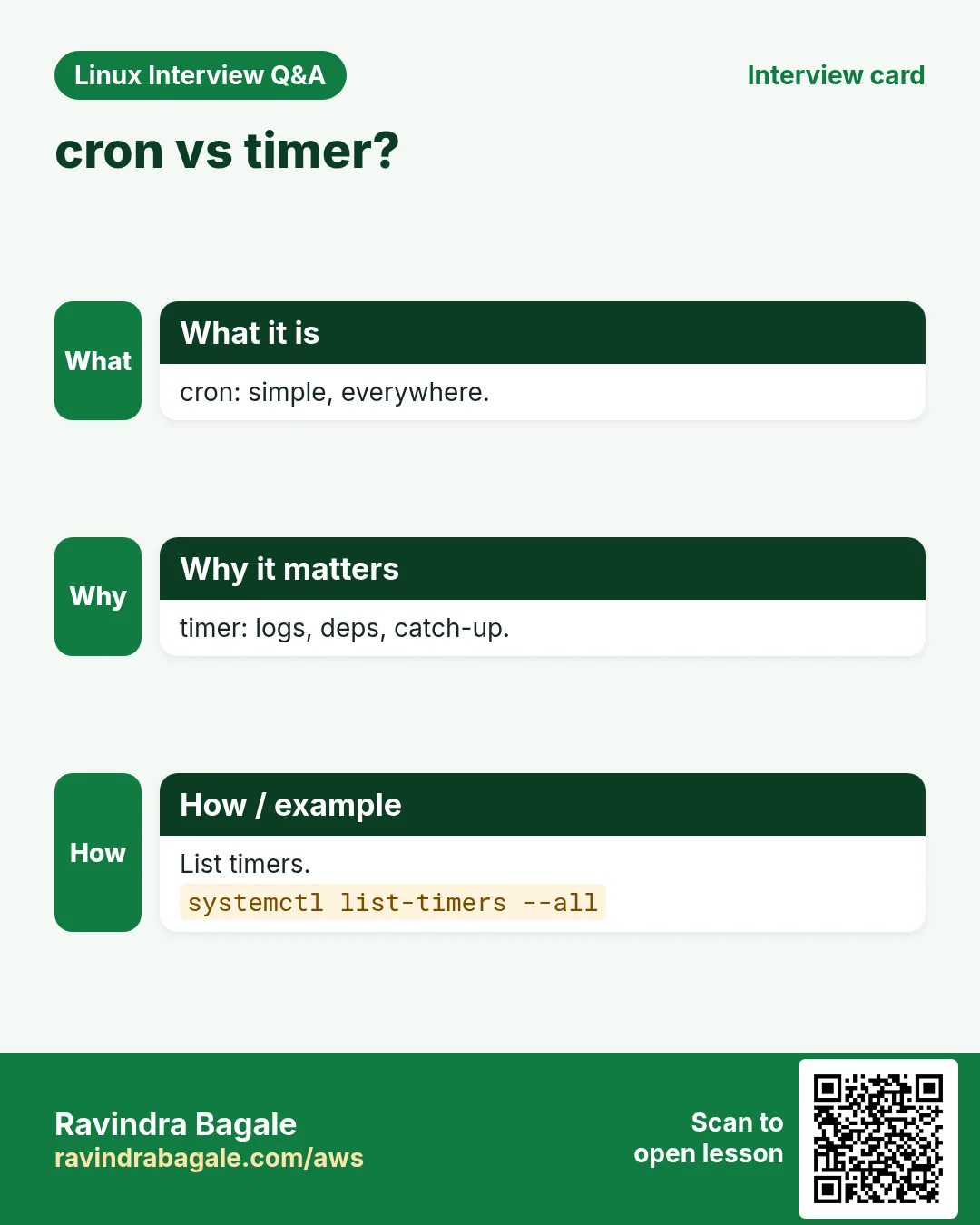
systemctl list-timers shows active timers with NEXT, LEFT, LAST, PASSED, UNIT, ACTIVATES. --all includes inactive ones.
How to do it (step by step)
- All timers.
systemctl list-timers --no-pager | head -3Output:
NEXT                        LEFT     LAST                        PASSED  UNIT              ACTIVATES
Mon 2026-10-26 02:04:11 IST 13h left Sun 2026-10-25 12:50:01 IST 3s ago backup.timer      backup.service
Mon 2026-10-26 00:00:00 IST 11h left Sun 2026-10-25 00:00:00 IST 12h ago logrotate.timer   logrotate.service
What it means: The random delay shows as 02:04.
- Test an expression.
systemd-analyze calendar --iterations=3 'Mon *-*-* 08:00'Output:
Next elapse: Mon 2026-10-26 08:00:00 IST
       Iter. #2: Mon 2026-11-02 08:00:00 IST
       Iter. #3: Mon 2026-11-09 08:00:00 IST
What it means: Three next runs.
14. Real examples from many industries
Why do we need this?
The same Linux skill shows up in every kind of company. Seeing it in many places helps you remember it.
What is it?
Each row is a made-up team. It shows who uses this and how.
How to do it (step by step)
| Team and city | How they use it | Command |
|---|---|---|
| Neha, CA firm, Pune | Emails a GST report every 1st | 0 8 1 * * /opt/ca/gst-report.sh |
| Oliver, news site, Sydney | Clears page cache every 10 minutes | */10 * * * * flock -n /tmp/c.lock /opt/news/purge |
| Zainab, airline, Doha | Uses timers with Persistent for crew rosters | systemctl list-timers |
| Lucas, bank, Frankfurt | Schedules a one-time change window job | at 23:30 -f change.sh |
| Priya, school ERP, Kolhapur | Backs up the DB at 2 a.m. with logs | 0 2 * * * /opt/erp/backup.sh >> /var/log/erp-backup.log 2>&1 |
| Ken, logistics, Toronto | Runs a sync after each boot | @reboot /opt/fleet/sync |
15. Common errors and how to fix them
Why do we need this?
Everyone hits these errors. Knowing the cause saves hours.
What is it?
Read the exact message first. Then match it to a row below.
How to do it (step by step)
| Error you see | Why it happens | How to fix |
|---|---|---|
/bin/sh: aws: command not found (in cron mail/log) | cron PATH is tiny | Use full paths or set PATH in crontab.which aws |
no crontab for ec2-user | You have no jobs yet | Create one with crontab -e.crontab -e |
"/tmp/crontab.X":1: bad minute
errors in crontab file, can't install. | Wrong field count or value | Five fields then the command.crontab -e |
Job runs at the wrong hour | Server time zone is UTC | Check timedatectl; adjust the hour or the zone.timedatectl |
Command cut off at % sign | % means newline in cron | Escape it as \%.date +\%F |
Job in /etc/cron.daily never runs | Not executable or has a dot in the name | chmod 755 and remove .sh.run-parts --test /etc/cron.daily |
Can't open display / permission denied in cron | Different user, no GUI, wrong permissions | Run as the right user; avoid GUI tools.sudo crontab -u shop -l |
Can't open /var/run/atd.pid to signal atd. No atd running? | atd service is not running | Start atd.sudo systemctl enable --now atd |
Two copies of the job run together | Job slower than its interval | Wrap with flock -n.flock -n /tmp/job.lock /opt/job |
Timer is enabled but never fires | Enabled the .service, not the .timer, or no daemon-reload | Enable the timer and check list-timers.sudo systemctl enable --now backup.timer |
16. Troubleshooting step by step
Why do we need this?
If a scheduled job did not do its work, prove each link: schedule, start, environment, output.
What is it?
Go top to bottom. Stop at the first step that shows the problem.
How to do it (step by step)
- Is the job installed?
crontab -l; ls /etc/cron.d- Is cron running?
systemctl is-active crond- Did cron start it?
journalctl -u crond --since today --no-pager | tail- Run it with cron's environment.
env -i SHELL=/bin/sh PATH=/usr/bin:/bin HOME=$HOME /bin/sh -c '/usr/local/bin/backup.sh'- Read its own output log.
tail -n 30 /var/log/backup.log- For timers, check next run and logs.
systemctl list-timers --all; journalctl -u backup -n 2017. Lab 1: A safe cron job with logs and a lock
Why do we need this?
Write a job that runs every minute, logs output, cannot overlap, then remove it.
What is it?
A full hands-on lab. Run every step on a test Linux machine (an EC2 instance, a VM, or WSL).
How to do it (step by step)
- Back up crontab.
crontab -l > ~/cron.bak 2>/dev/null; echo savedOutput:
saved- Add the job.
(crontab -l 2>/dev/null; echo '* * * * * flock -n /tmp/tick.lock /bin/date >> /tmp/tick.log 2>&1') | crontab -Output:
(no output)- Confirm.
crontab -l | tail -n1Output:
* * * * * flock -n /tmp/tick.lock /bin/date >> /tmp/tick.log 2>&1- Wait 2 minutes and read.
sleep 125; cat /tmp/tick.logOutput:
Sun Oct 25 13:01:01 IST 2026
Sun Oct 25 13:02:01 IST 2026- Restore.
crontab ~/cron.bak 2>/dev/null || crontab -r; crontab -lOutput:
(your old jobs)18. Lab 2: Replace a cron job with a systemd timer, plus at
Why do we need this?
Build a timer that runs every 2 minutes, view it, then schedule a one-time at job and cancel it.
What is it?
A full hands-on lab. Run every step on a test Linux machine (an EC2 instance, a VM, or WSL).
How to do it (step by step)
- Service.
printf '[Service]\nType=oneshot\nExecStart=/usr/bin/logger -t tick hello\n' | sudo tee /etc/systemd/system/tick.serviceOutput:
[Service]- Timer.
printf '[Timer]\nOnBootSec=1min\nOnUnitActiveSec=2min\n[Install]\nWantedBy=timers.target\n' | sudo tee /etc/systemd/system/tick.timer && sudo systemctl daemon-reload && sudo systemctl enable --now tick.timerOutput:
Created symlink ... tick.timer- See it.
systemctl list-timers tick.timer --no-pagerOutput:
NEXT ... tick.timer tick.service- at job then cancel.
echo 'logger -t atlab hi' | at now + 30 minutes; atq; atrm $(atq | awk '{print $1}' | tail -n1); atqOutput:
job 7 at Sun Oct 25 13:35:00 2026- Clean up.
sudo systemctl disable --now tick.timer && sudo rm /etc/systemd/system/tick.* && sudo systemctl daemon-reloadOutput:
Removed ... tick.timerRavindra Bagale's Tip
Before you trust a schedule, test it: systemd-analyze calendar for timers, and for cron write the line, then check the journal after the first run. And always redirect output; a cron job with no log is a job you cannot debug.
Ravindra Bagale's Tip – मराठी
Schedule वर विश्वास ठेवण्याआधी test करा: timers साठी systemd-analyze calendar, आणि cron साठी line लिहा, मग पहिल्या run नंतर journal तपासा. आणि output नेहमी redirect करा; log नसलेला cron job debug करता येत नाही.
Ravindra Bagale's Tip – हिंदी
Schedule पर भरोसा करने से पहले test करें: timers के लिए systemd-analyze calendar, और cron के लिए line लिखें, फिर पहले run के बाद journal देखें. और output हमेशा redirect करें; बिना log का cron job debug नहीं हो सकता.
19. Frequently asked questions
Q. cron or systemd timer?
Timers for new server jobs (logs, catch-up, limits). cron is simple and everywhere.
Q. Can cron run every 30 seconds?
Not directly; minimum is 1 minute. Use a timer with OnUnitActiveSec=30s.
Q. What if the server was off at 2 a.m.?
cron skips it; anacron or Persistent=true timers catch up.
Q. Which time zone does cron use?
The system zone (timedatectl). CRON_TZ= works on some systems.
Q. Who may use crontab?
Controlled by /etc/cron.allow and /etc/cron.deny.
Q. Is crontab -r dangerous?
Yes, deletes all your jobs at once. Back up first.
Q. Day of month and day of week both set?
Cron runs when either matches.
Q. How to run a timer job right now?
systemctl start NAME.service.
20. Interview questions and answers
Beginner level
Q. What are the five cron fields?
minute hour day-of-month month day-of-week.
Q. How do you list your cron jobs?
crontab -l.
Q. Every 5 minutes in cron?
*/5 * * * *.
Q. How do you run a job once at 10 p.m.?
echo cmd | at 22:00.
Mid level level
Q. Why does a script fail only in cron?
Minimal PATH and environment; use full paths.
Q. How do you stop overlapping runs?
flock -n lockfile cmd, or a timer.
Q. What is different in /etc/cron.d files?
They have a user field.
Q. Which two files make a systemd timer?
NAME.service and NAME.timer.
Senior level
Q. Missed jobs after downtime: how to handle?
Persistent=true timers or anacron; make jobs idempotent.
Q. Cron at scale across 100 servers?
Avoid thundering herd with RandomizedDelaySec or jitter, central logging, single-runner locks.
Q. How would you monitor that a nightly job ran?
Job pings a heartbeat or writes a metric; alert on missing run.
Q. DST and cron?
Jobs in skipped or repeated hours may run 0 or 2 times; use UTC on servers.
Try at home
- Write a cron line that runs df -h every hour and appends to ~/disk.log. Check the file after two hours.
- Convert the same job into a systemd timer with OnCalendar=hourly and Persistent=true.
Practice Tasks
London Legal LLP is a law business in London. Oliver Hughes looks after its IT and cloud work. They count money in GBP and run their AWS resources in the eu-west-2 Region. In the tasks below you do real jobs for them using what this lesson teaches. All names, account IDs, IP addresses and numbers are made up for practice.
0 / 16
Easy List my cron jobs
Why: Automation saves time.
What to do: Show your crontab.
- Find the Linux command that does this job.
- Add the options (like -r or -h) the task needs.
- Add the file names, folders or users in the right order.
- Use sudo if the job changes system files or users. Click Check answer.
Easy Edit crontab
Why: Automation saves time.
What to do: Open your crontab for editing.
- Find the Linux command that does this job.
- Add the options (like -r or -h) the task needs.
- Add the file names, folders or users in the right order.
- Use sudo if the job changes system files or users. Click Check answer.
Easy Pending at jobs
Why: Automation saves time.
What to do: List pending at jobs.
- Find the Linux command that does this job.
- Add the options (like -r or -h) the task needs.
- Add the file names, folders or users in the right order.
- Use sudo if the job changes system files or users. Click Check answer.
Easy List timers
Why: Automation saves time.
What to do: List all systemd timers including inactive.
- Find the Linux command that does this job.
- Add the options (like -r or -h) the task needs.
- Add the file names, folders or users in the right order.
- Use sudo if the job changes system files or users. Click Check answer.
Medium Another user
Why: Automation saves time.
What to do: As root, list the crontab of user deploy.
- Find the Linux command that does this job.
- Add the options (like -r or -h) the task needs.
- Add the file names, folders or users in the right order.
- Use sudo if the job changes system files or users. Click Check answer.
Medium Is cron running?
Why: Automation saves time.
What to do: Check the status of the crond service.
- Find the Linux command that does this job.
- Add the options (like -r or -h) the task needs.
- Add the file names, folders or users in the right order.
- Use sudo if the job changes system files or users. Click Check answer.
Medium Did cron run?
Why: Automation saves time.
What to do: Search the journal of crond for today.
- Find the Linux command that does this job.
- Add the options (like -r or -h) the task needs.
- Add the file names, folders or users in the right order.
- Use sudo if the job changes system files or users. Click Check answer.
Medium One-time job
Why: Automation saves time.
What to do: Schedule /opt/report.sh to run at 18:00 with at.
- Find the Linux command that does this job.
- Add the options (like -r or -h) the task needs.
- Add the file names, folders or users in the right order.
- Use sudo if the job changes system files or users. Click Check answer.
Medium Cancel at job
Why: Automation saves time.
What to do: Cancel at job number 7.
- Find the Linux command that does this job.
- Add the options (like -r or -h) the task needs.
- Add the file names, folders or users in the right order.
- Use sudo if the job changes system files or users. Click Check answer.
Medium Start atd
Why: Automation saves time.
What to do: Enable and start atd.
- Find the Linux command that does this job.
- Add the options (like -r or -h) the task needs.
- Add the file names, folders or users in the right order.
- Use sudo if the job changes system files or users. Click Check answer.
Medium Start a timer
Why: Automation saves time.
What to do: Enable and start backup.timer.
- Find the Linux command that does this job.
- Add the options (like -r or -h) the task needs.
- Add the file names, folders or users in the right order.
- Use sudo if the job changes system files or users. Click Check answer.
Hard Remove all jobs
Why: Automation saves time.
What to do: Remove your whole crontab after asking.
- Find the Linux command that does this job.
- Add the options (like -r or -h) the task needs.
- Add the file names, folders or users in the right order.
- Use sudo if the job changes system files or users. Click Check answer.
Hard Check a schedule
Why: Automation saves time.
What to do: Check when "Mon..Fri 09:00" would next fire.
- Find the Linux command that does this job.
- Add the options (like -r or -h) the task needs.
- Add the file names, folders or users in the right order.
- Use sudo if the job changes system files or users. Click Check answer.
Hard Run the job now
Why: Automation saves time.
What to do: Run backup.service immediately to test it.
- Find the Linux command that does this job.
- Add the options (like -r or -h) the task needs.
- Add the file names, folders or users in the right order.
- Use sudo if the job changes system files or users. Click Check answer.
Hard Timer job logs
Why: Automation saves time.
What to do: Show the last 20 lines of backup.service logs.
- Find the Linux command that does this job.
- Add the options (like -r or -h) the task needs.
- Add the file names, folders or users in the right order.
- Use sudo if the job changes system files or users. Click Check answer.
Hard Transient timer
Why: Automation saves time.
What to do: Run /opt/cleanup.sh once in 30 minutes with systemd-run.
- Find the Linux command that does this job.
- Add the options (like -r or -h) the task needs.
- Add the file names, folders or users in the right order.
- Use sudo if the job changes system files or users. Click Check answer.
21. Related chapters
- Linux Ops Refresh for DevOps
- Bash Scripting for Automation
- Linux grep and find Commands with Examples
- How to Set Up Passwordless SSH Between Linux Servers
In short
- Five fields: minute hour dom month dow.
- crontab -e/-l/-r/-u manage user jobs.
- /etc/cron.d adds a user field; @reboot runs at boot.
- Full paths, redirects and flock make cron safe.
- at, atq, atrm for one-time jobs.
- Timers = .service + .timer, OnCalendar, Persistent, list-timers.
Revision, comparison and interview cards
Revise this lesson in a few minutes. Save the cards on your phone or download them as PNG files. The QR code on each card opens this lesson.
More cards: Ravi Sir's Cards.