Linux Environment Variables, PATH, .bashrc and alias Explained Simply
Every program you run gets a small bag of settings called environment variables: who you are, your home folder, where to look for commands, which editor you like, API endpoints and more. In this chapter you learn to read, set, export and remove them, how PATH finds commands, which startup file runs when, and how aliases save typing.
What you'll learn in this chapter
- Read variables with echo, env and printenv
- Set shell vs exported variables, and unset
- Understand and change PATH safely
- Use which, type and command -v
- Know .bashrc, .bash_profile, /etc/profile.d and /etc/environment
- Create aliases, functions and a better PS1
1. An everyday example: the school bag and the timetable
Why do we need this?
Every morning a child packs a school bag from the timetable stuck on the wall. Whatever is in the bag goes to school; things left on the table stay home. If the younger brother copies the bag, he gets the same books. And the child writes short nicknames for long subject names on the timetable.
What is it?
Timetable on the wall = .bashrc. The bag = exported environment. Things on the table = shell-only variables. Brother copying the bag = a child process inheriting env. Nicknames = aliases.
How to do it (step by step)
2. echo $VAR: read one variable
Why do we need this?
You want to check a value quickly, like your home folder or which editor is set.
What is it?
$NAME expands to the value. Use "$NAME" in quotes to keep spaces. ${NAME:-default} gives a default if empty. Common: HOME, USER, SHELL, PWD, LANG, EDITOR, HOSTNAME, PATH.
How to do it (step by step)
- Home and user.
echo "$USER lives in $HOME"Output:
ravi lives in /home/raviWhat it means: Two variables in one line.
- A default value.
echo "${EDITOR:-nano}"Output:
nanoWhat it means: EDITOR was empty, so nano.
3. env and printenv: list the environment
Why do we need this?
When an app behaves differently on two servers, compare their environments.
What is it?
env and printenv list all exported variables. printenv NAME prints one (no $). env -i CMD runs CMD with an empty environment. env VAR=x CMD runs CMD with an extra variable only for that run.
How to do it (step by step)
- Count and filter.
env | wc -l; env | grep -i ^langOutput:
28
LANG=en_IN.UTF-8
What it means: 28 exported variables.
- One value.
printenv SHELLOutput:
/bin/bashWhat it means: No $ needed.
- Run with a clean environment.
env -i /usr/bin/envOutput:
(no output)What it means: Nothing inherited.
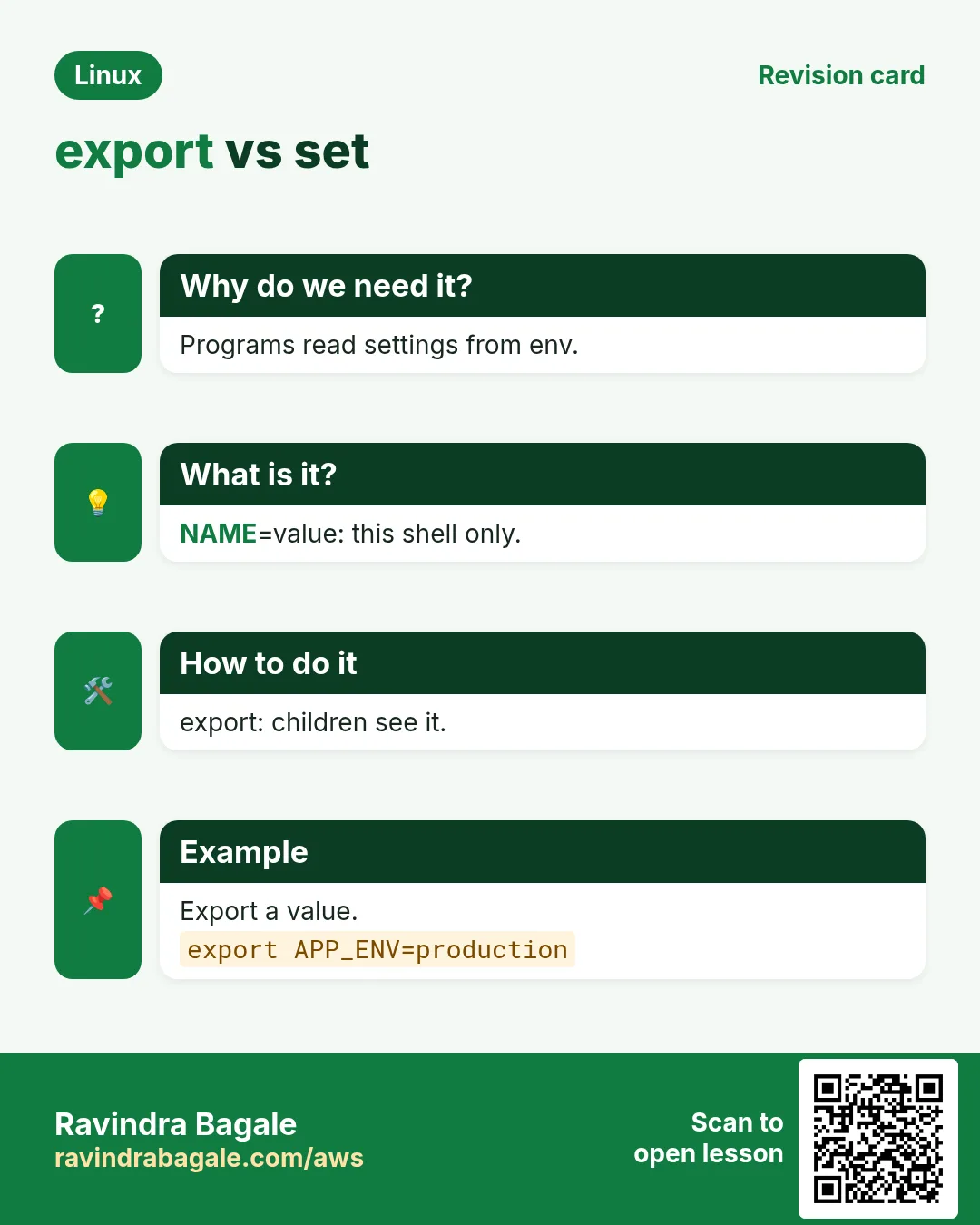
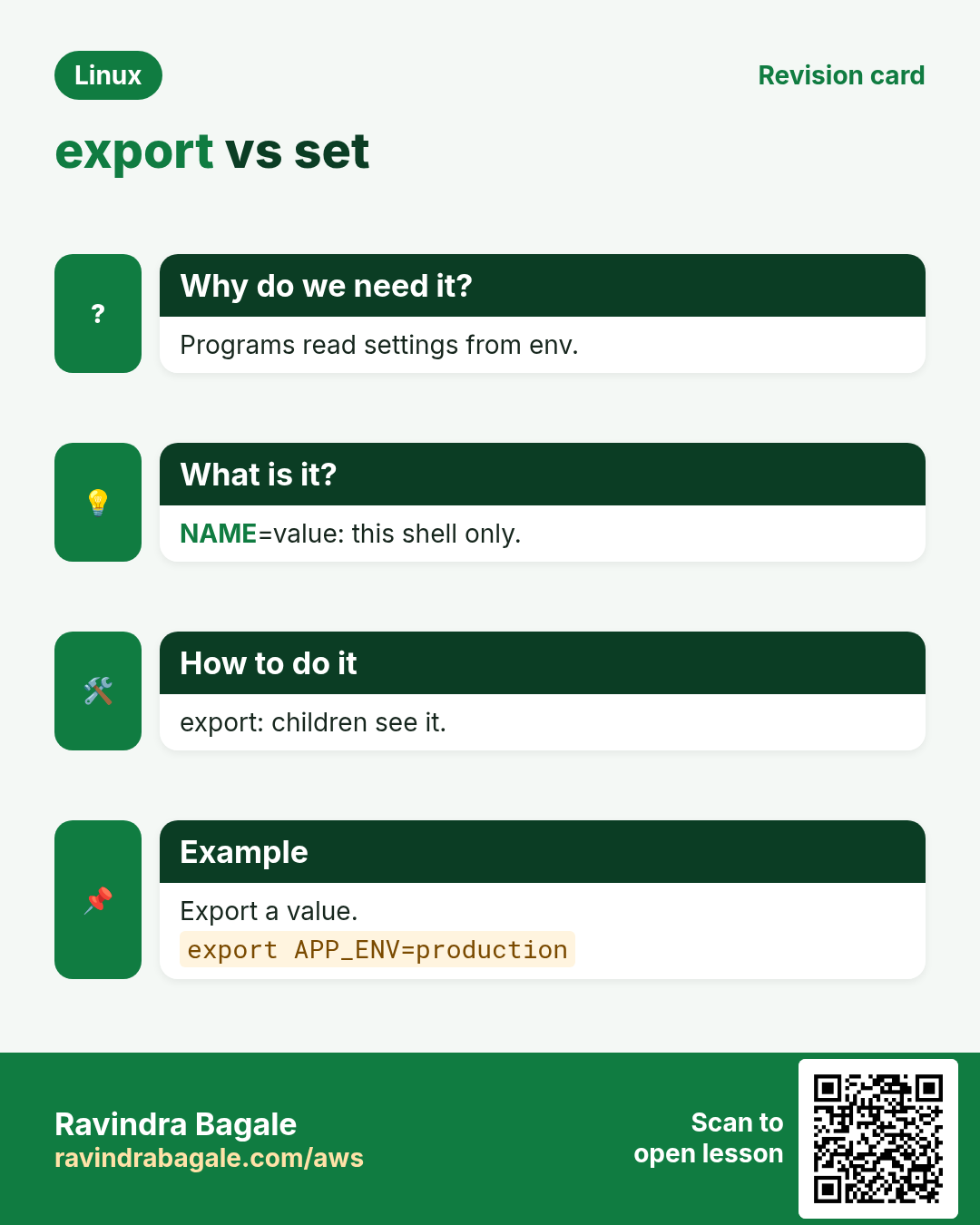
4. Setting variables: shell vs export
Why do we need this?
A variable you set is not seen by programs you start unless you export it. This confuses many beginners.
What is it?
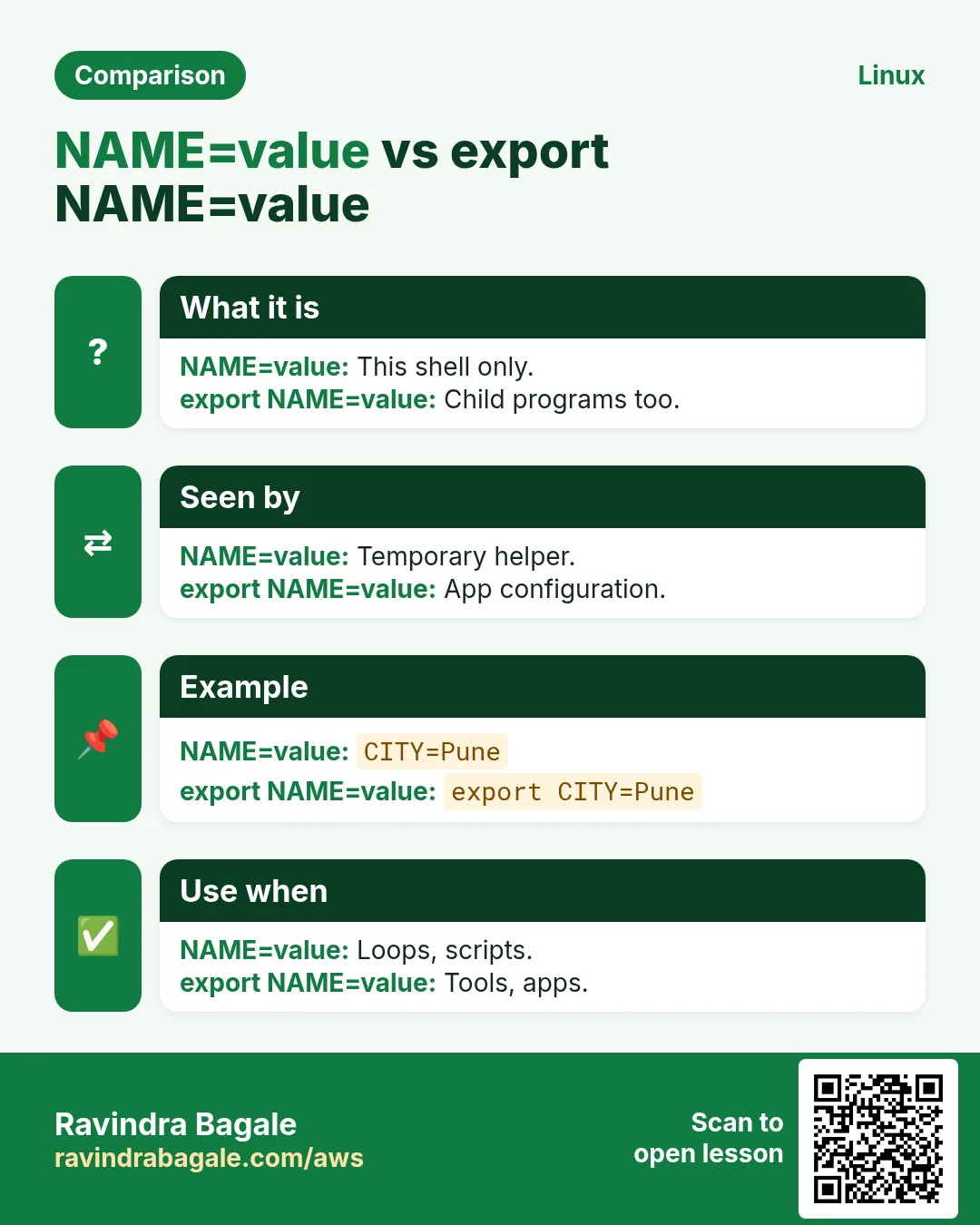
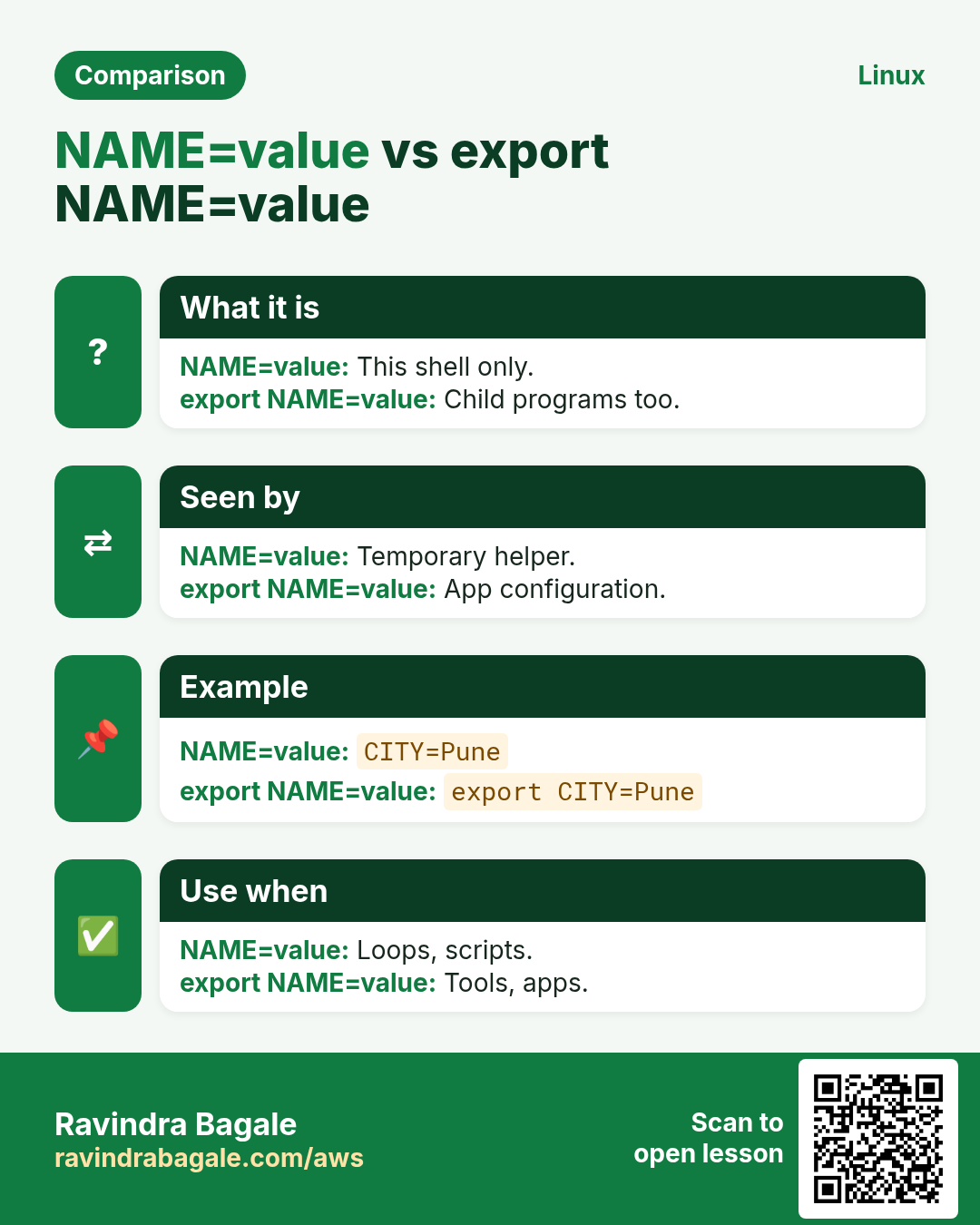
NAME=value sets a shell variable (no spaces around =). export NAME or export NAME=value puts it in the environment, so child processes get it. NAME=value cmd sets it for one command only. Changes vanish when the terminal closes unless saved in a startup file.
How to do it (step by step)
- Not exported.
CITY=Pune; bash -c 'echo "child sees: $CITY"'Output:
child sees: What it means: The child did not get it.
- Exported.
export CITY=Pune; bash -c 'echo "child sees: $CITY"'Output:
child sees: PuneWhat it means: Now it is in the bag.
- For one command.
TZ=Asia/Tokyo date +%H:%M; date +%H:%MOutput:
17:42
14:12
What it means: Only date's first run saw TZ.
- Space mistake.
CITY = PuneOutput:
bash: CITY: command not foundWhat it means: No spaces around =.
5. unset and readonly
Why do we need this?
Remove a wrong or secret value from your session, or protect a value from being changed.
What is it?
unset NAME removes it from the shell and environment. export -n NAME keeps it in the shell but stops exporting. readonly NAME=value makes it constant for this shell.
How to do it (step by step)
- Remove a token.
export API_TOKEN=abc123; unset API_TOKEN; echo "[${API_TOKEN}]"Output:
[]What it means: Gone.
- Readonly.
readonly STAGE=prod; STAGE=devOutput:
bash: STAGE: readonly variableWhat it means: Protected.
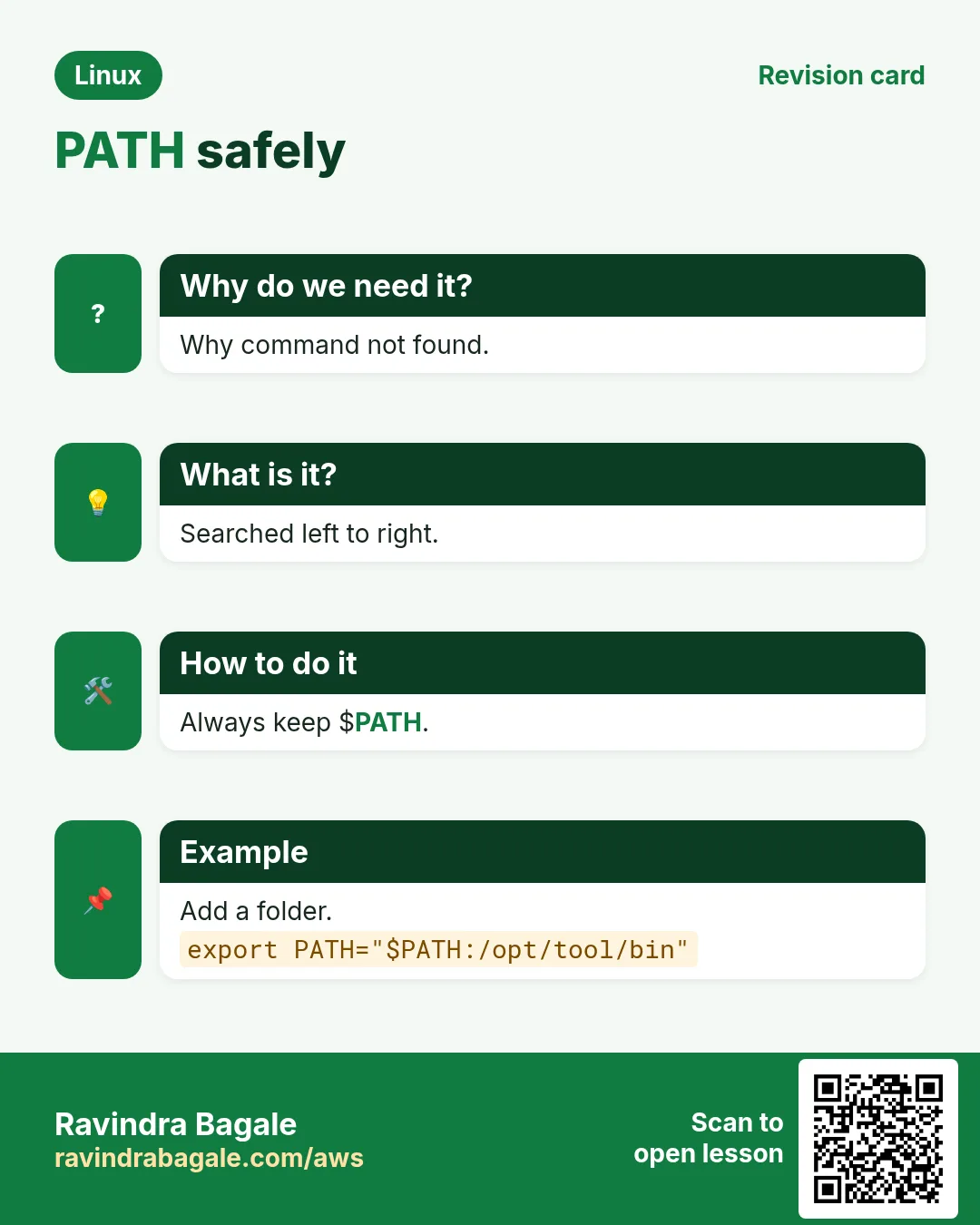
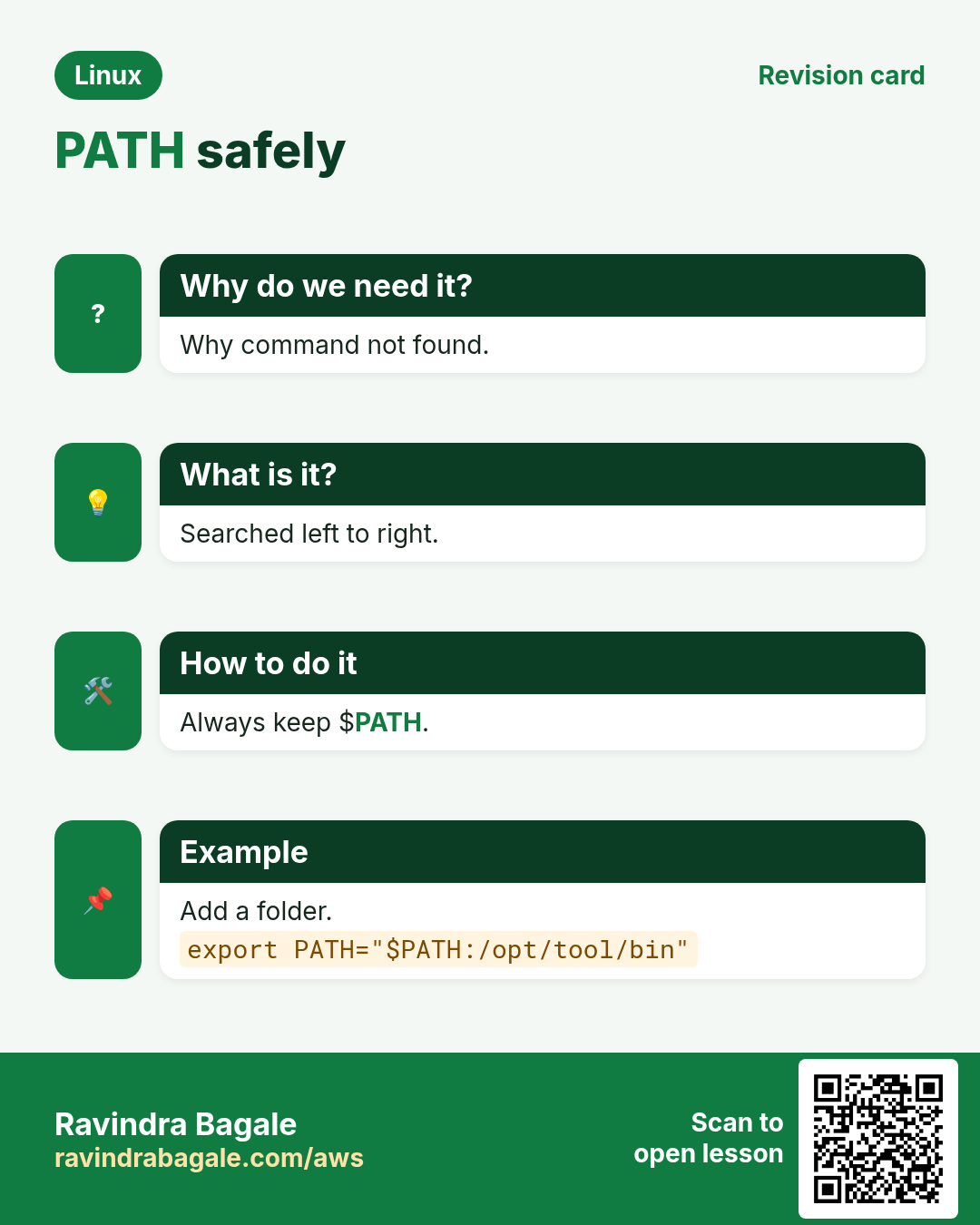
6. PATH: where commands are found
Why do we need this?
'command not found' after installing a tool almost always means its folder is not in PATH.
What is it?
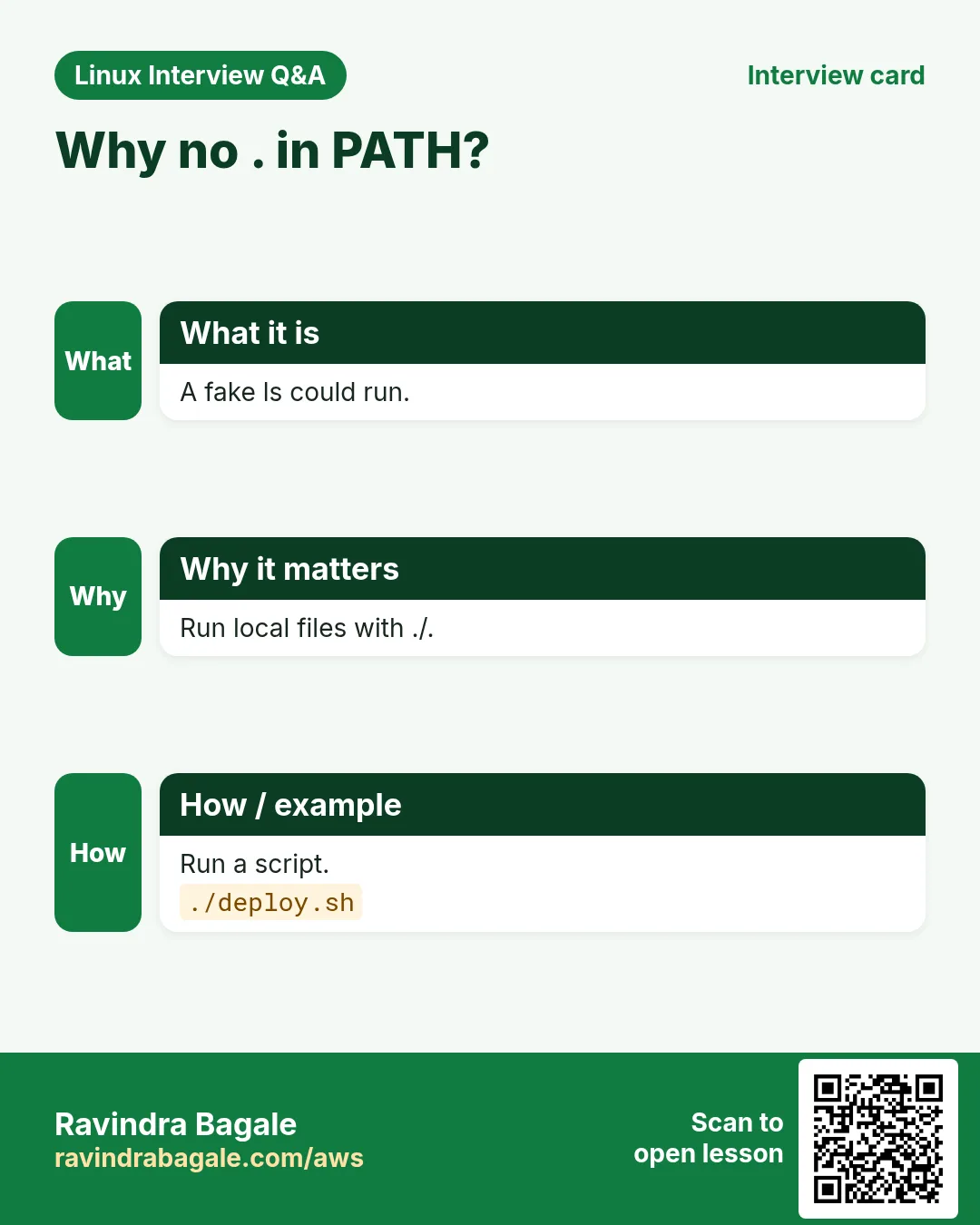
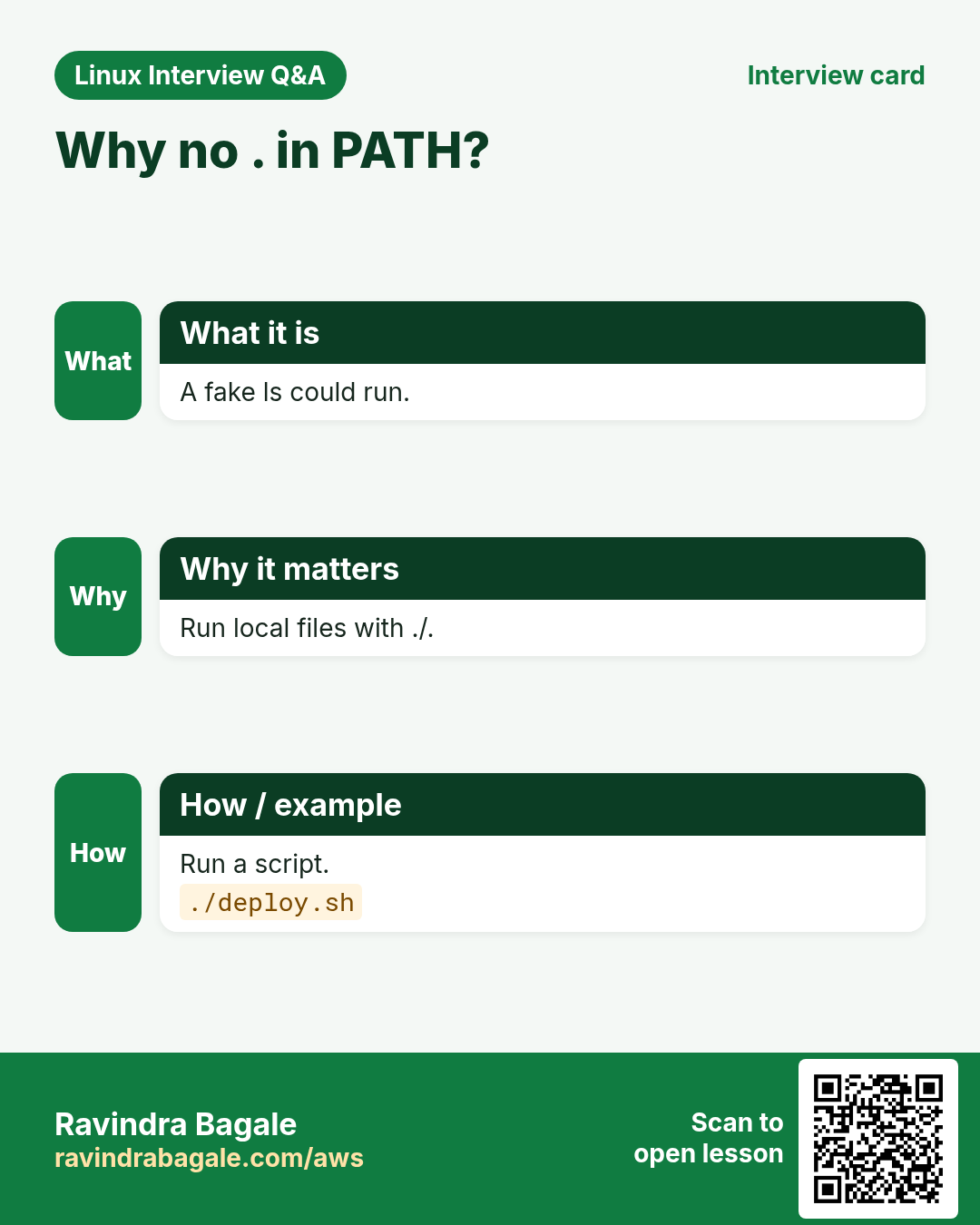
PATH is a list of folders separated by :. bash searches left to right and runs the first match. Add a folder: export PATH="$HOME/bin:$PATH" (front = wins) or "$PATH:/opt/tool/bin" (end). Never put . in PATH. hash -r clears bash's remembered locations.
How to do it (step by step)
- See it one folder per line.
echo "$PATH" | tr ':' '\n'Output:
/usr/local/bin
/usr/bin
/bin
/usr/local/sbin
/usr/sbin
What it means: Searched top to bottom.
- Tool not found.
terraform versionOutput:
bash: terraform: command not foundWhat it means: It is in /opt/terraform.
- Add it for this session.
export PATH="$PATH:/opt/terraform" && terraform versionOutput:
Terraform v1.9.8What it means: Works now.
- Make it permanent.
echo 'export PATH="$PATH:/opt/terraform"' >> ~/.bashrc && source ~/.bashrcOutput:
(no output)What it means: Every new shell has it.
7. which, type and command -v
Why do we need this?
You type python and get the wrong version. You need to know exactly what runs.
What is it?
which NAME shows the first file in PATH. which -a shows all. type NAME tells if it is an alias, function, builtin or file (more accurate). command -v NAME is the script-safe test for 'is it installed?'.
How to do it (step by step)
- All pythons.
which -a python3Output:
/usr/local/bin/python3
/usr/bin/python3
What it means: The first one wins.
- What is ll?
type llOutput:
ll is aliased to `ls -alF'What it means: which would not show this.
- In a script.
command -v jq >/dev/null || echo 'please install jq'Output:
please install jqWhat it means: Clean check.
8. ~/.bashrc vs ~/.bash_profile
Why do we need this?
You add something and it works in a new tab but not over SSH, or the other way round. The startup file choice explains it.
What is it?
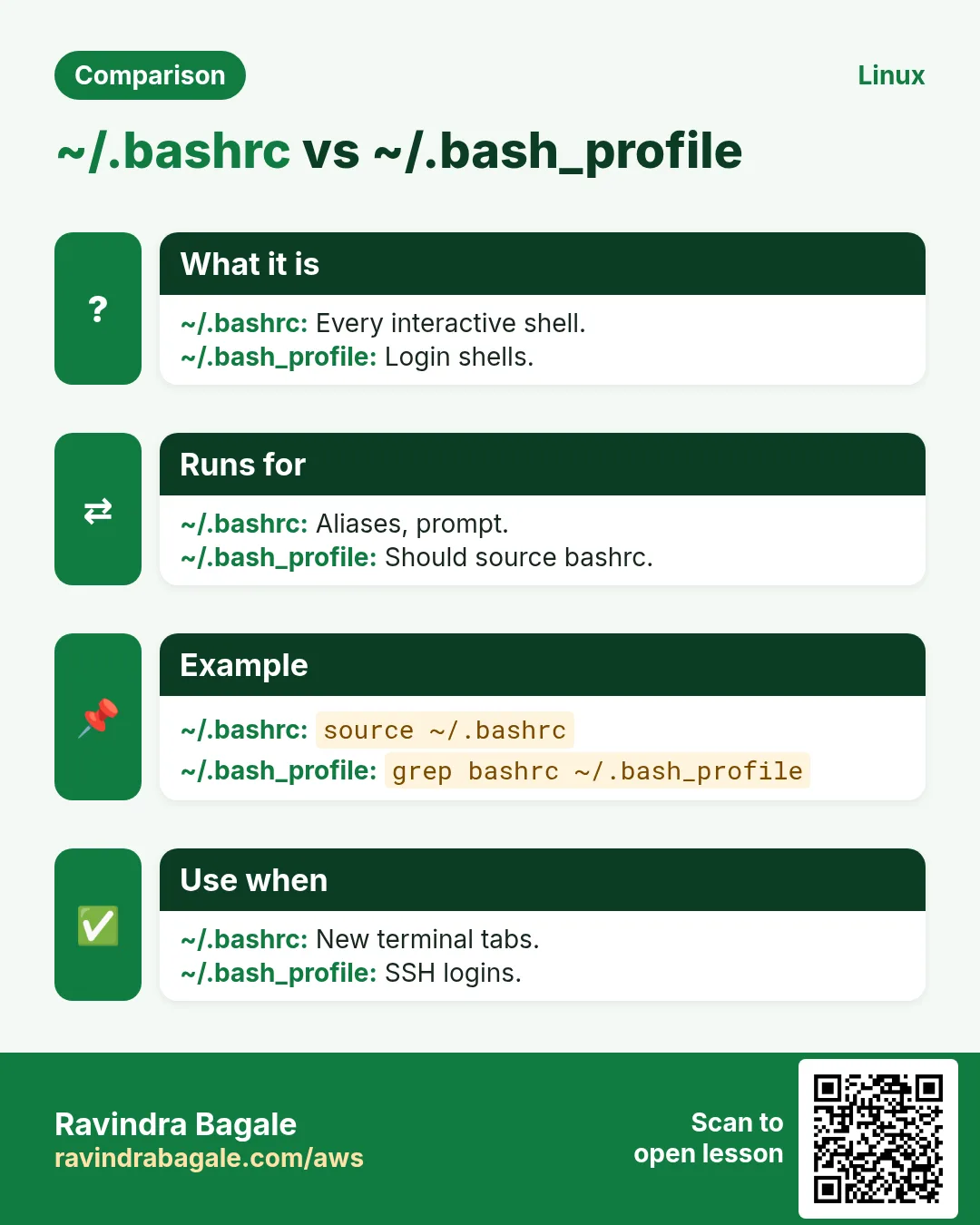
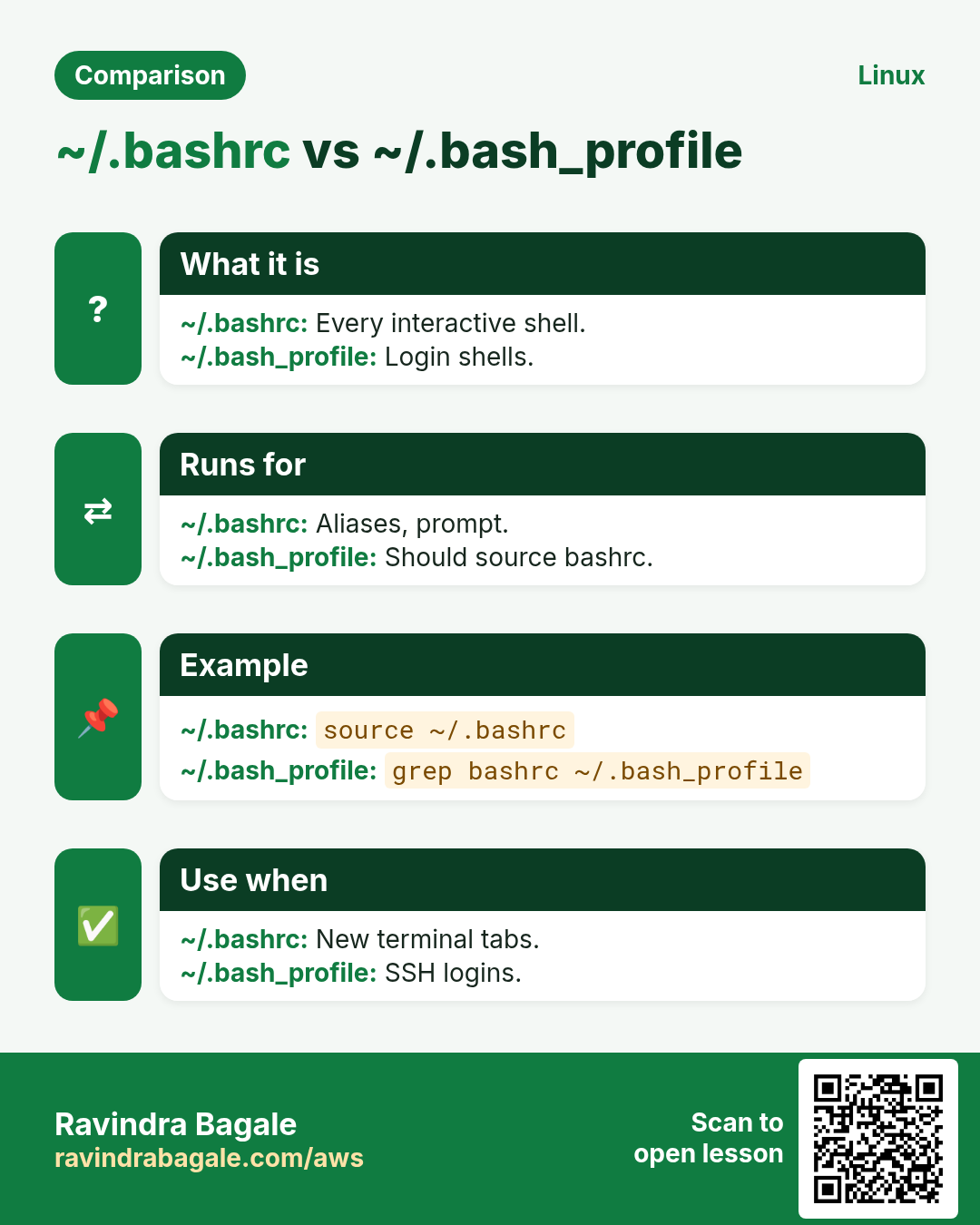
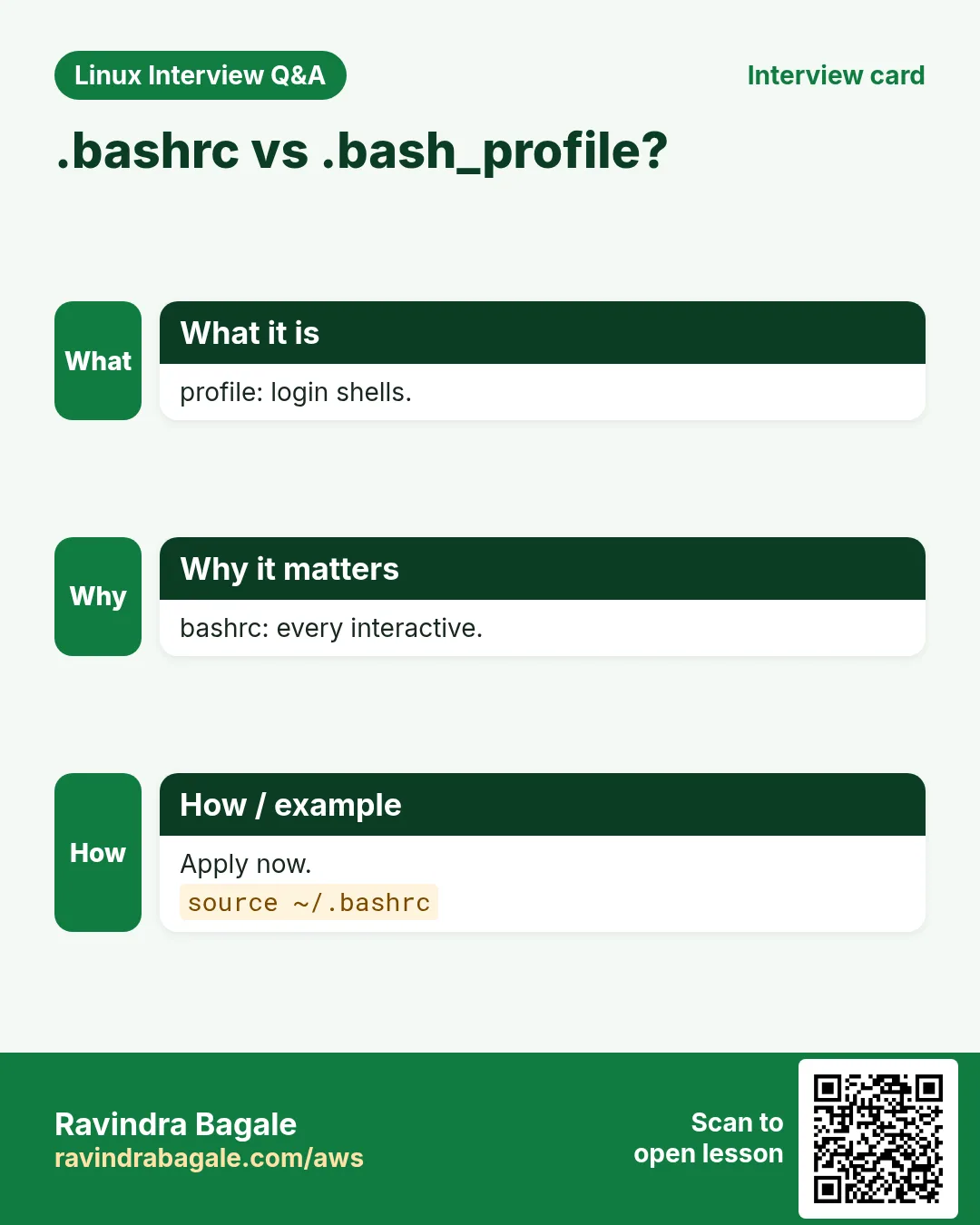
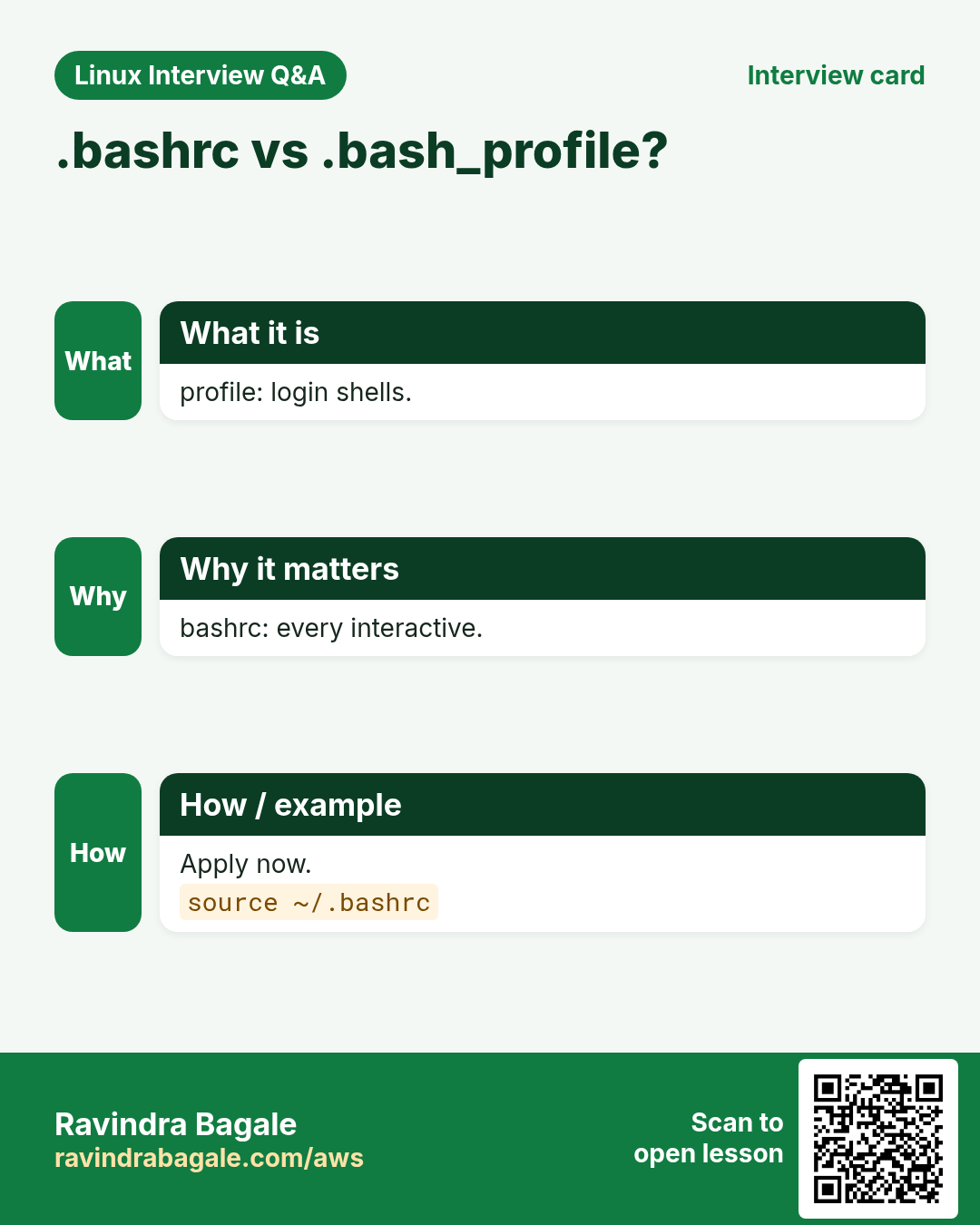
Login shells (SSH, console) read ~/.bash_profile (or ~/.profile). Interactive non-login shells (new terminal tab) read ~/.bashrc. Best practice: put everything in ~/.bashrc and make ~/.bash_profile source it. Use source ~/.bashrc (or . ~/.bashrc) to apply changes now.
| File | When it runs |
|---|---|
| /etc/profile, /etc/profile.d/*.sh | Login shells, all users |
| ~/.bash_profile or ~/.profile | Login shell, you |
| ~/.bashrc | Every interactive shell |
| /etc/bashrc or /etc/bash.bashrc | Interactive, all users |
| /etc/environment | At login by PAM, not a script |
How to do it (step by step)
- Check your profile sources bashrc.
grep -n bashrc ~/.bash_profileOutput:
2:[ -f ~/.bashrc ] && . ~/.bashrcWhat it means: Good, one place to edit.
- Is this a login shell?
shopt -q login_shell && echo login || echo non-loginOutput:
loginWhat it means: SSH sessions are login shells.
- Apply changes now.
source ~/.bashrcOutput:
(no output)What it means: No need to log out.
9. /etc/environment and /etc/profile.d
Why do we need this?
A proxy or a company tool path must be set for every user on the server, not only you.
What is it?
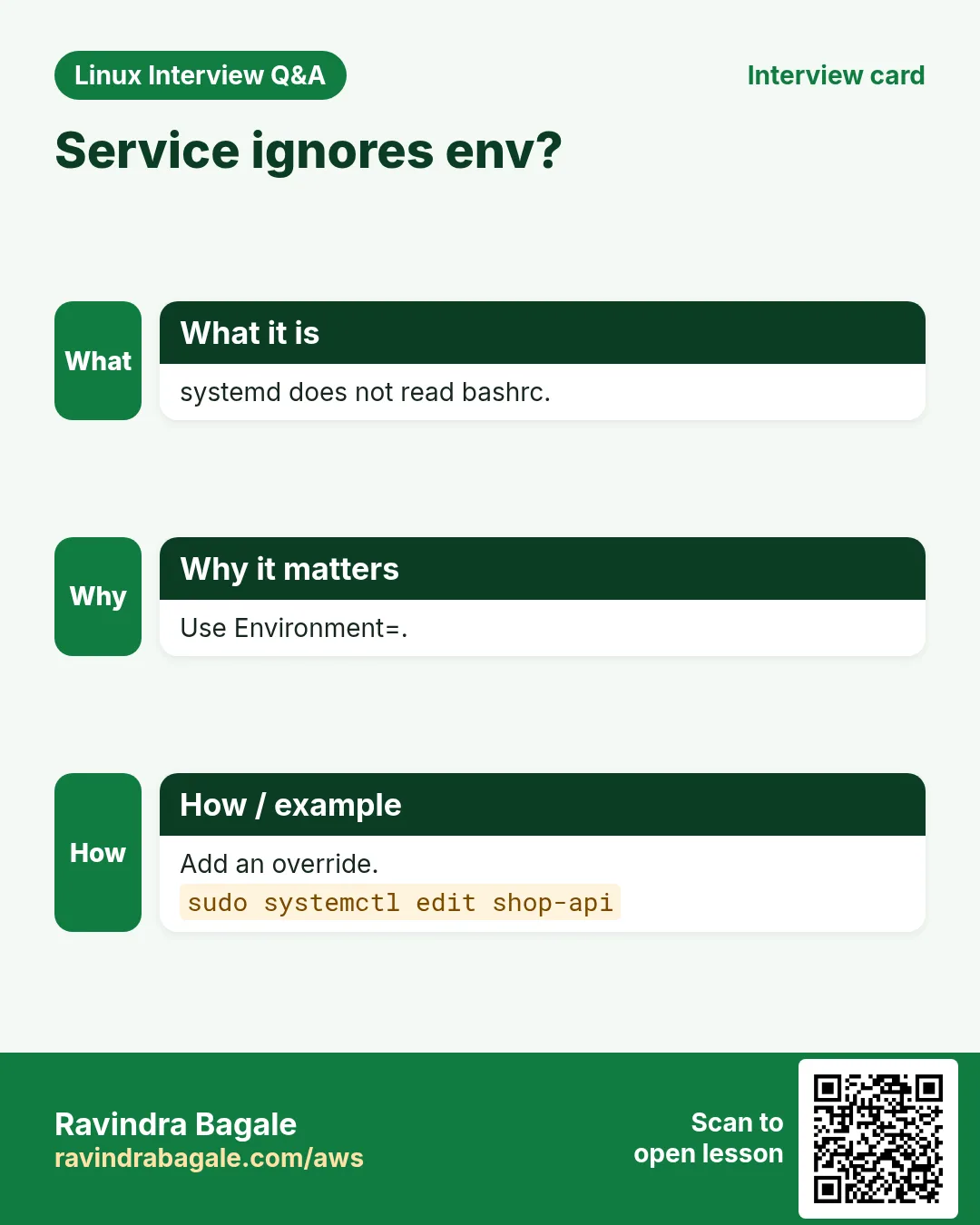
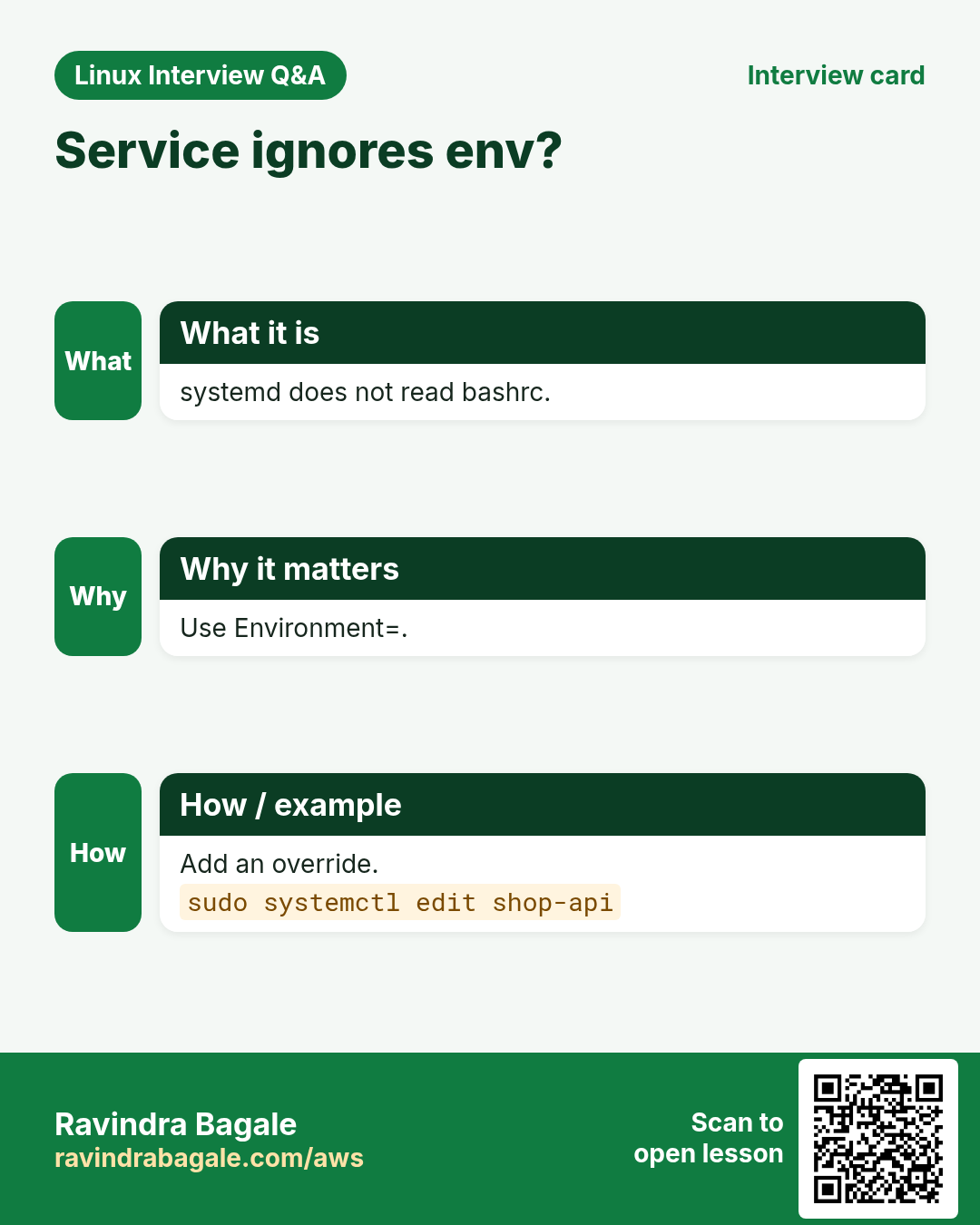
/etc/environment holds plain KEY=value lines (no export, no $VAR expansion), read at login. /etc/profile.d/NAME.sh is a script run by login shells for all users; you can use export and $PATH there. systemd services do not read these; use Environment= in the unit.
How to do it (step by step)
- Company proxy for all.
echo 'https_proxy=http://proxy.corp:3128' | sudo tee -a /etc/environmentOutput:
https_proxy=http://proxy.corp:3128What it means: Plain line, no export.
- Tool path for all.
echo 'export PATH="$PATH:/opt/terraform"' | sudo tee /etc/profile.d/terraform.shOutput:
export PATH="$PATH:/opt/terraform"What it means: Works after next login.
- A service needs a variable.
sudo systemctl edit shop-api
[Service]
Environment=NODE_ENV=production
Output:
(override saved)What it means: Services ignore .bashrc.
10. alias and unalias
Why do we need this?
You type the same long commands every day. An alias makes them short and adds safety flags.
What is it?
alias NAME='command' creates one. alias alone lists all. unalias NAME removes it. Save in ~/.bashrc to keep. \NAME or command NAME runs the real command, skipping the alias. Aliases do not work in scripts by default.
How to do it (step by step)
- Short and safe.
alias ll='ls -lh' rm='rm -i' k='kubectl'Output:
(no output)What it means: rm now asks first.
- List.
alias | head -3Output:
alias k='kubectl'
alias ll='ls -lh'
alias rm='rm -i'
What it means: Your shortcuts.
- Skip the alias once.
\rm old.logOutput:
(no output)What it means: No question this time.
- Remove.
unalias k && type kOutput:
bash: type: k: not foundWhat it means: Gone.
11. Shell functions for bigger shortcuts
Why do we need this?
Aliases cannot take arguments in the middle. Functions can, and can run several steps.
What is it?
NAME() { commands; } in ~/.bashrc. $1, $2 are arguments, "$@" is all. declare -f NAME shows it. unset -f NAME removes it.
How to do it (step by step)
- Make a folder and enter it.
mkcd() { mkdir -p "$1" && cd "$1"; }; mkcd /tmp/demo && pwdOutput:
/tmp/demoWhat it means: One word, two steps.
- Tail a service's logs.
logs() { journalctl -u "$1" -n "${2:-50}" --no-pager; }; logs nginx 5Output:
(5 nginx log lines)What it means: Default 50 lines.
12. PS1: a prompt that helps
Why do we need this?
Typing a command on the production server by mistake is a classic outage. A clear prompt shows where you are.
What is it?
PS1 sets the prompt. \u user, \h host, \w folder, \$ shows # for root. Colours with \[\e[31m\] (red) and \[\e[0m\] (reset). Put it in ~/.bashrc.
How to do it (step by step)
- Simple.
PS1='\u@\h:\w\$ 'Output:
ravi@web1:~/app$What it means: User, host, folder.
- Red PROD tag.
PS1='\[\e[41m\]PROD\[\e[0m\] \u@\h:\w\$ 'Output:
PROD ravi@db1:~$What it means: You cannot miss it.
13. HISTSIZE, HISTCONTROL and history tricks
Why do we need this?
History saves you from retyping and helps you recall what you did during an incident.
What is it?
HISTSIZE (in memory) and HISTFILESIZE (in ~/.bash_history) set how much to keep. HISTCONTROL=ignoreboth skips duplicates and lines starting with a space (use a leading space for secrets). HISTTIMEFORMAT='%F %T ' adds times. history, !N, Ctrl+R to search.
How to do it (step by step)
- Better history settings.
cat >> ~/.bashrc <<'X'
HISTSIZE=10000
HISTFILESIZE=20000
HISTCONTROL=ignoreboth
HISTTIMEFORMAT='%F %T '
X
Output:
(no output)What it means: Big, clean, timed history.
- With times.
source ~/.bashrc; history 2Output:
  501  2026-10-25 14:20:11 source ~/.bashrc
  502  2026-10-25 14:20:14 history 2
What it means: When you ran it.
14. Real examples from many industries
Why do we need this?
The same Linux skill shows up in every kind of company. Seeing it in many places helps you remember it.
What is it?
Each row is a made-up team. It shows who uses this and how.
How to do it (step by step)
| Team and city | How they use it | Command |
|---|---|---|
| Shruti, fintech, Pune | Red PROD prompt on payment servers | PS1='PROD \u@\h:\w\$ ' |
| Jack, game studio, Austin | Adds the SDK to PATH for all users | /etc/profile.d/sdk.sh |
| Leila, airline, Abu Dhabi | Sets proxy via /etc/environment | https_proxy=http://proxy:3128 |
| Pedro, logistics, Lisbon | k alias for kubectl | alias k=kubectl |
| Arjun, data team, Bengaluru | Picks the right python with which -a | which -a python3 |
| Nina, SaaS, Stockholm | Service env via Environment= | Environment=NODE_ENV=production |
15. Common errors and how to fix them
Why do we need this?
Everyone hits these errors. Knowing the cause saves hours.
What is it?
Read the exact message first. Then match it to a row below.
How to do it (step by step)
| Error you see | Why it happens | How to fix |
|---|---|---|
bash: terraform: command not found | Folder not in PATH | Add it to PATH.export PATH="$PATH:/opt/terraform" |
bash: CITY: command not found (after CITY = Pune) | Spaces around = | Write NAME=value.CITY=Pune |
Child program does not see the variable | Not exported | export it.export CITY |
Change in .bashrc not working over SSH | Login shell reads .bash_profile, which does not source .bashrc | Source .bashrc from .bash_profile.echo '. ~/.bashrc' >> ~/.bash_profile |
ls: command not found (every command broken) | PATH was overwritten, not appended | Restore PATH, fix the line.export PATH=/usr/local/bin:/usr/bin:/bin |
Service ignores my variable | systemd does not read .bashrc | Use Environment= or EnvironmentFile=.sudo systemctl edit shop-api |
bash: STAGE: readonly variable | It was made readonly | Open a new shell.bash |
Old version still runs after install | bash hash cache or earlier PATH entry | Clear the hash and check order.hash -r; which -a node |
Alias works in terminal but not in script | Aliases are off in non-interactive shells | Use the full command or a function.command -v kubectl |
sudo: mytool: command not found | sudo uses secure_path, not your PATH | Use the full path.sudo /opt/mytool/bin/mytool |
16. Troubleshooting step by step
Why do we need this?
When a command or variable is not what you expect, check what bash sees, step by step.
What is it?
Go top to bottom. Stop at the first step that shows the problem.
How to do it (step by step)
- What is it?
type -a mytool- Where does PATH look?
echo "$PATH" | tr ':' '\n'- Is the variable set and exported?
declare -p MYVAR; printenv MYVAR- Which startup files ran?
shopt -q login_shell && echo login; grep -n bashrc ~/.bash_profile- Who sets it?
grep -rn MYVAR ~/.bashrc ~/.bash_profile /etc/profile.d /etc/environment 2>/dev/null- Test in a clean shell.
env -i bash -l -c 'echo $PATH'17. Lab 1: Variables, export and PATH
Why do we need this?
See the difference between shell and exported variables, then add your own bin folder to PATH permanently.
What is it?
A full hands-on lab. Run every step on a test Linux machine (an EC2 instance, a VM, or WSL).
How to do it (step by step)
- Shell vs export.
A=1; export B=2; bash -c 'echo A=$A B=$B'Output:
A= B=2- Make a script in ~/bin.
mkdir -p ~/bin && printf '#!/bin/bash\necho hello from bin\n' > ~/bin/hi && chmod +x ~/bin/hiOutput:
(no output)- Not found yet?
hiOutput:
bash: hi: command not found (or it works if ~/bin is already in PATH)- Add to PATH permanently.
echo 'export PATH="$HOME/bin:$PATH"' >> ~/.bashrc && source ~/.bashrc && hiOutput:
hello from bin- Check order.
type -a hi; echo "$PATH" | tr ':' '\n' | head -n1Output:
hi is /home/ravi/bin/hi
/home/ravi/bin
18. Lab 2: Aliases, a function and a safe prompt
Why do we need this?
Add aliases and a function to ~/.bashrc, a coloured prompt, and better history.
What is it?
A full hands-on lab. Run every step on a test Linux machine (an EC2 instance, a VM, or WSL).
How to do it (step by step)
- Back up .bashrc.
cp ~/.bashrc ~/.bashrc.bakOutput:
(no output)- Add aliases and a function.
cat >> ~/.bashrc <<'X'
alias ll='ls -lh'
alias rm='rm -i'
mkcd() { mkdir -p "$1" && cd "$1"; }
PS1='\[\e[32m\]\u@\h\[\e[0m\]:\w\$ '
HISTCONTROL=ignoreboth
X
Output:
(no output)- Load and test.
source ~/.bashrc && type ll && mkcd /tmp/lab24 && pwdOutput:
ll is aliased to `ls -lh'
/tmp/lab24- Skip an alias.
touch x && \rm x && echo removedOutput:
removed- Restore if you like.
cp ~/.bashrc.bak ~/.bashrc && source ~/.bashrcOutput:
(no output)Ravindra Bagale's Tip
When you change PATH, always keep $PATH in the new value, and back up ~/.bashrc first. One wrong line like PATH=/opt/tool breaks every command, and then you have to type full paths like /usr/bin/vi to fix it.
Ravindra Bagale's Tip – मराठी
PATH बदलताना नव्या value मधे नेहमी $PATH ठेवा, आणि आधी ~/.bashrc backup. PATH=/opt/tool सारखी एक चुकीची line प्रत्येक command तोडते, आणि मग fix करायला /usr/bin/vi सारखे full paths type करावे लागतात.
Ravindra Bagale's Tip – हिंदी
PATH बदलते समय नई value में हमेशा $PATH रखें, और पहले ~/.bashrc का backup लें. PATH=/opt/tool जैसी एक गलत line हर command तोड़ देती है, और फिर ठीक करने के लिए /usr/bin/vi जैसे full paths type करने पड़ते हैं.
19. Frequently asked questions
Q. export vs no export?
Without export, only this shell sees it. With export, programs it starts see it too.
Q. Why did my variable disappear?
It was set only in that terminal. Save it in ~/.bashrc.
Q. Front or end of PATH?
Front to override system tools, end to add new ones safely.
Q. which vs type?
type knows aliases, functions and builtins; which only files.
Q. Do I need to log out after editing .bashrc?
No, run source ~/.bashrc.
Q. Where should secrets go?
Not in .bashrc or history. Use a secrets manager or a root-only EnvironmentFile.
Q. What about zsh?
Same ideas; files are ~/.zshrc and ~/.zprofile.
Q. Why does sudo not find my command?
sudo uses secure_path from sudoers. Use the full path.
20. Interview questions and answers
Beginner level
Q. How do you see all environment variables?
env or printenv.
Q. How do you set a variable for child processes?
export NAME=value.
Q. What is PATH?
The list of folders searched for commands.
Q. How do you create an alias?
alias ll='ls -lh'.
Mid level level
Q. .bashrc vs .bash_profile?
bashrc for every interactive shell; bash_profile for login shells, usually sources bashrc.
Q. How do you find which binary runs?
type -a or which -a.
Q. Set a variable for all users?
/etc/environment or /etc/profile.d/*.sh.
Q. Run one command with a different variable?
VAR=value command.
Senior level
Q. Why is '.' in PATH dangerous?
A malicious file named like a common command in the current folder could run.
Q. Env vars and twelve-factor apps?
Config in env, not code; inject per environment; keep secrets out of images and logs.
Q. Why might a cron job and an SSH session have different PATH?
cron does not read profiles; it uses a minimal environment.
Q. How do you debug slow shell start-up?
bash -x -l -c exit or time bash -i -c exit; look for slow lines in rc files.
Try at home
- Write three aliases you would really use and one function that takes an argument. Put them in ~/.bashrc and show type output for each.
- Print your PATH one folder per line and explain where each folder came from.
Practice Tasks
Ahmednagar Sugar Co-op is a sugar co-operative business in Ahilyanagar. Balasaheb Pawar looks after its IT and cloud work. They count money in INR and run their AWS resources in the ap-south-1 Region. In the tasks below you do real jobs for them using what this lesson teaches. All names, account IDs, IP addresses and numbers are made up for practice.
0 / 16
Easy Home folder
Why: Settings drive every program.
What to do: Print your HOME variable.
- Find the Linux command that does this job.
- Add the options (like -r or -h) the task needs.
- Add the file names, folders or users in the right order.
- Use sudo if the job changes system files or users. Click Check answer.
Easy One variable
Why: Settings drive every program.
What to do: Print the PATH with printenv.
- Find the Linux command that does this job.
- Add the options (like -r or -h) the task needs.
- Add the file names, folders or users in the right order.
- Use sudo if the job changes system files or users. Click Check answer.
Easy Filter env
Why: Settings drive every program.
What to do: Show env lines containing PROXY, ignoring case.
- Find the Linux command that does this job.
- Add the options (like -r or -h) the task needs.
- Add the file names, folders or users in the right order.
- Use sudo if the job changes system files or users. Click Check answer.
Easy Export a variable
Why: Settings drive every program.
What to do: Set and export APP_ENV as production.
- Find the Linux command that does this job.
- Add the options (like -r or -h) the task needs.
- Add the file names, folders or users in the right order.
- Use sudo if the job changes system files or users. Click Check answer.
Easy Remove a variable
Why: Settings drive every program.
What to do: Remove the variable API_TOKEN.
- Find the Linux command that does this job.
- Add the options (like -r or -h) the task needs.
- Add the file names, folders or users in the right order.
- Use sudo if the job changes system files or users. Click Check answer.
Easy Apply bashrc
Why: Settings drive every program.
What to do: Apply changes in ~/.bashrc now.
- Find the Linux command that does this job.
- Add the options (like -r or -h) the task needs.
- Add the file names, folders or users in the right order.
- Use sudo if the job changes system files or users. Click Check answer.
Easy Make an alias
Why: Settings drive every program.
What to do: Create alias k for kubectl.
- Find the Linux command that does this job.
- Add the options (like -r or -h) the task needs.
- Add the file names, folders or users in the right order.
- Use sudo if the job changes system files or users. Click Check answer.
Easy Remove alias
Why: Settings drive every program.
What to do: Remove the alias k.
- Find the Linux command that does this job.
- Add the options (like -r or -h) the task needs.
- Add the file names, folders or users in the right order.
- Use sudo if the job changes system files or users. Click Check answer.
Medium Add to PATH
Why: Settings drive every program.
What to do: Add /opt/tool/bin to the end of PATH.
- Find the Linux command that does this job.
- Add the options (like -r or -h) the task needs.
- Add the file names, folders or users in the right order.
- Use sudo if the job changes system files or users. Click Check answer.
Medium PATH per line
Why: Settings drive every program.
What to do: Print PATH one folder per line.
- Find the Linux command that does this job.
- Add the options (like -r or -h) the task needs.
- Add the file names, folders or users in the right order.
- Use sudo if the job changes system files or users. Click Check answer.
Medium All copies
Why: Settings drive every program.
What to do: Show all python3 locations in PATH.
- Find the Linux command that does this job.
- Add the options (like -r or -h) the task needs.
- Add the file names, folders or users in the right order.
- Use sudo if the job changes system files or users. Click Check answer.
Medium What is it?
Why: Settings drive every program.
What to do: Find out whether ll is an alias.
- Find the Linux command that does this job.
- Add the options (like -r or -h) the task needs.
- Add the file names, folders or users in the right order.
- Use sudo if the job changes system files or users. Click Check answer.
Medium One-command variable
Why: Settings drive every program.
What to do: Run date with TZ=Asia/Tokyo only for that command.
- Find the Linux command that does this job.
- Add the options (like -r or -h) the task needs.
- Add the file names, folders or users in the right order.
- Use sudo if the job changes system files or users. Click Check answer.
Hard Script-safe check
Why: Settings drive every program.
What to do: Print the path of jq in a script-safe way.
- Find the Linux command that does this job.
- Add the options (like -r or -h) the task needs.
- Add the file names, folders or users in the right order.
- Use sudo if the job changes system files or users. Click Check answer.
Hard Clean environment
Why: Settings drive every program.
What to do: Run env itself with an empty environment.
- Find the Linux command that does this job.
- Add the options (like -r or -h) the task needs.
- Add the file names, folders or users in the right order.
- Use sudo if the job changes system files or users. Click Check answer.
Hard Login shell?
Why: Settings drive every program.
What to do: Check if this is a login shell using shopt quietly.
- Find the Linux command that does this job.
- Add the options (like -r or -h) the task needs.
- Add the file names, folders or users in the right order.
- Use sudo if the job changes system files or users. Click Check answer.
21. Related chapters
- Linux Ops Refresh for DevOps
- Bash Scripting for Automation
- Linux grep and find Commands with Examples
- How to Set Up Passwordless SSH Between Linux Servers
In short
- $VAR, env and printenv read variables.
- NAME=value sets; export shares with children; unset removes.
- PATH is searched left to right; keep $PATH when adding.
- type, which and command -v show what runs.
- bashrc for interactive, bash_profile for login, /etc for everyone.
- alias, functions, PS1 and history make the shell yours.
Revision, comparison and interview cards
Revise this lesson in a few minutes. Save the cards on your phone or download them as PNG files. The QR code on each card opens this lesson.


More cards: Ravi Sir's Cards.