AWS CLI EC2 Commands with Examples
Now we drive EC2 from the terminal: key pairs, security groups, launch, tag, stop, start, resize and terminate. Every command shows the expected output and how to verify it.
What you'll learn in this chapter
- Find the latest Amazon Linux AMI
- Create key pair and security group
- Launch, tag and describe instances
- Stop, start, reboot, resize
- Terminate and verify
1. The big picture: EC2 from the CLI
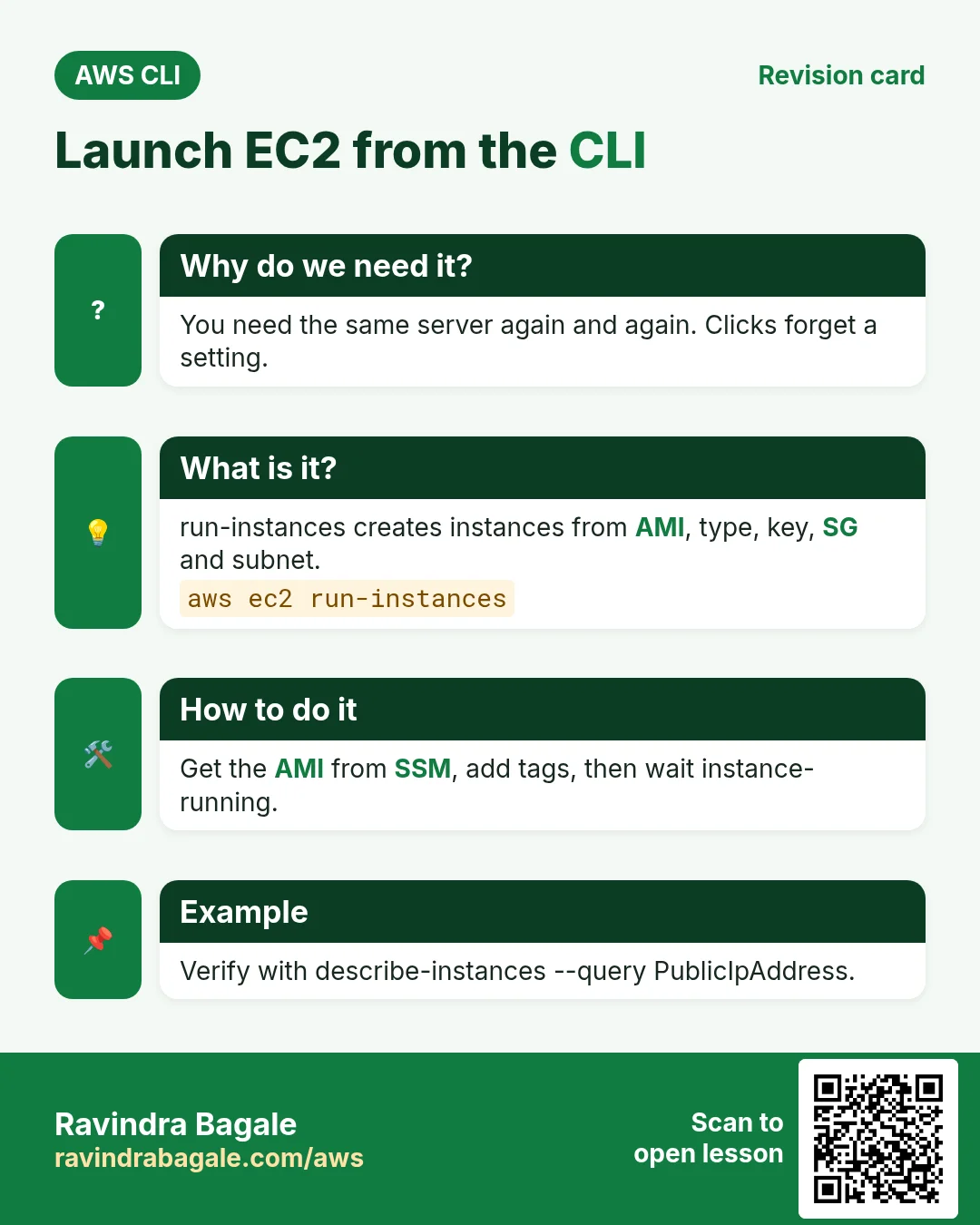
Why do we need this?
Booking a cab on an app is like the Console. Sending one SMS "BOOK PUNE-STN 6PM" is like the CLI. Same cab, fewer taps, and you can repeat it.
What is it?
EC2 commands live under aws ec2. The main ones are run-instances, describe-instances, start/stop/reboot/terminate-instances, create-tags and modify-instance-attribute.
How to do it (step by step)
2. Find the latest AMI
Why do we need this?
AMI IDs change every month and differ by region. Hard-coding one breaks scripts.
What is it?
AWS publishes the latest Amazon Linux AMI ID in a public SSM parameter.
How to do it (step by step)
- Read the parameter into a variable.
AMI=$(aws ssm get-parameter --name /aws/service/ami-amazon-linux-latest/al2023-ami-kernel-default-x86_64 --query Parameter.Value --output text)
echo $AMI
Expected output:
ami-0abcdef1234567890- Verify the AMI.
aws ec2 describe-images --image-ids $AMI --query "Images[0].[Name,State]" --output textExpected output:
al2023-ami-2023.x.2026...-x86_64 available3. Key pair and security group
Why do we need this?
You need a key to SSH and a firewall rule to let only you in.
What is it?
create-key-pair returns the private key once. create-security-group makes a firewall. authorize-security-group-ingress opens a port.
How to do it (step by step)
- Create and save the key.
aws ec2 create-key-pair --key-name cli-lab --query KeyMaterial --output text > cli-lab.pem
chmod 400 cli-lab.pem
Expected output:
(file cli-lab.pem created)- Create a security group in the default VPC.
SG=$(aws ec2 create-security-group --group-name cli-lab-sg --description "CLI lab" --query GroupId --output text)
echo $SG
Expected output:
sg-0123456789abcdef0- Allow SSH only from your IP.
MYIP=$(curl -s https://checkip.amazonaws.com)
aws ec2 authorize-security-group-ingress --group-id $SG --protocol tcp --port 22 --cidr $MYIP/32
Expected output:
{ "Return": true, "SecurityGroupRules": [ { "FromPort": 22, "CidrIpv4": "49.x.x.x/32" } ] }- Verify the rule.
aws ec2 describe-security-groups --group-ids $SG --query "SecurityGroups[0].IpPermissions[].[FromPort,IpRanges[0].CidrIp]" --output textExpected output:
22 49.x.x.x/324. Launch and tag an instance
Why do we need this?
This is the main action: a server in one command, with a name tag so you can find it later.
What is it?
run-instances takes AMI, type, key, SG and optional user data and tags.
How to do it (step by step)
- Launch one t3.micro.
ID=$(aws ec2 run-instances --image-id $AMI --instance-type t3.micro --key-name cli-lab --security-group-ids $SG --count 1 --tag-specifications "ResourceType=instance,Tags=[{Key=Name,Value=cli-web}]" --query "Instances[0].InstanceId" --output text)
echo $ID
Expected output:
i-0abc1234def567890- Wait for running.
aws ec2 wait instance-running --instance-ids $ID && echo runningExpected output:
running- Get the public IP.
aws ec2 describe-instances --instance-ids $ID --query "Reservations[0].Instances[0].PublicIpAddress" --output textExpected output:
13.233.10.20- Add another tag.
aws ec2 create-tags --resources $ID --tags Key=Env,Value=devExpected output:
(no output means success)- Verify status checks.
aws ec2 describe-instance-status --instance-ids $ID --query "InstanceStatuses[0].[InstanceState.Name,InstanceStatus.Status]" --output textExpected output:
running ok- SSH in.
ssh -i cli-lab.pem ec2-user@13.233.10.20Expected output:
[ec2-user@ip-172-31-5-10 ~]$5. Stop, start, reboot and resize
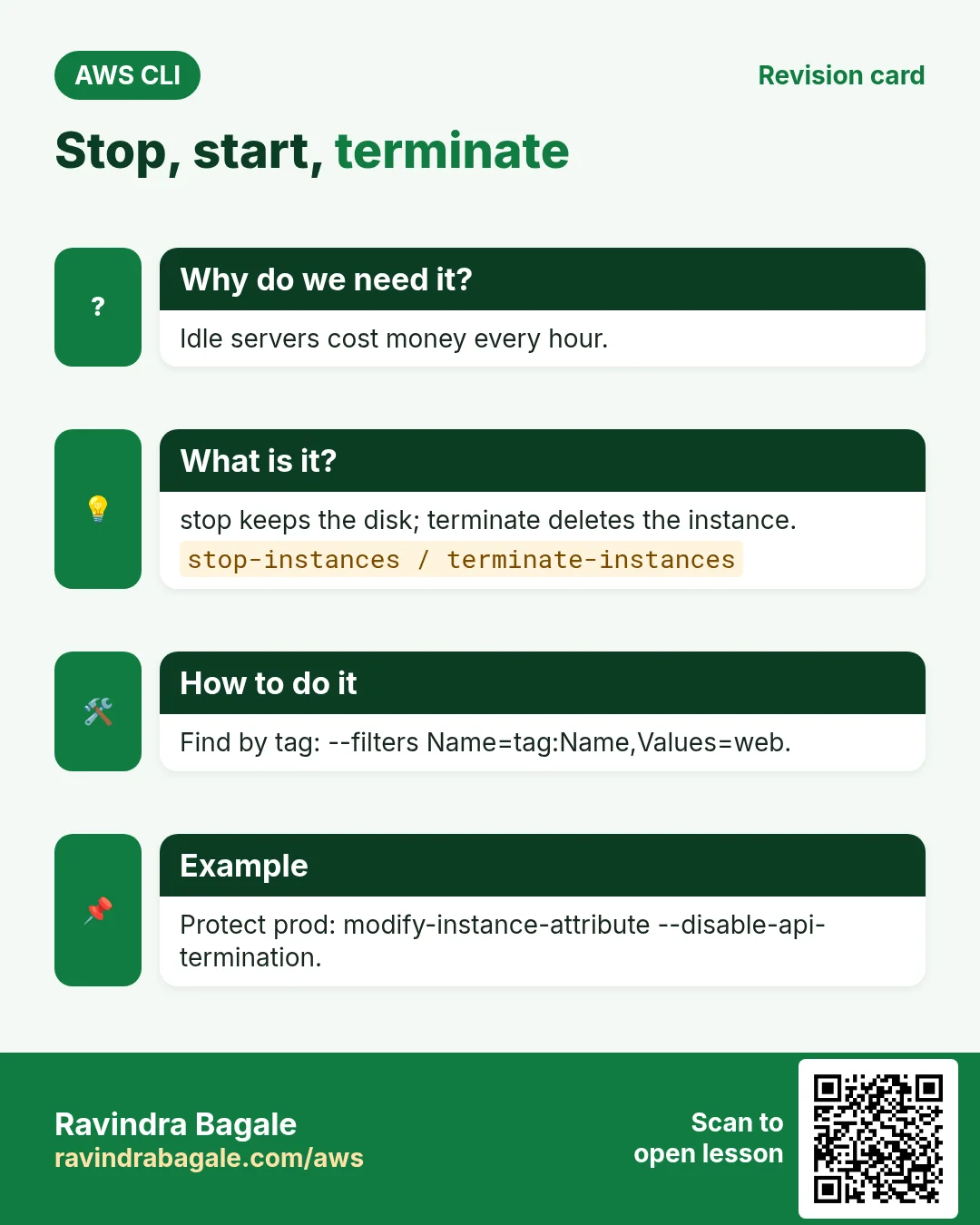
Why do we need this?
Stopping saves compute cost at night. Resizing gives more CPU without a new server.
What is it?
Instance type can change only while stopped. Public IP changes after stop/start unless you use an Elastic IP.
How to do it (step by step)
- Stop.
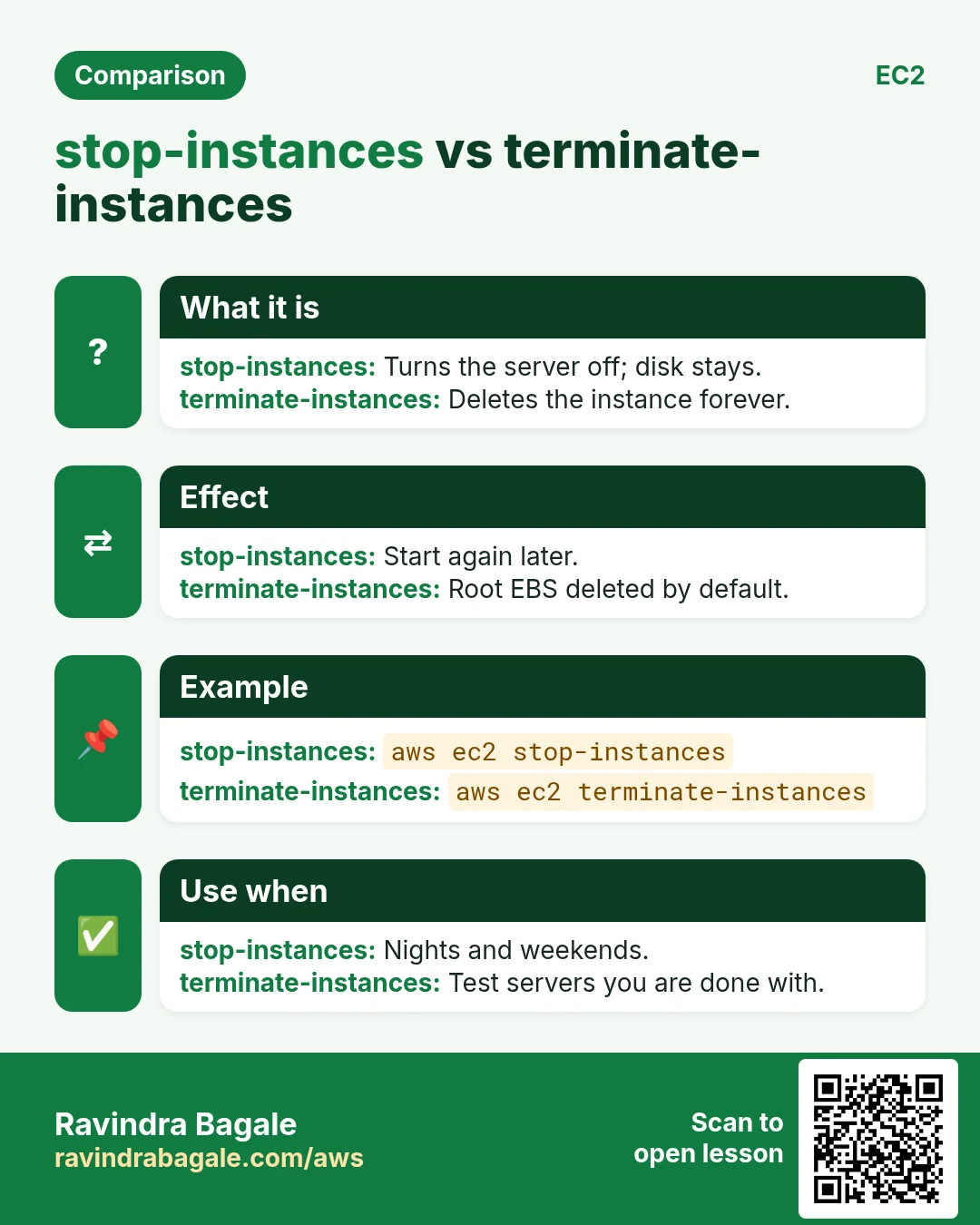
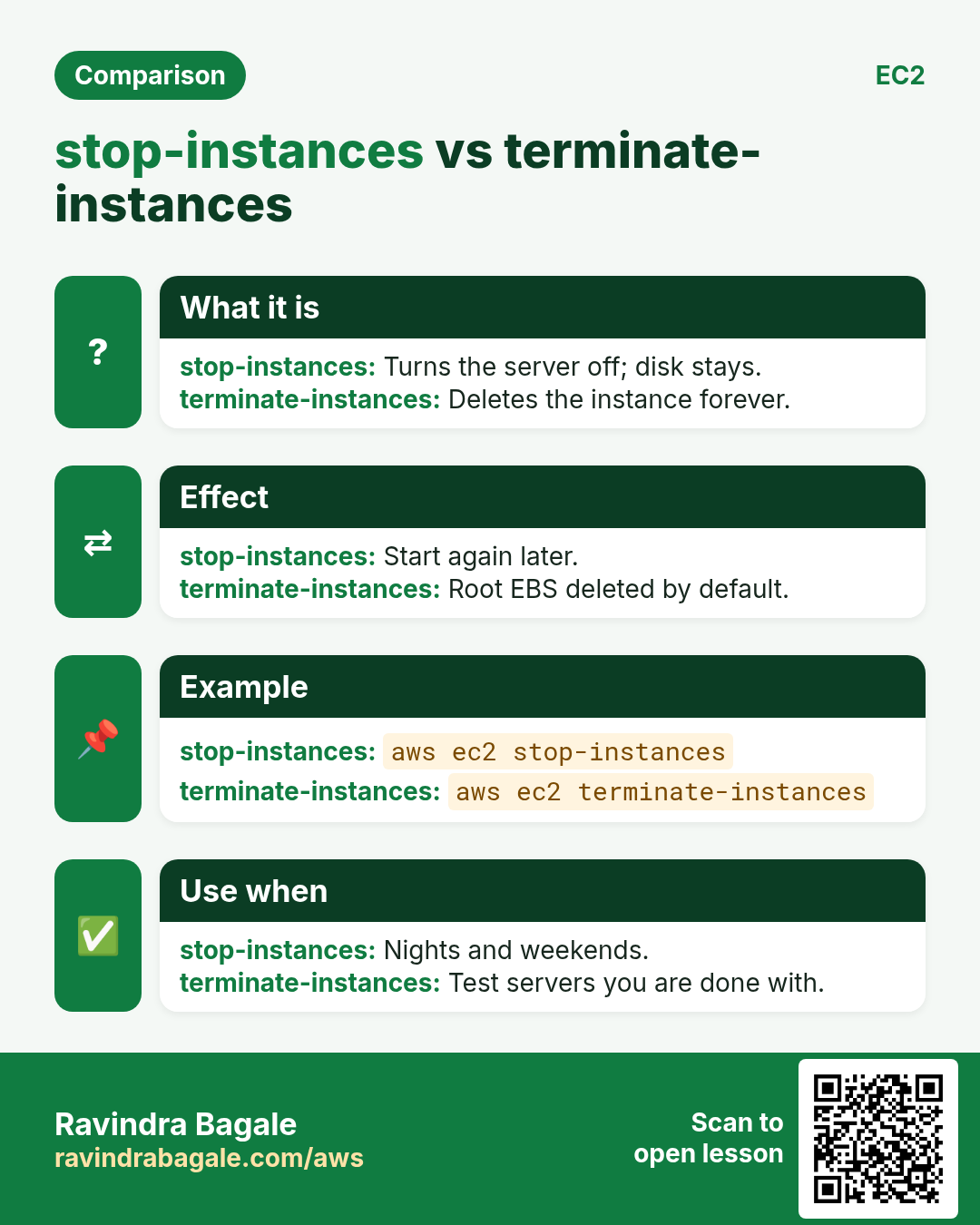
aws ec2 stop-instances --instance-ids $ID --query "StoppingInstances[0].CurrentState.Name" --output text
aws ec2 wait instance-stopped --instance-ids $ID
Expected output:
stopping- Change type to t3.small.
aws ec2 modify-instance-attribute --instance-id $ID --instance-type Value=t3.smallExpected output:
(no output means success)- Start again.
aws ec2 start-instances --instance-ids $ID --query "StartingInstances[0].CurrentState.Name" --output textExpected output:
pending- Verify new type.
aws ec2 describe-instances --instance-ids $ID --query "Reservations[0].Instances[0].InstanceType" --output textExpected output:
t3.small- Reboot (keeps same IP).
aws ec2 reboot-instances --instance-ids $IDExpected output:
(no output means success)- Read the console log if SSH fails.
aws ec2 get-console-output --instance-id $ID --latest --output text | tail -3Expected output:
... Cloud-init finished ...6. Elastic IP and termination protection
Why do we need this?
A fixed IP for DNS, and a lock so nobody deletes production by mistake.
What is it?
allocate-address + associate-address give a fixed IP. --disable-api-termination blocks terminate.
How to do it (step by step)
- Allocate and attach an EIP.
ALLOC=$(aws ec2 allocate-address --query AllocationId --output text)
aws ec2 associate-address --instance-id $ID --allocation-id $ALLOC
Expected output:
{ "AssociationId": "eipassoc-0abc..." }- Turn on protection.
aws ec2 modify-instance-attribute --instance-id $ID --disable-api-terminationExpected output:
(no output means success)- Verify it is on.
aws ec2 describe-instance-attribute --instance-id $ID --attribute disableApiTermination --query DisableApiTermination.ValueExpected output:
true- Turn it off before cleanup.
aws ec2 modify-instance-attribute --instance-id $ID --no-disable-api-terminationExpected output:
(no output means success)7. Same action in Python, Node.js, Java, Go, .NET and PHP
Why do we need this?
Scripts start in the CLI. Apps call the same API through an SDK. Knowing both helps you move a tested command into real code.
What is it?
Each CLI command maps to one API call. For example aws ec2 run-instances maps to the RunInstances API.
How to do it (step by step)
Same action (RunInstances) from code. Every SDK reads the same profile, region and credentials as the CLI.
| Stack | Code |
|---|---|
| Python (boto3) | boto3.client("ec2").run_instances(ImageId=ami, InstanceType="t3.micro", MinCount=1, MaxCount=1) |
| Node.js (v3) | await ec2.send(new RunInstancesCommand({ImageId: ami, InstanceType:"t3.micro", MinCount:1, MaxCount:1})); |
| Java (v2) | ec2.runInstances(r -> r.imageId(ami).instanceType(InstanceType.T3_MICRO).minCount(1).maxCount(1)); |
| Go (v2) | c.RunInstances(ctx, &ec2.RunInstancesInput{ImageId: &ami, InstanceType: types.InstanceTypeT3Micro, MinCount: aws.Int32(1), MaxCount: aws.Int32(1)}) |
| .NET | await ec2.RunInstancesAsync(new RunInstancesRequest{ImageId=ami, InstanceType=InstanceType.T3Micro, MinCount=1, MaxCount=1}); |
| PHP | $ec2->runInstances(["ImageId"=>$ami,"InstanceType"=>"t3.micro","MinCount"=>1,"MaxCount"=>1]); |
8. Clean up so nothing keeps costing
Why do we need this?
Lab resources left running cost money and can be a security risk.
What is it?
Delete in reverse order: children first, then parents.
How to do it (step by step)
- Release the EIP.
aws ec2 disassociate-address --association-id eipassoc-0abc...
aws ec2 release-address --allocation-id $ALLOC
Expected output:
(no output means success)- Terminate and wait.
aws ec2 terminate-instances --instance-ids $ID --query "TerminatingInstances[0].CurrentState.Name" --output text
aws ec2 wait instance-terminated --instance-ids $ID
Expected output:
shutting-down- Delete SG and key.
aws ec2 delete-security-group --group-id $SG
aws ec2 delete-key-pair --key-name cli-lab
rm -f cli-lab.pem
Expected output:
(no output means success)- Verify nothing is left.
aws ec2 describe-instances --filters Name=tag:Name,Values=cli-web Name=instance-state-name,Values=running,stopped --query "length(Reservations)"Expected output:
0Ravindra Bagale's Tip
Always store IDs in variables (ID, SG, ALLOC). Then every next command is copy-paste safe and cleanup is easy.
9. Interview questions and answers
Q. How do you get the latest Amazon Linux AMI in a script?
Read the public SSM parameter /aws/service/ami-amazon-linux-latest/...
Q. Can you change instance type while running?
No. Stop, modify-instance-attribute, then start.
Q. Why does the public IP change after stop/start?
Auto-assigned public IPs are released on stop. Use an Elastic IP for a fixed one.
Q. How do you protect an instance from deletion?
modify-instance-attribute --disable-api-termination.
Q. How to debug a server that does not boot?
get-console-output --latest shows the boot log.
Try at home
- Launch an instance with user data that installs nginx, then curl its public IP.
- Write a one-liner that stops every instance tagged Env=dev.
In short
- AMI from SSM parameter.
- Key + SG before launch.
- run-instances then wait.
- Resize only when stopped.
- Terminate, release EIP, delete SG.
Practice Tasks
Solapur Chaddar House is a home textiles business in Solapur. Vikas Kamble looks after its IT and cloud work. They count money in INR and run their AWS resources in the ap-south-1 Region. In the tasks below you do real jobs for them using what this lesson teaches. All names, account IDs, IP addresses and numbers are made up for practice.
0 / 12
Easy List your EC2 instances
Why: Before changing anything, see what is running and in which state.
What to do: Show details of all EC2 instances of Solapur Chaddar House in ap-south-1.
- Read the task and decide which AWS service it is about.
- Write aws, then the service name, then the operation (the action word).
- Add each needed flag (--name) followed by its value from the task.
- Flags can be in any order. Click Check answer.
Easy Reboot an instance
Why: A reboot keeps the same disks and IPs, unlike stop/start which may change the public IP.
What to do: Reboot the instance i-05a2a4a2b35111a2b.
- Read the task and decide which AWS service it is about.
- Write aws, then the service name, then the operation (the action word).
- Add each needed flag (--name) followed by its value from the task.
- Flags can be in any order. Click Check answer.
Easy Connect to an EC2 server
Why: SSH with a key file is the standard way to log in to a Linux EC2 instance.
What to do: Log in to the server 13.76.20.5 as ec2-user using the key solapurchaddar-key.pem.
- Find the Linux command that does this job.
- Add the options (like -r or -h) the task needs.
- Add the file names, folders or users in the right order.
- Use sudo if the job changes system files or users. Click Check answer.
Easy Stop an instance
Why: A stopped instance does not charge for compute, only for its disks.
What to do: Stop the instance i-05a2a4a2b35111a2b.
- Read the task and decide which AWS service it is about.
- Write aws, then the service name, then the operation (the action word).
- Add each needed flag (--name) followed by its value from the task.
- Flags can be in any order. Click Check answer.
Easy Start an instance
Why: Start it again in the morning when the team needs it.
What to do: Start the instance i-05a2a4a2b35111a2b.
- Read the task and decide which AWS service it is about.
- Write aws, then the service name, then the operation (the action word).
- Add each needed flag (--name) followed by its value from the task.
- Flags can be in any order. Click Check answer.
Medium Create an AMI from a server
Why: An AMI is a full server image. Launch identical copies from it any time.
What to do: Create an AMI named solapurchaddar-web-v1 from instance i-05a2a4a2b35111a2b.
- Read the task and decide which AWS service it is about.
- Write aws, then the service name, then the operation (the action word).
- Add each needed flag (--name) followed by its value from the task.
- Flags can be in any order. Click Check answer.
Medium Allocate an Elastic IP
Why: An Elastic IP stays the same after stop/start, so DNS keeps working.
What to do: Allocate a new Elastic IP address for use in a VPC.
- Read the task and decide which AWS service it is about.
- Write aws, then the service name, then the operation (the action word).
- Add each needed flag (--name) followed by its value from the task.
- Flags can be in any order. Click Check answer.
Medium Attach the Elastic IP to the server
Why: Associating gives the server the fixed public IP that your domain points to.
What to do: Associate allocation eipalloc-053b2a4a2a5dd44 with instance i-05a2a4a2b35111a2b.
- Read the task and decide which AWS service it is about.
- Write aws, then the service name, then the operation (the action word).
- Add each needed flag (--name) followed by its value from the task.
- Flags can be in any order. Click Check answer.
Medium Create a key pair
Why: You need a key pair to SSH into new Linux instances.
What to do: Create a key pair named solapurchaddar-key.
- Read the task and decide which AWS service it is about.
- Write aws, then the service name, then the operation (the action word).
- Add each needed flag (--name) followed by its value from the task.
- Flags can be in any order. Click Check answer.
Medium Launch one EC2 instance
Why: Launching from the CLI is repeatable and fast, and the same command works in scripts.
What to do: Launch 1 instance from AMI ami-011dbfaeceaedabcd, type t3.micro, key pair solapurchaddar-key, security group sg-0153a26462654c3b2.
- Read the task and decide which AWS service it is about.
- Write aws, then the service name, then the operation (the action word).
- Add each needed flag (--name) followed by its value from the task.
- Flags can be in any order. Click Check answer.
Hard Show only running instances
Why: Filters ask AWS to send only what you need, which is faster than sorting by eye.
What to do: Describe only instances whose state is running.
- Read the task and decide which AWS service it is about.
- Write aws, then the service name, then the operation (the action word).
- Add each needed flag (--name) followed by its value from the task.
- Flags can be in any order. Click Check answer.
Hard Launch an instance with a Name tag
Why: Tags at launch make billing and search easy from day one.
What to do: Launch 1 t3.small instance from ami-011dbfaeceaedabcd into subnet subnet-0153b2a4a2a5bb1, and tag the instance with Name=solapurchaddar-web.
- Read the task and decide which AWS service it is about.
- Write aws, then the service name, then the operation (the action word).
- Add each needed flag (--name) followed by its value from the task.
- Flags can be in any order. Click Check answer.
Revision, comparison and interview cards
Revise this lesson in a few minutes. Save the cards on your phone or download them as PNG files. The QR code on each card opens this lesson.
More cards: Ravi Sir's Cards.