How to Add Images and Videos to an HTML Website on EC2
In the last chapter Apache was installed and our first page was live on port 80. Now we make real pages. First we learn to read the answer the server gives (the HTTP status code) and how folders inside /var/www/html turn into URLs. Then we learn just enough HTML to build a page, put images on it in three different ways, debug a broken image, and finally add a video and a YouTube video. Start your server, start Apache, and type every command with me.
What you'll learn in this class
- HTTP status codes: 200, 301, 302, 401, 403, 404, 500 and the families they belong to
- What Apache shows when there is no
index.html - Seeing status codes in the browser with DevTools
- How folders under
/var/www/htmlbecome URL paths - Starting Apache again after a stop and start, and
sudo systemctl enable httpd - HTML basics: tags,
headandbody,h1toh6,p,liandimg - Resizing an image with
width - Three ways to get an image onto your page: another site's URL,
sudo wget, andscp - Debugging a broken image with View Page Source and DevTools
- Showing your own video with
<video controls> - Embedding a YouTube video with Share › Embed
1. Why a cloud engineer needs HTML and URLs
Why. You will not design websites; developers do that. But when a page or an image doesn't open on a server you run, the ticket comes to you. Users say "the site is broken", not "line 12 has a typo". To find the cause you must read the URL, the status code and the HTML the server sent.
Classroom line
So working on URLs is our job.
Class मधलं वाक्य
म्हणजे URLs वर काम करणं हे आपलंच काम आहे.
Classroom line – हिंदी
"Iska matlab hai URL pe kaam karna apna kaam hai."
What. Every item on a web page has its own URL:
- The page itself, for example
http://PUBLIC_IP/photo.html. - Every image on it, for example
http://PUBLIC_IP/beach.jpg. - Every video, icon, CSS file and JavaScript file.
The browser asks for each one separately, and each one gets its own answer from the server.
Suppose we are YouTube. Its pages have two kinds of files:
- Application files: the YouTube logo, the Home, Shorts and Subscriptions icons, the CSS and JavaScript. The YouTube team ships these with the site, and they are the same for everybody.
- User-generated content: the videos and thumbnails that users upload every minute.
Both are served from URLs, and both can break.
2. HTTP status codes: what the server answered
Why. Every answer from a web server starts with a three-digit number, the status code. It tells you at a glance whether the request worked and, if not, whose side the problem is on. It's also a favourite interview question.
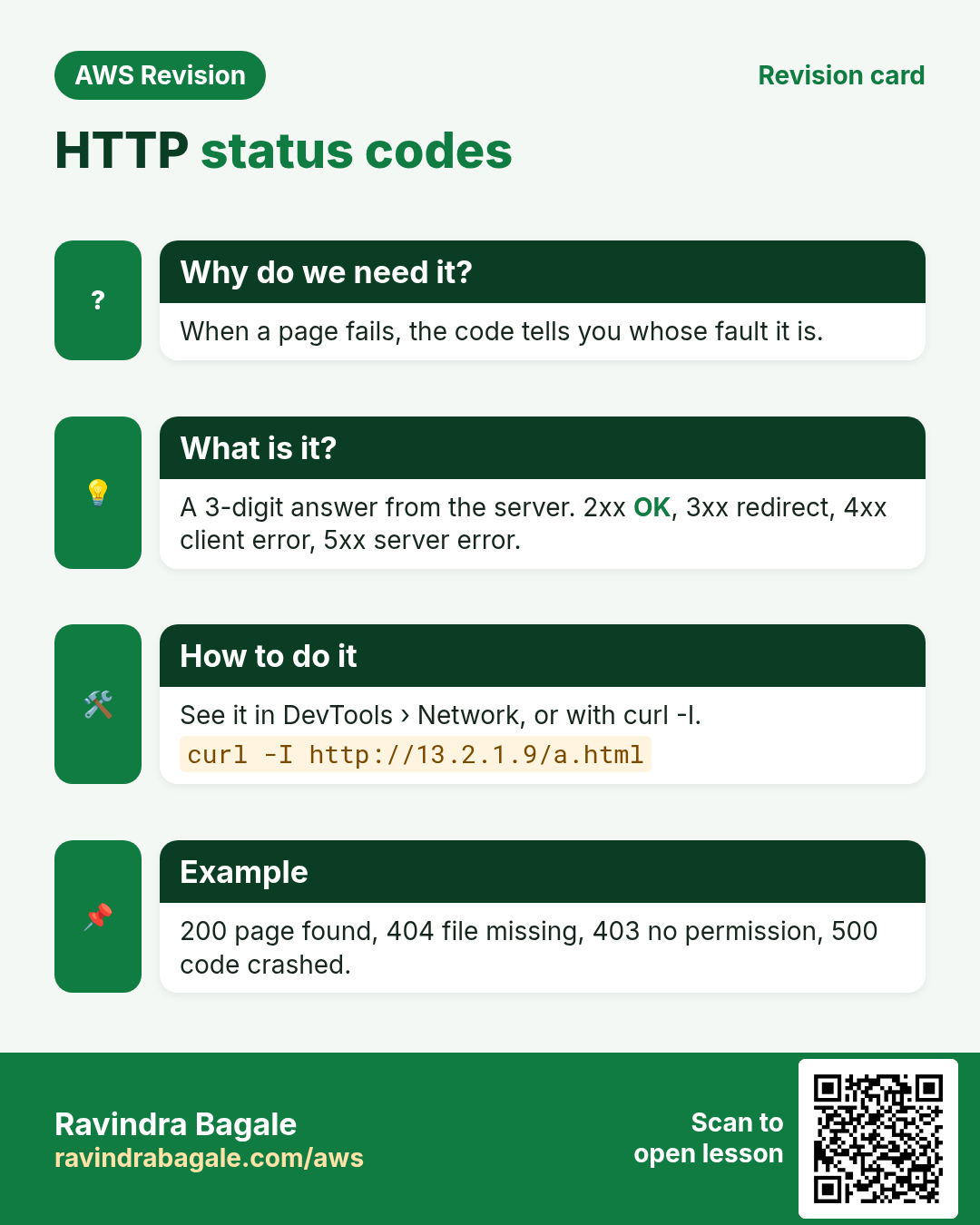
What. The first digit tells the family:
- 2xx: success.
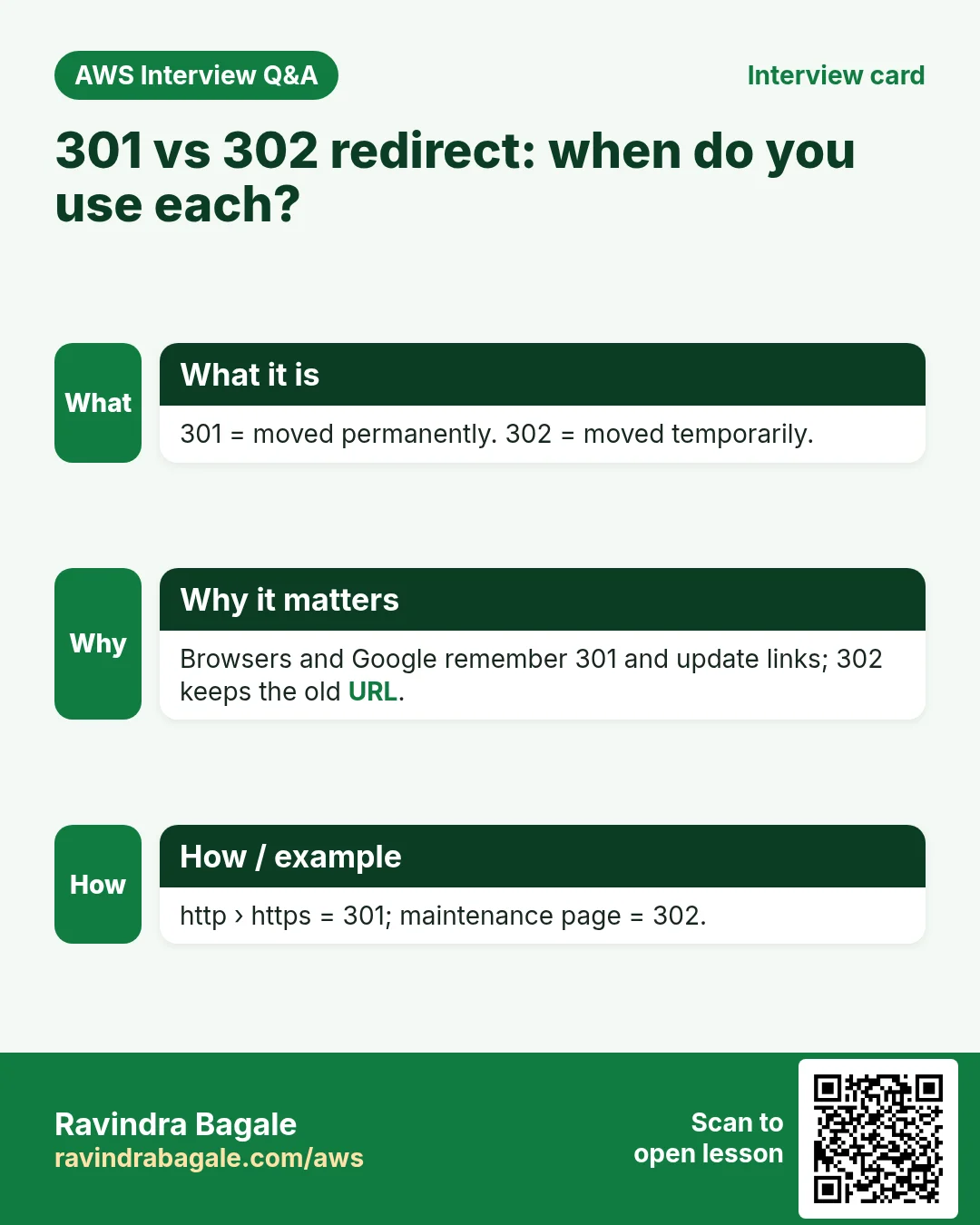
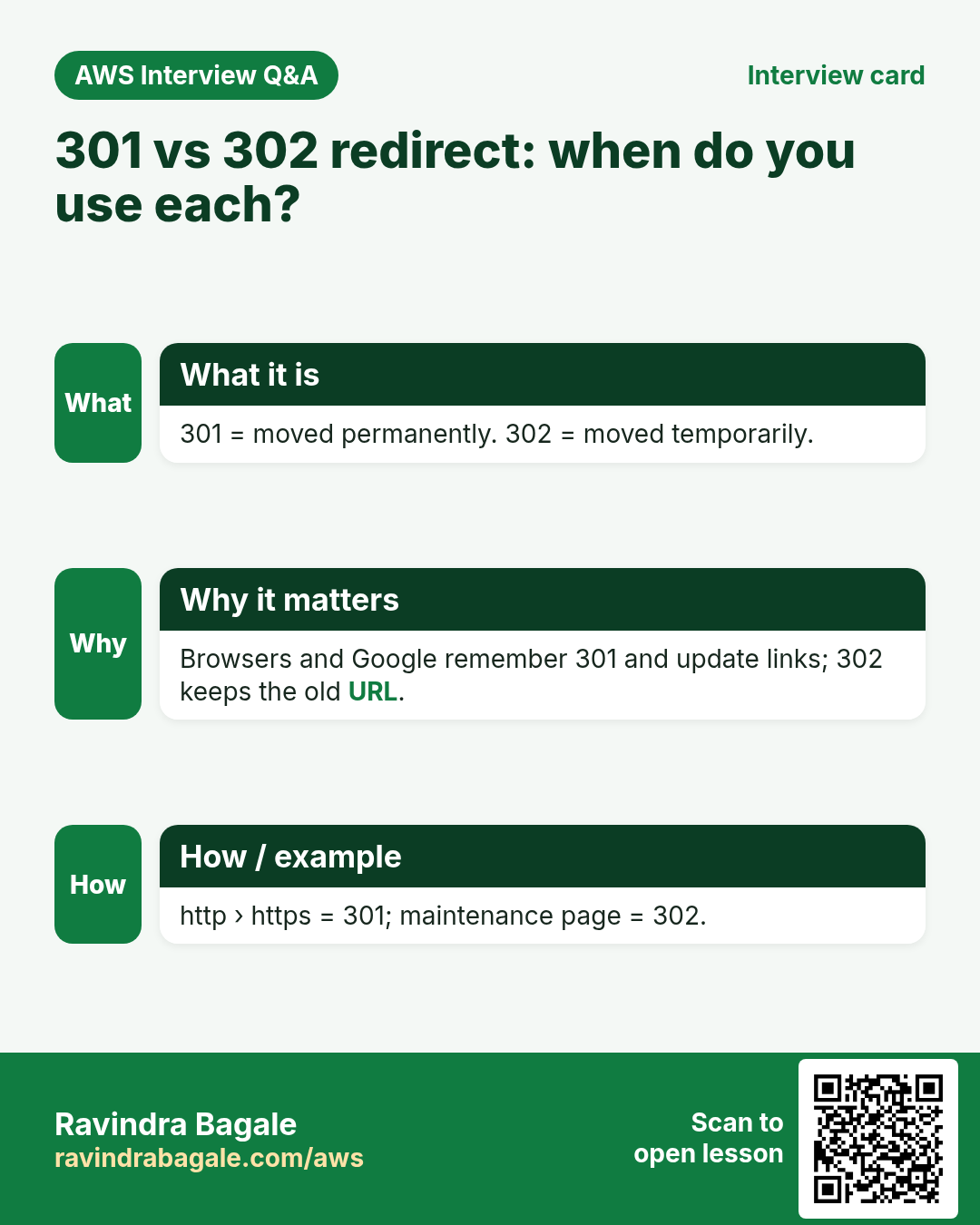
200 OKmeans the page was found and sent. - 3xx: redirect. The page is somewhere else and the browser is sent there, like call forwarding on a phone.
301 Moved Permanentlymeans moved for good;302 Foundmeans moved for now. - 4xx: a problem with the request.
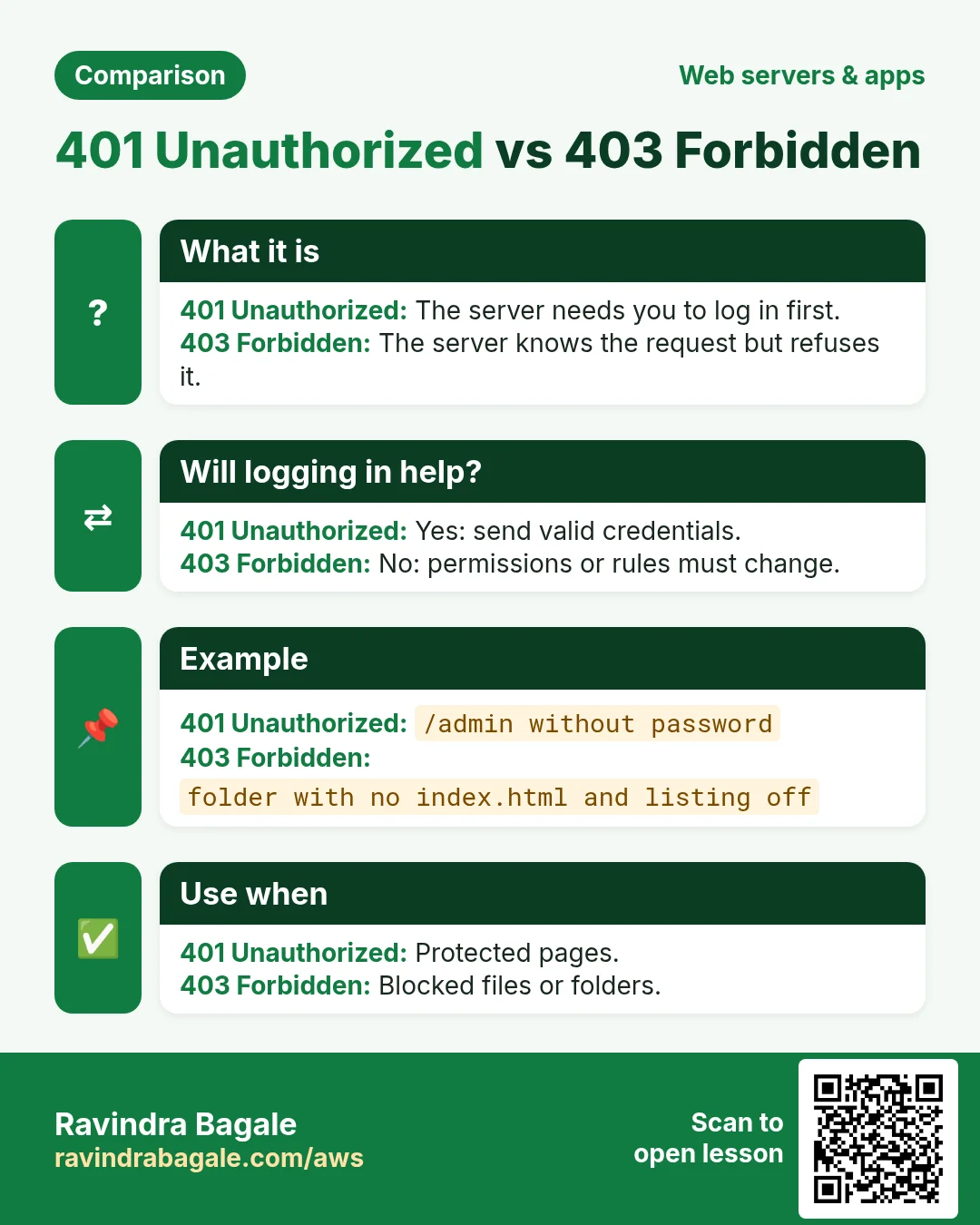
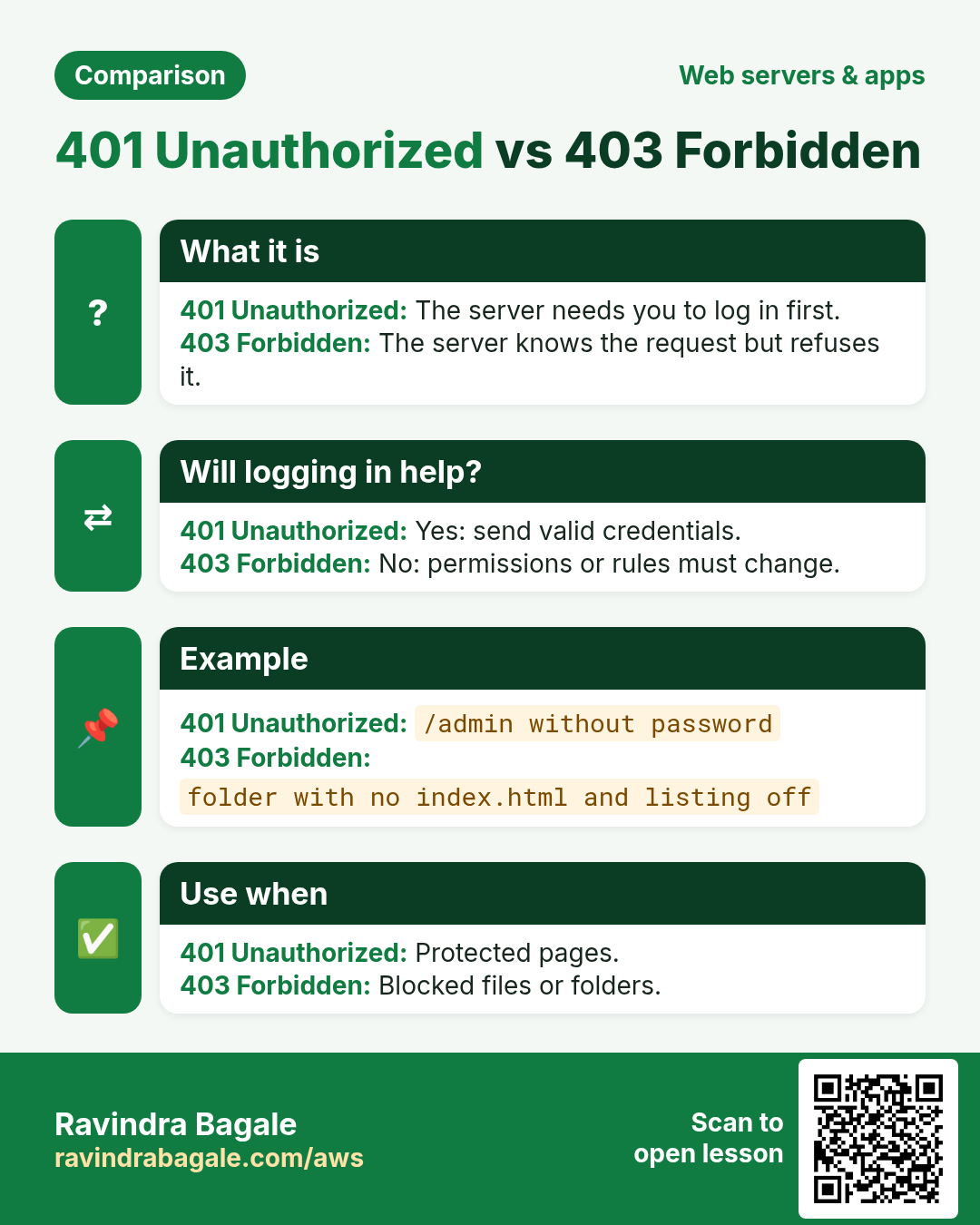
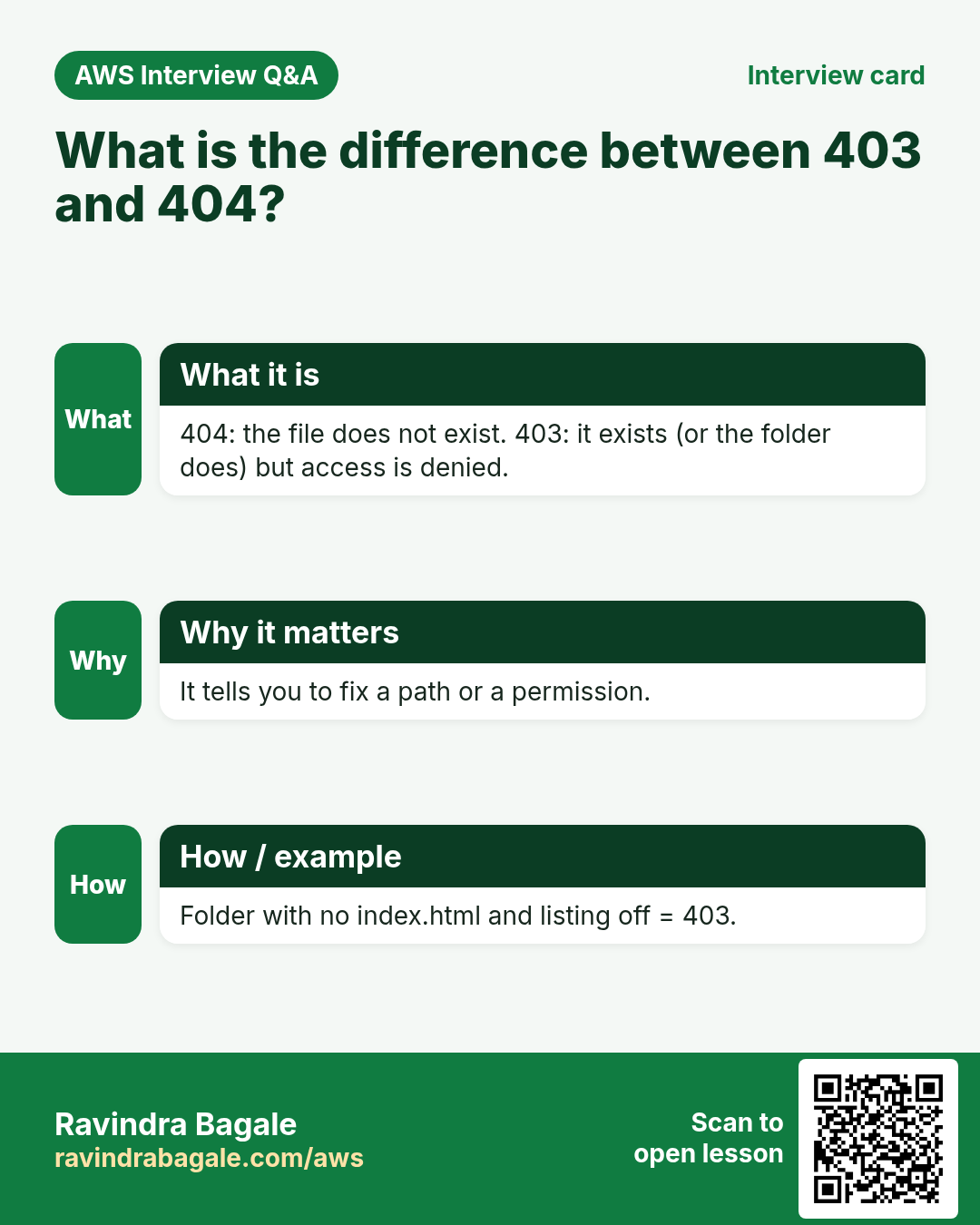
401 Unauthorized: you must log in first.403 Forbidden: the server understood but will not give it to you.404 Not Found: there is no such page.
- 5xx: a problem on the server.
500 Internal Server Erroris a general server-side error;503 Service Unavailablemeans the server can't handle the request right now.
Classroom line
Just as we forward calls, a page can be forwarded too.
Class मधलं वाक्य
जसं आपण call forwarding करतो, तसंच इथे page forwarding पण करता येतं.
Classroom line – हिंदी
"Jaise hum log call forwarding karte hain, waise hi yahan pe bhi page forwarding kar sakte hain."
Figure 1. The first digit tells the family: 2xx success, 3xx redirect, 4xx a problem with the request (401 log in first, 403 not allowed, 404 no such page), 5xx a problem on the server.
Example 1: three URLs on your server. Suppose /var/www/html has only index.html:
http://PUBLIC_IP/gives200 OKand showsindex.html.http://PUBLIC_IP/index.htmlgives the same page, also200 OK.http://PUBLIC_IP/contact.htmlgives404 Not Found, because there is no such file.
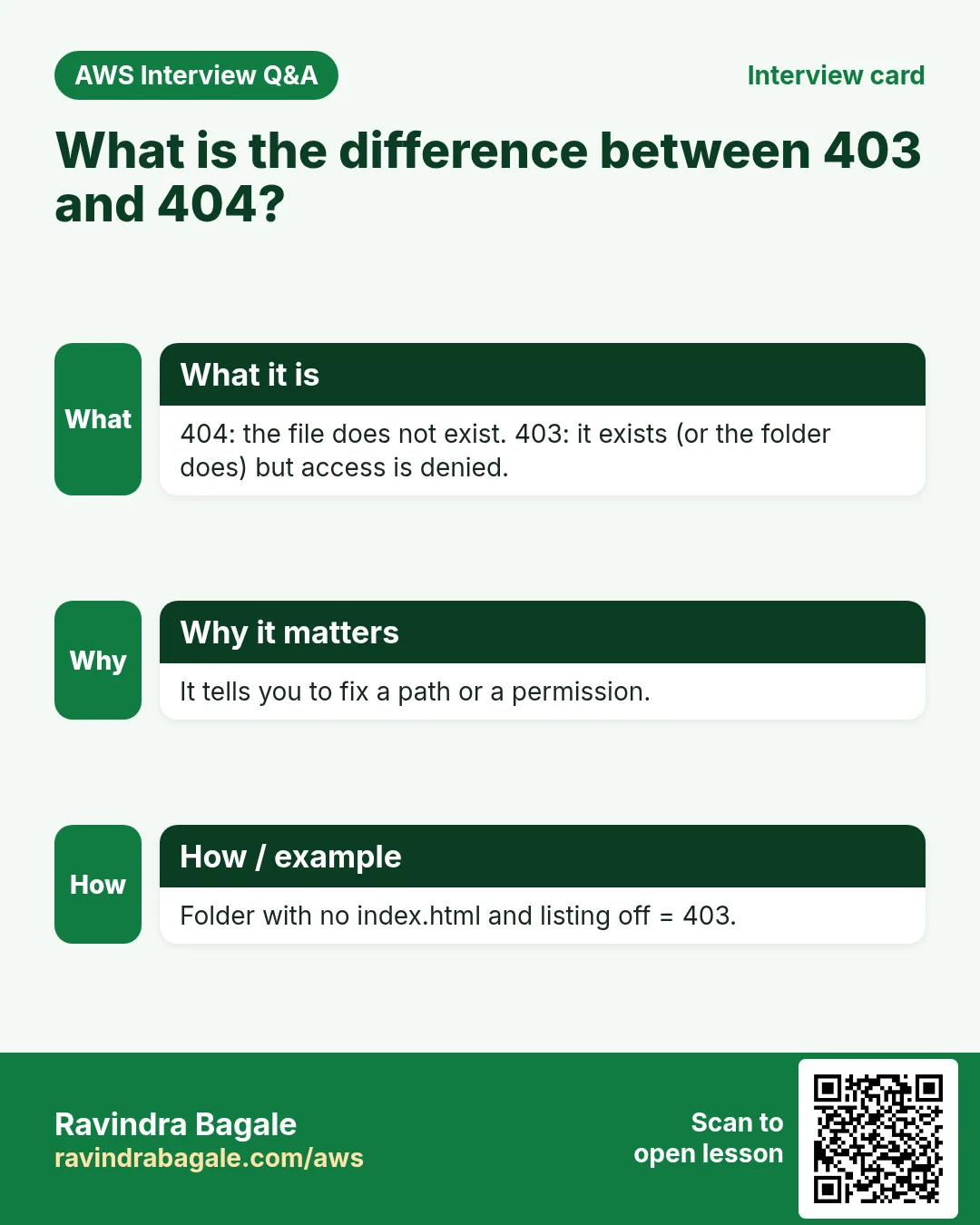
Example 2: no index.html at all. Delete or rename index.html and open http://PUBLIC_IP/ again. On Amazon Linux, Apache now shows its own test page ("It works!"), and the status code of that answer is 403 Forbidden. Apache doesn't list the files of the folder; it shows the test page instead, to say "the web server runs, but there is no home page yet".
Classroom line
If your server has no index.html, the answer is 403 Forbidden.
Class मधलं वाक्य
तुमच्या server वर index.html नसेल, तर त्या वेळी 403 Forbidden येतो.
Classroom line – हिंदी
"Agar aapke server mein index.html nahi hai, toh us waqt ek error aata hai 403 Forbidden."
You can see the code with curl on the server:
[ec2-user@ip-172-31-xx-xx ~]$ curl -s -o /dev/null -w "%{http_code}\n" http://localhost/
403
-o /dev/null throws the page away and -w "%{http_code}\n" prints only the status code. Put index.html back and the same command prints 200.
3. Seeing status codes in the browser: DevTools
Why. A page is many files. When one image is missing, the page still opens, so you need a way to see the answer for each file.
How.
- Open the page in Chrome, Edge or Firefox.
- Right-click anywhere on the page and choose Inspect (or press F12).
- Click the Network tab.
- Reload the page (F5).
- Every file the page loads appears as one line. The Status column shows its code:
200,404and so on.
Example 3: what you will see.
- On your own small page: one line for the HTML file and one for each image, all
200. - On a big site, suppose Instagram: dozens of lines appear and keep appearing, because the page keeps loading files and data in the background.
- On a second reload you may see
304 Not Modified: the browser already had a fresh copy, so the server didn't send the file again.
4. Folders under /var/www/html become URL paths
Why. A real site has many pages and images. Keeping them all in one folder becomes a mess, so you make folders. You must know how a folder on the server turns into an address in the browser.
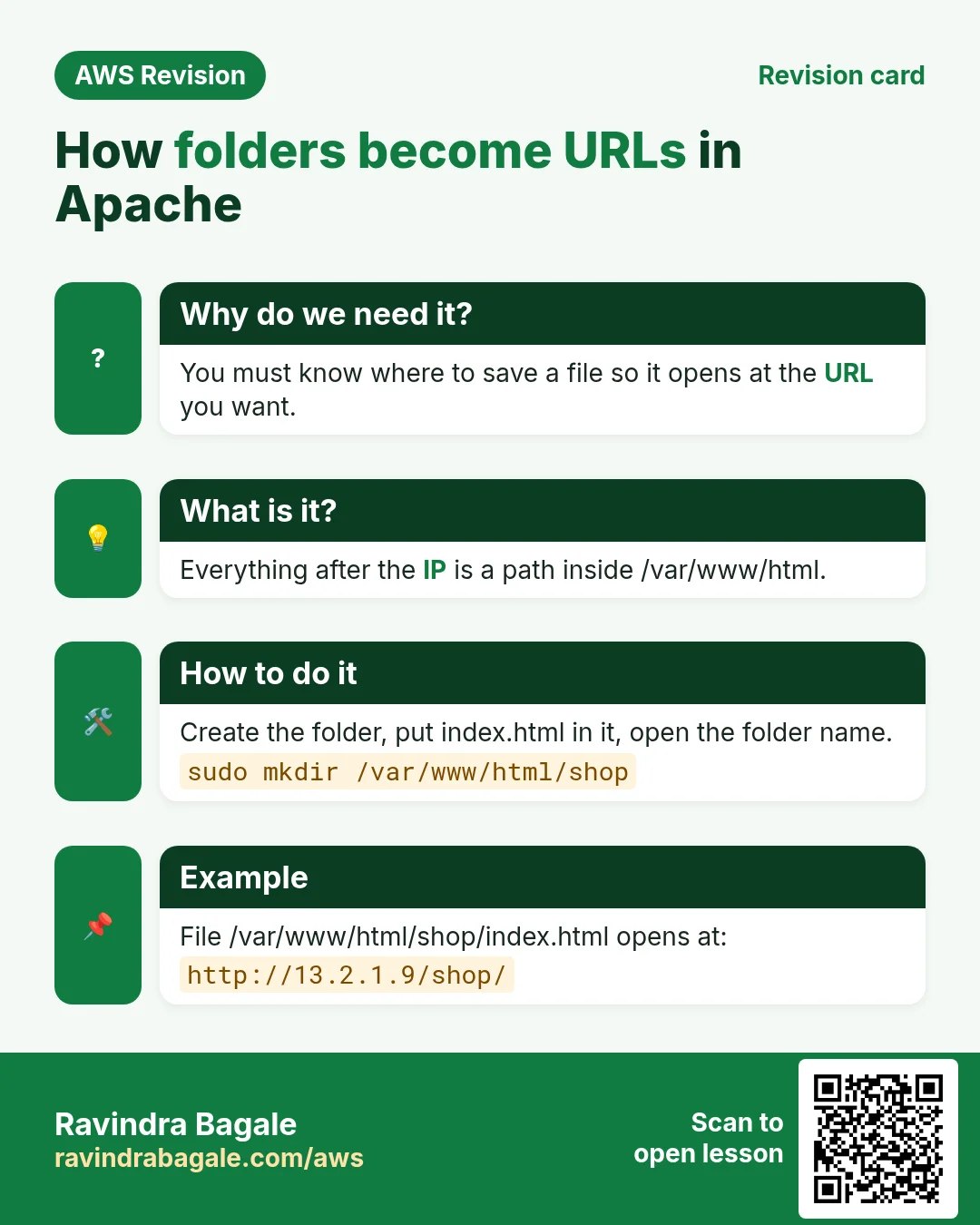
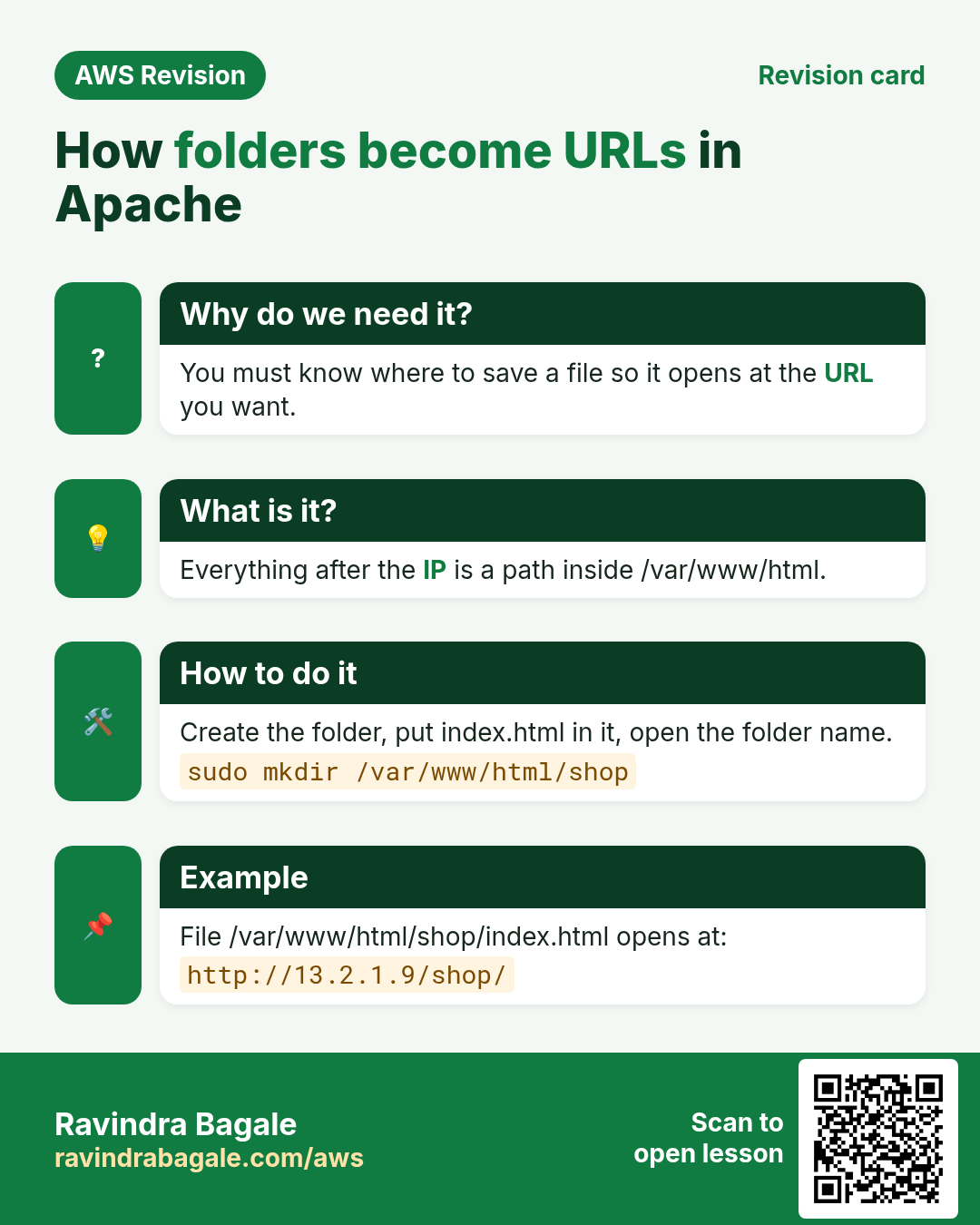
What. /var/www/html is the root of your website. Everything after the IP in the URL is a path inside that folder:
/var/www/html/index.htmlishttp://PUBLIC_IP/./var/www/html/about.htmlishttp://PUBLIC_IP/about.html./var/www/html/myphotos/gallery.htmlishttp://PUBLIC_IP/myphotos/gallery.html./var/www/html/myphotos/images/beach.jpgishttp://PUBLIC_IP/myphotos/images/beach.jpg.
Figure 2. Animation: each file under /var/www/html next to its URL. The folder names come between the IP and the file name, in the same order, separated by /.
Example 4: a missing folder name. gallery.html is inside myphotos, so http://PUBLIC_IP/gallery.html gives 404 Not Found. Apache looks for /var/www/html/gallery.html, and there is no such file. The folder name must be in the URL.
How. Make a services folder with two pages:
Step 1. Go to the web root:
cd /var/www/html
The folder belongs to root, so every change needs sudo:
sudo mkdir services
sudo nano services/service1.html
Step 2. Type <h1>Service 1</h1>, then save with Ctrl+X, Y, Enter.
Step 3. Make services/service2.html the same way, with <h1>Service 2</h1>.
Step 4. Open http://PUBLIC_IP/services/service1.html and http://PUBLIC_IP/services/service2.html.
Classroom line
Make a folder inside html, make a couple of files in it, then open them in the browser.
Class मधलं वाक्य
"HTML chya aat madhe ekhaad folder tayar kara, tya folder chya aat madhe ek don files tayar kara. Mag te files browser la bagha."
html च्या आत एखादा folder तयार करा, त्या folder च्या आत एक-दोन files तयार करा. मग त्या files browser मध्ये बघा.
Classroom line
Make a folder inside html, make a couple of files in it, then open them in the browser.
A page outside /var/www/html is never served. A file you make in your home folder (/home/ec2-user) gives 404 however you type the URL.
Classroom line
Your page shows only when it is in the html directory, otherwise it won't.
Class मधलं वाक्य
"Jevha tumcha page he HTML directory madhe asnar aahe tevha ch disnar aahe, otherwise nahi disnar."
तुमचं page html directory मध्ये असेल तेव्हाच दिसेल, नाहीतर नाही दिसणार.
Classroom line
Your page shows only when it is in the html directory, otherwise it won't.
5. After a stop and start: Apache and the public IP
Why. To save money you stop your instance when you finish practising. When you start it the next day, the site doesn't open. Two things changed.
What.
- Apache is stopped. Starting the server does not start Apache unless you told it to.
- The public IP is new. An instance without an Elastic IP gets a new public IPv4 address at every start.
Classroom line
When the server was stopped, Apache stopped too, so we have to start it again.
Class मधलं वाक्य
Server बंद केल्यावर Apache पण बंद झालाय. म्हणून तो परत start करावा लागेल.
Classroom line – हिंदी
"Server bandh karne ke baad Apache bandh ho gaya hai. Toh usko hume fir se start karna padega."
How.
Step 1. Start the instance in the EC2 console and copy its new Public IPv4 address.
Step 2. Connect with SSH using the new IP.
Step 3. Start Apache:
[ec2-user@ip-172-31-xx-xx ~]$ sudo service httpd start
Redirecting to /bin/systemctl start httpd.service
The second line is normal. On Amazon Linux the old service command passes the job to systemctl, the tool that manages services, and says so.
Step 4. Tell Linux to start Apache at every boot. You run this only once per server:
[ec2-user@ip-172-31-xx-xx ~]$ sudo systemctl enable httpd
Created symlink /etc/systemd/system/multi-user.target.wants/httpd.service → /usr/lib/systemd/system/httpd.service.
Step 5. Open http://NEW_PUBLIC_IP/.
Classroom line
So Apache starts on its own while the server boots.
Class मधलं वाक्य
"Mhanje start hotana ch Apache aapla chalu houn jael."
म्हणजे server start होतानाच आपला Apache चालू होऊन जाईल.
Classroom line
So Apache starts on its own while the server boots.
Figure 3. start runs Apache now; enable starts it at every boot. Either way, copy the new public IP after a stop and start.
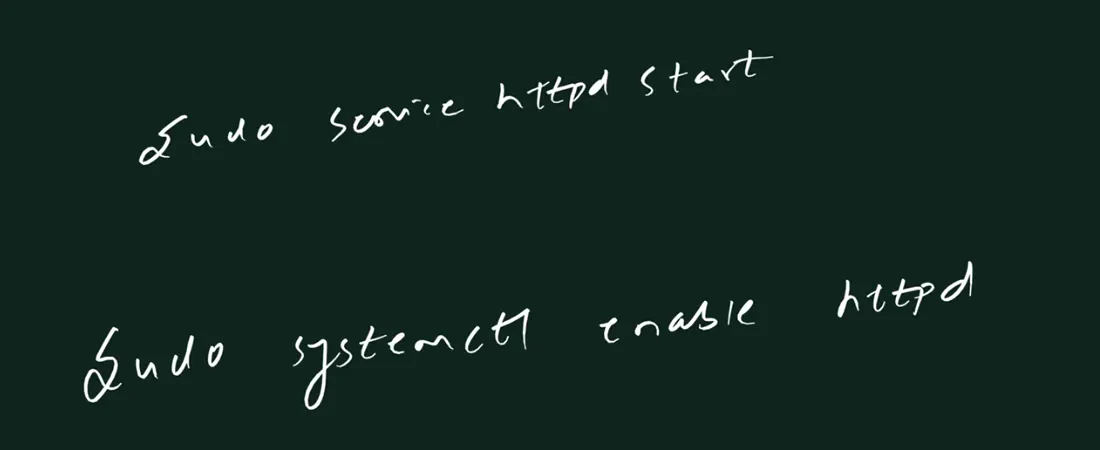
Whiteboard: the two commands after a reboot: sudo service httpd start, and sudo systemctl enable httpd once for every boot.
Ravindra Bagale's Tip
If the EC2 console shows strange errors while you start or stop an instance, check your computer's clock. Requests to AWS carry a time stamp, and a clock that is far off makes them fail. On Windows, open Settings › Time & language › Date & time and click Sync now.
6. HTML basics: tags, head and body
Why. Developers give you the pages, but you must be able to open one, read it, and change a line, for example an image address, without breaking it.
What. HTML is written with tags in angle brackets:
- An opening tag:
<h1>. - The content.
- A closing tag with a slash:
</h1>.
Most tags come in pairs like this. A few tags have no content and no closing tag. <img> is one of them: you write <img src="beach.jpg"> and that's all.
A page has two parts inside <html>:
<head>: information about the page. The title shown on the browser tab, the small icon on the tab, and links to the CSS and JavaScript files. It isn't shown inside the page.<body>: what you see: headings, text, images, videos.
Suppose we are YouTube. The tab text "YouTube" and the red icon on the tab come from the head. The videos, the search bar and the menu you see on the page are in the body.
The tags you will use most:
<h1>to<h6>: headings.h1is the biggest,h6the smallest.<p>: a paragraph of text.<li>: one item of a list, inside<ul>(a list with bullets) or<ol>(a numbered list).<img>: an image.
And two words you will hear with HTML:
- CSS is code that makes the page look good: colours, fonts, spacing, layout.
- JavaScript is code that makes the page do things: menus that open, buttons that react.
Classroom line
What does CSS stylesheet mean? It's code written to make your page look attractive and stylish.
Class मधलं वाक्य
CSS stylesheet म्हणजे काय? तुमचं page glamorous, stylish दिसावं म्हणून लिहिलेला code.
Classroom line – हिंदी
"CSS stylesheet ka matlab kya hai? Jo bhi aapka page hai us page ko glamorous, stylish dikhne ke liye kuch code kiya jata hai."
Example 5: a complete small page.
<html>
<head>
  <title>Dubai</title>
</head>
<body>
  <h1>Welcome to Dubai</h1>
  <h2>Come and see the desert</h2>
  <p>Three days, two nights.</p>
  <ul>
    <li>Desert safari</li>
    <li>City tour</li>
  </ul>
</body>
</html>
- The browser tab shows Dubai.
- The page shows a big heading, a smaller heading, one line of text and a list with two bullets.
Figure 4. The head describes the page (tab title, icon, CSS and JavaScript links); the body is what you see. Most tags open and close; img has no closing tag.
7. Your first image on a page
Why. Almost every page has images, and a broken image is one of the most common tickets.
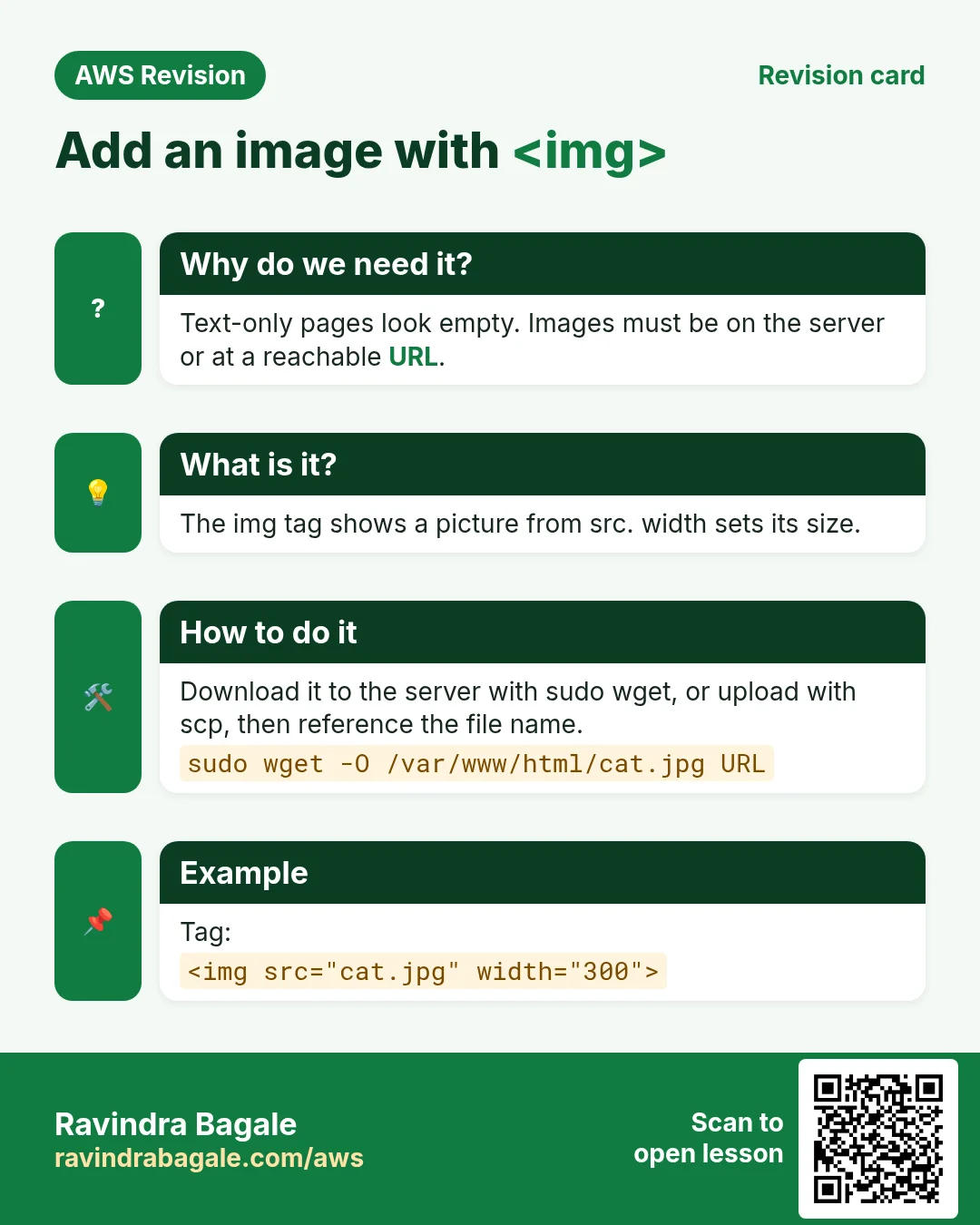
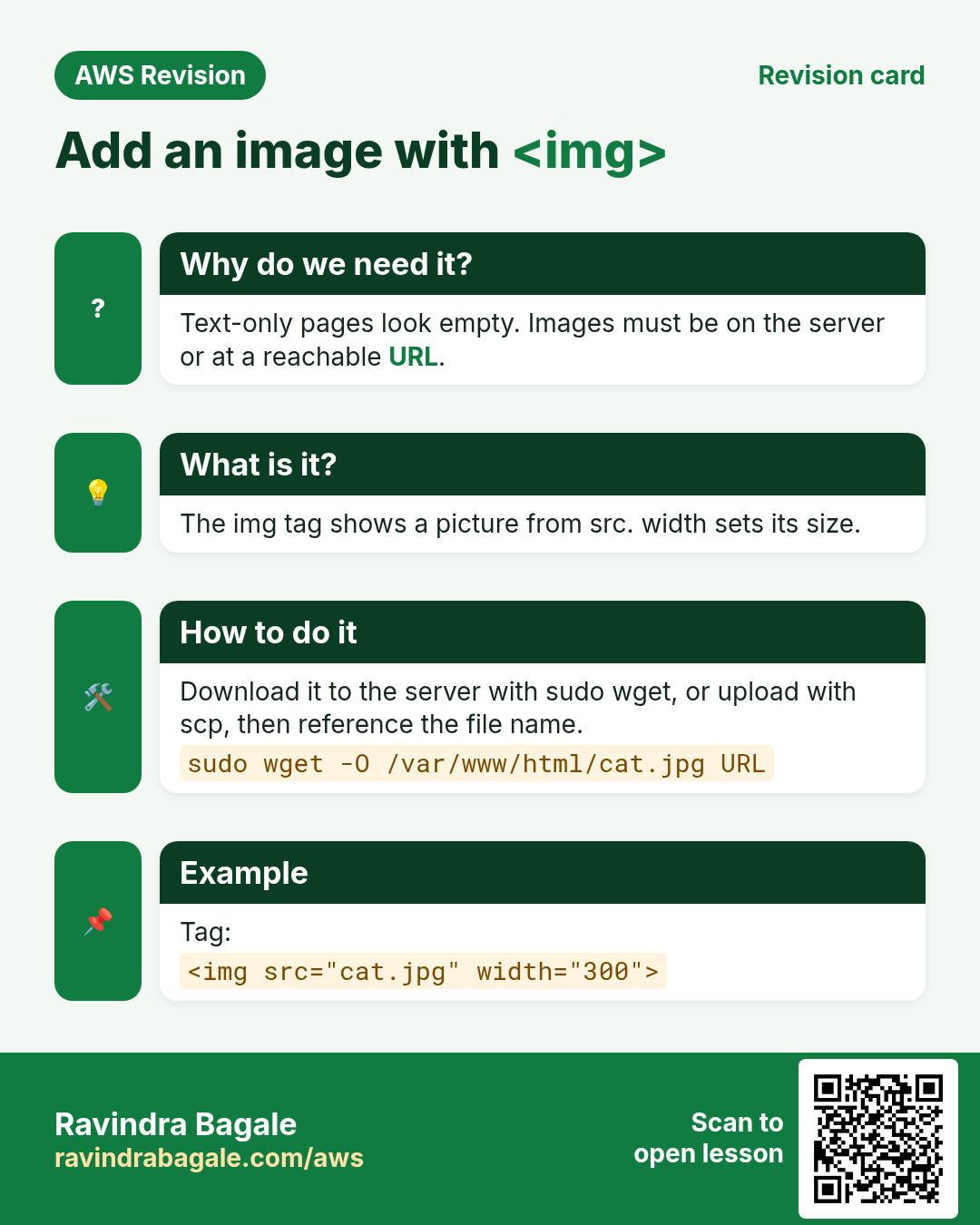
What. The <img> tag shows an image. Its src attribute (source) says where the image is: a full URL, or a file name on your own server.
How.
Step 1. Start Apache and go to the web root:
sudo service httpd start
cd /var/www/html
Step 2. Make a new page:
sudo nano photo.html
Step 3. Type one line, with the address of an image (we'll see where to get it in the next section):
<img src="https://IMAGE_ADDRESS">
Step 4. Save with Ctrl+X, Y, Enter.
Step 5. Open http://PUBLIC_IP/photo.html.
That one line is enough. The browser adds the missing <html>, <head> and <body> by itself. For a real page, still write the full structure from Example 5.
Resizing. A photo from a camera is often wider than the screen. Add width:
<img src="https://IMAGE_ADDRESS" width="600">
width="600"means 600 pixels wide. Write only the number.- When you give only the width, the browser scales the height in the same proportion, so the image keeps its shape.
height="400"works the same way for the height. If you give both, the image can look stretched.
Example 6: the same image, two sizes.
- Without
width, a large photo fills the screen and you scroll to see it. - With
width="600", it is 600 pixels wide and fits on a laptop screen.
8. Three ways to get an image onto your page
Why. The src must point to an image file that a browser can download. Where that file lives makes a big difference.
Figure 5. Animation: 1. hotlinking makes the visitor's browser load the image from another site; 2. sudo wget downloads it onto your server; 3. scp uploads your own file from your laptop. In 2 and 3 the image comes from your own server.
Way 1: use another website's image URL (hotlinking)
How to get the real address of an image.
- Open the web page that shows the image.
- Right-click the image.
- Choose Copy image address (Chrome, Edge) or Copy Image Link (Firefox).
- Check it: the address usually ends in
.jpg,.jpeg,.pngor.webp. Open it in a new tab: you should see only the image.
The small pictures in a search engine's image results often don't work. They are thumbnails that are usually stored inside the results page itself (their address starts with data:), not a link to the real file. Open the website that has the image and copy the address there.
Classroom line
Images straight from Google's results won't work... go to the website and copy the image link from there.
Class मधलं वाक्य
"Google varchi images nahi chalat... website varti ja, mag tithun image link copy kara."
Google वरच्या images नाही चालत... website वर जा, मग तिथून image link copy करा.
Classroom line
Images straight from Google's results won't work... go to the website and copy the image link from there.
The problems with hotlinking. It is quick for practice, but:
- Every visitor of your page downloads the image from their server, so you use their bandwidth without permission.
- The image may be copyrighted.
- If they delete, rename or move the image, or their site is down, your page shows a broken image.
- Many sites block it: they check which page is asking and refuse to send the image to other sites' pages. You then see a broken image icon.
Classroom line
They don't let others use their own images... that is, they block them.
Class मधलं वाक्य
"Aapli swatahachi image dusryanna wapru det nahit ti... mhanje te block kartat."
आपली स्वतःची image ते दुसऱ्यांना वापरू देत नाहीत... म्हणजे ते block करतात.
Classroom line
They don't let others use their own images... that is, they block them.
The better way is to put an image you are allowed to use on your own server.
Way 2: download it onto the server with sudo wget
What. wget downloads a file from a web address (HTTP or HTTPS) and saves it in the current folder. Any kind of file: an image, a video, a PDF, a zip. The server downloads it directly; it doesn't pass through your laptop.
Why sudo. /var/www/html belongs to root. Without sudo, wget downloads the file but can't save it:
[ec2-user@ip-172-31-xx-xx html]$ wget https://example.com/images/beach.jpg
...
beach.jpg: Permission denied

Cannot write to ‘beach.jpg’ (Permission denied).
How.
Step 1. Copy the image address as in Way 1.
Step 2. Go to the web root and check where you are:
[ec2-user@ip-172-31-xx-xx ~]$ cd /var/www/html
[ec2-user@ip-172-31-xx-xx html]$ pwd
/var/www/html
Step 3. Download with sudo wget and the address. Suppose the address is https://example.com/images/sunset-over-the-beach-1200x800.jpg:
[ec2-user@ip-172-31-xx-xx html]$ sudo wget https://example.com/images/sunset-over-the-beach-1200x800.jpg
--...--  https://example.com/images/sunset-over-the-beach-1200x800.jpg
Resolving example.com (example.com)... ...
Connecting to example.com (example.com)|...|:443... connected.
HTTP request sent, awaiting response... 200 OK
Length: ... [image/jpeg]
Saving to: ‘sunset-over-the-beach-1200x800.jpg’
...
... ‘sunset-over-the-beach-1200x800.jpg’ saved [...]
200 OK is the status code from section 2; [image/jpeg] tells you that you really got an image.
Step 4. Check it, then give it a short name with sudo mv:
[ec2-user@ip-172-31-xx-xx html]$ ls
index.html  photo.html  sunset-over-the-beach-1200x800.jpg
[ec2-user@ip-172-31-xx-xx html]$ sudo mv sunset-over-the-beach-1200x800.jpg beach.jpg
[ec2-user@ip-172-31-xx-xx html]$ ls
beach.jpg  index.html  photo.html
Step 5. Open the image alone first: http://PUBLIC_IP/beach.jpg. If you see it, the file is served correctly.
Step 6. Use it on the page:
sudo nano photo.html
Change the line to:
<img src="beach.jpg" width="600">
Step 7. Save and refresh http://PUBLIC_IP/photo.html.
src="beach.jpg" has no http:// and no folder: it means "the file beach.jpg in the same folder as this page". For an image in a sub-folder, write the path, for example src="images/beach.jpg".
Example 7: an address with ?something after the name. Many image addresses end like beach.jpg?width=500. wget keeps all of it in the file name:
Saving to: ‘beach.jpg?width=500’
Delete everything from the ? before you run wget, or rename the file afterwards with sudo mv. If you do need the part after ?, put the whole address in single quotes, because characters like & mean something special to the shell:
sudo wget 'https://example.com/beach.jpg?width=500&q=80'
Way 3: upload from your laptop with scp
What. scp copies files between two machines over SSH, with the same key you use to log in. It works in both directions and with any folder you have permission for: laptop to server, server to laptop, or server to server.
Classroom line
Downloading from the server means we can take any file from any directory.
Class मधलं वाक्य
Server वरून download म्हणजे, आपण कुठल्याही directory मधून कुठलीही file download करू शकतो.
Classroom line – हिंदी
"Server se download matlab, hum kisi bhi directory se koi bhi file download kar sakte hain."
wget and scp do different jobs:
wgetruns on the server and pulls a file from a web address. The file must be on a website.scpruns on your laptop and copies your own file over SSH. The file can be anywhere on your laptop.
How. Suppose your photo beach.jpg and your key mykey.pem are in the same folder on your laptop.
Step 1. On your laptop (PowerShell or Terminal), in that folder, copy the file to ec2-user's home folder:
scp -i mykey.pem beach.jpg ec2-user@PUBLIC_IP:/home/ec2-user/
Step 2. On the server, move it into the web root. ec2-user can't write to /var/www/html directly, so this step needs sudo:
sudo mv /home/ec2-user/beach.jpg /var/www/html/
Step 3. Open http://PUBLIC_IP/beach.jpg, then use <img src="beach.jpg"> as in Way 2.
9. Debugging a broken image
Why. Instead of the picture, the page shows a small broken-image icon. The page itself loaded (200), so the problem is one line of HTML or one file.
Figure 6. Three checks: read the img src in View Page Source, open the image URL directly, and look at the status of each file in DevTools Network.
How.
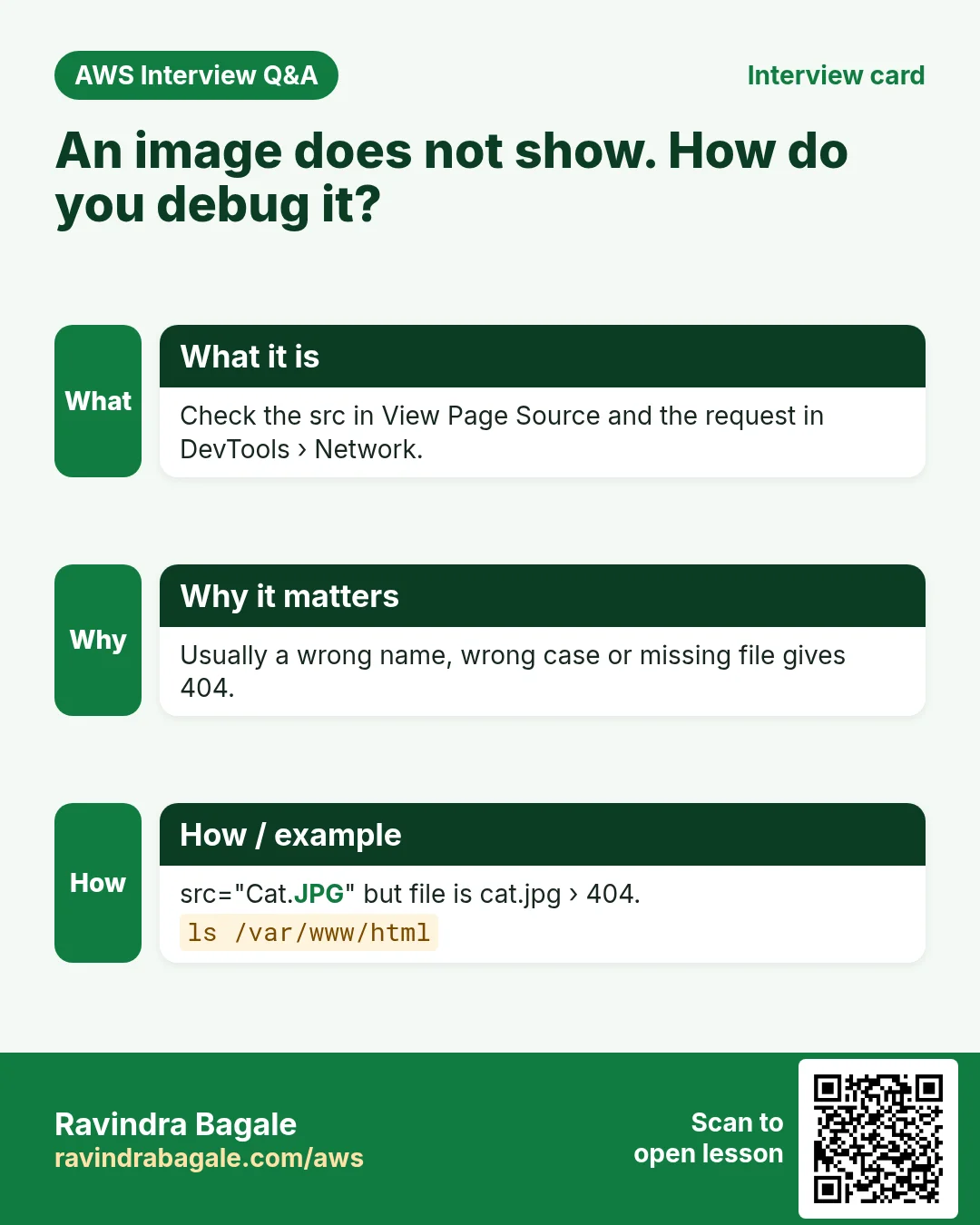
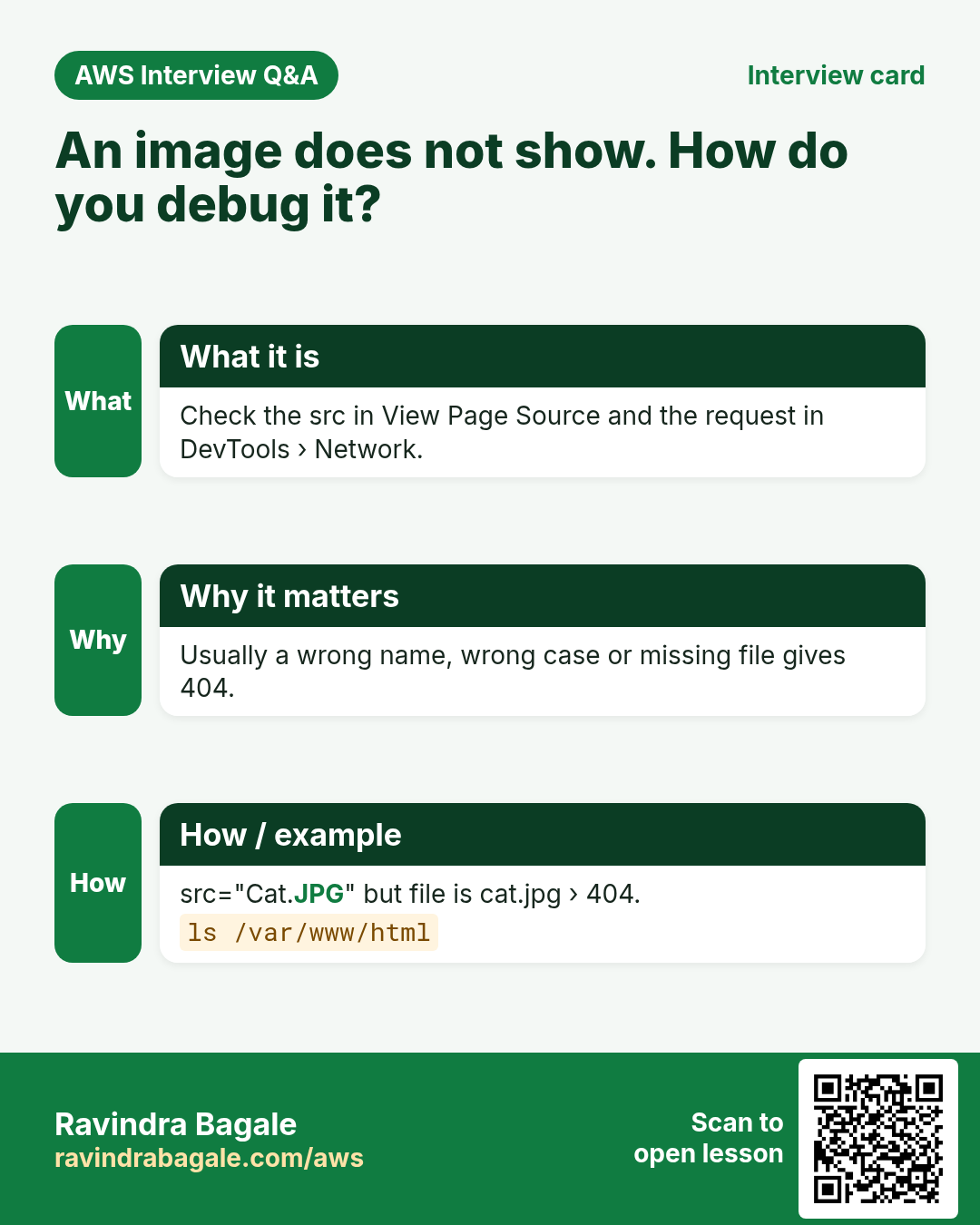
- Right-click the page and choose View Page Source (Ctrl+U). It shows exactly the HTML the browser got from the server. Find the
<img>line and read thesrc. - Open the image address by itself, for example
http://PUBLIC_IP/beach.jpg.- The image shows: the file is fine; the
srcin the page has a typo. 404 Not Found: the file isn't where the URL says. Check withls /var/www/html.
- The image shows: the file is fine; the
- Open DevTools › Network and reload. The image's line shows its status code.
Example 8: the usual causes.
- The page or the image was made in the home folder, not in
/var/www/html. - A capital letter: the file is
beach.jpgbut the page saysBeach.jpg. Linux file names are case-sensitive, so that is a different file and gives404. - A wrong extension: the file is
beach.jpegbut the page saysbeach.jpg. - The address you copied is a web page about the image, not the image file itself.
- Hotlinking, and the other site blocks it.
10. Your own video on the page
Why. Images are not enough for many sites: a product demo, a course intro, a song.
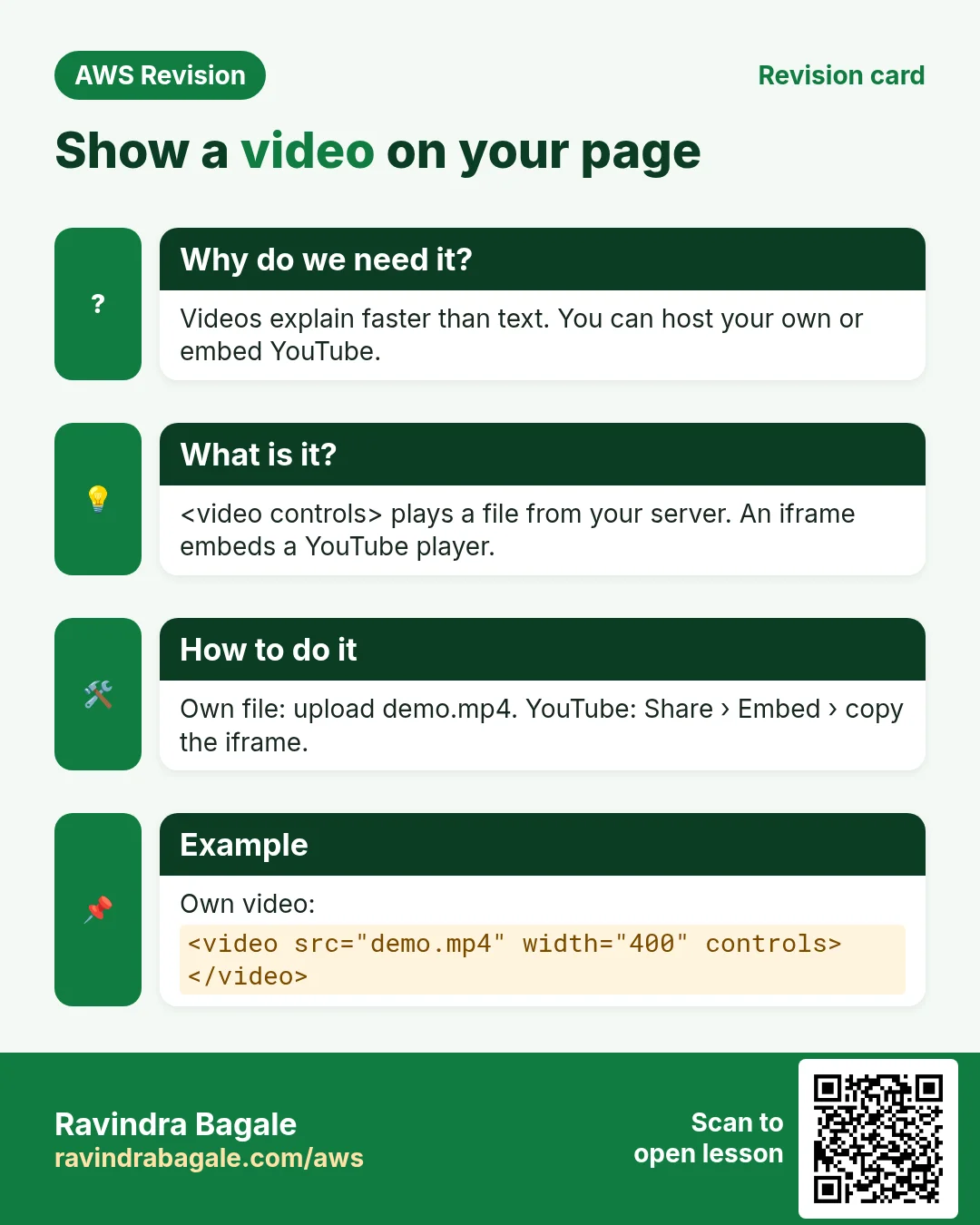
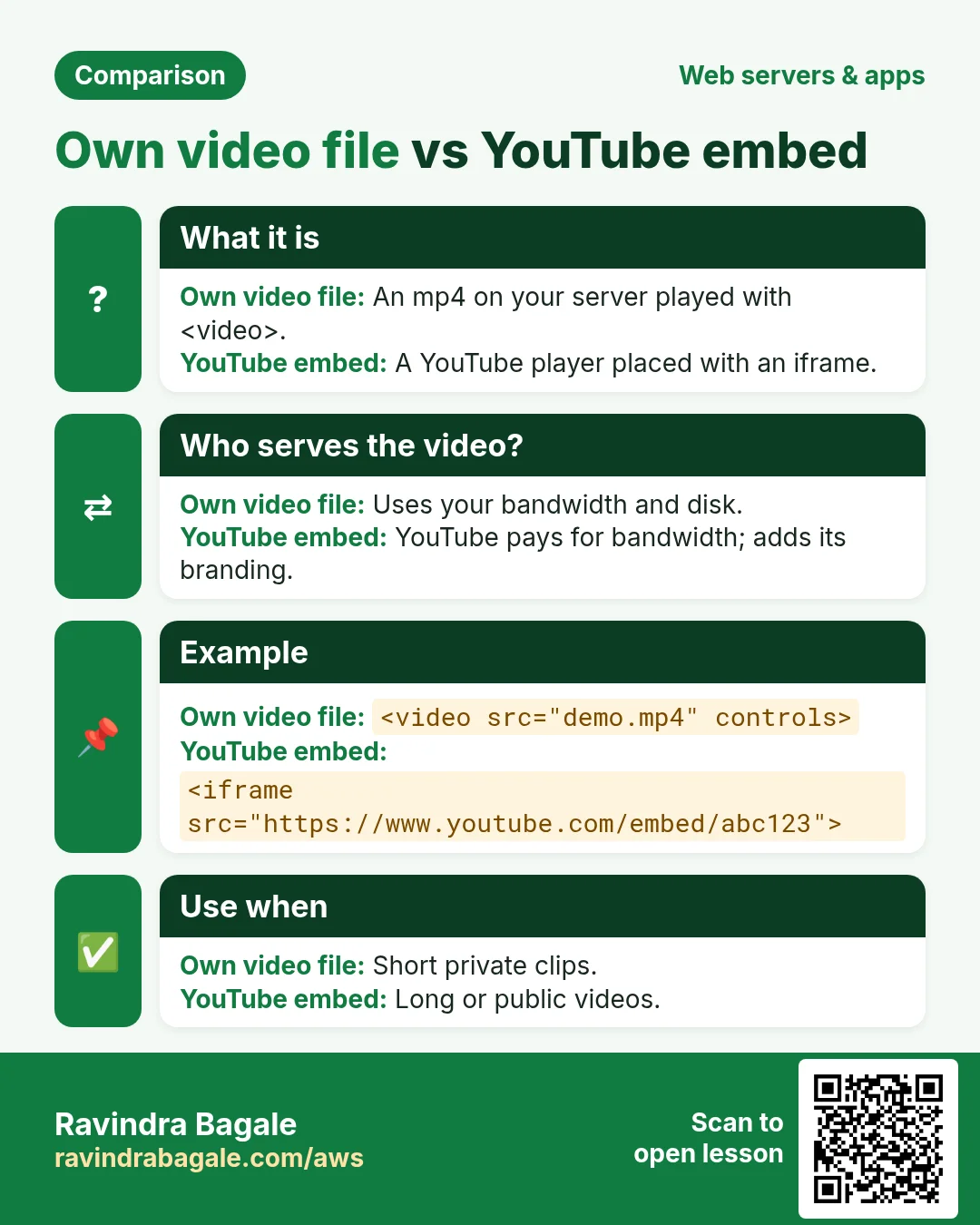
What. The <video> tag shows a video file, with a <source> tag inside it saying where the file is and what type it is:
<video controls>
  <source src="myvideo.mp4" type="video/mp4">
</video>
controlsadds the player buttons: play, pause, volume and the seek bar. Without it, the browser shows only a still picture with no buttons.src="myvideo.mp4"is the file, here in the same folder as the page.type="video/mp4"tells the browser what kind of file it is.</video>closes the tag.
Classroom line
What does controls mean? We stop a video by pausing it, then resume it.
Class मधलं वाक्य
Controls म्हणजे काय... आपण video pause करून थांबवतो, मग परत resume करतो.
Classroom line – हिंदी
"Controls ka matlab kya hai... video hum log rokte hain pause karke, fir resume karte hain."
How.
Step 1. Put the video file in /var/www/html, with scp from your laptop or sudo wget from a web address, exactly like the image.
Step 2. Rename it to something short: sudo mv <long-name>.mp4 myvideo.mp4.
Step 3. Make the page:
sudo nano video.html
Type the three lines above, then save.
Step 4. Open http://PUBLIC_IP/video.html and press play.
Finding the address of a video file. When a page plays an .mp4 file directly, you can right-click the video and choose Copy video link, or open DevTools › Network, click the Media filter, reload and play: the .mp4 file appears in the list.
Use your own videos, or videos you have permission to use. If you download a sample video only for practice, keep it on your test server and delete it afterwards. Video files are big, and your server sends every byte of them to every visitor.
11. Embedding a YouTube video
Why. YouTube doesn't give you a video file to download and host. It gives you something better: an embed code. The video stays on YouTube, YouTube's player plays it, and your page shows it in a window.
How.
- Open the video on YouTube.
- Below the video, click Share.
- Click Embed.
- Click Copy. You now have an
<iframe>code. - On the server:
sudo nano video.html, paste the code under your<video>lines, and save. - Refresh
http://PUBLIC_IP/video.html.
Classroom line
Once the ad is over, you see the Share button down here.
Class मधलं वाक्य
Ad गेल्यावर खाली तुम्हाला इथे Share button दिसतंय.
Classroom line – हिंदी
"Ad jaane ke baad, niche aapko yahan pe Share button dikh raha hai."
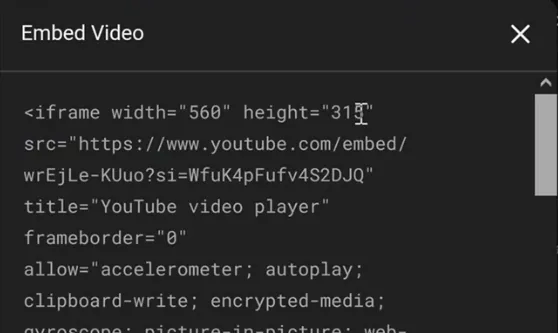
Whiteboard: Share › Embed on YouTube gives an iframe code with width 560, height 315 and the video's embed address. Copy it into your .html file.
The code looks like this (VIDEO_ID is the video's own id):
<iframe width="560" height="315" src="https://www.youtube.com/embed/VIDEO_ID" title="YouTube video player" frameborder="0" allow="accelerometer; autoplay; clipboard-write; encrypted-media; gyroscope; picture-in-picture; web-share" referrerpolicy="strict-origin-when-cross-origin" allowfullscreen></iframe>
iframeis a window on your page that shows another page, here YouTube's player.width="560" height="315"is the size of that window. You can change it.srcis YouTube's embed address of this video.allowfullscreenlets the viewer switch to full screen.
Example 9: two videos on one page. Paste two embed codes, one under the other, and the page shows two players.
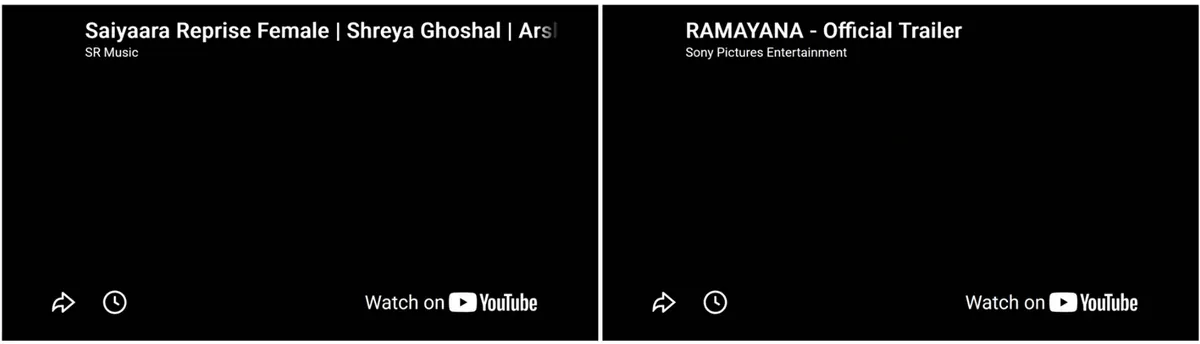
Whiteboard: video.html on the EC2 server with two embedded YouTube players, each with its title and Watch on YouTube.
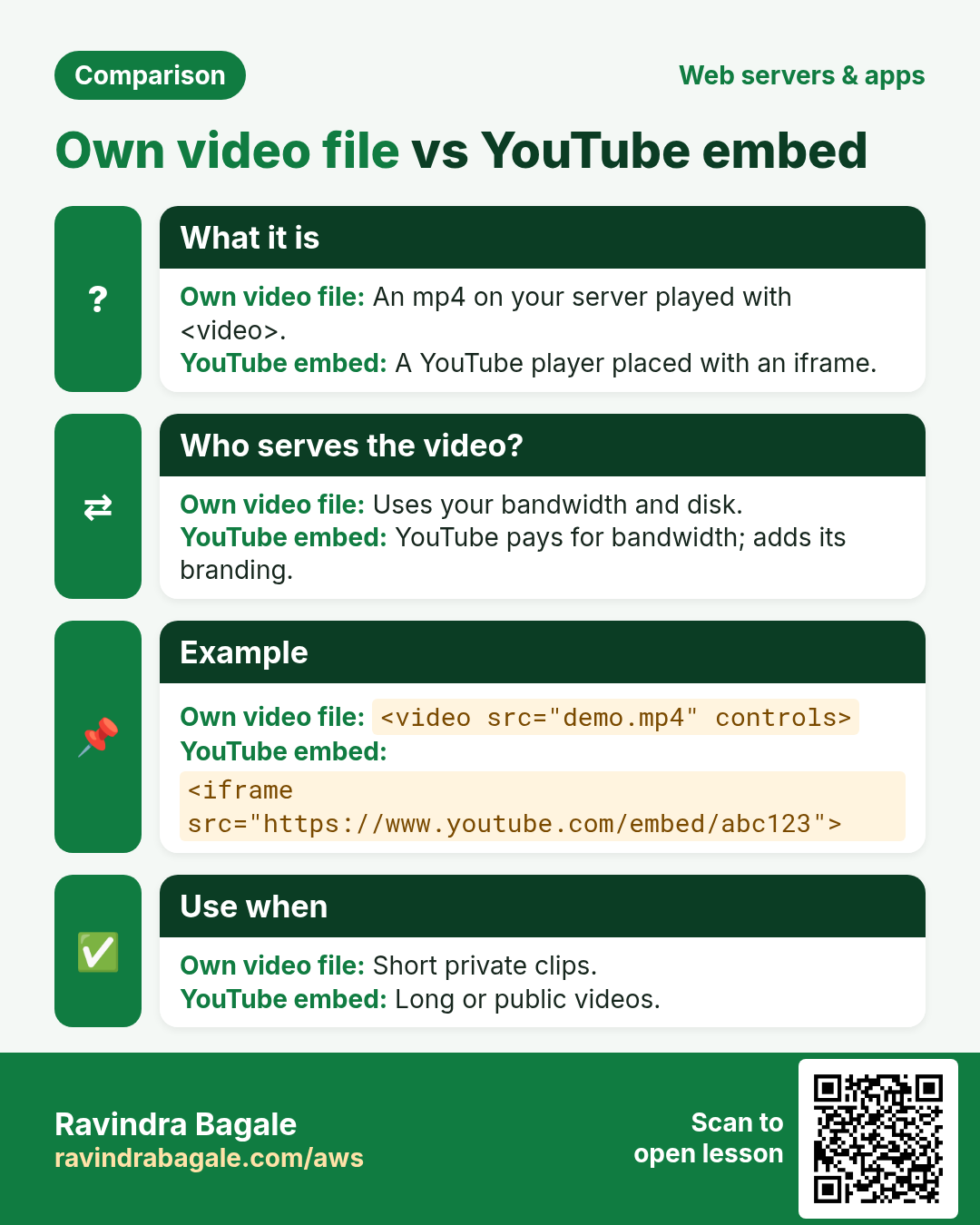
Figure 7. Your own video file with video controls and source, served by your server; a YouTube video with the iframe from Share › Embed, played by YouTube.
For any YouTube video, always use YouTube's own embed code. Don't download it and put the file on your server.
12. When you're done: stop the instance
Why. A running instance keeps using free-tier hours even when nobody visits the page. Stopping keeps your files on the disk for next time.
- In the EC2 console, select your instance.
- Click Instance state › Stop instance.
- Click Stop to confirm.
Next time, remember section 5: start Apache (or have it enabled) and use the new public IP.
13. The whole flow on one page
sudo service httpd start(and once:sudo systemctl enable httpd).cd /var/www/html.- Folders here become URL paths:
myphotos/gallery.htmlishttp://PUBLIC_IP/myphotos/gallery.html. - Image from the web:
sudo wget URL, thensudo mv long-name.jpg beach.jpg. - Image from your laptop:
scp -i mykey.pem beach.jpg ec2-user@PUBLIC_IP:/home/ec2-user/, thensudo mvit into/var/www/html. - Page:
sudo nano photo.htmlwith<img src="beach.jpg" width="600">. - Video:
<video controls>with<source src="myvideo.mp4" type="video/mp4">and</video>. - YouTube: Share › Embed › Copy, paste the
<iframe>. - Check: open each URL; 200 means fine, 404 means wrong name or folder; View Page Source and DevTools › Network when something is broken.
14. Hands-on lab: pages, folders, an image and status codes
Why this lab. Most website tickets are "page not found" or "image broken". This lab builds a small site with a folder, a page and an image, then breaks the image on purpose so you can see how a 404 looks from inside the server.
- Start the server and check Apache
- Command:
sudo service httpd status - You should see:
active (running)if you enabled it; otherwise runsudo service httpd start. - Check: Copy the new public IP from the EC2 console.
- Why: After a stop and start, the public IP changes, and Apache runs only if it was enabled.
- Command:
- Read the status code of the home page
- Command:
curl -s -o /dev/null -w "%{http_code}\n" http://localhost/ - You should see:
200 - Check: 2xx means success.
- Why:
-o /dev/nullthrows the page away and-wprints only the status code, the server's one-number answer.
- Command:
- Ask for a page that doesn't exist
- Command:
curl -s -o /dev/null -w "%{http_code}\n" http://localhost/nothere.html - You should see:
404 - Check: 4xx means a problem with the request.
- Why: A 404 tells you Apache is fine and the file name or path is wrong. You look at the URL, not at the server.
- Command:
- Make a folder for photos
- Command:
sudo mkdir -p /var/www/html/myphotos/images - You should see: Nothing.
- Check:
ls /var/www/html/myphotos→images - Why: Every folder under
/var/www/htmlbecomes part of the URL: this one ishttp://PUBLIC_IP/myphotos/. Folders keep a growing site tidy.
- Command:
- Download an image onto the server
- Command:
cd /var/www/html/myphotos/images && sudo wget -O beach.jpg <image URL> - You should see:
savedat the end of the wget output. - Check:
ls -lshowsbeach.jpgwith a size above 0. - Why: Use the URL of an image you are allowed to use.
-O beach.jpgsaves it under a short name, so the HTML stays simple.
- Command:
- Write a page that shows it
- Command:
sudo nano /var/www/html/myphotos/gallery.html - You should see: Type
<h1>Beach</h1>and<img src="images/beach.jpg" width="400">, then save and exit. - Check:
http://PUBLIC_IP/myphotos/gallery.htmlshows the heading and the picture. - Why:
src="images/beach.jpg"is relative to the page's folder, so the browser asks for/myphotos/images/beach.jpg.
- Command:
- Check the image's own status code
- Command:
curl -s -o /dev/null -w "%{http_code}\n" http://localhost/myphotos/images/beach.jpg - You should see:
200 - Check: In the browser, DevTools (F12) → Network shows
beach.jpgwith status 200. - Why: A page is many files, each with its own status. The page can be 200 while one image fails.
- Command:
- Break the image on purpose
- Command:
sudo mv beach.jpg Beach.jpg - You should see: Nothing.
- Check: Reload the gallery: a broken-image icon. The
curlfrom step 7 now prints404. - Why: Linux names are case-sensitive:
Beach.jpgisn'tbeach.jpg. This is the most common cause of broken images after uploading from Windows.
- Command:
- Fix it and stop
- Command:
sudo mv Beach.jpg beach.jpg - You should see: Nothing.
- Check: The picture is back and
curlprints200. Then stop the instance. - Why: Fix the name, not the page, when the page is right. Stopping saves free-tier hours; the files stay on the disk.
- Command:
15. Try at home
Try at home
Task 1: status codes
- Open
http://PUBLIC_IP/andhttp://PUBLIC_IP/nothing.html. Note the status of each in DevTools › Network. - Rename
index.htmltoindex.bakwithsudo mv. Openhttp://PUBLIC_IP/and runcurl -s -o /dev/null -w "%{http_code}\n" http://localhost/. Then rename it back.
Task 2: folders
- Make
/var/www/html/myphotos/gallery.htmland open it in the browser. - Open
http://PUBLIC_IP/gallery.htmland explain the404.
Task 3: an image three ways
- Show an image by its address on another site.
- Download one with
sudo wget, rename it withsudo mvand show it with<img src="...">. - Upload one of your own photos with
scpand show it atwidth="600".
Task 4: break it on purpose
- Change the
srctoBeach.jpg(capital B). Find the problem with View Page Source and DevTools.
Task 5: video
- Make
video.htmlwith one of your own.mp4files andcontrols. - Add one YouTube video with Share › Embed.
When you're done, stop the instance.
Recap
In short
- Every answer has a status code: 2xx success, 3xx redirect, 4xx a problem with the request (401 log in first, 403 forbidden, 404 not found), 5xx a problem on the server.
- With no
index.html, Apache on Amazon Linux shows its test page with status 403. - DevTools › Network shows the status of every file a page loads.
/var/www/htmlis the root of the site; its folders become URL paths, and a missing folder name gives 404.- After a stop and start:
sudo service httpd startand the new public IP.sudo systemctl enable httpd, once, starts Apache at every boot. - HTML:
headdescribes the page,bodyis what you see;h1toh6,p,li,img.<img>has no closing tag. width="600"sets the width in pixels; the height follows.- Hotlinking uses another site's bandwidth without permission and can break; put images you may use on your own server with
sudo wgetorscp. - Rename long downloads with
sudo mv, thensrc="beach.jpg". - Broken image: View Page Source, open the image URL, DevTools › Network.
- Own video:
<video controls><source src="myvideo.mp4" type="video/mp4"></video>. YouTube: Share › Embed › Copy the<iframe>.
Ravindra Bagale, trainer: linkedin.com/in/ravindra-bagale. The file names (photo.html, beach.jpg, myvideo.mp4, mykey.pem), the folders myphotos and services, the Dubai page and the example.com addresses are examples for learning; PUBLIC_IP stands for your instance's public IPv4 address and VIDEO_ID for a YouTube video's id. Parts of the wget output are shortened with "..."; the hostname in the prompt is illustrative.
Practice Tasks
São Paulo Coffee is a coffee trading business in São Paulo. Ana Souza looks after its IT and cloud work. They count money in BRL and run their AWS resources in the sa-east-1 Region. In the tasks below you do real jobs for them using what this lesson teaches. All names, account IDs, IP addresses and numbers are made up for practice.
0 / 12
Easy Restart a service after a change
Why: Config changes only apply after the service restarts or reloads.
What to do: Restart the nginx service.
- Find the Linux command that does this job.
- Add the options (like -r or -h) the task needs.
- Add the file names, folders or users in the right order.
- Use sudo if the job changes system files or users. Click Check answer.
Easy Check if a service is running
Why: When a site is down, first check whether the web server process is running.
What to do: Show the status of the httpd service.
- Find the Linux command that does this job.
- Add the options (like -r or -h) the task needs.
- Add the file names, folders or users in the right order.
- Use sudo if the job changes system files or users. Click Check answer.
Easy Install a package on Ubuntu
Why: Ubuntu uses apt. Package names differ: on Ubuntu Apache is apache2.
What to do: Install the apache2 package on Ubuntu without being asked to confirm.
- Find the Linux command that does this job.
- Add the options (like -r or -h) the task needs.
- Add the file names, folders or users in the right order.
- Use sudo if the job changes system files or users. Click Check answer.
Easy Install a package on Amazon Linux
Why: dnf is the package manager on Amazon Linux 2023. -y answers yes for you.
What to do: Install the httpd package on Amazon Linux 2023 without being asked to confirm.
- Find the Linux command that does this job.
- Add the options (like -r or -h) the task needs.
- Add the file names, folders or users in the right order.
- Use sudo if the job changes system files or users. Click Check answer.
Easy Test a website from the server
Why: curl shows whether the web server answers, even before DNS is ready.
What to do: Request http://localhost and show only the response headers.
- Find the Linux command that does this job.
- Add the options (like -r or -h) the task needs.
- Add the file names, folders or users in the right order.
- Use sudo if the job changes system files or users. Click Check answer.
Easy Download code from GitHub
Why: git clone copies the whole repository to the server, ready to deploy.
What to do: Clone https://github.com/spcoffee/website.git into the current folder.
- Find the Linux command that does this job.
- Add the options (like -r or -h) the task needs.
- Add the file names, folders or users in the right order.
- Use sudo if the job changes system files or users. Click Check answer.
Medium Test the nginx config
Why: A test catches typos before a restart takes your site down.
What to do: Check the nginx configuration files for errors.
- Find the Linux command that does this job.
- Add the options (like -r or -h) the task needs.
- Add the file names, folders or users in the right order.
- Use sudo if the job changes system files or users. Click Check answer.
Medium Start a service now and at boot
Why: enable makes it start after reboot; --now also starts it right away.
What to do: Enable the nginx service and start it immediately, in one command.
- Find the Linux command that does this job.
- Add the options (like -r or -h) the task needs.
- Add the file names, folders or users in the right order.
- Use sudo if the job changes system files or users. Click Check answer.
Medium Open port 80 to the world
Why: Visitors can reach your website only if the security group allows HTTP.
What to do: Allow inbound TCP port 80 from 0.0.0.0/0 on security group sg-01ab606c311b4c3b2.
- Read the task and decide which AWS service it is about.
- Write aws, then the service name, then the operation (the action word).
- Add each needed flag (--name) followed by its value from the task.
- Flags can be in any order. Click Check answer.
Medium CloudFormation: web security group
Why: Opening only 443 keeps the server safer.
What to do: Template with an AWS::EC2::SecurityGroup that allows TCP 443 from 0.0.0.0/0. Add a GroupDescription.
- Start from the top-level keys the task names.
- Indent child keys with 2 spaces (no tabs).
- Fill in each property with the value from the task.
- Click Check answer. Key order does not matter.
Medium Create a security group
Why: A security group is the firewall around your instance.
What to do: Create a security group named spcoffee-web-sg with description "Web servers" in vpc-0fc0ce311fdeadbee.
- Read the task and decide which AWS service it is about.
- Write aws, then the service name, then the operation (the action word).
- Add each needed flag (--name) followed by its value from the task.
- Flags can be in any order. Click Check answer.
Hard Enable an nginx site on Ubuntu
Why: On Ubuntu, a site is enabled by a symbolic link from sites-available to sites-enabled.
What to do: Create a symbolic link to /etc/nginx/sites-available/spcoffee inside /etc/nginx/sites-enabled/.
- Find the Linux command that does this job.
- Add the options (like -r or -h) the task needs.
- Add the file names, folders or users in the right order.
- Use sudo if the job changes system files or users. Click Check answer.
Revision, comparison and interview cards
Revise this lesson in a few minutes. Save the cards on your phone or download them as PNG files. The QR code on each card opens this lesson.
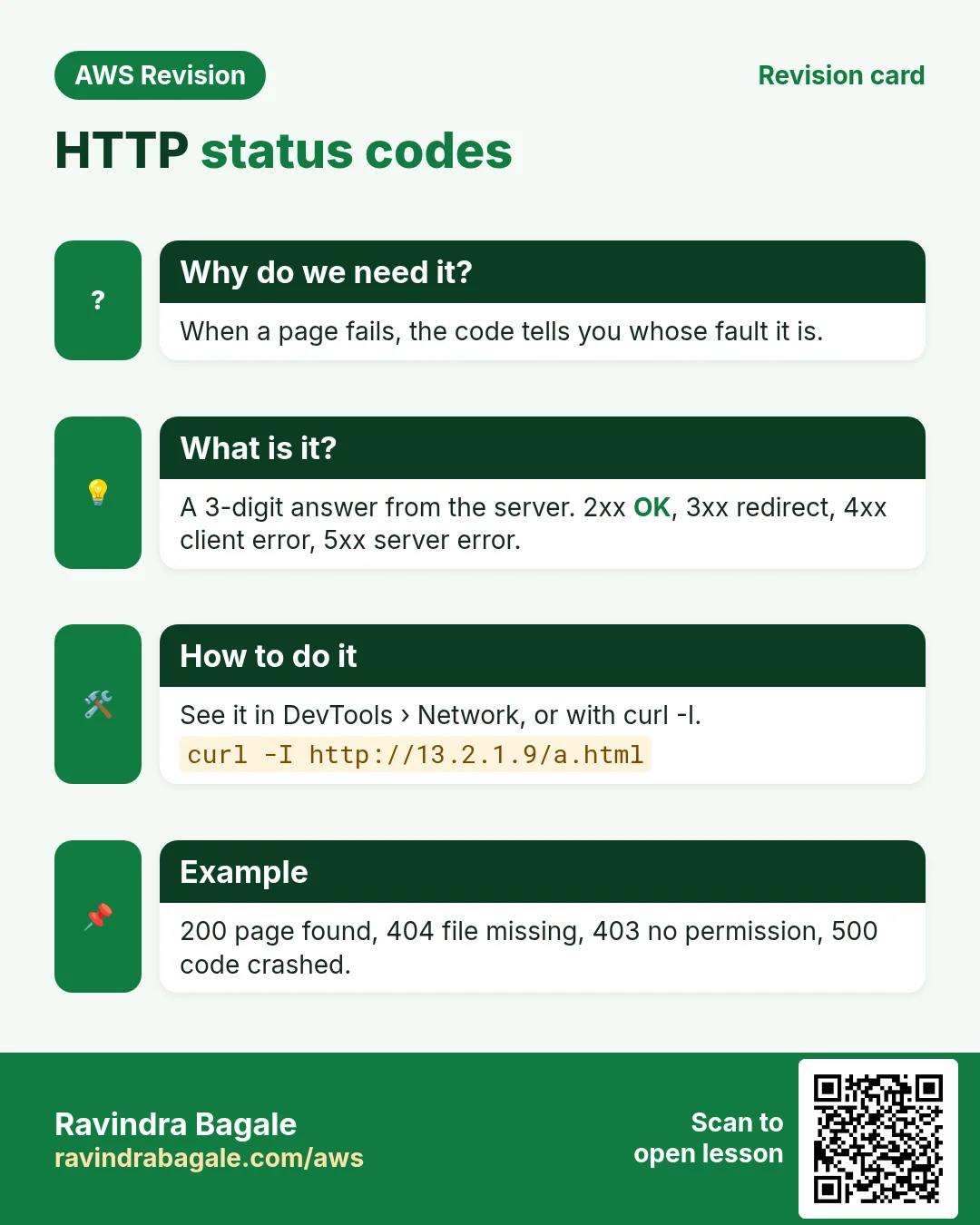
More cards: Ravi Sir's Cards.