Linux Networking Commands: ip, ss, netstat, ping, traceroute and mtr Explained Simply
When an app cannot reach a database, or users say the site is slow, the first job is to look at the network from the server itself. This chapter covers the everyday tools: ip to see addresses, links, routes and neighbours; ss and netstat to see which ports are open and who is connected; ping, traceroute, tracepath and mtr to test the path to another machine. Each command and its key options get their own Why, What and How.
What you'll learn in this chapter
- Read IP addresses and interfaces with ip addr and ip link
- Read and change routes with ip route
- See open ports and connections with ss and netstat
- Test reachability with ping
- Find where packets stop with traceroute, tracepath and mtr
- Follow a simple order when the network is broken
1. An everyday example: sending a parcel by courier
Why do we need this?
You send a parcel from Pune to a cousin in Delhi. It needs your address, the cousin's address, and the courier knows which hub to send it to next. If it does not arrive, you check: is the address right, did it leave Pune, which hub did it reach last, and is the cousin's door open to receive it?
What is it?
Your address = ip addr. The road out of the house = ip link (cable up?). The courier's hub list = ip route. Did it reach at all = ping. Hub by hub tracking = traceroute and mtr. Is the door open = ss -tulpn on the other server.
How to do it (step by step)
2. ip addr: see your IP addresses
Why do we need this?
Before anything else you must know which IP the server has and on which interface. Many problems are just 'wrong IP' or 'no IP'.
What is it?
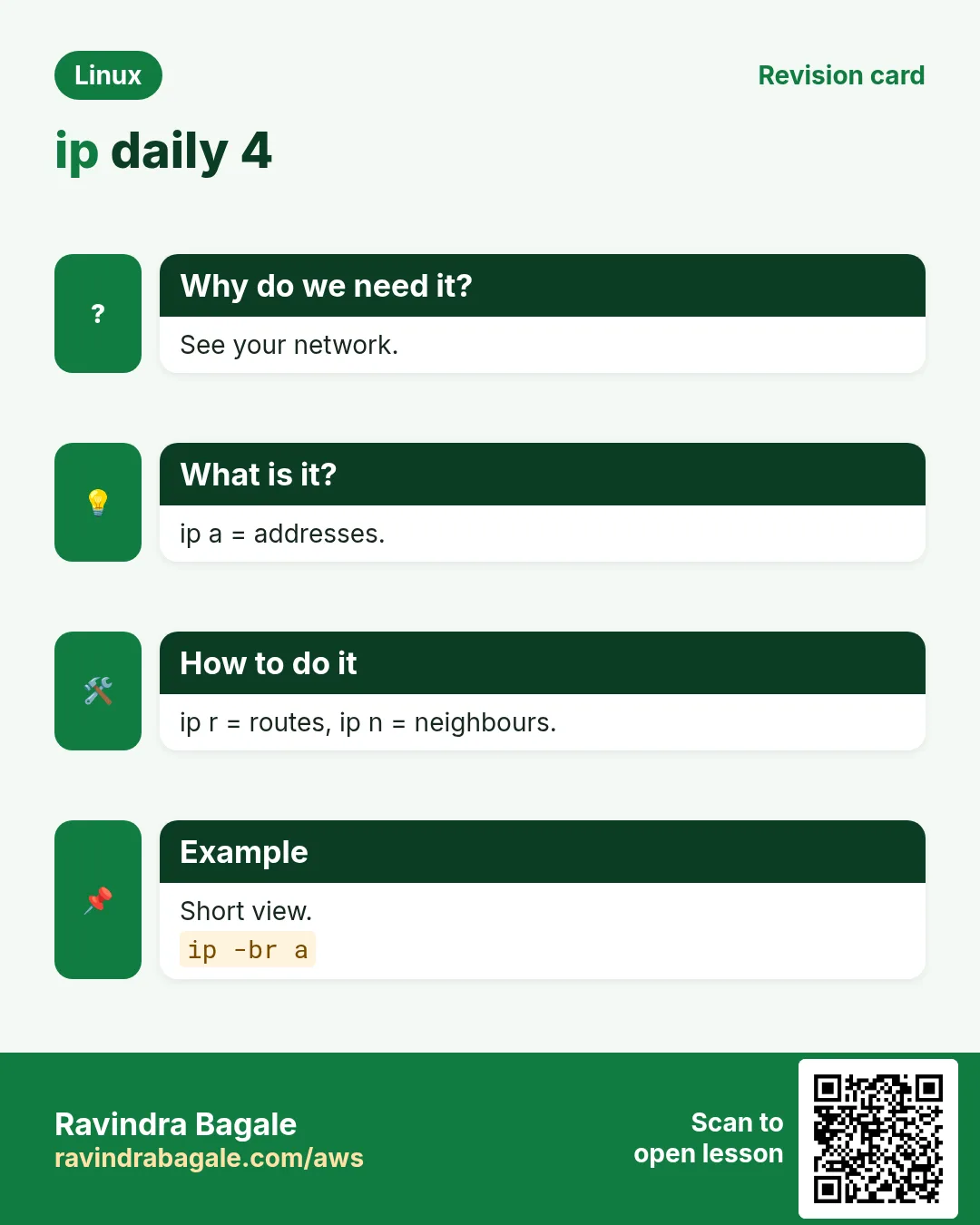
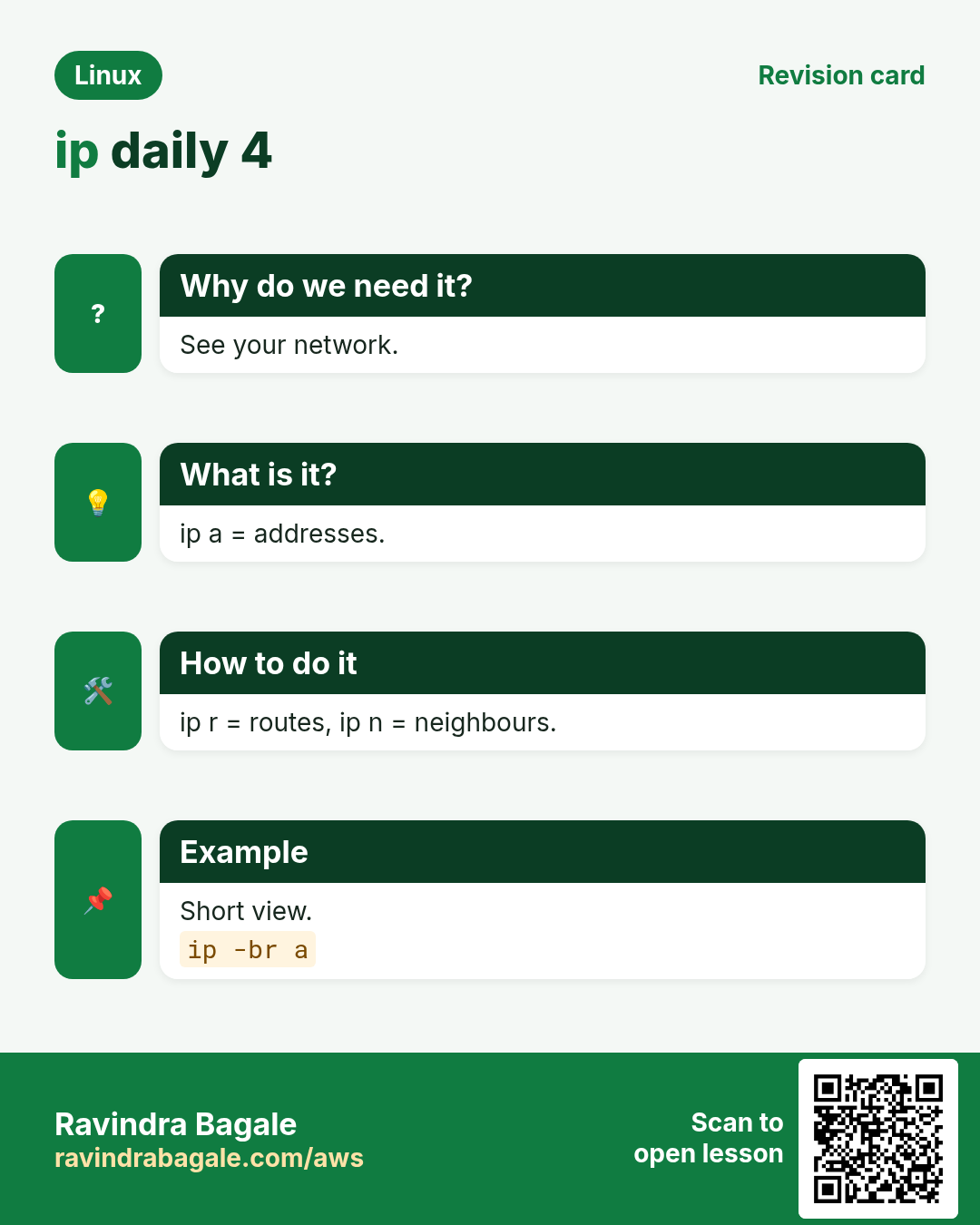
ip addr (short: ip a) lists every interface with its IPv4 (inet) and IPv6 (inet6) addresses. ip -br a gives one short line per interface. ip a show eth0 shows one. The old command was ifconfig (package net-tools).
How to do it (step by step)
- Brief view.
ip -br aOutput:
lo      UNKNOWN  127.0.0.1/8 ::1/128
eth0    UP       10.0.1.25/24 fe80::8ff:fe12:3456/64
What it means: eth0 has 10.0.1.25 in a /24 network.
- Full detail for one interface.
ip a show eth0Output:
2: eth0: <BROADCAST,MULTICAST,UP,LOWER_UP> mtu 9001
    inet 10.0.1.25/24 brd 10.0.1.255 scope global dynamic eth0
What it means: UP and LOWER_UP mean the link works. dynamic = from DHCP.
- Only IPv4.
ip -4 aOutput:
inet 127.0.0.1/8 scope host lo
inet 10.0.1.25/24 scope global eth0
What it means: Less noise.
3. ip addr add and del: a temporary extra IP
Why do we need this?
During a migration or a test you may need a second IP on the same card for a few minutes.
What is it?
sudo ip addr add IP/PREFIX dev IFACE adds it. sudo ip addr del IP/PREFIX dev IFACE removes it. These changes are lost on reboot; permanent settings go in NetworkManager (nmcli) or netplan.
How to do it (step by step)
- Add a test IP.
sudo ip addr add 10.0.1.99/24 dev eth0 && ip -br a show eth0Output:
eth0 UP 10.0.1.25/24 10.0.1.99/24What it means: Two IPs now.
- Remove it.
sudo ip addr del 10.0.1.99/24 dev eth0Output:
(no output)What it means: Back to one.
- Make it permanent with nmcli.
sudo nmcli con mod 'System eth0' +ipv4.addresses 10.0.1.99/24 && sudo nmcli con up 'System eth0'Output:
Connection successfully activatedWhat it means: Survives reboot.
4. ip link: is the cable up?
Why do we need this?
If the interface is DOWN, nothing above it can work. It is the first physical check.
What is it?
ip link (ip l) shows interfaces, state (UP/DOWN), MAC address and MTU. sudo ip link set eth1 up / down turns it on or off. ip -s link shows packet and error counters.
How to do it (step by step)
- Short state.
ip -br linkOutput:
lo    UNKNOWN 00:00:00:00:00:00
eth0  UP      0a:12:34:56:78:9a
eth1  DOWN    0a:aa:bb:cc:dd:ee
What it means: eth1 is down.
- Bring it up.
sudo ip link set eth1 up && ip -br link show eth1Output:
eth1 UP 0a:aa:bb:cc:dd:eeWhat it means: Now up.
- Errors and drops.
ip -s link show eth0Output:
RX: bytes packets errors dropped
 9.8G 7.1M 0 12
TX: bytes packets errors dropped
 2.1G 3.3M 0 0
What it means: A few drops; growing errors mean a bad link.
5. ip route: where traffic goes
Why do we need this?
A server with a correct IP but a wrong default route can talk to neighbours but not the internet.
What is it?
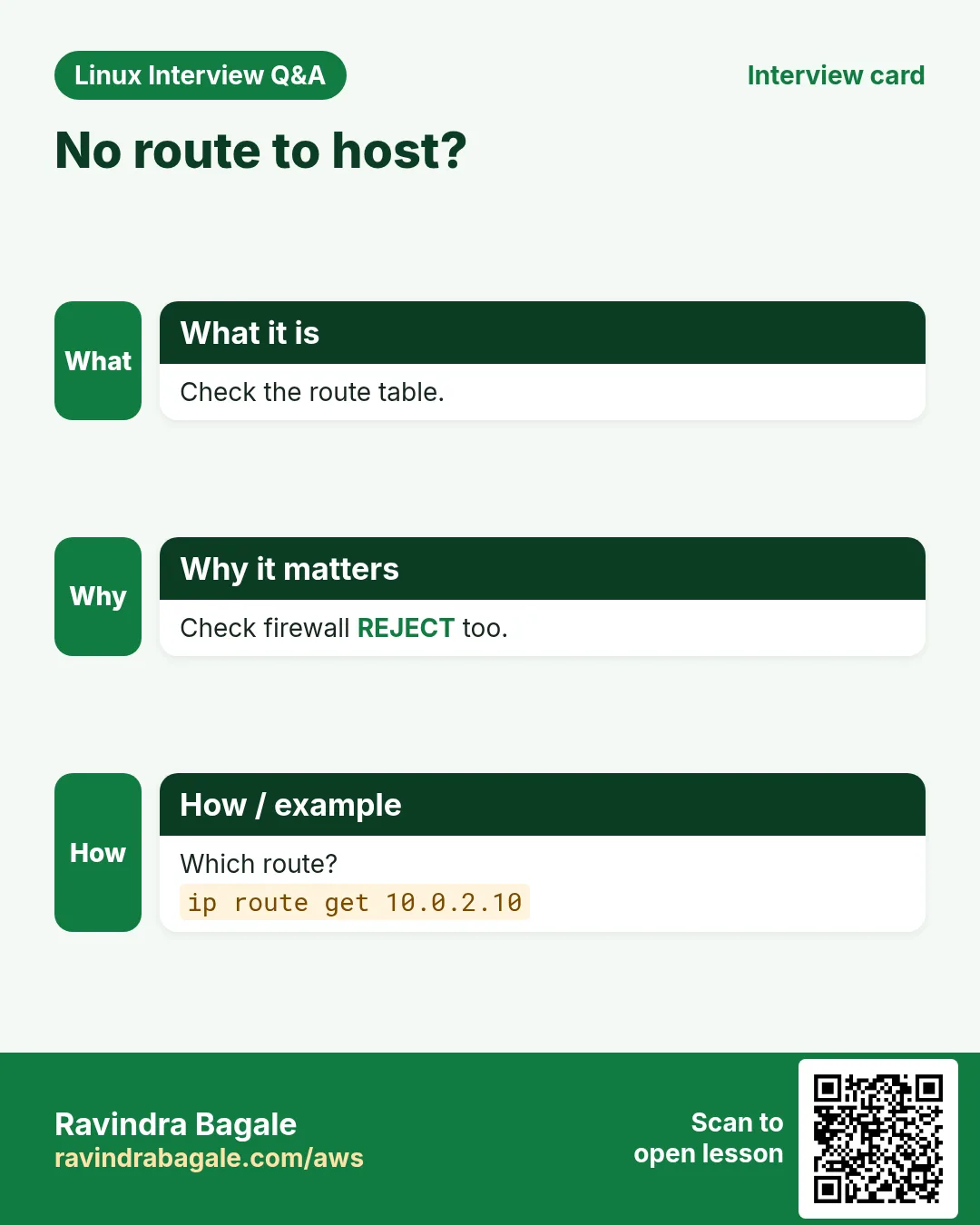
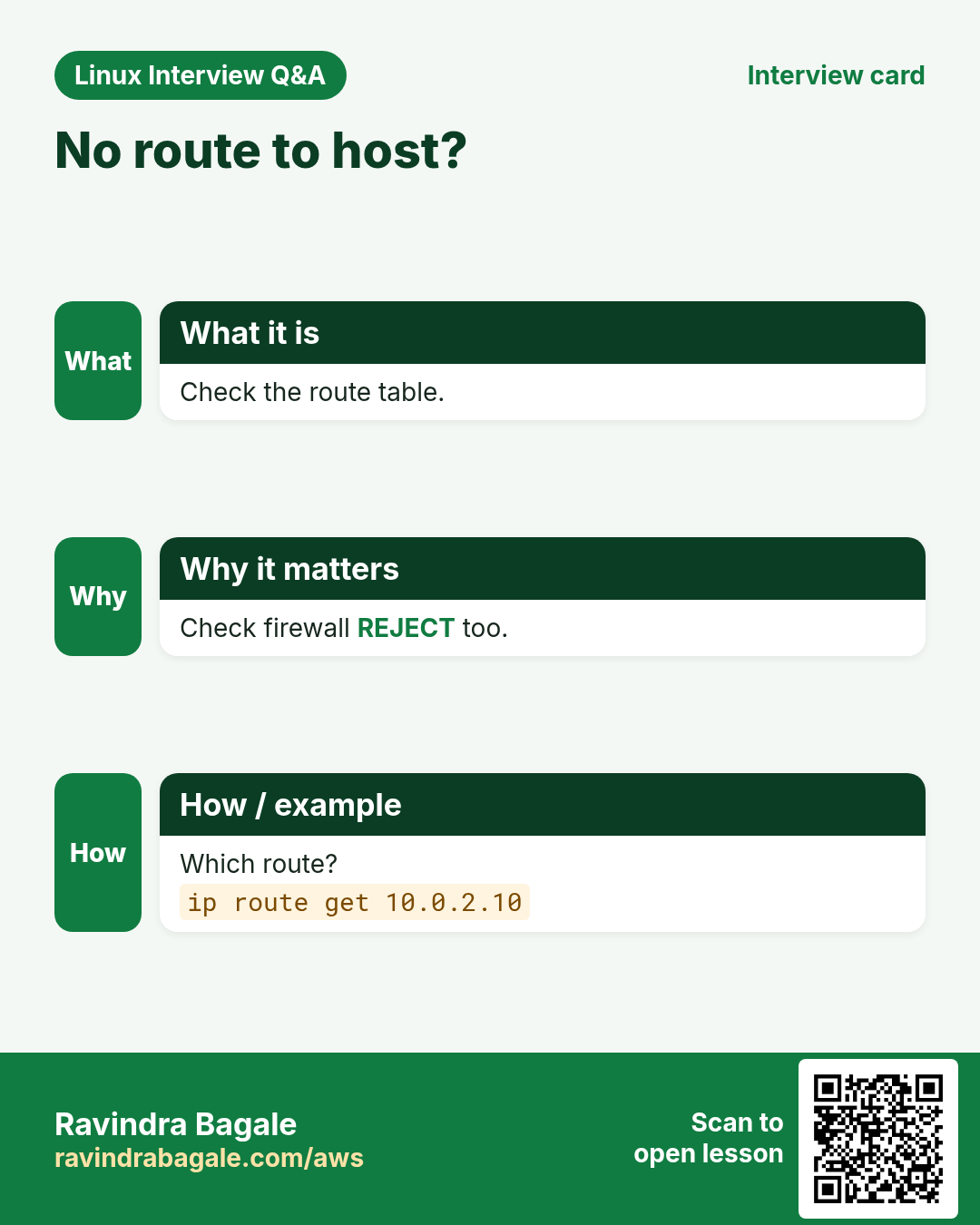
ip route (ip r) prints the route table. 'default via X' is the gateway for everything else. ip route get IP shows exactly which route and interface the kernel will use. sudo ip route add NET via GW adds a route; del removes it.
How to do it (step by step)
- The table.
ip rOutput:
default via 10.0.1.1 dev eth0 proto dhcp
10.0.1.0/24 dev eth0 proto kernel scope link src 10.0.1.25
What it means: Local subnet direct, the rest via 10.0.1.1.
- Which way to a host?
ip route get 8.8.8.8Output:
8.8.8.8 via 10.0.1.1 dev eth0 src 10.0.1.25What it means: Uses the default gateway.
- Route an office network through a VPN box.
sudo ip route add 192.168.50.0/24 via 10.0.1.5Output:
(no output)What it means: Temporary until reboot.
- No default route.
ping -c1 8.8.8.8Output:
ping: connect: Network is unreachableWhat it means: Add the gateway back.
6. ip neigh: the neighbour (ARP) table
Why do we need this?
If the gateway's MAC cannot be found, packets never leave the local network. Duplicate IPs also show here.
What is it?
ip neigh (ip n) lists IP to MAC mappings with a state: REACHABLE, STALE, FAILED, INCOMPLETE. FAILED for the gateway means layer 2 trouble. sudo ip neigh flush dev eth0 clears it.
How to do it (step by step)
- Healthy.
ip nOutput:
10.0.1.1 dev eth0 lladdr 0a:00:00:00:00:01 REACHABLEWhat it means: Gateway known.
- Broken.
ip n show 10.0.1.1Output:
10.0.1.1 dev eth0 FAILEDWhat it means: Check VLAN, cable or security group/NACL in cloud.
7. ss -tulpn: which ports are listening
Why do we need this?
'Connection refused' usually means nothing listens on that port. ss shows what is listening and which program owns it.
What is it?
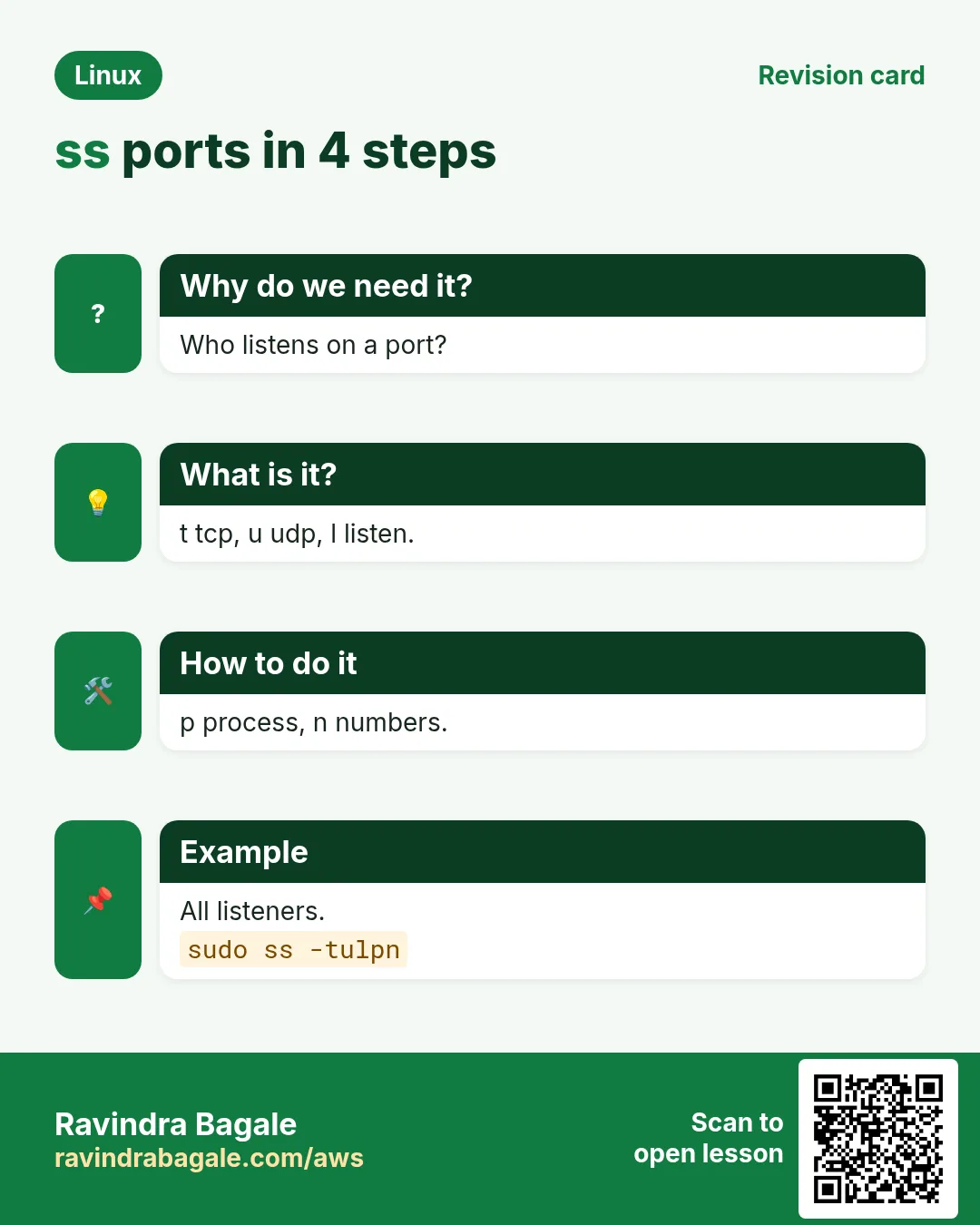
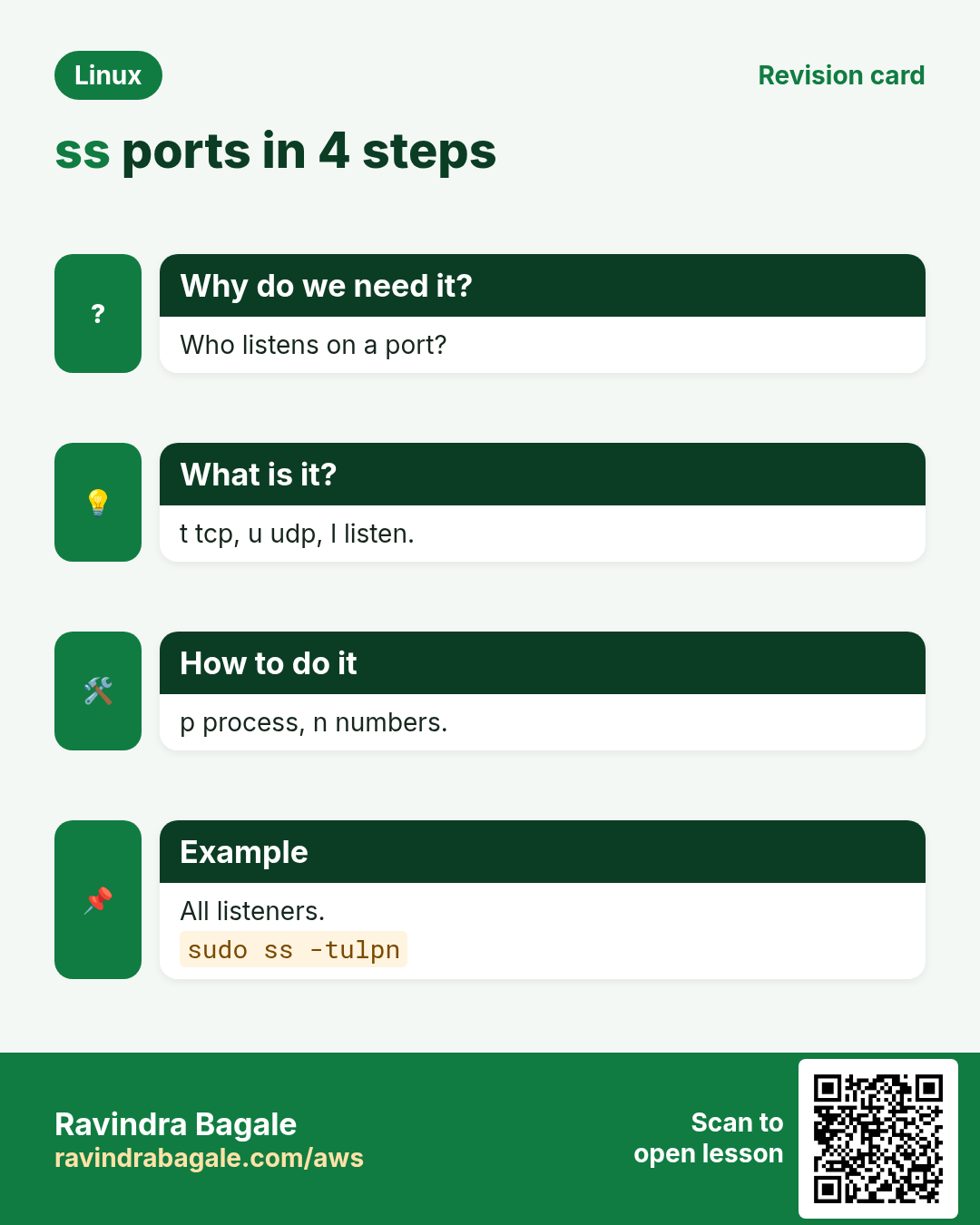
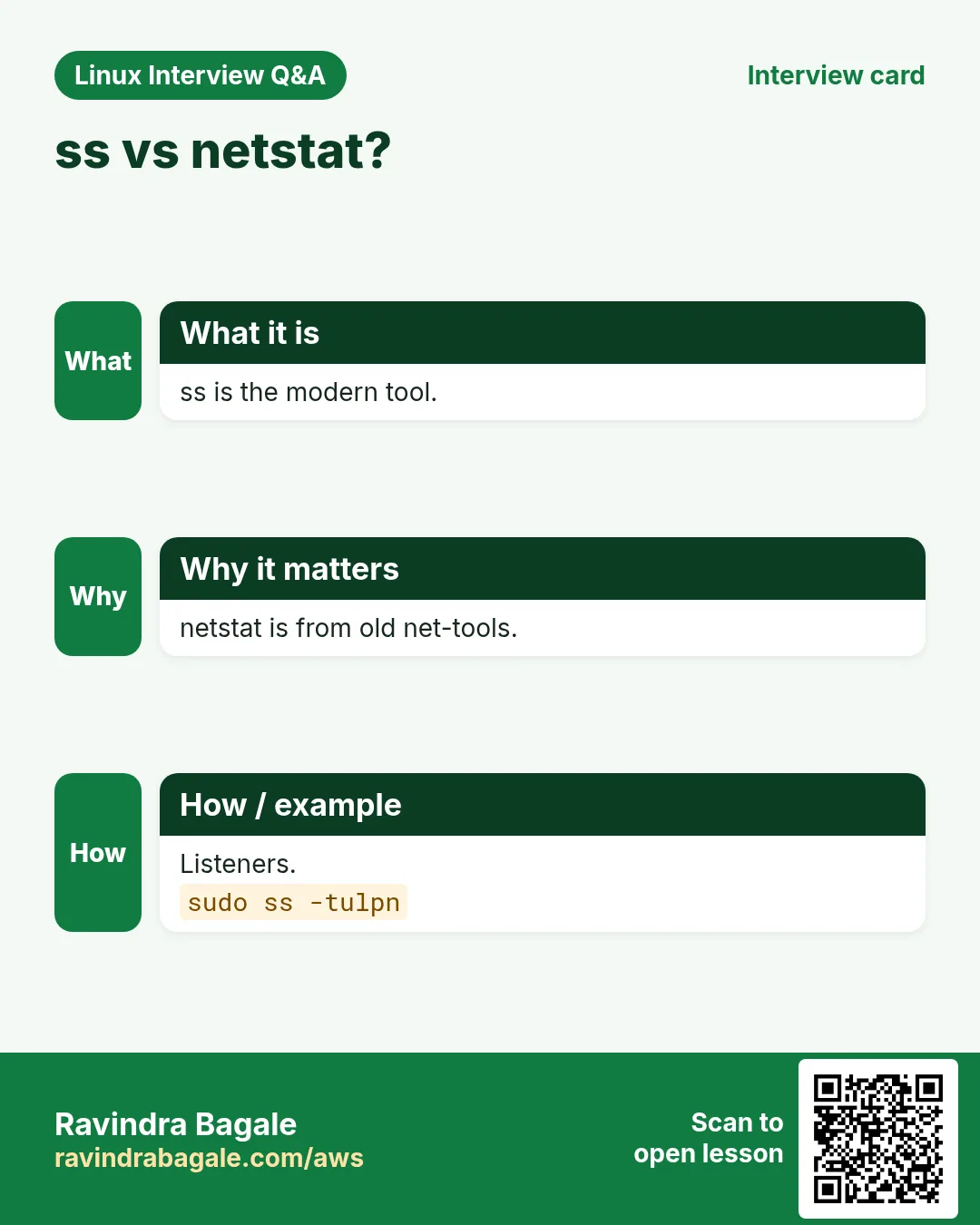
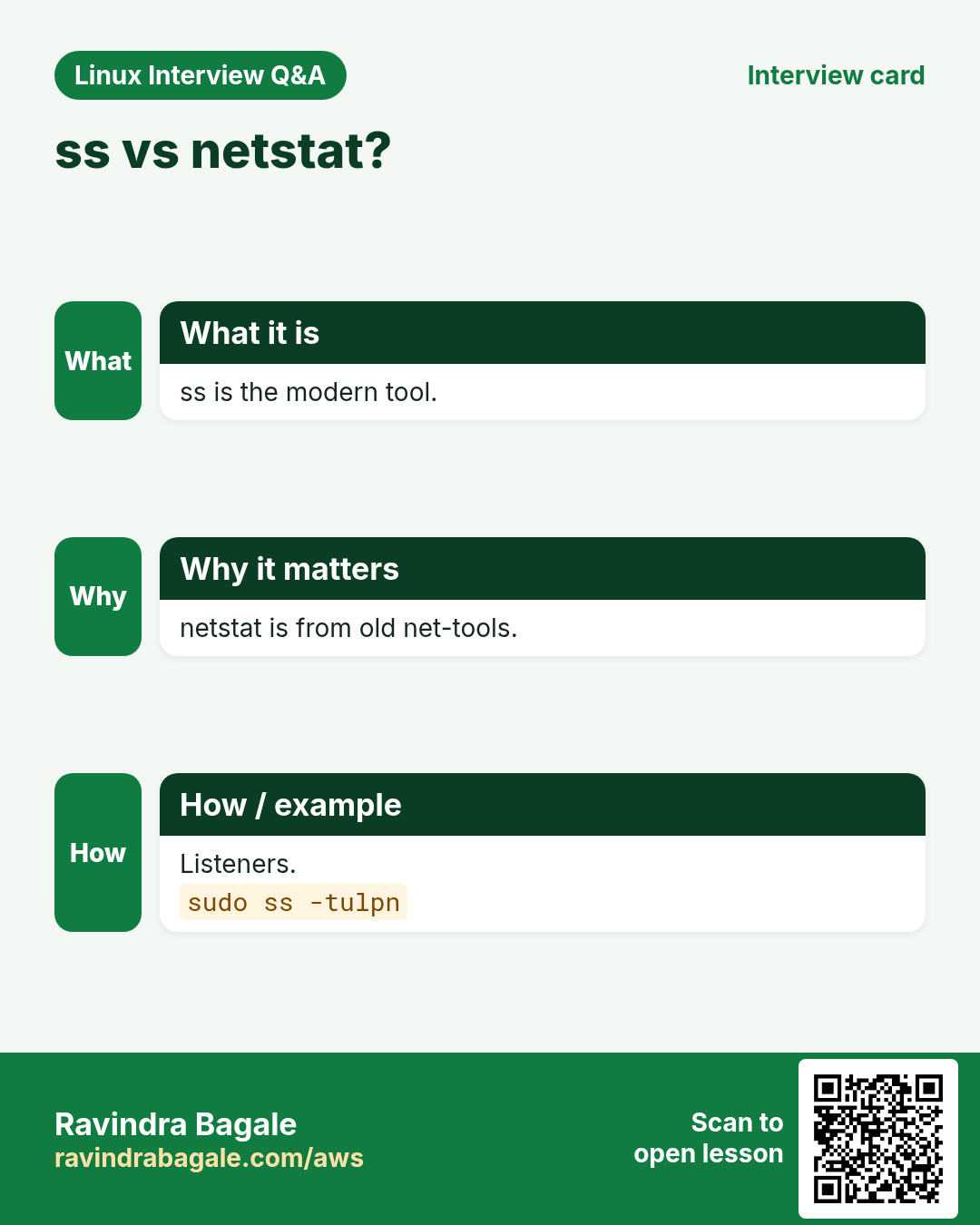
ss replaces netstat. Flags: -t TCP, -u UDP, -l listening only, -p process (needs sudo for others' processes), -n numbers (no name lookups). So ss -tulpn is the classic. 0.0.0.0 or * means all interfaces; 127.0.0.1 means only local.
| Flag | Meaning |
|---|---|
| -t | TCP |
| -u | UDP |
| -l | Listening only |
| -p | Show process |
| -n | Numeric, no DNS |
| -a | All states |
How to do it (step by step)
- All listeners.
sudo ss -tulpnOutput:
Netid State  Local Address:Port Process
tcp   LISTEN 0.0.0.0:22          users:(("sshd",pid=812))
tcp   LISTEN 127.0.0.1:5432      users:(("postgres",pid=990))
tcp   LISTEN *:80                users:(("nginx",pid=1020))
What it means: postgres listens only on localhost.
- Who uses port 8080?
sudo ss -ltnp 'sport = :8080'Output:
LISTEN 0 511 0.0.0.0:8080 users:(("java",pid=2201))What it means: A java app.
- Port free?
sudo ss -ltn | grep -c ':3000 'Output:
0What it means: Nobody listens on 3000.
8. ss for connections: -t, state, -s
Why do we need this?
When a database hits 'too many connections', you want to count who is connected and in which state.
What is it?
ss -tn shows established TCP connections. ss -tn state established, state time-wait filter by state. dst and dport filter by remote side. ss -s prints a summary of counts.
How to do it (step by step)
- Summary.
ss -sOutput:
TCP: 412 (estab 298, closed 80, orphaned 0, timewait 78)What it means: 298 open connections.
- Count clients of postgres.
ss -tn state established '( sport = :5432 )' | tail -n +2 | wc -lOutput:
143What it means: 143 sessions.
- Top remote IPs.
ss -tn state established | awk 'NR>1{split($4,a,":");print a[1]}' | sort | uniq -c | sort -rn | head -3Output:
  88 10.0.3.14
  41 10.0.3.15
  12 10.0.3.30
What it means: One app server holds most.
9. netstat: the older tool
Why do we need this?
Old servers, old runbooks and many interviews still use netstat. You should be able to read it.
What is it?
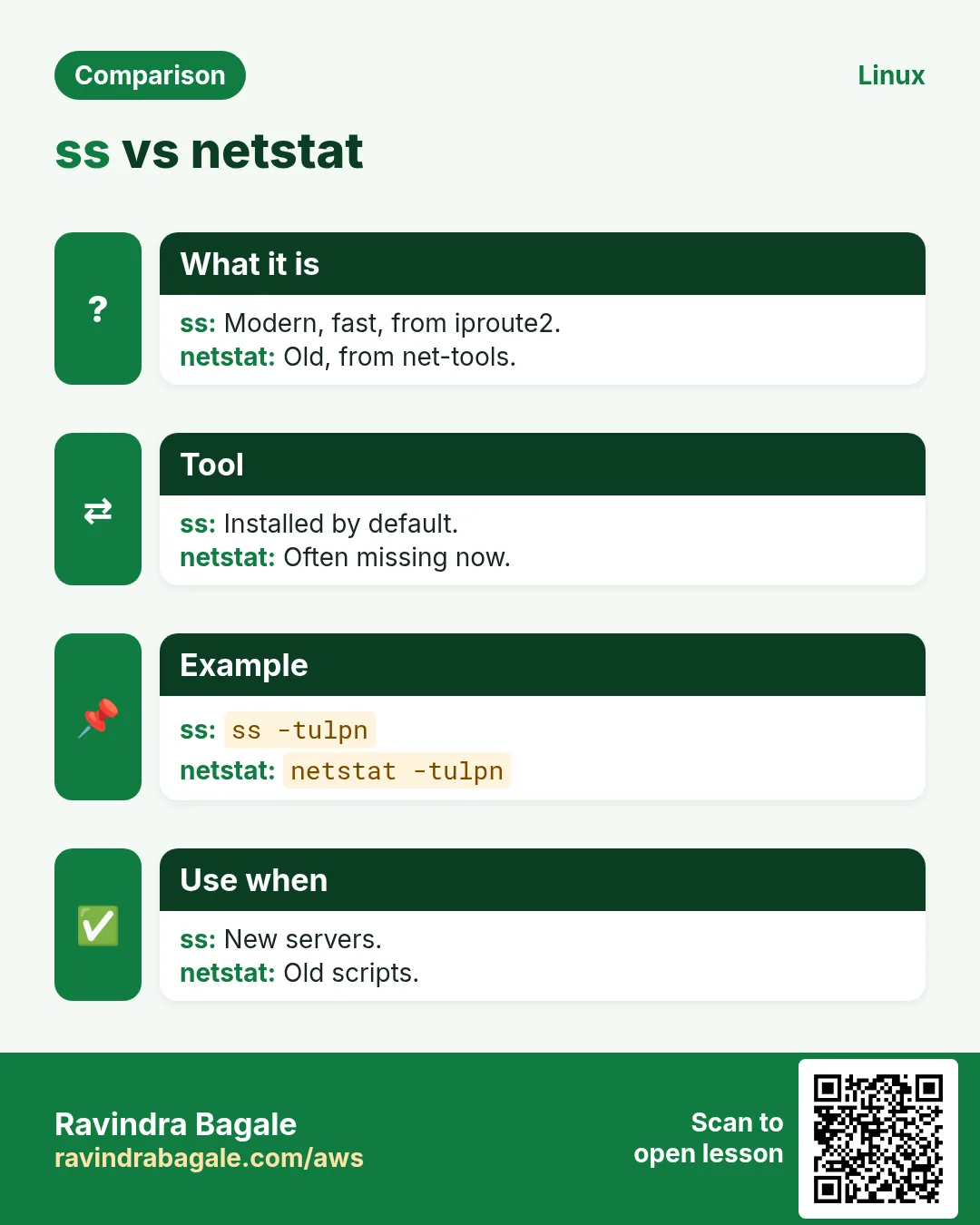
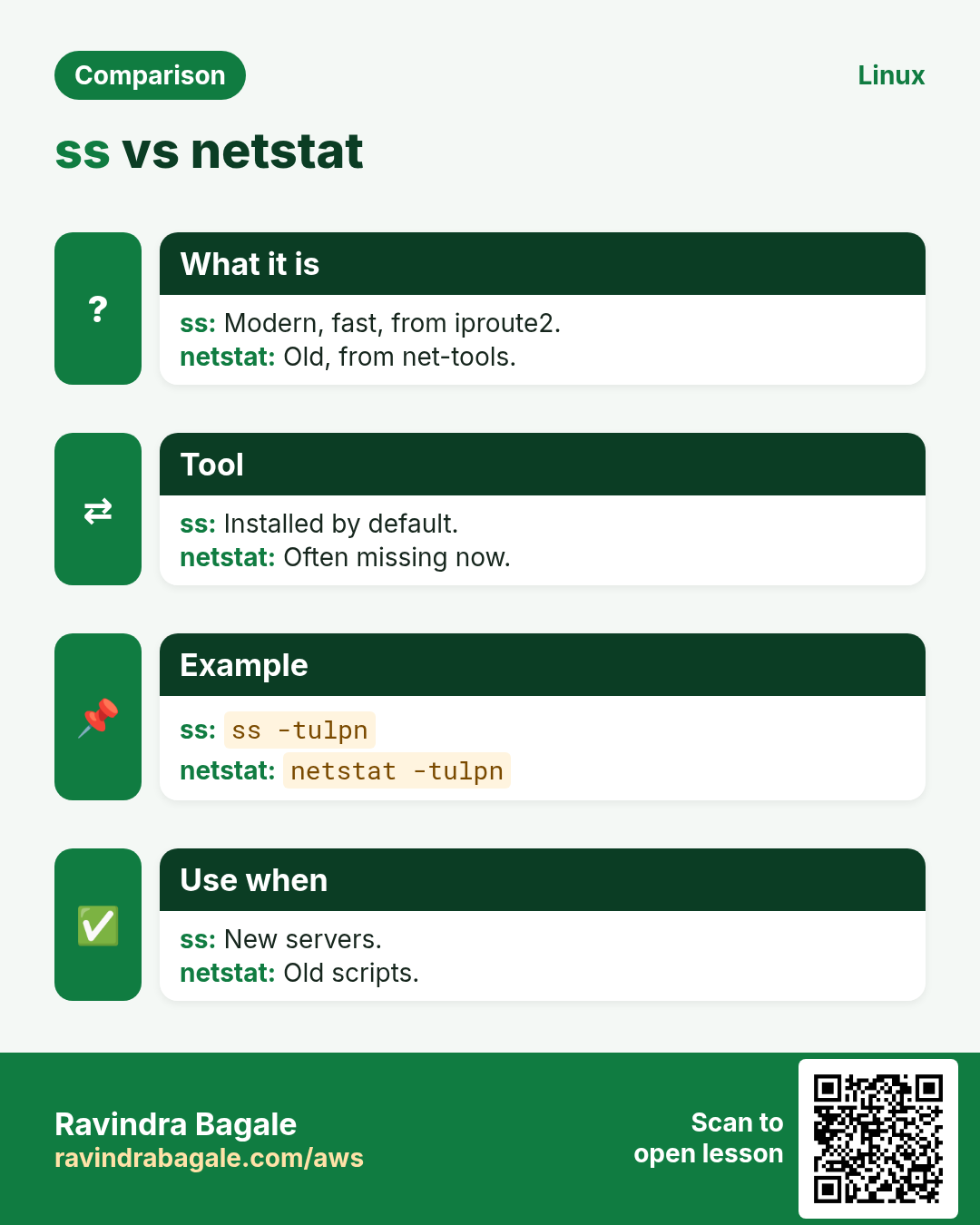
Package net-tools. netstat -tulpn is the same idea as ss -tulpn. netstat -rn shows routes (like ip r). netstat -i shows interface counters. Prefer ss and ip on new systems; they are faster and installed by default.
| Old (net-tools) | New (iproute2) |
|---|---|
| ifconfig | ip a |
| route -n | ip r |
| arp -n | ip n |
| netstat -tulpn | ss -tulpn |
| netstat -i | ip -s link |
How to do it (step by step)
- Install on RHEL/Amazon Linux.
sudo dnf install -y net-tools && netstat --version | head -1Output:
net-tools 2.10What it means: Now available.
- Listening ports.
sudo netstat -tulpn | grep LISTENOutput:
tcp 0 0 0.0.0.0:22 0.0.0.0:* LISTEN 812/sshdWhat it means: Same answer as ss.
- Routes.
netstat -rnOutput:
0.0.0.0 10.0.1.1 0.0.0.0 UG eth0What it means: UG = up, gateway.
10. ping: can I reach it?
Why do we need this?
The fastest test that a host is alive and how long a round trip takes.
What is it?
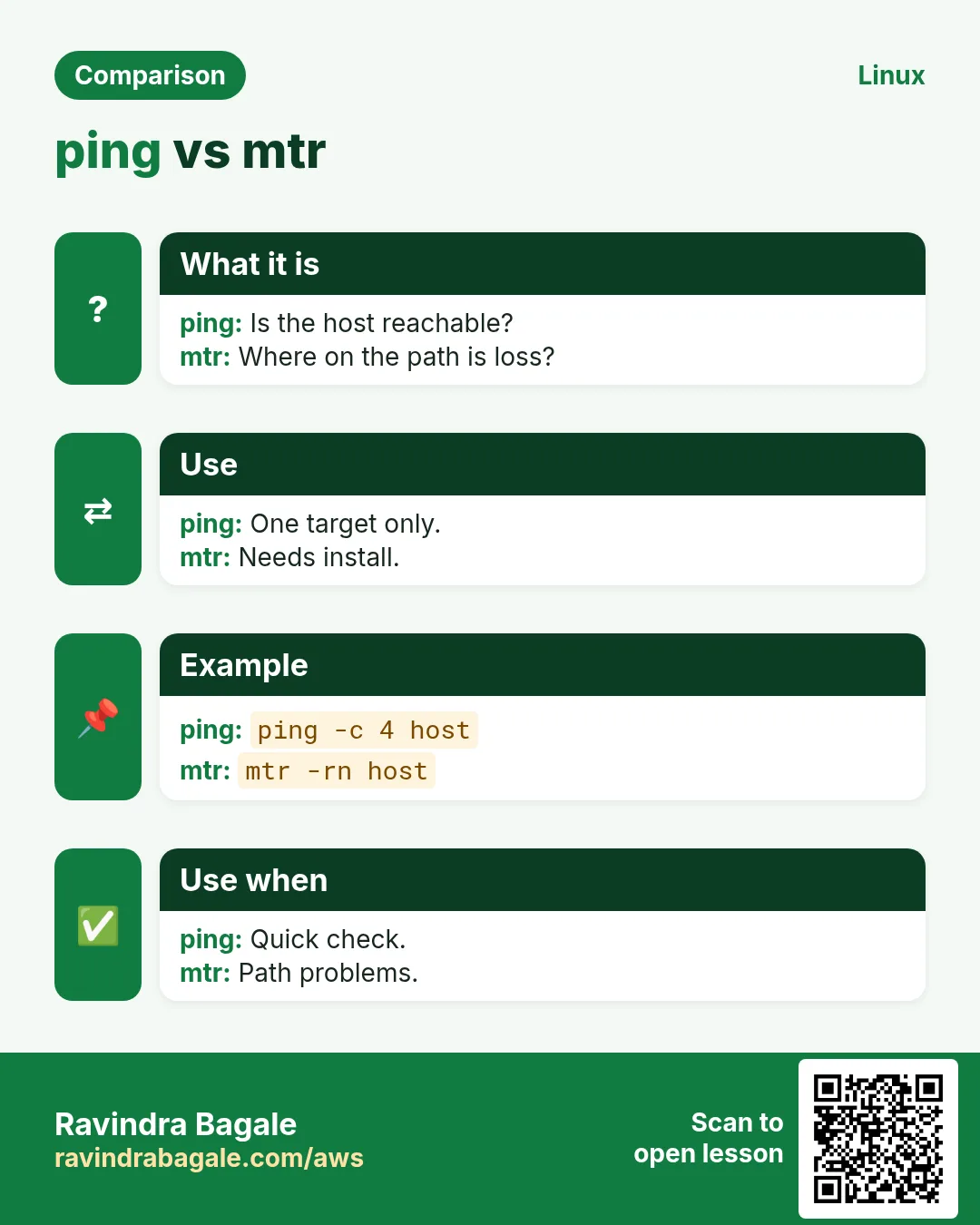
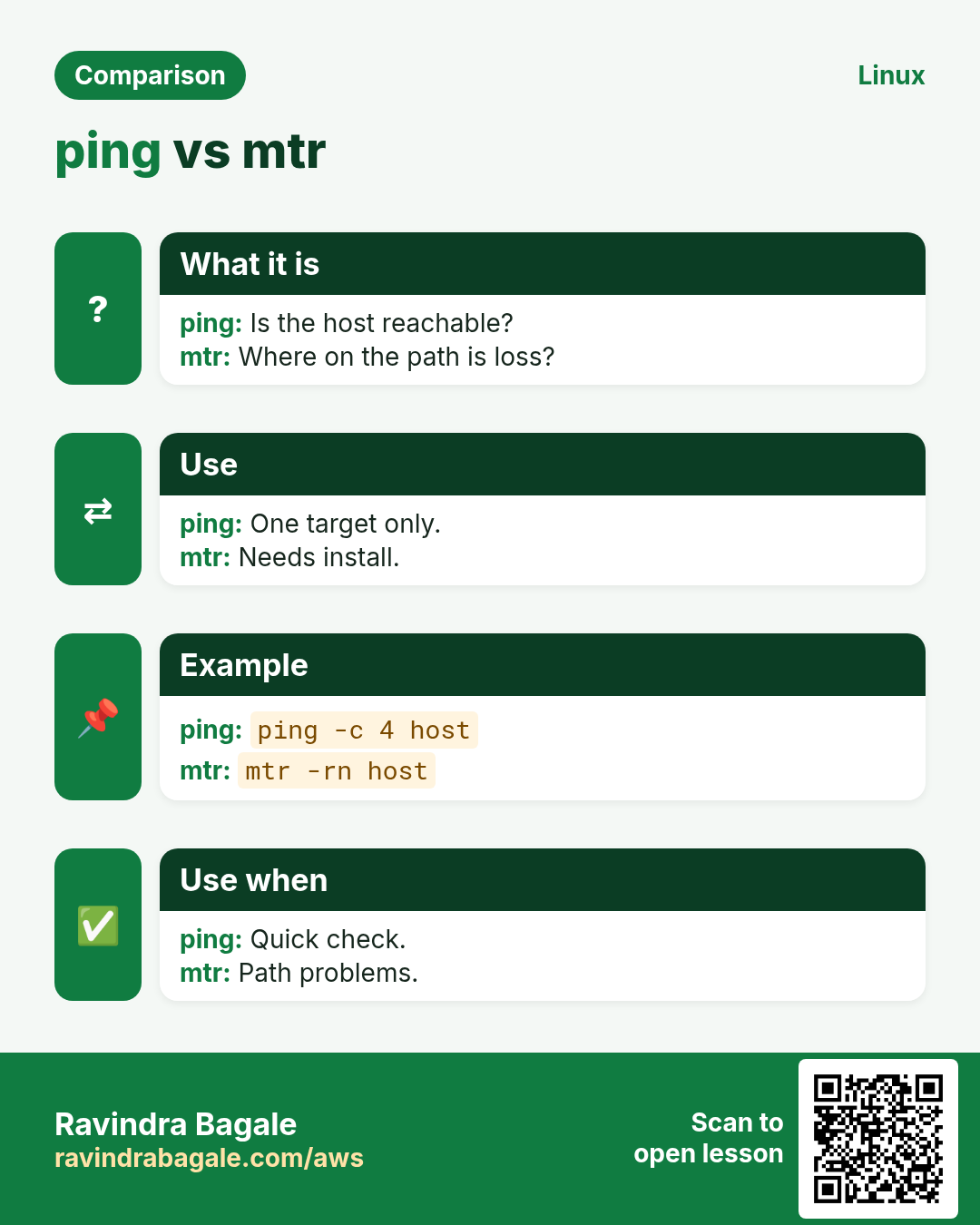
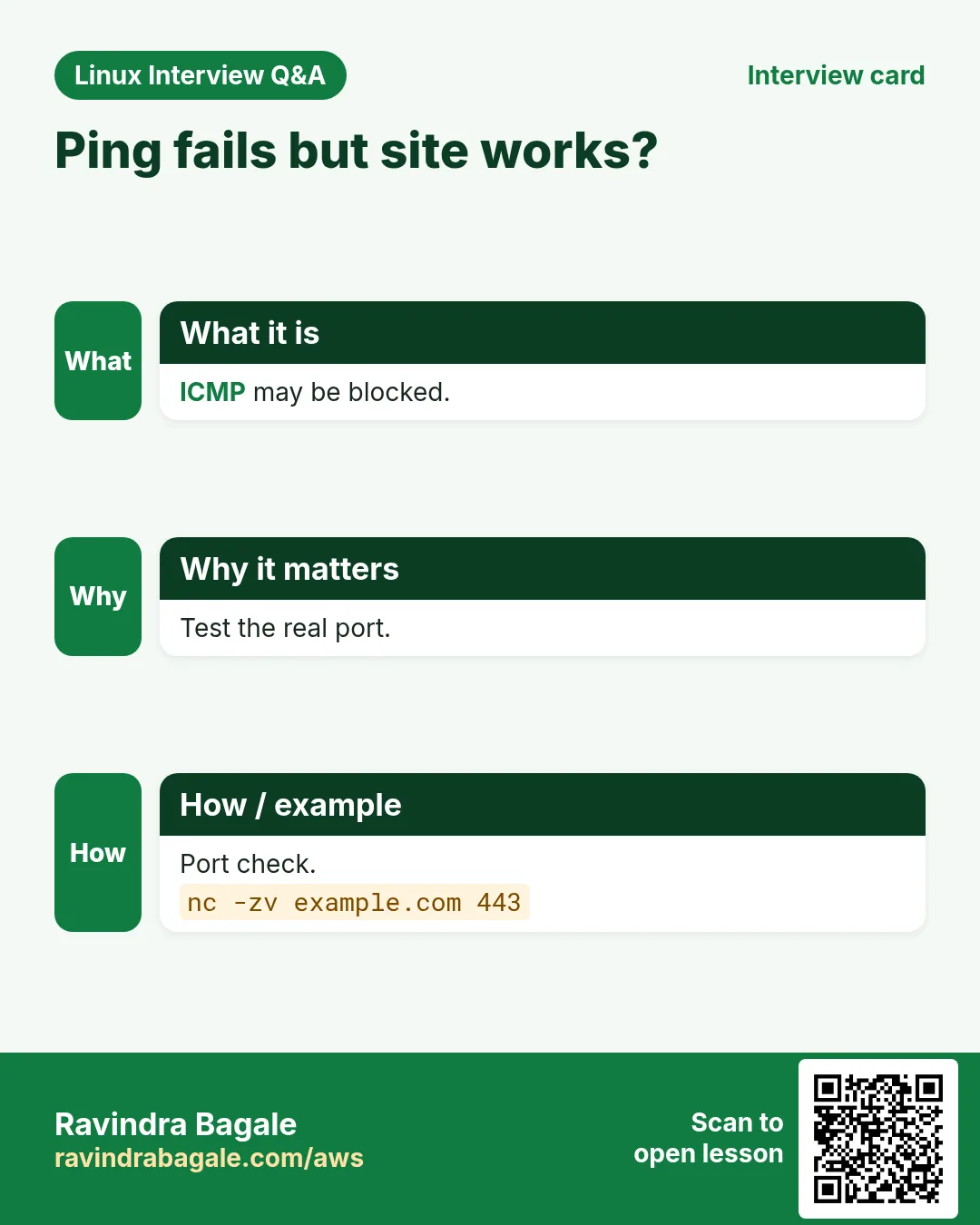
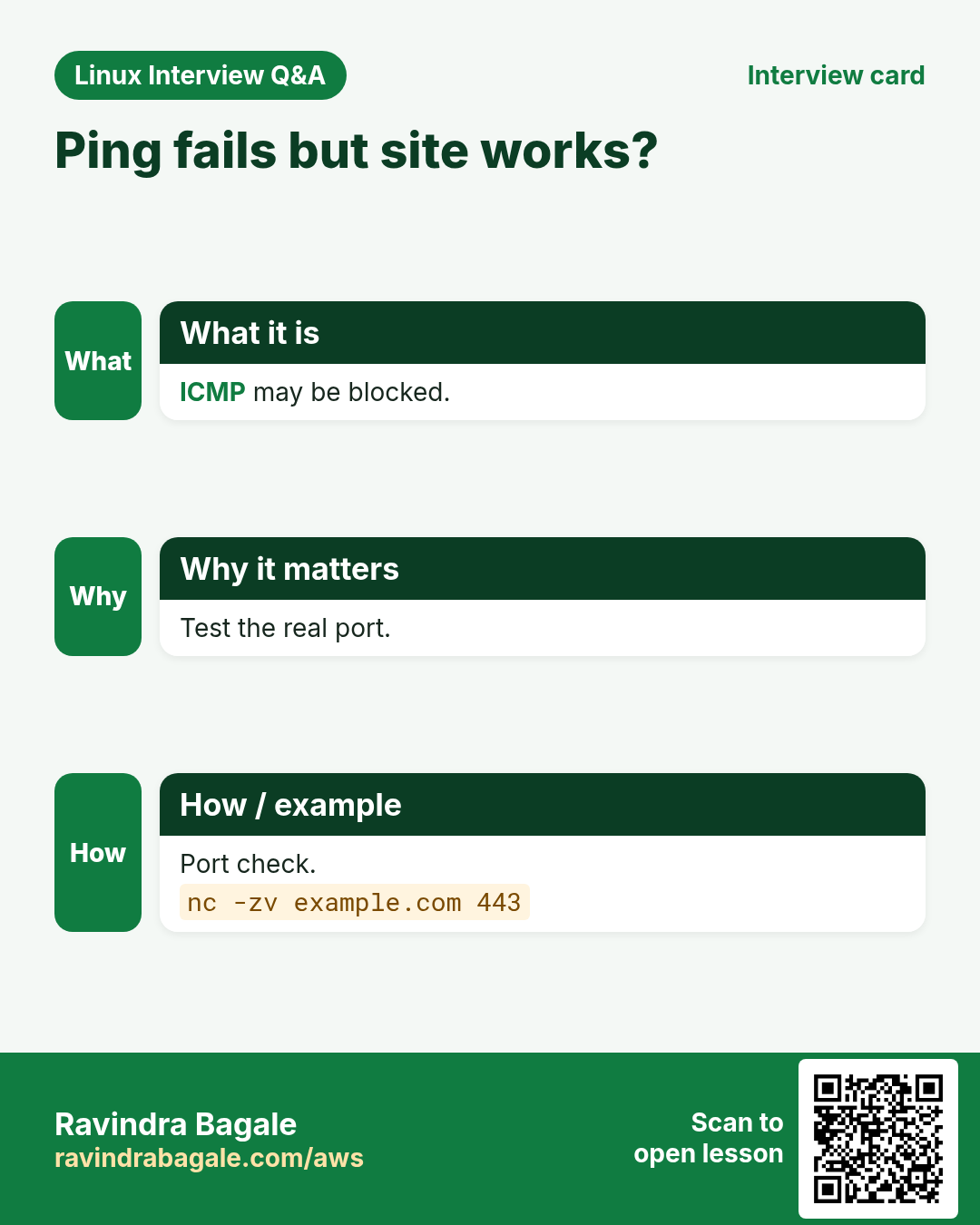
ping sends ICMP echo. On Linux it never stops until Ctrl+C, so use -c COUNT. -i interval, -W timeout, -s size, -4/-6. Note: many clouds and firewalls block ICMP, so no reply does not always mean down.
How to do it (step by step)
- Four pings.
ping -c 4 10.0.2.15Output:
64 bytes from 10.0.2.15: icmp_seq=1 ttl=64 time=0.41 ms
--- 10.0.2.15 ping statistics ---
4 packets transmitted, 4 received, 0% packet loss
What it means: Alive and close.
- Packet loss.
ping -c 20 -i 0.2 api.partner.comOutput:
20 packets transmitted, 16 received, 20% packet lossWhat it means: Bad path or busy link.
- Name problem, not network.
ping -c1 db.internalOutput:
ping: db.internal: Name or service not knownWhat it means: DNS issue: see chapter 27.
11. traceroute and tracepath: hop by hop
Why do we need this?
ping says 'not reachable'. traceroute shows at which router the path stops.
What is it?
traceroute HOST lists each hop with three timings. * * * means that hop did not answer (often just filtered). -n skips DNS (faster). -T uses TCP (with -p 443) to get past ICMP filters. tracepath needs no root and also finds the path MTU.
How to do it (step by step)
- Basic.
traceroute -n 8.8.8.8Output:
1  10.0.1.1   0.3 ms
2  100.65.8.1  1.2 ms
3  * * *
4  8.8.8.8    2.1 ms
What it means: Hop 3 is silent but traffic still passes.
- TCP to a web port.
sudo traceroute -T -p 443 -n shop.example.comOutput:
... 9 93.184.216.34 41.2 msWhat it means: Works where ICMP is blocked.
- Path MTU.
tracepath -n 10.8.0.20Output:
1?: [LOCALHOST] pmtu 1500
 2:  10.8.0.20  3.1ms reached
     Resume: pmtu 1400
What it means: VPN lowers MTU to 1400.
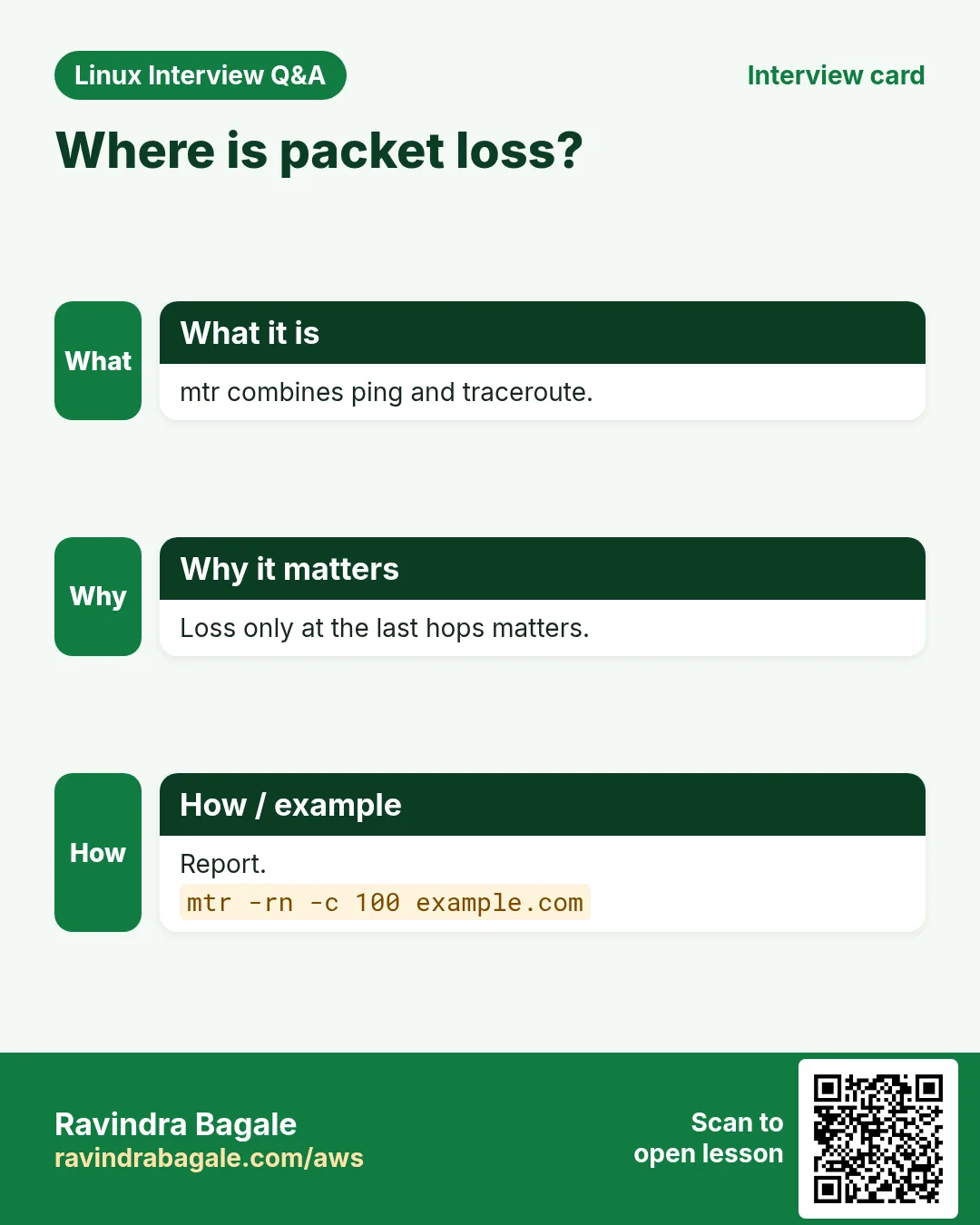
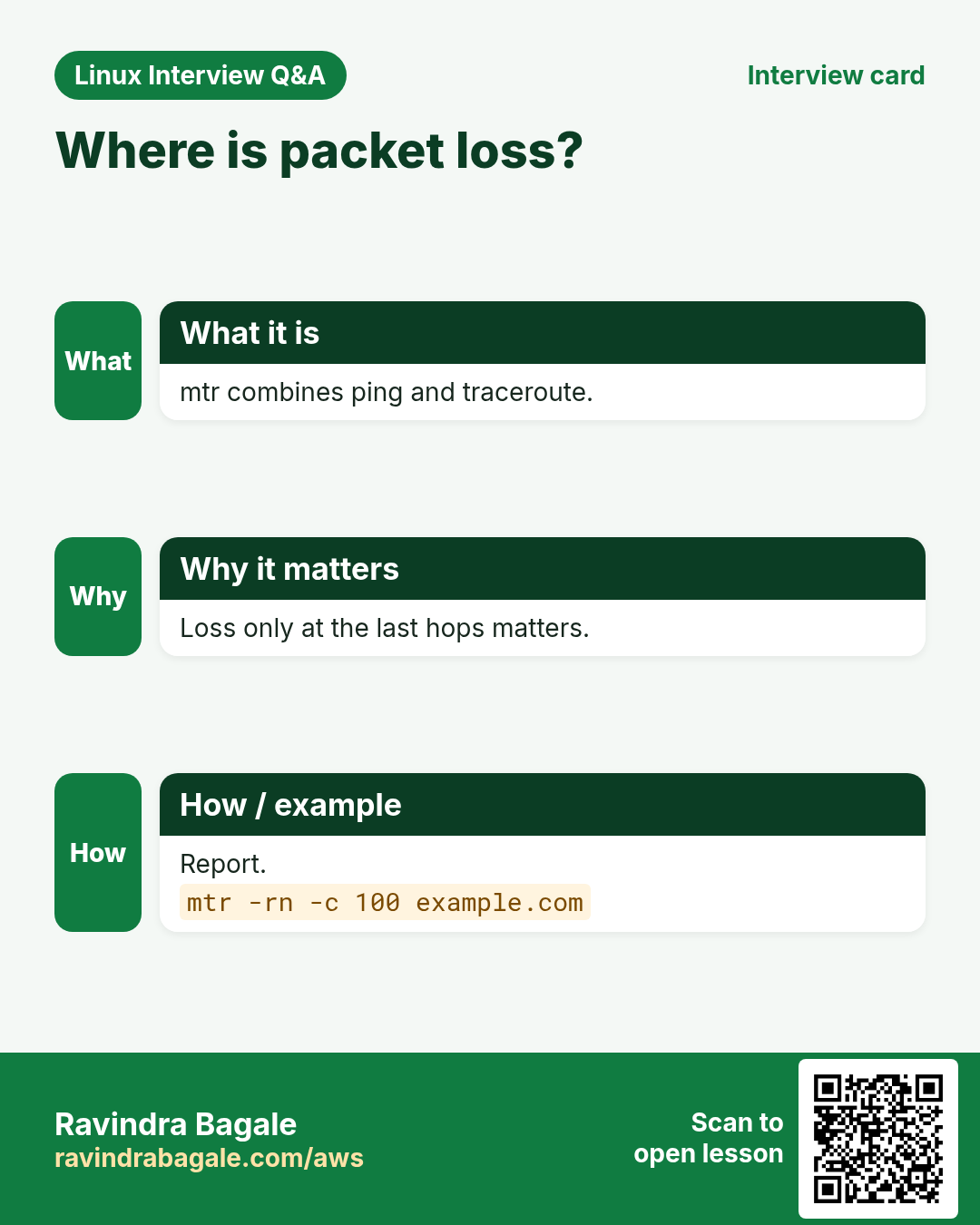
12. mtr: traceroute plus ping, live
Why do we need this?
A one-time traceroute can miss short packet loss. mtr keeps testing every hop and shows loss and delay per hop.
What is it?
mtr HOST opens a live screen. mtr -r -c 100 -n HOST runs 100 rounds and prints a report (good for tickets). Loss only at a middle hop but not at the end is usually harmless rate limiting; loss that continues to the end is real.
How to do it (step by step)
- Report for a ticket.
mtr -r -c 100 -n api.partner.comOutput:
HOST            Loss%  Avg
1. 10.0.1.1      0.0%   0.4
2. 100.65.8.1    0.0%   1.1
5. 62.115.1.9    18.0%  44.0
6. 203.0.113.10  17.0%  46.2
What it means: Loss starts at hop 5 and stays: provider issue.
- TCP mode.
sudo mtr -T -P 443 -r -c 50 shop.example.comOutput:
(report)What it means: Same trick as traceroute -T.
13. A simple order to debug 'cannot connect'
Why do we need this?
Random checks waste time. A fixed order finds the broken layer quickly.
What is it?
1 ip -br a (do I have an IP?) 2 ip -br link (is it UP?) 3 ip r (default route?) 4 ping gateway 5 ping/mtr target 6 name works? (dig, ch27) 7 port open? (nc -zv, ch27) 8 on the target: ss -tulpn and firewall.
How to do it (step by step)
- Steps 1-4 in one line.
ip -br a; ip -br link; ip r | head -1; ping -c2 -W1 $(ip r | awk '/default/{print $3}')Output:
eth0 UP 10.0.1.25/24
eth0 UP
default via 10.0.1.1 dev eth0
2 packets transmitted, 2 received
What it means: Local side is fine.
- Step 8 on the database server.
sudo ss -ltnp | grep 5432Output:
LISTEN 127.0.0.1:5432 users:(("postgres"))What it means: Listens only on localhost: set listen_addresses.
14. Real examples from many industries
Why do we need this?
The same Linux skill shows up in every kind of company. Seeing it in many places helps you remember it.
What is it?
Each row is a made-up team. It shows who uses this and how.
How to do it (step by step)
| Team and city | How they use it | Command |
|---|---|---|
| Rohit, e-commerce, Pune | Finds a port conflict with ss | sudo ss -ltnp 'sport = :8080' |
| Emily, bank, London | mtr reports for the network team | mtr -r -c 100 -n api.partner.com |
| Kenji, gaming, Osaka | Watches interface errors on game servers | ip -s link show eth0 |
| Amina, hospital, Nairobi | Adds a route to the lab network | sudo ip route add 192.168.50.0/24 via 10.0.1.5 |
| Lucas, logistics, São Paulo | Counts DB connections per app server | ss -tn state established |
| Priya, college IT, Nashik | Teaches ip instead of ifconfig | ip -br a |
15. Common errors and how to fix them
Why do we need this?
Everyone hits these errors. Knowing the cause saves hours.
What is it?
Read the exact message first. Then match it to a row below.
How to do it (step by step)
| Error you see | Why it happens | How to fix |
|---|---|---|
connect: Network is unreachable | No route, often no default gateway | Check ip r and add the gateway.sudo ip route add default via 10.0.1.1 |
Connection refused | Nothing listening on that port | Start the service or fix its listen address.sudo ss -ltnp |
Connection timed out | Firewall or security group drops packets | Check firewall rules on both sides.sudo firewall-cmd --list-all |
ping: unknown host / Name or service not known | DNS cannot resolve the name | Test DNS.dig +short db.internal |
bind: Address already in use | Another process already uses the port | Find and stop it, or change the port.sudo ss -ltnp 'sport = :8080' |
ifconfig: command not found | net-tools not installed | Use ip, or install net-tools.ip -br a |
eth1 state DOWN | Interface not brought up | Bring it up.sudo ip link set eth1 up |
Neighbour 10.0.1.1 FAILED | Layer 2 path to gateway broken | Check cable/VLAN/cloud network config.ip n show 10.0.1.1 |
* * * at every hop after one point | Firewall blocking ICMP/UDP probes or real outage | Try TCP mode.sudo traceroute -T -p 443 -n HOST |
ss shows no process name | Need root to see other users' processes | Run with sudo.sudo ss -tulpn |
16. Troubleshooting step by step
Why do we need this?
Use the 8-step order every time someone says 'cannot connect'.
What is it?
Go top to bottom. Stop at the first step that shows the problem.
How to do it (step by step)
- Do I have an IP?
ip -br a- Is the link up?
ip -br link- Default route?
ip r- Gateway reachable?
ping -c2 10.0.1.1- Path to target?
mtr -r -c 20 -n TARGET- On the target: listening?
sudo ss -tulpn17. Lab 1: Map your server's network
Why do we need this?
Write down IP, link state, gateway and listening ports of your machine.
What is it?
A full hands-on lab. Run every step on a test Linux machine (an EC2 instance, a VM, or WSL).
How to do it (step by step)
- Addresses.
ip -br aOutput:
eth0 UP 10.0.1.25/24- Links and MAC.
ip -br linkOutput:
eth0 UP 0a:12:34:56:78:9a- Routes.
ip rOutput:
default via 10.0.1.1 dev eth0- Gateway MAC.
ip nOutput:
10.0.1.1 ... REACHABLE- Listening ports.
sudo ss -tulpnOutput:
tcp LISTEN 0.0.0.0:22 sshd18. Lab 2: Find where the path breaks
Why do we need this?
Use ping, traceroute and mtr to a public host and a blocked host, and compare.
What is it?
A full hands-on lab. Run every step on a test Linux machine (an EC2 instance, a VM, or WSL).
How to do it (step by step)
- Ping a public DNS.
ping -c 4 1.1.1.1Output:
0% packet loss- Trace it.
traceroute -n 1.1.1.1Output:
... 1.1.1.1 3.2 ms- mtr report.
mtr -r -c 30 -n 1.1.1.1Output:
Loss% 0.0 at last hop- Try an unused private IP.
ping -c 2 -W 1 10.255.255.1Output:
100% packet loss- Explain.
ip route get 10.255.255.1Output:
10.255.255.1 via 10.0.1.1 dev eth0Ravindra Bagale's Tip
When ping fails, do not stop there. Many cloud firewalls block ICMP. Test the real port with nc -zv HOST PORT or curl, and on the server run sudo ss -tulpn. The answer to 'is it the network or the app?' is usually in ss.
Ravindra Bagale's Tip – मराठी
ping fail झाला तर तिथेच थांबू नका. अनेक cloud firewalls ICMP block करतात. nc -zv HOST PORT किंवा curl ने खरा port test करा, आणि server वर sudo ss -tulpn चालवा. 'network की app?' याचं उत्तर बहुतेक ss मधे असतं.
Ravindra Bagale's Tip – हिंदी
ping fail हो तो वहीं मत रुकिए. कई cloud firewalls ICMP block करते हैं. nc -zv HOST PORT या curl से असली port test करें, और server पर sudo ss -tulpn चलाएं. 'network या app?' का जवाब अक्सर ss में होता है.
19. Frequently asked questions
Q. ip or ifconfig?
ip. ifconfig is old and often not installed.
Q. What does 0.0.0.0:80 mean in ss?
Listening on all interfaces.
Q. Why no output from ping in AWS?
Security group may block ICMP; test the port instead.
Q. Is * * * in traceroute bad?
Not always; routers may just not reply.
Q. Do ip changes survive reboot?
No. Use nmcli, netplan or cloud-init.
Q. ss vs netstat speed?
ss reads kernel data directly, so it is faster.
Q. What is /24?
Network prefix: 24 bits fixed, 256 addresses.
Q. mtr shows loss only in the middle?
Usually rate limiting; trust the last hop.
20. Interview questions and answers
Beginner level
Q. Show IP addresses?
ip a or ip -br a.
Q. Show listening ports?
sudo ss -tulpn.
Q. Ping 3 times?
ping -c 3 HOST.
Q. Show the default gateway?
ip r.
Mid level level
Q. refused vs timed out?
Refused: host said no listener. Timeout: packets dropped, often firewall.
Q. Which route will be used for an IP?
ip route get IP.
Q. traceroute vs mtr?
mtr repeats and shows loss per hop.
Q. Find which process uses port 443?
sudo ss -ltnp 'sport = :443'.
Senior level
Q. App can reach some servers but not others in the same VPC. Approach?
Compare ip route get, security groups/NACLs, ss on target, and tcpdump.
Q. Many TIME_WAIT sockets: problem?
Usually normal for clients; use keepalive/pooling if ports run out.
Q. Large packets fail but small work?
MTU mismatch; check tracepath and lower MTU or fix MSS.
Q. Why prefer -n in network tools during incidents?
Avoids slow or broken DNS lookups.
Try at home
- Run ip -br a, ip r and sudo ss -tulpn on your machine and explain each line in your own words.
- Run mtr -r -c 50 to two websites and compare loss and average time.
Practice Tasks
Maple Leaf Books is a bookselling business in Toronto. Emily Tremblay looks after its IT and cloud work. They count money in CAD and run their AWS resources in the ca-central-1 Region. In the tasks below you do real jobs for them using what this lesson teaches. All names, account IDs, IP addresses and numbers are made up for practice.
0 / 17
Easy Only IPv6
Why: The network is the road every app uses at BIZ.
What to do: Emily Tremblay at Maple Leaf Books wants to see only IPv6 addresses.
- Find the Linux command that does this job.
- Add the options (like -r or -h) the task needs.
- Add the file names, folders or users in the right order.
- Use sudo if the job changes system files or users. Click Check answer.
Easy One interface
Why: The network is the road every app uses at BIZ.
What to do: Show addresses of interface ens5 only.
- Find the Linux command that does this job.
- Add the options (like -r or -h) the task needs.
- Add the file names, folders or users in the right order.
- Use sudo if the job changes system files or users. Click Check answer.
Easy Neighbour table
Why: The network is the road every app uses at BIZ.
What to do: Show the ARP/neighbour table for ens5 only.
- Find the Linux command that does this job.
- Add the options (like -r or -h) the task needs.
- Add the file names, folders or users in the right order.
- Use sudo if the job changes system files or users. Click Check answer.
Easy Listening TCP only
Why: The network is the road every app uses at BIZ.
What to do: Show who listens on TCP 5432, numeric, with process (use a sport filter).
- Find the Linux command that does this job.
- Add the options (like -r or -h) the task needs.
- Add the file names, folders or users in the right order.
- Use sudo if the job changes system files or users. Click Check answer.
Easy Socket summary
Why: The network is the road every app uses at BIZ.
What to do: Print a summary of socket counts.
- Find the Linux command that does this job.
- Add the options (like -r or -h) the task needs.
- Add the file names, folders or users in the right order.
- Use sudo if the job changes system files or users. Click Check answer.
Easy Three pings
Why: The network is the road every app uses at BIZ.
What to do: Send exactly 3 pings to 10.0.2.40.
- Find the Linux command that does this job.
- Add the options (like -r or -h) the task needs.
- Add the file names, folders or users in the right order.
- Use sudo if the job changes system files or users. Click Check answer.
Medium Add a temporary IP
Why: The network is the road every app uses at BIZ.
What to do: Add 172.16.4.50/24 to ens5.
- Find the Linux command that does this job.
- Add the options (like -r or -h) the task needs.
- Add the file names, folders or users in the right order.
- Use sudo if the job changes system files or users. Click Check answer.
Medium Take a link down
Why: The network is the road every app uses at BIZ.
What to do: Bring interface ens6 down for maintenance.
- Find the Linux command that does this job.
- Add the options (like -r or -h) the task needs.
- Add the file names, folders or users in the right order.
- Use sudo if the job changes system files or users. Click Check answer.
Medium Error counters
Why: The network is the road every app uses at BIZ.
What to do: Show packet and error counters for ens5.
- Find the Linux command that does this job.
- Add the options (like -r or -h) the task needs.
- Add the file names, folders or users in the right order.
- Use sudo if the job changes system files or users. Click Check answer.
Medium Which route?
Why: The network is the road every app uses at BIZ.
What to do: Find which route the kernel uses to reach 1.1.1.1.
- Find the Linux command that does this job.
- Add the options (like -r or -h) the task needs.
- Add the file names, folders or users in the right order.
- Use sudo if the job changes system files or users. Click Check answer.
Medium UDP listeners
Why: The network is the road every app uses at BIZ.
What to do: Show listening UDP sockets with numbers only.
- Find the Linux command that does this job.
- Add the options (like -r or -h) the task needs.
- Add the file names, folders or users in the right order.
- Use sudo if the job changes system files or users. Click Check answer.
Medium Routes the old way
Why: The network is the road every app uses at BIZ.
What to do: Show the route table with netstat, numeric.
- Find the Linux command that does this job.
- Add the options (like -r or -h) the task needs.
- Add the file names, folders or users in the right order.
- Use sudo if the job changes system files or users. Click Check answer.
Medium Fast traceroute
Why: The network is the road every app uses at BIZ.
What to do: Trace the path to 9.9.9.9 without DNS lookups.
- Find the Linux command that does this job.
- Add the options (like -r or -h) the task needs.
- Add the file names, folders or users in the right order.
- Use sudo if the job changes system files or users. Click Check answer.
Hard Add a route
Why: The network is the road every app uses at BIZ.
What to do: Send traffic for 10.20.0.0/16 through gateway 10.0.1.7.
- Find the Linux command that does this job.
- Add the options (like -r or -h) the task needs.
- Add the file names, folders or users in the right order.
- Use sudo if the job changes system files or users. Click Check answer.
Hard Remove a route
Why: The network is the road every app uses at BIZ.
What to do: Remove the route for 192.168.60.0/24.
- Find the Linux command that does this job.
- Add the options (like -r or -h) the task needs.
- Add the file names, folders or users in the right order.
- Use sudo if the job changes system files or users. Click Check answer.
Hard Count TIME_WAIT
Why: The network is the road every app uses at BIZ.
What to do: List TCP sockets in time-wait state, numeric.
- Find the Linux command that does this job.
- Add the options (like -r or -h) the task needs.
- Add the file names, folders or users in the right order.
- Use sudo if the job changes system files or users. Click Check answer.
Hard mtr report
Why: The network is the road every app uses at BIZ.
What to do: Make an mtr report of 50 rounds to 9.9.9.9, numeric.
- Find the Linux command that does this job.
- Add the options (like -r or -h) the task needs.
- Add the file names, folders or users in the right order.
- Use sudo if the job changes system files or users. Click Check answer.
21. Related chapters
- Linux Ops Refresh for DevOps
- Bash Scripting for Automation
- Linux grep and find Commands with Examples
- How to Set Up Passwordless SSH Between Linux Servers
In short
- ip a, ip link, ip r, ip n show address, link, route, neighbour.
- ss -tulpn shows listeners; ss -tn shows connections.
- netstat is the older equivalent.
- ping -c tests reachability, ICMP may be blocked.
- traceroute, tracepath and mtr show the path.
- Debug in order: IP, link, route, gateway, path, DNS, port.
Revision, comparison and interview cards
Revise this lesson in a few minutes. Save the cards on your phone or download them as PNG files. The QR code on each card opens this lesson.
More cards: Ravi Sir's Cards.