Linux Commands A-Z Index: 180+ Commands with Links to Why, What and How
This page is the master index of the Linux Commands A-Z reference. It lists 183 commands, from alias to zip, with a one-line meaning and a link to the section that explains why you need it, what it is and how to use it, with step-by-step examples. Commands already explained in depth in earlier chapters link straight to those sections. The rest are published in eight A-Z parts. Use the letter bar to jump.
What you'll learn in this chapter
- Find any Linux command in seconds by letter
- Know what each command does in one line
- Jump to its full why, what and how section
- Pick the right command for a job using the task map
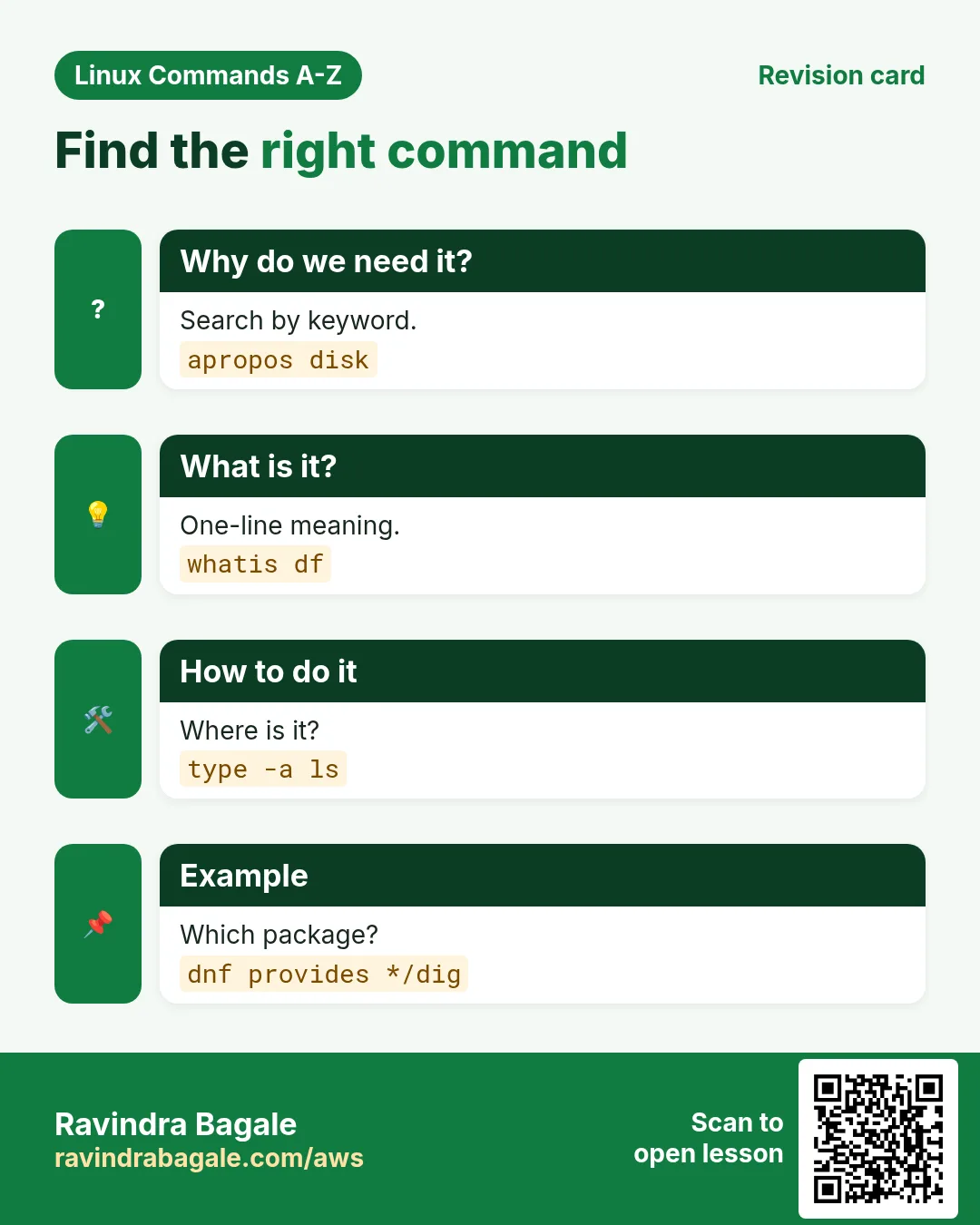
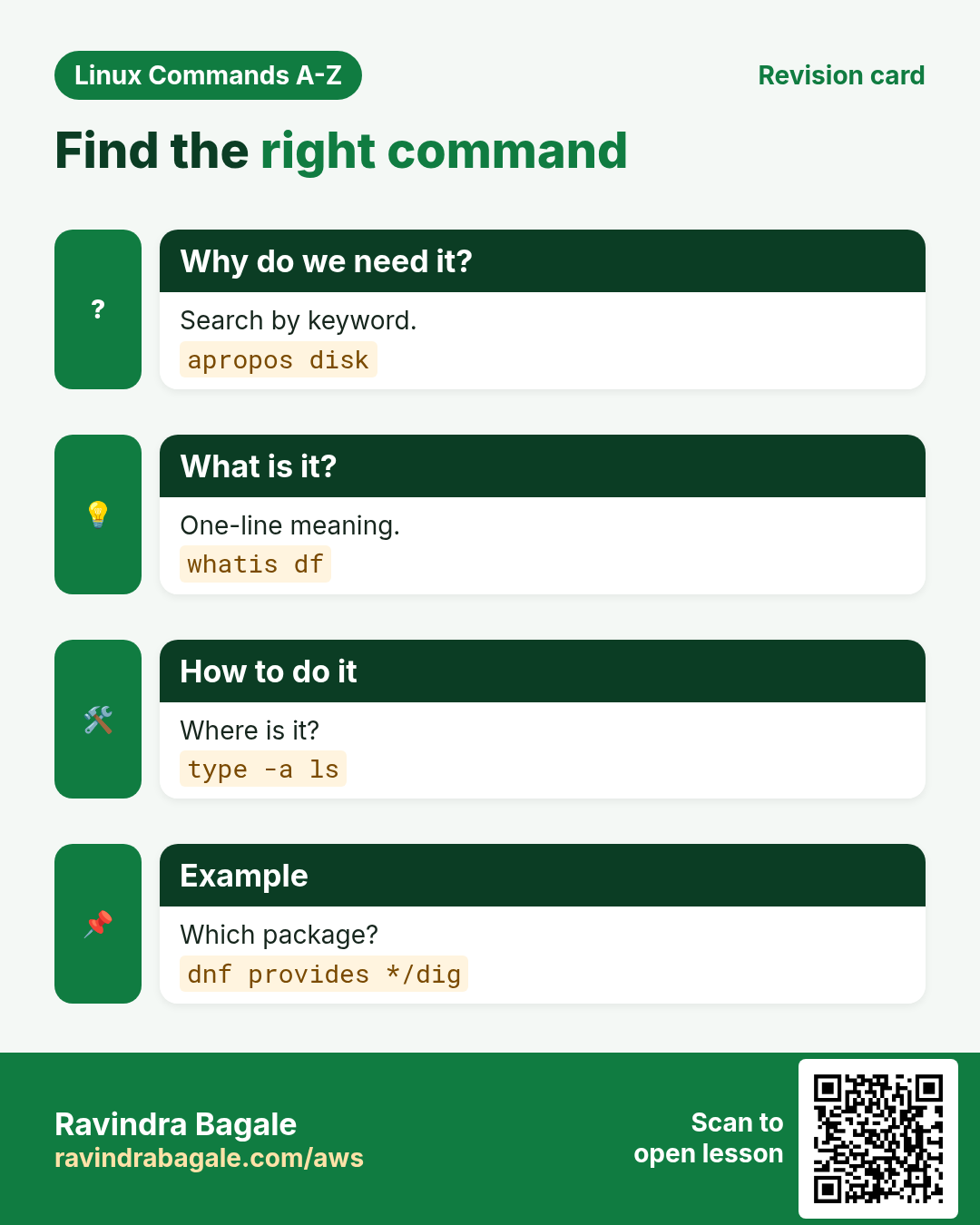
- Find commands you do not know with apropos, man -k and type
- Plan your learning across the eight A-Z parts
1. An everyday example: the index at the back of a textbook
Why do we need this?
When Sai studies for his engineering exam at Fergusson College, he never reads the whole book to find "Ohm's law". He turns to the index at the back, finds O, and goes straight to page 214.
What is it?
This page is that index for Linux. Each letter is a heading, each row is a command, and the Where column is the page number: a link to the exact section.
How to do it (step by step)
2. The eight A-Z parts
Why do we need this?
A single page with 183 full commands would be too slow and too long to study.
What is it?
The commands are split into eight parts of about 20 to 24 each. 13 commands already had full sections in earlier chapters and are linked, not repeated.
| Part | Range | Status |
|---|---|---|
| Part 1 | alias to chown | Published |
| Part 2 | chronyc to du | Published |
| Part 3 | echo to host | Published |
| Part 4 | hostname to lvcreate | Published |
| Part 5 | man to read | Published |
| Part 6 | reboot to stat | Published |
| Part 7 | strace to uname | Coming next |
| Part 8 | uniq to zip | Coming next |
How to do it (step by step)
- Count how many commands your system has.
compgen -c | sort -u | wc -lOutput:
2143What it means: Thousands exist, but about 180 cover almost all daily admin work.
- Check where a command comes from.
type -a ls; rpm -qf /usr/bin/lsOutput:
ls is aliased to `ls --color=auto'
ls is /usr/bin/ls
coreutils-8.32-35.el9.x86_64
What it means: ls is an alias for a program from the coreutils package.
3. Task map: which command for which job
Why do we need this?
Most of the time you know the job, not the command name.
What is it?
This map groups commands by the job they do. Each one is in the A-Z list below.
| Job | Commands |
|---|---|
| Files and folders | ls cd cp mv rm mkdir find stat ln |
| Read and filter text | cat less head tail grep sed awk cut sort uniq wc tr |
| Users and permissions | useradd passwd chage chmod chown chgrp sudo id |
| Processes and services | ps top kill nice systemctl journalctl |
| Disk and storage | df du lsblk blkid mount fdisk lvcreate |
| Network | ip ss ping dig curl wget nc traceroute |
| Packages | apt dnf rpm |
| Archive and compress | tar gzip bzip2 xz zip |
| Schedule | crontab at systemctl list-timers |
How to do it (step by step)
- Find a command by a keyword.
apropos -s 1,8 "disk usage"Output:
df (1)  - report file system space usage
du (1)  - estimate file space usage
What it means: Now look up df or du below.
4. Linux Commands A-Z list
Why do we need this?
One list, every command, one click to the details.
What is it?
Rows marked Coming next will become links when that part is published.
How to do it (step by step)
Jump to a letter: A B C D E F G H I J K L M N P R S T U V W X Y Z
A
| Command | What it does | Where |
|---|---|---|
alias | Make a short name for a long command | A-Z Part 1 |
apropos | Search man pages by keyword | A-Z Part 1 |
apt | Install packages on Debian and Ubuntu | A-Z Part 1 |
at | Run a command once at a later time | A-Z Part 1 |
awk | Work with columns, sums and reports in text | A-Z Part 1 |
B
| Command | What it does | Where |
|---|---|---|
base64 | Encode or decode data as base64 text | A-Z Part 1 |
basename | Get the file name from a path | A-Z Part 1 |
bc | Calculator with decimals | A-Z Part 1 |
bg | Resume a stopped job in the background | A-Z Part 1 |
blkid | Show UUID and type of disks and partitions | A-Z Part 1 |
bunzip2 | Uncompress .bz2 files | A-Z Part 1 |
bzip2 | Compress files with bzip2 | A-Z Part 1 |
C
| Command | What it does | Where |
|---|---|---|
cal | Show a calendar | A-Z Part 1 |
cat | Print and join files | A-Z Part 1 |
cd | Change the current folder | Full section (earlier chapter) |
chage | Set password ageing rules | A-Z Part 1 |
chattr | Set special file attributes like immutable | A-Z Part 1 |
chgrp | Change the group of a file | A-Z Part 1 |
chmod | Change file permissions | Full section (earlier chapter) |
chown | Change file owner and group | Full section (earlier chapter) |
chronyc | Check and control time sync | A-Z Part 2 |
chroot | Run a shell inside another root folder | A-Z Part 2 |
cksum | Print a CRC checksum and size | A-Z Part 2 |
clear | Clear the terminal screen | A-Z Part 2 |
cmp | Compare two files byte by byte | A-Z Part 2 |
column | Format text into neat columns | A-Z Part 2 |
comm | Compare two sorted files line by line | A-Z Part 2 |
cp | Copy files and folders | Full section (earlier chapter) |
crontab | Schedule repeating jobs | A-Z Part 2 |
curl | Talk to web servers and APIs | A-Z Part 2 |
cut | Cut columns or characters from lines | A-Z Part 2 |
D
| Command | What it does | Where |
|---|---|---|
date | Show or format date and time | A-Z Part 2 |
dd | Copy raw data block by block | A-Z Part 2 |
df | Show free disk space per filesystem | A-Z Part 2 |
diff | Show differences between files | A-Z Part 2 |
dig | Query DNS records | A-Z Part 2 |
dirname | Get the folder part of a path | A-Z Part 2 |
dmesg | Read kernel messages | A-Z Part 2 |
dnf | Install packages on RHEL, Fedora, Amazon Linux | A-Z Part 2 |
du | Show how much space folders use | A-Z Part 2 |
E
| Command | What it does | Where |
|---|---|---|
echo | Print text | A-Z Part 3 |
env | Show or set environment for a command | A-Z Part 3 |
exit | Leave a shell with a status code | A-Z Part 3 |
export | Make a variable visible to child programs | A-Z Part 3 |
expr | Simple maths and string checks | A-Z Part 3 |
F
| Command | What it does | Where |
|---|---|---|
fdisk | Create and list disk partitions | A-Z Part 3 |
fg | Bring a job to the foreground | A-Z Part 3 |
file | Detect what kind of file it is | A-Z Part 3 |
find | Search files by name, size, time | A-Z Part 3 |
firewall-cmd | Manage firewalld rules | A-Z Part 3 |
free | Show memory and swap use | A-Z Part 3 |
fsck | Check and repair a filesystem | A-Z Part 3 |
fuser | Show which process uses a file or port | A-Z Part 3 |
G
| Command | What it does | Where |
|---|---|---|
getent | Look up users, groups, hosts | A-Z Part 3 |
getfacl | Show ACL permissions | A-Z Part 3 |
grep | Search text for patterns | A-Z Part 3 |
groupadd | Create a group | A-Z Part 3 |
groups | Show groups of a user | A-Z Part 3 |
gunzip | Uncompress .gz files | A-Z Part 3 |
gzip | Compress files with gzip | A-Z Part 3 |
H
| Command | What it does | Where |
|---|---|---|
halt | Stop the system | A-Z Part 3 |
head | Show the first lines | A-Z Part 3 |
history | Show past commands | A-Z Part 3 |
host | Simple DNS lookup | A-Z Part 3 |
hostname | Show or set the host name | A-Z Part 4 |
hostnamectl | Manage host name with systemd | A-Z Part 4 |
htop | Interactive process viewer | A-Z Part 4 |
I
| Command | What it does | Where |
|---|---|---|
id | Show user and group ids | A-Z Part 4 |
ifconfig | Old tool to show network interfaces | A-Z Part 4 |
iostat | Show disk I/O stats | A-Z Part 4 |
ip | Show and set addresses and routes | A-Z Part 4 |
iptables | Low-level firewall rules | A-Z Part 4 |
J
| Command | What it does | Where |
|---|---|---|
jobs | List shell jobs | A-Z Part 4 |
journalctl | Read systemd logs | A-Z Part 4 |
jq | Read and filter JSON | A-Z Part 4 |
K
| Command | What it does | Where |
|---|---|---|
kill | Send a signal to a process | A-Z Part 4 |
killall | Signal processes by name | A-Z Part 4 |
L
| Command | What it does | Where |
|---|---|---|
last | Show login history | A-Z Part 4 |
less | Page through a file | A-Z Part 4 |
ln | Create hard and soft links | A-Z Part 4 |
locate | Find files fast from a database | A-Z Part 4 |
logger | Write a message to the system log | A-Z Part 4 |
logrotate | Rotate and compress logs | A-Z Part 4 |
ls | List files | A-Z Part 4 |
lsblk | List block devices | A-Z Part 4 |
lscpu | Show CPU details | A-Z Part 4 |
lsof | List open files | A-Z Part 4 |
lvcreate | Create an LVM logical volume | A-Z Part 4 |
M
| Command | What it does | Where |
|---|---|---|
man | Read the manual | A-Z Part 5 |
md5sum | MD5 checksum | A-Z Part 5 |
mkdir | Create folders | Full section (earlier chapter) |
mkfs | Create a filesystem | A-Z Part 5 |
mktemp | Create a safe temp file or folder | A-Z Part 5 |
more | Simple pager | A-Z Part 5 |
mount | Attach a filesystem | A-Z Part 5 |
mv | Move or rename | Full section (earlier chapter) |
N
| Command | What it does | Where |
|---|---|---|
nc | Open raw TCP or UDP connections | A-Z Part 5 |
netstat | Old tool for sockets and routes | A-Z Part 5 |
nice | Start a command with lower priority | A-Z Part 5 |
nmcli | Control NetworkManager | A-Z Part 5 |
nohup | Keep a command running after logout | A-Z Part 5 |
nslookup | Simple DNS query | A-Z Part 5 |
P
| Command | What it does | Where |
|---|---|---|
passwd | Change a password | A-Z Part 5 |
paste | Join lines side by side | A-Z Part 5 |
pgrep | Find process ids by name | A-Z Part 5 |
ping | Test if a host answers | A-Z Part 5 |
pkill | Signal processes by name or pattern | A-Z Part 5 |
printf | Print formatted text | A-Z Part 5 |
ps | List processes | A-Z Part 5 |
pvcreate | Prepare a disk for LVM | A-Z Part 5 |
pwd | Print the current folder | A-Z Part 5 |
R
| Command | What it does | Where |
|---|---|---|
read | Read input into variables | A-Z Part 5 |
reboot | Restart the system | A-Z Part 6 |
renice | Change priority of a running process | A-Z Part 6 |
restorecon | Restore SELinux labels | A-Z Part 6 |
rm | Delete files | Full section (earlier chapter) |
rmdir | Delete empty folders | Full section (earlier chapter) |
rpm | Query and install RPM packages | A-Z Part 6 |
rsync | Fast sync of files and folders | A-Z Part 6 |
S
| Command | What it does | Where |
|---|---|---|
scp | Copy files over SSH | Full section (earlier chapter) |
screen | Keep terminal sessions alive | A-Z Part 6 |
sed | Find and replace in text streams | A-Z Part 6 |
semanage | Persistent SELinux settings | A-Z Part 6 |
seq | Print number sequences | A-Z Part 6 |
setfacl | Set ACL permissions | A-Z Part 6 |
sestatus | Show SELinux status | A-Z Part 6 |
sha256sum | SHA-256 checksum | A-Z Part 6 |
shutdown | Power off or reboot safely | A-Z Part 6 |
sleep | Wait for some time | A-Z Part 6 |
sort | Sort lines | A-Z Part 6 |
source | Run a file in the current shell | A-Z Part 6 |
split | Split a big file into parts | A-Z Part 6 |
ss | Show sockets and listening ports | A-Z Part 6 |
ssh | Log in to a remote server | A-Z Part 6 |
ssh-keygen | Create SSH keys | A-Z Part 6 |
stat | Show file details and times | A-Z Part 6 |
strace | Trace system calls | A-Z Part 7 (coming next) |
su | Switch user | A-Z Part 7 (coming next) |
sudo | Run a command as another user | A-Z Part 7 (coming next) |
swapon | Enable and show swap | A-Z Part 7 (coming next) |
sysctl | Read and set kernel settings | A-Z Part 7 (coming next) |
systemctl | Manage services | A-Z Part 7 (coming next) |
T
| Command | What it does | Where |
|---|---|---|
tail | Show the last lines or follow a log | A-Z Part 7 (coming next) |
tar | Pack files into an archive | A-Z Part 7 (coming next) |
tee | Write output to screen and file | A-Z Part 7 (coming next) |
test | Check files and values | A-Z Part 7 (coming next) |
time | Measure how long a command takes | A-Z Part 7 (coming next) |
timedatectl | Manage time and time zone | A-Z Part 7 (coming next) |
tmux | Split and keep terminal sessions | A-Z Part 7 (coming next) |
top | Live view of processes | A-Z Part 7 (coming next) |
touch | Create empty files or update times | Full section (earlier chapter) |
tr | Translate or delete characters | A-Z Part 7 (coming next) |
traceroute | Show the network path to a host | A-Z Part 7 (coming next) |
tree | Show folders as a tree | A-Z Part 7 (coming next) |
truncate | Shrink or grow a file to a size | A-Z Part 7 (coming next) |
type | Show how a command name is resolved | A-Z Part 7 (coming next) |
U
| Command | What it does | Where |
|---|---|---|
ulimit | Show and set user limits | A-Z Part 7 (coming next) |
umask | Default permission mask | A-Z Part 7 (coming next) |
umount | Detach a filesystem | A-Z Part 7 (coming next) |
uname | Show kernel and system info | A-Z Part 7 (coming next) |
uniq | Remove or count repeated lines | A-Z Part 8 (coming next) |
unzip | Extract zip files | Full section (earlier chapter) |
uptime | Show uptime and load | A-Z Part 8 (coming next) |
useradd | Create a user | A-Z Part 8 (coming next) |
userdel | Delete a user | A-Z Part 8 (coming next) |
usermod | Change a user | A-Z Part 8 (coming next) |
V
| Command | What it does | Where |
|---|---|---|
vgcreate | Create an LVM volume group | A-Z Part 8 (coming next) |
vim | Edit files in the terminal | A-Z Part 8 (coming next) |
vmstat | Memory, CPU and I/O summary | A-Z Part 8 (coming next) |
W
| Command | What it does | Where |
|---|---|---|
w | Who is logged in and what they do | A-Z Part 8 (coming next) |
watch | Run a command again and again | A-Z Part 8 (coming next) |
wc | Count lines, words, bytes | A-Z Part 8 (coming next) |
wget | Download files | Full section (earlier chapter) |
whereis | Find binary, source and man page | A-Z Part 8 (coming next) |
which | Show the path of a command | A-Z Part 8 (coming next) |
who | Show logged-in users | A-Z Part 8 (coming next) |
whoami | Print your user name | A-Z Part 8 (coming next) |
X
| Command | What it does | Where |
|---|---|---|
xargs | Build commands from input | A-Z Part 8 (coming next) |
xz | Compress files with xz | A-Z Part 8 (coming next) |
Y
| Command | What it does | Where |
|---|---|---|
yes | Print a line again and again | A-Z Part 8 (coming next) |
yum | Old package tool on RHEL and CentOS | A-Z Part 8 (coming next) |
Z
| Command | What it does | Where |
|---|---|---|
zcat | Read .gz files without unpacking | A-Z Part 8 (coming next) |
zip | Create zip files | Full section (earlier chapter) |
5. Real examples from many industries
Why do we need this?
The same Linux skill shows up in every kind of company. Seeing it in many places helps you remember it.
What is it?
Each row is a made-up team. It shows who uses this and how.
How to do it (step by step)
| Team and city | How they use it | Command |
|---|---|---|
| Asha, fresher, Hinjewadi | Uses the index to revise before interviews | apropos network |
| Vikram, bank ops, Pune | Shares #cmd links in runbooks | man -k cron |
| Farah, hospital IT, Erandwane | Looks up rarely used commands like chage | type -a chage |
| Deepak, SaaS, Baner | Finds which package gives a missing command | dnf provides */bin/dig |
| Prachi, college lab, Ganeshkhind | Gives students the letter list as homework | compgen -c | grep ^ch |
| Rohan, cloud, Viman Nagar | Checks if a name is alias or binary | type ll |
6. Common errors and how to fix them
Why do we need this?
Everyone hits these errors. Knowing the cause saves hours.
What is it?
Read the exact message first. Then match it to a row below.
How to do it (step by step)
| Error you see | Why it happens | How to fix |
|---|---|---|
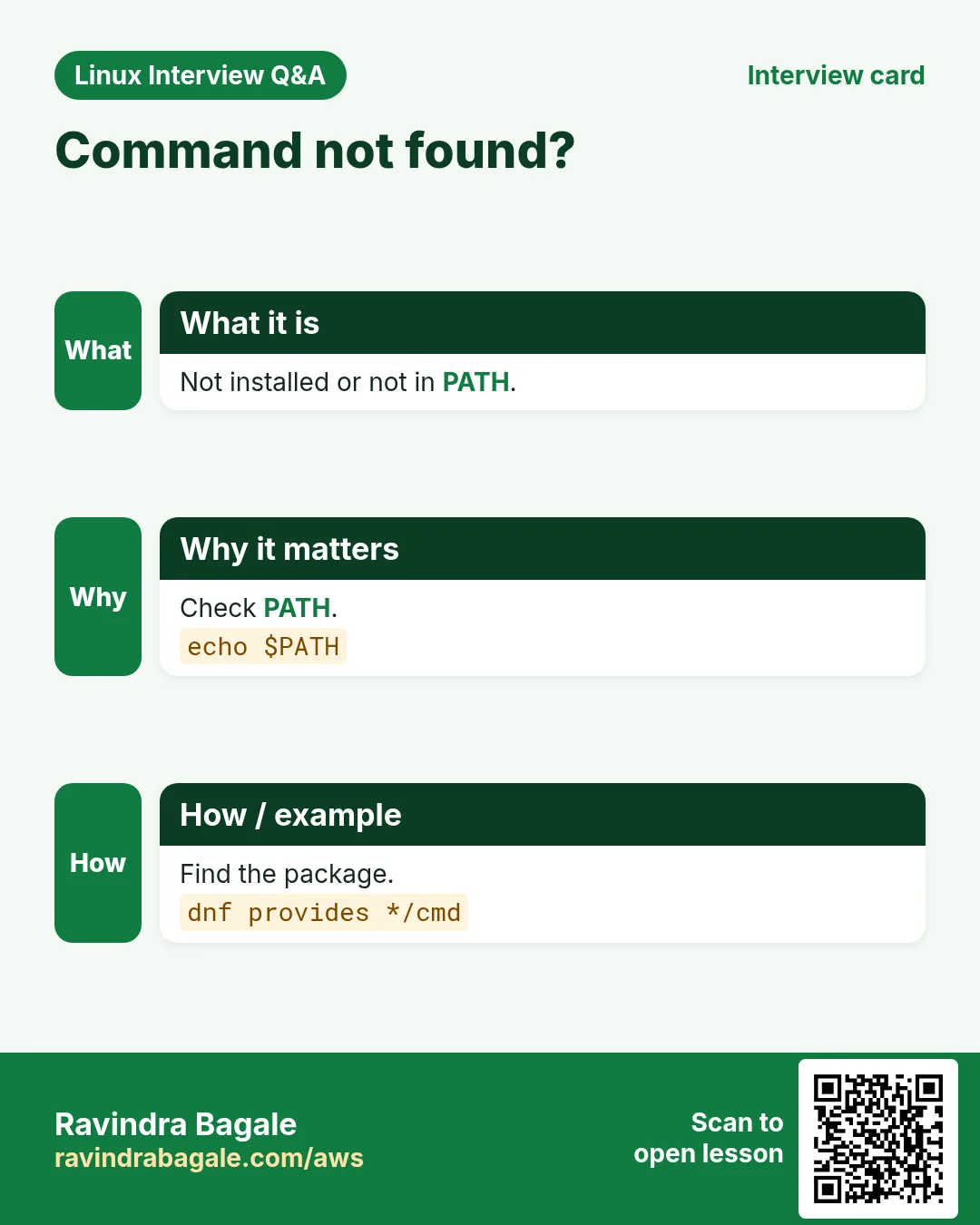
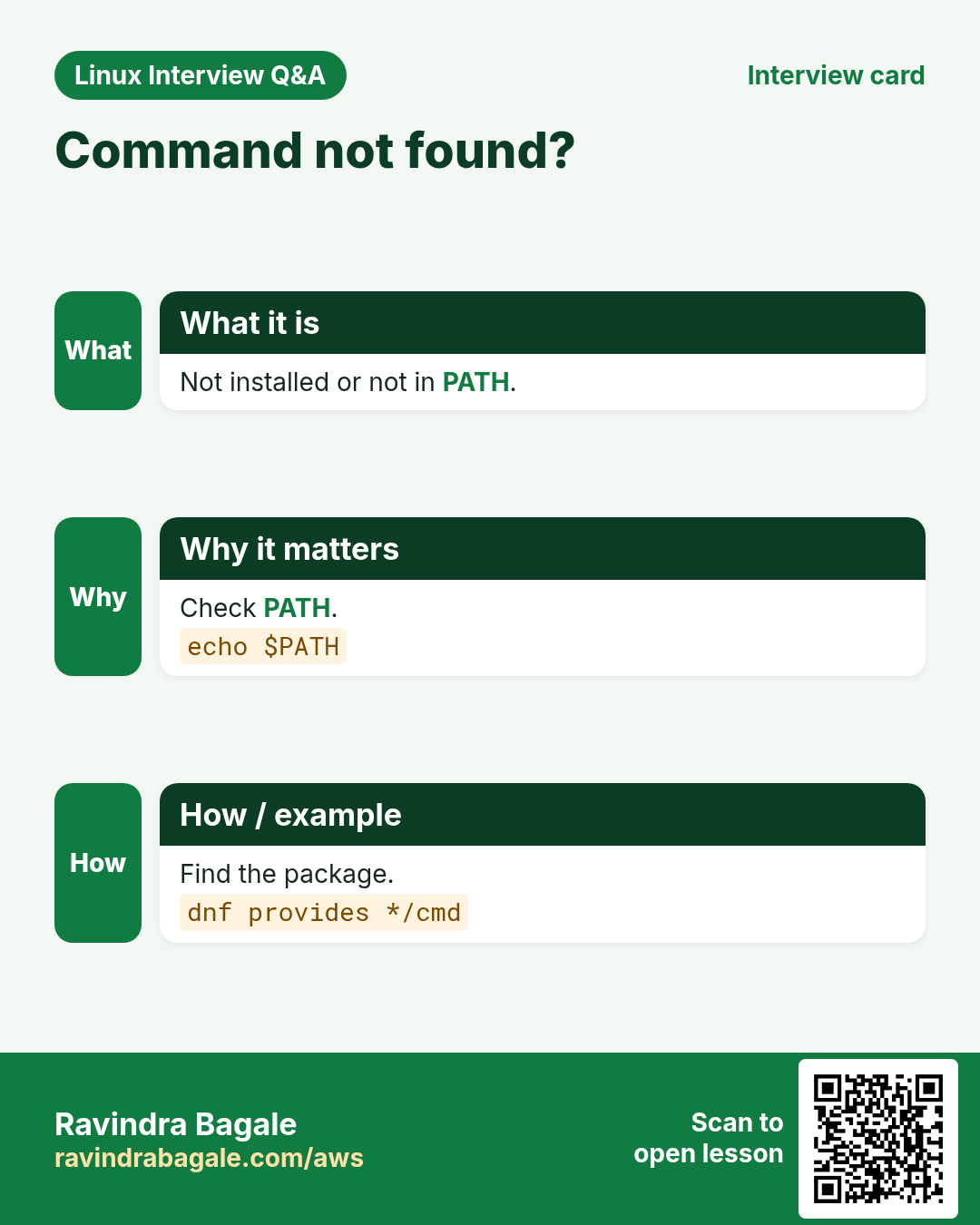
bash: dig: command not found | Package not installed | Find and install it.dnf provides */bin/dig |
No manual entry for chronyc | man page package missing | Install man pages.dnf install -y man-pages man-db |
nothing appropriate. | mandb not built | Build it.mandb |
ls: unrecognized option '--colour=always' (on macOS) | BSD tools differ from GNU | Use GNU coreutils or check man.man ls |
sudo: crontab: command not found | sudo uses a secure PATH | Use the full path.sudo /usr/bin/crontab -l |
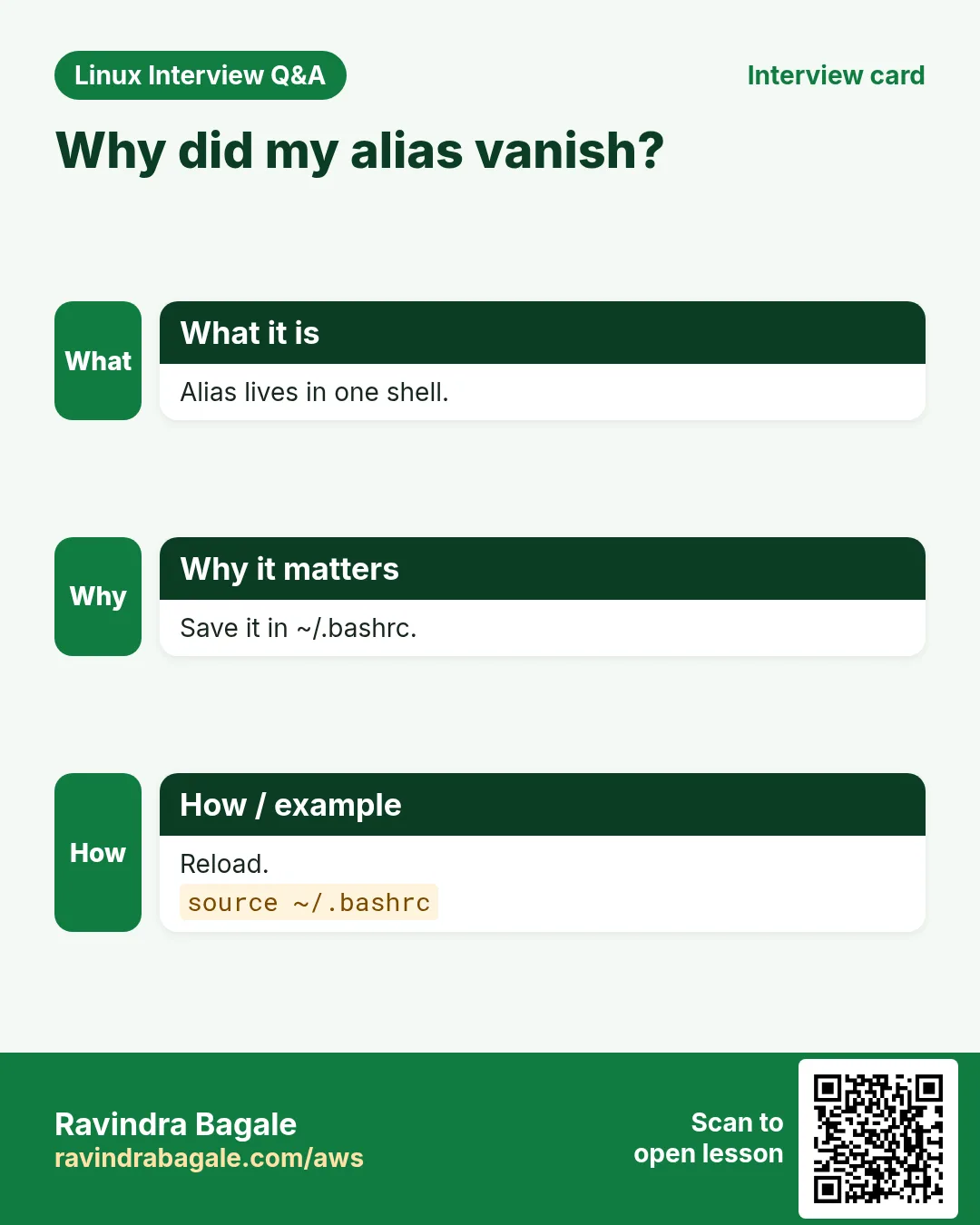
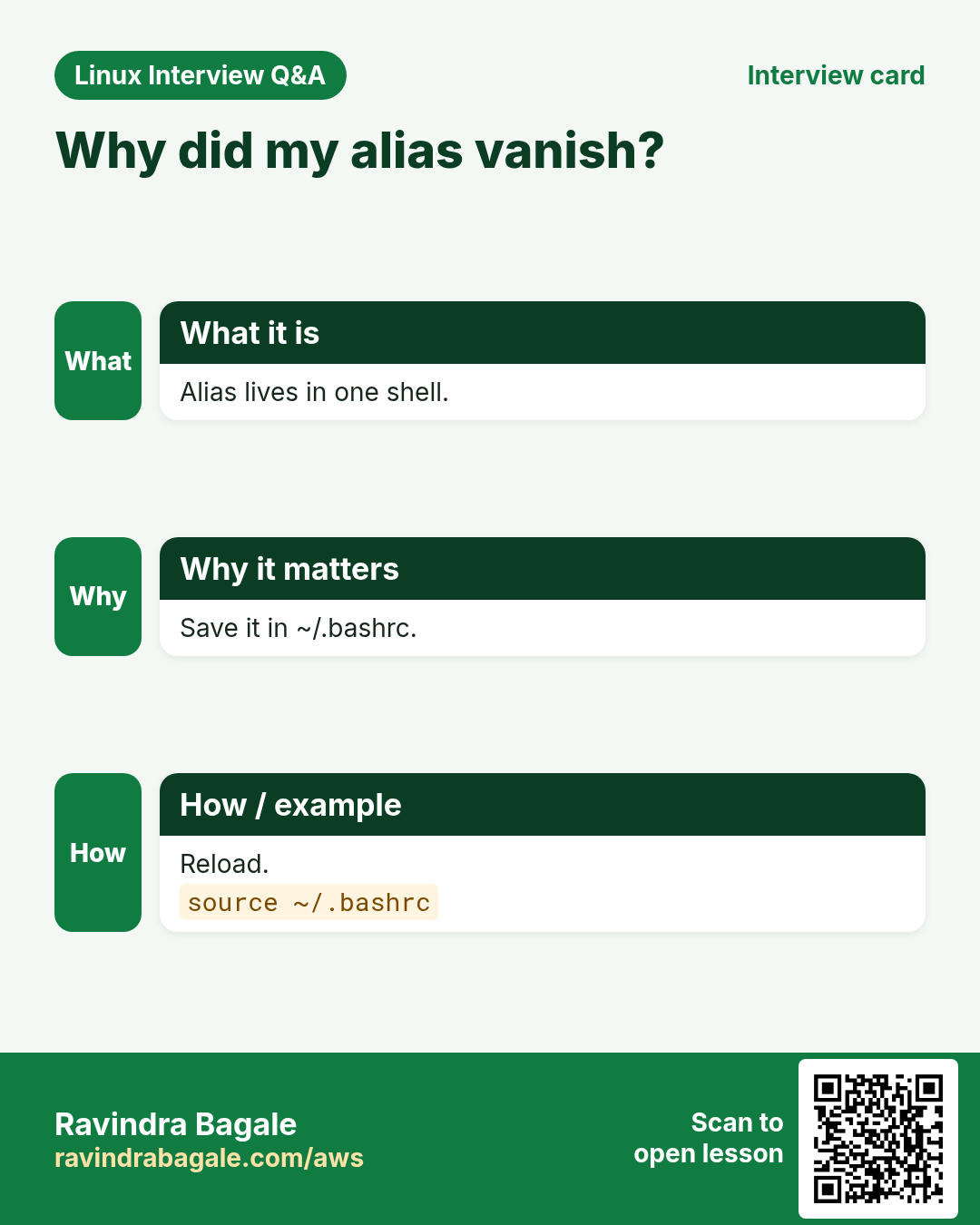
-bash: ll: command not found | ll is an alias, not a program | Define it.alias ll='ls -l' |
Permission denied when running ./tool | No execute bit | Add it.chmod +x tool |
command not found after install | Shell cached the old PATH lookup | Clear the hash.hash -r |
which: no xyz in (/usr/bin:...) | Not in PATH | Check PATH or use full path.echo $PATH |
7. Troubleshooting step by step
Why do we need this?
When you cannot find or run a command, check in this order.
What is it?
Go top to bottom. Stop at the first step that shows the problem.
How to do it (step by step)
- Is it a builtin, alias or file?
type -a name- Is it in PATH?
command -v name || echo missing- Which package provides it?
dnf provides */bin/name- Is a man page there?
man -w name- Search by keyword.
apropos keyword- Clear the shell cache.
hash -r8. Lab 1: Build your own command list
Why do we need this?
List all commands on your system, keep those in this index and see which you have not used yet.
What is it?
A full hands-on lab. Run every step on a test Linux machine (an EC2 instance, a VM, or WSL).
How to do it (step by step)
- All commands.
compgen -c | sort -u > all.txt; wc -l < all.txtOutput:
2143- Your history.
history | awk '{print $2}' | sort -u > used.txt; wc -l < used.txtOutput:
61- Save the A-Z list (copy the names from the table).
nano az.txt- Commands in A-Z you have never used.
comm -23 <(sort az.txt) used.txt | headOutput:
apropos
at
bc- Which of them are installed?
for c in $(comm -23 <(sort az.txt) used.txt); do command -v $c >/dev/null && echo $c; done | head -3Output:
apropos
at
bc- Pick five and open their sections.
9. Lab 2: Find the right tool for five jobs
Why do we need this?
Use only apropos, man -k and this index to find the command for five jobs.
What is it?
A full hands-on lab. Run every step on a test Linux machine (an EC2 instance, a VM, or WSL).
How to do it (step by step)
- Change a password expiry.
apropos -s 1,8 "password expiry"Output:
chage (1) - change user password expiry information- Compare two sorted files.
apropos "compare two sorted"Output:
comm (1) - compare two sorted files line by line- Show kernel messages.
apropos -s 1 kernel | grep -i ringOutput:
dmesg (1) - print or control the kernel ring buffer- Find block device UUIDs.
apropos -s 8 "block device attributes"Output:
blkid (8) - locate/print block device attributes- Encode to base64.
apropos base64 | head -1Output:
base64 (1) - base64 encode/decode data and print to standard outputRavindra Bagale's Tip
Bookmark this page. When you meet a command at work, find it here, open its section, and run one example on a test machine that same day. One command a day is 180 commands in six months.
Ravindra Bagale's Tip – मराठी
हे page bookmark करा. कामावर एखादी command भेटली की इथे शोधा, तिचा section उघडा, आणि त्याच दिवशी test machine वर एक example चालवा. दररोज एक command म्हणजे सहा महिन्यांत 180 commands.
Ravindra Bagale's Tip – हिंदी
इस page को bookmark कीजिए। काम पर कोई command मिले तो यहाँ ढूँढिए, उसका section खोलिए, और उसी दिन test machine पर एक example चलाइए। रोज़ एक command यानी छह महीने में 180 commands।
10. Frequently asked questions
Q. Is this every Linux command?
No. Linux has thousands. This is the 183 most useful for admin, DevOps and cloud jobs.
Q. Why do some rows say Coming next?
That part is not published yet. The row becomes a link when it is.
Q. Where are grep, sed and awk?
awk is in Part 1 with a deep dive. grep is in Part 3 and sed in Part 6, both as deep dives.
Q. Do commands work the same on Ubuntu and RHEL?
Mostly. Package tools differ (apt vs dnf) and a few options differ.
Q. Does it work on macOS?
Many commands exist but use BSD options. Check man on the Mac.
Q. How should I study?
One part per week, every example run by hand, then the tasks.
Q. Can I link one command?
Yes. Every section has an anchor like #cmd-awk.
Q. Is there a quiz?
Yes, at the end of every part including this one.
11. Interview questions and answers
Beginner level
Q. How do you find a command whose name you forgot?
apropos keyword or man -k keyword.
Q. What does type do?
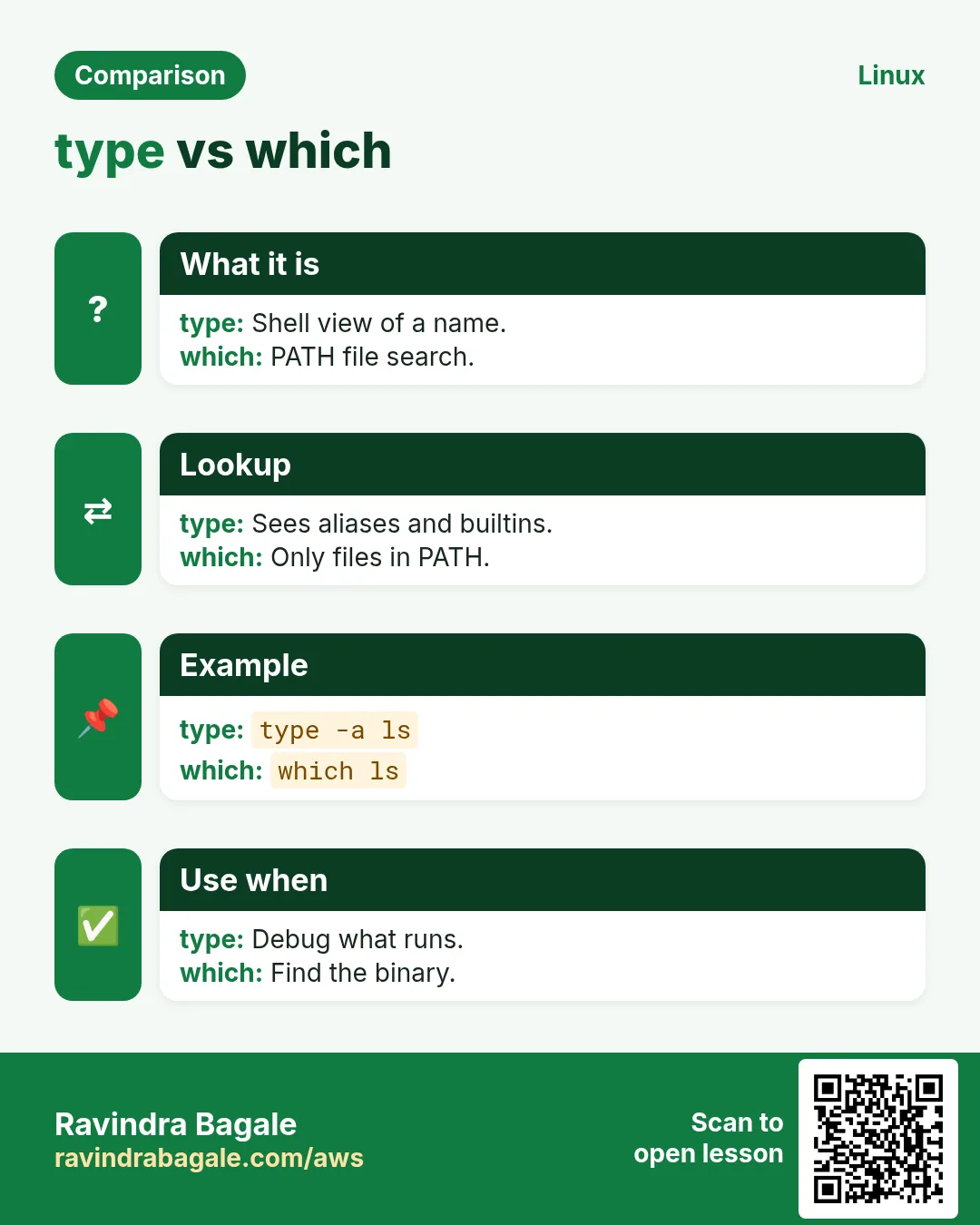
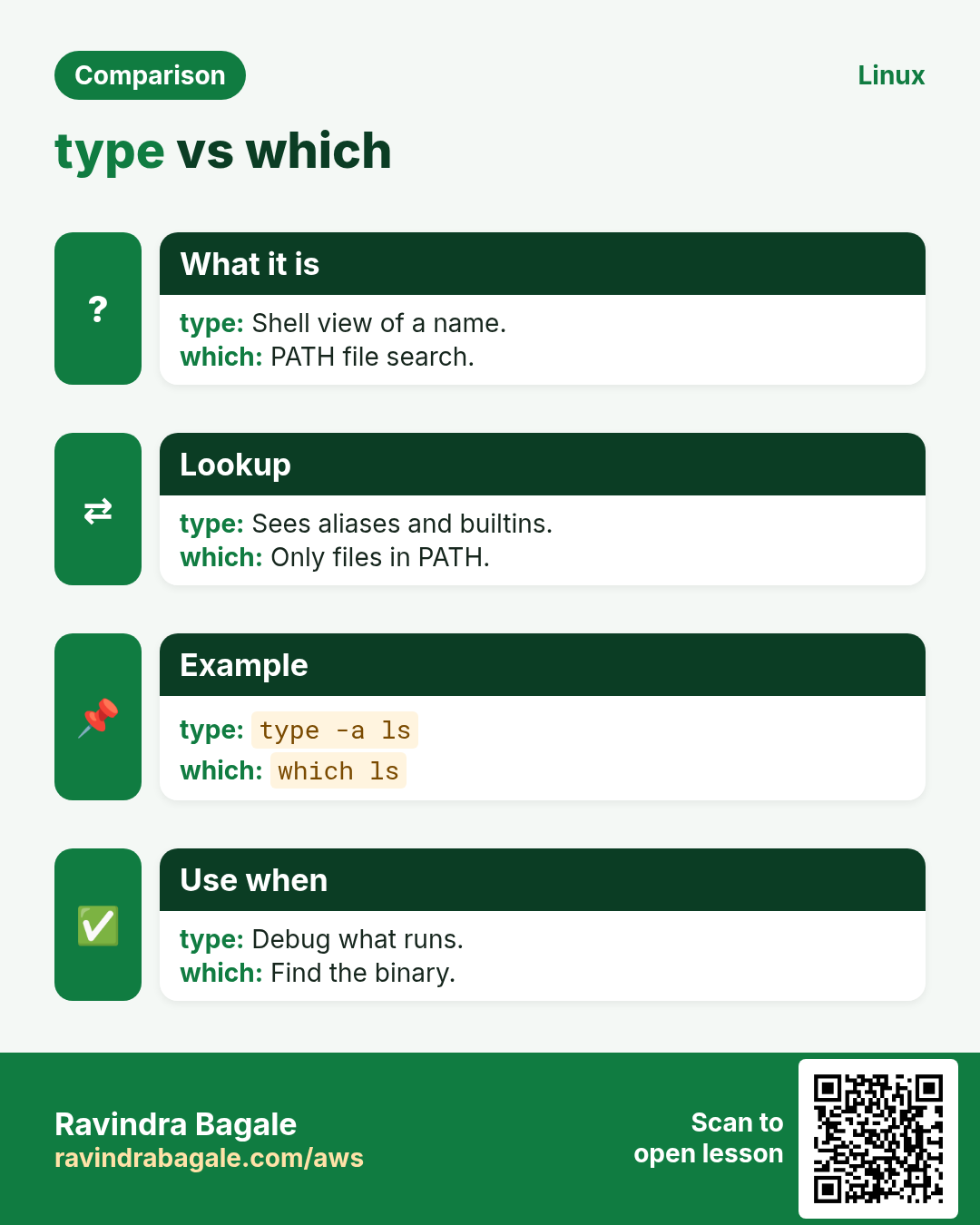
Tells if a name is an alias, builtin, function or file.
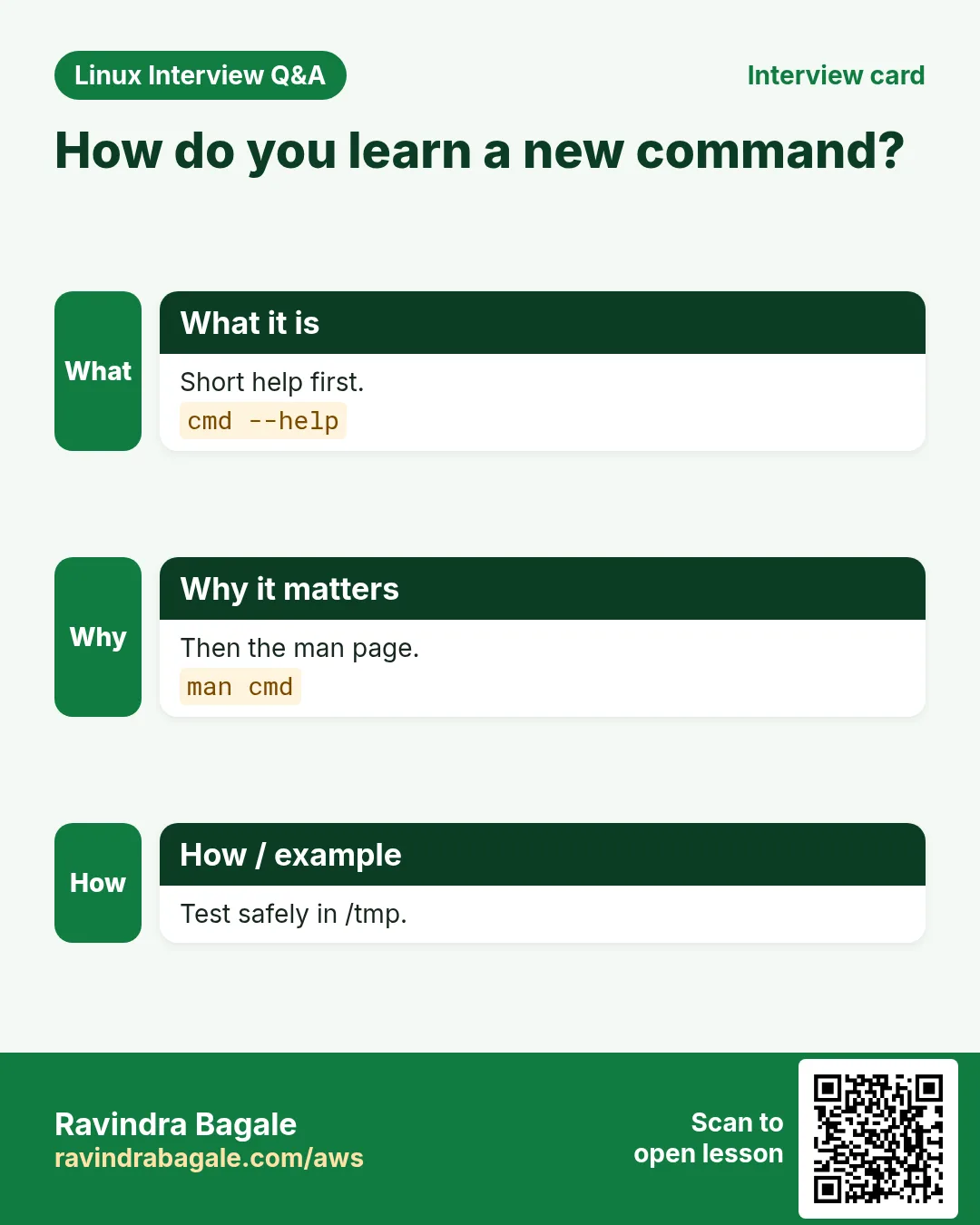
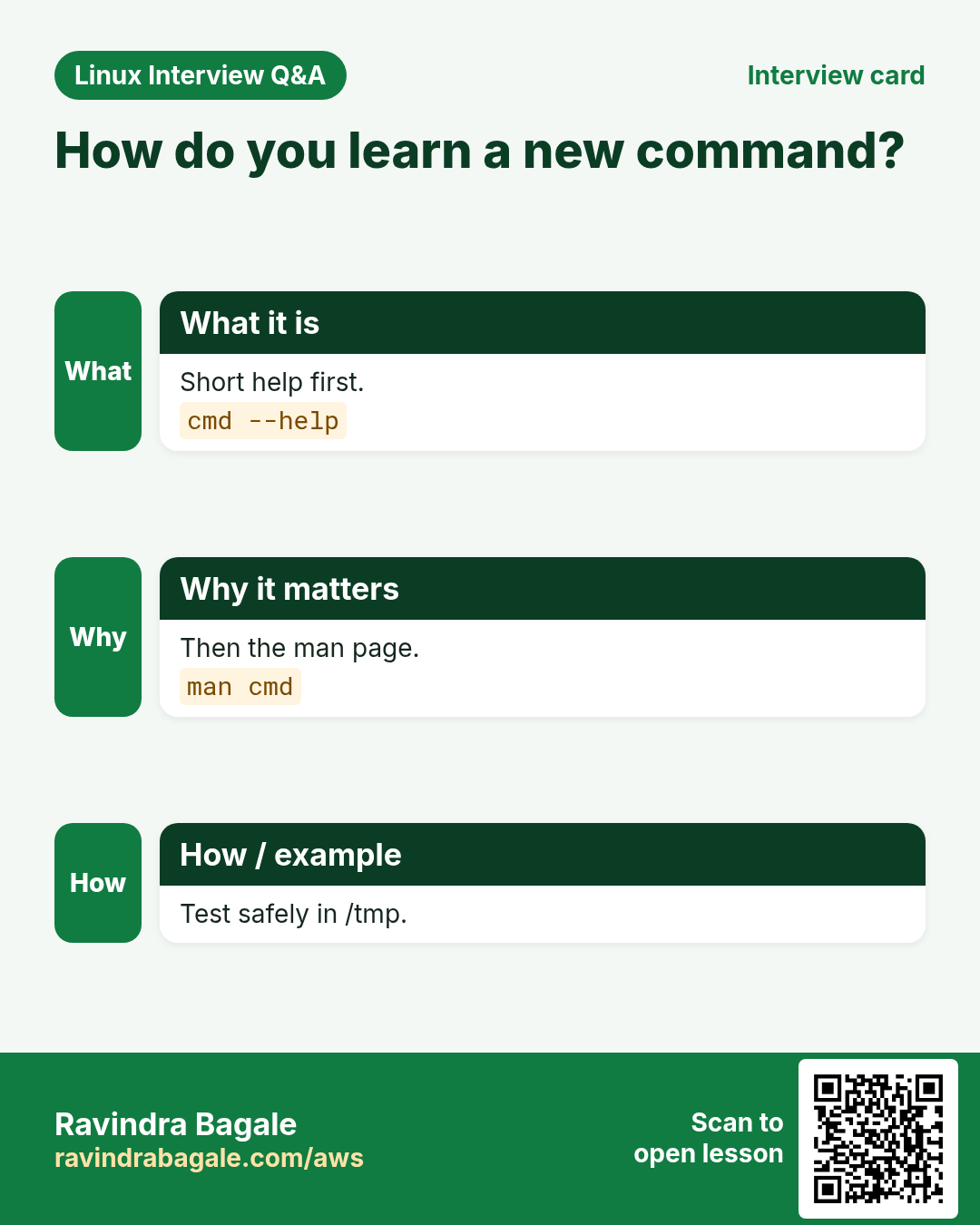
Q. How do you see a command's options quickly?
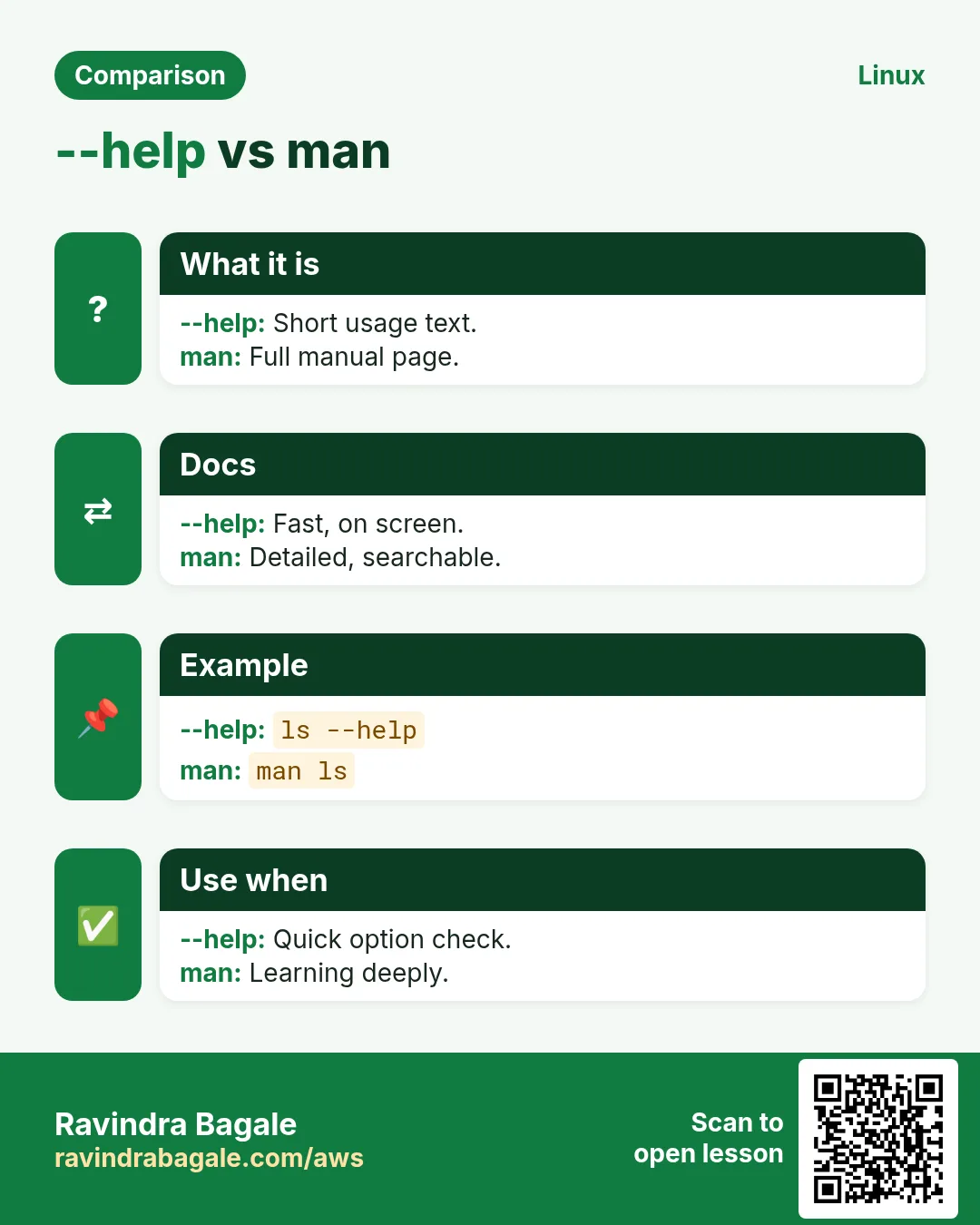
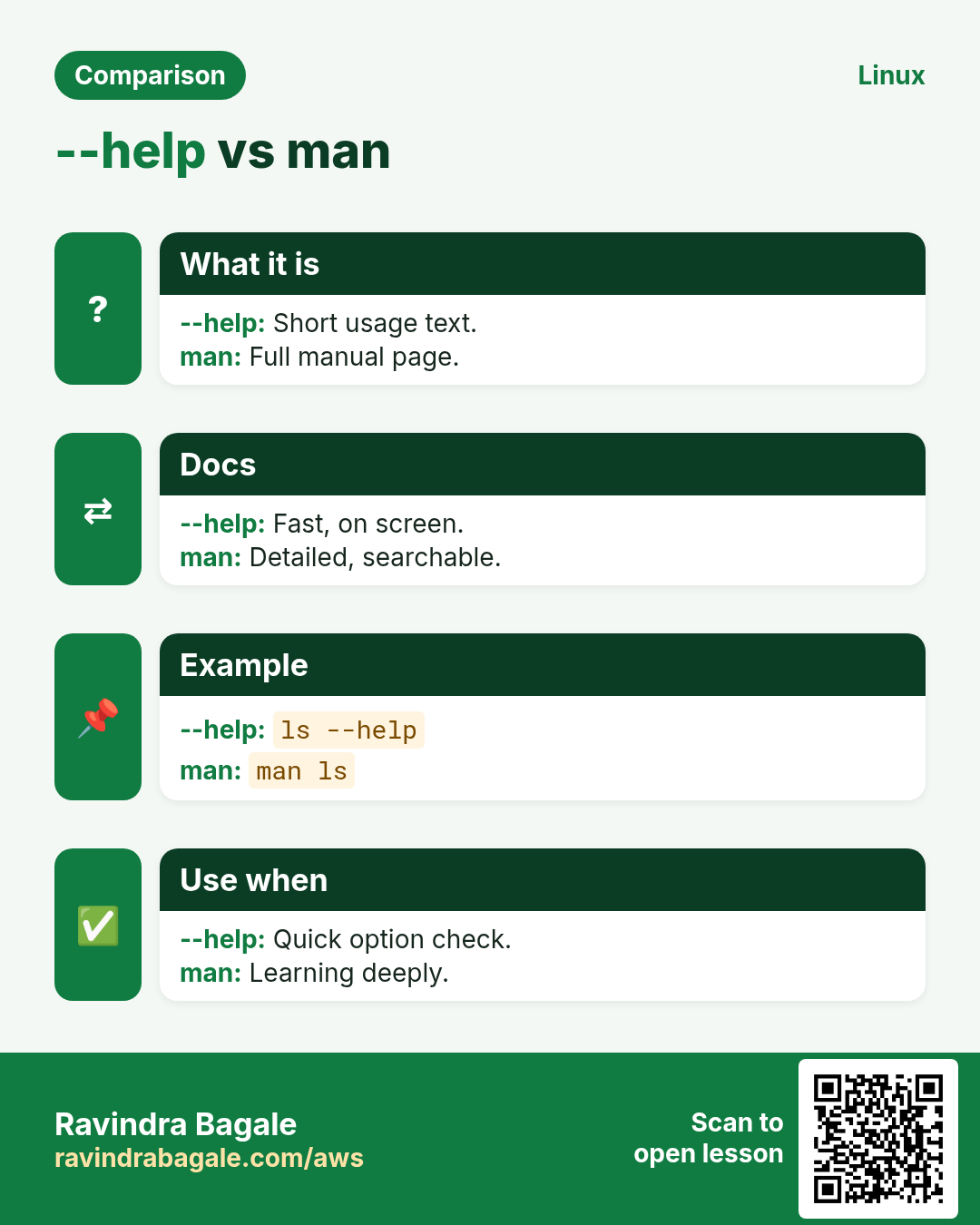
command --help.
Q. What are man sections 1 and 8?
1 user commands, 8 admin commands.
Mid level level
Q. Command not found but the package is installed. Why?
Not in PATH, sudo secure_path, or hash cache. Check command -v and hash -r.
Q. How do you find which package owns a file?
rpm -qf or dpkg -S; dnf provides for missing ones.
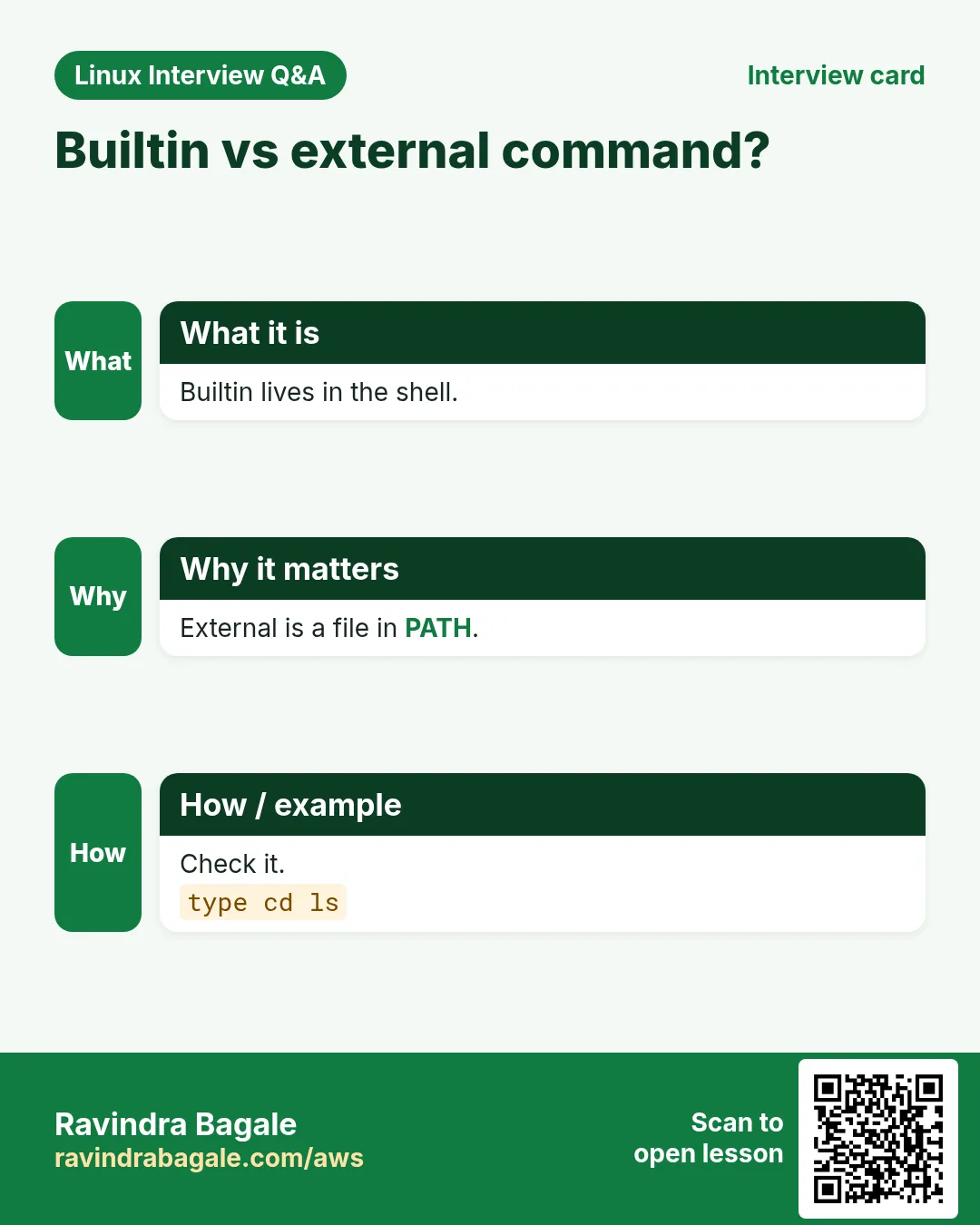
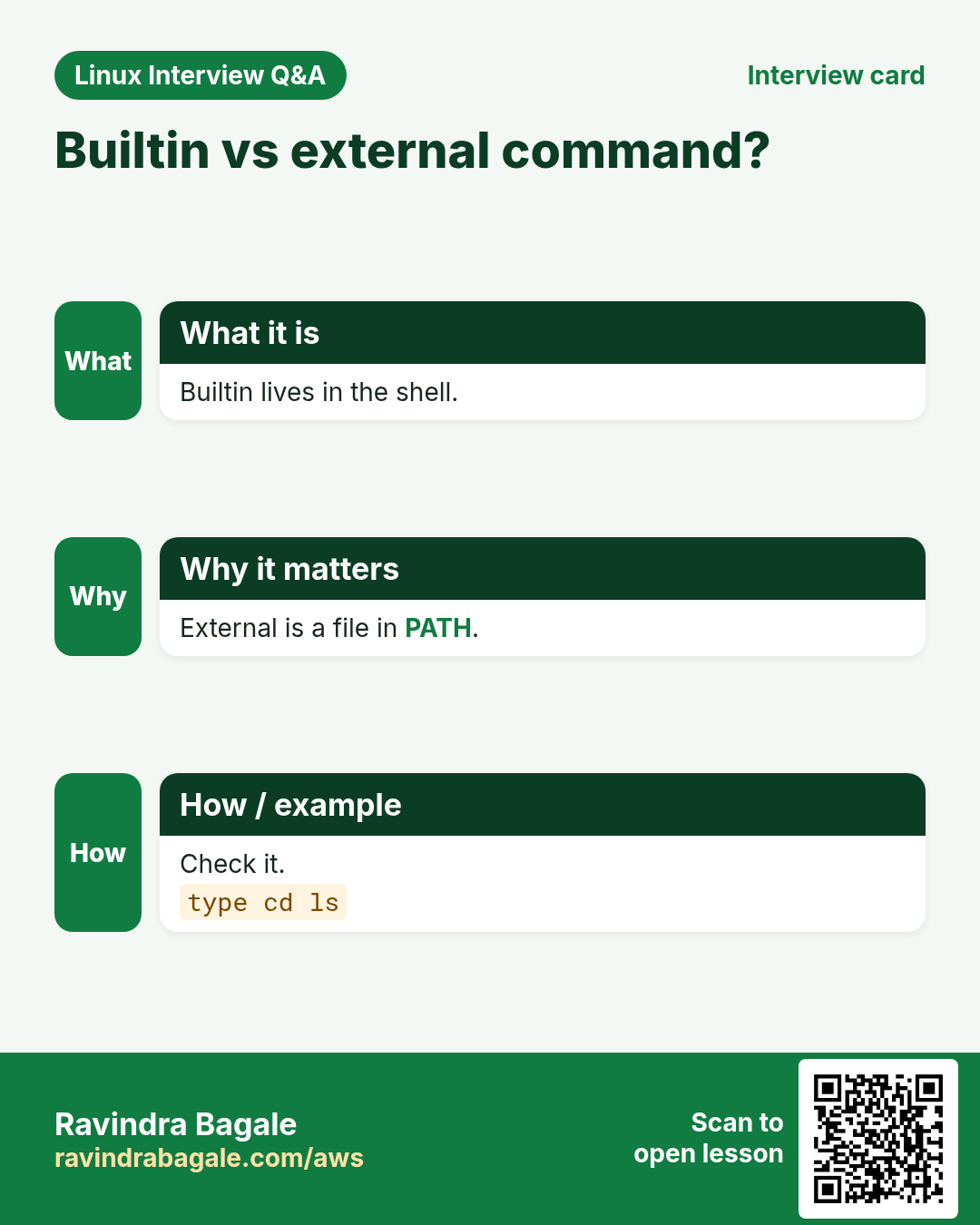
Q. builtin vs external command?
Builtins run inside the shell (cd, alias); external ones are files in PATH.
Q. Why might ls behave differently on two servers?
Aliases, GNU vs BSD, or version differences.
Senior level
Q. How would you standardise tools across 500 servers?
A base package list in config management, version pinning, and a check job that compares command -v output.
Q. Which 10 commands would you teach a new on-call engineer first?
df, du, free, top, ps, ss, journalctl, systemctl, curl, dig.
Q. How do you check a command is safe before running it from a blog?
Read man, run with --help or a dry run, test in a VM, never pipe curl to sudo bash.
Try at home
- Pick one letter a day and read every one-liner under it.
- Run type -a on ten commands from the list and note which are aliases or builtins.
- Use apropos to find three commands not in this list and read their man pages.
Practice Tasks
Maple Leaf Books is a bookselling business in Toronto. Emily Tremblay looks after its IT and cloud work. They count money in CAD and run their AWS resources in the ca-central-1 Region. In the tasks below you do real jobs for them using what this lesson teaches. All names, account IDs, IP addresses and numbers are made up for practice.
0 / 21
Easy Admin commands by keyword
Why: BIZ wants staff to find the right Linux command fast.
What to do: Search only manual section 8 for the keyword partition.
- Find the Linux command that does this job.
- Add the options (like -r or -h) the task needs.
- Add the file names, folders or users in the right order.
- Use sudo if the job changes system files or users. Click Check answer.
Easy man k
Why: BIZ wants staff to find the right Linux command fast.
What to do: Use man with k to search for the word timezone.
- Find the Linux command that does this job.
- Add the options (like -r or -h) the task needs.
- Add the file names, folders or users in the right order.
- Use sudo if the job changes system files or users. Click Check answer.
Easy What is it
Why: BIZ wants staff to find the right Linux command fast.
What to do: Show every match for the name pwd, builtin and file.
- Find the Linux command that does this job.
- Add the options (like -r or -h) the task needs.
- Add the file names, folders or users in the right order.
- Use sudo if the job changes system files or users. Click Check answer.
Easy Path of a command
Why: BIZ wants staff to find the right Linux command fast.
What to do: Print how the shell would run tar, in the short portable way.
- Find the Linux command that does this job.
- Add the options (like -r or -h) the task needs.
- Add the file names, folders or users in the right order.
- Use sudo if the job changes system files or users. Click Check answer.
Easy Forget one cached path
Why: BIZ wants staff to find the right Linux command fast.
What to do: Make bash forget the remembered location of tar only.
- Find the Linux command that does this job.
- Add the options (like -r or -h) the task needs.
- Add the file names, folders or users in the right order.
- Use sudo if the job changes system files or users. Click Check answer.
Easy Builtin help
Why: BIZ wants staff to find the right Linux command fast.
What to do: Show short help for the builtin read with only the usage line.
- Find the Linux command that does this job.
- Add the options (like -r or -h) the task needs.
- Add the file names, folders or users in the right order.
- Use sudo if the job changes system files or users. Click Check answer.
Easy Tool version
Why: BIZ wants staff to find the right Linux command fast.
What to do: Print the version of GNU tar.
- Find the Linux command that does this job.
- Add the options (like -r or -h) the task needs.
- Add the file names, folders or users in the right order.
- Use sudo if the job changes system files or users. Click Check answer.
Easy Where are files
Why: BIZ wants staff to find the right Linux command fast.
What to do: Show binary, source and manual locations for the date command.
- Find the Linux command that does this job.
- Add the options (like -r or -h) the task needs.
- Add the file names, folders or users in the right order.
- Use sudo if the job changes system files or users. Click Check answer.
Easy One line meaning
Why: BIZ wants staff to find the right Linux command fast.
What to do: Print the one-line manual description of cksum.
- Find the Linux command that does this job.
- Add the options (like -r or -h) the task needs.
- Add the file names, folders or users in the right order.
- Use sudo if the job changes system files or users. Click Check answer.
Easy List aliases
Why: BIZ wants staff to find the right Linux command fast.
What to do: Print all aliases in a form you can reuse.
- Find the Linux command that does this job.
- Add the options (like -r or -h) the task needs.
- Add the file names, folders or users in the right order.
- Use sudo if the job changes system files or users. Click Check answer.
Easy PATH
Why: BIZ wants staff to find the right Linux command fast.
What to do: Print your PATH with each folder on its own line.
- Find the Linux command that does this job.
- Add the options (like -r or -h) the task needs.
- Add the file names, folders or users in the right order.
- Use sudo if the job changes system files or users. Click Check answer.
Medium Where is the man file
Why: BIZ wants staff to find the right Linux command fast.
What to do: Print the path of the manual file for crontab section 5.
- Find the Linux command that does this job.
- Add the options (like -r or -h) the task needs.
- Add the file names, folders or users in the right order.
- Use sudo if the job changes system files or users. Click Check answer.
Medium File format manual
Why: BIZ wants staff to find the right Linux command fast.
What to do: Open the section 5 manual page for passwd.
- Find the Linux command that does this job.
- Add the options (like -r or -h) the task needs.
- Add the file names, folders or users in the right order.
- Use sudo if the job changes system files or users. Click Check answer.
Medium Count ch commands
Why: BIZ wants staff to find the right Linux command fast.
What to do: Count how many command names bash knows that start with ch.
- Find the Linux command that does this job.
- Add the options (like -r or -h) the task needs.
- Add the file names, folders or users in the right order.
- Use sudo if the job changes system files or users. Click Check answer.
Medium Owner package
Why: BIZ wants staff to find the right Linux command fast.
What to do: Find which installed RPM package owns /usr/bin/awk.
- Find the Linux command that does this job.
- Add the options (like -r or -h) the task needs.
- Add the file names, folders or users in the right order.
- Use sudo if the job changes system files or users. Click Check answer.
Medium Owner on Debian
Why: BIZ wants staff to find the right Linux command fast.
What to do: Find which Debian package owns /usr/bin/bc.
- Find the Linux command that does this job.
- Add the options (like -r or -h) the task needs.
- Add the file names, folders or users in the right order.
- Use sudo if the job changes system files or users. Click Check answer.
Medium Package for a missing tool
Why: BIZ wants staff to find the right Linux command fast.
What to do: Ask dnf which package provides any path ending in bin/chronyc.
- Find the Linux command that does this job.
- Add the options (like -r or -h) the task needs.
- Add the file names, folders or users in the right order.
- Use sudo if the job changes system files or users. Click Check answer.
Medium Builtins list
Why: BIZ wants staff to find the right Linux command fast.
What to do: List all bash builtin names.
- Find the Linux command that does this job.
- Add the options (like -r or -h) the task needs.
- Add the file names, folders or users in the right order.
- Use sudo if the job changes system files or users. Click Check answer.
Medium Info manual
Why: BIZ wants staff to find the right Linux command fast.
What to do: Open the GNU info manual for coreutils at the node for date.
- Find the Linux command that does this job.
- Add the options (like -r or -h) the task needs.
- Add the file names, folders or users in the right order.
- Use sudo if the job changes system files or users. Click Check answer.
Hard Rebuild man index
Why: BIZ wants staff to find the right Linux command fast.
What to do: Rebuild the manual index quietly as root.
- Find the Linux command that does this job.
- Add the options (like -r or -h) the task needs.
- Add the file names, folders or users in the right order.
- Use sudo if the job changes system files or users. Click Check answer.
Hard Regex search
Why: BIZ wants staff to find the right Linux command fast.
What to do: Use apropos with a regular expression to find names starting with lv.
- Find the Linux command that does this job.
- Add the options (like -r or -h) the task needs.
- Add the file names, folders or users in the right order.
- Use sudo if the job changes system files or users. Click Check answer.
12. Related chapters
- Linux Commands A-Z Index
- Linux Ops Refresh for DevOps
- Bash Scripting for Automation
- Linux grep and find Commands with Examples
- How to Set Up Passwordless SSH Between Linux Servers
In short
- 183 commands from alias to zip.
- Eight parts with full why, what and how.
- Covered commands link to earlier chapters.
- Use apropos when you know only the job.
- type -a and command -v tell you what runs.
- Every section has a #cmd anchor.
Revision, comparison and interview cards
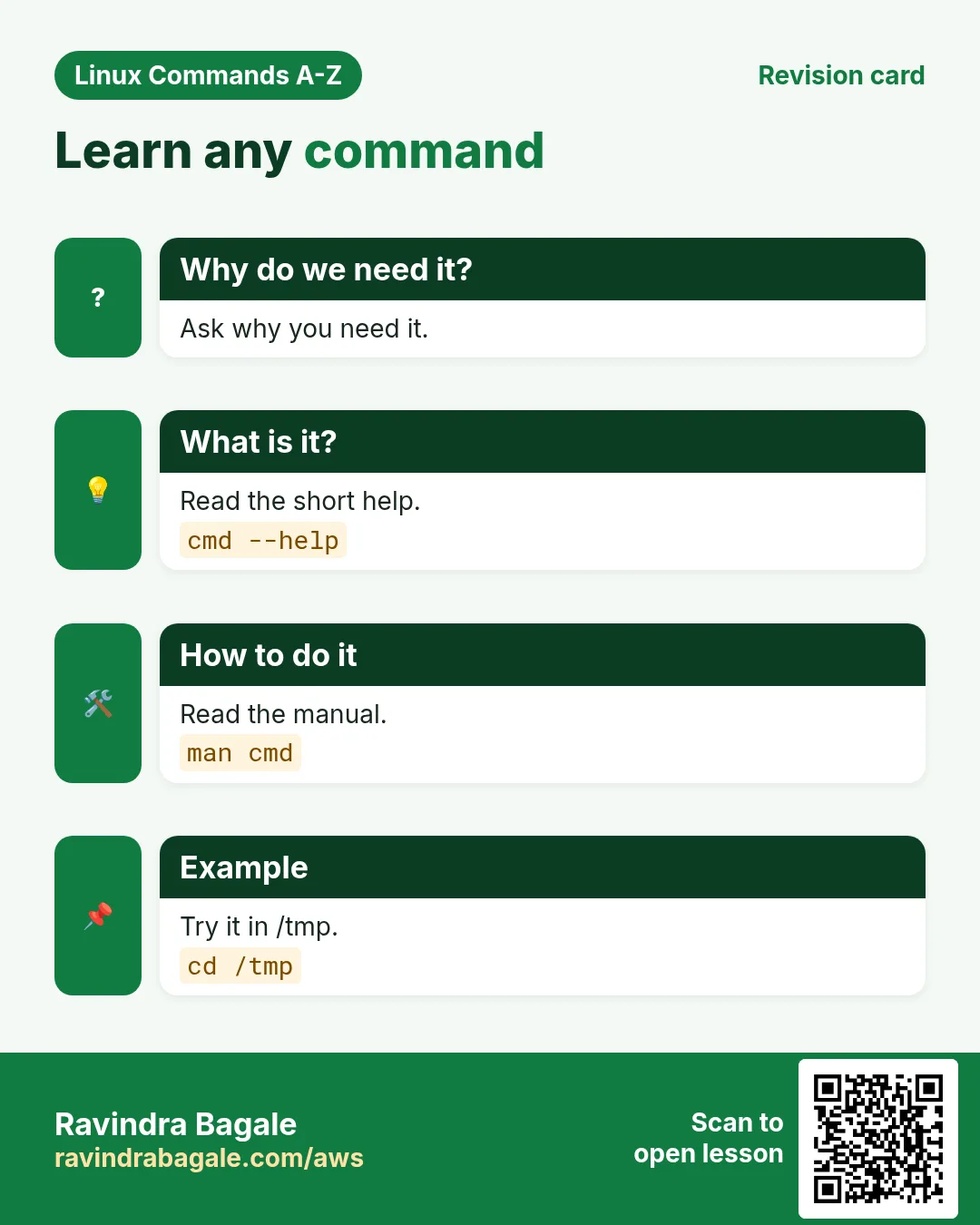
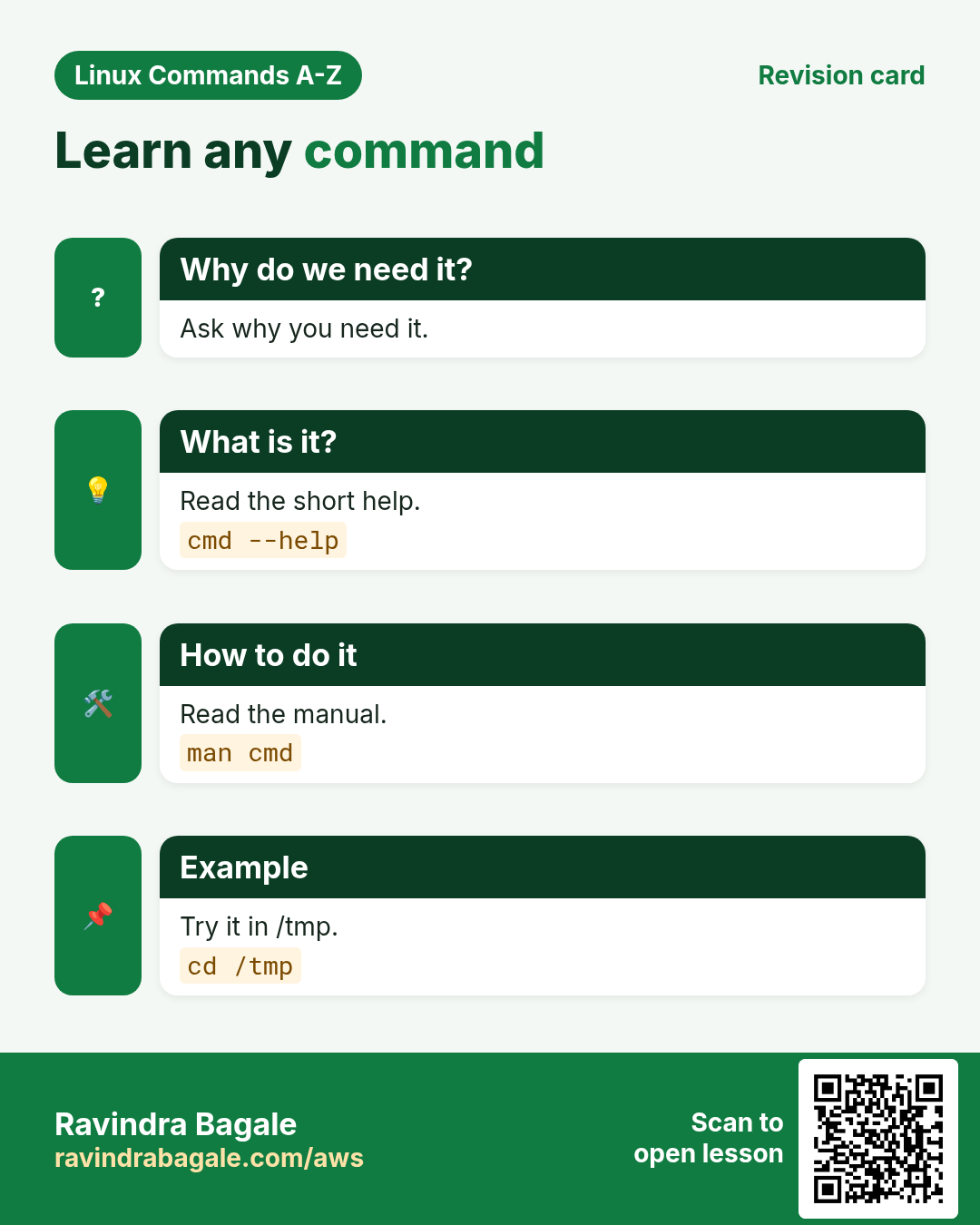
Revise this lesson in a few minutes. Save the cards on your phone or download them as PNG files. The QR code on each card opens this lesson.
More cards: Ravi Sir's Cards.