Linux directories and paths: pwd, ls, mkdir, cd, absolute vs relative paths and ~
Let's start. Last class we logged in to our EC2 server with SSH and saw that an operating system is mostly files and folders. Today we actually walk around inside the server. Where am I? What is in here? How do I make a folder, go into it, come back out, and jump to any folder in one line? By the end of the class you will read a path like /home/ec2-user/calendar/weeks and know exactly where it points. Keep your server running and type every command with me.
What you will learn in this class
- A short SSH recap and the four errors you will meet most
- Linux users: root and ec2-user, and why you log in as ec2-user
- When an idle SSH session drops, and how to get back fast
- The Linux tree: everything starts at / (root)
- Your home directory, and pwd
- Reading a path
- Files vs folders (directories)
- mkdir: one folder or many
- ls and ls -r
- cd into a folder, and what the prompt tells you
- Going up: cd .., cd ../.., cd ../../..
- cd alone, cd -, and moving sideways
- mkdir -p: folders inside folders in one line
- Absolute paths, relative paths and ~
- Worked scenario 1: the calendar (four ways to make week1)
- Worked scenario 2: one to five (three ways to make 22)
- Names with spaces
- Tab completion, and what to do when names start the same
- clear and history
- Practice task
1. Quick recap: logging in with SSH
Why. Every Linux class starts with logging in to the server. If SSH fails, nothing else works. The full step-by-step, with all the fixes, is in the previous chapter: Inside an EC2 server: EBS, ENI, instance states, connecting with SSH, and what Linux is.
What. The command has four parts:
ssh -i Downloads\firstserver.pem ec2-user@3.3.3.3
ssh: the program.-i: the identity file (your private key) comes next.Downloads\firstserver.pem: the path to the key. TypeDowand press Tab, thenfirand press Tab, so there are no typos.ec2-user@3.3.3.3: the user name,@, and your server's public IPv4.3.3.3.3is a placeholder; use your own.
Paste the IP with Ctrl+V or right-click. Both work in the PowerShell of Windows 10 and 11, and in Windows Terminal.
The four errors you will meet most:
| Error | Usual cause | Fix |
|---|---|---|
Permission denied (publickey) |
wrong key for this server, or wrong user name | use the key chosen at launch; ec2-user on Amazon Linux |
No such file or directory |
typo in the key path | use Tab completion |
Permission denied again |
user name typed wrong: ec2user, or a space inside ec2-user@... |
it is ec2-user, with a hyphen, and no spaces |
Connection timed out |
the public IP changed after a stop and start | copy the new public IP from the console |
If SSH still won't work:
- Check the OpenSSH client with
ssh -V. If PowerShell sayssshis not recognized, add the OpenSSH Client optional feature, or install the latest PowerShell from Microsoft. Then open a new window. - Use EC2 Instance Connect: select the instance → Connect → EC2 Instance Connect → Connect. A terminal opens in the browser.
- PuTTY is an older third-party tool. You rarely need it now, because Windows has
sshbuilt in.
Classroom line
Miss one sentence and you won't follow the next.
Class मधलं वाक्य
"Ek vakya nahi aaiklat, pudhcha vakya nahi kalnar mag."
एक वाक्य नाही ऐकलंत, तर पुढचं वाक्य मग कळणार नाही.
Classroom line
Miss one sentence and you won't follow the next.
Correction
In class, red error text was blamed on "an old PowerShell", and we heard that Ctrl+V doesn't paste. Red text only means the command failed. One common cause is a missing OpenSSH client; check with ssh -V. And Ctrl+V does paste in current PowerShell and Windows Terminal; right-click works too.
2. Linux users: root and ec2-user
Why. The prompt says ec2-user. Who is that, and why not log in as the administrator?
What.
- root is the administrator of a Linux system. It can do anything, including delete the whole system.
- ec2-user is the normal default login user on Amazon Linux. On Ubuntu the default user is
ubuntu. - Linux has many more accounts for system programs, but these two matter for logging in.
- We log in as
ec2-user. When a task needs admin rights, we putsudoin front of that one command, for examplesudo yum install tree -y.
How AWS sets this up.
- You choose a key pair at launch. The key pair is not tied to any user.
- At first boot, AWS puts the public half of that key into the default user's file
~/.ssh/authorized_keys:ec2-useron Amazon Linux,ubuntuon Ubuntu. - That is why your key works for
ec2-user. - Direct SSH login as
rootis blocked, for safety. Usesudoinstead.
Correction
In class it was said that AWS won't give a key for root because the key belongs to ec2-user, and that Linux has two users by default. The key pair isn't tied to a user; AWS installs it for the default user at first boot, and root SSH login is disabled on purpose. Linux has many system accounts; root and ec2-user are the two that matter for login.
3. When an idle SSH session drops
Why. You leave the terminal for a while, come back, and you are suddenly at your Windows prompt (PS C:\Users\ravi>). Your server is fine. Only the connection dropped.
What. AWS does not close idle SSH sessions by default. The drop usually comes from your home router or Wi-Fi, which forgets quiet connections after some idle minutes, or from your laptop going to sleep.
How to get back fast.
- Press the Up Arrow key in PowerShell. Your last command, the
ssh -i ...line, comes back. - Press Enter. You are logged in again.
- To stop the drops, add a keep-alive:
ssh -o ServerAliveInterval=60 -i Downloads\firstserver.pem ec2-user@3.3.3.3. SSH then sends a small message every 60 seconds, so the router keeps the connection.
Correction
In class the drop was described as happening "after 10 to 15 minutes", as if it were a fixed rule. There is no such AWS rule. How long it takes depends on your router, Wi-Fi or laptop sleep settings.
4. The Linux tree: everything starts at /
Why. On Windows you think in drives: C:\, D:\. Linux has no drive letters. Everything hangs from one top point.
What.
- The top of everything is
/, called root (the root directory). - Under
/are the system directories:bin,sbin,etc,home,root,dev,opt,usr,varand more. /homeholds one folder per user:/home/ec2-user,/home/ubuntu,/home/ravi.- Your own work goes inside your home folder,
/home/ec2-user. - Careful with the word "root".
/is the root directory./root(with a name after the slash) is the home folder of the root user. They are different places.
Figure 1. The Linux tree starts at / (root). Under it are bin, sbin, etc, home, root, dev, opt, usr and var. /home holds a folder for each user; your files go under /home/ec2-user.
What the main directories hold (for now, just recognise the names):
| Directory | Holds |
|---|---|
/bin, /usr/bin |
commands like ls and mkdir |
/sbin |
system admin commands |
/etc |
settings (configuration files) |
/home |
one home folder per user |
/root |
home of the root user |
/var |
logs and changing data, e.g. /var/log |
/dev |
devices, like disks |
/opt |
extra software you install |
Correction
The class board called / "like C:\ on Windows". That is a fair picture to start with, but / is not a folder like the others: it is the single top of the whole tree, and even other disks appear somewhere under it.
5. Your home directory, and pwd
Why. "Where am I?" is the first question every time. Before you create or delete anything, know where you are standing.
What. pwd means print working directory. It prints the full path of the directory you are in now.
How.
- Log in.
- Type
pwdand press Enter. - You see
/home/ec2-user. - After login you always land in your home directory.
6. Reading a path
Why. Paths are how Linux says "go here". Read one slowly once, and you can read all of them.
What. Take /home/ec2-user/ravi/one:
- The first
/is root, the top. - Every other
/only separates names. Read it as "go inside". - So: start at root → into
home→ intoec2-user→ intoravi→ intoone.
Figure 2. The path /home/ec2-user/ravi/one: the first / is root; every other / separates names. Read it as root, then into home, ec2-user, ravi and one.
Worked example: count the levels.
/home/ec2-userhas two directories below root:homeandec2-user.- Counting root itself, that is three levels:
/,home,ec2-user. /home/ec2-user/ravi/onehas four directories below root.
Correction
The board said /home/ec2-user "has three folders: /, home and ec2-user". / is not a folder inside the path; it is the top. Say "two directories, or three levels counting root".
7. Files vs folders
Why. Everything you create will be one of these two. They behave differently.
What.
- A file holds content. You open it to read it or write in it: notes, a web page, a script.
- A folder is a container. It holds files and other folders. Think of a tiffin box: the box itself is not food; it holds the food, and even smaller boxes.
- Windows says folder. Linux says directory. Same thing. This course uses both words.
Classroom line
A folder is like a tiffin box.
Class मधलं वाक्य
Folder म्हणजे एक tiffin box सारखा.
Classroom line – हिंदी
"Folder ek tiffin box ki tarah hai."
Figure 3. A file holds content you read and write. A folder (a directory, in Linux) is a container like a tiffin box: it holds files and other folders.
8. mkdir: make one folder, or many
Why. Before you can organise anything, you need folders.
What. mkdir means make directory.
How.
mkdir ravimakes one folder namedravi.- Linux prints nothing. No output means success. Linux stays quiet when all is well.
lsshowsravi.- Several at once:
mkdir raja rani aws. Each name is a separate folder. - Try the same name again:
mkdir ravi. - Error:
mkdir: cannot create directory 'ravi': File exists. Two items in the same folder can't share a name.
Ravindra Bagale's Tip
mkdir -p ravi gives no error if ravi already exists. Useful in scripts. Section 13 shows the real job of -p.
9. ls and ls -r
Why. After every change, look. ls is how you look.
What. ls means list. It lists the files and directories in the directory you are in.
How.
ls→aws raja rani ravi. Alphabetical order.ls -r→ravi rani raja aws. The-roption reverses the order (Z to A).- A brand-new server shows nothing for
lsin your home folder. That is normal.
The -r is an option: a letter after a dash that changes how a command behaves. You will meet many: ls -l, ls -a, ls -R.
10. cd into a folder, and what the prompt tells you
Why. Making folders is half the job. You also need to go into them.
What. cd means change directory.
How.
- Start at home. The prompt is
[ec2-user@ip-172-31-5-10 ~]$. cd ravi- The prompt now ends in
ravi ]$instead of~ ]$. pwd→/home/ec2-user/ravi.mkdir onemakesoneinsideravi.cd onepwd→/home/ec2-user/ravi/one.
Reading the prompt [ec2-user@ip-172-31-5-10 ~]$:
ec2-user: who you are.ip-172-31-5-10: the server's name, built from its private IP (the IP here is an example).~: where you are. The prompt shows only the last part of the path, and shows~when you are at home.$: a normal user. A root shell shows#.
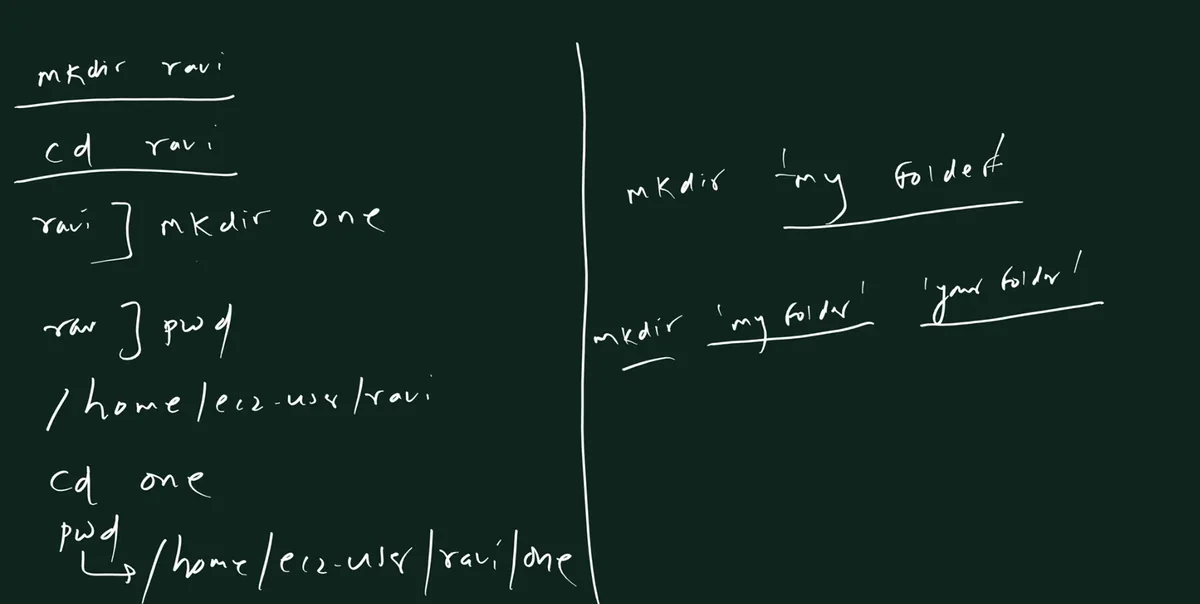
From the class board: Left: mkdir ravi, cd ravi, mkdir one; pwd shows /home/ec2-user/ravi; cd one; pwd shows /home/ec2-user/ravi/one. Right: a folder name with a space goes in quotes, one or several at once.
Classroom line
Pay attention, and do your own work yourself.
Class मधलं वाक्य
"Laksha dya, tumcha kaam tumhich karat ja."
लक्ष द्या, तुमचं काम तुम्हीच करत जा.
Classroom line
Pay attention, and do your own work yourself.
Correction
~ in the prompt was described as a kind of status mark. It is the short form of your home path. The shell shows ~ instead of /home/ec2-user to keep the prompt short.
11. Going up: cd .., cd ../.., cd ../../..
Why. You went into a folder. How do you come out?
What. .. (two dots) means the parent directory: one level up. Each ../ climbs one more level.
How.
- Suppose you are in
/home/ec2-user/ravi/one. cd ..→/home/ec2-user/ravi(one level up).- Go back:
cd one. cd ../..→/home/ec2-user(two levels up).- Go back:
cd ravi/one. cd ../../..→/home(three levels up).- Check with
pwdafter every step.
Worked example: a common mistake.
- You are in
/home(aftercd ../../..). - You type
cd myfolder. - Error:
-bash: cd: myfolder: No such file or directory. - Why?
myfolderis insideec2-user, not inside/home. - Fix:
cd ec2-user/myfolder.
Correction
In class cd ../../../.. (four levels) was typed while saying "three levels", so the result didn't match the board. Three levels up is cd ../../..: count one .. per level, and check with pwd before and after.
12. cd alone, cd -, and moving sideways
Why. Typing many ../ is slow. Two shortcuts save you every day.
What.
cdalone takes you home (/home/ec2-user) from anywhere.cd -takes you back to the previous directory, and prints where it went. Press it again to switch back. It works like a back and forward switch.- Sideways: to reach a folder next to yours, go up, then down in the same line.
Classroom line
There's a shortcut here too: to go back where you came from.
Class मधलं वाक्य
इथे shortcut पण आहे... जिथून आलात तिथेच परत जायचं.
Classroom line – हिंदी
"Shortcut bhi hai yaha pe... jahan se aaye ho wahi pe jana hai."
Worked example: a full walk. Suppose your home has one/two and myfolder side by side.
cd ~/one/twothenpwd→/home/ec2-user/one/two.cd ..→/home/ec2-user/one.cd ../myfolder→/home/ec2-user/myfolder(up to home, then into myfolder).cd ../..→/home.cd→/home/ec2-user.cd -→ prints/homeand goes there.
Sideways from deeper. From /home/ec2-user/one/two, cd ../../myfolder reaches myfolder in one step. Back again: cd ../one/two.
Figure 4. Animation: pwd, cd .., cd ../myfolder, cd ../.., cd and cd -. The orange box shows where you are after each command.
Classroom line
What is our job? To solve the problem in the least time.
Class मधलं वाक्य
आपलं काम काय असतं? कमीत कमी वेळात problem solve करायचा.
Classroom line – हिंदी
"Hum logo ka kaam kya rehta hai, kam se kam time ke andar problem solve karna hai."
13. mkdir -p: folders inside folders, in one line
Why. Real projects need nested folders: project/src/css. Making them one by one with cd in between is slow.
What. Spaces and slashes mean different things to mkdir:
mkdir india maharashtra pune→ spaces = three separate folders, side by side.mkdir -p india/maharashtra/pune→ slashes = one inside the other:puneinsidemaharashtrainsideindia.-pmeans parents (--parents): create any missing parent folders on the way, and give no error if they already exist.- Without
-p,mkdir india/maharashtra/punefails whenindiadoesn't exist yet:No such file or directory.
Figure 5. mkdir india maharashtra pune makes three folders side by side. mkdir -p india/maharashtra/pune makes them one inside another.
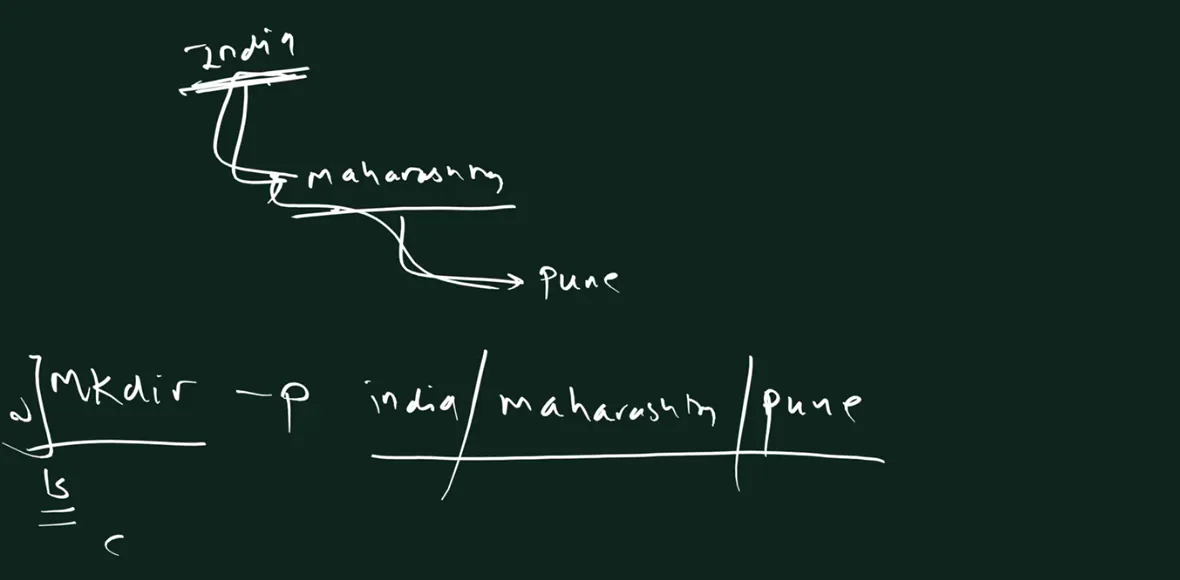
From the class board: india contains maharashtra, which contains pune. One command makes all three: mkdir -p india/maharashtra/pune.
Worked example: prove it.
cd(go home).mkdir -p india/maharashtra/punecd indiathenls→maharashtra.cd maharashtrathenls→pune.cd punethenpwd→/home/ec2-user/india/maharashtra/pune.
A question from class: months with jan, feb and mar.
mkdir -p months/jan/feb/marmakes them nested:febinsidejan,marinsidefeb. Usually not what you want.- Side by side, the simple way:
mkdir months,cd months,mkdir jan feb mar. - Or, from home, give each full path separated by spaces:
mkdir -p months/jan months/feb months/mar. - Bonus shortcut (more in the next class):
mkdir -p months/{jan,feb,mar}. The shell expands the braces into the three paths of step 3.
Classroom line
What will just typing it get you? Short-term satisfaction... What is the main aim? To understand a new concept.
Class मधलं वाक्य
"Tumhi kelyan kay honar ahe? Short term satisfaction bhetnar... Main aim kay ahe? Kahitari navin concept kalayla pahije."
तुम्ही नुसतं केल्याने काय होणार आहे? Short term satisfaction मिळणार... Main aim काय आहे? काहीतरी नवीन concept कळायला पाहिजे.
Classroom line
What will just typing it get you? Short-term satisfaction... What is the main aim? To understand a new concept.
14. Absolute paths, relative paths and ~
Why. Every command that takes a path (cd, mkdir, ls, cp) accepts all three kinds. Knowing them lets you work on any folder without walking to it first.
What.
- Absolute path: starts with
/. It starts from root, so it means the same place no matter where you are. Example:/home/ec2-user/calendar/weeks. - Relative path: does not start with
/. It starts from where you are now...means the parent; a plain name means a folder inside the current one. Example:../weeks. - Tilde path: starts with
~.~means your home directory. Example:~/calendar/weeks.
~ depends on who is logged in:
- Logged in as
ec2-user:~=/home/ec2-user. - Logged in as
ubuntu:~=/home/ubuntu. - Logged in as
ravi:~=/home/ravi. /is always the top of the whole tree.~is your own folder inside it.
Figure 6. ~ means the home of whoever is logged in: /home/ec2-user, /home/ubuntu or /home/ravi. The shell turns ~ into that path.
Correction
In class it was said that "the Linux backend replaces ~". It is the shell (bash) that turns ~ into your home path, before the command runs. One result: inside quotes, '~/x' is not expanded, so leave ~ outside quotes.
15. Worked scenario 1: the calendar
Why. This is the board scenario that makes the three kinds of path click.
Set it up (from home):
mkdir calendarcd calendarmkdir months weeks dayscd monthsmkdir jan feb marpwd→/home/ec2-user/calendar/months. You are inmonths.
The task: make week1 inside weeks, while you are in months. Four ways:
- Walk there, then make it:
cd .., thencd weeks, thenmkdir week1. - Relative, stay where you are:
mkdir ../weeks/week1(up tocalendar, intoweeks, makeweek1). - Absolute, works from anywhere:
mkdir /home/ec2-user/calendar/weeks/week1. - Tilde:
mkdir ~/calendar/weeks/week1.
Figure 7. You are in months. Make week1 inside weeks by walking there, with a relative path, an absolute path or a tilde path. All four make /home/ec2-user/calendar/weeks/week1.
Check: ls ~/calendar/weeks → week1. If you try all four with the same name, the second one onwards says File exists, because week1 is already there. To practise all four, use a new name each time: week1, week2, week3, week4.
Classroom line
Real study happens when you build situations in your own mind.
Class मधलं वाक्य
"Jevha tumhi manatlya manat situation aanta na tevha study hoto."
जेव्हा तुम्ही मनातल्या मनात situation आणता ना, तेव्हा study होतो.
Classroom line
Real study happens when you build situations in your own mind.
16. Worked scenario 2: one to five
Set it up:
cdmkdir -p one/two/three/four/fivecd one/two/three/fourpwd→/home/ec2-user/one/two/three/four. You are infour.
The task: make 22 inside two. Three ways:
- Absolute:
mkdir /home/ec2-user/one/two/22. (mkdir -pworks too; it gives no error when the parents exist.) - Relative:
mkdir ../../22. The first..goes fromfourtothree; the second goes fromthreetotwo. - Tilde:
mkdir ~/one/two/22.
Figure 8. Animation: you are in four. Two .. steps climb to two, and 22 appears inside two. Absolute, relative and tilde paths give the same result.
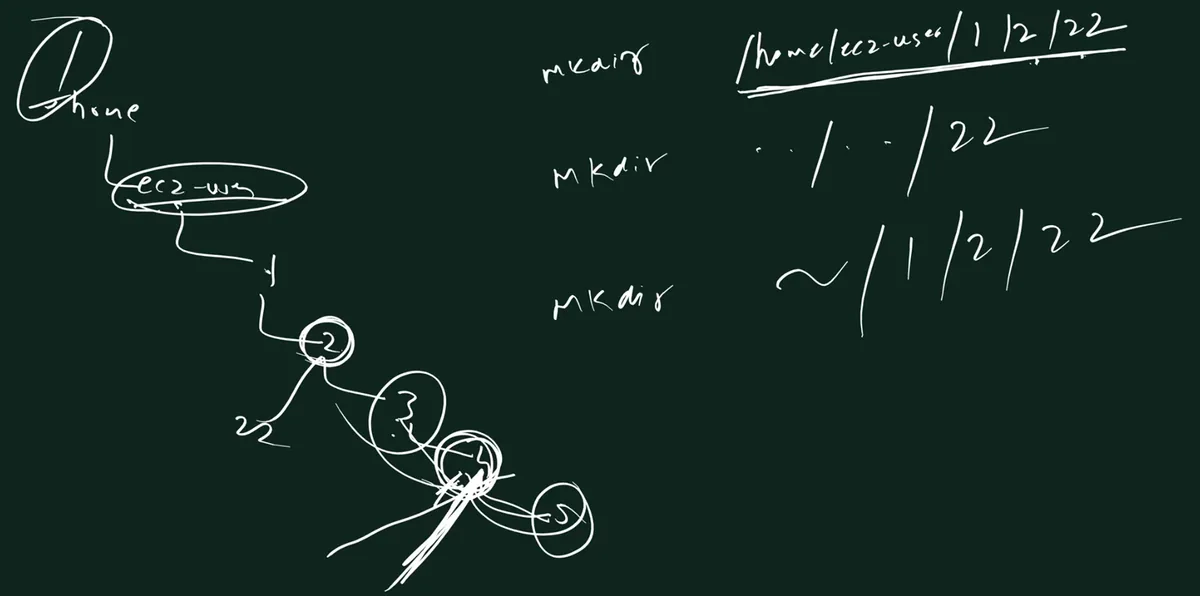
From the class board: The class board used folders named 1 to 5 under ec2-user. From inside 4, three ways to make 22 inside 2: mkdir /home/ec2-user/1/2/22, mkdir ../../22 and mkdir ~/1/2/22.
Check: ls ~/one/two → 22 three.
Classroom line
Go back and forth like this yourself; make up your own situations.
Class मधलं वाक्य
"Tumhi swata asa maage pudhe kara, situation banva."
तुम्ही स्वतः असं मागे पुढे करा, situation बनवा.
Classroom line
Go back and forth like this yourself; make up your own situations.
17. Names with spaces
Why. On Windows, "My Folder" is normal. In the shell, a space separates arguments, so it causes surprises.
What.
mkdir my foldermakes two folders:myandfolder.mkdir 'my folder'makes one folder namedmy folder. Double quotes work too:mkdir "my folder".- Several names with spaces:
mkdir 'my folder' 'your folder'. - To go in:
cd 'my folder', or typecd myand press Tab. Tab writescd my\ folder/. - The backslash
\is an escape character: it tells the shell "the next space is part of the name".
Figure 9. mkdir my folder makes two folders. mkdir 'my folder' makes one. cd my\ folder escapes the space; Tab writes it for you.
Worked example.
mkdir 'my folder'cd my+ Tab →cd my\ folder/→ Enter.mkdir 'inside folder'pwd→/home/ec2-user/my folder.ls→inside folder.
Classroom line
Go on. Create folders with spaces... Press Tab and see what happens.
Class मधलं वाक्य
"Kara. Space deun folder create karun bagha... Bagha tab press karun kay hotay."
करा. Space देऊन folder create करून बघा... Tab press करून काय होतंय ते बघा.
Classroom line
Go on. Create folders with spaces... Press Tab and see what happens.
Ravindra Bagale's Tip
At work, avoid spaces in file and folder names. Use my-folder or my_folder. Scripts, URLs and other people's commands will thank you.
18. Tab completion, and what to do when names start the same
Why. On the job, nobody types long paths letter by letter. Tab is faster and makes no spelling mistakes.
What.
- Type the first few letters of a name and press Tab. If only one name matches, the shell completes it.
- If several names match, one Tab completes only the letters they share, or does nothing.
- Press Tab twice to see the matching names.
- Type one or two more letters until only one name matches, then press Tab.
Worked example 1: tata, twelve, taja (and two).
- In a fresh folder:
mkdir tata twelve taja two. cd t+ Tab → nothing happens: four names start witht.- Tab Tab →
taja/ tata/ twelve/ two/. cd taj+ Tab →cd taja/.cd .., thencd tat+ Tab →cd tata/.
Worked example 2: amazon, amma, aman.
mkdir amazon amma amancd ama+ Tab → stops atama, becauseamazonandamanboth start withama.cd amaz+ Tab →cd amazon/.cd aman+ Tab →cd aman/.cd amm+ Tab →cd amma/.
Figure 10. Animation: cd t + Tab does nothing (four matches); Tab Tab lists them; cd taj + Tab completes taja. In the second example ama is not unique, so type amaz or aman.
Correction
The class example typed ama and Tab to reach amazon. With aman also present, ama is not unique, so Tab stops at ama. Type amaz, then Tab.
19. clear and history
clear.
clear(or Ctrl+L) wipes the screen.- Only the screen. Your files and folders are untouched.
history.
historyprints a numbered list of commands you ran.- Handy to see what you did, or to copy a long command again.
!45runs command number 45 again.- The Up Arrow walks back through the same list.
Classroom line
While I'm explaining, don't type along... when I'm showing, just watch.
Class मधलं वाक्य
"Jevha mi sangto na tevha karat jau naka... mi dakhavto bagha mhanje bagha."
जेव्हा मी सांगतो ना, तेव्हा करत जाऊ नका... मी दाखवतो, बघा म्हणजे बघा.
Classroom line
While I'm explaining, don't type along... when I'm showing, just watch.
Correction
history was described as a way to see everything that was run on a server. It shows only the commands of this user's shell (saved in ~/.bash_history), and a user can edit or clear it. It is not an audit log. On AWS, account actions are recorded by CloudTrail; that comes later in the course.
20. Practice task
Classroom line
Don't look at someone else's screen... put in the effort yourself.
Class मधलं वाक्य
"Dusryachya screen kade baghu naka... swatah traas ghya."
दुसऱ्याच्या screen कडे बघू नका... स्वतः त्रास घ्या.
Classroom line
Don't look at someone else's screen... put in the effort yourself.
Try at home
Task 1: build and walk a tree
- Log in and run
pwd. Write down what it shows. mkdir -p school/class1/divA school/class2cd school/class1/divA, thenpwd.- Go to
class2in one command, without going home. (cd ../../class2) - Use
cd -twice and watch where you land. - Use
cdalone, thenpwd.
Task 2: three ways
- From inside
divA, makenotesinsideschoolwith a relative path. (mkdir ../../notes) - Make
examsinsideschoolwith an absolute path. - Make
resultsinsideschoolwith a~path. ls ~/schoolshould showclass1 class2 exams notes results.
Task 3: spaces and Tab
mkdir 'my notes' 'my marks'- Go into
my marksusing Tab. What does Tab type? - Make three folders that start the same:
mkdir data date dance. - Practise reaching each one with the fewest letters + Tab.
Task 4: your own situations
- Draw a folder tree on paper, at least four levels deep.
- Make it with one
mkdir -pline. - Pick any two folders in it. Move between them with an absolute path, a relative path and a
~path. - Run
historyand read back what you did. - When you finish, stop the instance from the console.
Classroom line
Don't forget to stop the server.
Class मधलं वाक्य
"Server bandh karayla visru naka."
Server बंद करायला विसरू नका.
Classroom line
Don't forget to stop the server.
Correction
At the end of class it was said that the IP changes "on reboot". A reboot keeps the same public IP. The auto-assigned public IP changes when you stop and then start the instance (an Elastic IP stays). Also, a stopped instance still pays for its EBS disk; see the previous chapter.
Ravindra Bagale's Tip
Before every mkdir, cp or rm, ask yourself "where am I?" and run pwd if you are not sure. Most beginner mistakes happen in the wrong folder, not with the wrong command. For a compact reference of these commands, see 3.2 Navigation and 3.3 Working with files and directories.
Recap
In short
- SSH:
ssh -i <key> ec2-user@<public IP>. Use Tab for the key path. Paste with Ctrl+V or right-click. - Errors: publickey (wrong key or user), no such file (key path), timed out (IP changed after stop/start).
- Log in as
ec2-user; usesudofor admin work. The key pair isn't tied to a user; root SSH login is blocked. - An idle SSH drop comes from your router, Wi-Fi or sleep, not AWS. Up Arrow + Enter reconnects;
ServerAliveInterval=60keeps it alive. /is the top of the whole tree./rootis the root user's home, a different place.- You land in
/home/ec2-user.pwdprints where you are. - In a path, the first
/is root; the others separate names. - A file holds content; a folder (directory) holds files and folders.
mkdir a b cmakes three folders. No output = success. Same name again =File exists.lslists;ls -rlists in reverse.cd namegoes in. The prompt shows~at home.cd ..up one;cd ../..up two;cd ../../..up three.cdalone = home.cd -= back to the previous directory.mkdir -p a/b/cmakes nested folders; spaces make side-by-side folders.- Absolute starts with
/; relative starts from where you are;~is your home (the shell expands it). - Calendar: four ways to make
week1. One to five: three ways to make22. - Spaces: quote the name or escape with
\. Better: avoid spaces. - Tab completes; Tab Tab lists; type more letters when names start the same.
clearwipes the screen only.historylists this user's commands; it is not an audit log.- Stop the server after practice. Reboot keeps the public IP; stop and start changes it.
Samjla ka? Aaj ghari swatahachya situation banva, absolute, relative ani ~ teenhi vaapra. Pudhchya class madhe files.
Ravindra Bagale, trainer: linkedin.com/in/ravindra-bagale. The folder names (ravi, calendar, india/maharashtra/pune, one to five, tata, amazon), the user name ravi and the addresses 3.3.3.3 and 172.31.5.10 are examples for learning. Command outputs were checked with GNU bash and coreutils, the same tools Amazon Linux 2023 uses; AWS behaviour is from AWS's own documentation as of October 2026.