Linux users, groups, sudo and file permissions: adduser, chmod, chgrp and a first shell script
Let's start. In the last class ls -l showed us a - or a d at the start of every line. Today we read the rest of that line: the nine r w x letters, and the two names after them, the owner and the group. They answer one question: who may do what with this file? To see why that matters, we'll make real users for a small team, log in as them, use sudo the right way, change permissions with chmod, share files with a group, and end with your first shell script. Keep your server running and type every command with me.
What you will learn in this class
- Why the owner and group columns in
ls -lmatter - The team story: why one shared
ec2-useris risky - IAM users vs Linux users
- The default users on each Linux
- Why a new user gets a group with the same name
sudo adduser, and the longersudo su→adduser→exitroute- Logging in with SSH as the new user (the
authorized_keyssteps) touchvssudo touch: who owns the filewhoami,whoandw: three different answers- The
/tree and whereec2-usermay write - When to use
sudo, and when not to r w xforu,gandochmod u-r,u+r,u-w,u+w: a live demo with real messagessudooverrides permissions; "Operation not permitted" when you're not the owner- Sharing with a group:
groupadd,usermod -aG,chgrp,chmod g+w - Why your new files show
rw-rw-r--(664) and notrw-r--r--(644) - The
xbit and your first script,my.sh - An endless-loop script, and why Ctrl+C matters
- Try-at-home tasks
1. Why the owner and group columns matter
Why. On your laptop you are the only person. A server is shared: many people and programs work on it at the same time. Linux needs to know who owns each file and who else may touch it. Two columns in ls -l say exactly that.
How. In your home folder, with one file and one folder:
[ec2-user@ip-172-31-xx-xx ~]$ ls -l
total 4
-rw-rw-r--. 1 ec2-user ec2-user 6 Jan  5 10:15 my.txt
drwxr-xr-x. 2 ec2-user ec2-user 6 Jan  5 10:15 ravi
Read the start of each line:
- First character:
-= file,d= directory (last chapter). - Next nine characters: three groups of
r w x. Section 12 explains them. - First name (
ec2-user): the owner, the user who owns the file. - Second name (
ec2-user): the group the file belongs to.
The other columns (links, size, date) were explained in Moving, renaming and deleting in Linux.
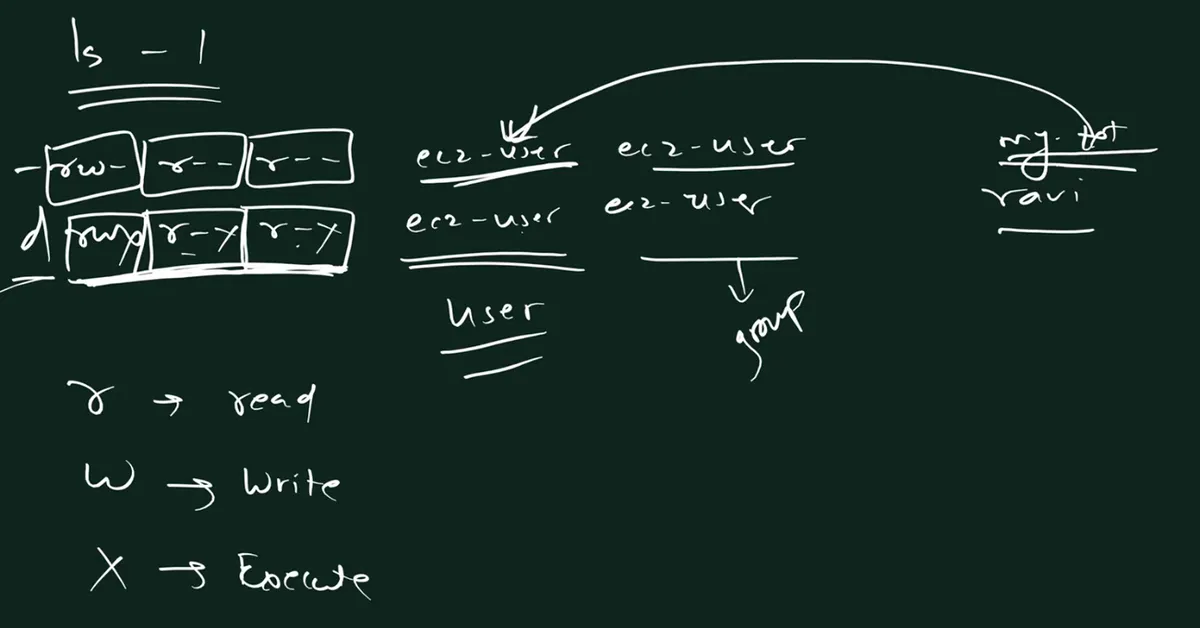
From the class board: The class board: ls -l with the boxed type and r w x sets for a file and a folder, the owner column marked user, the group column marked group, and r = read, w = write, x = execute.
Figure 1. ls -l: the type, then r w x three times for the user (owner), the group and others, then the owner name and the group name.
2. The team story: why one shared ec2-user is risky
Why. Suppose we are building an Instagram-like app. The website, the backend for the mobile app and a MySQL database all run on one server. The backend alone can have thousands of files, and a team of five developers works on it.
The parts of the app:
- Frontend, what the user sees: the Android app (Java or Kotlin, packed as an APK), the iOS app (Swift or Objective-C, packed as an IPA), cross-platform apps (React Native, Flutter), and the website (React, Angular).
- Backend, the code on the server: PHP, Python, Java, .NET or Node.js (often with Express.js). For example, when the app asks for new reels, a file such as
latest.phpreads the database and sends the data back. - Database: MySQL keeps the data.
The server sends only data, not the screen. Phones, tablets, TVs and car screens are all different sizes, so the app on each device draws its own screen.
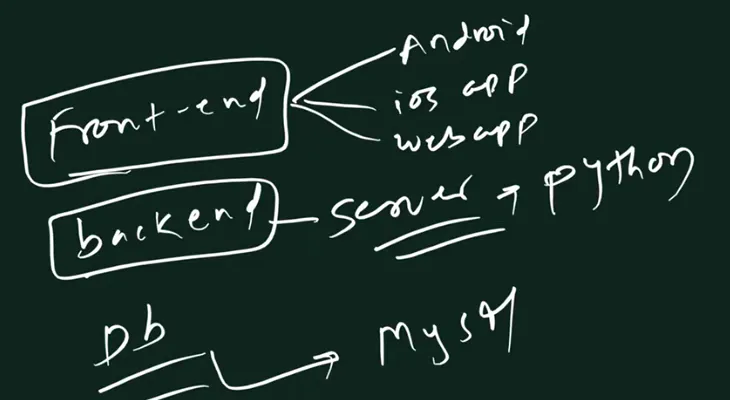
From the class board: The class board: the frontend goes to the Android app, the iOS app and the web app; the backend is the server side, for example Python; the database is MySQL.
Correction
Express.js was listed with the frontend tools in class. It is a backend framework that runs on Node.js. PHP and Python are server-side (backend) languages too.
The problem. All five developers log in as ec2-user with the same .pem key. One day a folder of code is deleted, by mistake or on purpose. Who did it? Every file and every action says ec2-user. There is no way to tell.
Classroom line
If one of them deletes it, how will we know who did it?
Class मधलं वाक्य
"Tyat ekach janani delete kartoy... mag kasa olakhnar kuni delete kelay?"
त्यातल्या एकाने delete केलं... मग कसं ओळखणार कोणी delete केलंय?
Classroom line
If one of them deletes it, how will we know who did it?
The fix: one Linux user per person. Ravi logs in as ravi, Ramesh as ramesh, and every file shows who made it.
Figure 2. Left: five developers share ec2-user, so a deleted file can't be traced to anyone. Right: ravi and ramesh have their own users, and ls -l shows the owner of every file.
Correction
In class it sounded as if the problem was everyone using the same IP address. They don't; each developer connects from their own network. The real problem is the shared username and shared key: Linux records ec2-user for everyone, so actions can't be tied to a person.
3. IAM users vs Linux users
Why. We already made IAM users in Root user, IAM users, MFA and launching your first EC2 server. Aren't those enough?
What. They are two different layers:
- IAM users work on the AWS account: launching, stopping or terminating servers, opening the console, creating volumes. CloudTrail can show which IAM user launched a server.
- Linux users work inside one server: who owns a file, who may edit it, who logged in with SSH.
IAM has no idea who edited latest.php inside Linux.
Classroom line
The IAM user's job ends at launching the server.
Class मधलं वाक्य
"IAM user je ahe na te server launch kareparyant ahe."
IAM user जो आहे ना, तो server launch करेपर्यंत आहे.
Classroom line
The IAM user's job ends at launching the server.
Classroom line
It has nothing to do with the work we do inside the server.
Class मधलं वाक्य
"Server chya aat madhye aapan je kaam karto na tyachyashi denaghena nahiye."
Server च्या आत मध्ये आपण जे काम करतो ना, त्याच्याशी देणंघेणं नाहीये.
Classroom line
It has nothing to do with the work we do inside the server.
Figure 3. IAM users act on the AWS account. Inside one server, Linux users such as root, ec2-user, ravi and ramesh own files and log in with SSH.
Ravindra Bagale's Tip
There is one bridge between the two: AWS Systems Manager Session Manager lets IAM decide who may open a shell on a server, and can log those sessions. With plain SSH, as in this course, Linux users are what keep people apart.
4. The default users
What. Every Linux server starts with two users you can log in as or use:
- root: the superuser. It owns the system folders and may do anything.
- One normal user made by the cloud image, so you don't log in as root:
| Server image | Default user |
|---|---|
| Amazon Linux | ec2-user |
| Ubuntu | ubuntu |
| CentOS | centos (CentOS Stream 9 images use ec2-user) |
| Debian | admin |
Classroom line
Linux has two users from the start, by default.
Class मधलं वाक्य
"Linux madhe don user pahilya pasun astat by default."
Linux मध्ये दोन users पहिल्यापासून असतात, by default.
Classroom line
Linux has two users from the start, by default.
Correction
The class said the CentOS default user is admin. On CentOS cloud images it is centos (the newer CentOS Stream 9 images use ec2-user). admin is the default user on Debian images.
Homes. Normal users live in /home/<name>: /home/ec2-user, later /home/ravi. root's home is /root, not /home/root.
The prompt tells you who you are: $ at the end for a normal user, # for root.
5. A new user gets a group with the same name
What. Every user gets a group with the same name, and that group becomes the user's main group:
| User | Main group |
|---|---|
root |
root |
ec2-user |
ec2-user |
ravi |
ravi |
That's why ls -l showed ec2-user ec2-user: owner ec2-user, group ec2-user.
See it yourself:
id ec2-user
uid=1000(ec2-user) gid=1000(ec2-user) groups=1000(ec2-user),4(adm),10(wheel),190(systemd-journal)
gid=1000(ec2-user) is the main group. wheel is the group that may use sudo.
6. Creating a user: sudo adduser
Why. Only root may create users. You are ec2-user, so you need root's help for that one command.
The long way (three commands):
[ec2-user@ip-172-31-xx-xx ~]$ sudo su
[root@ip-172-31-xx-xx ec2-user]# adduser ravi
[root@ip-172-31-xx-xx ec2-user]# exit
exit
[ec2-user@ip-172-31-xx-xx ~]$
sudo su:sudo= "superuser do",su= "switch user". Together: become root. The prompt changes torootand ends with#.adduser ravi: root creates the user.exit: back toec2-user,$again.
The short way (one command):
sudo adduser ravi
Classroom line
We can turn these three commands into one, like this.
Class मधलं वाक्य
तर याच तीन commands चं रूपांतर आपण असं एकात करू शकतो.
Classroom line – हिंदी
"Toh yahi teen command ka conversion hum kuch aisa kar sakte hai."
What it creates: a user ravi, a group ravi, and a home folder /home/ravi.
Classroom line
A group named ravi will be created too, and a folder named ravi as well.
Class मधलं वाक्य
ravi नावाचा एक group पण तयार होईल. आणि ravi नावाचा एक folder पण तयार होईल.
Classroom line – हिंदी
"Ravi naam ka ek group bhi create hoga. Aur ravi naam ki ek directory bhi create hogi."
Check it:
sudo adduser ramesh
id ravi
uid=1001(ravi) gid=1001(ravi) groups=1001(ravi)
ls /home
ec2-user  ramesh  ravi
Figure 4. Animation: sudo adduser ravi creates the user ravi, a group ravi with the same name, and the home folder /home/ravi, which only ravi can open.
Correction
The command was read out as "sudo user add". The commands are adduser and useradd. On Amazon Linux 2023, adduser is just another name for useradd: it asks nothing and sets no password (set one with sudo passwd ravi only if you need it). On Ubuntu, adduser is a friendlier script that asks for a password and details.
7. Logging in with SSH as the new user
Why. Ravi should log in as ravi, not as ec2-user. But a brand-new user has no key, and password login is switched off on EC2. So this fails at first:
ssh -i key.pem ravi@SERVER_PUBLIC_IP
ravi@SERVER_PUBLIC_IP: Permission denied (publickey,gssapi-keyex,gssapi-with-mic).
How. Put a public key into /home/ravi/.ssh/authorized_keys. For practice, copy ec2-user's key (it matches your .pem). Run these as ec2-user:
sudo mkdir /home/ravi/.ssh
sudo cp ~/.ssh/authorized_keys /home/ravi/.ssh/
sudo chown -R ravi:ravi /home/ravi/.ssh
sudo chmod 700 /home/ravi/.ssh
sudo chmod 600 /home/ravi/.ssh/authorized_keys
What each line does:
- Make the
.sshfolder in Ravi's home. - Copy the list of allowed public keys into it.
- Make
ravithe owner (until now root owned them, because root made them). - Only
ravimay open the folder (700). - Only
ravimay read and write the key list (600).
Now the same command works, and the prompt shows the new user:
ssh -i key.pem ravi@SERVER_PUBLIC_IP
[ravi@ip-172-31-xx-xx ~]$ touch ravi.txt
[ravi@ip-172-31-xx-xx ~]$ ls -l
total 0
-rw-rw-r--. 1 ravi ravi 0 Jan  5 10:15 ravi.txt
The file says ravi ravi. Ramesh's files will say ramesh ramesh.
Correction
The board showed ssh -i key.pem ravi@... right after creating the user. That works only after a public key is in /home/ravi/.ssh/authorized_keys. SSH also refuses keys in folders that are too open, which is why the chown and chmod 700/600 lines matter. In a real team, each person sends their own public key and you put that one in, so nobody shares a .pem.
8. touch vs sudo touch: who owns the file
What. The user who runs a command owns what it creates.
[ec2-user@ip-172-31-xx-xx ~]$ touch a.txt
[ec2-user@ip-172-31-xx-xx ~]$ sudo touch b.txt
[ec2-user@ip-172-31-xx-xx ~]$ ls -l
total 0
-rw-rw-r--. 1 ec2-user ec2-user 0 Jan  5 10:15 a.txt
-rw-r--r--. 1 root     root     0 Jan  5 10:15 b.txt
touch a.txt:ec2-usermade it, soec2-user ec2-user.sudo touch b.txt: root made it, soroot root.
Classroom line
Put sudo in front of any command; it simply means the root user is doing that work.
Class मधलं वाक्य
तर कुठल्याही command च्या पुढे sudo लिहा, त्याचा अर्थ एवढाच की ते काम root user करतोय.
Classroom line – हिंदी
"Toh kisi bhi command ke samne sudo likh do, uska matlab itna hi hai wo kaam root user kar raha hai."
(Section 17 explains why the two files got different permissions, rw-rw-r-- and rw-r--r--.)
9. whoami, who and w
What. Three short commands, three different answers:
whoami: your current user name.who: everyone who is logged in right now, with their terminal and login time.w: everyone logged in, plus how long the server has been up, the load, and what each person is running.
Try them. Your own output will show your times and IP addresses:
whoami
ec2-user

sudo whoami
root
Then with Ravi logged in too (the IP addresses here are examples):
who
ec2-user pts/0        2026-01-05 10:15 (203.0.113.25)
ravi     pts/1        2026-01-05 10:18 (203.0.113.40)

w
 10:20:01 up  2:05,  2 users,  load average: 0.00, 0.01, 0.00
USER     TTY      FROM             LOGIN@   IDLE   JCPU   PCPU WHAT
ec2-user pts/0    203.0.113.25     10:15    0.00s  0.03s  0.00s w
ravi     pts/1    203.0.113.40     10:18    1:02   0.01s  0.01s -bash
Correction
In class the three commands were said to do the same work. They don't: whoami prints only your name, who lists every logged-in user, and w adds uptime, load and what each user is running.
10. The / tree and ec2-user's boundary
What. Everything hangs under /: bin, sbin, home, root, dev, opt, usr, var and more. root owns all of them. A normal user may write only inside its own home.
Try it without sudo:
touch /a.txt
touch: cannot touch '/a.txt': Permission denied
touch /home/a.txt
touch: cannot touch '/home/a.txt': Permission denied
mkdir /test
mkdir: cannot create directory ‘/test’: Permission denied
ls /home/ravi
ls: cannot open directory '/home/ravi': Permission denied
The last one: on Amazon Linux a new home is drwx------, so even looking inside another user's home is blocked.
Classroom line
Go to / or /home and try to make a file without sudo; it won't work, you'll get Permission denied.
Class मधलं वाक्य
"Nustya slash folder madhe kiwa home folder madhe jaun bgha... without sudo command file karnyacha prayatna kara, nahi honar, permission denied yetil."
नुसत्या slash folder मध्ये किंवा home folder मध्ये जाऊन बघा... sudo शिवाय file करायचा प्रयत्न करा, नाही होणार, permission denied येईल.
Classroom line
Go to / or /home and try to make a file without sudo; it won't work, you'll get Permission denied.
With sudo, root does it:
sudo touch /home/a.txt
sudo mkdir /test
sudo touch /home/ravi/notes.txt
Write the full path, /home/ravi/notes.txt, when the file belongs in someone else's home.
Classroom line
As the root user, we can work in every folder.
Class मधलं वाक्य
"root user banlyana aapan saglyach folder madhe kaam karu shakto."
root user बनल्यावर आपण सगळ्याच folders मध्ये काम करू शकतो.
Classroom line
As the root user, we can work in every folder.
Figure 5. The tree from /. ec2-user can write only inside /home/ec2-user (green). Everywhere else (red) gives Permission denied unless the command starts with sudo.
11. When to use sudo, and when not to
Use sudo only for work outside your home or on the system: installing packages, creating users, editing files in /etc, writing in another user's home.
Don't use sudo in your own home. You don't need it there, and it makes root-owned files that you then can't edit normally:
sudo touch notes.txt
echo hello > notes.txt
-bash: notes.txt: Permission denied
nano notes.txt opens it but says [ File 'notes.txt' is unwritable ]. You can still delete it, because the folder is yours, but rm asks first:
rm notes.txt
rm: remove write-protected regular empty file 'notes.txt'?
If you made one by mistake, give it back to yourself:
sudo chown ec2-user:ec2-user notes.txt
Correction
On the board, sudo touch a.txt was written for a file inside ec2-user's own home. No sudo is needed there. With sudo the file becomes root root, and you can't edit it without sudo again.
Ravindra Bagale's Tip
Before typing sudo, ask: "Am I outside my home, or changing the system?" If the answer is no, drop the sudo. And never stay in a root shell (sudo su) longer than you need; type exit as soon as the root job is done.
12. r w x for u, g and o
What. The nine characters are three sets of three, always in the order r w x:
- u = user, the owner (the first name in
ls -l). - g = group (the second name).
- o = others, every other user on the server.
In each set: r = read, w = write, x = execute, - = that permission is missing.
Examples:
rw-= read and write, no execute.r--= read only.r-x= read and execute, no write.
So -rw-r--r-- means: owner reads and writes; group reads; others read.
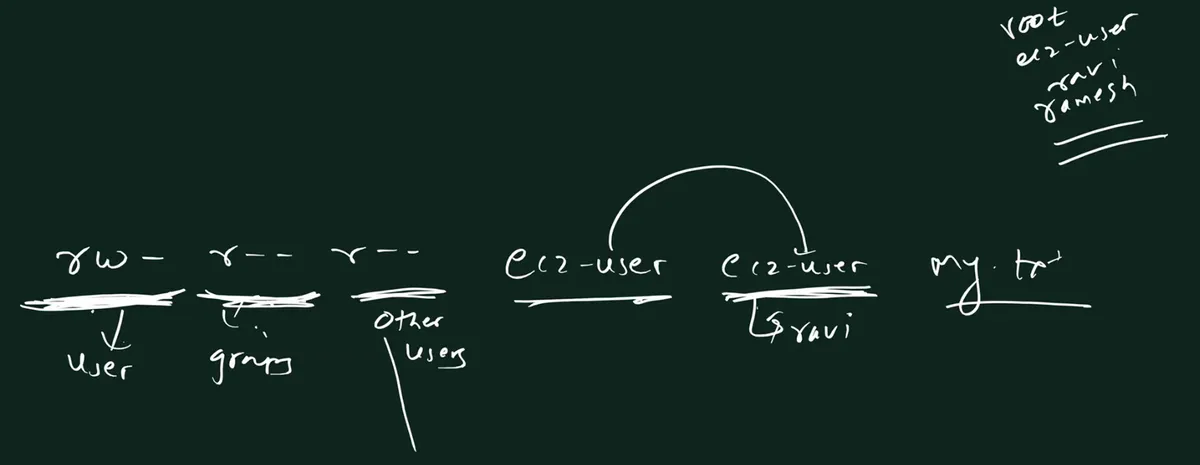
From the class board: The class board: rw- for the user, r-- for the group and r-- for other users of my.txt, owned by ec2-user with group ec2-user; a group can also hold another user such as ravi. Top right: the users root, ec2-user, ravi and ramesh.
13. chmod: taking away the owner's own r and w
Why. chmod (change mode) changes those nine letters. The quickest way to understand them is to take a permission away from yourself and watch what breaks.
How the commands read: chmod u-w my.txt = for the user (owner), take away (-) write. + gives it back.
Start (on Amazon Linux your new files are rw-rw-r--):
echo hello > my.txt
ls -l my.txt
-rw-rw-r--. 1 ec2-user ec2-user 6 Jan  5 10:15 my.txt
Take away read:
chmod u-r my.txt
ls -l my.txt
--w-rw-r--. 1 ec2-user ec2-user 6 Jan  5 10:15 my.txt
cat my.txt
cat: my.txt: Permission denied
nano my.txt opens an empty screen with [ Error reading my.txt: Permission denied ]. Give it back with chmod u+r my.txt.
Take away write:
chmod u-w my.txt
ls -l my.txt
-r--rw-r--. 1 ec2-user ec2-user 6 Jan  5 10:15 my.txt
nano my.txt shows the text with [ File 'my.txt' is unwritable ]. Change something and press Ctrl+O to save: [ Error writing my.txt: Permission denied ]. Press Ctrl+X to leave, then N to drop the change. Give write back with chmod u+w my.txt, and saving works again.
Figure 6. Animation: chmod u-r makes cat say Permission denied; chmod u+r and chmod u-w make nano say the file is unwritable and saving fail; chmod u+w makes saving work again.
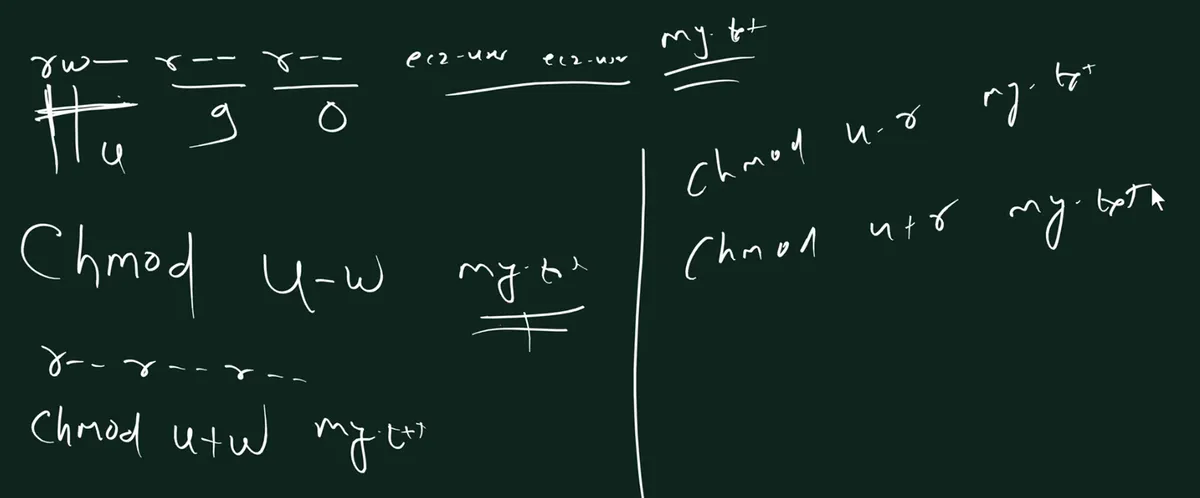
From the class board: The class board: rw- r-- r-- marked u, g and o for my.txt owned by ec2-user; chmod u-w my.txt turns it into r--r--r--, chmod u+w my.txt gives write back; on the right chmod u-r my.txt and chmod u+r my.txt.
Why didn't the group's rw- help? ec2-user is in the group ec2-user, and that group still has rw-. But Linux checks only one set: if you are the owner, it uses the u bits and stops. The g bits are for group members who are not the owner.
Figure 7. Linux checks in order: root is allowed; the owner gets only the u bits; a group member gets the g bits; everyone else gets the o bits. So an owner with r-- can't save even when the group has rw-.
Correction
In class, nano was closed with "exit" or Ctrl+C. Nano closes with Ctrl+X (it asks whether to save a changed file: Y or N). Ctrl+C in nano only shows the cursor position.
Ravindra Bagale's Tip
The owner can always chmod its own file back, even after taking every permission away. So this demo is safe. Just don't try it on system files.
14. sudo overrides permissions
What. root skips the r w x checks. With u-w still set:
ls -l my.txt
-r--rw-r--. 1 ec2-user ec2-user 6 Jan  5 10:15 my.txt
sudo nano my.txt
Change a line, press Ctrl+O and Enter: nano says [ Wrote 1 line ]. With u-r, sudo cat my.txt still prints the text.
Classroom line
Root is above everyone; these limits don't apply to it.
Class मधलं वाक्य
root सगळ्यांच्या वर आहे, त्याला हे नियम लागू होत नाहीत.
Classroom line – हिंदी
"Root sabka baap hai, wo yahan pe nahi aayega."
That is exactly why sudo is powerful, and why it needs care.
15. "Operation not permitted": you're not the owner
What. Only the owner, or root, may chmod a file.
sudo touch u.txt
ls -l u.txt
-rw-r--r--. 1 root root 0 Jan  5 10:15 u.txt
chmod u-w u.txt
chmod: changing permissions of 'u.txt': Operation not permitted
u.txt belongs to root, so ec2-user can't change its permissions. sudo chmod u-w u.txt would work.
Two different errors:
- Permission denied: the
r w xbits don't allow what you tried (read, write, open). - Operation not permitted: you tried something only the owner or root may do, such as
chmod.
16. Groups for sharing
Why. Ravi and Ramesh both work on the "reel upload" module. Ramesh must edit Ravi's files. Giving write to others (o+w) would let every user on the server edit them. A group gives write to the team only.
How. Make a team group, add both users, and use a shared folder outside the homes (homes are drwx------, so Ramesh can't even enter /home/ravi):
sudo groupadd reels
sudo usermod -aG reels ravi
sudo usermod -aG reels ramesh
sudo mkdir /srv/reels
sudo chgrp reels /srv/reels
sudo chmod g+w /srv/reels
groupadd reels: a new group.usermod -aG reels ravi: add Ravi to the Groupreels. Without-a,-Gwould replace his other extra groups.chgrp reels /srv/reels: the folder's group becomesreels.chmod g+w /srv/reels: group members may create files in it.
Check:
id ramesh
uid=1002(ramesh) gid=1002(ramesh) groups=1002(ramesh),1003(reels)
ls -ld /srv/reels
drwxrwxr-x. 2 root reels 6 Jan  5 10:15 /srv/reels
New groups apply at the next login, so Ravi and Ramesh log out and in again. Then Ravi makes a file. Its group is still ravi, so Ramesh can't write to it yet:
[ravi@ip-172-31-xx-xx ~]$ echo "<?php // upload" > /srv/reels/upload.php
[ravi@ip-172-31-xx-xx ~]$ ls -l /srv/reels/upload.php
-rw-rw-r--. 1 ravi ravi 16 Jan  5 10:15 /srv/reels/upload.php

[ramesh@ip-172-31-xx-xx ~]$ echo "// ramesh" >> /srv/reels/upload.php
-bash: /srv/reels/upload.php: Permission denied
Ravi (the owner, and a member of reels) gives the file to the team group:
[ravi@ip-172-31-xx-xx ~]$ chgrp reels /srv/reels/upload.php
[ravi@ip-172-31-xx-xx ~]$ chmod g+w /srv/reels/upload.php
[ravi@ip-172-31-xx-xx ~]$ ls -l /srv/reels/upload.php
-rw-rw-r--. 1 ravi reels 16 Jan  5 10:15 /srv/reels/upload.php

[ramesh@ip-172-31-xx-xx ~]$ echo "// ramesh" >> /srv/reels/upload.php
[ramesh@ip-172-31-xx-xx ~]$ cat /srv/reels/upload.php
<?php // upload
// ramesh
Ramesh can write now, but he still can't chmod it, because Ravi is the owner:
[ramesh@ip-172-31-xx-xx ~]$ chmod o+w /srv/reels/upload.php
chmod: changing permissions of '/srv/reels/upload.php': Operation not permitted
Figure 8. ravi and ramesh are both in the group reels. upload.php is owned by ravi with group reels and rw-rw-r--, so both can edit it and everyone else can only read it.
The class also mentioned the quick version: sudo usermod -aG ravi ramesh adds Ramesh to Ravi's own group. It works for files Ramesh can reach, but not inside /home/ravi, which only Ravi may open. A project group and a shared folder is the cleaner way.
17. Why your files show 664 and not 644
What. The board showed new files as rw-r--r--. On Amazon Linux, the files you make as ec2-user show rw-rw-r--. Both are right; it depends on the umask, a setting that takes permissions away from every new file:
umask
0002
- A new file starts from
rw-rw-rw-(666). ec2-user's umask0002removes onlywfor others →rw-rw-r--(664).- root's umask is
0022, which also removeswfor the group →rw-r--r--(644). That's whysudo touchmaderw-r--r--in section 8.
Amazon Linux uses 0002 for users like ec2-user because every user has a private group of their own, so group write is safe. Many other systems use 0022 for everyone, which gives the 644 you saw on the board.
As numbers: r = 4, w = 2, x = 1, added up for each set. rw- = 6, r-- = 4, rwx = 7. So 664 = rw-rw-r--, and the 700/600 from section 7 mean "only the owner".
18. The x bit and your first shell script
Why. Suppose you type the same five commands every day. Put them in a file once, and run the file. That file is a script, and to run it Linux needs the x (execute) bit.
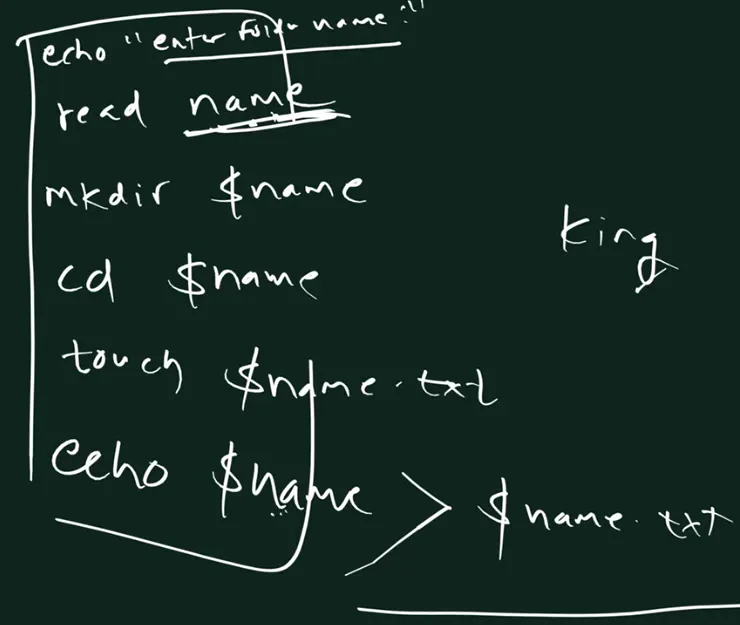
From the class board: The class board: the first script. echo "enter folder name", read name, mkdir $name, cd $name, touch $name.txt, echo $name > $name.txt. King was a sample name typed at the prompt. The page adds #!/bin/bash and quotes around "$name".
Write it: nano my.sh, type these lines, save with Ctrl+O, Enter, and leave with Ctrl+X:
#!/bin/bash
echo "Enter a folder name:"
read name
mkdir "$name"
cd "$name"
touch "$name.txt"
echo "$name" > "$name.txt"
Line by line:
#!/bin/bash(the shebang): run this file with bash.echo: prints the text back to you.read name: waits for you to type something, and stores it in the variablename."$name": the value you typed. The quotes keep a name with spaces in one piece.mkdir,cd,touch: make a folder, go into it, make a file with the same name.echo "$name" > "$name.txt": write the name into that file.
Classroom line
What does echo do? Whatever we tell it, it says back to us.
Class मधलं वाक्य
echo command काय करतो? आपण त्याला जे सांगतो ना, ते तो आपल्याला परत सांगतो.
Classroom line – हिंदी
"echo command kya karta hai, jo bhi hum usko bolte hai na wo hume return me bolta hai."
Run it, first without x:
ls -l my.sh
-rw-rw-r--. 1 ec2-user ec2-user 120 Jan  5 10:15 my.sh
./my.sh
-bash: ./my.sh: Permission denied
Classroom line
Until we give it x permission, it won't execute.
Class मधलं वाक्य
जोपर्यंत आपण त्याला x permission देत नाही, तोपर्यंत तो execute होणार नाही.
Classroom line – हिंदी
"jab tak usko hum x permission nahi dete, tab tak wo execute nahi hoga."
Give the owner x, and run it:
chmod u+x my.sh
ls -l my.sh
-rwxrw-r--. 1 ec2-user ec2-user 120 Jan  5 10:15 my.sh
./my.sh
Enter a folder name:
reels
ls reels
reels.txt
cat reels/reels.txt
reels
-rwxrw-r--: the owner now hasx. In a coloured terminal the name turns green../my.sh:./means "the file in this folder". Without it, bash looks only in the usual command folders and sayscommand not found.- You typed
reels; the script made the folderreels, the filereels/reels.txt, and wrotereelsinto it.
Figure 9. Animation: ./my.sh fails with Permission denied without the x bit; chmod u+x my.sh adds it; ./my.sh then asks for a name and creates the folder and the file.
Two things to notice:
- After the script ends, you are still in the same folder. The
cdhappened inside the script's own shell, not in yours. - Run it again with the same name and
mkdirsaysmkdir: cannot create directory ‘reels’: File exists. Try another name, such asmy notes: thanks to the quotes you get one folder,my notes. Without the quotes,mkdir $namewould make two folders,myandnotes.
Correction
The board version had no first line and no quotes. Start every bash script with #!/bin/bash, and quote variables: mkdir "$name", cd "$name", touch "$name.txt". Also, read is a shell built-in command (type read says read is a shell builtin), not a keyword.
19. An endless loop, and Ctrl+C
What. A script can repeat forever. Make loop.sh:
#!/bin/bash
while true; do
  echo "Hello"
  sleep 1
done
while true; do ... done: repeat the lines betweendoanddoneas long astrueis true, which is forever.sleep 1: wait one second each time.
Run it:
chmod u+x loop.sh
./loop.sh
Hello
Hello
Hello
^C
It prints Hello every second until you press Ctrl+C, which stops the program running in the foreground of your terminal.
Classroom line
Whenever you get stuck anywhere, cancel it: Ctrl+C.
Class मधलं वाक्य
कधीही कुठेही अडकलात, cancel करायचं, Ctrl C.
Classroom line – हिंदी
"kabhi bhi kuthe pan adakla, cancel karaycha, Ctrl C."
Correction
The board wrote the loop as while true :. The correct form is while true; do (or while :; do). And an endless loop is not a virus, as it was called in class. It just shows how a runaway script can keep running and using CPU until you stop it. That's why Ctrl+C is worth remembering.
20. Try at home
Try at home
Task 1: users
- Create the users
raviandrameshwithsudo adduser. Check withid raviandls /home. - Set up
/home/ravi/.ssh/authorized_keys(section 7) and log in asravifrom a second terminal. - As
ravi, runwhoami, thentouch ravi.txtandls -l. In theec2-userterminal, runwhoandw.
Task 2: sudo
- As
ec2-user, trytouch /a.txt. Read the error. Then do it withsudoand check the owner withls -l /a.txt. - In your home, run
touch x.txtandsudo touch y.txt. Compare the owner and the permissions. - Give
y.txtback to yourself withsudo chown ec2-user:ec2-user y.txt.
Task 3: chmod
echo hello > my.txt, thenchmod u-r my.txtandcat my.txt. Thenchmod u+r my.txt.chmod u-w my.txt, open it in nano, try to save, leave with Ctrl+X. Thenchmod u+w my.txt.sudo touch u.txtand trychmod u-w u.txt. Which error do you get, and why?
Task 4: groups and scripts
- Repeat section 16 with a group
weband a folder/srv/web. - Write
my.sh(section 18), run it before and afterchmod u+x, and test it with a name that has a space. - Write
loop.sh, run it, and stop it with Ctrl+C.
When you finish, delete the practice users with sudo userdel -r ravi and sudo userdel -r ramesh, then stop the instance (or terminate it if you won't use it again).
Recap
In short
ls -l: type, thenr w xfor user (owner), group and others, then the owner name and the group name.- One shared
ec2-userhides who did what. Give each person their own Linux user. - IAM users act on the AWS account; Linux users act inside the server.
- Default users: root plus
ec2-user(Amazon Linux),ubuntu,centos(CentOS) oradmin(Debian). root's home is/root.$= normal user,#= root. sudo adduser ravicreates the user, a groupraviand/home/ravi. Long way:sudo su,adduser ravi,exit.- SSH as
ravineeds a key in/home/ravi/.ssh/authorized_keys, owned byravi, with700/600. touch→ ownerec2-user;sudo touch→ ownerroot.whoami= you;who= everyone logged in;w= everyone plus uptime, load and what they run.- Without
sudo,ec2-userwrites only inside/home/ec2-user. Usesudoonly outside your home. chmod u-r,u+r,u-w,u+wchange the owner's bits. The owner gets only theubits, even if the group has more.- root skips the checks. Only the owner or root may
chmod: otherwise "Operation not permitted". - Share with a group:
groupadd,usermod -aG,chgrp,chmod g+w, then log in again. - Your files are
664because of umask0002; root's are644(umask0022). - A script needs
#!/bin/bash, quoted"$name",chmod u+x, and./my.shto run. - An endless loop is not a virus. Ctrl+C stops it. Nano exits with Ctrl+X.
Samjla ka? Ghari don users banva, tyancha group banva, ani pahila script swatah chalvun bagha.
Ravindra Bagale, trainer: linkedin.com/in/ravindra-bagale. The user, group, folder and file names (ravi, ramesh, reels, my.txt, my.sh and the rest) are examples for learning. Commands and messages were checked on the box with GNU coreutils, bash, nano and shadow-utils, and against the settings of an Amazon Linux 2023 server (adduser → useradd, home folders 700, umask 0002, nano 8.3); the hostname in the prompt, the IP addresses in who/w and the dates in ls -l are illustrative.