Hosting a website on EC2: web servers, Apache httpd, /var/www/html, port 80 and curl
Let's start. Up to now we learned Linux: folders, files, users and permissions. Today we use all of it for the real job of a cloud engineer: putting a website live on a server. First we see what happens when someone opens a website, what a web server is, and the difference between website hosting and API hosting. Then we install Apache on our EC2 server, start it, put our own page in /var/www/html, open port 80 and open the site from any browser, even your phone. Keep your server running and type every command with me.
What you'll learn in this class
- Where hosting fits: development, test and production
- What happens when someone opens a website
- What a web server is: Apache, Nginx and others
- Website hosting vs API hosting
- Static vs dynamic websites
- Installing Apache with
sudo yum install httpd - Checking the install with
httpd -v - Software vs service: start, status and enable
- What to do when Apache won't start
- Your first page in
/var/www/html - Opening port 80 in the Security Group
- Opening your site, and debugging with
curl - Adding more pages
1. Why hosting: from a laptop to a live website
Why. Developers write a website on their laptops. Nobody in the world can open it there. Someone has to put it on a server that runs day and night and that anyone can reach over the internet. That someone is the cloud engineer, and putting it there is called hosting.
What. Software usually moves through three places:
- Development: developers write the code on their own laptops.
- Test: testers check it on a test server.
- Production: the live server that real users open.
Cloud engineers don't write the website. They build and run the servers it lives on. There are two kinds of hosting:
- Website hosting: the server sends ready web pages (HTML, CSS, JavaScript, images).
- API (backend) hosting: the server runs backend code and sends data, usually JSON.
Figure 1. Code moves from the developers' laptops to a test server and then to production. The cloud engineer hosts it: website hosting sends pages, API hosting sends data.
This chapter does website hosting from start to finish on one EC2 server.
2. What happens when someone opens a website
Why. If you know the path a request takes, you know where to look when a site doesn't open.
What. Suppose your site is www.mysite.com and someone opens http://www.mysite.com/about.html:
- The browser asks DNS for the IP address of
www.mysite.com. DNS answers with the server's public IP. - The browser sends the request to that IP. It uses
httpand gives no port number, so the port is 80, the default for HTTP. Forhttpsthe default is 443. - On the server, a program is listening on port 80, 24 hours a day. That program is the web server.
- The web server reads the request ("give me
about.html") and looks for that file in its web folder. On Amazon Linux with Apache, that folder is/var/www/html. - If the file is there, it goes back to the browser, which shows it. If not, the answer is 404 Not Found.
- If the URL has no file name at all, like
http://www.mysite.com/, the web server sends the folder's home page,index.html.
Figure 2. Animation: DNS turns the name into the public IP, the request reaches port 80, Apache looks in /var/www/html and sends the file back, or 404 Not Found when the file is missing.
You learned ports 80 and 443 in Public vs private IP, ports and IP classes. Domain names and DNS get their own chapter later; today we use the server's public IP directly.
Example 1: three URLs on the same server.
http://PUBLIC_IP/gives/var/www/html/index.html.http://PUBLIC_IP/about.htmlgives/var/www/html/about.html.http://PUBLIC_IP/contact.html, when there is no such file, gives404 Not Found.
Classroom line
Whatever pages are in the html folder are what go back as the response.
Class मधलं वाक्य
html folder मध्ये जी pages आहेत, तीच response म्हणून जातात.
Classroom line – हिंदी
"HTML directory ke andar jo bhi pages hai, wo page hi response mein ja raha hai."
Correction
Linux has no rule that web files must live in /var/www/html. It is Apache's default web folder on Amazon Linux, set by the line DocumentRoot "/var/www/html" in /etc/httpd/conf/httpd.conf. An admin can point it somewhere else. Folders like /bin or /etc are for the operating system, never for web files.
3. What a web server is
Why. A server machine runs many programs. Only one kind of program can answer a browser: one that listens on port 80 (or 443), understands an HTTP request and sends back a response. That program is a web server.
What. The common ones:
- Apache HTTP Server: open source and free. On Amazon Linux the package and the program are called
httpd. - Nginx: also open source and free. A company behind it sells paid support and extra features.
- IIS: Microsoft's web server on Windows, used a lot for .NET sites.
- Lighttpd: a small, light web server.
Two more names you will hear:
- Gunicorn and Uvicorn are app servers. They run Python backend code, usually behind Nginx or Apache.
- XAMPP and WAMP are bundles for practice on a laptop. One installer gives you Apache, MySQL or MariaDB, and PHP.
Figure 3. Web servers (Apache, Nginx, IIS, Lighttpd), app servers that run Python code (Gunicorn, Uvicorn), and bundles for practice on a laptop (XAMPP, WAMP).
In this chapter we use Apache. Nginx follows later; the idea is the same.
Correction
Three points from the class board, put right:
- Nginx was not built from Apache's code. Igor Sysoev wrote it separately, to handle very many connections at once.
- XAMPP and WAMP are not web servers of their own. They are bundles that contain Apache.
- The board had speed figures for Apache and Nginx (requests per second). We leave them out: real speed depends on the server, the site and the settings, and no single number is true.
4. Website hosting vs API hosting
Why. "Hosting" means two different jobs, and they need different things installed.
What. Suppose we are Instagram. People open it on phones of many sizes, tablets, laptops and even car screens. If the server sent one ready HTML page with a fixed layout, it would look wrong on many of those screens.
Classroom line
The layout will break.
Class मधलं वाक्य
Layout फाटेल, बिघडेल.
Classroom line – हिंदी
"Layout fat jayega."
So such apps split the work:
- The app on your phone asks the server for data only, for example the profile of user number 1001.
- On the server, backend code (Python, Node.js, Java, .NET) reads that data from a database (MySQL, MongoDB).
- The server sends the data back as JSON, a simple key-value format.
- The app knows its own screen size and draws the screen itself.
Example 2: a JSON answer.
{"username": "ravi", "followers": 500}
Text values are in double quotes; numbers are not.
Figure 4. Website hosting sends a full HTML page from /var/www/html. API hosting sends only data (JSON) from backend code and a database, and each app draws its own screen.
So:
- Website hosting: the server sends whole pages. You need a web server and the files.
- API (backend) hosting: the server sends data. You need the language (Python, Node.js, Java or .NET), an app server, often a database, and a web server in front. Developers write that code; the cloud engineer sets up the server and deploys it.
Correction
The board showed an address like https://instagram.com/getprofile.py?id=1001. That was only to show the idea of "asking the server for data". Real apps don't show .py files in their URLs. An app server (for Python, Gunicorn or Uvicorn) runs the code behind clean addresses.
5. Static vs dynamic websites
Why. Before you host a site you must know which kind it is, because a dynamic site needs much more on the server.
What. A static website is made only of files that the browser understands:
- HTML: the structure and content of the page.
- CSS: how it looks (colours, fonts, layout).
- JavaScript: code that runs in the browser, not on the server.
- Images and videos.
Every visitor gets the same files. The server only finds the file and sends it.
Classroom line
(Static is the site) whose content doesn't change.
Class मधलं वाक्य
ज्याचा content बदलत नाही (ती static site).
Classroom line – हिंदी
"Jiska content change nahi hota."
A dynamic website also needs:
- A server-side language, such as Python, PHP, Node.js or Java.
- A database.
The server builds the page for each visitor from their data. Suppose a reels app: each user sees different reels, chosen from what they watched before, which is stored in a database.
Classroom line
Everyone sees different reels. Not everyone sees the same reels.
Class मधलं वाक्य
प्रत्येकाला वेगवेगळे reels दिसतील... सगळ्यांना same reels नाही दिसणार.
Classroom line – हिंदी
"Sabko alag alag reels dikhenge... Sabhi ko same reels nahi dikhenge."
Figure 5. A static site is HTML, CSS, JavaScript and media, the same for everyone. A dynamic site adds a server-side language and a database and builds the page per visitor.
Example 3: HTML doesn't calculate. Put this in an HTML file and open it:
a=2
b=3
c=a+b
The browser shows exactly that text. It doesn't print 5. HTML only describes what is on the page; to calculate you need JavaScript in the browser, or a language on the server.
Correction
HTML is a markup language: it marks up text as headings, paragraphs, links and so on. It is not a programming language, and not a "view engine". Also, PHP runs on the server, so a PHP site is dynamic, not static.
Today we host a static site. Dynamic sites come in later chapters.
6. Step 1: launch an Amazon Linux server and connect
What. You did this in Root user, IAM users, MFA and your first EC2 server and Inside EC2:
- In the EC2 console, launch an instance with the Amazon Linux 2023 AMI.
- Use your key pair and a Security Group that allows SSH (port 22).
- Connect with SSH as
ec2-user.
"Live" means the site is on a server that anyone can reach over the internet. Your EC2 server with a public IP is exactly that. Ubuntu servers work a little differently (another package manager, and the package is called apache2); this chapter is for Amazon Linux.
7. Step 2: install Apache with yum
Why. A fresh server has no web server. Check first:
[ec2-user@ip-172-31-xx-xx ~]$ httpd -v
-bash: httpd: command not found
command not found means there is no program called httpd in the folders Linux searches for commands. In other words: not installed.
What. One command installs it:
sudo yum install httpd
Read it in four parts:
sudo: run as root. Installing software for the whole system is an admin job.yum: the package manager, the tool that installs, updates and removes software.install: the action.removewould uninstall.httpd: the package name of Apache.
Classroom line
Why sudo? Only root may install software, so we used sudo.
Class मधलं वाक्य
"Sudo kashyasathi? Software install karnyacha permission fakta root user kade ahe mhanun sudo waparlay."
Sudo कशासाठी? Software install करण्याची permission फक्त root user कडे आहे, म्हणून sudo वापरलाय.
Classroom line
Why sudo? Only root may install software, so we used sudo.
Figure 6. The parts of sudo yum install httpd -y: sudo, the package manager yum, the action install, the package httpd, and -y to answer the question automatically.

From the class board: sudo yum install httpd taken apart: yum is the package manager, install the action, httpd the software package.
What the package manager does for you.
- It knows where to download from. The download addresses (repositories) are set in
.repofiles under/etc/yum.repos.d/. - It knows what else
httpdneeds (its dependencies) and installs those first, in the right order. - It downloads the packages (compressed RPM files) and installs them.
- It works from any folder; you don't need to
cdanywhere first.
How it looks. Here is the start of the real output on Amazon Linux 2023 (long lines shortened with ...):
[ec2-user@ip-172-31-xx-xx ~]$ sudo yum install httpd
...
Dependencies resolved.
...
Installing:
 httpd                 x86_64    2.4.68-1.amzn2023.0.1    amazonlinux    ...
Installing dependencies:
 apr                   x86_64    ...
 apr-util              x86_64    ...
 httpd-core            x86_64    ...
 httpd-filesystem      noarch    ...
 httpd-tools           x86_64    ...
 ...
Installing weak dependencies:
 mod_http2             x86_64    ...
 mod_lua               x86_64    ...
 ...
Transaction Summary
...
Install  14 Packages

Total download size: ...
Installed size: ...
Is this ok [y/N]:
- Installing: the package you asked for.
- Installing dependencies: packages
httpdcannot work without. - Installing weak dependencies: useful extras that come along by default.
- Total download size is smaller than Installed size, because packages are downloaded compressed and unpacked on the server.
Is this ok [y/N]:asks you to confirm. The capitalNis the default: just pressing Enter means no.
The version and the number of packages on your server may differ; they change as Amazon Linux gets updates.
Classroom line
Whatever file is downloaded is compressed, so its size is smaller.
Class मधलं वाक्य
जी पण file download होते ना, ती compressed असते. म्हणून तिची size कमी असते.
Classroom line – हिंदी
"Jo bhi downloading file hota hai na, wo compressed file hota hai. Toh uska size kam rahega."
Example 4: answering N, then installing with -y. If you type N, nothing is installed:
Is this ok [y/N]: N
Operation aborted.
Add -y to answer yes in advance. This is the command we use:
sudo yum install httpd -y
It downloads, installs and ends with:
Complete!
Correction
The class said dnf is newer and faster than yum. On Amazon Linux 2023 they are the same program: both /usr/bin/yum and /usr/bin/dnf point to dnf-3. So there is no speed difference, and every yum command in this course works the same with dnf. (Older Amazon Linux 2 used the real old yum.)
8. Step 3: check the install
Why. Before going further, confirm that Apache is really there.
How. Ask for its version:
[ec2-user@ip-172-31-xx-xx ~]$ httpd -v
Server version: Apache/2.4.68 (Amazon Linux)
Server built:   ...
A version means it is installed. command not found means it is not.
Version flags differ between programs.
- Many programs accept
--version. - Apache's
httpduses-vfor the version. httpd -V(capital V) prints the version plus how it was built.
9. Step 4: software vs service, start and status
Why. Installing is not enough. A web server must keep running and listening on port 80, day and night.
What. Some software you open, use and close, like an editor. Other software runs in the background all the time and waits for work. That is a service. Apache, Nginx and MySQL are services.
Classroom line
Software that keeps running 24/7 in the background is what we call a service.
Class मधलं वाक्य
जे software 24/7 background मध्ये चालू राहतं, त्याला आपण service म्हणतो.
Classroom line – हिंदी
"Ek aisa software jo 24/7 background mein running mein rahega usko hum kahenge service."
How. Start it, then check it:
[ec2-user@ip-172-31-xx-xx ~]$ sudo service httpd start
Redirecting to /bin/systemctl start httpd.service
The first line is not an error. On Amazon Linux 2023, service is a small helper that passes the job to systemctl, the tool that manages services, and tells you so. sudo service httpd start and sudo systemctl start httpd do the same thing.
Now the status:
[ec2-user@ip-172-31-xx-xx ~]$ sudo service httpd status
Redirecting to /bin/systemctl status httpd.service
● httpd.service - The Apache HTTP Server
     Loaded: loaded (/usr/lib/systemd/system/httpd.service; disabled; ...)
     Active: active (running) since ...
...
... systemd[1]: Started httpd.service - The Apache HTTP Server.
... httpd[...]: Server configured, listening on: port 80
Read three things:
Loaded: loaded: the service is installed and known.Active: active (running)(green on your screen): it is running now.listening on: port 80: it is waiting for browsers.
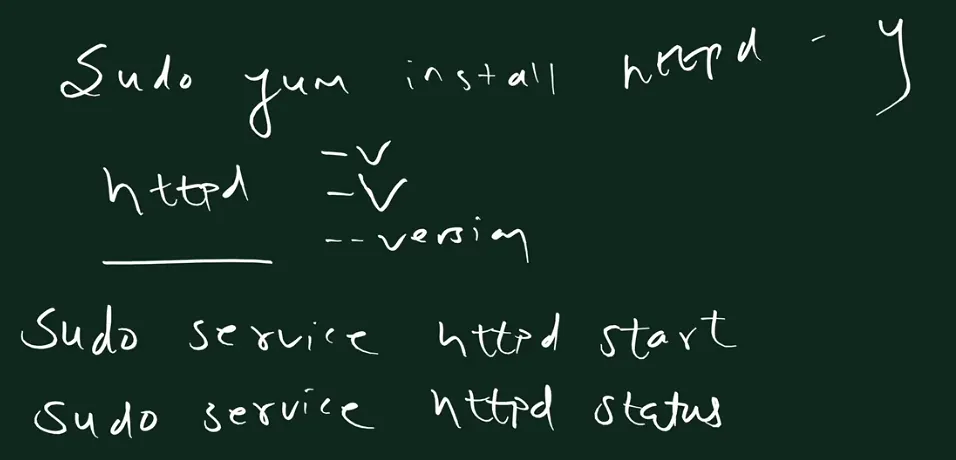
From the class board: The four commands of the day: install with -y, check the version with httpd -v, -V or --version, then start the service and check its status.
Example 5: the three answers you can get from status. When httpd is not installed at all:
Redirecting to /bin/systemctl status httpd.service
Unit httpd.service could not be found.
The other two:
- Installed but not started:
Active: inactive (dead). Fix:sudo service httpd start. - Running:
Active: active (running).
Start at every boot. start runs Apache now, but after a reboot (or a stop and start of the instance) it stays off. A freshly installed httpd is not set to start at boot; that's the disabled in the Loaded: line. Turn that on once:
[ec2-user@ip-172-31-xx-xx ~]$ sudo systemctl enable httpd
Created symlink /etc/systemd/system/multi-user.target.wants/httpd.service → /usr/lib/systemd/system/httpd.service.
Figure 7. Animation: four states of the web server. Not installed, installed but stopped, running, and running with port 80 open in the Security Group, when the browser finally shows the page.
Correction
The board wrote the states as "loaded, inactive" and "unloaded, inactive". The real words are different. Installed but stopped shows Active: inactive (dead). Not installed shows Unit httpd.service could not be found.
10. When Apache won't start
Why. If start fails, the status tells you why. Learn to read it instead of reinstalling.
What. Three common causes:
- Not installed. Status says
Unit httpd.service could not be found.Install it first. - Port 80 is already taken. Only one program can listen on a port. If another web server, say Nginx, already uses port 80, Apache can't.
- A mistake in a config file. Not likely on a fresh install, but it happens after edits.
Example 6: port 80 already in use. The start fails, sudo service httpd status shows failed, and its last lines (or sudo journalctl -u httpd) contain:
(98)Address already in use: AH00072: make_sock: could not bind to address [::]:80
(98)Address already in use: AH00072: make_sock: could not bind to address 0.0.0.0:80
no listening sockets available, shutting down
Fix: stop the other program (for Nginx, sudo service nginx stop), then sudo service httpd start again.
Ravindra Bagale's Tip
In Apache's log you may also see AH00558: httpd: Could not reliably determine the server's fully qualified domain name ... Set the 'ServerName' directive globally to suppress this message. That is only a warning: Apache still starts and serves your site. It goes away when you set a ServerName, which you'll do when the site gets a domain.
11. Step 5: your first page in /var/www/html
Why. Before you put a developer's real code on the server, test the setup with one tiny page. If that page opens, the web server, the folder, the home page and the port all work. Then any later problem is in the code, not in the server.
What.
/var/www/htmlis Apache's web folder (itsDocumentRoot). It is created when thehttpdpackage is installed, and it is empty.- The home page must be called exactly
index.html. Apache's settingDirectoryIndex index.htmlmakes it the page for a URL without a file name. - Until you add
index.html, Apache shows its own test page, titled "It works! Apache httpd".
Example 7: go to the folder. Type cd /var/ and press Tab to complete each part:
[ec2-user@ip-172-31-xx-xx ~]$ cd /var/www/html
[ec2-user@ip-172-31-xx-xx html]$ pwd
/var/www/html
[ec2-user@ip-172-31-xx-xx html]$ ls
[ec2-user@ip-172-31-xx-xx html]$
Empty.
Example 8: without sudo you can't save. The folder belongs to root:
[ec2-user@ip-172-31-xx-xx html]$ ls -ld /var/www/html
drwxr-xr-x. 2 root root 6 Jan  5 10:15 /var/www/html
rwxr-xr-x: only the owner, root, may write. You learned this in chmod in depth. So nano index.html as ec2-user opens the editor, but saving fails at the bottom of the screen:
[ Error writing index.html: Permission denied ]
touch index.html fails the same way:
touch: cannot touch 'index.html': Permission denied
Classroom line
Will nano index.html open (and save) or not?
Class मधलं वाक्य
"nano index.html he file open hova ya nahi hova?"
nano index.html ही file open होईल की नाही होणार?
Classroom line
Will nano index.html open (and save) or not?
Example 9: create it with sudo. Leave nano without saving (Ctrl+X, then N), then:
sudo nano index.html
Type one line:
<h1>Hello from my EC2 server</h1>
Save and exit: Ctrl+X, then Y, then Enter. Check:
[ec2-user@ip-172-31-xx-xx html]$ ls -l
total 4
-rw-r--r--. 1 root root 34 Jan  5 10:15 index.html
The file belongs to root, and everyone can read it (r-- for others). That's all Apache needs.
Correction
Two small points from class. /var/www/html exists as soon as httpd is installed; it is not created when you start the service. And the reason ec2-user can't write there is not "no permission in /var" in general: /var/www/html itself is owned by root with mode 755.
12. Step 6: open port 80 in the Security Group
Why. Apache is running and the page is there, but if you open http://PUBLIC_IP/ now, the browser just waits and then gives up. Something in front of the server blocks the request: the Security Group.
What. A Security Group is a firewall for your instance. It has two lists of rules:
- Inbound rules: traffic that comes to your server. At launch there is usually only one: SSH on port 22. Anything without a rule is blocked.
- Outbound rules: traffic your server starts towards the internet, for example
yumdownloading packages. By default all outbound traffic is allowed.
Replies to a request that was allowed in go back out automatically. You don't need an outbound rule for your website's answers.
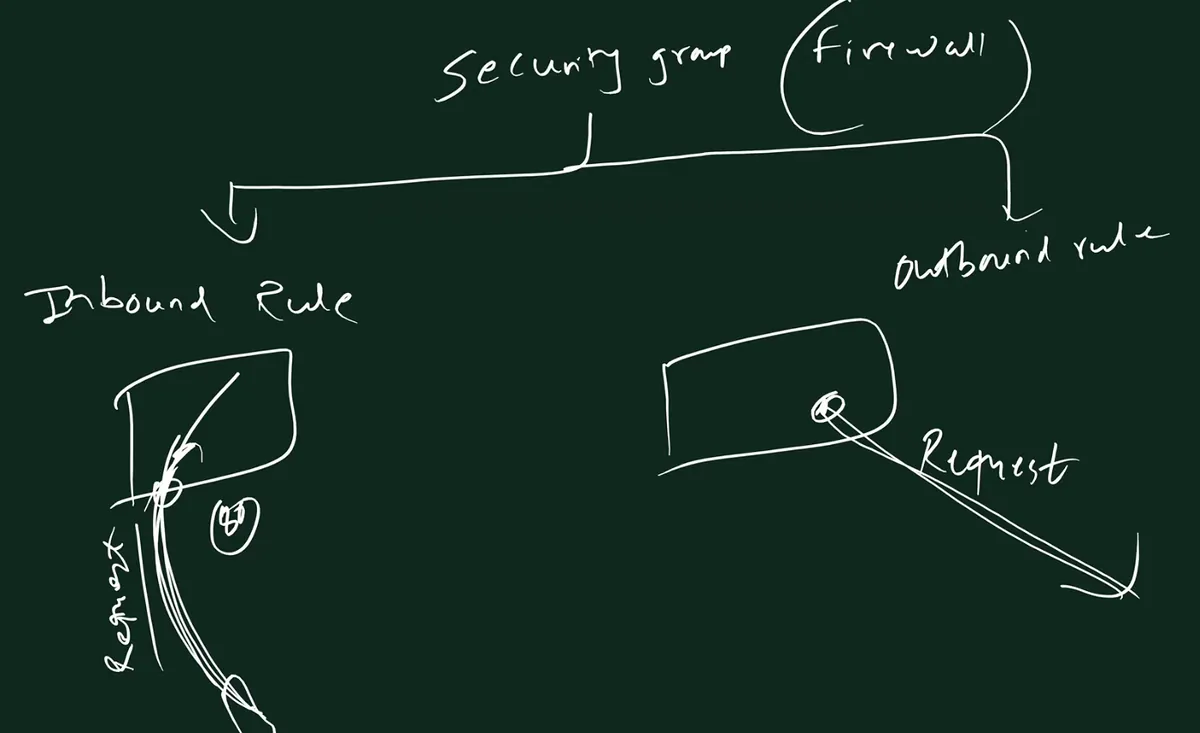
From the class board: The Security Group is a firewall with two kinds of rules: inbound rules for requests coming to the server, and outbound rules for requests the server sends out.
Figure 8. The Security Group in front of the server. Inbound SSH 22 (from launch) and HTTP 80 from 0.0.0.0/0 are let through, everything else is blocked; outbound is open by default.
How. In the EC2 console:
- Open Instances and select your instance.
- Open the Security tab.
- Click the Security group link (its ID starts with
sg-). - Click Edit inbound rules.
- Click Add rule.
- Type: choose HTTP. The port 80 fills in by itself.
- Source: choose Anywhere-IPv4, which is
0.0.0.0/0, meaning "from any IP". - Click Save rules.

From the class board: Edit inbound rules: Add rule, type HTTP, port 80, source 0.0.0.0/0.
Classroom line
Don't touch the rule that's already there.
Class मधलं वाक्य
जो rule आधीपासून add आहे, त्याला हात लावायचा नाही.
Classroom line – हिंदी
"Jo rule pehle se add hai na unko hath nahi lagana hai."
Ravindra Bagale's Tip
Many students edit or delete the existing SSH rule while adding HTTP. Then their own SSH session can't connect any more. Add a new rule; leave the port 22 rule as it is. For HTTPS later, you'd add one more rule: type HTTPS, port 443.
13. Step 7: open your website
How.
- In the EC2 console, copy your instance's Public IPv4 address.
- In the browser, type
http://and then the IP:http://PUBLIC_IP/. - You see Hello from my EC2 server.
Classroom line
Now our website is live for the whole world.
Class मधलं वाक्य
आता आपली website पूर्ण जगासाठी live आहे.
Classroom line – हिंदी
"Abhi apna website puri duniya ke liye live hai."
Example 10: proofs that it's really live.
- Open the same address on your phone, on mobile data. It works there too.
- In the browser, right-click the page and choose View Page Source. You see exactly the line you typed in nano.
- Back on the server,
historylists every command you used today. Keep it as your notes.
Correction
Write http:// yourself. Some browsers try https:// first when you type only the IP. Our server has no HTTPS (port 443) yet, so that attempt fails and it looks as if the site is down. With http:// in front, the browser uses port 80.
14. Debugging with curl
Why. When the browser shows nothing, you need to know: is the problem inside the server, or outside it? curl answers that in one command.
What. curl is a command-line program that asks a web server for a page, the same kind of request a browser sends, but it prints the raw HTML instead of drawing it. localhost means "this same machine", so the request never passes the Security Group.
Example 11: on the server.
[ec2-user@ip-172-31-xx-xx ~]$ curl http://localhost
<h1>Hello from my EC2 server</h1>
- You see your HTML: Apache and the file are fine. The problem is outside: the Security Group's HTTP 80 rule,
https://instead ofhttp://, or the wrong public IP (it changes after a stop and start). - You see Apache's test page or an error: the problem is inside. Check the service status, the folder and the file name.
Example 12: the test page means "no index.html yet".
[ec2-user@ip-172-31-xx-xx ~]$ curl -s http://localhost | grep title
<title>It works! Apache httpd</title>
Example 13: a page that isn't there.
[ec2-user@ip-172-31-xx-xx ~]$ curl http://localhost/about.html
<!DOCTYPE HTML PUBLIC "-//W3C//DTD HTML 4.01//EN" "http://www.w3.org/TR/html4/strict.dtd">
<html><head>
<title>404 Not Found</title>
</head><body>
<h1>Not Found</h1>
<p>The requested URL was not found on this server.</p>
</body></html>
Example 14: just the headers. -I shows the status line and headers without the page:
[ec2-user@ip-172-31-xx-xx ~]$ curl -I http://localhost
HTTP/1.1 200 OK
Date: ...
Server: Apache/2.4.68 (Amazon Linux)
...
Content-Type: text/html; charset=UTF-8
200 OK means the page was found and sent.
Example 15: a common typo. Typing curl twice makes curl treat the second curl as a website name:
[ec2-user@ip-172-31-xx-xx ~]$ curl curl http://localhost
curl: (6) Could not resolve host: curl
<h1>Hello from my EC2 server</h1>
The first line is the failed "site" called curl; the second is your real page.
Figure 9. Run curl http://localhost on the server. Your HTML means the problem is outside (Security Group, http vs https, public IP); an error or the test page means it is inside (service, folder, file name).
Classroom line
I'll go through the errors you got; mostly everyone has the same one.
Class मधलं वाक्य
"Sagle error aale na sangto... jaast karun saglyanna toch error ahe."
सगळे errors आले ना, सांगतो... जास्त करून सगळ्यांना तोच error आहे.
Classroom line
I'll go through the errors you got; mostly everyone has the same one.
The usual mistakes, in order of how often they happen:
- Port 80 not added in the Security Group.
- Typing
https://instead ofhttp://. - The file made in the home folder (
~) instead of/var/www/html. - A wrong file name, like
Index.htmlorindex.htm. It must be exactlyindex.html. - Apache not started, or not started again after a reboot (use
sudo systemctl enable httpd).
Correction
The class said the browser "uses the curl command". It doesn't. A browser and curl are two separate programs that both send the same kind of HTTP request. The browser draws the page; curl prints the HTML.
15. More pages, and a real page
Why. A site has more than one page, and developers give you much more than one line.
Example 16: a second page.
sudo nano about.html
Type, then save with Ctrl+X, Y, Enter:
<h1>About this site</h1>
Open it with the file name after the IP:
http://PUBLIC_IP/still showsindex.html.http://PUBLIC_IP/about.htmlshows the new page.- Any name that isn't in the folder gives
404 Not Found.
Example 17: replace the home page with a full page. Open index.html again with sudo nano index.html, delete the old line and paste a complete page, for example:
<!DOCTYPE html>
<html>
<head>
  <title>My first website</title>
  <style>
    body { font-family: sans-serif; text-align: center; }
    h1 { color: #0b62a4; }
  </style>
</head>
<body>
  <h1>My first website</h1>
  <p>Hosted on Amazon EC2 with Apache.</p>
  <p>This page is served by Apache from /var/www/html.</p>
</body>
</html>
Save and refresh the browser. No restart is needed: Apache reads the file again for every request.
Ravindra Bagale's Tip
You can ask an AI chat tool to write a one-file HTML page (HTML, CSS and JavaScript together) for practice. Read what it gives you before you paste it on a public server: you are the one publishing it. In a company, the page always comes from the developers, usually as a zip file that you copy to the server and unpack into /var/www/html.
16. The whole setup on one page
What. Every command from this chapter, in order:
| Step | Command or action | What it does |
|---|---|---|
| Check | httpd -v |
command not found = not installed yet |
| Install | sudo yum install httpd -y |
Apache and its dependencies |
| Verify | httpd -v |
shows Apache/2.4.x (Amazon Linux) |
| Start | sudo service httpd start |
runs Apache now (passed on to systemctl) |
| Status | sudo service httpd status |
active (running), listening on port 80 |
| Boot | sudo systemctl enable httpd |
start Apache at every boot |
| Page | cd /var/www/html, sudo nano index.html |
your home page |
| Firewall | Security Group: add HTTP, 80, 0.0.0.0/0 |
lets browsers in |
| Open | http://PUBLIC_IP/ |
the site, from anywhere |
| Debug | curl http://localhost |
inside or outside problem? |
17. Try at home
Try at home
Task 1: install and run
- On a new Amazon Linux 2023 instance, run
httpd -v. Note the message. - Run
sudo yum install httpdand answerNatIs this ok [y/N]:. Then install with-y. - Run
sudo service httpd statusbefore and aftersudo service httpd start. Note theActive:line both times. - Run
sudo systemctl enable httpd.
Task 2: your page
- As
ec2-user, trytouch /var/www/html/test.html. Read the error. - Make
index.htmlwithsudo nanoand check it withcurl http://localhost.
Task 3: open it to the world
- Open
http://PUBLIC_IP/before adding the HTTP rule. What happens? - Add the HTTP 80 rule and try again, also from your phone.
- Add
about.htmland open it. Then open a page that doesn't exist and read the 404.
Task 4: debug
- Stop Apache with
sudo service httpd stop. What do the browser andcurl http://localhostshow now? - Start it again.
When you're done, stop the instance. Remember that the public IP changes when you start it again.
Recap
In short
- Code goes from development to test to production; the cloud engineer hosts it.
- A request goes name → IP (DNS) → port 80 → web server → file in
/var/www/html→ back to the browser, or 404. - A web server is a program listening on port 80/443: Apache (
httpd), Nginx, IIS, Lighttpd. XAMPP and WAMP are bundles, not web servers. - Website hosting sends pages; API hosting sends data (JSON) from backend code and a database.
- Static = HTML, CSS, JavaScript, media, the same for everyone. Dynamic = server-side language + database.
sudo yum install httpd -yinstalls Apache. On Amazon Linux 2023,yumanddnfare the same program.Is this ok [y/N]:: Enter alone means no;-yanswers yes.httpd -vshows the version;command not foundmeans not installed.- Start with
sudo service httpd start(it redirects tosystemctl), check withstatus, andsudo systemctl enable httpdfor every boot. /var/www/htmlis root's folder: create pages withsudo nano. The home page isindex.html.- Add the inbound rule HTTP 80 from
0.0.0.0/0; don't touch the SSH rule. - Open
http://PUBLIC_IP/, withhttp://. If it fails,curl http://localhoston the server tells you if the problem is inside or outside.
Classroom line
With just that, we can host websites.
Class मधलं वाक्य
"Tevdhyane aapan websites host karu shakto."
तेवढ्याने आपण websites host करू शकतो.
Classroom line
With just that, we can host websites.
Ravindra Bagale, trainer: linkedin.com/in/ravindra-bagale. The site name www.mysite.com, the pages and the user name ravi are examples for learning; PUBLIC_IP stands for your instance's public IPv4 address. The commands and messages were checked on a test copy of Amazon Linux 2023 (Apache httpd 2.4.68, nano 8.3). The hostname in the prompt, the dates and the version numbers are illustrative and change with updates.