How to Build a 3-Tier Architecture in AWS Step by Step (VPC, ALB, Auto Scaling, RDS)
How to Build a 3-Tier Architecture in AWS with VPC, NAT Gateway and RDS explained the idea of three tiers with single servers. This chapter is the full production-style build, click by click: a custom VPC with eight subnets in two Availability Zones, an internet-facing Application Load Balancer, nginx web servers and PHP app servers that run in Auto Scaling groups from your own AMIs, an internal load balancer between them, and Amazon RDS MySQL at the bottom. Every step says what to click, what to type, what you should see, how to check it, and why it is done. The problems you are likely to hit are inside the steps, with the reason and the fix.
What you'll learn in this class
- What highly available, fault tolerant, low latency and disaster recovery mean for a real app
- Why the build goes bottom to top and the security rules go top to bottom
- The /20 address plan for eight subnets in two AZs, worked out
- Five chained security groups, and why each source is a security group and not an IP
- A DB subnet group and RDS MySQL with no public access, reached through a jump server
- Development servers, AMIs and launch templates: immutable servers
- Two Auto Scaling groups with an internal and an internet-facing ALB, health checks and target tracking
- Balanced best effort, warmup, grace period and instance refresh
- Secrets Manager, leaked keys on GitHub, Windows key permissions, vCPU quotas and 502/503/504
- A full troubleshooting checklist and the clean-up that stops the bill
1. The four goals of this design
Why: a single server is one point of failure. If it crashes, or its data centre has a problem, the whole app is down. Each of these four goals answers one "what if":
- Highly available (HA): "what if a whole data centre goes down?" We use two Availability Zones (AZs). An AZ is one or more separate data centres in a Region, with its own power and network. Every tier has servers in both AZs. Worked example: the app needs 2 web servers to carry its traffic. Put 2 in AZ a and 2 in AZ b, 4 in total. If AZ a fails, AZ b still has the 2 you need. In this lab we start with 1 per AZ (desired 2) to keep the bill small; the Auto Scaling group replaces a lost server in the healthy AZ.
- Fault tolerant: "what if one server breaks?" The load balancer stops sending traffic to a server that fails its health check, and the Auto Scaling group terminates it and launches a fresh copy from the AMI. Nobody has to wake up at night.
- Low latency: "what if users are far away?" The time a request takes grows with distance. Users in India get faster answers from the Mumbai Region than from a Region in another continent, so you pick the Region near your users (and, for users in many countries, deploy in more than one Region).
- Disaster recovery (DR): "what if the data is lost or the Region is unusable?" RDS takes automated backups and you can take snapshots; for bigger systems you copy backups or run a copy of the stack in a second Region. This chapter builds the HA and fault-tolerant parts; DR is the next layer on top.
Classroom line
Understand this, and you have understood 3-tier architecture.
Class मधलं वाक्य
"He kalala mhanje 3 tier architecture kalala."
हे कळालं म्हणजे 3 tier architecture कळालं.
Classroom line
Understand this, and you have understood 3-tier architecture.
2. The design, top to bottom
What: one request travels down five layers and the answer comes back up the same way.
| Layer | Lives in | Runs | Accepts traffic only from |
|---|---|---|---|
| Internet-facing ALB | PublicSubnet1, PublicSubnet2 | AWS-managed load balancer | the internet, port 80 |
| Web tier | WebSubnet1, WebSubnet2 (private) | nginx, from webami, in WebTierASG |
the internet-facing ALB |
| Internal ALB | AppSubnet1, AppSubnet2 | AWS-managed load balancer, no public address | the nginx servers |
| App tier | AppSubnet1, AppSubnet2 (private) | PHP + php-fpm, from phpami, in AppTierASG |
the internal ALB |
| Database tier | DBSubnet1, DBSubnet2 (private) | Amazon RDS MySQL | the PHP servers, port 3306 |
Why the web servers are private too: users never talk to an nginx server directly. They talk to the internet-facing ALB, and only the ALB needs a route to the internet gateway. So the public subnets hold just the ALB, the JumpServer and the short-lived development servers. The three tiers (web, app, database) all sit in private subnets, and an attacker can't even send a packet to them from outside.
Why an internal load balancer between web and app: the PHP servers come and go with Auto Scaling, so their IPs keep changing. nginx needs one fixed name to send PHP requests to. The internal ALB gives that name and spreads the requests over the healthy PHP servers in both AZs.
Figure 1. The whole build from top to bottom: users, the internet-facing ALB in the public subnets, nginx in the private Web subnets, the internal ALB, PHP in the private App subnets, and RDS MySQL in the private DB subnets, in two AZs.
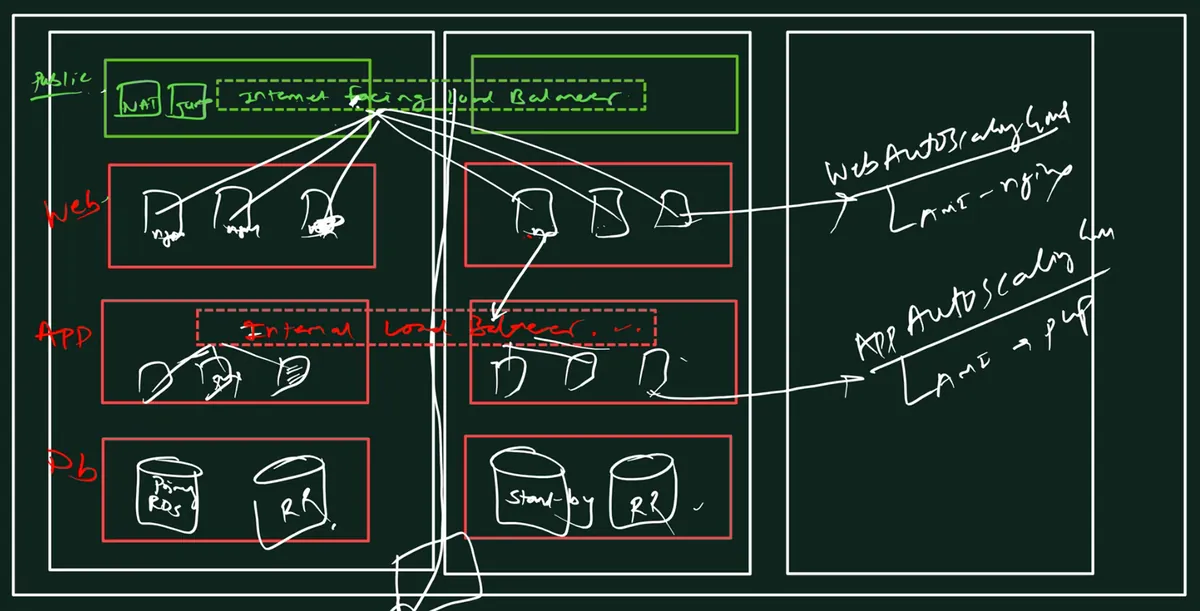
Whiteboard: the 3-tier design in two AZs: public subnets with the internet-facing load balancer, NAT and jump server; Web, App and DB rows; a Web and an App Auto Scaling group, each from its own AMI; an internal load balancer between Web and App; RDS with a standby and read replicas.
Figure 2. Animation: one form submit travels down the chain and the answer comes back up.
Classroom line
Think about it: why is it like this?
Class मधलं वाक्य
"Vichar kara, ka bara asa?"
विचार करा, का बरं असं?
Classroom line
Think about it: why is it like this?
3. Build bottom to top, write the rules top to bottom
Why bottom to top: every tier needs an address from the tier below it before it can be finished.
- RDS first. It gives you the database endpoint.
- Then the PHP servers.
submit.phpneeds the RDS endpoint written in it before you bake the PHP AMI. - Then the internal ALB. It is created together with the App Auto Scaling group and gives you its DNS name.
- Then nginx. Its
proxy_passline needs the internal ALB's DNS name before you bake the web AMI. - Last, the internet-facing ALB in front of the web Auto Scaling group.
If you went top to bottom, you would launch the web servers with nothing to point at, then log in to every one of them later to fix the config. With 2 servers that is annoying; with 100 servers launched by an Auto Scaling group it is impossible, and against the whole idea of identical servers from one AMI.
Why the security rules read top to bottom: each tier trusts only the tier directly above it. The rule for a tier is written as "accept port X only from the security group of the tier above". So you read and check them from the internet downwards: WebAlbSG, WebEc2SG, AppAlbSG, AppEc2SG, DbSG.
Why all security groups are created first: a rule can point only to a security group that already exists. Create the five groups empty, then add the rules. The servers are still built bottom to top.
Figure 3. The security group chain, read top to bottom. The servers are built bottom to top.
4. Immutable servers: why nobody logs in to a live server
Why it came up. While drawing the public subnets, the question was: why put a jump server and a NAT gateway there at all, if all the real servers are private?
Background. In the old way, an admin logs in to each live server and runs updates by hand. Over time every server becomes a little different ("configuration drift"), and nobody knows exactly what is on it. In the immutable way you never change a running server. You change a development server, test it, bake a new AMI, put it in a new launch template version, and let the Auto Scaling group replace the old servers with an instance refresh. If something breaks you roll back to the previous version.
How it links to the 3-tier build. This is exactly the build below: phpdevelopmentserver and nginxdevelopmentserver are built by hand in a public subnet, turned into phpami and webami, and then deleted. The JumpServer is only for the database setup and for reading logs when you debug. A NAT gateway is needed only if the private servers must reach the internet themselves, for example to install packages or call an outside API. Our private servers get everything from the AMI and talk only to the ALB and RDS, so this build needs no NAT gateway. When you do need one, it is covered in the concept chapter.
Figure 4. Immutable servers: every change goes development server → AMI → new launch template version → instance refresh.
5. The address plan: eight /20 subnets
Why eight: 4 kinds of subnet (public, web, app, DB) × 2 AZs = 8. Each tier gets one subnet in each AZ, so losing an AZ never takes a whole tier away. Why the AZs alternate (1 in AZ a, 2 in AZ b): if both subnets of a tier were in the same AZ, that tier would not be highly available at all.
Worked example: the /20 math
- The VPC is
10.0.0.0/16: 32 − 16 = 16 host bits, so 2^16 = 65,536 addresses,10.0.0.0to10.0.255.255. - A
/20has 32 − 20 = 12 host bits: 2^12 = 4,096 addresses. - 4,096 = 16 × 256, so each /20 covers 16 values of the third octet. The next /20 starts 16 higher:
10.0.0.0,10.0.16.0,10.0.32.0, and so on. - AWS keeps 5 addresses in every subnet (network address, VPC router, DNS, one for future use, and the last address), so 4,096 − 5 = 4,091 usable.
- A /16 holds 65,536 ÷ 4,096 = 16 subnets of /20. We use 8, which ends at
10.0.127.255.10.0.128.0to10.0.255.255stays free for later.
| Name | AZ | CIDR | Range | Kind |
|---|---|---|---|---|
| PublicSubnet1 | ap-northeast-2a | 10.0.0.0/20 |
10.0.0.0 – 10.0.15.255 | public |
| PublicSubnet2 | ap-northeast-2b | 10.0.16.0/20 |
10.0.16.0 – 10.0.31.255 | public |
| WebSubnet1 | ap-northeast-2a | 10.0.32.0/20 |
10.0.32.0 – 10.0.47.255 | private |
| WebSubnet2 | ap-northeast-2b | 10.0.48.0/20 |
10.0.48.0 – 10.0.63.255 | private |
| AppSubnet1 | ap-northeast-2a | 10.0.64.0/20 |
10.0.64.0 – 10.0.79.255 | private |
| AppSubnet2 | ap-northeast-2b | 10.0.80.0/20 |
10.0.80.0 – 10.0.95.255 | private |
| DBSubnet1 | ap-northeast-2a | 10.0.96.0/20 |
10.0.96.0 – 10.0.111.255 | private |
| DBSubnet2 | ap-northeast-2b | 10.0.112.0/20 |
10.0.112.0 – 10.0.127.255 | private |
The examples use the Seoul Region (ap-northeast-2). Any Region works, for example Mumbai (ap-south-1, AZs ap-south-1a and ap-south-1b). Just keep everything in one Region. The binary method for CIDRs is in What Is AWS VPC and How to Calculate CIDR IP Ranges.
6. The security group plan
What: five groups make the chain, and two small helper groups are only for setup.
| Security group | Attach it to | Inbound rule | Why this source |
|---|---|---|---|
| WebAlbSG | the internet-facing ALB | HTTP 80 from 0.0.0.0/0 |
users come from anywhere on the internet |
| WebEc2SG | nginx servers (web launch template) | HTTP 80 from WebAlbSG | nobody can skip the ALB and hit nginx directly |
| AppAlbSG | the internal ALB | HTTP 80 from WebEc2SG | only nginx servers may send PHP requests |
| AppEc2SG | PHP servers (app launch template) | HTTP 80 from AppAlbSG | only the internal ALB (and its health checks) reaches PHP |
| DbSG | the RDS database | MySQL/Aurora 3306 from AppEc2SG | only PHP servers may open a database connection |
| JumpSG | JumpServer | SSH 22 from My IP | you, and only you, log in for setup |
| DevSG | the two development servers | SSH 22 and HTTP 80 from My IP | you SSH in and test in your browser |
During setup DbSG also allows 3306 from JumpSG, so the JumpServer can create the database. You remove that rule when the app works.
Why a security group as the source, not an IP: Auto Scaling servers get new private IPs every time they are replaced. A rule "from WebEc2SG" means "from any server that carries WebEc2SG", so it keeps working however many servers come and go. An IP rule would break after the first replacement.
Why one group per role, and never shared: if the ALB and the nginx servers shared one group that allows 80 from anywhere, a user who learns a server's address could skip the load balancer. Separate groups with chained sources make each hop explicit.
Two facts that save debugging time:
- Security groups are stateful: when a request is allowed in, its reply is allowed out automatically. You only write inbound rules here; the default outbound rule (all traffic) stays.
- A rule is checked on the destination's group. "nginx can't reach PHP" is fixed on AppAlbSG/AppEc2SG, not on WebEc2SG.
More on security groups and NACLs: Security Group vs NACL in AWS.
7. The Auto Scaling numbers, worked out
Why: both tiers run in Auto Scaling groups so that the number of servers follows the load and broken servers are replaced. These are the values used in the lab and what each one does.
Desired 2, min 1, max 4
- Desired 2: at the start the group runs 2 servers. With 2 subnets in 2 AZs, that is one per AZ.
- Min 1: the policy may scale in to 1 when there is no traffic, but never to 0, so the app never disappears.
- Max 4: the policy may never go above 4. This is your bill limit: a traffic spike or a bug can't start 50 servers.
- Example: you set desired to 6 by hand. The console refuses, because desired must be between min and max.
Target tracking on average CPU, target 20%
Target tracking keeps the group's average CPU near the target by changing desired capacity, roughly in proportion:
- 2 servers at 50% average CPU: 2 × 50 ÷ 20 = 5 servers needed, but max is 4, so the group grows to 4.
- 4 servers at 10%: 4 × 10 ÷ 20 = 2, so the group shrinks back to 2.
- 2 servers at 4%: 2 × 4 ÷ 20 = 0.4, rounded up to 1, and min is 1, so it shrinks to 1. This is why, with no traffic at all, you may see the group remove a server on its own.
- Scale-out reacts within a few minutes; scale-in waits longer (about 15 minutes of low CPU) so a short dip does not remove servers.
- Why 20: it is low on purpose so you can watch scaling happen in a lab with no real users. For production pick a realistic value such as 50 to 70.
Instance warmup 60 s: for 60 s after a new server starts, its CPU is not counted in the group average. A fresh server is busy booting; counting it would make the policy add even more servers.
Health check grace period 60 s: for 60 s after a server launches, the group ignores failed health checks, so it does not kill a server that is still starting nginx. Our AMIs boot and start nginx in well under a minute; if your app needs longer to start, raise it.
ELB health checks on: by default the group only checks that the EC2 instance is running. With ELB health checks on, a server whose web page fails the load balancer's health check is also treated as unhealthy and replaced. That is what makes the tier fault tolerant.
Availability Zone distribution: Balanced best effort
Normally the group keeps the same number of servers in each AZ. Sometimes an AZ temporarily runs out of a particular instance type. It happens on peak days such as Diwali, Dussehra, Eid, Christmas or 31 December, when many companies scale out at the same time.
- Balanced only: the group keeps trying to launch in the AZ that has no capacity. The launch keeps failing and your app runs short of servers exactly on the busiest day.
- Balanced best effort: if the launch fails in one AZ, the group launches in the other healthy AZ instead. The split is uneven for a while (for example 3 + 1), but the app gets the capacity it needs, and the group rebalances later.
- So keep Balanced best effort.
Instance maintenance policy: No policy. This decides what happens during replacements such as an instance refresh: launch the new server before terminating the old one (keeps capacity, costs a little more for a moment) or terminate first (saves money, briefly fewer servers). "No policy" keeps the default behaviour, which is fine for the lab; for production, "Launch before terminating" keeps full capacity.
Group metrics in CloudWatch: ticking it sends group metrics such as desired, in-service and pending instances to CloudWatch every minute, so you can graph what the group did.
More on launch templates and min, max and desired: What Is Auto Scaling in AWS? Min, Max and Desired Explained.
Classroom line
The fun is not in doing it, the fun is in understanding it.
Class मधलं वाक्य
"Te karnyat maza nahi, samjun ghenyat maza aahe."
ते करण्यात मजा नाही, समजून घेण्यात मजा आहे.
Classroom line
The fun is not in doing it, the fun is in understanding it.
8. Passwords: hardcoded vs Secrets Manager
Why a password in the code is a problem
Why it came up. When you create the RDS database you choose how its master password is managed, and the PHP code needs that password to connect.
Background. In this lab the password is written inside submit.php and baked into phpami. That is fine for learning, but think of a real app with 1,000 PHP servers: every server holds the password; if one server is hacked, or a developer who knew it leaves, the database is exposed; and changing the password means a new AMI and an instance refresh, about an hour during which some servers still have the old password and their database calls fail.
How it links to the 3-tier build. AWS Secrets Manager stores the password as a secret (a key-value pair, encrypted with AWS KMS). The PHP code keeps only the secret's name and reads the value at runtime with the AWS SDK (GetSecretValue), using an IAM role on the server. Change the password once in Secrets Manager and every server gets the new value on its next read. Secrets Manager can also rotate the password on a schedule (as often as every 4 hours), so no human ever needs to know it. When you create RDS, the option Managed in AWS Secrets Manager does this for the master password (rotation every 7 days by default). Two things it needs: an IAM role with secretsmanager:GetSecretValue, and a network path from the private servers to Secrets Manager (a VPC interface endpoint or a NAT gateway).
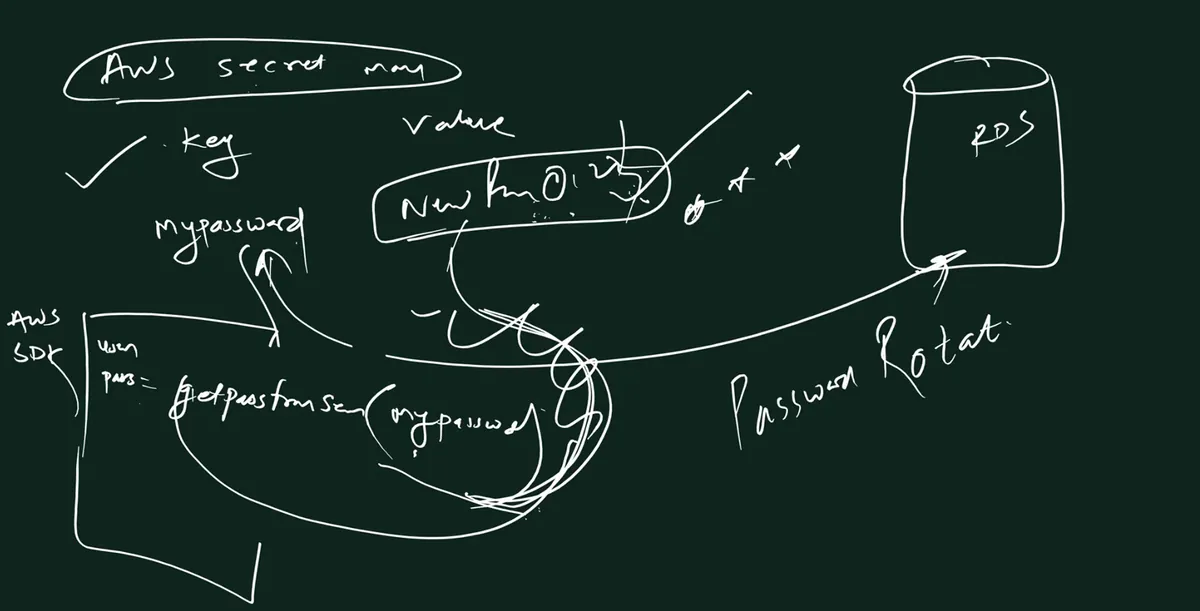
Whiteboard: AWS Secrets Manager: the code holds only the key name, the AWS SDK fetches the value at runtime, and the password can be rotated without touching the servers.
Classroom line
As soon as the password changes here, the same new password should automatically reach the app.
Class मधलं वाक्य
इकडे password बदलला की तोच नवा password आपोआप app पर्यंत पोहोचला पाहिजे.
Classroom line – हिंदी
"Jaise idhar password change hoga, waise automatically yahi password yaha pe aana chahiye."
Secrets pushed to GitHub
Why it came up. Right after the hardcoded password: the same mistake happens when code with a password or an AWS access key is pushed to a public GitHub repository.
Background. Bots scan public repositories all the time and find keys within minutes; stolen AWS keys are typically used to start many large servers for crypto-mining, which lands on your bill. AWS also scans public GitHub for exposed access keys; when it finds one it attaches a quarantine policy (AWSCompromisedKeyQuarantine) to that user to limit what the key can do, and emails you. Deleting the commit is not enough, because the key stays in the history and in forks. The fix is to deactivate and rotate the key at once, then check your account for anything you didn't create.
How it links to the 3-tier build. Never commit submit.php with a real password to a public repository. Keep secrets out of code (Secrets Manager, or at least a config file listed in .gitignore), and turn on GitHub secret scanning and push protection. On servers, use an IAM role instead of access keys, so there is no key to leak.
9. Hands-on lab: the whole build, step by step
Why this order: Parts A to D build the network and all security rules first, because every later resource asks for a VPC, a subnet or a security group in its form. Parts E to G build the database and then the app tier on top of it, so each tier is tested against a working tier below it. Parts H to J turn the tested servers into Auto Scaling groups behind load balancers. Part K tests and locks down, Part L shows how to change servers safely, and Part M removes everything.
Before you start
- An AWS account you can sign in to, and about three hours. Load balancers, RDS and the servers cost a little money while they run; do Part M the same day.
- One Region for everything. The lab uses Asia Pacific (Seoul)
ap-northeast-2with AZs2aand2b; Mumbaiap-south-1works the same with1aand1b. - A terminal with OpenSSH (PowerShell on Windows 10/11, Terminal on Mac or Linux).
- Values in angle brackets, such as
<rds-endpoint>, are yours to copy from the console.
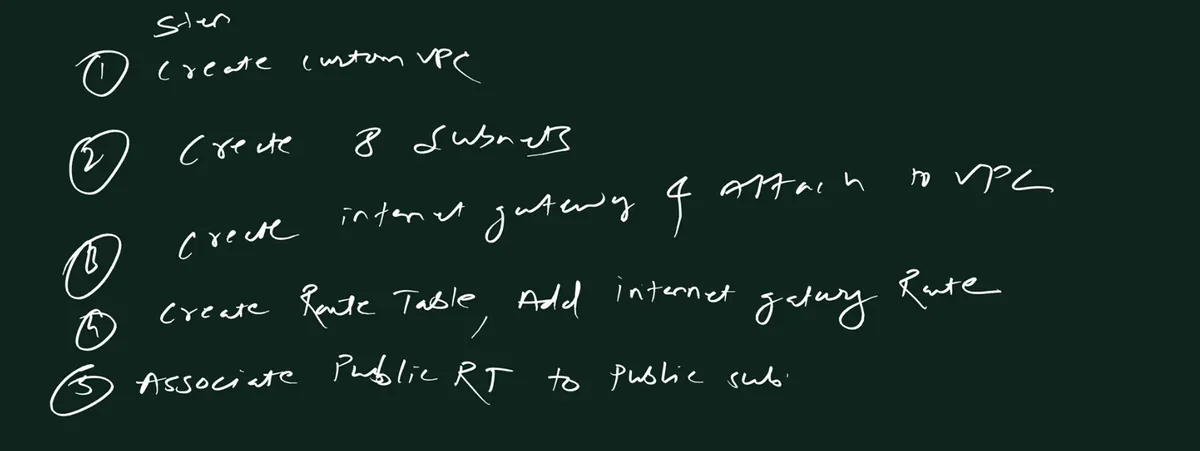
Whiteboard: the five network steps in order: create the custom VPC, create 8 subnets, create and attach the internet gateway, create a route table with the internet route, associate it with the public subnets
Part A: the Region and the VPC
Choose one Region for the whole build
- Do: Sign in to the AWS console. Top right, open the Region menu and pick Asia Pacific (Seoul) ap-northeast-2 (or the Region you chose).
- Check: The Region name shows top right on every page you open from now on.
- Why: Every resource here (VPC, subnets, security groups, RDS, AMIs, load balancers) belongs to one Region and can only be used with resources in the same Region. Mixing Regions is the most common reason something "is not in the list".
Open the Create VPC page
- Do: Search VPC > Your VPCs > Create VPC.
- Why: The VPC is your own private network in AWS; everything else in this build lives inside it.
Resources to create: VPC only
- Do: Select VPC only.
- Why: "VPC and more" would also create subnets, route tables and gateways with its own names and sizes. Building each piece yourself is how you learn what each one does, and it gives exactly the eight subnets of our plan.
Name tag:
ThreeTierVpc- Do: Type
ThreeTierVpcin Name tag. - Why: Every account already has a default VPC in each Region. A clear name stops you from picking the default VPC by mistake in the 20 dropdowns that follow.
- Do: Type
IPv4 CIDR: IPv4 CIDR manual input,
10.0.0.0/16- Do: Pick IPv4 CIDR manual input and type
10.0.0.0/16. - Why: A /16 gives 65,536 private addresses, room for sixteen /20 subnets.
10.0.0.0/8is a private range (RFC 1918): it is never routed on the internet, so it can't clash with public addresses.
- Do: Pick IPv4 CIDR manual input and type
IPv6 CIDR block: No IPv6 CIDR block
- Do: Leave No IPv6 CIDR block selected.
- Why: The app works on IPv4 only. Every extra address family is one more set of routes and rules to secure.
Tenancy: Default
- Do: Leave Default and click Create VPC.
- You should see: A green banner "You successfully created vpc-… / ThreeTierVpc".
- Why: Default runs your servers on shared hardware, still fully isolated from other customers. Dedicated tenancy puts every instance on single-customer hardware and costs much more.
Look at the Resource map
- Do: On the VPC page open the Resource map tab.
- You should see: Subnets (0), Route tables (1).
- Why: AWS created a main route table with the VPC (plus a default network ACL and a default security group). That route table has only the
localroute, so anything that uses it is private. Knowing this explains why new subnets start private.
Name the main route table
ThreeTierMainRouteTable- Do: Route tables: find the row with VPC
ThreeTierVpcand Main: Yes, click the pencil in Name, typeThreeTierMainRouteTable, Save. - Why: Soon this VPC has two route tables, and the account has more from other VPCs. Unnamed route tables all look like
rtb-0abc…, and choosing the wrong one makes a subnet public or private by mistake.
- Do: Route tables: find the row with VPC
Part B: eight subnets
Open Create subnet and pick VPC ID: ThreeTierVpc
- Do: VPC > Subnets > Create subnet, VPC ID =
ThreeTierVpc. - Why: This dropdown decides where all eight subnets go. If you leave it on the default VPC, all eight are created there and nothing later will find them.
- If you see the subnets under the default VPC: the VPC dropdown was not changed. Delete those subnets (Actions > Delete subnet) and create them again in ThreeTierVpc.
- Do: VPC > Subnets > Create subnet, VPC ID =
Subnet 1:
PublicSubnet1,ap-northeast-2a,10.0.0.0/20- Do: Subnet name
PublicSubnet1, Availability Zoneap-northeast-2a, IPv4 VPC CIDR block10.0.0.0/16, IPv4 subnet CIDR block10.0.0.0/20. - Why: The first /20 block of the VPC, in AZ a. It will hold the internet-facing ALB, the JumpServer and the development servers.
- Do: Subnet name
Add new subnet:
PublicSubnet2,ap-northeast-2b,10.0.16.0/20- Do: Click Add new subnet and fill in these values.
- Why: An internet-facing ALB needs a subnet in at least two AZs, and the second public subnet in AZ b gives it that. The block starts at 16 because a /20 covers 16 values of the third octet.
WebSubnet1,ap-northeast-2a,10.0.32.0/20- Do: Add new subnet with these values.
- Why: Private home of the nginx servers in AZ a.
WebSubnet2,ap-northeast-2b,10.0.48.0/20- Do: Add new subnet with these values.
- Why: The web tier in AZ b, so the web tier survives the loss of AZ a.
AppSubnet1,ap-northeast-2a,10.0.64.0/20- Do: Add new subnet with these values.
- Why: Private home of the PHP servers and the internal ALB in AZ a.
AppSubnet2,ap-northeast-2b,10.0.80.0/20- Do: Add new subnet with these values.
- Why: The app tier in AZ b.
DBSubnet1,ap-northeast-2a,10.0.96.0/20- Do: Add new subnet with these values.
- Why: The database's subnet in AZ a.
DBSubnet2,ap-northeast-2b,10.0.112.0/20, then Create subnet- Do: Add the last subnet and click Create subnet.
- You should see: "You have successfully created 8 subnets".
- Why: RDS requires subnets in at least two AZs, even for a single instance, so it can place a standby or move the database there later.
- If you see "Failed to request credentials" or "NetworkError when attempting to fetch resource": the console session expired or one request failed while the long form was open. Refresh the page, sign in again if asked, check the Subnets list for half-created subnets, and fill the form again. See section 10.
Check the eight subnets
- Do: Subnets, filter VPC = ThreeTierVpc.
- Check: 8 subnets, 4 in
ap-northeast-2aand 4 inap-northeast-2b, CIDRs as in the table in section 5, Available IPv4 addresses 4091 each. - Why: One wrong CIDR or AZ now breaks the ALB, the subnet group or the Auto Scaling groups much later, where it is far harder to see.
Resource map: all eight use the main route table
- Do: Your VPCs > ThreeTierVpc > Resource map.
- You should see: All 8 subnets connected to
ThreeTierMainRouteTable. - Why: A new subnet is automatically associated with the main route table. Right now that table has only the
localroute, so all eight subnets are private. That is a safe default: nothing is public until you make it public.
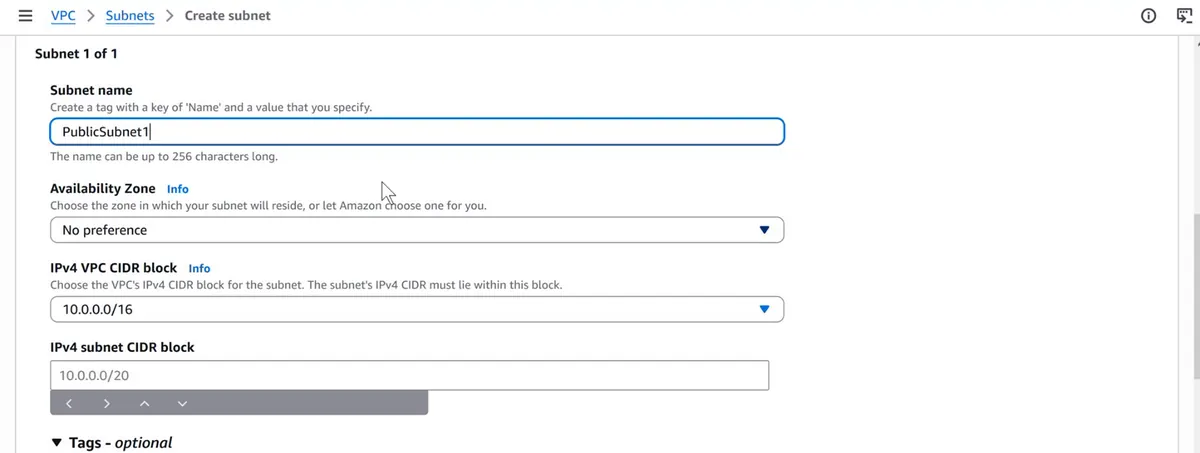
Console: Create subnet: VPC ThreeTierVpc, subnet name, Availability Zone and the /20 IPv4 subnet CIDR block inside 10.0.0.0/16
Part C: internet gateway and route tables
Create the internet gateway
ThreeTierIGW- Do: VPC > Internet gateways > Create internet gateway, Name tag
ThreeTierIGW, Create internet gateway. - You should see: State: Detached.
- Why: The internet gateway is the VPC's door to the internet. Without it the internet-facing ALB can't receive a single request.
- Do: VPC > Internet gateways > Create internet gateway, Name tag
Attach it: Actions > Attach to VPC > ThreeTierVpc
- Do: Actions > Attach to VPC, choose
ThreeTierVpc, Attach internet gateway. - You should see: State: Attached.
- Why: A new internet gateway is not connected to any VPC. A detached gateway can't be picked as a route target.
- Do: Actions > Attach to VPC, choose
Create
ThreeTierPublicRouteTable- Do: Route tables > Create route table, Name
ThreeTierPublicRouteTable, VPCThreeTierVpc, Create route table. - Why: The public subnets need their own route table. The main table stays private, so any subnet you add later is private until you decide otherwise. A route table is not public because of its name; it becomes public only when it has a route to an internet gateway.
- Do: Route tables > Create route table, Name
Add the route
0.0.0.0/0→ThreeTierIGW- Do: Routes tab > Edit routes > leave the
localrow as it is > Add route: Destination0.0.0.0/0, Target Internet Gateway >ThreeTierIGW> Save changes. - You should see: Two routes:
10.0.0.0/16 localand0.0.0.0/0 igw-…, both Active. - Why:
10.0.0.0/16 → localcarries all traffic inside the VPC (ALB to nginx, PHP to RDS) and must stay.0.0.0.0/0means "every other address", and sending it to the internet gateway is what makes a subnet public. - If you see an empty list under Internet Gateway: the gateway is still detached. Cancel, do the attach step, then come back.
- Do: Routes tab > Edit routes > leave the
Associate only the two public subnets
- Do: Subnet associations tab > Edit subnet associations > tick
PublicSubnet1andPublicSubnet2only > Save associations. - Why: A subnet uses exactly one route table. Moving PublicSubnet1 and PublicSubnet2 onto the public table makes those two public; the other six stay on the private main table.
- Do: Subnet associations tab > Edit subnet associations > tick
Check the Resource map
- Do: Your VPCs > ThreeTierVpc > Resource map.
- Check:
ThreeTierPublicRouteTable→PublicSubnet1,PublicSubnet2→ThreeTierIGW;ThreeTierMainRouteTable→ the 6 Web, App and DB subnets. - Why: This picture is the network plan of section 2. If it looks different now, every later step will misbehave.
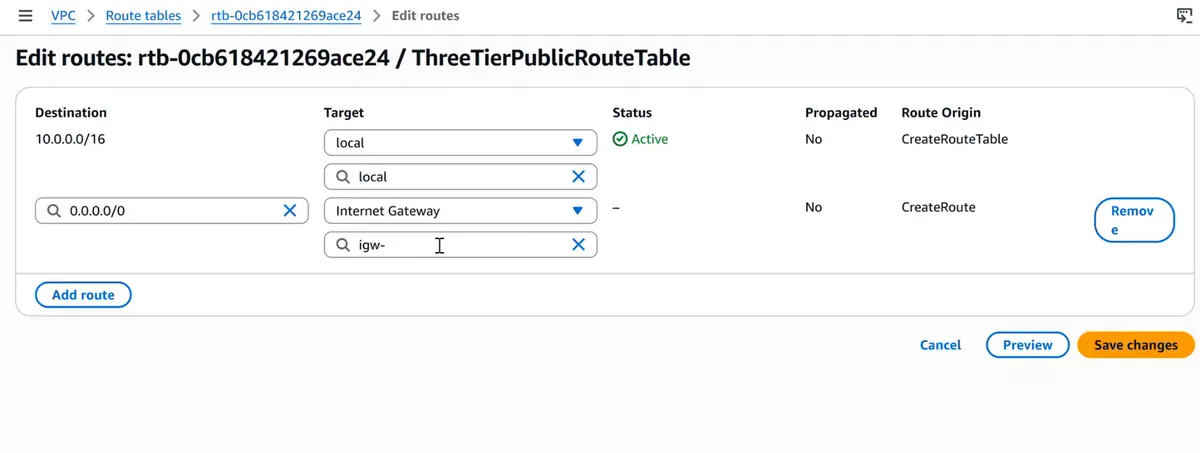
Console: Edit routes of ThreeTierPublicRouteTable: the local route stays as it is, and 0.0.0.0/0 goes to the internet gateway
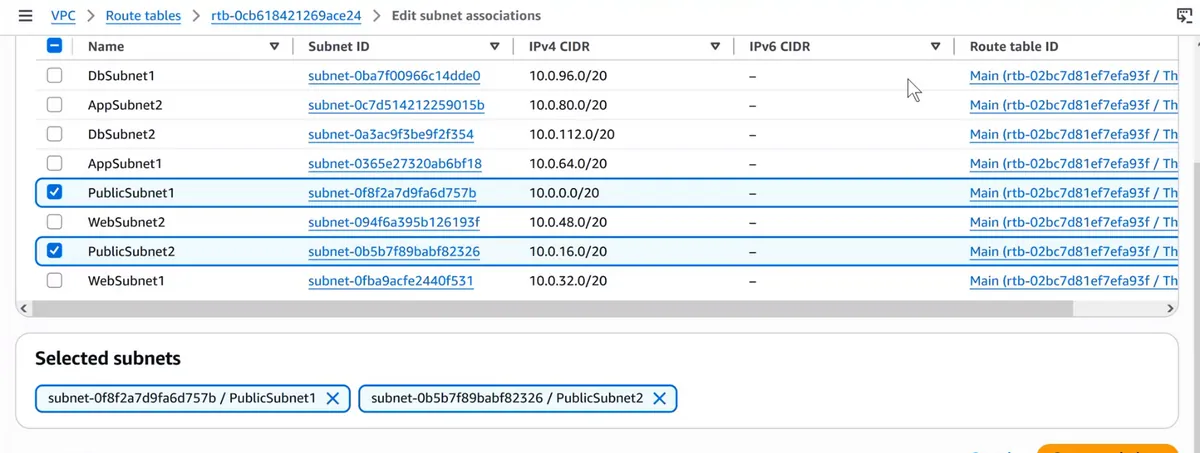
Console: Edit subnet associations: only PublicSubnet1 and PublicSubnet2 are ticked for the public route table
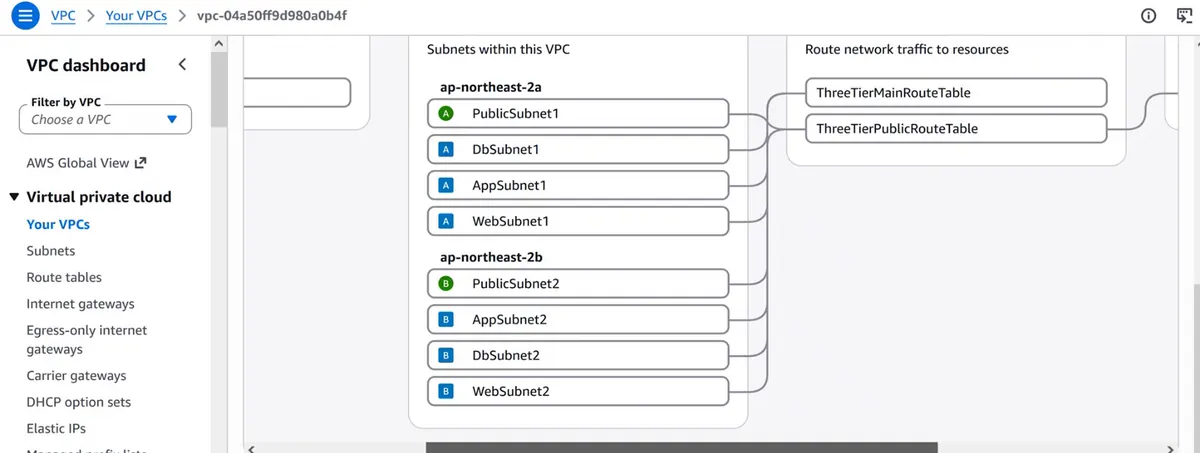
Console: Resource map of ThreeTierVpc: eight subnets in two AZs, the main and the public route table, and the internet gateway
Classroom line
Naming a subnet "public" does not make it public; the route to the internet gateway does.
Class मधलं वाक्य
Subnet ला "public" नाव दिलं म्हणून तो public होत नाही; internet gateway कडचा route त्याला public करतो.
Classroom line – हिंदी
"Public naam lene se ye public nahi hota hai."
Part D: all security groups first, then the rules
Create
WebAlbSG(no rules yet)- Do: EC2 > Security Groups > Create security group: Name
WebAlbSG, DescriptionInternet-facing ALB, VPCThreeTierVpc, no inbound rules > Create security group. - Why: A security group belongs to one VPC and can only be attached to resources in that VPC. Creating all groups first lets every rule point to a group that already exists.
- Do: EC2 > Security Groups > Create security group: Name
Create
WebEc2SG- Do: Same page: Name
WebEc2SG, Descriptionnginx web servers, VPCThreeTierVpc, Create. - Why: The nginx servers get their own group, separate from the ALB, so the ALB can't be bypassed.
- Do: Same page: Name
Create
AppAlbSG- Do: Name
AppAlbSG, DescriptionInternal ALB, VPCThreeTierVpc, Create. - Why: The internal ALB is its own hop in the chain and needs its own group.
- Do: Name
Create
AppEc2SG- Do: Name
AppEc2SG, DescriptionPHP app servers, VPCThreeTierVpc, Create. - Why: The PHP servers' group. DbSG will trust exactly this group.
- Do: Name
Create
DbSG- Do: Name
DbSG, DescriptionRDS MySQL, VPCThreeTierVpc, Create. - Why: The database's group, chosen when you create RDS.
- Do: Name
Create
JumpSGwith SSH 22 from My IP- Do: Name
JumpSG, DescriptionJump server, VPCThreeTierVpc, Add rule: Type SSH, Source My IP > Create. - Why: Only your own public IP may open SSH to the JumpServer. Port 22 open to
0.0.0.0/0is scanned by bots all day and invites password and key attacks.
- Do: Name
Create
DevSGwith SSH 22 and HTTP 80 from My IP- Do: Name
DevSG, DescriptionDevelopment servers, VPCThreeTierVpc, rules: SSH from My IP, HTTP from My IP > Create. - Why: The two development servers need SSH for setup and HTTP so you can test pages in your browser, but only from you.
- Do: Name
WebAlbSGinbound: HTTP 80 from Anywhere-IPv40.0.0.0/0- Do: Select
WebAlbSG> Inbound rules > Edit inbound rules > Add rule: Type HTTP, Source Anywhere-IPv4 > Save rules. - Why: The public ALB is the one thing that must accept every user on the internet.
- Do: Select
WebEc2SGinbound: HTTP 80 from WebAlbSG- Do:
WebEc2SG> Edit inbound rules > Add rule: Type HTTP, Source Custom, start typingWebAlbSGand pick it from Security Groups > Save rules. - Why: nginx accepts traffic only from the internet-facing ALB, including its health checks. A user who finds a server's address still can't reach it.
- Do:
AppAlbSGinbound: HTTP 80 from WebEc2SG- Do:
AppAlbSG> Edit inbound rules > HTTP, Source CustomWebEc2SG> Save rules. - Why: Only nginx servers may send PHP requests to the internal ALB.
- Do:
AppEc2SGinbound: HTTP 80 from AppAlbSG- Do:
AppEc2SG> Edit inbound rules > HTTP, Source CustomAppAlbSG> Save rules. - Why: PHP servers accept only the internal ALB. Its health checks also come from AppAlbSG, so they pass too.
- Do:
DbSGinbound: MySQL/Aurora 3306 from AppEc2SG, and from JumpSG for setup- Do:
DbSG> Edit inbound rules > Add rule: Type MYSQL/Aurora, Source CustomAppEc2SG; Add rule: MYSQL/Aurora, Source CustomJumpSG> Save rules. - Why: Only PHP servers may connect to the database. The JumpSG rule exists only so you can create the database and table, and you remove it at the end. Port 3306 is never opened to
0.0.0.0/0.
- Do:
Read the chain once, top to bottom
- Do: Security Groups, filter VPC ID = ThreeTierVpc, open each group's Inbound rules.
- Check: WebAlbSG ← 0.0.0.0/0:80, WebEc2SG ← WebAlbSG:80, AppAlbSG ← WebEc2SG:80, AppEc2SG ← AppAlbSG:80, DbSG ← AppEc2SG:3306 and JumpSG:3306, exactly as in Figure 3.
- Why: Two minutes of checking here saves an hour of chasing timeouts later.
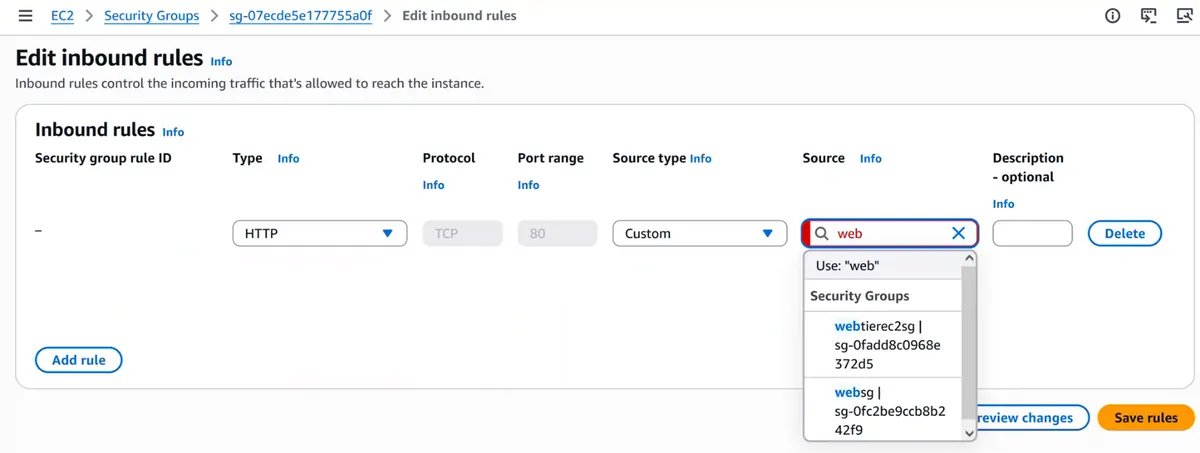
Console: Edit inbound rules: HTTP 80 with the source chosen from the list of security groups, not typed as an IP
Part E: the DB subnet group and RDS MySQL
Create the DB subnet group
ThreeTierDBSubnetGroup- Do: Search RDS (Aurora and RDS) > Subnet groups > Create DB subnet group: Name
ThreeTierDBSubnetGroup, DescriptionThreeTierDBSubnetGroup, VPCThreeTierVpc. - Why: RDS does not take a subnet directly; it takes a subnet group, the list of subnets it may place the database in. The group is created in the VPC you pick, and the database can only be created in that VPC.
- Do: Search RDS (Aurora and RDS) > Subnet groups > Create DB subnet group: Name
AZs
ap-northeast-2a,ap-northeast-2b; subnetsDBSubnet1andDBSubnet2only, then Create- Do: Availability Zones: tick both. Subnets: tick
DBSubnet1(10.0.96.0/20) andDBSubnet2(10.0.112.0/20) > Create. - You should see:
threetierdbsubnetgroupin the list (RDS stores the name in lower case), Status Complete. - Why: The subnet list shows only subnets in the AZs you tick. Picking only the two DB subnets guarantees the database can never land in a public or app subnet.
- If you see your DB subnets missing from the list: the wrong VPC is selected, or their AZ is not ticked. Fix the VPC or AZ choice above the list.
- Do: Availability Zones: tick both. Subnets: tick
Databases > Create database: Standard create, engine MySQL
- Do: Choose Standard create, Engine type MySQL, keep the default engine version.
- Why: Standard create shows every network setting. The quick option fills them with defaults, and the default VPC is exactly what we must avoid.
Templates: Free tier
- Do: Select Free tier.
- Why: It limits the choices to a small free-tier instance so the lab does not cost money.
Availability: Single-AZ DB instance
- Do: Keep Single-AZ DB instance deployment (1 instance).
- Why: Multi-AZ keeps a standby copy in the second AZ with synchronous replication and fails over automatically, usually in one to two minutes. That is what a real highly available app needs, but it roughly doubles the database cost, so the lab uses one instance. In a company, production databases run Multi-AZ.
Identifier
database-1, master usernameroot- Do: DB instance identifier
database-1, Master usernameroot. - Why: The identifier names the database in the console and starts its endpoint name. The master username is what you type in
mysql -uand insubmit.php; the console suggestsadmin, and any allowed name works as long as you use the same one everywhere.
- Do: DB instance identifier
Credentials management: Self managed, type the password twice
- Do: Select Self managed, fill Master password and Confirm master password. Write it down; you need it three more times.
- Why: Self managed keeps the lab simple: you type the password and put it in
submit.php. RDS master passwords are 8 to 41 characters and may not contain/,',",@or a space. For real apps choose Managed in AWS Secrets Manager (section 8). - If you see "contains invalid characters": remove
@,/, quotes and spaces from the password.
Instance class and storage: keep the free-tier defaults
- Do: Leave Instance configuration and Storage as they are.
- Why:
db.t3.microordb.t4g.microwith 20 GiB of storage is plenty for a sign-up table and stays inside the free tier.
Compute resource: Don't connect to an EC2 compute resource
- Do: Under Connectivity select Don't connect to an EC2 compute resource.
- Why: "Connect to an EC2 compute resource" ties the database to one particular instance by creating security group rules for it. Our app servers are created and replaced by an Auto Scaling group, so there is no single instance to bind to; DbSG already trusts the whole AppEc2SG group.
VPC
ThreeTierVpc, DB subnet groupthreetierdbsubnetgroup- Do: Network type IPv4, Virtual private cloud (VPC)
ThreeTierVpc, DB subnet groupthreetierdbsubnetgroup. - Why: The VPC of a database can't be changed after it is created. If it ends up in the wrong VPC, the only fix is to delete it and create it again.
- Do: Network type IPv4, Virtual private cloud (VPC)
Public access: No
- Do: Select No.
- Why: With No, the database gets no public IP and its endpoint resolves only to a private address, so it can be reached only from inside the VPC.
Security group: Choose existing, only
DbSG- Do: VPC security group (firewall): Choose existing, remove
default, addDbSG. Availability Zone: No preference. Database port (Additional configuration): 3306. - Why: The VPC's default security group would be attached otherwise. DbSG is the last link of our chain.
- Do: VPC security group (firewall): Choose existing, remove
Create database and wait for Available
- Do: Click Create database. Close the add-ons pop-up if one appears.
- You should see: Banner "Creating database database-1"; Status Creating → Backing-up → Available, usually 5 to 15 minutes.
- Why: RDS needs several minutes to create the instance, its storage and the first backup.
- If you see "NetworkError when attempting to fetch resource": one console request failed. Open Databases; if
database-1is not there, go back, check every setting above and click Create database again.
Copy the endpoint
- Do: Databases > database-1 > Connectivity & security: copy Endpoint (
database-1.xxxxxxxxxxxx.ap-northeast-2.rds.amazonaws.com); Port 3306. - Why: The endpoint is a DNS name that always points to the current primary database, even after a Multi-AZ failover. An IP address would break; the endpoint never does.
- Do: Databases > database-1 > Connectivity & security: copy Endpoint (
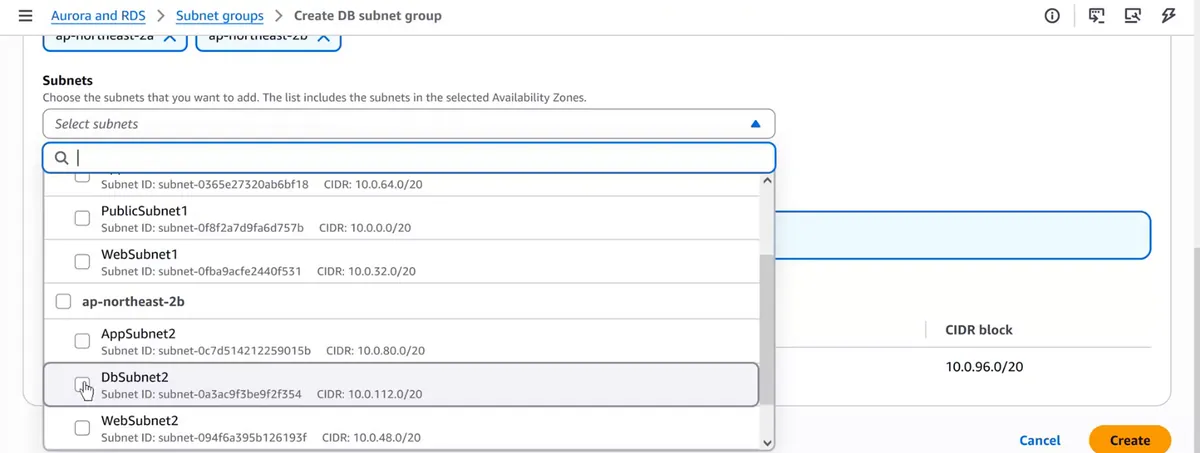
Console: Create DB subnet group: both AZs ticked and only the two DB subnets selected
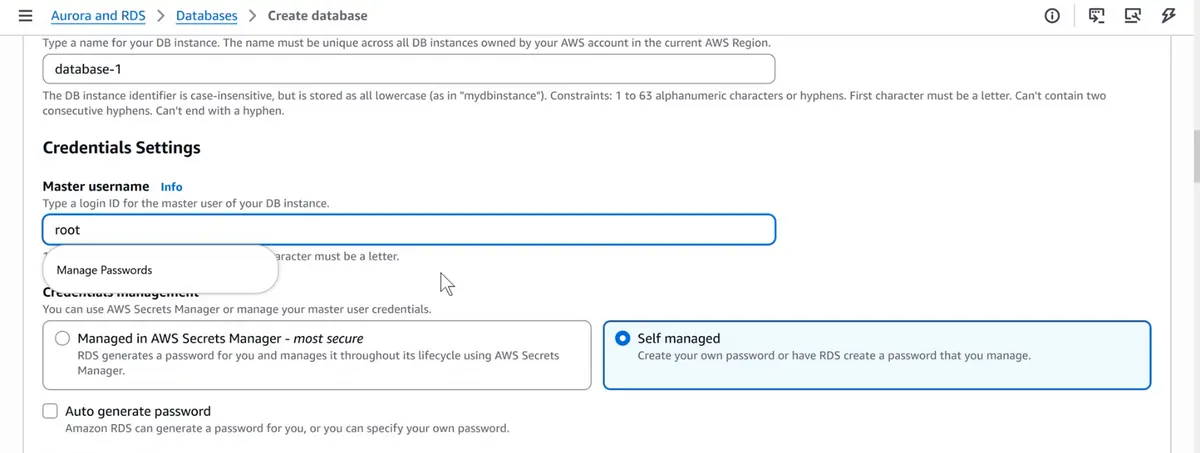
Console: Credentials settings: master username root and Self managed password
Classroom line
For real high availability you need Multi-AZ; we skip it here only because it is paid.
Class मधलं वाक्य
"Actually highly available mhanlyavar Multi-AZ pahije. Paid ahe mhanun."
खरं highly available म्हणायचं तर Multi-AZ पाहिजे. Paid आहे म्हणून.
Classroom line
For real high availability you need Multi-AZ; we skip it here only because it is paid.
Part F: the JumpServer, the database and the table
Launch
JumpServer: Amazon Linux 2023,t3.micro- Do: EC2 > Instances > Launch instances: Name
JumpServer, AMI Amazon Linux 2023 (64-bit x86), Instance typet3.micro. - Why: The database is private, so your laptop can't reach it. A small server in the public subnet, inside the same VPC, can. Amazon Linux 2023 uses
yum/dnf;t3.microis free-tier eligible in most accounts and offered in every AZ of most Regions.
- Do: EC2 > Instances > Launch instances: Name
Key pair: Create new key pair
ThreeTierKey, RSA,.pem- Do: Create new key pair: Name
ThreeTierKey, Type RSA, Format .pem > Create key pair. The browser downloadsThreeTierKey.pem. - Why: AWS keeps only the public half of the key; the downloaded
.pemfile is the only copy of the private half..pemworks with OpenSSH on Windows 10/11, Mac and Linux.
- Do: Create new key pair: Name
Network settings:
ThreeTierVpc,PublicSubnet1, Auto-assign public IP: Enable, security groupJumpSG- Do: Network settings > Edit: VPC
ThreeTierVpc, SubnetPublicSubnet1, Auto-assign public IP Enable, Firewall Select existing security group >JumpSG. - Why: A server is reachable from the internet only when all three are true: its subnet routes to the internet gateway, it has a public IP, and its security group allows the port. Leave out the public IP and you can't SSH in from your laptop.
- Do: Network settings > Edit: VPC
Launch instance and copy its public IP
- Do: Launch instance > open
JumpServerin Instances. - You should see: Instance state Running, Status check 2/2 checks passed, a Public IPv4 address.
- Why: You SSH to this address in the next steps.
- Do: Launch instance > open
Windows: give the key file read access for you only
- Do: Right-click
ThreeTierKey.pem> Properties > Security > Advanced > Disable inheritance > Remove all inherited permissions from this object > Add > Select a principal > type your Windows user name (the name afterC:\Users\in PowerShell) > Check Names > OK > tick only Read > OK > Apply > OK. - Command:
icacls .\ThreeTierKey.pem /inheritance:r icacls .\ThreeTierKey.pem /grant:r "$($env:USERNAME):(R)" - Check: The same result from PowerShell in the Downloads folder, with the two
icaclscommands above. - Why: OpenSSH refuses a private key that other accounts on the computer can read. A downloaded file inherits the Downloads folder's permissions, which include other users and groups. This is the Windows version of
chmod 400on Mac and Linux: read for the owner, nothing for anyone else.
- Do: Right-click
Mac or Linux:
chmod 400- Command:
chmod 400 ~/Downloads/ThreeTierKey.pem - Why: 4 = read for the owner, 0 for group and others: exactly what SSH wants for a private key.
- Command:
SSH to the JumpServer
- Command:
ssh -i .\Downloads\ThreeTierKey.pem ec2-user@<JumpServer-public-IP> - You should see: Type
yesto the fingerprint question; then the Amazon Linux 2023 banner and the prompt[ec2-user@ip-10-0-… ~]$. - Why:
-itells SSH which private key to use;ec2-useris the default user on Amazon Linux. - If you see "WARNING: UNPROTECTED PRIVATE KEY FILE!" or "Permission denied (publickey)": the key file is readable by others; redo the permission step, and check you used
ec2-user. - If you see "Connection timed out": your public IP changed since you made JumpSG (home and mobile internet IPs change), or the server has no public IP or is not in a public subnet. Edit JumpSG and pick My IP again.
- Command:
Install the MySQL client only:
mariadb105- Command:
sudo yum install mariadb105 -y - You should see:
Complete!at the end. - Why: The database server runs on RDS; the JumpServer only needs the client program. Without it,
mysqlgives "command not found". Themariadb105-serverpackage would also install a database server you don't need.
- Command:
Connect to RDS
- Command:
mysql -h <rds-endpoint> -u root -p - You should see:
Enter password: Welcome to the MariaDB monitor. Commands end with ; or \g. Server version: 8.4.x Source distribution MySQL [(none)]> - Why:
-hgives the host; without itmysqltries the local machine, where no database runs.-pasks for the password without showing it. - If you see it hangs and then "ERROR 2002" or "ERROR 2003 Can't connect": DbSG has no 3306 rule from JumpSG, or RDS was created with another security group. Fix the rule (Part D) or the database's security group (Modify).
- If you see "Access denied for user": wrong user name or password. You can set a new one: RDS > database-1 > Modify > New master password > Continue > Apply immediately.
- Command:
create database insta;- Command:
create database insta; - You should see:
Query OK, 1 row affected - Why: One database for the app. Its name goes into
submit.php.
- Command:
use insta;- Command:
use insta; - You should see:
Database changed - Why: Every following command works inside this database.
- Command:
Create the
userstable- Command:
create table users (id int primary key auto_increment, name varchar(50), mobile varchar(20), password varchar(255)); - You should see:
Query OK, 0 rows affected - Why:
idnumbers every row by itself (auto_increment) and identifies it (primary key).mobileis text, not a number: numbers lose a leading 0 or +, and 10 digits overflowint.passwordstores a hash, never the real password; PHP'spassword_hash()produces 60 characters today and the PHP manual recommends room for 255.
- Command:
Check with
desc users;andexit- Command:
desc users; exit - You should see:
| id | int | NO | PRI | NULL | auto_increment | | name | varchar(50) | YES | | NULL | | | mobile | varchar(20) | YES | | NULL | | | password | varchar(255) | YES | | NULL | | 4 rows in set Bye - Why: Confirms the columns before the PHP code depends on them. The database tier is now finished.
- Command:
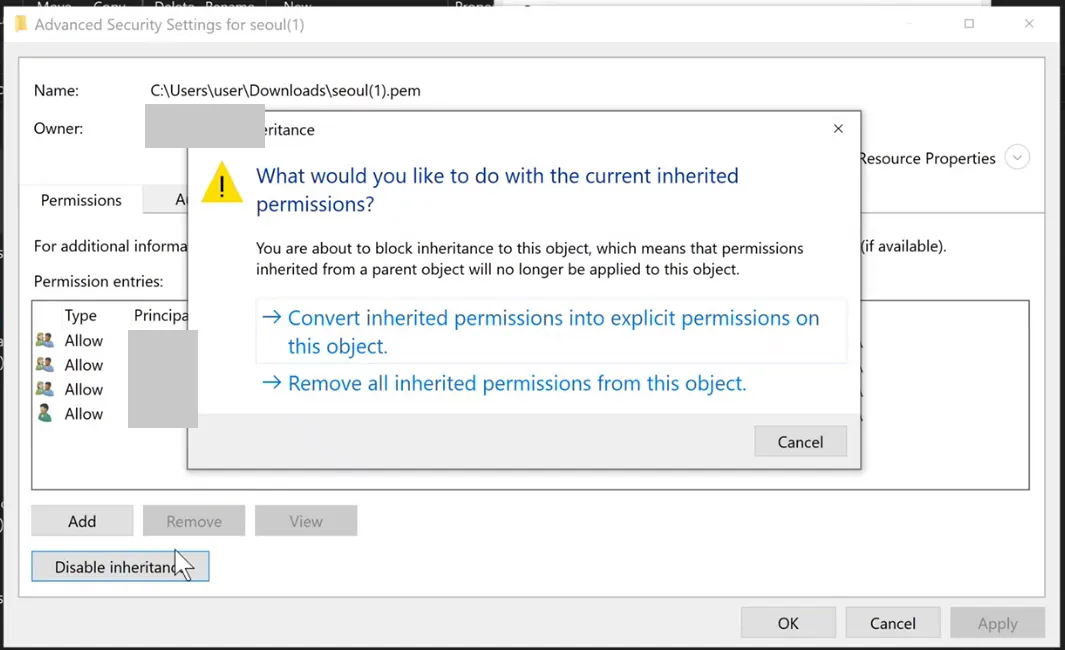
Console: Advanced Security Settings of the .pem file: Disable inheritance, then "Remove all inherited permissions from this object"
Classroom line
What we do with chmod 400 on Linux is what we are doing here.
Class मधलं वाक्य
Linux मध्ये आपण chmod 400 करतो, तेच इथे करतोय.
Classroom line – हिंदी
"Linux ke andar hum jo chmod 400 karte hai, wo kar rahe hai yahan pe."
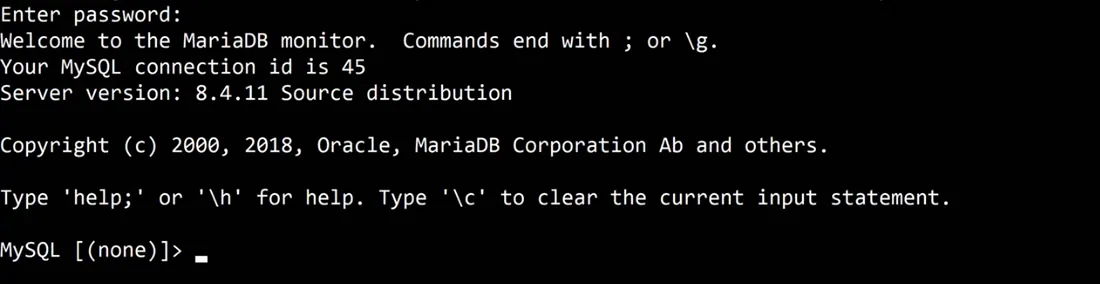
Console: the MySQL client on the JumpServer connected to the RDS endpoint
Part G: the PHP development server and phpami
Launch
phpdevelopmentserverinThreeTierVpc- Do: Launch instances: Name
phpdevelopmentserver, Amazon Linux 2023,t3.micro, key pairThreeTierKey; Network settings > Edit: VPCThreeTierVpc, SubnetPublicSubnet1, Auto-assign public IP Enable; Select existing security group:DevSGandAppEc2SG> Launch instance. - Check: Instance details show VPC
ThreeTierVpcand both security groups. - Why: The App Auto Scaling group needs a launch template, and the template needs a ready AMI. This temporary server is where you build and test that AMI. Check the VPC twice: servers in two different VPCs can't talk to each other by default, so a PHP server in the default VPC can never reach RDS.
- If you see the instance in the default VPC: an instance can't be moved to another VPC. Terminate it and launch again with the right VPC.
- Do: Launch instances: Name
Why two security groups on this server
- Do: Nothing to click; read before you continue.
- Why:
AppEc2SGmakes this server look exactly like a future app server to DbSG, so the database test here proves the real path.DevSGadds SSH and HTTP from your IP only, for the setup. The two rule sets simply add up.
SSH in
- Command:
ssh -i .\Downloads\ThreeTierKey.pem ec2-user@<php-dev-public-IP> - Why: All software for the app tier is installed by hand once, here.
- Command:
Install nginx, PHP, php-fpm and the MySQL driver
- Command:
sudo yum install nginx php php-fpm php-mysqlnd -y - You should see:
Complete! - Why: nginx receives the HTTP request from the internal ALB. nginx can't run PHP itself, so it hands
.phpfiles to php-fpm, which runs them. php-mysqlnd is the driver that lets PHP'smysqlitalk to MySQL. Type package names with Tab completion instead of guessing the spelling. - If you see "No match for argument": refresh the package list with
sudo yum update -yand type the name again with Tab completion.
- Command:
Start nginx
- Command:
sudo service nginx start - You should see:
Redirecting to /bin/systemctl start nginx.service - Why: Installing a service does not start it.
- Command:
Start php-fpm
- Command:
sudo service php-fpm start - Why: Without php-fpm running, nginx has nobody to pass PHP to and returns 502.
- Command:
Enable nginx at boot
- Command:
sudo systemctl enable nginx - You should see:
Created symlink /etc/systemd/system/multi-user.target.wants/nginx.service → /usr/lib/systemd/system/nginx.service. - Why: Servers that the Auto Scaling group launches from this AMI boot with nobody logging in. A service that is started but not enabled is off after every boot, so every new server would fail its health check.
- Command:
Enable php-fpm at boot
- Command:
sudo systemctl enable php-fpm - Why: Same reason: nginx up but php-fpm down after boot means every PHP request returns 502.
- Command:
Check both services
- Command:
systemctl is-enabled nginx php-fpm systemctl is-active nginx php-fpm - You should see:
enabled enabled active active - Why: A wrong state here is copied into every server made from the AMI.
- Command:
Go to the web root
- Command:
cd /usr/share/nginx/html - Why: On Amazon Linux nginx serves files from
/usr/share/nginx/html.
- Command:
Test PHP alone with
index.php- Do: Run the command, type
<?php phpinfo(); ?>, save with Ctrl+O, Enter, Ctrl+X. Openhttp://<php-dev-public-IP>/index.phpin your browser. - Command:
sudo nano index.php - You should see: A purple "PHP Version 8.x" page.
- Why: Test one link at a time. If
phpinfo()shows, nginx → php-fpm works, and any later problem is in the app code or the database, not here. - If you see the file downloads, or "502 Bad Gateway": php-fpm is not running; start it and reload the page.
- Do: Run the command, type
Create
health.php- Do: Type
<?php http_response_code(200); echo "ok";and save. - Command:
sudo nano health.php curl -s http://localhost/health.php - You should see:
ok - Why: The internal ALB needs one small page that returns 200 when PHP works. It must not touch the database: if the database had a short hiccup, a database-dependent health check would mark every PHP server unhealthy and the group would replace them all.
- Do: Type
Create
submit.php- Do: Paste the code, put in your endpoint and password, save.
- Command:
sudo nano submit.php - Why: It reads the three form fields and inserts one row.
$hostis the RDS endpoint, notlocalhost, because the database runs on RDS. The prepared statement (?placeholders) stops SQL injection, andpassword_hash()stores a hash. It refuses anything that is not a POST before touching the database.
The
submit.phpcode- Command:
<?php // submit.php: saves one sign-up from forms.html into RDS $host = "database-1.xxxxxxxxxxxx.ap-northeast-2.rds.amazonaws.com"; // your RDS endpoint $user = "root"; $pass = "YOUR_DB_PASSWORD"; $db = "insta"; if ($_SERVER["REQUEST_METHOD"] !== "POST") { http_response_code(405); exit("Send the form with POST"); } try { $conn = new mysqli($host, $user, $pass, $db); $name = trim($_POST["name"] ?? ""); $mobile = trim($_POST["mobile"] ?? ""); $hash = password_hash($_POST["password"] ?? "", PASSWORD_DEFAULT); $stmt = $conn->prepare("INSERT INTO users (name, mobile, password) VALUES (?, ?, ?)"); $stmt->bind_param("sss", $name, $mobile, $hash); $stmt->execute(); echo "User registered successfully!"; $stmt->close(); $conn->close(); } catch (mysqli_sql_exception $e) { http_response_code(500); echo "Database error"; } - Why: Every line here is explained in the step above; keep the file exactly in this order.
- Command:
Create a temporary
forms.htmlfor the test- Command:
sudo nano forms.html - Why:
submit.phpreads POST fields. Opening its URL in a browser sends a GET with no fields, so you can't test it that way; a form sends name, mobile and password. (In companies, testers do this with written test cases.)
- Command:
The
forms.htmlcode- Command:
<!DOCTYPE html> <html> <head><meta charset="utf-8"><title>Sign up</title></head> <body> <h2>Create your account</h2> <form action="submit.php" method="post"> <p><label>Name <input type="text" name="name" required></label></p> <p><label>Mobile <input type="tel" name="mobile" required></label></p> <p><label>Password <input type="password" name="password" required></label></p> <p><button type="submit">Register</button></p> </form> </body> </html> - Why:
action="submit.php"andmethod="post"send the three named fields tosubmit.php; thenameattributes must match$_POST["name"],$_POST["mobile"]and$_POST["password"].
- Command:
Submit the form
- Do: Open
http://<php-dev-public-IP>/forms.html, fill the fields, click Register. In the terminal you can test the same thing with curl. - Command:
curl -s -X POST -d "name=Test&mobile=9999999999&password=Test@1234" http://localhost/submit.php - You should see: "User registered successfully!"
- Why: This proves PHP → RDS works through DbSG before you bake anything.
- If you see the page spinning for about a minute and then "504 Gateway Time-out" or "Database error": DbSG does not allow 3306 from AppEc2SG, or this server does not carry AppEc2SG. The security group drops the connection packets silently, PHP waits for an answer that never comes, and nginx gives up with 504. Fix the DbSG rule or add AppEc2SG to the instance (Actions > Security > Change security groups).
- If you see "Database error" at once: the endpoint, user, password or database name in
submit.phpis wrong; compare them with Part E and Part F.
- Do: Open
Check the row from the JumpServer
- Command:
mysql -h <rds-endpoint> -u root -p -e "select id, name, mobile, left(password,4) from insta.users;" - You should see: One row with your name and
$2y$in the last column. - Why: Proves the row really reached RDS and that the password is stored as a hash (it starts with
$2y$).
- Command:
Remove
forms.htmlandindex.phpfrom the PHP server- Command:
sudo rm /usr/share/nginx/html/forms.html /usr/share/nginx/html/index.php ls /usr/share/nginx/html - Check: The list shows
health.phpandsubmit.php(plus nginx's own default files). - Why: HTML belongs to the web tier; the app servers only run PHP.
phpinfo()shows your PHP configuration to anyone who opens it, which helps attackers. Keepsubmit.phpandhealth.php.
- Command:
Create the AMI
phpami- Do: Instances > select
phpdevelopmentserver> Actions > Image and templates > Create image: Image namephpami, Image descriptionnginx + php-fpm + submit.php + health.php, keep Reboot instance ticked > Create image. - You should see: Images > AMIs:
phpami, Status Pending → Available after a few minutes. - Why: The AMI freezes this tested server so the Auto Scaling group can stamp out identical copies. Leave the reboot on: AWS stops writes for a moment so the disk snapshot is consistent. A clear name matters because you will have two AMIs and must pick the right one in each template.
- If you see "Failed to load image creation. Try reloading the page.": a console glitch; reload the page and check the AMIs list before creating it again.
- Do: Instances > select
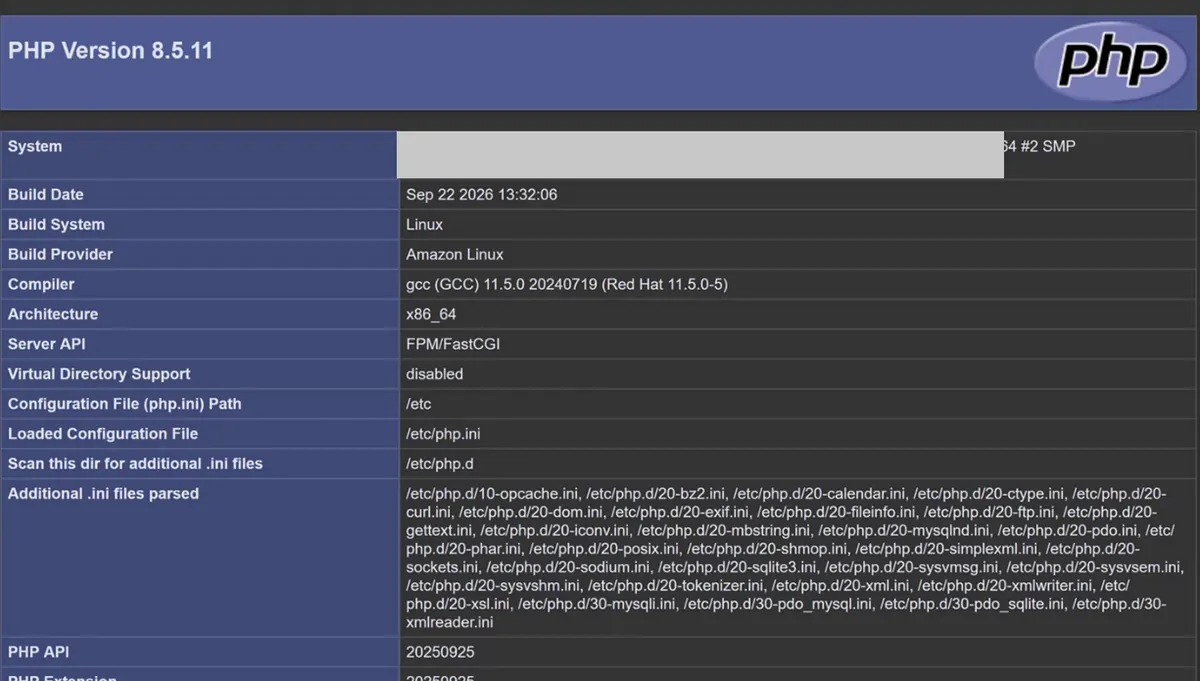
Console: phpinfo() on the PHP development server: PHP runs through nginx and php-fpm
Part H: the app tier (launch template, Auto Scaling group, internal ALB)
Create the launch template
AppTierLaunchTemplate- Do: EC2 > Launch templates > Create launch template: Name
AppTierLaunchTemplate, Template version descriptionv1, tick Provide guidance to help me set up a template that I can use with EC2 Auto Scaling. - Why: A launch template is the recipe the Auto Scaling group follows every time it starts a server: AMI, instance type, key pair and security group. Ticking the Auto Scaling guidance makes the console warn you about settings a group can't use.
- Do: EC2 > Launch templates > Create launch template: Name
AMI: My AMIs >
phpami; typet3.micro; key pairThreeTierKey- Do: Application and OS Images > My AMIs > Owned by me >
phpami; Instance typet3.micro; Key pairThreeTierKey. - Why:
phpamialready has the software, the files and the enabled services, so a new server is ready the moment it boots. The key pair lets you SSH in for debugging later.
- Do: Application and OS Images > My AMIs > Owned by me >
Network: Subnet: Don't include in launch template, security group
AppEc2SG- Do: Network settings: Subnet Don't include in launch template; Firewall Select existing security group >
AppEc2SG; leave Advanced network configuration empty > Create launch template. - You should see: "Successfully created AppTierLaunchTemplate".
- Why: The Auto Scaling group chooses the subnets, one per AZ. A subnet fixed inside the template would pin every server to one AZ. The security group belongs in the template because every server of this tier needs the same one.
- Do: Network settings: Subnet Don't include in launch template; Firewall Select existing security group >
Create the Auto Scaling group
AppTierASGfromAppTierLaunchTemplate- Do: EC2 > Auto Scaling groups > Create Auto Scaling group: Name
AppTierASG, Launch templateAppTierLaunchTemplate, Version Default (1) > Next. - Why: The group keeps the right number of servers running, spreads them over AZs, replaces broken ones and adds or removes servers with the load. You never launch these servers by hand.
- Do: EC2 > Auto Scaling groups > Create Auto Scaling group: Name
Network:
ThreeTierVpc, subnetsAppSubnet1andAppSubnet2- Do: VPC
ThreeTierVpc, Availability Zones and subnetsAppSubnet1andAppSubnet2. - Why: Two subnets in two AZs: if one AZ fails, the group starts servers in the other one.
- If you see "The requested instance type is not supported in the requested Availability Zone": not every instance type exists in every AZ. Keep
t3.micro, or pick another type in a new template version (section 10).
- Do: VPC
AZ distribution: Balanced best effort
- Do: Availability Zone distribution: Balanced best effort > Next.
- Why: Balanced only waits and retries in the same AZ when that AZ has no capacity. Balanced best effort launches in the other AZ instead, so the app gets its server now and the group rebalances later. When everyone launches servers at the same time, like shopping sites in a festival sale, one AZ can run out of a type; best effort keeps you serving.
Attach to a new load balancer: Application Load Balancer
AppTierInternalALB, Internal- Do: Load balancing: Attach to a new load balancer, Application Load Balancer, Load balancer name
AppTierInternalALB, Load balancer scheme Internal. - Why: The wizard creates the load balancer, its listener and its target group in one go and registers the group's servers in it. Internal means the load balancer gets only private IPs and its DNS name resolves only inside the VPC: only the web tier can reach it.
- Do: Load balancing: Attach to a new load balancer, Application Load Balancer, Load balancer name
Listener HTTP 80, Create a target group
AppTierTG- Do: Listeners and routing: Protocol HTTP, Port 80, Default routing Create a target group, New target group name
AppTierTG. - Why: The listener is the port the load balancer accepts; the target group is the list of servers it forwards to and health-checks.
- Do: Listeners and routing: Protocol HTTP, Port 80, Default routing Create a target group, New target group name
Turn on Elastic Load Balancing health checks, grace period 60
- Do: Health checks: tick Turn on Elastic Load Balancing health checks, Health check grace period
60> Next. - Why: By default the group replaces a server only when the EC2 machine itself is broken. With ELB health checks on, it also replaces a server whose app has stopped answering. The grace period gives a new server 60 seconds to boot before its checks count.
- Do: Health checks: tick Turn on Elastic Load Balancing health checks, Health check grace period
Group size: Desired 2, Min 1, Max 4
- Do: Desired capacity 2; Min desired capacity 1; Max desired capacity 4.
- Why: Desired 2 gives one server per AZ. Min 1 is the floor scaling can never go under; Max 4 caps the bill and your vCPU quota.
Scaling: Target tracking, Average CPU utilization 20, warmup 60
- Do: Automatic scaling: Target tracking scaling policy, Metric type Average CPU utilization, Target value
20, Instance warmup60. - Why: Target tracking adds servers when the average CPU of the group goes above 20% and removes them when it falls well below. 20 is low on purpose so you can see scaling in a lab; production values are often 50 to 70. Warmup tells the group not to count a new server's CPU for its first 60 seconds.
- Do: Automatic scaling: Target tracking scaling policy, Metric type Average CPU utilization, Target value
Maintenance policy: No policy; tick Enable group metrics collection
- Do: Instance maintenance policy No policy; Additional settings: tick Enable group metrics collection within CloudWatch > Next > Next (no notifications).
- Why: No policy keeps the default replacement behaviour. Group metrics show the number of servers over time in the Monitoring tab, which is how you watch scaling happen.
Tag Name = AppTierServer, then Create Auto Scaling group
- Do: Add tag: Key
Name, ValueAppTierServer> Next > review > Create Auto Scaling group. - You should see: Two
AppTierServerinstances, one in each AZ, after a minute or two. - Why: Without the tag every server of the group shows an empty name in the Instances list and you can't tell the tiers apart. "Tag new instances" is ticked by default.
- If you see "You have requested more vCPU capacity than your current vCPU limit" in the group's Activity tab: the account's On-Demand vCPU quota is full. Terminate servers you no longer need, or request more (section 10).
- Do: Add tag: Key
Give
AppTierInternalALBits own security group- Do: EC2 > Load balancers >
AppTierInternalALB> Security tab > Edit: remove every group, addAppAlbSG> Save changes. - Why: The wizard attaches the launch template's security group to the new load balancer. Our chain needs
AppAlbSGon the load balancer, otherwise the server security group, which trusts only the load balancer's group, blocks every forwarded request.
- Do: EC2 > Load balancers >
Set the health check of
AppTierTGto/health.php- Do: EC2 > Target groups >
AppTierTG> Health checks tab > Edit: Health check path/health.php; Advanced health check settings: Healthy threshold 2, Unhealthy threshold 2, Timeout 2, Interval 5, Success codes 200 > Save changes. - Why: The target group checks
/by default./health.phpproves the part of this tier that matters answers with 200. Healthy 2 and Unhealthy 2 at a 5-second interval mean a server joins or leaves the target group within about 10 seconds; the timeout (2 s) must be shorter than the interval.
- Do: EC2 > Target groups >
Wait for two Healthy targets in
AppTierTG- Do:
AppTierTG> Targets tab, refresh. - You should see: 2 Healthy, one target in each AZ.
- Why: Only healthy targets receive traffic. If both are healthy, this tier works end to end through its load balancer.
- If you see Unhealthy, "Health checks failed" or "Request timed out": the server security group does not allow port 80 from the load balancer's security group, or the load balancer still has the wrong group (previous step).
- If you see "Health checks failed with these codes: [404]":
/health.phpis not in the AMI. Fix the file on a dev server, make a new AMI and a new template version (Part L). - If you see targets that are Unhealthy and get replaced again and again: nginx or php-fpm was not enabled before the AMI was made, so nothing listens after boot. Enable the services on a dev server and bake a new AMI.
- Do:
Copy the DNS name of
AppTierInternalALB- Do: Load balancers >
AppTierInternalALB> Details > DNS name (copy icon). - You should see:
internal-AppTierInternalALB-…ap-northeast-2.elb.amazonaws.com, Scheme Internal. - Why: The web tier needs this name in its nginx proxy.
- Do: Load balancers >
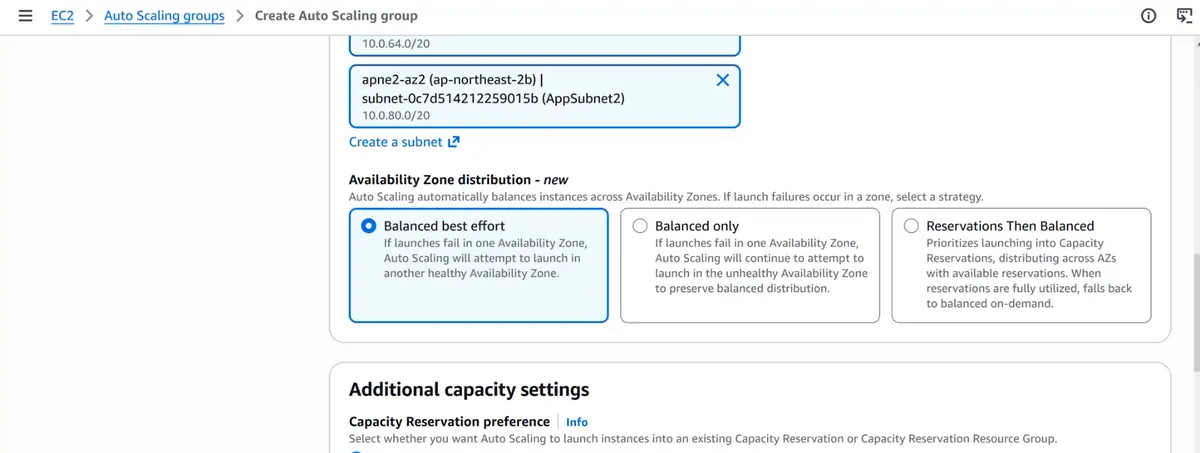
Console: Create Auto Scaling group: Availability Zone distribution set to Balanced best effort
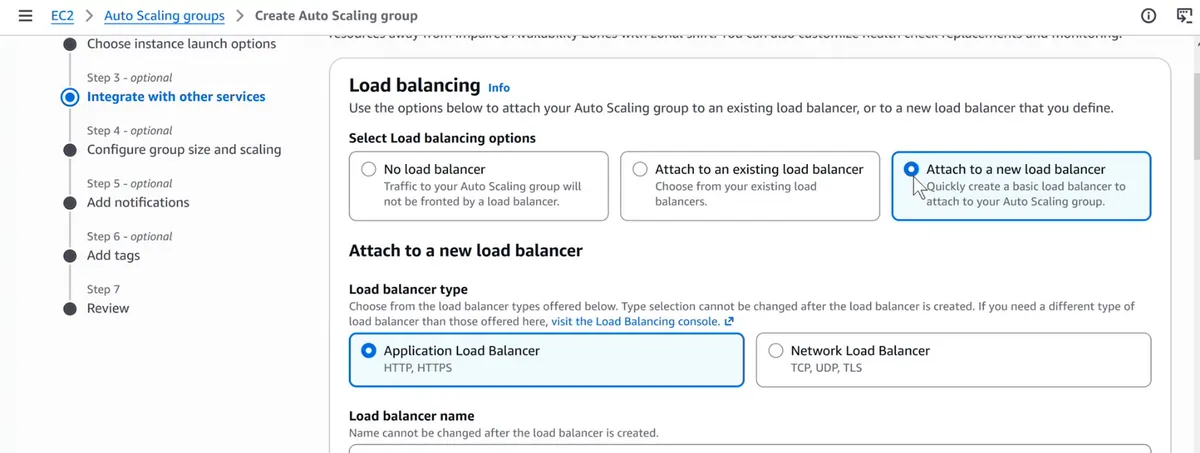
Console: Load balancing: Attach to a new load balancer, Application Load Balancer
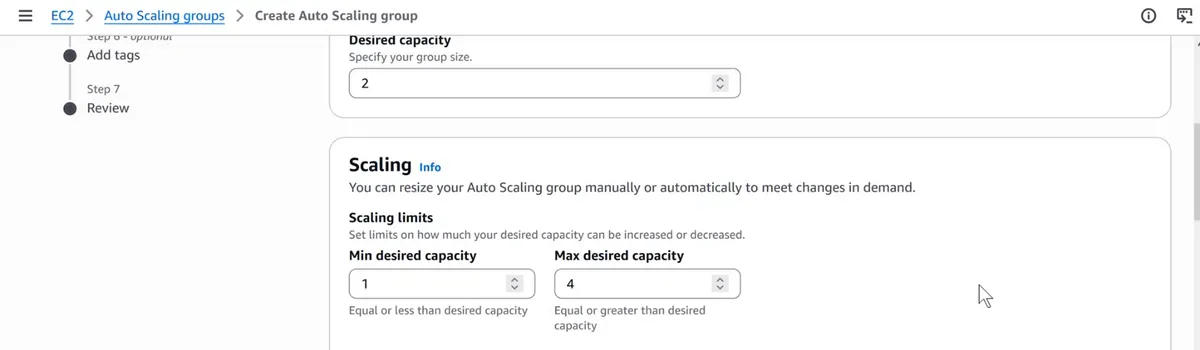
Console: Group size and scaling limits: desired 2, min 1, max 4
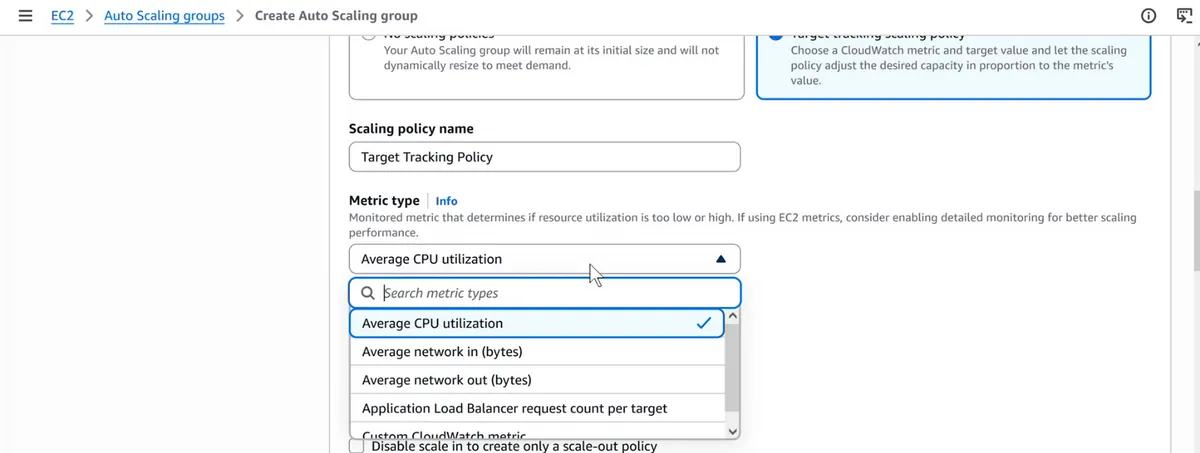
Console: Target tracking scaling policy with the metric Average CPU utilization
Part I: the nginx development server and webami
Terminate
phpdevelopmentserver- Do: Check AMIs:
phpamiis Available. Then Instances >phpdevelopmentserver> Instance state > Terminate (delete) instance. - Why: Its work ended when
phpamibecame Available; the app servers now come from the AMI. It also frees 2 vCPUs of your quota for the next server.
- Do: Check AMIs:
Launch
nginxdevelopmentserverwithDevSGandWebEc2SG- Do: Launch instances: Name
nginxdevelopmentserver, Amazon Linux 2023,t3.micro,ThreeTierKey; VPCThreeTierVpc, SubnetPublicSubnet1, Auto-assign public IP Enable; security groupsDevSGandWebEc2SG> Launch instance. - Why: Same idea as the PHP server:
WebEc2SGmakes it look like a real web server to AppAlbSG, so the proxy test proves the real path;DevSGlets you in for setup. - If you see "You have requested more vCPU capacity than your current vCPU limit of 16 allows": the running servers already use your On-Demand quota. Terminate servers you don't need, or lower the App group to Desired 1 for now, or request an increase in Service Quotas (section 10).
- Do: Launch instances: Name
SSH in and install nginx only
- Command:
ssh -i .\Downloads\ThreeTierKey.pem ec2-user@<nginx-dev-public-IP> sudo yum install nginx -y - You should see:
Complete! - Why: The web tier serves HTML and forwards PHP; it runs no PHP itself and never talks to the database.
- Command:
Start and enable nginx
- Command:
sudo service nginx start sudo systemctl enable nginx systemctl is-enabled nginx - You should see:
enabled - Why: Enable before baking
webami, or every web server starts with nginx off and the web load balancer returns 502.
- Command:
Put
forms.htmlin the web root- Do: Paste the same
forms.htmlcode as in Part G and save. - Command:
sudo nano /usr/share/nginx/html/forms.html curl -s http://localhost/forms.html | head -3 - You should see:
<!DOCTYPE html> <html> <head><meta charset="utf-8"><title>Sign up</title></head> - Why: This is the page users see. Its
action="submit.php"is relative, so the browser posts to the same load balancer, and nginx forwards it to the app tier.
- Do: Paste the same
Back up
nginx.confand open it- Command:
sudo cp /etc/nginx/nginx.conf /etc/nginx/nginx.conf.bak sudo nano /etc/nginx/nginx.conf - Why: A copy lets you go back in one command if the edit breaks the file.
- Command:
Add the
.phpproxy inside theserver { … }block- Do: Below the
listen 80;androot /usr/share/nginx/html;lines of the firstserverblock, paste the block below with your internal ALB DNS name, save. - Command:
location ~ \.php$ { resolver 10.0.0.2 valid=30s; set $app_alb "http://internal-AppTierInternalALB-xxxxxxxx.ap-northeast-2.elb.amazonaws.com"; proxy_pass $app_alb; proxy_set_header Host $host; proxy_set_header X-Forwarded-For $proxy_add_x_forwarded_for; } - Why: Every request ending in
.phpgoes to the internal ALB; everything else (forms.html) is served here.resolver 10.0.0.2is the VPC's DNS server (VPC base address + 2). Putting the name in a variable makes nginx look it up again every 30 seconds; with a plainproxy_passname nginx resolves it once at start, and when the ALB's IP addresses change (they do) requests start failing with 502.
- Do: Below the
Test the config and reload
- Command:
sudo nginx -t sudo service nginx reload - You should see:
nginx: the configuration file /etc/nginx/nginx.conf syntax is ok nginx: configuration file /etc/nginx/nginx.conf test is successful - Why:
nginx -tfinds typos before they take the server down;reloadapplies the change without dropping open connections. - If you see "unexpected }" or "directive is not allowed here": the block is outside
server { }or a brace is missing. Fix it, or restore withsudo cp /etc/nginx/nginx.conf.bak /etc/nginx/nginx.conf.
- Command:
Test the whole chain from the dev server
- Do: Then open
http://<nginx-dev-public-IP>/forms.html, fill it and click Register. - Command:
curl -s http://localhost/health.php - You should see:
okin the terminal, then "User registered successfully!" in the browser. - Why:
health.phpexists only on the app servers, so gettingokhere proves nginx → internal ALB → PHP works. The form test then proves PHP → RDS too. - If you see "504 Gateway Time-out": AppAlbSG does not allow port 80 from WebEc2SG, or this server lacks WebEc2SG, or the internal ALB still has the wrong security group.
- If you see "502 Bad Gateway": the name in
$app_albis wrong or theresolverline is missing; check withsudo tail /var/log/nginx/error.log. - If you see "503 Service Temporarily Unavailable": the internal ALB has no registered targets: check that AppTierASG is running two servers.
- Do: Then open
Create the AMI
webami- Do: Instances >
nginxdevelopmentserver> Actions > Image and templates > Create image: Image namewebami, Descriptionnginx + forms.html + php proxy> Create image. - You should see:
webamiAvailable in AMIs after a few minutes. - Why: Freezes the tested web server: nginx enabled, forms.html and the proxy config.
- Do: Instances >
Part J: the web tier (launch template, Auto Scaling group, internet-facing ALB)
Create the launch template
WebTierLaunchTemplate- Do: EC2 > Launch templates > Create launch template: Name
WebTierLaunchTemplate, Template version descriptionv1, tick Provide guidance to help me set up a template that I can use with EC2 Auto Scaling. - Why: A launch template is the recipe the Auto Scaling group follows every time it starts a server: AMI, instance type, key pair and security group. Ticking the Auto Scaling guidance makes the console warn you about settings a group can't use.
- Do: EC2 > Launch templates > Create launch template: Name
AMI: My AMIs >
webami; typet3.micro; key pairThreeTierKey- Do: Application and OS Images > My AMIs > Owned by me >
webami; Instance typet3.micro; Key pairThreeTierKey. - Why:
webamialready has the software, the files and the enabled services, so a new server is ready the moment it boots. The key pair lets you SSH in for debugging later.
- Do: Application and OS Images > My AMIs > Owned by me >
Network: Subnet: Don't include in launch template, security group
WebEc2SG- Do: Network settings: Subnet Don't include in launch template; Firewall Select existing security group >
WebEc2SG; leave Advanced network configuration empty > Create launch template. - You should see: "Successfully created WebTierLaunchTemplate".
- Why: The Auto Scaling group chooses the subnets, one per AZ. A subnet fixed inside the template would pin every server to one AZ. The security group belongs in the template because every server of this tier needs the same one.
- Do: Network settings: Subnet Don't include in launch template; Firewall Select existing security group >
Create the Auto Scaling group
WebTierASGfromWebTierLaunchTemplate- Do: EC2 > Auto Scaling groups > Create Auto Scaling group: Name
WebTierASG, Launch templateWebTierLaunchTemplate, Version Default (1) > Next. - Why: The group keeps the right number of servers running, spreads them over AZs, replaces broken ones and adds or removes servers with the load. You never launch these servers by hand.
- Do: EC2 > Auto Scaling groups > Create Auto Scaling group: Name
Network:
ThreeTierVpc, subnetsWebSubnet1andWebSubnet2- Do: VPC
ThreeTierVpc, Availability Zones and subnetsWebSubnet1andWebSubnet2. - Why: Two subnets in two AZs: if one AZ fails, the group starts servers in the other one.
- If you see "The requested instance type is not supported in the requested Availability Zone": not every instance type exists in every AZ. Keep
t3.micro, or pick another type in a new template version (section 10).
- Do: VPC
AZ distribution: Balanced best effort
- Do: Availability Zone distribution: Balanced best effort > Next.
- Why: Balanced only waits and retries in the same AZ when that AZ has no capacity. Balanced best effort launches in the other AZ instead, so the app gets its server now and the group rebalances later. When everyone launches servers at the same time, like shopping sites in a festival sale, one AZ can run out of a type; best effort keeps you serving.
Attach to a new load balancer: Application Load Balancer
WebTierPublicALB, Internet-facing- Do: Load balancing: Attach to a new load balancer, Application Load Balancer, Load balancer name
WebTierPublicALB, Load balancer scheme Internet-facing. - Why: The wizard creates the load balancer, its listener and its target group in one go and registers the group's servers in it. Internet-facing gives the load balancer public IPs and a public DNS name: this is the one address users open. For an internet-facing load balancer the wizard asks for its own subnets: pick
PublicSubnet1andPublicSubnet2.
- Do: Load balancing: Attach to a new load balancer, Application Load Balancer, Load balancer name
Listener HTTP 80, Create a target group
WebTierTG- Do: Listeners and routing: Protocol HTTP, Port 80, Default routing Create a target group, New target group name
WebTierTG. - Why: The listener is the port the load balancer accepts; the target group is the list of servers it forwards to and health-checks.
- Do: Listeners and routing: Protocol HTTP, Port 80, Default routing Create a target group, New target group name
Turn on Elastic Load Balancing health checks, grace period 60
- Do: Health checks: tick Turn on Elastic Load Balancing health checks, Health check grace period
60> Next. - Why: By default the group replaces a server only when the EC2 machine itself is broken. With ELB health checks on, it also replaces a server whose app has stopped answering. The grace period gives a new server 60 seconds to boot before its checks count.
- Do: Health checks: tick Turn on Elastic Load Balancing health checks, Health check grace period
Group size: Desired 2, Min 1, Max 4
- Do: Desired capacity 2; Min desired capacity 1; Max desired capacity 4.
- Why: Desired 2 gives one server per AZ. Min 1 is the floor scaling can never go under; Max 4 caps the bill and your vCPU quota.
Scaling: Target tracking, Average CPU utilization 20, warmup 60
- Do: Automatic scaling: Target tracking scaling policy, Metric type Average CPU utilization, Target value
20, Instance warmup60. - Why: Target tracking adds servers when the average CPU of the group goes above 20% and removes them when it falls well below. 20 is low on purpose so you can see scaling in a lab; production values are often 50 to 70. Warmup tells the group not to count a new server's CPU for its first 60 seconds.
- Do: Automatic scaling: Target tracking scaling policy, Metric type Average CPU utilization, Target value
Maintenance policy: No policy; tick Enable group metrics collection
- Do: Instance maintenance policy No policy; Additional settings: tick Enable group metrics collection within CloudWatch > Next > Next (no notifications).
- Why: No policy keeps the default replacement behaviour. Group metrics show the number of servers over time in the Monitoring tab, which is how you watch scaling happen.
Tag Name = WebTierServer, then Create Auto Scaling group
- Do: Add tag: Key
Name, ValueWebTierServer> Next > review > Create Auto Scaling group. - You should see: Two
WebTierServerinstances, one in each AZ, after a minute or two. - Why: Without the tag every server of the group shows an empty name in the Instances list and you can't tell the tiers apart. "Tag new instances" is ticked by default.
- If you see "You have requested more vCPU capacity than your current vCPU limit" in the group's Activity tab: the account's On-Demand vCPU quota is full. Terminate servers you no longer need, or request more (section 10).
- Do: Add tag: Key
Give
WebTierPublicALBits own security group- Do: EC2 > Load balancers >
WebTierPublicALB> Security tab > Edit: remove every group, addWebAlbSG> Save changes. - Why: The wizard attaches the launch template's security group to the new load balancer. Our chain needs
WebAlbSGon the load balancer, otherwise the server security group, which trusts only the load balancer's group, blocks every forwarded request.
- Do: EC2 > Load balancers >
Set the health check of
WebTierTGto/forms.html- Do: EC2 > Target groups >
WebTierTG> Health checks tab > Edit: Health check path/forms.html; Advanced health check settings: Healthy threshold 2, Unhealthy threshold 2, Timeout 3, Interval 5, Success codes 200 > Save changes. - Why: The target group checks
/by default./forms.htmlproves the part of this tier that matters answers with 200. Healthy 2 and Unhealthy 2 at a 5-second interval mean a server joins or leaves the target group within about 10 seconds; the timeout (3 s) must be shorter than the interval.
- Do: EC2 > Target groups >
Wait for two Healthy targets in
WebTierTG- Do:
WebTierTG> Targets tab, refresh. - You should see: 2 Healthy, one target in each AZ.
- Why: Only healthy targets receive traffic. If both are healthy, this tier works end to end through its load balancer.
- If you see Unhealthy, "Health checks failed" or "Request timed out": the server security group does not allow port 80 from the load balancer's security group, or the load balancer still has the wrong group (previous step).
- If you see "Health checks failed with these codes: [404]":
/forms.htmlis not in the AMI. Fix the file on a dev server, make a new AMI and a new template version (Part L). - If you see targets that are Unhealthy and get replaced again and again: nginx or php-fpm was not enabled before the AMI was made, so nothing listens after boot. Enable the services on a dev server and bake a new AMI.
- Do:
Copy the DNS name of
WebTierPublicALB- Do: Load balancers >
WebTierPublicALB> Details > DNS name (copy icon). - You should see:
WebTierPublicALB-…ap-northeast-2.elb.amazonaws.com, Scheme Internet-facing. - Why: This is the address of the whole app.
- Do: Load balancers >
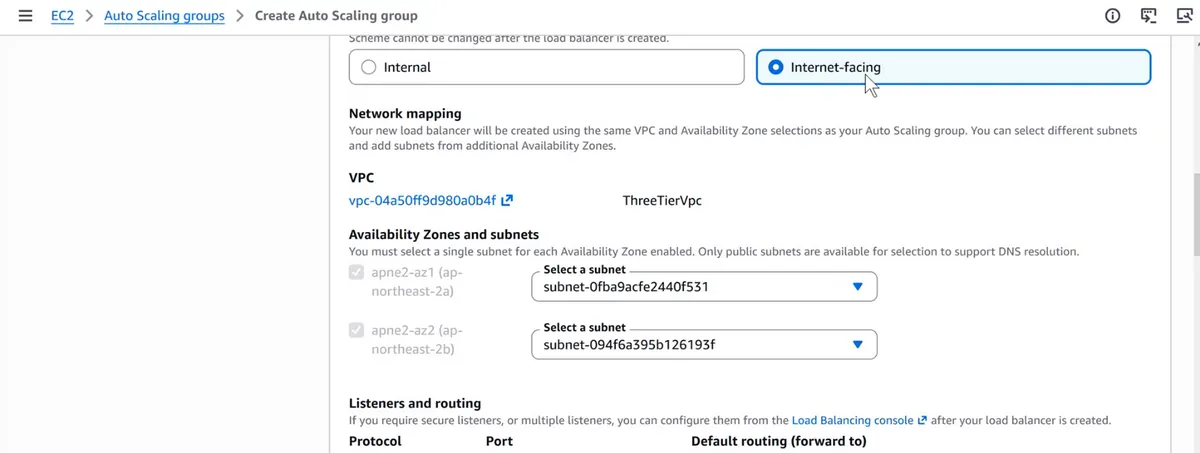
Console: the web tier load balancer: scheme Internet-facing, VPC ThreeTierVpc, one public subnet in each AZ
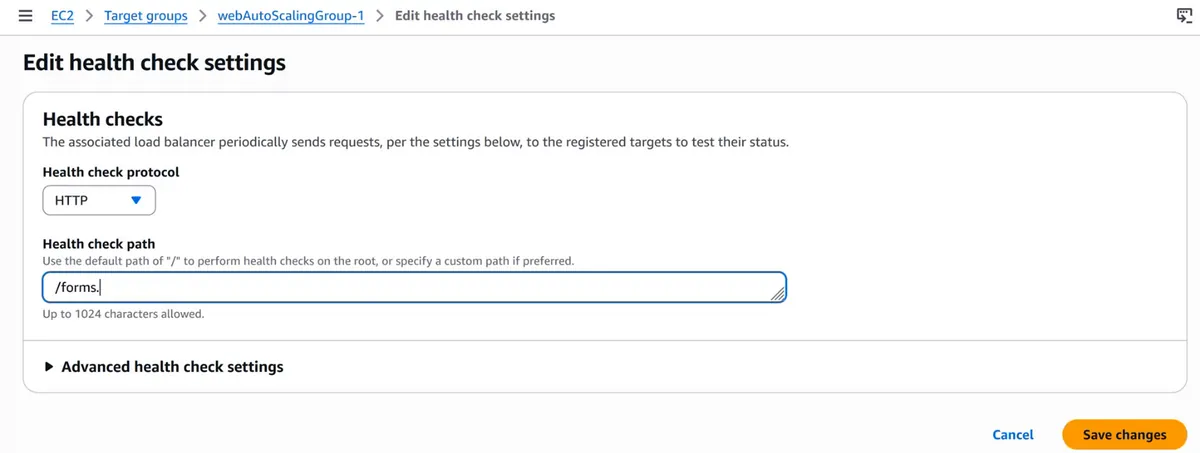
Console: Edit health check settings of the web target group: path /forms.html
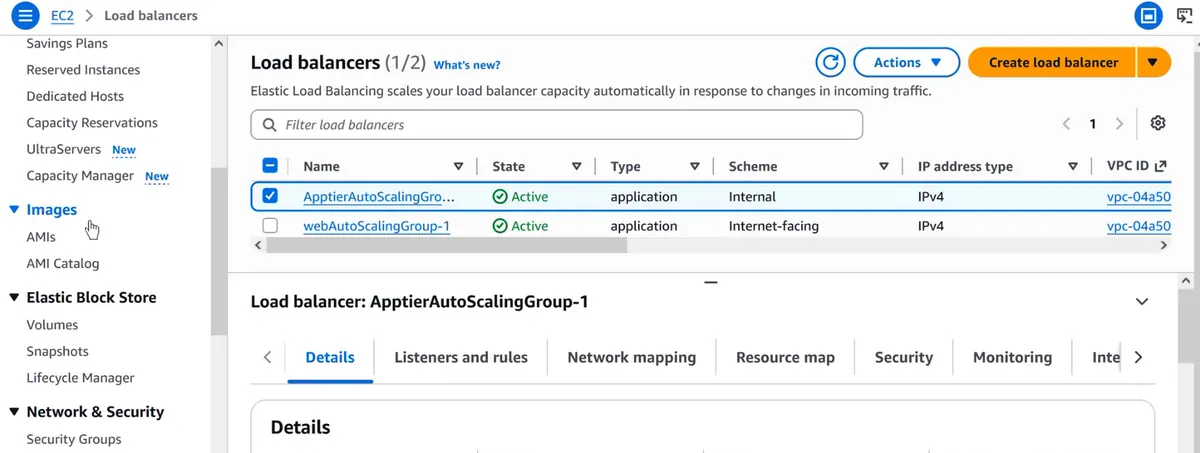
Console: both load balancers Active: one with scheme internal for the app tier, one internet-facing for the web tier (your names are the ones you typed in the wizard)
Part K: test the whole app and lock it down
Open the app through the public load balancer
- Do: Open
http://<WebTierPublicALB-DNS>/forms.html, fill the form, Register. - You should see: "User registered successfully!"
- Why: This is the real user path: browser → WebTierPublicALB → web server → AppTierInternalALB → app server → RDS. No server is reached directly.
- If you see the page not loading at all for a few minutes: a new load balancer's DNS name takes a few minutes to start resolving. Wait and retry.
- Do: Open
Check the new row in RDS
- Command:
mysql -h <rds-endpoint> -u root -p -e "select id, name, left(password,4) from insta.users;" - You should see: The new row, with
$2y$as the password start. - Why: Proves the request crossed all three tiers.
- Command:
Self-healing test: terminate one
WebTierServer- Do: Instances > one
WebTierServer> Terminate (delete) instance. Keep reloading the form page. Then open WebTierASG > Activity. - You should see: The page keeps loading; Activity shows "Terminating EC2 instance" and then "Launching a new EC2 instance"; after a minute or two
WebTierTGhas 2 Healthy targets again. - Why: This shows why the group exists: it notices the missing server through its health checks and launches a replacement from
webamiwith no help from you, while the other server keeps the app up.
- Do: Instances > one
Terminate
nginxdevelopmentserver- Do: Instances >
nginxdevelopmentserver> Terminate (delete) instance. - Why: Its job ended with
webami. A dev server with SSH and HTTP open is attack surface and costs money.
- Do: Instances >
Remove the JumpSG rule from DbSG
- Do: Security groups >
DbSG> Inbound rules > Edit inbound rules > Delete the MYSQL/Aurora rule whose source isJumpSG> Save rules. Stop or terminateJumpServerif you no longer need it. - Check: DbSG has one inbound rule: MYSQL/Aurora 3306, source
AppEc2SG. - Why: It was needed only to create the database and table. Now the only way to port 3306 is from AppEc2SG: exactly the clean design.
- Do: Security groups >
Optional: point your domain at the load balancer with a CNAME
- Do: In your domain provider's DNS records: Add record, Type CNAME, Name
www, Value the WebTierPublicALB DNS name, TTL default > Save. In Route 53 you can use an Alias A record instead. - Check:
nslookup www.yourdomain.comshows the ELB name as canonical name; thenhttp://www.yourdomain.com/forms.htmlopens the form. - Why: Users should type
www.yourdomain.com, not a long ELB name. A CNAME says "this name is another name for that name". A load balancer's IPs change, so you never point a domain at an IP; you point it at the DNS name. - If you see "Server Not Found" in the browser: the browser could not resolve the name, so the request never reached AWS. Wait for DNS to propagate, check the record name, or try another network or DNS server. It is never a security group problem.
- Do: In your domain provider's DNS records: Add record, Type CNAME, Name
Part L: change servers safely (new template version + instance refresh)
Create a new version of the launch template
- Do: Launch templates >
AppTierLaunchTemplate> Actions > Modify template (Create new version): Template version descriptionv2, AMIphpami-v2> Create template version. - Why: A launch template can't be edited in place: every change is a new numbered version, so you can always see and go back to what ran before. Example: you baked
phpami-v2with a fix.
- Do: Launch templates >
Point the group at Latest
- Do: AppTierASG > Details > Launch template > Edit > Version Latest > Update.
- Why: With Default (1) the group keeps launching version 1. Latest makes every future launch use the newest version.
Start an instance refresh
- Do: AppTierASG > Instance refresh tab > Start instance refresh: Minimum healthy percentage 50 and Maximum healthy percentage 100 (one of the two servers is replaced at a time while the other serves), Instance warmup 60 > Start instance refresh.
- You should see: Status InProgress, then Successful; the instances list shows new instance IDs.
- Why: Changing the template does not touch servers that are already running. An instance refresh replaces them a few at a time, waiting for each new one to pass health checks, so the app stays up during the rollout.
Part M: clean up so nothing keeps billing
Delete both Auto Scaling groups first
- Do: Auto Scaling groups > select
WebTierASGandAppTierASG> Actions > Delete > typedelete. - Why: If you terminate the servers first, the groups simply launch new ones. Deleting a group terminates its servers.
- Do: Auto Scaling groups > select
Delete both load balancers, then both target groups
- Do: Load balancers > both > Actions > Delete load balancer > type
confirm. Target groups >WebTierTG,AppTierTG> Actions > Delete. - Why: Load balancers bill every hour even with no traffic. A target group in use by a listener can't be deleted, so the load balancers go first.
- Do: Load balancers > both > Actions > Delete load balancer > type
Delete the RDS database
- Do: RDS > Databases >
database-1> Actions > Delete: untick Create final snapshot, untick Retain automated backups, tick the acknowledgement, typedelete me> Delete. - Why: The database bills by the hour and for its storage.
- Do: RDS > Databases >
Terminate any remaining instances
- Do: Instances > select the remaining ones > Instance state > Terminate (delete) instance.
- Why: JumpServer and any dev server you kept still cost money.
Deregister both AMIs and delete their snapshots
- Do: AMIs >
phpami,webami(and any-v2) > Actions > Deregister AMI. Snapshots > select their snapshots > Actions > Delete snapshot. - Why: An AMI stores its disk as an EBS snapshot, and the snapshot keeps costing storage even after the AMI is deregistered.
- Do: AMIs >
Delete the launch templates and the DB subnet group
- Do: Launch templates > both > Actions > Delete template. RDS > Subnet groups >
threetierdbsubnetgroup> Delete. - Why: They cost nothing, but leftovers clutter the account and confuse the next build.
- Do: Launch templates > both > Actions > Delete template. RDS > Subnet groups >
Delete the VPC last
- Do: VPC > Your VPCs >
ThreeTierVpc> Actions > Delete VPC > typedelete> Delete. - You should see: The VPC disappears from the list; EC2 > Instances, Load balancers and RDS > Databases are empty.
- Why: Deleting the VPC also deletes its subnets, route tables, internet gateway and security groups, but only once nothing else uses them.
- If you see "has dependencies and cannot be deleted": something still uses the VPC, usually a load balancer or RDS still deleting, or an ENI. Wait a few minutes and try again.
- Do: VPC > Your VPCs >
10. Side topics that came up during the build
Each of these came up because something in the lab needed it. Each one says why it came up, the background, and how it fits the 3-tier build.
Windows key permissions are chmod 400
Why it came up. SSH to the JumpServer failed from Windows with "UNPROTECTED PRIVATE KEY FILE".
Background. A private key proves who you are, so OpenSSH refuses to use one that other users of the computer could copy. On Linux and Mac you remove everyone else's access with chmod 400 (owner read, group 0, others 0). Windows has no chmod; its files carry access lists (ACLs) inherited from the folder. Disabling inheritance, removing the inherited entries and granting only your user Read is the same 400, written in Windows terms. icacls file /inheritance:r /grant:r "%USERNAME%:R" does the same from the command line.
How it links to the 3-tier build. Every server in this build (JumpServer, both dev servers, and any Auto Scaling server you debug) is reached with the same ThreeTierKey.pem, so this fix is needed once per computer.
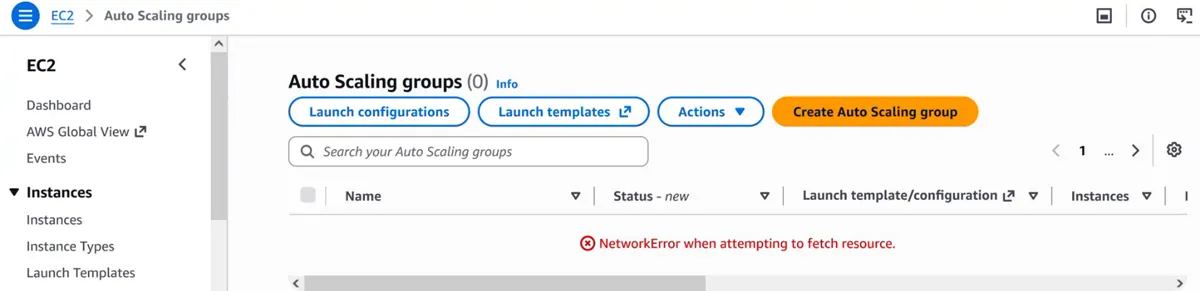
Console: the Auto Scaling groups page showing "NetworkError when attempting to fetch resource" after the console session had been idle; reloading the page fixes it
Console "NetworkError" and session timeouts
Why it came up. Pages such as Auto Scaling groups or Create database showed "NetworkError when attempting to fetch resource" or "Failed to load" in the middle of the build.
Background. The console is a web app that calls AWS APIs from your browser. If one call fails (Wi-Fi drop, VPN, a browser extension, or a sign-in session that expired; console sessions end after a set time, 1 to 12 hours depending on how you signed in), the page shows this error. Your resources are not affected. Reload the page, sign in again if asked, and look at the list before you click Create again, so you don't create the same thing twice.
How it links to the 3-tier build. This build has long wizards (RDS, two Auto Scaling groups). If an error appears after you click Create, check whether the resource exists before you repeat the step; a second RDS instance or Auto Scaling group doubles the cost.
vCPU quota errors
Why it came up. Launching the nginx development server failed with "You have requested more vCPU capacity than your current vCPU limit" while both Auto Scaling groups were running.
Background. Every account has a Service Quota called Running On-Demand Standard (A, C, D, H, I, M, R, T, Z) instances, counted in vCPUs per Region, not in instances. New accounts often start low. t3.micro has 2 vCPUs, so a limit of 16 is reached by 8 servers. Worked example: two groups at their max of 4 = 8 servers = 16 vCPUs, plus a JumpServer (2) and a dev server (2) = 20. Fixes: terminate servers you don't need, lower Max while learning, or open Service Quotas > AWS services > Amazon EC2 > Running On-Demand Standard … > Request increase at account level; approval can take hours to days.
How it links to the 3-tier build. A 3-tier build with two Auto Scaling groups is the first lab that runs many servers at once, and scaling out needs headroom in the quota: a group that can't launch can't heal or scale.
Instance types are not offered in every AZ
Why it came up. While picking subnets for an Auto Scaling group, an AZ can reject an instance type with "not supported in the requested Availability Zone".
Background. Each AZ has its own hardware, and newer or special families are not in every AZ. Check before you build: EC2 > Instance types > select the type > Networking shows the AZs, or run aws ec2 describe-instance-type-offerings --location-type availability-zone --filters Name=instance-type,Values=t3.micro. Separate from this, an AZ can be temporarily out of capacity for a type ("InsufficientInstanceCapacity"), which is what Balanced best effort handles.
How it links to the 3-tier build. High availability needs the same instance type in both AZs. A type offered in only one AZ quietly turns a two-AZ design into a one-AZ design.
502, 503 and 504 from a load balancer
Why it came up. Each of these appeared at some point while the tiers were being connected, and each points to a different broken link.
Background. The code tells you where to look:
| Code | What the load balancer (or nginx) means | Usual cause in this build |
|---|---|---|
| 502 Bad Gateway | I reached a target, but it refused the connection or sent a broken answer | nginx or php-fpm not running (not enabled before the AMI was baked); wrong proxy target in nginx.conf |
| 503 Service Unavailable | I have no registered targets to send to | the Auto Scaling group has 0 servers, or is attached to a different target group |
| 504 Gateway Timeout | I sent the request and no answer came in time | a security group silently drops the packets (WebEc2SG → AppAlbSG, or AppEc2SG → DbSG), or the app waits on the database |
One more rule: if every target is unhealthy, an ALB "fails open" and sends traffic to all of them anyway, so a page may still load (or fail in odd ways) while the console shows all targets Unhealthy. Fix the health check; don't rely on this.
How it links to the 3-tier build. There are two load balancers and four hops in this build. Reading the code first tells you which hop to check instead of changing everything.
Health checks decide which servers get replaced
Why it came up. In the self-healing test a terminated web server came back by itself, and servers baked without enabled services kept being replaced.
Background. The target group checks each server every 5 seconds; after 2 failures it marks the server Unhealthy and stops sending it traffic. Because the Auto Scaling group uses ELB health checks, it then terminates that server and launches a new one from the launch template, after the 60-second grace period. If the AMI itself is broken, every replacement fails the same way and you see a loop of launches and terminations in Activity; the fix is a new AMI and template version, never repairing a server by hand.
How it links to the 3-tier build. This is why /health.php must test only PHP and why the services must be enabled before baking: the health check is what turns a broken server into a fresh one.
"Server Not Found" is a DNS problem on your side
Why it came up. After adding the www CNAME, the browser can show "Server Not Found" (Firefox) or "This site can't be reached / DNS_PROBE_FINISHED_NXDOMAIN" (Chrome).
Background. These messages mean the browser could not turn the name into an IP address, or could not connect at all, so the request never reached AWS. Security groups, target groups and nginx are not involved. Check the record (Name www, Value the ELB name, no http://), wait for the TTL, run nslookup www.yourdomain.com, and try another network or a public DNS server such as 8.8.8.8. Compare: a 502/503/504 page proves the request did reach the load balancer.
How it links to the 3-tier build. It is the last link of the chain, above WebTierPublicALB. Knowing which side of AWS a problem is on saves you from changing working security groups.
EC2 Instance Connect needs port 22 too
Why it came up. Connecting from the browser with Connect > EC2 Instance Connect is quicker than SSH from Windows, but it failed on servers whose security group allowed SSH only from My IP.
Background. EC2 Instance Connect pushes a one-time key and then opens SSH to the instance from AWS's own address range, not from your laptop. So the security group needs port 22 from the managed prefix list com.amazonaws.ap-northeast-2.ec2-instance-connect (pick it in the Source box), and the instance needs a public IP. For private servers, use an EC2 Instance Connect Endpoint or the JumpServer.
How it links to the 3-tier build. JumpSG and DevSG allow SSH from My IP only. Add the prefix-list rule only if you prefer the browser, and remove it with the other setup rules in Part K.
Why this build has no NAT gateway
Why it came up. How to Build a 3-Tier Architecture in AWS with VPC, NAT Gateway and RDS used a NAT gateway so the private app server could install software. Here the private servers never install anything.
Background. A NAT gateway gives private servers outbound internet access only, and it bills every hour plus per GB. In this build all software is installed on the development servers in the public subnet and baked into AMIs, so web and app servers boot ready and need no outbound access. Add a NAT gateway only if private servers must reach the internet, for example to download updates or call an outside API.
How it links to the 3-tier build. Immutable AMIs (section 4) are what make the NAT gateway optional, and that saves money every hour the app runs.
Clean up so nothing keeps billing
Why it came up. Part M deletes everything in a fixed order, right after testing.
Background. Load balancers and RDS bill per hour whether or not anyone uses them; public IPv4 addresses bill per hour; EBS snapshots behind AMIs bill per GB-month. The order matters because AWS protects dependencies: Auto Scaling groups first (otherwise they relaunch servers), then load balancers and target groups, then RDS, instances, AMIs and snapshots, templates and the DB subnet group, and the VPC last. Afterwards, check Billing and Cost Management > Bills the next day, and set an AWS Budgets alert, for example at 5 USD.
How it links to the 3-tier build. A 3-tier build is the most expensive lab so far because it runs two load balancers, a database and six or more servers at once.
11. Troubleshooting checklist
Work from the top of the chain down. Each row is one link.
| You see | Link to check | Fix |
|---|---|---|
| "Server Not Found", DNS_PROBE error | your DNS, before AWS | check the CNAME (Name www, Value ELB DNS name), wait for TTL, nslookup |
| Page never loads on the ALB DNS name | WebAlbSG, public subnets | WebAlbSG HTTP 80 from 0.0.0.0/0; the ALB in PublicSubnet1/2, whose route table has 0.0.0.0/0 → igw |
| 503 on the web ALB | WebTierASG | the group has servers and is attached to WebTierTG |
| 502 on the web ALB | web servers | nginx enabled in webami; WebTierTG health check /forms.html |
forms.html loads, submit gives 504 |
WebEc2SG → AppAlbSG, AppAlbSG on the ALB | AppAlbSG HTTP 80 from WebEc2SG; Security tab of the internal ALB shows AppAlbSG |
| Submit gives 502 | nginx proxy | resolver 10.0.0.2, the $app_alb name, sudo nginx -t, /var/log/nginx/error.log |
| Submit gives 503 | AppTierASG | servers running, targets registered in AppTierTG |
| Submit gives 504 or "Database error" after a long wait | AppEc2SG → DbSG | DbSG 3306 from AppEc2SG; RDS has DbSG |
| "Database error" at once | submit.php |
endpoint, user, password, database insta, table users |
| Targets Unhealthy and replaced in a loop | the AMI | services enabled before baking; the health check file is in the AMI; new AMI + template version + instance refresh |
| Group shows "vCPU limit" | Service Quotas | terminate spare servers, lower Max, request an increase |
| SSH "UNPROTECTED PRIVATE KEY FILE" | your key file | Windows: owner Read only; Mac/Linux: chmod 400 |
| SSH times out | JumpSG / DevSG, public IP | My IP up to date; the server has a public IP in a public subnet |
mysql: command not found |
the JumpServer | sudo yum install mariadb105 -y |
| "ERROR 2003 Can't connect" to RDS | DbSG | 3306 from JumpSG during setup; RDS uses DbSG |
| VPC won't delete | leftovers | load balancers, RDS or ENIs still deleting; wait and retry |
Ravindra Bagale's Tip
When something breaks, don't change three things at once. Read the error code, find the one link it points to in the checklist, test that link alone with curl from the tier above it, and only then change one rule.
12. The whole class on one page
- Why: one server is one point of failure; two AZs, load balancers and Auto Scaling give high availability, fault tolerance and self-healing.
- Design: users → internet-facing ALB (public subnets) → nginx (Web subnets) → internal ALB → PHP (App subnets) → RDS (DB subnets).
- Order: build bottom to top (network, database, app, web) so every tier can be tested against a working tier below it; write security rules top to bottom.
- Network:
ThreeTierVpc10.0.0.0/16, eight /20 subnets (4,096 addresses each), an IGW, and a public route table used only by the two public subnets. - Security groups: WebAlbSG (80 from anywhere) → WebEc2SG (80 from WebAlbSG) → AppAlbSG (80 from WebEc2SG) → AppEc2SG (80 from AppAlbSG) → DbSG (3306 from AppEc2SG). 3306 is never open to 0.0.0.0/0.
- Database: DB subnet group of the two DB subnets; RDS MySQL with no public access; one database
insta, tableuserswithpassword varchar(255)for hashes. - Servers: install on a development server, enable the services, test, bake an AMI (
phpami,webami); servers are replaced, never patched. - Scaling: launch templates without a subnet; Auto Scaling groups with Balanced best effort, desired 2 / min 1 / max 4, target tracking at 20% CPU, ELB health checks.
- Load balancers: set each ALB's own security group after the wizard; health checks
/health.phpand/forms.html. - Changes: new template version → group on Latest → instance refresh.
- Errors: Server Not Found = DNS; 502 = target refused; 503 = no targets; 504 = timeout, usually a security group.
- Clean up in order, and keep a budget alert.
For the concepts behind this build, go back to How to Build a 3-Tier Architecture in AWS with VPC, NAT Gateway and RDS.
13. Try at home
Try at home
Task 1: on paper
- Split
10.0.0.0/16into eight /20 subnets and write the first and last usable address of each (AWS keeps 5 addresses in every subnet). - Write the five security groups with their inbound rule and source, top to bottom.
Task 2: in the console
- Build the whole lab in a different Region (for example Mumbai, ap-south-1) with two AZs.
- Run the self-healing test on an app server and watch
AppTierASG > Activity. - Watch scaling: SSH to one app server through the JumpServer, run
sudo yum install stress -yandstress --cpu 2 --timeout 600, and see the group grow above 2 in Monitoring, then shrink after the load stops.
Task 3: change and clean up
- Change
health.phpto printok v2, bakephpami-v2, create template version 2 and run an instance refresh. - Delete everything in the order of Part M and check the bill the next day.
Recap
In short
- Two AZs, two load balancers and two Auto Scaling groups make the app highly available and self-healing.
- Build bottom to top; chain five security groups top to bottom, each source a security group.
- RDS sits in private DB subnets with no public access; only AppEc2SG reaches 3306.
- Servers come from tested AMIs with services enabled; changes go through a new template version and an instance refresh.
- Health checks, Balanced best effort and target tracking keep the right number of healthy servers running.
- Read the error (DNS, 502, 503, 504) to find the broken link, and clean up in order when you finish.
Practice Tasks
Singapore Freight is a logistics business in Singapore. Wei Ling Tan looks after its IT and cloud work. They count money in SGD and run their AWS resources in the ap-southeast-1 Region. In the tasks below you do real jobs for them using what this lesson teaches. All names, account IDs, IP addresses and numbers are made up for practice.
0 / 12
Easy How many addresses in a /16?
Why: Picking a VPC size needs this count.
What to do: Singapore Freight plans the VPC 10.123.0.0/16. How many IP addresses does it hold in total?
- Write down the numbers the task gives you.
- Work it out step by step on paper.
- Type only the final answer in the box.
- Click Check answer.
Easy Create a VPC
Why: A VPC is your own private network in AWS. Everything else lives inside it.
What to do: Create a VPC with the CIDR block 10.7.0.0/16.
- Read the task and decide which AWS service it is about.
- Write aws, then the service name, then the operation (the action word).
- Add each needed flag (--name) followed by its value from the task.
- Flags can be in any order. Click Check answer.
Easy Create an internet gateway
Why: Without an internet gateway, nothing in the VPC can reach the internet.
What to do: Create a new internet gateway.
- Read the task and decide which AWS service it is about.
- Write aws, then the service name, then the operation (the action word).
- Add each needed flag (--name) followed by its value from the task.
- Flags can be in any order. Click Check answer.
Easy Find the database endpoint
Why: Your app connects using the endpoint name, not an IP.
What to do: Describe DB instance sgfreight-db.
- Read the task and decide which AWS service it is about.
- Write aws, then the service name, then the operation (the action word).
- Add each needed flag (--name) followed by its value from the task.
- Flags can be in any order. Click Check answer.
Medium Create a subnet in one AZ
Why: Subnets split the VPC range and each one lives in exactly one AZ.
What to do: In vpc-0201ee521cdeadbee, create subnet 10.7.1.0/24 in ap-southeast-1a.
- Read the task and decide which AWS service it is about.
- Write aws, then the service name, then the operation (the action word).
- Add each needed flag (--name) followed by its value from the task.
- Flags can be in any order. Click Check answer.
Medium Add the internet route
Why: A subnet is "public" only when its route table sends 0.0.0.0/0 to an internet gateway.
What to do: In route table rtb-01a201dd521abb22, send all internet traffic (0.0.0.0/0) to igw-0a201dd521aaa11.
- Read the task and decide which AWS service it is about.
- Write aws, then the service name, then the operation (the action word).
- Add each needed flag (--name) followed by its value from the task.
- Flags can be in any order. Click Check answer.
Medium Find the VPC router address
Why: AWS reserves base+1 for the router.
What to do: Which address does AWS reserve for the VPC router in subnet 10.123.4.0/24?
- Write down the numbers the task gives you.
- Work it out step by step on paper.
- Type only the final answer in the box.
- Click Check answer.
Medium Usable IPs in an AWS /24 subnet
Why: AWS keeps 5 addresses in every subnet.
What to do: How many addresses can Singapore Freight use for servers in subnet 10.123.1.0/24 on AWS?
- Write down the numbers the task gives you.
- Work it out step by step on paper.
- Type only the final answer in the box.
- Click Check answer.
Medium Link a subnet to a route table
Why: Until you associate it, a subnet uses the main route table.
What to do: Associate subnet subnet-01a201dd521abb1 with route table rtb-01a201dd521abb22.
- Read the task and decide which AWS service it is about.
- Write aws, then the service name, then the operation (the action word).
- Add each needed flag (--name) followed by its value from the task.
- Flags can be in any order. Click Check answer.
Medium Attach the internet gateway
Why: A gateway does nothing until it is attached to a VPC.
What to do: Attach igw-0a201dd521aaa11 to vpc-0201ee521cdeadbee.
- Read the task and decide which AWS service it is about.
- Write aws, then the service name, then the operation (the action word).
- Add each needed flag (--name) followed by its value from the task.
- Flags can be in any order. Click Check answer.
Hard Pick the smallest prefix
Why: Right-sizing saves address space.
What to do: A subnet must hold 100 servers on AWS. What is the largest prefix number (smallest subnet) that fits? Answer like /25.
- Write down the numbers the task gives you.
- Work it out step by step on paper.
- Type only the final answer in the box.
- Click Check answer.
Hard Split a /24 into two
Why: Public and private subnets often split one block.
What to do: Split 10.123.8.0/24 into two equal subnets. Write both CIDRs separated by a comma.
- Write down the numbers the task gives you.
- Work it out step by step on paper.
- Type only the final answer in the box.
- Click Check answer.
Quick revision cards
Revise this chapter in two minutes. Save the cards on your phone or download them as PNG files. The QR code on each card opens its lesson.
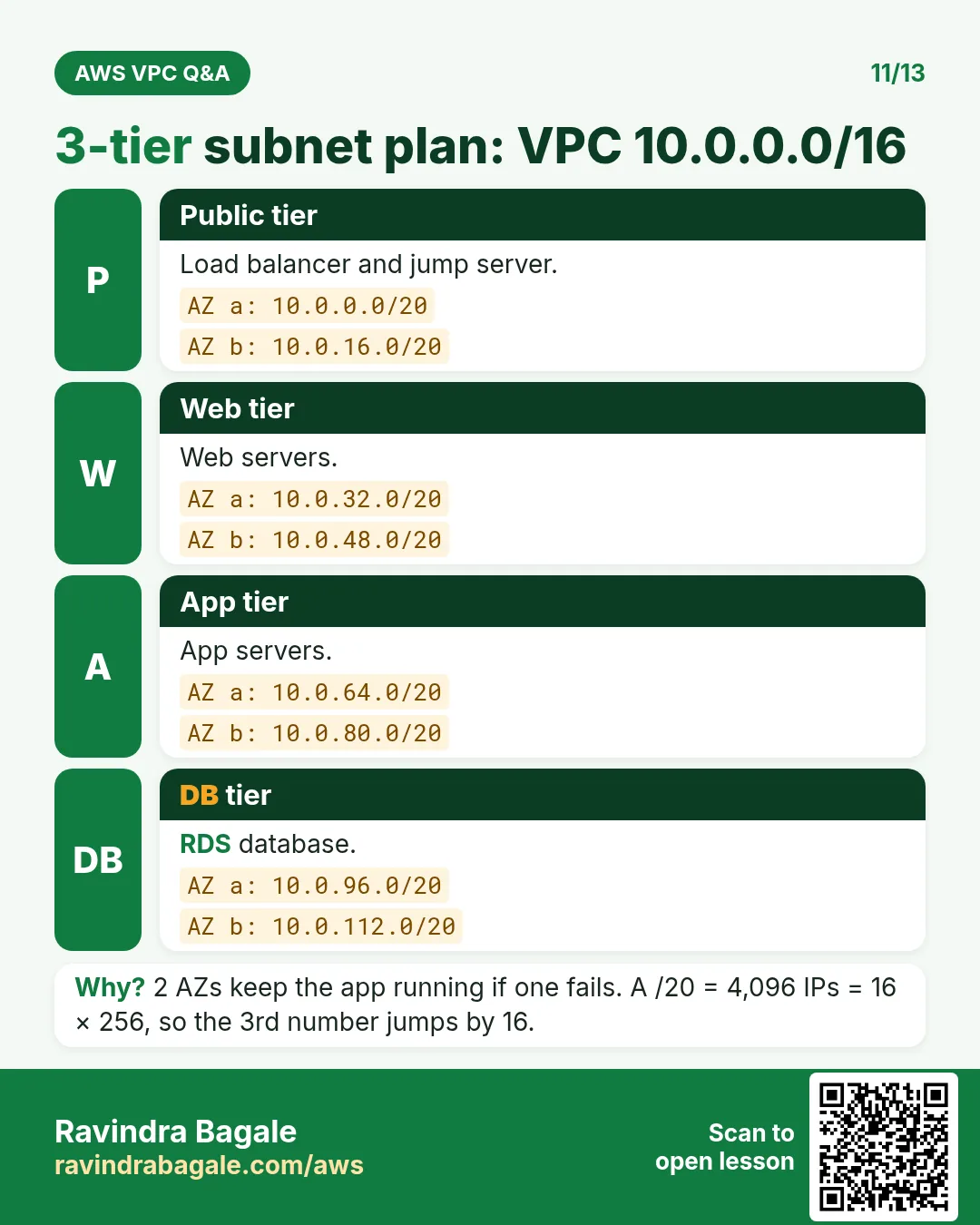
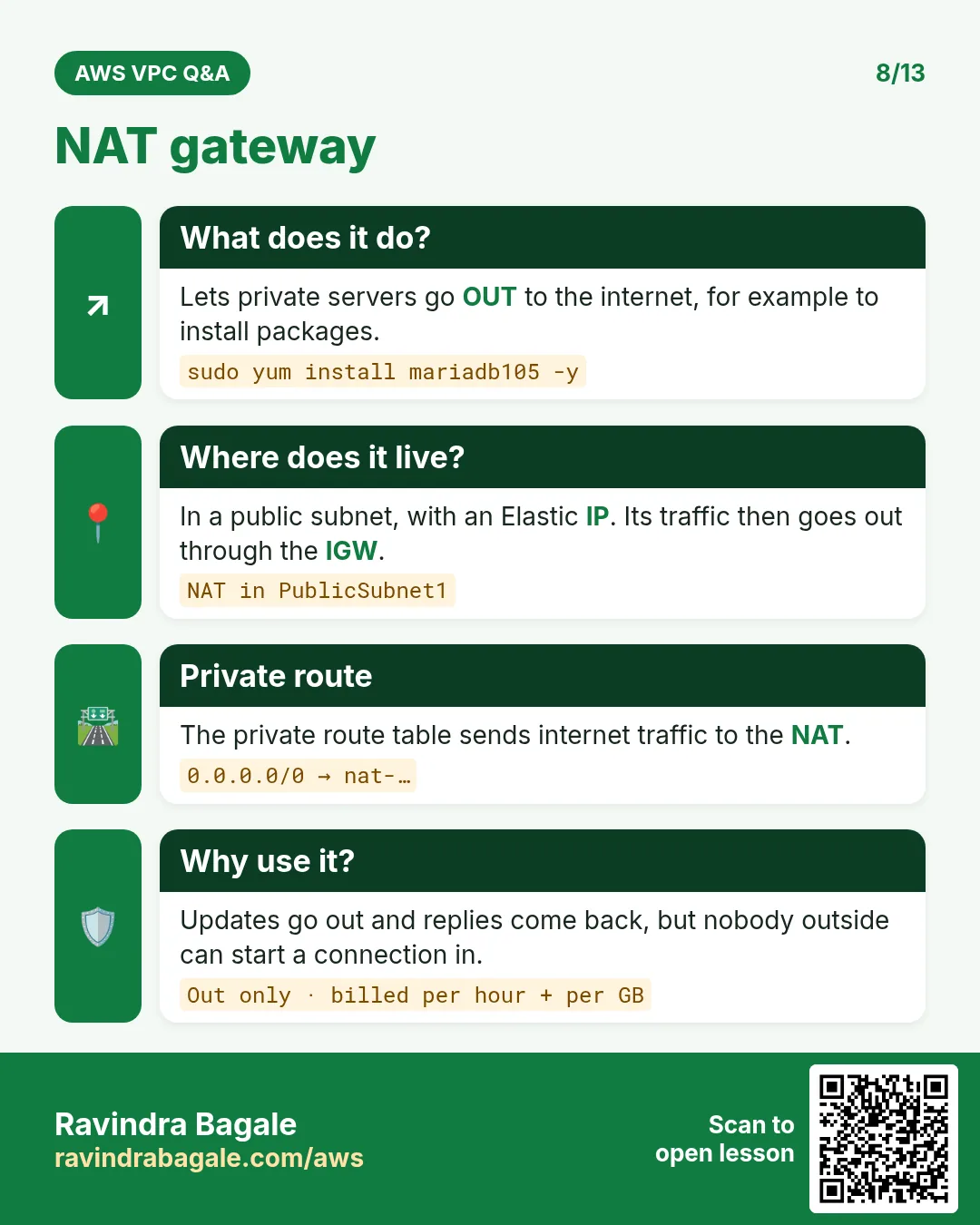
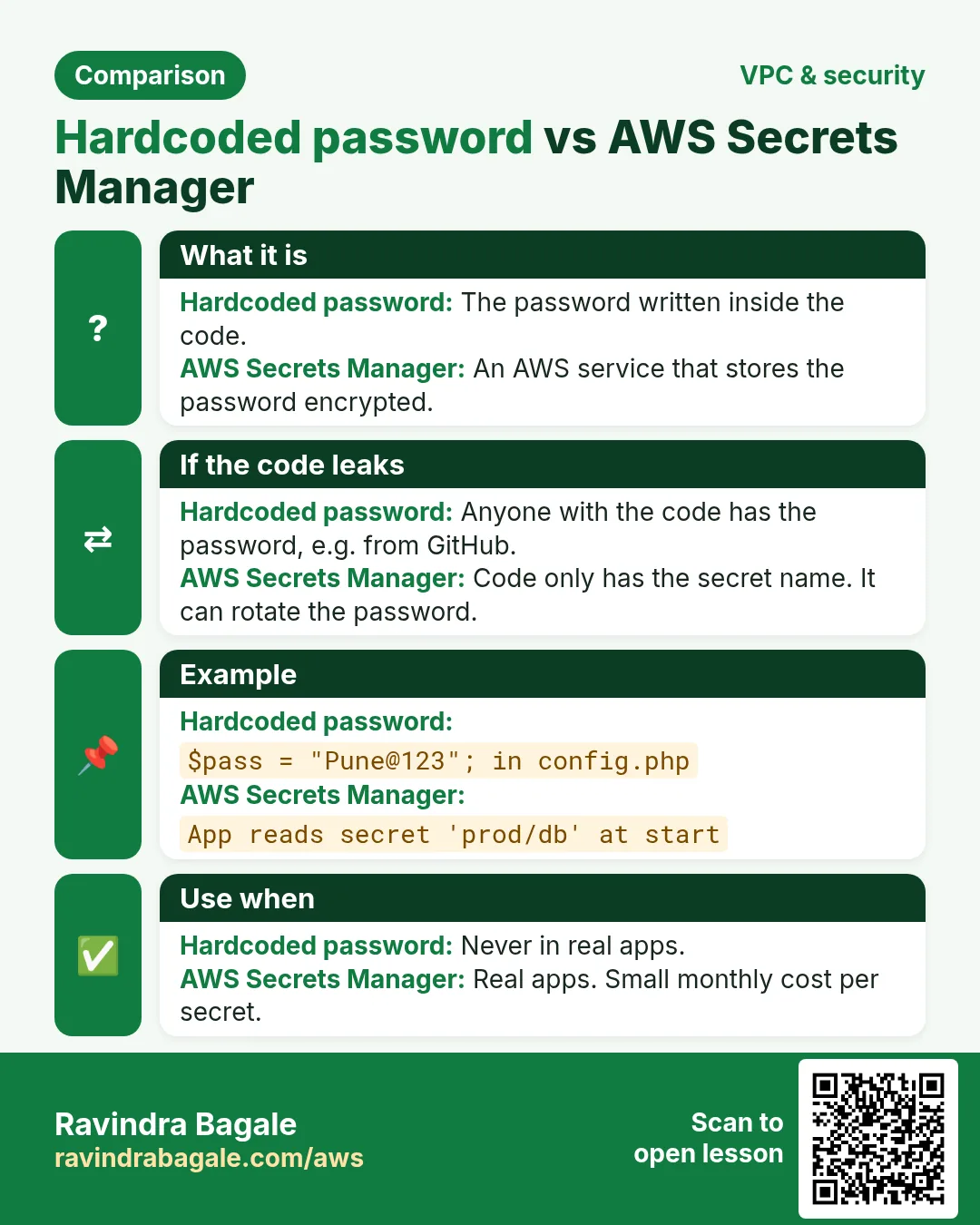
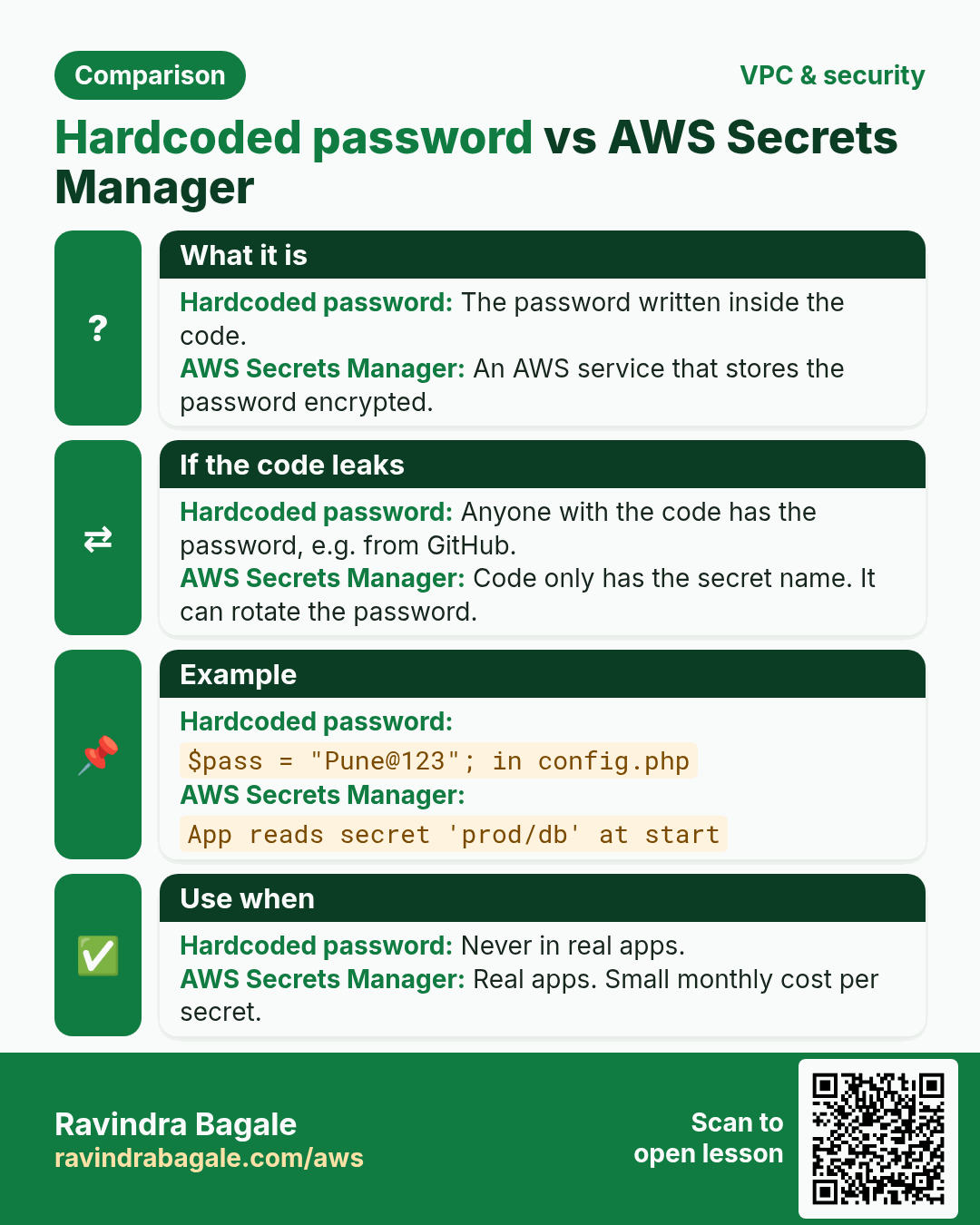
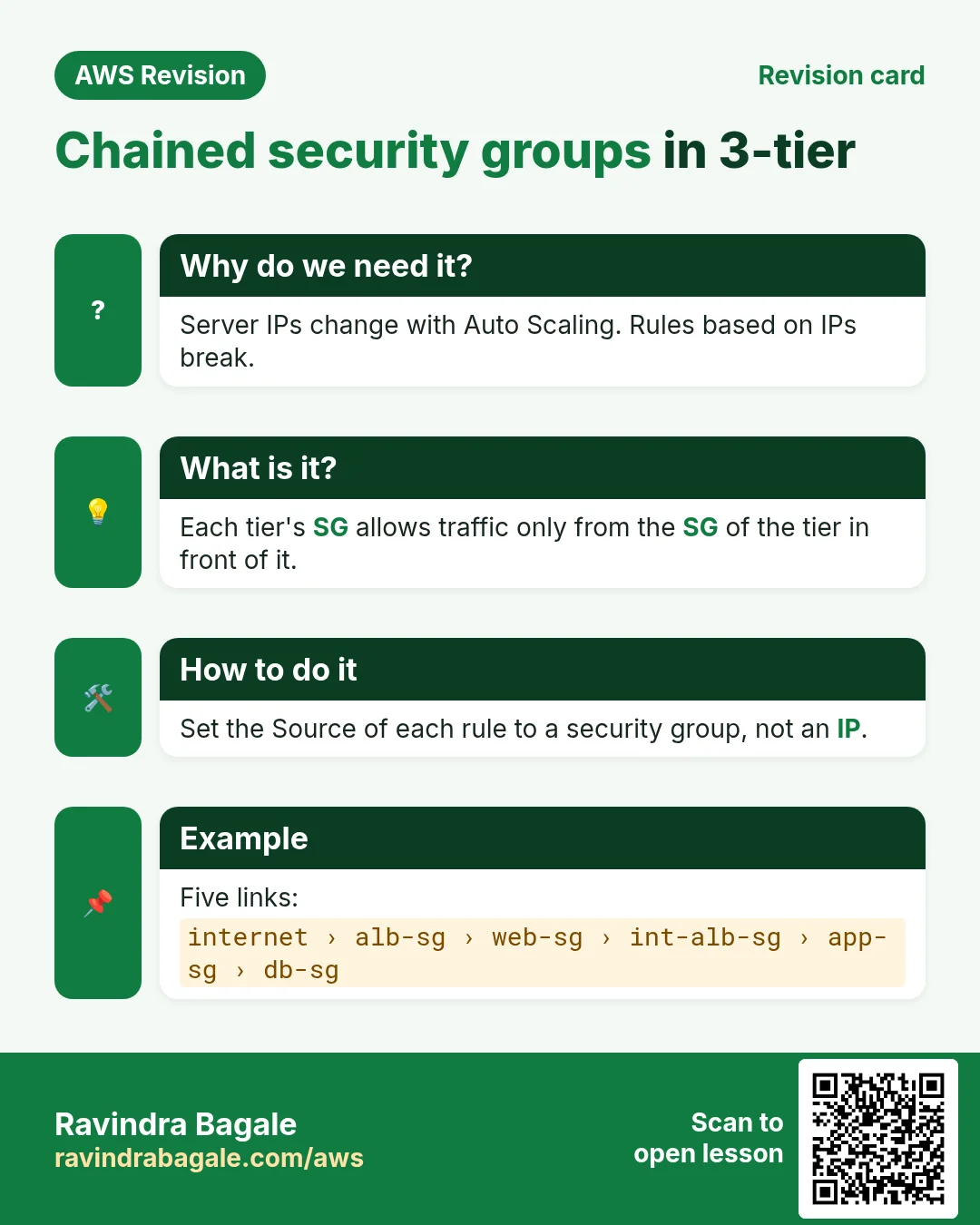
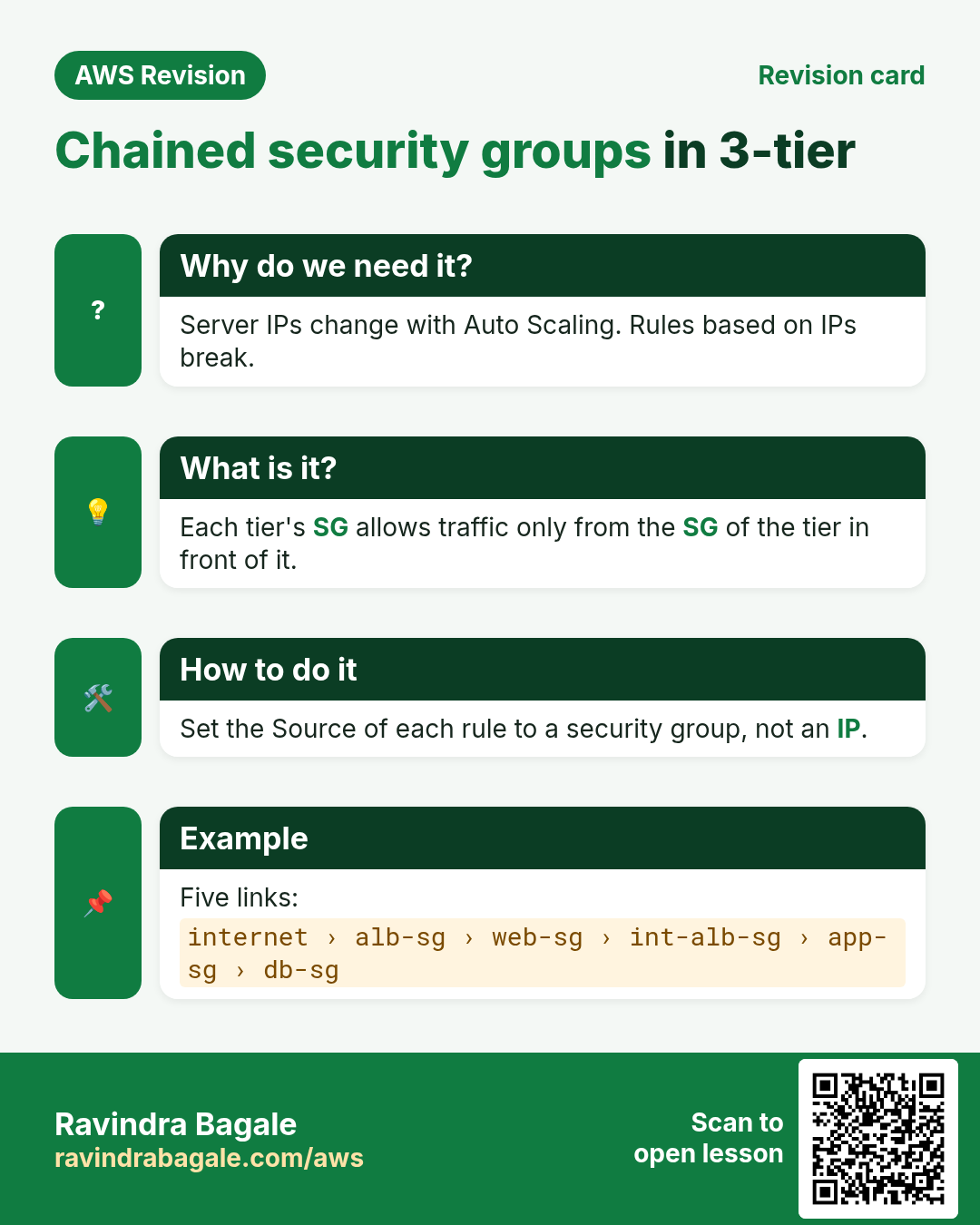
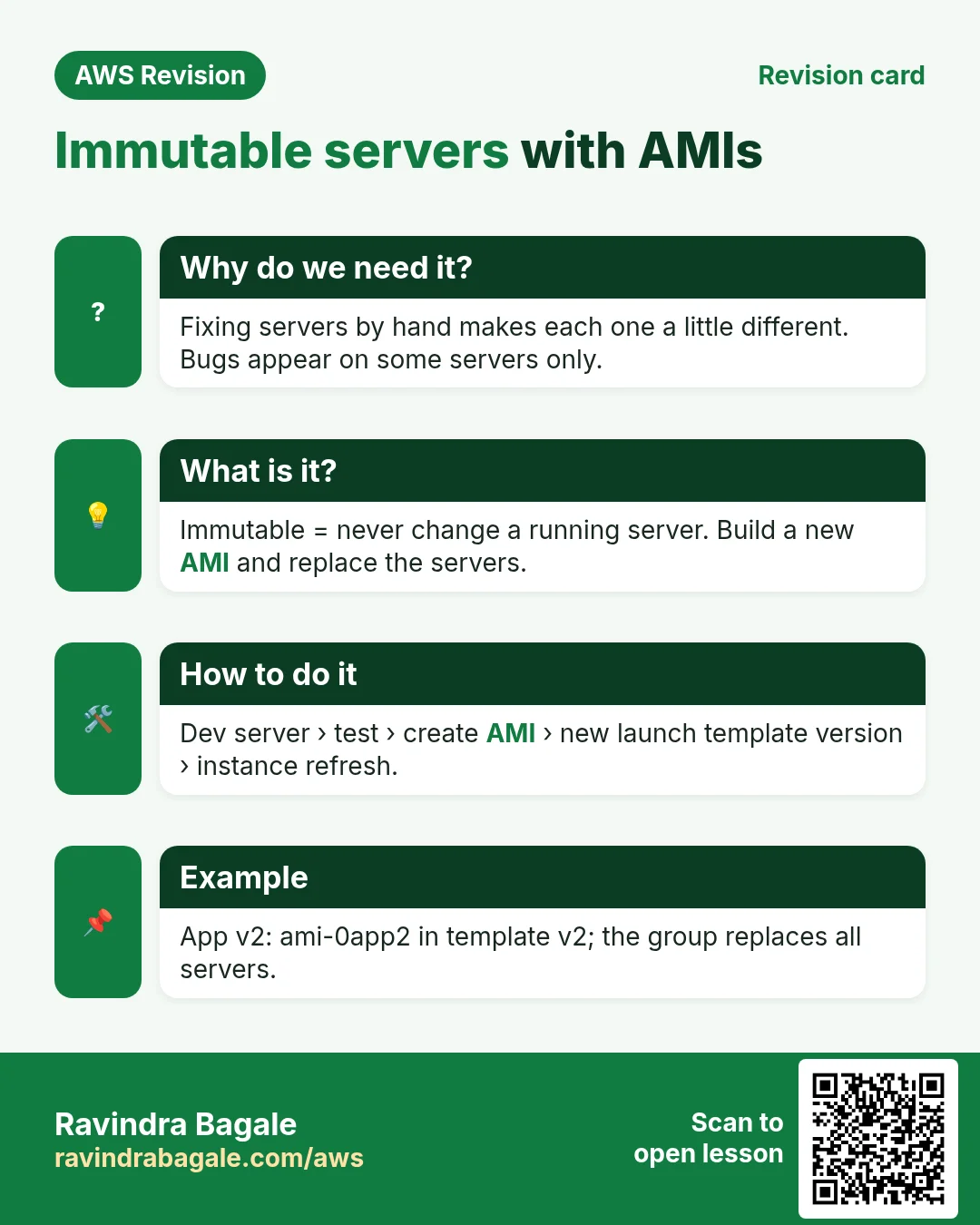
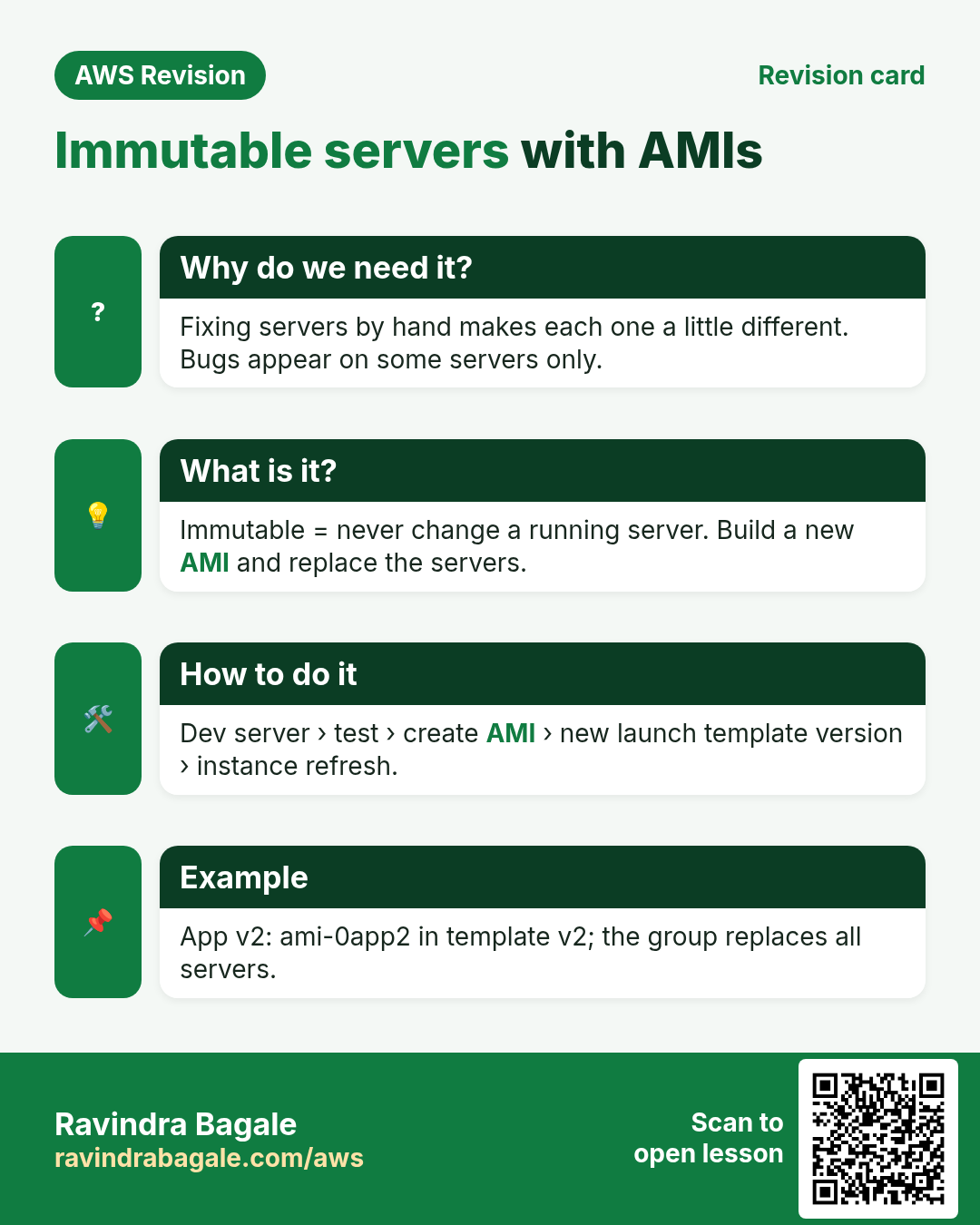
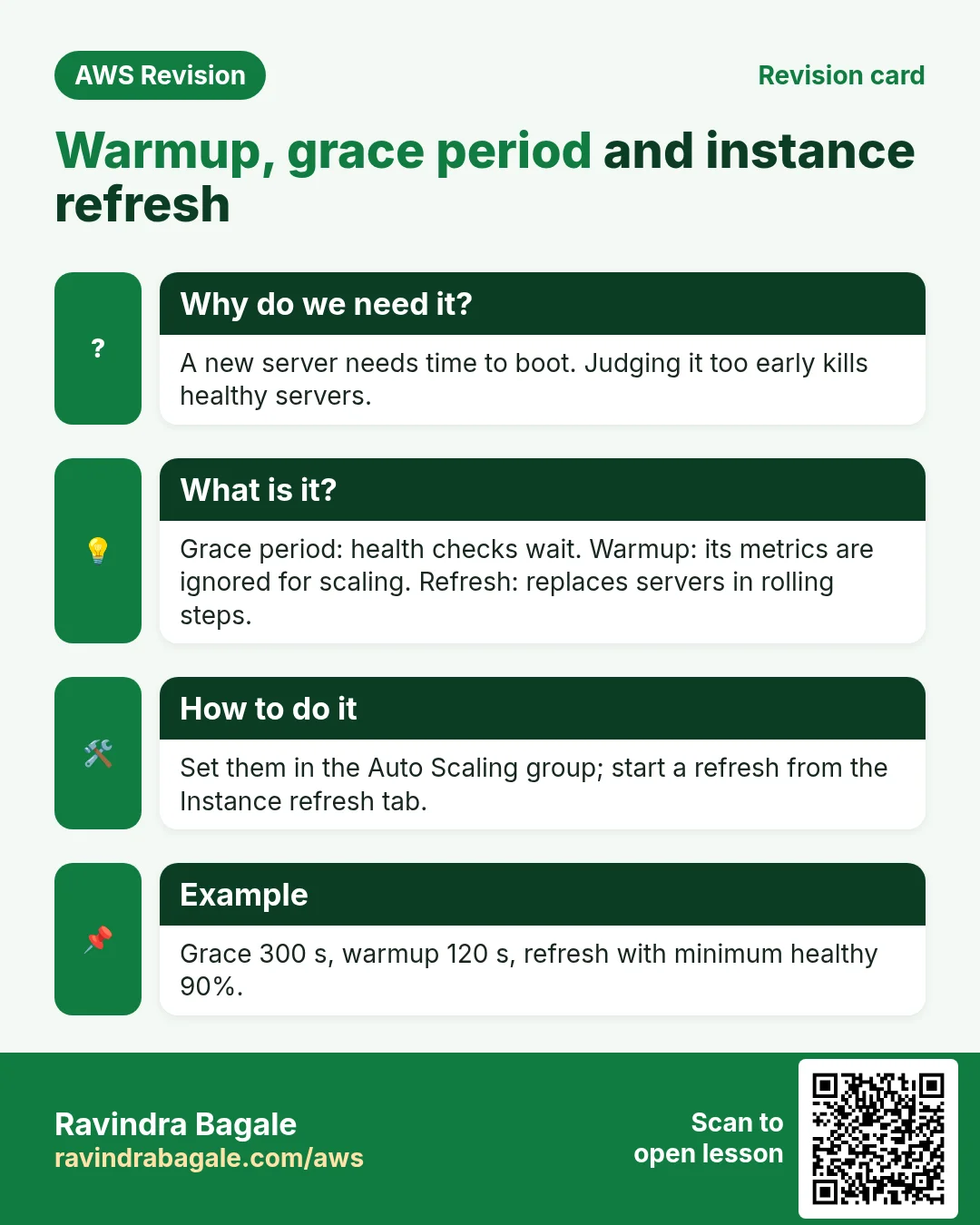
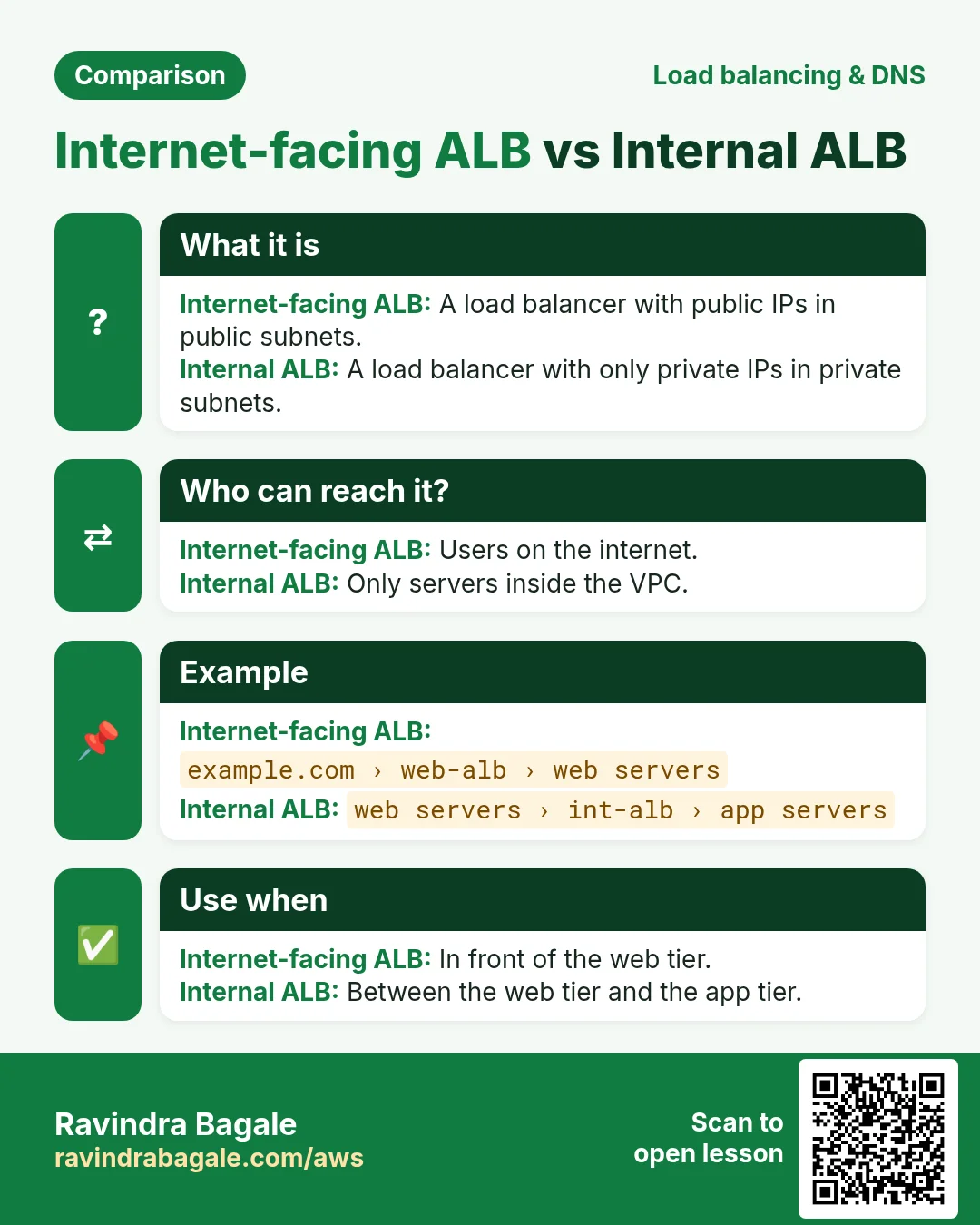
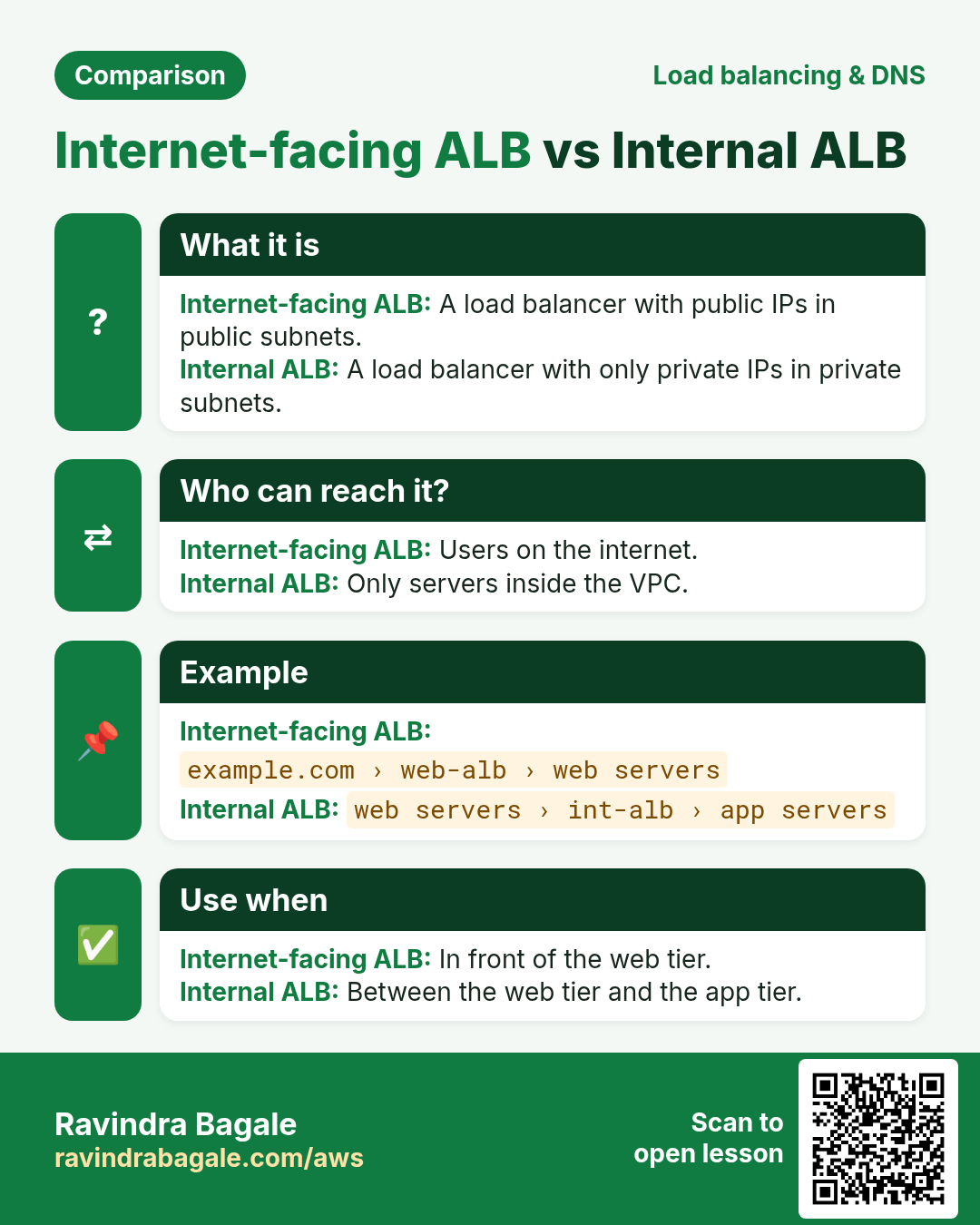
More cards: Ravi Sir's Cards: AWS VPC and Subnets.