Linux Logs Explained: journalctl, /var/log, rsyslog and logrotate with Examples
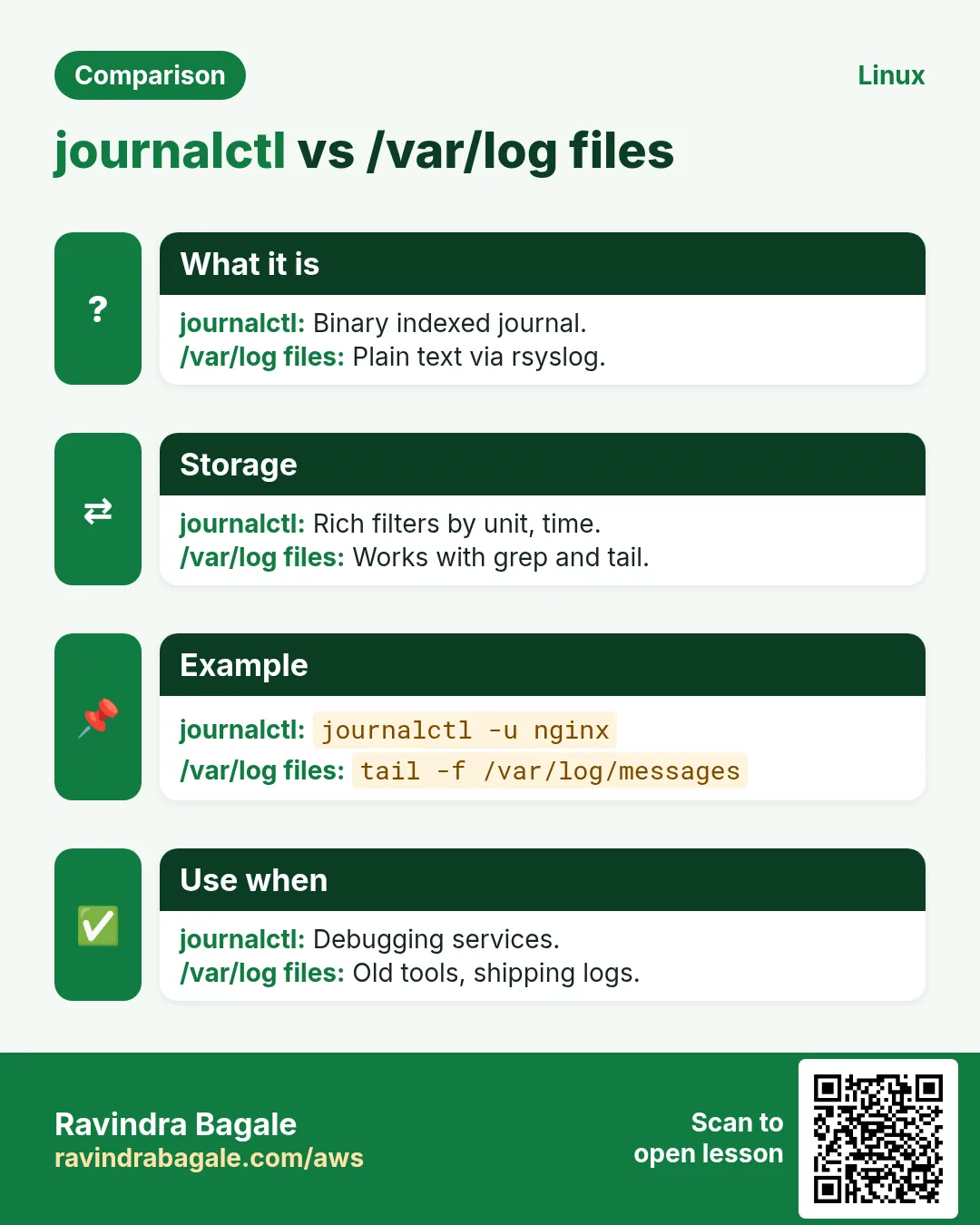
Logs are the diary of your server. When something breaks at 3 a.m., logs tell you what happened and when. Linux keeps logs in two places: the systemd journal (read with journalctl) and text files in /var/log (written by rsyslog). logrotate stops those files from filling the disk. This chapter teaches each command and option one by one.
What you'll learn in this chapter
- Know the main files in /var/log
- Filter the journal by unit, time, boot and priority
- Follow logs live and print JSON
- Keep the journal persistent and small
- Write rsyslog rules and send logs to a server
- Rotate logs with logrotate
1. An everyday example: the shop's bill book
Why do we need this?
A kirana shop in Kothrud writes every sale in a bill book. When the book is full, the owner ties it, labels it with the month and puts it on a shelf. After a year, he throws out the oldest books. If a customer complains, he opens the right book and finds the right date.
What is it?
Bill book = a log file. Writing each sale = a program writing log lines. Tying and labelling a full book = logrotate. Throwing the oldest = rotate 7. Finding the right date = journalctl --since or grep.
How to do it (step by step)
2. /var/log: the main log files
Why do we need this?
Many tools and older apps write plain text files. You must know which file to open.
What is it?
/var/log holds text logs. Most need sudo to read. Use tail -n, tail -f, less +F and grep on them.
| File | What is inside |
|---|---|
| /var/log/messages or syslog | General system messages |
| /var/log/secure or auth.log | Logins, sudo, SSH |
| /var/log/dmesg, kern.log | Kernel messages |
| /var/log/cron | cron job runs |
| /var/log/nginx/ | Web access and error logs |
| /var/log/dnf.log or apt/history.log | Package installs |
How to do it (step by step)
- See the files.
ls -lh /var/log | head -5Output:
-rw-------. 1 root root  1.2M Oct 25 12:10 messages
-rw-------. 1 root root  210K Oct 25 12:09 secure
-rw-------. 1 root root   18K Oct 25 12:00 cron
drwxr-xr-x. 2 root root  4.0K Oct 25 00:00 nginx
What it means: Mostly root-only.
- Last 5 SSH login lines.
sudo tail -n 5 /var/log/secureOutput:
Oct 25 12:09:41 web1 sshd[5120]: Accepted publickey for ec2-user from 49.36.1.10 port 51022 ssh2What it means: Who logged in, from where.
- Failed logins.
sudo grep 'Failed password' /var/log/secure | tail -n 3Output:
Oct 25 03:12:07 web1 sshd[901]: Failed password for root from 185.22.1.9 port 4410 ssh2What it means: Brute force attempts.
3. journalctl: read the whole journal
Why do we need this?
Every systemd service sends its output to the journal. One command reads all of it.
What is it?
journalctl alone shows all entries oldest first in a pager. -r = newest first. -n 20 = last 20 lines. --no-pager = print directly. -e = jump to the end. Use sudo or join group systemd-journal (or adm) to see all.
How to do it (step by step)
- Last 3 entries.
sudo journalctl -n 3 --no-pagerOutput:
Oct 25 12:10:01 web1 CROND[5201]: (root) CMD (/usr/local/bin/backup.sh)
Oct 25 12:10:02 web1 systemd[1]: Started Session 41 of User ec2-user.
Oct 25 12:10:05 web1 sudo[5222]: ec2-user : COMMAND=/bin/journalctl -n 3
What it means: Time, host, program[PID], message.
- Newest first.
sudo journalctl -r -n 2 --no-pagerOutput:
Oct 25 12:10:05 web1 sudo[5222]: ...
Oct 25 12:10:02 web1 systemd[1]: ...
What it means: Reverse order.
4. journalctl -u: one service
Why do we need this?
You care about one broken service, not the whole system.
What is it?
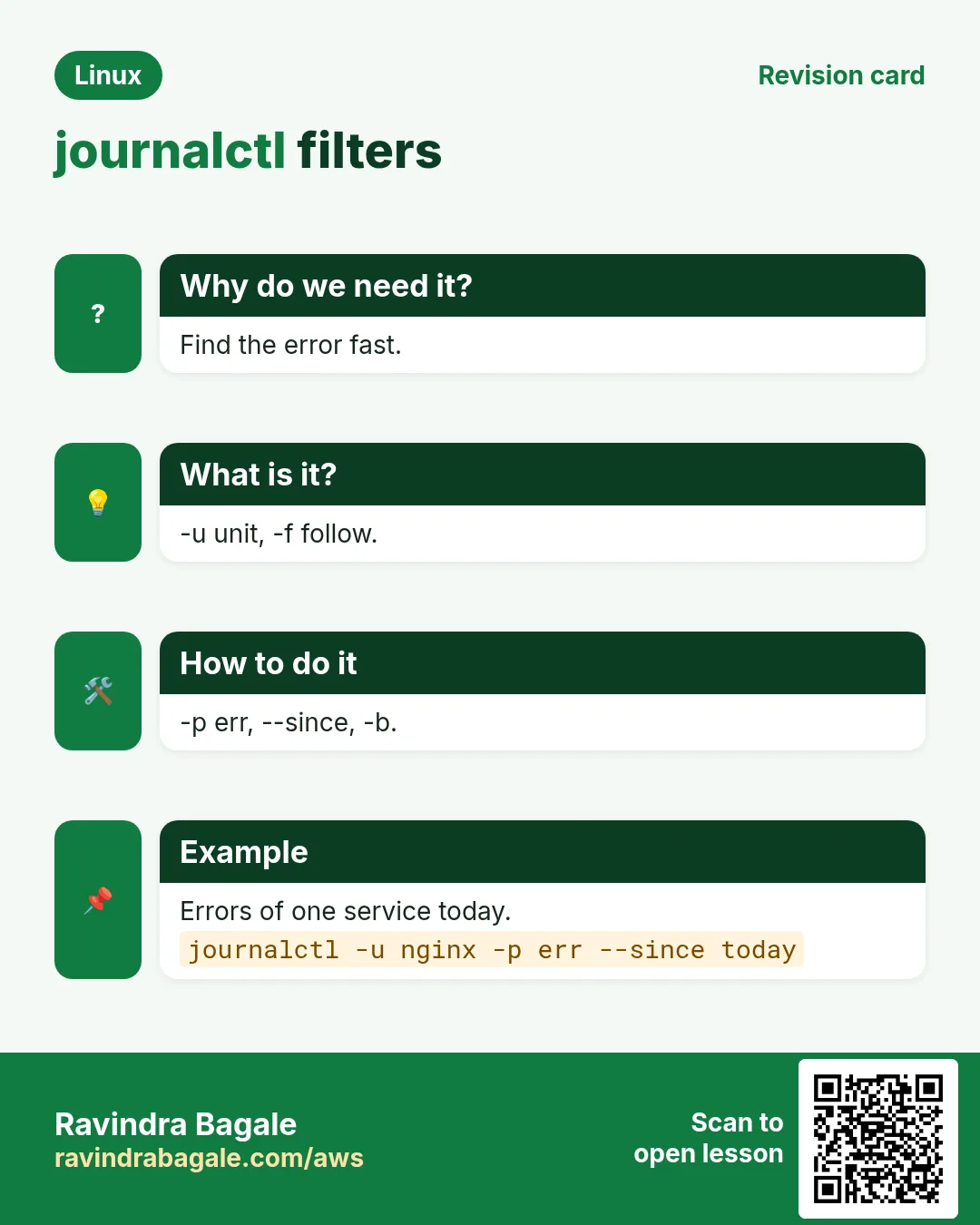
-u NAME shows only that unit. Repeat -u for several. Mix with -n, -f, --since. Works with timers and other units too.
How to do it (step by step)
- Last 20 lines of the API.
journalctl -u shop-api -n 20 --no-pagerOutput:
Oct 25 12:01:44 web1 node[4410]: Error: cannot connect to DB at 10.0.0.9:5432
Oct 25 12:01:44 web1 systemd[1]: shop-api.service: Main process exited, code=exited, status=1/FAILURE
What it means: The app error plus systemd's view.
- Two units together.
journalctl -u nginx -u php-fpm -n 10 --no-pagerOutput:
(lines from both, mixed by time)What it means: Good for request chains.
5. journalctl -f: follow live
Why do we need this?
When you test a fix, you want to see new log lines appear as they happen.
What is it?
-f keeps printing new lines, like tail -f. Ctrl+C to stop. Combine: journalctl -fu NAME. tail -F FILE does the same for text files and survives rotation.
How to do it (step by step)
- Watch the API while you restart it.
journalctl -fu shop-apiOutput:
Oct 25 12:20:11 web1 systemd[1]: Started Shop API.
Oct 25 12:20:12 web1 node[5301]: listening on :3000
What it means: Open in a second terminal.
- Follow nginx errors.
sudo tail -F /var/log/nginx/error.logOutput:
2026/10/25 12:21:03 [error] 1013#0: *77 connect() failed (111: Connection refused) while connecting to upstreamWhat it means: -F re-opens after rotation.
6. --since and --until: time windows
Why do we need this?
An alert says 'errors at 2:15 p.m.'. You want only that window.
What is it?
--since and --until take '2026-10-25 14:00', 'today', 'yesterday', '1 hour ago', '-30m'. Times are local unless you add UTC.
How to do it (step by step)
- The incident window.
journalctl -u shop-api --since '2026-10-25 14:10' --until '2026-10-25 14:20' --no-pager | wc -lOutput:
42What it means: 42 lines to read, not 40,000.
- Last 30 minutes.
journalctl --since '30 min ago' -p err --no-pagerOutput:
Oct 25 12:01:44 web1 node[4410]: Error: cannot connect to DBWhat it means: Fast health look.
7. -p: filter by priority
Why do we need this?
Most lines are info. In an incident you want errors only.
What is it?
Levels: 0 emerg, 1 alert, 2 crit, 3 err, 4 warning, 5 notice, 6 info, 7 debug. -p err shows err and more serious. -p warning..err gives a range.
How to do it (step by step)
- Errors this boot.
journalctl -b -p err --no-pager | head -3Output:
Oct 25 09:10:05 web1 kernel: xfs: Ending clean mount
Oct 25 12:01:44 web1 node[4410]: Error: cannot connect to DB
What it means: Short list to fix.
- Warnings only.
journalctl -p warning..warning --since today --no-pager | wc -lOutput:
17What it means: Exactly one level.
8. -b and --list-boots: logs per boot
Why do we need this?
After a crash and reboot, you need the logs from before the reboot.
What is it?
-b = this boot. -b -1 = the previous boot. --list-boots shows all saved boots. Needs a persistent journal to keep old boots.
How to do it (step by step)
- List boots.
journalctl --list-boots --no-pagerOutput:
-1 6a1f... Sat 2026-10-24 08:01:10 IST—Sun 2026-10-25 09:09:50 IST
 0 9c2e... Sun 2026-10-25 09:10:00 IST—Sun 2026-10-25 12:22:00 IST
What it means: Two boots saved.
- End of the previous boot.
journalctl -b -1 -n 5 --no-pagerOutput:
Oct 25 09:09:48 web1 kernel: Out of memory: Killed process 4410 (node)What it means: OOM killed the app before reboot.
9. -k and dmesg: kernel messages
Why do we need this?
Disk errors, out-of-memory kills and USB problems are reported by the kernel.
What is it?
journalctl -k shows kernel messages for this boot. dmesg -T prints the kernel ring buffer with human times. dmesg -w follows. Search for 'Out of memory', 'I/O error'.
How to do it (step by step)
- Look for OOM kills.
sudo dmesg -T | grep -i 'out of memory'Output:
[Sun Oct 25 09:09:48 2026] Out of memory: Killed process 4410 (node) total-vm:2.1GBWhat it means: The kernel killed the app.
- Kernel errors only.
journalctl -k -p err --no-pagerOutput:
Oct 25 09:10:03 web1 kernel: nvme1n1: I/O error, dev nvme1n1, sector 2048What it means: A disk problem.
10. -o: output formats, json and grep
Why do we need this?
Sometimes you need exact fields for a script or a log tool, or just the message.
What is it?
-o short (default), -o short-iso (ISO times), -o cat (message only), -o json or json-pretty (all fields). -g PATTERN (or --grep) searches messages. _PID=, _UID=, SYSLOG_IDENTIFIER= filter by field.
How to do it (step by step)
- JSON for one line.
journalctl -u shop-api -n 1 -o json-pretty --no-pager | head -5Output:
{
	"_PID" : "4410",
	"PRIORITY" : "3",
	"MESSAGE" : "Error: cannot connect to DB at 10.0.0.9:5432",
What it means: Every field is there.
- Search the message.
journalctl -u shop-api -g 'timeout' --since today --no-pager | wc -lOutput:
12What it means: 12 timeouts today.
- Messages only.
journalctl -u shop-api -n 2 -o cat --no-pagerOutput:
listening on :3000
GET /health 200
What it means: No dates, easy to read.
11. Persistent journal, --disk-usage and --vacuum
Why do we need this?
On some systems the journal lives in RAM and vanishes at reboot. On others it slowly fills the disk.
What is it?
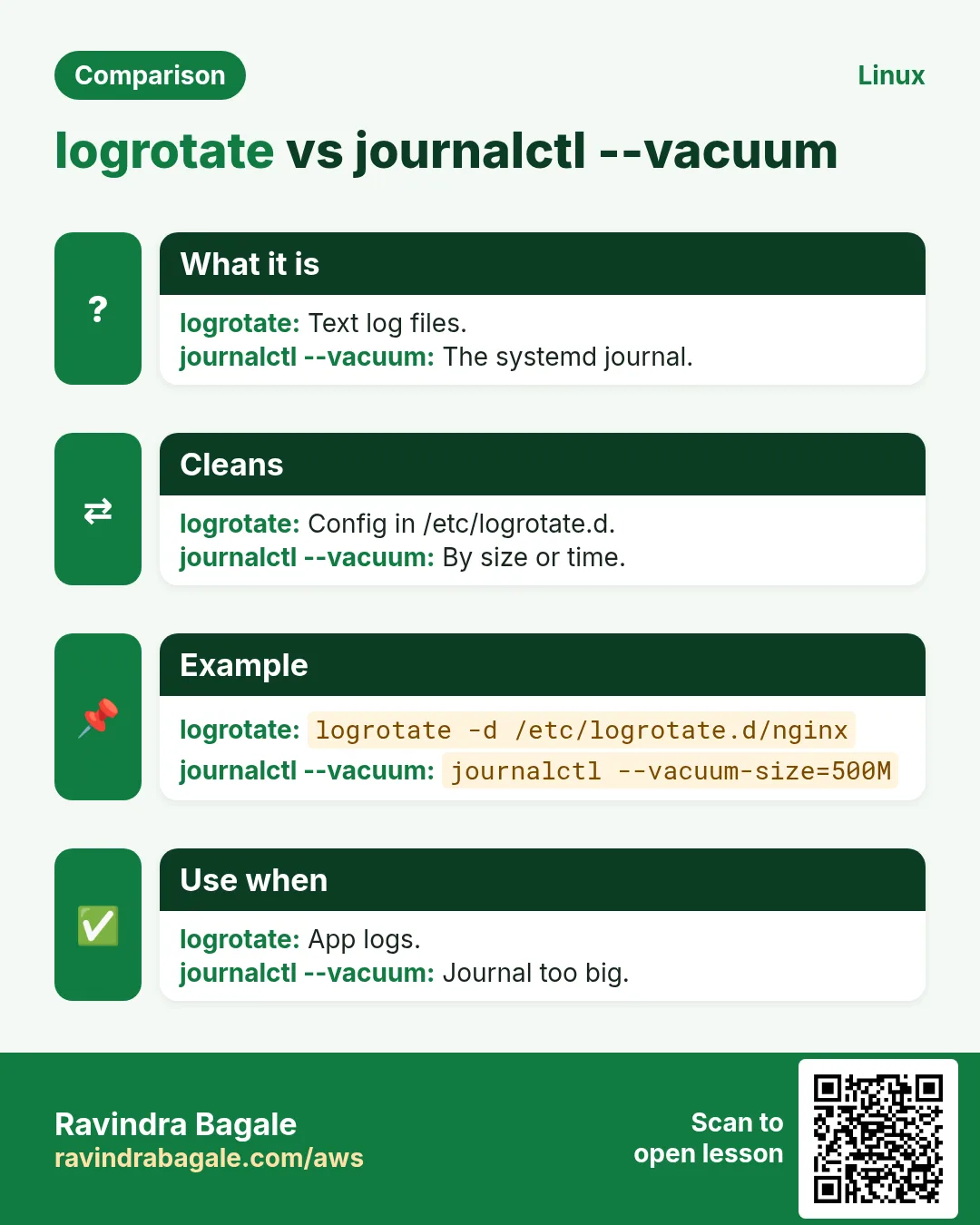
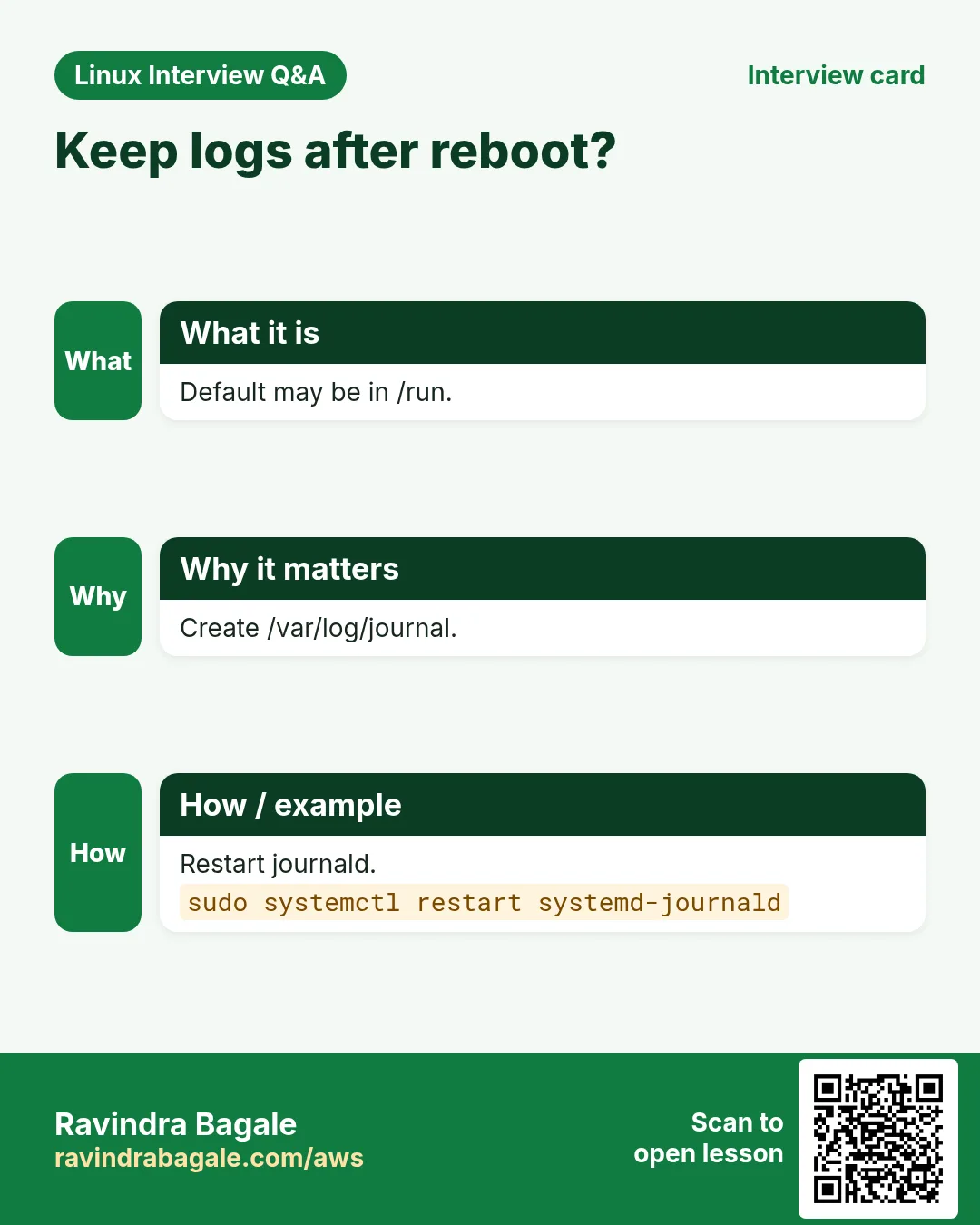
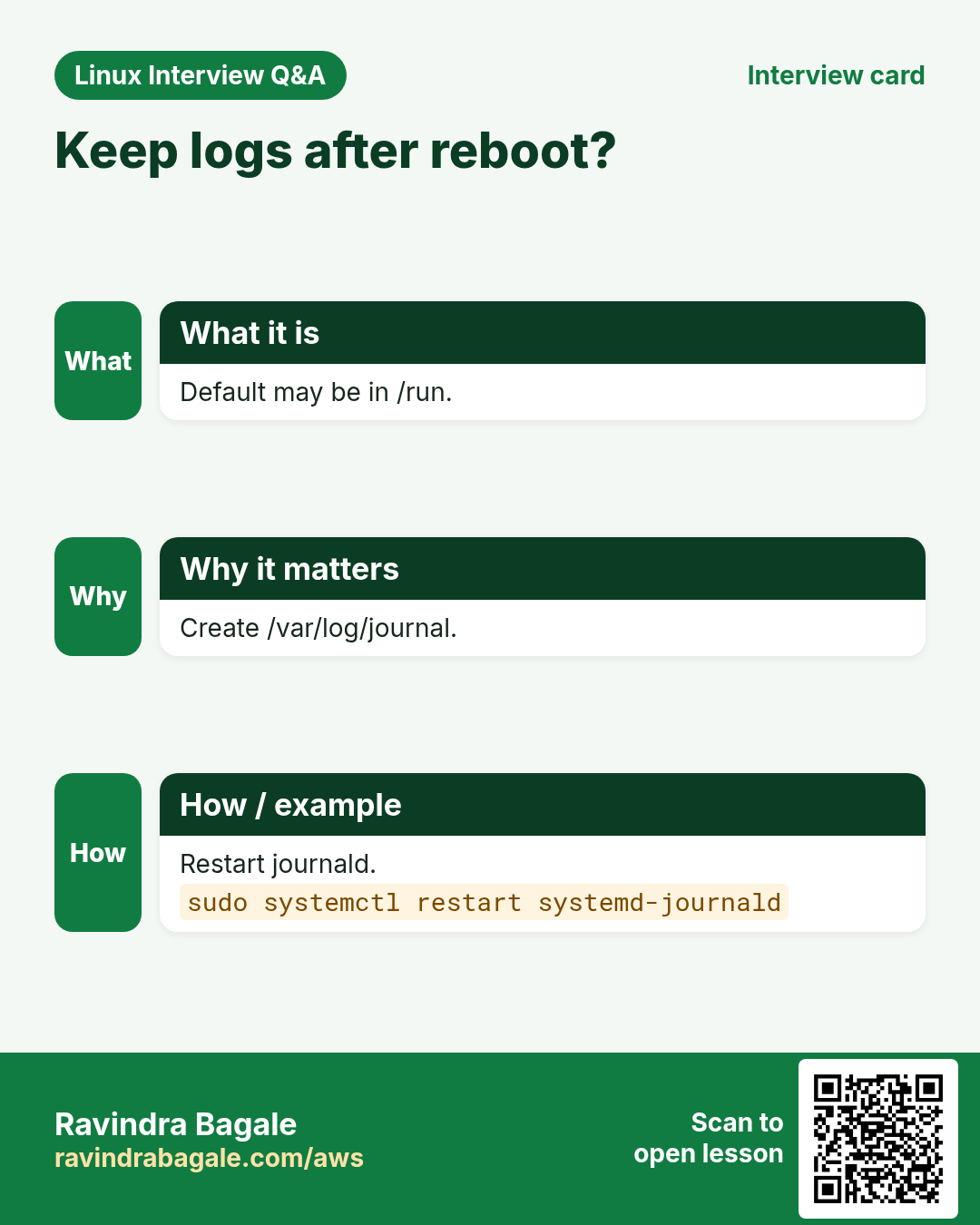
If /var/log/journal exists, logs survive reboot (Storage=persistent in /etc/systemd/journald.conf). --disk-usage shows size. --vacuum-size=500M or --vacuum-time=14d deletes old files. SystemMaxUse=1G sets a limit.
How to do it (step by step)
- Size now.
journalctl --disk-usageOutput:
Archived and active journals take up 2.3G in the file system.What it means: Too big for a small disk.
- Trim to 500 MB.
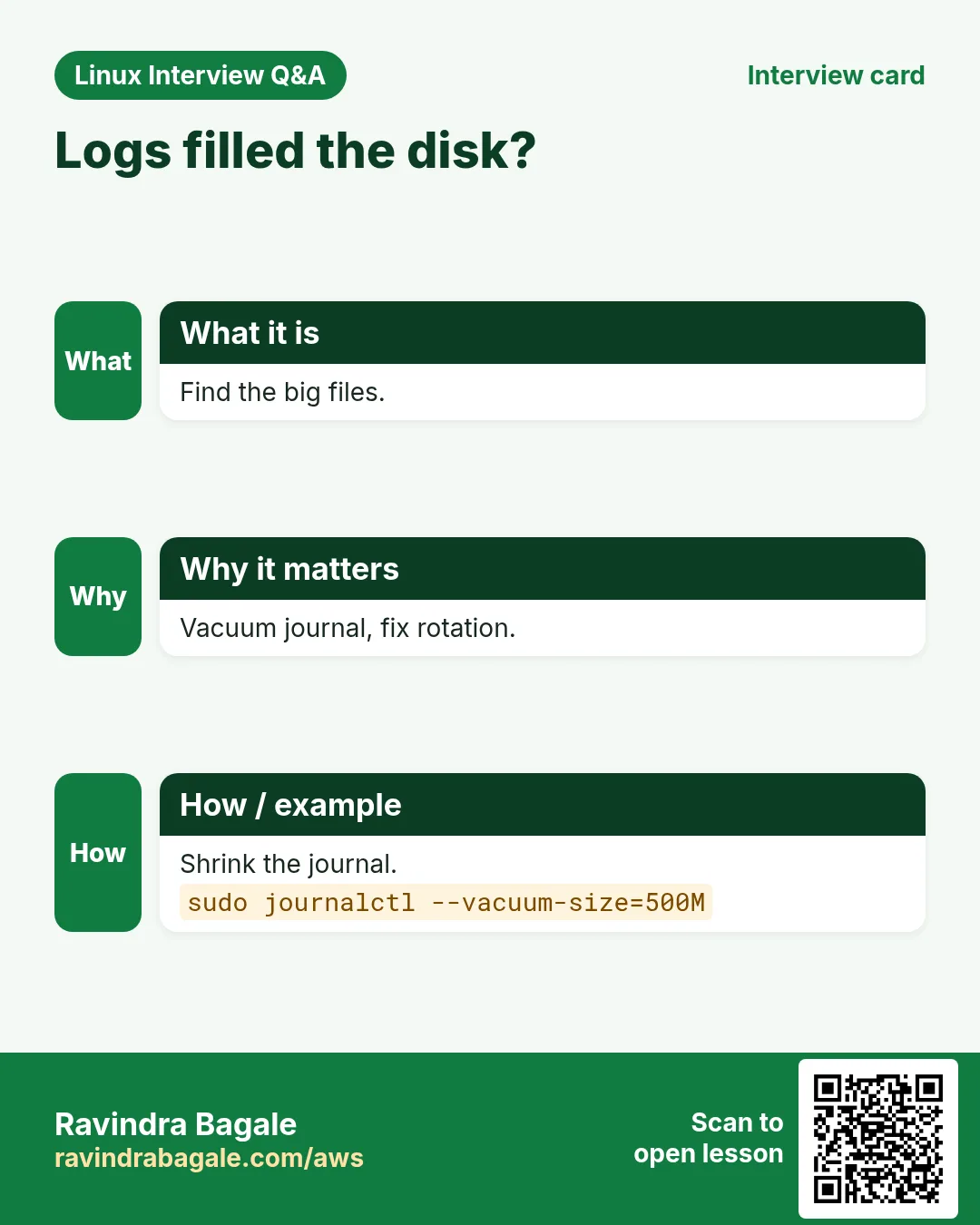
sudo journalctl --vacuum-size=500MOutput:
Vacuuming done, freed 1.8G of archived journals from /var/log/journal/9c2e....What it means: Old archives removed.
- Make it persistent and capped.
sudo mkdir -p /var/log/journal && printf '[Journal]\nStorage=persistent\nSystemMaxUse=1G\n' | sudo tee /etc/systemd/journald.conf.d/size.conf && sudo systemctl restart systemd-journaldOutput:
[Journal]
Storage=persistent
SystemMaxUse=1G
What it means: Survives reboot, never over 1 GB.
12. logger: write your own log lines
Why do we need this?
Your shell scripts should leave a record in the same place as everything else.
What is it?
logger 'message' writes to syslog/journal. -t TAG sets the program name. -p user.err sets priority. Then search with journalctl -t TAG.
How to do it (step by step)
- Log from a backup script.
logger -t backup -p user.err 'backup failed: disk full'Output:
(no output)What it means: It is now in the journal and /var/log/messages.
- Find it.
journalctl -t backup -n 1 --no-pagerOutput:
Oct 25 12:30:00 web1 backup[5410]: backup failed: disk fullWhat it means: Tag makes it easy to find.
13. rsyslog: rules and remote logging
Why do we need this?
You may want app logs in their own file, or all servers' logs on one central box that survives if a server dies.
What is it?
Config is /etc/rsyslog.conf plus /etc/rsyslog.d/*.conf. A rule is 'facility.priority destination'. Example: local0.* /var/log/myapp.log. @host:514 sends UDP, @@host:514 sends TCP. Check with rsyslogd -N1, then restart rsyslog.
How to do it (step by step)
- Send local0 to its own file.
echo 'local0.* /var/log/myapp.log' | sudo tee /etc/rsyslog.d/30-myapp.conf && sudo rsyslogd -N1 && sudo systemctl restart rsyslogOutput:
rsyslogd: End of config validation run. Bye.What it means: Config is valid.
- Test it.
logger -p local0.info 'order 1001 placed' && sudo tail -n1 /var/log/myapp.logOutput:
Oct 25 12:35:10 web1 ec2-user: order 1001 placedWhat it means: The rule works.
- Forward everything to a log server by TCP.
echo '*.* @@10.0.0.50:514' | sudo tee /etc/rsyslog.d/90-forward.conf && sudo systemctl restart rsyslogOutput:
*.* @@10.0.0.50:514What it means: Two @ means TCP.
14. logrotate: stop logs from filling the disk
Why do we need this?
An app log can grow to 50 GB and stop the whole server. logrotate keeps only what you need.
What is it?
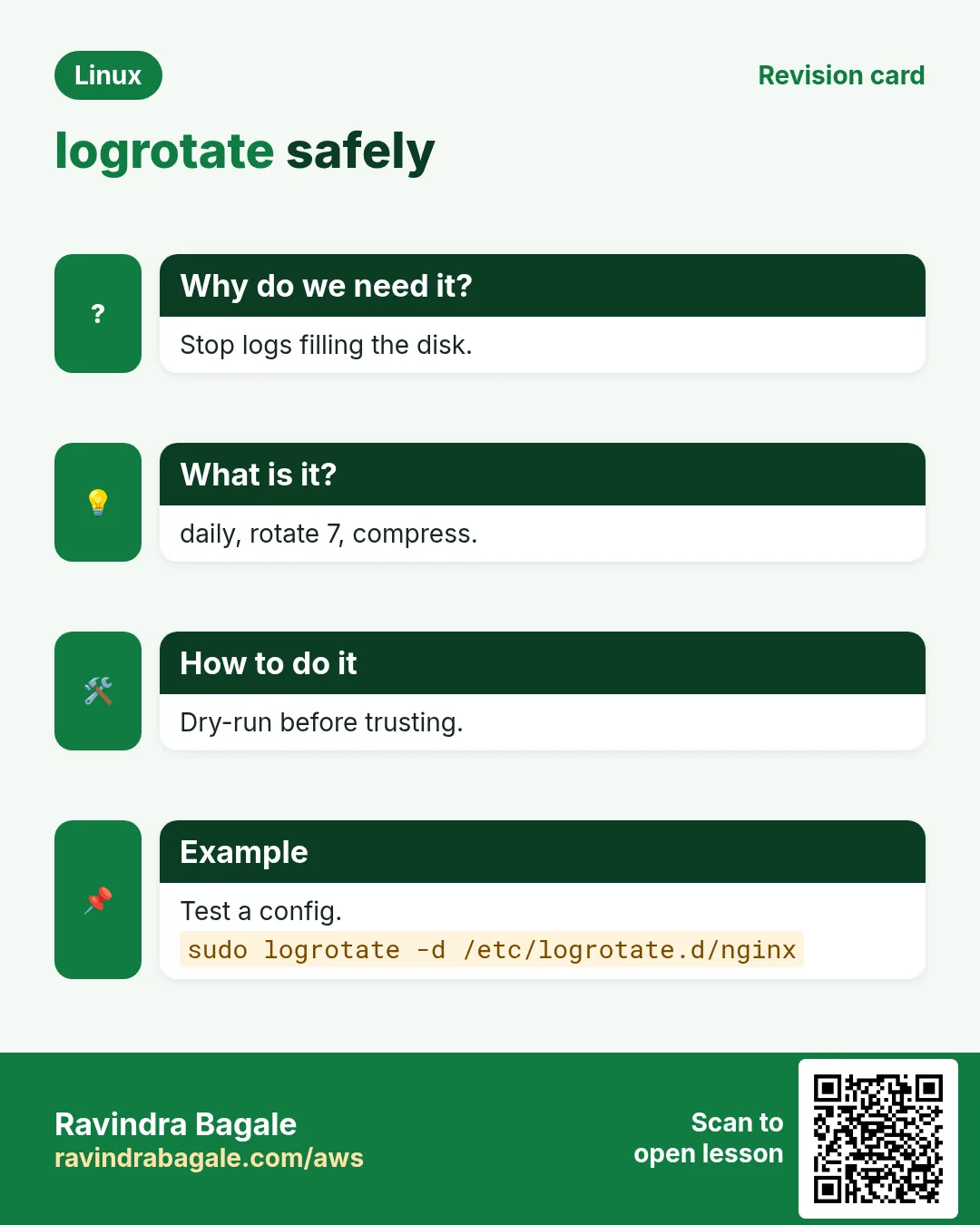
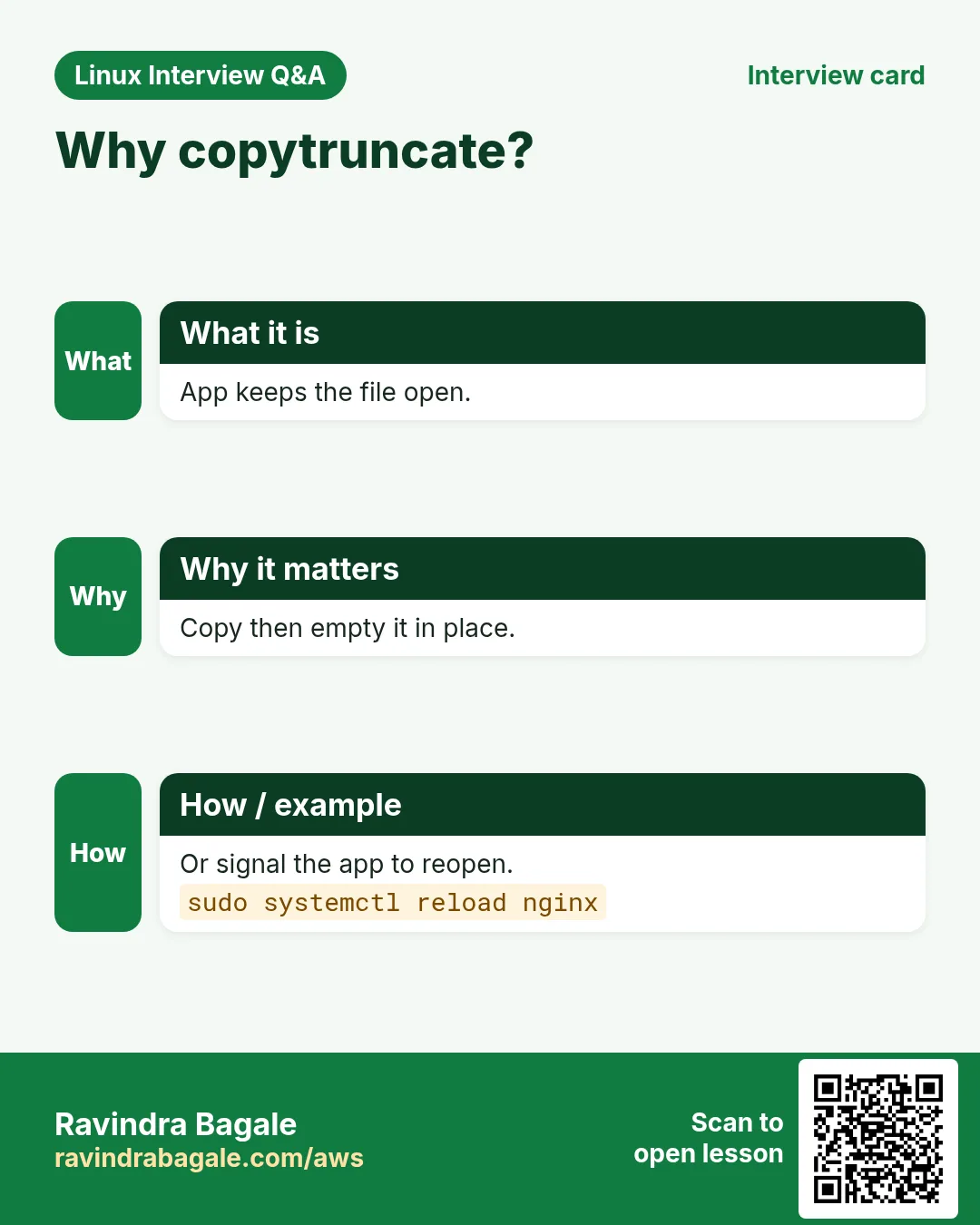
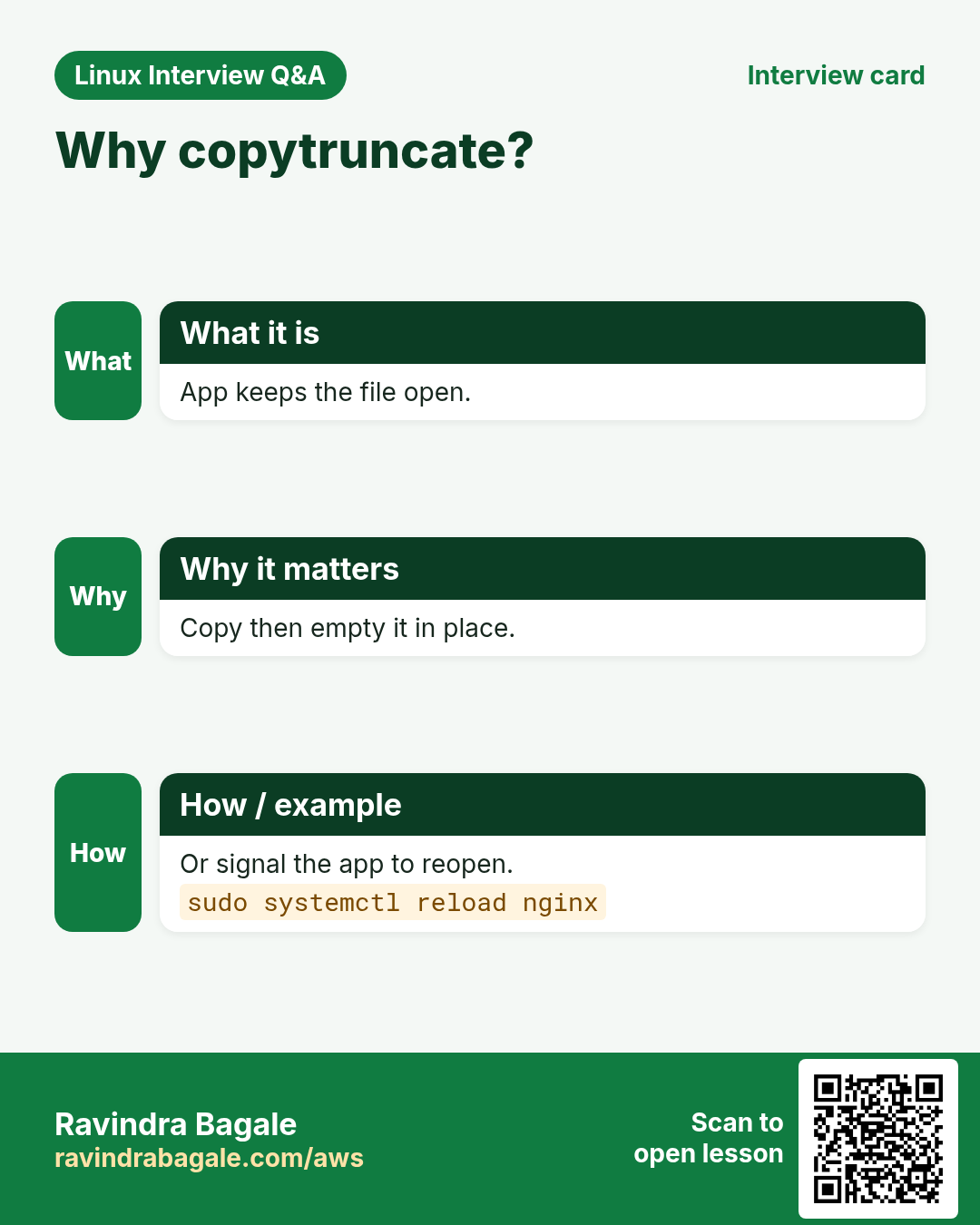
Main config /etc/logrotate.conf, app configs in /etc/logrotate.d/. Common options: daily/weekly, rotate 7, compress, delaycompress, missingok, notifempty, maxsize 100M, create 0640 user group, copytruncate (for apps that cannot reopen), postrotate ... endscript. It runs daily from a timer or cron. -d = dry run, -f = force now.
| Option | Meaning |
|---|---|
| rotate 7 | Keep 7 old files |
| compress | gzip old files |
| delaycompress | Compress from the second old file |
| missingok | No error if the log is missing |
| notifempty | Skip empty logs |
| copytruncate | Copy then empty in place |
How to do it (step by step)
- Write a rule for the app.
sudo tee /etc/logrotate.d/shop <<'X'
/var/log/shop/*.log {
    daily
    rotate 7
    compress
    delaycompress
    missingok
    notifempty
    create 0640 shop shop
    postrotate
        systemctl reload shop-api >/dev/null 2>&1 || true
    endscript
}
X
Output:
(file text)What it means: One week of logs, compressed.
- Dry run.
sudo logrotate -d /etc/logrotate.d/shopOutput:
rotating pattern: /var/log/shop/*.log  after 1 days (7 rotations)
considering log /var/log/shop/api.log
What it means: Nothing changes; it only explains.
- Force now and check.
sudo logrotate -f /etc/logrotate.d/shop && ls /var/log/shopOutput:
api.log api.log.1What it means: Next run makes api.log.2.gz.
15. Real examples from many industries
Why do we need this?
The same Linux skill shows up in every kind of company. Seeing it in many places helps you remember it.
What is it?
Each row is a made-up team. It shows who uses this and how.
How to do it (step by step)
| Team and city | How they use it | Command |
|---|---|---|
| Pooja, insurance, Pune | Finds failed logins in auth logs every morning | grep 'Failed password' /var/log/secure |
| Liam, streaming, Dublin | Follows a service live during deploys | journalctl -fu player-api |
| Fatima, telecom, Cairo | Ships all server logs to a central box | *.* @@logs.internal:514 |
| Chen, factory sensors, Shenzhen | Caps journal size on small devices | journalctl --vacuum-size=200M |
| Ana, retail, São Paulo | Rotates huge app logs daily | logrotate -f /etc/logrotate.d/pos |
| Vikram, hospital, Nagpur | Reads logs from before a crash reboot | journalctl -b -1 -p err |
16. Common errors and how to fix them
Why do we need this?
Everyone hits these errors. Knowing the cause saves hours.
What is it?
Read the exact message first. Then match it to a row below.
How to do it (step by step)
| Error you see | Why it happens | How to fix |
|---|---|---|
No journal files were found. | Not persistent and nothing for that boot, or no permission | Use sudo; create /var/log/journal for future boots.sudo mkdir -p /var/log/journal |
Hint: You are currently not seeing messages from other users and the system. | Your user is not in systemd-journal/adm | Use sudo or add the group.sudo usermod -aG systemd-journal $USER |
Failed to parse timestamp: 2pm | journalctl does not know that format | Use 'YYYY-MM-DD HH:MM' or '1 hour ago'.journalctl --since '2026-10-25 14:00' |
Data from the specified boot (-1) is not available | Journal not persistent | Enable persistent storage.sudo mkdir -p /var/log/journal |
tail: cannot open '/var/log/secure' for reading: Permission denied | Root-only file | Use sudo.sudo tail /var/log/secure |
No space left on device (from huge logs) | Logs never rotated | Find big files, rotate and vacuum.sudo du -sh /var/log/* | sort -h | tail |
error: skipping "/var/log/shop/api.log" because parent directory has insecure permissions | Folder writable by group/others | Add a su line or fix permissions.su shop shop |
rsyslogd: error during parsing file /etc/rsyslog.d/30-myapp.conf | Typo in a rule | Validate before restart.sudo rsyslogd -N1 |
Disk still full after deleting a log | App still holds the deleted file open | Restart the app or truncate instead of delete.sudo lsof +L1 |
Logs stop after rotation | App writes to the old renamed file | Reload in postrotate or use copytruncate.copytruncate |
17. Troubleshooting step by step
Why do we need this?
When you cannot find the log you need, check where the program writes, then filter down.
What is it?
Go top to bottom. Stop at the first step that shows the problem.
How to do it (step by step)
- Is it a systemd service? Read its unit logs.
journalctl -u shop-api -n 50 --no-pager- Find files it writes.
sudo lsof -p $(systemctl show -p MainPID --value shop-api) | grep log- Narrow by time and priority.
journalctl --since '1 hour ago' -p warning --no-pager- Check the kernel side.
journalctl -k -p err --no-pager- Check disk use of logs.
journalctl --disk-usage; sudo du -sh /var/log- Test rotation config.
sudo logrotate -d /etc/logrotate.conf18. Lab 1: Investigate an incident with journalctl
Why do we need this?
Create log lines with logger, then find them by tag, priority and time, and print JSON.
What is it?
A full hands-on lab. Run every step on a test Linux machine (an EC2 instance, a VM, or WSL).
How to do it (step by step)
- Make some noise.
for i in 1 2 3; do logger -t lab -p user.info "order $i ok"; done; logger -t lab -p user.err 'payment gateway timeout'Output:
(no output)- By tag.
journalctl -t lab --no-pager -o catOutput:
order 1 ok
order 2 ok
order 3 ok
payment gateway timeout- Errors only.
journalctl -t lab -p err --no-pager -o catOutput:
payment gateway timeout- Last 10 minutes.
journalctl -t lab --since '10 min ago' --no-pager | wc -lOutput:
4- JSON fields.
journalctl -t lab -p err -o json-pretty --no-pager | grep -E 'PRIORITY|MESSAGE'Output:
	"PRIORITY" : "3",
	"MESSAGE" : "payment gateway timeout",
19. Lab 2: Own app log file with rsyslog and logrotate
Why do we need this?
Route local1 to /var/log/lab.log and rotate it daily keeping 3 copies.
What is it?
A full hands-on lab. Run every step on a test Linux machine (an EC2 instance, a VM, or WSL).
How to do it (step by step)
- rsyslog rule.
echo 'local1.* /var/log/lab.log' | sudo tee /etc/rsyslog.d/40-lab.conf && sudo rsyslogd -N1 && sudo systemctl restart rsyslogOutput:
rsyslogd: End of config validation run. Bye.- Write and read.
logger -p local1.info 'lab line' && sudo tail -n1 /var/log/lab.logOutput:
Oct 25 12:40:00 web1 ec2-user: lab line- Rotate rule.
printf '/var/log/lab.log {\n daily\n rotate 3\n compress\n missingok\n notifempty\n}\n' | sudo tee /etc/logrotate.d/labOutput:
/var/log/lab.log {- Force and look.
sudo logrotate -f /etc/logrotate.d/lab && ls /var/log/lab.log*Output:
/var/log/lab.log.1.gz- Clean up.
sudo rm /etc/rsyslog.d/40-lab.conf /etc/logrotate.d/lab && sudo systemctl restart rsyslogOutput:
(no output)Ravindra Bagale's Tip
In an incident, start with three filters: -u for the service, --since for the time, -p err for the level. Most problems show up in under 20 lines.
Ravindra Bagale's Tip – मराठी
Incident मधे तीन filters ने सुरुवात: service साठी -u, वेळेसाठी --since, level साठी -p err. बहुतेक problems 20 lines च्या आत दिसतात.
Ravindra Bagale's Tip – हिंदी
Incident में तीन filters से शुरू करें: service के लिए -u, समय के लिए --since, level के लिए -p err. ज़्यादातर problems 20 lines के अंदर दिख जाती हैं.
20. Frequently asked questions
Q. journalctl or /var/log?
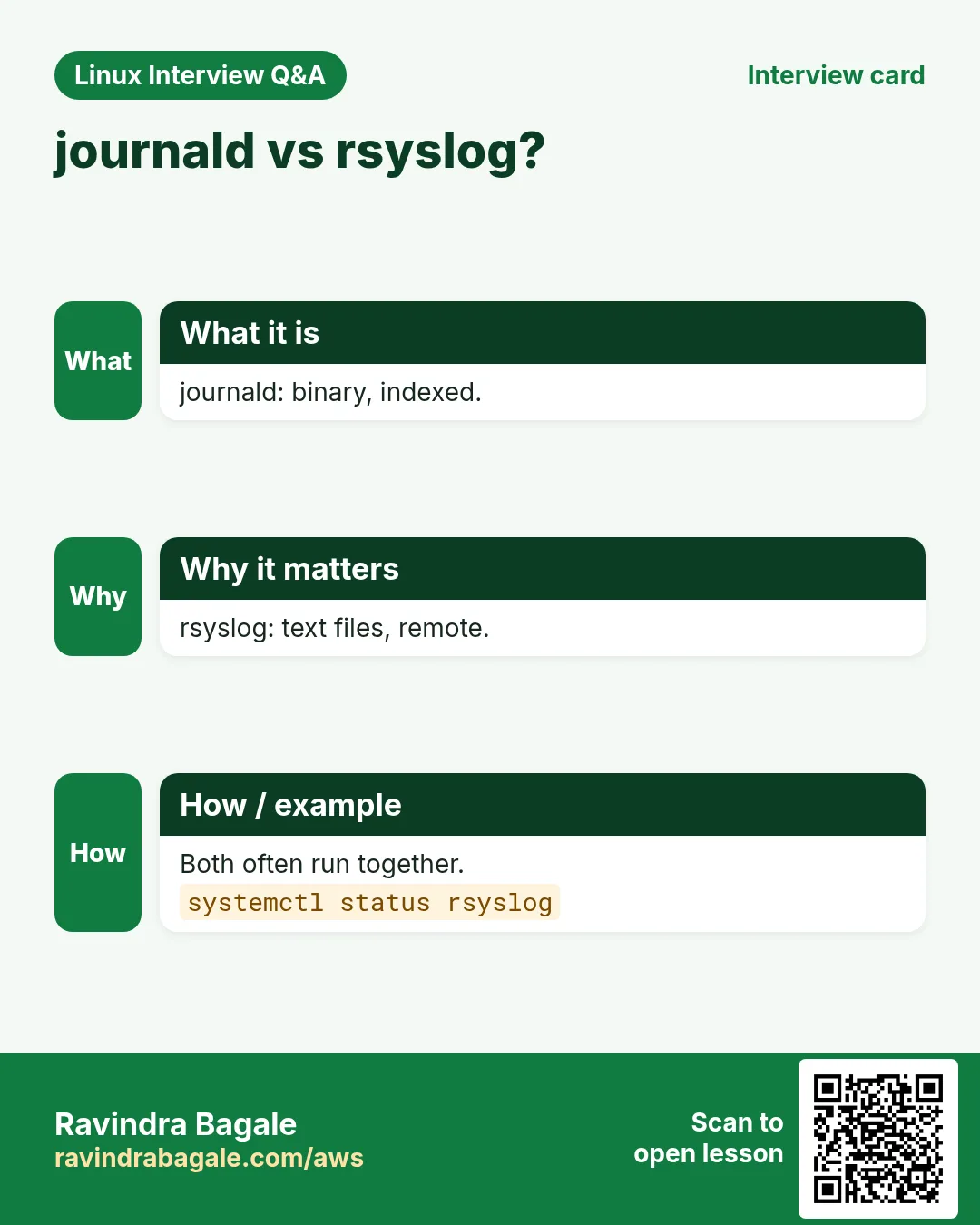
Both. journalctl has every systemd service; some apps only write files in /var/log.
Q. Why do my old logs disappear after reboot?
The journal is volatile. Create /var/log/journal.
Q. How long are logs kept?
journald by size limits; files by logrotate rotate count.
Q. Is it safe to delete a log file?
Better to truncate with : > file, or rotate. Deleting an open file does not free space.
Q. What is a facility?
A category like auth, cron, daemon, local0-7 used by rsyslog rules.
Q. When does logrotate run?
Daily via logrotate.timer or /etc/cron.daily.
Q. copytruncate or postrotate reload?
Reload is cleaner; copytruncate may lose a few lines.
Q. Can I see logs in UTC?
journalctl --utc.
21. Interview questions and answers
Beginner level
Q. How do you see logs of one service?
journalctl -u NAME.
Q. How do you follow logs live?
journalctl -f or tail -f FILE.
Q. Where are SSH login logs?
/var/log/secure or /var/log/auth.log.
Q. What does logrotate do?
Renames, compresses and deletes old logs on schedule.
Mid level level
Q. Logs from the previous boot?
journalctl -b -1, needs persistent journal.
Q. Only errors in the last hour?
journalctl --since '1 hour ago' -p err.
Q. Shrink the journal?
journalctl --vacuum-size or --vacuum-time; SystemMaxUse.
Q. @ vs @@ in rsyslog?
UDP vs TCP forwarding.
Senior level
Q. Disk full but du shows small /var/log. Why?
Deleted files still open; find with lsof +L1, restart the holder.
Q. Design central logging for 200 servers.
rsyslog/journald forward over TCP+TLS or an agent to a central store, with retention, indexing and alerts.
Q. Why structured (JSON) logs?
Machines can filter fields exactly; journald keeps fields; tools index them.
Q. How do you avoid losing logs during rotation?
Reload/HUP the app in postrotate; avoid copytruncate for busy logs.
Try at home
- Create a script that writes 'hello' with logger -t home every run. Run it 5 times and count lines with journalctl -t home.
- Check journalctl --disk-usage on your machine. Write a journald.conf.d file that caps it at 300M.
Practice Tasks
Vidarbha Cotton Mills is a textiles business in Nagpur. Ganesh Wankhede looks after its IT and cloud work. They count money in INR and run their AWS resources in the ap-south-1 Region. In the tasks below you do real jobs for them using what this lesson teaches. All names, account IDs, IP addresses and numbers are made up for practice.
0 / 16
Easy Logs of one service
Why: Logs tell you what went wrong.
What to do: Show journal logs for nginx.
- Find the Linux command that does this job.
- Add the options (like -r or -h) the task needs.
- Add the file names, folders or users in the right order.
- Use sudo if the job changes system files or users. Click Check answer.
Easy Live logs
Why: Logs tell you what went wrong.
What to do: Follow sshd logs live.
- Find the Linux command that does this job.
- Add the options (like -r or -h) the task needs.
- Add the file names, folders or users in the right order.
- Use sudo if the job changes system files or users. Click Check answer.
Easy Last 50 lines
Why: Logs tell you what went wrong.
What to do: Show the last 50 journal lines.
- Find the Linux command that does this job.
- Add the options (like -r or -h) the task needs.
- Add the file names, folders or users in the right order.
- Use sudo if the job changes system files or users. Click Check answer.
Easy Journal size
Why: Logs tell you what went wrong.
What to do: Check how much disk the journal uses.
- Find the Linux command that does this job.
- Add the options (like -r or -h) the task needs.
- Add the file names, folders or users in the right order.
- Use sudo if the job changes system files or users. Click Check answer.
Easy Write a log line
Why: Logs tell you what went wrong.
What to do: Write "backup done" to the system log with tag backup.
- Find the Linux command that does this job.
- Add the options (like -r or -h) the task needs.
- Add the file names, folders or users in the right order.
- Use sudo if the job changes system files or users. Click Check answer.
Easy Classic log file
Why: Logs tell you what went wrong.
What to do: Follow /var/log/messages live.
- Find the Linux command that does this job.
- Add the options (like -r or -h) the task needs.
- Add the file names, folders or users in the right order.
- Use sudo if the job changes system files or users. Click Check answer.
Medium This boot
Why: Logs tell you what went wrong.
What to do: Show logs only from the current boot.
- Find the Linux command that does this job.
- Add the options (like -r or -h) the task needs.
- Add the file names, folders or users in the right order.
- Use sudo if the job changes system files or users. Click Check answer.
Medium Previous boot
Why: Logs tell you what went wrong.
What to do: Show logs from the previous boot.
- Find the Linux command that does this job.
- Add the options (like -r or -h) the task needs.
- Add the file names, folders or users in the right order.
- Use sudo if the job changes system files or users. Click Check answer.
Medium Only errors
Why: Logs tell you what went wrong.
What to do: Show only error priority and worse.
- Find the Linux command that does this job.
- Add the options (like -r or -h) the task needs.
- Add the file names, folders or users in the right order.
- Use sudo if the job changes system files or users. Click Check answer.
Medium Since a time
Why: Logs tell you what went wrong.
What to do: Show logs since one hour ago.
- Find the Linux command that does this job.
- Add the options (like -r or -h) the task needs.
- Add the file names, folders or users in the right order.
- Use sudo if the job changes system files or users. Click Check answer.
Medium Kernel messages
Why: Logs tell you what went wrong.
What to do: Show only kernel messages from the journal.
- Find the Linux command that does this job.
- Add the options (like -r or -h) the task needs.
- Add the file names, folders or users in the right order.
- Use sudo if the job changes system files or users. Click Check answer.
Medium Restart rsyslog
Why: Logs tell you what went wrong.
What to do: Restart rsyslog after editing its config.
- Find the Linux command that does this job.
- Add the options (like -r or -h) the task needs.
- Add the file names, folders or users in the right order.
- Use sudo if the job changes system files or users. Click Check answer.
Hard Shrink the journal
Why: Logs tell you what went wrong.
What to do: Reduce journal to 500M.
- Find the Linux command that does this job.
- Add the options (like -r or -h) the task needs.
- Add the file names, folders or users in the right order.
- Use sudo if the job changes system files or users. Click Check answer.
Hard JSON output
Why: Logs tell you what went wrong.
What to do: Show nginx logs as one JSON per line.
- Find the Linux command that does this job.
- Add the options (like -r or -h) the task needs.
- Add the file names, folders or users in the right order.
- Use sudo if the job changes system files or users. Click Check answer.
Hard Test logrotate
Why: Logs tell you what went wrong.
What to do: Dry-run the nginx logrotate config.
- Find the Linux command that does this job.
- Add the options (like -r or -h) the task needs.
- Add the file names, folders or users in the right order.
- Use sudo if the job changes system files or users. Click Check answer.
Hard Force rotation
Why: Logs tell you what went wrong.
What to do: Force logrotate to rotate nginx logs now.
- Find the Linux command that does this job.
- Add the options (like -r or -h) the task needs.
- Add the file names, folders or users in the right order.
- Use sudo if the job changes system files or users. Click Check answer.
22. Related chapters
- Linux Ops Refresh for DevOps
- Bash Scripting for Automation
- Linux grep and find Commands with Examples
- How to Set Up Passwordless SSH Between Linux Servers
In short
- /var/log holds text logs; journalctl reads the journal.
- -u, -f, --since, -p and -b are your main filters.
- -k and dmesg for kernel, -o json for fields.
- Persistent journal + vacuum keep history and disk safe.
- logger writes, rsyslog routes and forwards.
- logrotate rotates, compresses and deletes old logs.
Revision, comparison and interview cards
Revise this lesson in a few minutes. Save the cards on your phone or download them as PNG files. The QR code on each card opens this lesson.
More cards: Ravi Sir's Cards.