Shell Scripting Complete 12: Debugging with bash -x, ShellCheck and Logging
Every script breaks some day. The difference between a 5-minute fix and a lost night is how well you can see what the script is doing. In this chapter you learn bash -n for syntax checks, bash -x and set -x for tracing, a better PS4 with line numbers, tracing only one part, ShellCheck to find bugs before they run, logging with timestamps and levels, logger and journald, and a calm step-by-step debugging method. Every topic starts with an everyday example and then shows examples from many industries.
What you'll learn in this chapter
- Check syntax with bash -n
- Trace with bash -x, set -x and PS4
- Find bugs early with ShellCheck
- Write a log function with time and level
- Send logs to syslog and journald
- Debug step by step
1. An everyday example: a doctor's check-up
Why do we need this?
When you feel unwell, a good doctor in Pune does not guess. She checks temperature, BP and pulse, asks what you ate, and looks at old reports. Then she finds the cause. Debugging a script is the same: check syntax, watch each step with tracing, read the logs, and let ShellCheck do a routine check-up before problems start.
What is it?
Routine check-up = shellcheck. Quick look at the tongue = bash -n. Watching the pulse live = set -x. Patient's old reports = logs with timestamps. Writing down symptoms = log levels INFO, WARN, ERROR.
How to do it (step by step)
2. Syntax check: bash -n
Why do we need this?
A missing fi or done in a deploy script should be caught before it runs on production.
What is it?
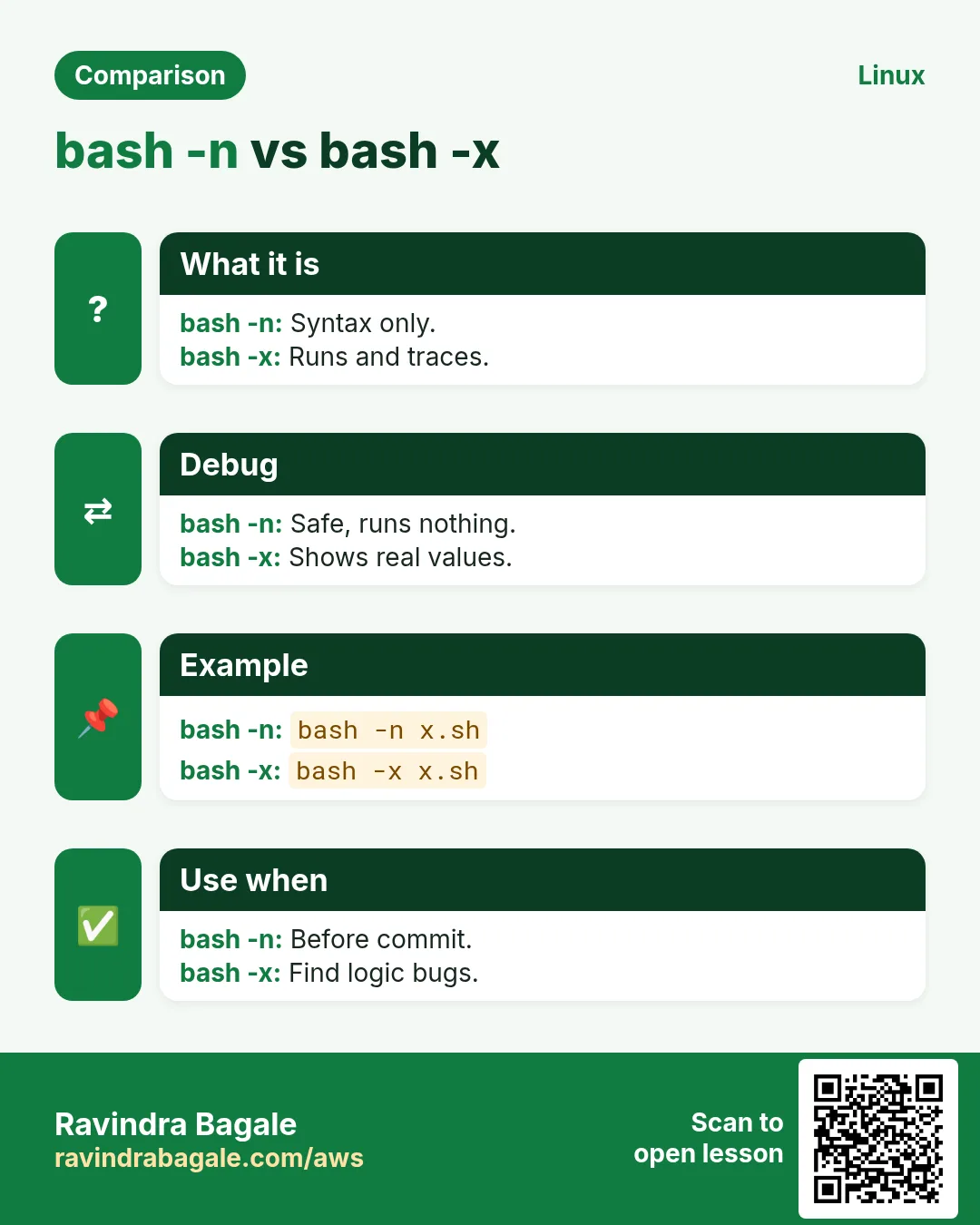
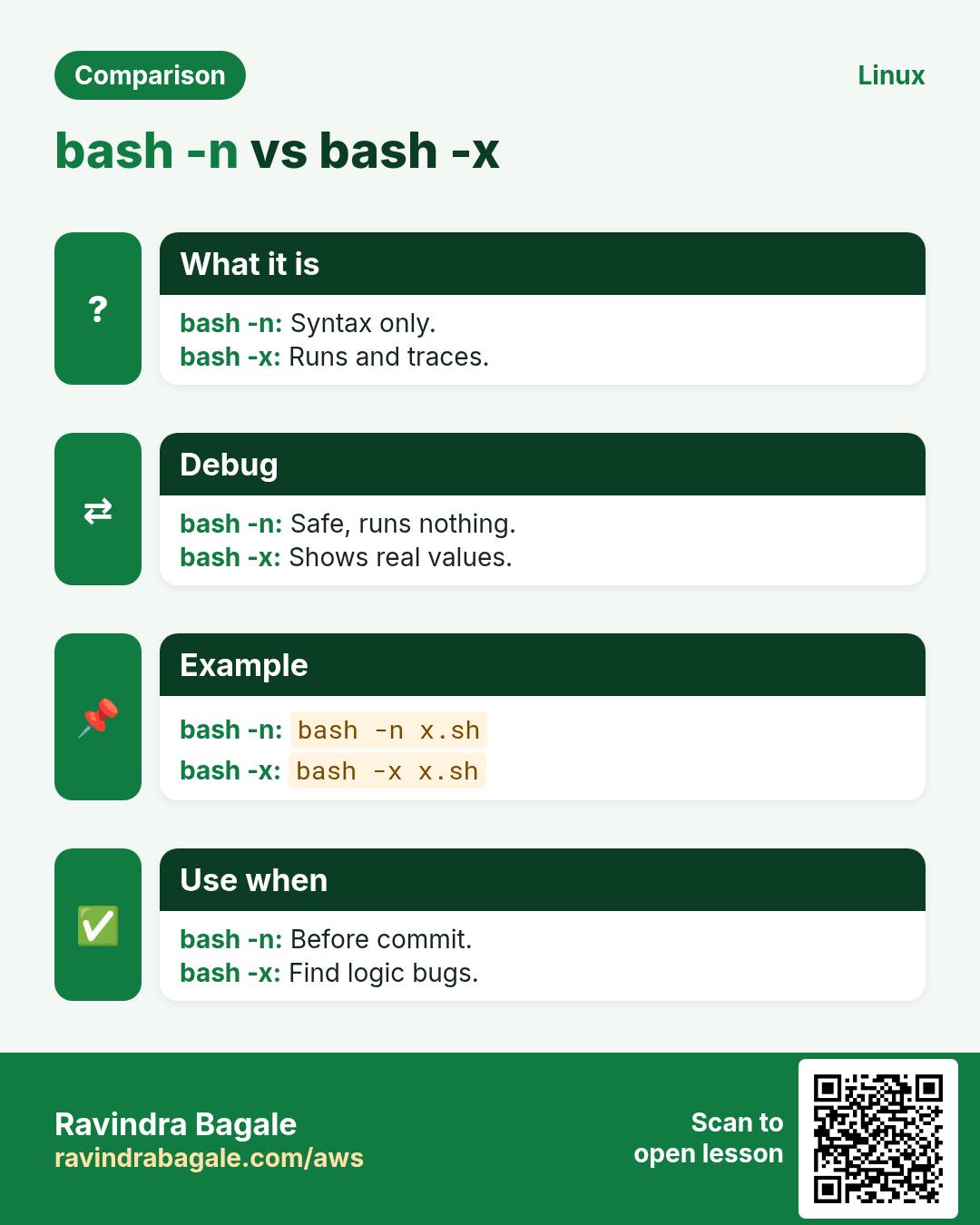
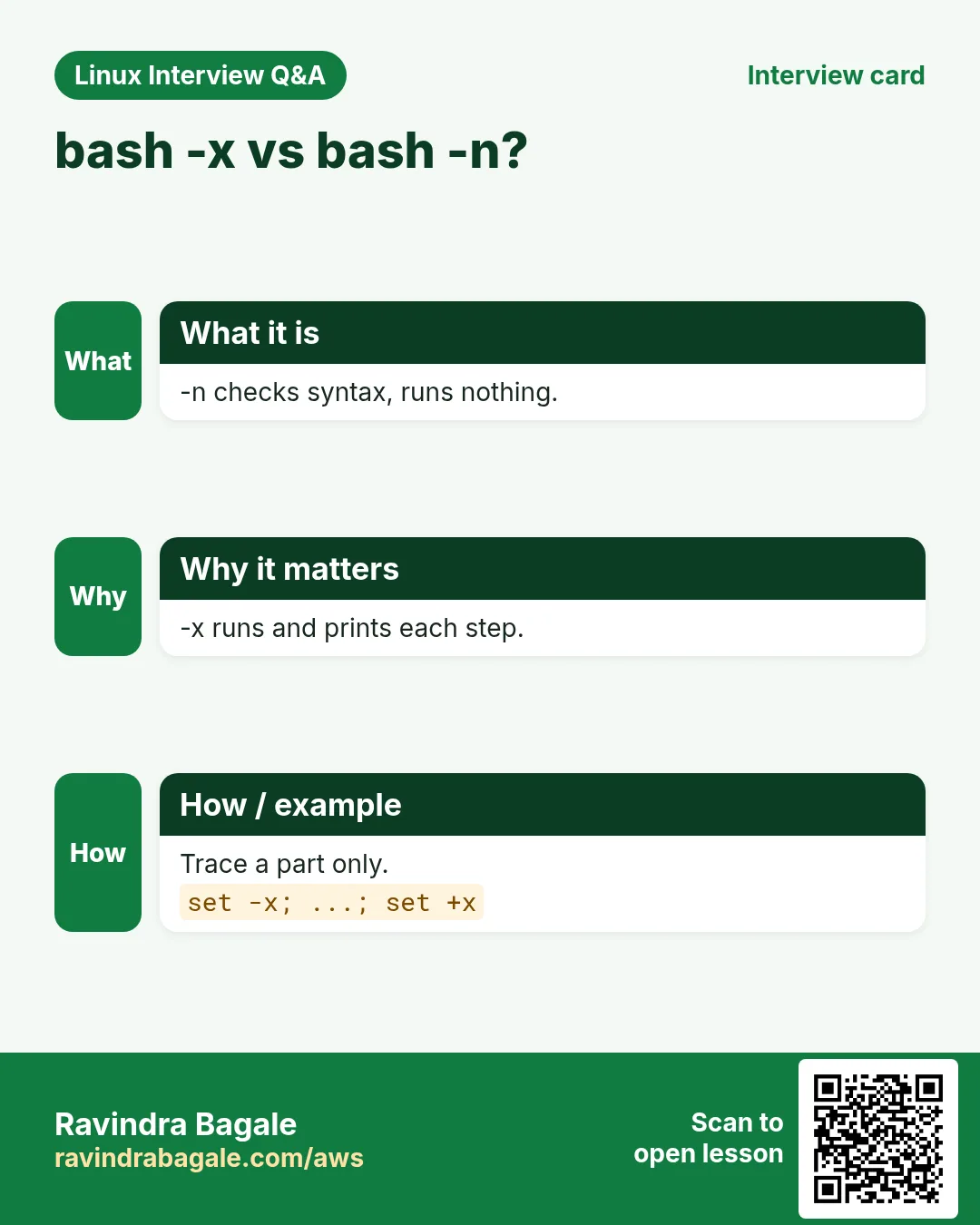
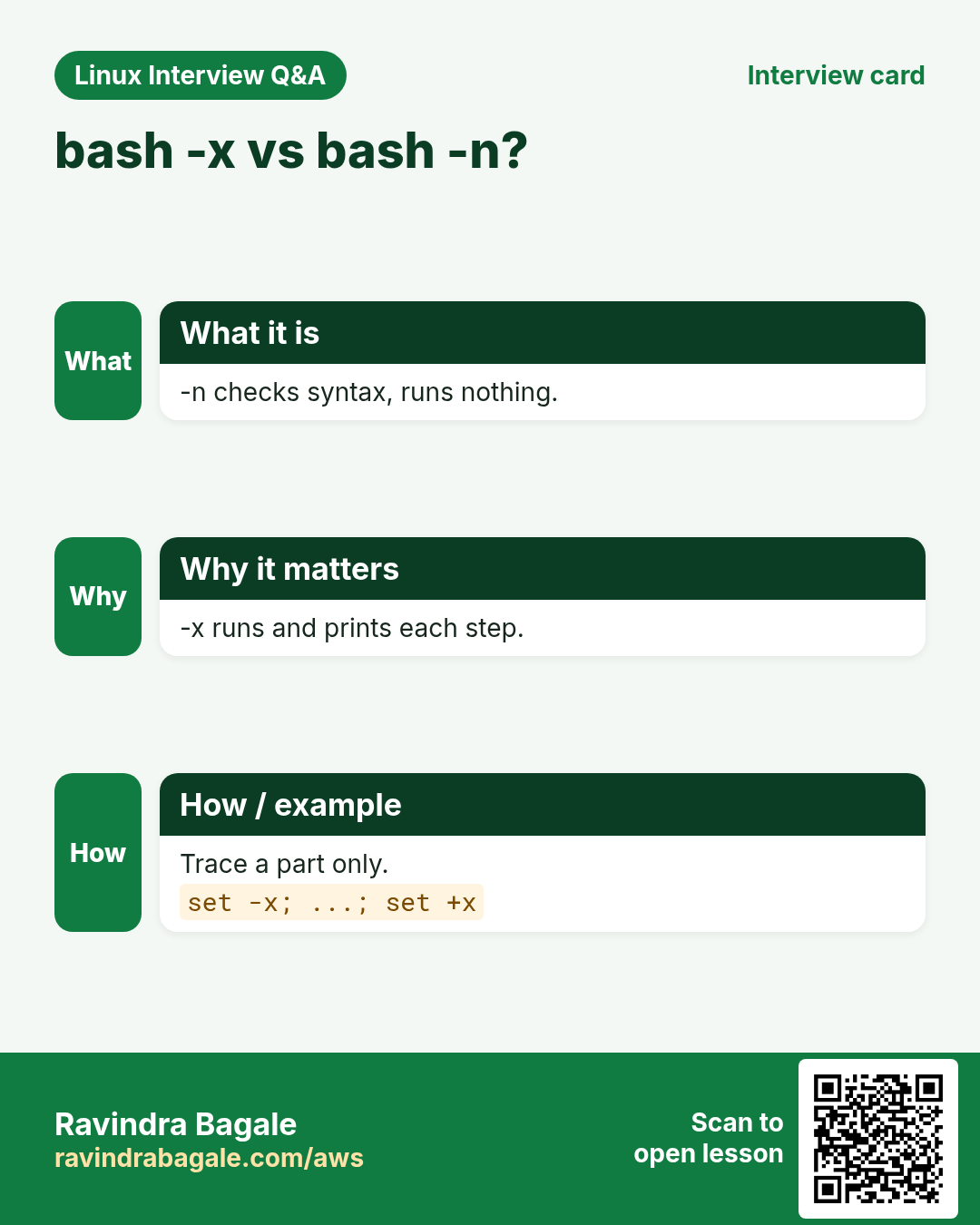
bash -n script.sh reads the script and reports syntax errors without running anything. It catches missing fi, done, esac, quotes and brackets. It does not catch wrong commands or logic, so use it as the first quick step, often in CI or a git hook.
How to do it (step by step)
- Clean script.
bash -n deploy.sh && echo 'syntax ok'Output:
syntax okWhat it means: Nothing ran.
- Missing fi.
bash -n broken.shOutput:
broken.sh: line 9: syntax error: unexpected end of fileWhat it means: Line points near the end.
- Check many.
for f in scripts/*.sh; do bash -n "$f" || echo "BAD $f"; doneOutput:
BAD scripts/old-import.shWhat it means: Batch check.
3. Tracing: bash -x and set -x
Why do we need this?
You see the wrong result but not why. Tracing shows each command with variables already filled in.
What is it?
bash -x script.sh prints every command with + before it, after expansion. set -x turns it on inside a script and set +x turns it off, so you can trace only the hard part. Trace goes to stderr. bash -v prints lines as read, before expansion. BASH_XTRACEFD=3 sends trace to another file descriptor.
How to do it (step by step)
- Trace all.
bash -x greet.sh AshaOutput:
+ name=Asha
+ echo 'Hello Asha'
Hello Asha
What it means: Values shown.
- Trace a part.
set -x
files=$(find /data -mtime +7 | wc -l)
set +x
Output:
++ find /data -mtime +7
++ wc -l
+ files=12
What it means: Only this block.
- Trace to a file.
exec 5> /tmp/trace.log; BASH_XTRACEFD=5; set -xWhat it means: Screen stays clean.
- Trace only with DEBUG=1.
[[ ${DEBUG:-0} == 1 ]] && set -xWhat it means: Run as DEBUG=1 ./job.sh.
4. Better traces with PS4
Why do we need this?
In a 500-line script, + echo done does not tell you where you are.
What is it?
PS4 is the prefix printed before each trace line. Set it to show file, line and function: export PS4='+ ${BASH_SOURCE##*/}:${LINENO}:${FUNCNAME[0]:-main}: '. Use single quotes so the values are filled in at each line. Add $(date +%T) for timing, though it slows tracing.
How to do it (step by step)
- Line numbers.
PS4='+ ${LINENO}: ' bash -x backup.shOutput:
+ 4: src=/data
+ 5: tar czf /backup/data.tgz /data
What it means: Line of each step.
- File and function.
export PS4='+ ${BASH_SOURCE##*/}:${LINENO}:${FUNCNAME[0]:-main}: '; bash -x deploy.shOutput:
+ deploy.sh:21:health_check: curl -fs http://localhost/healthWhat it means: Know the function.
- With time.
PS4='+ $(date +%T) ${LINENO}: ' bash -x slow.shOutput:
+ 10:02:01 7: rsync -a src/ dst/
+ 10:04:39 8: echo synced
What it means: rsync took 2.5 min.
5. ShellCheck: find bugs before they run
Why do we need this?
Missing quotes, wrong tests and useless cats are easy to miss in review and painful in production.
What is it?
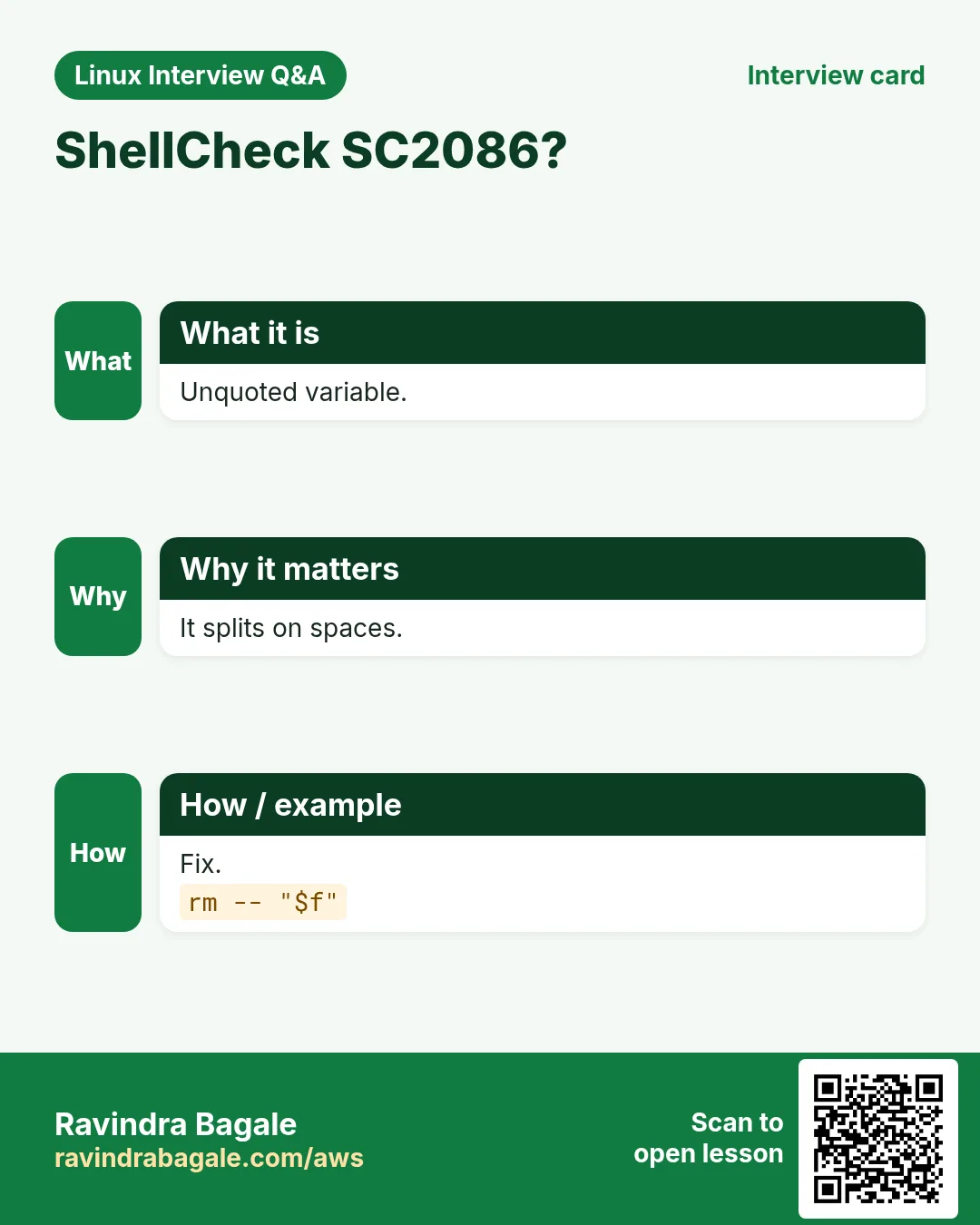
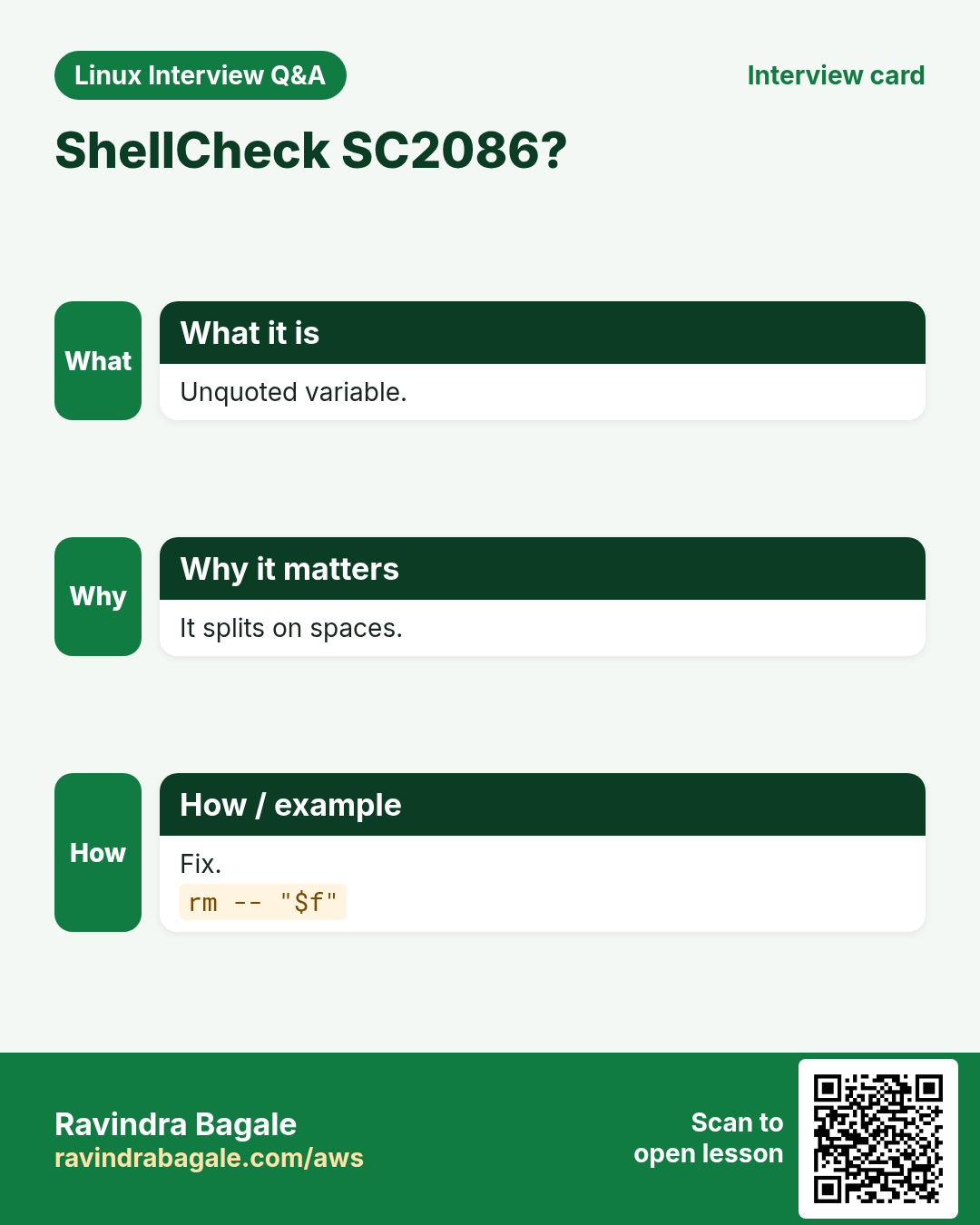
shellcheck script.sh reads the script and warns about common bugs, each with a code like SC2086 (unquoted variable) and a wiki page explaining it. Install with dnf, apt or brew. -S warning hides style notes. A # shellcheck disable=SC2034 comment above a line silences one warning when you are sure. Run it in your editor and in CI so every change is checked.
| Code | Meaning |
|---|---|
| SC2086 | quote this to stop splitting |
| SC2046 | quote $( ) result |
| SC2164 | cd may fail; add || exit |
| SC2034 | variable unused |
| SC2155 | declare and assign apart |
How to do it (step by step)
- Install.
sudo dnf install -y ShellCheck # Ubuntu: sudo apt install -y shellcheckOutput:
Complete!What it means: Package name differs.
- Check.
shellcheck clean.shOutput:
In clean.sh line 3:
rm -rf $dir/*
       ^--^ SC2086 (info): Double quote to prevent globbing and word splitting.
What it means: Real risk found.
- Only warnings and errors.
shellcheck -S warning *.shOutput:
In run.sh line 7:
cd /opt/app
^---------^ SC2164 (warning): Use 'cd ... || exit' in case cd fails.
What it means: Style hidden.
- In CI.
find . -name '*.sh' -print0 | xargs -0 shellcheck -S warningWhat it means: Non-zero fails the build.
6. A log function with time and level
Why do we need this?
echo 'done' tells you nothing next morning. A log line should say when, how serious, and what.
What is it?
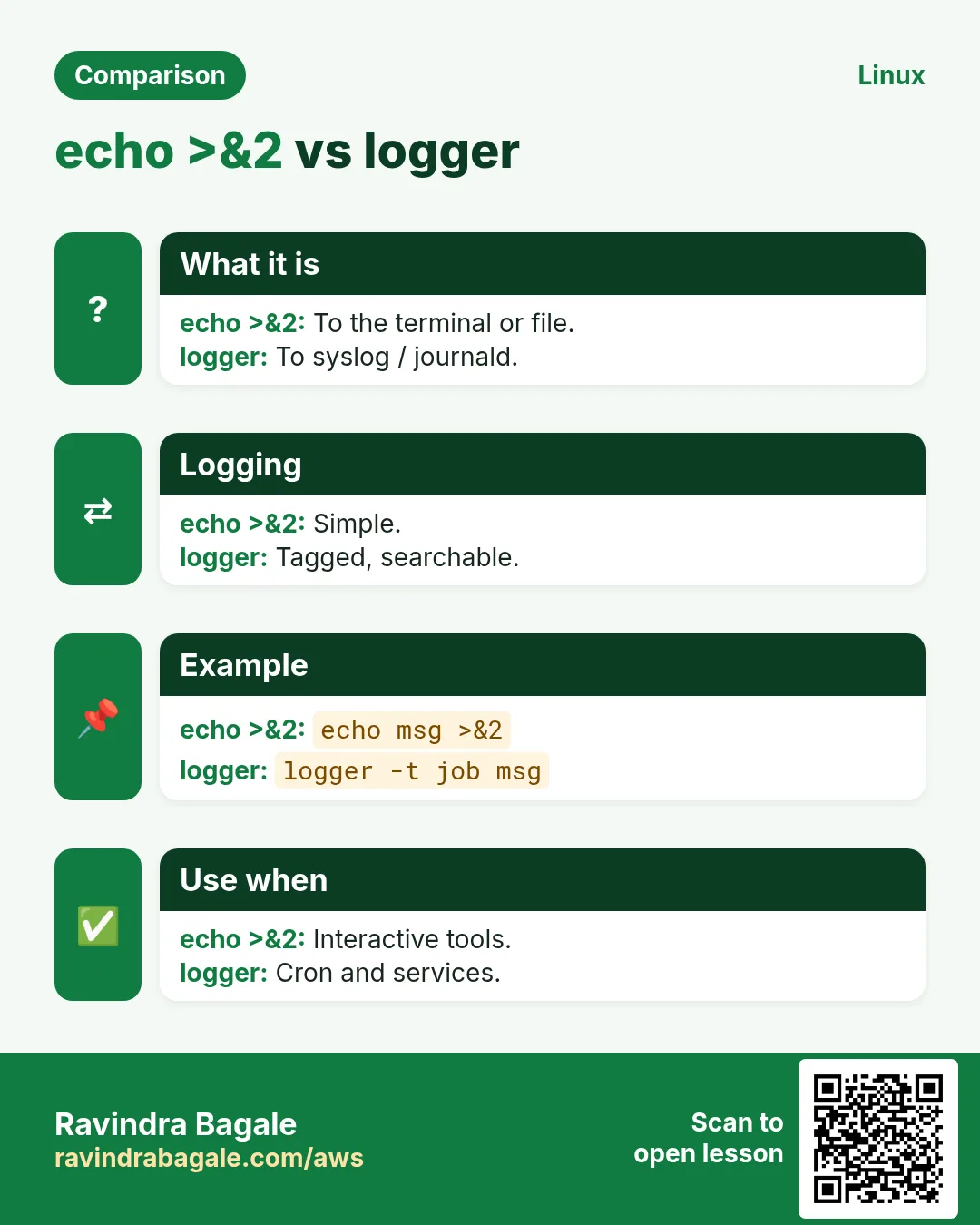
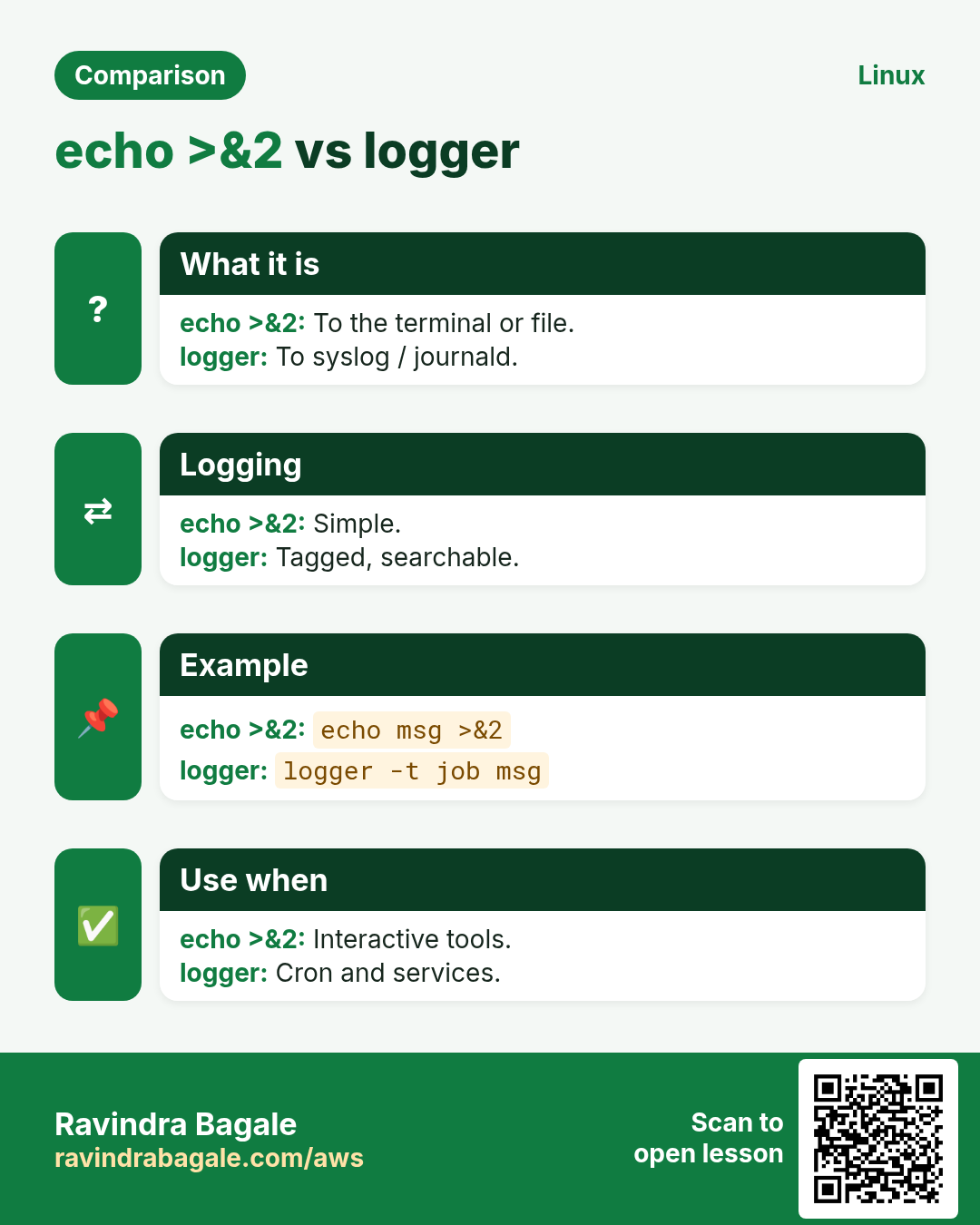
Write one log function: printf '%(%F %T)T [%s] %s\n' -1 "$level" "$*" >&2. Add info, warn and error wrappers. Send logs to stderr so stdout stays clean for data. Tee them into a file with exec 2> >(tee -a "$LOG" >&2). Add a LOG_LEVEL variable so DEBUG lines show only when needed.
How to do it (step by step)
- Log function.
log(){ local l=$1; shift; printf '%(%F %T)T [%s] %s\n' -1 "$l" "$*" >&2; }
log INFO 'backup started'
Output:
2026-10-25 02:00:01 [INFO] backup startedWhat it means: When, level, what.
- Wrappers.
info(){ log INFO "$@"; }; warn(){ log WARN "$@"; }; err(){ log ERROR "$@"; }
warn 'disk at 82%'
Output:
2026-10-25 02:00:03 [WARN] disk at 82%What it means: Easy to grep.
- Debug level.
debug(){ [[ ${LOG_LEVEL:-INFO} == DEBUG ]] && log DEBUG "$@"; return 0; }
LOG_LEVEL=DEBUG; debug "files=$n"
Output:
2026-10-25 02:00:04 [DEBUG] files=12What it means: Hidden by default.
- Also to a file.
exec 2> >(tee -a /var/log/backup.log >&2)What it means: All logs saved.
7. logger and journald
Why do we need this?
On servers, ops teams search logs centrally with journalctl or a log shipper, not in random files.
What is it?
logger -t mytag 'message' writes to syslog/journald with a tag. -p user.err sets priority. Read with journalctl -t mytag, add --since today or -f to follow. Scripts run by systemd already send stdout and stderr to the journal, so plain echo shows in journalctl -u name.
How to do it (step by step)
- Write.
logger -t nightly-backup 'backup ok: 2.1G'What it means: Goes to journal.
- Error priority.
logger -t nightly-backup -p user.err 'backup failed: disk full'What it means: Shows red in journalctl.
- Read.
journalctl -t nightly-backup --since todayOutput:
Oct 25 02:00:05 ip-10-0-1-5 nightly-backup[811]: backup ok: 2.1GWhat it means: Tagged lines.
- Errors only.
journalctl -t nightly-backup -p errOutput:
Oct 25 03:00:02 ip-10-0-1-5 nightly-backup[912]: backup failed: disk fullWhat it means: Filter by priority.
8. Debugging step by step
Why do we need this?
Random changes make things worse. A fixed method finds the cause faster.
What is it?
1. Read the exact message and line. 2. bash -n and shellcheck. 3. Run with bash -x and a PS4 with line numbers. 4. Print suspicious values as printf '[%s]\n' "$v" and od -c to see hidden spaces or \r. 5. Check the environment: cron and systemd have a small PATH and no profile. 6. Make the smallest example that fails. 7. Change one thing, test, repeat.
How to do it (step by step)
- Hidden characters.
printf '%s' "$host" | od -cOutput:
0000000 w e b 1 \rWhat it means: A \r from Windows.
- Env difference.
env -i PATH=/usr/bin:/bin bash -c 'command -v aws || echo missing'Output:
missingWhat it means: Cron-like PATH.
- Stop at a point.
read -rp 'paused, press Enter ' _Output:
paused, press EnterWhat it means: Inspect files before going on.
- Who called?
echo "called from ${FUNCNAME[1]} line ${BASH_LINENO[0]}"Output:
called from main line 42What it means: Call stack info.
9. Real examples from many industries
Why do we need this?
The same Linux skill shows up in every kind of company. Seeing it in many places helps you remember it.
What is it?
Each row is a made-up team. It shows who uses this and how.
How to do it (step by step)
| Team and city | How they use it | Command |
|---|---|---|
| Vaibhav, SaaS, Pune | ShellCheck in every pull request | shellcheck -S warning *.sh |
| Amelia, NHS trust, Leeds | Timestamped logs for audit | printf '%(%F %T)T [INFO] %s\n' -1 "$m" |
| Diego, mining, Santiago | Trace sensor upload with line numbers | PS4='+ ${LINENO}: ' bash -x up.sh |
| Aisha, fintech, Lagos | Errors to journald for alerts | logger -t pay -p user.err "$m" |
| Yuki, e-learning, Kyoto | Debug only when asked | [[ $DEBUG == 1 ]] && set -x |
| Prakash, sugar factory, Satara | Find cron PATH issue | env -i PATH=/usr/bin:/bin bash job.sh |
10. Common errors and how to fix them
Why do we need this?
Everyone hits these errors. Knowing the cause saves hours.
What is it?
Read the exact message first. Then match it to a row below.
How to do it (step by step)
| Error you see | Why it happens | How to fix |
|---|---|---|
syntax error: unexpected end of file | Missing fi, done or quote | Run bash -n and match blocks.bash -n s.sh |
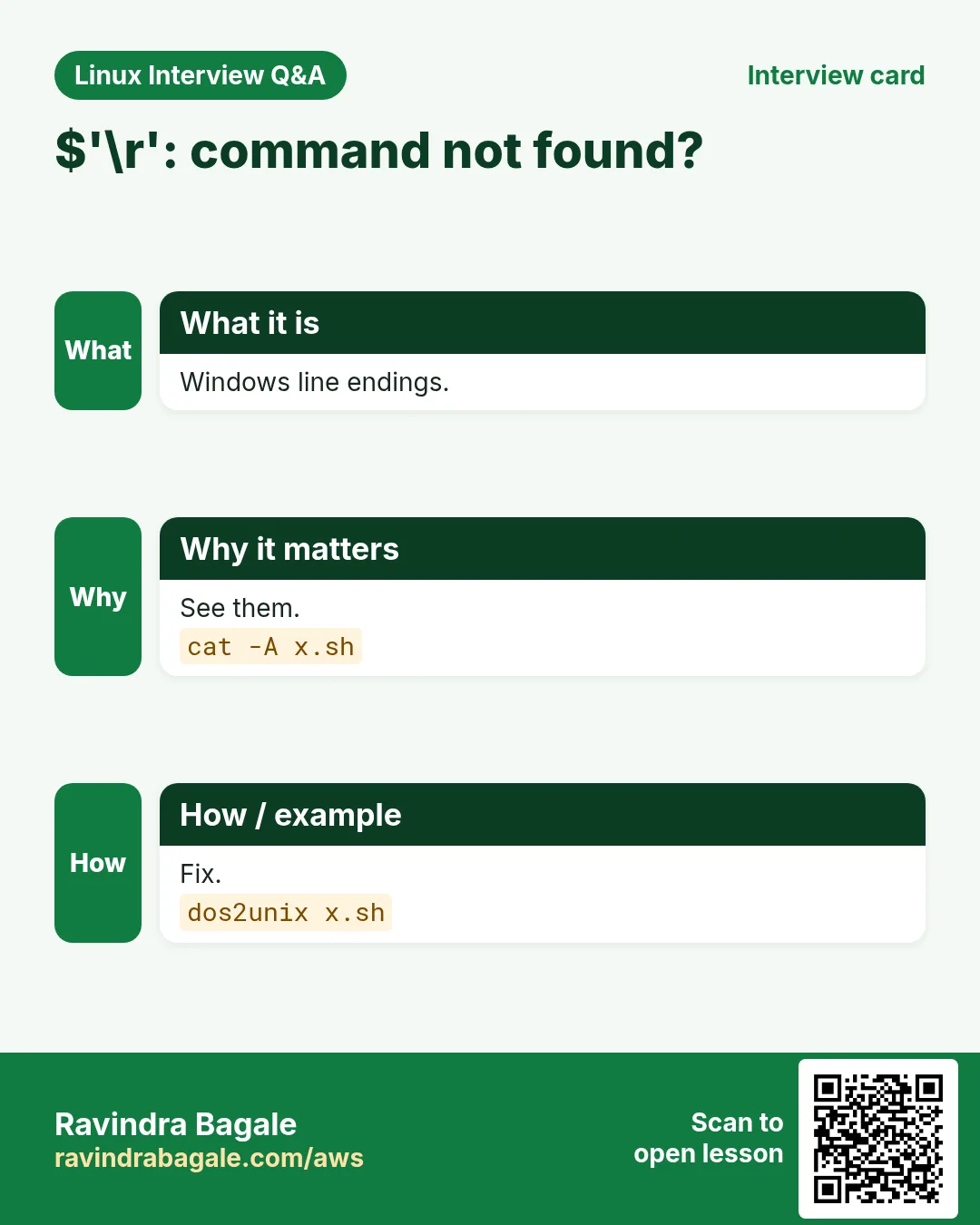
$'\r': command not found | Windows line endings | Convert to LF.sed -i 's/\r$//' s.sh |
shellcheck: command not found | Not installed | Install it.sudo dnf install -y ShellCheck |
Trace too noisy | set -x on whole script | Trace only the part.set -x; cmd; set +x |
Works in terminal, fails in cron | Small PATH, no profile | Set PATH or full paths.PATH=/usr/local/bin:/usr/bin:/bin |
Logs mixed into output file | Log to stdout | Send logs to stderr.log ... >&2 |
SC2086 Double quote to prevent globbing | Unquoted variable | Quote it.rm -rf "$dir"/* |
No line numbers in trace | Default PS4 | Set PS4 with LINENO.PS4='+ ${LINENO}: ' |
journalctl shows nothing for tag | Wrong tag or no permission | Check tag; use sudo.sudo journalctl -t mytag |
11. Troubleshooting step by step
Why do we need this?
Use the same order every time so you do not miss a simple cause.
What is it?
Go top to bottom. Stop at the first step that shows the problem.
How to do it (step by step)
- Syntax.
bash -n s.sh- Lint.
shellcheck s.sh- Trace with lines.
PS4='+ ${LINENO}: ' bash -x s.sh- Hidden chars.
cat -A s.sh | head- Env.
env | sort > /tmp/env.txt- Logs.
journalctl -t mytag -n 5012. Lab 1: Fix a broken script with ShellCheck and bash -x
Why do we need this?
Take a buggy cleanup script, find the problems with bash -n, ShellCheck and tracing, and fix them one by one.
What is it?
A full hands-on lab. Run every step on a test Linux machine (an EC2 instance, a VM, or WSL).
How to do it (step by step)
- Buggy script.
cat > ~/clean.sh <<'X'
#!/bin/bash
dir=$1
cd $dir
for f in $(ls *.tmp); do
  rm $f
done
echo "removed from $dir"
X- Syntax ok?
bash -n ~/clean.sh && echo okOutput:
ok- Lint.
shellcheck ~/clean.sh | grep -o 'SC[0-9]*' | sort -uOutput:
SC2045
SC2086
SC2164- Fixed version.
cat > ~/clean.sh <<'X'
#!/usr/bin/env bash
set -euo pipefail
dir=${1:?usage: clean.sh DIR}
cd -- "$dir" || exit 1
for f in ./*.tmp; do [[ -e $f ]] || continue; rm -- "$f"; done
echo "removed from $dir"
X
shellcheck ~/clean.sh && echo clean
Output:
clean- Trace a test.
mkdir -p /tmp/t && touch '/tmp/t/a b.tmp' && PS4='+ ${LINENO}: ' bash -x ~/clean.sh /tmp/tOutput:
+ 3: dir=/tmp/t
+ 4: cd -- /tmp/t
+ 5: for f in ./*.tmp
+ 5: [[ -e ./a b.tmp ]]
+ 5: rm -- './a b.tmp'
+ 6: echo 'removed from /tmp/t'
removed from /tmp/t
13. Lab 2: Add logging to a script
Why do we need this?
Add a log function with levels, write to a file and journald, and turn on debug only with LOG_LEVEL=DEBUG.
What is it?
A full hands-on lab. Run every step on a test Linux machine (an EC2 instance, a VM, or WSL).
How to do it (step by step)
- Script.
cat > ~/job.sh <<'X'
#!/usr/bin/env bash
LOG=/tmp/job.log
log(){ local l=$1; shift; printf '%(%F %T)T [%s] %s\n' -1 "$l" "$*" | tee -a "$LOG" >&2; logger -t job -- "[$l] $*"; }
debug(){ [[ ${LOG_LEVEL:-INFO} == DEBUG ]] && log DEBUG "$@"; return 0; }
log INFO start
n=$(ls /etc | wc -l); debug "etc entries=$n"
log INFO done
X
chmod +x ~/job.sh- Normal.
~/job.shOutput:
2026-10-25 11:00:01 [INFO] start
2026-10-25 11:00:01 [INFO] done- Debug.
LOG_LEVEL=DEBUG ~/job.shOutput:
2026-10-25 11:00:09 [INFO] start
2026-10-25 11:00:09 [DEBUG] etc entries=212
2026-10-25 11:00:09 [INFO] done- File.
wc -l < /tmp/job.logOutput:
5- Journal.
journalctl -t job -n 3 --no-pagerOutput:
Oct 25 11:00:09 host job[2201]: [INFO] start
Oct 25 11:00:09 host job[2203]: [DEBUG] etc entries=212
Oct 25 11:00:09 host job[2205]: [INFO] doneRavindra Bagale's Tip
Make ShellCheck part of your habit, not a last-minute check: run it in your editor and in CI. When something still breaks, use bash -x with PS4='+ ${LINENO}: ' and print values in brackets. Most bugs are a missing quote, a hidden \r, or a different PATH.
Ravindra Bagale's Tip – मराठी
ShellCheck शेवटच्या क्षणाचा check नाही तर सवय बनवा: editor आणि CI मधे चालवा. तरीही काही बिघडलं तर PS4='+ ${LINENO}: ' सह bash -x वापरा आणि values brackets मधे print करा. बहुतेक bugs म्हणजे missing quote, लपलेला \r किंवा वेगळा PATH.
Ravindra Bagale's Tip – हिंदी
ShellCheck को आख़िरी पल का check नहीं, आदत बनाइए: editor और CI में चलाइए. फिर भी कुछ टूटे तो PS4='+ ${LINENO}: ' के साथ bash -x इस्तेमाल कीजिए और values brackets में print कीजिए. ज़्यादातर bugs एक missing quote, छिपा \r या अलग PATH होते हैं.
14. Frequently asked questions
Q. Does bash -n run code?
No.
Q. Where does set -x print?
stderr.
Q. Silence one ShellCheck rule?
# shellcheck disable=SCxxxx.
Q. ShellCheck for sh?
Yes, it reads the shebang.
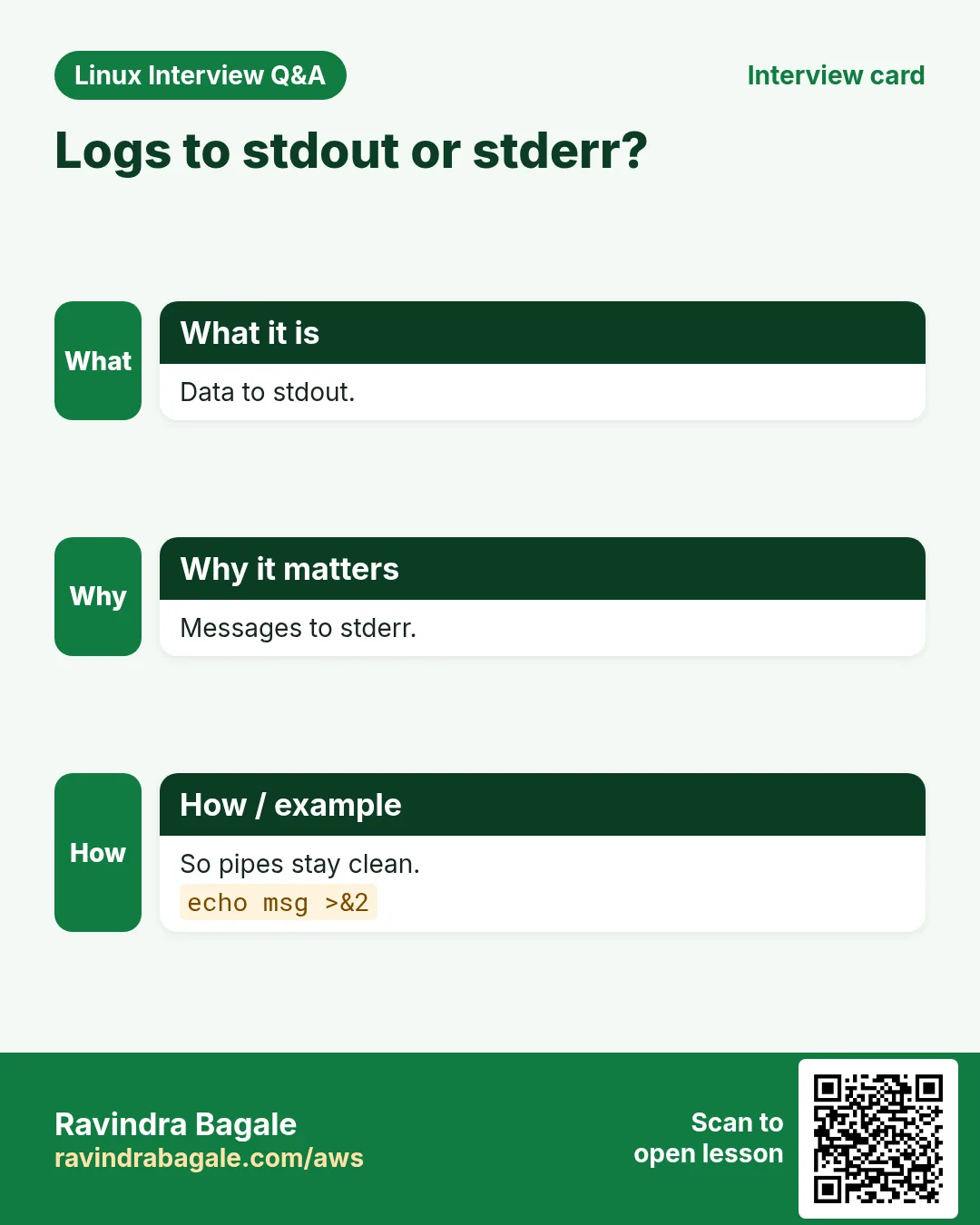
Q. Log to stdout or stderr?
stderr.
Q. What is PS4?
Prefix for trace lines.
Q. Log rotation?
Use logrotate.
Q. Trace hides secrets?
No; turn off around them.
15. Interview questions and answers
Beginner level
Q. Check syntax only?
bash -n.
Q. Trace a script?
bash -x.
Q. Stop tracing?
set +x.
Q. Lint tool?
ShellCheck.
Mid level level
Q. Line numbers in trace?
PS4 with LINENO.
Q. Write to journald?
logger -t tag.
Q. SC2086 means?
Quote the variable.
Q. Why logs to stderr?
Keep stdout for data.
Senior level
Q. Cron-only failure?
Compare env, PATH and working dir.
Q. Trace without leaking passwords?
set +x around secret lines.
Q. Lint in CI?
shellcheck -S warning, fail build.
Q. Debug a function only?
set -x inside it or declare -ft with trap DEBUG.
Try at home
- Run ShellCheck on three scripts you wrote earlier and fix every warning.
- Add the log function from this chapter to one script and check the output in journalctl.
Practice Tasks
Milan Furniture is a furniture business in Milan. Giulia Rossi looks after its IT and cloud work. They count money in EUR and run their AWS resources in the eu-south-1 Region. In the tasks below you do real jobs for them using what this lesson teaches. All names, account IDs, IP addresses and numbers are made up for practice.
0 / 21
Easy Syntax check
Why: BIZ needs to find script bugs fast.
What to do: Giulia Rossi at Milan Furniture edited release.sh. Check its syntax without running it.
- Find the Linux command that does this job.
- Add the options (like -r or -h) the task needs.
- Add the file names, folders or users in the right order.
- Use sudo if the job changes system files or users. Click Check answer.
Easy Trace
Why: BIZ needs to find script bugs fast.
What to do: Run release.sh showing each command as it runs.
- Find the Linux command that does this job.
- Add the options (like -r or -h) the task needs.
- Add the file names, folders or users in the right order.
- Use sudo if the job changes system files or users. Click Check answer.
Easy Trace on
Why: BIZ needs to find script bugs fast.
What to do: Turn on tracing using the long option name.
- Find the Linux command that does this job.
- Add the options (like -r or -h) the task needs.
- Add the file names, folders or users in the right order.
- Use sudo if the job changes system files or users. Click Check answer.
Easy Trace off
Why: BIZ needs to find script bugs fast.
What to do: Turn tracing off using the long option name.
- Find the Linux command that does this job.
- Add the options (like -r or -h) the task needs.
- Add the file names, folders or users in the right order.
- Use sudo if the job changes system files or users. Click Check answer.
Easy ShellCheck
Why: BIZ needs to find script bugs fast.
What to do: Lint backup.sh with ShellCheck.
- Find the Linux command that does this job.
- Add the options (like -r or -h) the task needs.
- Add the file names, folders or users in the right order.
- Use sudo if the job changes system files or users. Click Check answer.
Easy Write to syslog
Why: BIZ needs to find script bugs fast.
What to do: Send the message backup done to the system log with tag backup.
- Find the Linux command that does this job.
- Add the options (like -r or -h) the task needs.
- Add the file names, folders or users in the right order.
- Use sudo if the job changes system files or users. Click Check answer.
Easy What is it
Why: BIZ needs to find script bugs fast.
What to do: Find whether ll is an alias, function, builtin or file.
- Find the Linux command that does this job.
- Add the options (like -r or -h) the task needs.
- Add the file names, folders or users in the right order.
- Use sudo if the job changes system files or users. Click Check answer.
Easy Is it installed
Why: BIZ needs to find script bugs fast.
What to do: Check if jq is available and print its path.
- Find the Linux command that does this job.
- Add the options (like -r or -h) the task needs.
- Add the file names, folders or users in the right order.
- Use sudo if the job changes system files or users. Click Check answer.
Easy Line numbers
Why: BIZ needs to find script bugs fast.
What to do: Print deploy.sh with line numbers.
- Find the Linux command that does this job.
- Add the options (like -r or -h) the task needs.
- Add the file names, folders or users in the right order.
- Use sudo if the job changes system files or users. Click Check answer.
Medium Line numbers in trace
Why: BIZ needs to find script bugs fast.
What to do: Set PS4 so traces show plus, the word line and the line number.
- Find the Linux command that does this job.
- Add the options (like -r or -h) the task needs.
- Add the file names, folders or users in the right order.
- Use sudo if the job changes system files or users. Click Check answer.
Medium Severity filter
Why: BIZ needs to find script bugs fast.
What to do: Run ShellCheck on backup.sh showing only warnings and errors.
- Find the Linux command that does this job.
- Add the options (like -r or -h) the task needs.
- Add the file names, folders or users in the right order.
- Use sudo if the job changes system files or users. Click Check answer.
Medium Error priority
Why: BIZ needs to find script bugs fast.
What to do: Log disk full with tag diskcheck at priority user.err.
- Find the Linux command that does this job.
- Add the options (like -r or -h) the task needs.
- Add the file names, folders or users in the right order.
- Use sudo if the job changes system files or users. Click Check answer.
Medium Read by tag
Why: BIZ needs to find script bugs fast.
What to do: Show the last 20 journal entries with tag backup.
- Find the Linux command that does this job.
- Add the options (like -r or -h) the task needs.
- Add the file names, folders or users in the right order.
- Use sudo if the job changes system files or users. Click Check answer.
Medium Errors only
Why: BIZ needs to find script bugs fast.
What to do: Show journal entries of priority err and worse from today.
- Find the Linux command that does this job.
- Add the options (like -r or -h) the task needs.
- Add the file names, folders or users in the right order.
- Use sudo if the job changes system files or users. Click Check answer.
Medium Inspect variables
Why: BIZ needs to find script bugs fast.
What to do: Show the type and value of variable cfg.
- Find the Linux command that does this job.
- Add the options (like -r or -h) the task needs.
- Add the file names, folders or users in the right order.
- Use sudo if the job changes system files or users. Click Check answer.
Medium Verbose read
Why: BIZ needs to find script bugs fast.
What to do: Run deploy.sh with bash printing each line as it is read.
- Find the Linux command that does this job.
- Add the options (like -r or -h) the task needs.
- Add the file names, folders or users in the right order.
- Use sudo if the job changes system files or users. Click Check answer.
Medium Fix Windows endings
Why: BIZ needs to find script bugs fast.
What to do: Convert run.sh from Windows line endings to Unix.
- Find the Linux command that does this job.
- Add the options (like -r or -h) the task needs.
- Add the file names, folders or users in the right order.
- Use sudo if the job changes system files or users. Click Check answer.
Hard Exclude a code
Why: BIZ needs to find script bugs fast.
What to do: Run ShellCheck on backup.sh while ignoring code SC2034.
- Find the Linux command that does this job.
- Add the options (like -r or -h) the task needs.
- Add the file names, folders or users in the right order.
- Use sudo if the job changes system files or users. Click Check answer.
Hard Trace to file
Why: BIZ needs to find script bugs fast.
What to do: Send bash trace output to file descriptor 9 using a variable.
- Find the Linux command that does this job.
- Add the options (like -r or -h) the task needs.
- Add the file names, folders or users in the right order.
- Use sudo if the job changes system files or users. Click Check answer.
Hard Find CR chars
Why: BIZ needs to find script bugs fast.
What to do: Show hidden carriage returns in run.sh with cat.
- Find the Linux command that does this job.
- Add the options (like -r or -h) the task needs.
- Add the file names, folders or users in the right order.
- Use sudo if the job changes system files or users. Click Check answer.
Hard List functions
Why: BIZ needs to find script bugs fast.
What to do: List only the names of functions defined in this shell.
- Find the Linux command that does this job.
- Add the options (like -r or -h) the task needs.
- Add the file names, folders or users in the right order.
- Use sudo if the job changes system files or users. Click Check answer.
16. Related chapters
- Linux Ops Refresh for DevOps
- Bash Scripting for Automation
- Linux grep and find Commands with Examples
- How to Set Up Passwordless SSH Between Linux Servers
In short
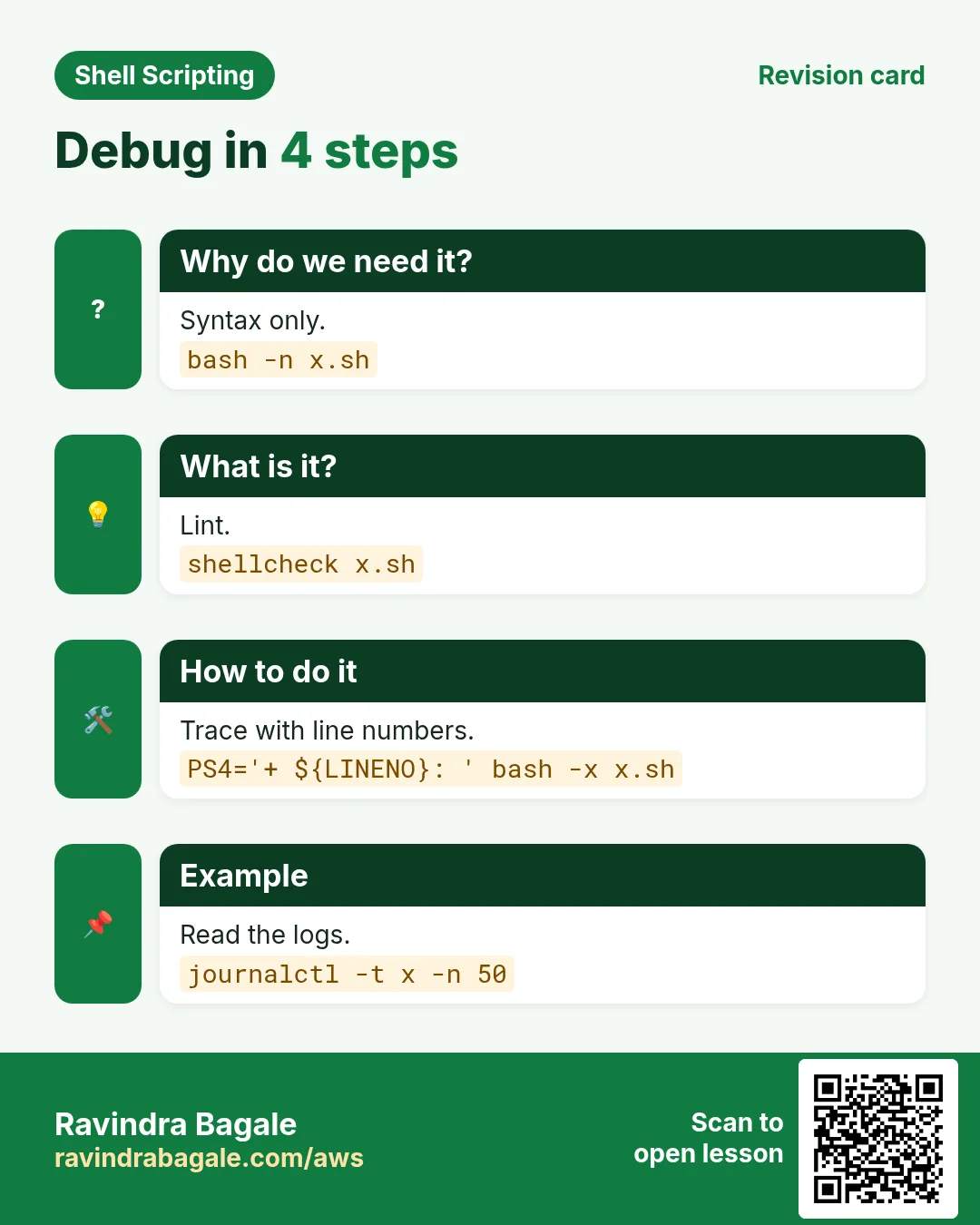
- bash -n syntax only.
- bash -x and set -x/+x trace.
- PS4 adds line and function.
- ShellCheck finds bugs early.
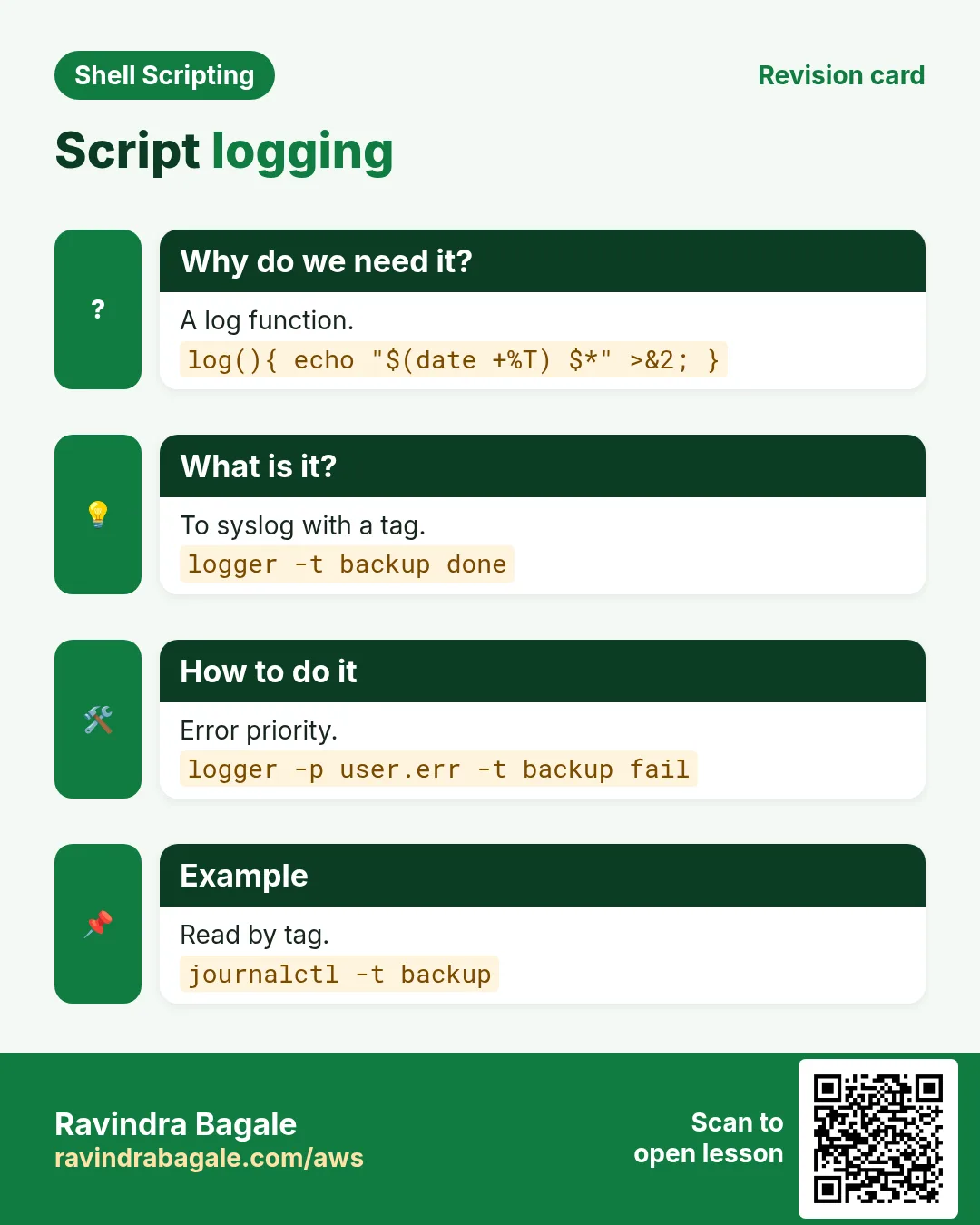
- Log with time and level to stderr.
- logger and journalctl for servers.
Revision, comparison and interview cards
Revise this lesson in a few minutes. Save the cards on your phone or download them as PNG files. The QR code on each card opens this lesson.
More cards: Ravi Sir's Cards.