How to Connect a Domain Name to AWS EC2
So far our websites opened at http://PUBLIC_IP/. Real websites open at a name, like instagram.com. In this chapter we learn why names matter, how DNS turns a name into an IP address, where to buy a domain and how to buy it safely, and how to point it at an EC2 server with an A record. Then we host several websites on one server: each gets its own subdomain, a CNAME record and an Nginx server block.
What you'll learn in this class
- Why websites need domain names, and the problem with bare IP addresses
- How DNS turns a name into an IP address
- Registrars, choosing a good name, registration terms and the cart
- Owner, admin, technical and billing details, and keeping control of your domain
- Adding an A record (
@to your EC2 public IP) and opening your site by name - Why a stop and start breaks the A record, how long DNS changes take, and what fixes it
- Virtual hosting: many websites on one server
- TLD, domain and subdomain, and CNAME records for subdomains
- Downloading templates, renaming folders with spaces, one Nginx server block per subdomain
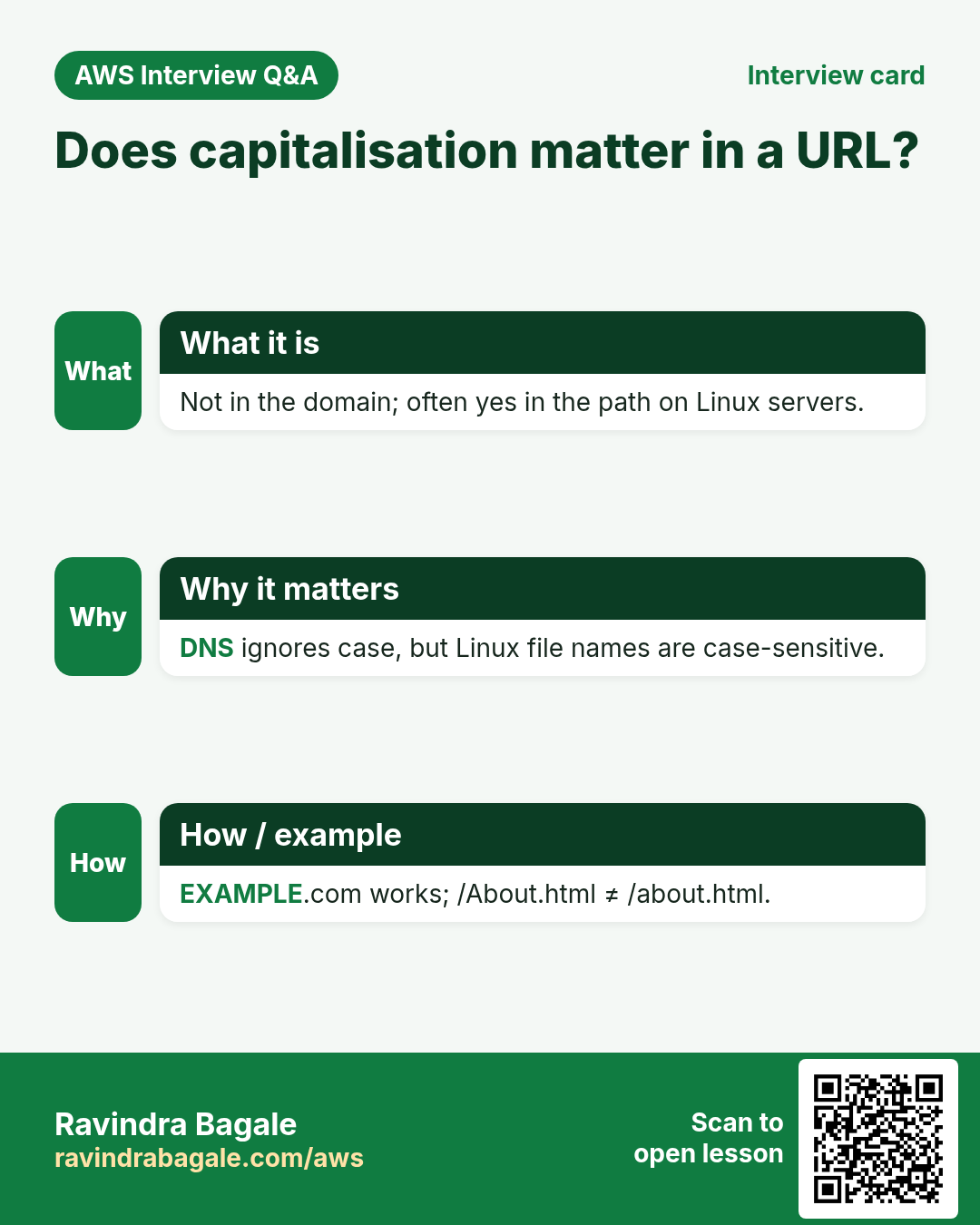
- Why capital letters don't matter in the domain but can matter in the path
1. Why: nobody remembers IP addresses
Why. Our server answers at an IP address. Suppose we are Instagram: would people type a string of numbers every time they want to open the app's website? No. They type instagram.com. A name is easy to remember, to say aloud and to print on a visiting card.
There are two more problems with bare IPs:
- One IP shows one default site. With only an IP, Nginx can't tell which of your websites a visitor wants.
- The IP can change. If the server gets a new IP, every link and bookmark that used the old one breaks.
Figure 1. A bare IP is hard to remember, shows one default site and can change. A name is easy, many names can point to one server, and if the IP changes you update one record.
Classroom line
Every one of us will need to buy a domain name.
Class मधलं वाक्य
"Saglyanni domain name purchase karavach lagel aplyala."
सगळ्यांनी domain name purchase करावाच लागेल आपल्याला.
Classroom line
Every one of us will need to buy a domain name.
2. What: DNS turns a name into an IP
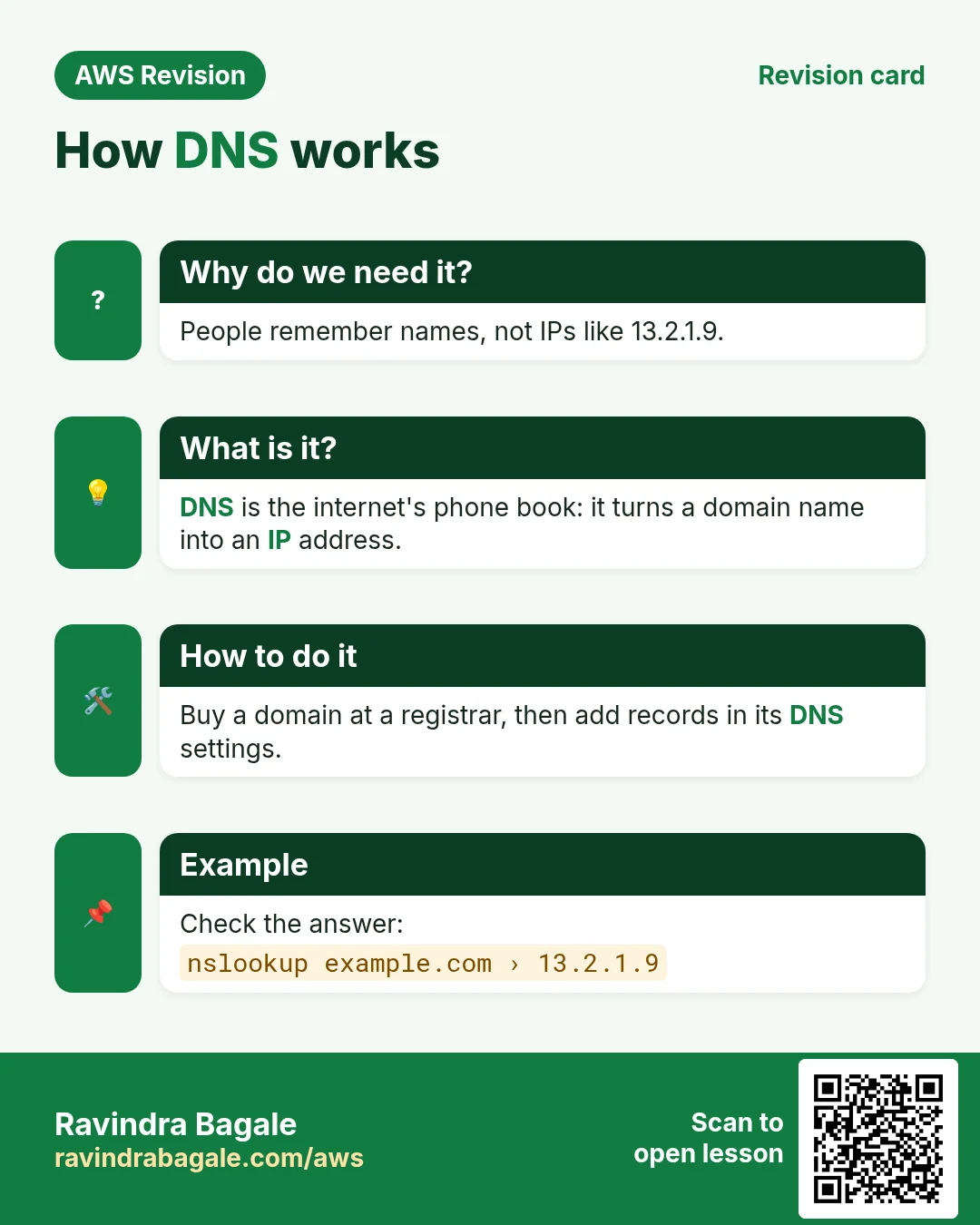
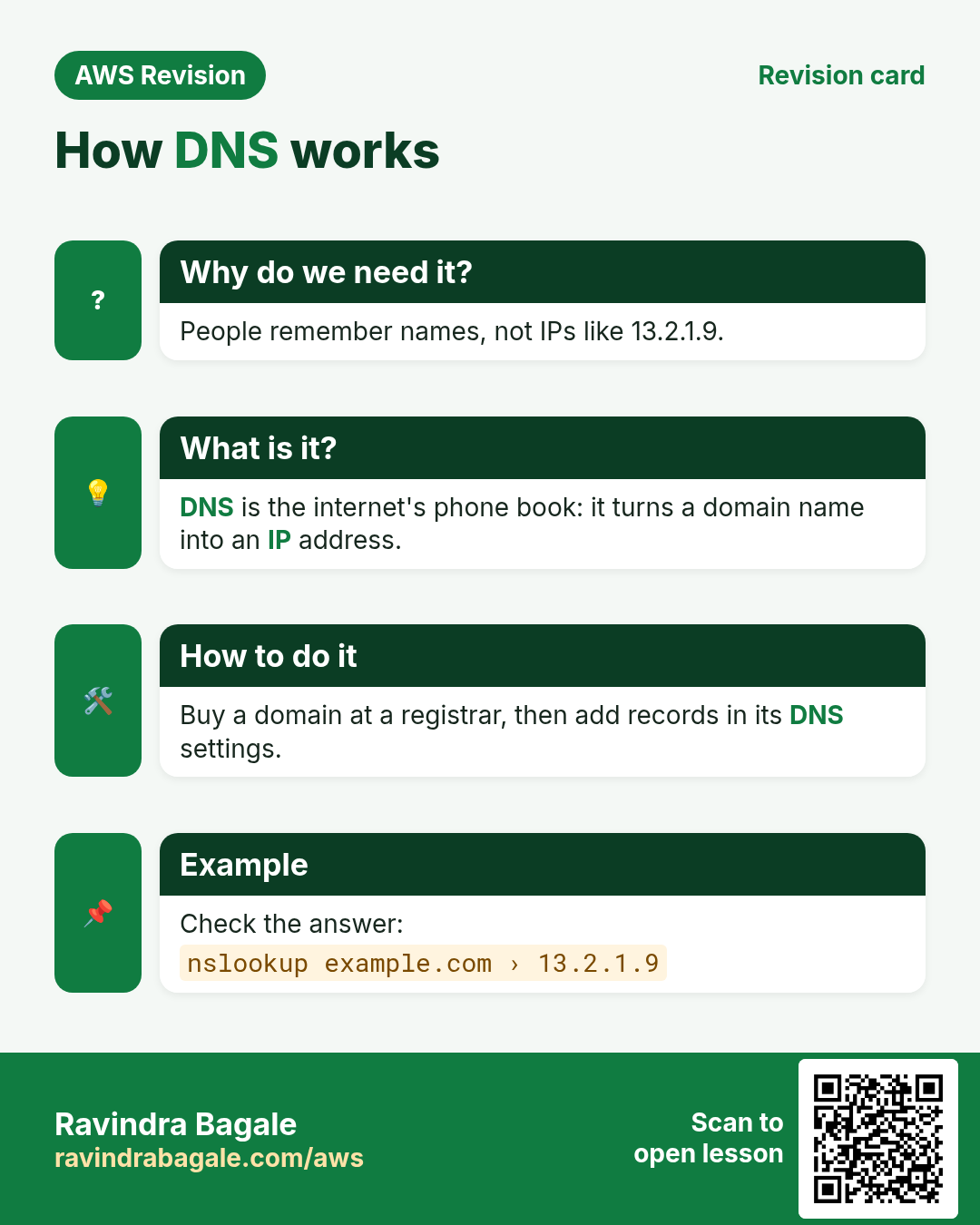
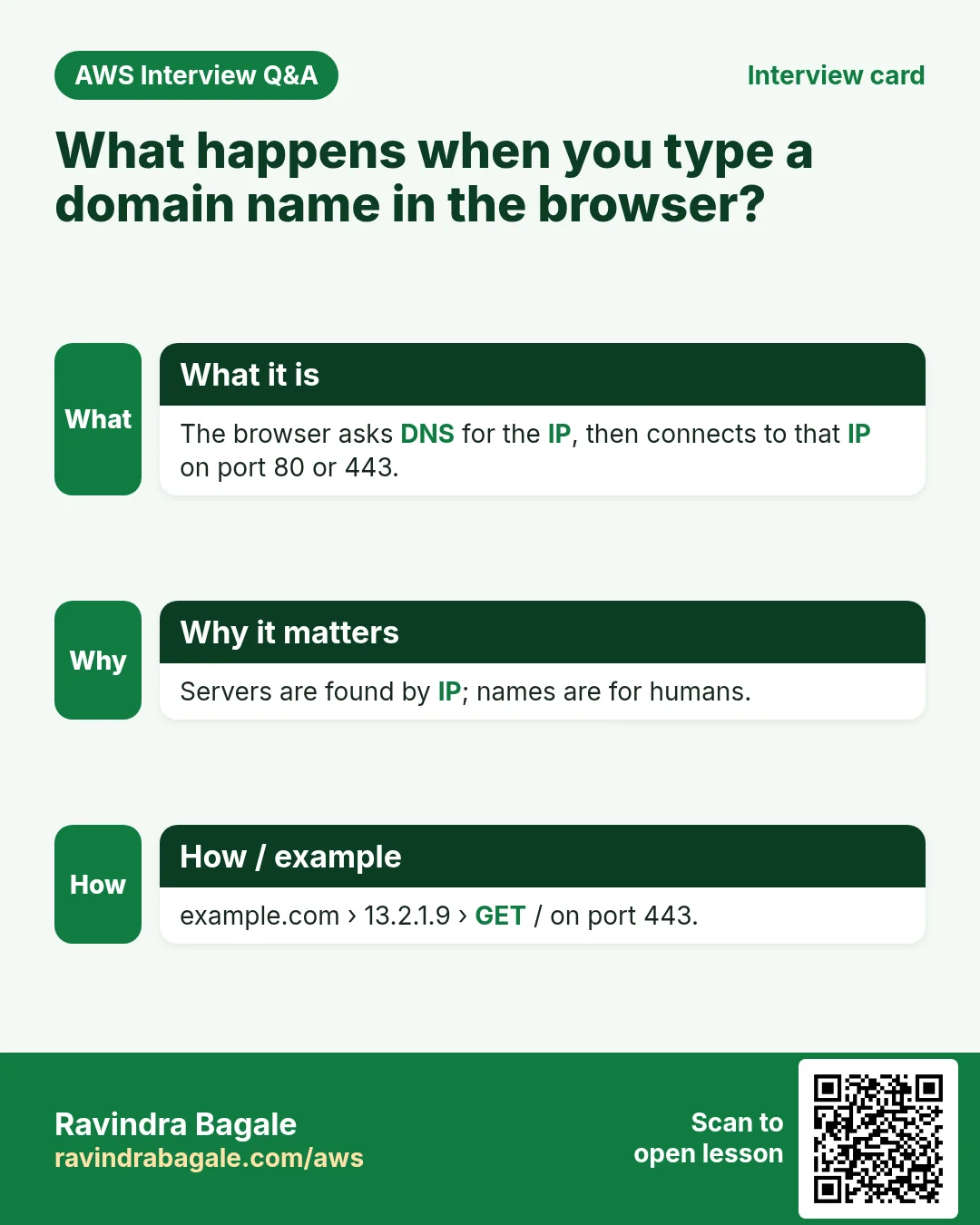
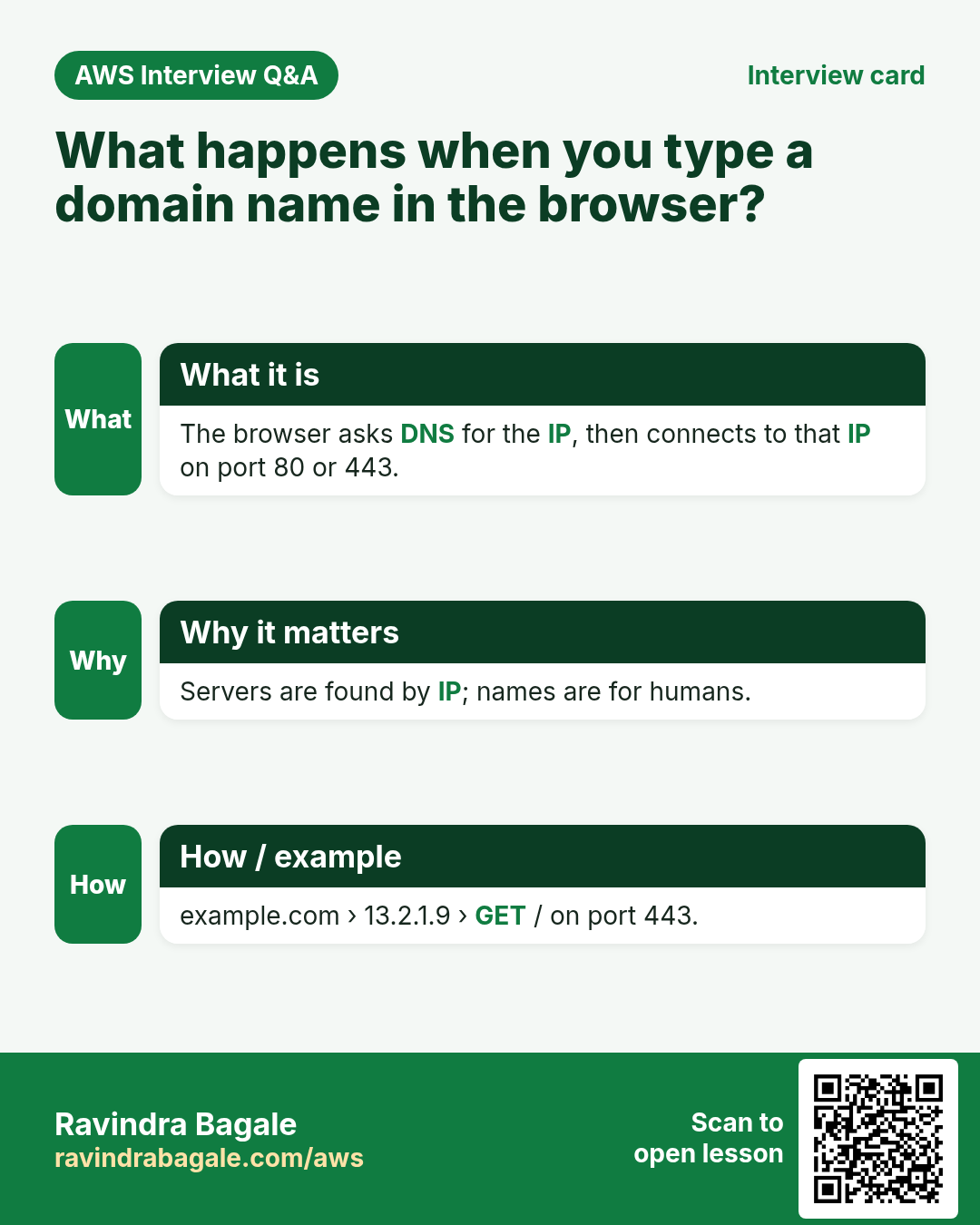
What. Computers connect using IP addresses, not names. DNS (Domain Name System) is the internet's phone book: it answers the question "what is the IP address of this name?"
How it works, step by step:
- You type
example.comin the browser. The browser has a name, but it needs an IP. - Your computer asks a DNS resolver (usually run by your internet provider, or a public one): "What is the IP of
example.com?" - The resolver finds the domain's DNS records and gets the answer, for example
PUBLIC_IP. - The browser sends the request to
PUBLIC_IPon port 80, and Nginx on your EC2 server answers.
Figure 2. Animation: the name goes to a DNS resolver, the domain's records give the IP, and the browser connects to that IP.
Example 1. Suppose we are Instagram. When you type instagram.com, steps 1 to 4 happen in a fraction of a second, and you never see the IP. That's the whole point.
Try it. On your own computer, run:
nslookup example.com
The Address: line in the answer is the IP that the name points to.
3. Where to buy a domain: registrars
What. A company that sells and manages domain names is a registrar. Common ones:
- GoDaddy
- Hostinger
- Amazon Route 53 (inside AWS)
- and many others
In this chapter we use GoDaddy screens, but every registrar has the same ideas: search, cart, and a page to manage DNS records.
4. Choosing a good name
Why it matters. The name is your address for years. Changing it later means new visiting cards, new links and lost visitors.
Two good kinds of names:
- A business keyword. Suppose we are building a shopping site: a word like
cartorshopin the name tells people what you do. - A unique brand word. Suppose we are Google or TikTok: those words meant nothing before; the brand gave them meaning. A unique word is easy to own everywhere.
Tips:
- Short, easy to spell, easy to say on the phone.
- Avoid words that shrink your audience, for example a word tied to one religion or one country, if you want everyone as customers.
- Pick the ending (
.com,.inand so on) that suits your visitors. For practice, any cheap ending works.
When the name is taken. Suppose we want instagram.com. It's taken, and the search shows it isn't available.
- Some registrars offer a broker service: they contact the owner for you, for a fee. The owner may still say no.
- Some people, called domain investors, buy catchy names early to sell them later. That's why many good short names are already taken.
- Usually the easier way is a different name, or a different ending.
5. Registration: how long, and what to check in the cart
What. You don't buy a domain forever. You register it for a term of 1 to 10 years, then renew it.
- A longer term keeps the name safe for longer and protects you from renewal price rises during that term.
- If you forget to renew, the name expires and someone else can register it.
In the cart, step by step:
Step 1. Search the name and add it to the cart.
Step 2. Check the term. Big "first year" discounts often need a multi-year term. Set it to the number of years you actually want.
Step 3. Remove add-ons you don't need (extra email, website builders and so on). Now you see the real price.
Step 4. Read the renewal price, not only the first-year price.
Step 5. Check your contact details, then pay.
Figure 3. Pick a registrar, pick a short name, register it for 1 to 10 years, and clean up the cart before paying.
6. Owner, admin, technical, billing: keep control
What. A domain registration stores contact details:
- Owner (registrant): the person or business that owns the domain.
- Administrative: can change and transfer the domain.
- Technical: handles DNS and server settings.
- Billing: pays for registration and renewal.
Why it matters. Suppose we run a bakery and a developer builds our website. If the developer registers the domain in their own account, they control it. If they leave, or there's a fight about money, they can point it somewhere else or let it expire.
How to stay safe:
- The business owner registers the domain, in their own account and name.
- Owner and admin stay with the business owner.
- The developer gets limited access for the technical work (many registrars have a delegate or team-member option), never the owner's login.
Figure 4. Owner and admin stay with the business; the developer only gets limited technical access.
7. How: point the domain to EC2 with an A record
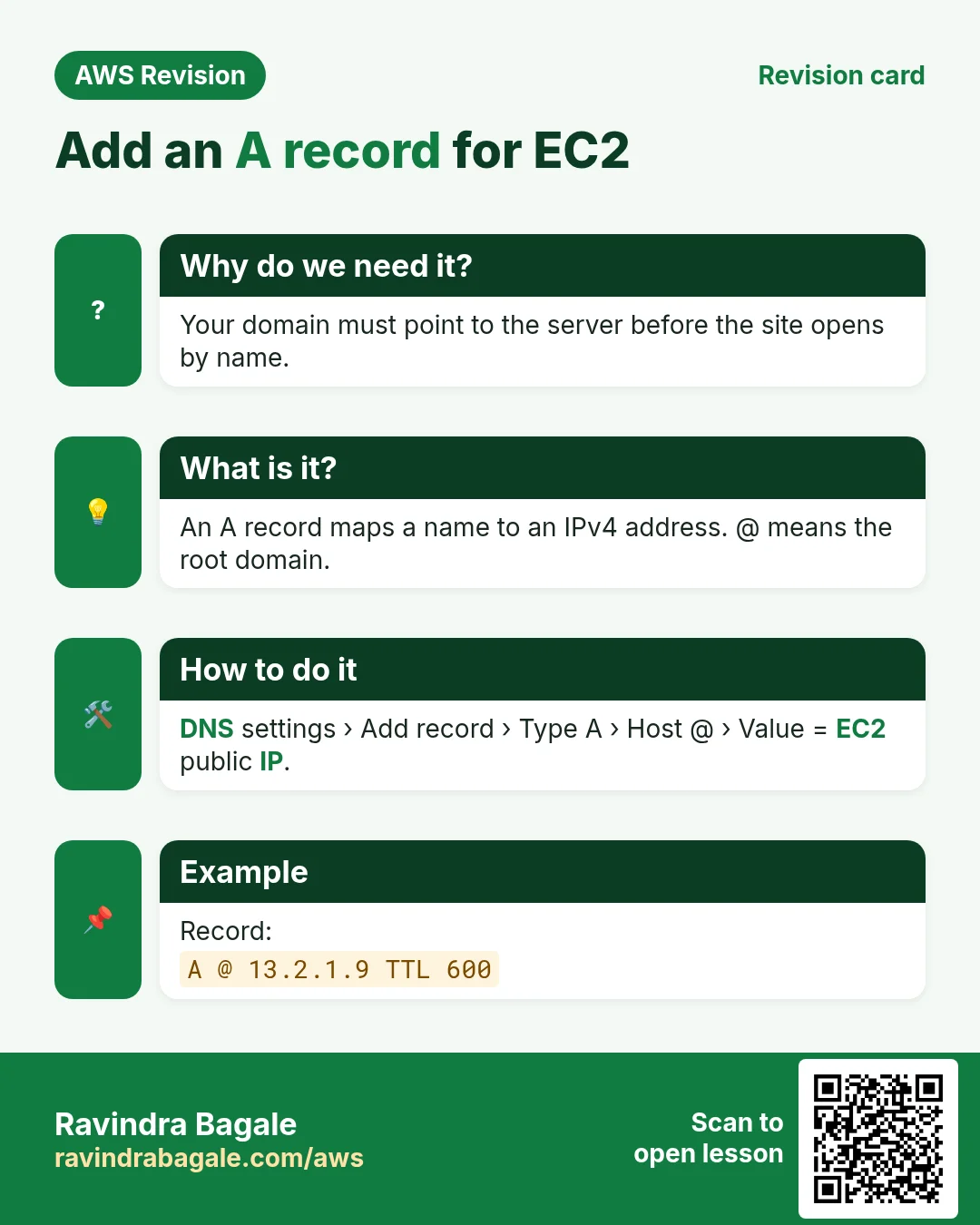
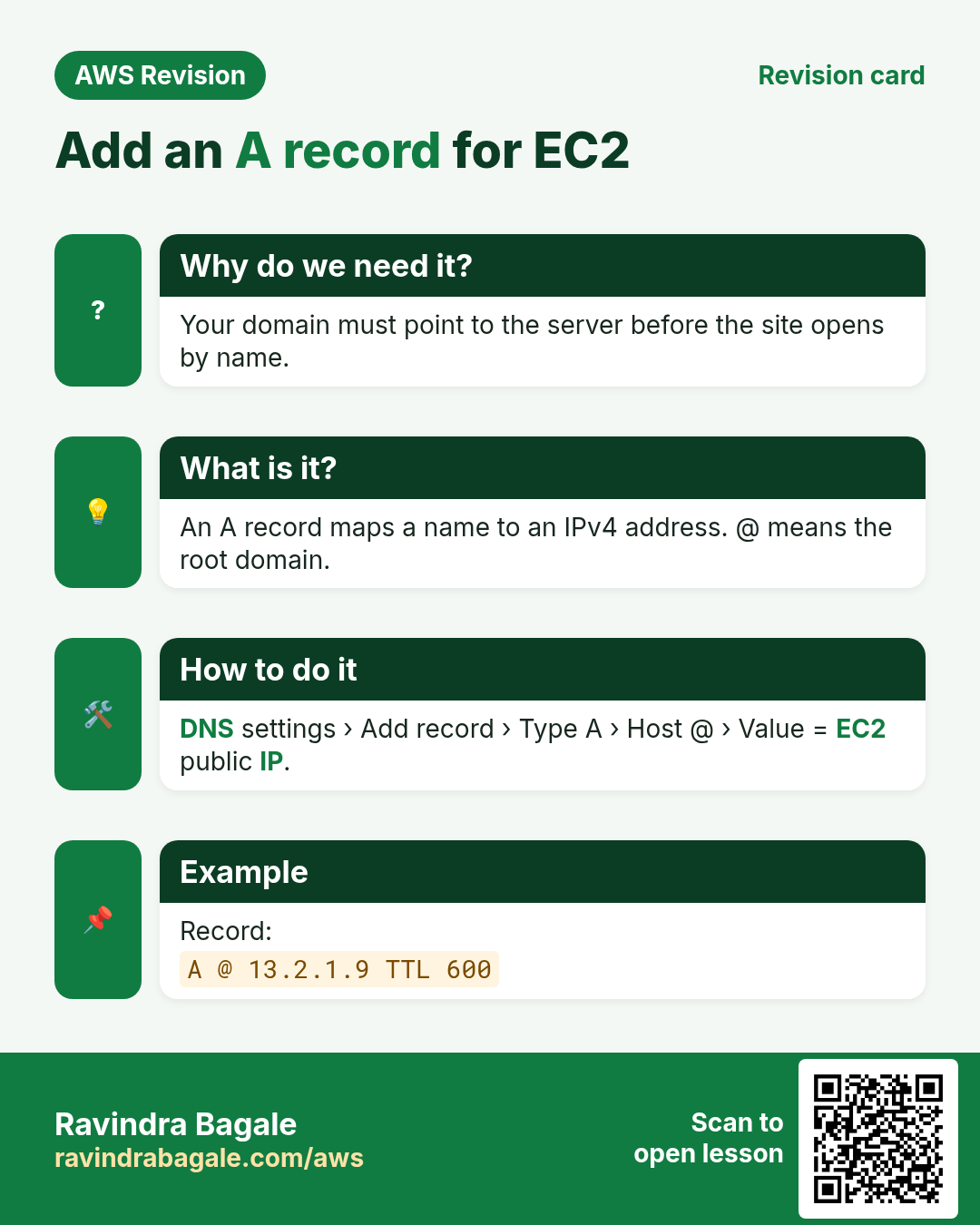
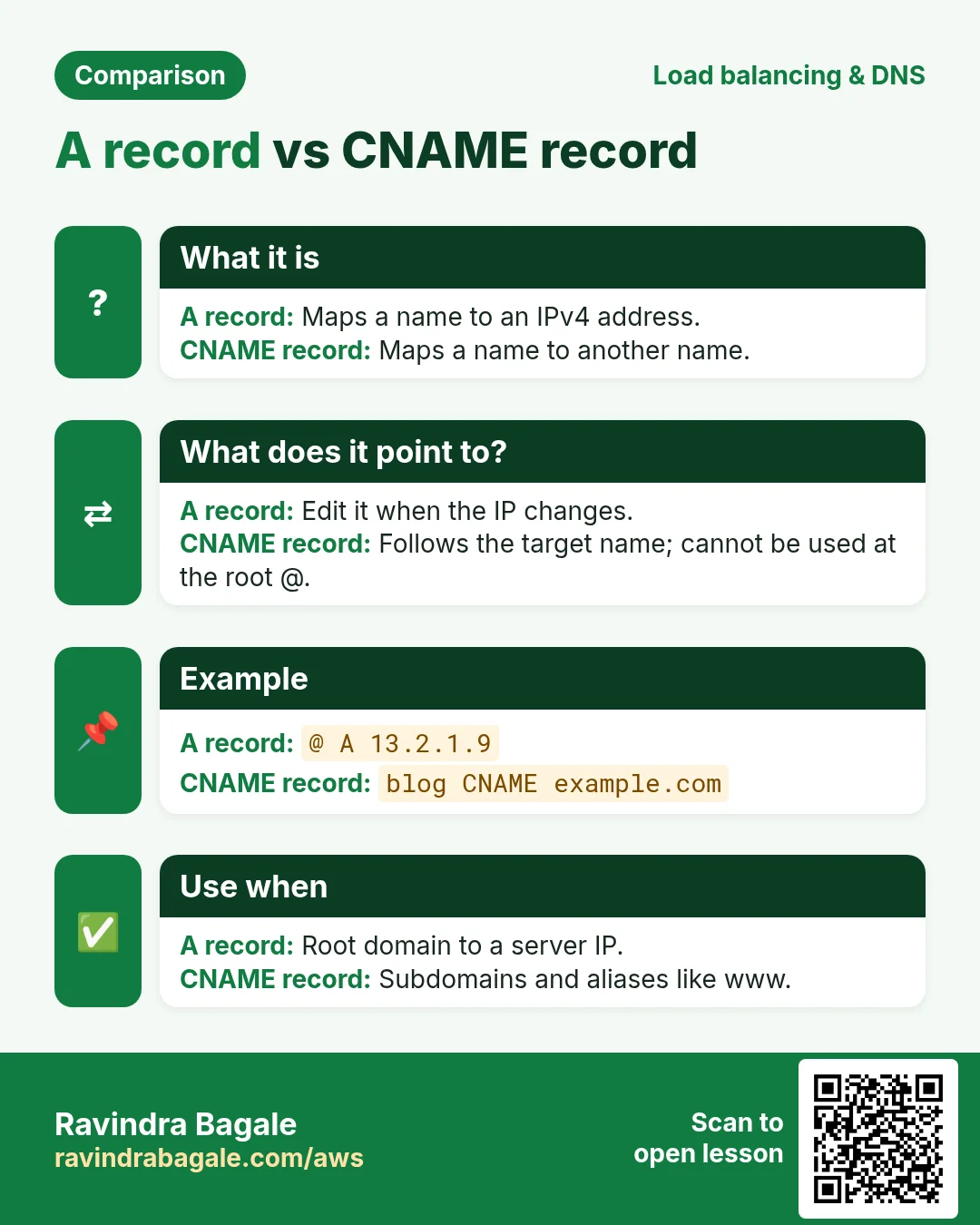
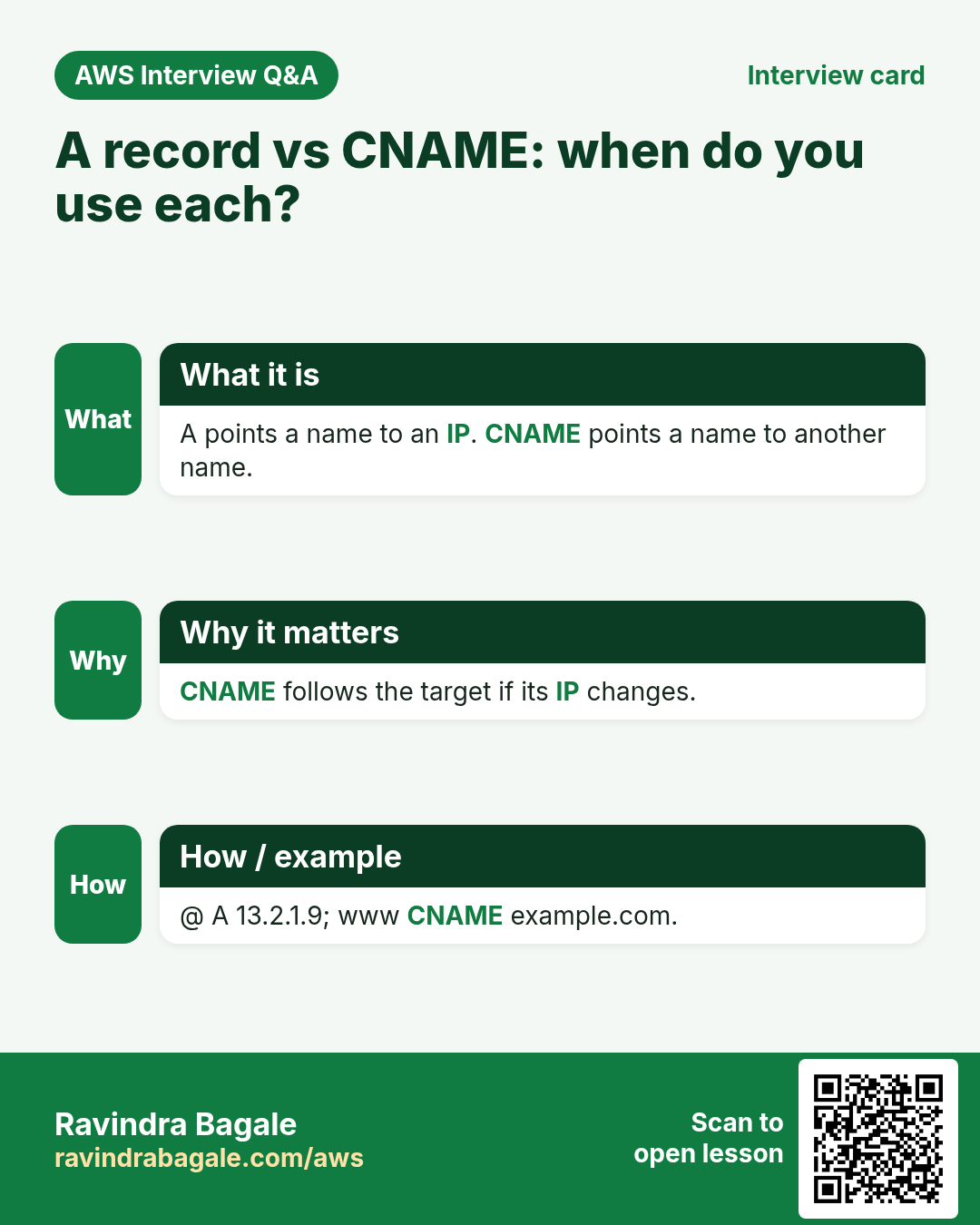
What. An A record maps a name to an IPv4 address. The name @ means "the domain itself", so an A record @ -> PUBLIC_IP makes example.com go to your server.
Step 1. In the EC2 console, open Instances, select your server and copy its Public IPv4 address.
Step 2. In GoDaddy, open your products, pick the domain and choose Manage DNS (on other registrars: DNS settings or DNS records).
Step 3. Add a record:
- Type: A
- Name:
@ - Value: the public IPv4 address you copied
- TTL: leave the default
If an A record for @ already exists (new domains often have one pointing to a parking page), edit it instead of adding a second one.
Step 4. Save.
Classroom line
Next, we have to add it inside GoDaddy.
Class मधलं वाक्य
आता पुढे GoDaddy मध्ये लिहावं लागेल.
Classroom line – हिंदी
"Abhi next GoDaddy ke andar likhna padega."
8. Install Nginx and test the domain
Step 1. Connect to the server (Amazon Linux) with ssh. Make sure its Security Group allows HTTP on port 80.
Step 2. Install Nginx:
sudo yum install nginx -y
Step 3. Start it:
[ec2-user@ip-172-31-xx-xx ~]$ sudo service nginx start
Redirecting to /bin/systemctl start nginx.service
What that line means. On Amazon Linux the old service command hands the job to systemctl, the system's service manager, and tells you so. It is not an error: Nginx has started.
Step 4. Open http://PUBLIC_IP/, then http://example.com/. Both show the Welcome to nginx! page. If the name doesn't open yet, wait a few minutes (section 9).
Step 5. Make your own test page:
sudo nano /usr/share/nginx/html/hello.html
Type one line, for example Hello from my own domain, save with Ctrl+O, Enter, then Ctrl+X.
Step 6. Open http://example.com/hello.html. Your line shows. The name now works exactly like the IP did.
9. Two things to know: the IP can change, and DNS takes time
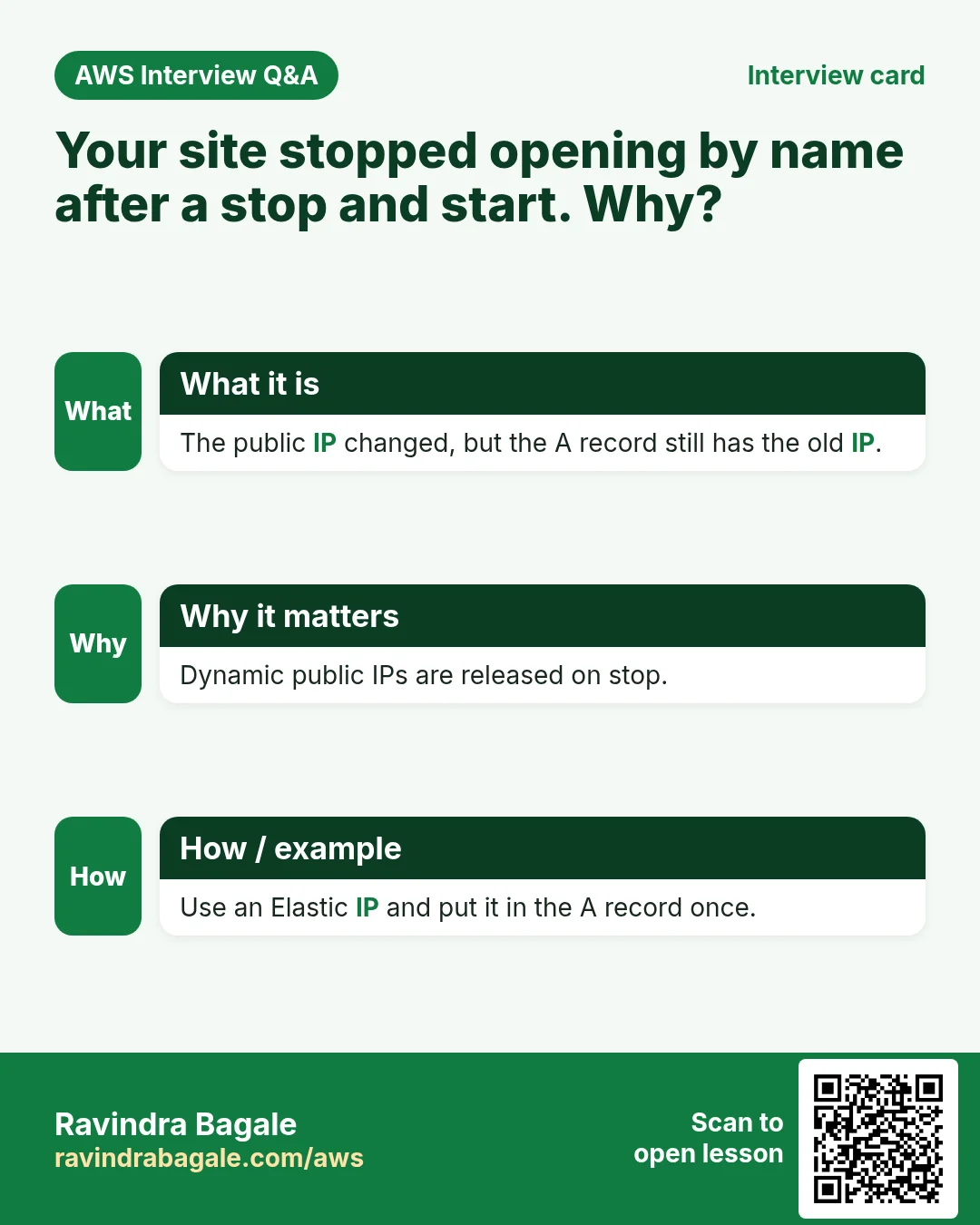
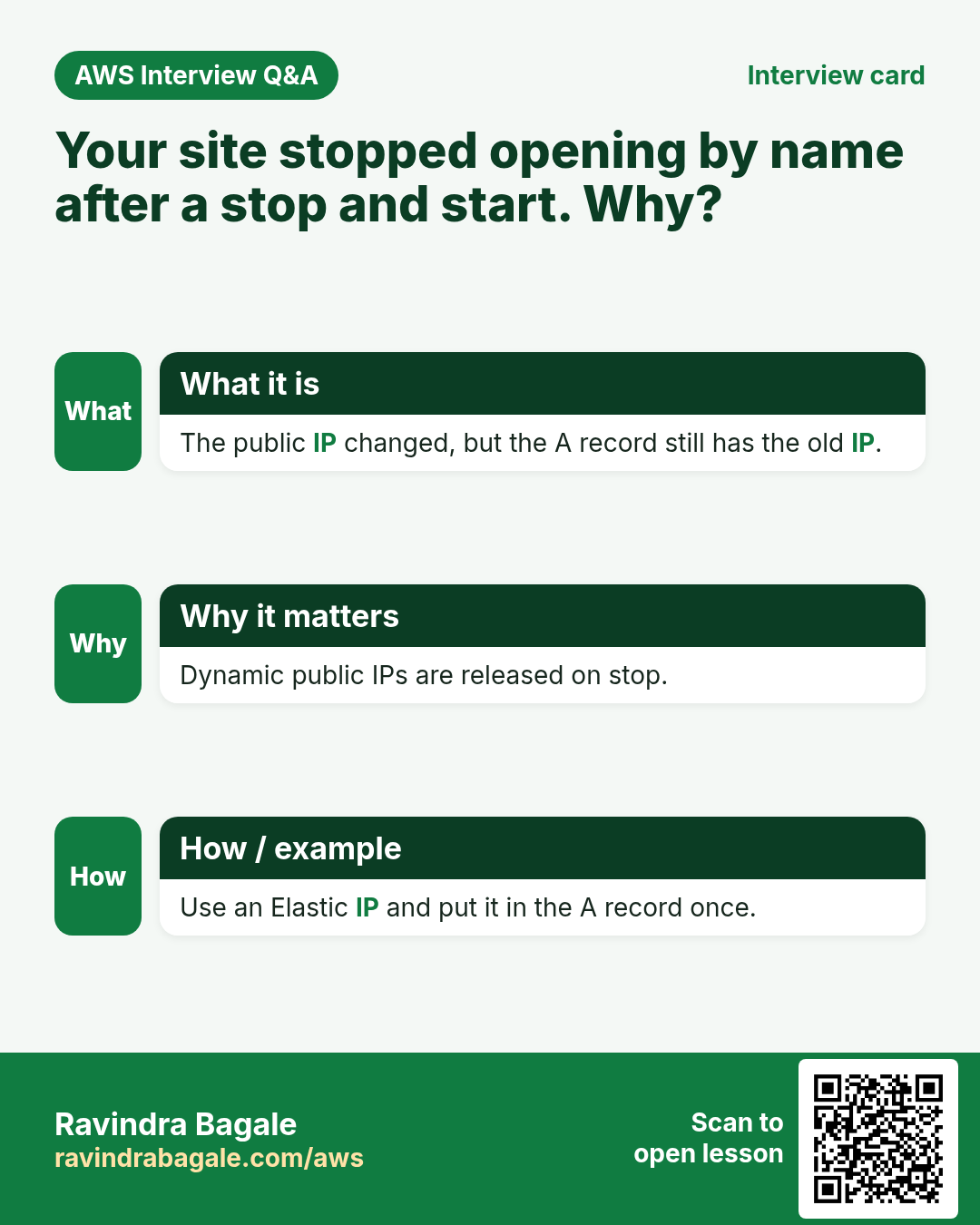
Problem 1: the public IP changes. When you stop an EC2 instance and start it again, AWS gives it a new public IP. A reboot keeps the IP; a stop and start doesn't. The A record still holds the old IP, so example.com stops working.
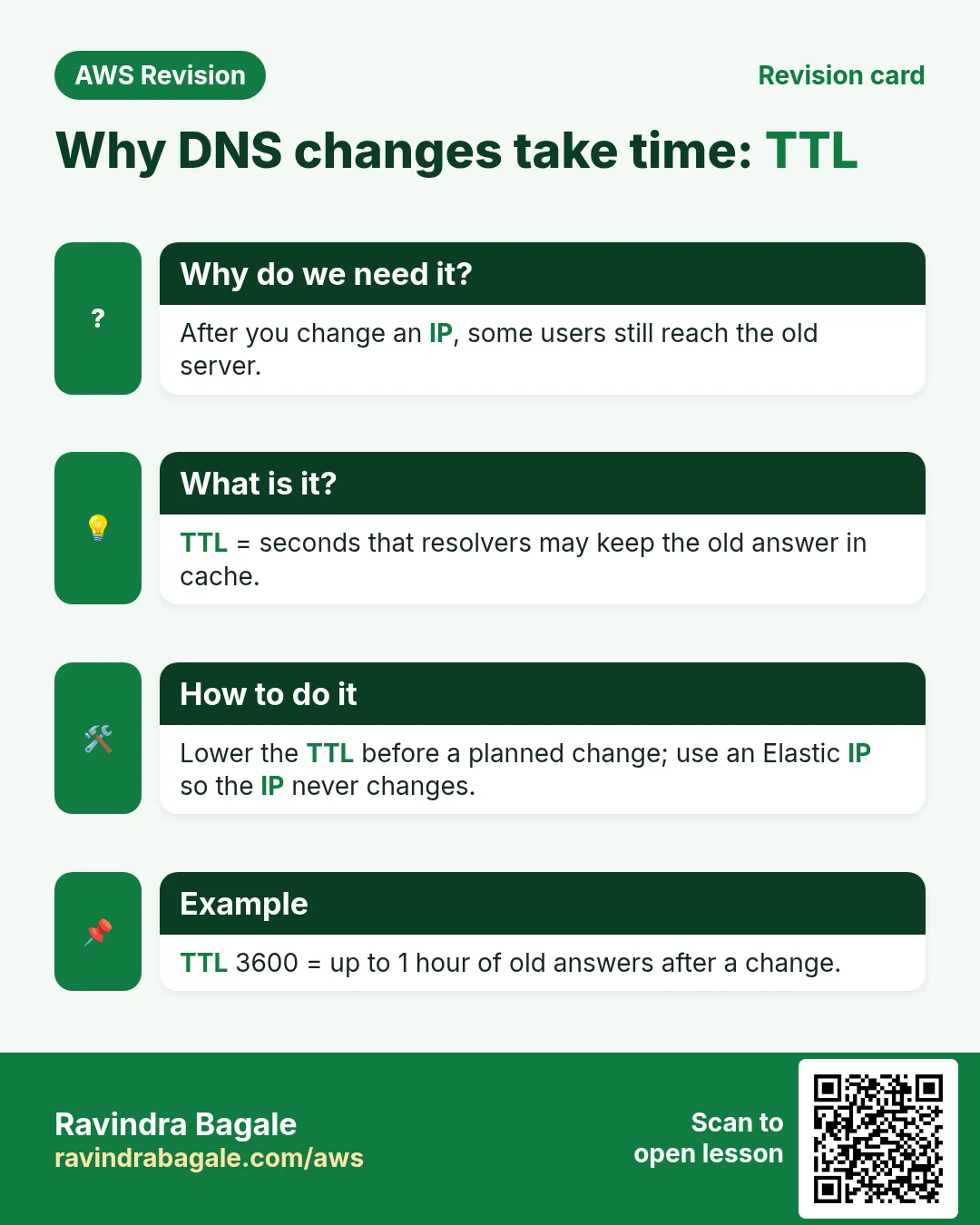
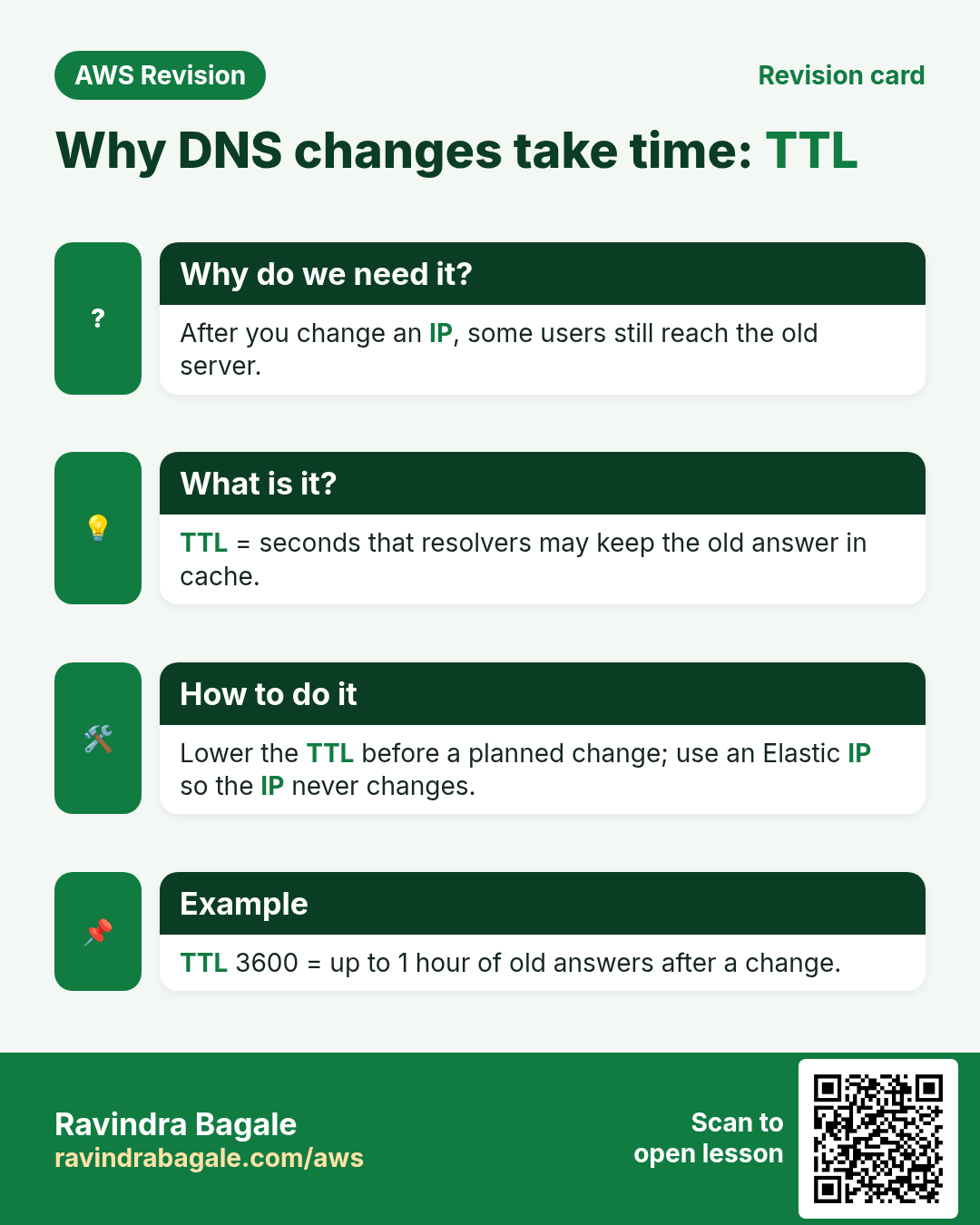
Problem 2: DNS changes take time. Resolvers remember (cache) an answer for the record's TTL (time to live). After you change a record, some visitors get the old answer until that time runs out. Usually it's minutes; GoDaddy's own message says most updates take effect within an hour but can take up to 48 hours.
Example 2, step by step:
- Monday: A record
@ -> OLD_IP. The site opens. - Evening: you stop the server to save money.
- Tuesday: you start it. EC2 shows a
NEW_IP. example.comstill points toOLD_IP: the site doesn't open.- Quick fix: edit the A record to
NEW_IP, save, and wait for the TTL.
The proper fix is an Elastic IP: a public IP that stays the same until you release it. That's the next chapter.
Figure 5. A stop and start gives a new public IP, but the A record still has the old one. Update the record, or use an Elastic IP (next chapter).
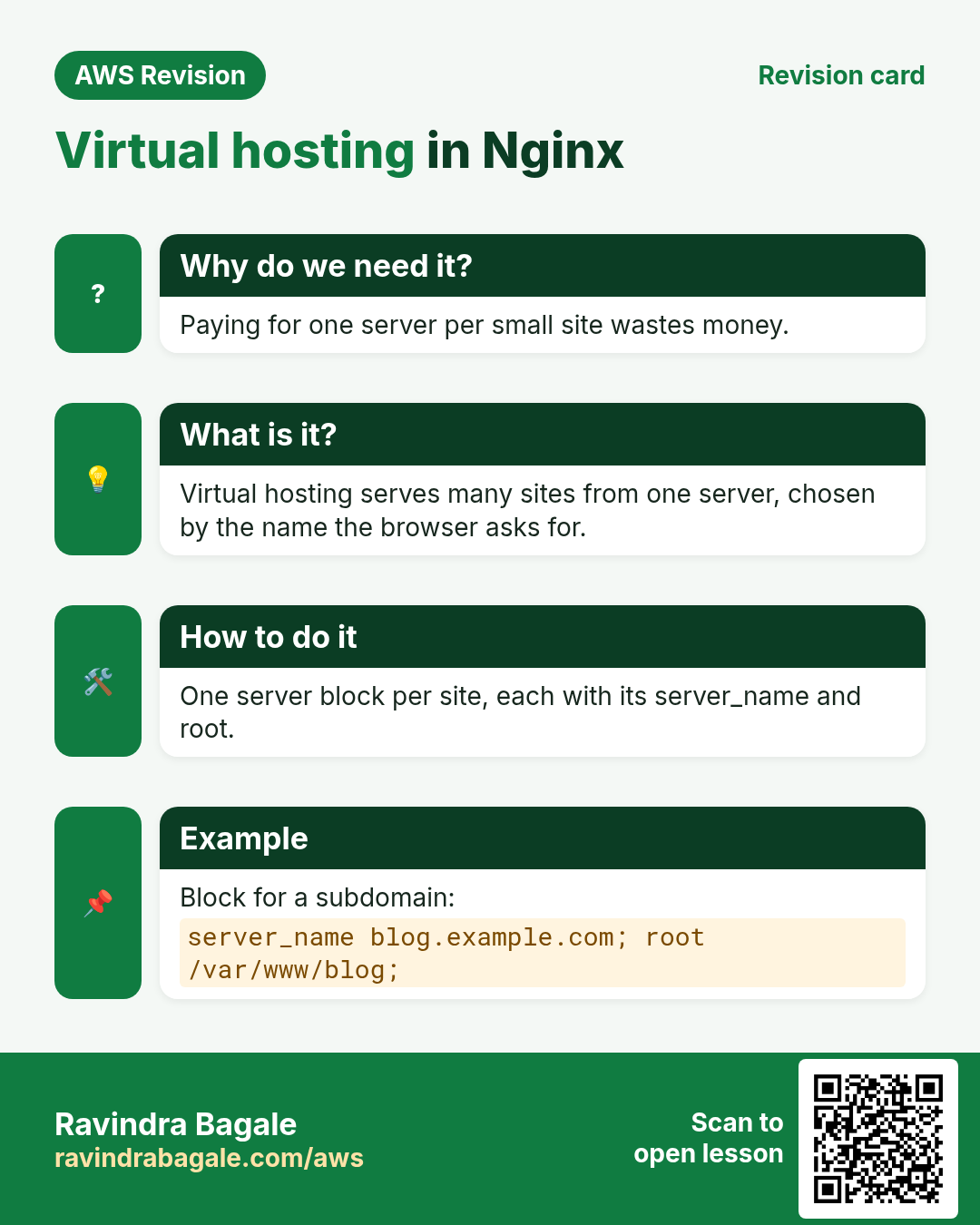
10. Why: many websites on one server (virtual hosting)
Why. Every running server adds to the AWS bill. Most small websites are busy only a little each day.
Classroom line
Why should we host multiple websites inside one server?
Class मधलं वाक्य
एका server मध्ये multiple websites का host करायच्या?
Classroom line – हिंदी
"Ek server ke andar multiple websites kyun host karne hai?"
Classroom line
The more servers you use, the bigger the bill you'll get.
Class मधलं वाक्य
जितके servers तुम्ही वापराल तितकं bill तुम्हाला येणार.
Classroom line – हिंदी
"Jitne servers aap use karoge utna bill aane wala hai aapko."
Example 3: an idle server, with numbers. Suppose a small site gets visitors for about 100 minutes a day.
- A day has 24 × 60 = 1,440 minutes.
- Busy: 100 minutes. Idle: 1,440 − 100 = 1,340 minutes.
- 1,340 ÷ 1,440 ≈ 0.93, so the server sits idle about 93% of the day.
Classroom line
So out of 24 hours it's used only about a hundred minutes, which means your server is sitting idle.
Class मधलं वाक्य
म्हणजे चोवीस तासांत फक्त शंभर मिनिटं वापर होतोय, म्हणजे तुमचा server रिकामा बसलाय.
Classroom line – हिंदी
"Toh chobees ghante mein sirf hundred minutes use ho raha hai, toh aapka server khali baith raha hai."
Example 4. Four small sites on four servers means four servers on the bill. The same four sites on one server means one. This is virtual hosting: one server, one Nginx, a folder per site, and Nginx picks the folder by the name the visitor typed. Shared hosting plans are cheap for the same reason: many small sites share one big server.
Figure 6. Virtual hosting: three names, one EC2 server, one Nginx, one folder per site.
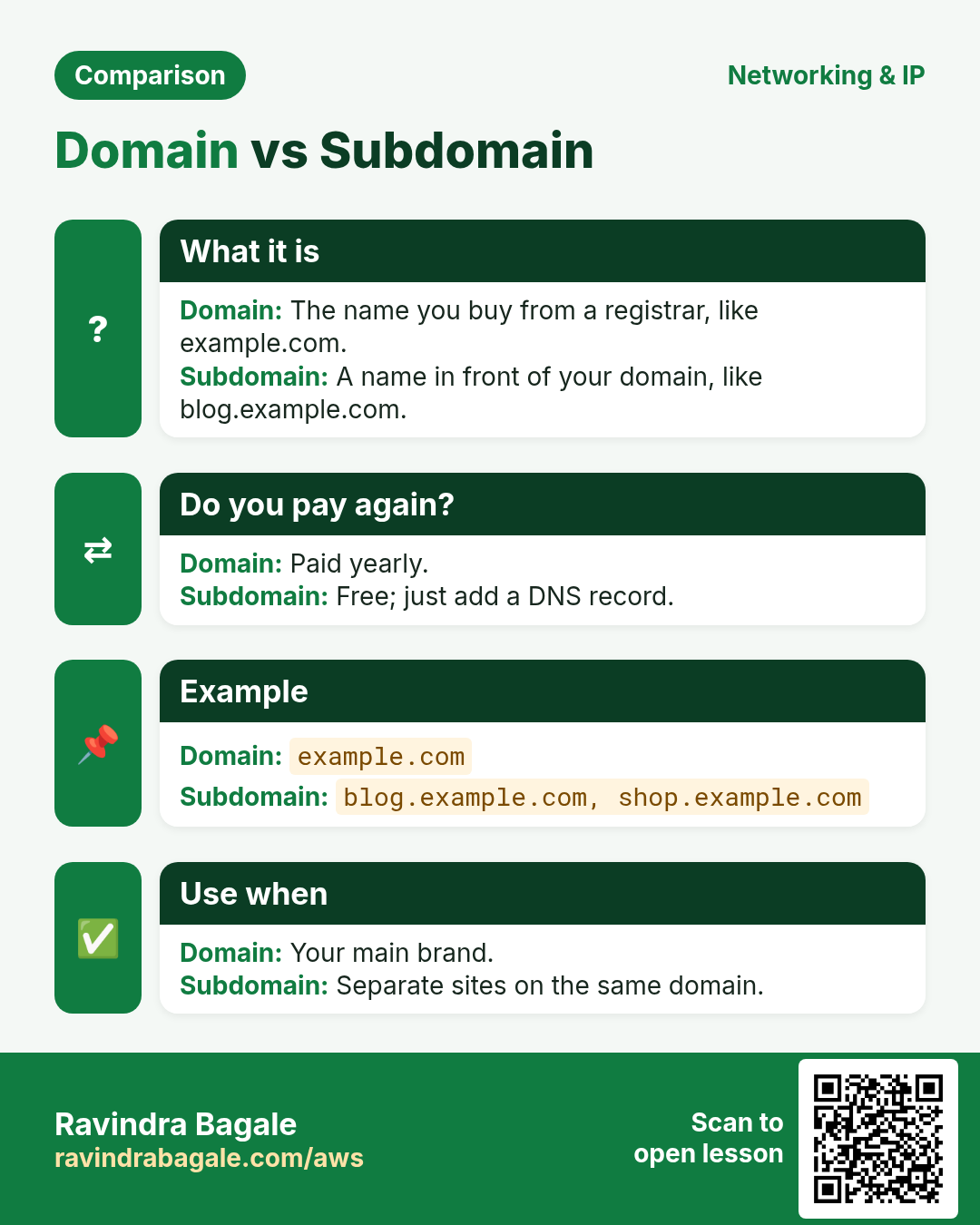
11. What: TLD, domain and subdomain
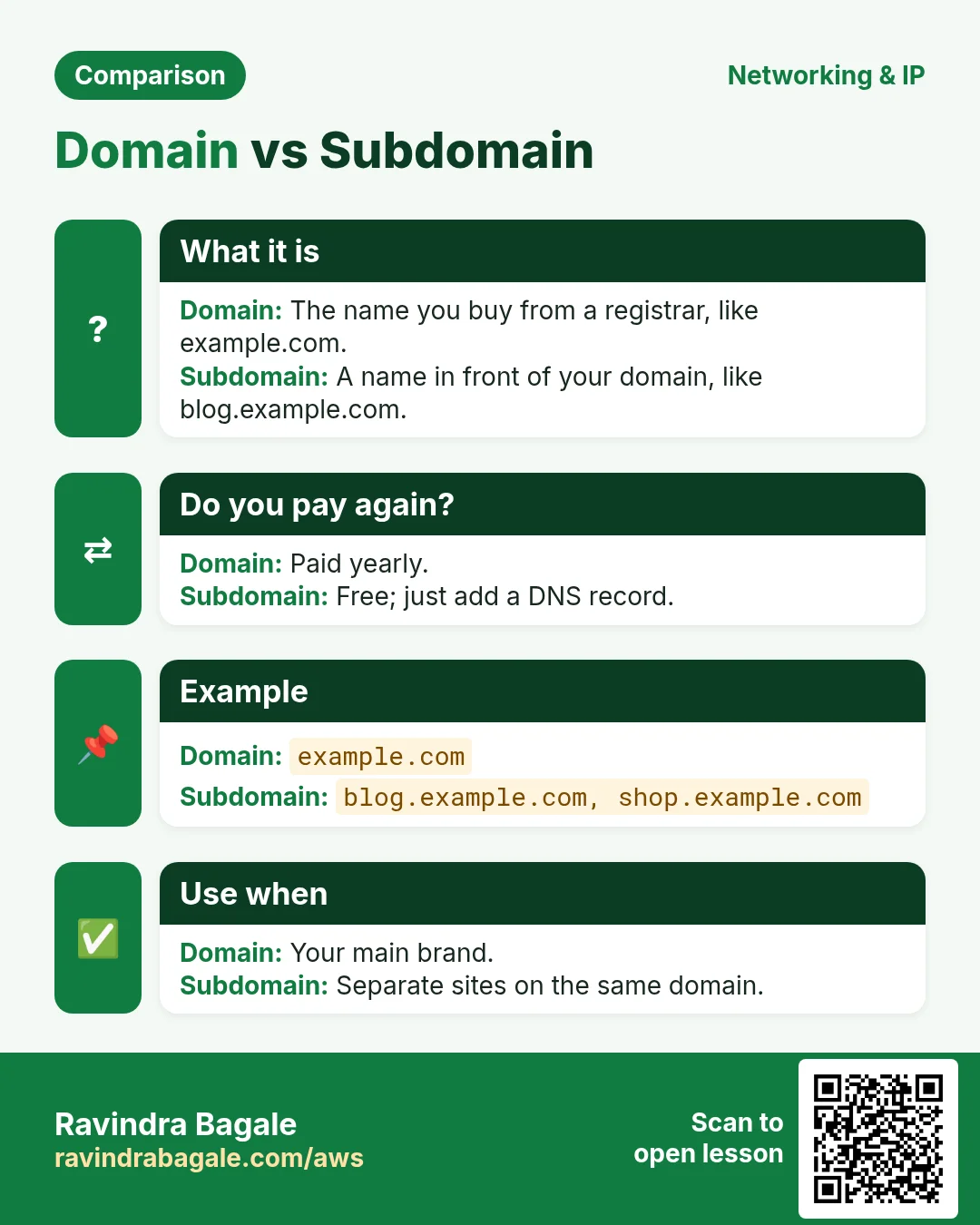
Read a name from right to left. Take onepage.example.com:
.comis the top-level domain (TLD). Others:.in,.org,.net.example.comis the domain: the part you register and renew.onepageis a subdomain. You create subdomains yourself, as many as you need, with DNS records. No extra registration.
Example 5. Suppose we are Google: mail.google.com, maps.google.com and drive.google.com are subdomains of one domain, google.com, and each opens a different service.
Figure 7. TLD, domain and subdomain in onepage.example.com.
12. How: CNAME records for subdomains
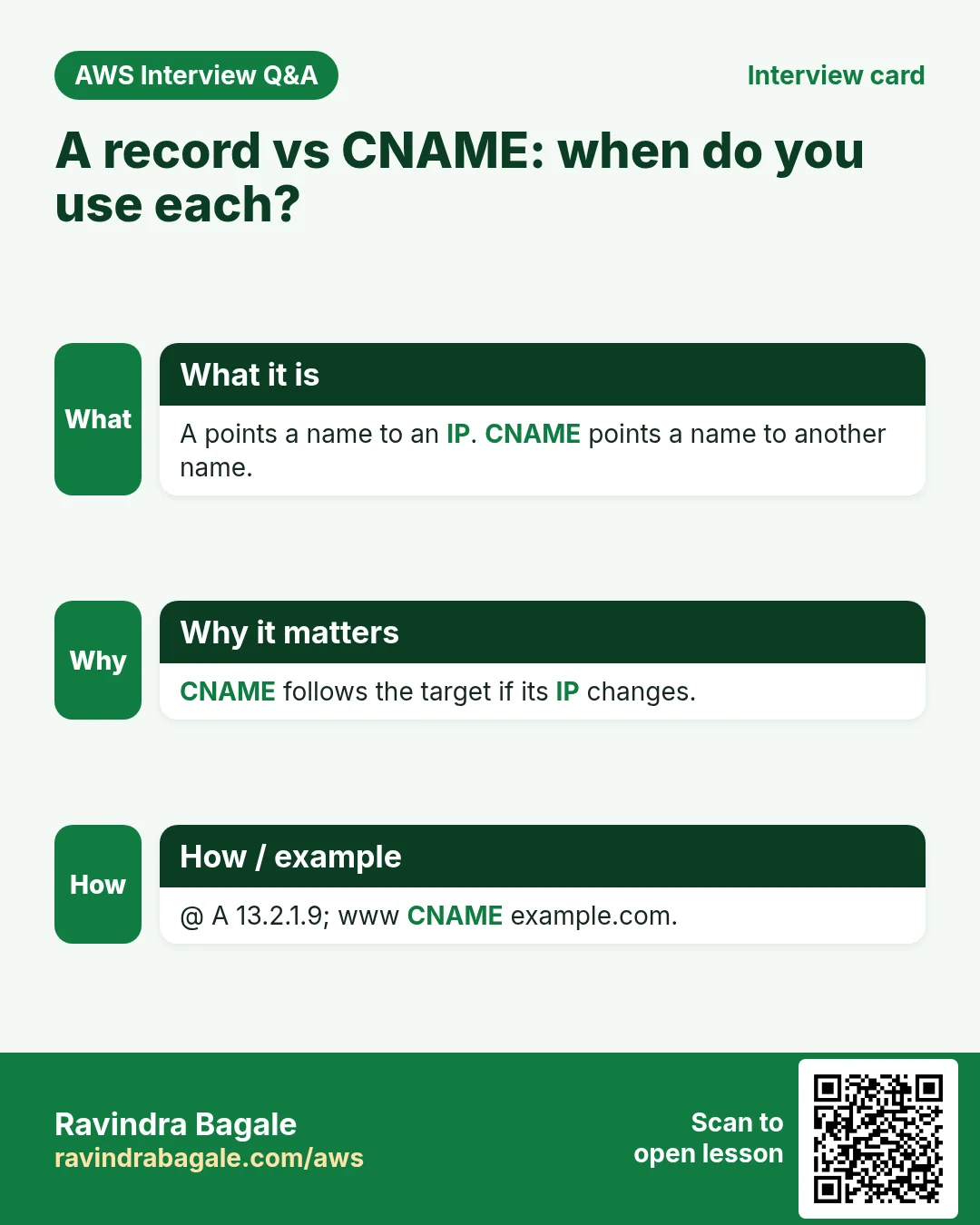
What. A CNAME record says "this name is another name for that name". A CNAME onepage -> example.com makes onepage.example.com follow example.com, which already has the A record with the IP.
Why CNAME and not more A records? All subdomains follow the one A record. When the IP changes, you edit one record, not one per subdomain.
Step 1. In GoDaddy's Manage DNS, click to add a new record.
Step 2. Fill in:
- Type: CNAME
- Name:
onepage(only the subdomain part) - Value:
example.com(some registrars also accept@) - TTL: default
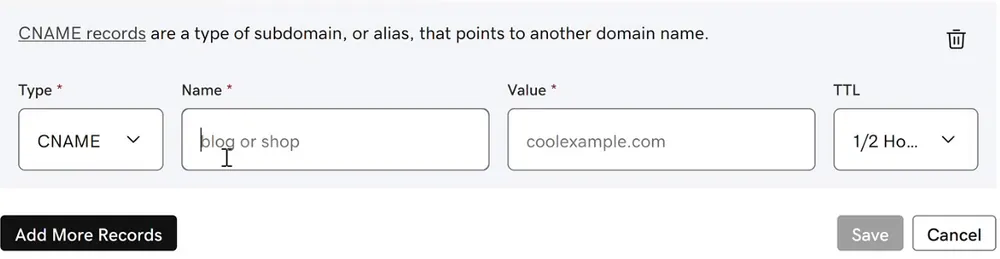
Console: Adding a CNAME record in GoDaddy: Type CNAME, the subdomain in Name, the domain in Value, then Save.
Step 3. Save, then repeat for each site: landing, scroll, animated.
Step 4. Delete old records you no longer use, so the list stays clean.
Now your records look like this:
Type    Name       Value
A       @          PUBLIC_IP
CNAME   landing    example.com
CNAME   onepage    example.com
CNAME   scroll     example.com
CNAME   animated   example.com
Figure 8. One A record for the domain, one CNAME per subdomain.
13. How: get the website templates onto the server
We need four different sites. A quick way is a public GitHub repository that holds several HTML templates, one per folder.
Step 1. Go to Nginx's folder:
cd /usr/share/nginx
Step 2. Download the repository as a ZIP (copy the link from Code > Download ZIP). sudo is needed because this folder belongs to root:
sudo wget https://github.com/OWNER/REPO/archive/refs/heads/master.zip
The ZIP has only the files, without the project's history; git clone is the other way to get a repository.
Step 3. Unzip it and give the folder a short name:
sudo unzip master.zip
sudo mv REPO-master websites
cd websites
Step 4. List the folders:
[ec2-user@ip-172-31-xx-xx websites]$ ls
'Animated Template'  'Landing Page Template'  'One Page Template'  'Scroll Template'
Why rename them. Names with spaces are painful in commands and in nginx.conf. In the shell, a space separates words, so a backslash before each space (\) says "this space is part of the name". Quotes do the same job.
Step 5. Rename each folder to one short word:
sudo mv Animated\ Template animated
sudo mv Landing\ Page\ Template landing
sudo mv "One Page Template" onepage
sudo mv Scroll\ Template scroll
Tip: type the first letters and press Tab; the shell adds the backslashes for you.
Step 6. Check:
[ec2-user@ip-172-31-xx-xx websites]$ ls
animated  landing  onepage  scroll
[ec2-user@ip-172-31-xx-xx websites]$ ls landing
index.html  ...
Each folder has its own index.html. Use the folder that holds index.html as the site's folder, as in the previous chapter.
14. How: one Nginx server block per subdomain
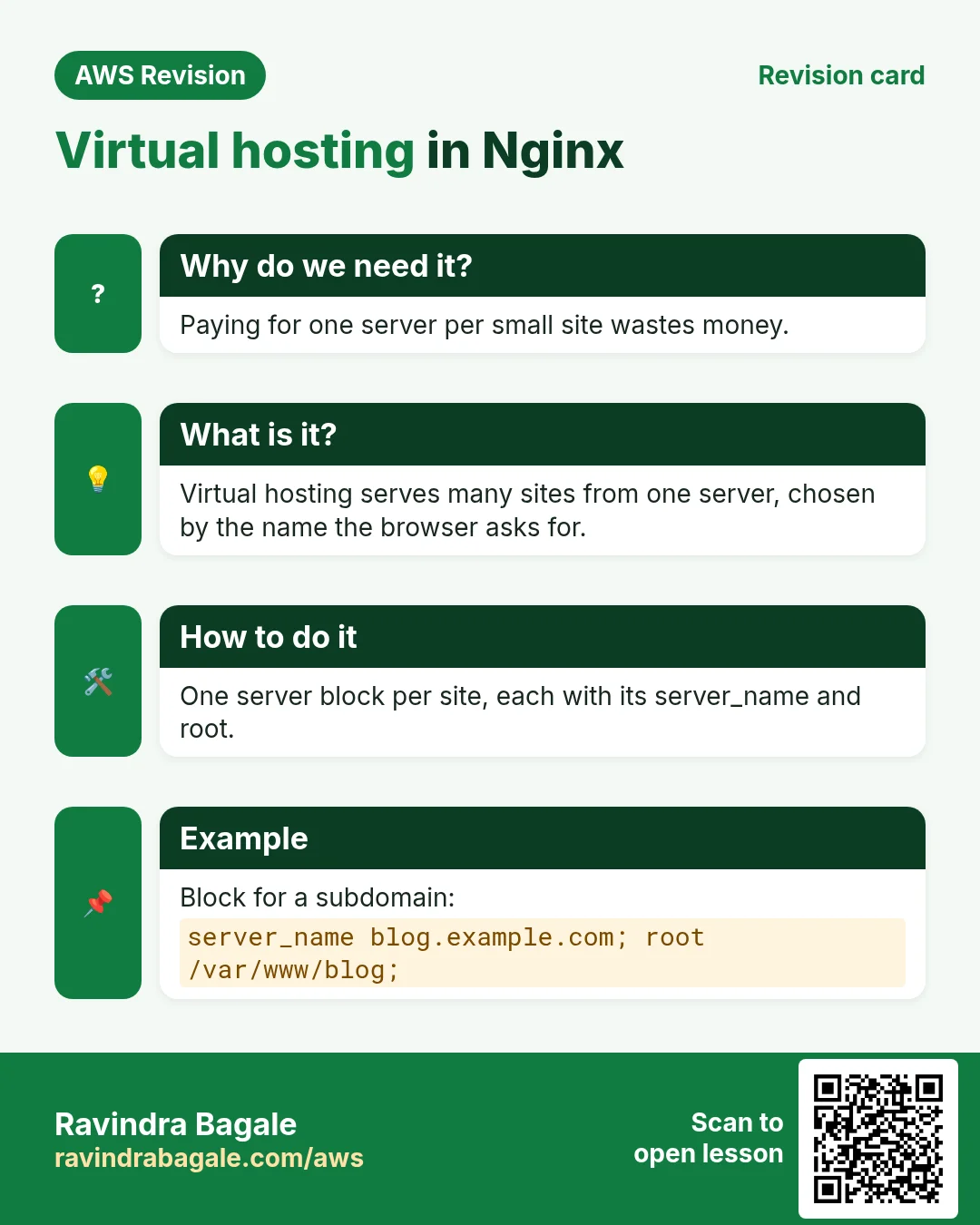
What. In nginx.conf, each server { ... } block is one website. Two settings (directives) decide which one:
server_name: the name this block answers to.root: the folder it serves.
Classroom line
Notice that inside the server block there's something called server_name.
Class मधलं वाक्य
"Laksh dila ka tumhi, server block chya aatmadhe server_name mhanun ek aahe."
लक्ष दिलं का तुम्ही, server block च्या आतमध्ये server_name म्हणून एक आहे.
Classroom line
Notice that inside the server block there's something called server_name.
How Nginx picks a block. The browser sends the name it asked for along with the request. Nginx compares it with each server_name. If one matches, that block's root is served. If none matches, for example a visit by bare IP, the default block answers; in the Amazon Linux nginx.conf that's the first server block.
Classroom line
Whenever Nginx can't match the name, it simply goes into the first server block it sees.
Class मधलं वाक्य
Nginx ला नाव match झालं नाही की तो simply जो पहिला server block दिसतो त्यात जातो.
Classroom line – हिंदी
"Jab bhi Nginx confuse ho jata hai na toh woh simply jo bhi pehla server block dikh raha hai usike andar chala jayega."
Figure 9. Animation: each name matches its own server_name and gets its own folder; a bare IP gets the default (first) block.
Step 1. Open the settings file:
sudo nano /etc/nginx/nginx.conf
Step 2. Leave the existing server block (with server_name _;) as it is. Below its closing }, still inside the http { ... } block, add one block per site:
server {
    listen       80;
    listen       [::]:80;
    server_name  landing.example.com;
    root         /usr/share/nginx/websites/landing;
}

server {
    listen       80;
    listen       [::]:80;
    server_name  onepage.example.com;
    root         /usr/share/nginx/websites/onepage;
}
Add the same for scroll and animated. Only server_name and root change from block to block. Save with Ctrl+O, Enter, then Ctrl+X.
![nano editing nginx.conf: a server block with listen 80, listen [::]:80, server_name scroll.example.com and root /usr/share/nginx/websites/scroll.](../../assets/img/aws/domain-names-dns-records-and-nginx-subdomains-02-console-nginx-server-block-subdomain.webp)
Console: One server block in nginx.conf: listen on port 80, server_name set to the subdomain, root set to that site's folder.
Classroom line
Okay, all four server blocks are done.
Class मधलं वाक्य
ठीक आहे, चारही server blocks झाले.
Classroom line – हिंदी
"Theek hai, charo server block to ho gaye."
Step 3. Test the file, then reload:
[ec2-user@ip-172-31-xx-xx ~]$ sudo nginx -t
nginx: the configuration file /etc/nginx/nginx.conf syntax is ok
nginx: configuration file /etc/nginx/nginx.conf test is successful
[ec2-user@ip-172-31-xx-xx ~]$ sudo service nginx reload
Redirecting to /bin/systemctl reload nginx.service
reload applies the new settings without stopping the sites that are already running.
15. Test each subdomain
Step 1. Open each address:
http://landing.example.com/shows the landing template.http://onepage.example.com/shows the one-page template.http://scroll.example.com/shows the scroll template.http://animated.example.com/shows the animated template.http://PUBLIC_IP/still shows the default page from/usr/share/nginx/html.
If one doesn't open:
- Wait a few minutes after adding the CNAME (TTL), then try again.
- Check the CNAME's Name has only the subdomain (
landing, notlanding.example.com). - Check
server_nameandrootin that block, and that the folder holdsindex.html. - Run
sudo nginx -tagain and reload.
Example 6: five sites, one bill. Five names (the domain plus four subdomains), five server blocks counting the default one, and five DNS records (one A, four CNAME), all on one EC2 server.
16. Capital letters: the domain doesn't care, the path can
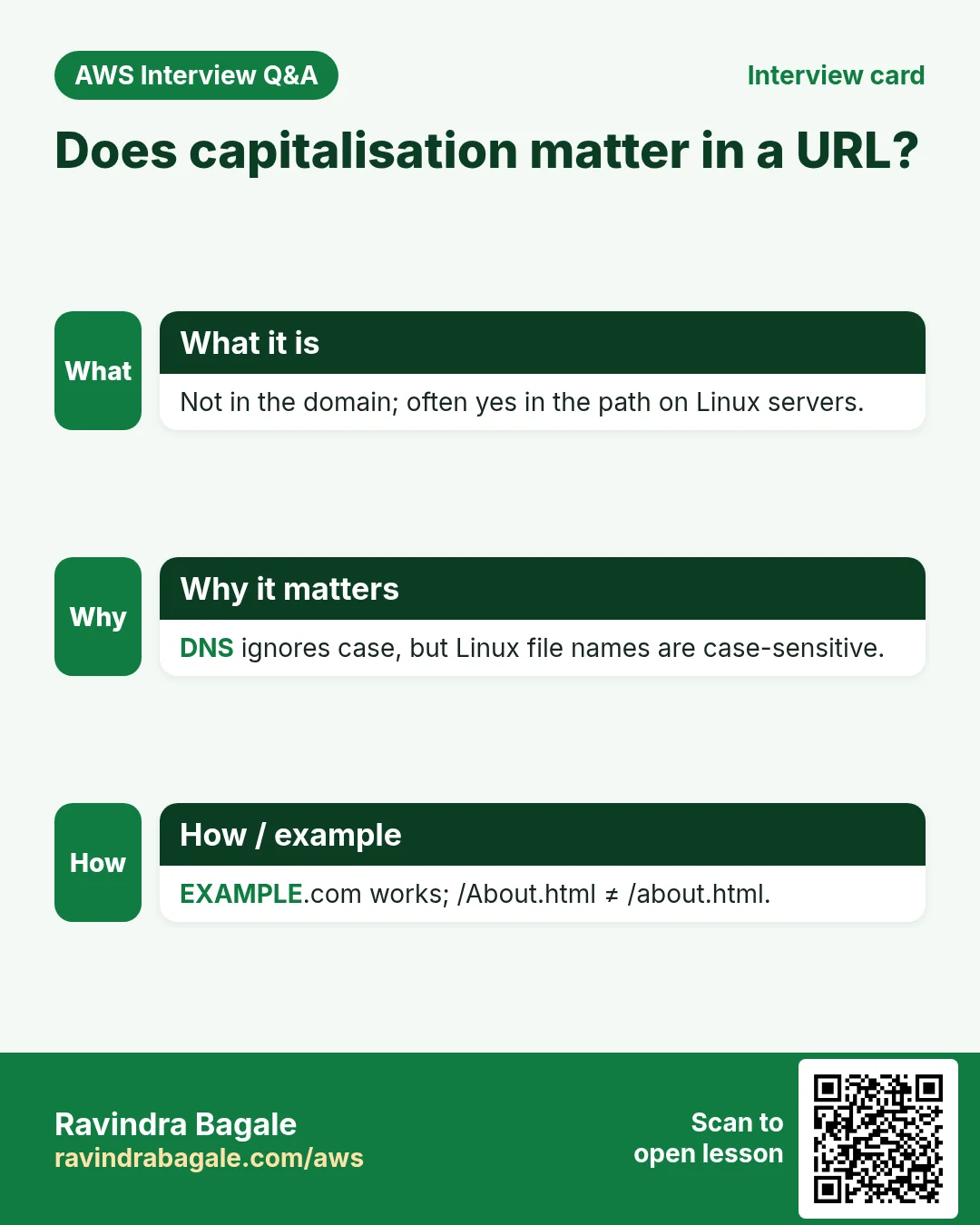
Q: Does LANDING.Example.COM work? Yes. The domain part of a web address is not case-sensitive; browsers turn it into small letters before asking DNS.
But the path can be. The part after the domain is a file path on the server. On a Linux server /Images/Logo.png and /images/logo.png are two different files, so a wrong capital letter gives 404 Not Found.
Habit. Use small letters for folder and file names, and type links exactly as the files are named.
Figure 10. The domain part is not case-sensitive; the path after it can be.
17. The whole flow on one page
- Buy a domain; keep owner and admin in your own account.
- A record:
@ -> PUBLIC_IP. sudo yum install nginx -y,sudo service nginx start; openhttp://example.com/.- For each site: a CNAME
name -> example.com. sudo wgetthe templates,sudo unzip, rename folders to short names.- One
serverblock per subdomain withserver_nameandroot. sudo nginx -t,sudo service nginx reload, open each subdomain.- Stop and start changes the IP: update the A record, or use an Elastic IP (next chapter).
18. Try at home
Try at home
Task 1: one domain
- Buy a cheap practice domain, or use one you already own.
- Add an A record
@to your EC2 public IP. - Install and start Nginx, then open your domain and a
hello.htmltest page.
Task 2: three subdomains
- Add three CNAME records pointing to your domain.
- Download three templates under
/usr/share/nginx/websites/, with short folder names. - Add three server blocks, test with
sudo nginx -t, reload, and open all three. - Open one with capital letters in the domain, then try a wrong capital letter in a file path and see the 404.
When you're done, terminate the instance, and delete the A record so your domain doesn't point at an IP you no longer own.
Recap
In short
- People remember names, not IPs. DNS turns a name into an IP: your computer asks a resolver, the resolver reads the domain's records.
- Registrars (GoDaddy, Hostinger, Amazon Route 53 and others) register domains for 1 to 10 years; check the term, add-ons and renewal price in the cart.
- Owner and admin details stay with the business owner; developers get limited access only.
- A record
@ -> PUBLIC_IPpoints the domain to your server.sudo service nginx startprints a harmlessRedirecting to /bin/systemctlline. - A stop and start gives a new public IP, and DNS changes take time (TTL); an Elastic IP is the fix.
- Virtual hosting puts many sites on one server to save cost.
.comis the TLD,example.comthe domain,onepage.example.coma subdomain; CNAME records point subdomains at the domain.- One Nginx server block per site:
server_namepicks the block,rootgives the folder; the default block answers when nothing matches. - The domain is not case-sensitive; the path can be.
Practice Tasks
Seoul Beauty Lab is a cosmetics business in Seoul. Ji-woo Park looks after its IT and cloud work. They count money in KRW and run their AWS resources in the ap-northeast-2 Region. In the tasks below you do real jobs for them using what this lesson teaches. All names, account IDs, IP addresses and numbers are made up for practice.
0 / 12
Easy Restart a service after a change
Why: Config changes only apply after the service restarts or reloads.
What to do: Restart the nginx service.
- Find the Linux command that does this job.
- Add the options (like -r or -h) the task needs.
- Add the file names, folders or users in the right order.
- Use sudo if the job changes system files or users. Click Check answer.
Easy Check if a service is running
Why: When a site is down, first check whether the web server process is running.
What to do: Show the status of the httpd service.
- Find the Linux command that does this job.
- Add the options (like -r or -h) the task needs.
- Add the file names, folders or users in the right order.
- Use sudo if the job changes system files or users. Click Check answer.
Easy Install a package on Ubuntu
Why: Ubuntu uses apt. Package names differ: on Ubuntu Apache is apache2.
What to do: Install the apache2 package on Ubuntu without being asked to confirm.
- Find the Linux command that does this job.
- Add the options (like -r or -h) the task needs.
- Add the file names, folders or users in the right order.
- Use sudo if the job changes system files or users. Click Check answer.
Easy Install a package on Amazon Linux
Why: dnf is the package manager on Amazon Linux 2023. -y answers yes for you.
What to do: Install the httpd package on Amazon Linux 2023 without being asked to confirm.
- Find the Linux command that does this job.
- Add the options (like -r or -h) the task needs.
- Add the file names, folders or users in the right order.
- Use sudo if the job changes system files or users. Click Check answer.
Easy List hosted zones
Why: You need the zone ID to change records.
What to do: List all hosted zones in the account.
- Read the task and decide which AWS service it is about.
- Write aws, then the service name, then the operation (the action word).
- Add each needed flag (--name) followed by its value from the task.
- Flags can be in any order. Click Check answer.
Easy Port for MySQL
Why: The DB security group should open only this port, only to the app.
What to do: Seoul Beauty Lab's app talks to RDS MySQL. Which port should the DB security group allow?
- Write down the numbers the task gives you.
- Work it out step by step on paper.
- Type only the final answer in the box.
- Click Check answer.
Easy Find the database endpoint
Why: Your app connects using the endpoint name, not an IP.
What to do: Describe DB instance seoulbeauty-db.
- Read the task and decide which AWS service it is about.
- Write aws, then the service name, then the operation (the action word).
- Add each needed flag (--name) followed by its value from the task.
- Flags can be in any order. Click Check answer.
Medium Test the nginx config
Why: A test catches typos before a restart takes your site down.
What to do: Check the nginx configuration files for errors.
- Find the Linux command that does this job.
- Add the options (like -r or -h) the task needs.
- Add the file names, folders or users in the right order.
- Use sudo if the job changes system files or users. Click Check answer.
Medium Start a service now and at boot
Why: enable makes it start after reboot; --now also starts it right away.
What to do: Enable the nginx service and start it immediately, in one command.
- Find the Linux command that does this job.
- Add the options (like -r or -h) the task needs.
- Add the file names, folders or users in the right order.
- Use sudo if the job changes system files or users. Click Check answer.
Medium Open port 80 to the world
Why: Visitors can reach your website only if the security group allows HTTP.
What to do: Allow inbound TCP port 80 from 0.0.0.0/0 on security group sg-01c51c3c10204c3b2.
- Read the task and decide which AWS service it is about.
- Write aws, then the service name, then the operation (the action word).
- Add each needed flag (--name) followed by its value from the task.
- Flags can be in any order. Click Check answer.
Medium Create a hosted zone
Why: A hosted zone holds all DNS records for your domain.
What to do: Create a public hosted zone for seoulbeauty.kr, with caller reference seoulbeauty-2026-01.
- Read the task and decide which AWS service it is about.
- Write aws, then the service name, then the operation (the action word).
- Add each needed flag (--name) followed by its value from the task.
- Flags can be in any order. Click Check answer.
Hard Create or update a DNS record
Why: UPSERT creates the record or updates it if it already exists.
What to do: Apply the record changes in change.json to hosted zone Z0123456789ABCDEFGHIJ.
- Read the task and decide which AWS service it is about.
- Write aws, then the service name, then the operation (the action word).
- Add each needed flag (--name) followed by its value from the task.
- Flags can be in any order. Click Check answer.
Revision, comparison and interview cards
Revise this lesson in a few minutes. Save the cards on your phone or download them as PNG files. The QR code on each card opens this lesson.
More cards: Ravi Sir's Cards.