Vim Tutorial for Beginners to Advanced (plus nano): Modes, Commands, Search and Replace
On many servers there is no VS Code and no mouse. There is always vi or vim. Vim feels strange for one hour and then becomes the fastest editor you know. We start with nano for a quick win, then go from vim's three modes to macros, search-replace and splits.
What you'll learn in this chapter
- Edit and save with nano in one minute
- Vim modes: Normal, Insert, Visual, Command-line
- Move fast: words, lines, file, search
- Edit: delete, copy, paste, undo, redo, change
- Search and replace with :s and :%s
- Advanced: visual block, macros, registers, splits, .vimrc
1. An everyday example: a typewriter with a remote
Why do we need this?
Imagine a typewriter with two buttons. One button puts it in 'typing' mode, so keys print letters. The other puts it in 'remote' mode, so keys move the paper, cut lines and copy pages. Once you know which mode you are in, you never type garbage.
What is it?
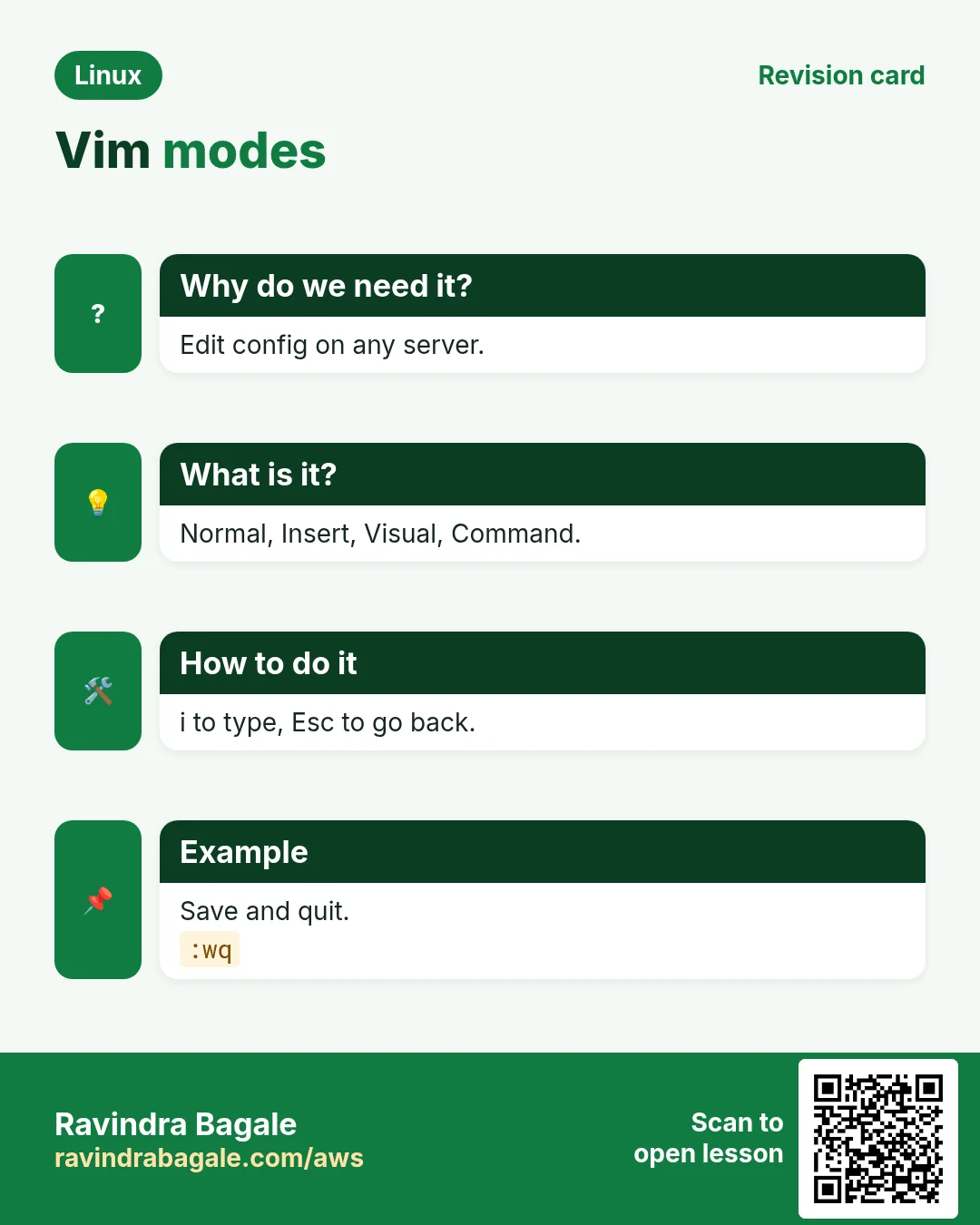
Typing mode = Insert mode (press i). Remote mode = Normal mode (press Esc). The control panel where you type :wq = Command-line mode. Selecting with a highlighter = Visual mode (v).
How to do it (step by step)
2. nano: the quick and friendly editor
Why do we need this?
Sometimes you need to change one line now and do not want to learn modes.
What is it?
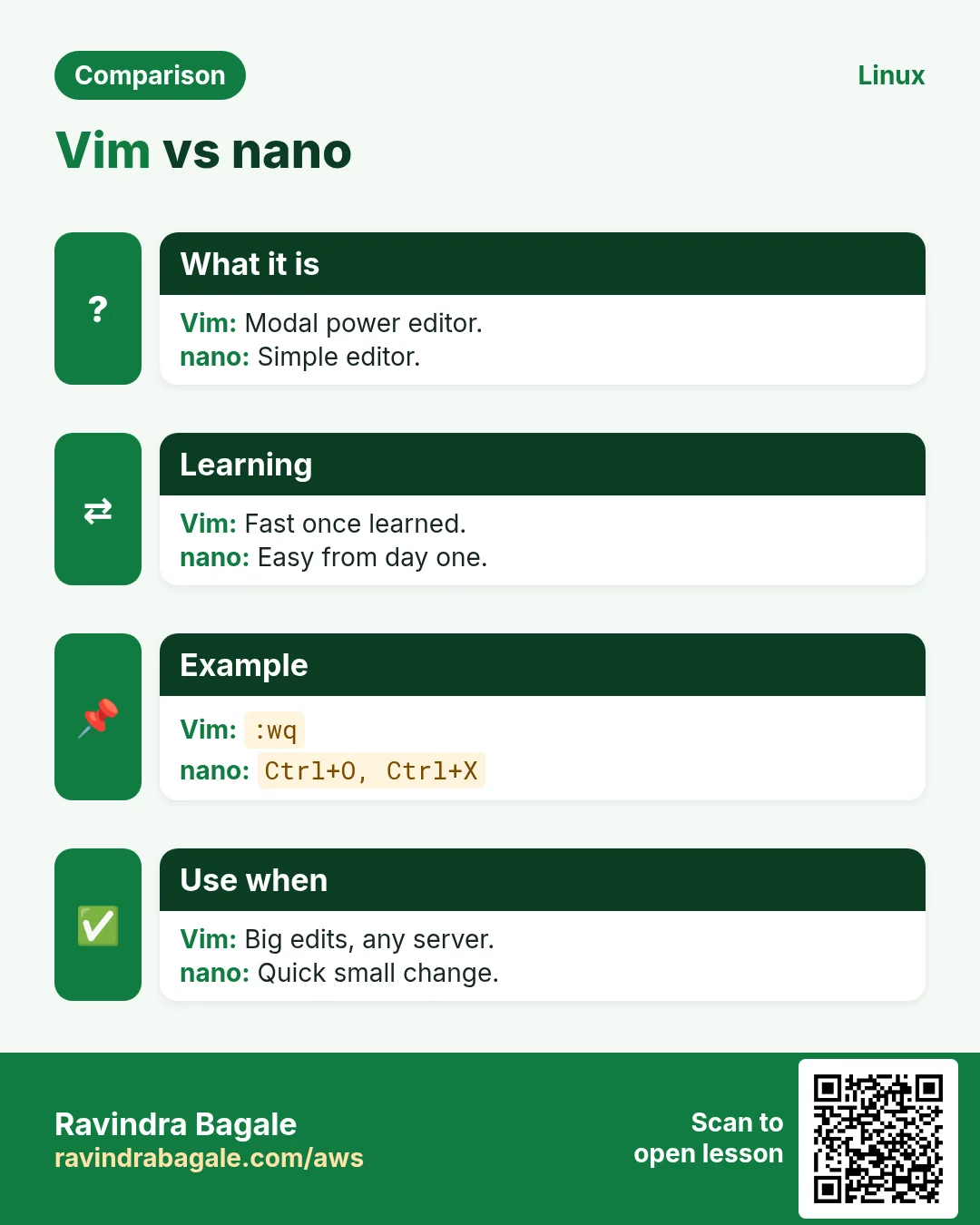
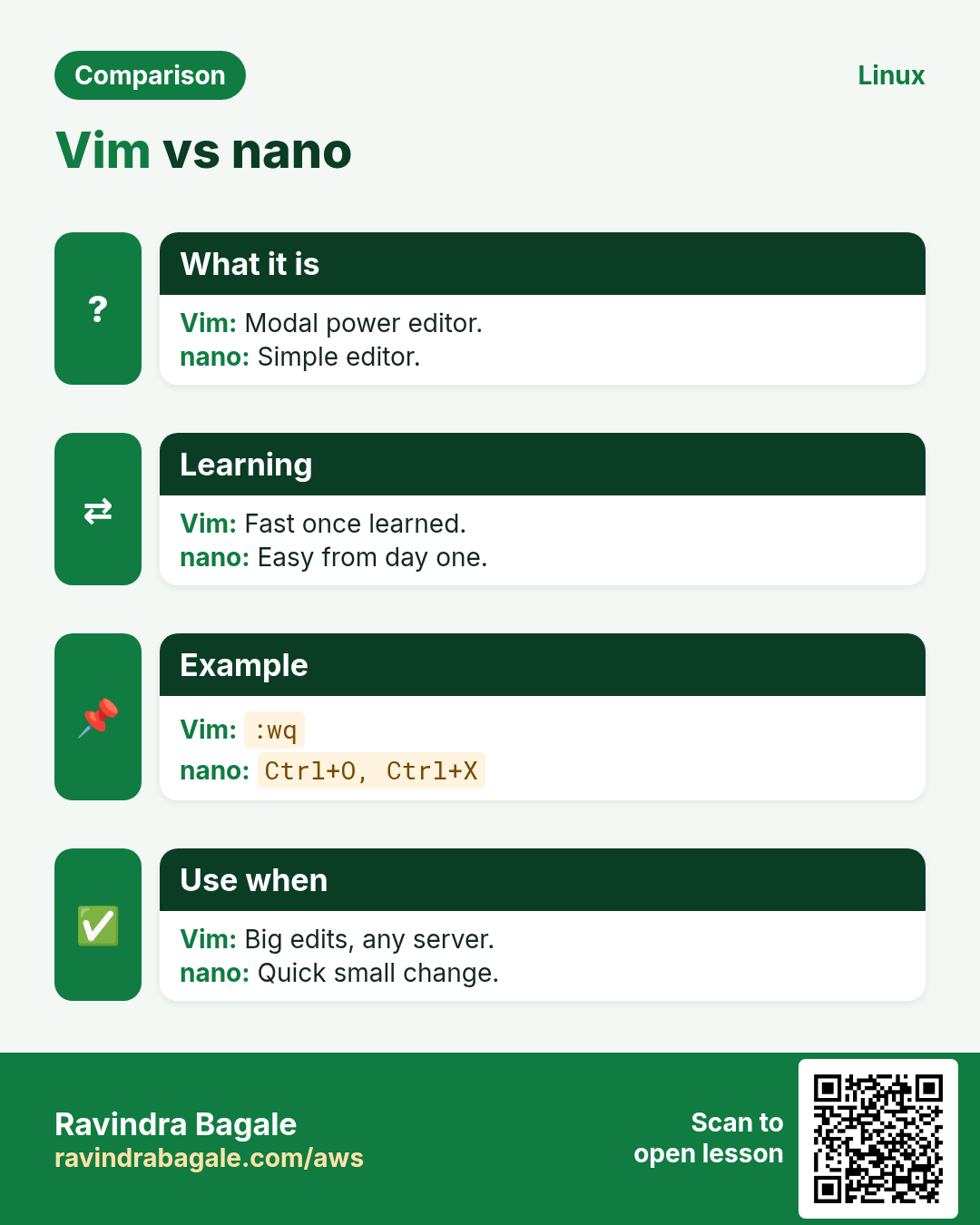
nano shows its shortcuts at the bottom. ^ means Ctrl. Type directly. Ctrl+O saves (Write Out). Ctrl+X exits. Ctrl+W searches. Ctrl+K cuts a line, Ctrl+U pastes. Alt+U undoes. Ctrl+_ goes to a line number.
| Keys | Does |
|---|---|
| Ctrl+O, Enter | Save |
| Ctrl+X | Exit |
| Ctrl+W | Search |
| Ctrl+\ | Search and replace |
| Ctrl+K / Ctrl+U | Cut line / paste |
| Alt+U / Alt+E | Undo / redo |
| Ctrl+_ | Go to line |
How to do it (step by step)
- Open a file at line 20.
nano +20 /etc/hostsWhat it means: The cursor starts on line 20.
- Edit a root-owned file.
sudo nano /etc/ssh/sshd_configWhat it means: Without sudo, Ctrl+O fails with Permission denied.
- Show line numbers.
nano -l app.confWhat it means: -l prints numbers on the left.
3. Vim modes and survival kit
Why do we need this?
People get 'stuck in vim' because they do not know the modes. Learn these five things and you will never be stuck.
What is it?
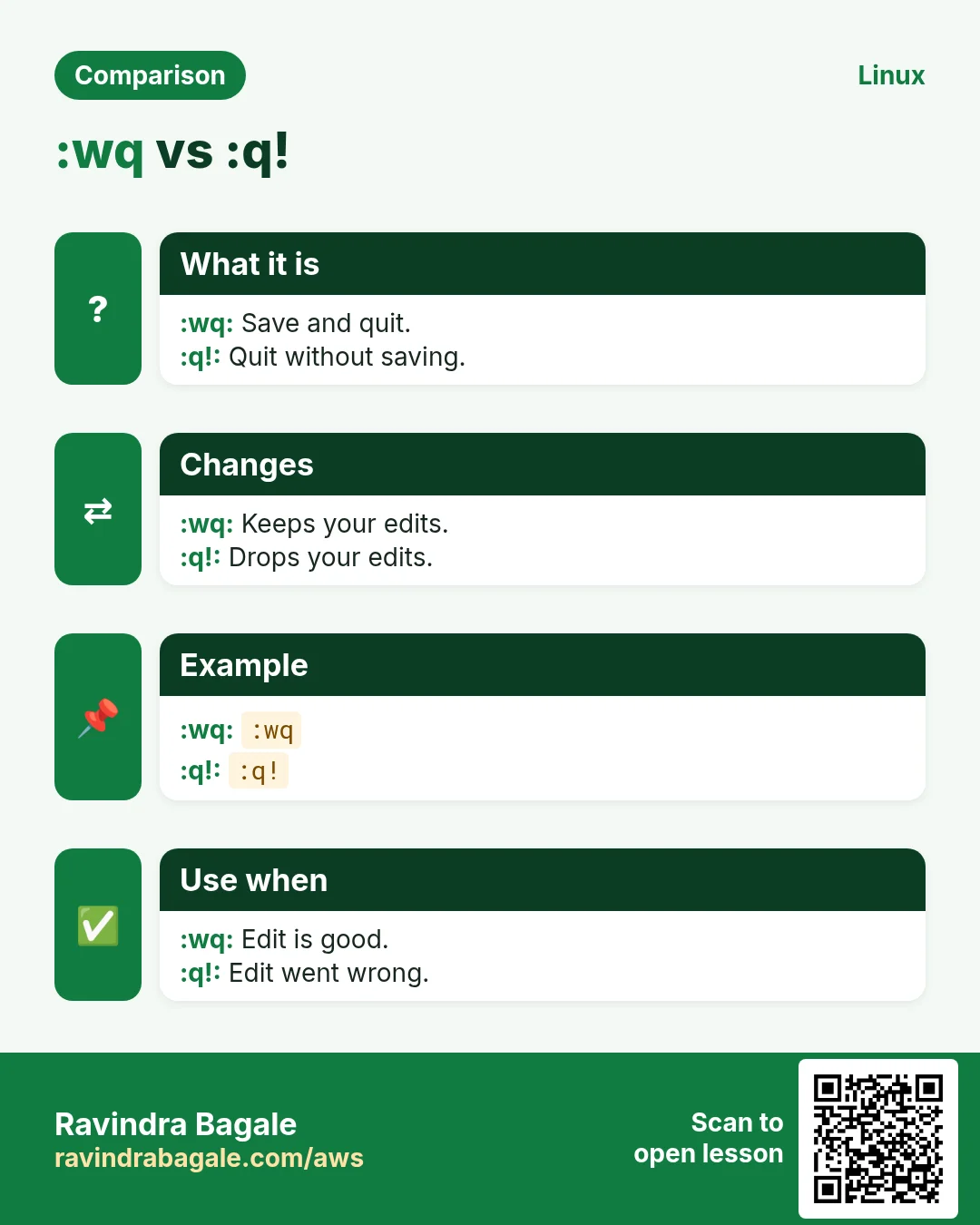
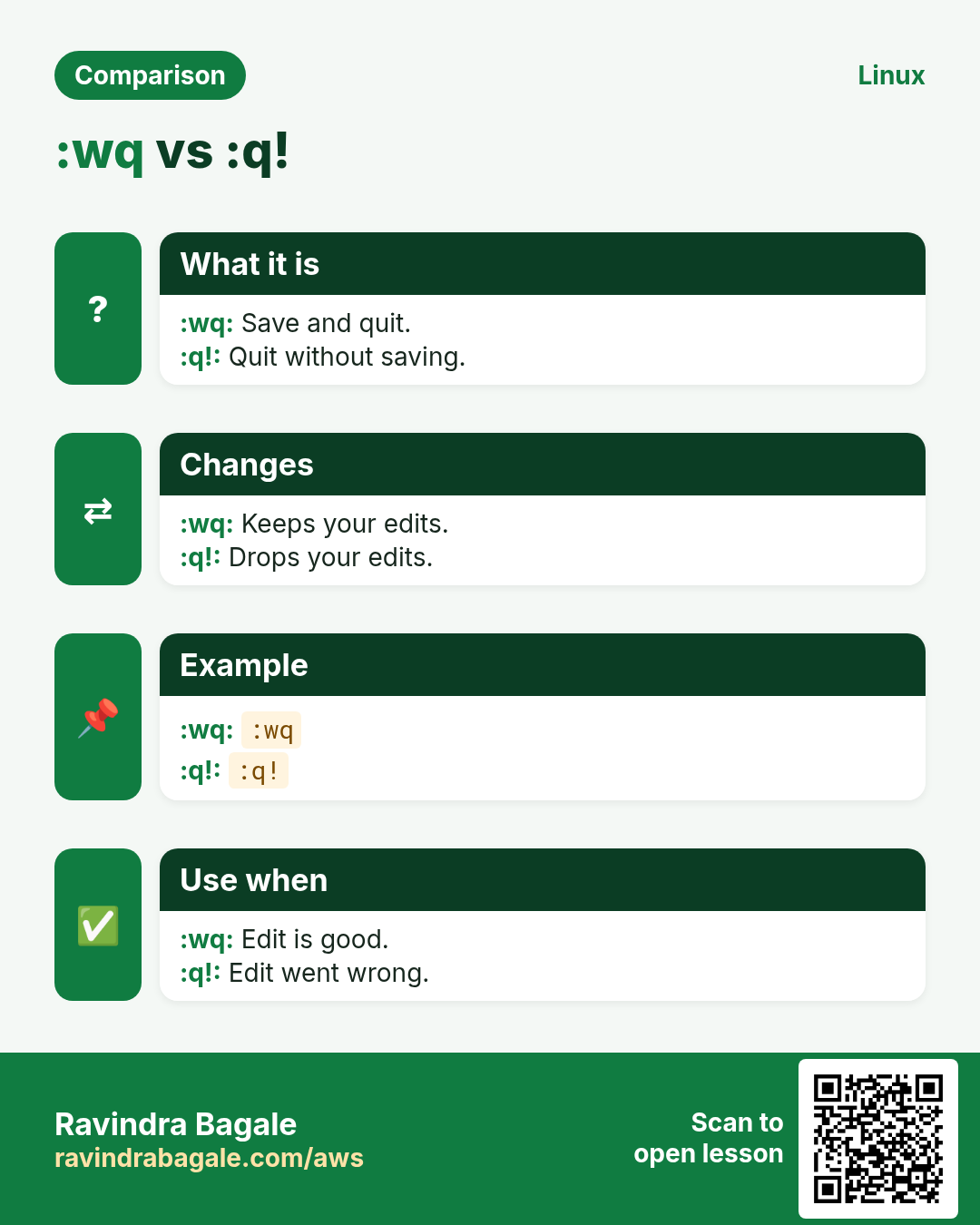
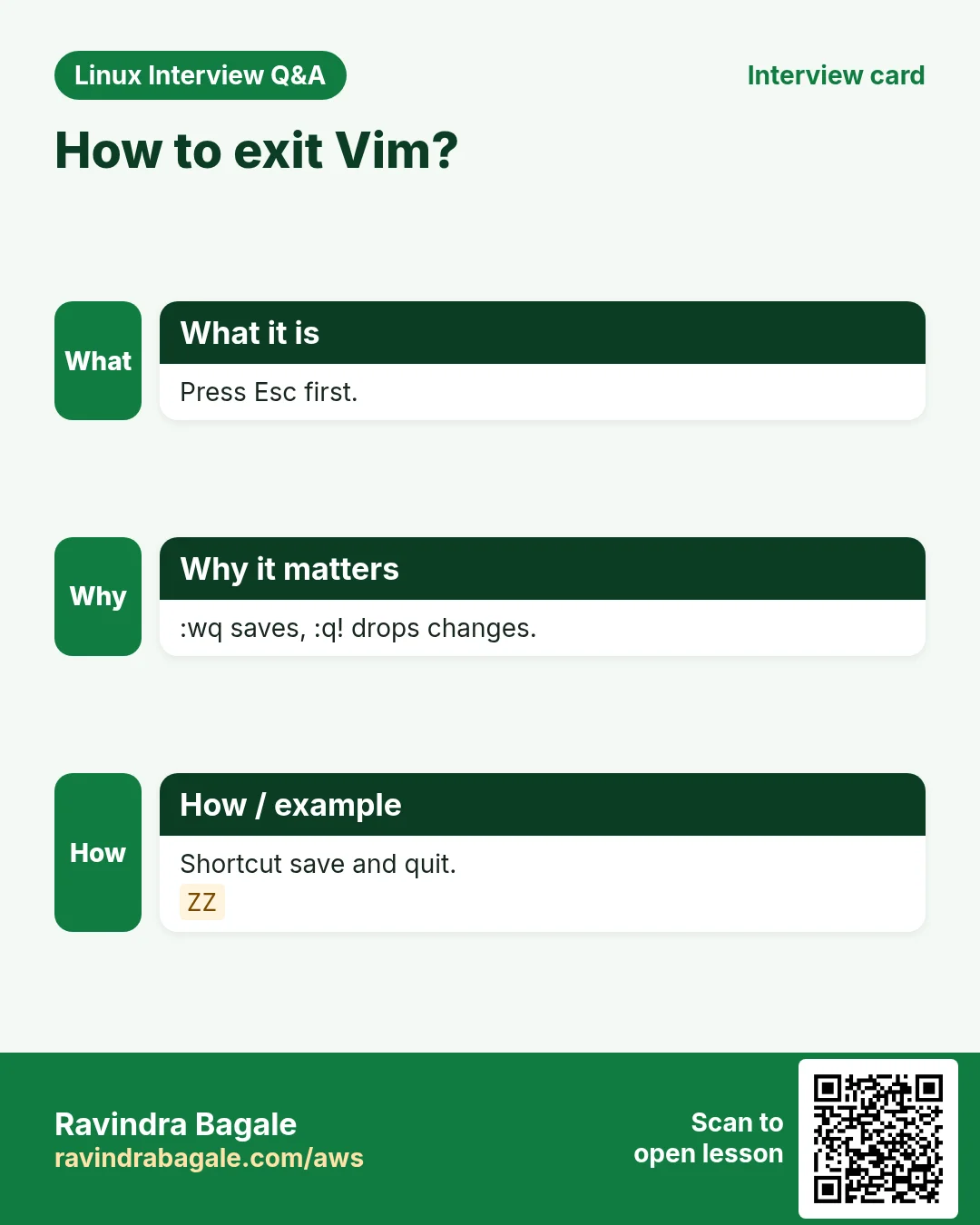
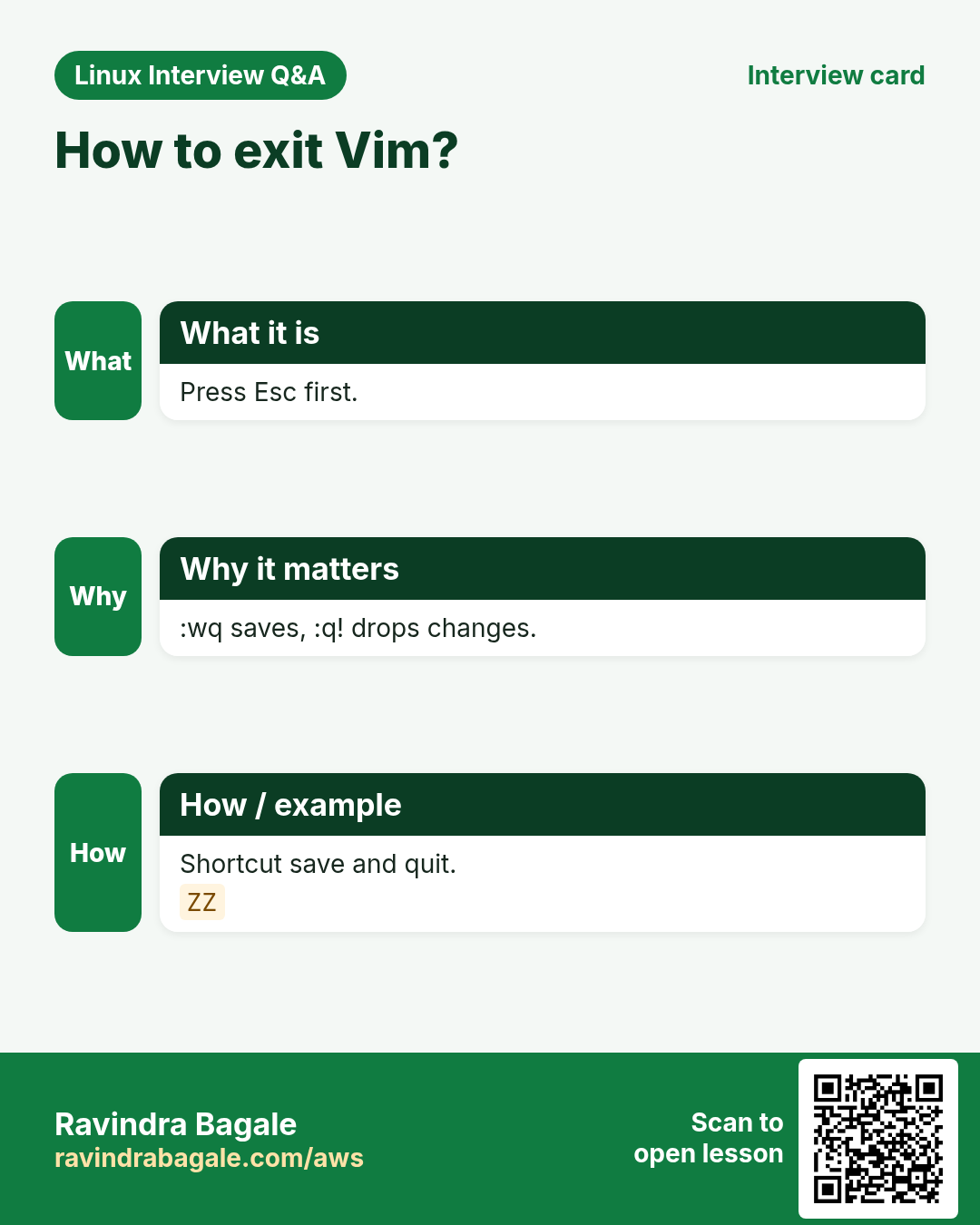
Vim opens in Normal mode, where keys are commands. i enters Insert mode to type. Esc returns to Normal. : opens Command-line mode for :w (save), :q (quit), :wq or :x (save and quit), :q! (quit without saving). vimtutor is a 30-minute built-in lesson.
| Command | Does |
|---|---|
| :w | Save |
| :q | Quit (if no changes) |
| :wq or :x or ZZ | Save and quit |
| :q! | Quit and throw away changes |
| :w newname | Save as |
| :e file | Open another file |
How to do it (step by step)
- Open a file.
vim notes.txtOutput:
~
~
"notes.txt" [New]
What it means: Normal mode. ~ means empty lines.
- Type text.
i Hello Pune EscOutput:
Hello PuneWhat it means: i entered Insert mode; Esc left it.
- Save and quit.
:wqOutput:
"notes.txt" [New] 1L, 11B writtenWhat it means: 1 line, 11 bytes saved.
- Quit without saving after a mistake.
:q!What it means: All changes since the last save are gone.
- Learn more with the tutor.
vimtutorOutput:
= W e l c o m e t o t h e V I M T u t o rWhat it means: A safe practice copy opens.
4. Moving fast in Normal mode
Why do we need this?
Arrow keys are slow. Vim motions let you jump by words, lines and patterns, and they combine with every edit command.
What is it?
h j k l = left down up right. w = next word, b = back a word, e = end of word. 0 = start of line, ^ = first non-space, $ = end of line. gg = first line, G = last line, 42G or :42 = line 42. Ctrl+d / Ctrl+u = half page down/up. % = matching bracket. A number before a motion repeats it: 5j = 5 lines down.
How to do it (step by step)
- Jump to the end of the file.
GOutput:
(cursor on the last line)What it means: Great for reading the latest log lines.
- Jump to line 120 (from an error message).
:120Output:
(cursor on line 120)What it means: Or open directly: vim +120 app.py.
- Move 3 words right.
3wWhat it means: Count + motion.
- Show line numbers.
:set numberOutput:
  1 server {
  2   listen 80;
What it means: Turn off with :set nonumber.
5. Editing: delete, copy, paste, undo, change
Why do we need this?
Most editing is deleting, copying and changing small pieces. Vim does each in two or three keys.
What is it?
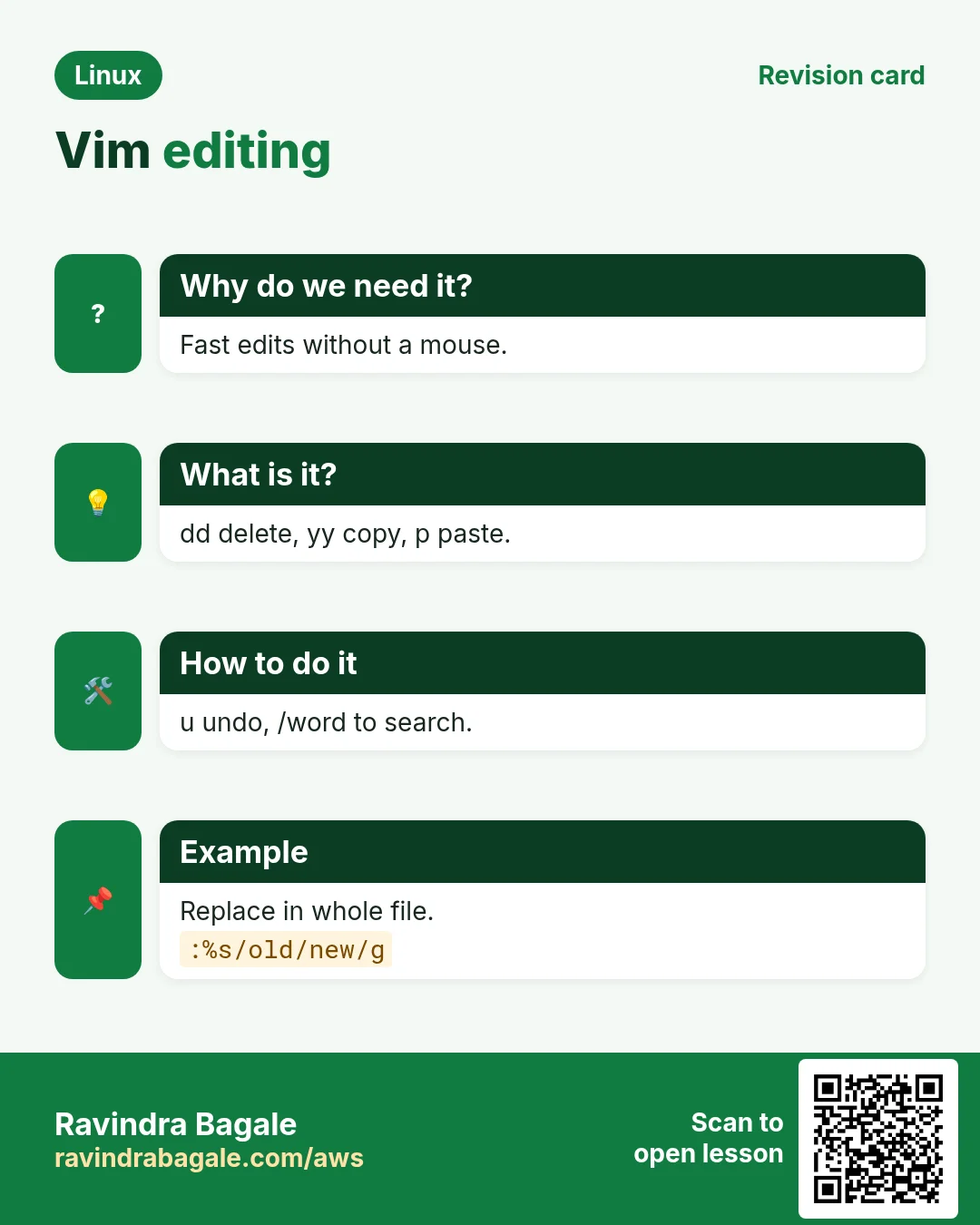
Operator + motion. d = delete, y = yank (copy), c = change (delete then Insert). dd = delete line, yy = copy line, p = paste after, P = paste before. dw = delete word, d$ or D = delete to end of line, ciw = change inner word. x = delete one character. u = undo, Ctrl+r = redo, . = repeat the last change. o / O = new line below/above. A = append at end of line.
| Keys | Does |
|---|---|
| dd / 3dd | Delete 1 / 3 lines |
| yy / p | Copy line / paste |
| dw / cw | Delete / change word |
| ciw | Change the whole word under cursor |
| ci" | Change text inside quotes |
| x | Delete a character |
| u / Ctrl+r | Undo / redo |
| . | Repeat last change |
| >> / << | Indent / unindent line |
How to do it (step by step)
- Delete 3 lines.
3ddOutput:
3 fewer linesWhat it means: They go into the register, so p can paste them.
- Move a line down (cut and paste).
ddpWhat it means: Delete the line, paste after the next one.
- Change a word.
ciw production EscOutput:
env = productionWhat it means: Replaced the word under the cursor.
- Change a value in quotes.
ci" 10.0.1.20 EscOutput:
host = "10.0.1.20"What it means: Works anywhere on the line inside the quotes.
- Repeat the same change on the next match.
n.What it means: n goes to the next search hit, . repeats.
- Undo twice, redo once.
u u Ctrl+rOutput:
1 change; before #4What it means: Undo is unlimited in a session.
6. Search and replace
Why do we need this?
Changing a host name in 40 places by hand is slow and error-prone.
What is it?
/text searches forward, ?text searches back, n = next, N = previous, * = search the word under the cursor. :s/old/new/ replaces the first match on the line. :%s/old/new/g replaces all in the file. Add c to confirm each: :%s/old/new/gc. :10,20s/// limits to lines 10–20. :noh clears highlight.
How to do it (step by step)
- Find errors in a log.
/ERROROutput:
search hit BOTTOM, continuing at TOPWhat it means: Press n for the next one.
- Replace all in the file.
:%s/db-old.internal/db-new.internal/gOutput:
12 substitutions on 12 linesWhat it means: % = whole file, g = every match on each line.
- Replace with confirm.
:%s/8080/9090/gcOutput:
replace with 9090 (y/n/a/q/l/^E/^Y)?What it means: y = yes, n = skip, a = all, q = quit.
- Only in lines 5 to 15.
:5,15s/^/# /Output:
11 substitutions on 11 linesWhat it means: Comments out lines 5–15 (^ = line start).
- Delete all blank lines.
:g/^$/dOutput:
8 fewer linesWhat it means: :g runs a command on every matching line.
7. Advanced: visual mode, macros, registers, splits
Why do we need this?
For big edits (YAML blocks, CSV columns, the same change on 200 lines) you need power tools.
What is it?
v = select characters, V = select lines, Ctrl+v = select a block (columns). After selecting: d, y, >, < or : work on it. Macros: qa starts recording into register a, q stops, @a plays, 10@a plays 10 times. Registers: "ayy copies into a, "ap pastes from a, "+y copies to system clipboard. Splits: :split and :vsplit, Ctrl+w w to move. :!cmd runs a shell command. :r !cmd inserts its output.
How to do it (step by step)
- Indent a YAML block.
V 4j >Output:
5 lines >ed 1 timeWhat it means: Selected 5 lines and shifted them right.
- Add # to the start of 10 lines (block insert).
Ctrl+v 9j I # EscOutput:
# line1
# line2 ...
What it means: I in block mode types on every selected line.
- Record a macro that quotes a word and moves down.
qa I" Esc A", Esc j qOutput:
"apple",What it means: Recorded into register a.
- Play it on 50 more lines.
50@aOutput:
"banana",
"cherry", ...
What it means: Same edit, 50 times, in a second.
- Open two files side by side.
:vsplit nginx.confWhat it means: Ctrl+w w jumps between windows.
- Insert today's date from the shell.
:r !dateOutput:
Sun Oct 25 11:02:10 IST 2026What it means: Shell output inside your file.
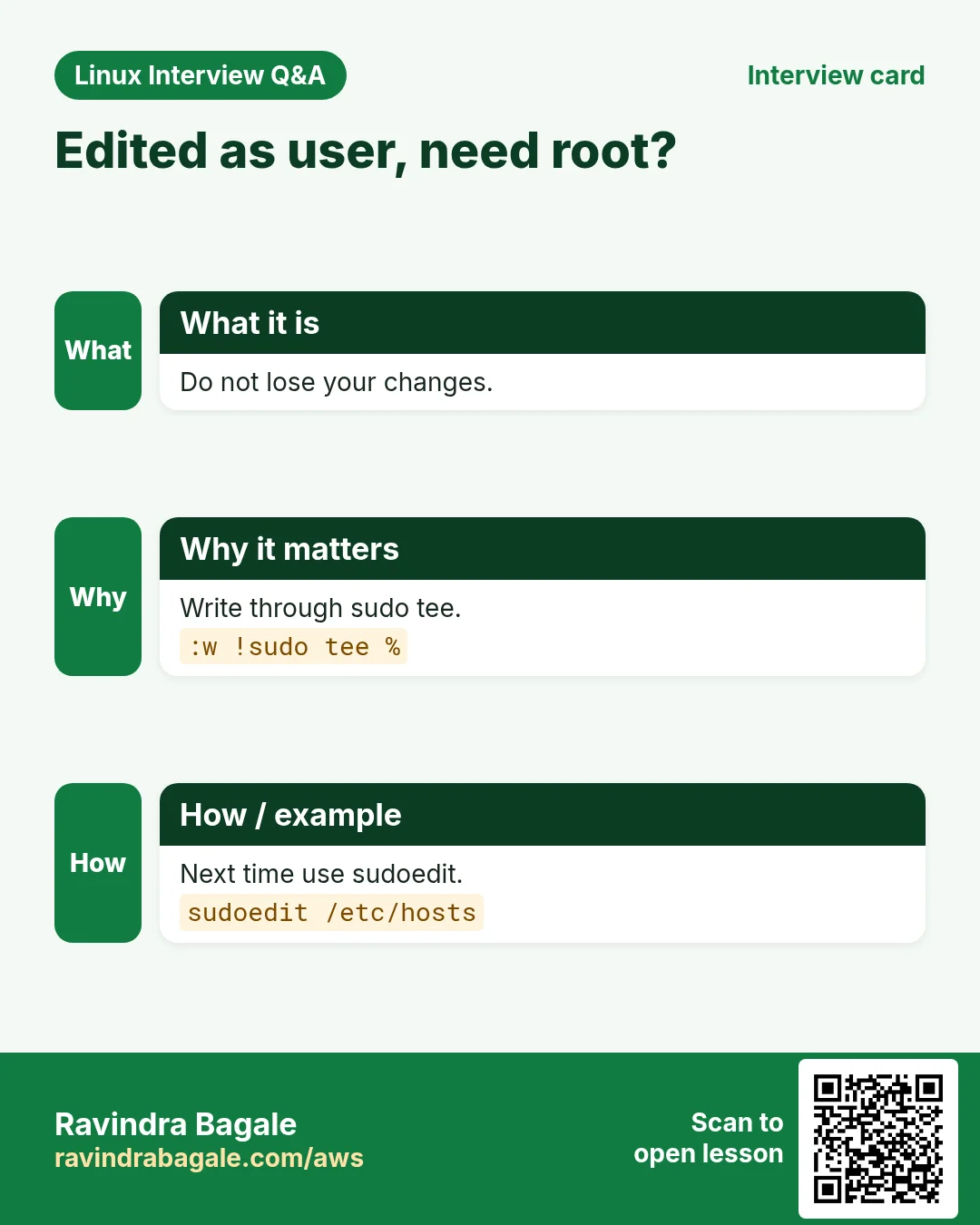
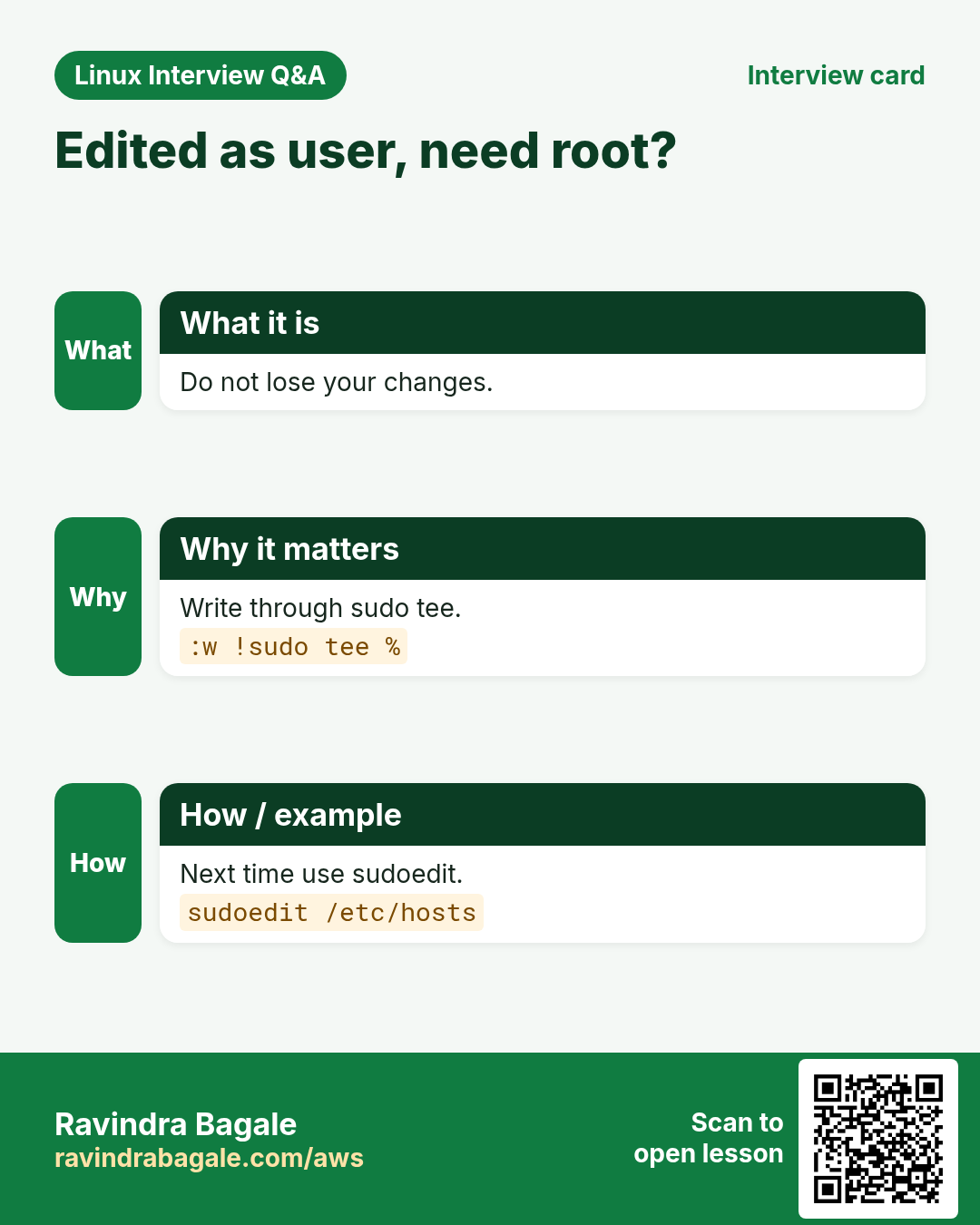
- Save a root file you opened without sudo.
:w !sudo tee % > /dev/nullWhat it means: % is the current file name. Reload with :e! after.
8. Your .vimrc: make vim yours
Why do we need this?
Typing :set number every time is boring. Settings in ~/.vimrc load on every start.
What is it?
~/.vimrc is a text file of settings. Good starters: number, relativenumber, tabs as spaces for YAML, search options and syntax on.
How to do it (step by step)
- Write a starter .vimrc.
cat > ~/.vimrc <<'V'
syntax on
set number relativenumber
set expandtab tabstop=2 shiftwidth=2
set ignorecase smartcase incsearch hlsearch
set paste?
V
What it means: Every new vim session now has these.
- Check a setting.
:set tabstop?Output:
tabstop=2What it means: ? shows the current value.
- Set vim as the default editor (git, crontab, visudo).
echo 'export EDITOR=vim VISUAL=vim' >> ~/.bashrc && source ~/.bashrcWhat it means: crontab -e and git commit now open vim.
9. Real examples from many industries
Why do we need this?
The same Linux skill shows up in every kind of company. Seeing it in many places helps you remember it.
What is it?
Each row is a made-up team. It shows who uses this and how.
How to do it (step by step)
| Team and city | How they use it | Command |
|---|---|---|
| Vikram, SRE, Noida | Fixes nginx config on a live server with vim | sudo vim /etc/nginx/nginx.conf |
| Chloe, Kubernetes, Sydney | Edits YAML with expandtab and visual indent | kubectl edit deploy web |
| Javier, data, Bogotá | Turns a CSV column into SQL with a macro | qa ... q 200@a |
| Sneha, support, Kochi | Uses nano for quick hosts file edits | sudo nano /etc/hosts |
| Yusuf, security, Istanbul | Edits sudoers safely | sudo visudo |
| Aarav, student, Delhi | Writes git commit messages in vim | git commit |
| Nora, embedded, Munich | Uses vi on BusyBox devices with no vim | vi /etc/config/network |
10. Common errors and how to fix them
Why do we need this?
Everyone hits these errors. Knowing the cause saves hours.
What is it?
Read the exact message first. Then match it to a row below.
How to do it (step by step)
| Error you see | Why it happens | How to fix |
|---|---|---|
E37: No write since last change (add ! to override) | You tried :q with unsaved changes | Use :wq to save, or :q! to discard.:wq |
E45: 'readonly' option is set (add ! to override) | File opened read-only (view, or -R) | Use :w! if you own it, or reopen properly.:w! |
E212: Can't open file for writing | No permission (root file) or folder missing | Save with sudo tee, or reopen with sudo.:w !sudo tee % > /dev/null |
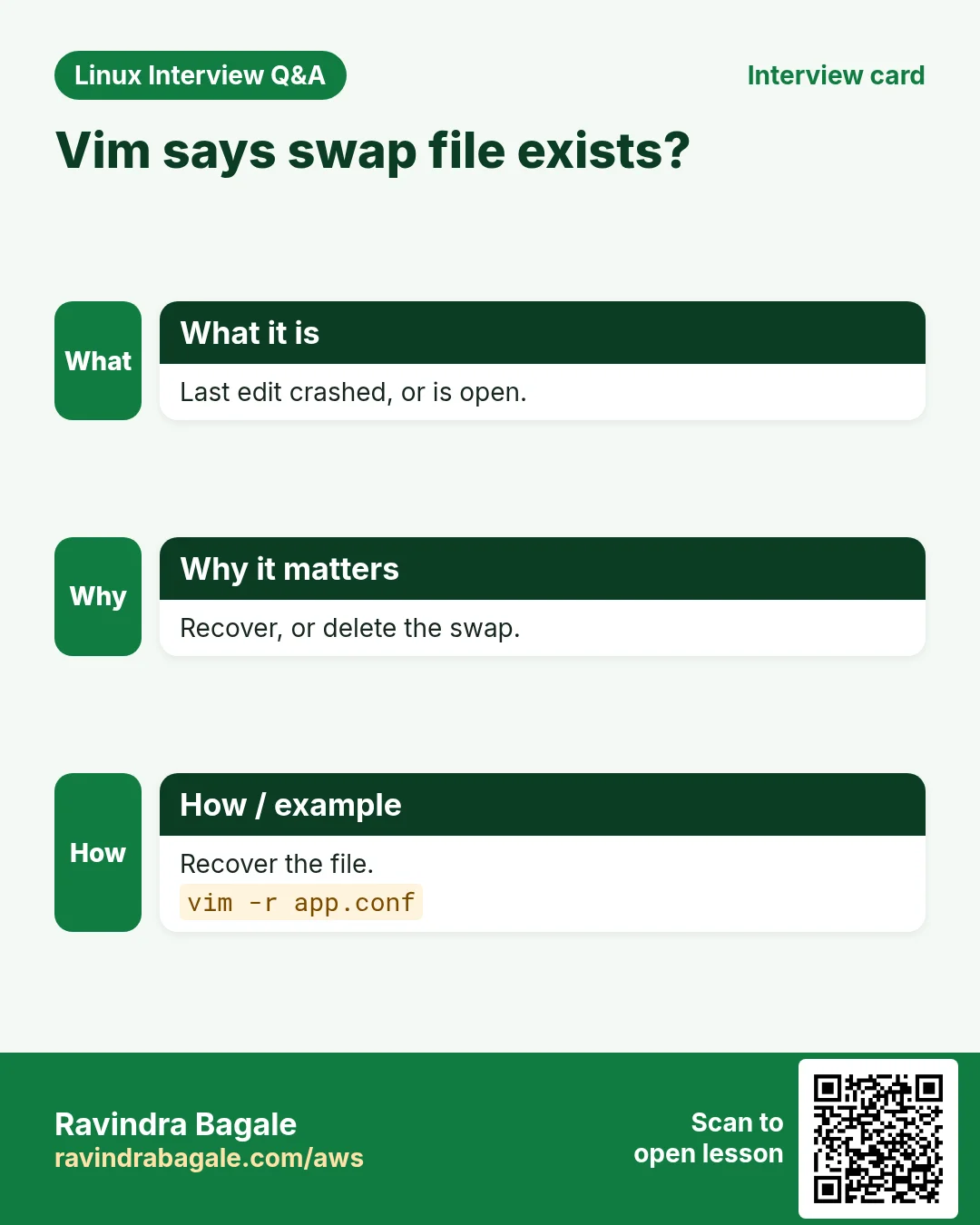
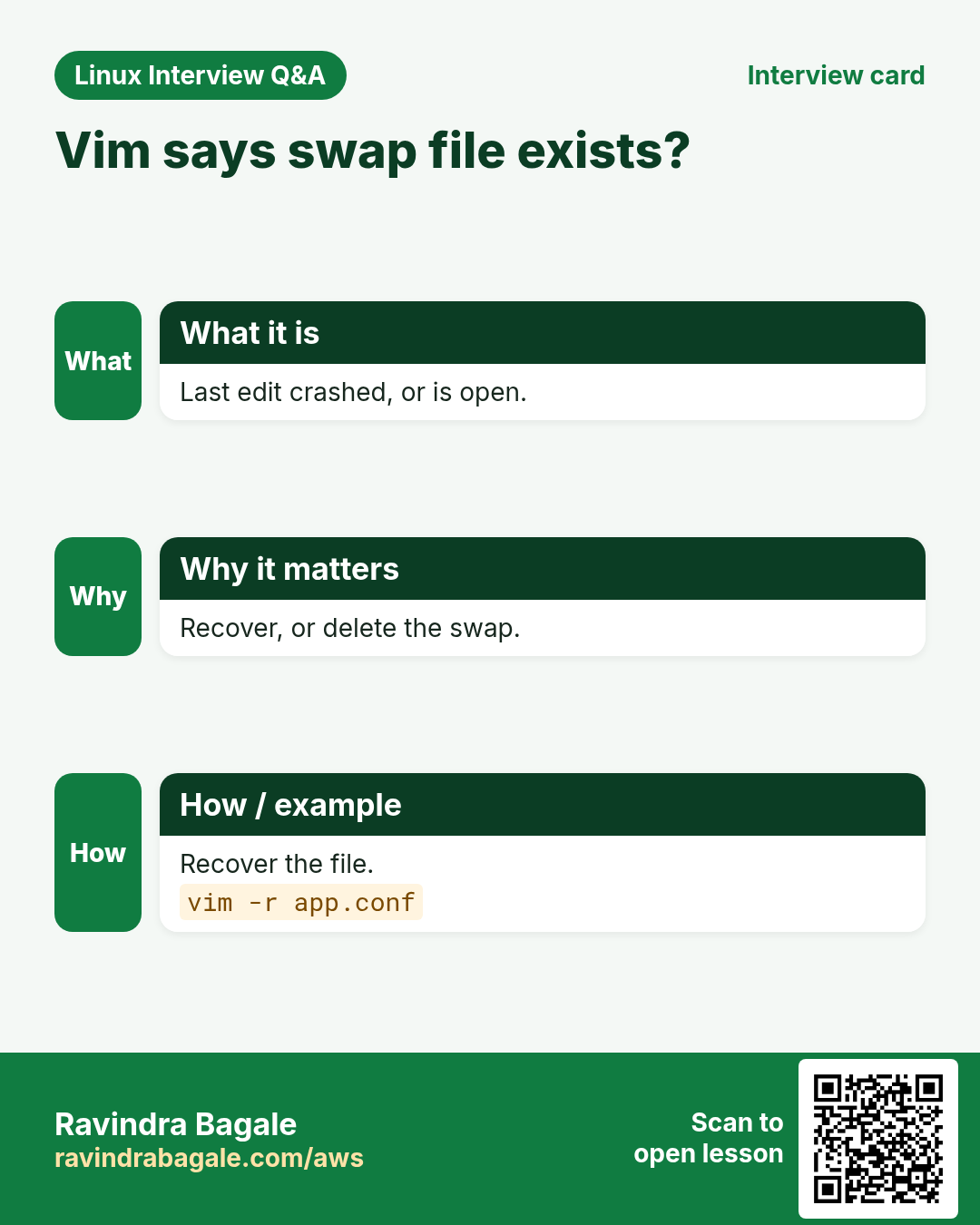
E325: ATTENTION Found a swap file by the name ".app.conf.swp" | Vim crashed earlier or the file is open elsewhere | Press R to recover, or D to delete the swap if it is old.ls -la .*.swp |
Typed text appears as commands (letters vanish, lines deleted) | You were in Normal mode, not Insert mode | Press Esc, then u to undo, then i to insert.u |
E486: Pattern not found: Error | Search is case sensitive | Use /\cerror or :set ignorecase.:set ignorecase |
Pasted code gets extra indent (staircase) | Auto-indent runs on paste | Use :set paste before pasting, then :set nopaste.:set paste |
Stuck in 'Recording @q' | You pressed q followed by a letter | Press q again to stop.q |
Error 'mapping' or tab errors in YAML after editing | Tabs were inserted instead of spaces | Set expandtab and run :retab.:set expandtab | retab |
nano: Error writing /etc/hosts: Permission denied | nano opened without sudo | Exit and reopen with sudo nano.sudo nano /etc/hosts |
11. Troubleshooting step by step
Why do we need this?
When vim behaves oddly, it is almost always the mode, the file permission or a setting.
What is it?
Go top to bottom. Stop at the first step that shows the problem.
How to do it (step by step)
- Press Esc twice. Now you are in Normal mode.
- Undo what happened.
u- Check the mode line at the bottom (INSERT, VISUAL, recording).
- Check whether you can write the file.
:!ls -l %- Check settings that change typing.
:set paste? expandtab? autoindent?- Start clean without your vimrc.
vim -u NONE file12. Lab 1: Fix a broken config with vim only
Why do we need this?
Grace is on call for a bakery chain in Cape Town. The app config points to an old database and has a wrong port. Fix it in vim.
What is it?
A full hands-on lab. Run every step on a test Linux machine (an EC2 instance, a VM, or WSL).
How to do it (step by step)
- Create the file.
printf 'db_host = "db-old.internal"\ndb_port = 5433\nreplica = "db-old.internal"\ndebug = true\n' > app.conf- Open it with numbers.
vim +'set number' app.confOutput:
  1 db_host = "db-old.internal"
  2 db_port = 5433
  3 replica = "db-old.internal"
4 debug = true- Replace the host everywhere.
:%s/db-old/db-new/gOutput:
2 substitutions on 2 lines- Go to line 2 and change the port.
:2 then $ ciw 5432 EscOutput:
db_port = 5432- Delete the debug line.
G ddOutput:
3 lines- Save and quit, then check.
:wq then cat app.confOutput:
db_host = "db-new.internal"
db_port = 5432
replica = "db-new.internal"
13. Lab 2: Turn a list into JSON with a macro
Why do we need this?
Convert 100 city names into a JSON array in under a minute.
What is it?
A full hands-on lab. Run every step on a test Linux machine (an EC2 instance, a VM, or WSL).
How to do it (step by step)
- Make the list.
printf '%s\n' Pune Mumbai Delhi Paris Lagos Lima > cities.txt && vim cities.txt- Record: quote the line, add a comma, go down.
qq I" Esc A", Esc j qOutput:
"Pune",- Play on the rest.
100@qOutput:
"Mumbai",
...
"Lima",- Remove the last comma.
G $ x- Add brackets.
gg O [ Esc G o ] Esc :wqOutput:
[
"Pune",
...
"Lima"
]- Validate.
python3 -m json.tool cities.txt | head -3Output:
[
    "Pune",
"Mumbai",Ravindra Bagale's Tip
Lost in vim? Press Esc twice, then type :q! and Enter. You are out with no damage. Then spend 30 minutes with vimtutor, it is the best free vim course.
Ravindra Bagale's Tip – मराठी
Vim मधे हरवलात? दोनदा Esc, मग :q! आणि Enter. काहीही नुकसान न होता बाहेर. मग vimtutor ला 30 मिनिटं द्या, तो सगळ्यात चांगला free vim course आहे.
Ravindra Bagale's Tip – हिंदी
Vim में खो गए? दो बार Esc, फिर :q! और Enter। बिना नुकसान बाहर। फिर vimtutor को 30 मिनट दीजिए, यह सबसे अच्छा free vim course है।
14. Frequently asked questions
Q. vi vs vim?
vi is the old editor in every Unix. vim is 'vi improved' with undo levels, syntax colours and plugins. On many systems vi starts vim.
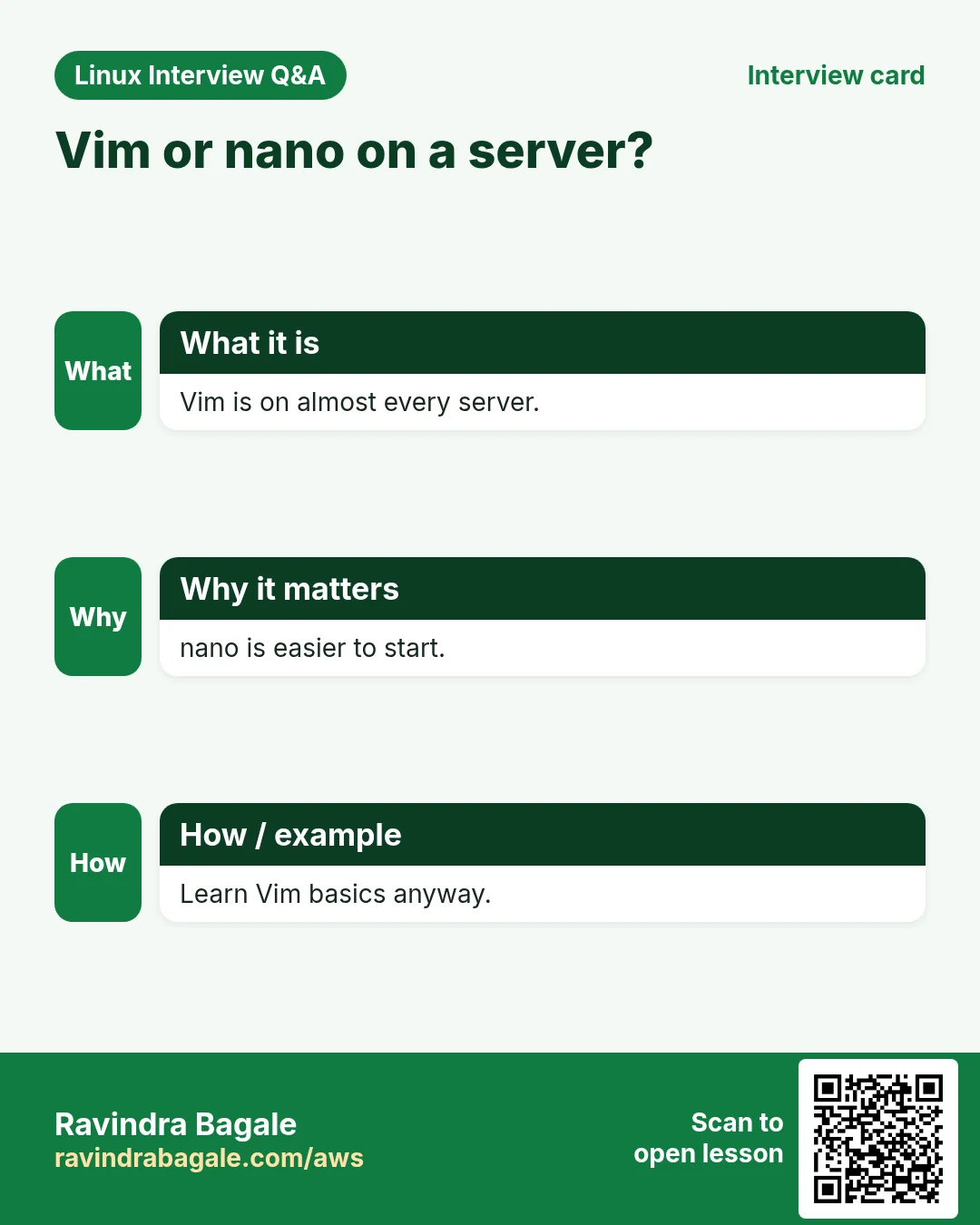
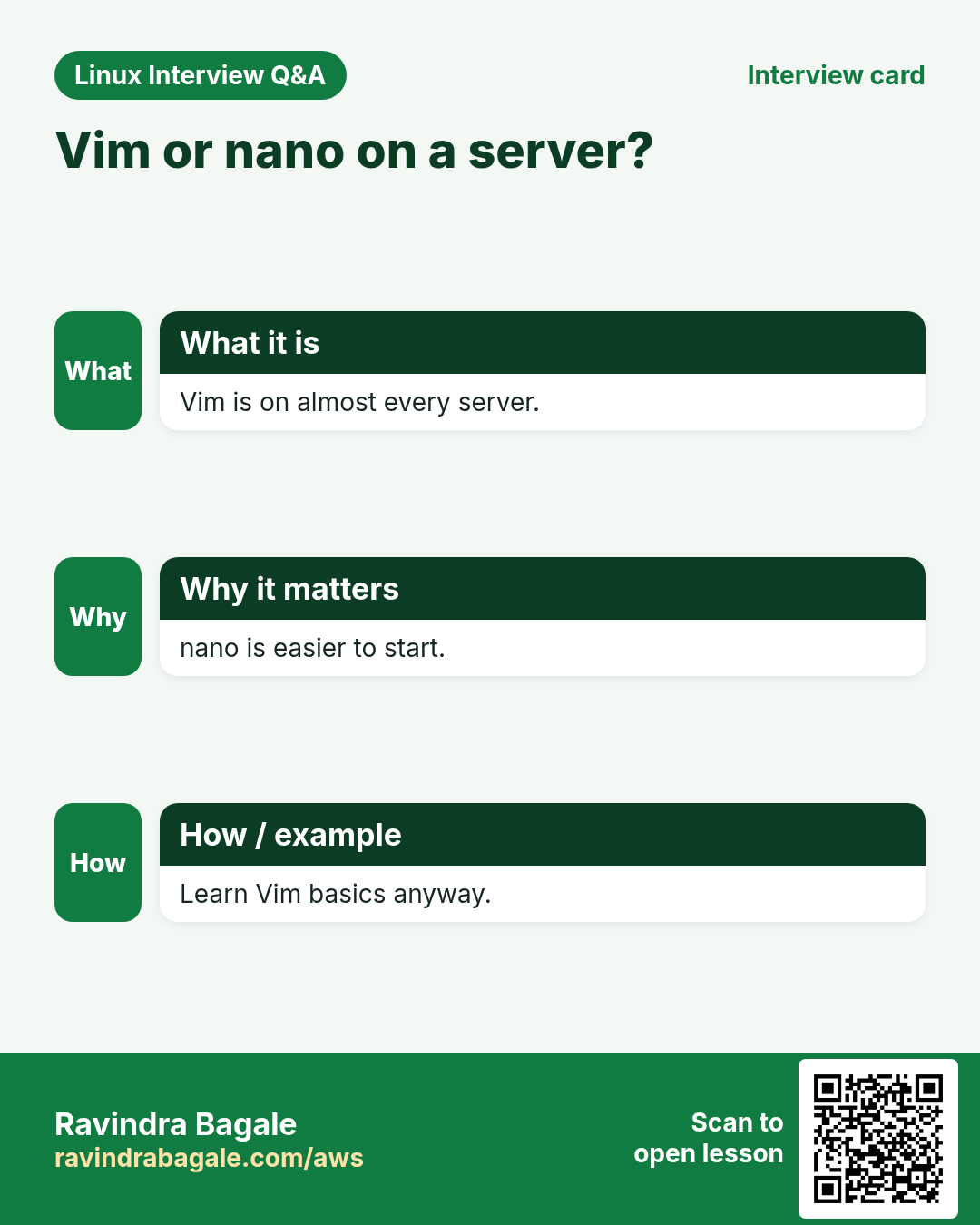
Q. Should I learn nano or vim?
Both. nano for a quick edit, vim because it is everywhere and much faster for real work.
Q. How do I copy to my laptop clipboard?
In a GUI or with clipboard support use "+y. Over SSH, select with the mouse in the terminal.
Q. What is Neovim?
A modern fork of vim with Lua config and built-in LSP. Same keys.
Q. How do I edit sudoers safely?
Always with visudo. It checks syntax before saving, so you cannot lock yourself out.
15. Interview questions and answers
Beginner level
Q. How do you save and quit vim?
:wq or :x or ZZ.
Q. How do you quit without saving?
:q!
Q. How do you enter Insert mode?
i (or a, o, A, I).
Q. How do you save in nano?
Ctrl+O then Enter.
Mid level level
Q. How do you replace all occurrences in a file?
:%s/old/new/g, add c to confirm.
Q. What does . do?
Repeats the last change.
Q. Difference between v, V and Ctrl+v?
Character, line and block selection.
Q. How do you go to line 50?
:50 or 50G.
Senior level
Q. You opened /etc/nginx/nginx.conf without sudo and made 30 edits. How do you save?
:w !sudo tee % > /dev/null, then :e! to reload. Or save to /tmp and sudo cp.
Q. Explain a macro and when you would use it.
A recorded sequence of keys in a register (qa ... q, @a). Use it for repetitive structured edits like reformatting lines.
Q. What is a swap file and how do you handle E325?
Vim's crash-recovery file. Recover (R) if vim crashed, delete if old, or open read-only if someone else is editing.
Q. How do you keep YAML safe in vim?
set expandtab tabstop=2 shiftwidth=2, :set list to see tabs, and :retab to convert.
Try at home
- Run vimtutor for 30 minutes.
- Create ~/.vimrc with the starter settings.
- Use :%s to change a word in a test file.
Practice Tasks
Ahmednagar Sugar Co-op is a sugar co-operative business in Ahilyanagar. Balasaheb Pawar looks after its IT and cloud work. They count money in INR and run their AWS resources in the ap-south-1 Region. In the tasks below you do real jobs for them using what this lesson teaches. All names, account IDs, IP addresses and numbers are made up for practice.
0 / 16
Easy Open a file at a line
Why: Jump to the error line.
What to do: Open app.py in vim with the cursor on line 120.
- Find the Linux command that does this job.
- Add the options (like -r or -h) the task needs.
- Add the file names, folders or users in the right order.
- Use sudo if the job changes system files or users. Click Check answer.
Easy nano with line numbers
Why: Quick edits with context.
What to do: Open site.ini in nano with line numbers shown.
- Find the Linux command that does this job.
- Add the options (like -r or -h) the task needs.
- Add the file names, folders or users in the right order.
- Use sudo if the job changes system files or users. Click Check answer.
Easy Edit a root file in nano
Why: System files need root.
What to do: Open /etc/motd in nano so you can save changes.
- Find the Linux command that does this job.
- Add the options (like -r or -h) the task needs.
- Add the file names, folders or users in the right order.
- Use sudo if the job changes system files or users. Click Check answer.
Easy Start the vim tutor
Why: Best free 30-minute lesson.
What to do: Start the built-in vim tutorial in French (language code fr).
- Find the Linux command that does this job.
- Add the options (like -r or -h) the task needs.
- Add the file names, folders or users in the right order.
- Use sudo if the job changes system files or users. Click Check answer.
Easy Save and quit
Why: The most used vim command.
What to do: In vim Normal mode, type the command-line command that saves and quits.
- Write down the numbers the task gives you.
- Work it out step by step on paper.
- Type only the final answer in the box.
- Click Check answer.
Easy Enter Insert mode
Why: You cannot type text in Normal mode.
What to do: Which single key enters Insert mode before the cursor?
- Write down the numbers the task gives you.
- Work it out step by step on paper.
- Type only the final answer in the box.
- Click Check answer.
Easy Delete a line
Why: Fast line removal.
What to do: Which Normal-mode keys delete the whole current line?
- Write down the numbers the task gives you.
- Work it out step by step on paper.
- Type only the final answer in the box.
- Click Check answer.
Easy Copy a line
Why: Copy is called yank.
What to do: Which Normal-mode keys copy (yank) the current line?
- Write down the numbers the task gives you.
- Work it out step by step on paper.
- Type only the final answer in the box.
- Click Check answer.
Easy Undo
Why: Every mistake is reversible.
What to do: Which single Normal-mode key undoes the last change?
- Write down the numbers the task gives you.
- Work it out step by step on paper.
- Type only the final answer in the box.
- Click Check answer.
Easy Show line numbers
Why: Match line numbers in error messages.
What to do: Type the vim command that shows line numbers.
- Write down the numbers the task gives you.
- Work it out step by step on paper.
- Type only the final answer in the box.
- Click Check answer.
Easy Go to line 50
Why: Jump from an error message.
What to do: Type the vim command-line command that jumps to line 50.
- Write down the numbers the task gives you.
- Work it out step by step on paper.
- Type only the final answer in the box.
- Click Check answer.
Easy Save in nano
Why: nano writes out files.
What to do: Which key combination saves the file in nano? Write it like ctrl+x.
- Write down the numbers the task gives you.
- Work it out step by step on paper.
- Type only the final answer in the box.
- Click Check answer.
Medium Edit sudoers safely
Why: A typo can lock out all admins.
What to do: Open the drop-in file /etc/sudoers.d/40-ops with the safe editor that checks syntax.
- Find the Linux command that does this job.
- Add the options (like -r or -h) the task needs.
- Add the file names, folders or users in the right order.
- Use sudo if the job changes system files or users. Click Check answer.
Medium Replace in the whole file
Why: Change a host in 40 places.
What to do: Type the vim command that replaces every db-old with db-new in the whole file.
- Write down the numbers the task gives you.
- Work it out step by step on paper.
- Type only the final answer in the box.
- Click Check answer.
Medium Play a macro
Why: Repeat a recorded edit.
What to do: You recorded a macro into register a. Type the keys that play it once.
- Write down the numbers the task gives you.
- Work it out step by step on paper.
- Type only the final answer in the box.
- Click Check answer.
Hard Delete blank lines
Why: Clean up config files.
What to do: Type the vim command that deletes all empty lines in the file.
- Write down the numbers the task gives you.
- Work it out step by step on paper.
- Type only the final answer in the box.
- Click Check answer.
16. Related chapters
- Linux Ops Refresh for DevOps
- Bash Scripting for Automation
- Linux grep and find Commands with Examples
- How to Set Up Passwordless SSH Between Linux Servers
In short
- nano: Ctrl+O save, Ctrl+X exit.
- vim: Esc for Normal, i for Insert, :wq to save and quit, :q! to escape.
- Operator + motion: dd, yy, p, ciw, u, .
- :%s/old/new/g, visual block, macros @a.
Revision, comparison and interview cards
Revise this lesson in a few minutes. Save the cards on your phone or download them as PNG files. The QR code on each card opens this lesson.
More cards: Ravi Sir's Cards.