Linux find Command आणि xargs: नाव, Size, Time ने Files शोधा आणि Actions चालवा
find folders मधून फिरून name, type, size, वय, owner किंवा permission सारख्या tests जुळणाऱ्या files list करतो, आणि प्रत्येकावर command चालवू शकतो. xargs items ची list घेऊन दुसऱ्या command चे arguments बनवतो, fast आणि parallel. मिळून disks साफ करतात, permissions fix, security audit आणि हजारो files batch-process करतात.
या chapter मध्ये तुम्ही काय शिकाल
- Name आणि type ने शोधा
- Size आणि time ने शोधा
- Owner आणि permission ने शोधा
- Depth, folders prune आणि tests combine
- -exec आणि -delete ने actions
- -0, -n, -P, -I सह xargs safely; locate
1. रोजचं उदाहरण: पसारा असलेलं कपाट साफ करणं
हे का लागतं?
शालिनी दिवाळीआधी मोठं कपाट साफ करते. ती शोधते: 'bill' नावाचं सगळं, फक्त boxes (कागद नाहीत), 5 kg पेक्षा जड वस्तू, वर्षभर हात न लावलेल्या वस्तू, आणि भावाच्या वस्तू. मग प्रत्येक जुन्या bill वर तेच action: recycle bag मधे. मुलगा एकेक न घेता पूर्ण ढीग एकदम घेऊन मदत करतो.
हे काय आहे?
bill नाव = -name. फक्त boxes = -type d. 5 kg पेक्षा जड = -size +5G. वर्षभर न वापरलेलं = -mtime +365. भावाचं = -user. प्रत्येकावर तेच action = -exec. ढीग घेणारा मुलगा = xargs (एका command ला अनेक items).
कसं करायचं (step by step)
2. Name ने find: -name, -iname, -path
हे का लागतं?
File नावाचा भाग माहीत आहे पण ती कुठे आहे ते नाही.
हे काय आहे?
find START -name 'pattern' file नावाला shell wildcards (* ? [ ]) ने जुळवतो. Shell आधी expand करू नये म्हणून pattern नेहमी quote करा. -iname case ignore. -path '*/conf.d/*' पूर्ण path जुळवतो. -regex पूर्ण path वर regex. Errors 2>/dev/null ने बाजूला.
कसं करायचं (step by step)
- नेमक्या नावाने file.
find /etc -name 'nginx.conf' 2>/dev/nullOutput:
/etc/nginx/nginx.confयाचा अर्थ: 2>/dev/null Permission denied गोंधळ लपवतो.
- /var/log खालच्या सगळ्या .log files.
find /var/log -name '*.log' | head -3Output:
/var/log/dnf.log
/var/log/nginx/access.log
/var/log/nginx/error.log
याचा अर्थ: Quotes मुळे *.log find ला मिळतो.
- Case ignore.
find ~/Downloads -iname '*invoice*'Output:
/home/ravi/Downloads/Invoice-Oct.pdf
/home/ravi/Downloads/invoice_amazon.pdf
याचा अर्थ: Invoice आणि invoice दोन्ही.
- Path वर match.
find /etc -path '*/conf.d/*.conf'Output:
/etc/nginx/conf.d/shop.conf
/etc/httpd/conf.d/ssl.conf
याचा अर्थ: कोणत्याही conf.d मधल्या फक्त .conf.
- OR ने अनेक नावं.
find . \( -name '*.jpg' -o -name '*.png' \) | wc -lOutput:
342याचा अर्थ: \( \) group, -o म्हणजे OR.
3. Type ने find: -type f, d, l
हे का लागतं?
फक्त folders, फक्त regular files, किंवा फक्त symlinks हवेत.
हे काय आहे?
-type f regular file, d directory, l symlink, s socket, p named pipe, b/c device files. Broken links साठी -xtype l. -empty रिकाम्या files किंवा folders.
कसं करायचं (step by step)
- फक्त folders.
find /srv/app -maxdepth 1 -type dOutput:
/srv/app
/srv/app/releases
/srv/app/shared
याचा अर्थ: -type d म्हणजे directory.
- फक्त files, मोजून.
find /etc -type f 2>/dev/null | wc -lOutput:
1874याचा अर्थ: Folders आणि links skip.
- Broken symlinks.
find /srv/app -xtype lOutput:
/srv/app/currentयाचा अर्थ: current delete झालेल्या release कडे.
- रिकाम्या files आणि folders.
find /tmp/build -emptyOutput:
/tmp/build/out.log
/tmp/build/cache
याचा अर्थ: साफ करायला safe.
4. Size ने find: -size
हे का लागतं?
Disk full. सगळ्यात मोठ्या files पटकन हव्यात.
हे काय आहे?
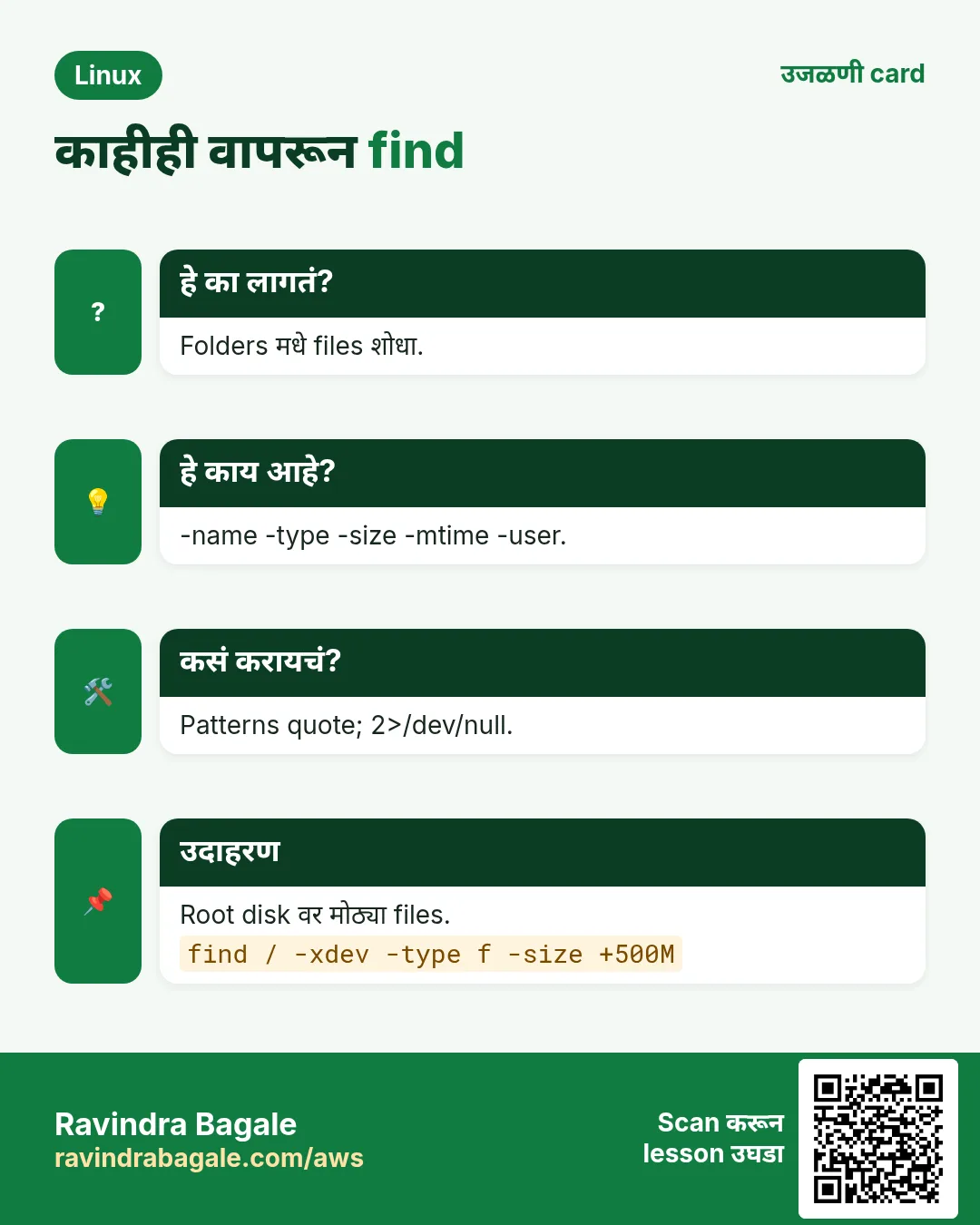
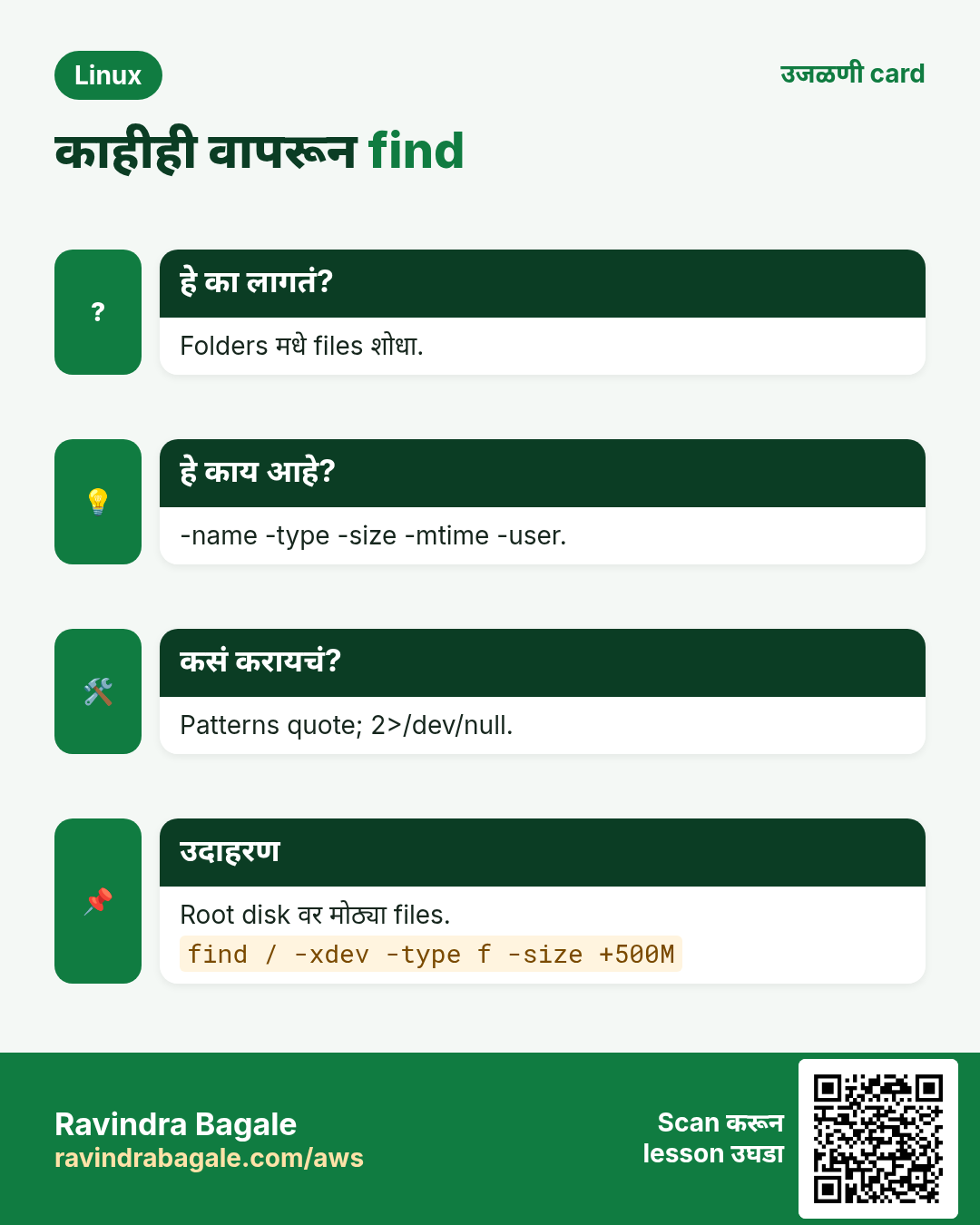
-size +100M 100 MiB पेक्षा मोठ्या, -size -1k 1 KiB पेक्षा लहान, -size 0 रिकाम्या. Units: c bytes, k KiB, M MiB, G GiB. एकाच disk वर राहायला -xdev. Sizes बघायला -exec du -h किंवा ls -lh सोबत.
कसं करायचं (step by step)
- Root disk वर 500 MB पेक्षा मोठ्या.
sudo find / -xdev -type f -size +500M -exec ls -lh {} + 2>/dev/nullOutput:
-rw-r----- 1 root root 2.1G /var/log/journal/x/system.journal
-rw-r--r-- 1 app app 900M /srv/app/shared/dump.sql
याचा अर्थ: -xdev /proc आणि इतर disks skip.
- 5 सगळ्यात मोठ्या files.
find /var -type f -printf '%s %p\n' 2>/dev/null | sort -nr | head -5Output:
2254857830 /var/log/journal/x/system.journal
943718400 /var/lib/mysql/ibdata1
याचा अर्थ: -printf %s bytes मधे size, %p path.
- 1 KB पेक्षा लहान files.
find ~/notes -type f -size -1k | wc -lOutput:
48याचा अर्थ: - म्हणजे लहान.
5. Time ने find: -mtime, -mmin, -newer
हे का लागतं?
7 दिवसांपेक्षा जुने logs delete, किंवा incident वेळी शेवटच्या 10 मिनिटांत कोणत्या files बदलल्या.
हे काय आहे?
-mtime +7 7 दिवसांपेक्षा आधी बदललेल्या, -mtime -1 शेवटच्या दिवसात, -mmin -10 10 मिनिटांत. -atime/-amin access time, -ctime/-cmin inode बदल (permissions, owner). -newer ref reference file पेक्षा नव्या. -newermt '2026-10-25 10:00' date वापरतो (GNU).
| Test | अर्थ |
|---|---|
| -mtime +7 | 7 दिवसांपेक्षा जुन्या |
| -mtime -1 | शेवटच्या 24 तासांत |
| -mmin -30 | शेवटच्या 30 मिनिटांत |
| -newer f | File f पेक्षा नव्या |
| -newermt DATE | Date पेक्षा नव्या |
कसं करायचं (step by step)
- 7 दिवसांपेक्षा जुने logs.
find /var/log/app -name '*.log' -mtime +7Output:
/var/log/app/app-2026-10-10.log
/var/log/app/app-2026-10-12.log
याचा अर्थ: Delete आधी नेहमी list.
- शेवटच्या 10 मिनिटांत बदललेल्या.
sudo find /etc -mmin -10 -type fOutput:
/etc/nginx/conf.d/shop.confयाचा अर्थ: Outage च्या आधी हे कोणी बदललं?
- Deploy marker पेक्षा नव्या.
find /srv/app -newer /srv/app/.deployed -type f | head -3Output:
/srv/app/shared/uploads/a.pngयाचा अर्थ: Deploy नंतर लिहिलेल्या files.
- दोन dates मधे.
find /data -newermt '2026-10-01' ! -newermt '2026-10-08' -type f | wc -lOutput:
1204याचा अर्थ: ! दुसरा test उलटा.
6. Owner आणि permission ने find: -user, -group, -perm
हे का लागतं?
Security audits विचारतात: कोणत्या files world-writable, कोणत्यांना SUID, कोणत्या delete झालेल्या user च्या.
हे काय आहे?
-user name, -group name, -nouser, -nogroup (orphan files). -perm 644 नेमका mode, -perm -o+w किमान हे bits (world-writable), -perm /u+s यापैकी कोणताही bit, -perm -4000 SUID. -readable, -writable, -executable सध्याच्या user साठी.
कसं करायचं (step by step)
- User च्या files.
sudo find /home -user rahul -type f | wc -lOutput:
2310याचा अर्थ: rahul चं account delete करायच्या आधी.
- World-writable files (risky).
sudo find / -xdev -type f -perm -o+w 2>/dev/nullOutput:
/srv/app/shared/config.phpयाचा अर्थ: कोणीही बदलू शकतं. Fix करा.
- SUID programs.
sudo find / -xdev -perm -4000 -type f 2>/dev/null | head -3Output:
/usr/bin/passwd
/usr/bin/sudo
/usr/bin/mount
याचा अर्थ: Audits मधे known list शी compare.
- Orphan files.
sudo find / -xdev -nouser 2>/dev/nullOutput:
/opt/old/app.jarयाचा अर्थ: Owner UID आता नाही.
7. Depth, prune आणि tests combine
हे का लागतं?
/ किंवा मोठा repo शोधणं slow, आणि .git, node_modules किंवा /proc skip करायचे.
हे काय आहे?
-maxdepth N N levels पेक्षा खोल जात नाही, -mindepth N वरचे levels skip (दोन्ही आधी लिहा). -prune find ला folder मधे जाऊ देत नाही: find . -path ./node_modules -prune -o -name '*.js' -print. -xdev एकाच file system वर. Tests AND ने जोडले; -o OR; ! किंवा -not उलटं; \( \) group.
कसं करायचं (step by step)
- फक्त top level.
find /var/log -maxdepth 1 -type f -name '*.log'Output:
/var/log/dnf.log
/var/log/boot.log
याचा अर्थ: Sub-folders मधे जात नाही.
- node_modules skip.
find . -path ./node_modules -prune -o -name '*.js' -print | head -3Output:
./src/app.js
./src/cart.js
याचा अर्थ: -prune ती branch कापतो; शेवटी -print लागतो.
- Pattern नाही.
find . -type f ! -name '*.md' | head -2Output:
./src/app.js
./Dockerfile
याचा अर्थ: ! -name उलटा.
- Combine: मोठ्या AND जुन्या.
find /backup -type f -size +1G -mtime +30Output:
/backup/db-2026-09-01.sql.gzयाचा अर्थ: दोन्ही tests true हवेत.
8. Actions: -exec, -ok, -delete, -printf
हे का लागतं?
शोधणं अर्धं काम. सापडलेलं delete, compress, chmod किंवा copy करायचं.
हे काय आहे?
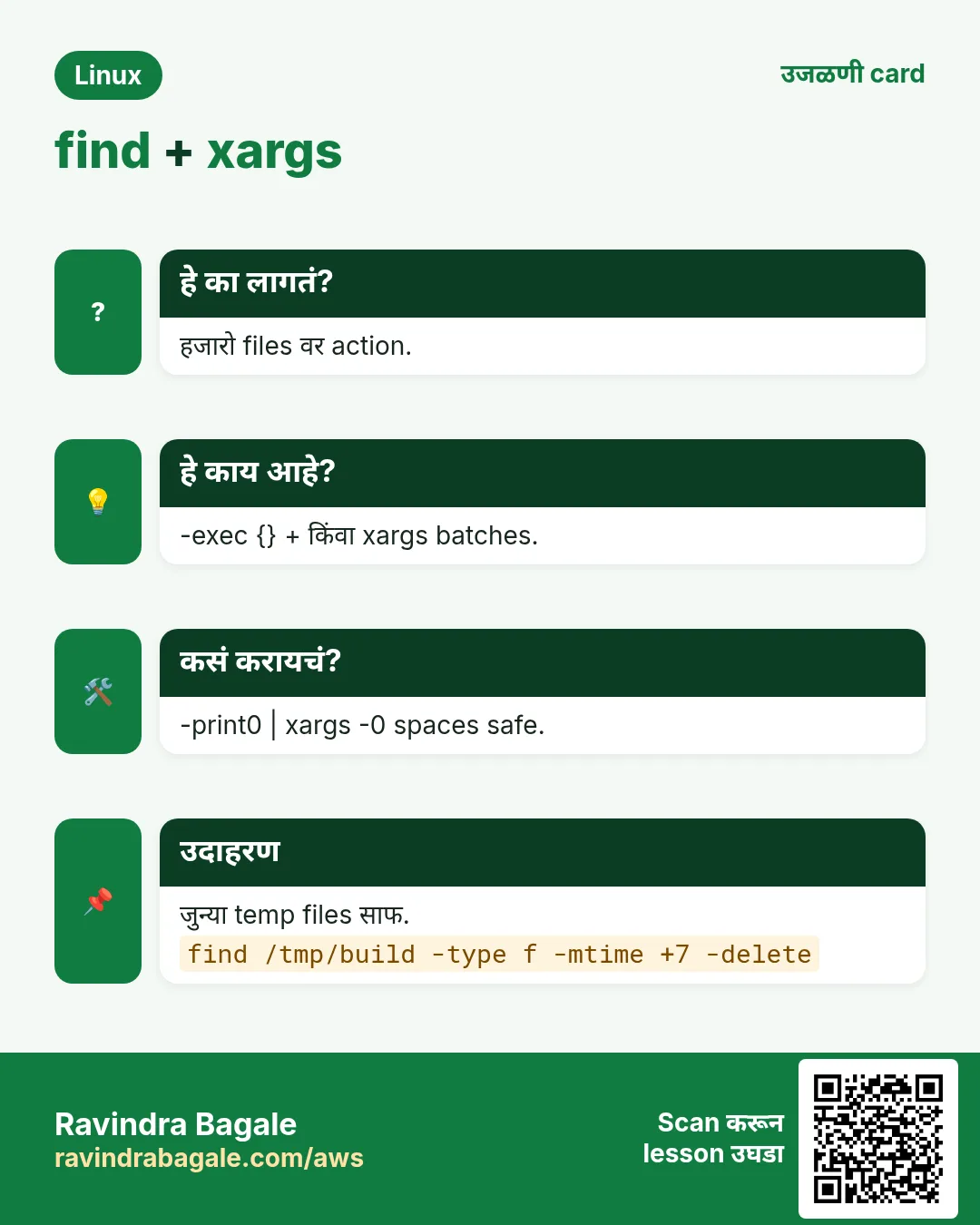
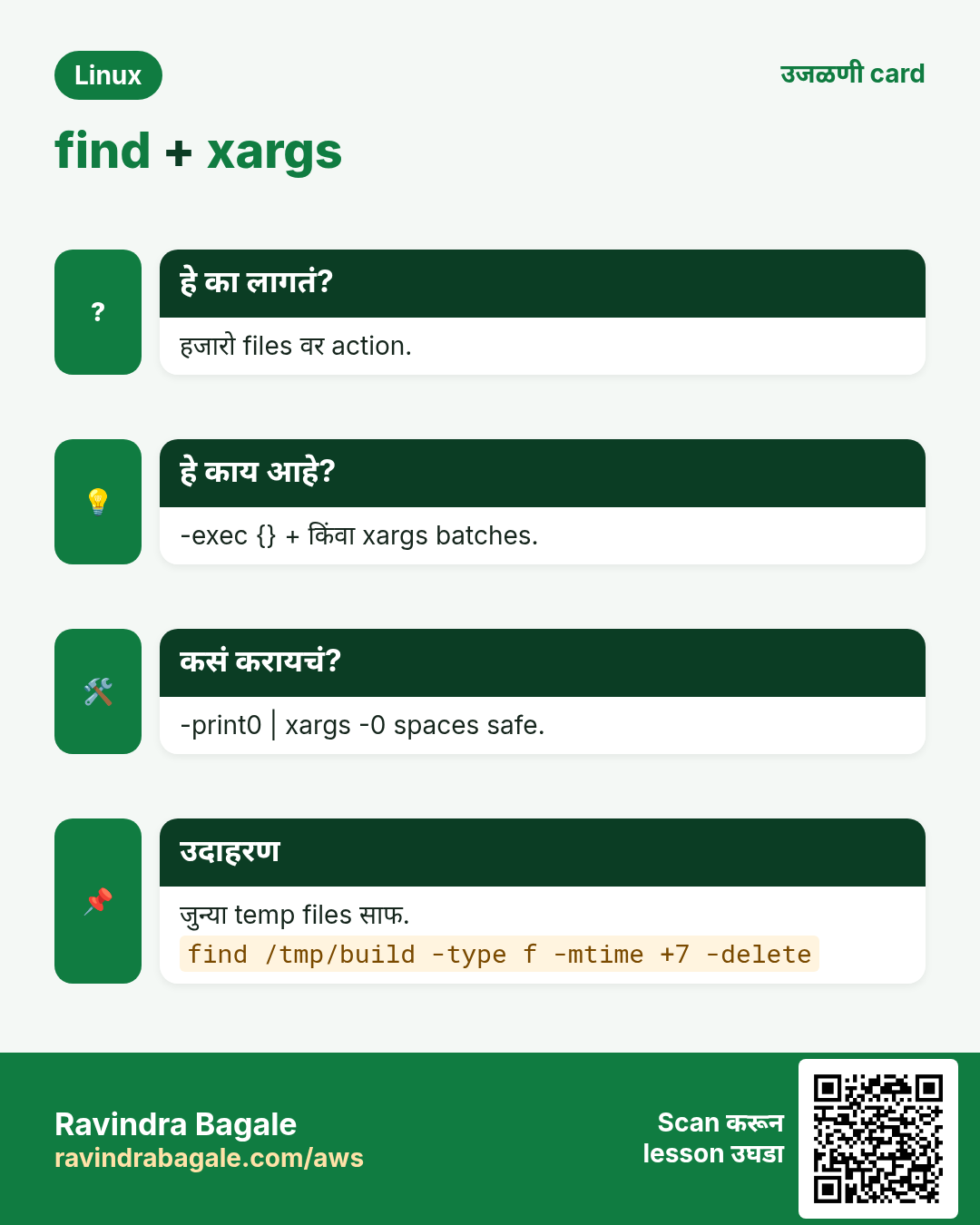
-exec cmd {} \; प्रत्येक file साठी एकदा cmd ({} म्हणजे file). -exec cmd {} + अनेक files एकदम (खूप fast). -ok प्रत्येक run आधी विचारतो. -delete matches काढतो (शेवटी ठेवा; -depth लागू होतं). -printf output format: %p path, %s size, %TY-%Tm-%Td date, %u owner. -ls ls -l सारखं print.
कसं करायचं (step by step)
- जुने logs compress.
find /var/log/app -name '*.log' -mtime +3 -exec gzip {} +Output:
(no output)याचा अर्थ: {} + gzip ला एकदम अनेक files.
- Folder permissions fix.
find /srv/www -type d -exec chmod 755 {} + && find /srv/www -type f -exec chmod 644 {} +Output:
(no output)याचा अर्थ: Folders 755, files 644: classic web fix.
- प्रत्येक delete आधी विचारा.
find ~/tmp -name '*.bak' -ok rm {} \;Output:
< rm ... /home/ravi/tmp/a.bak > ? yयाचा अर्थ: प्रत्येकासाठी y.
- जुन्या temp files delete (आधी list!).
find /tmp/build -type f -mtime +7 -print; find /tmp/build -type f -mtime +7 -deleteOutput:
/tmp/build/x.o
/tmp/build/y.o
याचा अर्थ: तेच tests, आधी -print, मग -delete.
- Custom output.
find /srv/app -maxdepth 1 -printf '%TY-%Tm-%Td %u %p\n'Output:
2026-10-25 deploy /srv/app/releases
2026-10-20 deploy /srv/app/shared
याचा अर्थ: Report सारखं.
- सापडलेल्या files copy.
find ~/Photos -name '*.jpg' -newermt '2026-10-01' -exec cp -t /backup/oct/ {} +Output:
(no output)याचा अर्थ: cp -t target आधी, म्हणून {} + चालतं.
9. xargs: list चे arguments बनवा
हे का लागतं?
अनेक commands (rm, gzip, grep) file नावं arguments म्हणून घेतात, stdin मधून नाही. मोठ्या lists ला 'Argument list too long' पण येतो.
हे काय आहे?
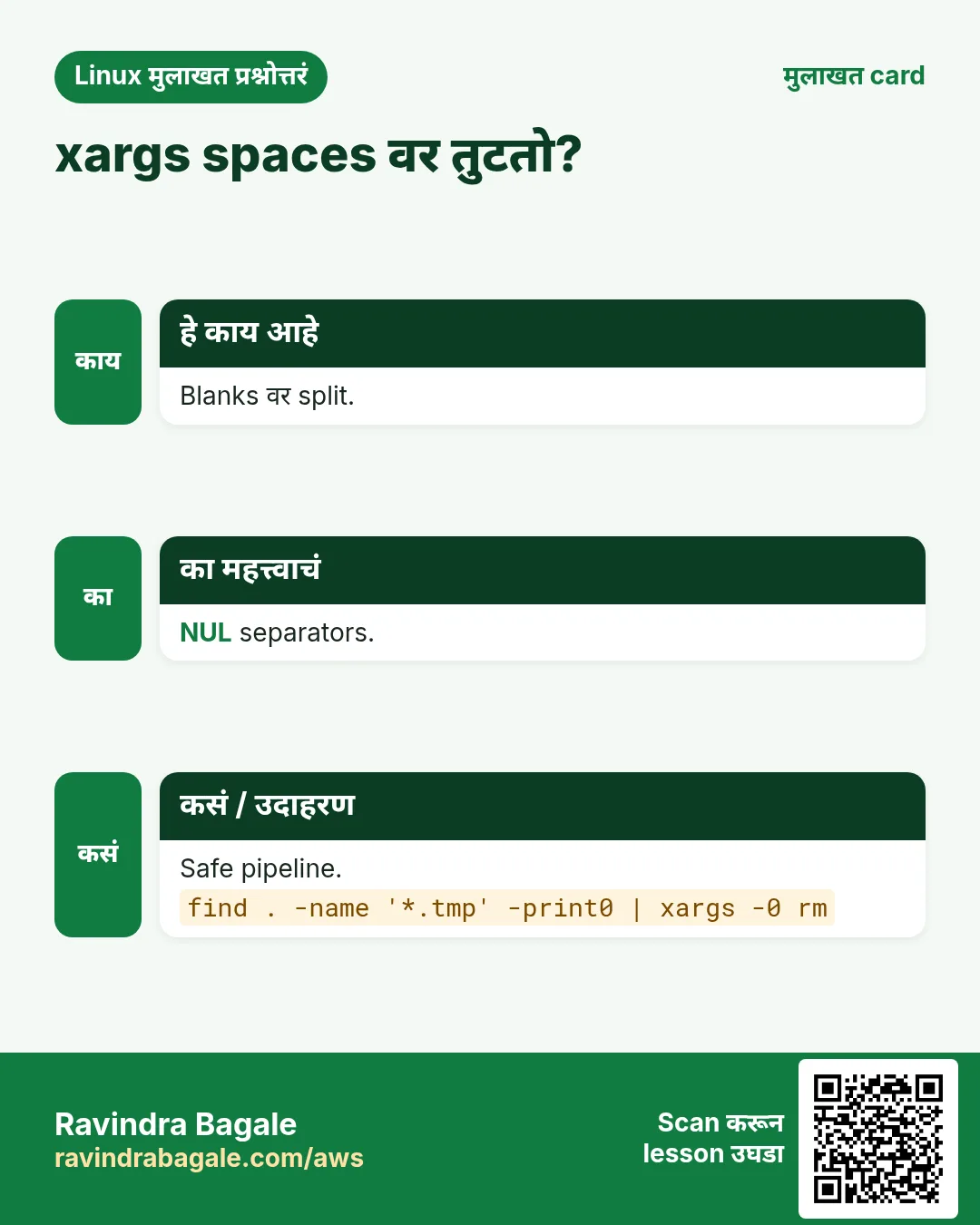
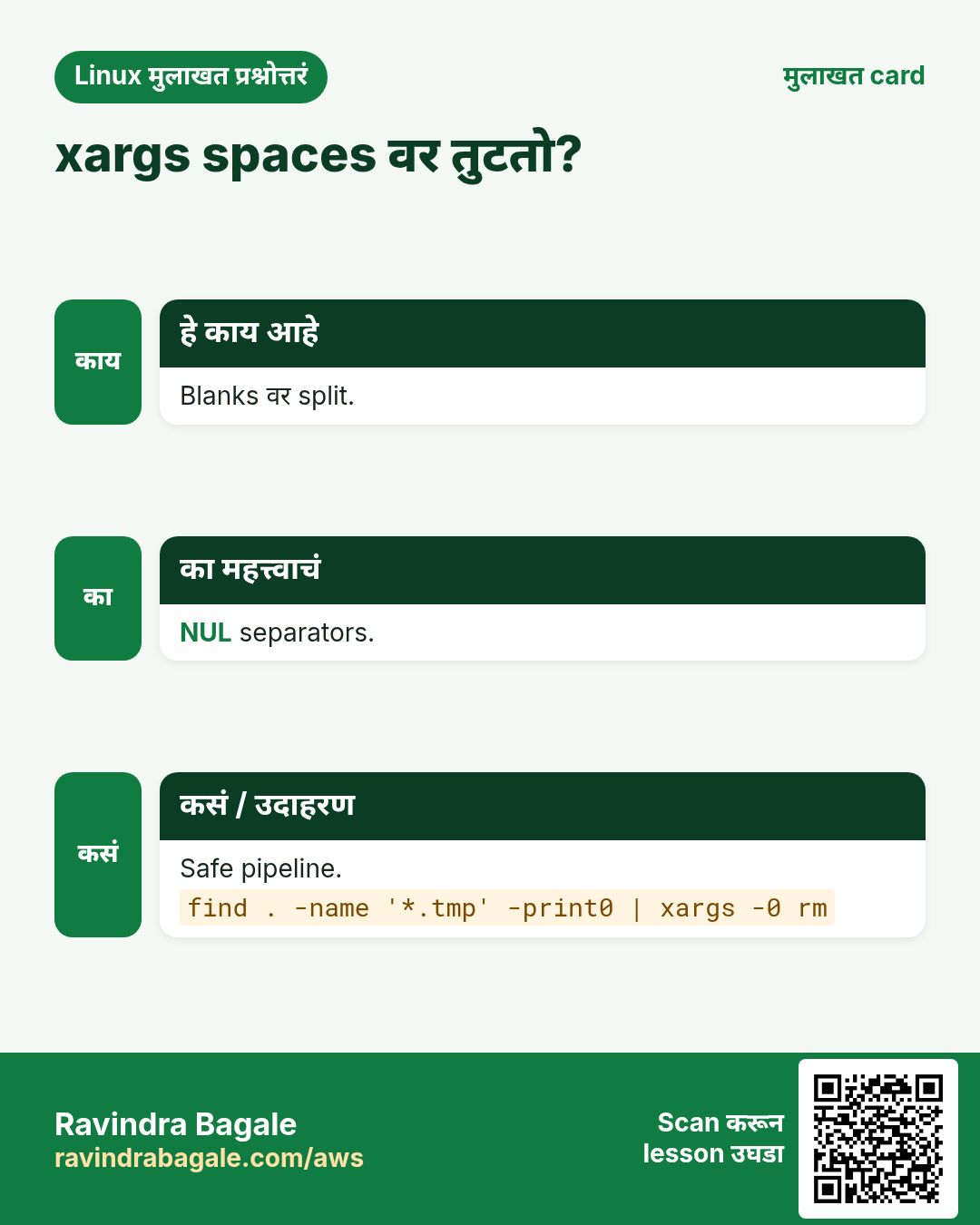
cmd1 | xargs cmd2 stdin मधून items वाचून cmd2 चालवतो, जमतील तेवढे भरून. -0 NUL ने वेगळे items (find -print0 सोबत, नावातल्या spaces आणि new lines साठी safe). -n N प्रत्येक run ला N items, -P N एकदम N parallel, -I{} प्रत्येक item {} च्या जागी (प्रत्येक run ला एक), -r (GNU) input रिकामा असेल तर चालवत नाही, -t आधी command print, -p विचारतो.
| Option | उपयोग |
|---|---|
| -0 | NUL ने वेगळा input (-print0 सोबत) |
| -n N | प्रत्येक command ला N items |
| -P N | N commands parallel |
| -I{} | Item कुठेही |
| -r | Input नसेल तर skip |
| -t | Commands दाखवा |
कसं करायचं (step by step)
- सापडलेल्या files safely delete.
find /tmp/cache -name '*.tmp' -print0 | xargs -0 -r rm -fOutput:
(no output)याचा अर्थ: नावात spaces असूनही चालतं; काही नसेल तर -r skip.
- -0 का महत्त्वाचं.
touch 'my file.txt'; find . -name '*.txt' | xargs lsOutput:
ls: cannot access './my': No such file or directory
ls: cannot access 'file.txt': No such file or directory
याचा अर्थ: -print0/-0 शिवाय space ने नाव तुटलं.
- सापडलेल्या files मधे grep.
find . -name '*.py' -print0 | xargs -0 grep -l 'boto3'Output:
./sync/main.pyयाचा अर्थ: xargs grep ला एकदम अनेक files.
- Parallel compression.
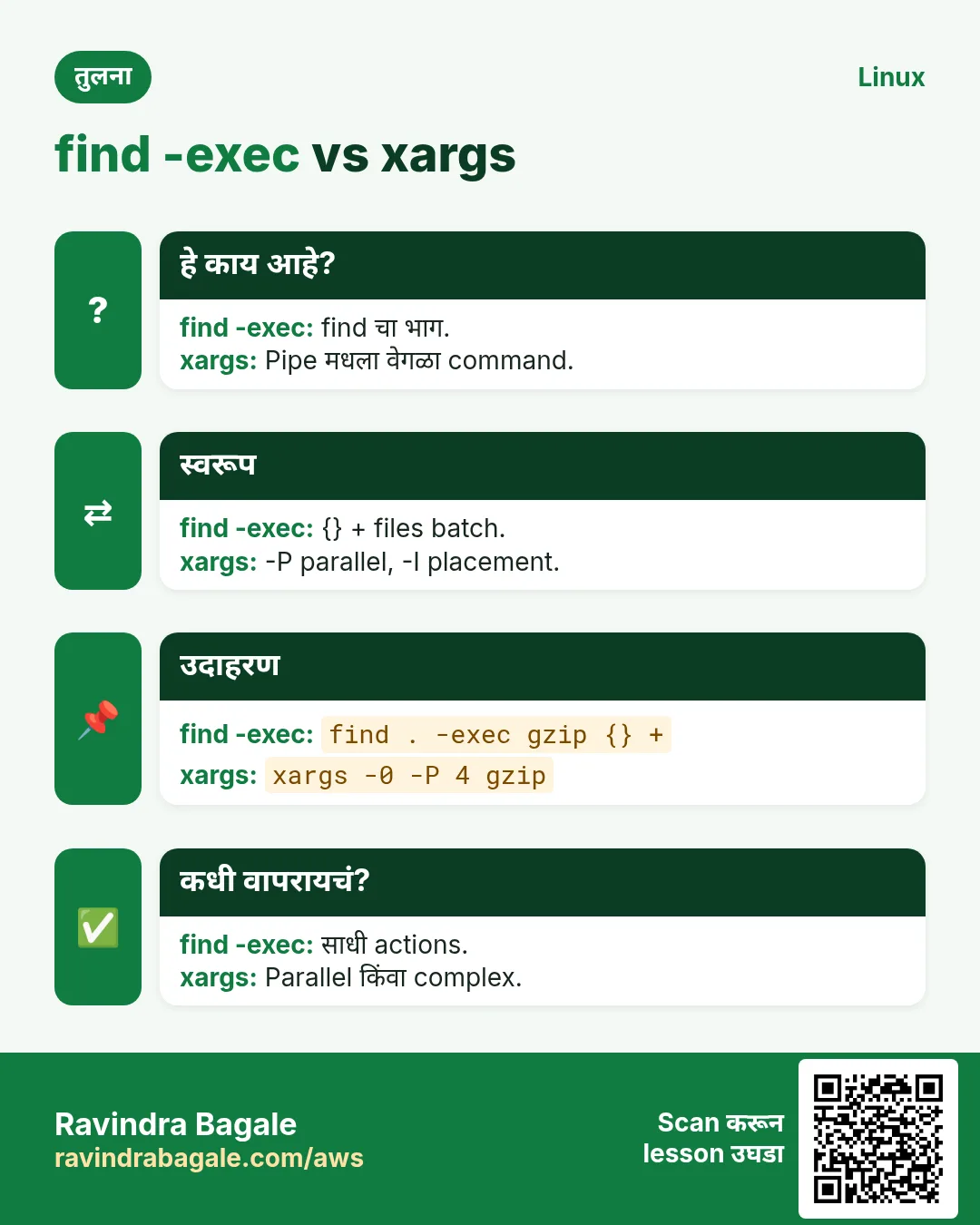
find /data/logs -name '*.log' -print0 | xargs -0 -n 1 -P 4 gzipOutput:
(no output)याचा अर्थ: 4 CPUs वर एकाच वेळी 4 gzip jobs.
- -I ने प्रत्येक item.
cat servers.txt | xargs -I{} ssh {} 'uptime'Output:
web1  10:40 up 12 days
web2  10:40 up 3 days
याचा अर्थ: {} प्रत्येक server नाव.
- दाखवा आणि batch.
seq 1 5 | xargs -t -n 2 echoOutput:
echo 1 2
1 2
echo 3 4
3 4
echo 5
5
याचा अर्थ: -t command print, -n 2 दोन-दोन.
- 'Argument list too long' fix.
find /var/spool/mail/old -type f -print0 | xargs -0 rm -fOutput:
(no output)याचा अर्थ: 200,000 files वर rm .../* fail होईल.
10. locate आणि updatedb: लगेच नाव search
हे का लागतं?
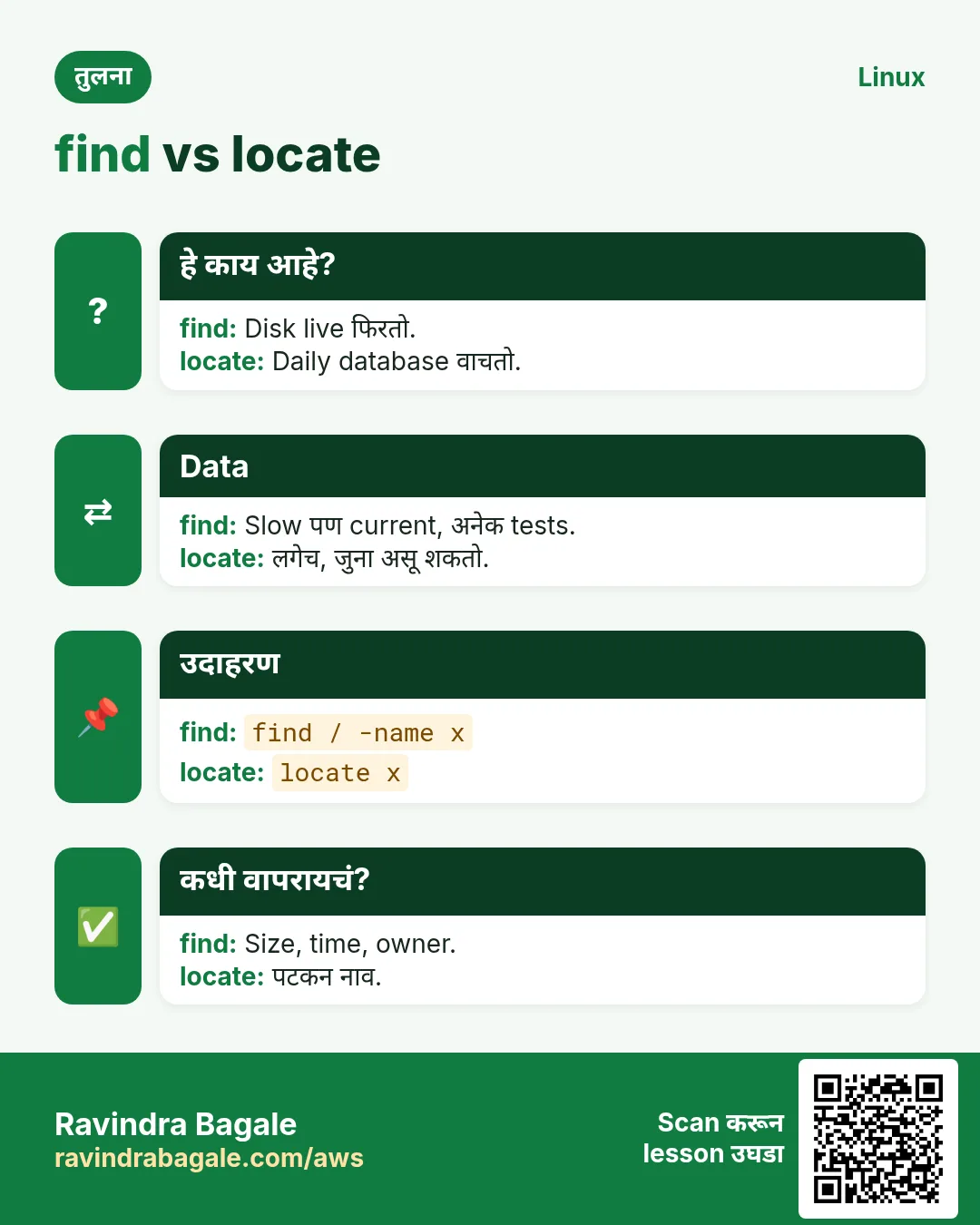
find प्रत्येक वेळी disk फिरतो. 'ती file कुठे?' साठी database fast.
हे काय आहे?
locate (plocate/mlocate package) updatedb ने बनवलेला database शोधतो, सहसा रोज. -i case ignore, -c count, -n 5 limit, -e फक्त existing files. नव्या files updatedb नंतरच.
कसं करायचं (step by step)
- लगेच नाव search.
locate -i nginx.confOutput:
/etc/nginx/nginx.conf
/usr/share/doc/nginx/nginx.conf.default
याचा अर्थ: Database मधून खूप fast.
- Database refresh.
sudo updatedb && locate -c '*.log'Output:
213याचा अर्थ: नव्या files updatedb नंतरच (रोज timer).
11. which: कोणता program चालेल
हे का लागतं?
python किंवा java च्या दोन versions. नाव type केलं की कोणतं चालतं?
हे काय आहे?
which cmd PATH शोधून पहिला match print करतो. -a सगळे matches.
कसं करायचं (step by step)
- कोणता python चालतो?
which python3Output:
/usr/bin/python3याचा अर्थ: PATH मधला पहिला match.
- सगळे matches.
which -a python3Output:
/usr/local/bin/python3
/usr/bin/python3
याचा अर्थ: पहिला जिंकतो.
12. whereis: binary, source आणि manual
हे का लागतं?
Command आणि त्याचं manual page कुठे ते बघायचं.
हे काय आहे?
whereis cmd standard जागांमधून binary, source, man page paths. -b फक्त binary, -m फक्त man.
कसं करायचं (step by step)
- Command च्या सगळ्या जागा.
whereis tarOutput:
tar: /usr/bin/tar /usr/share/man/man1/tar.1.gzयाचा अर्थ: Binary आणि manual page.
- फक्त binary.
whereis -b nginxOutput:
nginx: /usr/sbin/nginxयाचा अर्थ: -b man pages लपवतो.
13. type: alias, builtin, function की file
हे का लागतं?
Command विचित्र वागतो. कदाचित alias किंवा shell function, खरा program नाही.
हे काय आहे?
type हा shell builtin. नाव alias, keyword, function, builtin की disk वरची file ते सांगतो. type -a सगळं, type -t फक्त प्रकार.
कसं करायचं (step by step)
- Alias की file?
type llOutput:
ll is aliased to `ls -l --color=auto'याचा अर्थ: type shell aliases ओळखतो; which कदाचित नाही.
- Builtin vs file.
type -a echoOutput:
echo is a shell builtin
echo is /usr/bin/echo
याचा अर्थ: Builtin आधी चालतो.
14. अनेक industries मधली खरी उदाहरणं
हे का लागतं?
तेच Linux skill प्रत्येक प्रकारच्या company मध्ये लागतं. वेगवेगळ्या ठिकाणी पाहिलं की लक्षात राहतं.
हे काय आहे?
प्रत्येक row म्हणजे एक काल्पनिक team. कोण हे वापरतं आणि कसं ते दाखवते.
कसं करायचं (step by step)
| Team आणि शहर | ते कसं वापरतात | Command |
|---|---|---|
| Manoj, hosting support, Indore | 1 GB पेक्षा मोठ्या files शोधून full disk मोकळी | find / -xdev -type f -size +1G -exec ls -lh {} + |
| Laura, security audit, Madrid | World-writable आणि SUID files list | find / -xdev \( -perm -4000 -o -perm -o+w \) -type f |
| Kwame, media pipeline, Accra | हजारो images parallel convert | find in/ -name '*.png' -print0 | xargs -0 -P 8 -I{} convert {} {}.webp |
| Tanvi, data team, Pune | cron ने 14 दिवसांपेक्षा जुने temp exports delete | find /data/tmp -type f -mtime +14 -delete |
| Ben, DevOps, Sydney | Outage च्या आधी बदललेले configs | find /etc -type f -mmin -30 |
| Riya, web agency, Jaipur | Web file permissions reset | find /var/www -type f -exec chmod 644 {} + |
15. नेहमीच्या errors आणि त्यांचे fixes
हे का लागतं?
हे errors सगळ्यांना येतात. कारण माहीत असलं की तास वाचतात.
हे काय आहे?
आधी नेमका message वाचा. मग खालच्या row शी जुळवा.
कसं करायचं (step by step)
| दिसणारा error | का होतं | Fix कसा करायचा |
|---|---|---|
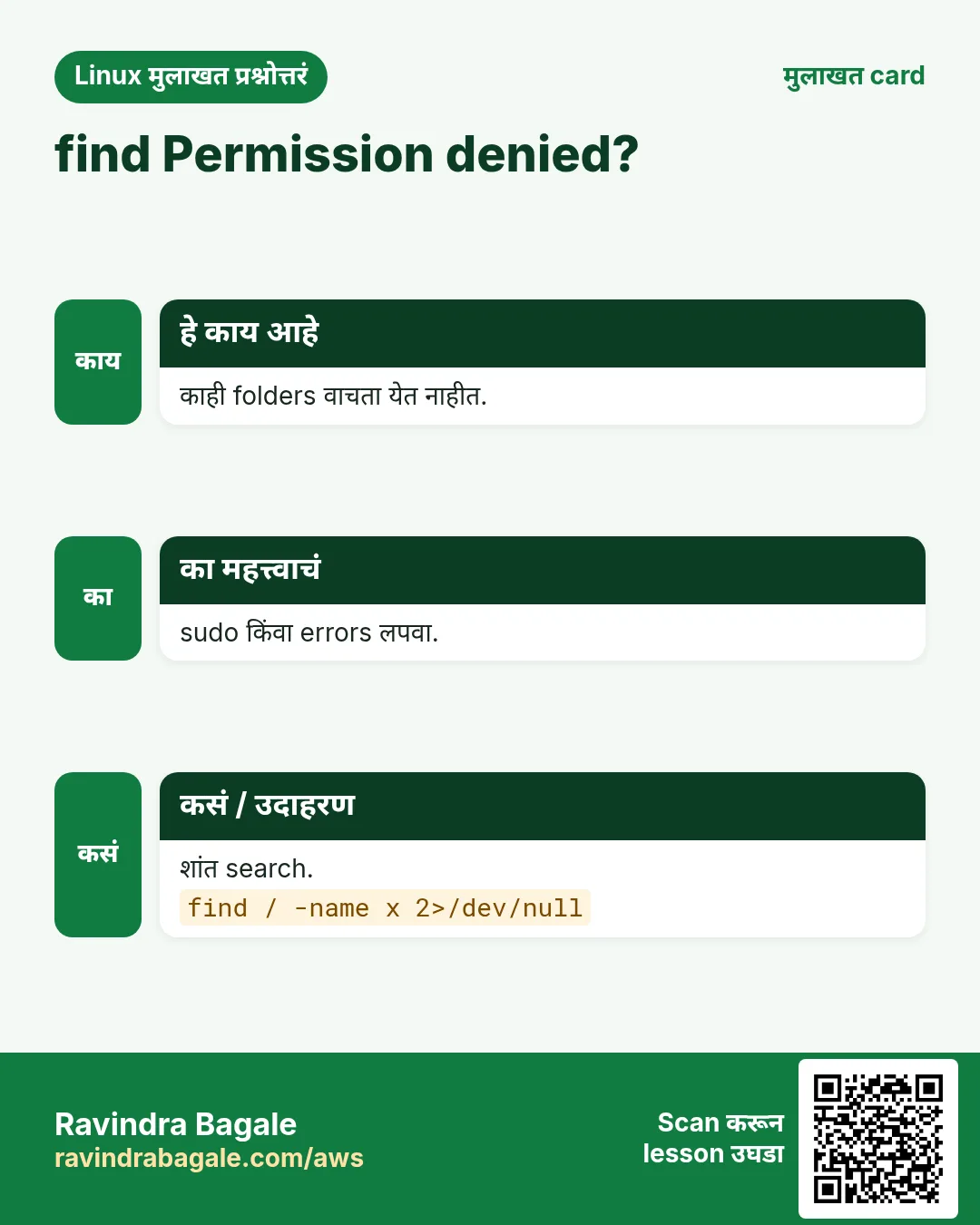
find: '/proc/1234': Permission denied | Normal user काही folders वाचू शकत नाही | sudo, -xdev, किंवा 2>/dev/null ने लपवा.sudo find / -xdev -name x 2>/dev/null |
find: paths must precede expression: 'b.txt' | Quote नसलेला *.txt shell ने expand केला | Pattern quote करा.find . -name '*.txt' |
find: missing argument to `-exec' | शेवटी \; किंवा + विसरला | -exec शेवटी \; किंवा +.find . -name '*.log' -exec gzip {} + |
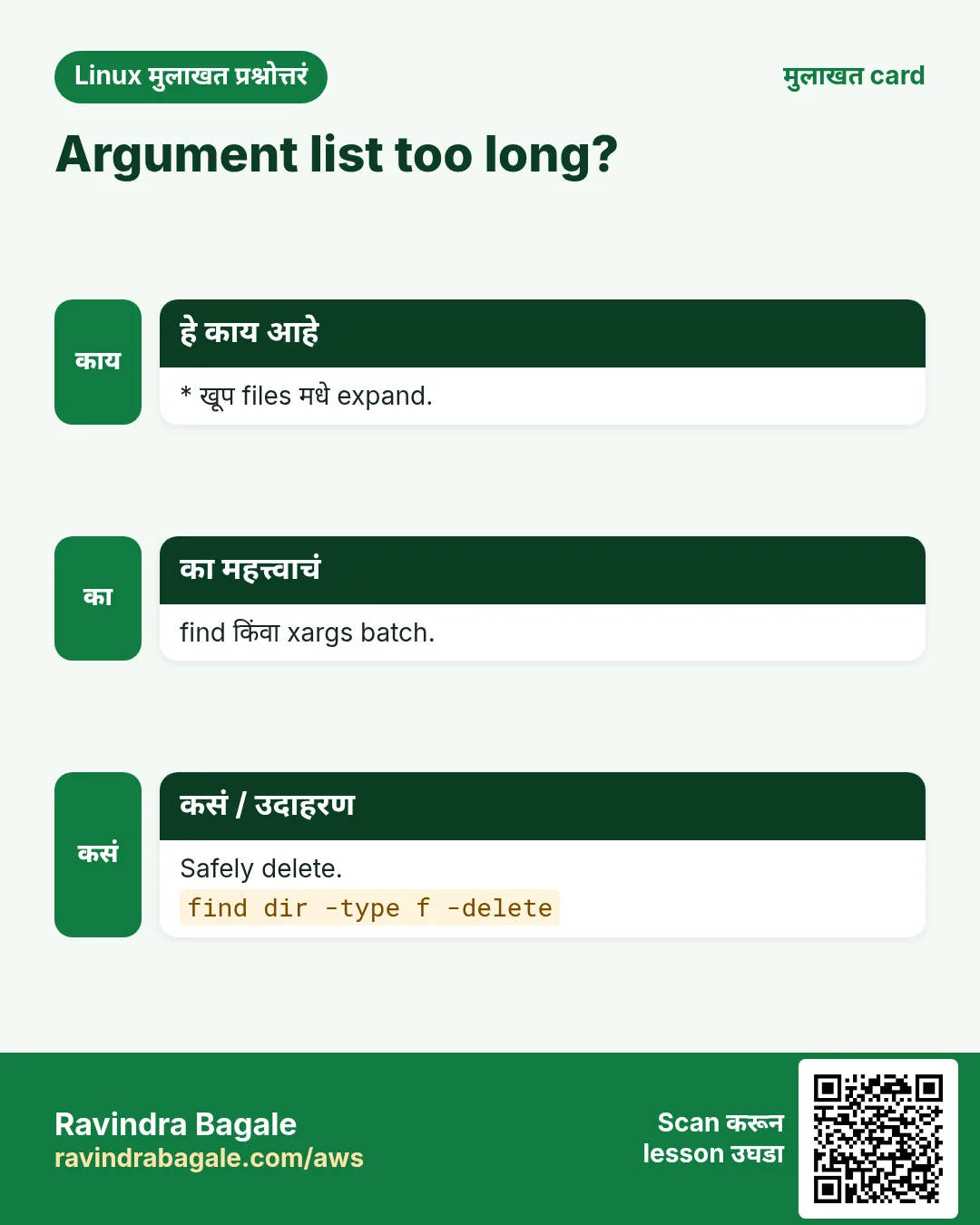
-bash: /usr/bin/rm: Argument list too long | * सारख्या glob ने खूप files | find -delete किंवा xargs.find dir -type f -delete |
xargs: unmatched single quote | File नावात quote आणि -0 नाही | find -print0 | xargs -0.find . -print0 | xargs -0 ls -l |
rm runs with no files and errors (xargs) | रिकामा input असूनही command चालला | -r जोडा (GNU xargs).find . -name '*.tmp' -print0 | xargs -0 -r rm |
-delete removed more than expected | -delete tests च्या आधी ठेवला | -delete शेवटी, -print ने dry-run.find /tmp -name '*.tmp' -print |
find -mtime 7 finds nothing | नेमका 7 म्हणजे '7 ते 8 दिवस' | जुन्यासाठी +7, नव्यासाठी -7.find . -mtime +7 |
locate: can not stat () `/var/lib/plocate/plocate.db' | Database अजून बनला नाही | updatedb चालवा.sudo updatedb |
-prune does not skip the folder | -o ... -print नाही, किंवा path नेमका जुळत नाही | -path X -prune -o ... -print form.find . -path ./node_modules -prune -o -type f -print |
16. Troubleshooting step by step
हे का लागतं?
find काही देत नाही किंवा खूप देतो तर एक एक test ने command बनवा आणि action आधी नेहमी -print.
हे काय आहे?
वरून खाली जा. ज्या step ला problem दिसतो तिथे थांबा.
कसं करायचं (step by step)
- Broad सुरू करा, results आहेत का.
find /var/log -type f | head- एक एक test जोडा.
find /var/log -type f -name '*.log' | head- Time maths तपासा.
find /var/log -type f -name '*.log' -mtime +7 -printf '%TY-%Tm-%Td %p\n' | head- Action आधी count.
find /var/log -type f -name '*.log' -mtime +7 | wc -l- echo किंवा -t ने xargs dry-run.
find . -name '*.tmp' -print0 | xargs -0 -r echo rm- मग खरं action.
find . -name '*.tmp' -print0 | xargs -0 -r rm -f17. Lab 1: Full disk safely मोकळी करा
हे का लागतं?
Test files बनवा, मोठ्या आणि जुन्या शोधा, safely compress आणि delete.
हे काय आहे?
पूर्ण hands-on lab. प्रत्येक step test Linux machine वर करा (EC2 instance, VM किंवा WSL).
कसं करायचं (step by step)
- वेगवेगळ्या size आणि वयाच्या files.
mkdir -p ~/lab12/logs && cd ~/lab12/logs && for i in 1 2 3 4 5; do truncate -s ${i}0M app$i.log; touch -d "$((i*3)) days ago" app$i.log; done; ls -lhOutput:
-rw-r--r-- 1 ravi ravi 10M app1.log ... 50M app5.log- 25 MB पेक्षा मोठ्या.
find . -type f -size +25M -printf '%s %p\n' | sort -nrOutput:
52428800 ./app5.log
41943040 ./app4.log
31457280 ./app3.log- 7 दिवसांपेक्षा जुन्या.
find . -name '*.log' -mtime +7Output:
./app3.log
./app4.log
./app5.log- Compress करा.
find . -name '*.log' -mtime +7 -exec gzip {} + && lsOutput:
app1.log app2.log app3.log.gz app4.log.gz app5.log.gz- 12 दिवसांपेक्षा जुन्या gz (आधी print).
find . -name '*.gz' -mtime +12 -print -deleteOutput:
./app5.log.gz18. Lab 2: Spaces असलेली नावं आणि xargs
हे का लागतं?
Spaces pipelines कसे तोडतात ते बघा, -print0 आणि -0 ने fix; jobs parallel.
हे काय आहे?
पूर्ण hands-on lab. प्रत्येक step test Linux machine वर करा (EC2 instance, VM किंवा WSL).
कसं करायचं (step by step)
- Tricky file नावं.
mkdir -p ~/lab12/docs && cd ~/lab12/docs && touch 'Oct bill.txt' 'Nov bill.txt' plain.txtOutput:
(no output)- Unsafe मार्ग.
find . -name '*.txt' | xargs ls 2>&1 | head -2Output:
ls: cannot access './Oct': No such file or directory
ls: cannot access 'bill.txt': No such file or directory- Safe मार्ग.
find . -name '*.txt' -print0 | xargs -0 lsOutput:
./Nov bill.txt ./Oct bill.txt ./plain.txt- -P आणि -I ने parallel jobs.
find . -name '*.txt' -print0 | xargs -0 -P 3 -I{} sh -c 'echo "done: $1"' _ {}Output:
done: ./plain.txt
done: ./Oct bill.txt
done: ./Nov bill.txt- एकदम permissions fix.
find ~/lab12 -type f -exec chmod 644 {} + && find ~/lab12 -type f ! -perm 644 | wc -lOutput:
0Ravindra Bagale's Tip
Before any find -delete or xargs rm, run the exact same find with -print (or xargs echo) and check the count with wc -l. Deleting the wrong 10,000 files takes one second; getting them back may be impossible.
Ravindra Bagale's Tip – मराठी
कोणत्याही find -delete किंवा xargs rm आधी तोच find -print सह (किंवा xargs echo) चालवा आणि wc -l ने count बघा. चुकीच्या 10,000 files delete व्हायला एक second लागतो; परत मिळवणं अशक्य असू शकतं.
Ravindra Bagale's Tip – हिंदी
किसी भी find -delete या xargs rm से पहले वही find -print के साथ (या xargs echo) चलाएं और wc -l से count देखें. गलत 10,000 files delete होने में एक second लगता है; वापस पाना नामुमकिन हो सकता है.
19. नेहमी विचारले जाणारे प्रश्न
प्र. find की locate?
locate लगेच पण daily database. find नेहमी current आणि size, time, owner test करू शकतो.
प्र. '*.txt' quote का?
Quotes शिवाय find पर्यंत पोचण्याआधी shell current folder मधल्या file नावांत expand करतो.
प्र. -exec {} \; की {} +?
\; प्रत्येक file साठी एकदा (slow). + एकदम अनेक files (fast). Command अनेक files घेत असेल तर +.
प्र. -print0 आणि xargs -0 का?
File नावांत spaces, quotes किंवा new lines असू शकतात. NUL नावात कधीच नसतो, म्हणून safe separator.
प्र. -mtime +7 नेमकं?
7 पूर्ण दिवसांपेक्षा (×24 h) आधी बदललेलं. -mtime 7 म्हणजे 7 ते 8 दिवस.
प्र. -xdev का?
find ला इतर disks, network mounts, /proc आणि /sys मधे जाऊ देत नाही.
प्र. xargs की while read loop?
xargs fast आणि parallel. प्रत्येक file वर complex logic साठी while loop सोपा.
प्र. find -delete safe आहे का?
हो, आधी तोच command -print ने test केला आणि -delete शेवटचा option ठेवला तर.
20. मुलाखत प्रश्न आणि उत्तरं
Beginner level
प्र. /etc खाली app.conf कशी शोधाल?
find /etc -name app.conf.
प्र. फक्त folders कसे?
find PATH -type d.
प्र. 100 MB पेक्षा मोठ्या files?
find / -xdev -type f -size +100M.
प्र. xargs काय करतो?
stdin मधल्या lines command चे arguments बनवतो.
Mid level level
प्र. 30 दिवसांपेक्षा जुन्या .log files delete.
find /var/log/app -name '*.log' -mtime +30 -delete (आधी print).
प्र. -exec {} \; आणि {} + मधे फरक?
\; प्रत्येक file ला एक process; + अनेक files एका process मधे, xargs सारखं.
प्र. xargs सोबत नावातल्या spaces?
find ... -print0 | xargs -0 cmd.
प्र. शेवटच्या 15 मिनिटांत बदललेल्या files.
find /path -mmin -15 -type f.
Senior level
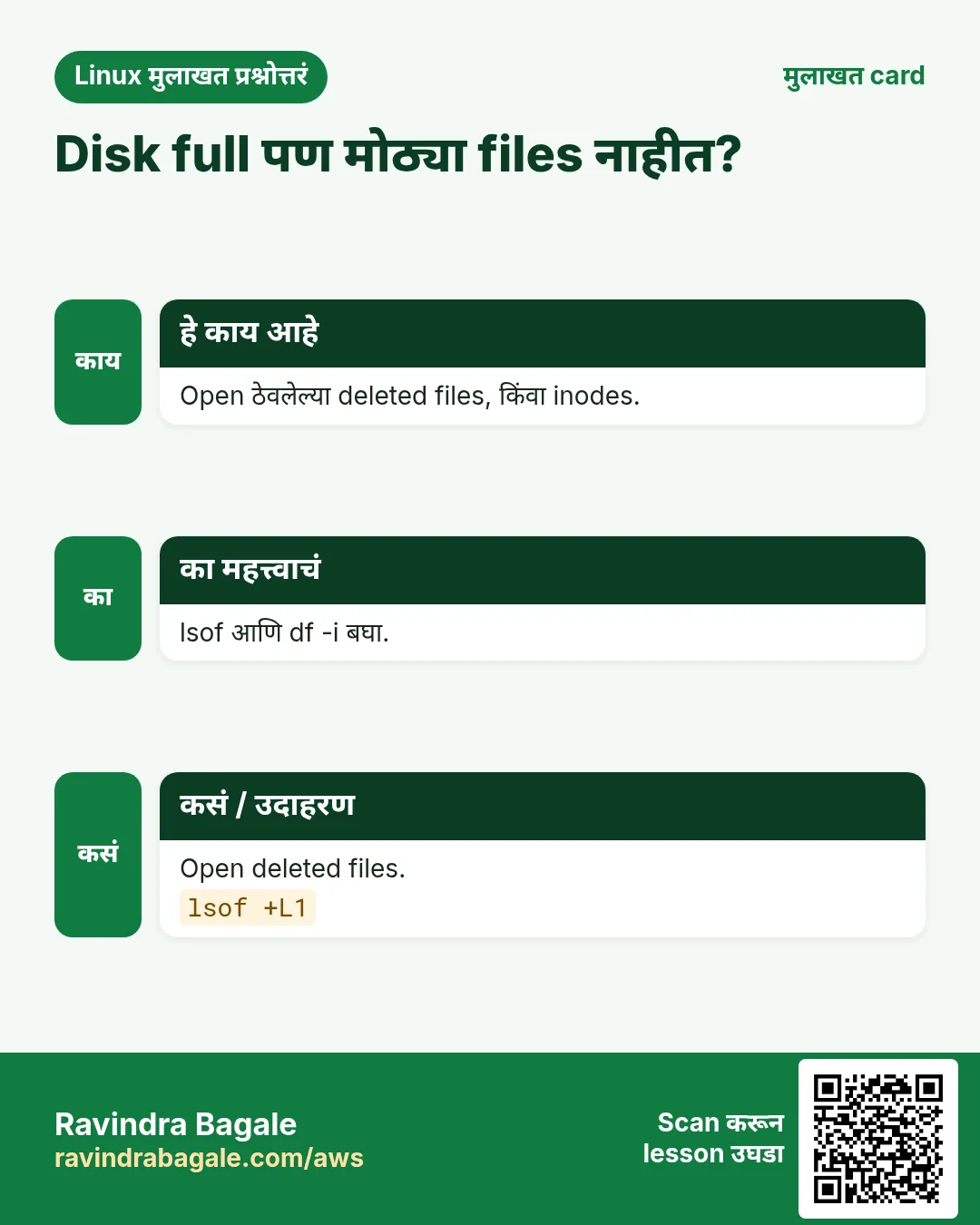
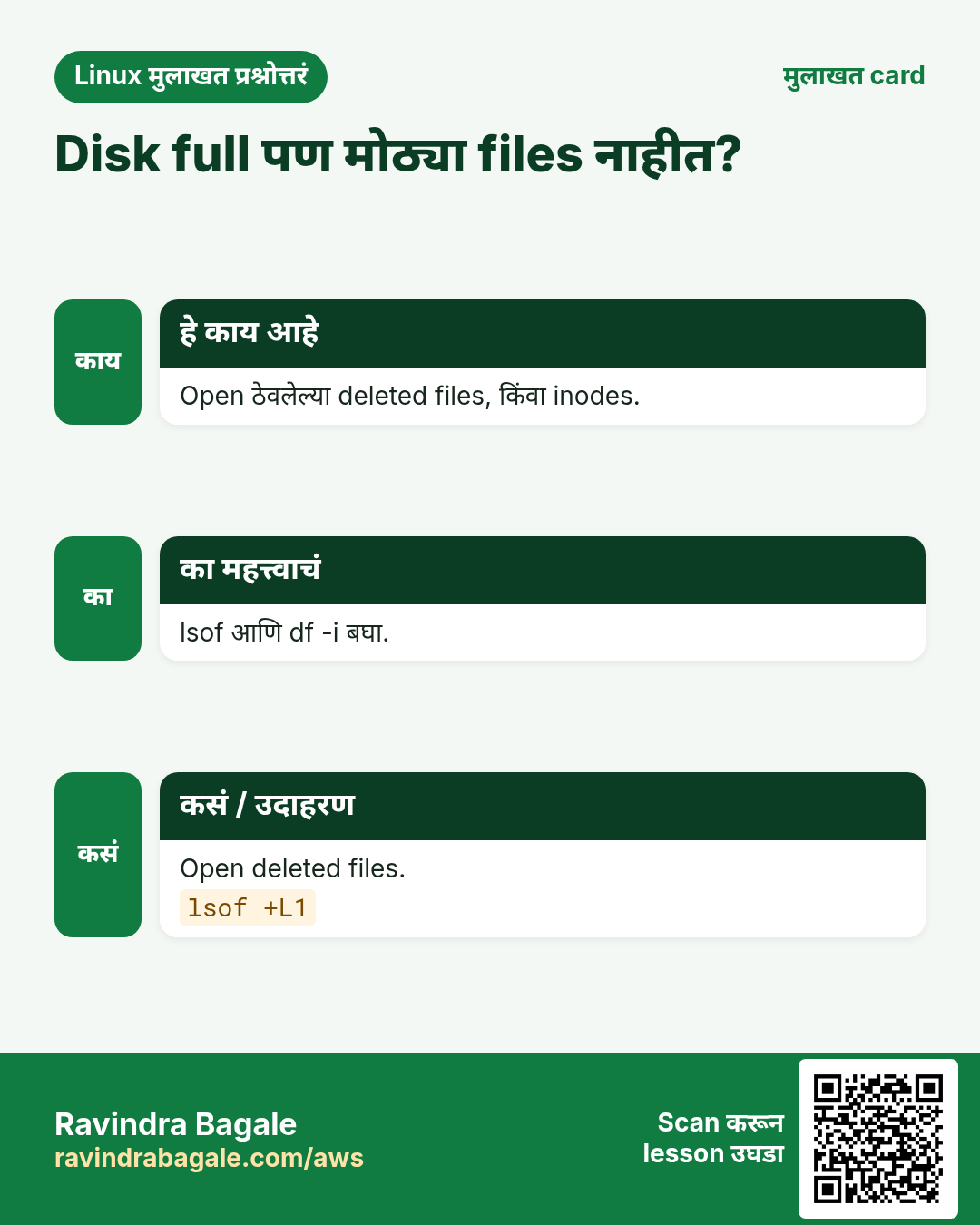
प्र. Disk 100% पण find ला मोठ्या files दिसत नाहीत. का?
Delete झालेल्या पण open files (lsof +L1), mount point खाली लपलेल्या files, inodes संपले (df -i), किंवा reserved blocks. प्रत्येक तपासा.
प्र. 20 लाख files वर command, fast आणि safe.
find -print0 | xargs -0 -n 500 -P $(nproc) cmd; किंवा find -exec cmd {} +; memory साठी -n tune, प्रत्येक file ला process टाळा.
प्र. Fleet वर SUID/SGID आणि world-writable files audit कसे?
find / -xdev -type f \( -perm -4000 -o -perm -2000 \) आणि -perm -o+w, Ansible/SSM ने results गोळा, baseline शी diff आणि नव्या entries वर alert.
प्र. find . -name '*.tmp' -delete -o -name '*.bak' चुकीचं लिहिलं तर धोकादायक का?
Operator precedence: AND ची OR पेक्षा जास्त पकड, आणि tests आधी ठेवलेला -delete पोचेल ते सगळं delete करतो. \( \) ने group आणि -delete शेवटी.
घरी करून बघा
- Downloads folder मधे 1 MB पेक्षा मोठ्या आणि 30 दिवसांपेक्षा जुन्या सगळ्या PDF files शोधा आणि size सह print करा.
- नावात spaces असलेल्या 3 files बनवा आणि find -print0 | xargs -0 ls -l ने safely list करा.
सराव Tasks
Ahmednagar Sugar Co-op हा अहिल्यानगर मधला साखर सहकारी व्यवसाय आहे. Balasaheb Pawar त्यांचं IT व cloud काम पाहतात. त्यांचे पैसे INR मध्ये मोजले जातात आणि AWS resources ap-south-1 Region मध्ये चालतात. खालच्या tasks मध्ये तुम्ही या lesson मध्ये शिकलेलं वापरून त्यांची खरी कामं करता. सगळी नावं, account IDs, IP addresses व numbers सरावासाठी काल्पनिक आहेत.
0 / 18
सोपं नावाने find
का: हरवलेली config file.
काय करायचं: /etc खाली app.conf नावाच्या files.
- हे काम करणारा Linux command शोधा.
- Task ला लागणारे options (उदा. -r, -h) जोडा.
- File नावं, folders किंवा users योग्य क्रमाने लिहा.
- System files/users बदलत असाल तर sudo वापरा. Check answer दाबा.
सोपं Extension ने find
का: सगळे logs एका list मधे.
काय करायचं: /opt/app/logs खाली .log ने संपणाऱ्या सगळ्या files. Pattern quote.
- हे काम करणारा Linux command शोधा.
- Task ला लागणारे options (उदा. -r, -h) जोडा.
- File नावं, folders किंवा users योग्य क्रमाने लिहा.
- System files/users बदलत असाल तर sudo वापरा. Check answer दाबा.
सोपं Case ignore
का: Invoice किंवा receipt.
काय करायचं: ~/Documents खाली नावात कोणत्याही case मधे receipt असलेल्या files. Pattern '*receipt*'.
- हे काम करणारा Linux command शोधा.
- Task ला लागणारे options (उदा. -r, -h) जोडा.
- File नावं, folders किंवा users योग्य क्रमाने लिहा.
- System files/users बदलत असाल तर sudo वापरा. Check answer दाबा.
सोपं फक्त folders
का: Project folders मोजा.
काय करायचं: /srv/app खाली फक्त directories.
- हे काम करणारा Linux command शोधा.
- Task ला लागणारे options (उदा. -r, -h) जोडा.
- File नावं, folders किंवा users योग्य क्रमाने लिहा.
- System files/users बदलत असाल तर sudo वापरा. Check answer दाबा.
सोपं लगेच नाव lookup
का: मोठ्या disks वर find slow.
काय करायचं: File name database मधे php.ini, case ignore करून.
- हे काम करणारा Linux command शोधा.
- Task ला लागणारे options (उदा. -r, -h) जोडा.
- File नावं, folders किंवा users योग्य क्रमाने लिहा.
- System files/users बदलत असाल तर sudo वापरा. Check answer दाबा.
सोपं कोणता program चालतो
का: दोन pythons.
काय करायचं: PATH मधून चालणाऱ्या pip3 चा path.
- हे काम करणारा Linux command शोधा.
- Task ला लागणारे options (उदा. -r, -h) जोडा.
- File नावं, folders किंवा users योग्य क्रमाने लिहा.
- System files/users बदलत असाल तर sudo वापरा. Check answer दाबा.
मध्यम मोठ्या files
का: Disk full.
काय करायचं: /var खाली 500 MB पेक्षा मोठ्या regular files.
- हे काम करणारा Linux command शोधा.
- Task ला लागणारे options (उदा. -r, -h) जोडा.
- File नावं, folders किंवा users योग्य क्रमाने लिहा.
- System files/users बदलत असाल तर sudo वापरा. Check answer दाबा.
मध्यम जुन्या files
का: आठवड्यापेक्षा जुने logs.
काय करायचं: /var/log/app खाली 7 दिवसांपेक्षा आधी बदललेल्या files.
- हे काम करणारा Linux command शोधा.
- Task ला लागणारे options (उदा. -r, -h) जोडा.
- File नावं, folders किंवा users योग्य क्रमाने लिहा.
- System files/users बदलत असाल तर sudo वापरा. Check answer दाबा.
मध्यम अलीकडे बदललेल्या
का: Outage आधी काय बदललं?
काय करायचं: /etc/systemd खाली शेवटच्या 15 मिनिटांत बदललेल्या files.
- हे काम करणारा Linux command शोधा.
- Task ला लागणारे options (उदा. -r, -h) जोडा.
- File नावं, folders किंवा users योग्य क्रमाने लिहा.
- System files/users बदलत असाल तर sudo वापरा. Check answer दाबा.
मध्यम User च्या files
का: Account काढण्याआधी.
काय करायचं: /home खाली sneha user च्या files.
- हे काम करणारा Linux command शोधा.
- Task ला लागणारे options (उदा. -r, -h) जोडा.
- File नावं, folders किंवा users योग्य क्रमाने लिहा.
- System files/users बदलत असाल तर sudo वापरा. Check answer दाबा.
मध्यम फक्त top level
का: खोल folders नकोत.
काय करायचं: फक्त /srv/logs च्या आत थेट .log files (depth 1). -maxdepth आधी.
- हे काम करणारा Linux command शोधा.
- Task ला लागणारे options (उदा. -r, -h) जोडा.
- File नावं, folders किंवा users योग्य क्रमाने लिहा.
- System files/users बदलत असाल तर sudo वापरा. Check answer दाबा.
मध्यम सापडलेल्या files compress
का: Disk space वाचवा.
काय करायचं: /srv/api/logs खाली 5 दिवसांपेक्षा जुन्या .log files gzip, {} + ने एकदम अनेक.
- हे काम करणारा Linux command शोधा.
- Task ला लागणारे options (उदा. -r, -h) जोडा.
- File नावं, folders किंवा users योग्य क्रमाने लिहा.
- System files/users बदलत असाल तर sudo वापरा. Check answer दाबा.
मध्यम जुन्या temp files delete
का: Cron cleanup.
काय करायचं: find च्या delete action ने /var/tmp/cache खाली 10 दिवसांपेक्षा जुन्या regular files delete.
- हे काम करणारा Linux command शोधा.
- Task ला लागणारे options (उदा. -r, -h) जोडा.
- File नावं, folders किंवा users योग्य क्रमाने लिहा.
- System files/users बदलत असाल तर sudo वापरा. Check answer दाबा.
मध्यम xargs ने safe delete
का: नावांत spaces असू शकतात.
काय करायचं: Current folder मधल्या *.bak files शोधून xargs ने काढा, spaces safely (-print0 आणि -0).
- हे काम करणारा Linux command शोधा.
- Task ला लागणारे options (उदा. -r, -h) जोडा.
- File नावं, folders किंवा users योग्य क्रमाने लिहा.
- System files/users बदलत असाल तर sudo वापरा. Check answer दाबा.
अवघड World-writable files
का: Security audit.
काय करायचं: /srv खाली others ना writable regular files. -perm -o+w.
- हे काम करणारा Linux command शोधा.
- Task ला लागणारे options (उदा. -r, -h) जोडा.
- File नावं, folders किंवा users योग्य क्रमाने लिहा.
- System files/users बदलत असाल तर sudo वापरा. Check answer दाबा.
अवघड Folder skip
का: vendor खूप मोठा.
काय करायचं: Current folder मधून *.php files, ./vendor skip करून, -path ... -prune -o ... -print.
- हे काम करणारा Linux command शोधा.
- Task ला लागणारे options (उदा. -r, -h) जोडा.
- File नावं, folders किंवा users योग्य क्रमाने लिहा.
- System files/users बदलत असाल तर sudo वापरा. Check answer दाबा.
अवघड Parallel gzip
का: सगळे CPUs वापरा.
काय करायचं: /data खालच्या सगळ्या *.log files gzip, प्रत्येक gzip ला एक file, एकदम 4. -print0, xargs -0 -n 1 -P 4.
- हे काम करणारा Linux command शोधा.
- Task ला लागणारे options (उदा. -r, -h) जोडा.
- File नावं, folders किंवा users योग्य क्रमाने लिहा.
- System files/users बदलत असाल तर sudo वापरा. Check answer दाबा.
अवघड प्रत्येक server वर command
का: सगळीकडे uptime.
काय करायचं: servers.txt cat ने वाचा, प्रत्येक line साठी xargs -I{} ने ssh SERVER uptime.
- हे काम करणारा Linux command शोधा.
- Task ला लागणारे options (उदा. -r, -h) जोडा.
- File नावं, folders किंवा users योग्य क्रमाने लिहा.
- System files/users बदलत असाल तर sudo वापरा. Check answer दाबा.
21. संबंधित chapters
- DevOps साठी Linux Ops Refresh
- Automation साठी Bash Scripting
- Linux grep आणि find Commands Examples सह
- Linux Servers मध्ये Passwordless SSH
थोडक्यात सांगायचं तर
- find START tests actions; patterns quote.
- -name -iname -type -size -mtime -mmin -user -perm.
- -maxdepth, -prune, -xdev, ! आणि -o.
- -exec {} + fast; -delete शेवटी; आधी नेहमी -print.
- find -print0 | xargs -0 -r -n -P -I.
- लगेच नावासाठी locate; commands साठी which/whereis/type.
उजळणी, तुलना आणि मुलाखत cards
हा lesson काही मिनिटांत revise करा. Cards phone वर save करा किंवा PNG download करा. प्रत्येक card वरचा QR हा lesson उघडतो.
अजून cards: Ravi Sir's Cards.