Linux DNS आणि HTTP Tools: dig, nslookup, host, curl, wget, nc आणि /etc/hosts उदाहरणांसह
बहुतेक 'network down' tickets शेवटी name problem किंवा HTTP problem निघतात. हा chapter दोन्ही command line वरून तपासायची tools शिकवतो: DNS ला विचारायला dig, nslookup आणि host; नावं कुठून येतात ते बघायला /etc/hosts आणि /etc/resolv.conf; HTTP बोलायला आणि files download करायला curl आणि wget; आणि port open आहे का test करायला nc (netcat). प्रत्येक command आणि key option ला Why, What आणि How.
या chapter मध्ये तुम्ही काय शिकाल
- dig, nslookup आणि host ने नावं शोधा
- /etc/hosts, resolv.conf आणि nsswitch समजा
- curl ने web endpoints test
- curl आणि wget ने files download
- nc ने ports तपासा
- DNS, network आणि app problems वेगळे ओळखा
1. रोजचं उदाहरण: phone मधली contacts list
हे का लागतं?
तुम्हाला 'आई' ला call करायचा आहे. Phone आधी तुमच्या contacts मधे बघतो. तिथे नसेल तर operator च्या directory ला विचारतो. Number मिळाल्यावर dial करता; ring होऊ शकते (कोणी listening), busy, किंवा switched off.
हे काय आहे?
Contacts = /etc/hosts. Directory = resolv.conf मधला DNS server. Directory ला विचारणं = dig. Dial करून ring तपासणं = nc -zv. संभाषण = curl.
कसं करायचं (step by step)
2. dig: DNS ला थेट विचारा
हे का लागतं?
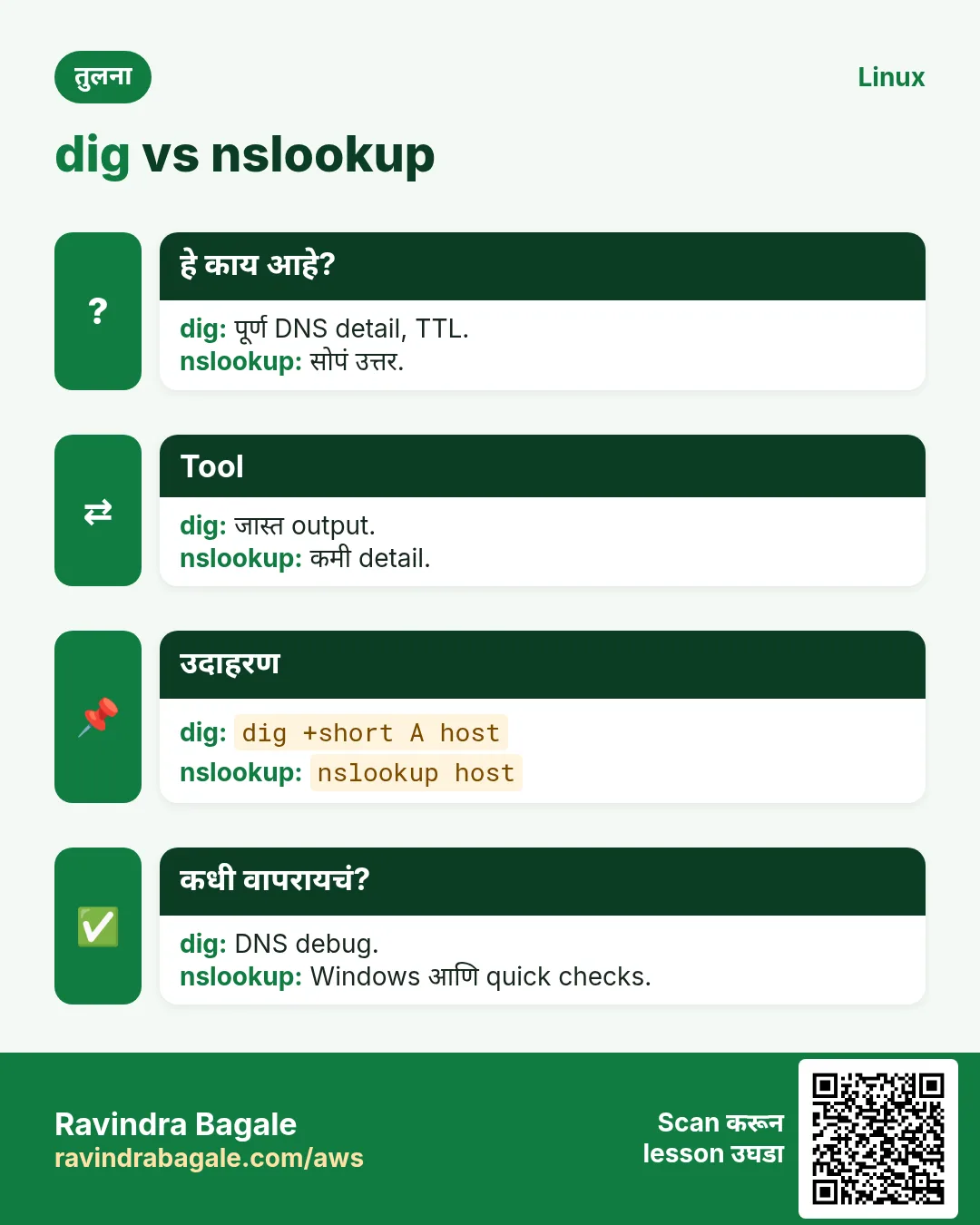
DNS नेमकं काय उत्तर देतो, कोणत्या server ने आणि उत्तर किती वेळ cache (TTL) ते dig दाखवतो.
हे काय आहे?
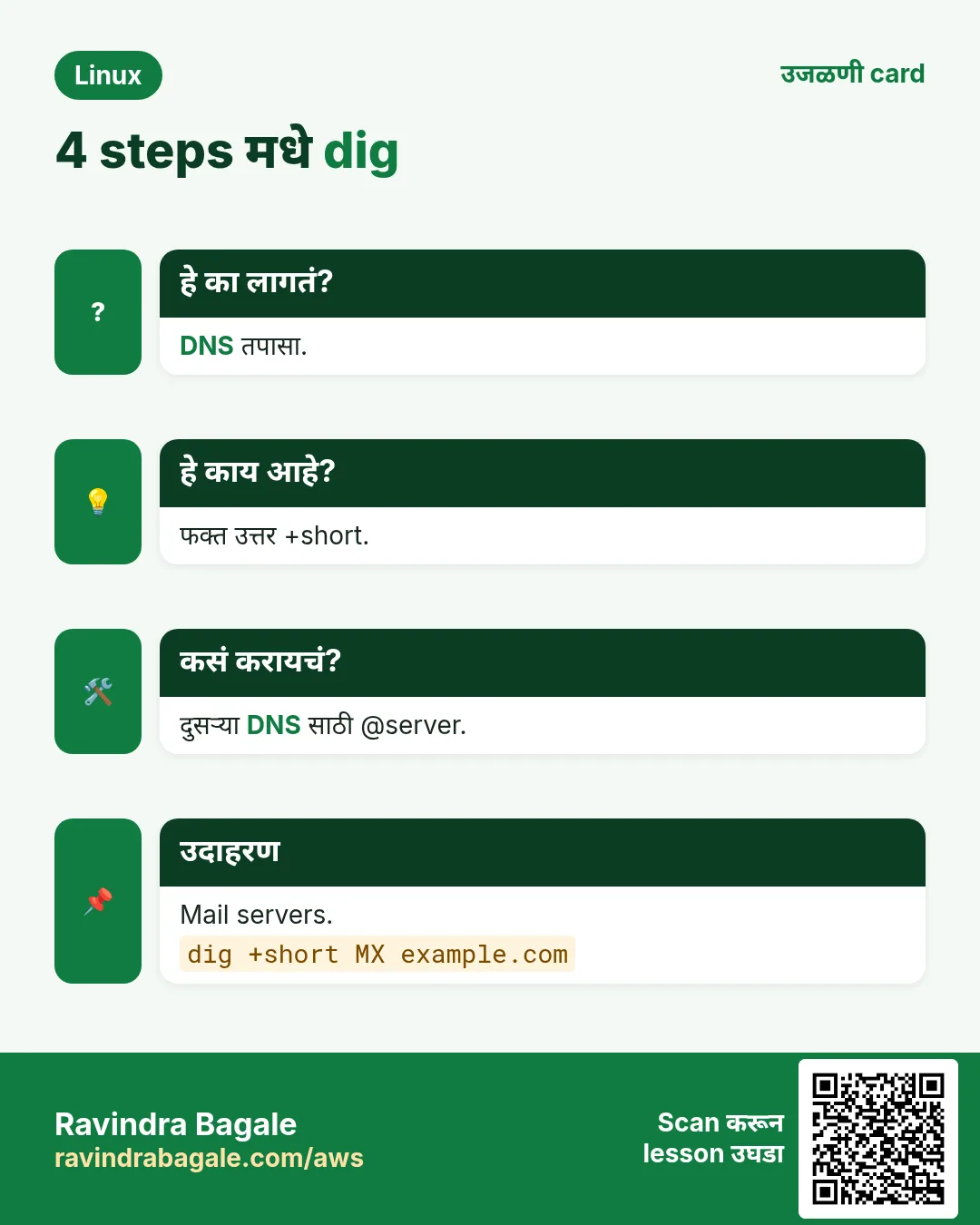
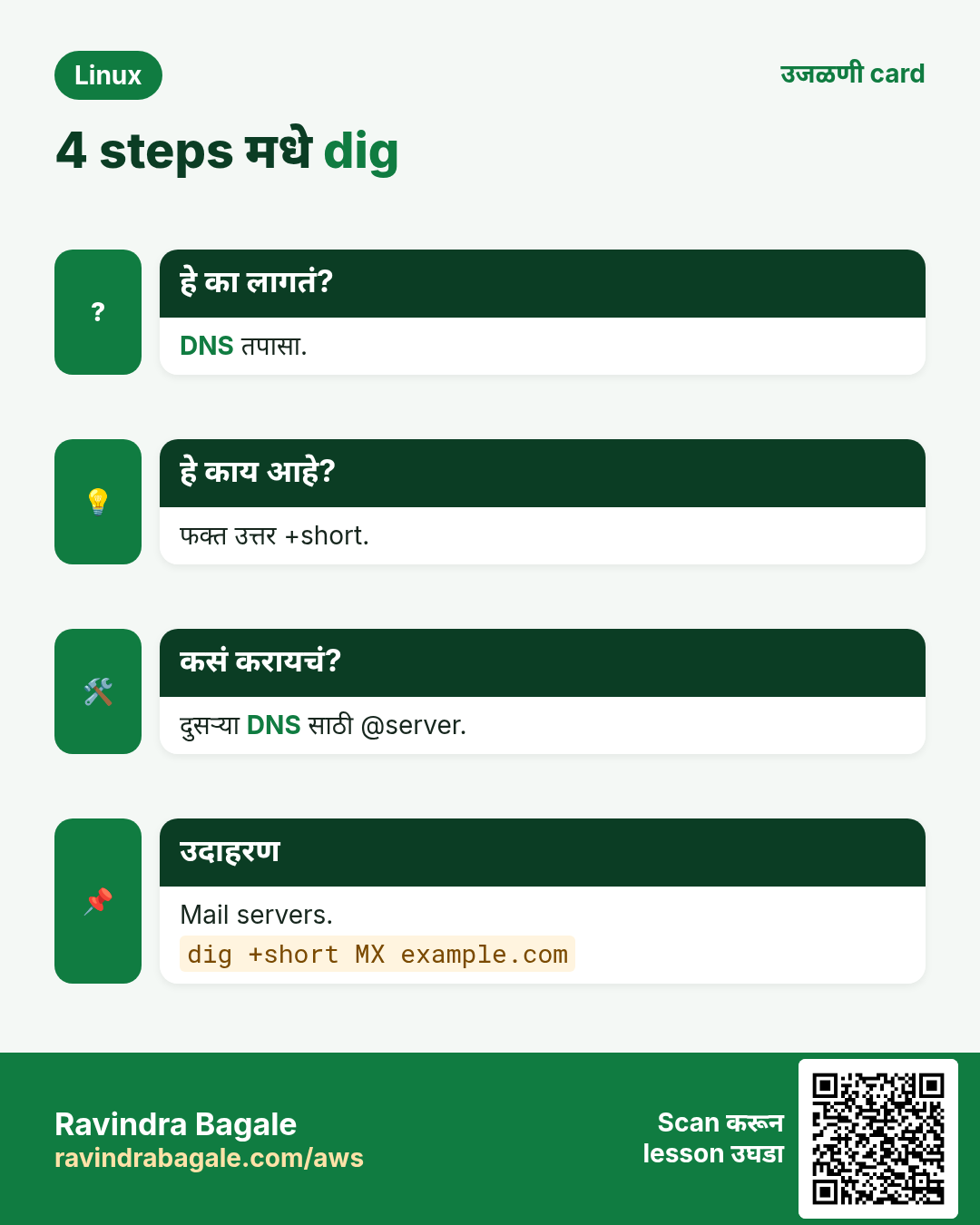
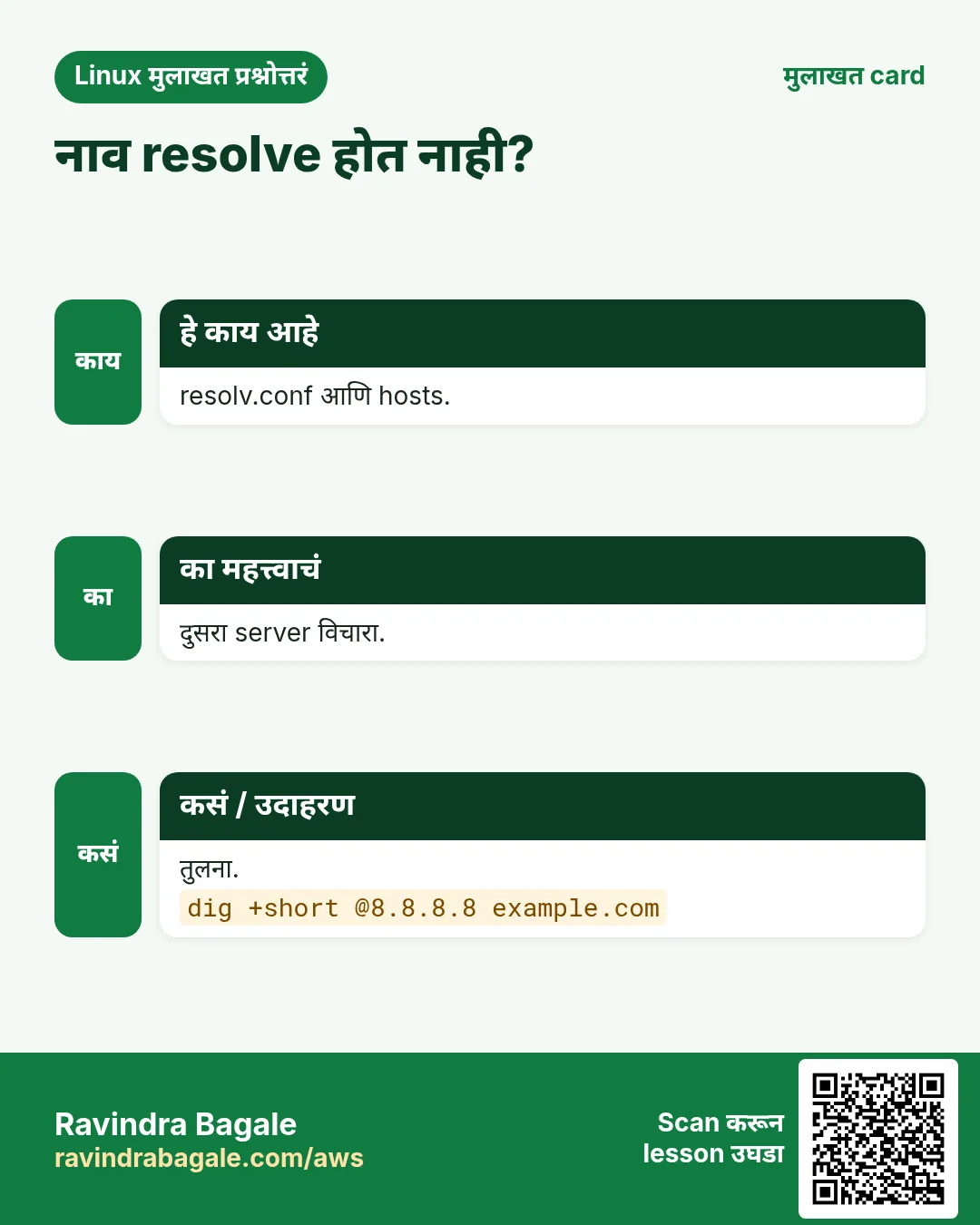
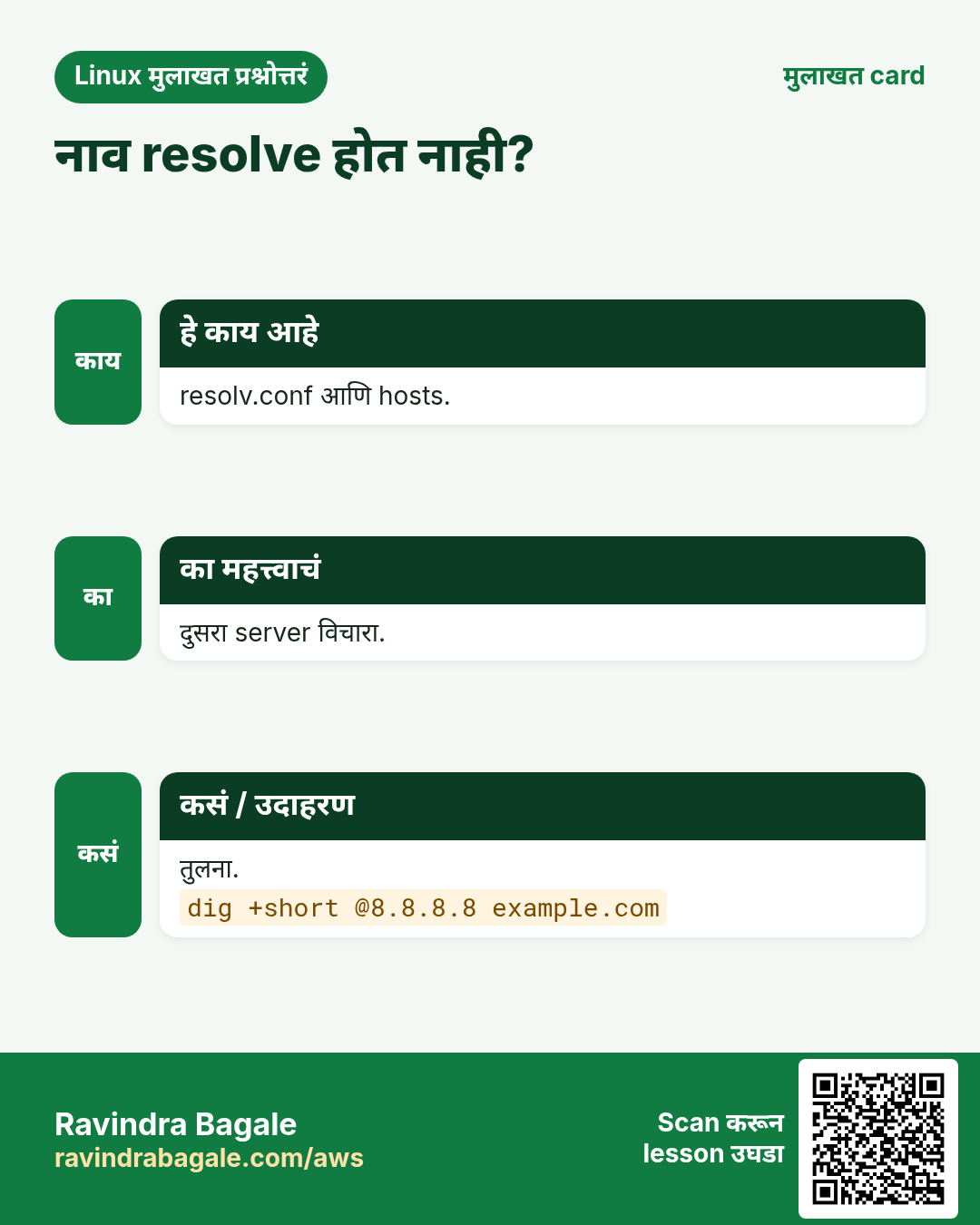
dig NAME A record विचारतो. dig +short NAME फक्त उत्तर. Type जोडा: A, AAAA, MX, TXT, CNAME, NS. dig @8.8.8.8 NAME ठराविक server ला. dig -x IP reverse lookup. dig +trace root पासून खाली.
कसं करायचं (step by step)
- छोटं उत्तर.
dig +short shop.example.comOutput:
93.184.216.34याचा अर्थ: एक IP.
- TTL सह पूर्ण उत्तर.
dig shop.example.comOutput:
shop.example.com. 300 IN A 93.184.216.34
;; SERVER: 10.0.0.2#53
;; Query time: 2 msec
याचा अर्थ: 300 s cache; 10.0.0.2 ला विचारलं.
- Mail servers.
dig +short MX example.comOutput:
10 mx1.example.com.
20 mx2.example.com.
याचा अर्थ: कमी number आधी.
- Public DNS शी तुलना.
dig +short @1.1.1.1 shop.example.comOutput:
93.184.216.40याचा अर्थ: वेगळं: तुमच्या resolver कडे जुना data.
3. nslookup आणि host: जलद lookups
हे का लागतं?
ते जवळजवळ प्रत्येक system वर आहेत (nslookup Windows वर पण) आणि type करायला जलद.
हे काय आहे?
nslookup NAME [SERVER] वापरलेला server आणि उत्तर. host NAME एक line उत्तर; host -t MX NAME type विचारतो. दोन्ही bind-utils (RHEL) किंवा dnsutils (Ubuntu) मधे, dig सारखे.
कसं करायचं (step by step)
- nslookup.
nslookup db.internalOutput:
Server:  10.0.0.2
Name:    db.internal
Address: 10.0.3.40
याचा अर्थ: 10.0.0.2 ने उत्तर.
- host.
host api.example.comOutput:
api.example.com is an alias for lb-123.elb.amazonaws.com.
lb-123.elb.amazonaws.com has address 52.1.2.3
याचा अर्थ: CNAME chain दाखवतो.
- Reverse.
host 8.8.8.8Output:
8.8.8.8.in-addr.arpa domain name pointer dns.google.याचा अर्थ: PTR record.
4. dig +trace, +norecurse आणि TTL: DNS बदल debug
हे का लागतं?
DNS record बदलल्यावर काही users ना नवा IP दिसतो आणि काहींना जुना. कोण बरोबर ते कळायला हवं.
हे काय आहे?
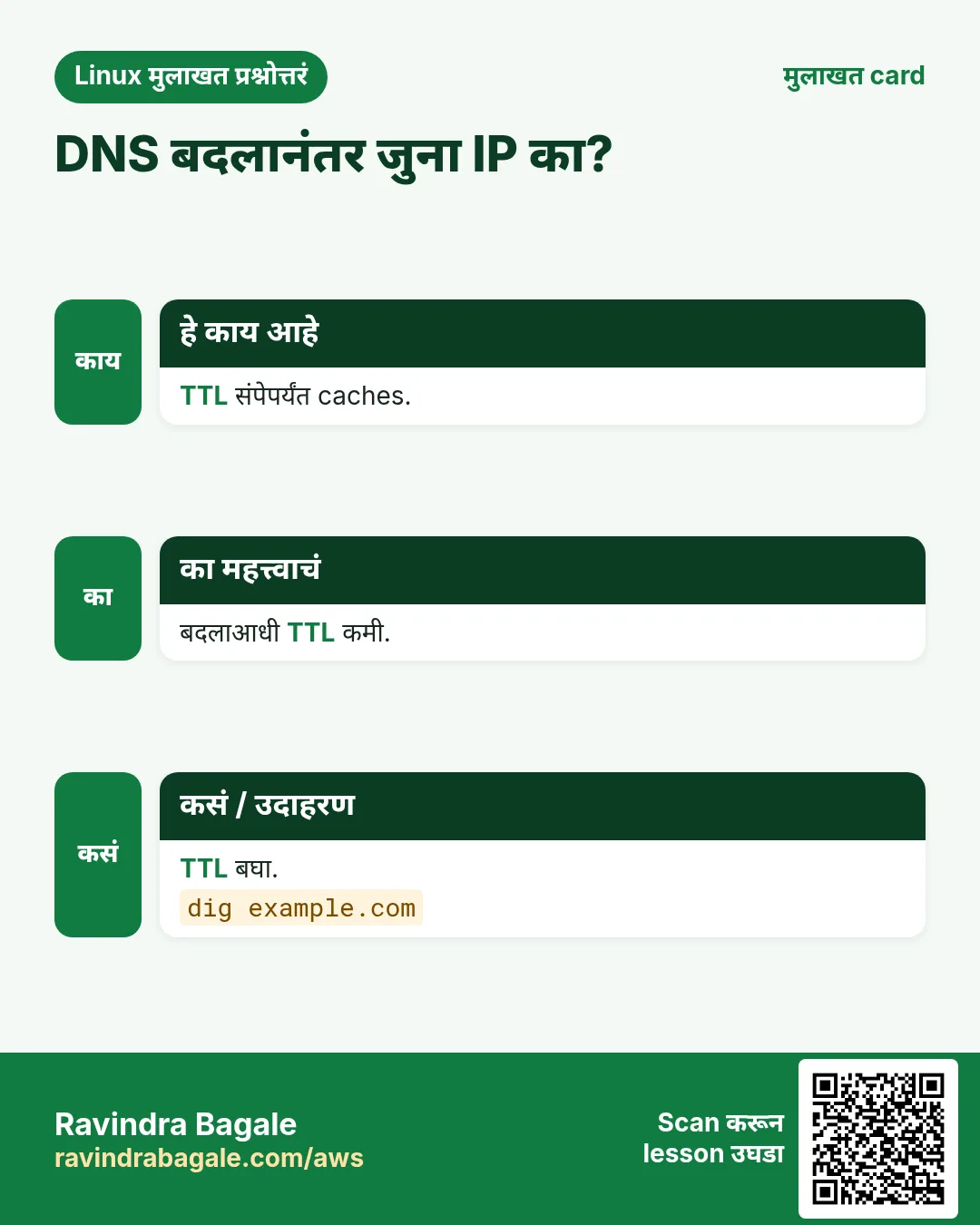
dig +trace NAME root servers पासून authoritative server पर्यंत जातो, म्हणून caches ignore. dig NS domain authoritative servers; dig @THAT_NS NAME खरं current उत्तर. Cached उत्तरातला TTL शून्यापर्यंत कमी होतो; मग resolver परत विचारतो.
कसं करायचं (step by step)
- Authoritative servers.
dig +short NS example.comOutput:
a.iana-servers.net.
b.iana-servers.net.
याचा अर्थ: यांच्याकडे खरा record.
- थेट विचारा.
dig +short @a.iana-servers.net shop.example.comOutput:
93.184.216.40याचा अर्थ: Source वर नवा IP live.
- Cache TTL कमी होतो.
dig shop.example.com | grep -A1 'ANSWER SECTION'Output:
shop.example.com. 212 IN A 93.184.216.34याचा अर्थ: अजून 212 seconds जुना IP.
- पूर्ण path.
dig +trace shop.example.com | tail -3Output:
shop.example.com. 300 IN A 93.184.216.40
;; Received 61 bytes from 199.43.135.53#53(a.iana-servers.net)
याचा अर्थ: Root ते उत्तर, cache नाही.
5. /etc/hosts, resolv.conf आणि nsswitch.conf
हे का लागतं?
dig चालतं पण app ला वेगळा IP मिळतो. कारण apps आधी /etc/hosts पण वाचतात.
हे काय आहे?
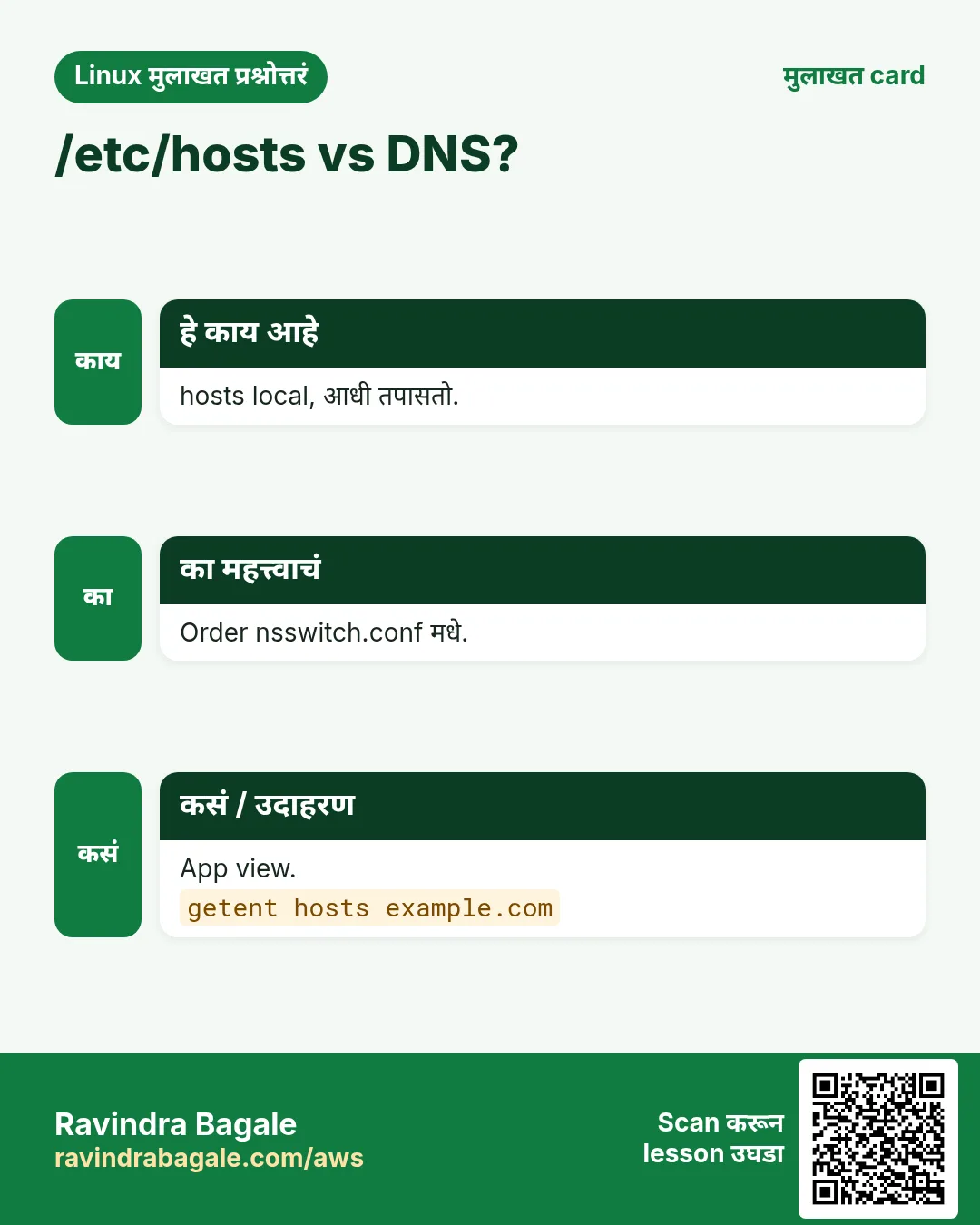
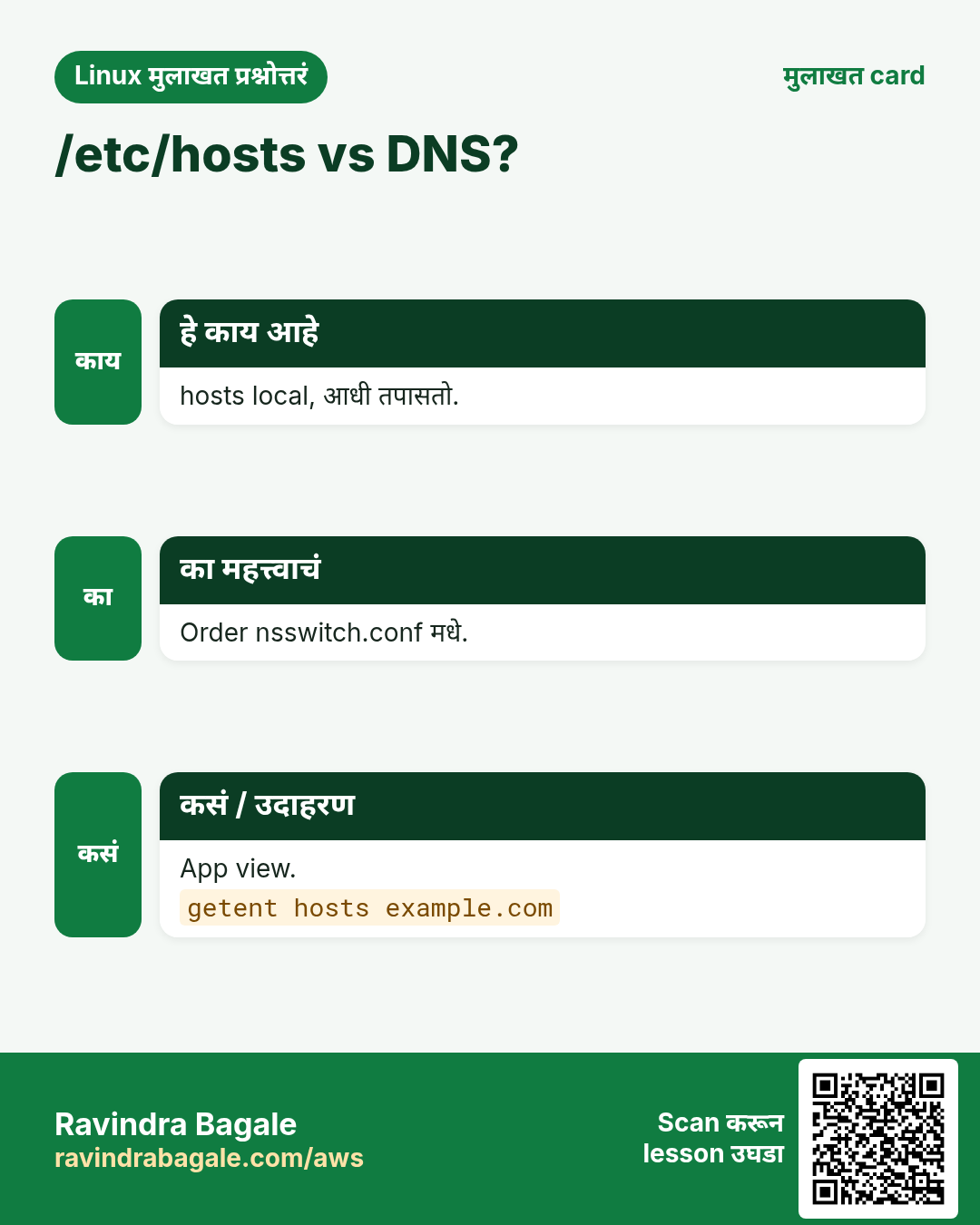
/etc/hosts: 'IP name aliases' lines, DNS आधी. /etc/resolv.conf: nameserver आणि search lines (बहुतेक systemd-resolved किंवा NetworkManager manage). /etc/nsswitch.conf 'hosts: files dns' क्रम. getent hosts NAME app सारखं resolve (dig /etc/hosts वाचत नाही).
कसं करायचं (step by step)
- नाव test server कडे.
echo '10.0.5.10 shop.example.com' | sudo tee -a /etc/hostsOutput:
10.0.5.10 shop.example.comयाचा अर्थ: फक्त हे machine बघतं.
- App view vs DNS view.
getent hosts shop.example.com; dig +short shop.example.comOutput:
10.0.5.10  shop.example.com
93.184.216.34
याचा अर्थ: getent hosts वापरतो; dig नाही.
- कोणता DNS server?
cat /etc/resolv.confOutput:
search ec2.internal
nameserver 10.0.0.2
याचा अर्थ: search ने छोटी नावं.
- systemd-resolved status.
resolvectl status | head -5Output:
Current DNS Server: 10.0.0.2याचा अर्थ: खरा upstream server.
6. curl: HTTP बोला
हे का लागतं?
curl client सारखंच API किंवा website test करतो, आणि status codes आणि errors स्पष्ट दाखवतो.
हे काय आहे?
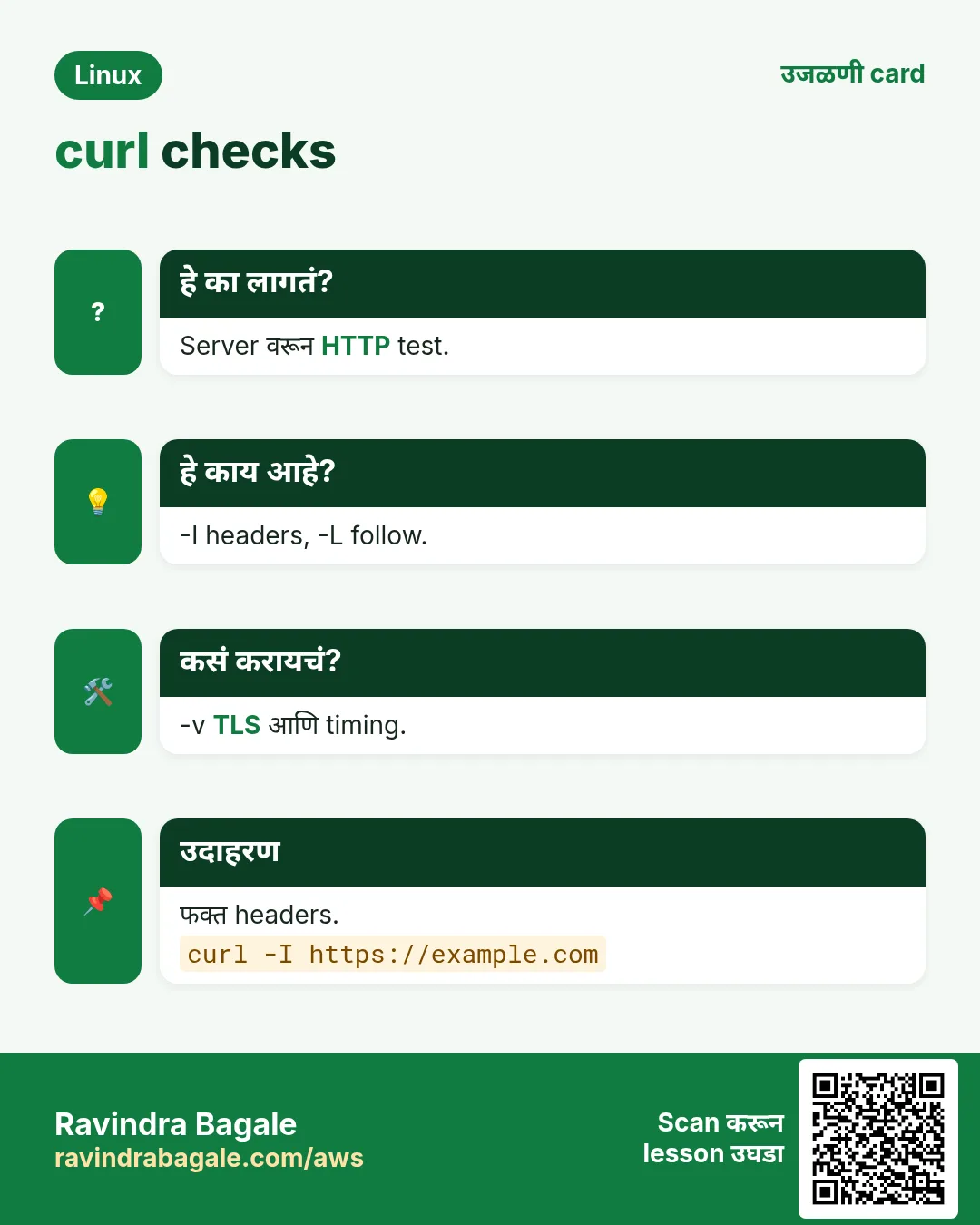
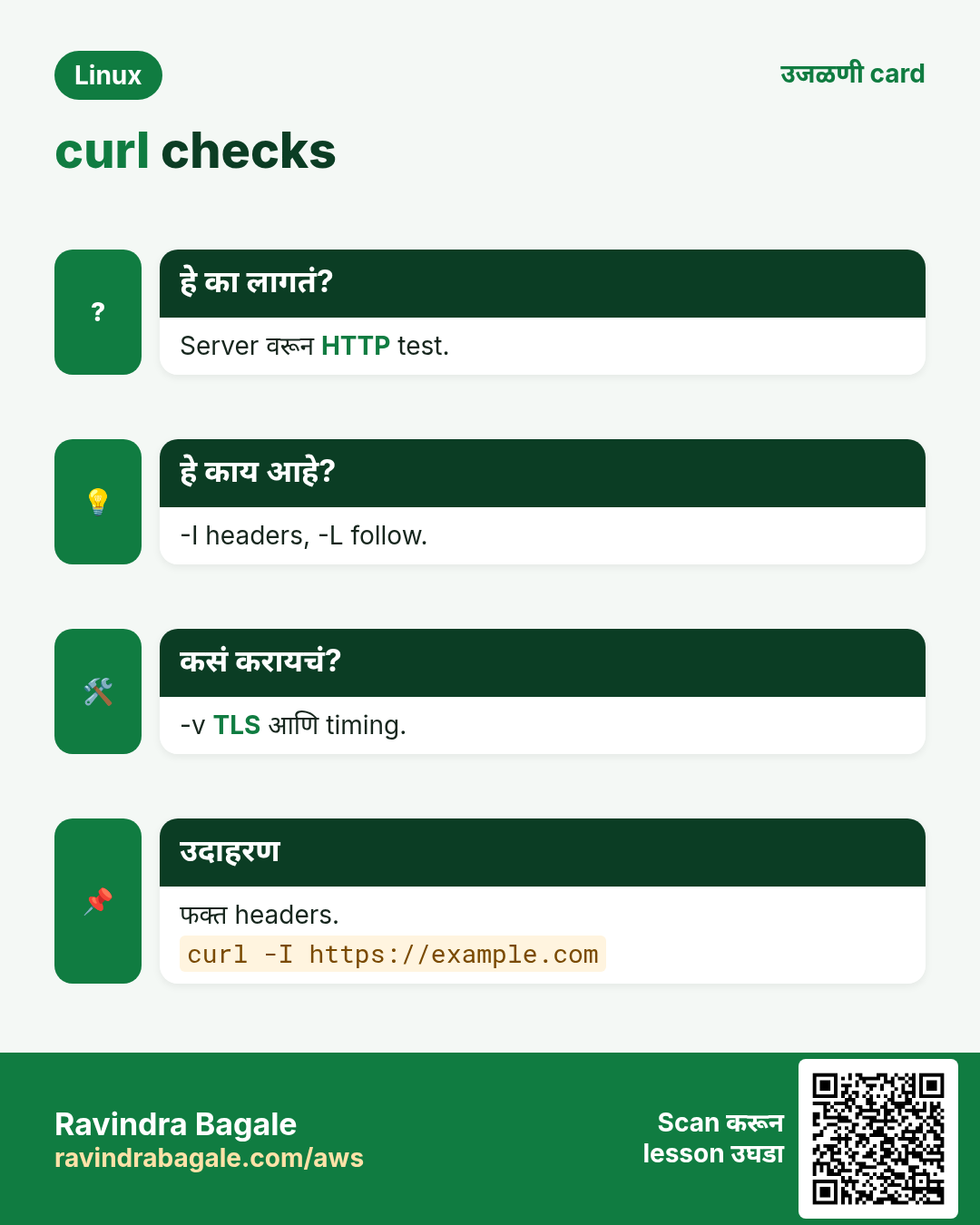
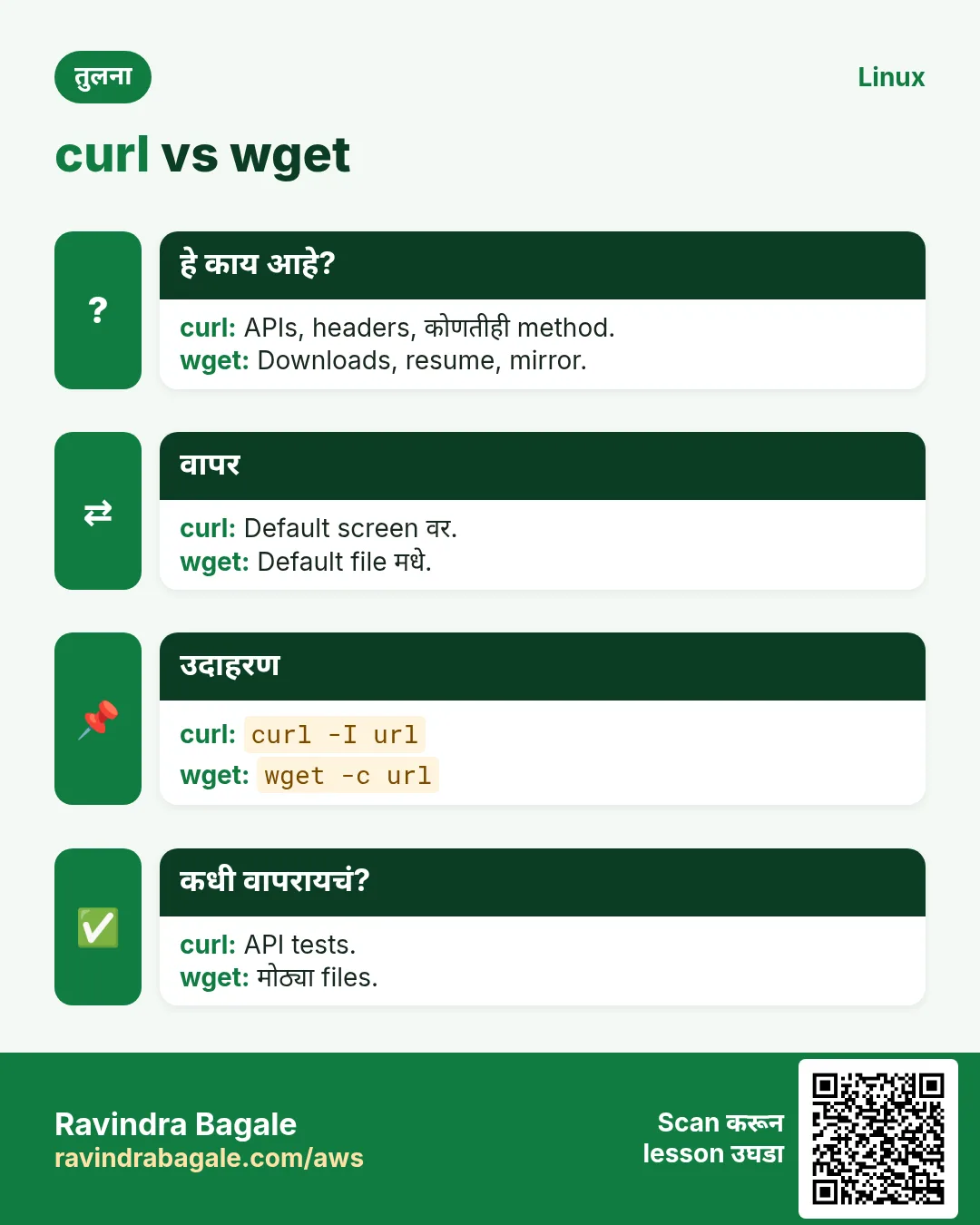
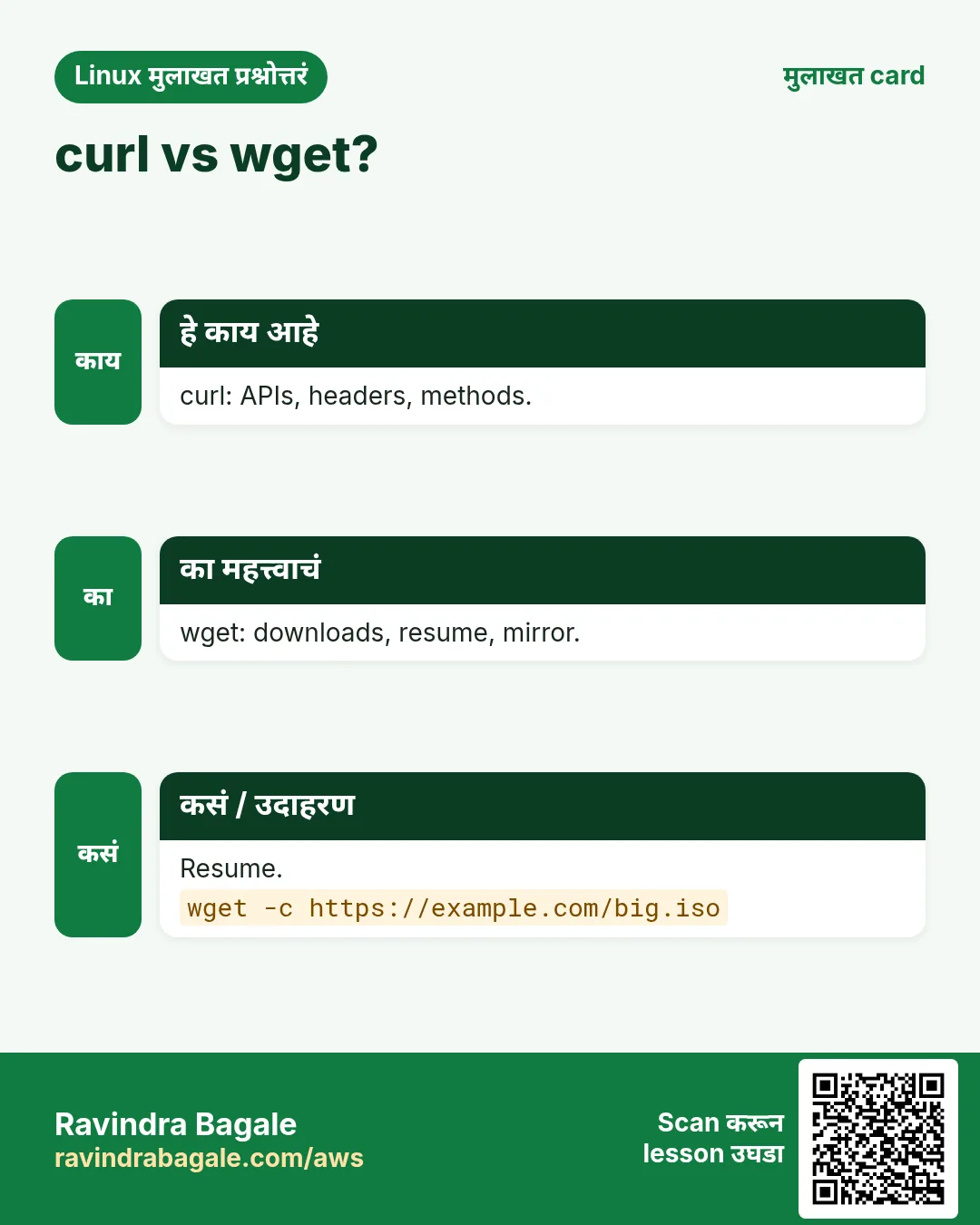
curl URL body print. -I फक्त headers (HEAD). -i headers + body. -s silent, -S errors दाखवा, -L redirects follow, -o FILE save, -O remote नाव ठेवा, -w custom output जसं '%{http_code}'. -v TLS सह पूर्ण संभाषण.
| Flag | अर्थ |
|---|---|
| -I | फक्त headers |
| -L | Redirects follow |
| -s -S | Quiet पण errors |
| -o / -O | File मधे save |
| -w | निवडलेली values |
| -v | Verbose, debug |
कसं करायचं (step by step)
- Headers.
curl -I https://shop.example.comOutput:
HTTP/2 200
content-type: text/html
cache-control: max-age=600
याचा अर्थ: Up आणि 10 minutes cache.
- फक्त status code.
curl -s -o /dev/null -w '%{http_code}\n' https://shop.example.com/healthOutput:
200याचा अर्थ: Scripts आणि monitors साठी.
- Timing.
curl -s -o /dev/null -w 'dns %{time_namelookup} connect %{time_connect} total %{time_total}\n' https://shop.example.comOutput:
dns 0.004 connect 0.021 total 0.380याचा अर्थ: Slow भाग server, DNS नाही.
- Redirects follow.
curl -sIL http://example.com | grep -i '^location\|^HTTP'Output:
HTTP/1.1 301 Moved Permanently
Location: https://example.com/
HTTP/2 200
याचा अर्थ: http https कडे जातो.
7. APIs साठी curl: -X, -H, -d, -u
हे का लागतं?
Server वरून POST किंवा authenticated API call test केल्याने app की network चुकीचं याचा अंदाज टळतो.
हे काय आहे?
-X METHOD method (POST, PUT, DELETE). -H 'Header: value' headers. -d DATA body (POST). --json DATA (curl 7.82+) JSON headers. -u user:pass basic auth. -k TLS checks skip (फक्त tests!). --resolve host:443:IP DNS बदलण्याआधी server test.
कसं करायचं (step by step)
- POST JSON.
curl -s -X POST -H 'Content-Type: application/json' -d '{"sku":"A1","qty":2}' https://api.example.com/cartOutput:
{"ok":true,"items":2}याचा अर्थ: बनलं.
- Bearer token.
curl -s -H "Authorization: Bearer $TOKEN" https://api.example.com/meOutput:
{"user":"ravi"}याचा अर्थ: Token variable मधून, type नाही.
- DNS आधी नवा server test.
curl -sI --resolve shop.example.com:443:10.0.5.10 https://shop.example.comOutput:
HTTP/2 200याचा अर्थ: खरं नाव, निवडलेला IP, valid TLS.
8. curl चे errors
हे का लागतं?
curl errors कोणता layer fail झाला ते सांगतात. वाचायला शिका.
हे काय आहे?
Could not resolve host = DNS. Connection refused = listener नाही. Connection timed out = firewall/route. SSL certificate problem = TLS. HTTP 4xx = client/request issue, 5xx = server issue. curl -v कुठे थांबतं ते.
कसं करायचं (step by step)
- DNS.
curl https://shp.example.comOutput:
curl: (6) Could not resolve host: shp.example.comयाचा अर्थ: नावात typo.
- TLS.
curl https://10.0.5.10Output:
curl: (60) SSL: no alternative certificate subject name matches target host name '10.0.5.10'याचा अर्थ: नाव वापरा, किंवा --resolve.
- Verbose.
curl -v https://shop.example.com 2>&1 | grep -E '^\* (Trying|Connected|SSL)'Output:
* Trying 93.184.216.34:443...
* Connected to shop.example.com
* SSL connection using TLSv1.3
याचा अर्थ: प्रत्येक step pass.
9. wget: files download
हे का लागतं?
wget downloads साठी बनलेलं: तुटलेले downloads resume करतो आणि अनेक files आणतो.
हे काय आहे?
wget URL remote नावाने save. -O FILE नाव निवडतो. -c अर्धवट file continue. -q quiet. -i list.txt file मधले सगळे URLs. --tries आणि --timeout retries.
कसं करायचं (step by step)
- Download.
wget https://downloads.example.com/tool-1.4.tar.gzOutput:
Saving to: 'tool-1.4.tar.gz'
100%[=======>] 12.4M 8.1MB/s in 1.5s
याचा अर्थ: त्याच नावाने save.
- Resume.
wget -c https://releases.example.com/ubuntu.isoOutput:
HTTP request sent... 206 Partial Contentयाचा अर्थ: थांबलं तिथून.
- curl पद्धत.
curl -fLO https://downloads.example.com/tool-1.4.tar.gzOutput:
(progress bar)याचा अर्थ: -f HTTP errors ला fail.
wget सविस्तर: -O, -c, -b, -q, --limit-rate, -i आणि mirror
हे का लागतं?
Servers वर browser नसतो. Installer, backup किंवा dataset server वर हवा असेल तर wget तो terminal मधून download करतो, आणि network गेलं तर resume करतो.
हे काय आहे?
wget URL download करून file म्हणून save करतो. Default ला URL मधलं नाव ठेवतो आणि progress bar दाखवतो.
नेहमीचे options
| Option | काय करतो |
|---|---|
-O FILE | FILE या नावाने save (capital O). |
-c | अर्धवट download पुढे चालू. |
-b | Background ला चालवा; progress wget-log मधे. |
-q | Quiet: काहीच print नाही. |
--limit-rate=RATE | Speed ला मर्यादा, उदा. 200k किंवा 2m. |
-i FILE | FILE मधल्या प्रत्येक URL चं download. |
-m | Site mirror (recursive, timestamps ठेवतो). |
-P DIR | DIR folder मधे save. |
कसं करायचं (step by step)
- -O ने स्वतःचं नाव.
wget -O node.tar.xz https://nodejs.org/dist/v20.11.0/node-v20.11.0-linux-x64.tar.xzOutput:
Saving to: 'node.tar.xz'
node.tar.xz   100%[=========>]  23.7M  5.1MB/s  in 4.6s
याचा अर्थ: लांब URL नावाऐवजी node.tar.xz.
- Network गेल्यावर -c ने resume.
wget -c https://releases.ubuntu.com/24.04/ubuntu-24.04-live-server-amd64.isoOutput:
HTTP request sent, awaiting response... 206 Partial Content
Length: 2.6G, 1.1G remaining
याचा अर्थ: 206 म्हणजे server ने फक्त उरलेला भाग पाठवला.
- -b ने background ला.
wget -b https://files.example.com/census-2026.csv && tail -2 wget-logOutput:
Continuing in background, pid 4120.
Output will be written to 'wget-log'.
याचा अर्थ: Prompt परत मिळतो. Progress साठी wget-log वाचा.
- Scripts मधे -q ने शांत.
wget -q https://files.example.com/rates.json && echo savedOutput:
savedयाचा अर्थ: Progress bar नाही. $? किंवा && ने यश कळतं.
- Office bandwidth संपवू नका: --limit-rate.
wget --limit-rate=300k https://files.example.com/training.mp4Output:
training.mp4 12%[=> ] 52M 300KB/sयाचा अर्थ: Speed 300 KB/s जवळ राहतो, इतर काम करू शकतात.
- -i ने list download.
printf "https://files.example.com/a.pdf\nhttps://files.example.com/b.pdf\n" | tee list.txt; wget -i list.txtOutput:
FINISHED --10:21:07--
Downloaded: 2 files, 410K in 0.3s
याचा अर्थ: एका line ला एक URL; wget एकेक fetch करतो.
- --mirror ने छोटी docs site copy.
wget --mirror --convert-links --no-parent https://help.example.com/manual/Output:
FINISHED --10:30:44--
Downloaded: 38 files, 2.1M
याचा अर्थ: help.example.com/ folder मधे offline copy. --convert-links मुळे links offline चालतात.
खालच्या tasks मधे सराव करा: सराव tasks
10. nc (netcat): port open आहे का?
हे का लागतं?
ping फक्त ICMP test करतो. nc तुमच्या app ला लागणारा खरा TCP port एका second मधे test करतो.
हे काय आहे?
nc -zv HOST PORT: -z फक्त scan (data नाही), -v verbose. -w 3 timeout. UDP साठी -u. nc -l 9000 listen (दुसऱ्या बाजूने firewall test). RHEL वर nc म्हणजे nmap-ncat package. Bash मधे /dev/tcp/HOST/PORT पण.
कसं करायचं (step by step)
- Open port.
nc -zv -w 3 10.0.3.40 5432Output:
Ncat: Connected to 10.0.3.40:5432.याचा अर्थ: Database port पोहोचतो.
- Closed port.
nc -zv -w 3 10.0.3.40 6379Output:
Ncat: Connection refused.याचा अर्थ: तिथे कोणी नाही.
- दोन्ही बाजूंनी firewall test.
nc -l 9000   (on server B)
nc -zv B 9000   (on server A)
Output:
Ncat: Connected to B:9000.याचा अर्थ: Path आणि firewall 9000 allow.
- nc शिवाय.
timeout 3 bash -c '</dev/tcp/10.0.3.40/5432' && echo openOutput:
openयाचा अर्थ: Minimal images वर चालतं.
11. अनेक industries मधली खरी उदाहरणं
हे का लागतं?
तेच Linux skill प्रत्येक प्रकारच्या company मध्ये लागतं. वेगवेगळ्या ठिकाणी पाहिलं की लक्षात राहतं.
हे काय आहे?
प्रत्येक row म्हणजे एक काल्पनिक team. कोण हे वापरतं आणि कसं ते दाखवते.
कसं करायचं (step by step)
| Team आणि शहर | ते कसं वापरतात | Command |
|---|---|---|
| Sneha, travel portal, Pune | Health script मधे status codes | curl -s -o /dev/null -w '%{http_code}' |
| Mark, media, Toronto | DNS cutover आधी --resolve ने नवे servers | curl --resolve shop.example.com:443:10.0.5.10 |
| Fatima, telecom, Dubai | Resolvers तुलना करून stale DNS | dig +short @1.1.1.1 NAME |
| Ola, fintech, Oslo | nc ने firewall rules सिद्ध | nc -zv -w 3 10.0.3.40 5432 |
| Ken, factory IoT, Nagoya | Resume सह firmware download | wget -c URL |
| Aditya, startup, Kolhapur | Local testing साठी /etc/hosts | getent hosts shop.example.com |
12. नेहमीच्या errors आणि त्यांचे fixes
हे का लागतं?
हे errors सगळ्यांना येतात. कारण माहीत असलं की तास वाचतात.
हे काय आहे?
आधी नेमका message वाचा. मग खालच्या row शी जुळवा.
कसं करायचं (step by step)
| दिसणारा error | का होतं | Fix कसा करायचा |
|---|---|---|
curl: (6) Could not resolve host | DNS lookup fail किंवा typo | नाव आणि resolver तपासा.dig +short NAME |
curl: (7) Failed to connect ... Connection refused | Port वर listener नाही | Target वर service तपासा.sudo ss -ltnp |
curl: (28) Connection timed out | Firewall, security group किंवा route | nc ने test, rules तपासा.nc -zv -w 3 HOST PORT |
curl: (60) SSL certificate problem | चुकीचं नाव, expired किंवा untrusted cert | Cert तपासा; production मधे -k कधी नाही.curl -v https://HOST |
dig: command not found | bind-utils/dnsutils नाही | Install करा.sudo dnf install -y bind-utils |
dig works but app gets old IP | /etc/hosts entry किंवा app cache | App कसं resolve करतं ते तपासा.getent hosts NAME |
status: SERVFAIL | DNS server उत्तर देऊ शकला नाही (DNSSEC किंवा upstream) | दुसरा resolver.dig @8.8.8.8 NAME |
status: NXDOMAIN | नाव अस्तित्वात नाही | Spelling किंवा zone तपासा.dig NAME +trace |
HTTP/1.1 403 Forbidden | Server ने नाकारलं: permissions किंवा WAF | Auth headers आणि server rules.curl -i -H 'Authorization: Bearer ...' URL |
HTTP/1.1 502 Bad Gateway | Proxy backend पर्यंत पोहोचत नाही | Proxy वरून backend port तपासा.nc -zv 127.0.0.1 3000 |
13. Troubleshooting step by step
हे का लागतं?
Problem वाटा: name, connect, TLS, HTTP.
हे काय आहे?
वरून खाली जा. ज्या step ला problem दिसतो तिथे थांबा.
कसं करायचं (step by step)
- App सारखं नाव resolve?
getent hosts NAME- DNS उत्तर आणि server?
dig NAME- Port पोहोचतो?
nc -zv -w 3 HOST 443- TLS ठीक?
curl -vI https://NAME- HTTP status?
curl -s -o /dev/null -w '%{http_code}' https://NAME- वेळ कुठे?
curl -s -o /dev/null -w '%{time_namelookup} %{time_connect} %{time_total}' https://NAME14. Lab 1: hosts पासून DNS पर्यंत नाव
हे का लागतं?
/etc/hosts apps साठी DNS override करतो पण dig साठी नाही ते बघा.
हे काय आहे?
पूर्ण hands-on lab. प्रत्येक step test Linux machine वर करा (EC2 instance, VM किंवा WSL).
कसं करायचं (step by step)
- DNS उत्तर.
dig +short example.comOutput:
93.184.216.34- Override जोडा.
echo '127.0.0.1 example.com' | sudo tee -a /etc/hostsOutput:
127.0.0.1 example.com- App view.
getent hosts example.comOutput:
127.0.0.1 example.com- dig अजून DNS.
dig +short example.comOutput:
93.184.216.34- Line काढा.
sudo sed -i '/127.0.0.1 example.com/d' /etc/hostsOutput:
(no output)15. Lab 2: Web service layer by layer test
हे का लागतं?
छोटा local web server चालवून nc आणि curl ने test.
हे काय आहे?
पूर्ण hands-on lab. प्रत्येक step test Linux machine वर करा (EC2 instance, VM किंवा WSL).
कसं करायचं (step by step)
- Server सुरू.
python3 -m http.server 8000 --bind 127.0.0.1Output:
Serving HTTP on 127.0.0.1 port 8000- दुसऱ्या terminal मधे port.
nc -zv 127.0.0.1 8000Output:
Connected to 127.0.0.1:8000- Headers.
curl -I http://127.0.0.1:8000/Output:
HTTP/1.0 200 OK- नसलेली file.
curl -s -o /dev/null -w '%{http_code}\n' http://127.0.0.1:8000/nopeOutput:
404- Stop करून परत.
curl http://127.0.0.1:8000/Output:
curl: (7) Failed to connect ... Connection refusedRavindra Bagale's Tip
Use getent hosts NAME, not only dig, when an app gets the 'wrong' IP. dig asks DNS directly and skips /etc/hosts, but your app follows nsswitch.conf and reads /etc/hosts first.
Ravindra Bagale's Tip – मराठी
App ला 'चुकीचा' IP मिळतो तेव्हा फक्त dig नाही, getent hosts NAME वापरा. dig थेट DNS ला विचारतो आणि /etc/hosts skip करतो, पण तुमचं app nsswitch.conf पाळतं आणि आधी /etc/hosts वाचतं.
Ravindra Bagale's Tip – हिंदी
जब app को 'गलत' IP मिले तो सिर्फ dig नहीं, getent hosts NAME इस्तेमाल करें. dig सीधे DNS से पूछता है और /etc/hosts छोड़ देता है, पर आपका app nsswitch.conf मानता है और पहले /etc/hosts पढ़ता है.
16. नेहमी विचारले जाणारे प्रश्न
प्र. dig की nslookup?
Detail आणि scripts साठी dig; quick checks ला nslookup ठीक.
प्र. TTL म्हणजे?
Resolvers उत्तर किती seconds cache करू शकतात.
प्र. curl की wget?
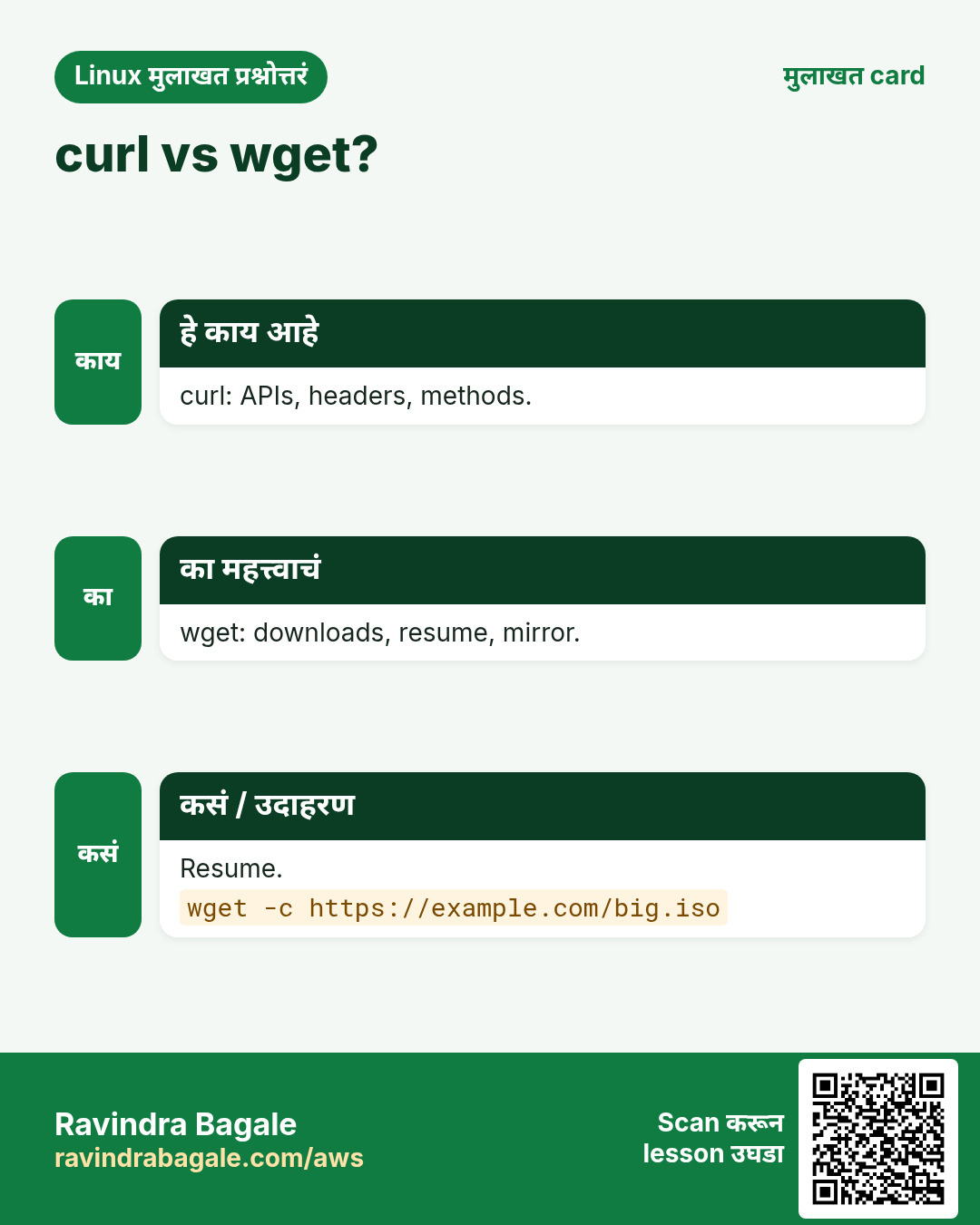
APIs आणि testing साठी curl; साध्या किंवा resumable downloads साठी wget.
प्र. curl -k safe?
फक्त quick tests; certificate checks बंद करतो.
प्र. DNS बदलाला वेळ का?
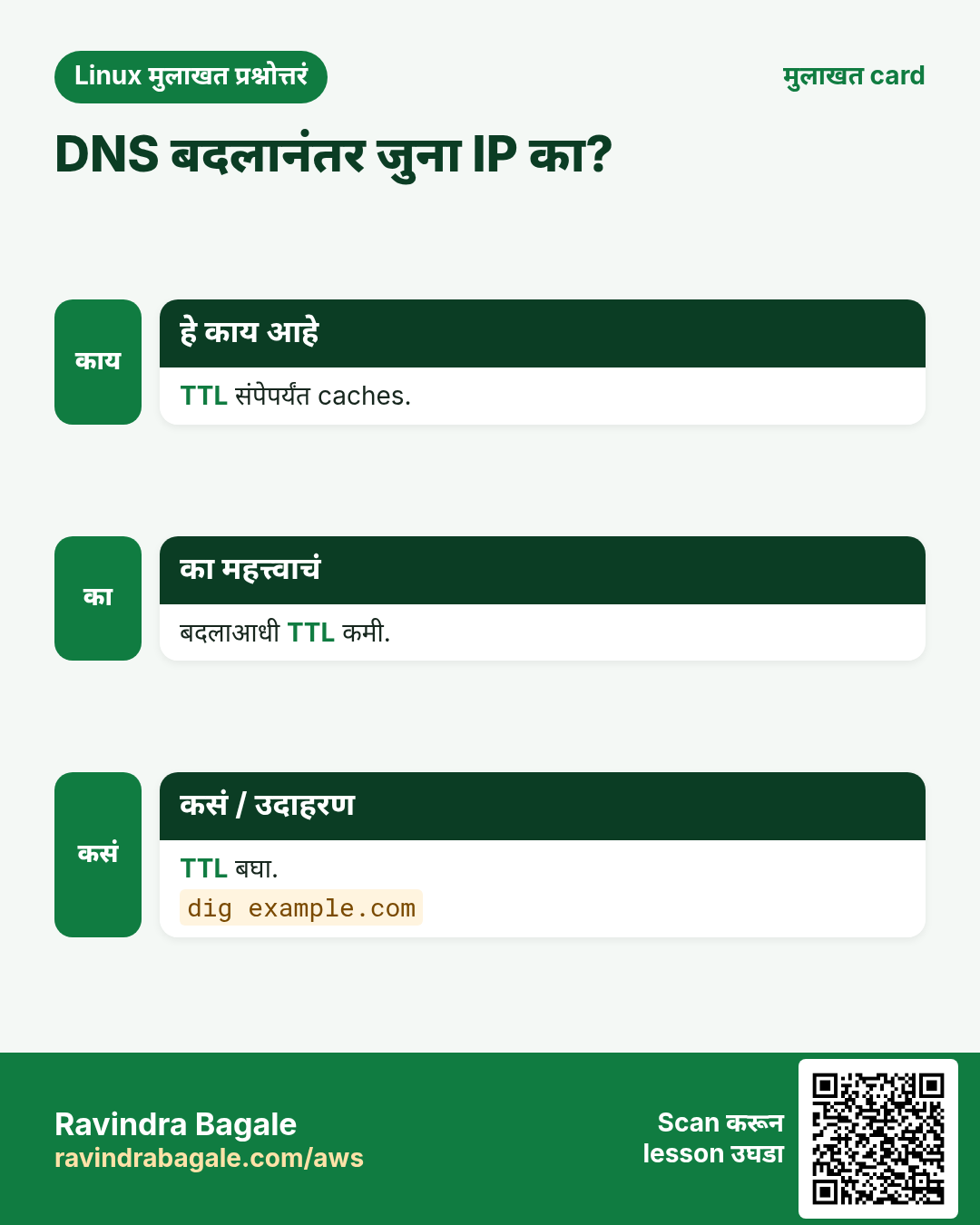
TTL संपेपर्यंत जुनी उत्तरं cache मधे.
प्र. RHEL वर nc नाही?
nmap-ncat install करा.
प्र. UDP test?
nc -zvu HOST PORT, पण results कमी reliable.
प्र. DNS servers कुठे?
resolv.conf, बहुतेक systemd-resolved किंवा NetworkManager बनवतो.
17. मुलाखत प्रश्न आणि उत्तरं
Beginner level
प्र. नावाचा फक्त IP?
dig +short NAME.
प्र. HTTP headers?
curl -I URL.
प्र. File download?
wget URL किंवा curl -O URL.
प्र. TCP port test?
nc -zv HOST PORT.
Mid level level
प्र. dig आणि ping वेगळे IPs का?
ping nsswitch ने /etc/hosts वापरतो; dig फक्त DNS.
प्र. फक्त HTTP status?
curl -s -o /dev/null -w '%{http_code}' URL.
प्र. ठराविक DNS server?
dig @SERVER NAME.
प्र. Download resume?
wget -c URL.
Senior level
प्र. DNS cutover आधी नवा load balancer test?
SNI आणि cert checks ठेवायला curl --resolve name:443:IP.
प्र. Migration आधी TTL कमी का?
Clients नवा IP पटकन घेतील.
प्र. Latency कुठून?
curl -w timings: namelookup, connect, appconnect, starttransfer.
प्र. nginx कडून 502: steps?
Proxy वरून nc ने upstream port, upstream logs, आणि timeouts.
घरी करून बघा
- तीन domains चे A, MX आणि TXT records dig ने बघा आणि TTLs लिहा.
- Site साठी status आणि total time print करणारा one-line curl लिहा, आणि पाच वेळा चालवा.
सराव Tasks
Vidarbha Cotton Mills हा नागपूर मधला वस्त्रोद्योग व्यवसाय आहे. Ganesh Wankhede त्यांचं IT व cloud काम पाहतात. त्यांचे पैसे INR मध्ये मोजले जातात आणि AWS resources ap-south-1 Region मध्ये चालतात. खालच्या tasks मध्ये तुम्ही या lesson मध्ये शिकलेलं वापरून त्यांची खरी कामं करता. सगळी नावं, account IDs, IP addresses व numbers सरावासाठी काल्पनिक आहेत.
0 / 23
सोपं IPv6 record
का: Cables पेक्षा names आणि HTTP जास्त बिघडतात.
काय करायचं: example.org चा फक्त IPv6 address.
- हे काम करणारा Linux command शोधा.
- Task ला लागणारे options (उदा. -r, -h) जोडा.
- File नावं, folders किंवा users योग्य क्रमाने लिहा.
- System files/users बदलत असाल तर sudo वापरा. Check answer दाबा.
सोपं TXT records
का: Cables पेक्षा names आणि HTTP जास्त बिघडतात.
काय करायचं: example.org चे फक्त TXT records.
- हे काम करणारा Linux command शोधा.
- Task ला लागणारे options (उदा. -r, -h) जोडा.
- File नावं, folders किंवा users योग्य क्रमाने लिहा.
- System files/users बदलत असाल तर sudo वापरा. Check answer दाबा.
सोपं MX साठी host
का: Cables पेक्षा names आणि HTTP जास्त बिघडतात.
काय करायचं: example.org चे mail servers host ने.
- हे काम करणारा Linux command शोधा.
- Task ला लागणारे options (उदा. -r, -h) जोडा.
- File नावं, folders किंवा users योग्य क्रमाने लिहा.
- System files/users बदलत असाल तर sudo वापरा. Check answer दाबा.
सोपं nslookup
का: Cables पेक्षा names आणि HTTP जास्त बिघडतात.
काय करायचं: nslookup ने intranet.local.
- हे काम करणारा Linux command शोधा.
- Task ला लागणारे options (उदा. -r, -h) जोडा.
- File नावं, folders किंवा users योग्य क्रमाने लिहा.
- System files/users बदलत असाल तर sudo वापरा. Check answer दाबा.
सोपं फक्त headers
का: Cables पेक्षा names आणि HTTP जास्त बिघडतात.
काय करायचं: https://example.org चे फक्त headers.
- हे काम करणारा Linux command शोधा.
- Task ला लागणारे options (उदा. -r, -h) जोडा.
- File नावं, folders किंवा users योग्य क्रमाने लिहा.
- System files/users बदलत असाल तर sudo वापरा. Check answer दाबा.
सोपं नावाने save
का: Cables पेक्षा names आणि HTTP जास्त बिघडतात.
काय करायचं: https://example.org/a.zip download करून curl ने pkg.zip म्हणून save.
- हे काम करणारा Linux command शोधा.
- Task ला लागणारे options (उदा. -r, -h) जोडा.
- File नावं, folders किंवा users योग्य क्रमाने लिहा.
- System files/users बदलत असाल तर sudo वापरा. Check answer दाबा.
सोपं नावासह wget
का: Cables पेक्षा names आणि HTTP जास्त बिघडतात.
काय करायचं: wget ने https://example.org/x.tgz tool.tgz म्हणून.
- हे काम करणारा Linux command शोधा.
- Task ला लागणारे options (उदा. -r, -h) जोडा.
- File नावं, folders किंवा users योग्य क्रमाने लिहा.
- System files/users बदलत असाल तर sudo वापरा. Check answer दाबा.
सोपं Port check
का: Cables पेक्षा names आणि HTTP जास्त बिघडतात.
काय करायचं: 10.0.4.9 वर port 6379 open आहे का, verbose, फक्त scan.
- हे काम करणारा Linux command शोधा.
- Task ला लागणारे options (उदा. -r, -h) जोडा.
- File नावं, folders किंवा users योग्य क्रमाने लिहा.
- System files/users बदलत असाल तर sudo वापरा. Check answer दाबा.
सोपं शांत download
का: Cables पेक्षा names आणि HTTP जास्त बिघडतात.
काय करायचं: wget ने https://example.org/agent.rpm, काहीच print नाही.
- हे काम करणारा Linux command शोधा.
- Task ला लागणारे options (उदा. -r, -h) जोडा.
- File नावं, folders किंवा users योग्य क्रमाने लिहा.
- System files/users बदलत असाल तर sudo वापरा. Check answer दाबा.
सोपं List download
का: Cables पेक्षा names आणि HTTP जास्त बिघडतात.
काय करायचं: mirrors.txt मधल्या प्रत्येक URL चं wget ने download.
- हे काम करणारा Linux command शोधा.
- Task ला लागणारे options (उदा. -r, -h) जोडा.
- File नावं, folders किंवा users योग्य क्रमाने लिहा.
- System files/users बदलत असाल तर sudo वापरा. Check answer दाबा.
मध्यम Quad9 ला विचारा
का: Cables पेक्षा names आणि HTTP जास्त बिघडतात.
काय करायचं: api.example.org साठी 9.9.9.9 DNS server ला, छोटं उत्तर.
- हे काम करणारा Linux command शोधा.
- Task ला लागणारे options (उदा. -r, -h) जोडा.
- File नावं, folders किंवा users योग्य क्रमाने लिहा.
- System files/users बदलत असाल तर sudo वापरा. Check answer दाबा.
मध्यम Reverse lookup
का: Cables पेक्षा names आणि HTTP जास्त बिघडतात.
काय करायचं: dig ने IP 1.1.1.1 चं नाव.
- हे काम करणारा Linux command शोधा.
- Task ला लागणारे options (उदा. -r, -h) जोडा.
- File नावं, folders किंवा users योग्य क्रमाने लिहा.
- System files/users बदलत असाल तर sudo वापरा. Check answer दाबा.
मध्यम Authoritative servers
का: Cables पेक्षा names आणि HTTP जास्त बिघडतात.
काय करायचं: example.org चे name servers, short.
- हे काम करणारा Linux command शोधा.
- Task ला लागणारे options (उदा. -r, -h) जोडा.
- File नावं, folders किंवा users योग्य क्रमाने लिहा.
- System files/users बदलत असाल तर sudo वापरा. Check answer दाबा.
मध्यम नावाचा app view
का: Cables पेक्षा names आणि HTTP जास्त बिघडतात.
काय करायचं: billing.internal apps सारखं resolve (hosts file सह).
- हे काम करणारा Linux command शोधा.
- Task ला लागणारे options (उदा. -r, -h) जोडा.
- File नावं, folders किंवा users योग्य क्रमाने लिहा.
- System files/users बदलत असाल तर sudo वापरा. Check answer दाबा.
मध्यम Redirects follow headers
का: Cables पेक्षा names आणि HTTP जास्त बिघडतात.
काय करायचं: Redirects follow करत http://example.org चे headers.
- हे काम करणारा Linux command शोधा.
- Task ला लागणारे options (उदा. -r, -h) जोडा.
- File नावं, folders किंवा users योग्य क्रमाने लिहा.
- System files/users बदलत असाल तर sudo वापरा. Check answer दाबा.
मध्यम DELETE request
का: Cables पेक्षा names आणि HTTP जास्त बिघडतात.
काय करायचं: https://api.example.org/items/9 ला DELETE request.
- हे काम करणारा Linux command शोधा.
- Task ला लागणारे options (उदा. -r, -h) जोडा.
- File नावं, folders किंवा users योग्य क्रमाने लिहा.
- System files/users बदलत असाल तर sudo वापरा. Check answer दाबा.
मध्यम Resume
का: Cables पेक्षा names आणि HTTP जास्त बिघडतात.
काय करायचं: https://example.org/big.iso download resume.
- हे काम करणारा Linux command शोधा.
- Task ला लागणारे options (उदा. -r, -h) जोडा.
- File नावं, folders किंवा users योग्य क्रमाने लिहा.
- System files/users बदलत असाल तर sudo वापरा. Check answer दाबा.
मध्यम Listen
का: Cables पेक्षा names आणि HTTP जास्त बिघडतात.
काय करायचं: Firewall test साठी nc ने TCP port 7000 वर listen.
- हे काम करणारा Linux command शोधा.
- Task ला लागणारे options (उदा. -r, -h) जोडा.
- File नावं, folders किंवा users योग्य क्रमाने लिहा.
- System files/users बदलत असाल तर sudo वापरा. Check answer दाबा.
मध्यम Background download
का: Cables पेक्षा names आणि HTTP जास्त बिघडतात.
काय करायचं: wget ने https://example.org/dump.sql.gz background ला download.
- हे काम करणारा Linux command शोधा.
- Task ला लागणारे options (उदा. -r, -h) जोडा.
- File नावं, folders किंवा users योग्य क्रमाने लिहा.
- System files/users बदलत असाल तर sudo वापरा. Check answer दाबा.
मध्यम हळू download
का: Cables पेक्षा names आणि HTTP जास्त बिघडतात.
काय करायचं: wget ने https://example.org/video.mp4, जास्तीत जास्त 500k per second.
- हे काम करणारा Linux command शोधा.
- Task ला लागणारे options (उदा. -r, -h) जोडा.
- File नावं, folders किंवा users योग्य क्रमाने लिहा.
- System files/users बदलत असाल तर sudo वापरा. Check answer दाबा.
अवघड फक्त code
का: Cables पेक्षा names आणि HTTP जास्त बिघडतात.
काय करायचं: https://example.org/status चा फक्त HTTP status code, body टाकून.
- हे काम करणारा Linux command शोधा.
- Task ला लागणारे options (उदा. -r, -h) जोडा.
- File नावं, folders किंवा users योग्य क्रमाने लिहा.
- System files/users बदलत असाल तर sudo वापरा. Check answer दाबा.
अवघड DNS आधी test
का: Cables पेक्षा names आणि HTTP जास्त बिघडतात.
काय करायचं: https://pay.example.org चे headers पण 10.0.6.6 ला connect.
- हे काम करणारा Linux command शोधा.
- Task ला लागणारे options (उदा. -r, -h) जोडा.
- File नावं, folders किंवा users योग्य क्रमाने लिहा.
- System files/users बदलत असाल तर sudo वापरा. Check answer दाबा.
अवघड Site mirror
का: Cables पेक्षा names आणि HTTP जास्त बिघडतात.
काय करायचं: wget ने https://docs.example.org/ चा offline mirror.
- हे काम करणारा Linux command शोधा.
- Task ला लागणारे options (उदा. -r, -h) जोडा.
- File नावं, folders किंवा users योग्य क्रमाने लिहा.
- System files/users बदलत असाल तर sudo वापरा. Check answer दाबा.
18. संबंधित chapters
- DevOps साठी Linux Ops Refresh
- Automation साठी Bash Scripting
- Linux grep आणि find Commands Examples सह
- Linux Servers मध्ये Passwordless SSH
थोडक्यात सांगायचं तर
- dig, nslookup आणि host DNS ला विचारतात.
- Apps साठी /etc/hosts आधी; getent app view.
- curl -I, -L, -w, -v HTTP test.
- curl -X, -H, -d APIs; --resolve DNS आधी.
- wget -c downloads resume.
- nc -zv ports test.
उजळणी, तुलना आणि मुलाखत cards
हा lesson काही मिनिटांत revise करा. Cards phone वर save करा किंवा PNG download करा. प्रत्येक card वरचा QR हा lesson उघडतो.
अजून cards: Ravi Sir's Cards.