Linux Commands A-Z Part 7: strace, sudo, systemctl, tail, tar, tmux, top, uname आणि अजून, Examples सह
हा Linux Commands A-Z reference चा Part 7 आहे: strace ते uname. Fail होणारा program trace करायला, users बदलायला आणि admin commands safely चालवायला, swap जोडायला, kernel tune करायला, services manage करायला, live logs वाचायला, backups बनवायला, output बघताना save करायला, scripts मधे conditions लिहायला, वेळ मोजायला, clock set करायला, sessions जिवंत ठेवायला, CPU आणि memory बघायला, text साफ करायला, network paths trace करायला, folder trees बघायला, मोठे logs रिकामे करायला, command नाव नक्की काय आहे ते शोधायला, limits वाढवायला, default permissions set करायला, disks unmount करायला आणि kernel ओळखायला या commands वापरतात. प्रत्येक command ला why, what, options table आणि खऱ्या output आणि अर्थासह step-by-step examples आहेत.
या chapter मध्ये तुम्ही काय शिकाल
- strace ने fail होणारे programs debug करा आणि top ने live load बघा
- su आणि sudo safely वापरा
- swapon ने swap जोडा आणि sysctl, ulimit ने kernel tune करा
- systemctl ने services manage करा आणि tail ने logs वाचा
- tar ने backups बनवा आणि tee ने logs ठेवा
- test, time, tr आणि type ने safe scripts लिहा
- tmux ने लांब jobs जिवंत ठेवा आणि traceroute ने networks trace करा
- tree, truncate, umask, umount, uname आणि timedatectl ने files आणि disks handle करा
1. रोजचं उदाहरण: Pune मधला wedding caterer
हे का लागतं?
मुख्य caterer delay कुठे आहे ते पाहायला प्रत्येक cook बघतो, store-room ची चावी helper ला फक्त एका कामापुरती देतो, hall भरला की जास्त tables आणतो, gas ची flame adjust करतो, प्रत्येक counter सुरू आणि बंद करतो, list च्या खालून नवे orders वाचतो, उरलेलं boxes मधे pack करतो, प्रत्येक order slip ची copy ठेवतो, serve करण्याआधी प्रत्येक dish तयार आहे का तपासतो, biryani चा वेळ मोजतो, hall चं घड्याळ बरोबर लावतो, आणि तो बाहेर गेला तरी menu board जागेवर ठेवतो.
हे काय आहे?
Cooks बघणं म्हणजे strace आणि top. Store ची चावी म्हणजे sudo. जास्त tables म्हणजे swap. Gas flame म्हणजे sysctl. Counters म्हणजे systemctl. नवे orders म्हणजे tail. Boxes म्हणजे tar. Slip copy म्हणजे tee. Dishes तपासणं म्हणजे test. वेळ मोजणं म्हणजे time. घड्याळ म्हणजे timedatectl. जागेवर राहणारा menu board म्हणजे tmux.
कसं करायचं (step by step)
2. Part 7 commands वापरून पाच minute चा service health check
हे का लागतं?
Deep dives आधी, service बिघडते तेव्हा या commands एकत्र कशा चालतात ते बघा.
हे काय आहे?
आधी load, मग service state, मग logs, मग system calls.
| प्रश्न | Command |
|---|---|
| Box busy आहे का? | top -b -n 1 | head -5 |
| Service चालू आहे का? | systemctl status app |
| Logs काय म्हणतात? | tail -n 50 /var/log/app.log |
| कोणत्या file वर अडकलं? | strace -p PID |
| Open files पुरेसे? | ulimit -n |
कसं करायचं (step by step)
- Check चालवा.
systemctl is-active billing; tail -n 1 /var/log/billing/app.logOutput:
failed
FATAL cannot open /etc/billing/app.yml: Permission denied
याचा अर्थ: Config permission मुळे service मेली.
- पक्कं करून fix.
sudo -u billing test -r /etc/billing/app.yml || sudo chmod 640 /etc/billing/app.yml; sudo systemctl restart billing; systemctl is-active billingOutput:
activeयाचा अर्थ: आता readable, service परत.
3. strace: System calls trace
strace सविस्तर: program kernel ला काय मागतो ते बघा
हे का लागतं?
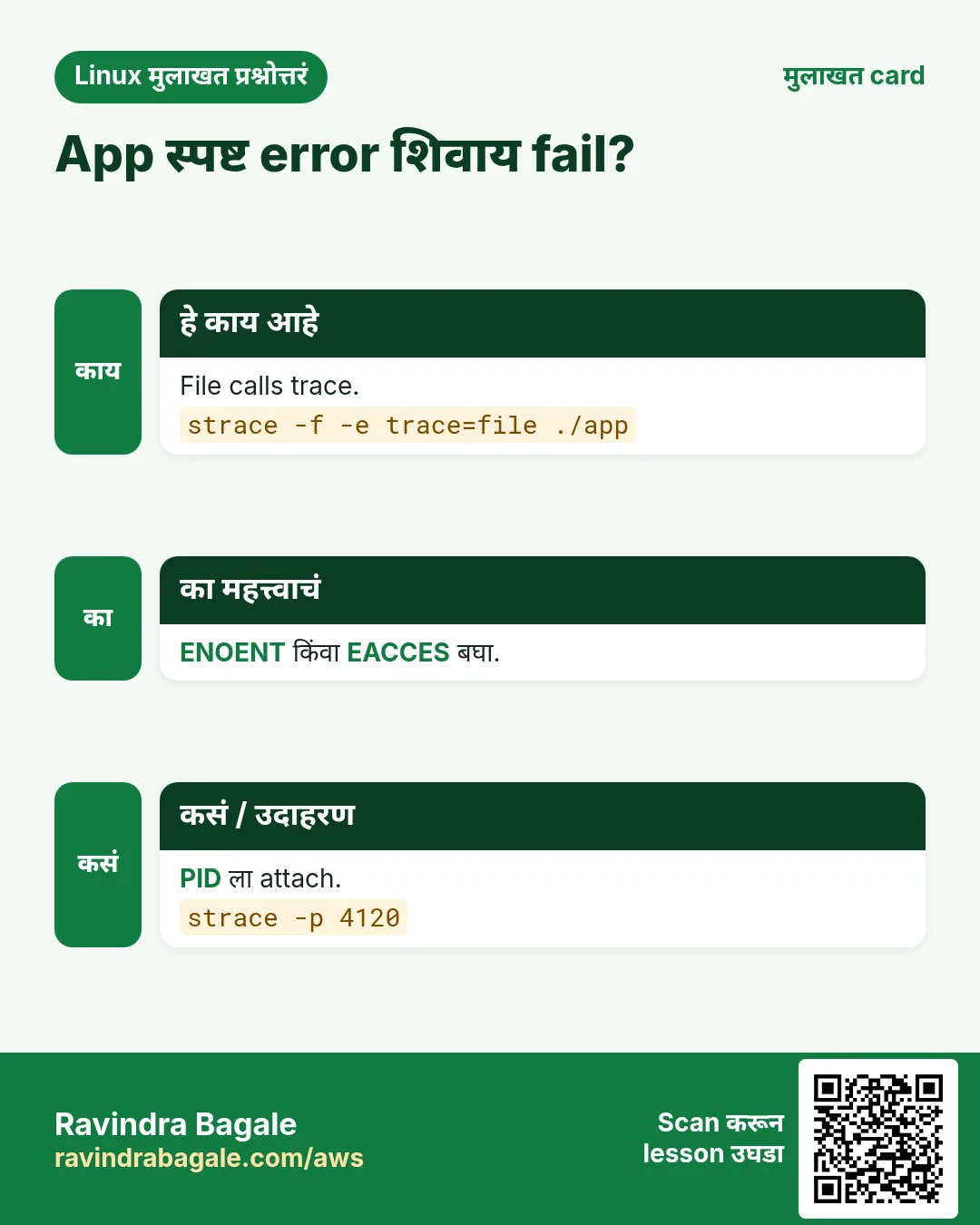
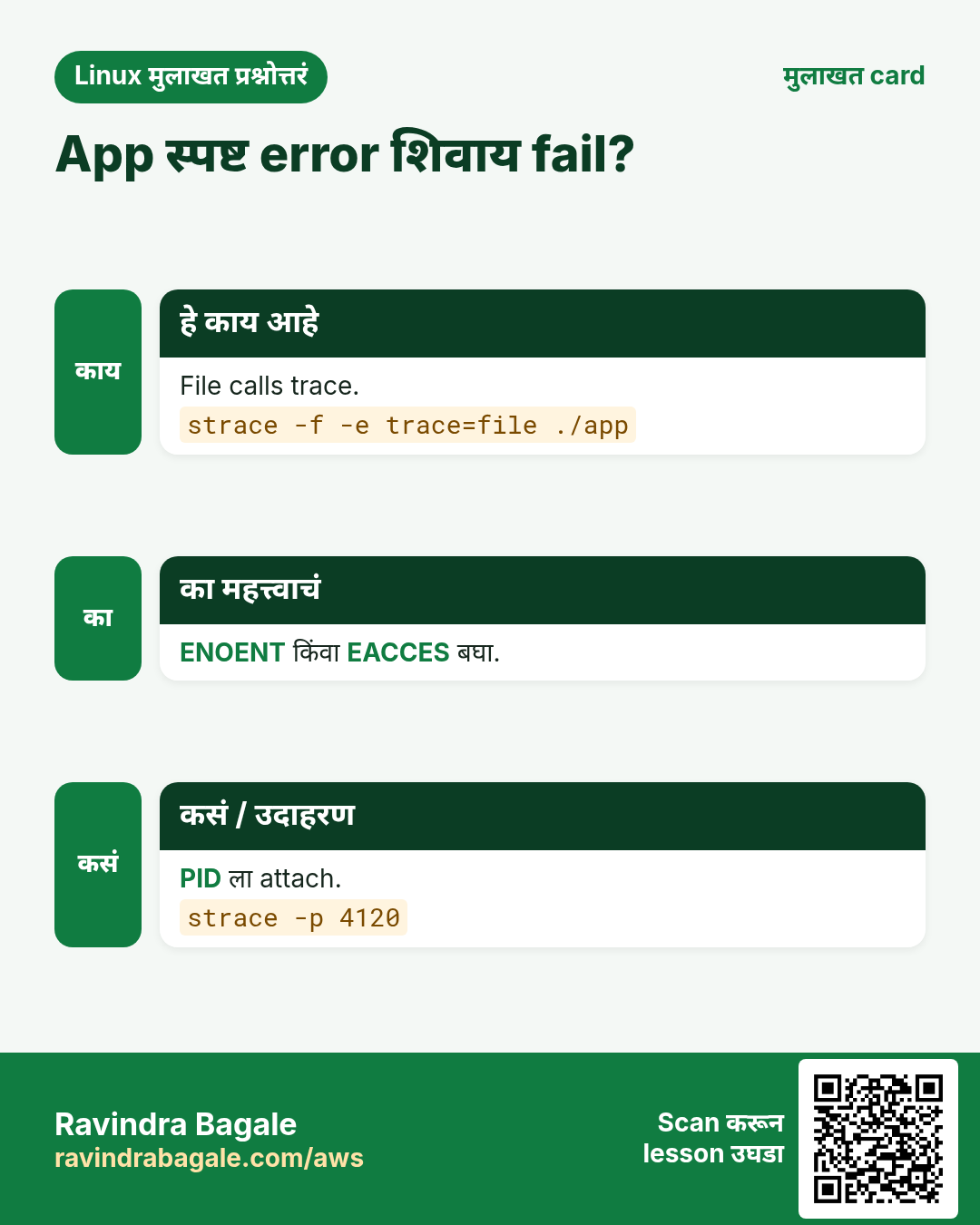
App कोणतीही उपयोगी log line न देता fail होतो. File सापडत नाही, permission चुकीची आहे, किंवा network वर अडकतो. strace प्रत्येक system call दाखवतो, त्यामुळे नेमकी कोणती file किंवा socket fail झाली ते दिसतं.
हे काय आहे?
strace command चालवतो (किंवा -p ने PID ला attach होतो) आणि प्रत्येक system call त्याच्या arguments आणि result सह print करतो. -f child processes follow करतो, -e trace= calls filter करतो, -o file मधे लिहितो, -c summary table देतो, -T प्रत्येक call ला लागलेला वेळ दाखवतो.
नेहमीचे options
| Option | काय करतो |
|---|---|
strace cmd | नवी command trace. |
-p PID | चालू process ला attach. |
-f | Forks follow. |
-e trace=openat | फक्त file opens. |
-c | Calls ची summary. |
-o file | Output save. |
कसं करायचं (step by step)
- App का सुरू होत नाही?
strace -e trace=openat ./billing 2>&1 | grep ENOENTOutput:
openat(AT_FDCWD, "/etc/billing/app.yml", O_RDONLY) = -1 ENOENT (No such file or directory)याचा अर्थ: त्या path वर config file नाही.
- अडकलेल्या process ला attach.
sudo strace -p 4120Output:
connect(5, {sa_family=AF_INET, sin_port=htons(5432), sin_addr=inet_addr("10.0.2.9")}, 16याचा अर्थ: 10.0.2.9:5432 database connection ची वाट बघतो.
- वेळ कुठे जातो?
strace -c -f ./report.shOutput:
% time     seconds  usecs/call     calls    errors syscall
 71.20    0.412000        103      4000           read
 18.10    0.105000         52      2010           write
याचा अर्थ: बहुतेक reading: अनेक छोटे reads.
- नंतरसाठी save.
strace -f -o /tmp/app.trace ./app; grep -c EACCES /tmp/app.traceOutput:
3याचा अर्थ: तीन permission denials तपासायचे.
खालच्या tasks मधे सराव करा: सराव tasks
खरा वापर: Hinjewadi मधल्या payments team ने strace -e trace=openat ने missing CA bundle path दोन minutes मधे शोधला.
4. su: User बदला
su सविस्तर: user बदला
हे का लागतं?
App user किंवा root म्हणून काहीतरी चालवायचं असतं, उदा. service ला जसं दिसतं तसं file access test करायला.
हे काय आहे?
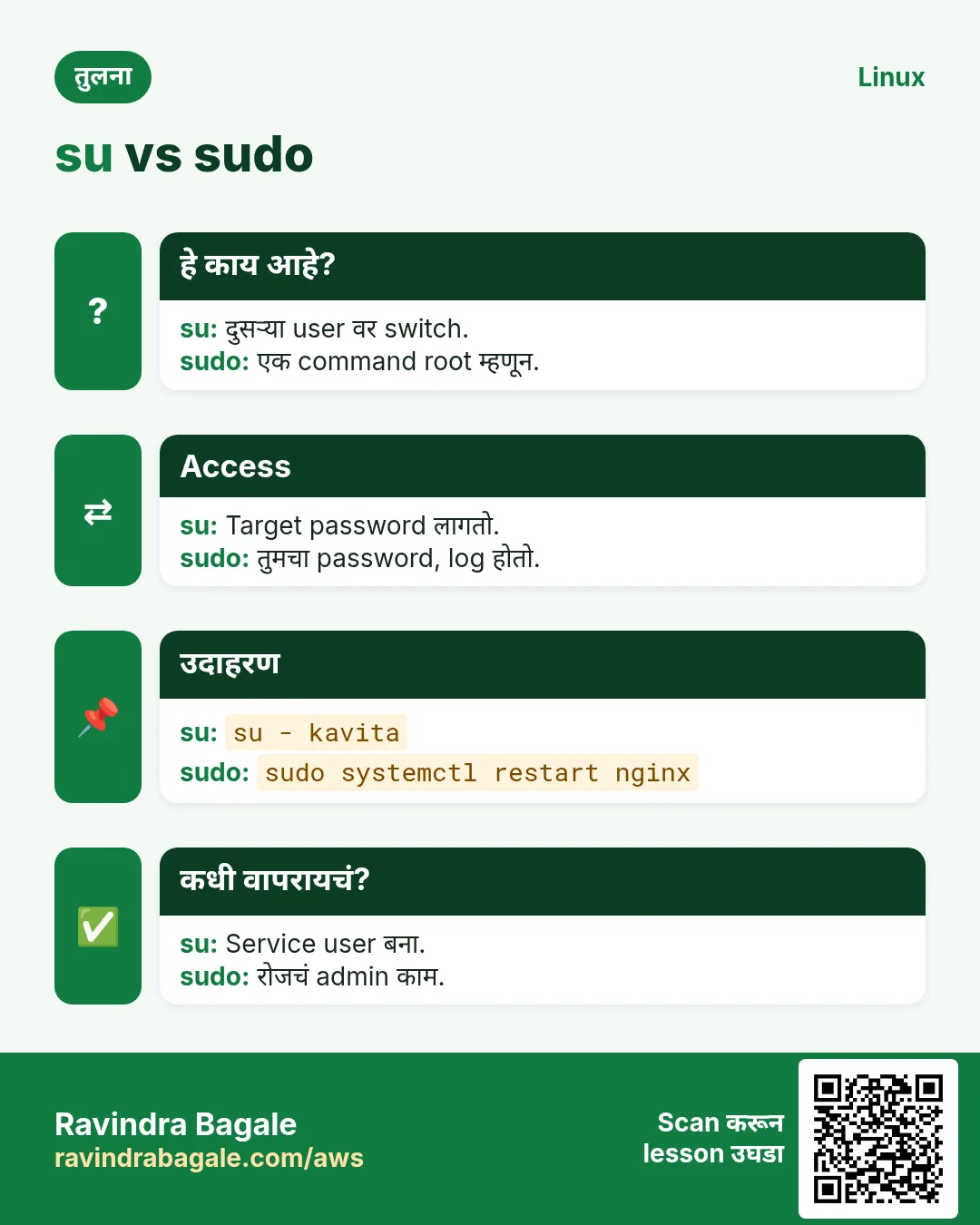
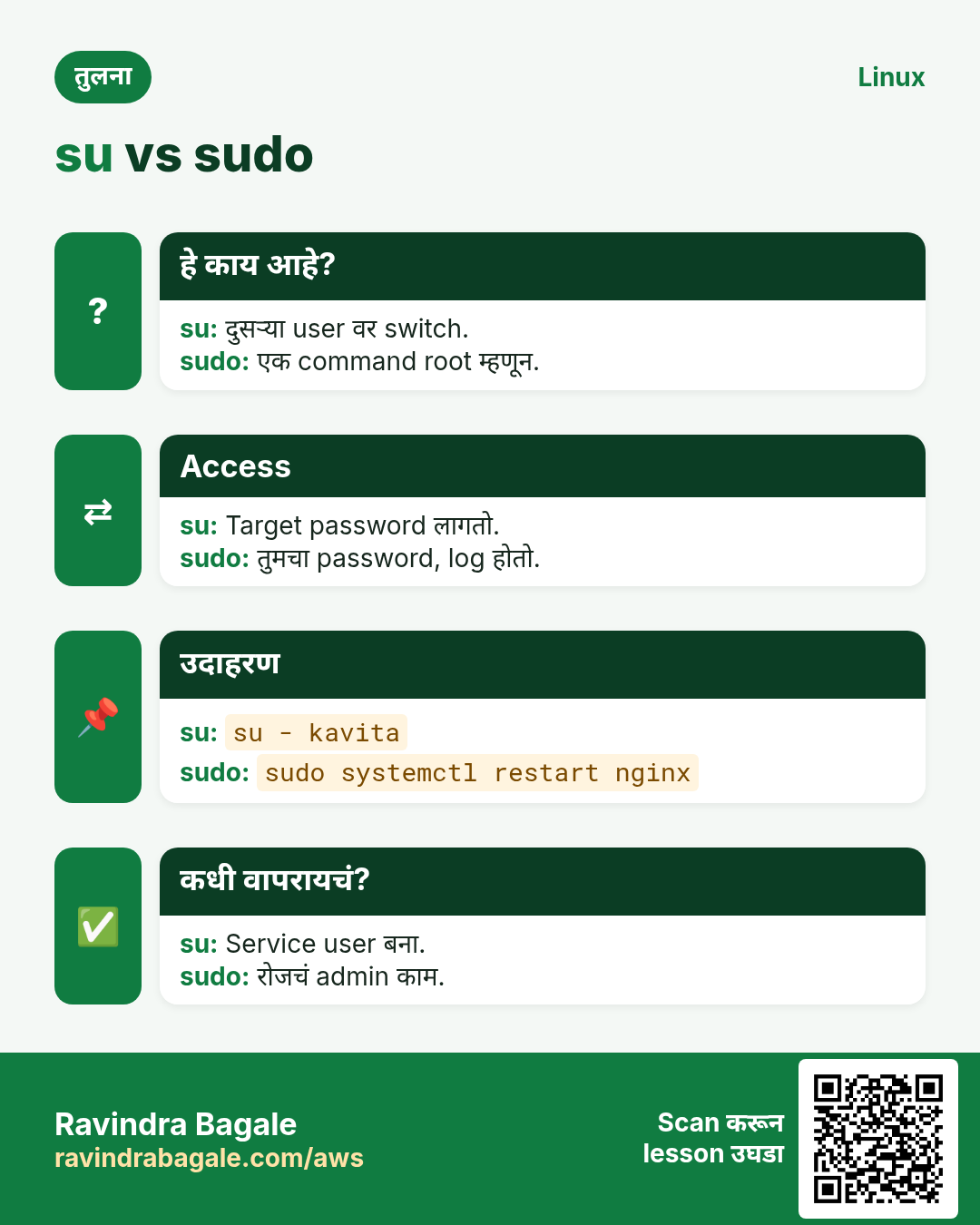
su दुसऱ्या user म्हणून shell सुरू करतो. su - पूर्ण login environment देतो (home, PATH). su -c एक command चालवतो. -s shell निवडतो, nologin असलेल्या system users साठी उपयोगी. तो target user चा password विचारतो; sudo तुमचा विचारतो.
नेहमीचे options
| Option | काय करतो |
|---|---|
su - user | User म्हणून login. |
su - | Root व्हा. |
su -c "cmd" user | एक command. |
-s /bin/bash | Shell निवडा. |
exit | परत या. |
कसं करायचं (step by step)
- App user व्हा.
sudo su - appsvc -s /bin/bashOutput:
[appsvc@web01 ~]$याचा अर्थ: appsvc म्हणून पूर्ण login shell.
- त्या user म्हणून access test.
sudo su -s /bin/bash -c "cat /srv/app/.env" appsvcOutput:
cat: /srv/app/.env: Permission deniedयाचा अर्थ: Service ला स्वतःची env file वाचता येत नाही.
- तुम्ही कोण आहात?
whoamiOutput:
appsvcयाचा अर्थ: आता तुम्ही app user आहात.
- परत जा.
exitOutput:
logoutयाचा अर्थ: परत तुमच्या shell मधे.
खालच्या tasks मधे सराव करा: सराव tasks
खरा वापर: Kothrud मधला school IT admin lab Linux PCs वर teacher ला काय दिसतं ते बघायला su - teacher वापरतो.
5. sudo: दुसऱ्या user म्हणून command
sudo सविस्तर: root म्हणून safely चालवा
हे का लागतं?
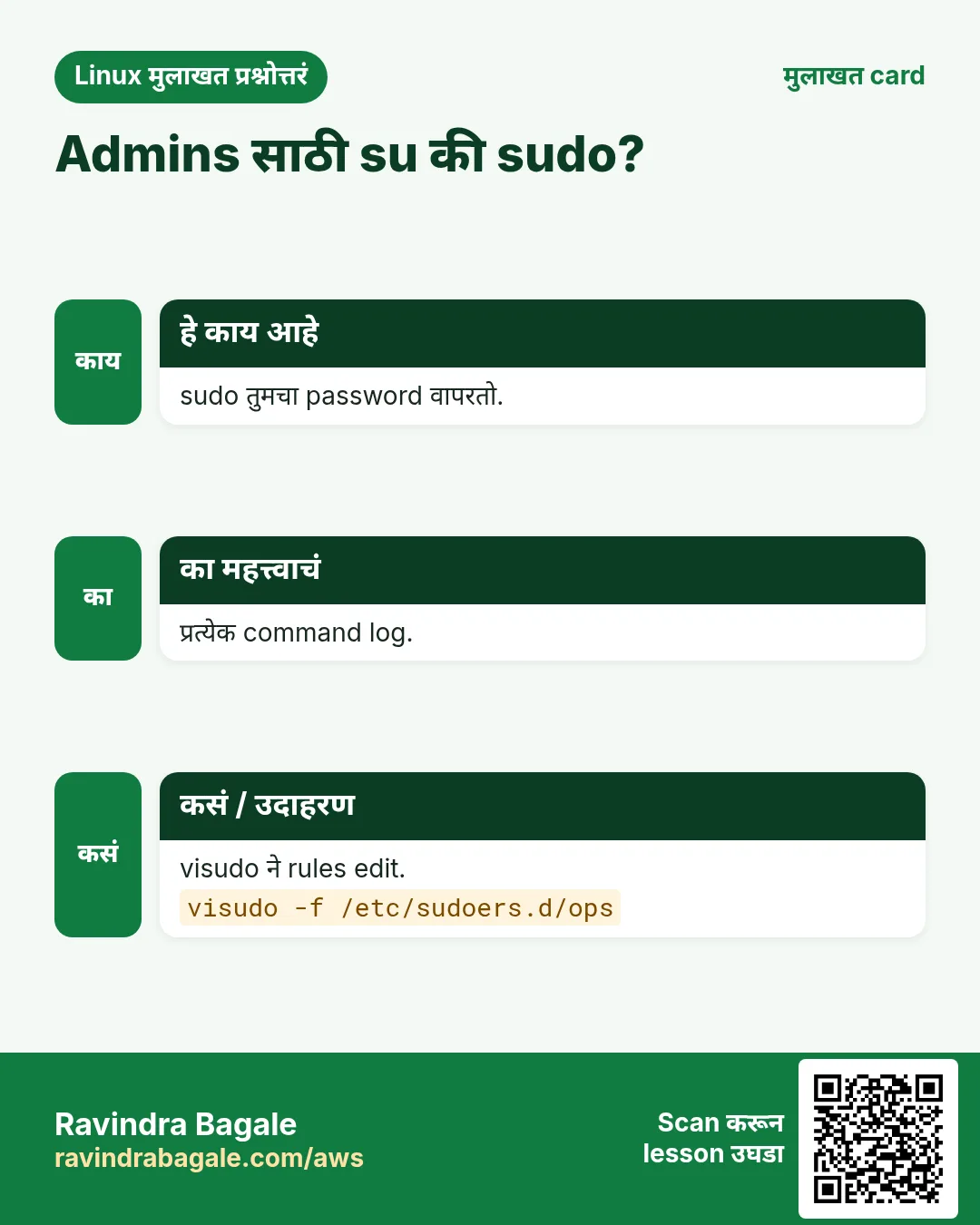
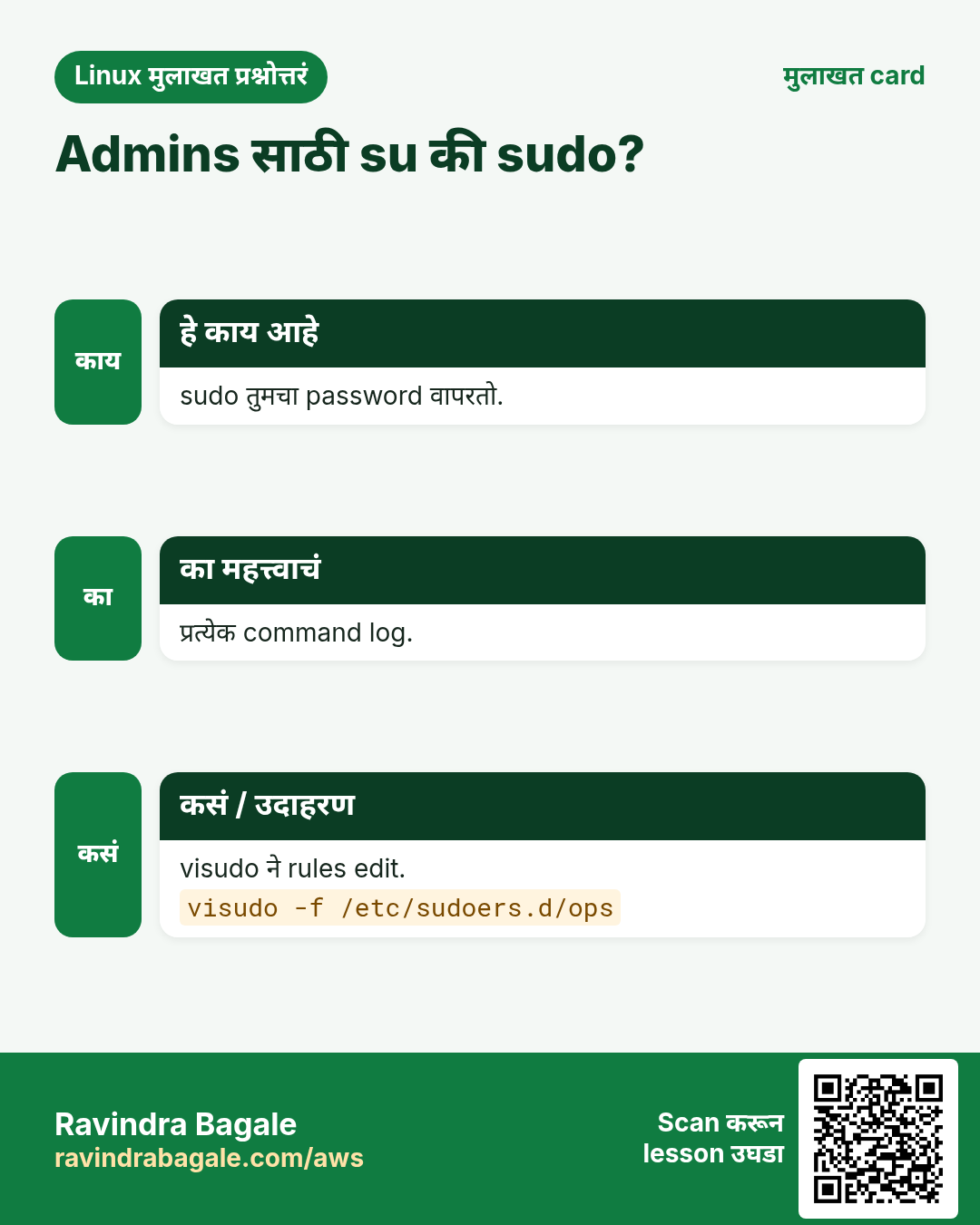
रोज कोणीही root म्हणून login करू नये. sudo एका command पुरती power देतो आणि कोणी काय केलं ते log करतो.
हे काय आहे?
sudo तुमचा स्वतःचा password विचारून command root म्हणून (किंवा -u user) चालवतो. Rules /etc/sudoers आणि /etc/sudoers.d मधे असतात, फक्त visudo ने edit करायचे. sudo -l तुम्ही काय चालवू शकता ते दाखवतो, -i root login shell उघडतो, -k cached password विसरतो.
नेहमीचे options
| Option | काय करतो |
|---|---|
sudo cmd | Root म्हणून. |
-u user cmd | दुसऱ्या user म्हणून. |
-l | मी काय चालवू शकतो? |
-i | Root login shell. |
-k | Cached password विसरा. |
visudo -f | Rules file safely edit. |
कसं करायचं (step by step)
- एक admin command.
sudo systemctl restart nginxयाचा अर्थ: Restart झालं, आणि secure log मधे नोंद.
- मला काय परवानगी आहे?
sudo -lOutput:
User ravi may run the following commands on web01:
    (root) /usr/bin/systemctl restart nginx
याचा अर्थ: फक्त एकच command allowed.
- App user म्हणून.
sudo -u appsvc touch /srv/app/tmp/testयाचा अर्थ: बरोबर owner सह file बनते.
- Team ला limited rights.
sudo visudo -f /etc/sudoers.d/opsOutput:
%ops ALL=(root) /usr/bin/systemctl restart appयाचा अर्थ: Ops group फक्त app restart करू शकतो.
खालच्या tasks मधे सराव करा: सराव tasks
खरा वापर: Baner मधल्या bank चं audit production वर चालवलेली प्रत्येक sudo command /var/log/secure मधे तपासतं.
6. swapon: Swap enable आणि दाखवा
swapon सविस्तर: swap जोडा आणि तपासा
हे का लागतं?
1 GB RAM असलेला छोटा cloud server build चालू असताना OOM killer ने मारला जातो. Swap file थोडी मोकळीक देते.
हे काय आहे?
swapon swap file किंवा partition चालू करतो; swapoff बंद करतो. --show active swap दाखवतो. Swap file fallocate किंवा dd ने बनवा, chmod 600, मग mkswap. Reboot नंतर टिकवायला /etc/fstab मधे टाका. vm.swappiness (sysctl) Linux किती लवकर swap करतो ते ठरवतो.
नेहमीचे options
| Option | काय करतो |
|---|---|
--show | Swap list. |
swapon /swapfile | चालू. |
swapoff /swapfile | बंद. |
-a | fstab मधले सगळे. |
mkswap file | Swap file तयार. |
कसं करायचं (step by step)
- Current swap.
swapon --showयाचा अर्थ: रिकामं: swap नाहीच.
- 2 GB swap file.
sudo fallocate -l 2G /swapfile && sudo chmod 600 /swapfile && sudo mkswap /swapfileOutput:
Setting up swapspace version 1, size = 2 GiBयाचा अर्थ: चालू करायला तयार.
- चालू करून तपासा.
sudo swapon /swapfile; swapon --showOutput:
NAME      TYPE SIZE USED PRIO
/swapfile file   2G   0B   -2
याचा अर्थ: 2 GB swap active.
- Reboot नंतर टिकवा.
echo "/swapfile none swap sw 0 0" | sudo tee -a /etc/fstabOutput:
/swapfile none swap sw 0 0याचा अर्थ: Reboot नंतरही राहतो.
खालच्या tasks मधे सराव करा: सराव tasks
खरा वापर: Wakad मधल्या startup ने t3.micro CI runner ला 2 GB swap file जोडली आणि nightly build crash होणं थांबलं.
7. sysctl: Kernel settings वाचा/set
sysctl सविस्तर: kernel tune करा
हे का लागतं?
Busy web server चे connection slots संपतात, किंवा NAT box साठी IP forwarding चालू करायचं असतं. या kernel settings आहेत, sysctl ने बदलतात.
हे काय आहे?
sysctl /proc/sys खालचे kernel parameters वाचतो आणि लिहितो. sysctl name वाचतो, -w name=value reboot पर्यंत बदलतो, /etc/sysctl.d मधली file कायमचं करते, आणि sysctl --system सगळ्या files reload करतो. -a सगळं list करतो.
नेहमीचे options
| Option | काय करतो |
|---|---|
sysctl name | वाचा. |
-w name=value | आत्ता set. |
-a | सगळं list. |
--system | सगळ्या files reload. |
-p file | एक file load. |
कसं करायचं (step by step)
- Value वाचा.
sysctl net.ipv4.ip_forwardOutput:
net.ipv4.ip_forward = 0याचा अर्थ: Forwarding बंद.
- आत्ता चालू.
sudo sysctl -w net.ipv4.ip_forward=1Output:
net.ipv4.ip_forward = 1याचा अर्थ: Reboot पर्यंत चालतं.
- कायमचं.
echo "net.ipv4.ip_forward = 1" | sudo tee /etc/sysctl.d/90-nat.conf; sudo sysctl --system | tail -1Output:
net.ipv4.ip_forward = 1याचा अर्थ: File मधून load झालं.
- Swappiness कमी.
sudo sysctl -w vm.swappiness=10Output:
vm.swappiness = 10याचा अर्थ: Database server जास्त RAM मधे ठेवतो.
खालच्या tasks मधे सराव करा: सराव tasks
खरा वापर: Magarpatta मधली gaming company प्रत्येक tournament आधी match servers वर net.core.somaxconn वाढवते.
8. systemctl: Services manage
systemctl सविस्तर: services manage करा
हे का लागतं?
Nginx, database, तुमचं स्वतःचं app: modern Linux वर प्रत्येक service systemd unit असते. Start, stop, boot ला enable आणि का fail झाली ते बघणं, सगळं systemctl ने.
हे काय आहे?
systemctl start, stop, restart आणि reload unit आत्ता control करतात; enable आणि disable boot control करतात; status state आणि शेवटच्या log lines दाखवतो; is-active आणि is-enabled scripts साठी; daemon-reload बदललेल्या unit files वाचतो; list-units --failed बिघडलेले दाखवतो; edit override बनवतो.
नेहमीचे options
| Option | काय करतो |
|---|---|
status unit | State आणि logs. |
start/stop/restart | आत्ता control. |
enable --now | Boot आणि start. |
is-active | Scripts साठी. |
daemon-reload | Unit files reload. |
--failed | बिघडलेले units. |
कसं करायचं (step by step)
- Service तपासा.
systemctl status nginxOutput:
● nginx.service - The nginx HTTP and reverse proxy server
     Active: active (running) since Tue 2026-10-27 09:12:03 IST
याचा अर्थ: सकाळपासून चालू.
- Failures शोधा.
systemctl --failedOutput:
  UNIT          LOAD   ACTIVE SUB    DESCRIPTION
● billing.service loaded failed failed Billing API
याचा अर्थ: Billing API बंद.
- Fix करून boot ला start.
sudo systemctl daemon-reload; sudo systemctl enable --now billingOutput:
Created symlink /etc/systemd/system/multi-user.target.wants/billing.serviceयाचा अर्थ: आत्ता आणि reboot नंतरही चालू.
- Script check.
systemctl is-active billingOutput:
activeयाचा अर्थ: एक शब्द, exit code 0.
खालच्या tasks मधे सराव करा: सराव tasks
खरा वापर: Hadapsar मधलं e-commerce warehouse label printer service Restart=always सह systemd unit म्हणून चालवतं.
9. tail: शेवटच्या lines किंवा log follow
tail सविस्तर: files चा शेवट आणि live logs
हे का लागतं?
Deploy बिघडलं की newest log lines हव्या असतात, आणि test करताना त्या येताना बघायच्या असतात.
हे काय आहे?
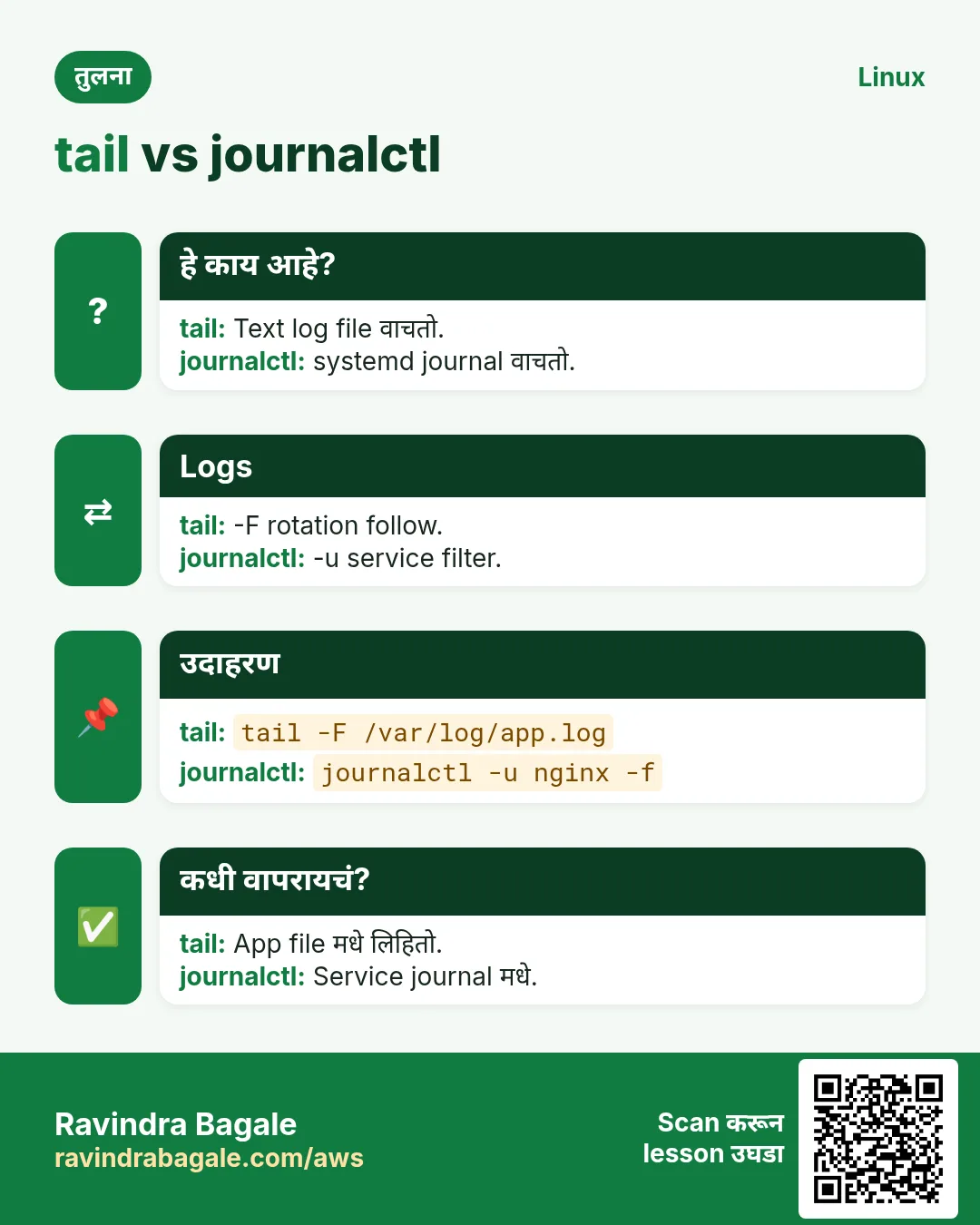
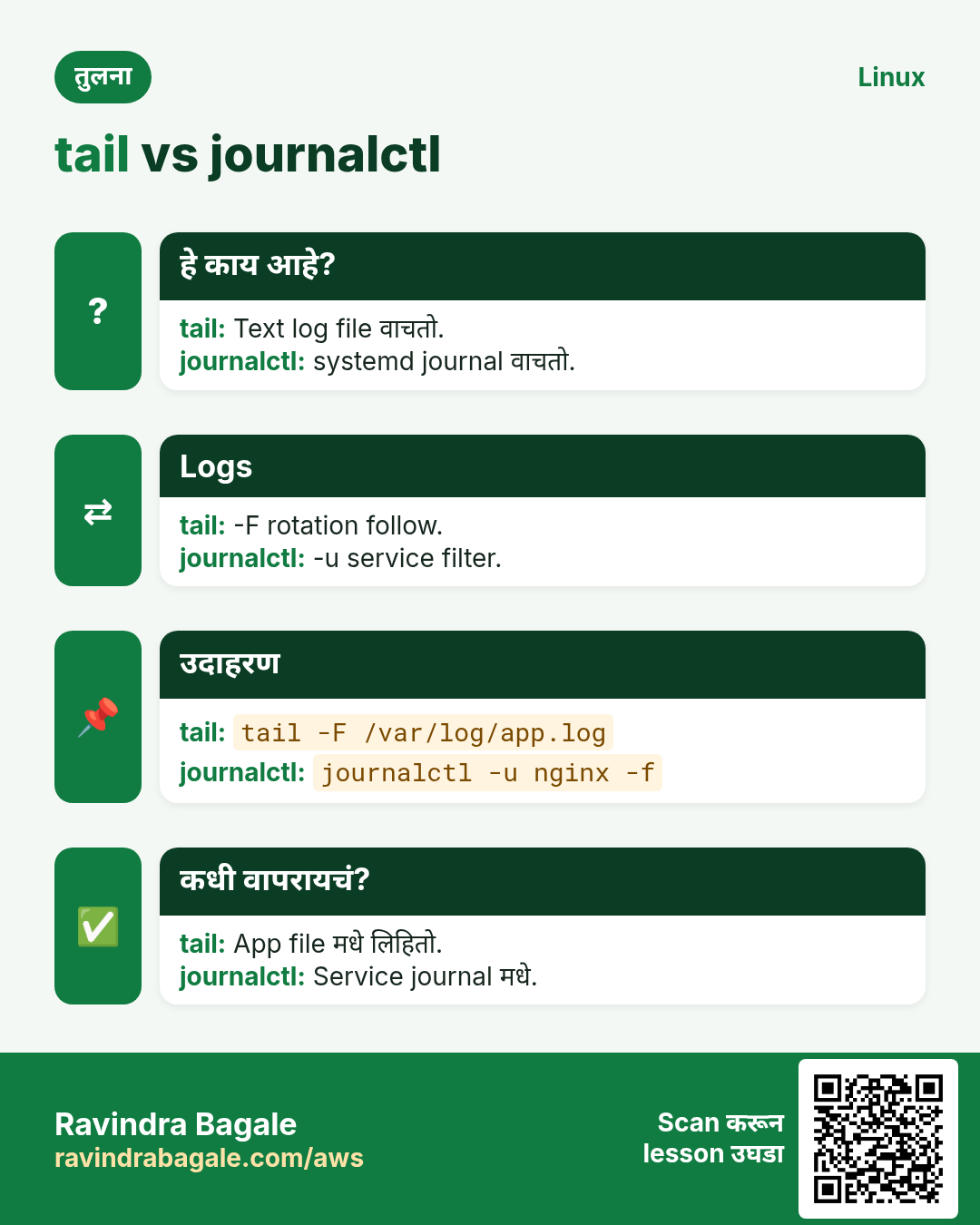
tail शेवटच्या 10 lines print करतो. -n N count ठरवतो, -n +N line N पासून सुरू, -f नव्या lines follow करतो, -F log rotation नंतरही follow करतो, -c bytes मोजतो. Live stream filter करायला grep ला pipe करा.
नेहमीचे options
| Option | काय करतो |
|---|---|
-n 50 | शेवटच्या 50 lines. |
-n +2 | Line 2 पासून (header skip). |
-f | Follow. |
-F | Rotation नंतरही follow. |
-c 200 | शेवटचे 200 bytes. |
कसं करायचं (step by step)
- Newest lines.
tail -n 3 /var/log/nginx/error.logOutput:
2026/10/27 10:02:11 [error] connect() failed (111: Connection refused) while connecting to upstreamयाचा अर्थ: Upstream app बंद.
- Live बघा.
tail -F /var/log/app/app.log | grep --line-buffered ERROROutput:
ERROR order 5512 payment timeoutयाचा अर्थ: फक्त errors, होताना.
- CSV header skip.
tail -n +2 sales.csv | head -2Output:
2026-10-01,Pune,4200
2026-10-01,Nashik,3100
याचा अर्थ: फक्त data rows.
- दोन files एकदम.
tail -n 1 app1.log app2.logOutput:
==> app1.log <==
started
==> app2.log <==
started
याचा अर्थ: Headers प्रत्येक file दाखवतात.
खालच्या tasks मधे सराव करा: सराव tasks
खरा वापर: Shivajinagar मधल्या hospital चा help desk प्रत्येक scanner upgrade दरम्यान PACS log वर tail -F ठेवतो.
10. tar: Files archive मधे pack
tar सविस्तर: archives आणि backups
हे का लागतं?
Website folder चा backup, release पाठवणं, servers मधे configs हलवणं: tar अनेक files permissions सह एकात pack करतो.
हे काय आहे?
tar c create, x extract, t list करतो; f archive चं नाव; z gzip, j bzip2, J xz compress; v verbose; -C folder बदलतो; --exclude paths skip करतो; -p extract करताना permissions ठेवतो. पूर्ण compression comparison compression chapter मधे.
नेहमीचे options
| Option | काय करतो |
|---|---|
czf a.tgz dir | Gzip archive बनवा. |
tzf a.tgz | List. |
xzf a.tgz -C dir | Dir मधे extract. |
cJf a.txz | xz archive. |
--exclude=PAT | Skip. |
-p | Permissions ठेवा. |
कसं करायचं (step by step)
- Site backup.
tar czf site-2026-10-27.tgz --exclude="*.log" /var/www/shopOutput:
tar: Removing leading `/' from member namesयाचा अर्थ: Normal: paths relative save होतात.
- आत बघा.
tar tzf site-2026-10-27.tgz | head -3Output:
var/www/shop/
var/www/shop/index.html
var/www/shop/css/
याचा अर्थ: Extract न करता contents.
- दुसरीकडे restore.
mkdir /tmp/restore && tar xzf site-2026-10-27.tgz -C /tmp/restoreयाचा अर्थ: /tmp/restore/var/www/shop खाली restore.
- फक्त एक file.
tar xzf site-2026-10-27.tgz var/www/shop/index.htmlयाचा अर्थ: फक्त ती file काढतो.
खालच्या tasks मधे सराव करा: सराव tasks
खरा वापर: Deccan मधलं CA office दर शुक्रवारी client folders tar करून archive S3 वर copy करतं.
11. tee: Output screen आणि file दोन्हीकडे
tee सविस्तर: output बघा आणि save करा
हे का लागतं?
Upgrade चालवताना output बघायचं आणि त्याच वेळी log ठेवायचा असतो. किंवा redirection ला न जमणारी file sudo ने लिहायची असते.
हे काय आहे?
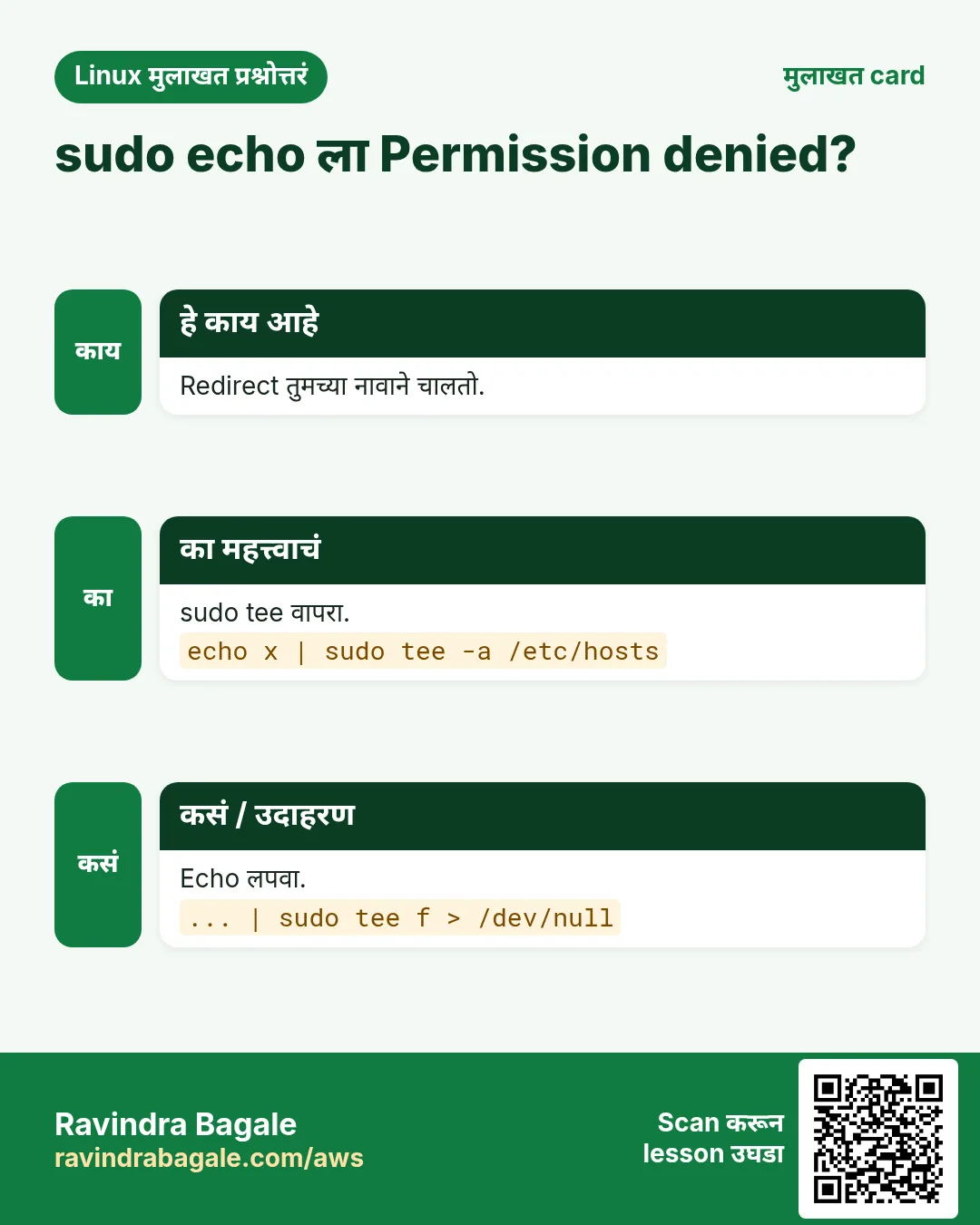
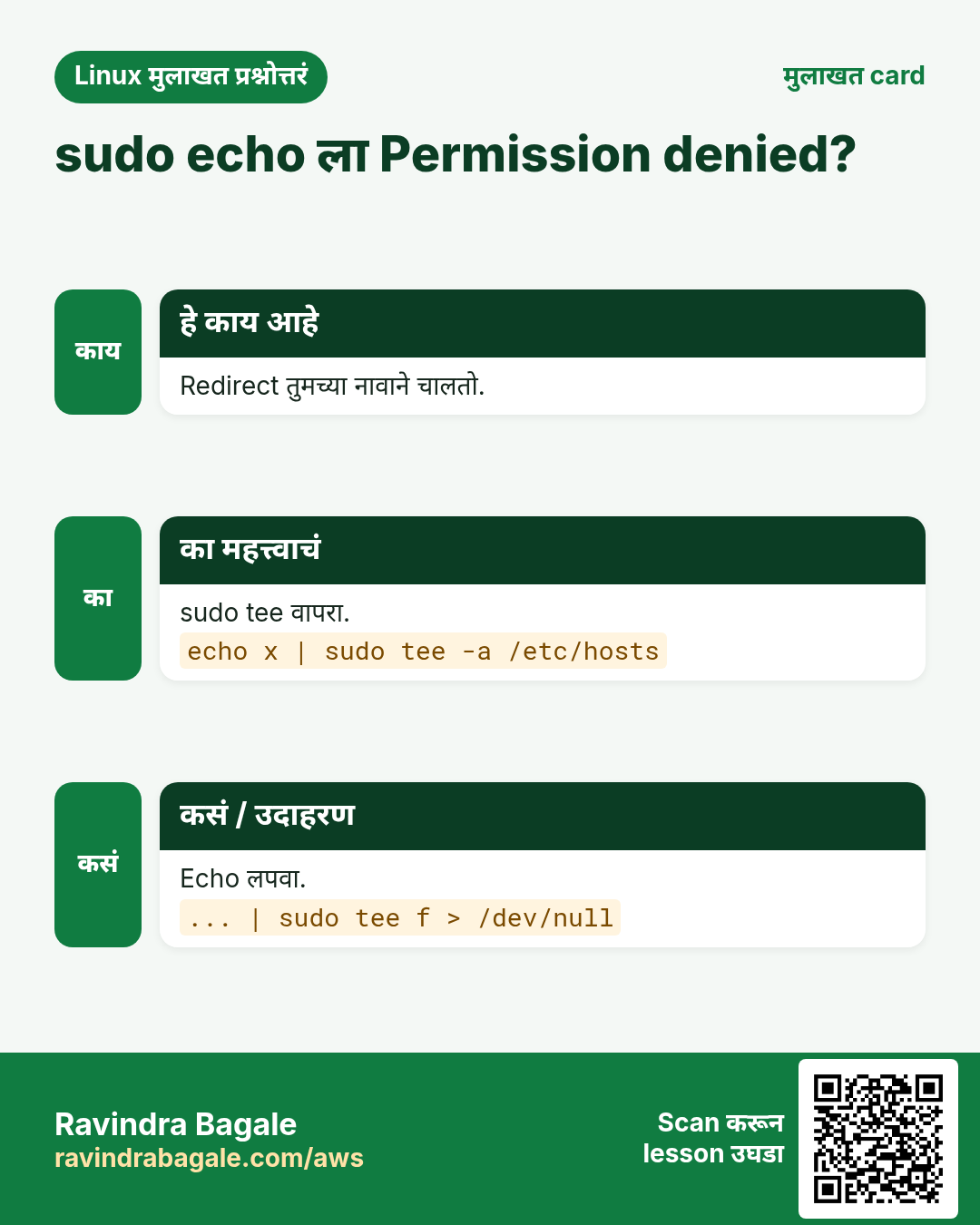
tee standard input screen वर आणि एक किंवा जास्त files मधे copy करतो. -a overwrite ऐवजी append करतो. sudo tee root-owned files लिहितो कारण tee स्वतः root म्हणून चालतो, > मात्र तुमच्या shell मधे चालतो.
नेहमीचे options
| Option | काय करतो |
|---|---|
cmd | tee file | Screen आणि file. |
-a | Append. |
tee f1 f2 | दोन files. |
| sudo tee file | Root म्हणून लिहा. |
> /dev/null | Screen copy लपवा. |
कसं करायचं (step by step)
- Upgrade log.
sudo dnf -y update 2>&1 | tee update-2026-10-27.log | tail -1Output:
Complete!याचा अर्थ: बघितलं आणि save केलं.
- रोज append.
date | tee -a checks.logOutput:
Tue Oct 27 10:30:00 IST 2026याचा अर्थ: Line जोडतो, जुन्या ठेवतो.
- Root file लिहा.
echo "10.0.1.5 db01" | sudo tee -a /etc/hostsOutput:
10.0.1.5 db01याचा अर्थ: sudo echo > /etc/hosts fail झालं असतं.
- Quiet write.
echo "vm.swappiness = 10" | sudo tee /etc/sysctl.d/80-swap.conf > /dev/nullयाचा अर्थ: Echo न करता लिहिलं.
खालच्या tasks मधे सराव करा: सराव tasks
खरा वापर: Chakan मधला auto plant प्रत्येक PLC firmware push tee ने log करतो म्हणजे shift engineer बघू शकतो आणि QA audit करू शकतं.
12. test: Files आणि values तपासा
test सविस्तर: scripts मधल्या conditions
हे का लागतं?
Script delete, copy किंवा deploy करण्याआधी तपासायला हवं: file आहे का, folder writable आहे का, number limit पेक्षा मोठा आहे का?
हे काय आहे?
test (किंवा [ ]) condition तपासतो आणि exit code 0 (true) किंवा 1 (false) देतो. Files: -f file, -d dir, -e exists, -s रिकामी नाही, -r/-w/-x. Strings: = != -z -n. Numbers: -eq -ne -gt -lt -ge -le. Bash मधे pattern matching सह [[ ]] पण आहे.
नेहमीचे options
| Option | काय करतो |
|---|---|
-f path | Regular file. |
-d path | Directory. |
-z "$v" | रिकामी string. |
a -gt b | मोठा (numbers). |
! expr | Not. |
[[ $x == *.log ]] | Pattern (bash). |
कसं करायचं (step by step)
- File आहे का?
test -f /etc/app.conf && echo yes || echo noOutput:
noयाचा अर्थ: Start आधी config बनवा.
- Disk guard.
use=$(df --output=pcent / | tail -1 | tr -dc 0-9); [ "$use" -gt 90 ] && echo "disk full"Output:
disk fullयाचा अर्थ: Disk भरण्याआधी backup थांबवा.
- रिकामा variable.
[ -z "$DB_HOST" ] && echo "DB_HOST missing"Output:
DB_HOST missingयाचा अर्थ: स्पष्ट message सह लवकर fail.
- Exit code.
[ -d /srv/app ]; echo $?Output:
0याचा अर्थ: 0 म्हणजे true.
खालच्या tasks मधे सराव करा: सराव tasks
खरा वापर: Kalyani Nagar मधल्या travel portal ची deploy script traffic switch करण्याआधी [ -s build/index.html ] तपासते.
13. time: Command ला किती वेळ लागतो
time सविस्तर: command ला किती वेळ लागतो ते मोजा
हे का लागतं?
नवी query जलद आहे का? Compression मुळे backup slow झाला का? अंदाज न करता मोजा.
हे काय आहे?
time command चालवून real (घड्याळाचा वेळ), user (तुमच्या code मधला CPU) आणि sys (kernel मधला CPU) print करतो. real हा user+sys पेक्षा खूप मोठा असेल तर command disk किंवा network ची वाट बघत होती. /usr/bin/time -v memory use पण देतो.
नेहमीचे options
| Option | काय करतो |
|---|---|
time cmd | Real, user, sys. |
/usr/bin/time -v | Max memory पण. |
TIMEFORMAT=%R | फक्त seconds (bash). |
time ( a; b ) | Group चा वेळ. |
कसं करायचं (step by step)
- Backup चा वेळ.
time tar czf db.tgz /var/lib/pgsql/dumpOutput:
real    1m42.311s
user    1m30.020s
sys     0m6.144s
याचा अर्थ: CPU bound: compression चा खर्च.
- Network wait.
time curl -s https://api.example.in/report > /dev/nullOutput:
real    0m4.902s
user    0m0.020s
sys     0m0.011s
याचा अर्थ: जवळजवळ सगळं waiting: API slow.
- Peak memory.
/usr/bin/time -v python3 etl.py 2>&1 | grep MaximumOutput:
Maximum resident set size (kbytes): 812344याचा अर्थ: Peak ला सुमारे 800 MB.
- दोन compare.
time gzip -k big.log; time xz -k big.logOutput:
real 0m3.1s
real 0m21.7s
याचा अर्थ: इथे xz 7 पट slow.
खालच्या tasks मधे सराव करा: सराव tasks
खरा वापर: Pimpri मधली analytics team nightly ETL चा वेळ मोजते म्हणजे तो नेहमी 6 AM dashboard refresh आधी संपतो.
14. timedatectl: Time आणि time zone manage
timedatectl सविस्तर: time zone आणि clock sync
हे का लागतं?
Logs UTC मधे, users IST मधे, clock 3 minutes मागे म्हणून token reject: time settings महत्त्वाच्या.
हे काय आहे?
timedatectl local time, UTC, time zone आणि NTP sync चालू आहे का ते दाखवतो. set-timezone zone बदलतो, list-timezones zones list करतो, set-ntp true sync चालू करतो (chronyd किंवा timesyncd). NTP बंद असताना set-time हाताने clock set करतो.
नेहमीचे options
| Option | काय करतो |
|---|---|
timedatectl | Status. |
set-timezone Asia/Kolkata | Zone set. |
list-timezones | Zones list. |
set-ntp true | Sync चालू. |
set-time "2026-10-27 10:00" | हाताने वेळ. |
कसं करायचं (step by step)
- तपासा.
timedatectlOutput:
               Local time: Tue 2026-10-27 04:40:10 UTC
                Time zone: UTC (UTC, +0000)
System clock synchronized: yes
याचा अर्थ: Synced, पण UTC मधे.
- Zone शोधा.
timedatectl list-timezones | grep KolkataOutput:
Asia/Kolkataयाचा अर्थ: वापरायचं नेमकं नाव.
- IST set.
sudo timedatectl set-timezone Asia/Kolkata; dateOutput:
Tue Oct 27 10:10:10 IST 2026याचा अर्थ: आता IST मधे.
- Sync चालू.
sudo timedatectl set-ntp trueयाचा अर्थ: Clock बरोबर राहतो.
खालच्या tasks मधे सराव करा: सराव tasks
खरा वापर: Viman Nagar मधली airline-catering firm सगळे kitchen servers NTP सह Asia/Kolkata वर ठेवते म्हणजे meal labels वर बरोबर वेळ.
15. tmux: Terminal sessions split आणि ठेवा
tmux सविस्तर: disconnect नंतरही टिकणारे sessions
हे का लागतं?
Database migration चालू असताना Wi-Fi जातं. tmux असेल तर job चालूच राहतो आणि तुम्ही जिथे होतात तिथेच परत attach होता.
हे काय आहे?
tmux terminals एका server process मधे चालवतो. new -s session ला नाव देतो, Ctrl-b d ने detach, ls sessions list करतो, attach -t परत आणतो, Ctrl-b % आणि Ctrl-b " panes split करतात, kill-session एक संपवतो. screen पेक्षा हा modern पर्याय.
नेहमीचे options
| Option | काय करतो |
|---|---|
new -s name | नवा session. |
Ctrl-b d | Detach. |
ls | Sessions list. |
attach -t name | परत attach. |
Ctrl-b % | बाजूबाजूला split. |
kill-session -t name | Session संपवा. |
कसं करायचं (step by step)
- नाव दिलेला session.
tmux new -s migrateOutput:
[migrate] 0:bash*याचा अर्थ: तुम्ही tmux मधे आहात.
- Detach करून list.
tmux lsOutput:
migrate: 1 windows (created Tue Oct 27 11:00:02 2026)याचा अर्थ: तुम्ही गेल्यावरही चालू.
- परत या.
tmux attach -t migrateOutput:
(migration output continues)याचा अर्थ: आधीसारखीच screen.
- साफ करा.
tmux kill-session -t migrateयाचा अर्थ: Session गेला.
खालच्या tasks मधे सराव करा: सराव tasks
खरा वापर: Kharadi मधला SaaS on-call engineer VPN drop मुळे एक migration गमावल्यानंतर प्रत्येक production migration tmux मधे चालवतो.
16. top: Processes चा live view
top सविस्तर: live CPU आणि memory view
हे का लागतं?
Server slow वाटतो. पाच seconds मधे top सांगतो की CPU, memory की I/O wait problem आहे आणि कोणता process कारण आहे.
हे काय आहे?
top processes चा table refresh करतो. Header मधे load average, CPU split (us, sy, wa, st) आणि memory. Keys: P CPU ने sort, M memory ने, k kill, 1 per-CPU view, q quit. -b -n 1 scripts साठी एकदा print; -p PIDs बघतो; -u एक user.
नेहमीचे options
| Option | काय करतो |
|---|---|
P / M | CPU / memory sort. |
1 | प्रत्येक CPU. |
-b -n 1 | एकदा batch print. |
-p PID | PIDs बघा. |
-u user | एक user. |
wa / st | IO wait / stolen. |
कसं करायचं (step by step)
- Header वाचा.
top -b -n 1 | head -3Output:
top - 11:20:01 up 12 days,  load average: 7.81, 6.20, 3.10
Tasks: 212 total,   3 running
%Cpu(s): 12.0 us,  3.1 sy,  0.0 ni,  4.2 id, 80.5 wa,  0.0 st
याचा अर्थ: 80% IO wait: disk bottleneck.
- सर्वात जास्त memory.
top -b -n 1 -o %MEM | sed -n 8,9pOutput:
2210 mysql 20 0 6.1g 4.8g S 2.0 61.3 javaयाचा अर्थ: MySQL कडे 61% RAM.
- एक process बघा.
top -p 2210Output:
(live view of PID 2210)याचा अर्थ: Focused view.
- Cloud steal.
top -b -n 1 | grep CpuOutput:
%Cpu(s): 40.0 us, 2.0 sy, 0.0 wa, 35.0 stयाचा अर्थ: 35% stolen: burst instance चे credits संपले.
खालच्या tasks मधे सराव करा: सराव tasks
खरा वापर: Swargate मधल्या bus-ticketing team ला top मधे 35% steal दिसला आणि दिवाळी आधी t3 वरून m6i instances वर गेले.
17. tr: Characters बदला किंवा काढा
tr सविस्तर: characters बदला आणि काढा
हे का लागतं?
Code uppercase करणं, commas ना new lines करणं, Windows line endings काढणं किंवा digits काढणं: pipe मधले छोटे text fixes.
हे काय आहे?
tr stdin वाचतो आणि set1 मधले characters set2 ला map करतो. -d characters काढतो, -s repeats एक करतो, -c complement वापरतो. [:lower:] [:upper:] [:digit:] [:space:] सारखे classes उपयोगी. tr characters वर चालतो, words वर नाही; words साठी sed.
नेहमीचे options
| Option | काय करतो |
|---|---|
tr a-z A-Z | Uppercase. |
tr "," "\n" | Comma ते newline. |
-d "\r" | CR काढा. |
-s " " | Spaces एक करा. |
-dc "0-9" | फक्त digits ठेवा. |
कसं करायचं (step by step)
- Uppercase.
echo "pune-411001" | tr a-z A-ZOutput:
PUNE-411001याचा अर्थ: एकाच case मधे codes.
- List split.
echo "web1,web2,web3" | tr "," "\n"Output:
web1
web2
web3
याचा अर्थ: Loop साठी एका line ला एक host.
- Windows files fix.
tr -d "\r" < export.csv > clean.csv; file clean.csvOutput:
clean.csv: ASCII textयाचा अर्थ: CRLF गेलं.
- फक्त digits.
echo "Disk used: 91%" | tr -dc 0-9Output:
91याचा अर्थ: Number test साठी तयार.
खालच्या tasks मधे सराव करा: सराव tasks
खरा वापर: Market Yard मधला व्यापारी Excel मधून आलेल्या supplier CSVs stock system मधे टाकण्याआधी tr -d "\r" ने साफ करतो.
18. traceroute: Host पर्यंतचा network path
traceroute सविस्तर: packets कुठे थांबतात
हे का लागतं?
Ping fail होतो किंवा slow आहे. तुमचं office, ISP, की cloud? traceroute प्रत्येक hop आणि त्याचा delay दाखवतो.
हे काय आहे?
traceroute वाढत्या TTL चे packets पाठवतो म्हणजे प्रत्येक router बारी बारीने उत्तर देतो. प्रत्येक line एक hop, तीन timings सह; * म्हणजे उत्तर नाही. -n DNS skip, -T TCP वापरतो (firewalls मधून चांगलं), -p port, -m max hops. tracepath आणि mtr पर्याय.
नेहमीचे options
| Option | काय करतो |
|---|---|
-n | DNS नाही. |
-T -p 443 | Port ला TCP. |
-m 15 | Max hops. |
-w 2 | Wait seconds. |
mtr | Live version. |
कसं करायचं (step by step)
- Site trace.
traceroute -n api.example.inOutput:
1  192.168.1.1  1.1 ms
 2  10.40.0.1  6.0 ms
 3  * * *
 4  52.95.66.1  31.2 ms
याचा अर्थ: Hop 3 ICMP लपवतो पण traffic जातो.
- Firewall मधून.
sudo traceroute -T -p 443 -n api.example.in | tail -1Output:
9 13.234.10.20 33.0 msयाचा अर्थ: TCP server पर्यंत पोहोचतो.
- Slow hop शोधा.
traceroute -n 8.8.8.8 | sed -n 3,4pOutput:
3  103.1.2.1  8.0 ms
 4  103.1.9.9  210.4 ms
याचा अर्थ: Hop 4 चा ISP link 200 ms वाढवतो.
- नसेल तर install.
sudo dnf -y install tracerouteOutput:
Complete!याचा अर्थ: तयार.
खालच्या tasks मधे सराव करा: सराव tasks
खरा वापर: Bhosari मधल्या factory ने ISP ला त्यांच्या router वर 200 ms असलेला traceroute दाखवला आणि link fix झाली.
19. tree: Folders tree स्वरूपात
tree सविस्तर: folder structure बघा
हे का लागतं?
Project layout समजावणं किंवा deploy ने बरोबर folders copy केले का ते तपासणं अनेक ls पेक्षा tree ने सोपं.
हे काय आहे?
tree folder आणि त्याचे children indented tree म्हणून print करतो. -L depth मर्यादित, -d फक्त folders, -a hidden files, -h sizes, -I pattern exclude, --du folder sizes. Install करावं लागू शकतं.
नेहमीचे options
| Option | काय करतो |
|---|---|
-L 2 | दोन levels. |
-d | फक्त folders. |
-a | Hidden पण. |
-h | Sizes. |
-I "node_modules" | Exclude. |
कसं करायचं (step by step)
- Project layout.
tree -L 2 shopOutput:
shop
├── app
│   ├── main.py
│   └── models.py
├── deploy
└── README.md

3 directories, 3 files
याचा अर्थ: नव्या team member साठी स्पष्ट चित्र.
- फक्त folders.
tree -d -L 1 /etc/nginxOutput:
/etc/nginx
├── conf.d
└── default.d
याचा अर्थ: Configs कुठे आहेत.
- मोठे folders skip.
tree -L 2 -I "node_modules|.git" webOutput:
web
├── src
└── package.json
याचा अर्थ: वाचता येणारा output.
- Sizes सह.
tree -h -L 1 /var/log | tail -2Output:
└── [ 12M]  messages

4 directories, 18 files
याचा अर्थ: मोठा log लगेच दिसतो.
खालच्या tasks मधे सराव करा: सराव tasks
खरा वापर: Model Colony मधली training institute प्रत्येक lab handout मधे tree -L 2 output टाकते म्हणजे students ना files कुठे ठेवायच्या ते कळतं.
20. truncate: File ची size कमी/जास्त
truncate सविस्तर: files लहान करा किंवा size द्या
हे का लागतं?
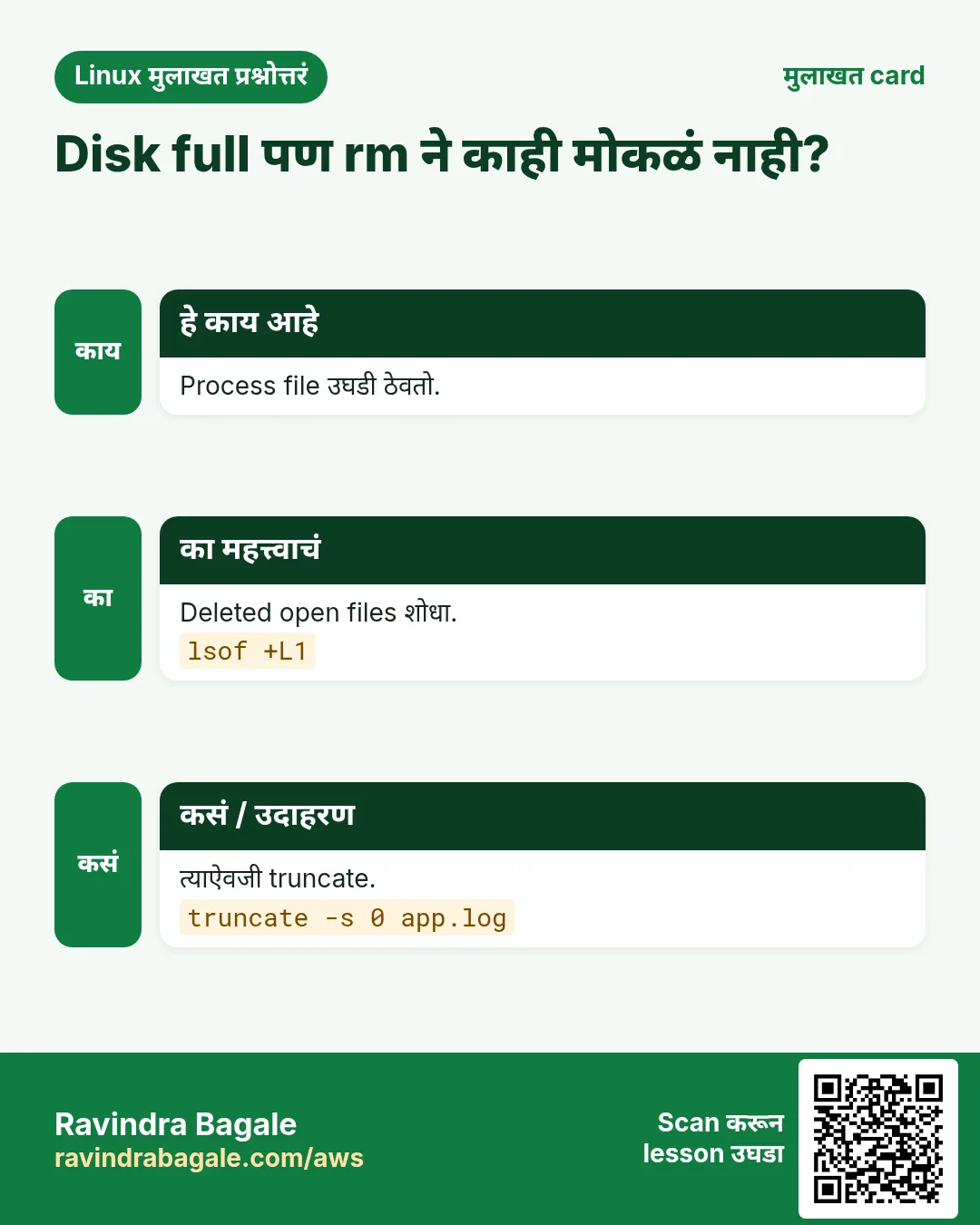
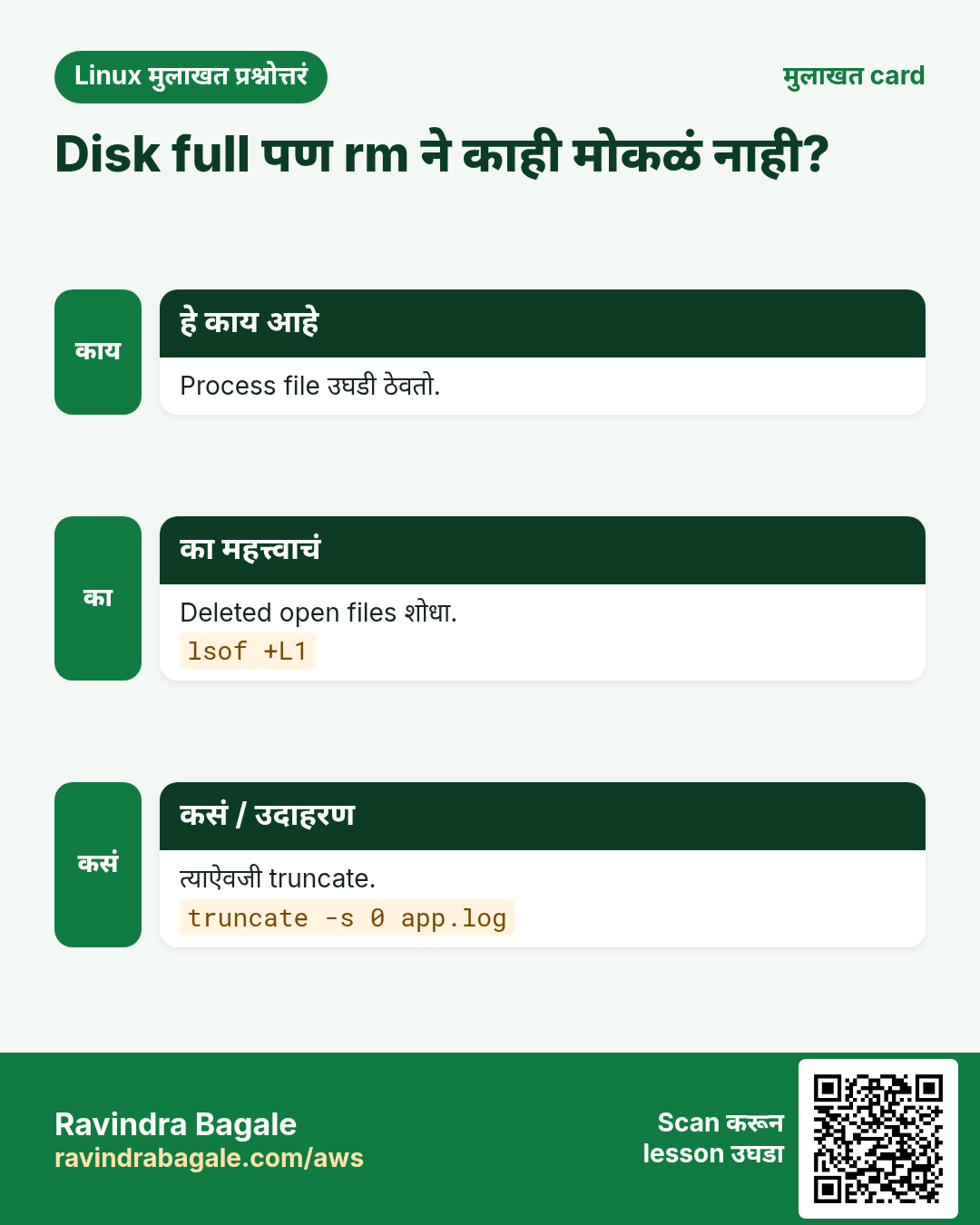
Log ने disk भरली पण app ती file अजून उघडी ठेवतो. Delete केल्याने space मोकळी होत नाही; zero ला truncate केल्यावर लगेच होते.
हे काय आहे?
truncate -s file size set करतो: 0 रिकामी करतो, 100M sparse file बनवतो, +10M वाढवतो, -10M कमी करतो. Inode तोच राहतो, त्यामुळे open handles चालत राहतात. Logs आणि practice disk images साठी वापरा.
नेहमीचे options
| Option | काय करतो |
|---|---|
-s 0 file | रिकामी. |
-s 1G file | Size set. |
-s +100M | वाढवा. |
-s -1M | कमी करा. |
-c | Create करू नका. |
कसं करायचं (step by step)
- Log मुळे disk full.
df -h /var | tail -1Output:
/dev/xvda1 20G 20G 0 100% /याचा अर्थ: Space शिल्लक नाही.
- Safely रिकामी.
sudo truncate -s 0 /var/log/app/debug.log; df -h /var | tail -1Output:
/dev/xvda1 20G 12G 8.0G 60% /याचा अर्थ: 8 GB परत, app अजून log करतो.
- Test disk file.
truncate -s 1G disk.img; ls -lh disk.img; du -h disk.imgOutput:
-rw-r--r-- 1 ravi ravi 1.0G disk.img
0       disk.img
याचा अर्थ: Sparse: 1 GB size, अजून space वापरली नाही.
- असेल तरच.
truncate -c -s 0 old.logयाचा अर्थ: नवी file बनत नाही.
खालच्या tasks मधे सराव करा: सराव tasks
खरा वापर: Hinjewadi मधली call-analytics team dialer restart करण्याऐवजी 2 AM ला runaway debug log truncate करते.
21. type: Command नाव कसं resolve होतं
type सविस्तर: नक्की काय चालणार
हे का लागतं?
तुम्ही ls किंवा python type करता आणि काहीतरी वेगळं होतं. ते alias, function, builtin की PATH वरची file? type सांगतो.
हे काय आहे?
type हा shell builtin नाव कसं resolve होतं ते सांगतो. -a प्रत्येक match क्रमाने दाखवतो, -t एक शब्द print करतो (alias, keyword, function, builtin, file), -P PATH search करायला लावतो. aliases आणि functions माहीत असल्याने which पेक्षा अचूक.
नेहमीचे options
| Option | काय करतो |
|---|---|
type name | समजावा. |
-a | सगळे matches. |
-t | एक शब्द. |
-P | फक्त PATH file. |
command -v | Script friendly. |
कसं करायचं (step by step)
- Alias?
type llOutput:
ll is aliased to `ls -l --color=auto'याचा अर्थ: ll alias आहे.
- Builtin.
type cdOutput:
cd is a shell builtinयाचा अर्थ: Disk वर file नाही.
- कोणता python?
type -a python3Output:
python3 is /usr/local/bin/python3
python3 is /usr/bin/python3
याचा अर्थ: /usr/local वाला आधी चालतो.
- एक शब्द.
type -t deployOutput:
functionयाचा अर्थ: Profile मधलं shell function.
खालच्या tasks मधे सराव करा: सराव tasks
खरा वापर: Bavdhan मधल्या data-science team ला type -a python3 ने जुना /usr/local build notebooks बिघडवतोय हे दिसलं.
22. ulimit: User limits दाखवा/set
ulimit सविस्तर: per-process limits
हे का लागतं?
Load खाली Nginx "Too many open files" log करतो, किंवा crash नंतर core dump नसतो. दोन्ही ulimit settings.
हे काय आहे?
ulimit child processes ना मिळणाऱ्या shell limits दाखवतो आणि set करतो: -n open files, -u processes, -c core size, -a सगळे. -S soft आणि -H hard; user soft hard पर्यंत वाढवू शकतो. Limits /etc/security/limits.conf मधे किंवा systemd unit मधे LimitNOFILE= ने कायमचे करा.
नेहमीचे options
| Option | काय करतो |
|---|---|
-a | सगळे limits. |
-n | Open files. |
-n 65535 | या shell साठी वाढवा. |
-c unlimited | Core dumps allow. |
-Hn | Hard limit. |
कसं करायचं (step by step)
- Open files तपासा.
ulimit -nOutput:
1024याचा अर्थ: Busy proxy साठी खूप कमी.
- चालू process तपासा.
grep "open files" /proc/$(pgrep -o nginx)/limitsOutput:
Max open files 1024 4096 filesयाचा अर्थ: Soft 1024, hard 4096.
- Service साठी fix.
sudo systemctl edit nginxOutput:
[Service]
LimitNOFILE=65535
याचा अर्थ: Unit मधे set, मग restart.
- Core dumps allow.
ulimit -c unlimited; ./appOutput:
Segmentation fault (core dumped)याचा अर्थ: Developer साठी core file.
खालच्या tasks मधे सराव करा: सराव tasks
खरा वापर: Yerawada मधल्या OTT streaming team ने cricket final आधी edge servers वर LimitNOFILE 65535 केलं.
23. umask: Default permission mask
umask सविस्तर: default permissions
हे का लागतं?
Shared folder वर नव्या files सगळ्यांना readable येतात, किंवा team एकमेकांच्या files edit करू शकत नाही. Default mode umask ठरवतो.
हे काय आहे?
umask नव्या files (base 666) आणि folders (base 777) मधून permission bits काढतो. 022 ने 644 आणि 755; group work साठी 002 ने 664 आणि 775; privacy साठी 077 ने 600 आणि 700. -S letters मधे दाखवतो. ~/.bashrc मधे किंवा systemd मधे UMask= ने set करा. पूर्ण permission detail permissions chapter मधे.
नेहमीचे options
| Option | काय करतो |
|---|---|
umask | दाखवा. |
-S | Symbolic. |
umask 002 | Group writable. |
umask 077 | Private. |
UMask=0027 | systemd unit. |
कसं करायचं (step by step)
- Current value.
umaskOutput:
0022याचा अर्थ: Files 644, folders 755.
- Private session.
umask 077; touch secret.txt; ls -l secret.txtOutput:
-rw------- 1 ravi ravi 0 secret.txtयाचा अर्थ: फक्त तुम्ही वाचू शकता.
- Team folder.
umask 002; mkdir shared; ls -ld sharedOutput:
drwxrwxr-x 2 ravi devs 6 sharedयाचा अर्थ: Group लिहू शकतो.
- Letters.
umask -SOutput:
u=rwx,g=rwx,o=rxयाचा अर्थ: 002 सारखंच.
खालच्या tasks मधे सराव करा: सराव tasks
खरा वापर: Kondhwa मधली law firm document server साठी umask 077 ठेवते म्हणजे नव्या case files default private.
24. umount: Filesystem काढा
umount सविस्तर: filesystems detach करा
हे का लागतं?
EBS volume detach, USB disk काढणं किंवा partition resize करण्याआधी filesystem cleanly unmount व्हायला हवी.
हे काय आहे?
umount mount point किंवा device घेतो. "target is busy" म्हणजे कोणी process वापरतोय: lsof किंवा fuser -m ने शोधा. -l lazy आत्ता detach करून नंतर cleanup करतो; -f NFS force करतो. Mounted असलेली disk कधीही काढू नका.
नेहमीचे options
| Option | काय करतो |
|---|---|
umount /data | Mount point ने. |
umount /dev/xvdf1 | Device ने. |
-l | Lazy. |
-f | Force (NFS). |
fuser -vm /data | कोण वापरतंय. |
कसं करायचं (step by step)
- Unmount करा.
sudo umount /dataOutput:
umount: /data: target is busy.याचा अर्थ: आत अजून काहीतरी आहे.
- कोण ते शोधा.
sudo fuser -vm /dataOutput:
                     USER        PID ACCESS COMMAND
/data:               ravi       3301 ..c.. bash
याचा अर्थ: तुमचीच shell /data मधे आहे.
- बाहेर पडून परत.
cd ~ && sudo umount /data && echo doneOutput:
doneयाचा अर्थ: Cleanly unmount.
- Stale NFS.
sudo umount -f -l /mnt/nfsयाचा अर्थ: NFS server नसला तरी detach.
खालच्या tasks मधे सराव करा: सराव tasks
खरा वापर: Hadapsar मधलं media house courier client कडे नेण्याआधी edit-suite disks umount करतं.
25. uname: Kernel आणि system info
uname सविस्तर: kernel आणि machine माहिती
हे का लागतं?
हा server ARM की x86? Patch नंतर कोणता kernel चालू आहे? कोणती binary download करायची? uname उत्तर देतो.
हे काय आहे?
uname system माहिती print करतो: -s kernel name, -r kernel release, -m machine hardware (x86_64, aarch64), -n hostname, -a सगळं. Distribution /etc/os-release सांगतो, uname नाही.
नेहमीचे options
| Option | काय करतो |
|---|---|
-a | सगळं. |
-r | Kernel release. |
-m | Architecture. |
-n | Hostname. |
-s | Kernel name. |
कसं करायचं (step by step)
- सगळं.
uname -aOutput:
Linux web01 6.1.112-122.189.amzn2023.x86_64 #1 SMP x86_64 GNU/Linuxयाचा अर्थ: x86_64 वर Amazon Linux 2023 kernel.
- Patch नंतर.
uname -rOutput:
6.1.115-126.197.amzn2023.x86_64याचा अर्थ: नवा kernel चालू.
- बरोबर download.
uname -mOutput:
aarch64याचा अर्थ: Graviton: arm64 build घ्या.
- Distribution.
grep PRETTY /etc/os-releaseOutput:
PRETTY_NAME="Amazon Linux 2023.6.20241010"याचा अर्थ: uname हे दाखवत नाही.
खालच्या tasks मधे सराव करा: सराव tasks
खरा वापर: Baner मधली IoT company installer मधे uname -m तपासते म्हणजे तीच script Raspberry Pi आणि x86 gateways वर चालते.
26. या range मधल्या commands ज्या आधीच सविस्तर covered आहेत
हे का लागतं?
या commands चा पूर्ण why, what आणि how section आधीच्या chapter मधे आहे. इथे परत लिहिलं तर फक्त page लांब होईल.
हे काय आहे?
प्रत्येक link options, examples आणि output असलेला नेमका section उघडतो.
कसं करायचं (step by step)
touch: रिकाम्या files बनवा आणि timestamps बदला: -a, -m, -d आणि -r
27. अनेक industries मधली खरी उदाहरणं
हे का लागतं?
तेच Linux skill प्रत्येक प्रकारच्या company मध्ये लागतं. वेगवेगळ्या ठिकाणी पाहिलं की लक्षात राहतं.
हे काय आहे?
प्रत्येक row म्हणजे एक काल्पनिक team. कोण हे वापरतं आणि कसं ते दाखवते.
कसं करायचं (step by step)
| Team आणि शहर | ते कसं वापरतात | Command |
|---|---|---|
| Kiran, payments, Hinjewadi | Missing files trace करतो | strace -e trace=openat ./app |
| Swati, hospital IT, Shivajinagar | PACS logs बघते | tail -F pacs.log |
| Amit, e-commerce, Hadapsar | Services restart करतो | systemctl restart api |
| Priya, SaaS, Kharadi | tmux मधे migrations | tmux new -s migrate |
| Rohan, CA office, Deccan | Weekly backups | tar czf clients.tgz /srv/clients |
| Anjali, OTT, Yerawada | File limits वाढवते | LimitNOFILE=65535 |
28. नेहमीच्या errors आणि त्यांचे fixes
हे का लागतं?
हे errors सगळ्यांना येतात. कारण माहीत असलं की तास वाचतात.
हे काय आहे?
आधी नेमका message वाचा. मग खालच्या row शी जुळवा.
कसं करायचं (step by step)
| दिसणारा error | का होतं | Fix कसा करायचा |
|---|---|---|
strace: attach: ptrace(PTRACE_SEIZE, 4120): Operation not permitted | Root नाही किंवा ptrace block | sudo ने चालवा.sudo strace -p 4120 |
su: Authentication failure | चुकीचा target password किंवा root ला password नाही | sudo su - किंवा sudo -i वापरा.sudo -i |
ravi is not in the sudoers file. This incident will be reported. | sudo rights नाहीत | Admin ला wheel मधे add करायला सांगा.sudo usermod -aG wheel ravi |
swapon: /swapfile: insecure permissions 0644, 0600 suggested. | Swap file इतरांना readable | chmod 600 करा.sudo chmod 600 /swapfile |
sysctl: cannot stat /proc/sys/net/ipv4/ip_fwd: No such file or directory | चुकीचं parameter नाव | खरं नाव शोधा.sysctl -a | grep forward |
Job for nginx.service failed because the control process exited with error code. | Service start झाली नाही | Journal वाचा.journalctl -u nginx -n 30 |
tail: inotify cannot be used, reverting to polling | खूप inotify watches | max_user_watches वाढवा.sudo sysctl -w fs.inotify.max_user_watches=524288 |
tar: Exiting with failure status due to previous errors | काही files वाचता आल्या नाहीत | आधीच्या lines वाचा; sudo ने चालवा.sudo tar czf b.tgz /etc |
tee: /etc/hosts: Permission denied | tee तुमच्या नावाने चालला | tee आधी sudo.echo x | sudo tee -a /etc/hosts |
[: too many arguments | Spaces असलेला unquoted variable | Variable quote करा.[ -z "$name" ] |
umount: /data: target is busy. | Mount कोणी वापरतंय | शोधून थांबवा.fuser -vm /data |
sessions should be nested with care, unset $TMUX to force | आधीच tmux मधे | Detach करा किंवा नवी window.tmux detach |
29. Troubleshooting step by step
हे का लागतं?
Part 7 ची command अपेक्षेप्रमाणे वागत नसेल तर या steps.
हे काय आहे?
वरून खाली जा. ज्या step ला problem दिसतो तिथे थांबा.
कसं करायचं (step by step)
- बरोबर user आहात?
whoami; sudo -l- Service चालू?
systemctl status app- काय log केलं?
journalctl -u app -n 30- काय touch करतो?
sudo strace -f -e trace=file -p PID- Limits आणि kernel?
ulimit -a; sysctl -a | grep somaxconn- Disk किंवा mount busy?
df -h; fuser -vm /data30. Lab 1: Service बनवा, बिघडवा आणि fix करा
हे का लागतं?
छोटी systemd service बनवा, tail आणि strace ने ती का fail होते ते शोधा, fix करा आणि verify करा.
हे काय आहे?
पूर्ण hands-on lab. प्रत्येक step test Linux machine वर करा (EC2 instance, VM किंवा WSL).
कसं करायचं (step by step)
- Script लिहा.
printf "#!/bin/bash\nwhile true; do cat /etc/lab.conf; sleep 5; done\n" | sudo tee /usr/local/bin/lab.sh > /dev/null; sudo chmod +x /usr/local/bin/lab.sh- Unit बनवा.
printf "[Service]\nExecStart=/usr/local/bin/lab.sh\n" | sudo tee /etc/systemd/system/lab.service > /dev/null; sudo systemctl daemon-reload; sudo systemctl start lab- Error बघा.
journalctl -u lab -n 2 --no-pagerOutput:
cat: /etc/lab.conf: No such file or directory- Fix करून बघा.
echo "mode=ok" | sudo tee /etc/lab.conf; journalctl -u lab -n 1 --no-pagerOutput:
mode=ok- साफ करा.
sudo systemctl stop lab; sudo rm /etc/systemd/system/lab.service /usr/local/bin/lab.sh /etc/lab.conf; sudo systemctl daemon-reload31. Lab 2: Folder backup, वेळ आणि guard
हे का लागतं?
Conditions तपासणारा, स्वतःचा वेळ मोजणारा, tee ने log करणारा आणि tmux मधे चालणारा backup लिहा.
हे काय आहे?
पूर्ण hands-on lab. प्रत्येक step test Linux machine वर करा (EC2 instance, VM किंवा WSL).
कसं करायचं (step by step)
- tmux सुरू.
tmux new -s backup- Guard.
[ -d /etc ] && [ "$(df --output=pcent /tmp | tail -1 | tr -dc 0-9)" -lt 90 ] && echo okOutput:
ok- Backup आणि वेळ.
time sudo tar czf /tmp/etc.tgz /etc 2>&1 | tee /tmp/backup.logOutput:
real 0m1.204s- Verify.
tar tzf /tmp/etc.tgz | wc -lOutput:
1430- Detach आणि साफ.
tmux detach; rm /tmp/etc.tgz /tmp/backup.logRavindra Bagale's Tip
When something fails, read before you change: systemctl status, then tail the log, then strace. Change one thing at a time and note it with tee, so you can undo it.
Ravindra Bagale's Tip – मराठी
काहीतरी fail झालं की बदलण्याआधी वाचा: systemctl status, मग log tail, मग strace. एकावेळी एकच बदल करा आणि tee ने नोंद ठेवा, म्हणजे undo करता येईल.
Ravindra Bagale's Tip – हिंदी
कुछ fail हो तो बदलने से पहले पढ़ें: systemctl status, फिर log tail, फिर strace. एक बार में एक ही बदलाव करें और tee से नोट रखें, ताकि undo कर सकें.
32. नेहमी विचारले जाणारे प्रश्न
प्र. su की sudo?
sudo: स्वतःचा password, log होतो, limited. su ला दुसऱ्याचा password लागतो.
प्र. tmux की screen?
tmux नवा, panes चांगले; screen जुन्या systems वर सगळीकडे.
प्र. tail -f की -F?
-F log rotate झाल्यानंतरही follow करत राहतो.
प्र. Full log delete की truncate?
Process अजून लिहित असेल तर truncate; delete केल्याने file बंद होईपर्यंत space मोकळी होत नाही.
प्र. Production वर strace safe?
Process खूप slow करतो; थोडा वेळ आणि -e filters सह वापरा.
प्र. which की type?
type ला aliases आणि functions माहीत; which फक्त PATH शोधतो.
33. मुलाखत प्रश्न आणि उत्तरं
Beginner level
प्र. एक command root म्हणून कशी?
sudo command.
प्र. Log च्या शेवटच्या lines कशा बघाल?
tail -n 50 file.
प्र. Service कशी तपासाल?
systemctl status name.
प्र. Kernel version कसं बघाल?
uname -r.
Mid level level
प्र. Pipe मधून root-owned file लिहा.
echo x | sudo tee file.
प्र. IP forwarding कायमचं चालू.
/etc/sysctl.d मधे file मग sysctl --system.
प्र. nginx मधे too many open files.
systemd override मधे LimitNOFILE, restart.
प्र. Disk full पण rm ने काही मोकळं नाही.
Process ने उघडी ठेवली: truncate किंवा restart, lsof +L1 तपासा.
Senior level
प्र. Service log न देता fail. Approach?
status, journalctl -u, service user म्हणून ExecStart हाताने, strace -f -e trace=file.
प्र. 4 CPUs वर load 12. पुढे?
top मधे us vs wa, vmstat trend, मग top process किंवा disk.
प्र. Support team साठी sudo design.
/etc/sudoers.d मधे group, फक्त गरजेच्या commands, visudo ने edit, logs review.
प्र. Backups ने disk भरू नये. कसं?
आधी free space test, exclude सह tar, time, tee log, cron.
घरी करून बघा
- Test VM वर 1 GB swap file बनवा आणि नंतर काढा.
- छोट्या script साठी systemd unit लिहा आणि boot ला start करा.
- ls -R / वर strace -c वापरा आणि top तीन system calls नोंदवा.
- .cache वगळून tar ने home folder backup करा आणि list करा.
सराव Tasks
Maple Leaf Books हा टोरांटो मधला पुस्तक विक्री व्यवसाय आहे. Emily Tremblay त्यांचं IT व cloud काम पाहतात. त्यांचे पैसे CAD मध्ये मोजले जातात आणि AWS resources ca-central-1 Region मध्ये चालतात. खालच्या tasks मध्ये तुम्ही या lesson मध्ये शिकलेलं वापरून त्यांची खरी कामं करता. सगळी नावं, account IDs, IP addresses व numbers सरावासाठी काल्पनिक आहेत.
0 / 24
सोपं User बना
का: BIZ Linux servers चालवतो आणि strace ते uname commands रोज वापरतो.
काय करायचं: kavita user वर full login shell सह switch करा.
- हे काम करणारा Linux command शोधा.
- Task ला लागणारे options (उदा. -r, -h) जोडा.
- File नावं, folders किंवा users योग्य क्रमाने लिहा.
- System files/users बदलत असाल तर sudo वापरा. Check answer दाबा.
सोपं दुसऱ्या user म्हणून
का: BIZ Linux servers चालवतो आणि strace ते uname commands रोज वापरतो.
काय करायचं: sudo वापरून tomcat user म्हणून whoami चालवा.
- हे काम करणारा Linux command शोधा.
- Task ला लागणारे options (उदा. -r, -h) जोडा.
- File नावं, folders किंवा users योग्य क्रमाने लिहा.
- System files/users बदलत असाल तर sudo वापरा. Check answer दाबा.
सोपं Service restart
का: BIZ Linux servers चालवतो आणि strace ते uname commands रोज वापरतो.
काय करायचं: redis नावाची service restart करा.
- हे काम करणारा Linux command शोधा.
- Task ला लागणारे options (उदा. -r, -h) जोडा.
- File नावं, folders किंवा users योग्य क्रमाने लिहा.
- System files/users बदलत असाल तर sudo वापरा. Check answer दाबा.
सोपं शेवटच्या lines
का: BIZ Linux servers चालवतो आणि strace ते uname commands रोज वापरतो.
काय करायचं: payroll.log च्या शेवटच्या 25 lines दाखवा.
- हे काम करणारा Linux command शोधा.
- Task ला लागणारे options (उदा. -r, -h) जोडा.
- File नावं, folders किंवा users योग्य क्रमाने लिहा.
- System files/users बदलत असाल तर sudo वापरा. Check answer दाबा.
सोपं Session attach
का: BIZ Linux servers चालवतो आणि strace ते uname commands रोज वापरतो.
काय करायचं: nightly नावाच्या tmux session ला attach करा.
- हे काम करणारा Linux command शोधा.
- Task ला लागणारे options (उदा. -r, -h) जोडा.
- File नावं, folders किंवा users योग्य क्रमाने लिहा.
- System files/users बदलत असाल तर sudo वापरा. Check answer दाबा.
सोपं Uppercase
का: BIZ Linux servers चालवतो आणि strace ते uname commands रोज वापरतो.
काय करायचं: names.txt मधला text uppercase करा.
- हे काम करणारा Linux command शोधा.
- Task ला लागणारे options (उदा. -r, -h) जोडा.
- File नावं, folders किंवा users योग्य क्रमाने लिहा.
- System files/users बदलत असाल तर sudo वापरा. Check answer दाबा.
सोपं Tree depth
का: BIZ Linux servers चालवतो आणि strace ते uname commands रोज वापरतो.
काय करायचं: /srv/portal चा tree फक्त दोन levels खोल दाखवा.
- हे काम करणारा Linux command शोधा.
- Task ला लागणारे options (उदा. -r, -h) जोडा.
- File नावं, folders किंवा users योग्य क्रमाने लिहा.
- System files/users बदलत असाल तर sudo वापरा. Check answer दाबा.
सोपं Unmount
का: BIZ Linux servers चालवतो आणि strace ते uname commands रोज वापरतो.
काय करायचं: /media/usb7 unmount करा.
- हे काम करणारा Linux command शोधा.
- Task ला लागणारे options (उदा. -r, -h) जोडा.
- File नावं, folders किंवा users योग्य क्रमाने लिहा.
- System files/users बदलत असाल तर sudo वापरा. Check answer दाबा.
सोपं Kernel release
का: BIZ Linux servers चालवतो आणि strace ते uname commands रोज वापरतो.
काय करायचं: फक्त kernel name print करा.
- हे काम करणारा Linux command शोधा.
- Task ला लागणारे options (उदा. -r, -h) जोडा.
- File नावं, folders किंवा users योग्य क्रमाने लिहा.
- System files/users बदलत असाल तर sudo वापरा. Check answer दाबा.
मध्यम चालू process trace
का: BIZ Linux servers चालवतो आणि strace ते uname commands रोज वापरतो.
काय करायचं: process 7734 ला strace attach करा आणि children follow करा.
- हे काम करणारा Linux command शोधा.
- Task ला लागणारे options (उदा. -r, -h) जोडा.
- File नावं, folders किंवा users योग्य क्रमाने लिहा.
- System files/users बदलत असाल तर sudo वापरा. Check answer दाबा.
मध्यम User चे sudo rights
का: BIZ Linux servers चालवतो आणि strace ते uname commands रोज वापरतो.
काय करायचं: deploybot user चे sudo rights list करा.
- हे काम करणारा Linux command शोधा.
- Task ला लागणारे options (उदा. -r, -h) जोडा.
- File नावं, folders किंवा users योग्य क्रमाने लिहा.
- System files/users बदलत असाल तर sudo वापरा. Check answer दाबा.
मध्यम Swap चालू
का: BIZ Linux servers चालवतो आणि strace ते uname commands रोज वापरतो.
काय करायचं: /swapspace2 file वर swap enable करा.
- हे काम करणारा Linux command शोधा.
- Task ला लागणारे options (उदा. -r, -h) जोडा.
- File नावं, folders किंवा users योग्य क्रमाने लिहा.
- System files/users बदलत असाल तर sudo वापरा. Check answer दाबा.
मध्यम Kernel value वाचा
का: BIZ Linux servers चालवतो आणि strace ते uname commands रोज वापरतो.
काय करायचं: vm.swappiness ची value print करा.
- हे काम करणारा Linux command शोधा.
- Task ला लागणारे options (उदा. -r, -h) जोडा.
- File नावं, folders किंवा users योग्य क्रमाने लिहा.
- System files/users बदलत असाल तर sudo वापरा. Check answer दाबा.
मध्यम Boot ला बंद
का: BIZ Linux servers चालवतो आणि strace ते uname commands रोज वापरतो.
काय करायचं: cups boot ला start होणं बंद करा आणि आत्ता थांबवा.
- हे काम करणारा Linux command शोधा.
- Task ला लागणारे options (उदा. -r, -h) जोडा.
- File नावं, folders किंवा users योग्य क्रमाने लिहा.
- System files/users बदलत असाल तर sudo वापरा. Check answer दाबा.
मध्यम xz archive बनवा
का: BIZ Linux servers चालवतो आणि strace ते uname commands रोज वापरतो.
काय करायचं: xz वापरून shopdata folder मधून shop.tar.xz archive बनवा.
- हे काम करणारा Linux command शोधा.
- Task ला लागणारे options (उदा. -r, -h) जोडा.
- File नावं, folders किंवा users योग्य क्रमाने लिहा.
- System files/users बदलत असाल तर sudo वापरा. Check answer दाबा.
मध्यम Folder मधे extract
का: BIZ Linux servers चालवतो आणि strace ते uname commands रोज वापरतो.
काय करायचं: ledger.tgz /restore2 folder मधे extract करा.
- हे काम करणारा Linux command शोधा.
- Task ला लागणारे options (उदा. -r, -h) जोडा.
- File नावं, folders किंवा users योग्य क्रमाने लिहा.
- System files/users बदलत असाल तर sudo वापरा. Check answer दाबा.
मध्यम tee ने append
का: BIZ Linux servers चालवतो आणि strace ते uname commands रोज वापरतो.
काय करायचं: tee वापरून deploy-history.txt ला ok line append करा आणि print पण करा.
- हे काम करणारा Linux command शोधा.
- Task ला लागणारे options (उदा. -r, -h) जोडा.
- File नावं, folders किंवा users योग्य क्रमाने लिहा.
- System files/users बदलत असाल तर sudo वापरा. Check answer दाबा.
मध्यम File test
का: BIZ Linux servers चालवतो आणि strace ते uname commands रोज वापरतो.
काय करायचं: /etc/fstab.bak regular file म्हणून आहे का test करा.
- हे काम करणारा Linux command शोधा.
- Task ला लागणारे options (उदा. -r, -h) जोडा.
- File नावं, folders किंवा users योग्य क्रमाने लिहा.
- System files/users बदलत असाल तर sudo वापरा. Check answer दाबा.
मध्यम Timezone set
का: BIZ Linux servers चालवतो आणि strace ते uname commands रोज वापरतो.
काय करायचं: System timezone Europe/London करा.
- हे काम करणारा Linux command शोधा.
- Task ला लागणारे options (उदा. -r, -h) जोडा.
- File नावं, folders किंवा users योग्य क्रमाने लिहा.
- System files/users बदलत असाल तर sudo वापरा. Check answer दाबा.
मध्यम Batch top
का: BIZ Linux servers चालवतो आणि strace ते uname commands रोज वापरतो.
काय करायचं: top batch mode मधे 3 refreshes साठी चालवा.
- हे काम करणारा Linux command शोधा.
- Task ला लागणारे options (उदा. -r, -h) जोडा.
- File नावं, folders किंवा users योग्य क्रमाने लिहा.
- System files/users बदलत असाल तर sudo वापरा. Check answer दाबा.
मध्यम DNS शिवाय trace
का: BIZ Linux servers चालवतो आणि strace ते uname commands रोज वापरतो.
काय करायचं: नावं resolve न करता 10.20.0.5 चा route trace करा.
- हे काम करणारा Linux command शोधा.
- Task ला लागणारे options (उदा. -r, -h) जोडा.
- File नावं, folders किंवा users योग्य क्रमाने लिहा.
- System files/users बदलत असाल तर sudo वापरा. Check answer दाबा.
मध्यम Log रिकामा
का: BIZ Linux servers चालवतो आणि strace ते uname commands रोज वापरतो.
काय करायचं: gateway.log delete न करता zero bytes करा.
- हे काम करणारा Linux command शोधा.
- Task ला लागणारे options (उदा. -r, -h) जोडा.
- File नावं, folders किंवा users योग्य क्रमाने लिहा.
- System files/users बदलत असाल तर sudo वापरा. Check answer दाबा.
अवघड System calls मोजा
का: BIZ Linux servers चालवतो आणि strace ते uname commands रोज वापरतो.
काय करायचं: ./importer ने केलेल्या system calls चा summary count दाखवा.
- हे काम करणारा Linux command शोधा.
- Task ला लागणारे options (उदा. -r, -h) जोडा.
- File नावं, folders किंवा users योग्य क्रमाने लिहा.
- System files/users बदलत असाल तर sudo वापरा. Check answer दाबा.
अवघड Kernel value आत्ता set
का: BIZ Linux servers चालवतो आणि strace ते uname commands रोज वापरतो.
काय करायचं: चालू kernel साठी net.core.somaxconn 8192 करा.
- हे काम करणारा Linux command शोधा.
- Task ला लागणारे options (उदा. -r, -h) जोडा.
- File नावं, folders किंवा users योग्य क्रमाने लिहा.
- System files/users बदलत असाल तर sudo वापरा. Check answer दाबा.
34. संबंधित chapters
- Linux Commands A-Z Index
- DevOps साठी Linux Ops Refresh
- Automation साठी Bash Scripting
- Linux grep आणि find Commands Examples सह
- Linux Servers मध्ये Passwordless SSH
थोडक्यात सांगायचं तर
- strace, top: process काय करतो ते बघा.
- su, sudo: safely user बदला.
- swapon, sysctl, ulimit, umask: system settings.
- systemctl, tail, timedatectl: services, logs आणि वेळ.
- tar, tee, truncate, tree, umount: files आणि disks.
- test, time, tr, type, tmux, traceroute, uname: scripts आणि tools.
उजळणी, तुलना आणि मुलाखत cards
हा lesson काही मिनिटांत revise करा. Cards phone वर save करा किंवा PNG download करा. प्रत्येक card वरचा QR हा lesson उघडतो.
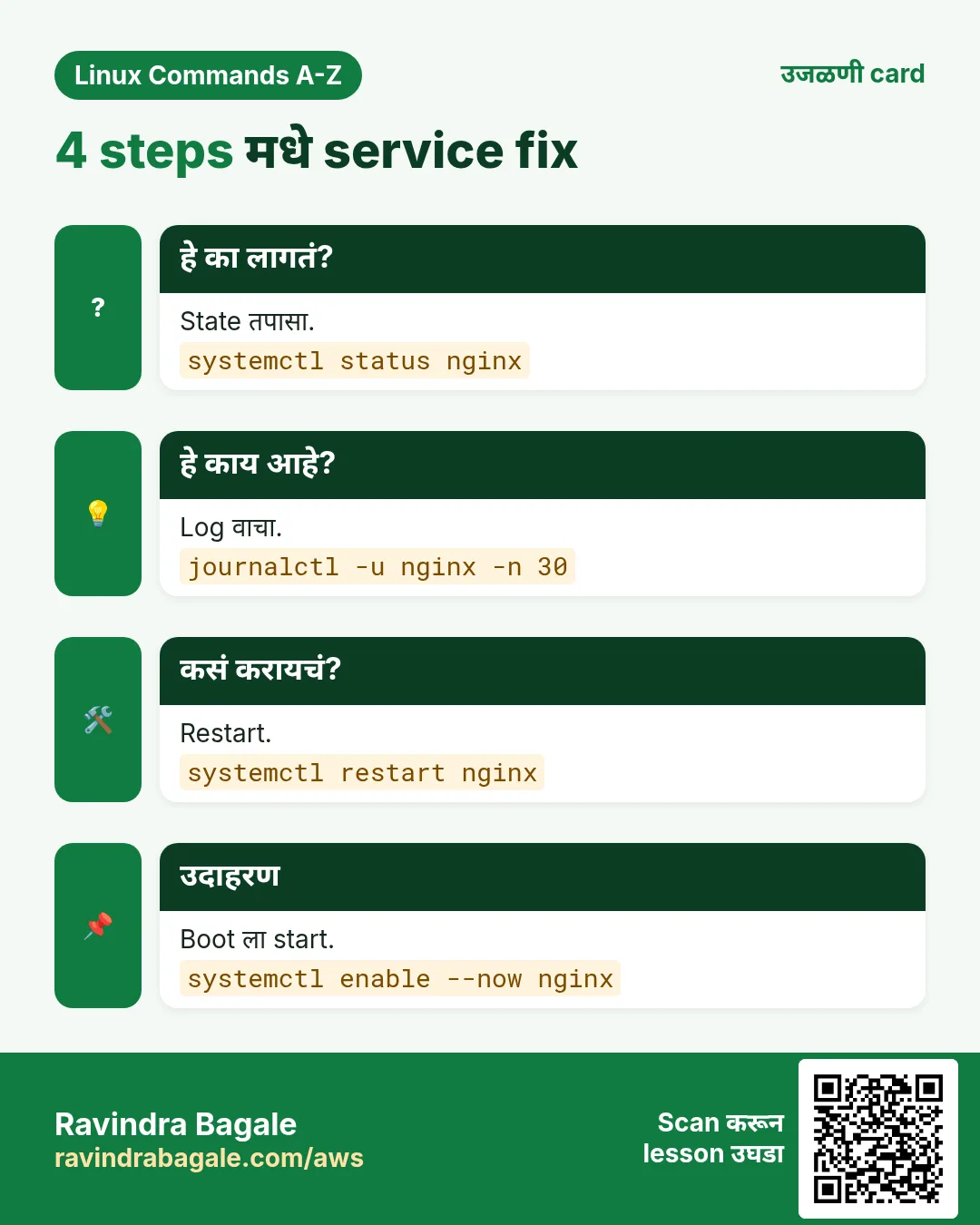
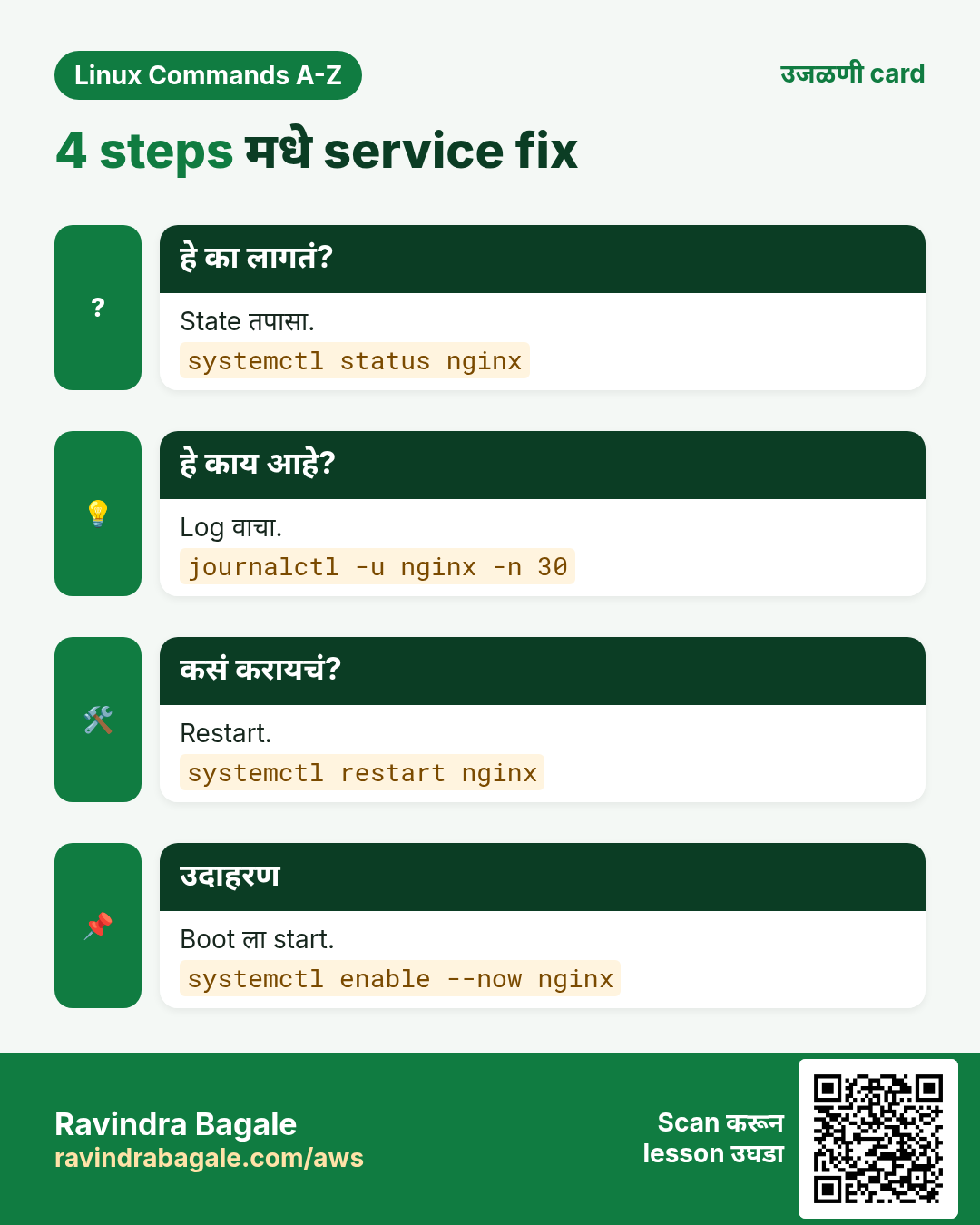
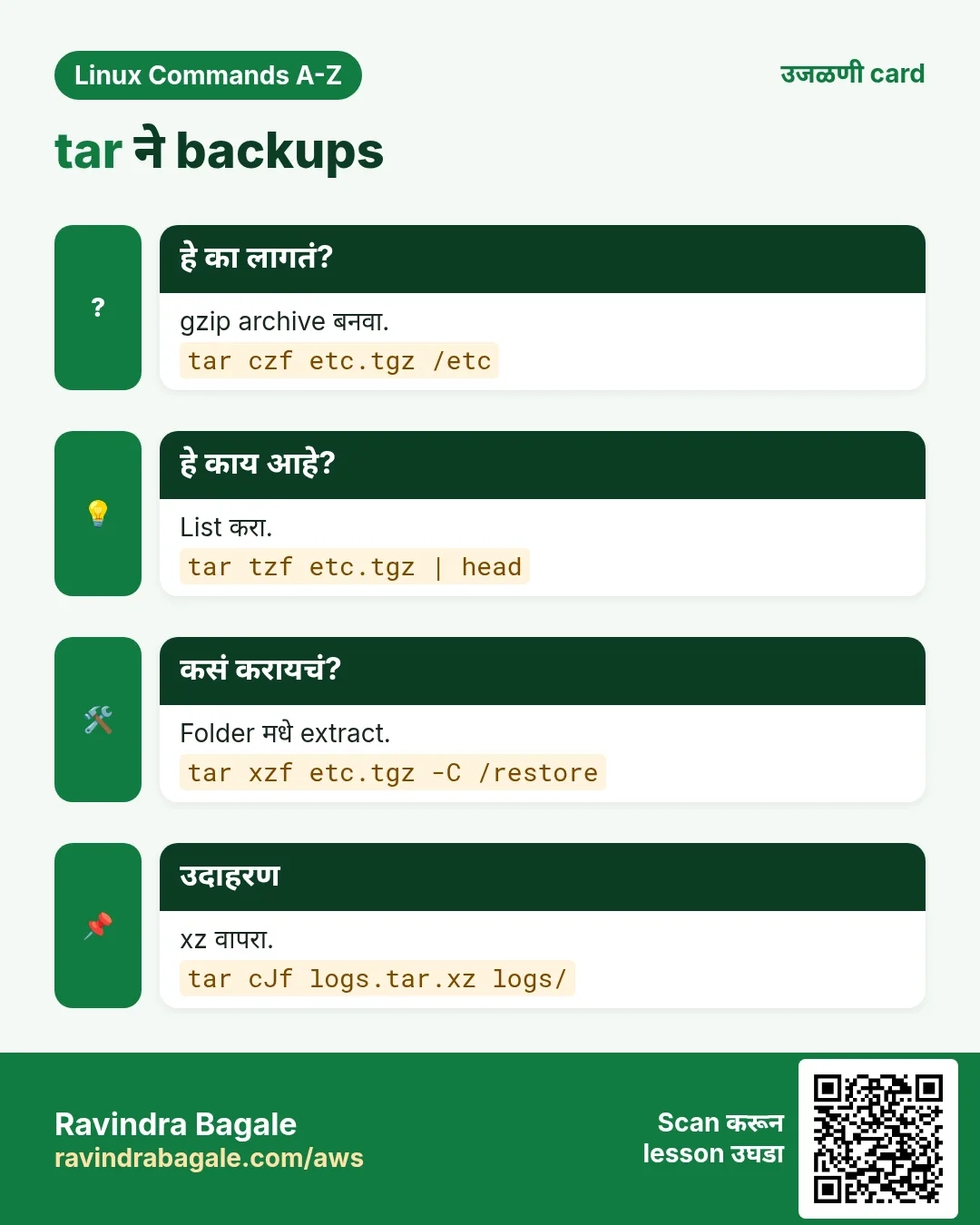
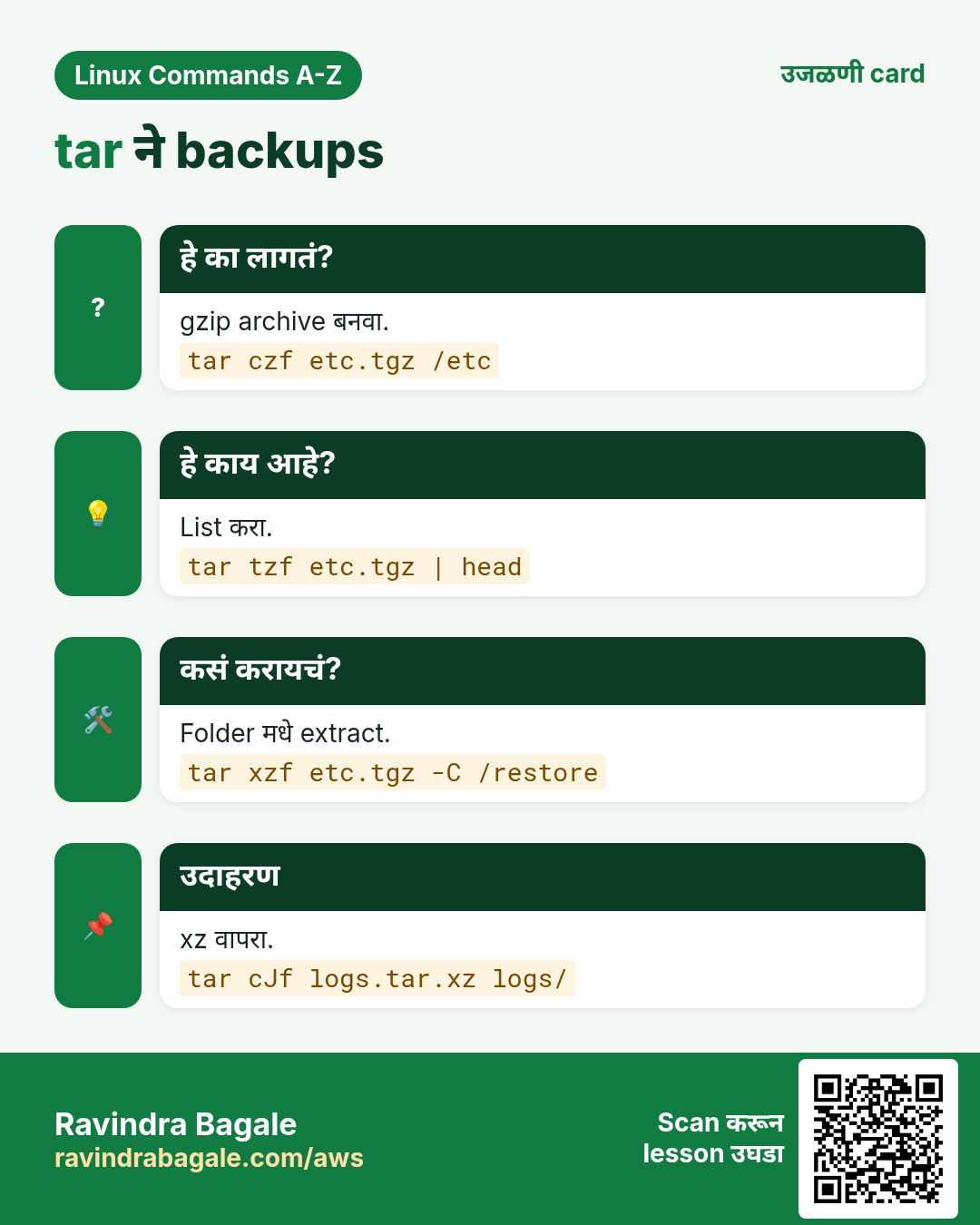
अजून cards: Ravi Sir's Cards.