Linux grep आणि find Commands उदाहरणांसह
Server वर हजारो files असतात, आणि log files मध्ये लाखो lines. त्या एकेक करून उघडता येत नाहीत. या chapter मध्ये प्रत्येक Linux admin आणि DevOps engineer रोज वापरतो त्या दोन commands शिकू: grep files च्या आतला text शोधतो, आणि find files स्वतः शोधतो. Practice आपण Linux server चे users ज्या files मध्ये असतात त्यावर करू, /etc/passwd आणि /etc/shadow, म्हणून आधी Linux users ना नंबर कसे देतो ते बघू.
या class मध्ये काय शिकणार
- Linux users चे प्रकार: root (UID 0), system users आणि normal users, आणि sudo user म्हणजे काय
/etc/passwdआणि/etc/shadow: प्रत्येक line चा अर्थ आणि त्या कोण वाचू शकतंgrep: file न उघडता त्यातला text शोधणं; vi मध्ये/,nआणिNने search- Pipe
|: एका command चा output पुढच्या command ला देणं - grep चे options
-i,-rआणि-n, आणि "Is a directory" message find: नावाने, wildcards ने, type ने आणि permission ने;sudoआणि Permission deniedfind | grepआणिwc -l, आणि-nameकधी जास्त चांगलं- Admins logs मध्ये grep का करतात: server वर कोणी login केलं
1. झटपट उजळणी: networking
का: grep आणि find servers वर बहुतेक logs मधून networking आणि access चे प्रश्न सोडवायला वापरतात: कोणता IP जोडला गेला, कोणता port fail झाला. त्या ओळी वाचायला basics ताजे हवेत.
Classroom line
As long as you're in DevOps or cloud, never forget networking and IP.
Class मधलं वाक्य
जोपर्यंत तुम्ही DevOps किंवा cloud field मध्ये आहात, networking आणि IP कधीच विसरू नका.
Classroom line – हिंदी
"Jab tak DevOps ya cloud ki field me ho, networking aur IP kabhi mat bhulna."
झटपट उजळणी
- Security group म्हणजे एका EC2 instance भोवतीचा firewall. फक्त port 80 उघडा असेल तर visitors तुमच्या app पर्यंत फक्त port 80 वरच्या web server मधूनच पोचतात.
- Private IP फक्त त्याच्या private network मध्ये (office, किंवा तुमचं VPC) चालतो. Internet वरून पोचायला server ला public IP लागतो.
- एका company मधलं private network म्हणजे intranet; internet जगभरातली networks जोडतं.
- Private ranges:
10.0.0.0/8,172.16.0.0/12आणि192.168.0.0/16. प्रत्येक IP मध्ये network part आणि host part असतो; subnet mask एक कुठे संपतो ते दाखवतो. 0.0.0.0म्हणजे "कोणताही address".127.0.0.1म्हणजे localhost, स्वतः machine (पूर्ण127.0.0.0/8range loopback आहे).
अजून हवं असेल तर वाचा: Cloud साठी Networking Basics: IP Address, Client आणि Server सोप्या भाषेत आणि Public vs Private IP Address सोप्या भाषेत.
2. Linux users चे प्रकार आणि UIDs
का: तुम्ही काय करू शकता हे Linux तुम्ही कोण आहात त्यावरून ठरवतो. प्रत्येक user ला एक नंबर असतो, UID (user ID), आणि Linux नाव नाही, तो नंबर तपासतो.
काय: users चे तीन प्रकार आहेत.
- root, UID 0. Superuser. तो सगळं वाचू, बदलू आणि delete करू शकतो.
- System users, UID 1 ते 999. Services चालवायला Linux आणि install केलेलं software त्यांना बनवतं, उदा.
sshdकिंवाnginx. बहुतेक login करू शकत नाहीत. - Normal users, UID 1000 आणि पुढे. हे म्हणजे माणसं. EC2 instance वरचा पहिला user (Amazon Linux वर
ec2-user, Ubuntu वरubuntu) 1000 असतो; तुम्ही बनवलेल्या पुढच्या user ला 1001 मिळतो.
sudo user हा चौथा प्रकार नाही. तो root म्हणून commands चालवायची परवानगी असलेला normal user आहे, Amazon Linux वर wheel group मधून, Ubuntu वर sudo group मधून.
Classroom line
(Root to a sudo user) Do your work yourself, don't come to me.
Class मधलं वाक्य
(Root sudo user ला) तुझं काम तू कर, माझ्याकडे येऊ नकोस.
Classroom line – हिंदी
"Karle bhai tera kaam, mere paas mat aa."
कसं: स्वतःचा user तपासा.
idचालवा.uid=1000(ec2-user)वाचा: तुमचा UID आणि नाव.groups=...वाचा:wheel(Ubuntu वरsudo) म्हणजे तुम्ही sudo वापरू शकता.sudo idचालवा. आता तेuid=0(root)दाखवतं, कारण sudo command root म्हणून चालवतो.
Figure 1. UID नुसार Linux users: root 0, system users 1 ते 999, normal users 1000 पासून. sudo user म्हणजे root म्हणून काम करू शकणारा normal user.
3. /etc/passwd आणि /etc/shadow
का: Server वर कोणते users आहेत, त्यांचा UID, home folder किंवा shell काय आहे हे जाणून घ्यायचं असेल तर ते सगळं एकाच file मध्ये आहे.
काय:
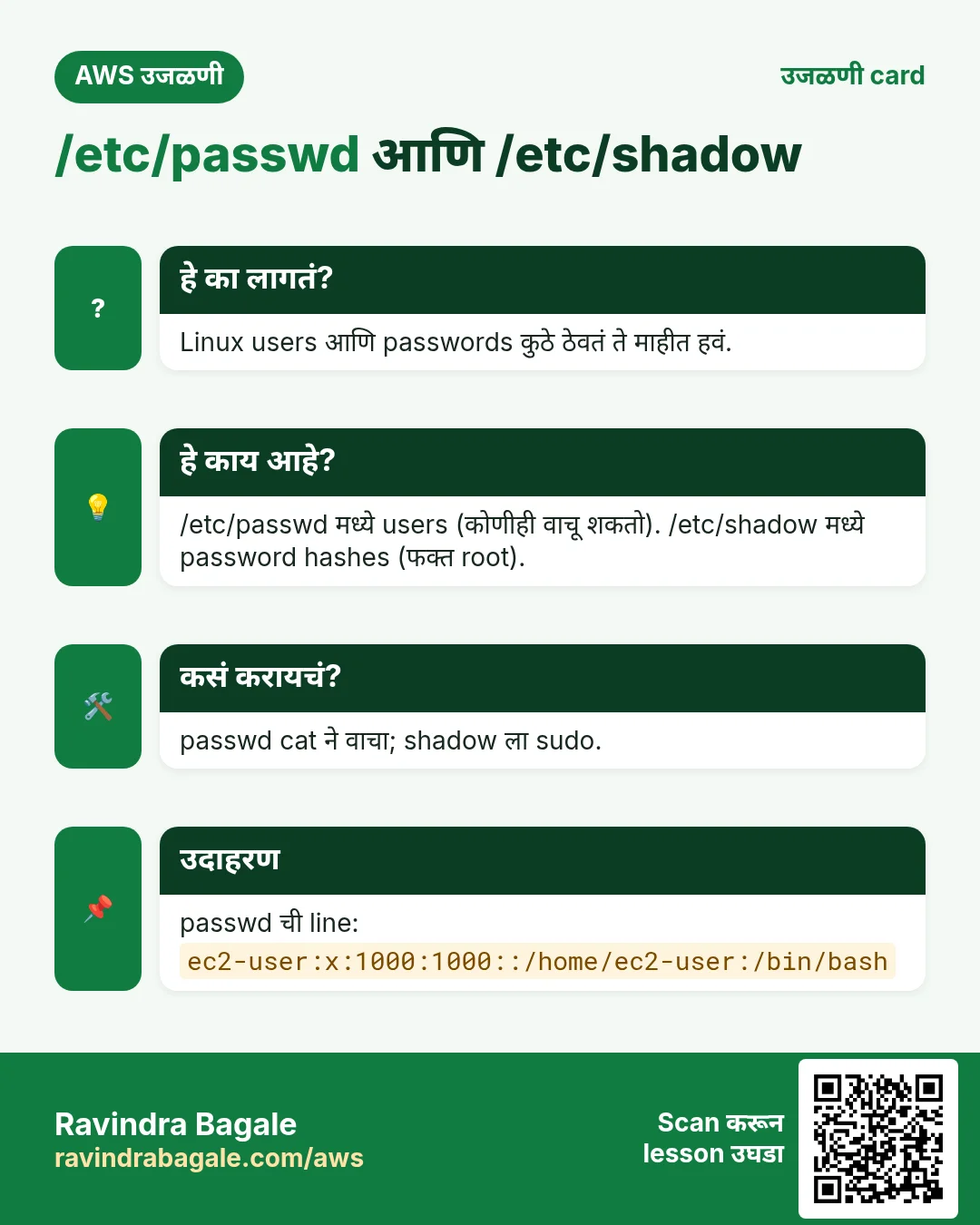
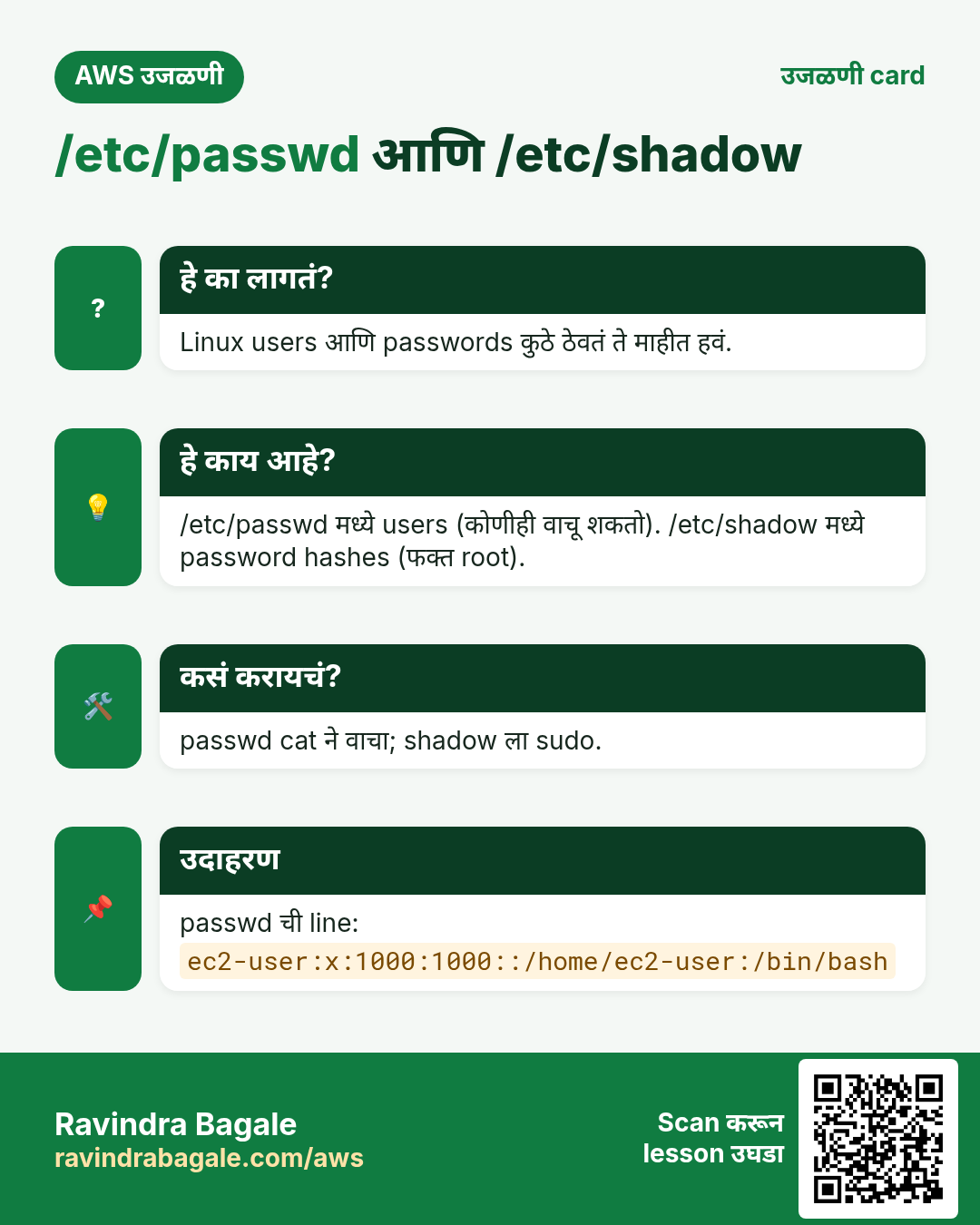
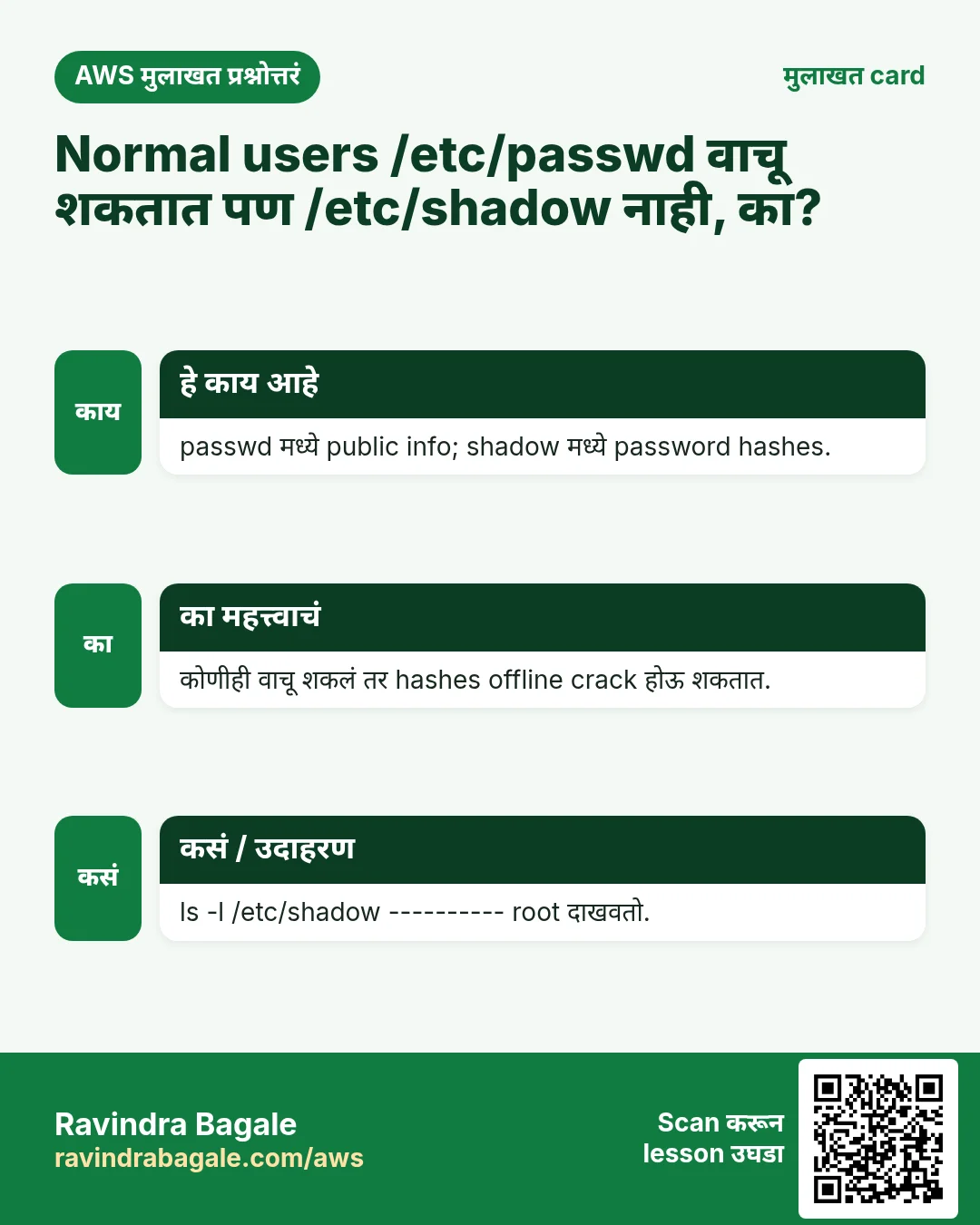
/etc/passwdम्हणजे users ची list. एक line = एक user. ती सगळे वाचू शकतात./etc/shadowमध्ये password hashes असतात. ती फक्त root वाचू शकतो.- Hash परत password मध्ये बदलता येत नाही. विसरलेला password कधी "परत वाचला" जात नाही; तो
sudo passwd USERNAMEने reset केला जातो.
/etc/passwd च्या line मध्ये : ने वेगळे केलेले सात fields असतात
ec2-user:x:1000:1000:EC2 Default User:/home/ec2-user:/bin/bash
ec2-user: user name.x: password/etc/shadowमध्ये ठेवलेला आहे.1000: UID.1000: group ID.EC2 Default User: comment./home/ec2-user: home folder./bin/bash: login shell. इथे/sbin/nologinम्हणजे account login करू शकत नाही, system users साठी हे नेहमीचं आहे.
कसं:
cat /etc/passwdचालवा. सगळे users दिसतात.cat /etc/shadowचालवा.Permission deniedमिळतं: normal user ती वाचू शकत नाही.sudo cat /etc/shadowचालवा. Root म्हणून ते चालतं.
Figure 2. /etc/passwd ची एक line: user name, x, UID, group ID, comment, home folder आणि shell. /etc/shadow मध्ये password hashes, ती फक्त root वाचू शकतो.
4. grep: file न उघडता text शोधा
का: एका log file मध्ये लाखो lines असू शकतात. ती editor मध्ये उघडणं slow असतं, terminal अडकू पण शकतो, आणि एक error शोधत वर scroll करत बसणं म्हणजे वेळ वाया.
Classroom line
(Scrolling up a giant log looking for the error) Go up, where is it, go up... That's why we use grep.
Class मधलं वाक्य
(मोठ्या log मध्ये error शोधत वर scroll करताना) चला वर, कुठे आहे, चला वर... म्हणूनच आपण grep वापरतो.
Classroom line – हिंदी
"Chalo upar, kidhar hai, chalo upar..."
काय: grep file मध्ये एक शब्द (pattern) शोधतो आणि फक्त तो शब्द असलेल्या lines print करतो. File editor मध्ये कधी उघडलीच जात नाही.
Classroom line
It's grep, not grapes!
Class मधलं वाक्य
Grep, द्राक्षं नाही!
Classroom line – हिंदी
"Grep, angoor nahi!"
Classroom line
This is also an interview question: how do you find a pattern without opening the file?
Class मधलं वाक्य
हा पण interview चा प्रश्न आहे: file न उघडता pattern कसा शोधायचा?
Classroom line – हिंदी
"Ye bhi ek interview ka sawal hai. Bina file open kiye pattern kaise find karunga?"
कसं: practice file बनवा, ती vi मध्ये search करा, मग grep ने.
- SSH ने तुमच्या EC2 instance ला connect व्हा.
vi demoचालवा (vim demoपण तसंच चालतं).iदाबा आणि Linux बद्दलच्या काही lines paste करा.Escदाबा,:wqtype करा आणि Enter दाबा.vi demoने परत उघडा./Linuxtype करून Enter दाबा. Cursor पहिल्या match वर जातो.- पुढच्या match साठी
nआणि मागच्या साठीNदाबा. - Editor मधून बाहेर पडायला
:qtype करा. - आता
grep "Linux" demoचालवा. फक्त Linux असलेल्या lines print होतात, आणि तो शब्द highlight होतो.

Whiteboard: grep "Linux" demo फक्त Linux असलेल्या lines print करतो, शब्द highlight करून.
आणखी उदाहरणं:
grep ec2-user /etc/passwdतुमची स्वतःची user line print करतो.grep nologin /etc/passwdlogin न करू शकणारी accounts दाखवतो.sudo grep -i "error" /var/log/httpd/error_logApache log मधले errors दाखवतो (Amazon Linux वर).
Classroom line
As a DevOps engineer, reading logs is your job.
Class मधलं वाक्य
DevOps engineer म्हणून logs वाचणं हे तुमचं काम आहे.
Classroom line – हिंदी
"As a DevOps engineer aapka kaam hota hai logs padhna."
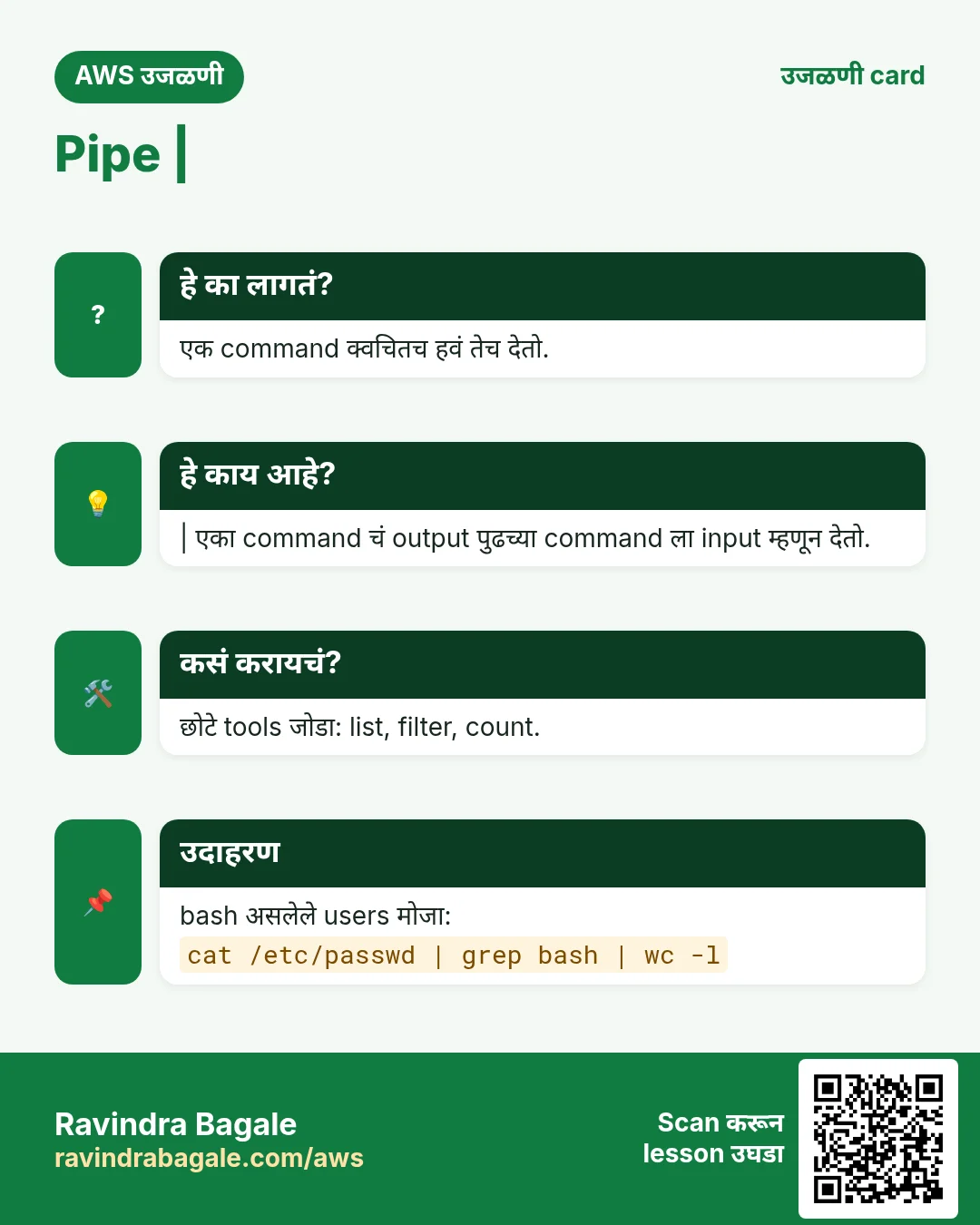
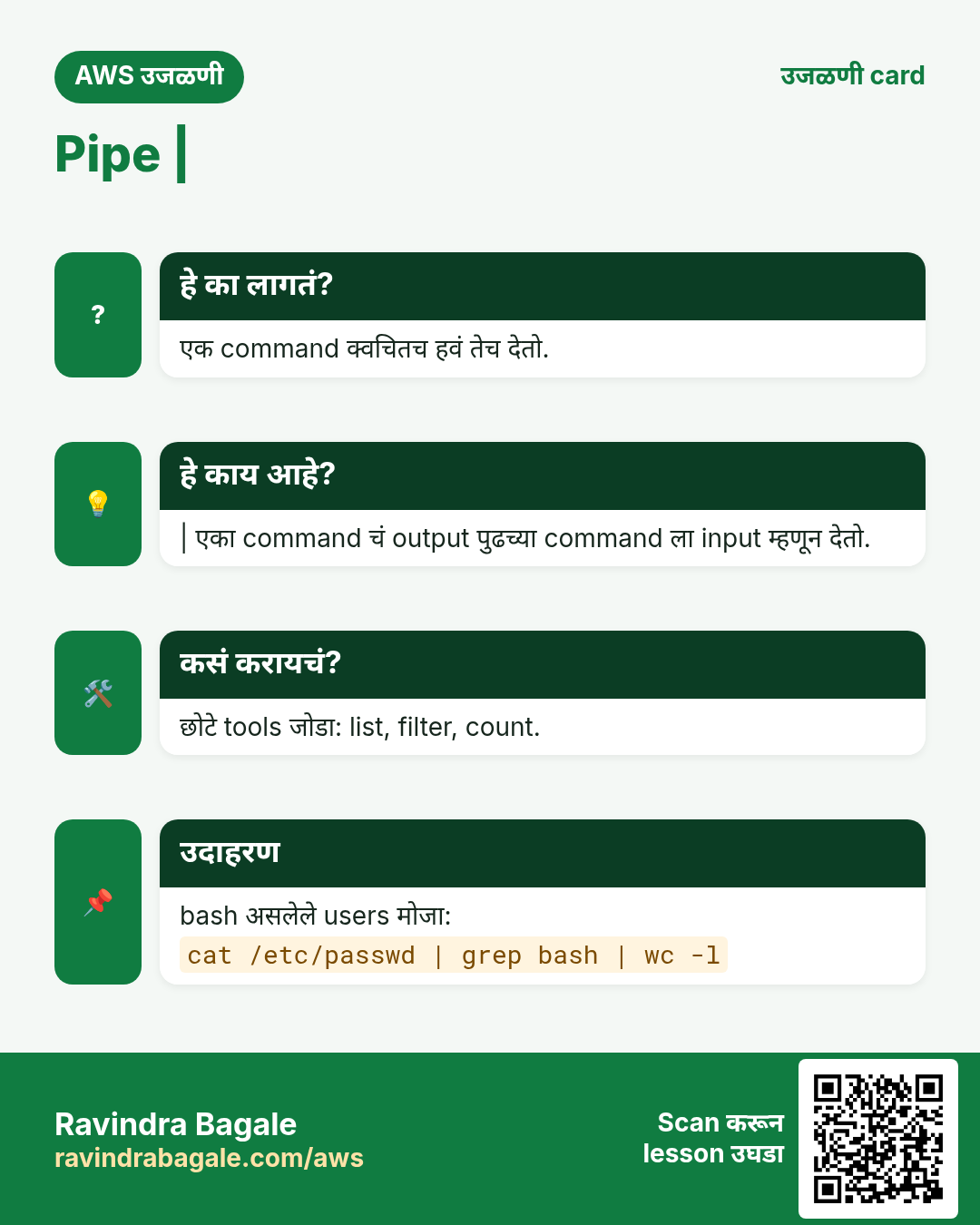
5. Pipe: एका command चा output पुढच्या command ला
का: काही commands खूप print करतात. ते सगळं वाचण्याऐवजी तुम्ही ते थेट grep ला देऊ शकता आणि हवं तेवढंच ठेवू शकता.
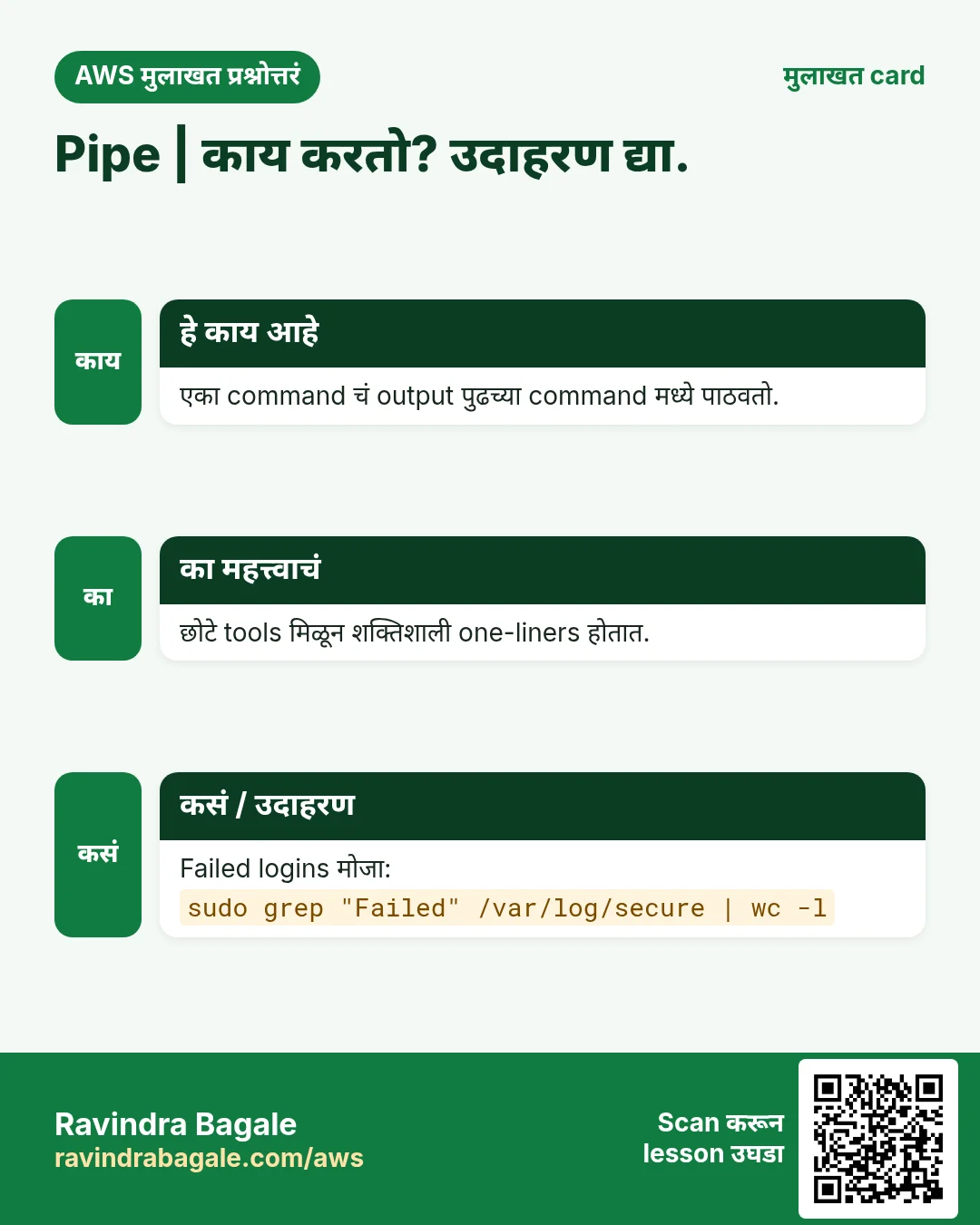
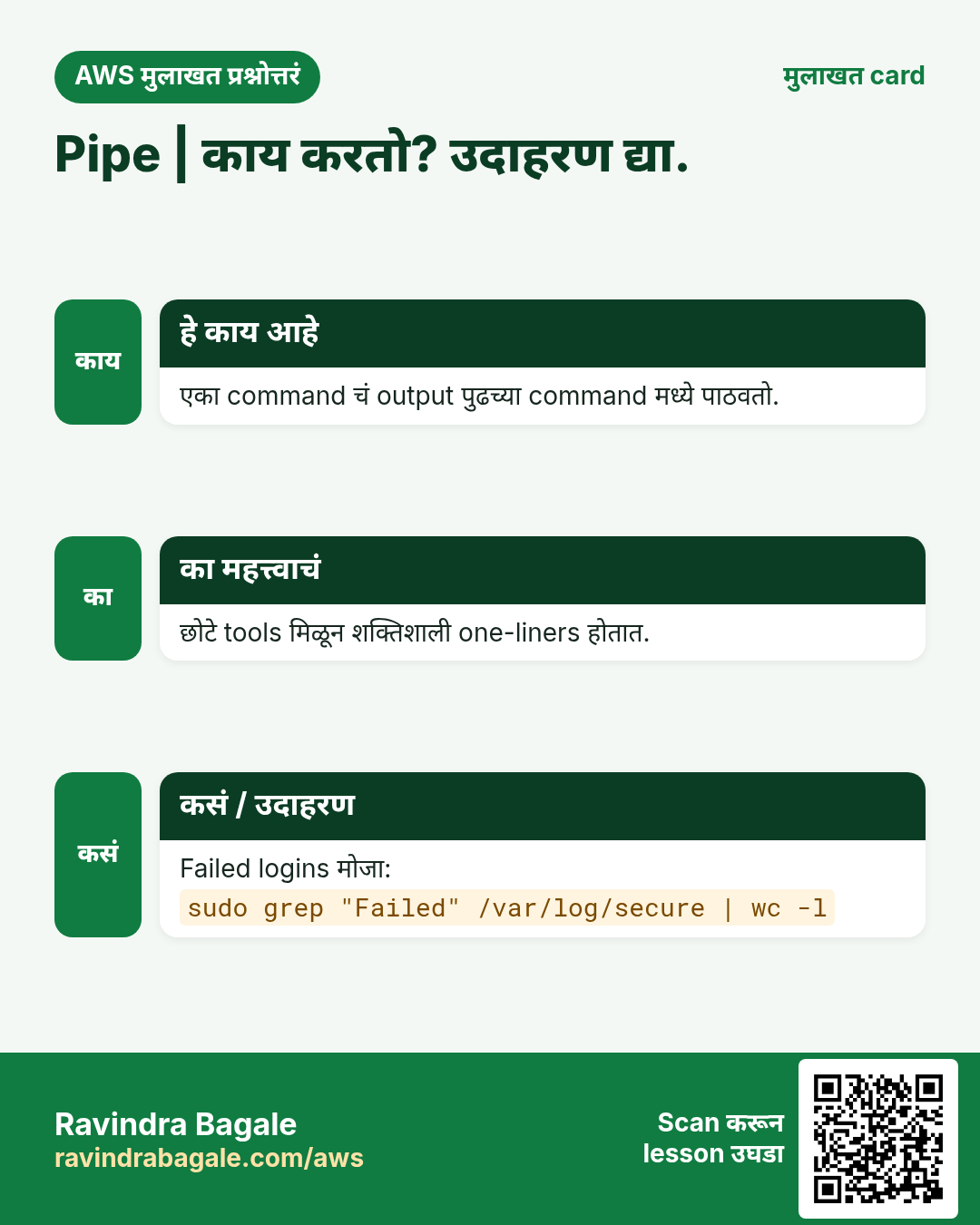
काय: Pipe चिन्ह | डावीकडची command जे print करते ते सगळं उजवीकडच्या command ला input म्हणून देतं.
कसं:
cat /etc/passwdचालवा. प्रत्येक user line स्क्रीनवरून जाते.cat /etc/passwd | grep ec2-userचालवा. फक्त तुमची line उरते.grep ec2-user /etc/passwdचालवा. तोच result: grep file स्वतः पण वाचू शकतो.ls /etc | grep confचालवा./etcमधली फक्तconfअसलेली नावं.
Classroom line
I'll put this into a pipe, and put grep after it.
Class मधलं वाक्य
हे मी pipe मध्ये टाकेन, आणि त्याच्या पुढे grep टाकेन.
Classroom line – हिंदी
"Isko main pipe mein daal dunga, uske andar grep daal dunga."
Figure 3. Animation: cat /etc/passwd प्रत्येक line print करतो, pipe त्या lines grep ला देतो, आणि grep फक्त ec2-user असलेली line ठेवतो.
6. grep options: -i, -r आणि -n
का: नेमकं spelling, किंवा कोणत्या file मध्ये शब्द आहे, हे नेहमी माहिती नसतं.
Classroom line
I don't know which file has the word, but I want to find it. How?
Class मधलं वाक्य
"Kuthlya file madhe to word ahe mala mahiti nahi, pan mala baghaycha ahe, mag mi kasa baghnar?"
कुठल्या file मध्ये तो word आहे मला माहिती नाही, पण मला बघायचा आहे, मग मी कसा बघणार?
Classroom line
I don't know which file has the word, but I want to find it. How?
काय:
- Case महत्त्वाचा. grep साठी
Linuxआणिlinuxवेगवेगळे शब्द आहेत. -icase ignore करतो:Linux,linuxआणिLINUXसगळे match होतात.-r(recursive) folder मधली प्रत्येक file आणि त्याच्या आतल्या folders मधल्या files शोधतो.-nप्रत्येक match च्या आधी line number लावतो.- Options जोडता येतात:
-irn= case ignore + recursive + line numbers.
Classroom line
In Linux, everything is case-sensitive.
Class मधलं वाक्य
Linux मध्ये प्रत्येक गोष्ट case-sensitive असते.
Classroom line – हिंदी
"Linux me har ek cheez case sensitive hai."
कसं:
grep -r "Linux" ~/तुमच्या home folder मधली प्रत्येक file शोधतो. प्रत्येक line file च्या नावाने सुरू होते.grep -r "linux" ~/वेगळ्या lines शोधतो: case महत्त्वाचा.grep -i "linux" ~/Is a directoryम्हणून थांबतो: grep files वाचतो, आणि folder म्हणजे file नाही.grep -ir "linux" ~/चालतो:-rमुळे grep folder मध्ये जातो.grep -irn "linux" ~/line numbers पण दाखवतो,file:line:textअसे.man grepपूर्ण manual उघडतो (बाहेर पडायलाq).grep --helpoptions ची छोटी list print करतो.
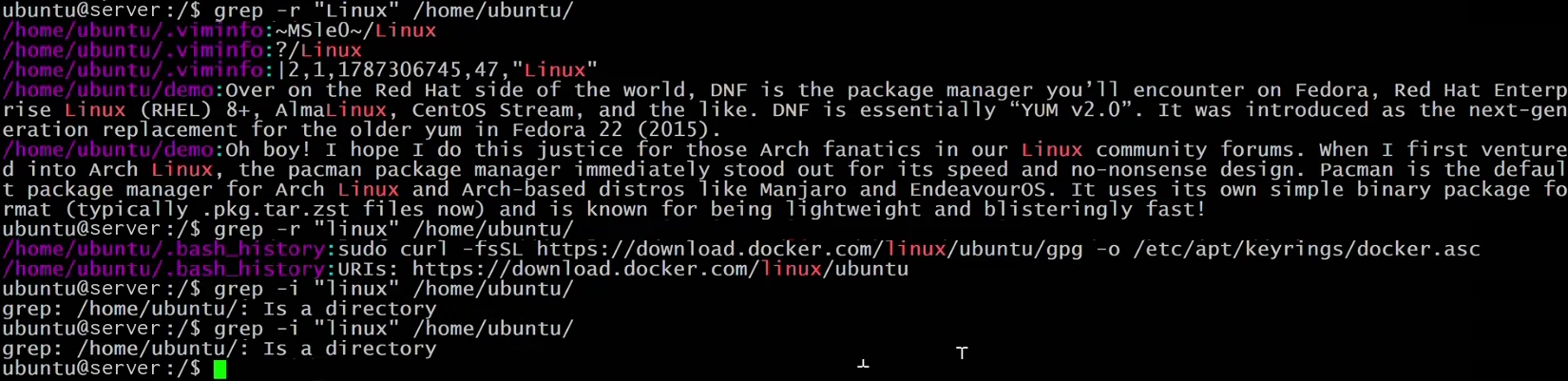
Whiteboard: grep -r folder मधली प्रत्येक file शोधतो; "Linux" आणि "linux" वेगवेगळ्या lines शोधतात; -r शिवाय folder वर grep केलं तर Is a directory.

Whiteboard: grep -irn: case ignore, folder मधली प्रत्येक file, आणि प्रत्येक file नावानंतर line number.
Classroom line
The best way: make a mistake, read the error, understand it, and try again.
Class मधलं वाक्य
सगळ्यात चांगला मार्ग: चूक करा, error येईल, तो समजून घ्या, आणि परत try करा.
Classroom line – हिंदी
"Sabse best way hai, galti karo, error aayega, usko samjho, fir se try karo."
Figure 4. grep options: default नेमका case, case ignore साठी -i, पूर्ण folder साठी -r, line numbers साठी -n. -r शिवाय folder वर grep केलं तर Is a directory.
Listing ची अजून एक युक्ती: ls -R एक folder आणि त्याच्या आतला प्रत्येक folder tree सारखा list करतो. ls -R ~/ करून बघा.
7. find: file स्वतः शोधा
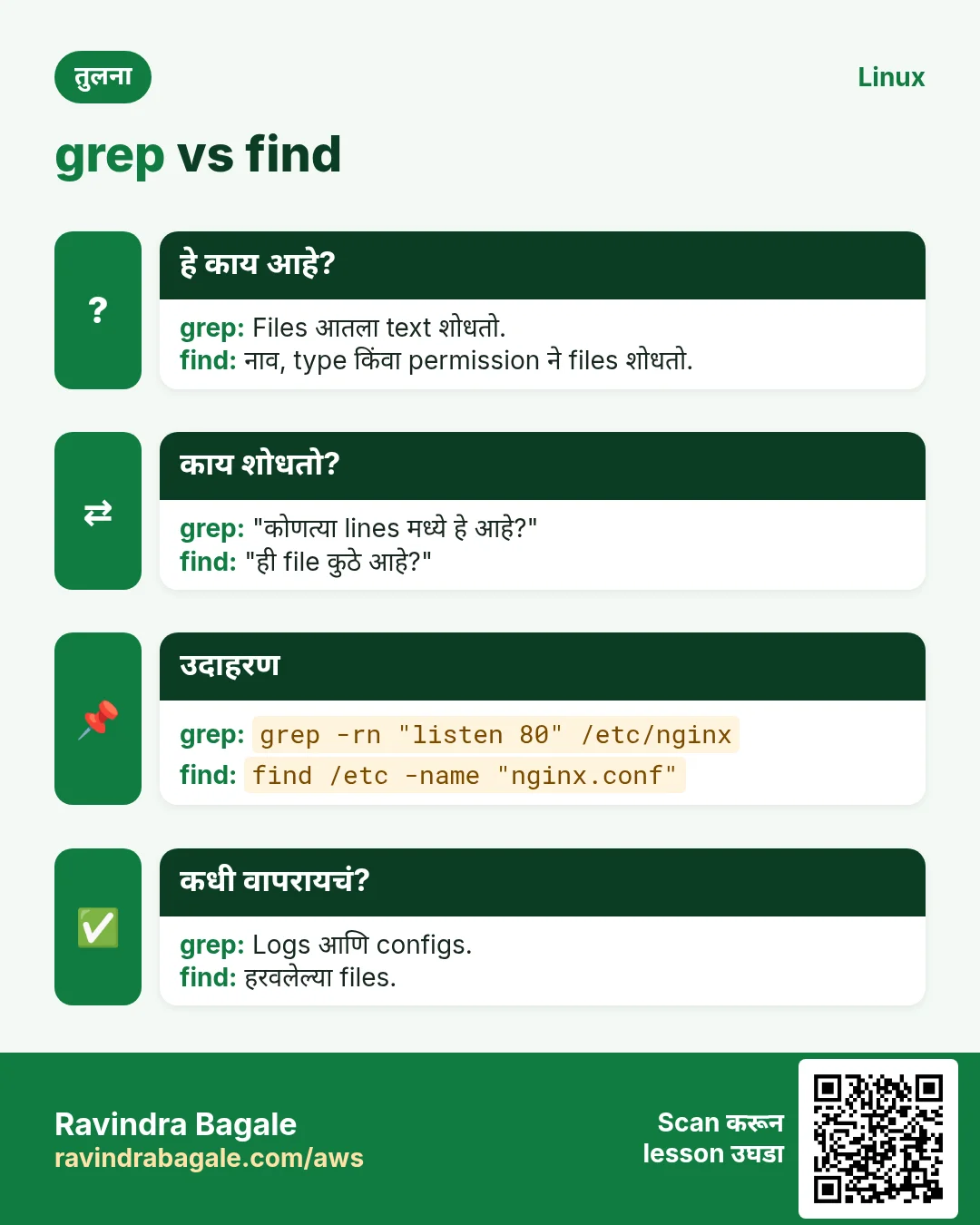
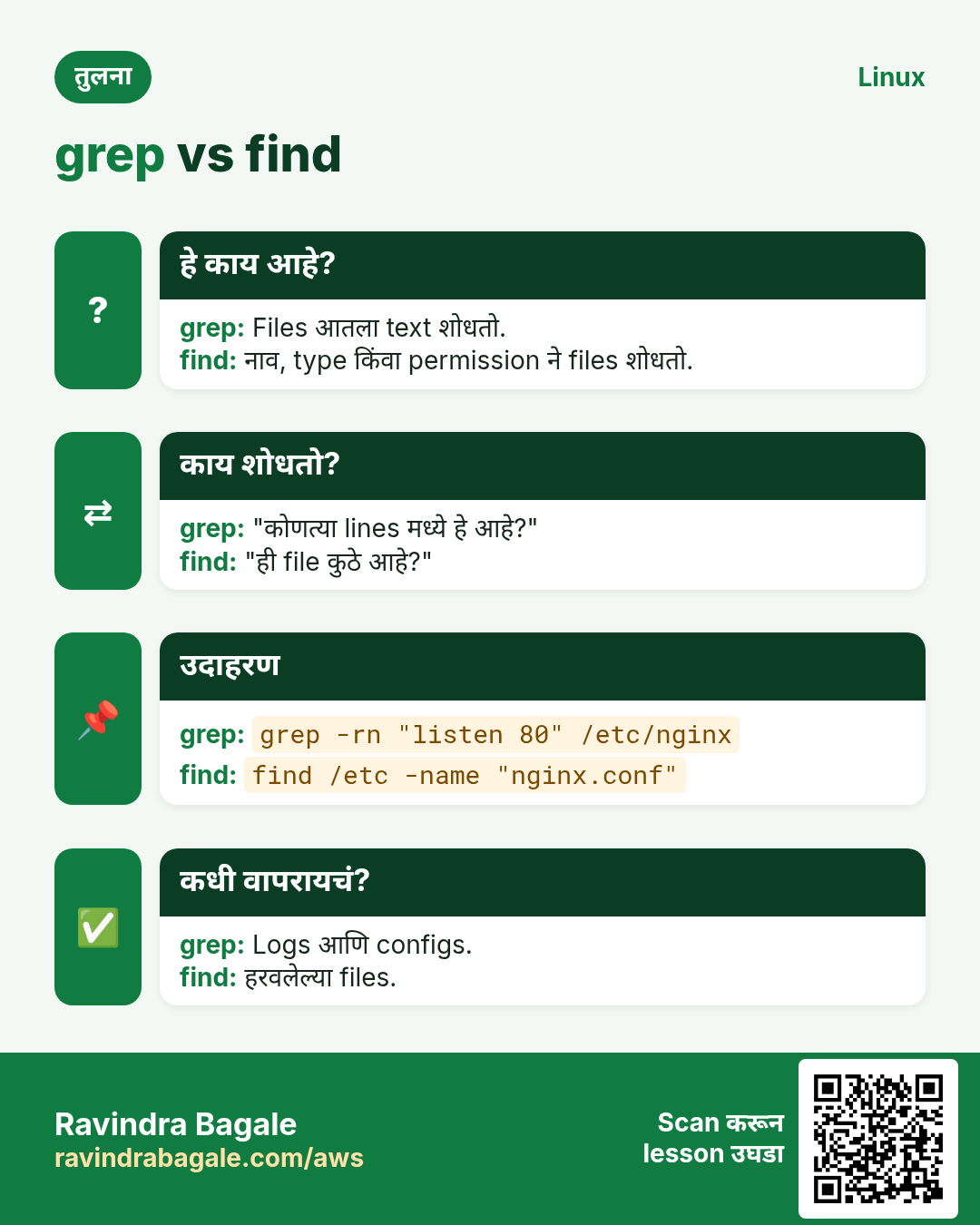
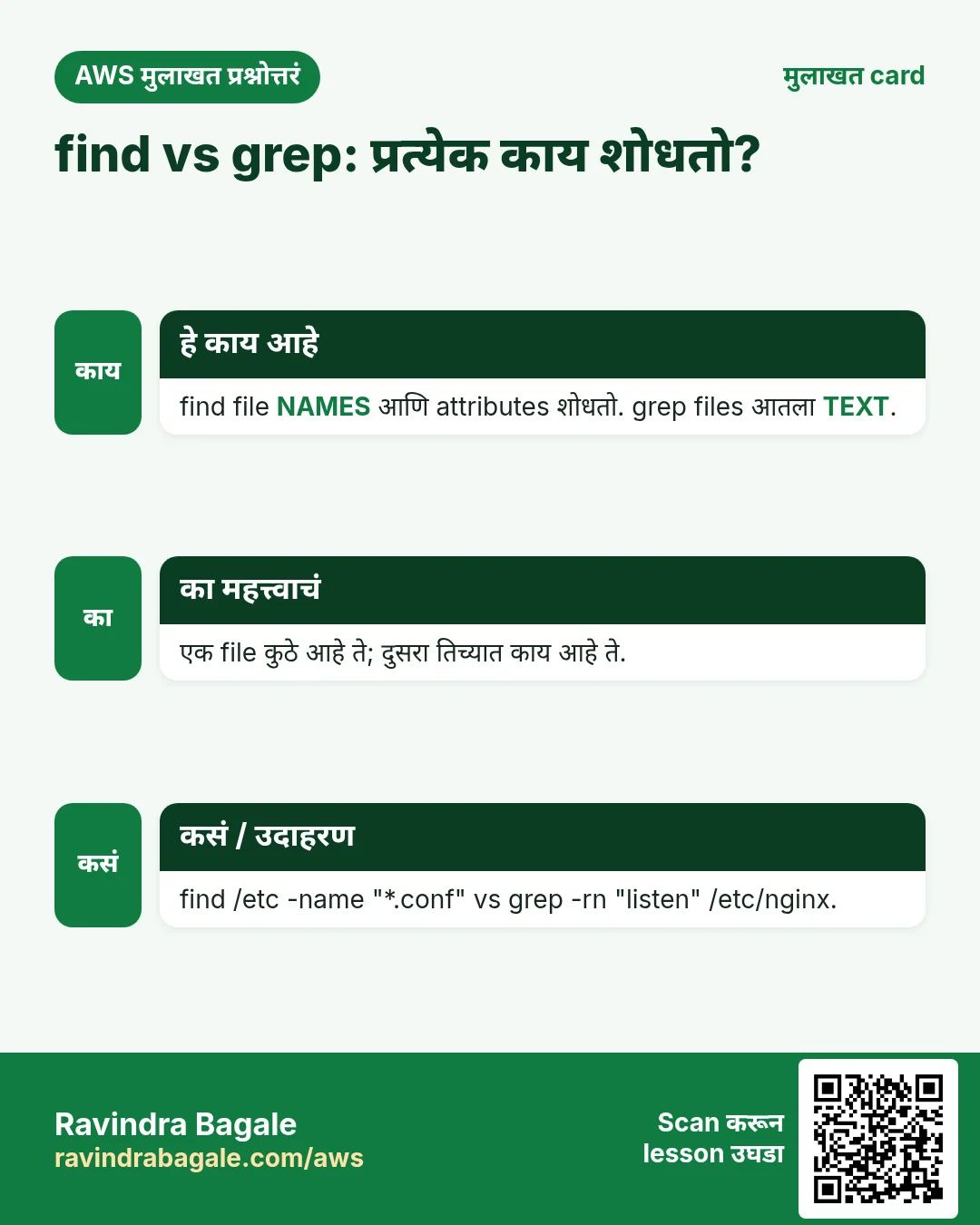
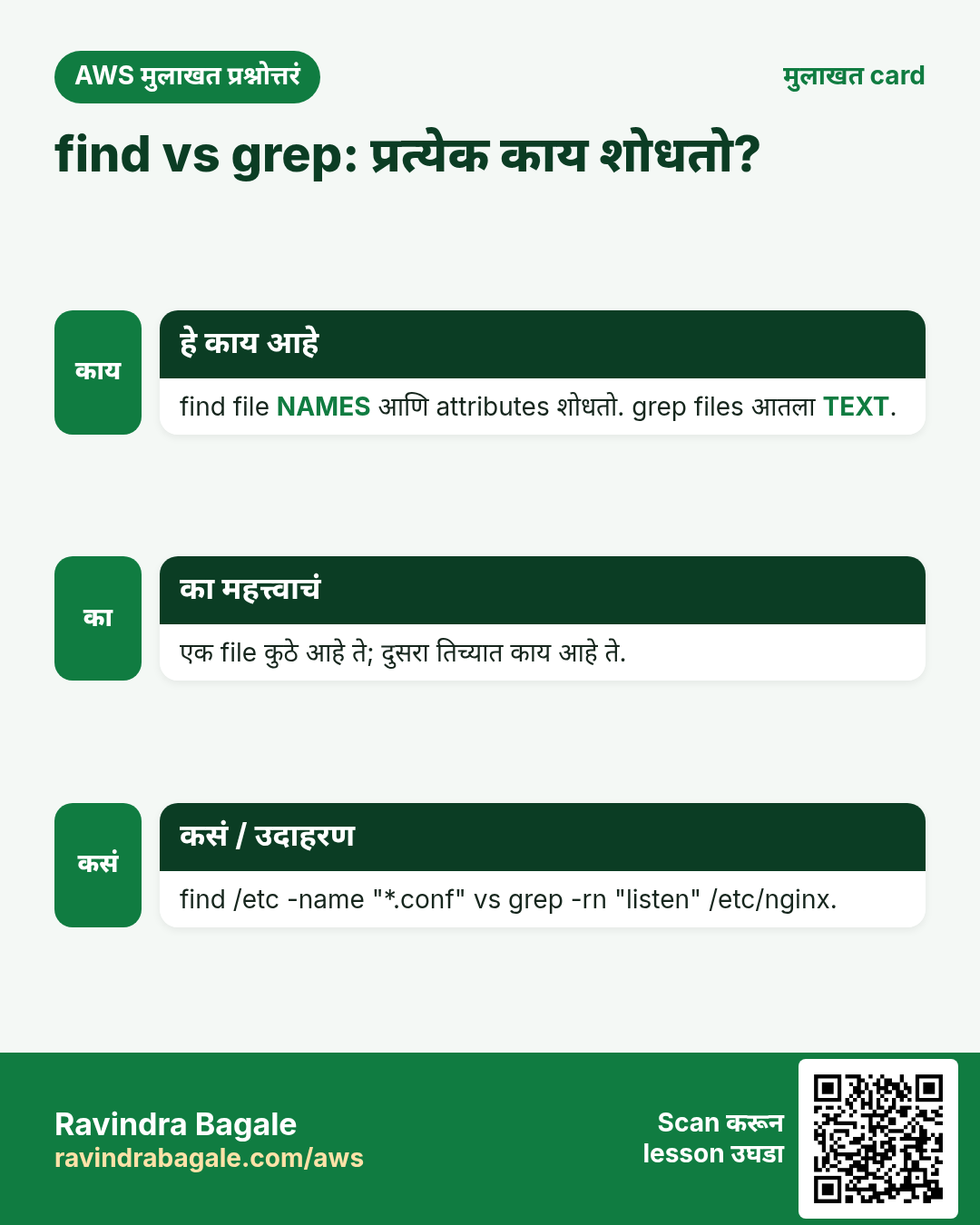
का: grep ला कुठे बघायचं ते माहिती असावं लागतं. File कुठे आहे हेच माहिती नसेल तर find लागतो.
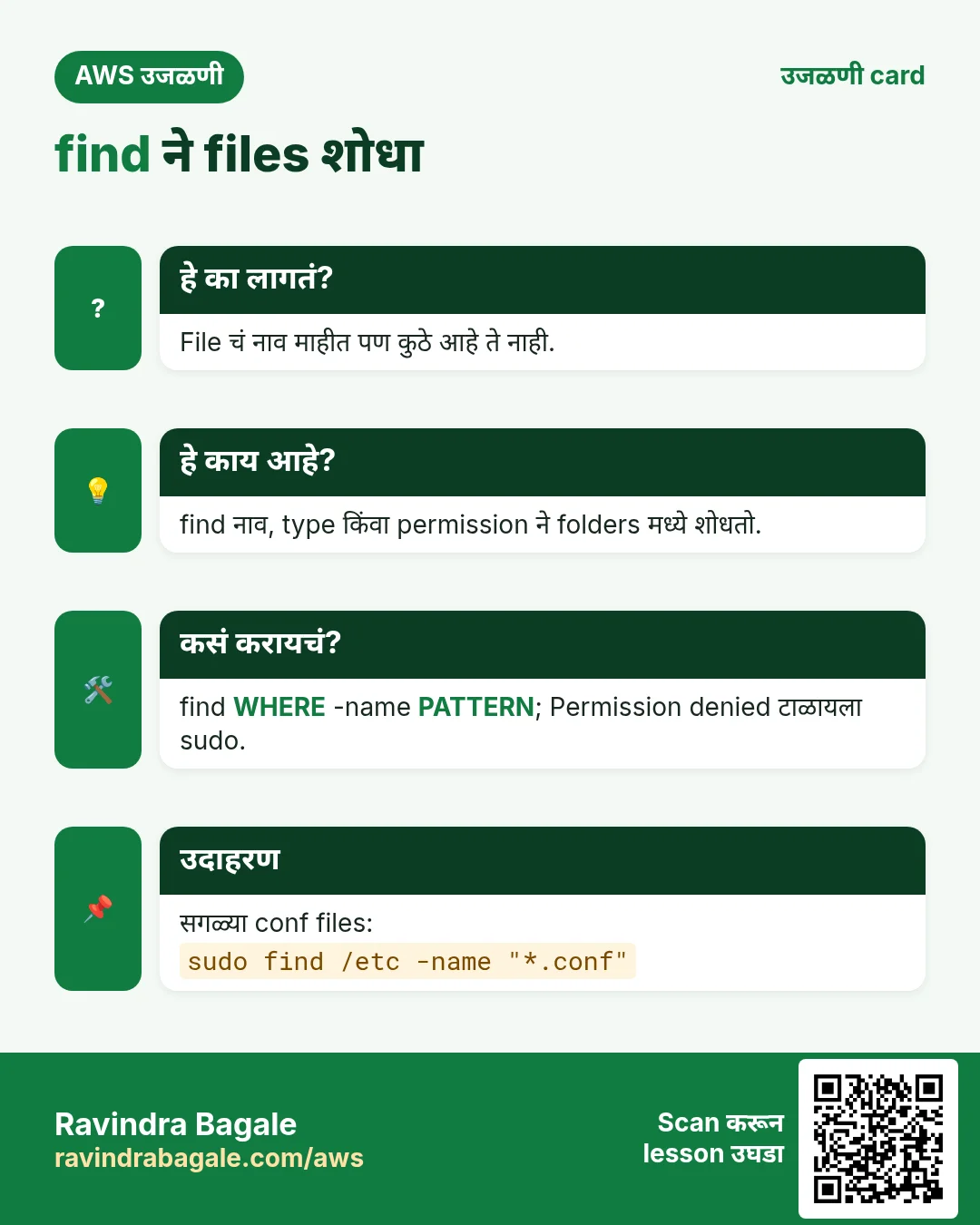
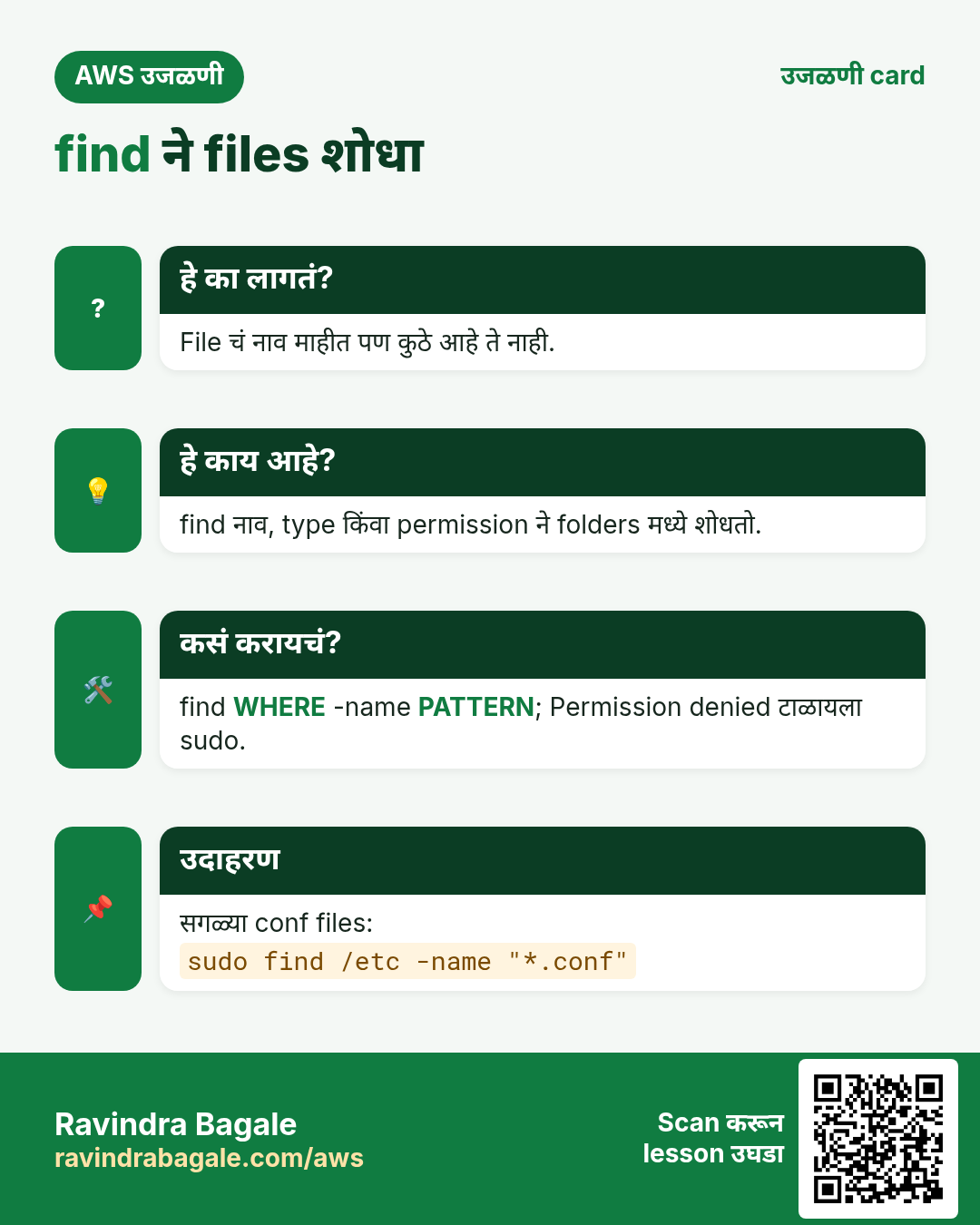
काय: find एका folder मधून आणि त्याखालच्या प्रत्येक folder मधून फिरतो आणि प्रत्येक match चा path print करतो.
find WHERE -type f|d|l -name "NAME"
- WHERE: कुठून सुरू करायचं तो folder:
.(इथे),~/,/homeकिंवा/(पूर्ण server). find ला नेहमी starting folder लागतो; तो pipe मधून list वाचत नाही. -type f= files,-type d= folders (directories),-type l= links.-name "NAME": नेमकं नाव.*हे wildcard:"*.log"=.logने संपणारं प्रत्येक नाव.-perm 644: नेमकी ती permission असलेल्या files.
Classroom line
It goes into every file and searches.
Class मधलं वाक्य
तो प्रत्येक file मध्ये जाऊन शोधतो आहे.
Classroom line – हिंदी
"Har ek file ke andar jake search kar raha hai."
कसं:
find . -name "demo"सध्याच्या folder मध्ये आणि खालीdemoशोधतो.find /home -name "demo"/homeपासून सुरू करतो.find . -name "*.log"इथल्या आणि खालच्या सगळ्या.logfiles list करतो.find / -name "passwd"पूर्ण server वरून, normal user म्हणून, न वाचता येणाऱ्या folders साठीPermission deniedlines चा पूर येतो.sudo find / -name "passwd"प्रत्येक folder वाचतो आणि प्रत्येक match list करतो.find / -name "passwd" 2>/dev/nullहा दुसरा मार्ग: तो error lines लपवतो आणि results ठेवतो.sudo find / -type f -name "passwd"फक्त files list करतो;passwdनावाचा folder सोडला जातो.sudo find / -type d -name "nginx"फक्त folders list करतो.sudo find /var/www -perm 644permission 644 असलेल्या files list करतो.
नावाआधी -name विसरलात तर find paths must precede expression म्हणून थांबतो. -name जोडा आणि परत चालवा.
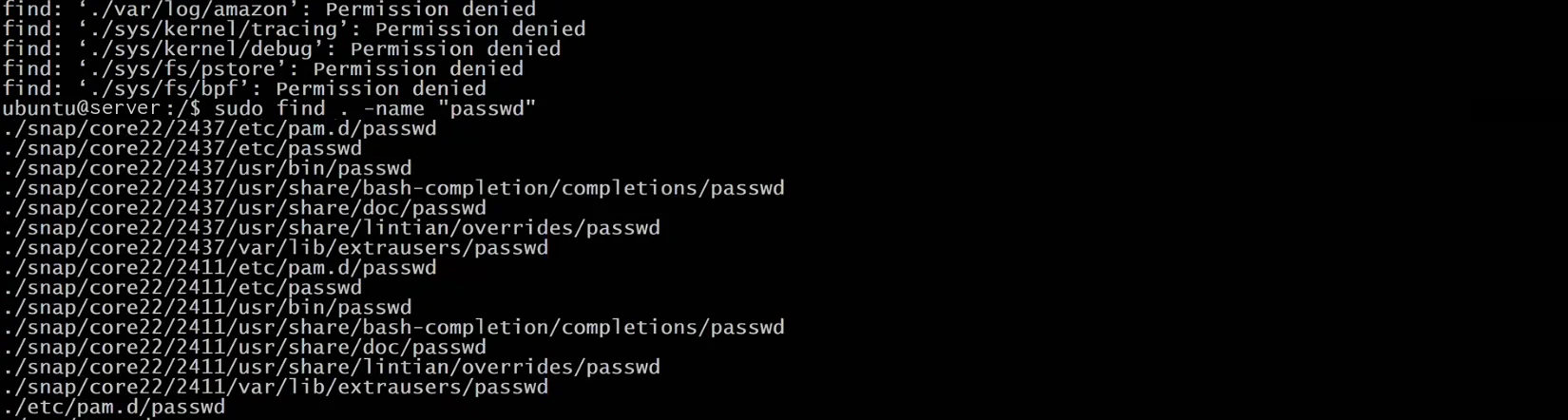
Whiteboard: sudo शिवाय, find न वाचता येणाऱ्या folders साठी Permission denied दाखवतो. sudo सह तो प्रत्येक passwd file पूर्ण path सह list करतो.
Figure 5. sudo find / -type f -name "passwd" डावीकडून उजवीकडे वाचा, wildcards, folders आणि permissions ची आणखी उदाहरणं.
Figure 6. Animation: find starting point पासून प्रत्येक folder उघडतो. sudo शिवाय काही folders Permission denied दाखवतात; sudo सह प्रत्येक match list होतो.
8. find | grep, आणि wc -l ने मोजणं
का: कधी तुम्हाला ज्यांच्या path मध्ये कुठेही एक शब्द आहे असे सगळे paths हवे असतात, किंवा फक्त ते किती आहेत ते जाणून घ्यायचं असतं.
काय:
findपूर्ण paths print करतो. मगgrepतो शब्द असलेल्या lines (paths) ठेवतो.- grep शब्द path मध्ये कुठेही match करतो, folder names सुद्धा.
wc -llines मोजतो.
कसं:
sudo find / -type f | grep "passwd"ज्यांच्या path मध्ये passwd आहे अशी प्रत्येक file list करतो.- नीट बघा:
/usr/share/doc/passwd/copyrightसारखी file फक्त तिच्या path मधल्या एका folder चं नाव passwd असल्यामुळे list होते. - ज्यांच्या स्वतःच्या नावात passwd आहे त्या files साठी फक्त find वापरा:
sudo find / -type f -name "*passwd*". - मोजायला
| wc -lजोडा:sudo find / -type f -name "*passwd*" | wc -l.
Figure 7. find | grep शब्द path मध्ये कुठेही match करतो; find -name फक्त file चं नाव match करतो. मोजायला | wc -l जोडा.
9. Admins logs मध्ये grep का करतात
का: Logs म्हणजे server ची डायरी. Site बंद पडली किंवा कोणी घुसायचा प्रयत्न केला, की grep लाखो ओळींमधून महत्त्वाच्या पाच ओळी काढतो.
स्वतःच्या servers वर (on-premises, company च्या data centre मध्ये) किंवा EC2 वर, कोणीतरी "काल रात्री कोणी login केलं?" आणि "कोणी आत घुसायचा प्रयत्न केला का?" अशा प्रश्नांची उत्तरं द्यावी लागतात. उत्तरं log files मध्ये असतात, आणि grep ती काही seconds मध्ये शोधतो.
- Amazon Linux वर:
sudo journalctl -u sshd | grep "Accepted"यशस्वी SSH logins दाखवतो. sudo journalctl -u sshd | grep -E "Failed|Invalid"fail झालेले प्रयत्न दाखवतो.- Ubuntu वर याच lines
/var/log/auth.logमध्ये पण असतात:sudo grep "Accepted" /var/log/auth.log.
Figure 8. कोणी login केलं? SSH log मध्ये Accepted (यशस्वी logins) आणि Failed किंवा Invalid user (fail झालेले प्रयत्न) साठी grep करा.
Linux हे multi-user system आहे: एकाच वेळी बरेच लोक SSH ने login असू शकतात, प्रत्येक जण आपलं काम करत. आत्ता कोण login आहे ते बघायला who चालवा.
10. पूर्ण flow एका page वर
idतुमचा UID दाखवतो: root 0, system users 1 ते 999, normal users 1000+.cat /etc/passwdusers list करतो;sudo cat /etc/shadowhashes दाखवतो (फक्त root); passwordssudo passwd USERNAMEने reset करा.grep "word" filematch lines print करतो; vi मध्ये/word,n,N.command | grep wordदुसऱ्या command चा output filter करतो.-icase ignore,-rपूर्ण folder,-nline numbers;Is a directoryम्हणजे-rजोडा.find WHERE -type f -name "NAME"; पूर्ण server साठीsudo, किंवा2>/dev/null.find ... | grep wordpath मध्ये कुठेही match करतो;-nameफक्त नाव;| wc -lमोजतो.journalctl -u sshd | grep "Accepted"(Amazon Linux) किंवाgrep "Accepted" /var/log/auth.log(Ubuntu) कोणी login केलं ते दाखवतो.
11. Hands-on lab: terminal मधून users, text आणि files शोधा
हा lab का. Server वर प्रत्येक file scroll करून बघता येत नाही. हा lab खरे प्रश्न (मी कोण, कोणते users आहेत, file कुठे आहे, कोणत्या file मध्ये एखादा शब्द आहे) grep, find आणि pipe ने सोडवतो.
- तुमचा UID बघा
- Command:
id - काय दिसेल:
uid=1000(ec2-user) gid=1000(ec2-user)ने सुरू होणारी ओळ, groups मध्येwheel. - Check करा:
id root→uid=0(root) gid=0(root) groups=0(root) - का: तुम्ही काय करू शकता हे Linux तुमच्या number वरून ठरवतं: 0 म्हणजे root, 1 ते 999 system users, 1000 आणि पुढे माणसं.
wheelमुळे तुमच्यासाठीsudoचालतो.
- Command:
- /etc/passwd मध्ये तुमची ओळ शोधा
- Command:
grep ec2-user /etc/passwd - काय दिसेल:
ec2-user:x:1000:1000:EC2 Default User:/home/ec2-user:/bin/bash - Check करा:
:ने वेगळे केलेले सात fields; शेवटचा shell. - का: grep फक्त जुळणाऱ्या ओळी print करतो, म्हणून पूर्ण file ऐवजी एकच ओळ मिळते.
- Command:
- /etc/shadow वाचून बघा
- Command:
cat /etc/shadow - काय दिसेल:
cat: /etc/shadow: Permission denied - Check करा:
sudo grep ec2-user /etc/shadowec2-user:ने सुरू होणारी एक ओळ print करतो. - का: Password hashes
/etc/shadowमध्ये असतात, जी फक्त root वाचू शकतो./etc/passwdमध्ये passwords नसतात म्हणून ती सगळे वाचू शकतात.
- Command:
- Case दुर्लक्षित करा आणि ओळींना numbers द्या
- Command:
grep -in ROOT /etc/passwd - काय दिसेल:
1:root:x:0:0:root:/root:/bin/bashसारख्या ओळी, प्रत्येकीसोबत line number. - Check करा:
-iशिवायgrep ROOT /etc/passwdकाहीच print करत नाही. - का: Exact spelling माहीत नसेल तेव्हा
-iमदत करतो; editor मध्ये कोणती ओळ उघडायची ते-nसांगतो.
- Command:
- पूर्ण folder मध्ये शोधा
- Command:
mkdir -p ~/lab/logs && echo "error disk full" > ~/lab/logs/a.log && echo "all good" > ~/lab/logs/b.log && grep -r error ~/lab - काय दिसेल:
/home/ec2-user/lab/logs/a.log:error disk full - Check करा: फक्त
a.logदिसते. - का:
-rप्रत्येक subfolder मधल्या प्रत्येक file मध्ये बघतो, आणि प्रत्येक match समोर file चं नाव print करतो.
- Command:
- Pipe ने मोजा
- Command:
grep -c bash /etc/passwd - काय दिसेल: एक छोटा number, उदाहरणार्थ
2(root आणि ec2-user). - Check करा:
grep bash /etc/passwd | wc -lतोच number print करतो. - का: Pipe
|एका command चं output पुढच्या command मध्ये पाठवतो. इथे दोन्ही पद्धती bash ने login करू शकणारे users मोजतात.
- Command:
- नावाने file शोधा
- Command:
sudo find / -type f -name passwd - काय दिसेल:
/etc/passwd,/etc/pam.d/passwdआणि/usr/bin/passwdसारखे paths. - Check करा: प्रत्येक ओळ नेमक्या
passwdने संपणारा पूर्ण path. - का:
findfile स्वतः शोधतो,/पासून सुरू करून.sudoशेकडोPermission deniedओळी टाळतो;-type ffolders सोडतो.
- Command:
- Pattern ने शोधा, मग filter करा
- Command:
find ~/lab -name "*.log" - काय दिसेल:
/home/ec2-user/lab/logs/a.logआणि/home/ec2-user/lab/logs/b.log. - Check करा:
find ~/lab -name "*.log" | grep a.logफक्त पहिली ठेवतो. - का:
findला दिसण्याआधी shell ने*.logexpand करू नये म्हणून quotes. grep मध्ये pipe केल्याने paths कोणत्याही शब्दाने filter होतात.
- Command:
- साफ करा
- Command:
rm -r ~/lab - काय दिसेल: काहीच नाही.
- Check करा:
ls ~मध्ये आताlabनाही. Instance stop करा. - का: Server वर राहिलेल्या practice files पुढच्या search मध्ये गोंधळ करतात.
- Command:
12. Try at home
Try at home
Task 1: users
idआणिsudo idचालवा आणि UIDs ची तुलना करा.grep ec2-user /etc/passwdचालवा आणि सातही fields ची नावं सांगा.- Login न करू शकणारी accounts मोजायला
grep nologin /etc/passwd | wc -lचालवा. cat /etc/shadow, मगsudo cat /etc/shadowकरून बघा.
Task 2: grep
- Linux आणि linux असलेल्या काही lines सह
demoबनवा. grep "Linux" demo, मगgrep -i "linux" demoचालवा, आणि तुलना करा.grep -i "linux" ~/चालवा, message वाचा, मग-rने fix करा.-nजोडा आणि line numbers शोधा.
Task 3: find
find ~/ -name "demo".find / -name "passwd", मग तेचsudoसह.sudo find / -type f -name "*passwd*" | wc -l.sudo find / -type f | grep "passwd" | wc -l, आणि count वेगळा का ते समजावा.
Recap
थोडक्यात
- root UID 0, system users 1 ते 999, normal users 1000 आणि पुढे; sudo user म्हणजे root म्हणून काम करू शकणारा normal user.
/etc/passwdusers list करतो (सात fields);/etc/shadowमध्ये password hashes, फक्त root; विसरलेले passwords reset होतात, वाचले जात नाहीत.grepfile न उघडता फक्त match lines print करतो; vi मध्ये/word,nआणिN.- Pipe
|एका command चा output पुढच्या command ला देतो. - grep case-sensitive आहे;
-i,-rआणि-nने case ignore, folders शोधणं आणि line numbers.-rशिवाय folder दिला तरIs a directory. find WHERE -type f -name "NAME"नाव, type किंवा permission ने files शोधतो; पूर्ण server साठीsudo(किंवा2>/dev/null).find | greppath मध्ये कुठेही match करतो,-nameफक्त नाव, आणिwc -lमोजतो.- कोणी login केलं ते बघायला admins logs मध्ये grep करतात.
सराव Tasks
Tokyo Ramen House हा टोकियो मधला रेस्टॉरंट व्यवसाय आहे. Yuki Tanaka त्यांचं IT व cloud काम पाहतात. त्यांचे पैसे JPY मध्ये मोजले जातात आणि AWS resources ap-northeast-1 Region मध्ये चालतात. खालच्या tasks मध्ये तुम्ही या lesson मध्ये शिकलेलं वापरून त्यांची खरी कामं करता. सगळी नावं, account IDs, IP addresses व numbers सरावासाठी काल्पनिक आहेत.
0 / 10
सोपं Memory तपासा
का: RAM भरल्यास server slow होतो किंवा apps बंद होतात.
काय करायचं: वापरलेली व मोकळी memory human-readable units मध्ये दाखवा.
- हे काम करणारा Linux command शोधा.
- Task ला लागणारे options (उदा. -r, -h) जोडा.
- File नावं, folders किंवा users योग्य क्रमाने लिहा.
- System files/users बदलत असाल तर sudo वापरा. Check answer दाबा.
सोपं Log मध्ये errors शोधा
का: grep फक्त शब्द असलेल्या lines दाखवतो, त्यामुळे problems पटकन सापडतात.
काय करायचं: /var/log/tokyoramen/app.log मधल्या ERROR असलेल्या सगळ्या lines दाखवा.
- हे काम करणारा Linux command शोधा.
- Task ला लागणारे options (उदा. -r, -h) जोडा.
- File नावं, folders किंवा users योग्य क्रमाने लिहा.
- System files/users बदलत असाल तर sudo वापरा. Check answer दाबा.
मध्यम जुळणाऱ्या lines मोजा
का: Count मुळे आज एखादी गोष्ट किती वेळा झाली ते पटकन कळतं.
काय करायचं: /var/log/nginx/access.log मधल्या " 404 " असलेल्या lines मोजा.
- हे काम करणारा Linux command शोधा.
- Task ला लागणारे options (उदा. -r, -h) जोडा.
- File नावं, folders किंवा users योग्य क्रमाने लिहा.
- System files/users बदलत असाल तर sudo वापरा. Check answer दाबा.
मध्यम Case न पाहता line numbers सह search
का: Logs मध्ये "Timeout" व "TIMEOUT" दोन्ही असतात. Line numbers मुळे नेमकी जागा उघडता येते.
काय करायचं: /var/log/tokyoramen/api.log मध्ये timeout शोधा, upper/lower case न पाहता, line numbers सह.
- हे काम करणारा Linux command शोधा.
- Task ला लागणारे options (उदा. -r, -h) जोडा.
- File नावं, folders किंवा users योग्य क्रमाने लिहा.
- System files/users बदलत असाल तर sudo वापरा. Check answer दाबा.
मध्यम नावाने files शोधा
का: find folder tree मध्ये pattern जुळणाऱ्या files शोधतो.
काय करायचं: /var/log/tokyoramen खाली .log ने संपणाऱ्या सगळ्या files शोधा.
- हे काम करणारा Linux command शोधा.
- Task ला लागणारे options (उदा. -r, -h) जोडा.
- File नावं, folders किंवा users योग्य क्रमाने लिहा.
- System files/users बदलत असाल तर sudo वापरा. Check answer दाबा.
मध्यम Permission number
का: Key files private असाव्यात.
काय करायचं: Owner ला read+write व इतरांना काहीच नाही, chmod number?
- Task मधले numbers लिहून घ्या.
- कागदावर step by step काढा.
- Box मध्ये फक्त final उत्तर लिहा.
- Check answer दाबा.
अवघड मोठ्या files शोधा
का: Disk भरल्यावर आधी मोठ्या files शोधा.
काय करायचं: /var खाली कुठेही 100 MB पेक्षा मोठ्या files शोधा.
- हे काम करणारा Linux command शोधा.
- Task ला लागणारे options (उदा. -r, -h) जोडा.
- File नावं, folders किंवा users योग्य क्रमाने लिहा.
- System files/users बदलत असाल तर sudo वापरा. Check answer दाबा.
अवघड पूर्ण folder मध्ये search
का: Settings कोणत्याही file मध्ये असू शकतात. Recursive search सगळ्या तपासतो.
काय करायचं: /etc/tokyoramen खालच्या सगळ्या files मध्ये DB_HOST असलेल्या lines line numbers सह शोधा.
- हे काम करणारा Linux command शोधा.
- Task ला लागणारे options (उदा. -r, -h) जोडा.
- File नावं, folders किंवा users योग्य क्रमाने लिहा.
- System files/users बदलत असाल तर sudo वापरा. Check answer दाबा.
अवघड जुन्या files शोधा
का: जुन्या files disk भरतात. -mtime +N, N दिवसांपेक्षा जुन्या files शोधतो.
काय करायचं: /backup/tokyoramen खाली 42 दिवसांपेक्षा आधी बदललेल्या regular files शोधा.
- हे काम करणारा Linux command शोधा.
- Task ला लागणारे options (उदा. -r, -h) जोडा.
- File नावं, folders किंवा users योग्य क्रमाने लिहा.
- System files/users बदलत असाल तर sudo वापरा. Check answer दाबा.
अवघड चालू process शोधा
का: Pipe पूर्ण process list grep कडे पाठवतो, म्हणजे हवं तेच दिसतं.
काय करायचं: सगळे processes दाखवा व फक्त node असलेल्या lines ठेवा.
- हे काम करणारा Linux command शोधा.
- Task ला लागणारे options (उदा. -r, -h) जोडा.
- File नावं, folders किंवा users योग्य क्रमाने लिहा.
- System files/users बदलत असाल तर sudo वापरा. Check answer दाबा.
उजळणी, तुलना आणि मुलाखत cards
हा lesson काही मिनिटांत revise करा. Cards phone वर save करा किंवा PNG download करा. प्रत्येक card वरचा QR हा lesson उघडतो.
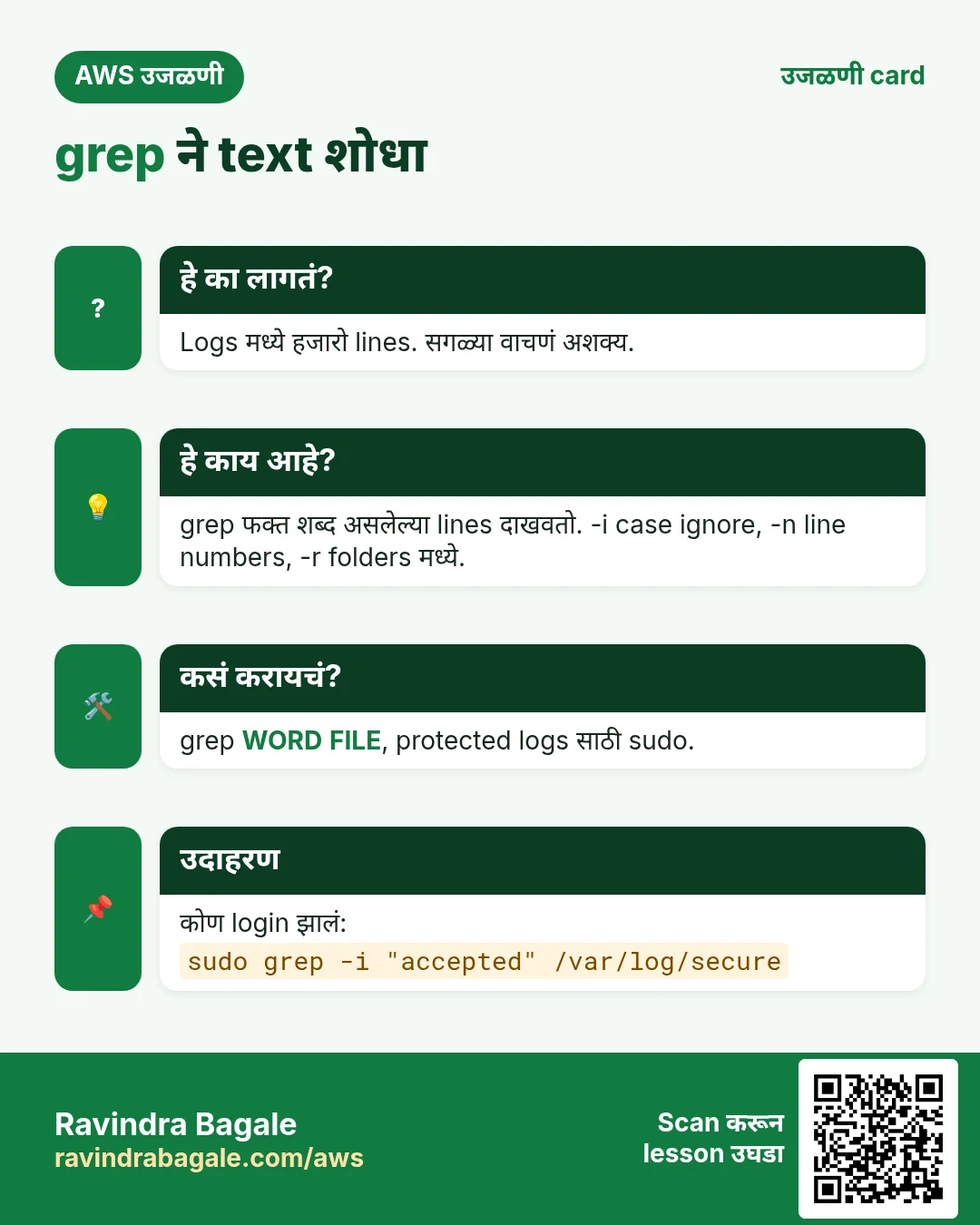
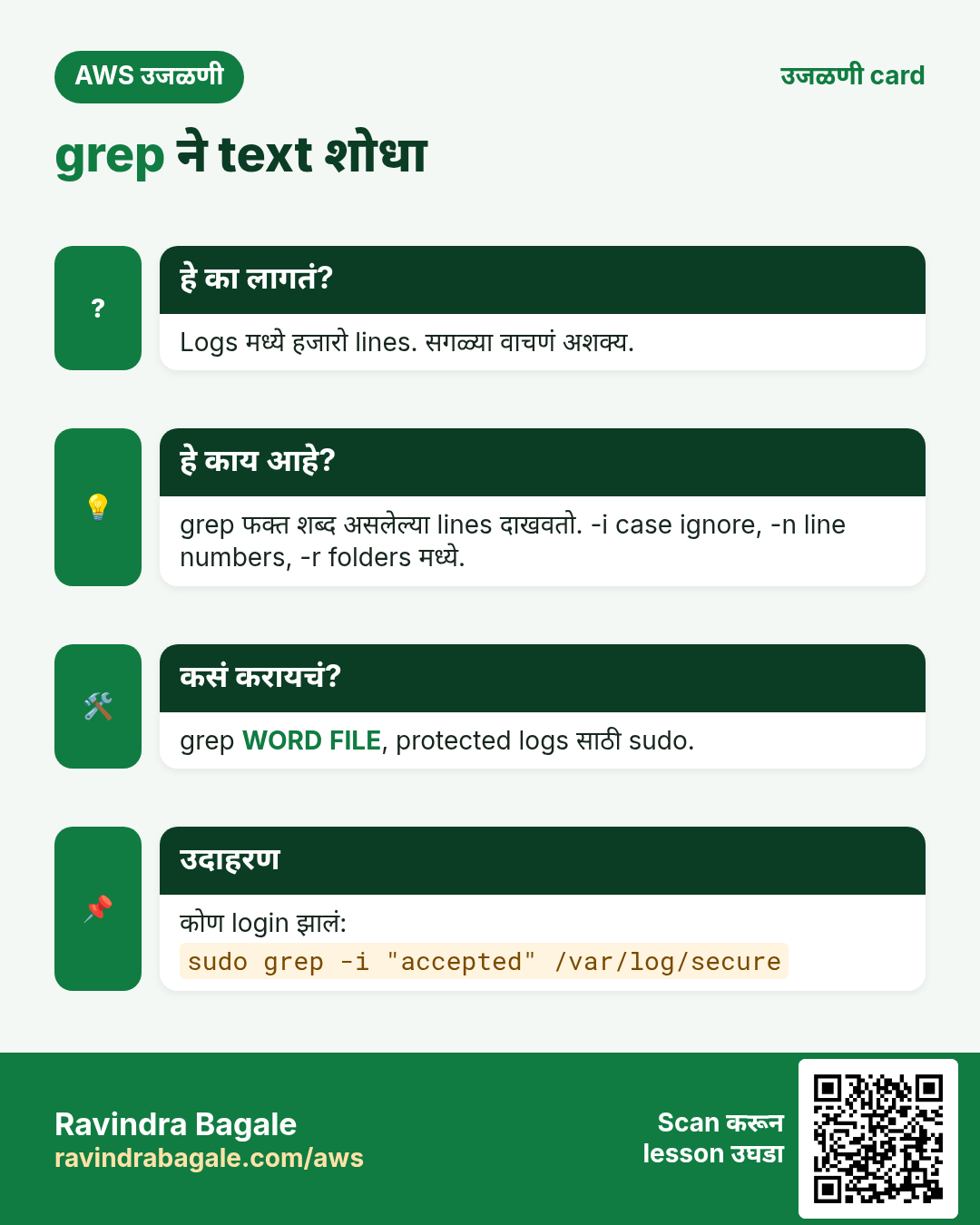
अजून cards: Ravi Sir's Cards.